Knowledge base
1000 FAQs, 500 tutorials and instructional videos. Here, there are only solutions!
This guide explains how, when you belong to multiple Organizations, to switch from displaying one Organization to anothervia the Infomaniak Mail web interface (ksuite.infomaniak.com/mail) to access the email addresses associated with each of them.
Introduction
- Every email address hosted with Infomaniak is linked to a specific Organization, which is the one in which the Mail service is created.
- The Mail web interface displays the email addresses linked to the currently selected Organization.
- To view a different email address belonging to another organization, simply switch to the corresponding Organization.
- Do you want to view email addresses hosted by different Organizations simultaneously? Simply open multiple tabs in your browser, each dedicated to a specific Organization.
- The principle is the same in the interface where you manage your products, the Infomaniak Manager (refer to this other guide).
Switching Between Organizations in Mail Infomaniak
To display the email addresses present in another Organization to which your Infomaniak account is linked:
- Click here to log in to the Infomaniak Mail web interface.
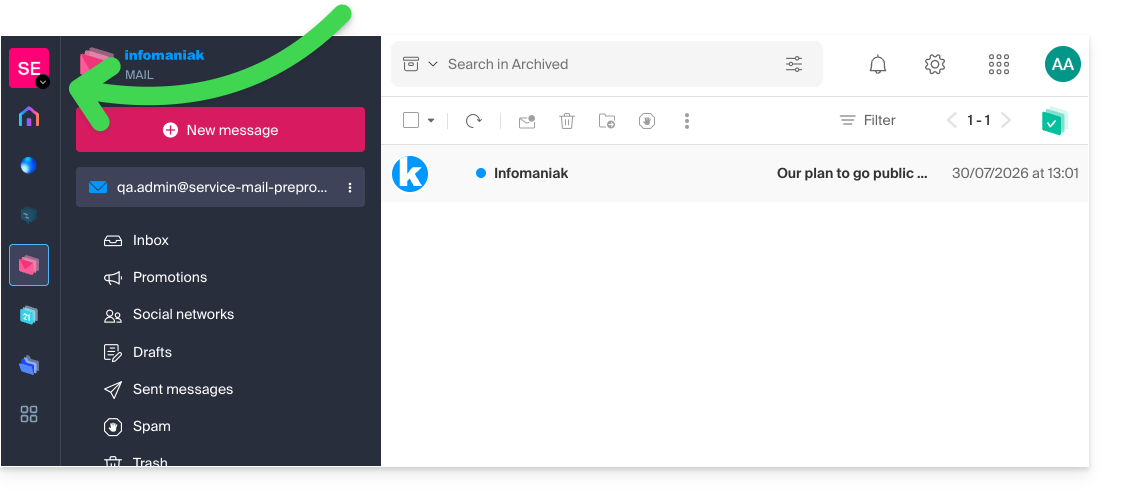
- Click on the name of the active Organization or on the chevron located at the top left of the interface:
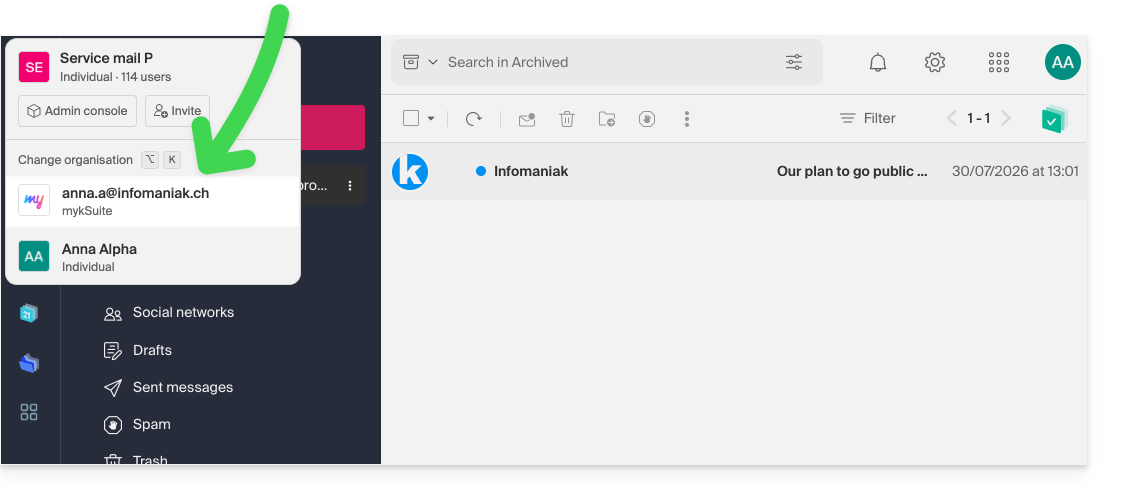
- In the drop-down menu that appears, click on the name of the Organization you want to access:
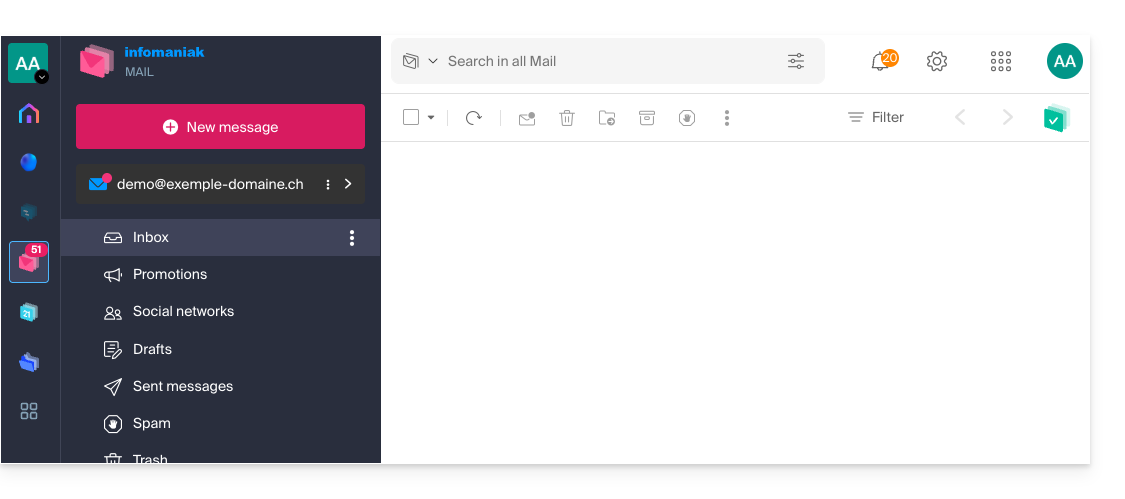
- The interface updates immediately and loads the list of email addresses authorized for this Organization:
- Repeat the procedure from step 2 to switch to another Organization at any time.
Link to this FAQ: https://faq.infomaniak.com/108
Has this FAQ been helpful?
This guide explains how to add or modify one or more SRV records in the DNS zone (of a domain name) managed in the Infomaniak Manager.
Introduction
- This type of record indicates which services are available for a domain.
- They are often used for XMPP, LDAP protocols, or to configure Microsoft Office 365.
Modify the DNS zone
To manage this type of record in a DNS zone:
- Click here to access your domain management in the Infomaniak Manager (need help?).
- Click directly on the name assigned to the domain in question.
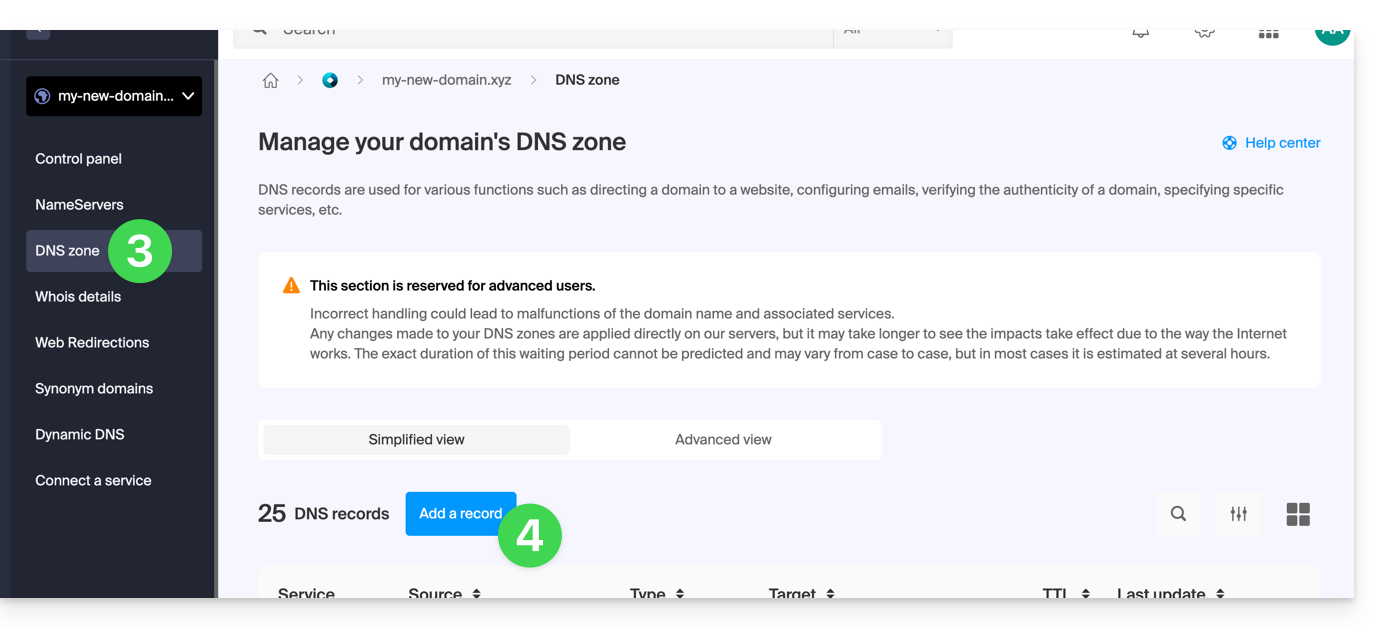
- Click on DNS Zone in the left-hand menu.
- Click the button to add a record:
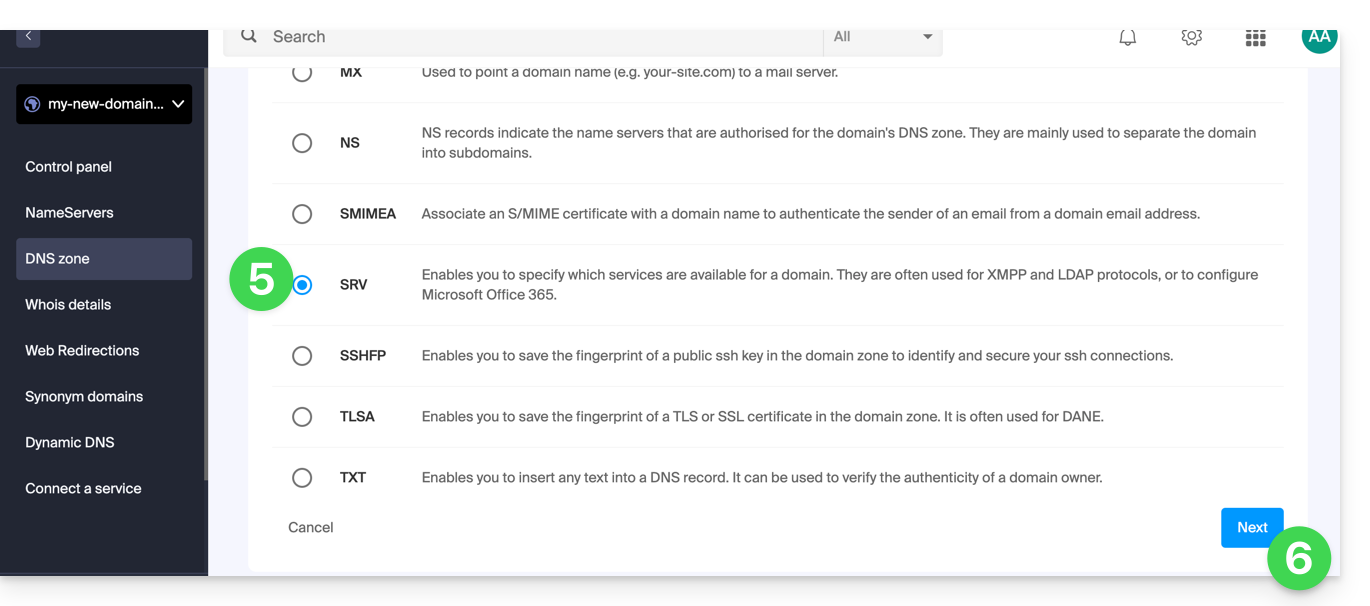
- Click the SRV radio button to add a record.
- Click the Next button:
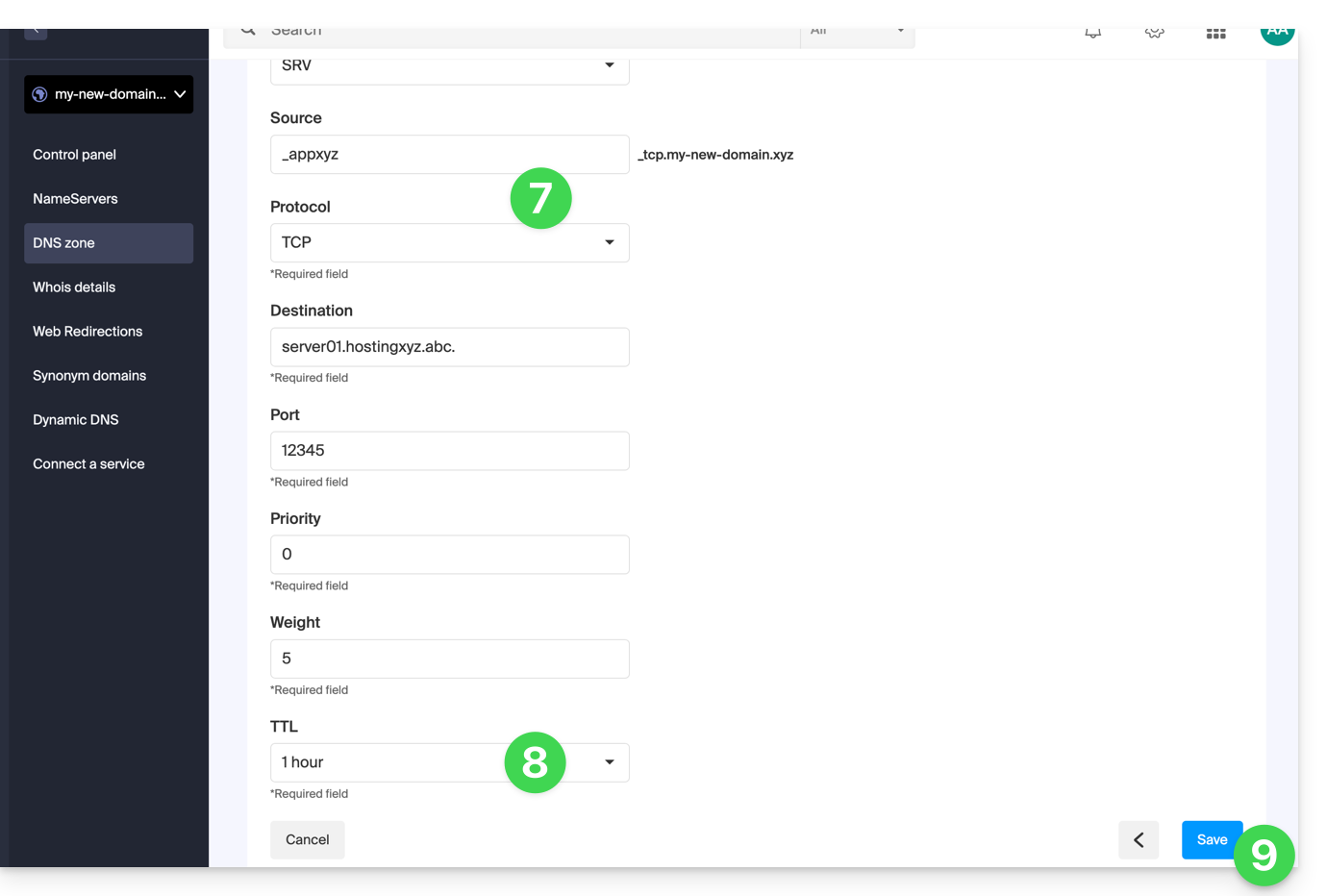
- Enter the values for the SRV record required for your DNS zone (the
._tcp.domain…is already entered). - Leave the default value for the TTL.
- Click the Save button:
Verify that the complete SRV record has been added correctly in the records table: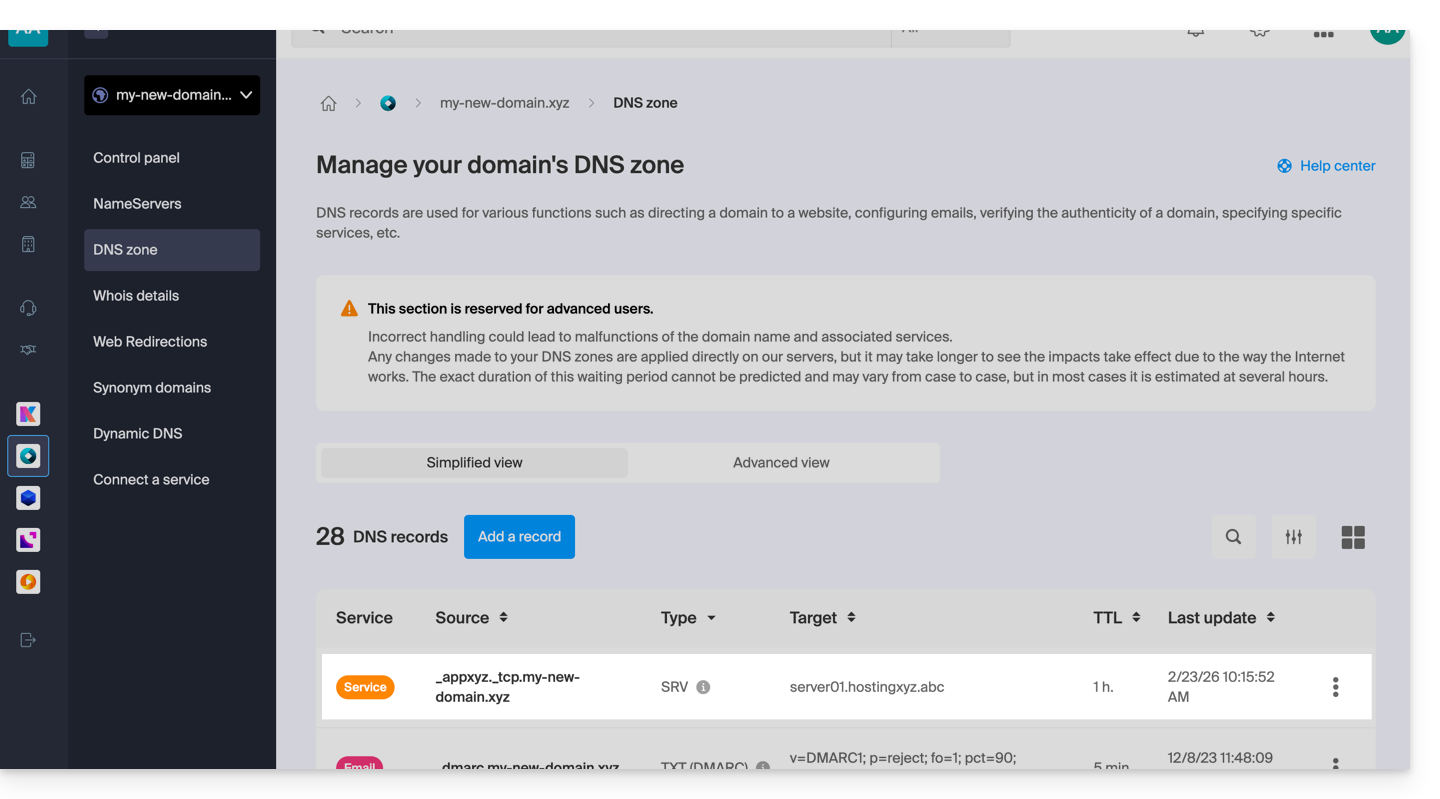
Link to this FAQ: https://faq.infomaniak.com/110
Has this FAQ been helpful?
This guide explains the steps you need to take to access an email address created on Infomaniak by a third party, whether you are an employee, collaborator, family member, or in any other situation.
Request to be a user of the email address
Prerequisites
- If you already have an Infomaniak account, check that the email address is actually inaccessible to your user at the moment.
- Note your login ID: click on the bubble with your initials / avatar in the top right corner of the Infomaniak Manager:
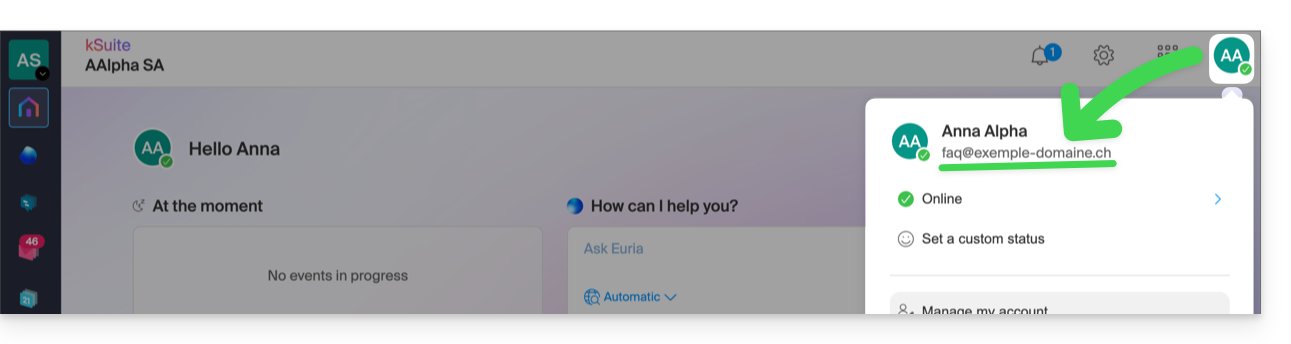
Then, contact the manager of the email address in question (demo@primary-domain.ch in this example):
- Instruct them to follow the instructions provided in this other guide faq.infomaniak.com/1478 * in order to add your login ID as a user of the “
demo” address on the “primary-domain.ch” Mail service. - Provide them with your login ID, for example,
faq@exemple-domaine.ch.
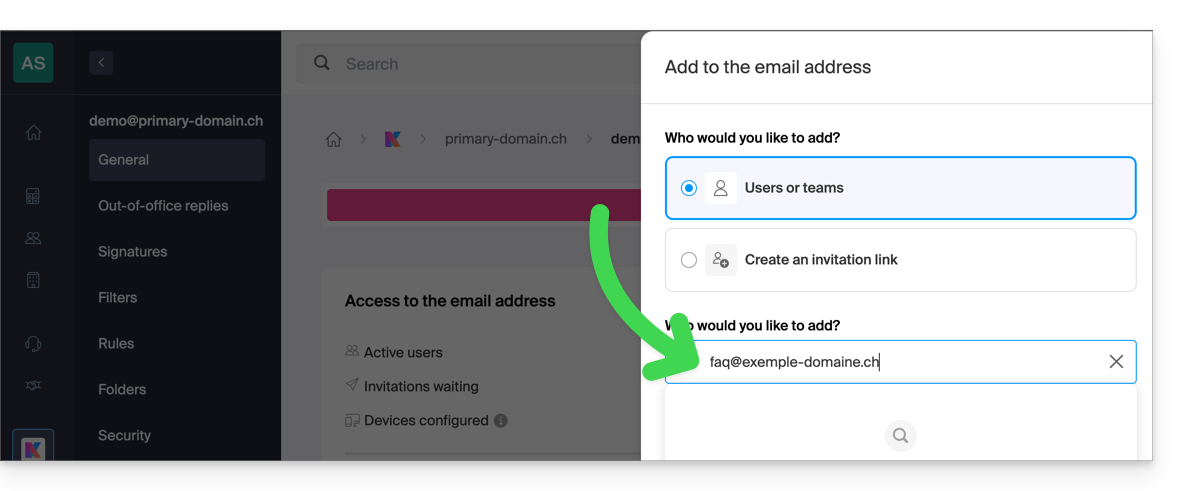
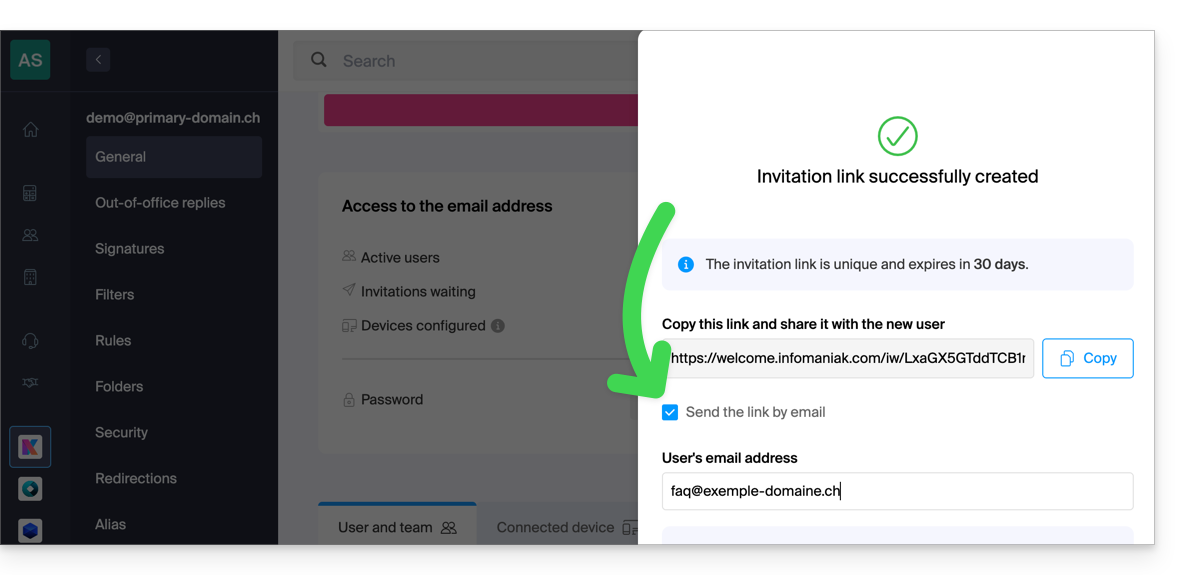
Following the guide, he can add your login ID at step 6 as a user of the email address:
- either directly, because you are already part of the same Organization as him:
- either via an invitation link system, which they can send to you via message, email for example:
Once the operation is complete, you will see the content of the mailbox in question appear on your interface at ksuite.infomaniak.com/all/mail: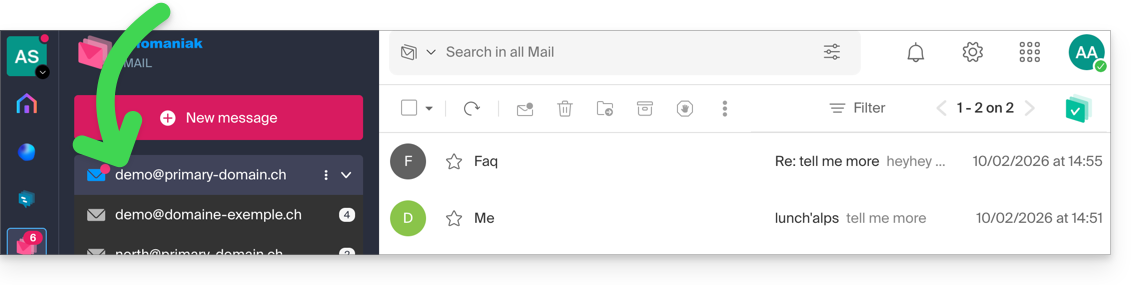
* You can also ask them to consult this other guide to perform the operation directly from the Infomaniak Web Mail app.
Link to this FAQ: https://faq.infomaniak.com/122
Has this FAQ been helpful?
This guide explains how to create a "catchall" email address on a Mail Service.
✘ UNAVAILABLE with
kSuite Free
my kSuite / my kSuite+ (ik.me, etik.com, ikmail.com)
Mail Service Starter
Introduction
- A "catchall" email address collects all emails sent to email addresses that do not exist on the domain.
- This is ideal if you want to receive all messages for which no specific address exists on your domain.
- This type of address cannot be used to send emails.
- If you configure the “Auto-reply” (out-of-office message) function on a catchall@ address, no auto-reply will be sent to senders who contacted a non-existent address on your domain.
- This restriction prevents reply loops and the sending of unwanted messages.
- Also, please read the important recommendations at the end of this guide.
Create a catch-all address
Prerequisites
- Have a Mail service on your Infomaniak Manager.
- Have a available address quota or adjust it beforehand if necessary.
Next, the administrator of a Mail Service creates a new generic email address:
- Click here to access the management of your product on the Infomaniak Manager (need help?).
- Click directly on the name assigned to the product in question.
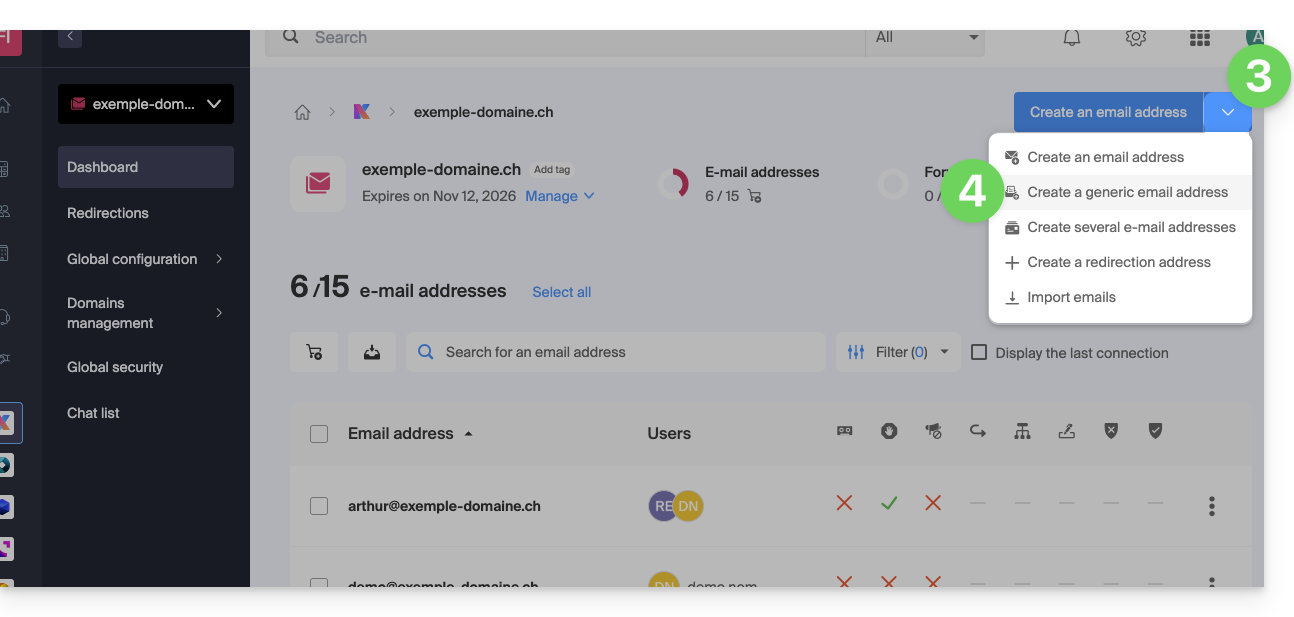
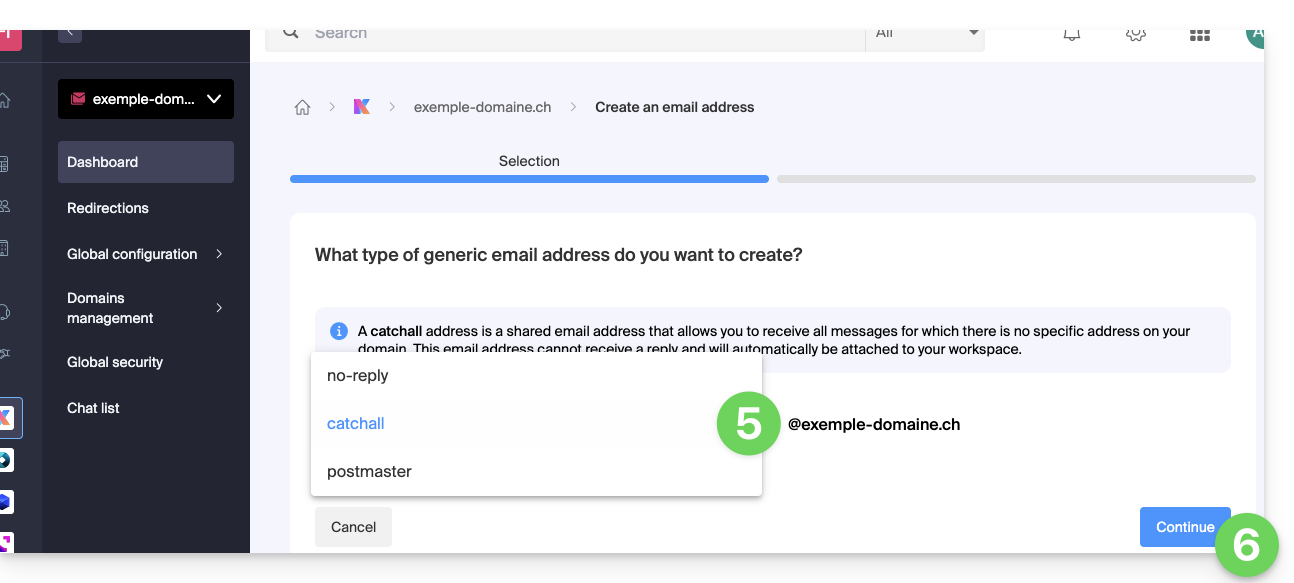
- Click on the chevron to the right of the blue Create a mail address button.
- Click on Create a generic email address:
- Choose Catchall.
- Click on Continue:
Once the catchall address is created, it will be automatically visible in your Infomaniak Mail web app.
To use it elsewhere, you need to add a password for your devices/users.
Example of use
Once the catchall address has been created:
- You use the email address
jonnie.smith@domain.xyz, which works and exists on thedomain.xyzMail Service.- You have also created an address
catchall@domain.xyzon thedomain.xyzMail Service.
- You have also created an address
- An email is sent to
smith.johnny@domain.xyzbecause the sender misspelled the recipient's address.. - The email will still arrive in the
catchall@domain.xyzinbox, which you can simply check in your preferred Mail interface. - The same applies if you delete the
jonnie.smith@domain.xyzaddress at some point; if you keep thecatchalladdress, then it will receive all emails still addressed to the non-existent address...
Important recommendations
Creating this type of account is not recommended:
- Catch-all addresses receive all emails sent to any domain address; this means they are often flooded with spam, which can be difficult to manage and filter.
- Due to the high volume of spam, legitimate messages can be lost and buried in the mass, which can lead to the loss of important communications.
- Catchall addresses can potentially be used by attackers to target your domain with brute-force attacks or other methods, as they offer an easy target for testing different address combinations.
In short, managing a catchall address can become tedious and complicated, especially for large organizations with many employees and departments.
Link to this FAQ: https://faq.infomaniak.com/126
Has this FAQ been helpful?
This guide explains how to create email addresses in bulk instead of adding them one by one within an Infomaniak Mail Service.
Introduction
- To ensure responsible use of the services, a limit of a maximum of 50 email addresses per 24-hour period has been implemented.
- Contact Infomaniak support to remove this restriction.
Create new email addresses in bulk
Prerequisites
- Have a tool for managing CSV files (
.csvformat). - Have a Mail service on your Infomaniak Manager.
- Have available free address quota or adjust itif necessary.
Get the sample CSV file
The import process uses a CSV file (.csv format). Once filled in, this file can be imported to add the addresses to your Mail service in one go.
To download the CSV file and configure the address creation:
- Click here to access the management of your product in the Infomaniak Manager (need help?).
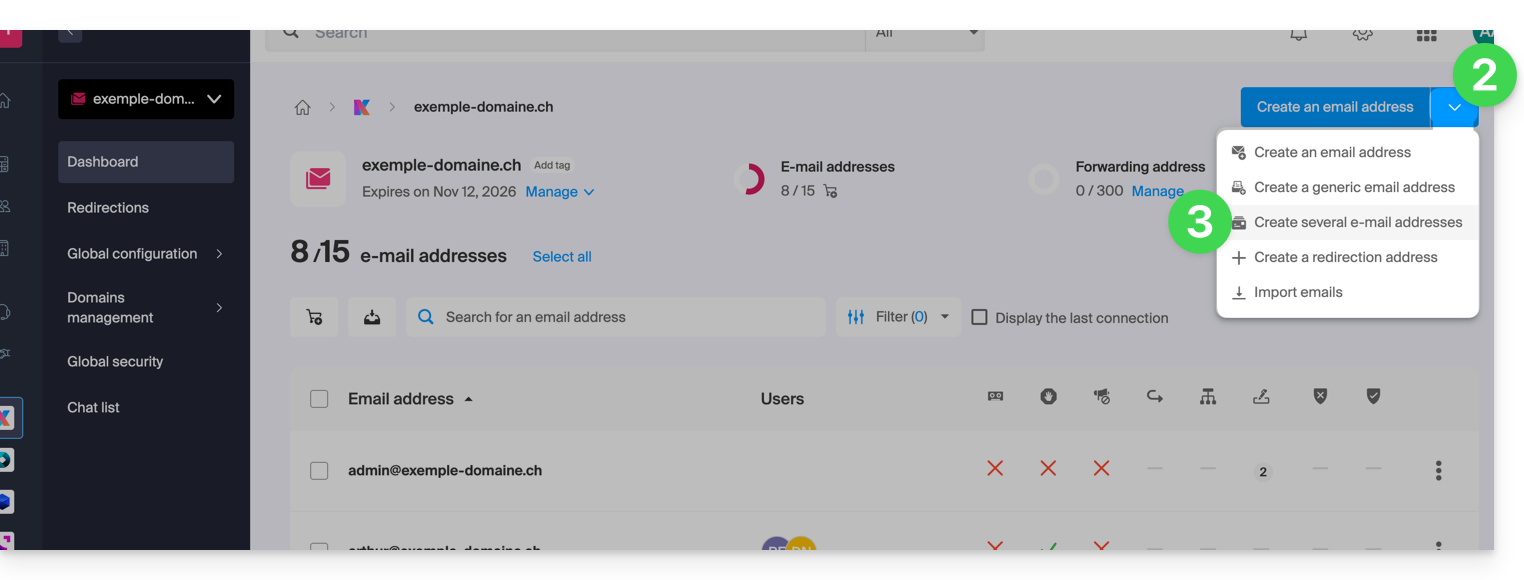
- Click on the chevron to the right of the blue "create address" button.
- Click on Create multiple email addresses
- Download the proposed template (CSV file in
.csvformat):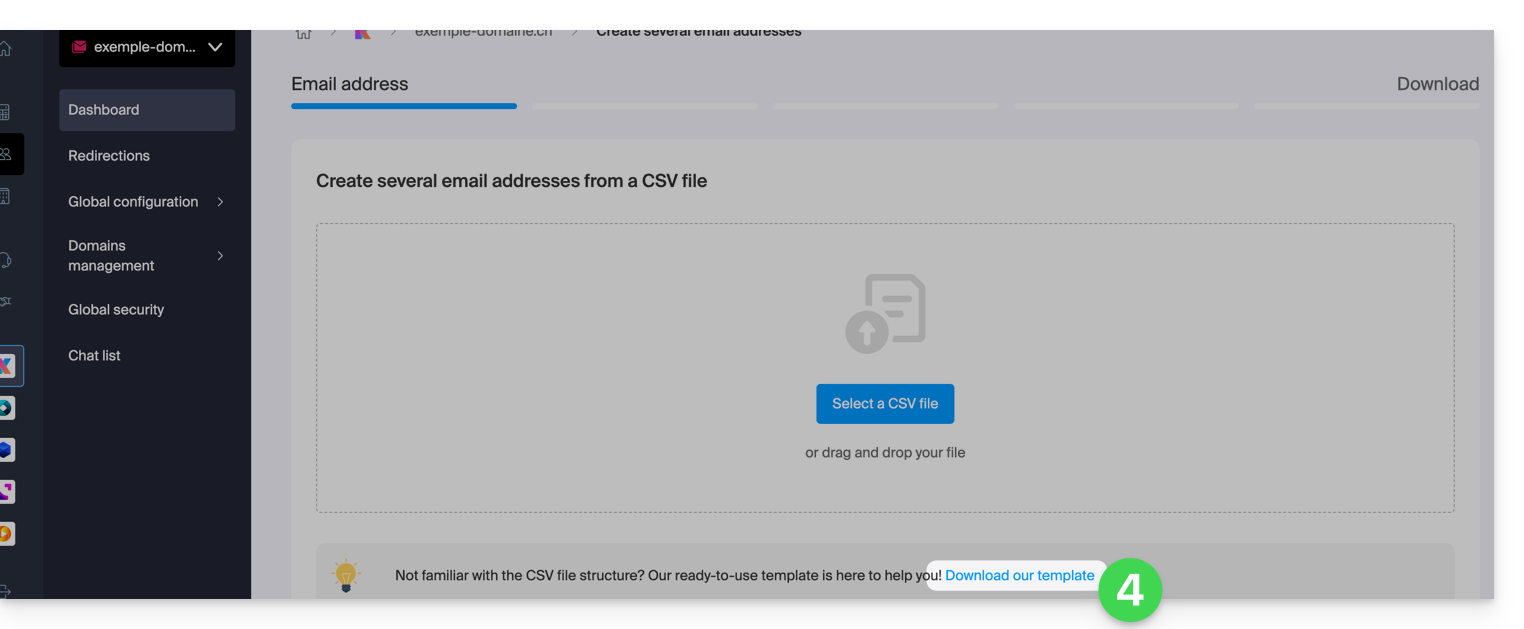
Complete the CSV file
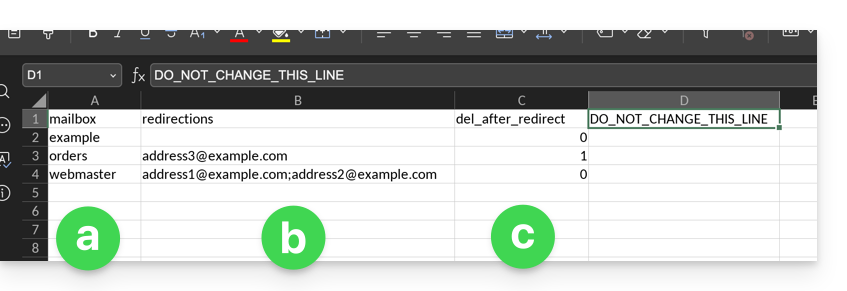
- Open the example CSV file; do not modify the first line, then starting from the second line:
- In the first column, specify the address to create (without the domain)… example:
john. - In the second column, if necessary, specify the complete email address to which emails should be redirected.
- In the third column, specify whether messages should be deleted (1) after redirection.
- In the first column, specify the address to create (without the domain)… example:
- The second and third columns are optional (you can leave them completely blank).
Import the CSV file
Once the .csv file is completed, save it in the same format as the template provided, then:
- Click on the chevron to the right of the blue "create address" button.
- Click on Create multiple email addresses.
- Click on Select a CSV file:
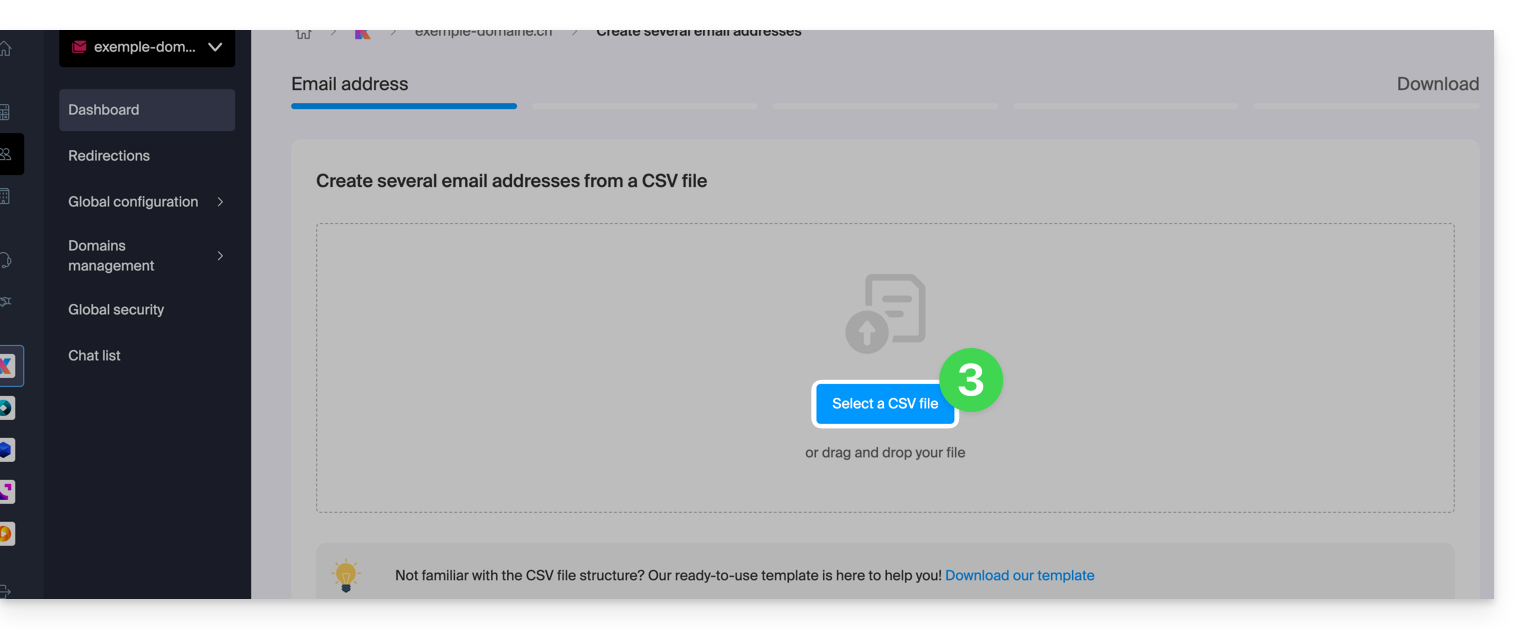
- Browse your device and select your CSV file.
- Click Continue; after a few minutes, the email addresses will be added (without any passwords being assigned to them yet), according to the instructions in the imported file.
Link to this FAQ: https://faq.infomaniak.com/224
Has this FAQ been helpful?
This guide will help you if you receive error emails that mention SPF when sending emails to gmail, microsoft, or similar addresses.
Are all your services with Infomaniak?
The Global Security tool informs you of any configuration inconsistencies regarding your Infomaniak Mail Service.
Are some of your services located elsewhere?
To resolve an email sending issue when your email is managed by Infomaniak and your website is hosted with another provider (such as Wix, for example), and in this situation, the DNS zone of the domain name is managed elsewhere, please refer to this other guide.
Link to this FAQ: https://faq.infomaniak.com/237
Has this FAQ been helpful?
This guide explains how to restore backups of previous versions of your files and other web data from your Infomaniak web hosting, and how to set up an effective backup policy if the backups provided automatically and free of charge no longer meet your availability or security requirements.
Web Hosting (Starter, Shared, Cloud Server)
Consult these guides to restore automatic backups:
- of an entire hosting account (FTP + MySQL),
- of specific files on the hosting,
- of specific databases,
- a Web Application (WordPress & Apps),
- Cloud Server SSH crons.
Consult these guides for backing up and restoring:
- a hosting solution with Swiss Backup and Restic (advanced),
- WordPress with Swiss Backup,
- WordPress with an extension.
Please also refer to https://faq.infomaniak.com/snapshot.
Email / kSuite
- Restore messages from Infomaniak's automatic backups.
- Restore contacts or calendar events.
- Back up the current content of a mail account:
- by downloading the current content locally,
- by duplicating all the current content to a backup mailbox,
- by copying future emails as they arrive to a backup mailbox.
Domains / DNS Zones
- Restore deleted DNS records from Infomaniak's automatic backups.
- Restore an expired domain during the redemption period.
Link to this FAQ: https://faq.infomaniak.com/250
Has this FAQ been helpful?
This guide will help you resolve an issue if, after sending an email, you receive a message indicating that the email was rejected due to "Spam Message Rejected" or "5.7.0 AV: Message is rejected by headers rule filter.. 554 Please check the message and try again" ...
You must check the following
Please check that your email did not contain:
- words or phrases that are often associated with spam, as they could be identified as unwanted messages and rejected
- any unusual indication in the signature, a link formulated incorrectly (
http//.domain.xyzfor example), etc. - an attachment with one of these prohibited extensions:
.exe,.com,.cmd,.cpl,.hta,.scf,.sct,.lnk,.bat,.js,.jse,.wsh,.ws,.wsf,.wsc,.vbe,.vb,.vbs,.shs,.pif,.scr... including inside a compressed file (e.g..zip)
To send a file (e.g., a js or exe file) for which the absence of viruses has been confirmed, store it on your hosting space and create a link to it. If the file is large and you are sending it from the Infomaniak Mail web app (online service ksuite.infomaniak.com/mail), it will in any case be placed on a temporary server, allowing it to be sent to your recipient, who will then receive a download link. Alternatively, use Swisstransfer.com.
Also, check your SPF record. If your domain does not have an SPF record or if this record is incorrect, your message will most likely be rejected.
If you believe you are receiving a "Spam Message Rejected" message without reason, contact Infomaniak support.
Link to this FAQ: https://faq.infomaniak.com/316
Has this FAQ been helpful?
This guide helps you resolve an email sending error of the type "the recipient was rejected by the server" / "recipient rejected" (code: 550 5.7.1 relaying denied) or "authentication required" / "proper authentication required".
Troubleshooting a Relaying denied error
Check that the "My outgoing server (SMTP) requires authentication" a bien été activé dans les réglages de votre serveur sortant (SMTP) sur le logiciel de messagerie employé.
You will generally find this setting under one of the following headings:
- "More Settings"
- "Advanced Settings"
- "Outgoing Server (SMTP)"
After correcting this setting, it is important to delete or move the pending messages in your outbox, then try sending a new message.
Using config.infomaniak.com
You can use the Infomaniak configuration tool to help you (log in to your Infomaniak account if necessary).
Also, refer to this other guide for troubleshooting errors.
If the error message specifically mentions IP name possibly forged, you will need to contact the administrator of your internet connection (your internet service provider) to check the situation with them (or change your IP address by testing from another device/network, etc.).
Link to this FAQ: https://faq.infomaniak.com/337
Has this FAQ been helpful?
This guide explains how to transfer to Infomaniak email addresses currently hosted by Microsoft, within Microsoft 365, using an IMAP import tool.
Introduction
- The operation does not affect either the data already present at the destination address or the data at the source address.
- The entire external mailbox will be imported.
- Once the import process has started, it is no longer possible to interrupt it.
- Any duplicates will be handled: identical content will only be copied once.
- Consult this other guide if you are looking for alternatives to this IMAP process.
Import your entire email history
1. Microsoft Prerequisites
- Enable the POP/IMAP/SMTP features that are disabled by default (need help?).
2. Infomaniak Prerequisites
- You must have a Mail Service on your Infomaniak Manager.
- Have a number of available addresses or adjust it if necessary.
- Make sure your email is properly secured
- Create one or more addresses on this Mail service.
- If you have many (10+) email addresses to create, please refer to this other guide regarding bulk creation.
- The destination email address must be linked to the user (= the Infomaniak account) you are using.
3. Import your email content from Microsoft to Infomaniak
- Click here to access the import tool (online service https://import-email.infomaniak.com).
- If necessary, log in to your Infomaniak account for the relevant organization. The import will be done to one of the email addresses associated with the Infomaniak Mail web interface (online service ksuite.infomaniak.com/mail) of the Infomaniak account you are using.
- Click on the IMAP import option.
- Click on single import.
- Fill in the field on the left with your source email address (from which the content will be copied).
- Click on the "Sign in with Microsoft" button that appears:
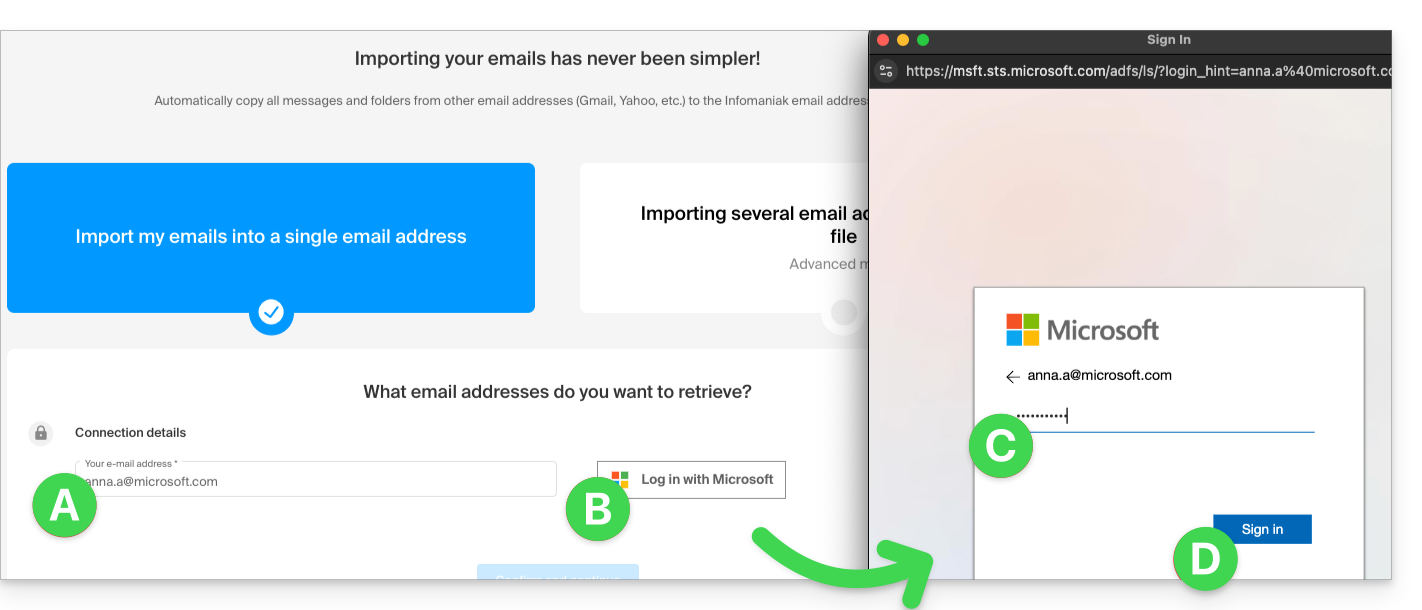
- Make sure you are signing in to the Microsoft account that you want to use for email migration.
- Confirm that you authorize the Infomaniak tool to connect to your account (automatic process).
- Once you confirm the pop-up, choose the email address to which you want to import the emails; the drop-down menu lists the email addresses currently associated with your Infomaniak Web Mail interface (online service ksuite.infomaniak.com/mail) for the Infomaniak account you are logged into.
- After selecting the desired destination address from the list, click the blue Import emails button.
- The copy process has started. You can wait and view the result on the page once the import is complete, or close the window (the import will continue in the background, and progress can be tracked - see below).
- A confirmation email will be automatically sent to all email addresses involved in the operation once the import is complete, indicating the number of messages copied.
- Tracking is available in the settings of the destination email address, and only on the web app Mail (online service ksuite.infomaniak.com/mail).
- Tracking allows you to view the import history for the address in question.
4. Adjust the application settings
Once you have taken the necessary steps to ensure that the domain name associated with your email account works with Infomaniak, modify the settings of the email software/clients you use so that they connect correctly to the Infomaniak servers: follow the configuration wizard.
Link to this FAQ: https://faq.infomaniak.com/365
Has this FAQ been helpful?
This guide details the "bogus HELO" email error to help you understand its origin and how to fix it.
When and why does this error occur?
The SMTP protocol (used for sending emails) involves several phases. The first phase involves the sender's server introducing itself to the recipient's server using the HELO command (or EHLO for extended SMTP). This command must be followed by a valid hostname.
If you receive an error mentioning "bogus HELO", it means that the identifier provided by the sending server does not comply with RFC 5321. This check is an essential security measure that helps filter out a large number of misconfigured servers, often used for distributing viruses and spam.
Infomaniak rejects any message originating from a server that identifies itself generically (e.g., "server") or locally. The server must use a FQDN (Fully Qualified Domain Name), meaning a complete and resolvable hostname of the type "server.domain.xyz".
Examples of configurations that will cause rejection:
Using a local or loopback IP address:
220 mta-gw.infomaniak.ch ESMTP Infomaniak Network Mail Servers; HELO 127.0.0.1
Using an IP address enclosed in square brackets instead of a domain name:
220 mta-gw.infomaniak.ch ESMTP Infomaniak Network Mail Servers; HELO [192.168.1.1]
Using an unqualified local hostname:
220 mta-gw.infomaniak.ch ESMTP Infomaniak Network Mail Servers; HELO localhost 220 mta-gw.infomaniak.ch ESMTP Infomaniak Network Mail Servers; HELO mon-serveur
Using a banned or obviously incorrect domain name:
220 mta-gw.infomaniak.ch ESMTP Infomaniak Network Mail Servers; HELO fakedomain.xyz
In these cases, the SMTP transaction will fail with the following code:
MAIL FROM: user@domaine.com 250 2.1.0 user@domaine.com... Sender OK RCPT TO: destinataire@infomaniak.ch 550 5.7.1 destinataire@infomaniak.ch... Access denied - bogus HELO [1]
How to resolve this issue?
If you are using a programming script (PHP, Python, etc.) to send emails via SMTP, make sure that the library used is configured to send a valid domain name in the HELO command, and not the IP address of the web server.
Link to this FAQ: https://faq.infomaniak.com/414
Has this FAQ been helpful?
This guide details the allowed and prohibited characters when creating an email address (up to 64 characters) in an Infomaniak Mail Service.
Introduction
- The allowed characters differ depending on whether they appear before or after the at symbol
@. For example, innom-utilisateur.mail@nom-domaine.xyz:- Before the at symbol: the
nom-utilisateur.mailpart corresponds to the username. - After the at symbol: the
nom-domaine.xyzpart corresponds to the domain name.
- Before the at symbol: the
- To learn about the possibilities offered at the domain name level (the part after the at symbol
@), see this other guide.
Part before the at symbol: username.mail
The RFC 5321 and RFC 5322 standards define the general syntax of email addresses. However, email providers – including Infomaniak – apply additional restrictions to ensure security, consistency, and compatibility with the majority of software/email clients.
For example, an address such as -@exemple.com is syntactically valid according to RFC 5322, but is not accepted when creating accounts on Infomaniak servers.
These additional rules allow, in particular:
- to prevent abuse (spam, malicious automation, etc.);
- to comply with naming conventions (an identifier consisting only of
-is meaningless); - to ensure compatibility with email software/clients that handle certain address formats poorly.
In summary: RFC 5322 defines what is syntactically possible, but each server determines what is actually usable in practice.
Allowed characters before the at symbol
The following characters can be used in the part before the at symbol of an Infomaniak email address:
| Allowed characters | Examples / Notes |
|---|---|
| Letters | a to z and A to Z |
| Numbers | 0 à 9 |
| Hyphen | - (not allowed as the first or last character) |
| Underscore | _ |
| Period | . (allowed, but not at the beginning, end, or consecutively) |
Characters not allowed before the at symbol
The following characters (at symbol, exclamation mark, hash, dollar sign, percent sign, caret, ampersand, asterisk, parenthesis, equals sign, bracket, chevron, comma, quotation marks, semicolon, question mark…) cannot be used to create an Infomaniak email address:
| Forbidden characters | Notes |
|---|---|
@ | reserved for separating the username and the domain |
| (space) | |
!, #, $, %, ^, &, * | not supported |
(, ), =, [, ] | not supported |
<, >, ,, ;, ", /, ? | not supported |
| Non-ASCII characters | for example, accents or non-Latin characters |
| Control characters (ASCII codes < 32) | non-printable, prohibited |
Link to this FAQ: https://faq.infomaniak.com/438
Has this FAQ been helpful?
This guide explains why some attachments sent from Microsoft Outlook arrive in winmail.dat format at your email address hosted by Infomaniak, and how to permanently resolve the problem on the sender's side (where it is created).
Introduction
winmail.datis the container used by Outlook/Exchange when a message is sent in RTF/TNEF format.- It encapsulates the formatting and attachments.
- Many non-Microsoft software/email clients cannot interpret TNEF:
- the formatting disappears, and the attachments become a single
winmail.datfile.
- the formatting disappears, and the attachments become a single
Important: the generation of a winmail.dat file does not depend on Infomaniak; the issue originates with the sender (Outlook/Exchange) and must be resolved on their computer or by their Microsoft 365 administrator.
Resolving the issue (actions to request from the sender)
The most effective solution is to have the sender modify their Outlook configuration.
Disable RTF/TNEF and resend the message in HTML or plain text
- Classic Outlook for Windows (Microsoft 365/2021/2019, Win32 application)
Menu:File > Options > Mail
Composition:Compose messages in the following format:choose HTML (or Plain Text).
Message format: inWhen sending rich text messages to Internet recipients, select Convert to HTML (or Convert to plain text).
On a case-by-case basis (single email): in the message window,Format Texttab > choose HTML.
- New Outlook for Windows (application based on Outlook on the web)
Menu:Settings (gear icon) > Mail > Compose and reply
Message format:Compose messages in:choose HTML (or Plain text).
This client does not offer an RTF option; sending in HTML/text avoidswinmail.dat.
- Outlook on the web (Exchange Online/Outlook.com)
Menu:Settings > Mail > Compose and reply > Message format> choose HTML (or Plain text).
- Outlook for Mac
Menu:Outlook > Preferences > Writing> check/uncheck Write messages in HTML by default.
For a single message: in the writing window, Options tab > toggle HTML or Plain Text.
Note: if the sender has attached files, they will be readable by all recipients as long as the message is sent in HTML/text. Zipping the attachments (.zip) does not prevent Outlook from encapsulating the message if RTF/TNEF is still active.
Disable RTF for specific recipients (e.g., yourself)
- Classic Windows Outlook: open the Contact card > double-click the email address > Outlook Properties > Internet format: select Send in plain text only (or Let Outlook decide if the administrator is already forcing the conversion).
- Clear the auto-complete (it may “memorize” RTF for a recipient):
File > Options > Mail > Send messages > Clear the auto-complete list, then retype the address manually the next time you send a message.
- Microsoft 365 administrators (on the sender's side): in the Exchange Admin Center:
Mail flow > Remote domains > Default> Rich Text Format: choose Never. In PowerShell:Set-RemoteDomain Default -TNEFEnabled $false.
If this doesn't work: use another email client to send the invitation (e.g. Thunderbird), or check that calendar invitations are sent in iCalendar format (File > Options > Calendar > enable Use the iCalendar format for external recipients).
If you do not wish to contact the sender again
You can extract the content of winmail.dat using TNEF decoding tools (online or desktop applications). Search for “open winmail.dat” and choose a reputable tool for your system (Windows, macOS, Linux). This usually restores the attachments, but it is not a permanent solution. Furthermore, confidentiality and security are in no way guaranteed during these operations.
Link to this FAQ: https://faq.infomaniak.com/460
Has this FAQ been helpful?
This guide explains which protocols and ports can be used with Infomaniak's email services (including the Mail Service).
Recommended ports and settings for client configuration
When prompted during the configuration of software/email client (Outlook, Thunderbird, mobile, etc.), use the settings below.
Settings common to all accounts
- Server name:
mail.infomaniak.com - Authentication: required (username = full email address)
| Protocol / Usage | Port | Security mechanism |
|---|---|---|
| IMAPs – incoming traffic (recommended) | 993 | SSL / TLS (implicit) |
| SMTP – outbound traffic (option 1: standard IETF) | 587 | STARTTLS (explicit) |
| SMTPs – outgoing traffic (option 2: implicit encryption) | 465 | SSL / TLS (implicit) |
Technical note: port 587 with STARTTLS is the IETF standard practice for secure email submission. Port 465 is a secure alternative using implicit encryption.
If you specify other settings or disable encryption, email errors may occur.
Other supported ports (unencrypted or for backward compatibility)
Alternative ports:
- Port
143: standard port for IMAP reception (unencrypted, use993instead). - Port
110: standard port for POP3 reception (unencrypted, use995instead). - Port
995: secure port for POP3s reception (secure POP3 option). - Port
25: standard port for server-to-server transfer (can support STARTTLS for submission, but port587remains the standard for clients).
Authentication and encryption compatibility:
- STARTTLS authentication is supported on unencrypted ports (
143,110,25) to enable TLS encryption. - SMTP authentication is supported via the LOGIN or PLAIN methods.
Using the API and securing transfers
The Infomaniak API does not offer direct connections to the email service, as IMAP and SMTP already serve as interfaces ("APIs"). To interact with the email service programmatically, use a dedicated library (for example, in Python: email.examples and imaplib).
Example of how to display emails from PHP:imap_open("{mail.infomaniak.com:993/imap/ssl}", $email, $password);
The MTA-STS mechanism is not implemented or verified; Infomaniak uses DANE (DNS-based Authentication of Named Entities) instead to guarantee an encrypted connection between servers when the following conditions are met:
- The client sends an email to a domain that has configured DANE.
- The client receives an email from an SMTP server that uses DANE.
In all other cases (in the absence of DANE), the encrypted connection remains opportunistic.
Link to this FAQ: https://faq.infomaniak.com/468
Has this FAQ been helpful?
This guide explains how Greylisting works, a security measure applied to Infomaniak's email servers.
Introduction
- Greylisting is a technique used by Infomaniak's mail servers (among others) to combat spam.
- It is based on the principle of temporarily delaying the delivery of an email in order to verify the legitimacy of the sender.
- This method leverages the fact that legitimate mail servers comply with standards by retrying the sending of a deferred message, while spam servers generally give up after the first failure.
Steps in the verification process
1. Initial Reception
When a mail server receives an email, it records a set of three essential pieces of information:
- the sender's IP address,
- the sender's email address,
- the recipient's email address.
2. Temporary rejection
The server temporarily refuses to deliver the email and returns a temporary error code (code 4xx). This indicates that the message is not permanently rejected, but that the sending server should try again later.
3. Retry by the sending server
Legitimate mail servers are programmed to retry sending the message after a certain period. Spam servers, on the other hand, generally do not bother to try again.
4. Validation and acceptance
Upon retrying, if the message comes from the same trio (sender IP, sender address, recipient address) that was previously recorded, the message is validated, accepted, and routed to the recipient.
Link to this FAQ: https://faq.infomaniak.com/474
Has this FAQ been helpful?
This guide outlines the steps to follow if you are a healthcare professional, an Infomaniak customer, and wish to comply with the HIN system.
Introduction
- The acronym HIN stands for "Health Insurance Network".
- An HIN email address is an address used to send confidential and sensitive messages, such as medical records or test results, between healthcare professionals who have been authorized to use it.
- These addresses are protected by additional security measures to ensure that sensitive information does not fall into the wrong hands.
Get an encrypted HIN email address
To make your Infomaniak email address compatible with HIN:
- Click here to access the page with the services offered by HIN and subscribe to their offer.
- Contact Infomaniak support in writing as soon as a contract is concluded, clearly indicating the address(es) in question (pay particular attention to the domain name and its extension
.com,.ch, etc.). - Wait for HIN to notify Infomaniak and for the solution to be implemented (this may take several hours or days).

Link to this FAQ: https://faq.infomaniak.com/486
Has this FAQ been helpful?
This guide helps you resolve the email error “The server you are connected to is using a certificate that cannot be verified”.
1. Cause of the error
This error message appears in your software or email client (Microsoft Outlook, Apple Mail, Mozilla Thunderbird, etc.) when the configured server name does not match the SSL certificate that secures the connection.
If you have entered a custom server name (e.g., one composed of the domain name you purchased) such as mail.domaine.xyz while also enabling secure connection (SSL/TLS), your software will detect a conflict because the SSL certificate on the server is only issued for the domaininfomaniak.com.
2. Solution and configuration to apply
To correct this error and ensure a secure connection without certificate warnings, you need to update your email client settings.
Use the official server name
Enter mail.infomaniak.com exclusively as the server name for both receiving and sending emails:
- Incoming server (IMAP or POP):
mail.infomaniak.com - Outgoing server (SMTP):
mail.infomaniak.com
For all detailed settings (port numbers and encryption types), please refer to this other guide on configuring an email client.
Link to this FAQ: https://faq.infomaniak.com/521
Has this FAQ been helpful?
This guide will help you find the public IP address of your device, which can be useful when submitting certain support requests.
Display the public IP address on the connected device
Click here to obtain the public IP address of your device in IPv4 and IPv6 format.
Alternative methods
Visit ipinfo.io or ifconfig.me.
… on macOS
- From a
Terminalapplication (command-line interface,CLI) on your device, run thecurl ifconfig.mecommand and press Enter. - The address displayed is the public IP address of your computer.
Please note that this address may change periodically, especially if the router restarts or if the internet service provider uses dynamic IP address assignment.
To automate the process of finding the public IP address, use commands or scripts that query services such as api.ipify.org...
Link to this FAQ: https://faq.infomaniak.com/528
Has this FAQ been helpful?
This guide helps you resolve an email error of the type "535 5.7.0 authentication failed".
Troubleshooting Authentication Failed Errors
The email authentication service on the servers may experience an issue for a few brief seconds in exceptional cases, for example, during unusual events on the infrastructure.
If a 535 5.7.0 authentication failed error occurs:
- Wait a few minutes and then try sending the message again; it should go through this time.
If the problem persists, check the points in this other guide.
Link to this FAQ: https://faq.infomaniak.com/554
Has this FAQ been helpful?
This guide explains how to connect the Microsoft Outlook mobile app (application for smartphone or tablet iOS / Android) to an email address hosted by Infomaniak.
Introduction
- Instead of the manual configuration below, it is recommended to use the Infomaniak Mail app (iOS / Android) to benefit from Infomaniak's security features.
- The Microsoft application is configured by default to analyze your data:
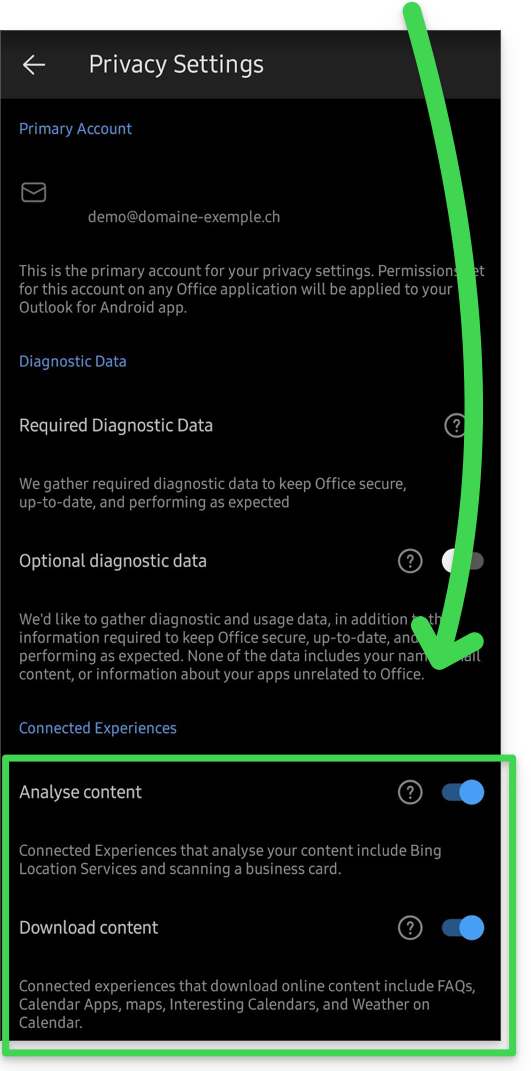
Add the email address to the application
Prerequisites
- Create the email address (❓: help my kSuite | Mail/kSuite Service).
- Create a device password (❓: help my kSuite | Mail/kSuite Service).
- Check that the domain is configured correctly (❓: help).
To configure the email application:
- Open the application.
- Click on Add an account:
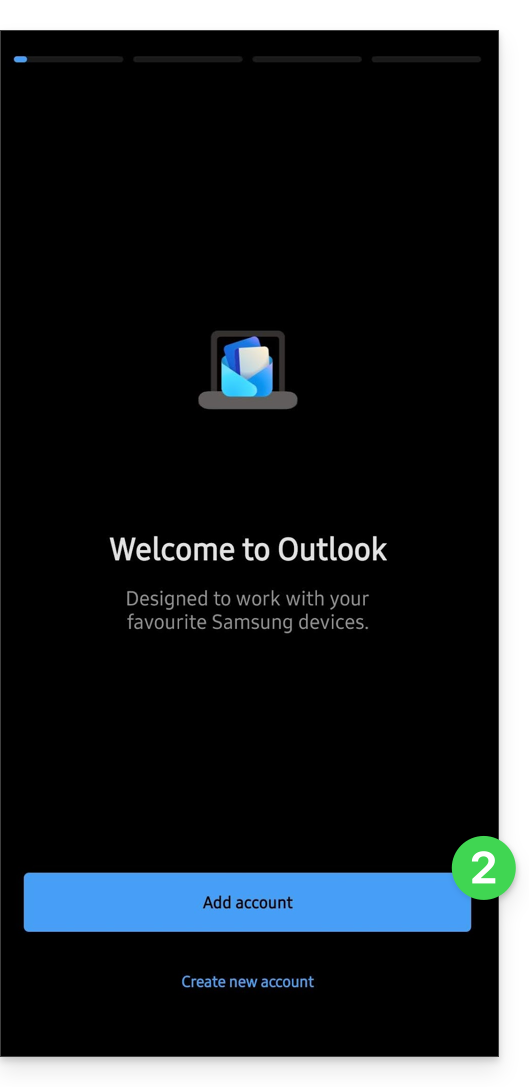
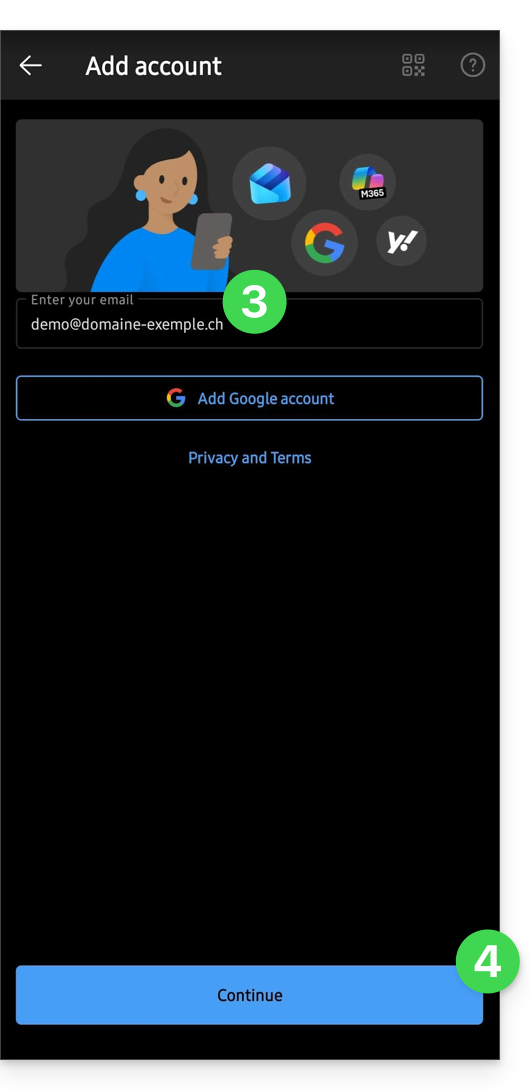
- Enter the email address to associate.
- Click on Continue:
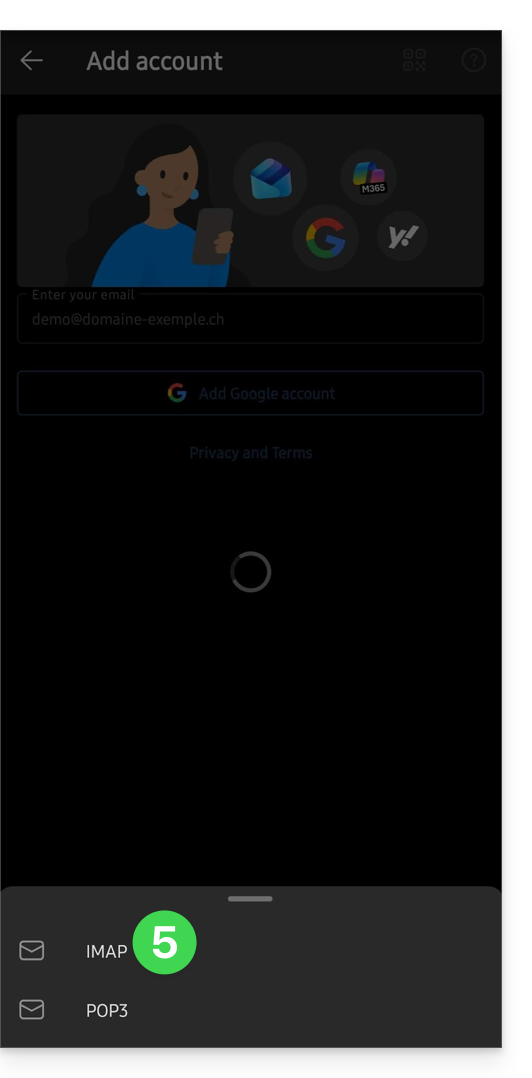
- Click on IMAP:
- Activate the toggle switch to enable advanced settings.
- Complete the missing information (❓: help).
- Click on the ✓ icon in the top right corner.
- If necessary, choose to add an additional account, otherwise click Later.
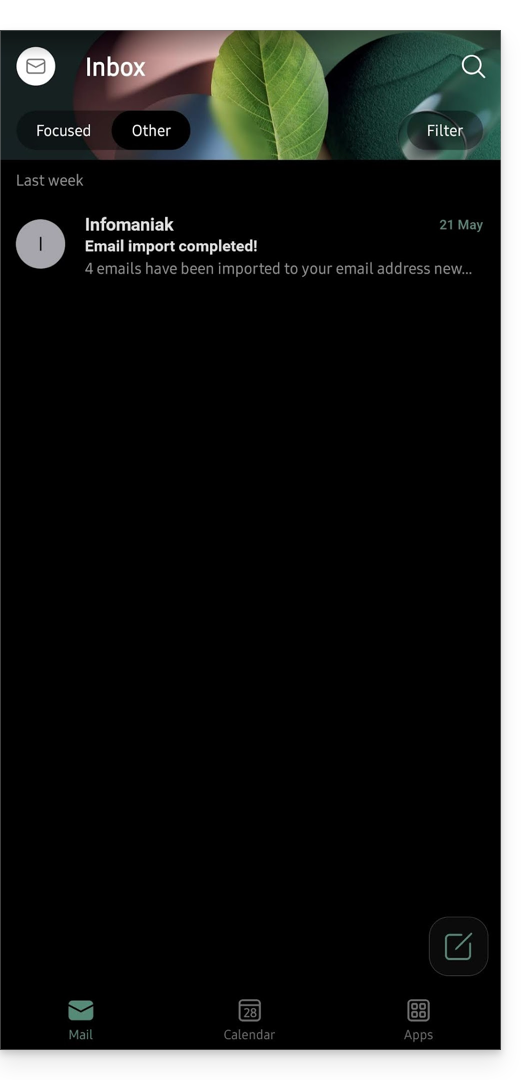
- That's it, your email address is now configured in the application:
Recommended settings
- Incoming IMAP server =
mail.infomaniak.com - IMAP port =
993(with SSL) - Outgoing SMTP server =
mail.infomaniak.com - SMTP port & encryption protocol and command/method to activate this protocol:
587+ STARTTLS - Username = the complete email address & (❓: help).
- Password = the password generated for the email address you want to access (❓: help my kSuite | Mail/kSuite Service).
- Mandatory authentication for sending emails:
- Enable it in the SMTP settings of your application.
- Check "use the same settings as the incoming server" or, depending on the software/email client, enter a username (the complete email address) and the generated password.
Refer to this other guide if you are looking for information about other email ports and protocols that are supported (SSL/TLS, for example).
In case of a problem
Ensure that the Mail service is configured optimally (❓: help).
It is not necessary to contact Infomaniak Support if your email address works correctly outside the application. The most common error concerns the use of an incorrect password. The troubleshooting guides will help you resolve any potential issues:
- Refer to the solutions provided in this other guide regarding email in general.
- This other guide provides more specific information about Outlook.
… and if your Outlook is no longer working after a change of email password, please refer to this other guide.
Link to this FAQ: https://faq.infomaniak.com/575
Has this FAQ been helpful?