Knowledge base
1000 FAQs, 500 tutorials and instructional videos. Here, there are only solutions!
Block / allow outgoing emails (SMTP)
This guide details how to disable the SMTP protocol, thereby preventing a specific user from sending emails from a specific email address.
Preamble
- Removing the sending right from a user will prevent them from sending a message (new, reply, reaction, etc.) from the Infomaniak Web Mail app (online service ksuite.infomaniak.com/mail) and the mobile app.
- If the user in question is also specified in the connected devices, sending will also be impossible from a software/email client like Outlook, Apple Mail, Thunderbird, etc.
- There is a specific permission regarding out-of-office messages if you also want to prevent this type of message from being sent.
Prevent a user from sending messages from a specific email address
New user
Do you want to allow a new collaborator to access an email address (be able to read incoming emails) but without allowing them to send new messages?
- Click here to access the management of your Mail Service on the Infomaniak Manager (need help?).
- Click directly on the name assigned to the Mail Service concerned:
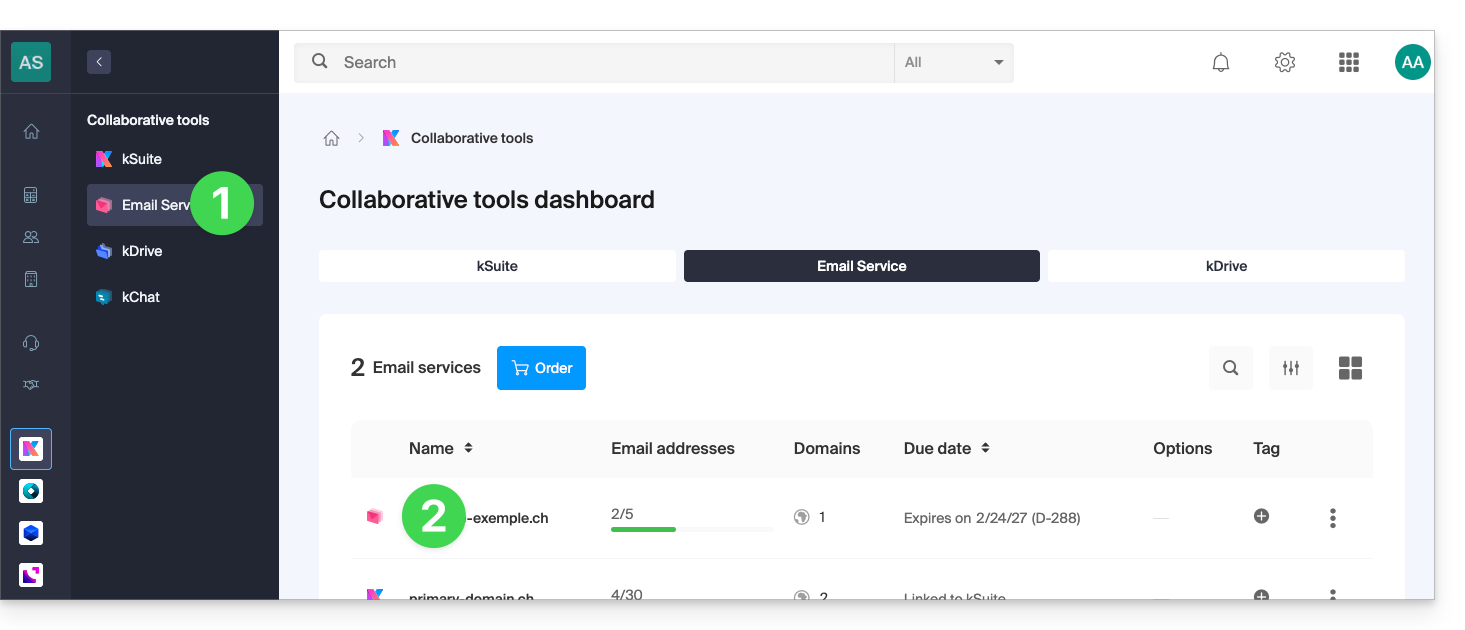
- Click on the email address concerned in the table that appears:
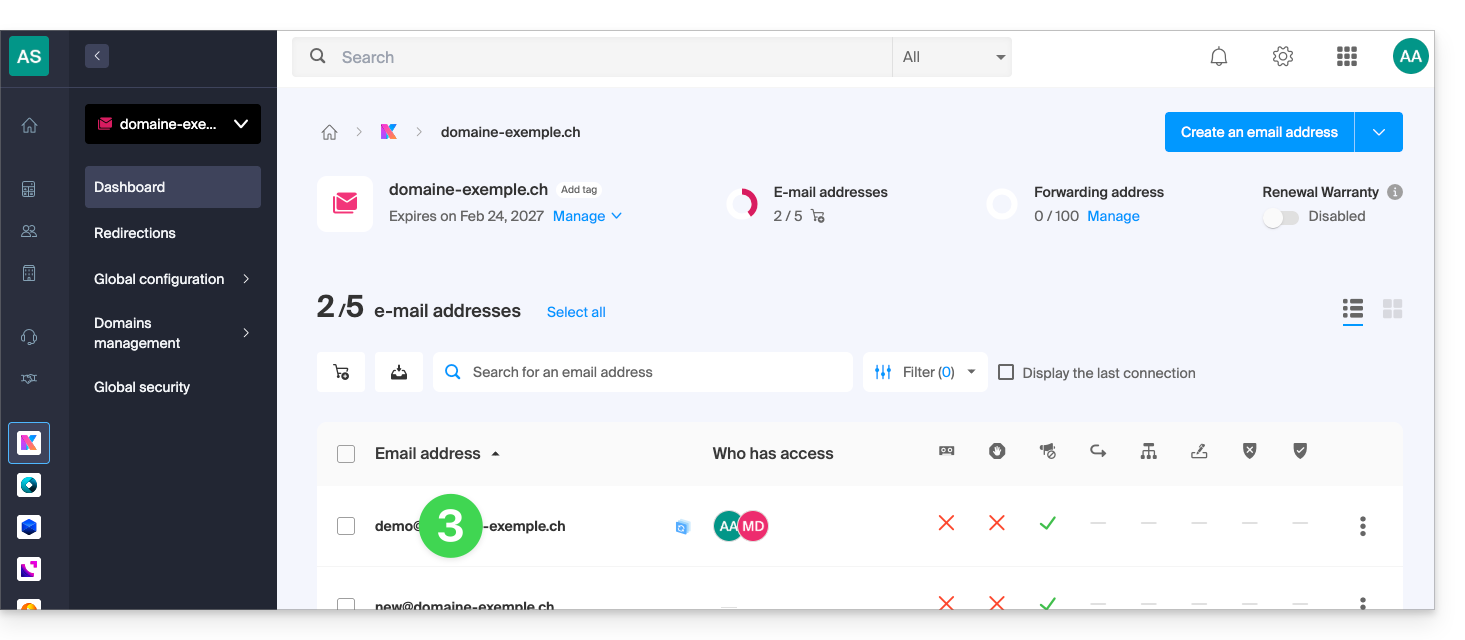
- Click to Add a new user:
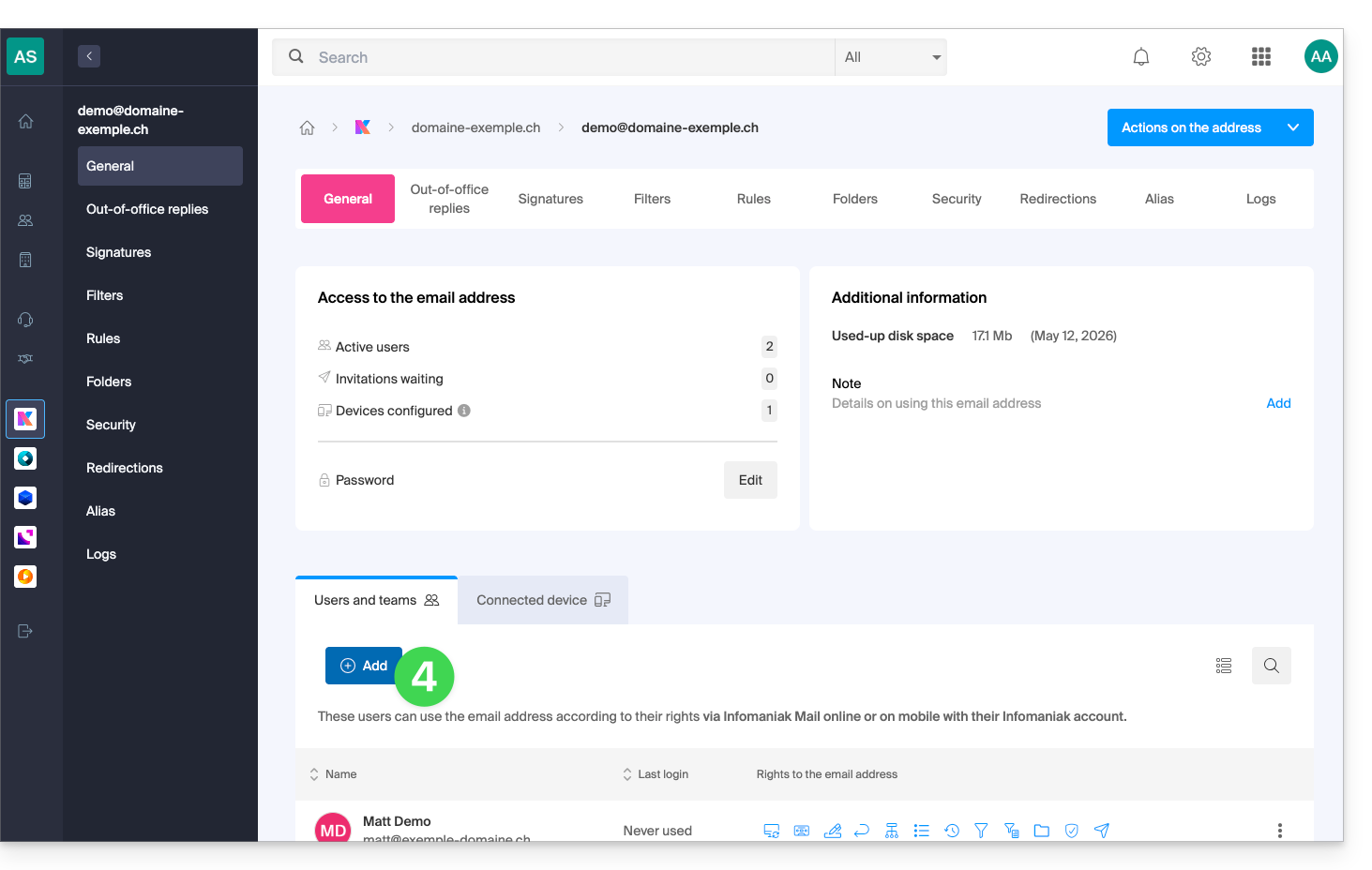
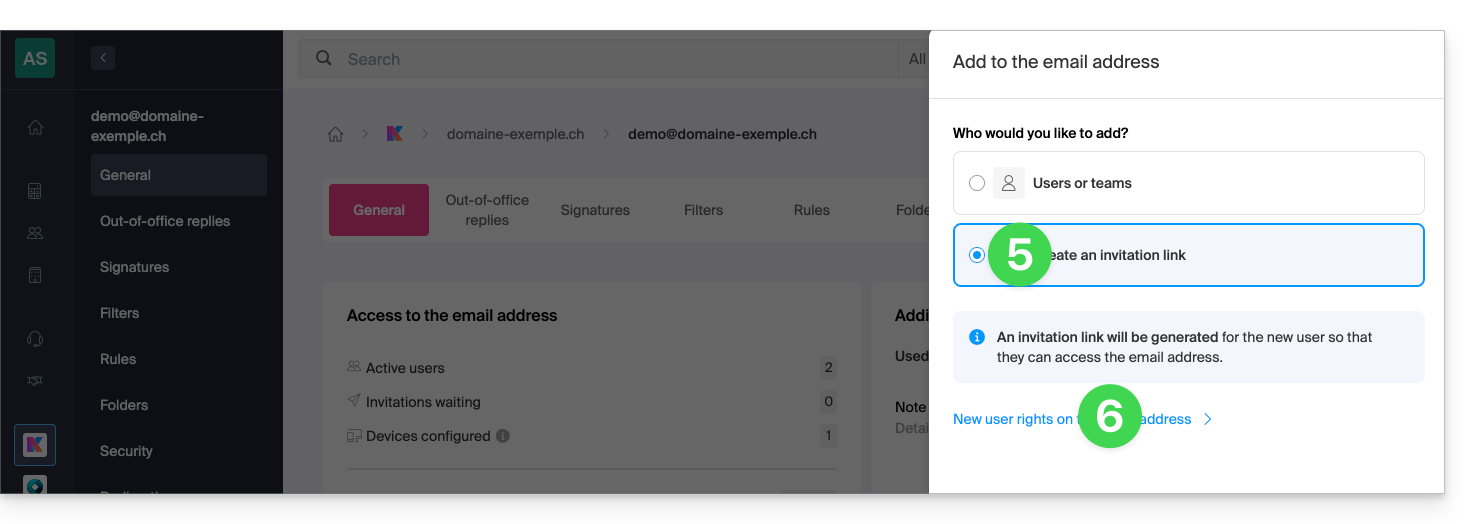
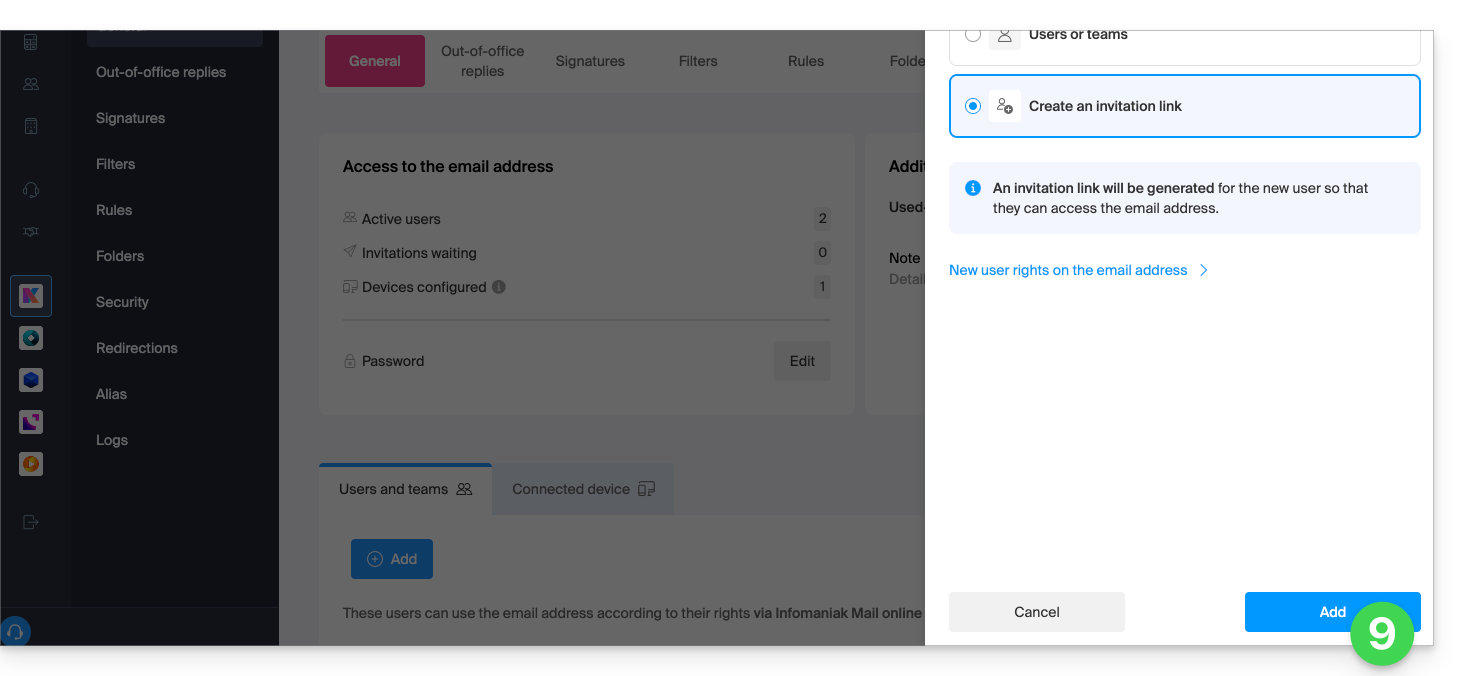
- In this example, the collaborator is external, so click to Create an invitation link.
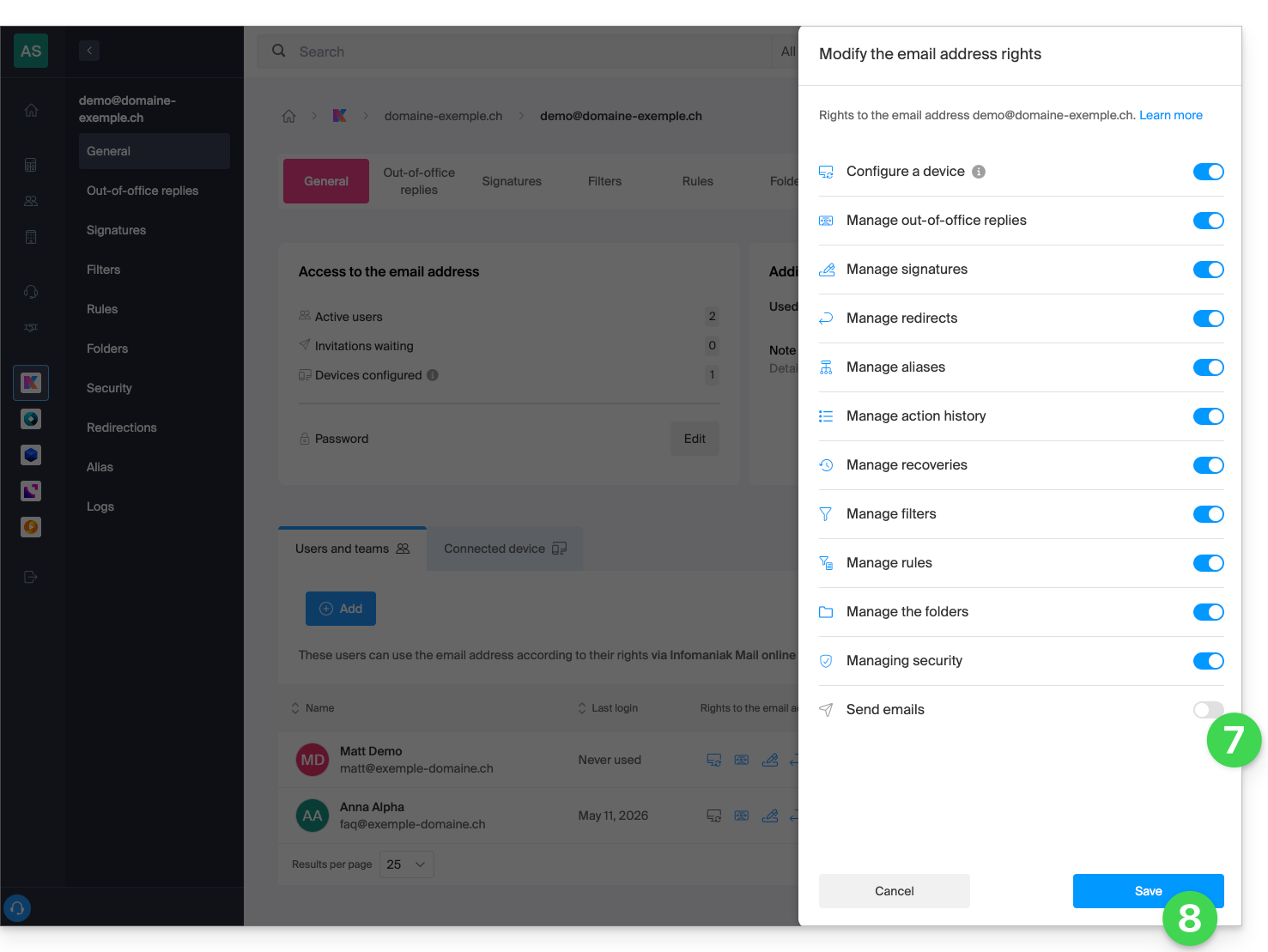
- Click to manage the permissions of this user on the email address concerned:
- Click on Send emails to remove their sending rights.
- Save the change:
- Click on Add to complete the invitation:
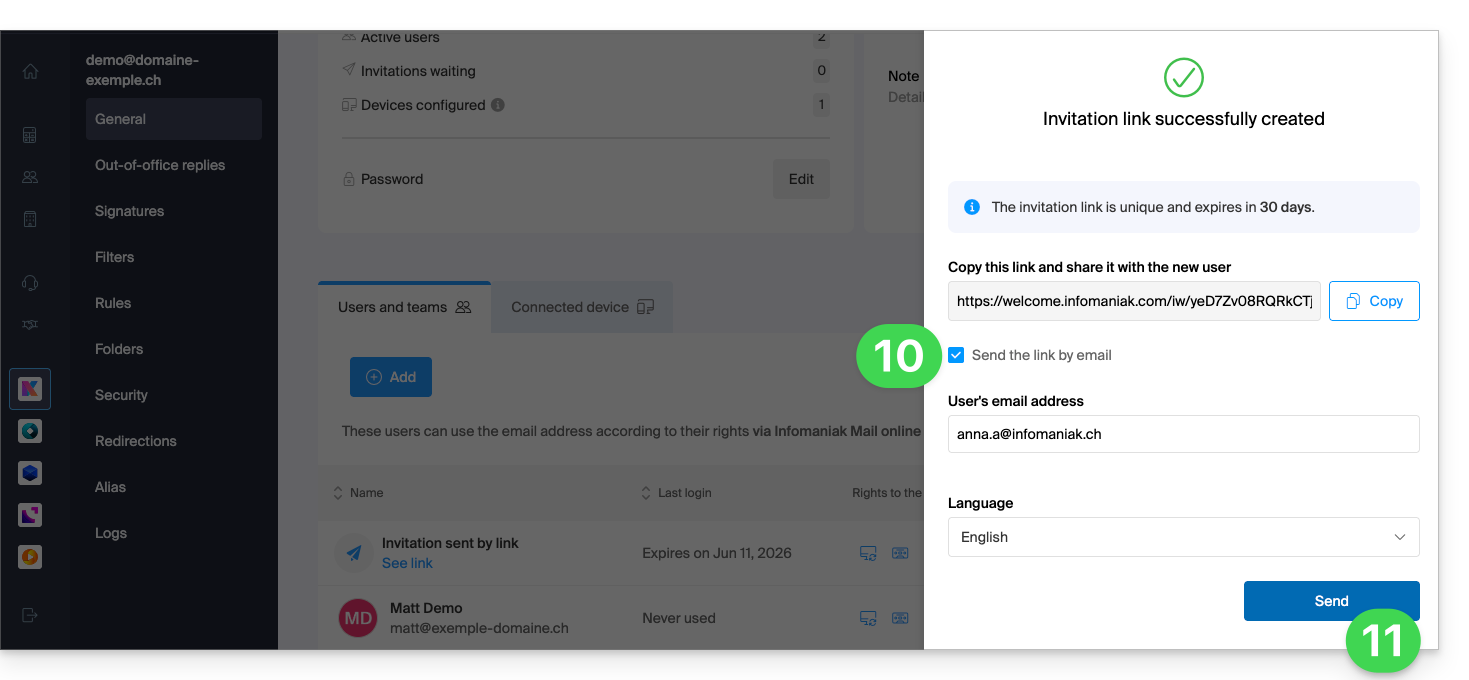
- Enter an email address to which to send the invitation.
- Click on Send:
The invited user accepts the invitation: they thus access the email address and its messages, but the button to compose a new message will remain grayed out with no possibility for them to draft a message (or even reply, react, etc. as these buttons will also be grayed out/deactivated):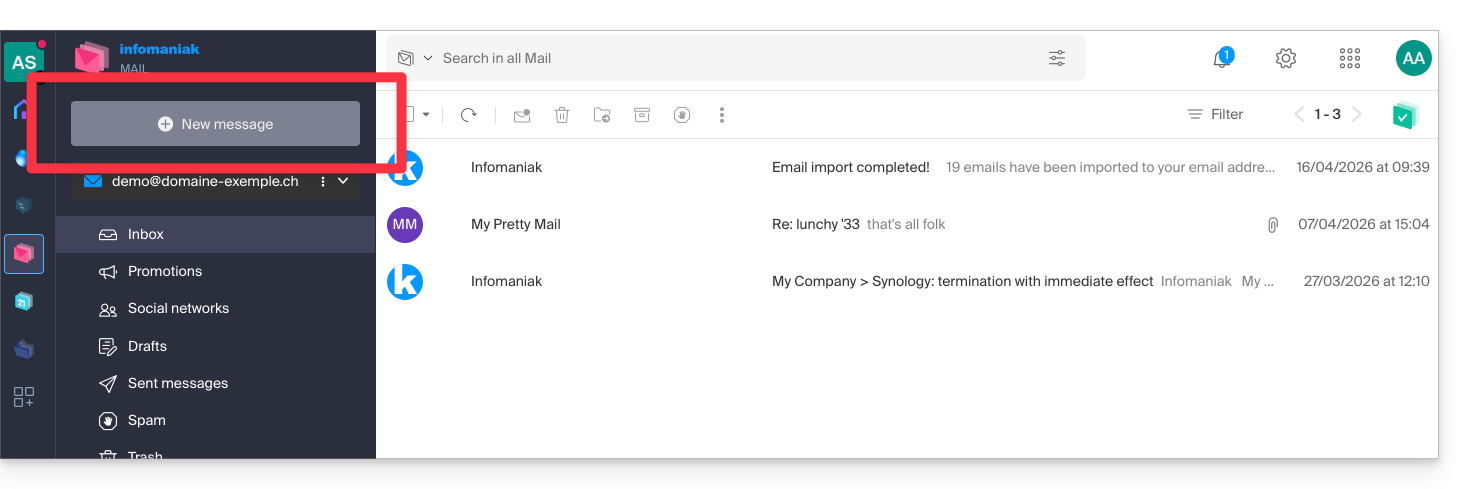
Prevent sending to an existing user
Do you want to allow collaborators to continue to access an email address (be able to read incoming emails) but without allowing them to send new messages?
- Click here to access the management of your Mail Service on the Infomaniak Manager (need help?).
- Click directly on the name assigned to the Mail Service concerned:
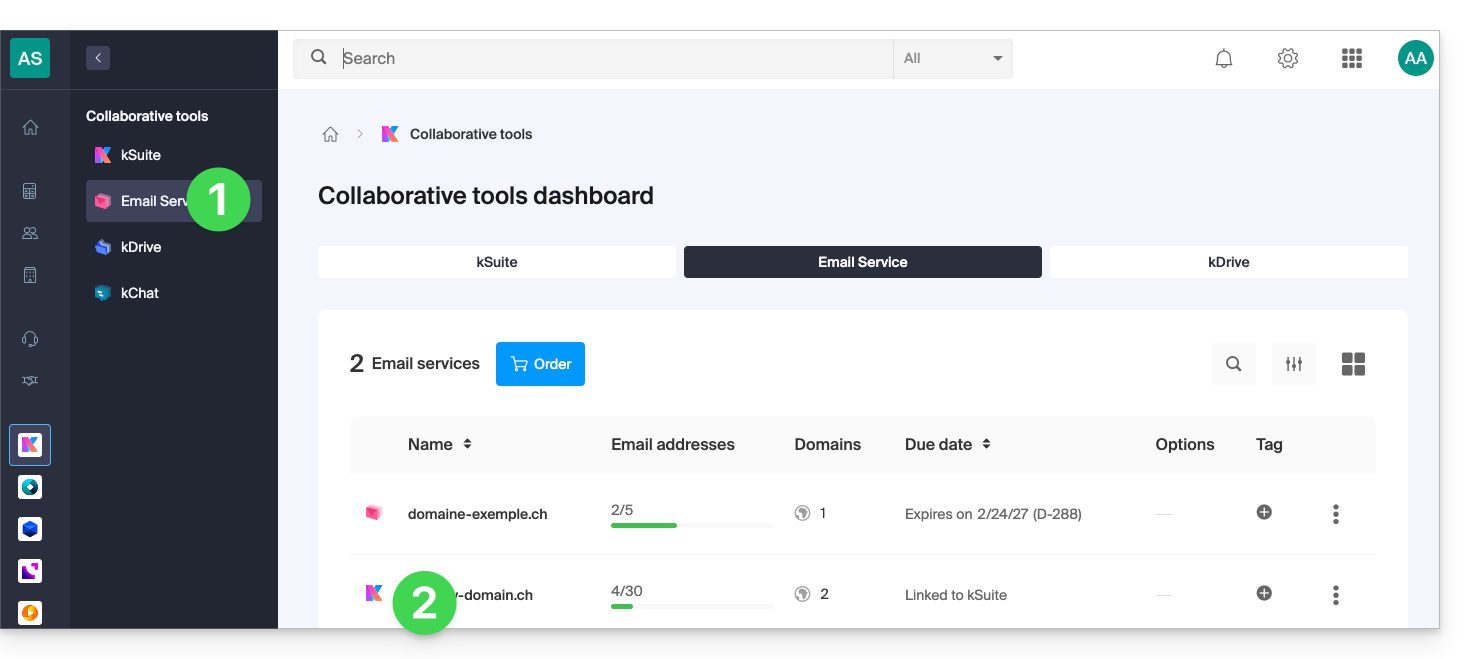
- Click on the email address concerned in the table that appears:
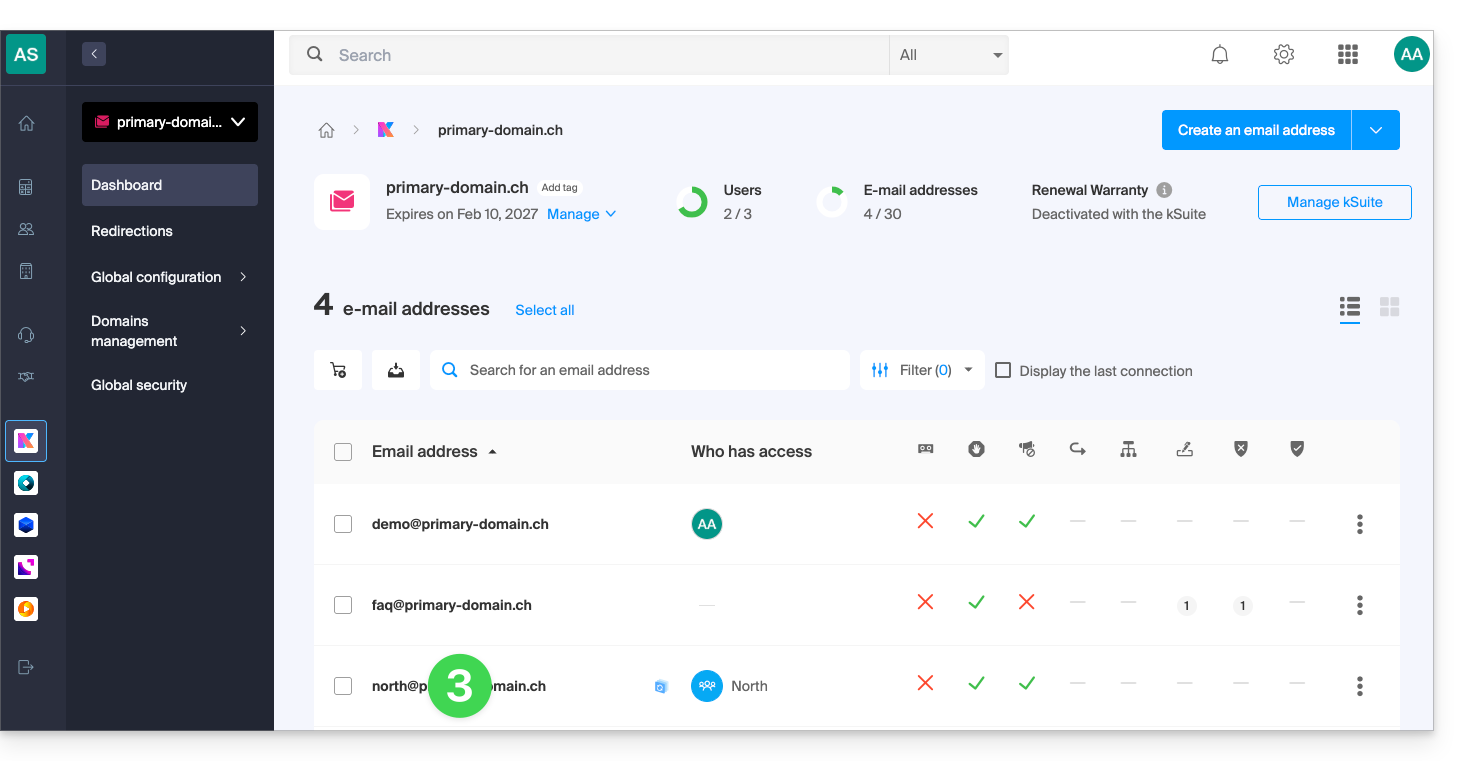
- Click on Send emails to remove the send permission:
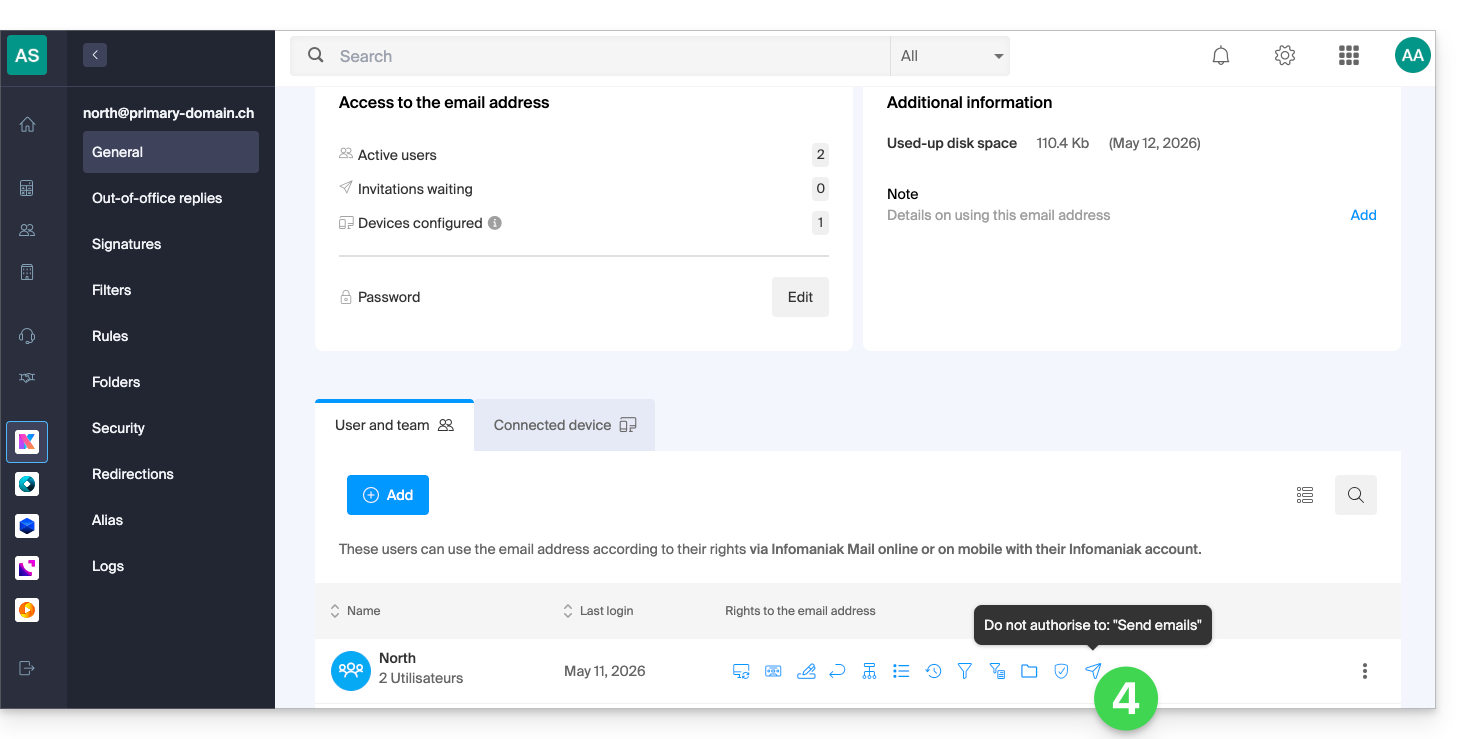
The user will access the email address and its messages, but the button to compose a new message will remain grayed out with no possibility for them to draft a message (or even reply, react, etc. as these buttons will also be grayed out/deactivated):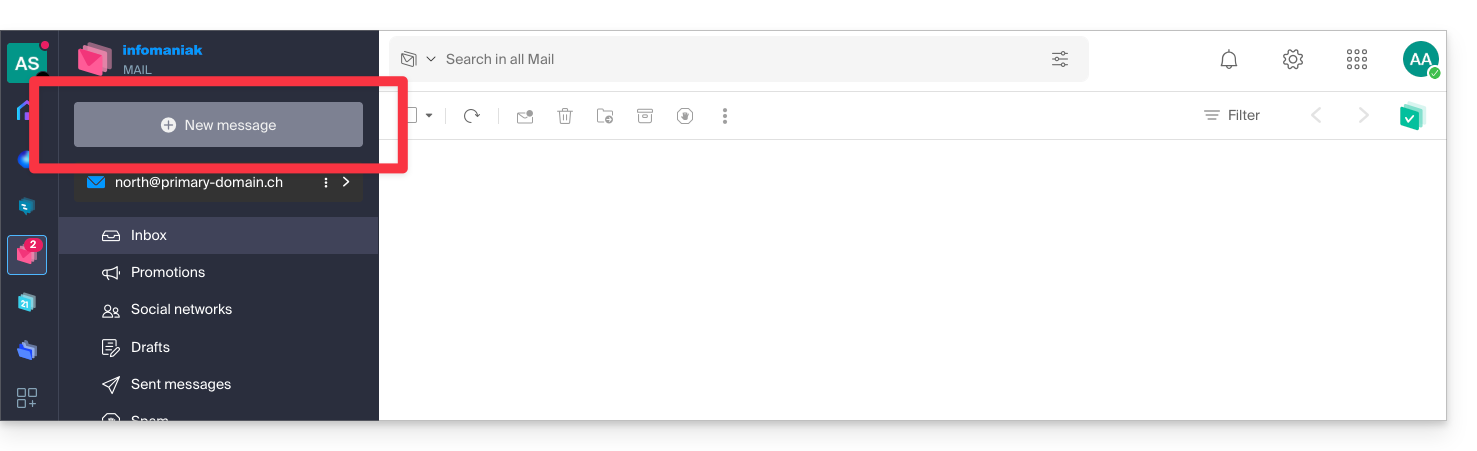
Prevent sending from an SMTP email client/software
If you want to prevent the user from sending emails from an email client/software or any fixed and mobile device containing an SMTP email app, start by following the steps above.
You will then need to create a password (= "connected device") linked to this user (so at point 8 of this other guide instead of “Without user” you will need to specify the identifier of the collaborator concerned, already added in the users tab):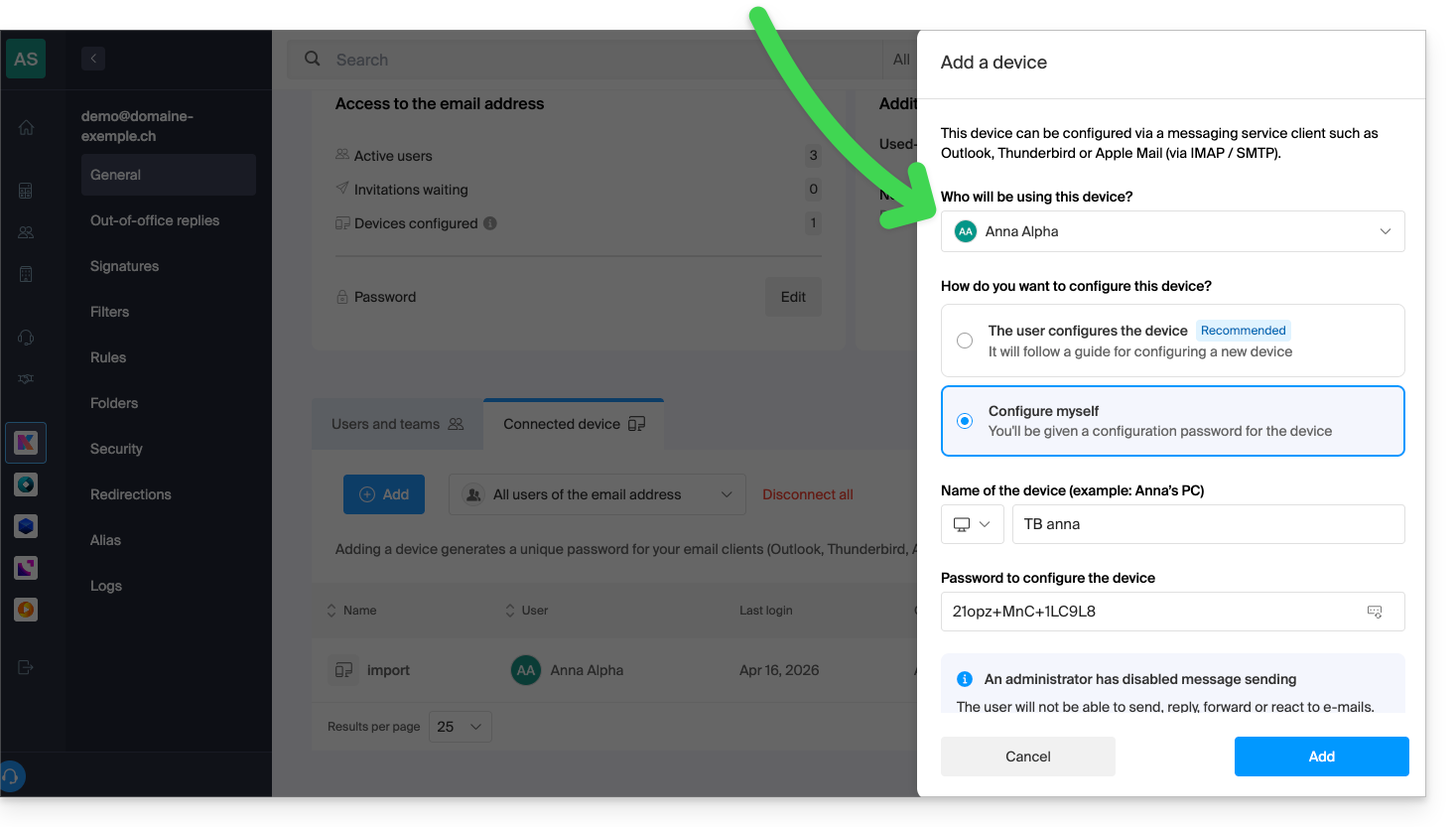
Thus, their email client/software can be configured to receive emails but will not allow any sending, causing a continuous error (password request) if the user insists on sending an email: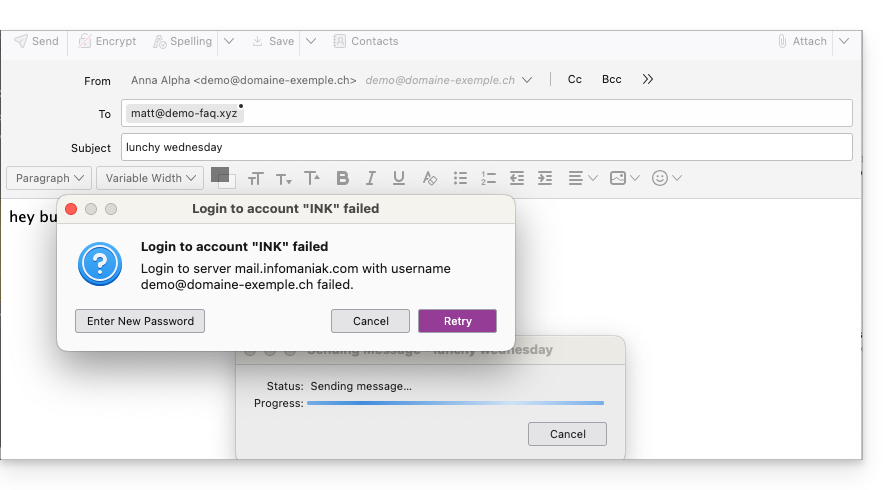
Link to this FAQ: https://faq.infomaniak.com/593
Has this FAQ been helpful?