Knowledge base
1000 FAQs, 500 tutorials and instructional videos. Here, there are only solutions!
Manage and manipulate your files on kDrive
This guide details some of the basic operations that can be easily performed with data on kDrive Infomaniak.
Add a file / folder
On the kDrive web app
To add a file or folder to kDrive Infomaniak:
- Click here to access the Infomaniak kDrive web app (online service ksuite.infomaniak.com/kdrive).
- Click the New button to send a folder:
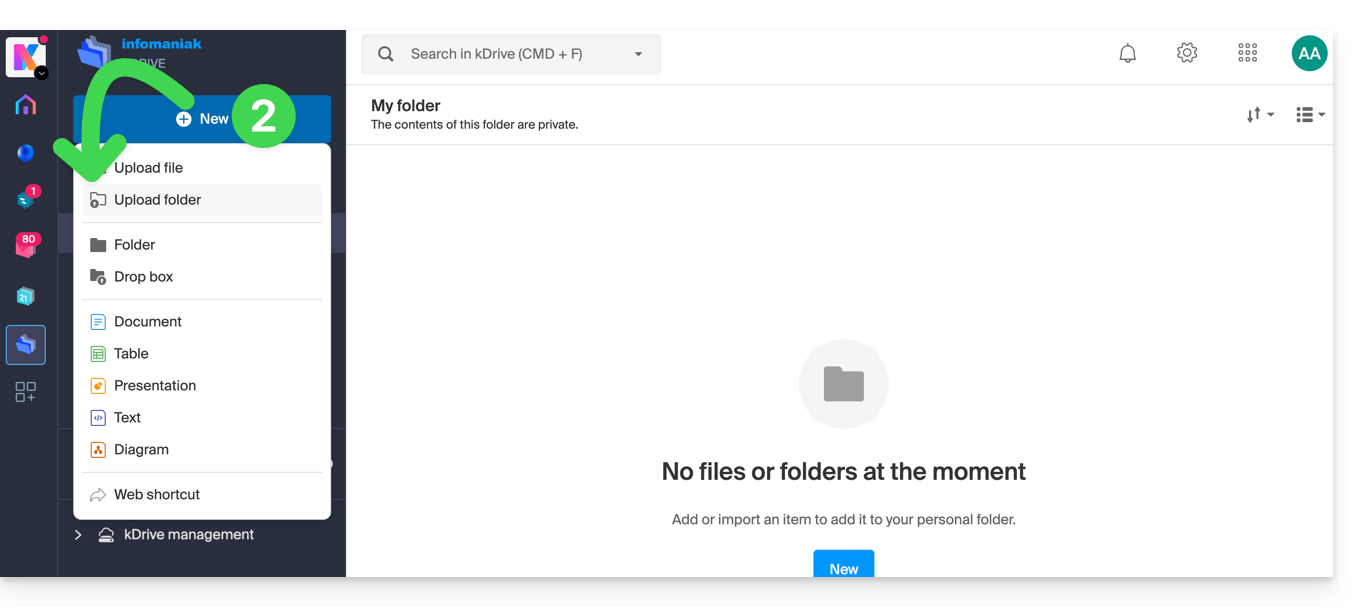
- Select the folder to upload to kDrive:
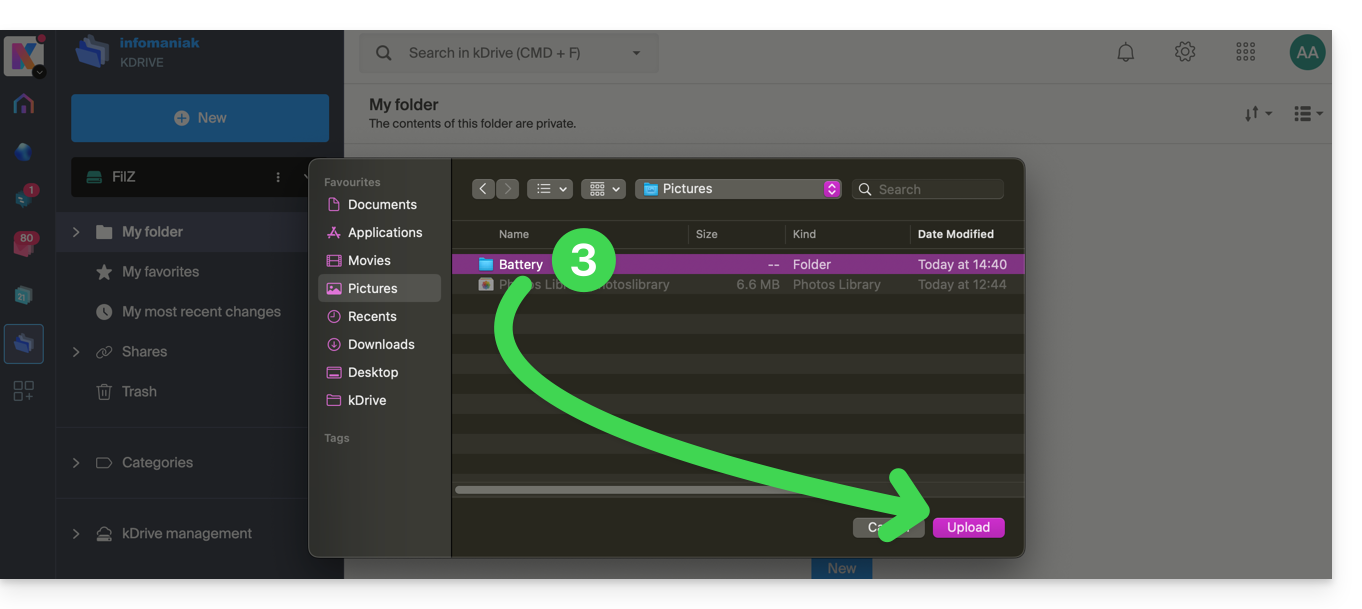
- The folder and its contents are sent to Infomaniak kDrive; please wait until the import is complete:
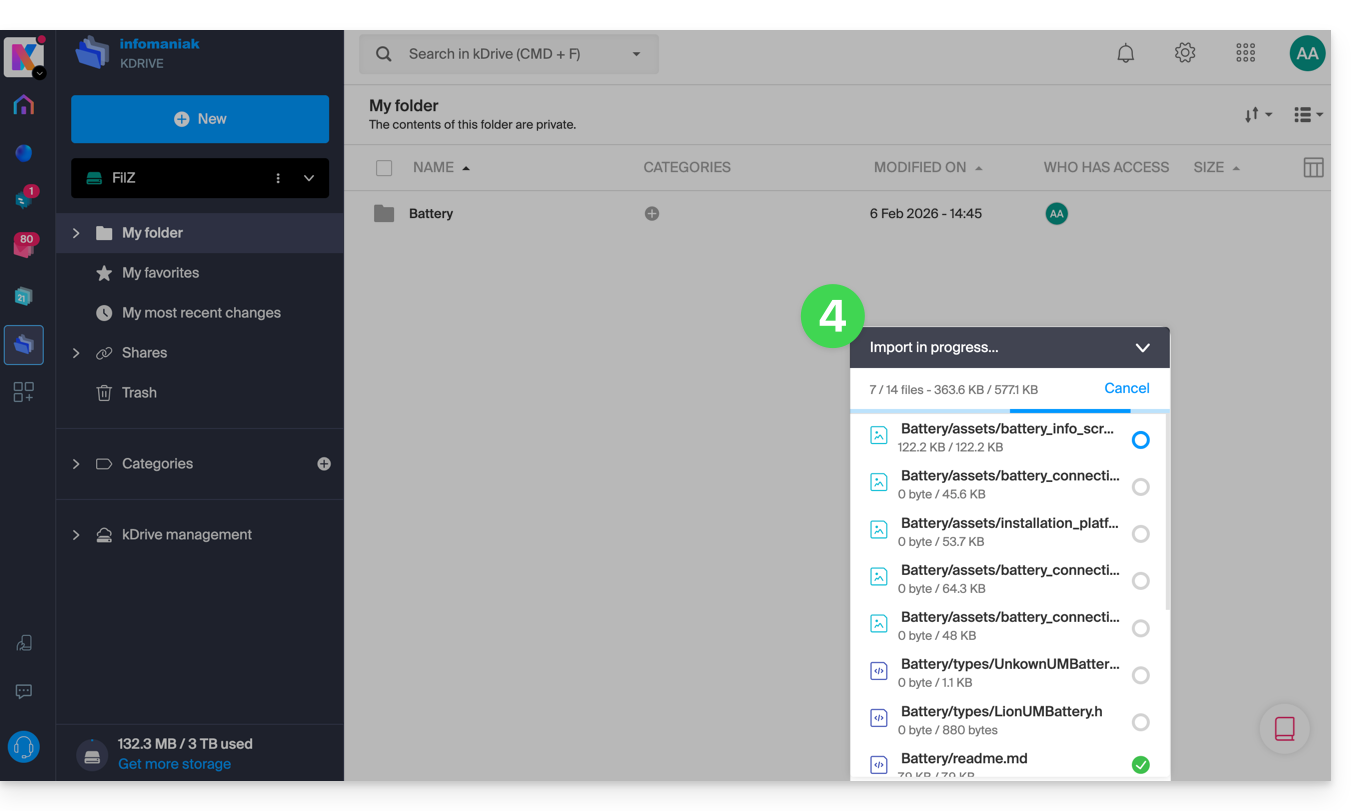
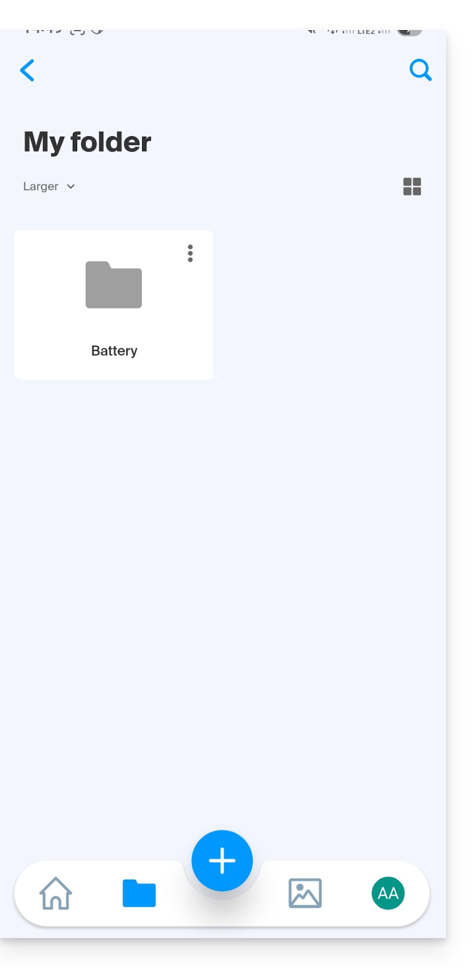
Data will be synchronized with the various solutions linked/connected to the same kDrive, for example:
- the kDrive mobile app (application for iOS/Android smartphones or tablets):
- and the desktop app kDrive (desktop application for macOS / Windows / Linux)…
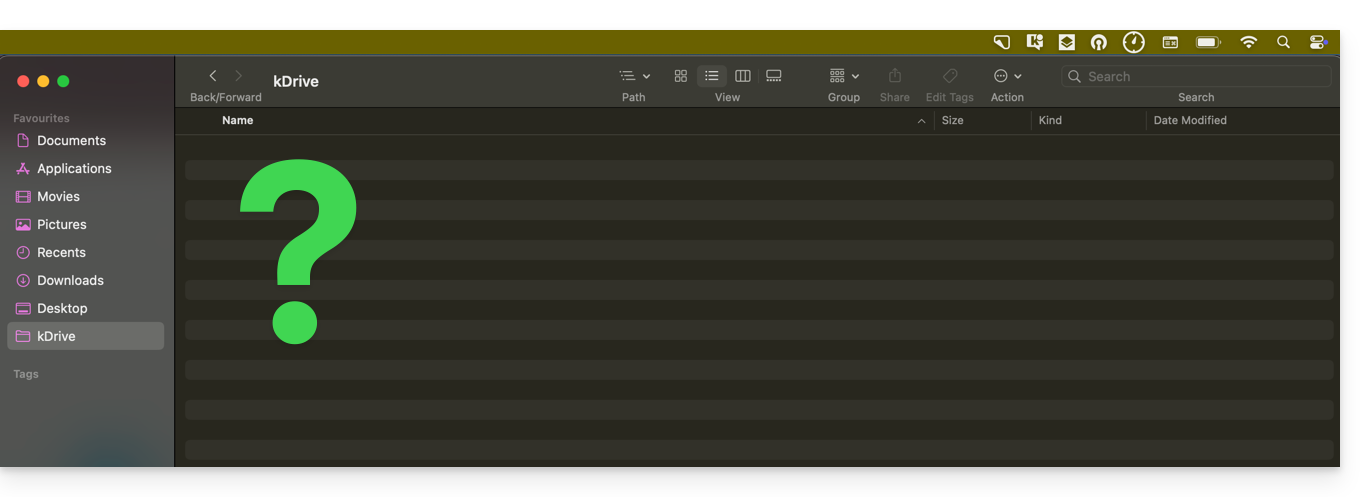
And if, as in the example above, your computer doesn't display anything new in the folder corresponding to kDrive (no synchronization), please refer to this other guide to explore some possible solutions to the problem.
Rename a file / folder
On the kDrive web app
To rename a file or folder in Infomaniak kDrive:
- Click here to access the Infomaniak kDrive web app (online service ksuite.infomaniak.com/kdrive).
- Select a file to rename and right-click on it.
- You can also click on a folder name in the top bar.
- Click on the pencil icon:
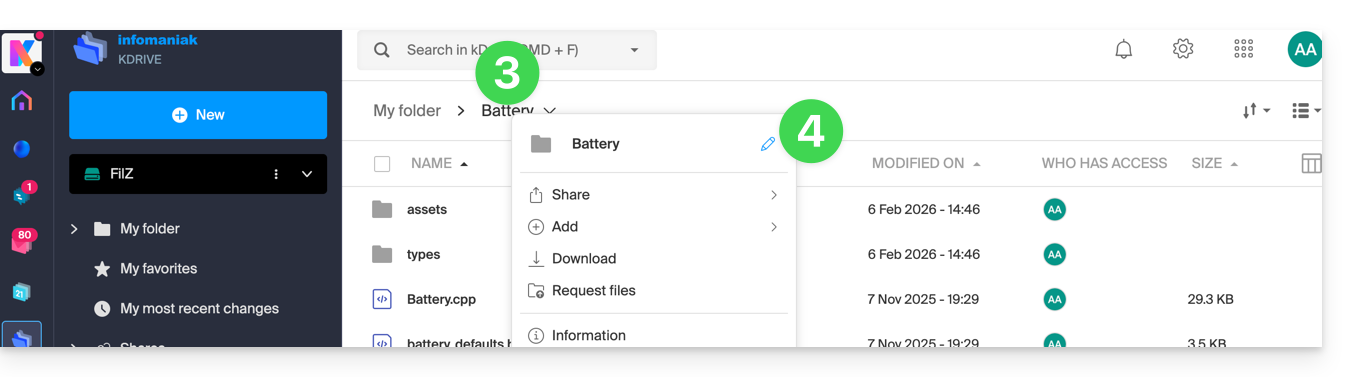
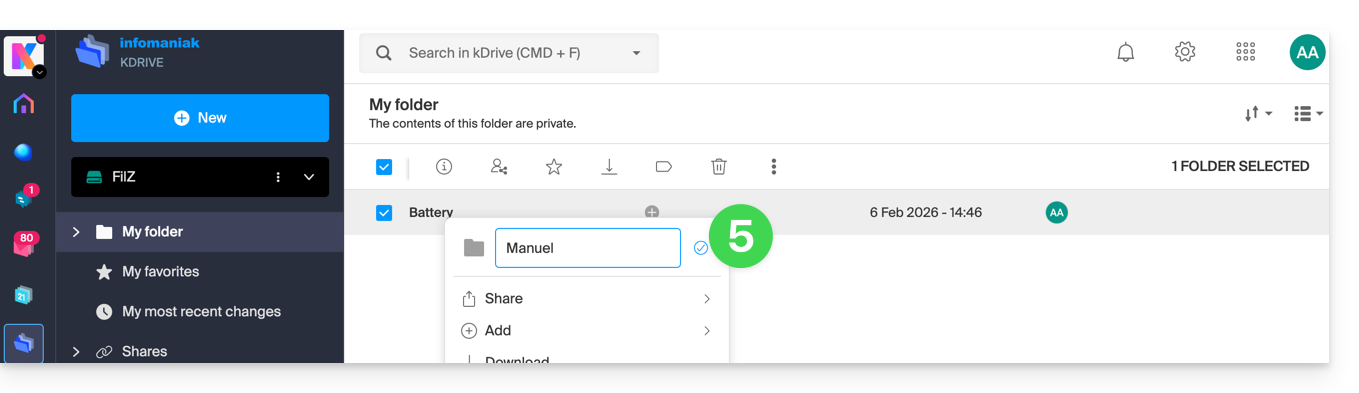
- Enter the new name and validate by pressing the ENTER key or by clicking on the validation icon:
The new name is synchronized with the various solutions linked/connected to the same kDrive, for example, the mobile app kDrive (you need to refresh the interface if you are already in the folder in question) and the desktop app kDrive (desktop application on macOS / Windows / Linux):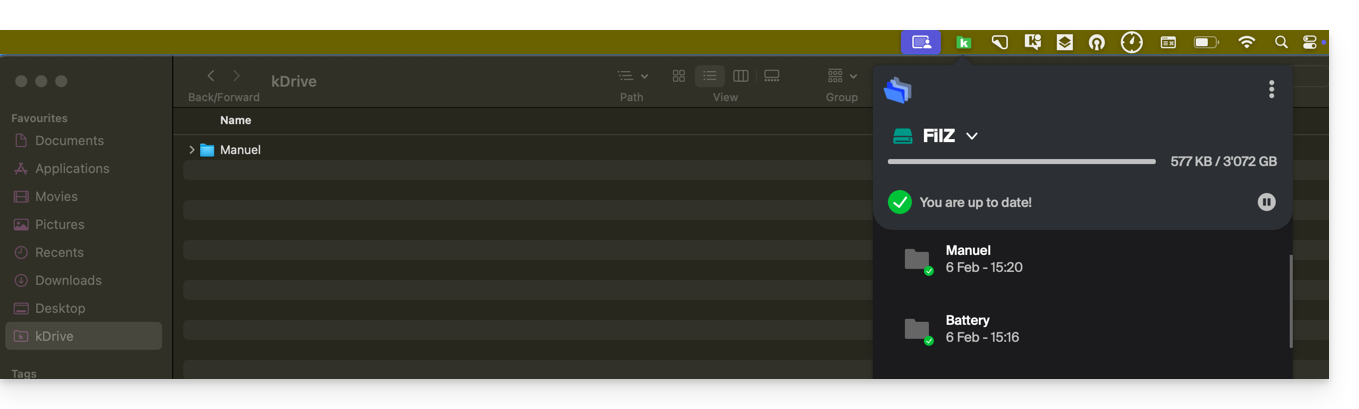
Add to favorites / track file
On the kDrive Web App
To add a file or folder to your favorites in the Infomaniak kDrive Web app (online service ksuite.infomaniak.com/kdrive):
- Click here to access the Infomaniak kDrive web app (online service ksuite.infomaniak.com/kdrive).
- There are several ways to add an item to your favorites:
- Select the file you want to add to your favorites.
- Click the ☆ icon in the top bar.
- You can also click the ⋮ action menu to the right of the item.
- Choose Organize.
- Click Add to favorites:
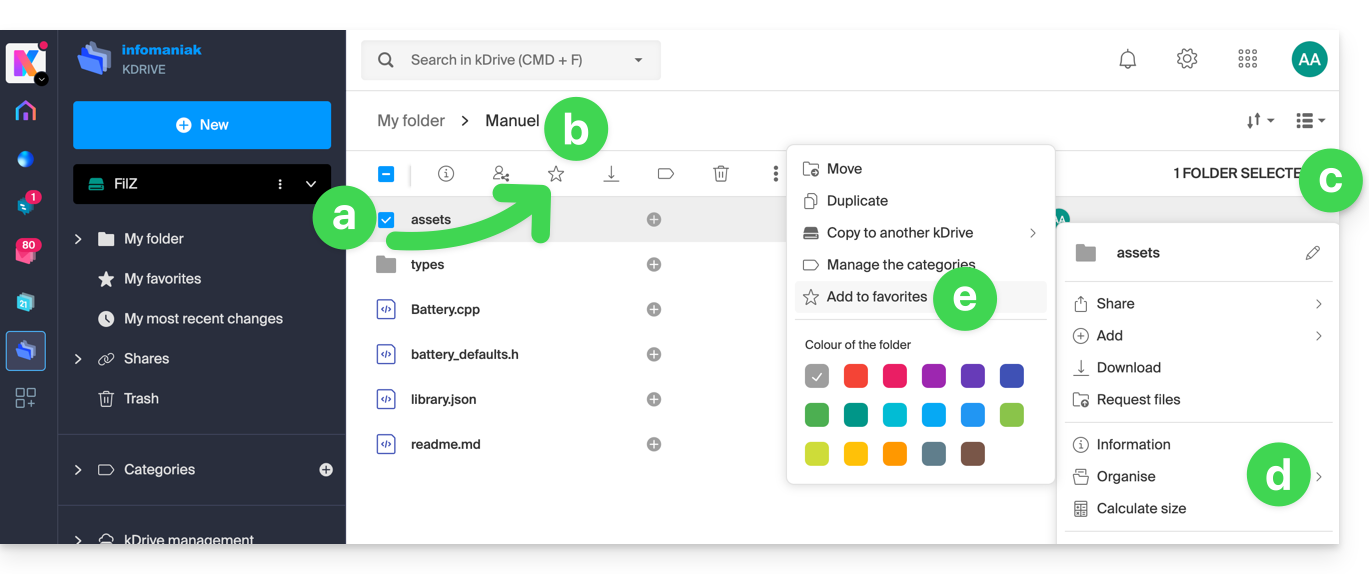
- A yellow star appears to represent favorite files/folders; they can then all be viewed from the My favorites menu in the left sidebar:
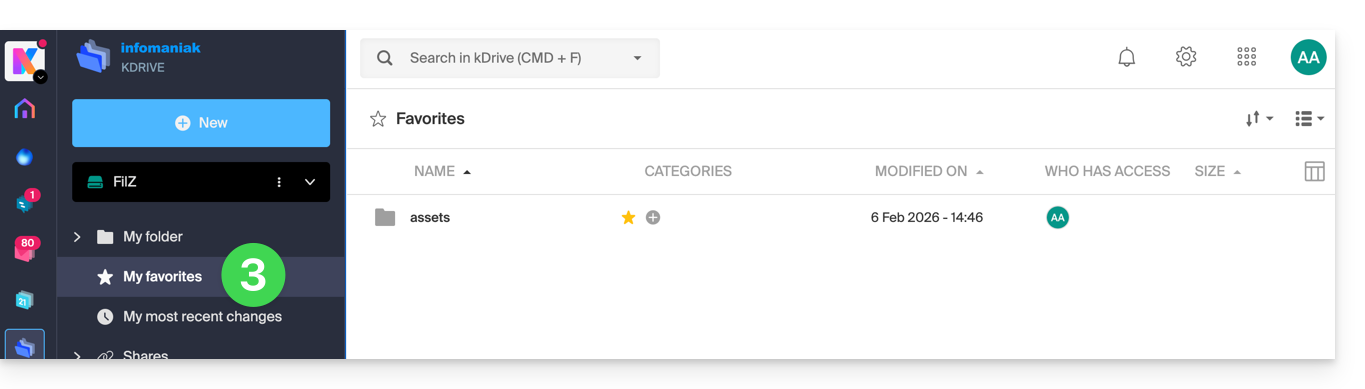
Favorites are synchronized with the various solutions connected to the same kDrive, for example the kDrive mobile app (application for iOS/Android smartphones or tablets):
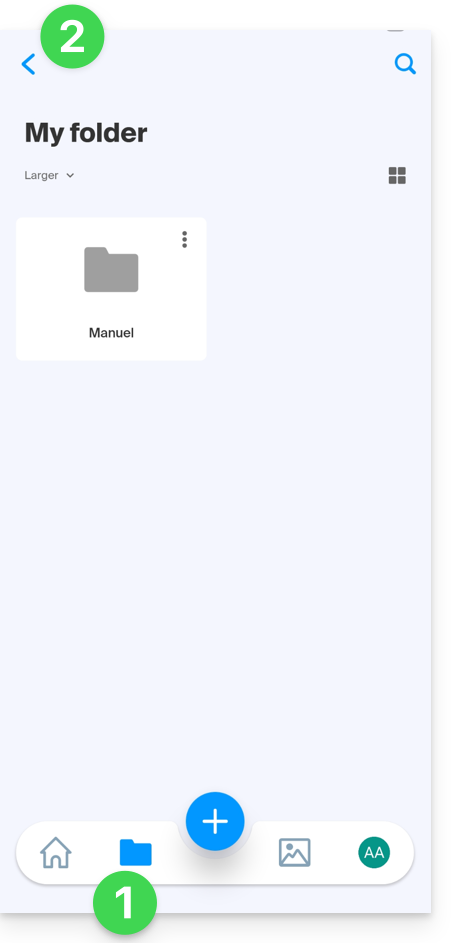
- The Favorites menu is located under the Folders icon at the bottom…
- … but sometimes it is necessary to first go back if you were already browsing a folder:
- Then click on Favorites:
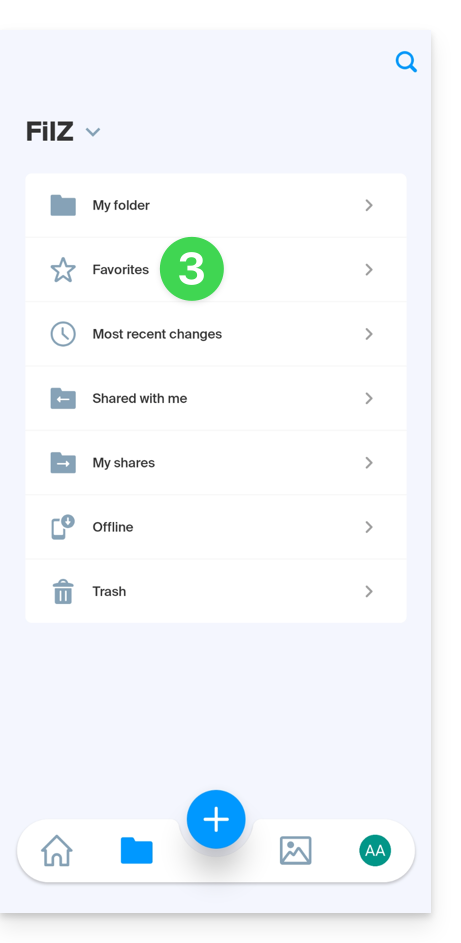
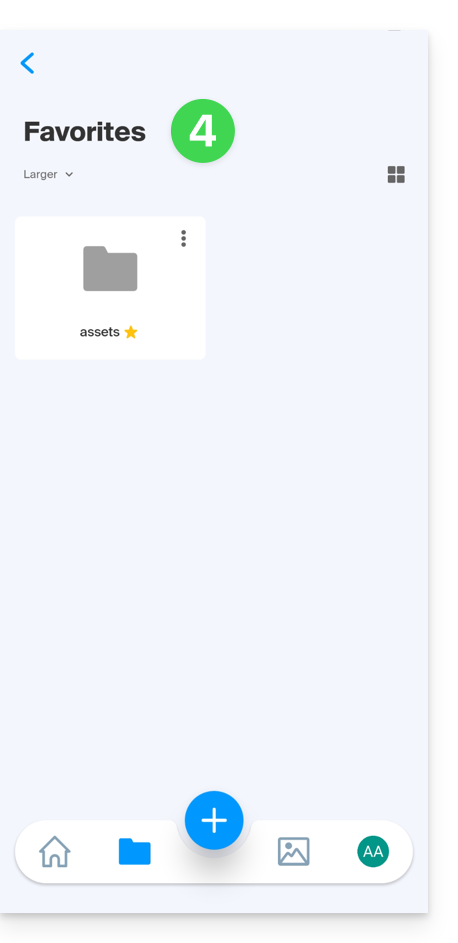
- The synchronized favorites are displayed:
On the desktop app kDrive (desktop application for macOS / Windows / Linux), there is no favorites system; no special distinction will be made for your files placed in favorites on other platforms.
Unzip an archive
This feature for .zip files is planned but not yet available.
Link to this FAQ: https://faq.infomaniak.com/2873
Has this FAQ been helpful?