Knowledge base
1000 FAQs, 500 tutorials and instructional videos. Here, there are only solutions!
Check the kDrive app functionality
This guide will help you test whether kDrive synchronization is working correctly on your device.
Prerequisites
- For synchronization between your devices to work when your data is updated on kDrive (new file, edited document, etc.), it is obviously necessary that:
Check that the kDrive app is running in the background
On macOS / Linux
- Launch kDrive from the installed Applications:
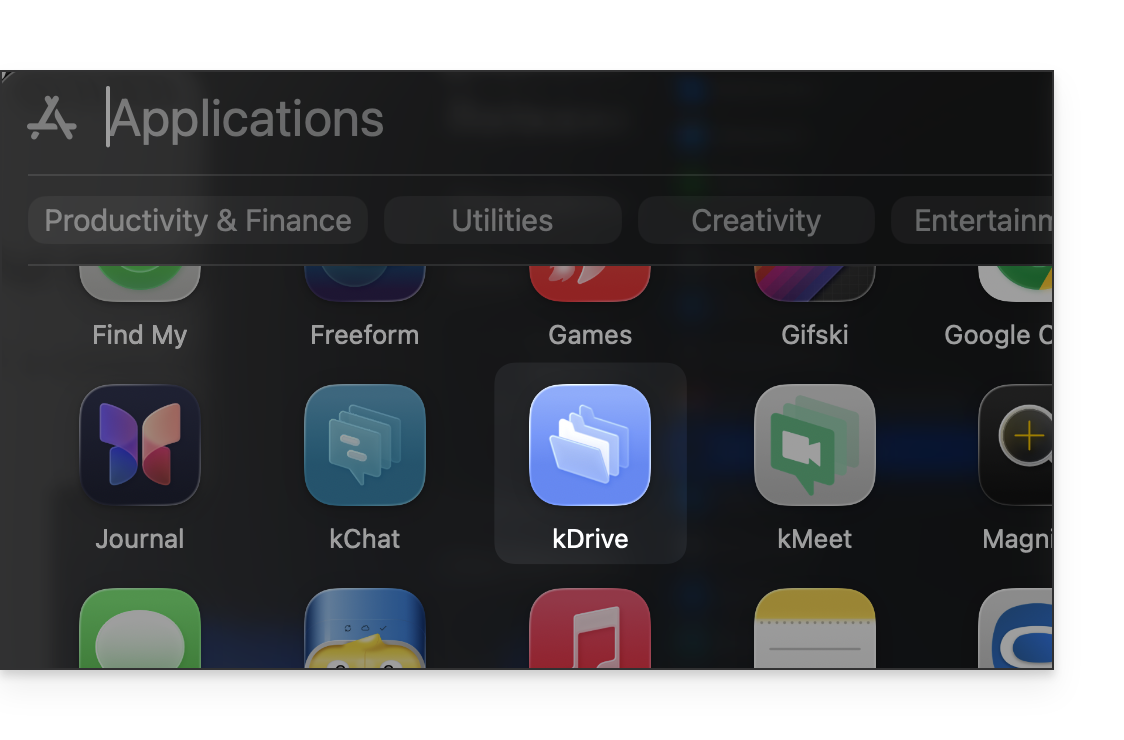
- kDrive can also be launched from the Finder:
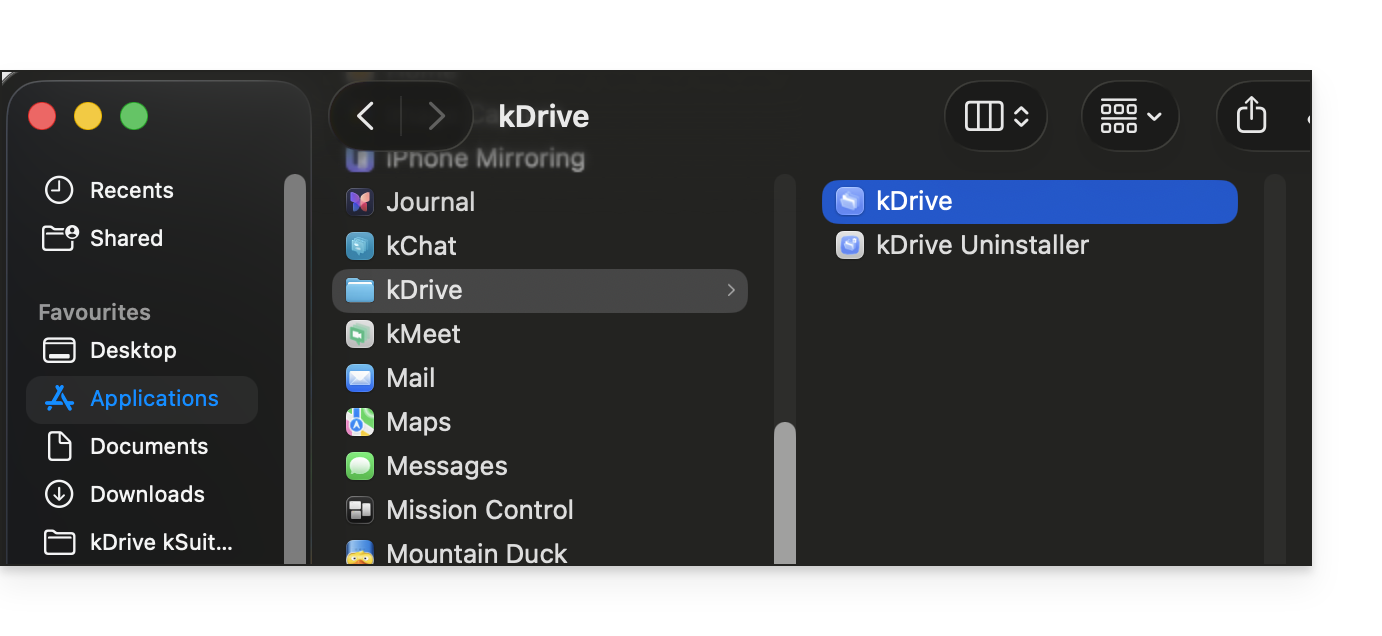
- kDrive can also be launched from the Finder:
- When kDrive is launched and running in the background, its icon should appear in the notification area at the top right, next to the clock and network settings:
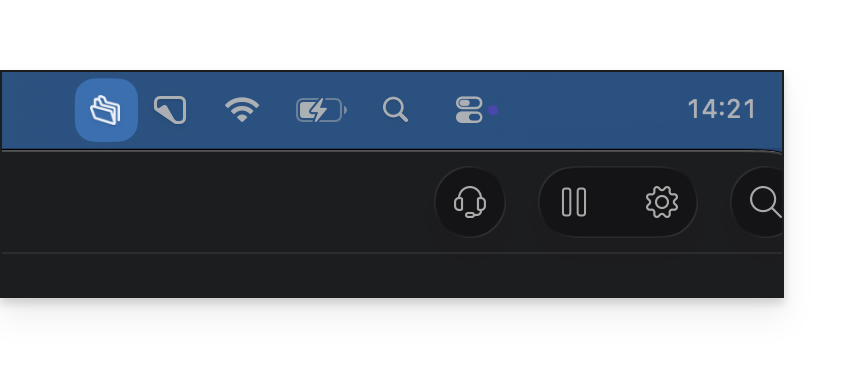
- Left-click on the kDrive app icon; the application interface should appear in the foreground:
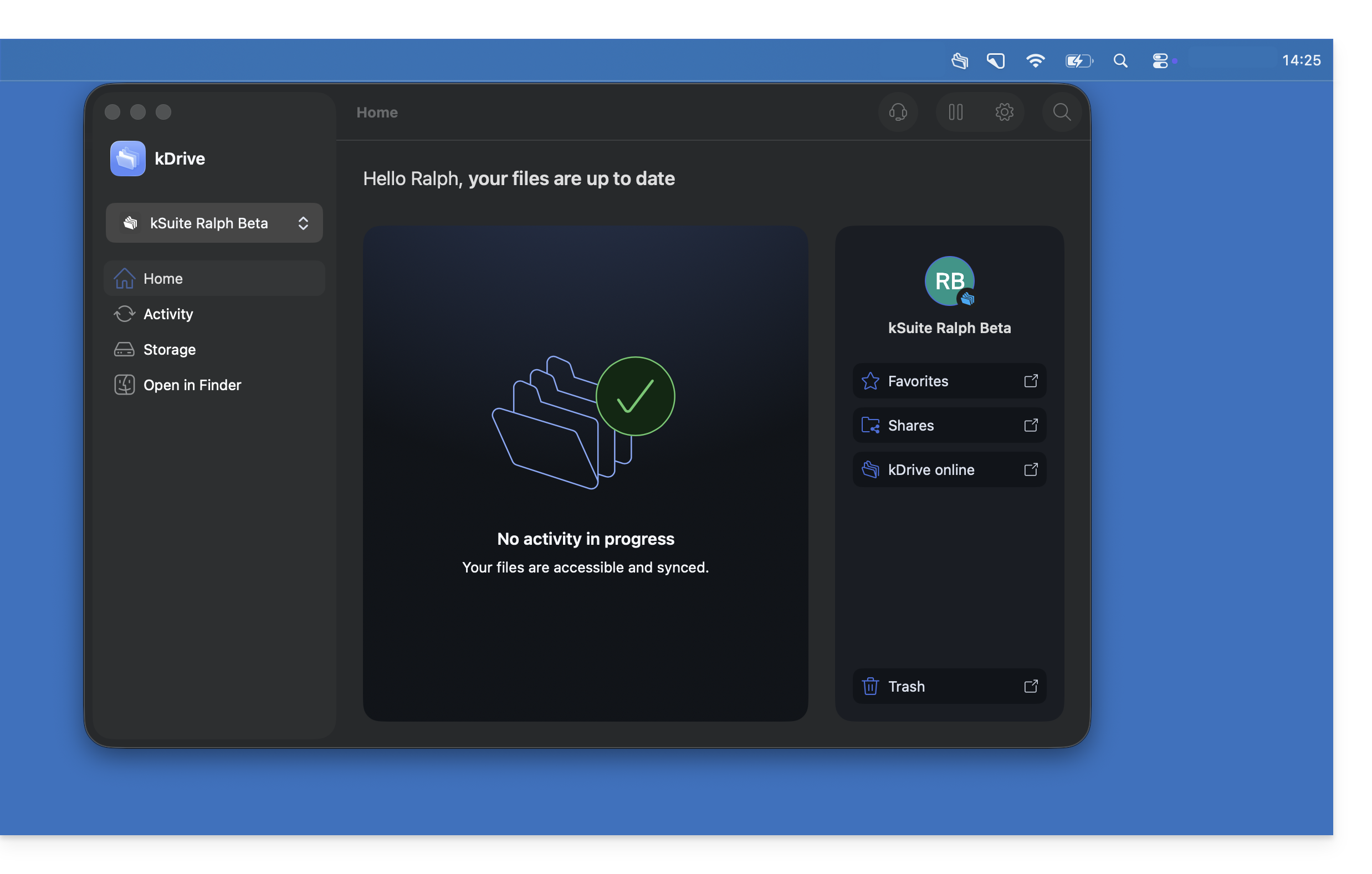
On Windows
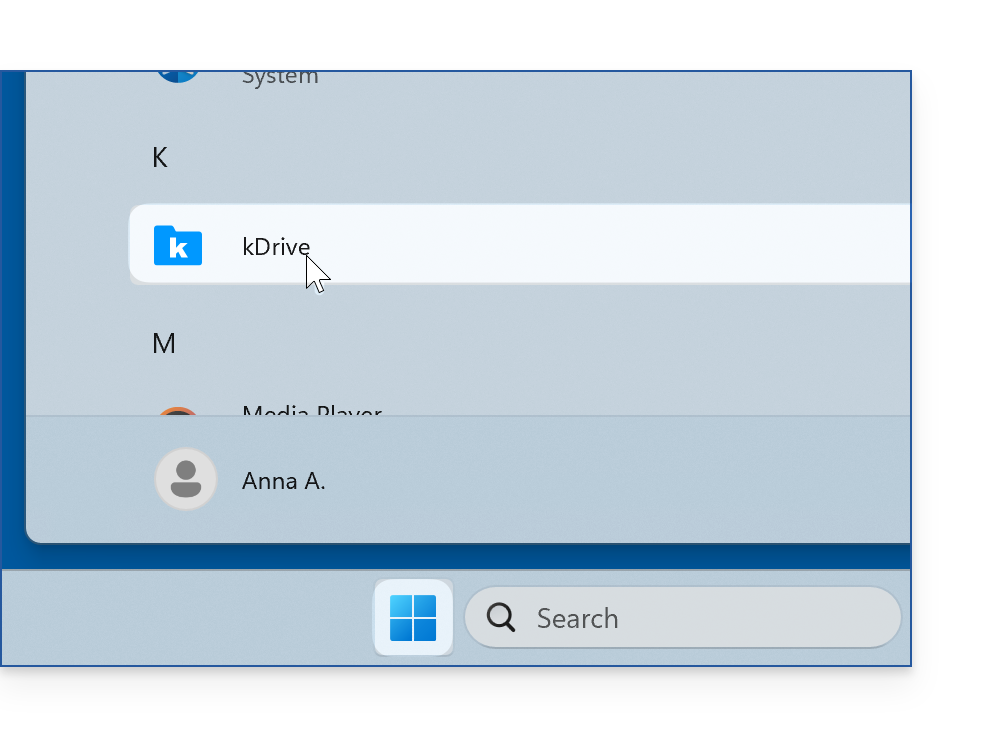
- Launch kDrive from the Windows Start menu:
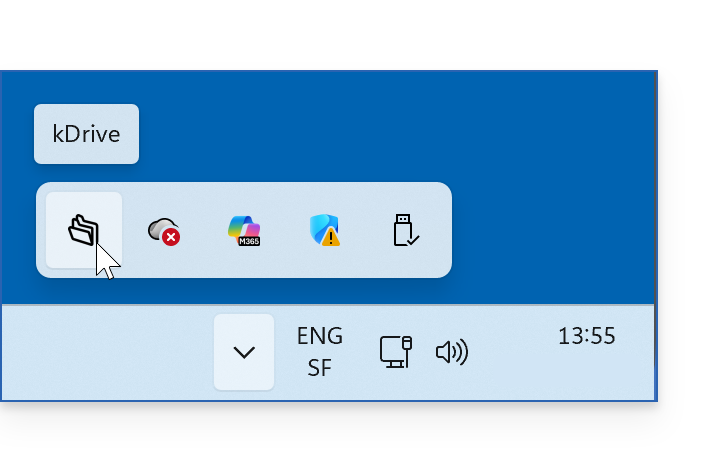
- When kDrive is launched and running in the background, its icon should appear in the notification area at the bottom right on Windows; however, it may be “hidden” behind the menu accessible via the down arrow (❓: help):
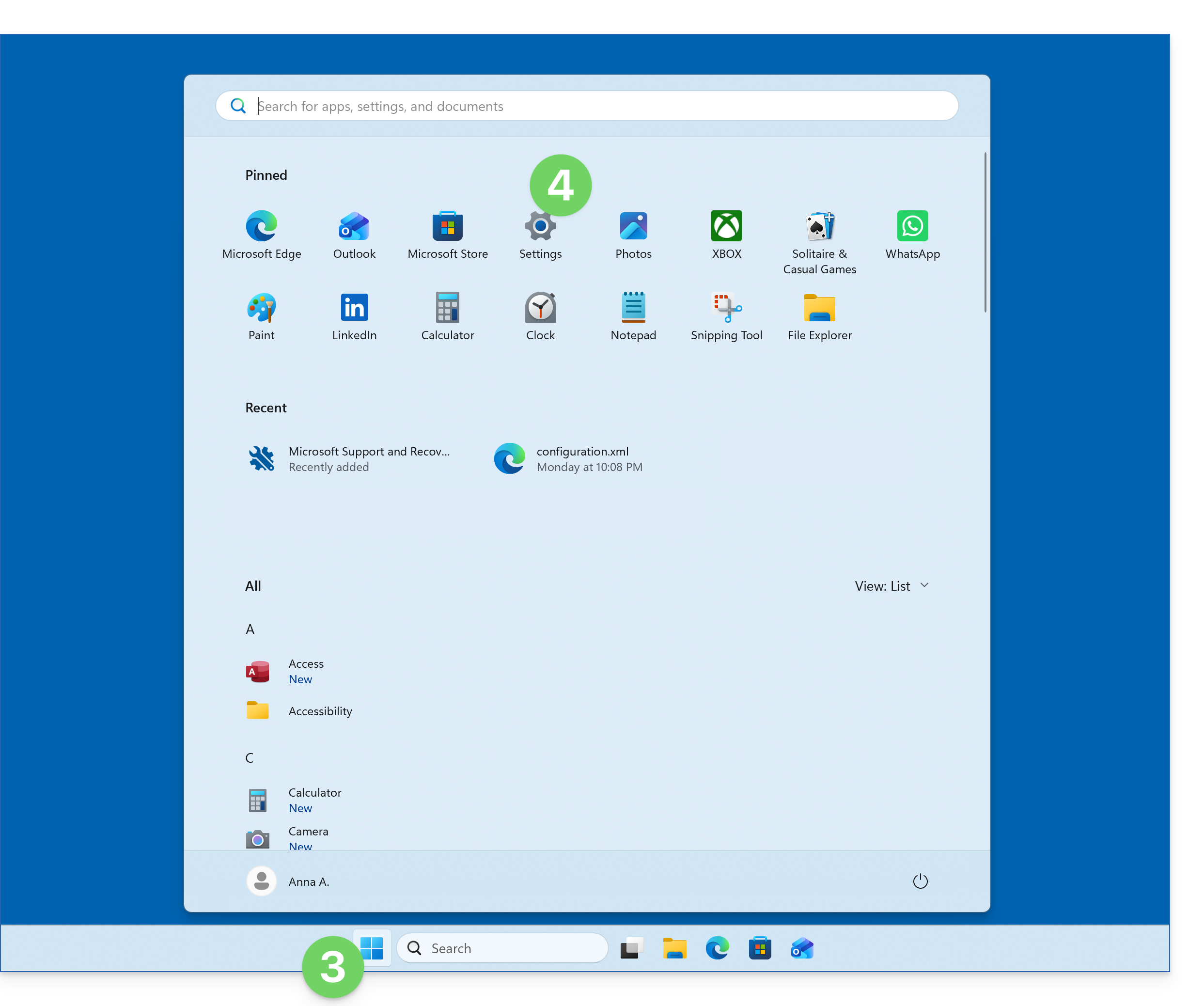
- To make the kDrive icon directly visible on the taskbar, open the Start menu.
- Click on Settings:
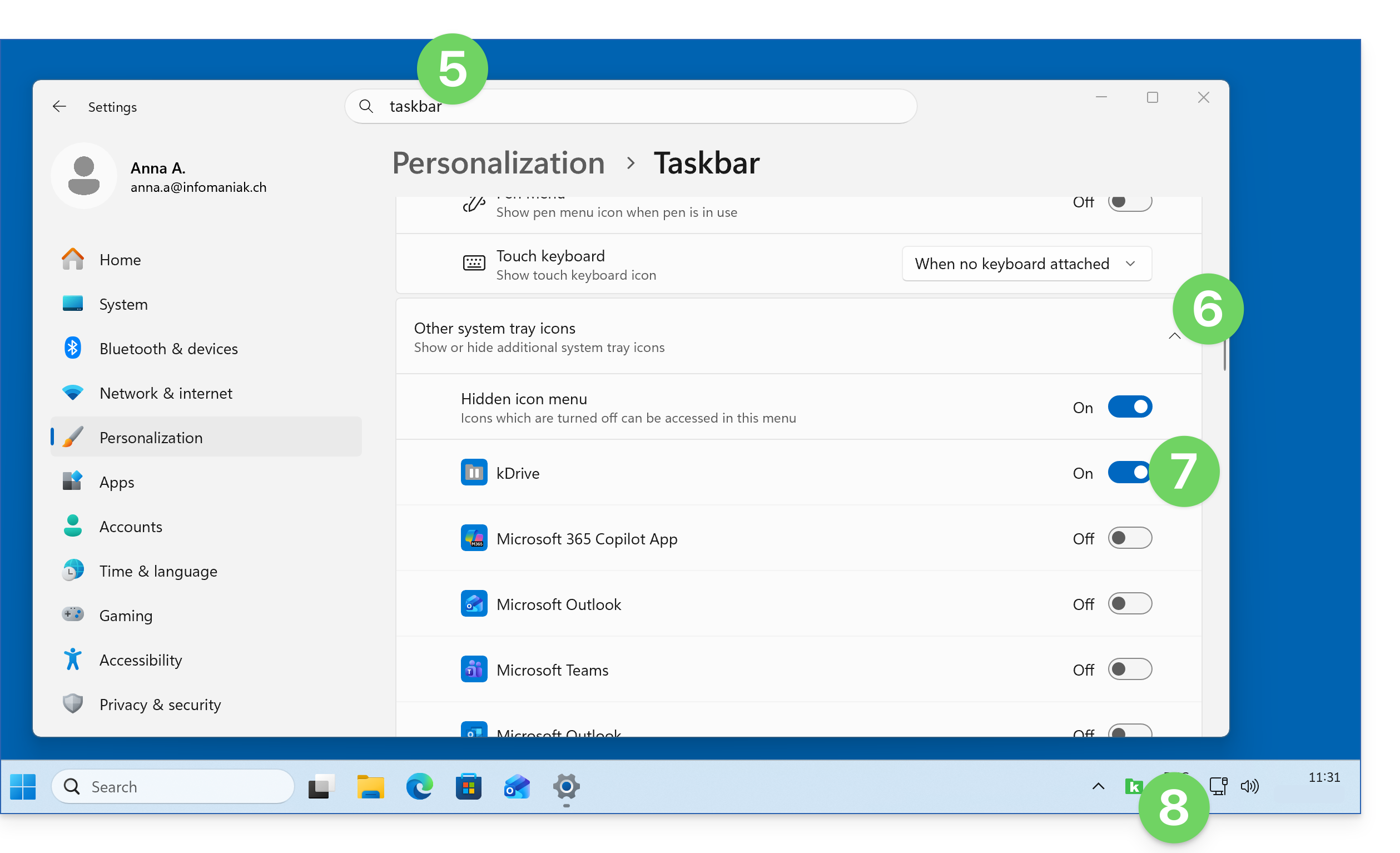
- Find the settings for the taskbar.
- Click on the chevron to expand the “Other icons in the notification area” section.
- Click on the toggle switch to the right of kDrive to make it always visible.
- The icon (here, the kDrive 3.8 icon) will be directly visible on the taskbar:
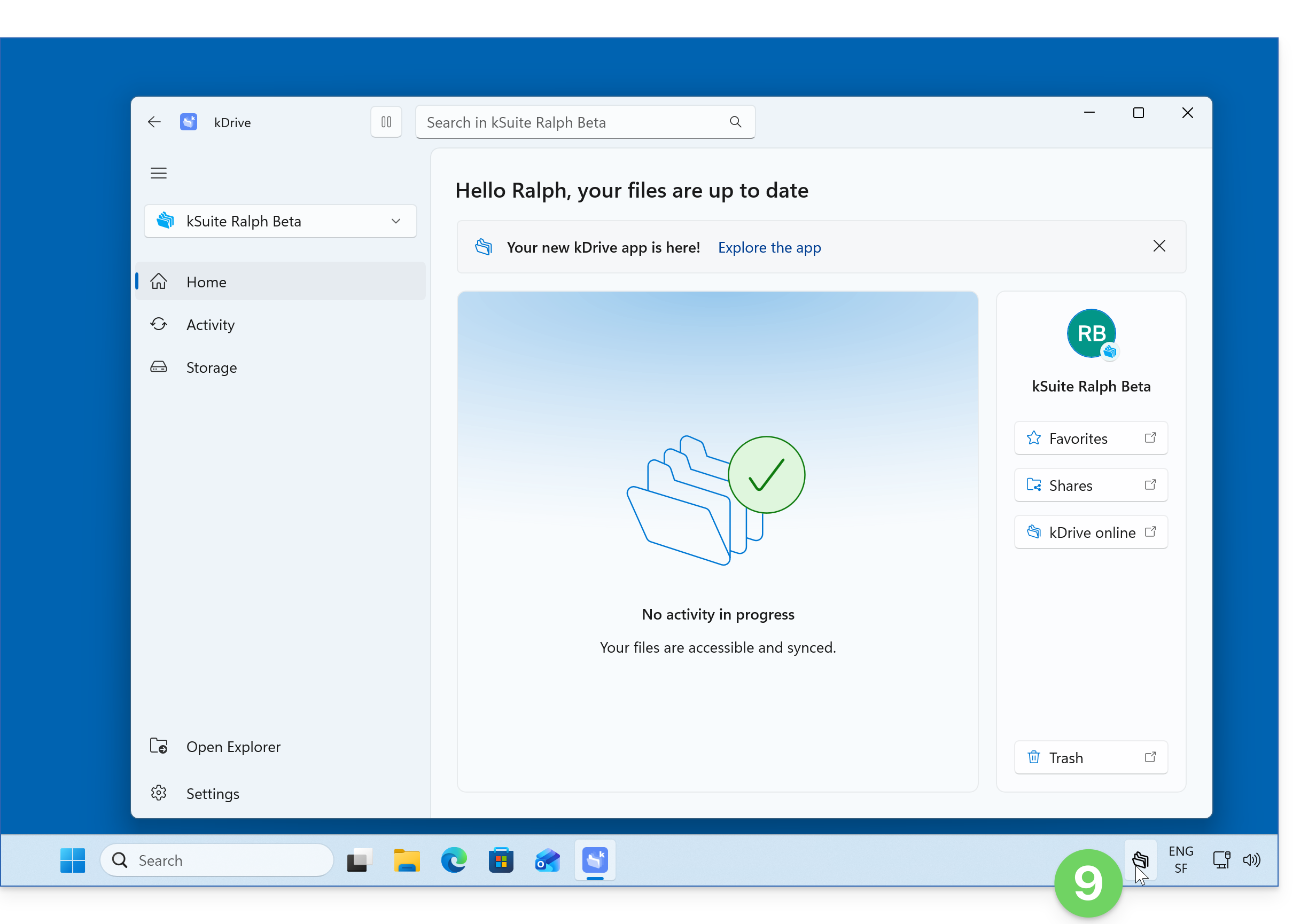
- Left-click on the kDrive app icon; the application interface should appear in the foreground:
On Android
Android may limit the activity of applications running in the background to save battery power. Depending on your device's settings, this may slow down or interrupt the transfer of large files, the import of multiple files, or the automatic backup of photos to kDrive.
To verify that the kDrive application can function correctly in the background:
- Test the synchronization: open the kDrive application and leave it in the foreground until the transfer is complete. Synchronization generally works better when the application is active.
- Check the battery settings: open your device's settings, then find kDrive in the section dedicated to applications. In the application's battery settings, allow its background activity and, if this option is available, select an unrestricted mode or disable battery optimization for kDrive. This setting may increase battery consumption.
- Check device-specific restrictions:some manufacturers offer additional settings, such as automatic startup or background app management. Allow kDrive to run if such options are available.
- Check automatic photo backup: if you are experiencing issues with this feature, ensure that it is enabled in the kDrive settings and that the necessary permissions are granted (❓: help).
The names and location of the settings may vary depending on the Android version and the manufacturer of your device. If the problem persists, please refer to the recommendations available in English on Don't Kill My App, or consult the help documentation provided by the manufacturer of your device.
Link to this FAQ: https://faq.infomaniak.com/2909
Has this FAQ been helpful?