Knowledge base
1000 FAQs, 500 tutorials and instructional videos. Here, there are only solutions!
Understanding kDrive shares (Web / Desktop app)
This guide explains how Infomaniak kDrive shares are displayed depending on the type of share and the application used (Web or Desktop), including internal shares (between users of the same kDrive) and external shares (to users outside kDrive).
Preamble
- Internal shares (between users of the same kDrive, point A below) can be synchronized on the desktop app.
- Shared folders appear in a “Shared” folder on the desktop application and can be enabled/disabled in the synchronization settings.
- Do not move or rename the “Shared” folders locally — this can break the synchronization.
- External shares (to users outside kDrive, point B below) cannot be synchronized on the desktop app.
A. Internal shares (between users of the same kDrive)
It is possible to share files or folders from your personal folder with other users of your kDrive, without going through the Organization Folders (shared folders). This allows you to precisely control access to your private data.
Steps to share a folder/file internally
- In the kDrive web interface, one of the kDrive users right-clicks on their folder or file to share:
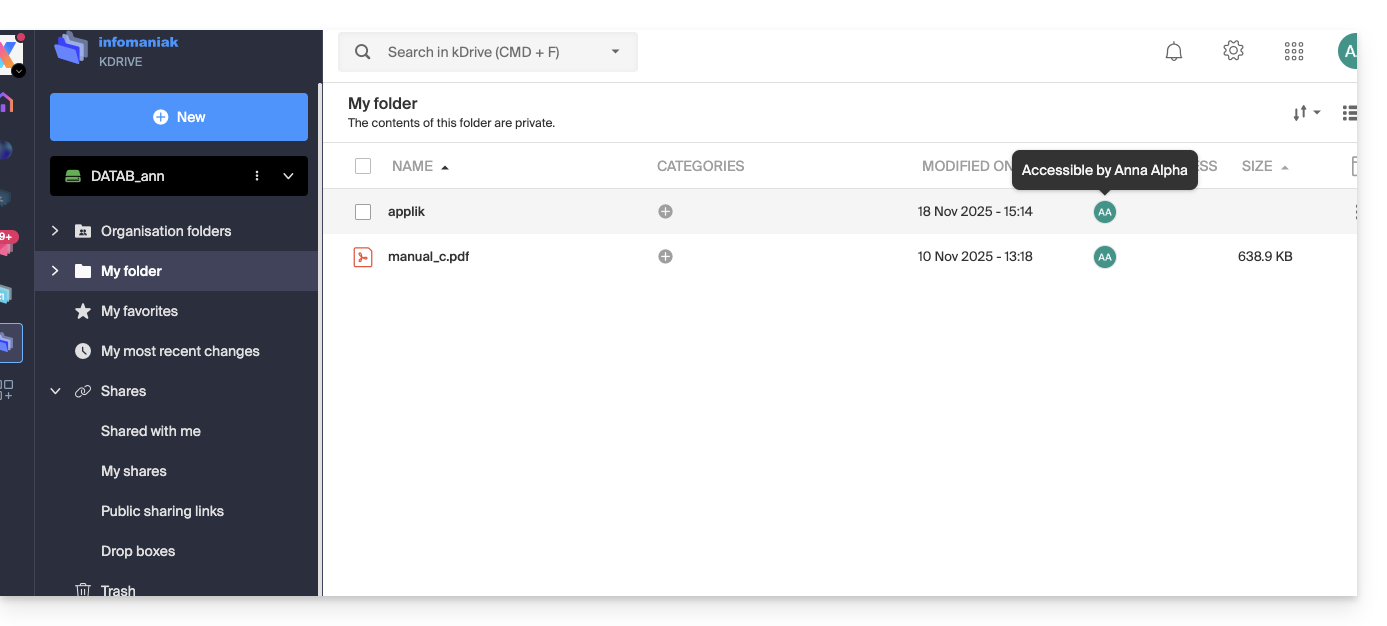
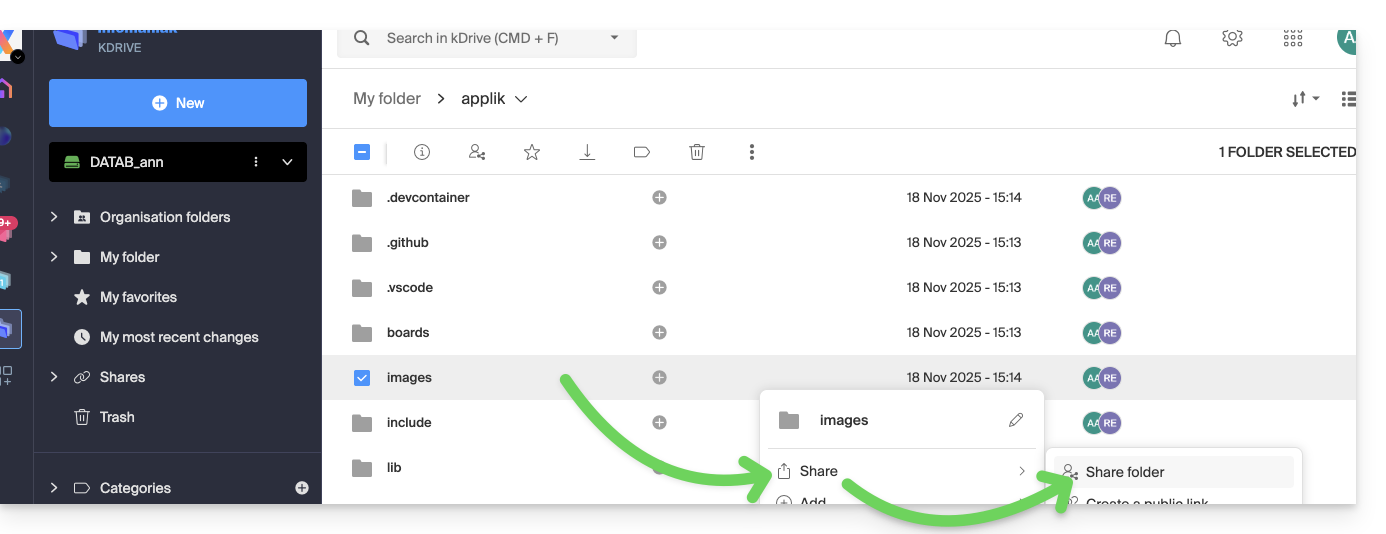
- Select “Share the folder”:
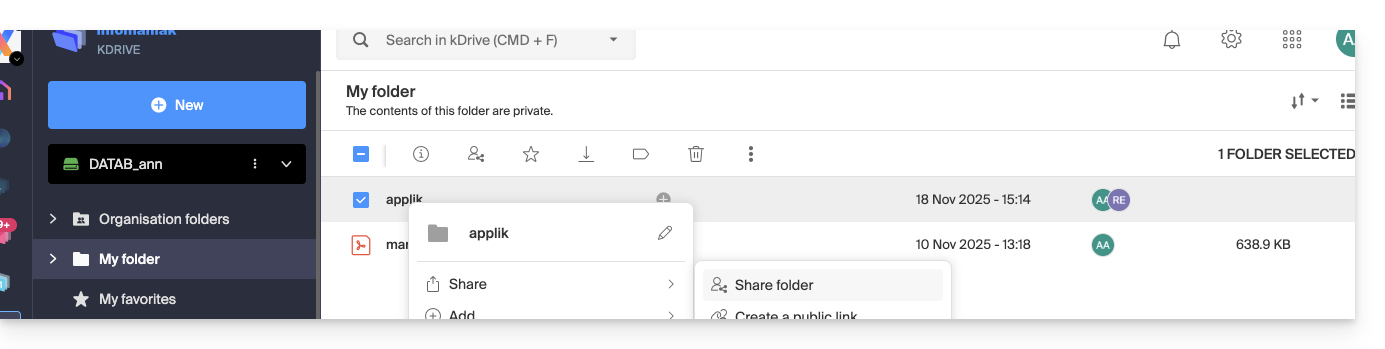
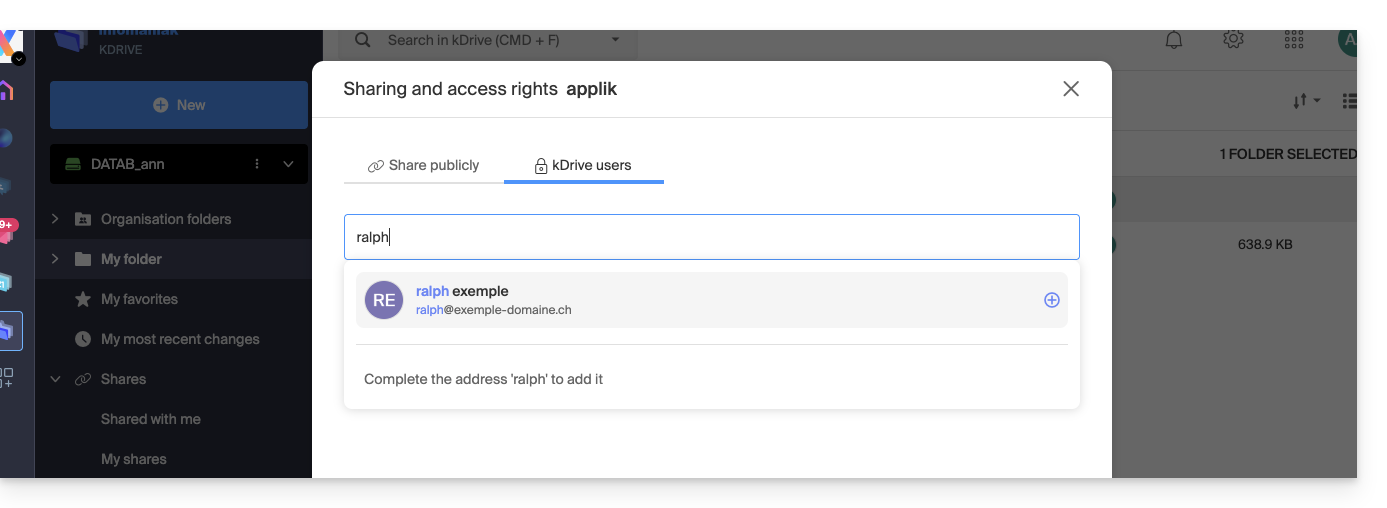
- In the “kDrive Users” tab, enter the name of another user of the same kDrive:
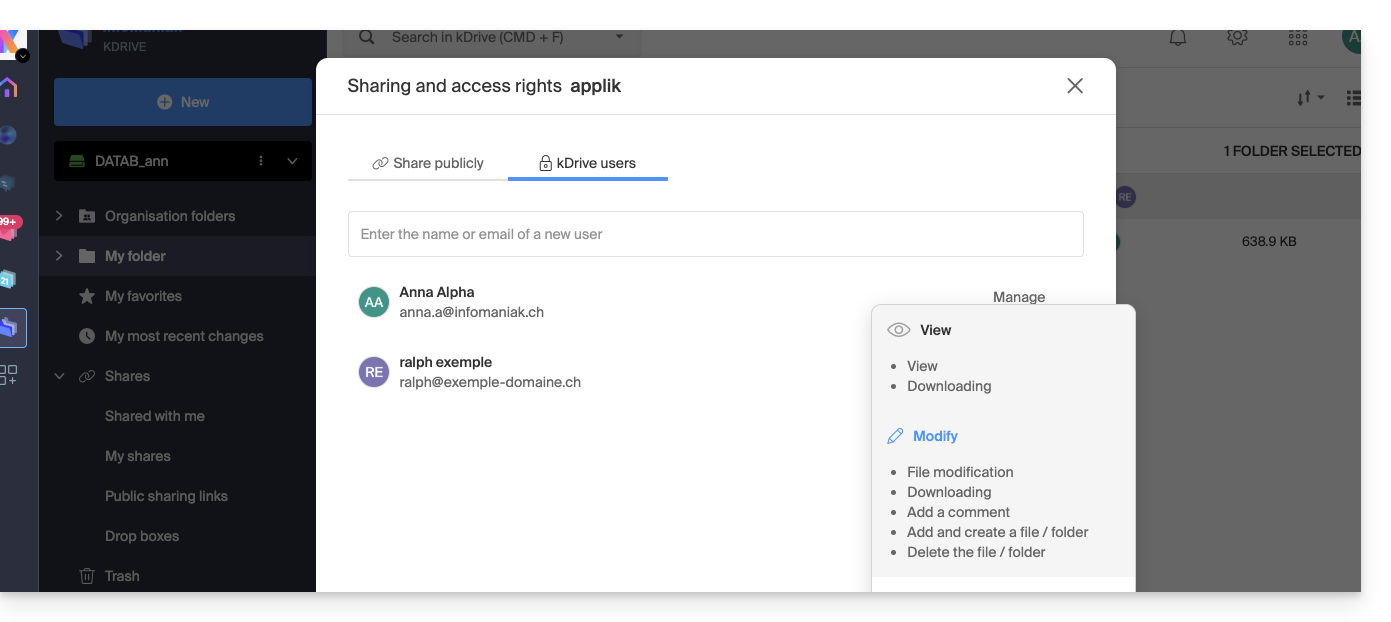
- Choose the permissions:
- Close the sharing window.
Behavior in the desktop app
When an internal share is made as above, a folder named “Shared” automatically appears in the local tree structure of the desktop application for the user concerned, here on macOS: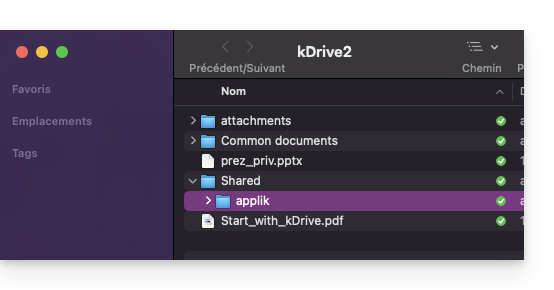
This folder contains all shared items and will therefore be synchronized with any subsequent changes made by the user who shared their data.
You can enable or disable the synchronization of this folder from the desktop application settings, by clicking on the chevron next to the name of the synchronization folder (kDrive2 in the example below) to expand the tree structure of the synchronized files, and by deselecting the “Shared” folder (do not forget to validate the change):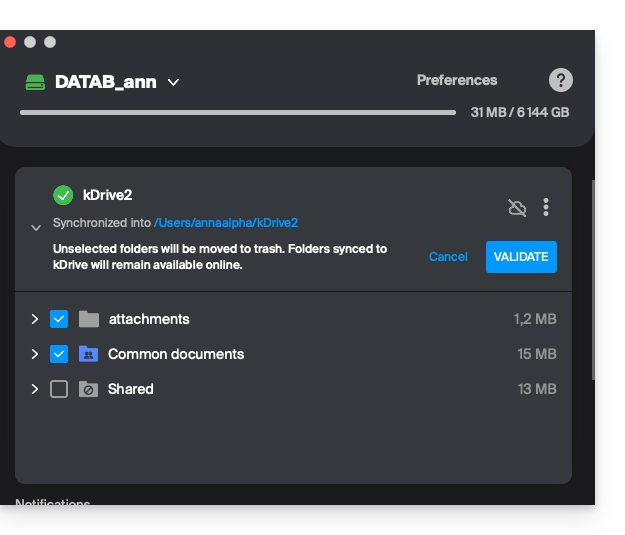
B. External shares (to users outside the concerned kDrive)
You can also share files or folders with people who are not part of your kDrive. These shares are called external shares.
Warning: The external user must have an Infomaniak account (free or paid) to access the share. This is not a public link accessible to anyone.
Steps to share a folder/file externally
- In the kDrive web interface, one of the kDrive users performs a right-click on the folder or file to be shared (for example, a subfolder of an already shared folder (at point A above) will be shared, this has no impact).
- Select “Share the folder”:
- In the “kDrive Users” tab, enter the email address of the external person (
faq@ik.mein this example):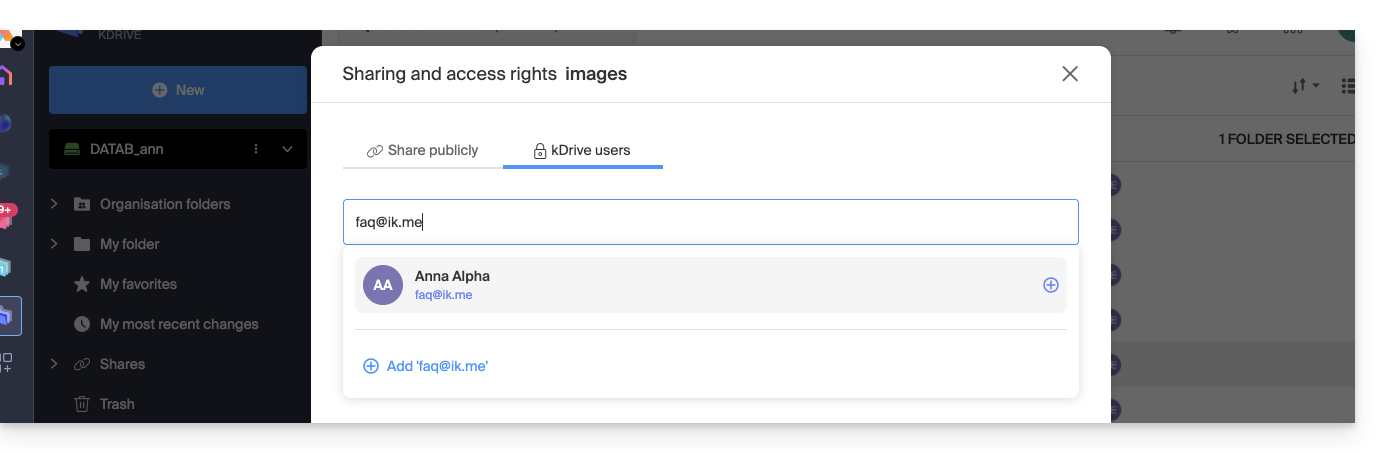
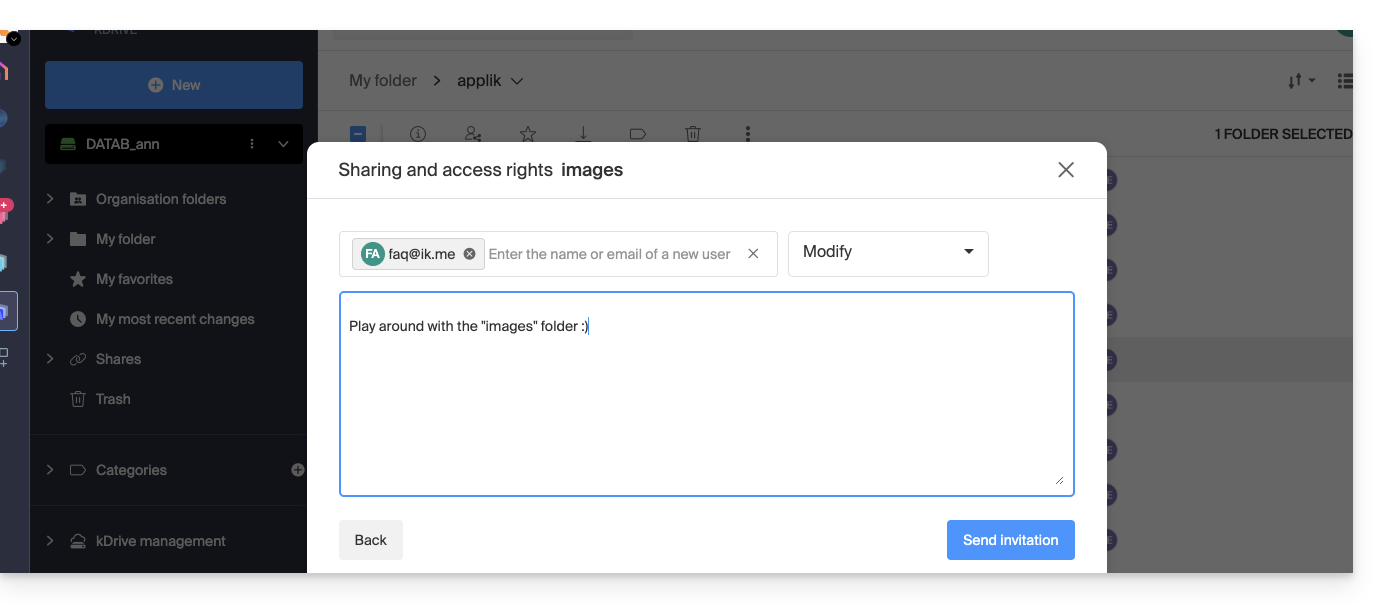
- Click on the email address to add it, choose the permissions of the user and an optional message, then click on the button at the bottom right:
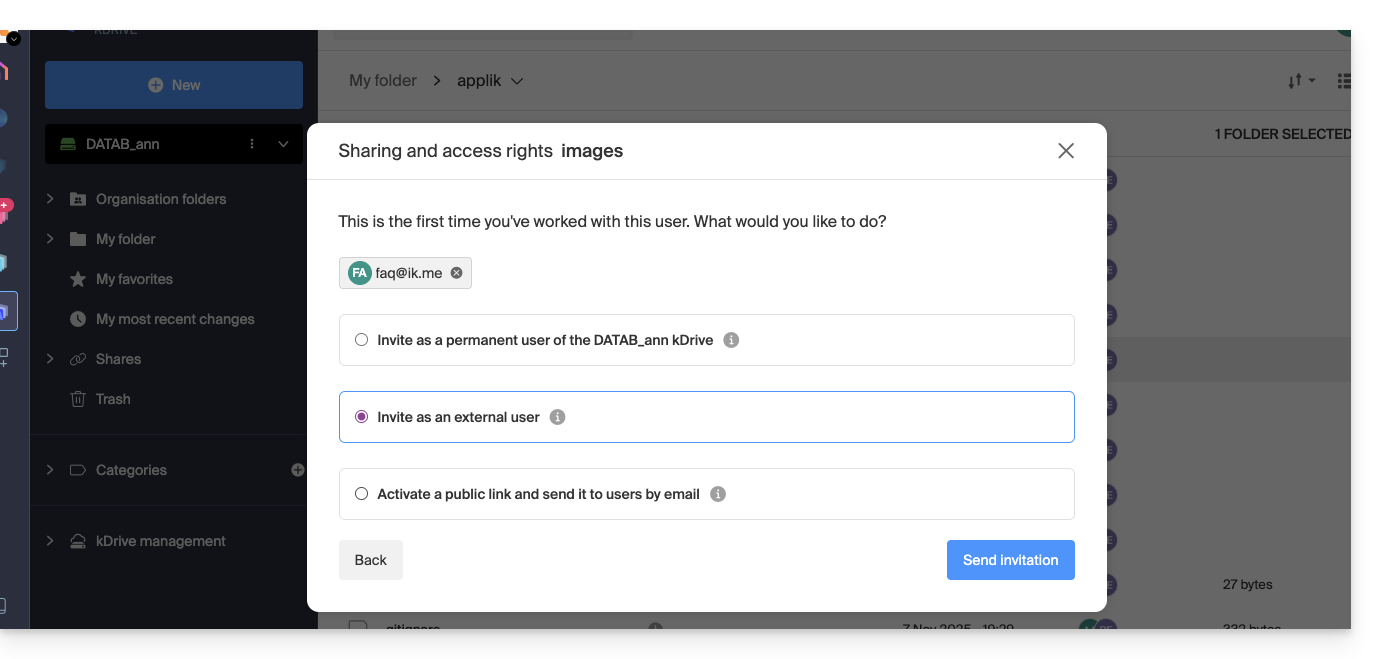
- Select “External User” and click on the button at the bottom right to send the invitation:
- Close the sharing window.
Behavior in the Web (and desktop) app
As long as the user does not check their emails, nothing will happen, kDrive will not appear to them, neither on the Web app nor the desktop app: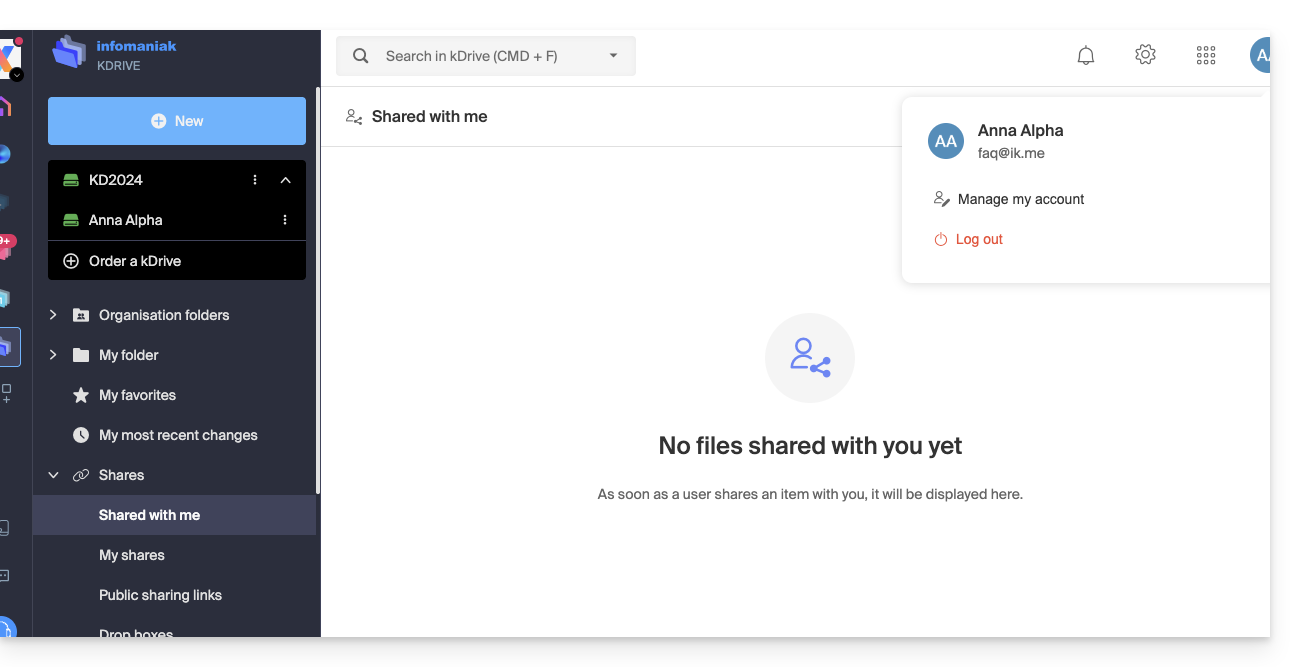
The user faq@ik.me must therefore check their emails: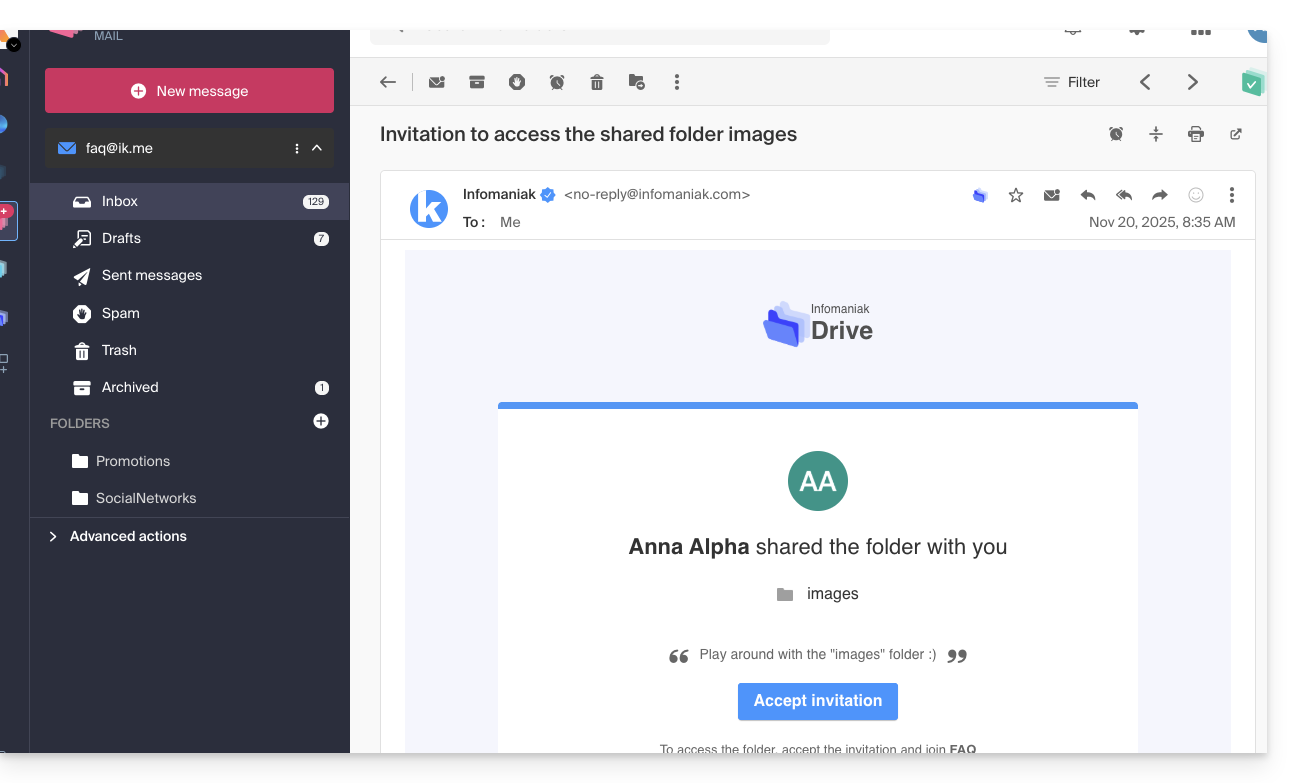
Once the sharing is accepted:
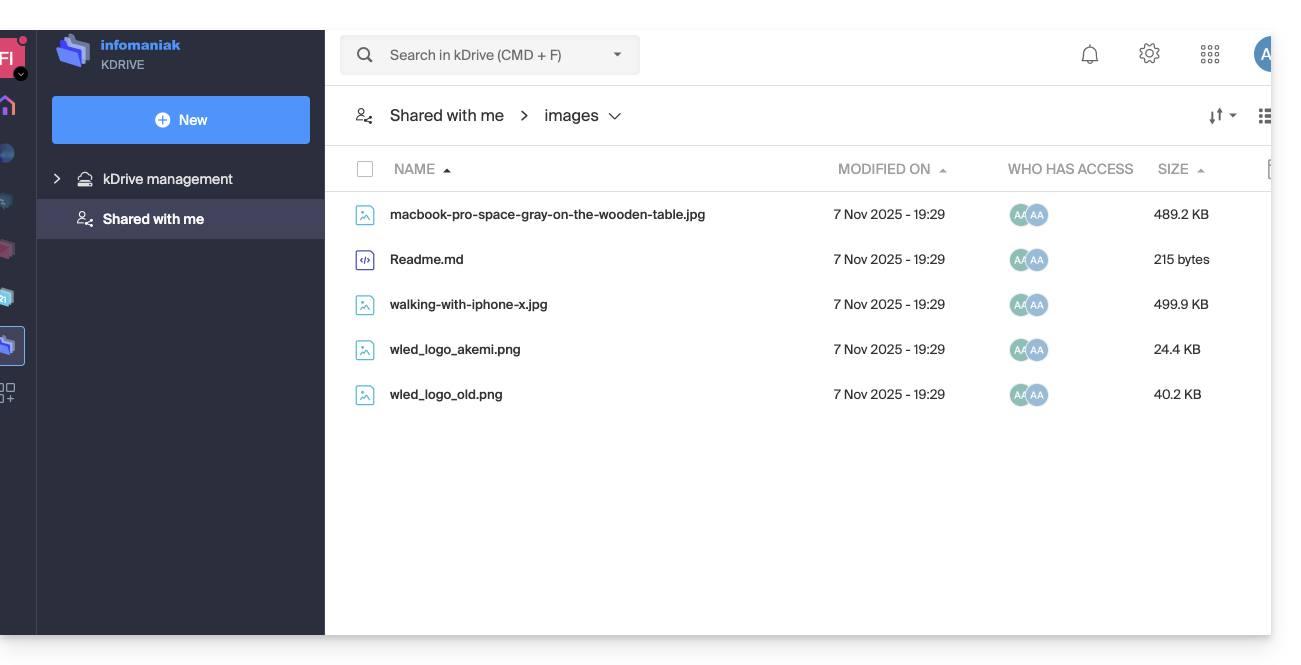
- The user is redirected to the shared data page in a restricted kDrive:
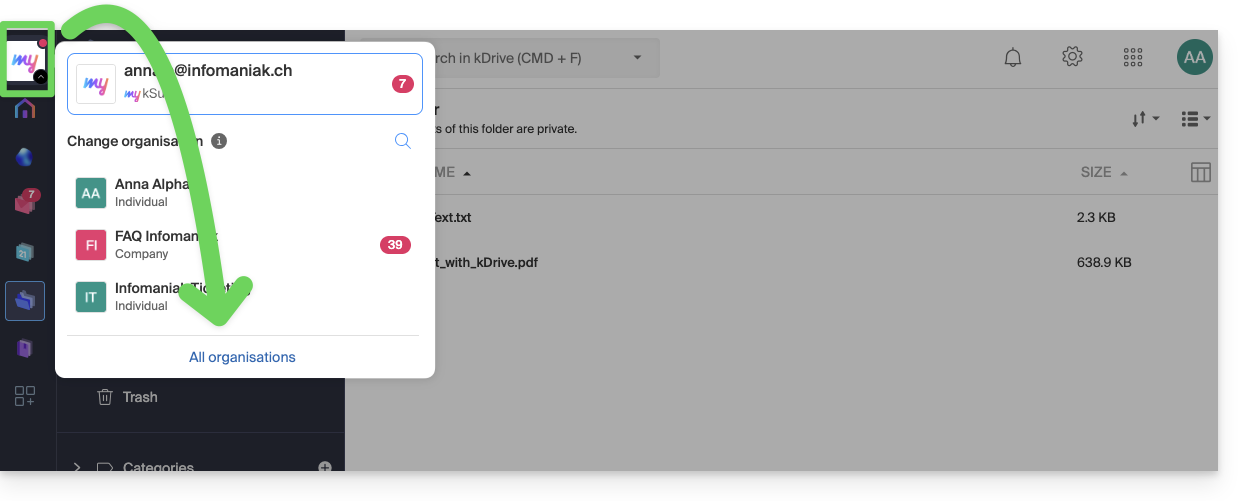
- To find them later, it may be necessary to first display “All Organizations” to make the share reappear, as it is not necessarily linked to the kDrives of Organizations already accessible to the user:
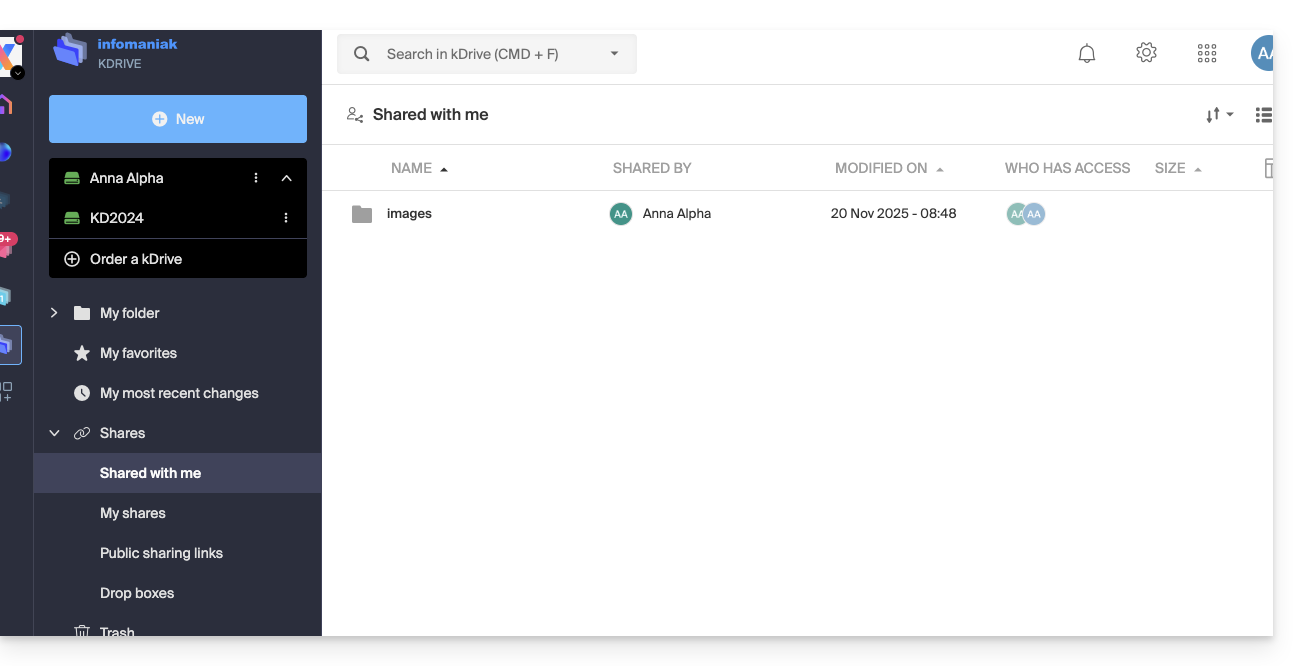
- Then, the shared data will be visible in the “Shared with me” item:
These external shares are NOT synchronizable via the desktop app. No “Shared” folder appears locally for these shares.
The external user accesses the files only via the kDrive web interface (after logging into their Infomaniak account).
This ensures the security of data shared with third parties while limiting the synchronization load on local workstations.
Link to this FAQ: https://faq.infomaniak.com/2859
Has this FAQ been helpful?