Knowledge base
1000 FAQs, 500 tutorials and instructional videos. Here, there are only solutions!
This guide explains how to configure ddclient, a tool available on most Linux distributions (❓: help), to use it with the DynDNS service from Infomaniak.
Prerequisites
- The
ddclientpackage must be installed on your system (e.g.,sudo apt install ddclient). - A dynamic DNS record must have been created for the domain in question via the Infomaniak Manager (❓: help).
- Check that the SSL module for Perl is installed:
sudo apt install libio-socket-ssl-perl.
ddclient configuration
The configuration file /etc/ddclient.conf must contain the following information:
protocol=dyndns2
ssl=yes
use=web
server=infomaniak.com
login=enter_your_login
password=enter_your_password
yourdomain.xyz- ssl=yes: enables a secure connection. This parameter is mandatory for the update to function correctly.
- use=web: instructs ddclient to use an external service to automatically detect your public IP address.
- login / password: DynDNS credentials defined in the Infomaniak Manager when adding the Dynamic DNS (❓: help).
- yourdomain.xyz: replace this with your domain or DynDNS subdomain.
Test and verification
Before launching ddclient as a service, you can test the configuration with:
sudo ddclient -daemon=0 -verbose -debugIf the configuration is correct, you will see a message such as SUCCESS: updating yourdomain.xyz.
Starting the service
Once the configuration is validated, restart and activate ddclient:
sudo systemctl restart ddclient
sudo systemctl enable ddclient
You can check its status with:
sudo systemctl status ddclient
But also:
- Protect the configuration file with:
sudo chmod 600 /etc/ddclient.conf. - Regularly check that the IP address is being updated correctly by performing a DNS lookup (
dig yourdomain.xyzornslookup). - If your IP address does not change frequently, keep a reasonable refresh interval to avoid unnecessary requests.
Link to this FAQ: https://faq.infomaniak.com/40
Has this FAQ been helpful?
This guide explains how to redirect a domain name directly to another, or how to automatically send visitors to your website to another page address (internal or external URL).
Introduction
- To redirect traffic, you will need to take action…
- … either on the domain name itself (it must be hosted by Infomaniak and its DNS must also be Infomaniak's),
- … or on the code present in your pages (e.g., .htaccess page, homepage, etc.) if you have a website.
Acting on the domain name
Via Web Redirection Tool
The tool available in the Manager allows you to easily manage your domain name (or subdomain) and redirect it to the internet address of your choice.
via DNS modifications or A record updates
Change the DNS of the domain name or modify its A/AAAA records to redirect web traffic to another provider.
Modify the page code…
… by inserting HTML code
Insert this line of code between the <head> and </head> tags of your homepage (usually named index.html):
<meta http-equiv="refresh" content="5;url=INSERT-HERE-NEW-URL">Replace 5 with the desired wait time in seconds (0 for immediate execution).
The Google search engine indicates that it is preferable to use a 301 redirect on the server-side (see below). The W3C also advises against using it.
… via PHP code to be inserted
If the website page has a .php extension, insert this function call at the very top of the file:
header("refresh: 5; url=INSERT-HERE-NEW-PAGE-URL");
```
… via the .htaccess file
… via fichier .htaccess
To redirect all traffic to your site (regardless of the page being accessed) to another address, insert the following into the .htaccess file at the root of your site:
RewriteEngine On
RewriteRule ^(.*)$ INSERT-HERE-NEW-URL/$1 [R=301]
To target the page that should be redirected:
Redirect permanent /old_page.html insert destination URL hereRedirectpermanent, Redirect permanent, and Redirect 301 are equivalent commands.
The following is another example of redirecting a sub-section to the homepage (this directive has the advantage of working with "deep links" unlike a permanent redirect):
RewriteEngine on
RewriteRule "old/path/url" "/" [L]
Refer to this other guide for more information.
Link to this FAQ: https://faq.infomaniak.com/79
Has this FAQ been helpful?
This guide concerns domain names with the .se extension.
Introduction
- The
.sedomains are managed by Internetstiftelsen i Sverige (IIS), the official organization that governs domain names in Sweden. - They were introduced in 1986, and it was during the 2000s that they experienced a surge in popularity because their suffix could be used for words like "clo.se", "sen.se", etc.
Change the owner of a .se domain
To change the owner of a .se domain, the procedure defined by the IIS requires filling out a specific form.
In the form, the IIS IDNO (ID Number) field is a key requirement:
- For Swedish citizens: enter the social security number (Personnummer), e.g.
800101-1234, - For Swedish companies: use the company registration number (Organisationsnummer), e.g.
556123-4567, - For foreign citizens or non-Swedish companies: enter an identification number, such as a passport number, ID card, or equivalent for your country.
This is used to authenticate the owner and prevent disputes or fraudulent use of the domain. The change may take a few days, depending on how quickly the documents are verified.
Link to this FAQ: https://faq.infomaniak.com/87
Has this FAQ been helpful?
This guide explains how to add or modify one or more SRV records in the DNS zone (of a domain name) managed in the Infomaniak Manager.
Introduction
- This type of record indicates which services are available for a domain.
- They are often used for XMPP, LDAP protocols, or to configure Microsoft Office 365.
Modify the DNS zone
To manage this type of record in a DNS zone:
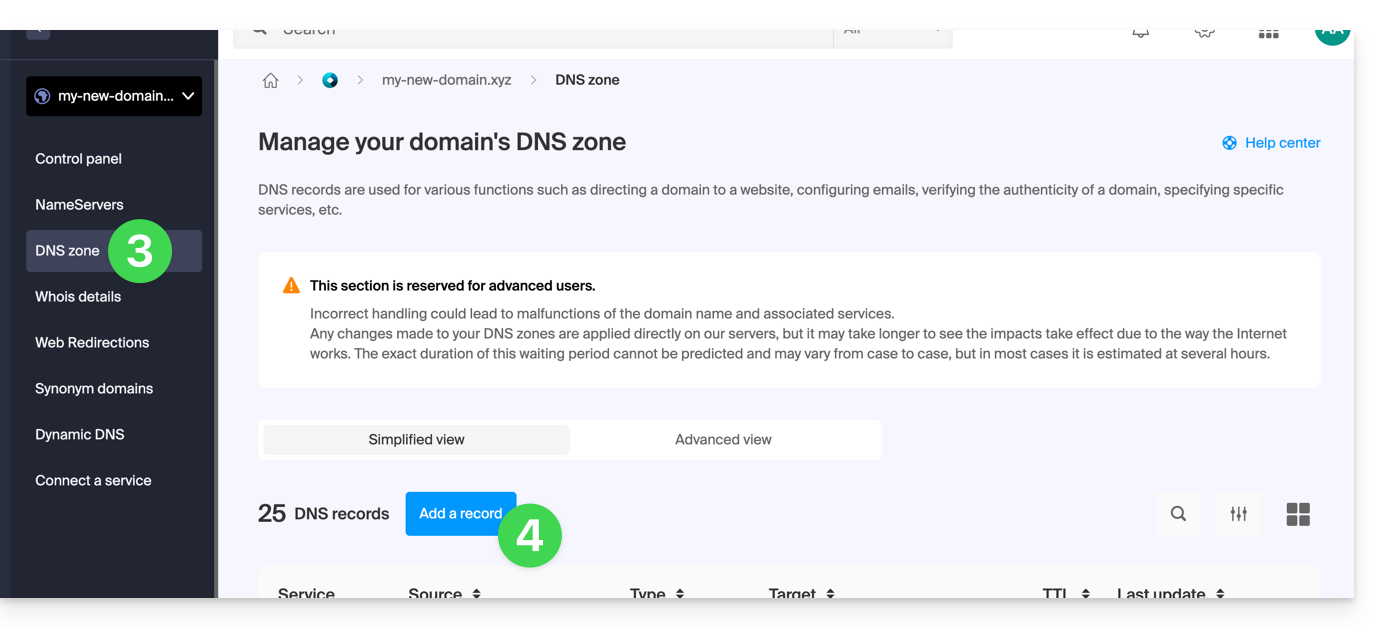
- Click here to access the domain management section in your Infomaniak Manager (❓: help).
- Click on the name of the domain in question.
- Click on DNS Zone in the left-hand menu.
- Click the button to add a record:
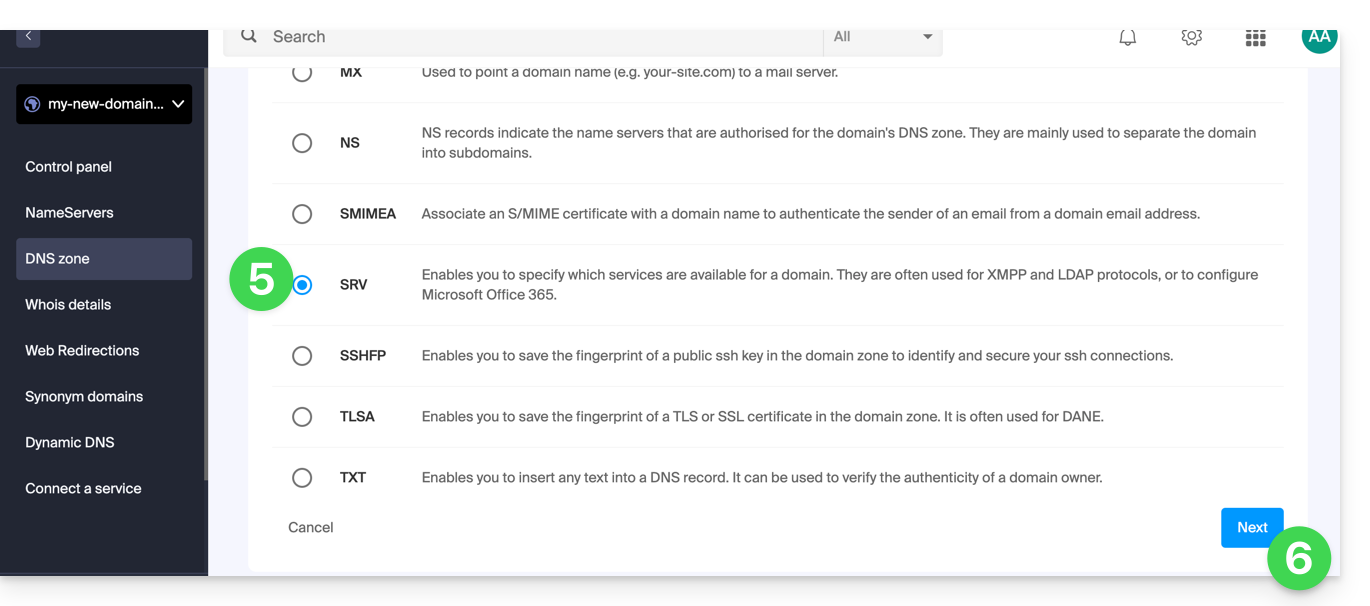
- Click the SRV radio button to add a record.
- Click the Next button:
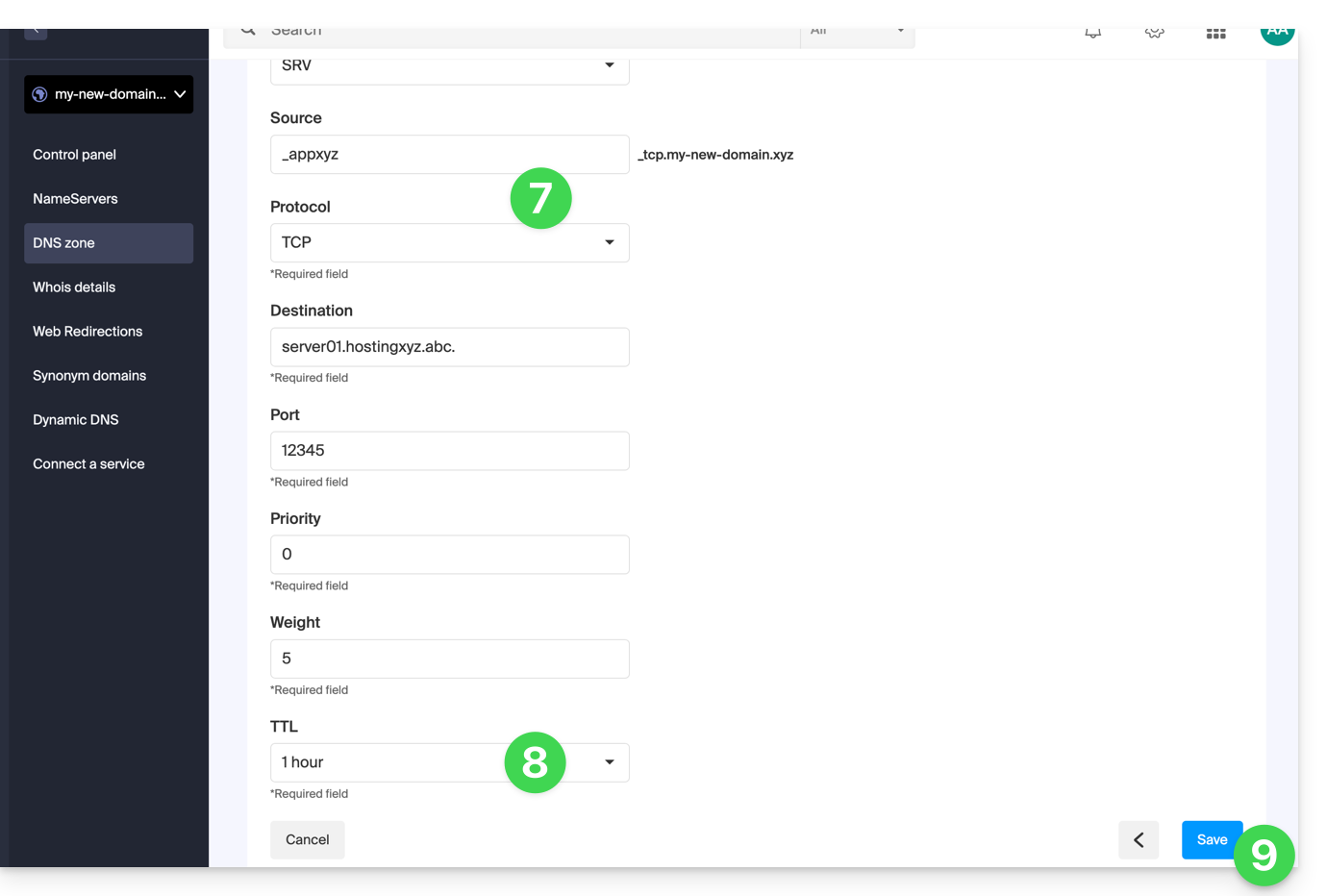
- Enter the values for the SRV record required for your DNS zone (the
._tcp.domain…is already entered). - Leave the default value for the TTL.
- Click the Save button:
Verify that the complete SRV record has been added correctly in the records table: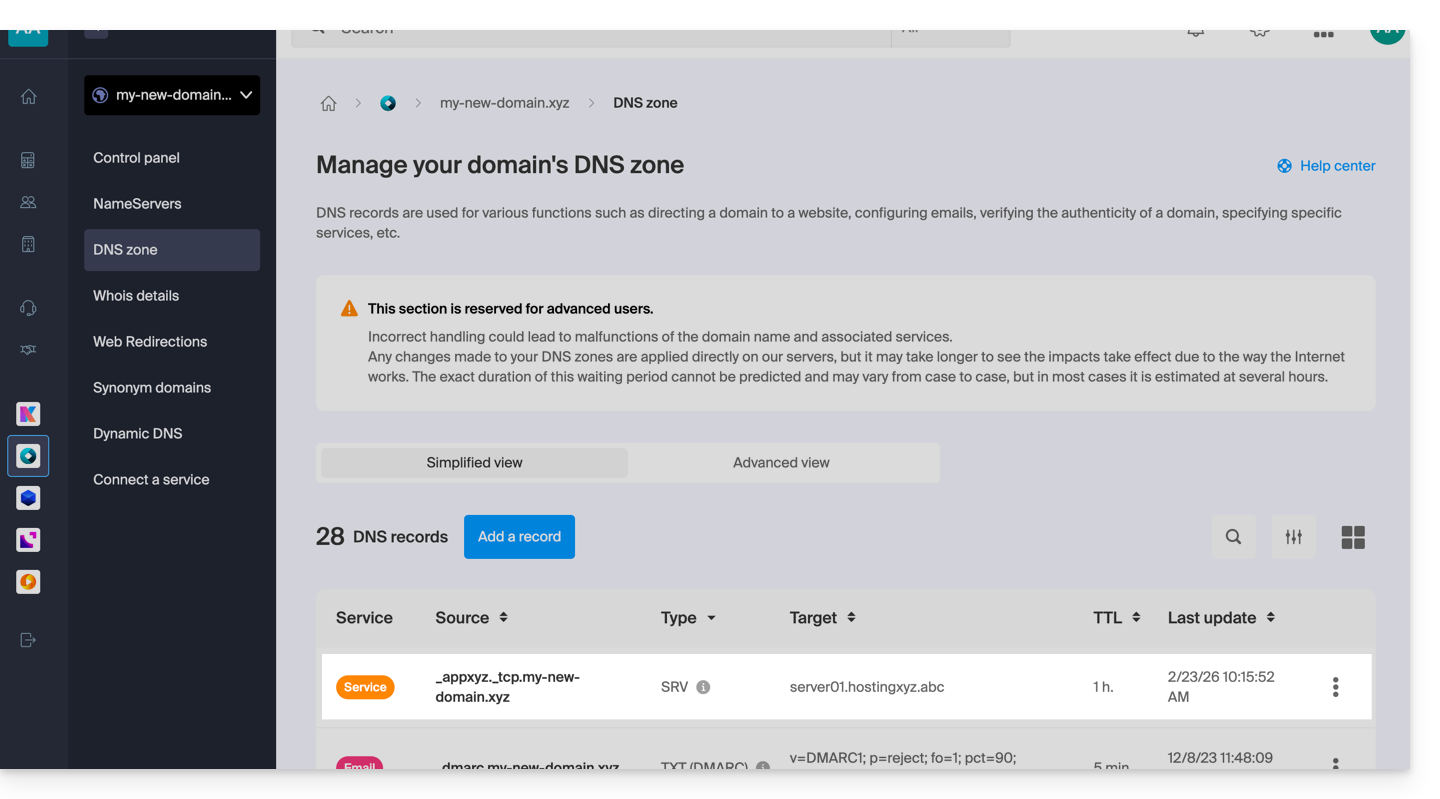
Link to this FAQ: https://faq.infomaniak.com/110
Has this FAQ been helpful?
This guide explains how to find and display DNS information for any domain name registered with Infomaniak (or elsewhere).
Domain with Infomaniak
To access your domain names and view the DNS servers configured:
- Click here to access the domain management section in your Infomaniak Manager (❓: help).
- Click on the name of the domain in question.
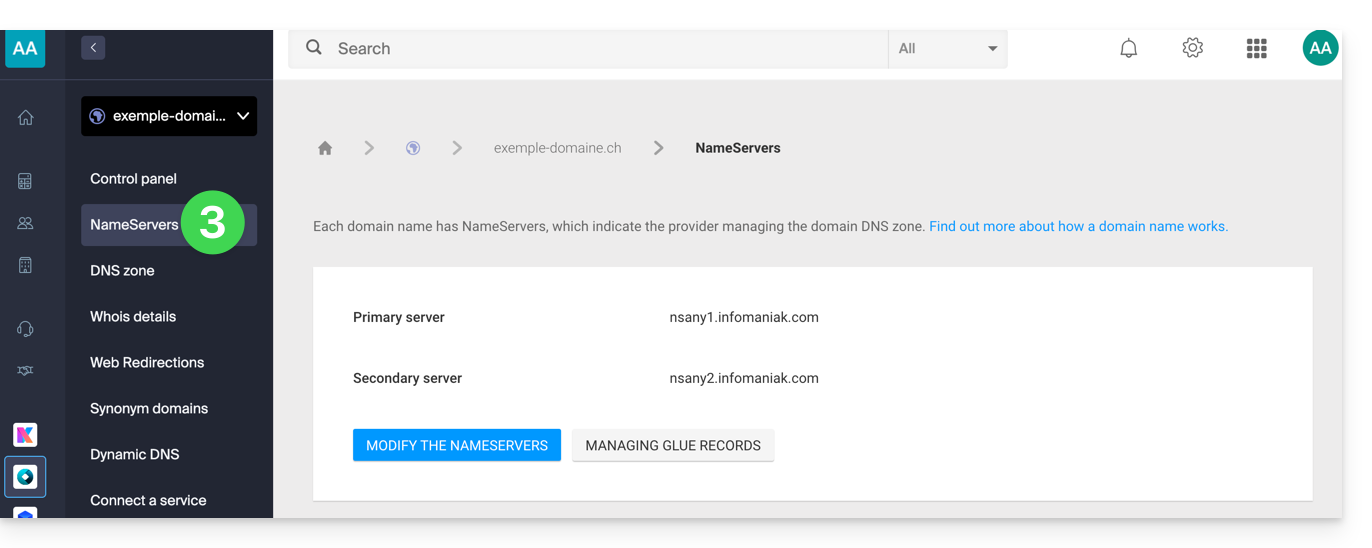
- Click on DNS Servers in the left-hand menu:
WHOIS Search
To view the DNS information of another domain name, use a WHOIS service such as https://whois.infomaniak.com/, for example, or https://who.is (be aware of the advertisements on all these third-party services).
This will provide you with a clear overview of a domain name's DNS status at a specific point in time.
DNS servers are often displayed in pairs and begin with ns..., followed by numbers and the name of the registrar or hosting provider.
Please note that the DNS records displayed may not necessarily be the ones most recently selected by the domain manager. This is because there is a propagation time that may need to be taken into account if changes are currently being made to the domain.
Link to this FAQ: https://faq.infomaniak.com/189
Has this FAQ been helpful?
This guide explains how to register domain names with Infomaniak in the .ngo or .ong TLDs.
Registration Validation
To order a .ngo or .ong domain, you must be a non-governmental organization; this means that registering a .ngo or .ong domain triggers a verification process after the domain is registered.
You will receive an email (at the email address provided in the WHOIS) containing a link to complete this verification. It is important to follow this process within 360 days of registration; otherwise, your domain name will be rejected and deleted by the registry.
Please note that the domain will only become active once this registration process is complete.
Link to this FAQ: https://faq.infomaniak.com/230
Has this FAQ been helpful?
This guide will help you if you receive error emails that mention SPF when sending emails to gmail, microsoft, or similar addresses.
Are all your services with Infomaniak?
The Global Security tool informs you of any configuration inconsistencies regarding your Infomaniak Mail Service.
Are some of your services located elsewhere?
To resolve an email sending issue when your email is managed by Infomaniak and your website is hosted with another provider (such as Wix, for example), and in this situation, the DNS zone for your domain name is managed elsewhere, please refer to this other guide.
Link to this FAQ: https://faq.infomaniak.com/237
Has this FAQ been helpful?
This guide details the allowed and prohibited characters when creating a domain name (up to 63 characters) with Infomaniak.
Introduction
- The characters allowed in a domain name are determined by the technical standards established by the Internet Corporation for Assigned Names and Numbers (ICANN) and, where applicable, by national or regional regulatory bodies, such as AFNIC for
.frdomains. - To understand the possibilities offered for an email address (the part before the at symbol
@), see this other guide.
Allowed characters in a domain name
The allowed characters in standard domain names include:
| Allowed characters | Notes |
|---|---|
| Letters | a à z |
| Numbers | 0 à 9 |
| Hyphen | - (not allowed at the beginning or end of a label) |
| Accented / special characters | See below |
Special characters, accents (punnycode)
There are also domain extensions that allow the use of accented characters or other special characters. These rules may vary depending on the specific domain extension (such as .fr, .com, .net, etc.) and the policies established by the relevant regulatory bodies.
It is possible to purchase a domain name from Infomaniak that contains an accent on a letter (é for example). This encoding method, which allows the inclusion of non-Latin characters, such as accented, Cyrillic, Chinese characters, etc., in domain names, is called Punycode. It transforms Unicode characters into a form of ASCII that is readable by computer systems. This means that a domain name containing non-ASCII characters is transformed into an ASCII string that begins with xn--.
This transformation is reversible with certain software/email clients, which can then correctly interpret and display the original domain name. However, in general, Infomaniak does not recommend using email with domain names that contain accented characters:
Indeed, not all browsers, operating systems, and applications necessarily support domain names with accented characters in the same way, which can lead to compatibility issues in some cases.
Characters not allowed in a domain name
The following characters (period, space, exclamation mark, hash, dollar sign, percent, caret, ampersand, asterisk, parenthesis, equals sign, bracket, chevron, comma, quotation marks, slash, semicolon, question mark…) are not allowed in Infomaniak domain names:
| Forbidden characters | Remarks |
|---|---|
| Point | Reserved for separating labels; not allowed at the beginning or end of a label, or as a standalone character within a label. |
| Space | |
| Special characters | !, #, $, %, ^, &, *, (, ), =, [, ], <, >, ,, ;, ", /, ? |
| Non-ASCII characters | Except via Punycode for certain extensions |
| Control characters | ASCII codes less than 32 (non-printable) |
Link to this FAQ: https://faq.infomaniak.com/246
Has this FAQ been helpful?
This guide explains how to restore backups of previous versions of your files and other web data from your Infomaniak web hosting, and how to set up an effective backup policy if the backups provided automatically and free of charge no longer meet your availability or security requirements.
Web Hosting (Starter, Shared, Cloud Server)
Consult these guides to restore automatic backups:
- of an entire hosting account (FTP + MySQL),
- of specific files on the hosting,
- of specific databases,
- a Web Application (WordPress & Apps),
- Cloud Server SSH crons.
Consult these guides for backing up and restoring:
- a hosting solution with Swiss Backup and Restic (advanced),
- WordPress with Swiss Backup,
- WordPress with an extension.
Please also refer to https://faq.infomaniak.com/snapshot.
Email / kSuite
- Restore messages from Infomaniak's automatic backups.
- Restore contacts or calendar events.
- Back up the current content of a mail account:
- by downloading the current content locally,
- by duplicating all the current content to a backup mailbox,
- by copying future emails as they arrive to a backup mailbox.
Domains / DNS Zones
- Restore deleted DNS records from Infomaniak's automatic backups.
- Restore an expired domain during the redemption period.
Link to this FAQ: https://faq.infomaniak.com/250
Has this FAQ been helpful?
This guide details the allowed and prohibited characters when creating an email address (up to 64 characters) in an Infomaniak Mail Service.
Introduction
- The allowed characters differ depending on whether they appear before or after the at symbol
@. For example, innom-utilisateur.mail@nom-domaine.xyz:- Before the at symbol: the
nom-utilisateur.mailpart corresponds to the username. - After the at symbol: the
nom-domaine.xyzpart corresponds to the domain name.
- Before the at symbol: the
- To learn about the possibilities offered at the domain name level (the part after the at symbol
@), see this other guide.
Part before the at symbol: username.mail
The RFC 5321 and RFC 5322 standards define the general syntax of email addresses. However, email providers – including Infomaniak – apply additional restrictions to ensure security, consistency, and compatibility with the majority of software/email clients.
For example, an address such as -@exemple.com is syntactically valid according to RFC 5322, but is not accepted when creating accounts on Infomaniak servers.
These additional rules allow, in particular:
- to prevent abuse (spam, malicious automation, etc.);
- to comply with naming conventions (an identifier consisting only of
-is meaningless); - to ensure compatibility with email software/clients that handle certain address formats poorly.
In summary: RFC 5322 defines what is syntactically possible, but each server determines what is actually usable in practice.
Allowed characters before the at symbol
The following characters can be used in the part before the at symbol of an Infomaniak email address:
| Allowed characters | Examples / Notes |
|---|---|
| Letters | a to z and A to Z |
| Numbers | 0 à 9 |
| Hyphen | - (not allowed as the first or last character) |
| Underscore | _ |
| Period | . (allowed, but not at the beginning, end, or consecutively) |
Characters not allowed before the at symbol
The following characters (at symbol, exclamation mark, hash, dollar sign, percent sign, caret, ampersand, asterisk, parenthesis, equals sign, bracket, chevron, comma, quotation marks, semicolon, question mark…) cannot be used to create an Infomaniak email address:
| Forbidden characters | Notes |
|---|---|
@ | reserved for separating the username and the domain |
| (space) | |
!, #, $, %, ^, &, * | not supported |
(, ), =, [, ] | not supported |
<, >, ,, ;, ", /, ? | not supported |
| Non-ASCII characters | for example, accents or non-Latin characters |
| Control characters (ASCII codes < 32) | non-printable, prohibited |
Link to this FAQ: https://faq.infomaniak.com/438
Has this FAQ been helpful?
This guide explains what you should do if you receive a message, by email, post, or fax, from an unknown company or one claiming to be Infomaniak.(or a competitor) and mentioning the domain name(s) you own, and requesting payment for fees related to these products.
Introduction
- Several organizations are known for aggressively pursuing domain name registrations (slamming), with the aim of acquiring them or simply making money at your expense.
- These include: Brandon Gray Internet Services, NameJuice.com, and Global Netsource. In addition, Asian companies are listed here.
- The company called Domain Registrar of America (DROA) also aims to scam domain name holders by sending a fax or email offering to renew one or more domain names 2 to 3 months before their expiration date. This offer appears official and professional and offers very competitive prices.
- The catch: by signing with these unscrupulous companies, you authorize the transfer of your domain names to these "registrars," with all the risks of your websites and email services being deactivated. Of course, you are encouraged to pay by credit card! Some companies have been the subject of legal action in the USA, Great Britain, and Canada but remain very active in Europe.
Some recommendations
In order to avoid being scammed:
- Determine who is sending you this message... Is it a company you know, writing to you from Switzerland or France, in French, etc., or is it a message coming from abroad (USA, United Kingdom, Jamaica, Asia, etc.), in English, etc.?
- Determine the status of your domain name and where it is currently located; to do this, start by performing a WHOIS search on infomaniak.com/whois, for example.
- Do not respond to these messages under any circumstances... Destroy them, or you risk paying exorbitant and unnecessary amounts.
- Consult the AFNIC Guide on slamming and other fraudulent practices.
- Activate Domain Privacy for added peace of mind.
- Report these messages.
Link to this FAQ: https://faq.infomaniak.com/443
Has this FAQ been helpful?
This guide details the entire procedure for transferring a domain name from your current provider to Infomaniak.
Introduction
- Validity and registration date: ensure that the domain was created or transferred at least 60 days ago and that the email addresses associated with the owner's profile are valid.
- Expiration: during a transfer, no already paid period is lost; the domain's expiration date will be automatically extended by one year.
- DNS Backup: If you plan to keep some services (Web, Mail, etc.) with another provider after the transfer, note your current DNS records (A, MX, TXT, CNAME) beforehand.
- External vs. Internal Transfer: This involves having Infomaniak manage your domain instead of your current registrar (this is not a transfer of ownership between two accounts with the same provider).
- Terminology: The terms
EPP,AuthCode,AuthInfo, "transfer code", and "authorization code" all refer to the same alphanumeric key used to validate the transfer of a domain between registrars.
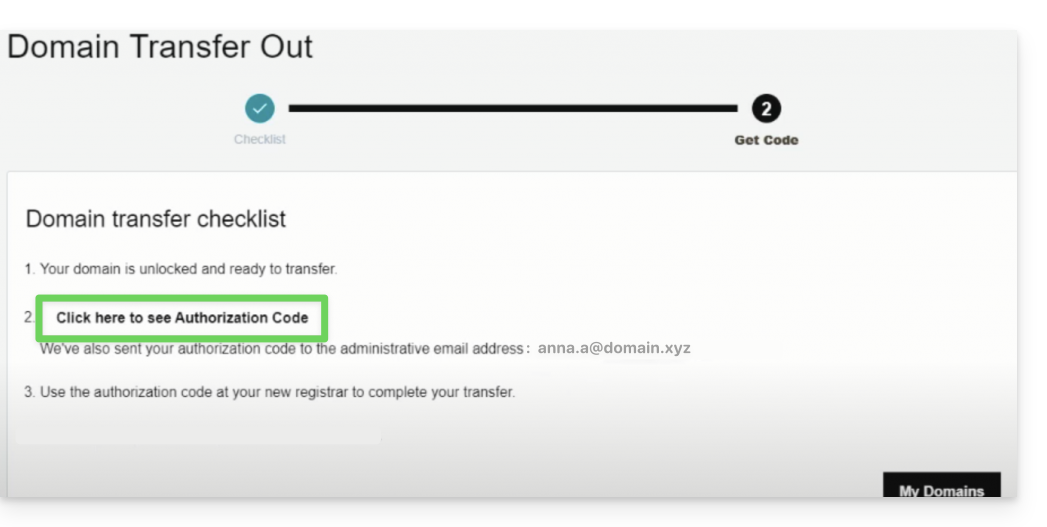
1. Obtain the authorization code (AuthCode)
Log in to your current provider's customer account to retrieve the authorization code. Also, remember to disable transfer protection if it is enabled.
2. Start the transfer with Infomaniak
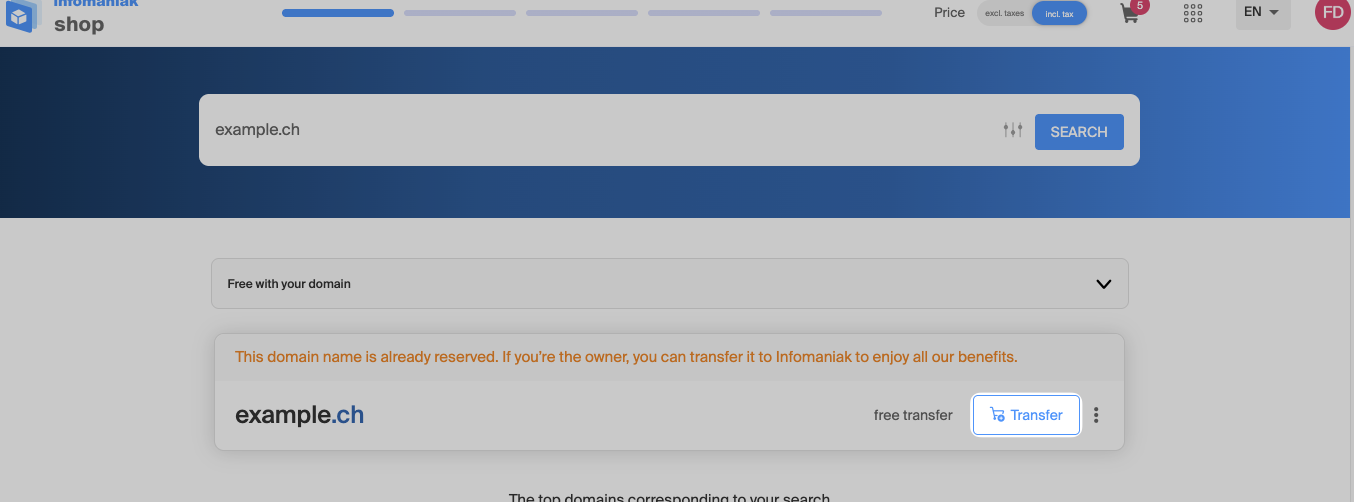
Go to the Infomaniak domain transfer page, find your domain name, and then click the button to start the process.
3. Configure the options and DNS management
Enter the details of the account holder. At this stage, configure the toggle switch for DNS management:
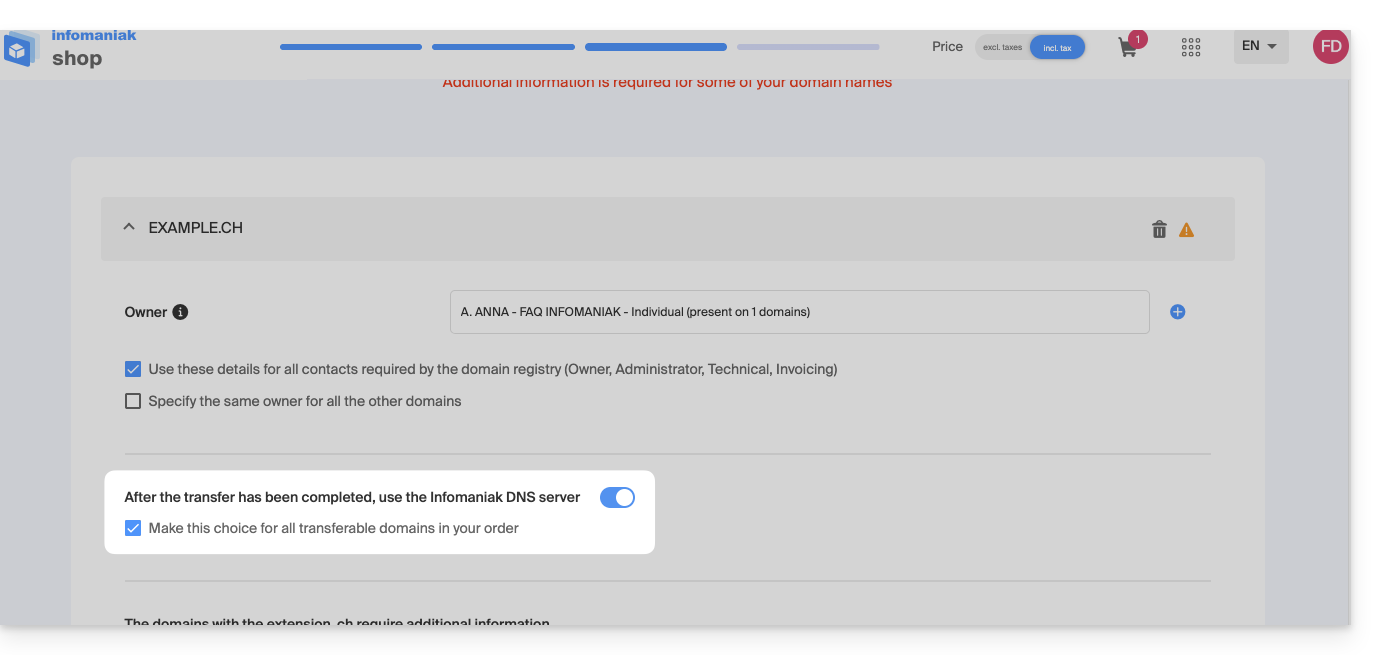
Leave the switch activated if…
- All your services (hosting, emails) are already with Infomaniak (or if you are already using the DNS servers
ns11.infomaniak.comandns12.infomaniak.com). - No product or service is linked to this domain name.
Disable the button if…
- Some services (website, email) remain hosted elsewhere than with Infomaniak. In this case, be sure to keep your current DNS settings and verify beforehand that your DNS zone is still available with your previous registrar.
Note: If you are unsure about your current DNS settings, perform a search on the Infomaniak WHOIS service.
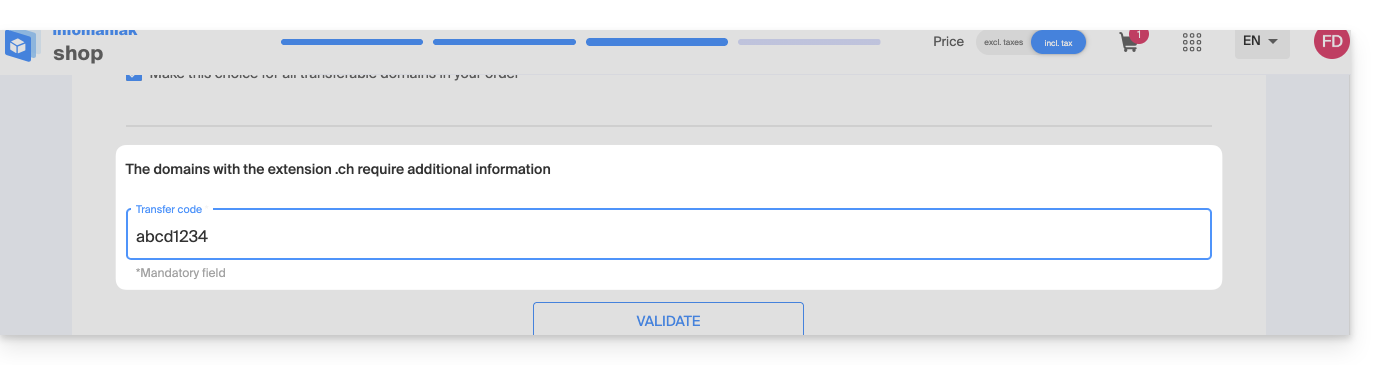
4. Enter the authorization code
Paste the AuthCode / EPP code retrieved in step 1 into the field provided, validate the code, and then click Next.
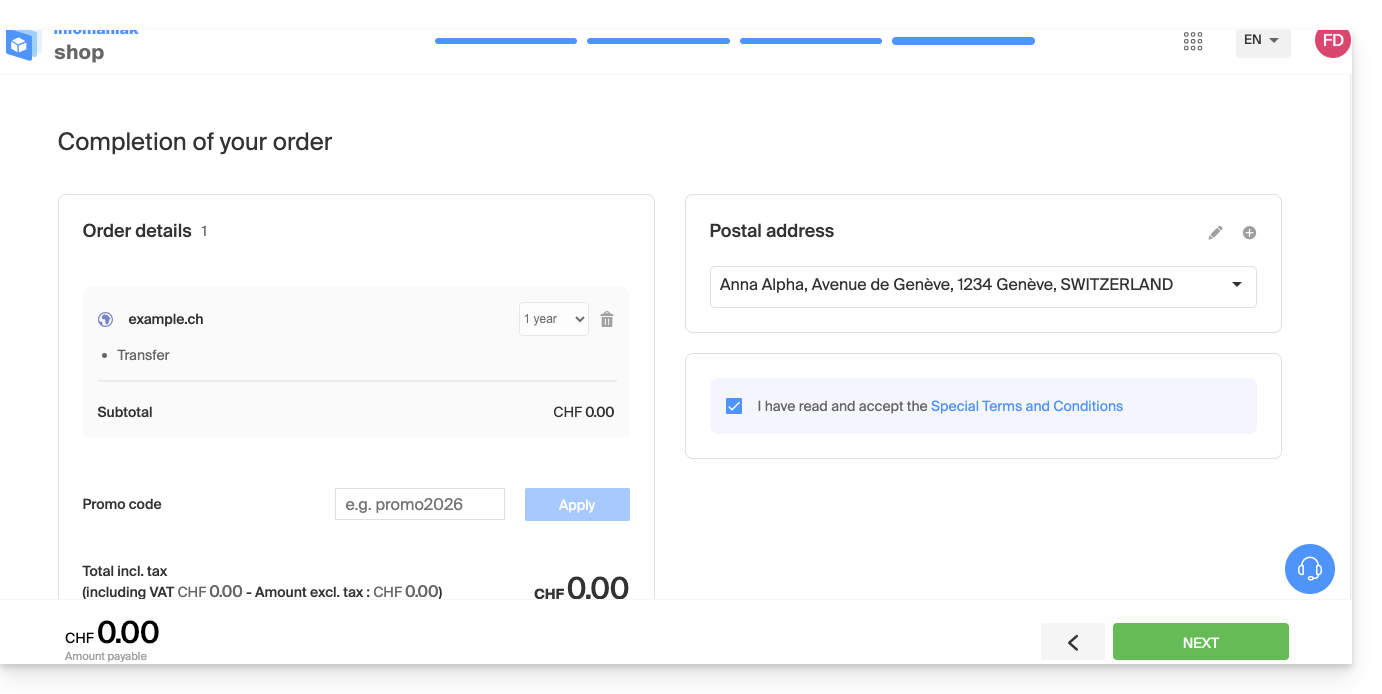
5. Adjust the order and confirm
This final step allows you to adjust your renewal preferences and pay any applicable transfer fees (depending on the extension).
Accept the terms and conditions, then click Next to complete the order.
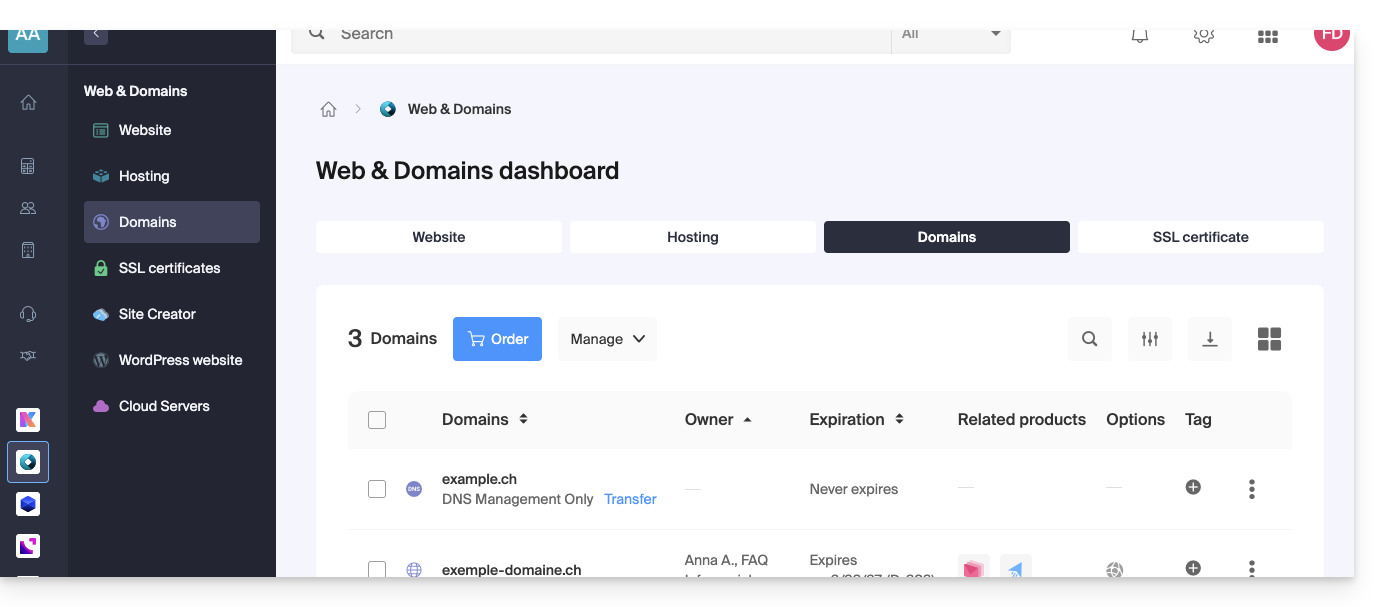
6. Monitor the transfer from the Manager
Access your Infomaniak Manager to monitor the progress of the transfer. If any issues or blockages occur, an automated email will provide instructions on how to proceed.
Batch Transfer
To transfer multiple domains simultaneously:
- Use the Infomaniak batch transfer assistant.
- Enter the list of domains and their respective authorization codes, or import a file in
.csvor.xlsxformat (2 columns, up to 300 lines).
DNS propagation and delays
- Transfer duration:
- Variable depending on the extension's registry (e.g., up to 8 days for a
.FRdomain, as defined by Afnic) and the responsiveness of your previous registrar in releasing the domain.- Consult the details per extension on Infomaniak's pricing table.
- Variable depending on the extension's registry (e.g., up to 8 days for a
- DNS propagation:
- Any DNS zone modifications require a propagation time of up to 24 hours.
- During the transfer:
- The DNS zone cannot be modified while the transfer procedure is in progress.
To also transfer your web hosting or email accounts, consult the service migration guide or discover the assisted migration service. If needed, Infomaniak support is available to assist you.
Link to this FAQ: https://faq.infomaniak.com/447
Has this FAQ been helpful?
This guide explains how to redirect traffic from an alias (synonym) domain name to your main domain, or force the display of the main domain in the address bar of a browser such as Brave, Chrome, Edge, Firefox, Opera, Safari…
Prevent duplicate content
Let's imagine that your website is hosted under the main domain example.com and that you have configured an alias domain such as example-alias.com.
By default, when a visitor enters one or the other of these addresses in their browser, the typed URL remains displayed. This can generate duplicate content, which negatively impacts search engine optimization (SEO).
To prevent this, you can force a redirect: if a visitor types example-alias.com, they will be automatically redirected to example.com.
This configuration is done in the .htaccess file located at the root of your hosting (usually in the /web folder via your FTP access). If this file does not yet exist, you must create it.
Then, insert the following directives into the file:
RewriteEngine On

# Force HTTPS and canonical domain redirection
RewriteCond %{HTTP:X-Forwarded-Proto} !https [OR]
RewriteCond %{HTTP_HOST} !^example\.com$ [NC]
RewriteRule ^(.*)$ {{URL_1}} [R=301,L]
Adapt the code above to your needs:
- Replace
example.comwith your main domain name and its extension (.com, .org, .ch, etc.). Addwww.before your domain if you prefer to force the display of thewwwsubdomain. - If a redirection loop occurs, you can replace the protocol condition with
RewriteCond %{HTTPS} off(especially if your hosting does not use a reverse proxy).
To learn more, consult the documentation on automatic redirects to HTTPS.
Link to this FAQ: https://faq.infomaniak.com/482
Has this FAQ been helpful?
This guide details the specific features of the .pt domain extension (for Portugal), including the administrative procedures for registration or transfer, and the rules established by the entity responsible for managing Portuguese domain names (DNS.PT).
New registration of a .pt domain
If you are registering a new domain name with the .pt extension for the first time (anywhere, regardless of the Registrar you use) from your Manager, Infomaniak will request an ID for the owner and the technical contact.
This ID, which is mandatory, represents the following for companies:
- their tax identification number (VAT number without the country code)
and for individuals:
- the passport or ID card number.
Once the order has been placed, the domain will have the status "registered" but will only become fully active 5 days after its creation date.
You can order additional .pt domains from Infomaniak, but if you wish to order them elsewhere, using the same contact details, this will no longer be possible (see below).
If you have already registered a .pt domain
DNS.PT only accepts one active contact per ID, regardless of the Registrar.
In practice, this means that if you have already registered a .pt domain elsewhere, Infomaniak will not be able to create your contact information with the same ID and register the ordered domains. The only solution is to transfer all your .pt domains to Infomaniak.
As mentioned previously, it is perfectly possible to order additional .pt domain names from Infomaniak.
Link to this FAQ: https://faq.infomaniak.com/568
Has this FAQ been helpful?
This guide explains how to connect a domain name managed with Infomaniak to an external service.
Specific guides
Click on the link corresponding to the external service you wish to connect to your domain name registered with Infomaniak:
- Wix
- Shopify
- Google Sites
- dynamic devices such as a NAS, an Internet box, or a smart home hub, etc.
Guide for any other external service
To connect your domain name to any other external service such as Odoo, Microsoft 365, or Squarespace, follow the procedures below:
- Click here to access the domain management section in your Infomaniak Manager (❓: help).
- Click on the name of the domain in question.
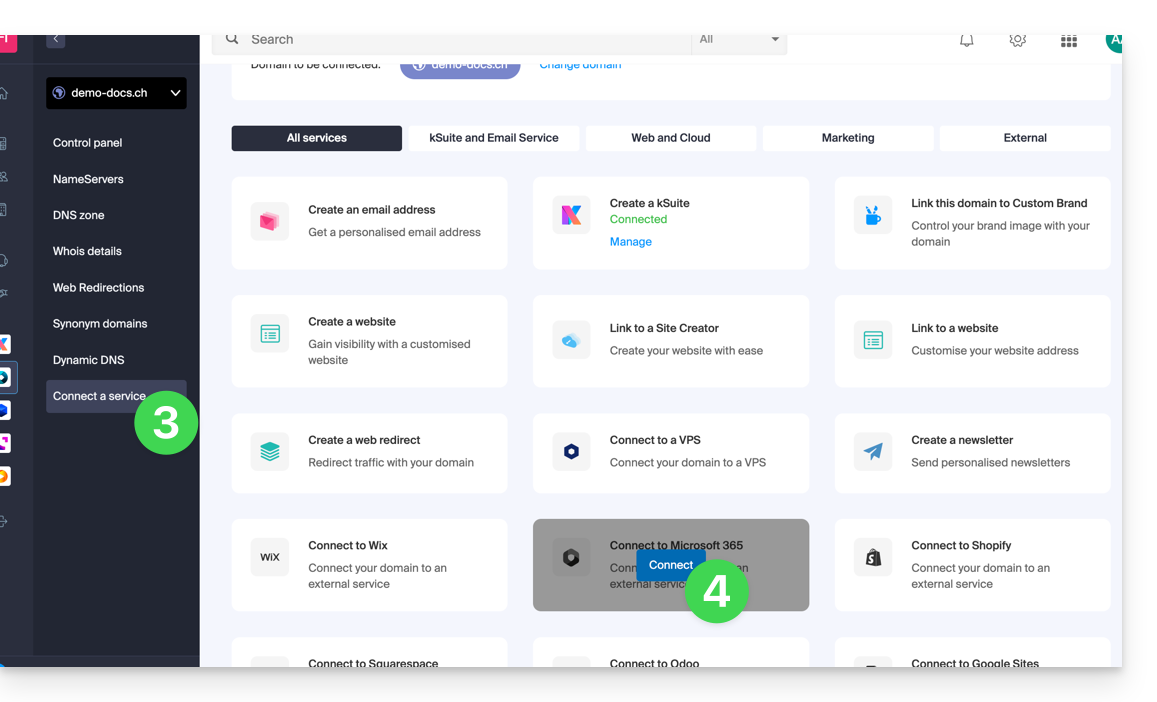
- Click on Connect a service in the left-hand menu.
- Click the blue Connect button on the tile corresponding to your external service and follow the procedure:
If the external service you want to connect is not in the list, you will need to manually change some of the technical information for your domain name:
- Refer to this other guide to modify all DNS records if that is what you were asked to do…
- … or this other guide if you only need to modify specific DNS records (for example, the MX record if you need to link your domain to an external email service).
Link to this FAQ: https://faq.infomaniak.com/718
Has this FAQ been helpful?
This guide presents commands that can be executed to test a connection or network and thus further identify the possible source of the error.
Perform a Telnet…
TELNET allows you to test the connection to a server without taking into account all the additional settings of a mail or FTP application, in order to determine the source of a problem. For example, if the connection fails on an SMTP server, you will need to check whether your firewall is blocking port 587 or 465.
… on macOS
- Search for Network Utility.
- Go to the
Ping,Lookup, orTraceroutetab, depending on what you want to test. - You can also use a
Terminalapplication (command-line interface,CLI) on your device and, depending on what you want to test, enter:traceroute [server]nc [server] [port]
Replace[server]with the server name or its IP address, and do the same for[port]…
… on Windows
Enable Telnet beforehand if necessary.
- Use a
Terminalapplication (command-line interface,CLI) on your device, for example by typing Run thencmd. - In the window that opens, depending on what you want to test, type:
tracert [server]telnet [server] [port]
Example:telnet mail.infomaniak.com 587(this allows you to test the SMTP port if your software/email client does not allow you to send emails)…
… on Android
- Use the Simple Telnet Client app, which allows you to easily test by filling in two fields (for example,
mail.infomaniak.comand port143or993)…
Perform a PING
PING allows you to determine if a machine is accessible via the Internet. You can also use this tool to verify that you are connecting to the correct machine, for example, after a DNS change, by checking the IP address obtained. It is possible to perform a ping on a domain name, a hostname, or an IP address.
PING is definitely blocked on Infomaniak shared hosting plans.
Link to this FAQ: https://faq.infomaniak.com/727
Has this FAQ been helpful?
This guide details the steps to take if you don't see any difference between your website after making a change and its version before the change. These tips are also relevant if you encounter issues while using the Infomaniak product interface.
Introduction
- While you browse, a browser like Brave, Chrome, Edge, Firefox, Opera, Safari, etc., saves the data you view in a dedicated space. This is done to avoid repeatedly requesting the same data from the server, saving time and resources.
- Your cache can contain a large amount of data, and sometimes the browser gets confused. As a result, websites may not display correctly or may display an outdated version.
- Clearing the cache ensures that you are viewing the latest version of the page or folder.
Clear your browser's cache…
… on Safari
Choose your macOS version to view the corresponding Apple help.
… regarding Google tools (Chrome, Android, etc.)
Please refer to the Google help.
… on Firefox
Please refer to the Mozilla help.
… on Edge / Internet Explorer
Please refer to the Microsoft help.
Link to this FAQ: https://faq.infomaniak.com/793
Has this FAQ been helpful?
This guide explains how to add or modify a DKIM record in a DNS zone (domain name/subdomain) managed in the Infomaniak Manager.
Introduction
- The DKIM (Domain Keys Identified Mail) protocol authenticates your emails with a unique digital signature.
- It guarantees that your messages have not been modified during their transmission and certifies the identity of the sender, thus preventing spoofing by spammers.
- DKIM isenabled by default for all Mail Services whose DNS zone is managed with Infomaniak.
- All your emails are automatically signed, whether they are sent from the Infomaniak Mail app or the email software/client of your choice.
Check DKIM registration
If you have a Mail service with Infomaniak, the easiest way is to go to the Global Security tool to easily check and correct certain problematic records.
And when your domain name is managed elsewhere, you will find the DKIM record to be added to the DNS zone: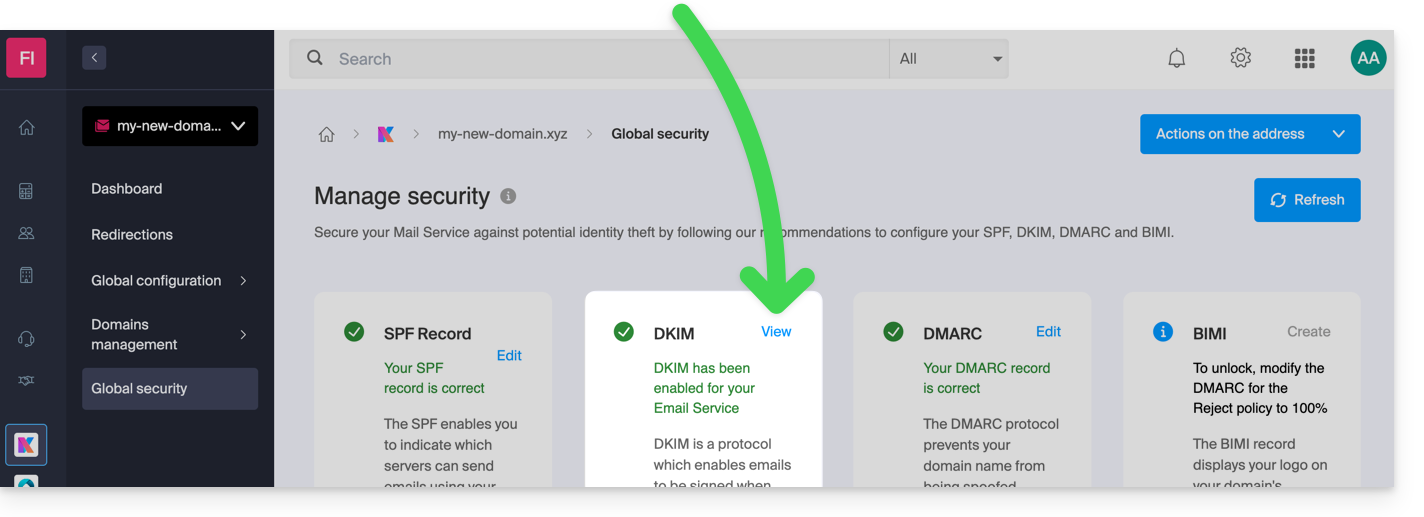
Manually modify the DNS zone (not recommended)
To manage this type of record in a DNS zone:
- Click here to access the domain management section in your Infomaniak Manager (❓: help).
- Click on the name of the domain in question.
- Click on DNS Zone in the left-hand menu.
- Click the button to add a record:
- Click the DKIM radio button to add a record.
- Click the Next button:
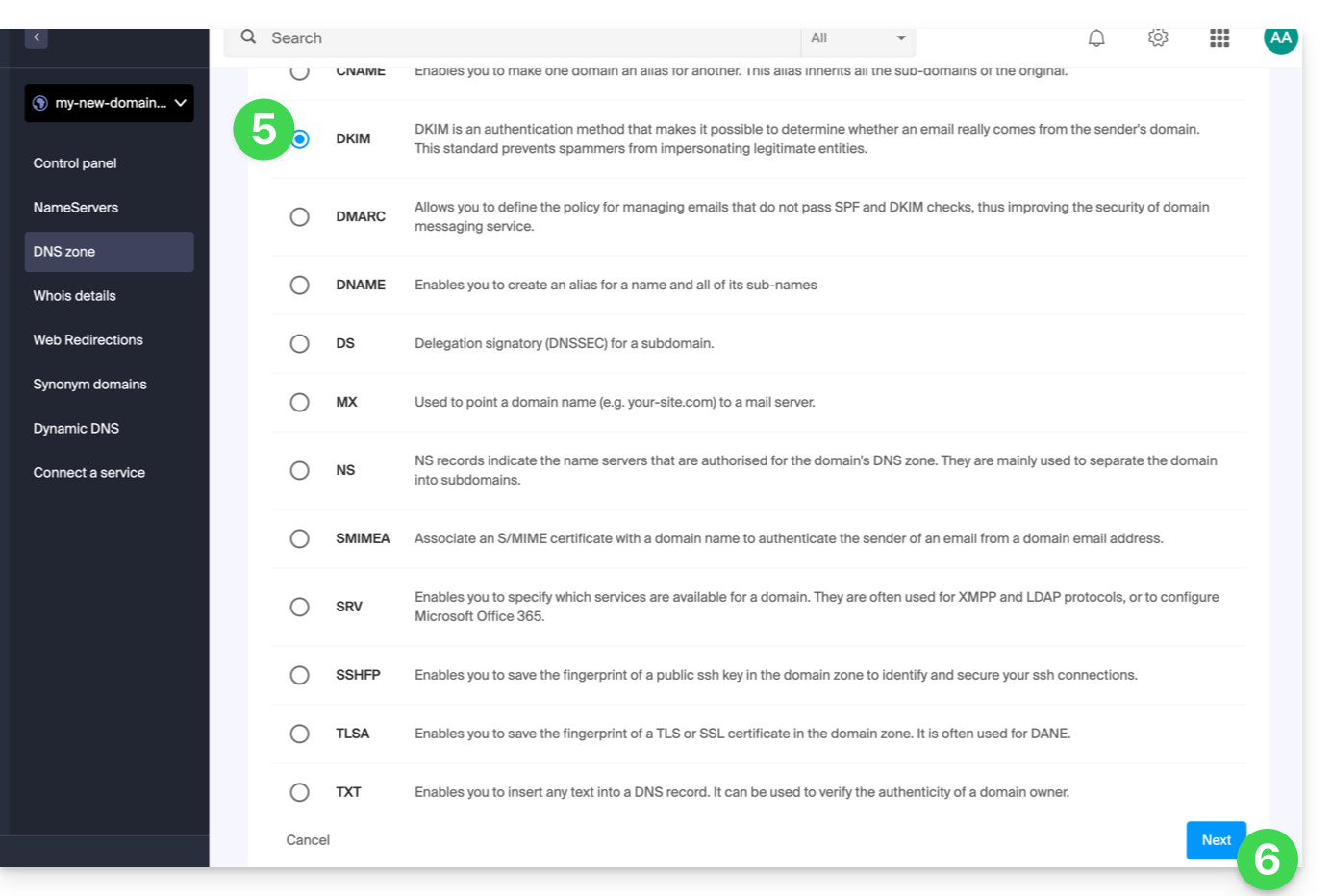
- Enter the DKIM values required for your DNS zone.
- Leave the default value for the TTL.
- Click on the Save button:
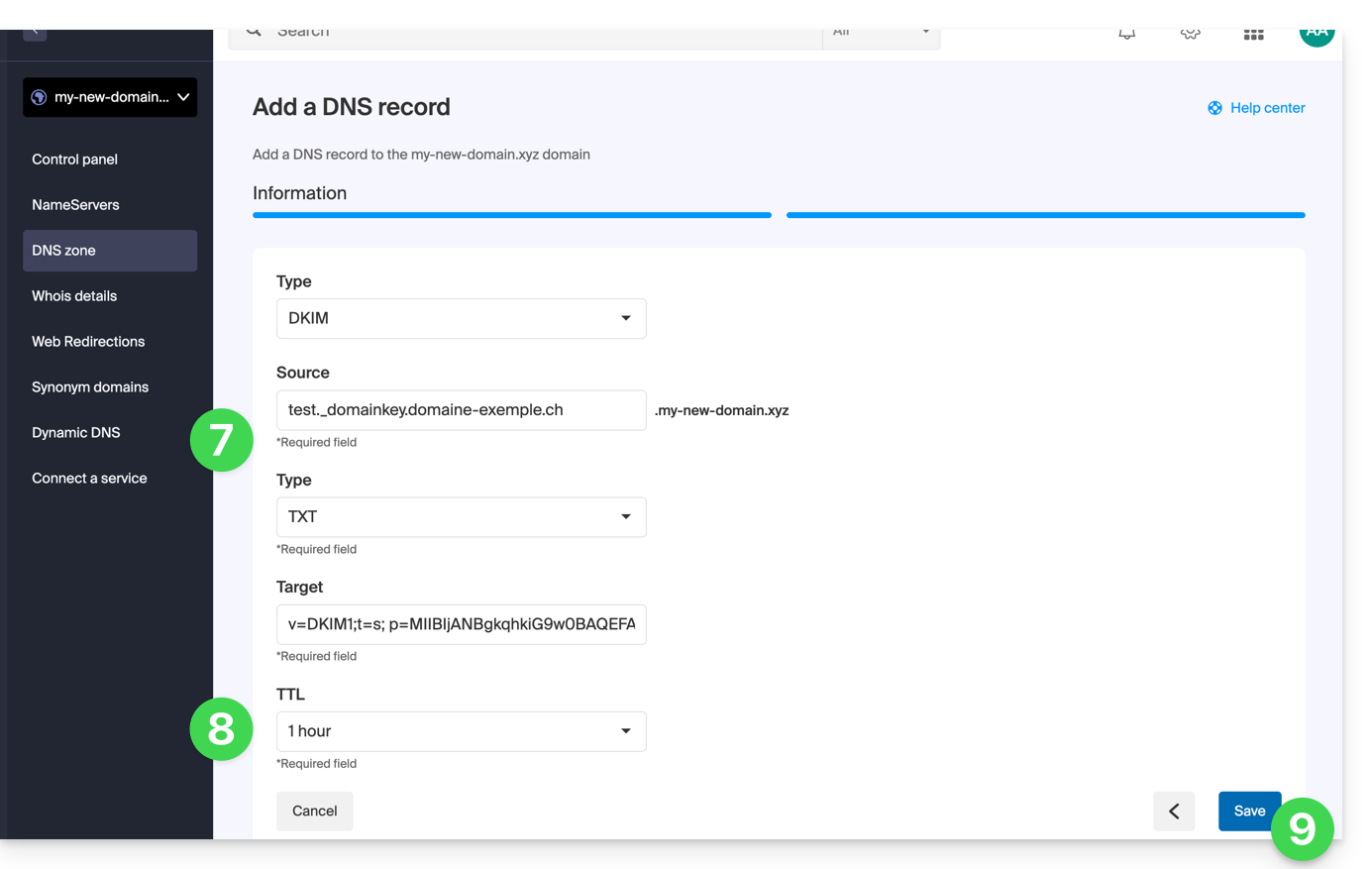
Add multiple DKIM records
You can have multiple DKIM records on your domain/subdomainwithout any limit, unlike DMARC or SPF, as long as your DNS host allows it.
If you use multiple third-party email providers, such as the Odoo ERP, it is necessary to add a DKIM for Odoo in addition to the one for Infomaniak.
Use unique DKIM selectors to avoid conflicts with existing records.
Link to this FAQ: https://faq.infomaniak.com/841
Has this FAQ been helpful?
This guide details the specific features of the .swiss domain name extension, which is subject to certain conditions.
Introduction
- Previously reserved for businesses, registration for a
.swissdomain is now open to individuals and sole proprietorships not registered in the commercial register. - You can now submit your registration request for Give yourself the best possible chance and secure your family name or brand.
- By submitting your request now, Infomaniak will immediately submit your request to the Federal Office of Communications for review.
- Regarding registration for businesses, it is not immediate, and the waiting period of several weeks is independent of Infomaniak. Your requests will be rejected if they do not meet certain conditions.
Reserve your domain in .swiss
Beyond a unique opportunity to register your family name or brand:
- Unlike the
.chdomain, which is accessible to everyone, the.swissextension is subject to validation by the Federal Office of Communications (OFCOM). - The
.swissdomain certifies your presence in the Swiss market and sends a strong and credible signal to your Swiss and international partners. - Get 1 email address with your
.swissdomain for free by ordering a kSuite Standard account, which includes all kDrive productivity/storage applications. - Infomaniak offers the best price for the
.swissdomain, even after the first year's promotional period.
The complete terms and conditions for individuals and sole proprietorships are detailed during the ordering process; however:
- You must be a natural person domiciled in Switzerland or a Swiss national.
- Swiss nationals living abroad can also apply for a
.swissdomain for private, charitable, or association purposes. - The desired
.swissdomain must contain one of the following elements in relation to the person submitting the registration request:- one of the official names or other names registered in the civil registry
- one of the first names
- a surname
- a name of a registered partnership
- a name received in a religious order
- an artist's name under which the person is known
- a name related to a distinctive sign (e.g. a registered trademark) to which the applicant has rights
AVS and UPI (Universal Person Identification) numbers are not visible in the WHOIS (❓: help).
Link to this FAQ: https://faq.infomaniak.com/1010
Has this FAQ been helpful?
This guide explains how to resolve access errors to your Web Hosting following an IP address change (server migration, for example).
Introduction
- To save time, your system maintains a table that maps domain names to IP addresses.
- If the website changes its "location" (IP address), your computer tries to access the old address.
- Clearing the cache forces the system to request the new address from the DNS servers.
If your computer retains the old address in its memory,clearing the DNS cache can restore the connection.
Clear the DNS cache…
… on Windows
Use the command prompt to refresh your network settings:
- Open the Start menu.
- Type cmd and press Enter.
- In the black window that opens, type the following command and press Enter:
ipconfig /flushdns
… on macOS
On recent versions of macOS, the process is done via the Terminal:
- Open the Terminal (via Spotlight or Applications > Utilities).
- Copy and paste the following command:
sudo dscacheutil -flushcache; sudo killall -HUP mDNSResponder - Enter your session password (it will not be displayed while typing) and validate.
… on Linux
Most modern distributions use systemd-resolved. Open your terminal and run:
sudo resolvectl flush-caches
Note: If you are using an older service, the commandsudo systemctl restart nscd remains valid.
Link to this FAQ: https://faq.infomaniak.com/1041
Has this FAQ been helpful?