Knowledge base
1000 FAQs, 500 tutorials and instructional videos. Here, there are only solutions!
This guide details the possible solutions for recovering an expired or stolen domain name, a complex process that depends on the specific circumstances of each case.
First, make sure that it is not simply in the redemption period.
Contact the current owner
If the domain name is (re)registered in the name of another person or entity, you can try contacting them directly to discuss a possible return of the domain name. This may involve negotiating with the current owner and reaching a mutually agreeable settlement. However, this may be difficult if the current owner is unwilling to cooperate or if you are unable to contact them.
Using ICANN's Mediation or Arbitration Services
ICANN (Internet Corporation for Assigned Names and Numbers) offers mediation and arbitration services to resolve domain name-related disputes. You can submit a complaint to ICANN if you believe you have legitimate rights to the domain name in question. ICANN will review the evidence presented by the parties and make a decision based on ICANN's policies. However, please note that this can be a lengthy and costly process.
The rules and procedures for recovering an expired or stolen domain name may vary depending on the jurisdiction and ICANN policies. It is recommended to consult the specific ICANN policies as well as local laws and regulations to understand the options available in your particular situation. It may also be helpful to consult with a lawyer specializing in domain name law to obtain appropriate legal advice.
Resorting to legal proceedings
If you believe that the domain name has been stolen or that your rights have been violated, you can consider taking legal action against the current owner in the competent courts. This may involve filing a complaint and presenting evidence in court to obtain a court decision. Legal proceedings can also be costly and time-consuming.
Monitor expired domain name auctions
If the domain name has completely expired and is being auctioned, you can try to purchase it during the auction. Some expired domain names are put up for auction on specialized platforms, and you can participate in these auctions to try to recover the domain name.
And to avoid ending up in such a situation, read this Infomaniak article on the subject.
Link to this FAQ: https://faq.infomaniak.com/1053
Has this FAQ been helpful?
This guide is for you if you receive the The web host does not exist error when visiting a website address on an Infomaniak Web Hosting service.
Introduction
- This type of error most often occurs because your domain name is not correctly linked to your website (your domain name probably points to the wrong IP address or is incorrectly configured).
- Example: a domain
abc.xyzthat is incorrectly configured and points to an IPv4 address for a Starter hosting plan, and to an IPv6 address for a shared hosting plan…
- Example: a domain
Troubleshooting Domain - Website Linking Issues
To get your website back online:
- Check the DNS zone of your domain name, especially its A records.
- Correct them if necessary by indicating the IP address of your hosting.
- Any DNS addition/modification may take up to 48 hours to propagate.
To do this, the easiest way is to use the Infomaniak DNS Diagnostic tool to automatically correct the settings, by grouping the products into the same Organisation if necessary.
Link to this FAQ: https://faq.infomaniak.com/1213
Has this FAQ been helpful?
This guide helps you protect the reputation of your domain name, to maintain the trust of internet users and service providers in your website or business, thereby facilitating the proper functioning of your email service.
Web reputation
There are different types of online reputation, including personal reputation, corporate reputation, and domain reputation.
Domain reputation is essentially a score that determines how email systems decide what to allow into users' inboxes. In essence, your domain reputation is a measure of the health and legitimacy of your domain. This reputation can be influenced by the security of your email and website.
For example, a domain's reputation may decrease if…
- … the website accessible at the domain's address is hacked, leading to the mass sending of fraudulent emails,
- … the domain's email service is being used to send unsolicited spam.
If your domain's reputation remains poor, your emails may be marked as spam and may not reach their intended recipients. This can harm email deliverability (see this other guide in English for more information).
Improve your domain reputation
By following these tips, you can improve your domain's reputation and, for example, boost all your email marketing efforts:
- Set up and verify SPF, DKIM, and DMARC records to help protect your domain against spoofing attacks.
- Check your domain's reputation using tools such as Google Postmaster Tools, Sender Score, Microsoft SNDS, McAfee, or Talos Intelligence, and identify any potential issues.
- Only send emails to users who have chosen to subscribe!
- Get trusted links or backlinks…
Refer to this other guide about RBLs.
Link to this FAQ: https://faq.infomaniak.com/1314
Has this FAQ been helpful?
This guide explains how to obtain the EPP code for your domain name at Hostpoint so that you can transfer it to Infomaniak.
Introduction
- The terms "
EPP", "AuthCode", "AuthInfo", "transfer code", and "authorization code" all refer to alphanumeric sequences specific to the domain, the main purpose of which is to verify the owner's authorization before a transfer between Registrars. - Refer to the main guide for the rest of the transfer procedure.
- ⚠️ This involves transferring a domain name that you own from a different provider than Infomaniak, so that the future management of this domain is handled by Infomaniak; therefore, this is not an internal transfer from one account holder to another, and the code you need to obtain is not a code for an internal transfer to your current provider.
Transfer the domain name to Infomaniak
To obtain the authorization code from your current provider:
- Refer to the complete procedure provided by Hostpoint to obtain the code and keep it in a safe place.
- Once you have obtained the authorization code, please refer to the main Infomaniak guide for information on the rest of the domain name transfer procedure.
Link to this FAQ: https://faq.infomaniak.com/1341
Has this FAQ been helpful?
This guide explains how to add or modify one or more CAA recordsin the DNS zone (of a domain name) managed in the Infomaniak Manager.
Introduction
- A CAA record allows you to specify a certificate authority authorized to issue certificates for a domain.
Add a CAA
To manage this type of record in a DNS zone:
- Click here to access your domain management in the Infomaniak Manager (need help?).
- Click directly on the name assigned to the domain in question.
- Click on DNS Zone in the left-hand menu.
- Click the button to add a record:
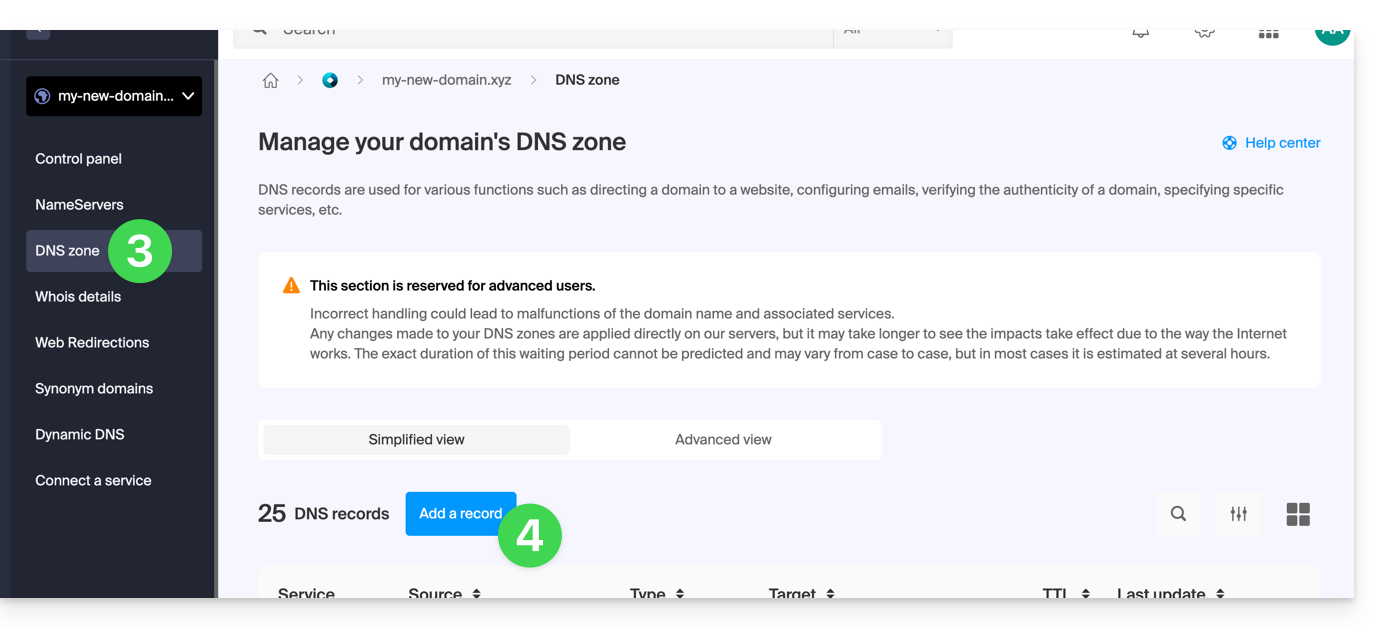
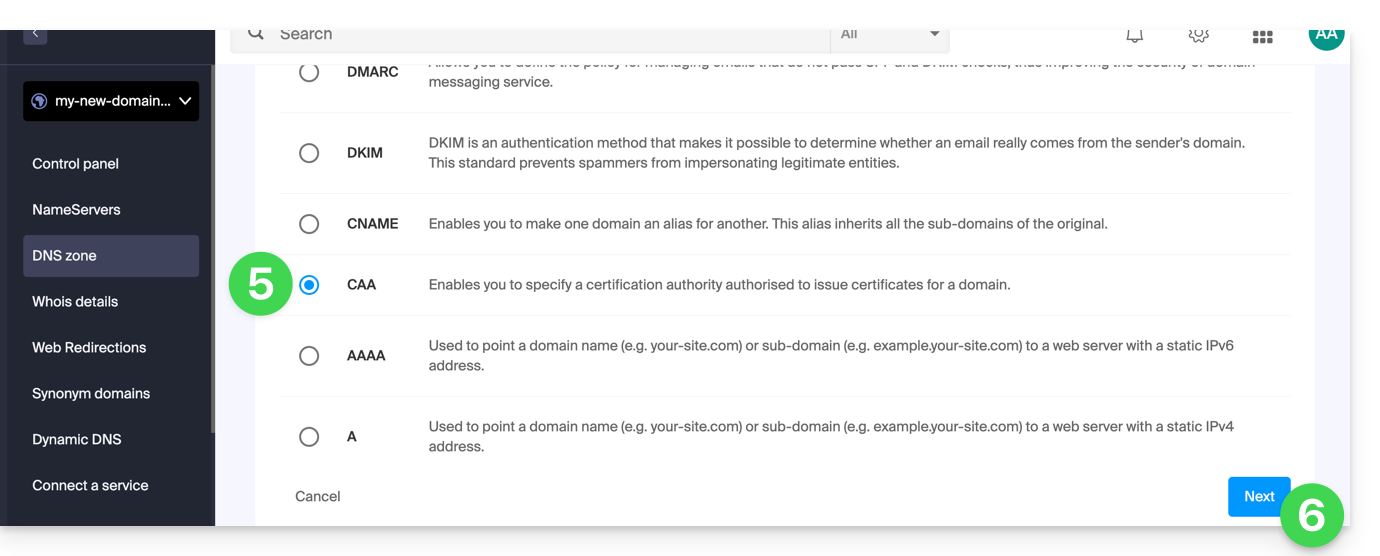
- Click the CAA radio button to add a record.
- Click on the Next button:
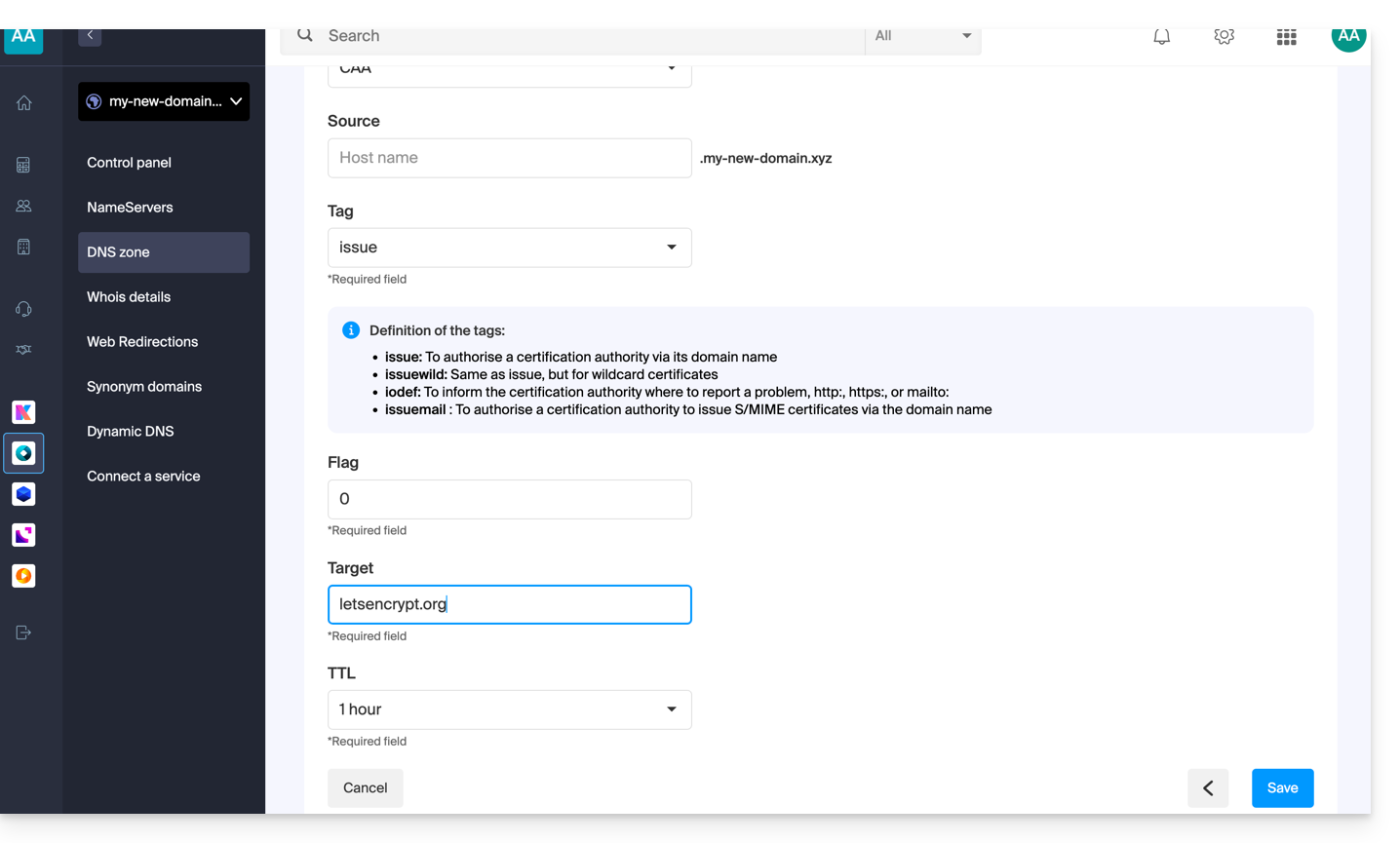
- Enter the CAA values required for your DNS zone: if you are validating an SSL certificate, please refer to the information below.
- Save your information by clicking the button at the bottom of the page.
Adding a CAA record to validate an SSL certificate…
… Sectigo
In the case of a Sectigo SSL certificate validation, follow the generic guide but specifically enter the following data:
- Choose “Issue for certificate authority”.
- Enter the flag:
0. - Specify
sectigo.com.
… Let's Encrypt
In the case of a Let's Encrypt SSL certificate validation, follow the generic guide but specifically enter the following data:
- Choose “Issued by certification authority”.
- Enter the flag:
0. - Specify
letsencrypt.org.
Link to this FAQ: https://faq.infomaniak.com/1394
Has this FAQ been helpful?
This guide explains how to obtain the EPP code for your domain name at Hostinger so that you can transfer it to Infomaniak.
Introduction
- The terms "
EPP", "AuthCode", "AuthInfo", "transfer code", and "authorization code" all refer to alphanumeric sequences specific to the domain, the main purpose of which is to verify the owner's authorization before a transfer between registrars. - Refer to the main guide for the rest of the transfer procedure.
- ⚠️ This involves transferring a domain name that you own from a different provider than Infomaniak, so that the future management of this domain is handled by Infomaniak; therefore, this is not an internal transfer from one account holder to another, and the code you need to obtain is not a code for an internal transfer to your current provider.
Transfer the domain name to Infomaniak
To obtain the authorization code from your current provider:
- Refer to the complete procedure provided by Hostinger to obtain the code and keep it in a safe place.
- Once you have obtained the authorization code, please consult the main Infomaniak guide regarding the rest of the domain name transfer procedure.
Link to this FAQ: https://faq.infomaniak.com/1414
Has this FAQ been helpful?
This guide explains how to obtain the EPP code for your domain name at o2switch so you can transfer it to Infomaniak.
Introduction
- The terms "
EPP", "AuthCode", "AuthInfo", "transfer code", and "authorization code" all refer to alphanumeric sequences specific to the domain, the main purpose of which is to verify the owner's authorization before a transfer between registrars. - Refer to the main guide for the rest of the transfer procedure.
- ⚠️ This involves transferring a domain name that you own from a different provider than Infomaniak, so that the future management of this domain is handled by Infomaniak; therefore, this is not an internal transfer from one account holder to another, and the code you need to obtain is not a code for an internal transfer to your current provider.
Transfer the domain name to Infomaniak
To obtain the authorization code from your current provider:
- Refer to the complete procedure provided by o2switch to obtain the code and keep it in a safe place.
- Once you have obtained the authorization code, please consult the main Infomaniak guide regarding the rest of the domain name transfer procedure.
Link to this FAQ: https://faq.infomaniak.com/1428
Has this FAQ been helpful?
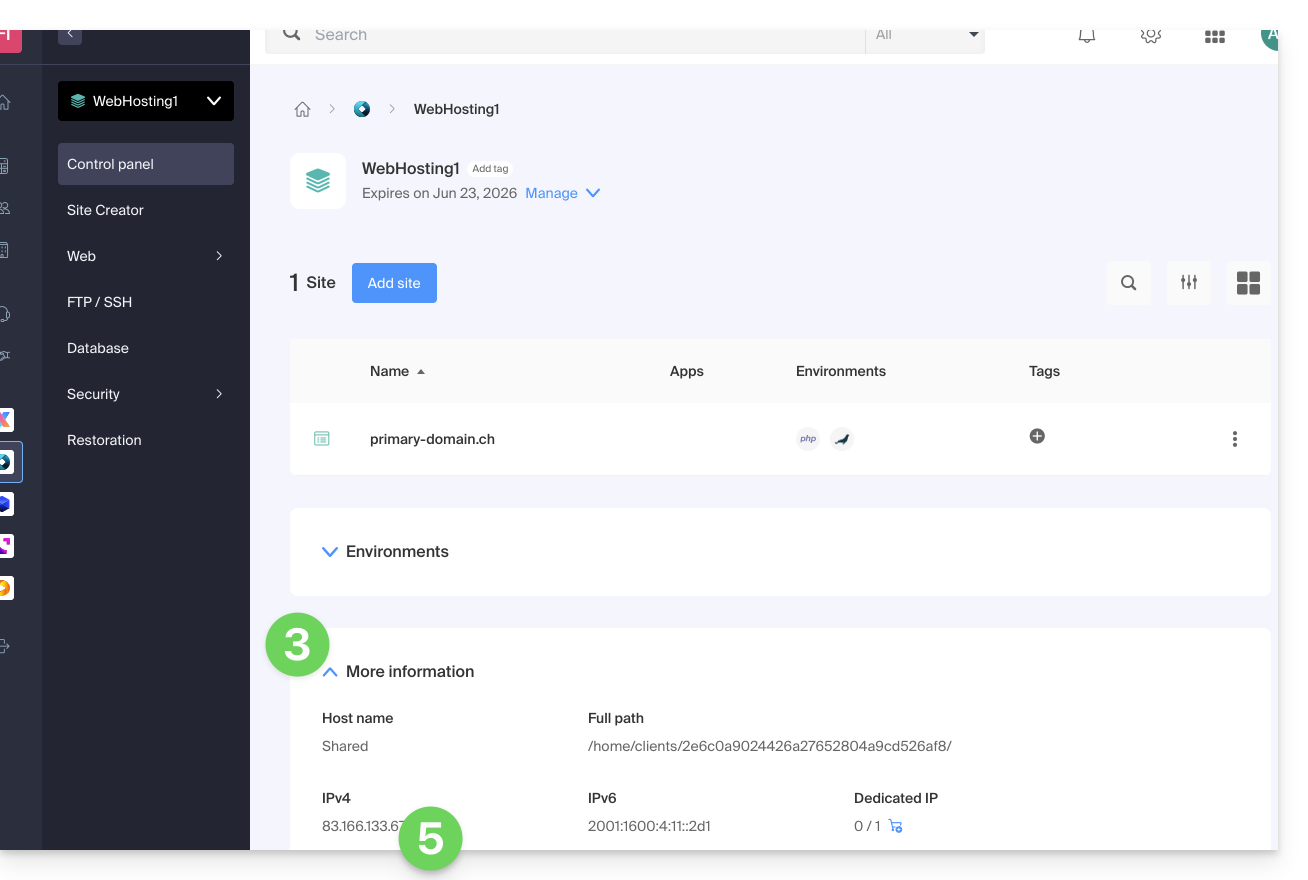
This guide explains how to display the IP address of a website on your Web Hosting.
Introduction
- The IPv4 address is generally the same for each website on the hosting (unless you have acquired a dedicated IP address).
Display your website's IP address
The IP address is specified on the hosting management page (Starter or containing multiple sites):
- Click here to access your site management on the Infomaniak Manager (need help?).
- Click directly on the name assigned to the product in question.
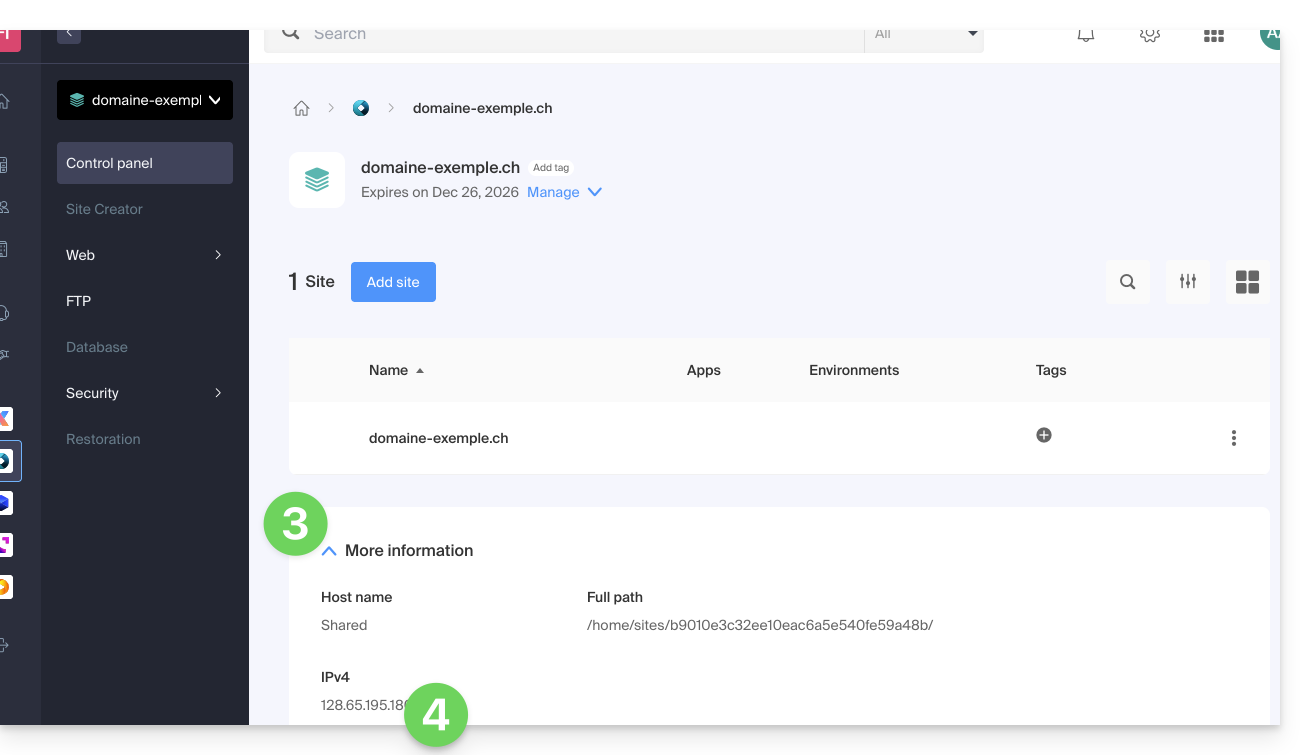
- Then, click on the chevron to expand the Information section for this hosting.
- The IPv4 address is displayed on the page:
- The IPv6 address is also displayed for paid hosting plans:
Link to this FAQ: https://faq.infomaniak.com/1500
Has this FAQ been helpful?
This guide explains how to set up a DMARC policy for your email hosted by Infomaniak, an essential step to prevent potential email delivery issues.
Introduction
- The DMARC (Domain-based Message Authentication, Reporting, and Conformance) protocol enhances the security of your domain by relying on SPF and DKIM checks.
- It tells recipient servers how to handle emails that fail these authenticity tests, with three protection policies (None, Quarantine, Reject) detailed below.
- If authentication fails, the recipient may send you a DMARC report; this data is essential for identifying configuration errors or stopping phishing attempts using your domain name.
DMARC policy and acceptance rate
For the actions that can be taken on recipient servers when a suspicious message is detected, 3 policies (p = policy) exist and can be refined with a percentage (pct):
None: The email is delivered normally (observation mode)
With "p=none", no emails are rejected or placed in quarantine based on DMARC verification. However, the reception percentage can be used to collect data on unauthenticated emails, indicating how many of these emails should be subject to the DMARC policy. For example, "p=none; pct=10" means that 10% of unauthenticated emails will be subject to the DMARC policy, while the remaining 90% will be accepted.
Quarantine: The email is sent to spam
With "p=quarantine", unauthenticated emails can be placed in quarantine, but the percentage of reception determines the proportion actually subject to this policy. For example, "p=quarantine; pct=50" means that 50% of unauthenticated emails will be placed in quarantine, while the remaining 50% will be accepted.
Reject: The email is simply blocked/deleted
With "p=reject", unauthenticated emails are rejected. The percentage of reception determines the proportion of unauthenticated emails that will actually be rejected. For example, "p=reject; pct=20" means that 20% of unauthenticated emails will be rejected, while the remaining 80% will be accepted.
Create a DMARC record
There are 2 ways to manage DMARC.
If you have a Mail service with Infomaniak, the easiest way is to go to the Global Security tool to manage your DMARC security policy and reports: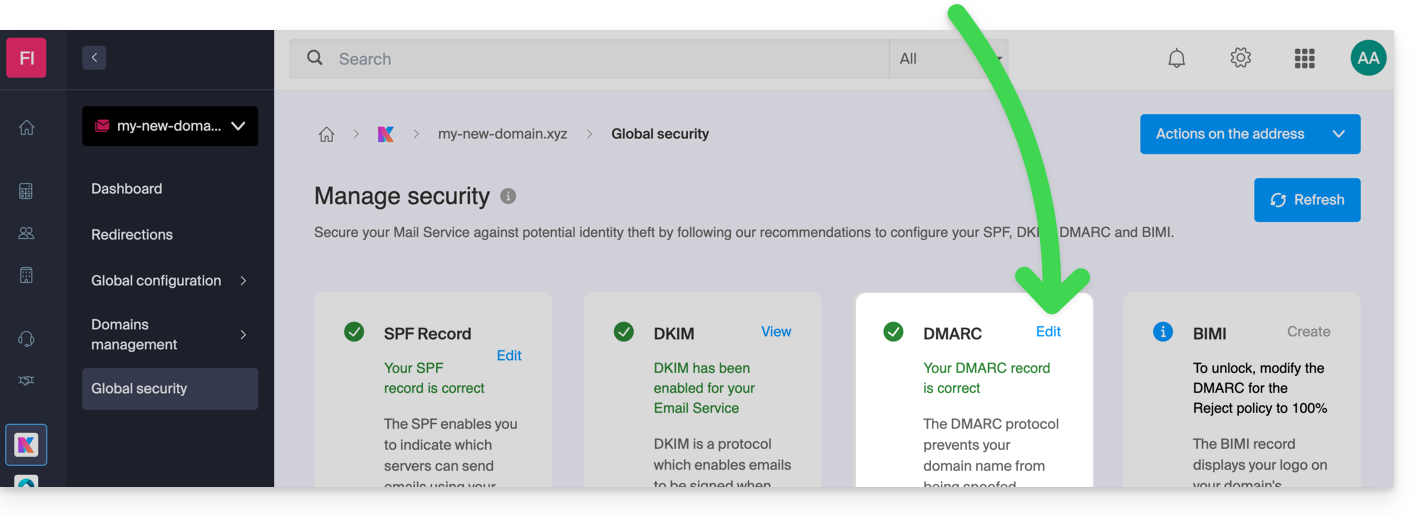
Since a DMARC record is a type of DNS record, generally of the TXT type, you can also manage it from the domain name's DNS zone:
- Click here to access the management of your domain on the Infomaniak Manager (need help?).
- Click directly on the name assigned to the domain in question.
- Click on DNS Zone in the left-hand menu.
- Click the button to add a record:
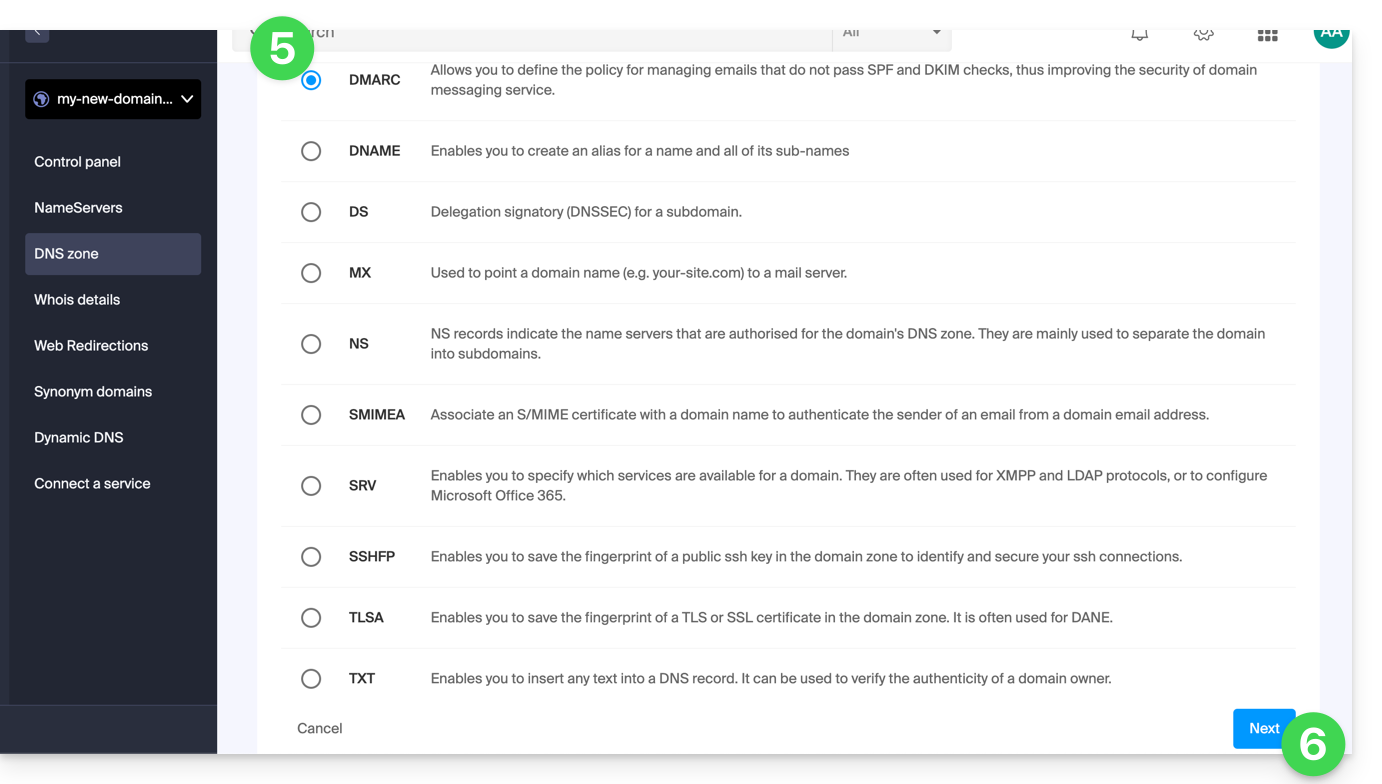
- Click the DMARC radio button to add a record.
- Click on the Next button:
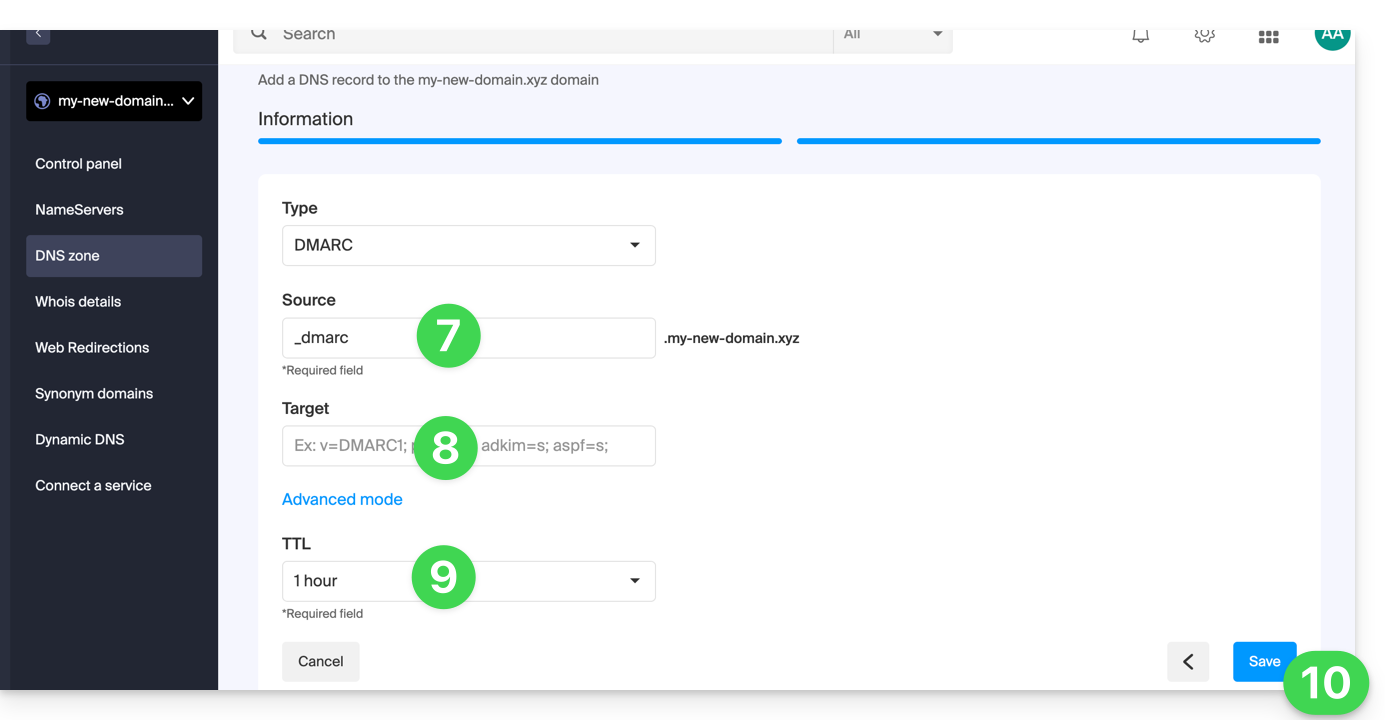
- Leave (or add if necessary) the
_dmarcvalue in the Source field. The Target field must contain the parameters you want to use, separated by
;:Tag Name Purpose Example v Protocol version v=DMARC1pct Percentage of messages subject to filtering pct=20ruf Reporting URI for forensic reports ruf=mailto:authfail@domain.xyzrua Reporting URI for aggregate reports rua=mailto:aggrep@domain.xyzp Policy for the organizational domain p=quarantinesp Policy for subdomains of the organizational domain sp=rejectadkim Alignment mode for DKIM adkim=saspf Alignment mode for SPF aspf=rwhich can result in, for example,
v=DMARC1;p=reject;pct=100;rua=mailto:postmaster@dmarcdomain.com(source)- Leave the default value for the TTL.
- Click the Save button:
Any DNS addition/modification may take up to 48 hours to propagate.
Link to this FAQ: https://faq.infomaniak.com/1552
Has this FAQ been helpful?
This guide explains which DKIM to add to secure Infomaniak email if it is based on a domain name whose DNS records are managed by Cloudflare.
Introduction
- If you manage your emails with Infomaniak, as well as the domain name associated with them, but DNS management is handled by Cloudflare, then you need to add the DKIM on the Cloudflare interface.
Add a DKIM on Cloudflare
Prerequisites
- Consult this other guide to learn how to display the DKIM record for your Infomaniak email account.
- Display the DKIM record so you can copy and paste it. Example:
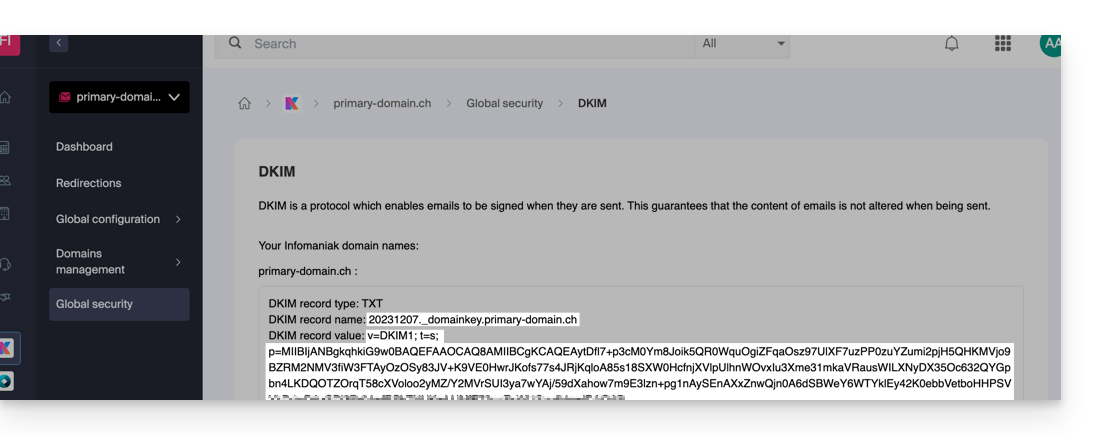
Then, follow the procedure below to correctly enable DKIM, thereby improving the security and deliverability of emails for the domain in question:
- Click here to access your Cloudflare account.
- Select the domain in question.
- In the DNS section, find and delete any existing NS records for "
_domainkey" that point to Infomaniak. - Click the Add record button to open the input form.
- Fill in the fields using the data obtained from the Infomaniak Manager, following the standard configuration for a DKIM record of type TXT:
| Cloudflare Field | Value to Enter | Important Notes |
|---|---|---|
| Type | TXT (text) | Choose the standard type for DKIM keys. |
| Name (Host) | The DKIM selector (e.g. 20240112) | Enter only the selector, as Cloudflare will automatically add the domain name and the ._domainkey suffix for you. Refer to the Cloudflare documentation if needed. |
| Content (Value) | The public key (the long string) | Paste the entire DKIM public key provided (the part after p=) |
| TTL | Auto | Leave the default value for optimal management by Cloudflare. |
Make sure the Proxy Status (cloud) is set to DNS Only (grayed out) for email authentication records.
Backup and Propagation
After carefully verifying the accuracy of the Selector and Public Key, click the Save button. This will validate the addition of your DKIM record to the Cloudflare DNS zone.
Any DNS addition or modification may take up to 48 hours to propagate.
Once this period has elapsed, you can use online verification tools to confirm that the DKIM record has been published and is valid. This validation ensures that your Infomaniak emails will be correctly signed and that their deliverability will be optimal.
Link to this FAQ: https://faq.infomaniak.com/1619
Has this FAQ been helpful?
This guide is for users who own a domain name on the Infomaniak infrastructure and are experiencing a DMARC issue when using certain Google tools such as Meet or Calendar.
Troubleshooting a DMARC error
To ensure compatibility between your domain name configuration (which has a DMARC policy of type reject) and the use of certain Google services, it is necessary to add the corresponding SPF record:
- Before:
v=spf1 include:spf.infomaniak.ch -all - After:
v=spf1 include:spf.infomaniak.ch include:_spf.google.com -all
To edit the SPF record currently configured in the DNS zone of your domain name:
- Click here to access your domain management in the Infomaniak Manager (need help?).
- Click directly on the name assigned to the domain in question.
- Click on DNS Zone in the left-hand menu.
- Click on the action menu ⋮ located to the right of the TXT record containing the relevant SPF value.
- Click on Edit:
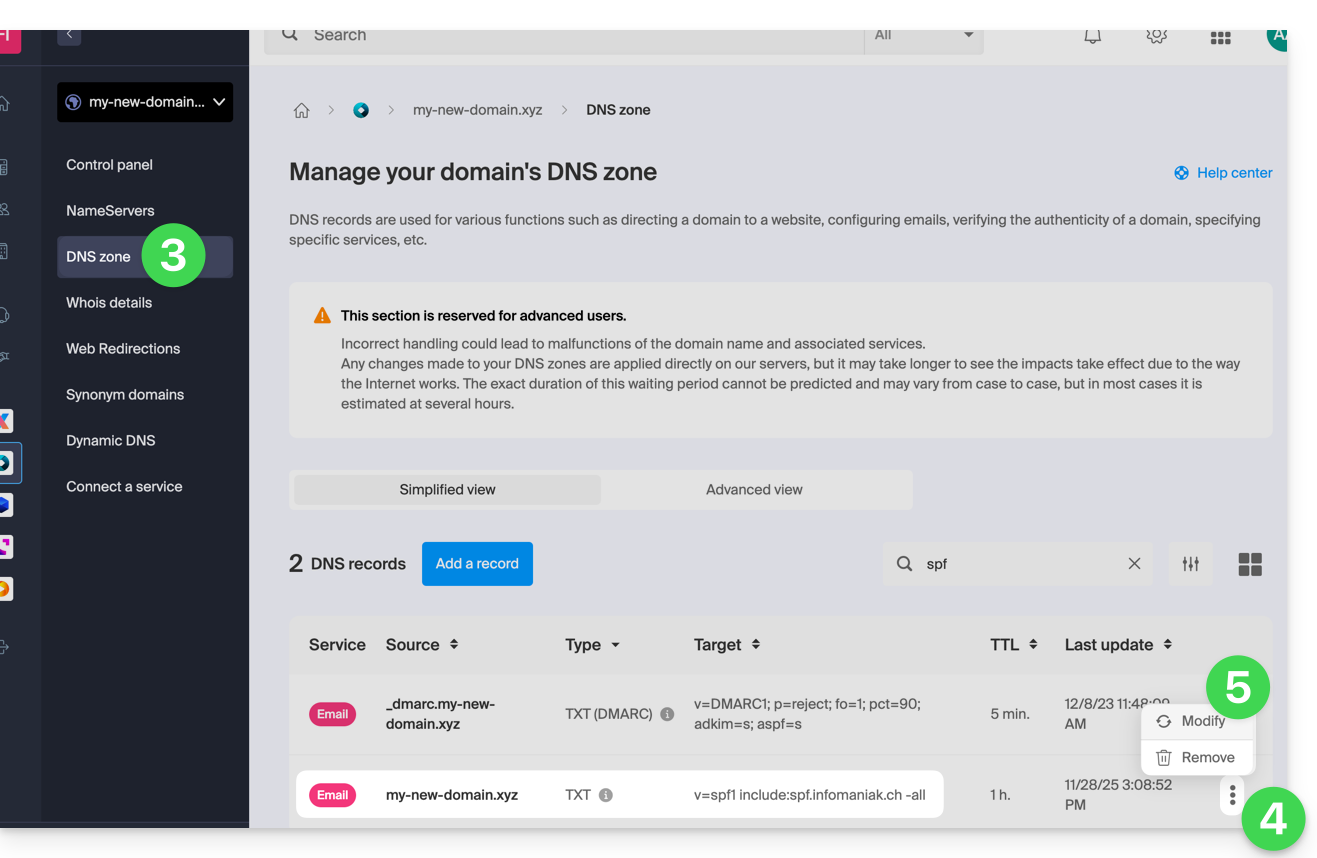
- Edit the field by adding
include:_spf.google.comon the same line after the existing include Infomaniak, and before the final-all. - Click on the Save button:
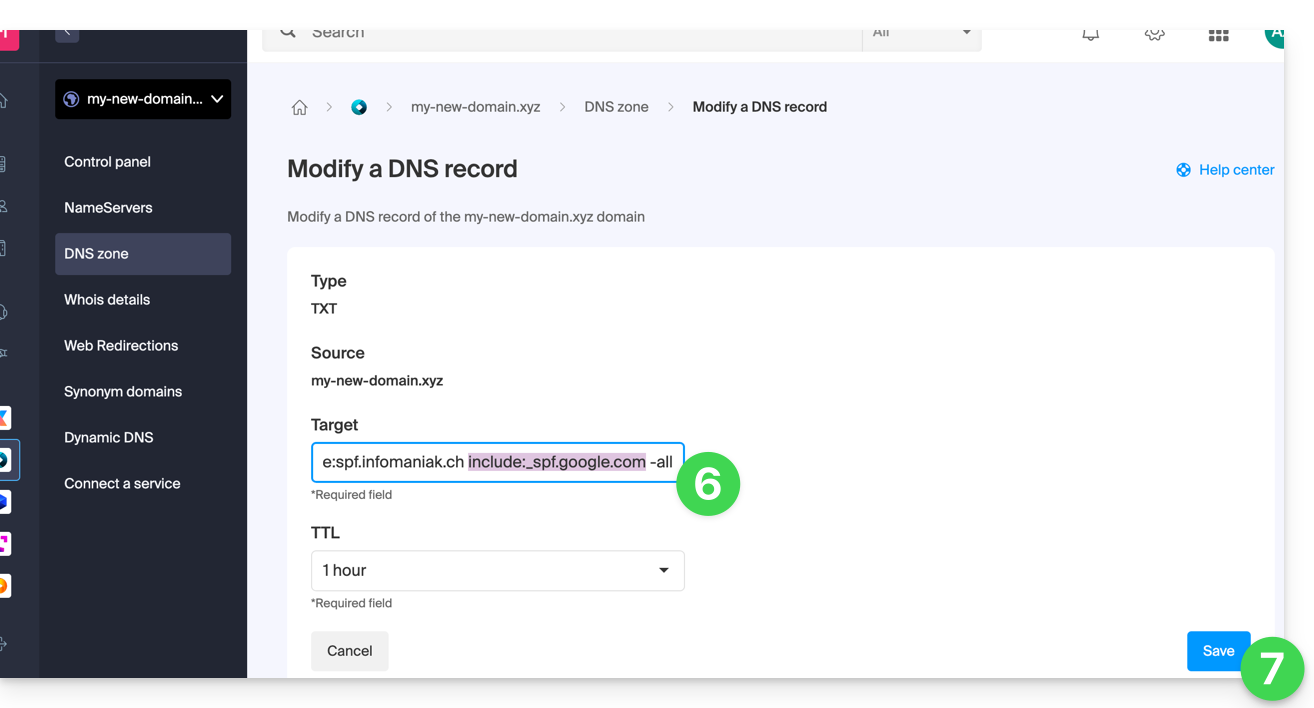
Any DNS addition or modification may take up to 48 hours to propagate.
Please refer to this Google documentation if you need information on configuring Google's SPF.
Link to this FAQ: https://faq.infomaniak.com/1641
Has this FAQ been helpful?
This guide explains how to access your Home Assistant smart home hub (which is behind a dynamic IP address provided by your ISP) with a domain name from Infomaniak via the free DynDNS option and a free script available here.
Introduction
- The integration you install acts as a messenger: it continuously monitors the IP address of your local network.
- As soon as it detects that your ISP has changed your IP address, it instantly sends a signal to Infomaniak.
- Infomaniak then updates your domain name (e.g.,
ha.domain.xyz) to point to the new IP address.
Install Infomaniak DynDNS — Home Assistant Integration
Prerequisites
- You must have a Home Assistant installation (e.g., on a Raspberry Pi 5) connected to the internet with a dynamic IP address.
- A dynamic DNS must have been created on the domain in question.
Then:
- Log in to your Home Assistant back office.
- Install HACS if you haven't already; go to the settings of Home Assistant:
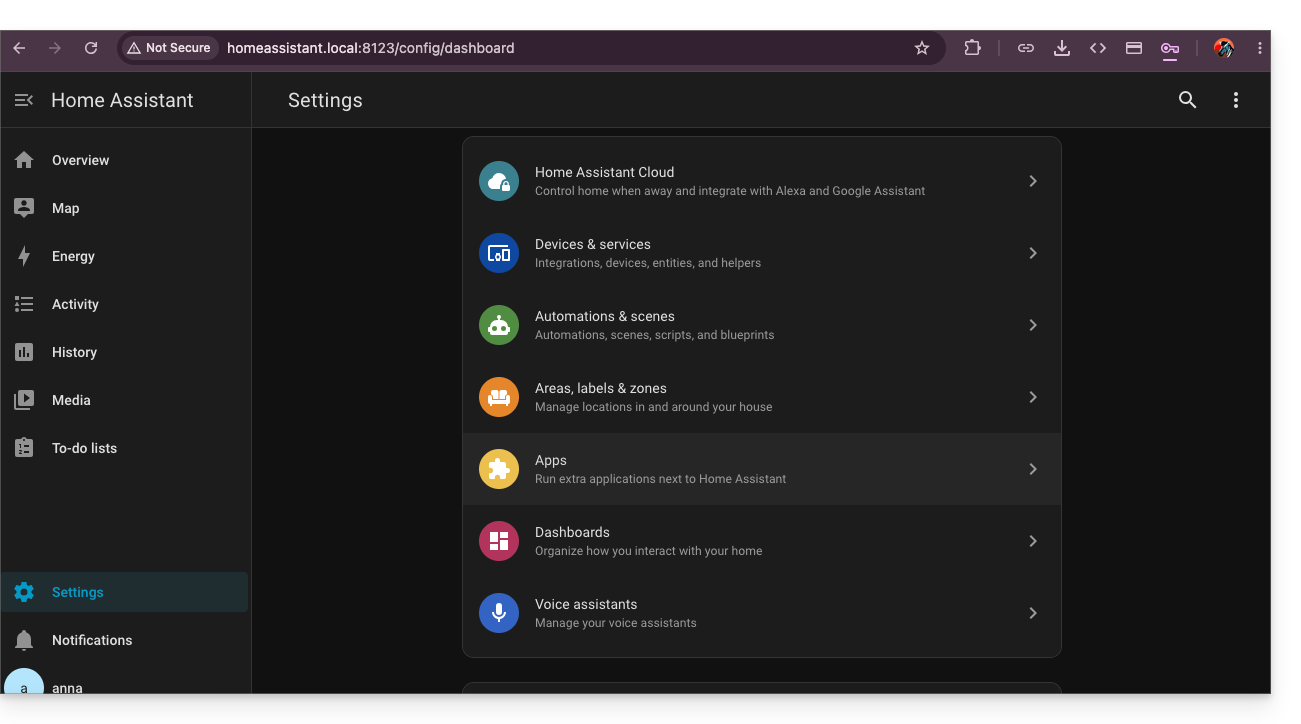
- Install the Terminal & SSH app:
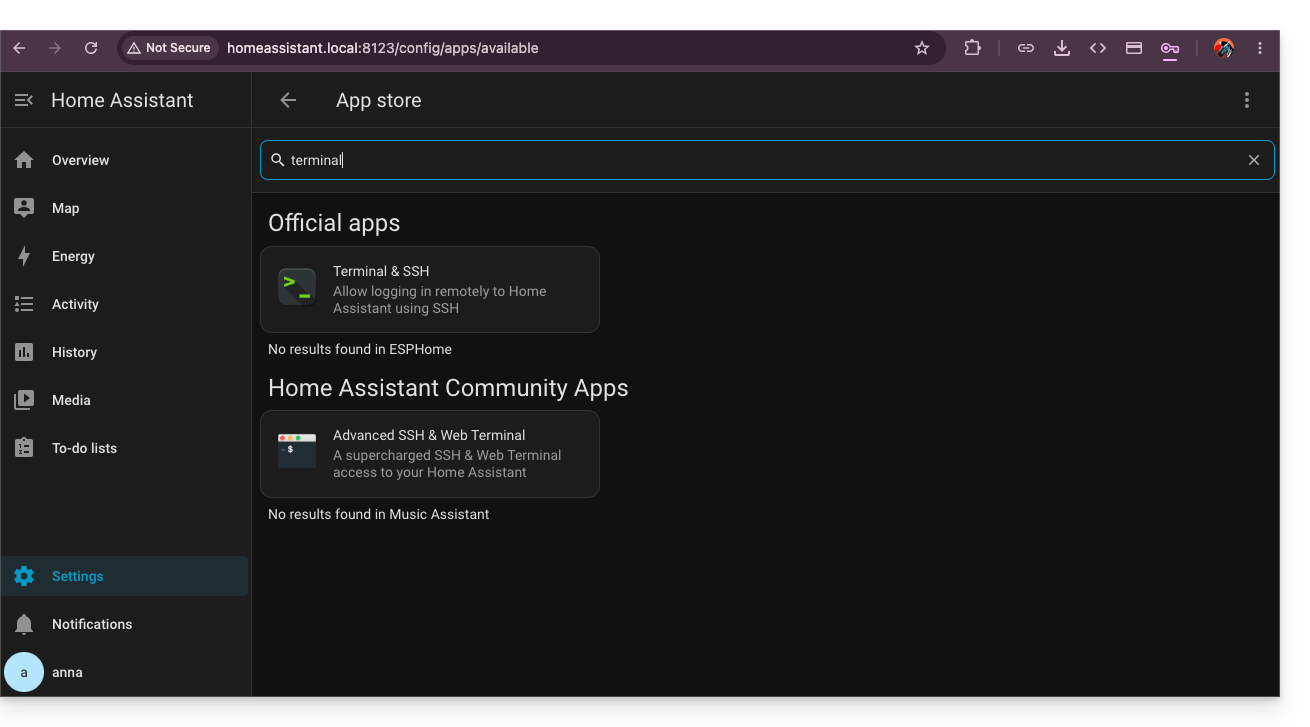
- In this terminal, enter the command
wget -O - https://get.hacs.xyz | bash -: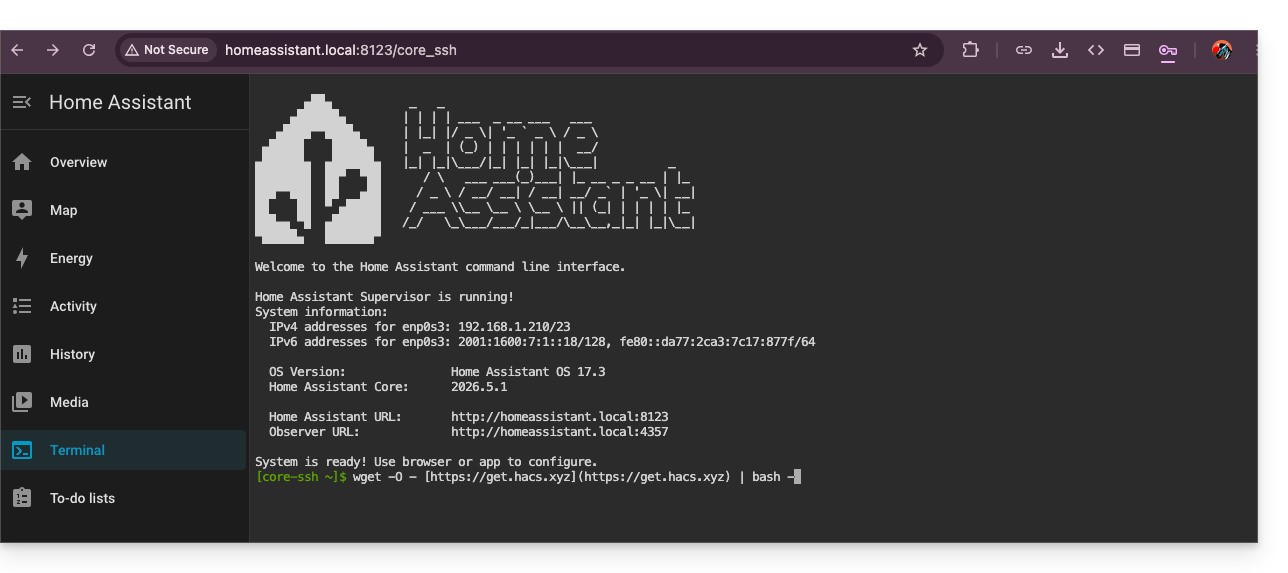
- Once HACS is installed, restart Home Assistant.
- Activate HACS by searching for it in the integrations:
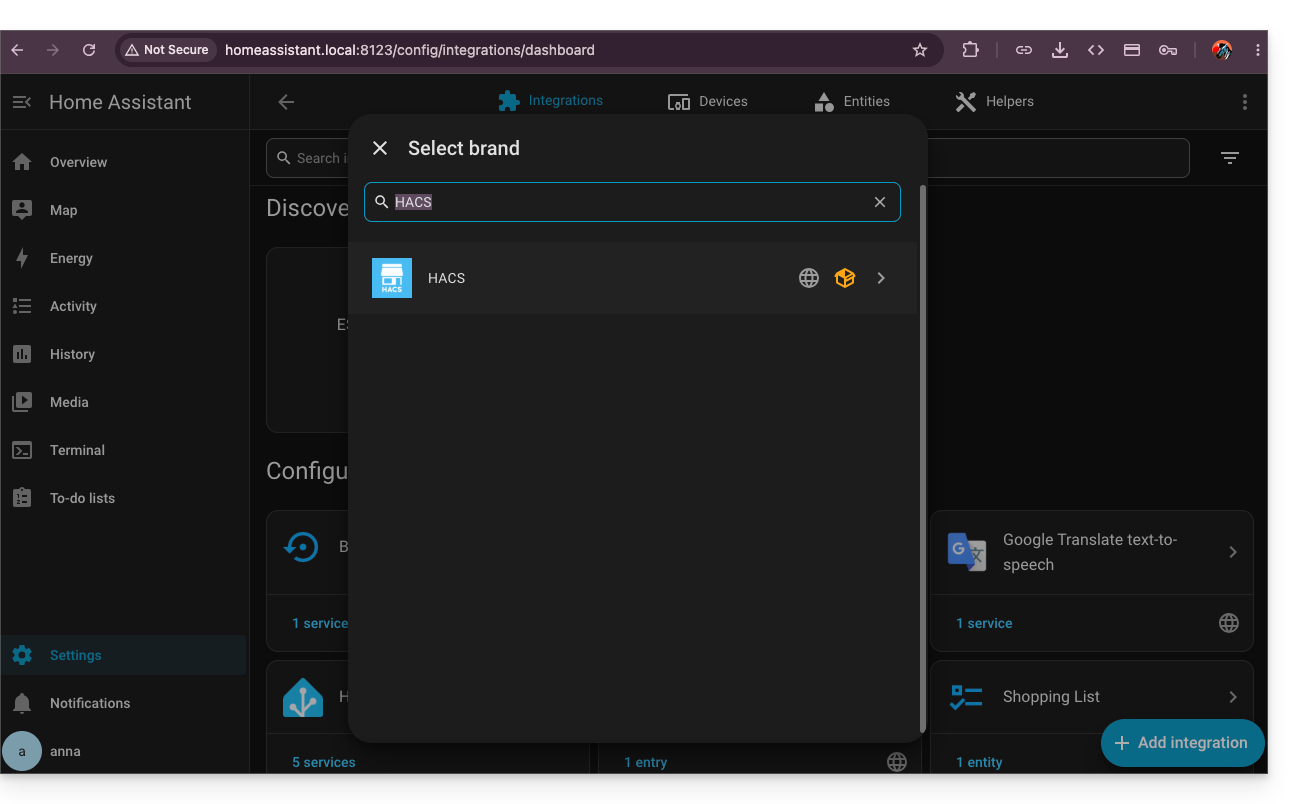
- Once the validation via Github is complete, return to HACS installed in your left sidebar, then click on the action menu ⋮ in the upper right corner of the HACS interface to choose the custom repositories:
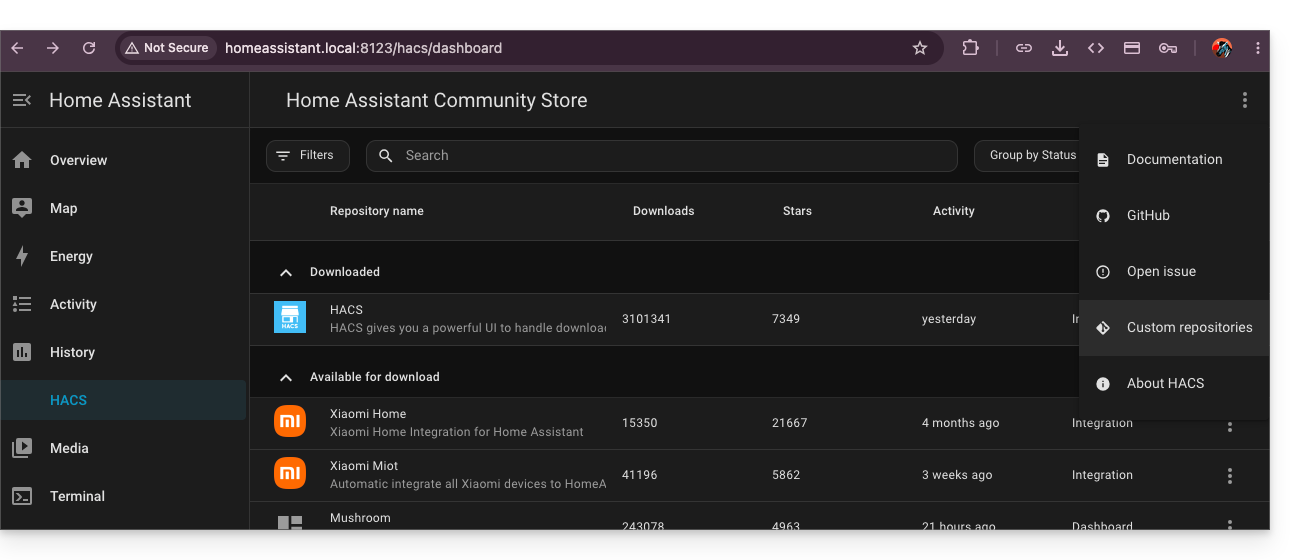
- Enter the URL
https://github.com/cy-bertrand/Infomaniak-dyndns-haand choose the Integration type, before clicking on Add: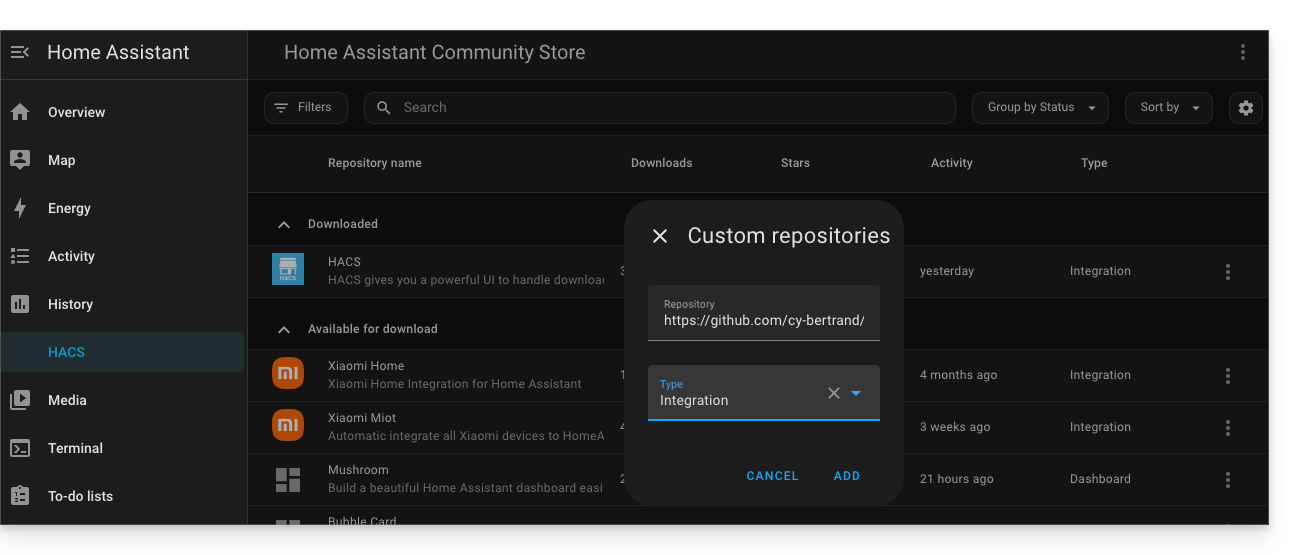
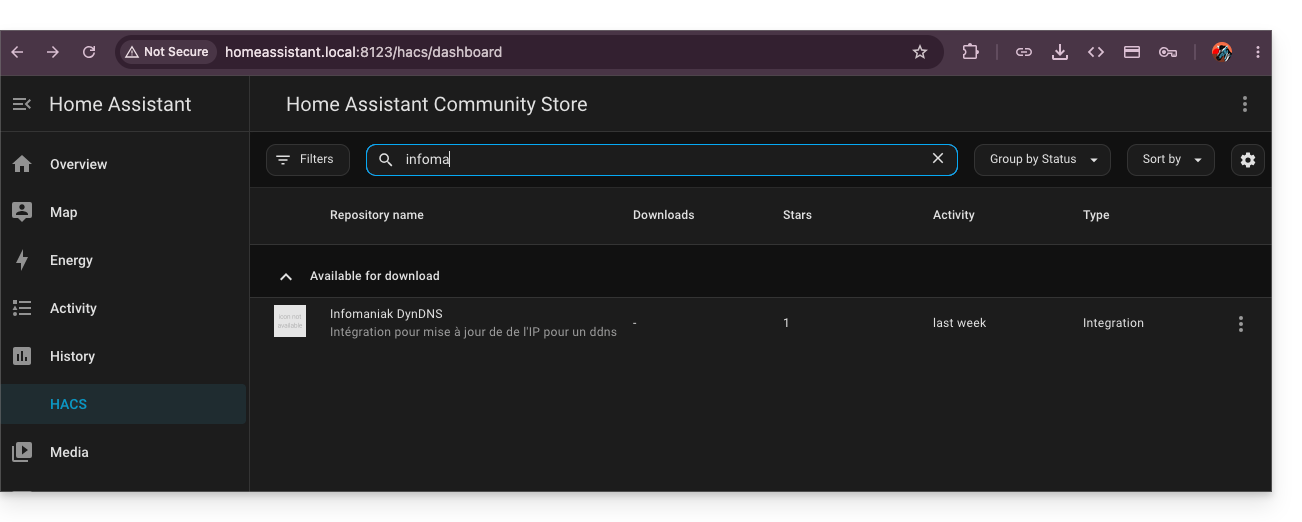
- Then search for Infomaniak DynDNS and click on it:
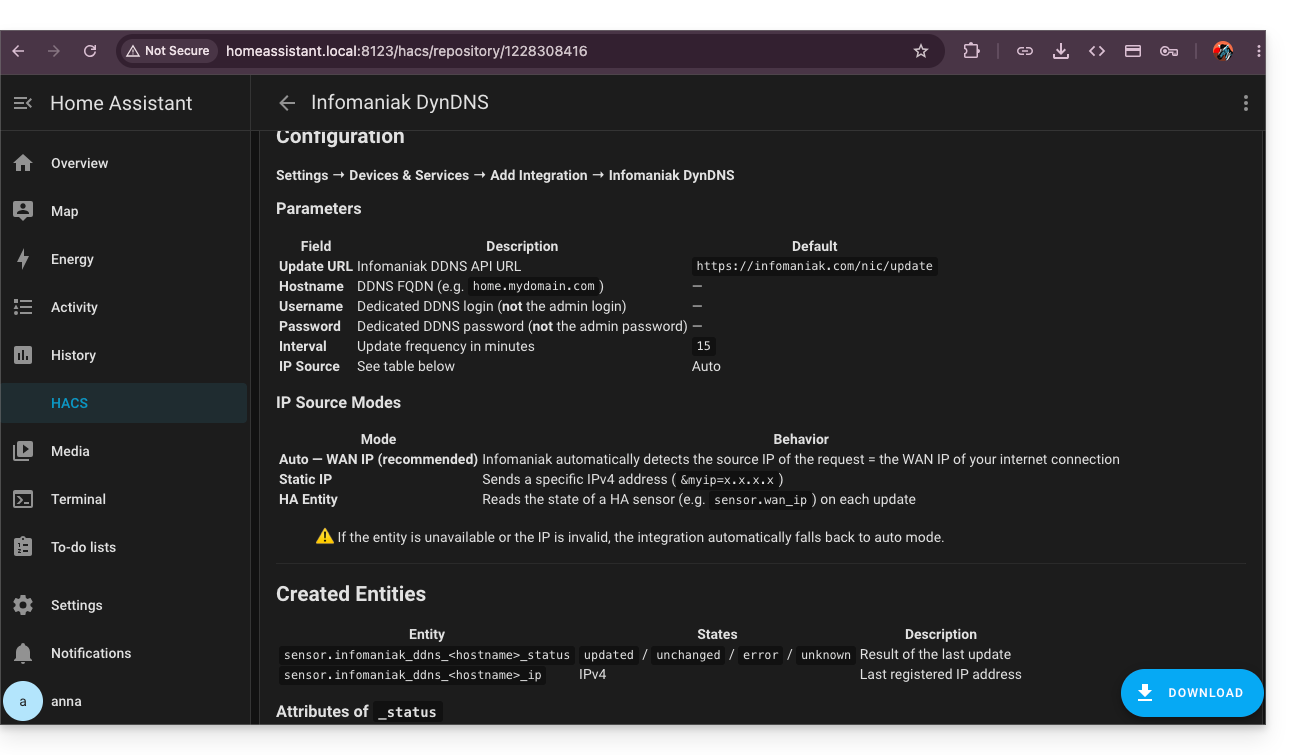
- Install this service by clicking on the Download button in the bottom right corner:
- Restart Home Assistant.
Configure Infomaniak DynDNS — Home Assistant Integration
To do this:
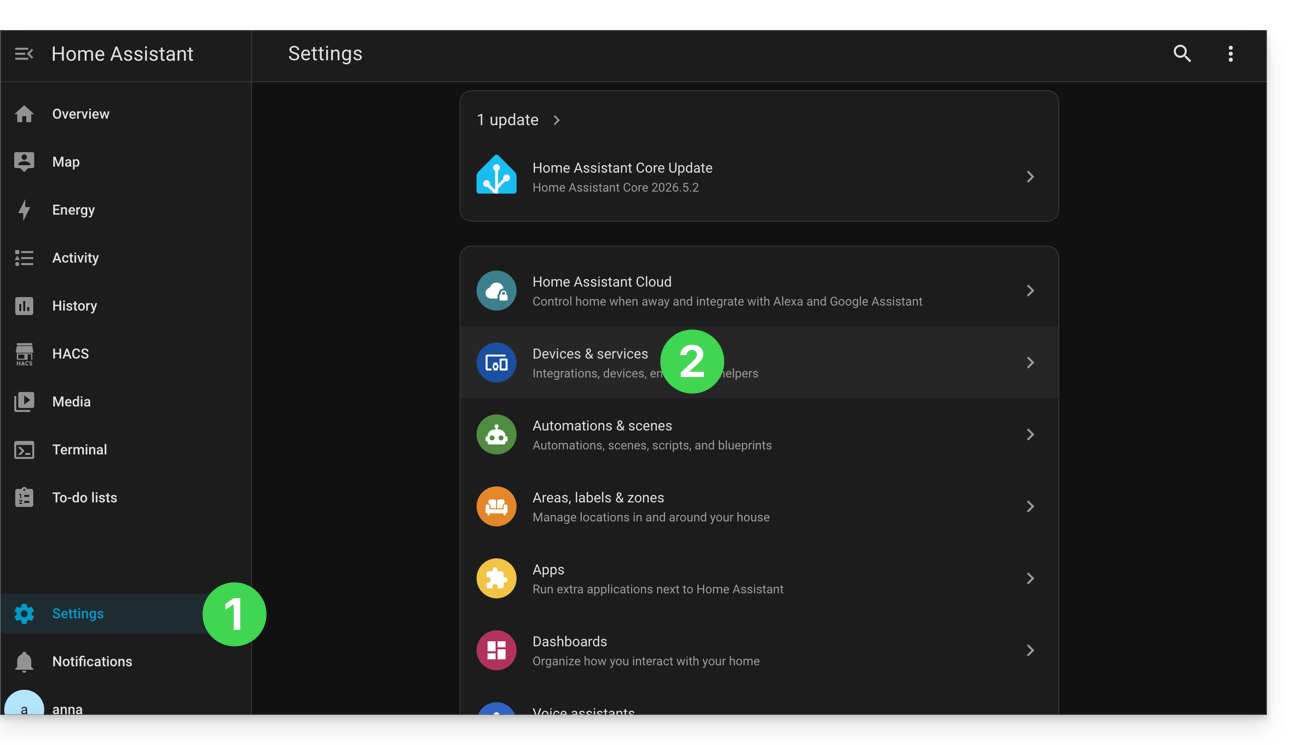
- Click on Settings in the left sidebar menu of HA.
- Click on Devices & services:
- Click on the button to Add integration.
- Click on Infomaniak DynDNS:
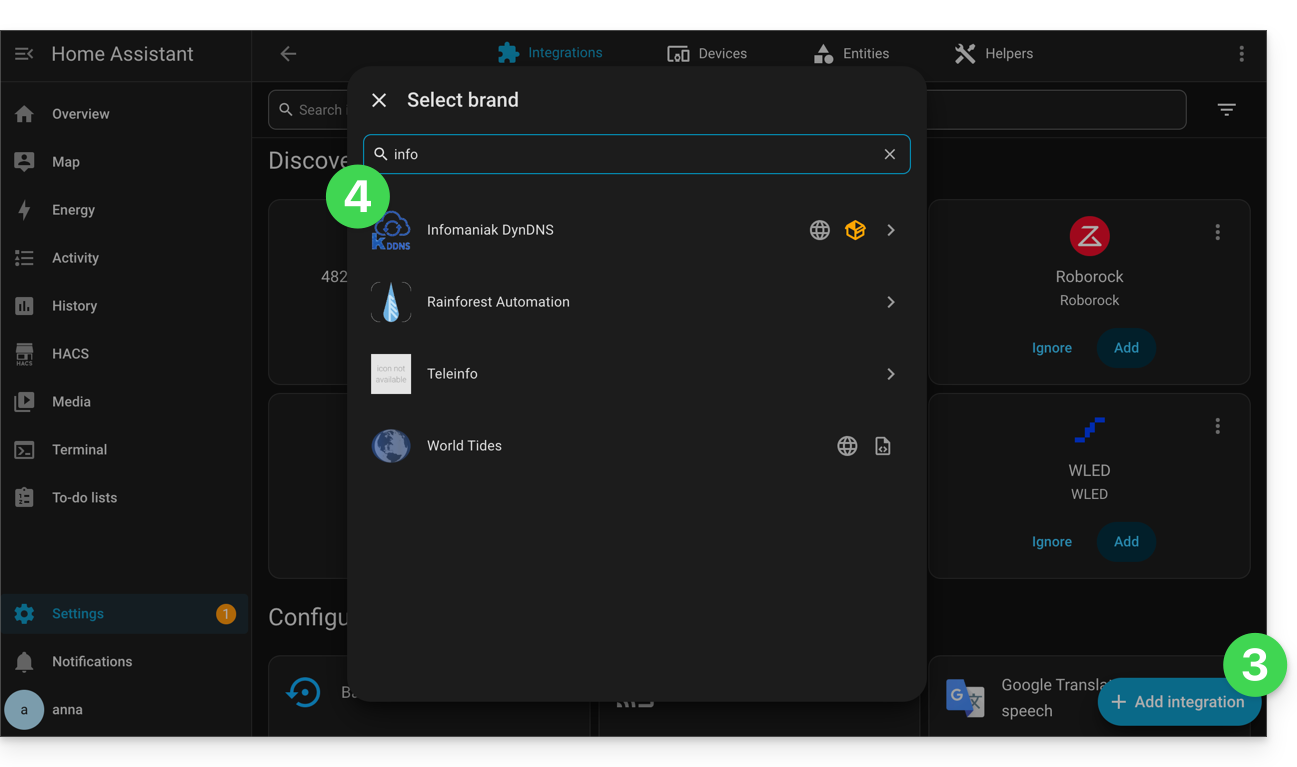
- Configure your equipment:
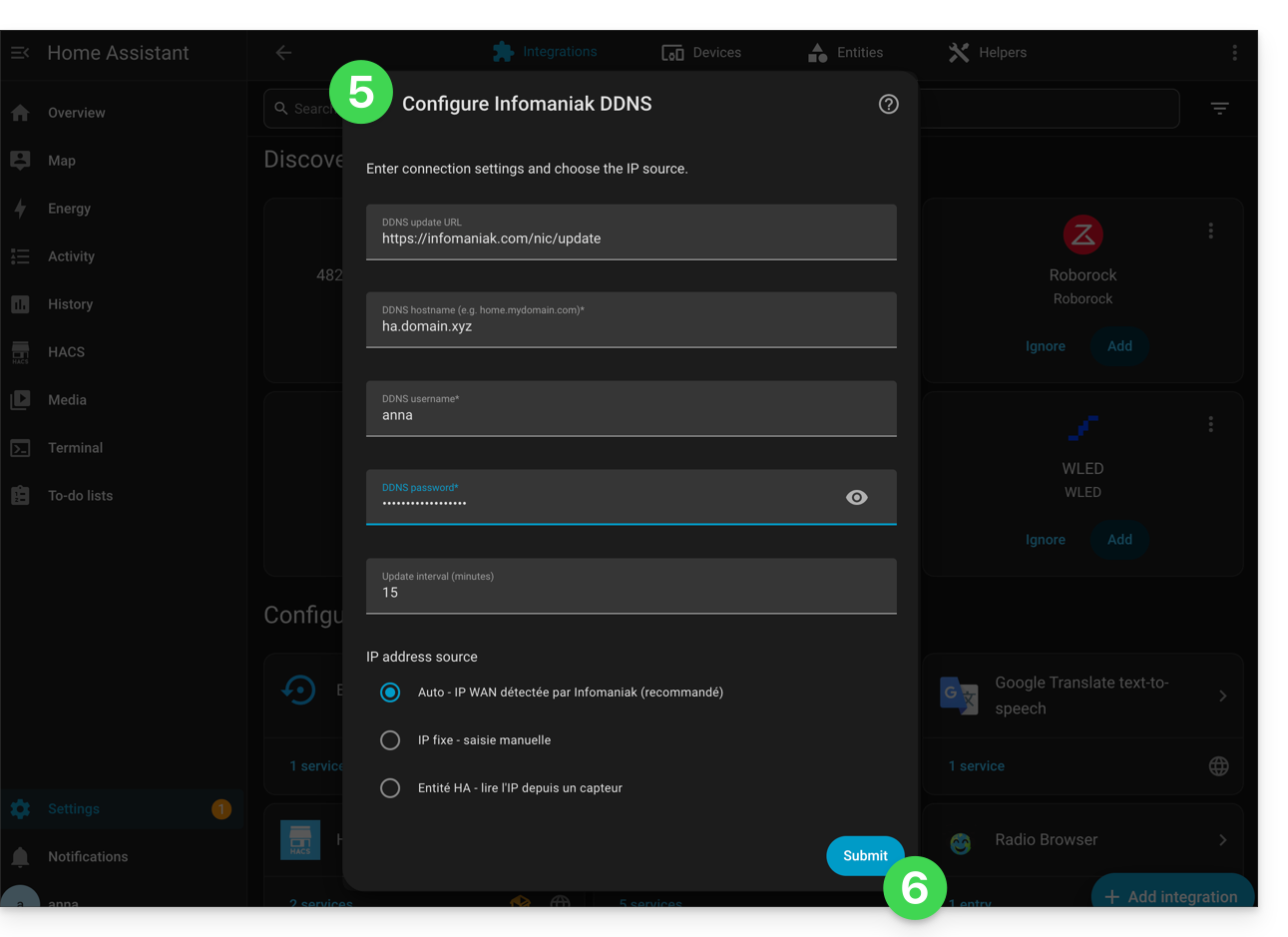
- Hostname: the URL configured in the Manager when adding the Dynamic DNS
- Username: the identifier defined in the Manager when adding the Dynamic DNS
- Password: the password defined in the Manager when adding the Dynamic DNS
- Validate at the bottom of the page.
- Give the entity a name and save your changes by clicking Finish:
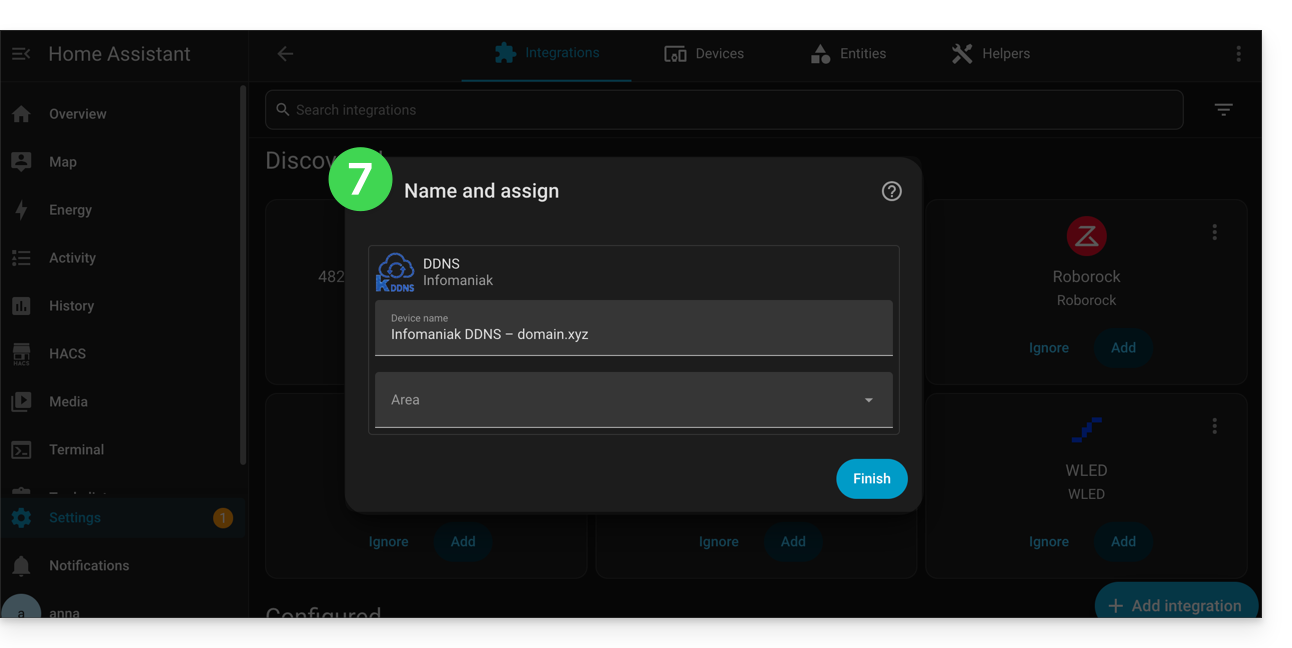
Home Assistant will check the external IP address every 15 minutes. If it has changed, the DNS will be updated. This way, your domain name will continuously point to your home automation installation, even if your Internet Service Provider changes your public IP address.
Also, refer to the official plugin documentation.
Link to this FAQ: https://faq.infomaniak.com/1665
Has this FAQ been helpful?
This guide explains how to suspend the administrative management of a product so that no user in the Organization can use it within the Infomaniak Manager. It is also possible to block a user from your Organization without deleting them.
Introduction
- By blocking the management of a product:
- Only administrators and the legal representative will be able to unblock it.
- Users with limited rights (collaborators and clients) who have access to this product will no longer be able to manage it.
- An email is sent to the users of the Organization.
Block a product
Prerequisites
- Be an Administrator or Legal Representative within the Organization (users with limited rights (collaborators and clients) who have access to this product will not be able to do so).
To block or unblock certain products for the entire Organization:
- Click here to access product management in the Infomaniak Manager (need help?).
- Access the service you wish to block.
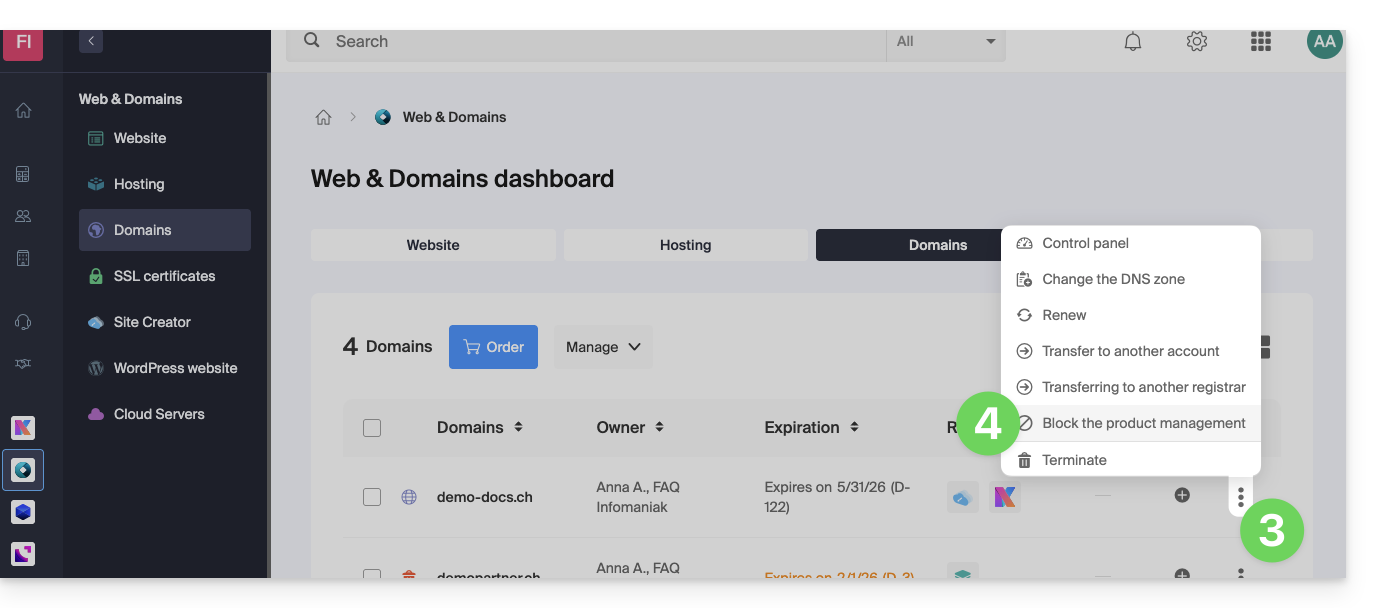
- Click on the action menu ⋮ located to the right of the item in question.
- Click on Block product management:
- Example 1, Cloud Server:
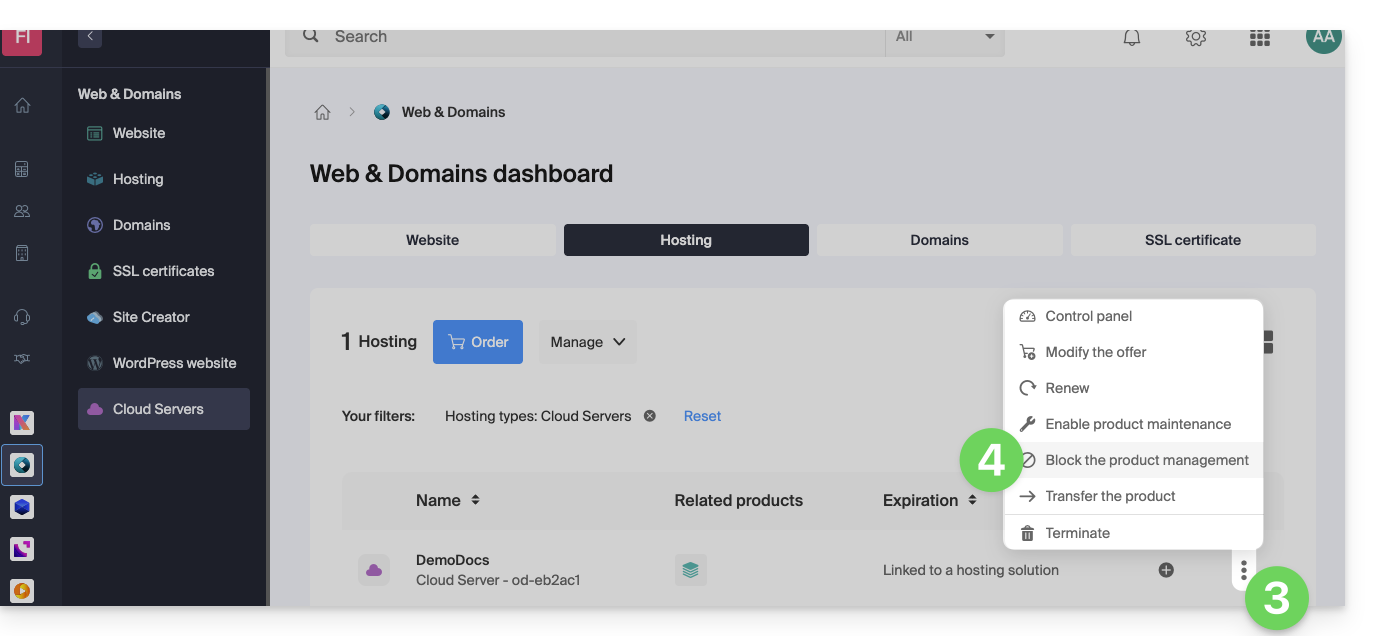
- Example 2, domain name:
- Example 1, Cloud Server:
- Confirm the suspension.
Suspend emails
A Mail Service cannot be blocked in the manner indicated above, but it can be put into maintenance mode.
Prerequisites
- Be an administrator or legal representative; users with limited rights (collaborators and clients) who have access to this product will not be able to do so.
To suspend email addresses:
- Click here to access the management interface for your product in the Infomaniak Manager (need help?).
- Click directly on the name assigned to the product in question.
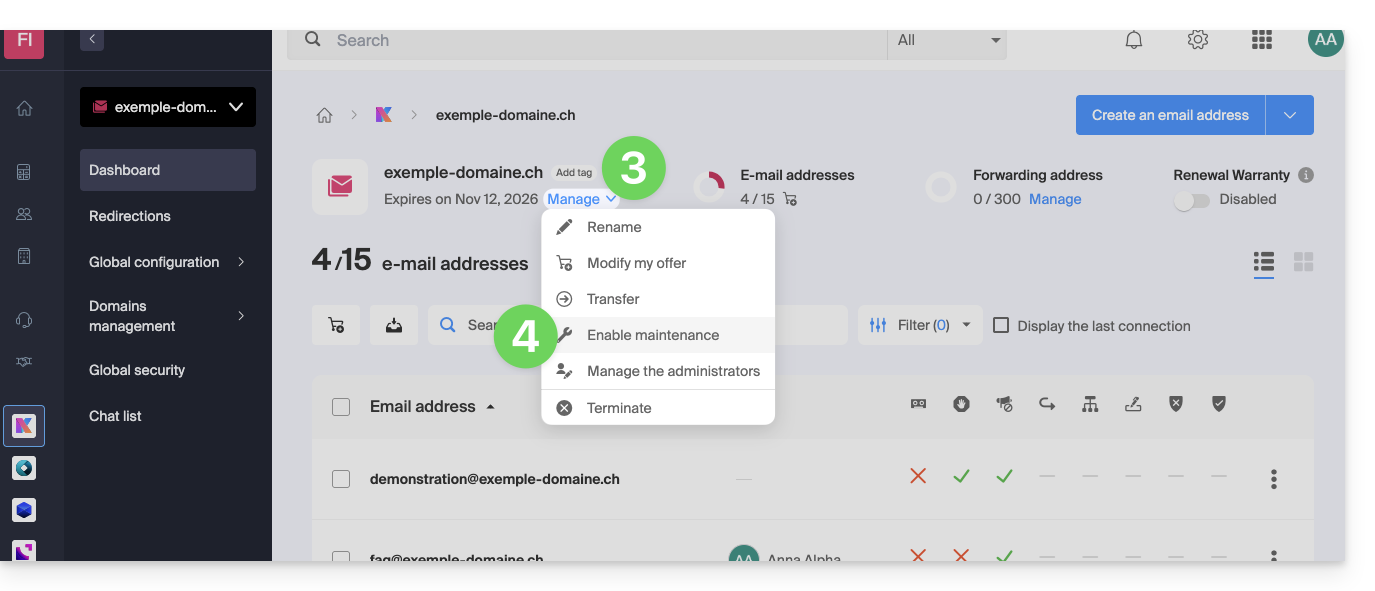
- Click on Manage.
- Click on Enable maintenance:
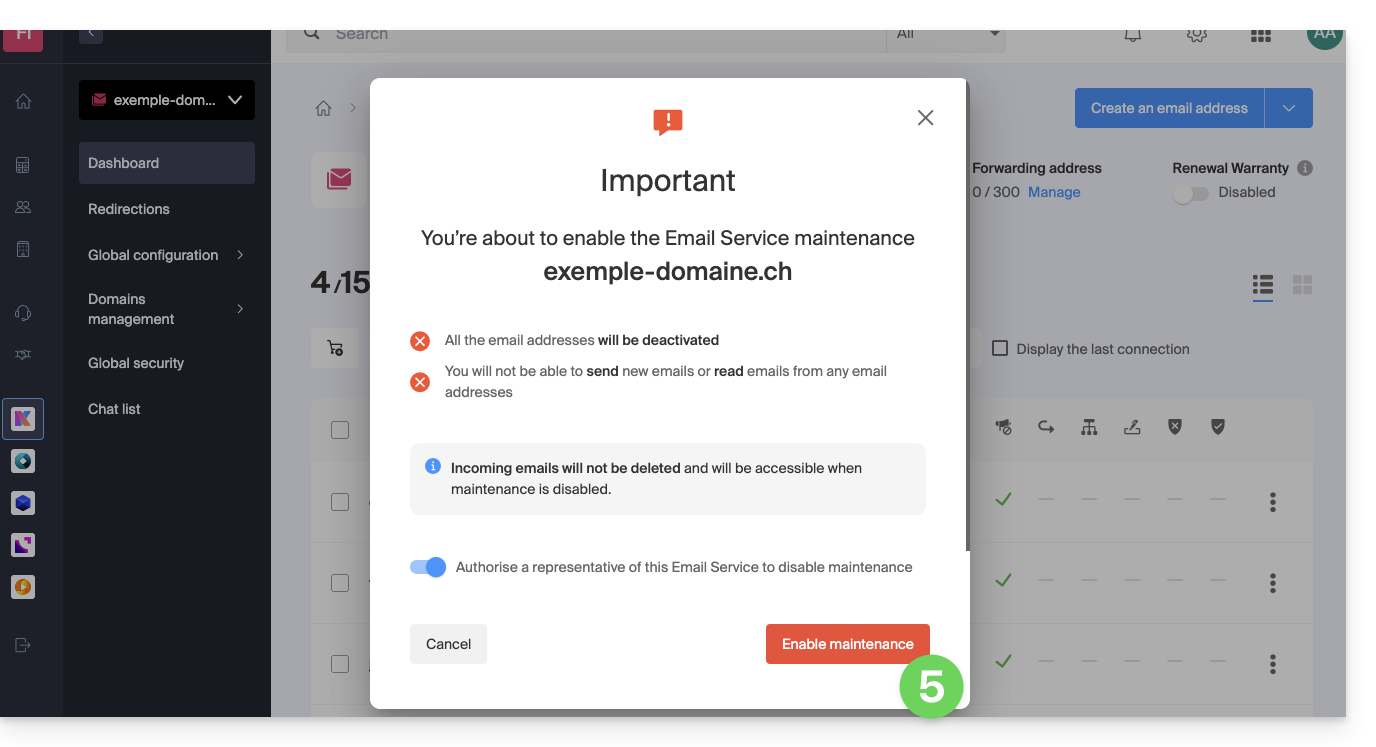
- Confirm the suspension of email address usage by clicking the red button (receiving emails is not interrupted, but viewing them is impossible):
Block a user from the Organization
To quickly block a user from the Organization in case of a security incident, log in to your user management as an Administrator or Legal Representative of the Organization:
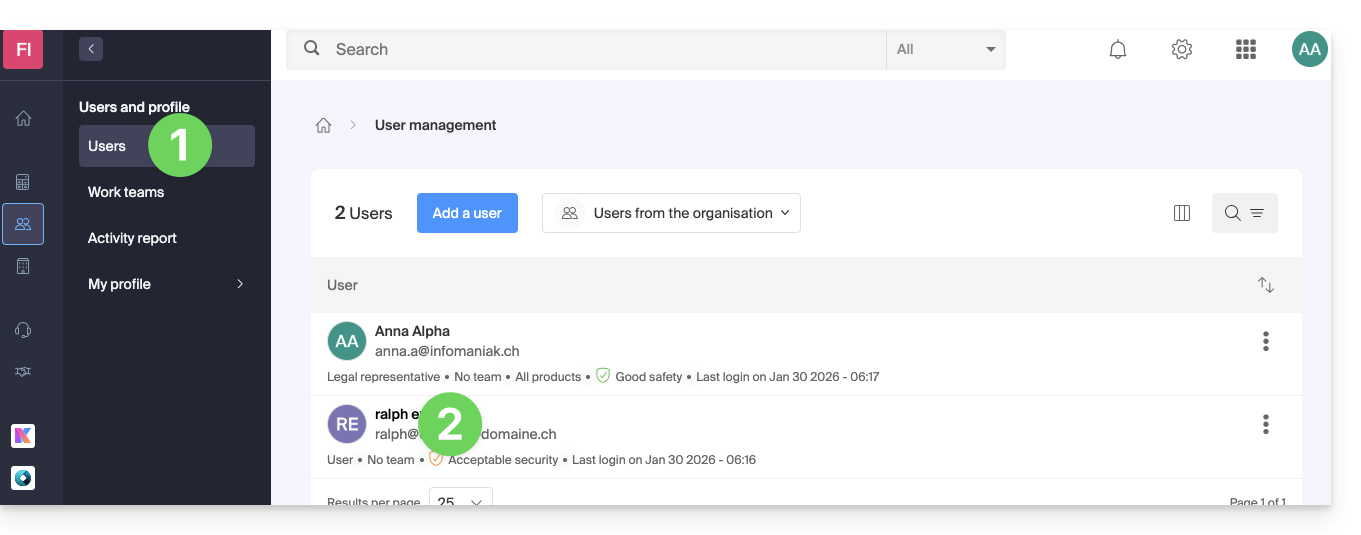
- Click here to access user management in the Infomaniak Manager (need help?).
- Click on the user in question:
- Using the Manage button at the top of the page, you can remove the user from the Organization (which also removes their various management access rights to the products they had access to).
- Further down, you can manage in more detail the products that the user should be able to access:
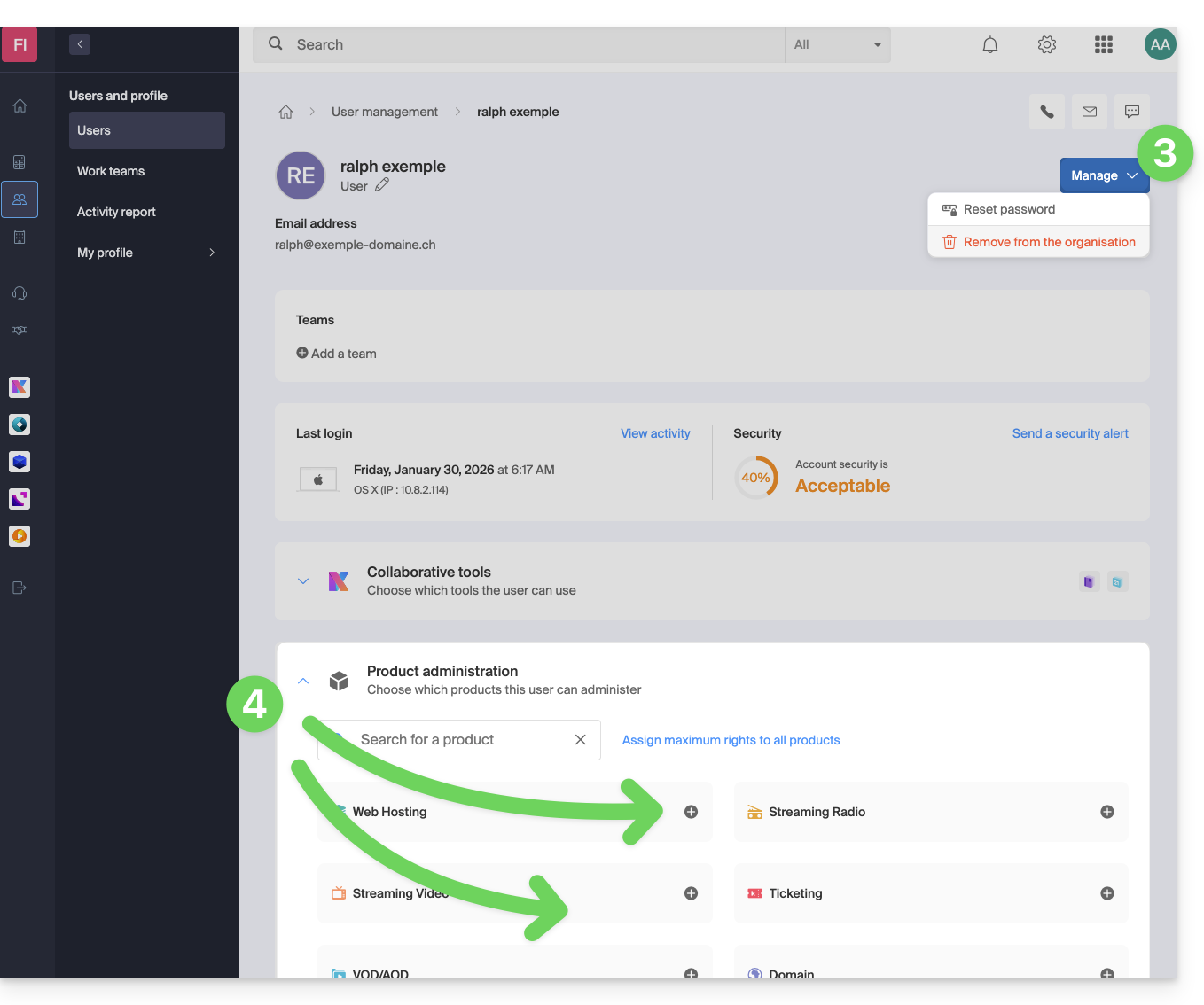
Thus, critical services such as the Manager interface for your Organization, the kDrive web app, and the Mail web app can become inaccessible to this user.
Depending on the situation, also consult these links to block other services such as email (IMAP / SMTP) or Web services.
To avoid blocking the user yourself, but instead provide them with instructions on how to secure their account, consult this other guide.
Link to this FAQ: https://faq.infomaniak.com/1689
Has this FAQ been helpful?
This guide explains how to obtain the EPP code for your domain name at Namecheap so you can transfer it to Infomaniak.
Introduction
- The terms "
EPP", "AuthCode", "AuthInfo", "transfer code", and "authorization code" all refer to alphanumeric sequences specific to the domain, the main purpose of which is to verify the owner's authorization before a transfer between Registrars. - Refer to the main guide for the rest of the transfer procedure.
- ⚠️ This involves transferring a domain name that you own from a different provider than Infomaniak, so that the future management of this domain is handled by Infomaniak; therefore, this is not an internal transfer from one owner to another, and the code you need to obtain is not a code for an internal transfer to your current provider.
Transfer the domain name to Infomaniak
To obtain the authorization code from your current provider:
- Click here to log in to the management interface for your products at your current registrar.
- Click on Domain List in the left-hand menu.
- Click on the Manage button to the right of the domain name in question.
- Click on the Authcode button to obtain the authorization code by email.
- Once you have obtained the authorization code, please refer to the Infomaniak main guide for information on the rest of the domain name transfer process.
Link to this FAQ: https://faq.infomaniak.com/1703
Has this FAQ been helpful?
This guide explains the WDPR (WHOIS Data Problem Report System) and WHOIS notifications related to the management of your domain names.
WDPR and WHOIS: what are they?
- WHOIS: a public directory containing the contact information of a domain name holder (name, email, phone number).
- WDPR: an ICANN system for reporting inaccurate or outdated WHOIS information.
- Data accuracy: ICANN requires this information to be up to date. Incorrect data may result in the suspension or cancellation of the domain.
- Privacy: you can hide your personal data using a WHOIS privacy service.
Types of messages received
- Problem notification: a third party has reported an error in your contact details; you must verify and correct them quickly.
- Update reminder: periodic email required to confirm that your information is still valid.
- Confirmation: validation that your changes have been saved after an update.
Adhering to these guidelines is crucial for the security of your domain and to prevent any service interruptions.
Modify your data or the language of the messages
You can modify your contact details or change the language of notifications (French, English, etc.) directly in your management interface.
Link to this FAQ: https://faq.infomaniak.com/1710
Has this FAQ been helpful?
This guide clarifies the distinction between the financial settlement for a service and the ownership of the associated rights.
Payment does not confer ownership
Paying the invoices for a service (domain name, hosting) does not automatically grant ownership rights. According to Infomaniak's Terms of Service, the official owner remains the person or entity whose name is associated with the service, even if the payment is made by a third party or a Partner.
This distinction is particularly important during a product transfer between Organizations: the payer is not necessarily the manager or the legal owner.
Verify and update your details
To ensure your rights to a service, make sure the identification information is in your name or that of your company. Check the following details:
- Your Infomaniak profile
- The Organization that owns the product
- The billing information
- The legal owner of the domain name (registrant)
In the event of a dispute, only the owner designated in the Infomaniak interfaces is recognized as the responsible party and the rights holder.
Link to this FAQ: https://faq.infomaniak.com/1721
Has this FAQ been helpful?
This guide details the specific aspects related to the expiration dates of domain names when they are transferred from one registrar to another.
Introduction
- Domain name expiration dates refer to the period during which the owner of a domain name has paid for its registration.
- It is crucial for domain name owners to carefully monitor expiration dates and renew their registration in time to avoid any service interruption or having to pay additional recovery fees.
Transferring a domain to Infomaniak
When a domain is transferred to Infomaniak, the new expiration date (the date until which the domain will be registered, valid, and functional) after the transfer will be the date…
- …already existing before the transfer + a minimum of 365 days.
Example:
- Domain name with expiration date 01/12/2025 before the transfer…
- The transfer takes place on 01/10/2025, for example (this has no importance or impact)…
- The expiration date becomes 01/12/2026 after the transfer to Infomaniak (1 year is added after the transfer).
Exceptions based on domain extensions
Transfer policies and their effects on expiration dates may vary depending on the domain extension. Each domain extension (such as .com, .net, .org, etc.) is managed by a specific regulatory body, and these bodies may have different rules regarding transfers and expiration dates.
The rule described in the previous chapter does not apply to certain extensions for which the new expiration date after the transfer will be the date…
- … already existing before the transfer, without incrementation or change:
.CH. - … from the date of the transfer + a minimum of 365 days:
.BEand.DE.
Domain ownership transfers can also affect expiration dates. When a domain name is transferred from one owner to another, the expiration date may sometimes be changed depending on the registrar's policies.
Link to this FAQ: https://faq.infomaniak.com/1790
Has this FAQ been helpful?
This guide explains how to modify the DNS (Name Servers) of a domain registered with Infomaniak.
Prerequisites
- Own a domain name with Infomaniak or at least have a DNS zone.
- Understand:
- how a domain and a DNS zone work before modifying the latter.
- that any DNS addition/modification may take up to 48 hours to propagate.
DNS Modification
To modify the DNS settings of a domain name managed by Infomaniak,control the direction that web and email traffic should take:
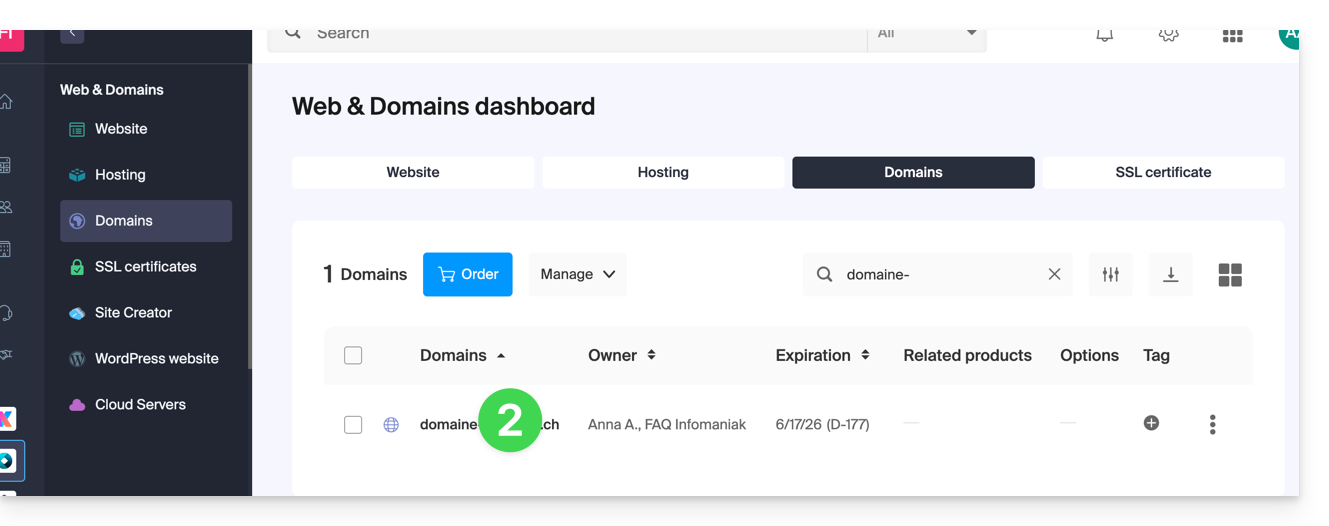
- Click here to access your domain management in the Infomaniak Manager (need help?).
- Click directly on the name assigned to the domain in question:
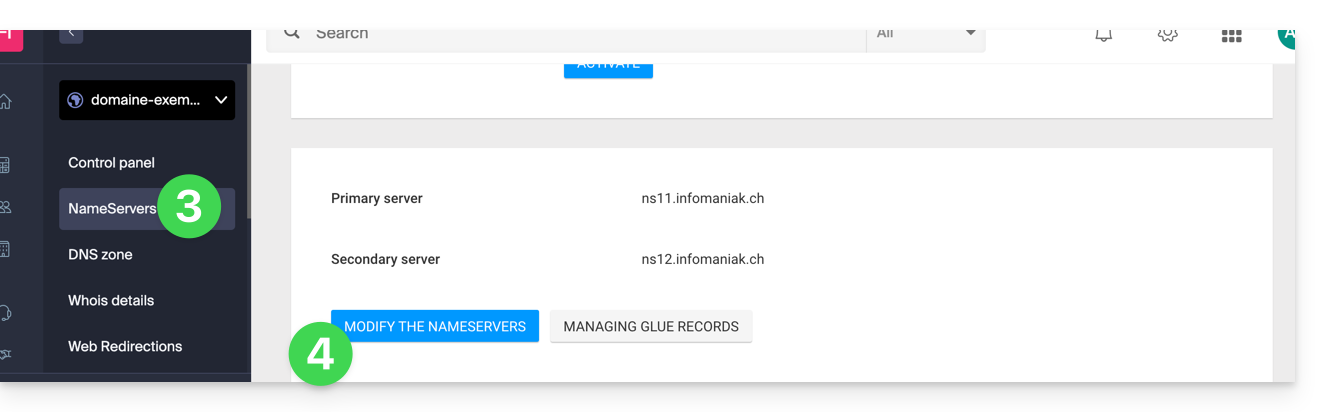
- Click on DNS Servers from the left-hand menu.
- Click on the blue Edit DNS servers button:
- If your website is hosted with Infomaniak, check Infomaniak name servers…
- Otherwise, check Custom name servers to enter the server names below and validate at the bottom of the page.
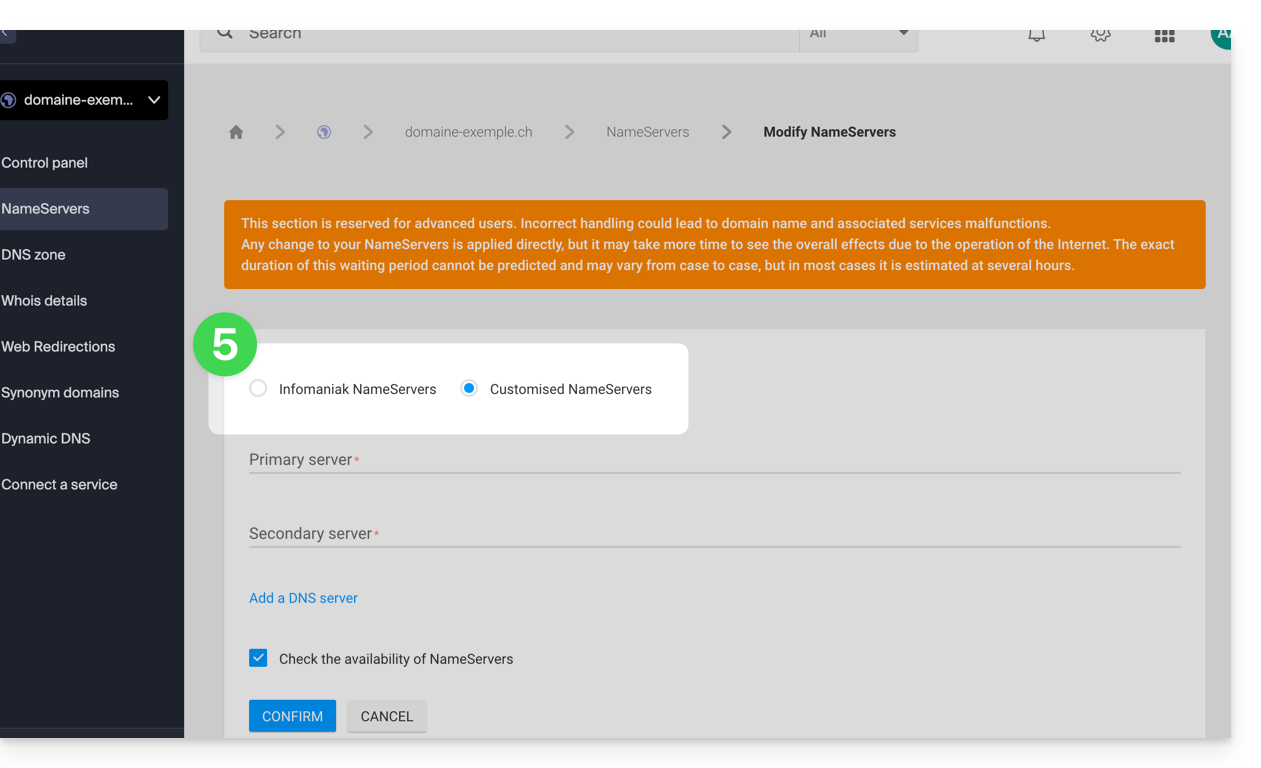
- Otherwise, check Custom name servers to enter the server names below and validate at the bottom of the page.
Batch Modification
To modify the DNS records of multiple domain names in bulk:
- Click here to access the domain management section in the Infomaniak Manager (need help?).
- Select the relevant domain names.
- Click on ⋮ at the bottom of the screen if necessary.
- Click on Edit DNS servers:
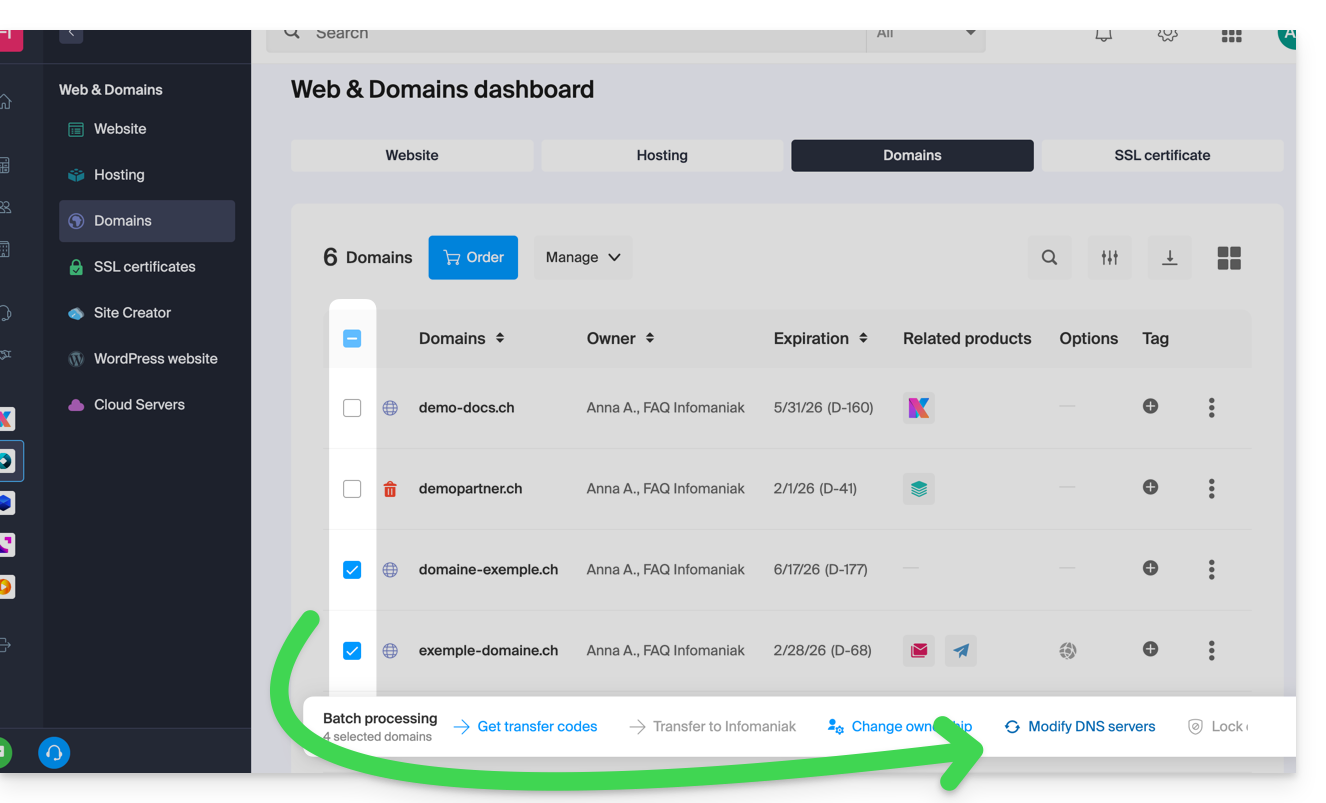
If you would prefer to modify the contents of the DNS zone and therefore change the various DNS records contained within it, please refer to this other guide.
Link to this FAQ: https://faq.infomaniak.com/1798
Has this FAQ been helpful?
This guide explains how to obtain the EPP code for your domain name at Gandi so that you can transfer it to Infomaniak.
Introduction
- The terms "
EPP", "AuthCode", "AuthInfo", "transfer code", and "authorization code" all refer to alphanumeric sequences specific to the domain, the main purpose of which is to verify the owner's authorization before a transfer between Registrars. - Refer to the main guide for the rest of the transfer procedure.
- ⚠️ This involves transferring a domain name that you own from a different provider than Infomaniak, so that the future management of this domain is handled by Infomaniak; therefore, this is not an internal transfer from one account holder to another, and the code you need to obtain is not a code for an internal transfer to your current provider.
Transfer the domain name to Infomaniak
To obtain the authorization code from your current provider:
- Consult the complete procedure provided by Gandi to obtain the code and keep it in a safe place:
- Once you have obtained the authorization code, please consult the main Infomaniak guide regarding the rest of the domain name transfer procedure.
Link to this FAQ: https://faq.infomaniak.com/1802
Has this FAQ been helpful?
This guide explains how to obtain the EPP code for your domain name at IONOS (formerly 1&1) so that you can transfer it to Infomaniak.
Introduction
- The terms "
EPP", "AuthCode", "AuthInfo", "transfer code", and "authorization code" all refer to alphanumeric sequences specific to the domain, the main purpose of which is to verify the owner's authorization before a transfer between Registrars. - Refer to the main guide for the rest of the transfer procedure.
- ⚠️ This involves transferring a domain name that you own from a different provider than Infomaniak, so that the future management of this domain is handled by Infomaniak; therefore, this is not an internal transfer from one account holder to another, and the code you need to obtain is not a code for an internal transfer to your current provider.
Transfer the domain name to Infomaniak
To obtain the authorization code from your current provider:
- Refer to the complete procedure provided by IONOS to obtain the code and keep it in a safe place.
- Once you have obtained the authorization code, please consult the main Infomaniak guide regarding the rest of the domain name transfer procedure.
Link to this FAQ: https://faq.infomaniak.com/1803
Has this FAQ been helpful?