Knowledge base
1000 FAQs, 500 tutorials and instructional videos. Here, there are only solutions!
This guide concerns domain names called Premium.
Introduction
- These domain names are designated by the registries as domains with high commercial potential for SEO or branding.
- The prices for these domains are set by their registry or by their current owner and do not particularly depend on the extensions (
.com,.net, etc.). - A
.artdomain can cost less than 10 EUR, but it can also be purchased for more than 300 EUR. - Anyone can buy a premium domain.
Identifying this type of domain
On the Infomaniak shop, premium domains are distinguished by a crown icon. Here is an example: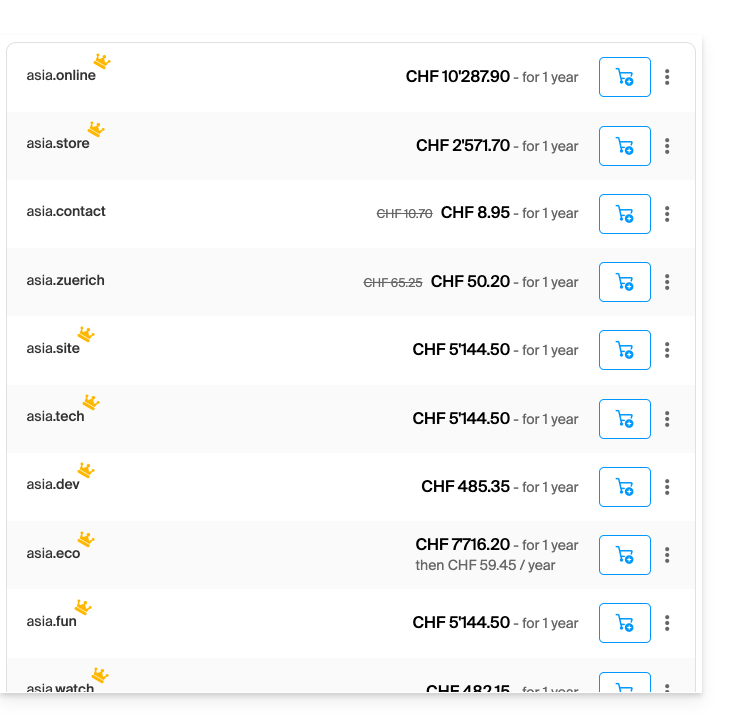
The 3 characteristics of a premium domain
- High commercial value
- Impactful and easy to remember
- High traffic potential
Why register a premium domain name?
- Renewal at the standard price: The price of a premium domain is high in the first year, but the cost of its renewal is generally the same as that of a standard domain.
- Easy transfer: the price of a premium domain generally includes the domain transfer and the change of ownership.
Link to this FAQ: https://faq.infomaniak.com/2239
Has this FAQ been helpful?
This guide concerns Domain Privacy, which protects the contact details of a domain owner in the WHOIS directory, and more specifically, the domain name extensions compatible with this service.
Introduction
- Whether or not it is possible to hide the owner's contact details may vary depending on the domain extension.
- Most domain extensions are supported by Domain Privacy protection.
Extensions compatible with Domain Privacy
To find out whether an extension is supported, please check:
- Go to this page.
- Specify the desired extension.
- Click on the magnifying glass icon to start the search:
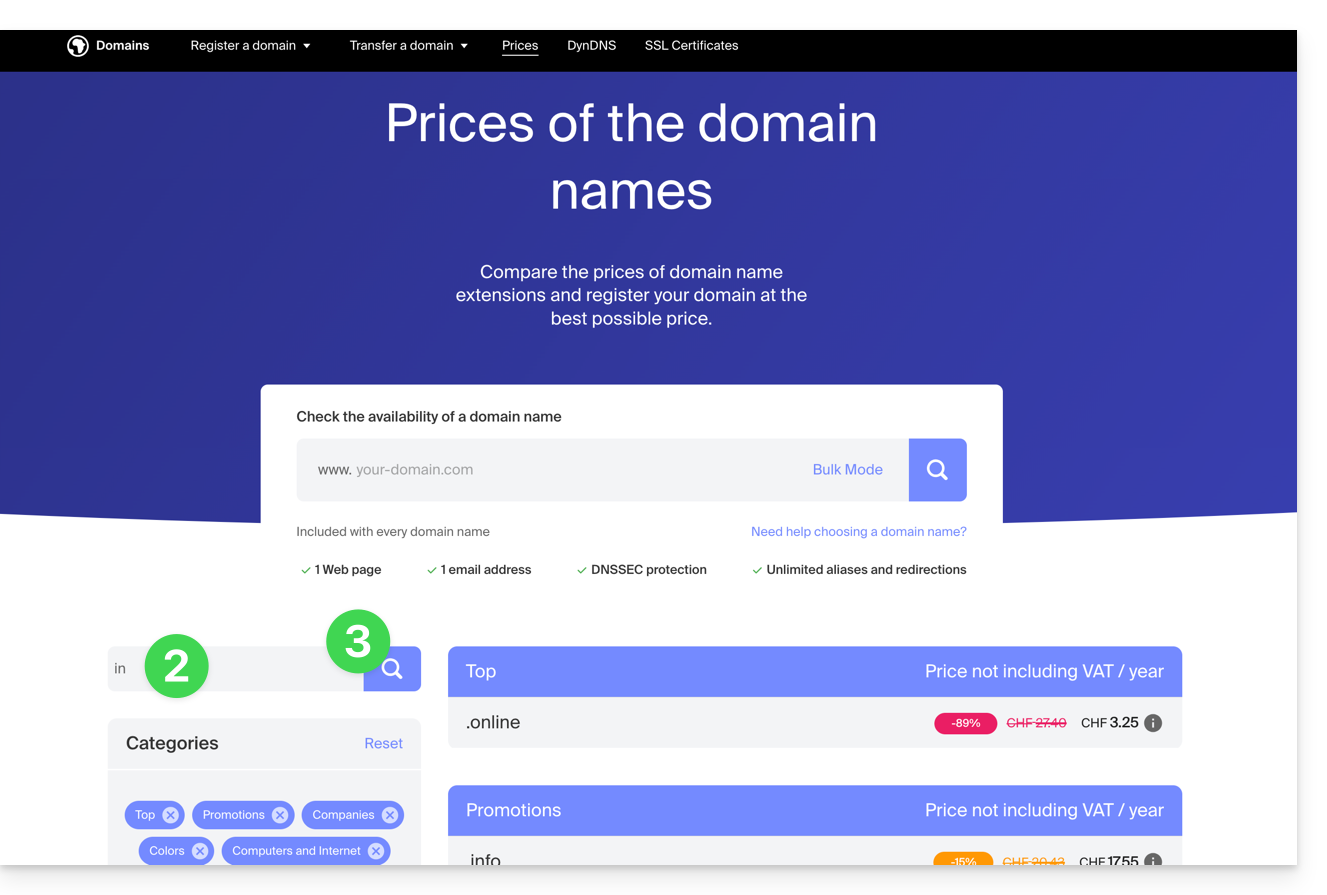
- Click on the desired extension from the results displayed in the sidebar:
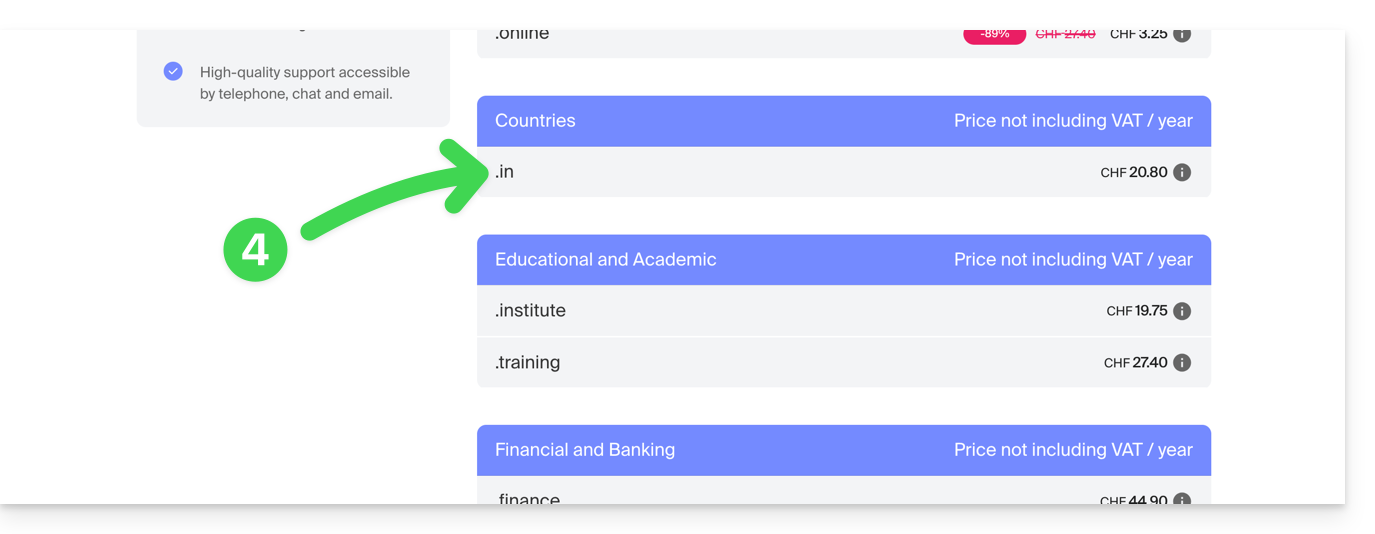
- Scroll down to the Frequently Asked Questions section and read the required information:
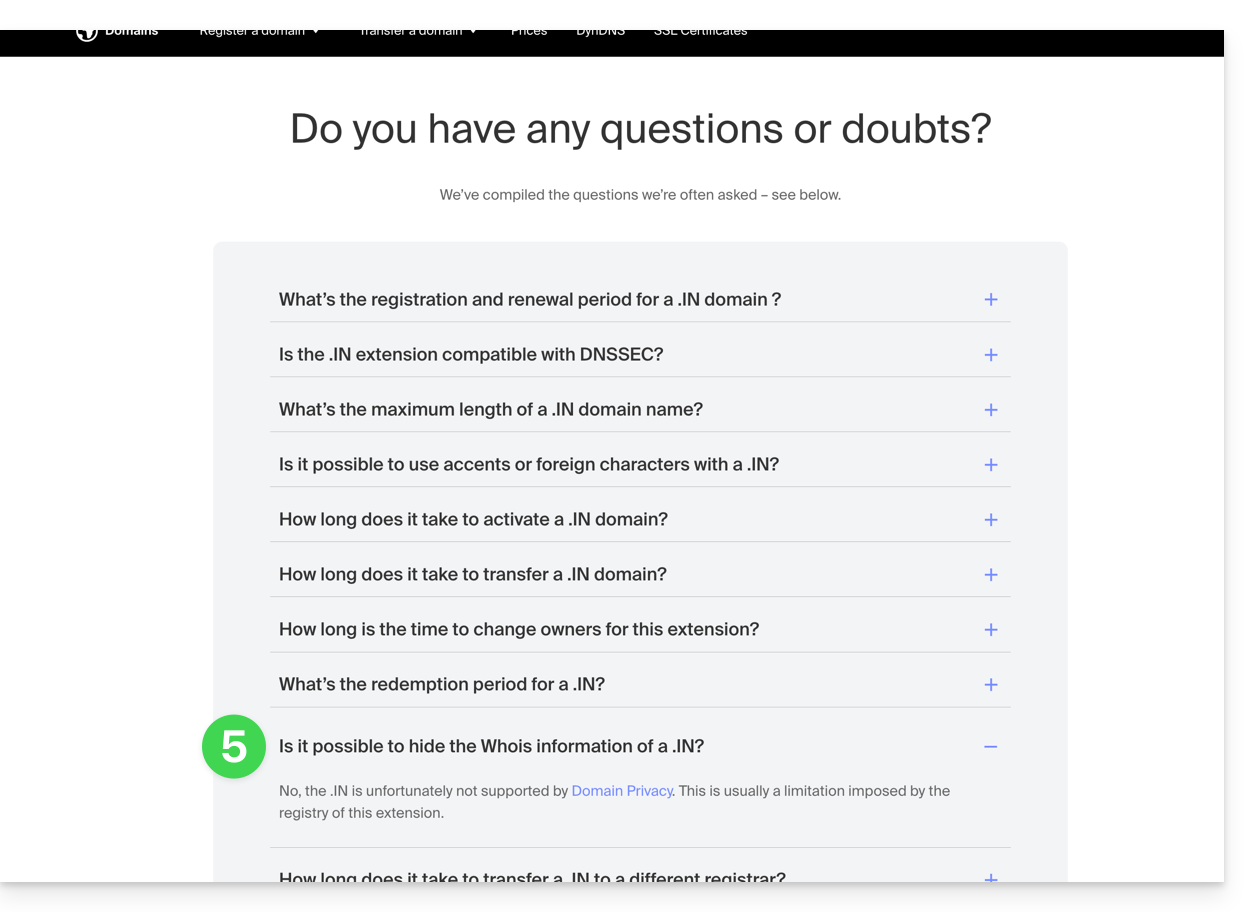
The following is a non-exhaustive list provided as an example:
ac
academy
accountant
accountants
actor
adult
aero
agency
airforce
apartments
archi
army
art
asia
associates
auction
audio
auto
band
bar
bargains
basketball
best
bet
bid
bike
bingo
bio
biz
black
blackfriday
blue
boutique
builders
business
cab
cafe
cam
camera
camp
capital
cards
care
careers
cars
cash
casino
cat
catering
center
ch
chat
cheap
christmas
church
city
claims
cleaning
click
clinic
clothing
cloud
club
co
coach
codes
coffee
college
com
com.co
community
company
computer
condos
construction
consulting
contractors
cool
country
credit
creditcard
cricket
cruises
cz
dance
date
dating
deals
degree
delivery
democrat
dental
desi
design
diamonds
diet
digital
direct
directory
discount
doctor
dog
domains
download
education
email
energy
engineer
engineering
enterprises
equipment
estate
events
exchange
expert
exposed
express
fail
faith
family
fans
farm
finance
financial
fish
fitness
flights
florist
flowers
fm
football
forsale
foundation
fr
frl
fund
furniture
futbol
gallery
game
games
gent
gift
gifts
gives
glass
global
gmbh
gold
golf
graphics
gratis
green
gripe
group
guide
guitars
guru
gy
haus
health
healthcare
help
hiphop
hiv
hockey
holdings
holiday
host
hosting
house
immo
immobilien
industries
info
ink
institute
insure
international
investments
io
irish
jetzt
jewelry
juegos
kaufen
kim
kitchen
land
lat
lease
legal
lgbt
li
life
lighting
limited
limo
link
live
loan
loans
lol
love
ltd
maison
management
market
marketing
me
media
memorial
mobi
moda
moe
money
mortgage
nagoya
name
navy
net
net.co
network
news
ninja
nom.co
onl
online
org
partners
parts
party
pet
photo
photography
photos
pics
pictures
pink
pizza
pl
place
plumbing
plus
poker
porn
press
pro
productions
promo
properties
property
protection
pub
pw
qpon
racing
recipes
red
rehab
reisen
rentals
repair
report
republican
rest
restaurant
review
reviews
rich
rip
rocks
run
saarland
sale
salon
sarl
school
schule
science
security
services
sex
sexy
sh
shiksha
shoes
shop
shopping
show
singles
site
ski
social
software
solar
solutions
space
storage
store
stream
studio
style
supplies
supply
support
surgery
systems
taipei
tattoo
tax
taxi
team
tech
technology
tennis
tf
theater
theatre
tienda
tips
tires
tk
tm
today
tokyo
tools
top
tours
town
toys
trade
training
tube
tv
university
uno
vacations
vegas
ventures
vet
viajes
video
villas
vin
vision
voyage
watch
webcam
website
whoswho
wiki
win
wine
works
world
ws
wtf
xyz
yokohama
zone
Link to this FAQ: https://faq.infomaniak.com/2240
Has this FAQ been helpful?
This guide explains how to use the Infomaniak Newsletter tool with an external domain name (not managed with Infomaniak).
Prerequisites
- The domain name must belong to you.
- Synonymous domains and their main domain cannot be used to send newsletters.
- You can configure your synonyms as aliases.
Link an external domain
To access the management of domains for sending newsletters:
- Click here to access your product management interface in the Infomaniak Manager (need help?).
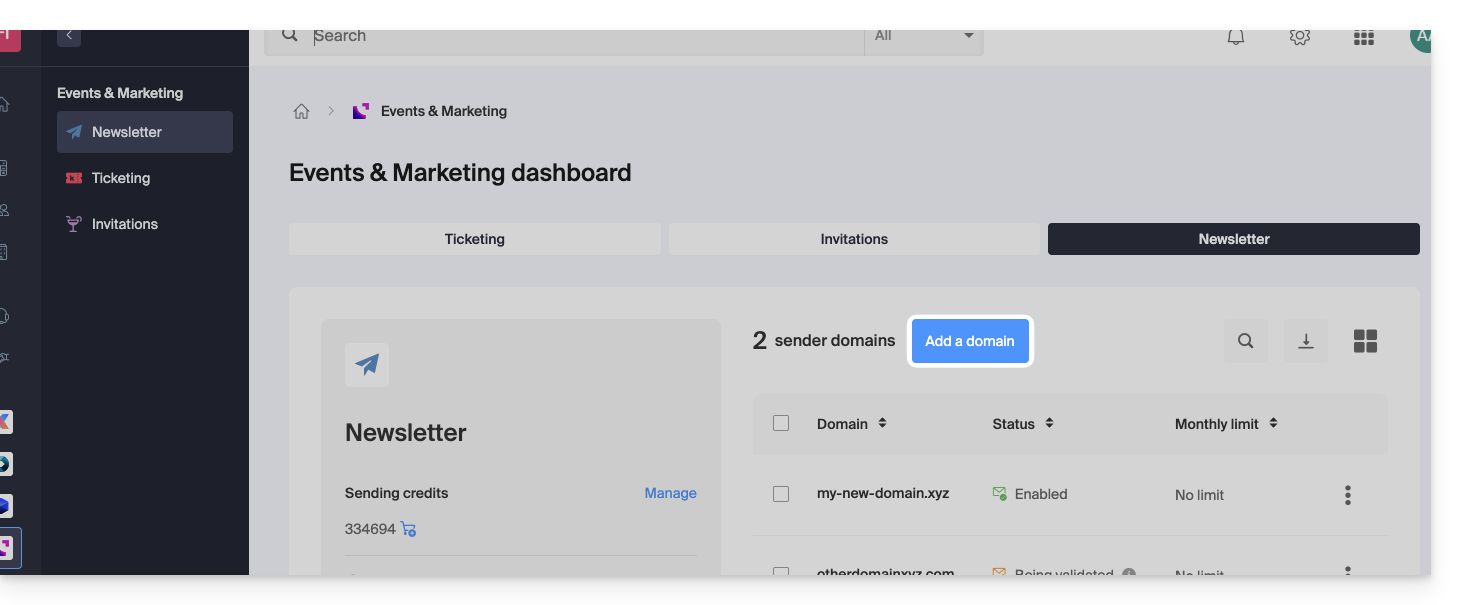
- If you already have a Newsletter, click on Add a domain:
- Otherwise, click on Start for free:
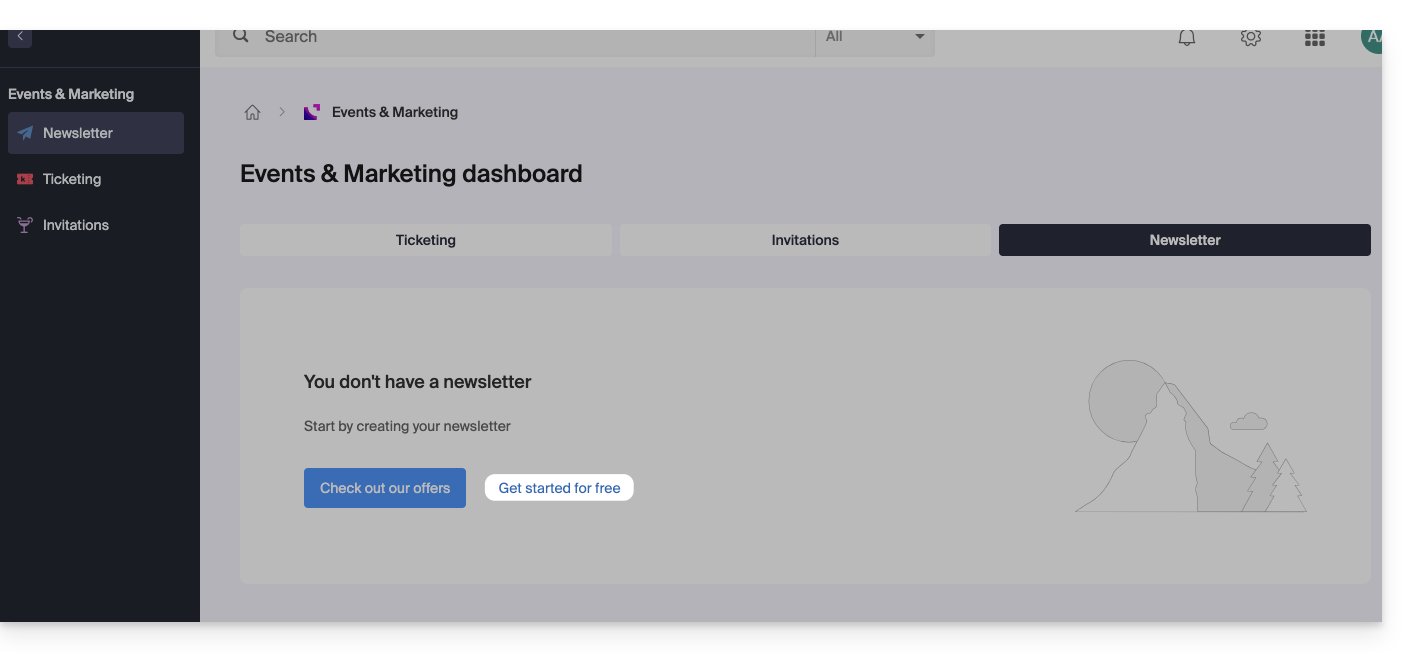
- Otherwise, click on Start for free:
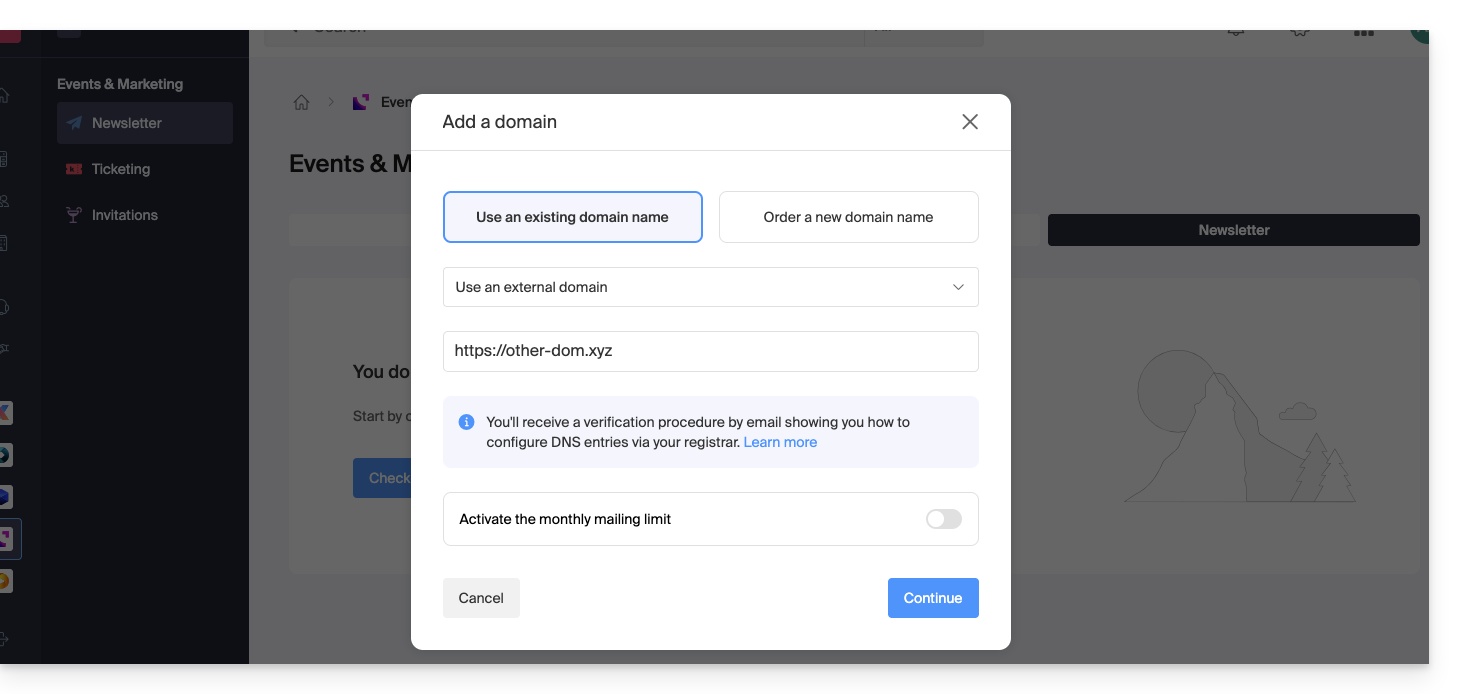
- Select Other domain from the drop-down menu before entering (or enter directly) the domain name you want to use to send newsletters.
- Choose an optional monthly limit.
- Click the button to Continue:
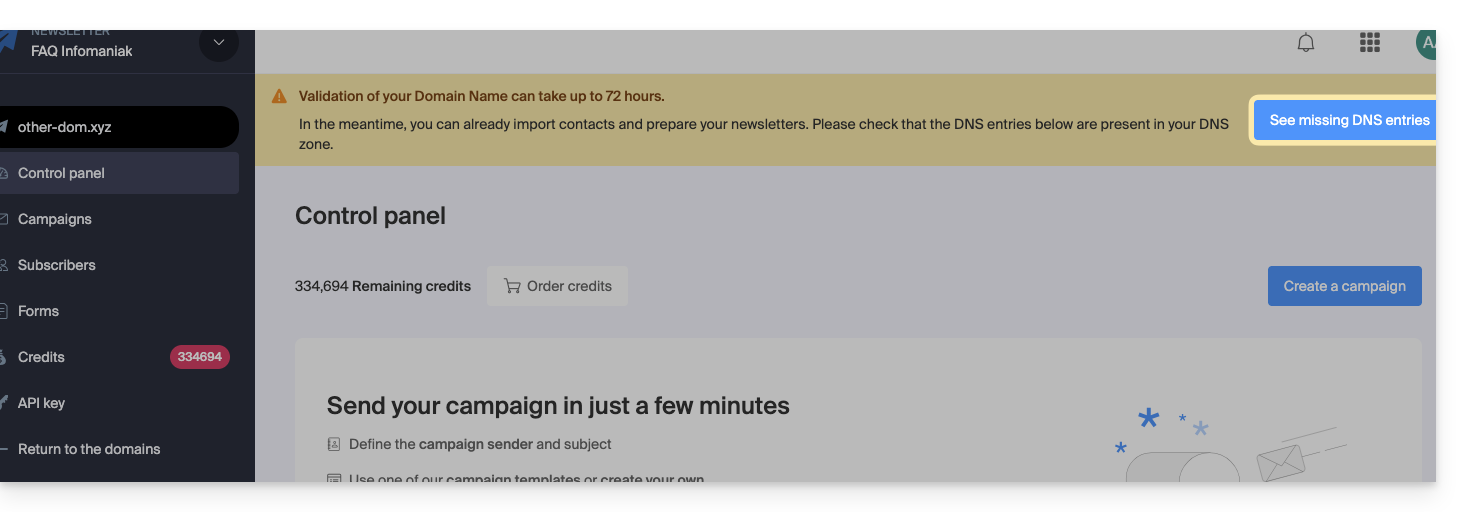
- Add it to your registrar the TXT / CNAME / DKIM records that you will receive by email and which can be viewed in the interface by clicking on the button:
Link to this FAQ: https://faq.infomaniak.com/2241
Has this FAQ been helpful?
This guide presents the Domain Status tool, which allows you to verify the relationships between…
- DOMAIN NAME at Infomaniak
and - WEB HOSTING with Infomaniak
… are correct, so that Web traffic is directed to the right place.
✘ UNAVAILABLE with a
website of type node.js
Introduction
- To verify, the tool checks the
A,CNAMErecords, etc. - This allows you to detect and correct certain web-related issues, especially if they are linked to DNS (technical information that essentially determines where specific web traffic should be directed) by taking action at the domain level.
- Automatic correction is only possible if the domain name is present in the same Organization as the product to which it must be linked.
- If this is not the case, then the correction must be done manually.
Troubleshooting DNS issues
To access the DNS diagnostic for your domain name:
- Click here to access your product management interface in the Infomaniak Manager (need help?).
- Click directly on the name assigned to the product in question.
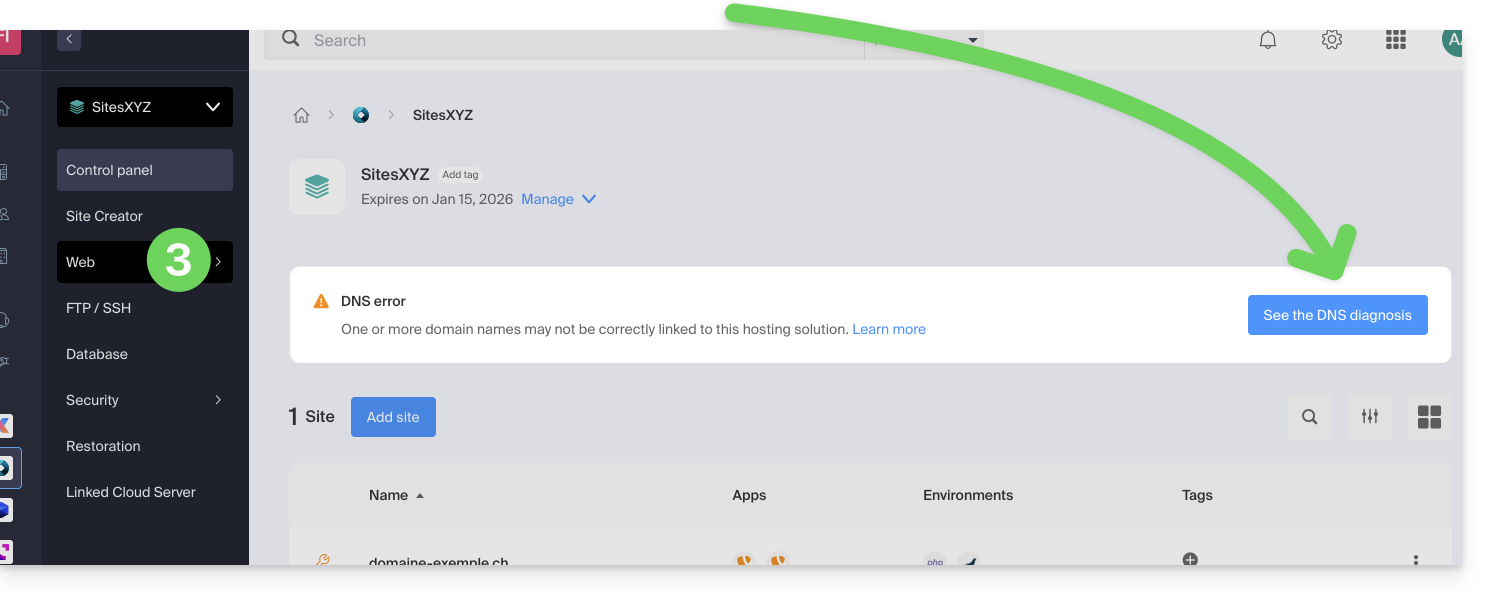
- Click on Web in the left-hand menu (or on the notification, if any, to go directly to step 6):
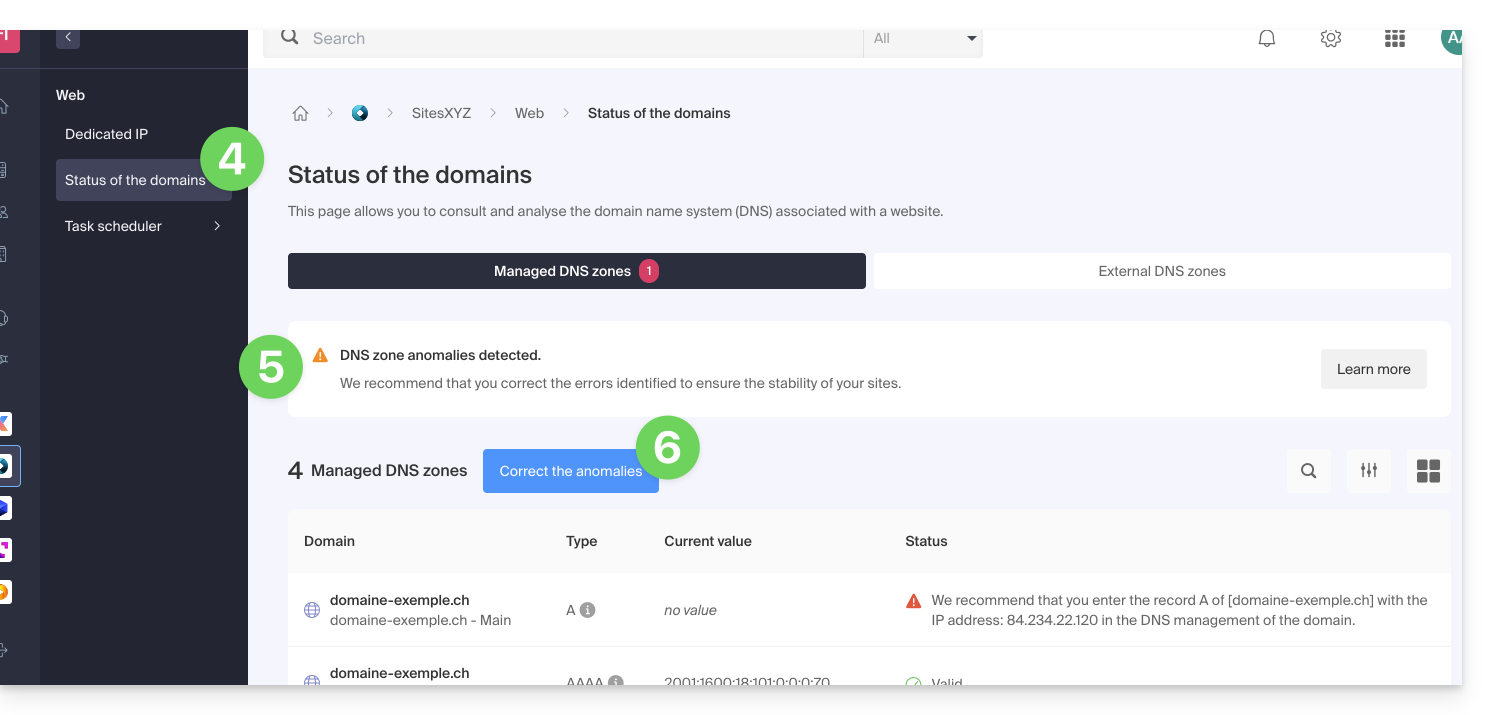
- Click on Domain Status in the left-hand menu.
- If any DNS issues are detected, they will be indicated in the table.
- Correct all errors at once by clicking on the button:
Refer to this other guide about the same automatic verification process, but for Mail Services.
Link to this FAQ: https://faq.infomaniak.com/2251
Has this FAQ been helpful?
DNS Fast Anycast replicates the DNS of your domain worldwide to reduce latency and increase the availability of your websites.
Introduction
- Thanks to DNS Fast Anycast, your domain's DNS servers are replicated across multiple Points of Presence (PoPs) worldwide (list below).
- Regardless of where your visitors are located, they are redirected to the DNS server closest to them, which on average speeds up access to your site by 34% (DNS resolution).
- Furthermore, if one of your DNS servers were to become unavailable, the closest server will automatically take over, and your visitors will continue to be able to access your site.
- DNS replication for your domain is automatic, and no changes to your code are required.
Manage Fast Anycast DNS
Prerequisites
- DNS Fast Anycast is compatible with all websites, regardless of your hosting provider.
- All you need is a domain name managed with Infomaniak.
- Transfer the management of your domain to Infomaniak if necessary.
- Consult this other guide for managing external domains.
To access the DNS Fast Anycast option:
- Click here to access your product management interface in the Infomaniak Manager (need help?).
- Click directly on the name assigned to the product in question.
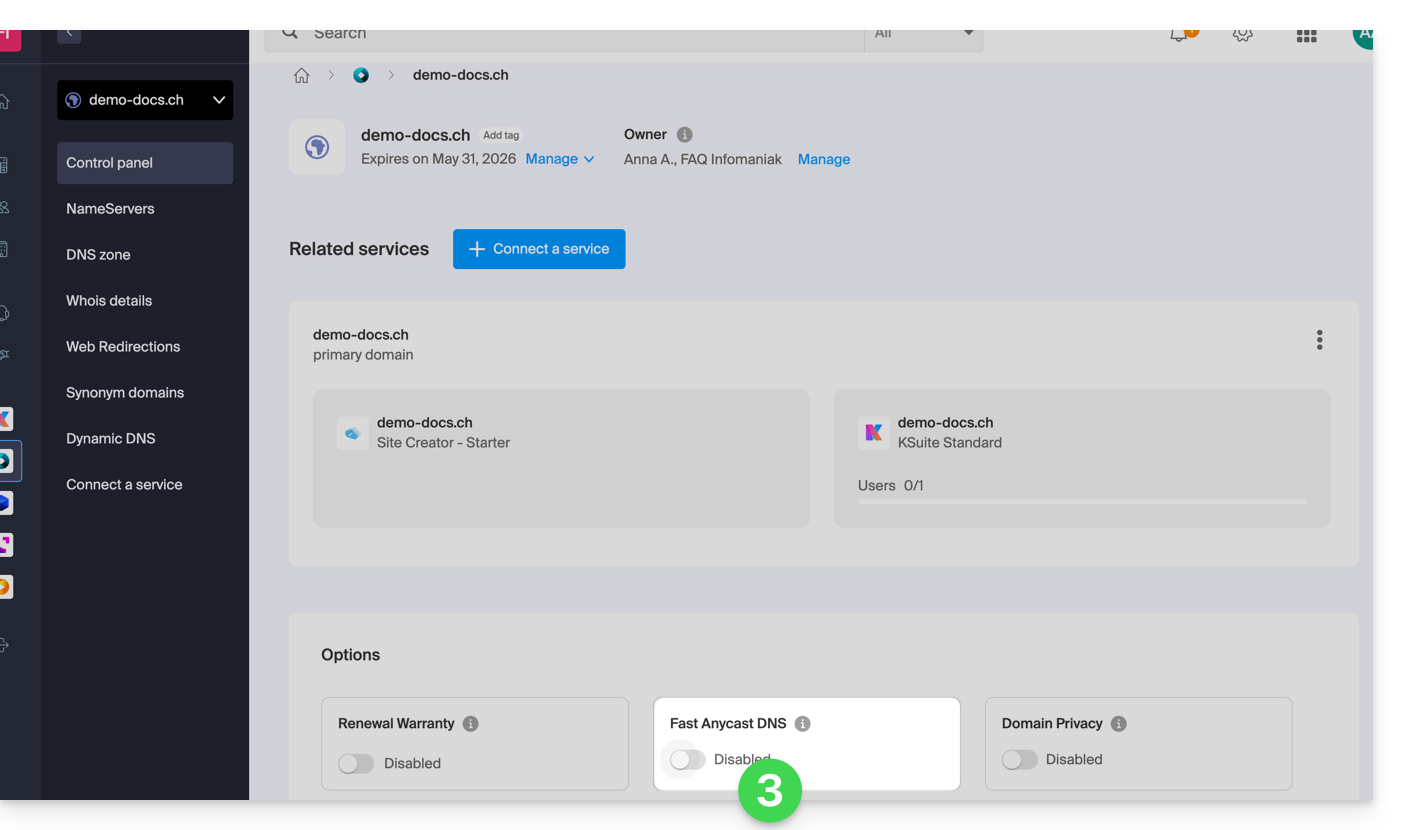
- Enable or disable the DNS Fast Anycast toggle switch on the dashboard:
POP - 'Point of Presence'
By enabling DNS Fast Anycast on your domain, your DNS records will be automatically replicated in the following points of presence:
Network 1
New York, USA (2x)
Paris, France (2x)
Warsaw, Poland (2x)
Dublin, Ireland (2x)
Singapore (2x)
Johannesburg, South Africa
Stockholm, Sweden
Vienna, Austria (2x)
Frankfurt, Germany (2x)
London, United Kingdom
Dallas, USA
Los Angeles, USA (3x)
Amsterdam, Netherlands
Sydney, Australia
São Paulo, Brazil
Miami, USA (2x)
Network 2
Hong Kong, China
San Jose, USA
Dallas, USA
Reston, USA
Chicago, USA
Seattle, USA
London, United Kingdom
Frankfurt, Germany
Amsterdam, Netherlands
Vienna, Austria
Toronto, Canada
Sydney, Australia
São Paulo, Brazil
Johannesburg, South Africa
Miami, USA
The points of presence are distributed across two networks, which are used randomly when one of your visitors accesses your website.
Link to this FAQ: https://faq.infomaniak.com/2323
Has this FAQ been helpful?
This guide provides important information when activating DNS Fast Anycast and your domain's DNS zone is not managed by Infomaniak.
Introduction
- You may be in the situation described above if your websites and email addresses are hosted elsewhere.
- For DNS Fast Anycast to work, your domain's DNS zone must be managed by Infomaniak.
- If you do not understand these instructions, please refer to this other guide or contact your webmaster or another professional.
Activating DNS Fast Anycast with an external zone
Here are the steps to follow if your services are not hosted by Infomaniak:
- Log in to your hosting provider's control panel and note all the required records (A, MX, TXT, CNAME, etc.).
- Use the Infomaniak DNS servers for your domain name.
- Enter the records noted in the first step above to link your domain with your various services (websites, email addresses, etc.).
- Any DNS addition/modification may take up to 48 hours to propagate.
Link to this FAQ: https://faq.infomaniak.com/2325
Has this FAQ been helpful?
This guide details the specific features of the .be domain name extension (for Belgium), including the administrative steps required to transfer the management of a .be domain to Infomaniak.
Introduction
- As with other extensions, but especially for
.bedomains, it is very important to keep the WHOIS contact information for your domain name up to date to avoid any suspension by DNS.be! - The terms "
EPP", "AuthCode", "AuthInfo", "transfer code", and "authorization code" all refer to alphanumeric sequences specific to the domain, the main purpose of which is to verify the owner's authorization before a transfer between Registrars.
Transfer a .be domain to Infomaniak
.be domains are subject to a specific procedure for their authorization code (EPP code). If your previous registrar provided you with an authorization code, it is likely that this code is not valid. Indeed, to obtain the authorization code for a .be domain, you must either:
- click on "Get authorization code" from the page that asks for the code,
- or go to dnsbelgium.be and request the authorization code (EPP code).
Do notattempt to transfer the domain multiple times in a row using the incorrect codeotherwise, you will block the domain and the transfer (Command failed; please contact support - domain locked) for several dozen hours, and Infomaniak will be unable to do anything about it. You will have to wait before trying again with a different code, which must be correct.
Removing a .be domain from quarantine
Outside of a transfer period, and following outdated WHOIS information or suspicious use of your domain, dnsbelgium.be, the Belgian registry, may temporarily suspend this .be domain.
A standard WHOIS query will indicate "NOT AVAILABLE", but you will obtain the actual status directly on their website, including a date of availability before which you must absolutely follow one of the three possible courses of action:
- resolve the issue with DNSBelgium and transfer the domain to Infomaniak,
- resolve the issue with DNSBelgium and transfer the domain to another registrar (or to Infomaniak if the issue occurred with another registrar),
- ignore the problem and wait until this availability date to try registering the domain again (not recommended).
In the first two cases, you will need to obtain it from DNSBelgium.the end of the quarantine period, as well as the authorization codeTerms and Conditions
Verification Required
If you encounter these types of errors in the WHOIS, on your website, or via a report by email:
Domain verification required for domain.beThis site can't be reached. Check if there is a typo in domain.be. DNS_PROBE_FINISHED_NXDOMAINWe will only activate this domain name once the contact details of the domain name holder have been validated
… please check and update your domain name information so that it can function again.
Link to this FAQ: https://faq.infomaniak.com/2336
Has this FAQ been helpful?
This guide details the procedure for modifying the WHOIS contact information for domain name holders, which you can apply to an entire batch of domains within your Organization at Infomaniak.
Change contact information in bulk
To modify the WHOIS contact information for multiple domain names at once:
- Click here to access your domain management interface in the Infomaniak Manager (need help?).
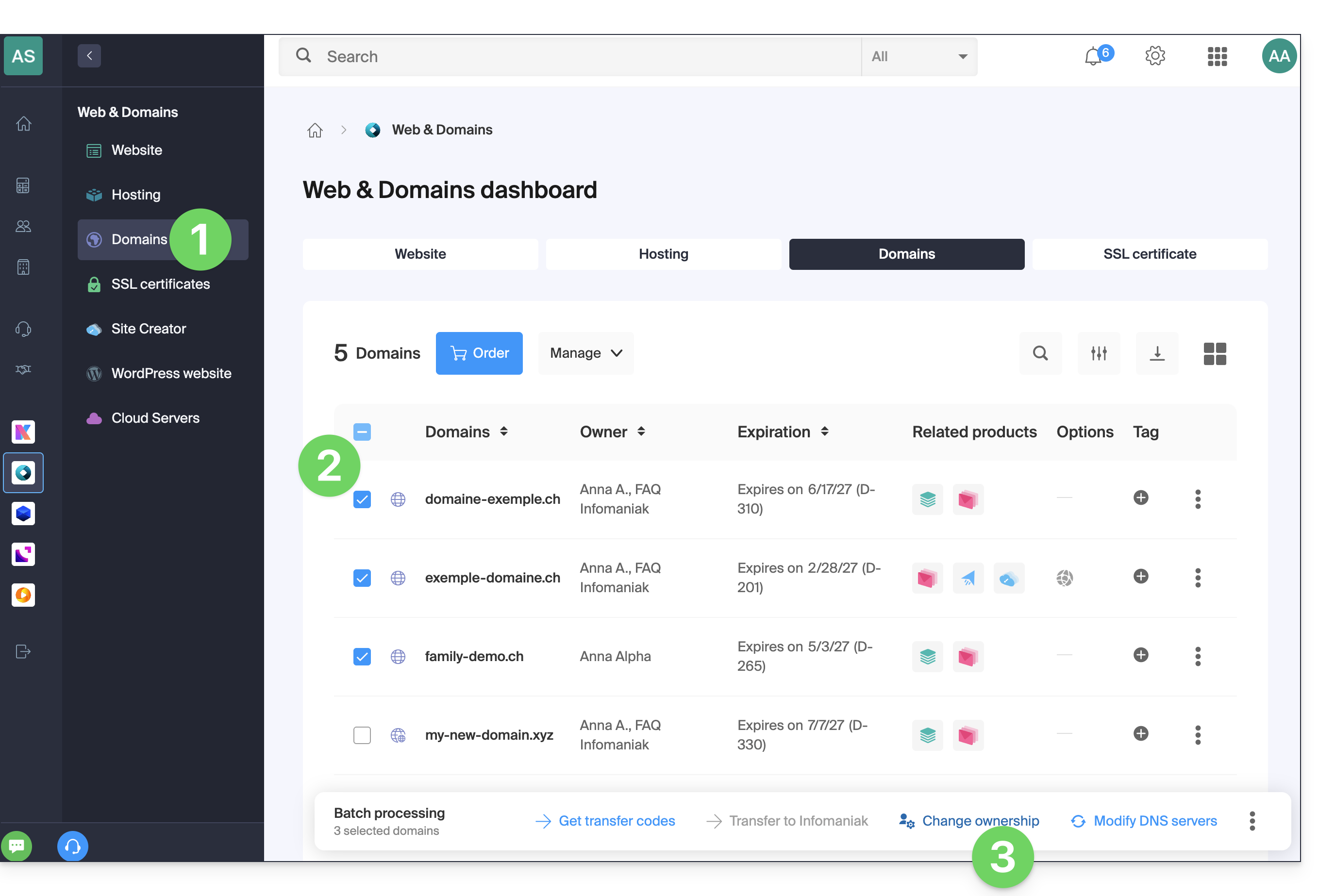
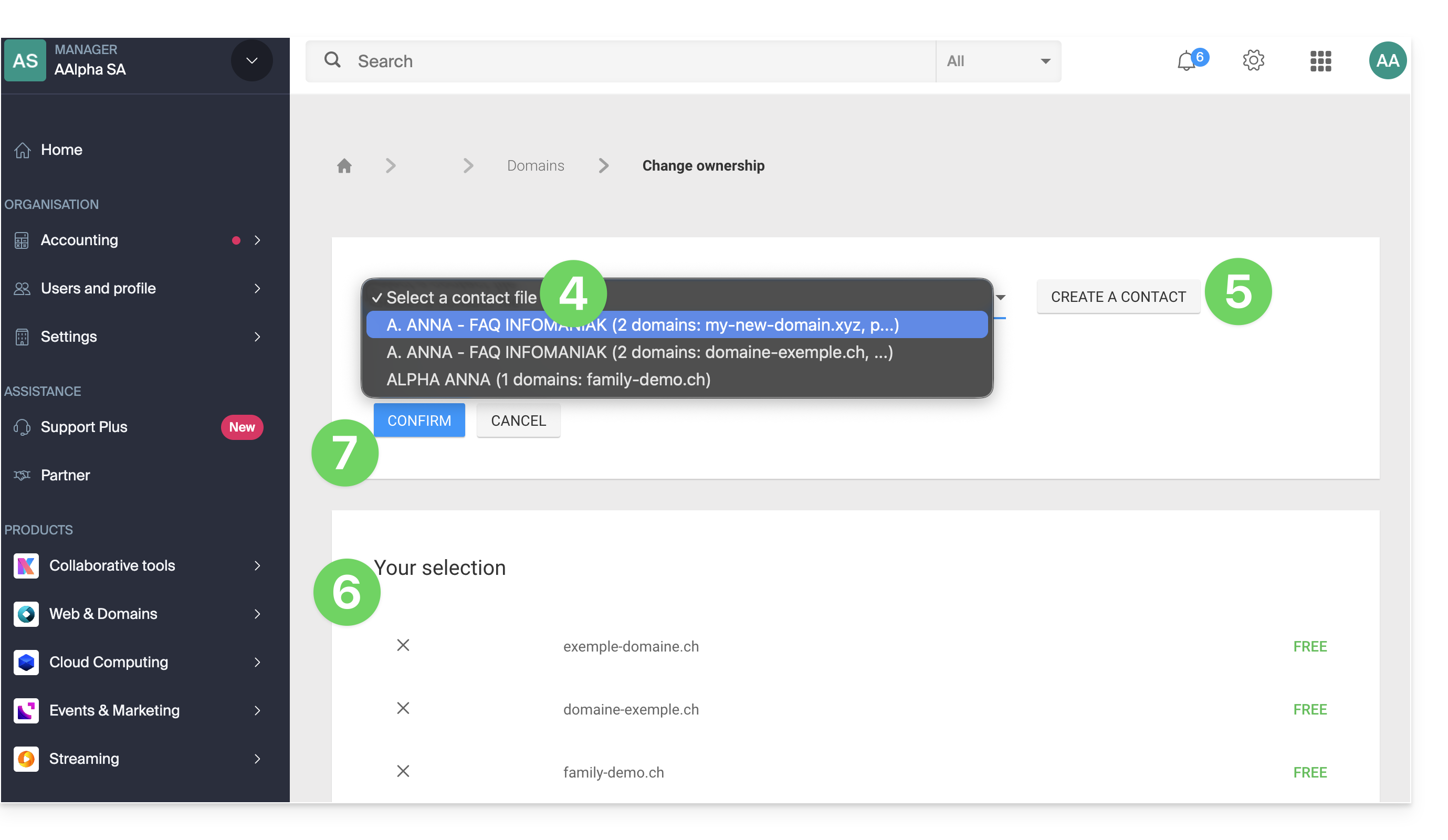
- Select the domains whose owner needs to be changed using the checkboxes.
- Click on Change owner at the bottom of the table:
- Choose another existing contact entry…
- … or click the Add button to create a brand new contact entry.
- Check your selection and any potential modification fees in the box.
- Click Confirm:
Link to this FAQ: https://faq.infomaniak.com/2348
Has this FAQ been helpful?
This guide explains how to configure a dynamic DNS record (Dynamic DNS, DDNS) for a domain name whose DNS zone is managed by Infomaniak. This free alternative to Dyn and DynHost is very useful if you want to access devices connected to the Internet from outside, even if their IP address is dynamic (e.g., a NAS, a surveillance camera, an Internet/home automation router/box, etc.).
Prerequisites
- The DNS zone for the domain name must be managed with Infomaniak.
- If necessary, transfer your domains to Infomaniak.
- Your device or application must support dynamic DNS records.
Specific guides
The following guides explain how to link a domain name with:
- … a Synology NAS
- … a Qnap NAS
- … Zyxel / Sunrise Internet Box / TP-Link solutions
- … a UniFI device
- … Swisscom Internet Box
- … Fritzbox
- … Jeedom
- … Linux via ddclient
- … potentially everything thanks to the API
Add a dynamic DNS
To create a dynamic DNS for your domain:
- Click here to access your domain management in the Infomaniak Manager (need help?).
- Click directly on the name assigned to the domain in question.
- Click on Dynamic DNS in the left-hand menu.
- Click on the blue Add a Dynamic DNS button.
- Enter the required information:
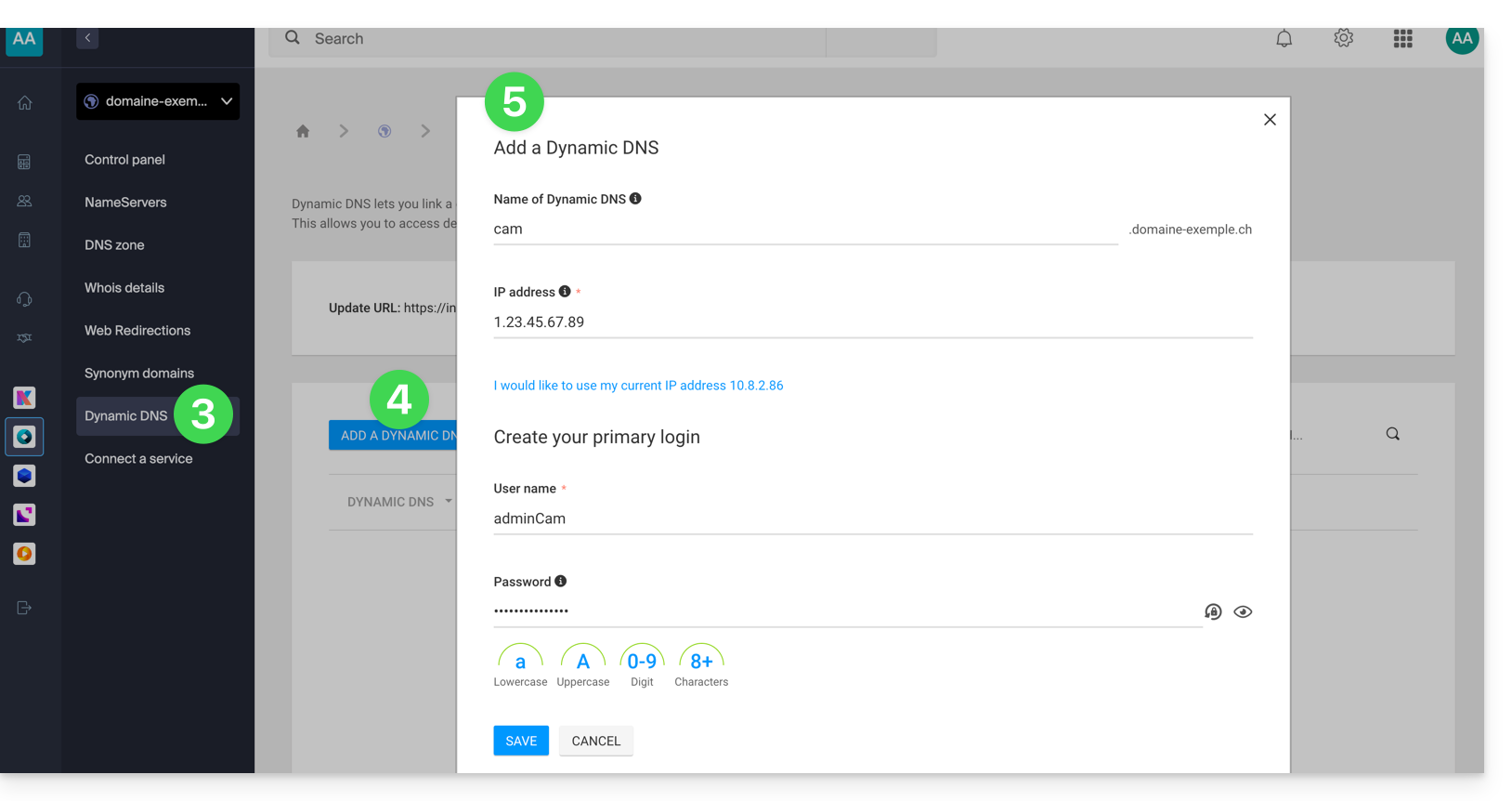
- Choose the desired subdomain or leave the Dynamic DNS Name field blank to use the main domain.
- Enter an IP address; this will then be dynamically updated by your device/app.
- Define an ID / password pair (uppercase, lowercase + numbers, no special characters); the latter must be entered in the configuration of your device/app.
Link to this FAQ: https://faq.infomaniak.com/2357
Has this FAQ been helpful?
This guide explains how to access a Synology NAS connected to the internet with a dynamic IP address from Infomaniak via a domain name.
Prerequisites
- Have a Synology NAS connected to the internet with a dynamic IP address.
- A dynamic DNS must have been created on the domain in question.
Link a Synology NAS to a domain name
1. Add Infomaniak as a service provider
- Open the Synology NAS management interface (DSM).
- Go to the Control Panel.
- Click on External Access (under the Connectivity section).
- Click on the Customize button (under the DDNS tab):
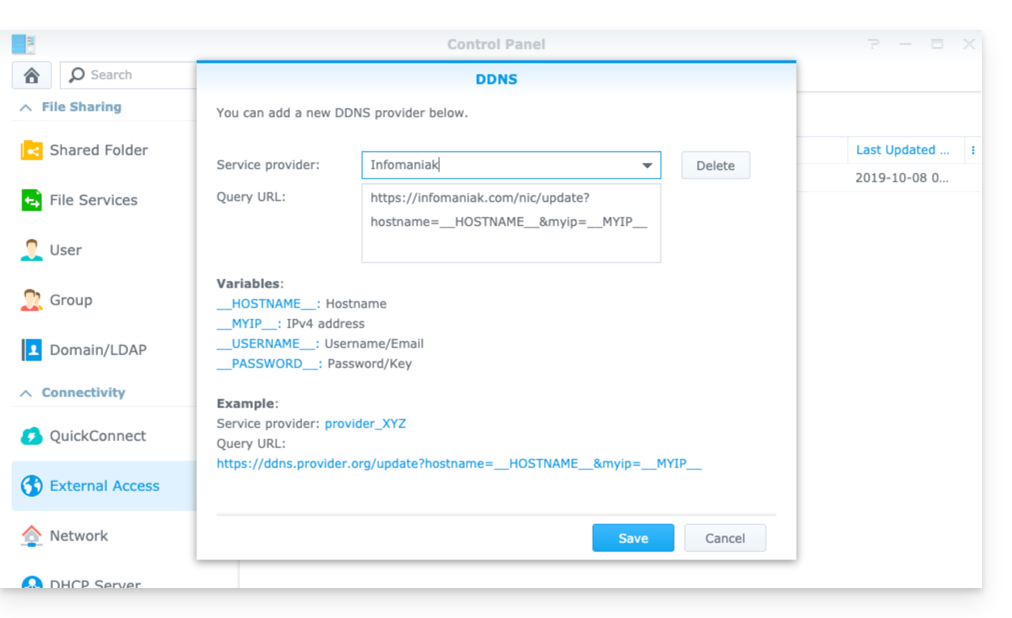
- Service provider:
Infomaniak - Query URL:
https://infomaniak.com/nic/update?hostname=__HOSTNAME__&myip=__MYIP__ - Click Save.
2. Add the dynamic DNS to your Synology
Now that Infomaniak has been added as a service provider:
- Open the Synology NAS management interface (DSM).
- Go to the Control Panel.
- Click on External Access (under the Connectivity section).
- Click on the Add button:
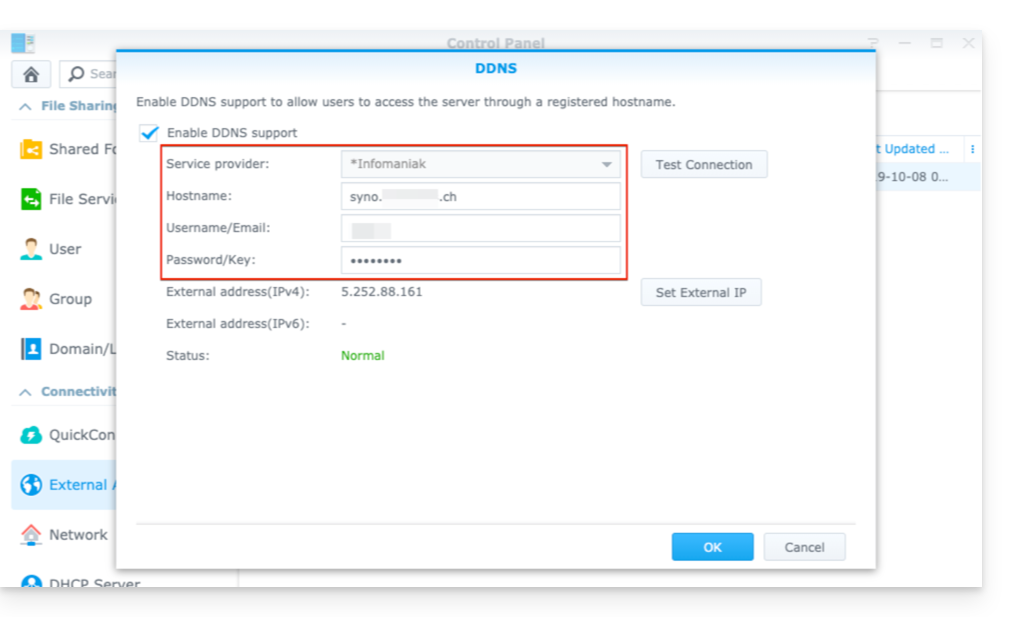
- Service provider:
Infomaniak(the profile created in the previous step) - Hostname: The
URLconfigured in the Manager when adding the Dynamic DNS. - Username: The
IDdefined in the Manager when adding the Dynamic DNS. - Password:
the passworddefined in the Manager when adding the Dynamic DNS
From this point on, the dynamic IP address of your Synology NAS will be automatically synchronized with your domain name.
3. Configure NAT for Synology DDNS
To make your NAS accessible from outside your network, you need to configure its NAT settings. By default, Synology NAS devices use ports 5000 and 5001.
You can access your NAS using the following syntax: http://votre-domaine:5000 or https://votre-domaine:5001.
For more information, please refer to the official Synology documentation.
4. Configuring a “Reverse Proxy”
If you do not want to specify ports :5000 or :5001 in your URLs, you can configure a Reverse Proxy from your Synology NAS, and redirect URLs to port 443 for port 5001 and port 80 for port 5000.official Synology documentation for this configuration).
Link to this FAQ: https://faq.infomaniak.com/2368
Has this FAQ been helpful?
This guide provides instructions on how to use the API to update your Infomaniak DynDNS (dynamic DNS) record.
Introduction
- If you do not specify
myip(as in the examples below), the source IP address of the request will be included by default. - Make sure to connect an
IPv4orIPv6address, depending on the type of record to be updated (AorAAAA). - It is recommended not to use special characters in the username and password.
Using the DynDNS API
Make a POST request (GET is also allowed) to the following URL:
{{URL_1}}
The API requires the HTTPS protocol. Here is an example request:
{{URL_2}}This alternative request can also be used:
{{URL_3}}Link to this FAQ: https://faq.infomaniak.com/2376
Has this FAQ been helpful?
This guide explains how to access a NAS Qnap connected to the internet with a dynamic IP address via a domain name.
Prerequisites
- Have a Qnap NAS connected to the internet with a dynamic IP address.
- A dynamic DNS must have been created on the domain in question.
Linking a Qnap NAS to a domain name
To do this:
- Open the Qnap NAS management interface.
- Go to Network & Virtual Switch:

- Click on Add under Access Services > DDNS:

- Enter the following information:

- DDNS Server: Custom
- Profile Name:
Infomaniak(or whatever you want) - Username: the ID defined in the Manager when adding the Dynamic DNS
- Password: the password defined in the Manager when adding the Dynamic DNS
- Hostname: the URL configured in the Manager when adding the Dynamic DNS
- URL:
https://infomaniak.com/nic/update?hostname=%HOST%&myip=%IP%
- Click on Apply.
From this point on, the dynamic IP address of your NAS will be automatically synchronized with your domain name.
Link to this FAQ: https://faq.infomaniak.com/2377
Has this FAQ been helpful?
This guide explains how to access a Sunrise Internet Box connected to the internet with a dynamic IP address via a domain name.
Prerequisites
- Have a box that allows you to configure a custom dynamic DNS provider.
- A dynamic DNS must have been created on the domain in question.
Linking a Sunrise Internet Box to a domain name
There are different models of Sunrise Internet Box. Here is an example:
- Log in to the Sunrise Box administration interface (e.g.,
http://192.168.1.1). - Enable expert mode (button in the top right corner).
- Go to DynDNS (top left):

- Click on the DynDNS tab.
- Enable the Dynamic DNS client.
- Choose the “Custom” provider:

- Fill in the following fields:
- Username = the identifier defined in the Manager when adding the Dynamic DNS
- Password = the password defined in the Manager when adding the Dynamic DNS
- Hostname = the URL configured in the Manager when adding the Dynamic DNS
- Below, fill in the following fields:

- Server:
infomaniak.com - Port:
443 - Request (copy and paste as is):
https://infomaniak.com/nic/update?hostname=[DOMAIN]&myip=[IP]&username=[USERNAME]&password=[PASSWORD] - Update interval (seconds):
300 - Retry interval (seconds):
30 - Max. attempts:
3
- Server:
The interface may be presented in this form, but the principle remains the same: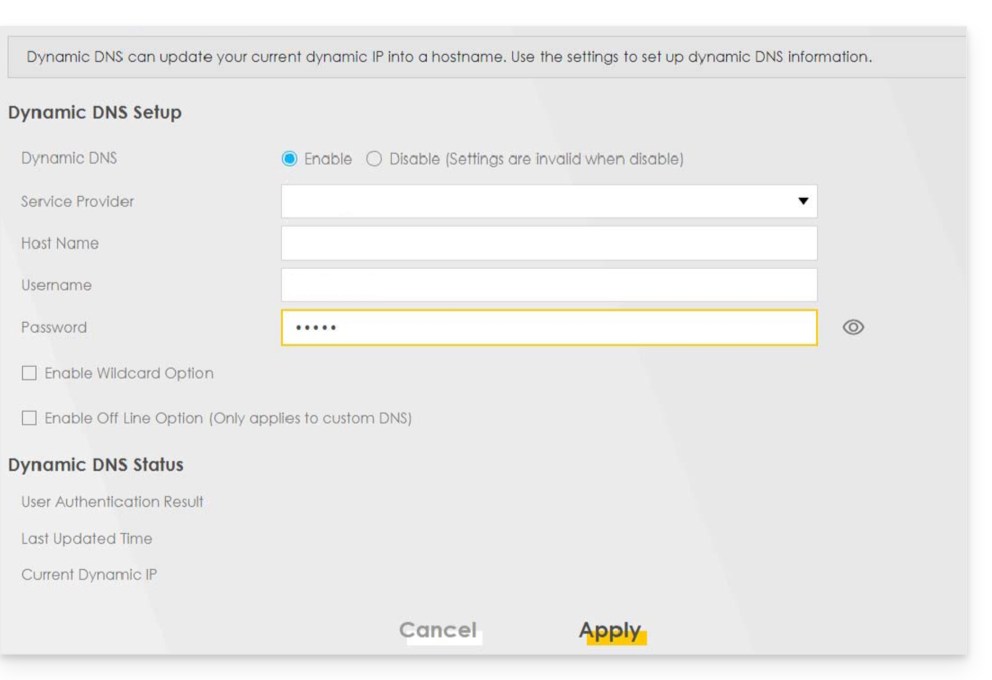
Other routers
The same principle applies to a Omada SDN solution from TP-Link; the Update-URL is https://infomaniak.com/nic/update?hostname=[DOMAIN]&myip=[IP]&username=[USERNAME]&password=[PASSWORD]:
And for other models (such as Zyxel USG Flex or ax7501-B1, for example), fill in the fields using the data below:
- Enable DDNS Profile: enable
- DDNS Type:
User custom - HTTPS: enable
- Username: the identifier defined in the Infomaniak Manager when adding the Dynamic DNS (help)
- Password: the password defined in the Infomaniak Manager when adding the Dynamic DNS (help)
- Domain Name: hostname with the domain
- Primary Binding Address > Interface : any
- Backup Binding Address > Interface : none
- DYNDNS Server: infomaniak.com
- URL (copy and paste as is): /nic/update?password=password (point 5 above) &username=username (point 4 above) &hostname=DomainName
- example
/nic/update?password=abcd1234&username=admin&hostname=abc.domain.xyz
- example
Link to this FAQ: https://faq.infomaniak.com/2378
Has this FAQ been helpful?
This guide explains how to access a Fritzbox connected to the internet with a dynamic IP address via a domain name.
Prerequisites
- Have a Box that allows you to configure a custom dynamic DNS provider.
- A dynamic DNS must have been created on the domain in question.
Connecting a Fritz!Box to a domain name
To do this:
- Open the Fritzbox management interface by enabling Advanced mode if necessary.
- Go to Internet then Access Authorization.
- Click on the Dynamic DNS tab:
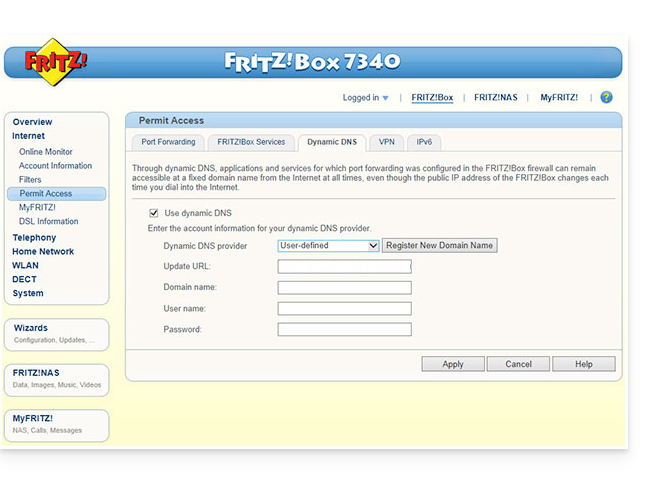
- Choose the provider: “Custom”.
- Fill in the following fields:
- Update URL (as displayed below, or replace
ipaddrwithip6addrif you want Fritzbox to replace the "placeholder" with the IPv6 address instead of the IPv4 address):https://infomaniak.com/nic/update?system=dyndns&hostname=<domain>&myip=<ipaddr> - Domain name: the "URL" configured in the Manager when adding the Dynamic DNS
- Username: the "ID" defined in the Manager when adding the Dynamic DNS
- Password: the "password" defined in the Manager when adding the Dynamic DNS
- Update URL (as displayed below, or replace
- Click Apply to complete.
Link to this FAQ: https://faq.infomaniak.com/2400
Has this FAQ been helpful?
This guide explains how to obtain the EPP code for your domain name at Squarespace (formerly Google Domains) so that you can transfer it to Infomaniak and set up this Dynamic DNS (DDNS) service free of charge.
Introduction
- Between 2023 and 2024, all domains registered with Google Domains were transferred to Squarespace, which no longer offers DDNS (Dynamic DNS).
- The terms "
EPP", "AuthCode", "AuthInfo", "transfer code", and "authorization code" all refer to alphanumeric sequences specific to the domain, the main purpose of which is to verify the owner's authorization before a transfer between Registrars. - Consult the main guide for the rest of the transfer procedure.
- ⚠️ This involves transferring a domain name that you own with a different provider than Infomaniak, so that the future management of this domain is handled by Infomaniak; therefore, this is not an internal transfer from one account holder to another, and the code you need to obtain is not a code for an internal transfer to your current provider.
Transfer your domain name to Infomaniak
To obtain the authorization code from your current provider:
- Click here to log in to the management interface for your products at your current Registrar.
- Refer to the complete procedure provided by Squarespace to obtain the code and keep it in a safe place.
- Once you have obtained the authorization code, consult the main Infomaniak guide regarding the rest of the domain name transfer procedure.
- Once the domain has been transferred to Infomaniak, consult this Infomaniak guide to recreate the Dynamic DNS you had with Google, if necessary.
Link to this FAQ: https://faq.infomaniak.com/2416
Has this FAQ been helpful?
This guide explains how to add or modify one or more TXT recordsin the DNS zone (of a domain name) managed in the Infomaniak Manager.
Introduction
- The
TXTrecord type allows you to insert readable text into the DNS zone of a domain name. - This is the method generally used to help prevent spam and to verify domain ownership (Google may ask you to do this before using some of their services: see this other guide for an example of adding a
TXTrecord to authenticate a domain).
Modify the DNS zone
To manage this type of record in a DNS zone:
- Click here to access your domain management in the Infomaniak Manager (need help?).
- Click directly on the name assigned to the domain in question.
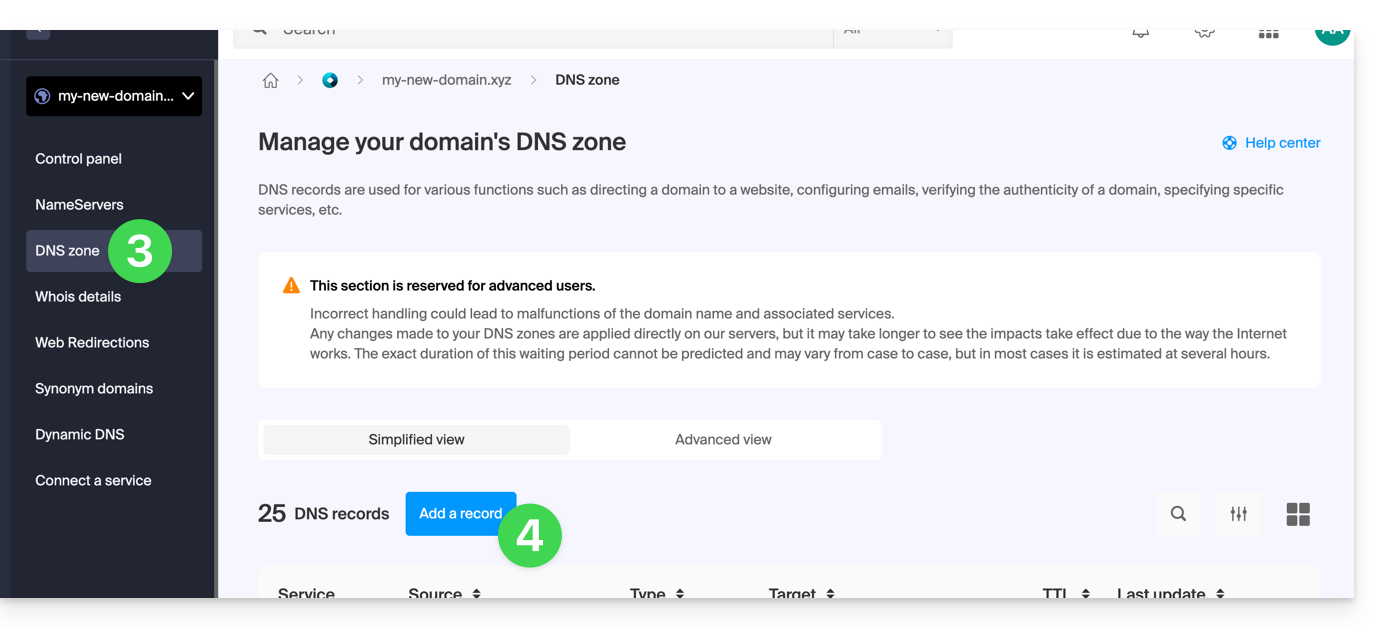
- Click on DNS Zone in the left-hand menu.
- Click the button to add a record:
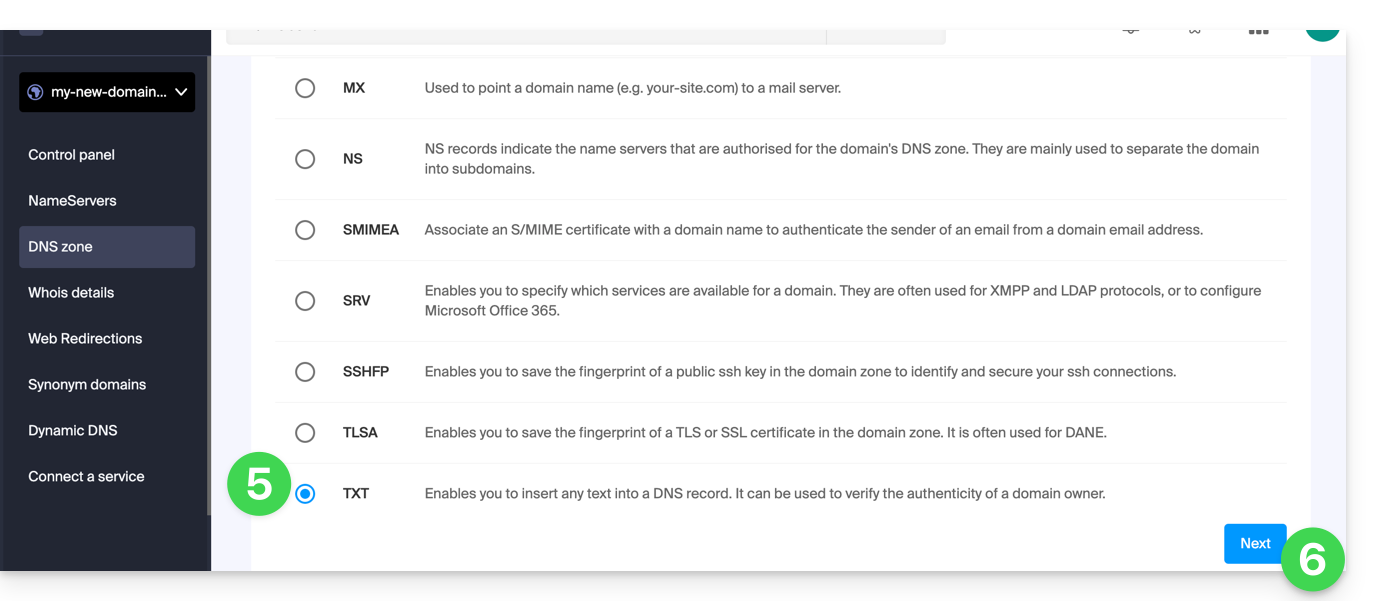
- Click the TXT radio button to add a record.
- Click the Next button:
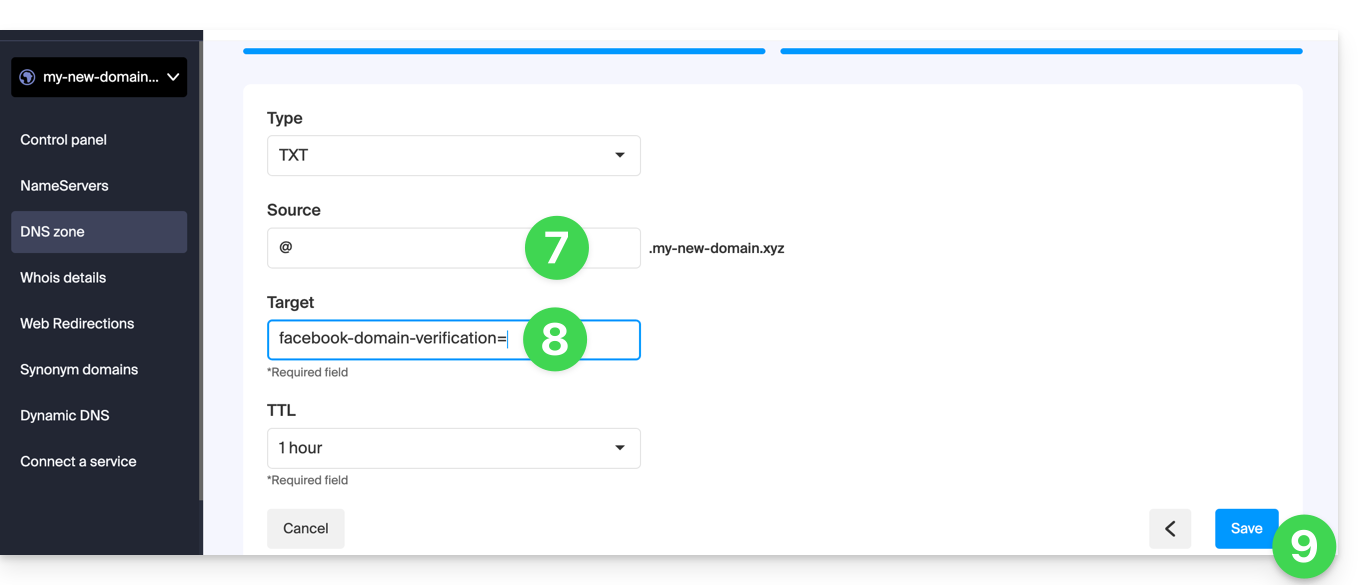
- Enter the TXT values required for your DNS zone.
- Leave the default value for the TTL.
- Click on the Save button:
Link to this FAQ: https://faq.infomaniak.com/2460
Has this FAQ been helpful?
This guide explains how to add an ANAME record to the DNS zone (of a domain name) managed in the Infomaniak Manager.
Introduction
- The
ANAMErecord type essentially allows you to point the root of a domain to another address, similar to a CNAME record, but it can be added without having to specify a source xyz preceding the domain (xyz.domain.com, for example). - Therefore, it is not a real DNS record as such and it is not displayed in the list of records that can be selected when editing the DNS zone.
- However, since this is a type of alias, please refer to the instructions below on how to set up an
ANAME.
Create an ANAME
Creating an ANAME is equivalent to creating a CNAME directly at the root of the domain, and this is not possible.
If you are certain of what you are doing, you can follow this method to create the equivalent of an ANAME:
- Create a web redirection from the domain root to www via the Manager.
- Add a CNAME entry that works with www and points to your desired target.
Link to this FAQ: https://faq.infomaniak.com/2493
Has this FAQ been helpful?
This guide explains how to access your Swisscom Internet Box, which is connected to the internet with a dynamic IP address, via a domain name.
Prerequisites
- You must have a box that allows you to configure a custom dynamic DNS provider.
- A dynamic DNS must have been created on the domain in question.
Link your Swisscom Internet Box to a domain name
To do this:
- Log in to the Swisscom Box administration interface (e.g.,
http://192.168.1.1). - Enable the expert view (toggle button at the bottom left).
- Click on Network.
- Click on the DynDNS tab.
- Check the box to Enable DynDNS.
- Select
Infomaniakfrom the dropdown menu. - Fill in the following fields:
- Hostname: the URL configured in the Manager when adding the Dynamic DNS
- Username: the ID defined in the Manager when adding the Dynamic DNS
- Password: the password defined in the Manager when adding the Dynamic DNS
If the box indicates that port forwarding is not possible because you do not have a public IP address, contact Swisscom to have them disable the CGnat. Refer to this guide for more information.
Link to this FAQ: https://faq.infomaniak.com/2498
Has this FAQ been helpful?
You have reached this page because a web redirection on your domain is incorrectly configured. Infomaniak is unable to identify the correct path for this redirection, so you are being redirected to this page to help you correct the situation.
DNS Zone Check
To restore the functionality of your redirection, you must first remove any traces of a previously misconfigured redirection:
- Access your DNS zone.
- Delete the relevant records (refer to the list below) that correspond to your redirection.
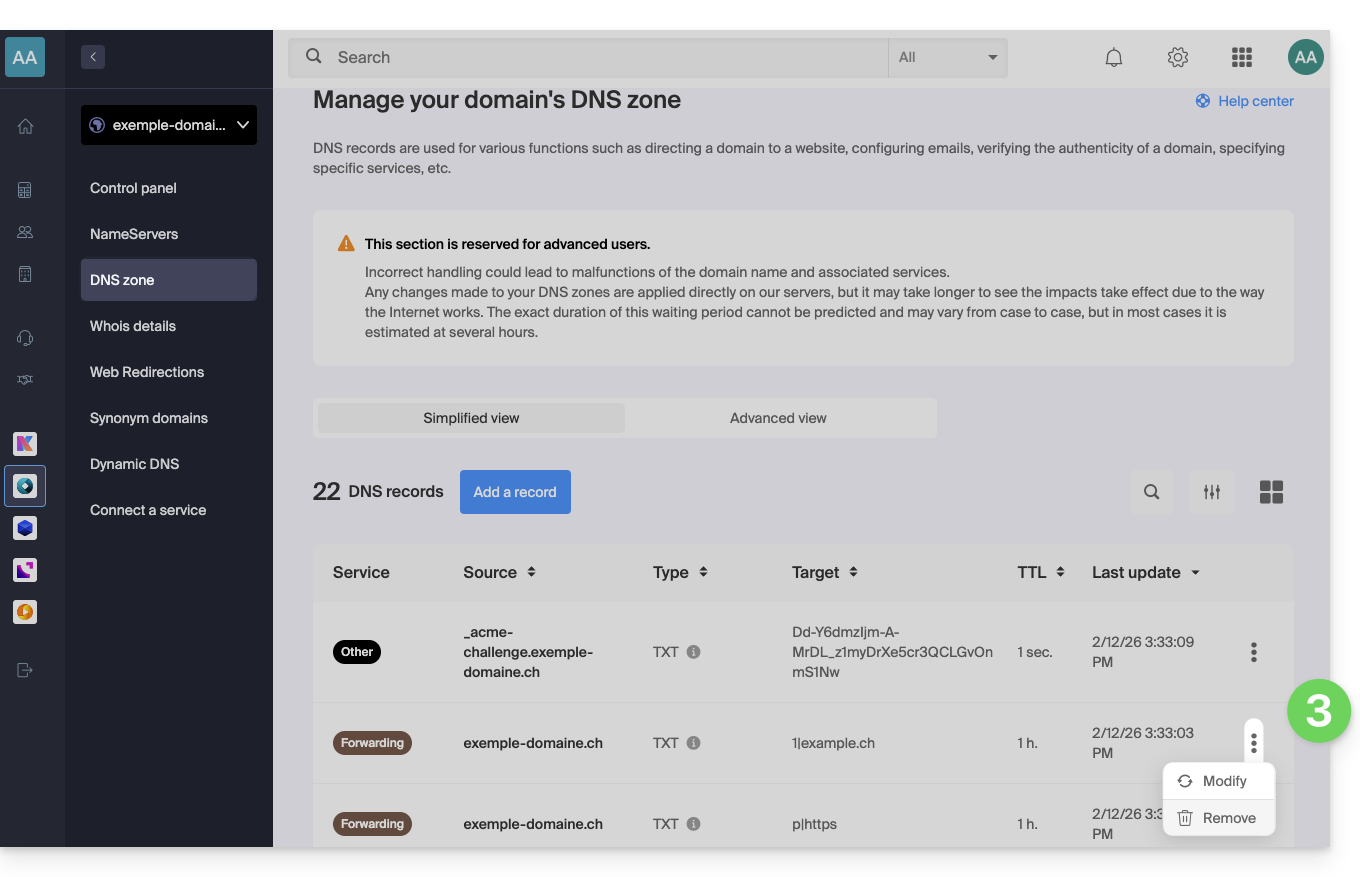
- Click on the action menu ⋮ to the right of the DNS entry in question and select Delete:
- You probably won't find all the records listed, and that's perfectly normal.
- Any addition/modification may take up to 48 hours to propagate.
- Recreate the web redirection.
List of records to check and delete
DNS records can be of the following types:
A, which point toxx.xx.xx.xx(only numbers)AAAArecords that point to an IP addressxxxx:xxxx:x:x::x(a combination of numbers and letters).TXTrecords whose string resembles "(number)|(URL)"- for example,
1|infomaniak.comif your redirection points to infomaniak.com
- for example,
TXTwhere the string resembles "(letter)|(text)"- for example
t|Text,d|Textork|Text
- for example
Link to this FAQ: https://faq.infomaniak.com/2506
Has this FAQ been helpful?
This guide concerns domain names with the .es extension.
Change the owner of a .es domain
Once you have submitted your domain ownership change request with Infomaniak, you will receive an email containing two codes required to change the domain ownership with the registry https://www.red.es/es, which manages domain names for the .es extension.
Connecting to red.es
If you already have your credentials, log in directly at www.nic.es/sgnd/login.action.
Otherwise, here's how to obtain your credentials:
- Go to https://www.dominios.es/es and search for your domain name.
- Once your domain is selected, you will be redirected to the
Domain detailspage if the site is in English. - Retrieve your ID (
Identifier) in theADMINISTRATIVE CONTACT PERSONsection. It is usually in the format1A4446A-ESNIC-F5. - Go to www.nic.es/sgnd/login.action and click on
Retrieve password. - Enter the ID you received to have your password sent to you by email (this may take a few minutes).
- Then, log in with your credentials.
Initiate the ownership change
- Once logged in, select the
Domain Transfer Requestmenu. - Enter your domain name to display the current owner.
- In the
Identifierfield ofNew registrant, enter the owner code provided by Infomaniak. - In the
Identifierfield ofNew ACP(PCA in Spanish), enter the administrator code provided by Infomaniak. - Click on
Continue. - Add an identity verification document (passport or ID card) to validate the request with red.es.
Finalize the change of ownership
- The new administrator will receive an email from the registry to confirm the transfer.
- They must log in to the red.es interface with their ID (administrator code received in the first email) before confirming the request.
- As before, they must add a document to verify their identity.
- In the
New registrant's conditions acceptanceform, enterKEY-SYSTEMSin theAccredited Registrarfield and do not change anything else to ensure the transfer proceeds smoothly. - A summary of the request will be displayed, confirming that the ownership change has been completed.
Link to this FAQ: https://faq.infomaniak.com/2520
Has this FAQ been helpful?