Knowledge base
1000 FAQs, 500 tutorials and instructional videos. Here, there are only solutions!
This guide explains how to connect to your Web Hosting using an SSH key.
✘ UNAVAILABLE with
sites of type Node.js
hosting plans Starter
Prerequisites
- Create an FTP + SSH account from the Infomaniak Manager.
- Create an SSH key using a secure algorithm, for example
ed25519:ssh-keygen -t ed25519because with an RSA key (
ssh-keygenorssh-keygen -t rsa), the connection will be refused and the following error will be returned in verbose mode:debug1: send_pubkey_test: no mutual signature algorithm
Upload the SSH key
To do this:
- Connect to the server via SSH (need help?).
Go to the root directory of your hosting:
cd ~Create the "
.ssh" directory:mkdir .ssh- Change the permissions of the
.sshdirectory to CHMOD 700. - Create the
authorized_keysfile and paste your public SSH key into it on a single line (important). - Change the permissions of the
authorized_keysfile to CHMOD 600.
SSH agent forwarding (ForwardAgent / ssh -A) is not supported on the Infomaniak infrastructure: this SSH agent forwarding feature presents significant security risks.
Link to this FAQ: https://faq.infomaniak.com/2054
Has this FAQ been helpful?
This guide explains how to enable or disable maintenance mode on a website hosted on an Infomaniak Hosting plan.
Introduction
- Maintenance mode allows you to display a personalized message to your visitors, for example while resolving a technical issue.
- You can also specify IP addresses that will be able to bypass this page.
- An email is sent to the users of the Organization.
Enable maintenance mode
To activate a page that temporarily replaces your usual homepage:
- Click here to access the hosting & website management section in your Infomaniak Manager (❓: help).
- Click on the name of the website in question.
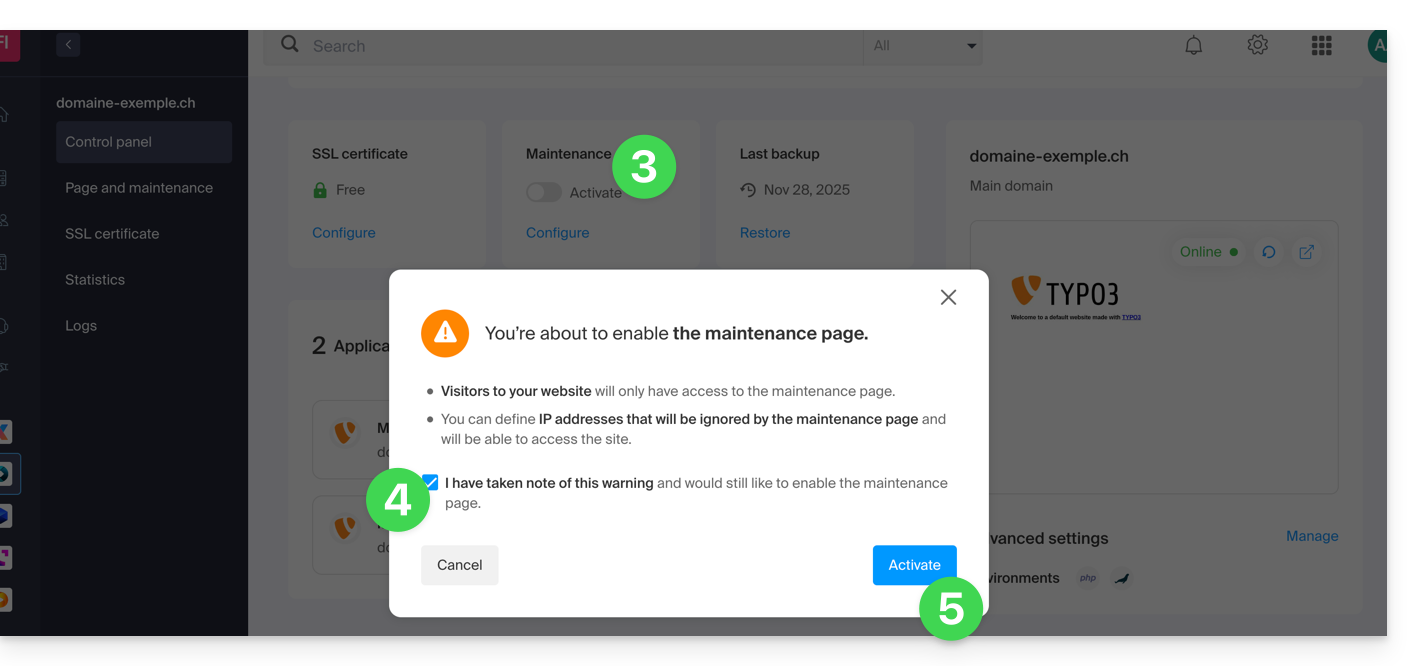
- Click on the toggle switch to enable the maintenance page.
- Confirm the warning.
- Click the button to activate:
Customize the maintenance page
To set up a page with your desired message:
- Click here to access the hosting & website management section in your Infomaniak Manager (❓: help).
- Click on the name of the website in question.
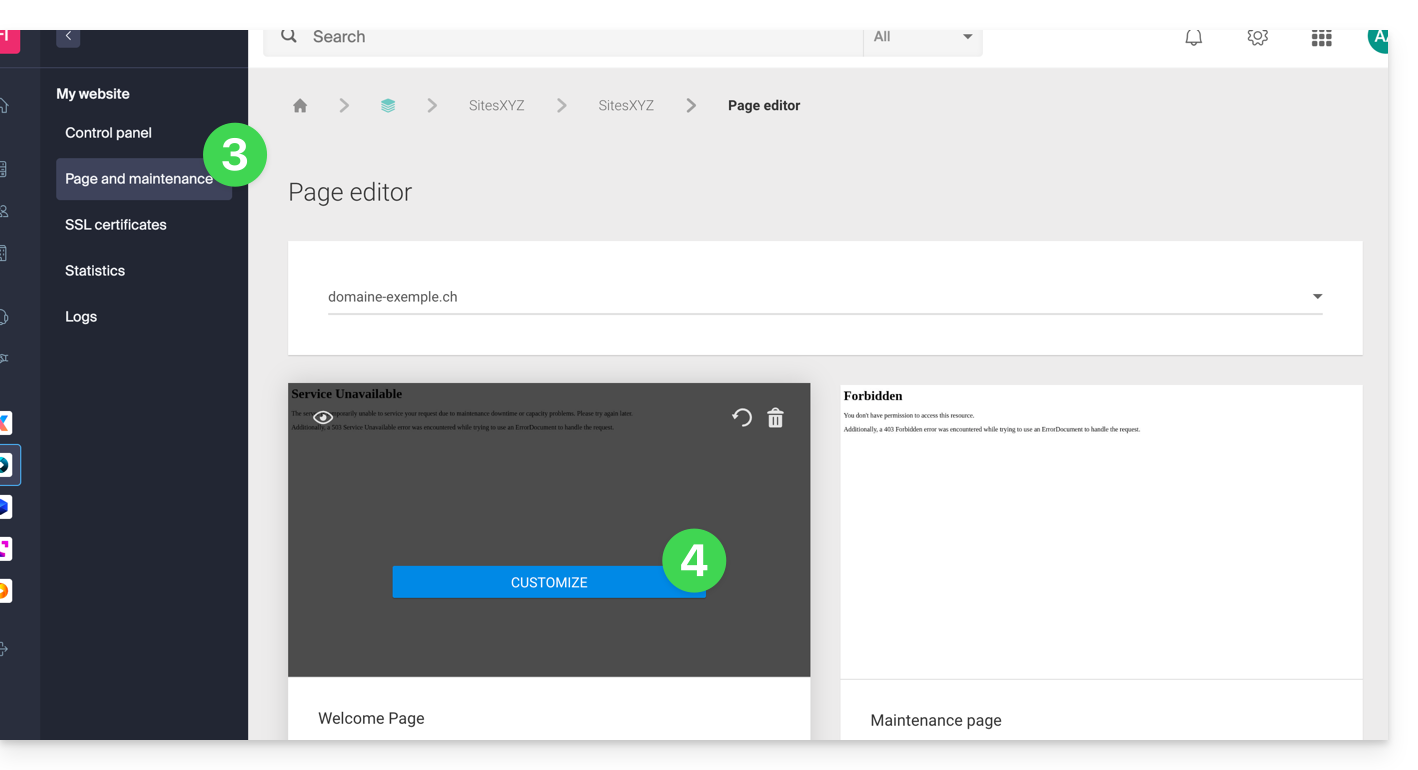
- Click on Page & Maintenance in the left-hand menu.
- Click on Create a page or on the Customize button if it already exists:
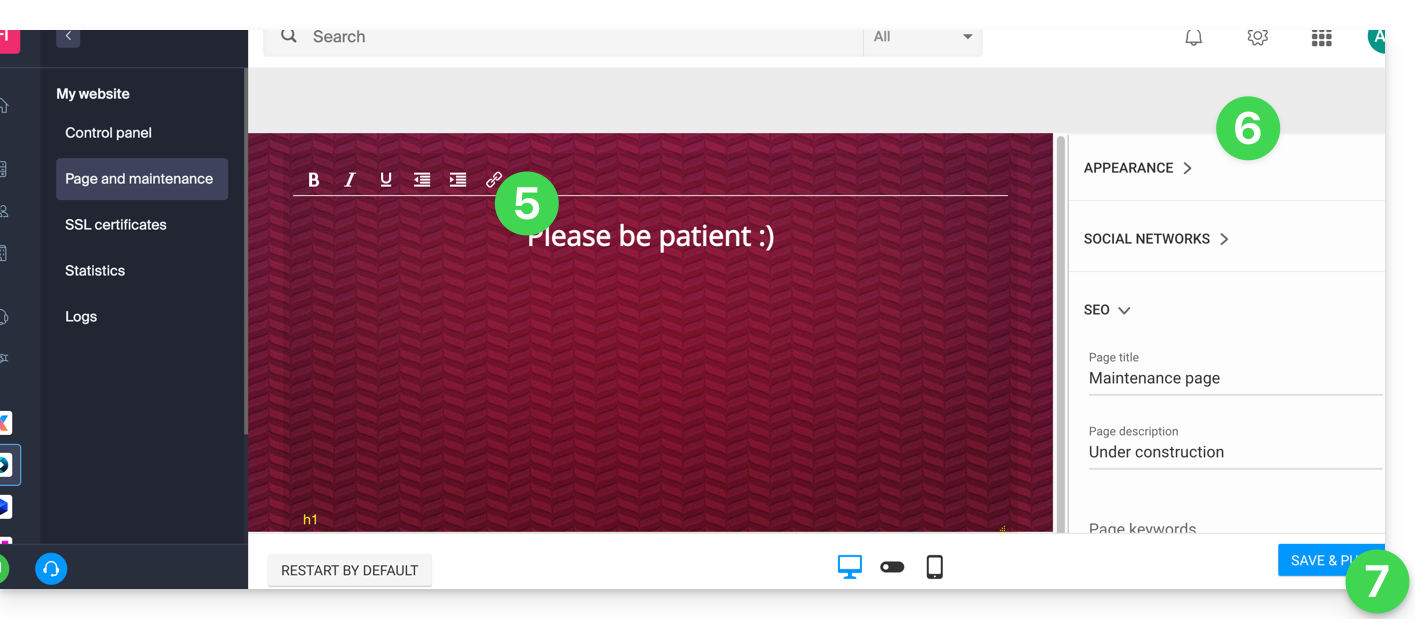
- Format the text of your choice.
- Configure the display using the elements on the right.
- Click Save & activate to publish the page:
Allow specific IP addresses to bypass the suspension
It is possible to display the actual website even with maintenance mode enabled. To do this, you need to enter the IP addresses of the computers that should be able to bypass maintenance mode:
- Enable maintenance mode according to the procedure above.
- Go back to the maintenance page configuration page (see procedure above).
- Under Maintenance on the right, click Insert my IP address to allow your computer to display the site without maintenance mode:
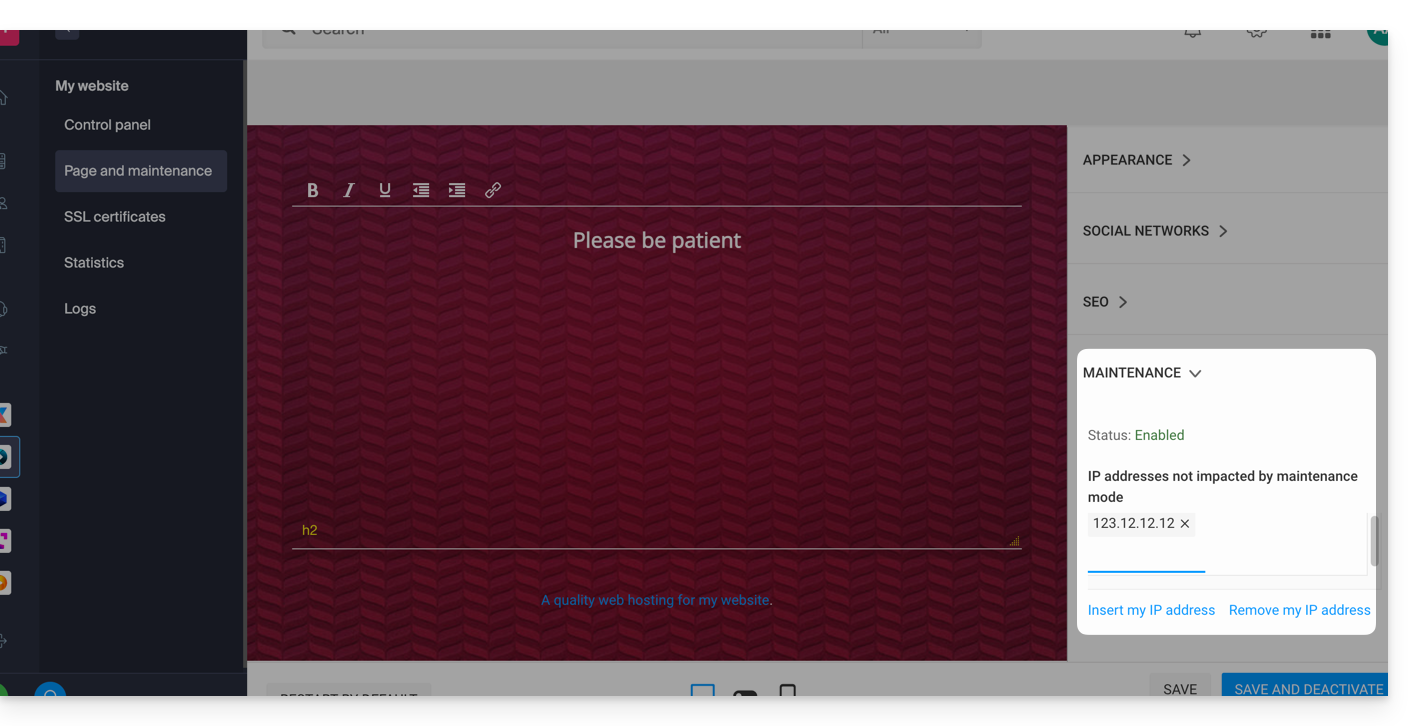
- You can also manually enter the IP addresses to allow.
- Click on Save and publish.
If the IP addresses of the added computers change, it will be necessary to repeat these steps.
Disable maintenance mode
To disable the message that appears on your website during maintenance:
- Click here to access the hosting & website management section in your Infomaniak Manager (❓: help).
- Click on the name of the website in question.
- Click either the Disable button or the toggle switch to disable the maintenance page:
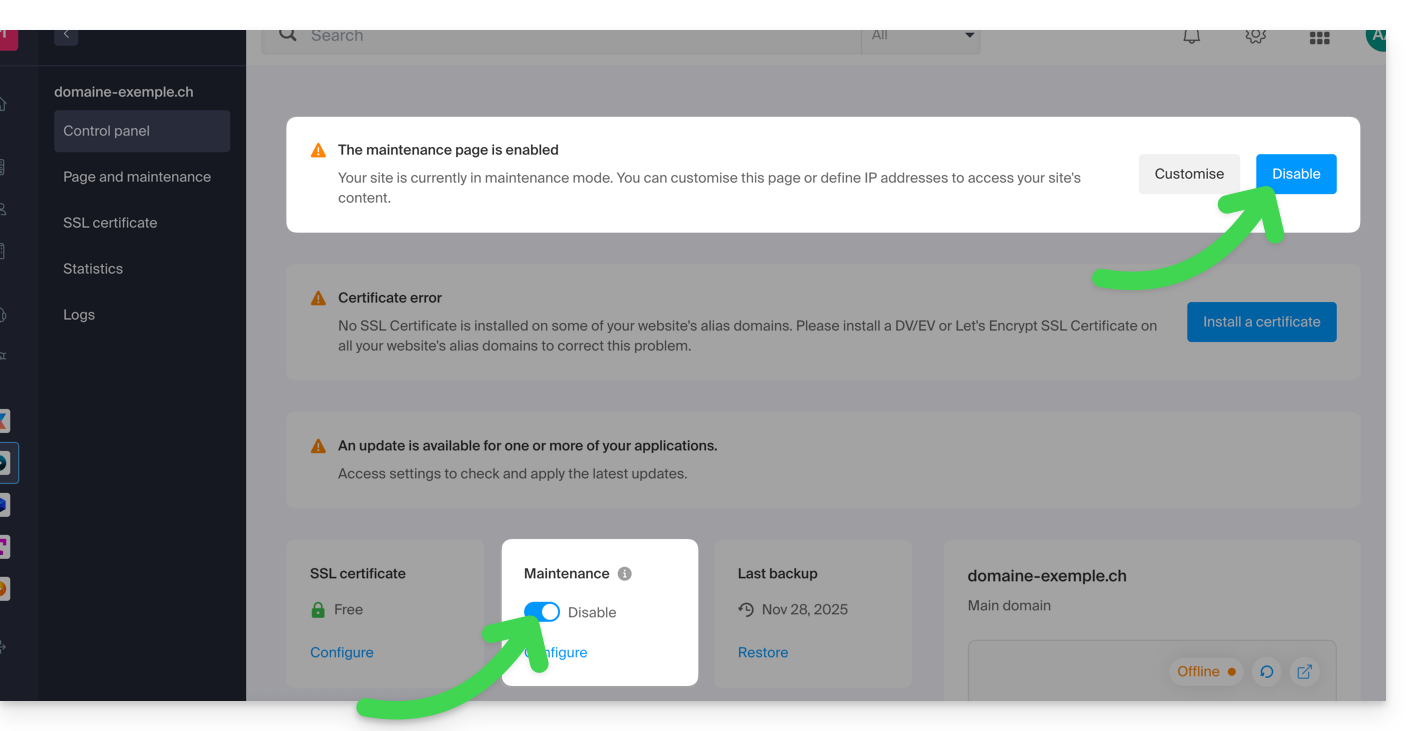
- Confirm the deactivation of maintenance.
Alternative method for WordPress
It is not recommended to activate the Infomaniak maintenance page above and then work in WordPress.
It is recommended to install a WordPress extension (there are dozens available) dedicated to maintenance mode within the CMS itself.
Alternatively, you can add the code to a new, empty file named .maintenance (the dot before the file name is important) and place it on the server at the root of your site, which will disable all your pages except for the WordPress homepage.
Link to this FAQ: https://faq.infomaniak.com/2063
Has this FAQ been helpful?
This guide explains how to use PHP environment variables with Web Hosting plans that run on php-fpm.
Introduction
- PHP environment variables are system variables used to store information about HTTP requests and redirects.
- They are generally used in web servers to store details about previous requests or redirects that have been performed.
- These variables can contain information such as previous URLs, HTTP methods, or other data related to the client's navigation on the web server.
Using environment variables
To use PHP environment variables:
- Define the PHP environment variables in a
.htaccessfile:SetEnv EXAMPLEVARIABLE hello
- In your PHP file, the name of the variable to call must correspond to the same variable name defined in the environment variable:
<?php getenv('EXAMPLEVARIABLE');
In this example, the result displayed will be hello.
Go further with environment variables
It is possible to configure environment variables directly from the Manager for your entire website:
- Click here to access the hosting & website management section in your Infomaniak Manager (❓: help).
- Click on the name of the website in question.
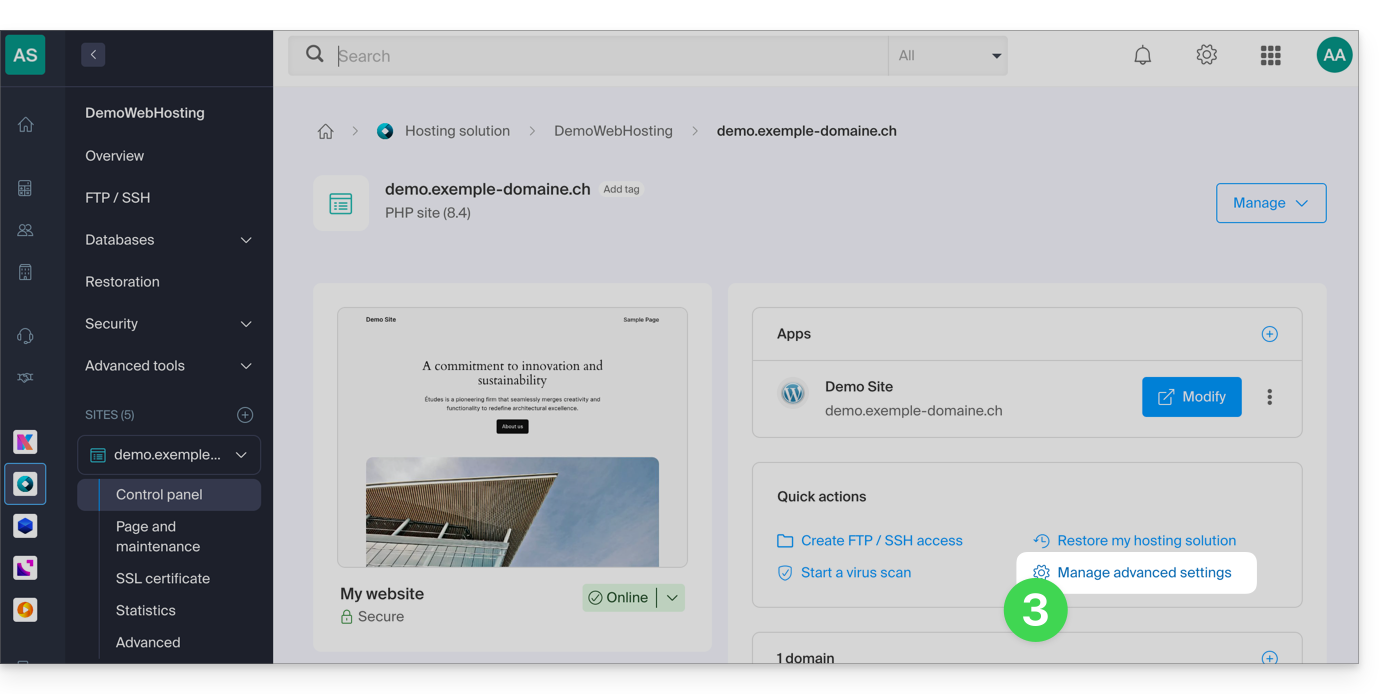
- Click on Manage advanced settings:
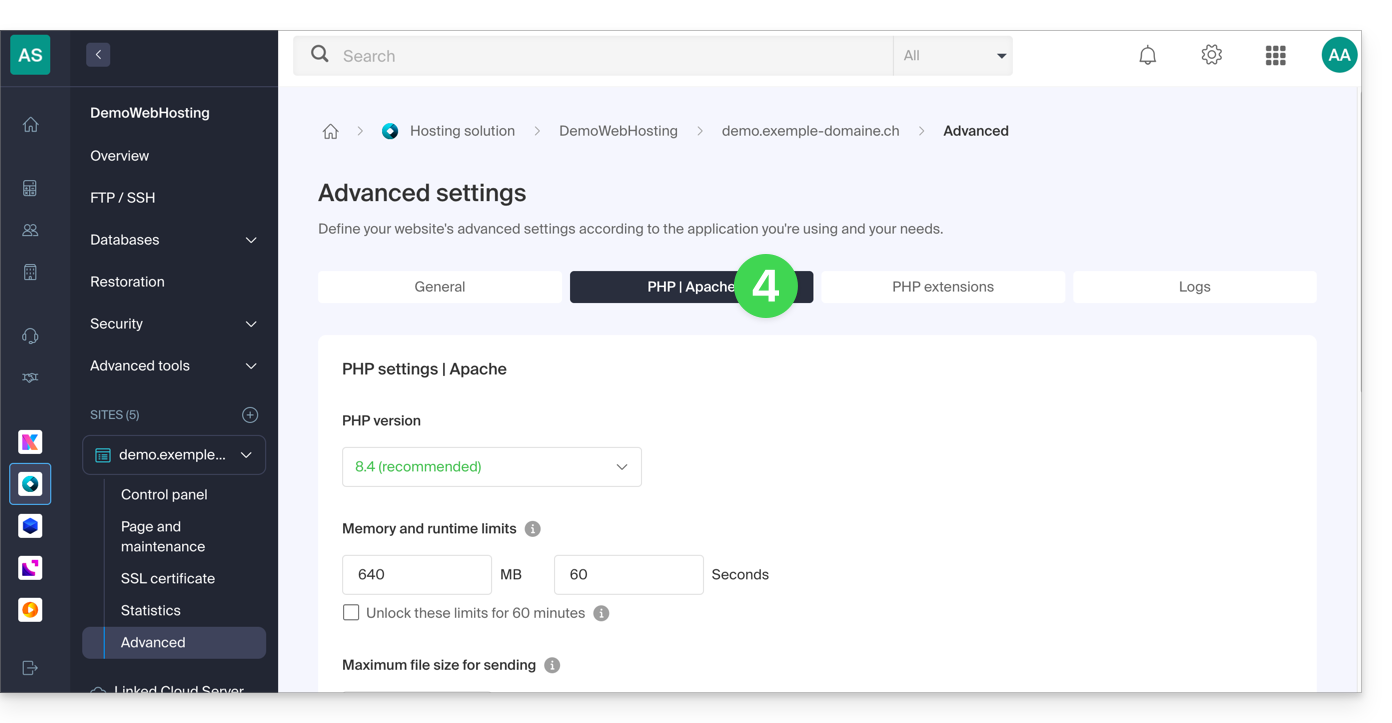
- Click on the PHP / Apache tab:
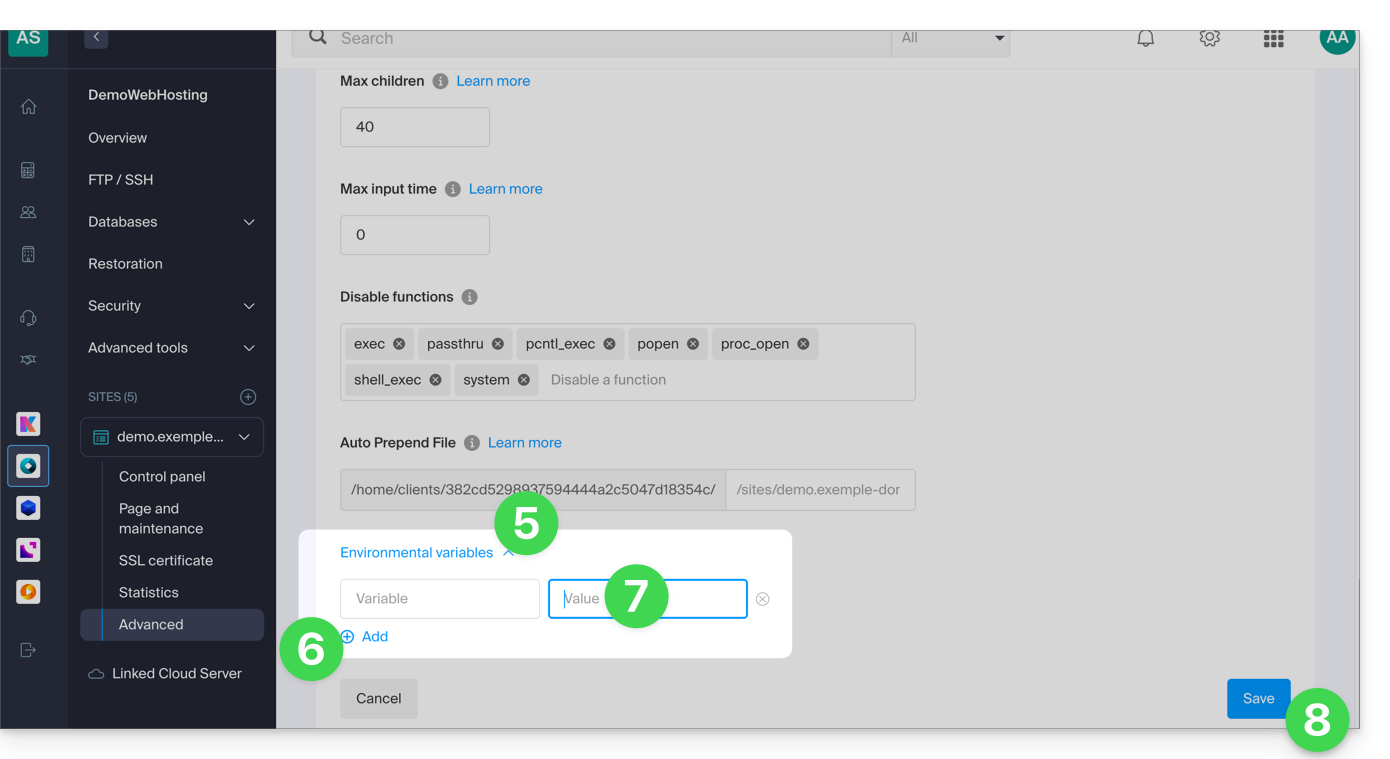
- Further down the page, click on the chevron to expand the Environment Variables section.
- Click on the Add icon.
- Enter the variable and its value.
- Click the button to save:
Link to this FAQ: https://faq.infomaniak.com/2087
Has this FAQ been helpful?
This guide explains how to display the absolute paths for certain Infomaniak web applications that require them.
Obtaining the absolute path…
... of a web hosting service
To do this:
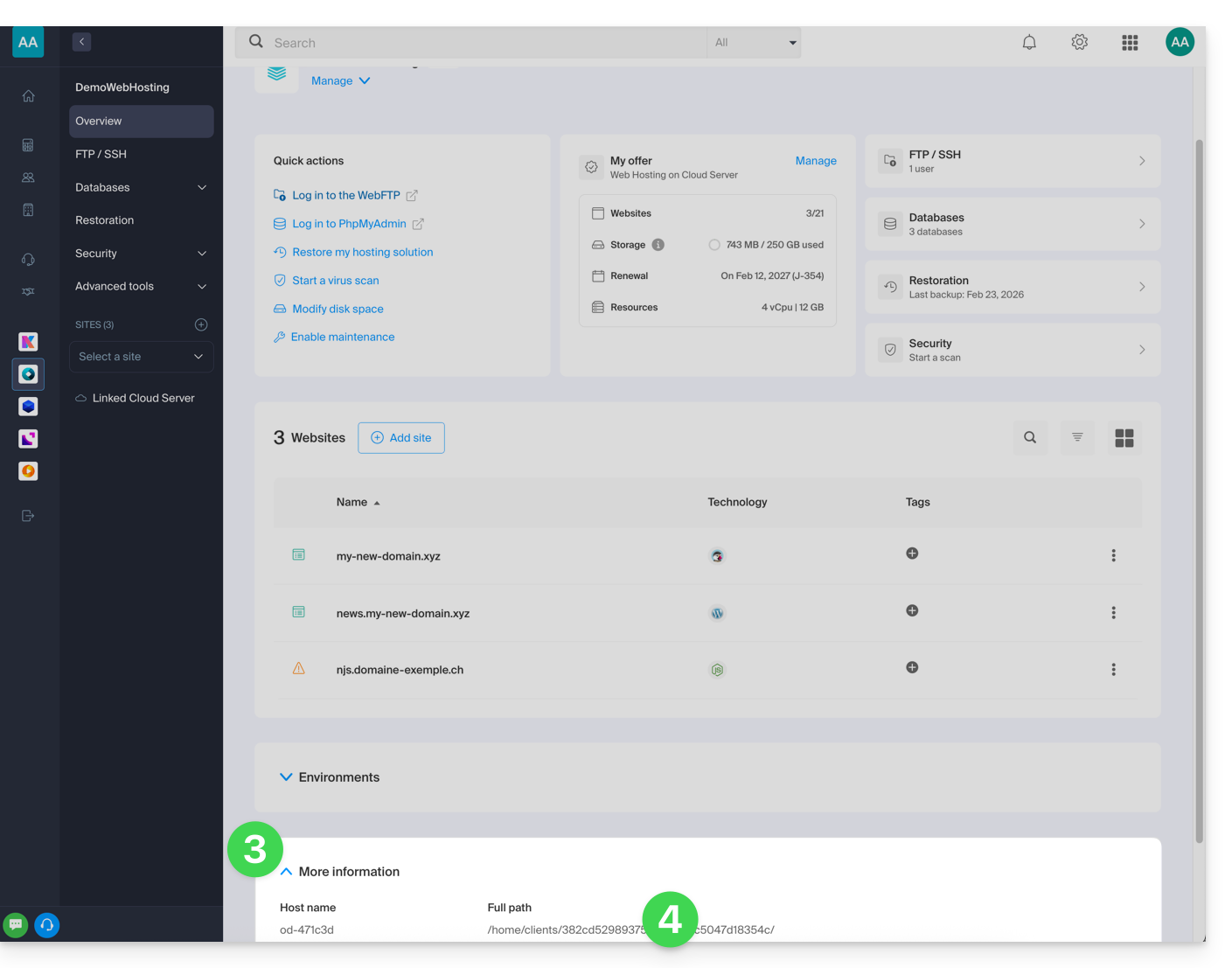
- Click here to access the hosting & website management section in your Infomaniak Manager (❓: help).
- Click on the name of the relevant hosting.
- Then click on the chevron to expand the Information section of this hosting.
- The highlighted information below indicates the location of the example site:
… of a website
To do this:
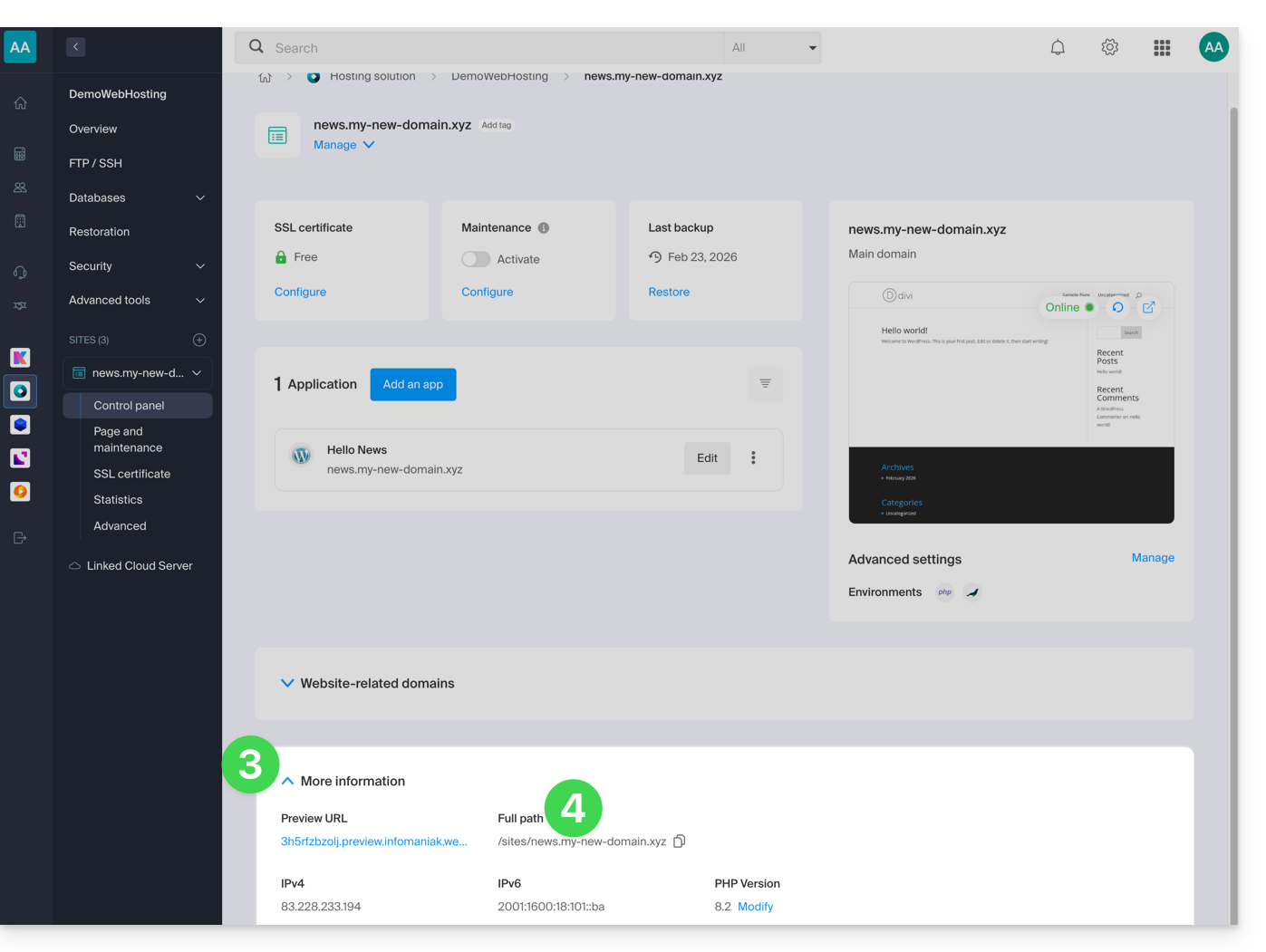
- Click here to access the hosting & website management section in your Infomaniak Manager (❓: help).
- Click on the name of the website in question.
- Then, click on the chevron to expand the Information section of this site.
- The highlighted information below indicates the location of the example site:
Link to this FAQ: https://faq.infomaniak.com/2093
Has this FAQ been helpful?
This guide explains how ModSecurity works, how to configure it, and how to manage it on Infomaniak servers.
Introduction
- ModSecurity (
mod_secure) is available and enabled by default on Infomaniak servers:- All HTTP requests will be subject to the security rules defined by ModSecurity.
- The
uploadprogressPHP extension is not available on Infomaniak servers, as PHP is used in its FPM version.
- It is not possible to disable ModSecurity on Infomaniak servers:
- The setting is global to the server where your site is hosted, which means that all defined security rules will be applied to your site.
In case of a problem
Language error in the browser (code 403)
If the error message ModSecurity: Access denied with code 403 (phase 2). Operator EQ matched 0 at REQUEST_HEADERS. (...) appears regarding ModSecurity, you should check that a default language is properly configured in your web browser. This error can sometimes be caused by incorrectly configured language settings in the browser.
"Request body larger than configured limit" warning
If you see messages regarding the Request body larger than configured limit error or warning, please note that this is only a warning — the request still goes through and is not blocked. This configuration is specific to certain older hosting generations (of the jessie type) and allows all requests to pass through to the server without impacting your visitors.
Link to this FAQ: https://faq.infomaniak.com/2098
Has this FAQ been helpful?
This guide explains what a web hosting provider like Infomaniak is, and specifies its role, scope, and the limits of its technical support.
Infomaniak, a hosting provider since 1996
According to Wikipedia, a web host is a company that provides Internet hosting for computer systems for individuals or entities who do not wish to do so themselves.
Infomaniak also offers:
- … decades of experience in hosting and high-performance online solutions.
- … over a million users in Switzerland and Europe trusting us with the management of their critical data.
- … a company certified according to ISO 27001, 9001, 14001, 50001 standards and committed to sustainable digital practices.
- … 100% Swiss-made technological expertise with data hosted in Switzerland in its own data centers.
- … a comprehensive knowledge base and a customer support service available to assist you.
Responsibilities and scope of intervention
As a hosting provider, Infomaniak installs, secures, and keeps the server infrastructure up to dateis constantly improving its management interfaces (Manager) and helping its customers to make the most of the tools provided. Infomaniak strives to offer solutions that are accessible to everyone; however, human support for free products is inherently limited in order to guarantee the sustainability of these services.
For security and privacy reasons,No assistance will be provided without formal identificationof the person requesting it.
Support is exclusively for Organization administrators. End customers or users with a contract through a Reseller Partner must first contact their administrator or dedicated service provider.
Scope of technical support
Technical support does not provide assistance for:
- Development and programming: debugging websites, correcting source code, personal scripts (PHP, JS, etc.)
- API usage and integration.
- Application maintenance and webmastering: troubleshooting, updates, or content management for third-party applications (e.g., CMS such as WordPress, email clients such as Outlook, etc.).
- On-site and customized support: remote access, configuration of your own hardware, complex manual installations or migrations.
However, our support team will be happy to assist you with:
- Infrastructure and Manager: resolving incidents related to the network, hardware, or Infomaniak management interfaces.
- Using Infomaniak services: clarifying configuration processes and providing assistance with using our native features.
- Documentation: we will guide you to the relevant resources and technical guides to help you become self-sufficient.
A Premium support service and a migration service are available for more specific needs.
Find external support
For assistance with the content of your website, its programming, or the advanced organization of your email accounts, use the Infomaniak bidding platform, which lists over 1000 verified professionals, or consult the directory.
Link to this FAQ: https://faq.infomaniak.com/2103
Has this FAQ been helpful?
This guide explains how to change the PHP version used in the command line (PHP CLI) on an Infomaniak web hosting plan.
Introduction
- Useful for configuring a specific script or a PHP session in the command-line interface (CLI).
- To change the PHP version of the web server (FPM/Apache) via the Manager, please refer to this other guide.
Default PHP CLI Version
The php command uses the server's default version. Check the active version with this command:
# Check current PHP version
php -v
To ensure the stability of your scripts, use an explicit path (e.g., php8.2) or modify your PATH variable.
Change the PHP version in CLI
You can configure the PHP version loaded automatically in your SSH session via two main files.
1. Using .bashrc (Recommended)
The ~/.bashrc file is read when an interactive shell is opened.
Open the file (or create it if it doesn't exist):
touch ~/.bashrc
nano ~/.bashrc
Add this line to define the desired version (example with PHP 8.3):
export PATH="/opt/php8.3/bin:$PATH"Update the configuration:
source ~/.bashrcCheck the change:
php -v
which php
2. Using .profile (Alternative)
The ~/.profile file is read during an SSH connection (login mode).
Edit the file:
nano ~/.profileAdd the export line:
export PATH="/opt/php8.3/bin:$PATH"
3. Load .bashrc systematically
To apply the configuration to all session types, add this code to your ~/.bash_profile or ~/.profile files:
# Load .bashrc if it exists
if [ -f ~/.bashrc ]; then . ~/.bashrc; fi
Run a specific version temporarily
To run a script with a specific version without changing your global environment, call the binary directly:
# Execute with a specific version
/opt/php8.2/bin/php my_script.php
/opt/php8.3/bin/php -v
Once these steps are completed, your SSH sessions and CLI scripts will use the selected PHP version by default.
Link to this FAQ: https://faq.infomaniak.com/2108
Has this FAQ been helpful?
This guide concerns Redis, a PHP module for Infomaniak Cloud Server.
Introduction
Redisis used with PHP to accelerate performance by serving as a cache for temporary data and for managing user sessions, thereby improving the efficiency of web applications.Redisalso enables the implementation of queuing systems and the temporary storage of data for asynchronous tasks or statistics.
Install Redis
Redis can be installed from Fast Installer, the applications available in just a few clicks on Cloud Server:
- After installation,
Redisis accessible via the IP/portlocalhost:6379or127.0.0.1:6379. - The password for
Redismust be between 15 and 99 characters (inclusive).
Link to this FAQ: https://faq.infomaniak.com/2113
Has this FAQ been helpful?
This guide explains how to access the configuration of an Infomaniak website to display technical information such as the PHP version, the Apache version, or the enabled PHP extensions and modules.
View the website's technical information
To access website management:
- Click here to access the hosting & website management section in your Infomaniak Manager (❓: help).
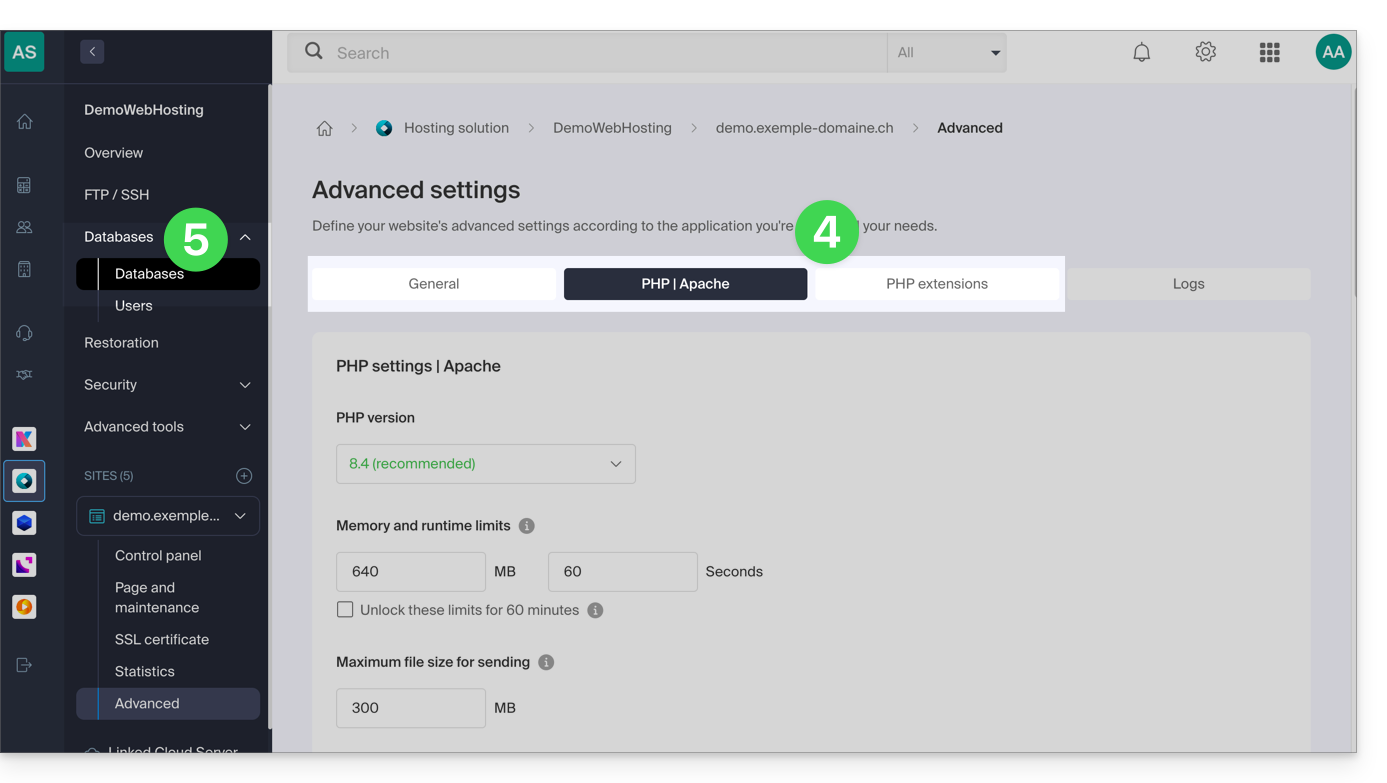
- Click on the name of the website in question.
- Click on Manage advanced settings:
- Review the website information under the General, PHP / Apache, and PHP Extensions tabs.
- Click on Databases in the left-hand menu to view the MySQL version of the web hosting:
Link to this FAQ: https://faq.infomaniak.com/2116
Has this FAQ been helpful?
This guide explains how to run the open-source dependency manager Composer 2 using an SSH command.
Introduction
- Composer is an open-source dependency manager for PHP that allows you to define, install, and update the libraries required for a PHP project.
- Composer 1 has been deprecated since 2021 and no longer allows you to install new packages or perform updates since 2025.
- Only version 2 of Composer is now supported and available on all PHP versions from 7.2 to 8.3.
Run Composer 2
Composer 2 is already pre-installed and accessible via SSH. Therefore, there is no need to install it manually.
Simple usage
Connect to your hosting via SSH, then use the following command:
composerThis command will automatically execute Composer version 2, which is compatible with the PHP version currently in use in your session.
Check the active version
You can check the available Composer version with:
composer --versionExample output: Composer version 2.5.0 2022-12-20 10:44:08
Force a specific PHP version
If you want to run Composer with a specific PHP version, aliases are available. For example:
composer_php8.1 --versionor:
composer_php7.4These aliases allow you to run Composer 2 with the specified PHP interpreter, which is useful for testing or deploying a project on a target PHP version.
Link to this FAQ: https://faq.infomaniak.com/2118
Has this FAQ been helpful?
This guide explains how to reset a Cloud VPS / VPS Lite.
Introduction
- This procedure erases all content from the volume dedicated to the operating system (
/dev/vda). - In the case of a Cloud VPS, the volume dedicated to data storage (
/dev/vdb) is not affected by the reset.
Please note: depending on the operating system installed, the system volume may be named /dev/sda, /dev/sda1 or /dev/vda… the same applies to the data volume /dev/sdb, /dev/sdb2 or /dev/vdb… Therefore, you should replace these indications with those that correspond to your situation.
Resetting the Cloud VPS / VPS Lite OS
To access your VPS:
- Click here to access the VPS management interface in the Infomaniak Manager (need help?).
- Click directly on the name assigned to the VPS in question.
- Click on the Reset button.
- Follow the on-screen instructions to complete the reset.
Link to this FAQ: https://faq.infomaniak.com/2122
Has this FAQ been helpful?
This guide explains how to access the VNC console with Infomaniak's VPS Cloud / VPS Lite.
Introduction
- Initial access to the server is via SSH key; therefore, it is necessary to assign a password to the
rootaccount or create another user before you can authenticate with the VNC console. - Note: You must use a keyboard with a US layout to use VNC normally!
Open the VNC console
To do this:
- Click here to access your product management in the Infomaniak Manager (need help?).
- Click directly on the name assigned to the product in question.
- Click on Open VNC console under Quick Actions.
If you experience any display issues with the console, then from the VM:
In /etc/default/grub, modify GRUB_CMDLINE_LINUX_DEFAULT, GRUB_GFXMODE, and GRUB_GFXPAYLOAD_LINUX (the latter variable is probably missing and should be added):
GRUB_CMDLINE_LINUX_DEFAULT="biosdevname=0 net.ifnames=0 console=tty0 console=ttyS0,115200
earlyprintk=ttyS0,115200 consoleblank=0 systemd.show_status=true video=VGA-1:1280x1024"
GRUB_GFXMODE=1280x1024x16
GRUB_GFXPAYLOAD_LINUX=keep
Then, update grub and restart:
grub-mkconfig -o /boot/grub/grub.cfgThe resolution can be modified (e.g., from 1280x1024 to 1000x400) to allow the VNC console to be displayed within the administration interface without opening a new tab.
Link to this FAQ: https://faq.infomaniak.com/2123
Has this FAQ been helpful?
This guide explains how to allow certain incoming and/or outgoing ports in the firewall(firewall) of a web hosting or a Cloud Server.
Introduction
- On a shared web hosting plan, it is only possible to open outgoing ports.
- On a Cloud Server, it is possible to open incoming and outgoing ports.
- Opening ports ensures the proper functioning of certain applications but may reduce the security of your hosting.
Access the tool and add a rule
To manage port openings from the Manager:
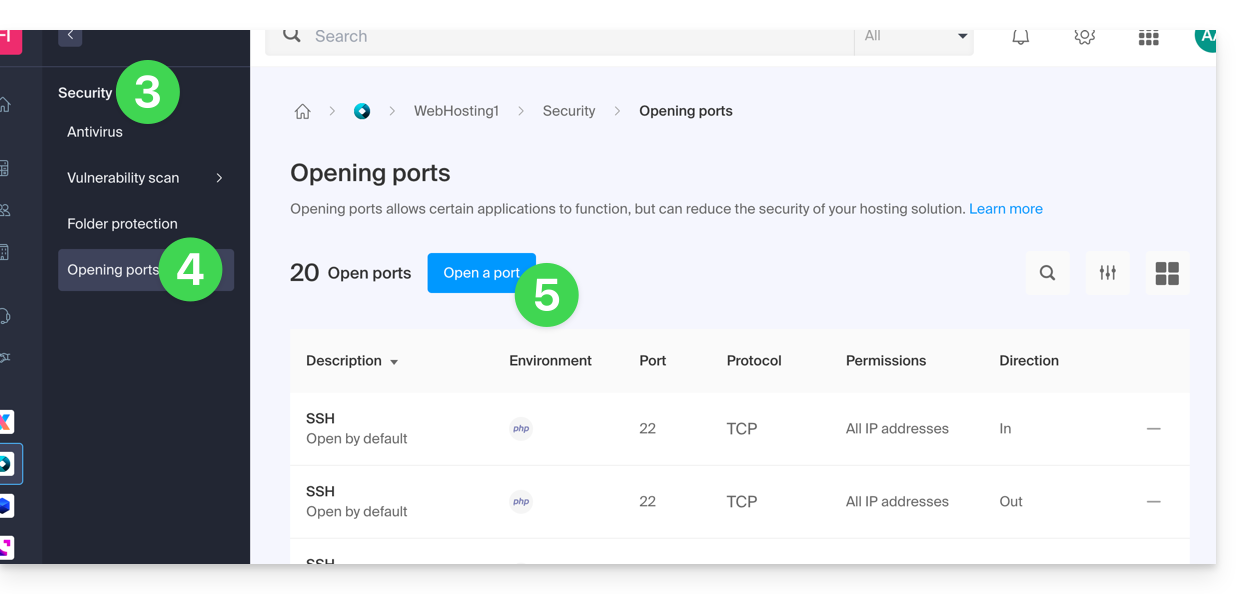
- Click here to access the hosting & website management section in your Infomaniak Manager (❓: help).
- Click on the name of the hosting in question.
- Click on Security in the left-hand menu.
- Click on Port Forwarding in the left-hand menu.
- Click on the Open a Port button:
Open a port
You can only specify one port per rule, and only one IP address/host per field: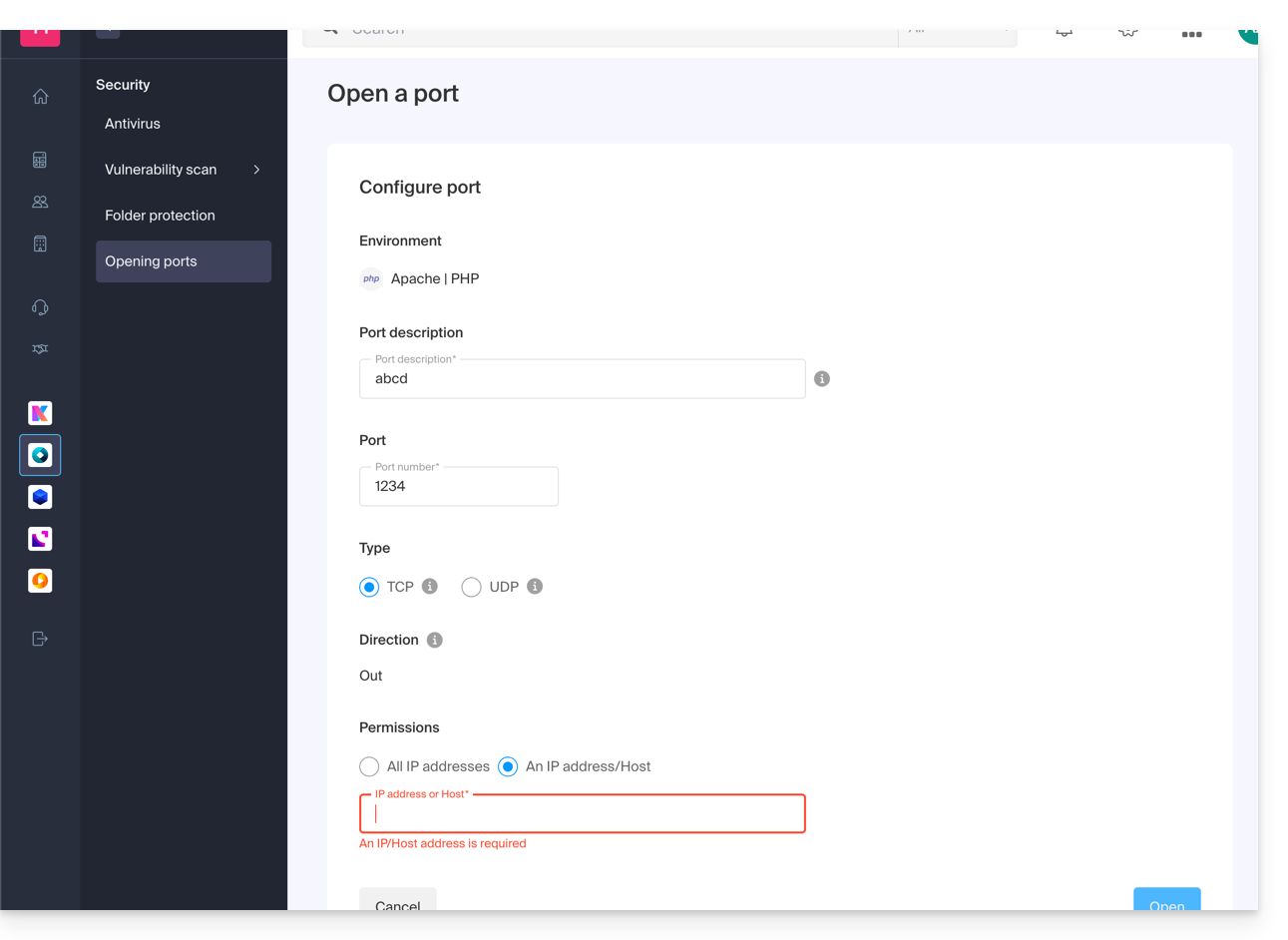
By specifying an IP address or host, the connection will only be allowed in the following cases:
Incoming rule: if the connection comes from this IP address or the specified hostOutgoing rule: if the connection is made to this IP address or host
The same applies to the connection "Type": if the protocol used for the connection is not the one specified in the rule, the connection is not allowed.
Globally open outgoing port 25
You can open outgoing port 25 from the manager if a destination host is specified.
With a Cloud Server, to open this port to the entire world, contact Infomaniak support and justify your request.
Ports opened by default
Once you access the port opening tool, you will find the list of ports that are open by default on the page.
With a Cloud Server, to exceptionally close some of the listed ports, contact Infomaniak support and justify your request.
The display may sometimes be spread across multiple pages: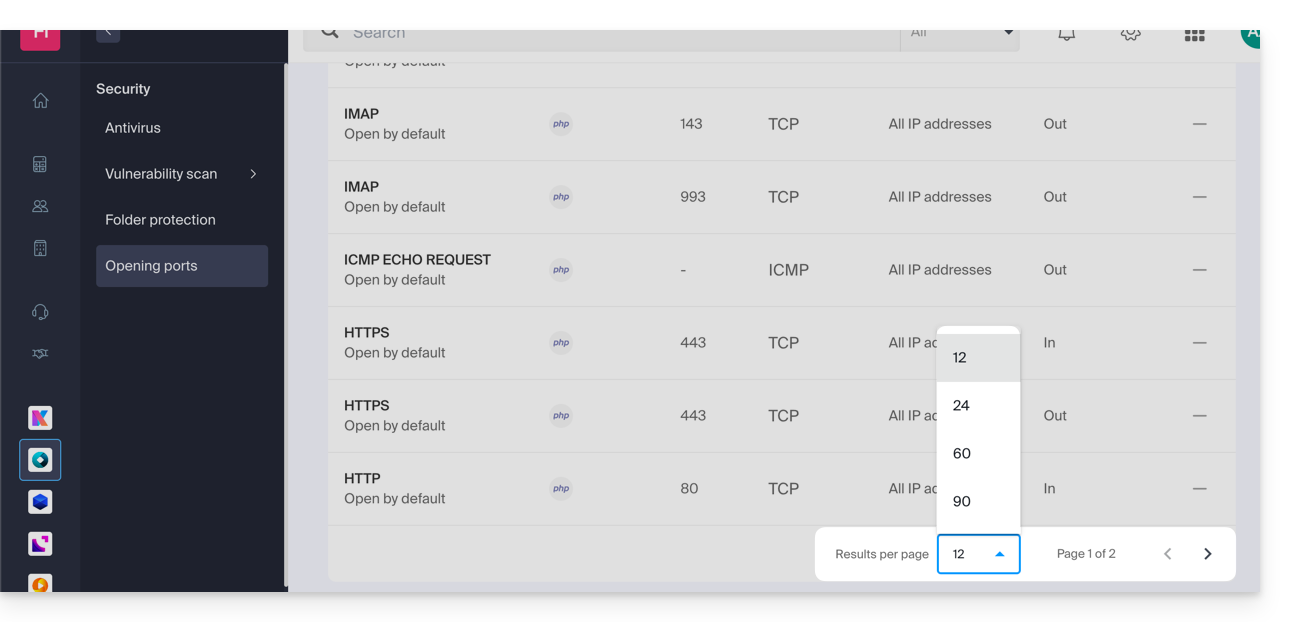
MySQL Ports
Regarding database ports, please refer to these guides:
Check the activity of a port (Cloud Server)
On Cloud Server, to check if an application is listening on a specific port (1234 in the example below) and to find out the name of the application in question, run the following command via SSH:
netstat -anpe | grep "1234" | grep "LISTEN"Link to this FAQ: https://faq.infomaniak.com/2126
Has this FAQ been helpful?
This guide explains how to migrate a shared web hosting account to a Cloud Server while recovering all its data, websites, databases, etc.
Introduction
- Please note:
- Database names and database user names are retained.
- FTP accounts are retained with the same names, but the host server changes to an address of the type
xxxx.ftp.infomaniak.com. - Website IPs will change, except for dedicated IPs.
- During this operation, statistics are reset.
- If you already have a Cloud Server, go directly to step 2 of this guide.
- To migrate a web hosting from a Cloud Server to another Cloud Server, please refer to this other guide.
- To migrate a web hosting from a Cloud Server to a shared web hosting, please refer to this other guide; please note that this is an operation you will need to perform manually.
1. Order a Cloud Server
To do this:
- Click here to access the Cloud Server management section in the Infomaniak Manager (need help?).
- Click on Order, choose a Managed Cloud Server, and follow the wizard to complete the order:
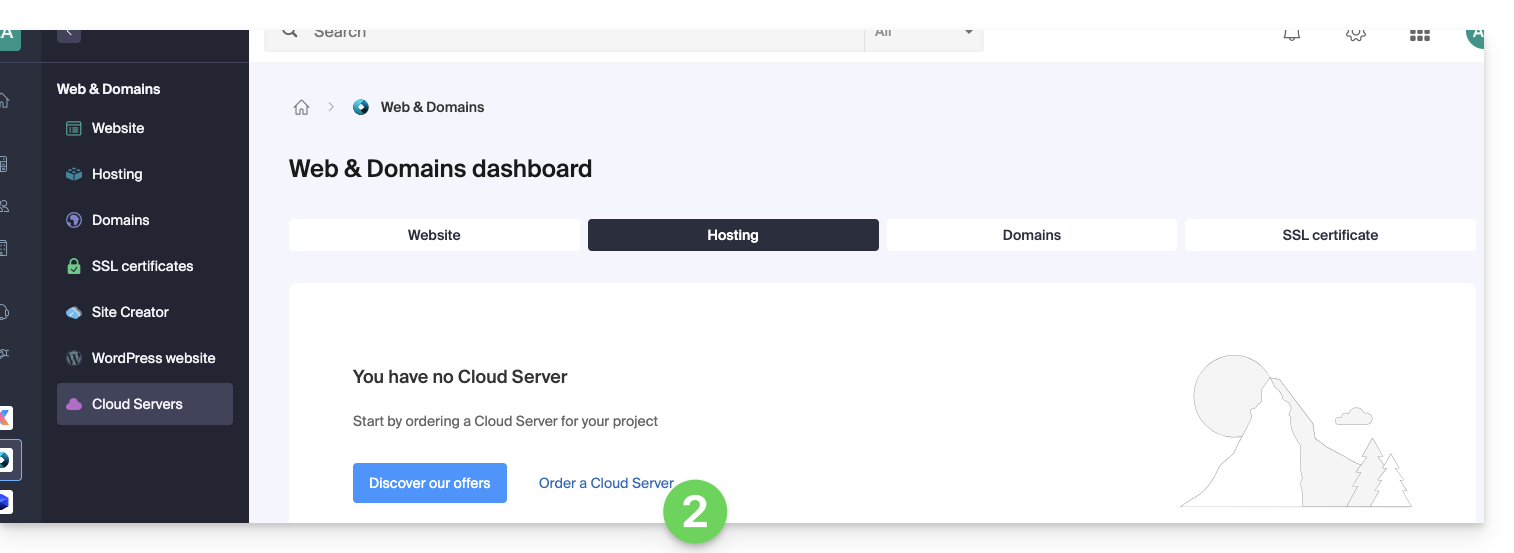
2. Migrate your hosting to the Cloud Server
Once the Cloud Server is up and running:
- Click here to access the hosting & website management section in your Infomaniak Manager (❓: help).
- Click on the action menu ⋮ located to the right of the item in question.
- Click on Modify offer:
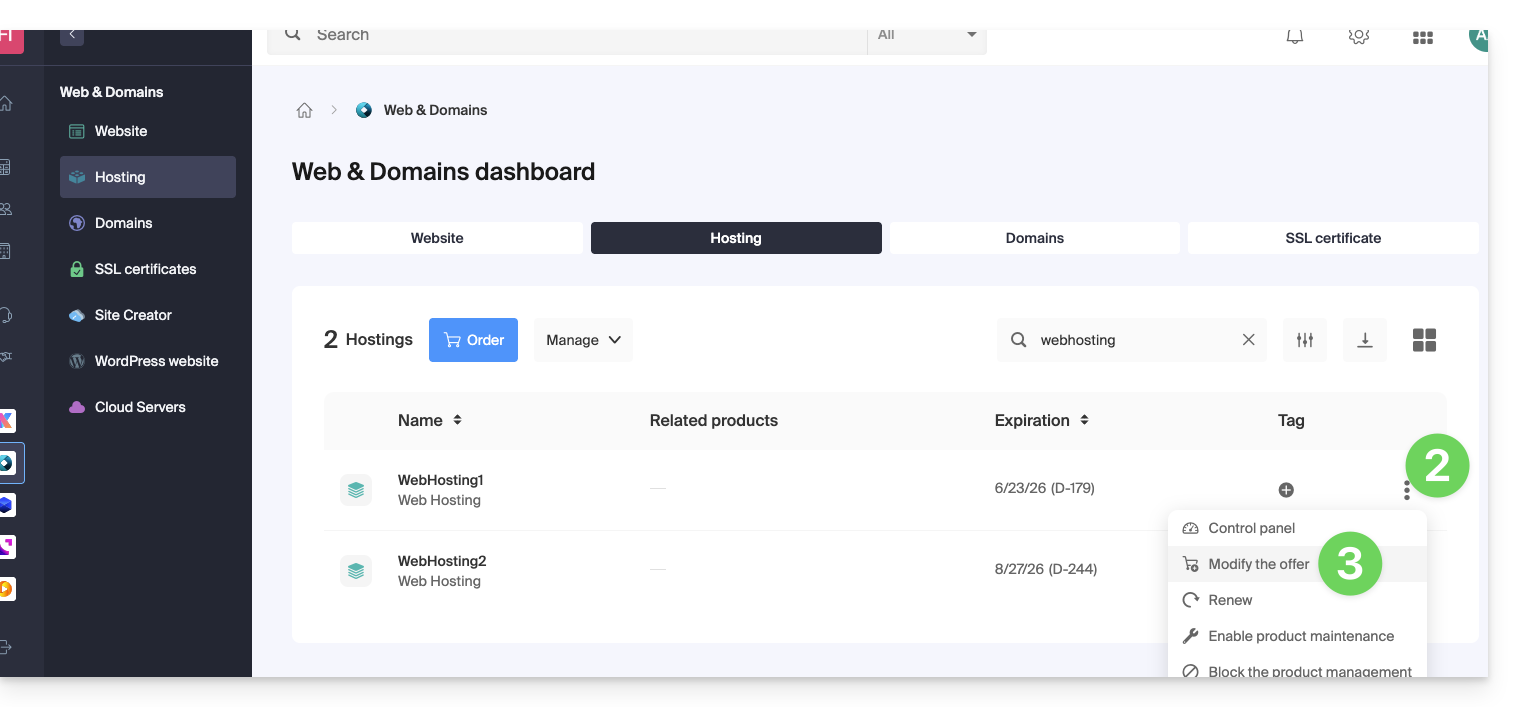
- Select the free transfer offer.
- Select the Cloud Server to which you want to migrate your hosting:
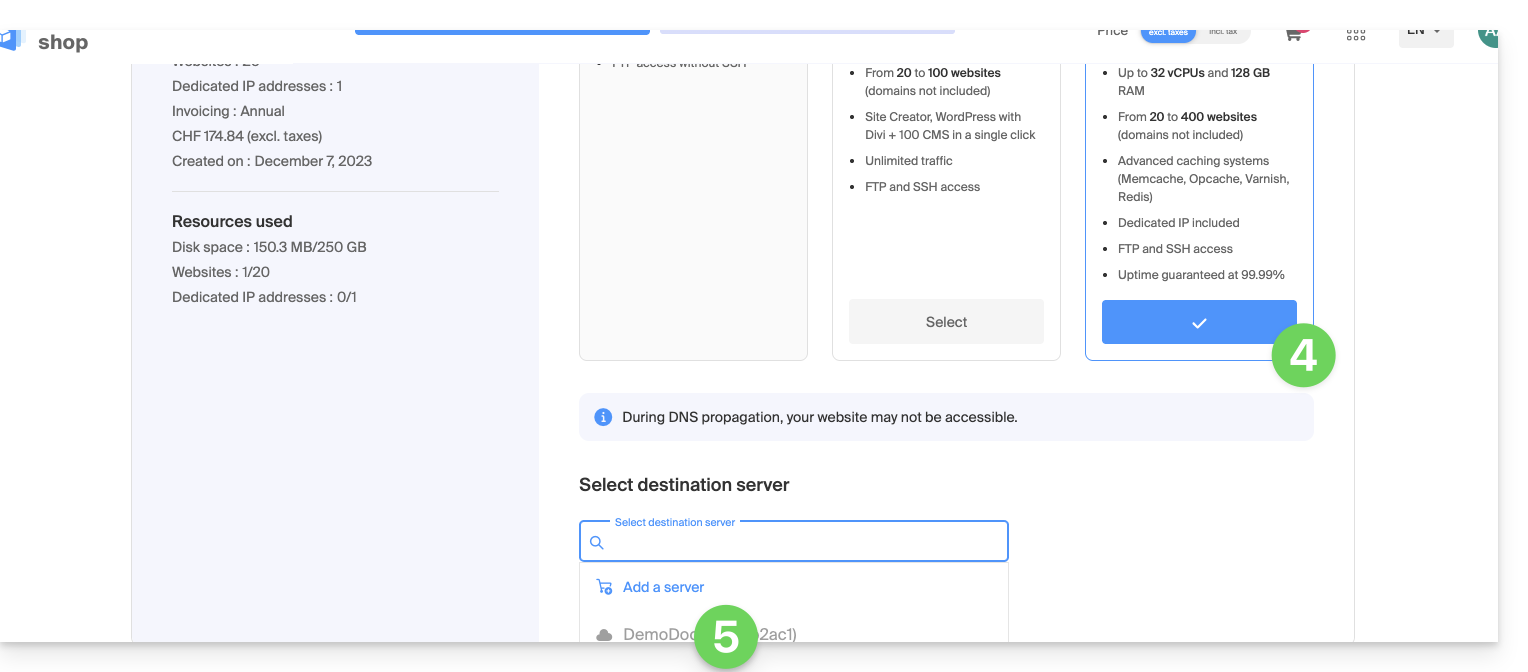
- Click the Next button at the bottom of the page and complete the procedure.
- Please wait while your hosting is being migrated; there will be a service interruption during the process.
Link to this FAQ: https://faq.infomaniak.com/2127
Has this FAQ been helpful?
This guide provides information about the robots.txt file created by default for web hosting services where this file is missing.
Introduction
- The
robots.txtfile acts as a guide for search engine crawlers. - It is placed in the root directory of a website and contains specific instructions for these crawlers, indicating which directories or pages they are allowed to crawl and which they should ignore.
- However, please note that robots may choose to ignore these directives, making
robots.txta voluntary guide rather than a strict rule.
File content
If the robots.txt file is missing from an Infomaniak website, a file with the same name is automatically generated with the following directives:
User-agent: *
Crawl-delay: 10
These directives instruct bots to space out their requests by 10 seconds, which prevents unnecessary overloading of the servers.
Override the default robots.txt file
It is possible to bypass the robots.txt file by following these steps:
- Create an empty
robots.txtfile (it will only serve as a placeholder so that the rules do not apply). - Manage the redirection of the URI (Uniform Resource Identifier)
robots.txtto the file of your choice using a.htaccessfile.
Example
RewriteEngine On RewriteCond %{REQUEST_URI} /robots.txt$ RewriteRule ^robots\.txt$ index.php [QSA,L]
Explanation
Explications
- The
mod_rewritemodule of Apache is enabled to allow redirects. - The condition
RewriteCond %{REQUEST_URI} /robots.txt$checks if the request concerns therobots.txtfile. - The rule
RewriteRule ^robots\.txt$ index.php [QSA,L]redirects all requests torobots.txttoindex.php, with the[QSA]option which preserves the request parameters.
It is recommended to place these instructions at the beginning of the .htaccess file.
Link to this FAQ: https://faq.infomaniak.com/2136
Has this FAQ been helpful?
This guide is about IP addresses, including…
- … those assigned to websites/hosting/servers, dynamic or static IPs, shared or dedicated IPs,
- … assigned by your Internet Service Provider (ISP) when establishing an Internet connection to your Infomaniak product.
Introduction
- A dedicated or static IP address for a website is a permanent IP address that is specifically assigned to it.
- Unlike a shared IP address, which is used by multiple websites, a dedicated IP address ensures that only this platform is associated with that address.
- Dedicated IP addresses for websites are often used in cases where stability, customization, and security are important, such as hosting servers, configuring firewalls, or enabling SSL certificates (although it is possible to proceed without a dedicated IP address to install an SSL certificate).
- Here are the main advantages:
- Configuring a PTR record or reverse DNS on dedicated IPs is useful, especially for installing a mail server, because some email providers check the PTR record before accepting emails sent from a server.
- Improved connection stability.
- Reduced risk of a bad reputation due to websites sharing the same IP address.
- Easier configuration of certain technical aspects.
- A dedicated IP can improve a website's search engine ranking (although there are differing opinions among SEO specialists).
- Note: Infomaniak does not allow access to websites via HTTP(S) using dedicated IPs on managed servers; you must use a domain name that points to the IP (or use the preview URL).
Add a dedicated IP to the website
To add a dedicated IP to your website, please refer to this guide.
If you are experiencing issues when directing web traffic to a specific port, please refer to this other guide.
Blocking the IP address (Internet connection)
If you can no longer access…
- … all your email addresses that you have with Infomaniak (which usually work fine) and this using an email software/client from a single Internet network (i.e., from the same IP address provided by your ISP)…
… or if you have unfortunately performed this type of operation:
- repeated, unsuccessful connection attempts via FTP, SSH, or on access points such as the WordPress login…
- requests returning too many errors, such as a large number of 403 errors…
… your access to Infomaniak servers may be blocked following the banning of the IP address (banip / ipban) of your internet connection.
To resolve this, contact Infomaniak support by email, specifying the domain concerned and, above all, your public IP address.
Permanent unblocking (IP whitelisting)
With a Cloud Server, you can request that the IP address in question be permanently whitelisted so that the blocking never happens again, regardless of the situation. To do this, you must:
- Have a dedicated IP associated with your Cloud Server.
- Be aware that Infomaniak will no longer block any potential attacks originating from this IP.; malicious attacks or access attempts originating from this address will no longer be automatically blocked by the security systems.
- Confirm via email and from a contact addressassociated with the account (owner or administrator), and that you understand and accept full responsibility in the event of an attack originating from this IP address.
Link to this FAQ: https://faq.infomaniak.com/2138
Has this FAQ been helpful?
This guide explains how to order, link, or remove a dedicated IP for a website.
Manage dedicated IPs on a hosting plan
Order one or more dedicated IP addresses
To do this:
- Click here to access the hosting & website management section in your Infomaniak Manager (❓: help).
- Click on the name of the website in question.
- Click on the chevron to the right of Advanced Tools in the left-hand menu.
- Click on Dedicated IPs in the left-hand menu.
- Click on the button to order one or more IP addresses:
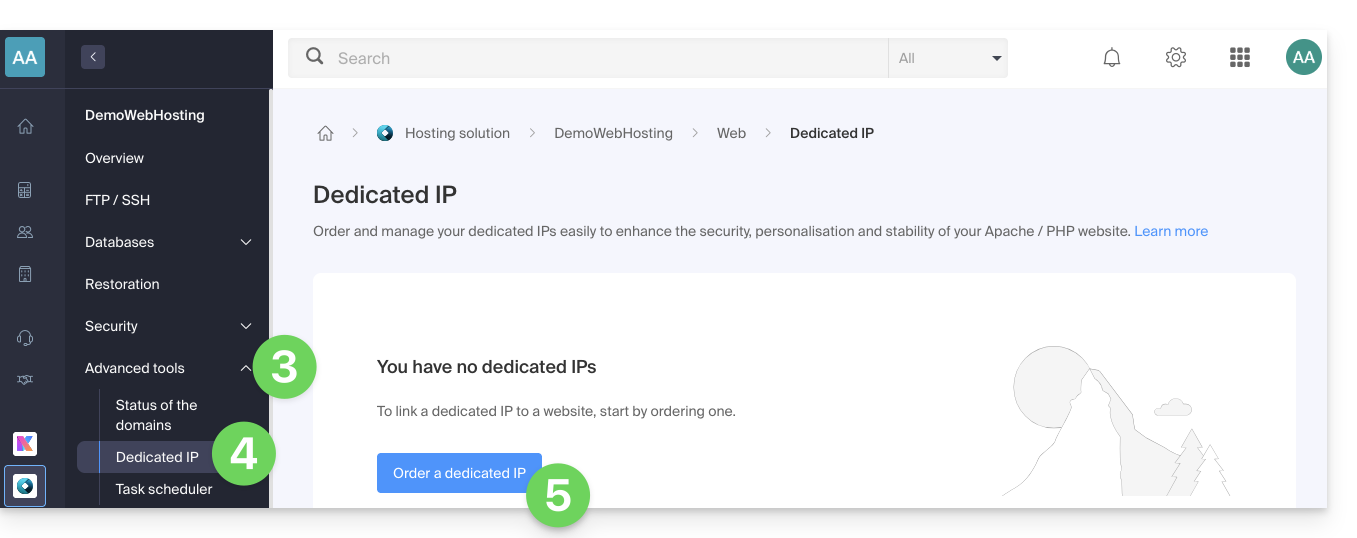
- Increase the quantity according to the number of IP addresses desired:
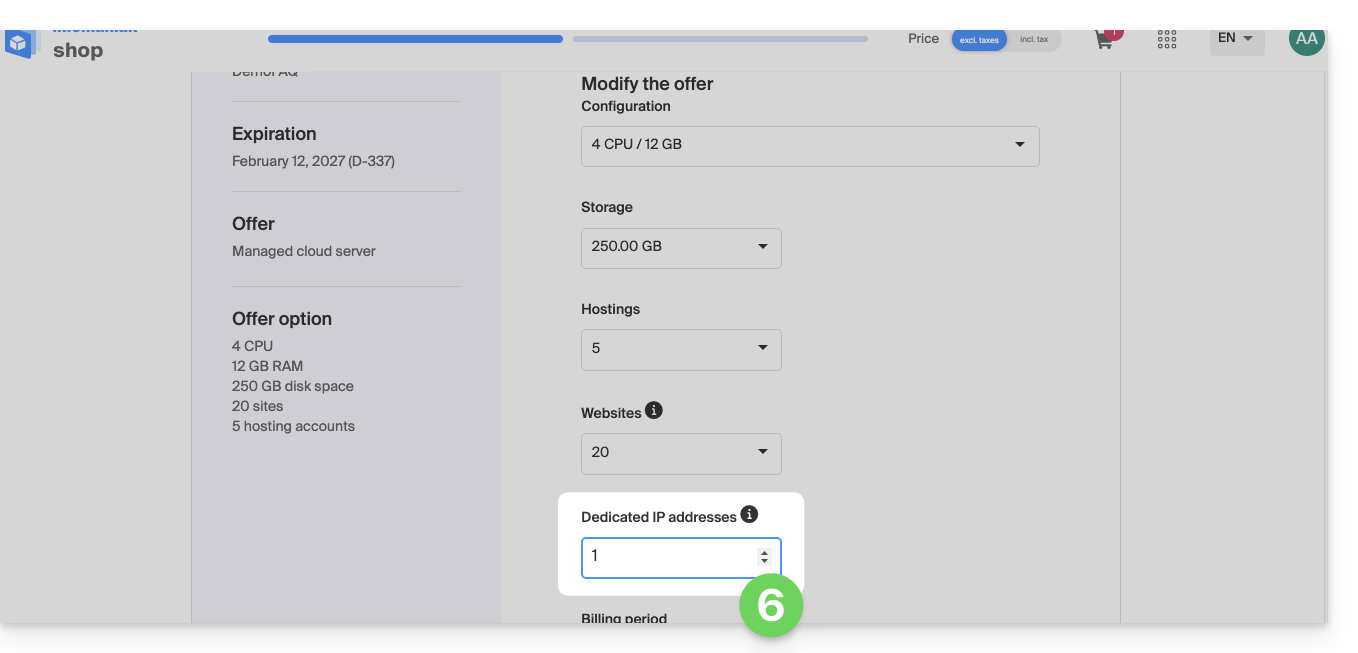
Order one or more additional dedicated IP addresses
To do this:
- Click here to access the hosting & website management section in your Infomaniak Manager (❓: help).
- Click on the name of the website in question.
- Click on the chevron to the right of Advanced Tools in the left-hand menu.
- Click on Dedicated IPs in the left-hand menu.
- Click on the text to order one or more additional IP addresses:
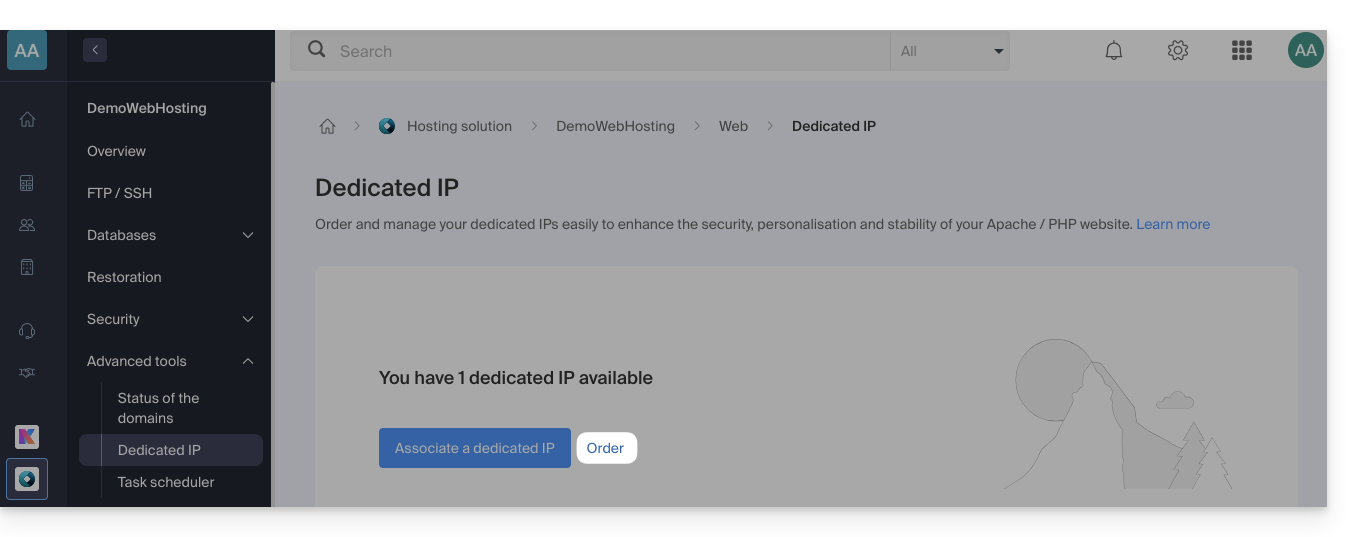
- Increase the quantity according to the number of IPs desired.
Associate a dedicated IP address with a website on your hosting
Once the IP address has been ordered and paid for, please review the prerequisites below, as switching to a dedicated IP address for a website may cause a temporary interruption, especially if a Let's Encrypt SSL certificate is in use.
Prerequisites
- Start by reducing the TTL of the DNS records
AandAAAA(for@andwww) to 5 minutes. - Wait for the duration of the previous TTL before making any changes.
- The change below should be made during a period of low traffic to limit the disruption caused by the inevitable interruption.
- At the end of the process, you will need to wait for the new TTL to take effect so that the new configuration can propagate and the SSL certificate can be regenerated, and then verify the site's accessibility via HTTPS to ensure that everything is working correctly.
To switch to a dedicated IP address:
- Click here to access the hosting & website management section in your Infomaniak Manager (❓: help).
- Click on the name of the website in question.
- Click on the chevron to the right of Advanced Tools in the left-hand menu.
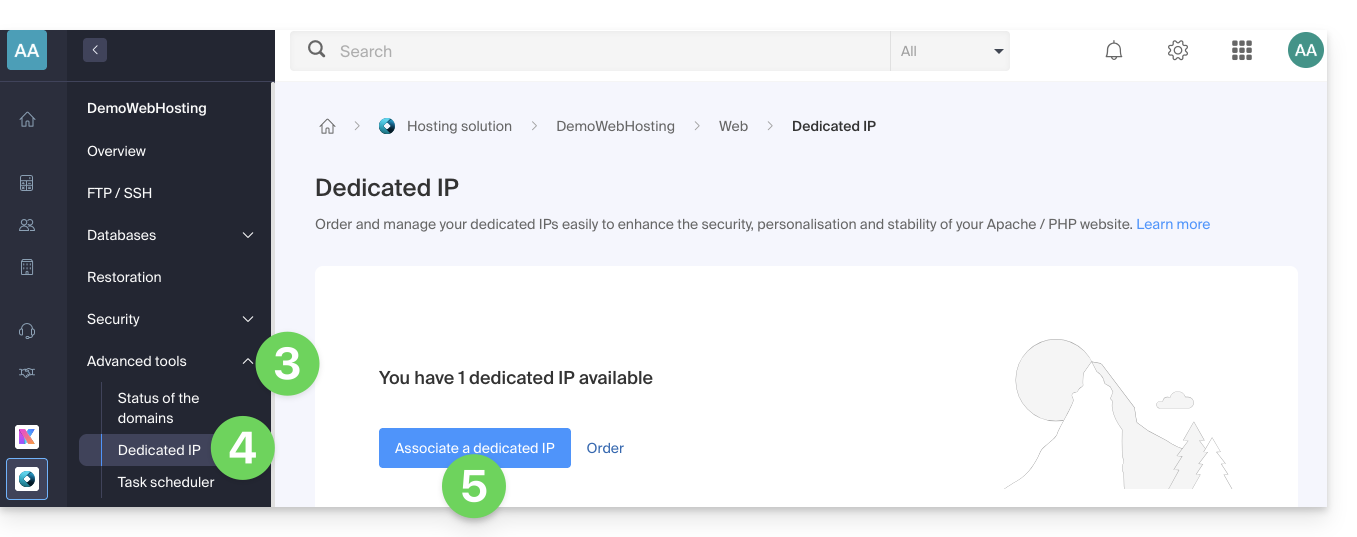
- Click on Dedicated IPs in the left-hand menu.
- Click the button to associate the IP with a website in your hosting account:
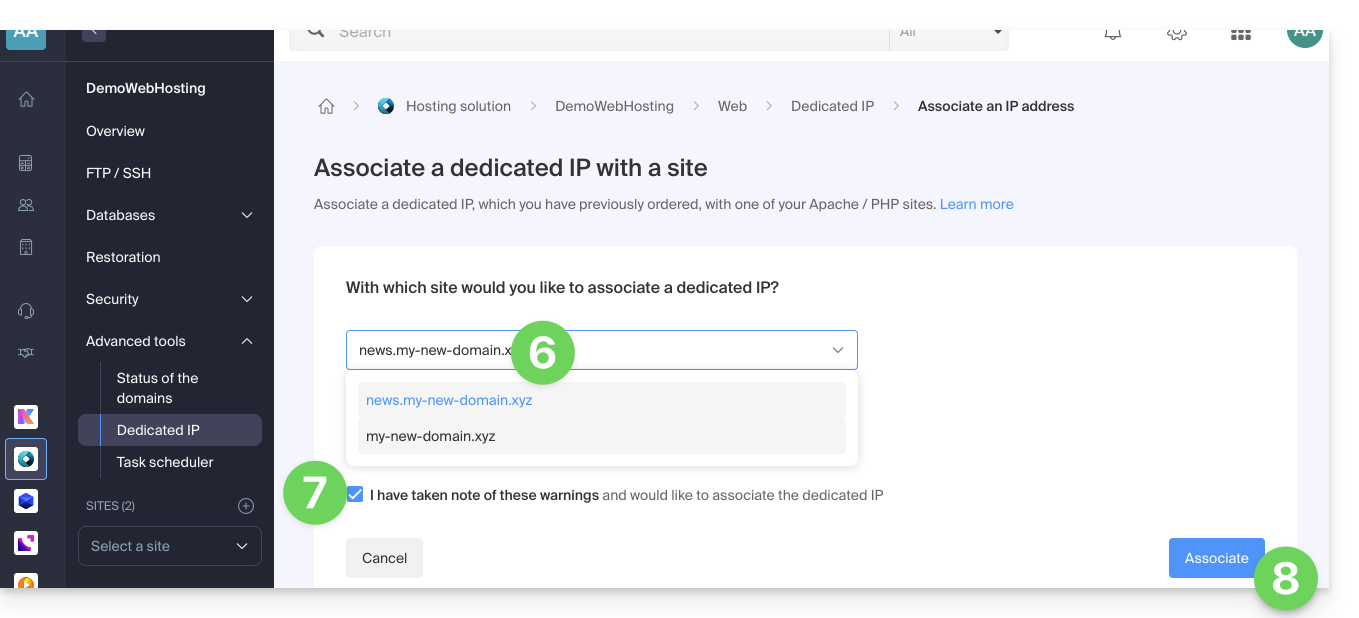
- Choose the website to which you want to assign the new IP address.
- Check the box after reading the warnings.
- Click the Associate button:
Remove a dedicated IP address from a website
Once the IP address is installed, to uninstall it:
- Click here to access the hosting & website management section in your Infomaniak Manager (❓: help).
- Click on the name of the website in question:
- Click on the chevron to the right of Advanced Tools in the left-hand menu.
- Click on Dedicated IPs in the left-hand menu.
- Click on the action menu ⋮ located to the right of the item in question.
- Choose Unlink:
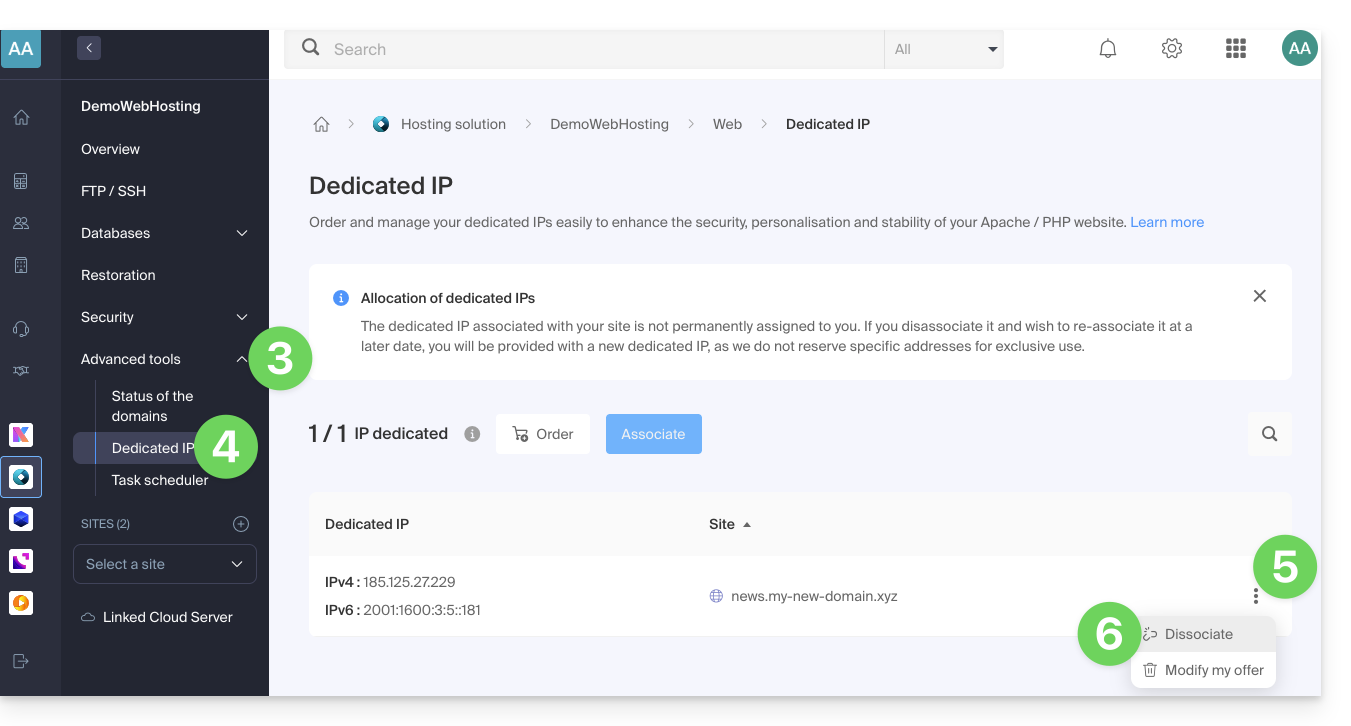
- Read the warnings and confirm the deletion to complete the IP uninstallation process.
Read this other guide if you are looking for information about potential issues related to your IP.
Link to this FAQ: https://faq.infomaniak.com/2139
Has this FAQ been helpful?
This guide explains how to migrate a Web Hosting service from MySQL to MariaDB.
Introduction
- MariaDB is an enhanced version of MySQL, featuring numerous powerful built-in features and many improvements in terms of usability, security, and performance:
- MariaDB has a larger connection pool supporting up to 200,000 connections, while MySQL has a smaller connection pool.
- When comparing the performance of MariaDB and MySQL, it is found that replication is faster in MariaDB and slower in MySQL; MariaDB is faster than MySQL overall.
- MariaDB is Open Source, while MySQL uses proprietary code in its Enterprise edition.
- The upgrade to MariaDB is irreversible, and all websites on your hosting will then run with this version of MariaDB.
- Check the compatibility of your scripts before proceeding.
- During this operation, the statistics are reset.
Using MariaDB as a replacement for MySQL
To migrate a web hosting to MariaDB:
- Click here to access the hosting & site management section in your Infomaniak Manager (❓: help).
- Click on the name of the relevant hosting.
- Click on Databases in the left-hand menu.
- Click on the Migrate to MariaDB link.
To migrate a Cloud Server, please refer to this other guide about migrating to a new generation of Cloud Server.
Link to this FAQ: https://faq.infomaniak.com/2147
Has this FAQ been helpful?
This guide details how to order a Web Hosting plan from Infomaniak.
You already have a hosting plan as a customer
Order additional hosting
- Click here to access the hosting & website management section in your Infomaniak Manager (❓: help).
- Click the button to Order:
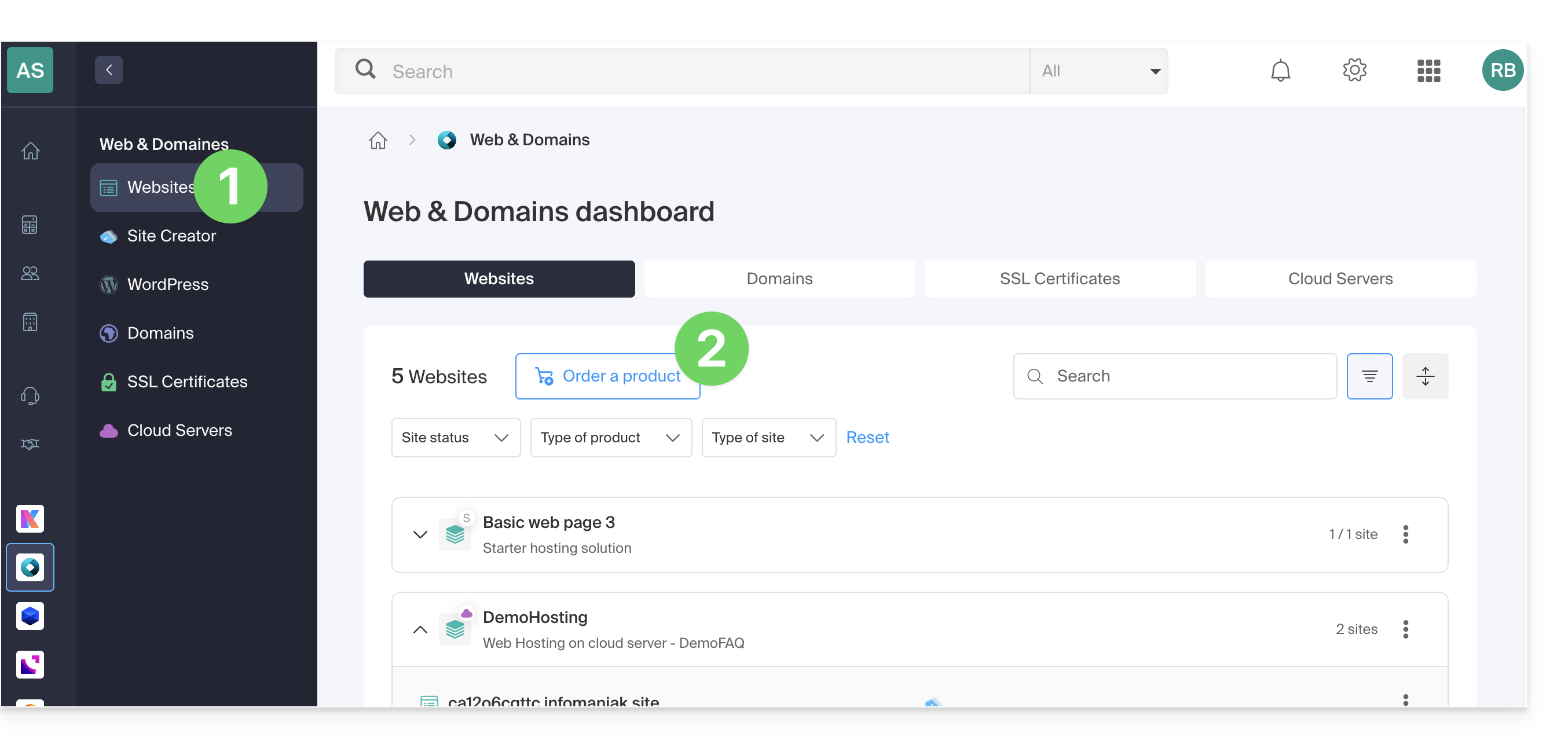
If you already have web hosting, you can also add a site to an existing hosting account (❓: help) without ordering or paying for new hosting (multi-site/multi-domain management).
No hosting yet
Order your first hosting plan
- If necessary, create a user account (❓: help).
- Click here to access your Infomaniak Manager.
- Click on Websites (Web & Domains section):
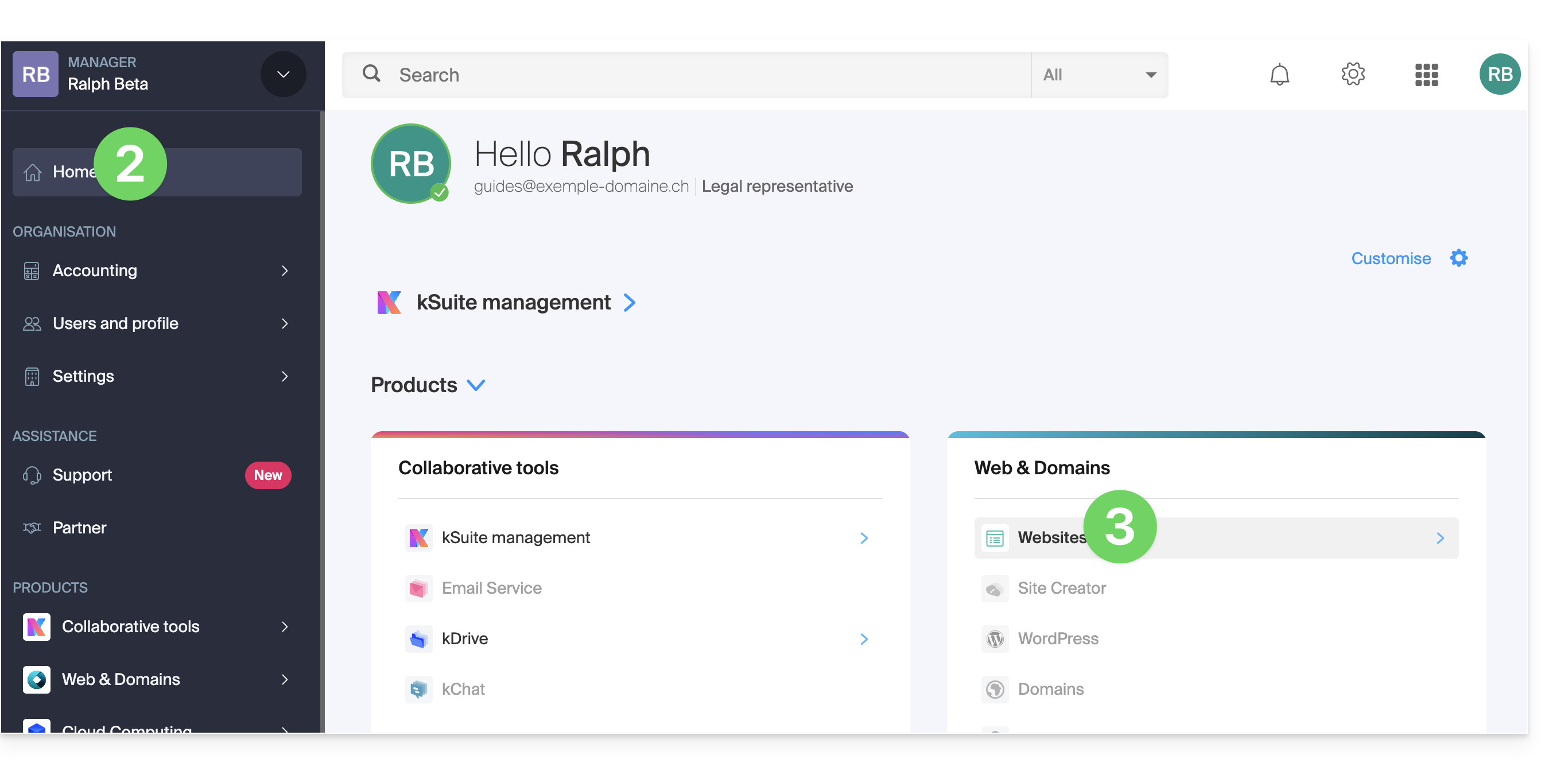
- Click to order a new hosting plan.
- Once in the store, make sure you are ordering within the desired Organization (select a different one from the list if necessary, or create a new one in step 6 below):
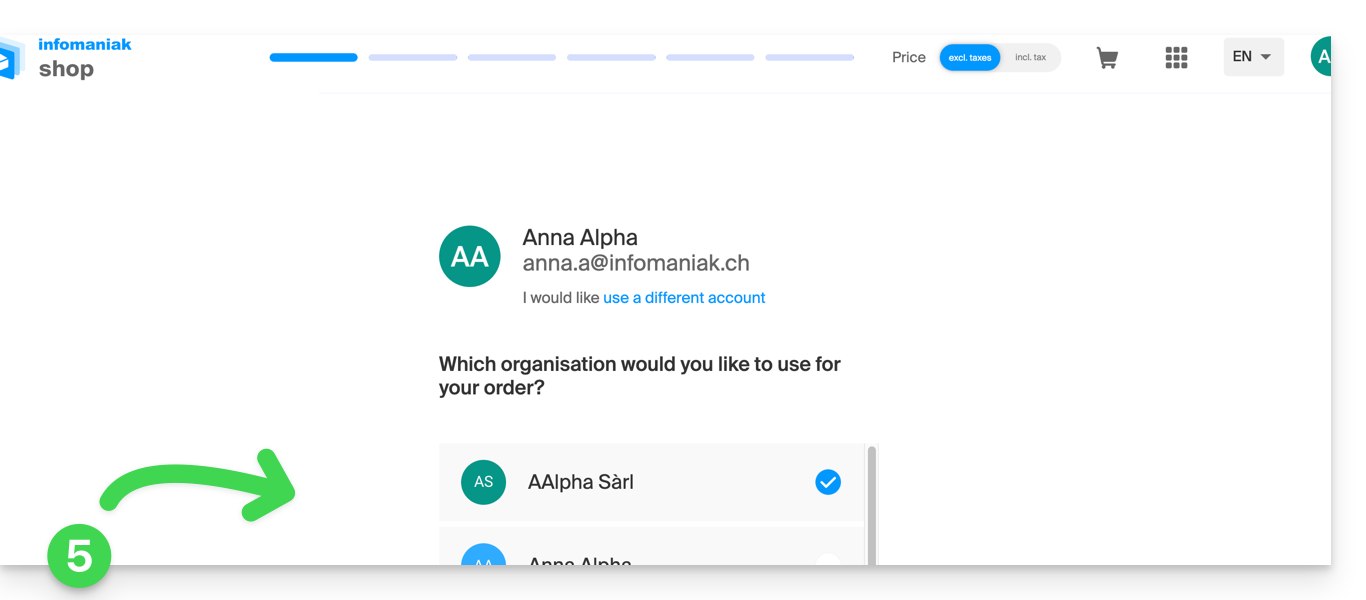
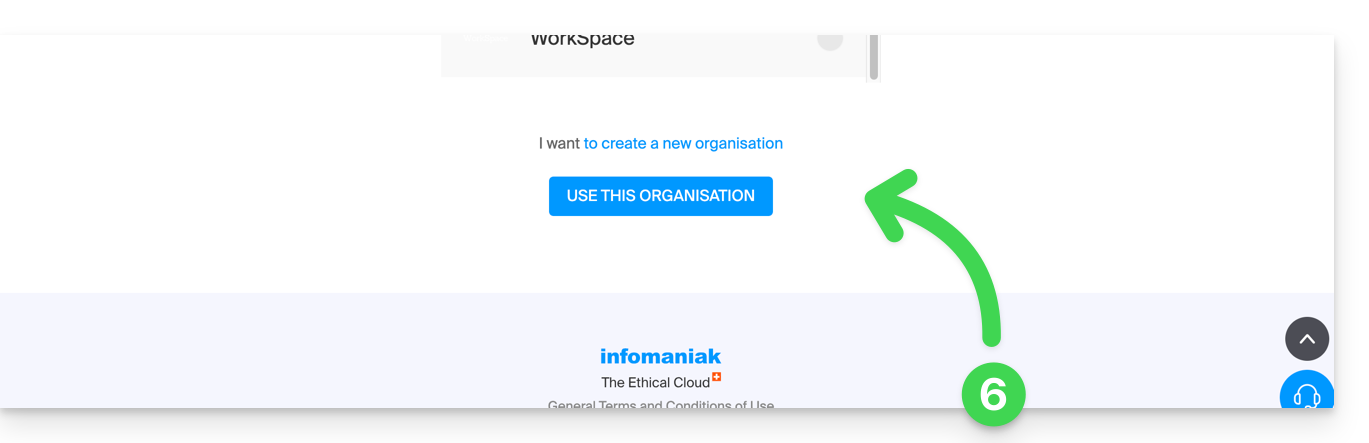
- Confirm your choice by clicking the blue button at the bottom of the page (or create a new Organization first if necessary, using the dedicated blue link):
- At the top, enter the domain name for your hosting and click Search (even if you already manage it with another registrar):
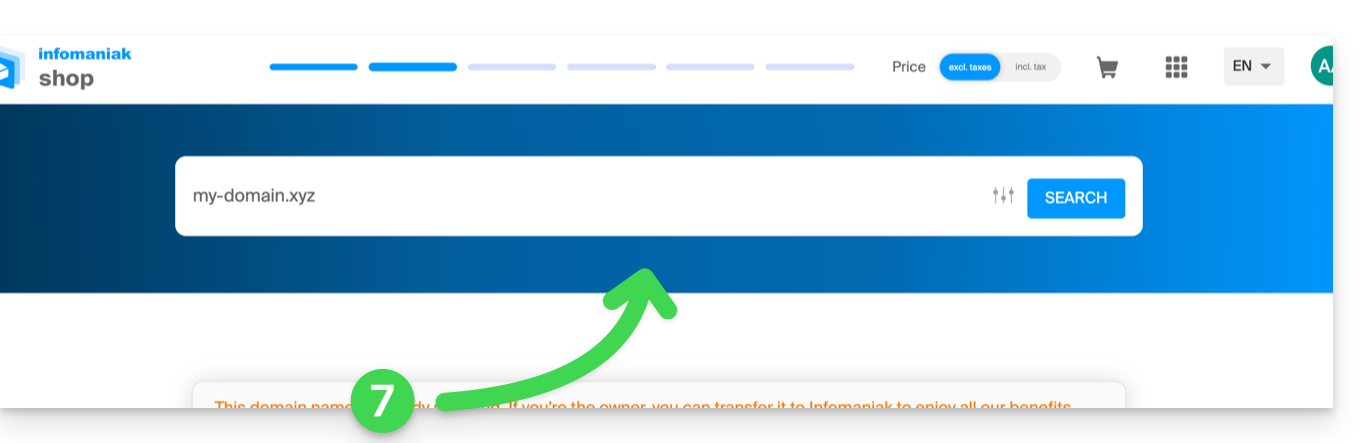
- Two scenarios are then possible:
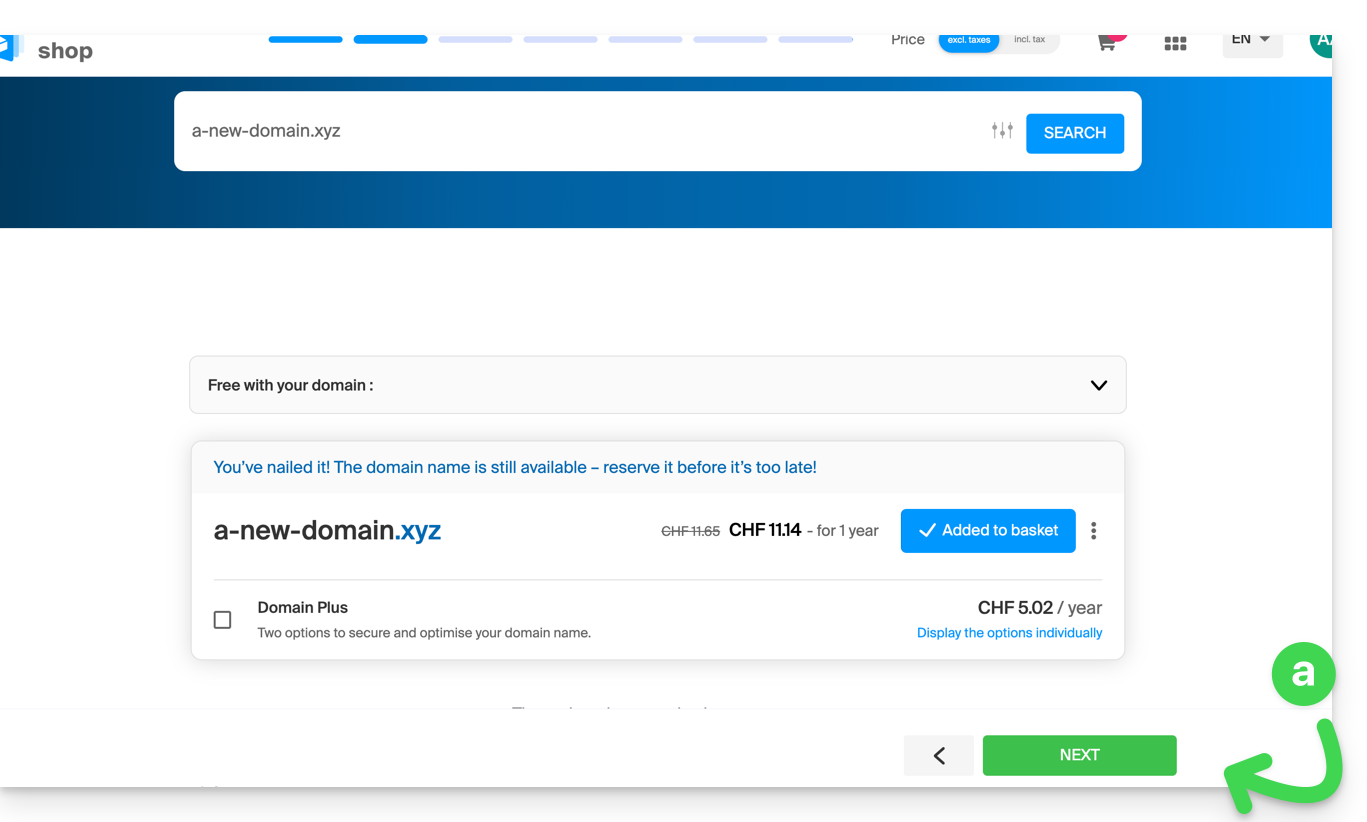
- You do not yet own the domain name: check the information and options on the screen, then click the Next button:
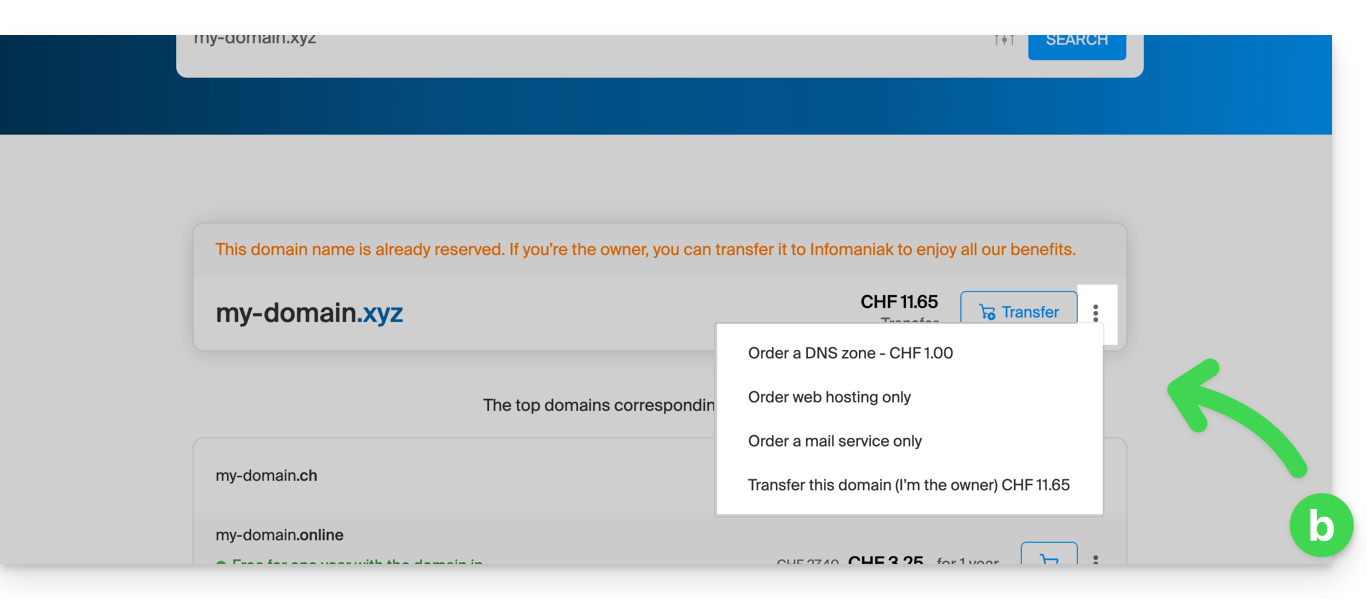
- You own and manage your domain names with another registrar: click the action menu ⋮ to the right of the domain name to Order hosting only:
- You do not yet own the domain name: check the information and options on the screen, then click the Next button:
- Choose the hosting that suits you.
- Click on Next.
- Complete the order.
Link to this FAQ: https://faq.infomaniak.com/2154
Has this FAQ been helpful?
This guide explains how to update an SSL certificate from Let's Encrypt for a website hosted by Infomaniak.
Introduction
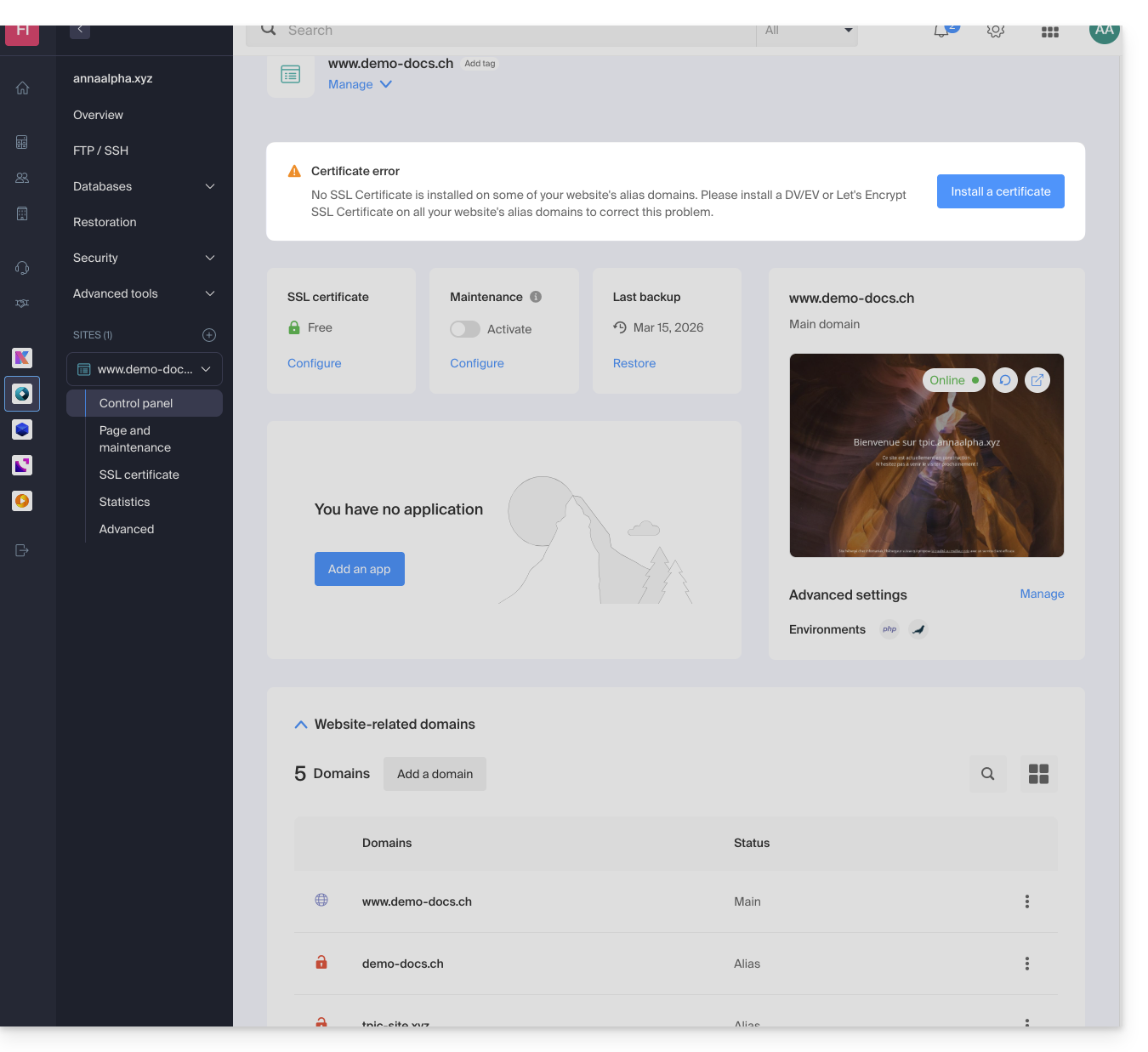
- It may be necessary to regenerate a certificate after adding or removing aliases from a website in order to include the new domain names associated with the website.
- The dashboard will clearly indicate that one of the domains associated with the website is not included in the SSL certificate:
Update a Let's Encrypt certificate
To access certificate management:
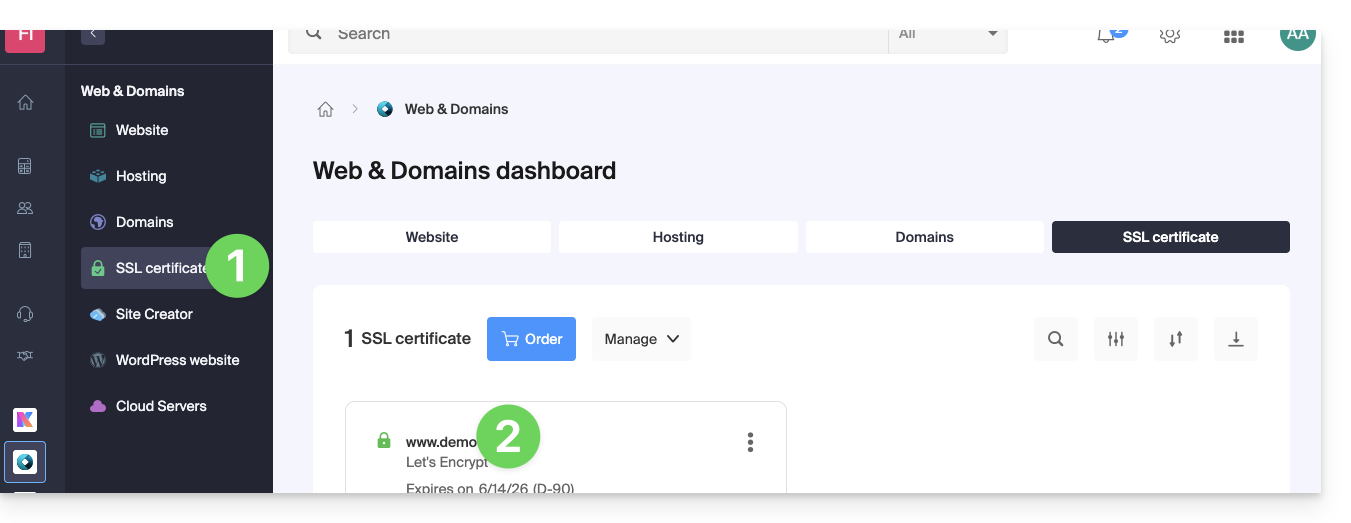
- Click here to access the management interface for your product in the Infomaniak Manager (❓: help).
- Click directly on the name assigned to the product in question:
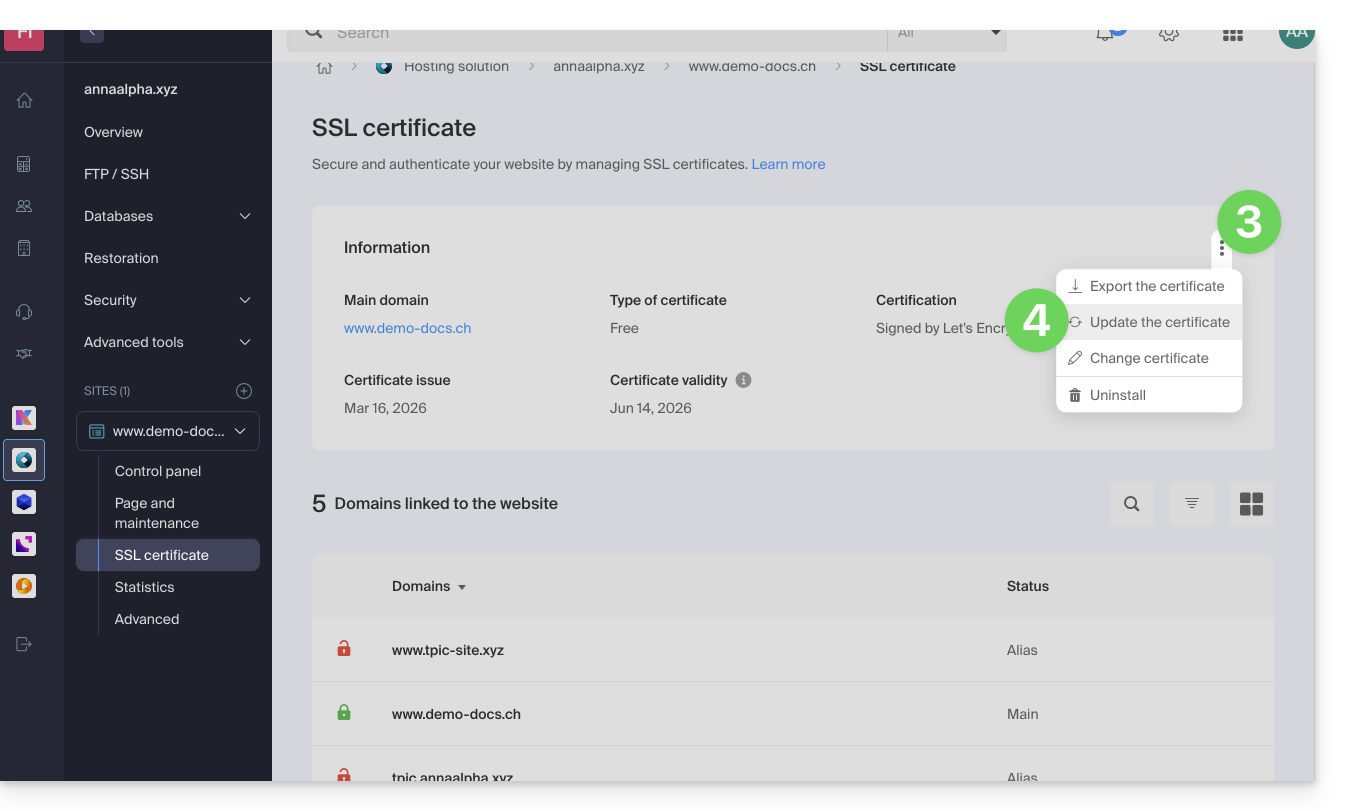
- Click on the action menu ⋮.
- Click on Update certificate:
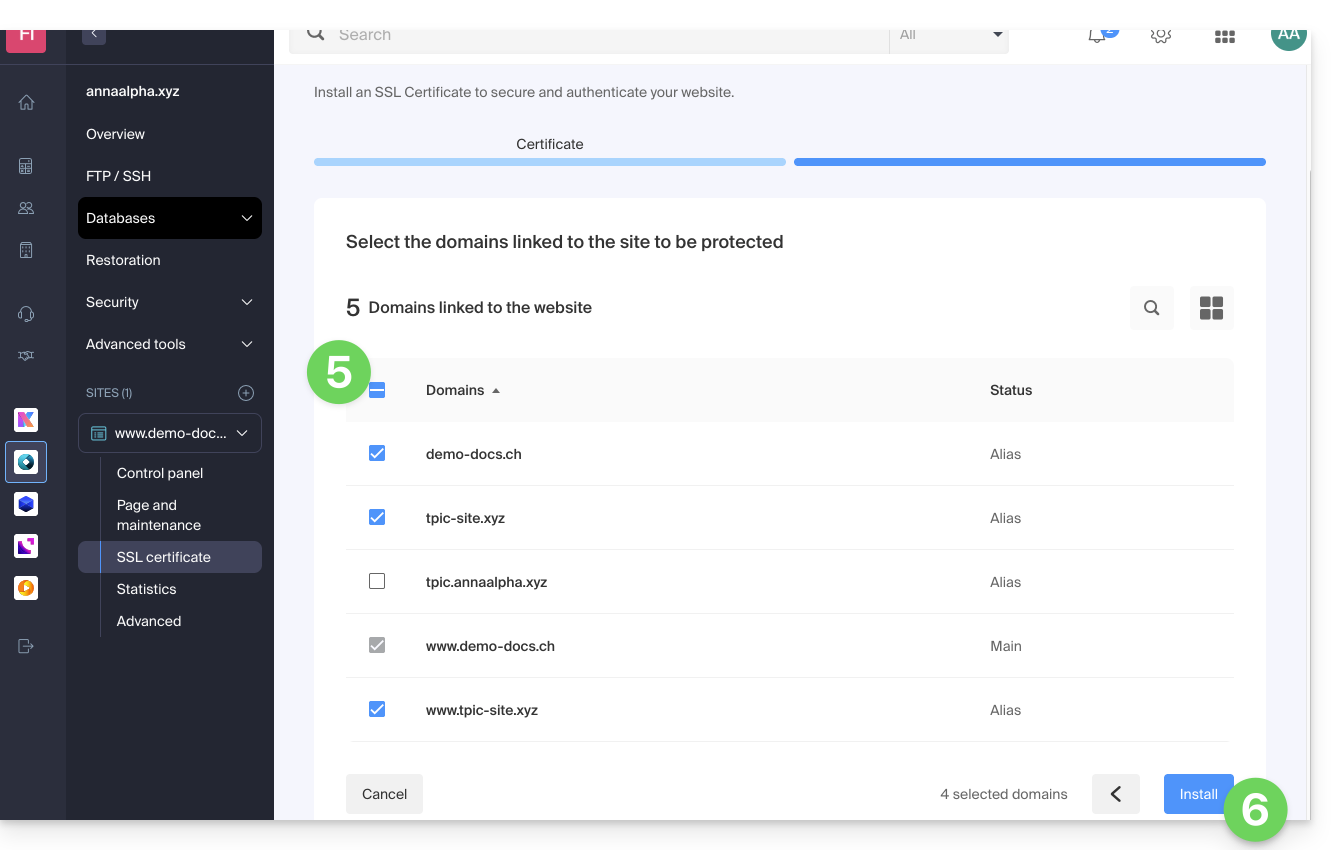
- Check or select the domains concerned.
- Click on the Install button:
Link to this FAQ: https://faq.infomaniak.com/2155
Has this FAQ been helpful?