Knowledge base
1000 FAQs, 500 tutorials and instructional videos. Here, there are only solutions!
This guide explains how to customize the limits of a website hosted on a shared Web Hosting plan or a Cloud Server.
Increase or adjust website limits
To access website management:
- Click here to access the hosting & website management section in your Infomaniak Manager (❓: help).
- Click on the name of the website in question.
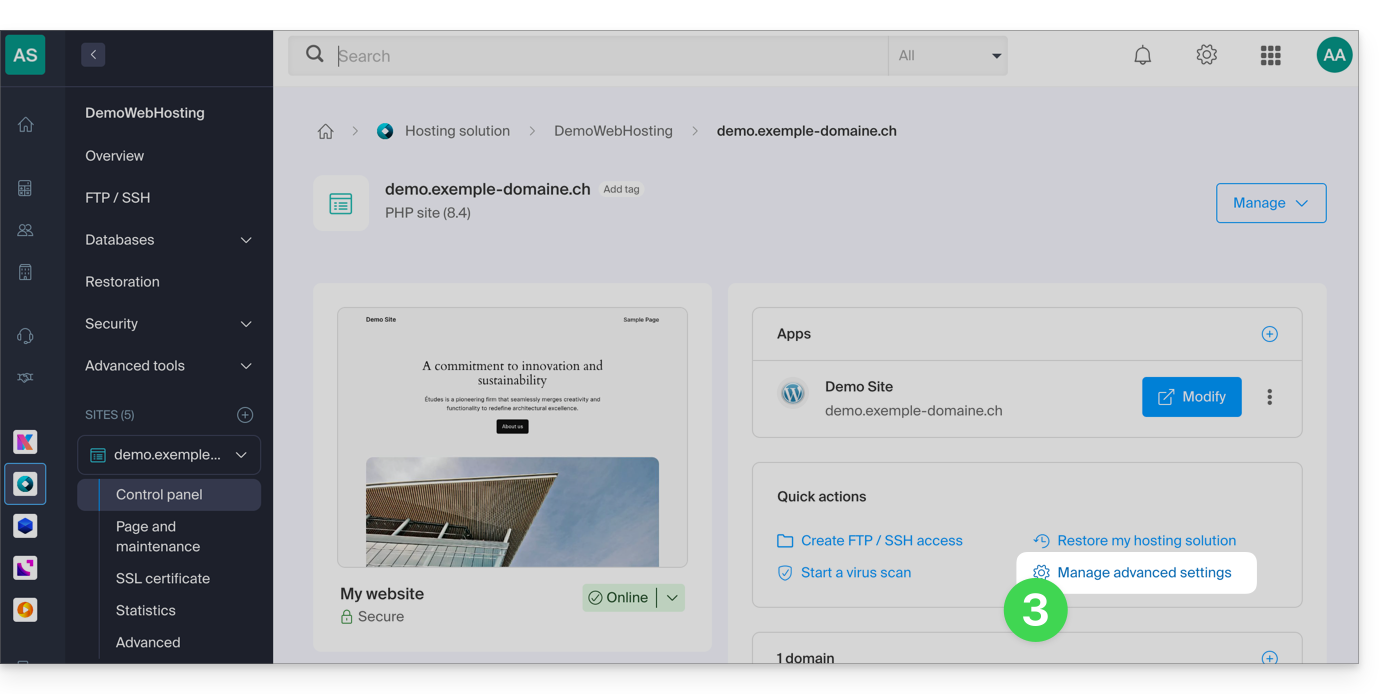
- Click on Manage advanced settings:
- Click on the PHP / Apache tab:
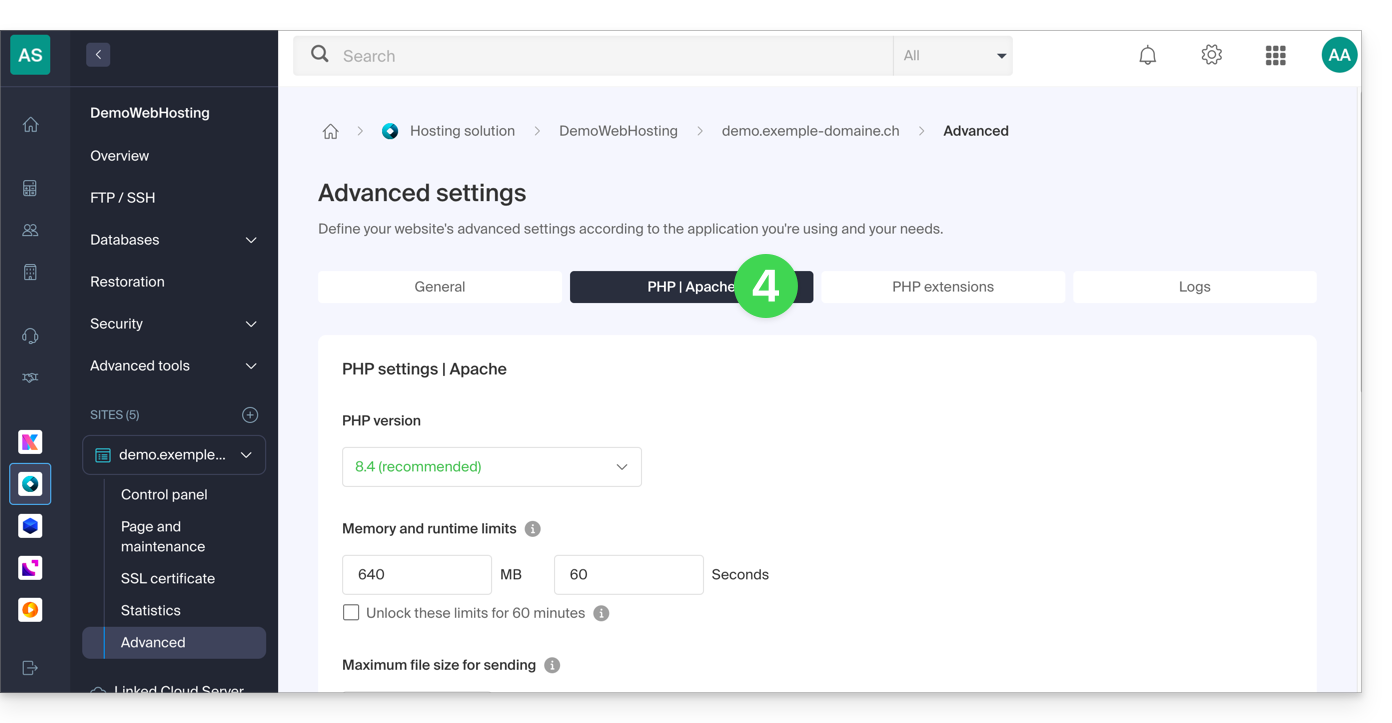
You will be able to…
- … temporarily increase the memory limit (
memory_limit= 1280 MB) and the maximum script execution time (max_execution_time= 60 minutes) for 60 minutes: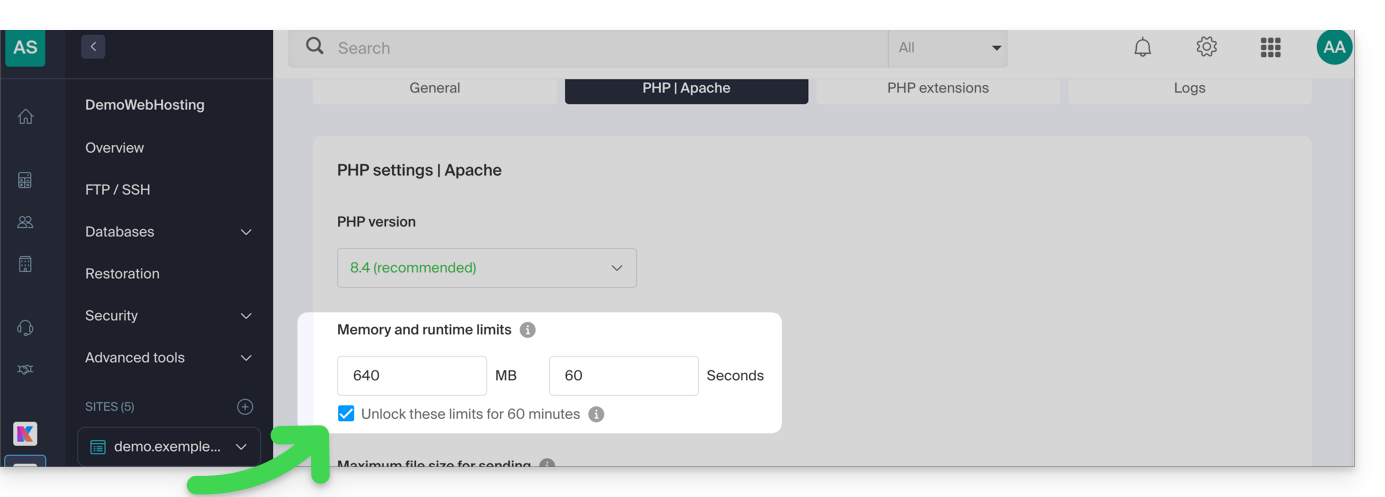
- This increase is possible a maximum of 10 times per year.
- … customize the limits of:
max_execution_time(in seconds)memory_limit(in MB)post_max_size&upload_max_filesize(maximum file size for uploads, in MB)- Cloud Server only:
Max children(refer to this other guide) - Cloud Server only:
Max input time
Don't forget to save the changes at the bottom of the page.
Maximum values per hosting type
| Limits | Shared | Cloud Server | CLI (Cloud Server only) |
|---|---|---|---|
| max_execution_time | 300 s | 3600 s | 0 (unlimited) s max |
| memory_limit | 1280 Mo | 2048 MB max | 512 MB max |
| post_max_size + upload_max_filesize | 9223372036854775807 Mo max | 9223372036854775807 Mo max | 48 MB max |
| max_children | 20 max | 20 (default, can be modified) | |
| simultaneous connections per IP | 30 max | 30 (default, can be modified) | |
| max_input_time | 0 (unlimited) | 0 (default, can be modified) | 0 (unlimited) |
| files (inodes) | no limit on the number of files per hosting account | ||
Link to this FAQ: https://faq.infomaniak.com/2158
Has this FAQ been helpful?
This guide explains how to replace, within an Infomaniak web hosting plan, the address of a website currently using a subdomain (https://dev.domain.xyz) with the main domain (https://domain.xyz).
Introduction
- Here's a summary of the steps:
- Start with a website created and accessible via the main domain's URL:
dev.domain.xyz. - Add an alias:
domain.xyz. - Reverse the two types (the main domain becomes an alias, and the alias becomes the main domain).
- Remove the old name:
dev.domain.xyz.
- Start with a website created and accessible via the main domain's URL:
- Note that the website's location remains in the original folder on the server; the name of this location may be in the form
/sites/dev.domain.xyz, but this has absolutely no impact on the website in production. - Also, refer to the latest chapter of this other guide.
Reverse a linked domain
Here are the detailed steps to switch from a website with a subdomain-type address to a direct address (here, dev.domaine-exemple.ch becomes domaine-exemple.ch):
- Click here to access the domain management section in your Infomaniak Manager (❓: help).
- Click on the name of the domain in question.
- Then, click on the down arrow to expand the Domains section of this site:
- Click on the Add a domain button:
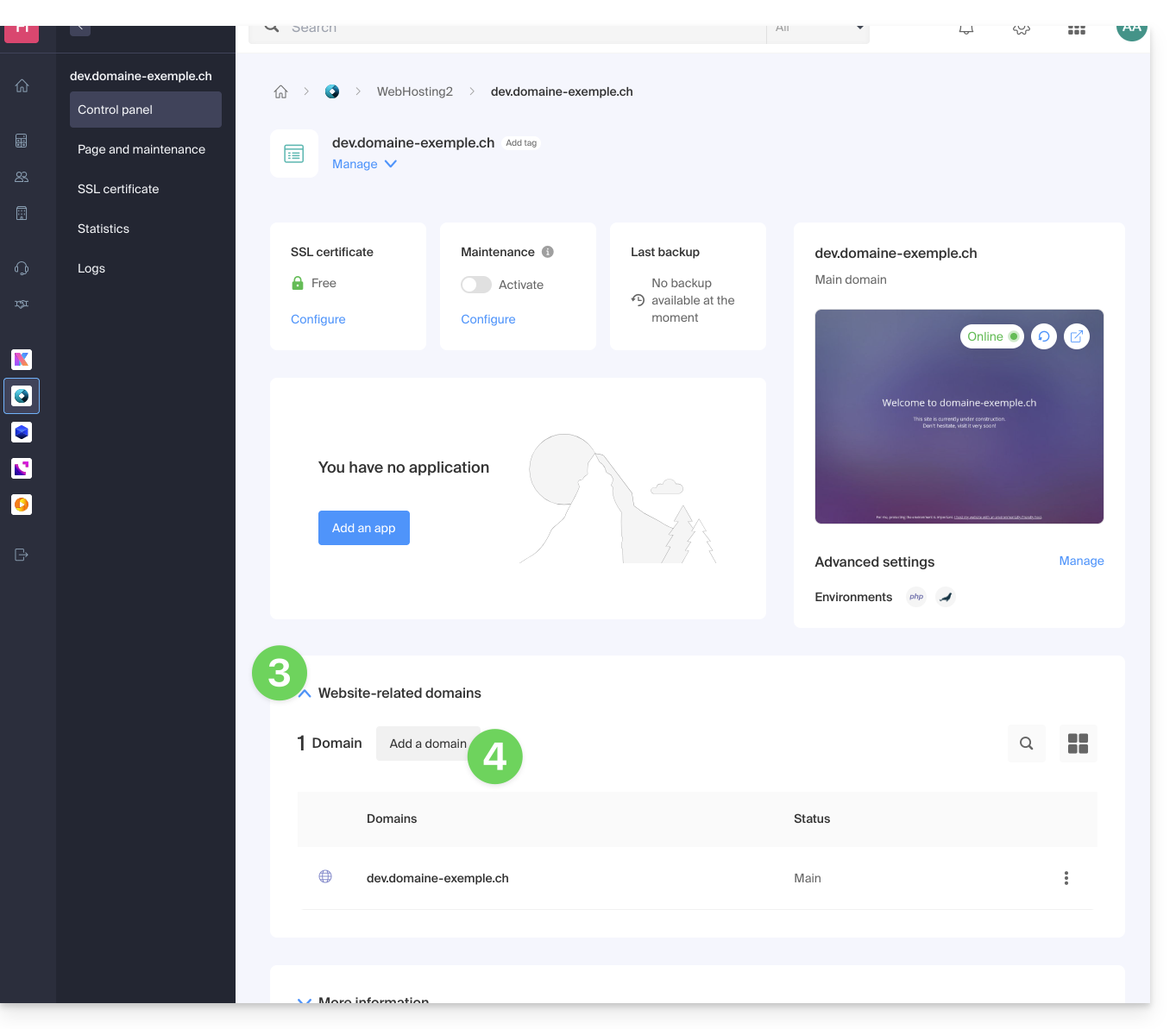
- Add the new desired name (if the domain name to be added is on the same Organization, it will be suggested in the list; otherwise, enter its spelling):
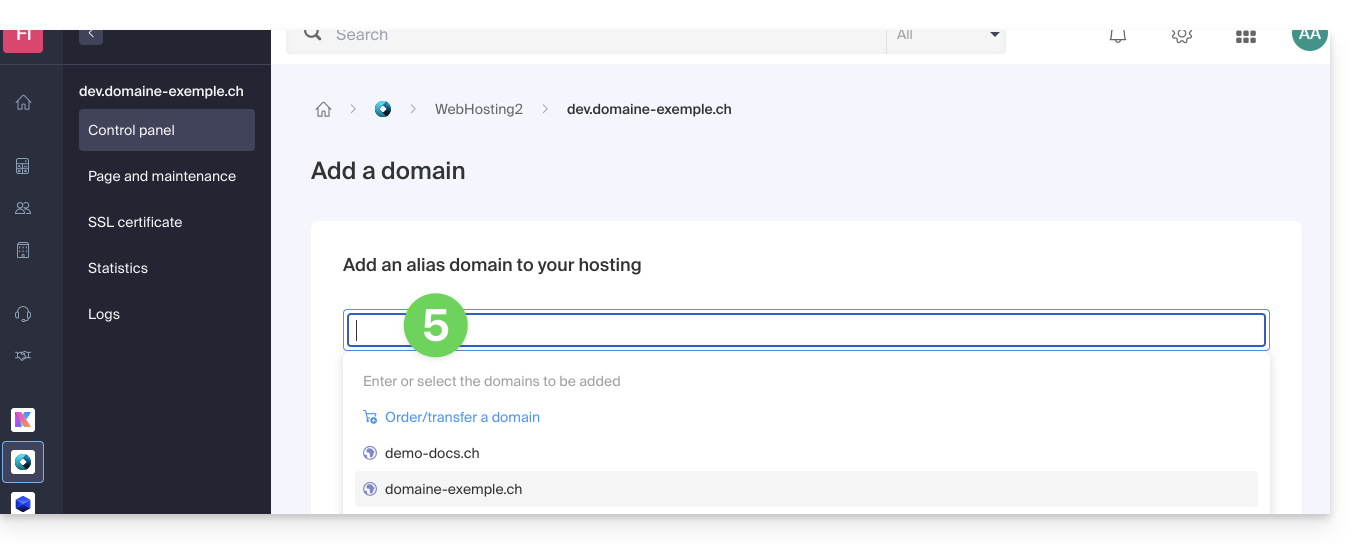
- Enable or disable the checkboxes:
- If the added domain is not in the form of a subdomain, you can request that the
wwwversion of the domain be added automatically. - Automatically update (if possible) the DNS records of the added domains.
- Automatically update the related SSL certificates (if possible).
- If the added domain is not in the form of a subdomain, you can request that the
- Click the button to Confirm and wait:
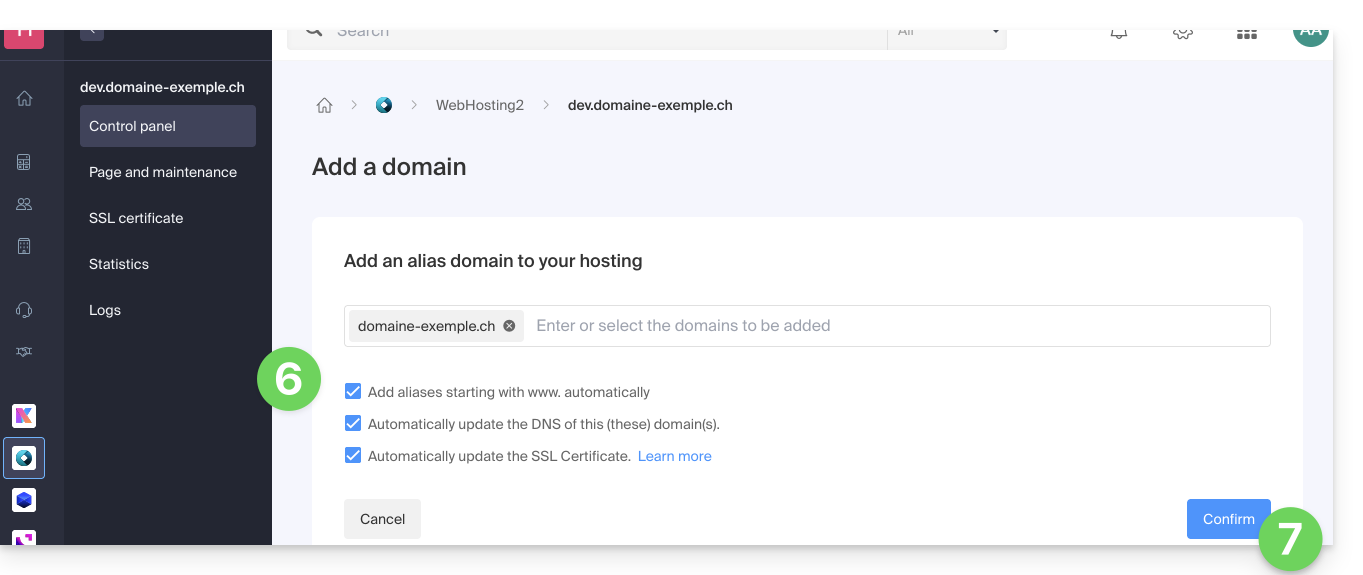
- Once added, click on the action menu ⋮ located to the right of the domain you just added and want to set as the primary domain:
- Choose to define the item as the primary domain:
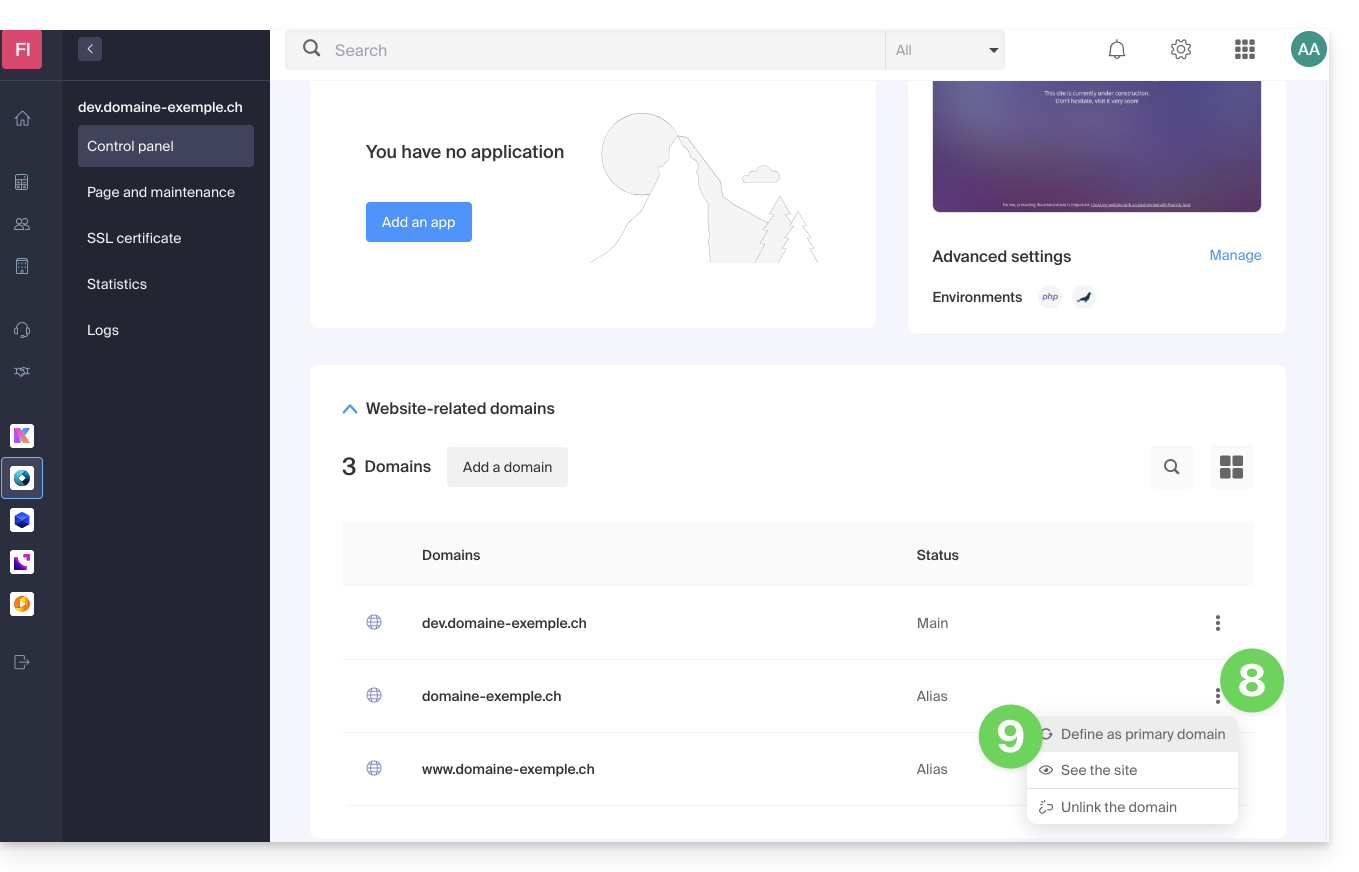
- Confirm the operation to proceed with the domain swap:
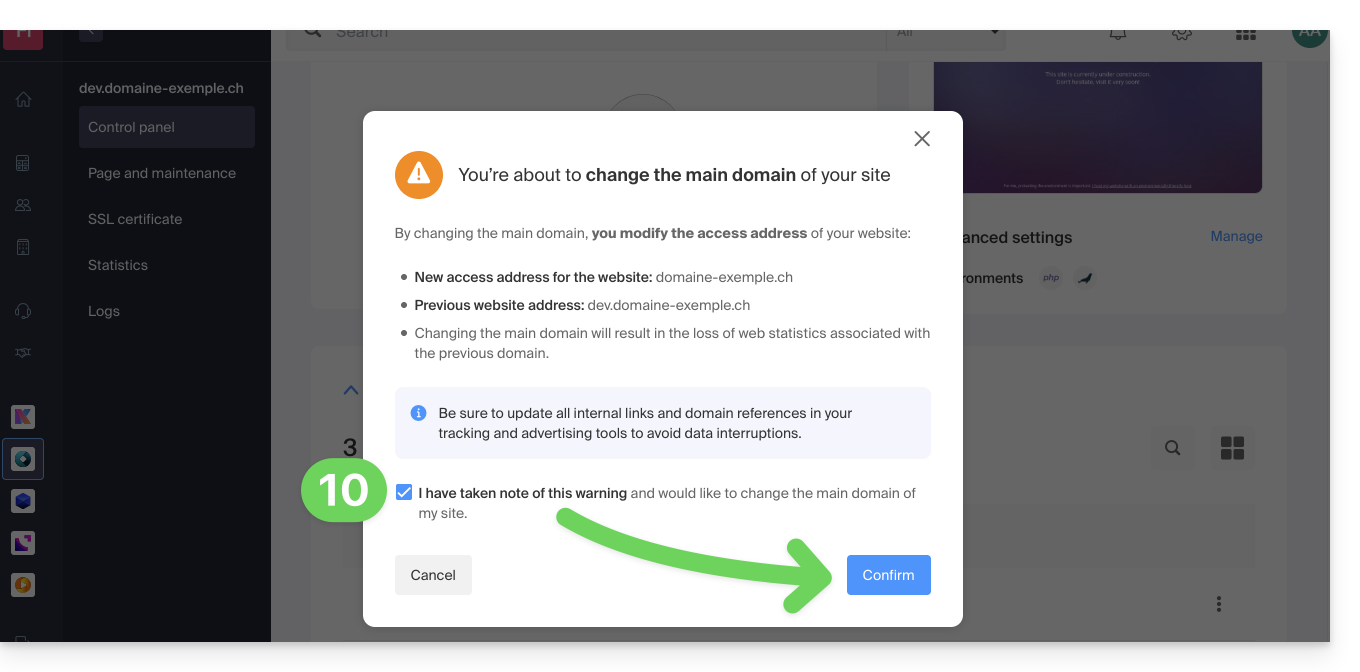
Link to this FAQ: https://faq.infomaniak.com/2160
Has this FAQ been helpful?
This guide concerns the task scheduler on Web Hosting.
Introduction
- This scheduling feature allows you to run scripts and code at the time and frequency you choose, to automate repetitive tasks.
- If your site uses Node.js, you can also manage scheduled tasks directly in your application's code using the
node-cronmodule. - Refer to this other guide if you are looking for information about crontab (crons via SSH) on Cloud Server.
Schedule tasks (webcron)
To access the task scheduling tool:
- Click here to access the hosting & website management section in your Infomaniak Manager (❓: help).
- Click on the name of the website in question.
- Click on Advanced Tools in the left-hand menu.
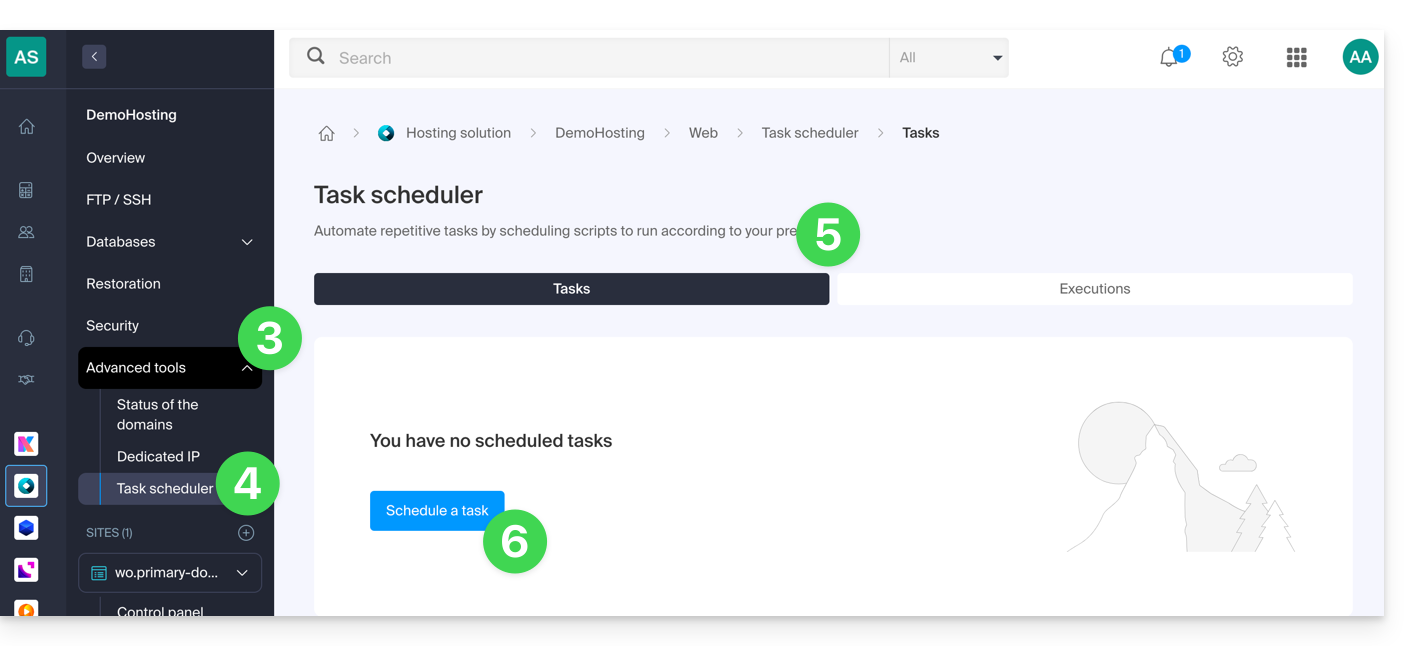
- Click on Task Scheduler.
- Existing cron jobs and tasks currently running are displayed under the two tabs on the page.
- Click on the Schedule a task button to create a scheduled task, specifying whether the URL of the script to be executed is password-protected, whether you want to receive notifications, and of course the desired interval (see below), etc.:
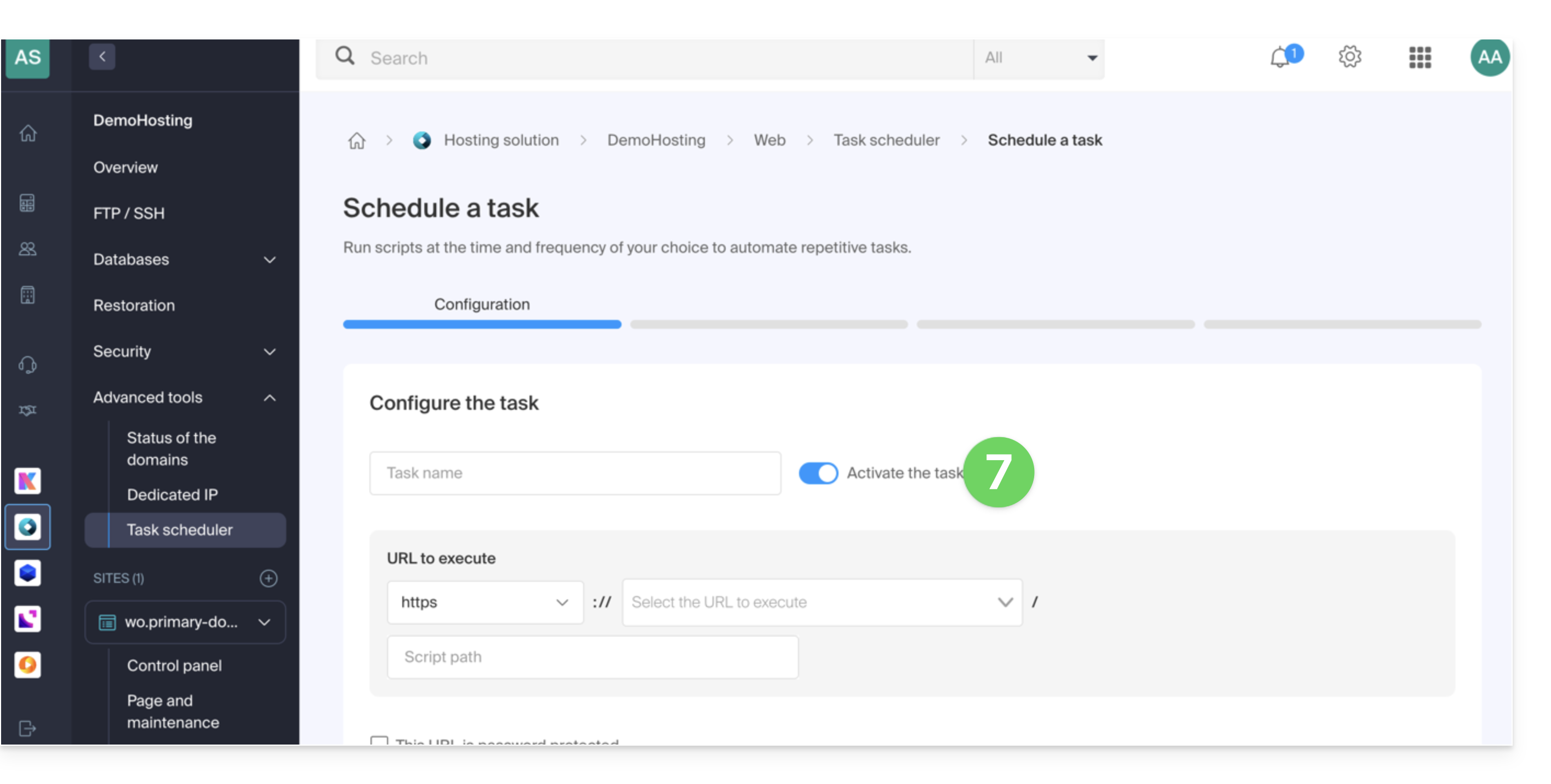
- Don't forget to activate the task using the toggle switch:
Minimum intervals
In the next step, you can schedule the cron according to…
- [ a ]… pre-defined intervals, such as once a week…
- [ b ]… or a custom interval with a minimum frequency of:
- 15 minutes with shared hosting
- 1 minute on Cloud Server
Notifications & analysis
In the next step, you can enable notification emails: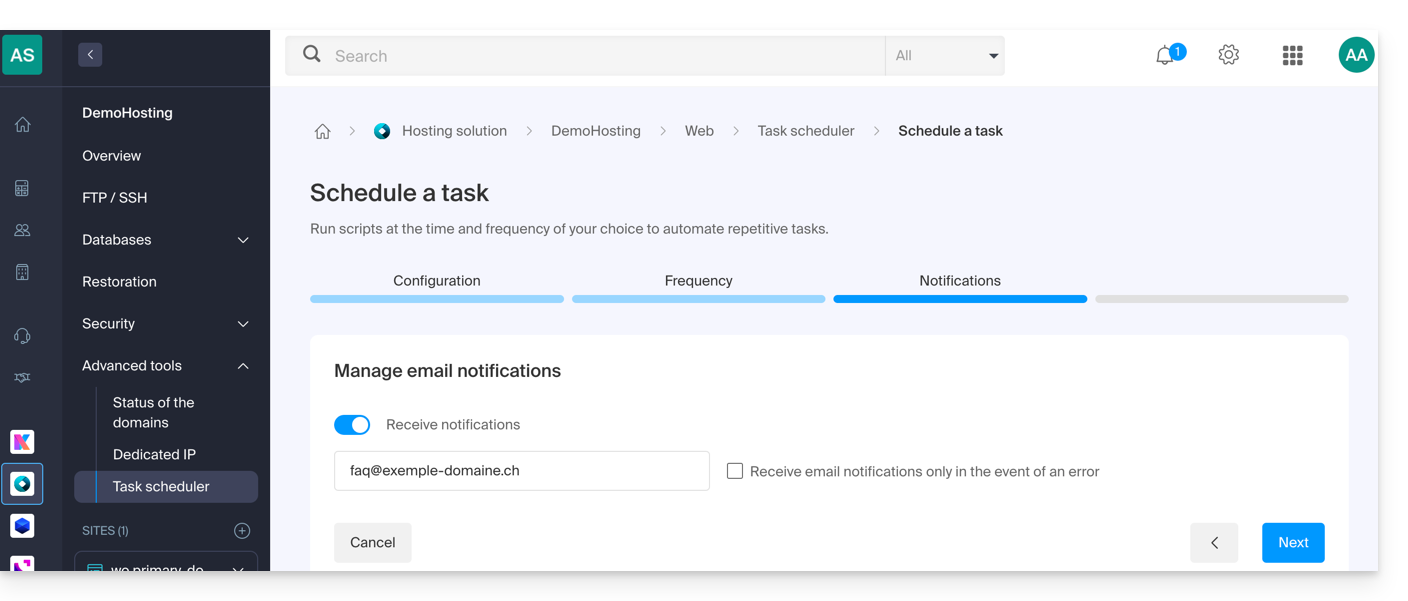
The next step allows you to enable task analysis: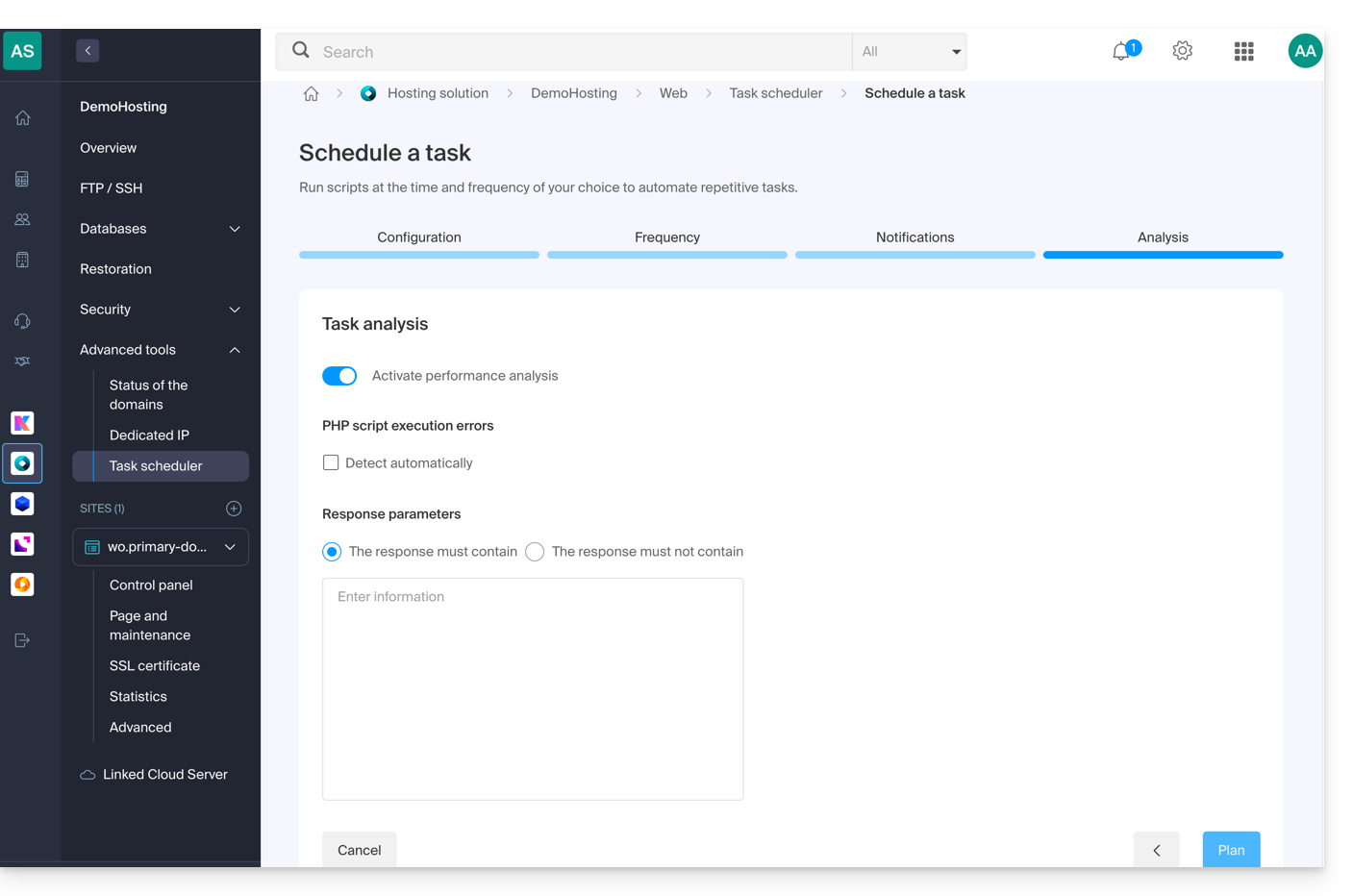
Run the task manually once
Once the task has been created, click on the action menu ⋮ located to the right of the item in question to access the quick management of your task and its execution log: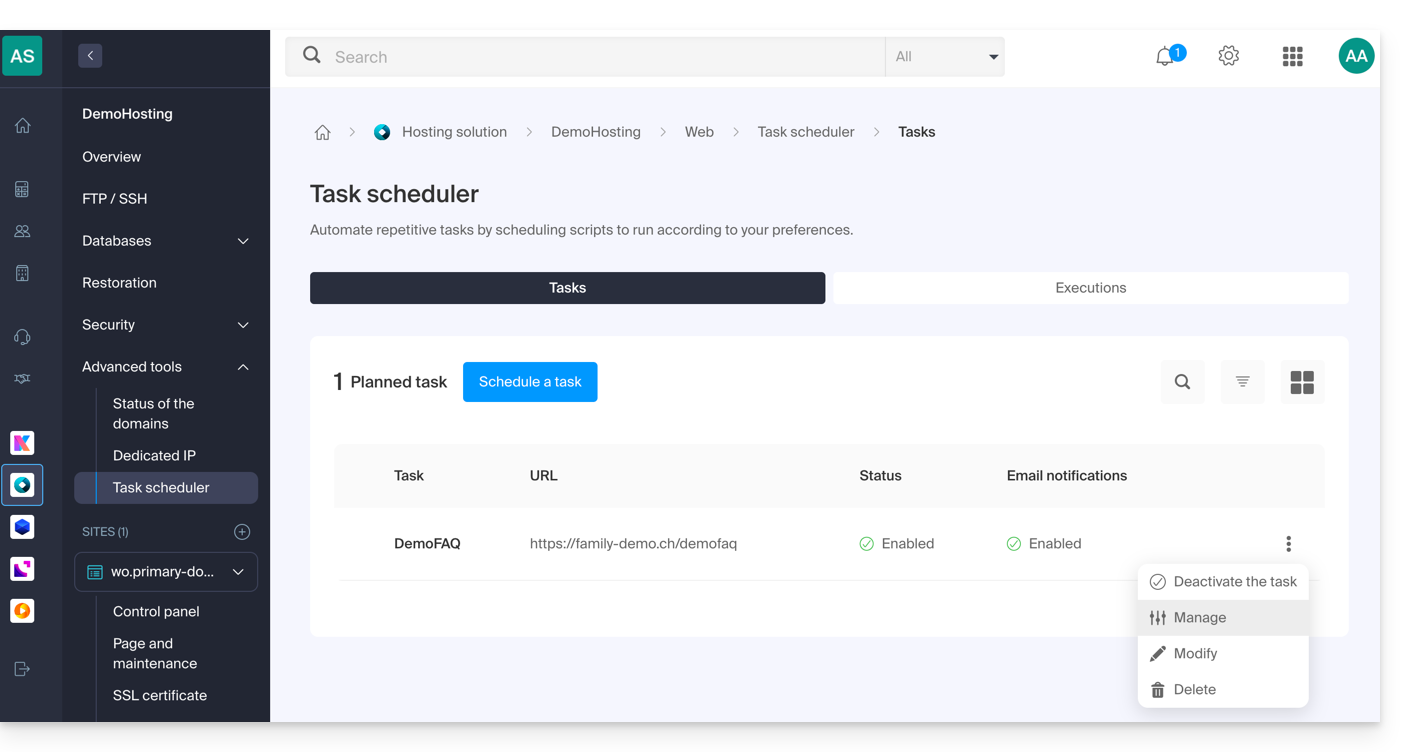
At the top of the page, you can click on the button to execute the task manually once: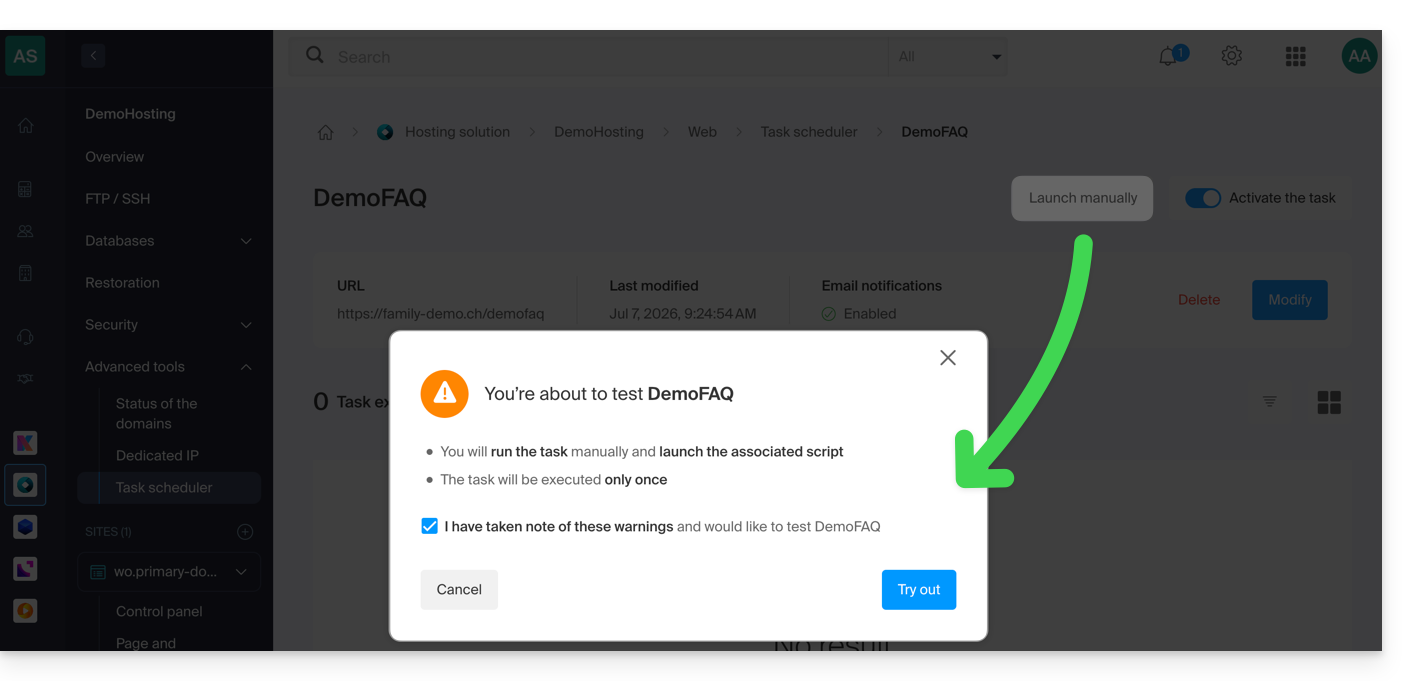
Link to this FAQ: https://faq.infomaniak.com/2161
Has this FAQ been helpful?
This guide explains the purpose of the "MySQL Prefix" option in a website's settings and its implications for the operation of your web applications (CMS) and PHP scripts.
Introduction
- When the "MySQL Prefix" option is enabled for a website, it is no longer necessary to add the "
wxyz_" prefix to the name and users of your MySQL databases. - A PHP script can then connect to MySQL with the user "monuser" and a database "mabase", and access will automatically be granted with the user "wxyz_monuser" and the database "wxyz_mabase".
- ⚠ If you are migrating from an older Infomaniak plan:
- After migrating a website from the old console, the "MySQL Prefix" option is enabled by default to automatically maintain the connection of your web applications (WordPress, Joomla, Drupal, etc.) and PHP scripts with your MySQL databases.
- To ensure your websites function correctly in the event of a migration to another server, it is strongly recommended that you disable this function and make the necessary adjustments.
Manage the MySQL Prefix Option
Go Further with Environment Variables
You can configure environment variables directly from the Manager for your entire website:
- Click here to access the hosting & site management section in your Infomaniak Manager (❓: help).
- Click on the name of the product in question.
- Click on Manage advanced settings:
- Click on the PHP / Apache tab:
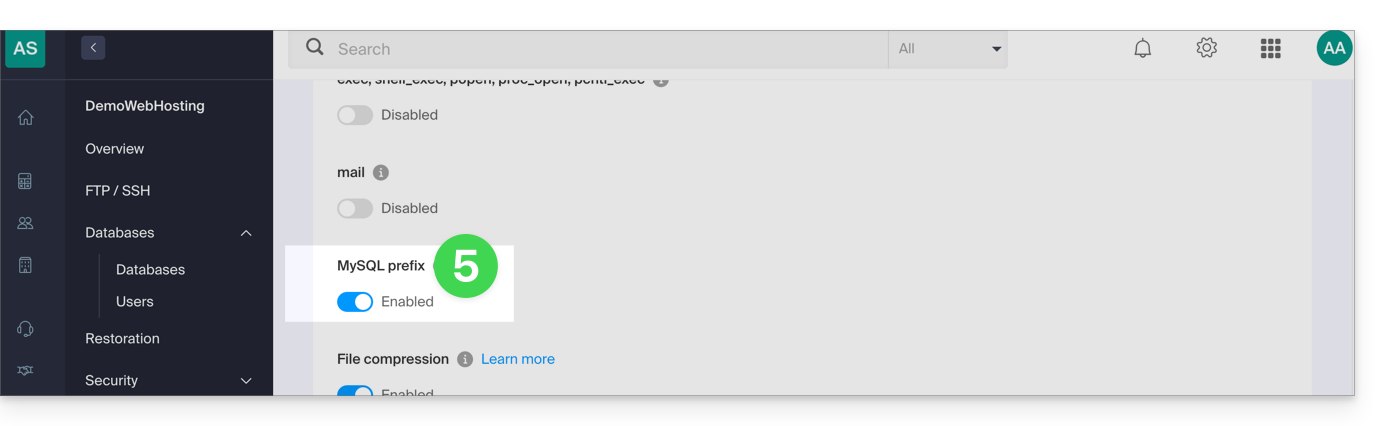
- Enable or disable the MySQL Prefix toggle switch:
- Click on the Save button at the bottom of the page.
- Make the necessary adjustments in the configuration files of your web applications and PHP scripts…
Implications and adjustments to be made
After disabling the MySQL Prefix option for a website, some PHP scripts or CMS may no longer function.
To restore the connection to your databases, you must update the following information in the configuration file(s) of the scripts concerned:
- the name of the MySQL database: you will need to add the prefix of your server to it.
- before:
dbname - after:
wxyz_dbname
- before:
- the user of the MySQL database: you will need to add the prefix of your server to it:
- before:
dbuser - after:
wxyz_dbuser
- before:
Link to this FAQ: https://faq.infomaniak.com/2168
Has this FAQ been helpful?
This guide covers redirecting web traffic to a specific port, including when using a dedicated IP and a specific web application (such as Node or Varnish, for example).
Prerequisites
- Add a website to your hosting.
- Install
HAProxyon the Cloud Server.
Redirect web traffic to a specific port
By default, on Cloud Server, web traffic is sent to Apache. To send requests to a Node script or another service (provided it "listens" on a port between 4000 and 4009), you must use HAProxy.
This applies in particular to Express, Socket.IO, Meteor.js, Nuxt.js, Flask, Ruby on Rails servers, and even possibly Java (J2E), etc.
To do this, make sure that the service is listening on a port between 4000 and 4009 (e.g., with server.listen(4000) for Express or a basic HTTP Node server, but depending on the type of project, using other means, a configuration file, in the code, or otherwise) and on all interfaces (0.0.0.0).
You will also need to configure HAProxy as shown in the following example:
- Click here to access the management of your Cloud Server on the Infomaniak Manager (need help?).
- Click directly on the name assigned to the Cloud Server in question.
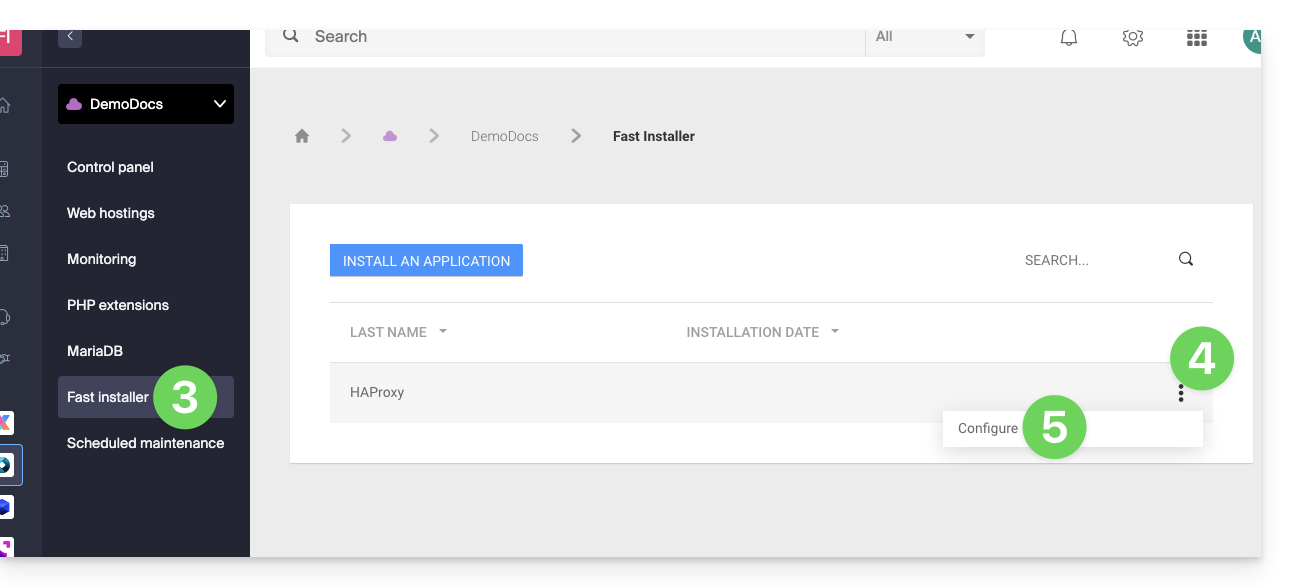
- Click on Fast installer in the left-hand menu.
- Click on the action menu ⋮ located to the right of
HAProxy. - Click on Configure:
- Select the desired information and save:
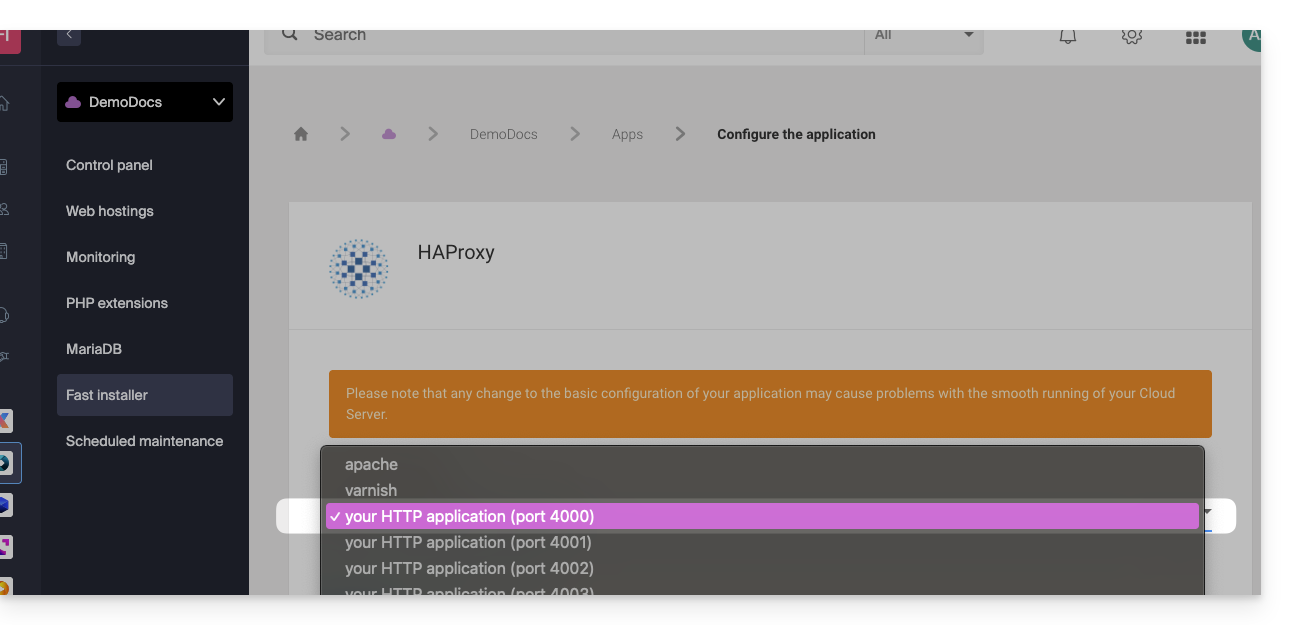
Special case for aliases and wildcards
Configuring HAProxy via the Fast Installer applies exclusively to the primary domain of the hosting.
Currently, domain aliases (whether specific or wildcard type, such as *.domain.xyz) are not natively supported by this tool.
To redirect traffic from an alias to your application (which is listening, for example, on port 4000), you must manually configure a "proxy" rule in the .htaccess file located at the root of your site:
# Redirect all traffic to the application (e.g., Node.js on port 4000)
RewriteEngine On
RewriteRule ^(.*)$ {{URL_6}} [P,L]
Without this manual directive, all requests matching your aliases or wildcards will be directed by default to Apache instead of your specific application.
Retrieving the source IP of a request
When you redirect web traffic to your web application, the request processing changes, and the request is first received by a reverse proxy (local to the server), which then forwards the request to the chosen port. As a result of this request transfer, methods that are usually used to retrieve the visitor's IP address will return the IP address of the reverse proxy instead of the visitor's IP address.
Therefore, to retrieve the actual source IP address of the visitor in these cases, you need to consult an HTTP header named X-Forwarded-For, which will contain the accumulated source IPs from each redirection. This header will therefore contain the original client IP address at the end, allowing you to identify the actual visitor.
Caution: It is important to note that HTTP headers can be manipulated, which poses security risks. To minimize these risks, it is recommended to verify that the request actually comes from a reliable server before trusting the content of the X-Forwarded-For header. This verification may involve ensuring that the request was transmitted by a trusted intermediate server, identified by a pre-established list of IP addresses. In the case where the site uses a dedicated IP, the trusted servers are:
- 83.166.133.15
- 83.166.133.17
- 83.166.133.16
- 84.16.92.5
- 84.16.92.43
- 10.2.32.255
- 10.2.34.164
Link to this FAQ: https://faq.infomaniak.com/2171
Has this FAQ been helpful?
This guide explains how to restore an automatic backup of an Infomaniak Web Application (Joomla, Drupal, Typo3, PrestaShop, ownCloud, etc.) included in the paid Web Hosting plans.
Introduction
- This does not concern WordPress, which can be backed up and then restored via:
- automatic backups for hosting,
- extensions that allow you to manually create a complete backup, including an easy-to-use reinstallation file.
- On the FTP server, the files corresponding to the different backups are available under
/application-backups/.
Restore a Web Application
To access the backups of your Apps:
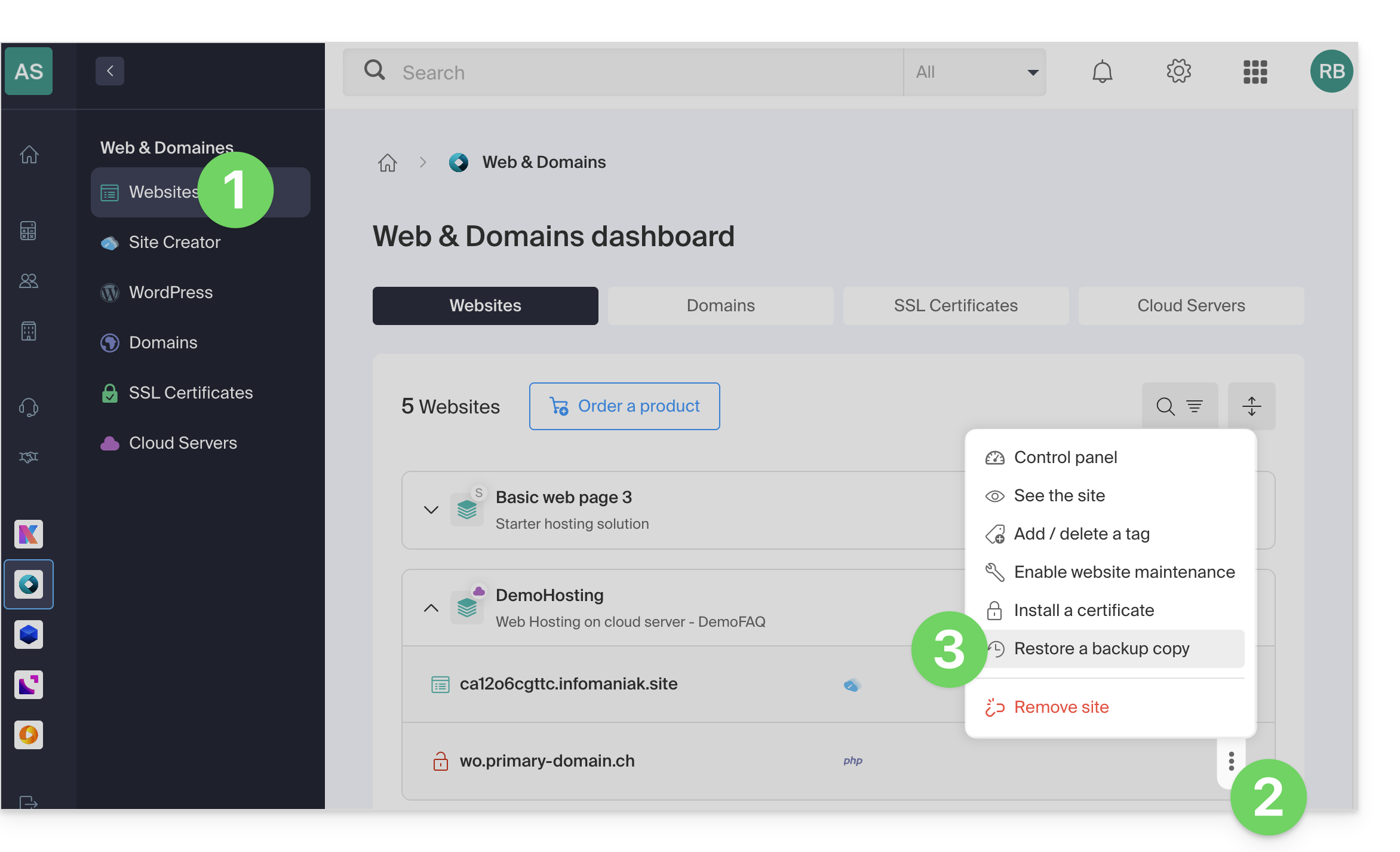
- Click here to access the hosting & website management section in your Infomaniak Manager (❓: help).
- Click on the action menu ⋮ located to the right of the item in question.
- Click on Restore a backup:
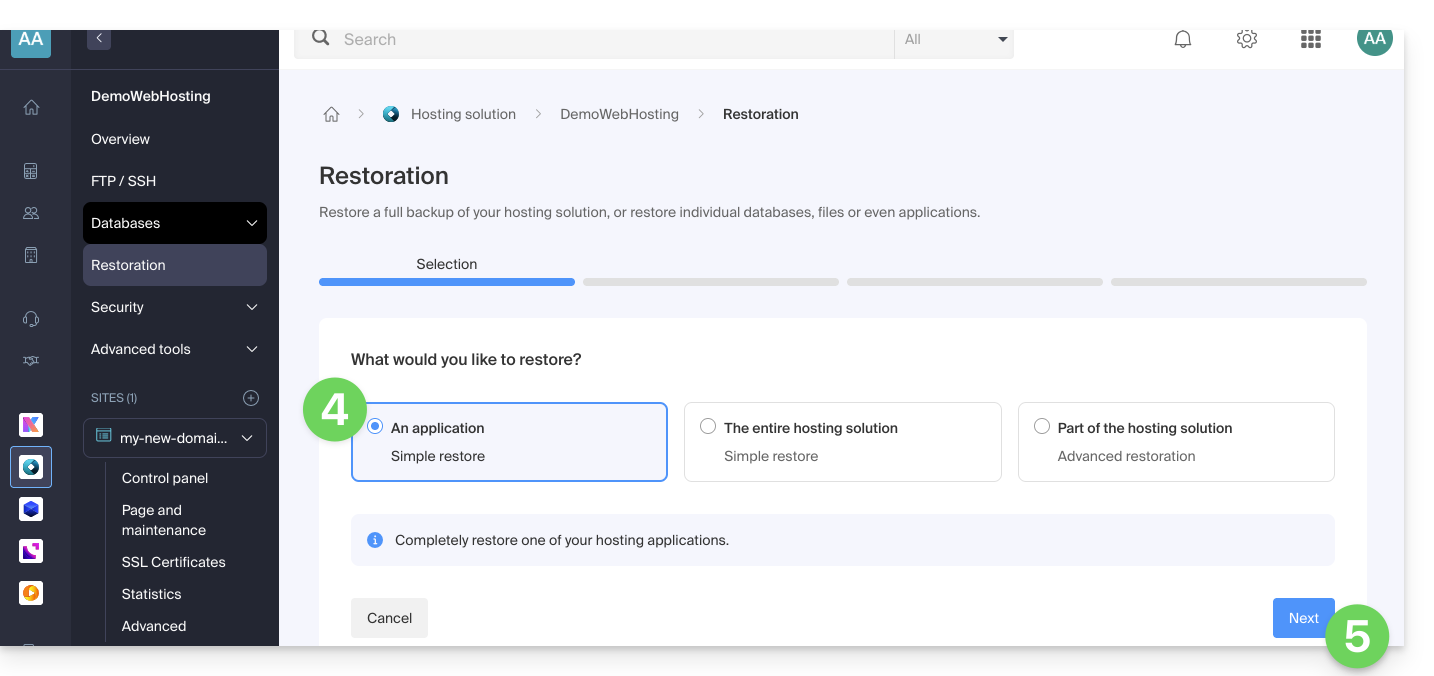
- Click on the desired type of restoration (Web Application).
- Click on the Next button:
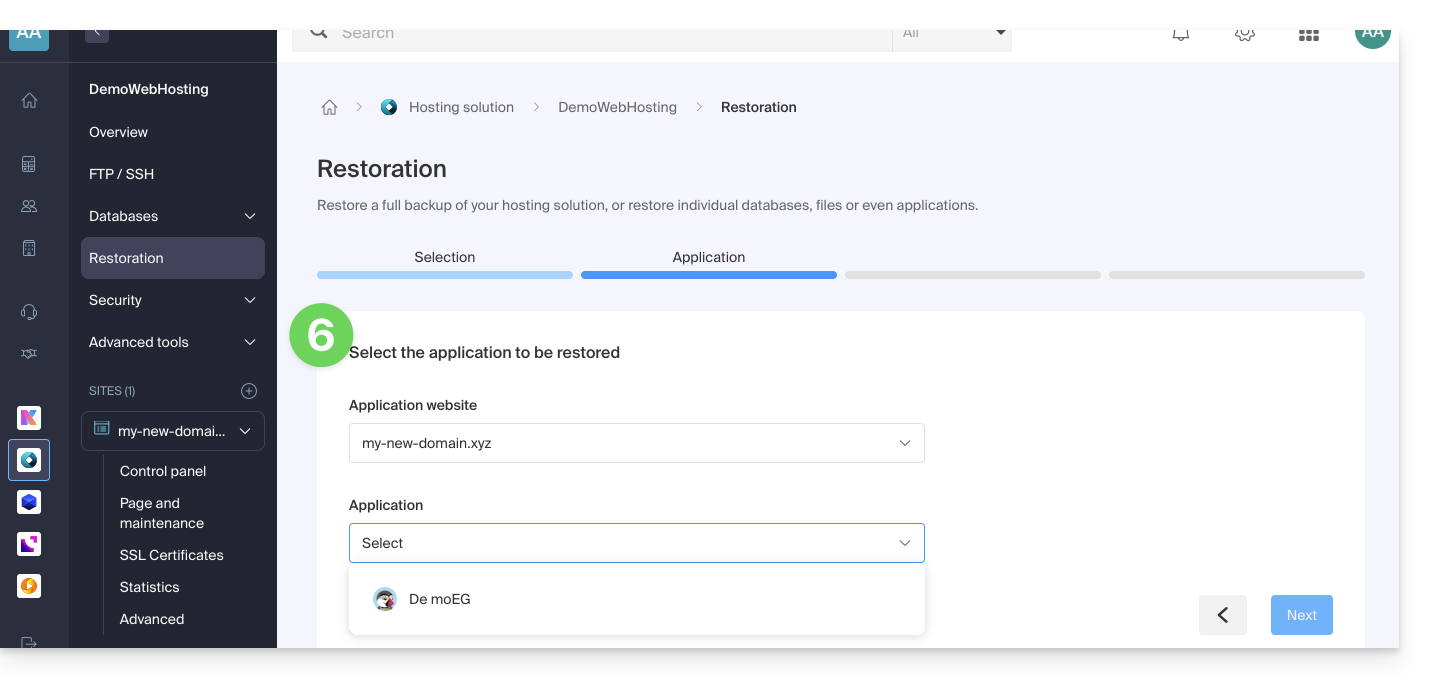
- Choose the application to restore and click on the Next button:
- Choose the date to which you want to revert and click the Next button.
- If the Backups page is empty, this probably means that backups are disabled or that the installation is too recent.
- Choose whether you prefer to…
- …delete existing files before restoring the backup (recommended).
- …replace files with the same name and keep new files created since the backup date.
- Click the Restore button to start restoring the Web Application data.
Learn more
Link to this FAQ: https://faq.infomaniak.com/2175
Has this FAQ been helpful?
This guide explains how to access phpMyAdmin with a Web Hosting plan.
Introduction
- phpMyAdmin is an open-source administration tool designed to manage your MySQL and MariaDB databases via an intuitive web interface.
- It allows you to perform complex operations such as executing SQL queries, creating tables, or importing and exporting data without having to use the command line.
Accessing phpMyAdmin
To access the Web Hosting section related to Databases:
- Click here to access the hosting & website management section in your Infomaniak Manager (❓: help).
- Click on the name of the relevant hosting.
- Click on the chevron to the right of Databases in the left-hand menu.
- Click on Databases in the left-hand menu.
- Click on Connect to phpMyAdmin:
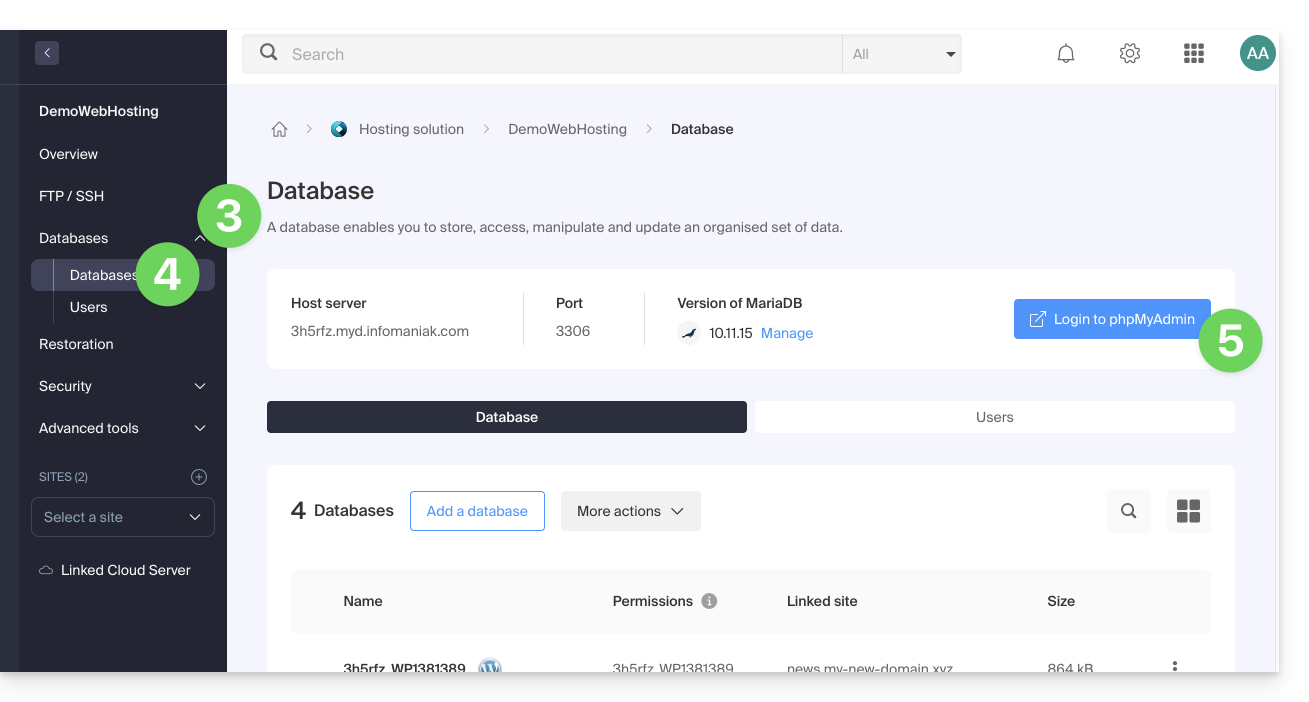
- The correct server and a temporary user are automatically populated.
You can also click on the action menu ⋮ located to the right of a database user: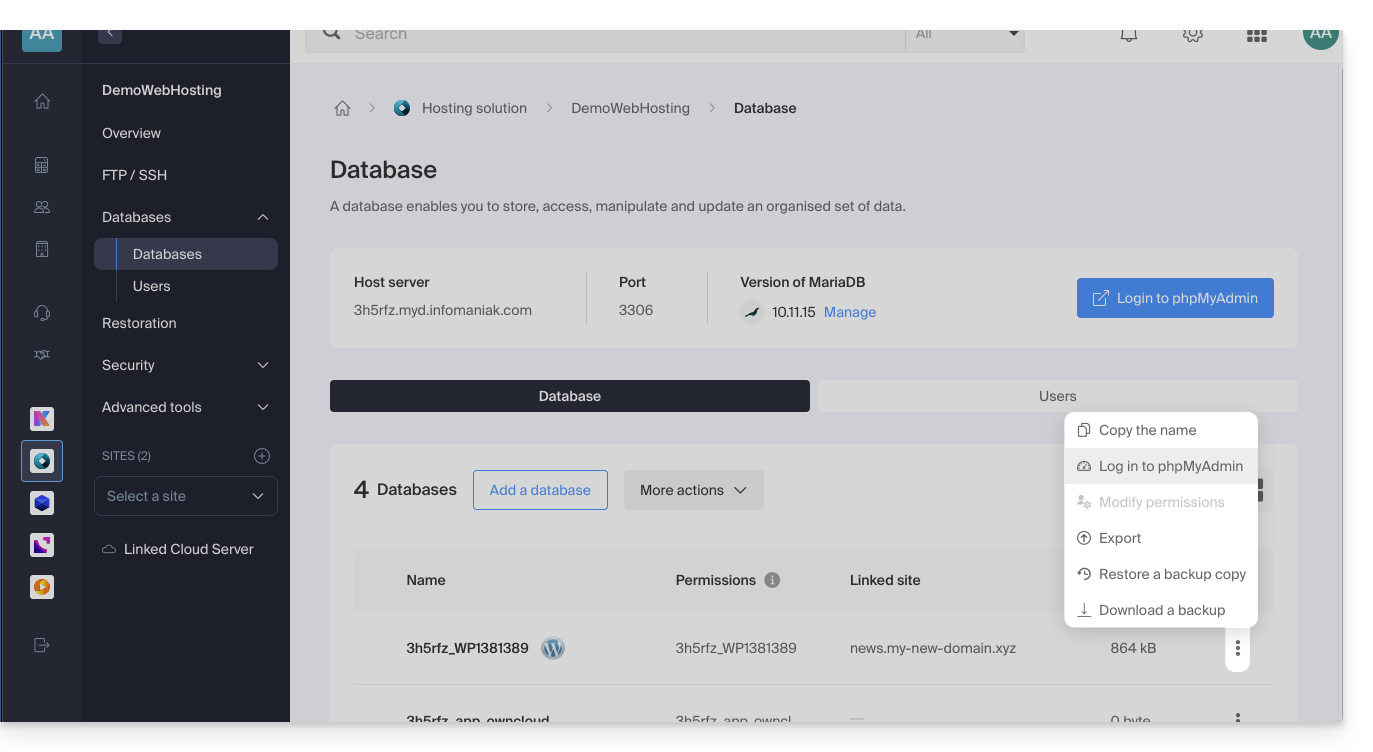
- The correct server is automatically populated.
- The password to enter corresponds to the database user (the one you chose when creating the MySQL user reset it if you have forgotten it):
Link to this FAQ: https://faq.infomaniak.com/2179
Has this FAQ been helpful?
This guide explains how to access the bootloader of a Cloud VPS / Lite VPS from the Infomaniak Manager.
The bootloader is the software that allows you to launch one or more operating systems (multi-boot) on your Cloud VPS / Lite VPS.
Display the bootloader of a Cloud VPS / VPS Lite
The following procedure allows you to display the bootloader of GRUB:
- Click here to access your product management interface in the Infomaniak Manager (need help?).
- Click directly on the name assigned to the product in question.
- Click on Open VNC console.
- Click on Restart the server while keeping the new window with the VNC console displayed.
- Refresh the VNC console immediately after the server restarts to display the server's bootloader; GRUB will then appear, and you can keep it displayed by pressing a key on your keyboard:

Link to this FAQ: https://faq.infomaniak.com/2182
Has this FAQ been helpful?
Your website has sent suspicious messages and may have been hacked, although it is still accessible.
Your email accounts (if you have any) are not affected… However, the reception of emails from your website may be disrupted.
What to do?
Infomaniak informs you that websites containing malicious code and/or sending spam may be penalized by search engines, and the registry of the domain in question may block or delete your domain name.
It is therefore essential tocheck and modify your pages, as well as clean up the hosted files.
You should also consult this other guide.
Link to this FAQ: https://faq.infomaniak.com/2183
Has this FAQ been helpful?
This guide explains how to move a Hosting (and all the websites it contains) from a Cloud Server to another managed Cloud Server.
If you would like toupgrade your current Cloud Server to a new-generation server, please refer to this other guide.
Introduction
- FTP & MySQL
- When moving a hosting account from one Cloud Server to another:
- FTP access and database credentials remain unchanged.
- Only the hosting account's supported PHP and MariaDB versions, as well as the server's IPv4 and IPv6 addresses, will change.
- Hostnames remain unchanged and are automatically updated to point to the new IP addresses.
- When moving a hosting account from one Cloud Server to another:
- Temporary interruption:
- The websites hosted will be unavailable during the data migration.
- This process may take several minutes, depending on the number of files to be transferred to the new Cloud Server.
- Possible switch to HTTP/2:
- HTTP/2 is enabled on the new servers.
- Some directives that may be present in the
.htaccessfile of your server may require adaptation (❓: help).
- Traffic redirection:
- A proxy is set up for 7 days to redirect traffic from the old server to the new one.
- Therefore, you should keep this in mind during this period, especially for crons (see below).
- Crons not migrated:
- Crons via SSH are not migrated.
- Files and crons are generally not deleted immediately, which can lead to duplicates.
- Cron management is your responsibility; depending on the progress of your migration, you need to:
- disable and re-enable crons via SSH if you have any, to avoid any execution conflicts,
- check your crons,
- make sure they are configured correctly on your new Cloud Server.
Move Hosting
Prerequisites
- Both servers must be in the same Organization and accessible to the user performing the operation.
Once the second Cloud Server is operational:
- Click here to access the hosting management section in the Infomaniak Manager (need help?).
- Click directly on the name assigned to the hosting in question.
- Click on the Manage button.
- Click on Move to another server in the menu that appears:
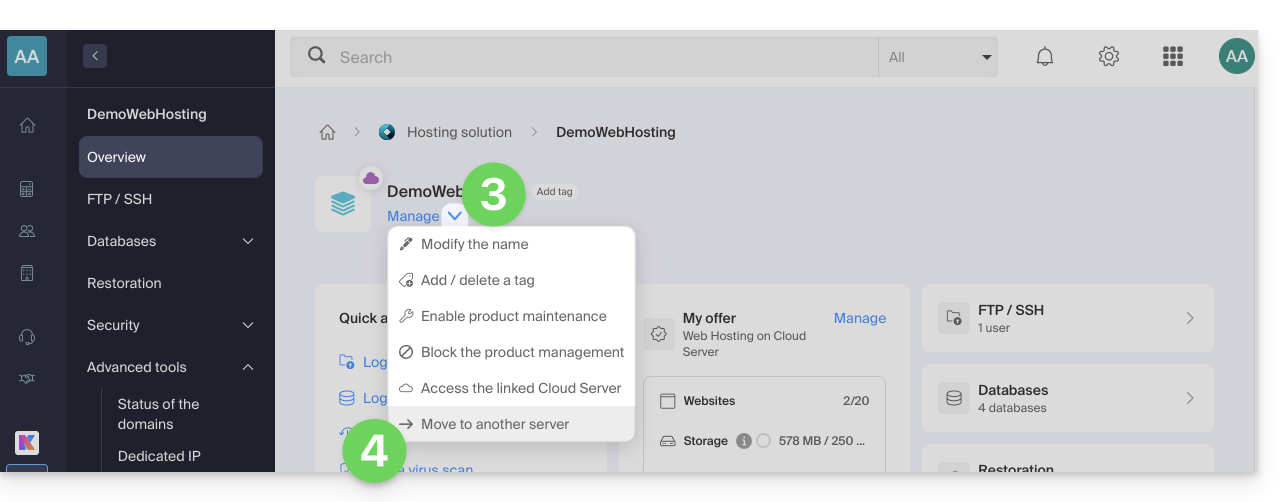
- Choose the desired destination server.
- Click on Validate.
Adjust the DNS zone and finish
If your domain namesare not managed at Infomaniak or within the same Organization as the Cloud Server:
Link to this FAQ: https://faq.infomaniak.com/2194
Has this FAQ been helpful?
This guide explains how to view and interpret the monitoring data (network statistics, CPU, RAM, etc.) of a Cloud Server.
Monitor the activity of a managed Cloud Server
To access the monitoring
- Click here to access the management of your product in the Infomaniak Manager (need help?).
- Click directly on the name assigned to the product in question.
- Click on Monitoring in the left-hand menu.
Various data are available to monitor the activity of your Cloud Servers, including:
- incoming and outgoing traffic (network)
- the average system load
- the average CPU load
- the amount of RAM used
- the disk space used
- the number of hits/second.
- the average number of MySQL queries performed.
Interpreting the statistics
By interpreting the resource monitoring of a Cloud Server, you can estimate the resources (the power) you need to run your websites and web applications.
Total system load

The total system load summarizes, as a percentage, the level of virtual processor usage. In this example, the server is using less than 10% of its resources (0.10).
Processor (CPU) and Memory (RAM)

These graphs show that less than 10% of the virtual processors are used and that less than 3 GB of RAM is actually utilized. In this example, the configuration of this server is therefore oversized in relation to the actual needs.
High Cached Memory
High cached memory on a server is not unusual and is often beneficial in many cases. Here's why:
- Caching for improved performance: Modern operating systems, such as Linux, use available memory to cache data from the disk, thereby improving performance. When accessing files or applications, the system can quickly retrieve data from the cache instead of reading it from slower storage devices, such as hard drives. This helps reduce the overall response time of your server and can significantly improve performance.
- Efficient memory usage: High memory usage due to caching means that your server is using the available memory efficiently. Unused memory is wasted memory. Therefore, as long as the memory is used for useful purposes such as caching, it is a positive sign.
- Automatic memory management: Operating systems are designed to automatically adjust the cache size based on the needs of running applications. If an application needs more memory, the cache can reduce its size to accommodate it. This dynamic memory management ensures a balance between caching and serving active applications.
- Monitoring perspective: From a monitoring perspective, seeing high memory usage due to the cache may initially raise concerns, but it is essential to interpret the measurements in the context of your server's behavior. If you observe good performance and do not notice any signs of memory-related issues, such as swapping or application crashes, the high cache usage is probably expected and beneficial.

In summary, a high cache memory usage on a server is normal and can help improve the overall system performance. Don't be concerned if you observe significant cache memory usage, as long as your server is functioning correctly and without any obvious memory-related issues. Caching is an essential tool for optimizing performance and making the most of available resources.
Link to this FAQ: https://faq.infomaniak.com/2195
Has this FAQ been helpful?
This guide explains how to modify the automatic backup configurationInfomaniak Web Applications (Joomla, Drupal, Typo3, PrestaShop, ownCloud, etc.) included in the paid Web Hosting plans.
Introduction
- This does not apply to WordPress, which can be backed up and then restored via:
- automatic backups for hosting,
- plugins that allow you to manually create a complete backup, including a file for easy reinstallation.
Configure backups
To manage app backups:
- Click here to access the hosting & website management section in your Infomaniak Manager (❓: help).
- Click on the name of the website in question.
- Click on the action menu ⋮ located to the right of the relevant Web Application.
- Click on Settings in the application:
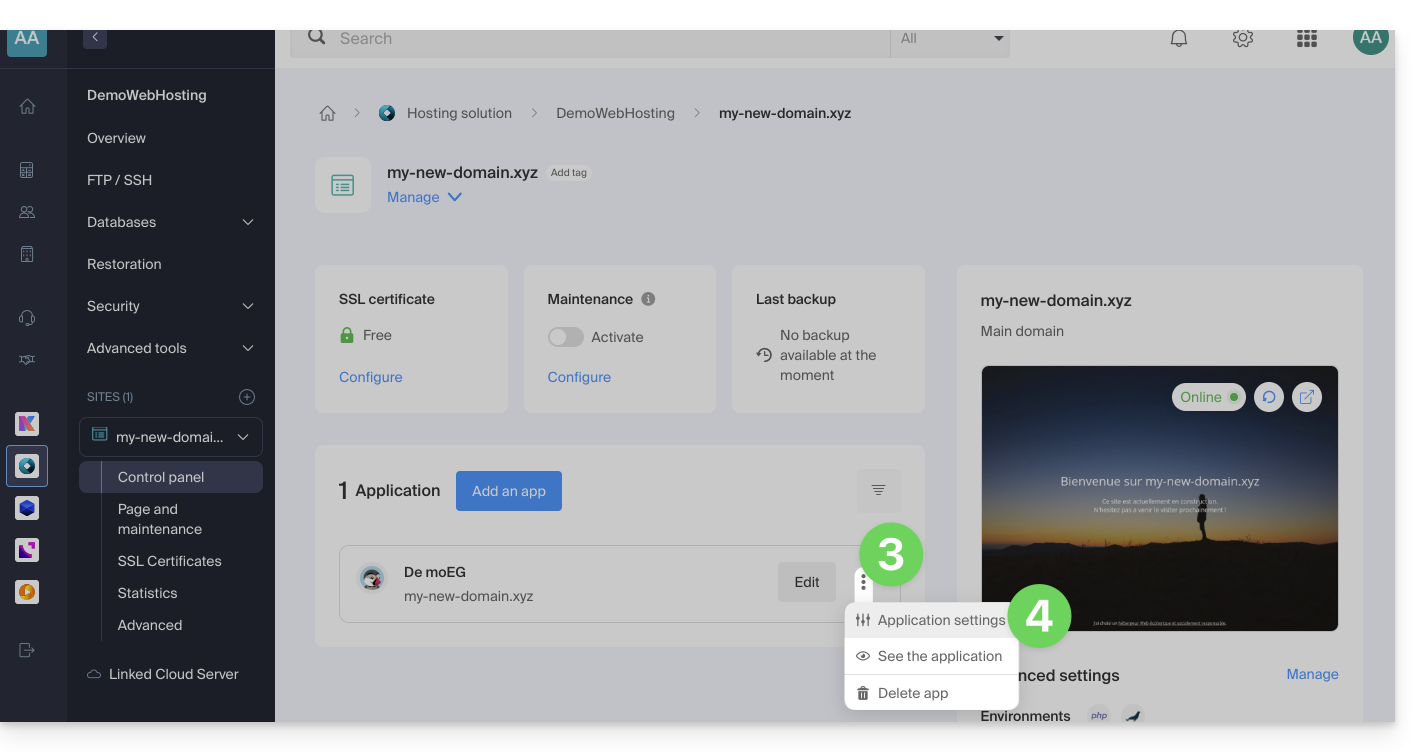
- Click on Edit to the right of the Application:
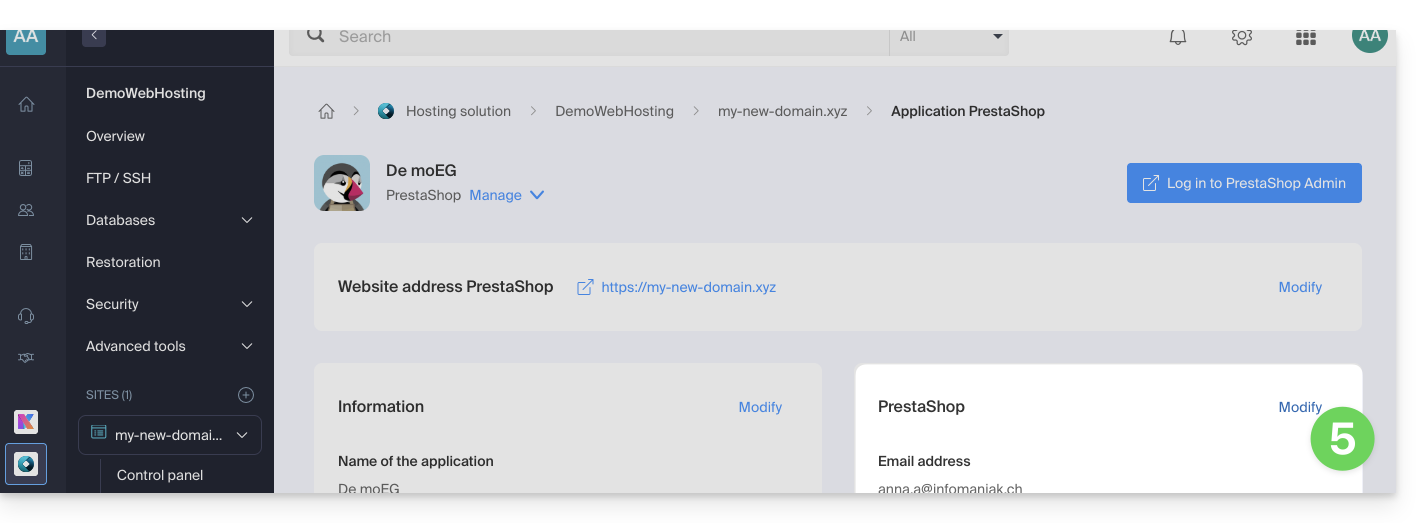
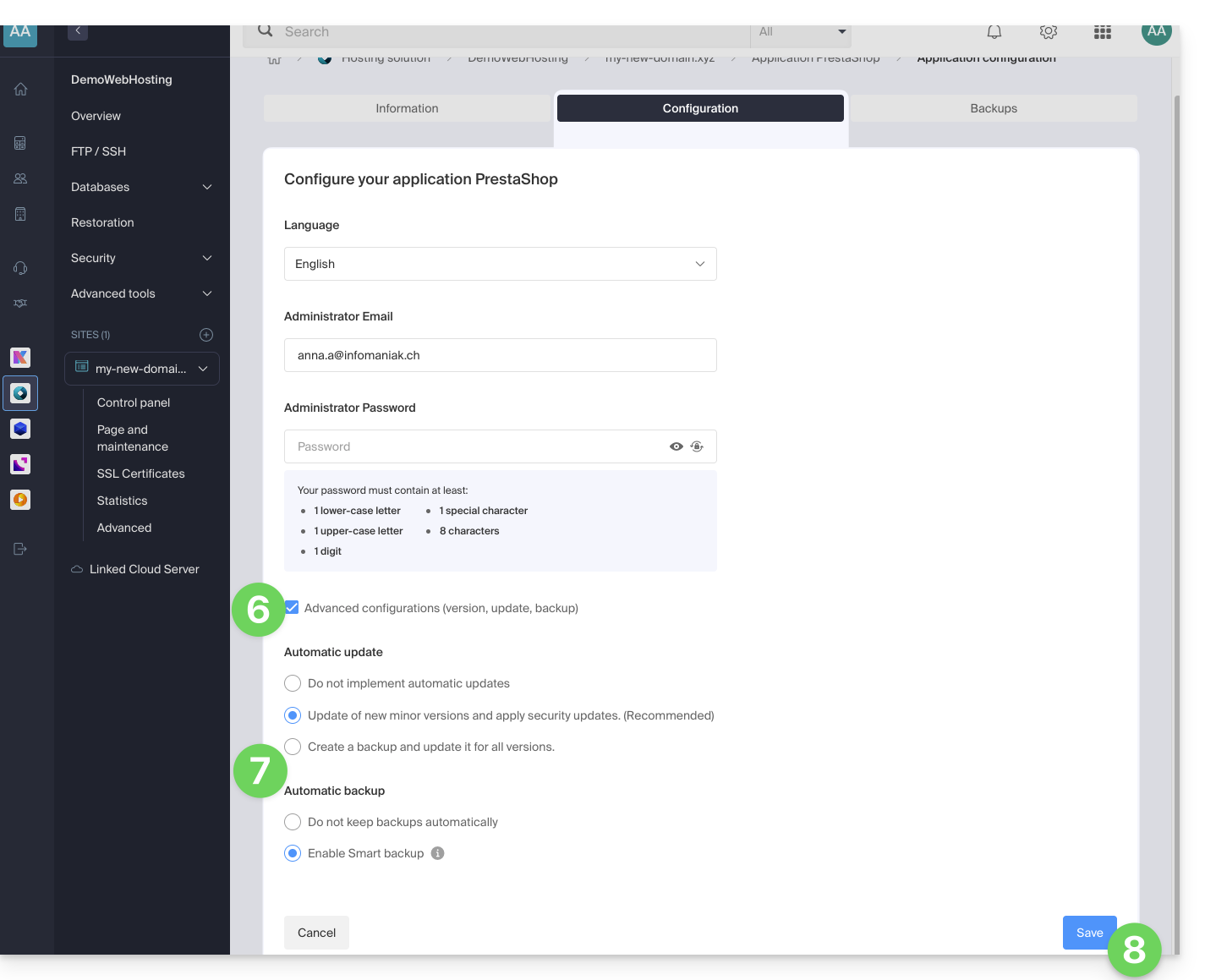
- Under the Configuration tab, click the checkbox to access the advanced configuration.
- Choose the desired update and backup modes:
- 7 recent backups are kept, as well as those from 15 and 30 days ago.
- Save your changes using the button in the bottom right corner:
Learn more
Link to this FAQ: https://faq.infomaniak.com/2196
Has this FAQ been helpful?
This guide provides basic instructions for creating and using a .htaccess and .user.ini file with an Infomaniak Web Hosting account.
Introduction
- A
.htaccessfile is placed in the root directory of a website and allows you to configure the Apache HTTP server.- As a decentralized configuration file, it offers significant flexibility to adjust the server's behavior according to the specific needs of the site.
- This file allows you to define URL rewrite rules, impose access restrictions, manage HTTP errors, and even customize security aspects such as disabling the display of files/folders.
- It also facilitates the implementation of redirects and aliases, providing precise control over the organization and accessibility of the site.
- A
.user.inifile allows you to customize the PHP directives for the folder (and its subfolders) in which it is located.- By acting at the PHP interpreter level, this file allows you to define specific configurations for a given folder and its subdirectories.
- Thanks to its clear syntax, it offers the possibility of modifying various parameters such as memory limit, script execution time, error handling, and other PHP-related directives.
- This granular approach allows developers to finely customize the behavior of PHP according to the specific requirements of each section of the site.
Create a file…
… .htaccess
- Connect to your hosting account via FTP or SSH.
- At the root of the website in question, create a new file and name it as follows:
.htaccess. - Enter the desired directives in the file; refer to this other guide, for example.
… .user.ini
- Connect to your hosting via FTP or SSH.
- In the desired location, create a new file and name it as follows:
.user.ini. - Enter the desired PHP configuration settings in the file.
Modifying the .user.ini file takes several minutes to take effect.
Link to this FAQ: https://faq.infomaniak.com/2210
Has this FAQ been helpful?
This guide explains how to automatically restore an entire web hosting from backups made by Infomaniak.
Introduction
- Infomaniak performs a daily backup, and the last 7 are available to you.quotidienne, et les 7 dernières sont à votre disposition in the Manager (or more, if you are using a Web Application).
- During the restoration, the websites will automatically be put into maintenance mode until the process is complete.
- Since automatic file backups and database backups are not performed simultaneously, it is recommended to verify that websites are functioning correctly after the restoration.
- Besides these options, there are no other backups available; therefore, there is no need to contact Infomaniak for this purpose, but consider other backup methods for the future.
Restoring a Web Hosting Account
To access web hosting:
- Click here to access the hosting & site management section in your Infomaniak Manager (❓: help).
- Click on the name of the hosting account in question.
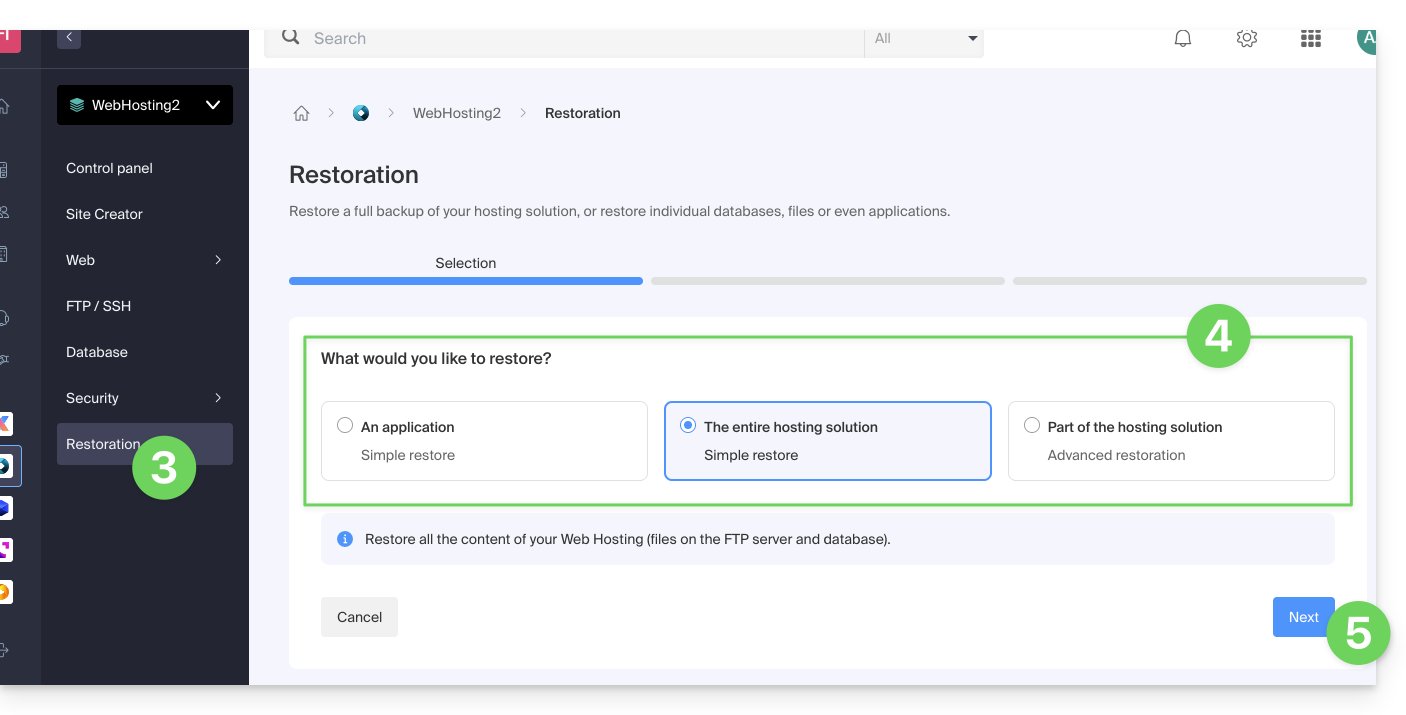
- Click on Restore in the left-hand menu.
- Choose the type of restore you want:
- Restore one of the Web Applications you have installed.
- Simple restore to restore all websites and databases on the hosting.
- Advanced restore allows you to choose which websites and databases to restore.
- Click on the Next button:
- Select the desired restoration date and complete the procedure.
Link to this FAQ: https://faq.infomaniak.com/2217
Has this FAQ been helpful?
This guide explains how to update Web Applications installed using Infomaniak tools.
Introduction
- If an application is updated manually via FTP, it will then be impossible to update it via the Manager and benefit from automatic updates.
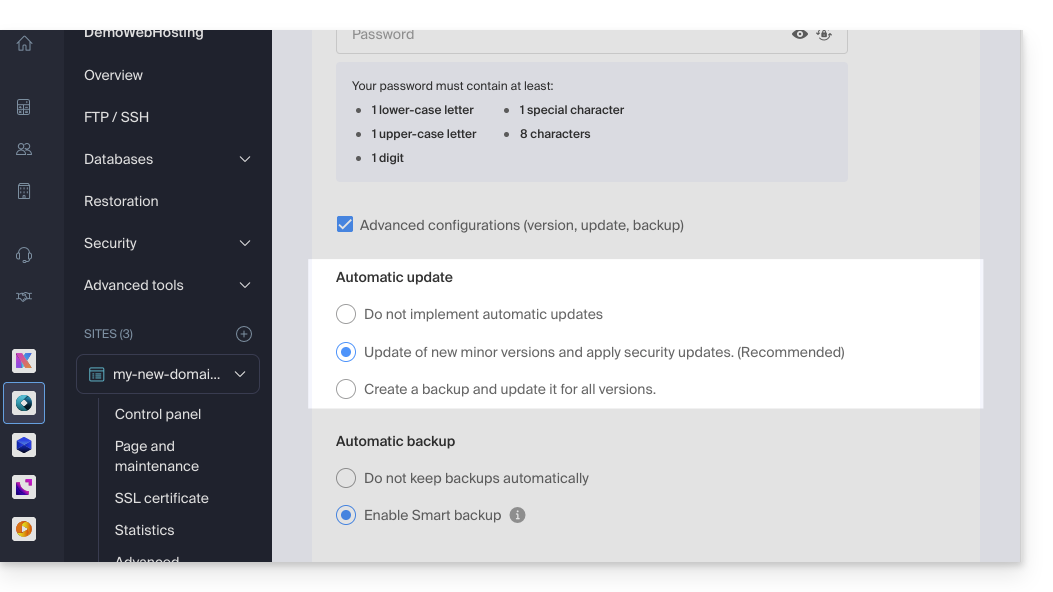
- When installing your Web Application, automatic updates (at least security updates) are generally enabled by default:
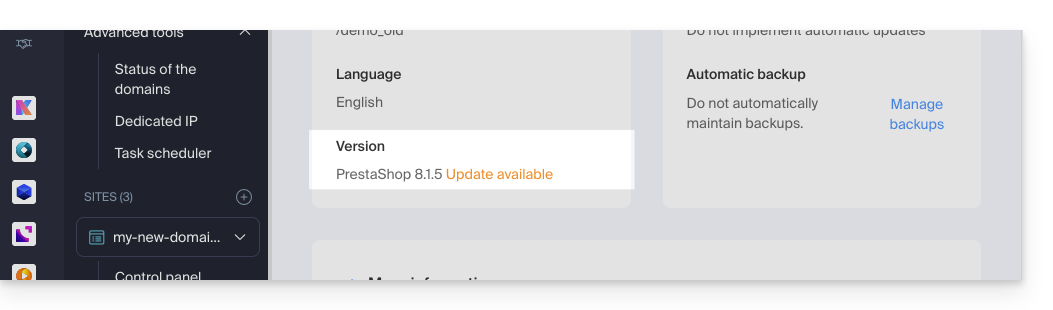
- If an app update is available, you will be notified in the Manager:
Update an application installed via Infomaniak
To access and update the Infomaniak Web Application:
- Click here to access the hosting & website management section in your Infomaniak Manager (❓: help).
- Click on the name of the website in question.
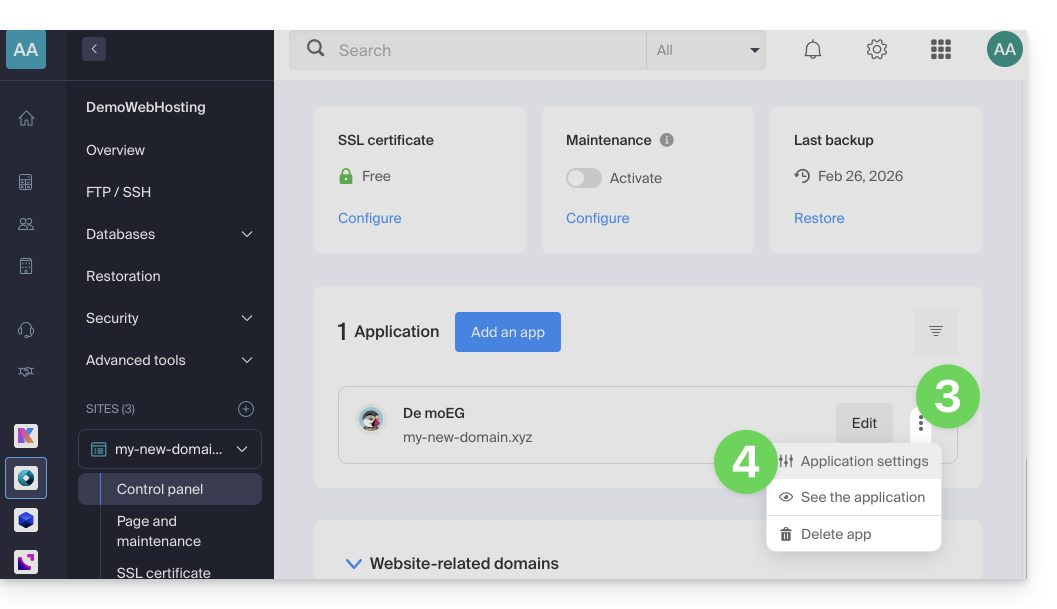
- Click on the action menu ⋮ located to the right of the relevant Web Application.
- Click on Settings in the application:
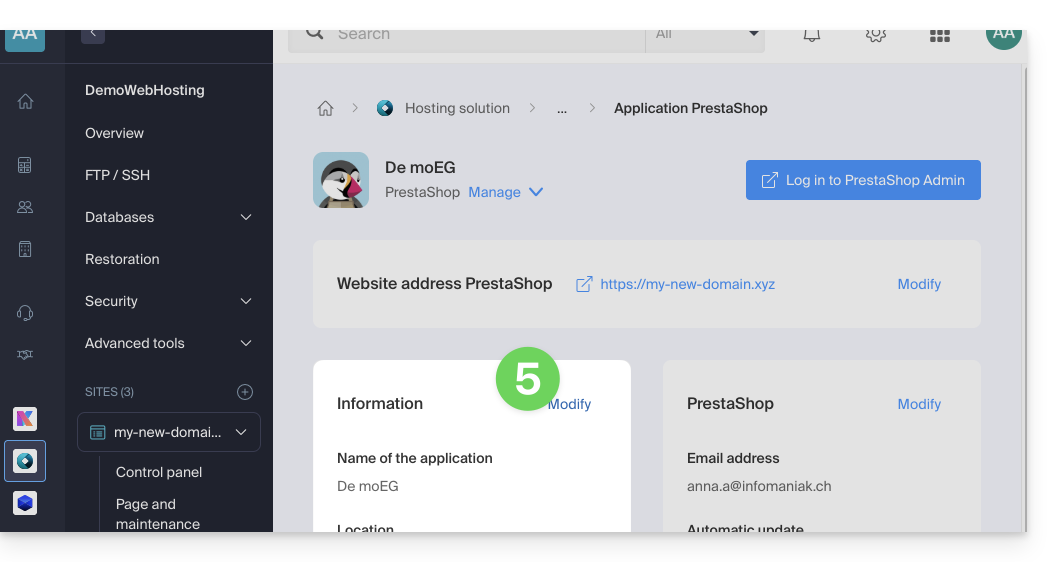
- Click on Edit in the Information section:
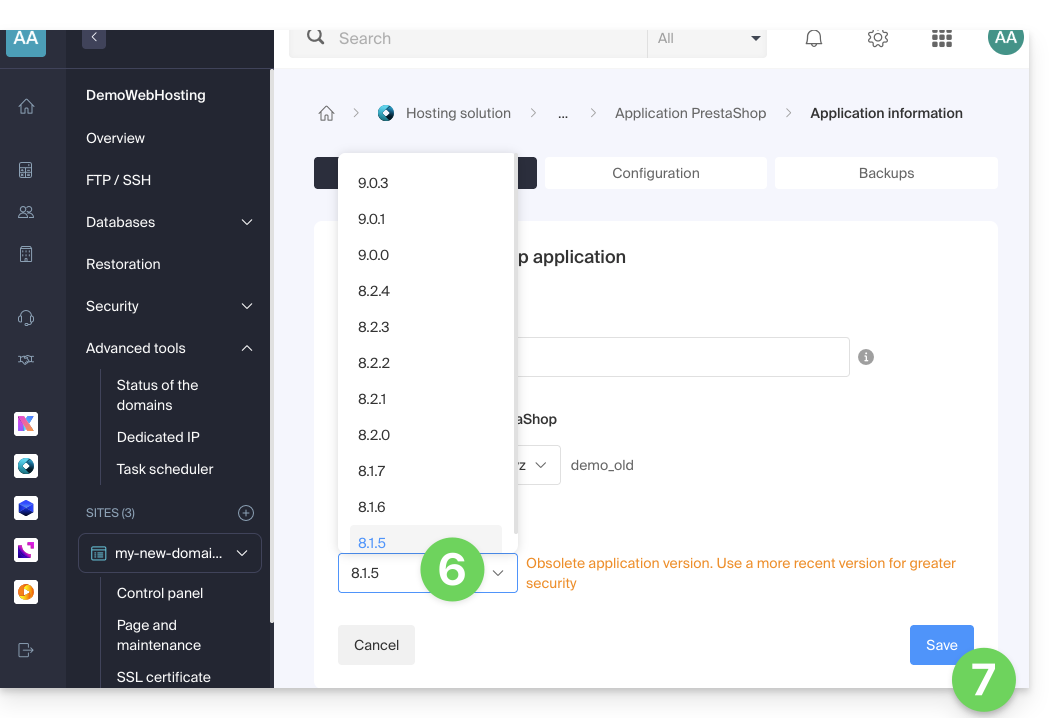
- Click on the dropdown menu to choose a more recent version.
- Click on the Save button:
Link to this FAQ: https://faq.infomaniak.com/2226
Has this FAQ been helpful?
This guide lists the versions of the Windows operating system that can be installed when ordering a Cloud VPS / VPS Lite.
Regarding Linux, please refer to this other guide.
Supported Windows versions
When ordering your Server, you can choose the Windows version to install.
Windows Server
Available versions with Windows Server 2025, 2022, or 2019:
- Windows Server Standard designed for low-density or non-virtualized environments
- Windows Server Datacenter ideal for datacenter-defined and highly virtualized environments
Note:
- As a Microsoft partner, Infomaniak provides Cloud VPS / VPS Lite with Windows Server 2025, 2022, or 2019, including a Microsoft Windows Server license. If activation fails, please refer to this other guide.
- As a Microsoft partner, Infomaniak does not offer the possibility of using your own Windows Server license (or Bring Your Own License).
- If you use Microsoft software within Windows Server that requires a License Mobility license, such as Microsoft SQL Server, Microsoft Sharepoint Server, or Microsoft Exchange Server, you must provide the Software Assurance document via the Infomaniak contact form.
Windows 11 Professional Evaluation
Windows 11 Professional includes all the features of Windows 11 Home, as well as professional features for encryption, remote connection, virtual machine creation, and more.
The version 10 of Windows Professional Evaluation is also available.
Note:
- Windows will need to be activated; Infomaniak only provides an evaluation version.
Link to this FAQ: https://faq.infomaniak.com/2230
Has this FAQ been helpful?
This guide explains how to manage Memcached, and in particular, how to check if this in-memory caching system is working correctly on your managed Cloud Server.
Prerequisites
- Install Memcached on a managed Cloud Server.
Check that Memcached is running
To verify that Memcached is working correctly:
Copy the following code into a PHP file (connect to the local memcache server):
$fp = fsockopen("localhost", 11211); if ($fp) { // on demande les stats fwrite($fp, "stats\n"); while (!feof($fp)) { $buf = rtrim(fgets($fp)); if (preg_match('/^STAT curr_items ([0-9]+)$/', $buf, $matches)) { // le nombre d'items stockes print $matches[1] . PHP_EOL; } elseif (preg_match('/(END|ERROR)/', $buf)) { // fin des stats break; } } fclose($fp); } else { print "Error: cannot connect to local memcached server: $!" . PHP_EOL; }- Upload the PHP file to your hosting.
- Run the PHP file.
The script returns the number of items cached in the server's memory.
Enable Memcached on…
… Prestashop
The native integration of Memcached in the Prestashop application simplifies its configuration. To enable it:
- Access your Prestashop administration area.
- Go to the Advanced Parameters tab.
- Select Performance.
- Choose Yes from the dropdown menu under Use cache in the Caching section.
- Select CacheMemcached.
- Add a server by providing the required information, such as:
- the IP address:
127.0.0.1 - the port:
11211 - the weight:
1
- the IP address:
You can check the information by clicking the "Test Server" button before saving it at the bottom of the "Caching" section.
Once this step is completed, your PrestaShop application is ready to use Memcached to cache certain API calls, database calls, and objects.
Link to this FAQ: https://faq.infomaniak.com/2233
Has this FAQ been helpful?
This guide compares the different Cloud solutions offered by Infomaniak to help you choose the infrastructure that best suits your needs. In all cases, you benefit from dedicated and scalable resources.
Jelastic Cloud (PaaS)
Jelastic Cloud is a platform that allows you to create development environments on the fly without managing system administration:
- Maximum flexibility: the platform automatically adjusts your resources according to the load in real time.
- Advantage: ideal if your resource consumption (CPU, RAM) varies greatly depending on the time of year.
- Billing: you only pay for the resources you actually use.
Managed Cloud Server
A Cloud Server allows you to manage websites and web applications via a simplified interface, while also enabling the installation of specific software:
- Simplicity: As easy to use as shared hosting, but with the power of dedicated resources.
- Benefit: Ideal if your resource consumption is stable and predictable.
- Management: Infomaniak takes care of the technical maintenance and security updates of the server.
Cloud VPS and VPS Lite
The Cloud VPS or VPS Lite offers full root access to a Linux distribution:
- Total control: you manage your entire server and its software configurations.
- Required skills: solid technical expertise in system administration is essential.
- Use: recommended for specific needs with stable resource consumption.
For large-scale infrastructure needs, please refer to the Public Cloud offer.
Link to this FAQ: https://faq.infomaniak.com/2259
Has this FAQ been helpful?
This guide provides important information regarding launching and running command-line scripts (SSH) on different types of Infomaniak hosting.
Running scripts via SSH and managing resources
Unlike scripts executed via a web browser, there is generally no strict time limit (timeout) for commands launched via SSH. Your script can therefore theoretically run for as long as necessary.
Execution time and persistence
If your SSH session closes (due to a loss of internet connection or terminal closure), the script in progress will be immediately interrupted.
To avoid this during long tasks, it is recommended to run your scripts in the background or, in the case of a VPS, to use terminal multiplexing tools (such as screen, tmux, or the nohup utility). This allows the process to continue its work even after you disconnect.
Resource Limits (RAM and CPU)
Even if the time is not limited, hardware resources are.
The execution of your scripts remains subject to the machine's capabilities and its configuration:
- Memory (RAM): if a process consumes more memory than the allowed limit (for example, the
memory_limitof PHP or the available physical RAM), it will be terminated by the system to preserve server stability. - Processor (CPU): Excessive processor usage over a long period may result in throttling or interruption of the process.
It is possible to adjust these resource limits on dedicated environments (such as Cloud Server). However, on shared hosting, these limits are fixed and cannot be modified in order to guarantee performance for all users hosted on the same server.
Link to this FAQ: https://faq.infomaniak.com/2276
Has this FAQ been helpful?
This guide explains how to restore a snapshot of an Infomaniak Cloud VPS.
Please note: depending on the operating system installed, the system volume may be named /dev/sda, /dev/sda1, or /dev/vda; the same applies to the data volume /dev/sdb, /dev/sdb2, or /dev/vdb. Therefore, you should replace these indications with those that correspond to your situation.
Restore a snapshot
To do this:
- Click here to access the management interface for your product in the Infomaniak Manager (need help?).
- Click directly on the name assigned to the product in question.
- Click on Snapshot in the left-hand menu.
- Click on the action menu ⋮ to the right of the relevant item in the table that appears.
- Click on Restore:
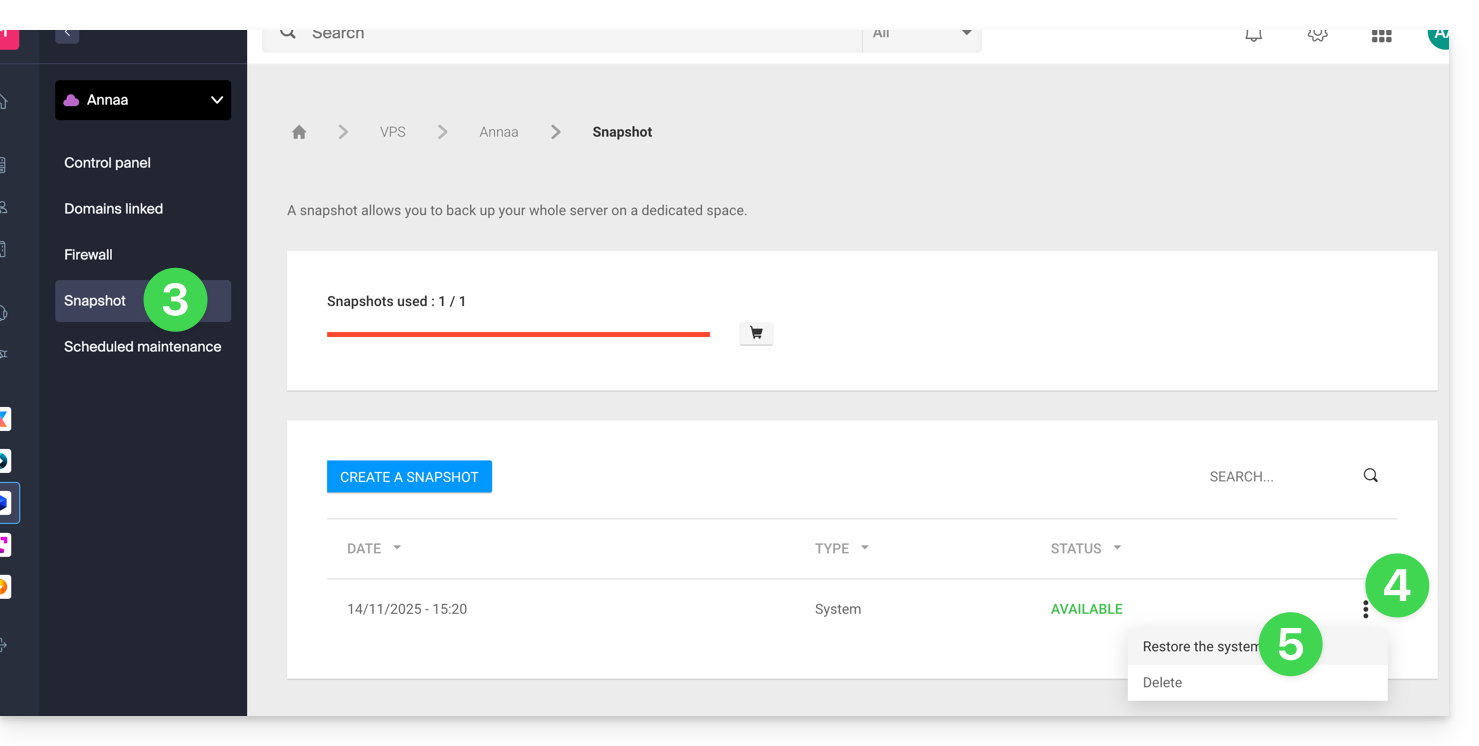
- Click the blue button to start restoring the snapshot.
- An email is sent when the snapshot is restored.
Restore the operating system disk
Restoring the system volume as in the example above is an irreversible operation. The operating system disk will be replaced by the snapshot, and the server will revert to the exact state it was in on the backup date.
The data stored on the data volume (vdb) is not affected by this operation.
Restore the data disk (vdb)
Two data restoration modes are available:
1. Read-only mode
If the snapshot size differs from the volume size, only this read-only mode is available.
This option allows you to mount the data snapshot image, which provides read-only access to the backup data.
For your information, here are some useful commands for managing your backup:
- To access the main data volume:
mount /dev/vdb /mnt/. - To mount the data volume in a specific "backup" folder:
mount -o nouuid -o ro,norecovery /dev/vdc /backup.
To determine which letter to use (/dev/vd?), use the lsblk command:

2. “Recovery” Mode
Restoring the data volume is an irreversible operation. The data disk (vdb) will be replaced by the snapshot. At the end of the restoration, it will be necessary to remount the data volume so that your operating system refreshes the content.
The procedure and the following commands are provided for informational purposes only:
- Make sure your data volume is not mounted:
* umount /mnt(/mnt or the location you chose to access your data). - Mount the data volume again:
* mount /dev/(vdb) /mnt
To find out the name of the data volume attached to your server, use the lsblk command (see above).
Link to this FAQ: https://faq.infomaniak.com/2297
Has this FAQ been helpful?