Knowledge base
1000 FAQs, 500 tutorials and instructional videos. Here, there are only solutions!
This guide explains how to regain access to Infomaniak services (including manager.infomaniak.com and ksuite.infomaniak.com/mail) if you are experiencing issues with the Infomaniak Authenticator mobile app (iOS/Android app), provided you chose this security method when activating two-factor authentication (2FA).
Before changing your mobile device
If you plan to change the iOS/Android device on which the Infomaniak Authenticator app is installed, before doing so:
- Log in one last time with 2FA to the Infomaniak Manager.
- Remove the security temporarily (or change the verification method to receive a code via SMS, for example).
- Then, on the new device, install and open the Infomaniak Authenticator mobile app tore-authenticate with 2FA via Infomaniak Authenticator !
After changing your mobile device
If it's too late and you haven't followed the method above, still check in the Infomaniak Authenticator mobile app to see if your account is still there; it's possible that you are no longer receiving the notification for the login authorization request (YES / NO).
If your account is displayed correctly in the Infomaniak Authenticator app, then when you open the app, a login confirmation request should appear if you attempt to log in from a browser or Infomaniak service.
If it's too late, and no accounts are displayed in the Infomaniak Authenticator mobile appno other option
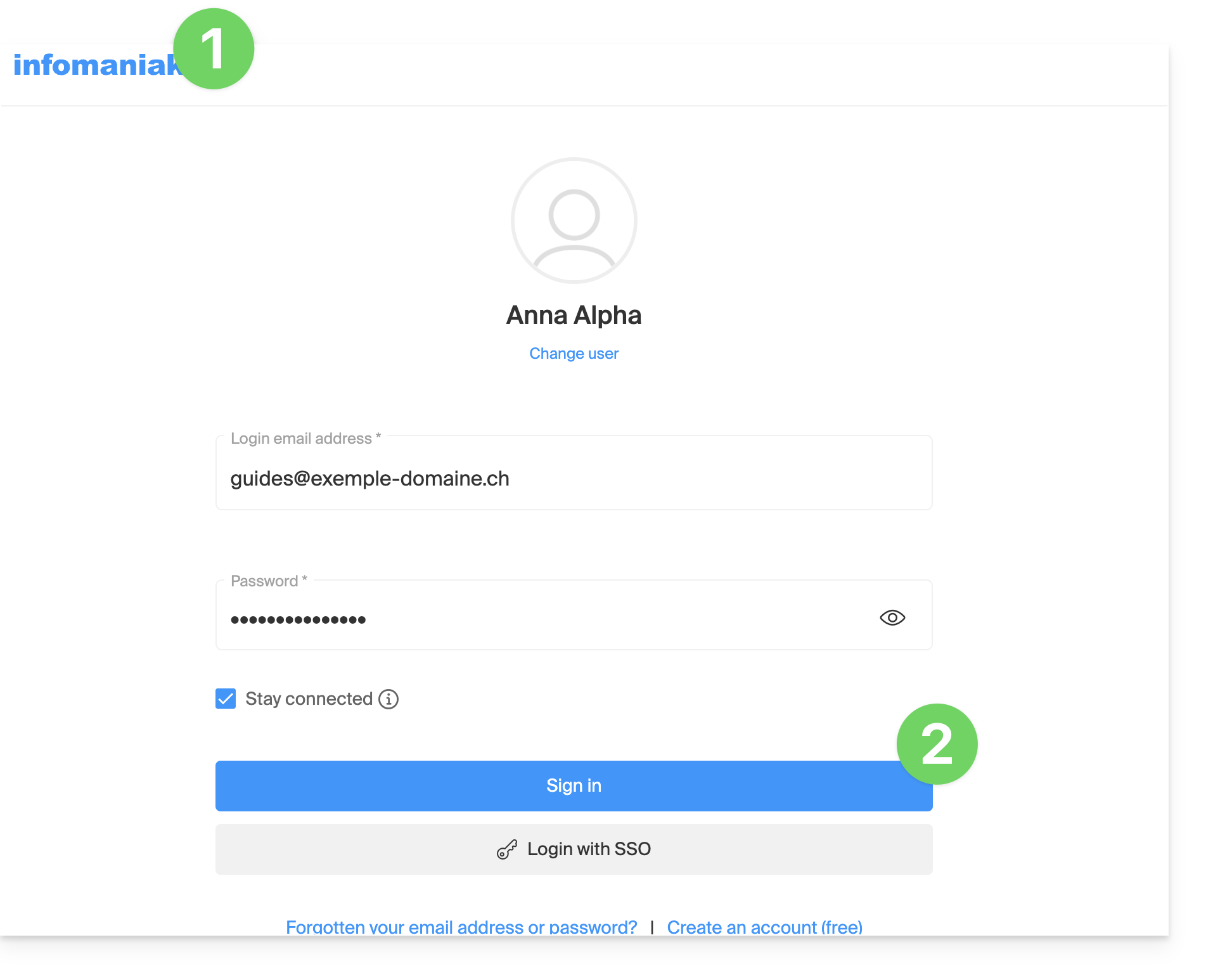
- Click here to access the Infomaniak Manager login page.
- Enter your username and your usual and correct password:
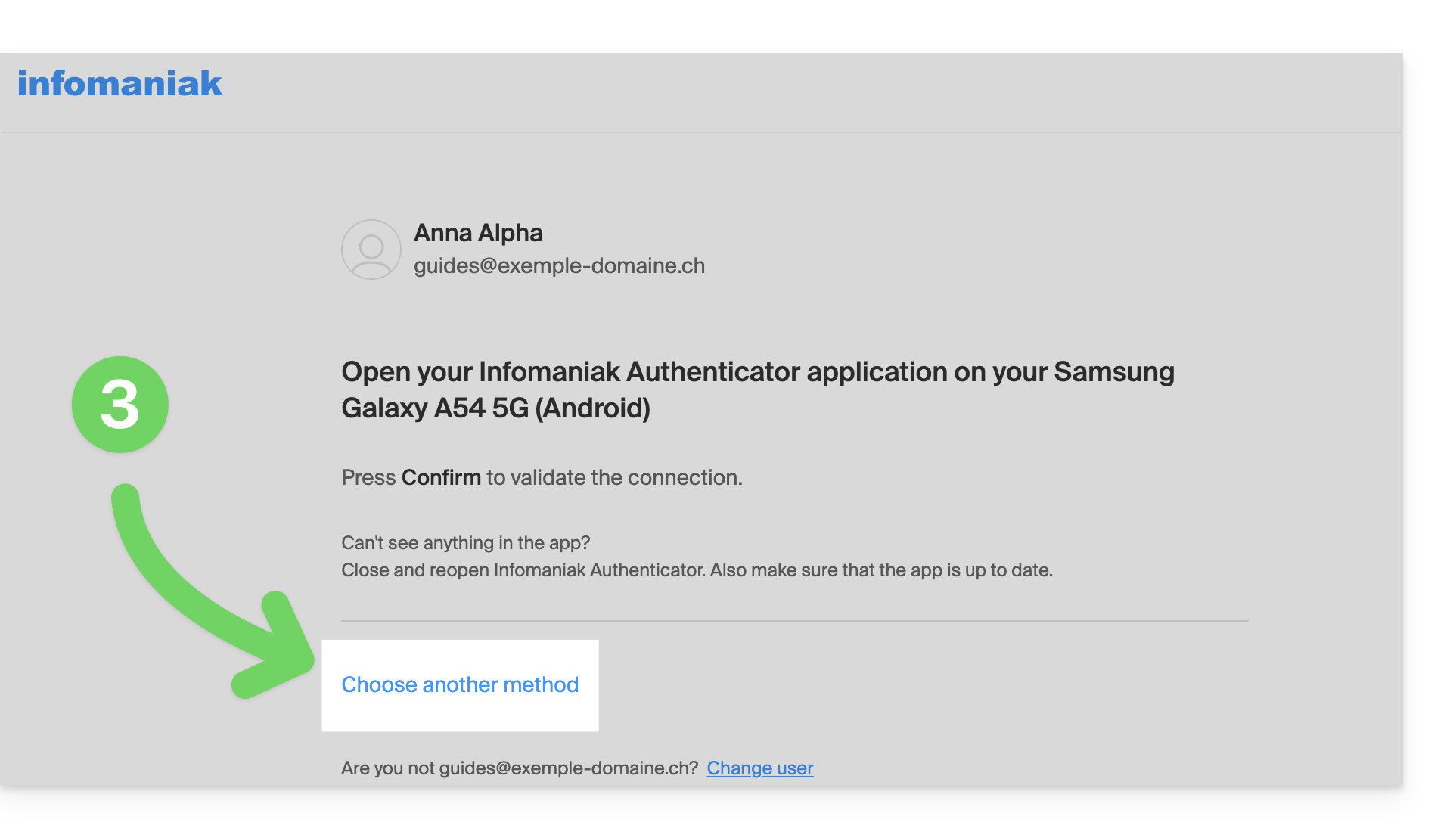
- When prompted for additional authentication, click on alternative methods:
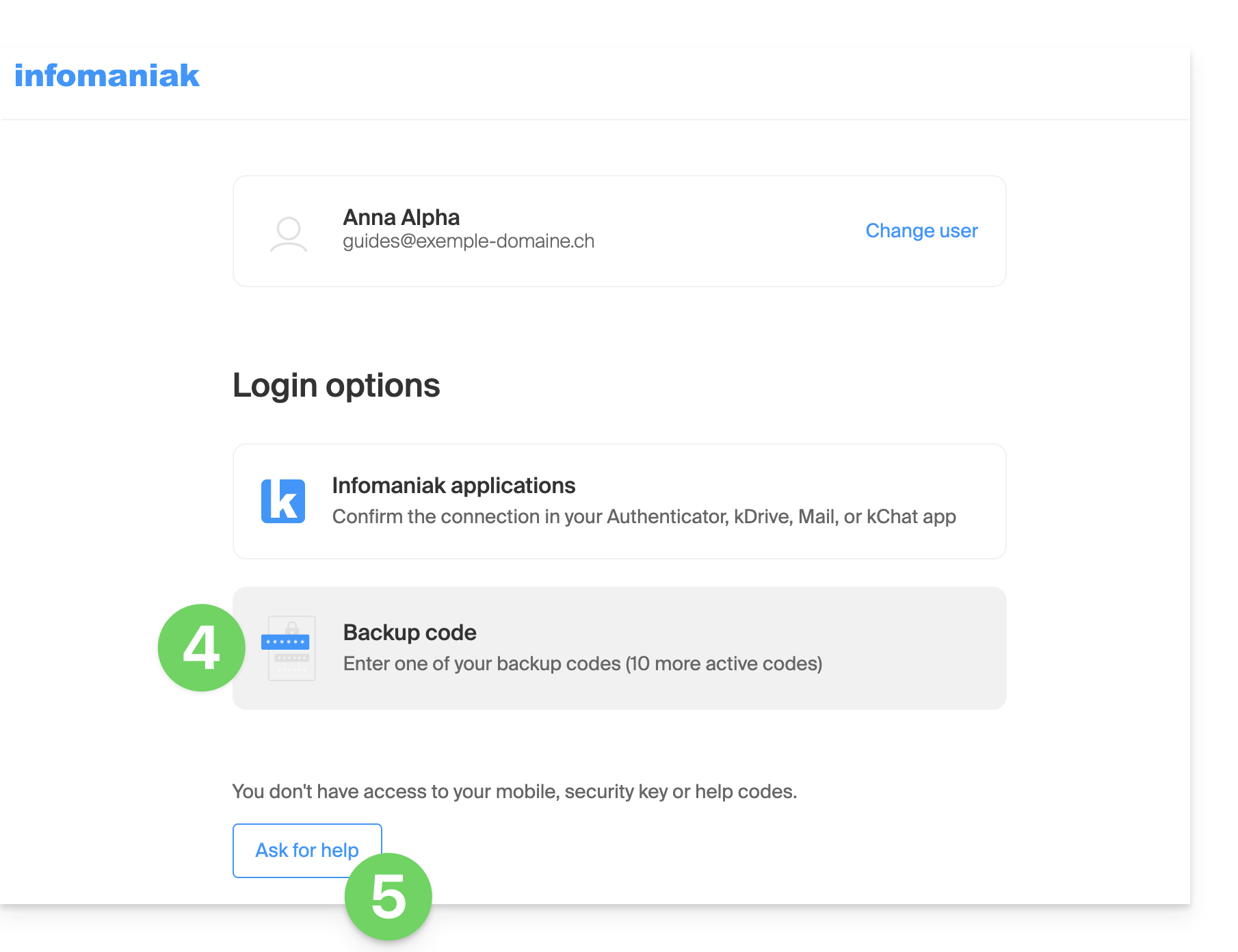
- Choose to enter one of your backup codes if you downloaded the sheet when activating 2FA.
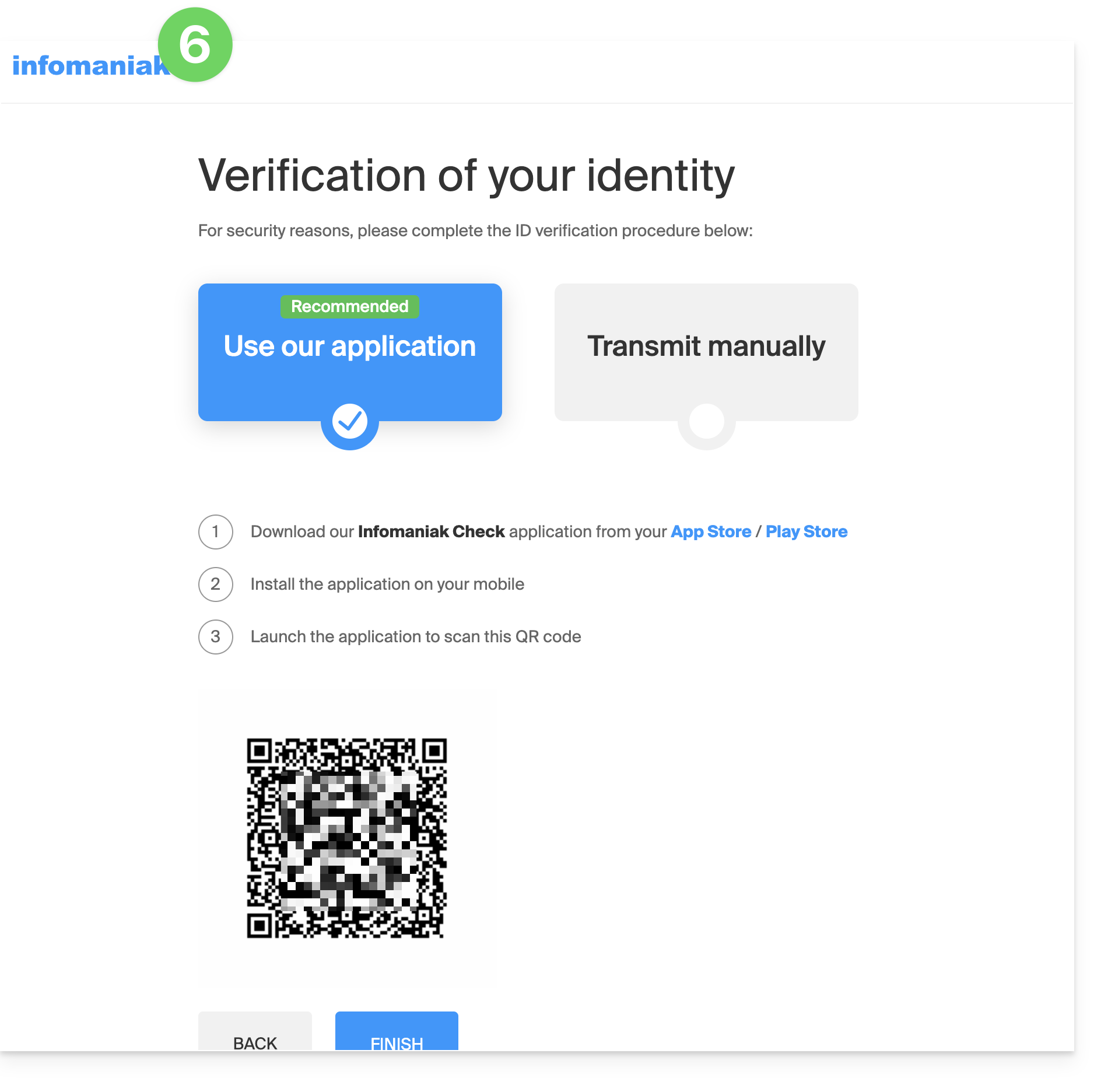
- Otherwise, select the last option to request assistance, which will take you to the form where you can submit your identification documents and a selfie for verification:
- Follow the procedure to the end and wait:
Link to this FAQ: https://faq.infomaniak.com/2762
Has this FAQ been helpful?
This guide helps you subscribe to Infomaniak's Premium Support.
Discover Premium Support
To manage your Premium Support plan:
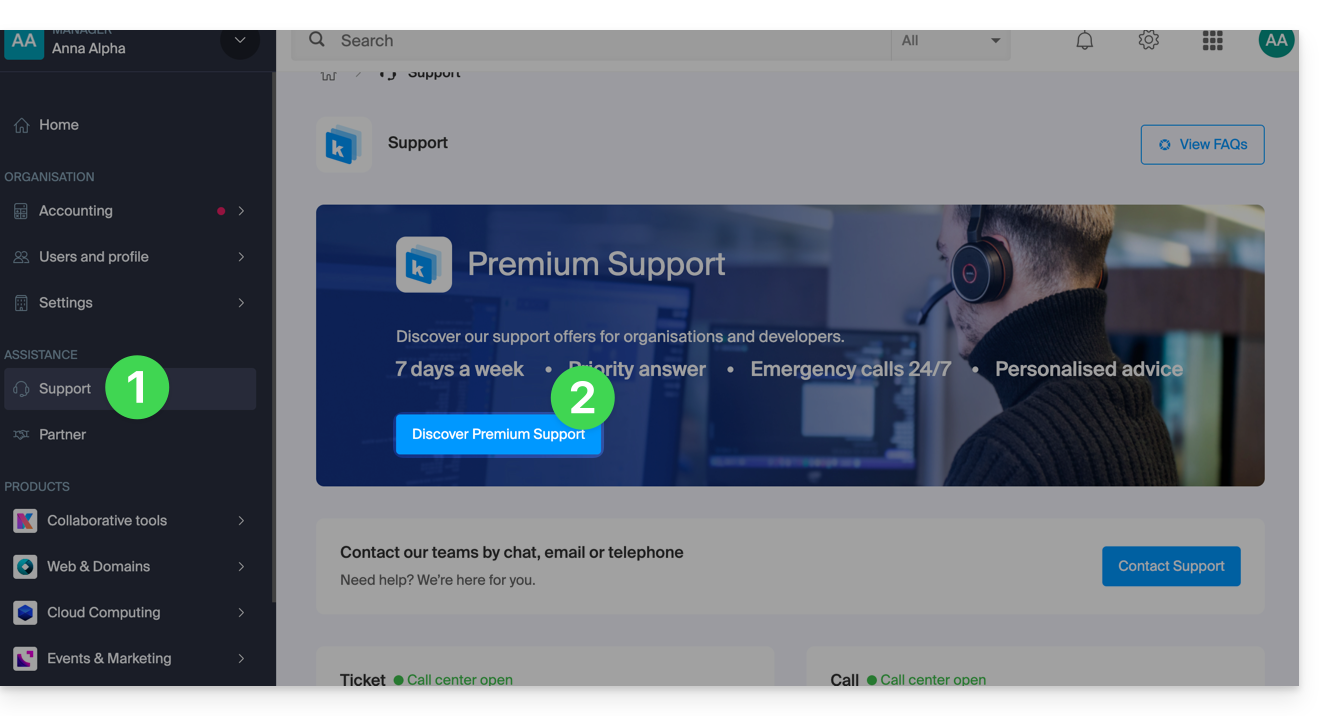
- Click here to access the management of your organization's Support in the Infomaniak Manager.
- Click the button to start the registration:
Link to this FAQ: https://faq.infomaniak.com/2785
Has this FAQ been helpful?
This guide covers data protection regulations in Switzerland and Europe, and the measures taken by Infomaniak to secure your customer data and data within Web Hosting and Mail Services.
Understanding the difference between data security and data privacy
Data security aims to prevent unauthorized access to your information. It relies on measures such as encryption, firewalls, or VPNs. A security breach can have disastrous consequences: imagine a hacker stealing your entire customer database and demanding a ransom to recover it. This type of attack – ransomware – can cripple a company overnight.
Data privacy concerns who can access your information and how it is used. Even if your data is secure against hacking, it can be collected, analyzed, and resold… perfectly legally.
Example: you carefully store your customers' information, but without realizing it, a service you use shares – anonymously – this data with third parties. Result? Your competitors can obtain valuable insights into your market and target your own customers without ever needing to hack into your systems.
FDPA & GDPR
In Switzerland, the FDPA (Federal Act on Data Protection) and nFDPA (for the "new Act" in force since September 2023) protect the privacy of residents by regulating the collection and processing of personal data by organizations.
The EU's GDPR (General Data Protection Regulation), which has been in effect since May 2018, affects global companies that process the data of European residents, including in Switzerland. While the Swiss Federal Act on Data Protection (FADP) applies to the data of Swiss residents, the GDPR concerns the data of EU residents. Swiss companies that manage European data must comply with the GDPR requirements, including the designation of a Data Protection Officer and the performance of Impact Assessments in the event of risky processing.
Your Role as an Infomaniak Customer
With regard to the data hosted that belongs to you – and in particular if this data contains personal data of your visitors, contacts or customers – it is your responsibility to ensure its compliance.
When processing this personal data, it is essential to inform users about the purpose and methods of this processing. This is generally done through a privacy policy or a data processing agreement (DPA).
Agreement between Data Controller and Data Processor
A DPA (Data Processing Agreement), called AVV (Auftragsverarbeitungsvertrag) in German, ATD (Accordo di Trattamento dei Dati) in Italian and CTA (Contrato de Tratamiento de Datos) in Spanish, translates to Data Processing Agreement or Data Processing Contract.
This is a mandatory contract provided for by the GDPR between a data controller and a data processor. It defines the purpose, duration, and nature of the processing, as well as the obligations and security measures. Its objective is to protect the personal data entrusted to a service provider.
This GDPR certificate (in PDF format) can be generated and downloaded from the Manager (accessible to users of the organization who are owners or administrators):
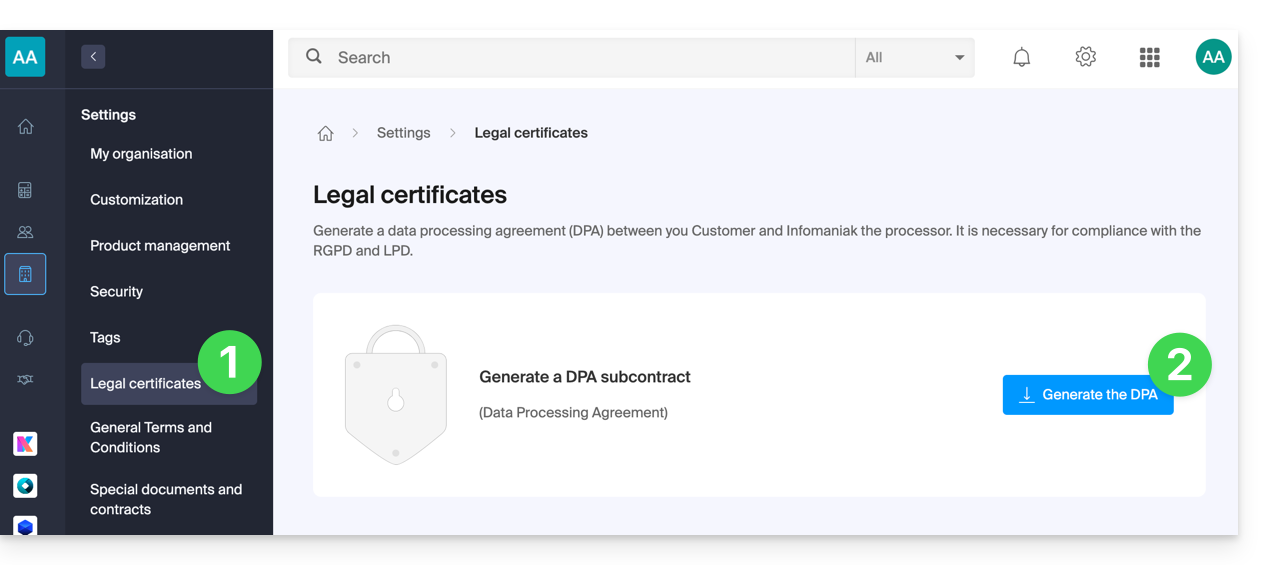
- Click here to access the Data Processing Agreement (DPA) management in the Infomaniak Manager (need help?).
- Click the Generate button to download the customized PDF document:
Here are some tips:
- Provide information on all data processing activities, not just those related to the website.
- Ensure easy access to the privacy policy on the website, for example in the footer of each page.
- In general, it is not necessary to obtain user approval for privacy policies (e.g., for forms); simply indicate where to find the policy (example Site Creator).
- Keep in mind that the new, more detailed information rules may require adjustments to existing privacy policies.
It is crucial to differentiate between the security of the infrastructure where your data is hosted and the management and implementation of data on your side. As a hosting provider, Infomaniak acts as a data processor for your GDPR-related obligations. In this context, its privacy policy and cookie policy, as well as its terms and conditions, provide you with the necessary guarantees regarding its compliance as a data processor.
If necessary, you can find professionals or online guides to help you with the compliance process.
Infomaniak's Role
Like companies that work with user data, Infomaniak must comply with the LPD and, because some of its users are European citizens, also with the GDPR:
- the data privacy policy details the data that Infomaniak stores to provide and deliver its services
- the policy related to the protection of your personal data describes Infomaniak's commitments as a subcontractor that hosts all of your data, including personal data
These commitments, as outlined in the general and specific terms and conditions, are as follows:
- store your data within data centers exclusively located in Switzerland and never transfer your information outside of these infrastructures
- apply rigorous security standards and continuously improve processes to guarantee a high level of security across all services
- promptly inform you in the event of a data breach
- ensure transparency towards you when Infomaniak uses subcontractors that may process your data
- strengthen and develop physical security measures to prevent unauthorized access to the infrastructures where your data is stored
- implement physical and/or logical isolation systems (depending on the services) to separate the hosting of different clients; in addition, Infomaniak conducts annual penetration tests to guarantee data isolation between clients
- demonstrate a high level of responsiveness in securely updating the systems under their responsibility
Manage cookies on the infomaniak.com website
When you visit the infomaniak.com page, you must make a choice regarding the acceptance of certain cookies. To change this choice later, access your preferences from the footer of the website: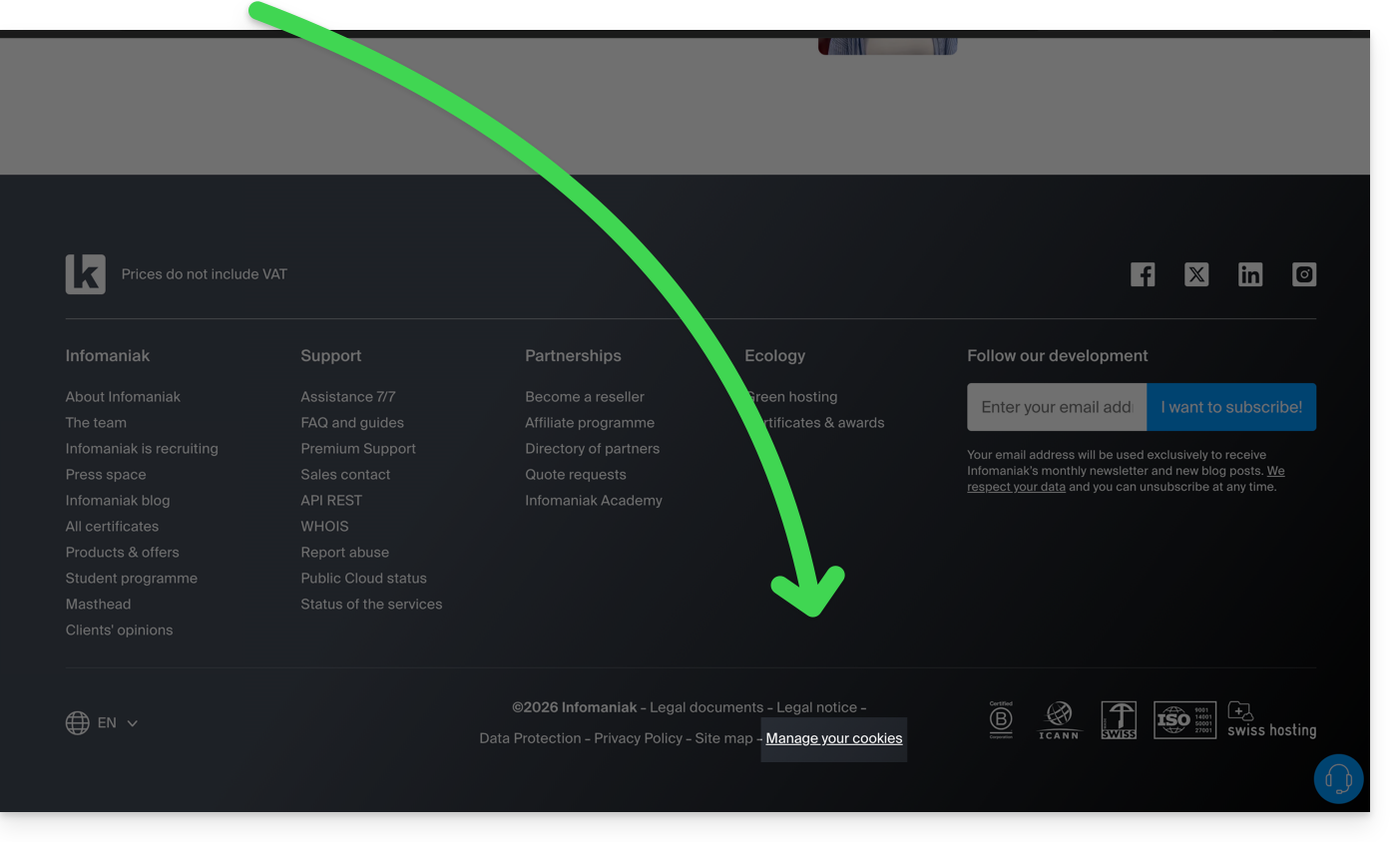
Link to this FAQ: https://faq.infomaniak.com/2820
Has this FAQ been helpful?
This guide explains how to add, modify, and remove users from an Organization within the Infomaniak Manager.
Introduction
- Since you opened your account with Infomaniak, you have been part of at least one Organization.
- If you were the only one and it wasn't an invitation, an Organization was created in your name, and you automatically become its legal representative.
- Otherwise, you belong to the Organization that invited you (to join its kSuite, to manage a product, etc.).
- Only an owner/legal representative can make changes.
- Any collaborator who also has access to your Organization will not be able to make changes from their restricted account.
Add a new user
As a user of the Organization with sufficient rights, you can:
- add a new user.
- This can be a person who is completely external to Infomaniak,
- or someone who already has their own Infomaniak user account, which they can reuse if they wish by extending it to your Organization.
When adding a user, you can:
- specify their role within the Organization,
- the products they will have access to,
- as well as the administrative contact preferences.
Remove a user
As an organization user with sufficient rights, you can:
Modify a user's permissions/rights
As an organization user with sufficient rights, you can:
- modify another user's role,
- manage the products they have access to, and the more granular permissions if it's access to a mail address, for example,
- as well as the administrative contact preferences, whether they are your own or those of others.
Replace a legal representative
Tochange the legal representative of an Organization in the Manager, it is necessary to remove the user who has the role of legal representative, which means that a new legal representative must be appointed beforehand (in fact, it is impossible to remove a legal representative if there is no other legal representative for the Organization).
Manage users by group (work team)
You can organize the users of the Organization into groups.
Link to this FAQ: https://faq.infomaniak.com/2821
Has this FAQ been helpful?
This guide explains how to manage application passwords from the Infomaniak Manager.
Introduction
An application password is not an device password - it will not allow you to synchronize an email address.
- Application passwords allow you to establish an authenticated connection between certain tools and services, even if two-factor authentication (2FA) is enabled.
- To synchronize, for example, your Infomaniak account's contacts and calendars with a mobile device or email software/client, follow the steps in the guide below to generate a new password specific to this application.
- It is possible to generate multiple specific passwords (e.g. 1 for contacts and 1 for calendars) or to use the same password for synchronizing both services.
Create an application password
To do this:
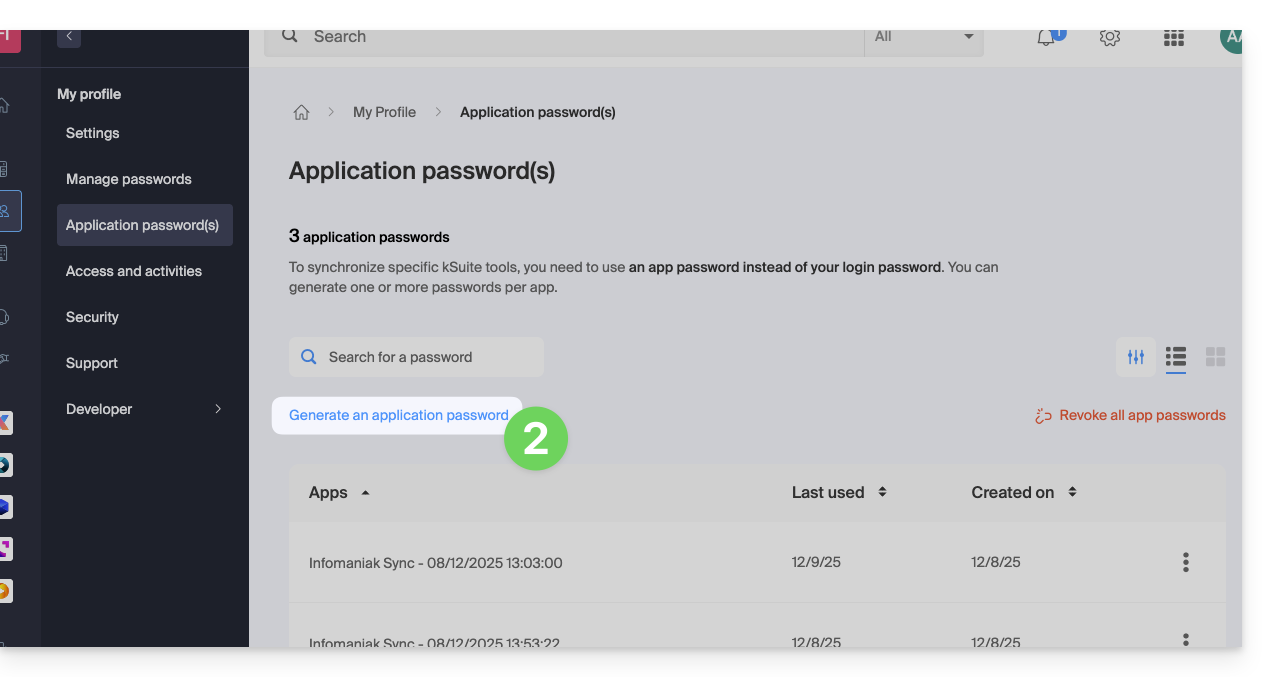
- Click here to access the application password management section in the Infomaniak Manager.
- Click on Generate an application password:
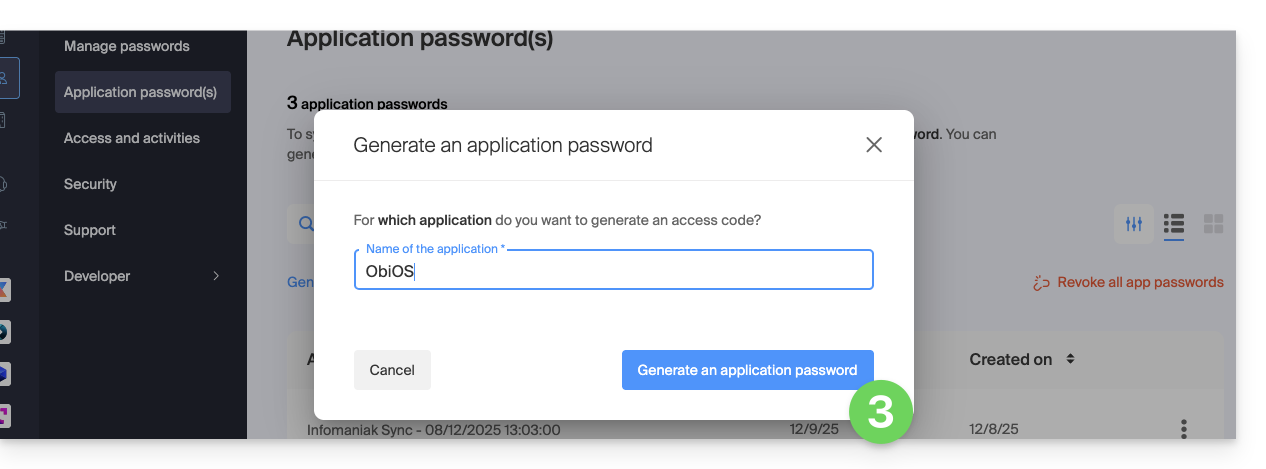
- Enter a name for the application password in the dialog box, then click on Generate an application password:
- Copy and save the generated application password in a safe but accessible location, it will no longer be accessible once the window is closed.
Revoke application passwords
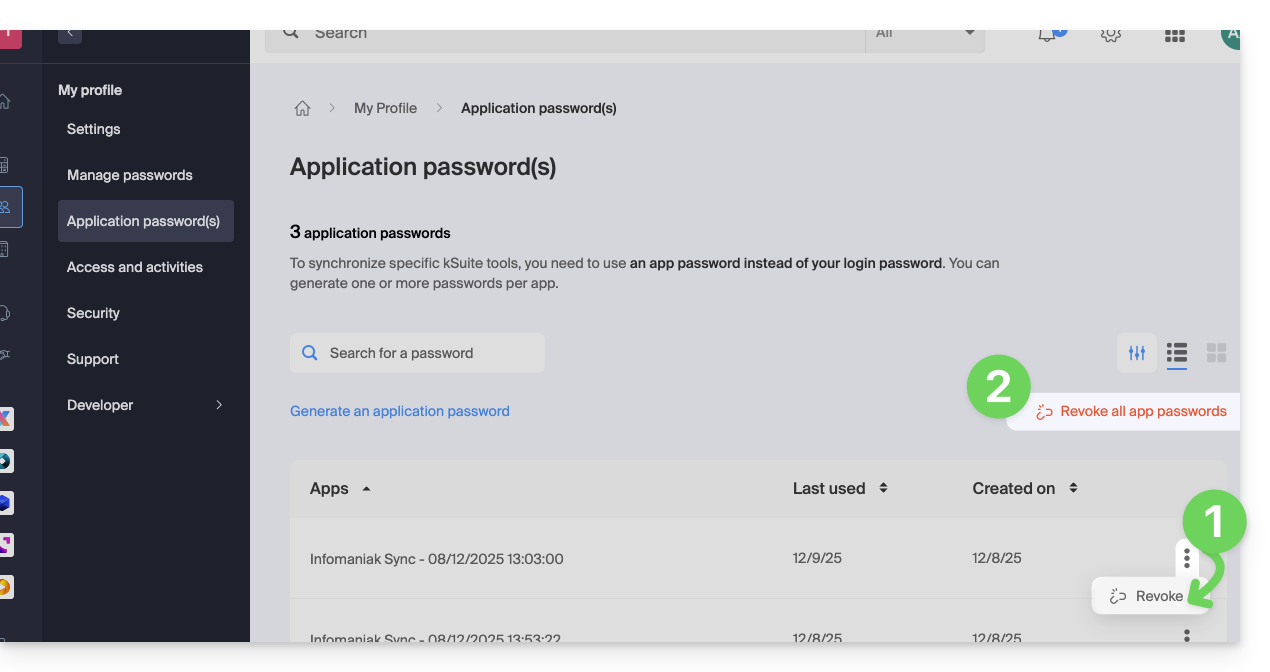
In the same location, you can delete one or more application passwords when they are no longer needed:
- Click on the action button ⋮ to the right of each password, then revoke them…
- or click on Revoke All at the top of the table:
Link to this FAQ: https://faq.infomaniak.com/2855
Has this FAQ been helpful?
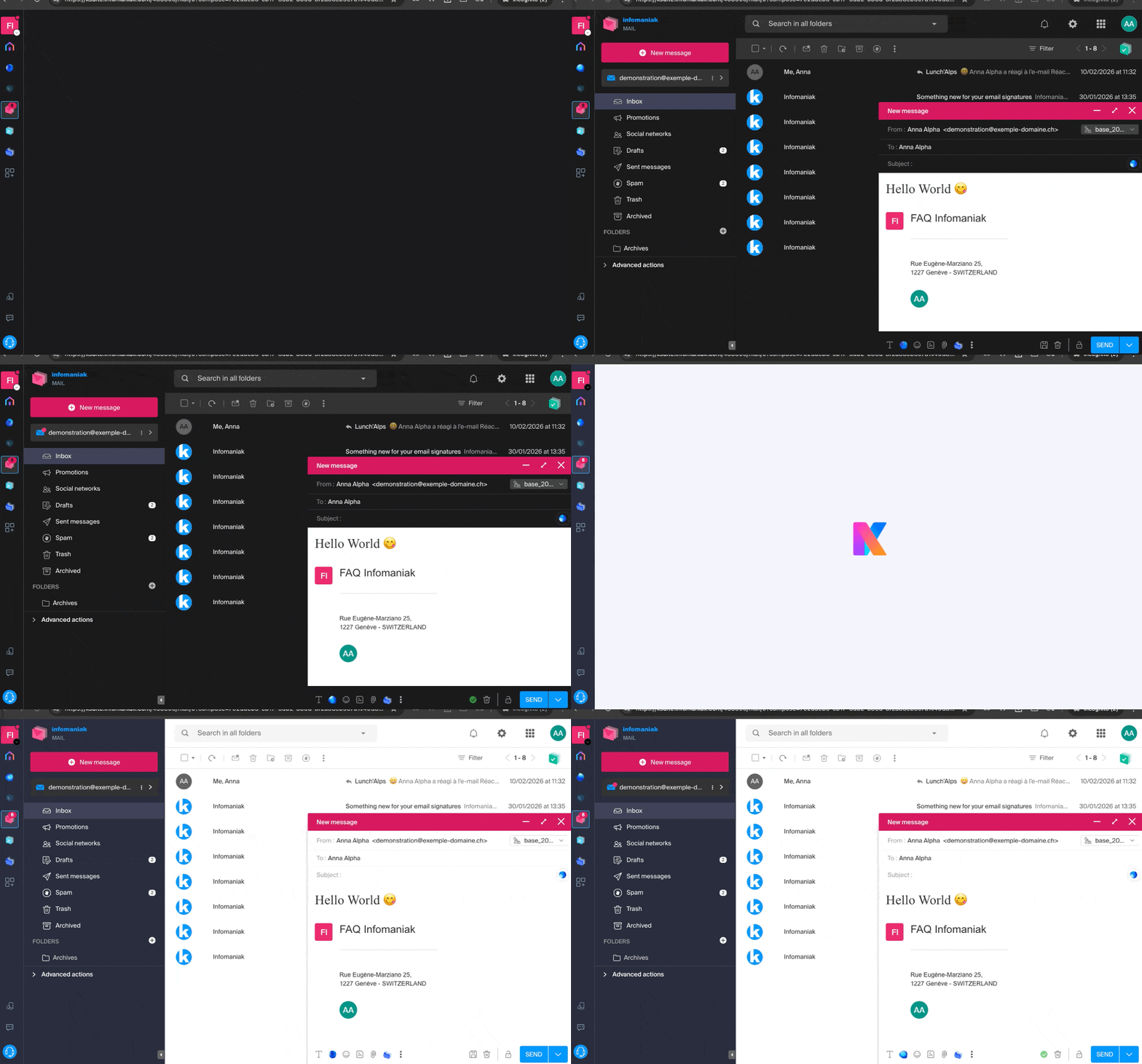
Infomaniak tools, such as the Web Mail app (online service ksuite.infomaniak.com/mail) or the Calendar, Contacts, kSuite interfaces, can be displayed in light mode or dark mode, including based on the settings of your current operating system:
Enable manual mode
To manually choose a dark or light display, without relying on a potentially different display setting on the operating system:
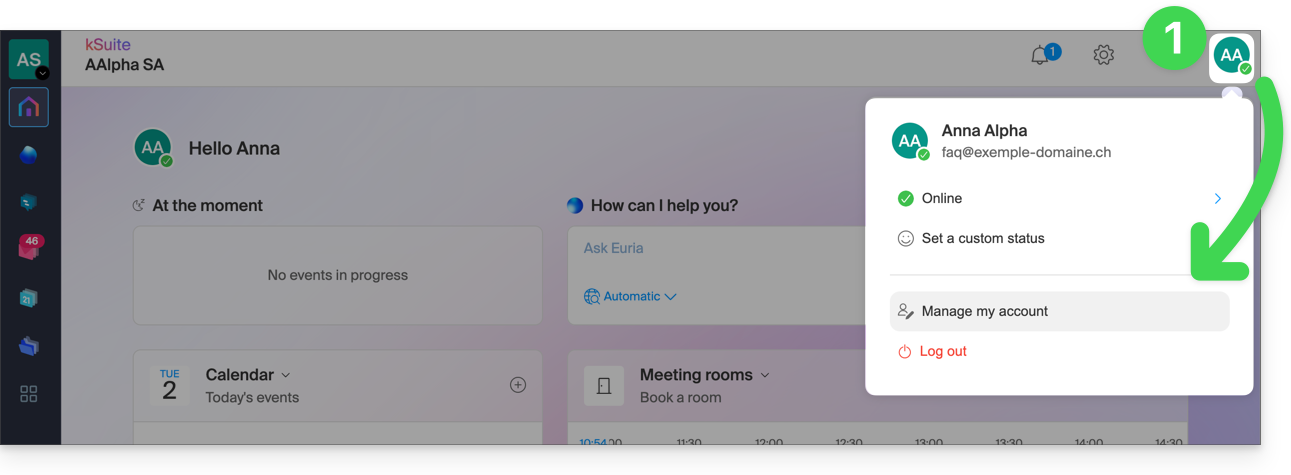
- Click here (or on the badge with your initials / avatar in the top right corner of the Infomaniak Manager) to "Manage my account":
- Then, click on Appearance in the left-hand menu.
- Click on Light to apply the light mode:
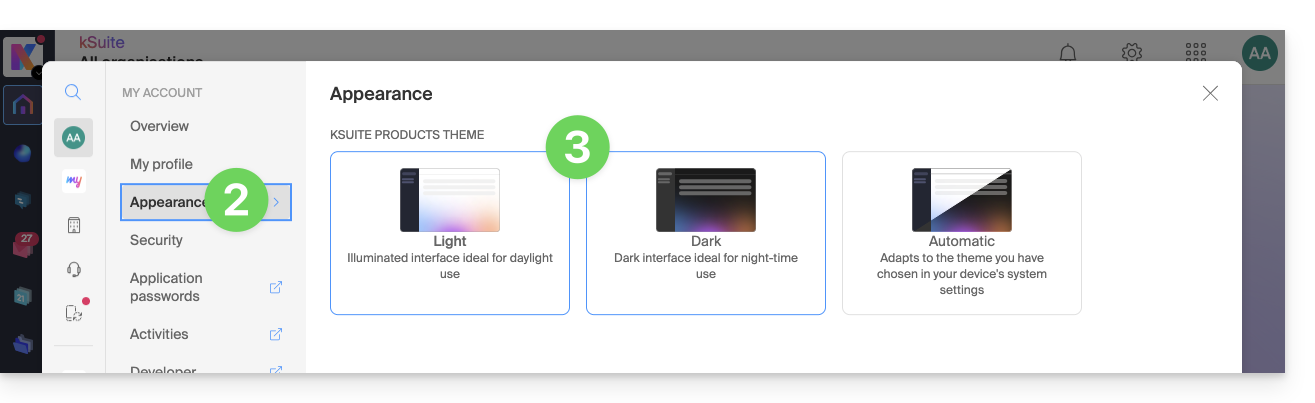
- Click on Dark to enable dark mode.
Enable automatic mode
Automatic mode is based on your operating system settings (macOS / Windows...):
- Click here or on the badge with your initials / avatar in the top right corner of the Infomaniak Manager to "Manage my account":
- Click on Appearance in the left-hand menu.
- Click on Automatic mode:
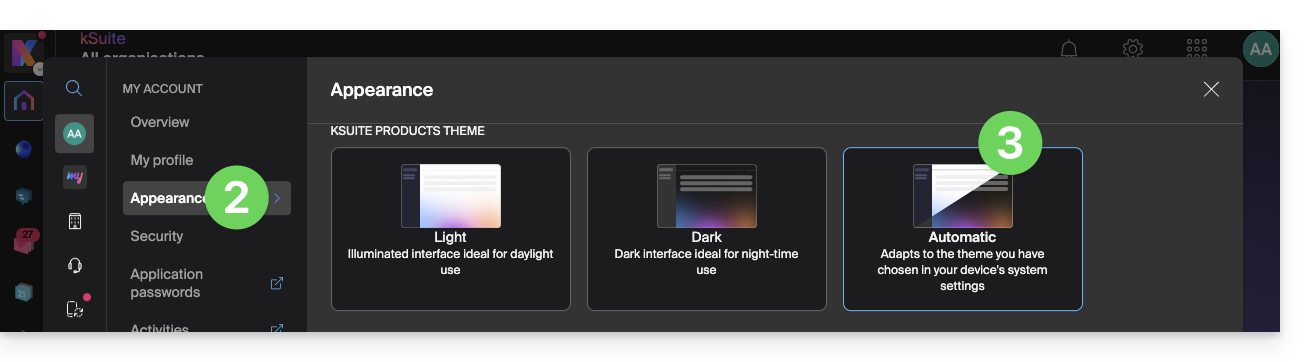
Then, if you want to change the light or dark theme on your computer, so that the automatic mode in the Manager takes your preferences into account…
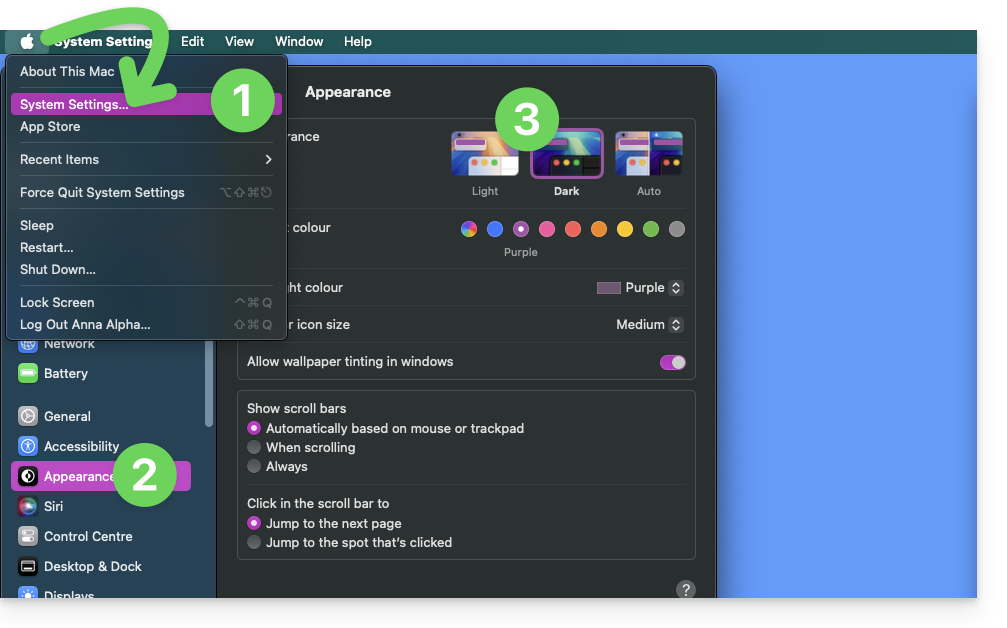
… on macOS
- Click on System Preferences…
- Click on Appearance.
- Choose the desired mode on the right:
… on Windows
- In the Start menu, open Settings > Personalization.
- Select Colors, then Choose your mode:
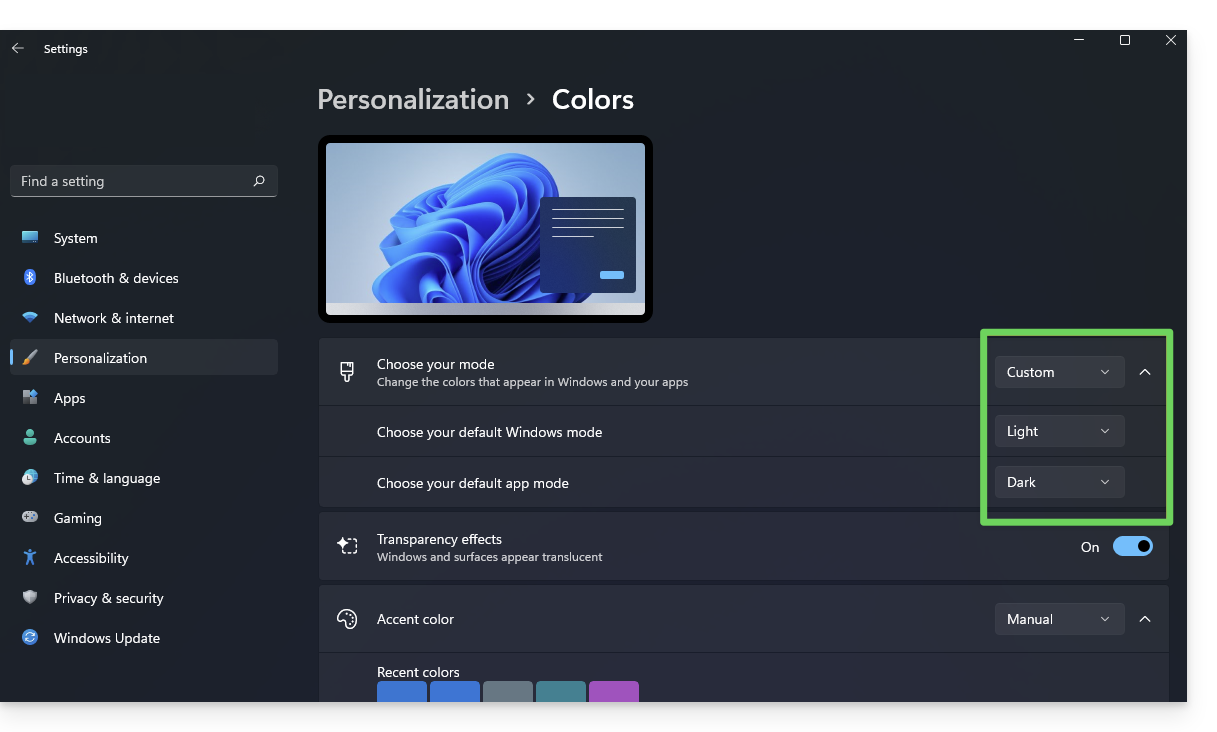
- You can choose between Light, Dark, or Custom.
- If you select Custom, you will have the option to choose a default Windows mode and a different default application mode.
And on mobile?
Dark mode is enabled on mobile devices for Infomaniak login and account creation pages; it automatically adapts to the mobile system's preferences, providing a consistent visual experience between mobile apps and login/account creation.
Link to this FAQ: https://faq.infomaniak.com/2870
Has this FAQ been helpful?
This guide details the steps to follow when you want to “release” the management of an email address that is currently “restricted” by the use of an Infomaniak account with the same name.
Introduction
- For example, the email address
benevolon the Mail Serviceexample.xyzwill no longer be shareable with other users once an Infomaniak account is created with a login ID in the form of the email addressbenevol@example.xyz. - Therefore, a procedure exists for the administrator of a Mail Service to activate the release of the corresponding Infomaniak account if necessary.
- The corresponding email address, which was previously linked and accessible, will no longer be, but the account data will not be deleted.
- Only the login address should be provided in a different form by the user in question.
Request to unblock the Infomaniak account
To enable the deletion of the login ID when it is identical to an email address that can no longer be shared, the Mail Service administrator must go to the Manager:
- Click here to access the management of your product on the Infomaniak Manager (need help?).
- Click directly on the name assigned to the product in question.
- Click on the email address in question in the table that appears.
- Under the General tab, you can see the users who have accessed this address, and among them, you will find the relevant user.
- Click on the Add button in the Users section (an operation that is currently not possible):
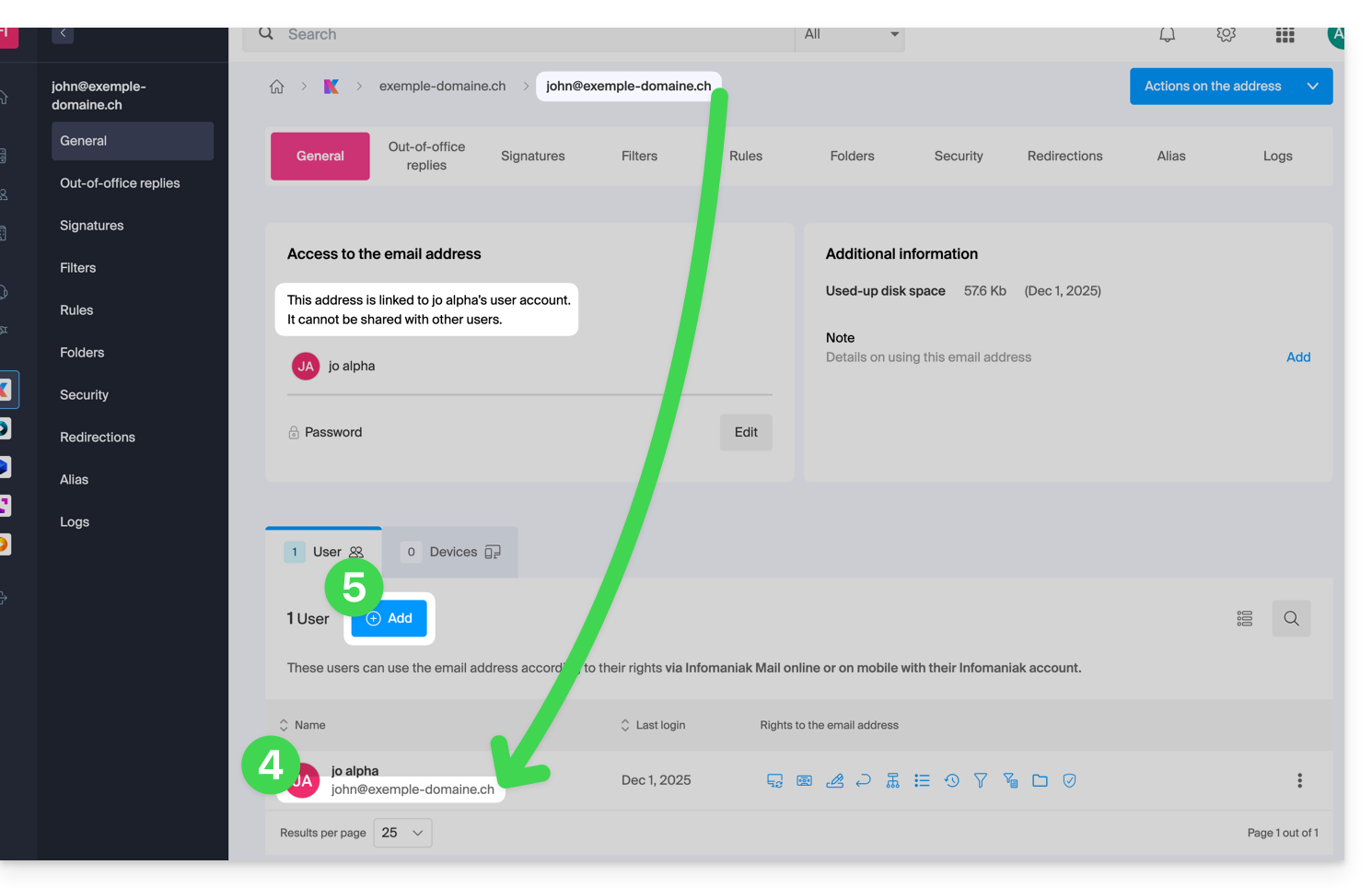
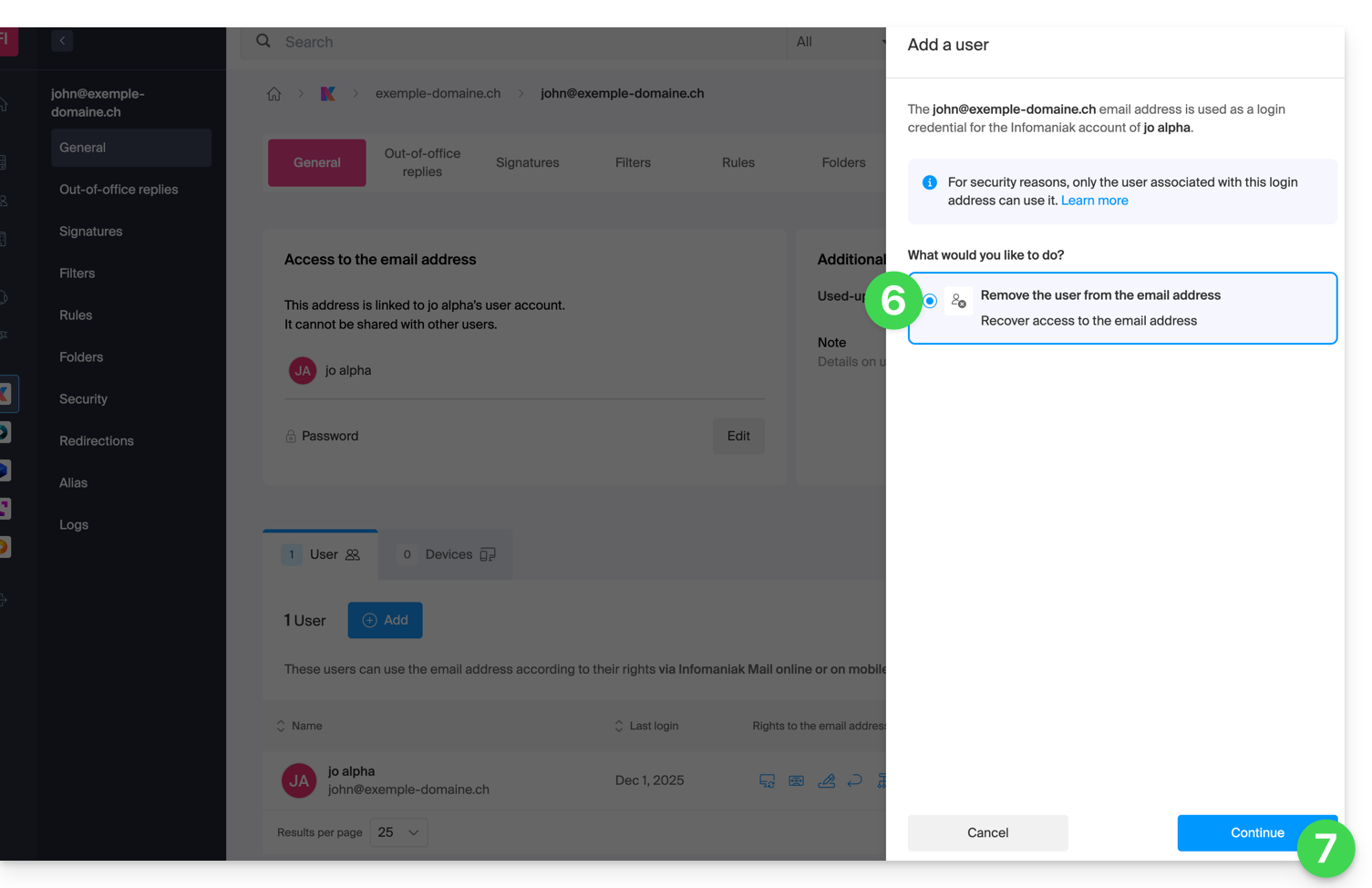
- In the right sidebar, the wizard for freeing up the address will open; click the radio button to activate the operation.
- Click on Continue:
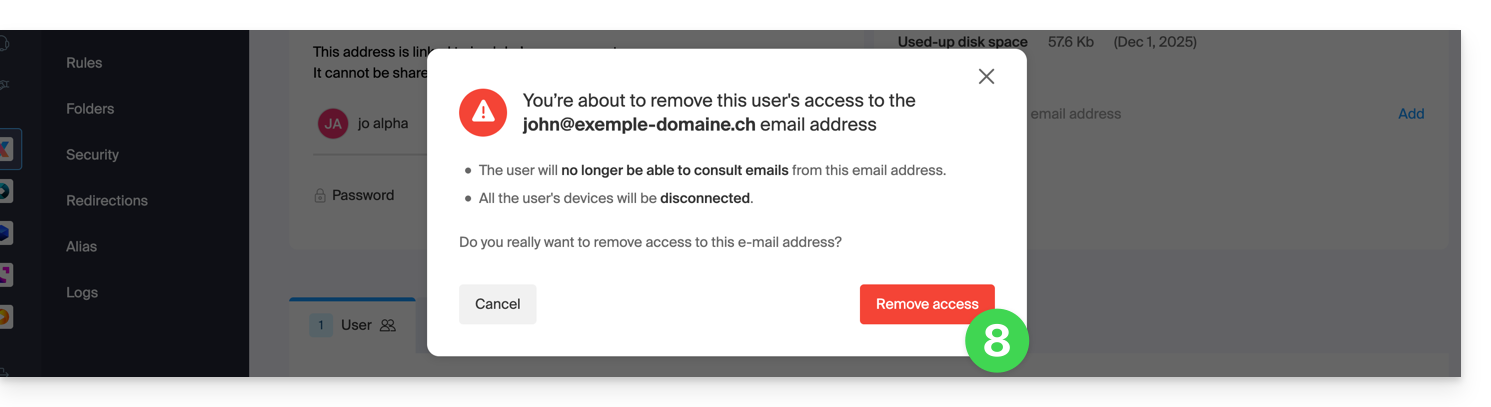
- Confirm the user logout operation:
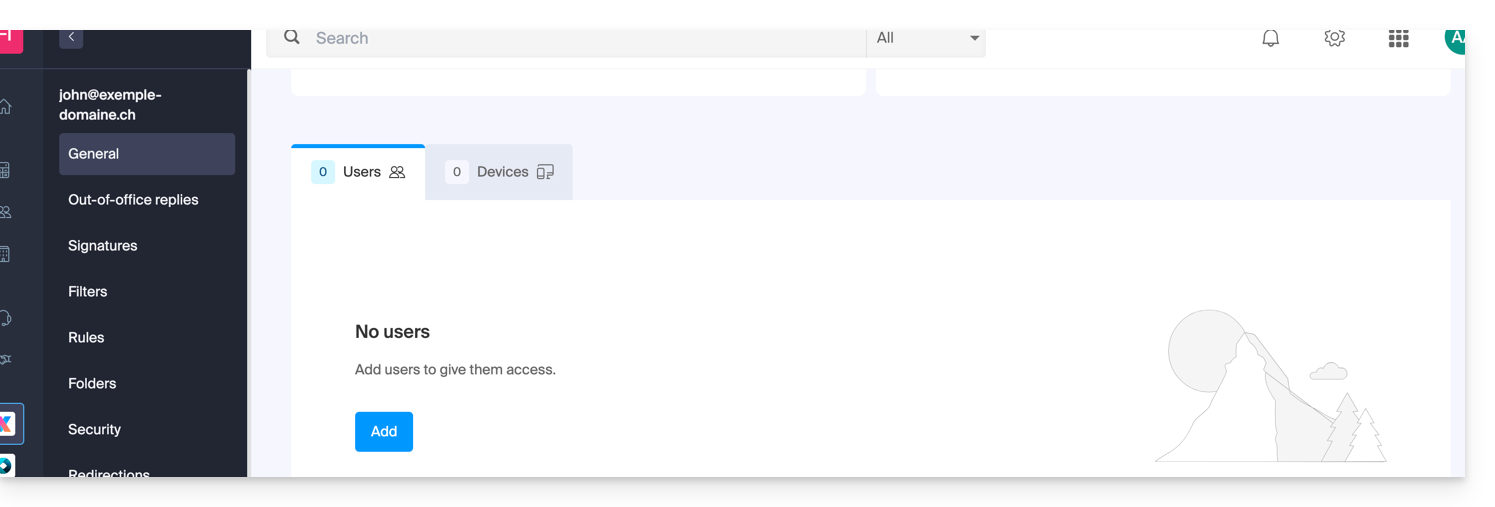
- The linked user disappears from the user page:
- At the same time, he receives a similar SMS to the example below, on the phone number he provided during registration:
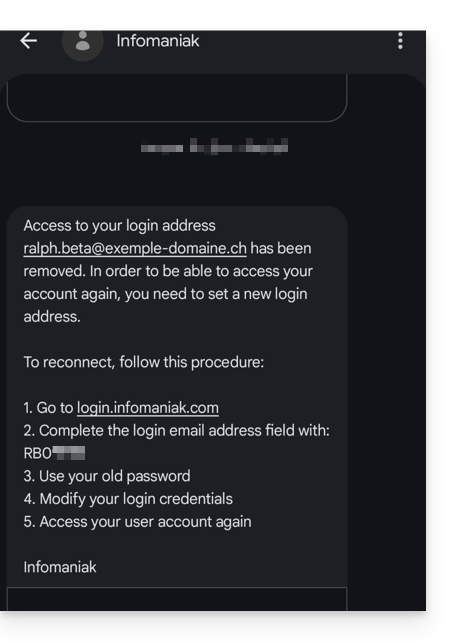
- This SMS tells him the steps to follow to reconnect to his Infomaniak account with another email address of his choice (see below).
Recover access to your Infomaniak account
To regain access to your Infomaniak account now that you can no longer access it with your old email address, the Infomaniak account user must go to the address mentioned in the SMS:
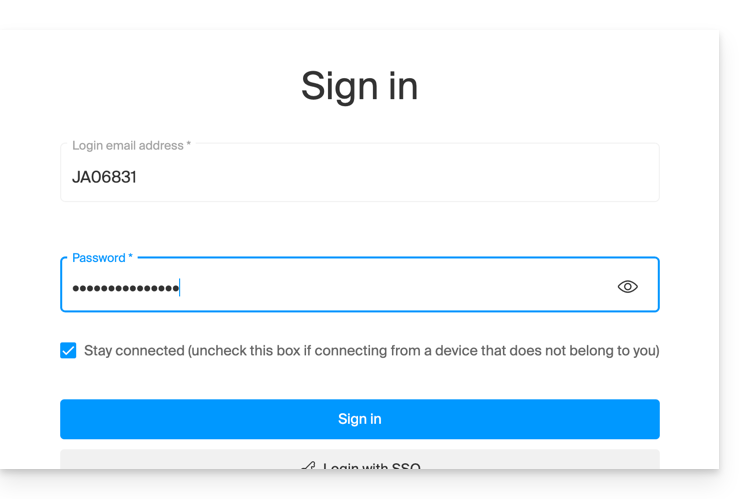
- Click here to access the login page.
- Enter the username specified in the SMS (usually the initials of your account followed by a series of numbers).
- Enter your usual password (it has not changed):
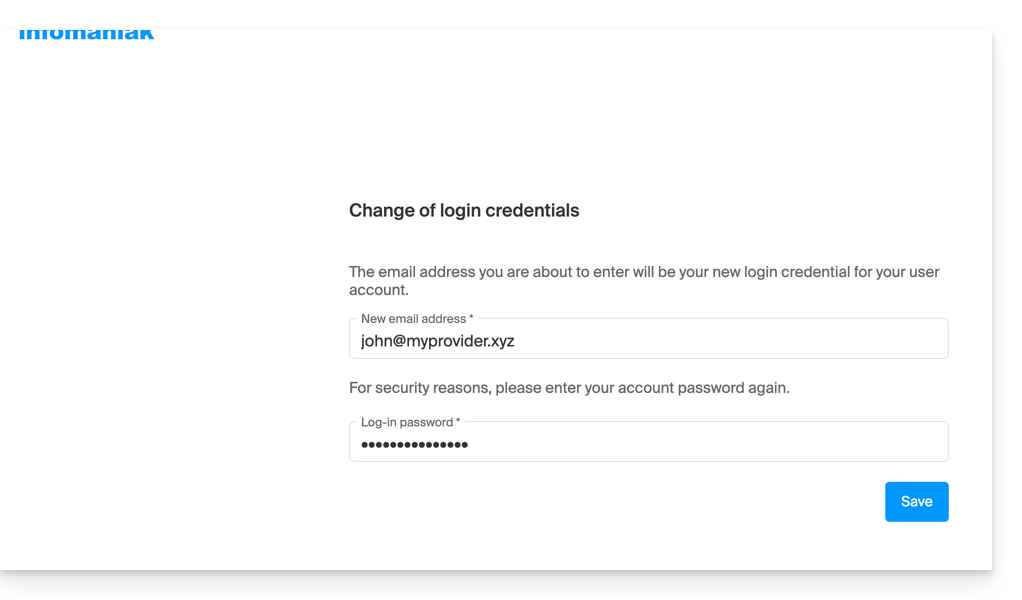
- Enter the new information requested:
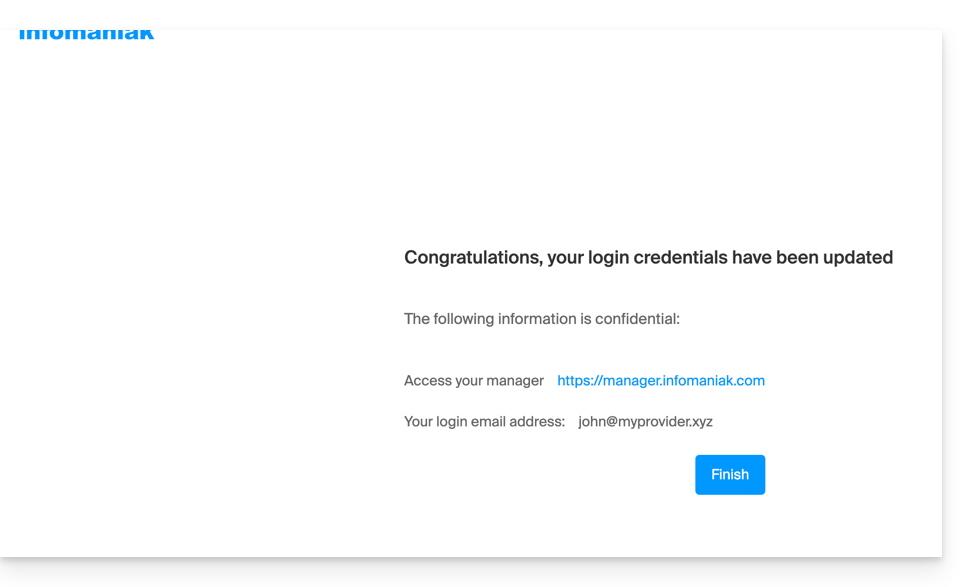
- You will be logged back into your account:
Link to this FAQ: https://faq.infomaniak.com/2895
Has this FAQ been helpful?
This guide is for you if you wish to make an IBAN transfer in euros to settle a payment to Infomaniak.
Bank details for all € transfers
Here are the Infomaniak bank account details to use for your payments via bank transfer in euros to Infomaniak:
Account holder: Infomaniak Network SA
IBAN: BE71 9057 8706 4269
BIC: TRWIBEB1XXX
Bank: Wise
Transfers sent to any IBAN other than the Infomaniak IBAN provided will not be processed and will be automatically returned to the issuing bank.
For your payment and accounting tools (online banking, standing orders, ERP, etc.), use only the information above to avoid any delays or payment rejections.
Is there anything simpler than a bank transfer?
Yes. To ensure optimal continuity of your services, it is recommended to register an immediate debit payment method, such as a credit/debit card. This payment method offers the following advantages:
- the automatic renewal of your services
- the reduction of risks associated with manual transfers
Change the currency
The EUR / CHF currency corresponds to the country registered for your Organization. Please refer to this other guide to change the establishment information and obtain billing in a different currency.
Verify that an invoice is legitimate and comes from Infomaniak
To be 100% sure that a payment reminder is legitimate and to know which service it corresponds to:
- Click here to log in to the Infomaniak Manager.
- Check at the top left to ensure you are in the correct Organization where your products are located.
- Go to Billing > Outstanding invoices.
- When choosing payment by IBAN, the correct bank details are displayed automatically.
Contact Infomaniak support if you have any doubts or questions.
Link to this FAQ: https://faq.infomaniak.com/2898
Has this FAQ been helpful?
This guide explains how to enable two-factor authentication using an Infomaniak app already installed on your devices.
Introduction
- Consult this other guide about enabling the 2FA feature.
Receive a notification when a login authorization request is made via Infomaniak apps
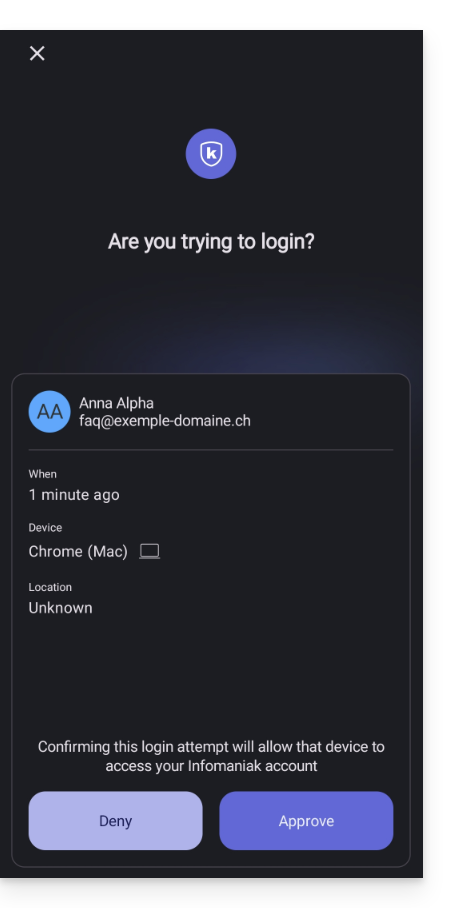
From the moment you enable 2FA by configuring one of the available methods, the Infomaniak apps (Mail, Euria, kDrive, etc.) will automatically allow you to validate the connection.when logging in from another device:
- A modal window will open, asking you to confirm the login if it originates from you:
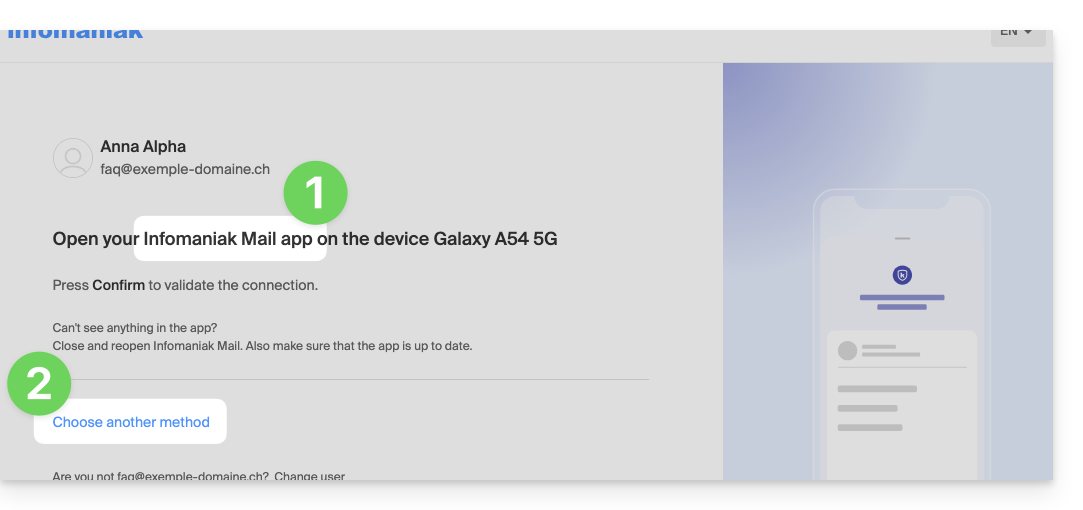
- You can, of course, request on a case-by-case basis to receive the validation request using one of the other registered methods:
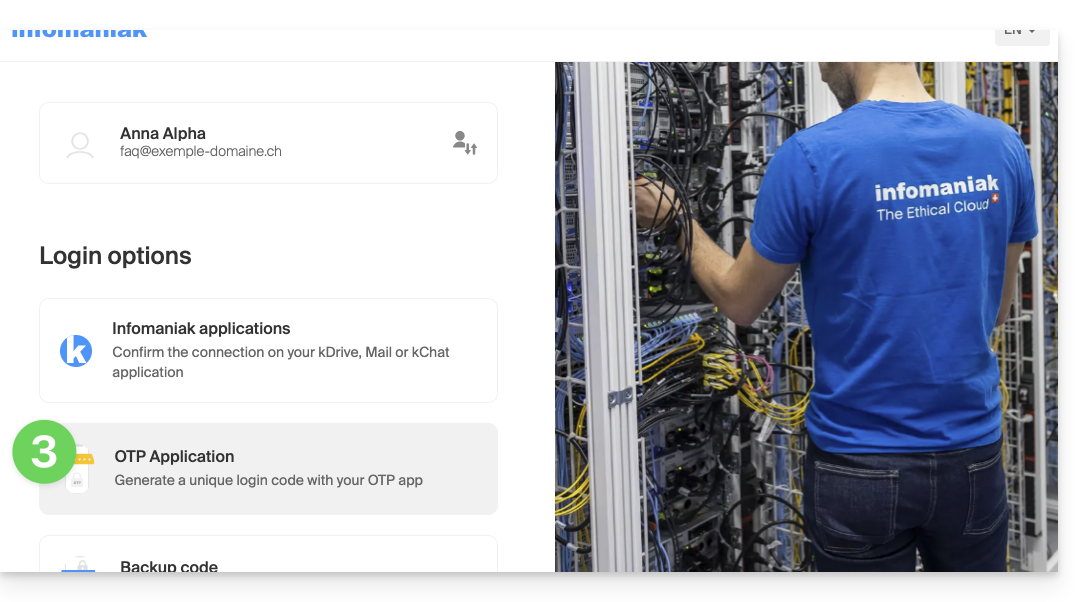
- In this case, you will accessdifferent 2FA methods already registered for your account:
If you have enabled multiple verification methods (SMS, OTP app, etc.), you can specify which one will be offered by default during each login. Please note, however, that the priority method will remain the verification method used in the Infomaniak app installed (Mail, Euria, kDrive…) on your devices:
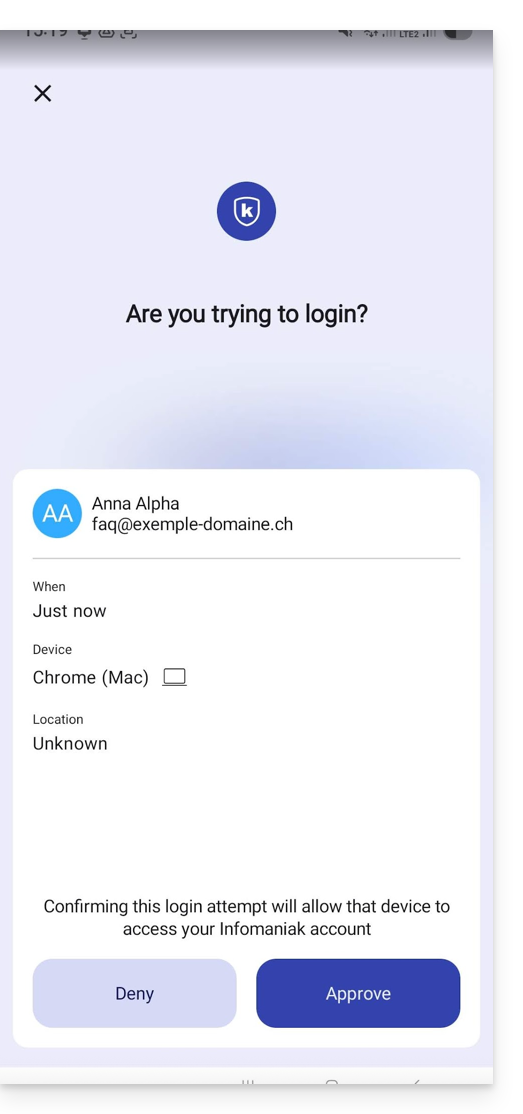
- The notification appears in full screen when you open the specified application, and a button allows you to validate the connection (to confirm that it is indeed you):
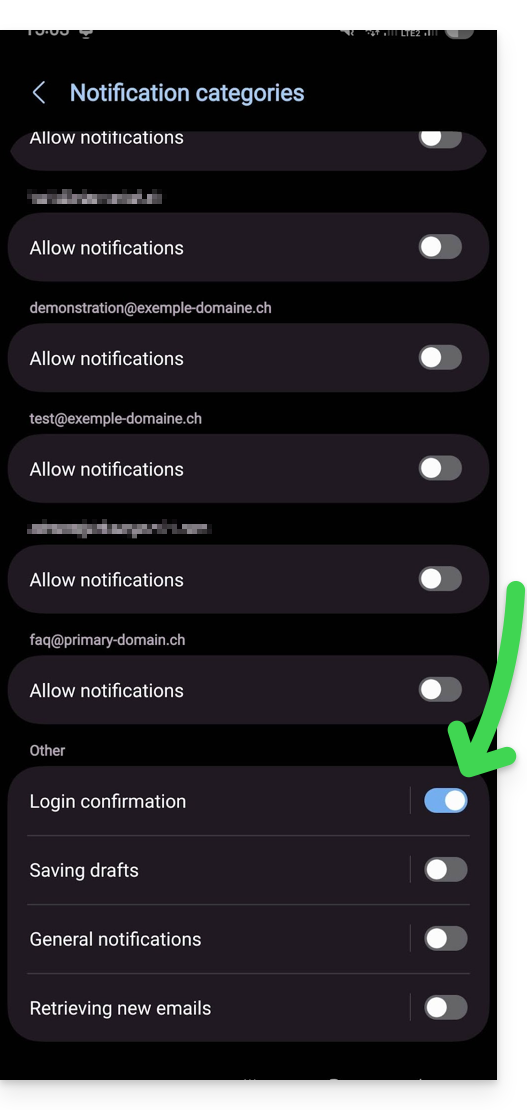
- In the Android settings of Infomaniak apps (Mail for example), you can choose to only enable the notification for connection authentication requests:
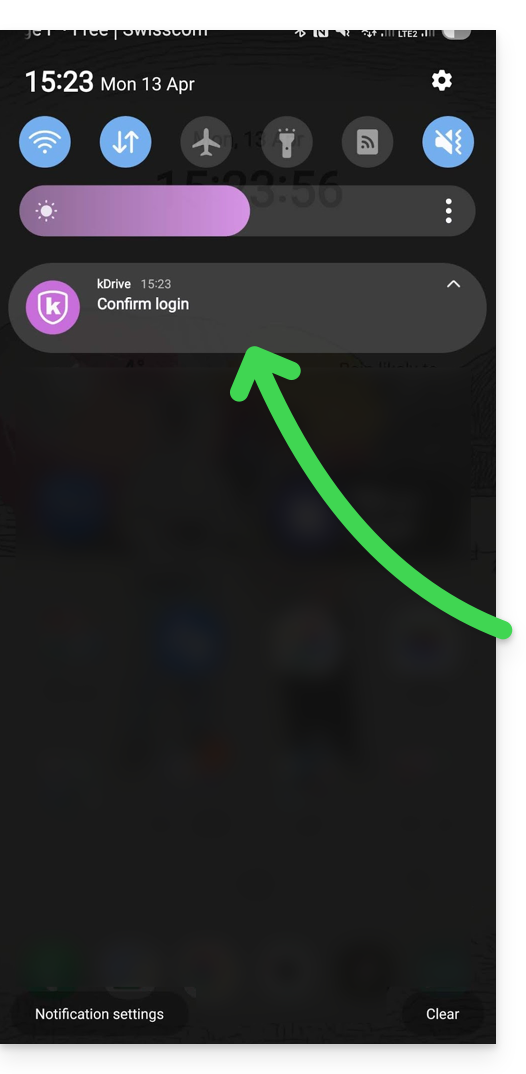
- An Android notification will alert you to the pending authentication request, and you can open the app directly from the notification:
Link to this FAQ: https://faq.infomaniak.com/2899
Has this FAQ been helpful?
This guide explains how to add a global reference that will appear on all your future billing documents.
Introduction
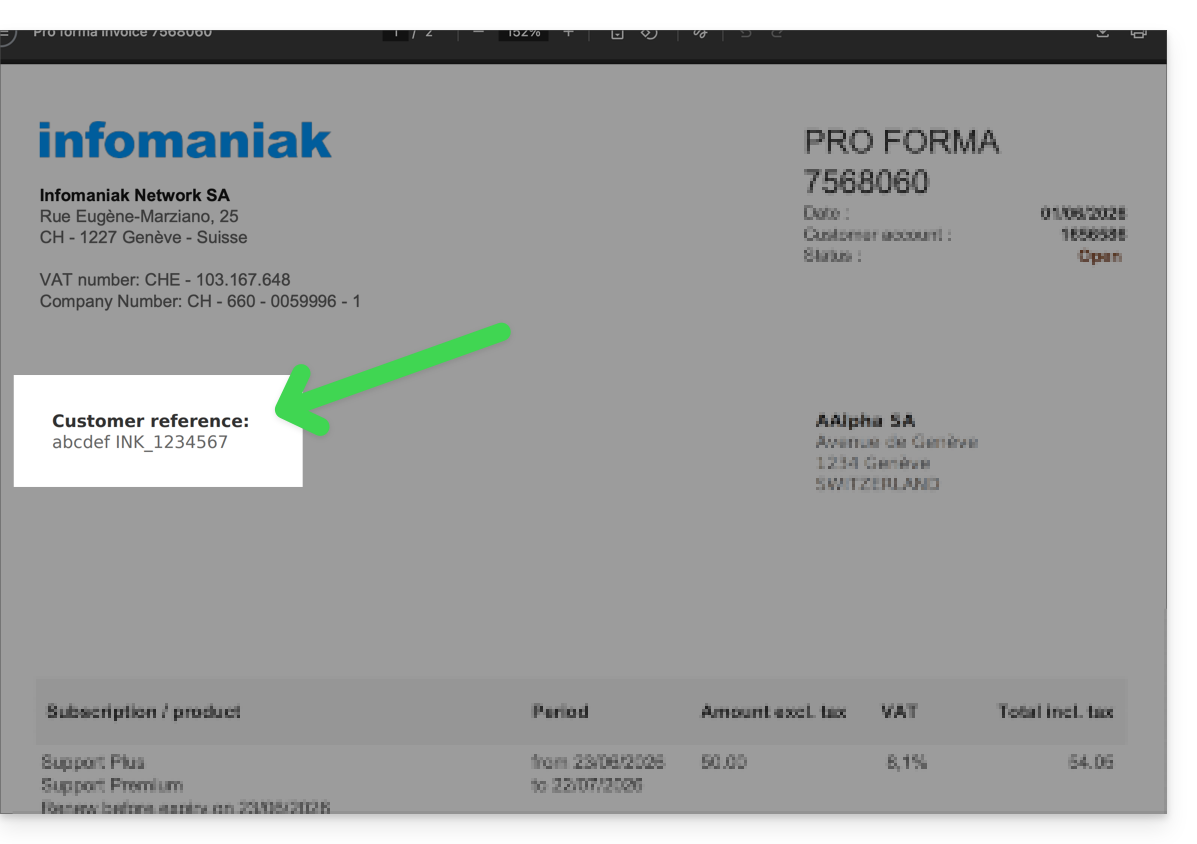
- This reference, with a maximum of 128 characters, will appear on your invoices and pro forma documents.
- It will be automatically applied by default to all your future documents, so you won't need to re-enter it each time!
Add a global reference from your billing settings
Prerequisites
- Be Administrator or Legal Representative within the Organization…
- … or a simple user account but with the permission to manage accounting enabled:
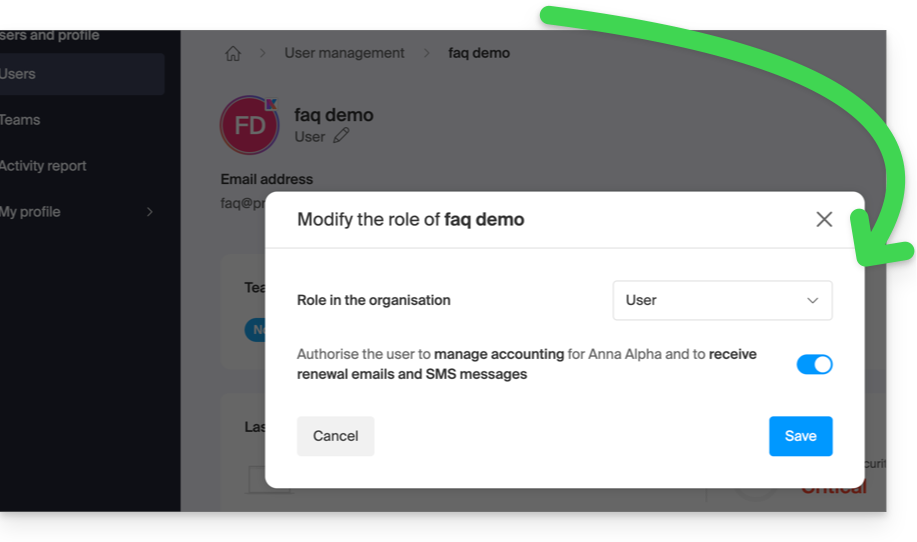
- … or a simple user account but with the permission to manage accounting enabled:
In order to add the desired global internal note:
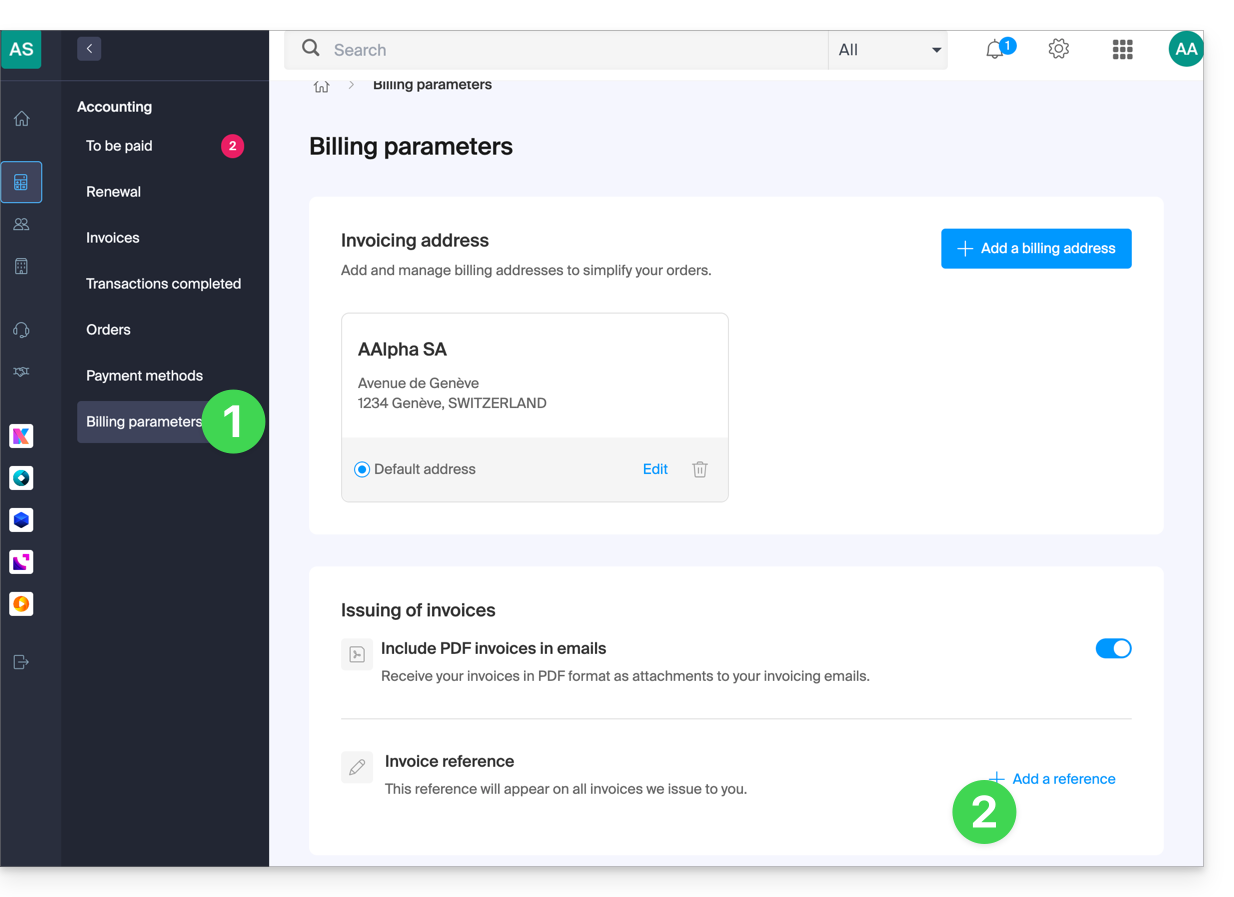
- Click here to access the configuration/billing page in the Infomaniak Manager (need help?).
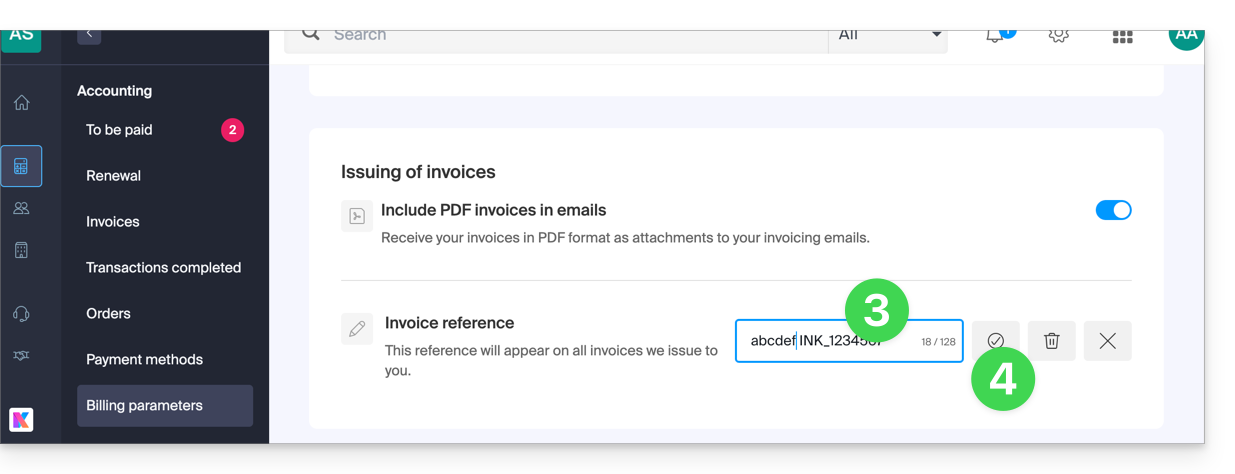
- Click on the + to Add a reference:
- Fill in the field with your internal note.
- Confirm with the button (the reference can also be deleted in the same place using the Trash button):
- Find the reference you added in your documents
Add a custom reference to a single document
Please note that this reference replaces the overall rating configured above:
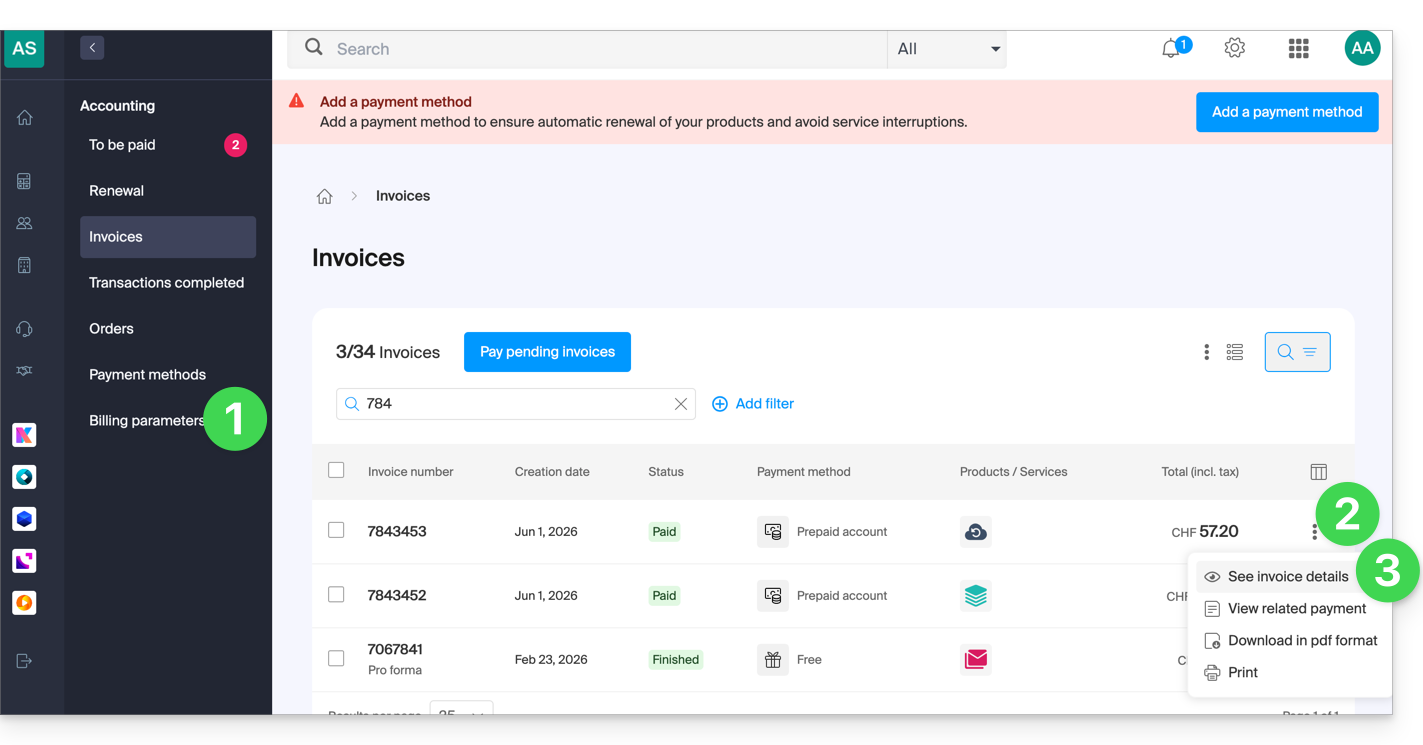
- Click here to access the configuration/billing page in the Infomaniak Manager (need help?).
- Click on the action menu ⋮ to the right of the document in question.
- Click on View details:
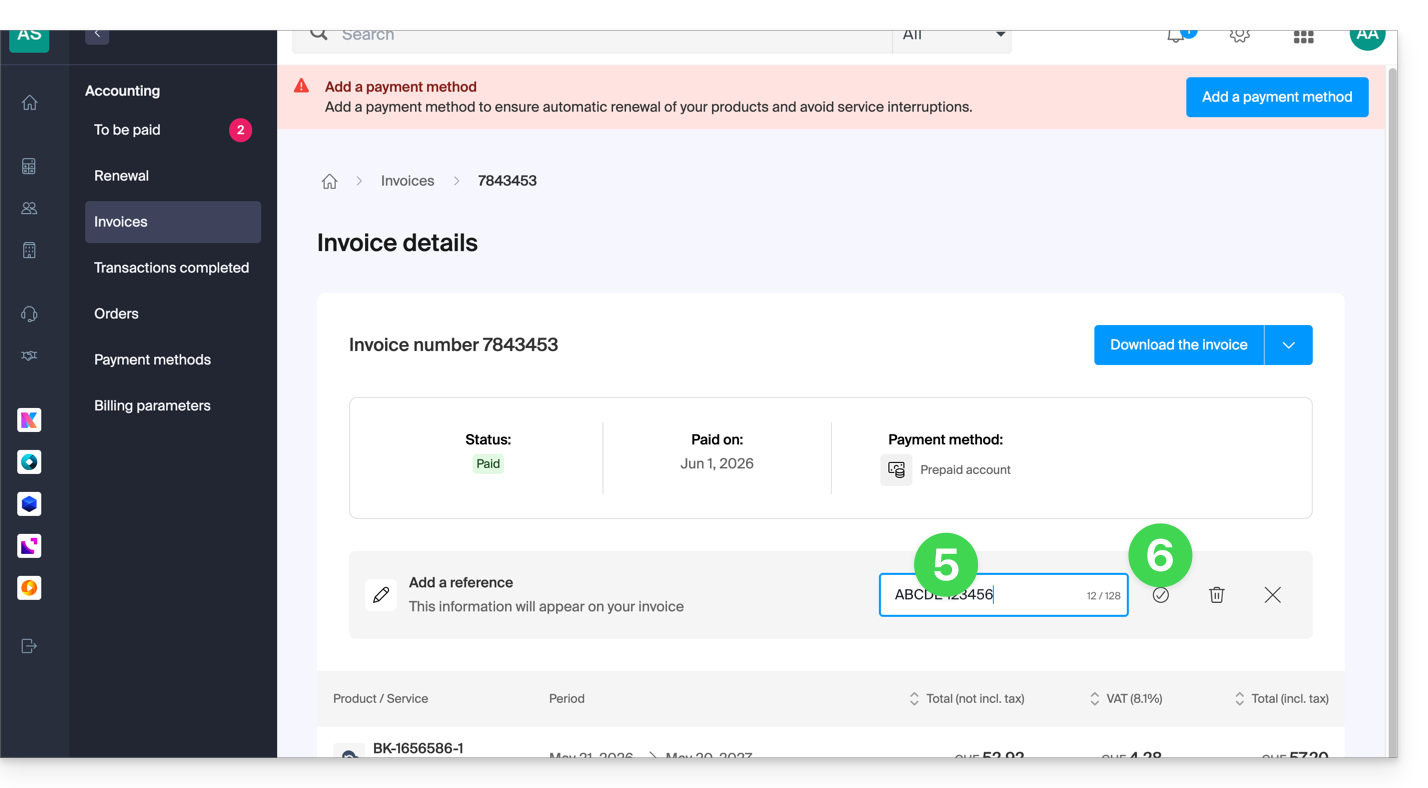
- Click on the + to Add a reference:
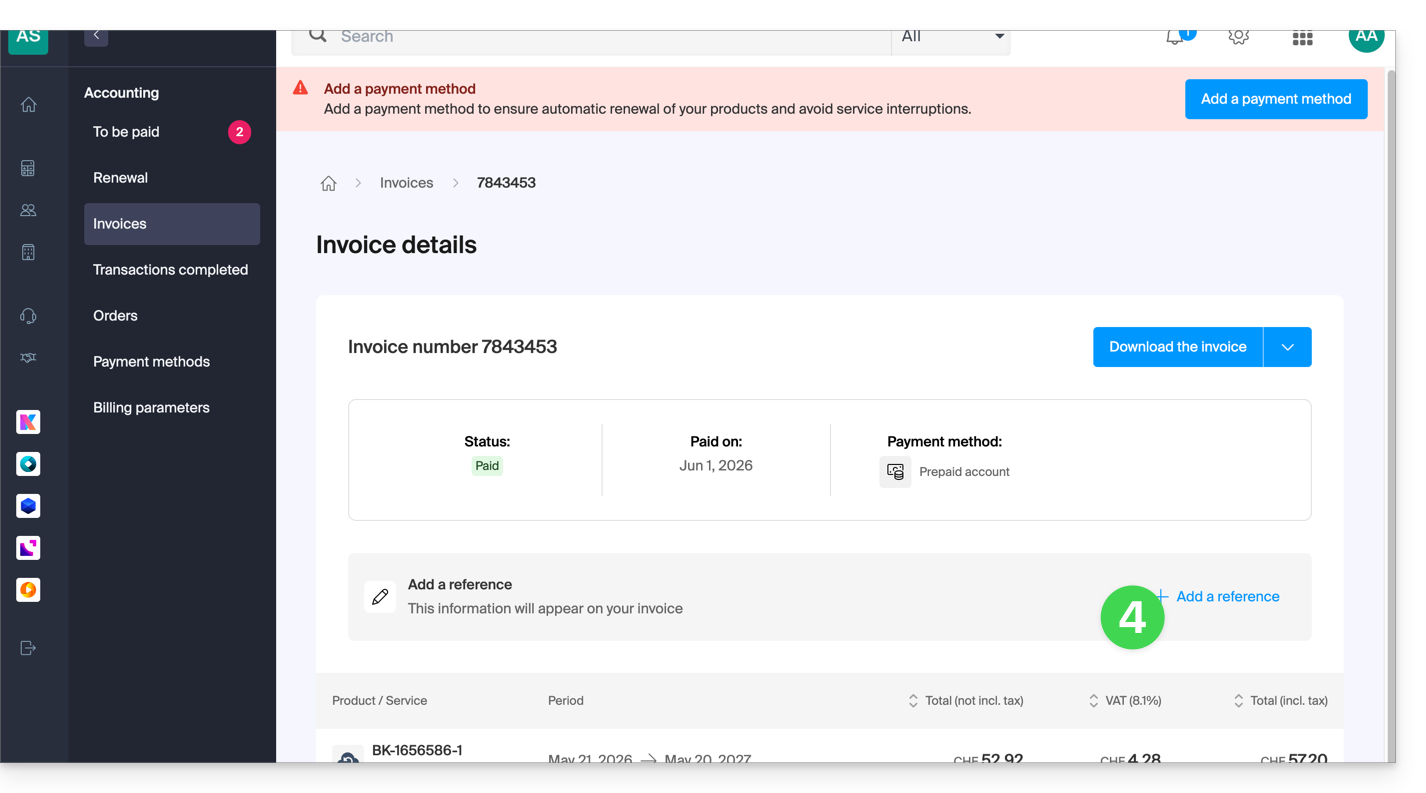
- Fill in the field with your internal note.
- Confirm with the button (the reference can also be deleted in the same place using the Trash button):
Link to this FAQ: https://faq.infomaniak.com/2908
Has this FAQ been helpful?