Knowledge base
1000 FAQs, 500 tutorials and instructional videos. Here, there are only solutions!
Troubleshooting an issue when adding a user to an email address
This guide details the steps to follow when you want to “release” the management of an email address that is currently “restricted” by the use of an Infomaniak account with the same name.
Introduction
- For example, the email address
benevolon the Mail Serviceexample.xyzwill no longer be shareable with other users once an Infomaniak account is created with a login ID in the form of the email addressbenevol@example.xyz. - Therefore, a procedure exists for the administrator of a Mail Service to activate the release of the corresponding Infomaniak account if necessary.
- The corresponding email address, which was previously linked and accessible, will no longer be, but the account data will not be deleted.
- Only the login address should be provided in a different form by the user in question.
Request to unblock the Infomaniak account
To enable the deletion of the login ID when it is identical to an email address that can no longer be shared, the Mail Service administrator must go to the Manager:
- Click here to access the management of your product on the Infomaniak Manager (need help?).
- Click directly on the name assigned to the product in question.
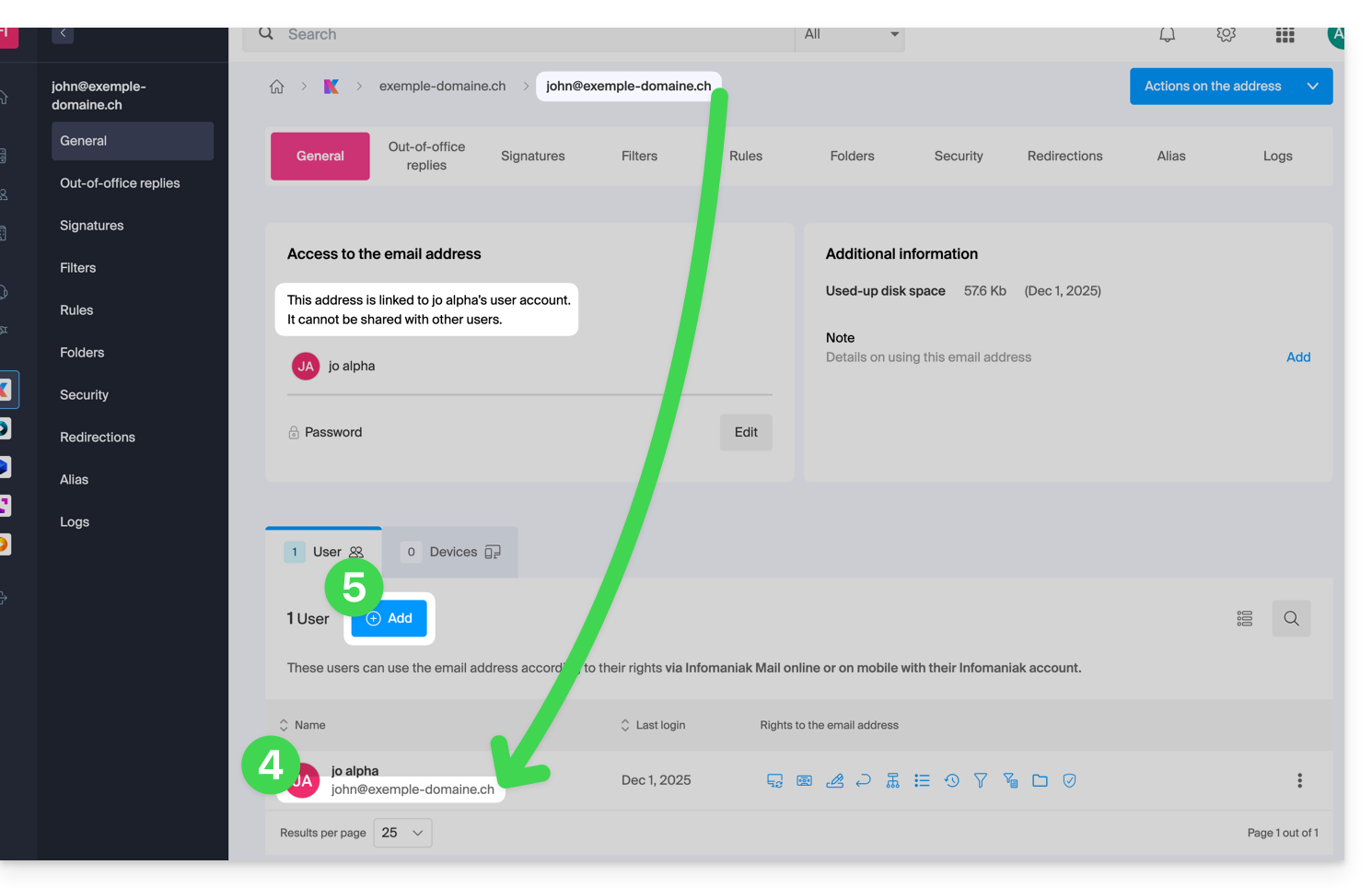
- Click on the email address in question in the table that appears.
- Under the General tab, you can see the users who have accessed this address, and among them, you will find the relevant user.
- Click on the Add button in the Users section (an operation that is currently not possible):
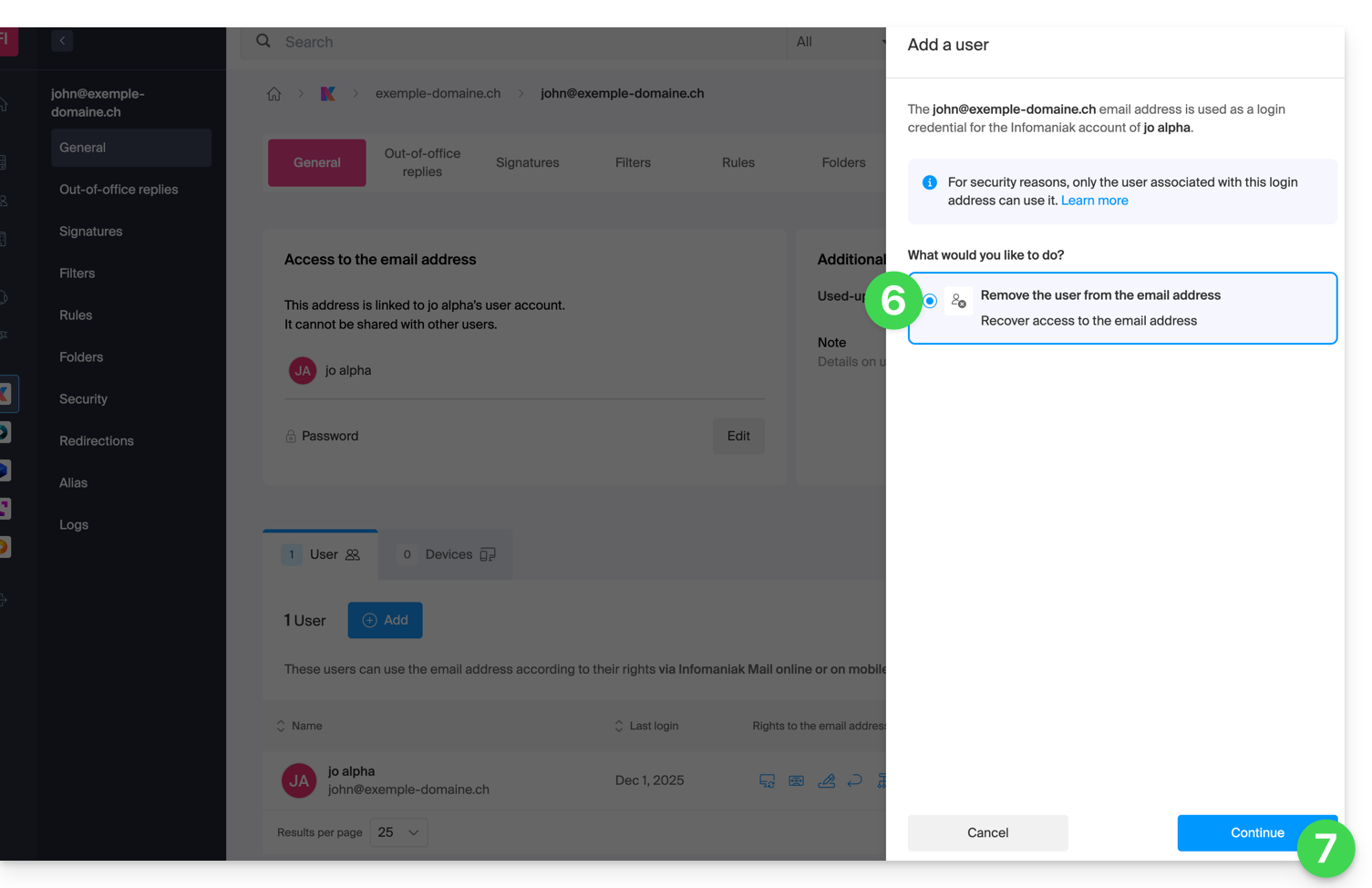
- In the right sidebar, the wizard for freeing up the address will open; click the radio button to activate the operation.
- Click on Continue:
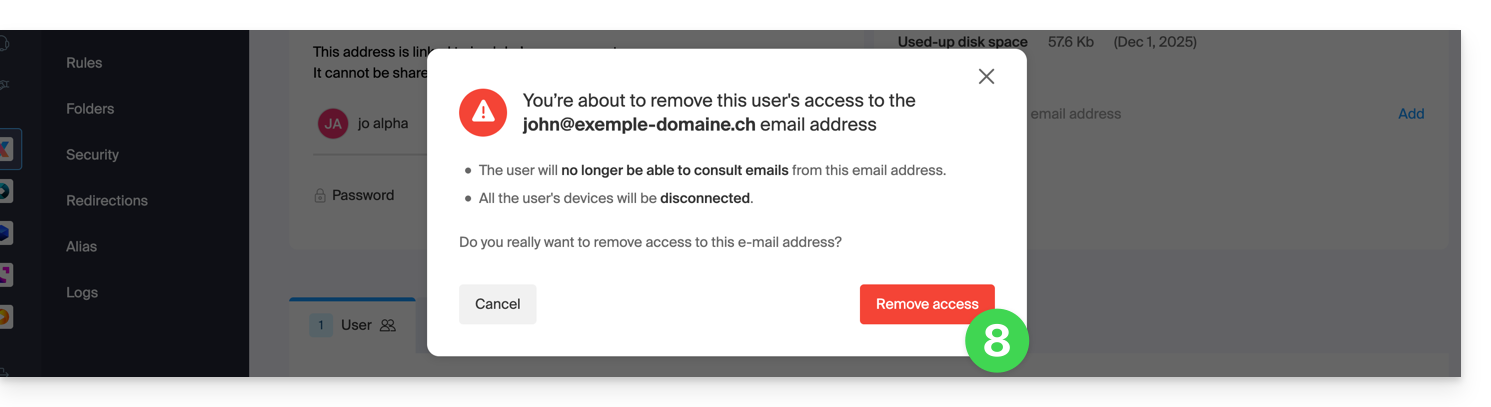
- Confirm the user logout operation:
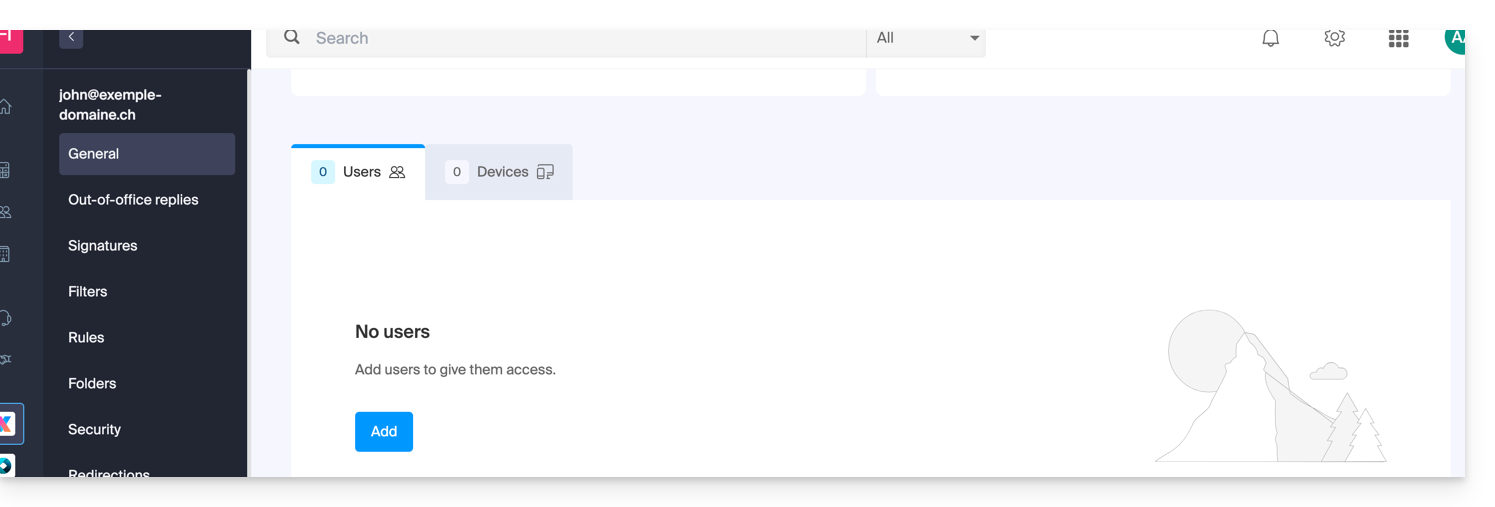
- The linked user disappears from the user page:
- At the same time, he receives a similar SMS to the example below, on the phone number he provided during registration:
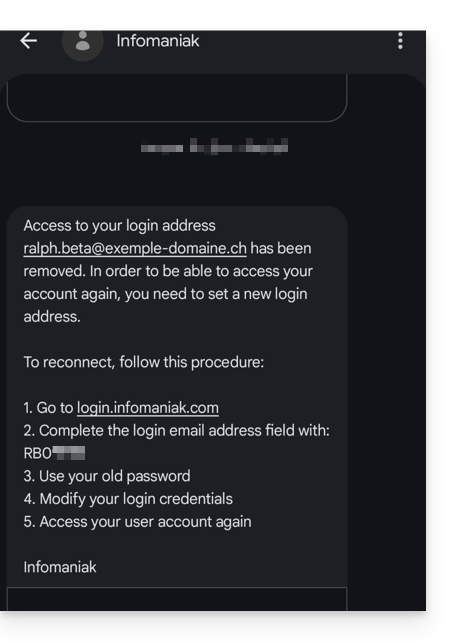
- This SMS tells him the steps to follow to reconnect to his Infomaniak account with another email address of his choice (see below).
Recover access to your Infomaniak account
To regain access to your Infomaniak account now that you can no longer access it with your old email address, the Infomaniak account user must go to the address mentioned in the SMS:
- Click here to access the login page.
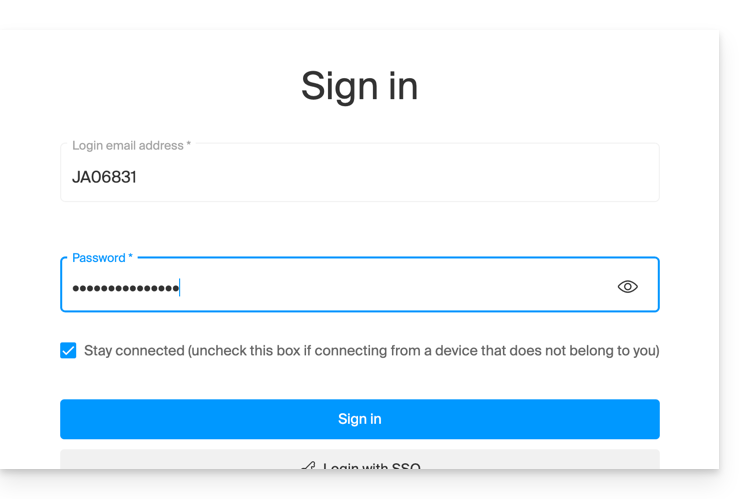
- Enter the username specified in the SMS (usually the initials of your account followed by a series of numbers).
- Enter your usual password (it has not changed):
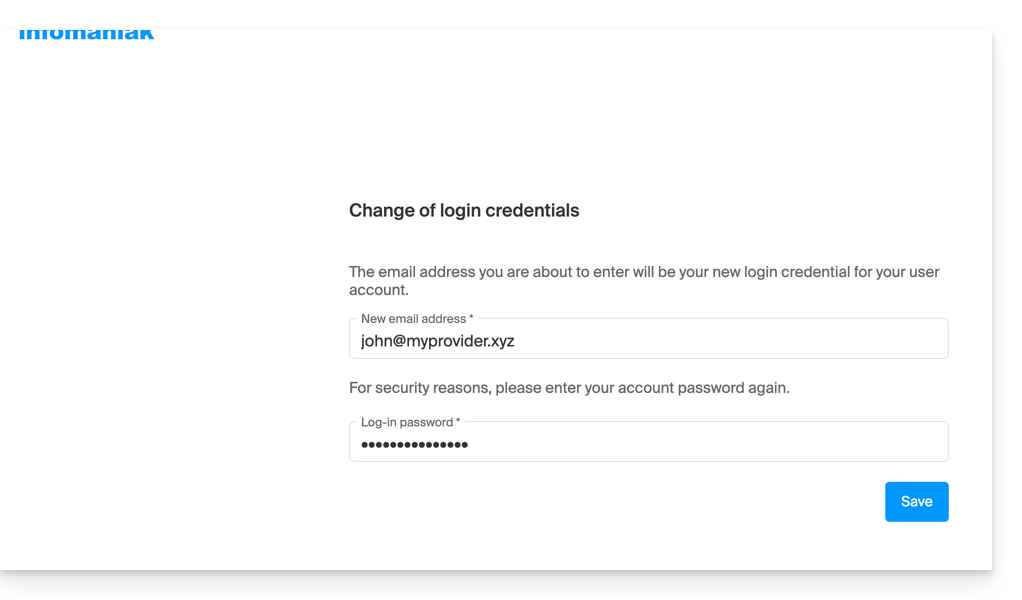
- Enter the new information requested:
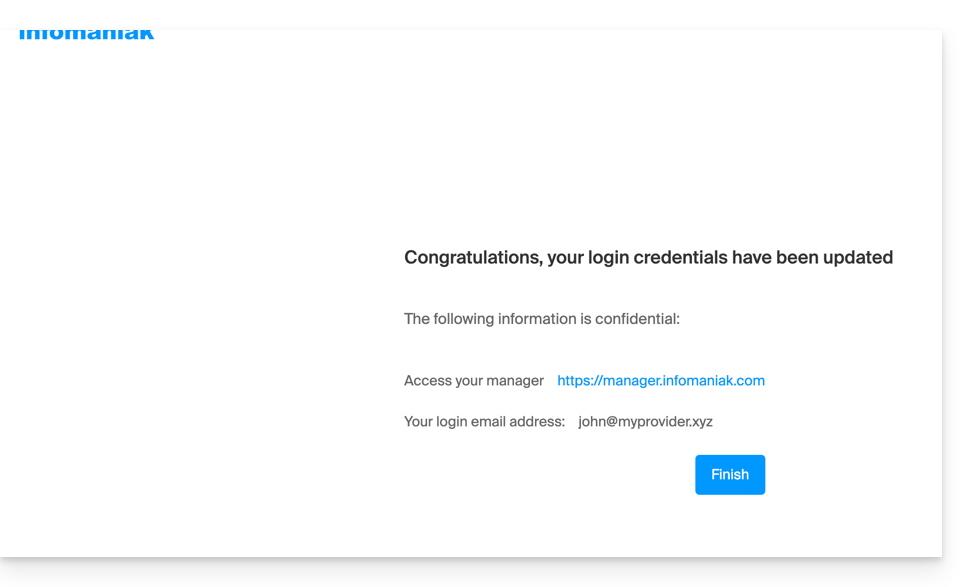
- You will be logged back into your account:
Link to this FAQ: https://faq.infomaniak.com/2895
Has this FAQ been helpful?