Knowledge base
1000 FAQs, 500 tutorials and instructional videos. Here, there are only solutions!
This guide helps you identify and correct most email errors encountered after sending an email to a recipient.
If you are looking for information about errors you receive,when configuring an email address in a software/email client, please refer to this other guide.
Introduction
- Generally, an error message related to email is due to:
- incorrect configuration of the domain name used with your email,
- an issue with your recipient's email provider.
- In all cases, a delivery failure report (
Mailer DaemonorMail Delivery Subsystem) containing the explanation is sent to the sender.
1. Basic principles and error identification
How delivery failure reports work
When your message fails to reach the recipient, an initial delivery failure report (Temporary Delivery Failure Report) is sent, indicating that the server will attempt to resend your message several times.
A final non-delivery report (Final Delivery Failure Report or Undeliverable Mail) issued by the recipient's server is sent to the sender (via the Infomaniak mail server, which is why Infomaniak is mentioned at the beginning of most error messages you may receive) to inform them that the email could not be delivered even after several attempts.
The notification always contains the reason for the failure. Example below:
This is the mail system at host smtp-1-1234.mail.infomaniak.ch.
I'm sorry to have to inform you that your message could not be delivered to one or more recipients. It's attached below.
For further assistance, please send mail to postmaster.
If you do so, please include this problem report. You can delete your own text from the attached returned message.
The mail system anna.a@abc.xyz: host mxbw-abc-xyz.abc-ab12.abc.ch[123.456.789.00] said: 550 5.1.1
anna.a@abc.xyz recipient rejected, account administratively disabled (in reply to RCPT TO command)
Here, the address of your contact is clearly suspended by their email provider (account administratively disabled).
Sometimes, you need to look for the reason for the error message received among its attachments (often a plain text file). Example:
Reporting-MTA: dns; mxbw.abc.ch [123.456.789.00]
Received-From-MTA: dns; smtp-1-1234.mail.infomaniak.ch [12.345.678.99]
Arrival-Date: Tue, 01 Aug 2023 15:49:22 +0200
Final-recipient: rfc822; anna.a@abc.xyz
Diagnostic-Code: smtp; 552 RCPT TO:anna.a@abc.xyz Mailbox disk quota exceeded
Last-attempt-Date: Tue, 01 Aug 2023 15:49:22 +0200Here, the mailbox of your external contact at Infomaniak appears to be full (Mailbox disk quota exceeded).
2. Most common cases
SPF Failure
The SPF (Sender Policy Framework) record is not configured correctly:
Subject: Delivery Status Notification (Failure)
From: Mail Delivery System mailer-daemon@domain.xyz
To: Anna.A anna.a@abc.xyz
This is an automatically generated Delivery Status Notification.
Delivery to the following recipient failed due to SPF failure:
anna.a@abc.xyz
Technical details of SPF failure:
The sender's domain domain.xyz does not have a valid SPF record. Please contact your email administrator to correct the SPF configuration.
Solution: Check your domain name configuration, and in particular, the SPF record if your website is hosted on Wix or another provider.
User Unknown
The email address specified in the message is invalid or does not exist:
Subject: Delivery Status Notification (Failure)
From: Mail Delivery System mailer-daemon@domain.xyz
To: Anna.A anna.a@abc.xyz
This is an automatically generated Delivery Status Notification.
Delivery to the following recipient failed permanently:
anna.a@abc.xyz
Technical details of permanent failure:
The email address does not exist. Please check the recipient's email address and try again.
Solution: carefully check the recipient's email address and correct it if necessary; ensure that you are using a valid email address for the recipient.
Temporary Failure
The recipient's mail server is experiencing temporary issues or is unavailable.
Solution: Wait a while, then try sending the message again later. If the problem persists, contact the recipient's technical support for assistance.
Blocked by SPAM Filter (or Content Rejected)
The recipient's mail server blocked the message due to anti-spam filtering rules:
Subject: Delivery Status Notification (Failure)
From: Mail Delivery System mailer-daemon@domain.xyz
To: Anna.A anna.a@domain.xyz
This is an automatically generated Delivery Status Notification.
Delivery to the following recipient failed due to the message being rejected as spam:
anna.a@domain.xyz
Technical details of delivery failure:
The content of the message triggered the spam filters of the recipient's email server. Please review the message content and try again.
Solution: check if your message contains elements that may be considered spam (keywords, suspicious links, etc.). Contact the recipient to verify if the message was filtered into the spam folder.
Please refer to this other guide about outgoing spam and this other guide about incoming spam.
Bad Reputation
The recipient's mail server blocked the message due to anti-spam filtering rules:
gmail-smtp-in.l.google.com said: 550-5.7.1
Our system has detected that this message is likely suspicious due to the very low reputation of the sending domain.
To best protect our users from spam, the message has been blocked.
Please visit {{URL_5}} for more information.
Solution: check the reputation of the domain and determine if one of your email addresses has recently been unintentionally used for malicious purposes.
Domain Not Found (or DNS Error)
The recipient's domain name could not be resolved or does not exist.
Solution: Check the spelling of the recipient's domain and correct it if necessary; ensure that the domain name and DNS are valid and active.
Mailbox Full
The recipient's inbox is full, preventing the delivery of new messages.
Solution: Inform the recipient of the situation and ask them to free up space by deleting emails or archiving items.
This cannot happen with email addresses managed by Infomaniak, as they do not have a storage size limit.
Part of their network is on our block list
If the error message (usually received after sending an email from an online tool hosted on the server where your website is located, such as an order confirmation from PrestaShop or another online store you manage) contains the following:
host hotmail-com.olc.protection.outlook.com[104.47.30.97] said: 550 5.7.1
Unfortunately, messages from [89.123.456.789] weren't sent. Please contact your Internet service provider since part of their network is on our block list.
Solution: change the email sending method. The sending is unauthenticated and originates from the server with a specific IP address, which is apparently blocked by the recipient for some reason (Infomaniak does not intervene to request unblocking). Therefore, configure the online tool to perform authenticated sending.
3. Less frequent errors
Deferred - Delayed
The error message Deferred - Delayed - Warning: message still undelivered after 4 hours, Will keep trying until message is 3 days old means that the Infomaniak mail server tried to connect to your recipient's mail server to send the message, but for an undetermined reason, it was unable to do so. This error message specifies that the Infomaniak server will continue to try to send your message during the period specified in the error message. If, after this period, the message has still not been delivered, you will receive a final error message indicating that your message could not be delivered and that your recipient did not receive it.
Greylisting Delay
This Greylisting Delay error occurs when the recipient's mail server uses a technique called "greylisting", as Infomaniak does. Greylisting imposes a temporary delay during the first attempt to deliver a message from an unknown sender. The Mailer Daemon may send an error report indicating that the delivery was delayed due to greylisting. The error may also mention banned sender. You should retry your sending attempt a few minutes/hours later.
Malware message rejected
This Malware message rejected error occurs when the message contains an attachment, a link to a storage site such as Dropbox, or dynamic content, including in the "forwarded" part of the message (in the case of a message forward, for example). Try forwarding the message from the Infomaniak Mail web app (online service ksuite.infomaniak.com/mail) instead of using a messaging application, and remove any content that may be causing this error.
Message Size Exceeded / File Too Large
These Message Size Exceeded / File Too Large errors occur when the size of the message (or attachments) exceeds the limit allowed by the recipient's email server. The Mailer Daemon will return an error report indicating that delivery failed due to the message size exceeding the limit.
Rate Limit Exceeded
This Rate Limit Exceeded error occurs when the sender has exceeded the frequency or volume limit allowed by the recipient's email server. Email servers may impose limits to prevent spam or system overload.
Sender denied: auth guards failed
Refer to this other guide if you encounter the error Sender denied: auth guards failed.
The message contains a Unicode character in a disallowed header
This error, The message contains a unicode character in a disallowed header, may appear if you have inserted a special character, such as a heart ♥, in the body of the email, the subject, or especially in the full name. The risk of rejection by providers is very high: it is best to keep the use of signs, characters, and fonts as simple as possible.
Link to this FAQ: https://faq.infomaniak.com/858
Has this FAQ been helpful?
This guide explains how to delete folders that appear grayed out in the Infomaniak Mail web app (online service ksuite.infomaniak.com/mail) or in certain email software/clients such as Apple Mail, Mozilla Thunderbird, or Microsoft Outlook.
Ghost folders
Some email software/clients, such as Microsoft Outlook, allow you to create subfolders of non-existent folders. For example, it is possible to create the folder /abc/klm/xyz even though the folder "klm" does not exist.
In Mail Infomaniak or other software, ghost folders like the folder "klm" appear in gray and cannot be deleted directly because they are only "paths" to a real subfolder.
To delete these ghost folders, you must first delete their subfolders (in this example: xyz).
Stubborn Folders
If, when viewing your Infomaniak email address in Outlook, ghost folders persist or reappear immediately after deletion, here are the technical procedures recommended by Microsoft to force synchronization:
1. Force a reset of the Outlook folders
Sometimes, Outlook's local folder table is corrupted. A simple command can often fix this without deleting anything:
- Close Outlook completely.
- Press the
Windows + Rkeys on your keyboard. - Type
outlook.exe /resetfoldersand press Enter (this restores missing or corrupted folders from the server).
2. Reset the IMAP cache (.ost)
If the problem persists, forcing Outlook to rebuild its local database is often the most effective solution:
- Close Outlook.
- Go to the folder:
C:\Users\[Your Username]\AppData\Local\Microsoft\Outlook. - Identify the
.ostfile with the name of your Infomaniak address and delete it (or rename it to.oldfor safety). - Restart Outlook; the software will redownload all your messages and folders cleanly from the Infomaniak servers.
3. Using the MFCMAPI Tool (Advanced Level)
MFCMAPI allows you to directly access the MAPI structure of your mailbox to delete items that the standard Outlook interface refuses to touch:
- Download the latest version of MFCMAPI from GitHub (Official source).
- Launch
MFCMAPI.exeand go toSession > Logon; select your Outlook profile. - Double-click on your Infomaniak email account in the list.
- In the new window, expand
Root Container(orRacine - Boîte aux lettres), thenIPM_SUBTREE. - Locate the problematic folder, right-click on it, and select
Delete folder. - Warning: In the dialog box, first try a simple deletion; if that fails, try again by checking
DELETE_HARD_DELETE(permanent deletion at the server level).
4. Final check via Webmail
If a folder is deleted in Outlook but keeps reappearing, be sure to check in the Infomaniak Mail web app to see if the folder is present there, and first delete it via the web interface before applying step #1 (resetfolders) in Outlook.
Deleting an account and reconfiguring it immediately remains the simplest alternative if MFCMAPI seems too complex.
Link to this FAQ: https://faq.infomaniak.com/865
Has this FAQ been helpful?
This guide explains what the "External" label means in the web app Mail (online service ksuite.infomaniak.com/mail) and the mobile app Infomaniak Mail (application for iOS/Android smartphones or tablets) when reading certain messages: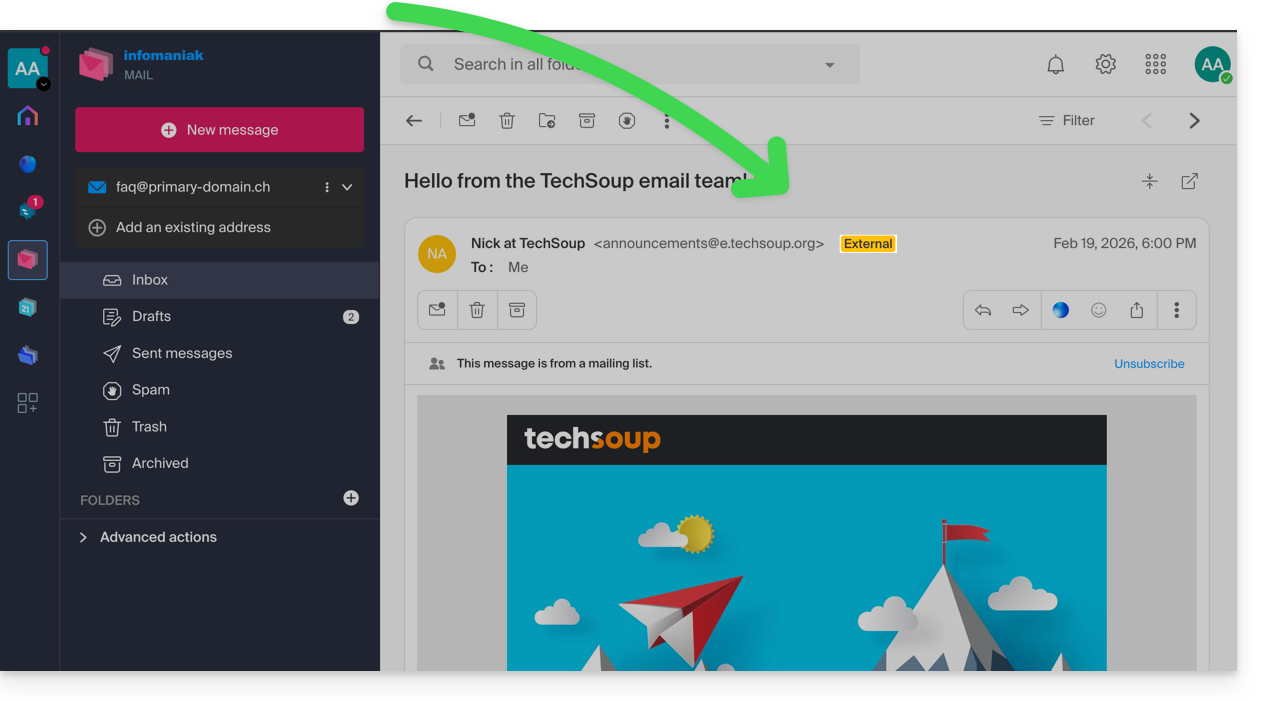
Introduction
- The "External" label is displayed in the following cases:
- The sender's domain name (or alias) does not match the email address configured in Mail.
- The sender is not in your contacts (including suggested contacts).
- The email comes from an address hosted outside the Organization.
- With certain free offers, such as my kSuite, the label will appear as "unknown" instead of “external”.
Enable or disable the label
You can enable or disable the label; the effect is immediate for incoming emails and when replying to an external email. To do this:
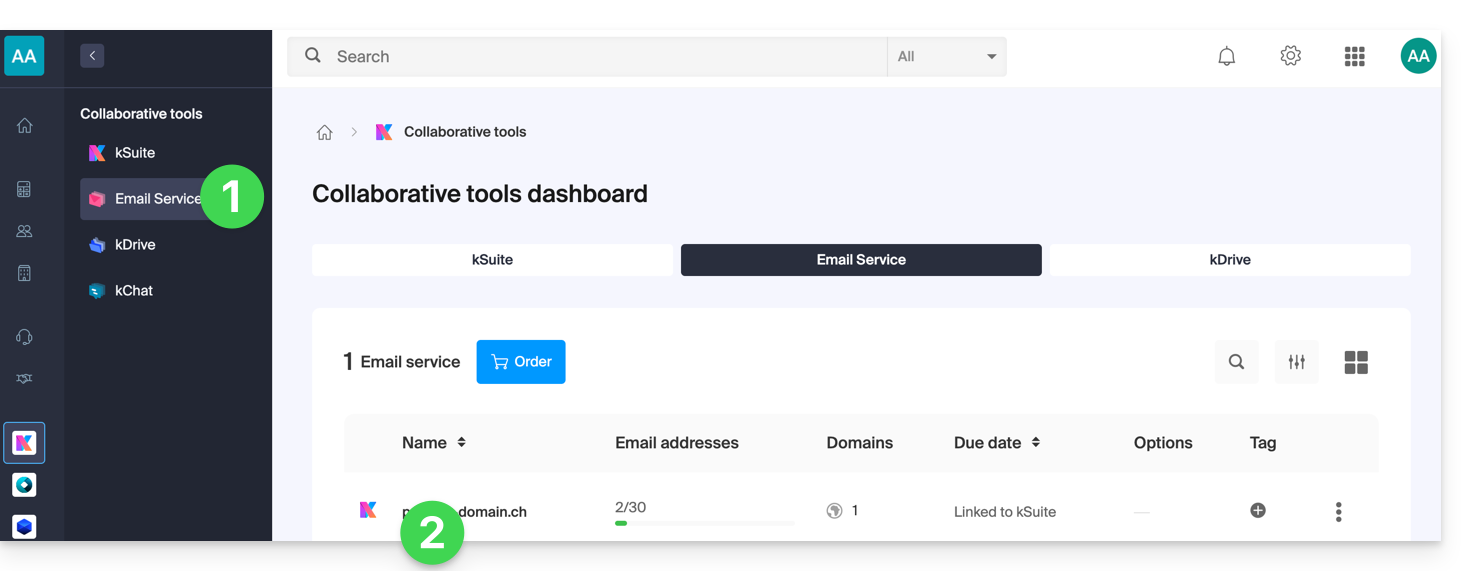
- Click here to access the management of your Mail Service in the Infomaniak Manager (need help?).
- Click directly on the name assigned to the Mail Service in question:
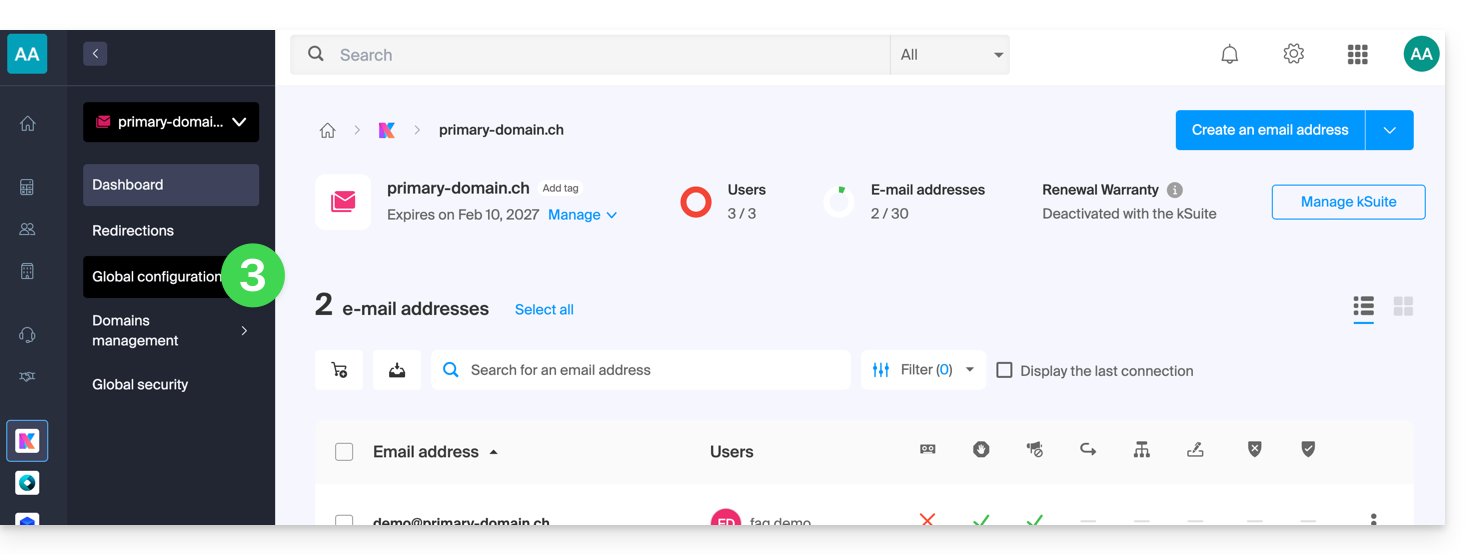
- Click on Global Settings in the left-hand menu:
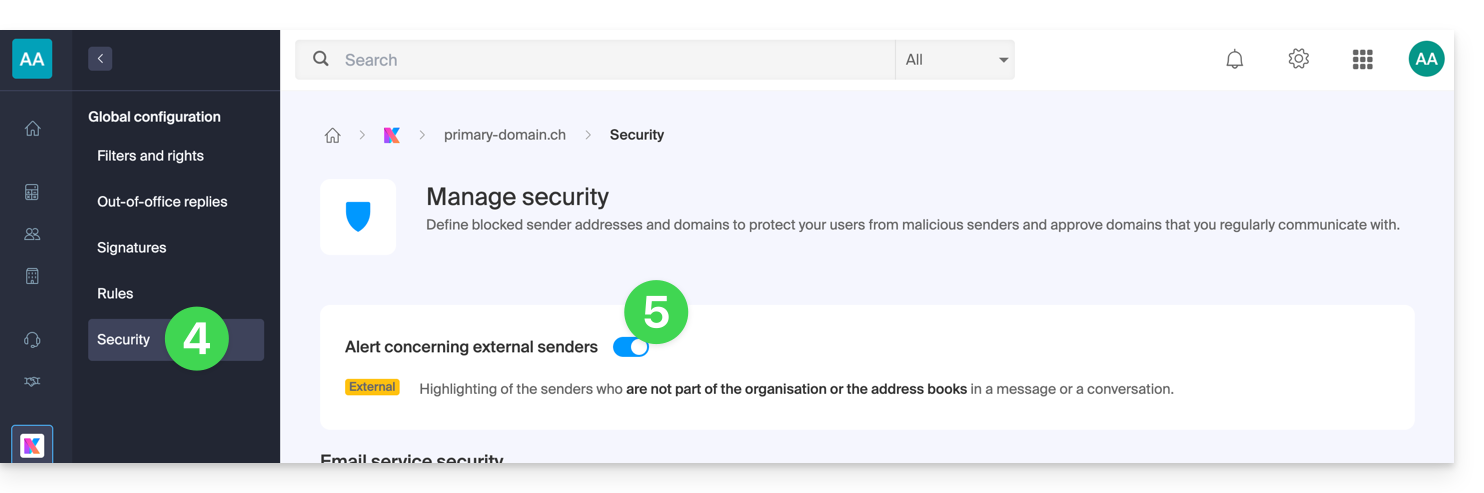
- Click on the Security tab.
- Activate or deactivate the toggle switch:
Link to this FAQ: https://faq.infomaniak.com/964
Has this FAQ been helpful?
This guide explains how to save an email (as if you were downloading it) directly to your kDrive.
Introduction
- Save a received message from one of your Infomaniak Mail service addresses in just a few clicks, in the
.emlformat, which can be read directly within your kDrive interface. - To export all emails from a mail address, please refer to this other guide.
- To export email attachments, please refer to this other guide.
Add an email to kDrive…
… from the Infomaniak Web Mail app
To export the email of your choice to your kDrive:
- Click here to access the Infomaniak Mail web app (online service ksuite.infomaniak.com/mail).
- Open the email you want to save.
- Then, click on the share icon at the top of the message to add to kDrive:
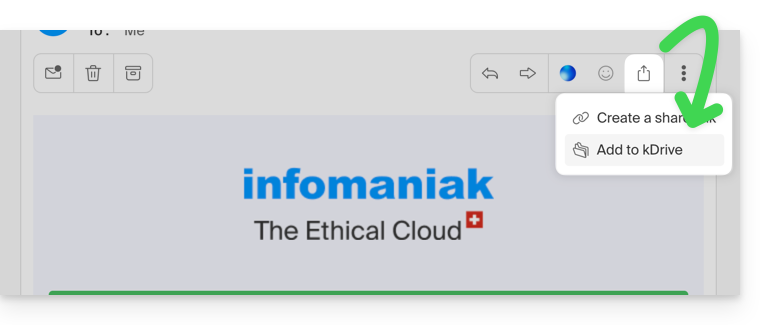
- Then, click on the share icon at the top of the message to add to kDrive:
- Alternatively, you can also click on the Add to kDrive icon at the top of the message:
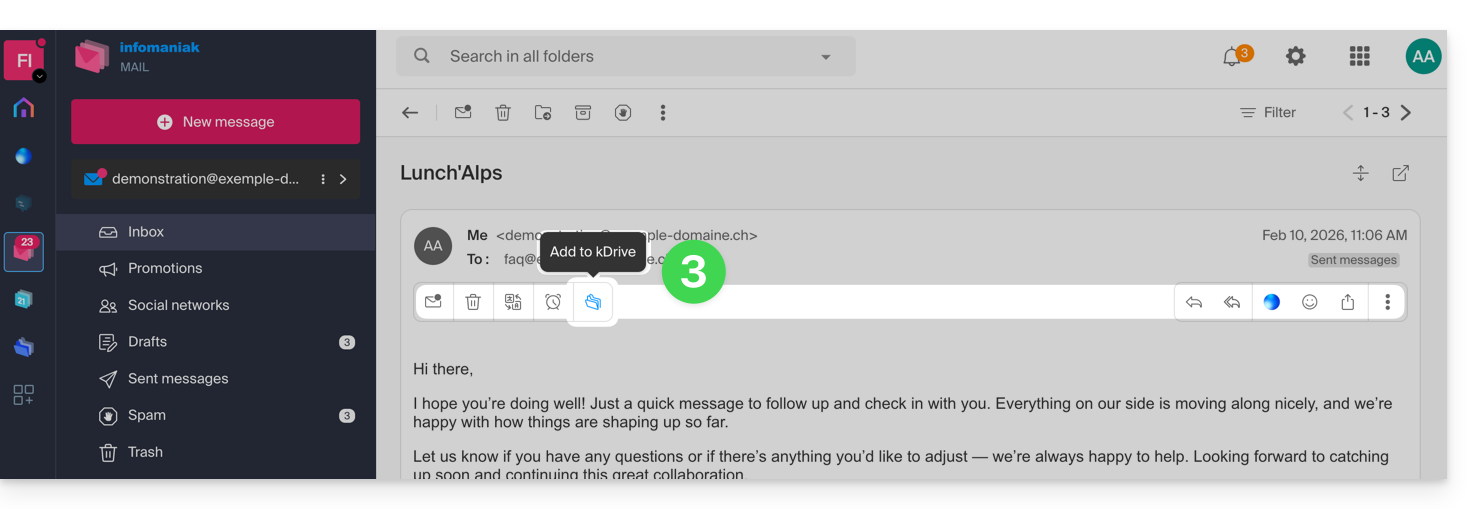
- If the icon is not visible, click on the action menu ⋮ on the right.
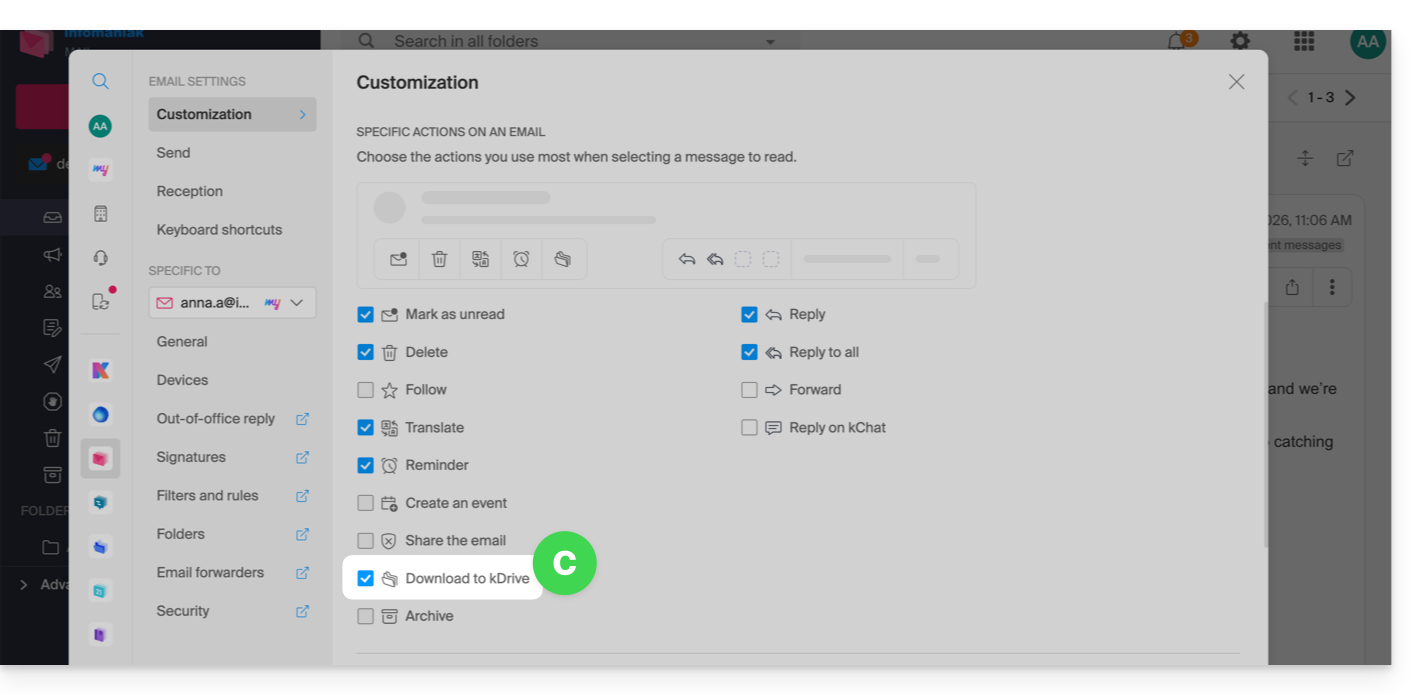
- Then choose to customize the actions:
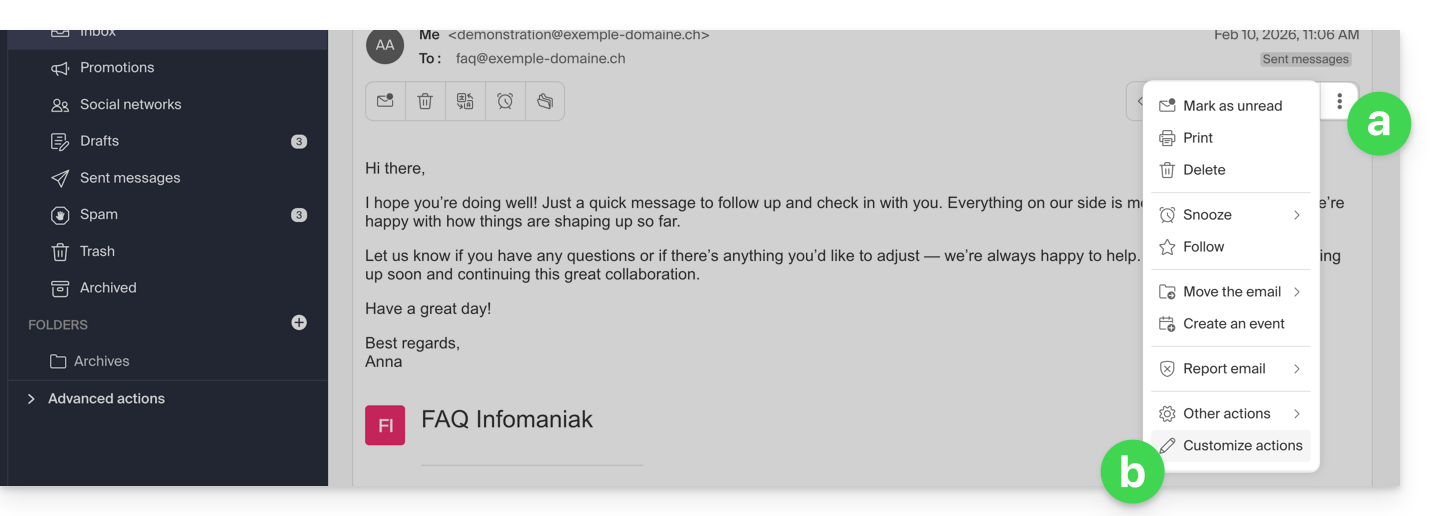
- in order to add the desired action:
- Choose the kDrive (from those to which you are linked by your Organization) and the desired location on it to save your file - if you rename it, keep the
.emlextension so that you can read it directly in the kDrive interface. - Click the Add button.
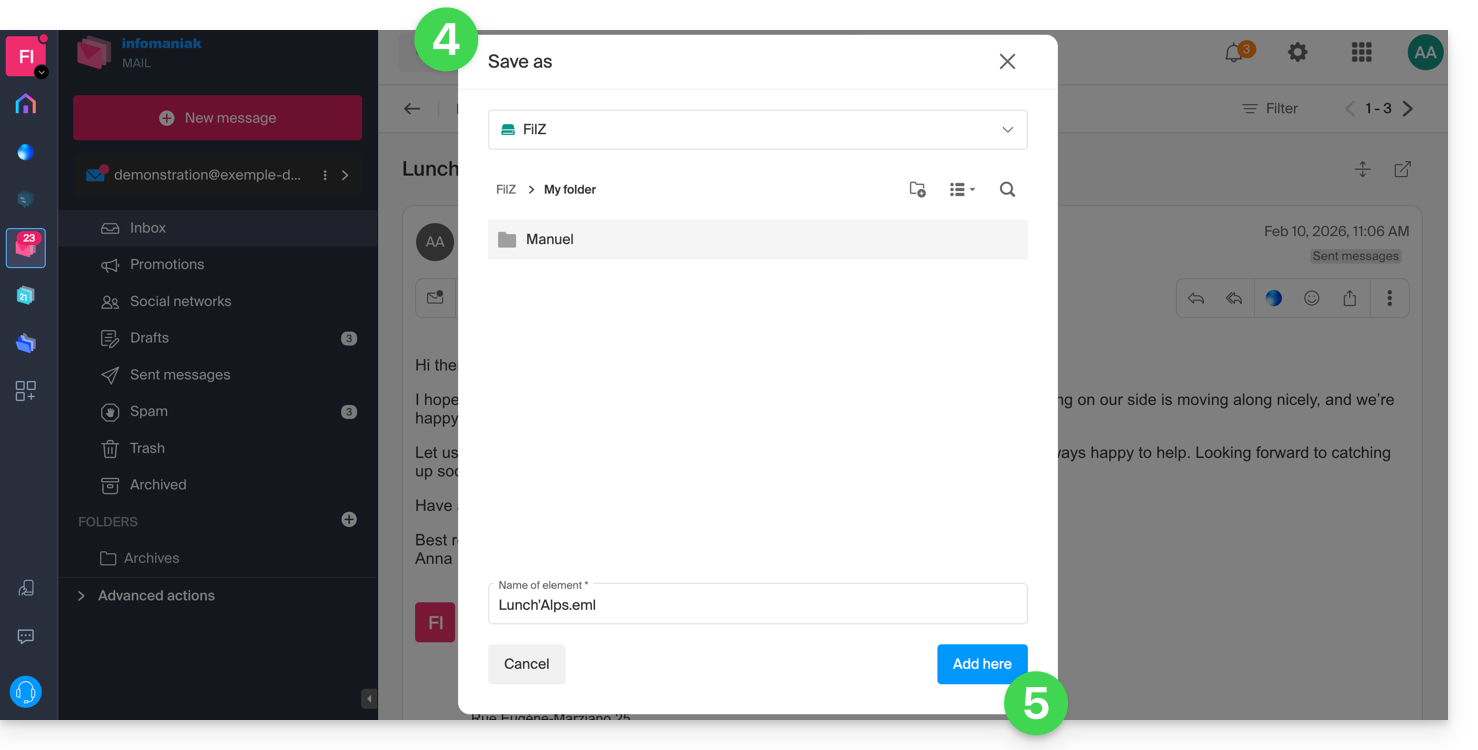
- A message at the bottom of the screen notifies you of the progress of the saving process and allows you to go directly to the email backup location:
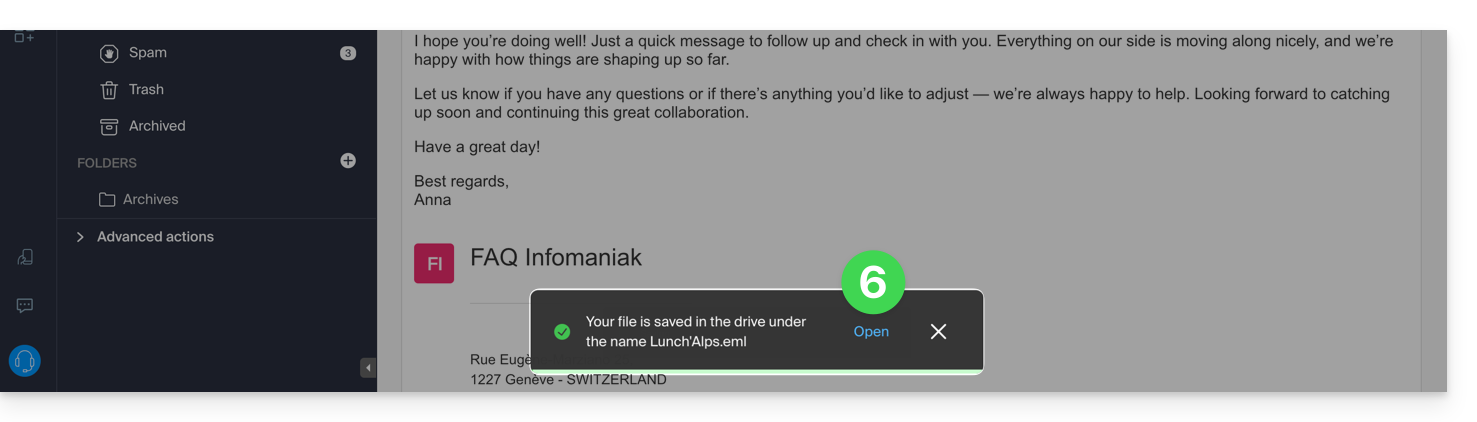
- The saved email can be viewed on kDrive as if you were reading it directly in Mail.
… from the Infomaniak Mail mobile app
To do this:
- Open the email in question on the Infomaniak Mail mobile app (application for iOS/Android smartphones or tablets).
- Click on the action menu ⋮ located in the top right corner of the email.
- Choose Save to kDrive and follow the same procedure as in step 4 above.
Link to this FAQ: https://faq.infomaniak.com/973
Has this FAQ been helpful?
This guide explains how to add or remove contacts in the address books of the Infomaniak Contacts web app (online service ksuite.infomaniak.com/contacts).
Introduction
- To import existing contacts, please refer to this other guide.
- To manage address books, please refer to this other guide.
Add a new contact
To add a new contact entry in an address book:
- Click here to access the Infomaniak Web app Contacts (online service ksuite.infomaniak.com/contacts).
- Click on New contact in the top left corner.
- Choose the existing address book to which you want to add the contact:
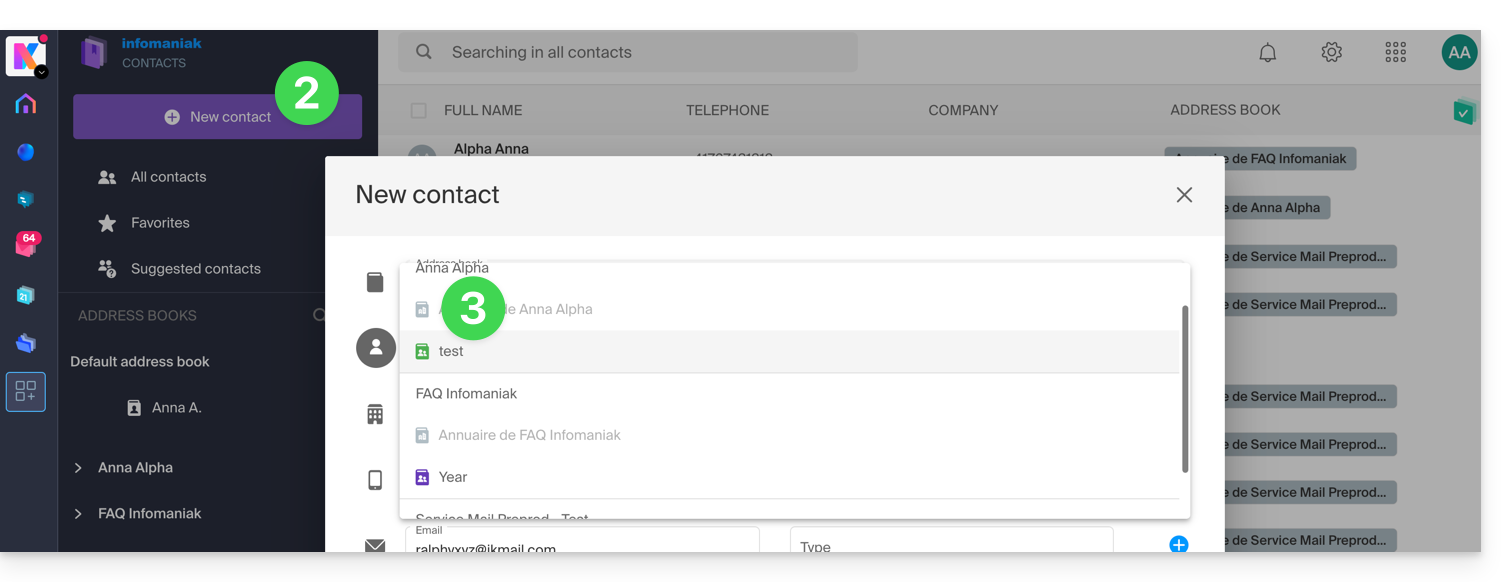
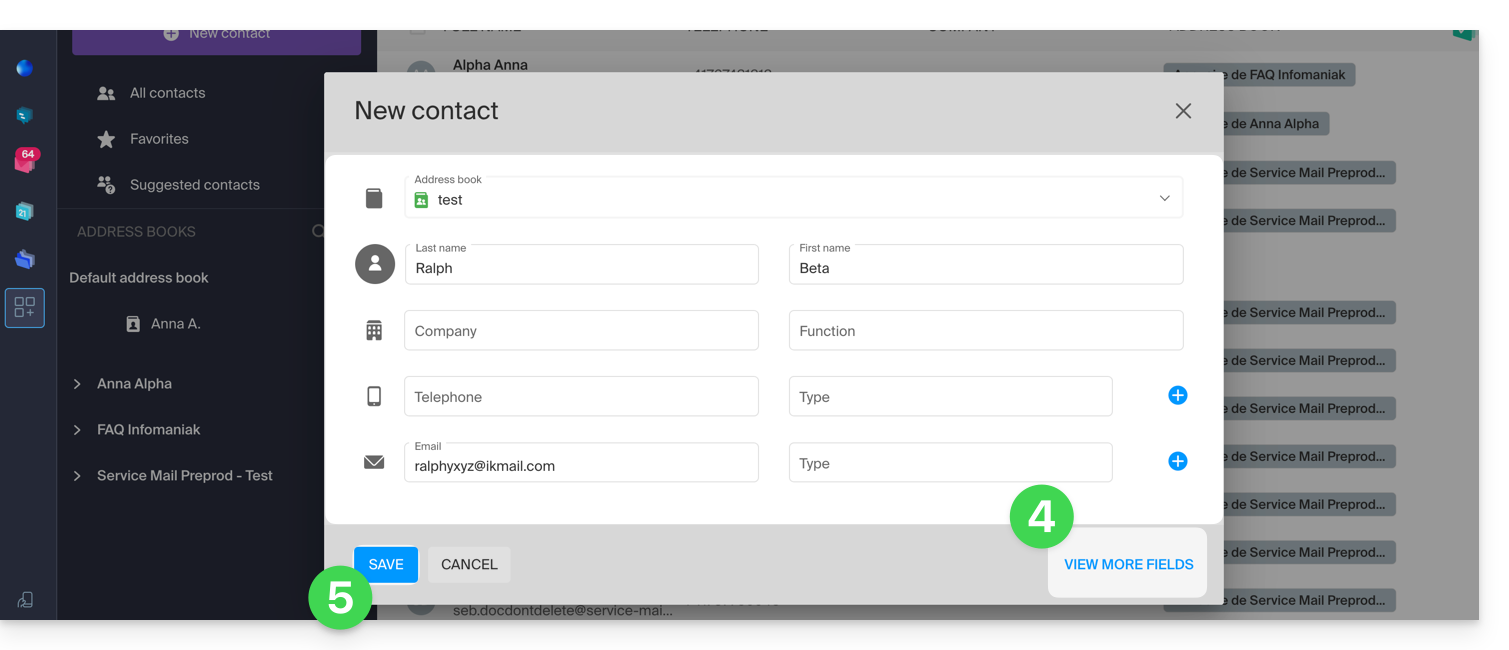
- Fill in the main information (or additional information using the link in the bottom right corner).
- Confirm with the Save button:
Add from frequently used contacts
You can complete an address book using the frequently contacted entries suggested by the app (based on your use of the Web Mail app). The name/first name/email will be pre-filled if available:
- Click here to access the Infomaniak Web Contacts app (online service ksuite.infomaniak.com/contacts).
- Click on Suggested Contacts in the left-hand menu.
- Click on the action menu ⋮ to the right of the contact in question.
- Click on Add to add the contact to an existing address book.
- You can also click on the ⋮ action menu in the right sidebar:
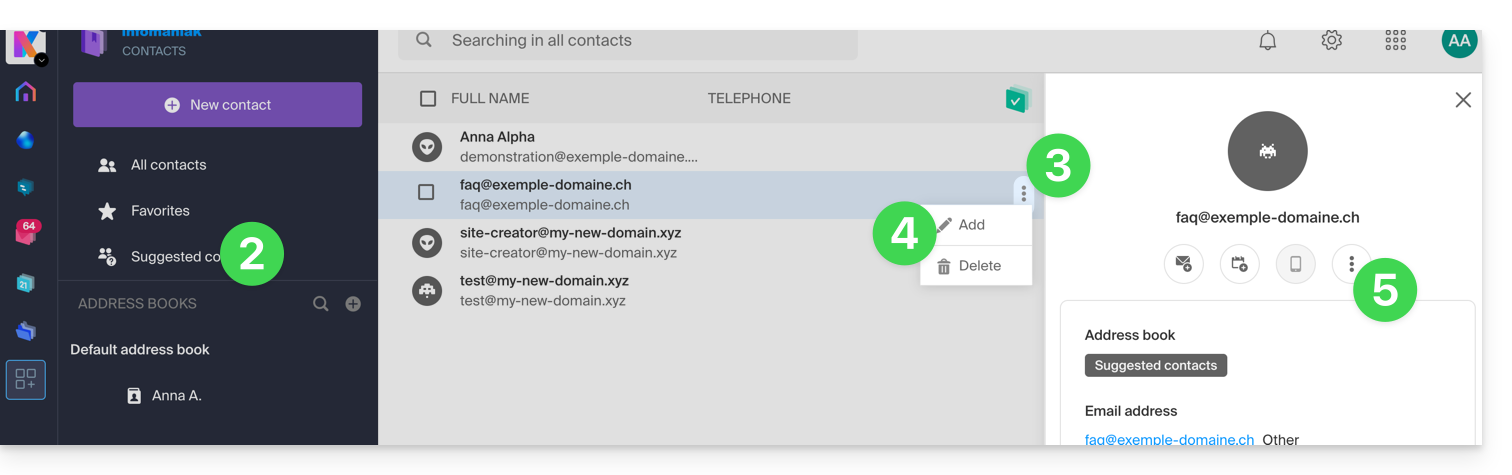
- Complete the contact information if necessary, then click Save.
For Add all suggested contacts at once:
- Click at the top of the column to select all contacts.
- Then, click on the icon that appears at the top of the table.
- Choose the existing address book to which you want to add the contacts.
- Click the button to save all selected contacts:
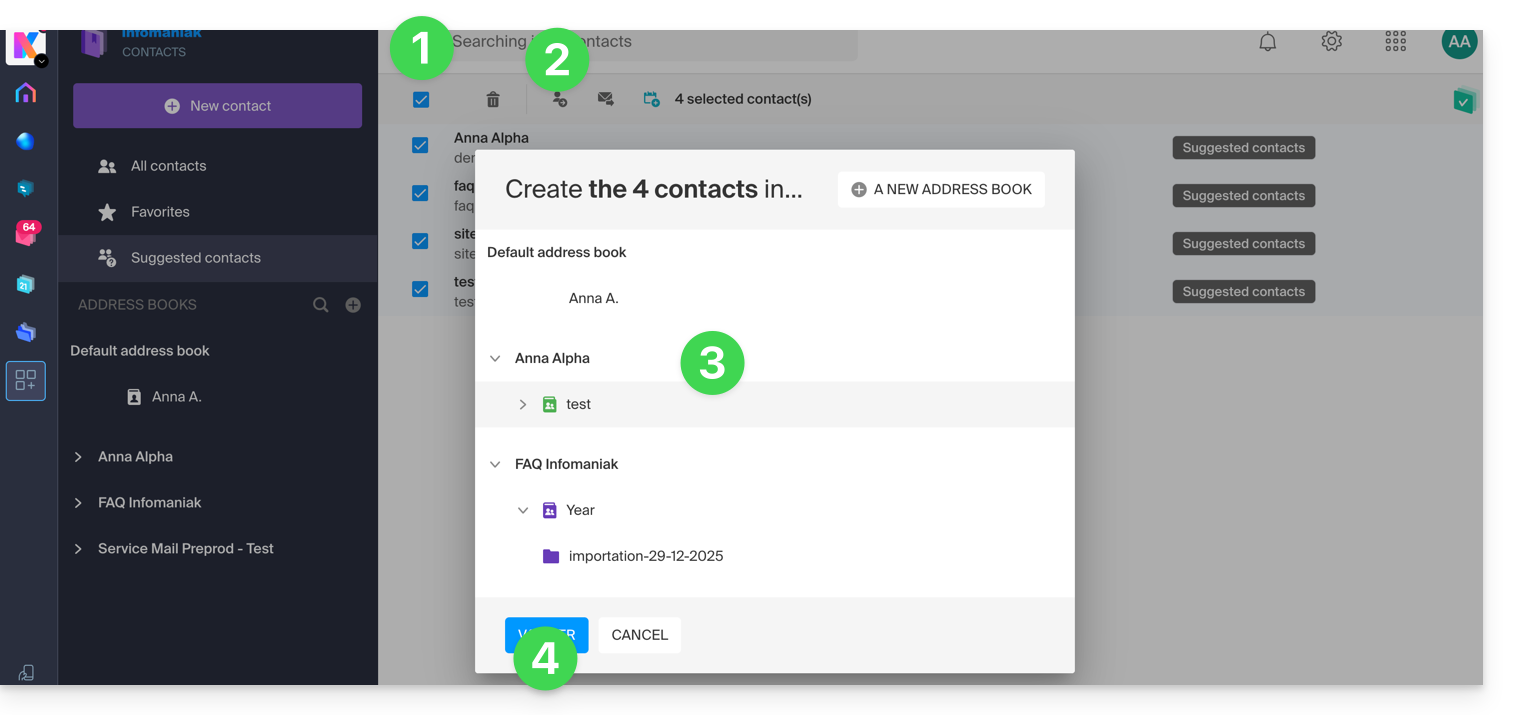
Add from the Infomaniak Web Mail app
You can create a contact entry directly from the messages you exchange with that contact:
- Click here to access the Infomaniak Mail web app (online service ksuite.infomaniak.com/mail).
- Open the message from the sender (or the conversation between multiple participants).
- Hover over the part mentioning the sender or recipient that you want to add to your address book.
- Click on Create a contact:
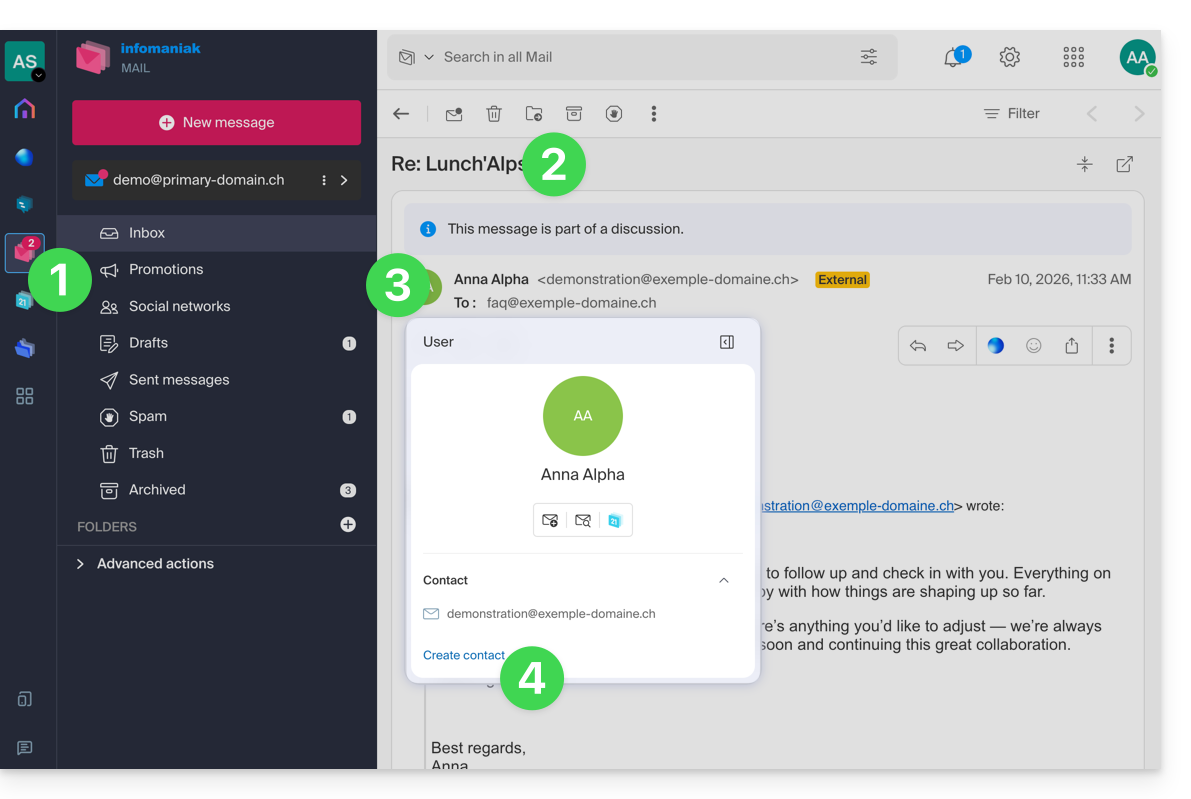
- Complete the contact information as needed, then click Save.
Delete one or more contacts
To remove a contact from your lists:
- Click here to access the Infomaniak Web app Contacts (online service ksuite.infomaniak.com/contacts).
- Select the address book from which you want to delete your contacts:
- Select the contact(s) you want to delete.
- The Trash icon appears at the top of the column, allowing you to delete the selected contacts:
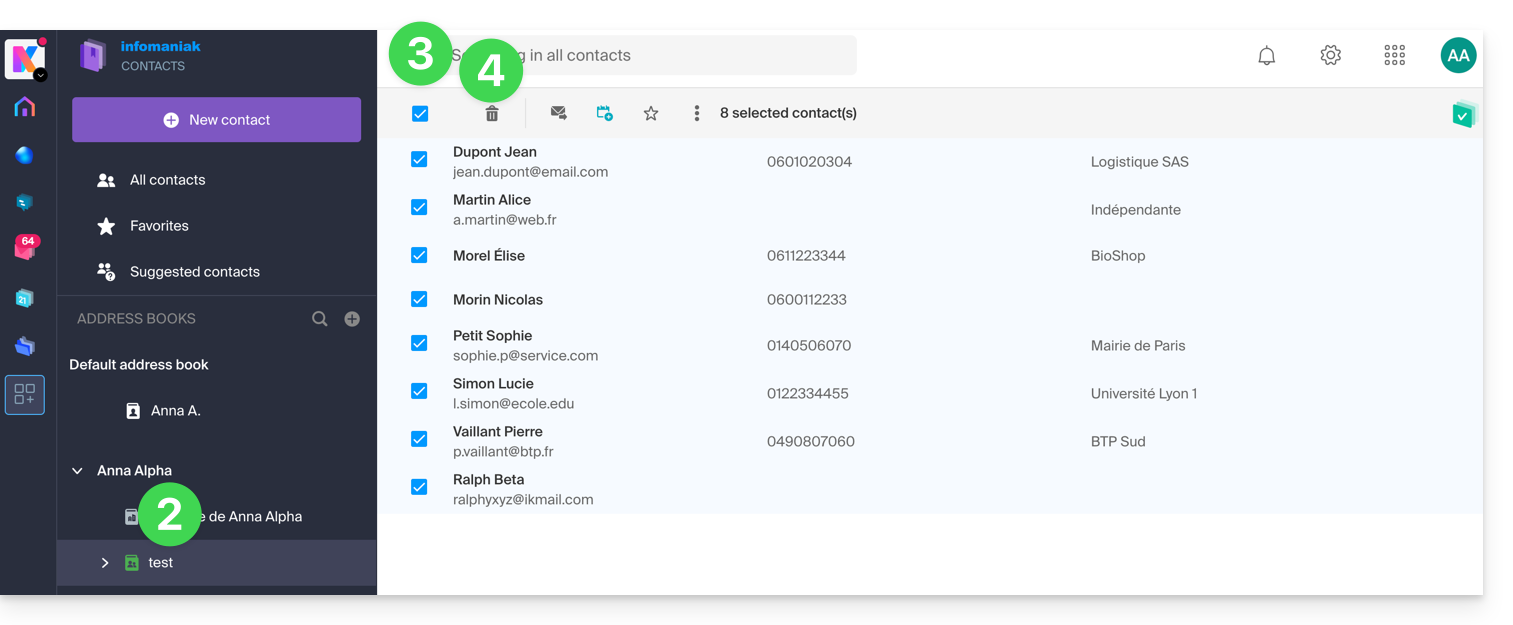
Please note that displaying all contacts does not always allow for deletion, especially if the list includes contacts from Organizations of which you are not an administrator.
Link to this FAQ: https://faq.infomaniak.com/996
Has this FAQ been helpful?
This guide details the different ways to address an email to multiple recipients, including hiding the email addresses of other participants.
Introduction
- When sending emails, it is sometimes necessary to include multiple recipients using the following fields:
- To
- CC:
- French: Copie Conforme
- English: Carbon Copy
- BCC:
- French: Copie Conforme Invisible
- English: Blind Carbon Copy
- Do not overload the To and CC fields with recipients who are not directly concerned by the email.
- Use the BCC field to protect the email addresses of recipients when there are multiple people on the list.
- For multiple, recurring, and/or large-scale email sends exceeding the imposed limits, it is recommended to use dedicated tools instead:
Understanding and using these 3 email fields
The To field
This field is used to indicate the primary recipient(s) of the email, those who receive the email as a direct copy.
- Use this field for the primary recipients who are directly concerned by the content of the email.
- Examples: work meeting, project report, direct communication with a client.
The CC field
Used to send a copy of the email to other people in addition to the main recipients. All recipients can see who received a copy of the email.
- Use this field to include secondary recipients who need to be informed but are not the main participants in the discussion.
- Example: inform a supervisor about a conversation, include colleagues who are interested in the topic without requiring them to participate.
The CCI field
Used to send a copy of the email to people without the other recipients knowing that they also received the email.
- Use this field to include recipients who should receive the email without the other recipients being aware.
- Example: sending an email to a group with a supervisor in CC for follow-up, to avoid disclosing email addresses to all recipients (often used in mass emails).
Using the available fields in Mail Infomaniak
To access the relevant fields in your Infomaniak email account:
- Click here to access the Infomaniak Mail web app (online service ksuite.infomaniak.com/mail).
- Click on New message.
- Click on CC & BCC:
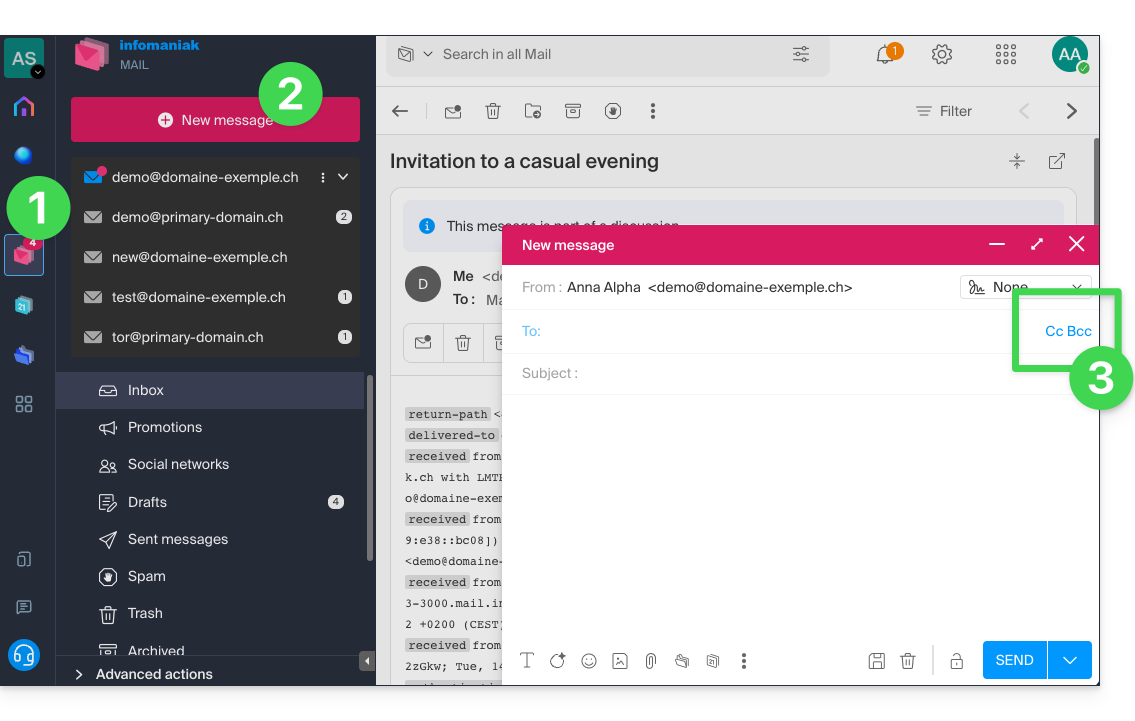
- Additional fields will appear, allowing you to enter the email addresses of your recipients:
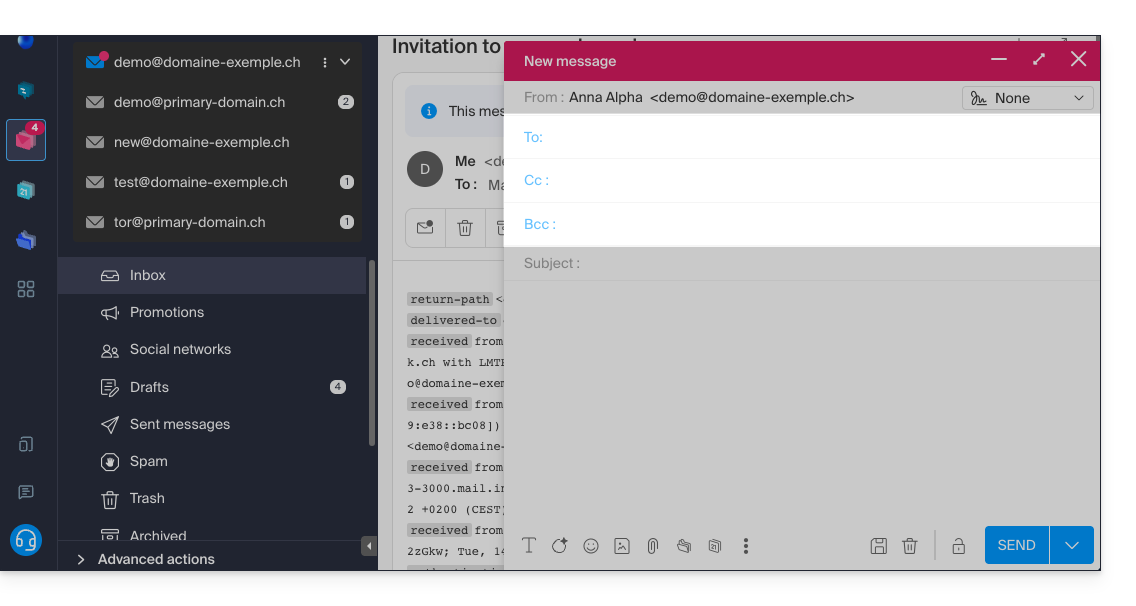
Examples of use
Each of these fields has a specific function and can be used strategically depending on the context of your communication. Be transparent and ethical in the use of the CCI field to avoid misunderstandings or conflicts:
- Team communication
- To: main project members
- CC: Project Manager, other relevant departments
- CCI: Director for information without direct involvement
- Email marketing
- To: do not use (or simply indicate the sender's email address)
- CC: do not use
- BCC: list of subscribers to protect individual email addresses
- Important announcement
- To: main recipients (e.g., managers)
- CC: board members, key collaborators
- BCC: other stakeholders for confidential information
- Meeting announcement
- To: John Doe, Jane Smith
- CC: projet.manager@entreprise.com
- BCC: directeur@entreprise.com
- Event invitation
- To: main guests
- CC: coordination@evenement.com
- BCC: list of secondary guests (to protect email addresses)
Link to this FAQ: https://faq.infomaniak.com/1049
Has this FAQ been helpful?
This guide explains how to view and forward email headers.
Introduction
- An email consists of a header (
header) and the actual content of the message (body). - Most email software/clients do not directly display the headers, but displaying or forwarding them allows Infomaniak support to identify the problems encountered.
- Email headers (= source) provide various information, such as:
- the sender
- the recipient
- the date
- the subject
- the servers involved in the transmission between the sender and the recipient:
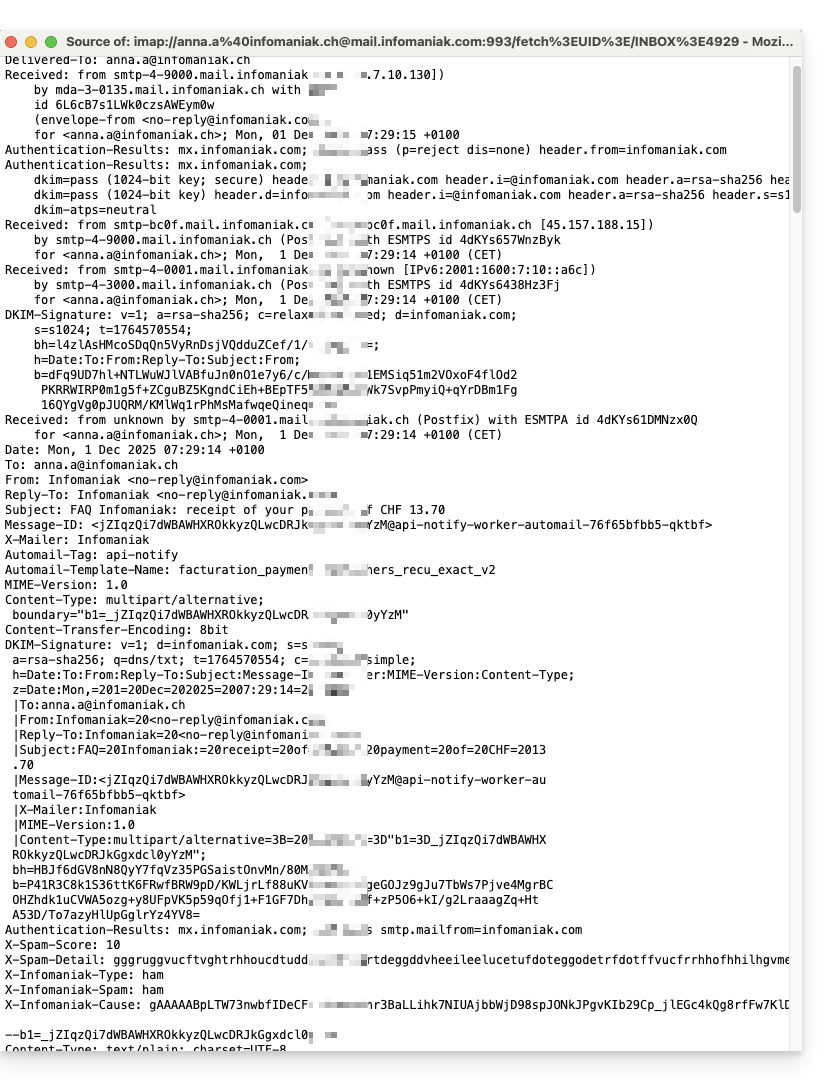
Display headers in Mail Infomaniak
To view the headers of an email from the Infomaniak Mail interface:
- Click here to access the Infomaniak Mail web app (online service ksuite.infomaniak.com/mail).
- Open the relevant message and click on the action menu ⋮ on the right.
- Click on the menu for other actions.
- From the menu that appears, select View Headers:
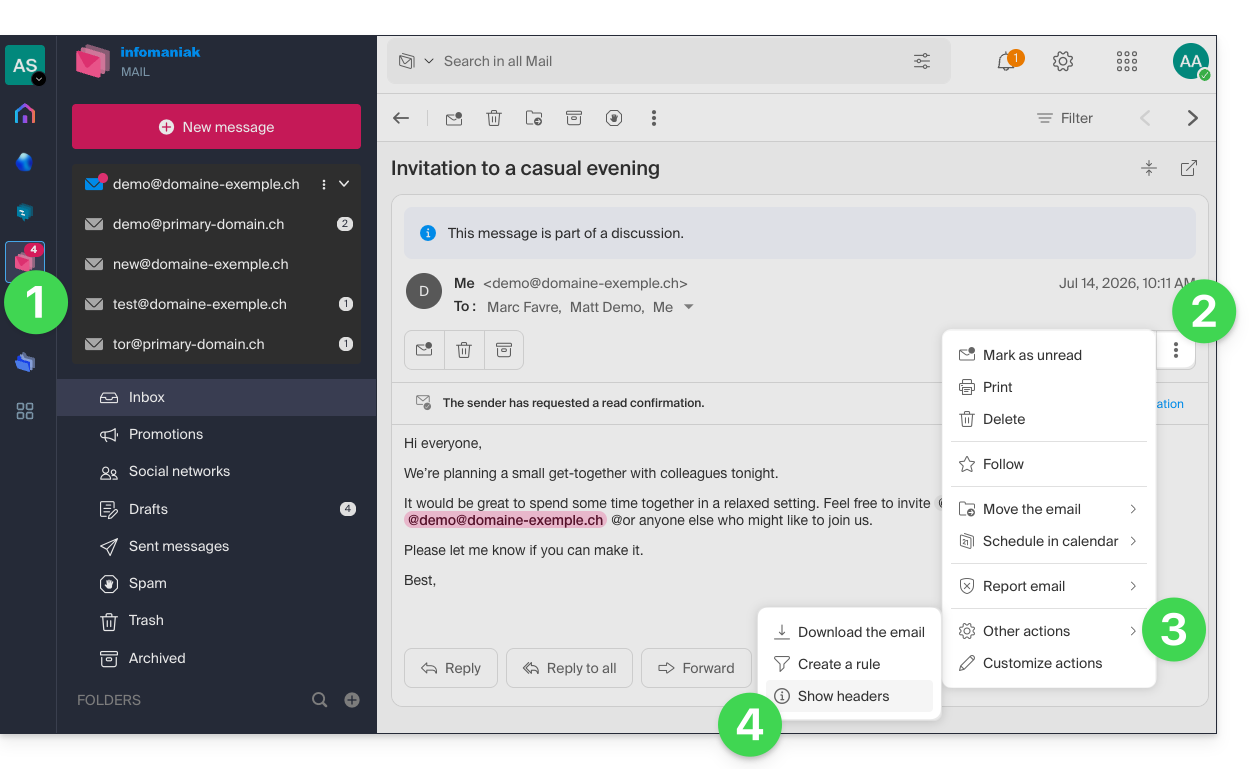
- Repeat the operation to hide them:

To display headers using external email software/clients, please refer to this other guide.
Forwarding email headers
To forward the headers of an email, in response to a support request or to the recipient of your choice, simply…
- …copy and paste the headers displayed using the method described above.
- … forward the email message.
However, to ensure that the headers are included, it is essential to forward the message not in the body of the message, but as an attachment only. The attached email will typically be in .eml format, and this file contains all the necessary headers.
A third method for fully transmitting emails is explained in this other guide.
Link to this FAQ: https://faq.infomaniak.com/1055
Has this FAQ been helpful?
This guide details the mechanisms of email spoofing and the protection measures against unwanted messages that appear to come from your own domain.
Has my account been used without my knowledge?
Receiving an email that appears to be sent by you is a common psychological manipulation technique. This does not necessarily mean that your email account has been compromised. In most cases, it is simply a forged "From" header, similar to someone writing your address on the back of a paper envelope before mailing it.
Make sure that your own address is not listed in the allowlist of your anti-spam filterIf it is found, the security system ignores the security scan, assuming that the message is legitimate.
Diagnosis: Spoofing vs. Hacking
It is crucial to distinguish spoofing from intrusion. The global email sending protocol (SMTP) was designed without native sender identity verification.
Although Infomaniak's infrastructure applies rigorous security standards, it is technically impossible to prevent a non-secure, third-party server located anywhere in the world from sending a message claiming to be you. However, tools exist to make these messages undetectable or blocked by your recipients.
Strengthen your domain's integrity
To protect your digital reputation and limit the impact of these impersonations, implementing authentication protocols is the professional standard:
- SPF & DKIM: These digital signatures certify that your messages originate from our authorized servers.
- DMARC: This essential protocol allows you to give instructions to servers worldwide (e.g., "If the email is not signed by Infomaniak, reject it or place it in spam"). This is the most powerful tool foranalyze and limit fraudulent use of your domain.
- Catch-all management: Avoid using a "catch-all" address, which collects all messages sent to non-existent addresses on your domain, as it naturally attracts large volumes of spam.
Failure Notifications (Backscatter)
If you receive non-delivery reports for messages you never wrote, you are experiencing the phenomenon of Backscatter. Third-party servers that are poorly configured or botnets are using your identity to send mass content. When they encounter a non-existent address, the remote server sends the error to the displayed sender: you.
Link to this FAQ: https://faq.infomaniak.com/1127
Has this FAQ been helpful?
This guide explains how to copy the content of one or more external email addresses via IMAP (all email messages, folders, subfolders, in short, the entire structure of your existing mailbox with other providers) to one or more of your existing addresses at Infomaniak, using the Infomaniak import tool!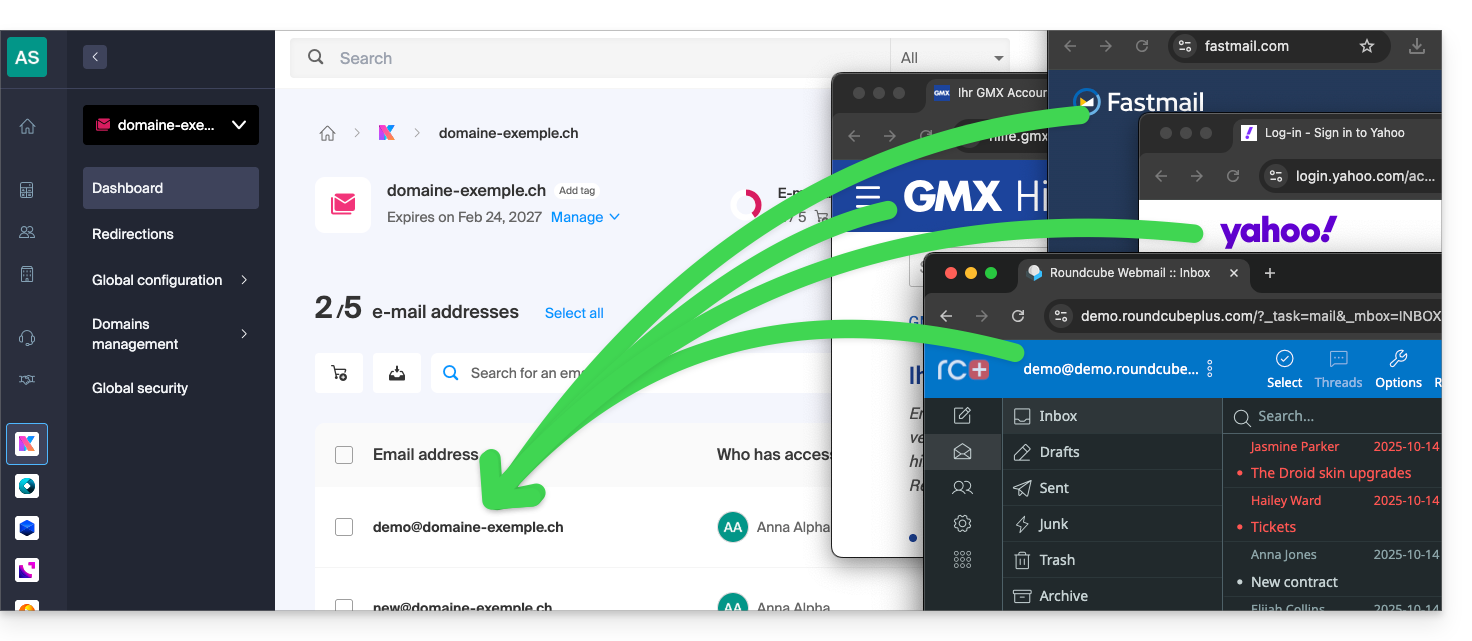
Introduction
- This operation does not affect the data already present in the destination address or the source address.
- The entire external mailbox will be imported.
- Once the import process has started, it is no longer possible to interrupt it.
- Any duplicates are handled: identical content will only be copied once.
- Refer to this other guide if you are looking for alternatives to this IMAP process.
Copy emails from another provider to Infomaniak
Prerequisites
- You must have a Mail Service in your Infomaniak Manager.
- You must have a quota of available addresses or adjust it beforehand if necessary.
- Ensure that the email service is properly secured.
- Create one or more addresses in this Mail Service.
- The destination email address must be linked to the user (= the Infomaniak account) you are using (this is not a requirement for the bulk import explained below).
- The source email address, from which the content will be copied, must have been used (or be compatible) with the IMAP protocol:
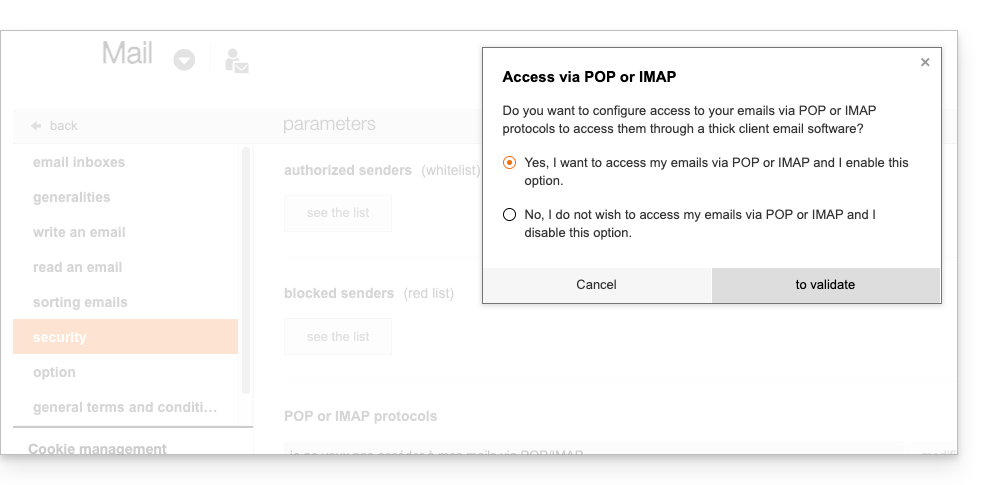
Next, to import the email content:
- Click here to access the import tool (online service https://import-email.infomaniak.com).
- If necessary, log in to your Infomaniak account for the relevant Organization; the import will be done to one of the email addresses linked to the Infomaniak Mail web interface (online service ksuite.infomaniak.com/mail) of the Infomaniak account you are using.
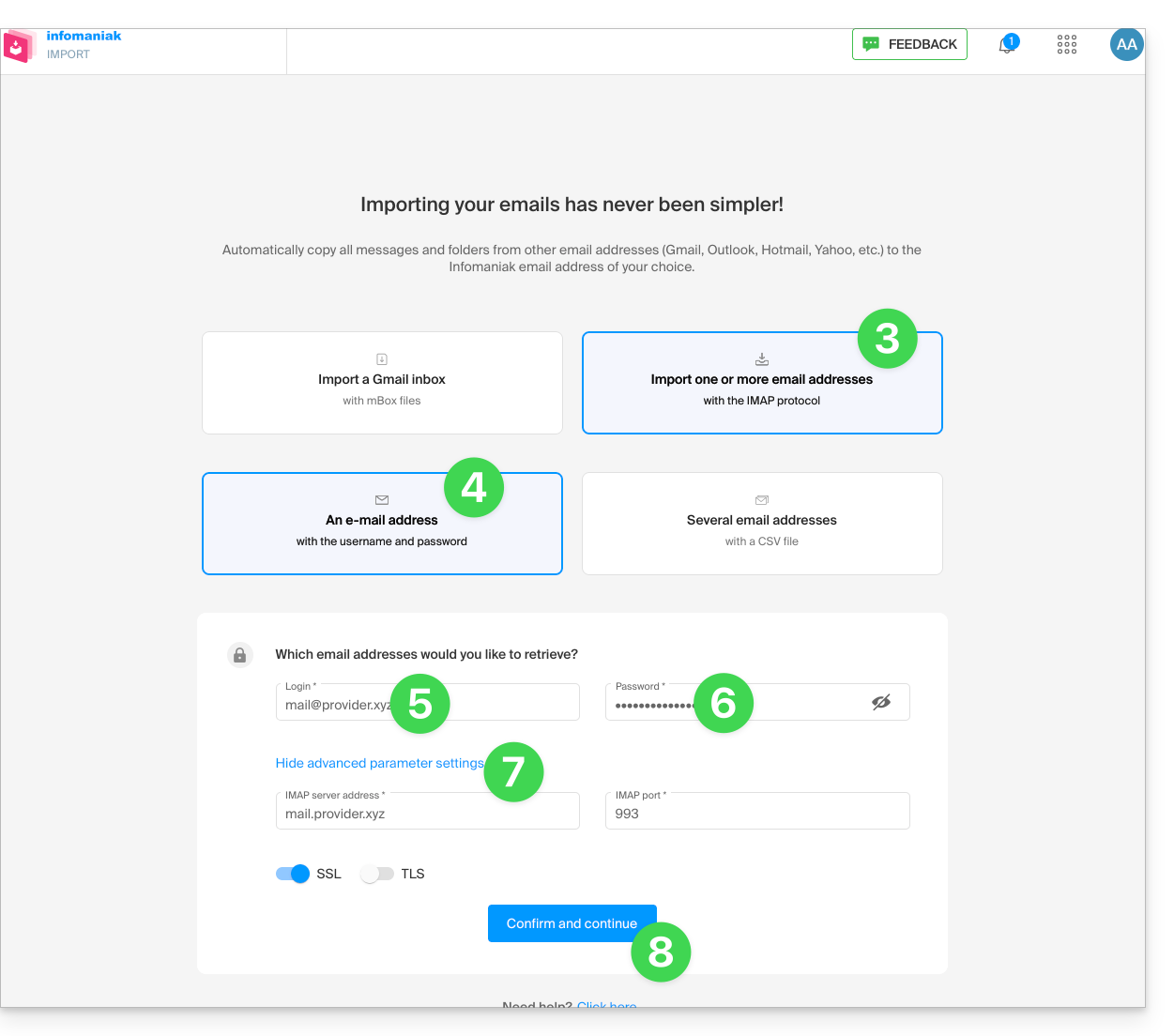
- Click on the import via IMAP.
- Click on the single import.
- Fill in the field on the left with your source email address (the content of which will be copied).
- Fill in the field on the right with the password for that same source email address (see requirements).
- If necessary, modify the Advanced Settings to specify an IMAP server address:
- Enter the IMAP server name (hostname provided by your email provider), for example
imap.domain.ch(or .net, .com, etc. depending on your email address in step 5 above). - Enter the port number (default 993) and enable SSL.
- Enter the IMAP server name (hostname provided by your email provider), for example
- Click Confirm:
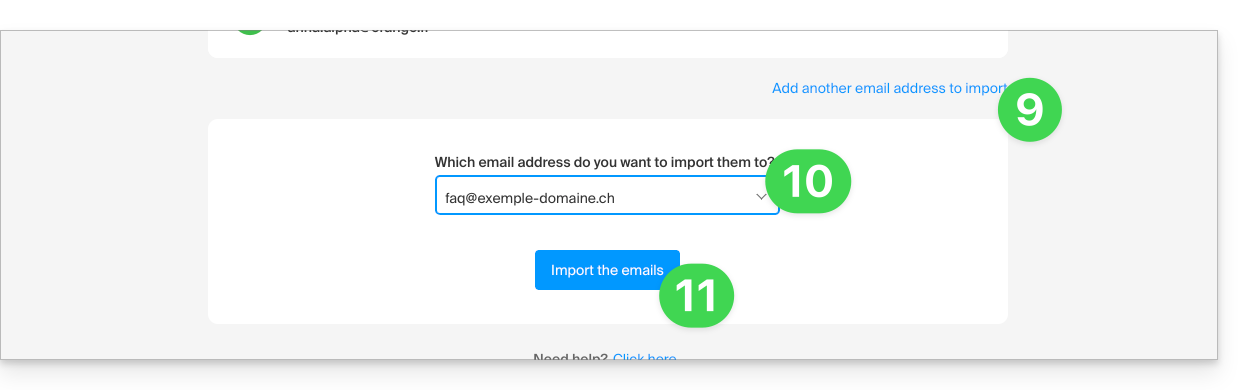
- If necessary, enter a second email address to be imported at the same time.
- Choose the email address to which the emails will be imported; the drop-down menu lists the email addresses currently linked to your Infomaniak Mail web interface (online service ksuite.infomaniak.com/mail) of the Infomaniak account you are logged into.
- After selecting the desired destination address from the list, click the blue Import Emails button:
- The copy process begins; you can wait and see the result on the page once the import is complete, or close the window (the import continues in the background, and progress can be tracked - see below):
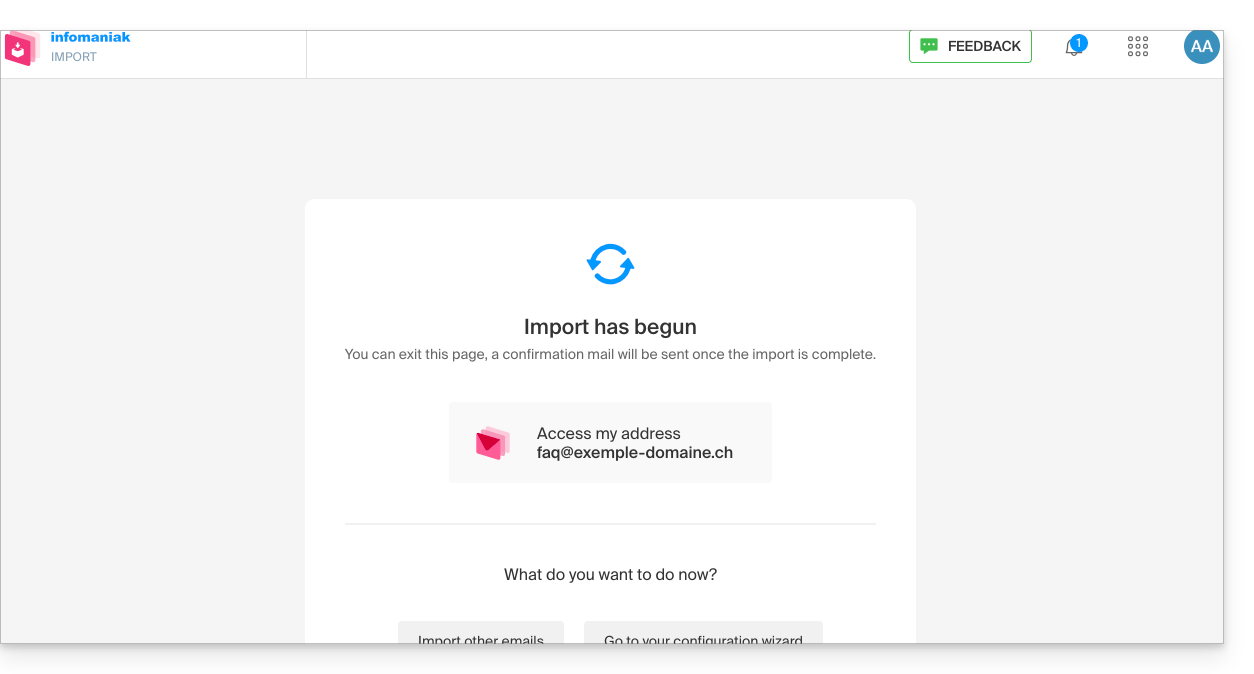
- A confirmation email will be automatically sent to all email addresses involved in the operation once the import is complete, indicating the number of messages copied:
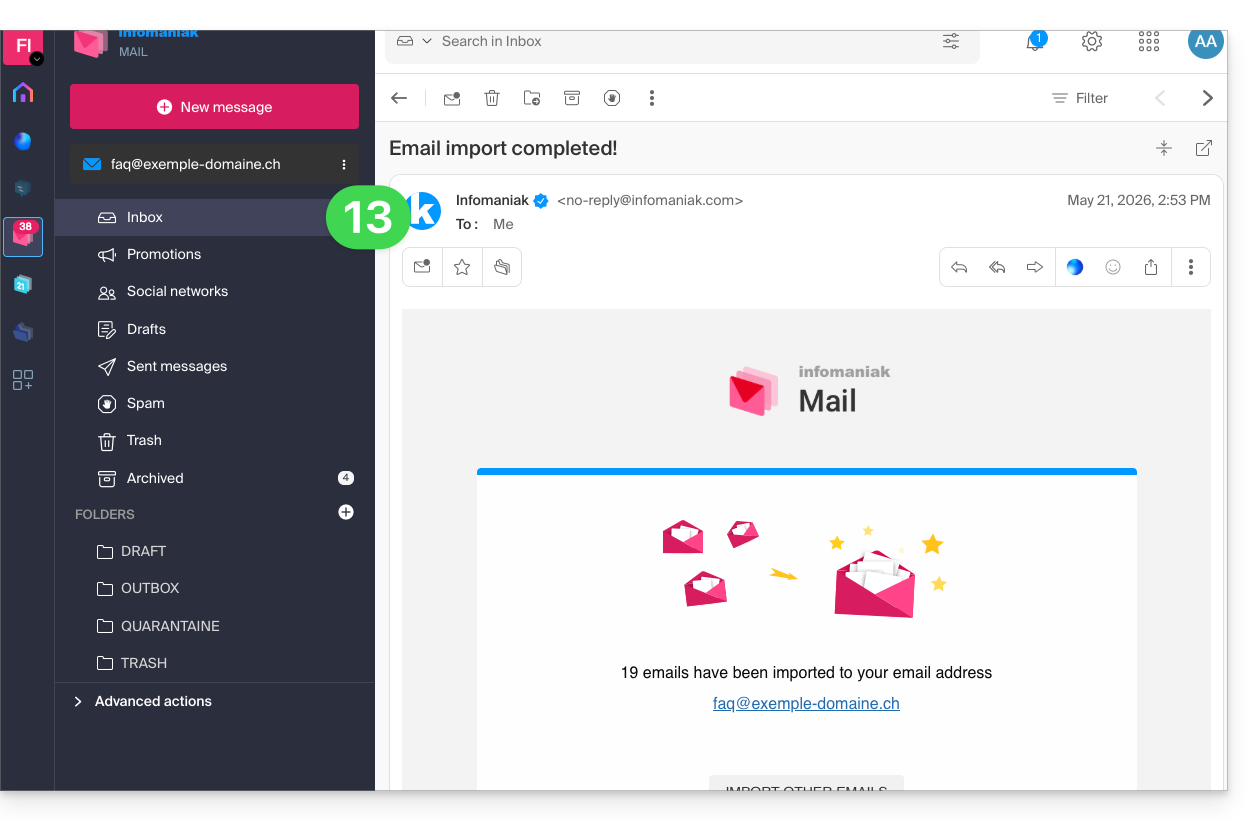
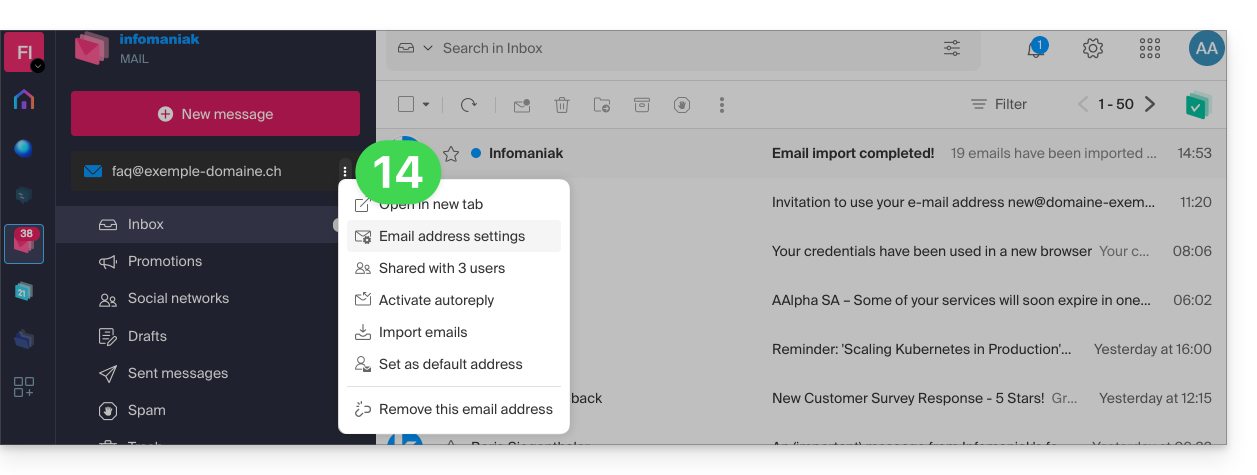
- A tracking feature is available in the settings of the destination email address, only on the web app Mail (online service ksuite.infomaniak.com/mail):
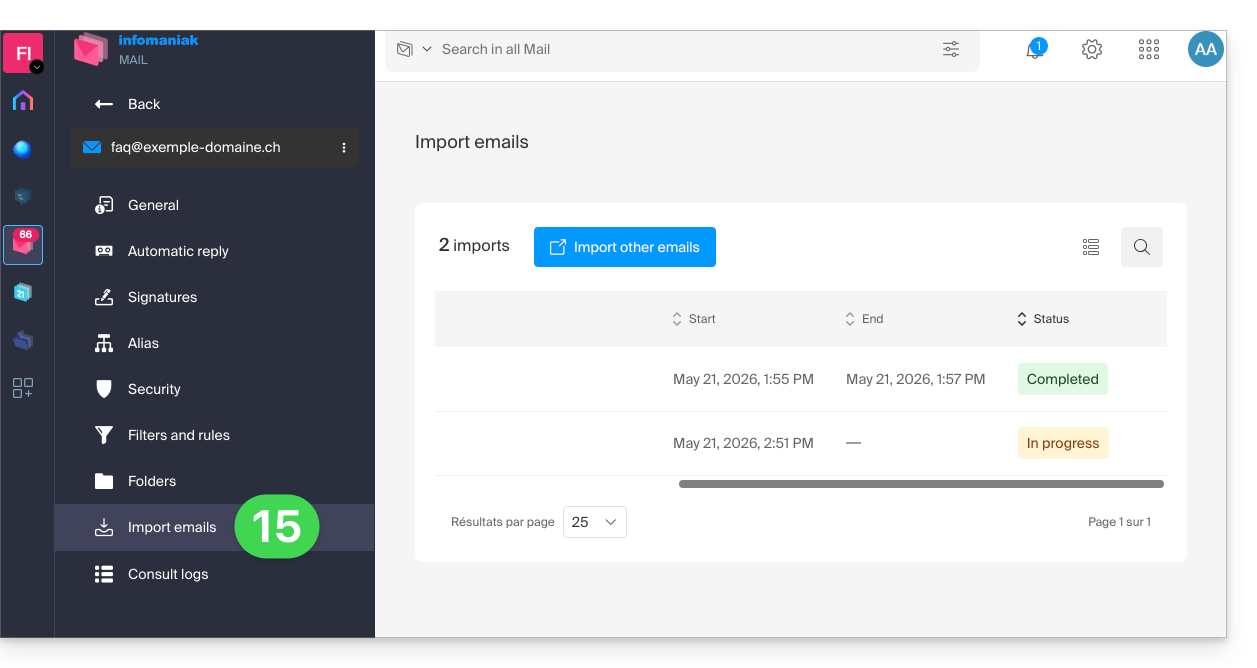
- The tracking feature allows you to view the import history for the address in question:
Import content from multiple email addresses in bulk
This method using a CSV file will not work for Google or Microsoft addresses due to their authentication system – also, please refer to the prerequisites mentioned earlier in this guide.
To import the content of multiple external email addresses (maximum 25 at a time) to one or more Infomaniak email addresses:
- Click here to access the import tool (online service https://import-email.infomaniak.com).
- If necessary, log in to your Infomaniak account for the relevant Organization, as the import will be done to one of the email addresses associated with the Infomaniak Mail web interface (online service ksuite.infomaniak.com/mail) of the Infomaniak account you are using.
- Click on the import via IMAP.
- Click on advanced mode: Import multiple email addresses from a CSV file (
.csvformat). - Download the example
CSVtemplate: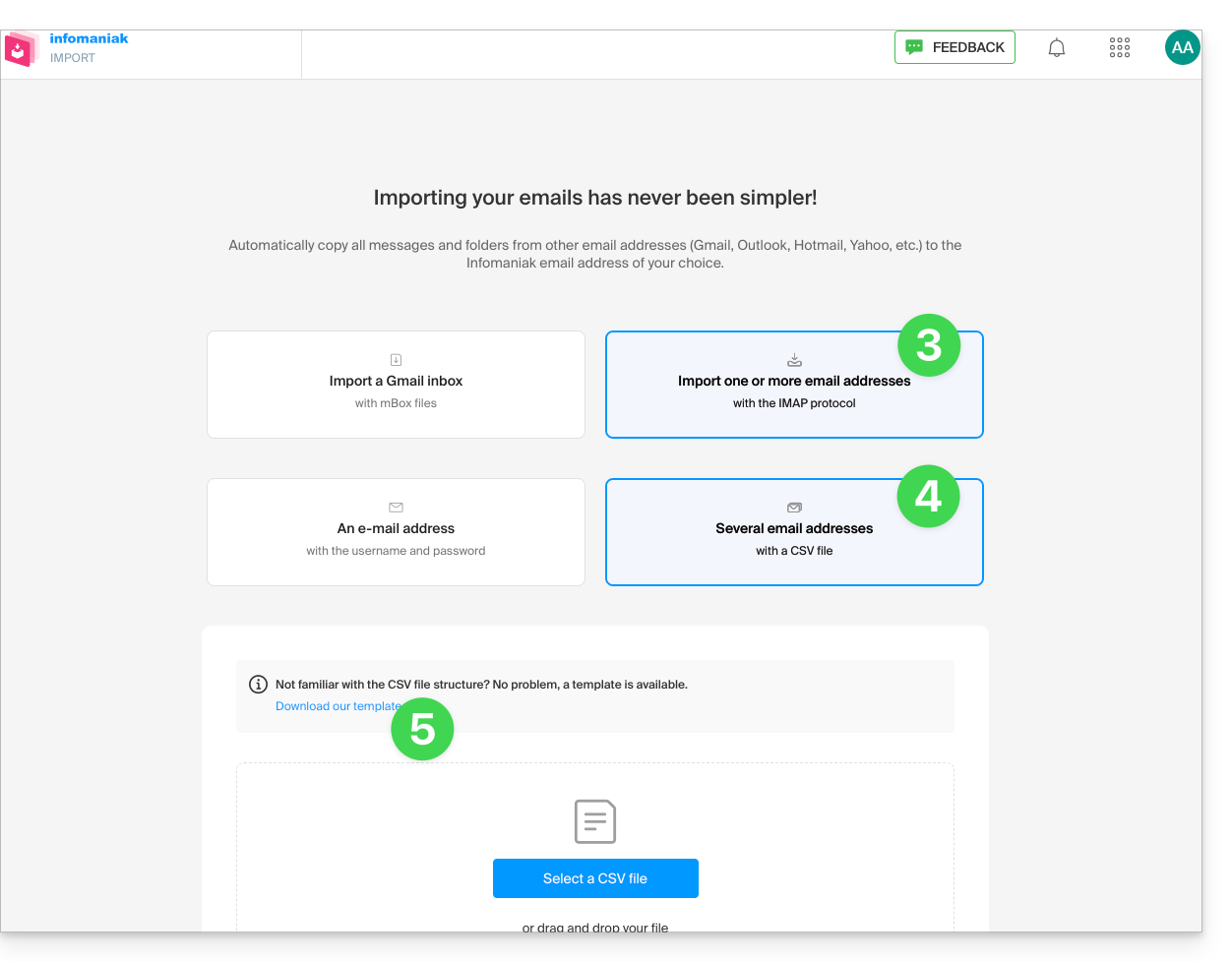
- The template has this format:
source-email@domain.com;sourcePassword;imap.source-host.com;sourcePort(993);sourceSsl(1or0);dest-email@domain.com
- The template has this format:
- Edit the
csvfile to create one with the correct information needed for the copy (see prerequisites):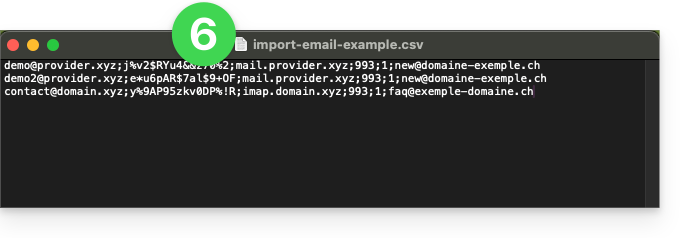
- Upload the file using the Select CSV file button.
- Once the file is uploaded to the tool's page, correct or ignore any errors; click Import.
- The copy starts, you can wait and see the result on the page once the import is finished, or close the window (the import continues in the background and a progress report is available - see below).
- A confirmation email will be automatically sent to all email addresses affected by the operation once the import is complete, indicating the number of messages copied.
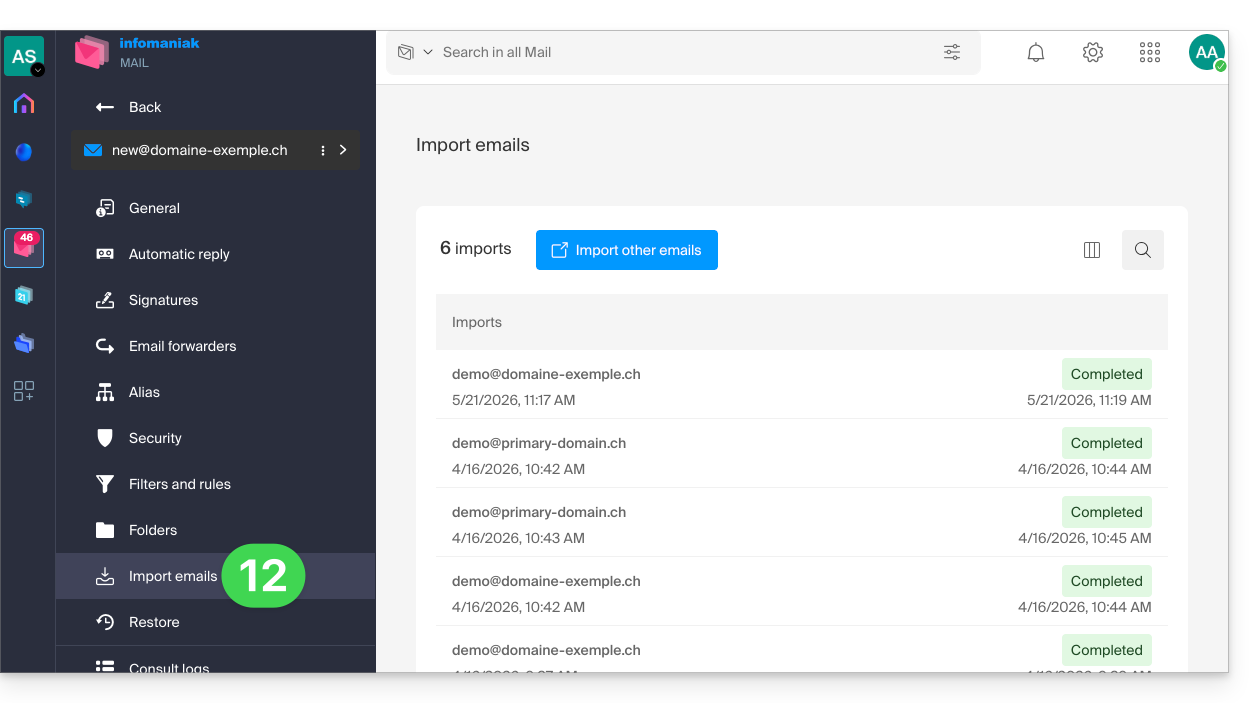
- A progress report is available in the settings for the destination email addresses, on the Mail web app (online service ksuite.infomaniak.com/mail) only.
- The progress report allows you to view the import history:
Link to this FAQ: https://faq.infomaniak.com/1144
Has this FAQ been helpful?
This guide explains how to export the content of an email address hosted by Infomaniak.
Introduction
- Infomaniak does not offer an export function (e.g., for
PSTfiles). - Infomaniak stores your emails for the entire duration of your contract, and depending on your plan, with integrated backups without size limits for normal use of a shared service, in accordance with Art. 1 of the Mail Service's specific terms and conditions.
- The manual export option below works on Windows: this allows you to back up your emails into a single archive that can be easily restored.
Manual Export
To export all messages contained in your email address hosted by Infomaniak:
- Install the free Thunderbird application.
- Configure the relevant email address using IMAP (to include subfolders).
- Make sure that all the desired content is present (synchronize the mailbox from the beginning - not just the last 30 days, for example).
Then…
- … or you can install the free BackupThunderbird application, which allows you to create an archive (encrypted if necessary) and restore it later…
- … or you can simply display Windows' hidden files, then find and back up this profile folder
C:\Users{USER}\AppData\Roaming\Thunderbird\Profiles{PROFIL_USER}\
because it contains all your email messages.
Download emails locally
Another solution (not recommended) could be to configure an email software/client by choosing to receive messages using the POP3 protocol, which will download the messages locally and only affect the inbox.
Link to this FAQ: https://faq.infomaniak.com/1167
Has this FAQ been helpful?
This guide explains how to receive notifications when new emails arrive using the Mail Infomaniak web app (online service ksuite.infomaniak.com/mail).
Introduction
- The Infomaniak Mail web app is compatible with web browsers (Chrome, Firefox, etc.) that offer visual alerts when a new message arrives in the background.
- The Infomaniak Mail mobile app (iOS / Android) also allows you to take advantage of your mobile device's notification capabilities (❓: help).
Display a notification in the browser
To enable browser notifications when a new message arrives:
- Click here to access the Infomaniak Mail web app (online service ksuite.infomaniak.com/mail).
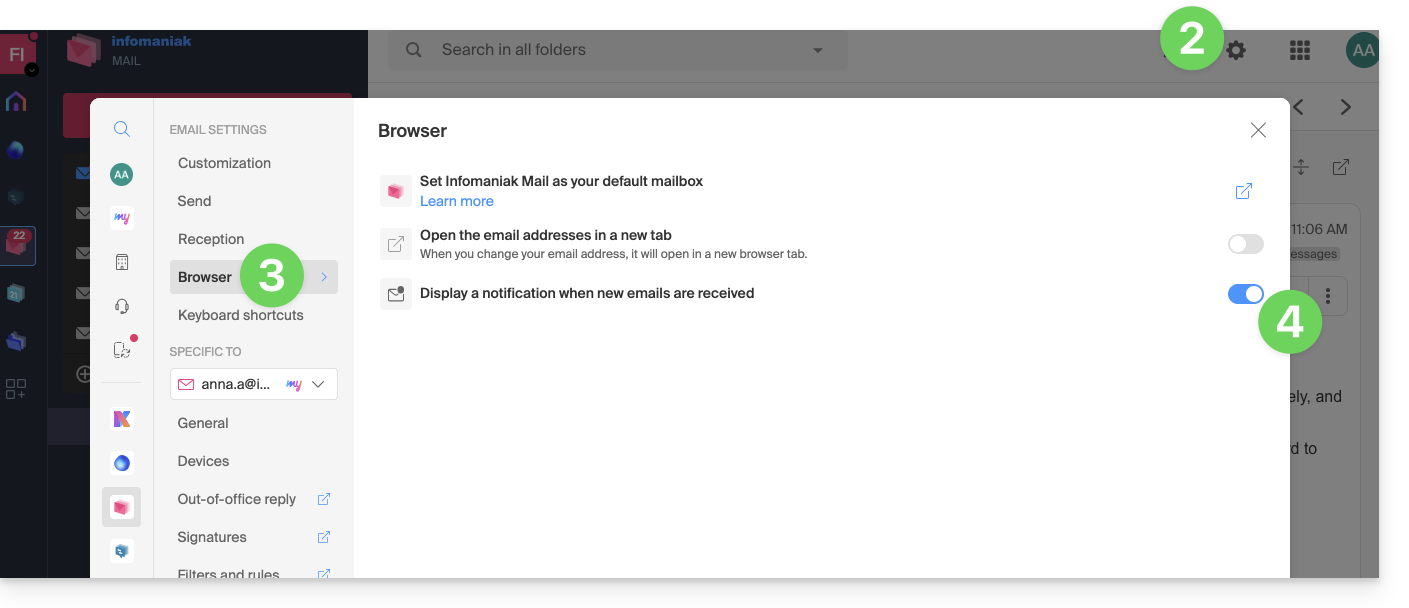
- Click on the Settings icon in the top right corner.
- Click on Browser in the left-hand menu.
- Activate the toggle switch to Display a notification when new emails are received:
To disable this feature, toggle the button off.You will also need to remove the notification permission directly in the browser (see its editor's documentation).
Allow browser notifications…
… on Safari (❓: help)
- Open Safari.
- Click on Preferences and select Websites, then Notifications.
- Find the ksuite.infomaniak.com/mail website and select Allow.
… on Firefox (❓: help)
- Open Firefox.
- Go to the main menu and select Preferences or Settings.
- In the left-hand panel, go to Privacy & Security.
- Scroll down to the Permissions section.
- Click on the Settings button to the right of Notifications.
- Go to ksuite.infomaniak.com/mail and select Allow.
… on Google Chrome (❓: help)
- Open Google Chrome.
- Click on the More ⋮ menu in the top right corner, then click Settings.
- Go to Privacy & Security, then click on Site Settings.
- Click on Notifications and choose to allow notifications:
- Allow a site: next to the Allow option, click on Add. Enter the URL: https://ksuite.infomaniak.com/mail, then click on Add.
… on Microsoft Edge
- Open Microsoft Edge.
- Click on the menu in the top right corner, then click on Settings.
- Go to the Cookies and site permissions menu.
- Click on Notifications:
- Allow a site: next to the Allow option, click on Add. Enter the URL: https://ksuite.infomaniak.com/mail, then click on Add.
Link to this FAQ: https://faq.infomaniak.com/1168
Has this FAQ been helpful?
This guide explains how to report a phishing attemptwhich you would be a victim of.
Preamble
- Phishing is a fraud and scam attempt aimed at fraudulently obtaining sensitive information.
- Generally, the victim receives a message in their inbox that appears to be from Infomaniak, their bank, or a trusted organization, indicating that a problem has occurred with their account or in their daily life:
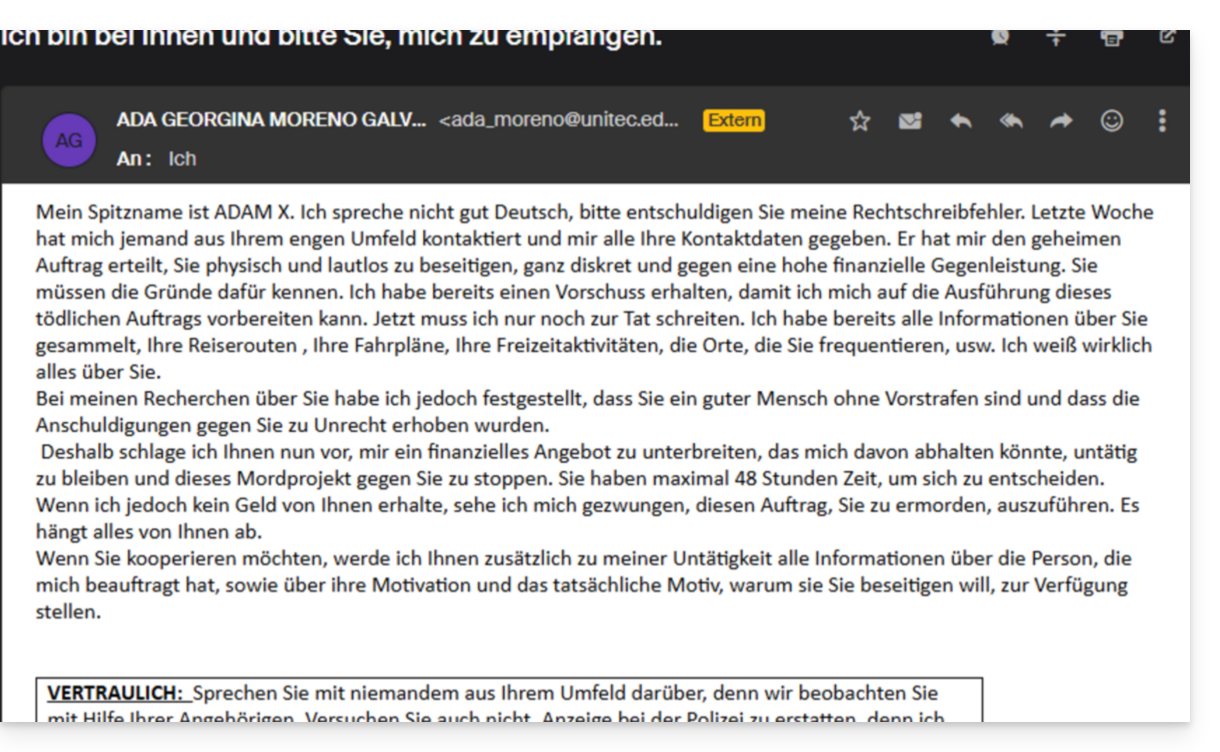
- The purpose of this identity theft is usually to get the user to voluntarily visit a page and provide private information that will then be used for various purposes, mainly financial ones.
- If it is not a “pretending to be something it is not”, but if it is simply an unsolicited advertising message, it is best to report it as Spam.
Report a Phishing Email
Prerequisites
- Check that the spam filter is active.
- For added security, enable the external email warning.
If you find an email of this type directly in your inbox, you can take action to reduce the number of these messages and eventually eliminate them from email systems:
- Click here to access the Infomaniak Mail web app (online service ksuite.infomaniak.com/mail).
- Open the phishing message.
- Click on the action menu ⋮ on the right.
- Click on Report message.
- From the menu that appears, select Report as phishing:
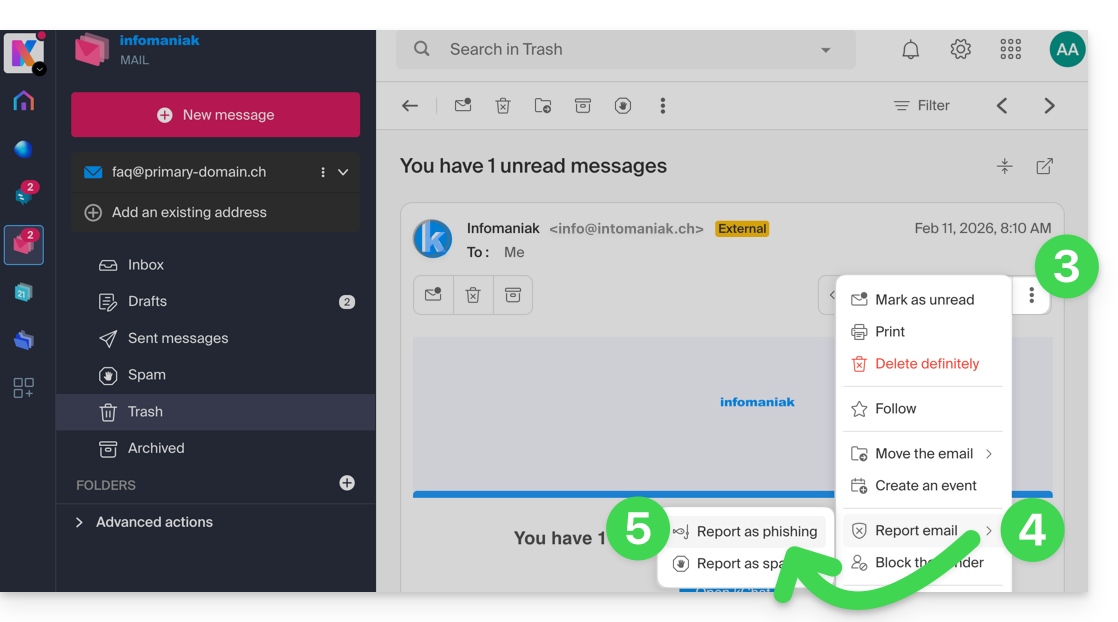
- Confirm sending for processing.
- Delete the email.
Once you have clicked on Report as phishing, an email is automatically sent to Infomaniak with all the information needed to process the scam report.
In the event of a more serious problem (when the message is directly addressed to you by someone you know or a contact, and it is not a mass mailing), it is recommended to contact an organization such as report.ncsc.admin.ch.
Link to this FAQ: https://faq.infomaniak.com/1172
Has this FAQ been helpful?
This guide explains how to enable or disable the inclusion of the original message when replying to an email from the Infomaniak Mail web app (online service ksuite.infomaniak.com/mail) for web browsers.
Stop quoting the initial message
By default, the text of the message you are replying to will be placed below your reply (A):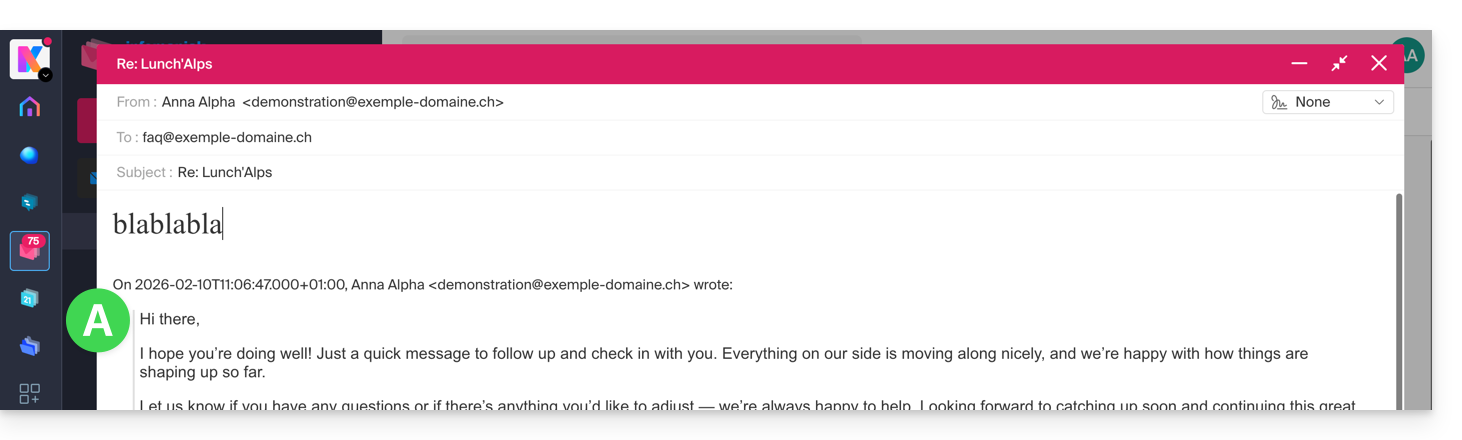
By following the guide below, nothing from the original message will be quoted, and you will reply from a blank slate, with or without a signature (B):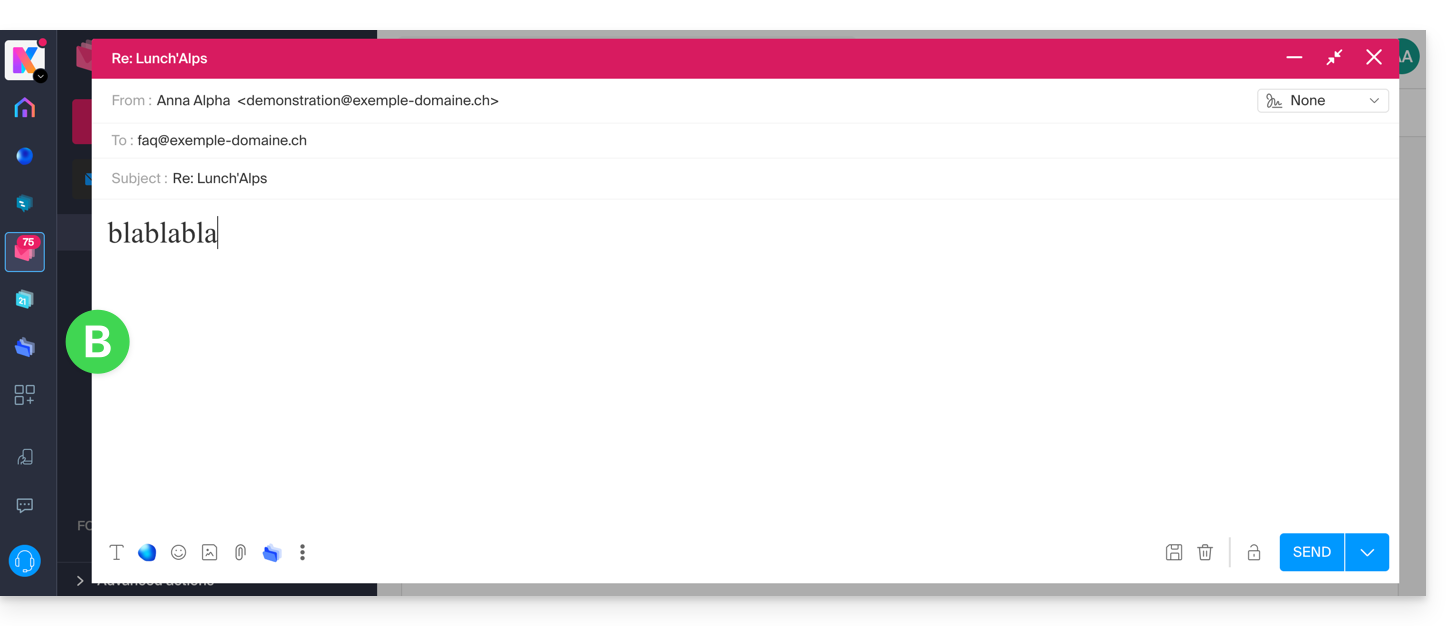
To prevent the original message from being quoted in replies:
- Click here to access the Infomaniak Mail web app (online service ksuite.infomaniak.com/mail).
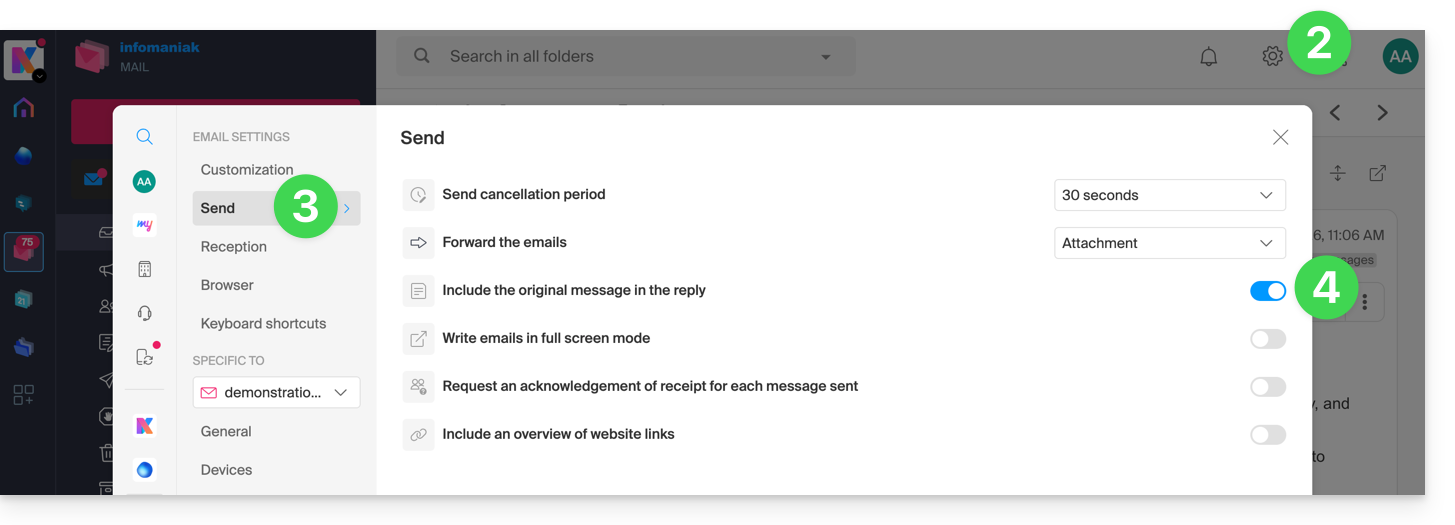
- Click on the Settings icon in the top right corner.
- Click on Sending in the left-hand menu.
- Disablethe toggle switch to the right of the "Include the original message in the reply" item:
Link to this FAQ: https://faq.infomaniak.com/1199
Has this FAQ been helpful?
This guide explains how to recover lost emails, especially after accidental deletion.
✘ NOT AVAILABLE with
kSuite Free
my kSuite (ik.me, etik.com, ikmail.com)
Mail Starter service
By upgrading one of these free plans, it will be possible to restore the backup for up to 30 days.
Introduction
- Infomaniak backs up each email address once a day (usually early in the morning).
- You can then restore your mailbox to its exact state at the time of the backup.
- RECOVERED ITEMS:
- Emails that no longer exist at the time of the restoration request (but were present at the time of the backup) will be restored to their original location.
- Certain settings, particularly those for the auto-reply (❓: help) and forwarding (❓: help), will be restored if they have changed in the meantime.
- ITEMS NOT RECOVERED:
- Emails that have been moved (subfolders, trash): they still exist in your account and must be searched for (❓: help).
- The restoration does not include the calendar (❓: help) or the address book (❓: help).
- Messages that were not present at the time of the daily backup (see POP3 chapter); example:
- Restoration requested at 10 a.m. (backup at 5 a.m.) for an email that arrived at 8 a.m. and was deleted at 9:30 a.m.: it will not be recovered because it was not yet present during the 5 a.m. backup.
- UNCHANGED ITEMS:
- Emails received, created, or stored between the backup date and the restoration execution remain in your inbox.
- Please refer to this other guide for information on the message retention limits.
Restore from the Infomaniak Web Mail app
Prerequisites
- Ensure that the deletion occurred less than 30 days ago (or within the timeframe included with your plan - see above).
- Have permission to manage backups: if you were invited to the Infomaniak Mail web app (online service ksuite.infomaniak.com/mail) to manage your address, the Mail service administrator may have removed this permission from their admin account
- Click here to access the Infomaniak Mail web app (online service ksuite.infomaniak.com/mail).
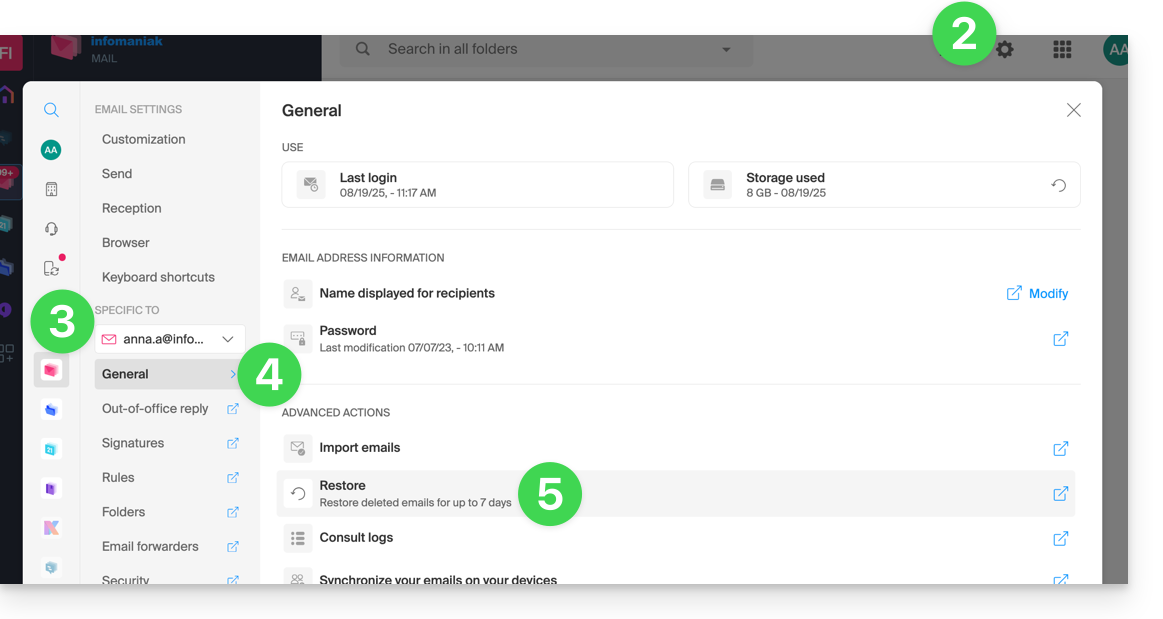
- Click on the Settings icon in the top right corner.
- Check or select the relevant email address from the dropdown menu in the left sidebar.
- Click on General.
- Click on Restore:
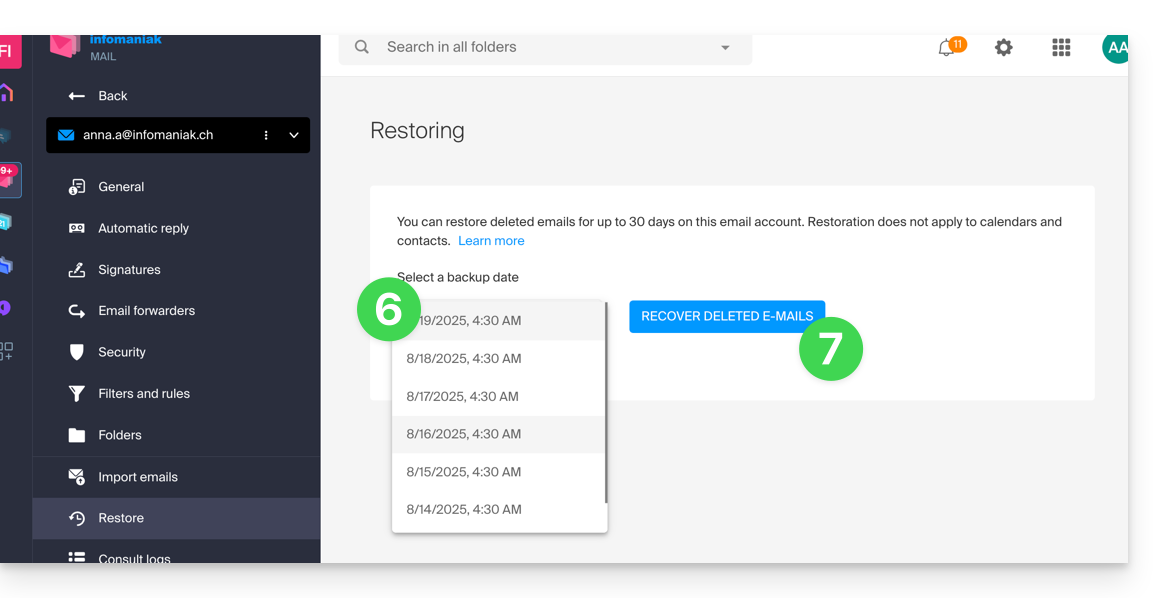
- Choose a Restore date.
- Click on Restore emails:
- Once the restoration is complete, an informational email will be sent.
Restore from the Mail Service
Prerequisites
- Be an Administrator or Legal Representative within the Organization (❓: help).
- Ensure that the deletion occurred less than 30 days ago (or within the timeframe included with your plan - see above).
To restore emails from a Mail Service:
- Click here to access the management interface for your product in the Infomaniak Manager (❓: help).
- Click directly on the name assigned to the product in question.
- Click on the email address in the table that appears.
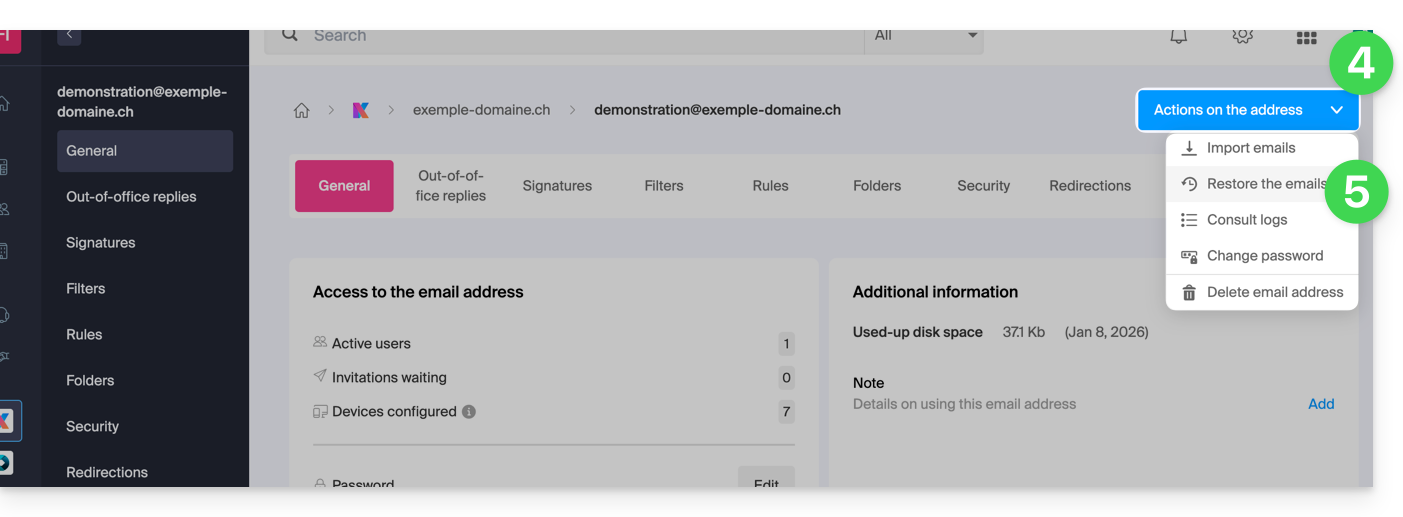
- Click on the Address actions button at the very top right.
- Click on Restore emails:
- Choose a Restore date.
- Click on Restore emails.
- Once the restoration is complete, you will receive a notification email.
E-mails placed in the trash
Unless otherwise configured, a deleted email is moved to the trash, and it is only after a period of several days or weeks that the trash is automatically emptied (it can also be emptied with a click by the user). Therefore, during a restoration operation:
- Emails currently in the trash will remain as they are, regardless of the restoration date.
- Emails deleted from the trash will be restored to their original location, where they were located when they were deleted (whether in the inbox folders or in the trash).
Emails placed in unconventional folders
If you intentionally store your messages in folders with unusual names (for example, folders named Junk or Spam), please read the important information in this other guide.
Email software/client configured with POP3
If you usually access your email using email software/clients like Outlook and it is configured with the POP/POP3 protocol, you will not be able to restore everything, as the backup is performed once a day and only saves the messages that were in your Infomaniak inbox at the time of the backup; the same applies to your other folders (Sent Messages, for example) present in the POP3 application: these are not synchronized with Infomaniak and are therefore not backed up; in the future, you should therefore prefer the IMAP protocol in your email software/client (❓: help).
Link to this FAQ: https://faq.infomaniak.com/1203
Has this FAQ been helpful?
This guide explains how to use the Gmail mobile app (application for iOS/Android smartphones or tablets) to access an email address hosted by Infomaniak.
Introduction
- Instead of the manual configuration below, it is recommended to use the Infomaniak Mail app (iOS / Android) to benefit from Infomaniak's security features.
Using the Gmail mobile app for Infomaniak
Prerequisites
- Create the email address (❓: help my kSuite | Mail Service/kSuite).
- Create a device password (❓: help my kSuite | Mail/kSuite Service).
- Verify that the domain is configured correctly (❓: help).
To add your Infomaniak email address via IMAP to your Gmail mobile app (❓: official help):
- Go to Gmail's Settings.
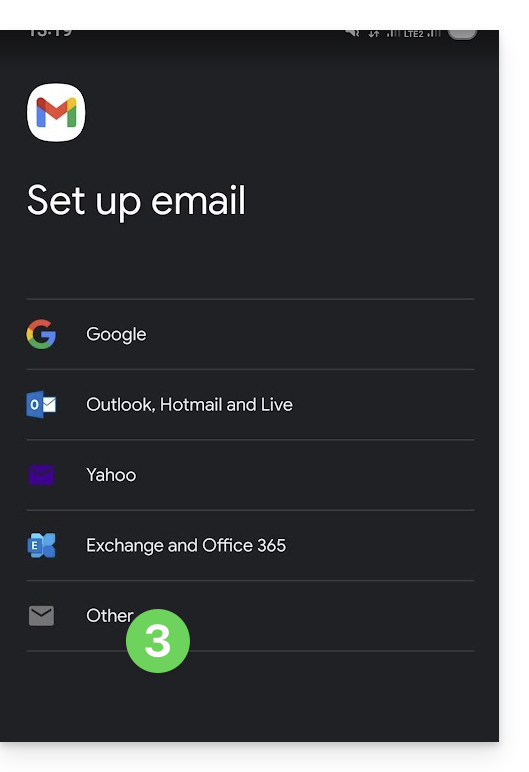
- Tap Add account.
- Choose Other:
- Enter the email address you want to use.
- Choose the IMAP account type.
- Enter the password (see prerequisites) for the email address:
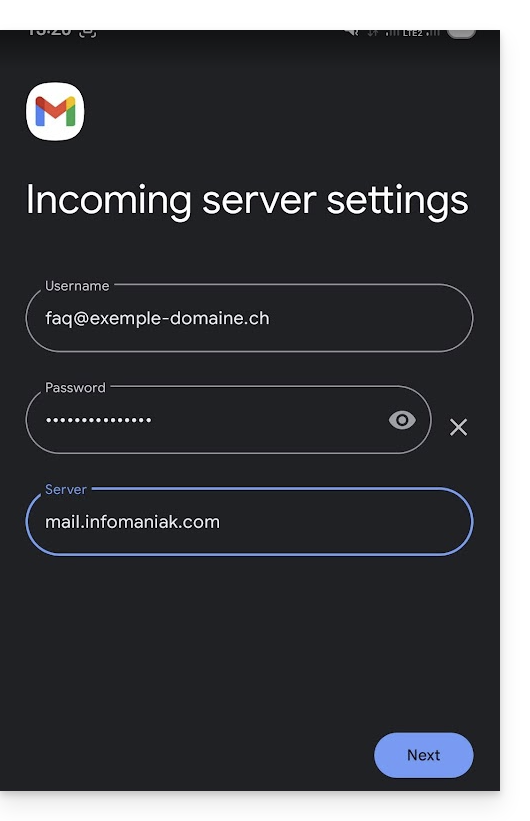
- Use the server name
mail.infomaniak.comfor:- Incoming IMAP server (receiving)
- Outgoing SMTP server (sending)
- Finish adding the address.
Link to this FAQ: https://faq.infomaniak.com/1208
Has this FAQ been helpful?
This guide details the automatic translation service integrated into the Infomaniak Web app Mail (online service ksuite.infomaniak.com/mail).
Introduction
- The Infomaniak Web Mail app (online service ksuite.infomaniak.com/mail) includes an automatic translator, for both reading and writing, for French, German, English, Italian, and Spanish.
- This AI solution does not rely on a third-party service (DeepL, Google Translate, etc.) contacted via API, but it is hosted, operated, and partially trained by Infomaniak.
Translate the text…
… while writing
To automatically translate a message you are writing into a foreign language:
- Click here to access the Infomaniak Mail web app (online service ksuite.infomaniak.com/mail).
- Compose a new email without sending it.
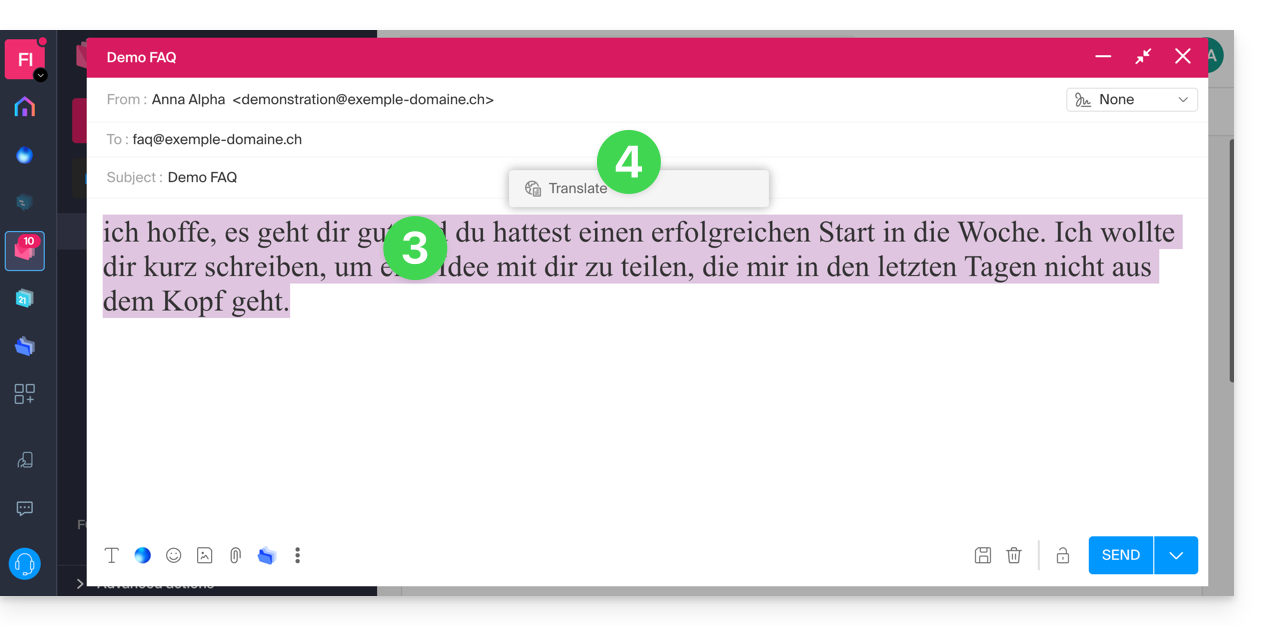
- Select the text to translate.
- Click on Translate:
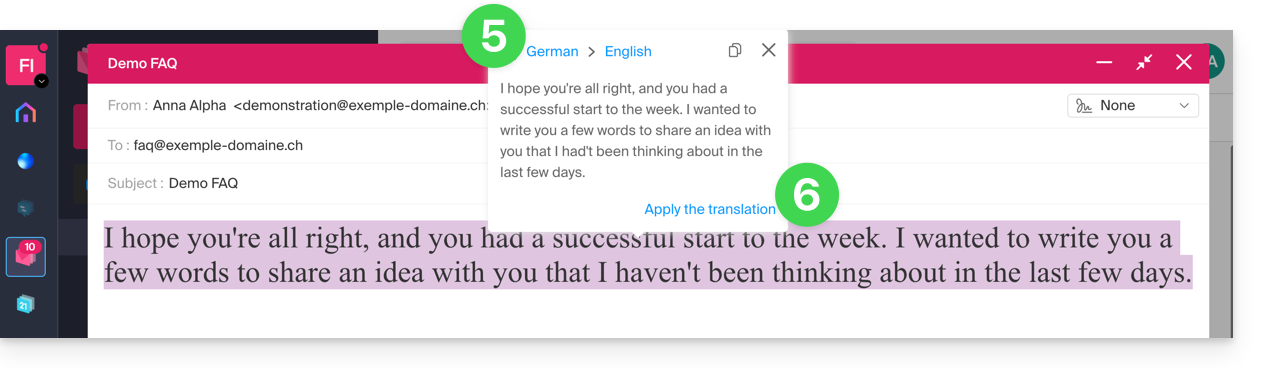
- Modify the languages if necessary.
- Click on Apply Translation:
… while reading
To automatically translate a received message written in a foreign language into your language:
- Click here to access the Infomaniak Mail web app (online service ksuite.infomaniak.com/mail).
- Check the email to be translated.
- Select the text to be translated.
- Click on Translate:
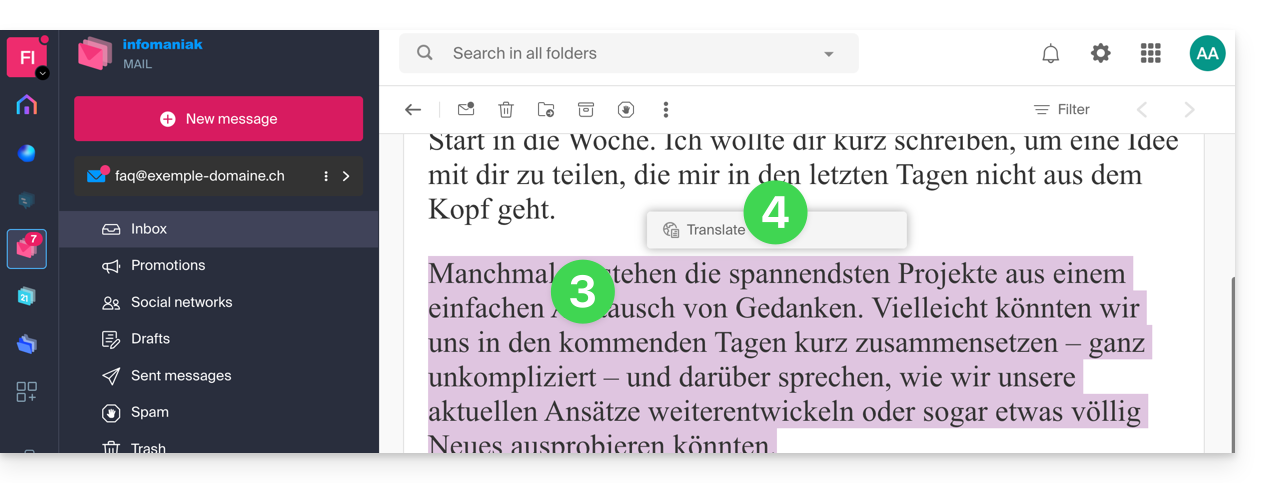
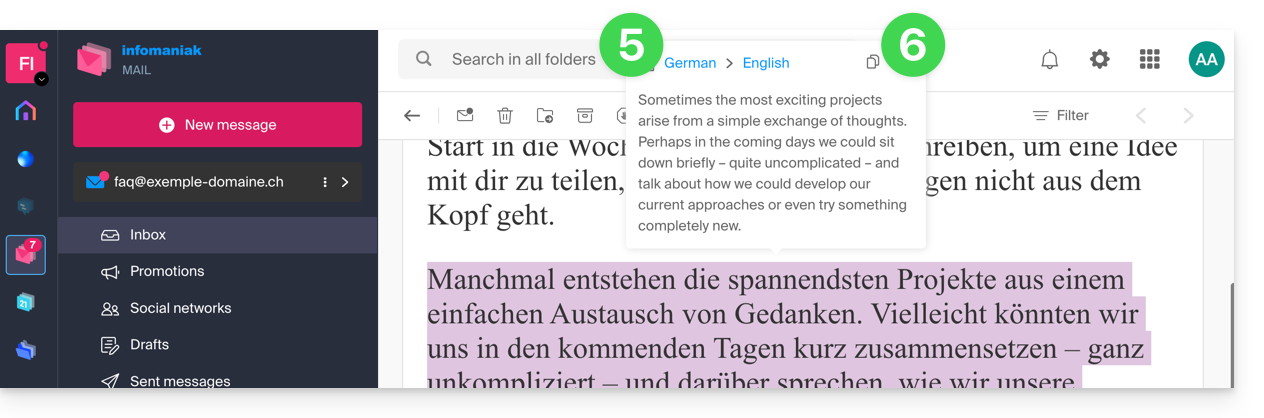
- Click on the name of the languages to change the languages used.
- On the same page, you can also copy the translated text to your clipboard to use it later:
Disable the translator
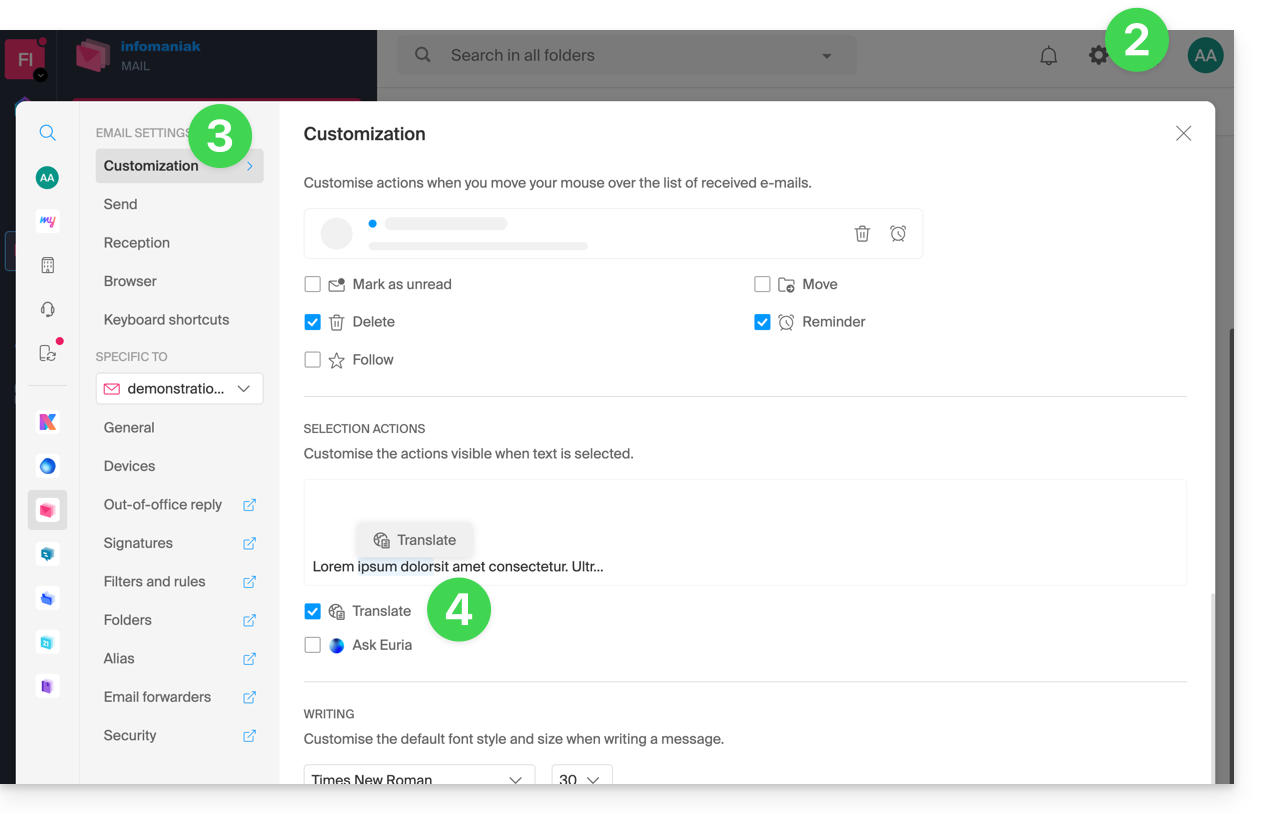
You can configure the elements (translations / Euria) that are displayed when you click on your message:
- Click here to access the Infomaniak Mail web app (online service ksuite.infomaniak.com/mail).
- Click on the Settings icon in the top right corner of the interface.
- Click on Customization in the left-hand menu.
- Check or uncheck the actions you want to trigger with a click:
Link to this FAQ: https://faq.infomaniak.com/1215
Has this FAQ been helpful?
This guide concerns outgoing spam from Infomaniak infrastructure and helps you identify and resolve the possible causes when an email sent from an address hosted by Infomaniak arrives in the recipient's Spam (junk mail) folder.
Important: Infomaniak cannot directly influence how other providers classify a message as spam; solutions must be sought with the administrators of the receiving server in question.
Using Email Properly
Infomaniak implements enhanced measures to ensure the security and deliverability of emails. By also following the best practices below, you significantly reduce the risk of your messages being considered unwanted.
1. Use a Valid Email Address
- Verify that your email address and the associated domain are correct and valid.
- Check the security settings of your domain name (SPF, DKIM, DMARC).
- If you change a setting, wait approximately 24 hours before retesting the sending.
2. Avoid Suspicious Content
- Avoid words, phrases, or presentations that are frequently associated with spam (abusive promotions, generic phrases, overly complex layout, etc.).
- Do not include insecure, truncated, or poorly formatted links.
- Personalize your messages (e.g., by mentioning the recipient's name) to enhance their credibility.
- Do not attach suspicious or excessively large files; instead, use a service like SwissTransfer.
3. Test Sending from the Infomaniak Web Mail App
- If you are using a third-party email software/client, try sending the message from the Infomaniak Mail web app (ksuite.infomaniak.com/mail).
- Compare the results to identify whether the problem comes from your email software/client or a configuration setting.
4. Monitor your domain's reputation
- If your email address uses a custom domain (e.g.,
@your-domain.xyz), a poor domain reputation can affect the deliverability of your messages. - Analyze and correct the possible causes (old bulk sends, incorrect configuration, reports, etc.).
- The time elapsed since the domain creation date can play a role.
5. Obtain recipient consent
- Only write to recipients who know you or are expecting your message.
- For group or regular sends, use a voluntary subscription (opt-in) system.
- For information or marketing campaigns, prefer the Infomaniak Newsletter solution.
6. Optimize sending frequency and volume
- Avoid sending a large number of identical messages to many recipients simultaneously.
- Respect a reasonable sending frequency to avoid being identified as a suspicious sender.
7. Be added to the Infomaniak whitelist
- If your emails are classified as spam by a recipient also hosted by Infomaniak, they can add your address to their whitelist.
- This action ensures that you receive your messages, but it does not replace the need to investigate the root causes that initially led to the messages being classified as spam.
Link to this FAQ: https://faq.infomaniak.com/1243
Has this FAQ been helpful?
This guide offers several solutions for quickly deleting a large number of emails within an email address hosted by Infomaniak. Please note that the size of your mailbox is not limited.
Deleting emails in bulk…
… from the Infomaniak Web Mail app
- Click here to access the Infomaniak Web Mail app (online service ksuite.infomaniak.com/mail).
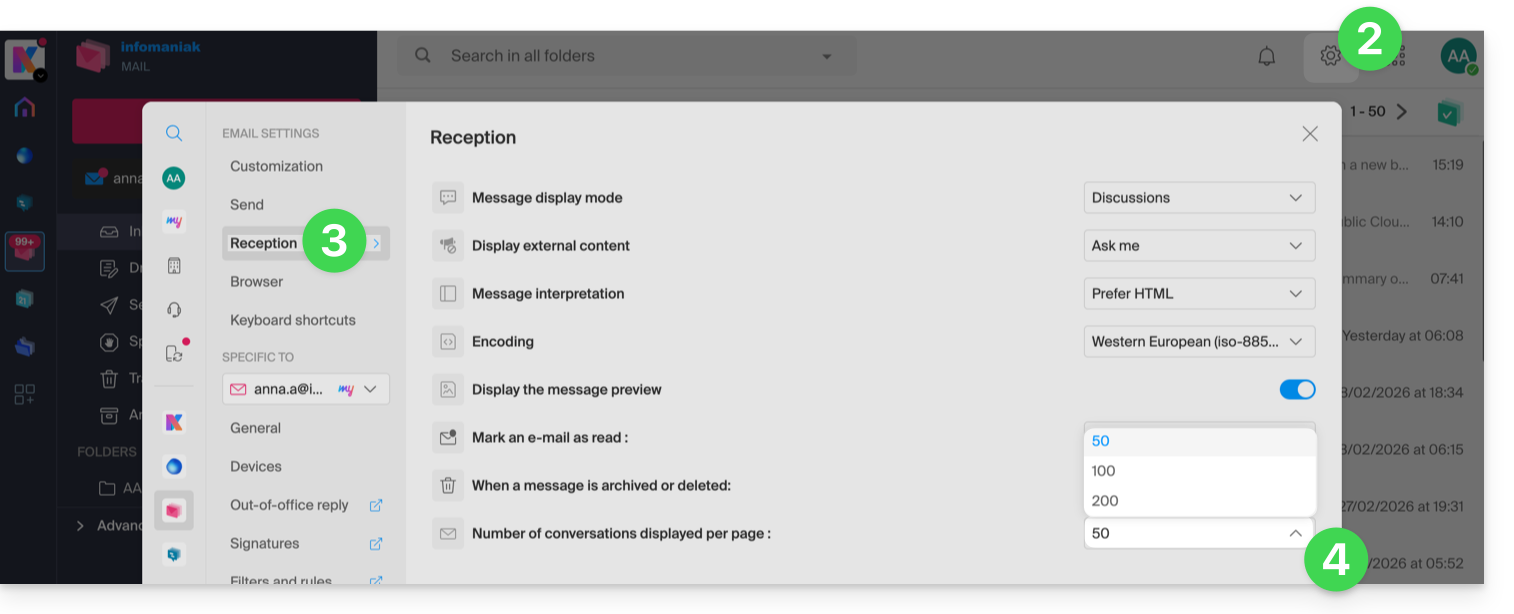
- Click on the Settings icon in the top right corner of the interface.
- Click on Reception.
- Display the maximum number of items loaded at once:
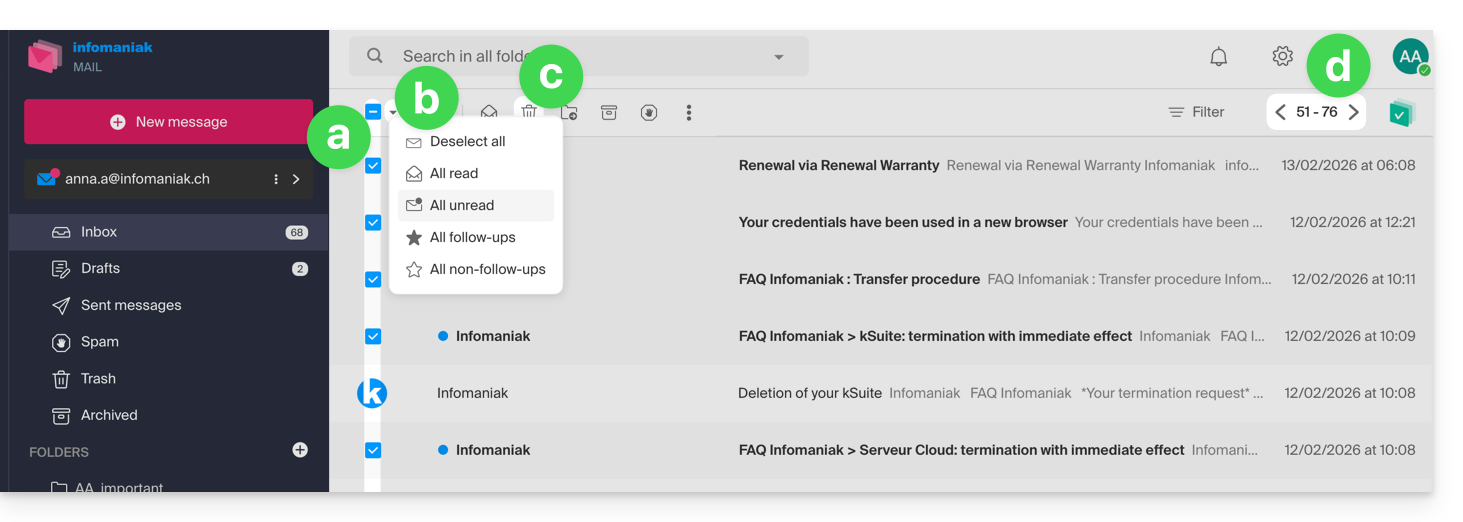
- To empty the inbox:
- Select all items visible on the screen.
- A more precise selection is possible.
- Click on the Trash icon to send them to the trash.
- Repeat this process on all pages:
- Besides the inbox, folders can be emptied in a few clicks:
- Click on the action menu ⋮ to the right of the folder in question.
- Click on Empty the folder:
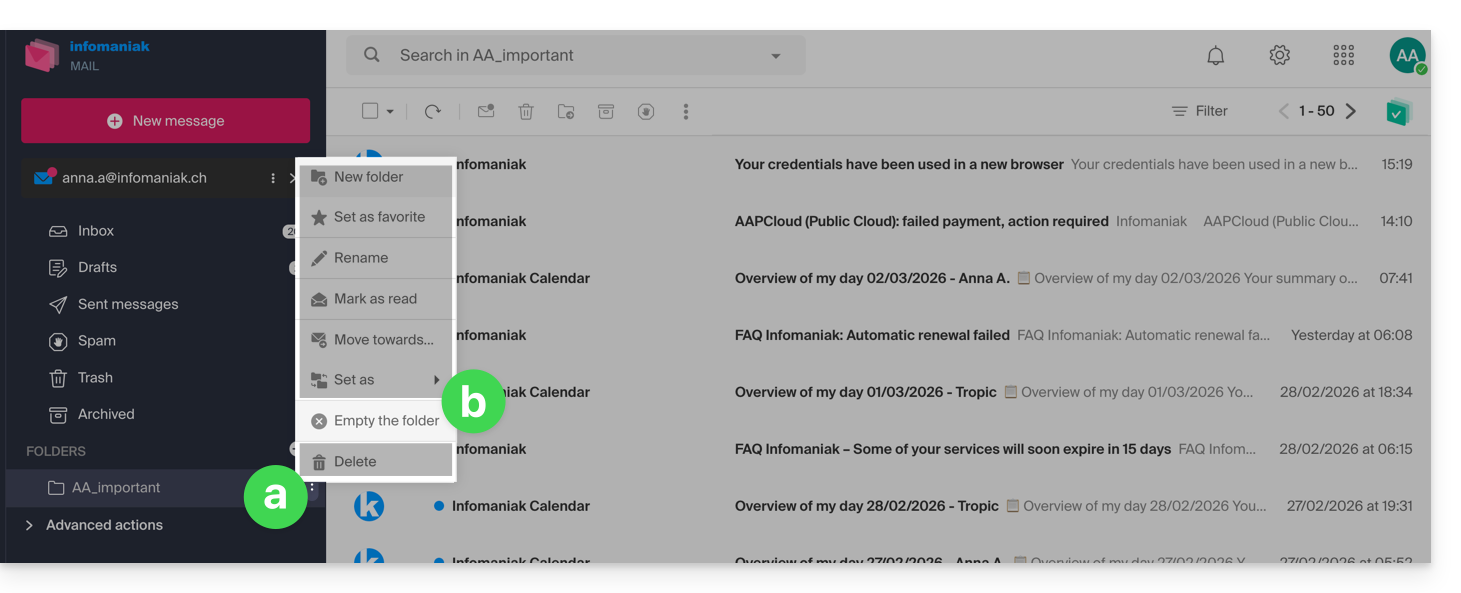
- Please note that emails are deleted without going through the trash, as if you were deleting the folder itself — only a restore can allow for possible recovery.
You can also delete the email address within a Mail Service, and then recreate it. It will then be completely empty.
… using an IMAP email client/program
A reliable solution is to configure the email address in an IMAP email client/program, which will allow you to select all messages (without pagination…) and therefore delete them easily and quickly:
- Install Thunderbird (or any other email app on your device).
- Add your email address by entering its password.
- Wait for the inbox to load.
- Select all messages.
- Click on Delete.
- That's it, you can now remove the application if you wish.
Special case: crossed-out messages
To permanently delete any crossed-out emails that may appear in your email software/client or on Mail Infomaniak: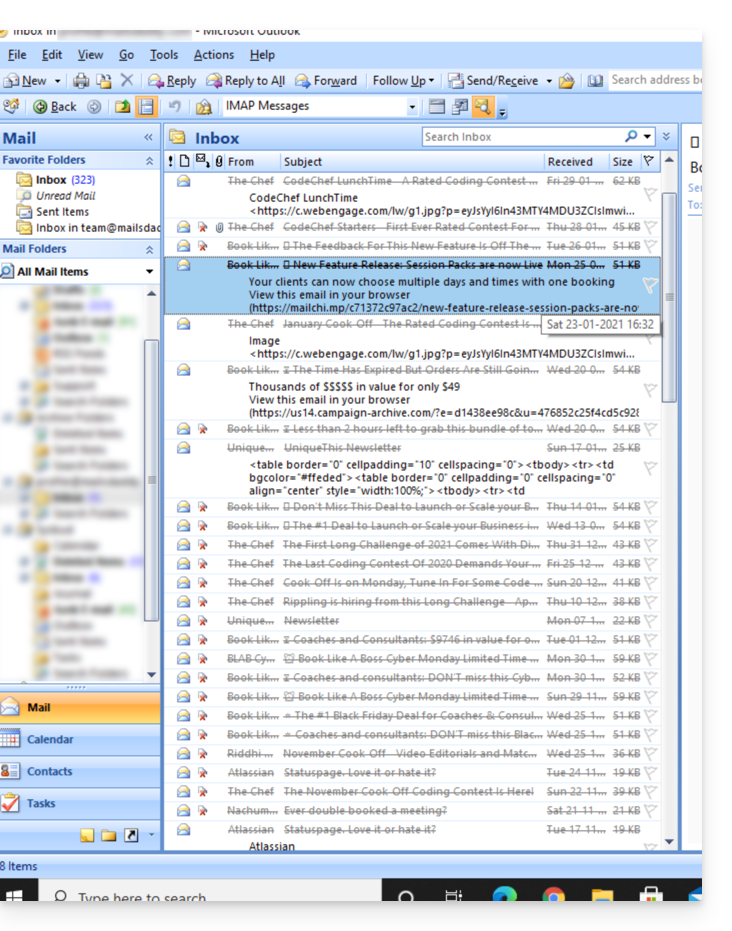
- Microsoft Outlook
- Go to the Edit menu -> Clear Deleted Messages (in English, you should have a Purge menu)
- Apple Mail
- Go to the Mail menu -> Clear Deleted Items
They will then also disappear from the Infomaniak Mail interface.
Link to this FAQ: https://faq.infomaniak.com/1247
Has this FAQ been helpful?
This guide will help you better understand the specific issues that may arise when displaying emails when using different email applications and Infomaniak's Mail apps.
Introduction
- It may happen that inconsistencies occur when displaying a list of emails within a folder (e.g., the Sent Messages folder), and the messages sorted and considered the most recent by one device are not the same as those displayed when using another tool.
Understanding Unique Identifiers (UIDs)
UIDs (Unique Identifiers) are unique identifiers assigned to each message in an IMAP mailbox. They are used to uniquely identify each message, regardless of changes made to the folders or the messages themselves. UIDs are particularly useful for managing and synchronizing emails across multiple IMAP email clients:
- Each email is assigned a unique UID when it is created in a mailbox; this UID never changes in principle as long as the email exists, even if its content or metadata is modified.
- UIDs are generally sequential, meaning that newer messages typically have higher UIDs.
- When synchronizing emails, IMAP email clients can use UIDs to determine which messages are new, modified, or deleted since the last synchronization; this enables efficient email management without having to download and compare all messages.
- Depending on the tool used, to display them in the order they were received, messages can be sorted by their date of receipt or by UID.
Do not confuse with:
Message Sequence Number(used for temporary operations based on the current position of the messages)…Message-ID (RFC 5322)(used to uniquely identify messages across different servers and email software/clients)…X-Message-Id(server-specific and used for internal tracking purposes)...Thread-IndexandThread-Topic(used by Microsoft applications for tracking conversation threads)...
IMAP applications and the Infomaniak Mail app
The issue may appear in this form at the server command level:
758 - date.sent: 2017-10-11 23:15:26 (+0100)
757 - date.sent: 2017-10-11 15:00:55 (+0100)
756 - date.sent: 2017-10-11 14:39:28 (+0100)
(...)
742 - date.sent: 2018-01-17 00:40:21 (+0000)
741 - date.sent: 2018-01-17 00:30:33 (+0000)
740 - date.sent: 2018-01-17 00:26:07 (+0000)
(...)
51 - date.sent: 2022-10-07 16:39:16 (+0100)
50 - date.sent: 2023-06-13 10:15:00 (+0100)
49 - date.sent: 2023-06-07 12:11:35 (+0100)
Here, we observe that emails dating from 2017 have a higher UID (758, 757, ...) than emails with a more recent date in 2023. The UIDs must have been reassigned for one reason or another during the lifetime of this email account (moves, copies, imports, etc.).
Depending on how the email tool sorts the emails, a message from 2017 may appear among the recent messages, while the message from 2018 will not be loaded immediately. This is particularly true for the Mail Infomaniak app, which only loads a series of emails at a time based on the UID (this is likely to change).
Therefore, to resolve any potential inconsistencies, it is recommended to use an IMAP email client such as Thunderbird on a computer. This will allow you to quickly and efficiently sort all messages in a specific folder, based on the email date, as the application will display all messages present on the Infomaniak server.
Link to this FAQ: https://faq.infomaniak.com/1276
Has this FAQ been helpful?
This guide explains how to connect the Apple Mail desktop app on macOS (MacBook Pro, Neo, etc.) to an email address hosted by Infomaniak.
Introduction
- Your macOS computer will be automatically configured using Apple-compatible .mobileconfig configuration profiles, unlike a manual configuration.
- It is possible to delete a configuration profile once it has been installed (scroll to the bottom of this page for instructions).
Install a configuration profile
Prerequisites
- Create the email address within my kSuite or a Mail Service / kSuite.
- Check that the Mail Service is configured optimally.
You can download the profile from the device in question or send it from another device (if you already have an email address that works correctly, for example):
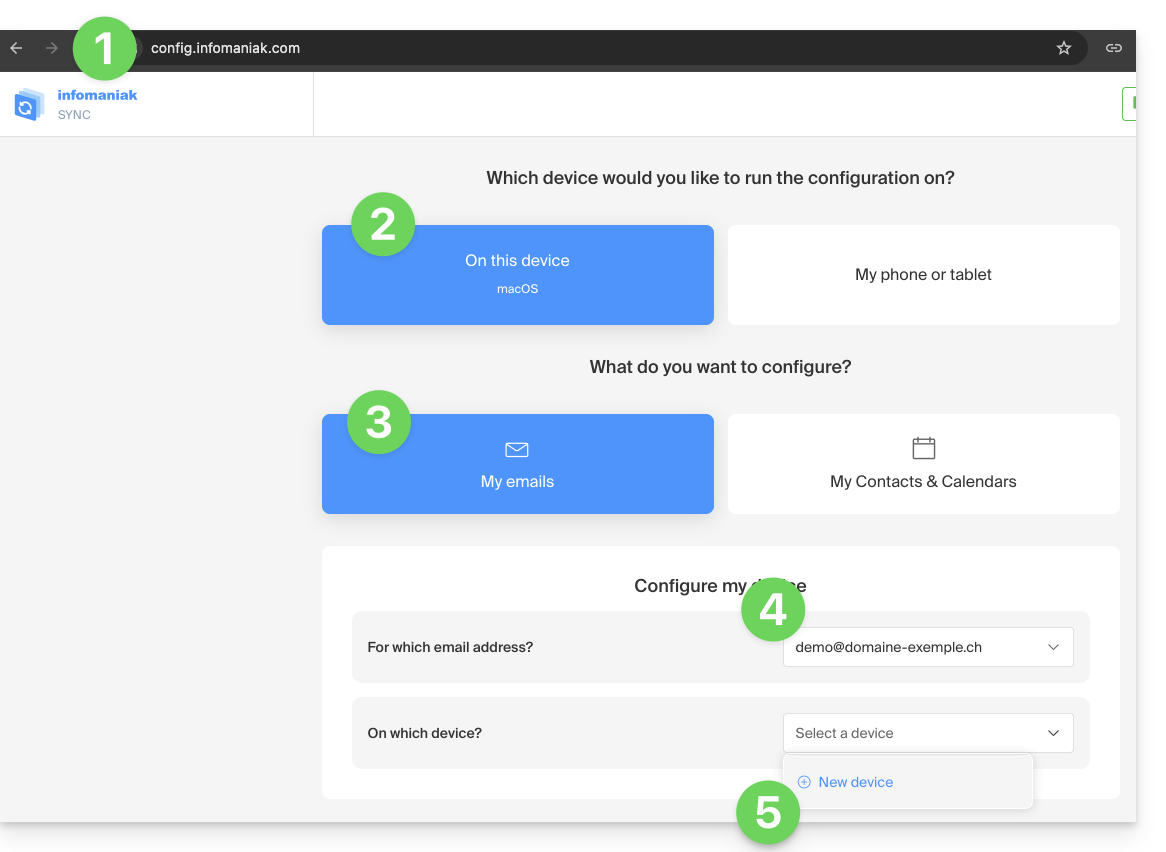
- Click here to access the Infomaniak configuration tool (online service https://config.infomaniak.com) — log in to your Infomaniak account on the Organization where your email address is managed, if necessary.
- Choose to install the profile on this device.
- Choose to synchronize emails.
- Choose the email address to configure in Apple Mail (from the ones you have access to).
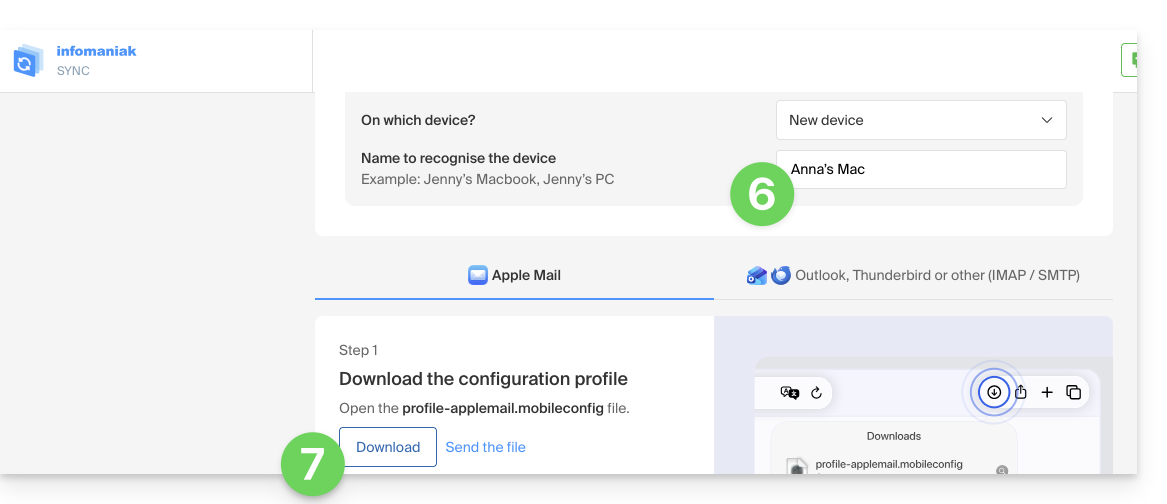
- Create a new device:
- Enter a descriptive name for the new device.
- Click the button to download the profile (you can also send it by email using the link on the right):
- Once the
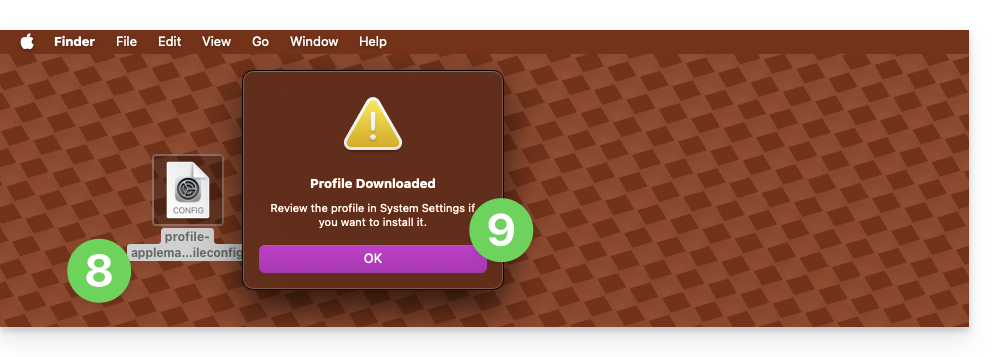
profile-applemail.mobileconfigfile is on your computer, double-click it to open and run it. - Click OK:
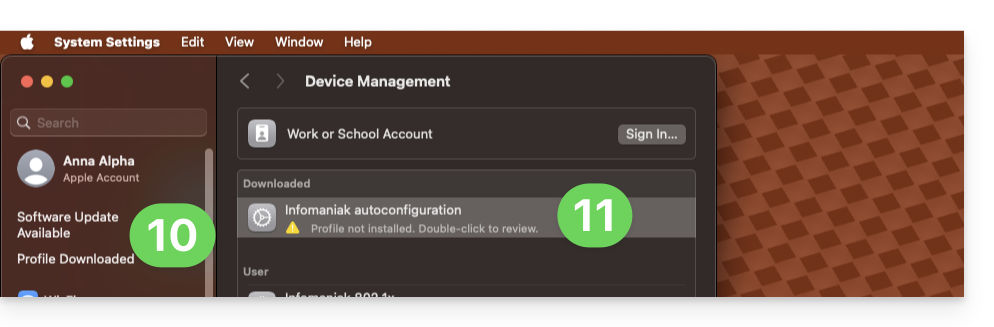
- Open the computer’s System Settings.
- Click on Downloaded Profile in the sidebar, then double-click the new profile to apply it:
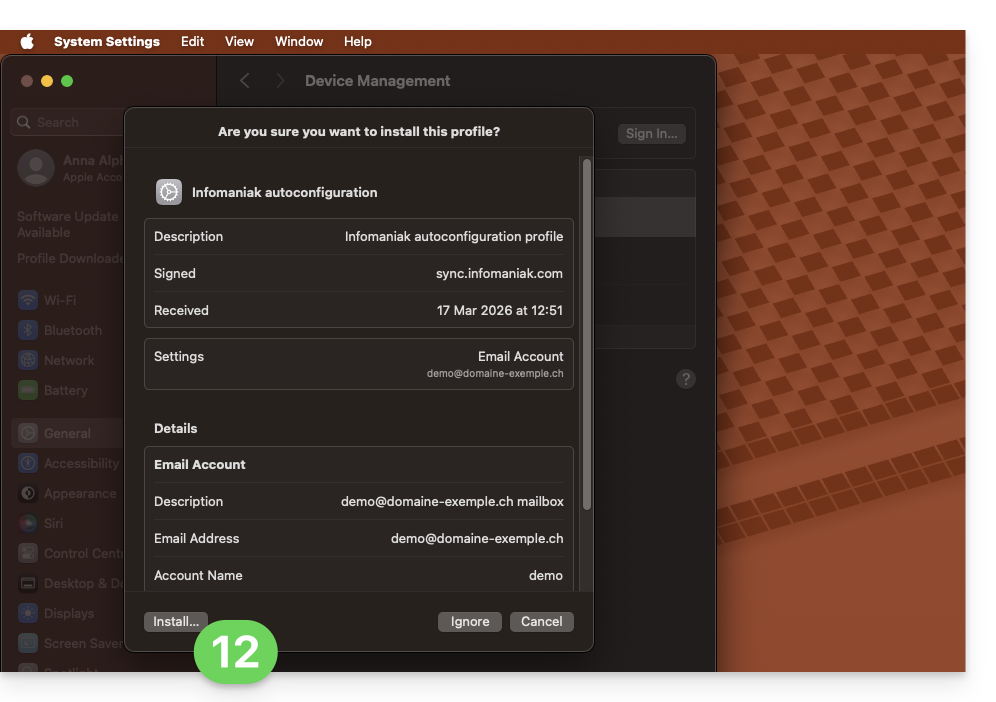
- If you have an older version of macOS or cannot find the profile, search for “profile” in the settings, or consult the official documentation by changing the version of your system at the top of the page if necessary.
- Click on Install…:
- A password will then be requested…
- either you know it because you have already created it in the Devices section of the Mail Service:
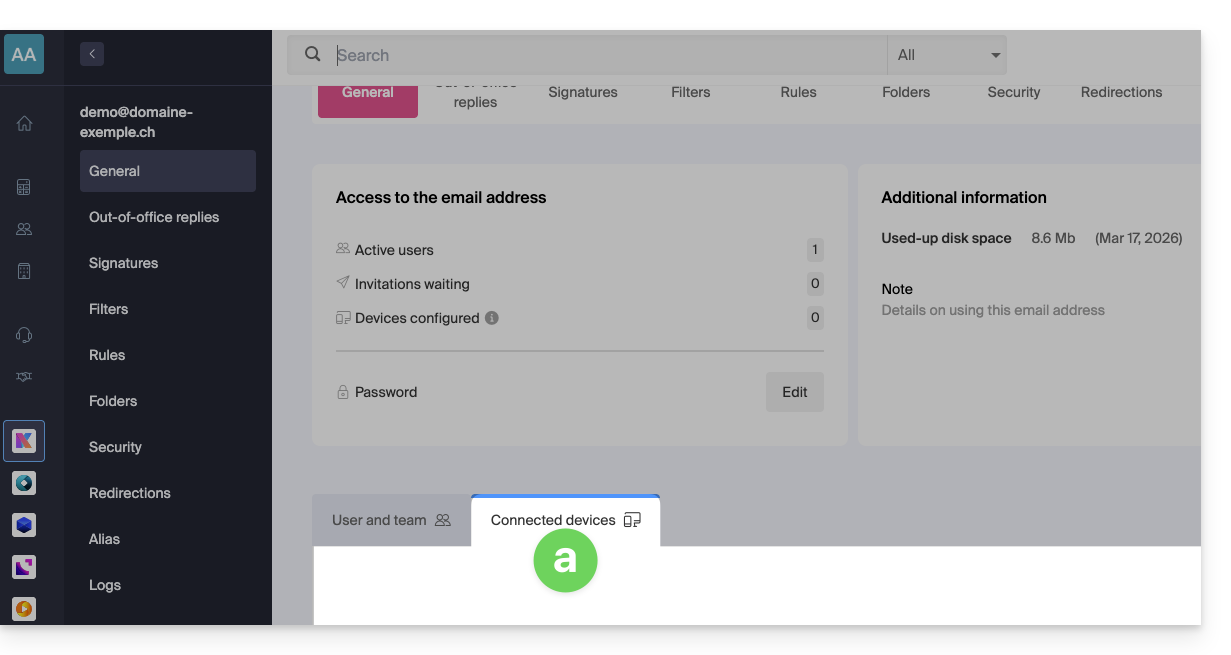
- or you can copy the new password that is located further down on the assistant page
config.infomaniak.comthat was opened previously: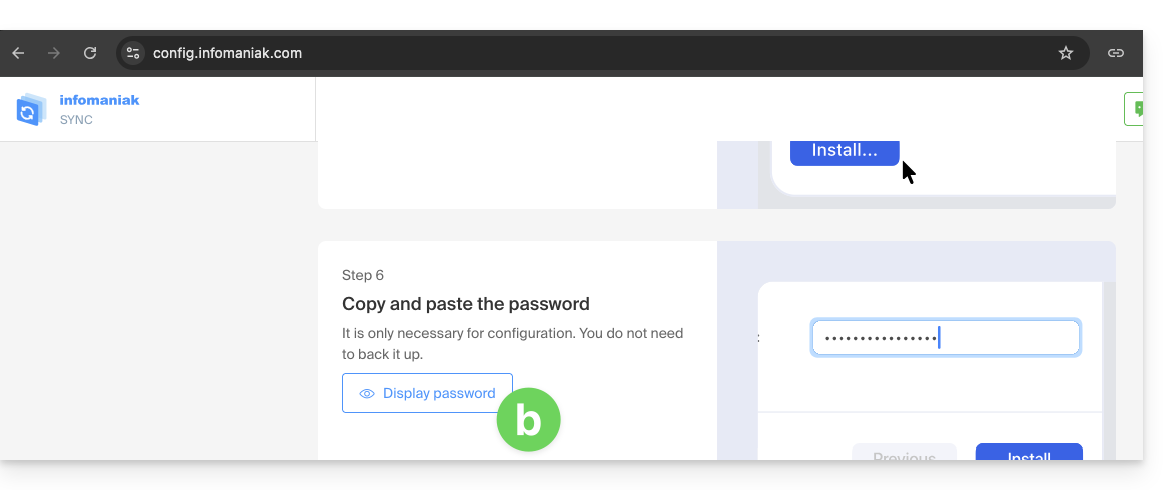
- Before the email address password is displayed, your Infomaniak account password may be requested for security reasons:
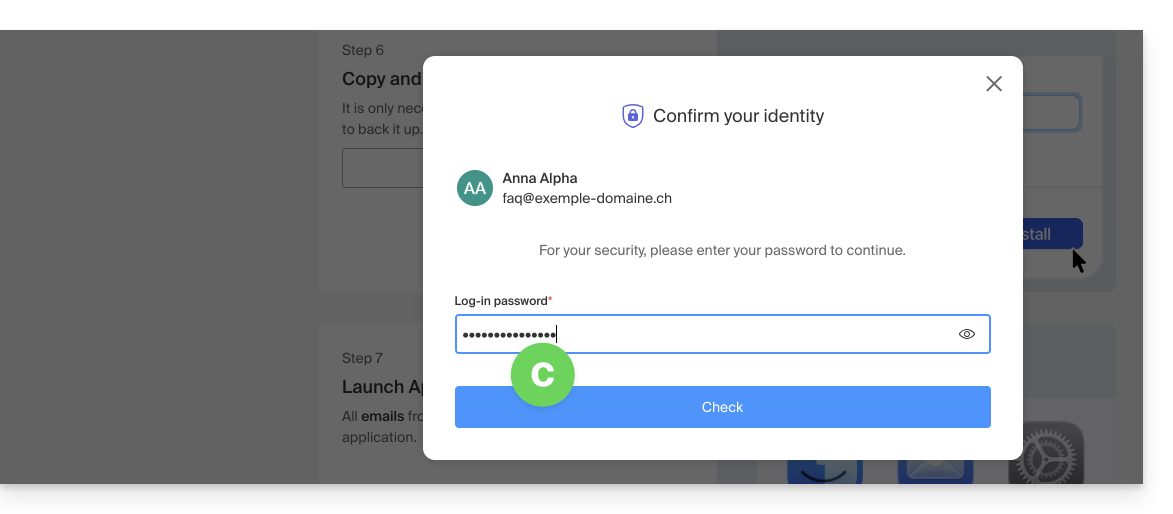
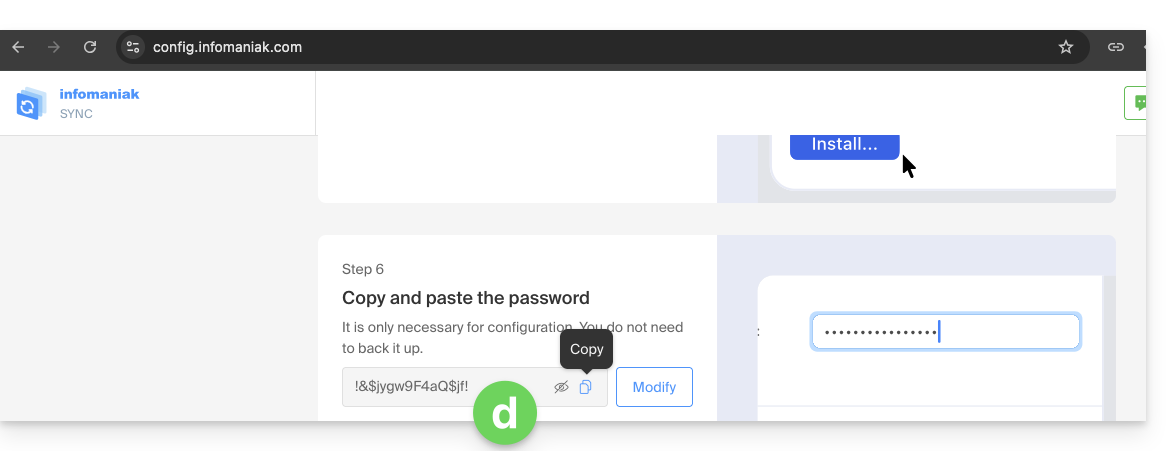
- There you go, the randomly generated password is displayed, simply copy it:
- either you know it because you have already created it in the Devices section of the Mail Service:
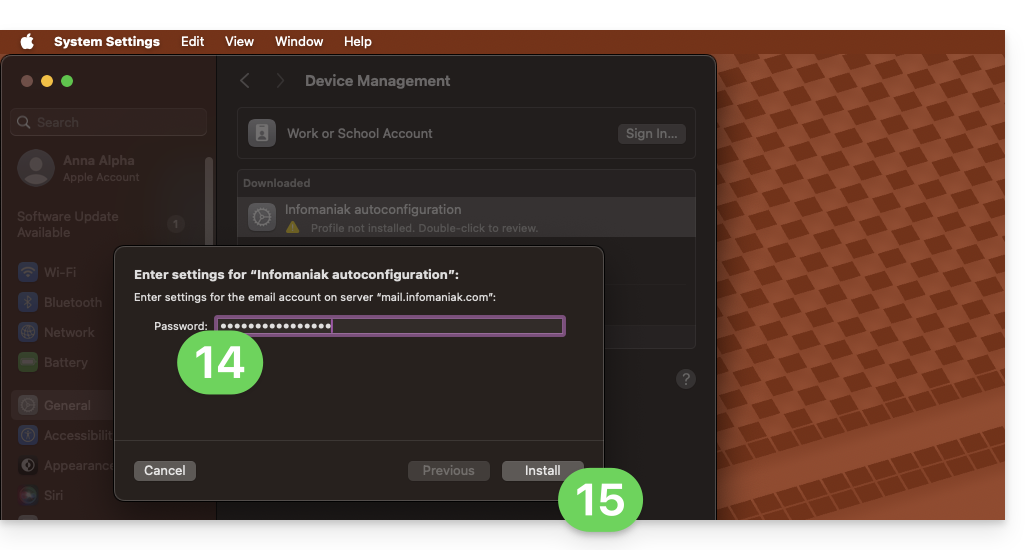
- Paste the password into the macOS window.
- Click Install to start installing the profile:
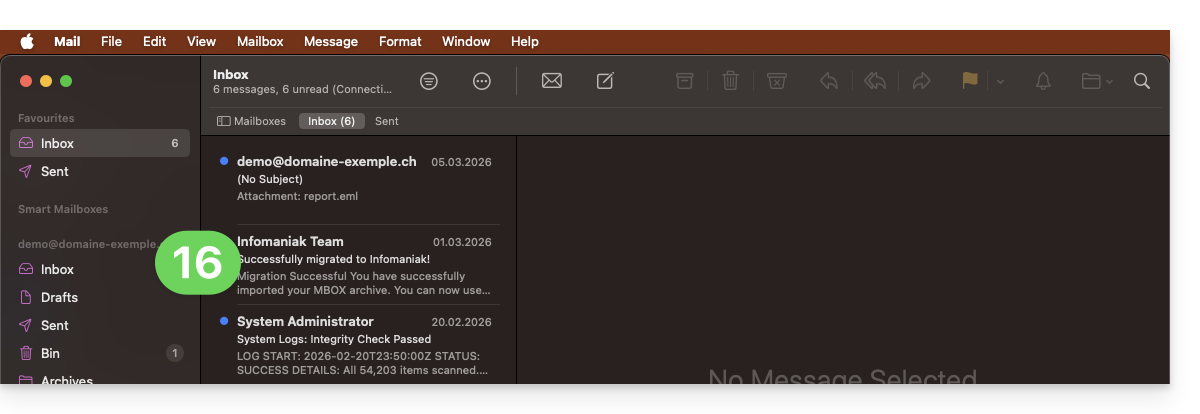
- That's it, your email address is now configured in the Apple Mail application, which you can open and manage:
Remove an IMAP account
Refer to the "Stop using an account" chapter. If necessary, change the version of your system at the top of the page*. (Note: Do not delete a POP-configured account without saving your messages beforehand).
Delete an Apple profile
Refer to the official documentation by changing the version of your system at the top of the page * if necessary.
*Why is it necessary to select the guide version that exactly matches your macOS / iOS system version?Apple introduces subtle changes with each new version of its system, for example, a path in iOS 15…
… becomes this in iOS 18…
Link to this FAQ: https://faq.infomaniak.com/1316
Has this FAQ been helpful?