Knowledge base
1000 FAQs, 500 tutorials and instructional videos. Here, there are only solutions!
Manage default user permissions for email
This guide explains how to define the default permissions for all email address users, so they can manage more or less configuration elements in the Infomaniak Mail web app (online service ksuite.infomaniak.com/mail).
Introduction
- These permissions may include assigning an additional password, setting up an alias, etc.
- Refer to this other guide for the complete list.
Define the Default Rights for Global Configuration
To define the default rights that will be automatically selected when the "global configuration" is applied by the administrator:
- Click here to access the management of your product in the Infomaniak Manager (need help?).
- Click directly on the name assigned to the product in question.
- Click on Global Configuration in the left-hand menu:
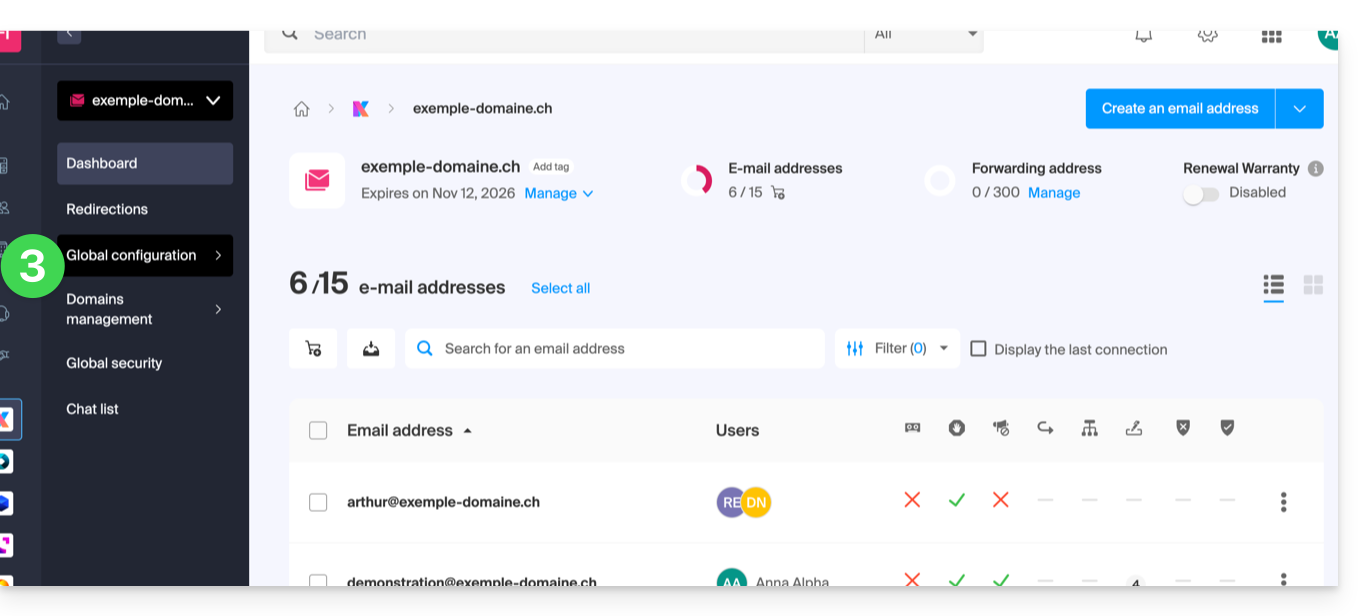
- Then click on Filters and Permissions.
- At the bottom, enable or disable the rights to be granted during future email address creations:
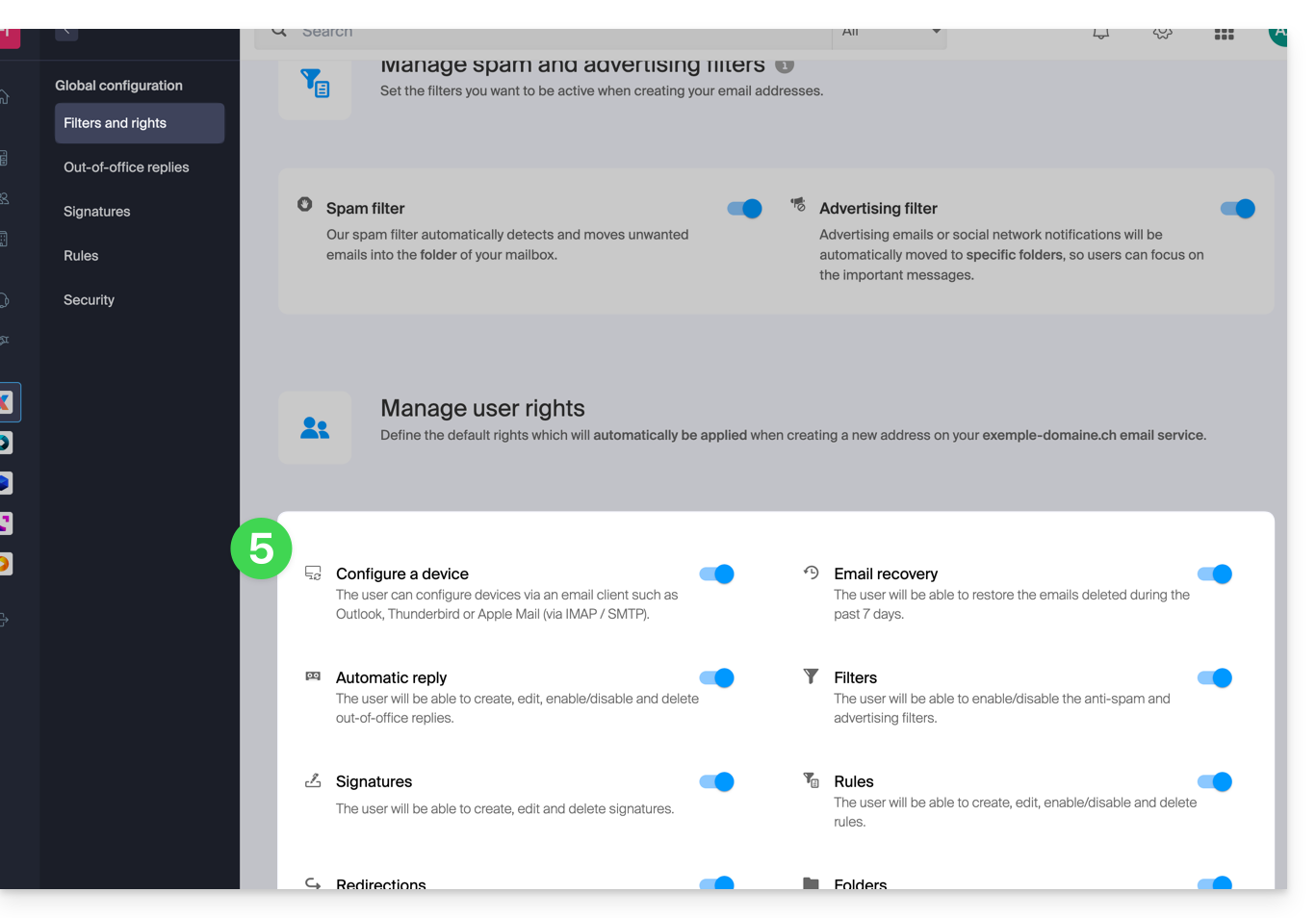
Apply Global Configuration During Email Address Creation
If a new email address is created for one or more third-party users, the permissions defined in the Global Configuration will be automatically pre-selected during the wizard step: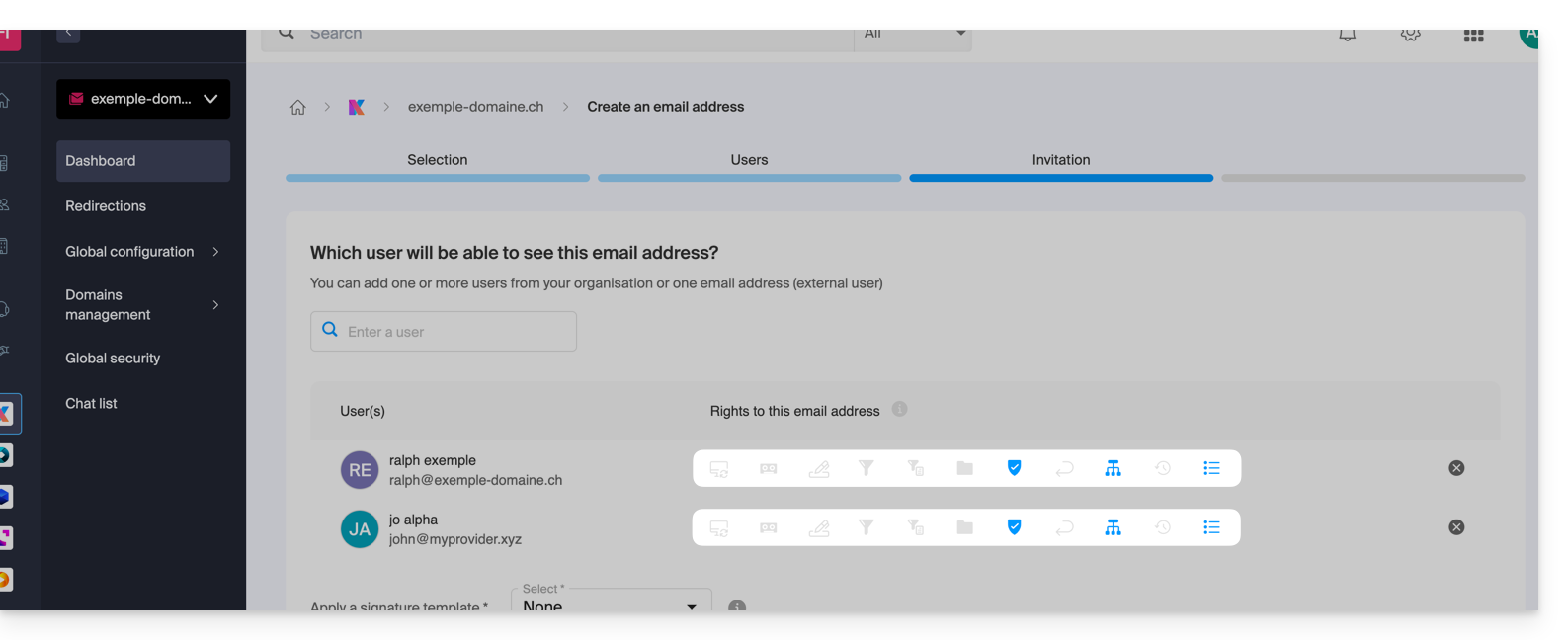
It is, of course, possible to modify the various permissions for the different users on a case-by-case basis.
Apply the Global Configuration to existing addresses
To apply this global configuration to the existing email addresses of a Mail Service (which will then apply to all concerned users, listed in the Users column):
- Click here to access the management of your product on the Infomaniak Manager (need help?).
- Click directly on the name assigned to the product in question.
- Select the email addresses concerned by checking the boxes to the left of the line.
- Click on Apply the global configuration at the bottom of the screen (by clicking first on the action menu ⋮ if necessary):
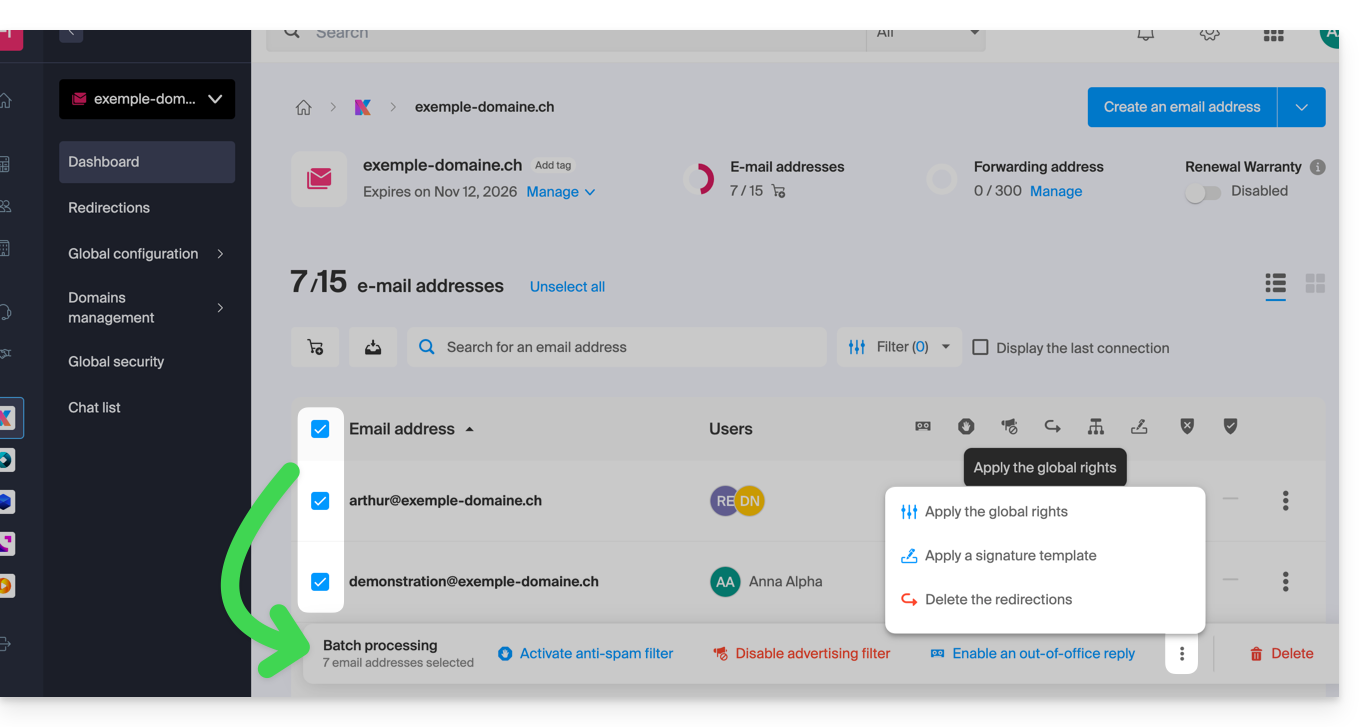
Apply the Global Configuration when managing permissions granted to a user
To apply this global configuration when editing a user's permissions for an email address (refer to this other guide in the “Manage permissions granted to a user” section), click on the button dedicated to this purpose: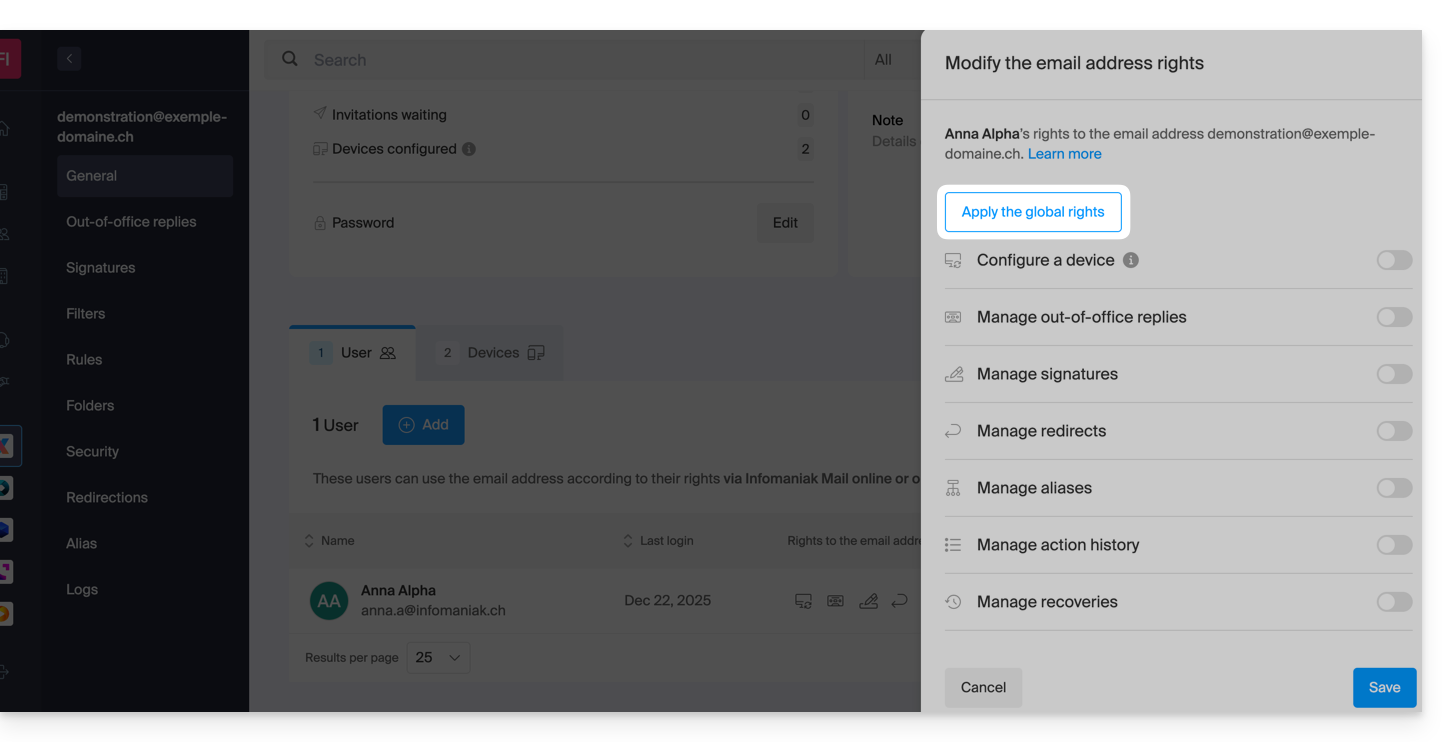
Link to this FAQ: https://faq.infomaniak.com/1232
Has this FAQ been helpful?