Knowledge base
1000 FAQs, 500 tutorials and instructional videos. Here, there are only solutions!
This guide provides instructions on how to correctly display and interpret VOD/AOD statistics.
Introduction
- There may be a difference between the number of media views and the number of unique visitors:
- Users who watch a stream with an unstable Internet connection (Wifi, 3G, etc.) may generate a large number of disconnections and reconnections.
- In such a case, each reconnection is counted as a new visit, which may explain this difference.
Accessing VOD/AOD statistics
To view your media statistics:
- Click here to access your product management interface on the Infomaniak Manager (need help?).
- Click directly on the name assigned to the product in question:
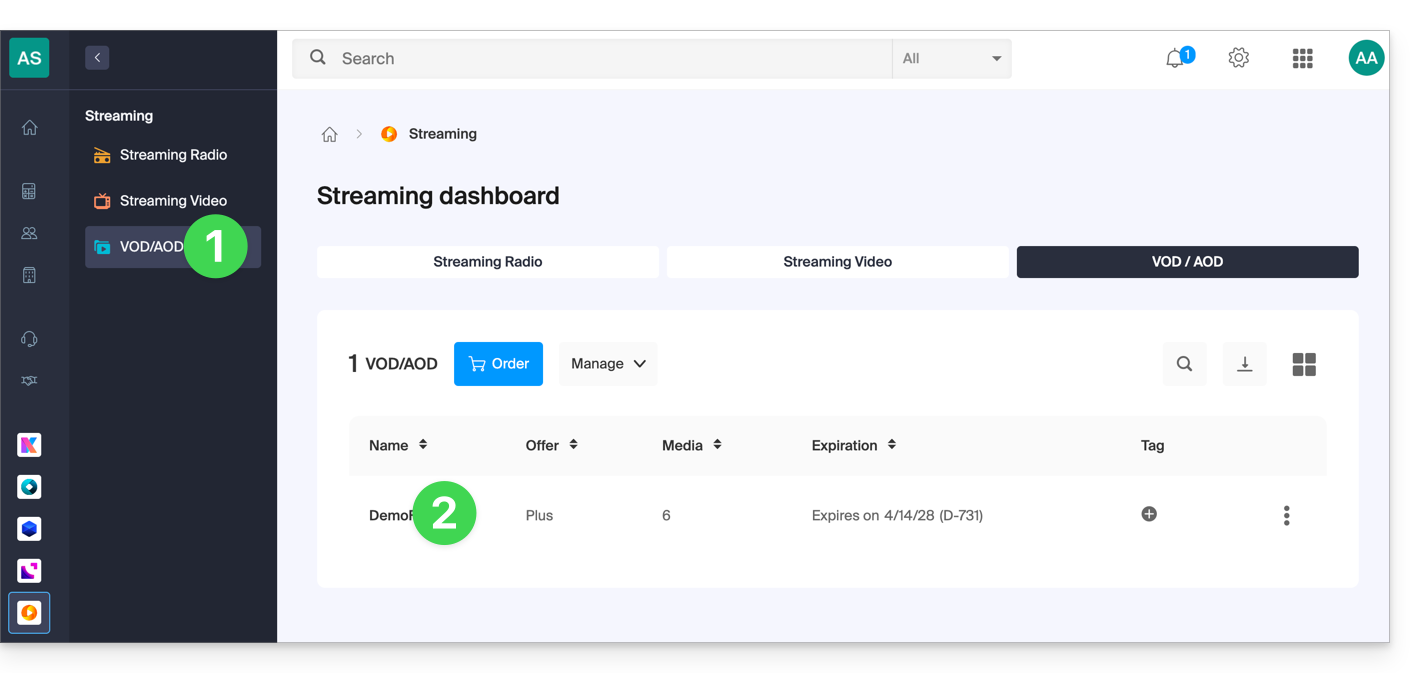
- Click on Statistics in the left-hand menu.
- Click on the desired items in the secondary sidebar menu to obtain an overview or detailed statistics on viewers, viewing time, consumption, media, geographic areas, and technologies:
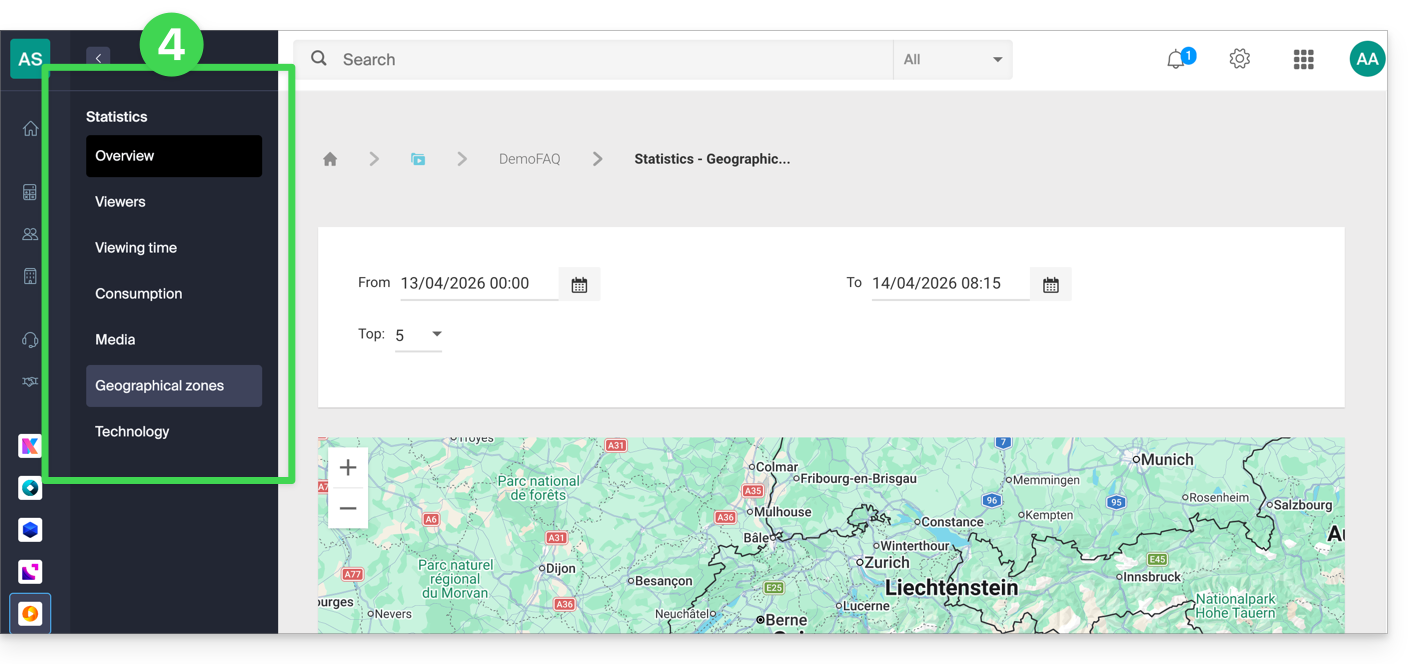
Label Definitions
- Media views: total number of views for all media
- Unique visitors: number of visitors with distinct IP addresses
Example: if two employees from the same company watch the same video, this will count as 1 unique visitor and 2 visits.
Link to this FAQ: https://faq.infomaniak.com/2132
Has this FAQ been helpful?
This guide explains how to replace an already imported media file in an Infomaniak VOD/AOD space and thus preserve the history of statistics.
Add a new media file to replace another
To access a media file in the VOD space:
- Click here to access the management of your VOD/AOD in the Infomaniak Manager (need help?).
- Click directly on the name assigned to the product in question:
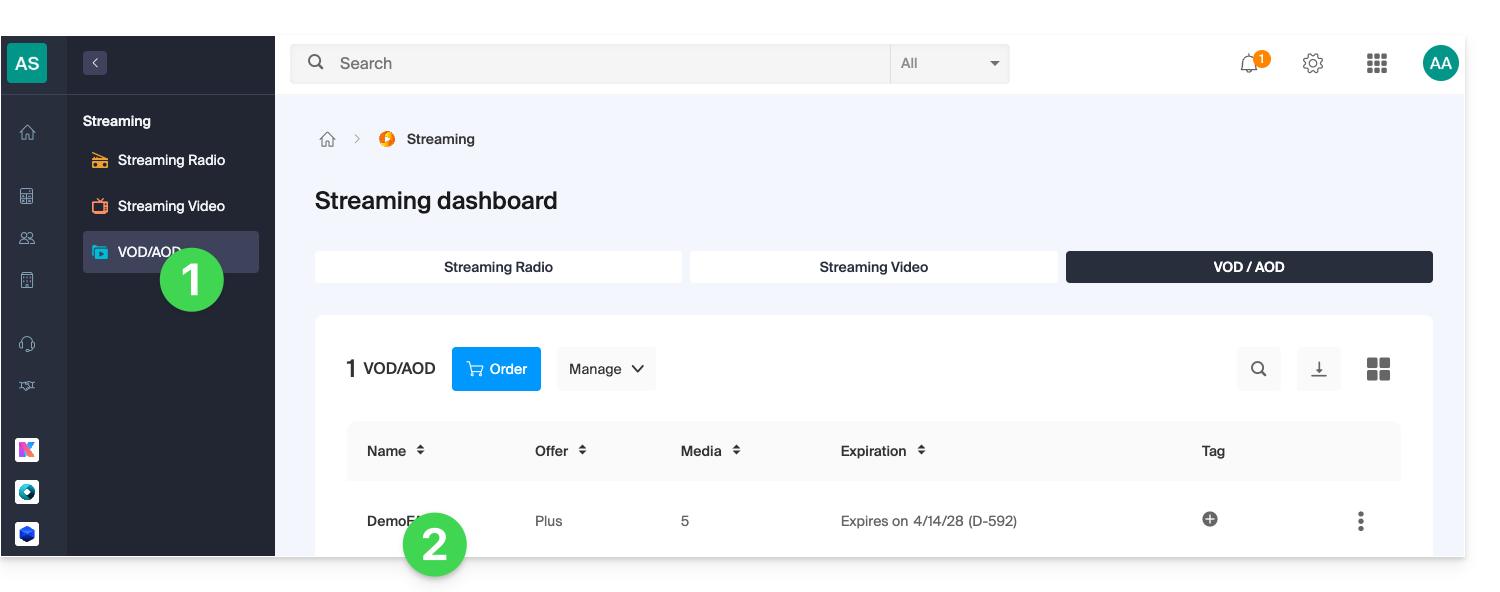
- Click on Media in the left-hand menu.
- Click on Media Management in the left-hand menu.
- Click on the relevant media:
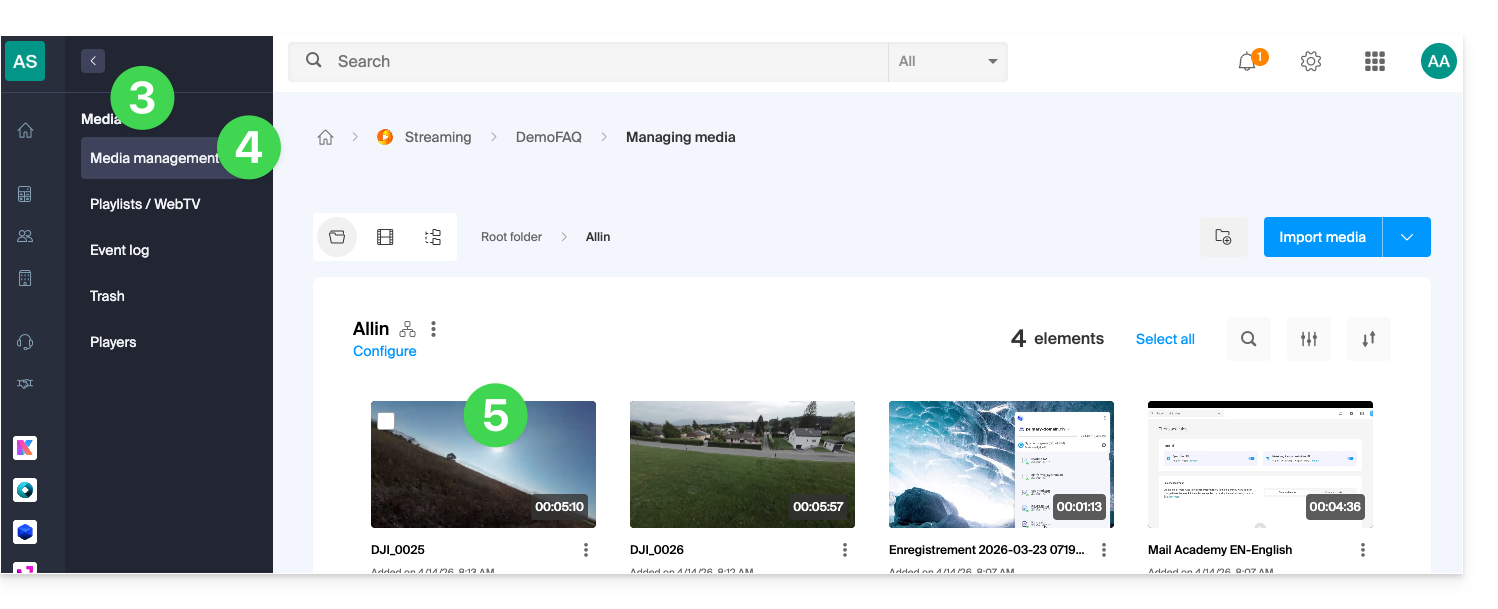
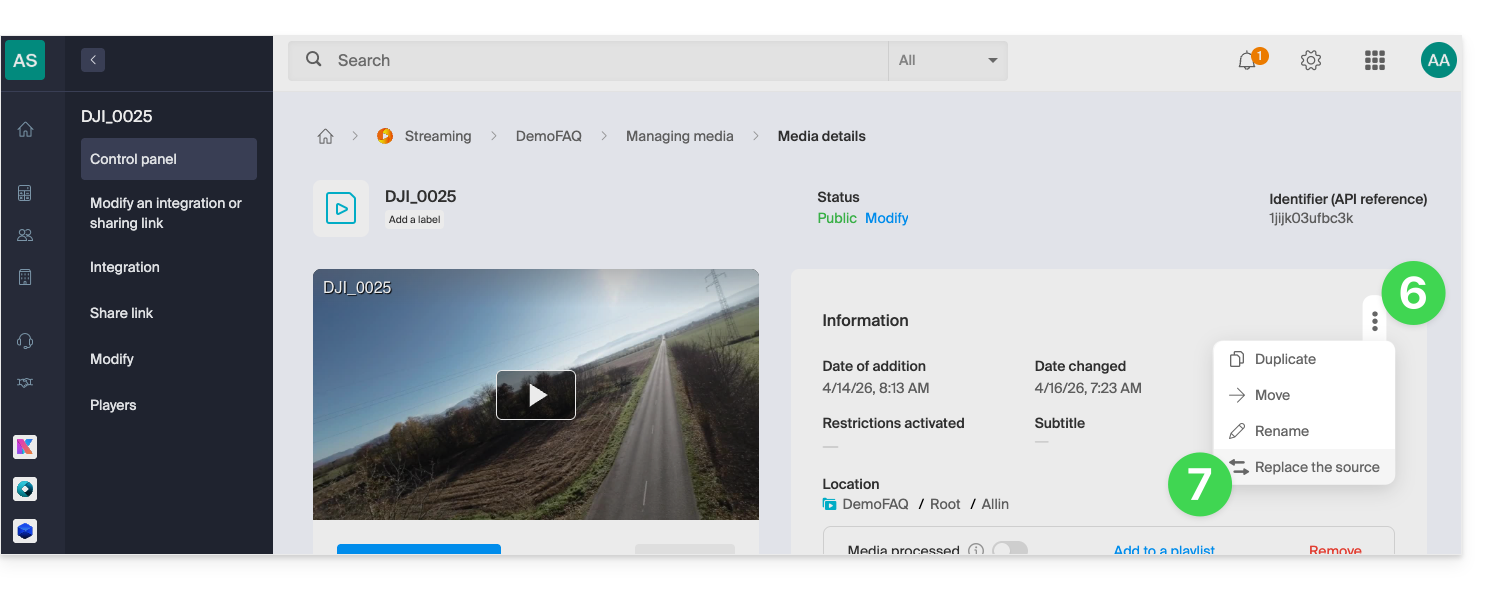
- Click on the action menu ⋮ located to the right, under Information.
- Click on Replace source:
- Choose the media file on the device's hard drive (or on a removable storage device) and upload it:
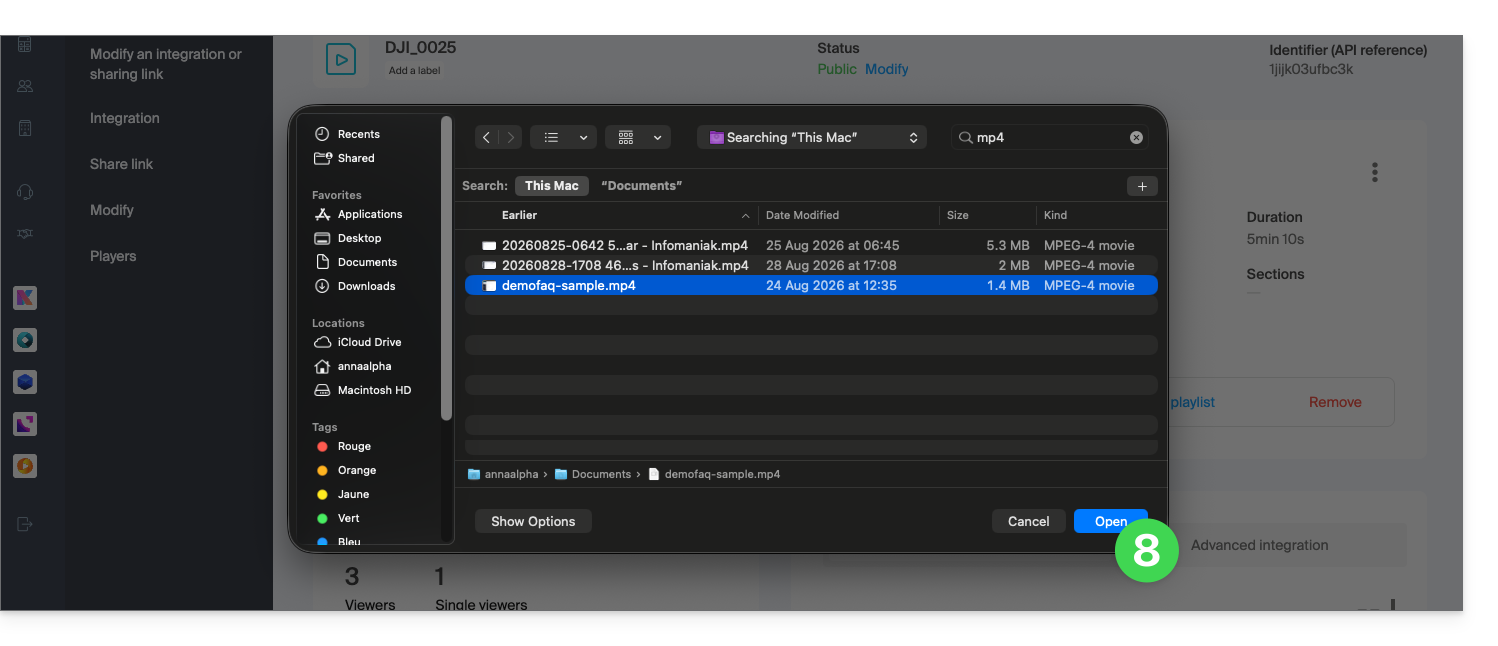
- Wait for the encoding process to complete so that the media file replaces the previous one.
A media file can also be replaced by uploading it via FTP, using the same file name as the existing one.
Link to this FAQ: https://faq.infomaniak.com/2511
Has this FAQ been helpful?
This guide explains how to embed video/audio files imported into an Infomaniak VOD/AOD service on web pages.
Introduction
- This VOD/AOD integration code is unique and corresponds to the settings you are specifying on the page.
- It allows you to embed the same video with different display configurations, according to your needs.
- You can then modify the settings for this integration by adjusting them from the integration history page in the Infomaniak Manager.
- You can also share a media file in various ways.
Generate and copy the embed code
The embed code can be found in your VOD interface; here is an example with a default Player:
- Click here to access the management interface for your product in the Infomaniak Manager (need help?).
- Click directly on the name assigned to the product in question:
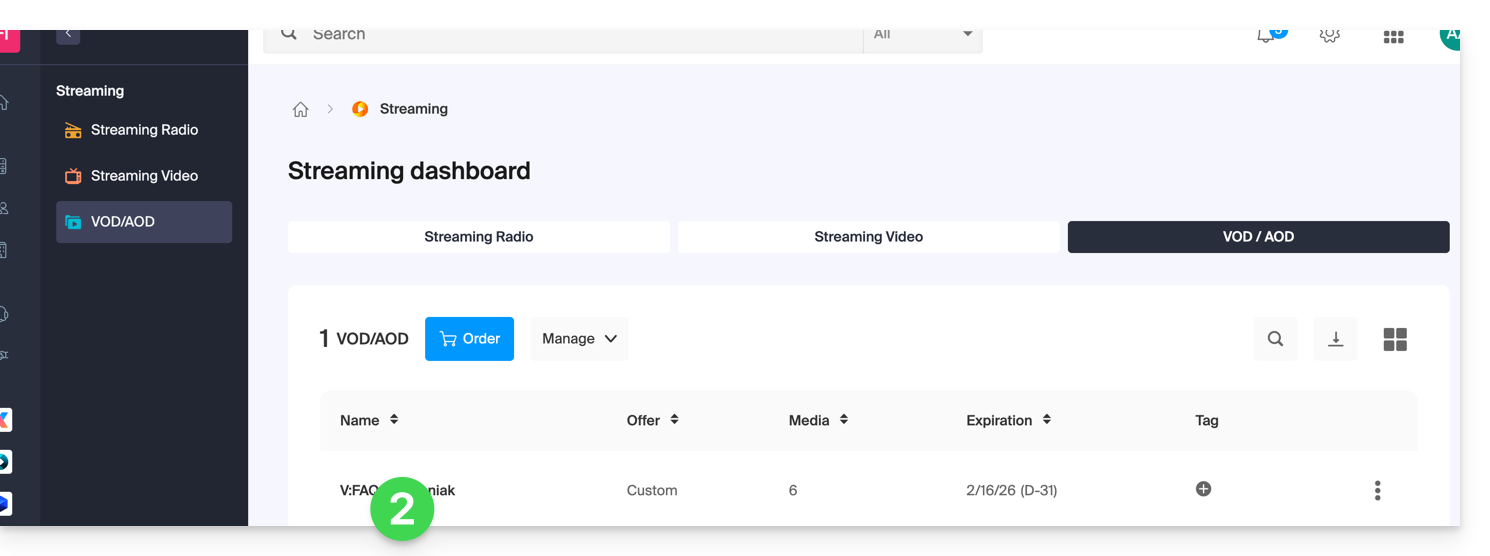
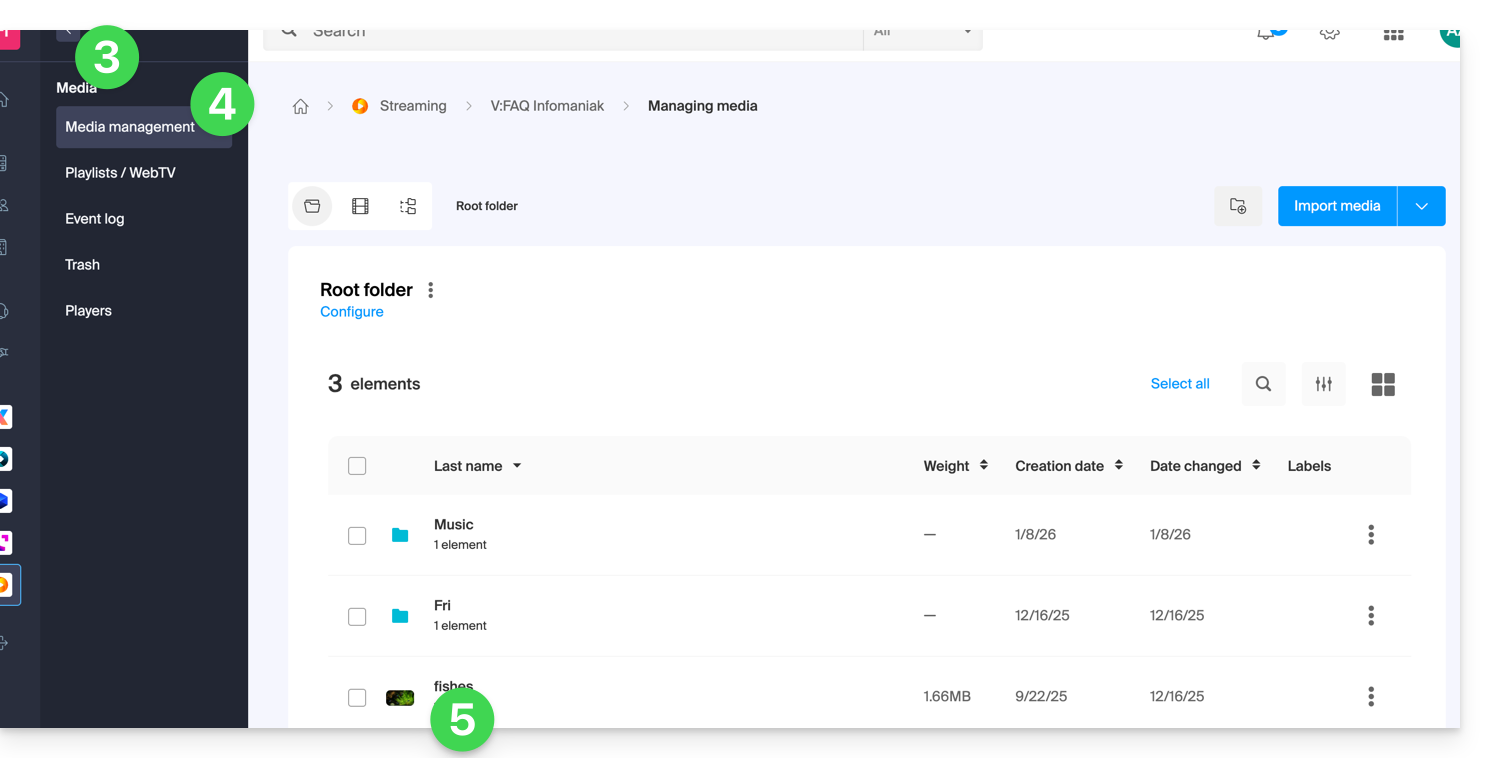
- Click on Media in the left-hand menu.
- Click on Media Management in the left-hand menu.
- Click on the relevant media in the table that appears:
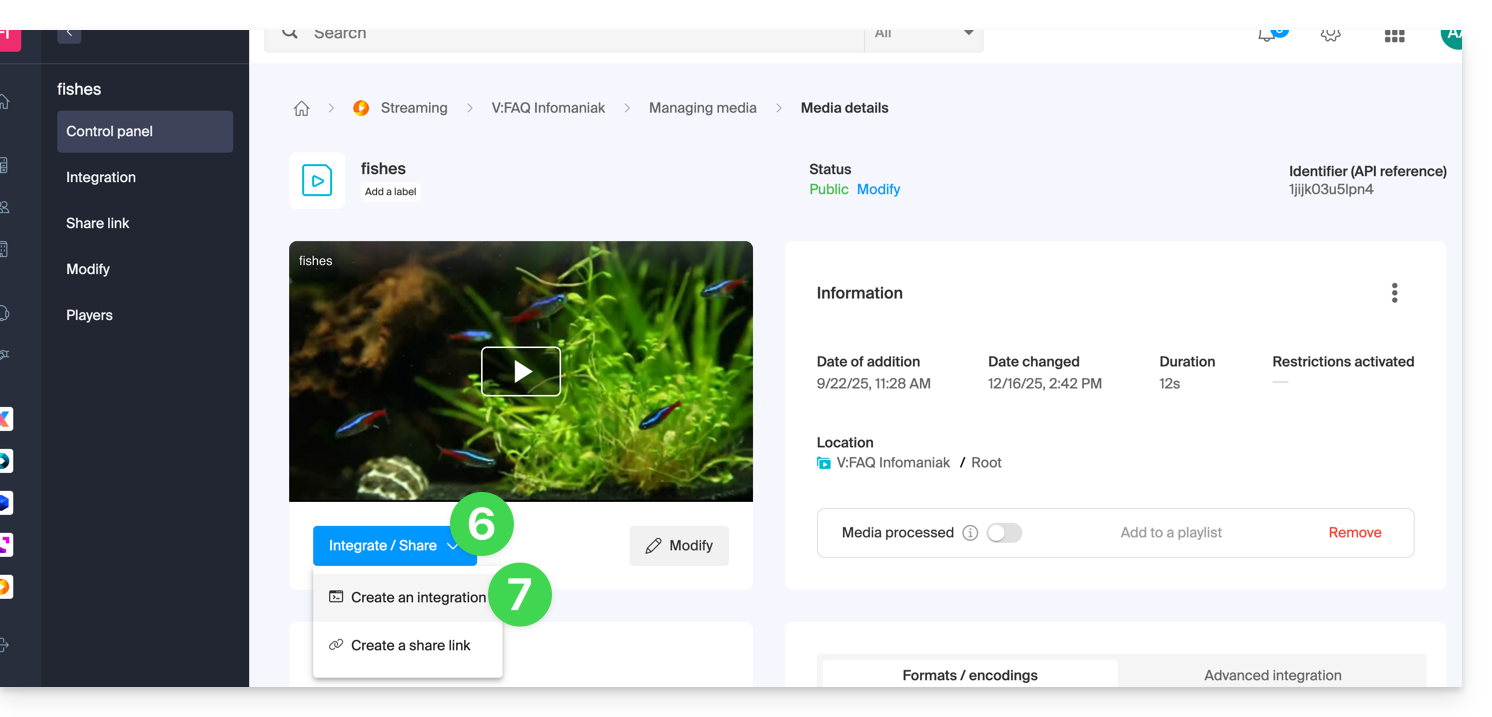
- Click on the blue Embed button.
- Click on Create an integration:
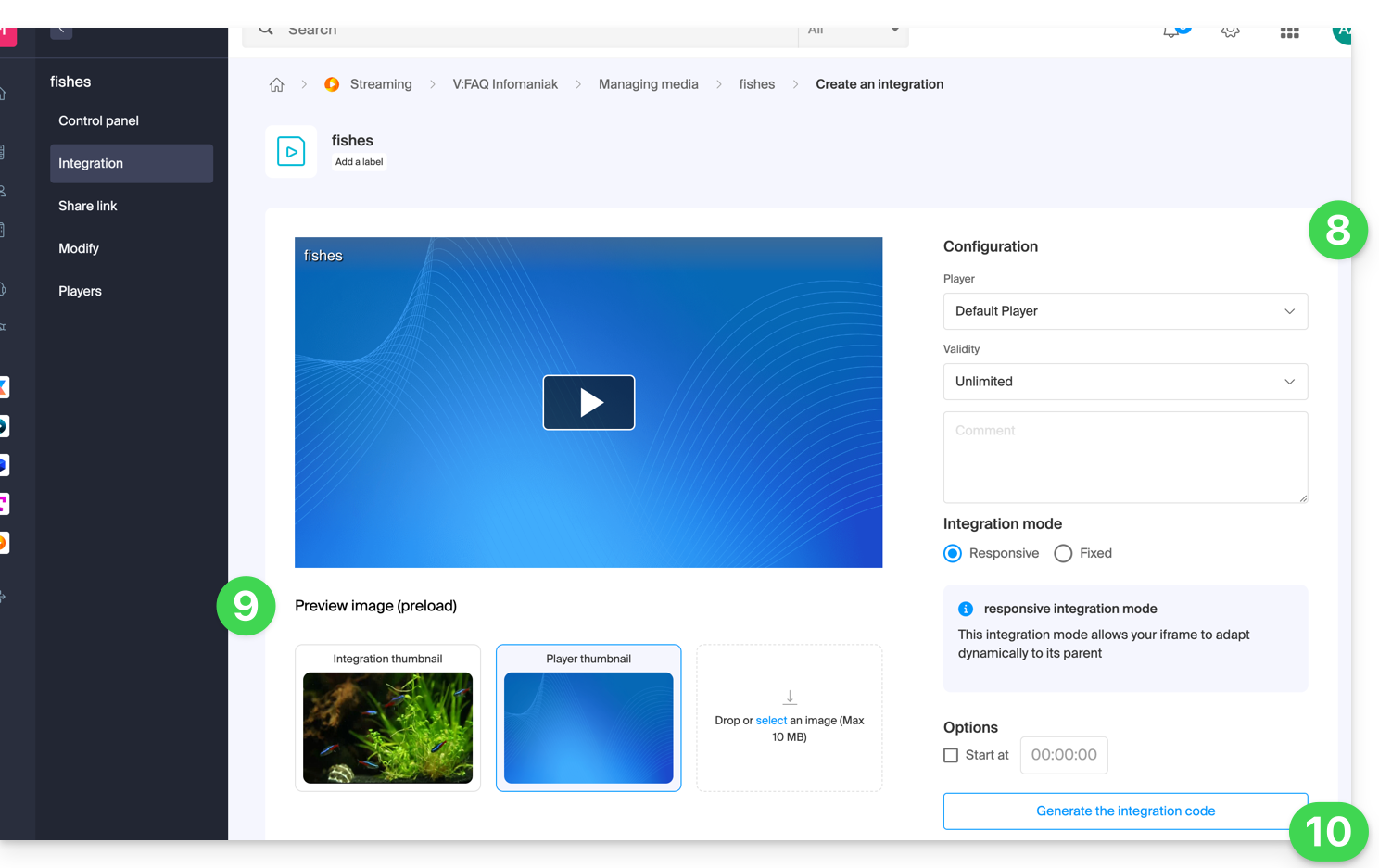
- Customize the media integration (Player to use, timestamp, loop playback, automatic start, …).
- Choose the thumbnail to display when the media is paused.
- Click the button to Generate the embed code:
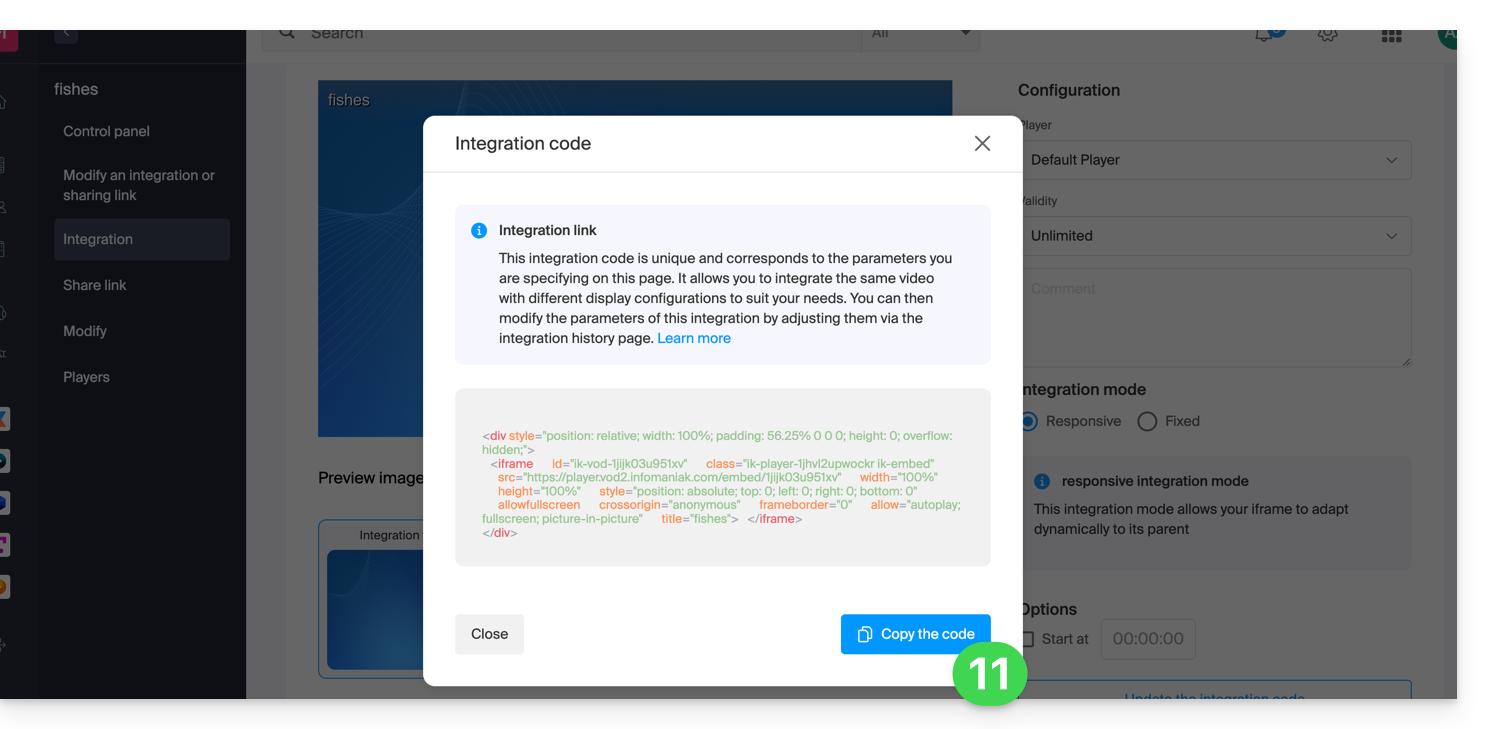
- Copy the code to embed it in the location of your choice:
The media will then be inserted with the default Player, but you have the option to choose from your created Players the one that should be offered during the integration.
Modify a previous integration
To customize the integration of your media again, and to keep the corresponding code without having to insert it again:
- Click here to access the management interface for your product in the Infomaniak Manager (need help?).
- Click directly on the name assigned to the product in question.
- Click on Media in the left-hand menu.
- Click on Media Management in the left-hand menu.
- Click on the relevant media in the table that appears.
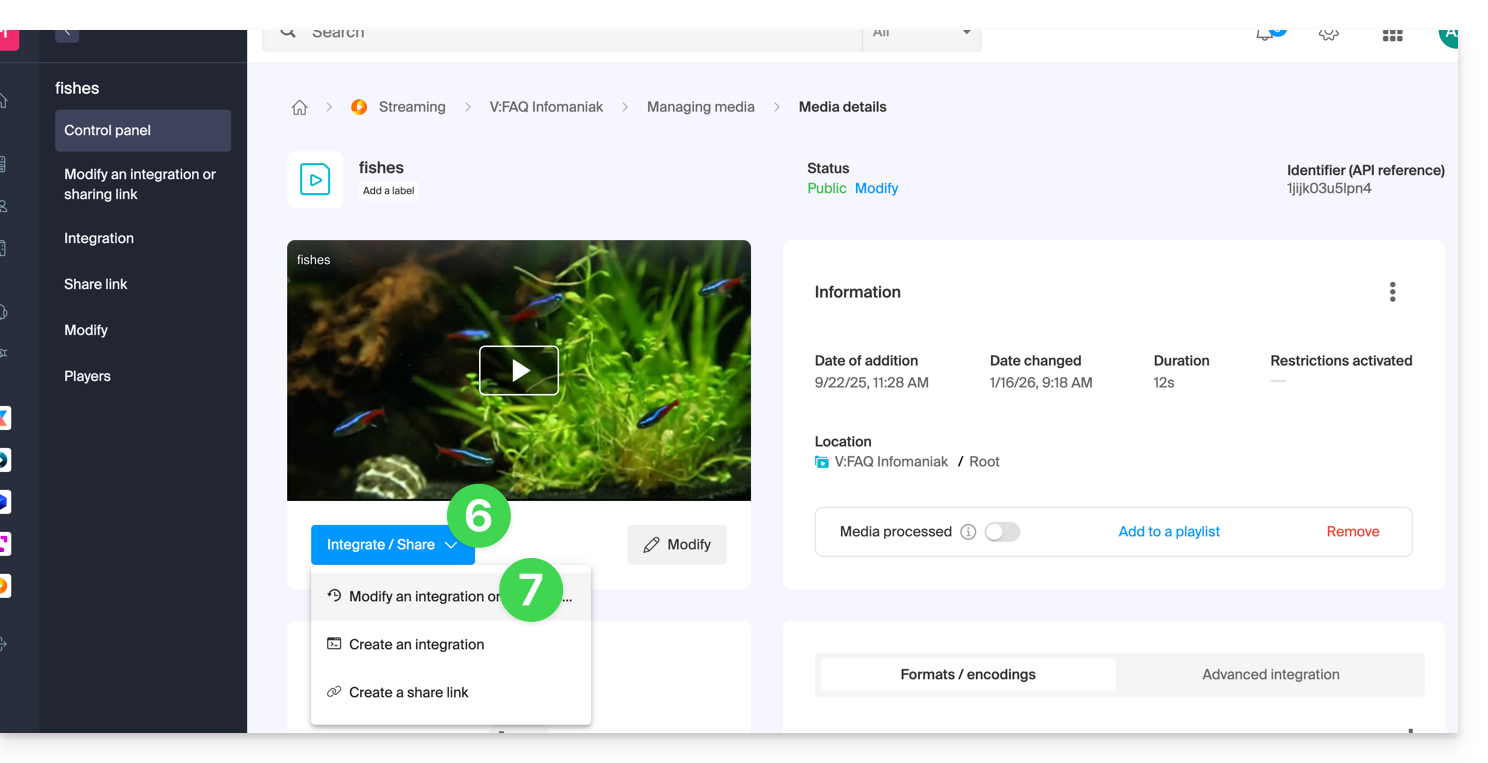
- Click on the blue Embed button.
- Click on Edit an integration:
- Click on the action menu ⋮ to the right of the relevant item in the table that appears.
- Click on the desired item to obtain/modify the integration codes:
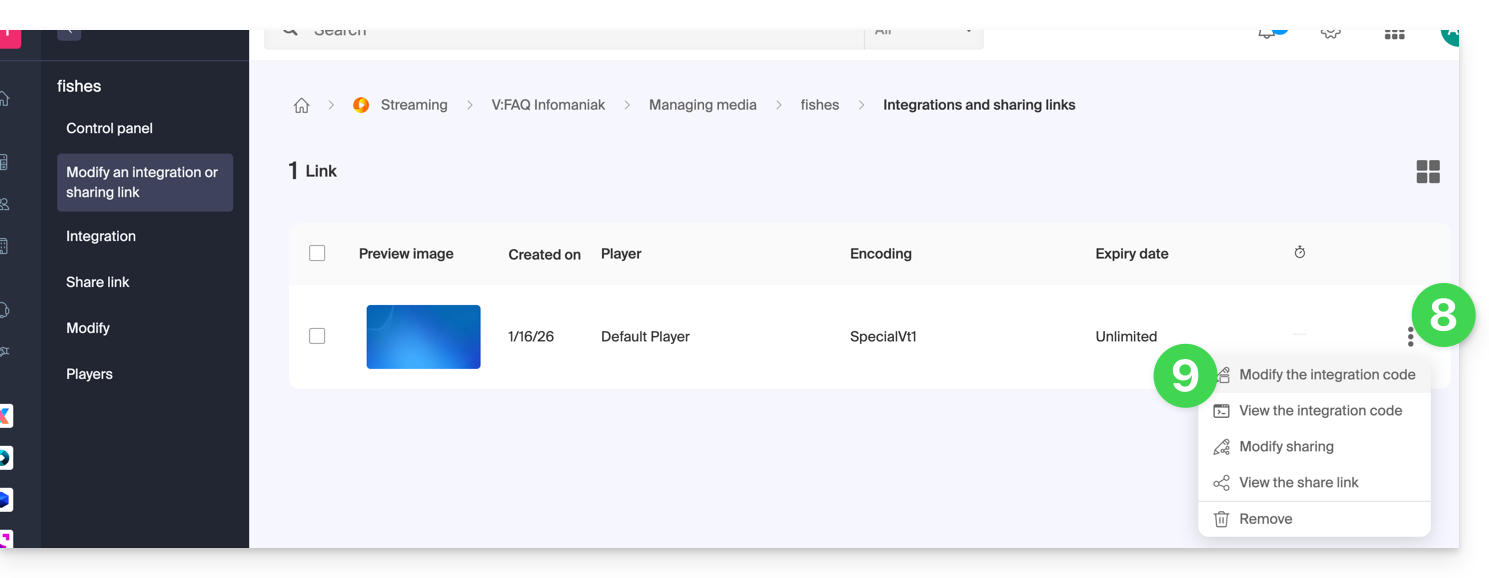
Paste the integration code…
On the webpage of your choice, paste the HTML code where you want it: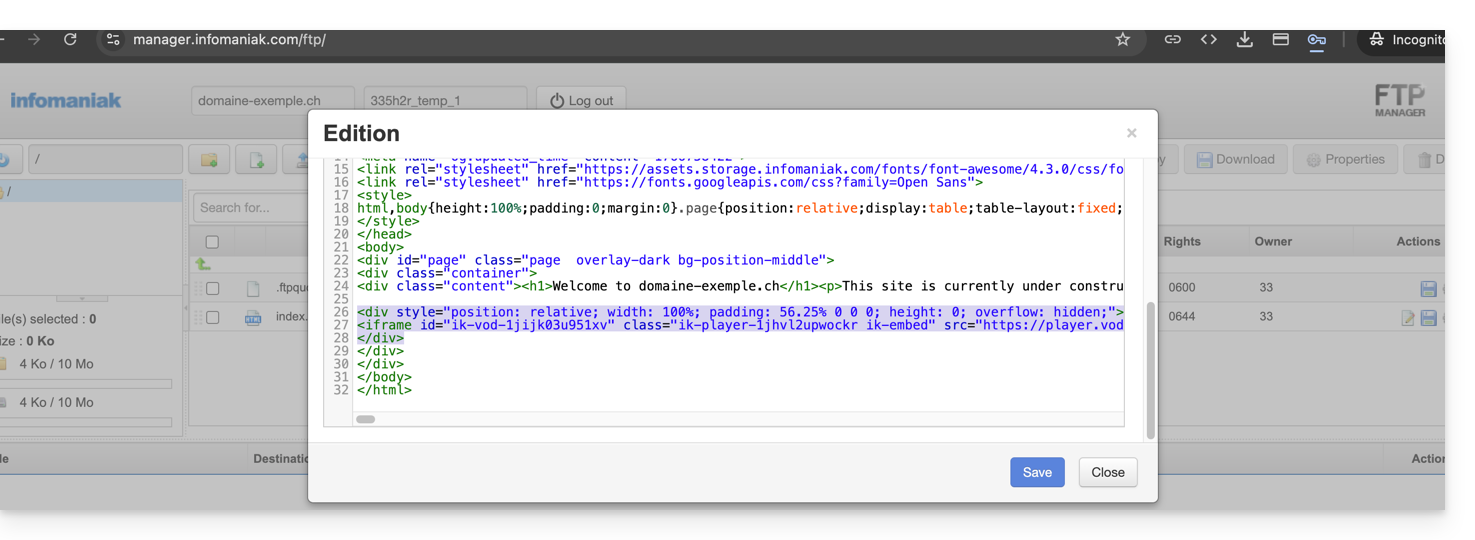
… on Infomaniak Site Creator
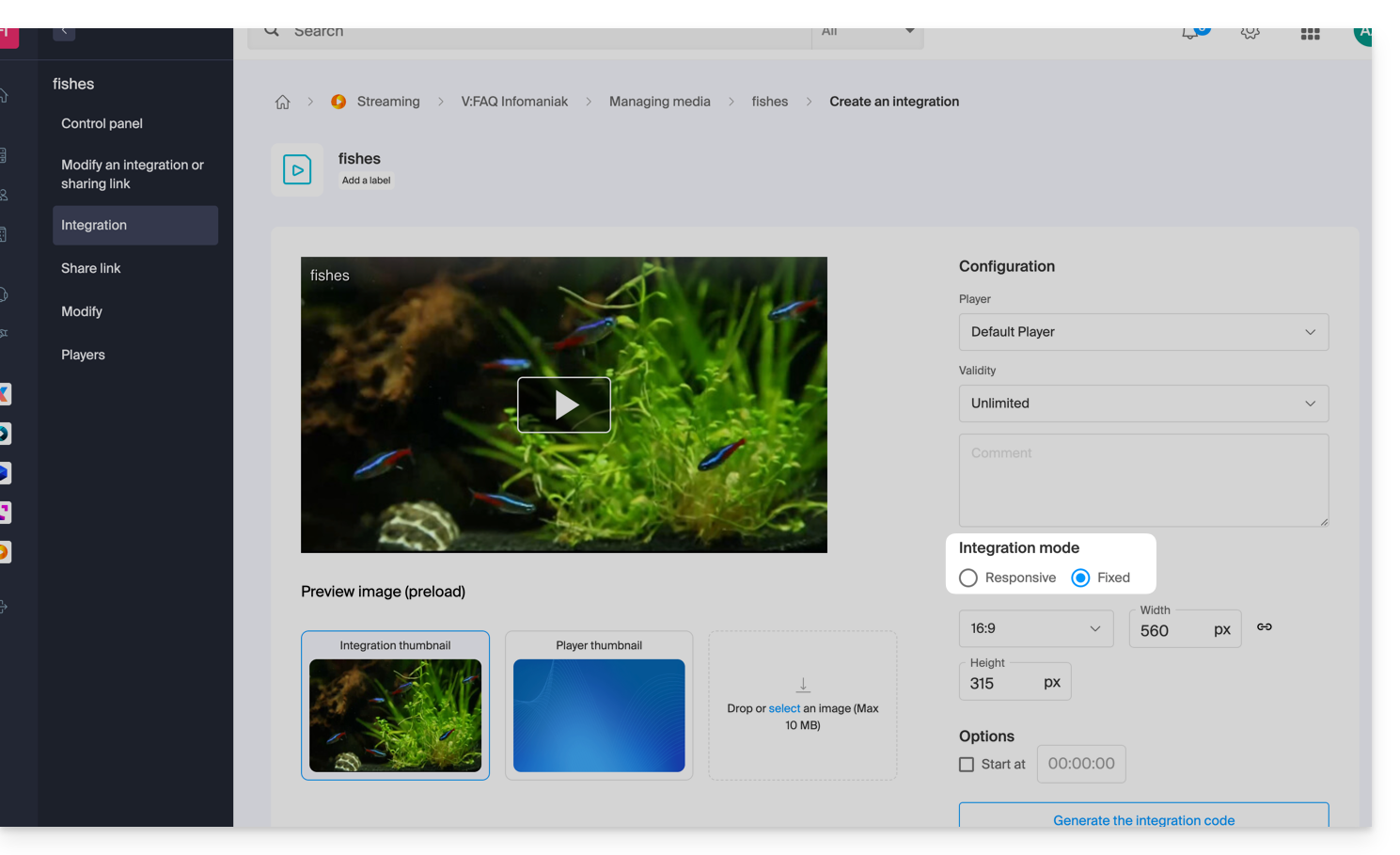
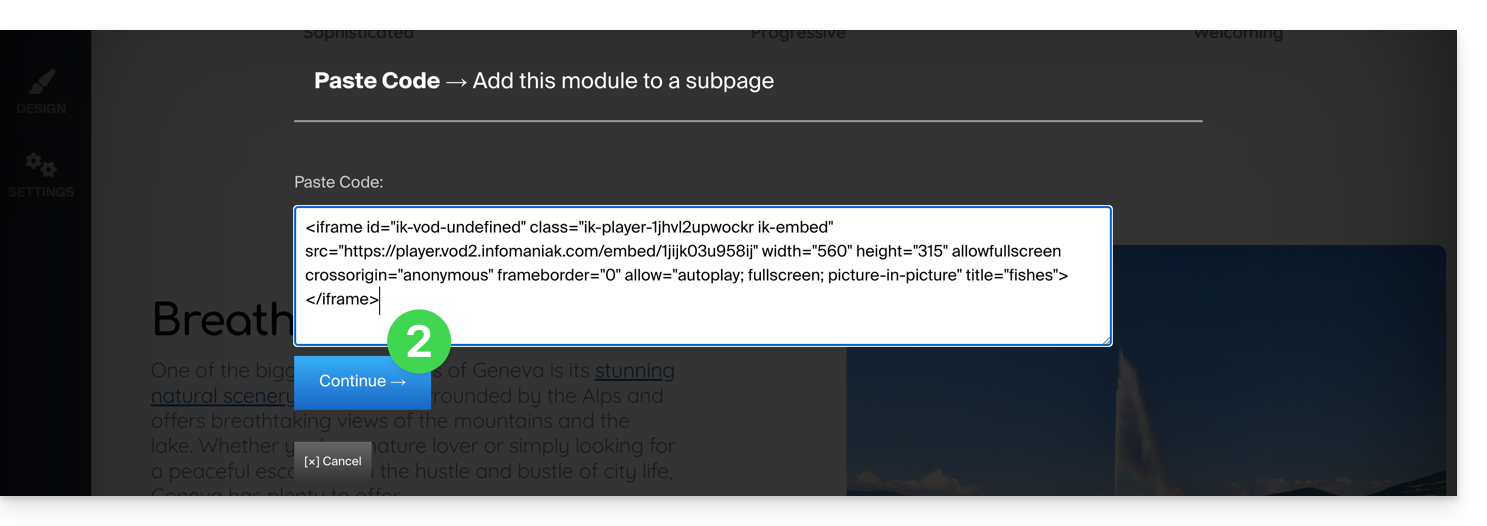
- For Site Creator, you need to generate a “Fixed” embed code (and not “Responsive”):
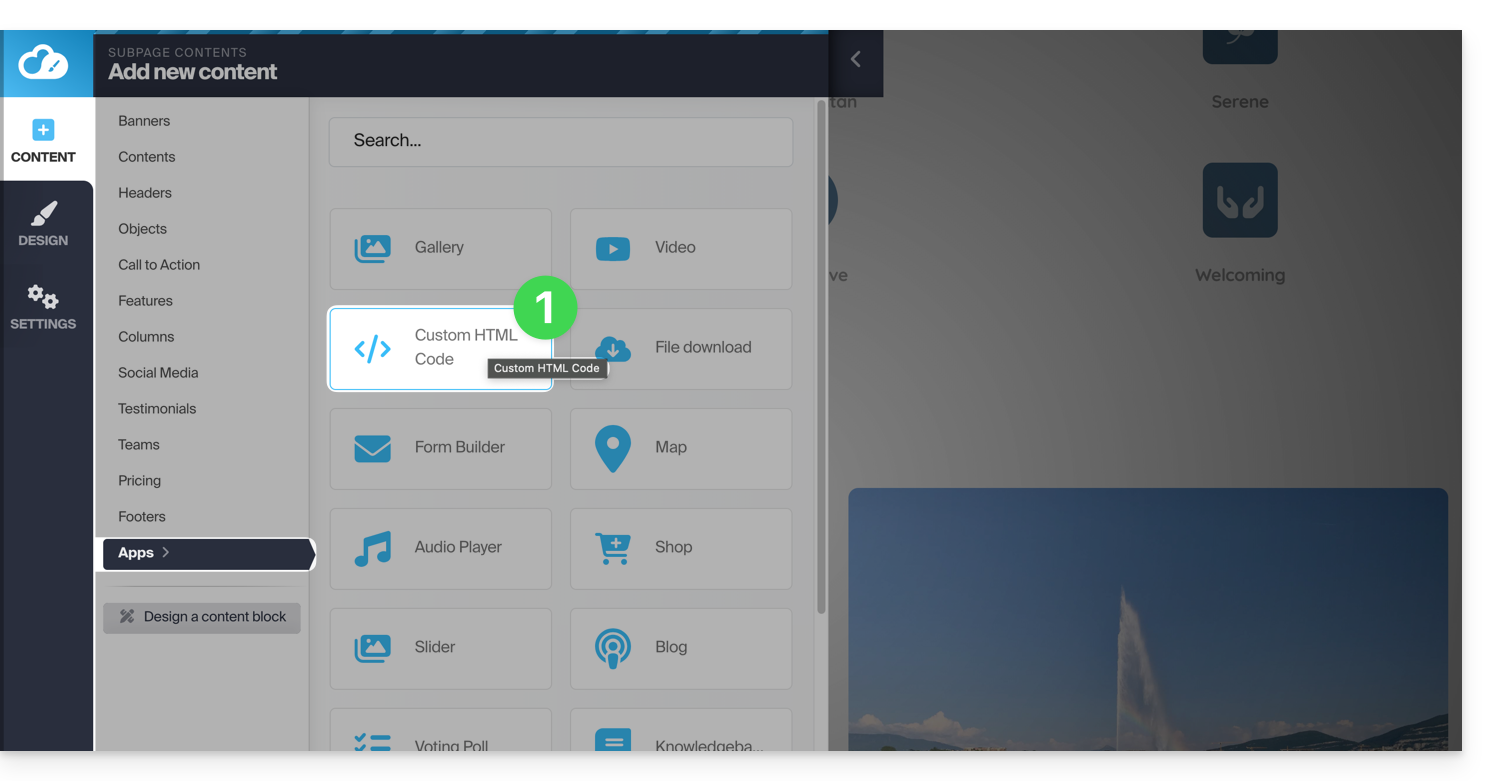
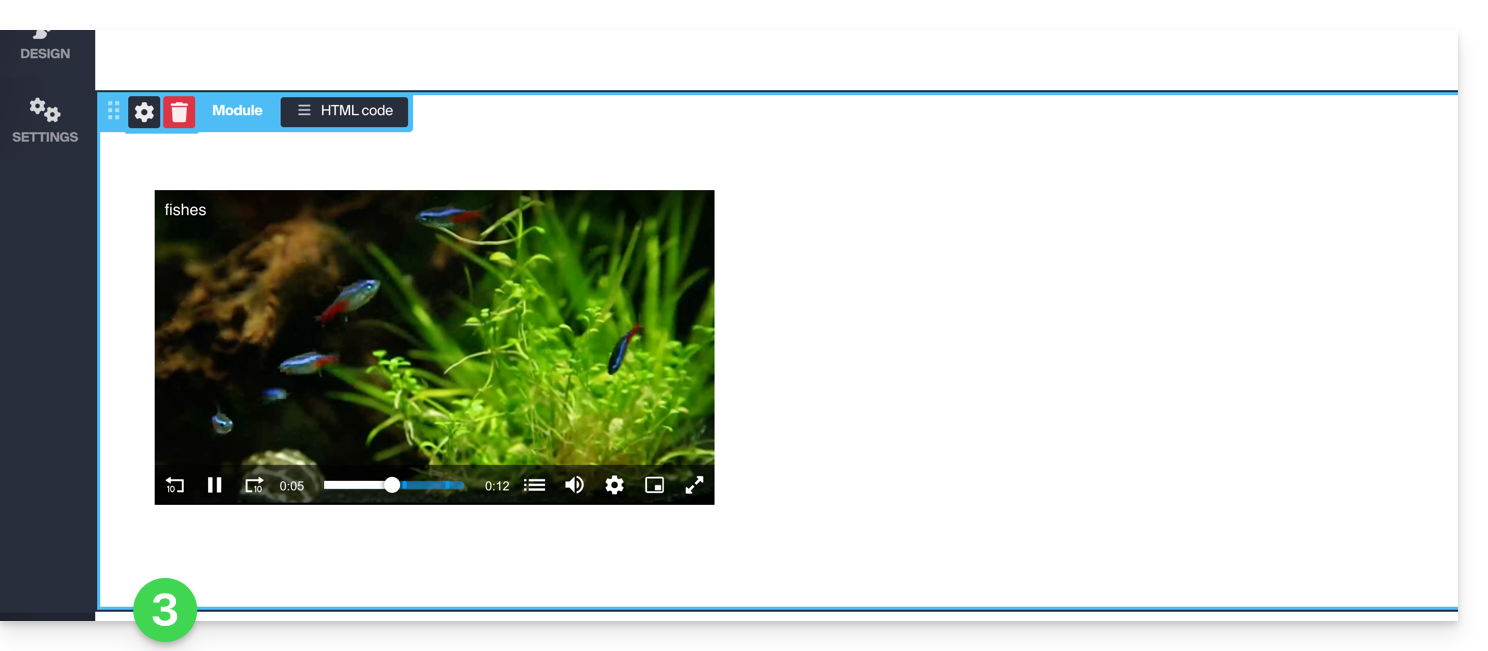
- Then, paste this code into Site Creator within a “Custom HTML” block:
Link to this FAQ: https://faq.infomaniak.com/2525
Has this FAQ been helpful?
This guide explains how to integrate advertisements during media playback using your Infomaniak VOD Player.
Introduction
- You can insert multiple videos as advertisements, and their source can be:
- your own videos that have already been imported,
- URLs if you have an advertising platform (Google Marketing Platform, Openx, Oath, Tremor Video DSP, etc.).
- The advertisement can be Pre-roll, Mid-roll, and Post-roll, meaning it can be loaded at the beginning, middle, or end of your video.
- You can allow viewers to skip the advertisement (after a number of seconds of your choice).
Configure the VOD Player advertisement
Prerequisites
- Create a Player (❓: help) within your VOD/AOD space.
Once you are in the configuration of your Player:
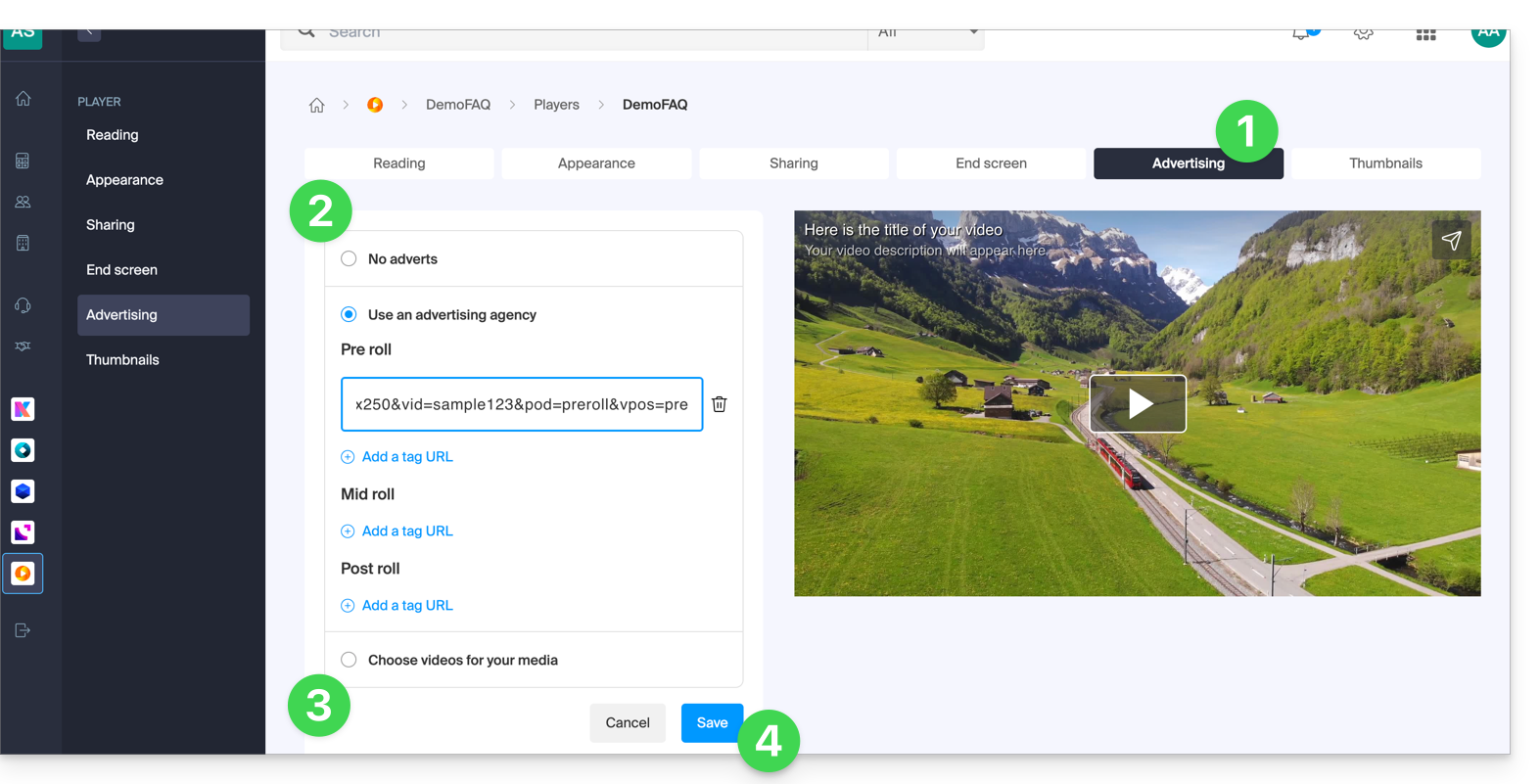
- Click on the Advertising tab.
- Choose between:
- no advertising,
- links provided by your advertising agency,
- video(s) from your library.
- Please note that you cannot mix the two types of advertising; you will lose the information already entered if you change the type of advertising.
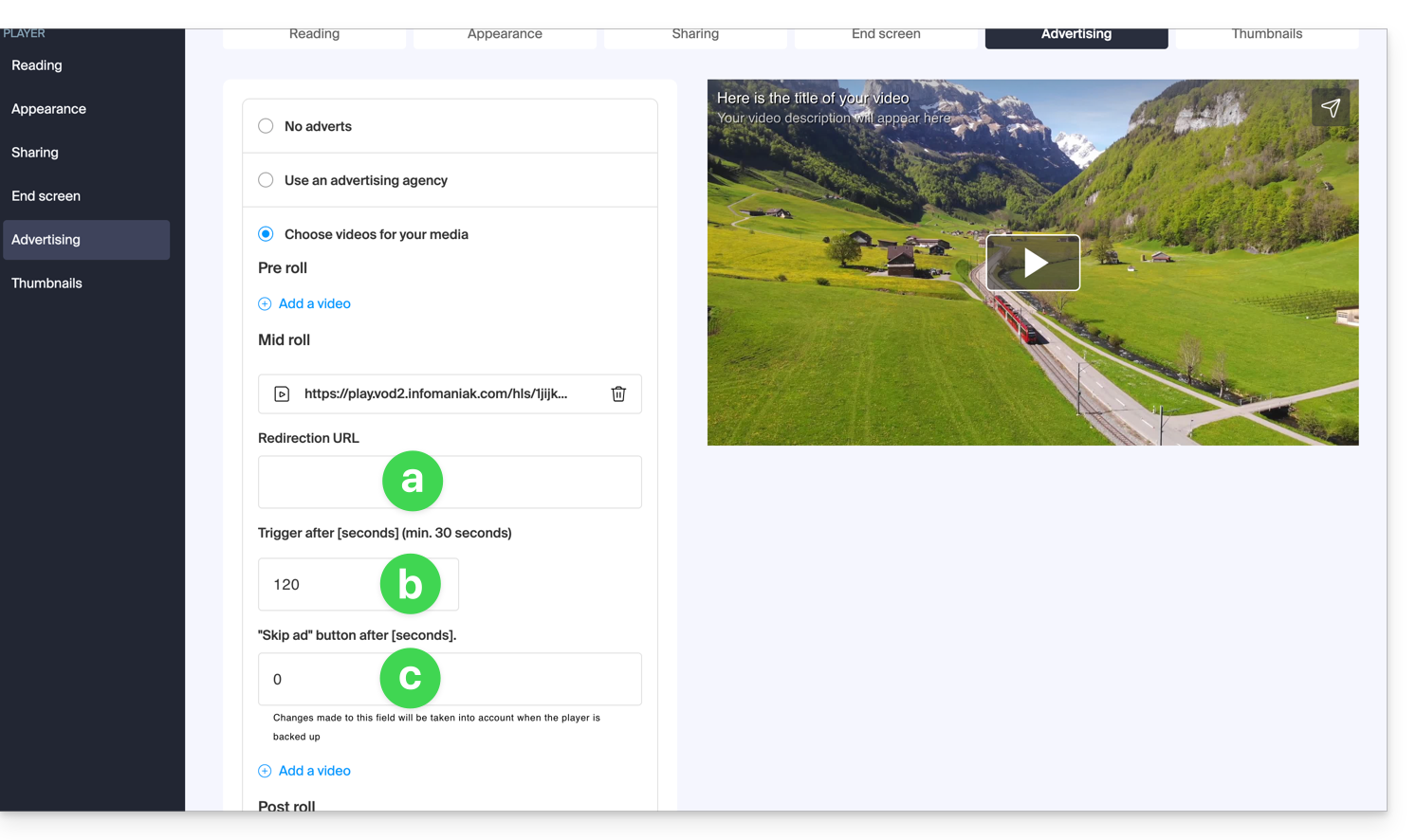
- If you choose one or more videos from your media, you can choose:
- the URL to which the viewer will be redirected if they click on the advertisement to learn more,
- the time at which the video should start (only mid-roll),
- the time at which the viewer can skip the advertisement:
- Click the button to Save.
Link to this FAQ: https://faq.infomaniak.com/2527
Has this FAQ been helpful?
This guide explains how to share video/audio files uploaded to an Infomaniak VOD/AOD service.
Introduction
- When sharing media hosted with Infomaniak, you can specify, among other things:
- the precise time (hour/minute/second) in the video to which the viewer will be directed when using the link
- an expiration date for the sharing link
- which of your Players should be used to play the media
- whether the media should start playing automatically when the sharing link is accessed
- whether the shared media should play in a loop
- A sharing button (Whatsapp, X, etc.) can also be configured within the Player itself.
Share a VOD/AOD media file from the Manager
To do this:
- Click here to access the management interface for your product in the Infomaniak Manager (need help?).
- Click directly on the name assigned to the product in question:
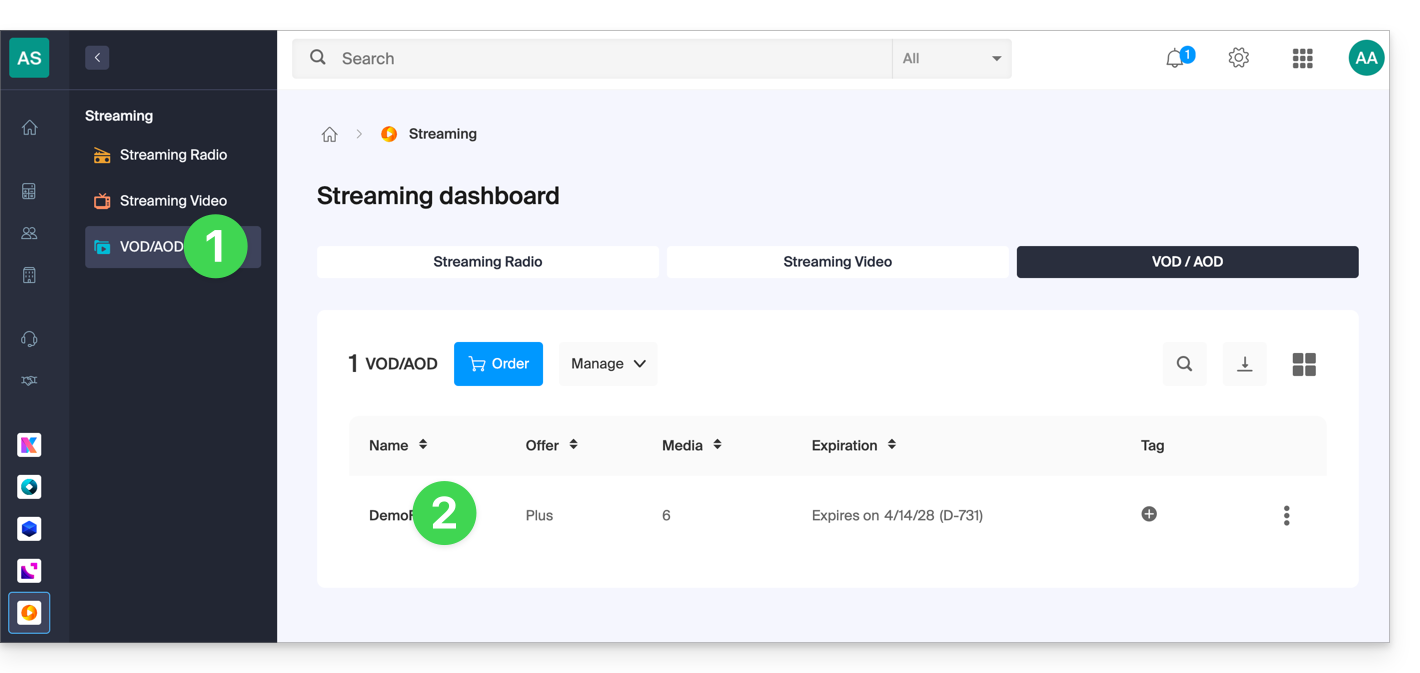
- Click on Media in the left-hand menu.
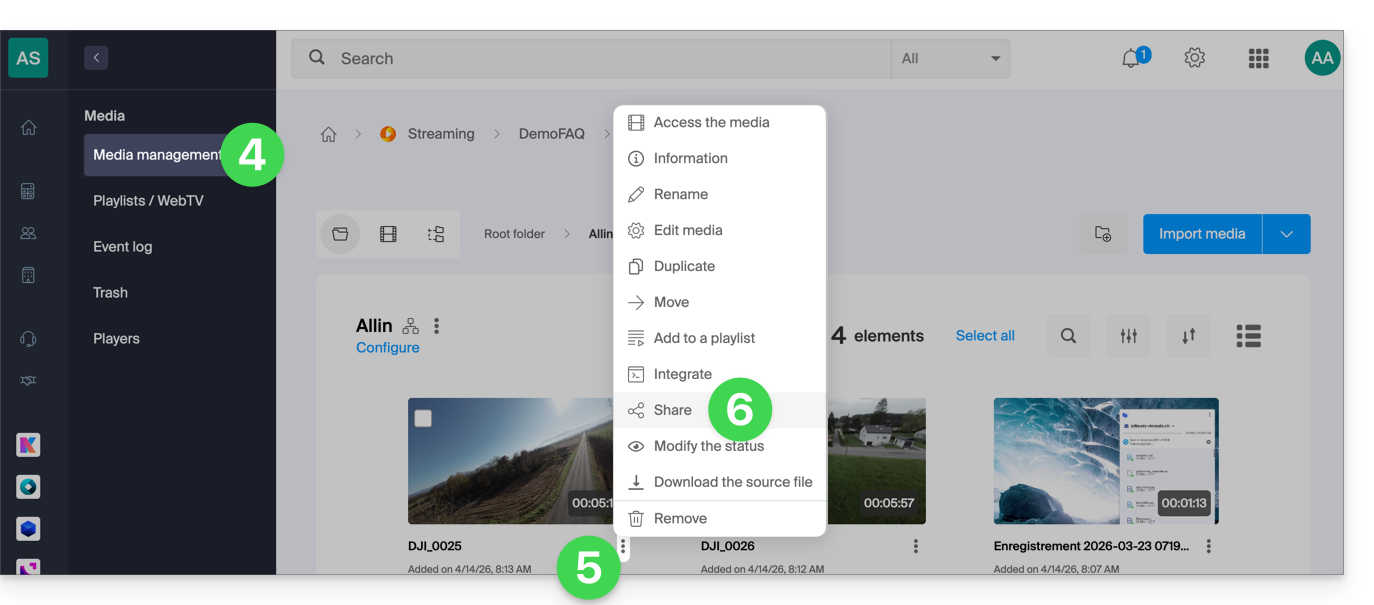
- Click on Media Management in the left-hand menu.
- Click on the action menu ⋮ for the relevant media in the table that appears.
- Click on Share:
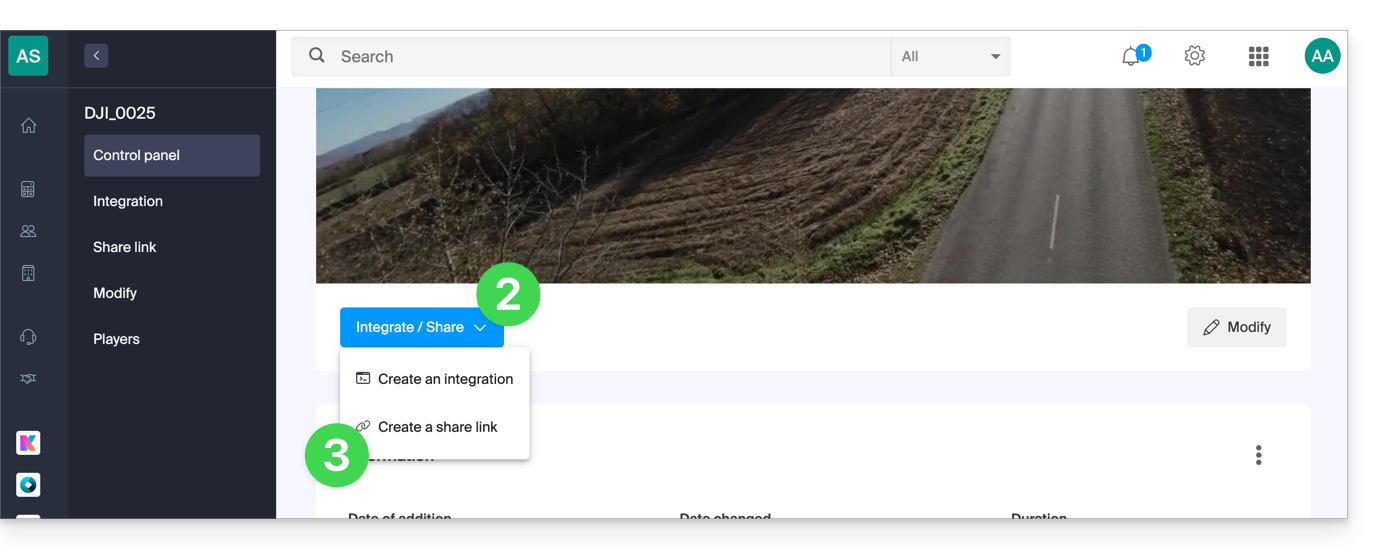
You can also click on the media in question to access a more comprehensive sharing option:
- In step 5 above, click directly on the thumbnail of the media in question.
- Click the blue Share button.
- Choose to create a share link:
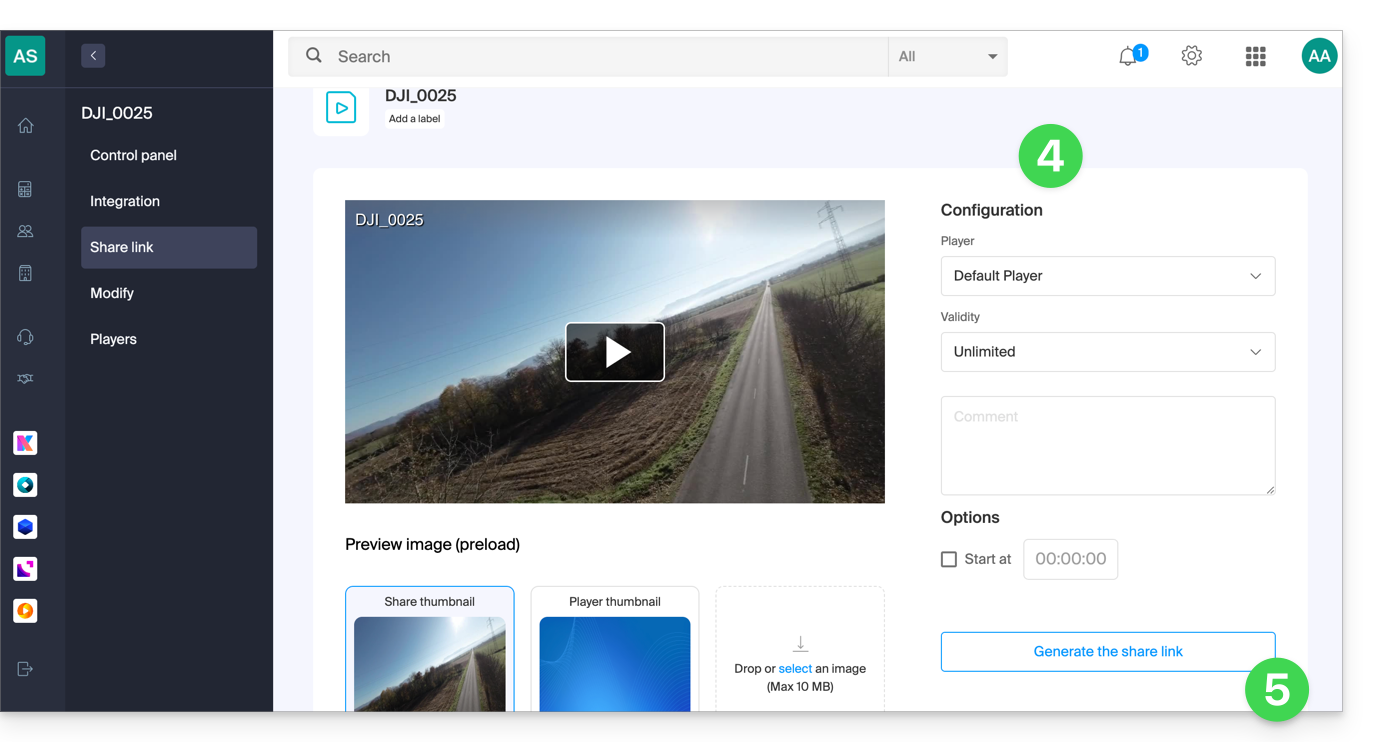
- Adjust the desired settings, including the video thumbnail if necessary.
- Click the button to generate a sharing link:
Using the share link
Each time you click the button to generate or update the share link, you will get a box offering easy sharing to different platforms such as Linkedin or Whatsapp: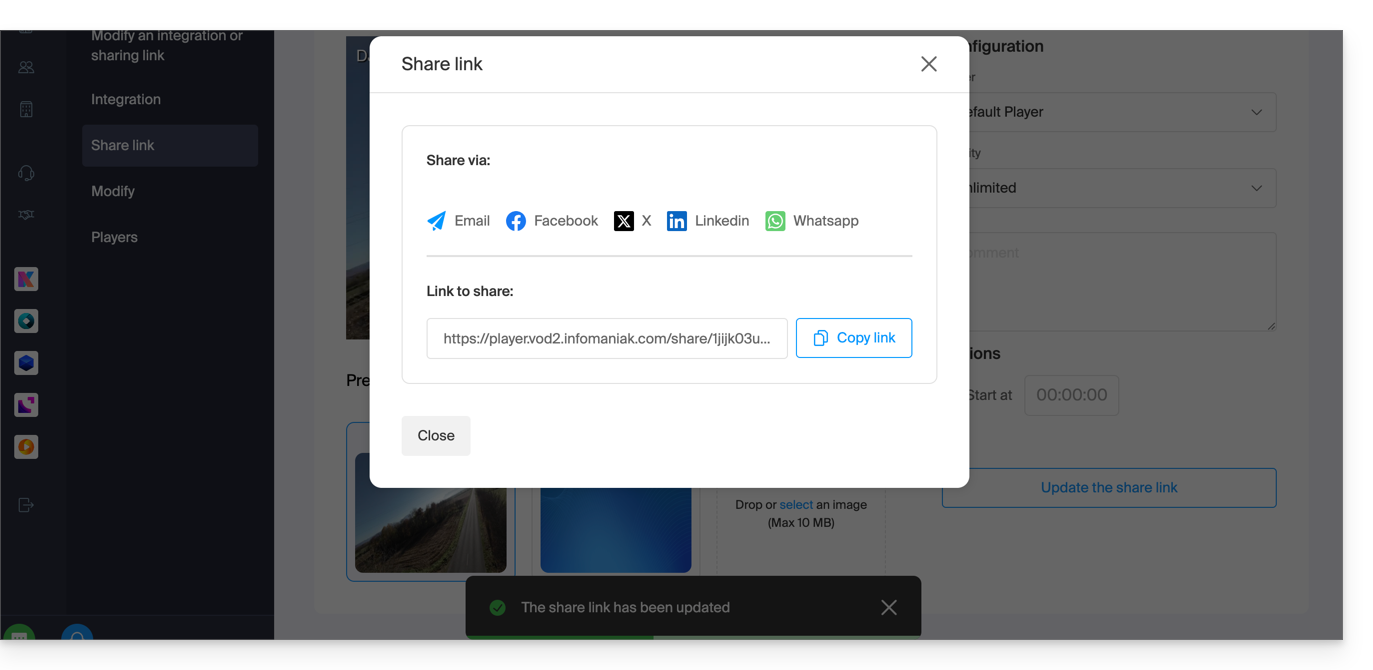
To simply obtain a link that leads directly to the media in question, click the button to copy the link.
Executing this link will display a simplified page displaying your media and the associated comment if you provided one:
A sharing button on this broadcast page allows you to reshare the video with others or embed it (including using an iframe code) directly on compatible platforms:
Modify or delete a sharing link
To do this:
- Click here to access the management interface for your product in the Infomaniak Manager (need help?).
- Click directly on the name assigned to the product in question.
- Click on Media in the left-hand menu.
- Click on Media Management in the left-hand menu.
- Click directly on the thumbnail of the media in question.
- Click the blue Share button.
- Choose to edit a share link:
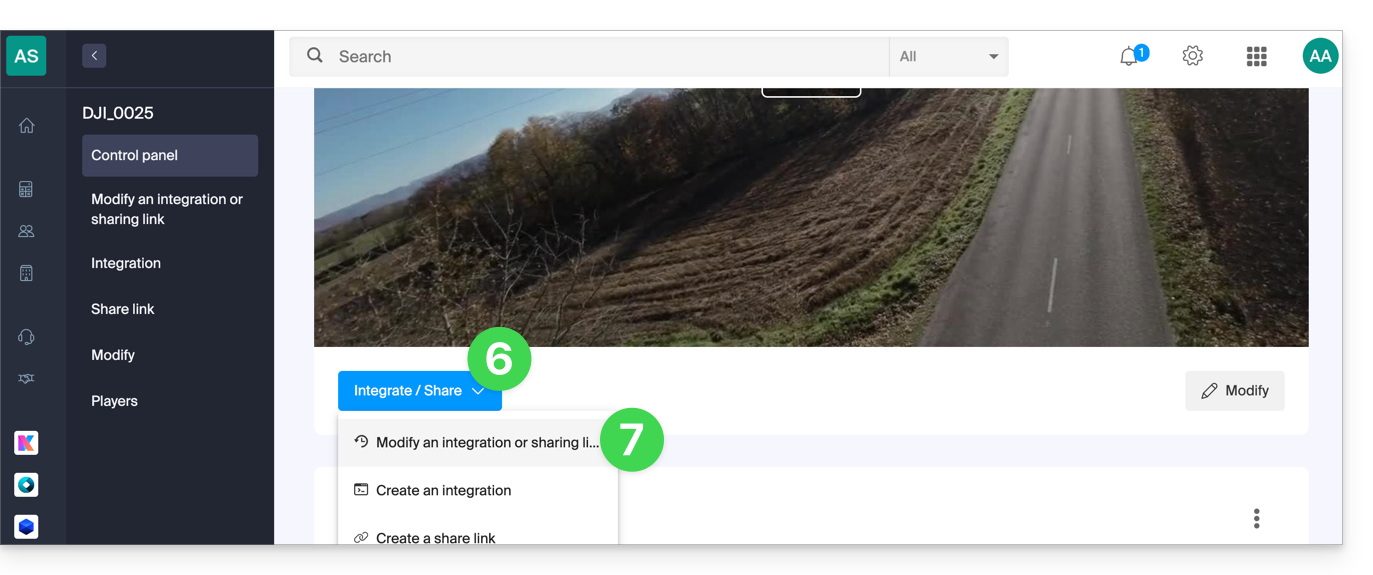
- From the page that appears, click on the action menu ⋮ to the right of the link you want to edit or delete:
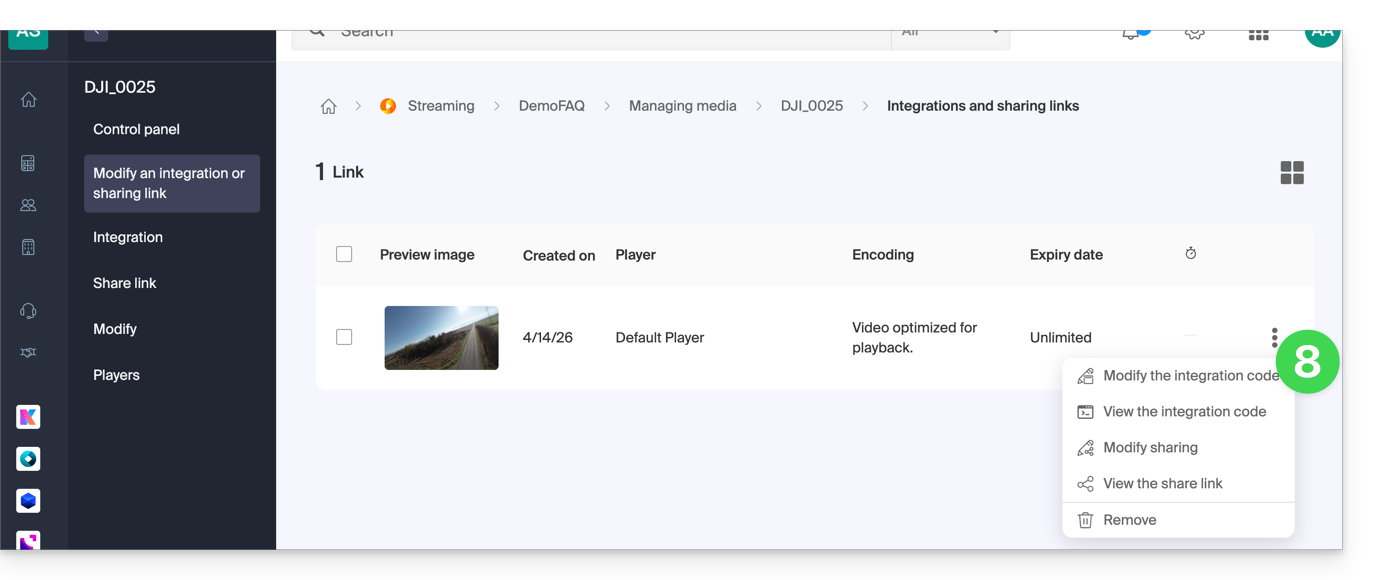
Link to this FAQ: https://faq.infomaniak.com/2528
Has this FAQ been helpful?
This guide will help you quickly use the essential features of your Infomaniak VOD/AOD space.
Manage media
- Import a media file
- Move a media file
- Edit a media file
- Manage media subtitles
- Add a new media file to replace another
- Download the source media file
Broadcast / share media
- Manage Players
- Embed media
- Share media
- Manage media sharing from a Player
- Embed and share media on WordPress
- Broadcast a VOD list live on Video Streaming
- Modify a thumbnail
- Create chapters in a video
- Manage ads within a player
Securing VOD/AOD
- Secure videos by restricting GeoIP
- Secure videos with a password
- Secure videos with a unique key
- Add a watermark
Do you have a question or feedback?
- If you encounter any issues, please consult the knowledge base before contacting support.
- Click here to share feedback or a suggestion about an Infomaniak product.
Link to this FAQ: https://faq.infomaniak.com/2542
Has this FAQ been helpful?
A Player (i.e., a media file player) is essential for your media when you embed them in your Infomaniak VOD/AOD space to make them available to your viewers and internet users.
Create a Player
To create a Player:
- Click here to access the management interface for your product in the Infomaniak Manager (need help?).
- Click directly on the name assigned to the product in question:
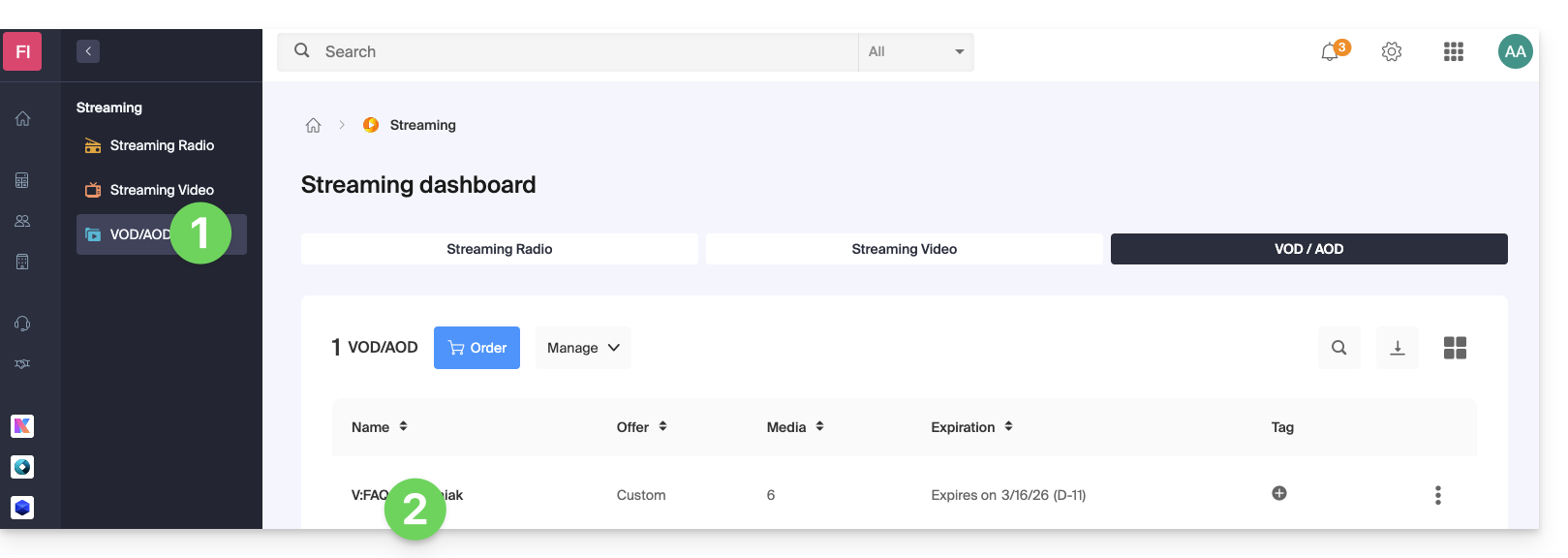
- Click on Players in the left-hand menu.
- Click the blue button to add a new Player:
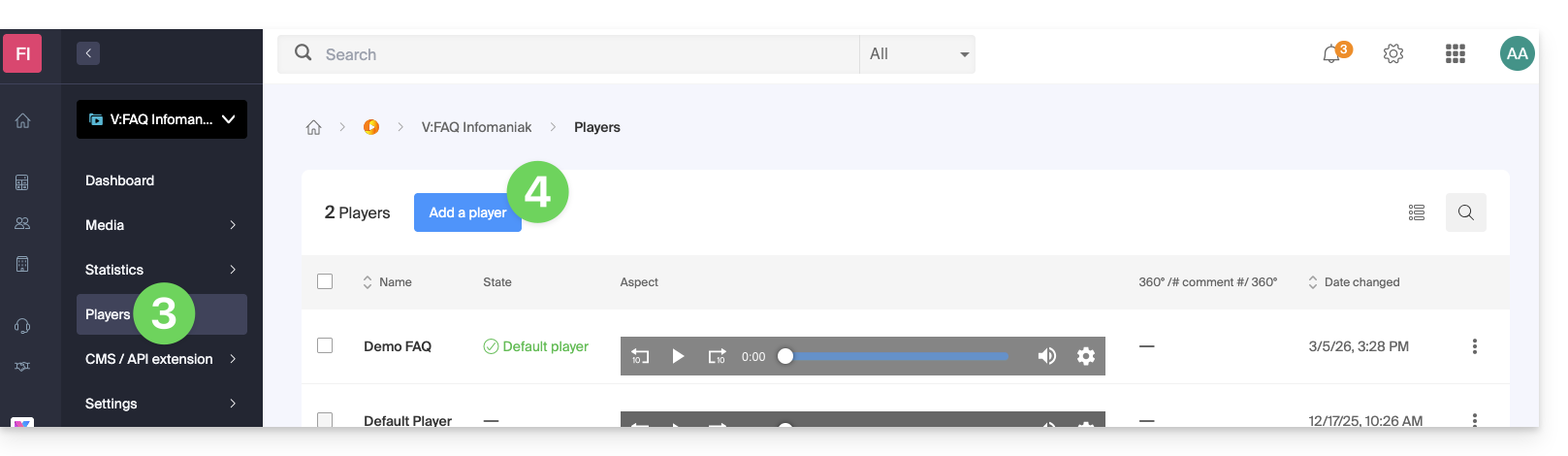
- You will then be taken to the configuration page, and tabs (or menus) allow you to manage various aspects of the Player, such as the playback bar at the bottom and the sharing icons:
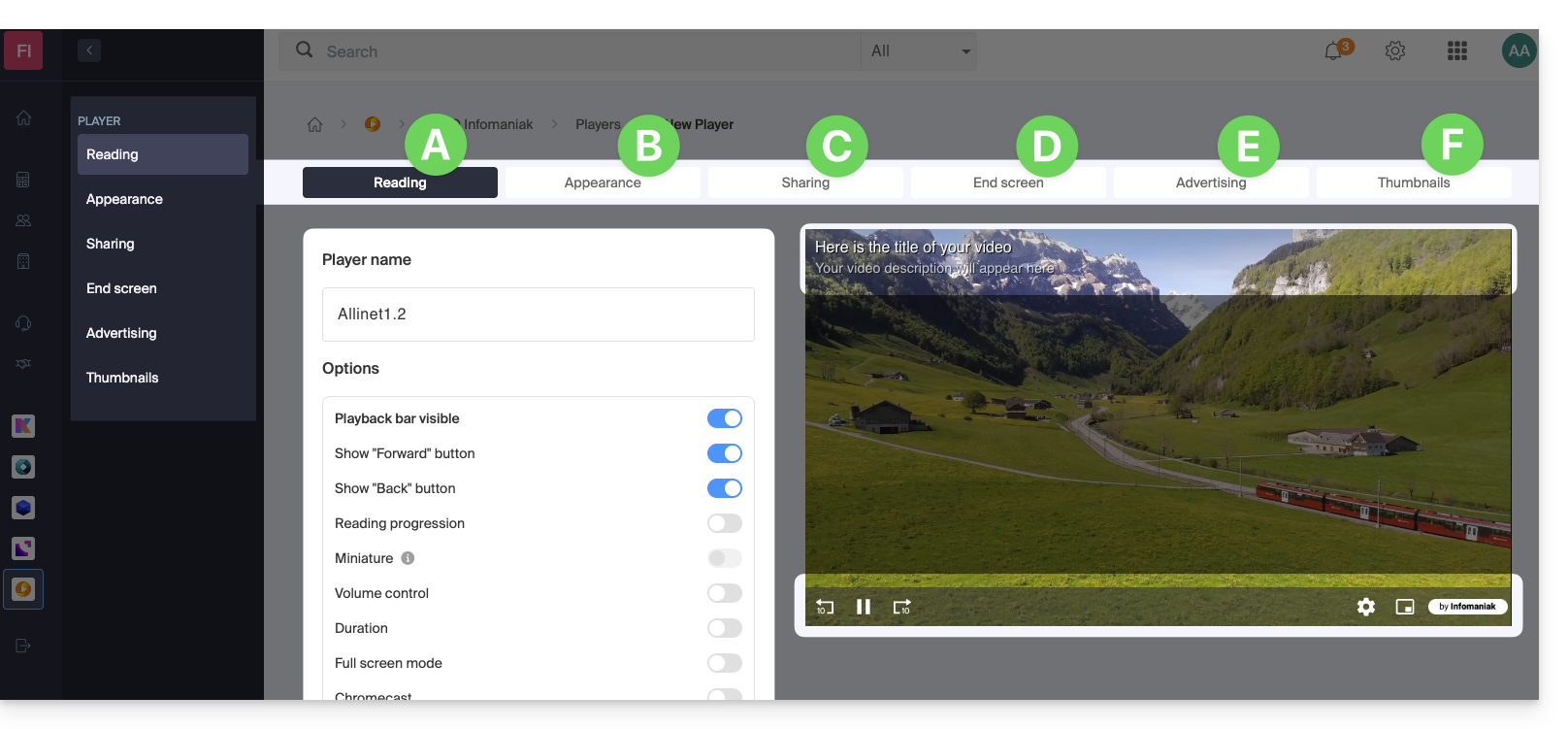
A. Playback tab
This is where you can name the Player and customize the elements that should or should not be included:
- playback bar (with or without disappearing after X seconds of inactivity)
- Forward and Back buttons
- display of the playback progress and, if so, display of thumbnails on the playback bar
- volume control
- media duration
- display full screen
- Chromecast (if displayed, the option can be activated by a viewer using the Chrome browser and having a Chromecast on the same network)
- Infomaniak logo
- “Skip introduction” button, and if so, the timecode to which the viewer should be sent.
It is also possible to choose MPEG-DASH playback mode instead of the default HLS, to automatically start playback (autoplay) when the media is loaded, and to force the display of subtitles (which the viewer can always disable if they wish).
B. Appearance tab
This is where you can choose the colors and styles for the Player's theme, as well as a logo and the display of the media's title and description.
C. Share tab
This is where you can choose the permissions regarding sharing and embedding the Player on other sites.
D. End screen tab
This is where you can define the overall behavior of the player for the end screen (e.g., suggesting the next video to play based on the content in the same folder). You can also adjust these settings individually for each video.
E. Advertising tab
Pre-roll, mid-roll, and post-roll ads are managed here. Please refer to this other guide for more information.
F. Thumbnails tab (media preview)
This is where you can modify the preview image (thumbnail) that is displayed on the player when the media is loading, or unavailable/restricted (this does not replace the video thumbnail).
Edit a Player
To modify and access the settings of an existing Player:
- Click here to access your product management in the Infomaniak Manager (need help?).
- Click directly on the name assigned to the product in question.
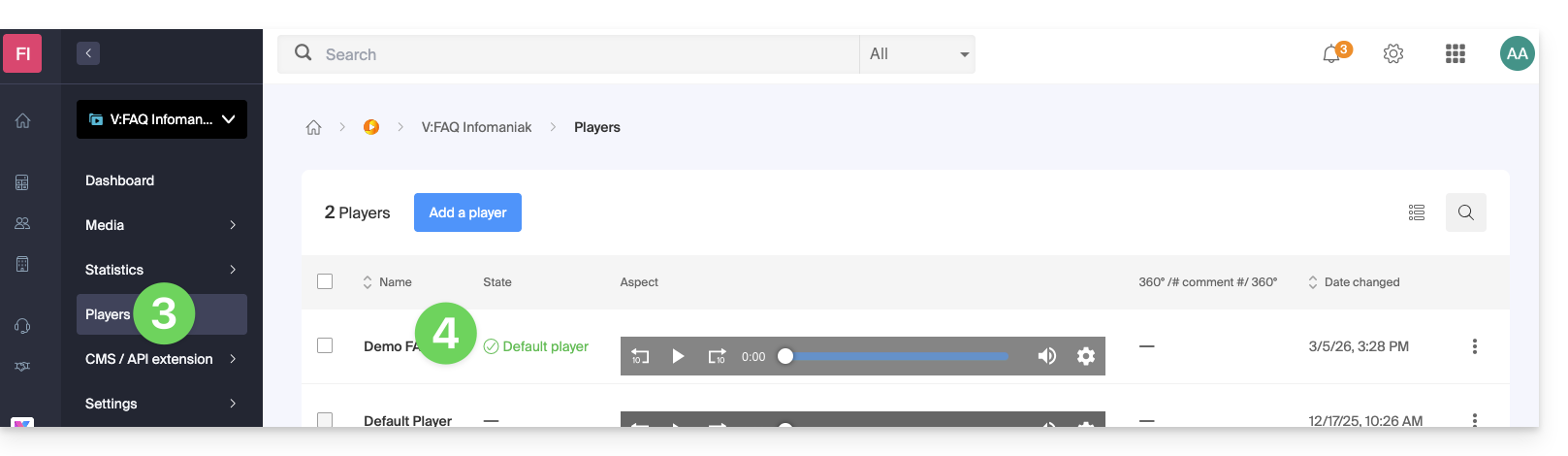
- Click on Players in the left-hand menu.
- Click directly on the name assigned to the Player in question:
Full-screen button
It is not possible to automatically display the media directly in full-screen mode when playback starts.
Click to start playback, then click the button corresponding to full screen mode, after having added it to your Player in the Playback tab: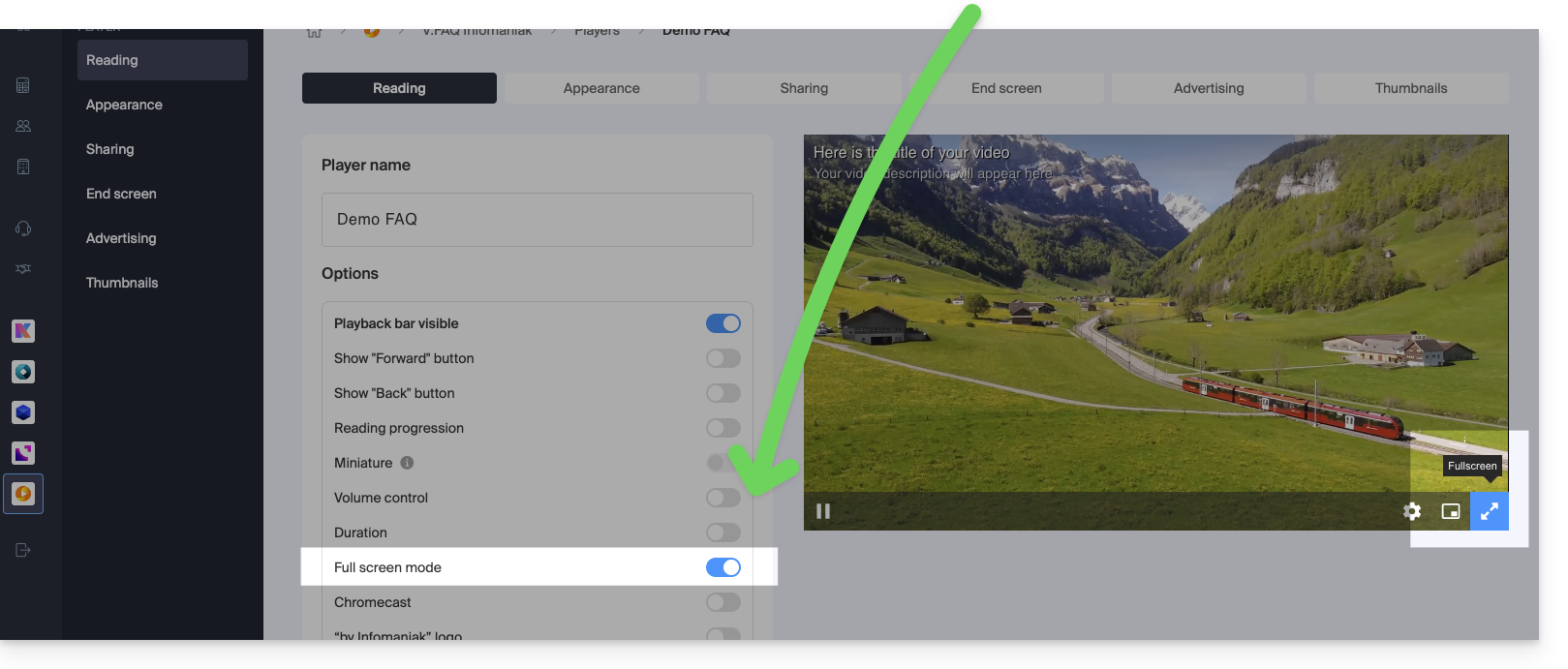
Link to this FAQ: https://faq.infomaniak.com/2561
Has this FAQ been helpful?
This guide explains how the transcoding rules for Infomaniak's VOD/AOD service work and how to configure them. This service allows you to store, manage, and stream your multimedia files online, while also automating their encoding through a hierarchical folder system.
Introduction
- The presets are optimized to generate 4 qualities ranging from 360 to 1080p (HD):
- to go beyond this, for 2K and 4K, it is necessary to create these encoding rules manually.
- Each folder (root or subfolder) can be configured with specific transcoding rules that define how imported media will be encoded (video and audio).
- Media that has already been imported will not be re-encoded if:
- you modify a rule afterwards
- you move a file to another folder
- To apply a new rule, you must replace or re-upload the file.
Configure encoding rules
To access the configuration of the encodings to be used for any media uploaded to the root folder:
- Click here to access the management of your product in the Infomaniak Manager (need help?).
- Click directly on the name assigned to the product in question.
- Click on Media in the left-hand menu.
- Click on Media Management in the left-hand menu.
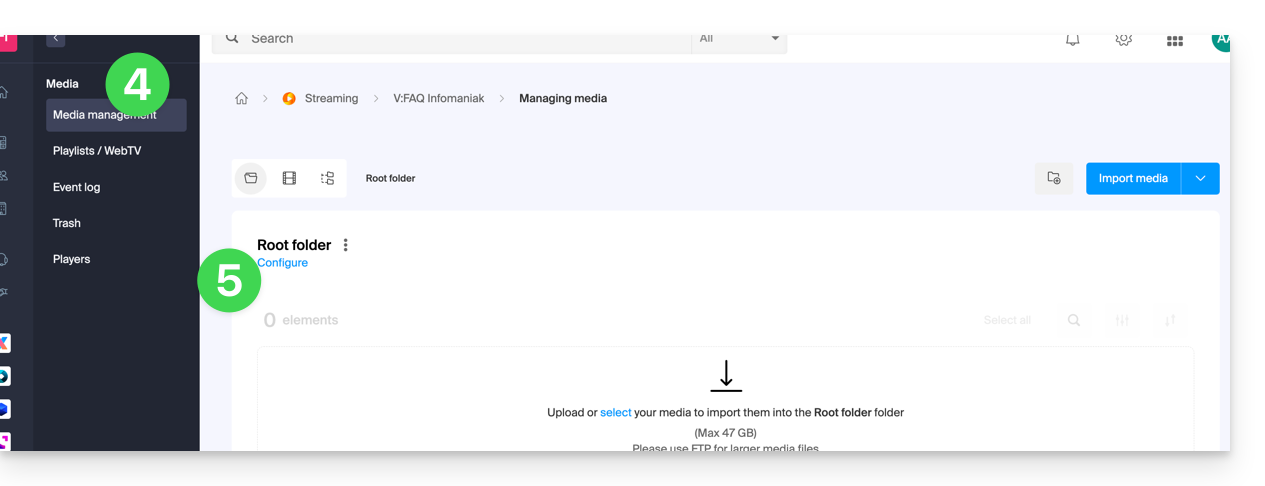
- You will arrive at the root folder; click on Configure:
- Default encoding rules are generally always displayed.
- Click the button to add new ones:
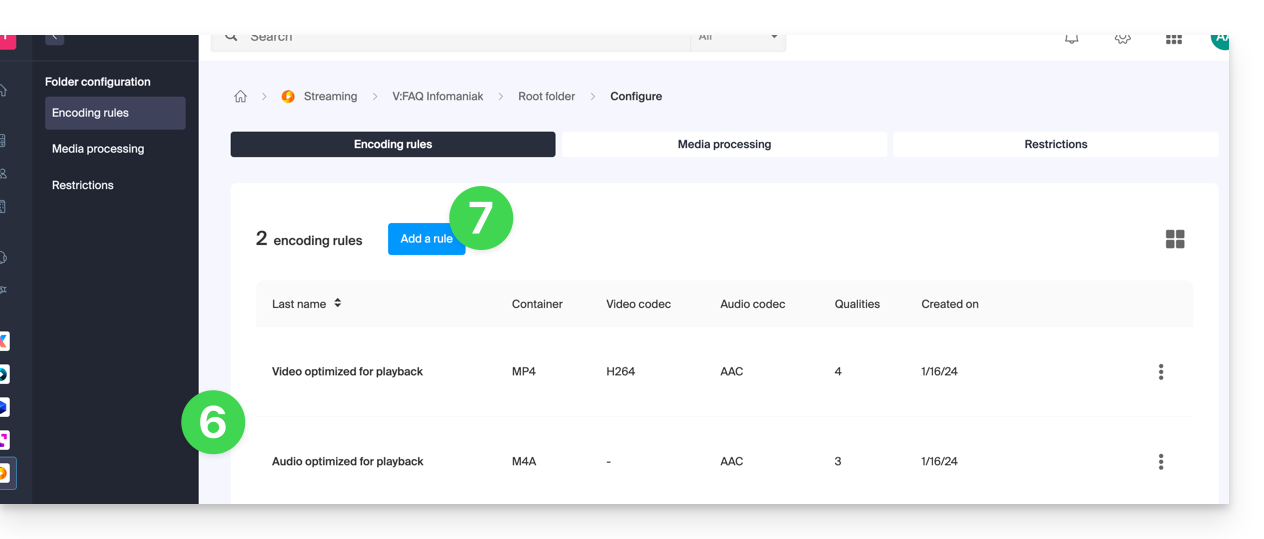
- Choose presets optimized for your needs — or select advanced mode to define your settings precisely:
- Video: codec (H.264, H.265, VP9…), resolution, framerate, bitrate, ratio.
- Audio: codec (AAC, MP3…), bitrate, sampling frequency.
- Click on the field to select an encoding.
- Click on Create a custom encoding:
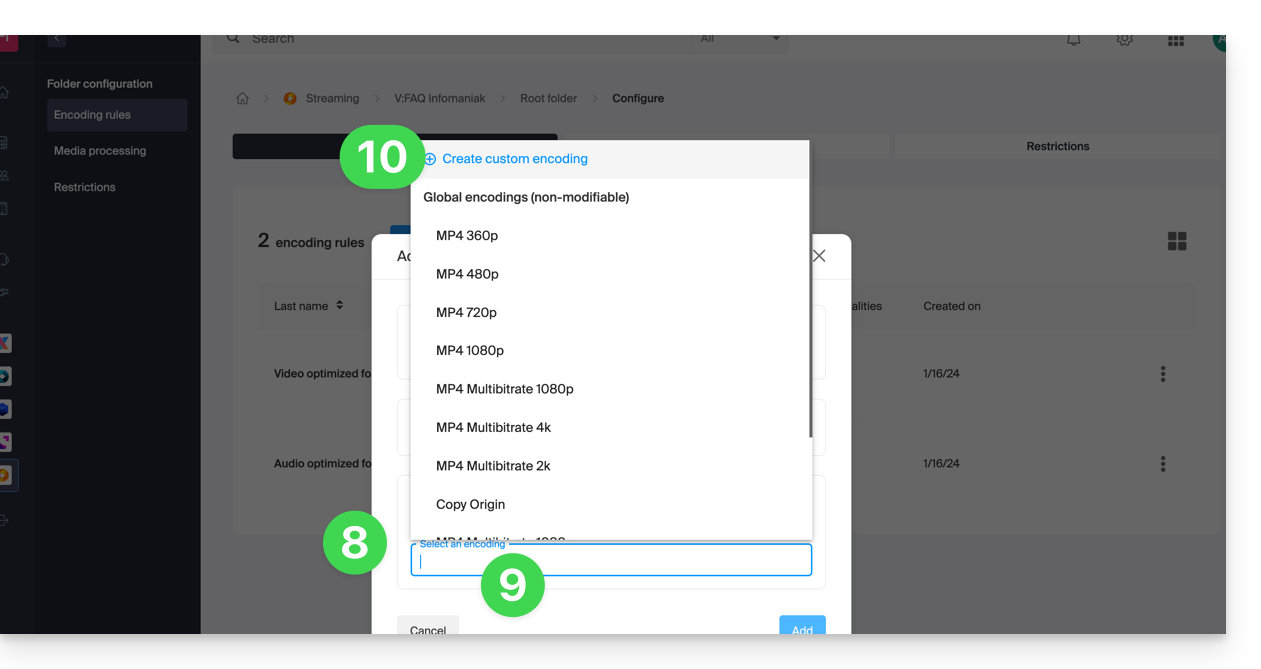
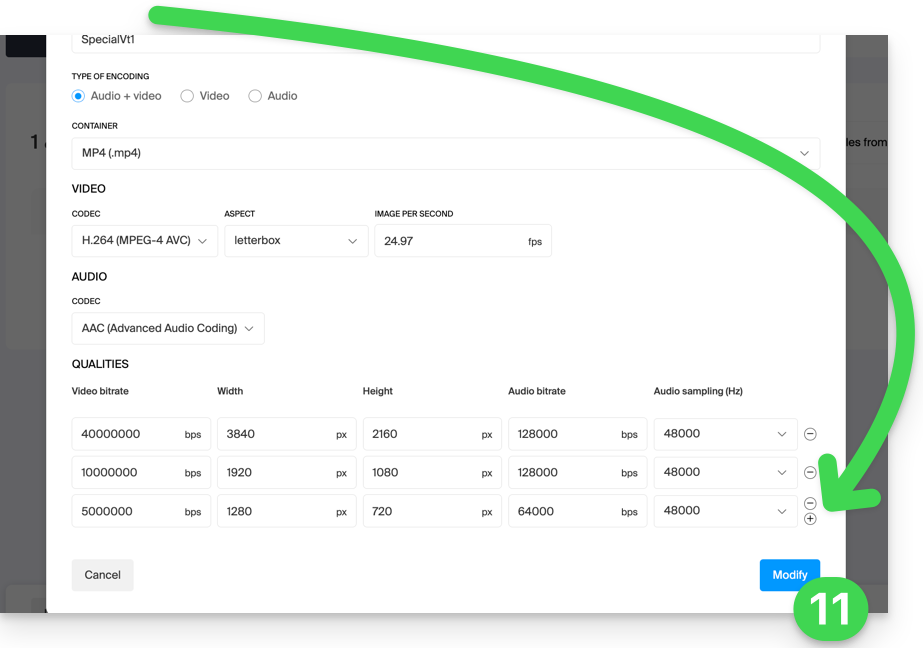
Give the rule a name, enter the audio/video settings according to your needs; you can control the aspect ratio behavior:
keep_ratio: maintains the original ratio; if the requested dimensions do not match, black bars are added.copy: maintains the original appearance without adaptation; if the resolution differs, the image may be distorted.fill: the video is resized to fill the entire resolution, while maintaining the ratio; part of the image may be cropped.stretch: the video is resized to the requested resolution without respecting the ratio, which results in distortion.
Several qualities can be managed within a single rule; don't forget to validate to add the rule:
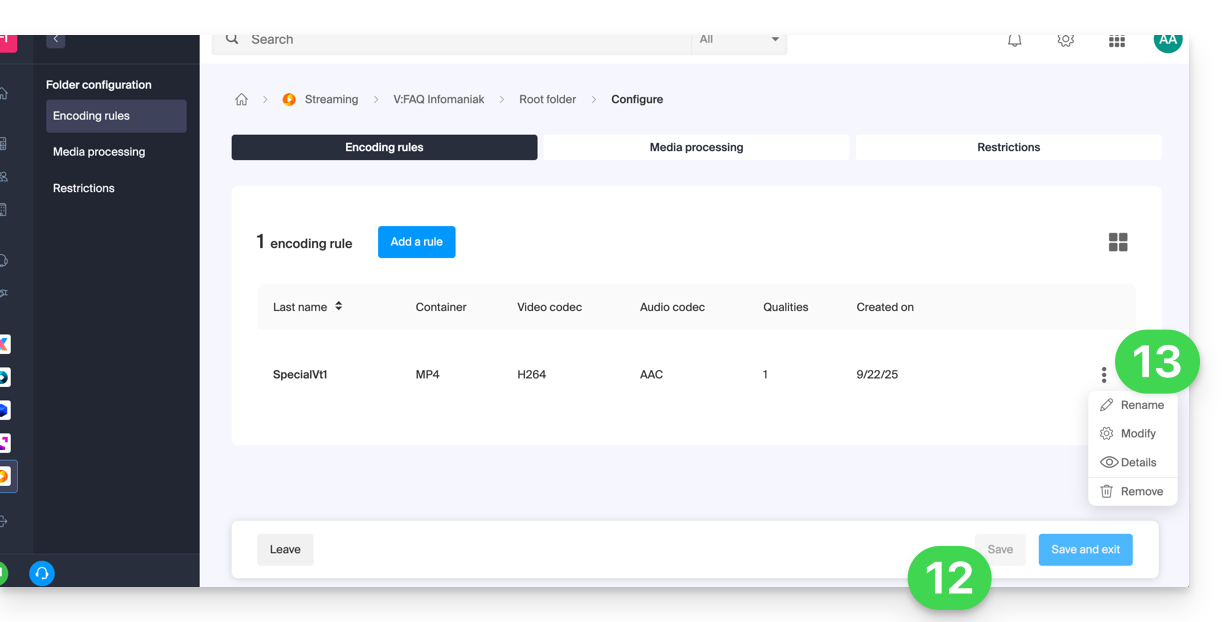
- The new rule is added; click the Save button to save the addition.
- If necessary, you can keep only this new rule and remove the previous rules by clicking on the action menu ⋮ to the right of the rules in question in the table that appears, then deleting them. The menu also allows you to review the details of your custom encoding, modify it, or rename it:
Settings Inheritance
If you define a setting on the root folder, it will be automatically applied to all subfolders created within it, with each folder inheriting the settings of the parent folder by default. These encoding rules will therefore apply to the media you upload to your VOD/AOD space, even if they are uploaded to a subfolder.
However, please note that rules can be defined per folder, so a subfolder that you create can apply specific encoding rules: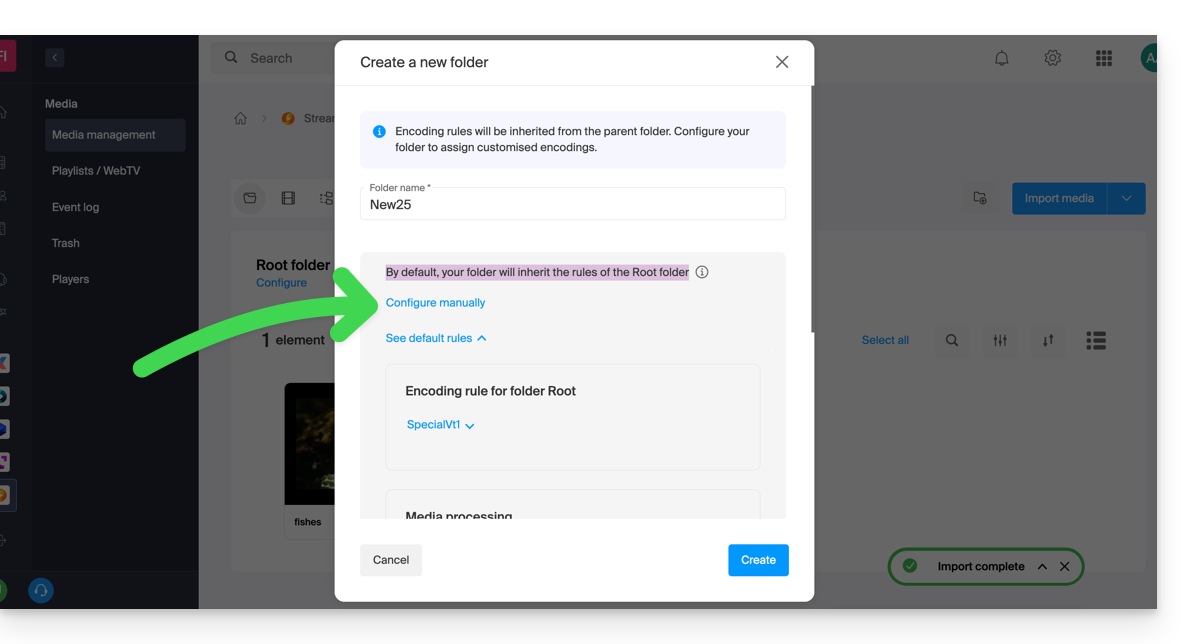
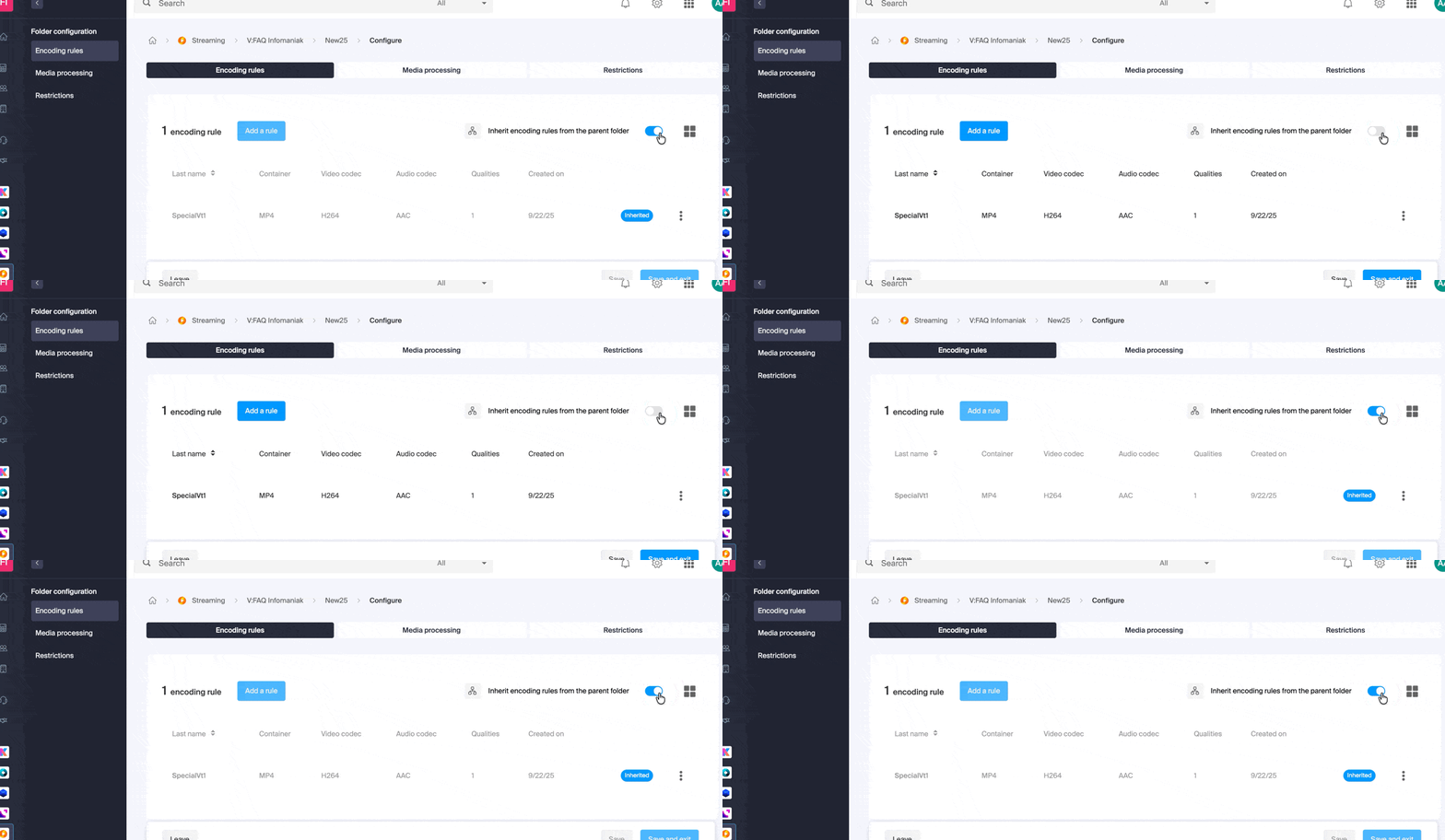
Disable inheritance at any time from the existing folder's settings page to define specific settings:
Link to this FAQ: https://faq.infomaniak.com/2568
Has this FAQ been helpful?
This guide explains how to create and manage your authentication tokens to interact with the Infomaniak API (❓: help) securely.
Introduction
- Token features:
- Number: no limit to the number of tokens that can be created
- Validity: unlimited by default (customizable upon creation)
- Inactivity: a token is automatically deactivated if it is not used for one year
- Example of use:
- Token for the Newsletter API (❓: help)
Manage API tokens
When creating a token, you must define the application and the scope of access:
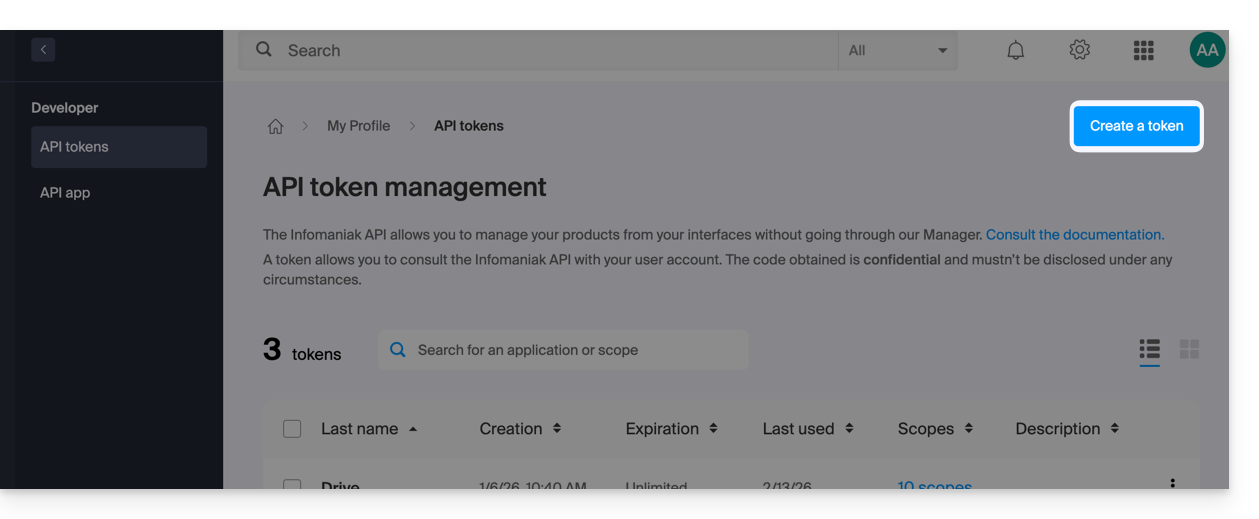
- Click here to access the token management section in the Manager (❓: help).
- Click on Create a token:
- Select the product/application and the validity period:
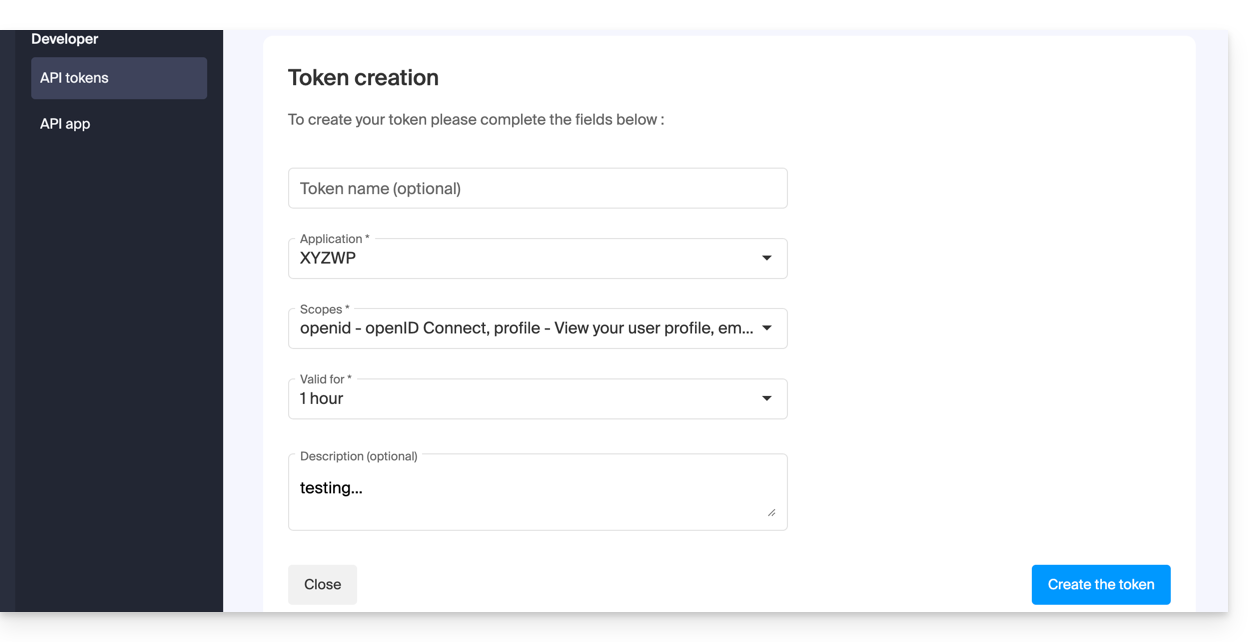
- Confirm the operation with your account password.
- Important: Copy the token and keep it in a safe place; it will no longer be displayed afterward.
To delete them, select them and click on the revocation button that appears: 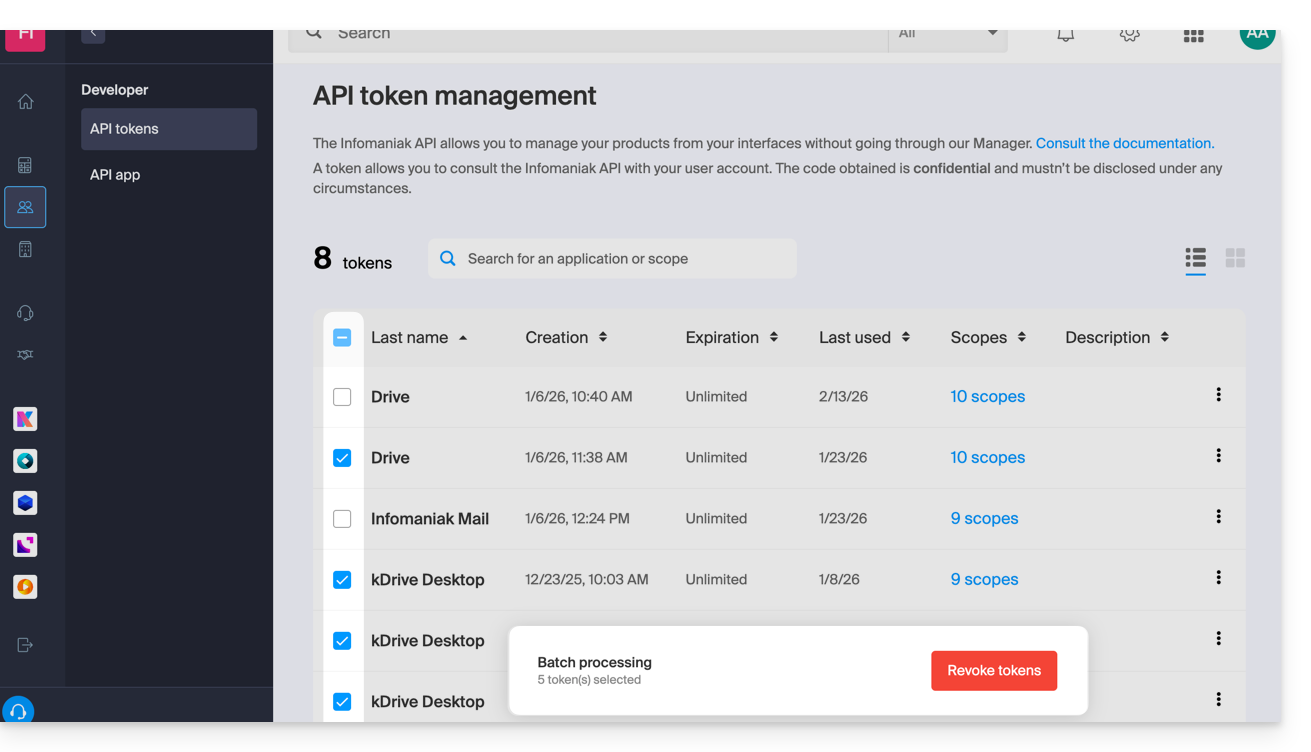
Link to this FAQ: https://faq.infomaniak.com/2582
Has this FAQ been helpful?
This guide details how Infomaniak VOD/AOD usage is calculated.
Calculating Usage
Your monthly usage is calculated based on the aggregation of two essential criteria. At the end of each billing period, two elements are automatically taken into account:
- disk space: this includes the amount of data stored in your space, including data in the trash
- bandwidth: this represents your bandwidth usage during your monthly period (renewed on your due date)
The sum of these two values constitutes the total amount of your usage for the specified period.
In addition, a remaining time indicator is provided to inform you of the number of days remaining until the next due date.
If the allowed quota is exceeded
Several options are available to you:
- Empty the trash: First, it is recommended to check if your trash is full; if you are sure that these files are no longer used, emptying it can free up valuable space.
- Pay for the overage: If you believe the overage is temporary, you will need to pay the additional charges per gigabyte consumed. For more information, please refer to the pricing page, which details the various overage costs depending on the plan.
- Upgrade your plan: If you have an increasing number of media files or if they are frequently accessed, you can upgrade to a higher plan.
Link to this FAQ: https://faq.infomaniak.com/2798
Has this FAQ been helpful?
This guide explains how to change the preview image (thumbnail) displayed on an Infomaniak VOD Player when access is restricted.
Introduction
- A video can be restricted by geographical restrictions or other restrictions (token | password).
- You can also manage the normal preview images.
Customize the VOD Player
To change the preview image (thumbnail) displayed on the Player for viewers affected by a restriction you have set up:
- Click here to access the management of your VOD/AOD in the Infomaniak Manager (need help?).
- Click directly on the name assigned to the product in question.
- Click on Players in the left-hand menu.
- Add a new Player or modify an existing Player:

- Click on the Thumbnails tab (or dropdown menu).
- Customize the desired preview images:

- Save your changes.
Link to this FAQ: https://faq.infomaniak.com/2917
Has this FAQ been helpful?