Knowledge base
1000 FAQs, 500 tutorials and instructional videos. Here, there are only solutions!
Integrate VOD/AOD media
This guide explains how to embed video/audio files imported into an Infomaniak VOD/AOD service on web pages.
Introduction
- This VOD/AOD integration code is unique and corresponds to the settings you are specifying on the page.
- It allows you to embed the same video with different display configurations, according to your needs.
- You can then modify the settings for this integration by adjusting them from the integration history page in the Infomaniak Manager.
- You can also share a media file in various ways.
Generate and copy the embed code
The embed code can be found in your VOD interface; here is an example with a default Player:
- Click here to access the management interface for your product in the Infomaniak Manager (need help?).
- Click directly on the name assigned to the product in question:
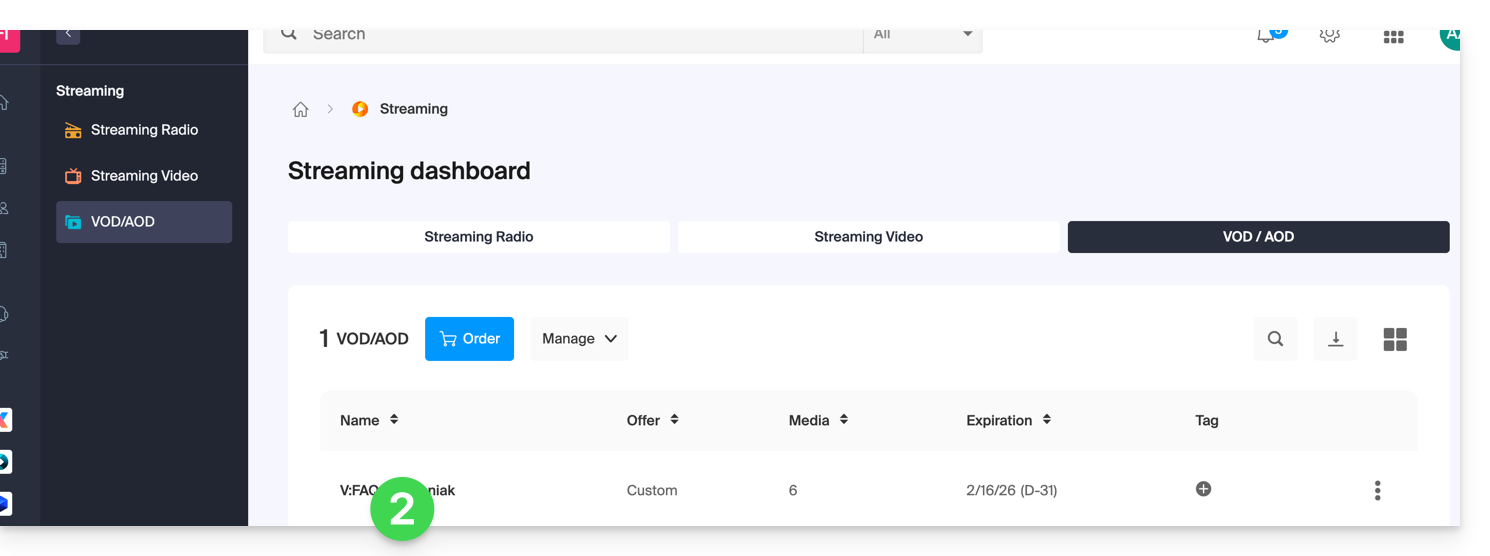
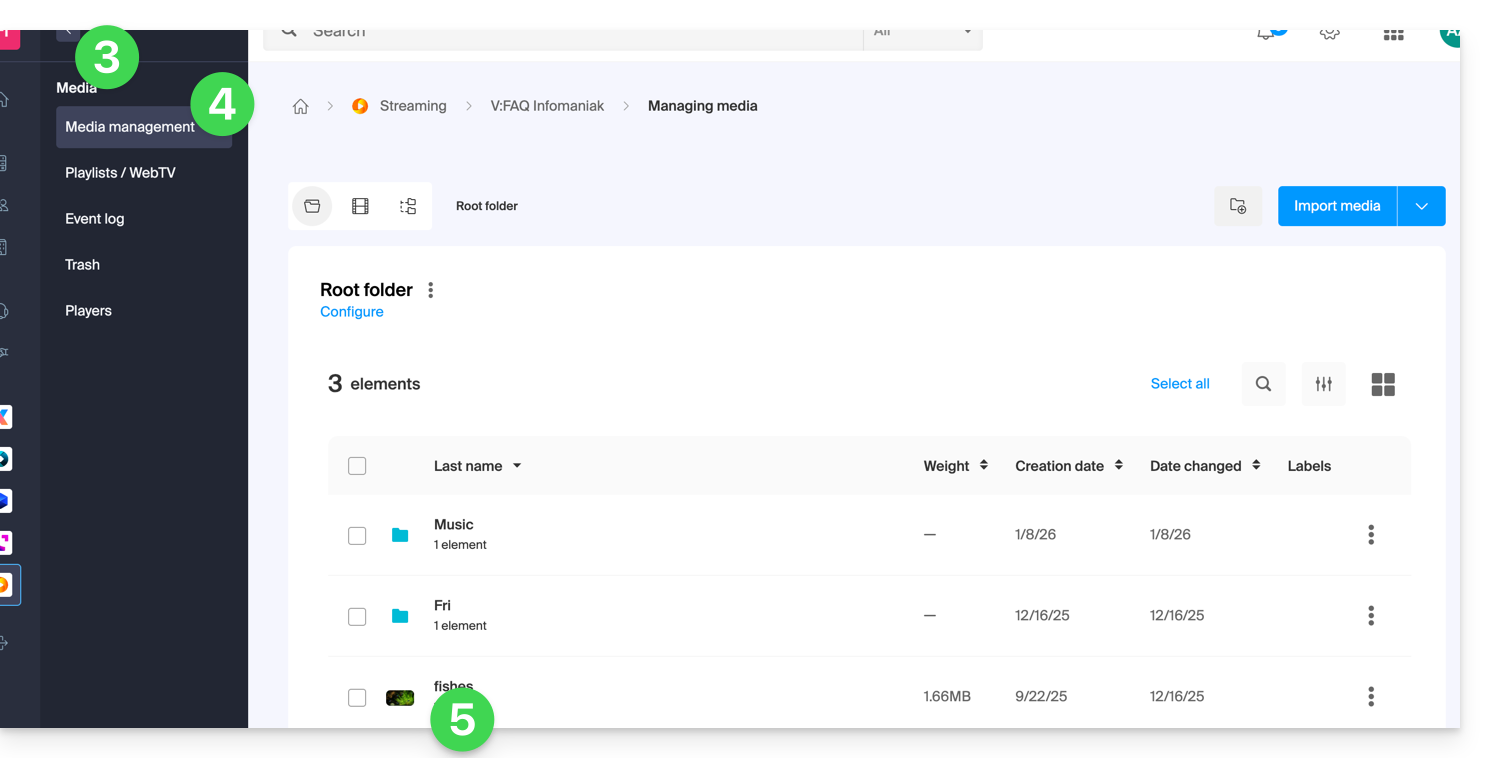
- Click on Media in the left-hand menu.
- Click on Media Management in the left-hand menu.
- Click on the relevant media in the table that appears:
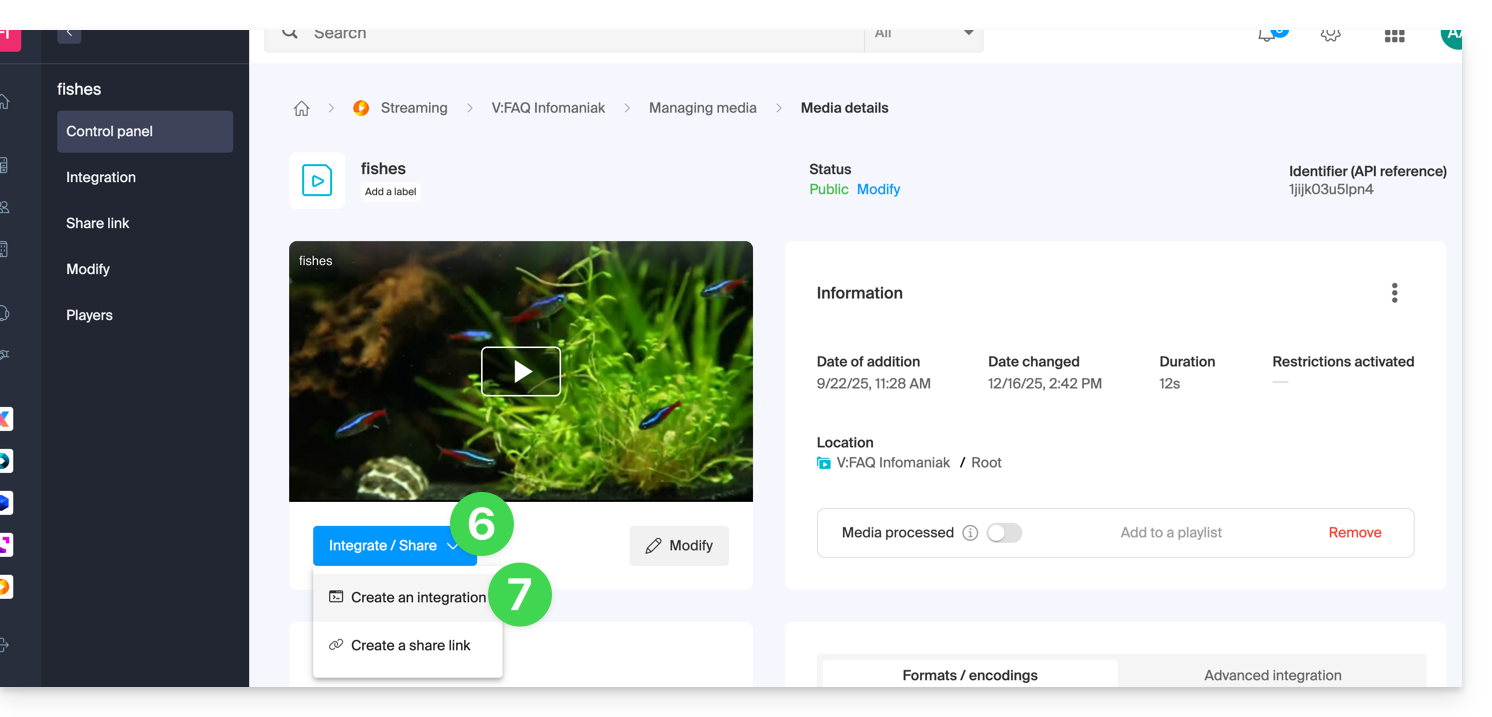
- Click on the blue Embed button.
- Click on Create an integration:
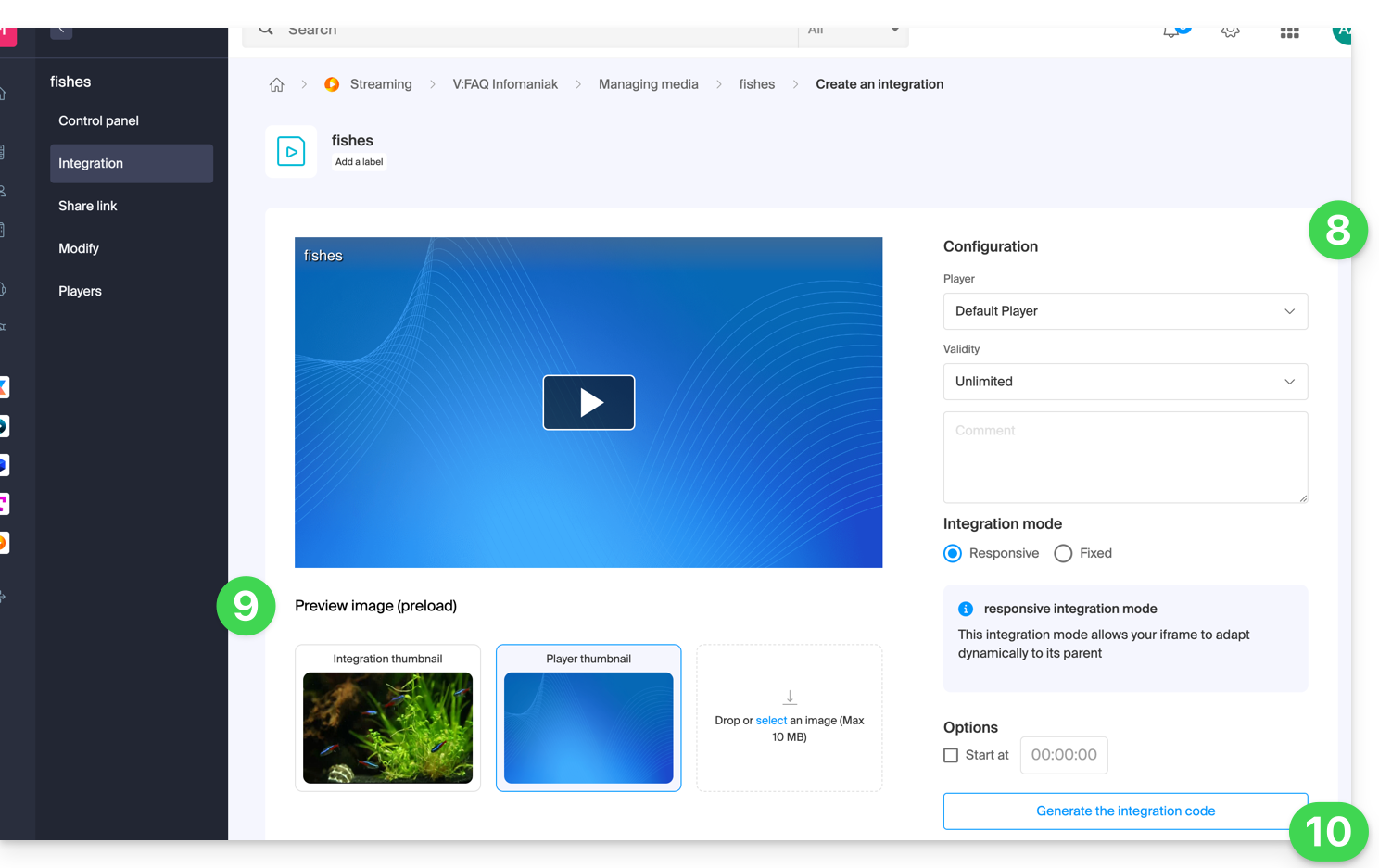
- Customize the media integration (Player to use, timestamp, loop playback, automatic start, …).
- Choose the thumbnail to display when the media is paused.
- Click the button to Generate the embed code:
- Copy the code to embed it in the location of your choice:
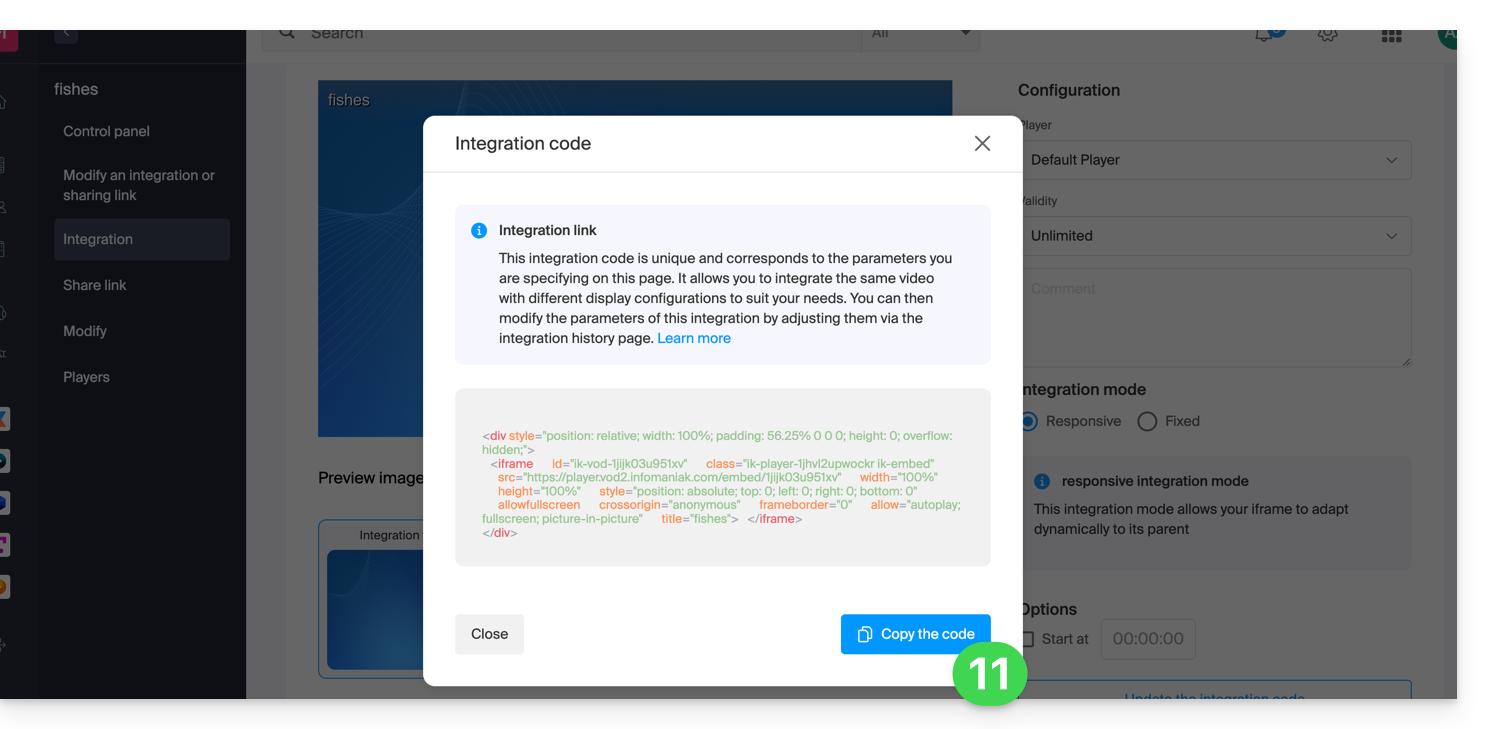
The media will then be inserted with the default Player, but you have the option to choose from your created Players the one that should be offered during the integration.
Modify a previous integration
To customize the integration of your media again, and to keep the corresponding code without having to insert it again:
- Click here to access the management interface for your product in the Infomaniak Manager (need help?).
- Click directly on the name assigned to the product in question.
- Click on Media in the left-hand menu.
- Click on Media Management in the left-hand menu.
- Click on the relevant media in the table that appears.
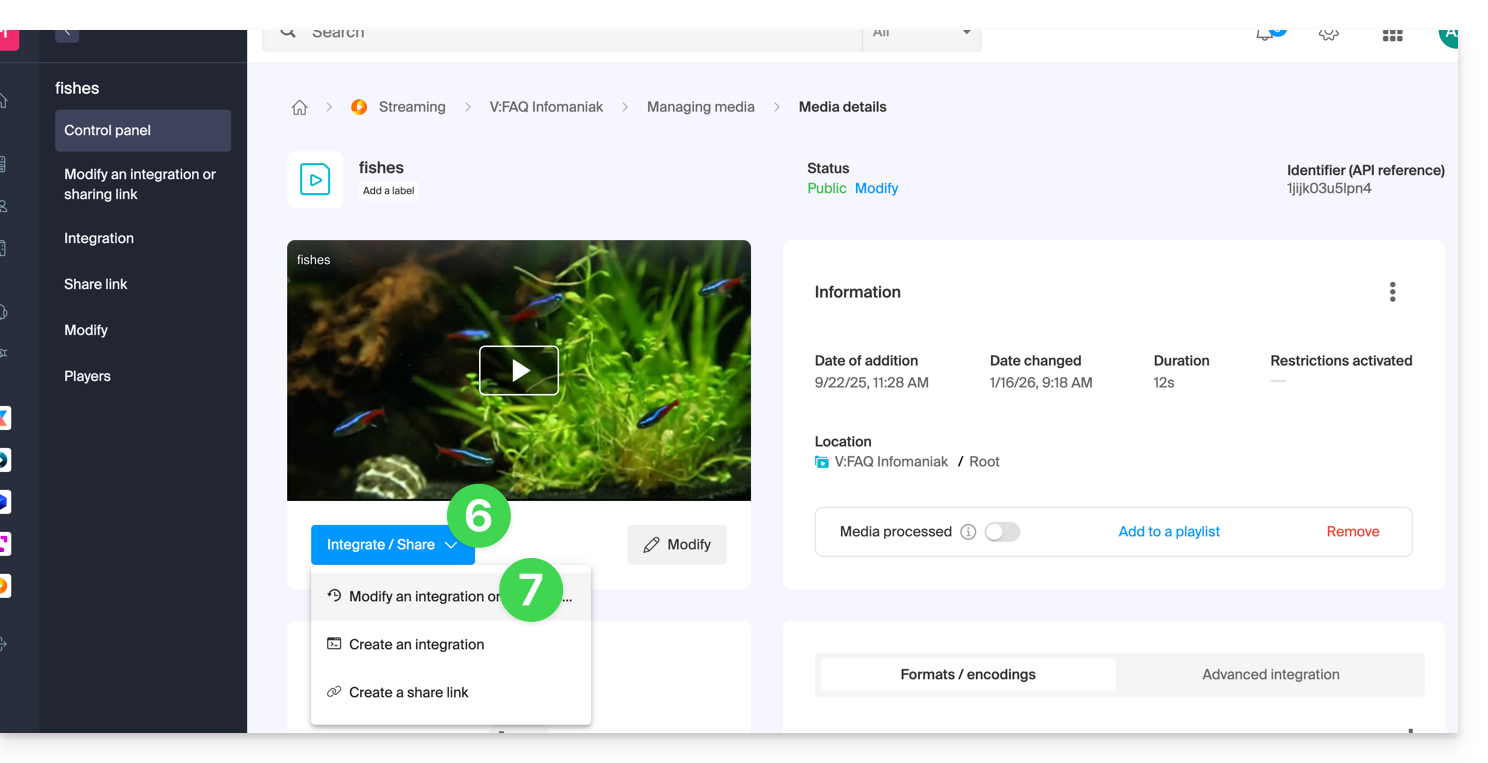
- Click on the blue Embed button.
- Click on Edit an integration:
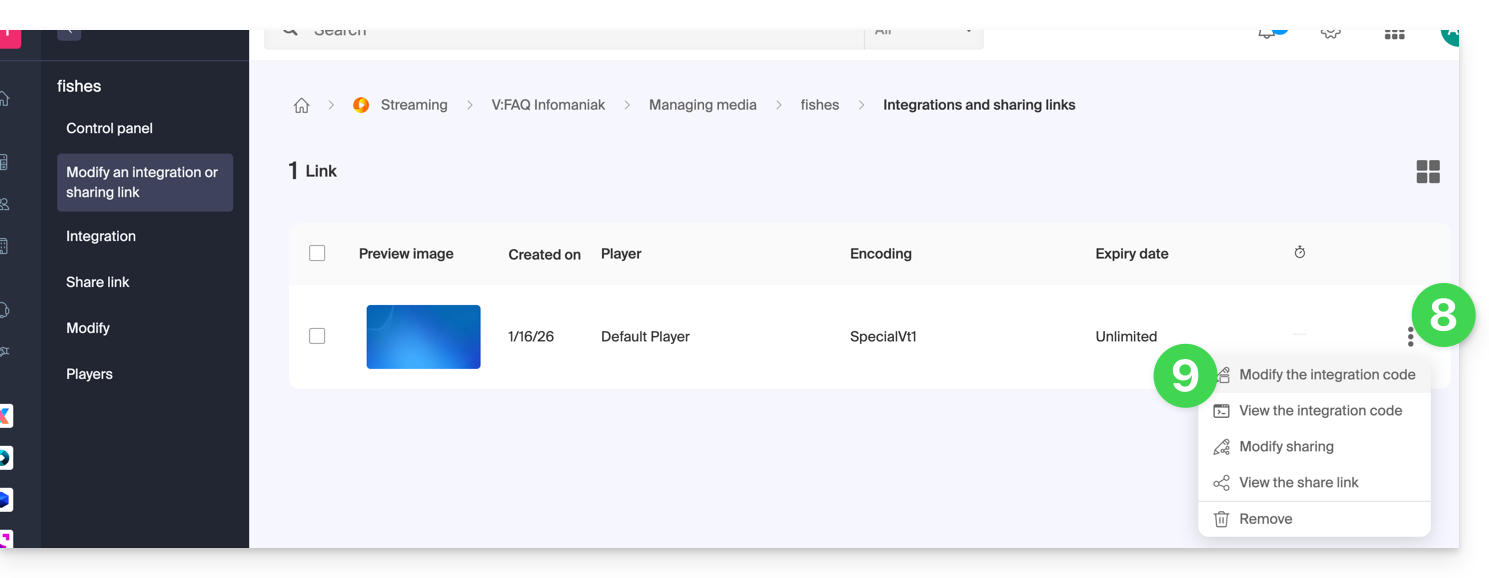
- Click on the action menu ⋮ to the right of the relevant item in the table that appears.
- Click on the desired item to obtain/modify the integration codes:
Paste the integration code…
On the webpage of your choice, paste the HTML code where you want it: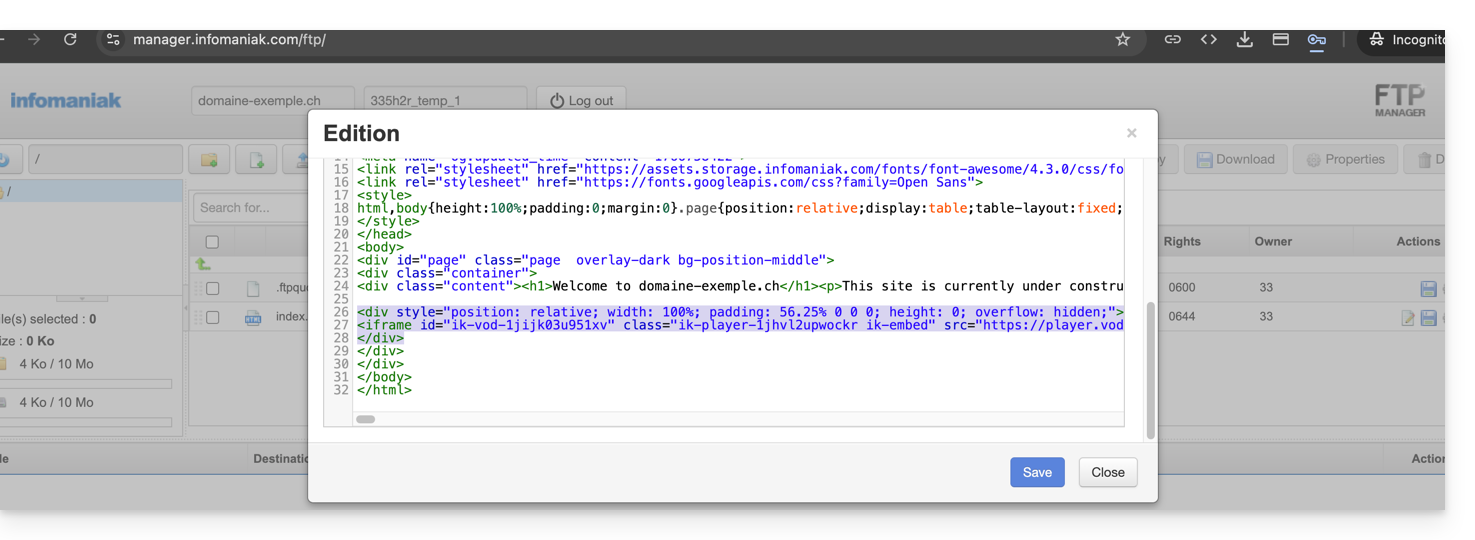
… on Infomaniak Site Creator
- For Site Creator, you need to generate a “Fixed” embed code (and not “Responsive”):
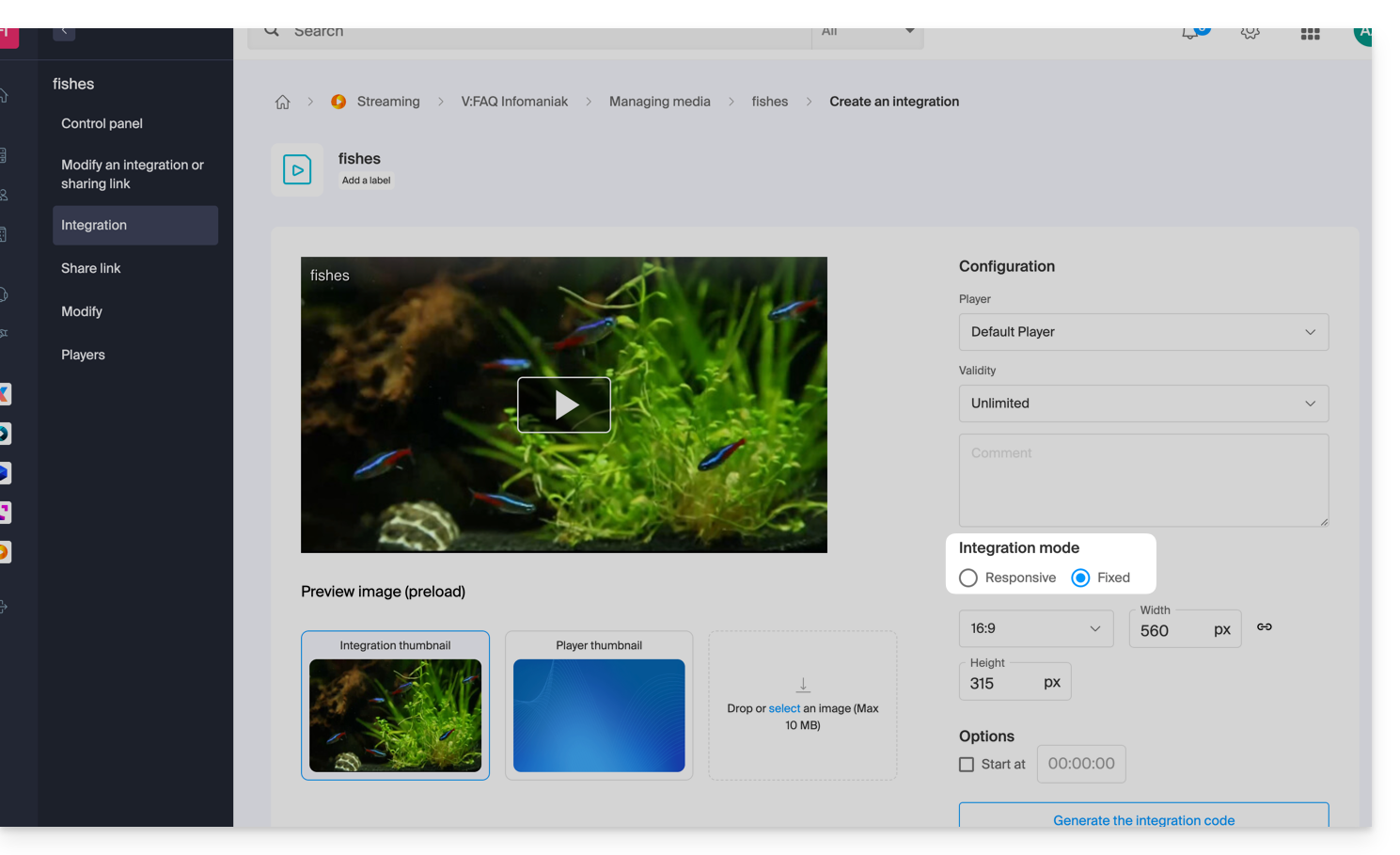
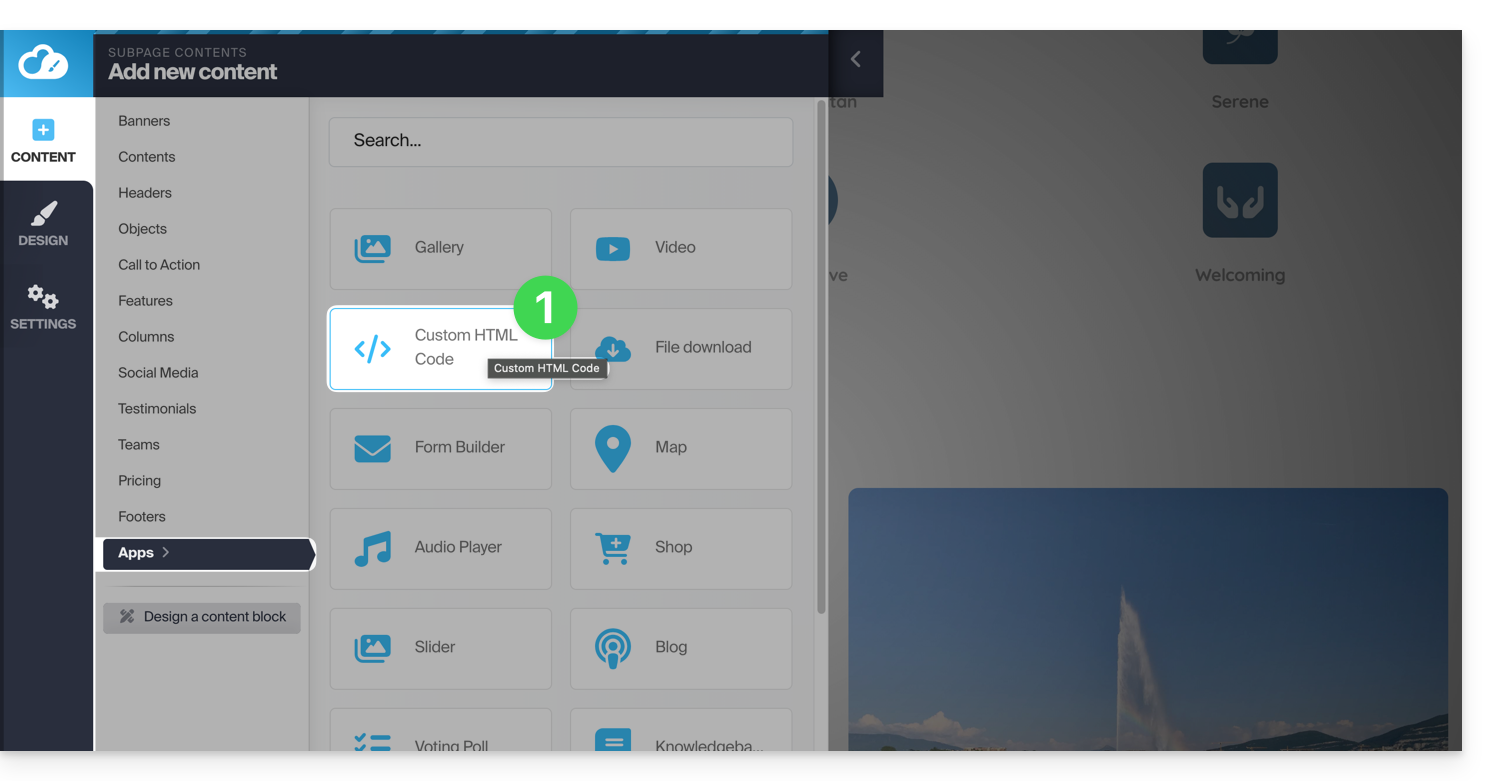
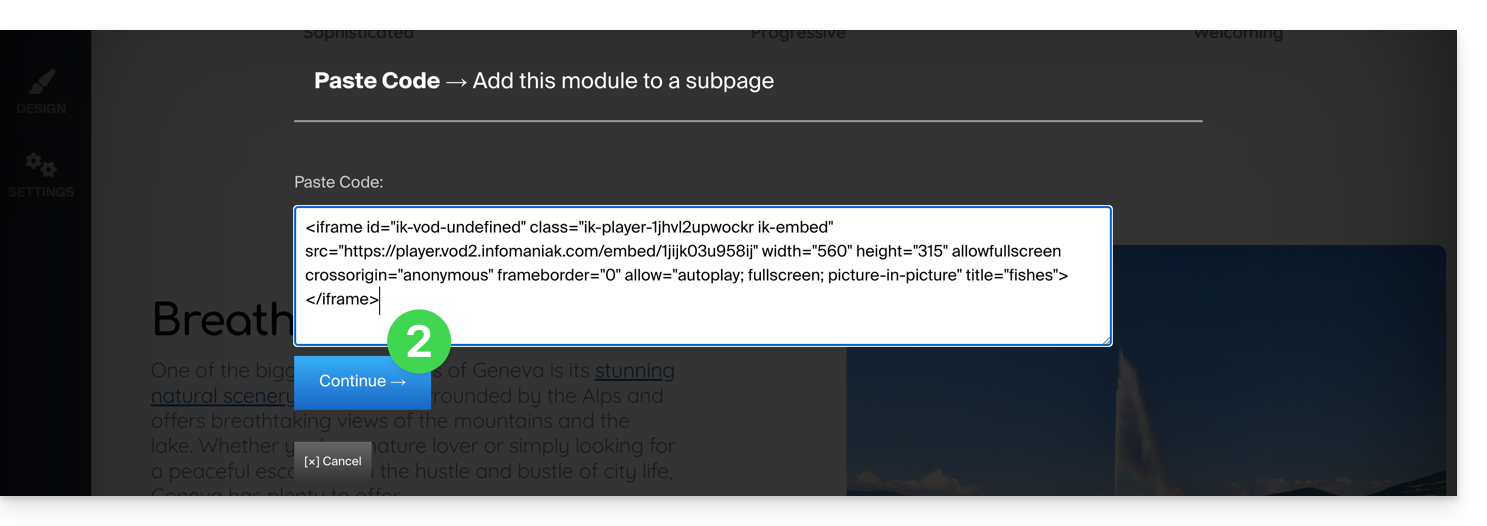
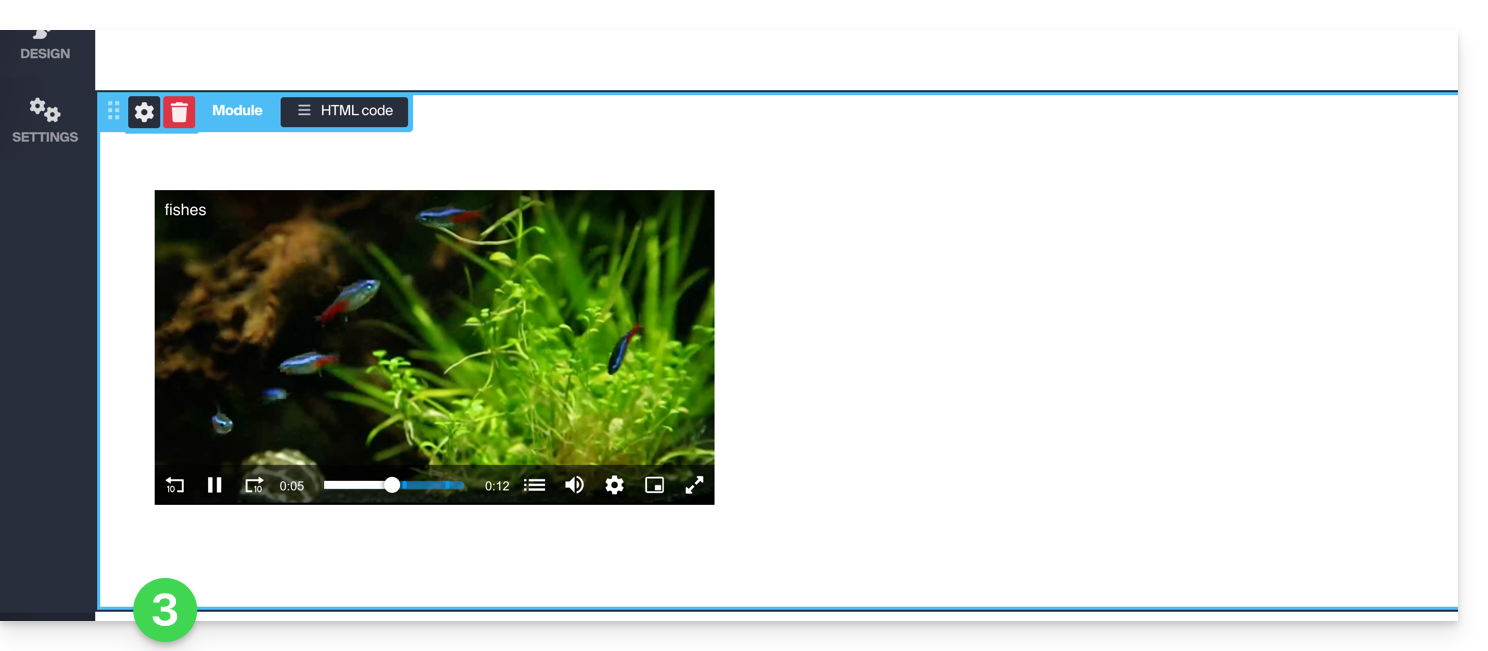
- Then, paste this code into Site Creator within a “Custom HTML” block:
Link to this FAQ: https://faq.infomaniak.com/2525
Has this FAQ been helpful?