Knowledge base
1000 FAQs, 500 tutorials and instructional videos. Here, there are only solutions!
Modify an existing Swiss Backup offer
This guide explains the procedure to modify a Swiss Backup offer, the secure backup solution in an independent Swiss cloud.
Modify your Swiss Backup offer
To access the modification of your Swiss Backup offer, follow these steps:
- Click here to open the management of your product in the Infomaniak Manager (need help?).
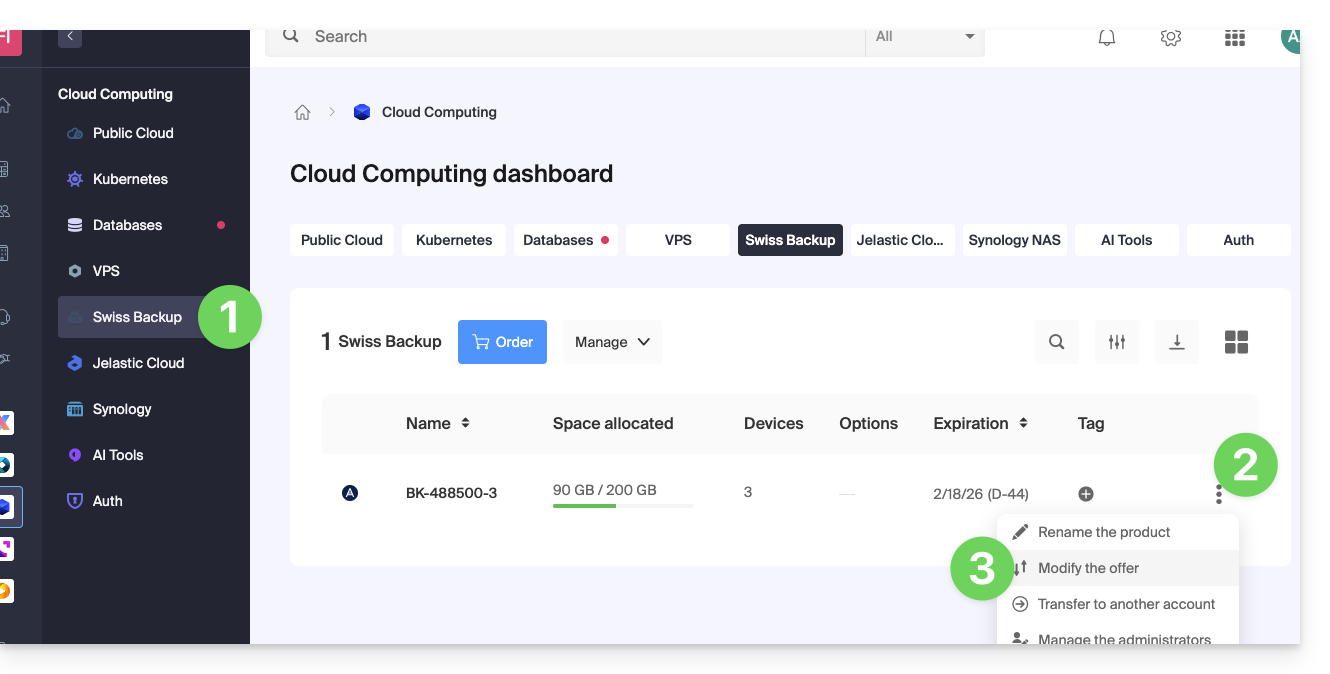
- In the list of your products, click on the action menu ⋮ located to the right of the name of your Swiss Backup space.
- Select Modify the offer:
- Adjust the parameters of your offer according to your needs by modifying:
- the storage space
- the number of devices
- the number of virtual machines via Acronis
- the number of Linux/Windows servers via Acronis
- etc.
- Click on Next and proceed to payment to validate the modification.
You can also manage your offer directly from the product dashboard: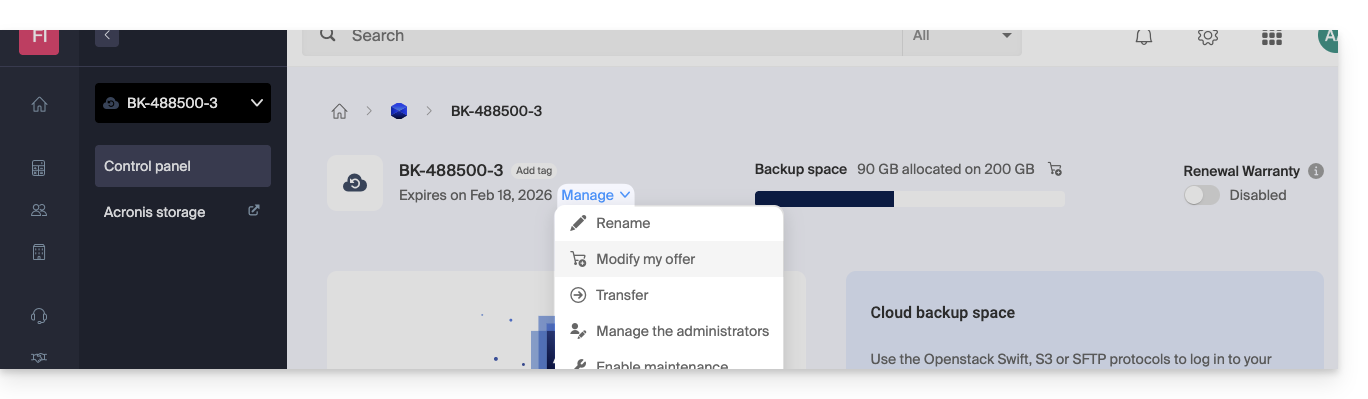
Examples of offer modification
Initially, the user wanted to:
- back up an iOS/Android mobile device with Acronis
- and have a free backup of the Cloud type accessible by SFTP or similar method.
They now want to:
- back up two devices via Acronis (still the mobile device and a Windows computer), without keeping the free backup.
It modifies the quotas: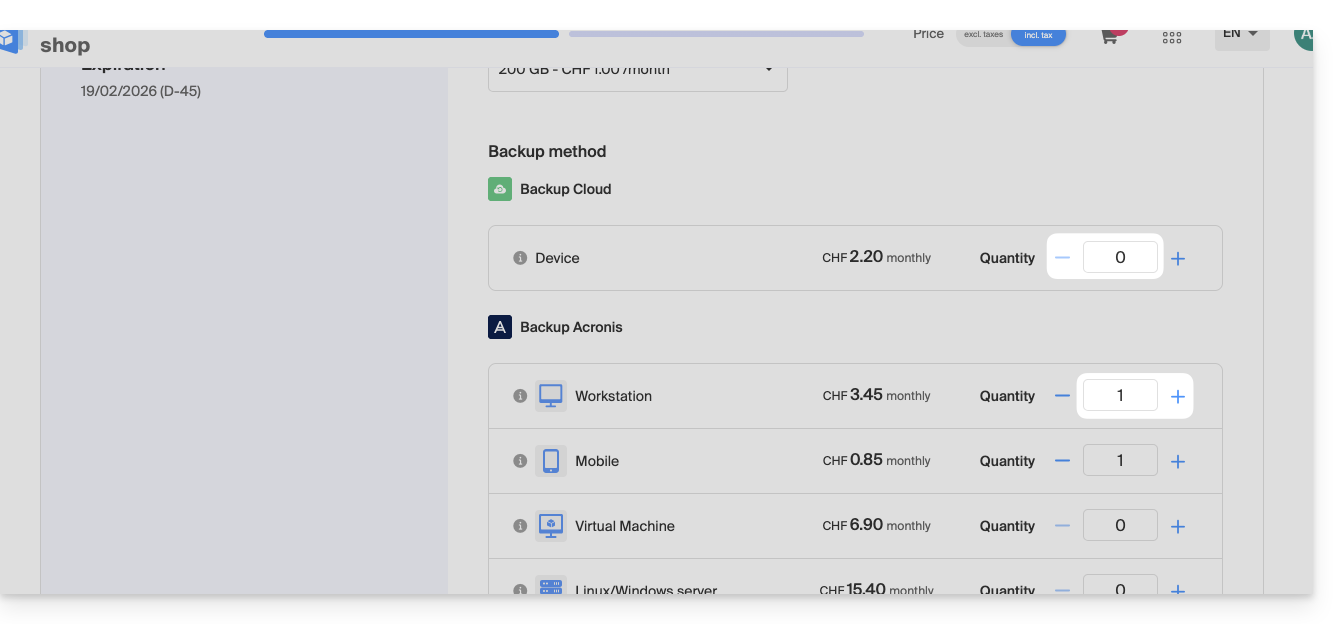
All you have to do is validate the payment to apply the modification.
Warning:
To remove a device type that you no longer want to have, this device must have been previously deleted from your Acronis console, which means that the quota displayed on the offer modification page must be zero.
For example, if you want to remove a website backup, you must first delete it from your Acronis dashboard.
Indeed, to completely modify the offer (for example, to keep only a single backup of a Windows computer), the command cannot be finalized as long as the following message appears:
"The number of selected licenses is less than the current usage of your product"
This message occurs when you try to reduce to zero the quantity of an active backup type.
In this case, proceed as follows:
- Click here to access the Acronis console with the credentials obtained when adding the device (need help?).
- Delete the device in question from the "Devices" menu.
- Wait about ten minutes for the quotas to update.
The quota of your devices displayed in the Infomaniak Manager should then go to zero. You will then be able to modify the offer without encountering any blocking errors.
Link to this FAQ: https://faq.infomaniak.com/2624
Has this FAQ been helpful?