Knowledge base
1000 FAQs, 500 tutorials and instructional videos. Here, there are only solutions!
This guide details the various elements that can be configured and customized in kChat to best suit your usage preferences.
1. Change the language of the kChat interface
The kChat web app is displayed in the language chosen in the Manager, and just like your avatar/profile picture, these settings are managed within your Infomaniak profile.
The desktop app is configured to use the operating system's language; you can manage this in the app's settings: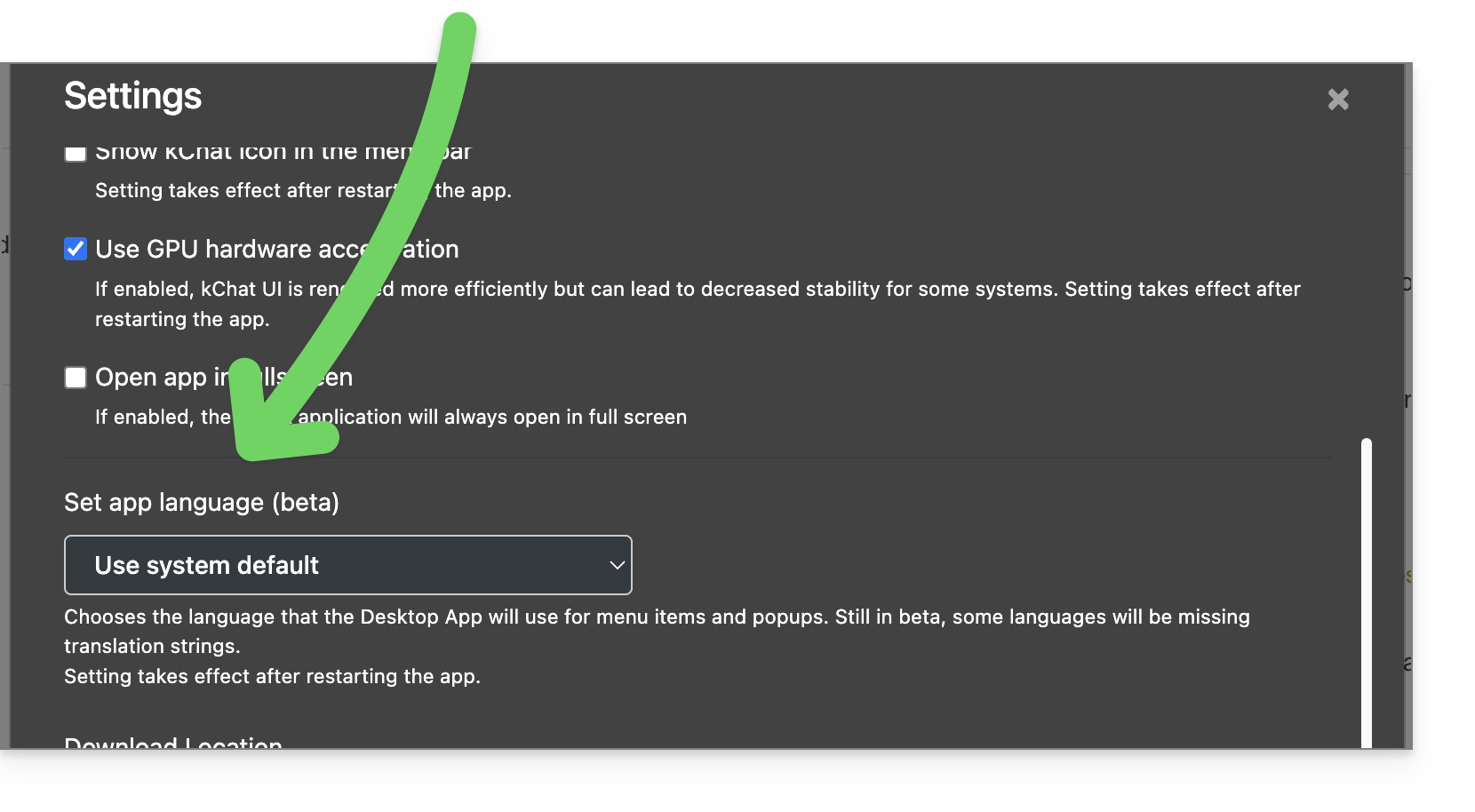
2. Configure kChat in the Manager
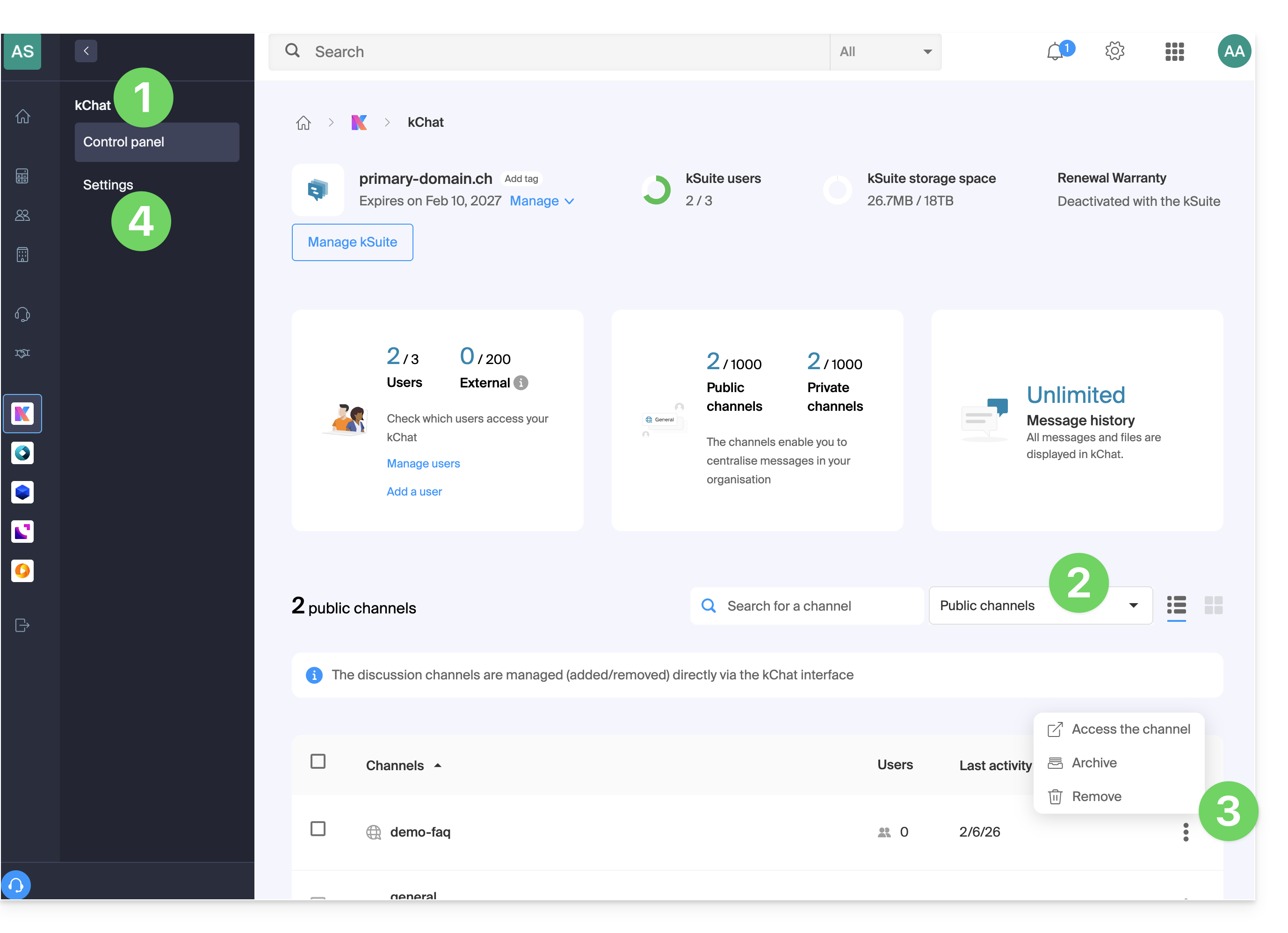
To access kChat settings in the Infomaniak Manager:
- Click here to access the kChat management interface in the Infomaniak Manager (need help?).
- Access the different types of channels.
- Archive or delete channels from the bottom.
- Click on Settings in the left-hand menu:
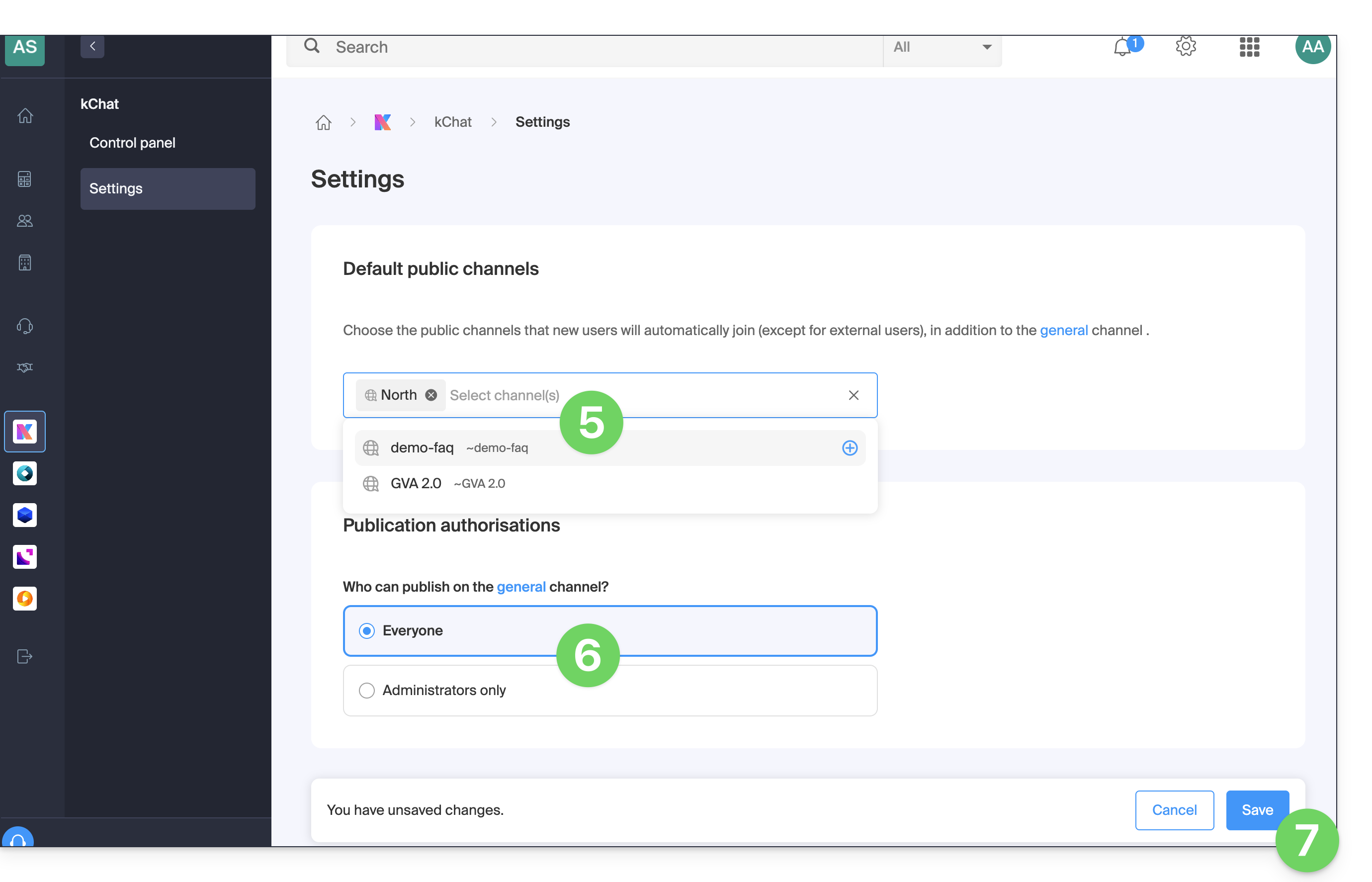
- Add the channels (one or more channels are possible) to which new users (excluding external users) will be automatically added, in addition to being members of the General channel.
- Choose whether everyone can post in the General channel.
- Save your changes at the bottom of the page:
3. Customize the general display of kChat
To access the kChat application settings:
- Click here to access the web app kChat (online service ksuite.infomaniak.com/kchat) or open the mobile app kChat (application for iOS/Android smartphones or tablets) or the desktop app kChat (desktop application on macOS/Windows/Linux).
- Click on the icon in the top right corner of the interface:
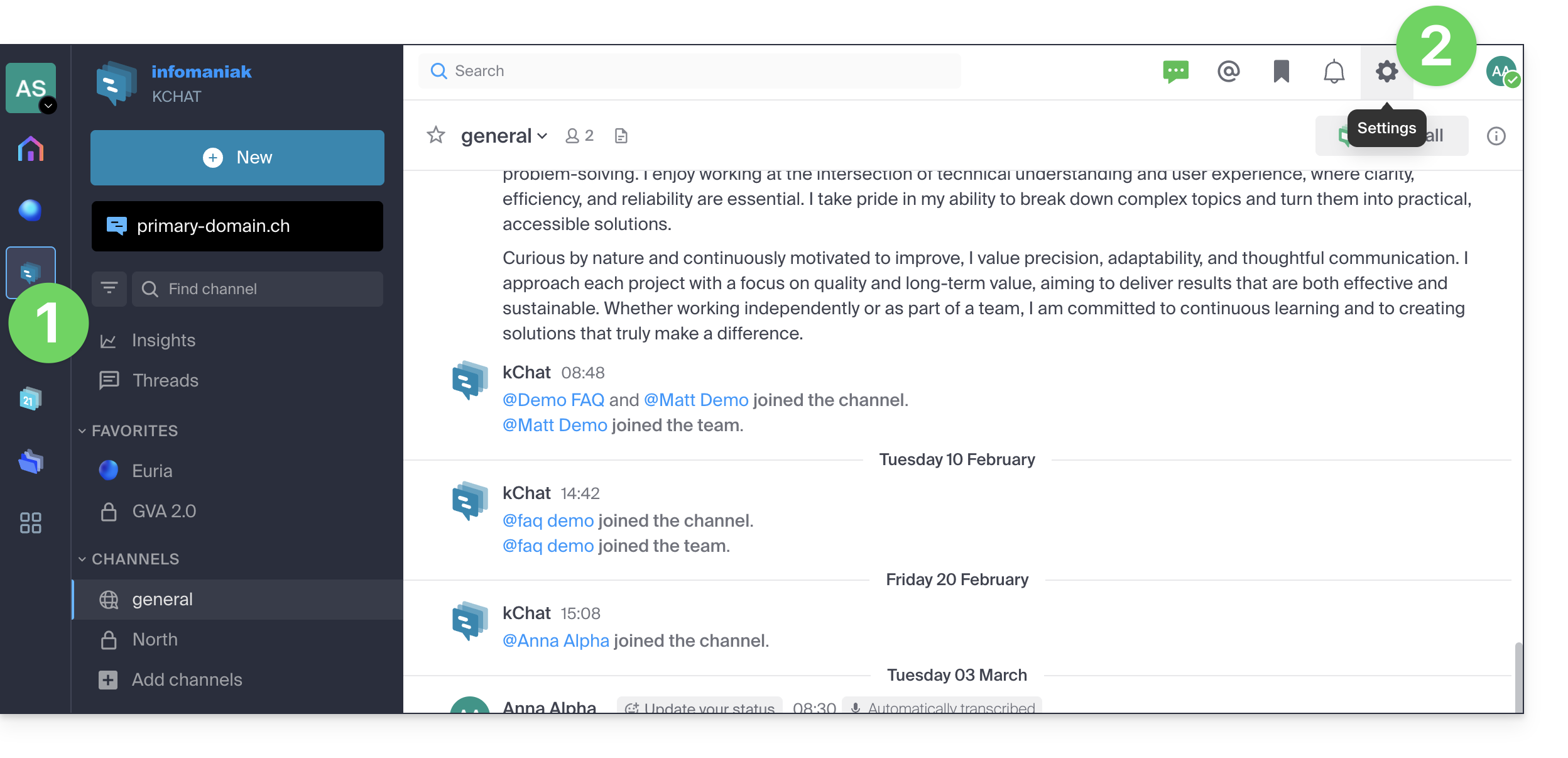
- You can choose from the following options:
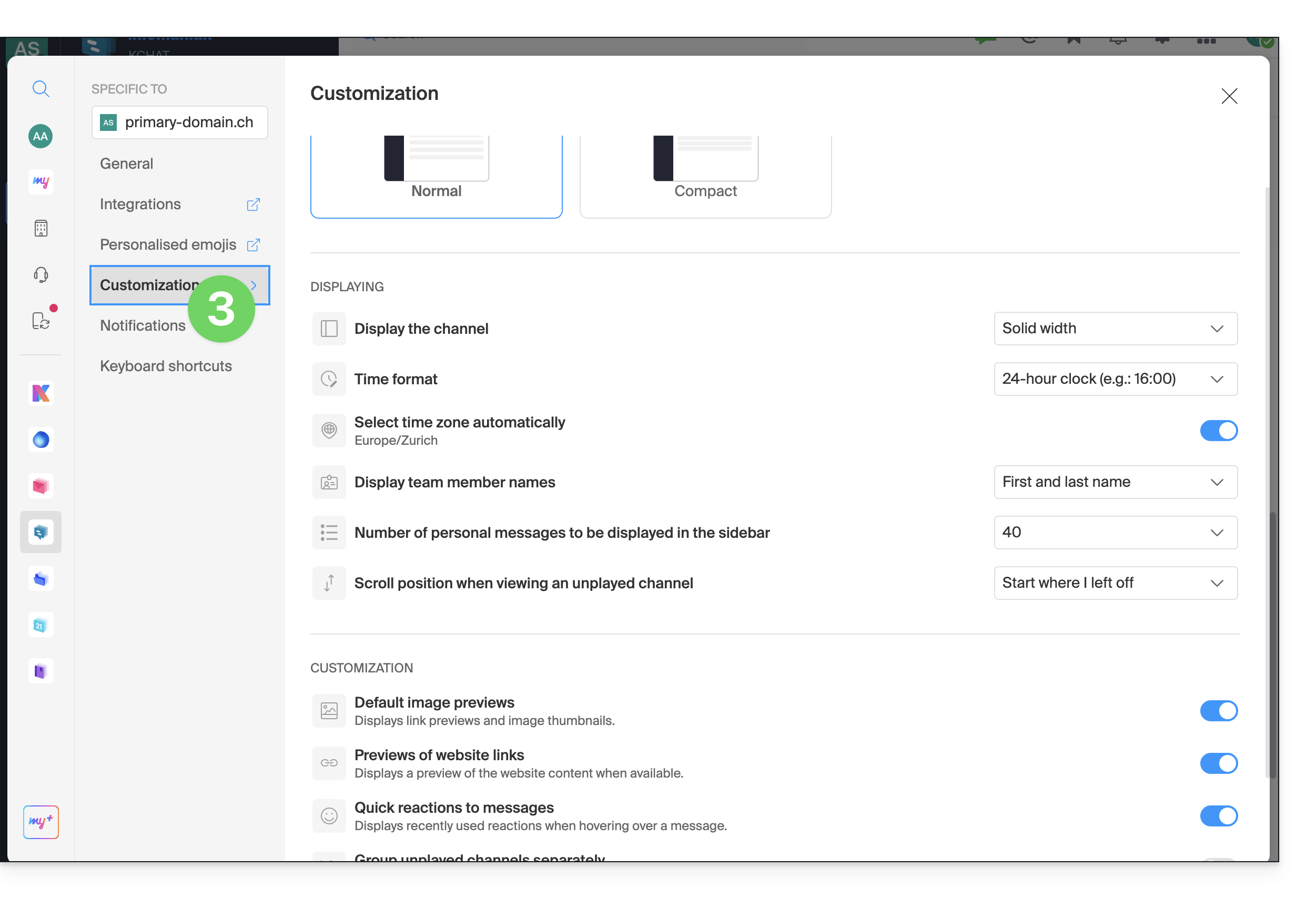
- a display density, and optional color display in compact density
- whether or not to display previews in your conversations
- the size (width) of a channel
- the starting position when you return to an unread channel
- the number of personal messages to display
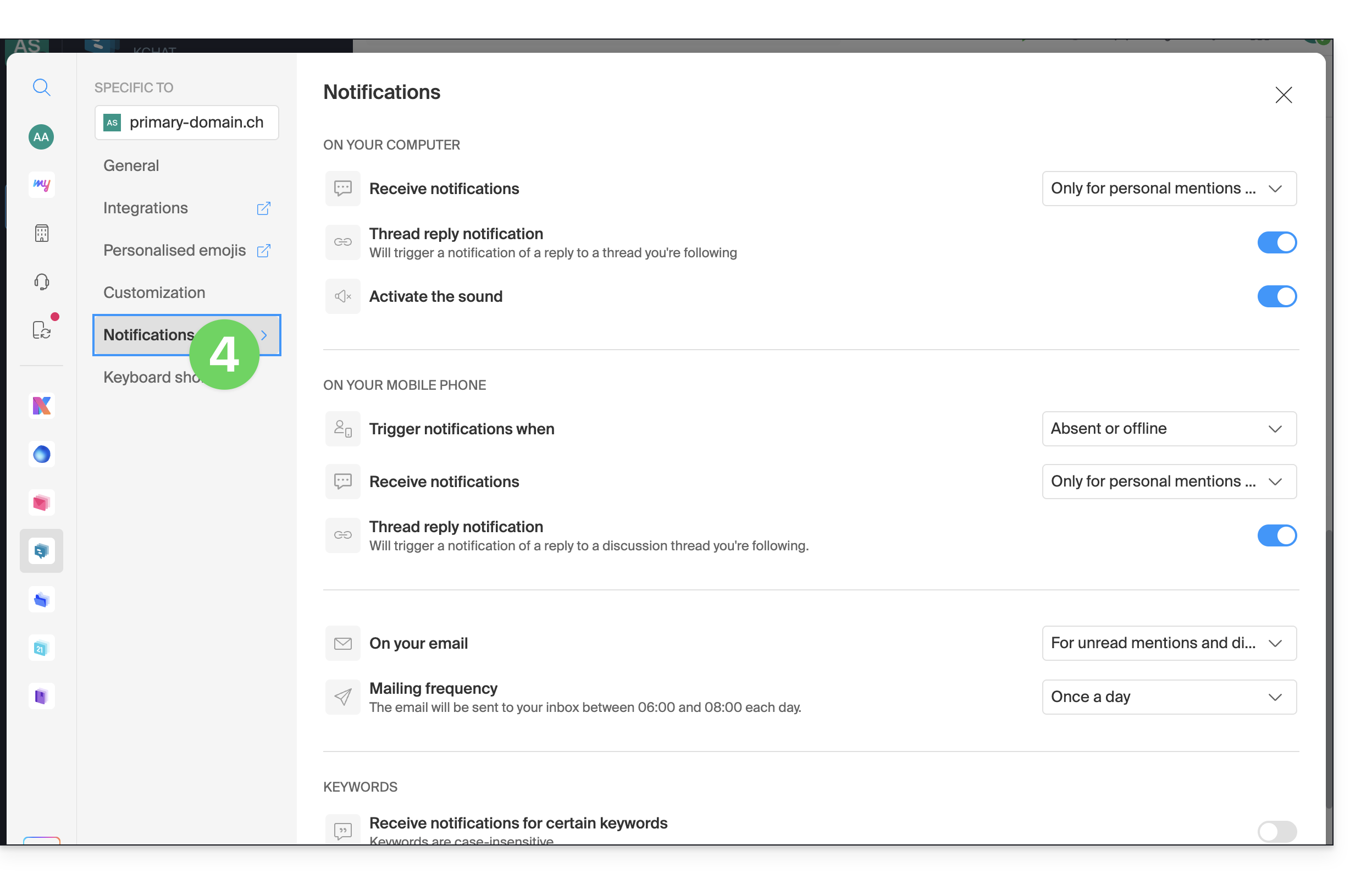
- The Notifications tab allows you to customize kChat notifications:
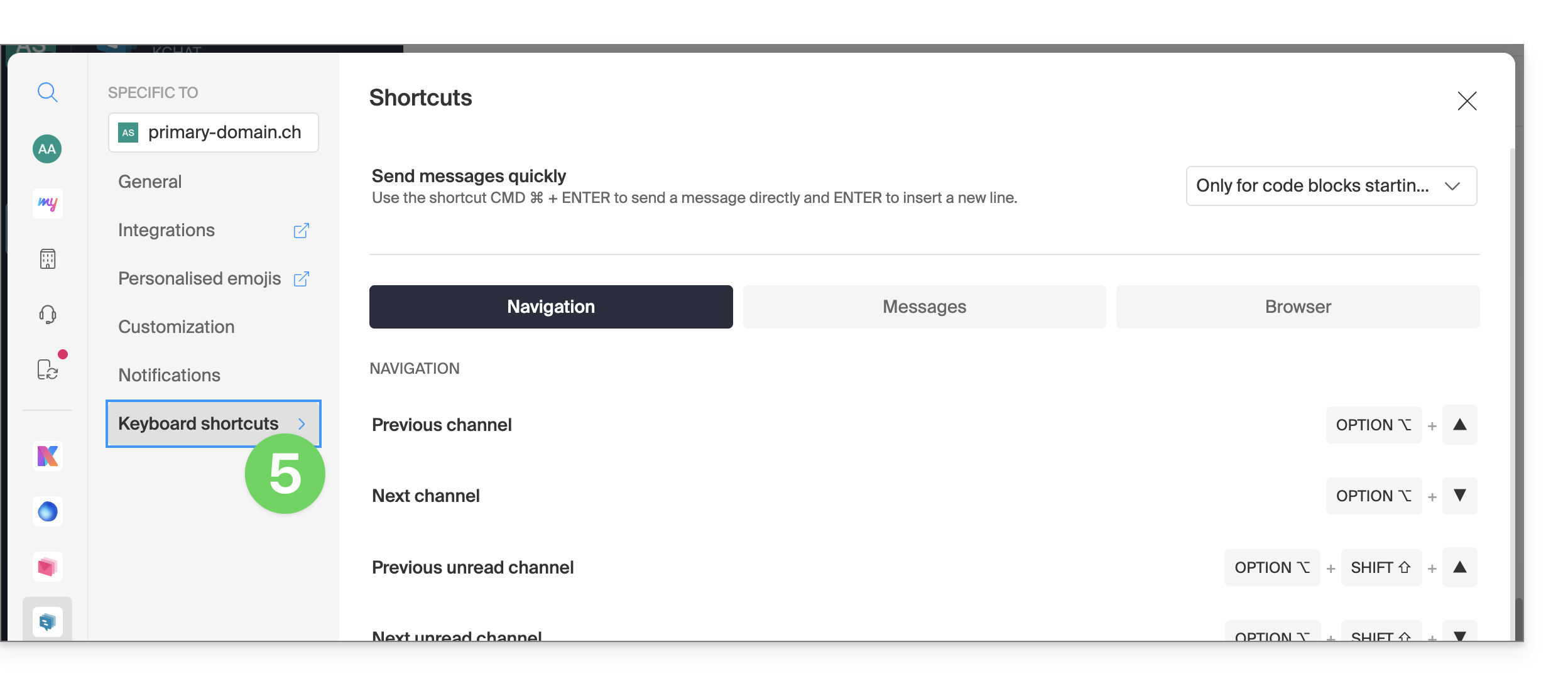
- The Shortcuts tab displays the list of keyboard shortcuts available for working more efficiently with kChat:
Troubleshooting display zoom issues
To zoom in or out if the display has become unreadable, use the following keyboard shortcuts:
- as in a browser,
CTRL/CMDand-to zoom out CTRL/CMDand+to zoom inCTRL/CMDand0to revert to the default size
Dark Mode / Light Mode
The light or dark theme for the Web app is configured globally (see this other guide). However, the desktop app can be configured independently of the rest; this is configured from the icon in the top right corner of the interface: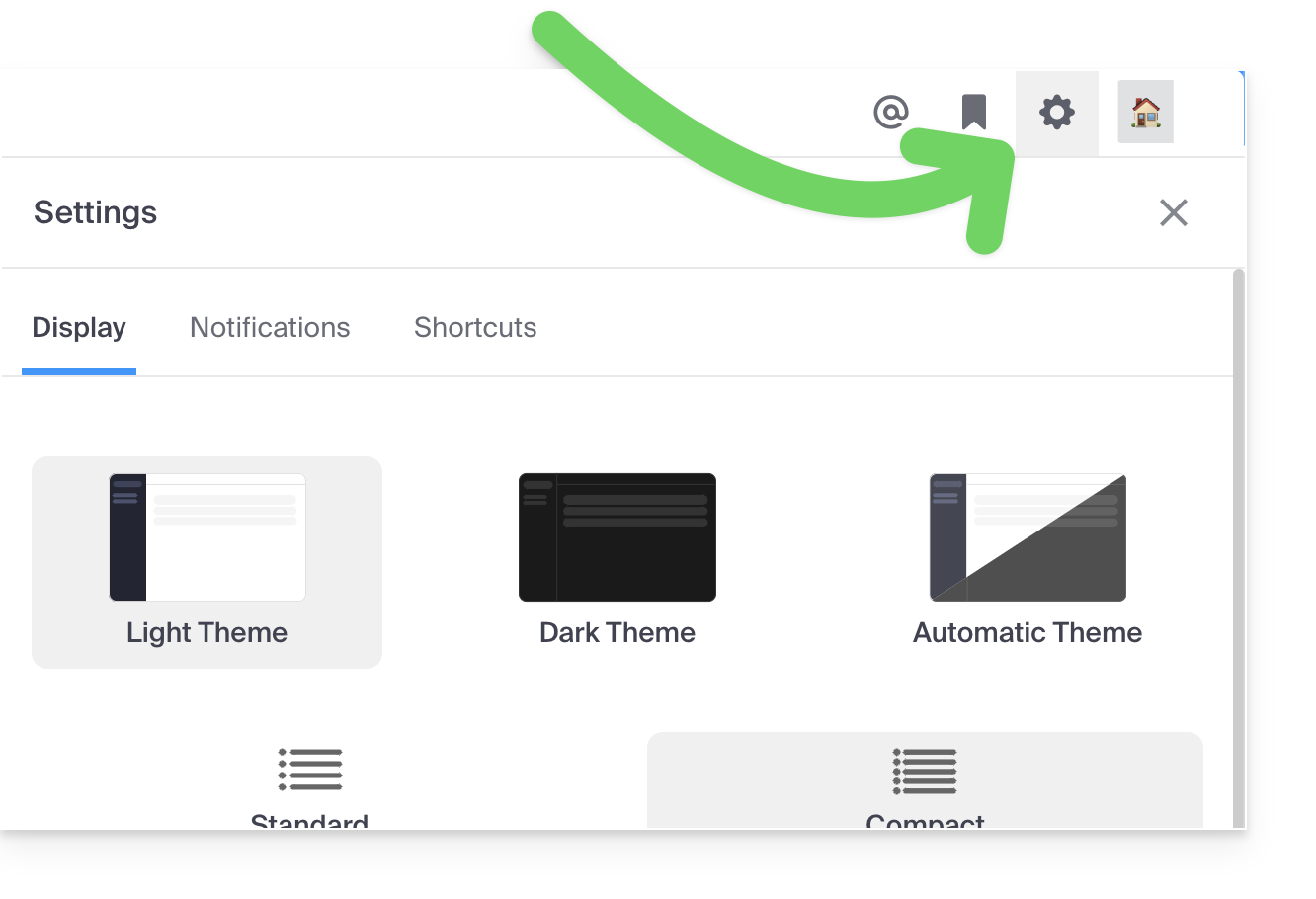
4. Customize a discussion, a channel, etc.
Next to each item in the left sidebar is an action menu ⋮ that allows you, in particular, to define the sort order for channels (alphabetical, by recent activity, manual):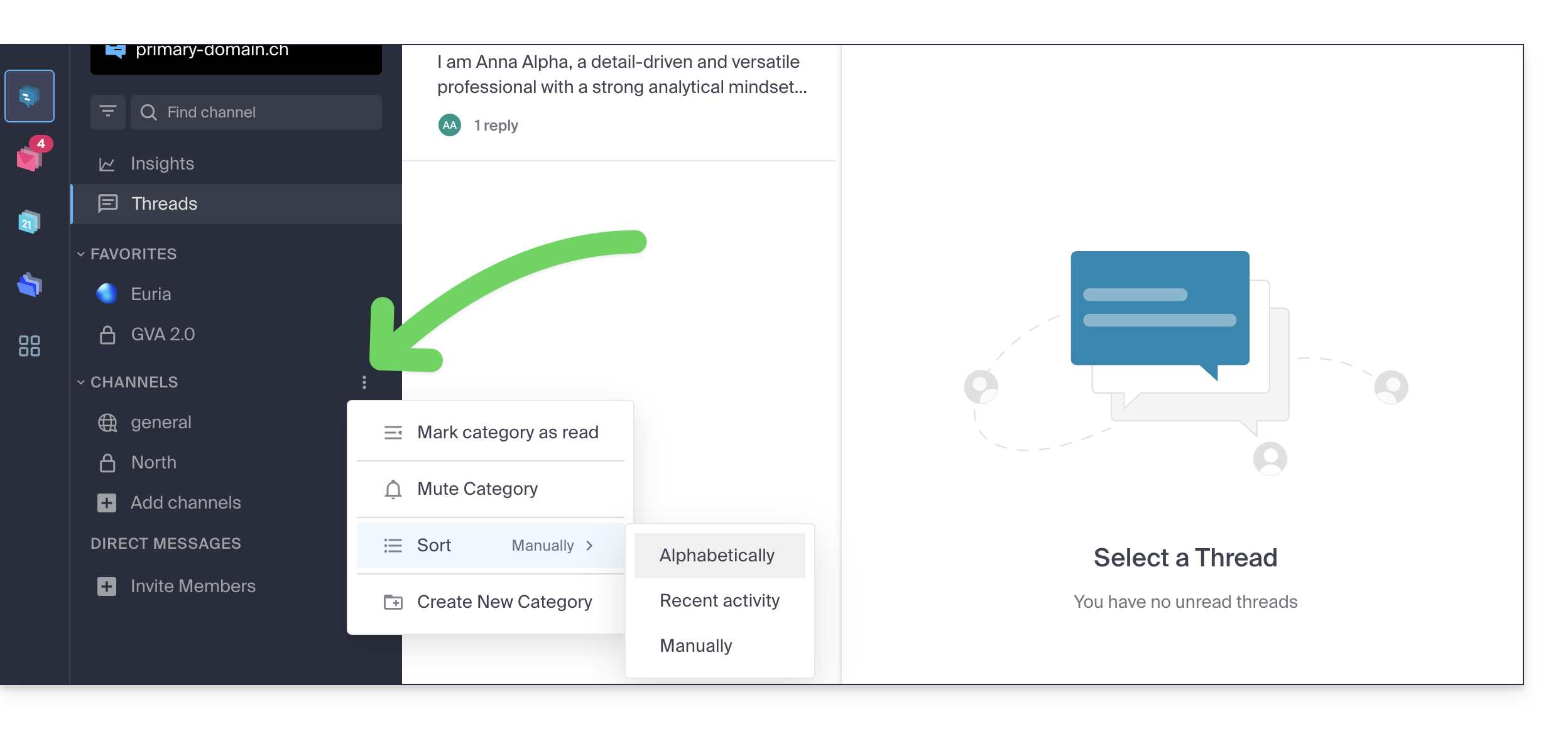
5. Set a status
To enhance your profile and its display in kChat discussions, as well as on the various pages and tools of kSuite, you can define a status in the form of text and/or an emoticon, with an optional expiration date:
- Click on your avatar or initials in the upper right corner of the interface.
- Click on Choose a custom status:
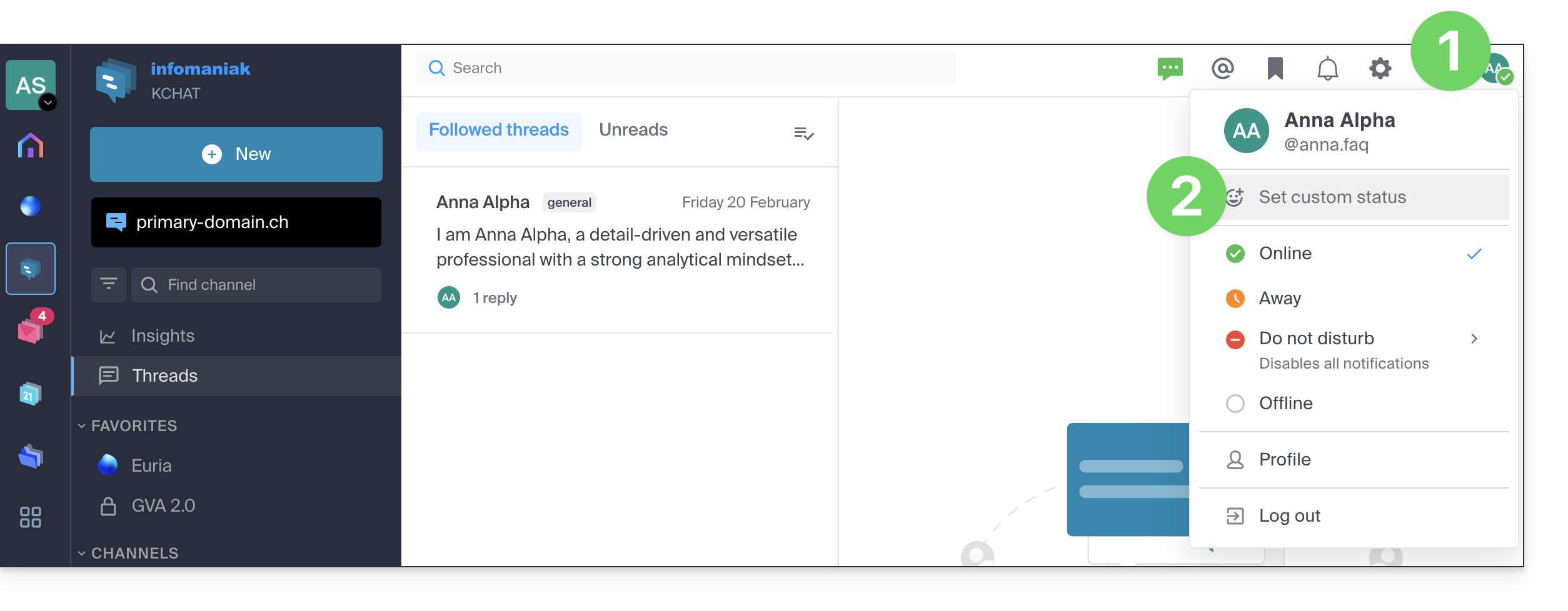
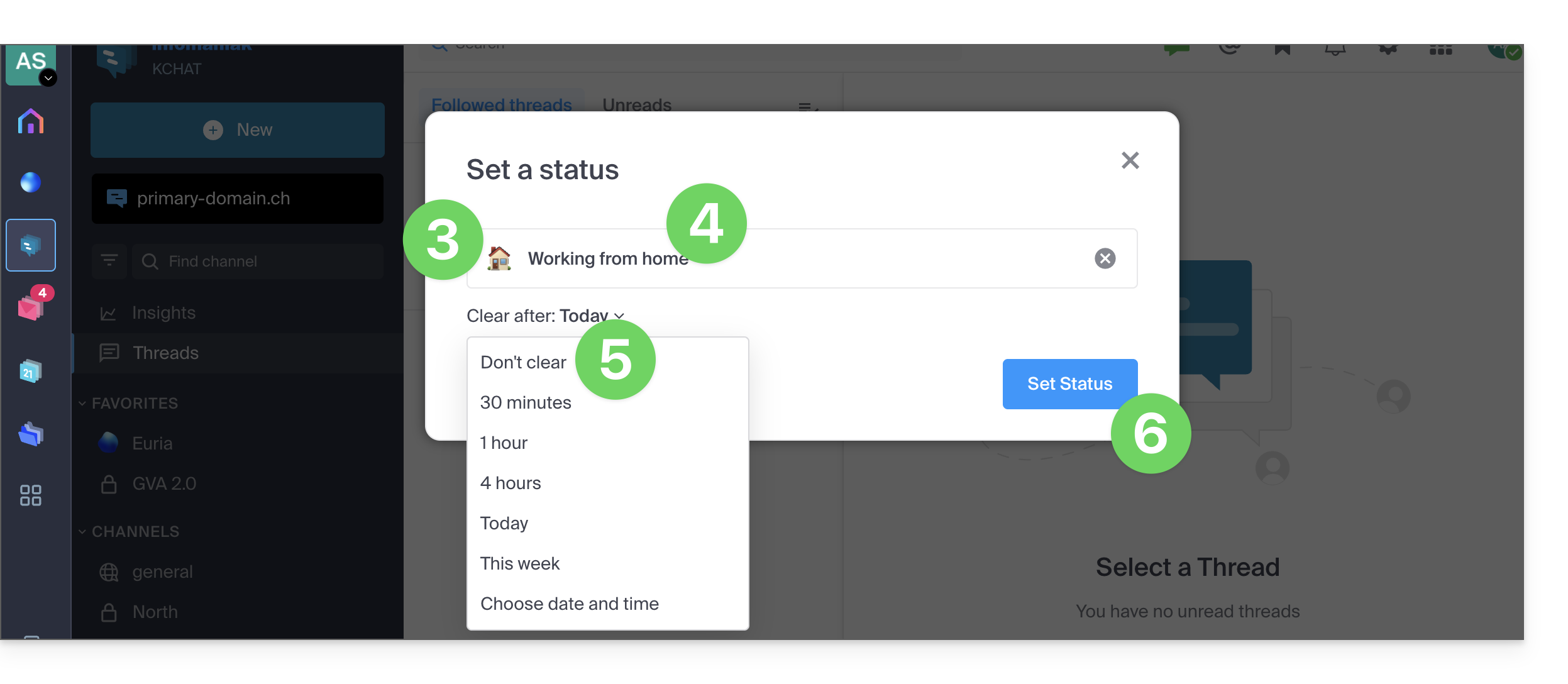
- Click on the smiley icon if you want to choose an emoji to display next to your name.
- Refer to this other guide about kChat emoticons.
- Enter a custom status or choose one from the suggestions.
- Enter an expiration date if necessary.
- Confirm with the Set status button:
6. Use kChat with your domain and brand
With Custom Brand (included in the kSuite Enterprise plan, otherwise available as an option), you can customize kChat with your logo, your colors, and the URL of your domain name. Your employees will be fully immersed in your brand. Learn more in this other guide.
Link to this FAQ: https://faq.infomaniak.com/2734
Has this FAQ been helpful?
This guide explains how to start an audio or video conversation between one or more users using kChat, Infomaniak's ethical and free video conferencing solution, kMeet.
Introduction
- The call feature in kChat is available on all Web (browser), mobile (iOS/Android), and desktop (macOS/Windows) versions.
Create a meeting between kChat users
To be able to chat in a virtual room using your device's microphone and webcam, simply press the Call button visible in any kChat conversation, private or public channel, via the application or directly in the browser: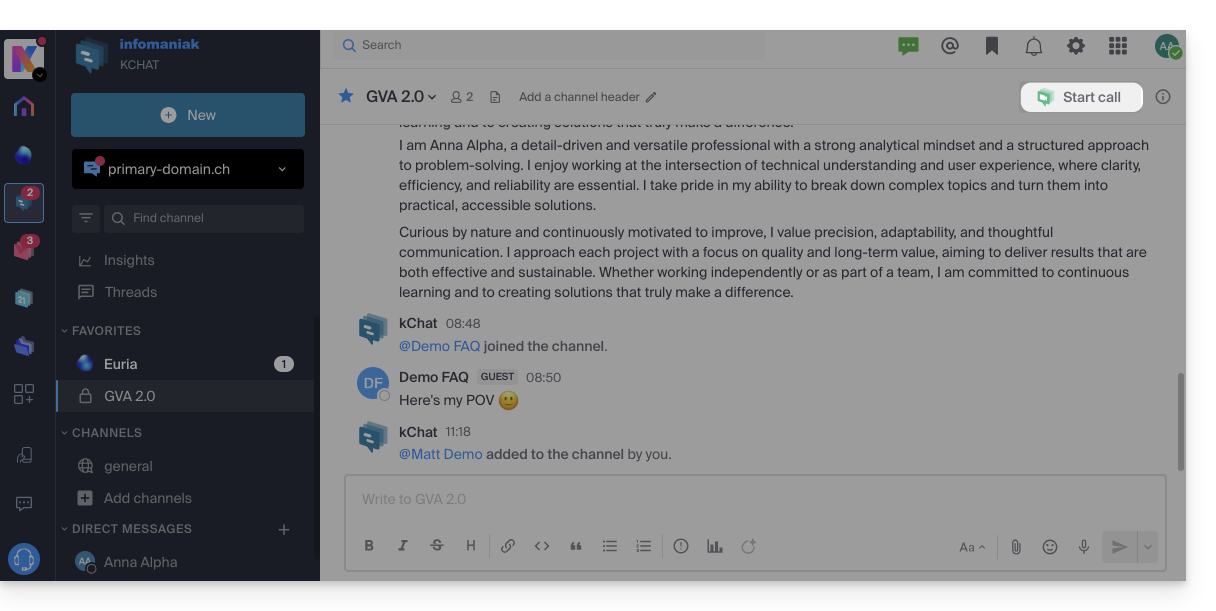
- Call a user directly if you are in a direct conversation with them, or start a call to all members of a channel if you start the meeting from the channel.
- Calling a user who is in “Do Not Disturb” mode will not trigger a ringtone or call notification on their device, but they will see the message in the conversation.
- The microphone is enabled by default when the call is answered, but the camera is not.
- View the meeting participants (who accepted, declined, or missed it) using avatars in the kChat message.
- Once the call has started, an emoji will appear in your kChat status to indicate that you are busy with the conversation.
- A message sent from the video conference (kMeet) will also be visible in the kChat conversation (and vice versa).
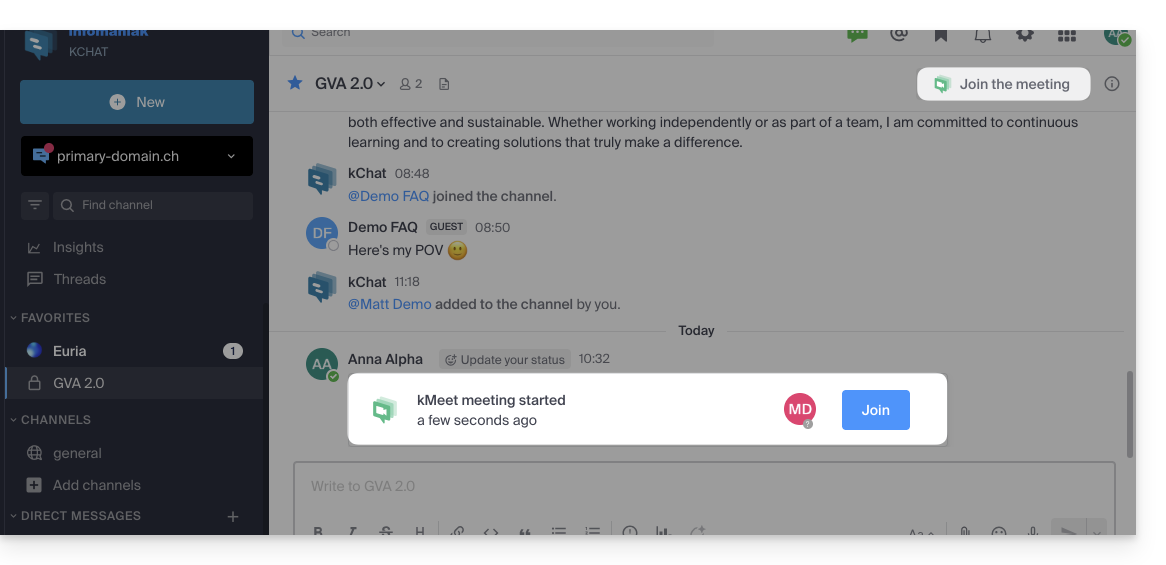
- Notifications regarding the start and end of the meeting are displayed automatically in the relevant kChat conversation thread:
Specifics for calls within channels
- The call will not ring for the call recipients, but they will see a message in kChat as well as a notification.
- A message (as a warning) will appear if you want to start a call in a channel with more than 7 users.
Refer to this other guide if you are looking for information about kMeet.
Link to this FAQ: https://faq.infomaniak.com/2827
Has this FAQ been helpful?
This guide will quickly introduce you to the essential functions of Euria, the artificial intelligence available to you within kSuite, which is particularly effective as a conversational agent on the kChat app.
Introduction
- Euria can help you perform all kinds of calculations, translations, provide information on various topics, and answer your questions.
- Please read this other guide about the model used and the responsibilities of each party.
- When a new user is added, they receive a message from Euria welcoming them.
- Please read this other guide about the possibilities of AI-powered summaries on kChat.
Add Euria to your kChat contacts
The bots currently available on kChat are already part of your contacts.
If you don't see them yet, click in the left-hand menu of kChat…
- … on the channel search (bots also appear as channels)
- … or on the + icon next to Direct Messages to search for the bot
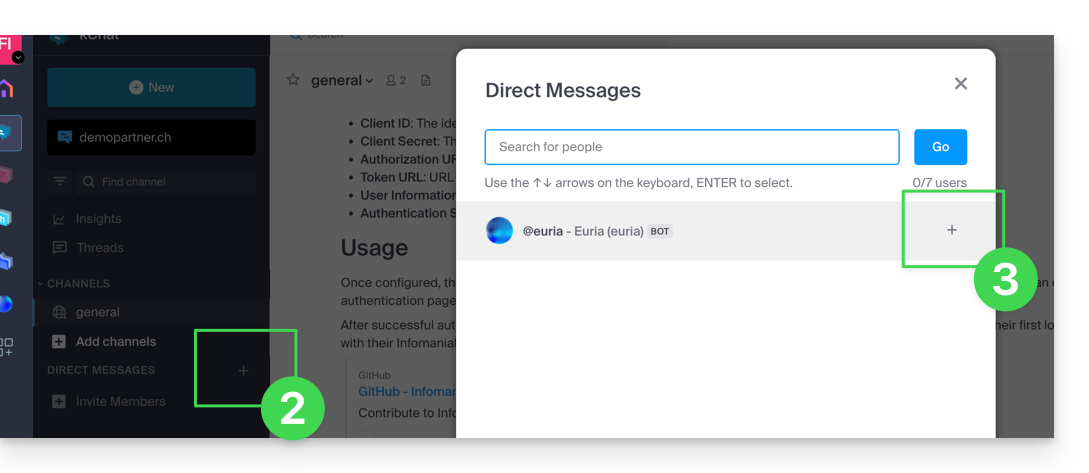
- Add the bots that are identified as such with the [bot] label, or search for the term bot or chat.
Do not create a group conversation between the bots and yourself, as this will not work. You need to create a private chat channel between each bot individually and yourself.
Simply write to it as if you were conversing with an acquaintance: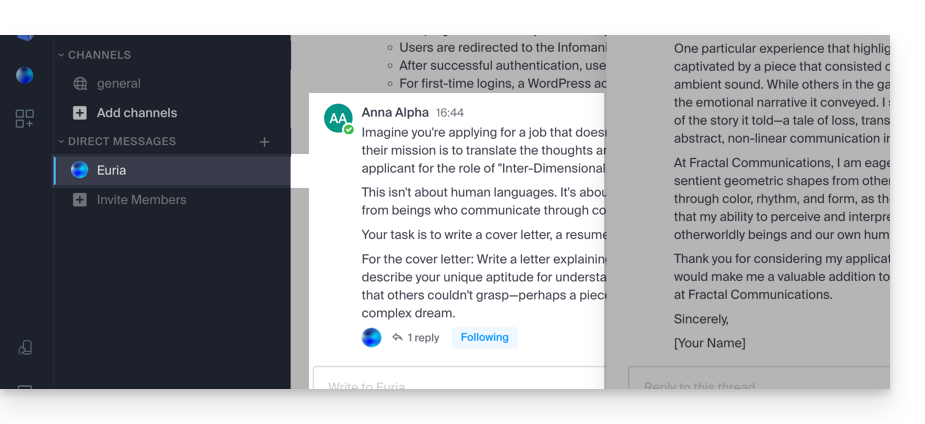
Link to this FAQ: https://faq.infomaniak.com/2840
Has this FAQ been helpful?
This guide explains how to add a completely external user to kChat.
Introduction
- A kChat administrator can invite a completely external user to your Organization who will not be counted as a user.
- However, this user will be invited to create an Infomaniak account if they do not already have one.
- To add a kChat user and grant them more permissions (they will be counted as a kSuite user), please refer to this other guide.
Invite a user to chat in a private channel
Prerequisites
- You must be a kChat administrator:
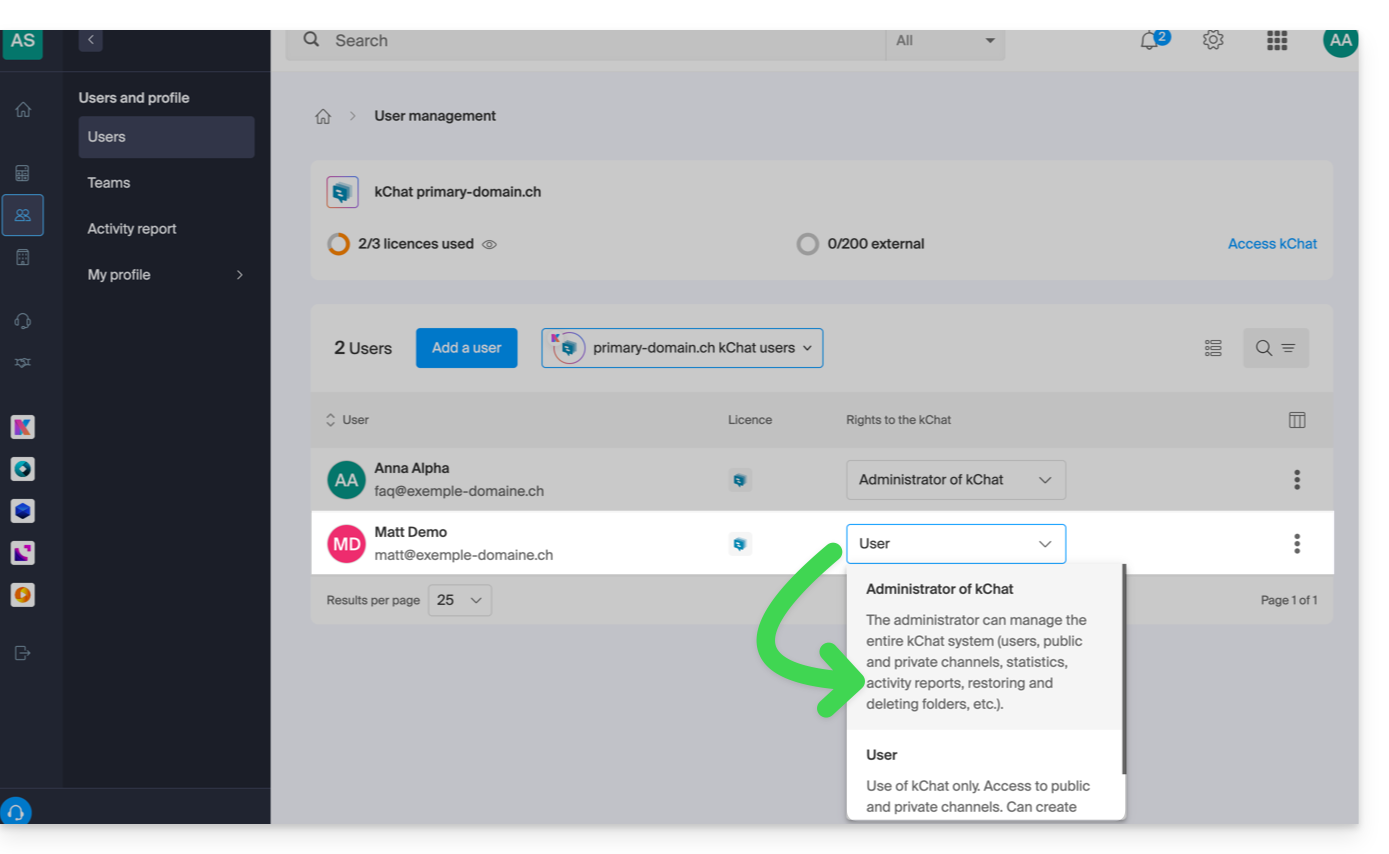
- The role within the Organization is irrelevant; being an Organization administrator in the Organization that contains the kSuite (and therefore kChat) is not required, and is not sufficient in any case:
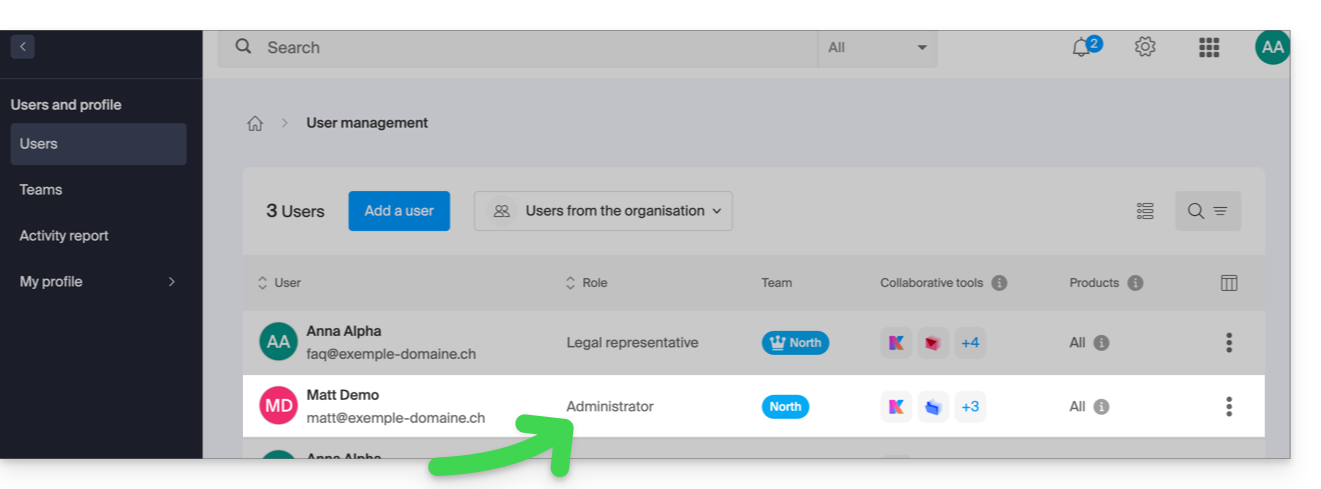
- The role within the Organization is irrelevant; being an Organization administrator in the Organization that contains the kSuite (and therefore kChat) is not required, and is not sufficient in any case:
Next, to send an invitation by email from kChat:
- Click here to access the kChat web app (online service ksuite.infomaniak.com/kchat) or open the kChat desktop app (desktop application on macOS / Windows / Linux).
- Click the button to Invite members:
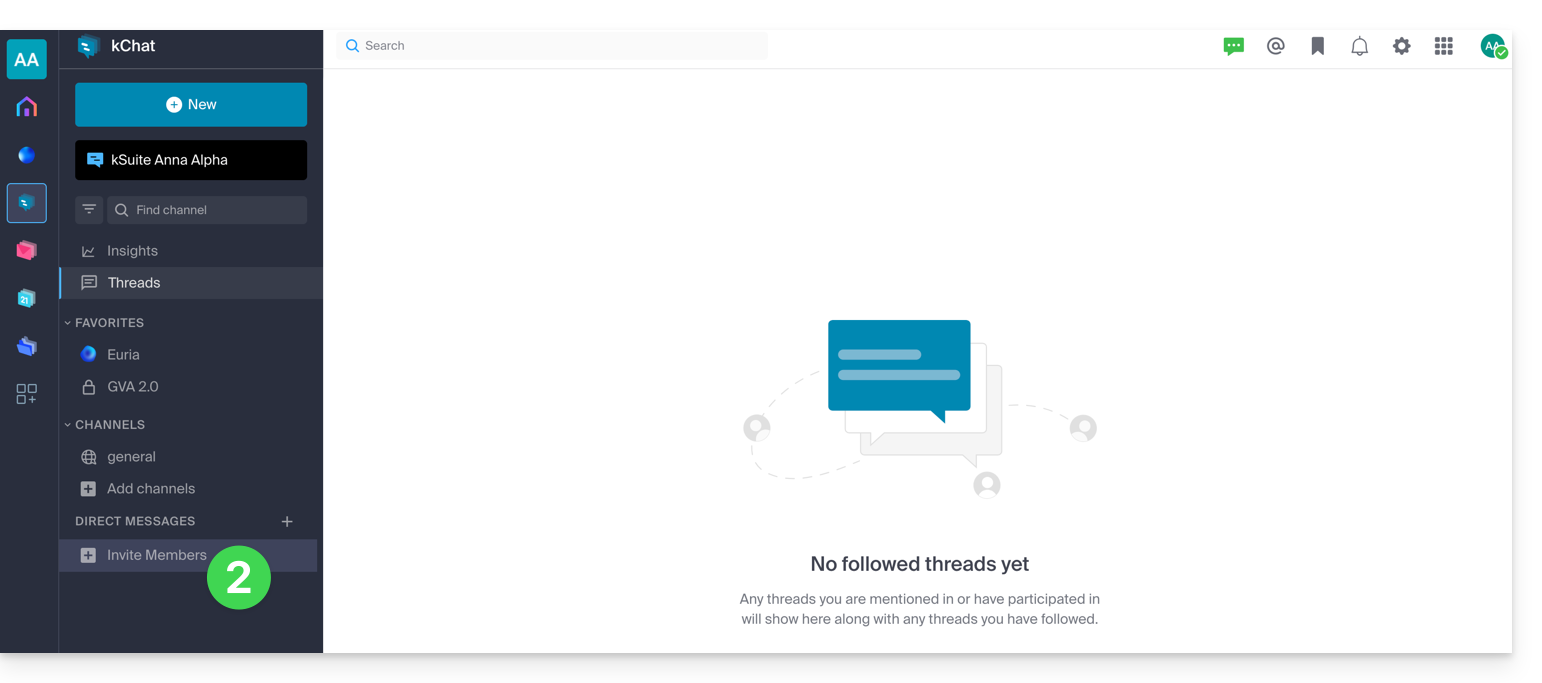
- Enter the email address of the person you want to invite.
- Click on their email address to add them as a guest:
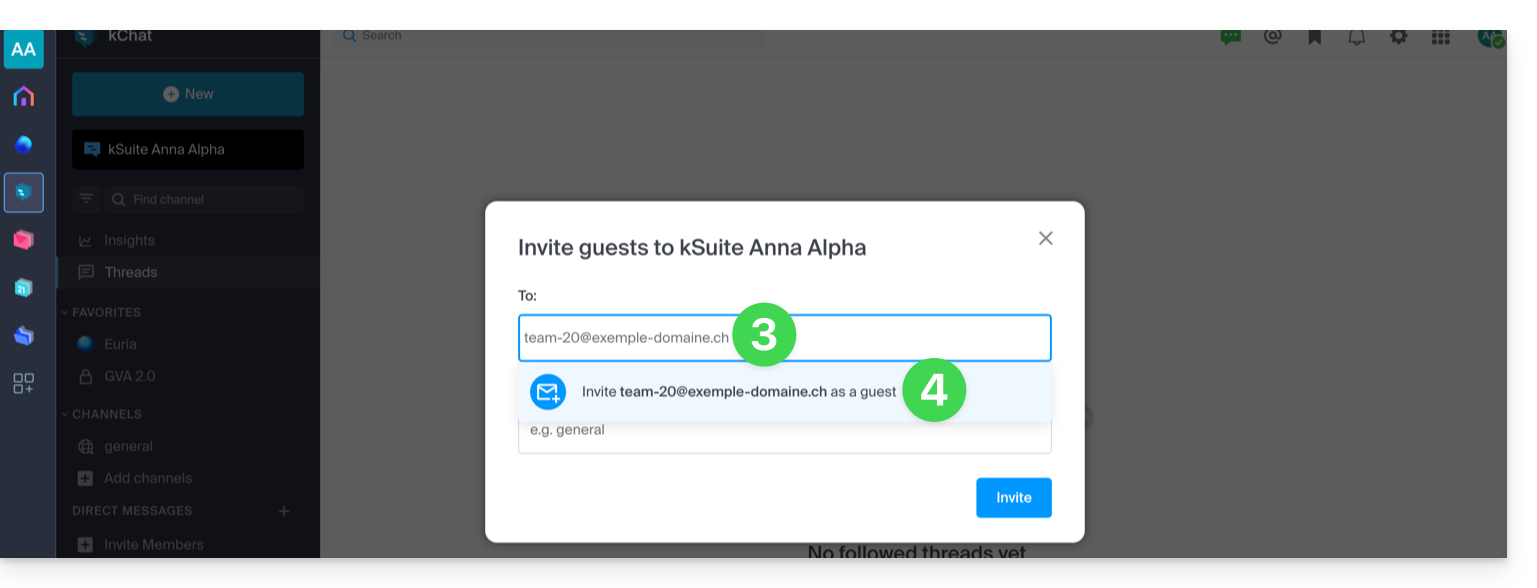
- Specify the channel(s) these people will have access to.
- Click the blue button to send the invitation:
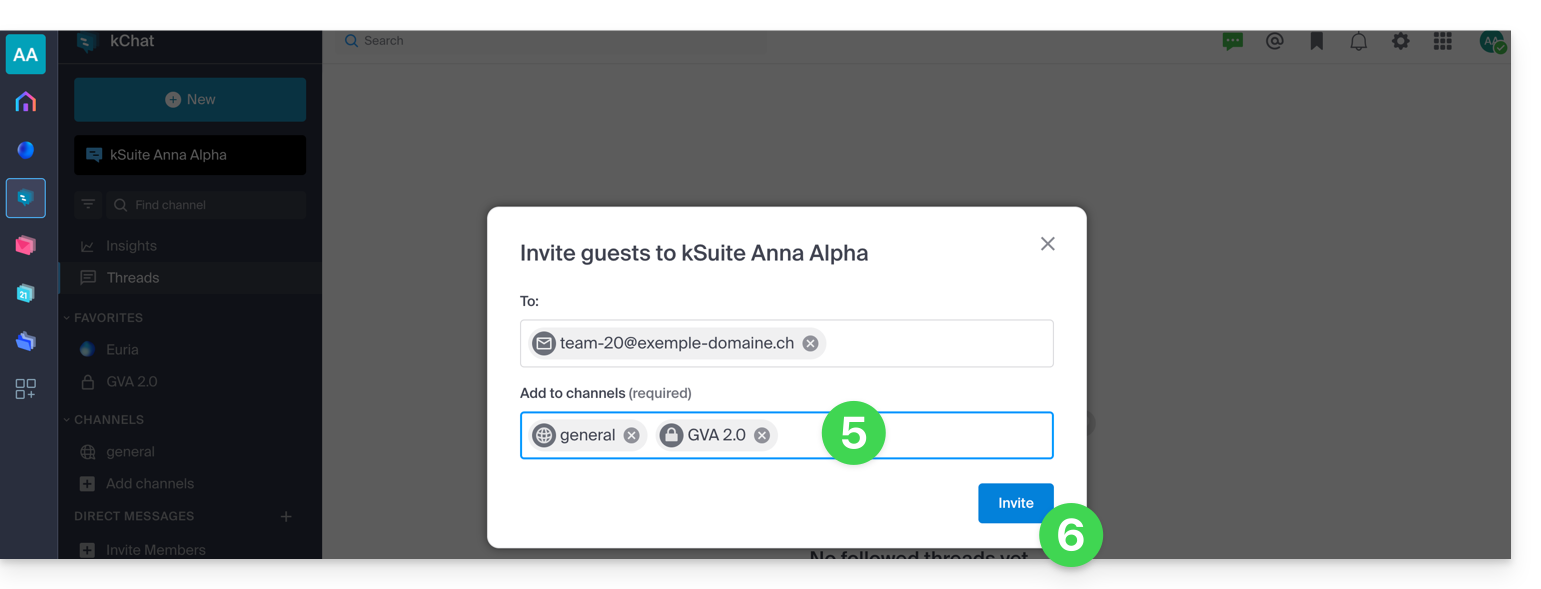
- The invited person receives an email with a link leading to the kChat interface and the channel shared with them:
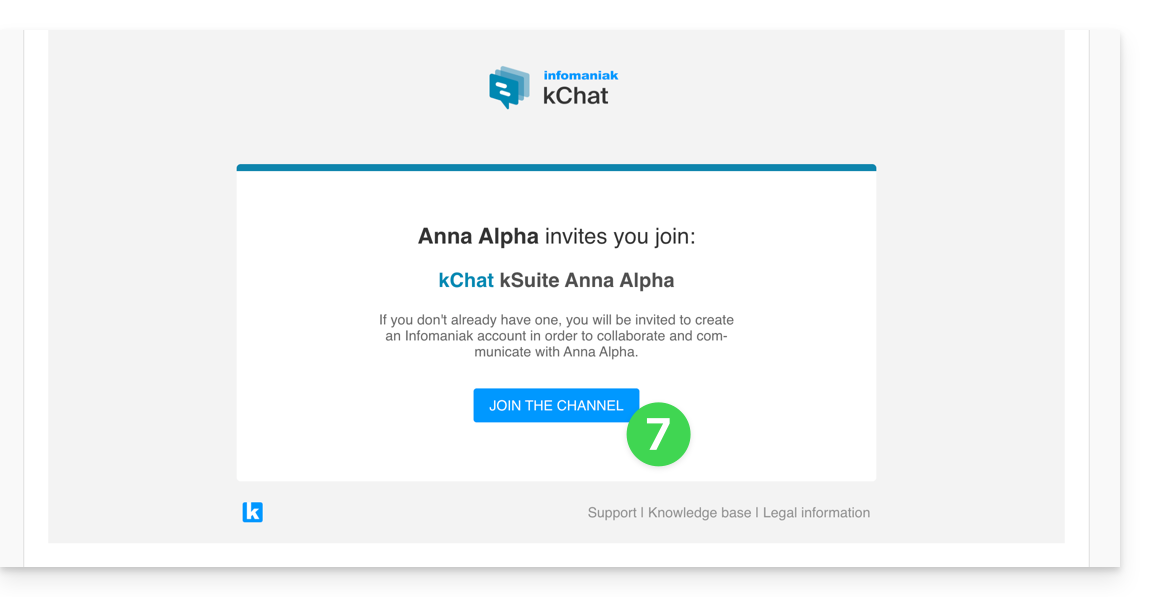
- Of course, there is a registration phase if the user does not yet have an Infomaniak account (during this time, the invited user is listed as pending on the kChat channel in question):
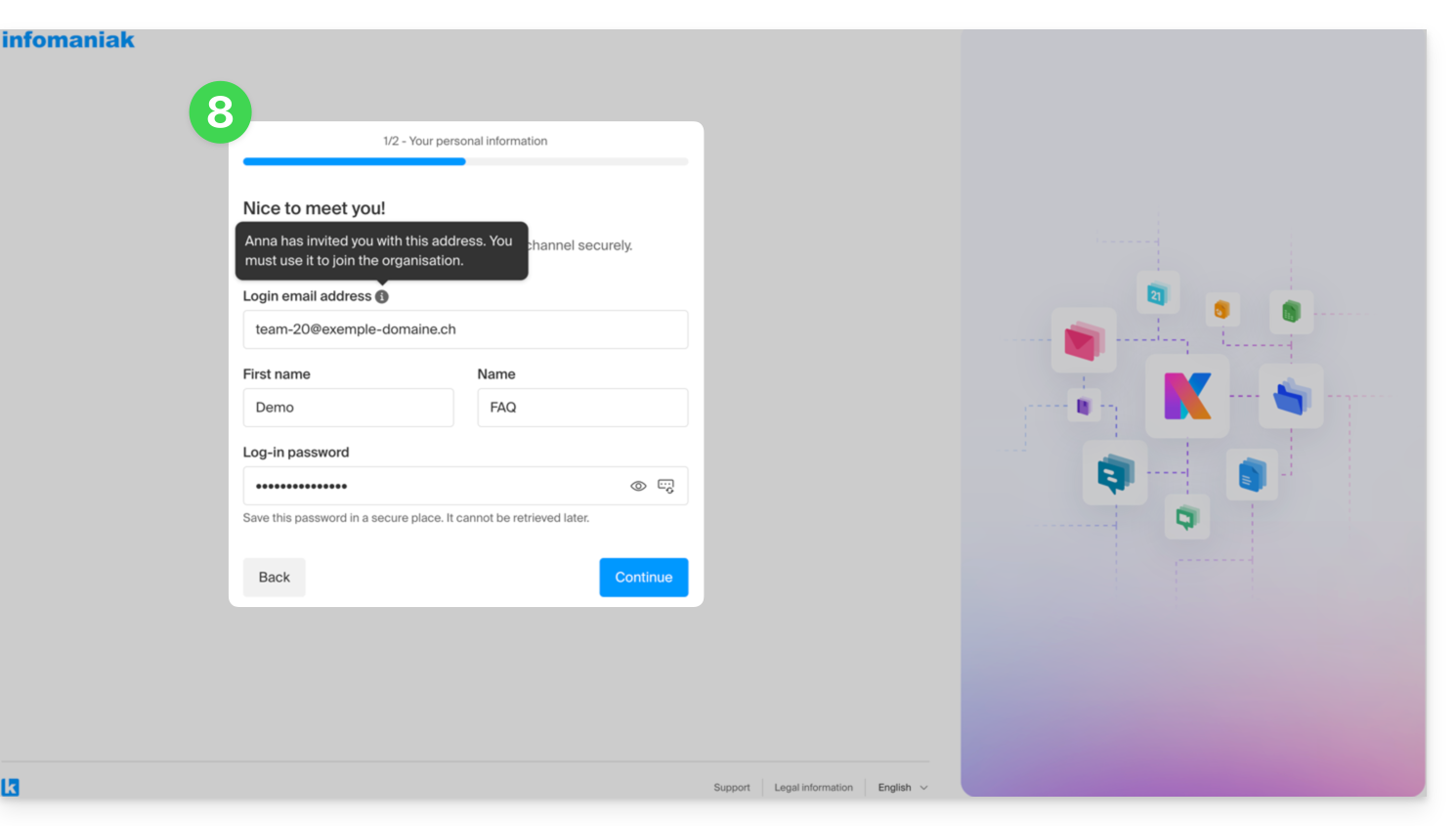
- Note that the user will not be listed as pending within kSuite or elsewhere because they are a restricted, external user; and until the registration is complete, the quota remains at 0 external users:
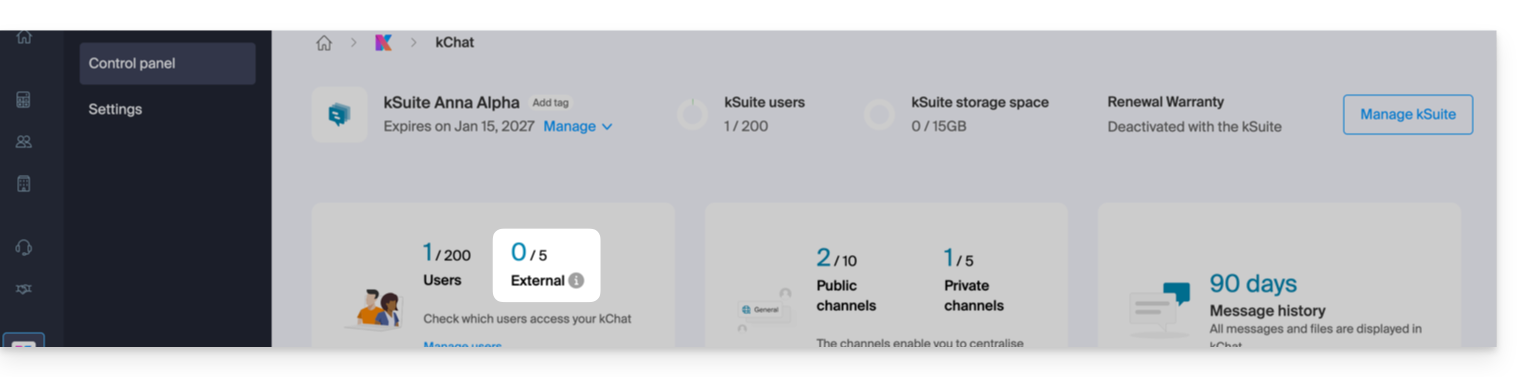
- Note that the user will not be listed as pending within kSuite or elsewhere because they are a restricted, external user; and until the registration is complete, the quota remains at 0 external users:
- Once the registration is complete, the guest can access kChat, a restricted version limited to the channels specified by the administrator when creating the invitation:
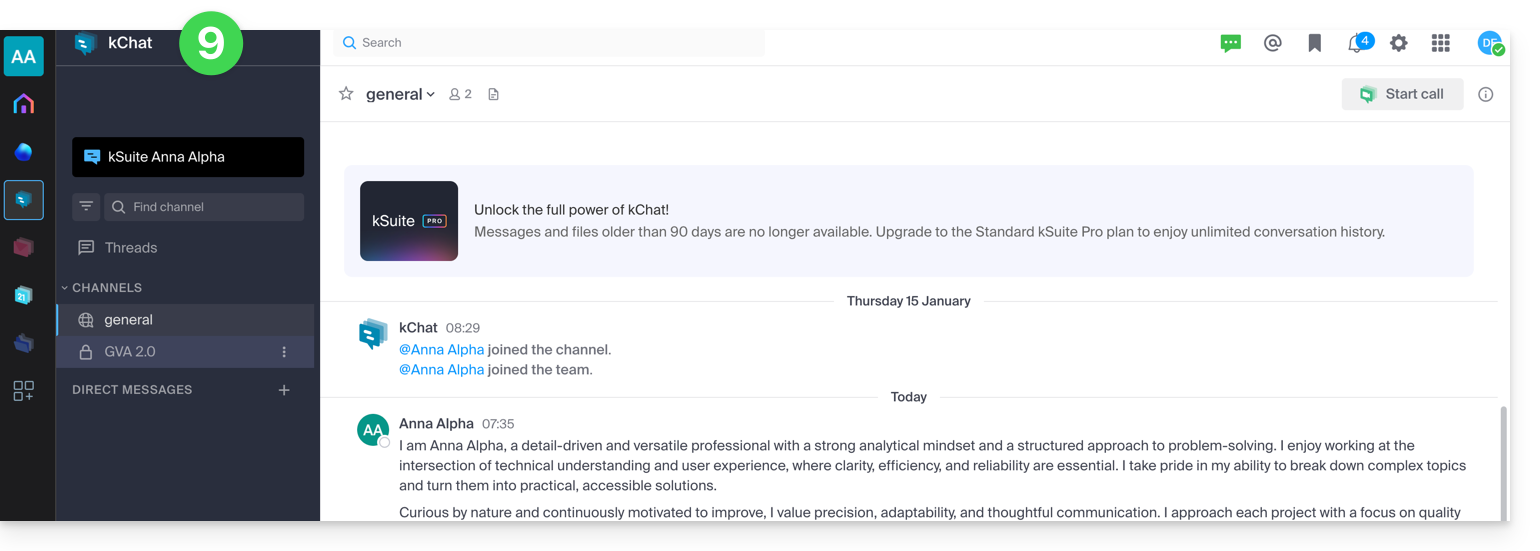
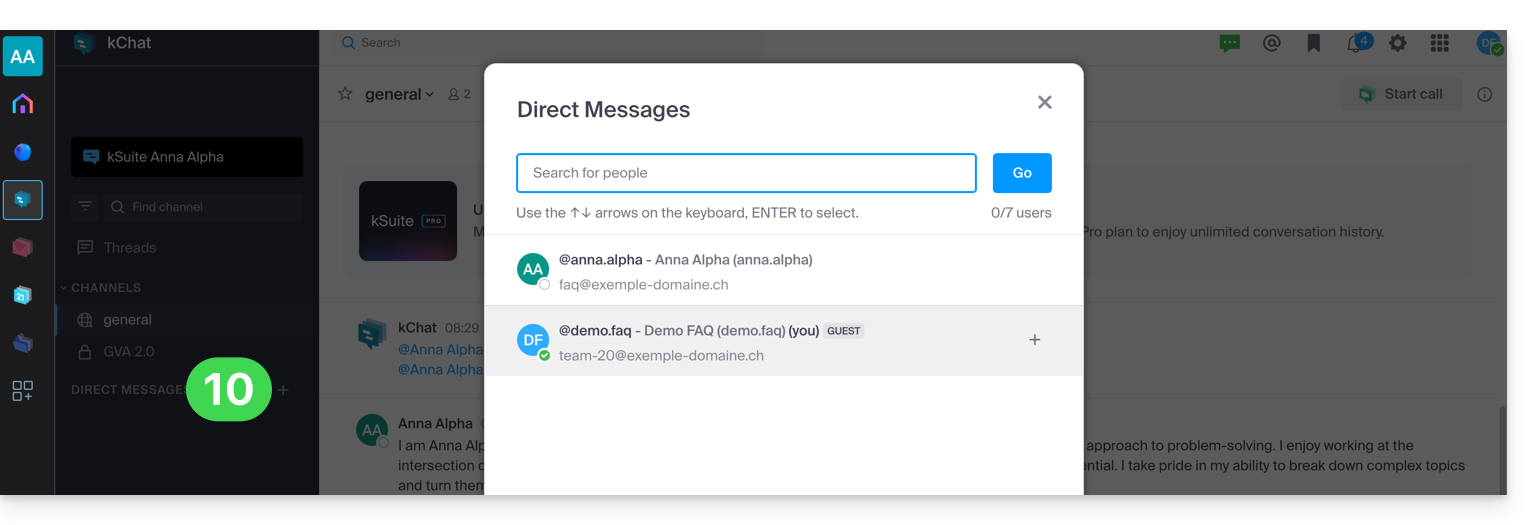
- He can start a private conversation with other users:
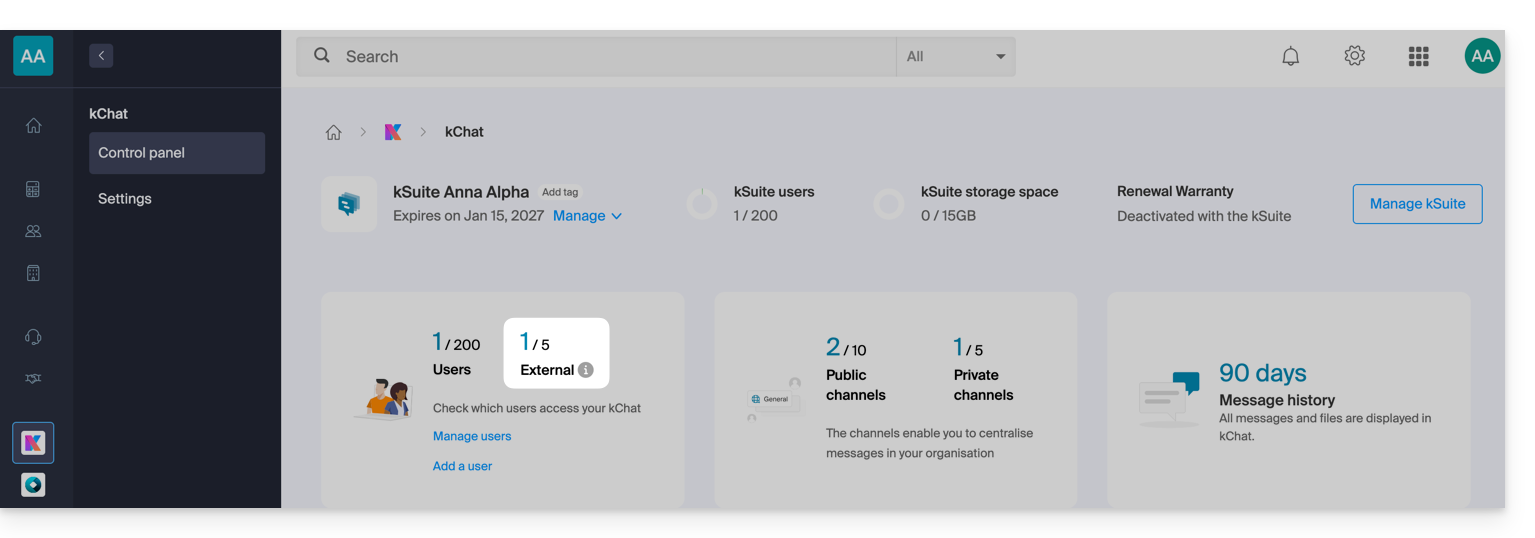
- From the administrator account, once the external user's registration is complete, you will see a notification of 1 external user on your dashboard:
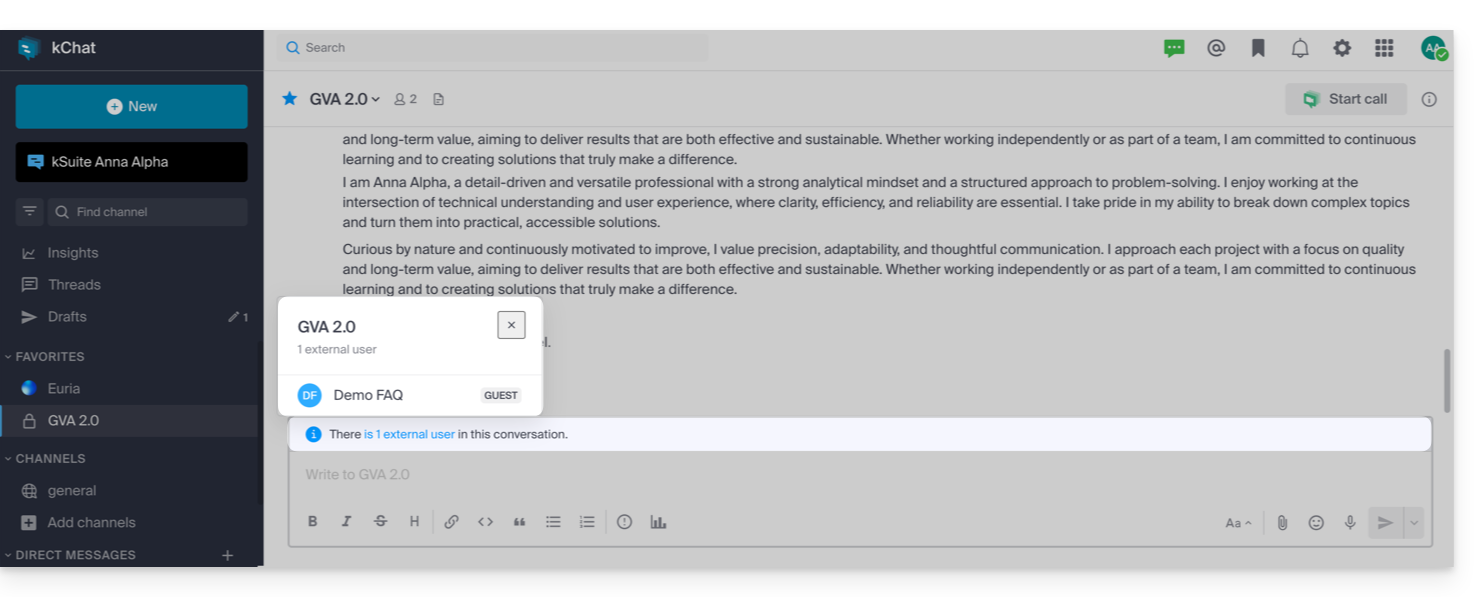
- And now you can see on kChat that the user has access to your private channel:
- From the administrator account, once the external user's registration is complete, you will see a notification of 1 external user on your dashboard:
Permissions for the guest user
Guests can…
- … pin messages to channels
- … use "slash commands" (with the exception of restricted commands such as inviting members, renaming channels, modifying headers, etc.)
- … mark a channel as favorite
- … mute a channel
- … update their profile
- … use different authentication methods than other users
- … use the kChat application: the guest can open the app (web, mobile, or desktop) whether they are already a member of a kChat or not; this operating principle is different from kDrive, for example.
Guests cannot…
- … discover public channels
- … join open groups
- … create direct messages or group messages with members who are not part of the same channel
- … invite people
In case of a problem
If you are an administrator of the Organization, but you still cannot invite a new user to kChat, check that you are indeed an administrator within kChat, as it is quite possible to be a simple user/collaborator, even if you are the only user with a license on kSuite, for example:
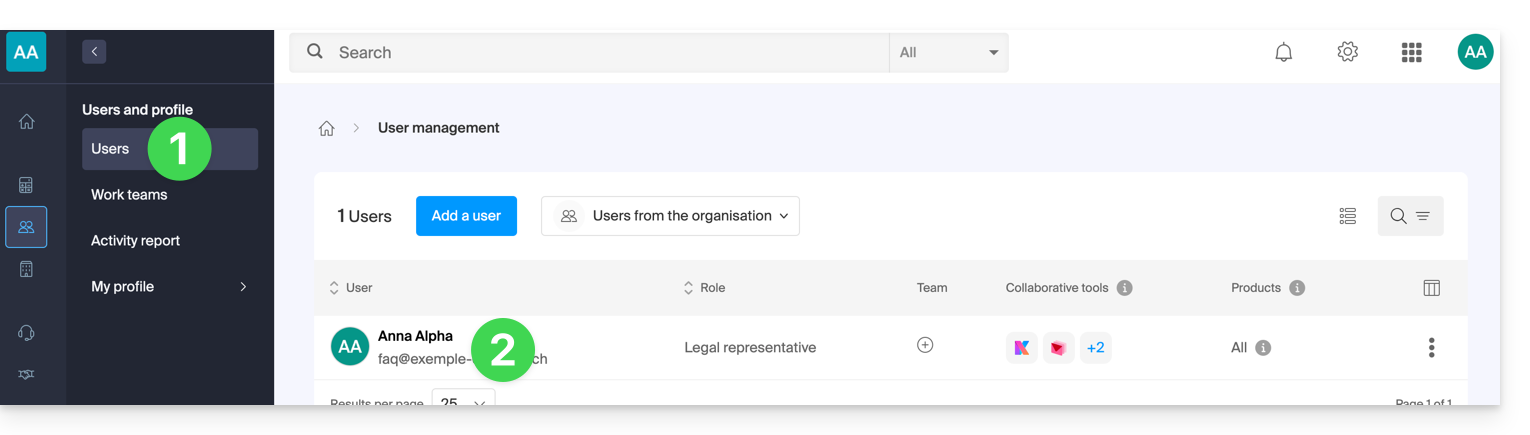
- Click here to access the management of the Organization's users in the Infomaniak Manager (need help?).
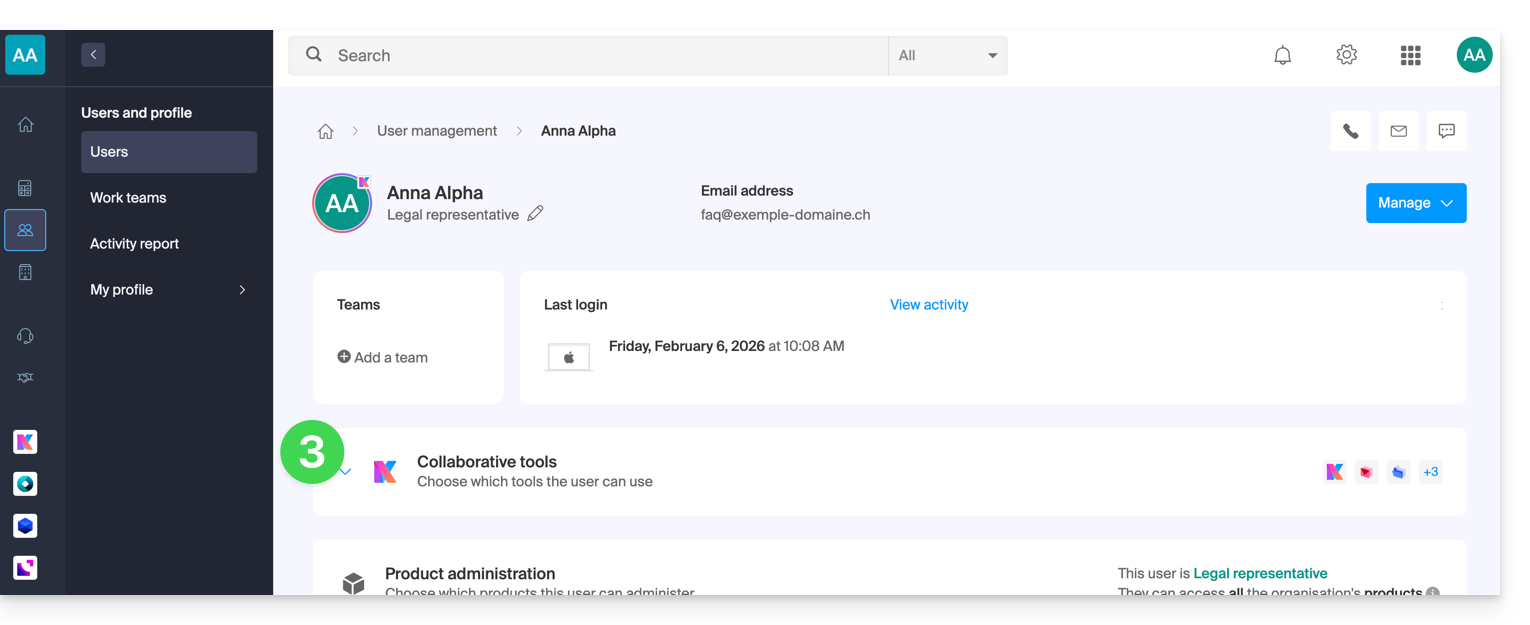
- Click on your username:
- Click on the chevron to expand the kSuite collaboration tools:
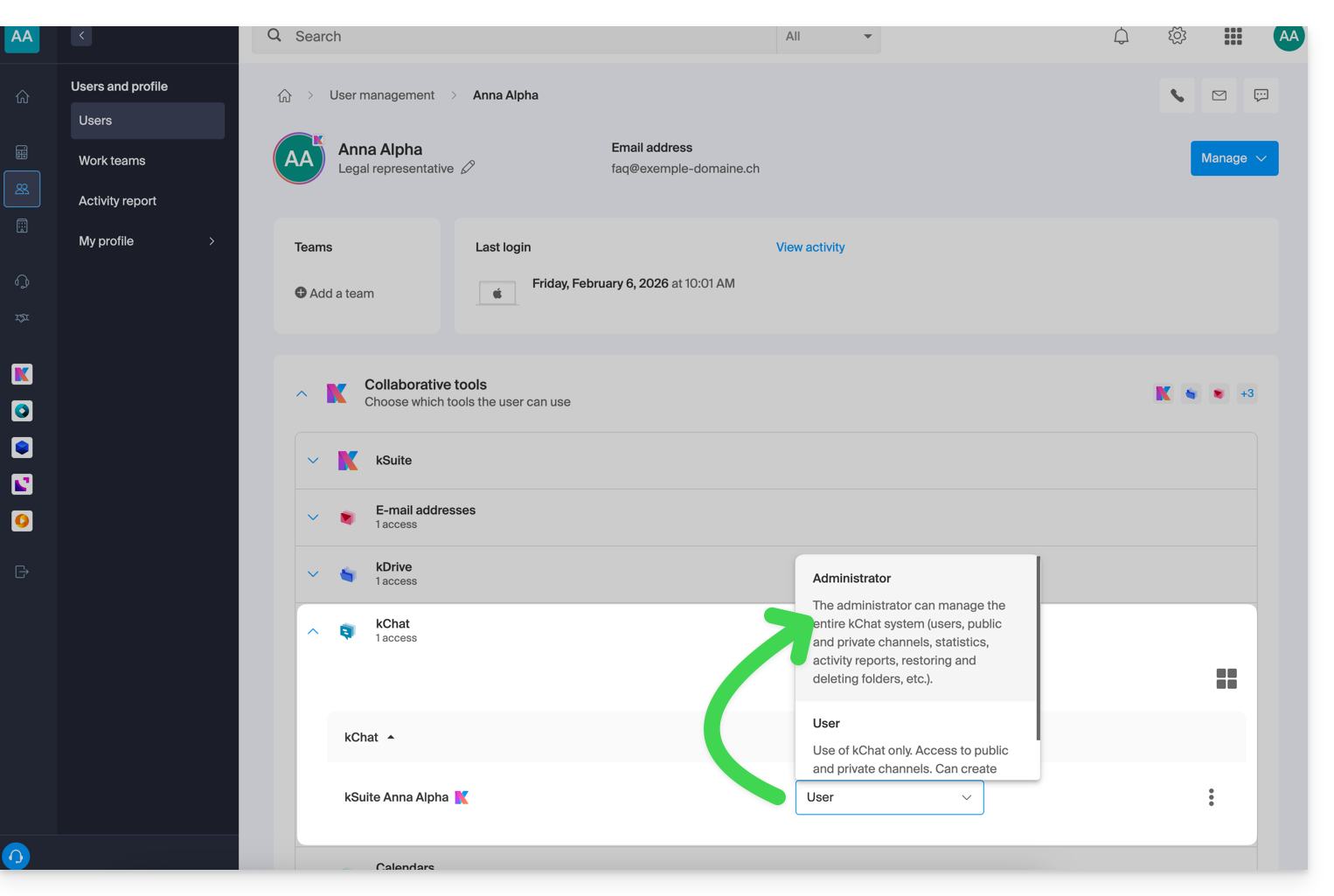
- Under kChat, change the role from user to administrator:
Link to this FAQ: https://faq.infomaniak.com/2846
Has this FAQ been helpful?
Infomaniak tools, such as the Web Mail app (online service ksuite.infomaniak.com/mail) or the Calendar, Contacts, kSuite interfaces, can be displayed in light mode or dark mode, including based on the settings of your current operating system: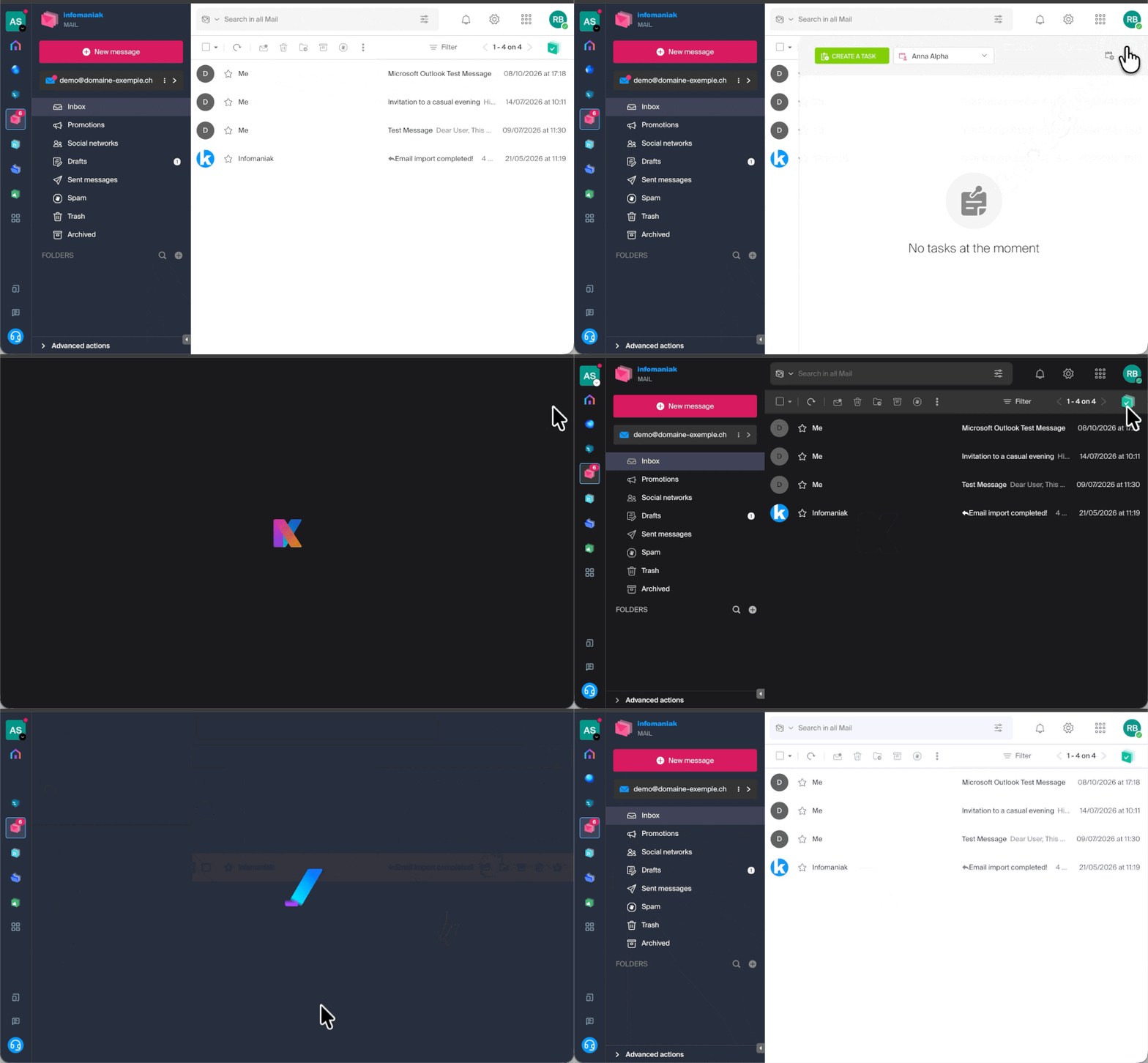
Enable manual mode
To manually choose a dark or light display, without relying on a potentially different display setting on the operating system:
- Click here or at the top right, on your initials/avatar, to "Manage my account":
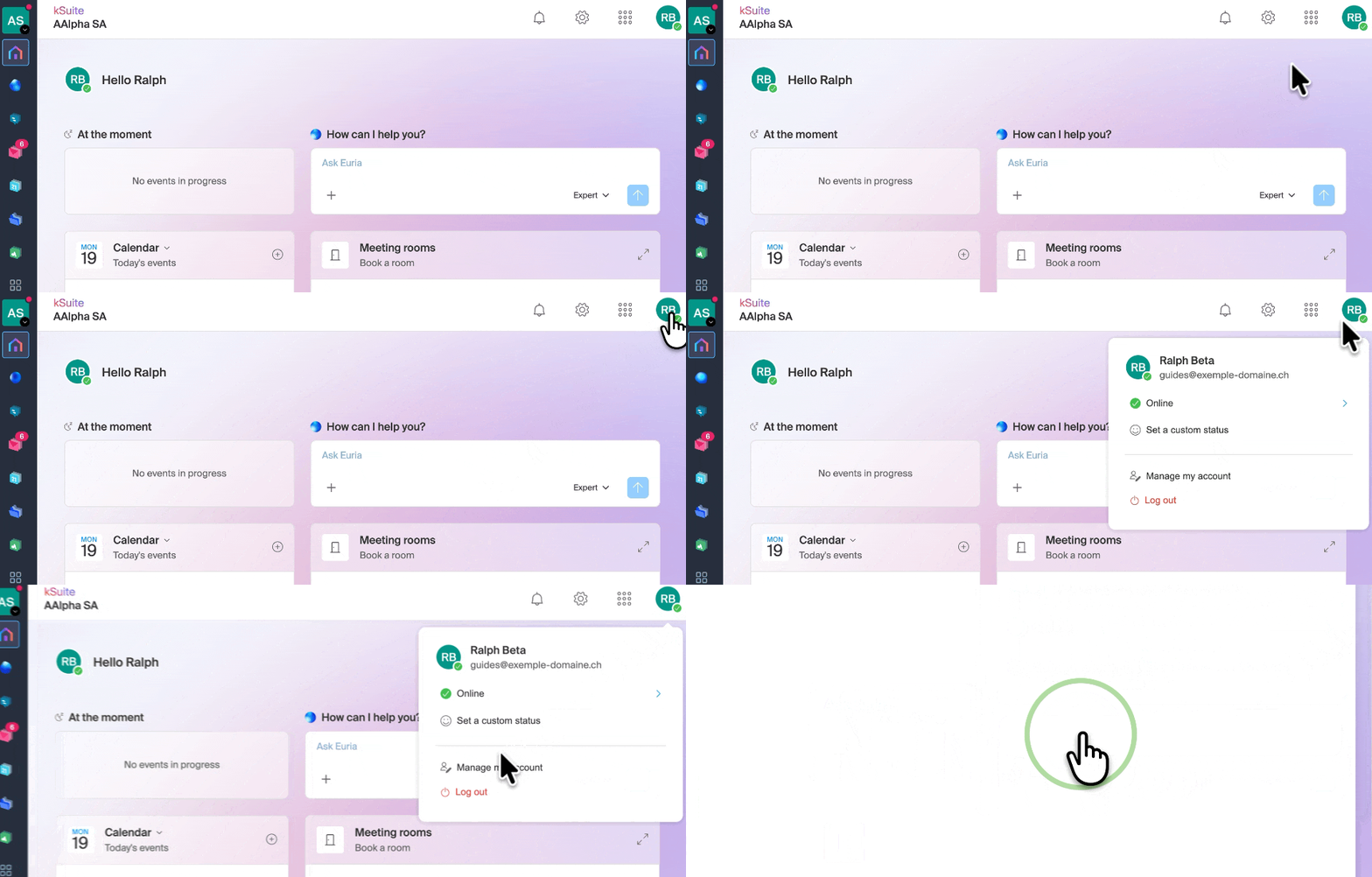
- Then, click on Appearance in the left-hand menu.
- Click on Light to apply the light mode:
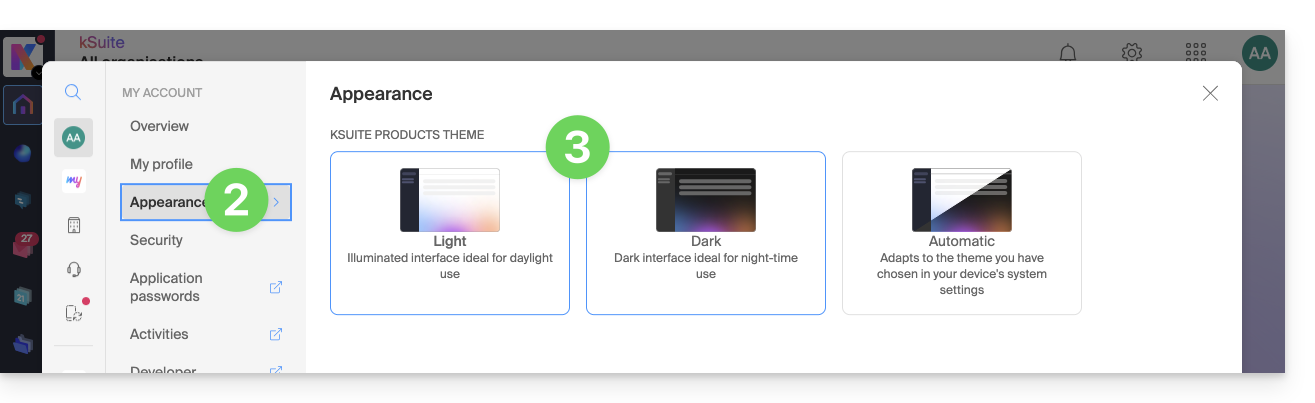
- Click on Dark to enable dark mode.
Enable automatic mode
Automatic mode is based on your operating system settings (macOS / Windows...):
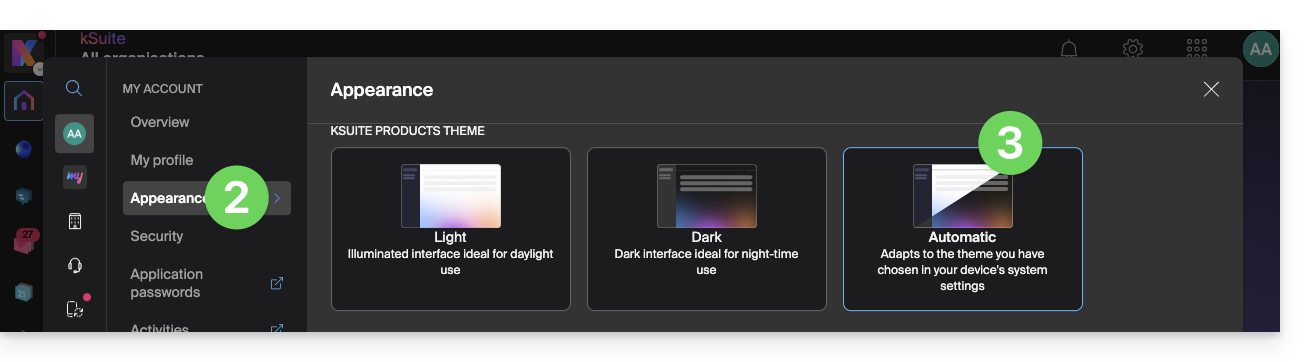
- Click here or on the badge with your initials / avatar in the top right corner of the Infomaniak Manager to "Manage my account":
- Click on Appearance in the left-hand menu.
- Click on Automatic mode:
Then, if you want to change the light or dark theme of your computer, so that the automatic mode of the Manager takes your preferences into account…
… on macOS
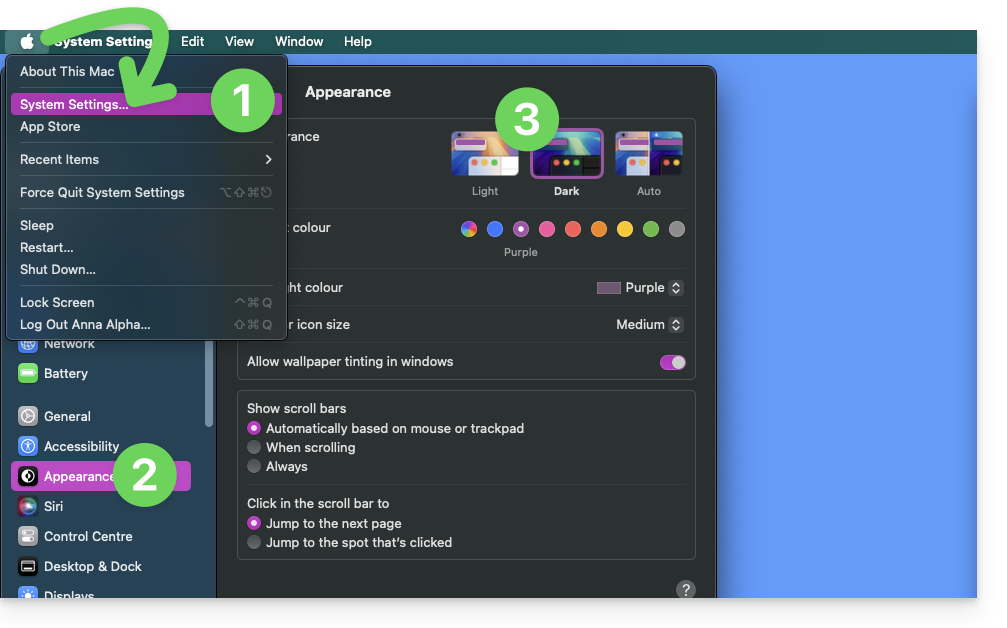
- Click on System Preferences…
- Click on Appearance.
- Choose the desired mode on the right:
… on Windows
- In the Start menu, open Settings > Personalization.
- Select Colors, then Choose your mode:
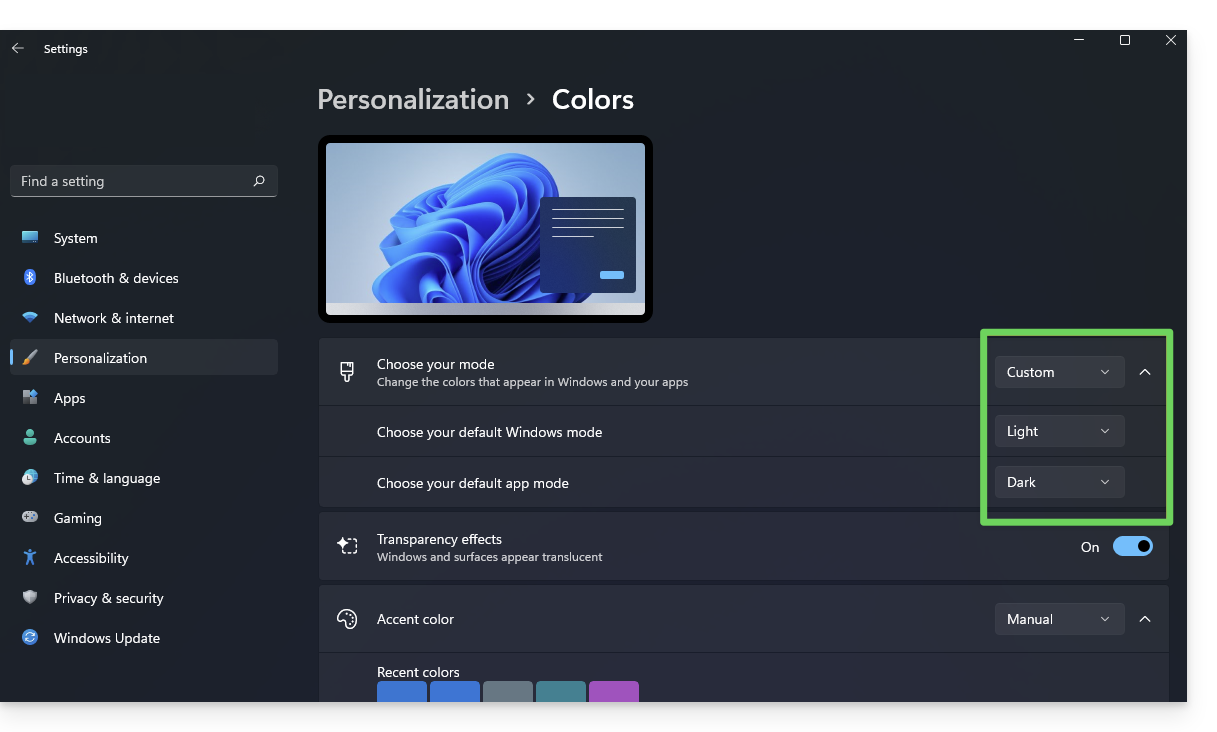
- You can choose between Light, Dark, or Custom.
- If you select Custom, you will have the option to choose a default Windows mode and a different default application mode.
And on mobile?
Dark mode is enabled on mobile devices for Infomaniak login and account creation pages; it automatically adapts to the mobile system's preferences, providing a consistent visual experience between mobile apps and login/account creation.
Link to this FAQ: https://faq.infomaniak.com/2870
Has this FAQ been helpful?
This guide details how to use voice messages within Infomaniak's kChat conversations.
Sending a voice message (and automatic transcription)
To record a voice message using your device's microphone and enable its playback in the current conversation (e.g., a private message, but also in any location where you can send a text message):
- Click here to access the kChat web app (online service ksuite.infomaniak.com/kchat), or open the kChat mobile app (application for iOS/Android smartphones or tablets), or the kChat desktop app (desktop application for macOS/Windows/Linux).
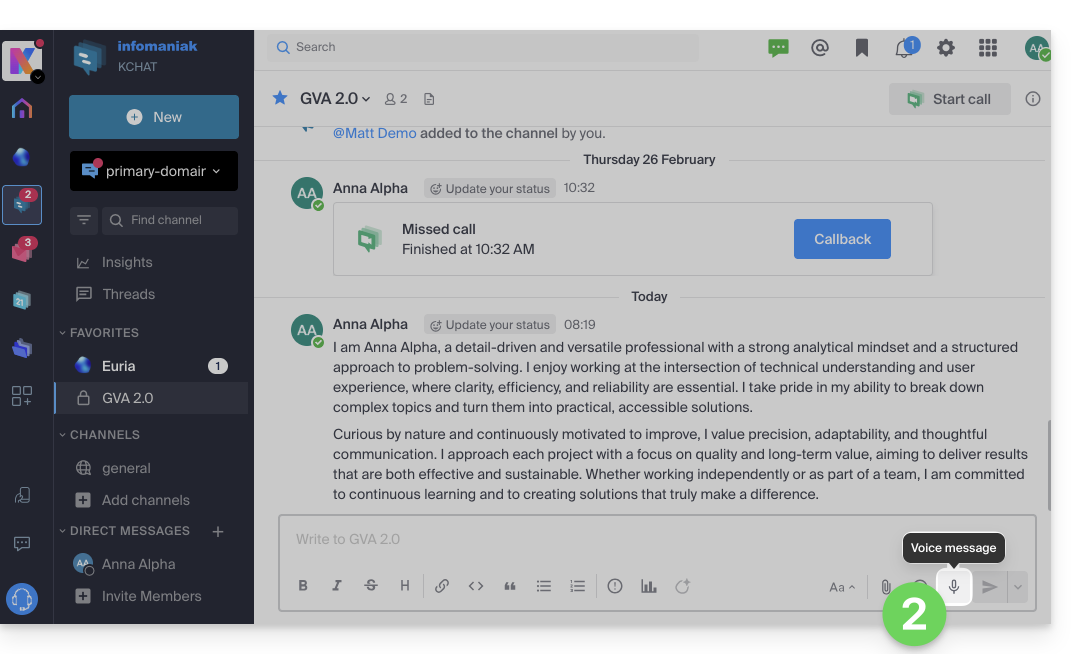
- Click on the microphone icon from the window for composing a new message:
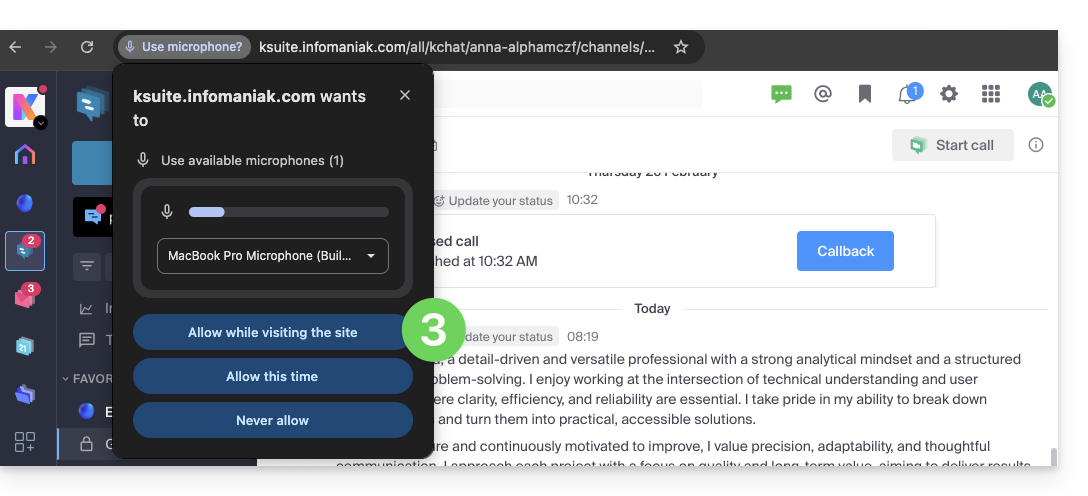
- The system may request certain permissions so that kChat can access your voice and audio interface:
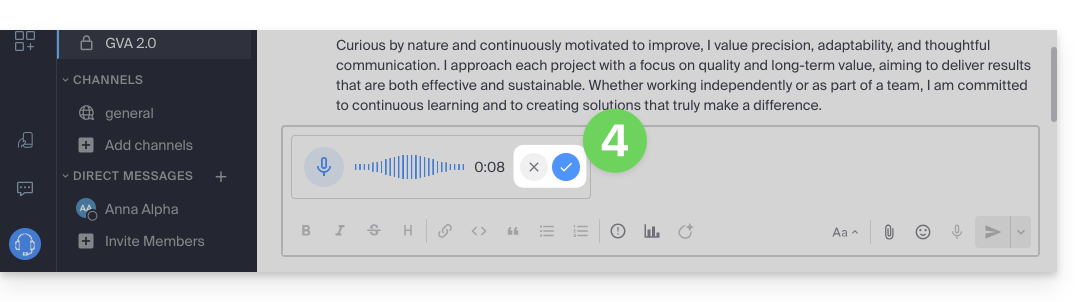
- Once the message is being recorded, click the cross to the right of the recording to delete it, or click the ✓ icon to keep it:
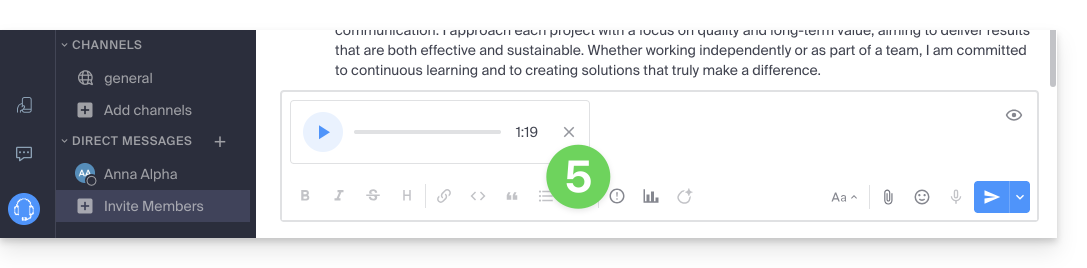
- Once the message is saved, it is not sent directly but is added to a new message. You can listen to it again or delete it, and change the priority of sending it.
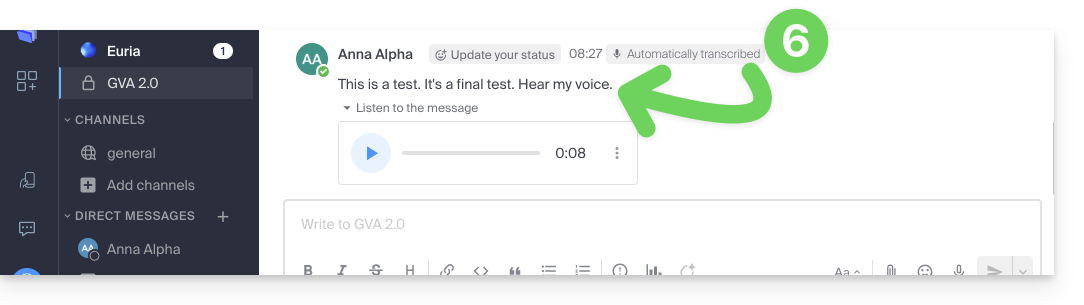
- Once the message is sent, it appears in the current conversation with its text transcribed in plain text:
Listen to a voice message on kChat
To listen to the voice message that was recorded in the current conversation:
- Click the ▶ (Play) button to start listening.
- Click it again (the ⏸ (Pause) button) to stop playback.
Download the voice message
To save the voicemail to your desired location:
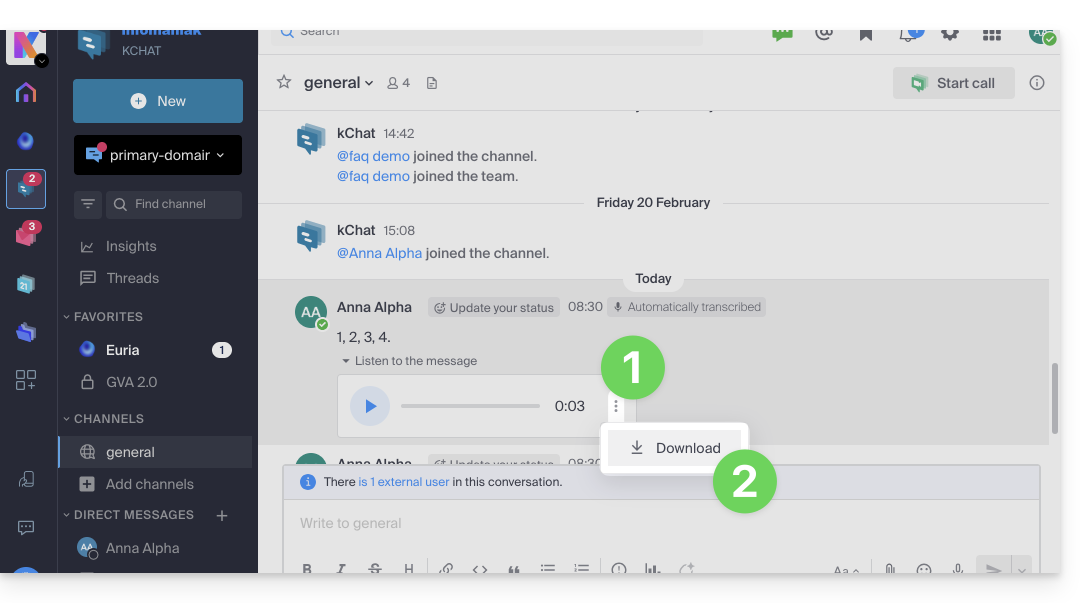
- Click the action menu ⋮ to open a menu.
- Start downloading the voicemail message to your hard drive:
Link to this FAQ: https://faq.infomaniak.com/2876
Has this FAQ been helpful?
Infomaniak offers you the possibility of replacing Skype with its own solutions, whether for individual calls, remote meetings, or group discussions.
kMeet, the video conferencing solution for individuals & businesses
Despite its initial success, the Skype communication platform has seen its usage decline with the emergence of solutions better integrated into new collaborative practices.
One of the easiest ways to replace Skype is to adopt kMeet:
- Unlimited audio and video calls
- Access without registration
- Compatibility with Web, mobile, and desktop
- Integrated chat & reactions (emoticons, sounds)
- Screen sharing with drawing and remote control tools
- Sub-commission rooms (breakout rooms)
- Integration with the calendar (create a video call link)
- Integration with kDrive for storing meeting recordings
- Integration with kChat for video calls
- Privacy-focused (no advertising, hosting in Switzerland)
- Security with AES-256 encryption
- Eco-friendly (renewable energy, CO₂ compensation)
Replace Skype with kMeet
The kMeet alternative to replace Skype can be implemented in several ways:
To start a private conversation between several people on the Internet, simply have one of them go to kMeet and then share the meeting link with the others. Here is the step-by-step procedure:
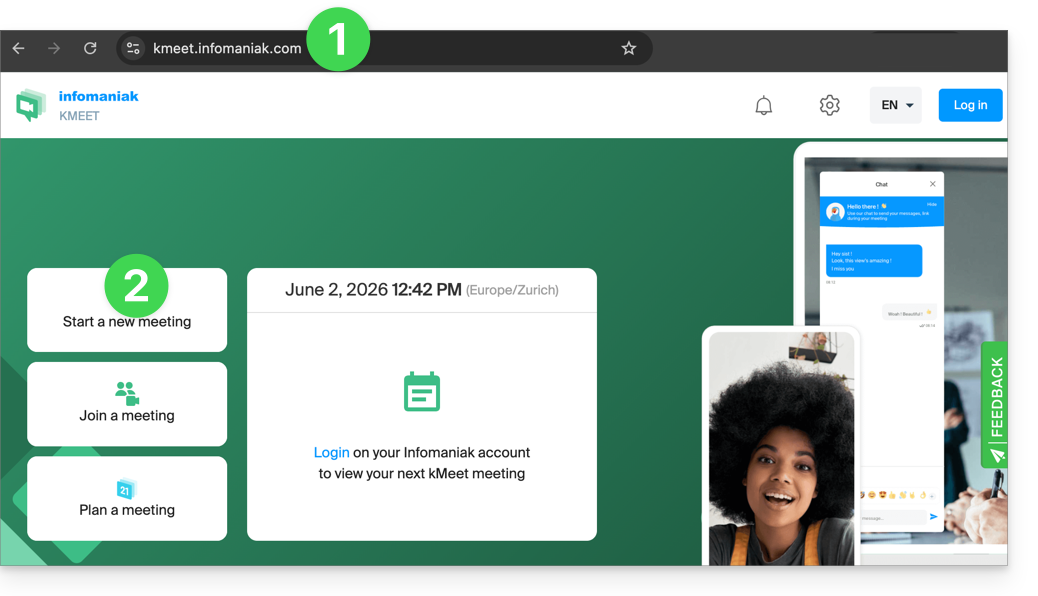
- Enter kmeet.infomaniak.com in a browser such as Brave, Chrome, Edge, Firefox, Opera, Safari….
- Start a meeting (❓: help):
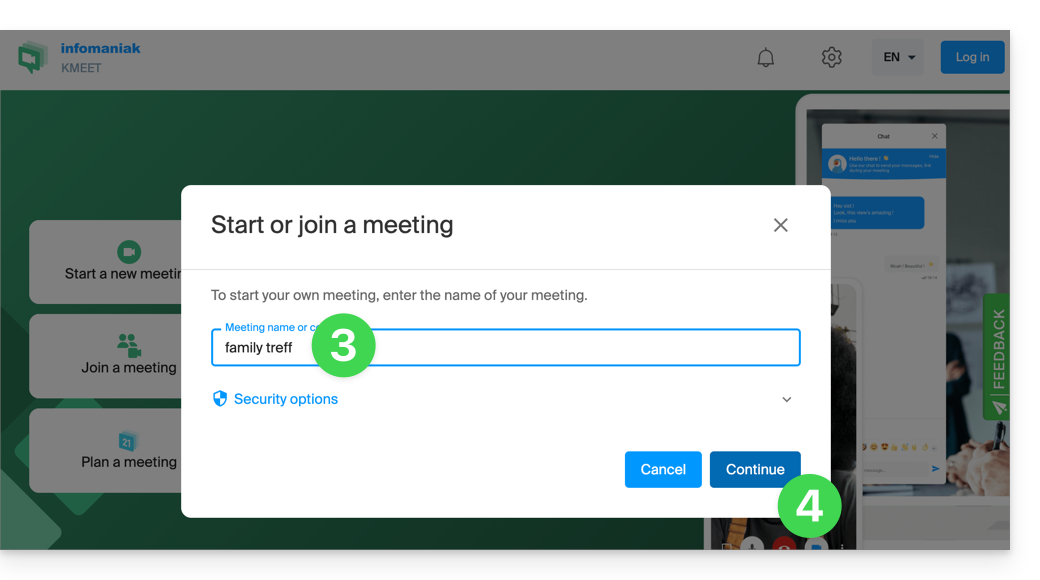
- Enter a name for the meeting, which will indicate to future participants the subject of the discussion they are joining.
- Click the button to Continue:
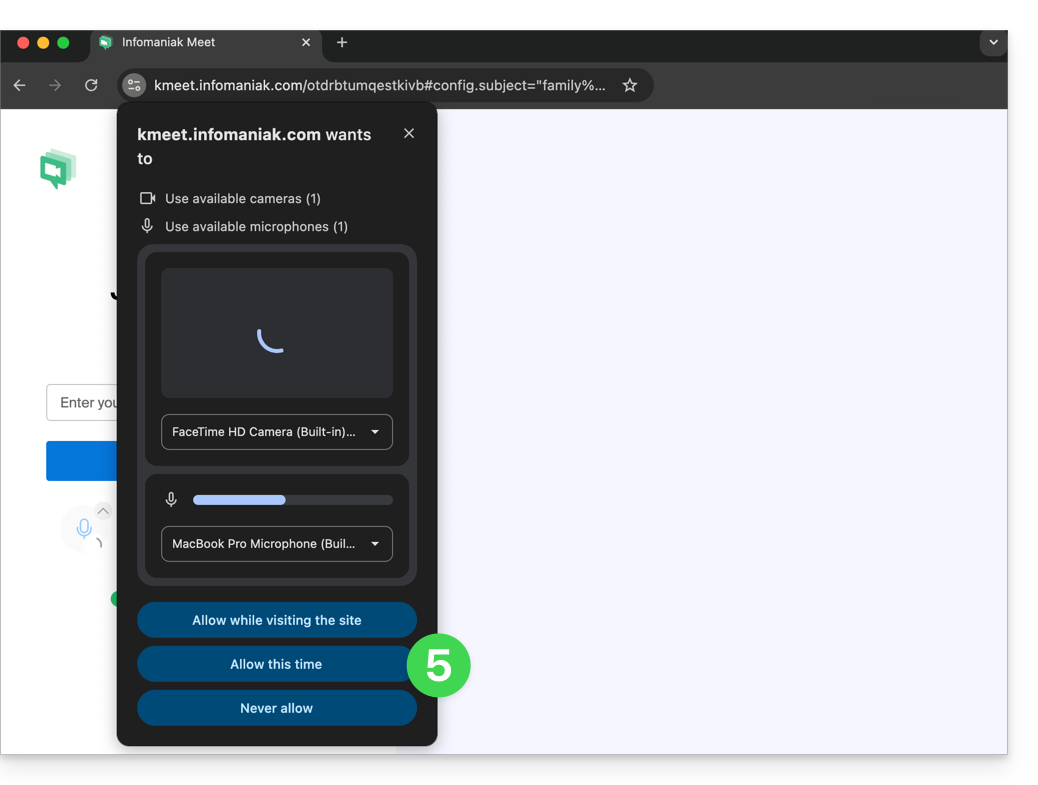
- Grant the necessary permissions to kMeet:
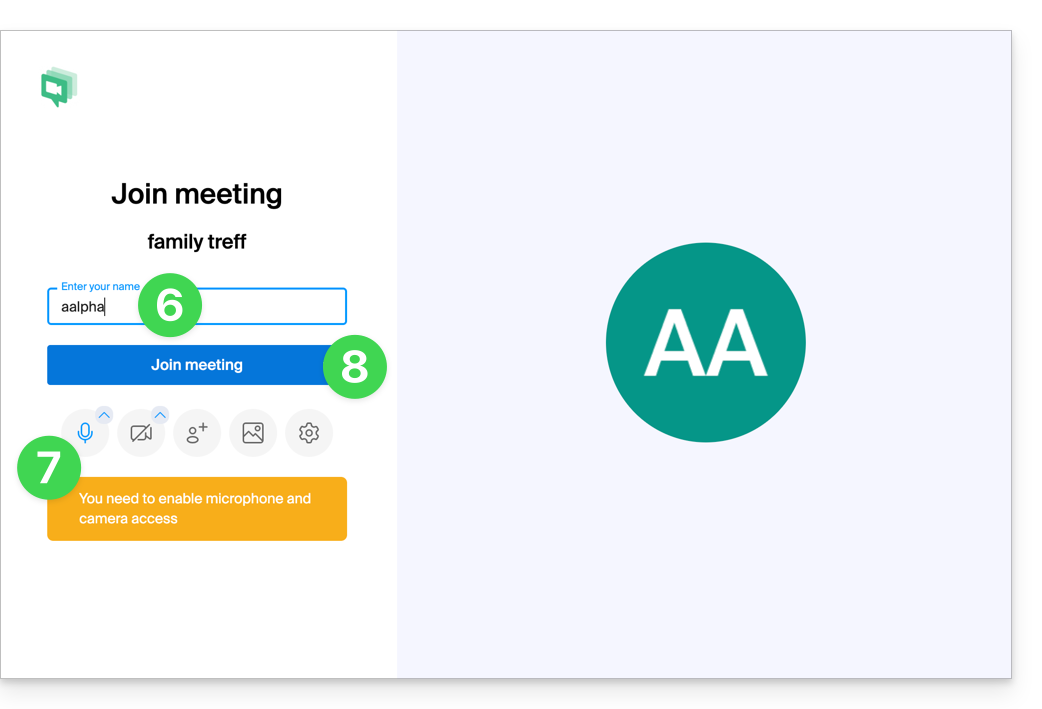
- Enter your name, which will be visible to other participants.
- Enable or disable any communication methods if they should not be used at this time.
- Click the button to join the virtual meeting room (as the first participant, since no one else has been invited yet):
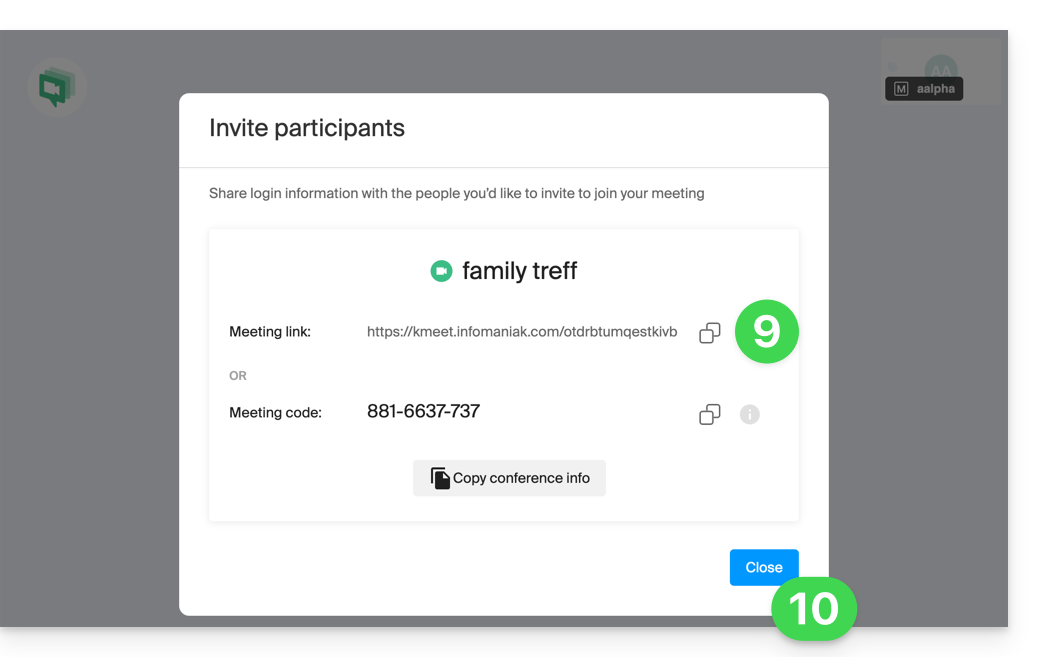
- Done, the room has been created, and you can now copy the information about this session and send it to the contacts so they can join you (they will only need to click the link you send them).
- Close the information window so that you can all chat together:
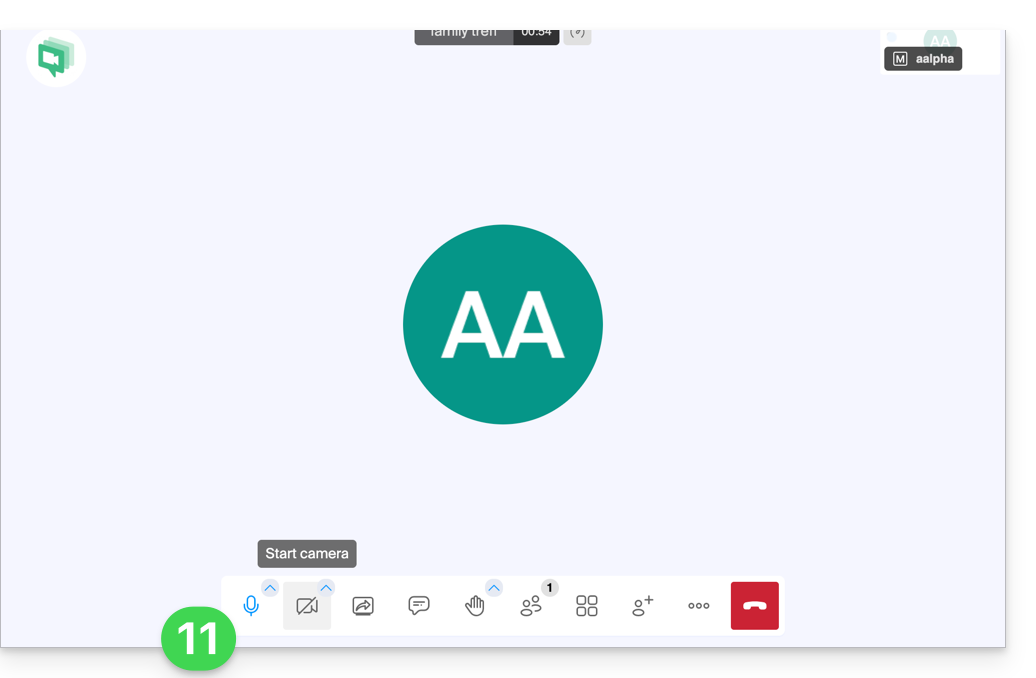
- The toolbar at the bottom of the screen allows you to enable or disable the microphone, camera, etc.:
To discover all the possibilities offered by kMeet, consult this other guide.
2. Scheduling and invitations with my kSuite
To work efficiently, kMeet can be directly linked to your professional calendar. This means that every time you create an event in your calendar…
- … a video conferencing link is automatically generated…
- … participants receive the invitation by email with all the information…
- … and on the day, they can join the meeting with a single click, without registration or the need to install any software.
Benefit: you centralize meeting management, reduce forgotten appointments, and simplify organization, all from a single interface.
To implement this solution:
- Sign up for free to my kSuite to get a mail address, for example
anna.alpha@ikmail.com, and especially access to Infomaniak services. - Connect to the calendar at ksuite.infomaniak.com/calendar, then create an event on the day of your choice.
- Add participants to the event, even if they are not Infomaniak customers.
- Click the green button to automatically generate a kMeet link that will be added to the event.
- Click the button to save your event:
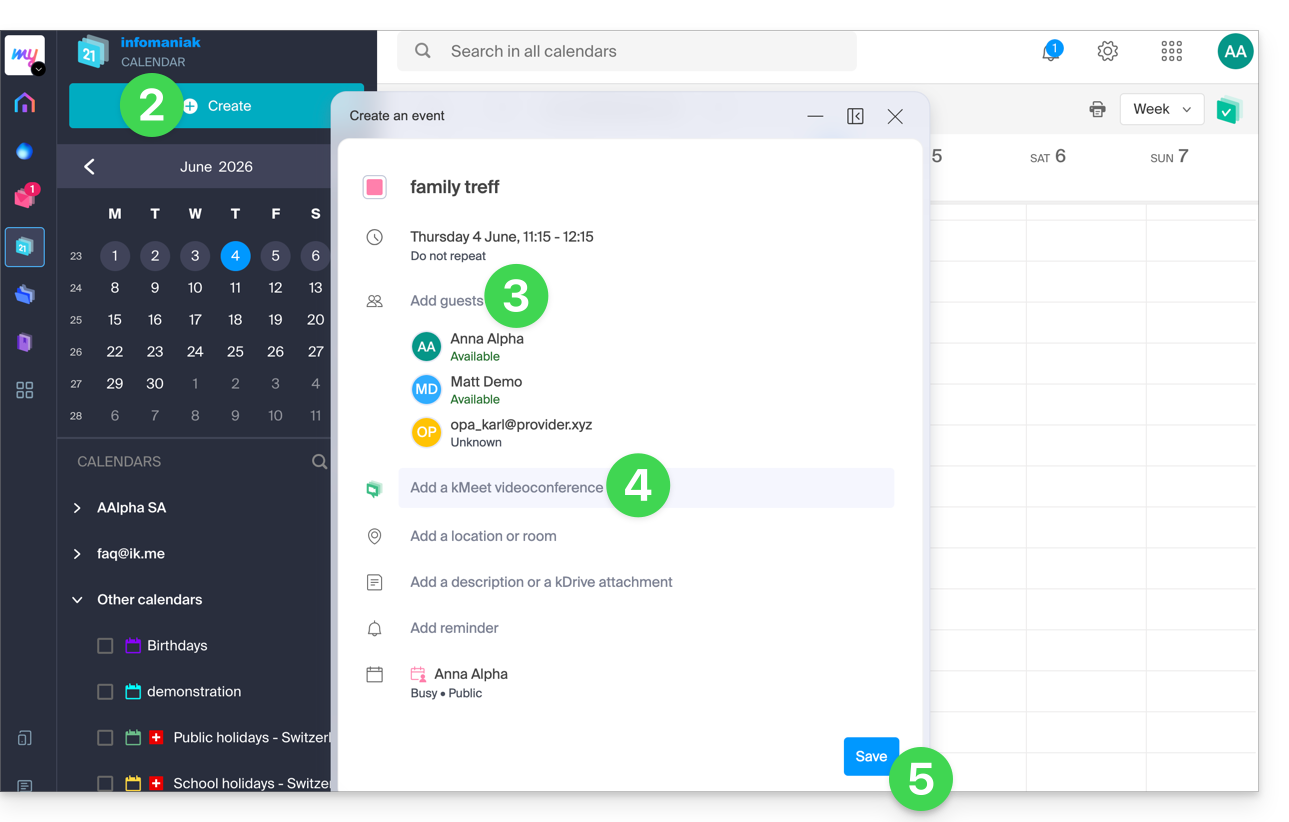
- Answer YES to the prompt to send notifications to the guests.
- Invitations will then be automatically sent to participants via email, containing the clickable kMeet link that allows them to join the online discussion when the time comes:
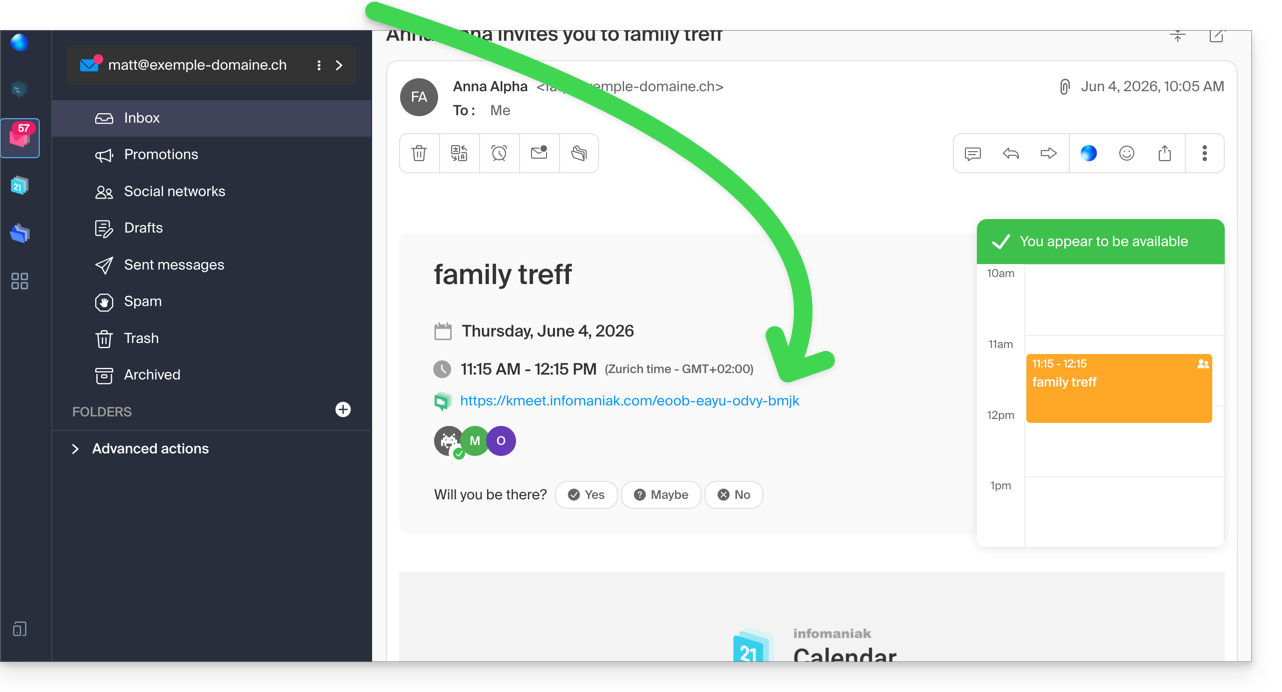
- The kMeet meeting link is also visible directly on the event in the calendar.
3. Call your contact as you would with Skype
To start a conversation at any time with a contact that you have previously saved in your address book, both of you need to have kChat, which is available within the kSuite from Infomaniak. To set up this solution, which can also be extended to an entire group of contacts:
- Register for kSuite to gain access to the corresponding Infomaniak services.
- Configure users (these can even be external) in kSuite.
- Install the kChat app or go to the URL https://ksuite.infomaniak.com/kchat
- A user can then be called via kChat, which will make the recipient's device ring:
- = browser if the kChat URL is open in it, or computer/mobile device if the kChat app is installed.
- Refer to this other guide to learn more about video conference calls on kChat.
- Your contact can then respond; the call will be made using kMeet technology within kChat or on the kMeet app if it is installed.
Link to this FAQ: https://faq.infomaniak.com/2890
Has this FAQ been helpful?