Knowledge base
1000 FAQs, 500 tutorials and instructional videos. Here, there are only solutions!
This guide explains how to move an existing website within an Infomaniak Web Hosting service to another Infomaniak Web Hosting service.
Introduction
- There aren't many ready-made solutions for moving a website:
- In general, few hosting providers offer the export or import of an entire website with its databases.
- This is mainly due to the fact that there are many ways to build a website and just as many languages, which are often incompatible with each other.
- If the website to be transferred is built with WordPress, please refer to this other guide illustrating a simplified solution.
- It is also possible to move an entire web hosting package (see below).
Manual solution: example of a site transfer
To do this manually, you need to:
- retrieve the website data as well as the associated databases,
- republish this on a site created on the destination web hosting,
- and if the associated domain name is identical, the first site will need to be deleted or renamed.
For the rest, here is an example of the steps to follow:
- Order the other Web Hosting / Cloud Server if you haven't already.
- Create a “dummy site” on this new hosting (for example, dev.domain.xyz - see below).
- Manually copy your data via FTP and MySQL (export / import).
- Adjust your website if necessary (database address, etc.).
- Once you are satisfied with the "new website", delete the old one.
- Change the name of the new site to give it its actual name.
Alternatively, in step 2 above, you can work with the www. alias. You can detach it from your current site beforehand. Indeed, the www alias (.domain.xyz) is often installed as an alias for your site, and you simply need to detach it, which allows you to create a site on the other hosting with the name www.domain.xyz (remember, in step 6, to add your alias of the type "domain.xyz" without the www to this new site).
Moving entire web hosting accounts
There is an automated way to move an Infomaniak web hosting account to:
- an Infomaniak Cloud Server (if the hosting is currently shared or if the hosting is already on a Cloud Server)
- another Infomaniak Organization
A Starter hosting plan cannot be moved, but it can be converted.
Link to this FAQ: https://faq.infomaniak.com/2318
Has this FAQ been helpful?
This guide explains how to disable (or re-enable) the vulnerability detection tool, a free protection feature that complements the antivirus and automatically protects your Web Hosting against malware and security vulnerabilities.
Disable or re-enable vulnerability detection
It is not recommended to disable this tool because you will no longer be notified by this free option when your site contains security vulnerabilities or malicious files (malware)!
To access the web hosting to disable (or re-enable) the service:
- Click here to access the hosting & website management section in your Infomaniak Manager (❓: help).
- Click on the name of the relevant hosting.
- Click on Security in the left-hand menu.
- Click on Vulnerability Scan in the left-hand menu.
- Click the toggle switch to disable or enable the scan:
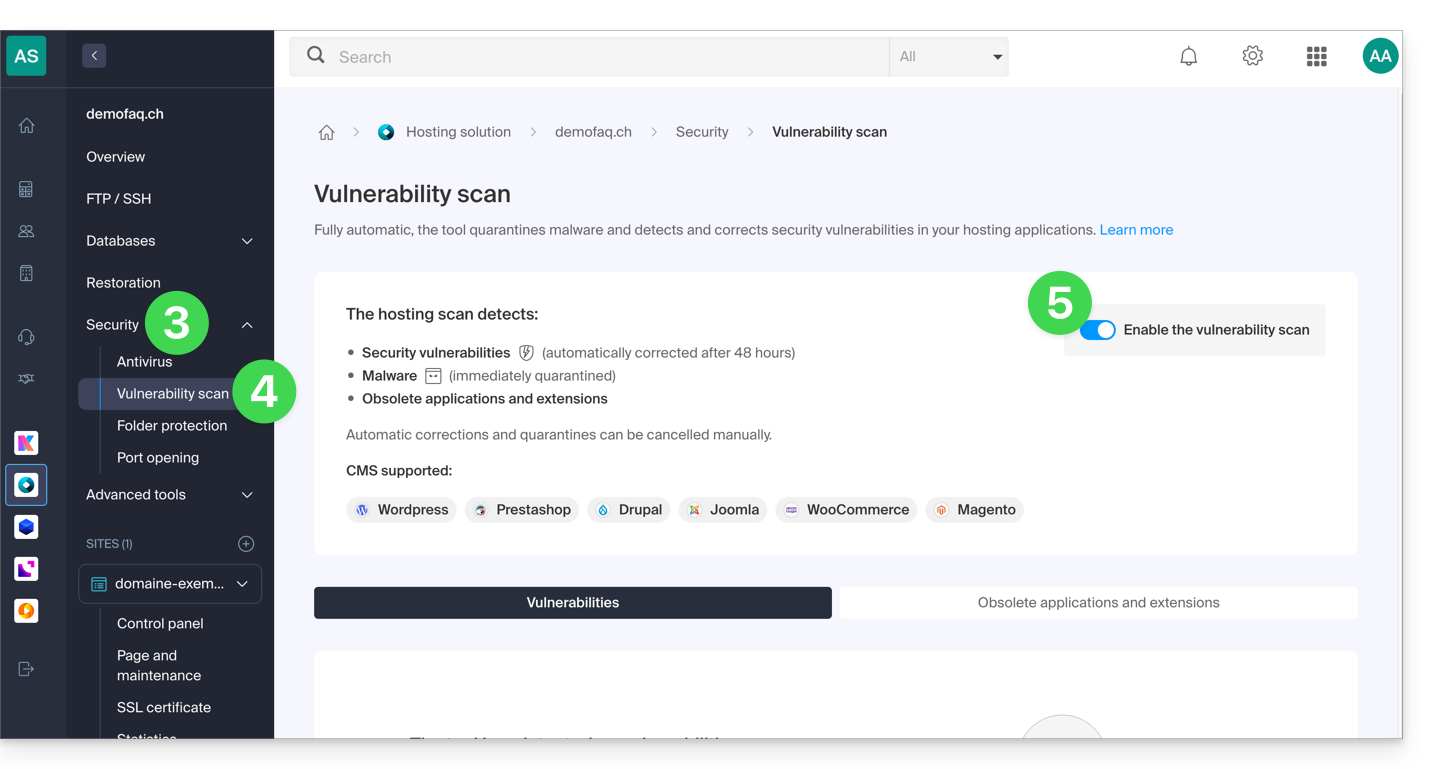
Refer to this other guide if you need information on how to cancel a security fix.
Link to this FAQ: https://faq.infomaniak.com/2327
Has this FAQ been helpful?
This guide explains how to apply or cancel a patch, quarantine, or block implemented by the vulnerability detection tool, the free and complementary protection to the antivirus that automatically protects your Web Hosting against malware and security vulnerabilities.
Introduction
- Unless you take action, the tool will automatically correct detected vulnerabilities within 7 days.
- It is strongly recommended not to undo a patch or quarantine unless you are sure of what you are doing.
Apply or cancel a correction
To do this:
- Click here to access the hosting & website management section in your Infomaniak Manager (❓: help).
- Click on the name of the relevant hosting.
- Click on Security in the left-hand menu.
- Click on Vulnerability Scan in the left-hand menu:
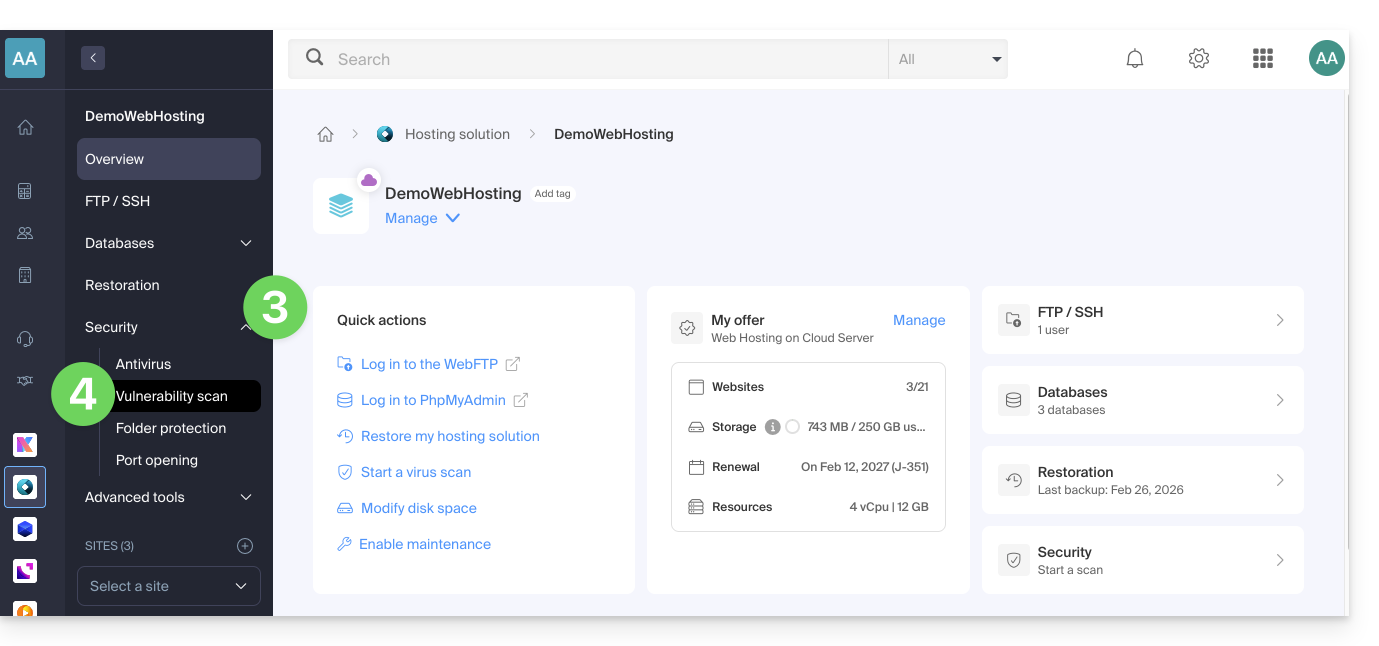
- If nothing is displayed, first click the button to View History.
- If an event history exists, click the action menu ⋮ to the right of the vulnerability in question in the table that is displayed.
- Click on Cancel the fix.
- In some cases, other actions are possible:
- Apply the patch: immediately fixes the vulnerability.
- Cancel the patch: cancels the fix and restores the original vulnerable file (not recommended).
- Delete the file: permanently removes the malware from your hosting (may affect the operation of your site).
- Quarantine: isolates the vulnerable file and allows you to restore it if necessary (may affect the operation of your site).
- Cancel quarantine: restores the isolated file to its original location (not recommended).
- Add an exception: allows you to indicate to the tool that the vulnerable file is safe; it will no longer be analyzed.
- Remove an exception: removes the Allowed status from the file; it will be analyzed again.
Details of the different statuses
- VULNERABLE: a vulnerability has been detected in a file; the path column indicates the file's location.
- RESOLVED : the vulnerability has been fixed by the tool.
- AUTHORIZED : the vulnerable file has been manually authorized; it will no longer be analyzed by the tool.
- RESOLVED : a manual fix, external to the tool, was applied to the file (CMS update, source code modification, manual file deletion, etc.).
- PATCH REVERTED : the tool's fix was manually reverted; it is possible to reapply the patch.
Link to this FAQ: https://faq.infomaniak.com/2343
Has this FAQ been helpful?
This guide explains how to migrate from a VPS Lite to a VPS Cloud while preserving all your data and without having to reconfigure your setup.
Introduction
- The server's IP address is retained, as are all data on the disk.
- It is not possible to undo this change or revert to the previous state.
- It is not possible to switch from a Cloud VPS to a Lite VPS.
Migrating from a Lite VPS to a Cloud VPS
To start the process, access your VPS Lite:
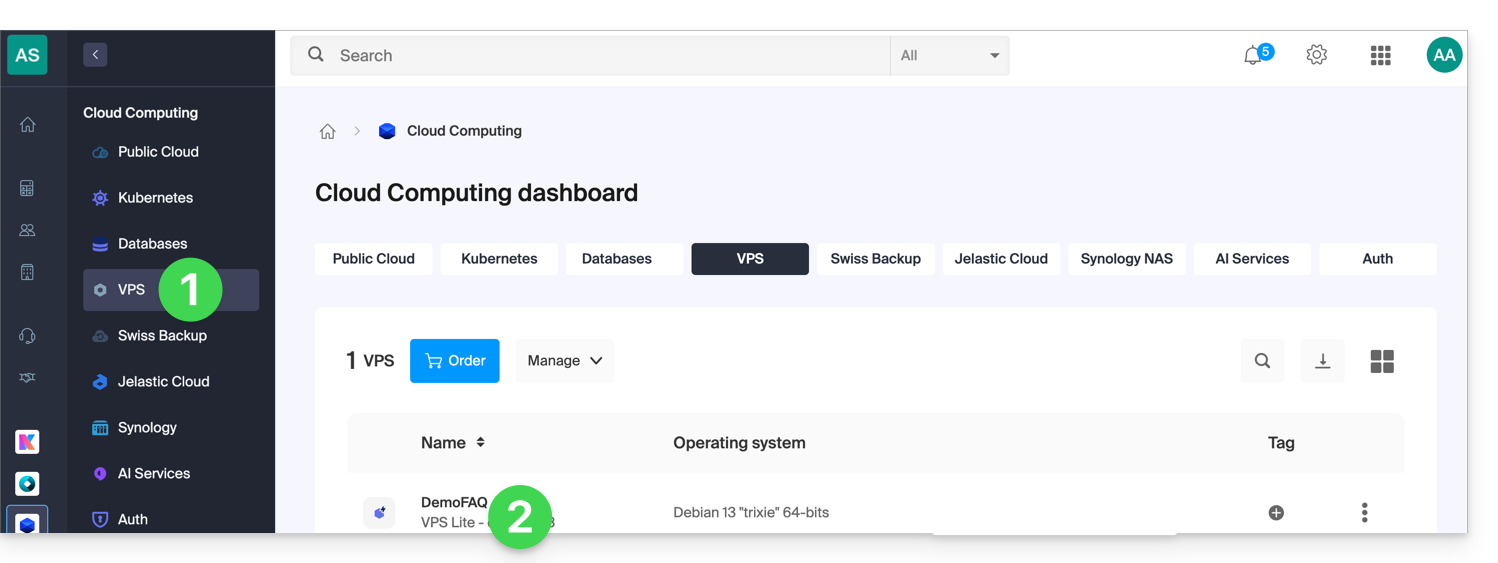
- Click here to access the management interface for your VPS in the Infomaniak Manager (need help?).
- Click directly on the name assigned to the VPS in question:
- Click on Upgrade my plan:
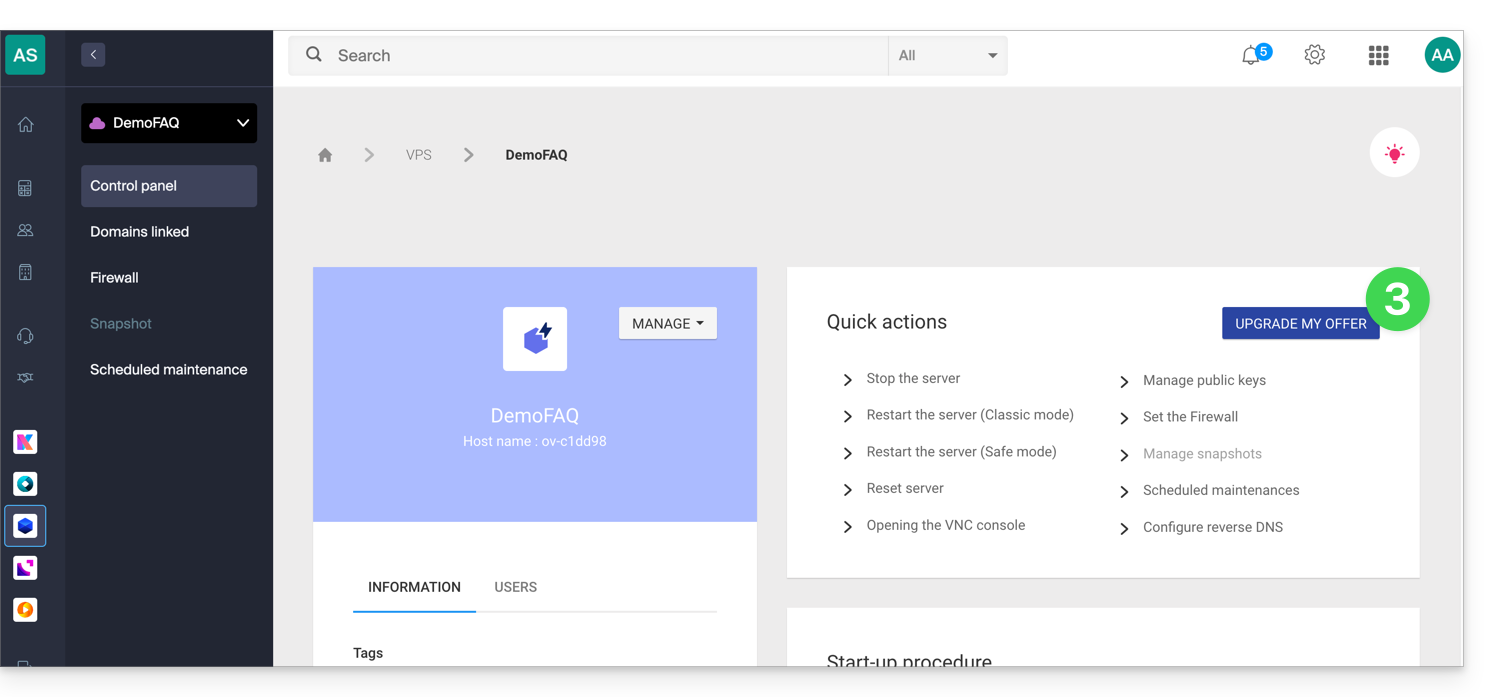
- Click on the Upgrade button in the pop-up window.
- Complete the order to upgrade your VPS Lite.
- Please wait during the migration; there will be a service interruption during the process.
Link to this FAQ: https://faq.infomaniak.com/2349
Has this FAQ been helpful?
This guide explains how to specify a file that will be loaded before the desired page or at the beginning of each PHP script executed on your server, included as if it had been called with the require() function, but more generally by using the auto_prepend_file directive of PHP.
Introduction
- For example, to declare the headers of a website, you can create a
headers.phpfile containing PHPheader()functions, and have it prepended to the beginning of each PHP file…- … via a
.user.inifile (specific to a folder), - … or via the site configuration in the Manager (global), as explained below.
- … via a
Include a file globally from the Manager
To access website management:
- Click here to access the hosting & website management section in your Infomaniak Manager (❓: help).
- Click on the name of the website in question.
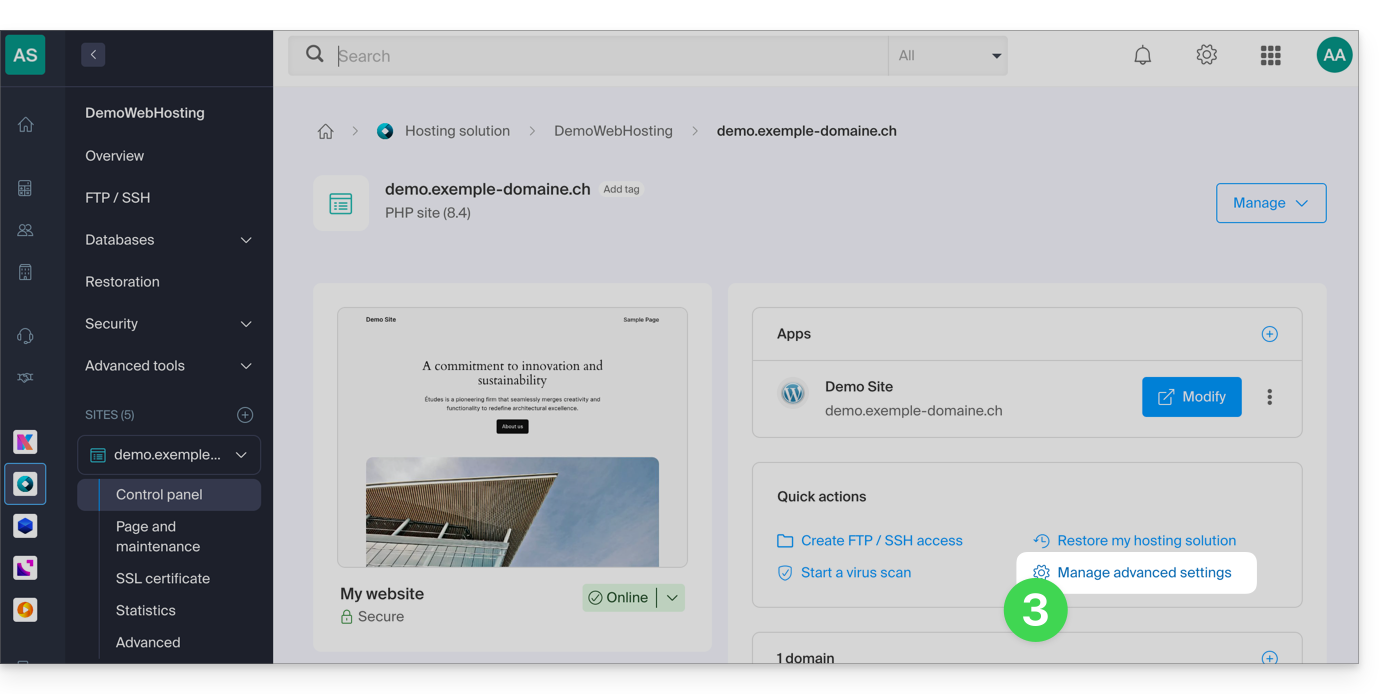
- Click on Manage advanced settings:
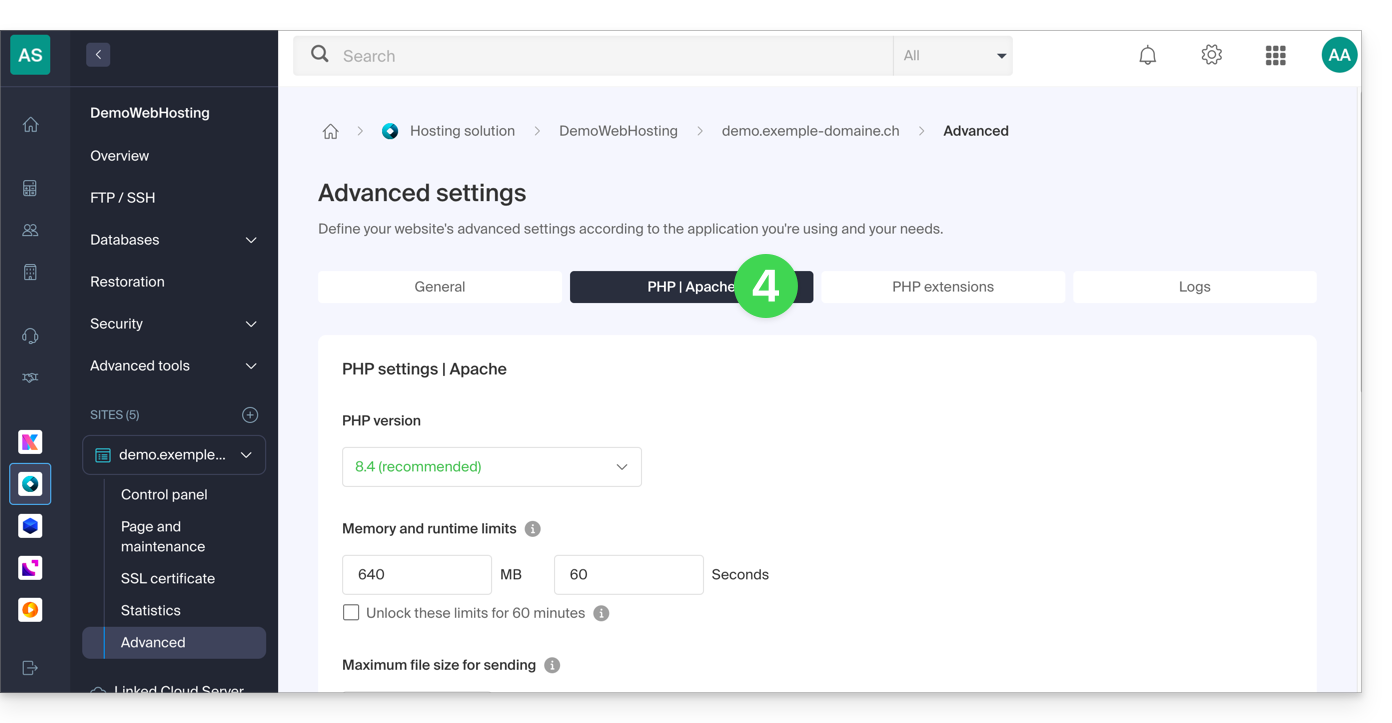
- Click on the PHP / Apache tab:
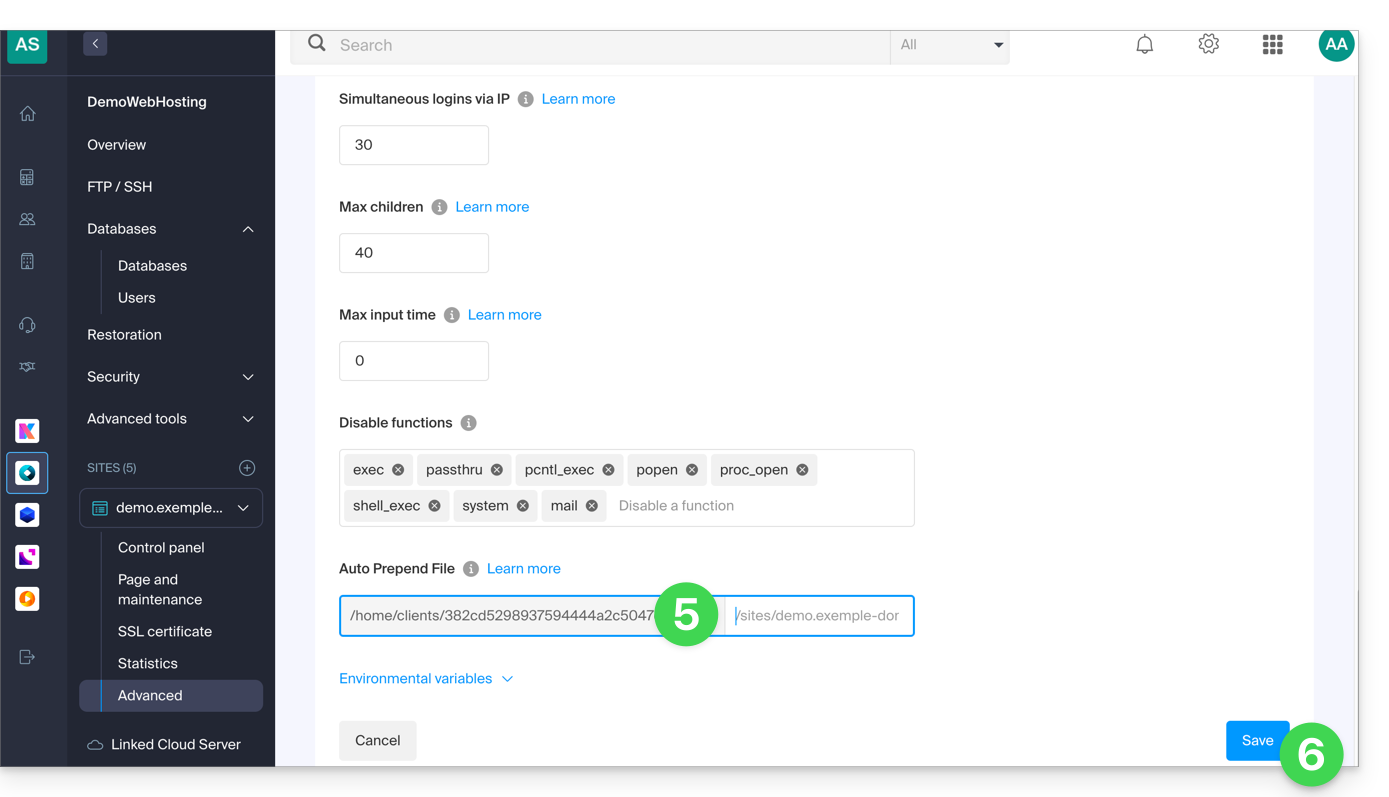
- Complete the relevant line by entering the path to the file to be included.
- Click on the Save button at the bottom of the page:
After defining this directive, all PHP pages on your server will automatically include the specified file before executing their own code.
The headers defined in a .htaccess file are only valid for non-PHP content (i.e., static content).
Infomaniak uses php-fpm, which receives the various headers via apache fast_cgi. In the RFC for cgi_www, the Strict-Transport-Security header is not part of the headers passed via CGI, and the Apache documentation confirms this. Please refer to this other RFC.
Link to this FAQ: https://faq.infomaniak.com/2352
Has this FAQ been helpful?
This guide explains how to customize the time slots during which Infomaniak can perform maintenance to improve your services (new features, bug fixes, etc.).
Introduction
- This feature is only available for:
- Cloud Servers
- Cloud VPS / VPS Lite
- Jelastic Cloud
- Unless otherwise specified, scheduled maintenance is generally performed by Infomaniak between 10 PM and 6 AM.
Modify the scheduled maintenance period
To do this:
- Click here to access the service for which you want to schedule maintenance in the Infomaniak Manager (need help?).
- Click directly on the name assigned to the product in question.
- Click on Scheduled Maintenance in the left-hand menu or on the central page, depending on the service in question (see Jelastic below):
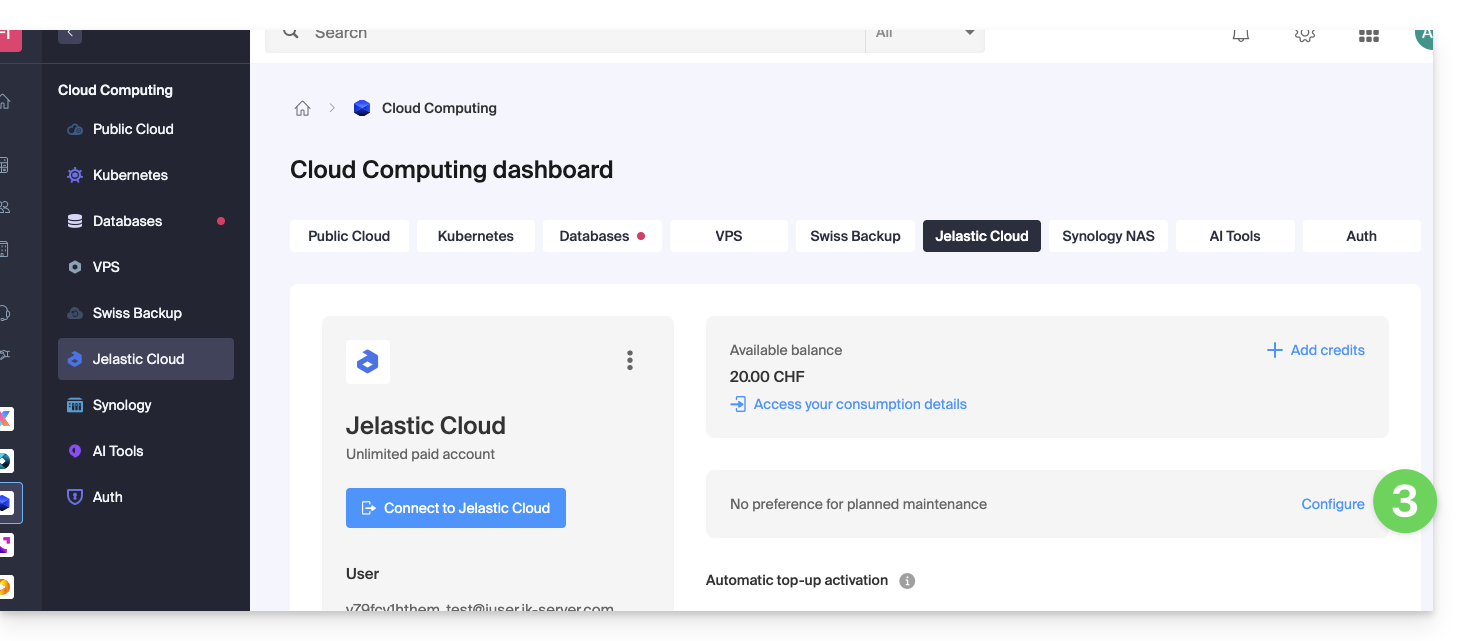
- The same applies to a VPS:
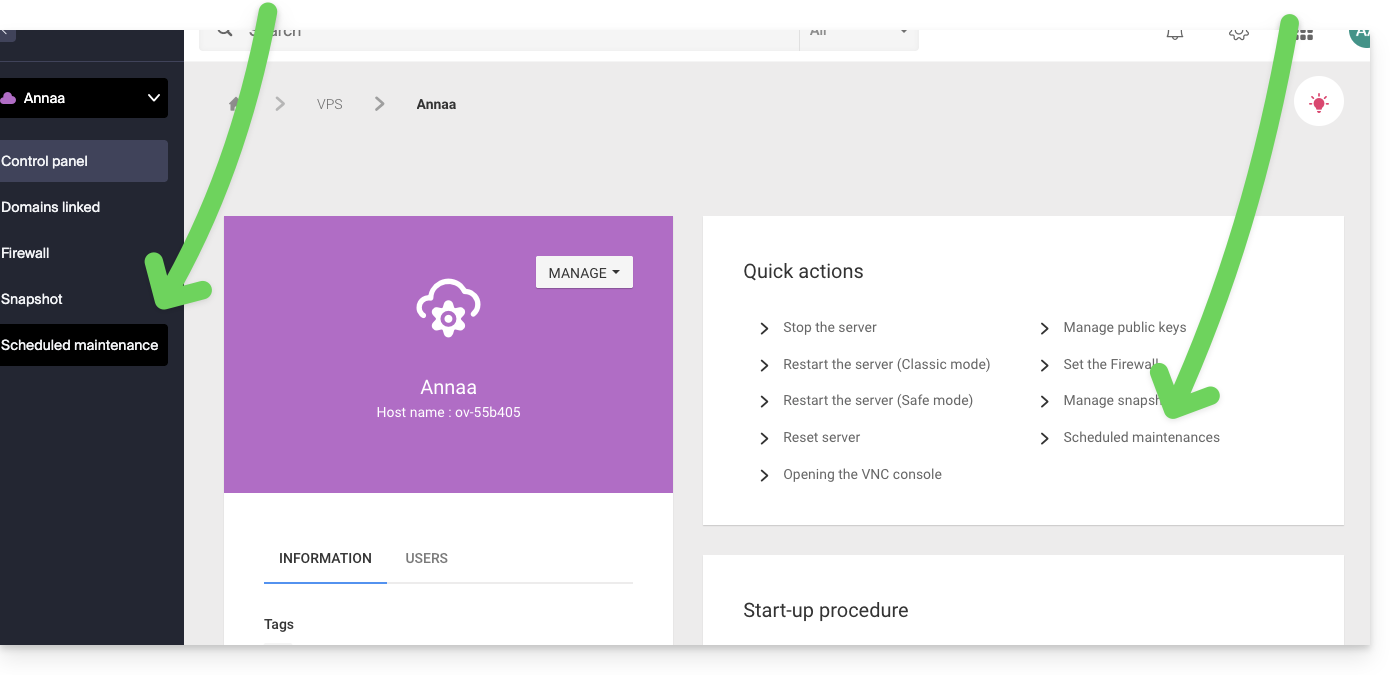
- The same applies to a VPS:
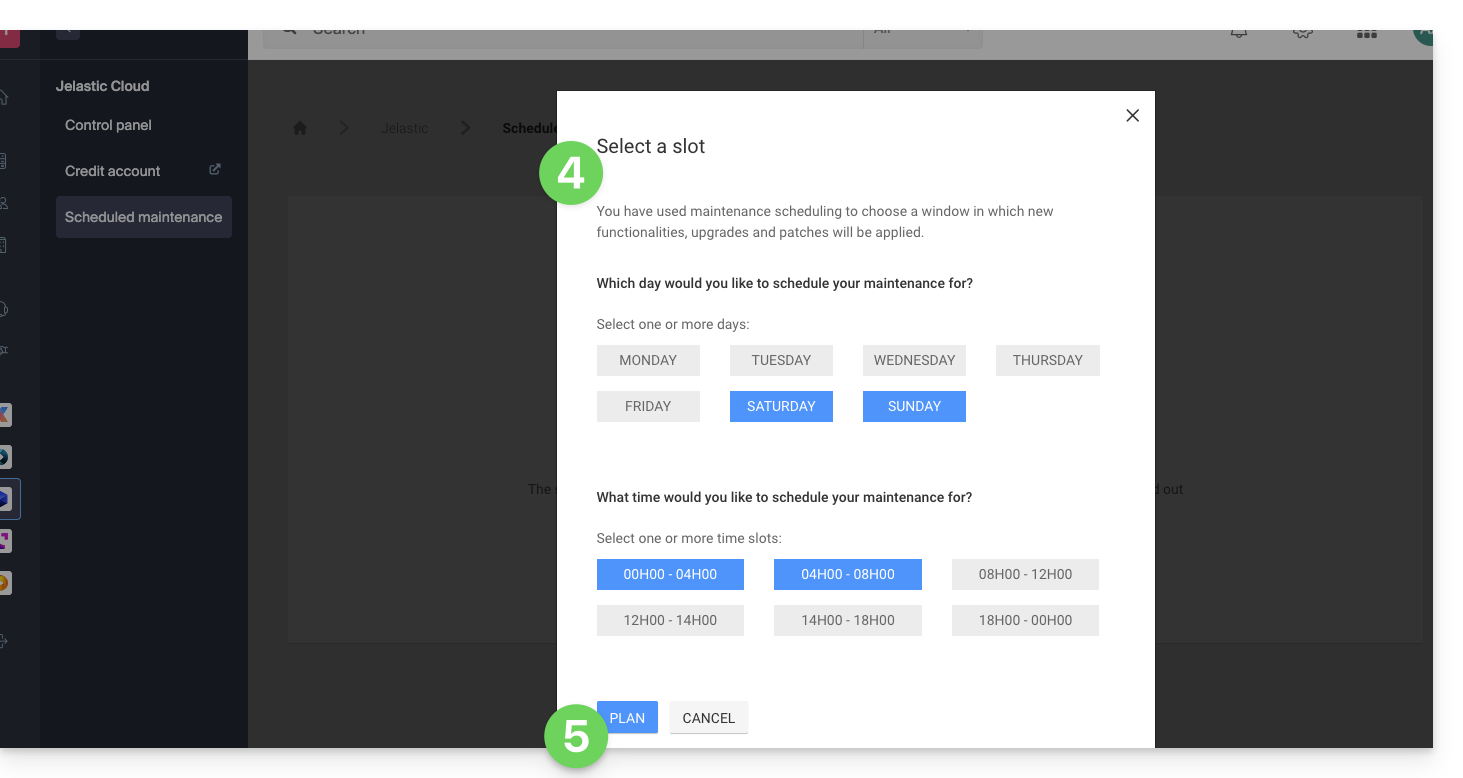
- Click on the buttons to define your preferred time slot, indicated in blue.
- Confirm by clicking the button at the bottom:
Link to this FAQ: https://faq.infomaniak.com/2424
Has this FAQ been helpful?
This guide details how to create a GIT repository on both your Web Hosting and your Cloud Server with Infomaniak.
Introduction
- GIT and GitHub are available by default on both of the aforementioned platforms.
Creating the GIT repository
Configuration on the server:
- The GIT repository is located at
/git_depot - the website is located in the
/web/[project]folder (on your FTP server)
Command lines to enter:
cd
mkdir git_depot
cd git_depot/
git init --bare [projet].git
cd [projet].git
git update-server-info
Sending the local repository to the server
To be performed on the local workstation:
git init
git remote add origin ssh://user@[xxxxx].ftp.infomaniak.com:/home/clients/[123456789]/git_depot/[projet].git
git status
git add .
git commit -a -m "init"
git push --set-upstream origin master
git push
Clone the website to the server directory
To be done on the server:
cd
cd web
rm -r [projet]/
git clone /home/clients/[123465789]/git_depot/[projet].git [projet]/
Link to this FAQ: https://faq.infomaniak.com/2463
Has this FAQ been helpful?
This guide explains how to increase the storage capacity of your Cloud VPS after the plan change has been completed.
Introduction
- By default, the Cloud VPS is provided with two volumes:
- 1 volume for the operating system of your choice (
/dev/vda). - 1 volume for storing your data (
/dev/vdb), this is the one that will be increased.
- 1 volume for the operating system of your choice (
- Note: depending on the operating system installed, the system volume may be named
/dev/sda,/dev/sda1or/dev/vda; the same applies to the data volume/dev/sdb,/dev/sdb2or/dev/vdb. Therefore, you should replace these indications with those that correspond to your situation.
SSH commands to increase storage volume
If you choose XFS, for example, you need to install the appropriate tools (if they are not already installed):
sudo apt install xfsprogsThen, increase the volume using the following SSH commands:
sudo xfs_grow /dev/vdbAnd if you choose EXT4:
sudo resize2fs /dev/vdb
Expanding the volume after increasing the storage space
Two scenarios may occur once you have expanded the storage volume of your Linux server. Note that no data is deleted when increasing the space by changing your VPS plan.
First scenario
If the entire volume is used without a partition, there is no need to use resizepart, as there is no partition.
sudo umount /dev/vdb
sudo fsck.ext4 -f /dev/vdb
sudo resize2fs /dev/vdb
Second scenario
In the case of a volume that contains a partition (/dev/vdb1), you must first stop the processes that are using this volume, and then unmount the partition.
sudo umount /dev/vdb1
Next, you need to increase the size of the partition using parted, which has the resizepart command, unlike fdisk.
sudo parted /dev/vdb
GNU Parted 3.2
Using /dev/vdb
Welcome to GNU Parted! Type ‘help' to view a list of commands.
(parted) resizepart 1 100%
(parted) quit
sudo fsck.ext4 -f /dev/vdb1
sudo resize2fs /dev/vdb1
What about the System volume?
It is not possible to increase the size of the system volume.
For Linux, Infomaniak provides 20 GB, which is sufficient for any Linux distribution.
For Windows, Infomaniak provides 100 GB on the C drive, which is sufficient for Windows. Applications should be installed on the D drive. If you have 50 GB, you can request 100 GB (contact Infomaniak support, specifying a time slot for the operation, as there will be a few minutes of downtime).
Link to this FAQ: https://faq.infomaniak.com/2507
Has this FAQ been helpful?
This guide explains how to install and configure systemd on a Cloud Server and presents the main commands that can be used.
Prerequisites
- Follow the installation guide for
systemdon Cloud Server. - Consult the official documentation to learn about all the features offered by systemd.
- The "unit" files must be placed in:
~/.config/systemd/user/ ( /home/clients/absolute-path-id/.config/systemd/user )(replacing absolute-path-id as seen in your Manager) and the permissions must be set to 0644. - The
--userparameter must be specified in each command.
Main commands
Here is a non-exhaustive list of commands that can be used with systemd.
Force systemd to reread the unit files and take the changes into account:
systemctl --user daemon-reloadActivating a service:
systemctl --user enable --now SERVICENAME.serviceChecking the status of a service:
systemctl --user status SERVICENAME.service
Configuring Node as a service with systemd
You will need to create a "Unit" file with the ".service" extension, which you will need to save in the following directory:
~/.config/systemd/user/You can reuse the example below by replacing the values starting with {}:
[Unit]
Description={Le nom du service} # Spécifier ici un nom du service. Celui-ci est obligatoire mais n'a pas d'impact sur le fonctionnement
[Service]
Restart=always
Environment=NODE_VERSION={la version souhaitée} # Spécifier ici la version de Node à utiliser. S'assurer qu'elle soit installée au préalable avec "nvm install {la version souhaitée}"
WorkingDirectory=%h/{repertoire du projet Node} # %h correspond à la racine de l'hébergement
ExecStart=/bin/bash -c "exec $HOME/.nvm/nvm-exec {commande de lancement du script node}" # Cette commande dépend du projet. Par exemple, "npm run start", "npm run serve" ou encore "node server.js" sont courants
[Install]
WantedBy=default.target
Additional actions with a Unit file
systemctl --user daemon-reloadStart the service (if the service is already active, nothing happens):
systemctl --user start [Nom du Unit]Stop the service (if the service is not active, nothing happens):
systemctl --user stop [Nom du Unit]Restart the service (if it is not running, it will be started):
systemctl --user restart [Nom du Unit]Get information about the service, including:
- "Active," which indicates whether the service is running and for how long.
- "CGroup" displays the process group managed by the service, allowing you to view the active processes, along with their arguments and ID.
Below "CGroup" are any logs (the standard output and error output of the process):
systemctl --user status [Nom du Unit]Enable automatic service startup at server boot; Note: This does not start the service:
systemctl --user enable [Nom du Unit]Disable automatic service startup at server boot; Note: This does not stop the service:
systemctl --user disable [Nom du Unit]
Configuration with user entries:
[Unit]
Description="nom service"
[Service]
Restart=always
Environment=NODE_VERSION=16.17
WorkingDirectory=%h/sites/"nom-repertoire-site"/
ExecStart=/bin/bash -c "exec $HOME/.nvm/nvm-exec npm run start"
[Install]
WantedBy=default.target
Link to this FAQ: https://faq.infomaniak.com/2571
Has this FAQ been helpful?
This guide explains how to modify the variables of the PHP-CLI extension, which is available by default on Infomaniak's Cloud Server.
Modifying PHP_CLI variables
To access the PHP extensions for your Cloud Server:
- Click here to access the management of your Cloud Server in the Infomaniak Manager (need help?).
- Click directly on the name assigned to the Cloud Server in question.
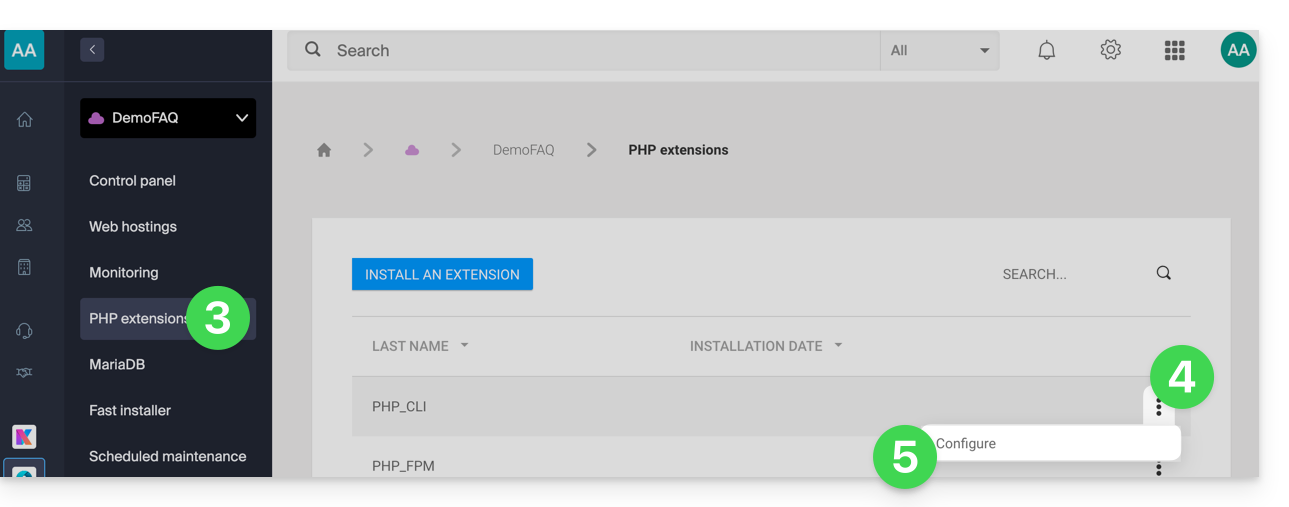
- Click on PHP Extensions in the left-hand menu.
- Click on the action menu ⋮ to the right of PHP-CLI in the table that appears.
- Click on Configure:
- Modify the following variables:
allow_url_fopen,allow_url_include,memory_limit,max_execution_time,short_open_tag,allow_local_infile - Click the blue Save button.
Link to this FAQ: https://faq.infomaniak.com/2576
Has this FAQ been helpful?
This guide explains how to connect to Elasticsearch after installing it on Magento from an Infomaniak Cloud Server.
Prerequisites
- Have an Infomaniak Cloud Server.
- Install Magento.
- Contact Infomaniak support for Elasticsearch installation.
Connection details
Once you are logged in to your Magento account, you will need to provide the following information to start Elasticsearch:
- Hostname:
localhostor127.0.0.1 - Port:
9200 - Prefix:
magento2
Link to this FAQ: https://faq.infomaniak.com/2587
Has this FAQ been helpful?
This guide presents several examples of how to use Varnish on Infomaniak Cloud Server.
Introduction
- Consult these additional resources on the Varnish configuration language (VCL) to master request processing, routing, and caching:
Varnish Configuration
Once installed, configuring Varnish involves setting up specific caching and purging rules. Be sure to restrict access to prevent unauthorized entities from clearing your cache.
Here is an example of a configuration file that groups together the most common use cases:
vcl 4.0;

# Default backend configuration
backend default {
    .host = "127.0.0.80";  # Backend IP address
    .port = "80";           # Backend port
}

# Access Control List (ACL) for purge authorization
acl purge {
    "localhost";            # Local access
    "1.2.3.4";              # Trusted home IP
    "42.42.42.0"/24;        # Trusted company range
    ! "42.42.42.7";         # Specific IP exclusion (e.g., problematic user)
}

# Handle incoming requests
sub vcl_recv {
    # Handle PURGE requests
    if (req.method == "PURGE") {
        # Check if client IP is authorized
        if (!client.ip ~ purge) {
            return (synth(405, "IP not authorized for PURGE requests."));
        }
        return (purge);
    }

    # Custom PURGEALL for image directory
    if (req.method == "PURGEALL" && req.url == "/images") {
        if (!client.ip ~ purge) {
            return (synth(405, "IP not authorized for PURGEALL requests."));
        }
        # Invalidate all image-related objects in cache
        ban("req.url ~ \.(jpg|png|gif|svg)$");
        return (synth(200, "Images purged."));
    }

    # Bypass cache for authorized requests (e.g., admin panels)
    if (req.http.Authorization) {
        return (pass);
    }
}

# Handle backend responses before caching
sub vcl_backend_response {
    # Set TTL for images to 1 day
    if (beresp.http.content-type ~ "image") {
        set beresp.ttl = 1d;
    }

    # Respect backend's "uncacheable" instruction
    if (beresp.http.uncacheable) {
        set beresp.uncacheable = true;
    }
}
Purge via the CLI interface
Once your rules are active, you can test the purge of your site (e.g., "domain.xyz") using the curl tool:
# Purge the homepage
$ curl -X PURGE {{URL_5}}

# Expected Varnish response
<!DOCTYPE html>
<html>
<head>
    <title>200 Purged</title>
</head>
<body>
    <h1>Success 200: Purge completed</h1>
    <p>The page has been successfully purged.</p>
    <h3>Guru Meditation:</h3>
    <p>XID: 2</p>
    <hr>
    <p>Varnish Cache Server</p>
</body>
</html>
To purge a specific URL, simply modify the request path:
# Purge a specific file
$ curl -X PURGE {{URL_6}}

# Expected Varnish response
<!DOCTYPE html>
<html>
<head>
    <title>200 Purged</title>
</head>
<body>
    <h1>Success 200: Purge completed</h1>
    <p>The file has been successfully purged.</p>
    <h3>Guru Meditation:</h3>
    <p>XID: 4</p>
    <hr>
    <p>Varnish Cache Server</p>
</body>
</html>
Or, to trigger a bulk purge of the images defined in the VCL:
# Execute PURGEALL for images
$ curl -X PURGEALL {{URL_7}}

# Expected Varnish response
<!DOCTYPE html>
<html>
<head>
    <title>200 Purged images</title>
</head>
<body>
    <h1>Success 200: Images purged</h1>
    <p>All images have been successfully purged.</p>
    <h3>Guru Meditation:</h3>
    <p>XID: 32770</p>
    <hr>
    <p>Varnish Cache Server</p>
</body>
</html>
Purge from a CMS (PHP)
Cache management can also be done dynamically via your backend. In the previous configuration, a check on the Uncacheable header was added. Your CMS can send this header to force Varnish not to store a response.
Here's how to send a programmatic purge request in PHP:
<?php
// Initialize cURL for a specific URL
if ($curl = curl_init("{{URL_8}}")) {
    curl_setopt_array($curl, [
        CURLOPT_RETURNTRANSFER => true,
        CURLOPT_CUSTOMREQUEST => "PURGE",
        CURLOPT_HTTPHEADER => [
            "Host: {$_SERVER['HTTP_HOST']}" // Match the target host
        ]
    ]);

    curl_exec($curl);

    // Check if the purge was successful (HTTP 200)
    if (curl_getinfo($curl, CURLINFO_HTTP_CODE) == 200) {
        echo "Cache purged!";
    }
    curl_close($curl);
}
?>
Link to this FAQ: https://faq.infomaniak.com/2592
Has this FAQ been helpful?
This guide explains how to back up WordPress data to a Swiss Backup backup space, the backup solution in an independent Swiss cloud.
Introduction
- If the backups offered by Infomaniak no longer meet your availability or security requirements, or if your website is hosted elsewhere, your data can be backed up via an S3 Compatible connection on Infomaniak's servers, ensuring that you don't lose any data.
Install and configure the UpdraftPlus extension
Prerequisites
- Have an Swiss Backup Infomaniak account with available device quota (minimum 1) for an iCloud backup.
- Add 1 device of type Cloud to obtain the S3 Compatible settings.
Then:
- Add the WordPress plugin UpdraftPlus, which offers WordPress data backup to S3-compatible storage.
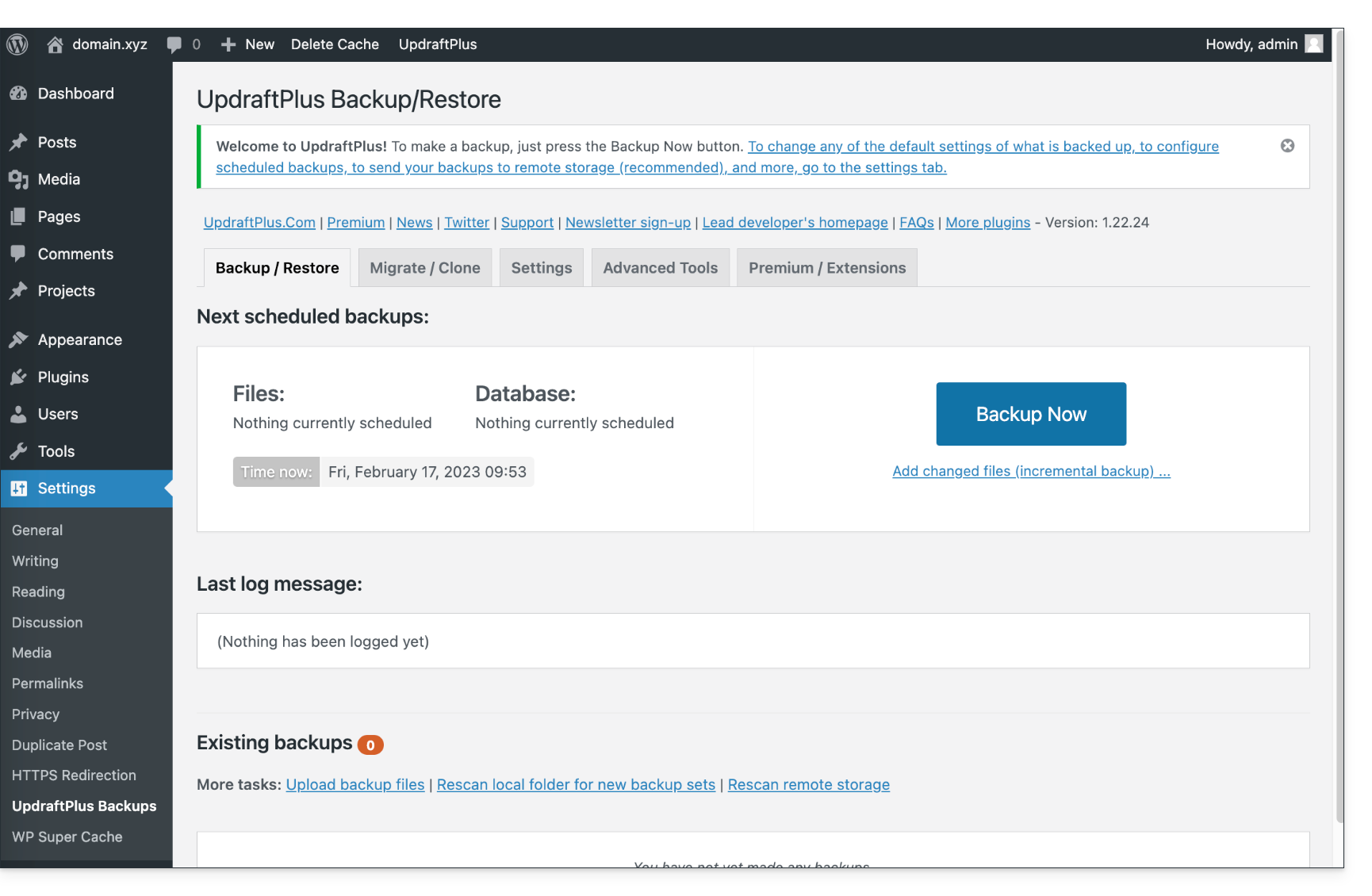
- Click on Settings then UpdraftPlus Backups:
- Click on Settings then S3-Compatible (Generic):
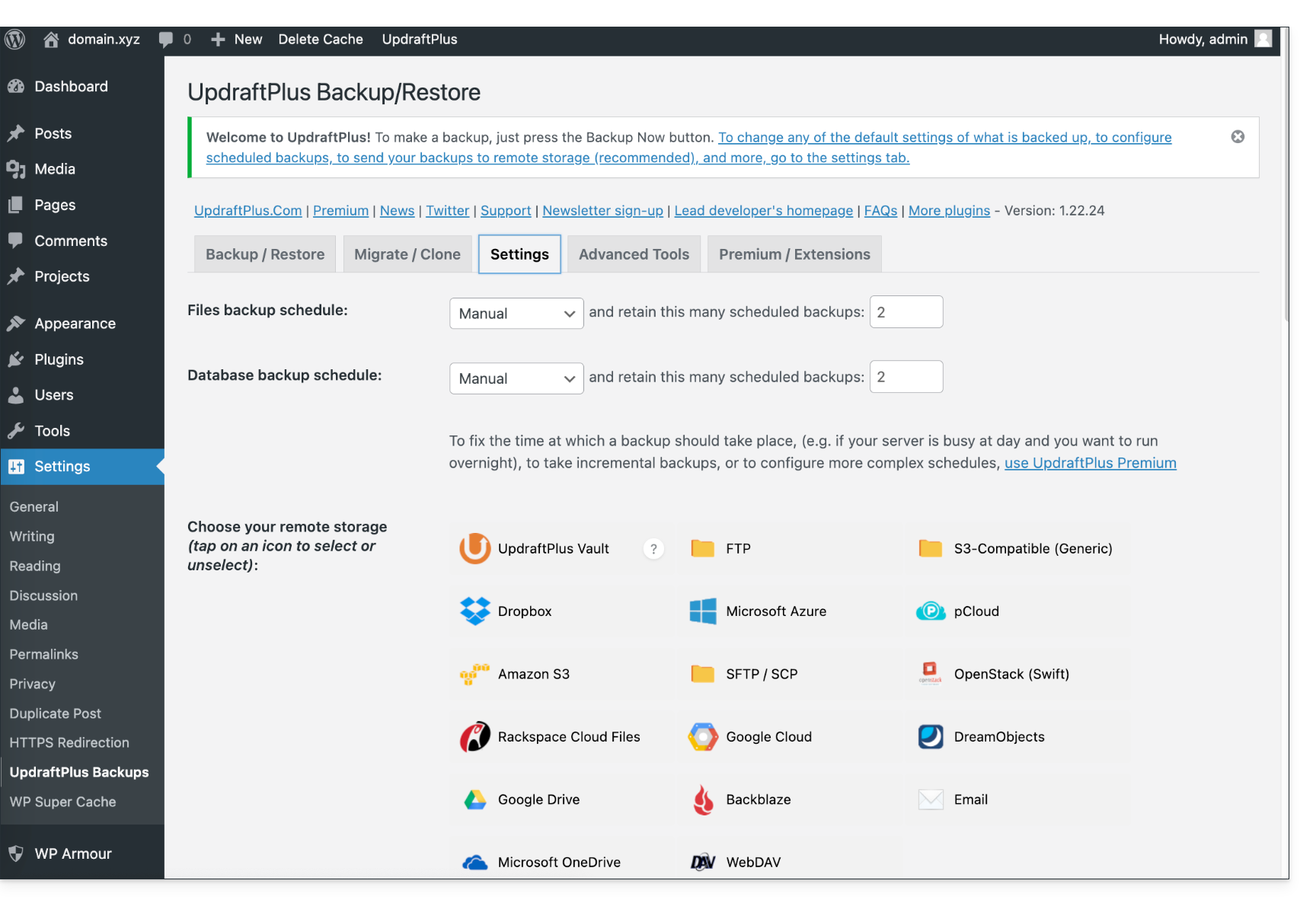
- Further down, fill in the fields according to the information specific to your device.
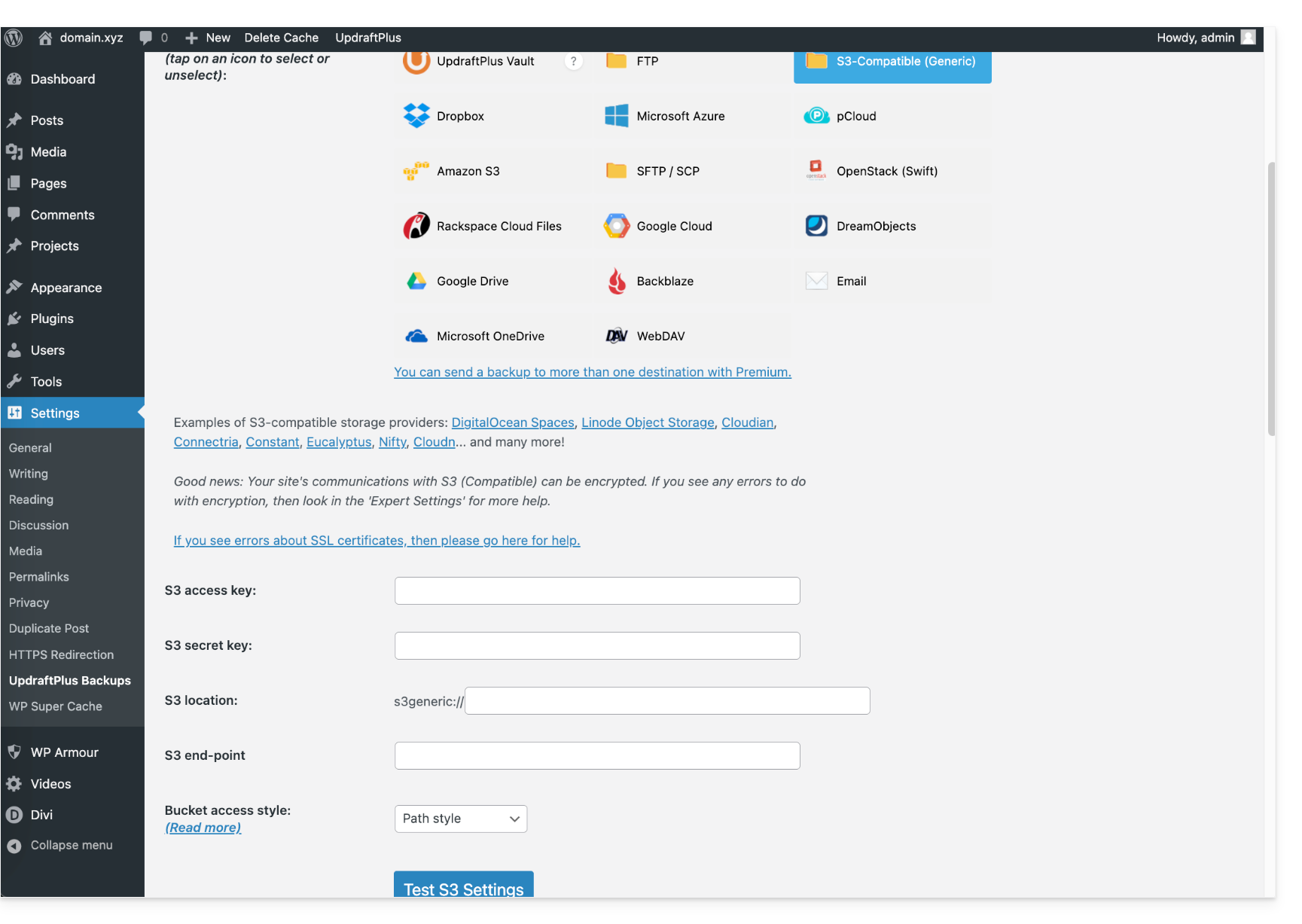
- Here is the type of information you need to have and that you must specify in the various fields to create the connection:
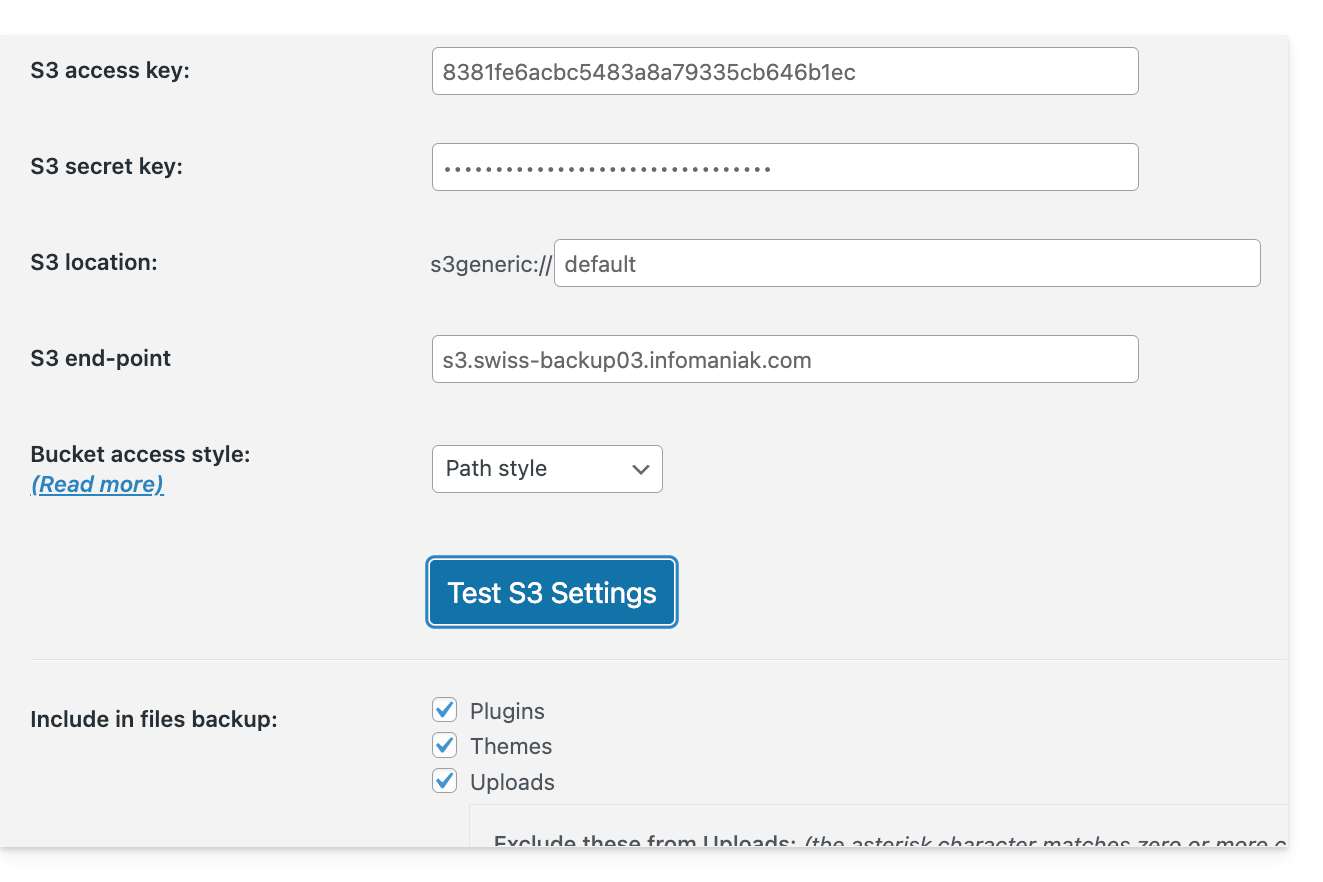
You can then schedule your backups at regular intervals.
Download the backup manually
Your backups made via UpdraftPlus - S3 can be retrieved using an S3-compatible client, such as Cyberduck.
Restore an UpdraftPlus backup
Please refer to this official guide in English.
Link to this FAQ: https://faq.infomaniak.com/2767
Has this FAQ been helpful?
This guide covers the creation of private networks between different Infomaniak hosting offers, such as VPS Cloud / VPS Lite, Public Cloud, NAS Synology, etc.
Create a VLAN between VPS
It is not possible to create a private network (VLAN) between Cloud VPS / VPS Lite and other products, such as a Synology NAS, because they are installed on separate networks.
It is recommended to migrate to the Public Cloud offering to create such private networks between VMs.
Link to this FAQ: https://faq.infomaniak.com/2808
Has this FAQ been helpful?
This guide concerns swap on Managed Cloud.
Swap and RAM
Swap space may be used even when RAM usage is low. Indeed, the system can use swap space at any time if it deems it useful.
Swap space is not a dedicated memory area to be used only when there is no free RAM, although this is often its primary use.
If you would like to learn more, there is a "swappiness" setting that allows you to define how the system will use the swap space. The default value is 60 and it cannot be changed.
Link to this FAQ: https://faq.infomaniak.com/2810
Has this FAQ been helpful?
Infomaniak's infrastructure does not transmit virtualization instructions to Cloud VPS / VPS Lite; nested virtualization is therefore not possible.(virtualization that would run inside an already virtualized environment) because this poses problems, especially during live migrations.
Link to this FAQ: https://faq.infomaniak.com/2811
Has this FAQ been helpful?
Infomaniak does not perform any backups of Cloud VPS / VPS Lite.
However, you can…
- … create a server snapshot (non-automated backup)
- … back up the server to Swiss Backup (automated backup)
Link to this FAQ: https://faq.infomaniak.com/2812
Has this FAQ been helpful?
This guide explains how to benefit from new versions of PHP, MySQL, and many other packages by migrating a Cloud Server to a new Infomaniak infrastructure.
Introduction
- The migration is free and takes place in 3 steps:
- Infomaniak provides a next-generation Cloud Server with the same features as the current one, at the same price and with the same commitment period.
- You have one month to move your hosting to the new Cloud Server provided (see below).
- Once your hosting has been moved to the new server, cancel the old Cloud Server.
- FTP access and databases remain unchanged.
- Only the supported versions of PHP and MariaDB, as well as the server's IPv4 and IPv6 addresses, will change for hosting.
- The hostnames will not change and are automatically updated to point to the new IP addresses.
- During this operation, the statistics are reset.
Migration procedure
By migrating your data to the new Cloud infrastructure, you increase the performance and reliability of your websites, which will have access to the latest technologies:
- Click here to access the management of your product on the Infomaniak Manager (need help?).
- Click directly on the name assigned to the product in question.
- Click on the blue button in the "Upgrade your Cloud Server" box (or on Manage):
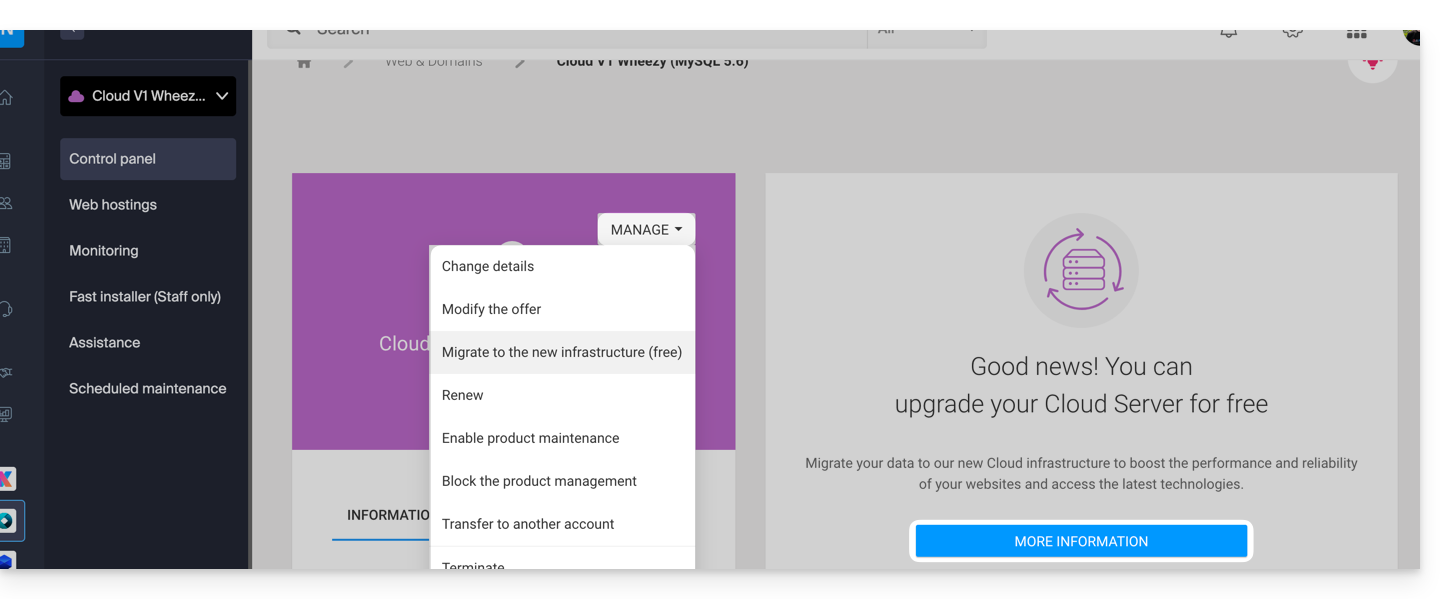
Link to this FAQ: https://faq.infomaniak.com/2813
Has this FAQ been helpful?
Infomaniak does not provide root access to Managed Cloud.
However, root access is possible on:
Link to this FAQ: https://faq.infomaniak.com/2814
Has this FAQ been helpful?
This guide explains how to modify the storage configuration of an Infomaniak Cloud VPS / VPS Lite.
Introduction
- It is necessary toincrease the volume after increasing the storage capacity.
- Configuration changes (CPU/RAM) or storage modifications will make the service unavailable for approximately 20 minutes.
Modify the storage size on Cloud VPS / VPS Lite
To access the Cloud VPS / VPS Lite:
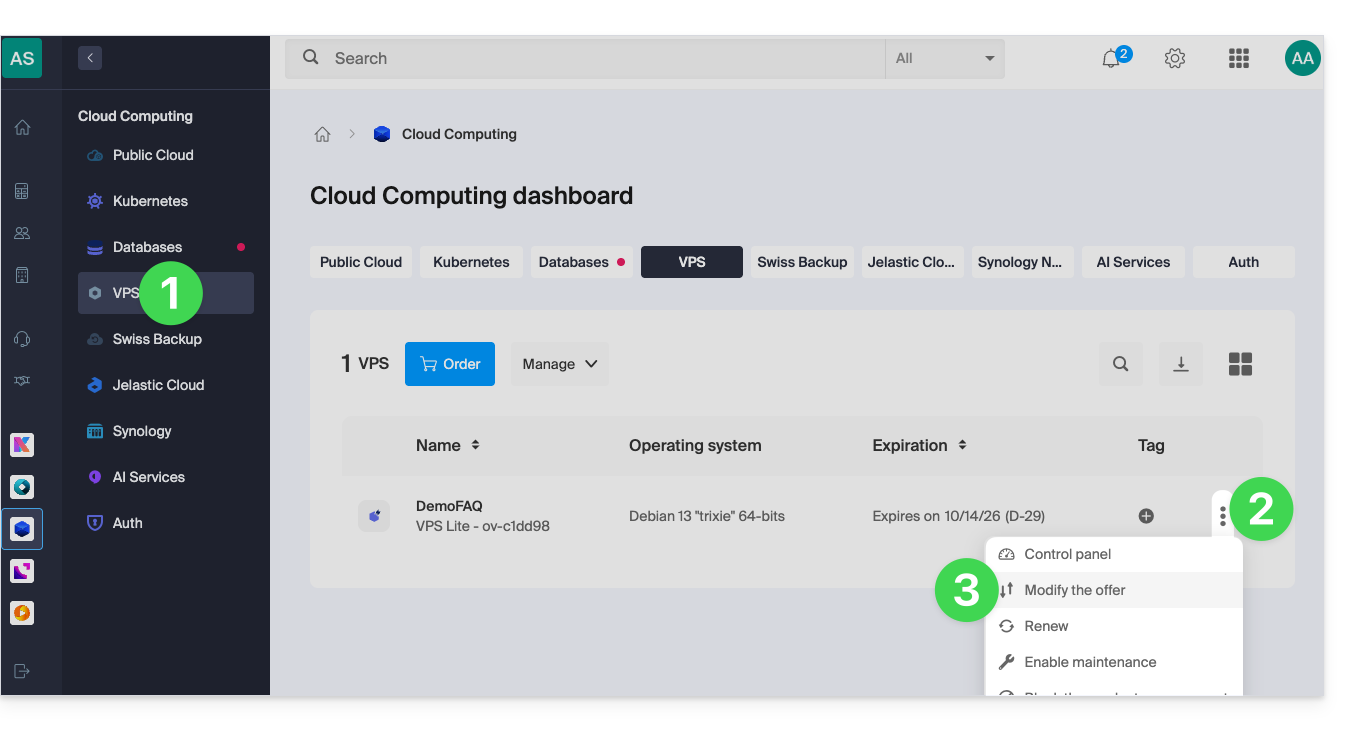
- Click here to access your product management interface in the Infomaniak Manager (need help?).
- Click on the action menu ⋮ to the right of the item in question in the table that appears.
- Click on Modify offer:
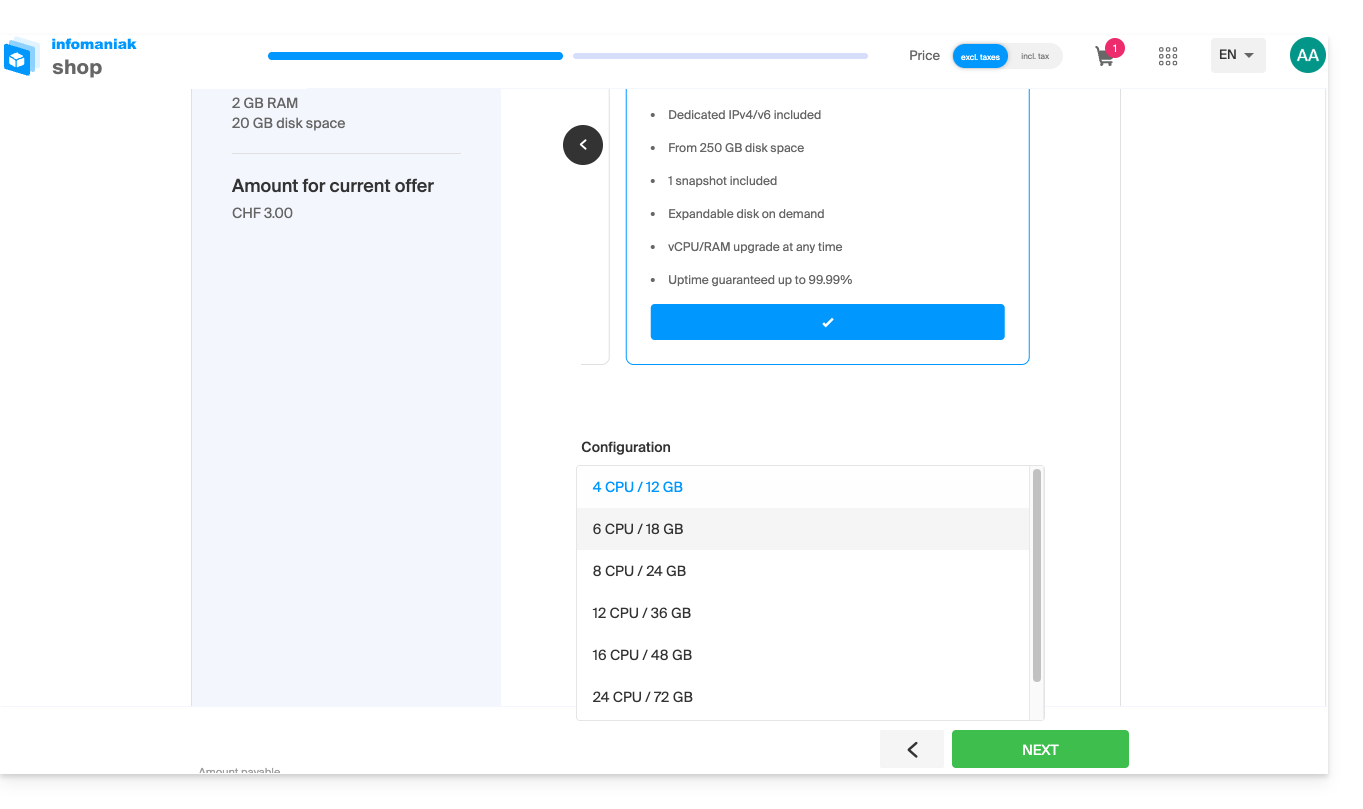
- Make the desired adjustments from the options available in the shop and complete the process at the bottom:
Link to this FAQ: https://faq.infomaniak.com/2815
Has this FAQ been helpful?