Knowledge base
1000 FAQs, 500 tutorials and instructional videos. Here, there are only solutions!
Change the Cloud Server configuration
This guide explains how to modify your current Managed Cloud Server offer.
Modifying resources and configuration
The basic Managed Cloud Server plan includes 5 hostings and 20 websites. To add an additional hosting or modify the server configuration to increase CPU / RAM:
- Click here to access the management of your product on the Infomaniak Manager (need help?).
- Click on the action menu ⋮ located to the right of the item concerned.
- Click on Modify the offer:
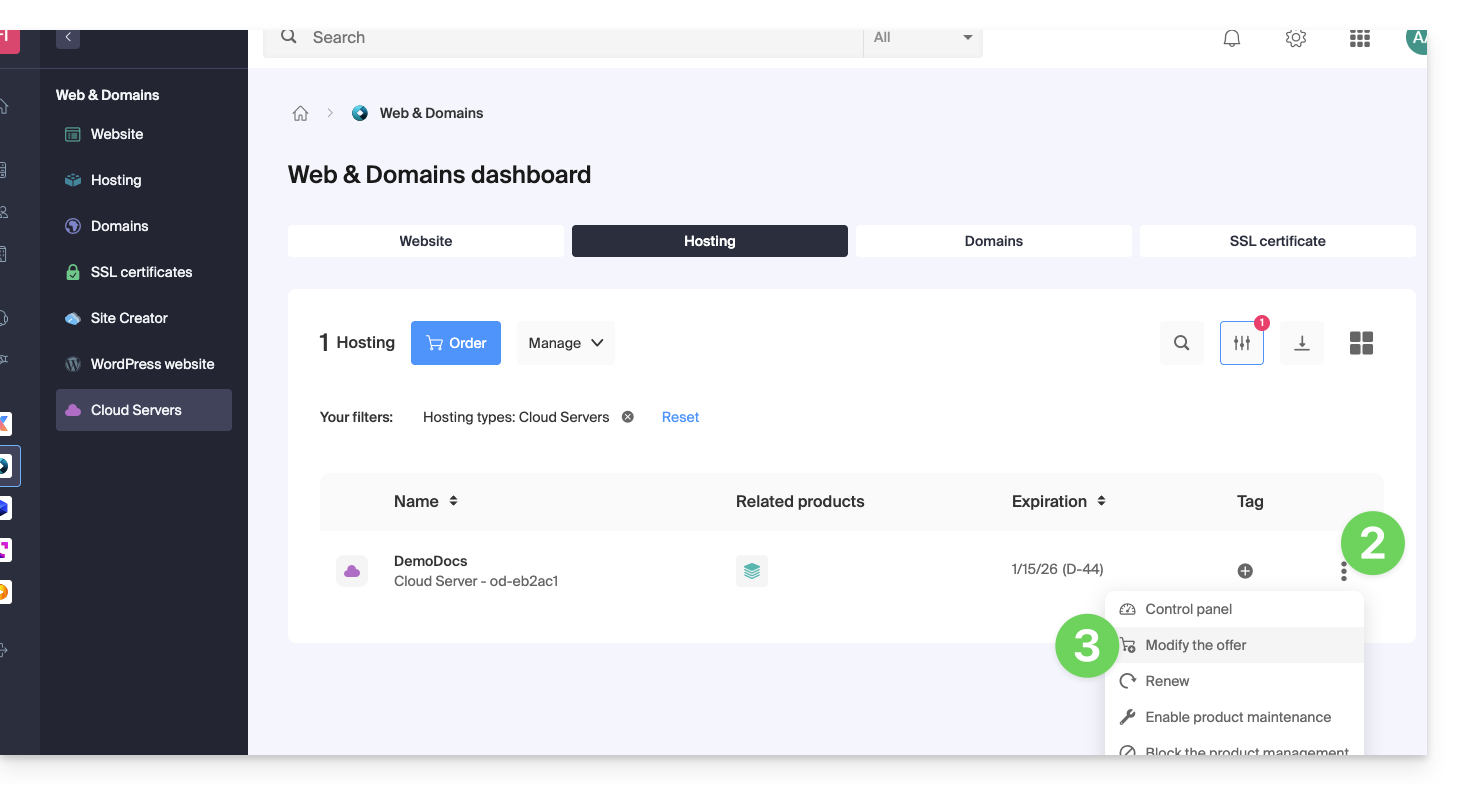
- Make the desired adjustments and complete the procedure.
To reduce the size of the entire Managed Cloud Server disk space:
- Order a new server with the desired new storage (contact support to order the new server for free while performing the steps below).
- Move the hostings from the old server to the new one.
- Cancel the old server.
Refer to this other guide to modify the disk space of a hosting.
Increasing the process limit
On Linux, the number of processes that a user or a system can create simultaneously is limited. These limits prevent processes that are too fast from consuming excessive resources and affecting the overall stability of the system. Process limits are managed by the Linux kernel and can be viewed and modified using specific commands and configuration files. You can request to increase the limits by contacting support.
Link to this FAQ: https://faq.infomaniak.com/2022
Has this FAQ been helpful?