Base de conhecimento
1000 perguntas frequentes, 500 tutoriais e vídeos explicativos. Aqui, você encontra apenas soluções!
Este guia explica como modificar as informações do produto kDrive. Atenção: pode haver um atraso para que os aplicativos (desktop, móveis…) sejam sincronizados com as novas informações.
Renomear um kDrive a partir do Manager Infomaniak
Para isso:
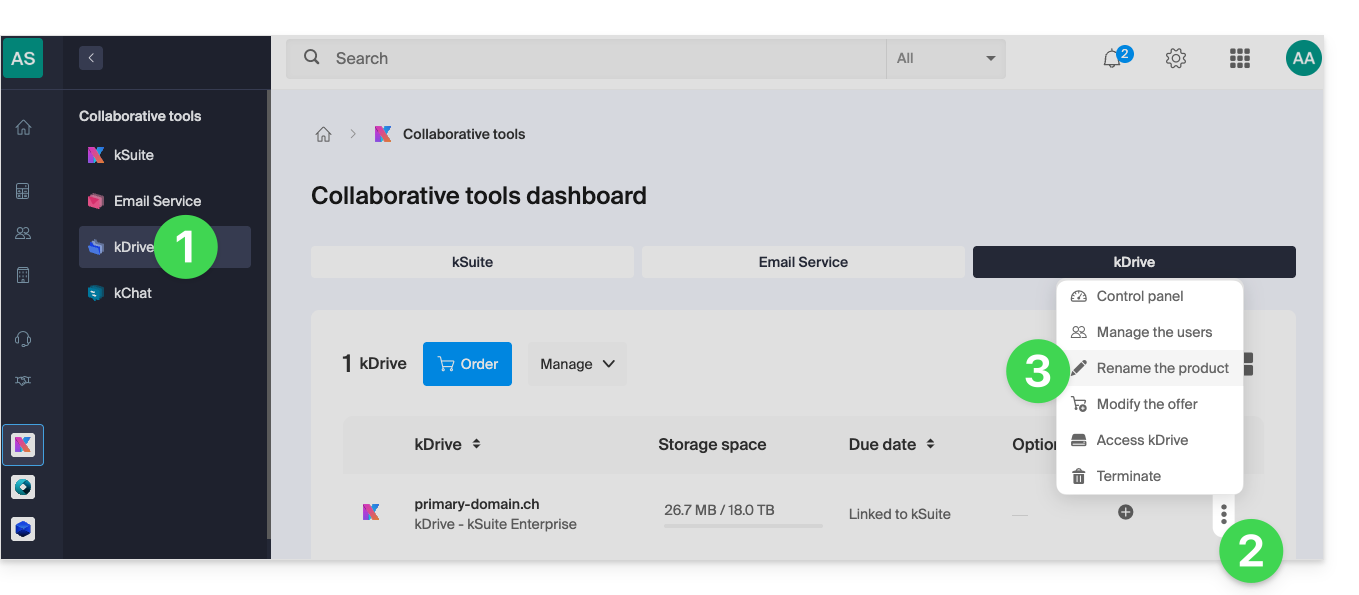
- Clique aqui para acessar o gerenciamento do kDrive no seu Painel de Controle Infomaniak.
- Se nada for exibido após o login, você pode não estar na Organização à qual o seu kDrive está associado (❓: ajuda).
- Clique no menu de ação ⋮ localizado à direita do kDrive em questão.
- Clique em Renomear produto.
- Renomeie o seu kDrive.
- Clique no botão Guardar.
Renomear a partir das configurações unificadas dos aplicativos
Para isso:
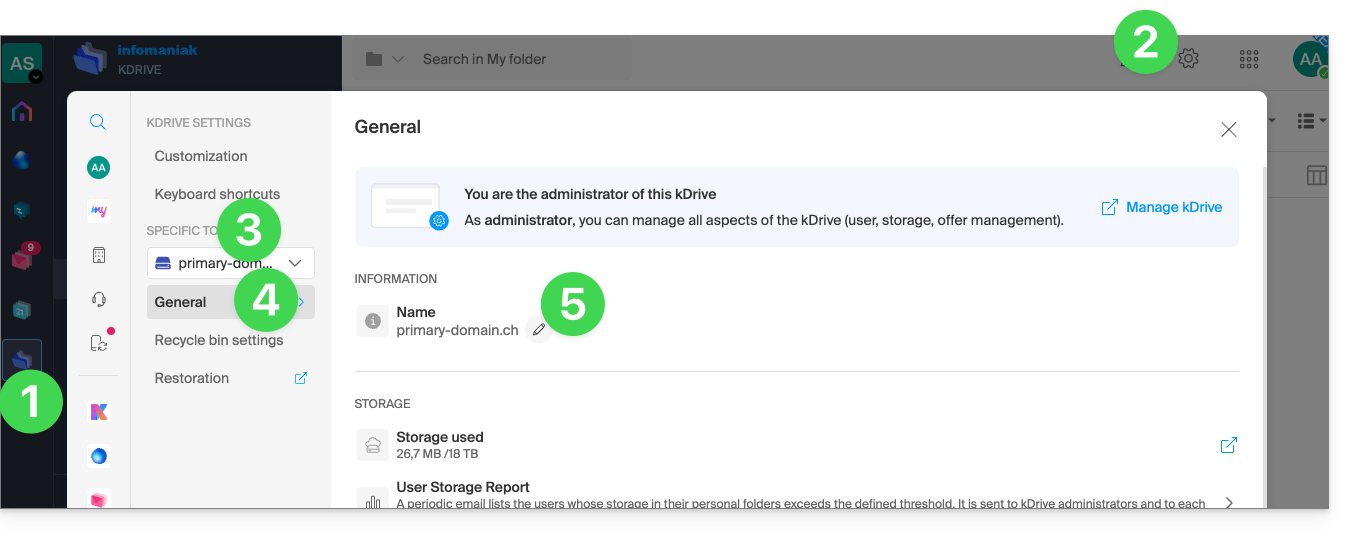
- Clique aqui para acessar o kDrive em seu kSuite Infomaniak (❓: ajuda).
- Clique em Configurações no canto superior direito.
- Verifique ou selecione o kDrive correspondente no menu suspenso do menu lateral esquerdo.
- Clique em Geral.
- Clique no ícone lápis ✎ para editar o nome do kDrive como desejar:
Link para esta FAQ: https://faq.infomaniak.com/2274
Esta seção de perguntas frequentes foi útil?
Este guia explica como guardar os anexos de um e-mail a partir da aplicação web Mail da Infomaniak (serviço online ksuite.infomaniak.com/mail).
Introdução
- Assim, poderá guardar, com um único clique, todos os ficheiros anexos a uma mensagem numa pasta
.zipno seu computador ou no seu kDrive, etc. - Outros guias explicam como:
Guardar o anexo a partir da aplicação Web Mail
Para exportar os ficheiros anexos recebidos por e-mail:
- Clique aqui para acessar os e-mails no seu kSuite Infomaniak (❓: ajuda).
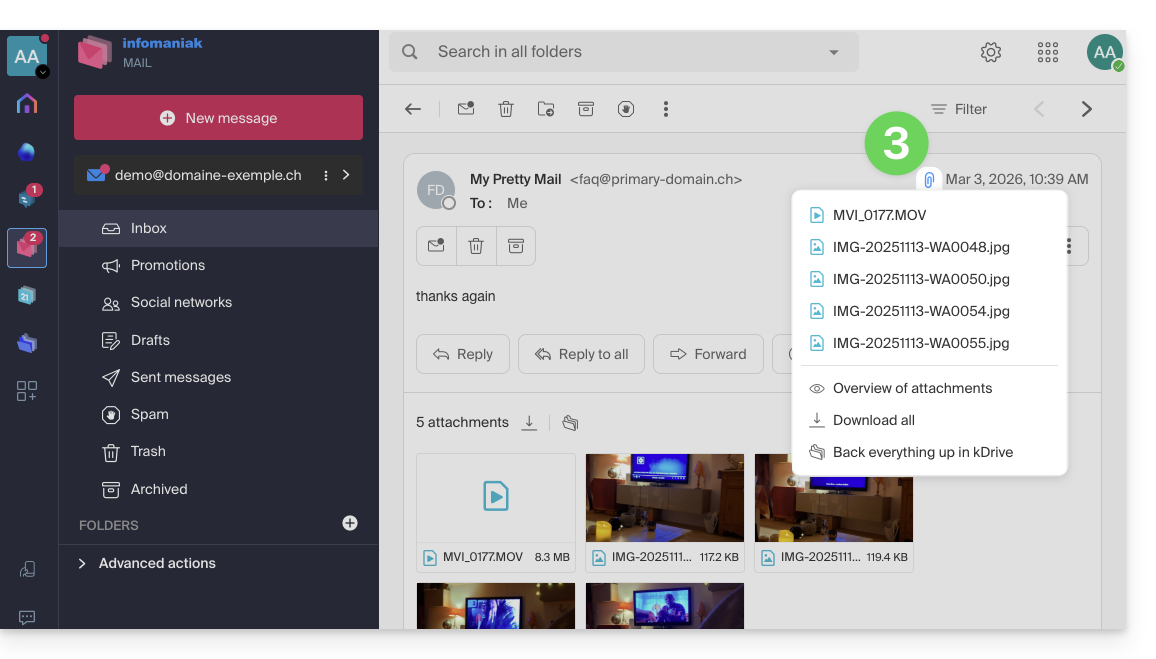
- Abra a mensagem que contém os anexos que deseja salvar.
- Clique no ícone de grampo para acessar as opções de backup e visualização do conteúdo:
- … ou diretamente acima dos arquivos anexados para iniciar o download ou salvar no kDrive:
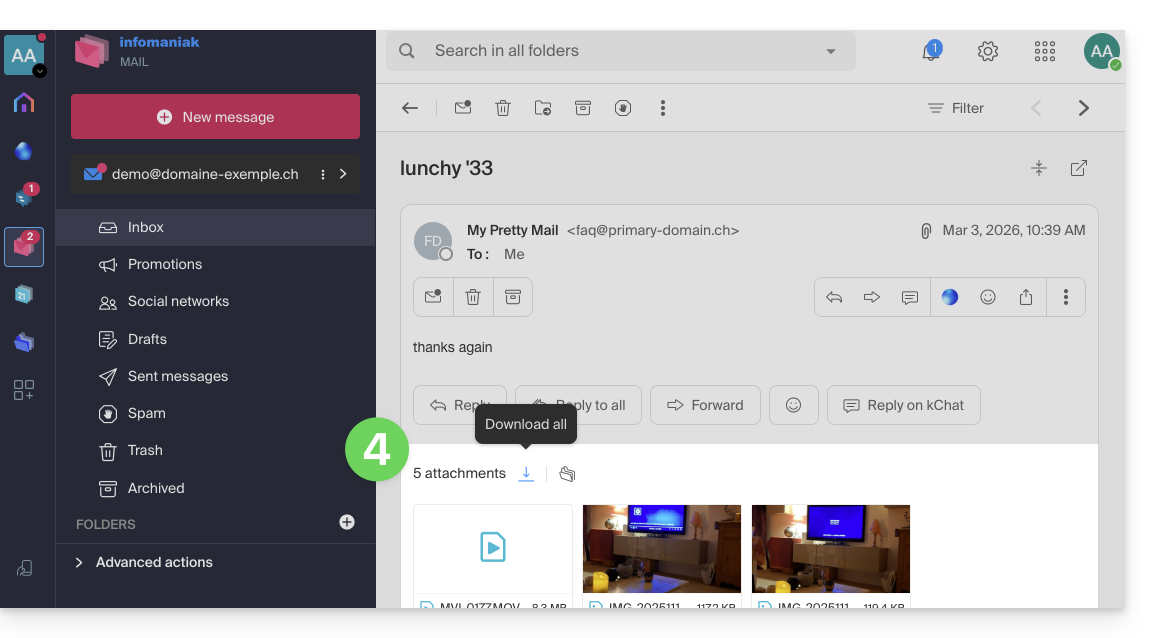
- Fazer download de tudo permite criar um arquivo no formato
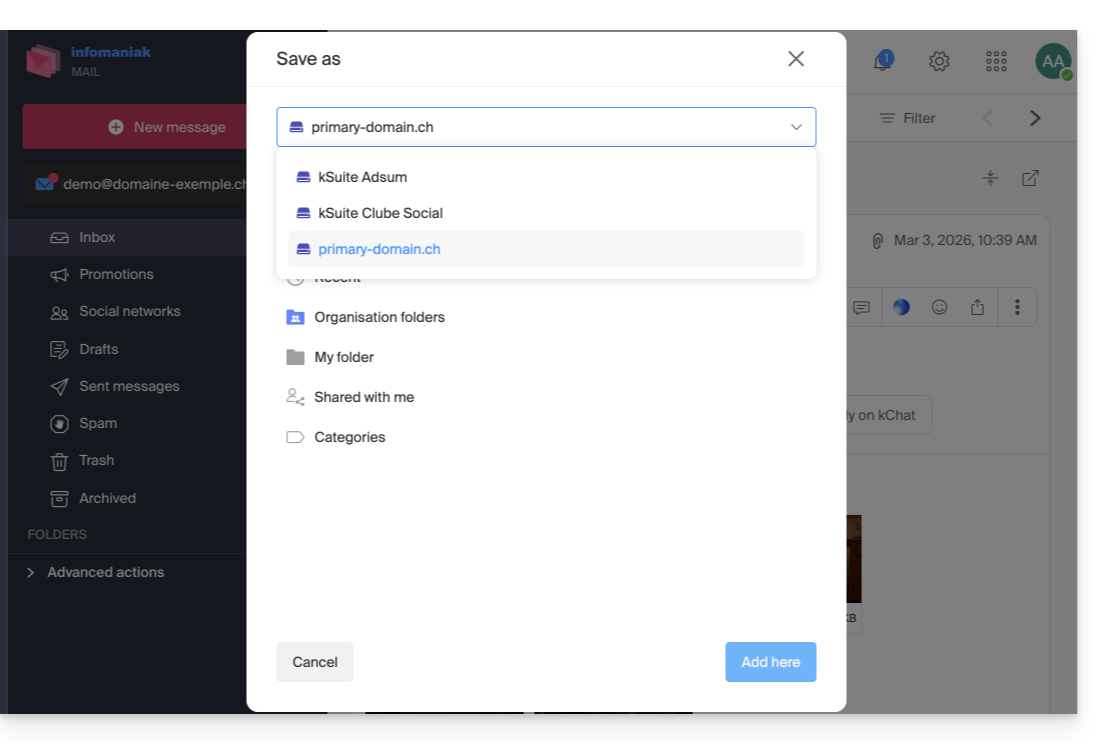
zippara download no seu dispositivo. - Salvar tudo no kDrive permite escolher o kDrive (entre aqueles aos quais você está vinculado pela sua Organização) e o local desejado para salvar os arquivos:
- Fazer download de tudo permite criar um arquivo no formato
Link para esta FAQ: https://faq.infomaniak.com/2309
Esta seção de perguntas frequentes foi útil?
Este guia ajuda você a começar a usar o kSuite, integrando um kDrive já existente na sua organização.
Introdução
- O kDrive fará parte integrante da nova kSuite.
- O número mínimo de utilizadores no plano kSuite escolhido será baseado no número de utilizadores do plano kDrive existente.
- Os utilizadores do kDrive tornar-se-ão utilizadores kSuite.
- Para o ajudar a identificar a oferta kSuite mais adequada às suas necessidades, consulte este outro guia.
Como fazer a transição do meu kDrive para o kSuite
Pré-requisitos
- Não ter ainda o kSuite instalado na organização.
- Possuir uma oferta kDrive paga.
- Ser, no mínimo, Administrador da Organização (❓: ajuda).
Criar uma nova kSuite a partir do seu kDrive existente:
- Clique aqui para acessar o aplicativo web kDrive da Infomaniak (serviço online ksuite.infomaniak.com/kdrive).
- Clique em Gerenciar.
- Clique em Atualizar oferta.
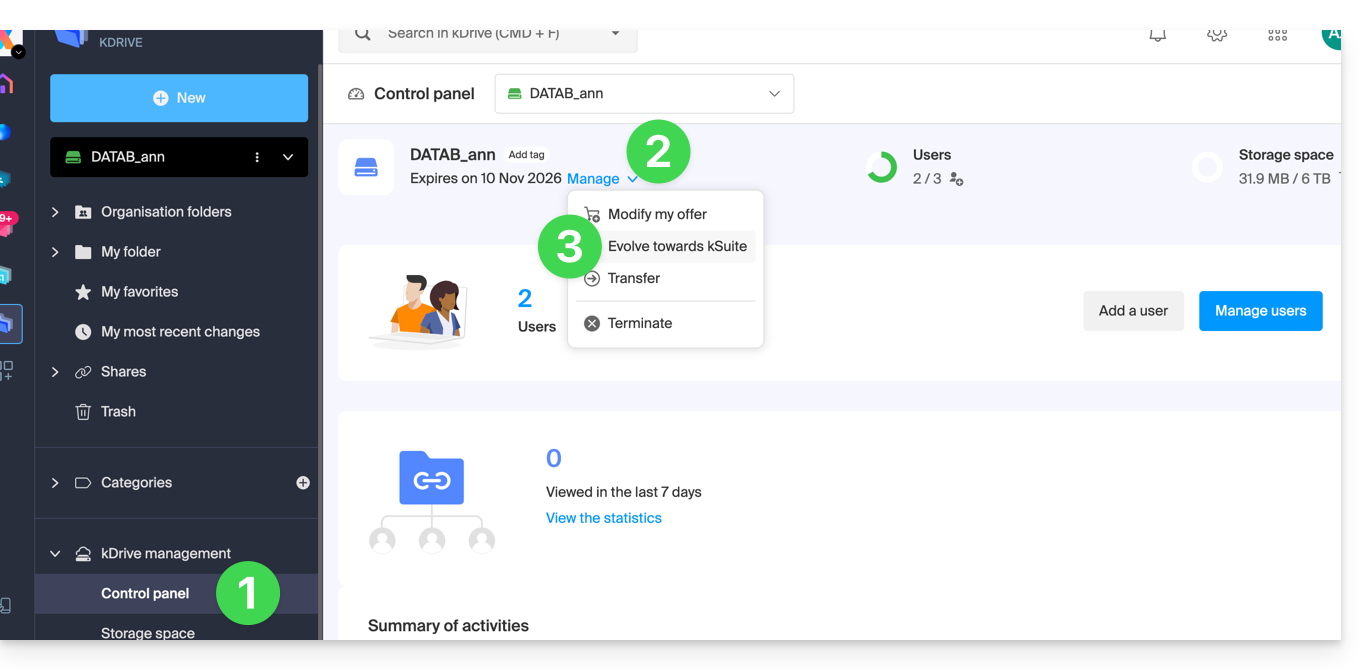
Também pode fazê-lo a partir de uma barra de informações visível na página inicial da sua interface Manager: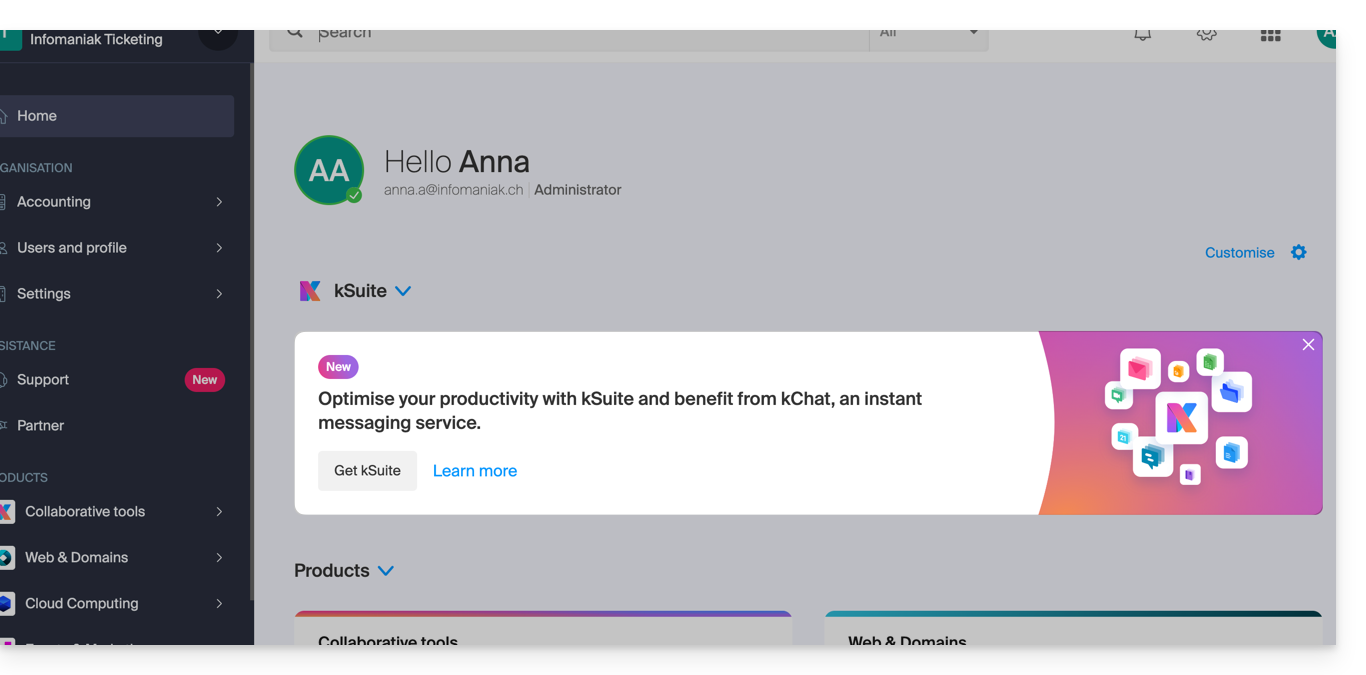
Você também pode integrar seu Serviço de E-mail, caso ele não esteja atualmente no kSuite.
Link para esta FAQ: https://faq.infomaniak.com/2350
Esta seção de perguntas frequentes foi útil?
Este guia explica como adicionar, bloquear, substituir ou remover um utilizador de um kDrive. Para saber mais sobre a gestão dos direitos dos utilizadores, consulte este outro guia.
Pré-requisitos
- O utilizador deverá criar (ou possuir) uma conta Infomaniak para aceitar o convite e aderir ao kDrive.
- Possuir uma oferta kDrive com um número suficiente de utilizadores disponíveis (precisa de ajuda?).
Adicionar um utilizador
Para tal:
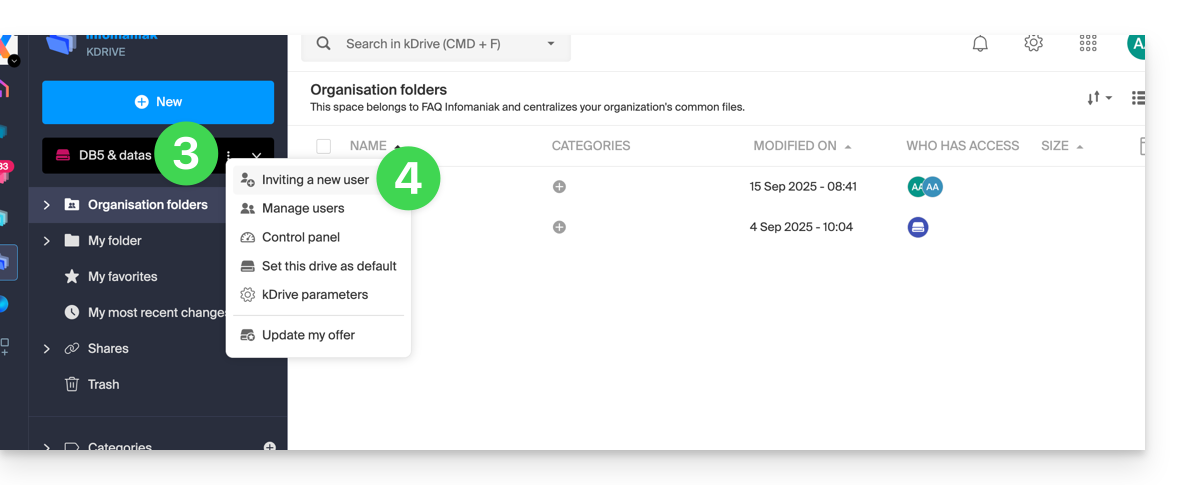
- Clique aqui para aceder à aplicação web kDrive da Infomaniak (serviço online ksuite.infomaniak.com/kdrive).
- Verifique ou selecione o kDrive em questão no menu suspenso do menu lateral esquerdo.
- Clique no menu de ação ⋮ localizado à direita do elemento em questão.
- Clique em Convidar um novo utilizador:
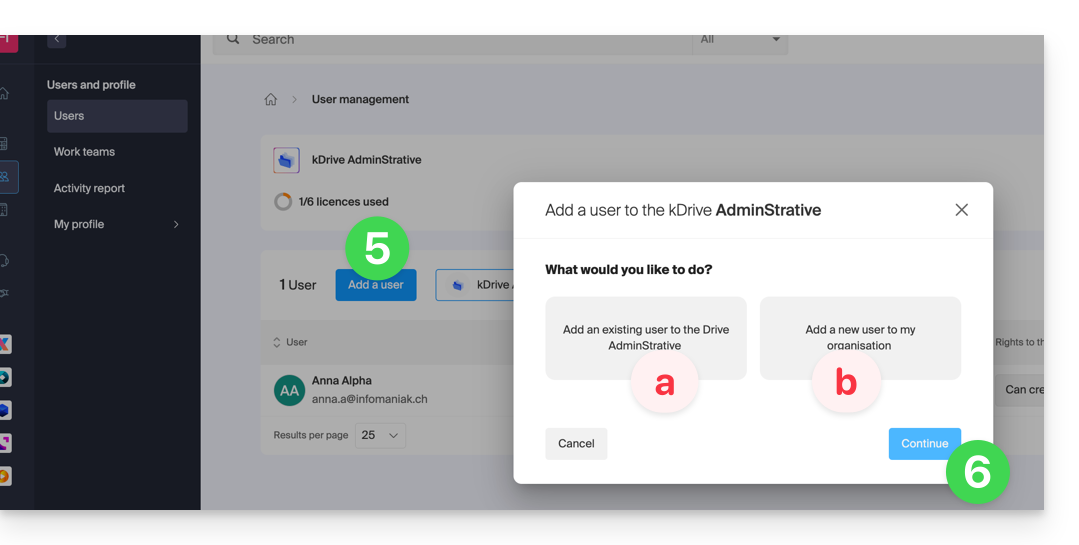
- Se necessário, clique novamente no botão para convidar um novo utilizador e, em seguida, clique em:
- Adicionar um utilizador ao Drive para escolher um utilizador que já esteja presente na sua Organização,
- Adicionar um utilizador à minha Organização para convidar um utilizador externo.
Com o kSuite, o processo é praticamente o mesmo:
- Criar um (novo) utilizador kSuite,
- Convidar um utilizador existente para o kSuite.
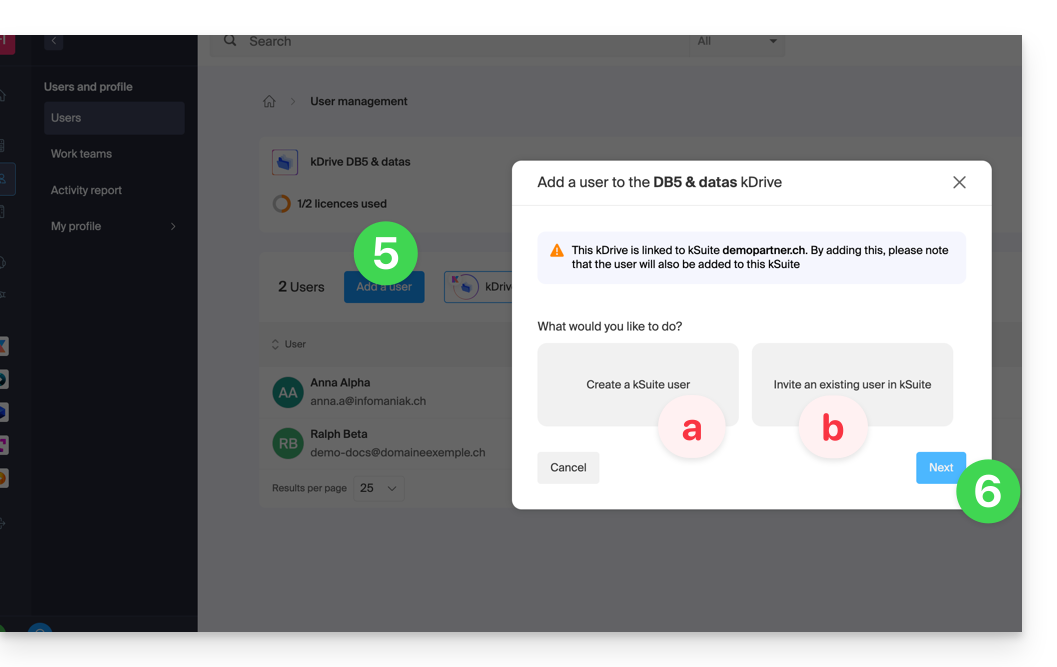
- Pressione o botão para continuar.
- Dependendo da sua escolha, insira as informações de contacto ou simplesmente o endereço de e-mail do utilizador a convidar e especifique os seus direitos.
- Clique em Convidar.
O utilizador receberá então um e-mail que lhe permitirá aceitar o convite (válido por 1 mês). Ele será indicado como um utilizador convidado em espera na gestão de utilizadores do kDrive.
Bloquear um utilizador
Esta funcionalidade permite impedir que um utilizador aceda aos ficheiros a partir da interface web do kDrive e a partir da aplicação num dispositivo:
- Clique em Gerir utilizadores:
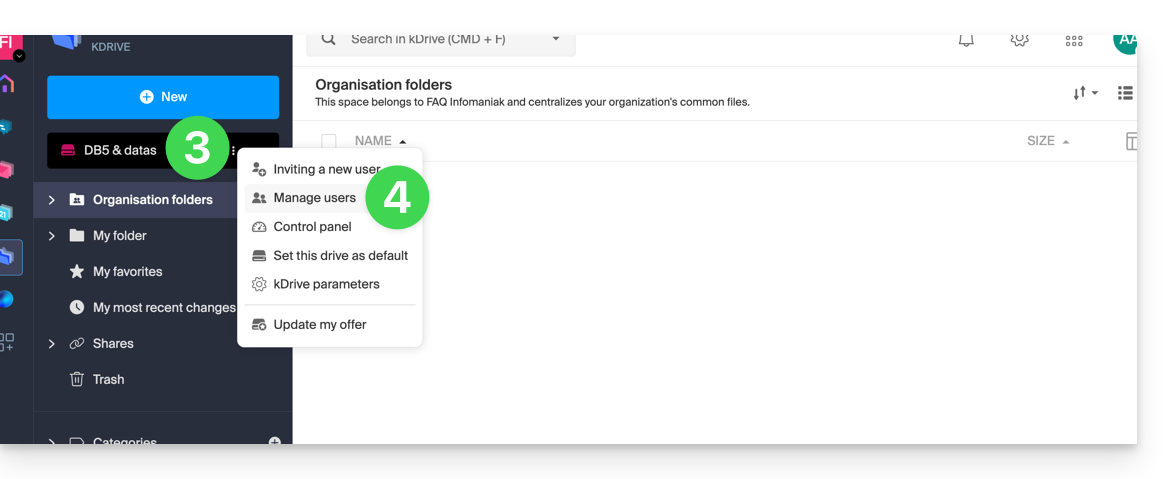
- Clique no menu de ação ⋮ à direita do utilizador em questão na tabela que aparece.
- Clique em Bloquear o utilizador e confirme a ação:
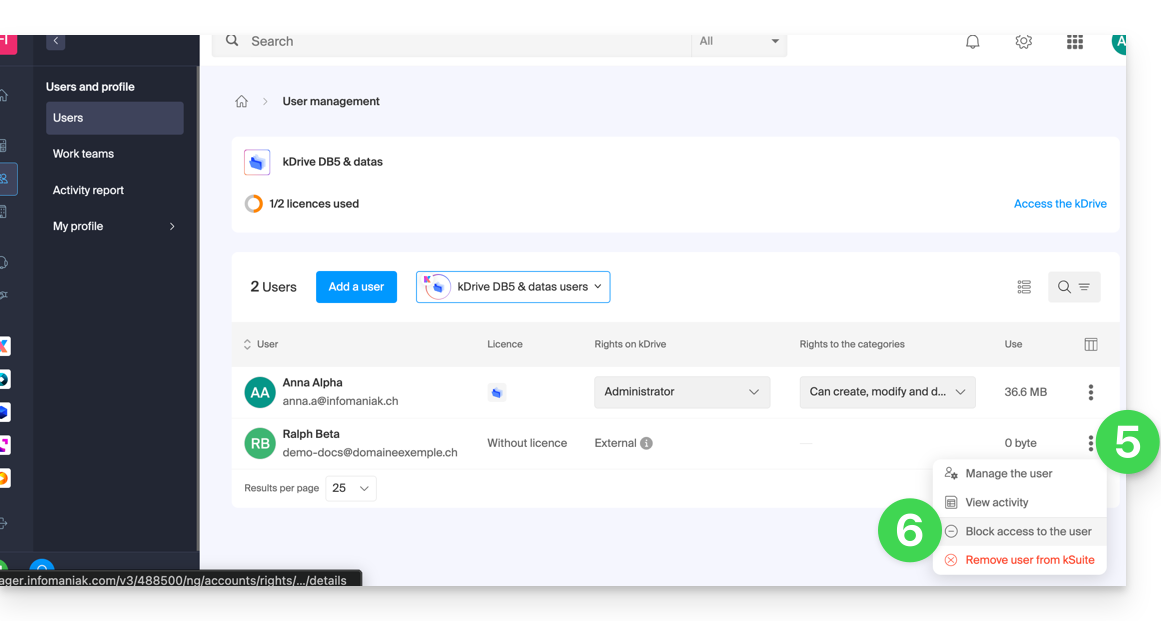
Para desbloquear um utilizador, basta seguir o mesmo procedimento.
Como remover um utilizador
Se um utilizador deixar a sua empresa ou equipa, várias opções estão disponíveis para si como administrador. Pode optar por…
- … bloquear o utilizador durante um determinado período (ver acima).
- … remover completamente o utilizador e os seus ficheiros.
- … remover o utilizador e manter os seus ficheiros durante 6 meses.
- … remover o utilizador e transferir os seus ficheiros para outro utilizador.
Para remover um utilizador:
- Clique aqui para aceder à aplicação web kDrive da Infomaniak (serviço online ksuite.infomaniak.com/kdrive).
- Verifique ou selecione o kDrive em questão no menu suspenso do menu lateral esquerdo.
- Clique no menu de ação ⋮ localizado à direita do elemento em questão.
- Clique em Gerir utilizadores:
- Clique no menu de ação ⋮ à direita do utilizador em questão na tabela que aparece.
- Clique em Remover o utilizador.
- Escolha se deseja ou não manter os dados do utilizador:
- Manter os ficheiros do utilizador durante 6 meses ou transferi-los para outro utilizador.
- Eliminar imediatamente e definitivamente os ficheiros do utilizador.
- Clique em Remover direitos de acesso.
Remover um utilizador externo do kDrive
Os utilizadores externos são aqueles com quem partilhou apenas um ou mais ficheiros/pastas, sem lhes dar acesso ao kDrive completo:
Para remover um utilizador externo:
- Clique aqui para aceder à aplicação web kDrive da Infomaniak (serviço online ksuite.infomaniak.com/kdrive).
- Verifique ou selecione o kDrive em questão no menu suspenso do menu lateral esquerdo.
- Clique no menu de ação ⋮ localizado à direita do elemento em questão.
- Clique em Gerir utilizadores.
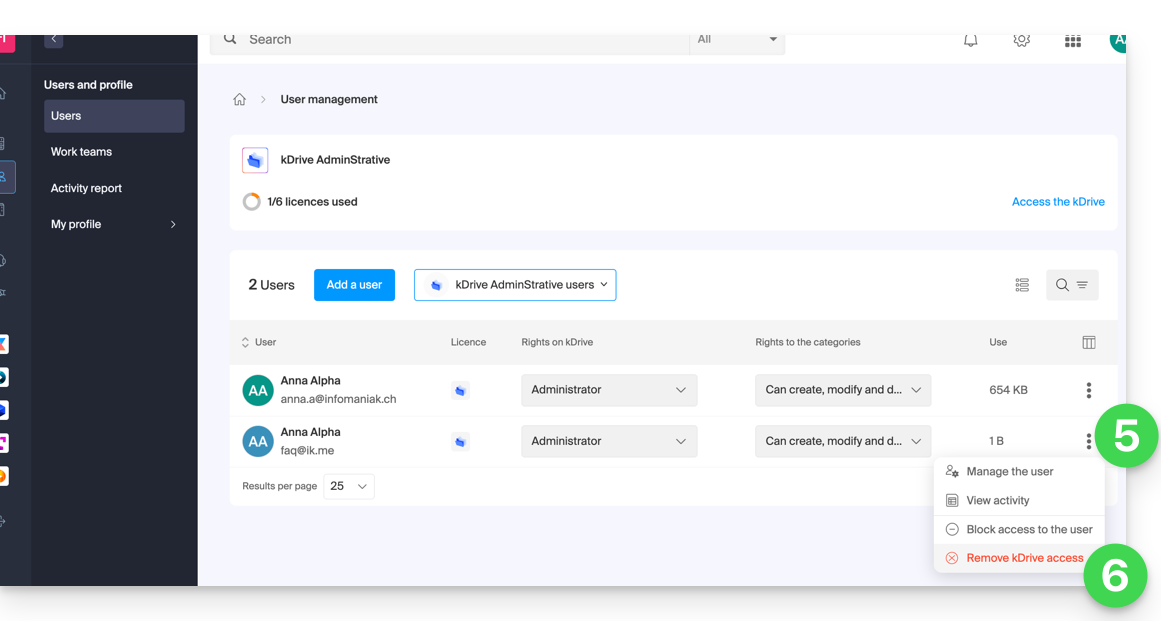
- Clique no menu de ação ⋮ à direita do utilizador externo em questão na tabela que aparece.
- Clique em Remover acesso ao kDrive:
Também pode ir para o local do ficheiro partilhado e clicar na coluna de partilhas para remover o acesso ao utilizador em questão: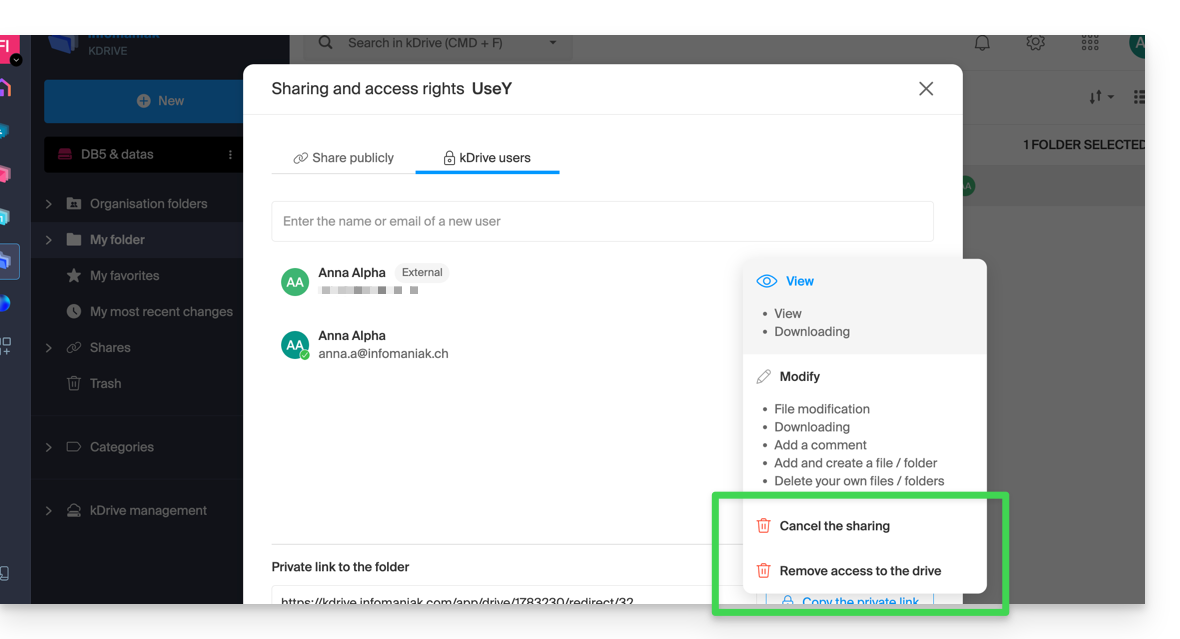
Pode:
- interromper a partilha do ficheiro com ele (ele continuará a ver os outros ficheiros se tiver partilhado outros).
- remover o acesso dele a todos os arquivos que você compartilhou com ele a partir deste kDrive
Observe que o usuário externo também pode, a partir do seu kDrive limitado, remover o próprio acesso, interrompendo o acesso ao arquivo compartilhado, caso não deseje mais acessá-lo: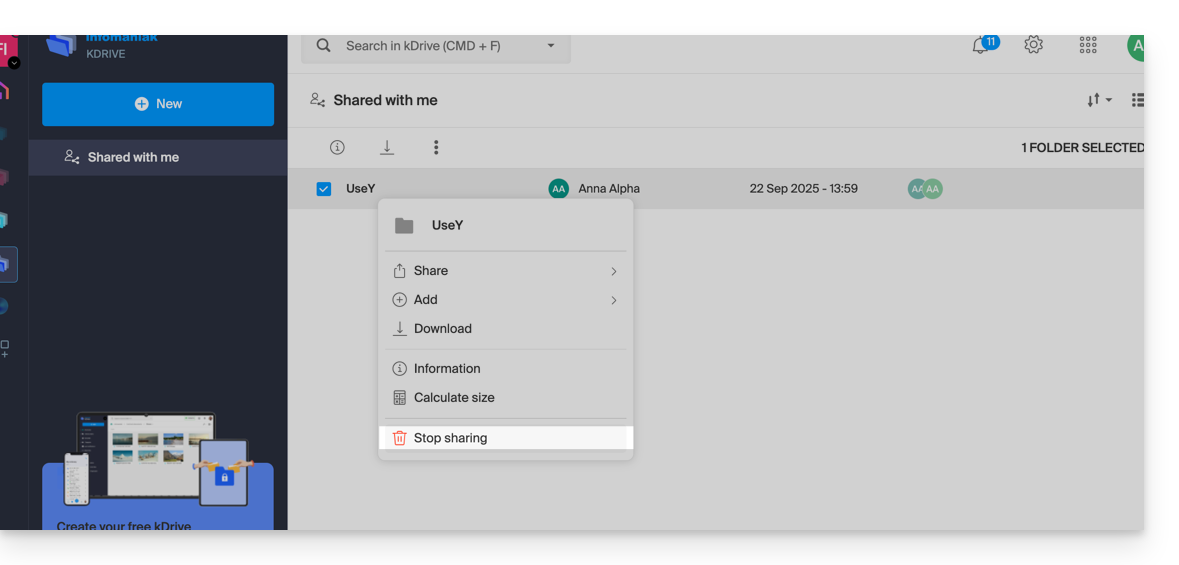
Ele não aparecerá mais nos usuários externos.
Substituir um usuário do kDrive
✘ INDISPONÍVEL com
kSuite
my kSuite / my kSuite+ (ik.me, etik.com, ikmail.com)
No caso de um administrador do kDrive desejar remover o próprio acesso (apenas este tipo de conta pode fazê-lo) e atribuir os direitos de uso do kDrive a um usuário terceirizado (que já esteja entre os usuários da Organização na qual o kDrive em questão está localizado):
- Clique aqui para acessar o aplicativo web kDrive da Infomaniak (serviço online ksuite.infomaniak.com/kdrive).
- Verifique ou selecione o kDrive em questão no menu suspenso do menu lateral esquerdo.
- Clique no menu de ação ⋮ localizado à direita do item em questão.
- Clique em Painel de controle.
- Clique em Gerenciar usuários:
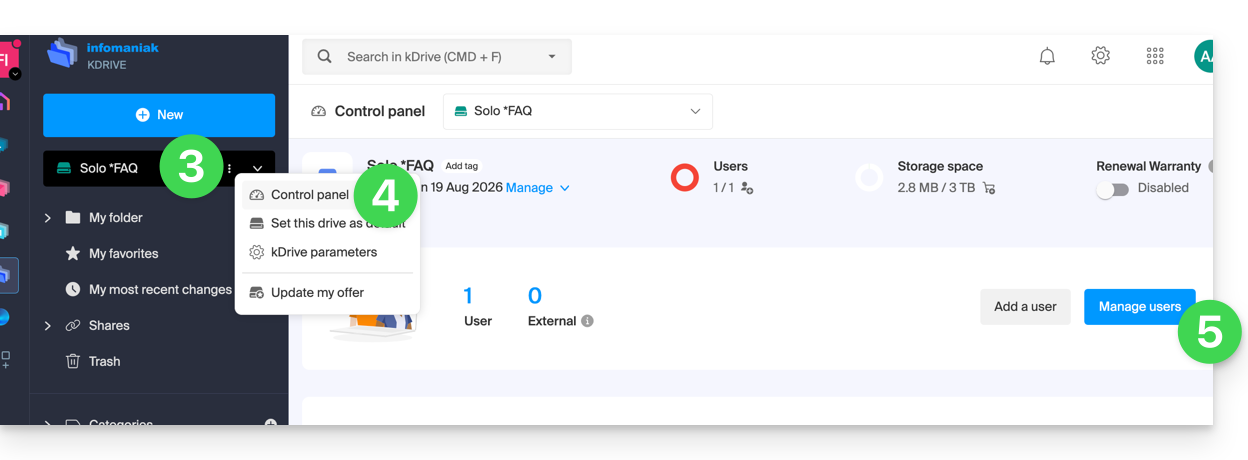
- Clique no menu de ação ⋮ localizado à direita do usuário atual.
- Clique em Substituir utilizador:
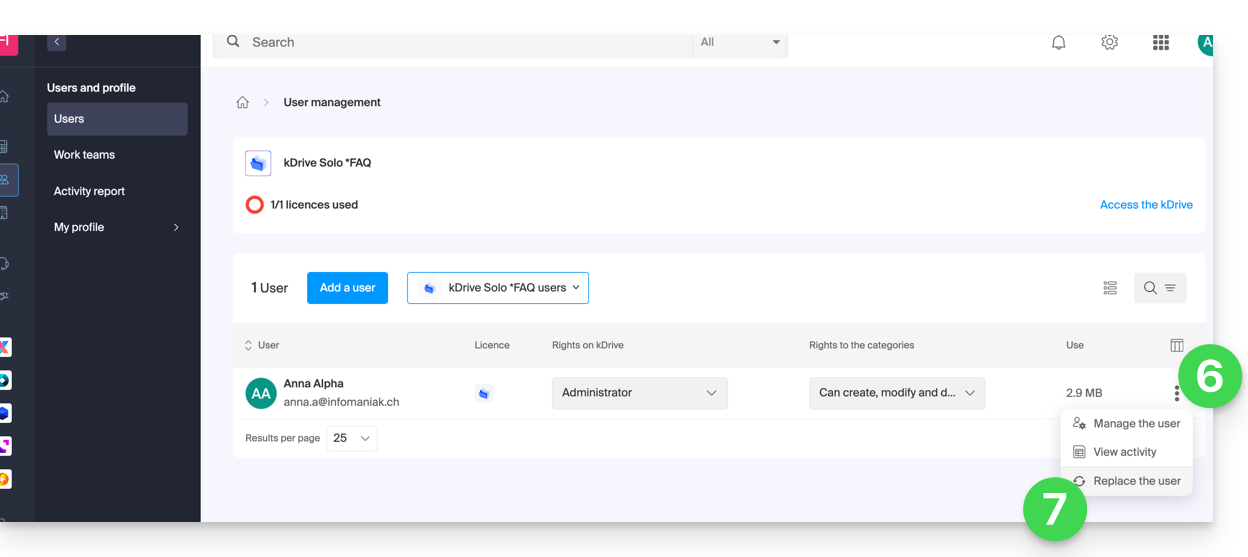
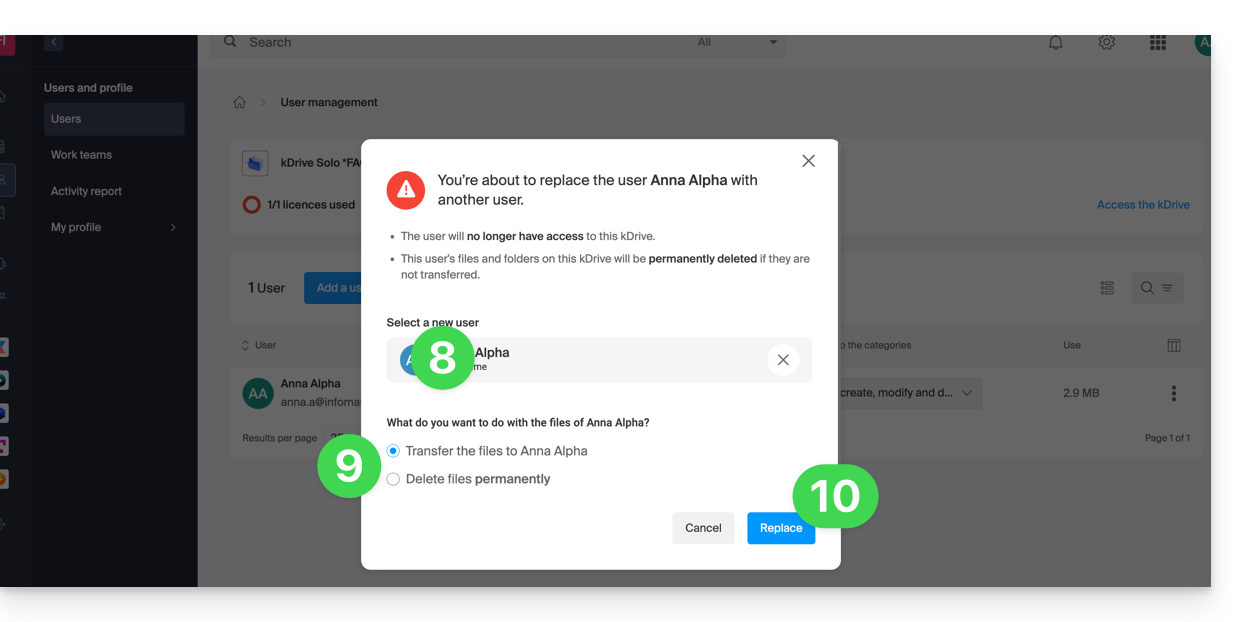
- Indique o utilizador (entre os que já estão associados à Organização) que deverá ser o utilizador principal do kDrive, substituindo o administrador atual.
- Escolha se os dados existentes no kDrive devem ser mantidos e transferidos para o utilizador, ou se devem ser eliminados completamente e de forma definitiva.
- Clique no botão Substituir:
Vídeo: a que tem acesso um utilizador adicionado?
Imagine um kDrive Pro dentro de uma kSuite, com apenas 1 utilizador de 3, dados na pasta comum “Pastas da organização” e na pasta pessoal “A minha pasta”.
Se um novo utilizador sem conta Infomaniak for convidado para a kSuite como colaborador, a que terá acesso por defeito no Manager e no kDrive?
O novo utilizador é convidado para a Organização como colaborador, portanto, por defeito, não terá quaisquer direitos de gestão nos produtos do Manager:
O utilizador convidado abre o link recebido num navegador e cria a sua conta Infomaniak:
e, no final do registo, tem acesso ao painel de controlo, que, como esperado, está completamente vazio no que diz respeito à gestão de produtos…
No entanto, foi convidado a utilizar a aplicação Web kDrive (serviço online ksuite.infomaniak.com/kdrive), acessível através do ícone no canto superior direito, em Aplicações:
e tem acesso às pastas da organização, que já foram preenchidas pelos outros utilizadores!
Link para esta FAQ: https://faq.infomaniak.com/2364
Esta seção de perguntas frequentes foi útil?
Este guia explica como funcionam as permissões de utilizador no kDrive e como pode modificar estas permissões de acesso.
Funcionamento das permissões dos utilizadores do kDrive
Pode adicionar um novo utilizador ao kDrive (por exemplo, ao kDrive Pro, ou seja, fora do kSuite) e definir 2 níveis de permissões através do partilhamento de pastas…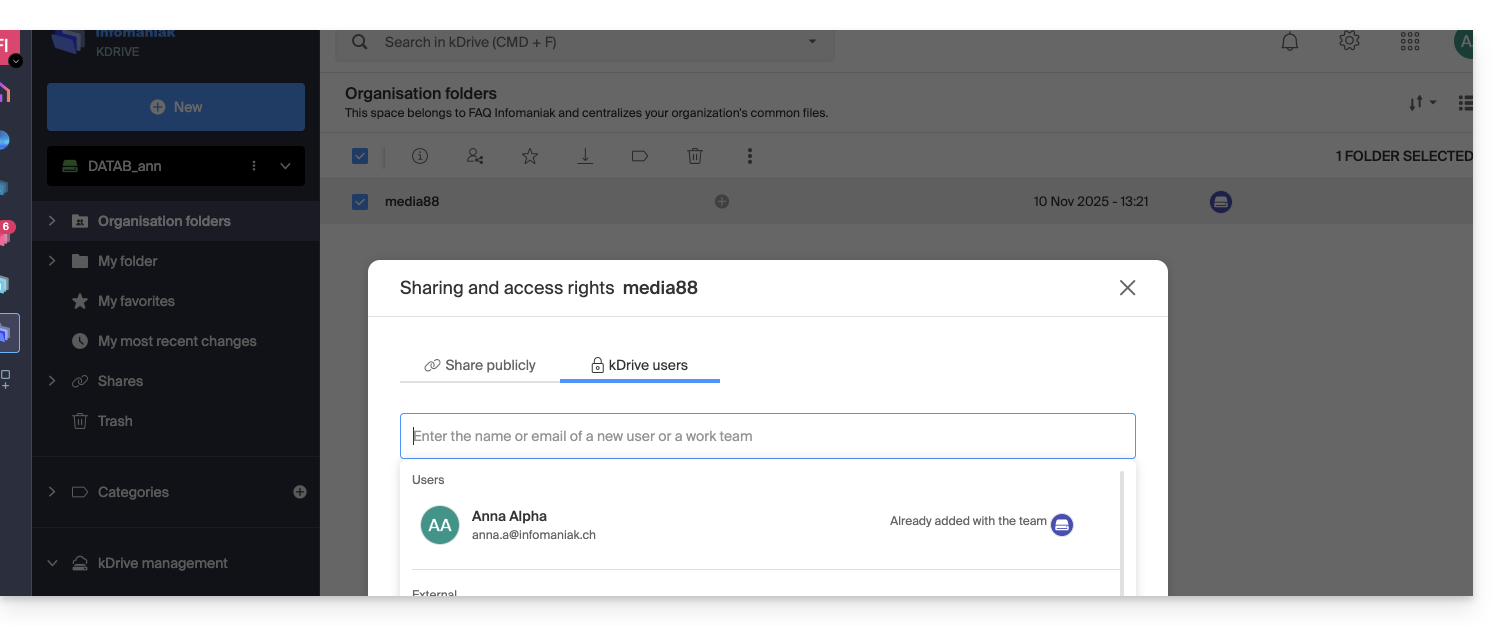
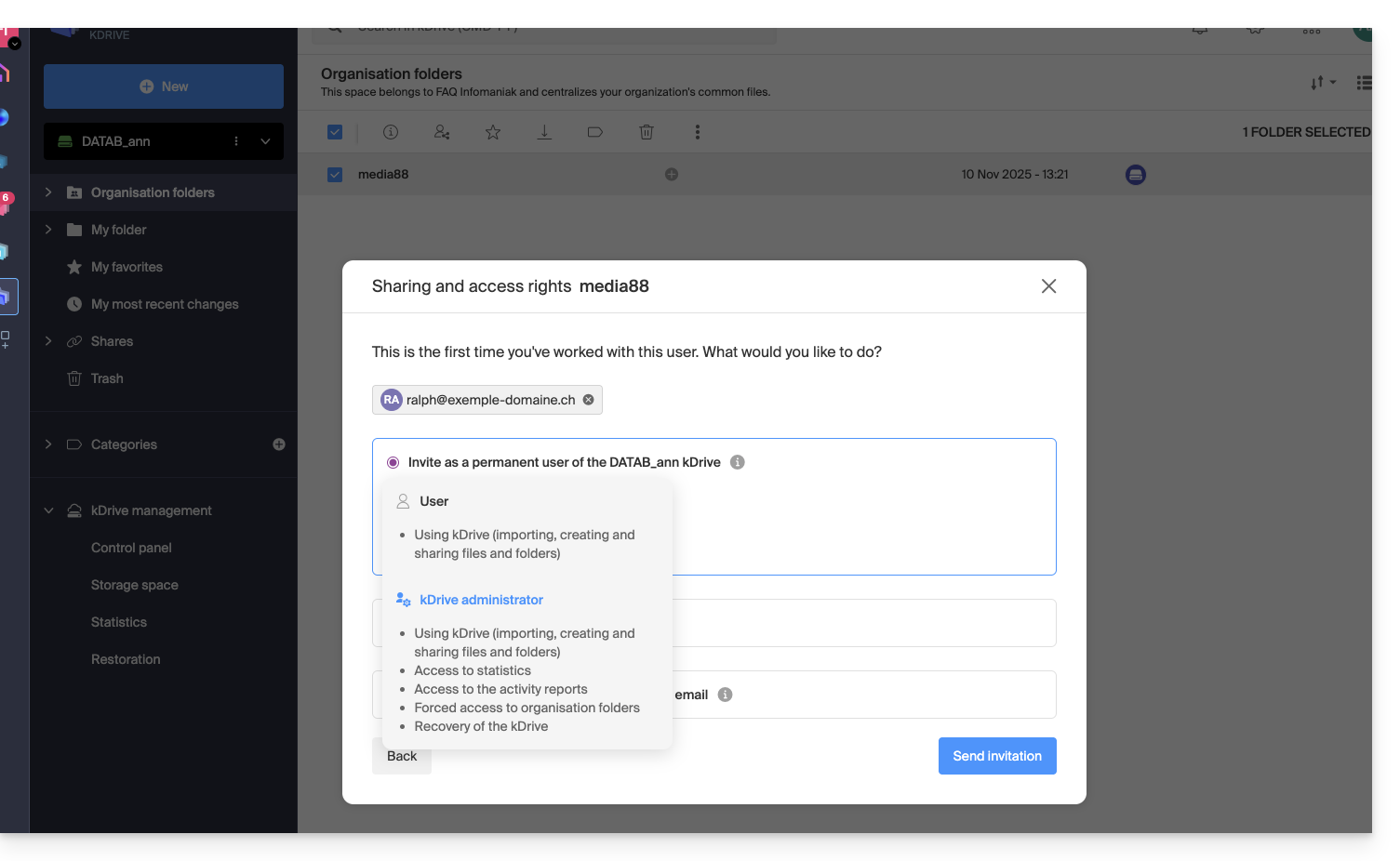
… ou através da gestão de utilizadores do kDrive: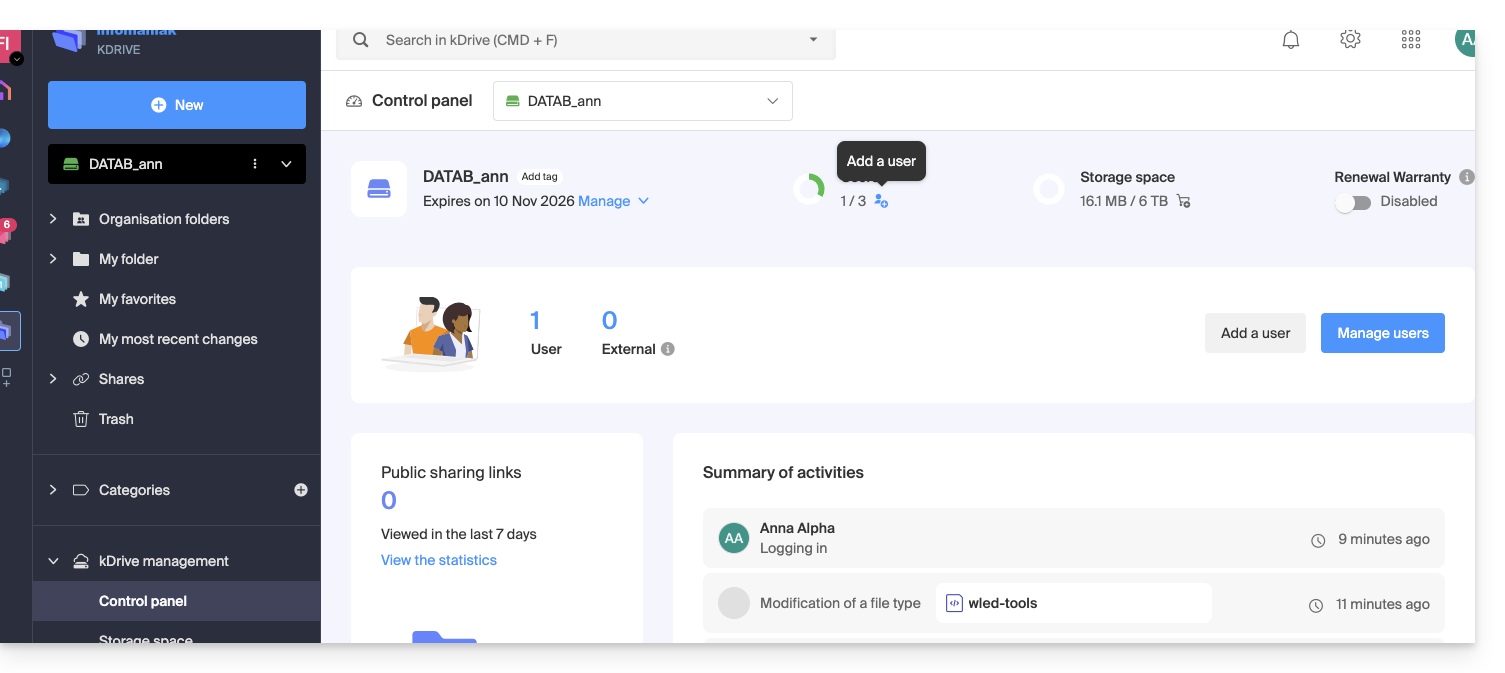
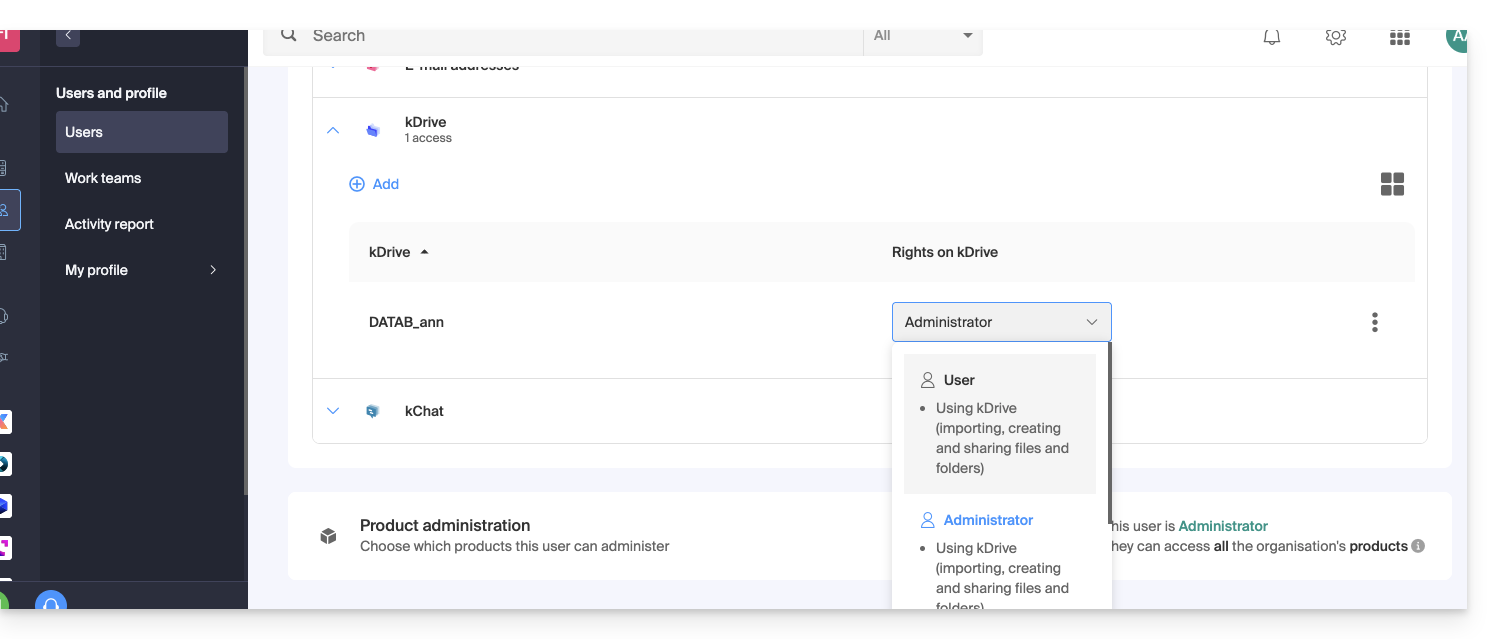
Nestes 2 casos, são propostos 2 níveis de permissões:
- Administrador oferece aos utilizadores os mesmos direitos que o proprietário do kDrive:
- Partilhas, estatísticas, relatórios de atividade, restauração e eliminação de pastas, importação de dados externos, etc., e acesso a ficheiros e pastas…
- Utilizador permite o acesso às pastas que se encontram na raiz do kDrive, bem como a gestão e partilha livre do seu conteúdo:
- Acesso a ficheiros e pastas partilhadas, diretório pessoal e criação/partilha de ficheiros…
- No entanto, os utilizadores não poderão aceder à gestão administrativa do produto (gerir utilizadores, consultar estatísticas, criar ou eliminar pastas na raiz do kDrive, importar dados de um serviço externo, etc.)…
Em todos os casos:
- O conteúdo do diretório Pastas da organização é comum e visível para os outros utilizadores do kDrive, mas o compartilhamento pode ser restrito.
- Os conteúdos compartilhados pelos outros utilizadores a partir da sua parte privada do kDrive não são listados no menu Compartilhamentos dos outros utilizadores.
- Qualquer pasta ou arquivo pode ser compartilhado com outros usuários do kDrive e com os contatos de sua escolha.
Modificar as permissões de um usuário do kDrive
Para acessar o kDrive e gerenciar os direitos dos usuários:
- Clique aqui para acessar o aplicativo web kDrive da Infomaniak (serviço online ksuite.infomaniak.com/kdrive).
- Verifique ou selecione o kDrive correspondente no menu suspenso do menu lateral esquerdo.
- Clique no menu de ação ⋮ localizado à direita do item correspondente.
- Clique em Gerenciar usuários:
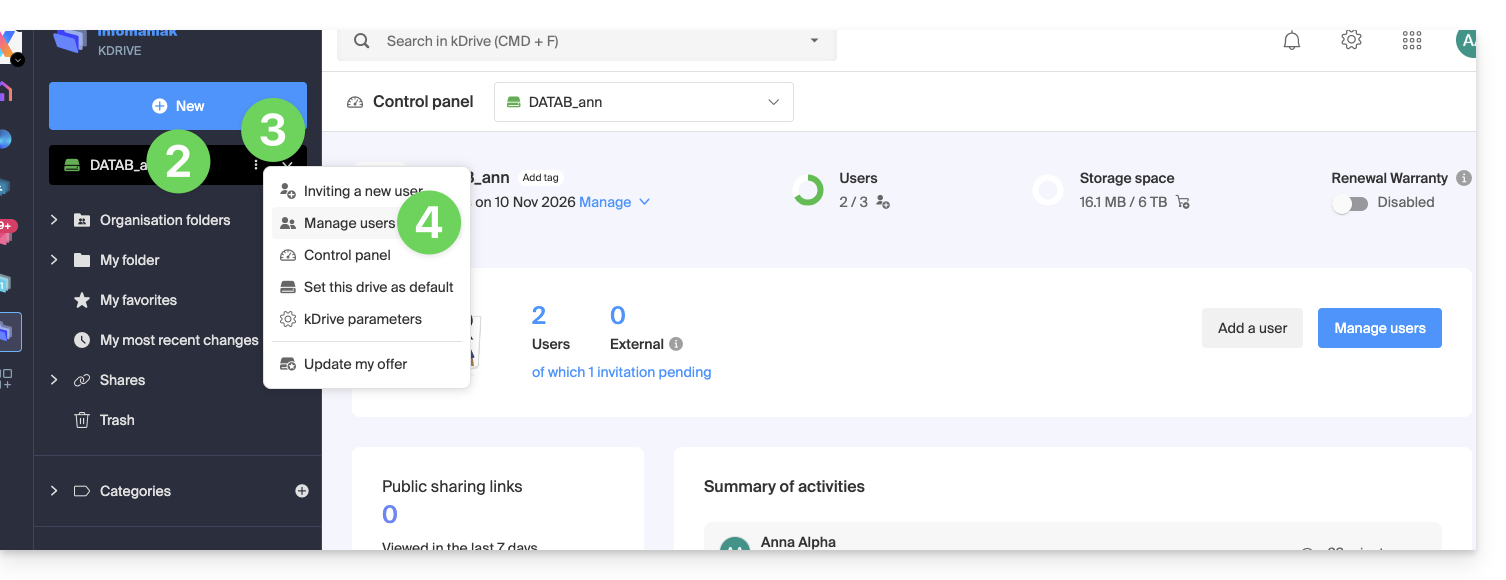
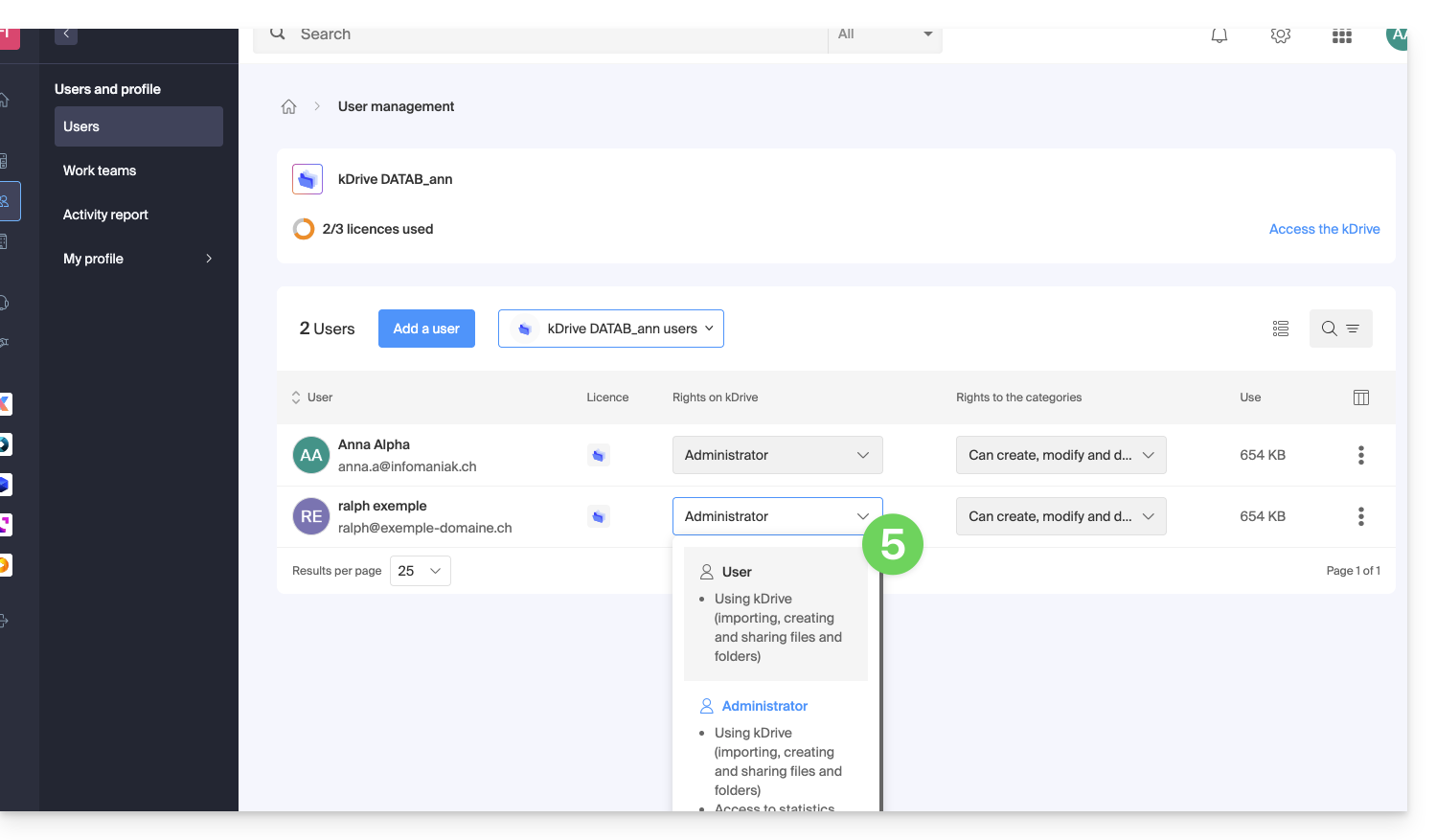
- Gerencie os direitos do usuário desejado, escolha o nível de acesso desejado:
Em caso de problema
Se uma modificação não for possível: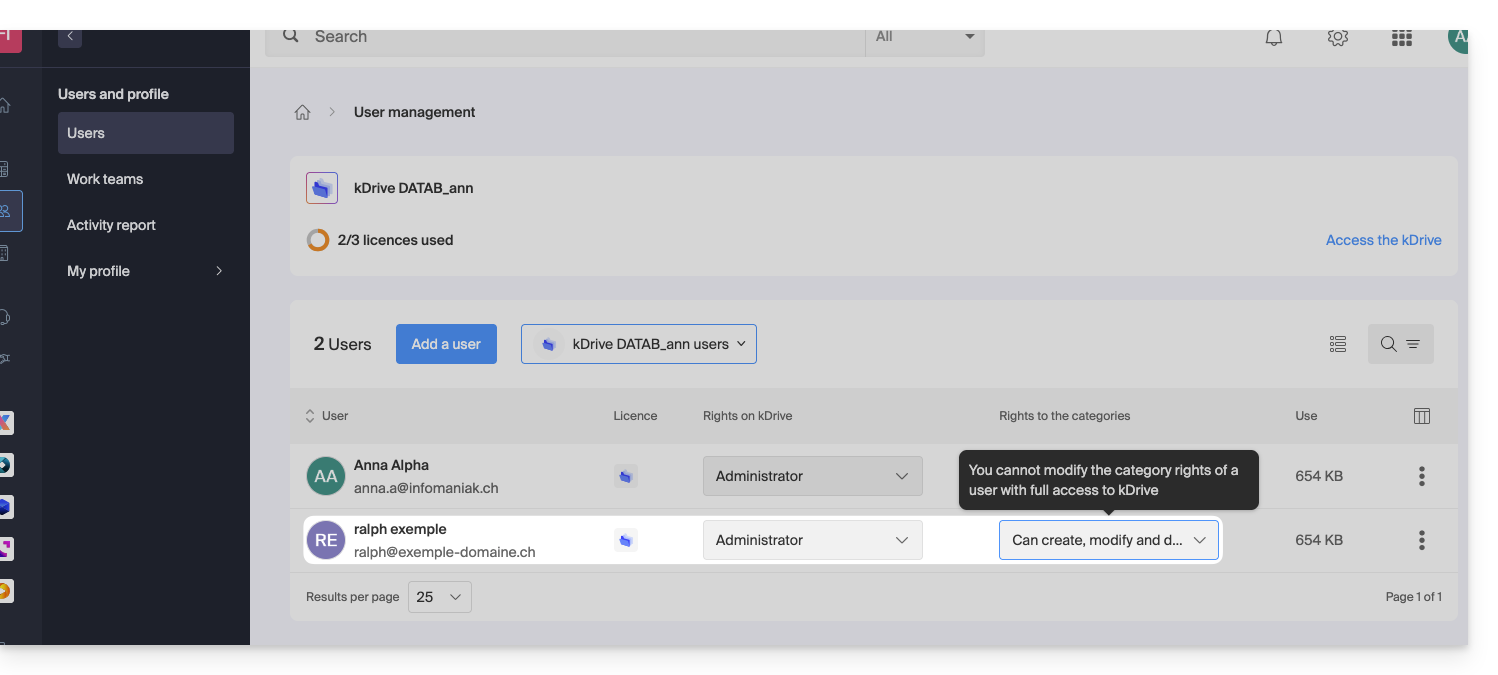
… então, é necessário agir previamente nas permissões do usuário no nível da própria Organização: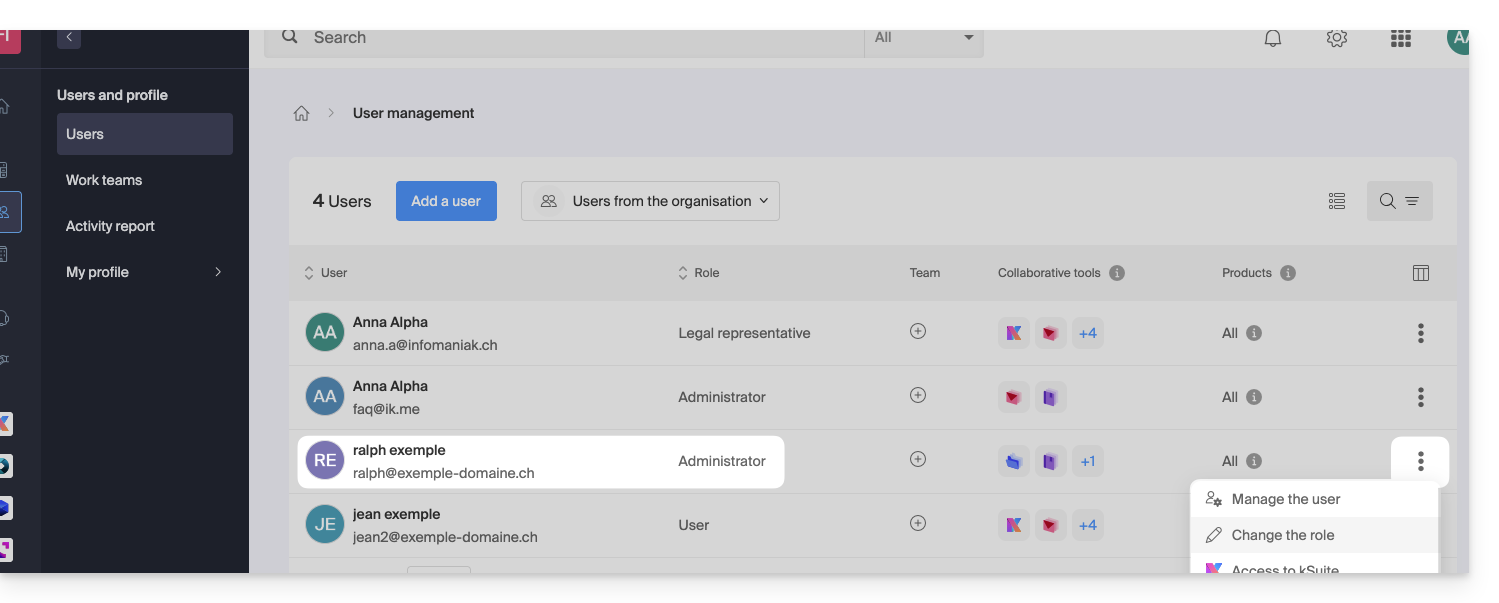
… e reduzir seu papel de administrador, atribuindo-lhe um papel de usuário: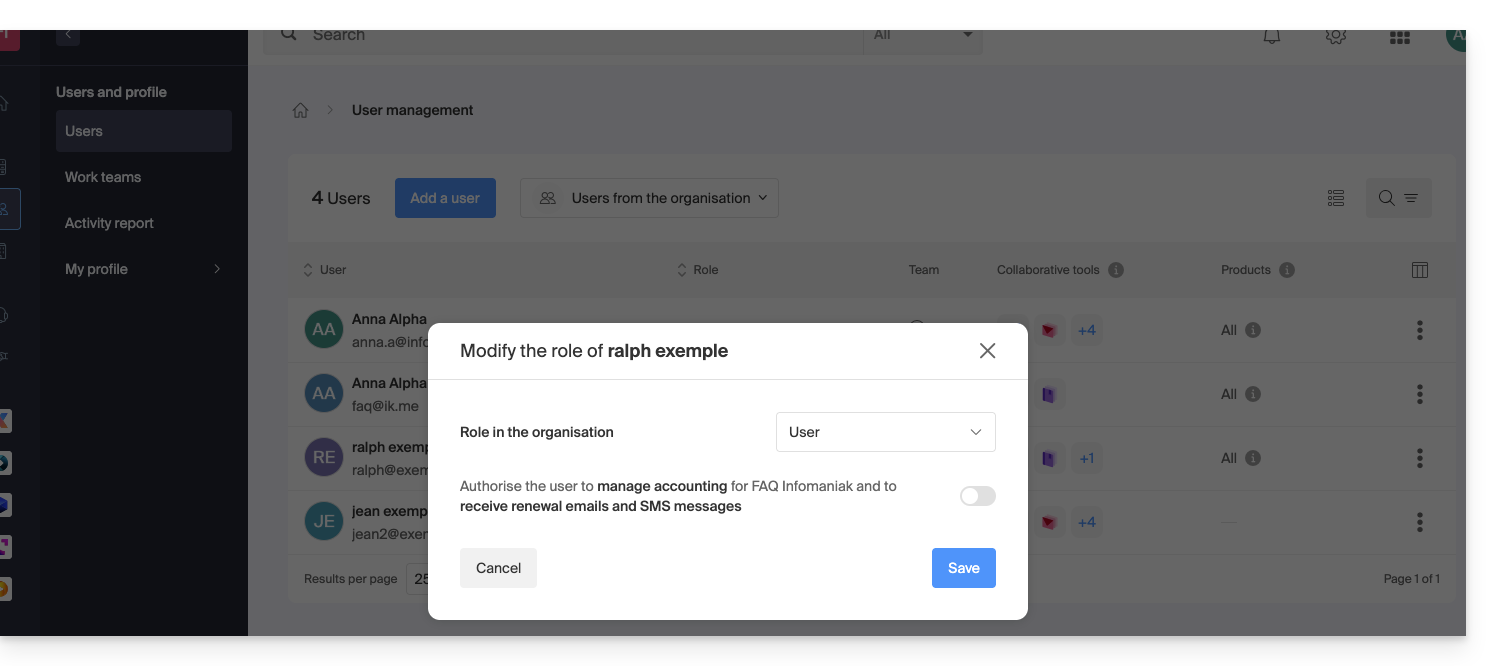
Assim, a modificação proposta no ponto 5 acima estará agora disponível: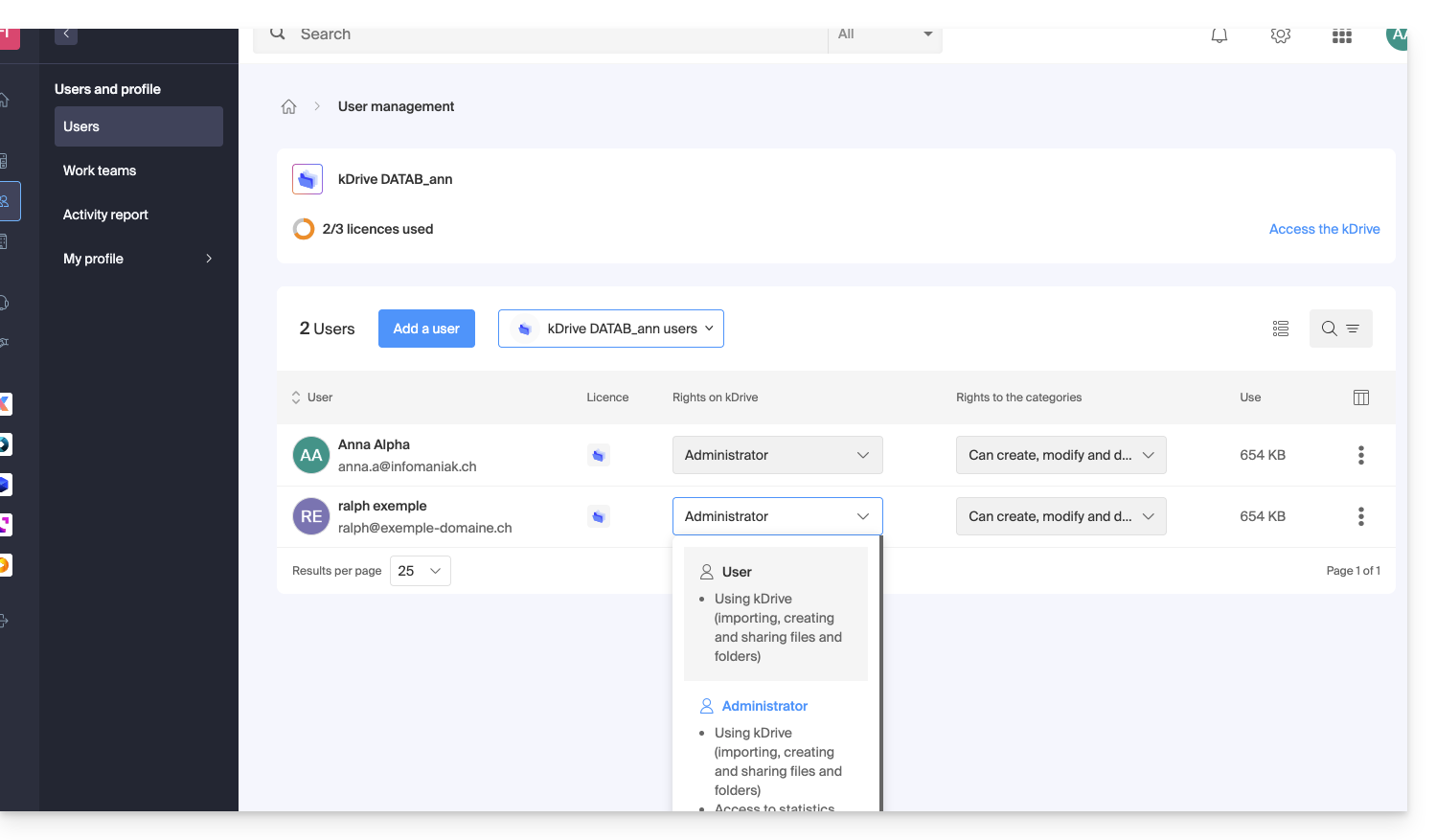
Outras ações no utilizador
Se necessário, abra o menu de ações ⋮ do utilizador desejado para realizar ações avançadas: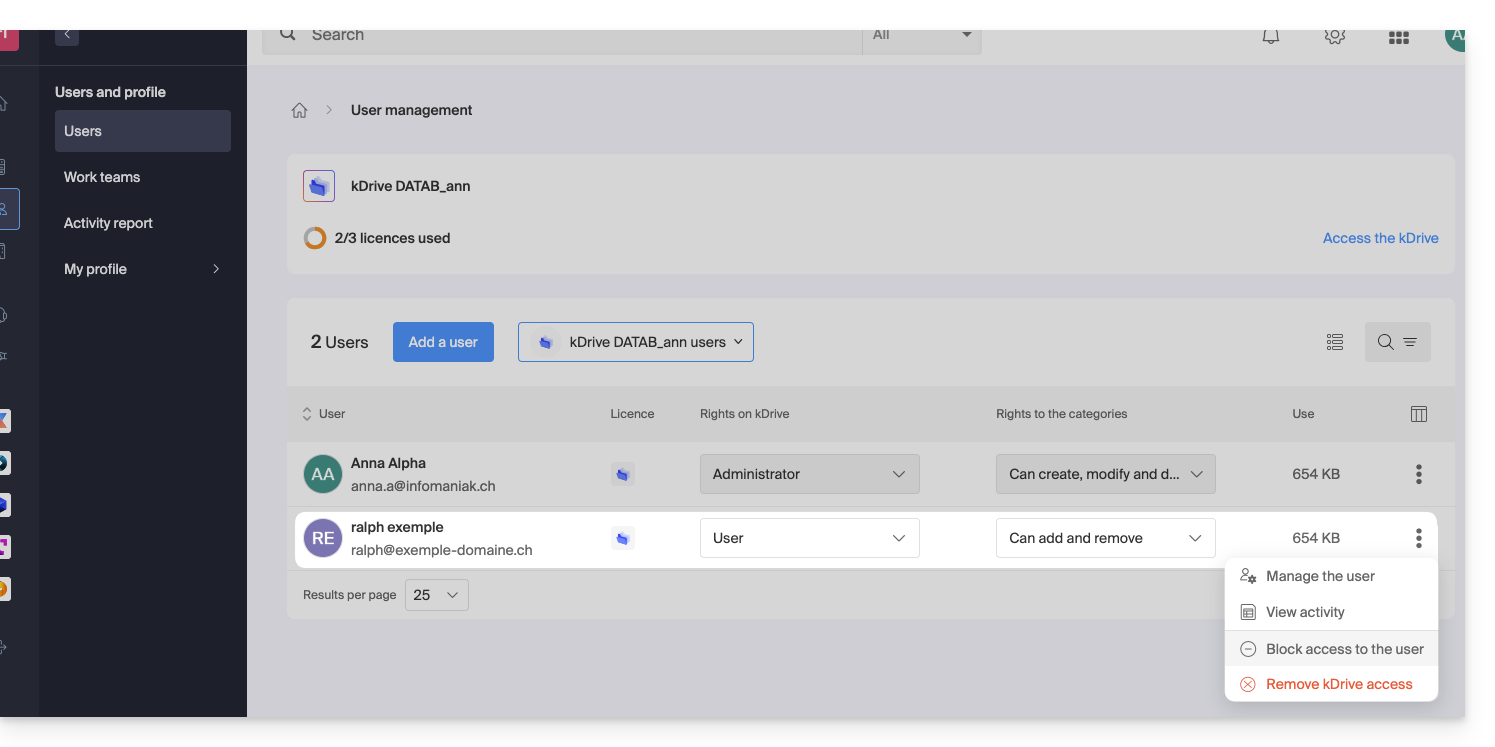
Pode gerir o utilizador, ver a sua atividade, bloquear o seu acesso e removê-lo completamente do kDrive.
Se necessário, gerencie também as permissões relacionadas com as ações em categorias: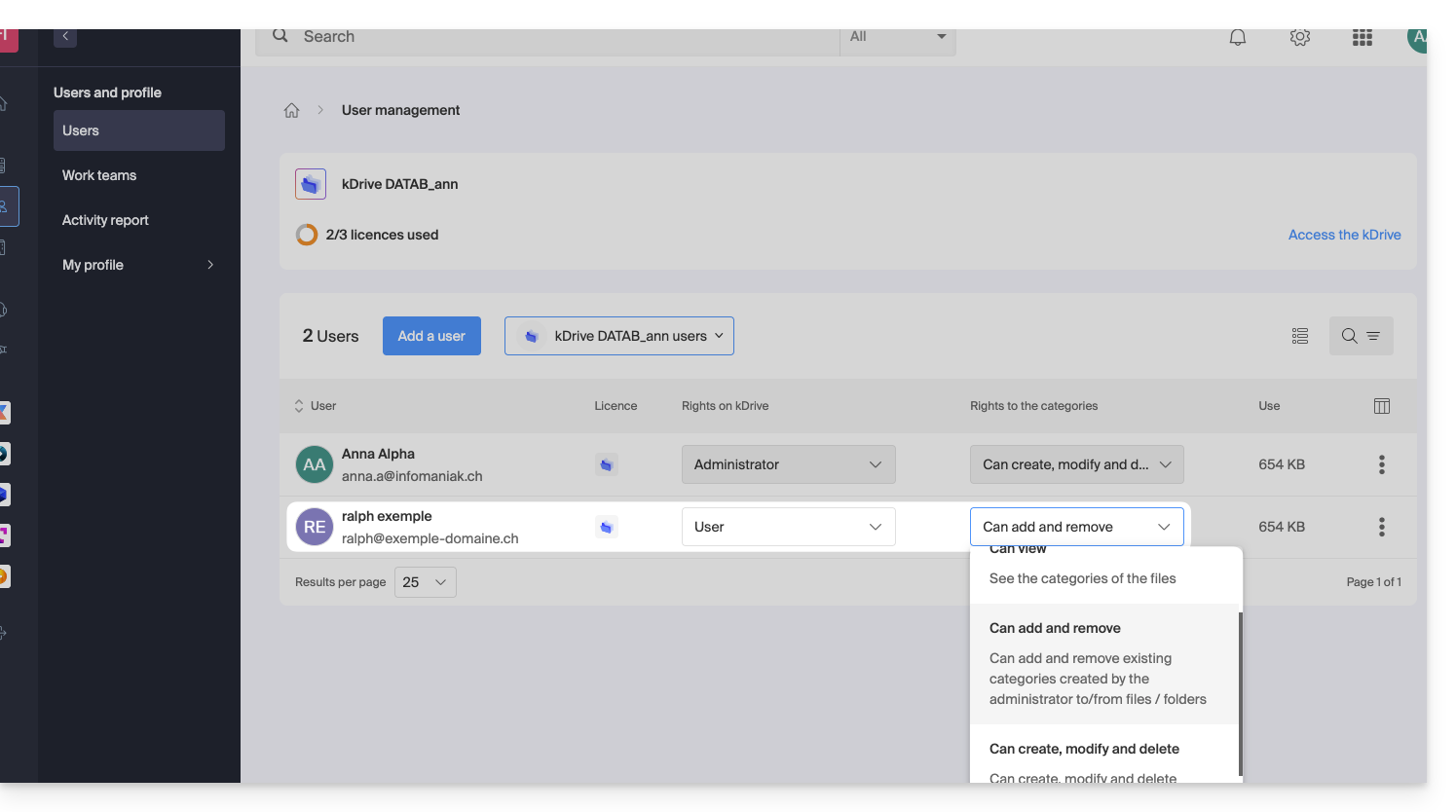
Permissões na Organização / Permissões no kDrive
Como vimos acima, não se deve confundir ou misturar:
- os direitos concedidos para a gestão do serviço kDrive no Manager,
- e os direitos concedidos ao utilizador no kDrive.
De fato, um usuário pode ter direitos restritos ou até mesmo nulos sobre o produto kDrive no painel de controle (e, portanto, não terá a possibilidade de gerenciar o produto kDrive em si, nem de ter acesso a detalhes técnicos – veja mais abaixo), mas pode ter sido definido como administrador no kDrive e, assim, ter acesso a todos os dados armazenados.
Direitos na organização: gerenciamento do produto
Neste exemplo, é possível gerir os direitos de gestão do kDrive do utilizador ralph a partir dos acessos aos produtos: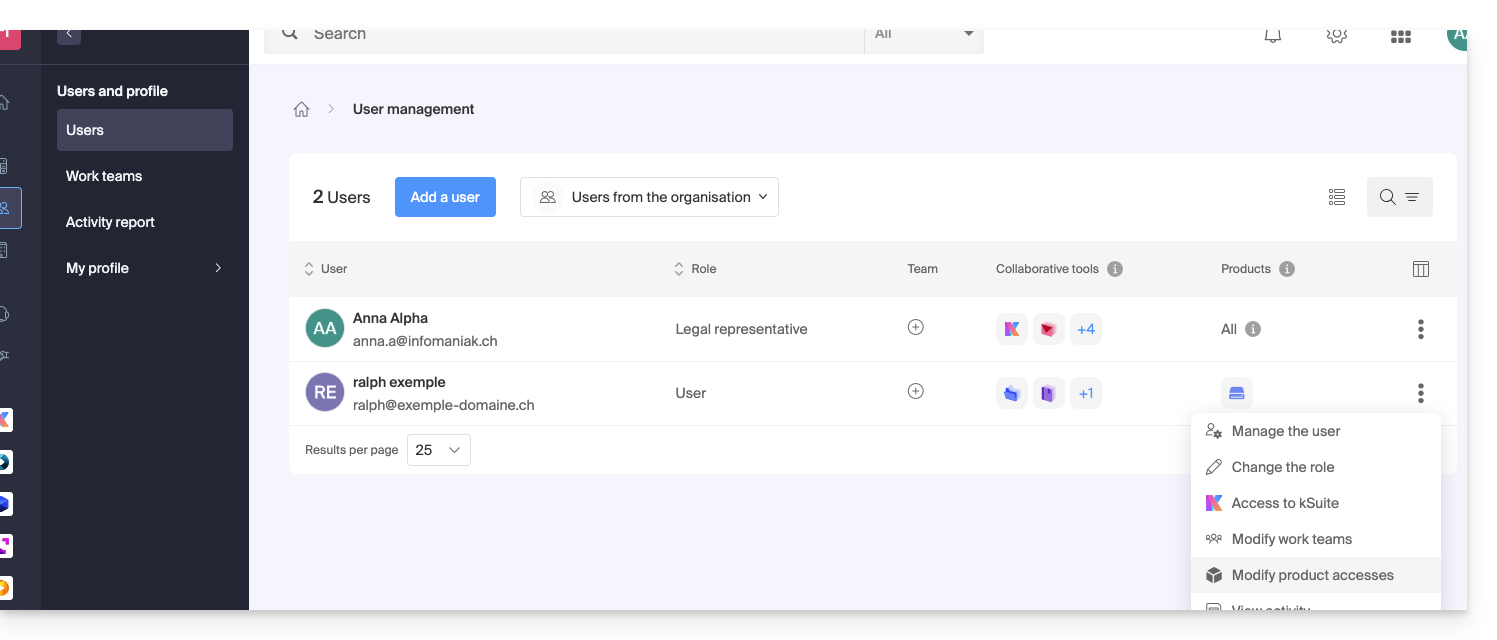
Se necessário, é preciso especificar qual kDrive está em questão e, principalmente, quais as permissões (técnicas / estatísticas) que ele deve ter: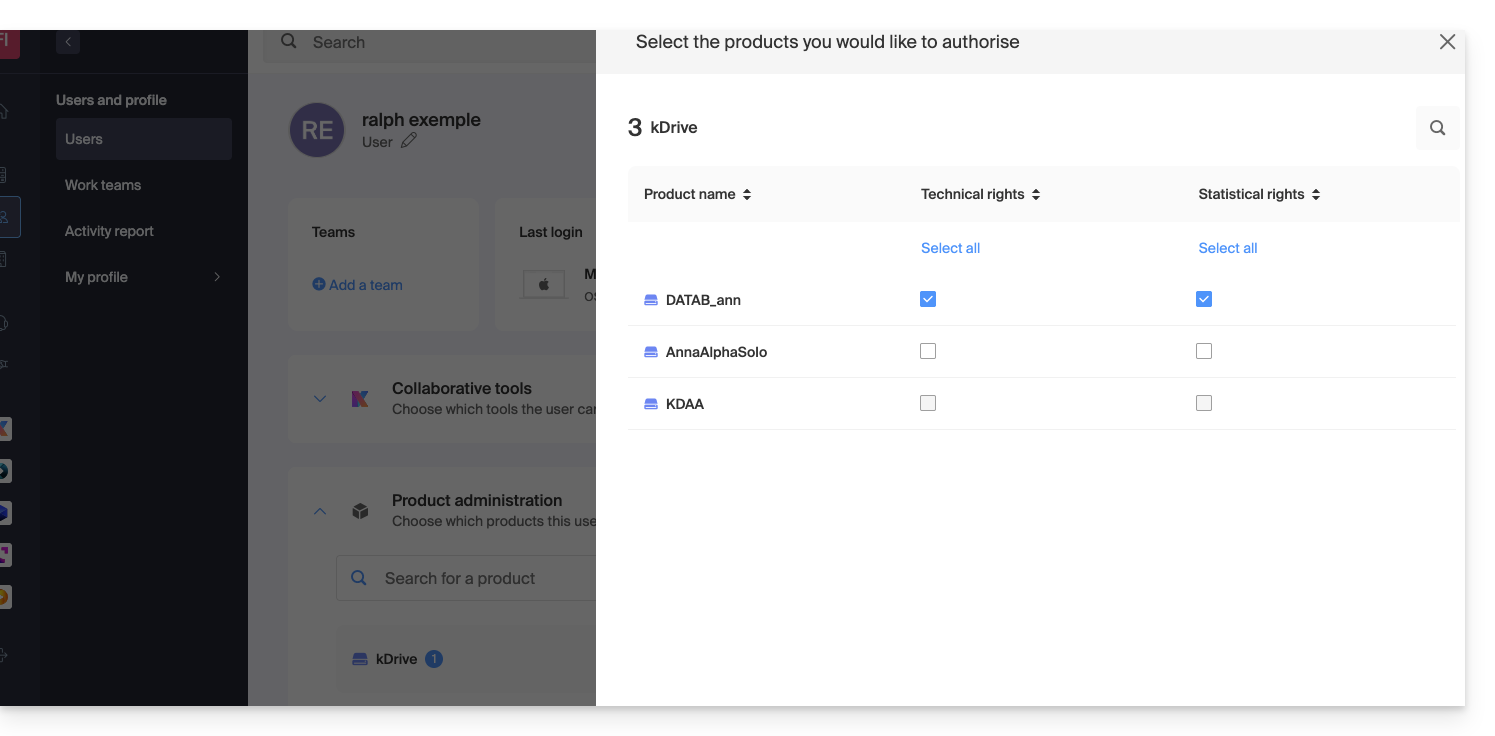
Com apenas permissões Técnicas, o usuário não verá o item Estatísticas no menu lateral: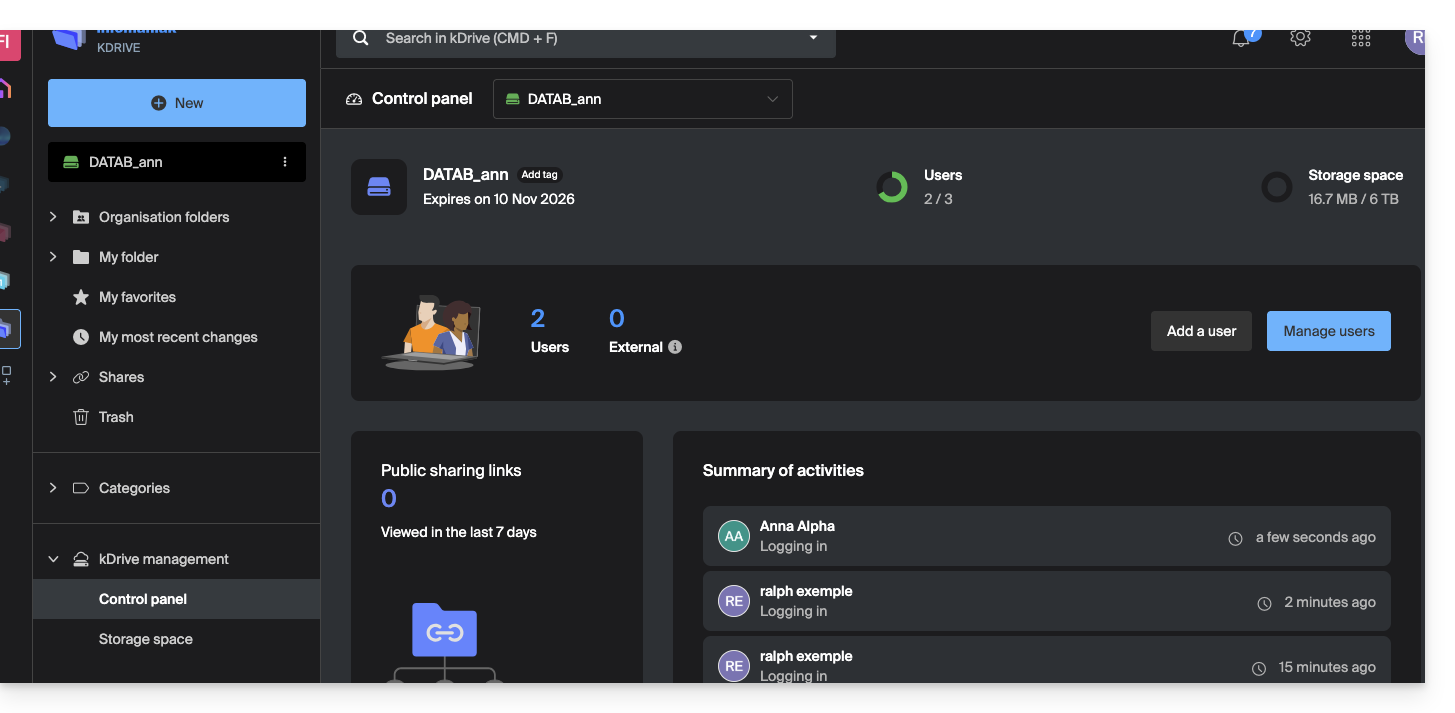
Por outro lado, se apenas a opção Estatísticas estiver ativada, o usuário não terá acesso ao painel de controle: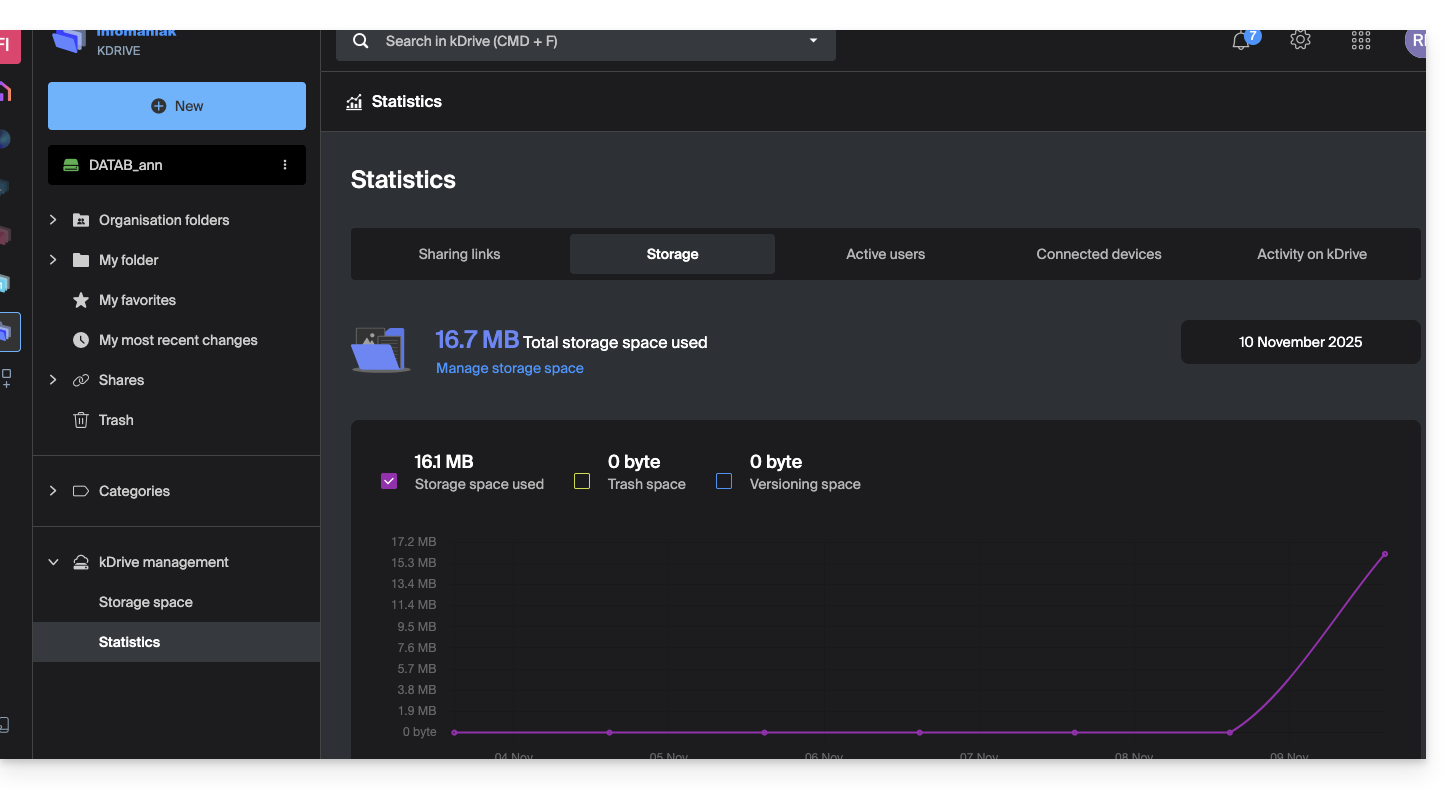
Se o administrador desativar as duas caixas de seleção Técnicas e Estatísticas, apenas as informações de armazenamento estarão acessíveis a partir do menu lateral: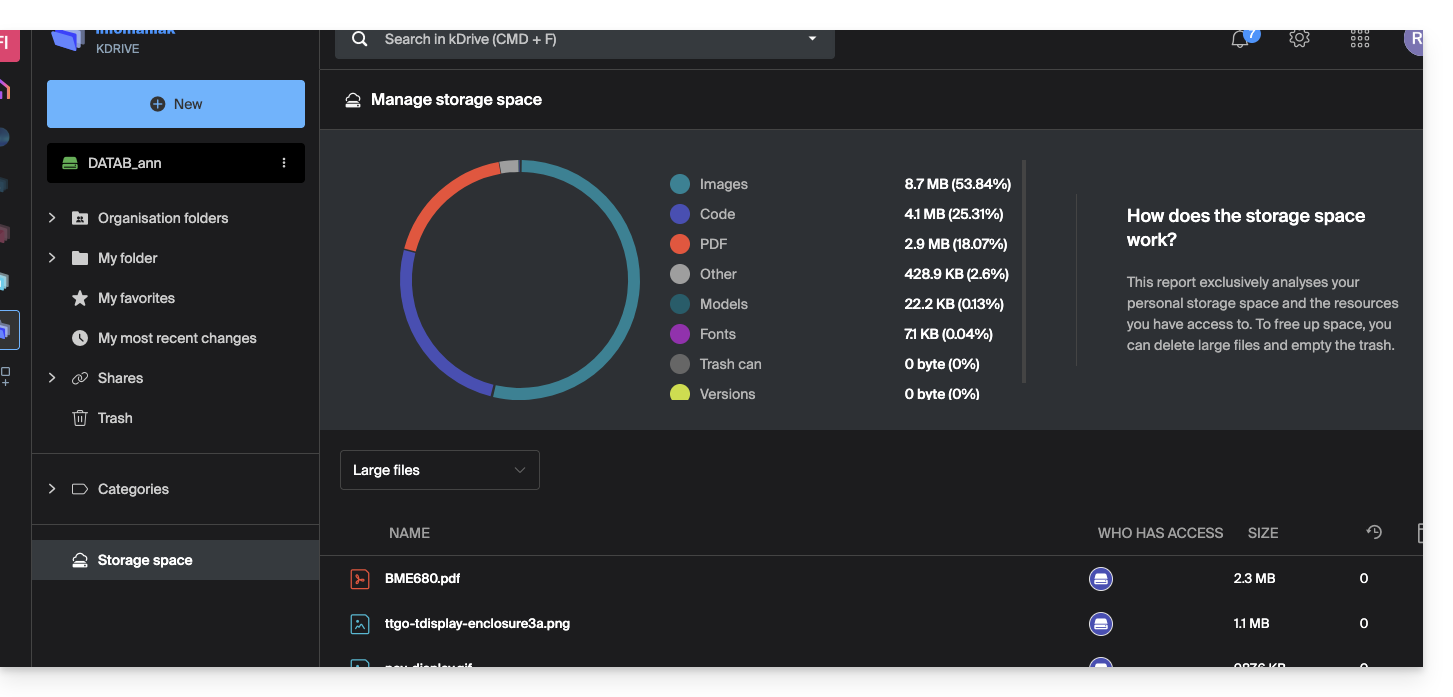
Permissões do usuário no kDrive
Mesmo com as duas opções (mencionadas acima) Técnicas e Estatísticas ativadas, um utilizador que tenha apenas permissões de Utilizador na gestão de utilizadores do kDrive não poderá, entre outras coisas, criar uma nova pasta na raiz das Pastas da organização: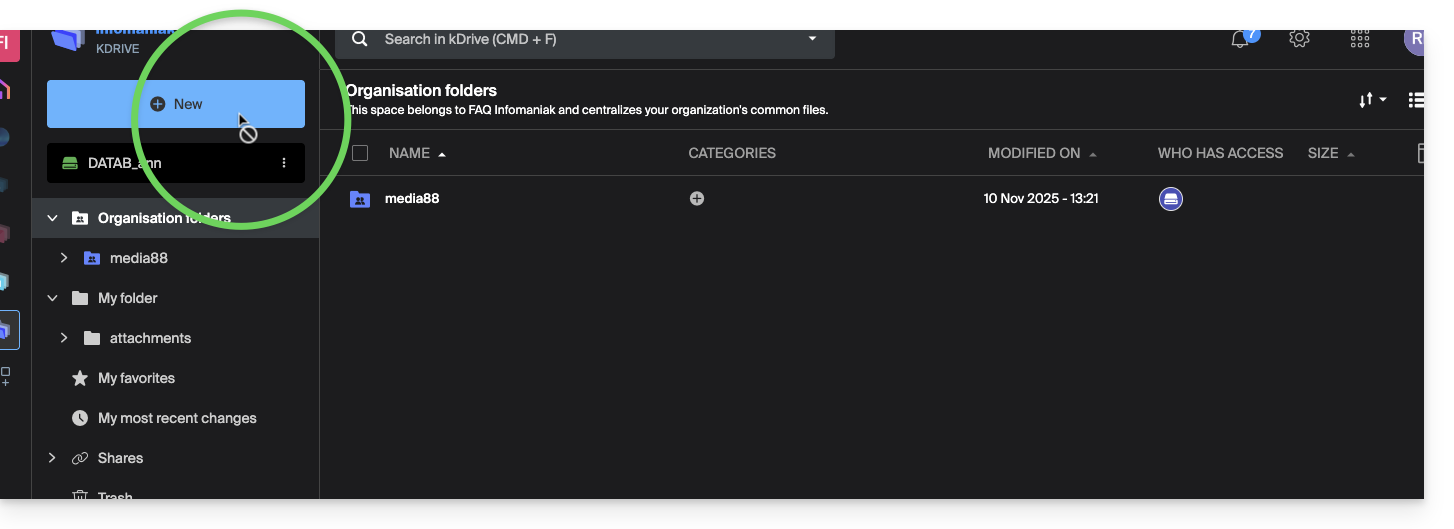
O utilizador precisará de um papel de Administrador (ver ponto 5 acima) para aceder a esta janela de criação de uma nova Pasta da organização na raiz: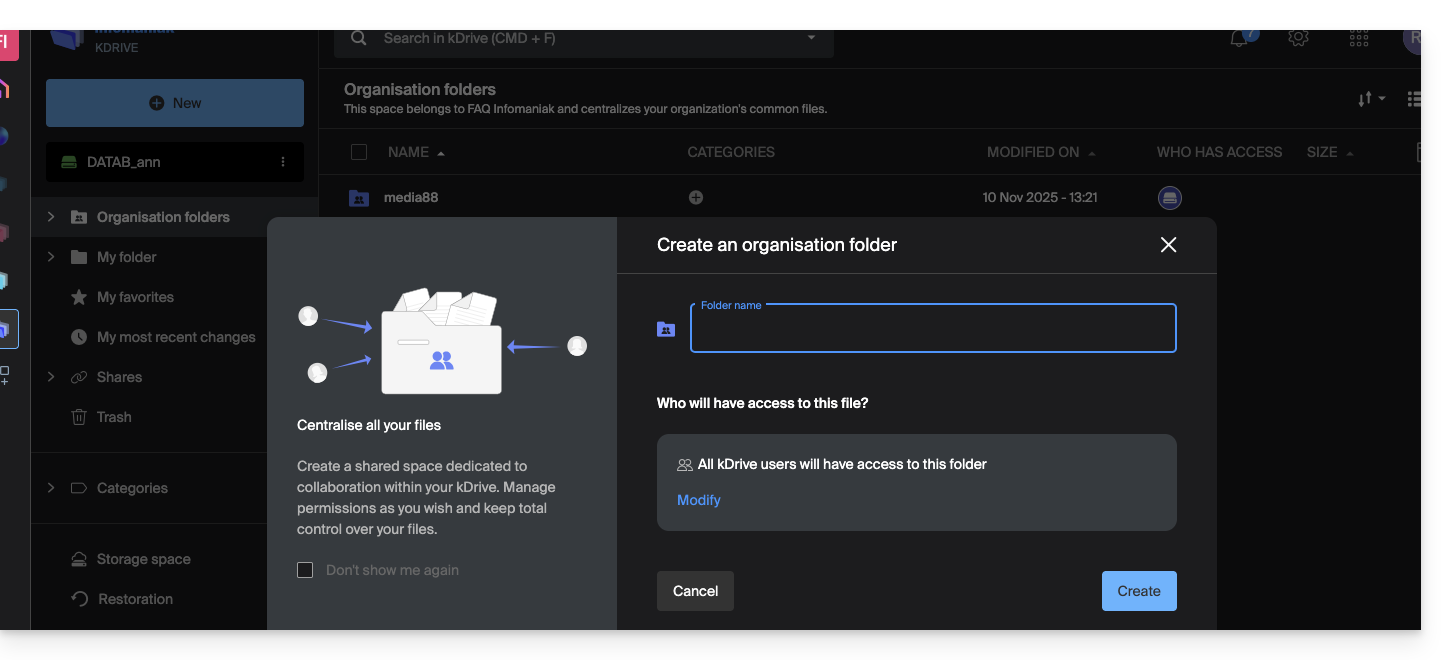
Link para esta FAQ: https://faq.infomaniak.com/2365
Esta seção de perguntas frequentes foi útil?
Obrigado por escolher o kDrive, a solução independente e que respeita a sua privacidade para colaborar, partilhar e aceder aos seus dados a partir de todos os seus dispositivos. Os seus dados são encriptados, guardados em segurança e alojados exclusivamente na Suíça.
O armazenamento colaborativo numa nuvem 100% "Swiss Made"
Primeiros passos
- Sincronizar o kDrive entre diferentes dispositivos
- Gerenciar a opção Lite Sync do kDrive (macOS)
- Gerenciar a opção Lite Sync do kDrive (Windows)
- Instalar o kDrive no Linux
- Pastas kDrive (pessoais, comuns, compartilhadas)
- Gerenciar as pastas kDrive a serem transferidas para o seu dispositivo
- Gerenciar as pastas do dispositivo a serem sincronizadas com o kDrive
- Editar um arquivo do tipo Office no kDrive (Word, Excel, PowerPoint)ou texto simples
- Trabalhar no kDrive: as operações básicas
- Gerenciar o espaço de armazenamento do kDrive
- Pesquisar dados no kDrive
Compartilhar seus dados
- Gerenciar as pastas de compartilhamento do kDrive
- Personalizar partilhas e uploads no kDrive
- Partilhar dados a partir do kDrive (interface web)
- Exemplo de compartilhamentos internos/externos
- Compartilhar dados por e-mail a partir do kDrive (interface web)
Preencher o seu kDrive
- Importar dados externos para o kDrive
- Importar dados para o kDrive (iOS) ou importar automaticamente apenas as fotos do iPhone
- Importar fotos para o kDrive (Android)
- Importar dados para o kDrive sem o aplicativo kDrive
- Acessar os arquivos do kDrive localmente e online
- Digitalizar documentos com o kDrive (iOS / Android)
Para vários utilizadores
- Gerenciar os direitos de um usuário kDrive
- Gerenciar as permissões de acesso a pastas e subpastas
- Gerenciar usuários do kDrive
- Gerenciar vários kDrives (iOS / Android)
- Gerenciar vários kDrive (macOS / Windows)
- Copiar alguns dados entre os kDrive aos quais você tem acesso
Aprofunde seus conhecimentos sobre o kDrive
- Modificar uma oferta kDrive existente
- Gerenciar as categorias do kDrive para organizar os dados
- Salvar uma reunião do kMeet no kDrive
- Exportar anexos de um e-mail a partir do Mail
- Exportar um e-mail para o kDrive
- Adicionar um arquivo anexo a um evento no Calendar
Para usuários avançados
- Alterar o local do kDrive
- Renomear um kDrive
- Visualizar as estatísticas e o relatório de atividades do kDrive
Em caso de problema
- Resolver um problema de bloqueio do kDrive (antivírus, firewall, etc.)
- Resolver um conflito de sincronização do kDrive
- Resolver um problema de sincronização do kDrive
- Resolver um problema do kDrive em um dispositivo Android (não desative meu aplicativo)
- Como resolver um erro no plugin Lite Sync no macOS
- Limpar o cache do navegador
- Limpar o cache do aplicativo móvel kDrive
- Versão do aplicativo kDrive (macOS / Windows / Linux)
- Restaurar um ficheiro kDrive para a versão anterior
- Restaurar um ficheiro kDrive eliminado
- Forçar o kDrive a sincronizar determinados ficheiros especiais
- Autorizar o acesso aos seus produtos / Concluir um pedido de assistência
- Exibir informações de depuração do kDrive
Saiba mais sobre o kDrive
Tem alguma dúvida ou sugestão?
- Entre em contato com o suporte da Infomaniak
- Clique aqui para partilhar uma opinião ou sugestão sobre um produto Infomaniak
Link para esta FAQ: https://faq.infomaniak.com/2366
Esta seção de perguntas frequentes foi útil?
Este guia explica como obter o aplicativo kDrive para sincronizar os arquivos armazenados no kDrive e acessá-los facilmente em todos os seus dispositivos macOS, Windows, Linux, iOS e Android.
Introdução
- Para que qualquer modificação feita nos seus ficheiros e pastas no seu computador (Finder / Explorador) seja automaticamente sincronizada…
- na aplicação web kDrive da Infomaniak (serviço online ksuite.infomaniak.com/kdrive),
- na aplicação móvel kDrive (aplicação para smartphone ou tablet iOS / Android),
- isto em todos os colaboradores que acedem aos dados,
- e isto em ambos os sentidos,
- … é necessário instalar a aplicação de ambiente de trabalho kDrive (aplicação para macOS / Windows / Linux).
Descarregue a aplicação kDrive para desktop
Aceda à página de download do kDrive (❓: ajuda) para descarregar o kDrive.
Outras versões e aplicativos podem ser baixados nas configurações unificadas do kSuite (❓: ajuda), incluindo uma versão iOS otimizada para iPad, adaptada às telas desses tablets.
Instalar o kDrive
Para instalar e usar o kDrive em um sistema operacional, considere a versão mínima necessária e suportada:
- Windows 10 (❓: ajuda) v10 1709 para usufruir do Lite Sync
- macOS (❓: ajuda) v10.15, ARM OK
- Ubuntu (❓: ajuda) 22.04 LTS, ARM OK
- Nem o Lite Sync nem o menu de contexto ao clicar com o botão direito funcionam no Linux
- Ambientes de desktop: GNOME ou KDE
- iOS 16.4, incluindo para fazer backup das fotos (❓: ajuda)
- Android 8.1, incluindo para fazer backup das fotos (❓: ajuda)
Link para esta FAQ: https://faq.infomaniak.com/2374
Esta seção de perguntas frequentes foi útil?
Este guia explica como carregar manualmente dados (fazer o upload de arquivos, pastas, etc.) do seu computador para o seu kDrive sem instalar o aplicativo kDrive da Infomaniak (aplicativo para smartphone ou tablet iOS/Android ou aplicativo para desktop em macOS/Windows/Linux).
Importar para o kDrive a partir do navegador
Para aceder ao kDrive:
- Clique aqui para aceder à aplicação web kDrive da Infomaniak (serviço online ksuite.infomaniak.com/kdrive).
- Verifique ou selecione o kDrive correspondente no menu suspenso do menu lateral esquerdo.
Em seguida, escolha uma das opções:
Arrastar e Soltar
Arraste e solte os elementos que deseja enviar para o kDrive, de uma janela do seu computador, para a janela do seu navegador onde o site kDrive está aberto:
Botão “Novo”
Utilize o botão Novo no canto superior esquerdo da sua interface kDrive e, em seguida, escolha a importação desejada (seja um arquivo ou uma pasta):
- O sistema operativo (por exemplo, o macOS) poderá solicitar uma confirmação ao carregar uma pasta.
Clique com o botão direito do rato
Clique com o botão direito no local onde deseja importar o novo conteúdo e, em seguida, escolha a importação desejada (seja um arquivo ou uma pasta):
- O sistema operacional (como o macOS) pode solicitar uma confirmação durante o carregamento de uma pasta.
Importar dados externos
Importe conteúdo específico através do menu Importar dados externos:
- Consulte este outro guia se precisar de informações sobre a importação de dados de fontes externas.
Independentemente do método utilizado, aguarde durante a transferência dos dados (a duração depende da velocidade da sua conexão de Internet).
Tipos de ficheiros
Pode enviar e pré-visualizar qualquer tipo de ficheiro, como .pdf, .txt ou outras extensões, incluindo na área da 3D (❓: ajuda) ou de e-books (.epub, .azw3, .fb2 e .cbz).
O kDrive também permite abrir e converter os ficheiros iWork criados num Mac, para que possa editá-los a partir de qualquer dispositivo. Estes ficheiros da Suite Apple têm algumas particularidades, nomeadamente as suas extensões; por exemplo, com a aplicação Numbers:
- Os ficheiros
.numberspodem ser ficheiros ou pastas, dependendo da opção de gravação escolhida (e o comportamento durante o carregamento não é o mesmo quando se trata de uma pasta). - Se já existir um arquivo, por exemplo,
calcul.numbers, no kDrive e, na área de trabalho, ele estiver salvo como “pacote”, então, no momento do upload, o arquivo será considerado uma pasta e o kDrive tentará fazer o upload de arquivos dentro dele, o que não é possível, portanto, o upload não será permitido.- Para resolver o problema, basta alterar o formato de salvamento no aplicativo Apple Numbers no macOS para “Arquivo único”:

- Para resolver o problema, basta alterar o formato de salvamento no aplicativo Apple Numbers no macOS para “Arquivo único”:
Link para esta FAQ: https://faq.infomaniak.com/2379
Esta seção de perguntas frequentes foi útil?
Este guia detalha como compartilhar arquivos e pastas no kDrive com quem você quiser, sem instalar o aplicativo de desktop kDrive (aplicativo para macOS / Windows / Linux), e mesmo que o destinatário não tenha uma conta Infomaniak ou ainda não utilize o kDrive.
Introdução
- O aplicativo web kDrive permite compartilhar conteúdo de várias maneiras, incluindo um clique com o botão direito nos elementos ou como anexo de um e-mail, para oferecer rapidamente a opção de visualizar ou editar um arquivo.
- Uma pasta de compartilhamento também pode ser compartilhada.
- A aparência das janelas de compartilhamento pode ser personalizada.
- Número de cliques possíveis por hora em um link público:
- kSuite Free = 150
- kSuite Standard = ilimitado
- kSuite Business = ilimitado
- kSuite Enterprise = ilimitado
- my kSuite = 150
- my kSuite+ = ilimitado
- kDrive Solo = ilimitado
- kDrive Team = ilimitado
- kDrive Pro = ilimitado
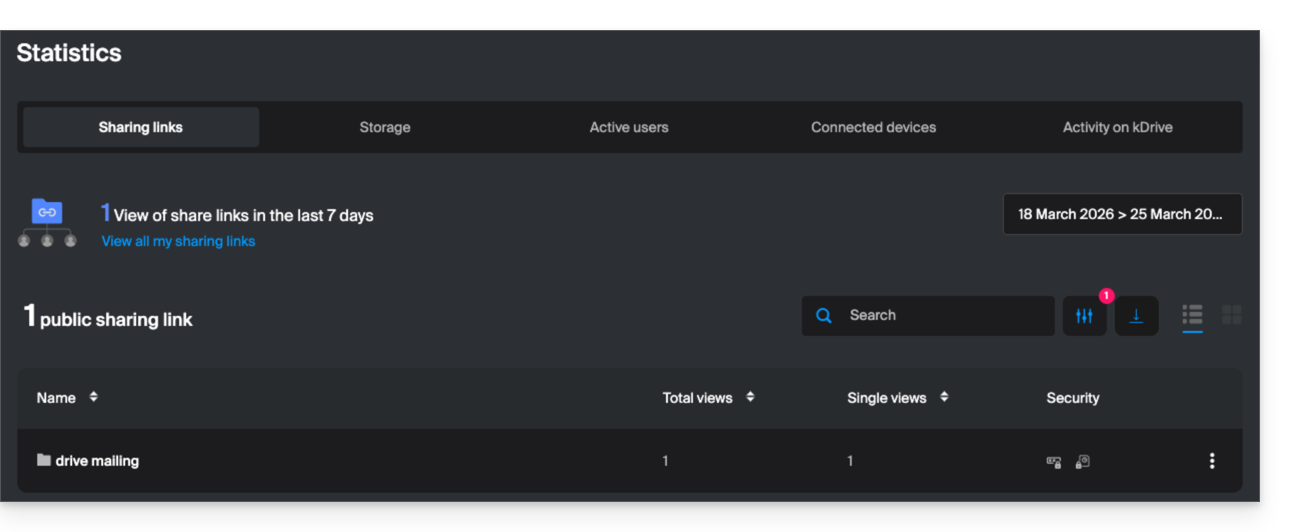
- Esses limites de atividade são globais para todos os seus links de compartilhamento e contabilizam no máximo uma ação por usuário (IP) por período de um minuto, independentemente do número de arquivos visualizados ou baixados durante esse período; você pode acompanhar esse uso em suas estatísticas de atividade:
- Para otimizar essa cota, recomenda-se que os destinatários baixem as pastas completas de uma só vez, em vez de baixar os arquivos individualmente.
- Número de links de compartilhamento externo permitidos:
- kSuite Free = 100
- kSuite Standard = 1000
- kSuite Business = 2500
- kSuite Enterprise = 5000
- my kSuite = 25
- my kSuite+ = 1000
- kDrive Solo = 1000
- kDrive Team = 1000
- kDrive Pro = 1000
- Existem outros tipos de limites ao nível de:
Partilhar um ficheiro/pasta no kDrive
Para que os utilizadores possam ver, editar e descarregar o seu conteúdo, é necessário especificar com quem partilhar um ficheiro/pasta do kDrive:
- Clique aqui para acessar o aplicativo web kDrive da Infomaniak (serviço online ksuite.infomaniak.com/kdrive).
- Clique com o botão direito do mouse no arquivo/pasta desejado.
- Clique em Partilhar... no topo do menu suspenso:
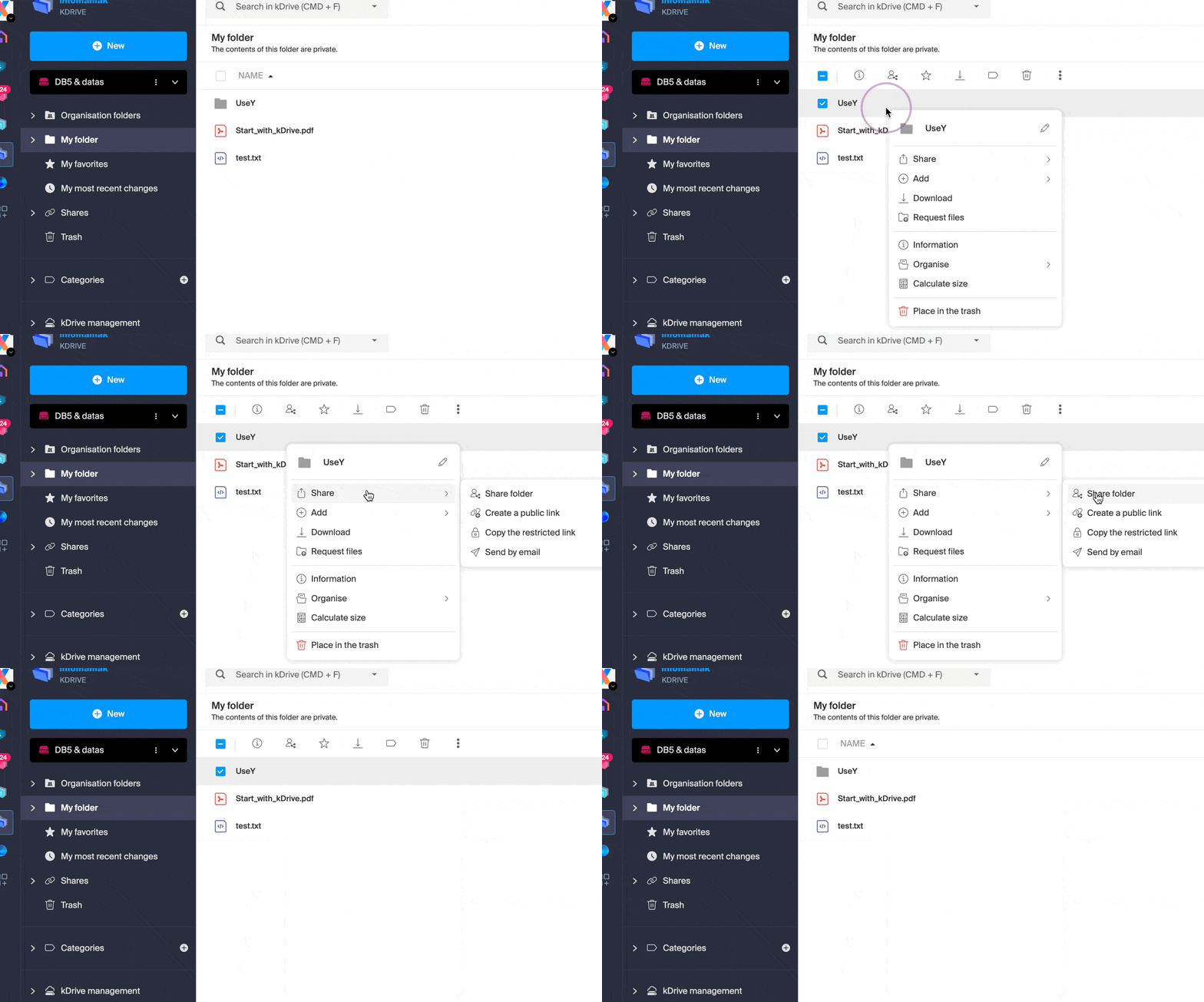
A partir daí, é possível…
- … ou ativar um link de compartilhamento público com diferentes opções possíveis:
- autorização de modificação do documento, caso ele faça parte dos formatos colaborativos
- data de expiração
- senha
- autorização de download
- autorização de acesso para que o usuário que tenha acesso ao link de compartilhamento possa solicitar acesso completo – consulte o capítulo dedicado abaixo
para que qualquer pessoa que possua o link exibido nesta janela possa acessar o arquivo compartilhado: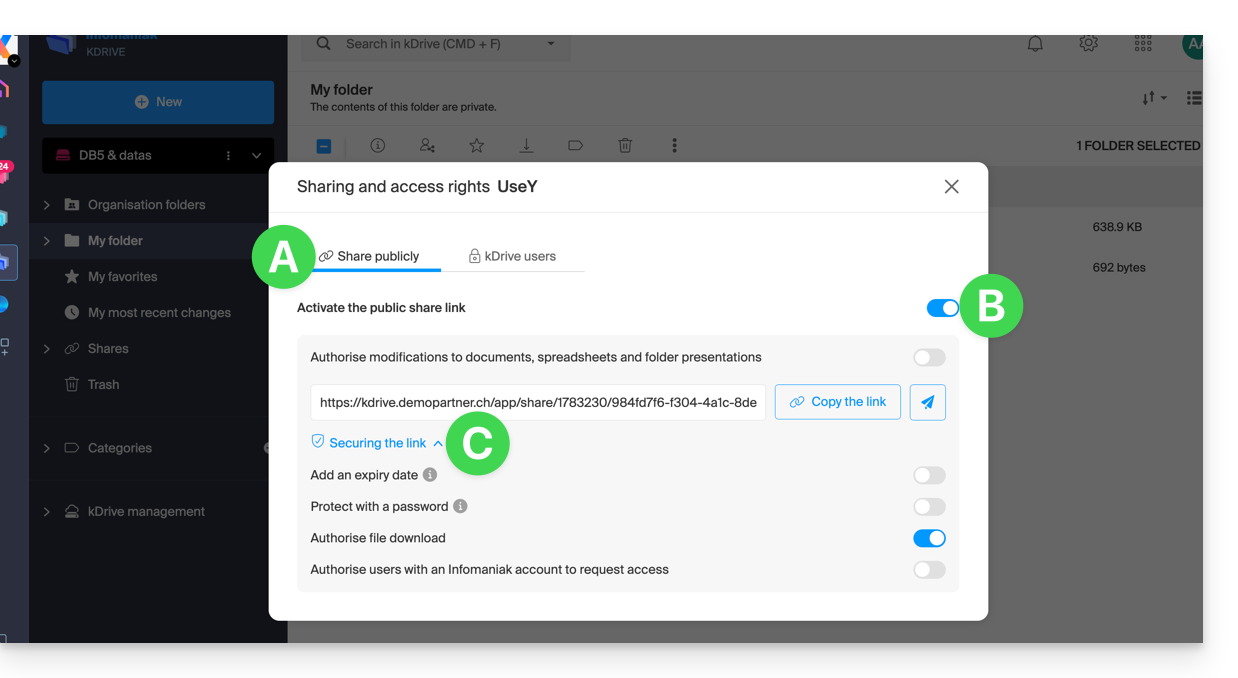
Atenção: uma simples desativação/reativação do link de partilha público altera o URL e torna o anterior inválido!
- … ou introduzir um utilizador kDrive, um contacto do seu livro de endereços, o endereço de e-mail de um novo contacto (ou um Grupo se a partilha for feita dentro dos “pastas partilhadas”):
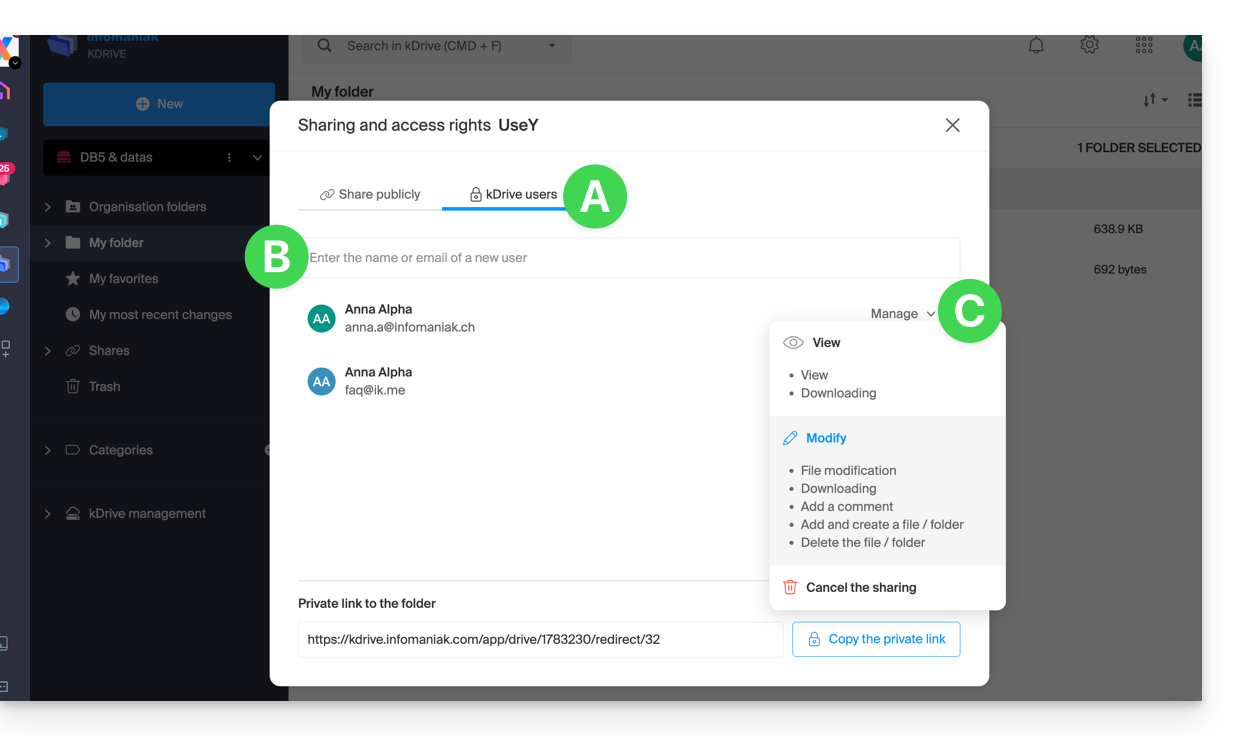
Um assistente permite definir os direitos de cada pessoa que você adicionar: “consulta” / “modificação” / “gestão” (consulte este outro guia se precisar de informações sobre as permissões de acesso aos arquivos, pastas e subpastas do kDrive):
- A pessoa cujo endereço de e-mail você indicar receberá um e-mail com as informações necessárias para acessar o conteúdo compartilhado.
- Se ela não tiver uma conta Infomaniak, poderá criar uma gratuitamente para acessar os elementos compartilhados e modificá-los.
- Enquanto isso, você verá o convite pendente e poderá revogá-lo a qualquer momento no mesmo local.
- O link privado é exibido sempre que você acessar o menu lateral de compartilhamento, o que permite copiar e reenviar facilmente o link aos usuários autorizados.
Com uma oferta Solo ou kDrive gratuita, é possível especificar este tipo de usuário externo apenas quando você deseja compartilhar um arquivo/pasta.
Clique no ícone de fechar no canto superior direito da janela, caso tenha terminado.
Criar um link de compartilhamento público + editável
Para aceder rapidamente às diferentes funcionalidades/operações, clique com o botão direito do rato nos seus ficheiros.
Quando ativa um link de partilha num ficheiro do tipo Word, Excel ou PowerPoint, é possível autorizar a edição online desse ficheiro: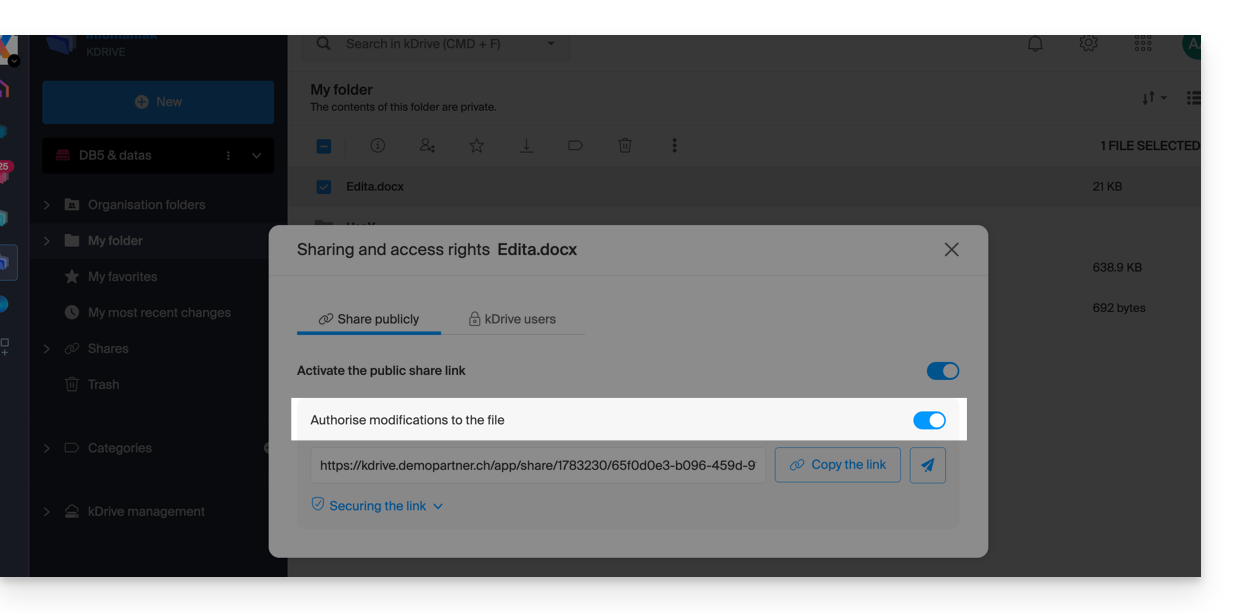
Todas as pessoas que tiverem acesso a este link de partilha poderão, em seguida, editar o ficheiro imediatamente, sem possuir uma conta Infomaniak (basta testar o URL obtido numa navegação privada para verificar o resultado).
Você também pode obter um link de compartilhamento específico diretamente do documento.
Solicitar acesso a partir da página do arquivo compartilhado
O utilizador que partilha uma pasta pode ativar um botão nas definições avançadas da partilha: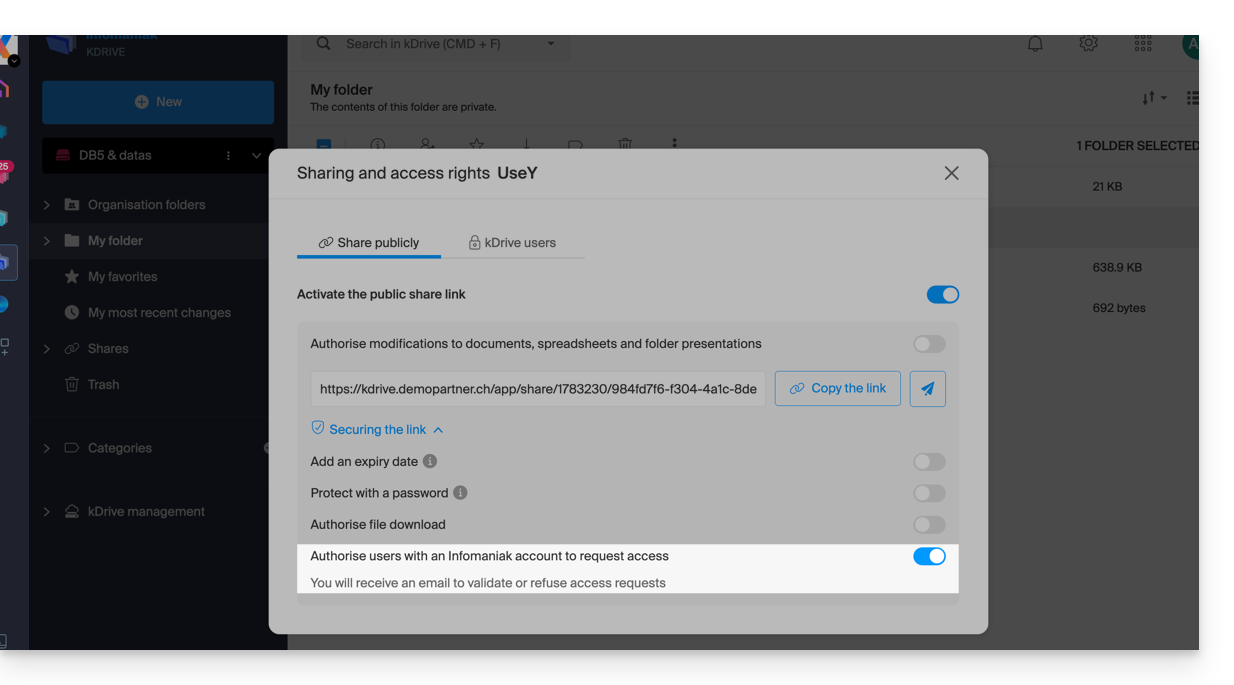
Este botão “Adicionar ficheiros” será exibido na página de partilha (A) para que o utilizador que aceda ao link de partilha possa solicitar tornar-se um utilizador externo (se tiver uma conta Infomaniak ou se criar uma (B):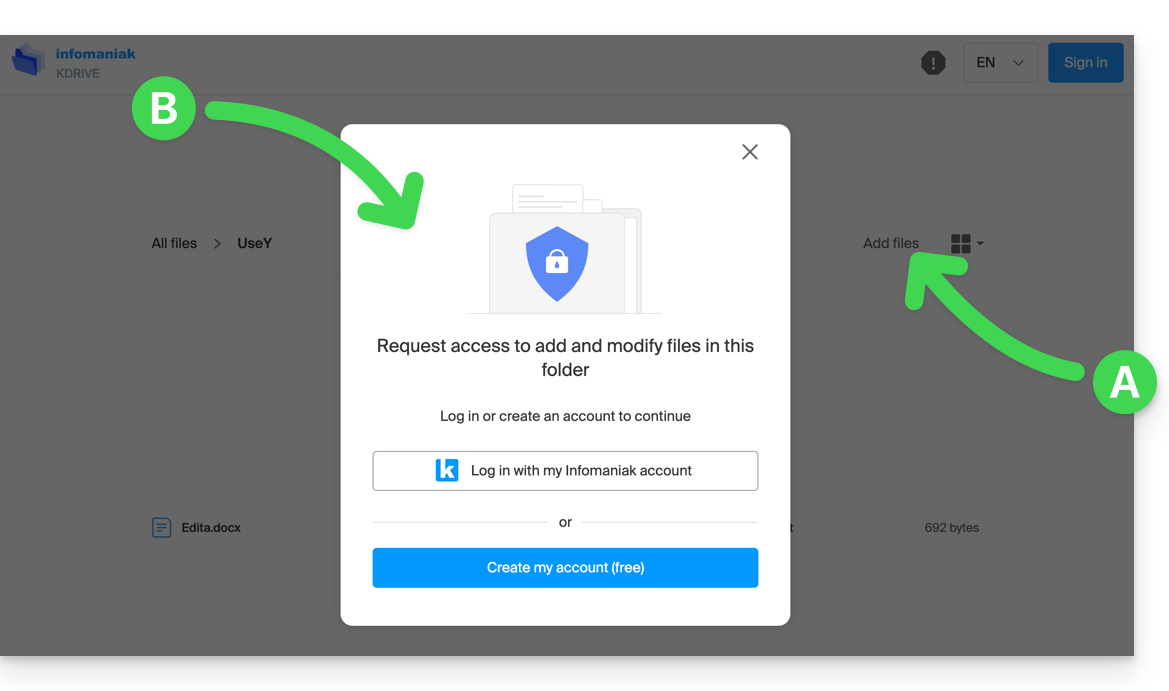
O pedido será então enviado por e-mail ao utilizador que iniciou a partilha, e este poderá decidir se aceita ou não.
As pastas partilhadas
Consulte este outro guia para entender bem as diferenças entre as várias seções do kDrive.
Estas pastas partilhadas estão disponíveis com algumas ofertas pagas e permitem partilhar os seus dados com todos os utilizadores do kDrive. Qualquer nova pasta criada no seu interior com a opção de partilha máxima será indicada como tal, à direita, na lista de pastas.
No entanto, também é possível criar uma pasta com um acesso restrito (essa opção é apresentada ao criar uma nova pasta ou ao acessar novamente o compartilhamento dessa pasta), e, nesse caso, apenas os usuários autorizados poderão visualizar o conteúdo diretamente. Os usuários que têm acesso são exibidos à direita, na lista de pastas: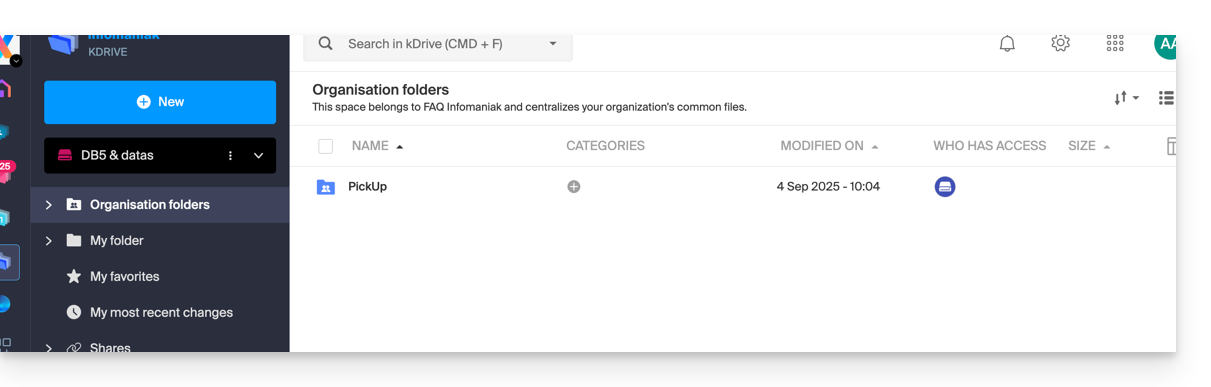
Os outros usuários que têm acesso às pastas compartilhadas também podem acessar um subdiretório, seja clicando nele e aceitando a mensagem de aviso, seja usando o menu de ações à direita do diretório e escolhendo "Forçar o acesso". Isso notificará os outros usuários por e-mail sobre o acesso realizado:
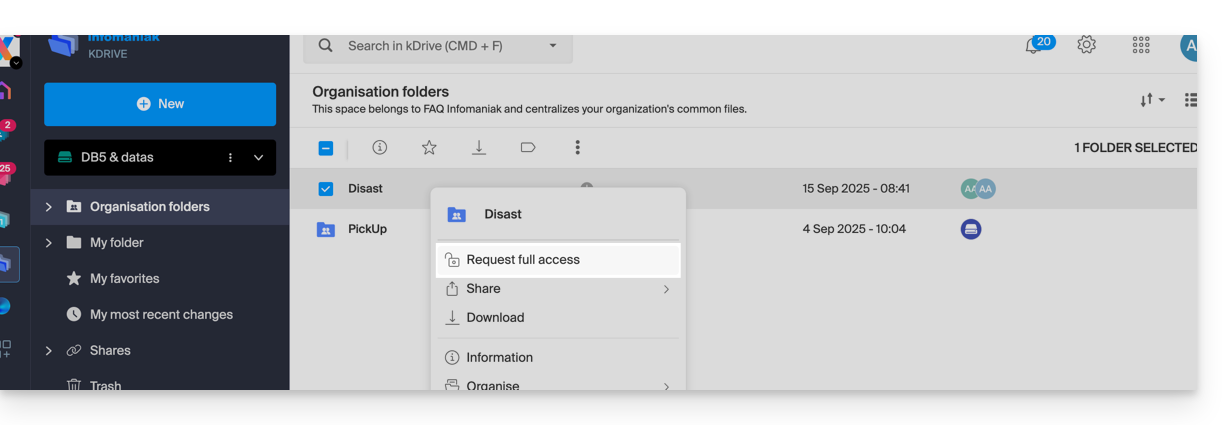
Consulte este outro guia se precisar de informações sobre compartilhamentos e pastas compartilhadas.
Link para esta FAQ: https://faq.infomaniak.com/2382
Esta seção de perguntas frequentes foi útil?
Este guia explica como gerir o comportamento dos ficheiros eliminados e da lixeira do kDrive.
Introdução
- Quando um arquivo é excluído em um dos aplicativos sincronizados com o kDrive, o aplicativo web kDrive (serviço online ksuite.infomaniak.com/kdrive) move o arquivo para a lixeira.
- Se esta lixeira do kDrive for esvaziada, não será possível recuperar o seu conteúdo.
- Se a lixeira do sistema operativo do computador onde o kDrive está instalado for esvaziada, isso não esvaziará a lixeira da aplicação web kDrive.
- O ficheiro permanece no mínimo 30 dias após ser movido para a lixeira do kDrive, mas algumas ofertas permitem definir um número maior para o período de retenção dos ficheiros na lixeira do kDrive:
- Os ficheiros permanecem no mínimo 30 dias na lixeira do kDrive após a sua eliminação, mas, dependendo do plano subscrito, o período máximo de conservação na lixeira (em dias) pode ser mais longo:
- kSuite Free = 30
- kSuite Standard = 60
- kSuite Business = 180
- kSuite Enterprise = 365
- my kSuite = 30
- my kSuite+ = 60
- kDrive Solo = 365
- kDrive Team = 365
- kDrive Pro = 365
Eliminar um ficheiro…
… no aplicativo web kDrive
Para excluir um arquivo e acompanhar seu caminho até a lixeira:
- Clique aqui para acessar o aplicativo web kDrive (serviço online ksuite.infomaniak.com/kdrive).
- Selecione o(s) arquivo(s) desejado(s).
- Clique no ícone da lixeira na barra superior:
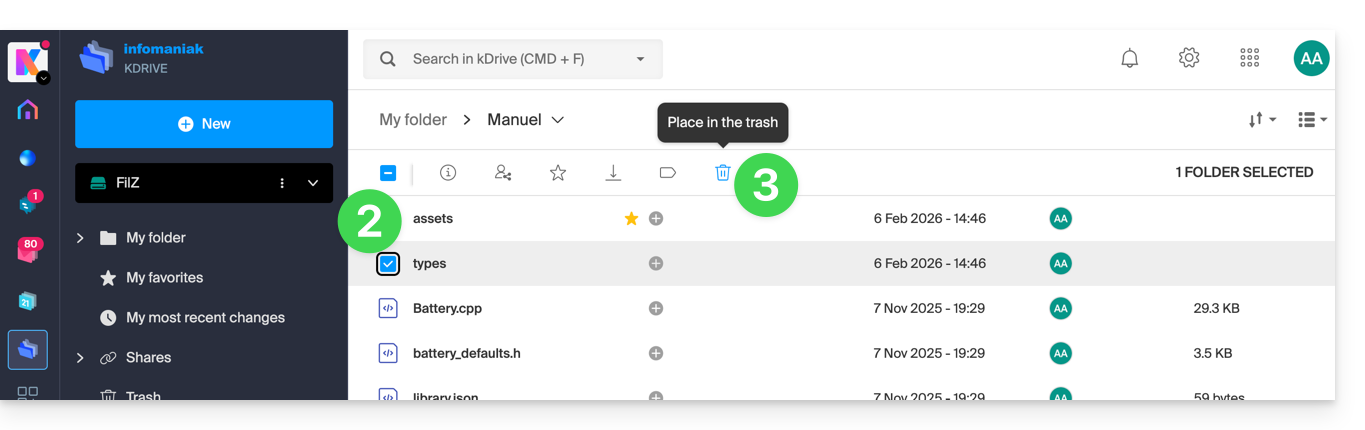
- Confirme a exclusão:
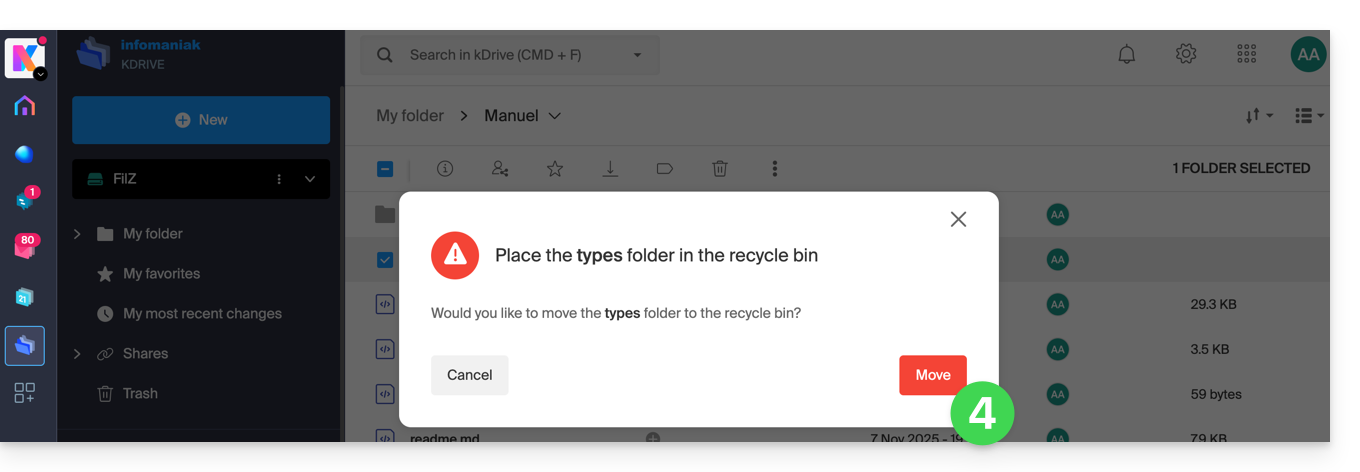
- Uma mensagem de confirmação aparece na parte inferior da tela, permitindo que você cancele a exclusão, se desejar.
- Clique no menu Lixeira:
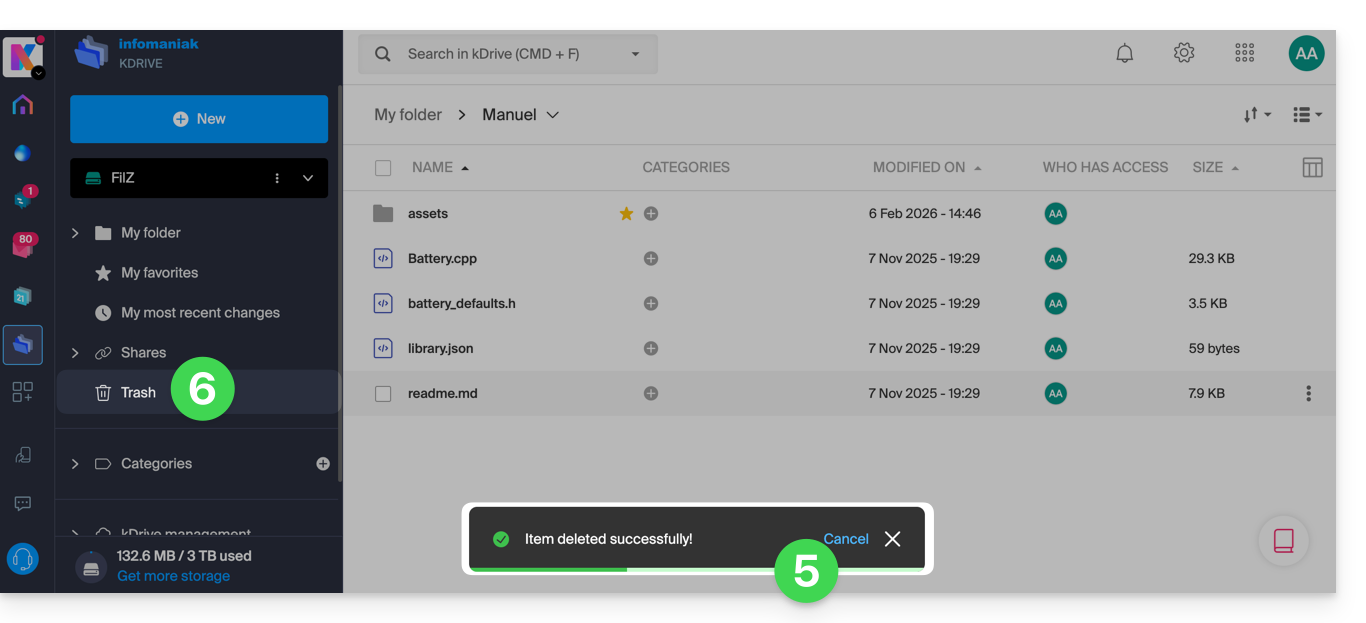
- Os itens excluídos recentemente são exibidos aqui:
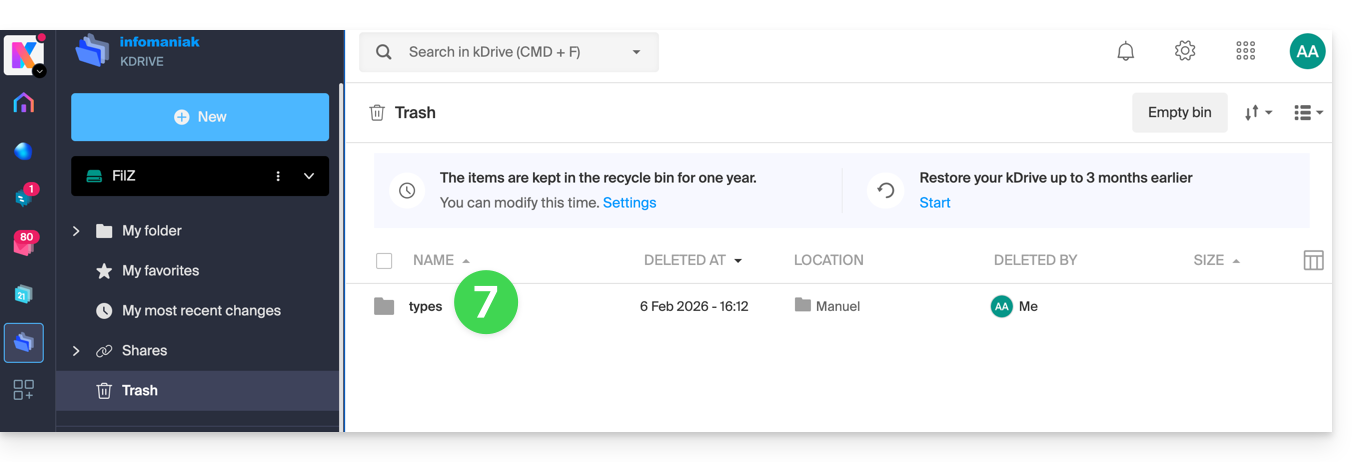
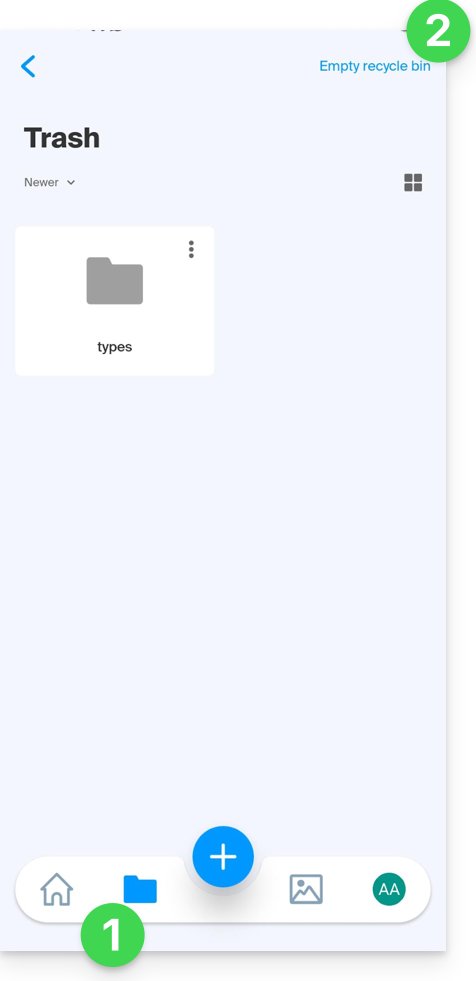
A exclusão é sincronizada com as diferentes soluções conectadas ao mesmo kDrive, por exemplo, o aplicativo móvel kDrive (aplicativo para smartphone ou tablet iOS / Android):
- O menu Lixeira está localizado abaixo do ícone Pastas.
- Você pode esvaziar a lixeira a partir desta página, mas leia as informações abaixo neste guia:
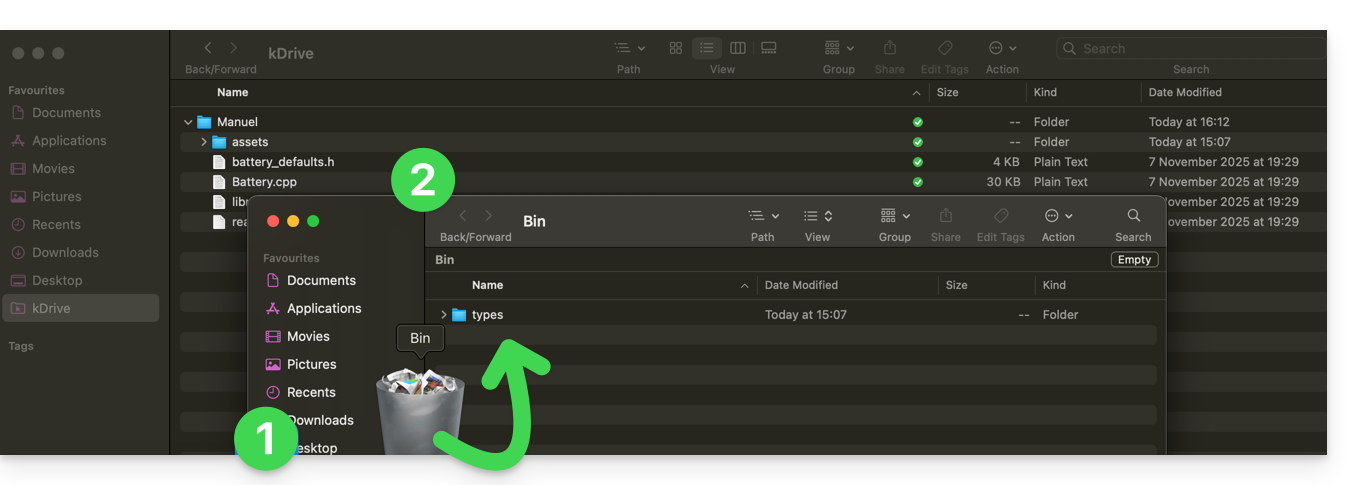
A exclusão também é sincronizada (se esta opção não estiver desativada — veja mais abaixo neste guia) com o aplicativo para desktop kDrive (aplicativo para macOS / Windows / Linux), que enviará os dados excluídos do aplicativo web para a lixeira do computador (e vice-versa):
- Abra a lixeira do computador.
- Os dados eliminados estão na lixeira e não mais na estrutura principal do kDrive:
Esvaziar a lixeira manualmente…
… no aplicativo web kDrive
Para esvaziar a lixeira do kDrive manualmente (não recomendado, pois é melhor aguardar o prazo definido até a exclusão automática):
- Clique aqui para acessar o aplicativo web kDrive (serviço online ksuite.infomaniak.com/kdrive).
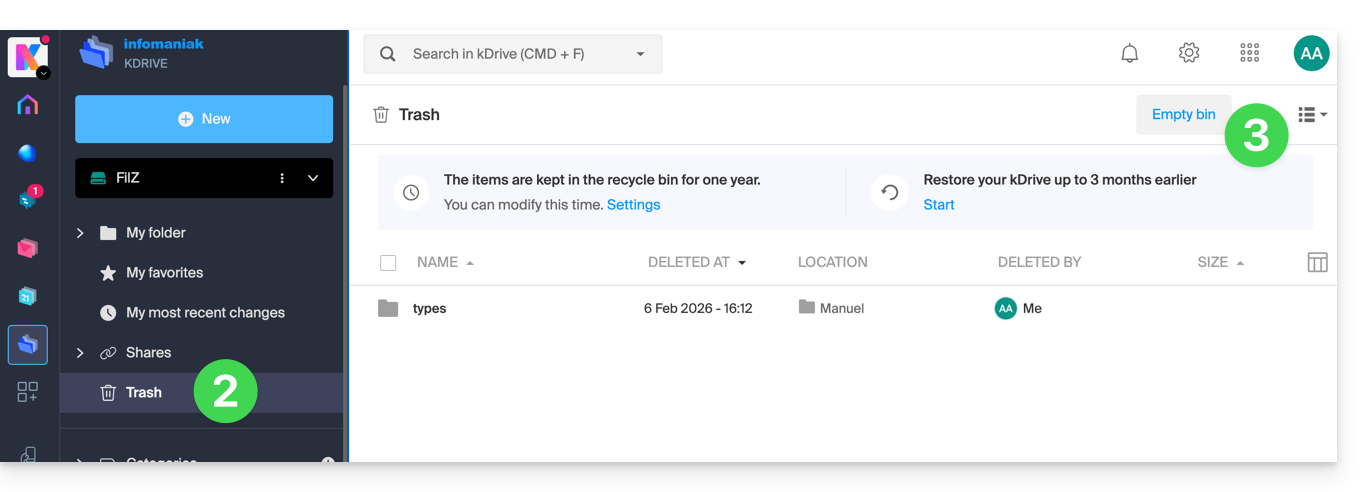
- Clique no menu Lixeira no menu lateral esquerdo.
- Clique em Esvaziar a lixeira:
- Confirme a operação:
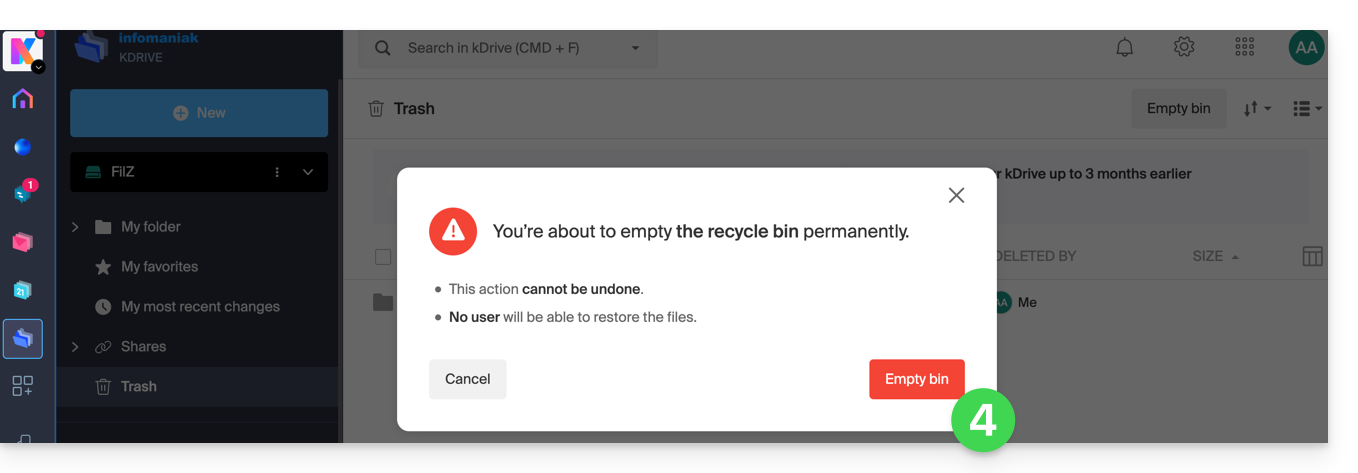
- Os dados são apagados definitivamente, apenas na aplicação web kDrive; os ficheiros permanecem no lixo do computador.
… no computador sincronizado
- Se a lixeira do computador for esvaziada (botão Esvaziar no exemplo abaixo)…
- e a exclusão for confirmada…
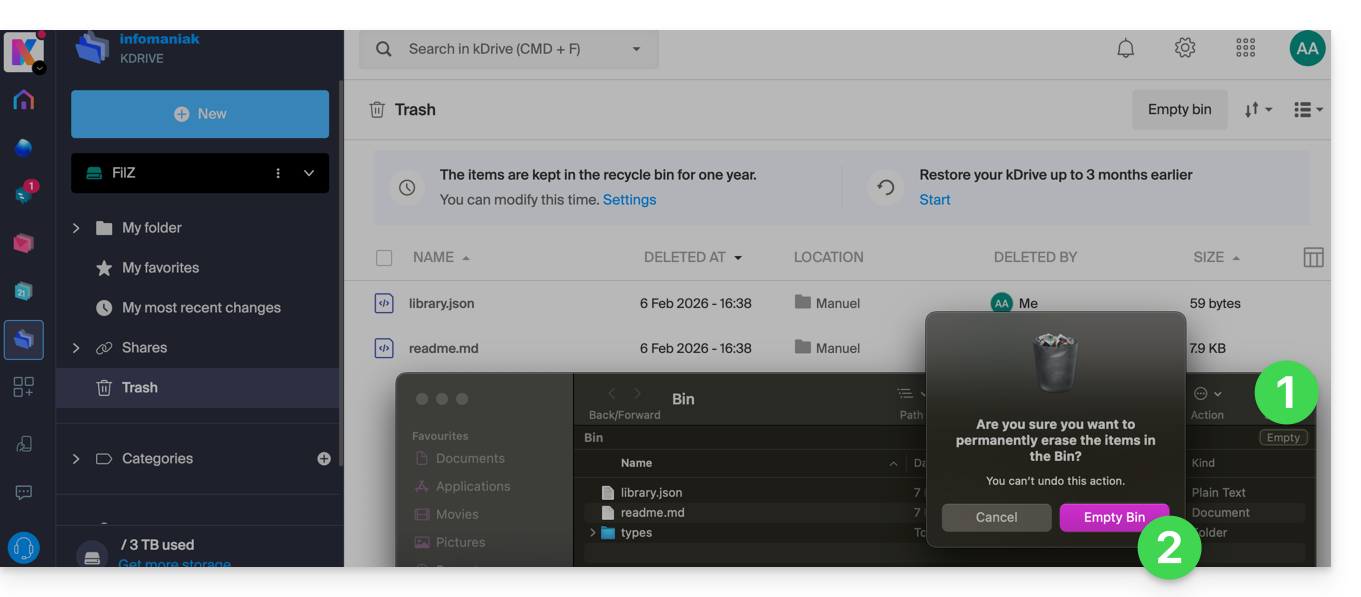
- … a lixeira do aplicativo web kDrive não é afetada e os arquivos excluídos ainda estarão lá, desde que essa lixeira do kDrive não seja esvaziada, manualmente ou automaticamente após um determinado período.
Gerenciar o período de retenção da lixeira do kDrive
Para aceder aos ficheiros da lixeira:
- Clique aqui para aceder à aplicação web kDrive (serviço online ksuite.infomaniak.com/kdrive).
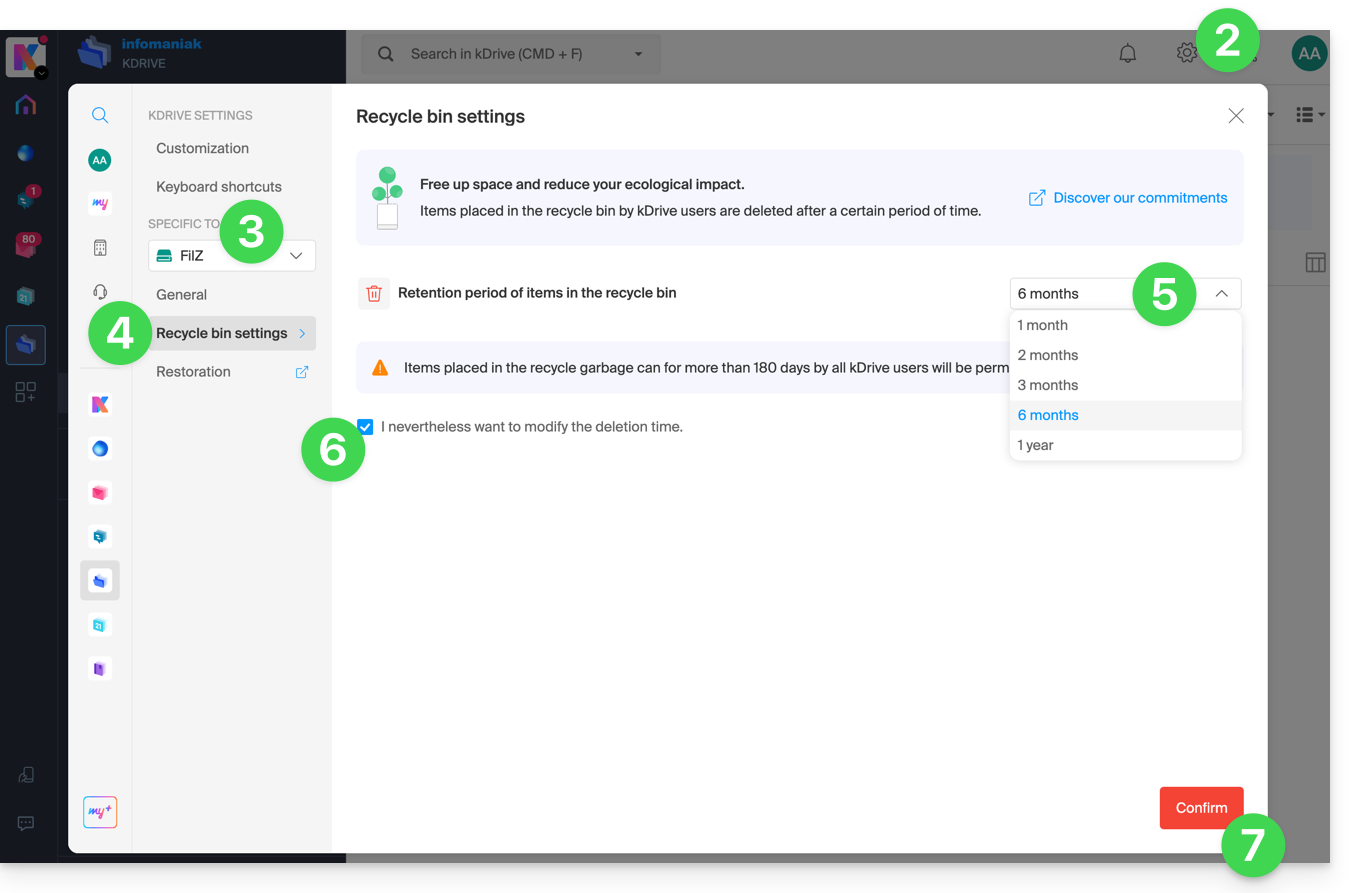
- Clique em Configurações no canto superior direito.
- Verifique ou selecione o kDrive correspondente no menu suspenso do menu lateral esquerdo.
- Clique em Configurações da lixeira.
- Escolha a duração desejada no menu suspenso (entre 1 mês e 1 ano, dependendo do seu plano — consulte o início deste guia).
- Informe-se sobre as informações relativas à possível exclusão definitiva dos arquivos movidos para a lixeira antes do novo prazo que deseja aplicar e confirme a sua escolha.
- Clique no botão para Confirmar:
Desative a ordem de exclusão no aplicativo para desktop
Para escolher se a exclusão de um arquivo no aplicativo web ou no aplicativo móvel deve mover o arquivo sincronizado com o aplicativo para desktop para a lixeira do computador:
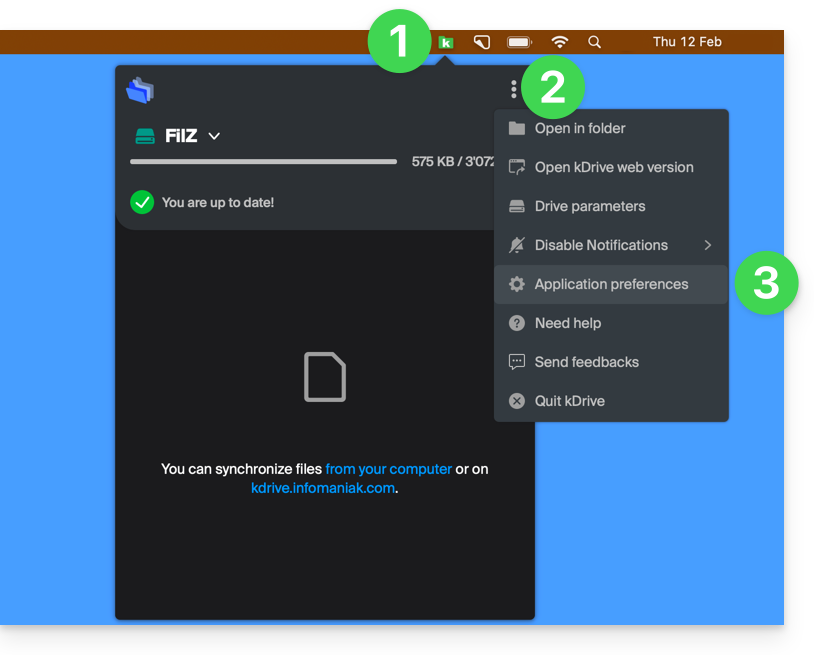
- Clique com o botão esquerdo do rato no ícone do aplicativo para desktop na área de notificação do seu computador (no canto superior direito no macOS, no canto inferior direito no Windows e clique duas vezes na barra de tarefas no Linux).
- Clique no menu de ação ⋮ à direita na janela que aparece.
- Clique em Preferências do aplicativo:
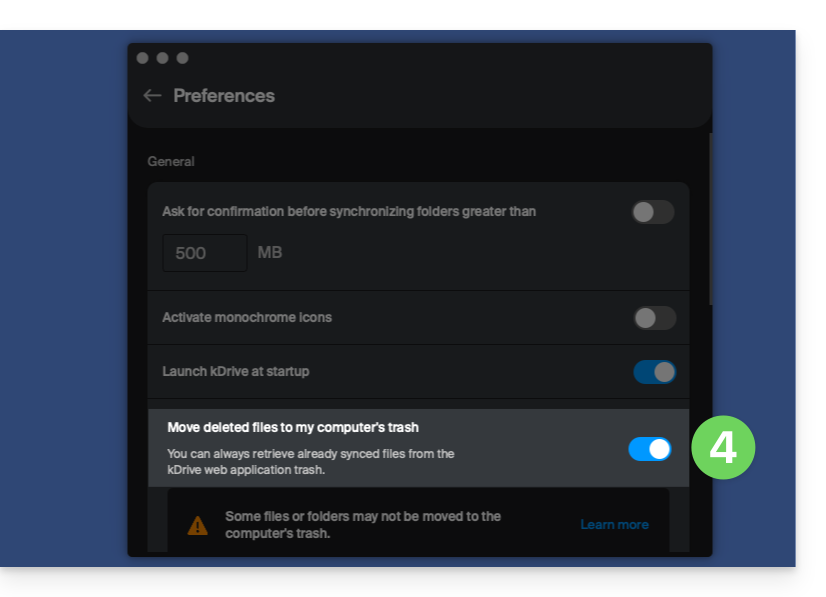
- Ative ou desative o botão de alternância para decidir se a versão sincronizada deve ou não ser enviada para a lixeira do computador:
Resolver um problema de envio para a lixeira no computador
Em casos raros, pode acontecer que, apesar de uma configuração para mover os arquivos para a lixeira (item 4 acima), o aplicativo para desktop exclua definitivamente o arquivo excluído no computador:
- … o aplicativo web (serviço online ksuite.infomaniak.com/kdrive)…
- … o aplicativo móvel (aplicativo para smartphone ou tablet iOS / Android)…
- … outro computador sincronizado…
em vez de colocá-lo na lixeira, porque:
- Espaço insuficiente: a lixeira atingiu o tamanho máximo configurado.
- Ausência de lixeira: em alguns sistemas de arquivos, como unidades de rede ou removíveis (por exemplo, pen drives USB), pode não haver uma lixeira.
Esta lista não é exaustiva, mas cobre a maioria dos casos que não serão comunicados ao utilizador. Outros problemas, como os relacionados com a utilização de discos montados em modo de leitura, serão considerados e comunicados ao utilizador.
Em caso de dúvida, certifique-se também de que o seu computador não elimina instantaneamente os ficheiros muito grandes quando são colocados na lixeira, devido, por exemplo, ao tamanho da lixeira do Windows:
Restaurar um arquivo da lixeira…
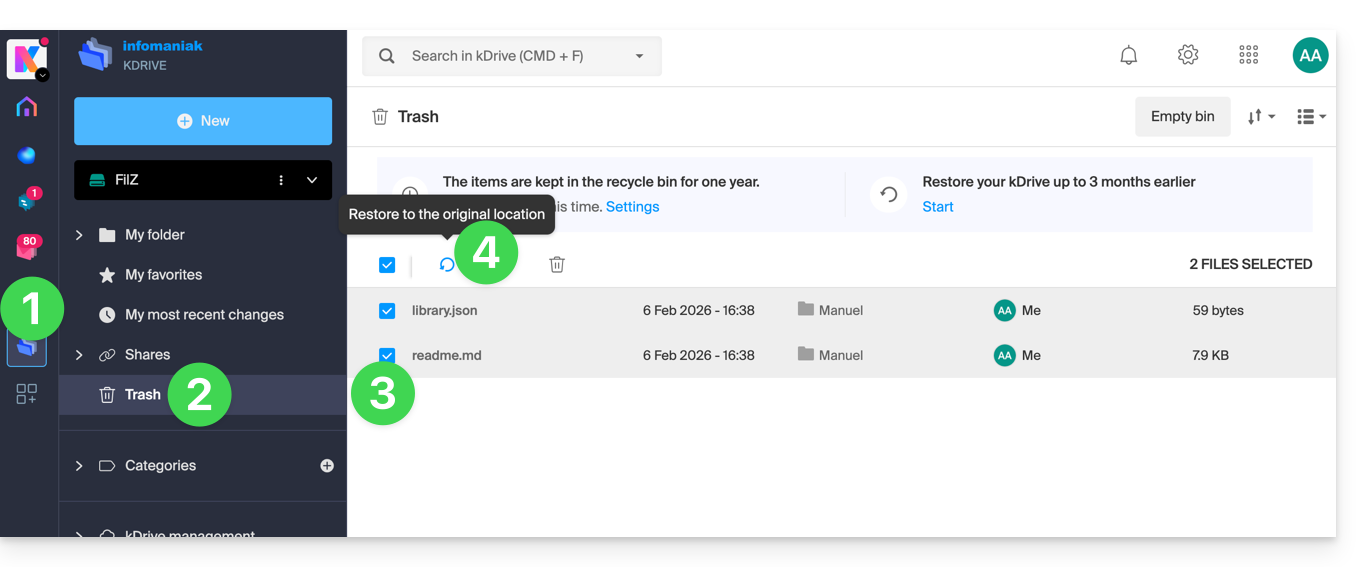
Para restaurar um arquivo para o seu local original quando a lixeira ainda não foi esvaziada no aplicativo web kDrive:
- Clique aqui para acessar o aplicativo web kDrive (serviço online ksuite.infomaniak.com/kdrive).
- Clique em Lixeira no menu lateral esquerdo.
- Selecione os itens que deseja restaurar.
- Clique em Restaurar:
Para restaurar o estado completo de um kDrive, como era antes de qualquer movimentação ou reorganização de arquivos, consulte este outro guia.
Para restaurar uma versão anterior de um arquivo existente, consulte este outro guia.
Link para esta FAQ: https://faq.infomaniak.com/2383
Esta seção de perguntas frequentes foi útil?
Este guia explica como usar o histórico ou o controle de versões de arquivos no kDrive.
Introdução
- Esta funcionalidade é muito útil para recuperar informações apagadas ou modificadas por terceiros num ficheiro colaborativo.
- A Infomaniak guarda no histórico de versõesum backup de todas as alterações feitas nos arquivos do tipo Office no kDrive.
- Você pode optar por manter indefinidamente algumas versões desses arquivos.
Não é oferecido um backup global das pastas da organização e dos Drives pessoais; essa escolha é intencional para garantir a confidencialidade dos espaços pessoais: os administradores não têm acesso aos dados privados dos usuários.
- Número máximo de versões / Número máximo de dias:
- kSuite Free = 30 / 30
- kSuite Standard = 100 / 120
- kSuite Business = 200 / 180
- kSuite Enterprise = 200 / 365
- my kSuite = 30 / 30
- my kSuite+ = 60 / 120
- kDrive Solo = 100 / 60
- kDrive Team = 100 / 60
- kDrive Pro = 200 / 120
- Existem outros tipos de limites ao nível de:
Gerenciar as versões anteriores dos arquivos
Para acessar o kDrive:
- Clique aqui para acessar o aplicativo web kDrive da Infomaniak (serviço online ksuite.infomaniak.com/kdrive).
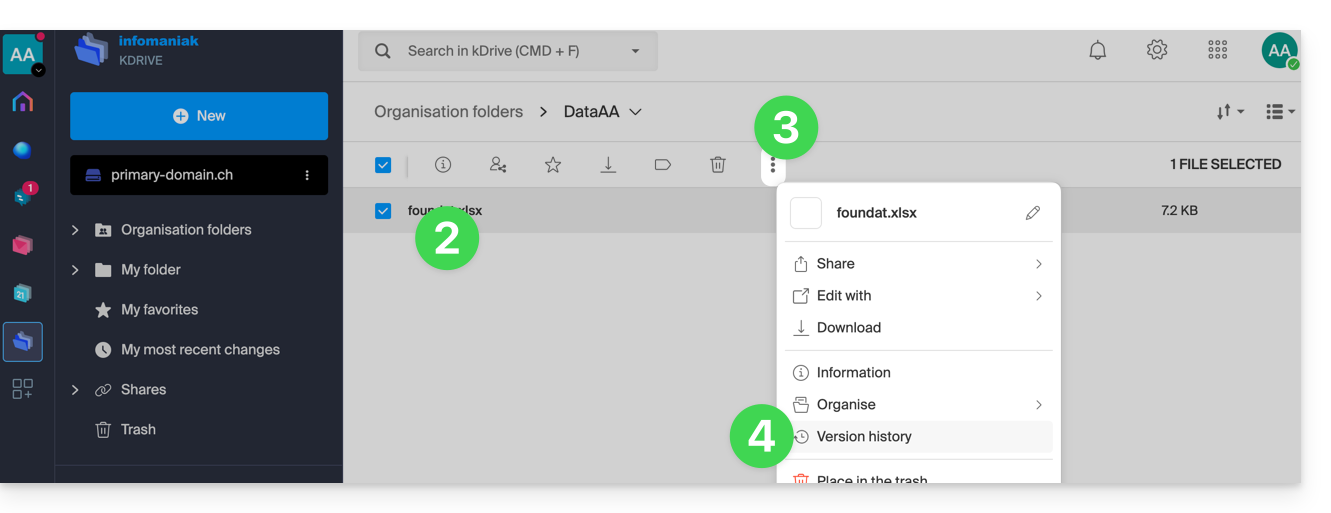
- Selecione o arquivo que deseja editar (ou clique com o botão direito do mouse no arquivo e, nesse caso, vá para a etapa 4).
- Clique no menu de ação ⋮ na barra de ferramentas.
- Clique em Histórico de versões:
As diferentes versões do arquivo são listadas em ordem cronológica inversa.
Você pode excluir todas as versões deste arquivo usando o botão: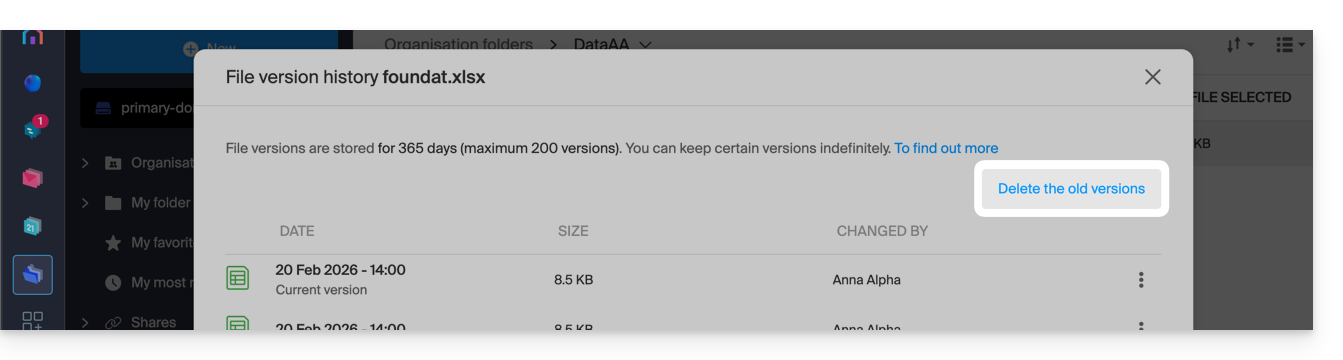
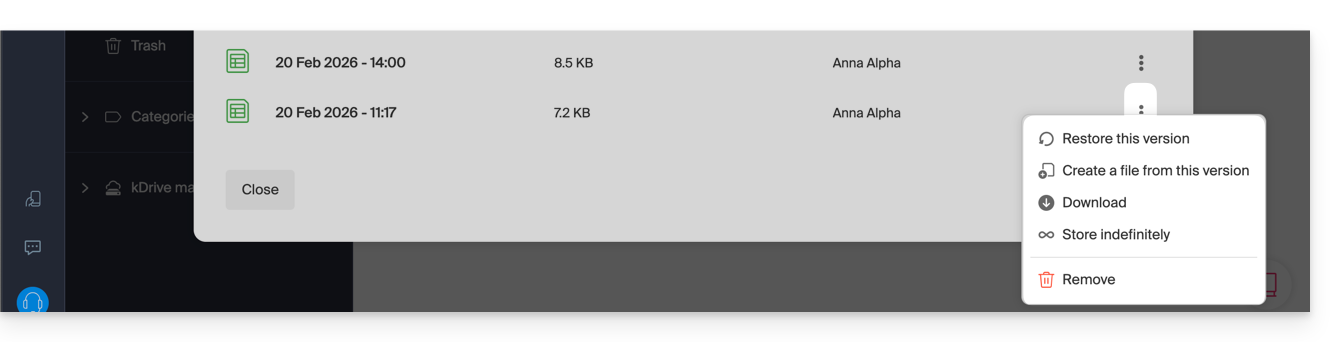
Caso contrário, um menu à direita de cada versão permite:
- … conservá-la indefinidamente: a versão será conservada após o período de conservação padrão,
- … criar um novo arquivo no kDrive a partir desta versão,
- … excluir a versão: permite apagar apenas esta versão.
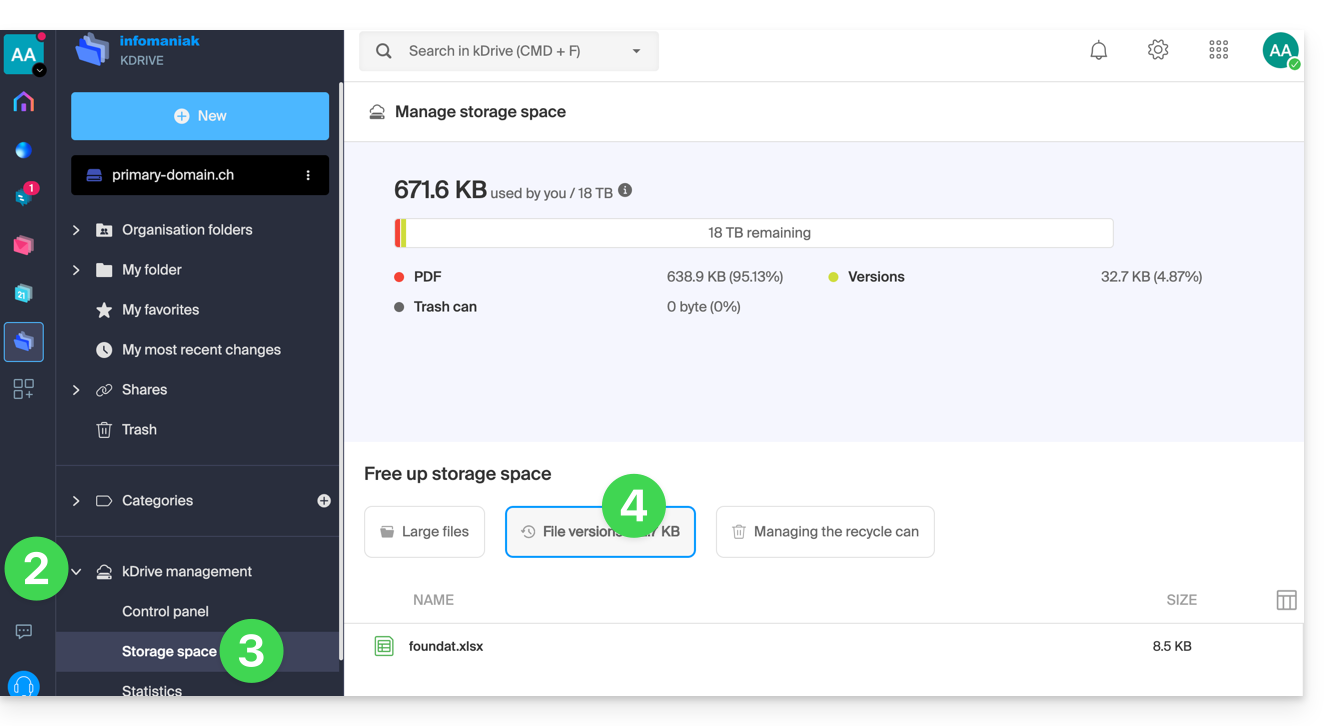
Também pode aceder a todas as versões de todos os seus ficheiros:
- Clique aqui para acessar o aplicativo web kDrive da Infomaniak (serviço online ksuite.infomaniak.com/kdrive).
- Clique em Gerenciar kDrive no menu lateral esquerdo.
- Clique em Gerenciar o espaço de armazenamento
- Clique para escolher Versões de arquivos:
Também é possível restaurar uma versão anterior de toda a organização dos seus arquivos no kDrive.
Link para esta FAQ: https://faq.infomaniak.com/2384
Esta seção de perguntas frequentes foi útil?
Este guia explica como criar uma pasta de partilha com o kDrive para convidar contactos a depositarem conteúdo (ficheiros ou pastas); o conteúdo carregado pelos seus contactos é, assim, enviado, armazenado e organizado diretamente no local correto no seu kDrive.
Introdução
- Número de pastas de depósito permitidas:
- kSuite Free = 1
- kSuite Standard = 10
- kSuite Business = 100
- kSuite Enterprise = 1000
- my kSuite = 1
- my kSuite+ = ilimitado
- kDrive Solo = 100
- kDrive Team = 1000
- kDrive Pro = 1000
- Você pode personalizar a aparência das pastas de depósito.
- Existem outros tipos de limites ao nível de:
Criar uma pasta de partilha
Para acessar o kDrive e criar uma pasta de depósito:
- Clique aqui para acessar o aplicativo web kDrive da Infomaniak (serviço online ksuite.infomaniak.com/kdrive).
- Navegue na árvore do kDrive, que é exibida no menu lateral esquerdo, e vá para a pasta que deverá conter os dados coletados na caixa de depósito:
- Mantenha-se na pasta pessoal (Minha pasta) se os dados forem privados e exclusivos do seu usuário.
- Vá para a pasta compartilhada (Pastas da organização) se desejar que outros usuários do seu kDrive possam consultar diretamente os dados da caixa de depósito.
- Clique no botão azul Novo quando estiver no diretório escolhido (aquele que deverá conter os dados coletados com a caixa de depósito).
- Clique em Caixa de depósito:
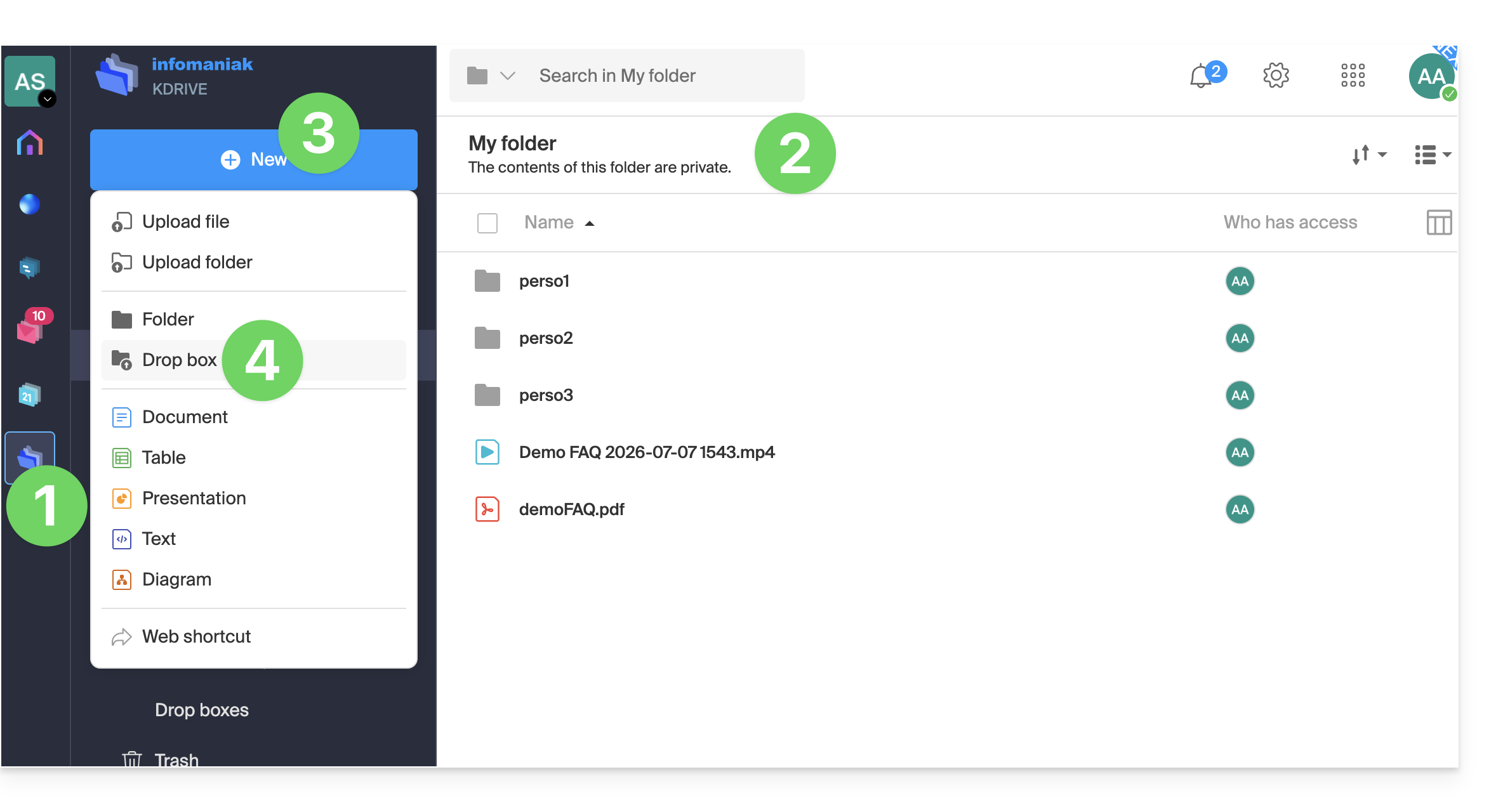
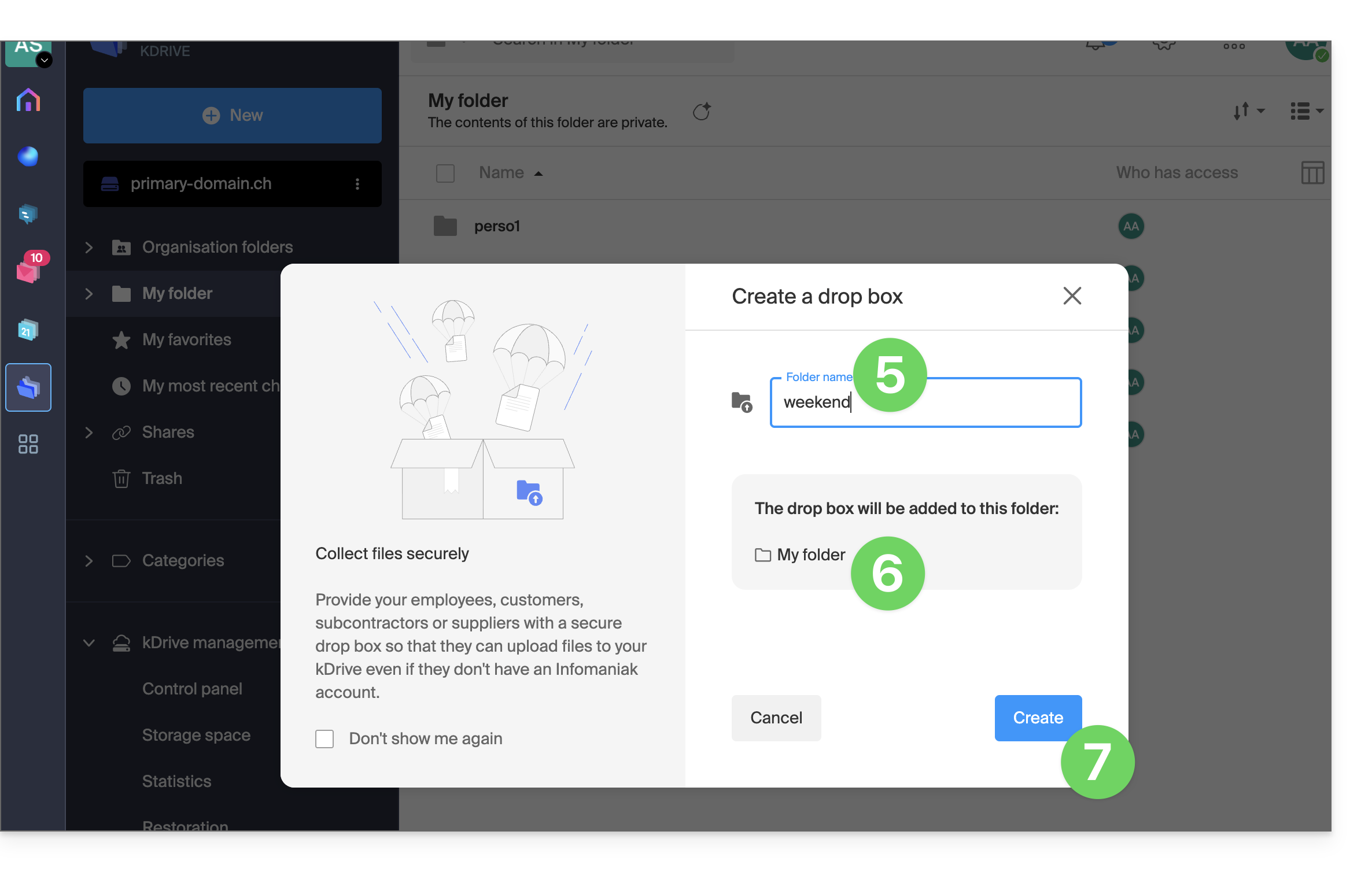
- Preencha o nome da caixa de depósito.
- O caminho completo (dentro do seu kDrive) para o local desta pasta de depósito é especificado para sua referência.
- Clique no botão Criar:
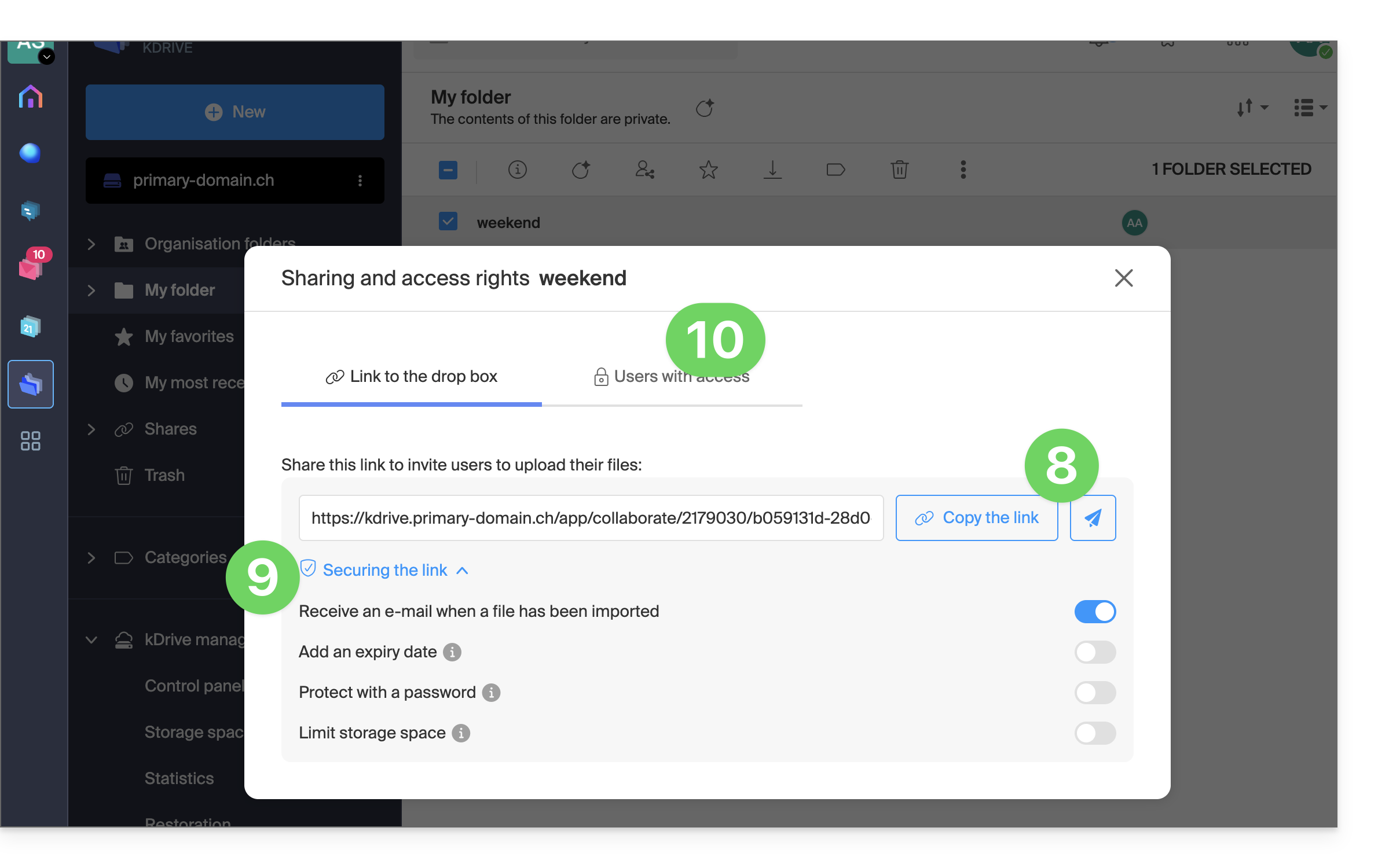
- Compartilhe o link da pasta ou clique em Enviar por e-mail para compartilhá-la com seus contatos.
- As opções avançadas permitem receber uma notificação por e-mail quando um arquivo for enviado, proteger a pasta com uma senha, adicionar uma data de validade e limitar o espaço de armazenamento da pasta de envio.
- Dependendo da oferta kDrive e da opção escolhida no ponto 2 acima, você pode decidir se, apesar de estar localizado em Pastas da organização (pasta compartilhada), deseja restringir o acesso apenas ao seu usuário:
Desativar ou modificar uma pasta de depósito
Para aceder às pastas de partilha:
- Clique aqui para aceder à aplicação web kDrive da Infomaniak (serviço online ksuite.infomaniak.com/kdrive).
- Clique em Compartilhamentos no menu lateral esquerdo.
- Clique em Caixas de depósito.
- Clique com o botão direito ou clique no menu de ação ⋮ à direita do item correspondente na tabela exibida.
- Clique em Desativar para cancelar o link de compartilhamento sem excluir os dados já compartilhados (a pasta se transformará em uma pasta simples).
ou em Configurações, mais acima no menu suspenso, para modificar as opções avançadas (item 10 acima):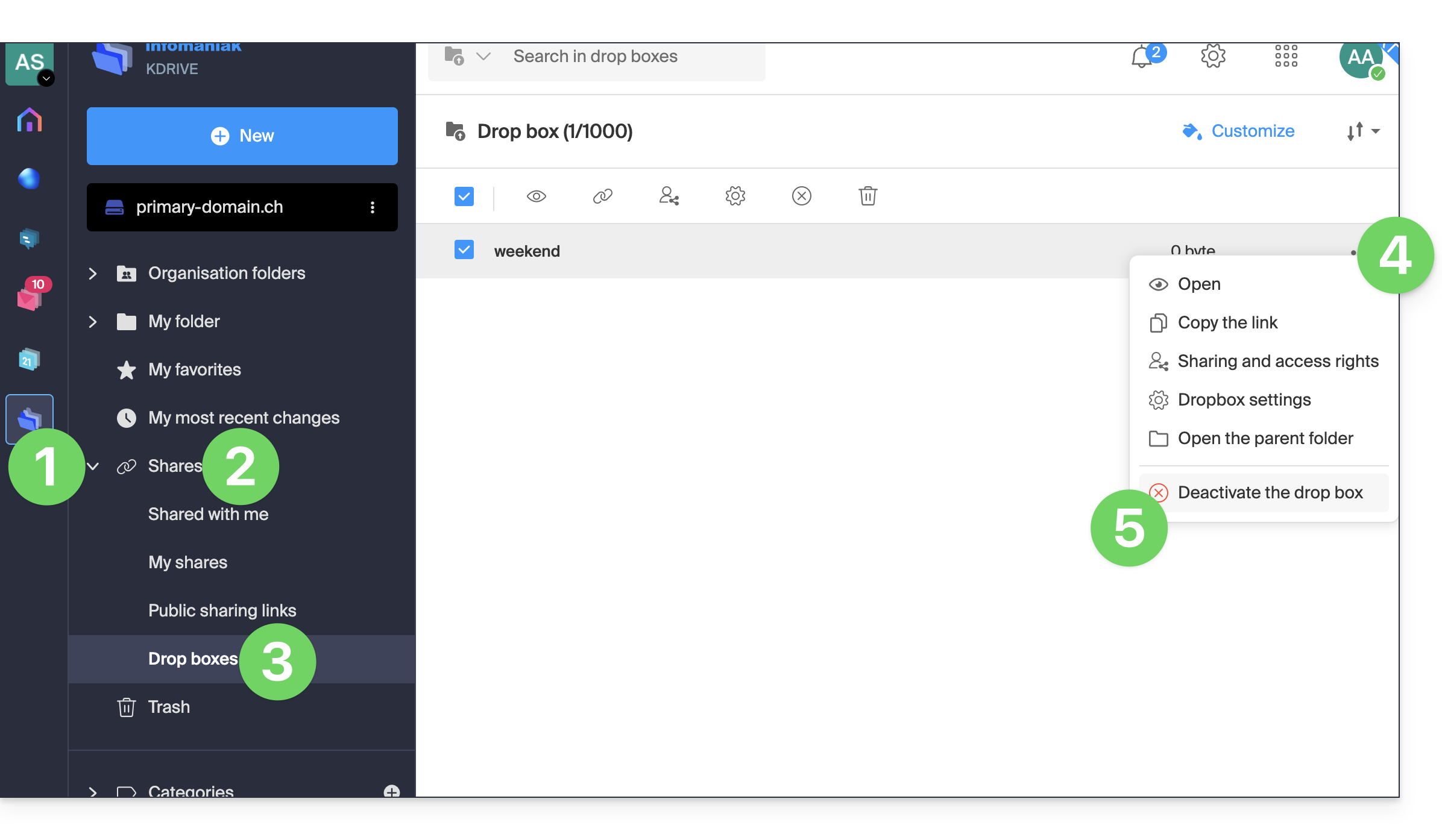
Link para esta FAQ: https://faq.infomaniak.com/2386
Esta seção de perguntas frequentes foi útil?
Este guia explica como verificar a utilização do espaço de armazenamento do seu kDrive e como aumentar a sua capacidade, se necessário.
Introdução
- O número máximo de arquivos por kDrive não é um limite fixo, mas, caso seja excedido, a estabilidade do sistema de armazenamento e da aplicação kDrive não poderá ser garantida pela Infomaniak.
- Apenas os Termos e Condições Gerais de Uso (TCGU) do kDrive (❓: ajuda) são aplicáveis.
- Existem outros tipos de limites ao nível de:
Limites de armazenamento e tráfego
No máximo, e independentemente do plano kDrive / kSuite / my kSuite, etc.:
- 300.000 arquivos por kDrive
- 1000 subpastas por kDrive
- 100000 ficheiros por pasta
- 1000 GB por arquivo enviado através do aplicativo para desktop, do aplicativo web e da API
Em seguida:
- Largura de banda (em GB) permitida por dia e por utilizador (estes limites, fornecidos a título informativo e preventivo, podem ser aplicados caso uma utilização excessiva prejudique o serviço, a fim de garantir a sua estabilidade e disponibilidade para todos os utilizadores):
- kSuite Free = 200
- kSuite Standard = 1000
- kSuite Business = 1000
- kSuite Enterprise = 1000
- my kSuite = 200
- my kSuite+ = 200
- kDrive Solo = 1000
- kDrive Team = 1000
- kDrive Pro = 1000
- Número máximo de downloads diários de um arquivo por utilizador:
- kSuite Free = 50000
- kSuite Standard = 100000
- kSuite Business = 100000
- kSuite Enterprise = 100000
- my kSuite = 50000
- my kSuite+ = 50000
- kDrive Solo = 50000
- kDrive Team = 50000
- kDrive Pro = 50000
Verificar o espaço de armazenamento do kDrive
Para aceder ao kDrive:
- Clique aqui para acessar o kDrive em seu kSuite Infomaniak (❓: ajuda).
- Clique na seta para expandir a seção Gerenciamento do kDrive no menu lateral esquerdo.
- Clique em Espaço de armazenamento no menu lateral esquerdo:
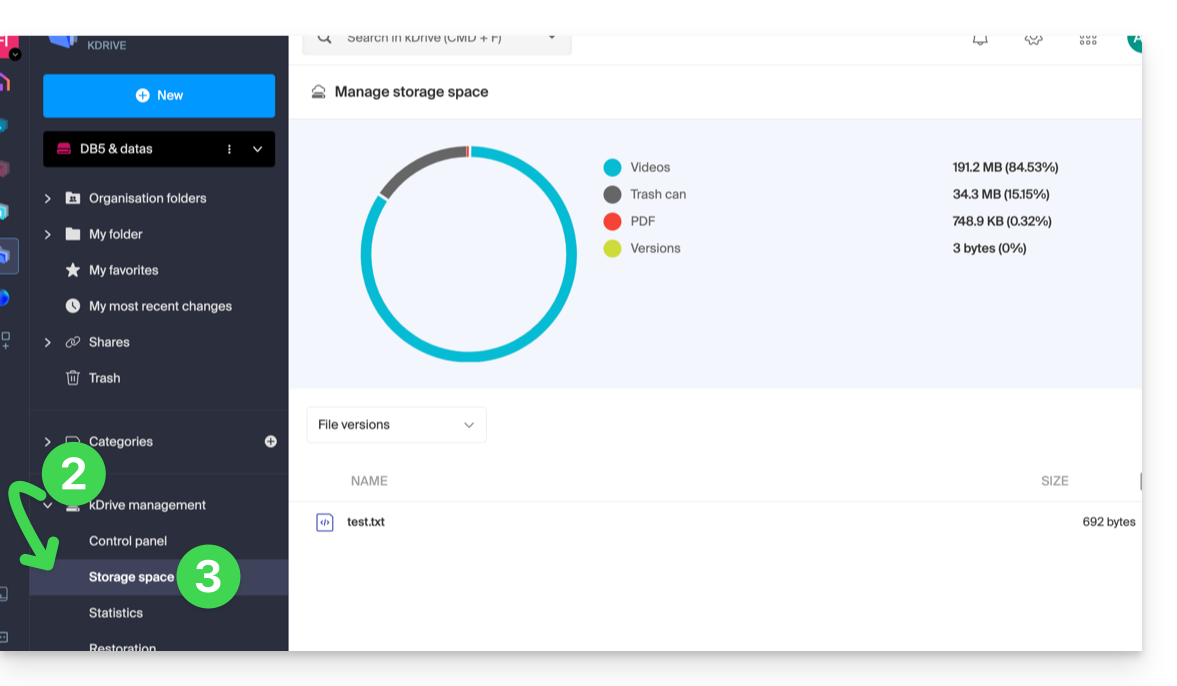
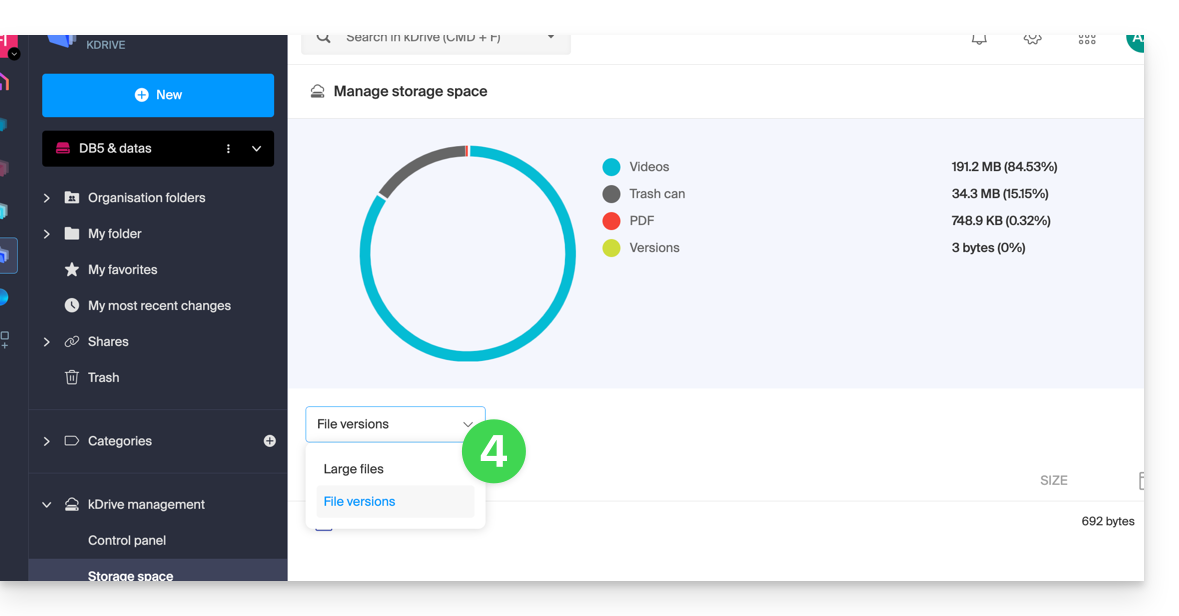
- Selecione os arquivos grandes (ou as versões dos arquivos, que também são contabilizadas no espaço de armazenamento) usando o menu suspenso:
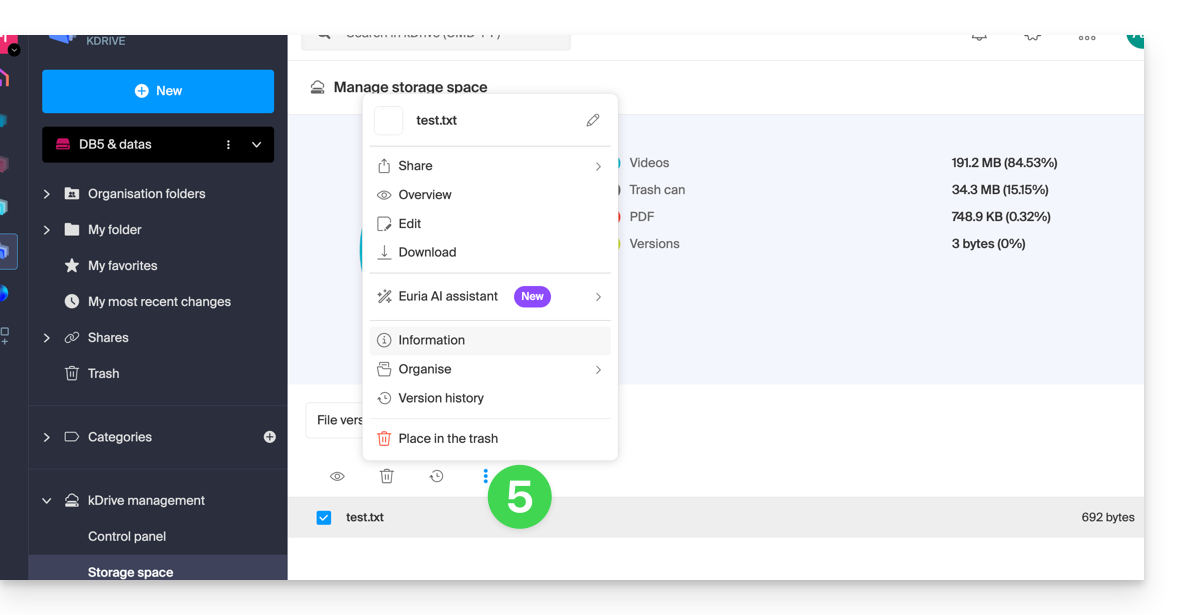
- Clique no menu de ação ⋮ localizado acima da sua seleção para realizar uma ação (por exemplo, excluir):
Aumentar o espaço de armazenamento kDrive
Pré-requisitos
- Ter permissões suficientes dentro da Organização.
Para modificar o espaço de armazenamento do kDrive:
- Clique aqui para acessar o kDrive no seu kSuite Infomaniak (❓: ajuda).
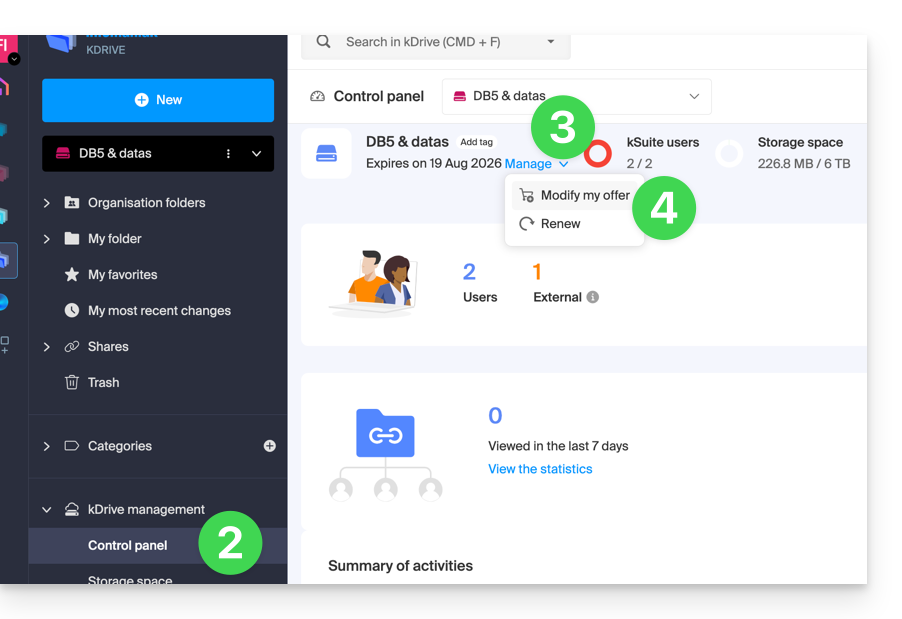
- Clique em Painel de controle no menu lateral esquerdo, em Gerenciar o kDrive.
- Clique em Gerenciar.
- Clique em Modificar oferta:
- Será apresentada a opção de modificar a oferta ou de alterar o espaço de armazenamento máximo do seu kDrive.
- Após modificar a oferta, clique em Seguinte e efetue o pagamento.
Obter informações sobre uma pasta e o seu conteúdo
Basta clicar com o botão direito do mouse em qualquer pasta no aplicativo web kDrive para obter informações sobre o tamanho e o conteúdo:
Link para esta FAQ: https://faq.infomaniak.com/2387
Esta seção de perguntas frequentes foi útil?
Este guia explica como criar, salvar e editar um arquivo de texto simples, sem formatação específica (bloco de notas, código bruto) no aplicativo web kDrive (serviço online ksuite.infomaniak.com/kdrive) usando o editor nativo.
Criar um arquivo de texto simples
Para criar um arquivo no formato .txt:
- Clique aqui para acessar o aplicativo web kDrive (serviço online ksuite.infomaniak.com/kdrive).
- Se necessário, abra a pasta na qual deseja criar o documento .txt.
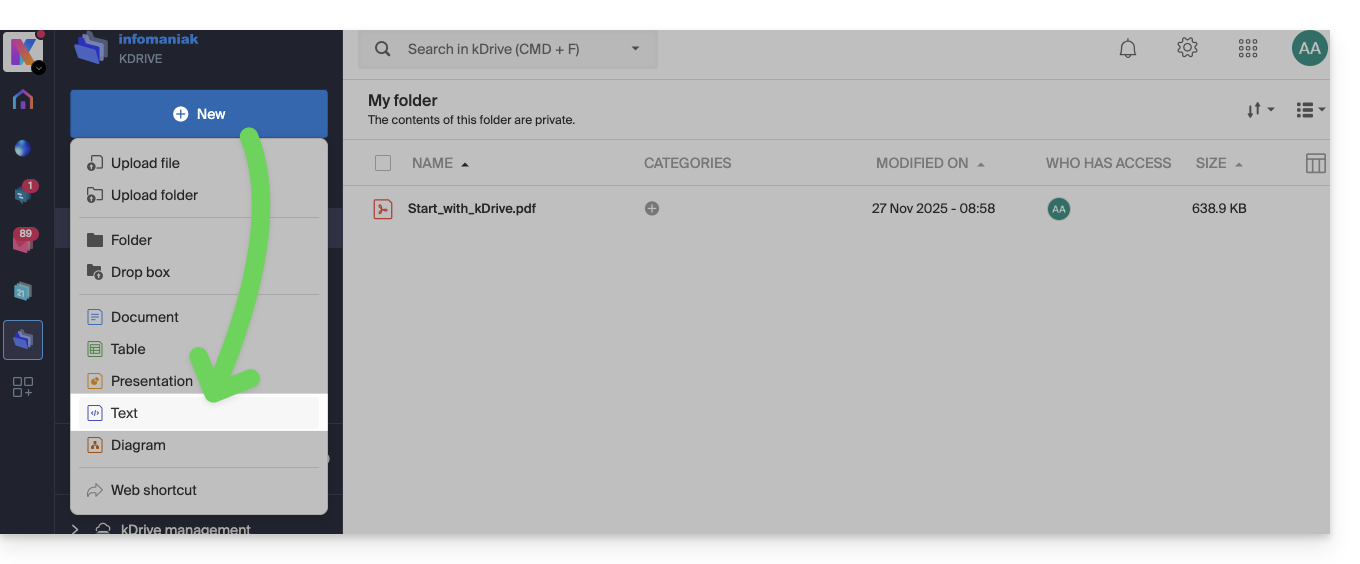
- Clique no botão Novo no canto superior esquerdo.
- Escolha o tipo Texto para criar um documento em branco:
- Insira um nome para o arquivo:
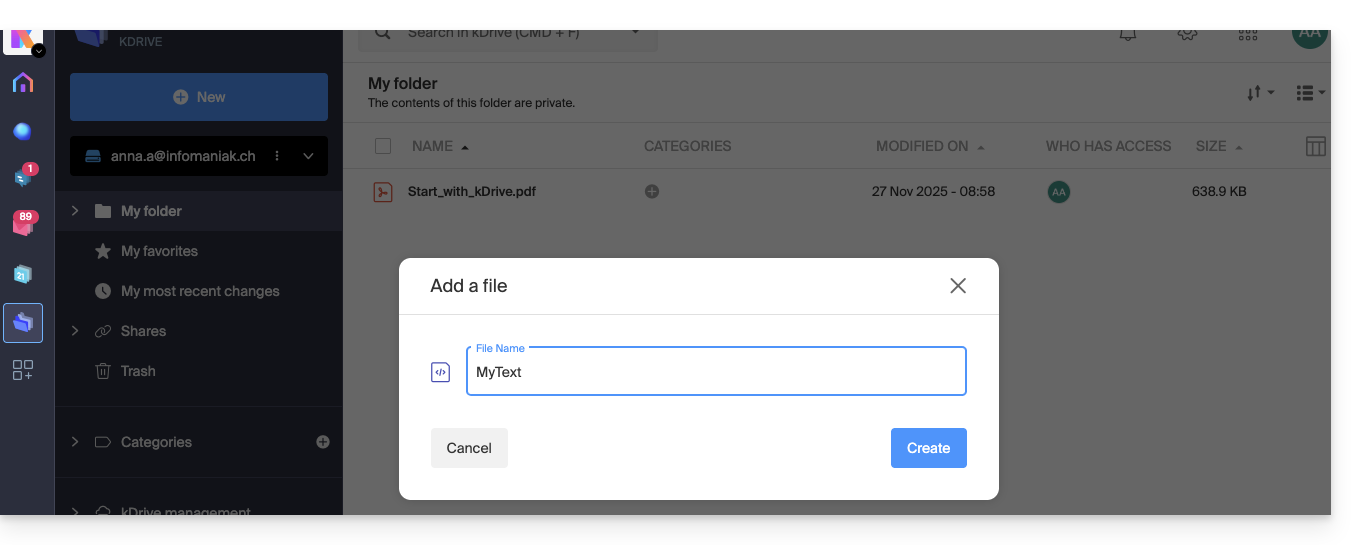
- O arquivo em branco será aberto automaticamente e você poderá inserir texto:
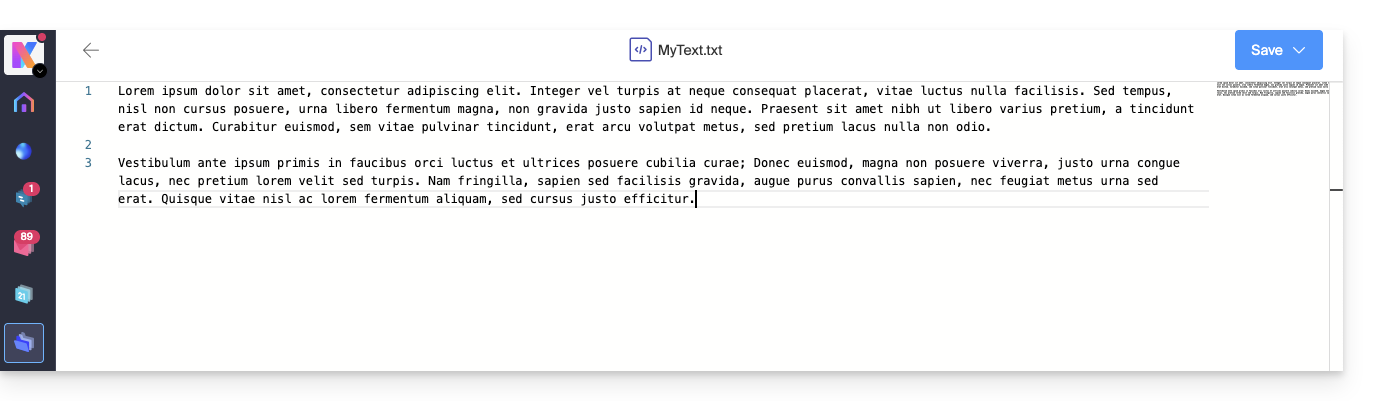
- Não há possibilidade de formatá-lo, editar o estilo do texto, o alinhamento, etc. (prefira os arquivos do tipo Office para isso).
- Se você colar conteúdo formatado na página, ele será convertido em texto simples sem formatação.
- Um índice da página é exibido à direita para facilitar a navegação rápida em documentos longos.
- O documento é guardado automaticamente, mas salve as suas alterações manualmente no canto superior direito, se necessário.
Função de pesquisa/substituição
Para editar e substituir todas as ocorrências de um texto em poucos cliques, depois de criar o documento:
- Selecione o termo que deseja substituir em todo o texto.
- Clique com o botão direito do rato na seleção e escolha a opção “Substituir todas as ocorrências”:
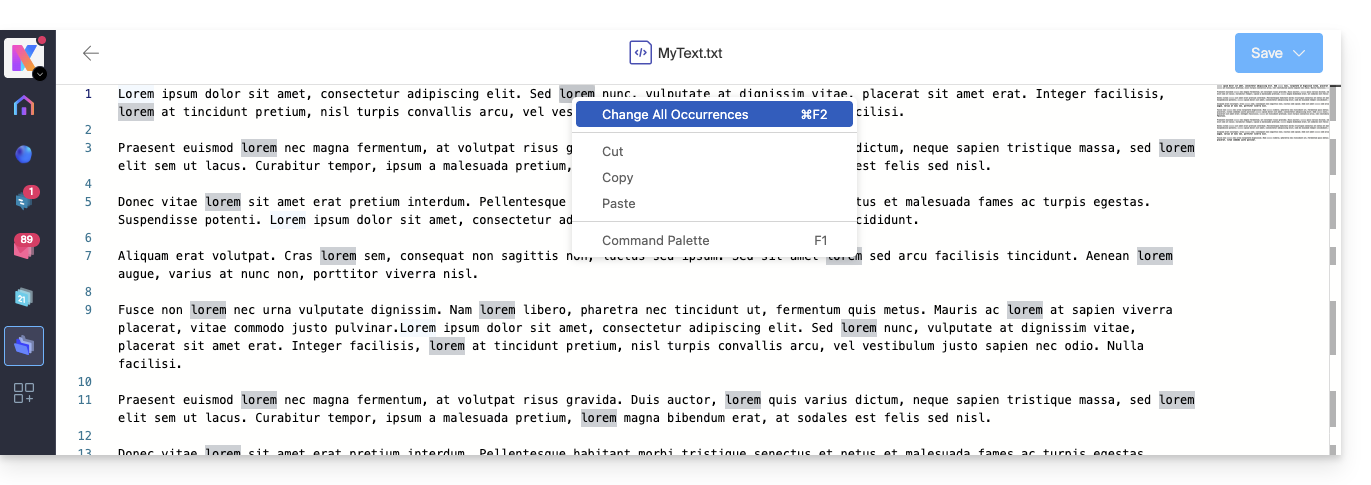
- Insira o texto que deve substituir a seleção; o texto substituirá todas as ocorrências idênticas:
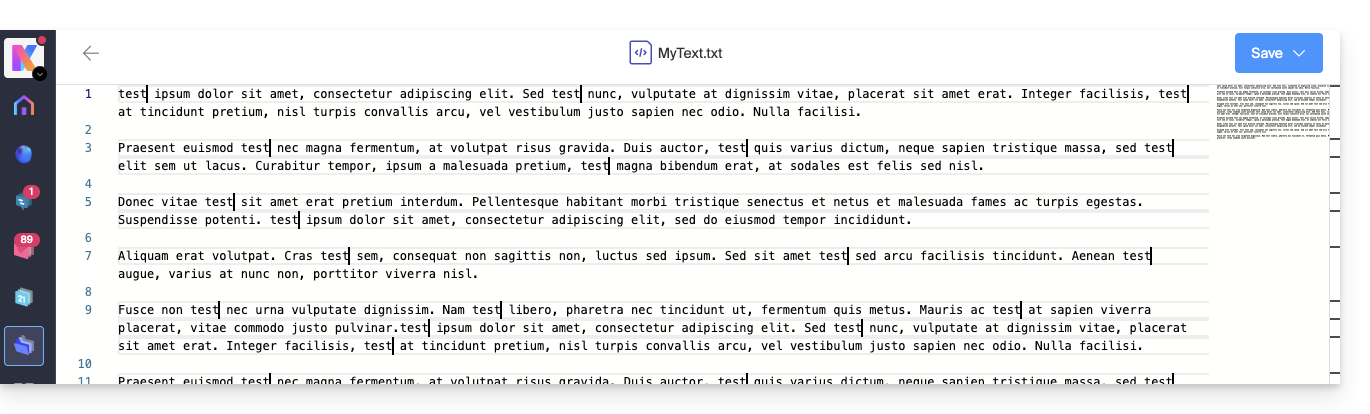
- O documento é guardado automaticamente, mas salve as suas alterações manualmente no canto superior direito, se necessário.
Link para esta FAQ: https://faq.infomaniak.com/2389
Esta seção de perguntas frequentes foi útil?
Este guia explica como transferir automaticamente as fotos do seu dispositivo móvel (iOS) para o kDrive da Infomaniak.
Introdução
- Após ativar esta funcionalidade, as fotos do dispositivo móvel serão guardadas na pasta kDrive que selecionar.
- Modo em primeiro plano:
- A sincronização funciona de forma ideal quando a aplicação kDrive está ativa e em primeiro plano.
- Modo em segundo plano
- O iOS limita o funcionamento de aplicativos fechados.
- O kDrive poderá, no entanto, realizar envios em sessões curtas (a cada 15 minutos, aproximadamente) ou durante a noite, se o dispositivo estiver carregando e conectado ao Wi-Fi.
- Nomeação de arquivos: a cópia de segurança automática pode renomear seus arquivos para evitar erros de colisão ou duplicatas (veja abaixo).
Ativar o envio para o kDrive no iOS (iPhone, iPad)
Pré-requisitos
Para configurar a cópia de segurança automática:
- Abra a aplicação móvel kDrive.
- Toque nas suas iniciais ou no seu avatar (no canto inferior direito).
- Vá para Configurações:
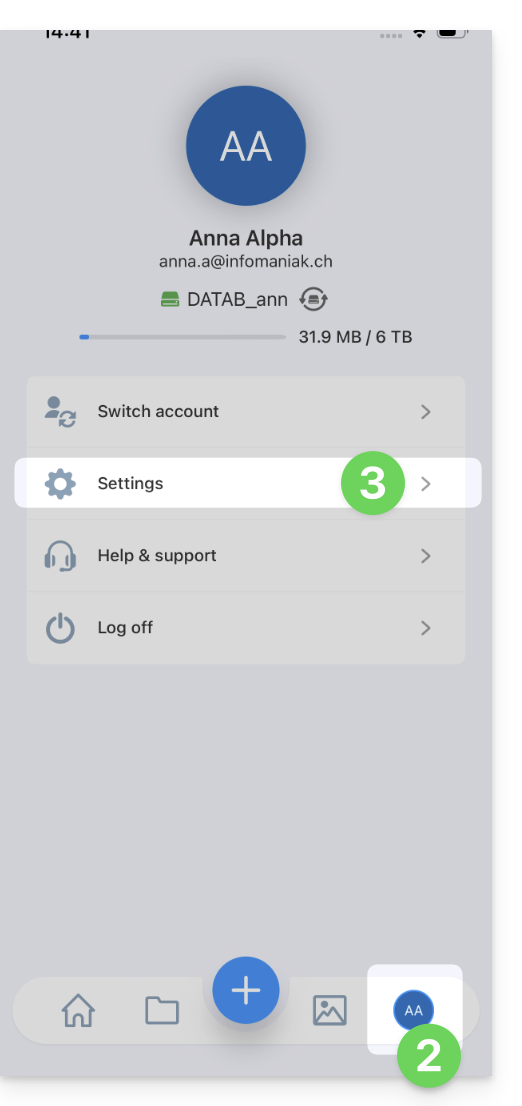
- Selecione Backup de fotos:
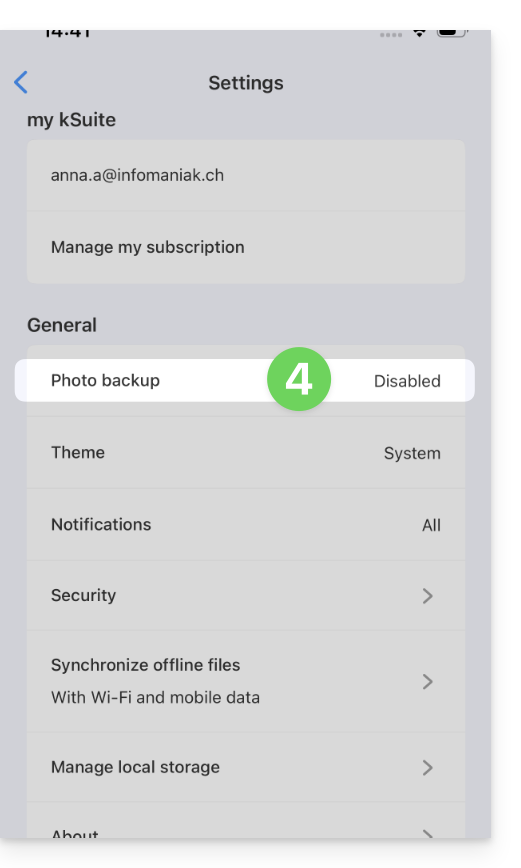
- Ative o Backup automático.
- Autorize o acesso às suas fotos de acordo com as opções oferecidas pelo iOS.
- Escolha o kDrive de destino e a pasta de destino.
- Ajuste as suas preferências (vídeos, capturas de ecrã, eliminação após o envio, etc.) e, em seguida, clique em Guardar.
Manter o nome original das fotos
Por padrão, a cópia de segurança automática renomeia os seus ficheiros (ex: 20260101_101000_1234.jpg) para evitar erros de colisão ou duplicados.
Se pretender que as suas fotografias mantenham o nome original (ex: IMG_3006.jpg) em vez de serem renomeadas por data, deverá utilizar a função de partilha do iOS em vez da cópia de segurança automática:
- Abra a aplicação Fotos do iOS.
- Selecione a(s) foto(s) desejada(s).
- Toque no ícone Compartilhar (quadrado com uma seta para cima).
- Selecione kDrive na lista de aplicativos.
- Escolha o local e envie.
A exportação manual através do botão Partilhar não é recomendada para transferências em massa de milhares de fotografias, mas garante a integridade do nome do ficheiro original.
Link para esta FAQ: https://faq.infomaniak.com/2394
Esta seção de perguntas frequentes foi útil?
Este guia explica como digitalizar documentos (de várias páginas) com o aplicativo móvel kDrive (aplicativo para smartphone ou tablet iOS / Android).
Pré-requisitos
- Possuir uma oferta kDrive ou kSuite.
- Instalar o aplicativo móvel kDrive (aplicativo para smartphone ou tablet iOS / Android).
Digitalizar documentos
Para digitalizar rapidamente documentos em papel e armazená-los no seu kDrive:
- Inicie o aplicativo móvel kDrive no seu dispositivo iOS ou Android.
- Toque no ícone na parte inferior:
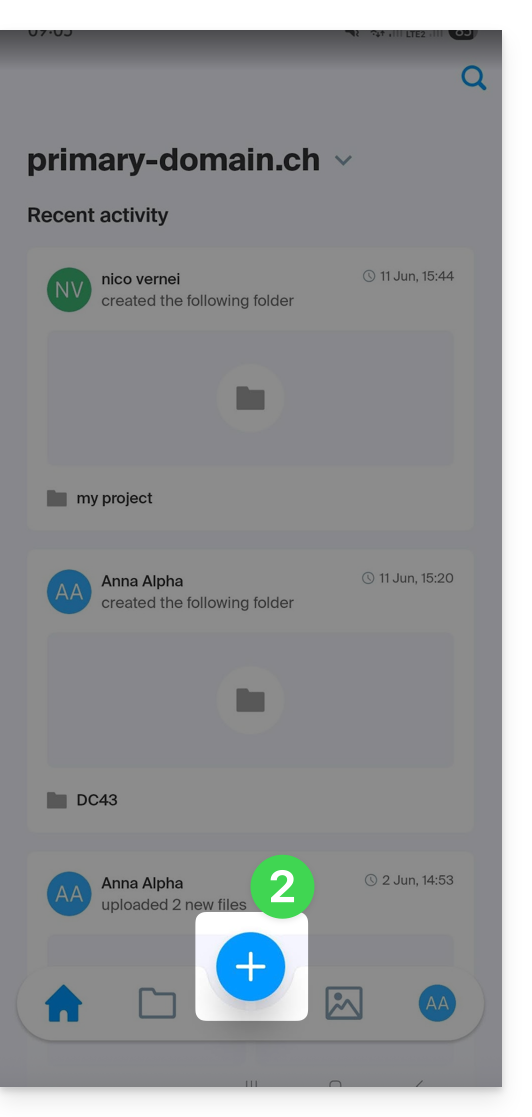
- Toque em Digitalizar um documento no painel que foi aberto:
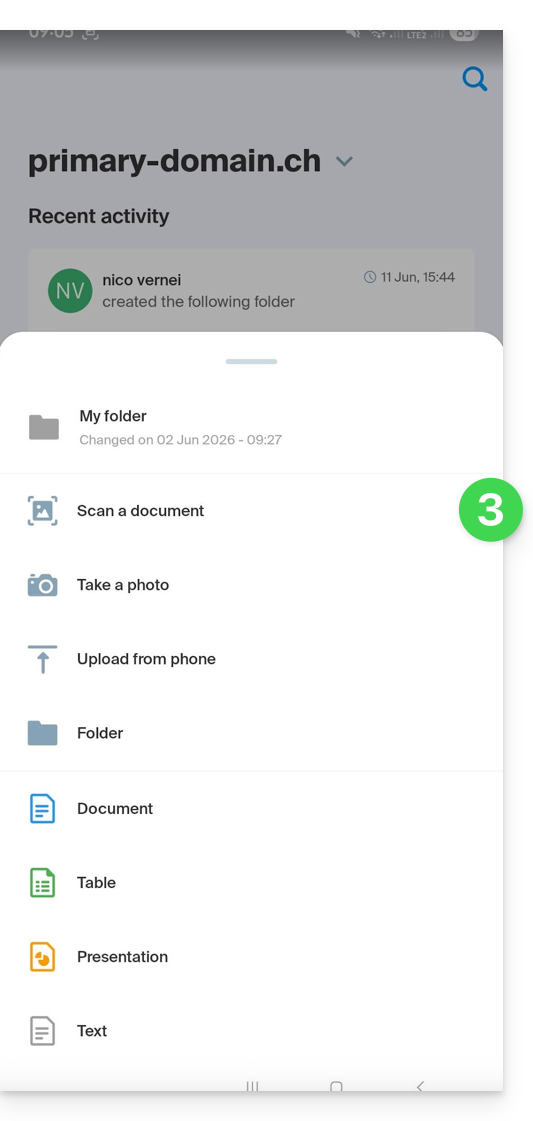
- Se necessário, autorize os acessos (câmera…) solicitados pelo aplicativo.
- A pesquisa e detecção de documentos são feitas automaticamente assim que a imagem estiver estável (um texto e um círculo indicam isso), mas você pode tocar no círculo central para acionar uma captura manualmente.
- Se necessário, ative o uso do flash.
- Ao digitalizar uma série de documentos, pode inserir manualmente um ficheiro já presente na sua galeria do dispositivo, para o adicionar ao seu documento de várias páginas:
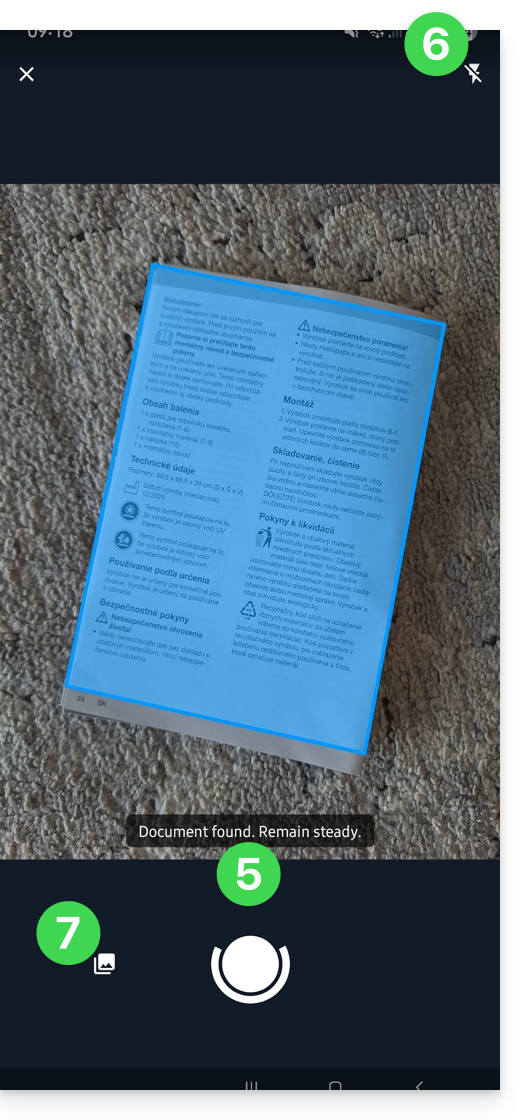
- Se a imagem selecionada não for do seu agrado, pode repetir a operação.
- Após selecionar a imagem, pode aplicar uma rotação, um filtro como o de preto e branco, um recorte, etc.
- Pode adicionar outras digitalizações ao seu documento final:
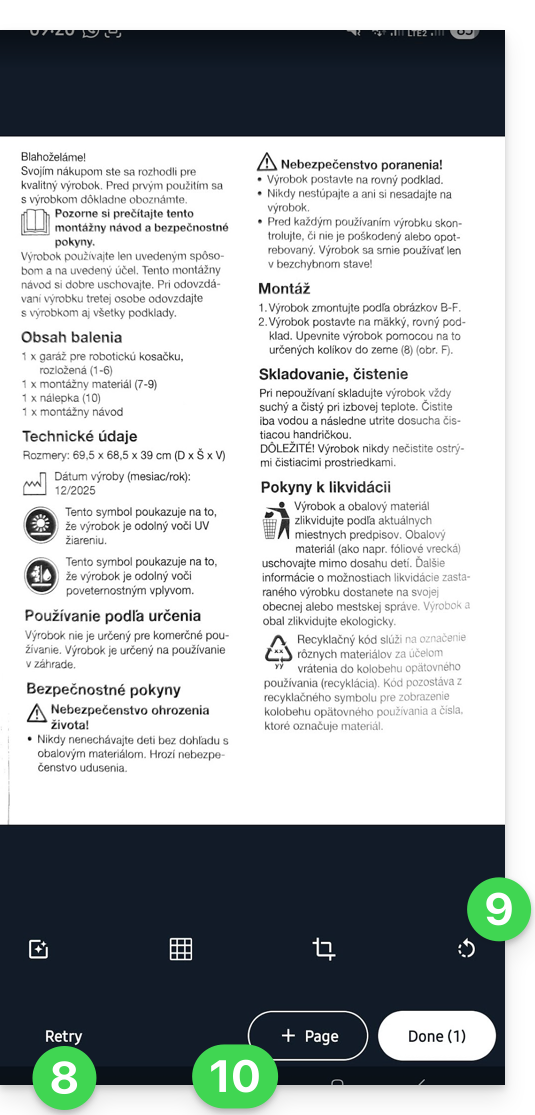
- Depois de adicionar as várias páginas (o número é exibido no botão), pressione Concluir no canto inferior direito:
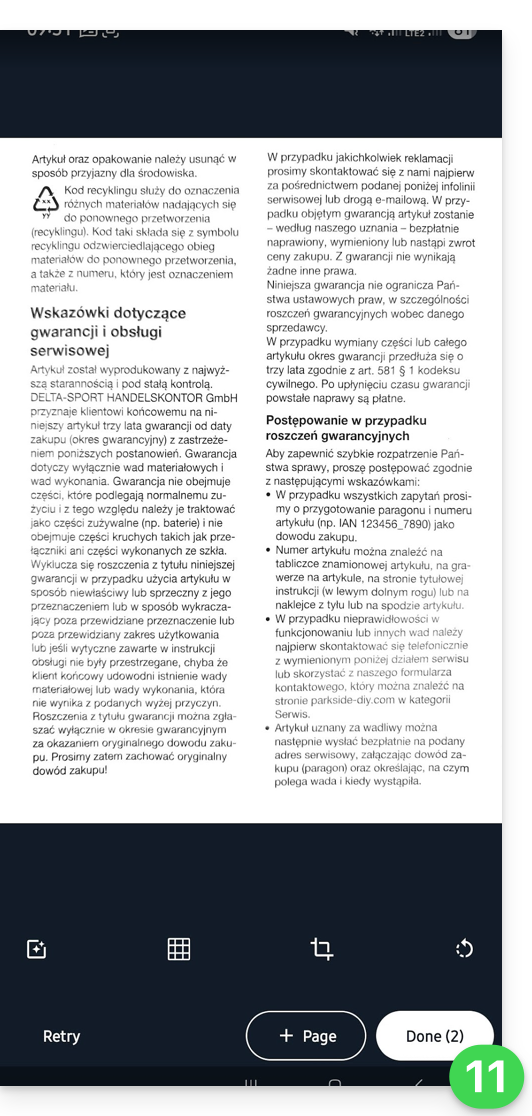
- Se a sua digitalização contiver várias páginas, estas serão agrupadas num PDF para ser guardado no local de sua preferência no kDrive; se houver apenas uma imagem, pode optar por guardá-la no formato .JPG (apenas iOS):
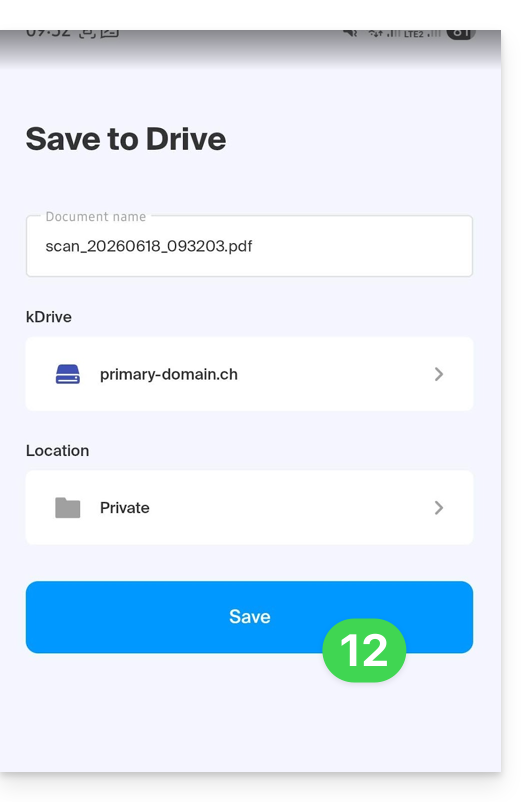
- O documento é enviado para o kDrive e pode consultá-lo:
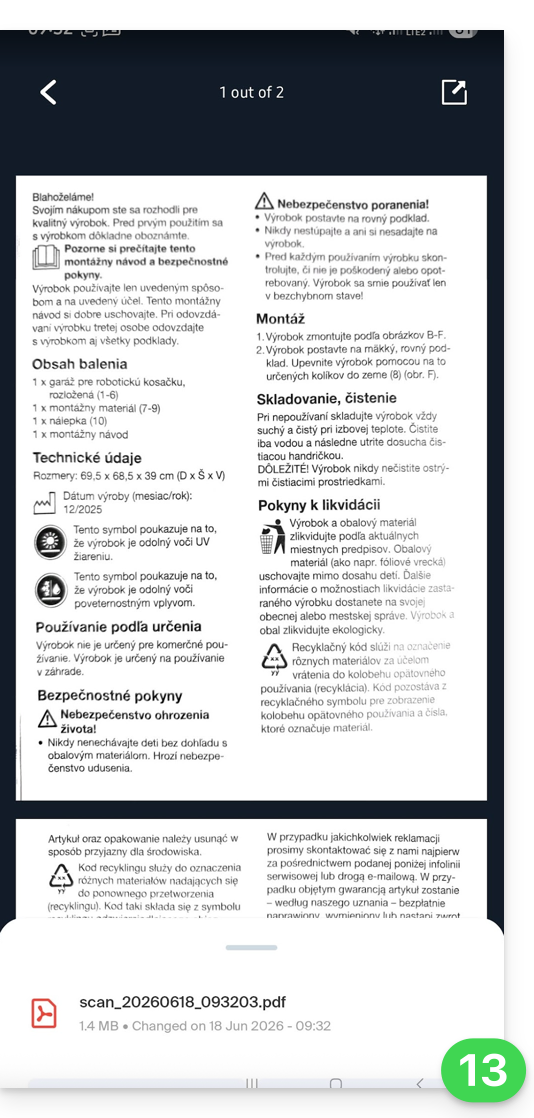
- Pode encontrá-lo, naturalmente, em todos os seus dispositivos conectados:
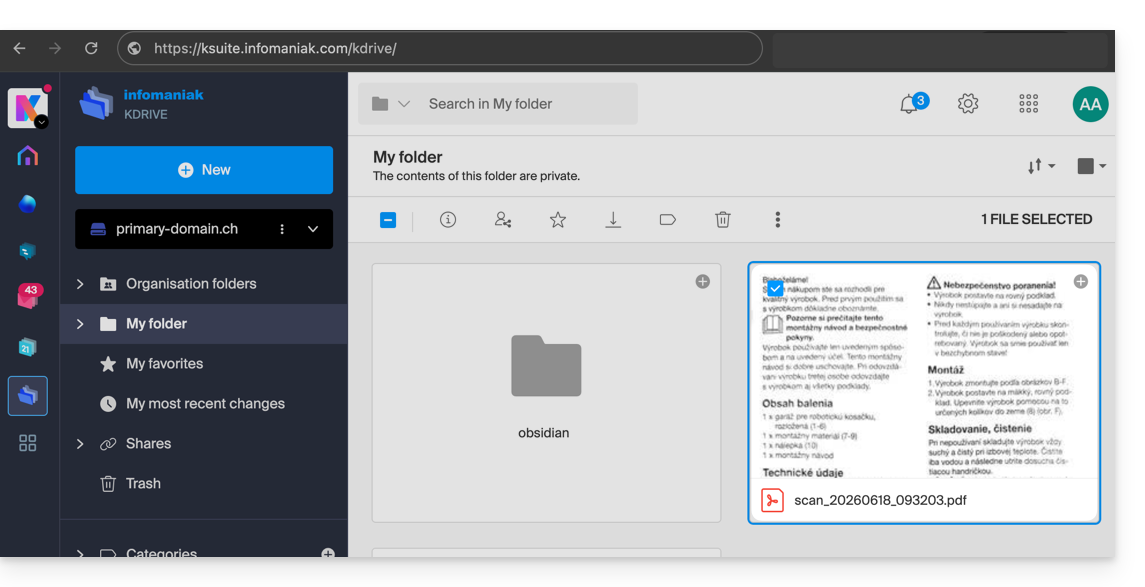
Link para esta FAQ: https://faq.infomaniak.com/2395
Esta seção de perguntas frequentes foi útil?
Este guia explica como conectar e gerenciar vários kDrive no aplicativo móvel kDrive (aplicativo para smartphone ou tablet iOS / Android). Esta funcionalidade permite, por exemplo, acessar os arquivos de um kDrive pessoal e de um kDrive profissional.
Pré-requisitos
- Ter uma oferta kDrive ou kSuite.
- Instalar o aplicativo móvel kDrive (aplicativo para smartphone ou tablet iOS / Android).
Aceder aos diferentes kDrive a partir da aplicação móvel
Um utilizador pode ter acesso a vários kDrive se já trabalhar com vários kDrive fora da aplicação, se tiver sido adicionado a outros kDrive, etc. Todos estarão acessíveis a partir do momento em que o utilizador estiver conectado.com o identificador de login correspondente a este kDrive.
É o caso no aplicativo Web…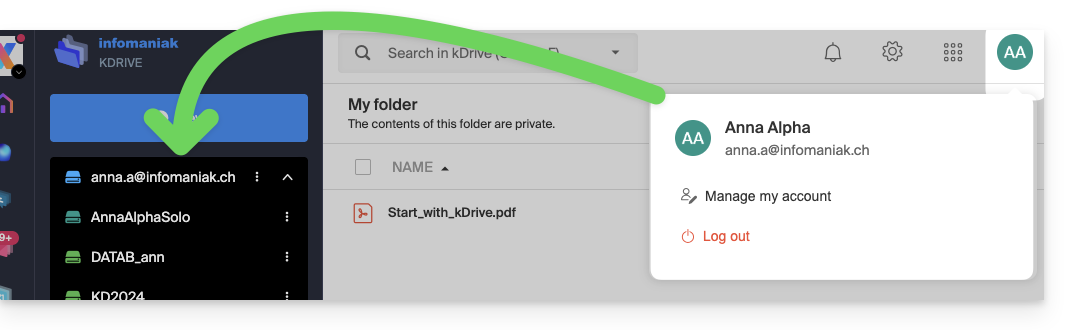 … assim como no aplicativo móvel:
Depois de se conectar à sua conta Infomaniak no aplicativo móvel kDrive, a maneira mais fácil de acessar os diferentes kDrives para os quais sua conta Infomaniak tem acesso é:
- Clique no ícone casa para ir para a página inicial.
- Clique no ícone de seta para baixo à direita do nome do kDrive atual:
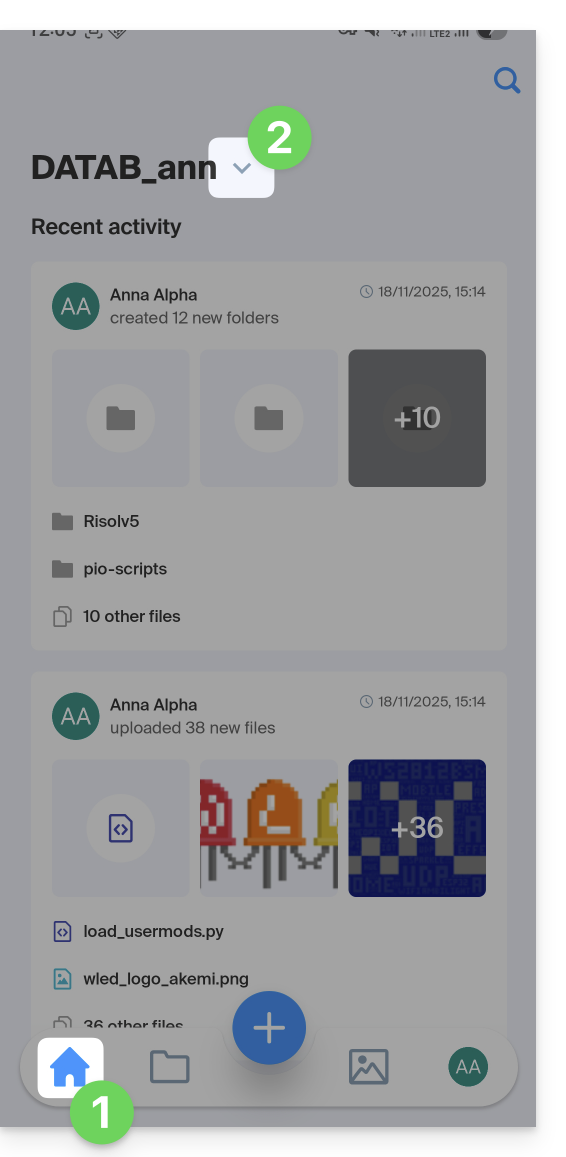
- No painel inferior que se abre, clique no nome do kDrive desejado:
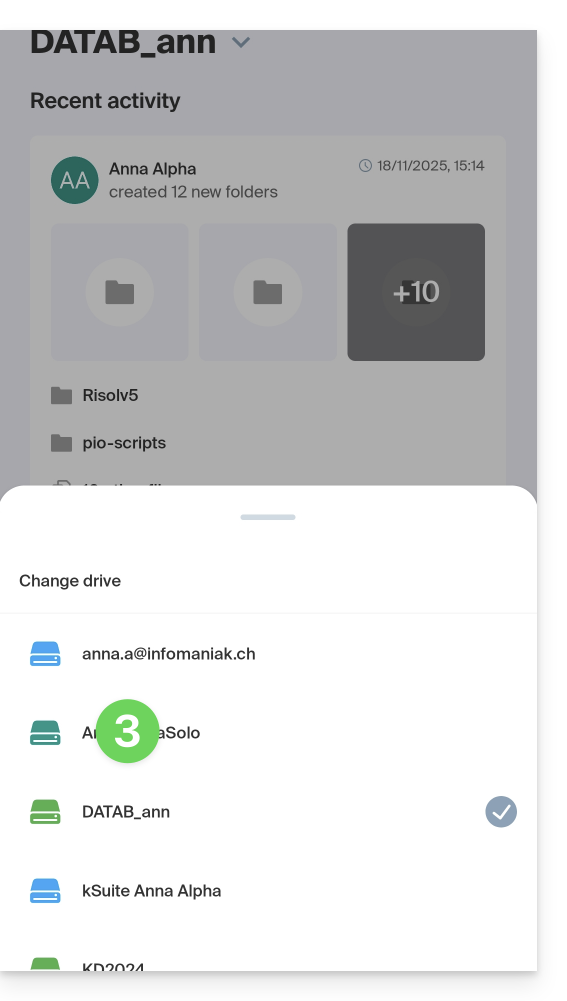
- Você será redirecionado para os dados do kDrive selecionado.
Acesso e gerenciamento de outras contas kDrive
Para iniciar sessão com uma conta Infomaniak diferente e, assim, aceder a outros kDrives:
- Abra a aplicação móvel kDrive.
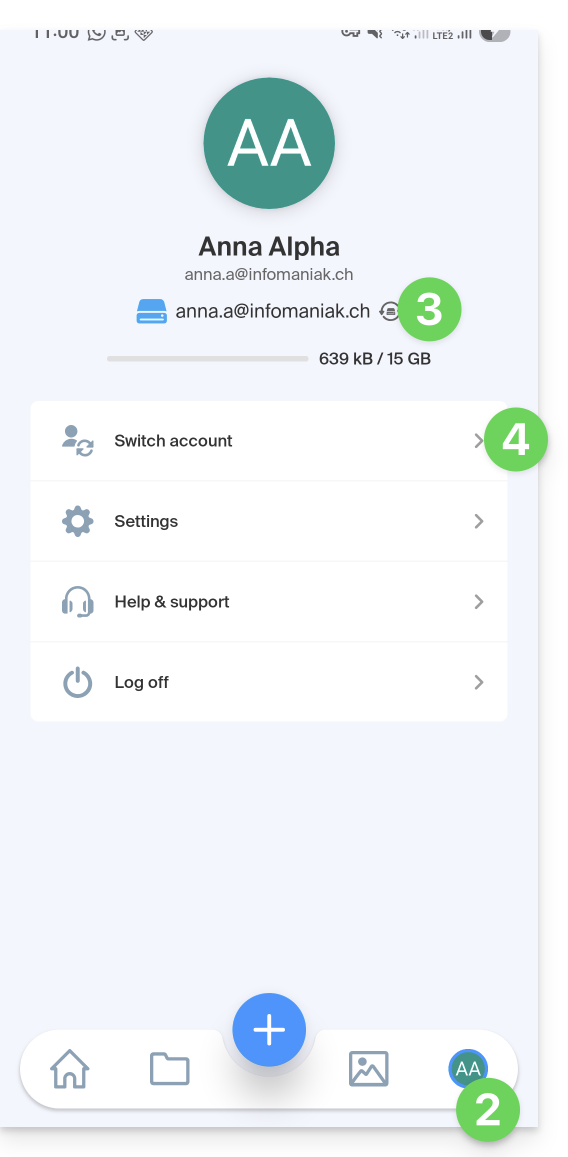
- Toque no ícone com suas iniciais ou seu avatar, no canto inferior direito.
- Toque no ícone à direita do nome do kDrive (apenas para verificar os kDrives aos quais você já tem acesso).
- Toque em Alterar utilizador:
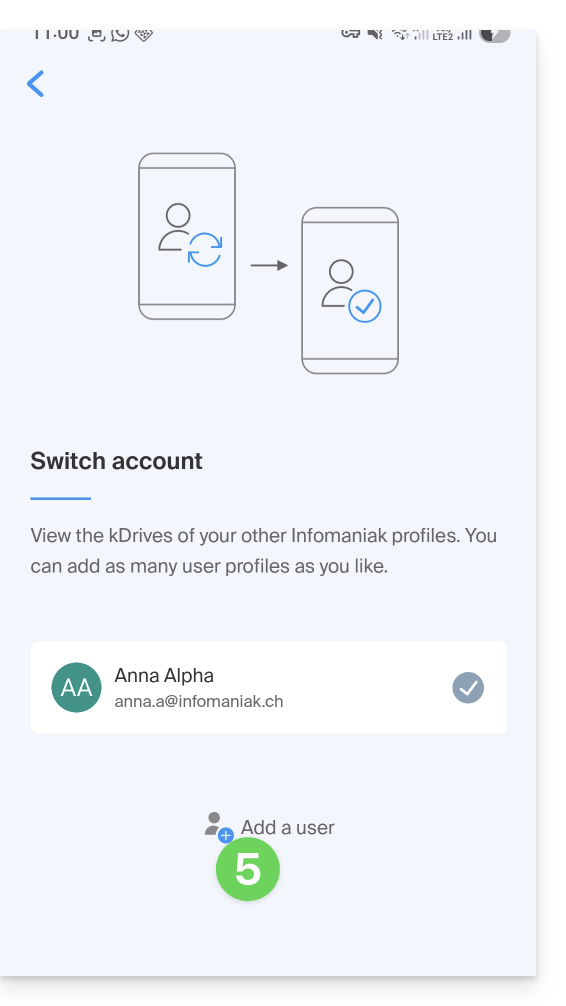
- Toque em Adicionar utilizador:
- Insira as credenciais da sua conta Infomaniak — consulte este outro guia, se necessário.
- Escolha o kDrive que deseja adicionar.
- Agora é possível alternar entre diferentes contas kDrive a partir do menu Utilizador > Mudar de utilizador; as credenciais das diferentes contas são mantidas.
Link para esta FAQ: https://faq.infomaniak.com/2396
Esta seção de perguntas frequentes foi útil?
Este guia explica como criar, salvar e editar um arquivo do tipo Office (texto, planilha, apresentação…) no aplicativo web kDrive (serviço online ksuite.infomaniak.com/kdrive) e no aplicativo móvel kDrive (aplicativo para smartphone ou tablet iOS / Android) usando o editor nativo.
Editar um arquivo de texto, planilha, apresentação…
Pré-requisitos
- Para criar e colaborar em uma planilha ou documento de texto, etc., diretamente no aplicativo web, o tamanho do arquivo em questão deve ser inferior a
100 MB; caso contrário, o download do documento será proposto e será necessário editá-lo localmente no seu computador com um aplicativo do tipo Office (OnlyOffice, por exemplo).- Preste atenção às imagens que você insere em seus documentos (comprima-as para reduzir seu tamanho e qualidade, se necessário).
O aplicativo web kDrive (serviço online ksuite.infomaniak.com/kdrive) integra nativamente os aplicativos Docs, Grids e Points, que permitem criar, modificar e colaborar online em documentos do tipo Word .docx, Excel .xlsx e PowerPoint .ppsx:
- Clique aqui para acessar o aplicativo web kDrive (serviço online ksuite.infomaniak.com/kdrive).
- Se necessário, abra a pasta na qual deseja criar um documento Office.
- Clique no botão Novo no canto superior esquerdo.
- Escolha o tipo de documento a criar:
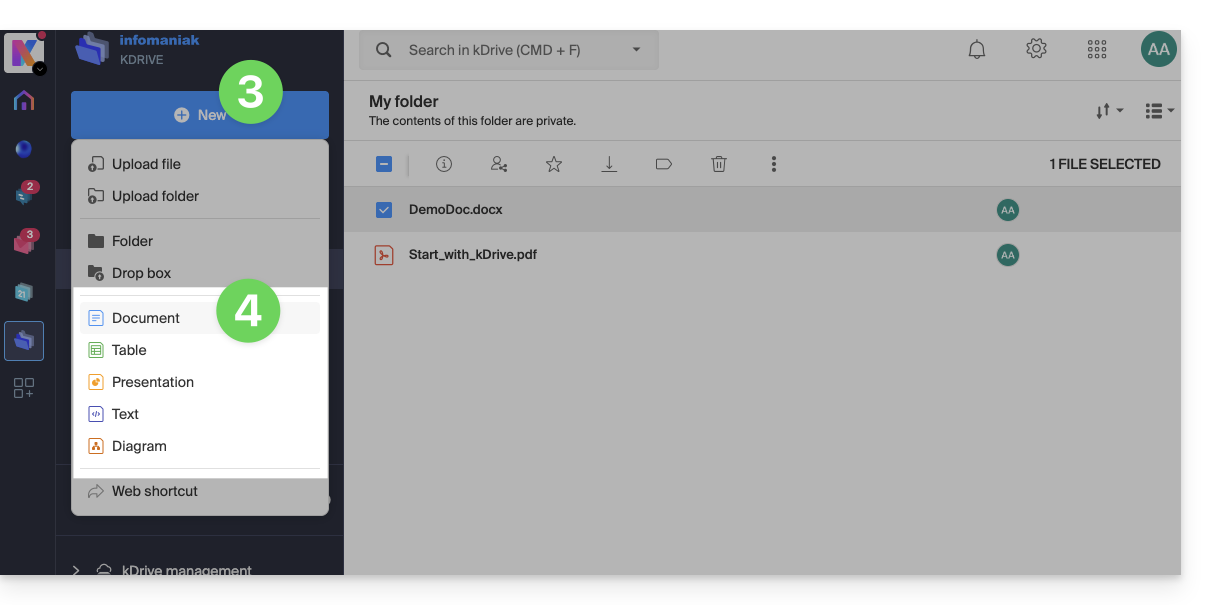
- documento de processamento de texto
- folha de cálculo
- apresentação
- texto simples (bloco de notas)
- documento draw.io para diagramas, esquemas e wireframes
- Atribua um nome ao ficheiro.
Para definir um editor como padrão, consulte este outro guia.
Função de pesquisa/substituição
Para trabalhar e substituir todas as ocorrências de um texto em poucos cliques, depois de criar o documento:
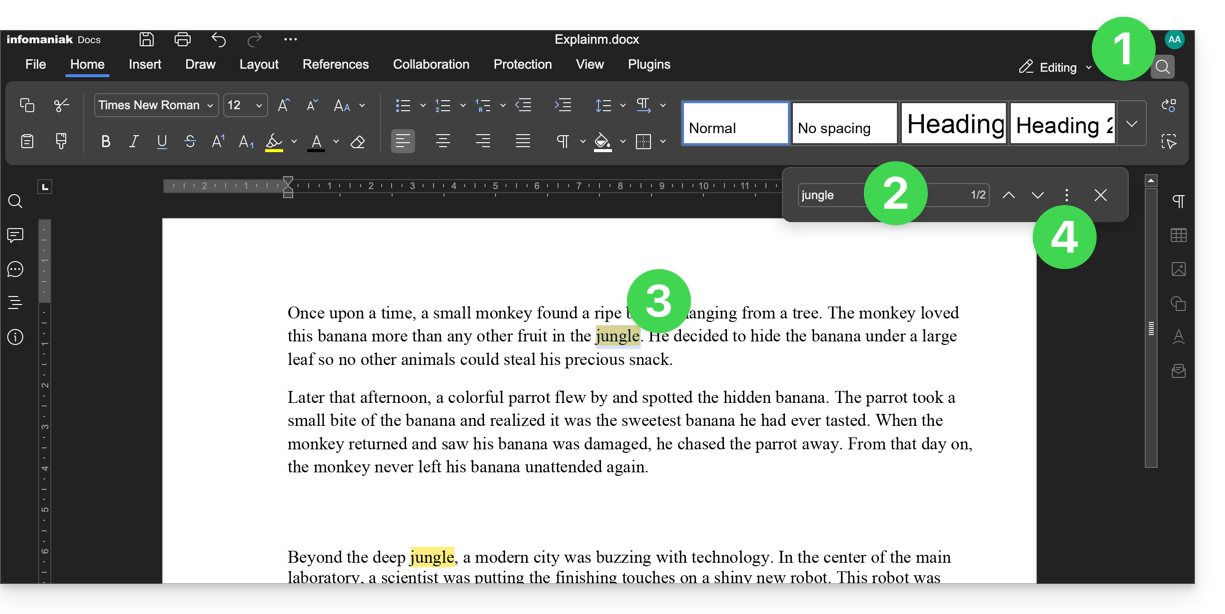
- Clique na função de pesquisa (ícone lupa no canto superior direito).
- Pesquise o termo a ser substituído em todo o texto.
- Verifique a seleção das ocorrências no texto.
- Clique no menu de ação ⋮ à direita do campo de pesquisa:
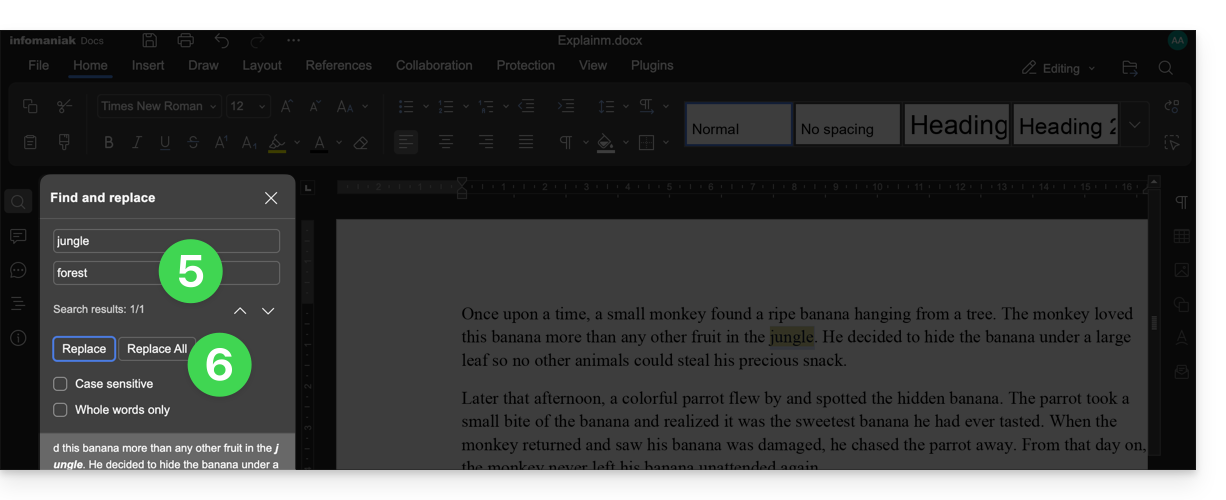
- Insira o texto que deve substituir a seleção.
- Clique em Substituir (para substituir um por um) ou Substituir tudo (o texto substitui todas as ocorrências idênticas):
Guardar o ficheiro
Ao trabalhar online nos seus ficheiros Word, Excel ou PowerPoint, estes são automaticamente guardados sempre que faz alterações.
Em caso de dúvida, tem a possibilidade de guardar manualmente um documento:
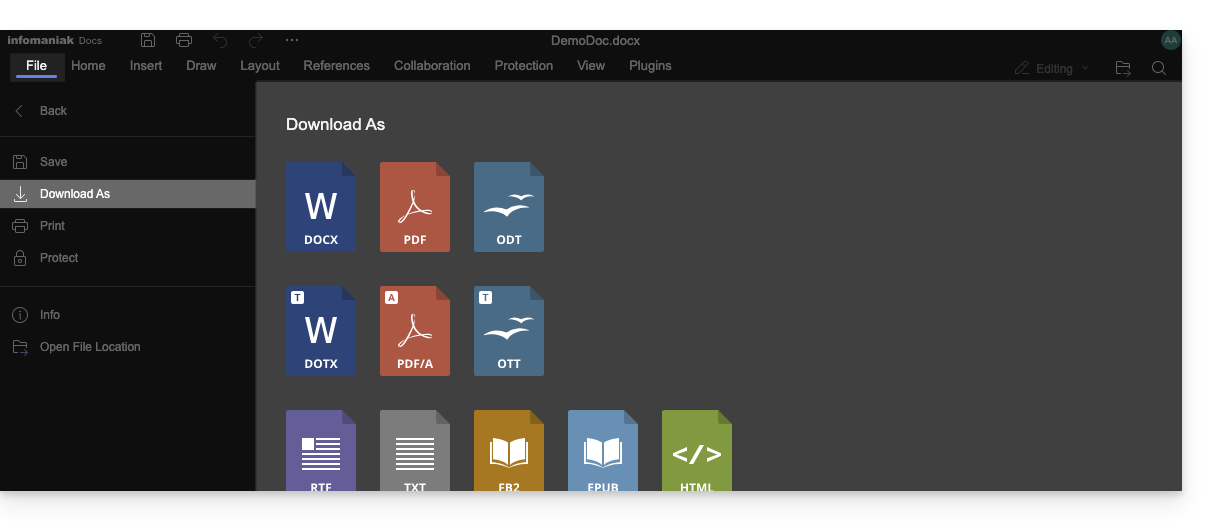
- Clique em Ficheiro e, em seguida, em Guardar (se "Guardar" estiver desativado, significa que o ficheiro já foi guardado).
- Se necessário, pode descarregar uma cópia do seu ficheiro no formato desejado (docx, pdf, rtf, epub, html, jpg, png…) clicando em Descarregar como...
Ficheiros com palavra-passe
Ao trabalhar online nos seus ficheiros Word, Excel ou PowerPoint, estes podem ser protegidos com uma palavra-passe. Consequentemente, ser-lhe-á solicitada a palavra-passe para abrir o ficheiro na interface Infomaniak, mas esta desaparecerá ao guardar o seu documento no kDrive.
De facto, não é possível definir uma palavra-passe ao guardar um documento no kDrive, nem manter a palavra-passe existente. Em alternativa, considere utilizar um outro editor disponível no kDrive, mas apenas com algumas ofertas pagas.
Adicionar um marcador
Existe uma funcionalidade que permite adicionar um marcador, uma espécie de atalho para uma parte favorita do seu documento ou o equivalente a uma âncora de uma página web:
- Edite um documento de texto no kDrive.
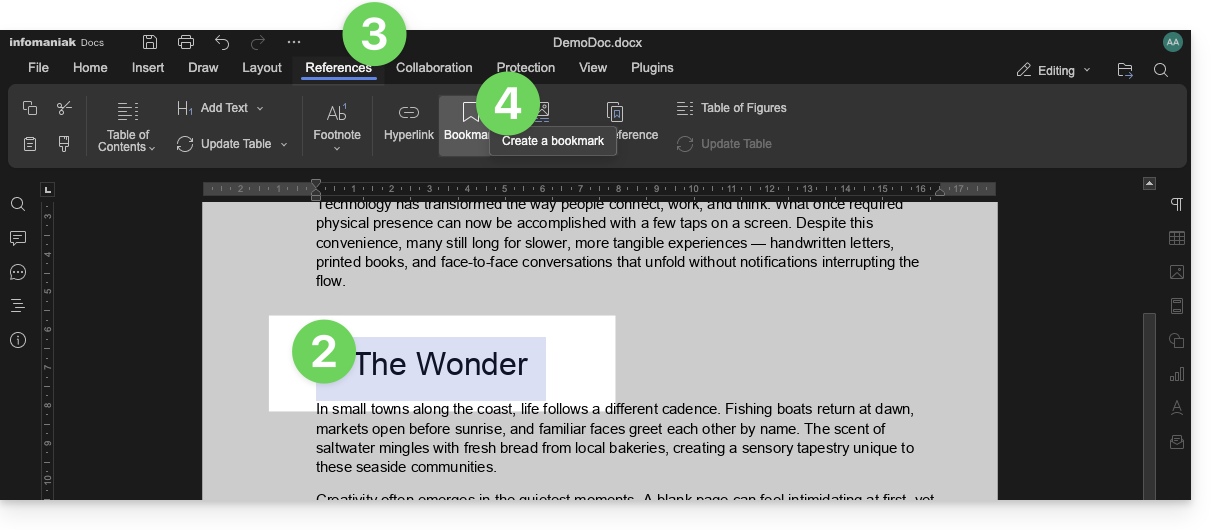
- Selecione o trecho de texto que servirá como ponto de referência.
- Clique na aba Referências.
- Clique em Marcador:
- Atribua um nome ao seu marcador.
- Clique no botão Adicionar:
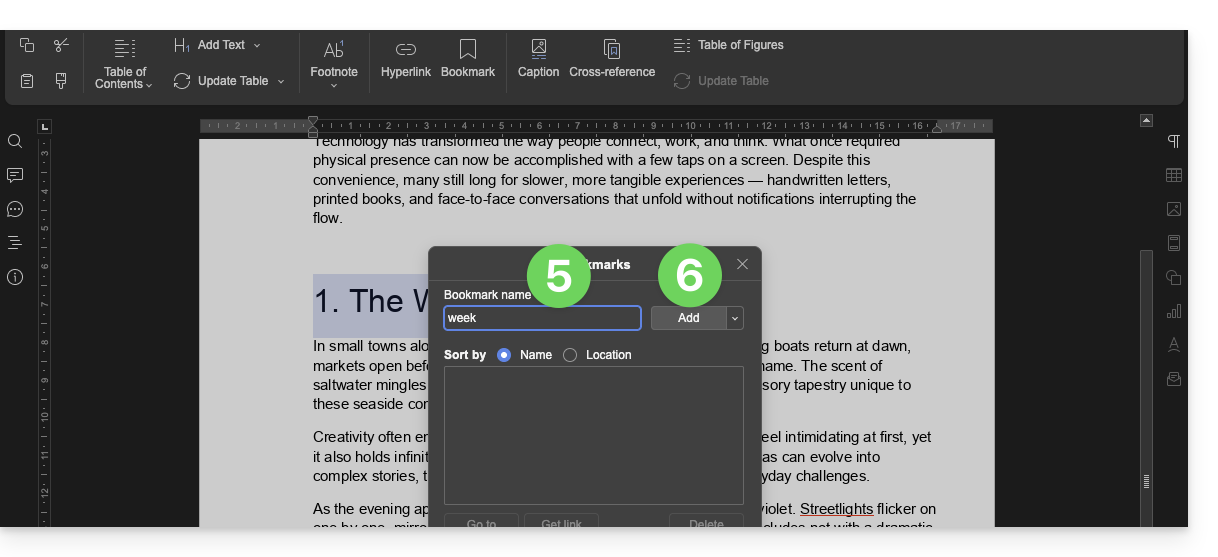
- A janela fecha, o seu local favorito é criado e guardado no documento.
Criar um link de partilha que direcione diretamente para o marcador
Depois de abrir o documento:
- Clique no separador Referências.
- Clique em Marcador.
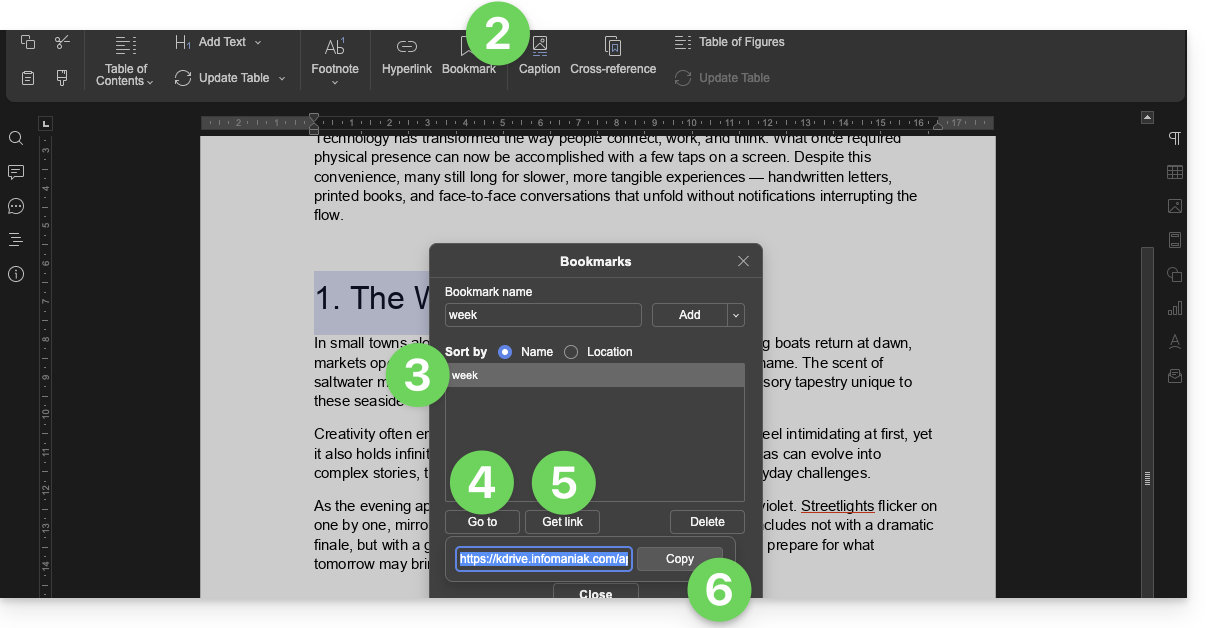
- Clique no nome do marcador para o qual deseja direcionar.
- Opcional: clique no botão Ir para para que o documento aberto em segundo plano seja exibido exatamente no local definido anteriormente.
- Clique no botão Obter link para partilhar o seu documento e obter um link que direcione o utilizador para o local exato do seu marcador.
- Clique no botão Copiar para colocá-lo diretamente na área de transferência:
Utilizadores kSuite: receber notificações no kChat
Uma funcionalidade permite aos utilizadores marcar (mencionar) colaboradores nos comentários de um documento através de um "+" seguido do nome do utilizador:
- Edite um documento no kDrive.
- Clique no separador Colaboração.
- Clique em Adicionar um comentário.
- Insira o seu comentário, mencionando, se necessário, um utilizador: digite o sinal
+seguido do nome: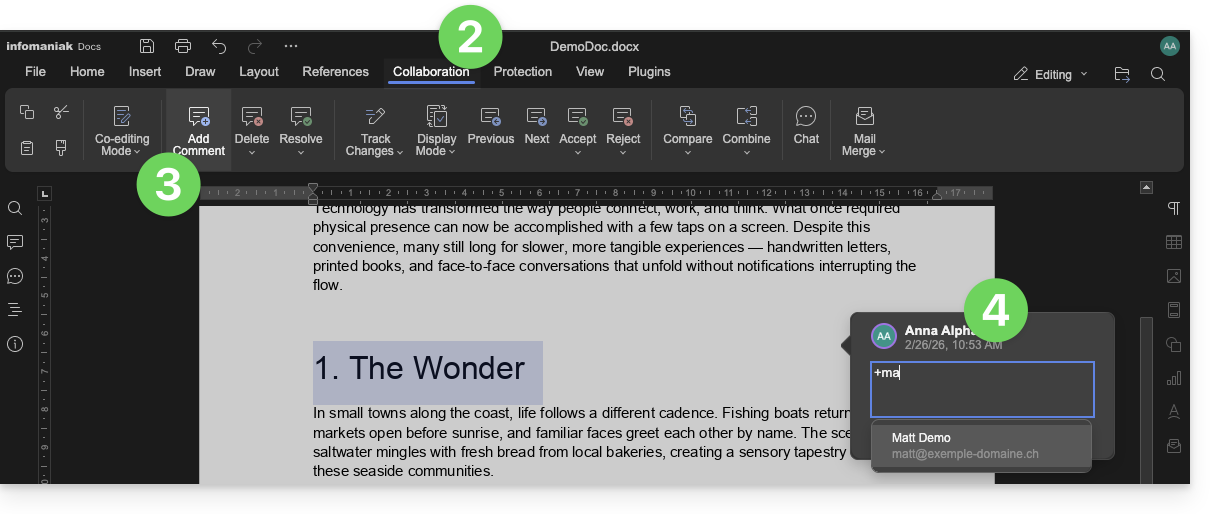
O utilizador marcado recebe um e-mail com os detalhes relevantes: nome do autor do comentário, link para o documento, data e hora do comentário.
Se o utilizador mencionado estiver online no kChat (da kSuite em questão), em vez de receber um e-mail, receberá uma notificação através do kChat Bot. Se o utilizador estiver offline ou no modo "não perturbar", o sistema enviará um e-mail.
Editar um documento do tipo Office no dispositivo móvel
A aplicação móvel kDrive (aplicação para smartphone ou tablet iOS/Android) integra nativamente as aplicações Docs, Grids e Points, que permitem criar, editar e colaborar online em documentos do tipo Word .docx, Excel .xlsx e PowerPoint .ppsx: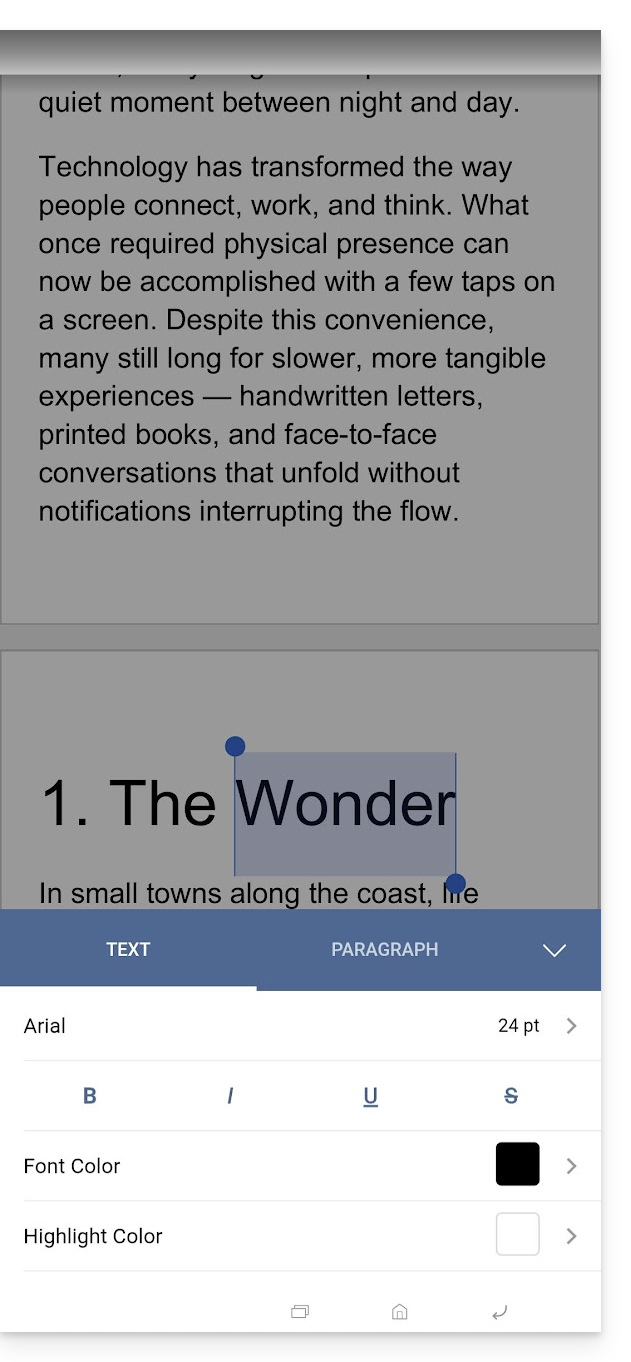
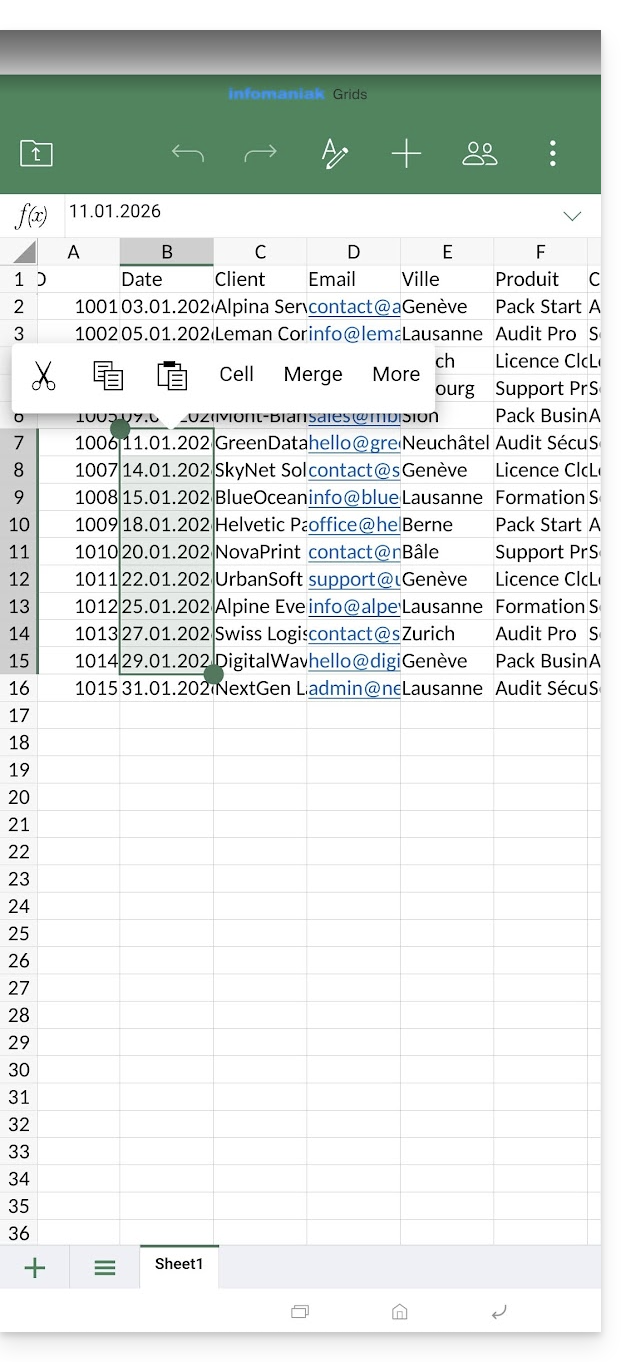
Link para esta FAQ: https://faq.infomaniak.com/2399
Esta seção de perguntas frequentes foi útil?
Este guia detalha as possíveis soluções quando o ícone do aplicativo de desktop kDrive (aplicativo para macOS / Windows / Linux) fica laranja, o que significa que ocorreu um conflito durante a sincronização.
Introdução
- o kDrive não indica se um arquivo está aberto ou sendo modificado em outro computador local (nenhum alerta é exibido nesse caso):
- Portanto, é perfeitamente possível visualizar (ler) um arquivo enquanto ele está sendo modificado em outro computador sem que isso gere conflito.
- O conflito surge apenas em caso de modificação simultânea.
Casos de conflitos de sincronização do kDrive
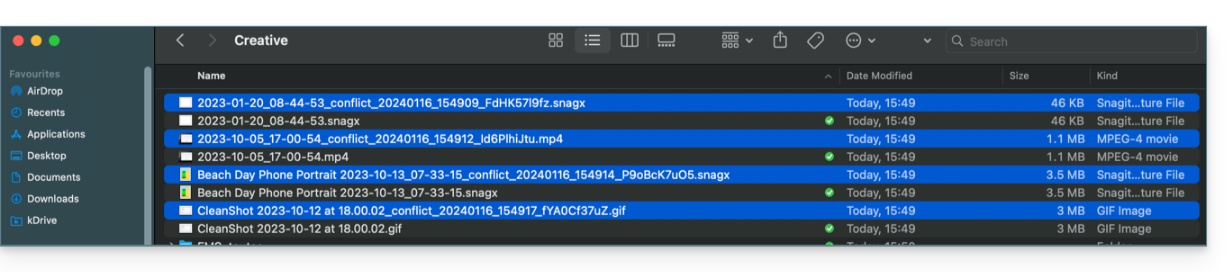
Quando os arquivos conflict aparecem?
- Quando você modifica um arquivo localmente, enquanto ele também está sendo modificado no kDrive Web (as duas versões se tornam diferentes).
- Quando você cria ou move um arquivo enquanto uma operação semelhante está ocorrendo simultaneamente no kDrive Web.
- Quando você modifica um arquivo cujo diretório pai foi excluído no kDrive Web.
- Quando uma movimentação de arquivo não pode ser sincronizada corretamente.
Em todos estes casos
- A versão kDrive Web permanece inalterada.
- A sua versão local é guardada com o nome "[nome do ficheiro]_conflict".
- O arquivo em conflito não está sincronizado com o kDrive Web.
O que fazer com esses arquivos em conflito?
- Ou manter as duas versões (mas apenas o arquivo original será sincronizado).
- Ou excluir o arquivo
_conflictse for a versão menos recente. - Ou, exclua a versão original (não
_conflict) se ela estiver desatualizada e, em seguida, renomeie o arquivo_conflictpara sincronizá-lo. - Ou, mescle manualmente as duas versões antes de excluir o arquivo
_conflict.
Durante uma reinstalação da aplicação kDrive
Esses conflitos também podem ocorrer se você desinstalar e reinstalar a aplicação sem remover a configuração, enquanto alterações foram feitas no kDrive Web. Para evitar isso, recomenda-se:
- Ou não guardar a configuração durante a desinstalação.
- Ou sincronizar completamente antes de qualquer desinstalação.
- Consulte as boas práticas mais abaixo neste guia.
Gerenciamento de conflitos de sincronização
Quando são feitas modificações simultâneas no mesmo arquivo (localmente e no kDrive Web, ou enquanto a aplicação está fechada), o kDrive gerencia automaticamente esses conflitos de acordo com regras específicas.
Para as versões do aplicativo kDrive anteriores à 3.6.11
- Em caso de criação simultânea, modificação concorrente ou deslocamento conflitante, a versão kDrive Web tem sempre prioridade. A versão local é renomeada com "
_conflict". - Para conflitos que envolvem uma exclusão na versão kDrive Web, o arquivo local é geralmente mantido e resincronizado.
- As transferências conflitantes são canceladas e recalculadas de acordo com o estado do kDrive Web.
A partir da versão 3.6.11
Para os arquivos "placeholder" (arquivos desidratados via Lite Sync):
- Eles são automaticamente excluídos localmente.
- Se o ficheiro ainda existir no kDrive Web, será resincronizado corretamente.
Para os outros casos:
- A versão web do kDrive continua a ser a principal na maioria das situações.
- Os ficheiros locais em conflito são renomeados com “
_conflict”. - Exceção importante: quando um arquivo modificado localmente deve ser excluído de acordo com o estado do kDrive Web…
- … ele é movido para uma pasta chamada "
Pasta de Recuperação do kDrive" (em vez de ser excluído); isso protege suas modificações locais contra uma exclusão acidental.
- … ele é movido para uma pasta chamada "
Casos particulares:
- Se uma pasta principal for excluída, os arquivos modificados localmente serão preservados.
- Os ciclos de movimentação (pastas movidas reciprocamente) são resolvidos em favor do estado do kDrive Web.
- Em caso de conflitos de renomeação, a versão kDrive Web tem prioridade.
Como exibir os conflitos?
Para exibir os arquivos em conflito:
- Clique com o botão esquerdo no ícone do aplicativo desktop kDrive na área de notificação do seu computador (no canto superior direito no macOS, no canto inferior direito no Windows e um clique duplo com o botão esquerdo na barra de tarefas no Linux).
- Clique no botão de informação na parte superior.
- Clique no evento listado para ver os detalhes:

- Os conflitos e erros são exibidos em 2 guias distintas, permitindo que você visualize os dados não sincronizados:
- A primeira guia permite resolver os conflitos:

- Você deverá então escolher como resolver o conflito, decidindo enviar a versão local:
- para o servidor (sincronizar)
- ou para a lixeira do computador

Como evitar conflitos de sincronização
Recomendações:
- Não trabalhe no mesmo arquivo com várias pessoas (a menos que esteja trabalhando online em um documento Word, Excel ou PowerPoint).
- Sincronize suas alterações offline antes de modificar os mesmos arquivos online.
- Evite criar pastas com o mesmo nome de pastas que você não sincroniza em um dispositivo.
Se necessário, para resolver manualmente alguns conflitos de sincronizaçãoque não o tenham feito automaticamente:
- Abra os dois arquivos.
- Compare as diferenças.
- Recupere as informações do arquivo de conflito (aquele com o ponto de exclamação) no arquivo base.
- Exclua o arquivo de conflito que não está sendo sincronizado (aquele com o ponto de exclamação e a indicação
cópia em conflito):
Não consegue ver os arquivos de conflito em todos os seus dispositivos?É normal; o arquivo de conflito (aquele com o ponto de exclamação e a menção cópia em conflito no nome) não está sincronizado. A ideia é que você, o autor das alterações, é a pessoa mais indicada para resolver o conflito.
Consulte este outro guia se você encontrar um problema, mesmo que o ícone do aplicativo para desktop kDrive esteja verde.
Link para esta FAQ: https://faq.infomaniak.com/2403
Esta seção de perguntas frequentes foi útil?
Este guia fornece instruções para sincronizar o kDrive com um NAS Synology (ou vice-versa) através do protocolo WebDAV, que pode ser encontrado na aplicação Cloud Sync.
✘ INDISPONÍVEL com
kSuite Free / kSuite Standard
my kSuite / my kSuite+ (ik.me, etik.com, ikmail.com)
Pré-requisitos
- Ter um NAS Synology acessível pela Internet.
- Conheça o seu identificador kDrive (ID kDrive).
Sincronizar o kDrive e o Synology através do Cloud Sync
Para isso:
- Aceda ao DiskStation Manager (DSM) do Synology.
- Se necessário, descarregue e instale a aplicação Cloud Sync a partir do Centro de Pacotes.
- Abra o Cloud Sync.
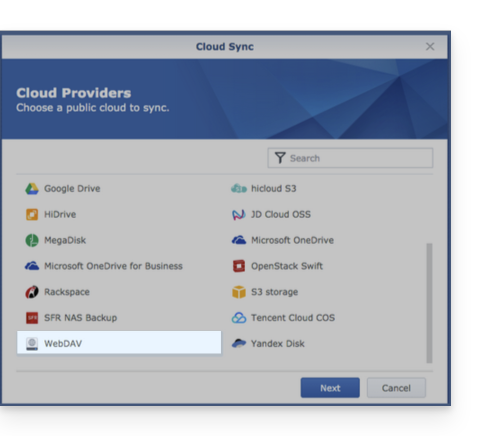
- Clique em + no canto inferior esquerdo para adicionar uma nuvem.
- Escolha WebDAV na parte inferior da lista de nuvens disponíveis:
- Para as configurações da conta, utilize as seguintes informações:
- Endereço do servidor:
https://IDkDrive.connect.kdrive.infomaniak.com(consulte os pré-requisitos). - Nome de usuário: endereço de e-mail usado para fazer login na sua conta Infomaniak.
- Senha: crie uma senha de aplicativo para este uso específico.
- Endereço do servidor:
- Escolha a pasta local, o destino e o tipo de sincronização desejado:
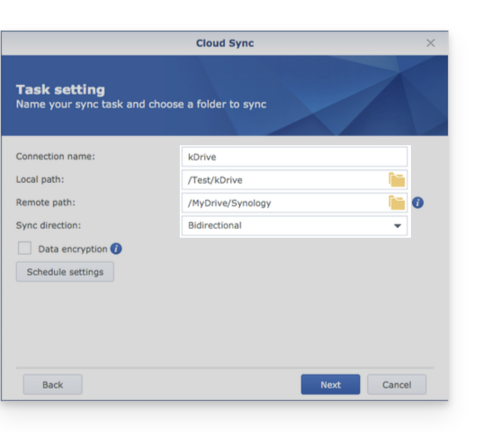
- Bidirecional: as alterações serão refletidas em ambas as direções.
- Fazer download apenas das alterações remotas: ideal para fazer backup de um kDrive no seu NAS.
- Fazer download apenas das alterações locais: ideal para fazer backup de dados do seu NAS em um kDrive.
Link para esta FAQ: https://faq.infomaniak.com/2404
Esta seção de perguntas frequentes foi útil?