Base de conhecimento
1000 perguntas frequentes, 500 tutoriais e vídeos explicativos. Aqui, você encontra apenas soluções!
Scan with the kDrive mobile app
Atualização 27/10/2026
This guide explains how to scan documents (including multi-page documents) using the kDrive mobile app (application for iOS/Android smartphones or tablets).
Prerequisites
- Have a kDrive.
- Install the kDrive mobile app (❓: help) and log in.
Scan documents
To quickly scan paper documents and store them on your kDrive:
- Launch the kDrive mobile app on your iOS or Android device.
- Tap the icon at the bottom:
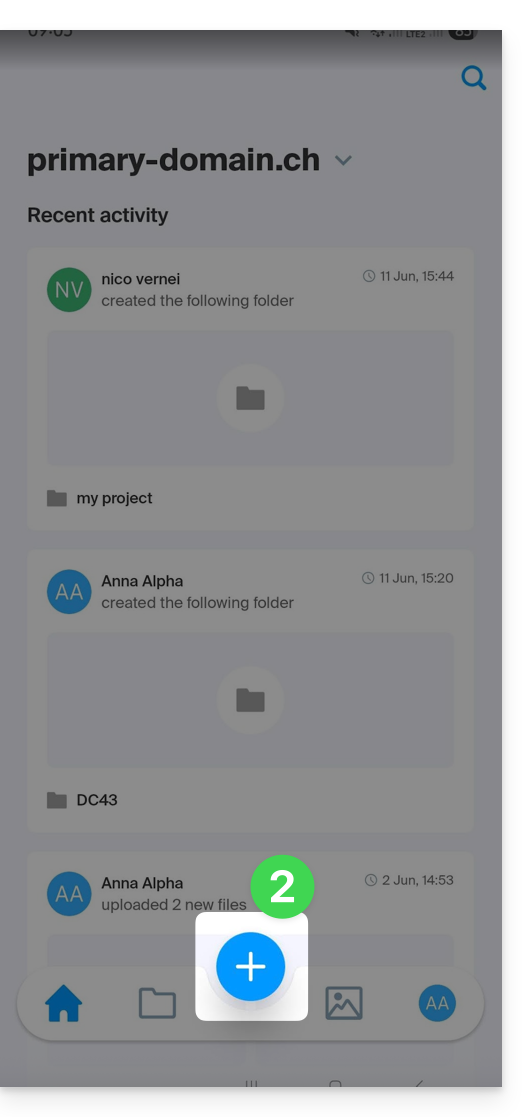
- Tap Scan a document in the panel that opens:
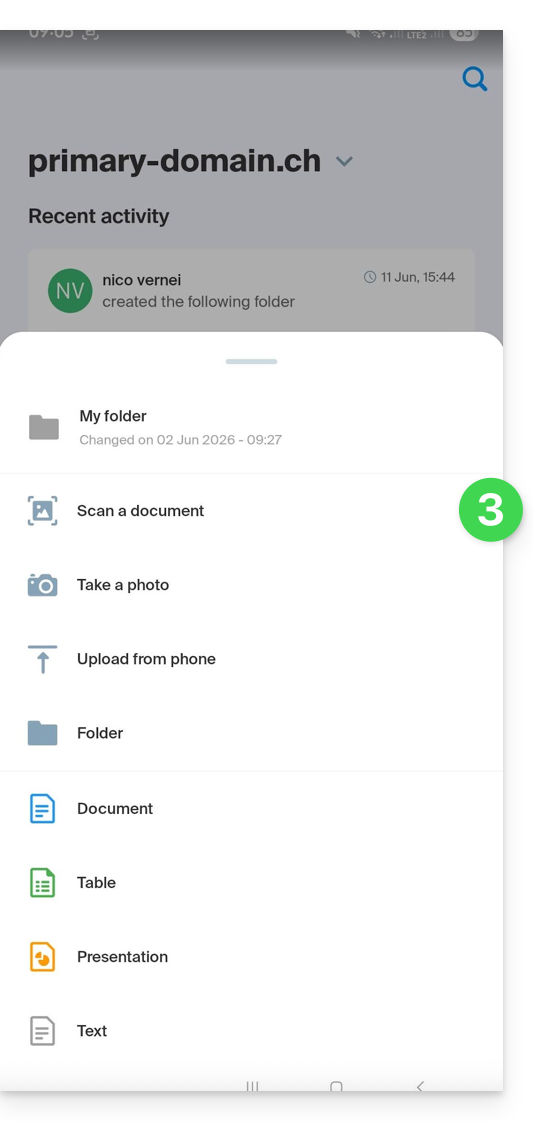
- If necessary, grant the permissions (camera, etc.) requested by the app.
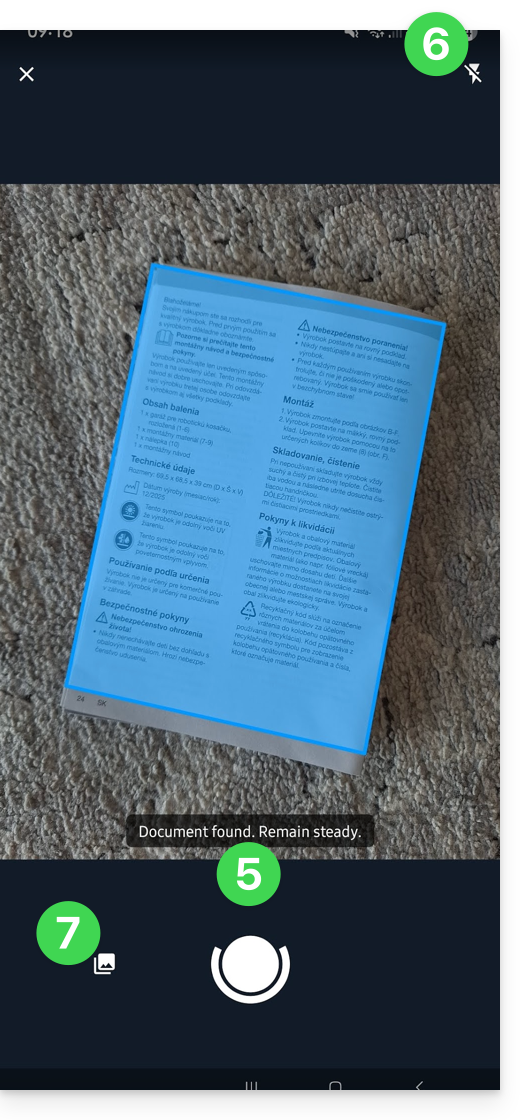
- The search and detection of documents is performed automatically as soon as the image is stable (text and a circle will indicate this), but you can tap the central circle to trigger a capture manually.
- If necessary, enable the use of the flash.
- When scanning a series of documents, you can manually insert a file already present in your device's gallery to add it to your final multi-page document:
- If the selected image does not meet your needs, you can repeat the operation.
- Once you have selected an image, you can apply a rotation, a filter such as black & white, cropping, etc.
- You can add other scans to your final document:
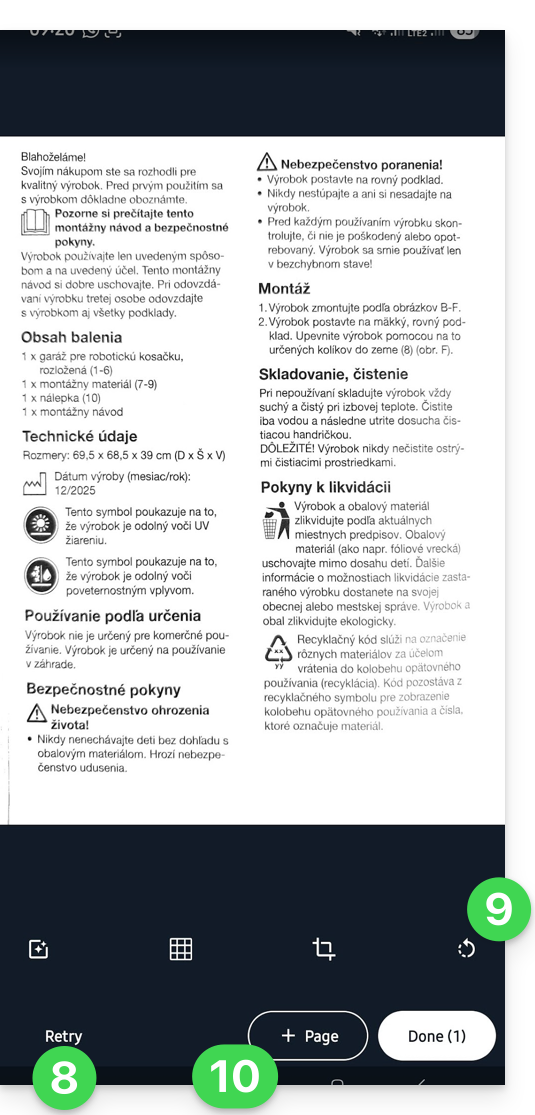
- Once you have added all your pages (the number is displayed on the button), click Finish at the bottom right:
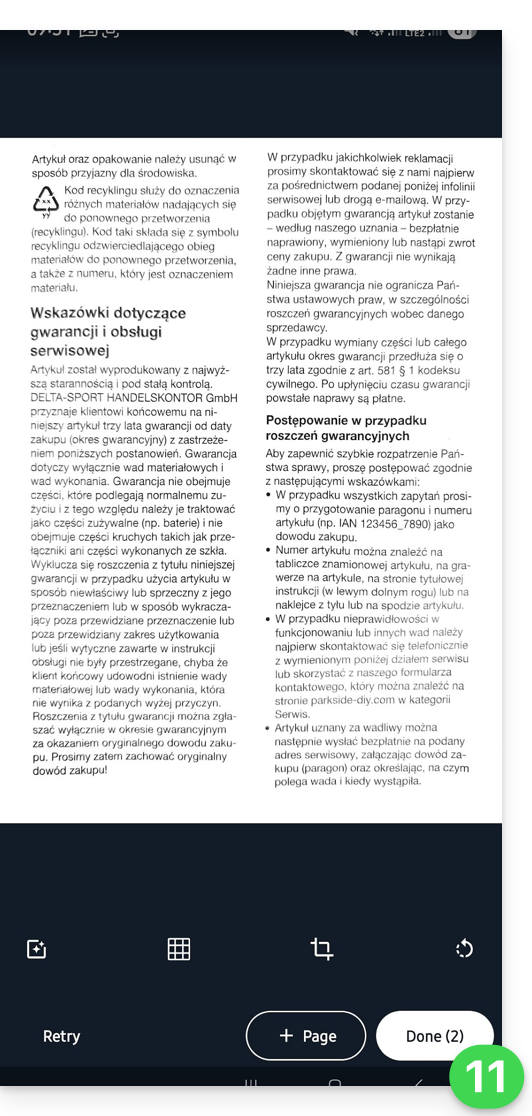
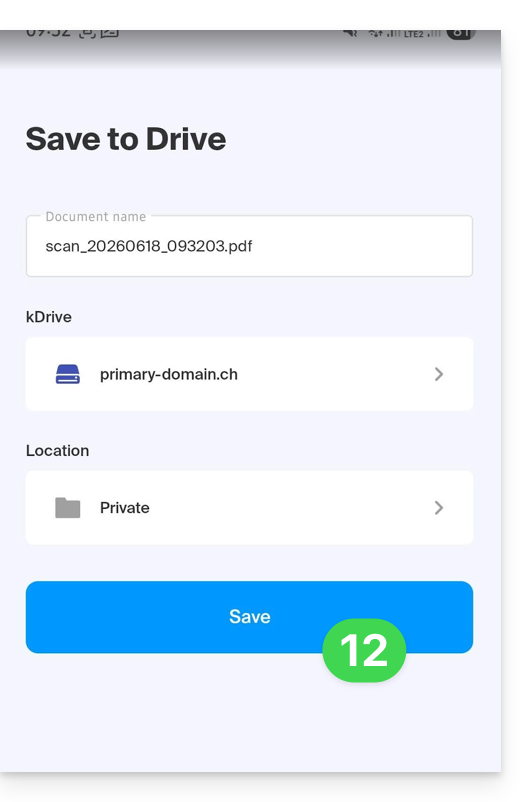
- If your scan contains multiple pages, they will be grouped into a PDF to be saved in the location of your choice on kDrive; if there is only one image, you can choose to save it in .JPG format (iOS only):
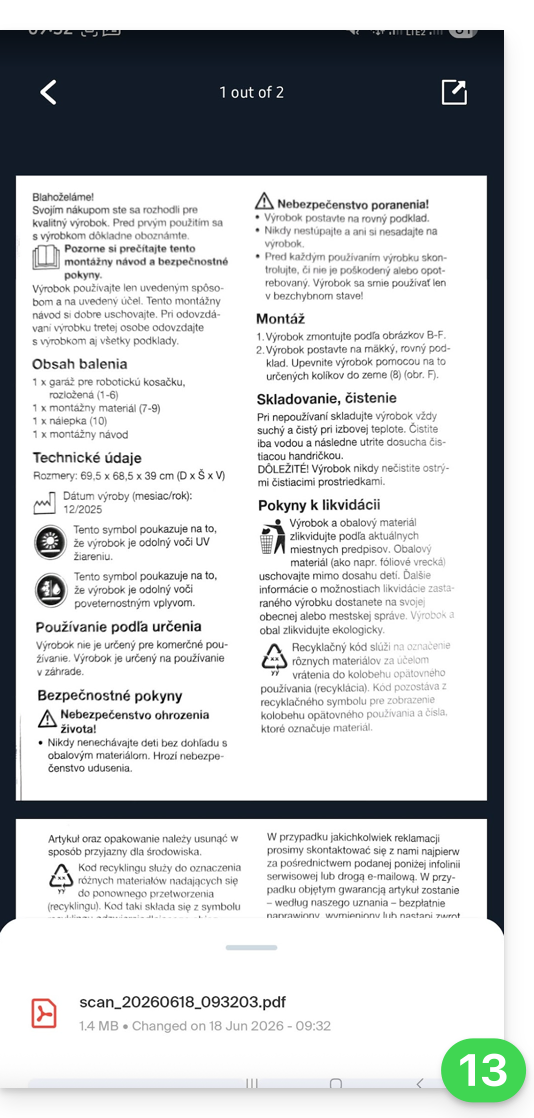
- The document is sent to kDrive, and you can view it:
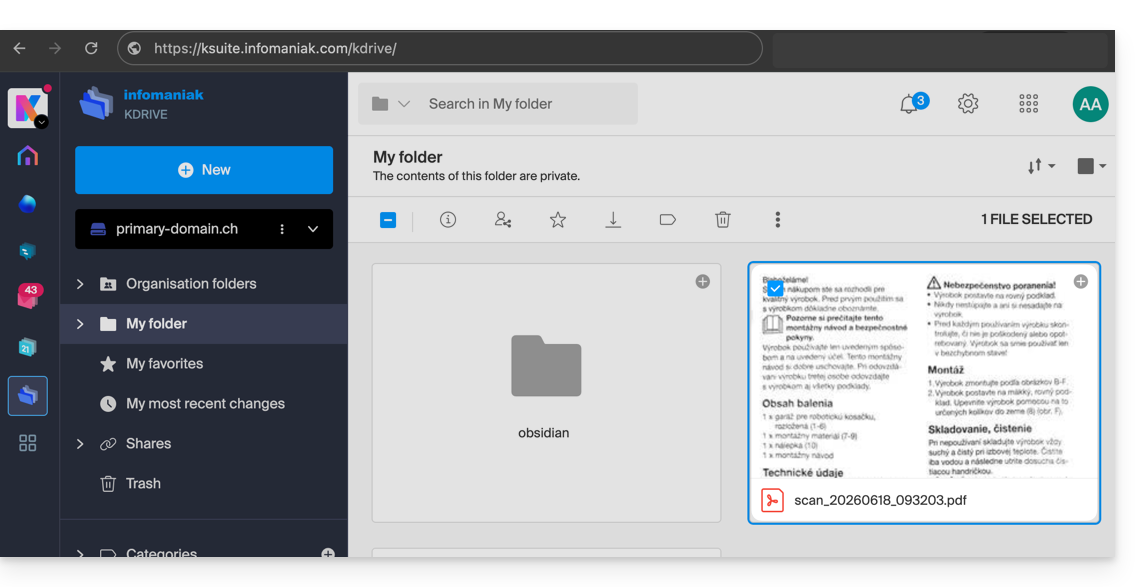
- You can also find it on all your connected devices:
Link para esta FAQ: https://faq.infomaniak.com/2395
Esta seção de perguntas frequentes foi útil?