Base de conhecimento
1000 perguntas frequentes, 500 tutoriais e vídeos explicativos. Aqui, você encontra apenas soluções!
Este guia fornece instruções para sincronizar o kDrive com um NAS Qnap (ou vice-versa) através do protocolo WebDAV, que pode ser encontrado na aplicação HBS 3 Hybrid Backup Sync.
✘ INDISPONÍVEL com
kSuite Free / kSuite Standard
my kSuite / my kSuite+ (ik.me, etik.com, ikmail.com)
Pré-requisitos
- Ter um NAS Qnap acessível pela Internet.
- Conheça o seu identificador kDrive (ID kDrive).
Sincronizar o kDrive e o Qnap através do HBS 3
Para isso:
- Aceda à interface de administração do NAS Qnap (QTS).
- Se necessário, descarregue e instale a aplicação HBS 3 Hybrid Backup Sync.
- Abra o HBS 3.
- Acesse Sincronização no menu à esquerda.
- Crie uma tarefa de sincronização (Tarefa de Sincronização Bidirecional).
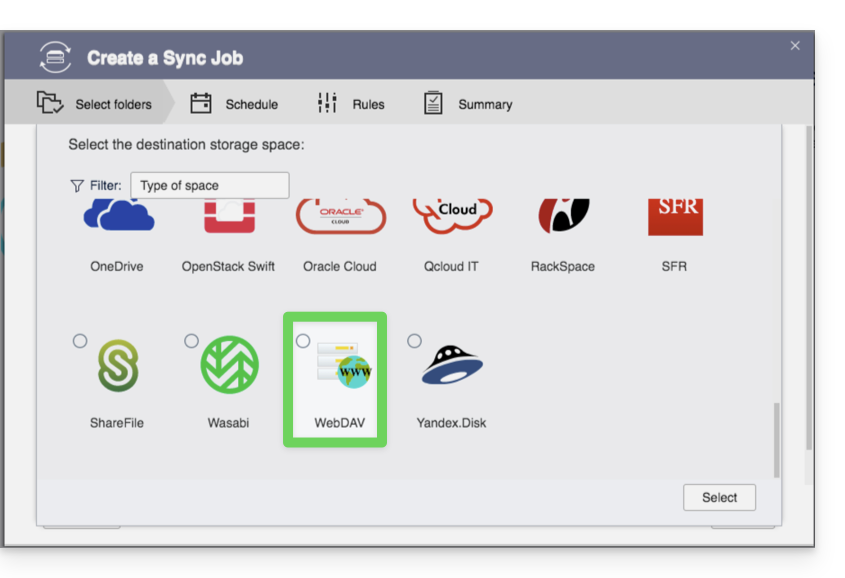
- Escolha WebDAV na lista de fornecedores de nuvem:
- Para as configurações da conta, utilize as seguintes informações:
- Endereço do servidor:
https://IDkDrive.connect.kdrive.infomaniak.com(consulte os pré-requisitos) - Nome de usuário: endereço de e-mail para fazer login na conta Infomaniak
- Senha: crie uma senha de aplicativo para este uso específico.
- Endereço do servidor:
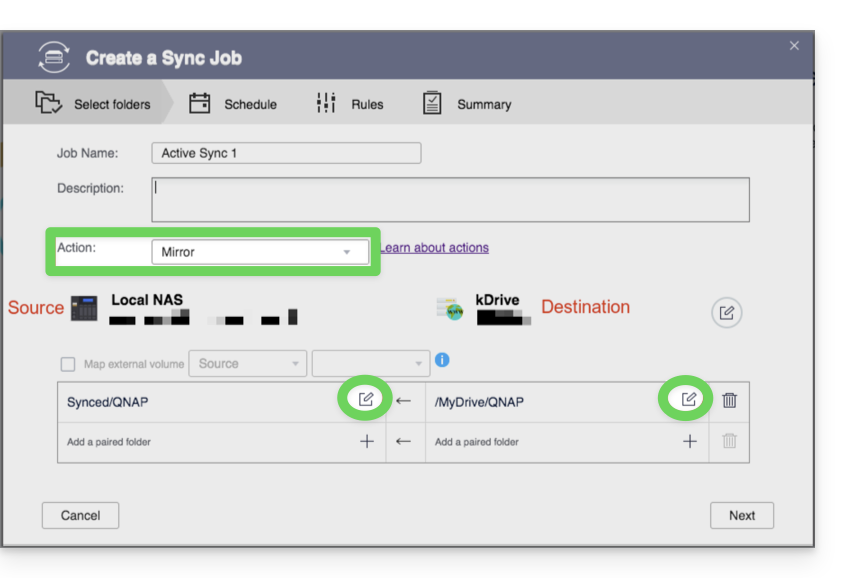
- Escolha a pasta local e de destino:
- Personalize a frequência da tarefa.
- Conclua o assistente.
Link para esta FAQ: https://faq.infomaniak.com/2405
Esta seção de perguntas frequentes foi útil?
Este guia explica como importar (uma única vez) para o kDrive dados (ficheiros, pastas, etc.) de um serviço de armazenamento na nuvem externo, como o do seu fornecedor anterior, por exemplo, Dropbox ou Microsoft.
Pré-requisitos
- Possuir uma oferta kDrive ou kSuite
- Ter permissões suficientes no kDrive ou kSuite.
- Não altere as senhas até que a importação seja concluída!
Guias específicos
Clique no link correspondente ao seu provedor de hospedagem atual:
- Google Fotos: guia completo para migrar as fotos do Google Fotos para a Infomaniak
- Google Drive
- Apple iCloud
- ⚠️ Por motivos de segurança, a importação não é mais possível via WebDAV ou a partir do ownCloud / Nextcloud; realize uma importação manual ou utilize o aplicativo kDrive
Guia para qualquer outro provedor de nuvem
Por exemplo:
- Outro kDrive ao qual a sua conta de utilizador tem acesso (exceto acessos do tipo "externo")
- Dropbox
- OneDrive
Dados não importados
- Os dados que foram compartilhados com você não foram importados.
- Apenas os dados que realmente lhe pertencem serão importados.
- Os documentos Google do tipo Gdocs, Sheets, Slide, etc. …
- … não são importados durante uma importação do Dropbox.
- … são convertidos pelo Google quando esses arquivos são baixados do Google Drive para macOS/Windows.
- … não são convertidos quando são copiados do diretório local do Google Drive para o diretório local do kDrive. Portanto, é imprescindível baixar os arquivos a partir da versão web do Google Drive.
- Os documentos Dropbox Paper.
- Os links de compartilhamento do Dropbox, visíveis aqui.
- Os ficheiros do Dropbox partilhados individualmente, visíveis aqui(em contrapartida, os compartilhamentos de pastas e os documentos compartilhados serão importados).
Para iniciar a importação dos dados:
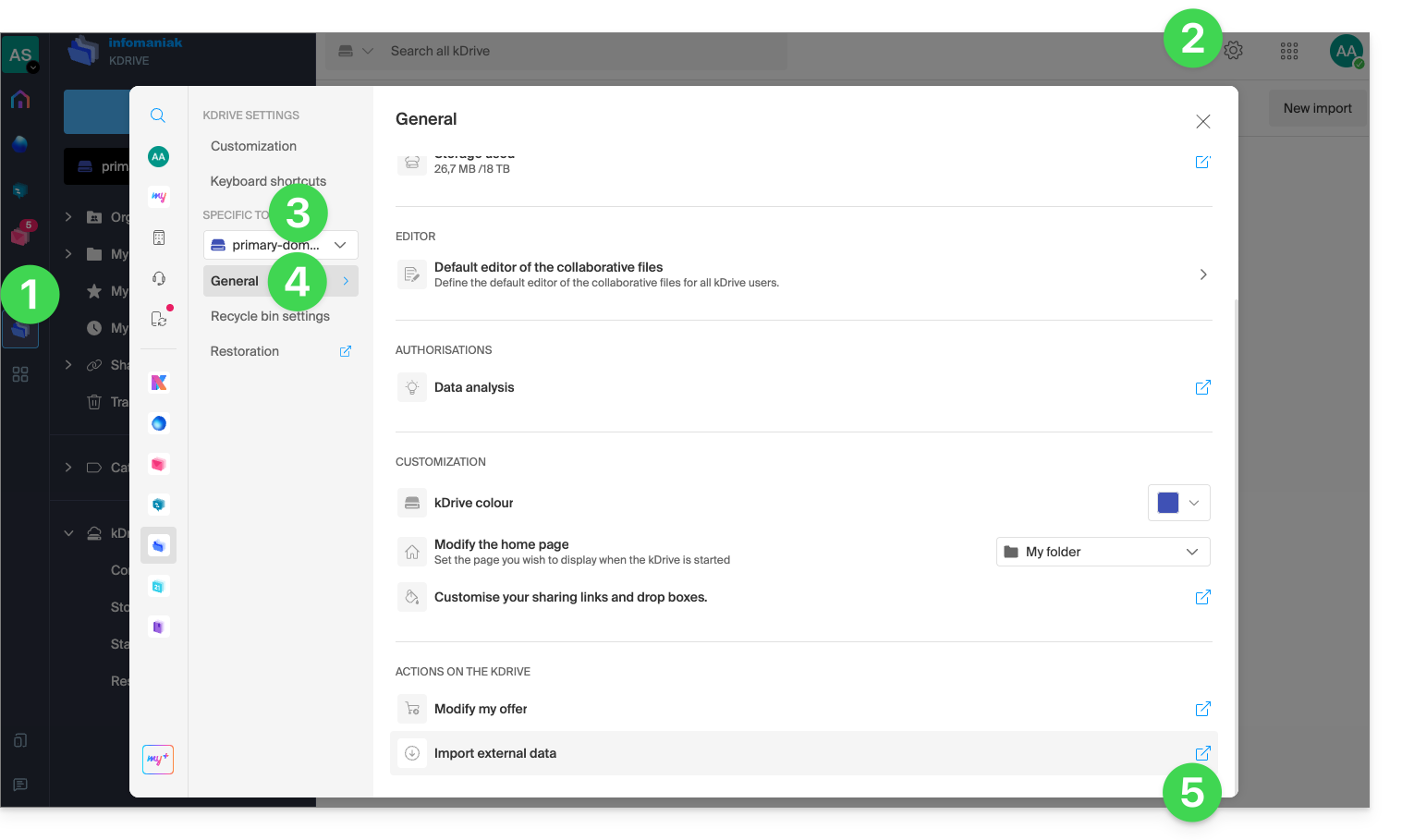
- Clique aqui para acessar o aplicativo web kDrive da Infomaniak (serviço online ksuite.infomaniak.com/kdrive).
- Clique em Configurações no canto superior direito.
- Verifique ou selecione o kDrive correspondente no menu suspenso do menu lateral esquerdo.
- Clique em Geral no menu lateral esquerdo.
- Clique em Importar dados externos:
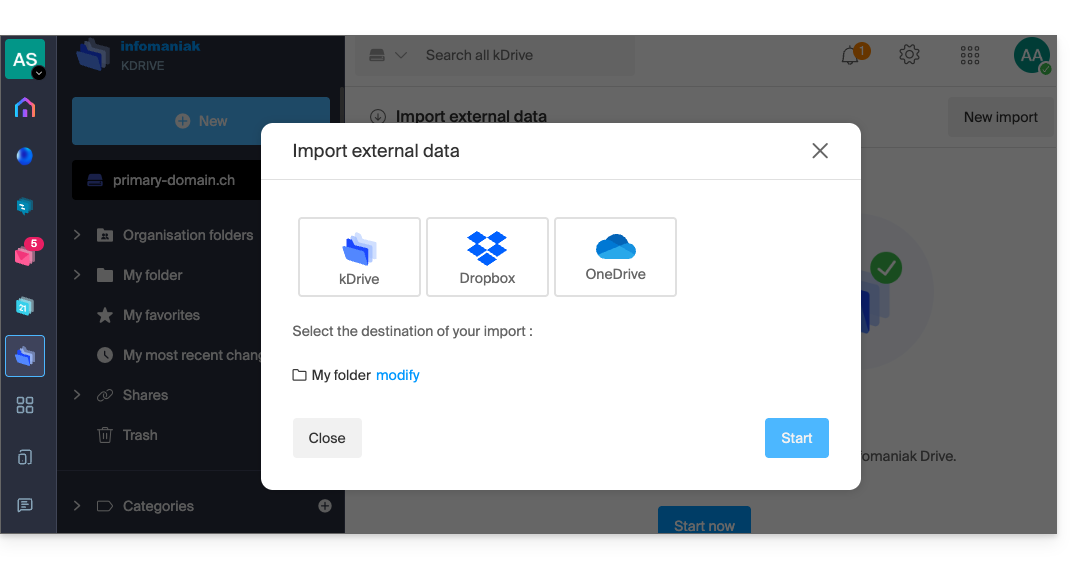
- Clique em Iniciar ou em Nova importação na parte superior:
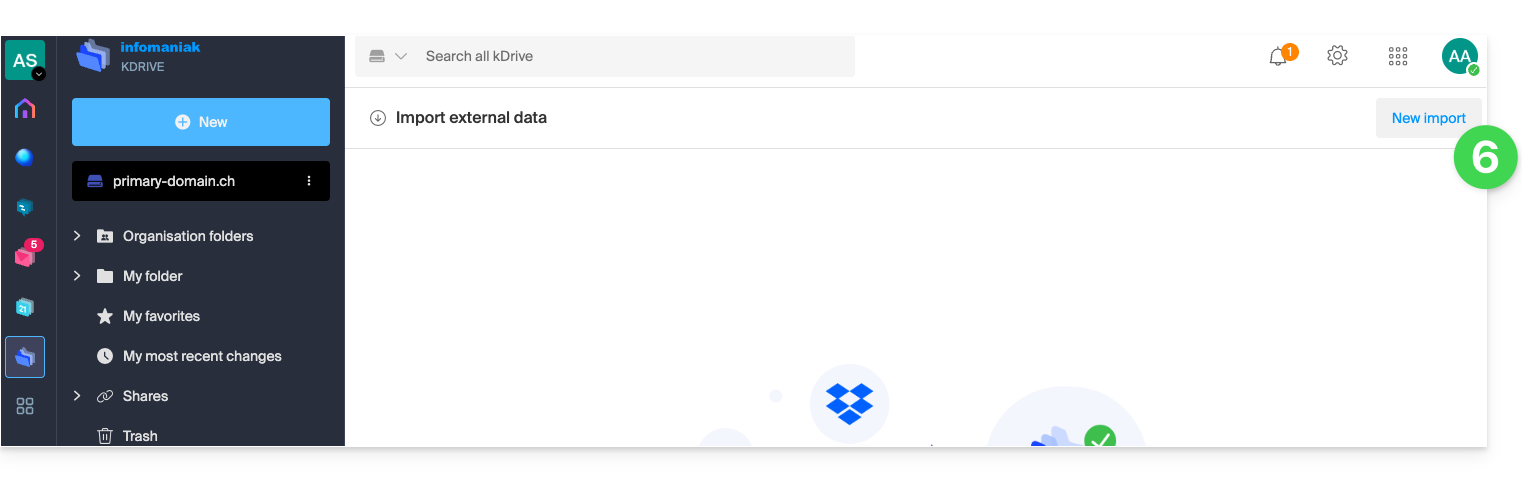
- Escolha o serviço em questão.
- Escolha o local onde os ficheiros importados serão armazenados.
- Clique no botão Iniciar:
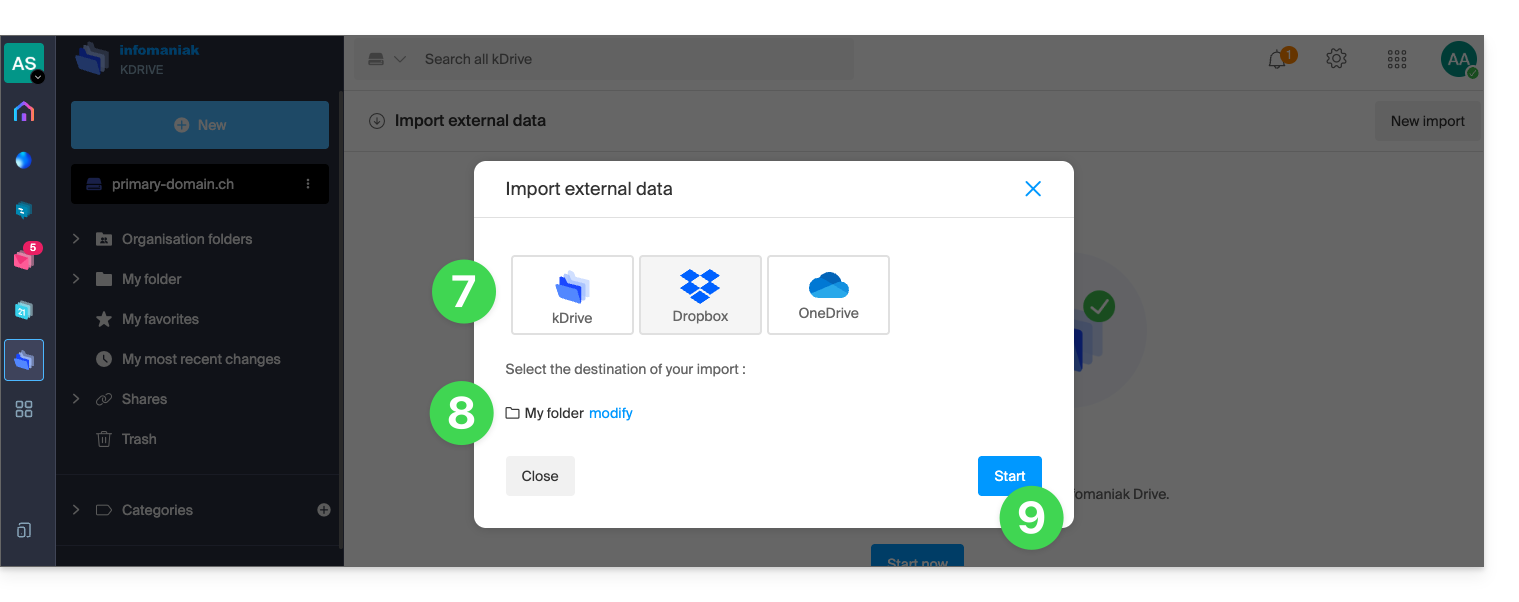
- Preencha as informações solicitadas (uma nova janela pode abrir em segundo plano) e clique no botão azul Continuar.
- Conclua o assistente.
- Aguarde durante a importação dos dados.
Gerenciar a importação em andamento
Para acompanhar as importações em andamento, volte a qualquer momento à página mencionada no ponto 6 acima.
Para interromper uma importação em andamento, clique no menu de ações à direita da importação listada na página e escolha a opção de cancelar (em caso de interrupção voluntária, um relatório será enviado por e-mail ao administrador).
Uma segunda importação consecutiva reimporia todos os dados (para outro diretório do kDrive); não se trata de uma sincronização diferencial e não há gerenciamento de duplicatas.
Verifique os dados importados imediatamente após a operação.
Link para esta FAQ: https://faq.infomaniak.com/2406
Esta seção de perguntas frequentes foi útil?
Este guia detalha como importar dados do Google Drive usando o rClone para o kDrive da Infomaniak.
✘ INDISPONÍVEL com
kSuite Free / kSuite Standard
my kSuite / my kSuite+ (ik.me, etik.com, ikmail.com)
⚠ ATENÇÃO ⚠
A Infomaniak garante a conformidade dos seus serviços com os protocolos padrão (IMAP, S3, etc.), masnão oferece suporte adicional para serviços ou softwares externos, pois a configuração destes pode variar dependendo do fornecedor ou editor(ver:
1. Configurar o rclone para acesso aos armazenamentos
Instalação do rclone no seu computador
Existe uma versão de rclone com interface gráfica (GUI), mas é perfeitamente possível fazer isso pela linha de comando (CLI):
- Instale rclone a partir de um aplicativo do tipo
Terminalno seu dispositivo, digitando todo o seguinte comando:sudo -v ; curl https://rclone.org/install.sh | sudo bash - Insira a senha da sua sessão no seu computador para iniciar a instalação:

- Consulte o guia oficial de instalação, se necessário.
Configuração do disco remoto (Google Drive) no rclone
- Depois de instalar o rclone, insira o comando
rclone config.- Consulte o guia oficial de configuração, se necessário.
- Em seguida, escolha configurar uma nova importação remota respondendo
nparaNew remote. - Atribua um nome ao disco remoto, por exemplo,
gdrive:
- Em seguida, escolha o tipo de disco a importar, respondendo
drive, o que corresponde ao Google Drive entre as opções apresentadas.
Em seguida, é necessário autorizar a conexão com o Google Drive a partir de um navegador como Brave, Chrome, Edge, Firefox, Opera, Safari…
Por padrão, o rclone utiliza um ID de cliente compartilhado entre todos os usuários, o que pode resultar em limitações de requisições impostas pelo Google. É altamente recomendável usar seu próprio ID de cliente para evitar essas restrições.
- Acesse o Console da API do Google com sua conta do Google.
- Crie ou selecione um projeto.
- Ative a API do Google Drive através do botão/link "Ativar APIs e serviços".
- Procure pela palavra-chave
Drivee clique emAPI do Google Drive:
- Clique no botão Ativar.
- Clique em Credenciais no menu lateral esquerdo (e não em um botão semelhante).
- Clique em Configurar a tela de consentimento OAuth (se ainda não o fez):
- Insira um nome, por exemplo,
rclone. - Selecione "Externo" (ou "Interno", se for um utilizador do Google Workspace).
- Em “Acesso aos dados”, adicione os escopos (“campos de aplicação”) necessários:
https://www.googleapis.com/auth/docs,https://www.googleapis.com/auth/drive,https://www.googleapis.com/auth/drive.metadata.readonly;
- Guarde as alterações.
- Adicione a sua conta de e-mail como utilizador de teste em “Público”.
- Volte à secção “Plataforma de autenticação do Google”.
- Insira um nome, por exemplo,
- Crie as credenciais OAuth:
- Clique em “Criar credenciais / ID do cliente OAuth”.
- Escolha “Aplicação de ambiente de trabalho” e mantenha o nome predefinido e, em seguida, clique no botão Criar.
- Guarde o
ID do clientee ocódigo secreto do clienteque são exibidos.
- Se a opção "Externo" foi selecionada no ponto 7 acima, volte para “Público” no menu lateral esquerdo e clique em “Publicar o aplicativo”.
Devido à "segurança reforçada" introduzida recentemente pelo Google, teoricamente, você deve "enviar seu aplicativo para verificação" e aguardar várias semanas pela resposta.
Na prática, você pode usar diretamente o ID do cliente e o segredo do cliente com o rclone (continue lendo o guia). A única consequência será uma tela de confirmação muito intimidante quando você se conectar através do seu navegador para permitir que o rclone obtenha seu token de ID. No entanto, como isso só acontece durante a configuração inicial do armazenamento remoto, não é um problema grave.
Também é possível deixar o aplicativo no modo "Teste", mas, nesse caso, todas as autorizações expirarão após uma semana, o que pode ser inconveniente ter que renovar com frequência. Se um período de validade curto não for um problema para o seu uso, manter o aplicativo no modo de teste pode ser suficiente.
Volte para o rclone no terminal:
- Indique ao rclone o
client_idcopiando e colando oID do Clienteobtido no ponto 8 acima, e faça o mesmo com a frase secreta. - Em seguida, escolha o
escoponº 1:
- Pressione a tecla “
Enter” para deixar o camposervice_account_fileem branco. - Responda “Não”
nà pergunta sobre a “configuração avançada”. - Responda “Sim”
yà pergunta sobre a conexão via navegador:
- Uma página da Internet é aberta no seu navegador, permitindo que você se conecte ao Google e autorize o aplicativo que você criou no passo 9 acima.
- Depois de conceder as permissões, você deverá receber a seguinte mensagem:

- No terminal, responda “Não”
nà pergunta sobre “Shared Drive (Team Drive)”. - Responda “Sim”
yà última pergunta:
Configuração do disco de destino (kDrive) no rclone
É possível editar diretamente o arquivo de configuração do rclone, inserindo sua configuração do kDrive, por exemplo, da seguinte forma:
[kdrive]
type = webdav
url = {{URL_19}}
vendor = other
user = user@email.com
pass = PASSWORD_HERE_OR_APP_PASSWORD_IF_2FA
Veja como proceder passo a passo, da mesma forma que na configuração anterior:
- No terminal, digite
npara uma nova configuração de disco e insira o nomekDrivepara identificar o disco de destino:
- Em seguida, escolha o tipo de disco a importar, indicando
webdav, o que corresponde a uma configuração WebDAV entre as opções propostas. - Insira as seguintes informações:
url= o acesso direto ao kDrive (consulte este outro guia sobre o ID do kDrive para a URL de conexão)vendor= rclone (a opção nº 6)user= o endereço de e-mail para fazer login na conta de usuário Infomaniak
- Responda “Sim”
yà pergunta sobre a senha e, em seguida, insira a senha:- senha do aplicativo caso a autenticação de dois fatores esteja ativada ou a senha da sua conta de usuário Infomaniak, caso não tenha ativado a autenticação de dois fatores.
- Deixe o campo
bearer_tokenem branco e responda “Não”nà pergunta sobre a “configuração avançada”. - Responda “Sim”
yà última pergunta e os seus 2 discos serão exibidos:
2. Copiar os dados do Google Drive para o kDrive
O kDrive suporta o upload em streaming do rclone via WebDAV, com gestão automática de erros caso o limite seja excedido sem a especificação prévia do tamanho através de Content-Length.
Pré-requisitos
- Consulte as opções disponíveis no guia oficial antes de iniciar uma importação, incluindo estes comandos importantes:
--drive-skip-shortcutspara evitar loops infinitos de importação--drive-shared-with-mepara obter os arquivos compartilhados com você--drive-acknowledge-abusepara forçar o download de arquivos bloqueados pelo Google
Exemplo de comando para iniciar uma cópia do seu Google Drive para a raiz do seu kDrive:
sudo rclone copy gdrive:
kDrive:
Isto iniciará instantaneamente a cópia das suas pastas, subpastas e conteúdos do Google Drive para a pasta pessoal do seu kDrive Infomaniak!
Os documentos Google, como Gdocs, Sheets e Slide, são convertidos para formatos Office, como .docx e .xlsx, e podem ser lidos diretamente no kDrive.
Link para esta FAQ: https://faq.infomaniak.com/2408
Esta seção de perguntas frequentes foi útil?
Este guia fornece instruções sobre como conectar-se ao kDrive usando o protocolo de conexão WebDAV.
✘ INDISPONÍVEL com
kSuite Free / kSuite Standard
my kSuite / my kSuite+ (ik.me, etik.com, ikmail.com)
⚠ ATENÇÃO ⚠
Utilize o protocolo WebDAV no kDrive para casos específicos e pontuais:
- Se pretende trabalhar nos seus ficheiros e partilhá-los, o kDrive é a ferramenta ideal; recomenda-se instalar a aplicação kDrive para evitar qualquer perda de ficheiros.
- Em contrapartida, para proteger seus dados contra perda ou corrupção e garantir a continuidade de suas atividades, o Swiss Backup é a solução indispensável e adequada.
A Infomaniak garante a conformidade de seus serviços com os protocolos padrão (IMAP, S3, etc.), masnão oferece suporte adicional para serviços ou softwares externos, pois a configuração destes pode variar dependendo do fornecedor ou editor(ver:
Obter o identificador (ID kDrive)
Para saber qual é o seu identificador kDrive:
- Clique aqui para acessar o aplicativo web kDrive da Infomaniak (serviço online ksuite.infomaniak.com/kdrive).
- A estrutura de pastas do kDrive é exibida no menu lateral esquerdo.
- O endereço URL
https://ksuite.infomaniak.com/34567/kdrive/app/drive/123456/files/56789ouhttps://ksuite.infomaniak.com/all/kdrive/app/drive/123456/exibido na parte superior do seu navegador contém um número: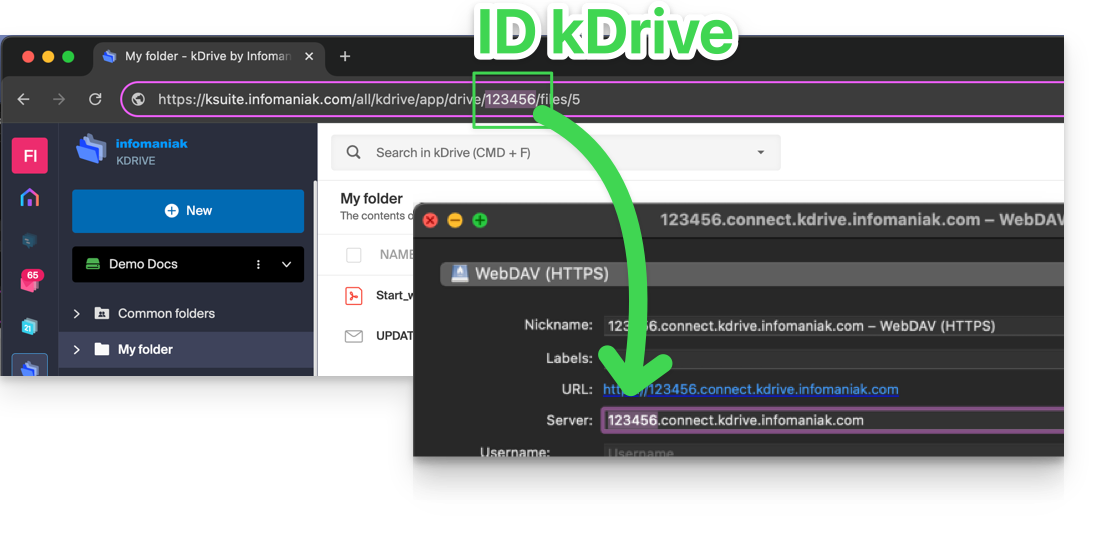
- Em alguns casos, principalmente quando o ID da Organização é mencionado na URL, pode haver várias sequências de números, mas o princípio permanece o mesmo: é preciso selecionar o número exibido após o termo “/drive/”:
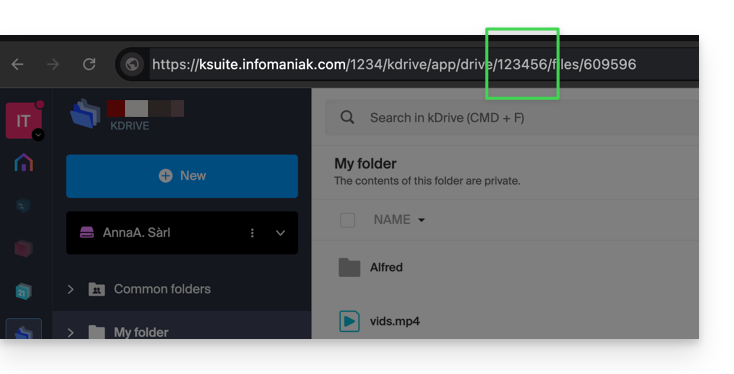
Este número (no exemplo 123456) é o seu identificador kDrive (IDkDrive).
Portanto, deverá escrever https://IDkDrive.connect.kdrive.infomaniak.com sempre que necessário (https://123456.connect.kdrive.infomaniak.com, por exemplo, como endereço WebDAV).
Guias específicos para WebDAV
Exemplos de sincronização via WebDAV:
URL de ligação WebDAV direta a uma pasta específica
Para facilitar uma ligação direta via WebDAV a uma pasta específica, pode usar a seguinte URL (substituindo 123456 como indicado acima):
{{URL_20}} documents/folder-nameEste método simples permite que você acesse rapidamente a pasta desejada sem navegar manualmente na estrutura de diretórios. Basta substituir « folder-name » pelo nome exato da pasta de destino para estabelecer uma conexão direta e segura via WebDAV.
Link para esta FAQ: https://faq.infomaniak.com/2409
Esta seção de perguntas frequentes foi útil?
Este guia detalha a estrutura do kDrive Infomaniak: interface online, menus para gerir e encontrar os seus partilhamentos, utilidade e significado das pastas predefinidas, etc.
Introdução
- Este guia aplica-se à aplicação web kDrive (serviço online ksuite.infomaniak.com/kdrive).
- A aplicação para desktop não é diretamente afetada e exibirá alguns elementos de forma diferente, ou até mesmo não os exibirá (❓: ajuda).
- A aplicação móvel, por outro lado, é semelhante em termos de organização dos menus (com algumas particularidades, como os arquivos offline, por exemplo).
- As pastas Comuns e o menu Partilhas só são visíveis com certas ofertas multiusuário.
- Não renomeie nem mova as pastas criadas por padrãonem na versão web, e muito menos localmente, pois isso causa problemas de sincronização.
- Para aceder rapidamente às diferentes funcionalidades/operações, clique com o botão direito do rato nos seus ficheiros.
3 elementos principais
A interface do kDrive apresenta um menu lateral esquerdo que o direciona para os dados do kDrive, incluindo os seguintes 3 elementos principais:
1. Pastas da organização: comuns aos colaboradores da sua organização
Esta pasta exibe a estrutura de diretórios compartilhados, de forma automática, para alguns ou todos os utilizadores do mesmo kDrive. Se contiverem documentos, estes serão exibidos no centro da interface: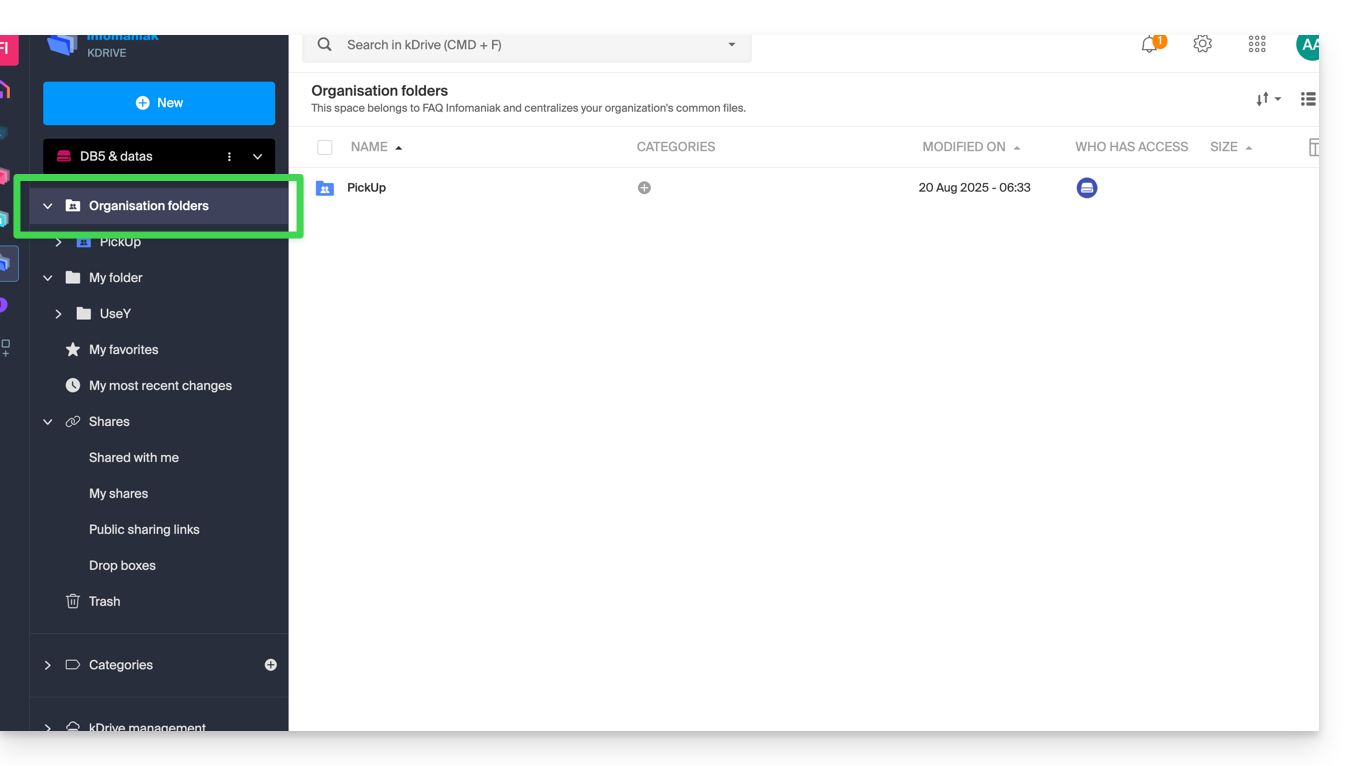
Se criar uma nova pasta aqui (❓: ajuda), poderá escolher partilhá-la com toda a Organização (todos os utilizadores do kDrive) ou apenas com alguns utilizadores/Grupos, que, nesse caso, terão de solicitar acesso, se necessário: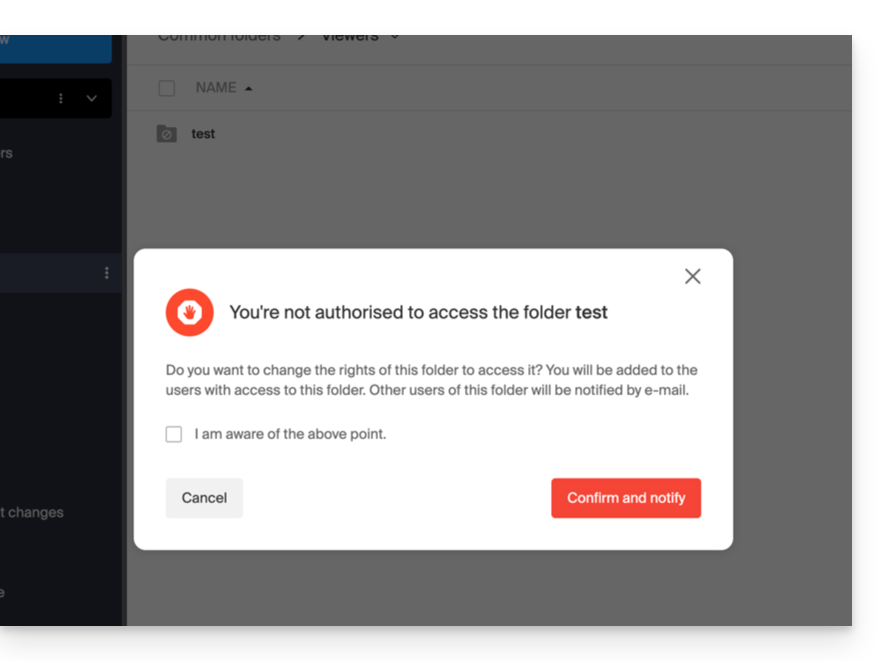
2. A minha pasta: pasta pessoal e privada por defeito
Esta pasta exibe a estrutura de pastas pertencentes ao próprio utilizador: de facto, cada utilizador do kDrive tem o seu próprio espaço pessoal, que não será partilhado automaticamente com os outros utilizadores do mesmo kDrive: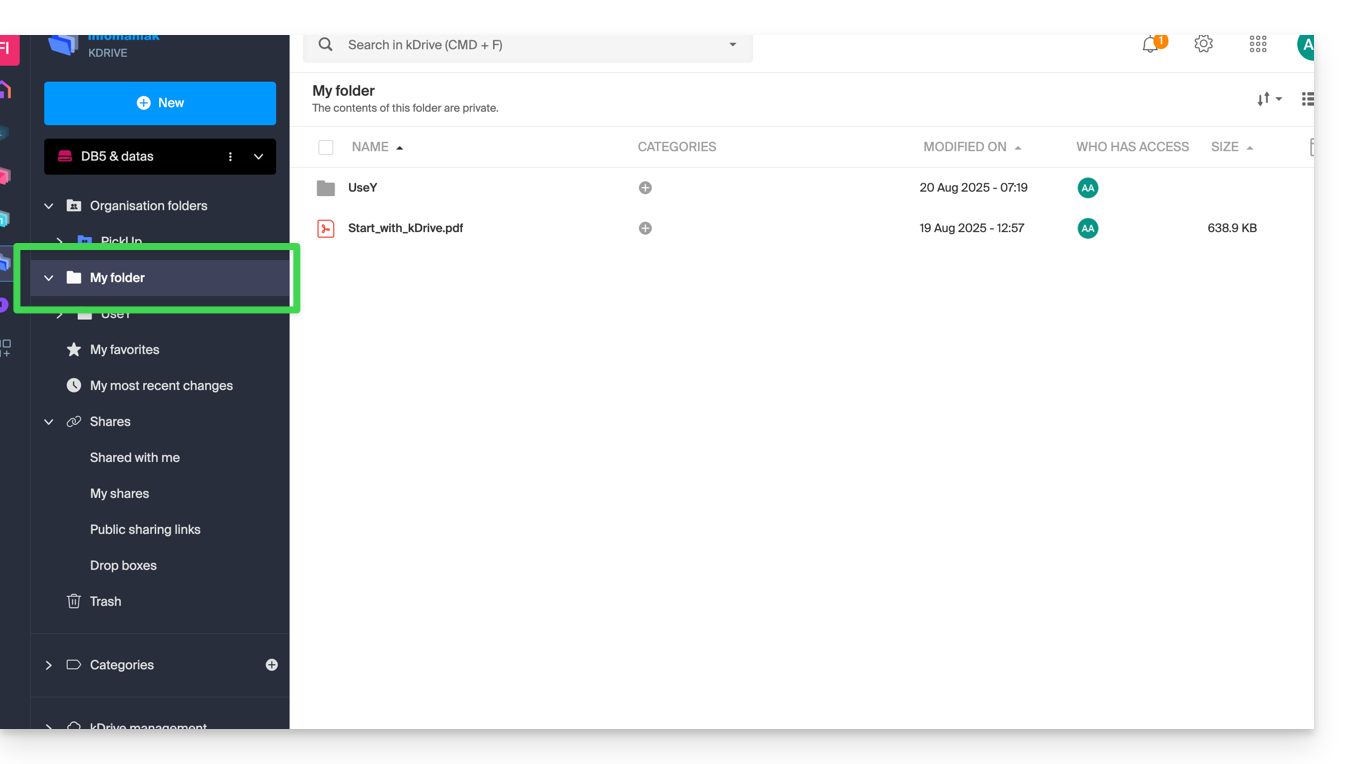
Os documentos, caso existam, serão exibidos no centro da interface.
3. Partilhas
O menu Partilhados leva a 4 submenus exibidos no menu lateral esquerdo:
- Os elementos que lhe foram partilhados por outros utilizadores do kDrive, entre os kDrives aos quais tem acesso com o seu identificador de login.
- Os elementos que você compartilha com outros usuários (❓: ajuda).
- Os elementos que você compartilhou criando um link de compartilhamento público (❓: ajuda).
- As pastas de depósito (❓: ajuda).
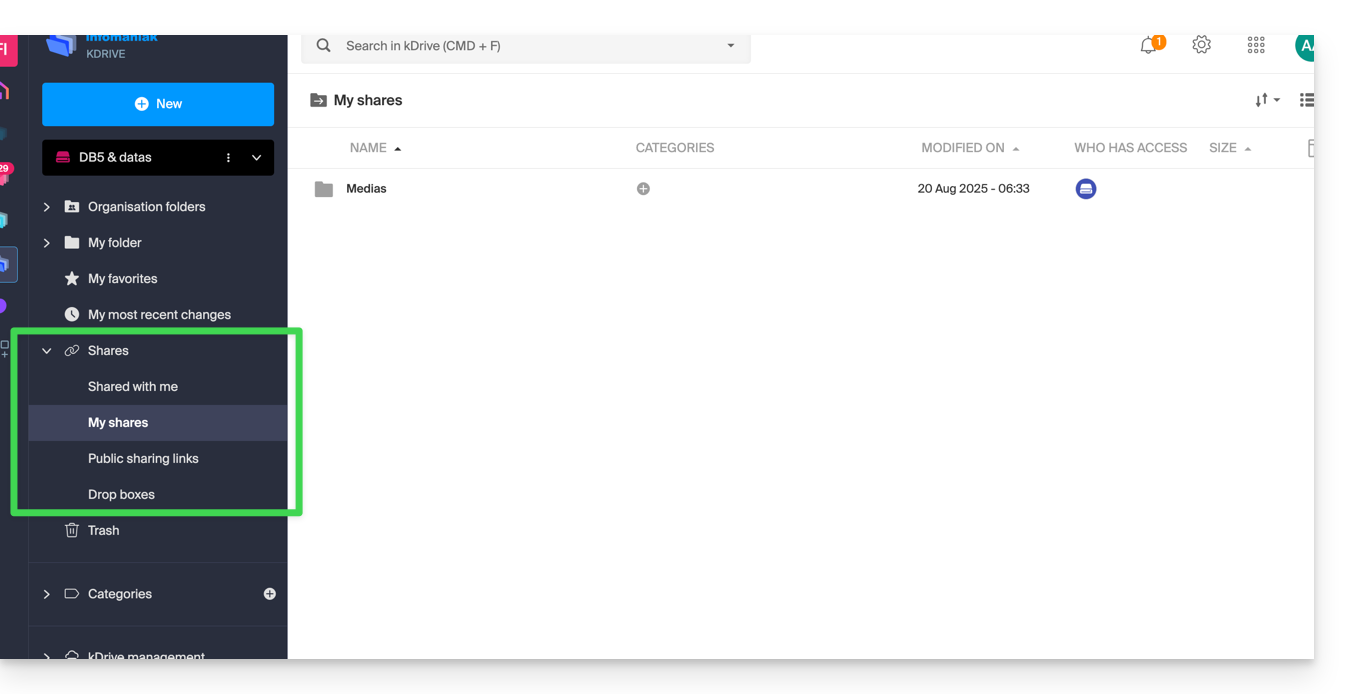
Os elementos existentes serão exibidos no centro da interface e poderão ser modificados/excluídos.
Consulte este outro guia sobre o comportamento dessas pastas compartilhadas no aplicativo para desktop.
Elementos secundários
Os meus favoritos
Este menu reúne os seus ficheiros e pastas definidos como favoritos no kDrive (❓: ajuda), que pode encontrar na aplicação web…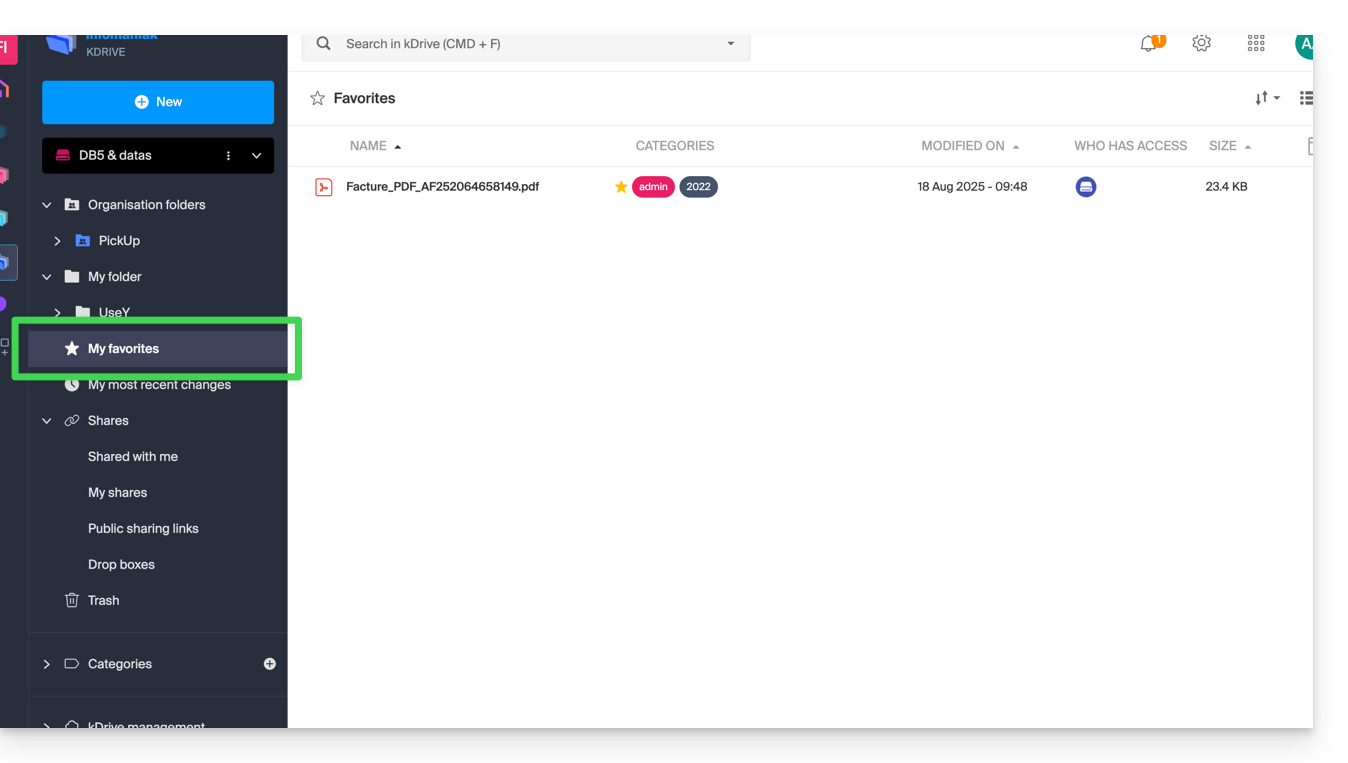
… e na aplicação móvel:
Minhas últimas modificações
Este menu exibe as últimas operações efetuadas pelo seu utilizador: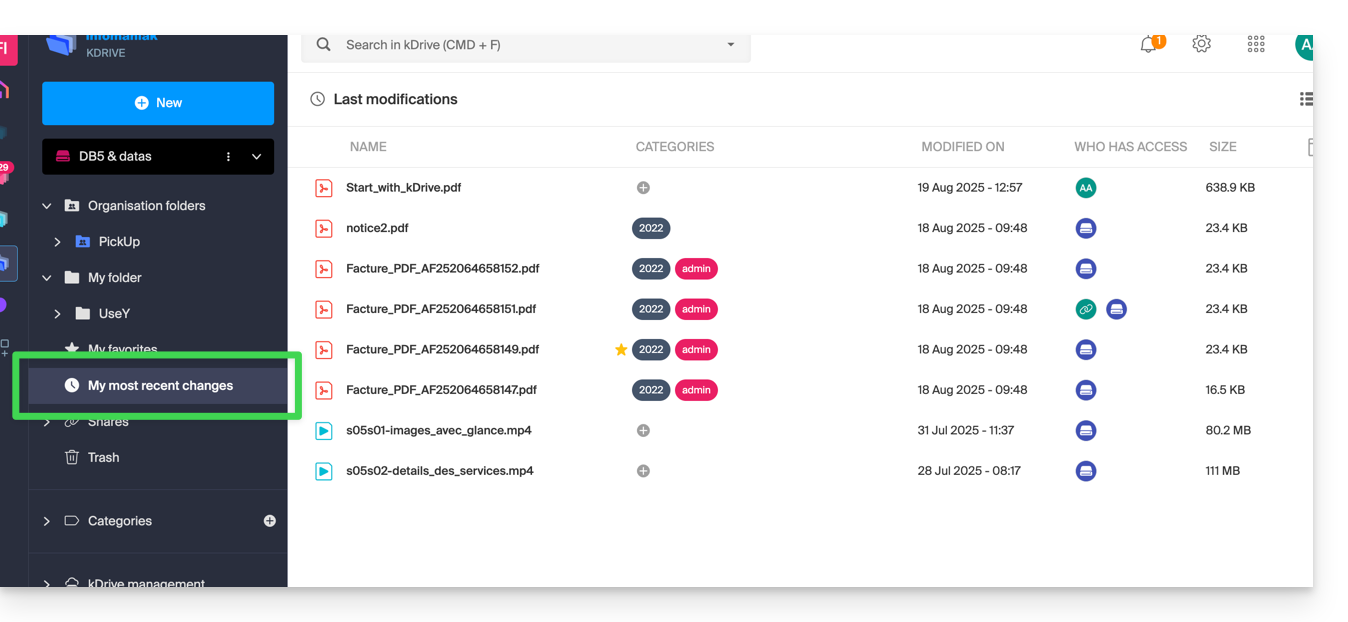
Dessa forma, você pode retornar rapidamente a arquivos modificados recentemente, mesmo que sua localização esteja espalhada em diferentes subpastas do seu kDrive. Você também pode selecionar esses arquivos para movê-los ou excluí-los em lote.
Lixeira
Este menu leva você aos seus dados excluídos, que ainda podem ser restaurados (❓: ajuda):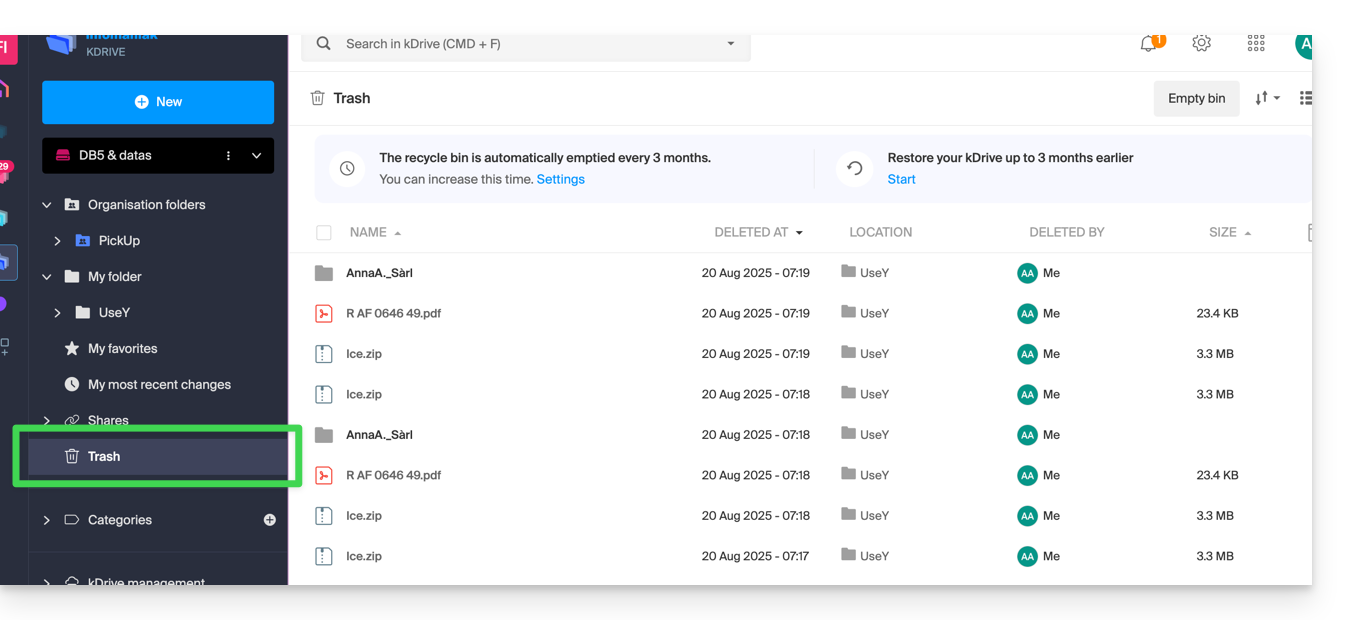
Categorias
Você também pode acessar seus arquivos rapidamente se eles estiverem categorizados (❓: ajuda) através do menu Categorias, clicando nas diferentes categorias que estão agrupadas nele: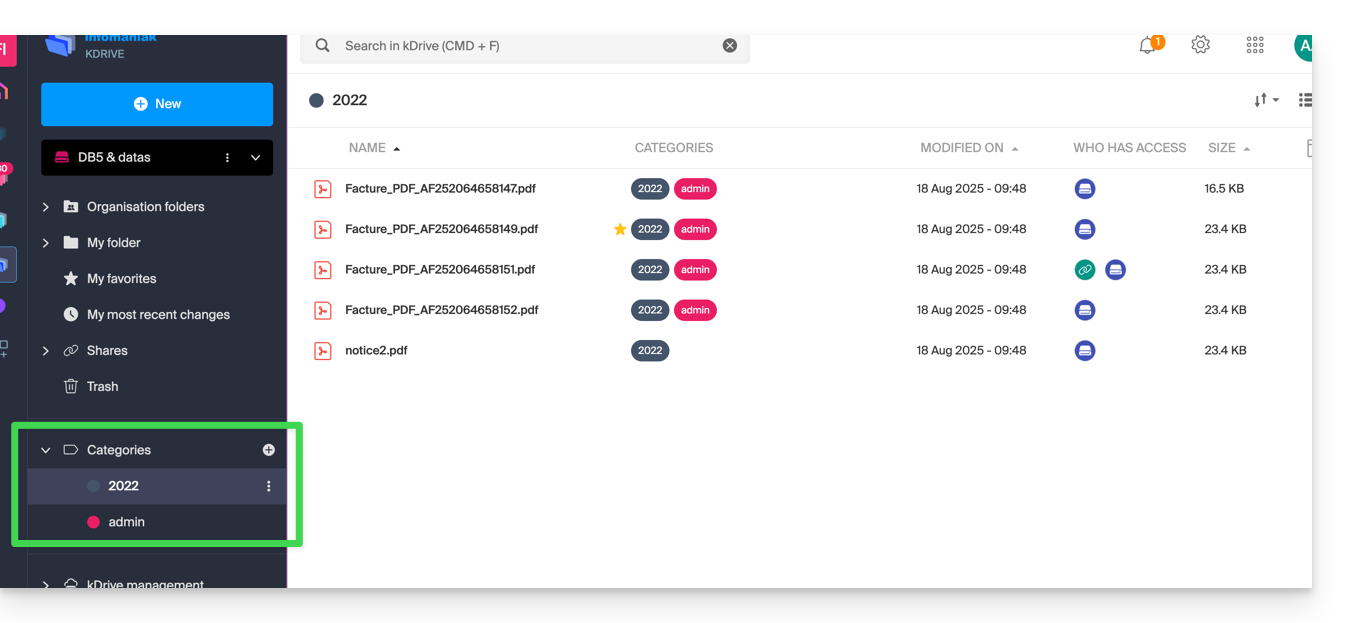
Definir a exibição padrão ao iniciar
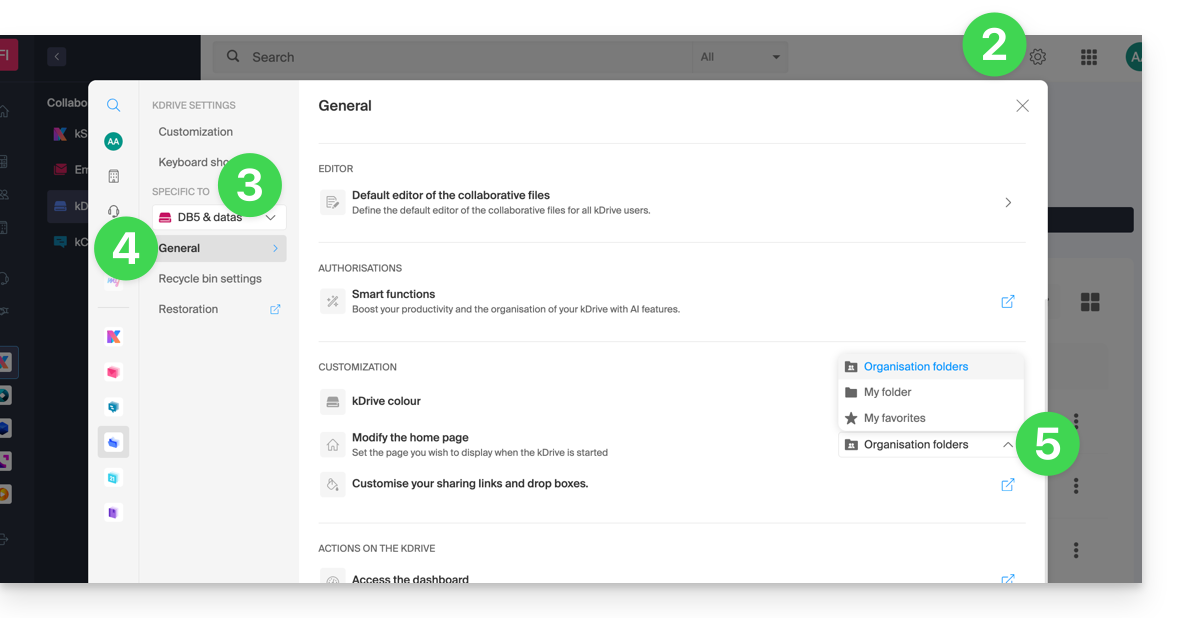
Pode escolher com qual página inicial iniciar a navegação no kDrive online, entre as 3 opções seguintes:
- a sua pasta pessoal
- a pasta de documentos compartilhados
- os favoritos (que reúne os documentos adicionados como favoritos pelo seu usuário)
Para aceder ao kDrive e modificar a página inicial:
- Clique aqui para aceder à gestão do seu produto no Manager Infomaniak (❓: ajuda).
- Clique em Configurações no canto superior direito.
- Verifique ou selecione o kDrive correspondente no menu suspenso do menu lateral esquerdo.
- Clique em Geral no menu lateral esquerdo.
- Escolha a página que deverá ser exibida por padrão ao acessar a página inicial:
Restaurar a pasta compartilhada (sincronizada em um computador)
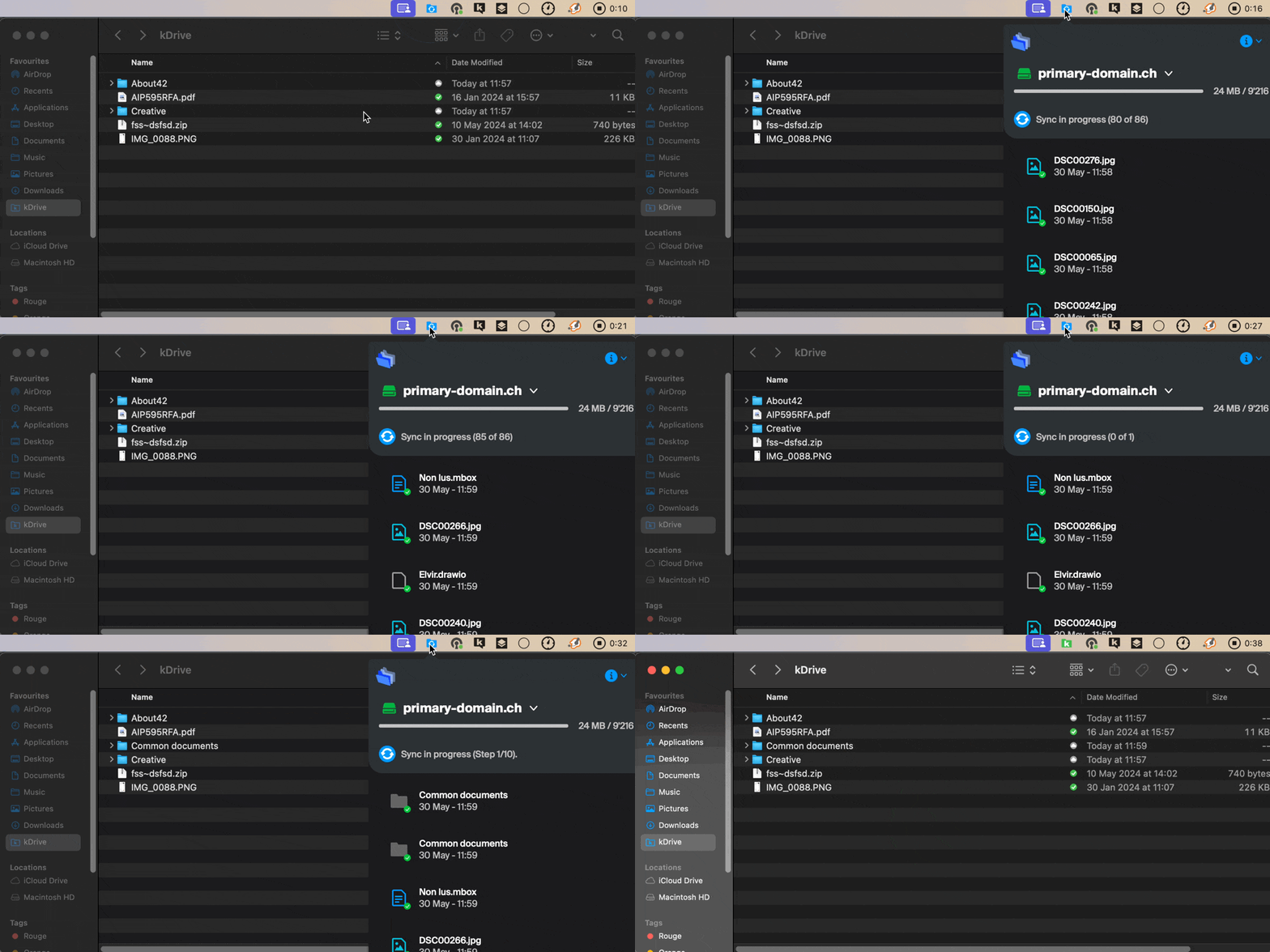
Se você excluir acidentalmente a pasta correspondente aos dados que compartilha com todos os usuários do kDrive ("Pastas da organização"), não se preocupe: ela será restaurada automaticamente. Trata-se de uma pasta especial que não pode ser movida, nem mesmo no computador:
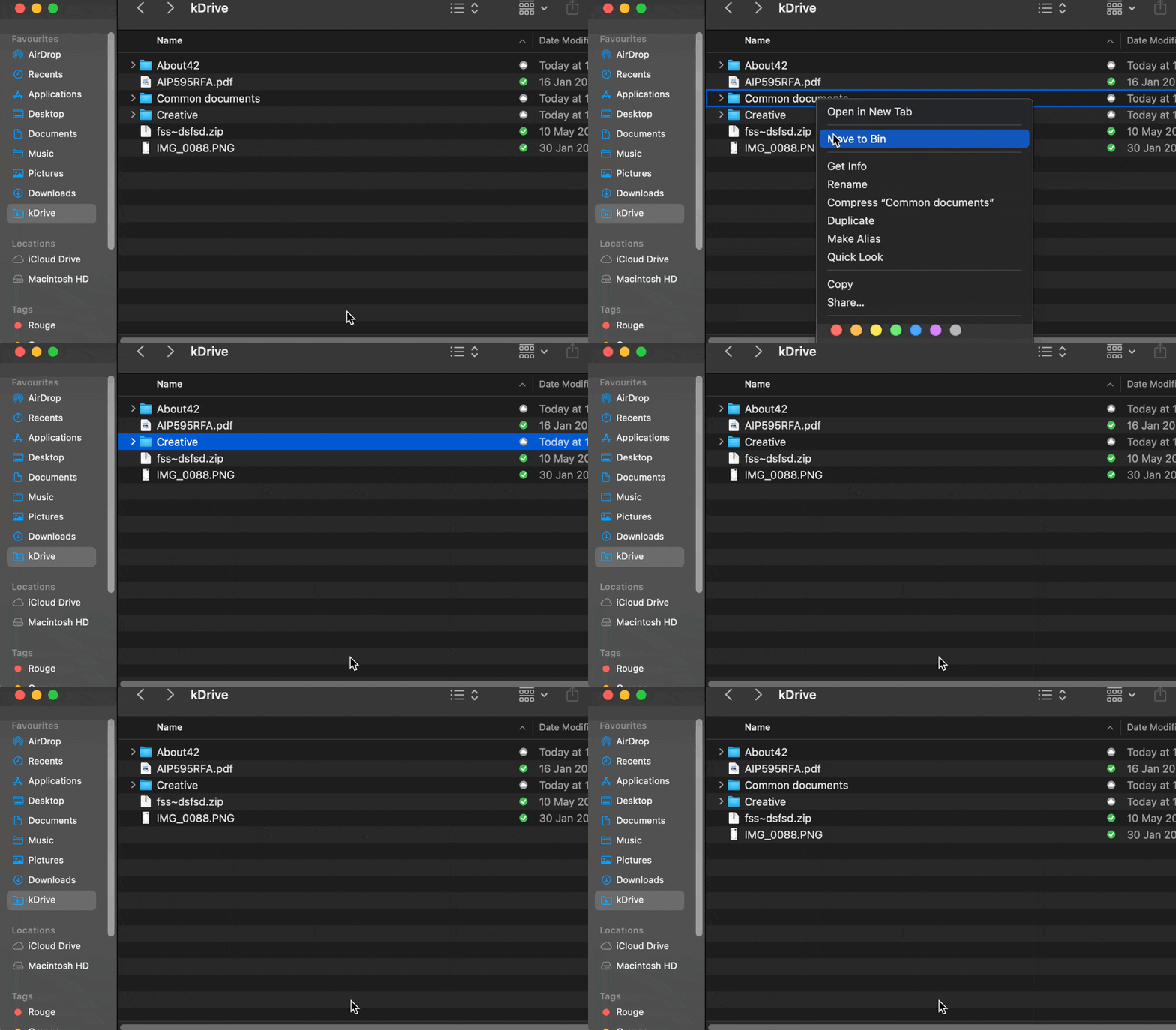
Se ele não retornar imediatamente, aguarde até que as tarefas já em andamento em segundo plano sejam concluídas:
Link para esta FAQ: https://faq.infomaniak.com/2410
Esta seção de perguntas frequentes foi útil?
Este guia explica por que são realizadas análises dos seus dados do kDrive quando você concede esse direito à Infomaniak e como revogá-lo.
Introdução
- A análise de dados serve apenas para melhorar as funcionalidades de IA, nomeadamente a pesquisa.
- A confidencialidade dos dados armazenados no kDrive é uma prioridade para a Infomaniak:
- A análise é realizada integralmente pela Infomaniak, sem intervenção de terceiros.
- Uma intervenção humana ainda é tecnicamente possível, mas é extremamente rara e não é praticada em condições normais.
- Consulte este outro guia para saber mais sobre o modelo utilizado e as responsabilidades de cada um.
Gerenciar o direito concedido
Pré-requisitos
- Ser, no mínimo, Administrador da Organização (❓: ajuda).
Em seguida, pode verificar o estado da análise dos seus dados:
- Clique aqui para aceder à aplicação web kDrive da Infomaniak (serviço online ksuite.infomaniak.com/kdrive).
- Clique em Configurações no canto superior direito.
- Verifique ou selecione o kDrive correspondente no menu suspenso do menu lateral esquerdo.
- Clique em Geral no menu lateral esquerdo.
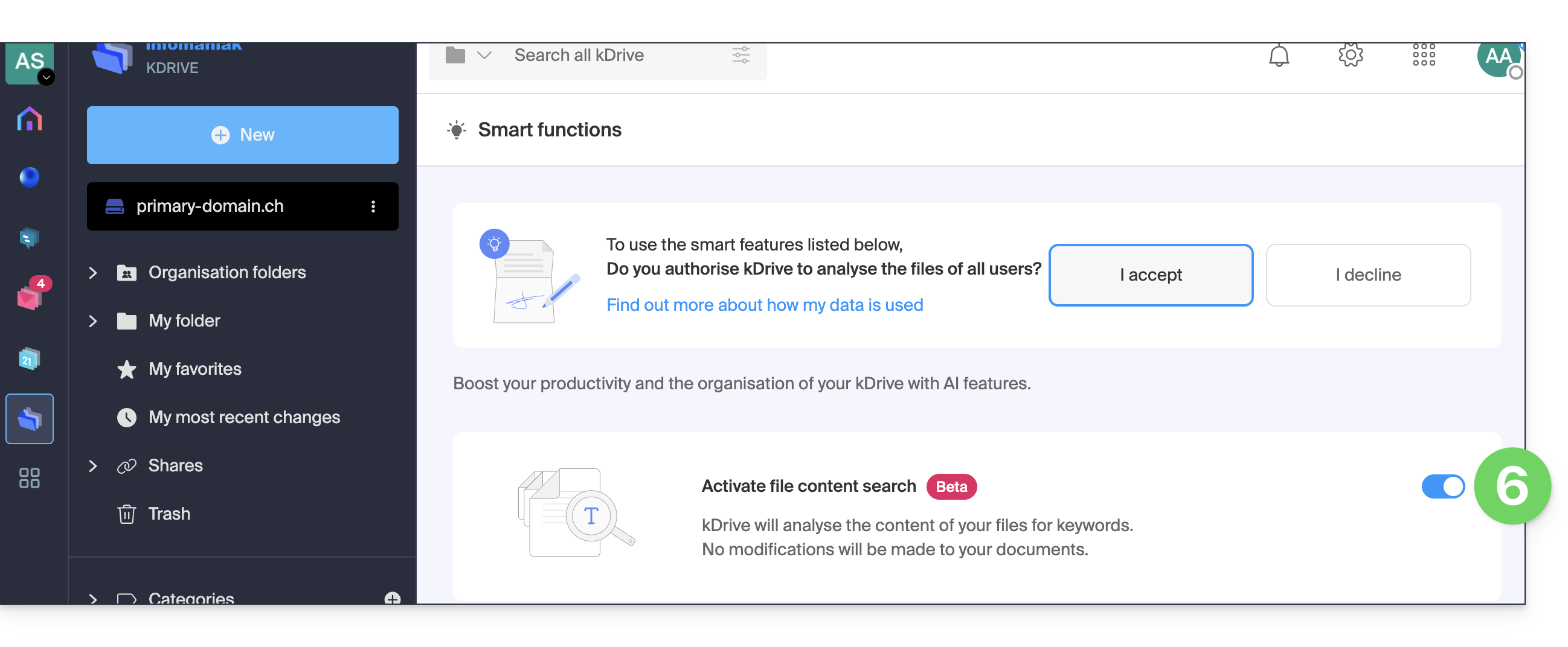
- Clique em Permissões e, em seguida, em Funcionalidades inteligentes (ou Análise de dados no my kSuite):
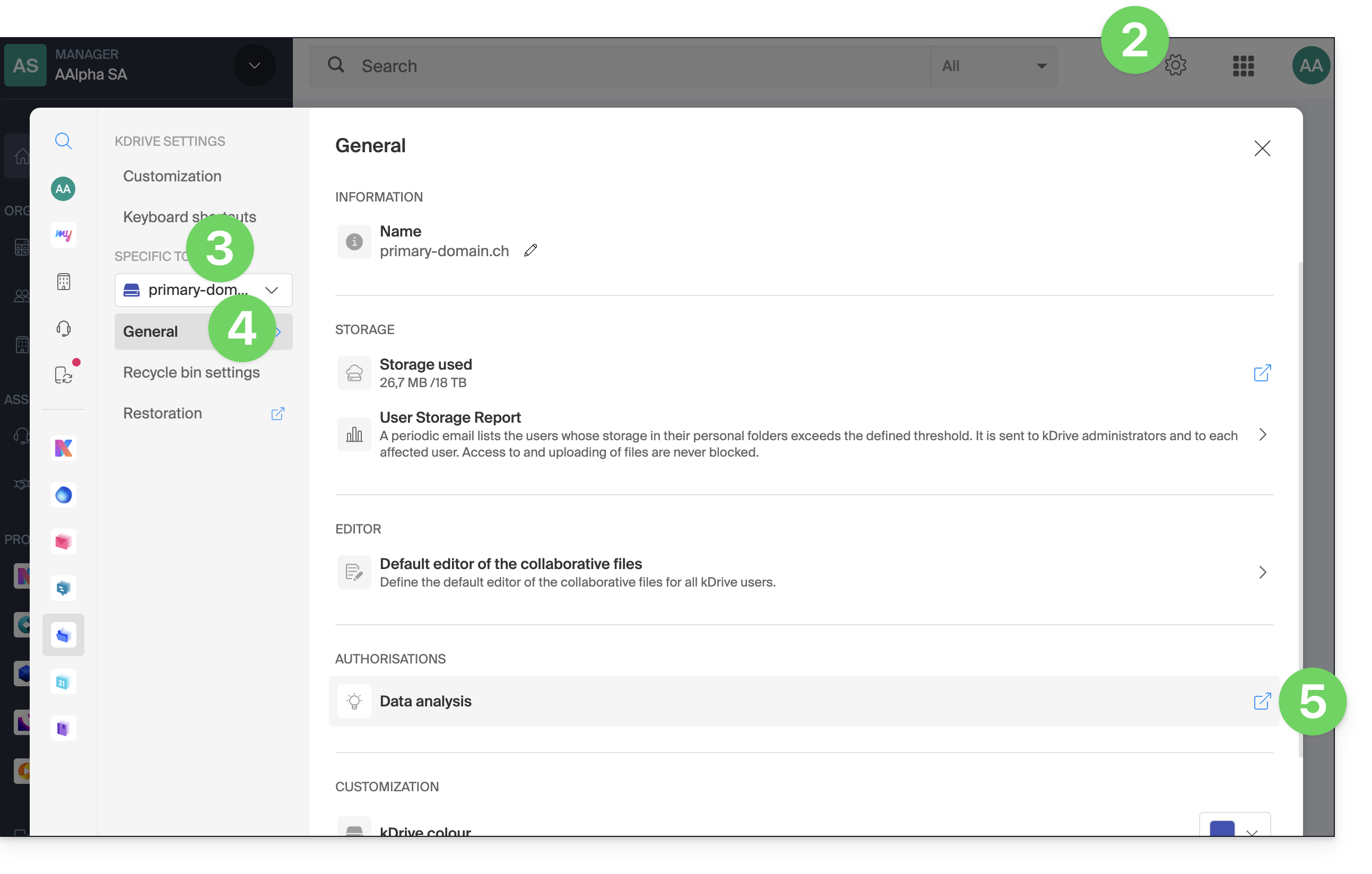
- Clique no botão de alternância para realizar a ação desejada:
Link para esta FAQ: https://faq.infomaniak.com/2412
Esta seção de perguntas frequentes foi útil?
Este guia fornece instruções sobre como sincronizar o kDrive com o Windows usando o protocolo de conexão WebDAV.
✘ INDISPONÍVEL com
kSuite Free / kSuite Standard
my kSuite / my kSuite+ (ik.me, etik.com, ikmail.com)
⚠ ATENÇÃO ⚠
Utilize o protocolo WebDAV no kDrive para casos específicos e pontuais:
- Se pretende trabalhar nos seus ficheiros e partilhá-los, o kDrive é a ferramenta ideal; recomenda-se instalar a aplicação kDrive para evitar qualquer perda de ficheiros.
- Em contrapartida, para proteger seus dados contra perda ou corrupção e garantir a continuidade de suas atividades, o Swiss Backup é a solução indispensável e adequada.
A Infomaniak garante a conformidade de seus serviços com os protocolos padrão (IMAP, S3, etc.), masnão oferece suporte adicional para serviços ou softwares externos, pois a configuração destes pode variar dependendo do fornecedor ou editor(ver:
Conectar-se ao kDrive via WebDAV no Windows
Para um PC Windows:
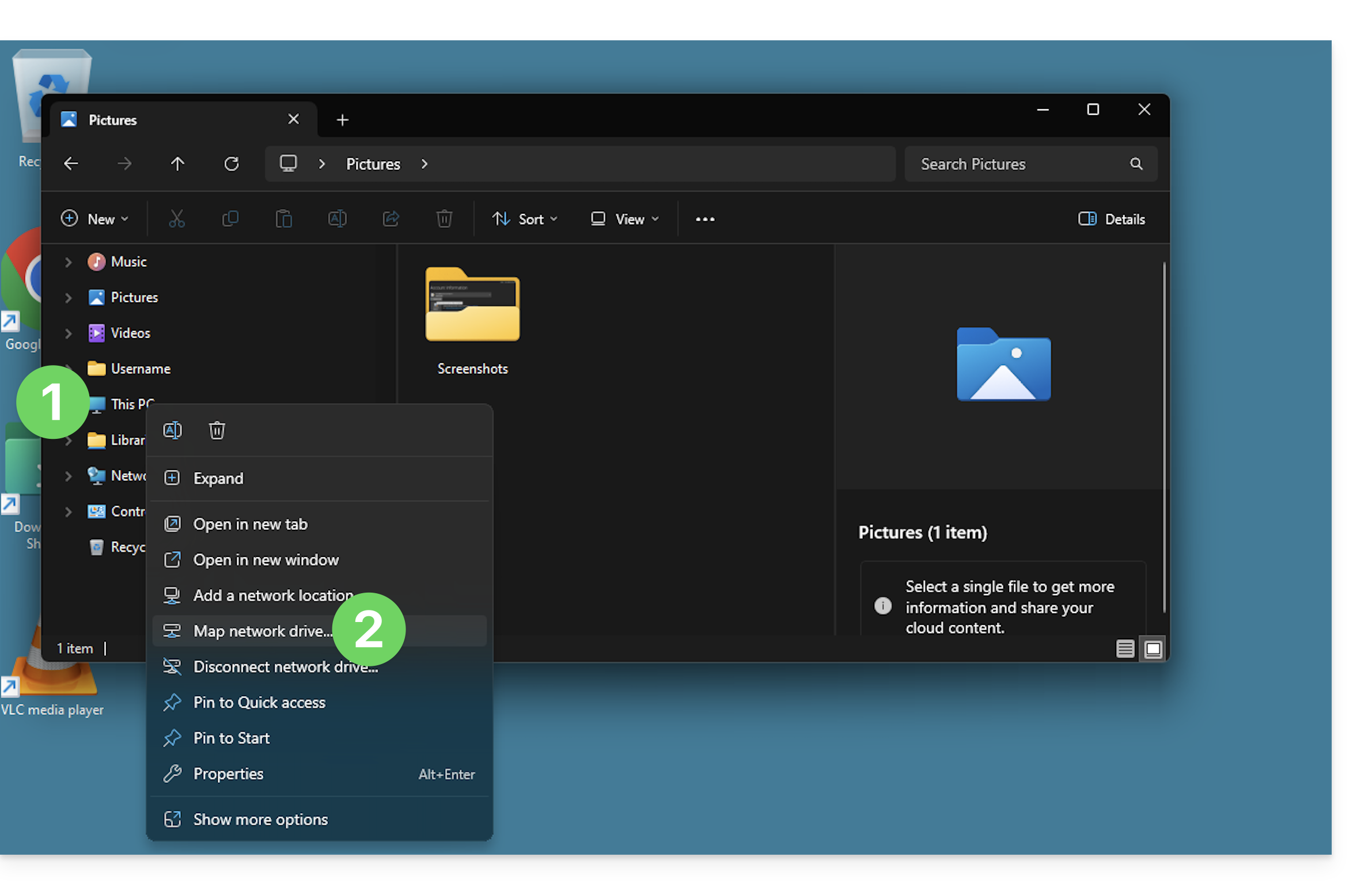
- Clique com o botão direito do mouse em Este Computador (anteriormente “Meu Computador”) no Explorador de Arquivos ou no menu Iniciar.
- Clique em Conectar uma unidade de rede:
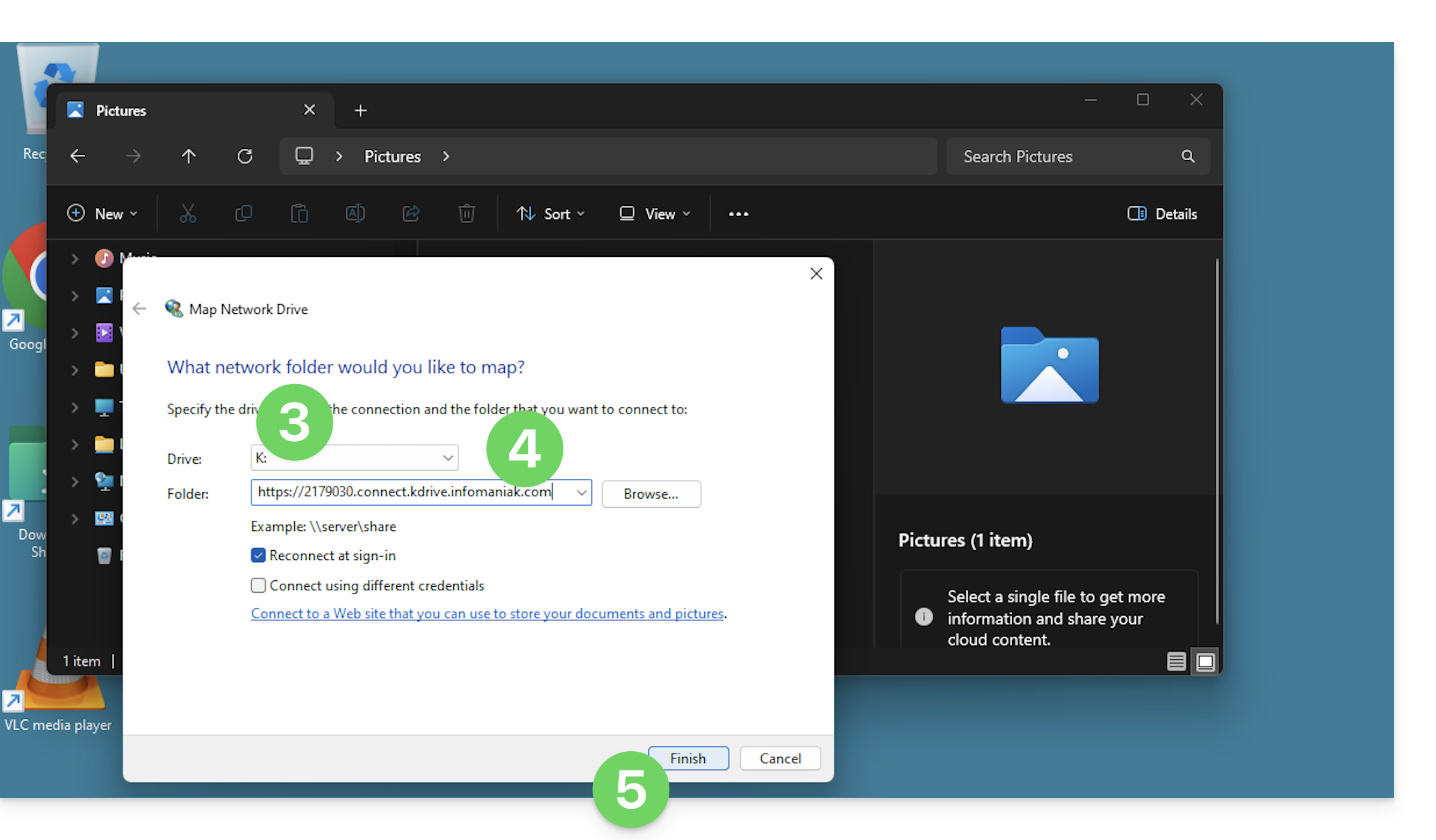
- Insira uma letra para designar a unidade virtual kDrive.
- Insira o endereço do servidor:
https://IDkDrive.connect.kdrive.infomaniak.com(precisa de ajuda?). - Clique em Concluir para iniciar sessão:
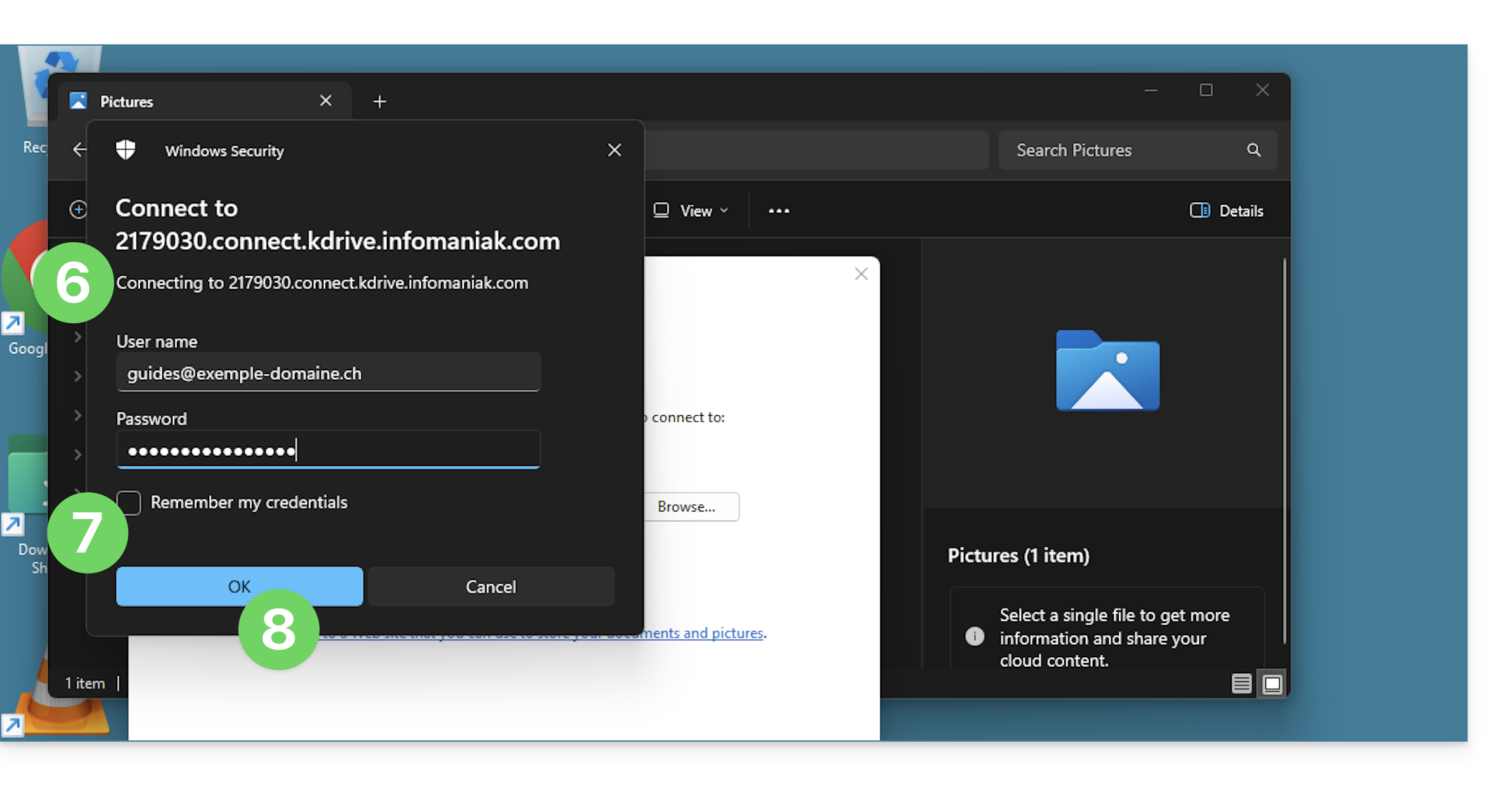
- Insira as seguintes informações:
- Nome de utilizador: endereço de e-mail para iniciar sessão na sua conta Infomaniak
- Senha: crie uma senha de aplicação para este uso específico.
- Se desejar, clique na caixa para guardar as informações de login.
- Confirme o login clicando no botão:
- Pronto, o conteúdo do kDrive é exibido no explorador, da mesma forma que o conteúdo acessível no kDrive da sua conta Infomaniak:
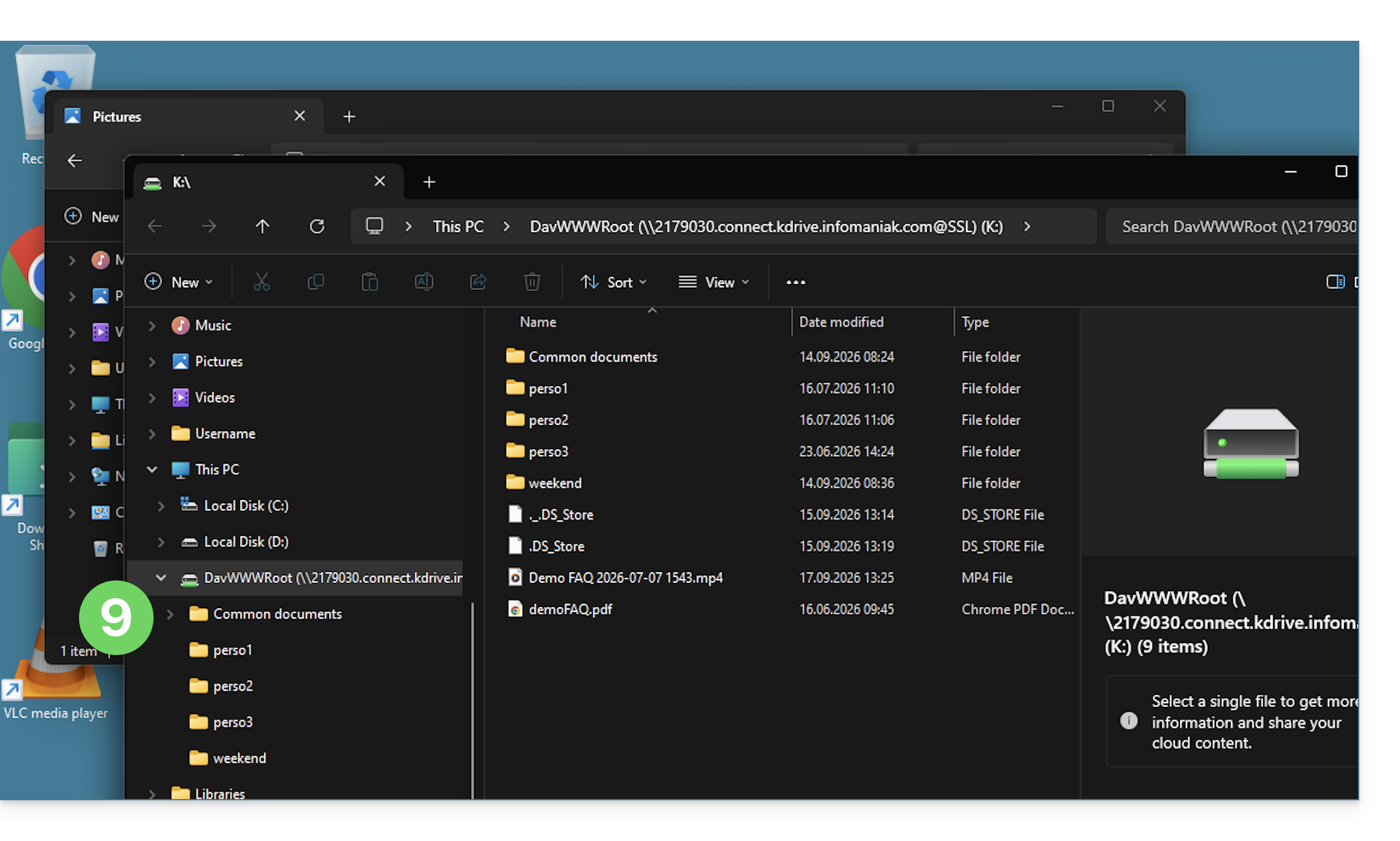
A alternativa Mountain Duck
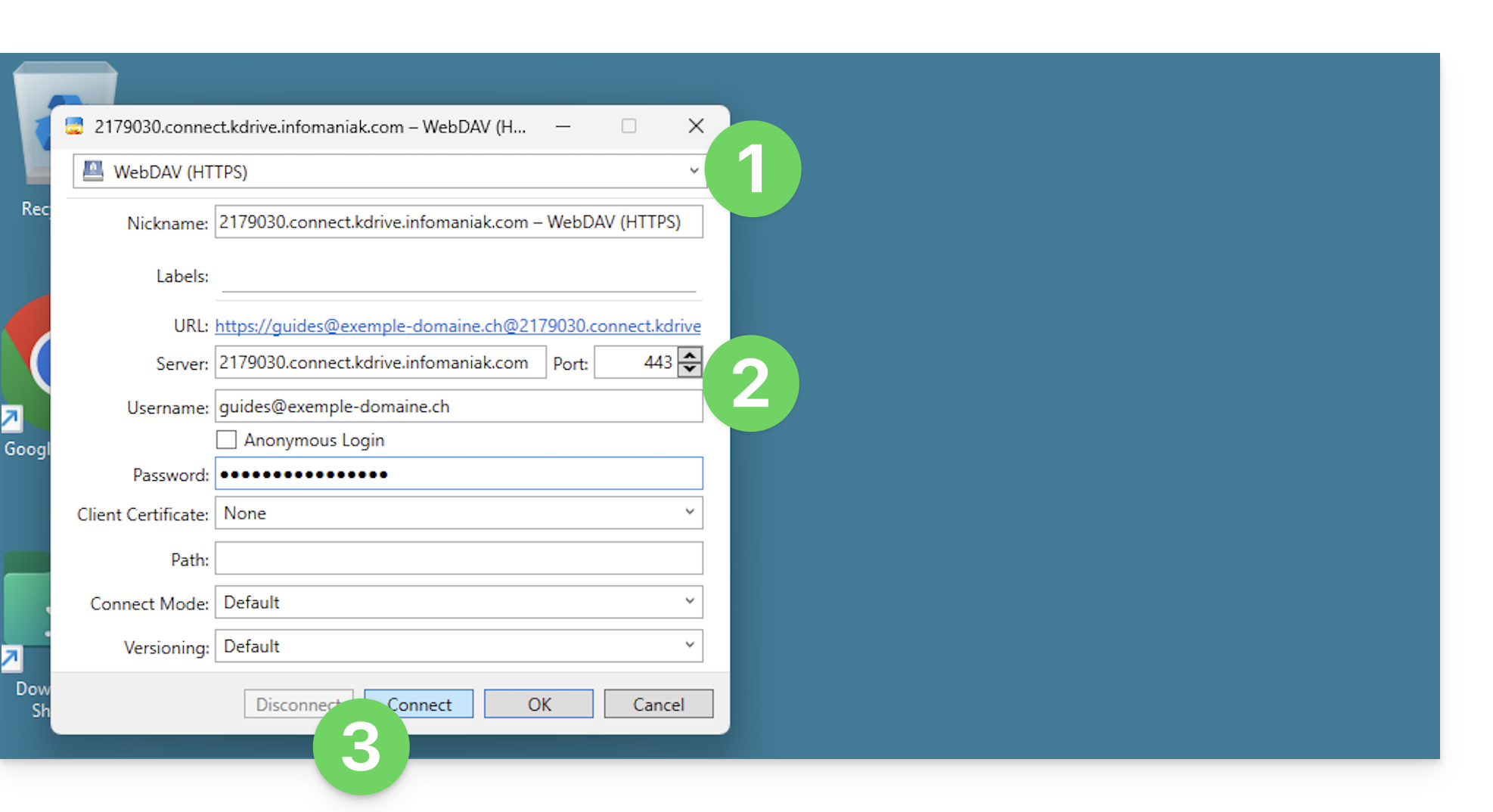
Com base no mesmo princípio e utilizando as mesmas informações, também pode considerar estabelecer uma ligação através de um software/cliente WebDAV, como o Mountain Duck:
- Crie uma nova ligação WebDAV no Mountain Duck.
- Insira as informações necessárias.
- Clique em Iniciar sessão:
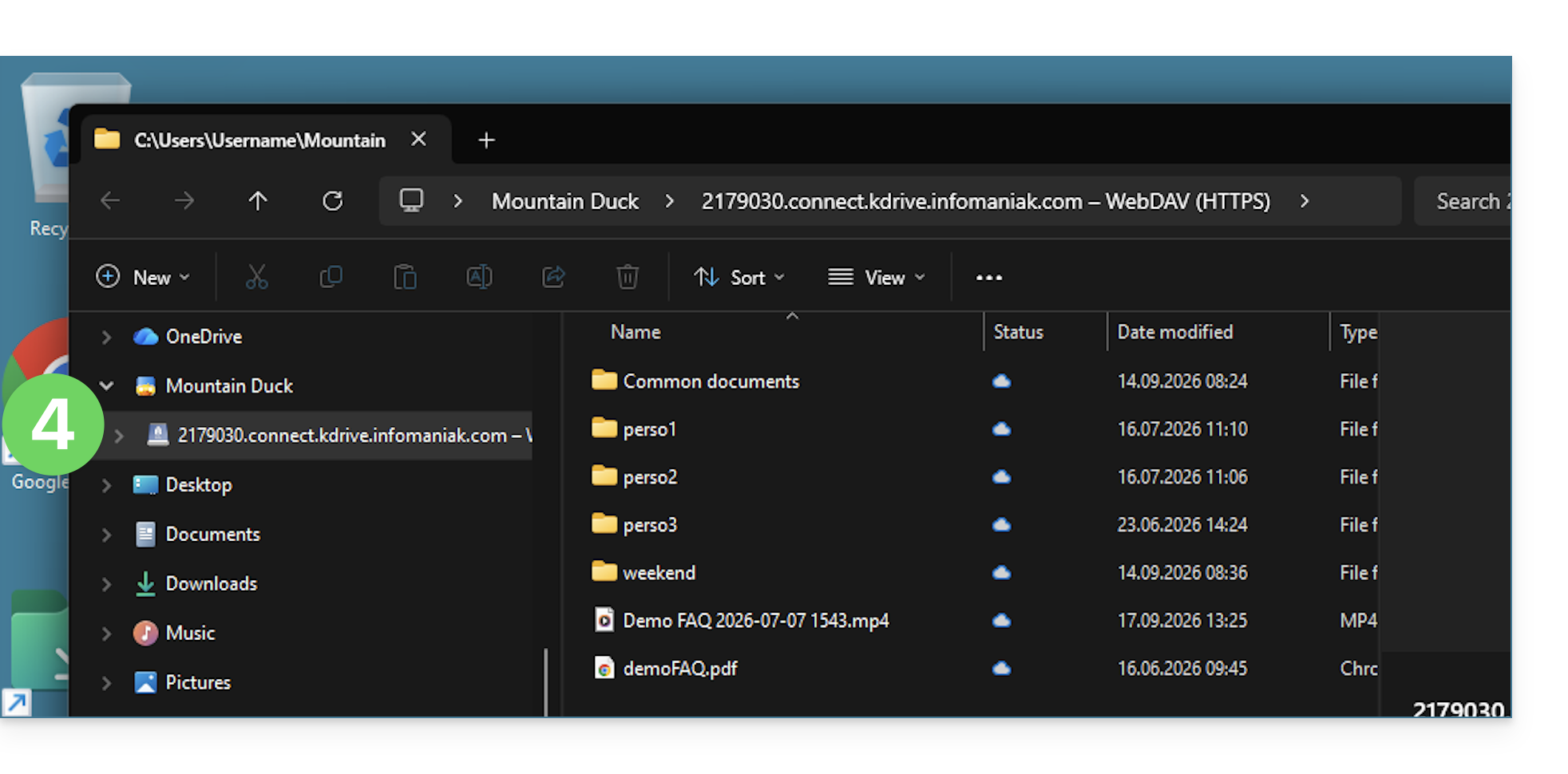
- Pronto, o conteúdo do kDrive é exibido no explorador, da mesma forma que o conteúdo acessível no kDrive da sua conta Infomaniak:
Link para esta FAQ: https://faq.infomaniak.com/2419
Esta seção de perguntas frequentes foi útil?
Este guia explica como selecionar as pastas que serão sincronizadas entre o aplicativo web kDrive (serviço online ksuite.infomaniak.com/kdrive) e o aplicativo desktop (aplicativo para computador em macOS / Windows / Linux).
Pré-requisitos
- Ter uma oferta kDrive / kSuite.
- Ter o aplicativo kDrive no dispositivo a ser sincronizado.
Não sincronizar tudo em um único dispositivo
Ao instalar a aplicação kDrive no seu computador, tudo o que já se encontra na aplicação web kDrive (serviço online ksuite.infomaniak.com/kdrive) ficará visível no seu computador numa pasta /kdrive (ou /kdrive2, etc.):
- seja virtualmente, caso escolha ativar o Lite Sync (por exemplo, 10 GB no lado da web serão reduzidos a apenas alguns MB no lado do computador),
- seja fisicamente com o mesmo tamanho de armazenamento (10 GB no Web exigirão 10 GB no seu computador).
Mas você pode especificar no aplicativo kDrive do seu dispositivo para que ele não exiba tudo, assim, parte dos seus dados permanecerá no kDrive (Web) e não será transferida, visualizada ou sincronizada no seu dispositivo. Isso é particularmente útil, especialmente durante a sincronização avançada (❓: ajuda).
Aplicativo para desktop v4.x
Para escolher quais pastas você deseja visualizar no seu computador e excluir algumas, partindo do princípio de que, atualmente, sua sincronização é completa entre o kDrive Web e o computador: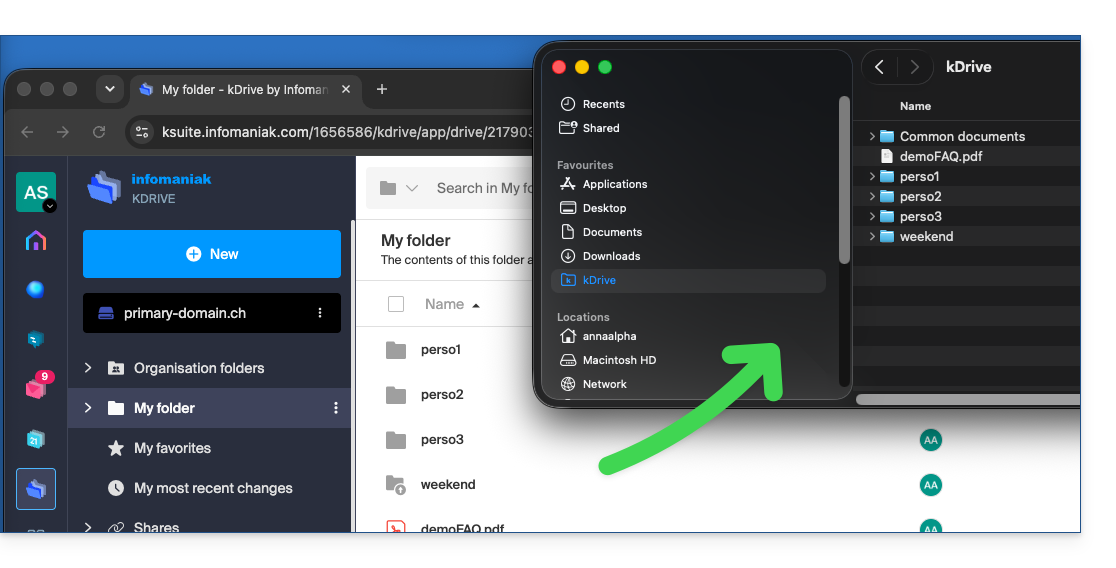
- Inicie o kDrive no seu dispositivo: o ícone do aplicativo deve estar visível no canto superior direito no macOS/Linux e no canto inferior direito no Windows (❓: ajuda).
- Clique com o botão direito no ícone e escolha Configurações:
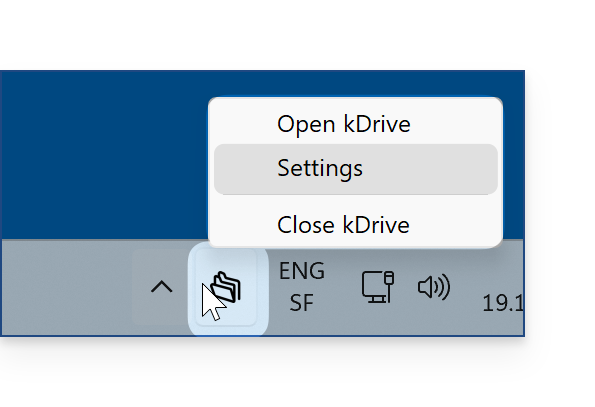
- Acesse Contas e Sincronização.
- Clique em Gerenciar (ou ❯) à direita da sincronização atual:
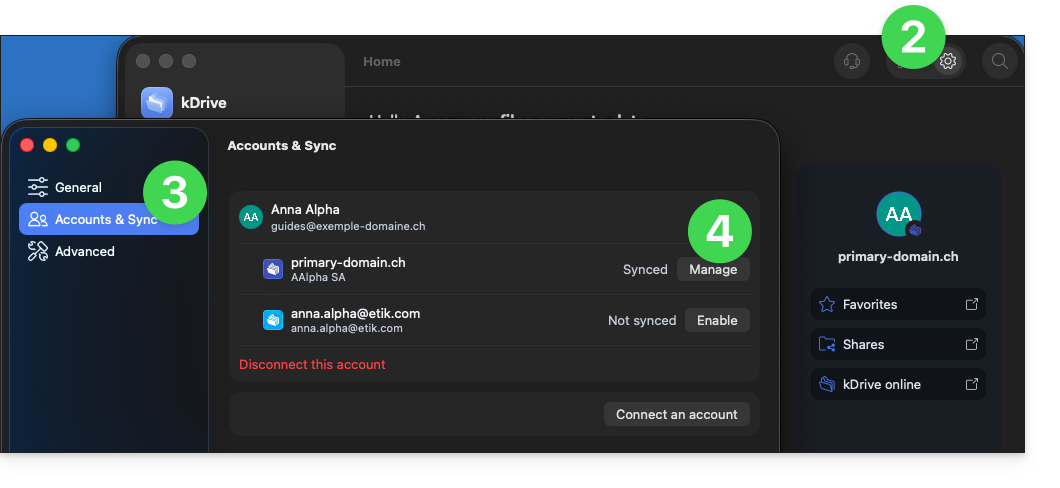
- Clique em Gerenciar a sincronização:
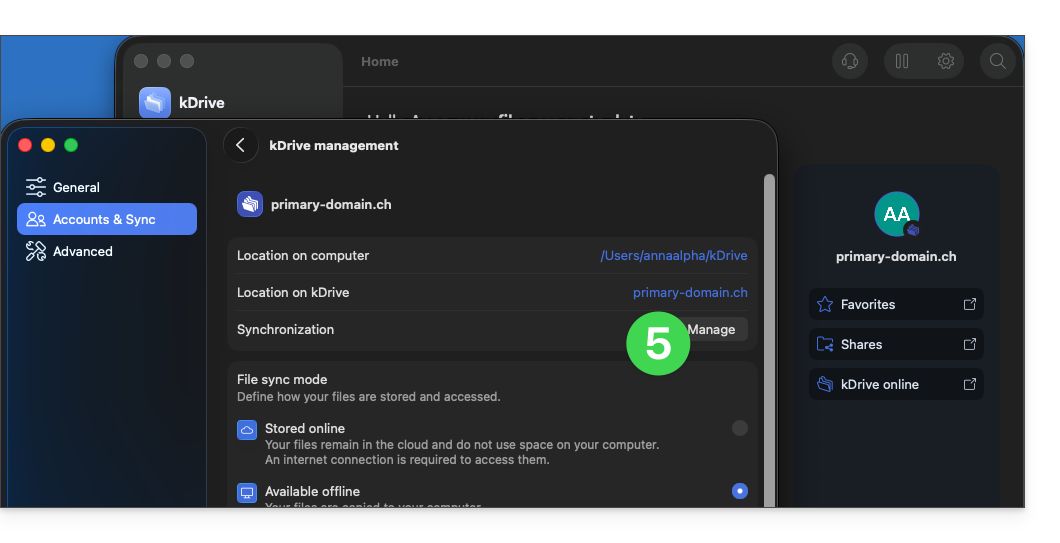
- Ative ou desative as caixas correspondentes aos dados que não devem mais aparecer no seu dispositivo após a próxima sincronização.
- Salve as suas alterações:
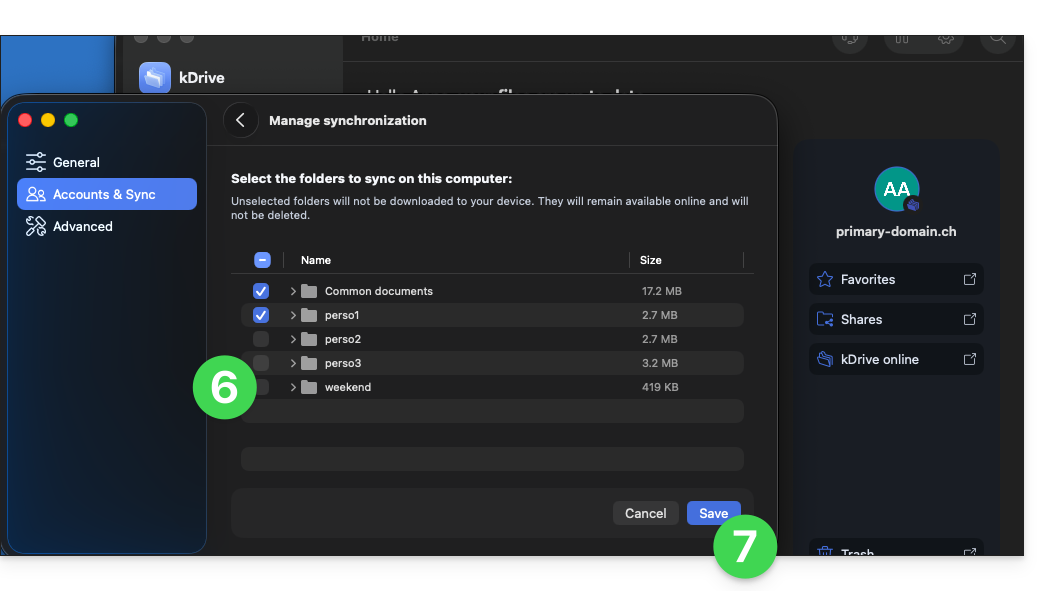
- O efeito é imediato; apenas os ficheiros selecionados na lista permanecem sincronizados com o seu dispositivo, o restante é excluído e deixa de ser sincronizado:
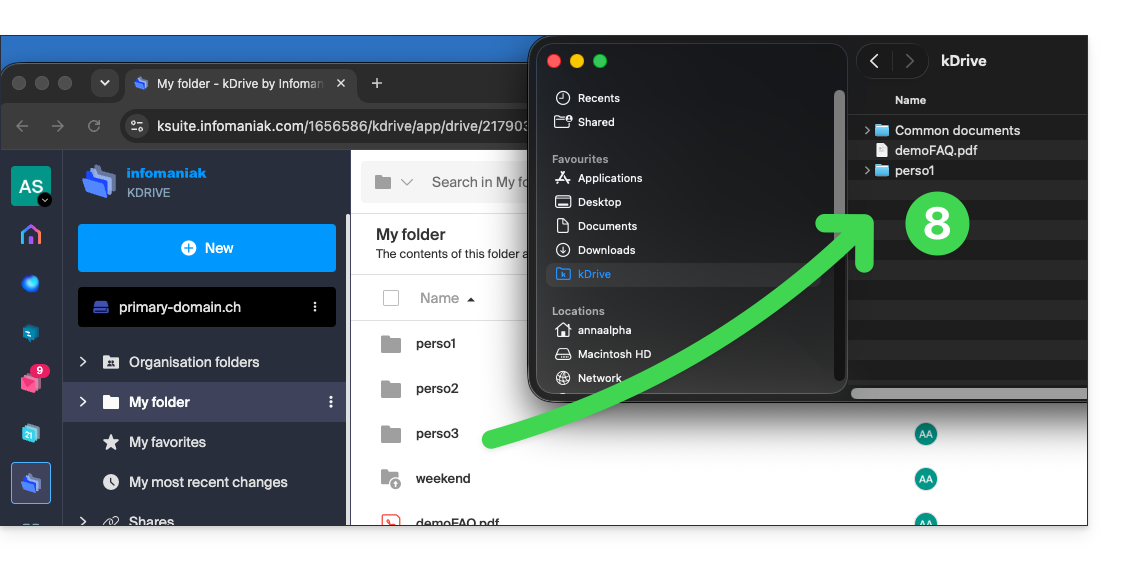
- As pastas kDrive na versão online, acessível através de um navegador como Brave, Chrome, Edge, Firefox, Opera, Safari…, não serão afetadas, mas certifique-se, antes da operação, de que a pasta em questão estava devidamente sincronizada e presente na totalidade nesta versão online (especialmente se a tiver colocado recentemente na sua pasta sincronizada).
- Os dados removidos da sincronização serão enviados para a lixeira do seu dispositivo:
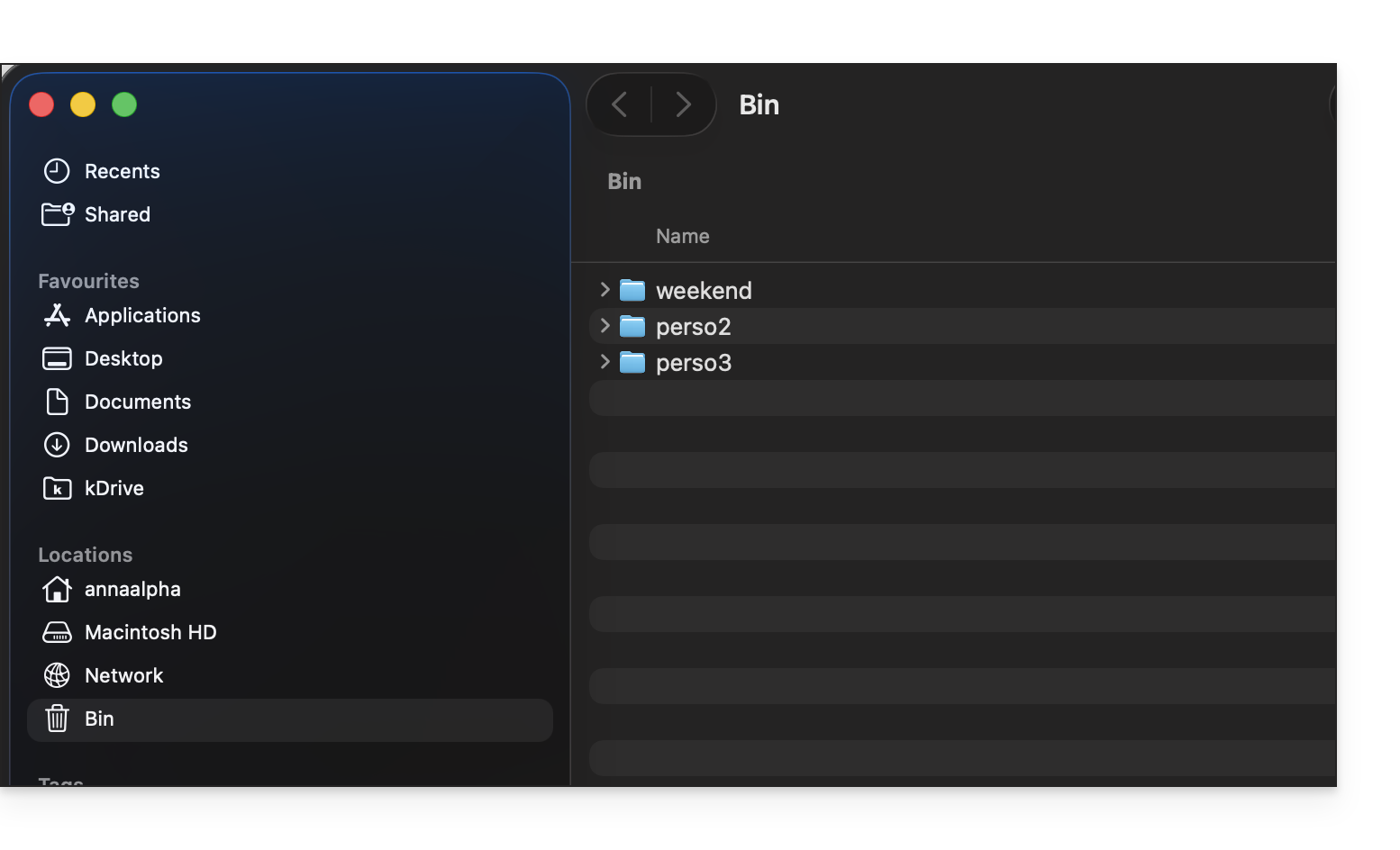
- Em caso de dúvida, certifique-se também de que o seu computador não elimina instantaneamente os elementos muito grandes quando são colocados na lixeira, devido ao tamanho da lixeira do Windows, por exemplo:

Aplicativo para desktop v3.x
Para escolher quais pastas você deseja ter acesso no seu computador, acesse as configurações do aplicativo kDrive no seu computador:
- Clique com o botão esquerdo do rato no ícone do aplicativo para desktop na área de notificação do seu computador (no canto superior direito no macOS, no canto inferior direito no Windows e um duplo clique com o botão esquerdo na barra de tarefas no Linux).
- Clique no menu de ação ⋮, à direita, na janela que aparece.
- Clique em Configurações do kDrive.
- Clique na seta para baixo à esquerda do nome da sua sincronização para exibir a lista de pastas (atualmente armazenadas no kDrive Web).
- Expanda o conteúdo das pastas listadas e marque / desmarque as pastas que deseja sincronizar com o seu computador.
- Clique no botão azul Confirmar.
Mas atenção:
- Ao desmarcar uma pasta que estava selecionada na lista, uma mensagem ao lado do botão (ponto 6 acima) avisa que Este ficheiro será movido para a lixeira do seu computador.
- Este é o ficheiro que estava na sua estrutura kDrive no seu computador.
- Os diretórios kDrive na versão online acessível através do navegador não serão afetados, mas certifique-se, antes da operação, de que o diretório em questão estava devidamente sincronizado e presente na íntegra nesta versão online (especialmente se você o tiver colocado recentemente dentro do seu diretório sincronizado).
- Em caso de dúvida, verifique também se o seu computador não elimina instantaneamente os elementos muito grandes quando são colocados na lixeira, devido ao tamanho da lixeira do Windows, por exemplo:
Link para esta FAQ: https://faq.infomaniak.com/2454
Esta seção de perguntas frequentes foi útil?
Este guia explica como aceder aos ficheiros do kDrive localmente no disco rígido através da aplicação de ambiente de trabalho kDrive (aplicação para computador macOS/Windows/Linux), bem como aos ficheiros da aplicação Web kDrive (serviço online ksuite.infomaniak.com/kdrive).
Pré-requisitos
- Instale o aplicativo kDrive para desktop no seu dispositivo.
- Certifique-se de que está conectado com a mesma conta Infomaniak tanto no aplicativo para desktop quanto na versão web, caso contrário, o passo 3 abaixo resultará em um erro.
Ver os ficheiros kDrive
Quando a aplicação kDrive está instalada e é iniciada:
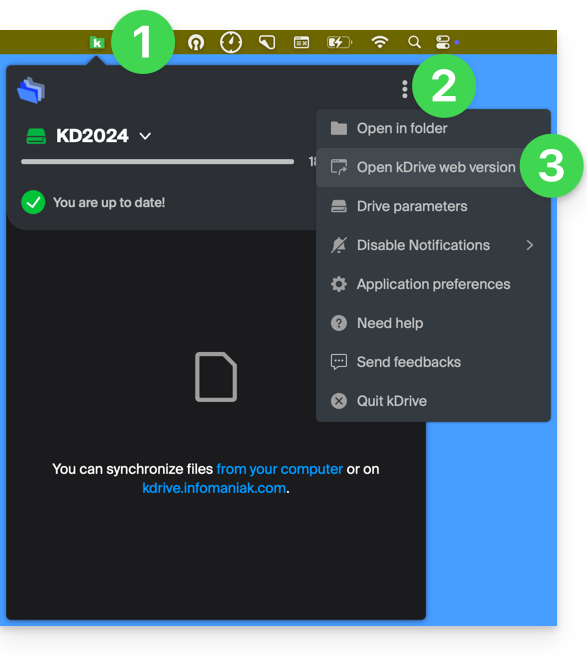
- Clique com o botão esquerdo do mouse no ícone do aplicativo na área de notificação do seu computador (no canto superior direito no macOS, no canto inferior direito no Windows e um clique duplo com o botão esquerdo na barra de tarefas no Linux).
- Clique no menu de ação ⋮ no canto superior direito.
- Clique em Abrir kDrive Web para acessar os arquivos armazenados no servidor kDrive:
- É possível que a versão no navegador não seja exibida.
- Clique no item acima para abrir a pasta do disco no seu computador que contém seus arquivos kDrive, fisicamente presentes ou virtualmente presentes (dependendo se o Lite Sync estiver ativado).
Se todos os seus arquivos não estiverem presentes/sincronizados, consulte este outro guia.
Diferenças entre a versão web e a versão sincronizada no computador
Pastas compartilhadas
Na versão web do kDrive, a pasta compartilhada é chamada de Pastas da organização: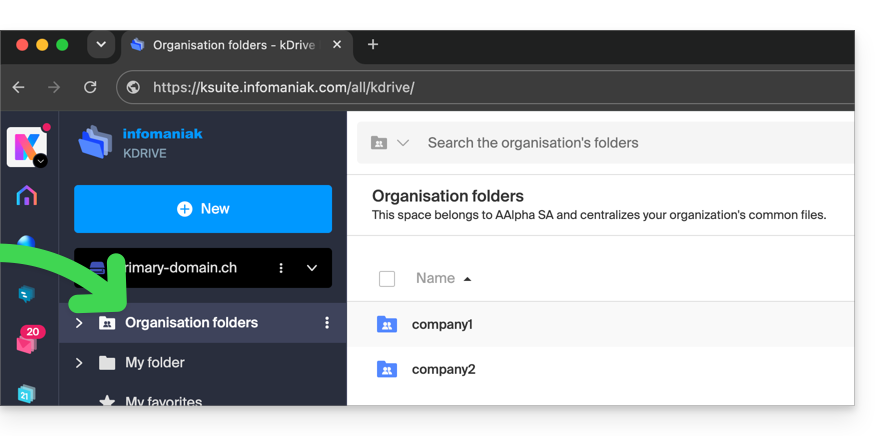
No computador, você encontrará a mesma pasta, mas com o nome Documentos comuns; não tente renomeá-la: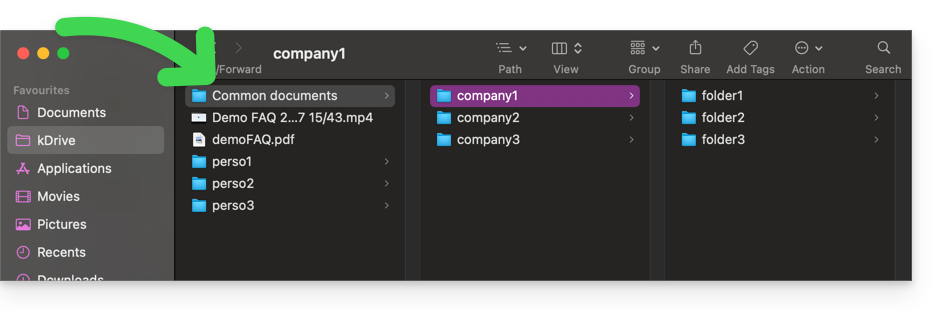
Pasta pessoal
Na versão web do kDrive, a pasta pessoal do utilizador conectado está organizada num espaço separado (“A minha pasta”), que também não pode ser modificado: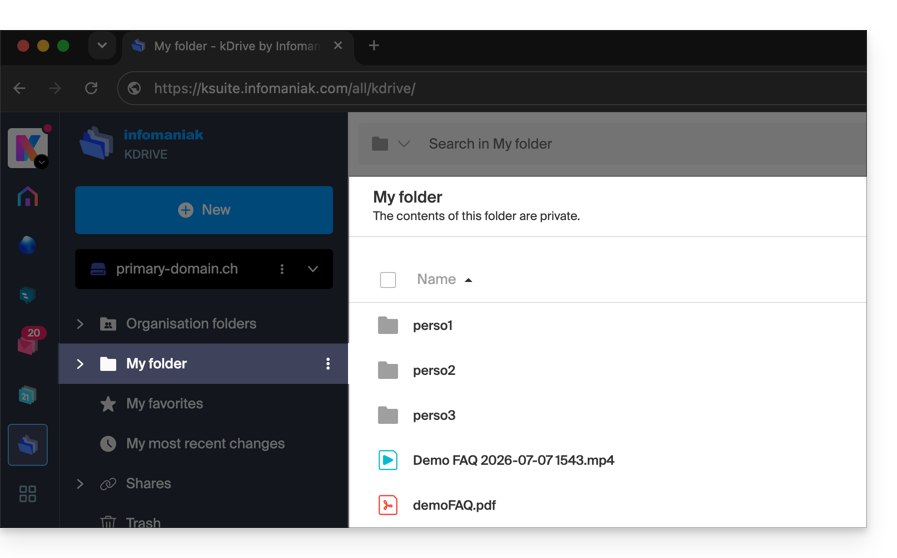
No computador, tudo o que estiver fora de Documentos comuns pertence à pasta pessoal (“A minha pasta”) do utilizador conectado: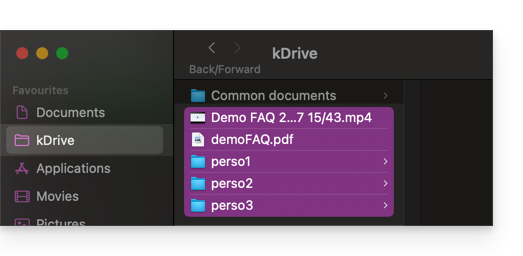
Link para esta FAQ: https://faq.infomaniak.com/2456
Esta seção de perguntas frequentes foi útil?
Este guia explica como conectar e gerenciar vários kDrive no computador (macOS / Windows). Esta funcionalidade permite, por exemplo, acessar os arquivos de um kDrive pessoal e de um kDrive profissional.
Pré-requisitos
- Ter uma oferta kDrive ou kSuite.
- Ter a aplicação de ambiente de trabalho kDrive (aplicação para macOS / Windows / Linux).
Aceder aos diferentes kDrive a partir do computador
Um utilizador conectado à aplicação kDrive no computador já pode ter acesso a vários kDrive se já estiver a trabalhar com vários kDrive fora da aplicação, se tiver sido adicionado a outros kDrive, etc. Todos eles são acessíveis a partir do momento em que o utilizador está conectado com a identificação correspondente a esses kDrive.
Aceder e gerir outros kDrive…
Para se conectar com uma conta diferente e, assim, aceder a outros kDrive:
… a partir do aplicativo de desktop kDrive (aplicativo para computador em macOS / Windows / Linux)
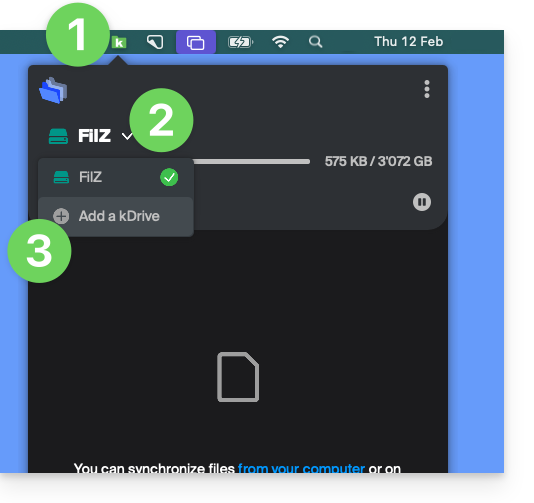
- Clique com o botão esquerdo do mouse no ícone do aplicativo de desktop na área de notificação do seu computador (no canto superior direito no macOS, no canto inferior direito no Windows e clique duas vezes na barra de tarefas no Linux).
- Clique no ícone de seta para baixo à direita do nome do kDrive (os kDrives aos quais você já tem acesso com seu usuário serão exibidos).
- Clique em Adicionar um kDrive:
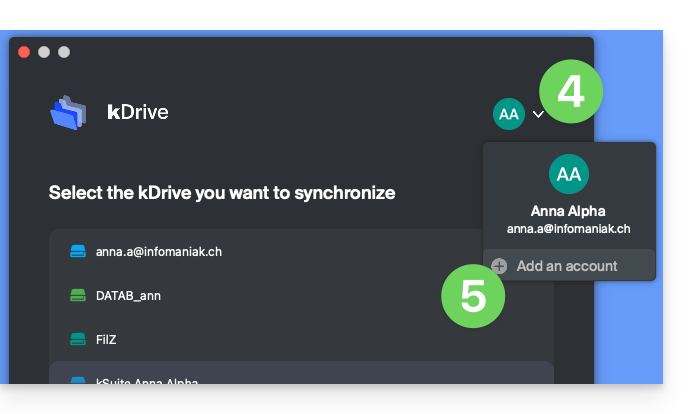
- Clique no ícone com suas iniciais ou avatar no canto superior direito.
- Clique em Adicionar conta:
- Insira as credenciais da sua conta Infomaniak — consulte este outro guia, se necessário.
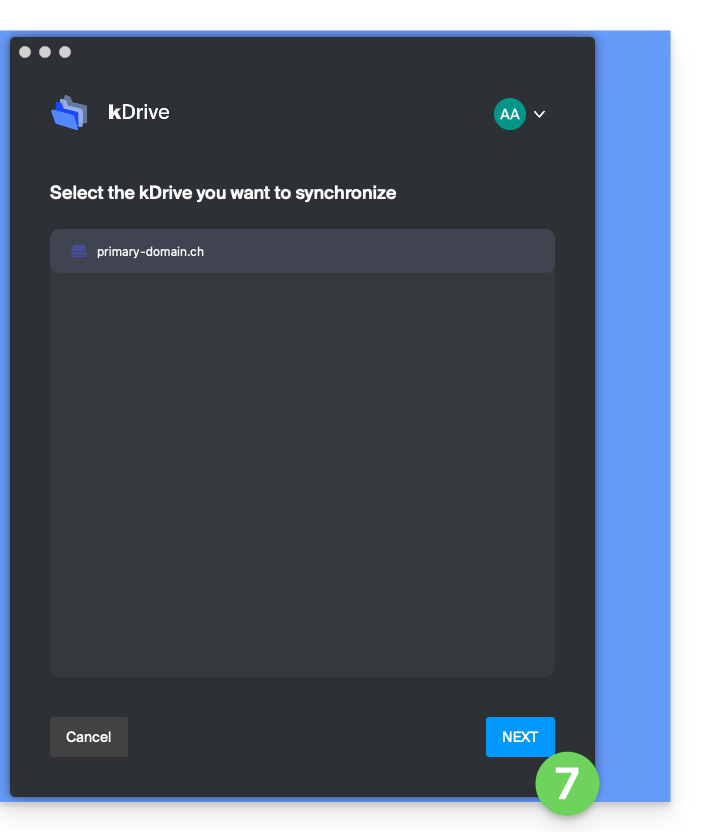
- Escolha e configure o kDrive a adicionar (Sincronização Lite, diretório a ser usado no computador, etc.):
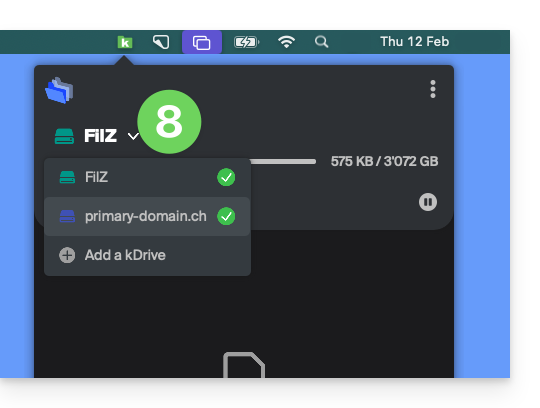
- Agora é possível alternar entre diferentes kDrives ao clicar no ícone kDrive e, em seguida, na seta para baixo na janela que se abre:
… a partir do aplicativo web kDrive (serviço online ksuite.infomaniak.com/kdrive)
- Clique aqui para acessar o aplicativo web kDrive da Infomaniak (serviço online ksuite.infomaniak.com/kdrive).
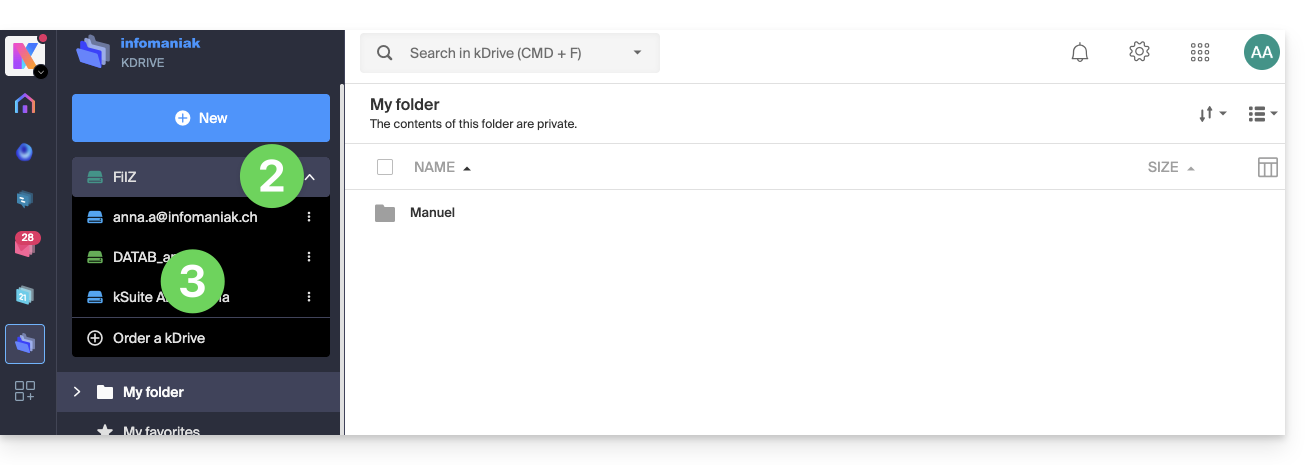
- Clique na seta para baixo para expandir a lista no canto superior esquerdo da interface do kDrive.
- Clique no kDrive que deseja utilizar
Desconectar um kDrive a partir do aplicativo para desktop
Para acessar as configurações do aplicativo kDrive no seu dispositivo:
- Clique com o botão esquerdo do mouse no ícone do aplicativo para desktop na área de notificação do seu computador (no canto superior direito no macOS, no canto inferior direito no Windows e clique duas vezes na barra de tarefas no Linux).
- Clique no ícone ⋮ no canto superior direito do aplicativo.
- Clique em Configurações do kDrive:
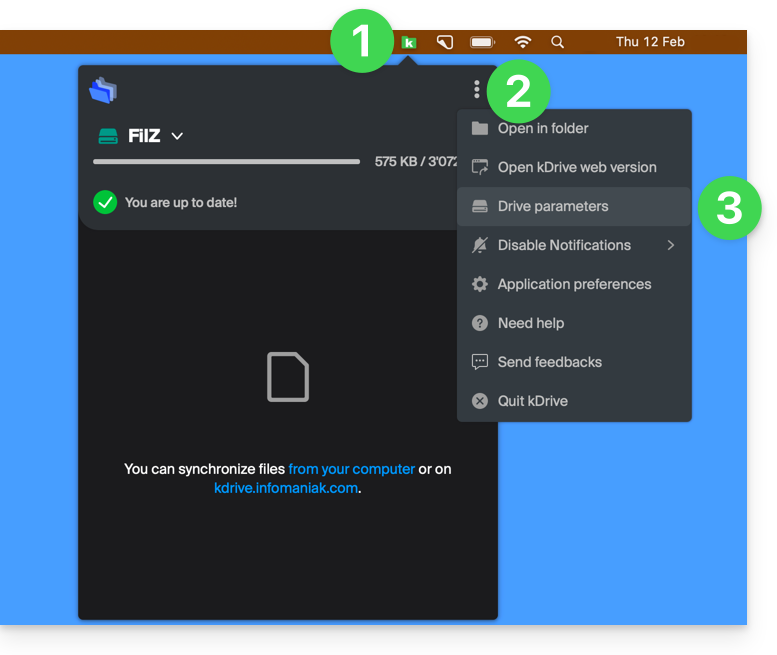
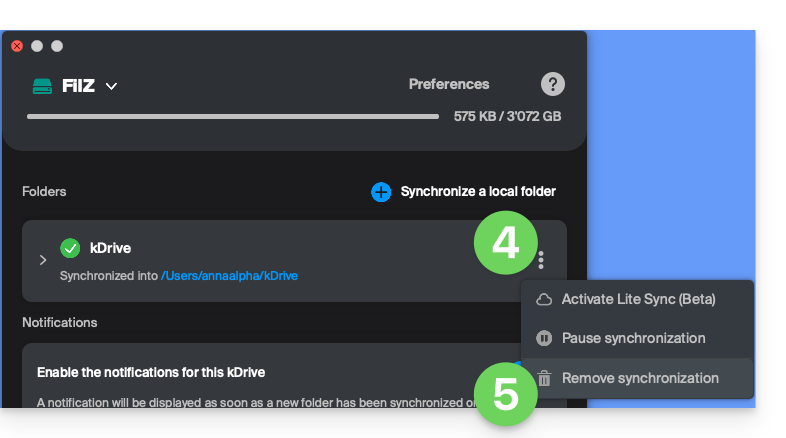
- Clique no ícone ⋮ à direita do kDrive sincronizado, em Pastas.
- Escolha Remover sincronização (apenas do seu dispositivo, sem afetar o kDrive):
Link para esta FAQ: https://faq.infomaniak.com/2458
Esta seção de perguntas frequentes foi útil?
Este guia detalha as medidas implementadas pela Infomaniak para proteger todos os seus dados kDrive, sejam eles pessoais (dados médicos, informações de identificação ou de login) ou até mesmo confidenciais (informações financeiras, segredos comerciais, informações de propriedade intelectual, pesquisa e desenvolvimento, etc.).
Segurança e confidencialidade dos dados
A infraestrutura kDrive é composta por vários serviços e servidores baseados em diferentes tecnologias. O conteúdo e a estrutura do conteúdo de cada cliente são sistematicamente criptografados e armazenados em backup permanentemente em pelo menos 3 locais em vários data centers controlados pela Infomaniak. Os dados são armazenados e processados exclusivamente em data centers localizados na Suíça. Os data centers do tipo TIER III+ garantem alta disponibilidade e redundância de N+1 para seus componentes críticos.
O armazenamento é realizado por meio do Swift, uma tecnologia de armazenamento de dados em nuvem distribuída e altamente disponível.
O kDrive integra vários níveis de proteção para proteger os arquivos:
- Para proteger os dados em trânsito, é utilizado o protocolo de criptografia SSL/TLS.
- Para proteger os dados armazenados, é utilizada a criptografia AES de 128 bits (AES-128-CBC) com uma chave individual e exclusiva por espaço kDrive.
A Infomaniak testa regularmente as aplicações e a infraestrutura kDrive para identificar possíveis vulnerabilidades de segurança, a fim de fortalecer a segurança e garantir a proteção contra ataques.
E também…
- O kDrive oferece um registo de acesso aos dados e um histórico das ações, que pode ser consultado diretamente no painel de controlo; é possível aceder a um relatório de atividade para monitorizar o histórico das ações dos utilizadores em todo o seu kDrive; também pode acompanhar os seus dados e as modificações efetuadas em cada documento, folha de cálculo ou apresentação.
- Apenas as pessoas que possuem um link para os ficheiros públicos podem consultá-los.
- A autenticação de dois fatores oferece um nível de segurança adicional durante o início de sessão; se utilizar a autenticação de dois fatores, pode escolher, por exemplo, a autenticação através da aplicação Infomaniak Authenticator.
- Consulte este outro guia se procura informações sobre a análise de dados.
Link para esta FAQ: https://faq.infomaniak.com/2462
Esta seção de perguntas frequentes foi útil?
Este guia explica como iniciar a gravação de uma reunião online organizada com kMeet, a solução ética de videoconferência gratuita da Infomaniak, para obter um vídeo da apresentação armazenado no kDrive da Infomaniak.
Introdução
- O registo do vídeo
- é feito no servidor
- não gera qualquer carga para o computador do participante que o iniciou
- está no formato de vídeo
.mp4 - tem uma duração máxima de 3 horas.
- O vídeo não estará disponível até que alguém interrompa a gravação manualmente.
Gravar uma reunião kMeet no kDrive em vídeo
Pré-requisitos
- Possuir um kDrive (autónomo/independente ou integrado numa oferta kSuite, my kSuite, etc.).
- Não criar uma videoconferência cifrada com uma chave personalizada (❓: ajuda).
Para gravar a reunião no kDrive:
- Clique aqui para acessar o kMeet na sua kSuite Infomaniak (ou inicie o aplicativo móvel/desktop — ❓: ajuda).
- Inicie uma reunião (❓: ajuda).
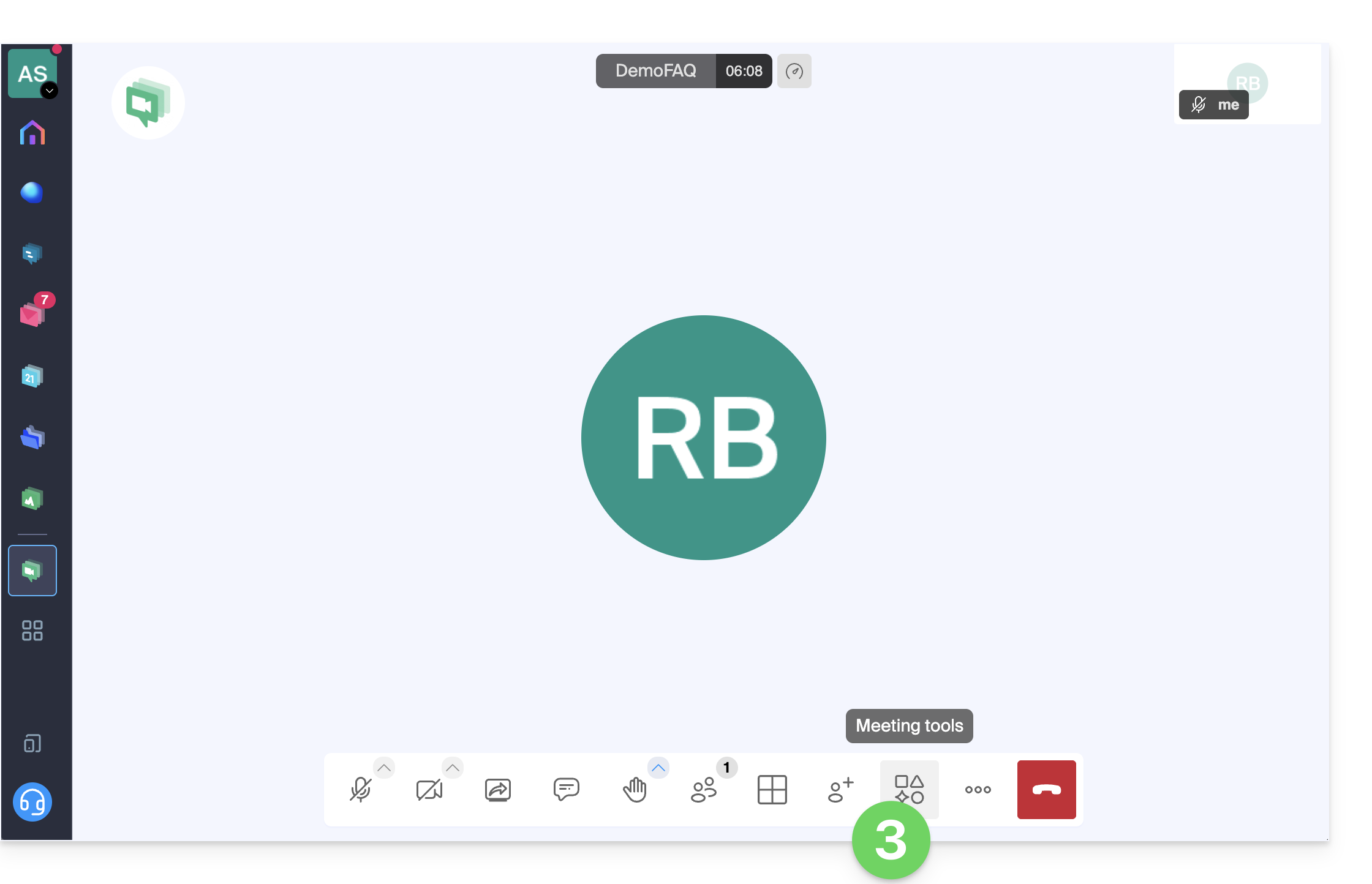
- Clique em Ferramentas de reunião na barra de ferramentas inferior:
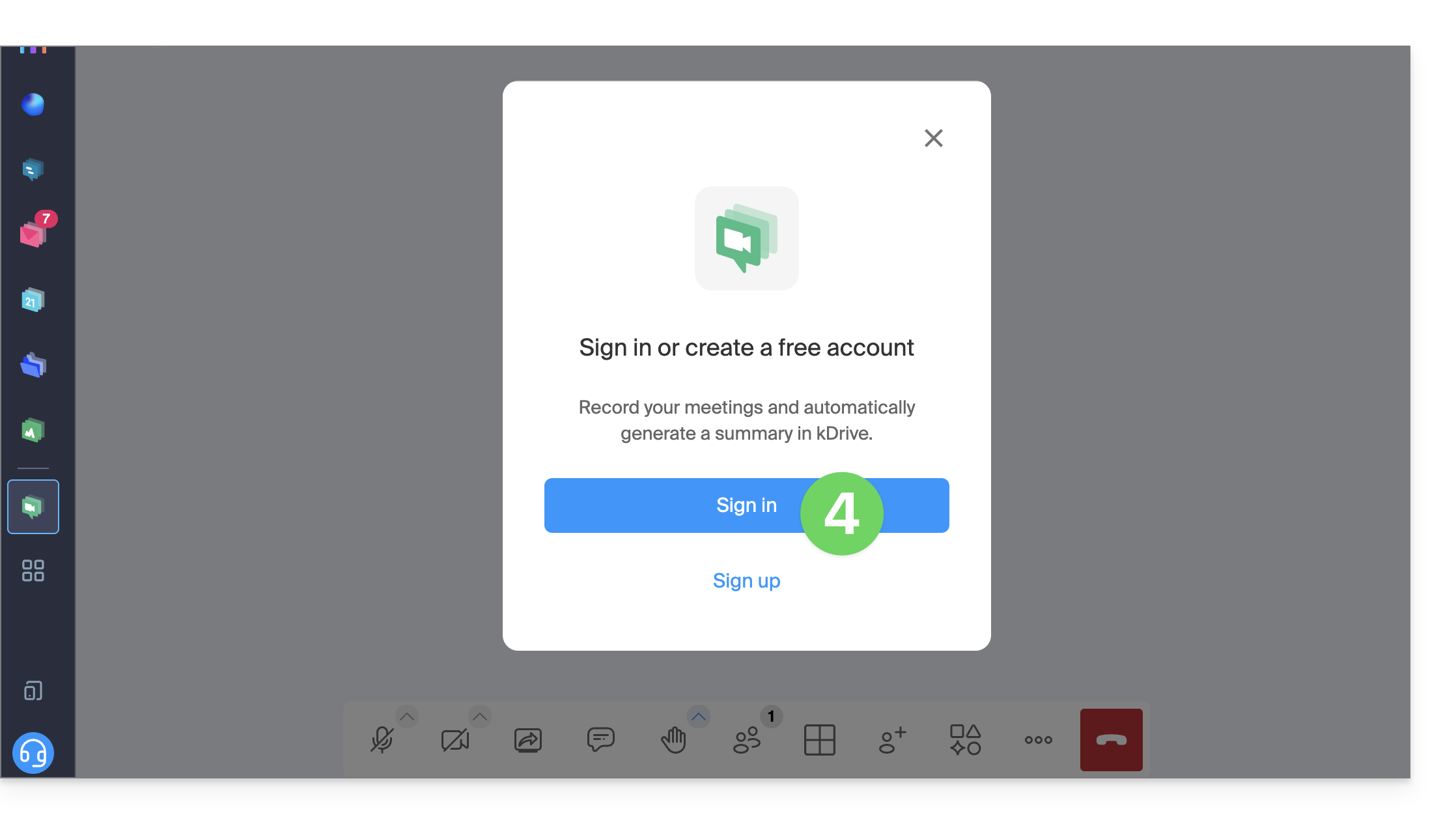
- Se necessário, clique para fazer login:
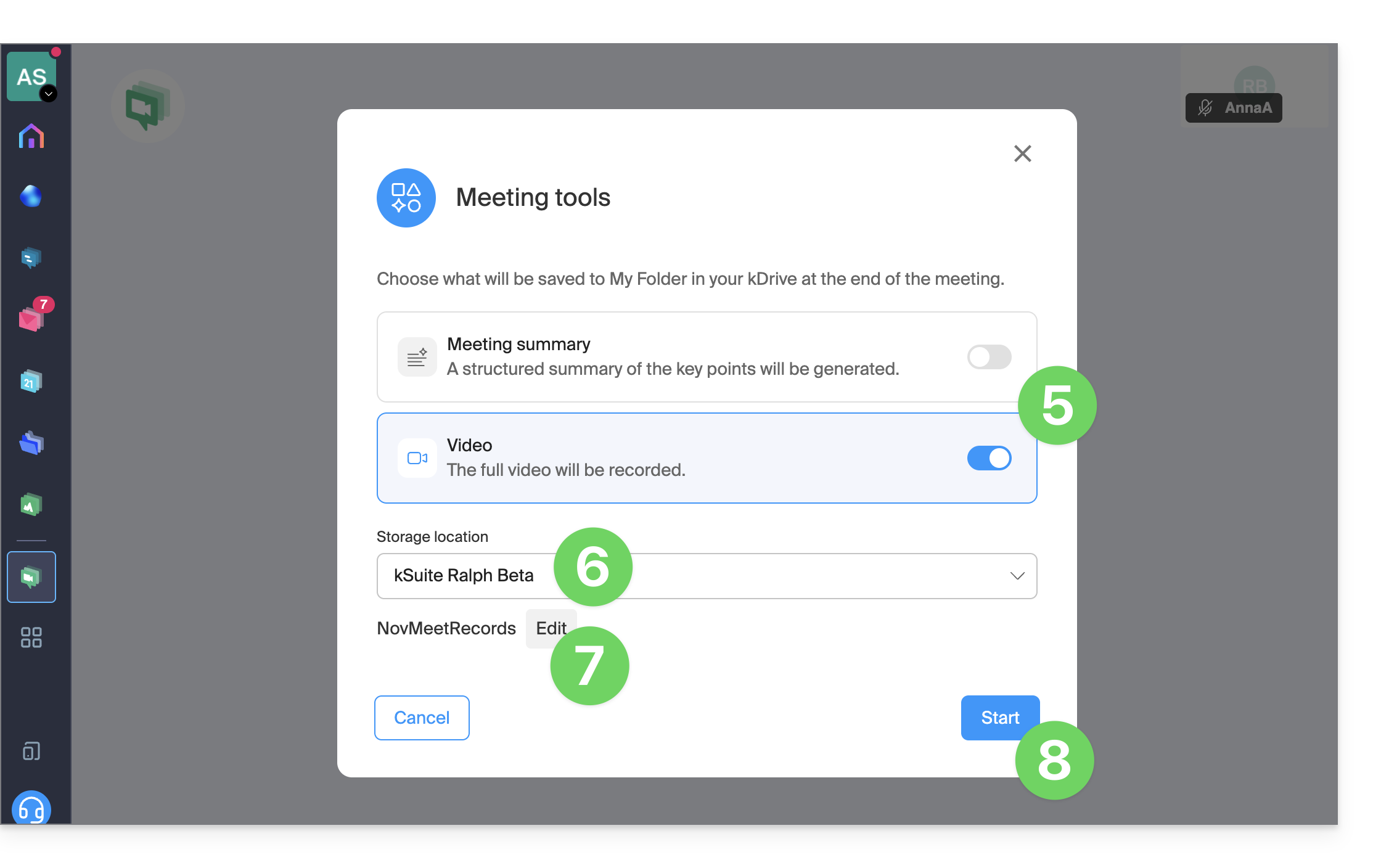
- Ative a gravação de vídeo (e/ou a função de resumo de texto —❓: ajuda).
- Selecione um kDrive para salvar a videoconferência.
- Edite o local no kDrive onde os futuros vídeos serão salvos.
- Clique no botão para iniciar a gravação. Uma mensagem sonora indicará aos participantes o início da gravação:
- Se um participante entrar na reunião posteriormente, ele também receberá uma mensagem sonora ao se conectar, alertando sobre a gravação em andamento.
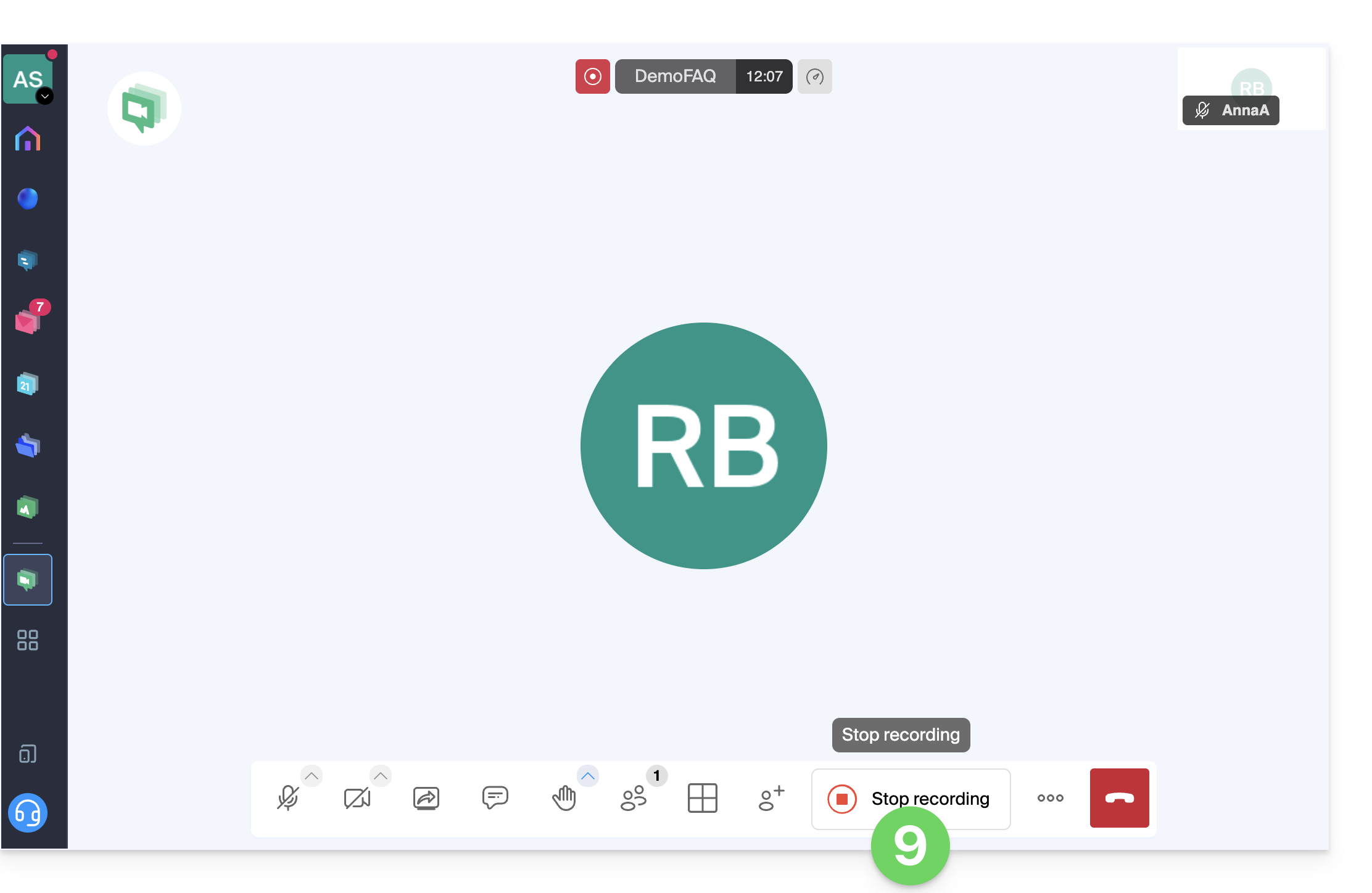
- Para parar a gravação do vídeo, clique em Parar gravação:
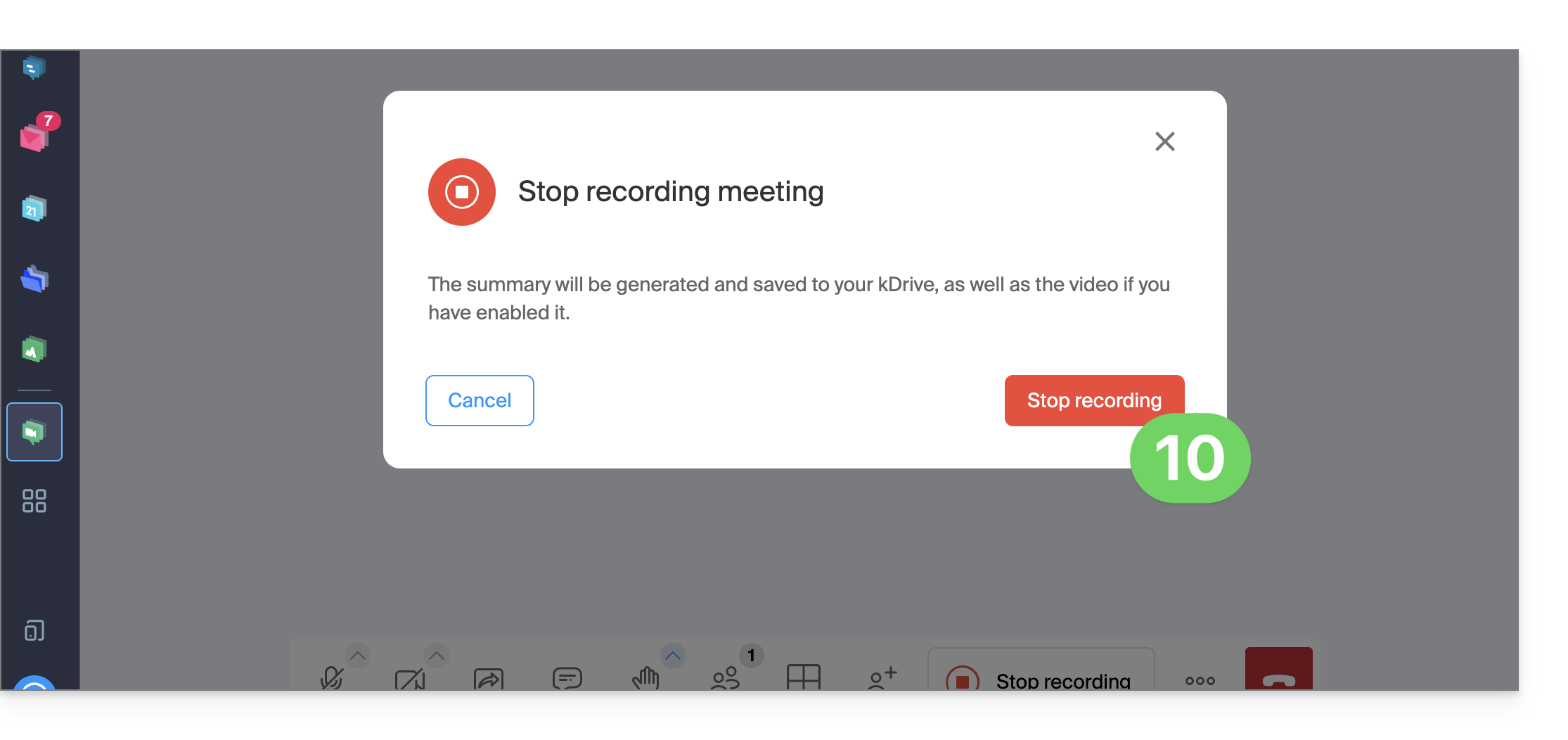
- Confirme:
- Escolha se deseja ir para o local do arquivo no kDrive:
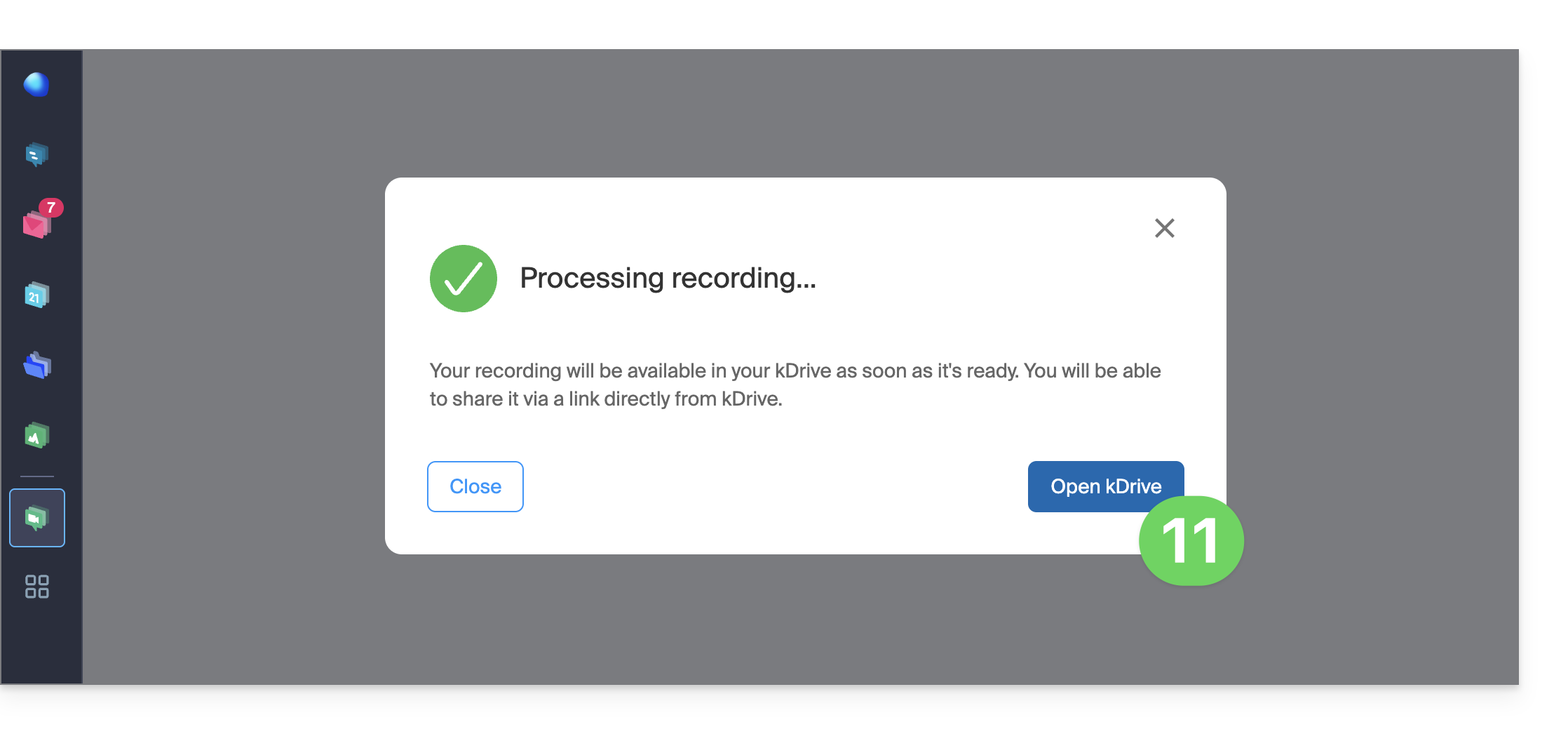
- O ficheiro é guardado na pasta raiz do kDrive selecionado:
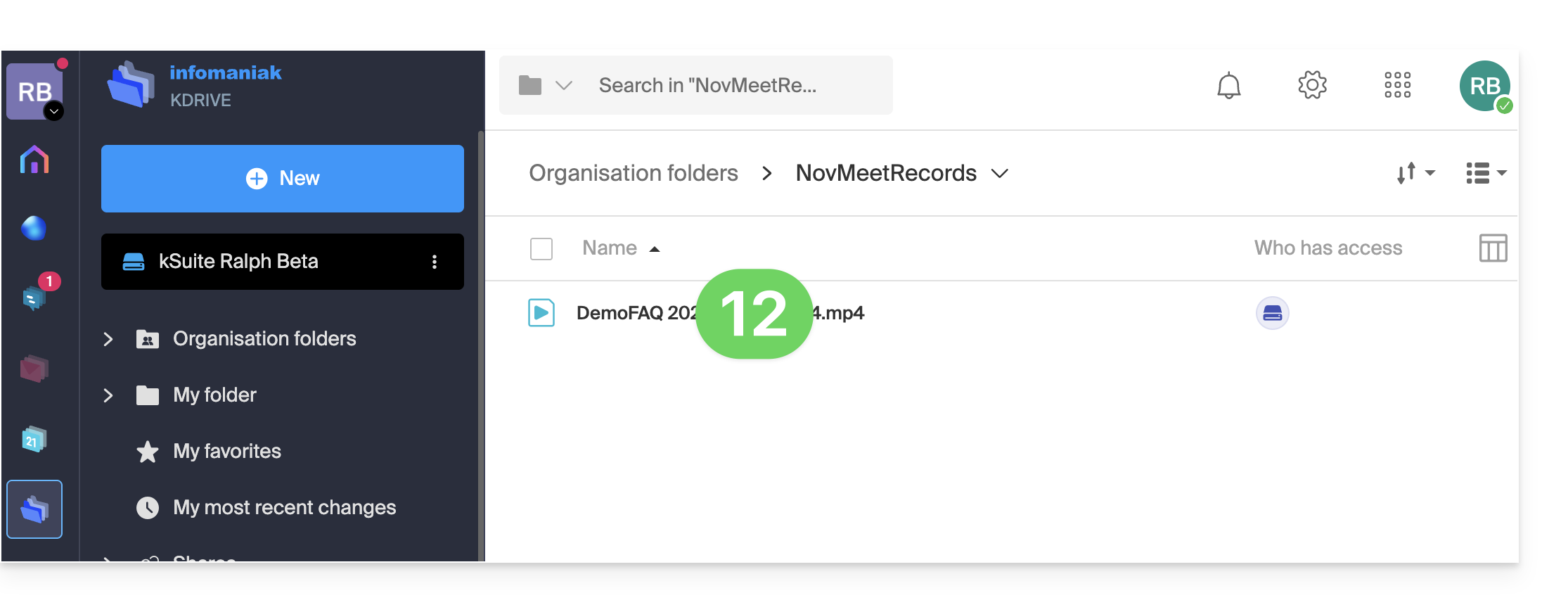
Link para esta FAQ: https://faq.infomaniak.com/2472
Esta seção de perguntas frequentes foi útil?
Este guia explica como controlar o espaço de armazenamento utilizado na sua oferta de nuvem gratuita my kSuite (ik.me, etik.com, ikmail.com) e como liberar espaço.
Introdução
- A oferta de nuvem gratuita my kSuite inclui um armazenamento máximo de 15 GB.
Consultar o espaço de armazenamento gratuito
Para aceder à oferta my kSuite atual e consultar o espaço de armazenamento utilizado:
- Clique aqui para aceder ao kDrive na sua my kSuite Infomaniak (❓: ajuda).
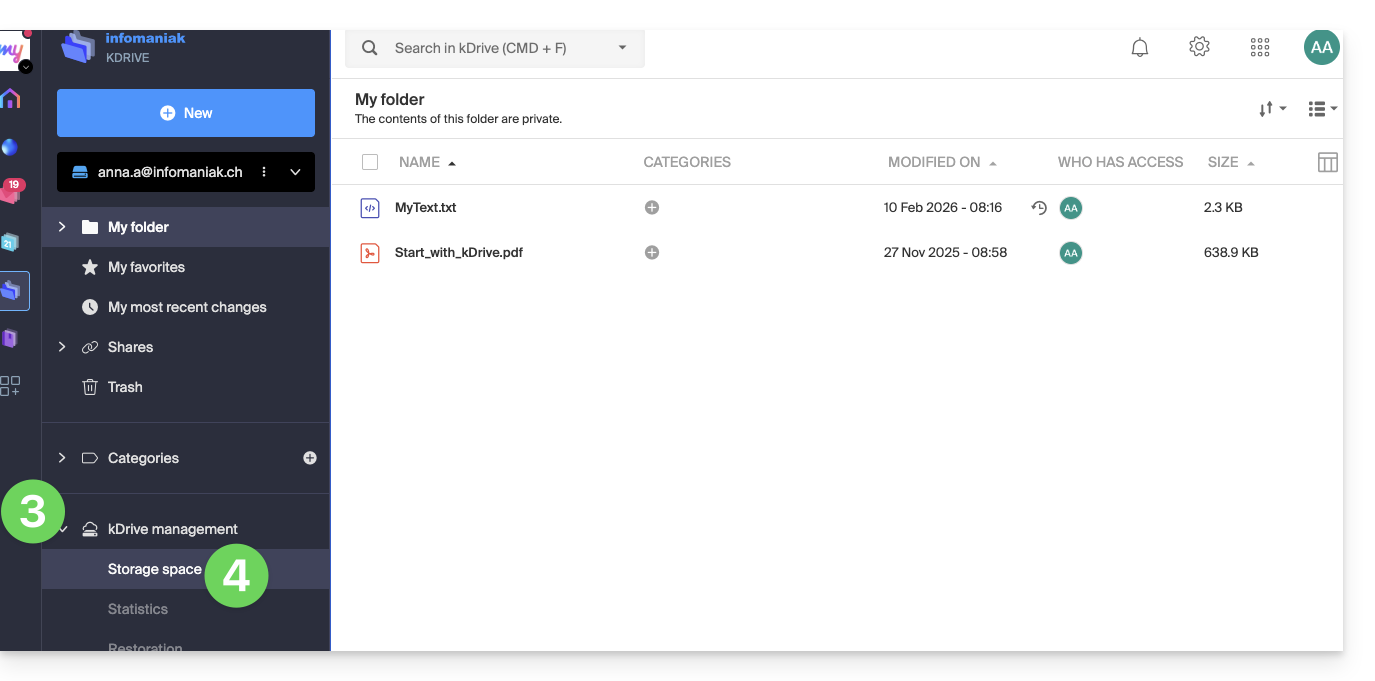
- O espaço de armazenamento utilizado é exibido na parte inferior do menu lateral esquerdo.
- Clique na seta para baixo para expandir a seção Gerenciar o kDrive no menu lateral esquerdo.
- Clique em Espaço de armazenamento no menu lateral esquerdo para obter uma visão geral mais detalhada:
Liberar espaço de armazenamento
Para liberar espaço no seu kDrive gratuito, não basta excluir arquivos grandes (vídeos, etc.), pois os arquivos continuam ocupando espaço mesmo depois de serem movidos para a lixeira. Eles permanecem lá por um certo período.
Esvaziar a lixeira do kDrive
É necessário esvaziar manualmente a lixeira para eliminar definitivamente os ficheiros que nela se encontram:
- Clique aqui para aceder ao kDrive na sua my kSuite Infomaniak (❓: ajuda).
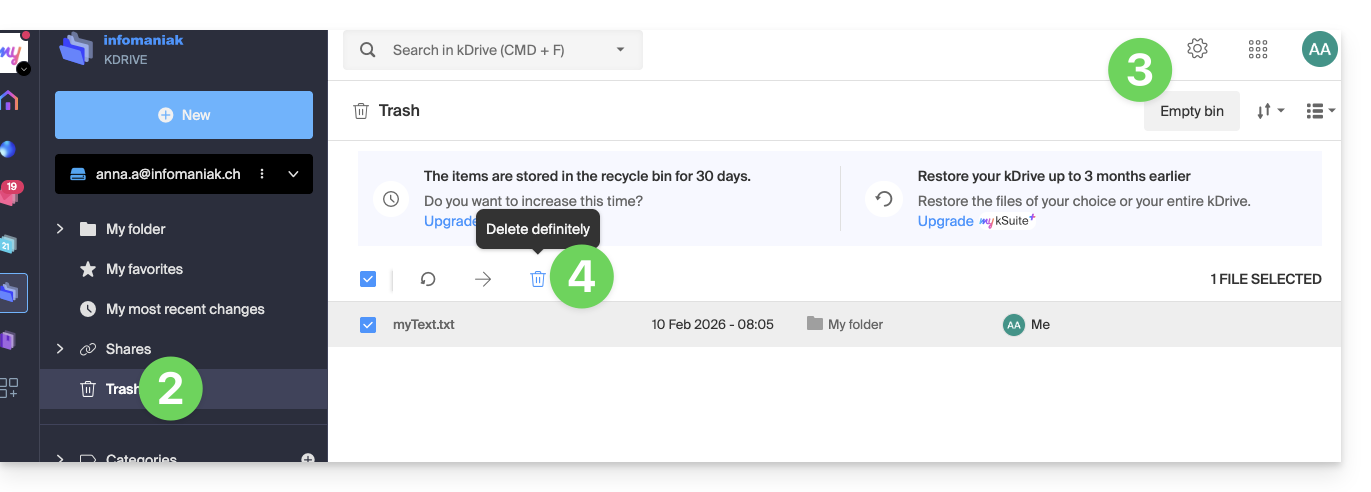
- Clique em Lixeira no menu lateral esquerdo.
- Clique no botão Esvaziar a lixeira para eliminar todos os arquivos da lixeira…
- … ou selecione arquivos individualmente e clique no ícone da lixeira acima da tabela:
Importante: sempre que uma modificação for feita em um de seus arquivos, o kDrive (my kSuite) faz um backup de até 30 versões durante 30 dias. Isso permite que você navegue entre várias versões de um arquivo e restaure uma versão anterior, se necessário.
É possível eliminar todas as versões do documento clicando no botão Eliminar todas as versões ou eliminar versões individualmente, clicando no ícone ⋮ e, em seguida, em Eliminar, mas isso não libera muito espaço, pois este sistema de versionamento não é contabilizado no seu espaço de armazenamento kDrive: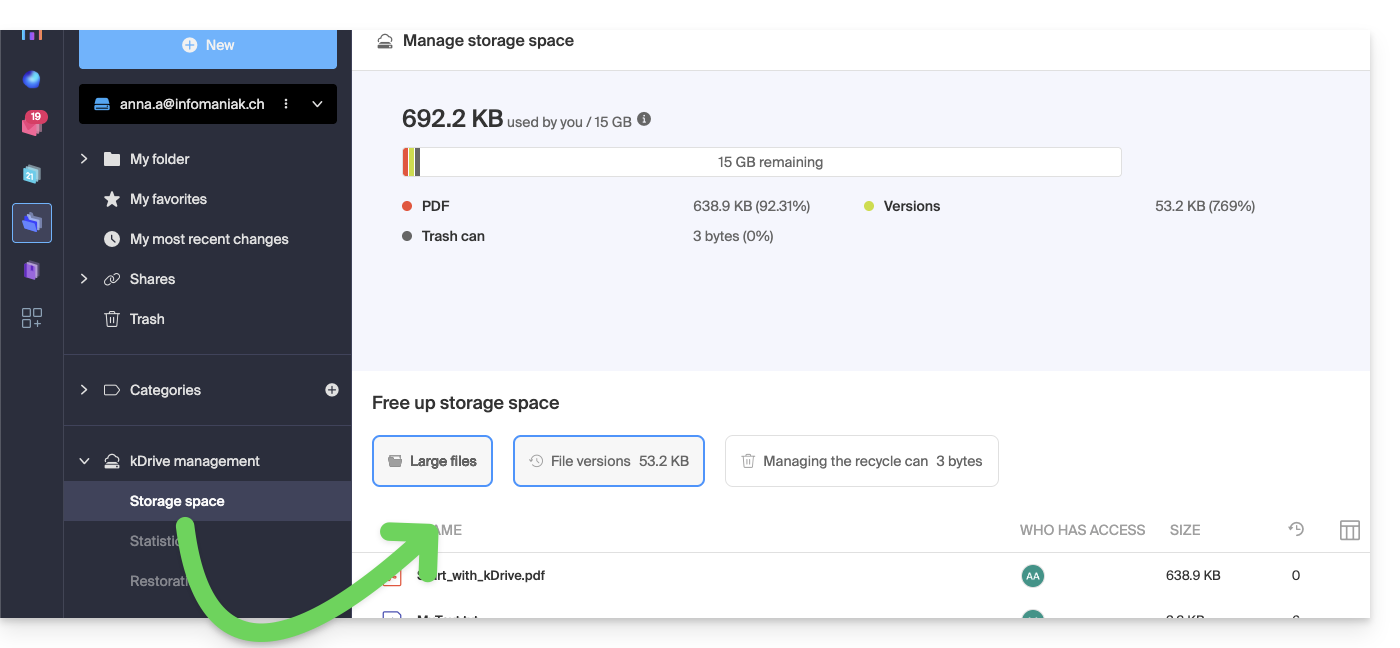
Link para esta FAQ: https://faq.infomaniak.com/2487
Esta seção de perguntas frequentes foi útil?
Este guia explica como recuperar e enviar as informações de depuração (registros, relatórios e arquivos de log de erros) do aplicativo de desktop kDrive (aplicativo para macOS / Windows / Linux) em caso de problemas entre ele e o seu dispositivo.
Introdução
- Em caso de bloqueio da sincronização do aplicativo kDrive com o seu dispositivo, o que pode ter diversas causas (tipo de arquivo, comprimento do nome, etc.), a ativação dos logs permite registrar a atividade do aplicativo a partir desse momento, a fim de facilitar a análise do problema pelo Suporte Infomaniak.
Registrar e compartilhar os logs com o Suporte
Aplicativo para desktop v4.x
Quando solicitado pelo Suporte da Infomaniak:
- Inicie o kDrive no seu dispositivo: o ícone do aplicativo deve estar visível no canto superior direito no macOS/Linux e no canto inferior direito no Windows (❓: ajuda).
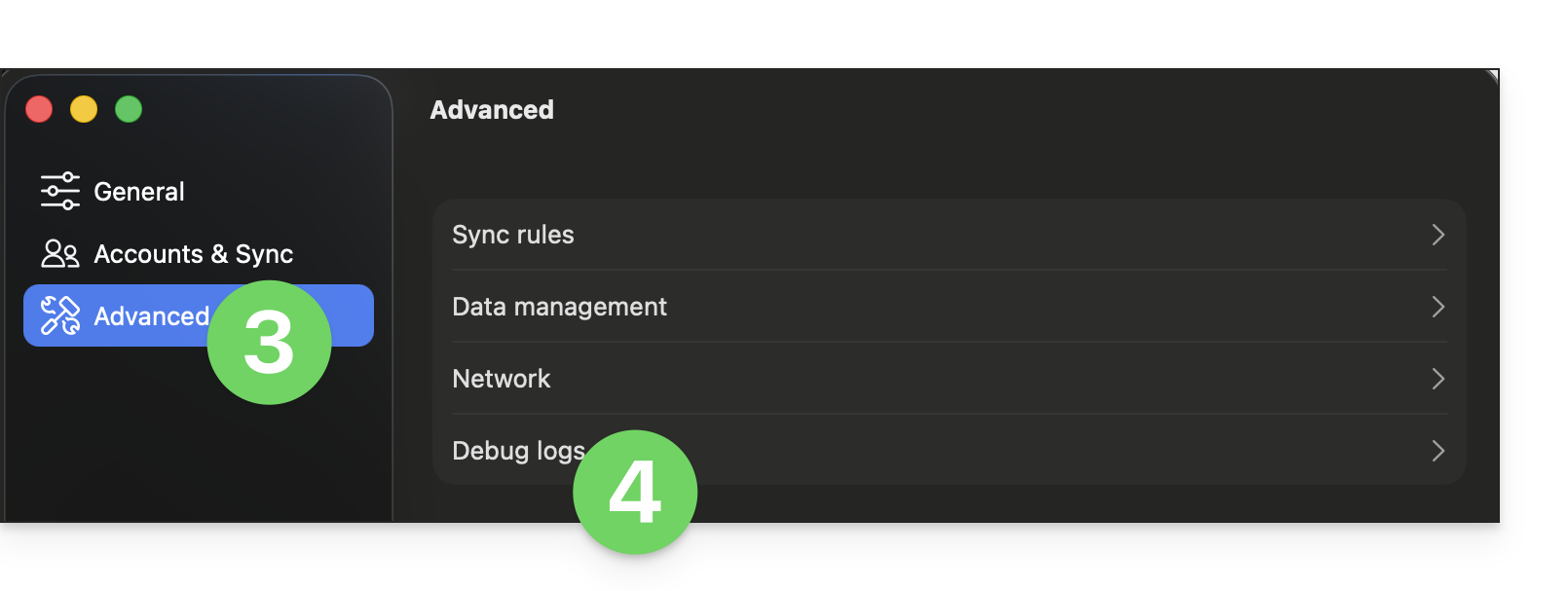
- Clique com o botão direito no ícone e escolha Configurações:
- Acesse Avançado.
- Clique em Informações de depuração:
- Ative os diferentes botões de alternância, conforme mostrado na imagem abaixo:
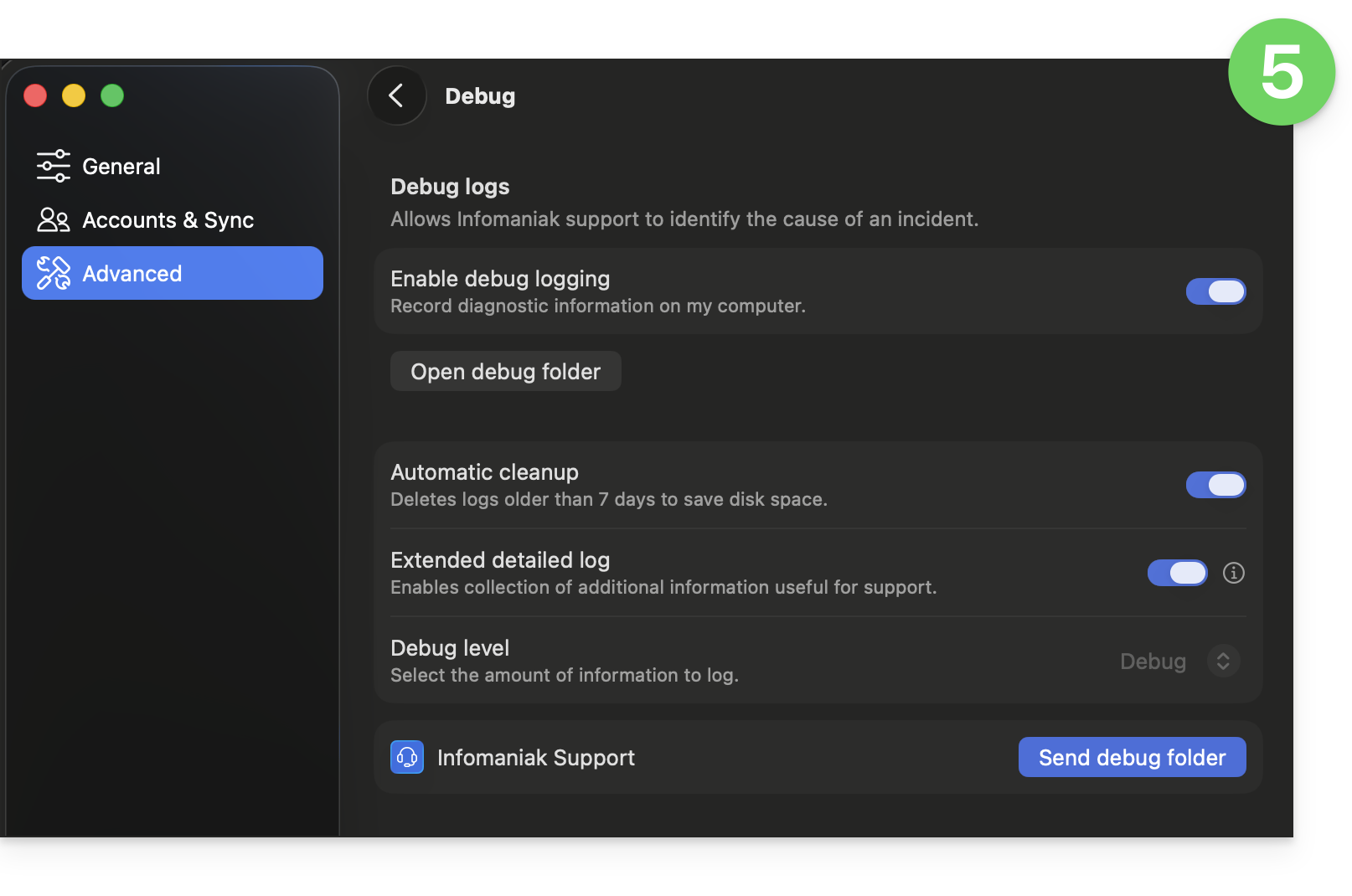
- Deixe o aplicativo em execução por pelo menos 10 minutos.
- Volte ao mesmo local 10 minutos depois e clique no botão azul para compartilhar suas informações de depuração com o Suporte da Infomaniak, informando-o sobre essa ação na conversa em andamento.
- Desative os logs detalhados e o nível de depuração:
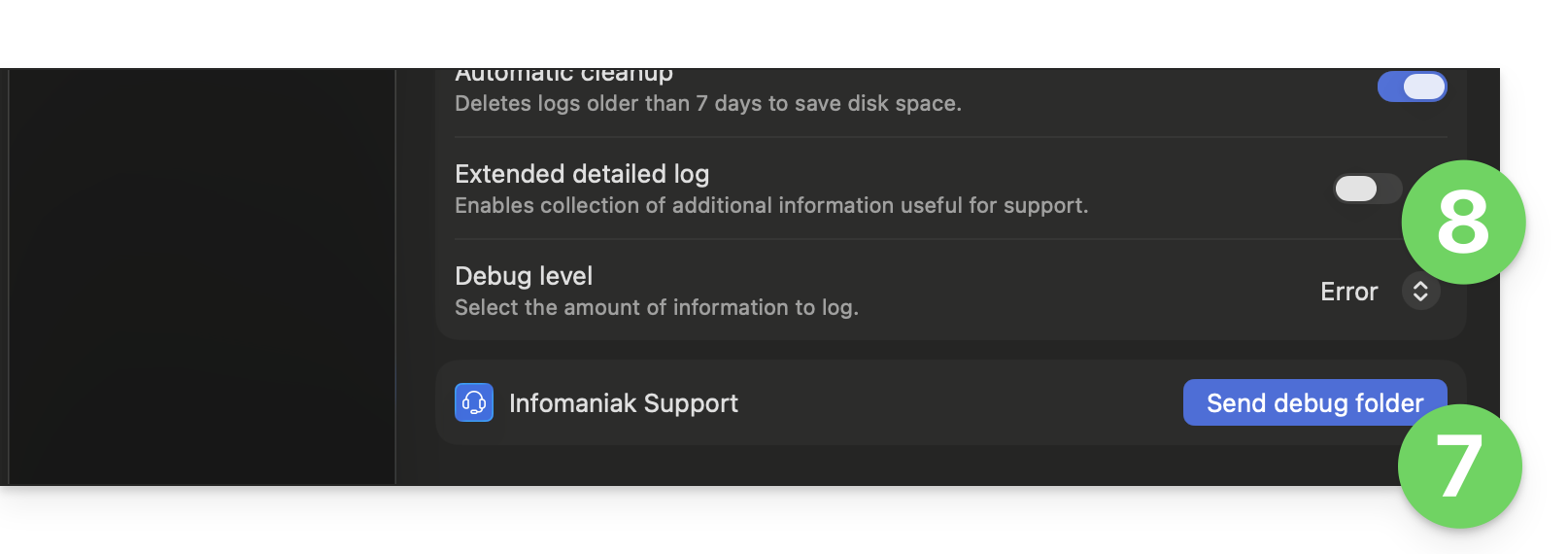
Aplicativo para desktop v3.x
Quando solicitado pelo Suporte da Infomaniak:
- Abra a aplicação kDrive no seu computador,o ícone da aplicação deve estar visível na área de notificação.
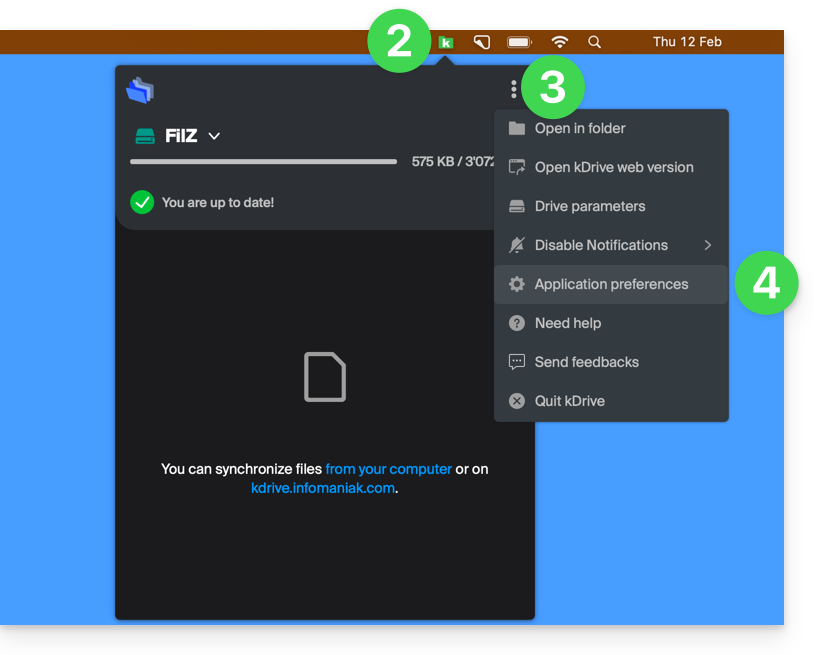
- Clique com o botão esquerdo do mouse no ícone do aplicativo na área de notificação do seu computador (no canto superior direito no macOS, no canto inferior direito no Windows e um clique duplo com o botão esquerdo na barra de tarefas no Linux).
- Clique no menu de ação ⋮, à direita da janela do aplicativo.
- Selecione Preferências do aplicativo:
- Role para baixo até a seção Avançado e clique na seta à direita de informações de depuração:
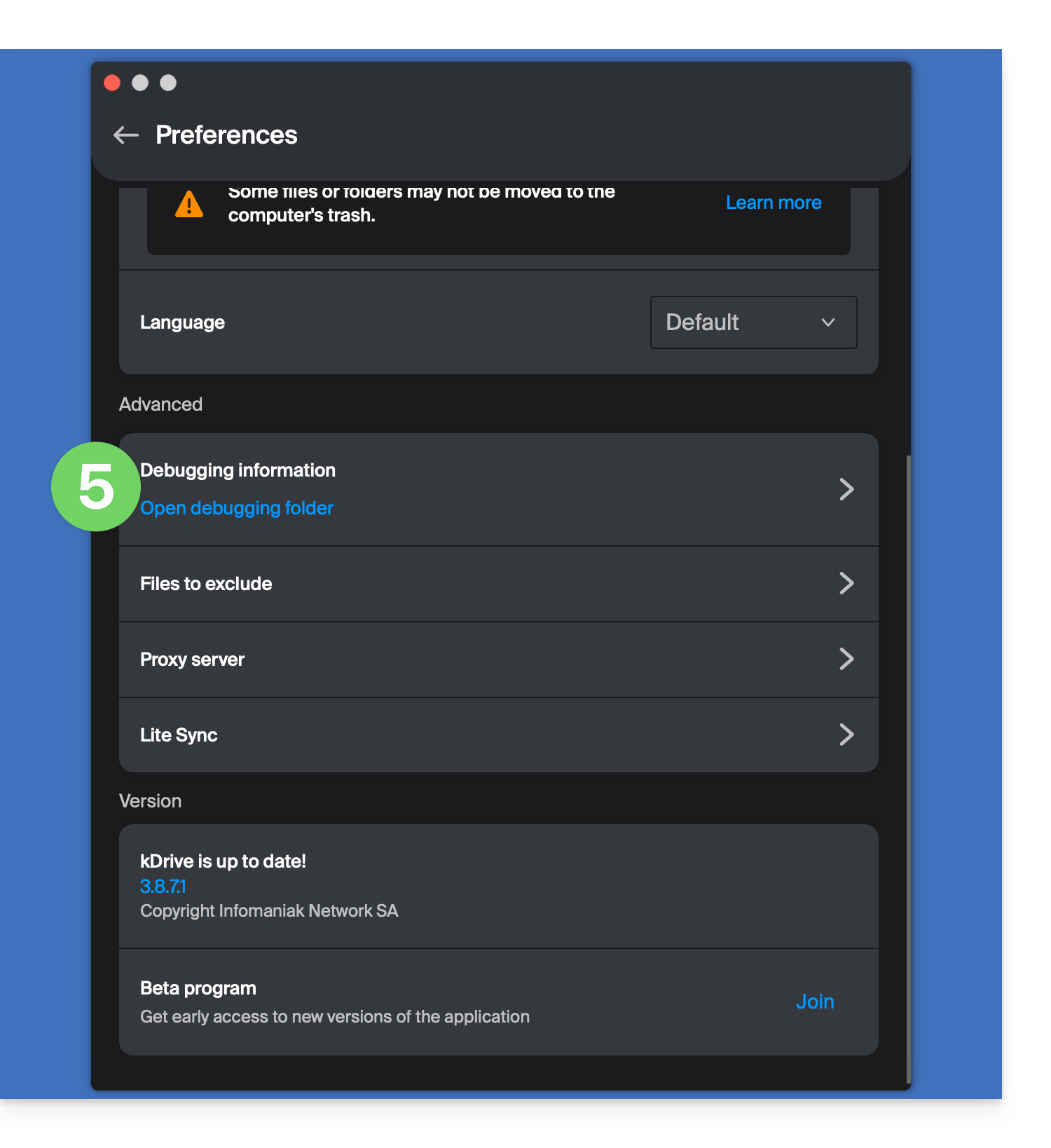
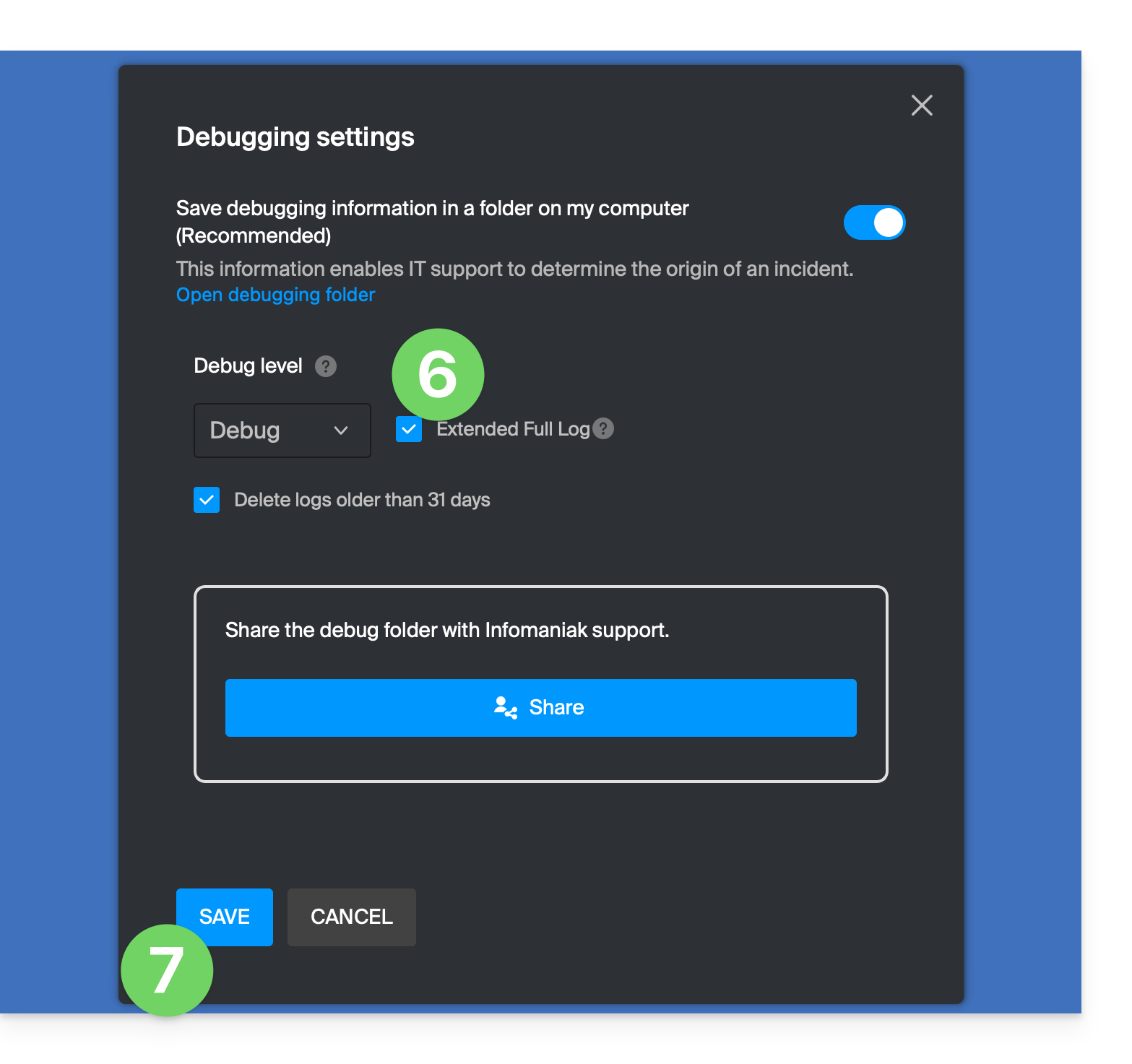
- Marque a caixa de seleção de registros detalhados, como mostrado na imagem abaixo.
- Clique no botão SALVAR edeixe o aplicativo funcionando por pelo menos 10 minutos:
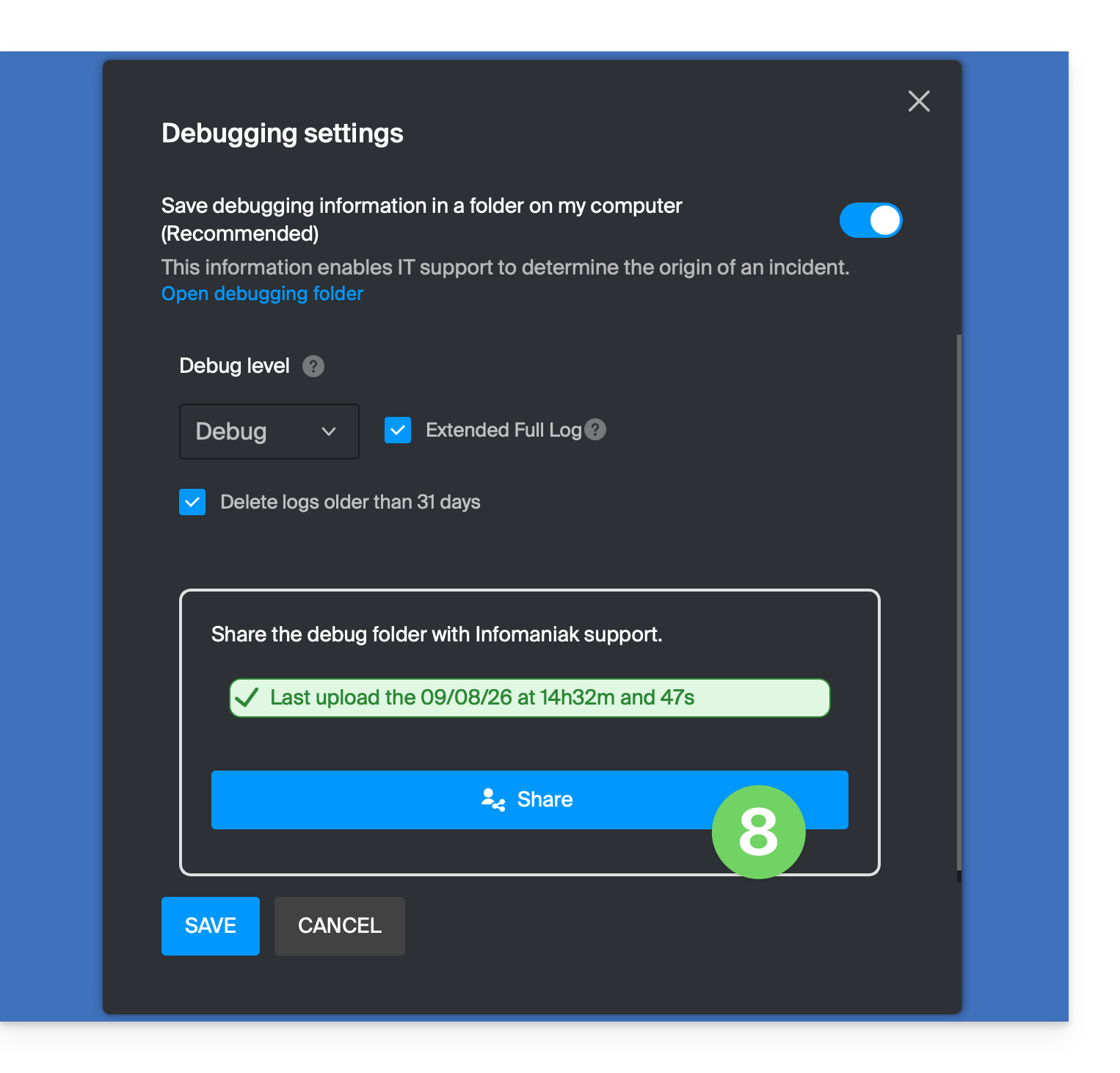
- Volte ao mesmo local (itens 1 a 6 acima) após 10 minutos e clique no botão azul para compartilhar suas informações de depuração com o Suporte da Infomaniak:
- Informe o Suporte da Infomaniak sobre esta ação no contexto da conversa em andamento.
Métodos alternativos
Em caso de problema com o método acima:
- Clique no link azul à esquerda para Abrir a pasta de depuração.
- A partir desta pasta, terá acesso a todos os relatórios de erros da aplicação kDrive no seu dispositivo:
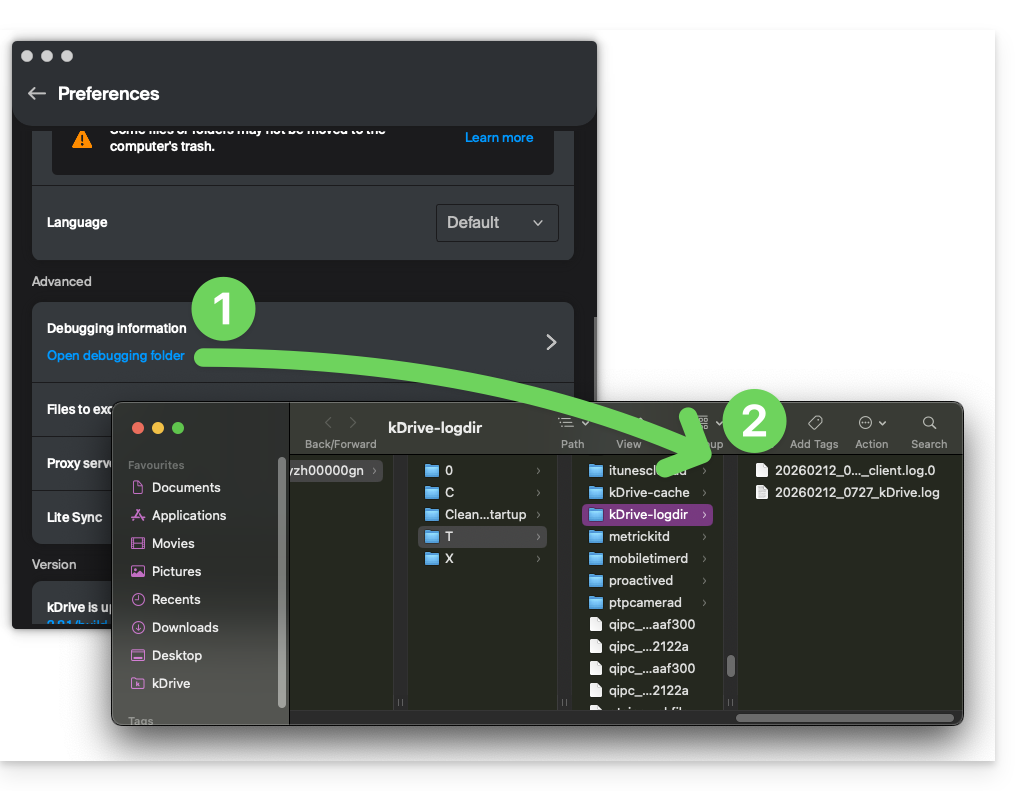
O mesmo princípio se aplica à versão 4.x: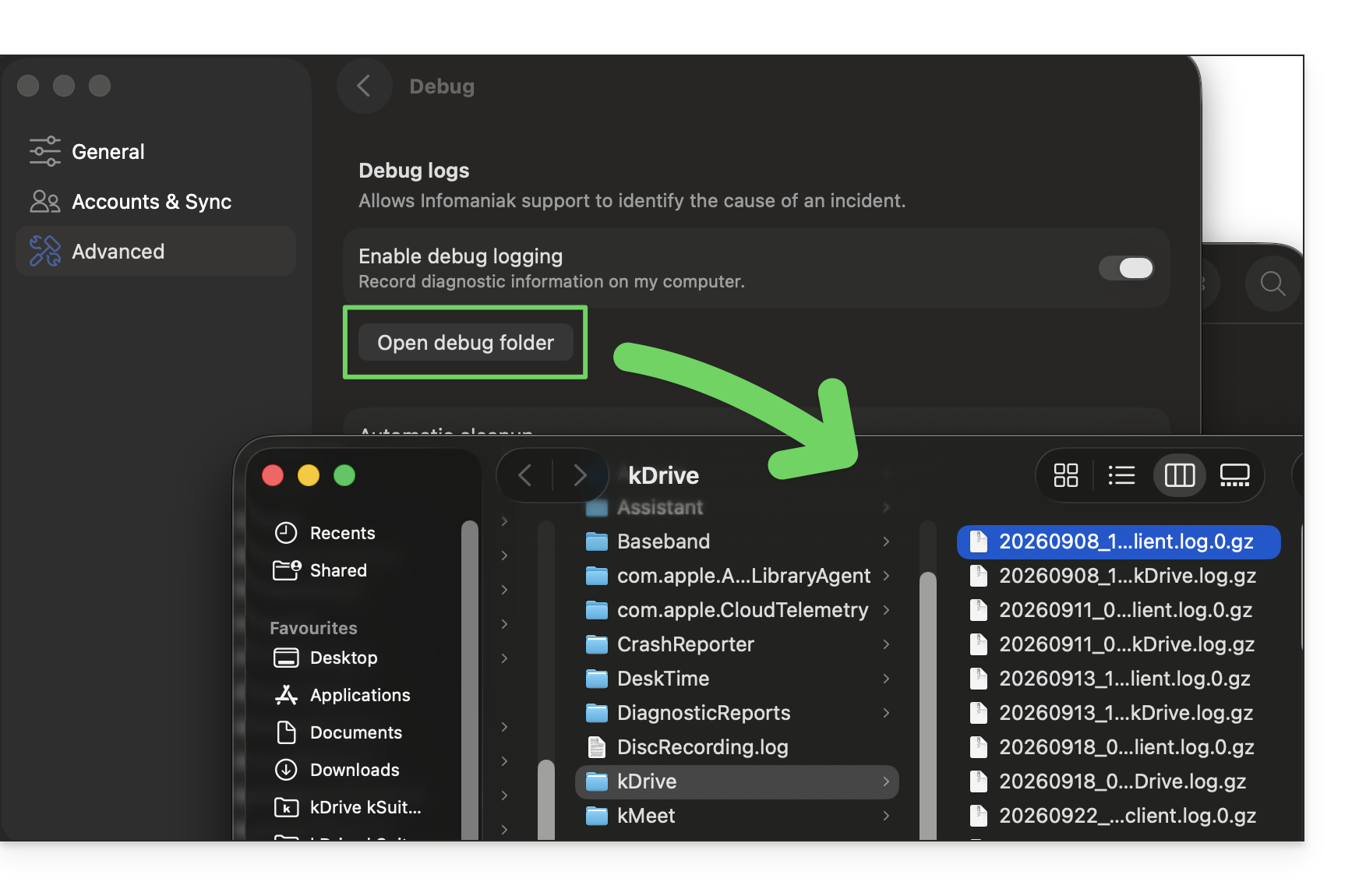
Se a aplicação não abrir, também pode aceder aos registos através dos seguintes caminhos:
- macOS:
/Users//Library/Logs/kDrive - Windows (copiar e colar no explorador de arquivos):
C:\Users\%USERNAME%\AppData\Local\Temp\kDrive-logdir(se necessário, ative a exibição de arquivos e pastas ocultas no explorador do Windows) - Linux:
/home//.local/state/kDrive/logs
Para enviar manualmente os arquivos coletados:
- Se os arquivos não forem grandes, envie-os diretamente ao Suporte da Infomaniak dentro da conversa em andamento.
- Se os arquivos forem grandes, compacte-os no formato .zip e envie-os para o Suporte Infomaniak dentro da conversa em andamento.
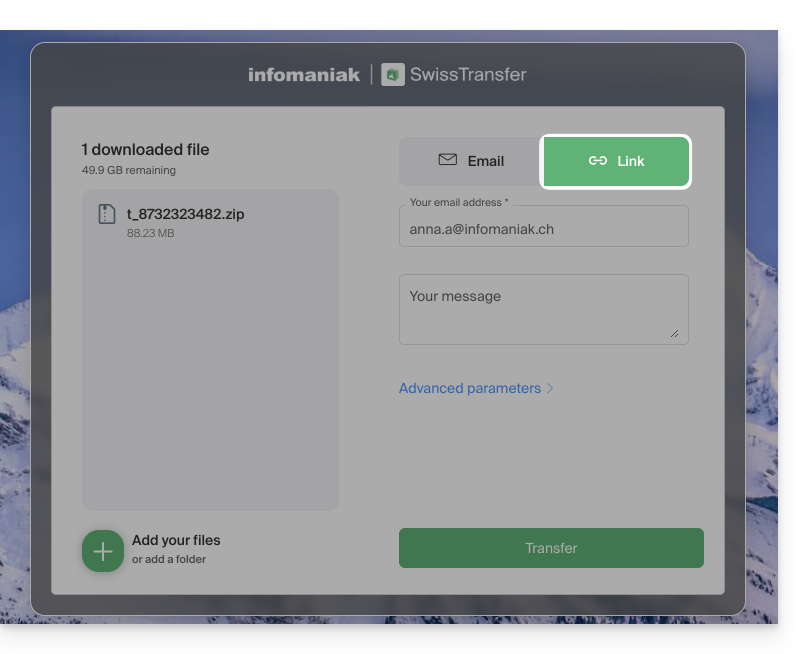
- Se ainda forem muito grandes para permitir o envio por e-mail, envie o arquivo .zip para swisstransfer.com para obter um link de compartilhamento, que deverá ser comunicado ao Suporte Infomaniak dentro da conversa em andamento:
Link para esta FAQ: https://faq.infomaniak.com/2488
Esta seção de perguntas frequentes foi útil?
Este guia é para você se estiver procurando por uma oferta completa de e-mail e armazenamento colaborativo de dados. O objetivo é ajudá-lo a compreender melhor as diferentes soluções de produtos Infomaniak quando estiver indeciso ou não souber qual escolher…
Se procura hospedar um site, consulte este outro guia. Se está indeciso entre as diferentes ofertas de Mail, consulte este outro guia.
As diferentes ofertas em resumo
Aqui está um resumo das diferentes opções (excluindo as ofertas de hospedagem web):
| Gratuitas (ou domínio pago) | Pagos |
|---|---|
my kSuite
| my kSuite+
|
Serviço de E-mail Starter
| Serviço de E-mail Premium
|
kSuite Pro: Gratuito
| kSuite Pro: Standard / kSuite Business / kSuite Enterprise
|
Pacotes gratuitos ou pagos
A Infomaniak oferece várias soluções de e-mail com ou sem ferramentas de colaboração adicionais:
- Um Serviço de Email é o nome dado ao serviço de mensagens criado pela Infomaniak na Suíça. Pode encomendar um Serviço de Email independentemente do kSuite.
- kSuite Pro é uma coleção de serviços Infomaniak que inclui, nomeadamente, um Serviço de Email e está estruturado em torno de um nome de domínio pessoal.
- my kSuite e my kSuite+ são versões limitadas do kSuite que não exigem um nome de domínio e que também podem atender perfeitamente às suas necessidades em termos de e-mail. No painel de controle Infomaniak, essas ofertas serão “separadas” do restante.
Custo das ofertas de e-mail simples
Este serviço de e-mail pode ser…
- … gratuito se você optar por um endereço com um nome de domínio genérico (o que vem depois do símbolo
@), criado pela Infomaniak (ik.me,etik.com,ikmail.com), ao escolher o plano my kSuite (o plano my kSuite+ remove algumas limitações do my kSuite). - … a um custo muito baixo, se você se contentar com uma ou duas contas de e-mail gratuitas em um nome de domínio que você paga (existem nomes de domínio por menos de 5 CHF/€ por ano, que serão seus únicos custos e permitirão personalizar seus endereços de e-mail) ao contratar:
- a oferta Starter (apenas 1 conta de e-mail)
- ou a oferta kSuite Pro
Precisa de um grande número de contas de e-mail?
Se precisar de várias contas de e-mail no mesmo domínio, pode adquirir um Serviço de E-mail (mínimo de 5 contas de e-mail) ou o kSuite Pro, que está disponível em 4 versões diferentes:
- Free
- Standard
- Business
- Empresarial
O ponto comum a todas as ofertas de e-mail é que você deve possuir uma conta de usuário na Infomaniak (um identificador de login na forma de um endereço de e-mail, bem como uma senha) que o levará à sua Organização, onde estará localizada sua caixa de e-mail. Consulte também este outro guia.
Ferramentas adicionais (kDrive…)
Se escolher uma Suite (kSuite ou my kSuite / my kSuite+), esta conta de utilizador direcioná-lo-á para a sua Organização, onde encontrará a suite de ferramentas, incluindo o seu e-mail, mas também o kDrive, o kChat, etc.
Clique nos links para obter as tabelas comparativas que detalham todas as funcionalidades disponíveis de acordo com o plano:
- O kDrive pode ser obtido ao criar uma conta my kSuite ou my kSuite+.
- o kDrive pode ser adquirido de forma independente em 3 versões diferentes:
- Solo
- Team
- Pro
- o kDrive pode ser adquirido ao subscrever (gratuitamente ou através de uma assinatura paga) o kSuite Pro, que está disponível em 4 versões diferentes:
- Free
- Standard
- Business
- Enterprise
Não há limite para o número de kDrives (pagos) que pode adicionar à sua conta Infomaniak. Encomende um novo kDrive, se necessário (❓: ajuda).
Gostaria de se juntar à Infomaniak?
Consulte este outro guia.
Link para esta FAQ: https://faq.infomaniak.com/2497
Esta seção de perguntas frequentes foi útil?
Este guia detalha as diferentes atribuições e permissões de acesso aos arquivos/pastas do kDrive Infomaniak, incluindo a restauração da herança de direitos sobre o conteúdo das pastas e subpastas.
Introdução
- Consulte este outro guia se você procura informações gerais sobre o compartilhamento de dados no kDrive.
- Consulte este outro guia sobre o compartilhamento da pasta compartilhada.
- Consulte este outro guia sobre as permissões mais gerais dos usuários dentro da Organização, caso façam parte dela.
Tipos de direitos de acesso
Um compartilhamento (de documento, de diretório…) no kDrive pode ser restringido: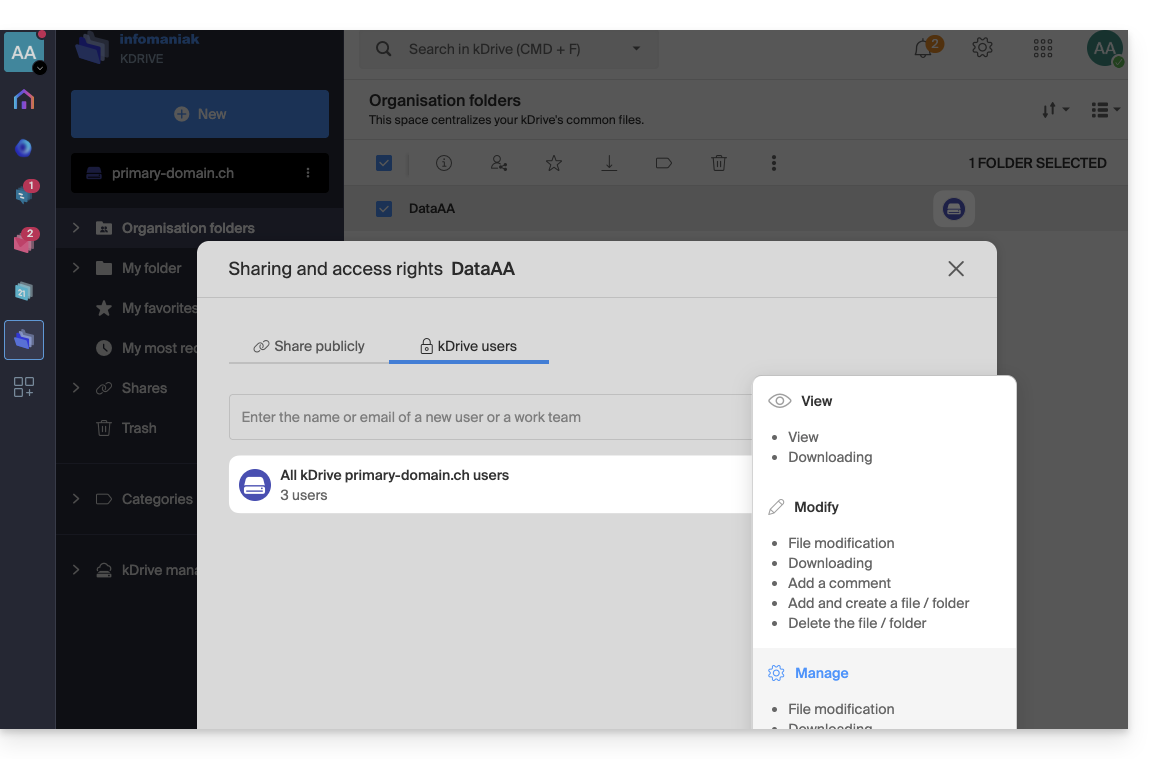
Escolha se o usuário…
- … pode consultar:
- Apenas consultar
- Fazer download
- Adicionar comentário (se o arquivo não for do tipo Office)
- … pode modificar:
- Modificar o arquivo
- Fazer download
- Adicionar comentário
- Adicionar e criar arquivo/pasta
- Excluir arquivo/pasta
- … pode gerenciar (apenas se o compartilhamento for feito dentro da pasta comum e não em uma pasta da estrutura pessoal):
- Modificação do arquivo
- Download
- Adição de comentário
- Adição e criação de arquivo/pasta
- Exclusão do arquivo
- Compartilhamento com outros usuários
- Gerenciamento dos direitos dos usuários
As permissões concedidas, bem como as informações sobre os beneficiários dos compartilhamentos, podem ser visualizadas no kDrive na coluna “Quem tem acesso”: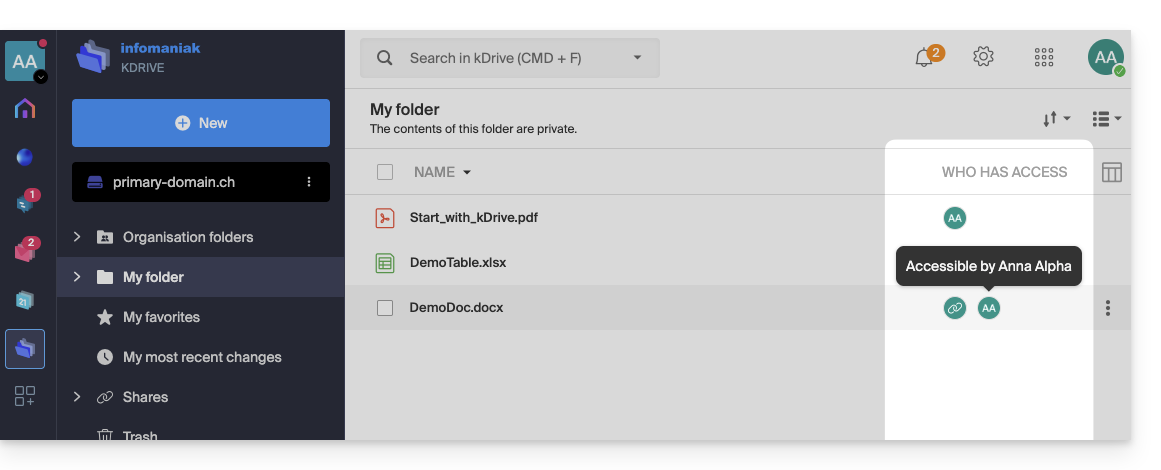
Um possível link público ativado em um arquivo é indicado por um ícone de correntes nesta coluna: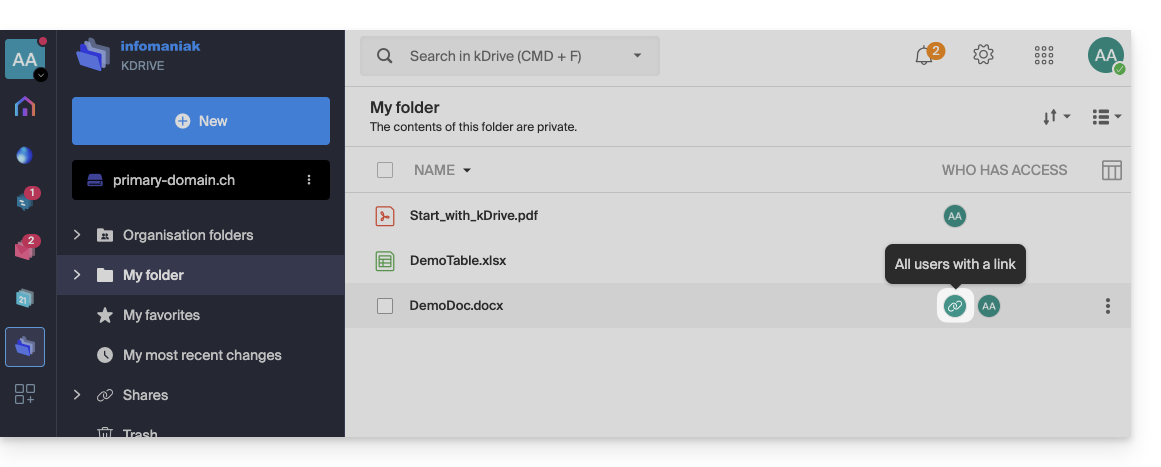
Atribuição de direitos e herança (Pastas da organização)
O fato de uma pasta estar nas "Pastas da organização" não implica necessariamente que todos os usuários do kDrive tenham acesso a ela.
O compartilhamento pode ser restrito a subníveis: apenas uma parte da estrutura pode ser compartilhada com alguns colaboradores, enquanto outras pastas permanecem privadas ou limitadas.
Entendendo a quebra de herança
Por padrão, uma pasta "filha" herda os direitos da pasta "pai". No entanto, se você modificar manualmente os acessos em uma subpasta (removendo um usuário, por exemplo), a herança é interrompida.
A partir de então, qualquer modificação posterior feita na pasta pai não será mais refletida nessa subpasta específica.
Exemplo prático com suas pastas:
- Vários usuários têm acesso à pasta pai DataAA. Por herança, eles veem todos a subpasta 4All.
- Se remover manualmente um utilizador do acesso partilhado na pasta secundária 4All, a herança será interrompida para essa pasta.
- Posteriormente, adiciona um novo colaborador na pasta principal DataAA.
- Problema: este novo utilizador verá o conteúdo de DataAA, mas não verá a pasta 4All (porque a herança foi interrompida no ponto 2).
Como restabelecer a herança de permissões?
O kDrive deteta estas inconsistências de permissões. Quando abre as definições de partilha da pasta secundária (4All), aparece uma barra de informação azul: 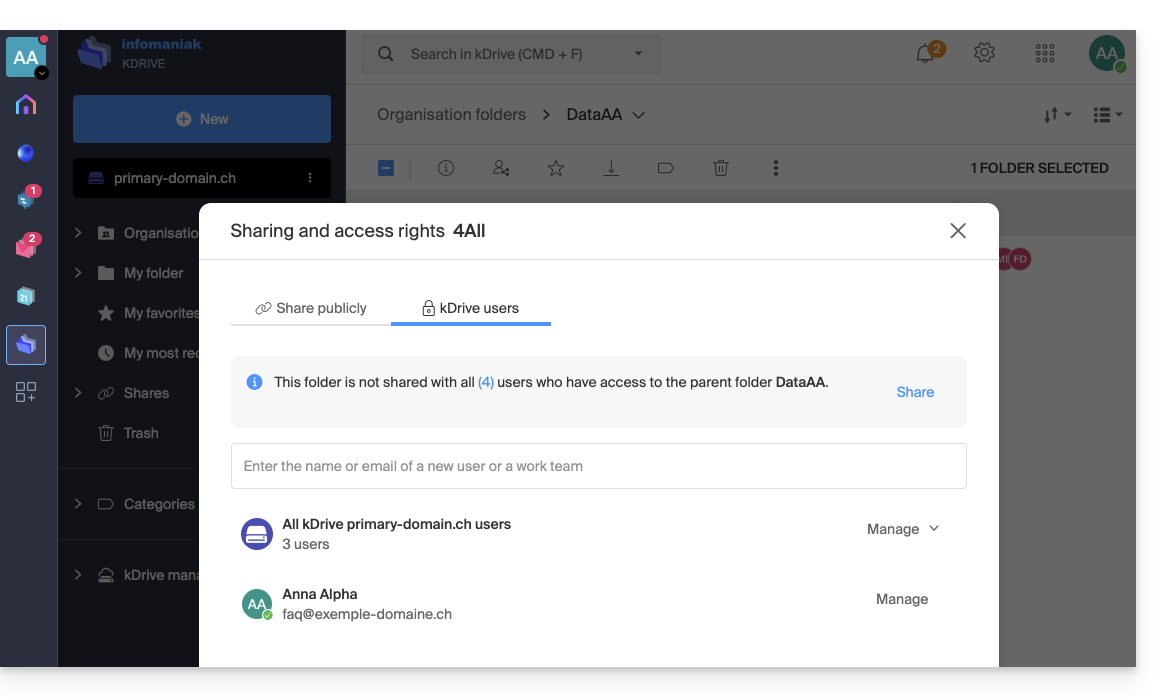
Para resolver o problema:
- Clique no link Partilhar nesta barra azul.
- Aparece uma janela de confirmação para o informar de que "todas as alterações futuras nas permissões de utilizador da pasta principal DataAA serão aplicadas automaticamente à pasta 4All".
- Clique no botão azul Partilhar para validar:
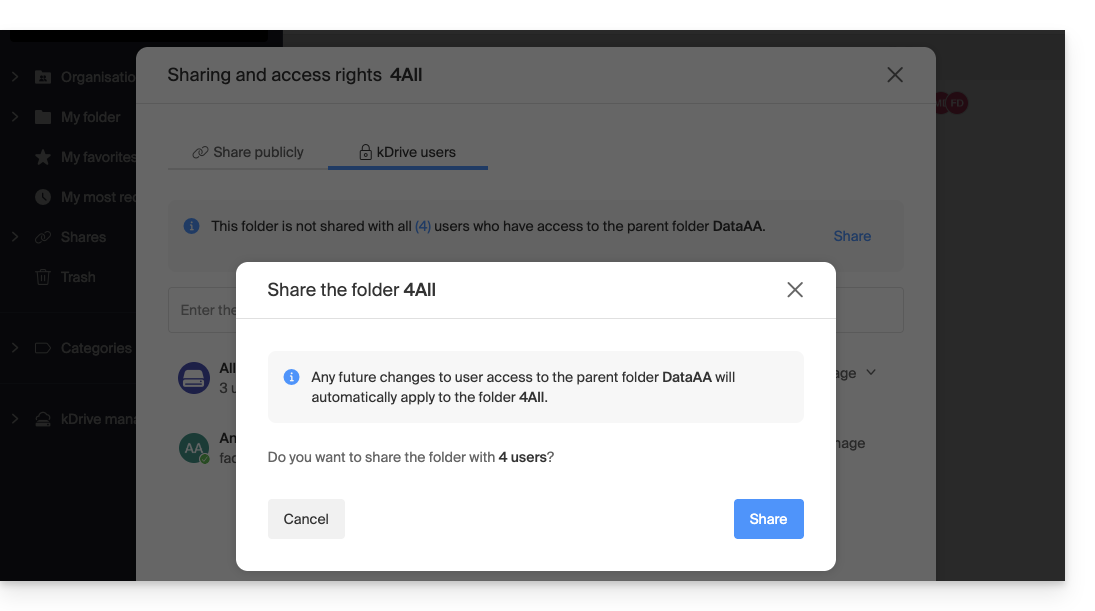
A herança foi agora restabelecida: todos os utilizadores atuais e futuros da pasta principal terão automaticamente acesso à subpasta.
Link para esta FAQ: https://faq.infomaniak.com/2501
Esta seção de perguntas frequentes foi útil?
Este guia fornece instruções sobre como sincronizar o kDrive com o macOS usando o protocolo de conexão WebDAV.
✘ INDISPONÍVEL com
kSuite Free / kSuite Standard
my kSuite / my kSuite+ (ik.me, etik.com, ikmail.com)
⚠ ATENÇÃO ⚠
Utilize o protocolo WebDAV no kDrive para casos específicos e pontuais:
- Se pretende trabalhar nos seus ficheiros e partilhá-los, o kDrive é a ferramenta ideal; recomenda-se instalar a aplicação kDrive para evitar qualquer perda de ficheiros.
- Em contrapartida, para proteger seus dados contra perdas ou corrupção e garantir a continuidade de suas atividades, o Swiss Backup é a solução indispensável e adequada.
A Infomaniak garante a conformidade de seus serviços com os protocolos padrão (IMAP, S3, etc.), masnão oferece suporte adicional para serviços ou softwares externos, pois a configuração destes pode variar dependendo do fornecedor ou editor(ver:
Conectar-se ao kDrive via WebDAV no macOS
Para um computador com macOS, siga as instruções da Apple, que podem ser as seguintes:
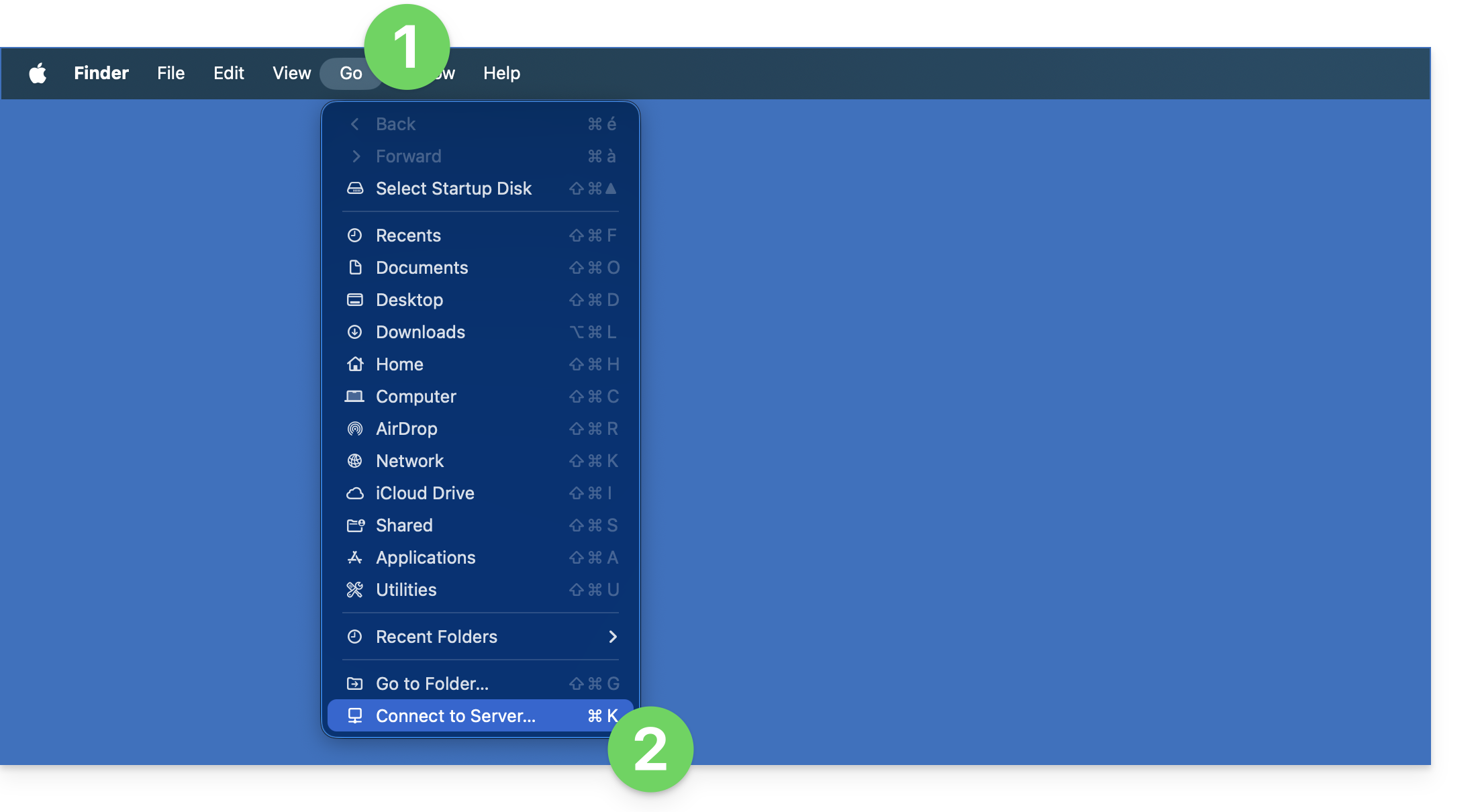
- Clique no menu Ir no Finder.
- Clique em Ligar ao servidor:
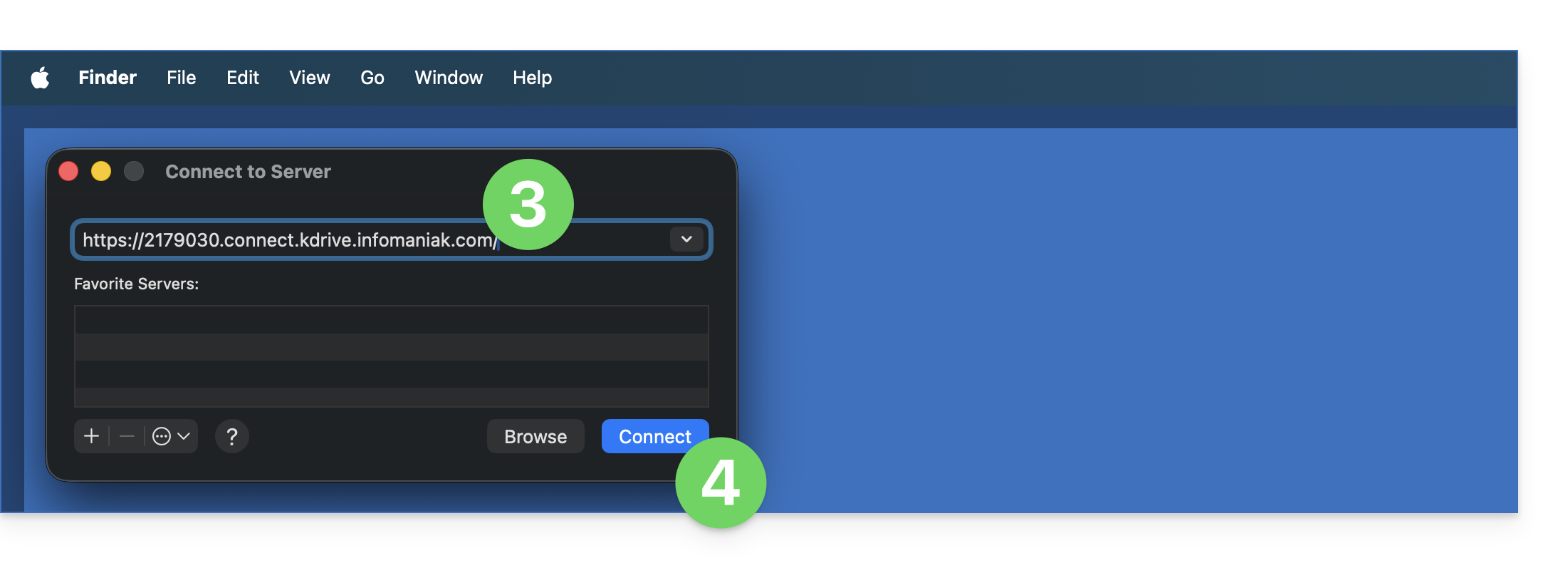
- Insira o endereço do servidor:
https://IDkDrive.connect.kdrive.infomaniak.com(precisa de ajuda?). - Clique em Conectar:
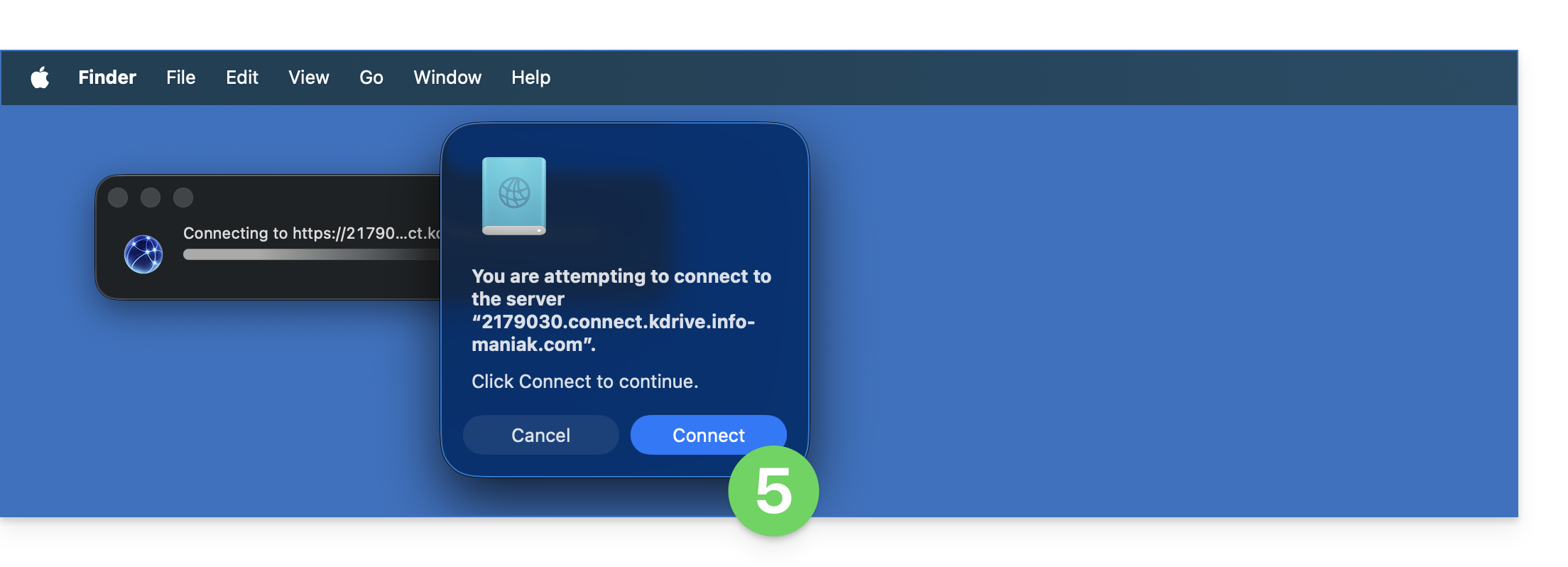
- Confirme a conexão clicando no botão azul:
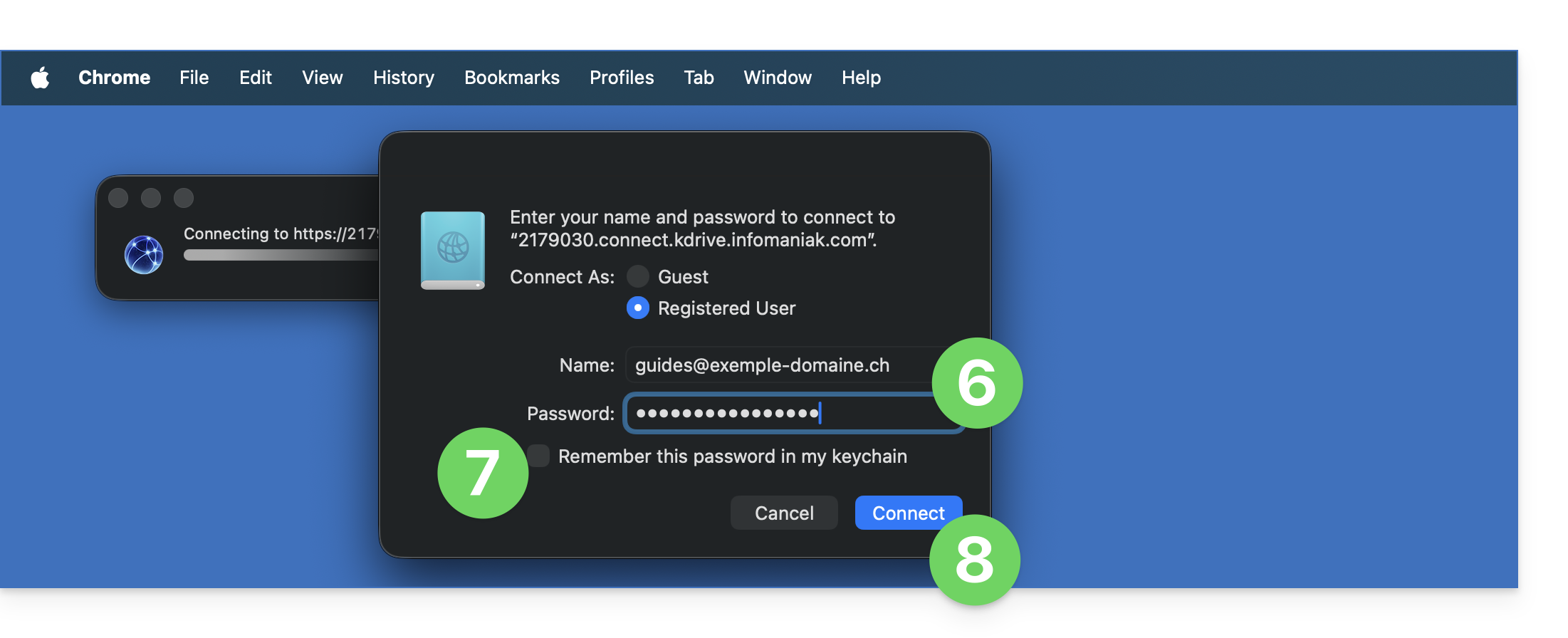
- Insira as seguintes informações:
- Nome de usuário: endereço de e-mail para acessar a conta Infomaniak
- Senha: crie uma senha de aplicativo para este uso específico.
- Se desejar, clique na caixa para guardar as informações de login.
- Clique no botão azul para fazer login:
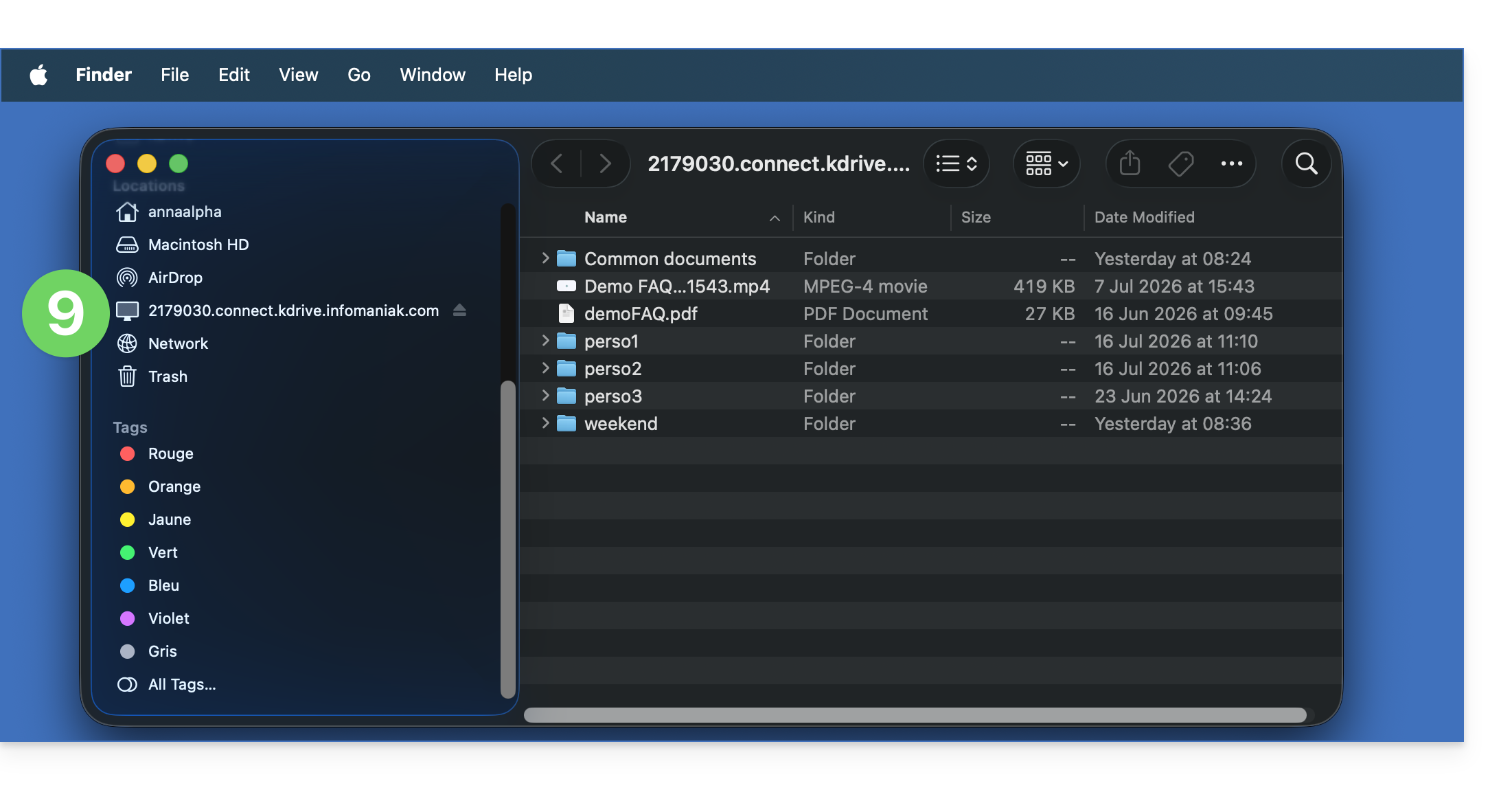
- Pronto, o conteúdo do kDrive é exibido no Finder, da mesma forma que o conteúdo acessível no kDrive para o seu utilizador Infomaniak:
A alternativa Mountain Duck
Com base no mesmo princípio e utilizando as mesmas informações, também pode considerar estabelecer uma ligação através de um software/cliente WebDAV, como o Mountain Duck:
- Crie uma nova ligação WebDAV no Mountain Duck.
- Insira as informações necessárias.
- Clique em Iniciar sessão:
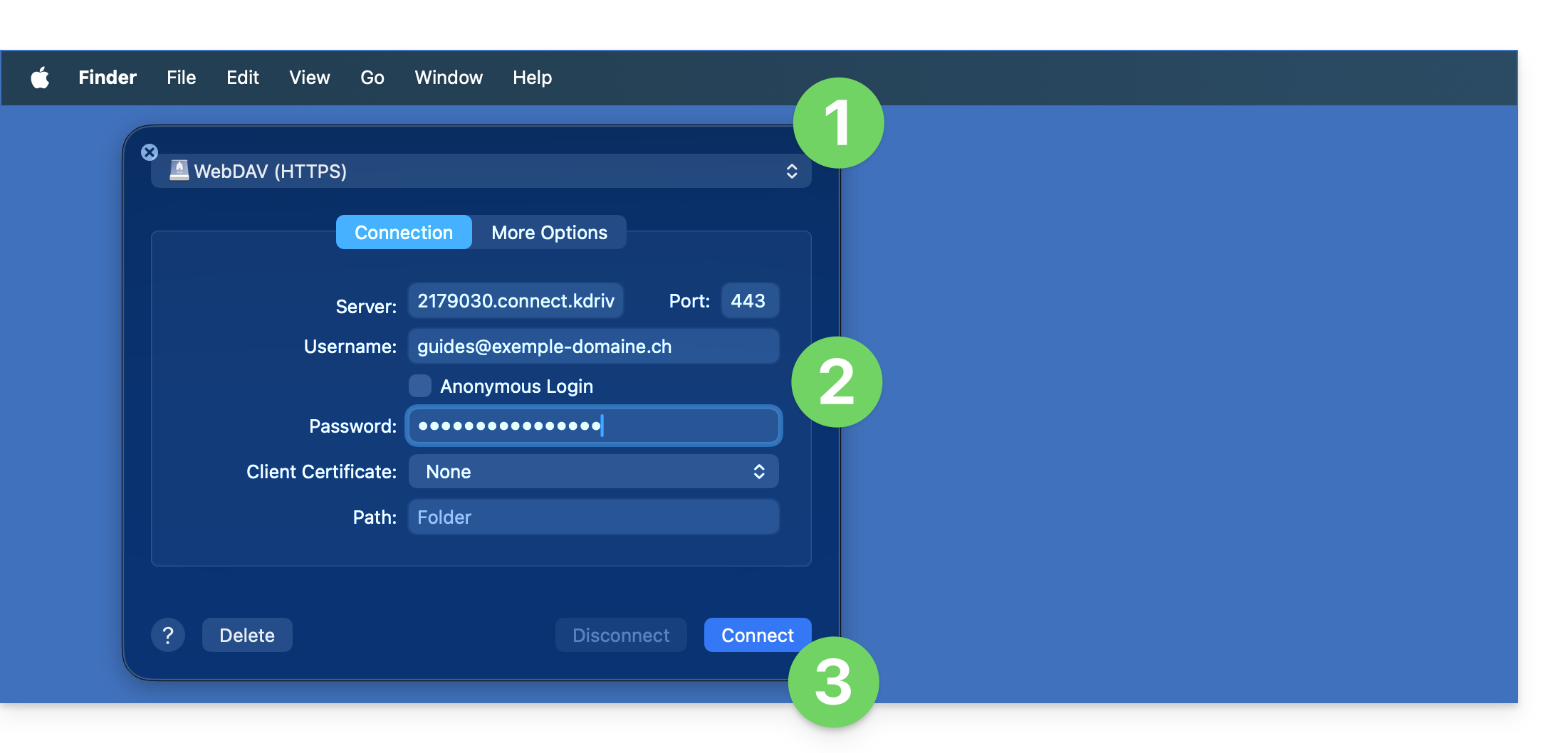
- Pronto, o conteúdo do kDrive é exibido no Finder, da mesma forma que o conteúdo acessível no kDrive para o seu utilizador Infomaniak:
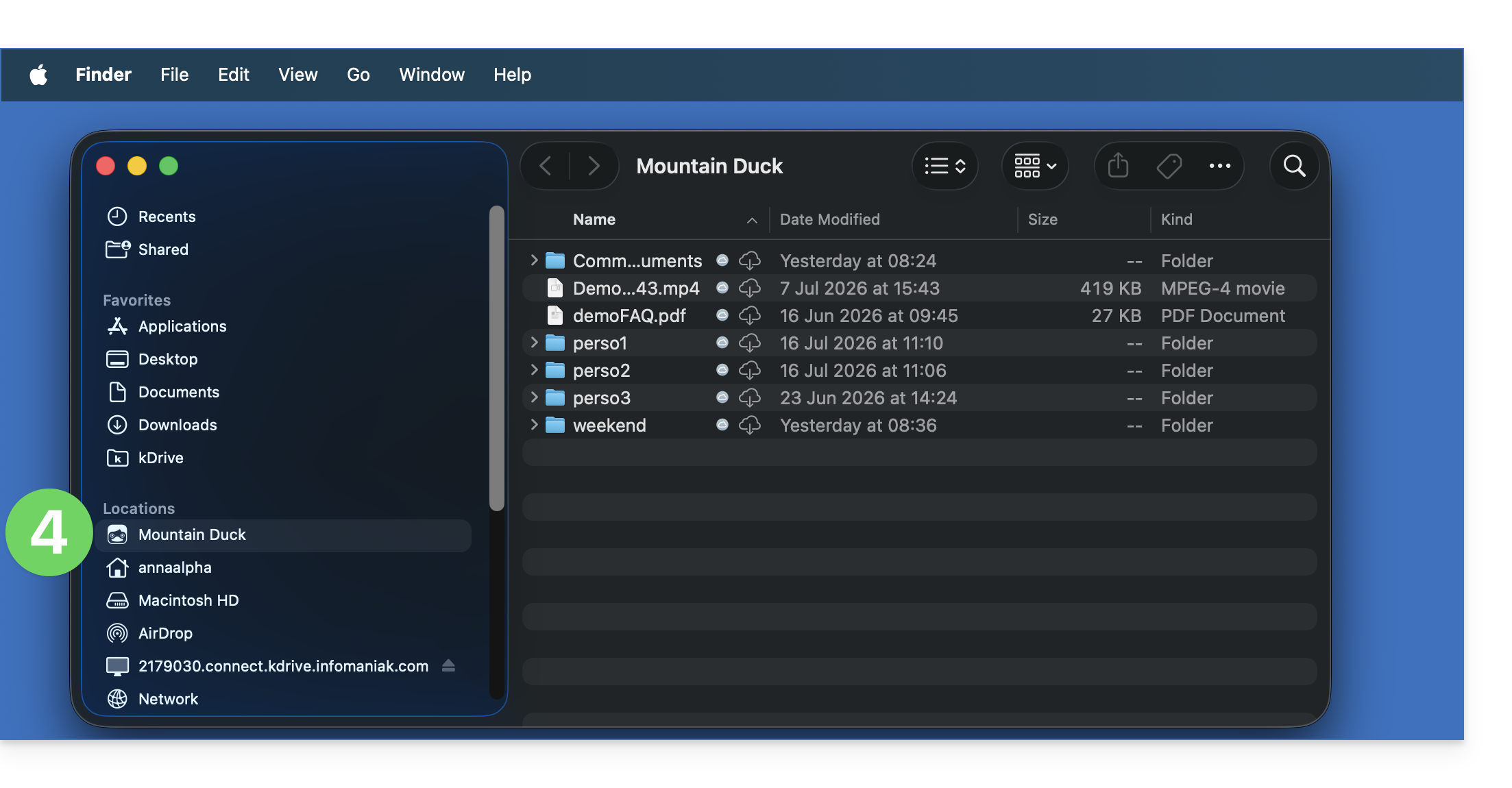
Link para esta FAQ: https://faq.infomaniak.com/2504
Esta seção de perguntas frequentes foi útil?
Este guia explica como visualizar arquivos 3D no aplicativo web kDrive (serviço online ksuite.infomaniak.com/kdrive) e interagir com eles.
Introdução
- O objeto do arquivo em 3 dimensões pode ser visualizado em um fundo claro ou escuro, à sua escolha.
- É possível aproximar ou afastar a imagem, e a visualização 3D pode ser centralizada novamente com um clique.
- A câmera pode estar no modo ortográfico ou perspectiva.
- Extensões reconhecidas e teoricamente suportadas pela visualização online:
3dm3ds3mfamfbimbrepdaefbxfcstdglbifcigesobjoffplystepstpstlwrl
- Apenas as seguintes extensões são reconhecidas:
blendusdusdausdcusdzgltf
- Os formatos que dependem de outros arquivos não podem ser visualizados.
- Os arquivos com miniatura (ou imagem de visualização, como
obj,stl, etc.) são, em princípio, suportados pela função de visualização.
Visualizar arquivos 3D
Para acessar o kDrive e interagir com as imagens 3D:
- Clique aqui para acessar o kDrive em seu kSuite Infomaniak (❓: ajuda).
- Abra o arquivo de imagem correspondente.
- Manipule o objeto diretamente com o cursor.
- Utilize a barra de ferramentas disponível abaixo da imagem:

Link para esta FAQ: https://faq.infomaniak.com/2509
Esta seção de perguntas frequentes foi útil?
Este guia explica como selecionar uma ou mais pastas adicionais que serão enviadas e sincronizadas a partir da aplicação desktop (aplicação para macOS / Windows / Linux) para a aplicação Web kDrive (serviço online ksuite.infomaniak.com/kdrive), um processo chamado “sincronização avançada”.
Introdução
- Uma sincronização avançada pode ter sua própria configuração Lite Sync, sem depender da configuração aplicada ao restante da sincronização clássica:
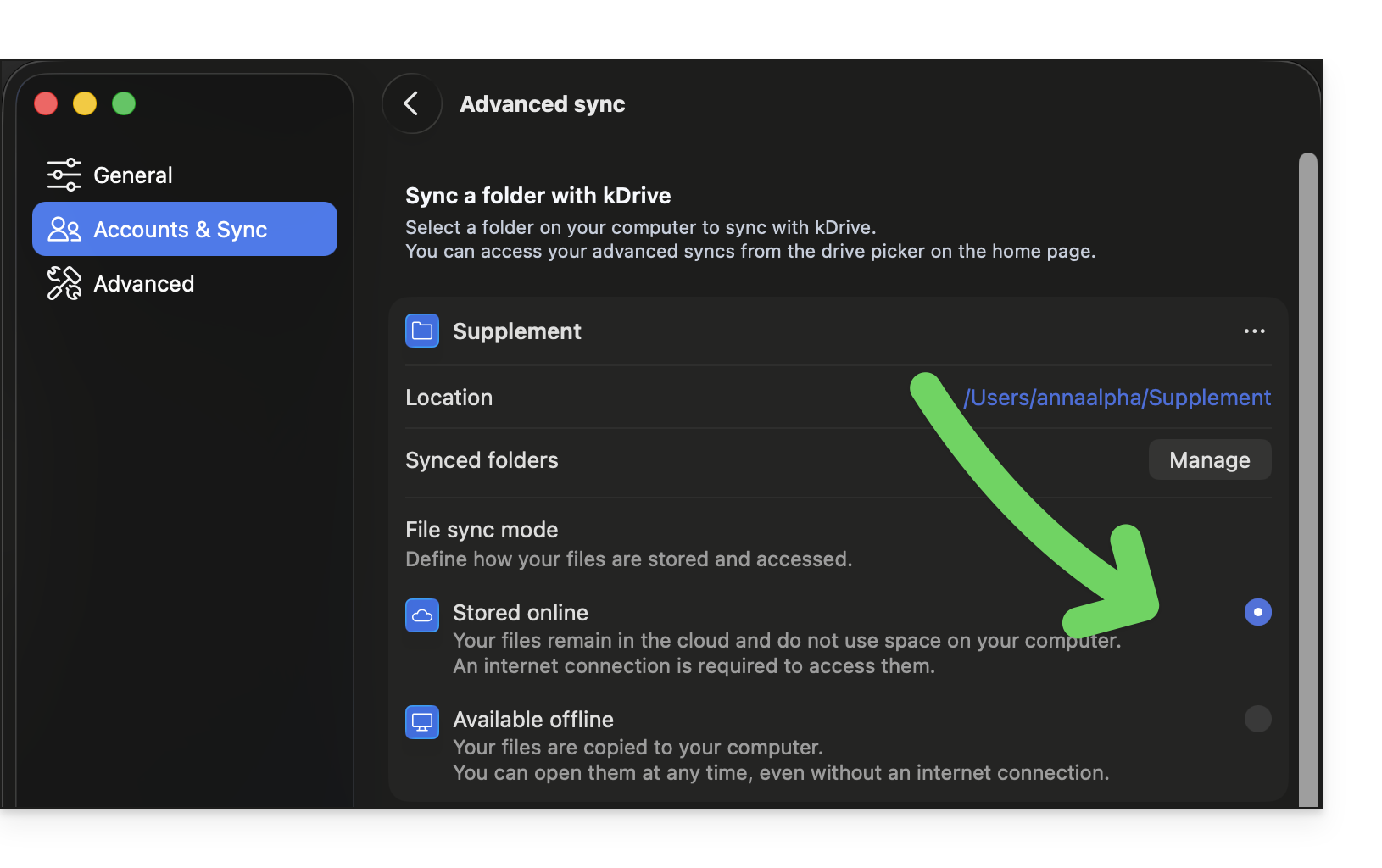
- É importante notar que, uma vez configurada uma sincronização avançada, a pasta que contém sua nova sincronização (sincronização avançada) será de sua propriedade e não será compartilhada automaticamente, mesmo que ela seja criada nas pastas da organização.
- É, no entanto, preferível centralizar tudo na pasta “oficial”
/kdrive(ou/kdrive2, etc.) em vez de distribuir os seus ficheiros por diferentes locais. - E tenha cuidado para não criar cópias duplicadas, pois isso pode ocupar espaço desnecessariamente e complicar a organização dos seus ficheiros (❓: ajuda).
Escolher uma pasta adicional para sincronizar com o kDrive
Pré-requisitos
- Para que a sincronização entre os seus dispositivos funcione quando houver uma atualização dos seus dados no kDrive (novo ficheiro, documento editado, etc.), é obviamente necessário que:
Por padrão, quando você instala a aplicação kDrive no seu dispositivo, tudo o que já está (e que lhe pertence) na aplicação web kDrive (serviço online ksuite.infomaniak.com/kdrive) será transferido e ficará visível no dispositivo numa pasta /kdrive (ou /kdrive2, etc.); e tudo o que estiver em /kdrive (ou /kdrive2, etc.) será transferido para a versão web do kDrive.
No entanto, pode especificar no aplicativo kDrive do seu dispositivo para procurar outras pastas (no disco rígido do computador, por exemplo) fora da estrutura clássica /kdrive (ou /kdrive2, etc.), para que também sejam sincronizadas e enviadas para os servidores Infomaniak.
Aplicativo para desktop v4.x
Para adicionar uma pasta local para sincronização avançada:
- Inicie o kDrive no seu dispositivo: o ícone do aplicativo deve estar visível no canto superior direito no macOS/Linux e no canto inferior direito no Windows (❓: ajuda).
- Clique com o botão direito no ícone e escolha Configurações:
- Acesse Contas e Sincronização e clique em Gerenciar (ou ❯) à direita da sincronização atual:
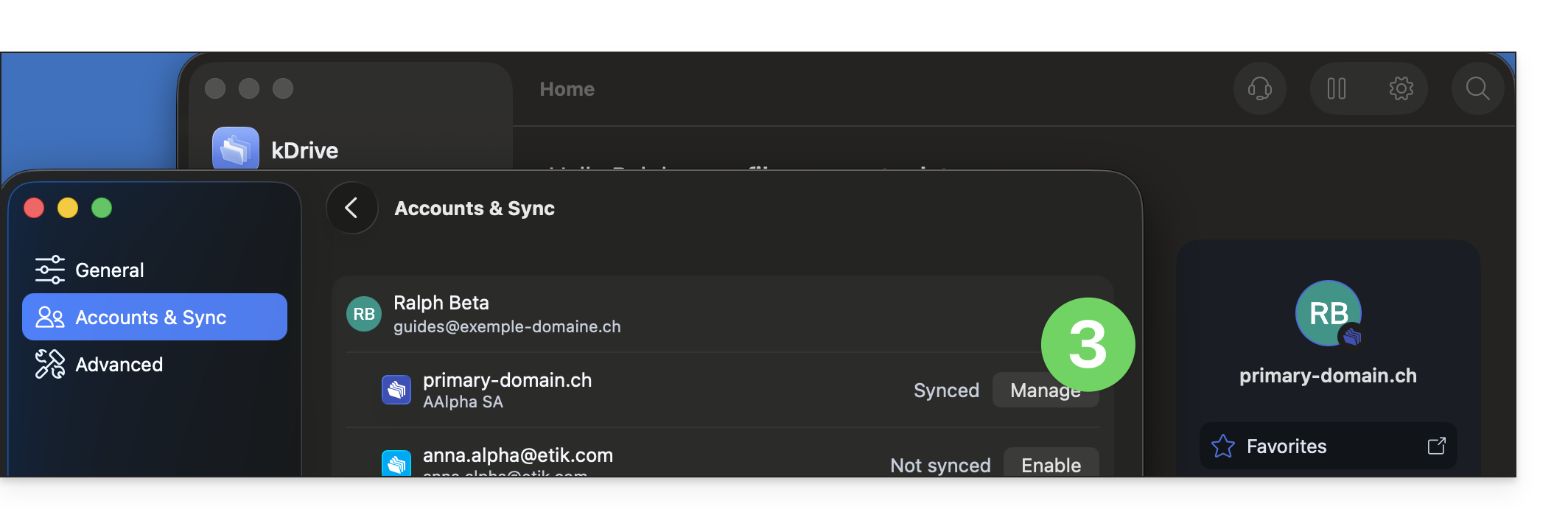
- Clique em Sincronização avançada:
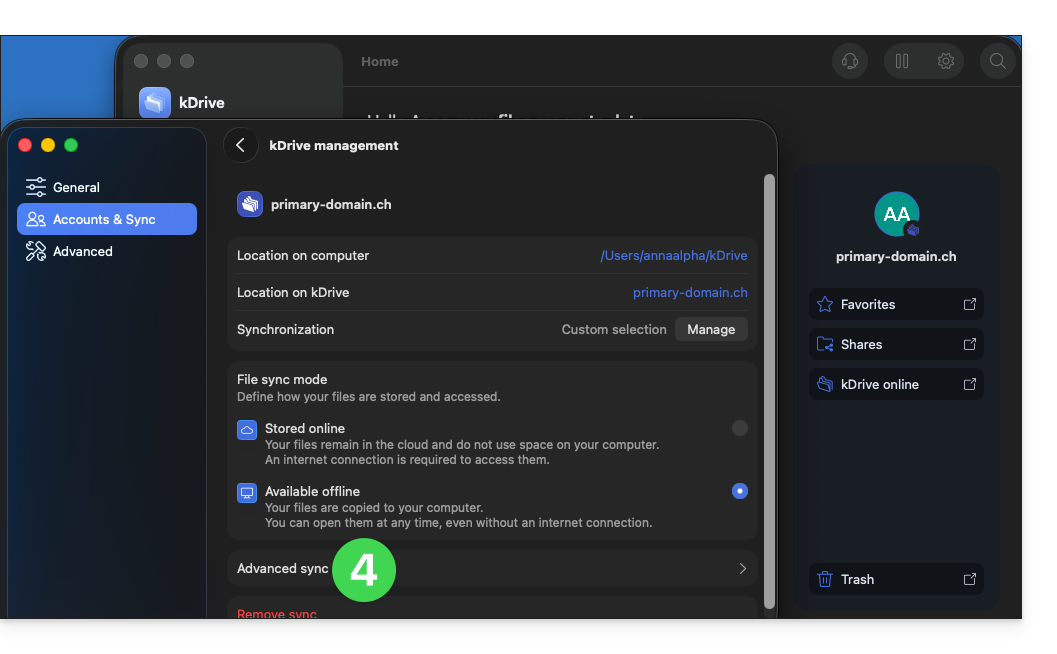
- Clique em Sincronizar uma pasta:
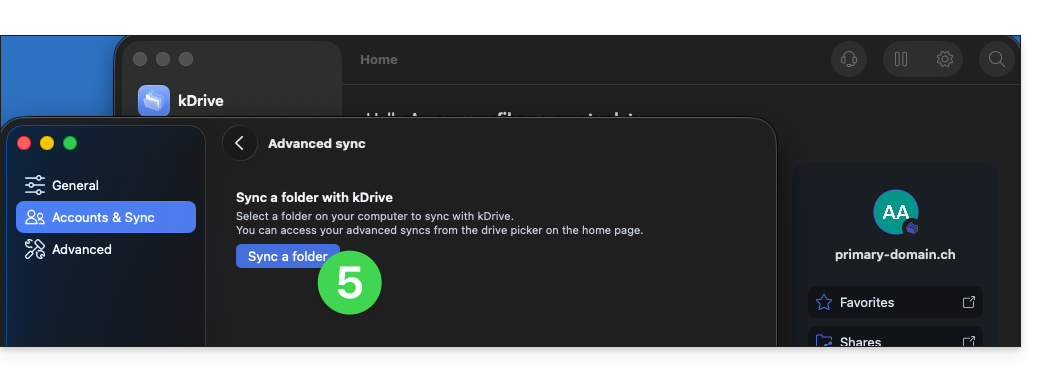
- Clique no botão para Selecionar uma pasta:
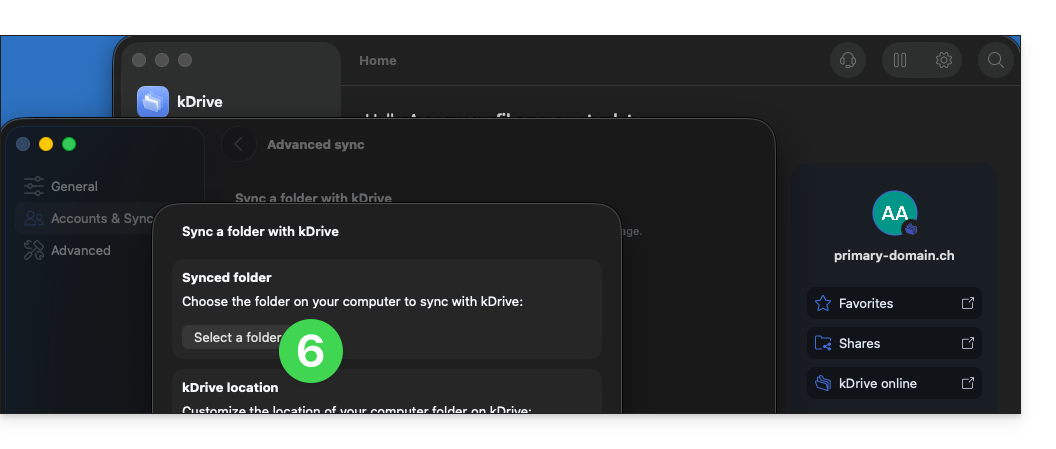
- Procure e selecione a pasta adicional (fora da sua estrutura kDrive existente e já sincronizada) e, em seguida, clique em Abrir:
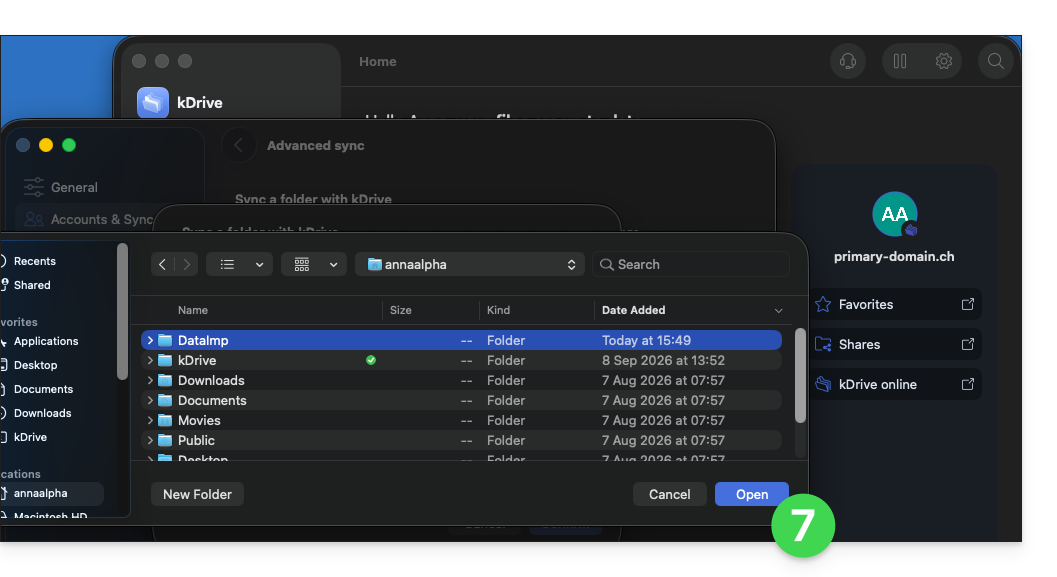
- Clique em seguida para escolher o local no kDrive Web onde a pasta adicional selecionada deverá ser enviada:
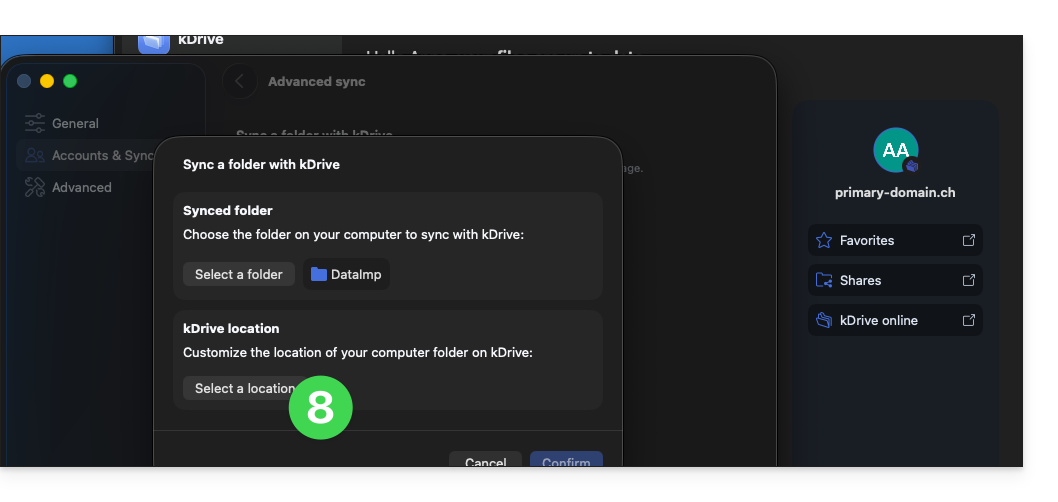
- Procure o local de destino a ser utilizado — recomenda-se criar uma nova pasta (❓: ajuda) — e, em seguida, clique em Selecionar:
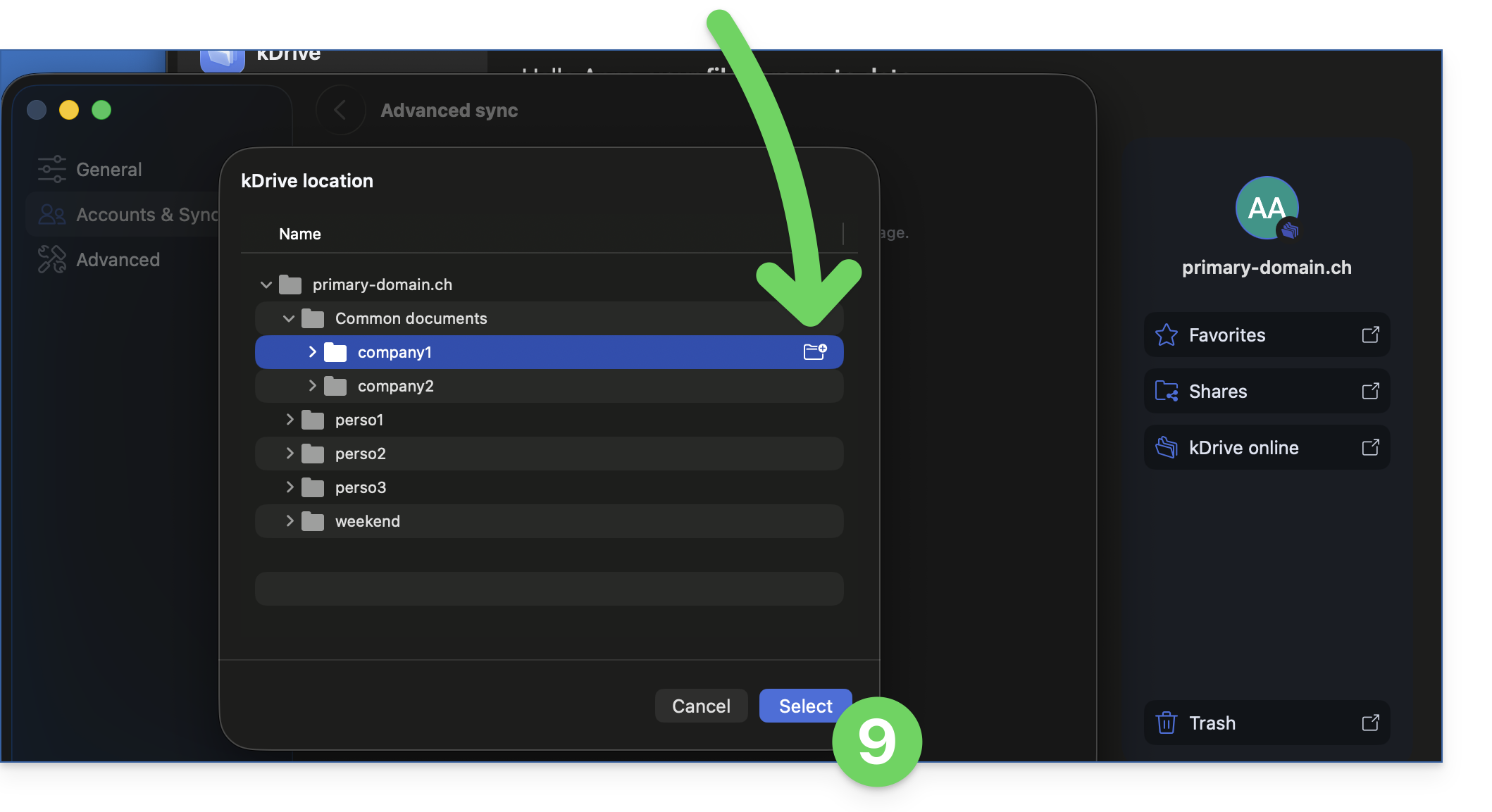
- Confirme suas seleções:
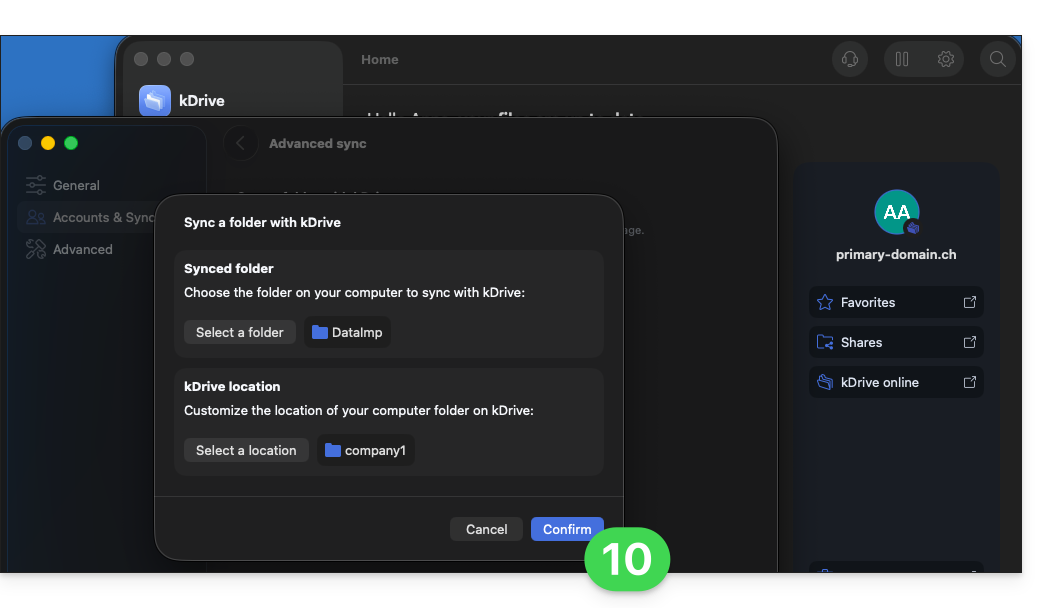
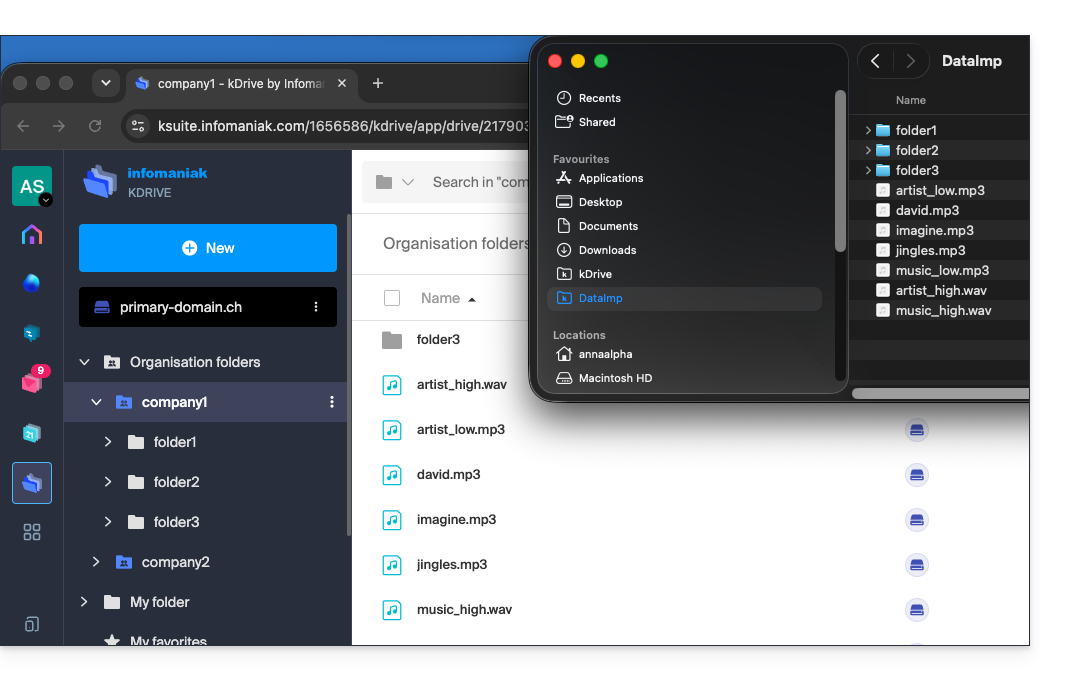
- Pronto, os dados adicionais são enviados para o local definido e são sincronizados entre seus dispositivos:
Para interromper e remover uma sincronização avançada:
- No mesmo local acessível seguindo o procedimento acima, clique no ícone •••, no extremo direito:
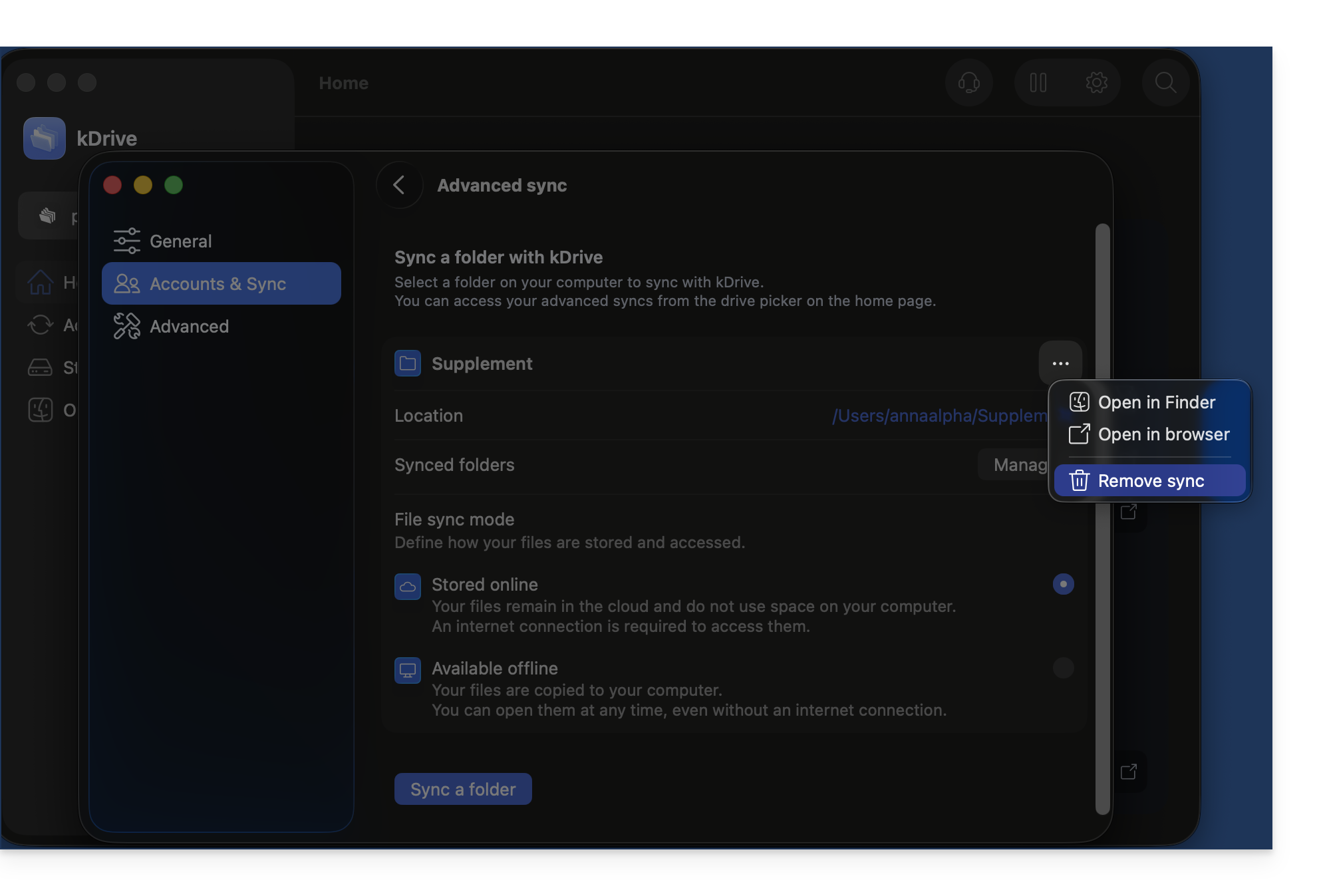
Aplicativo para desktop v3.x
Para adicionar uma pasta local para sincronização avançada:
- Clique com o botão esquerdo do rato no ícone do aplicativo para desktop na área de notificação do seu computador (no canto superior direito no macOS, no canto inferior direito no Windows e clique duas vezes na barra de tarefas no Linux).
- Clique no menu de ação ⋮, à direita, na janela que aparece.
- Clique em Configurações do kDrive.
- Clique na seta para baixo à esquerda do nome da sua sincronização para exibir a lista de pastas (atualmente armazenadas no kDrive Web).
- Expanda o conteúdo das pastas listadas e marque / desmarque as pastas que deseja sincronizar com o seu computador.
- Clique no botão azul Confirmar.
- Clique em Sincronizar uma pasta local.
- … o que permitirá sincronizar uma ou mais pastas do seu disco rígido com o local de sua escolha no kDrive.
Para interromper e remover uma sincronização:
- No mesmo local acessível seguindo o procedimento acima, clique no ícone ⋮, no extremo direito:
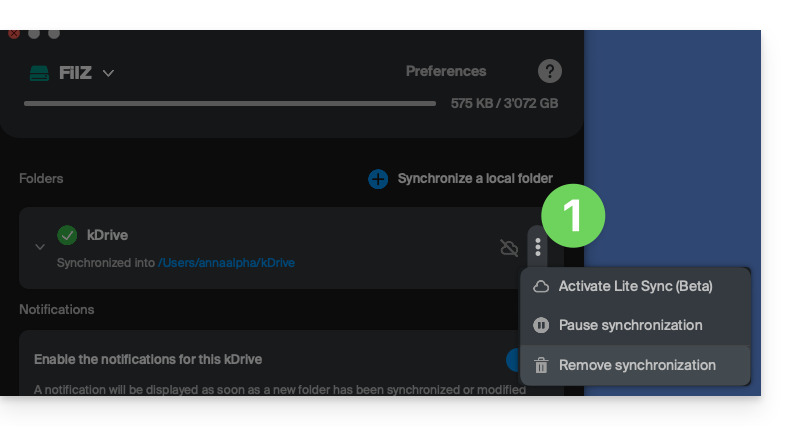
- … o que permitirá que você:
- Ative o Lite Sync
- Pause a sincronização
- Remova a sincronização (apenas do seu dispositivo, sem afetar o seu kDrive) – consulte este outro guia.
Evite duplicatas durante uma sincronização avançada (v4.x)
Ao criar uma sincronização avançada e precisar escolher o destino, crie uma nova pasta dedicada a partir da janela de seleção de localização no kDrive: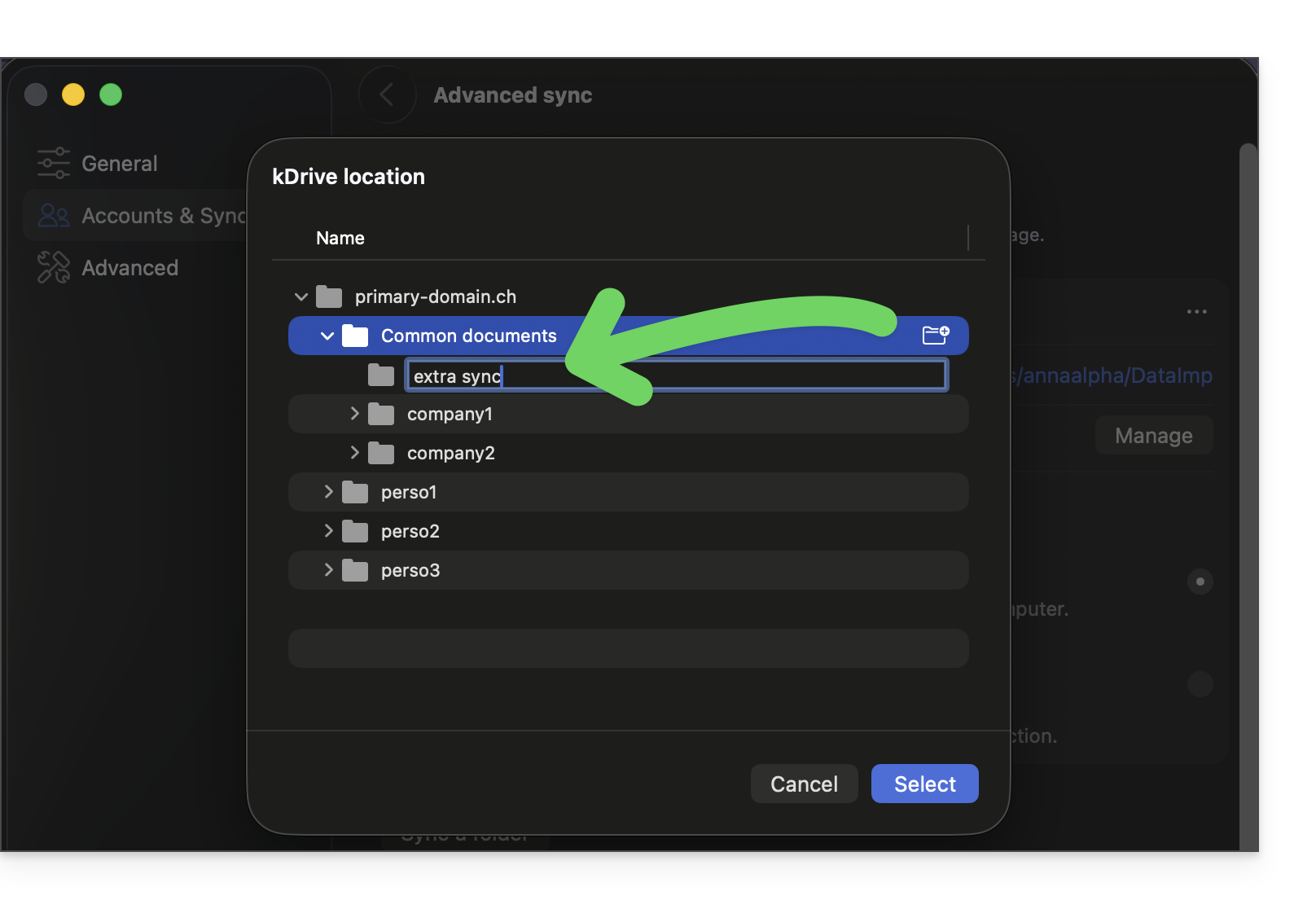
Selecione-a. A pasta criada dessa forma será automaticamente excluída de qualquer outra sincronização existente no kDrive, para evitar dados duplicados: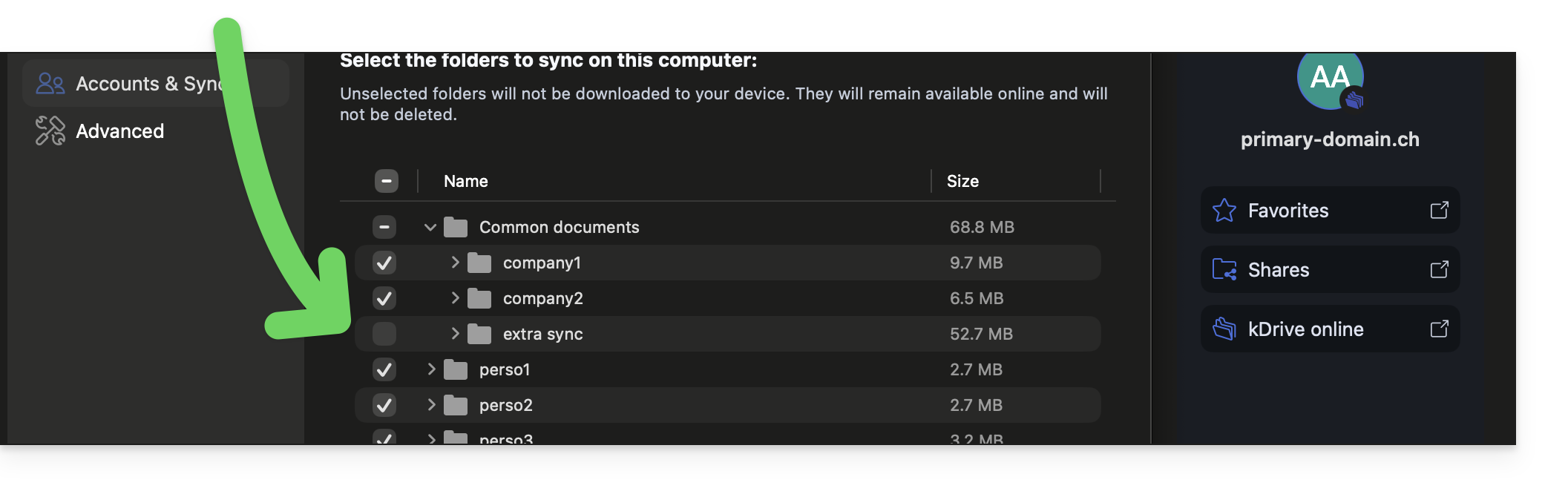
Se não tiver criado uma nova pasta desta forma, recomenda-se queexclua manualmente a sua sincronização avançadacaso contrário, ela será sincronizada em ambos os sentidos por meio da sincronização normal (já que os arquivos agora fazem parte da estrutura do kDrive).
Para isso:
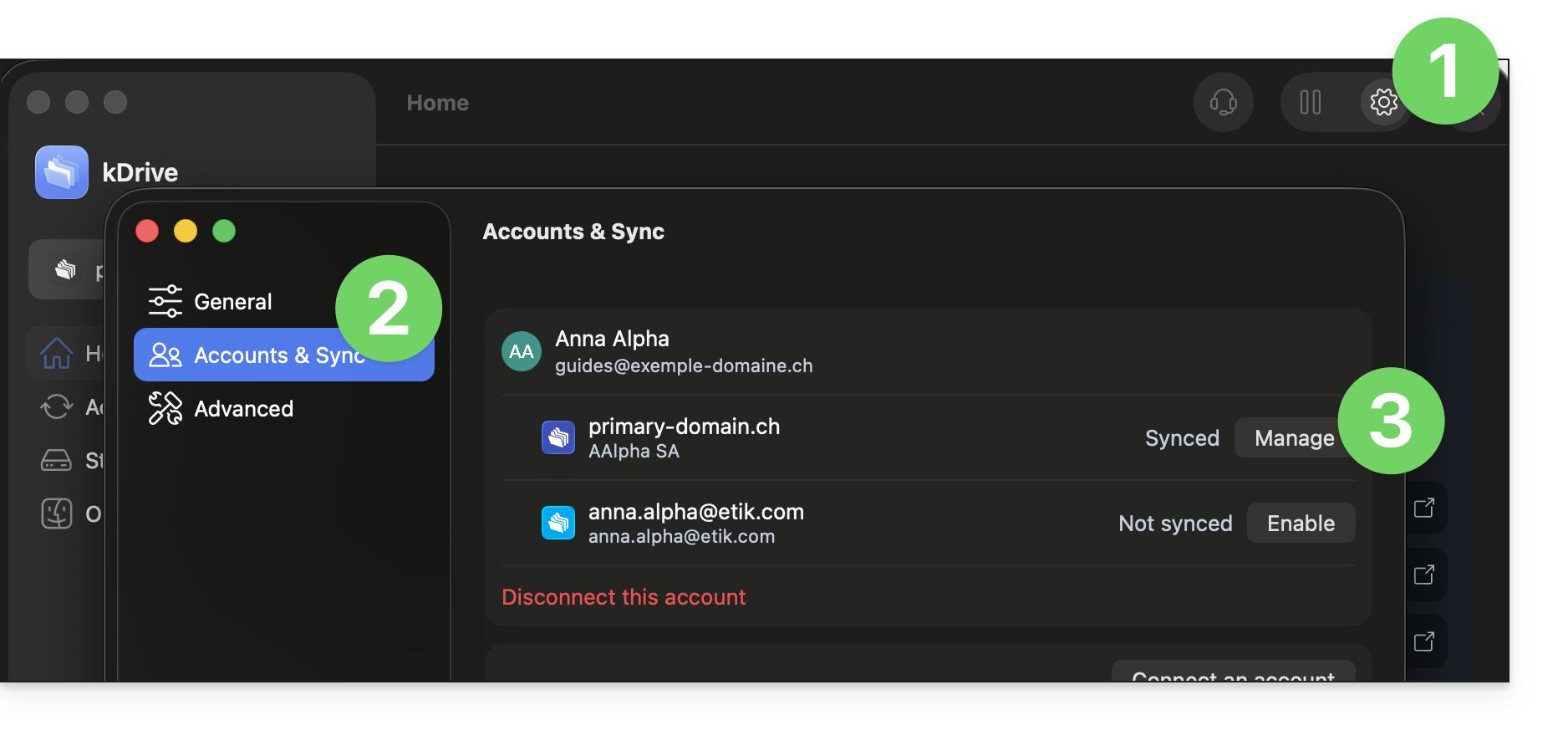
- Clique em Configurações no canto superior direito no macOS.
- Clique em Contas e Sincronização.
- Clique em Gerenciar à direita da sincronização atual:
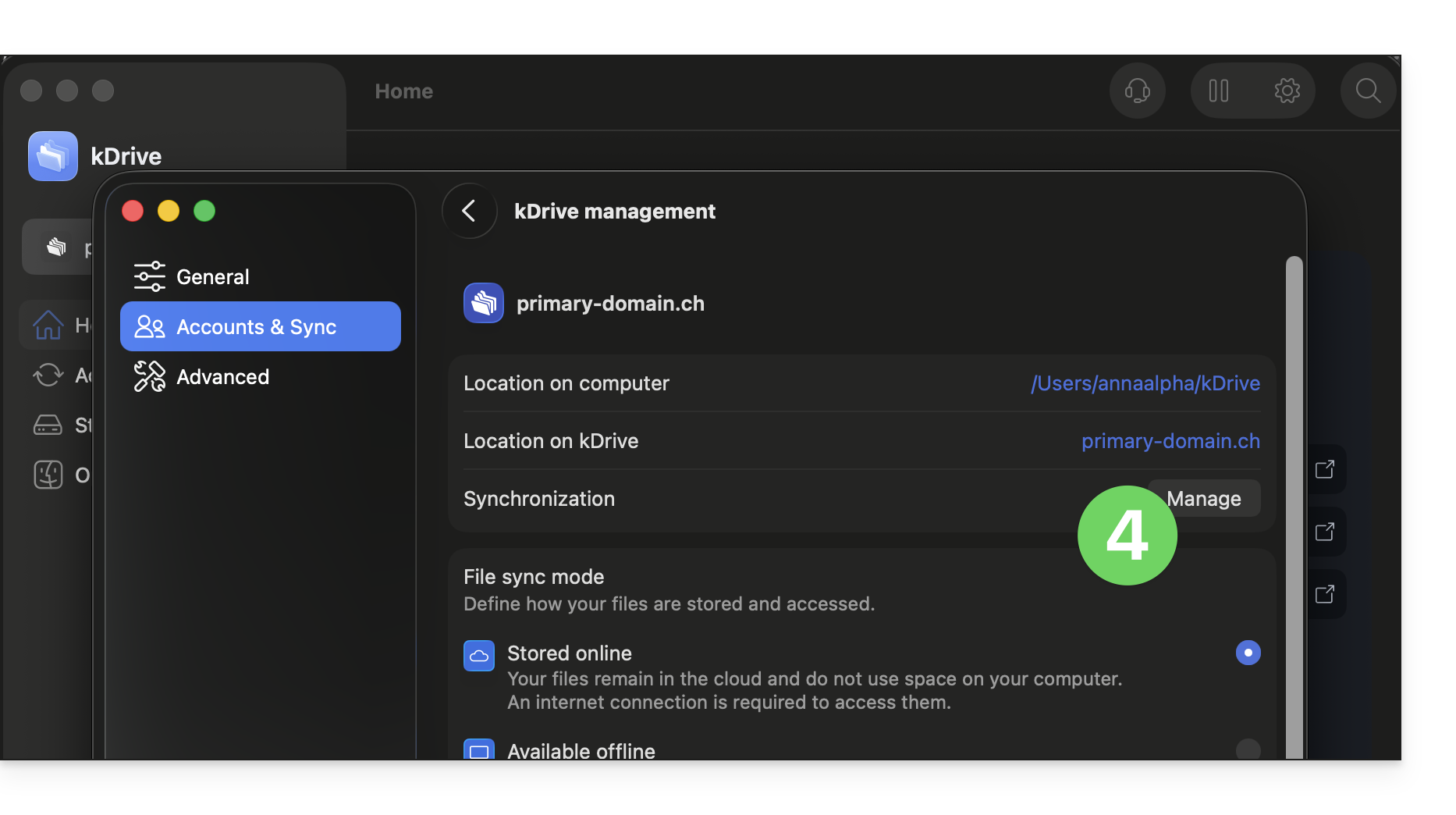
- Clique em Gerenciar a sincronização:
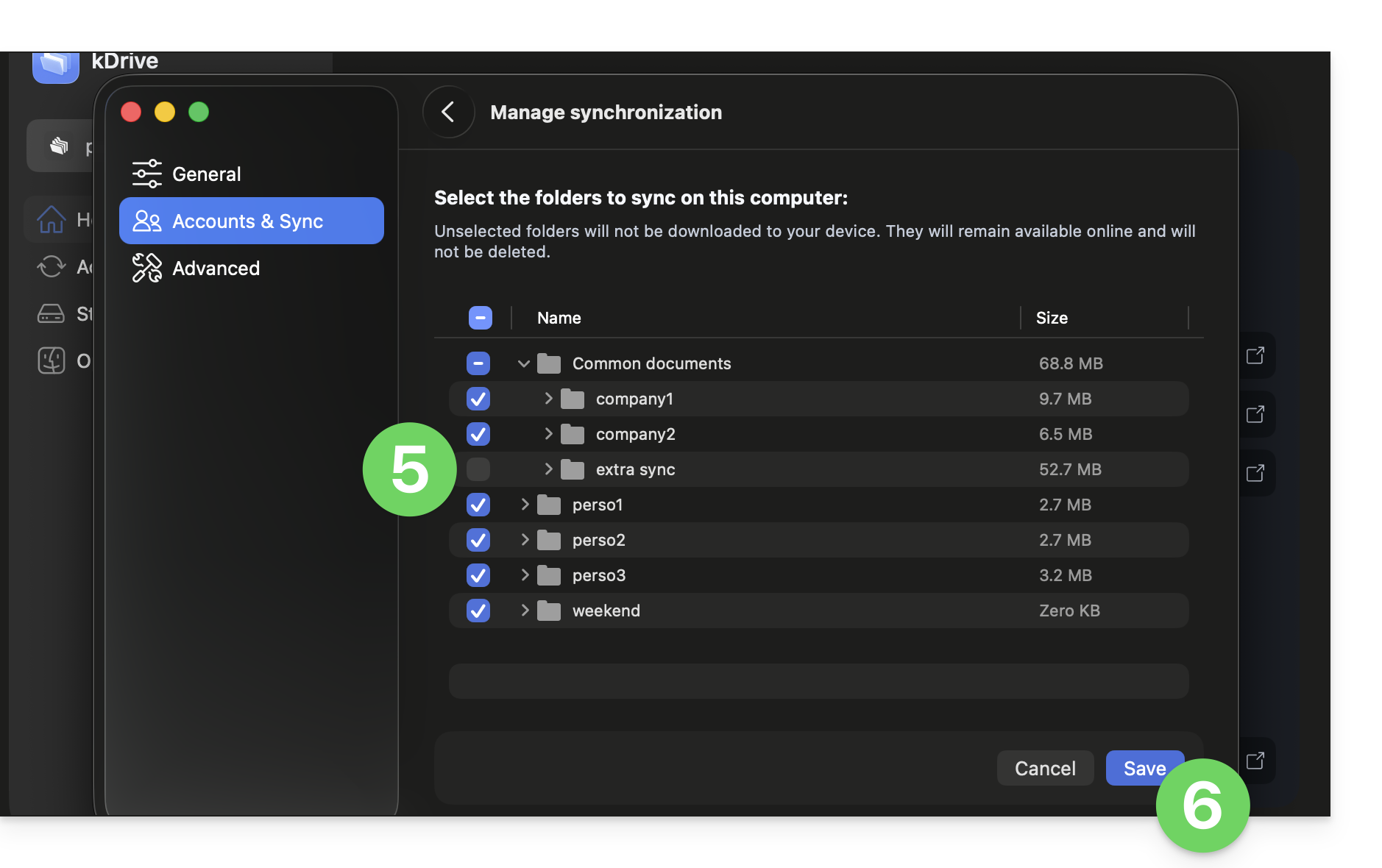
- Ative ou desative as caixas correspondentes aos dados que não devem mais aparecer no seu dispositivo após a próxima sincronização.
- Salve as suas alterações:
Link para esta FAQ: https://faq.infomaniak.com/2510
Esta seção de perguntas frequentes foi útil?
Este guia explica como transferir automaticamente as fotos do seu dispositivo móvel (Android) para o kDrive da Infomaniak.
Introdução
- Depois de ativar esta funcionalidade, as fotos do seu dispositivo móvel serão guardadas na pasta kDrive que escolher.
- Modo em primeiro plano:
- A sincronização funciona de forma ideal quando a aplicação kDrive está ativa e em primeiro plano.
- Modo em segundo plano
- O Android pode limitar o funcionamento de aplicativos em segundo plano para economizar bateria.
- Para garantir uma sincronização perfeita, certifique-se de que o aplicativo kDrive não esteja sujeito a "otimizações de bateria" rigorosas nas configurações do seu telefone.
- Nomenclatura de arquivos: ao contrário do iOS, o backup automático no Android geralmente mantém o nome original dos arquivos (por exemplo: IMG_001.jpg), mas consulte as informações na parte inferior deste guia.
Ativar o envio para o kDrive no Android
Pré-requisitos
Para configurar a cópia de segurança automática:
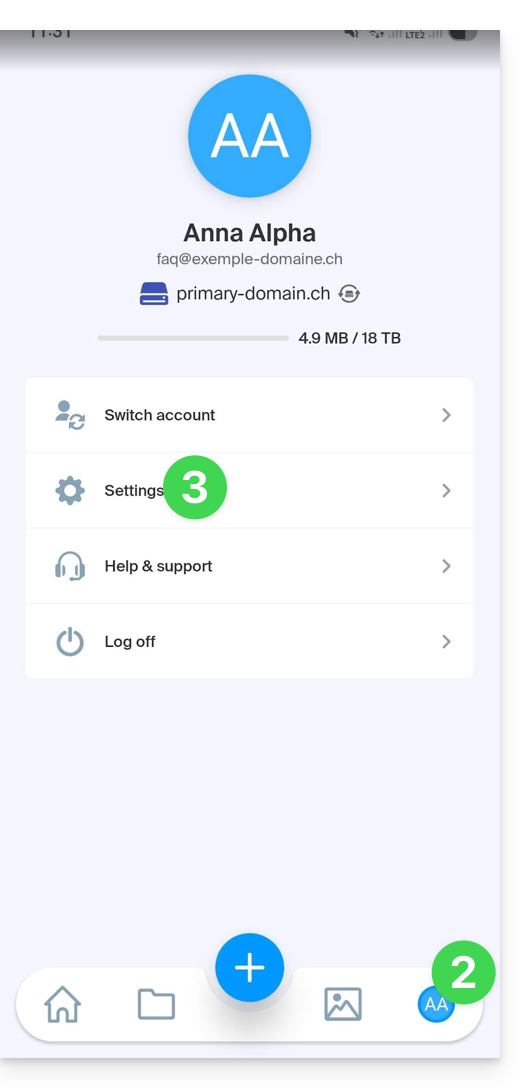
- Abra a aplicação móvel kDrive.
- Toque nas suas iniciais ou no seu avatar (no canto inferior direito).
- Toque em Configurações:
- Toque em Backup de fotos:
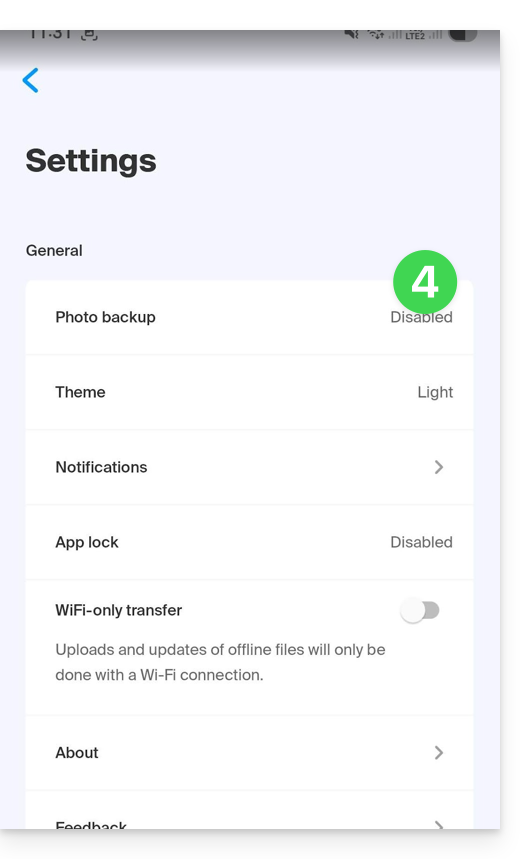
- Ative o Backup automático:
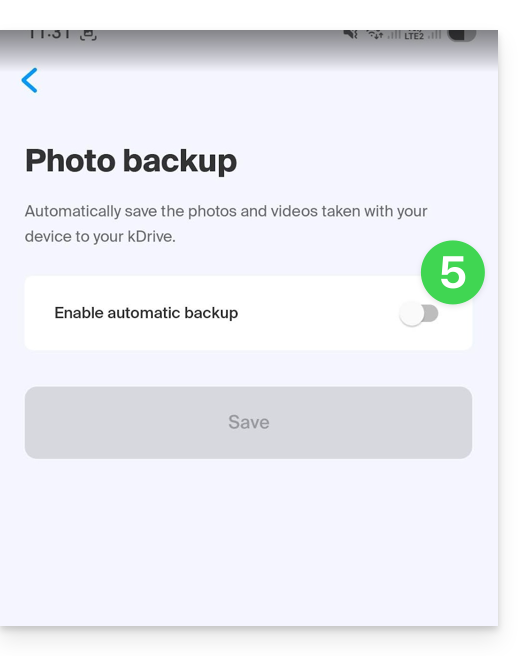
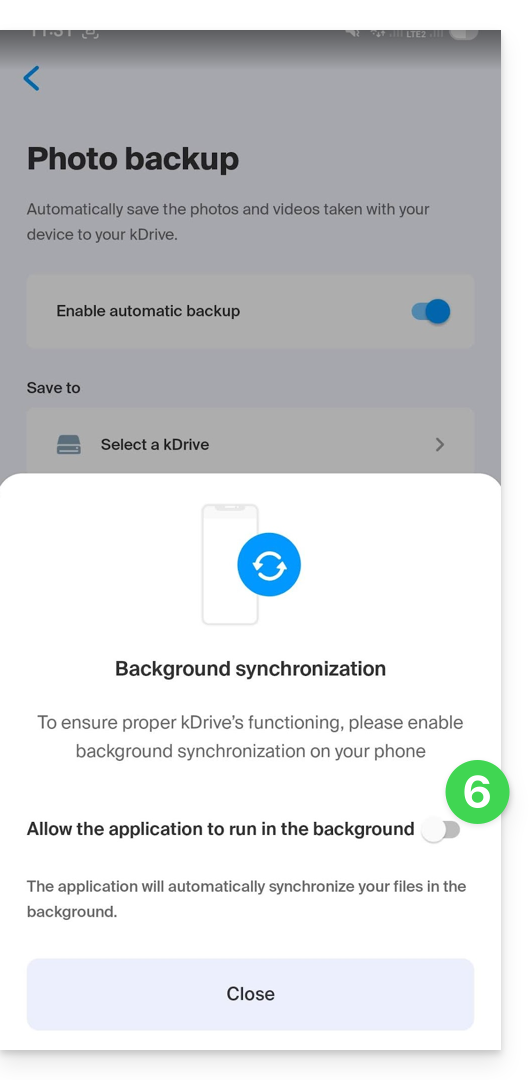
- Se necessário, aceite o pedido de autorização para que o Android aceda a todos os seus ficheiros multimédia e sincronize em segundo plano:
- Toque em Selecionar um kDrive:
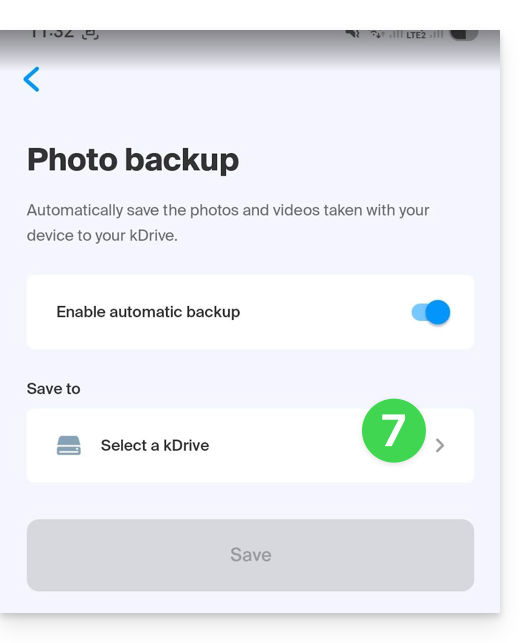
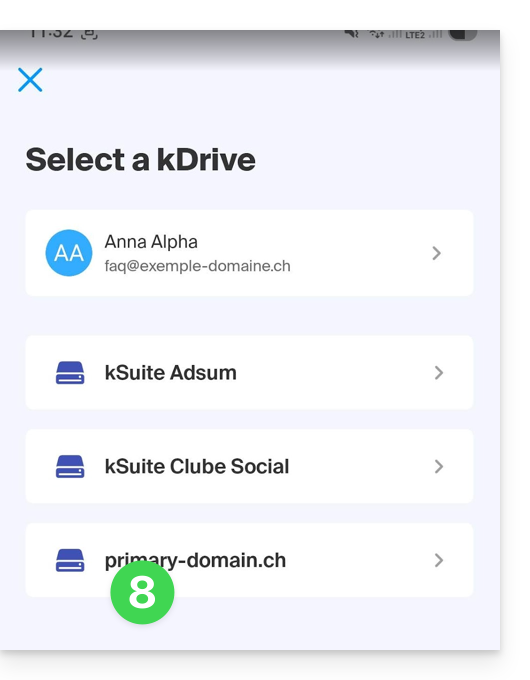
- Escolha a conta Infomaniak e o kDrive de destino:
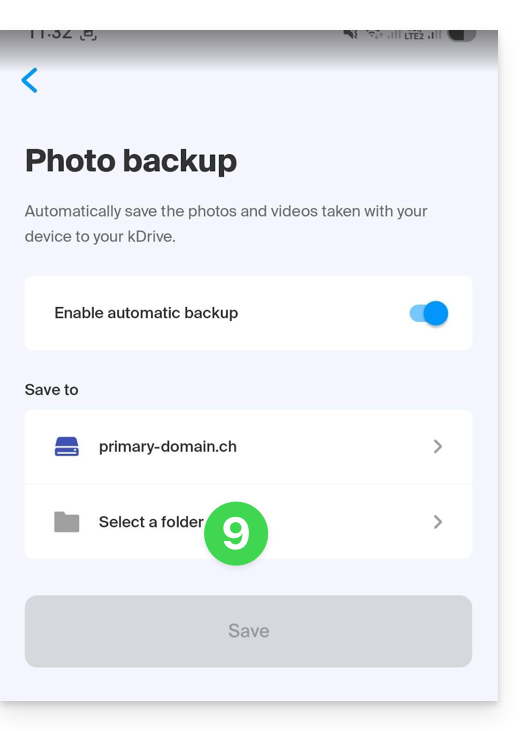
- Toque na seleção da pasta kDrive:
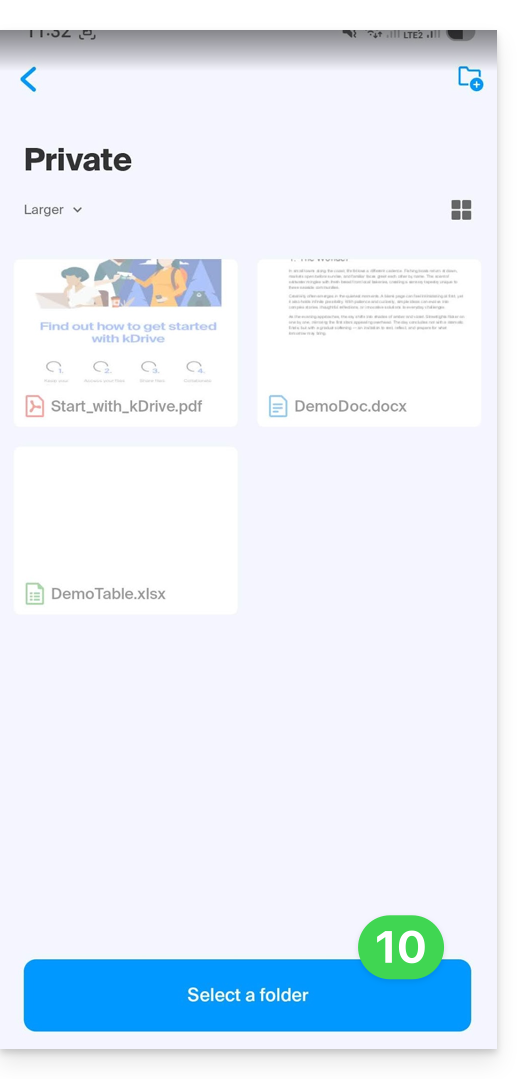
- Depois de estar na pasta de destino no kDrive, pressione Selecionar:
- Pressione nas pastas que devem ser copiadas:
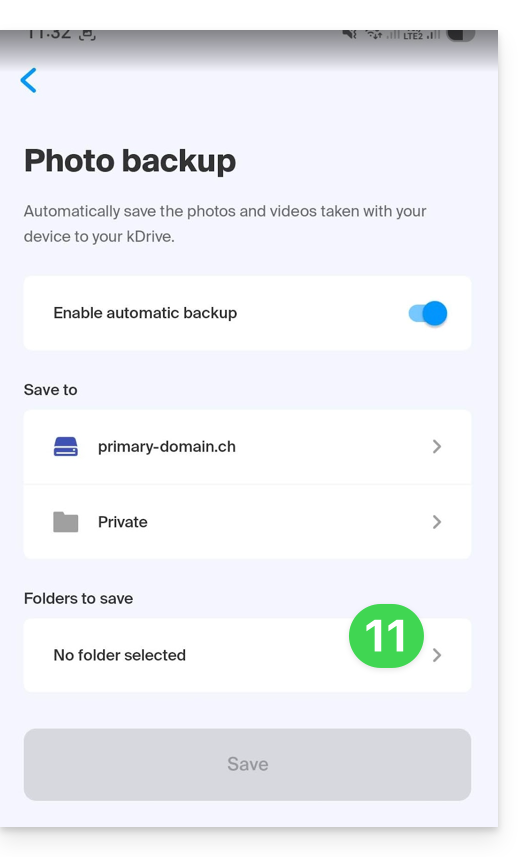
- Ative a(s) pasta(s) do seu dispositivo que deseja sincronizar (por exemplo: DCIM, WhatsApp, etc.).
- Feche a janela de seleção de pastas:
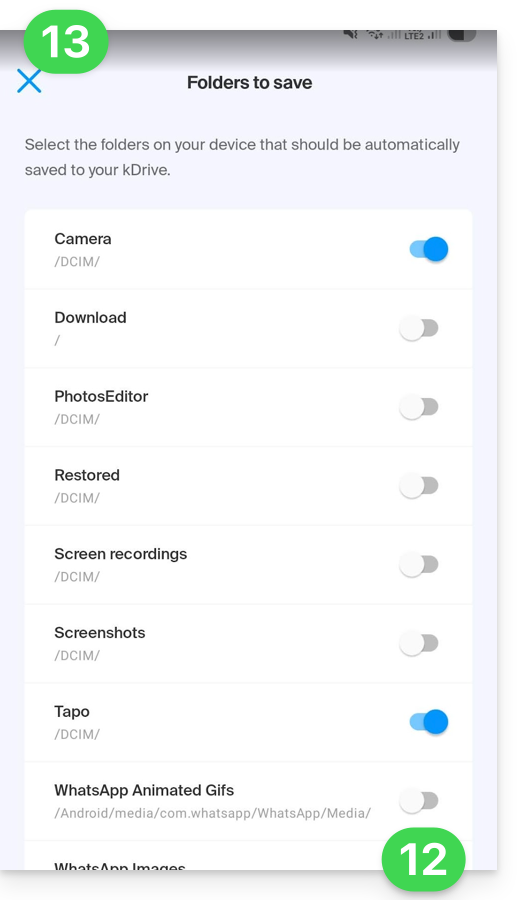
- Ajuste as suas preferências (vídeos, classificação mensal, eliminação após o envio, etc.) e, em seguida, clique em Guardar:
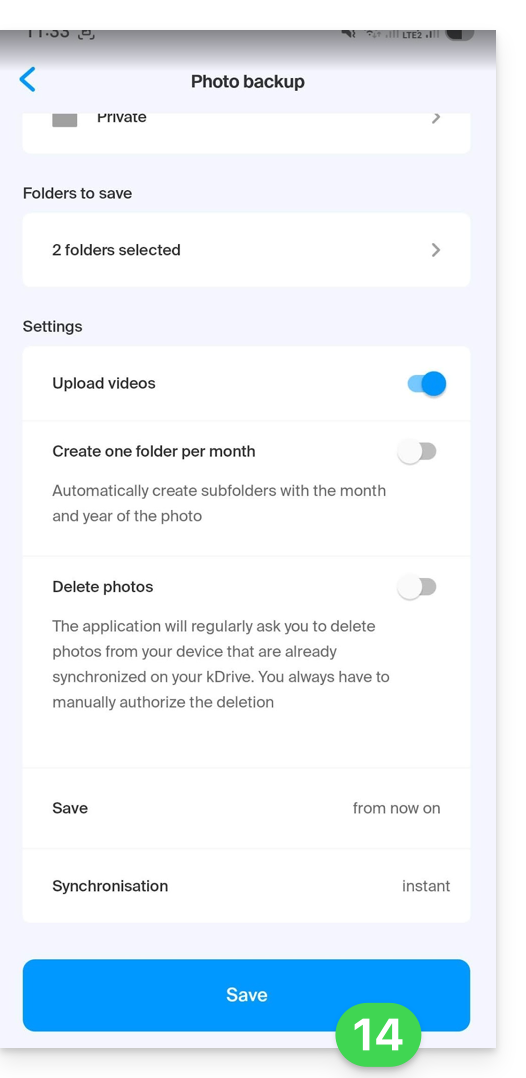
Atenção: Risco de conflito e perda de dados
O aplicativo Android mantém o nome original definido pelo seu dispositivo. Em alguns modelos (como os Sony Xperia), a numeração das fotos é sequencial (ex: DSC_0001.jpg).
Se você ativar a opção de exclusão do conteúdo no dispositivo móvel após o envio, o dispositivo pode redefinir sua numeração. Na próxima sincronização, uma nova foto com o nome DSC_0001.jpg poderá então substituir a anterior no seu kDrive.
Para evitar a perda de dados, recomenda-se configurar a sua aplicação "Câmera" para utilizar uma nomenclatura baseada na data e hora (ex: 20260219_150109.jpg) em vez de uma sequência numérica simples.
Link para esta FAQ: https://faq.infomaniak.com/2514
Esta seção de perguntas frequentes foi útil?