Base de conhecimento
1000 perguntas frequentes, 500 tutoriais e vídeos explicativos. Aqui, você encontra apenas soluções!
Gerenciar usuários do kDrive
Este guia explica como adicionar, bloquear, substituir ou remover um utilizador de um kDrive. Para saber mais sobre a gestão dos direitos dos utilizadores, consulte este outro guia.
Pré-requisitos
- O utilizador deverá criar (ou possuir) uma conta Infomaniak para aceitar o convite e aderir ao kDrive.
- Possuir uma oferta kDrive com um número suficiente de utilizadores disponíveis (precisa de ajuda?).
Adicionar um utilizador
Para tal:
- Clique aqui para aceder à aplicação web kDrive da Infomaniak (serviço online ksuite.infomaniak.com/kdrive).
- Verifique ou selecione o kDrive em questão no menu suspenso do menu lateral esquerdo.
- Clique no menu de ação ⋮ localizado à direita do elemento em questão.
- Clique em Convidar um novo utilizador:
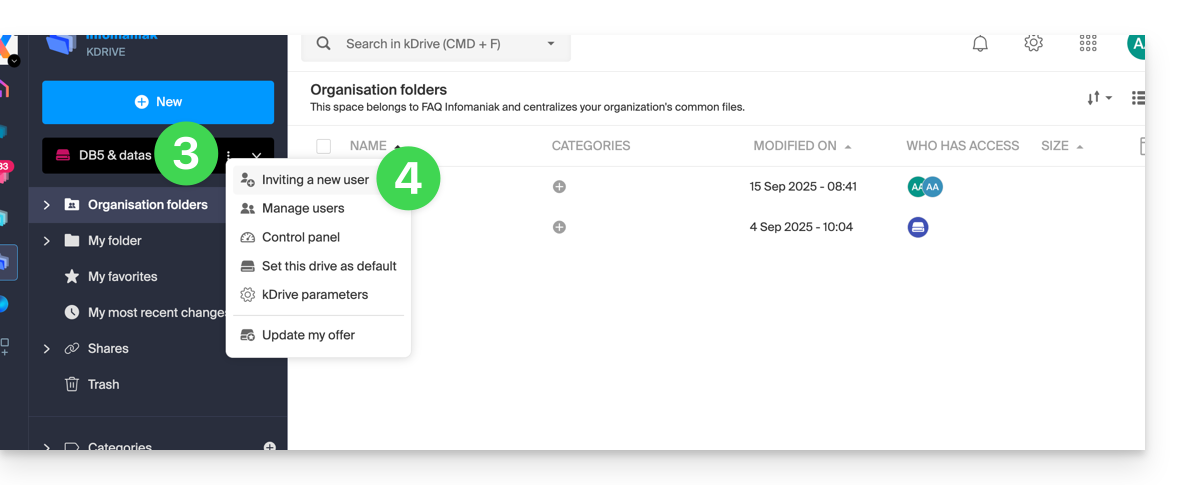
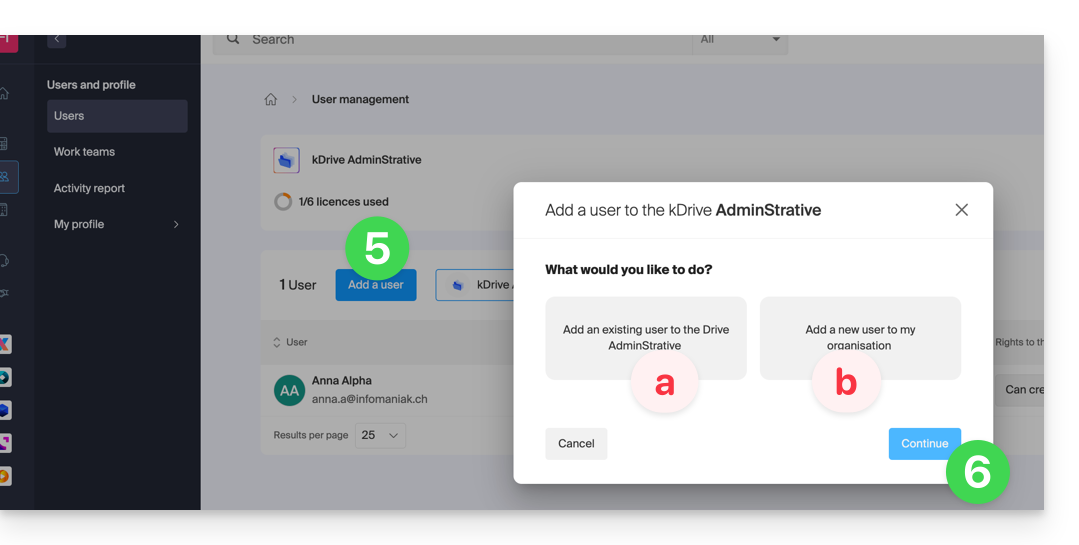
- Se necessário, clique novamente no botão para convidar um novo utilizador e, em seguida, clique em:
- Adicionar um utilizador ao Drive para escolher um utilizador que já esteja presente na sua Organização,
- Adicionar um utilizador à minha Organização para convidar um utilizador externo.
Com o kSuite, o processo é praticamente o mesmo:
- Criar um (novo) utilizador kSuite,
- Convidar um utilizador existente para o kSuite.
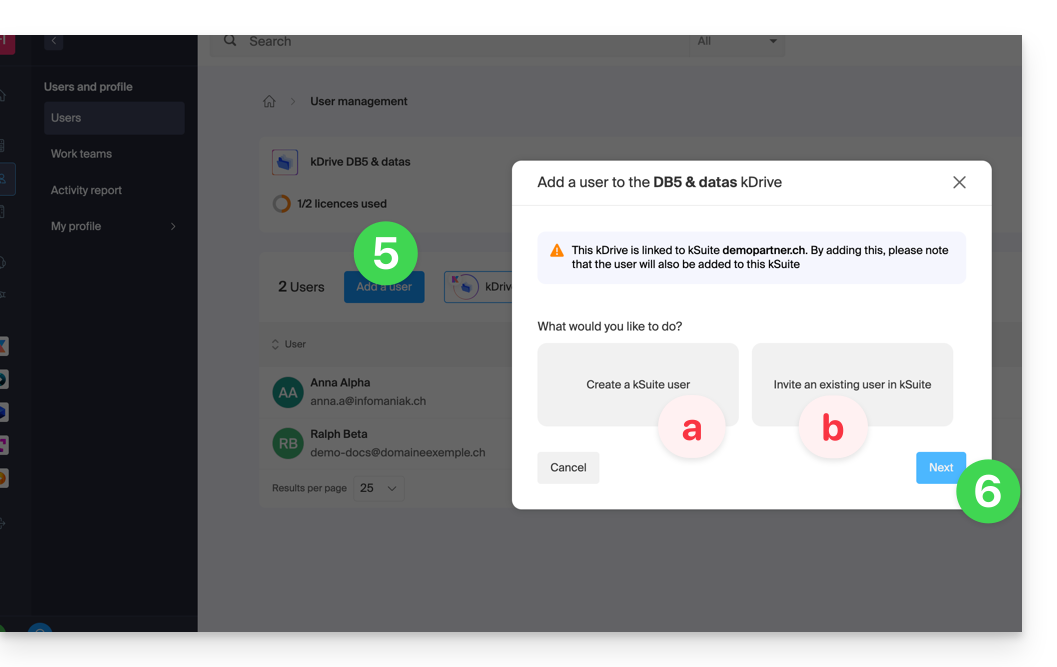
- Pressione o botão para continuar.
- Dependendo da sua escolha, insira as informações de contacto ou simplesmente o endereço de e-mail do utilizador a convidar e especifique os seus direitos.
- Clique em Convidar.
O utilizador receberá então um e-mail que lhe permitirá aceitar o convite (válido por 1 mês). Ele será indicado como um utilizador convidado em espera na gestão de utilizadores do kDrive.
Bloquear um utilizador
Esta funcionalidade permite impedir que um utilizador aceda aos ficheiros a partir da interface web do kDrive e a partir da aplicação num dispositivo:
- Clique em Gerir utilizadores:
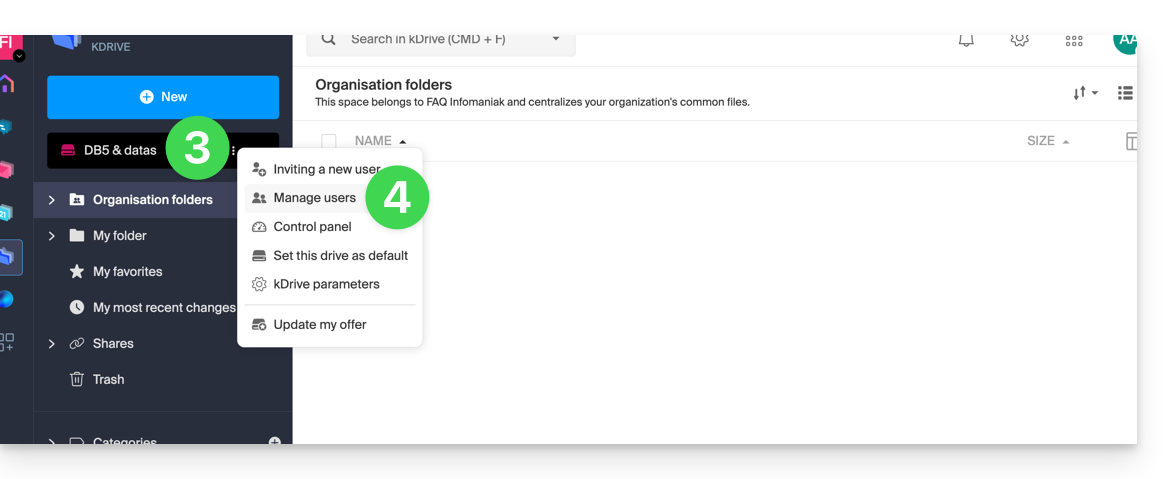
- Clique no menu de ação ⋮ à direita do utilizador em questão na tabela que aparece.
- Clique em Bloquear o utilizador e confirme a ação:
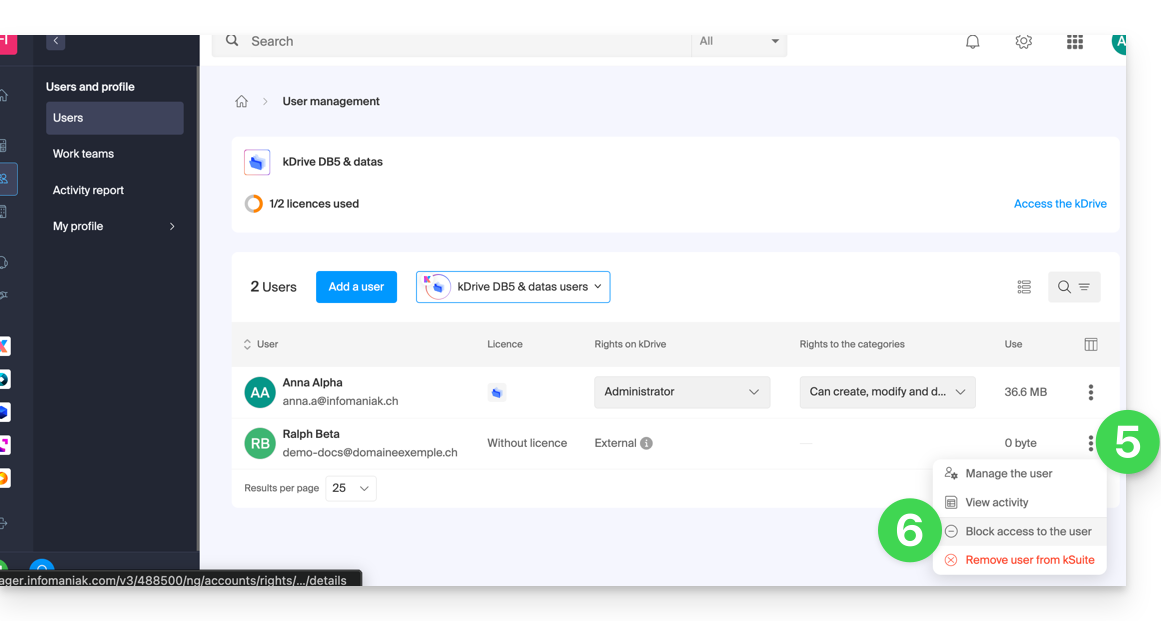
Para desbloquear um utilizador, basta seguir o mesmo procedimento.
Como remover um utilizador
Se um utilizador deixar a sua empresa ou equipa, várias opções estão disponíveis para si como administrador. Pode optar por…
- … bloquear o utilizador durante um determinado período (ver acima).
- … remover completamente o utilizador e os seus ficheiros.
- … remover o utilizador e manter os seus ficheiros durante 6 meses.
- … remover o utilizador e transferir os seus ficheiros para outro utilizador.
Para remover um utilizador:
- Clique aqui para aceder à aplicação web kDrive da Infomaniak (serviço online ksuite.infomaniak.com/kdrive).
- Verifique ou selecione o kDrive em questão no menu suspenso do menu lateral esquerdo.
- Clique no menu de ação ⋮ localizado à direita do elemento em questão.
- Clique em Gerir utilizadores:
- Clique no menu de ação ⋮ à direita do utilizador em questão na tabela que aparece.
- Clique em Remover o utilizador.
- Escolha se deseja ou não manter os dados do utilizador:
- Manter os ficheiros do utilizador durante 6 meses ou transferi-los para outro utilizador.
- Eliminar imediatamente e definitivamente os ficheiros do utilizador.
- Clique em Remover direitos de acesso.
Remover um utilizador externo do kDrive
Os utilizadores externos são aqueles com quem partilhou apenas um ou mais ficheiros/pastas, sem lhes dar acesso ao kDrive completo:
Para remover um utilizador externo:
- Clique aqui para aceder à aplicação web kDrive da Infomaniak (serviço online ksuite.infomaniak.com/kdrive).
- Verifique ou selecione o kDrive em questão no menu suspenso do menu lateral esquerdo.
- Clique no menu de ação ⋮ localizado à direita do elemento em questão.
- Clique em Gerir utilizadores.
- Clique no menu de ação ⋮ à direita do utilizador externo em questão na tabela que aparece.
- Clique em Remover acesso ao kDrive:
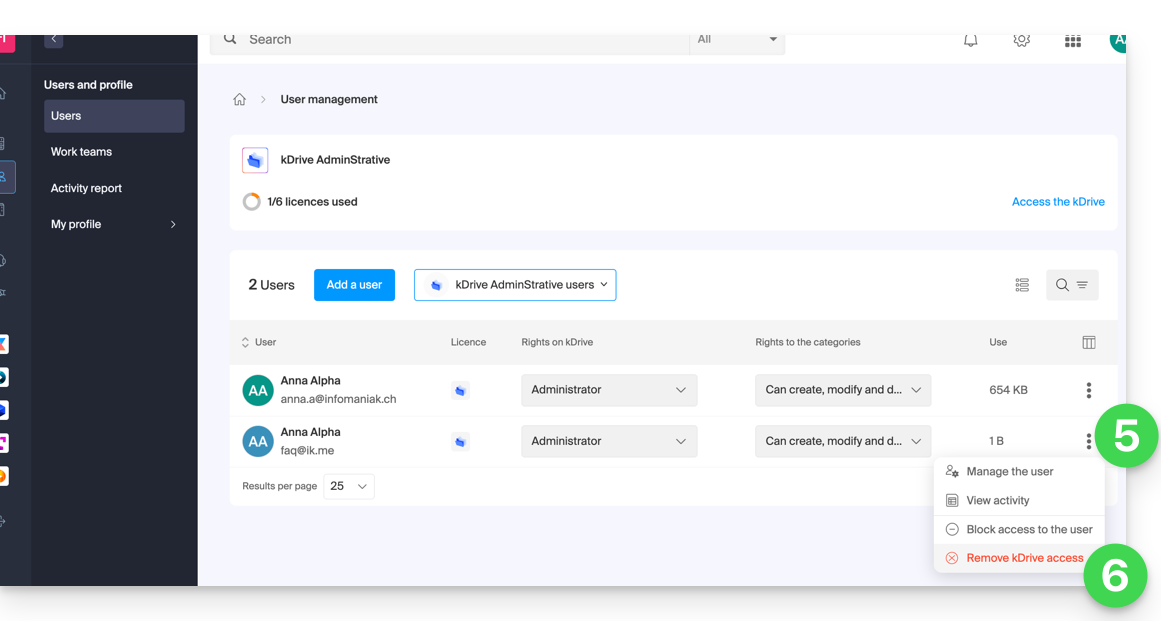
Também pode ir para o local do ficheiro partilhado e clicar na coluna de partilhas para remover o acesso ao utilizador em questão: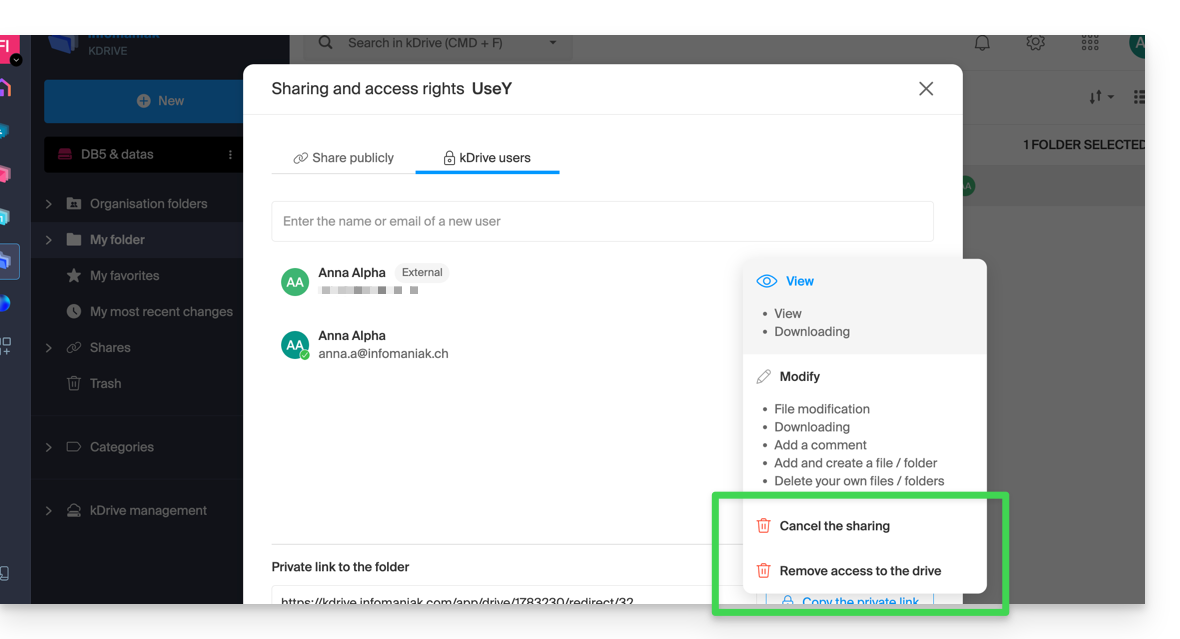
Pode:
- interromper a partilha do ficheiro com ele (ele continuará a ver os outros ficheiros se tiver partilhado outros).
- remover o acesso dele a todos os arquivos que você compartilhou com ele a partir deste kDrive
Observe que o usuário externo também pode, a partir do seu kDrive limitado, remover o próprio acesso, interrompendo o acesso ao arquivo compartilhado, caso não deseje mais acessá-lo: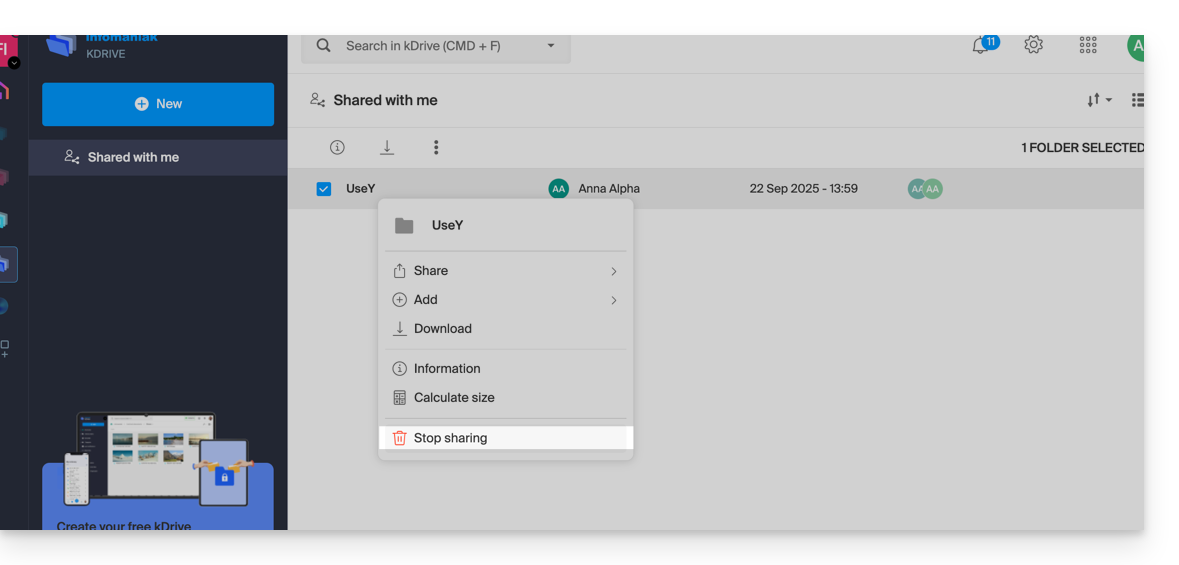
Ele não aparecerá mais nos usuários externos.
Substituir um usuário do kDrive
✘ INDISPONÍVEL com
kSuite
my kSuite / my kSuite+ (ik.me, etik.com, ikmail.com)
No caso de um administrador do kDrive desejar remover o próprio acesso (apenas este tipo de conta pode fazê-lo) e atribuir os direitos de uso do kDrive a um usuário terceirizado (que já esteja entre os usuários da Organização na qual o kDrive em questão está localizado):
- Clique aqui para acessar o aplicativo web kDrive da Infomaniak (serviço online ksuite.infomaniak.com/kdrive).
- Verifique ou selecione o kDrive em questão no menu suspenso do menu lateral esquerdo.
- Clique no menu de ação ⋮ localizado à direita do item em questão.
- Clique em Painel de controle.
- Clique em Gerenciar usuários:
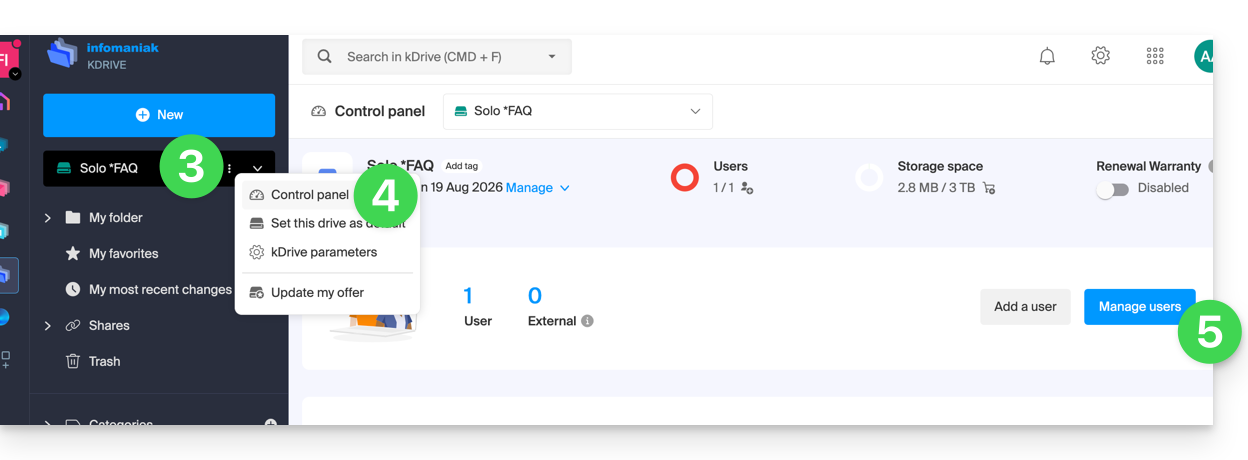
- Clique no menu de ação ⋮ localizado à direita do usuário atual.
- Clique em Substituir utilizador:
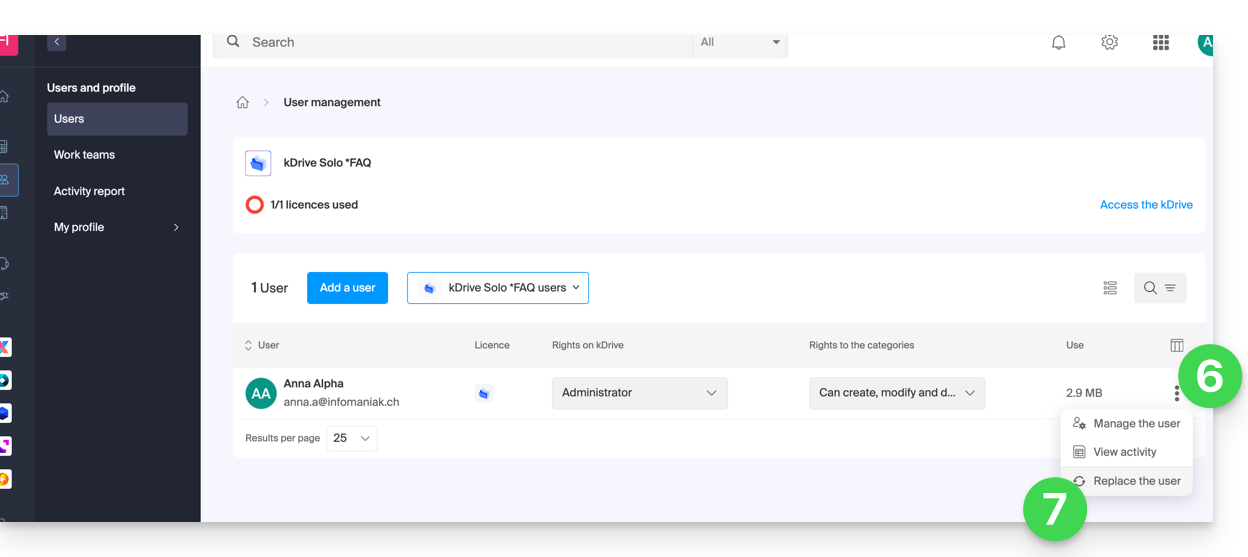
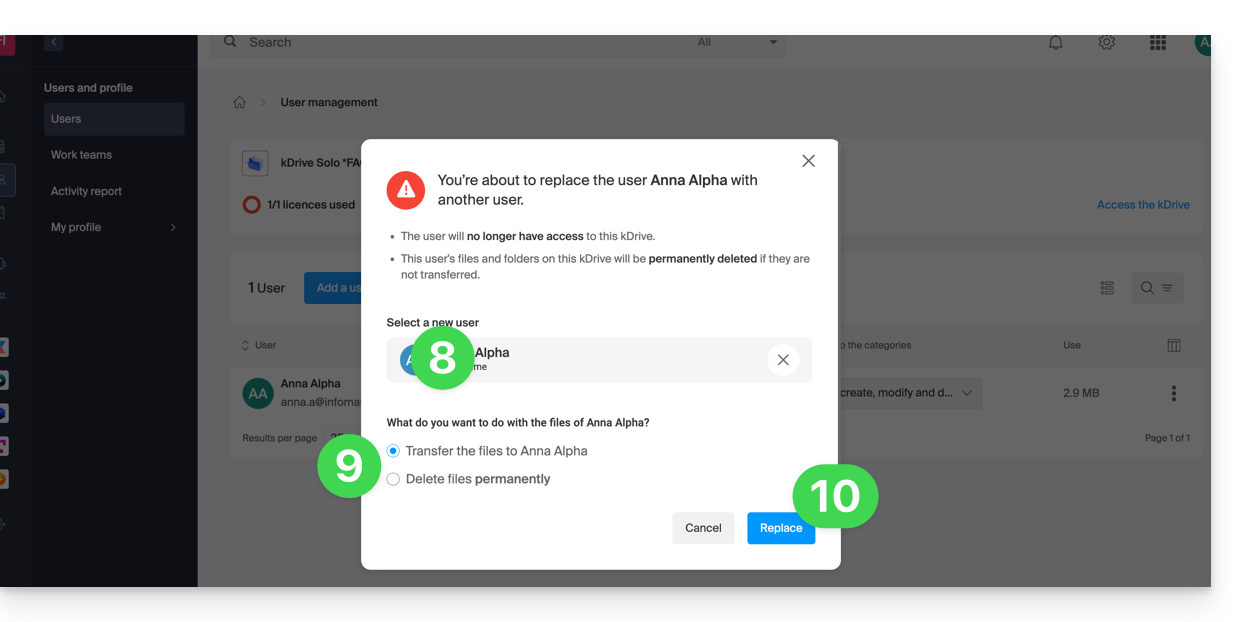
- Indique o utilizador (entre os que já estão associados à Organização) que deverá ser o utilizador principal do kDrive, substituindo o administrador atual.
- Escolha se os dados existentes no kDrive devem ser mantidos e transferidos para o utilizador, ou se devem ser eliminados completamente e de forma definitiva.
- Clique no botão Substituir:
Vídeo: a que tem acesso um utilizador adicionado?
Imagine um kDrive Pro dentro de uma kSuite, com apenas 1 utilizador de 3, dados na pasta comum “Pastas da organização” e na pasta pessoal “A minha pasta”.
Se um novo utilizador sem conta Infomaniak for convidado para a kSuite como colaborador, a que terá acesso por defeito no Manager e no kDrive?
O novo utilizador é convidado para a Organização como colaborador, portanto, por defeito, não terá quaisquer direitos de gestão nos produtos do Manager:
O utilizador convidado abre o link recebido num navegador e cria a sua conta Infomaniak:
e, no final do registo, tem acesso ao painel de controlo, que, como esperado, está completamente vazio no que diz respeito à gestão de produtos…
No entanto, foi convidado a utilizar a aplicação Web kDrive (serviço online ksuite.infomaniak.com/kdrive), acessível através do ícone no canto superior direito, em Aplicações:
e tem acesso às pastas da organização, que já foram preenchidas pelos outros utilizadores!
Link para esta FAQ: https://faq.infomaniak.com/2364
Esta seção de perguntas frequentes foi útil?