Base de conhecimento
1000 perguntas frequentes, 500 tutoriais e vídeos explicativos. Aqui, você encontra apenas soluções!
Gerenciar a exclusão de arquivos do kDrive
Este guia explica como gerir o comportamento dos ficheiros eliminados e da lixeira do kDrive.
Introdução
- Quando um arquivo é excluído em um dos aplicativos sincronizados com o kDrive, o aplicativo web kDrive (serviço online ksuite.infomaniak.com/kdrive) move o arquivo para a lixeira.
- Se esta lixeira do kDrive for esvaziada, não será possível recuperar o seu conteúdo.
- Se a lixeira do sistema operativo do computador onde o kDrive está instalado for esvaziada, isso não esvaziará a lixeira da aplicação web kDrive.
- O ficheiro permanece no mínimo 30 dias após ser movido para a lixeira do kDrive, mas algumas ofertas permitem definir um número maior para o período de retenção dos ficheiros na lixeira do kDrive:
- Os ficheiros permanecem no mínimo 30 dias na lixeira do kDrive após a sua eliminação, mas, dependendo do plano subscrito, o período máximo de conservação na lixeira (em dias) pode ser mais longo:
- kSuite Free = 30
- kSuite Standard = 60
- kSuite Business = 180
- kSuite Enterprise = 365
- my kSuite = 30
- my kSuite+ = 60
- kDrive Solo = 365
- kDrive Team = 365
- kDrive Pro = 365
Eliminar um ficheiro…
… no aplicativo web kDrive
Para excluir um arquivo e acompanhar seu caminho até a lixeira:
- Clique aqui para acessar o aplicativo web kDrive (serviço online ksuite.infomaniak.com/kdrive).
- Selecione o(s) arquivo(s) desejado(s).
- Clique no ícone da lixeira na barra superior:
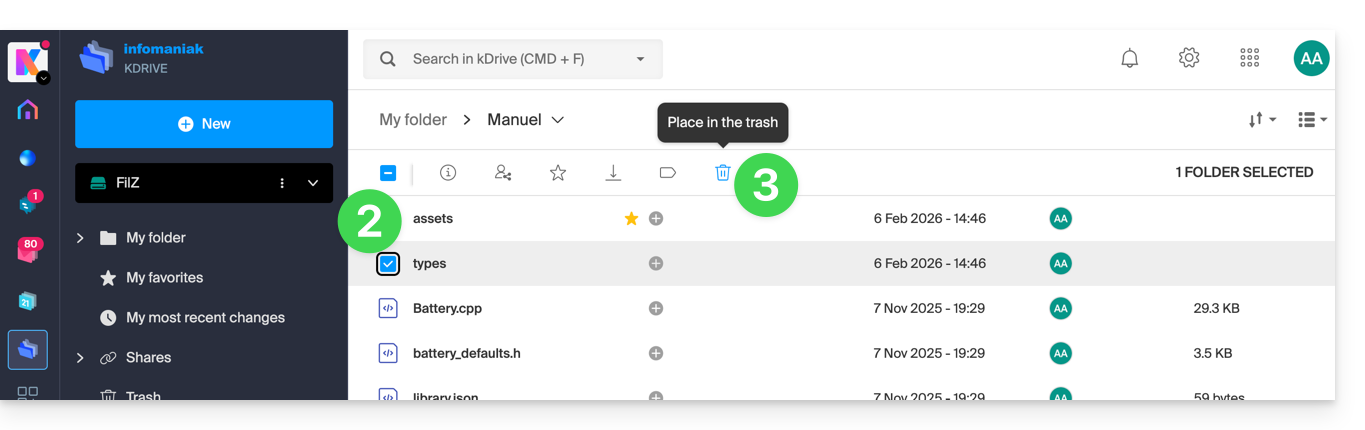
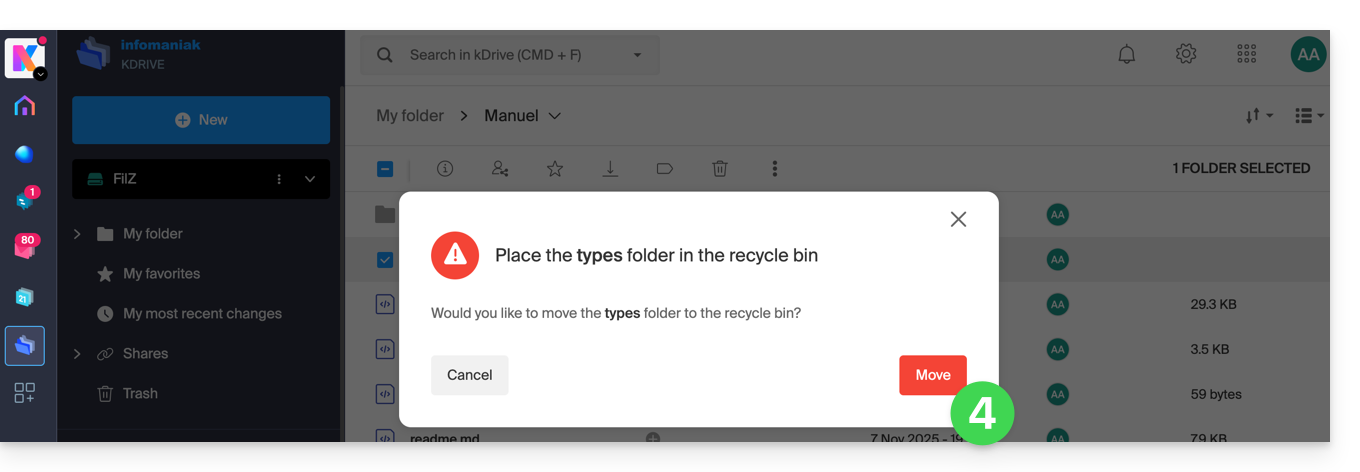
- Confirme a exclusão:
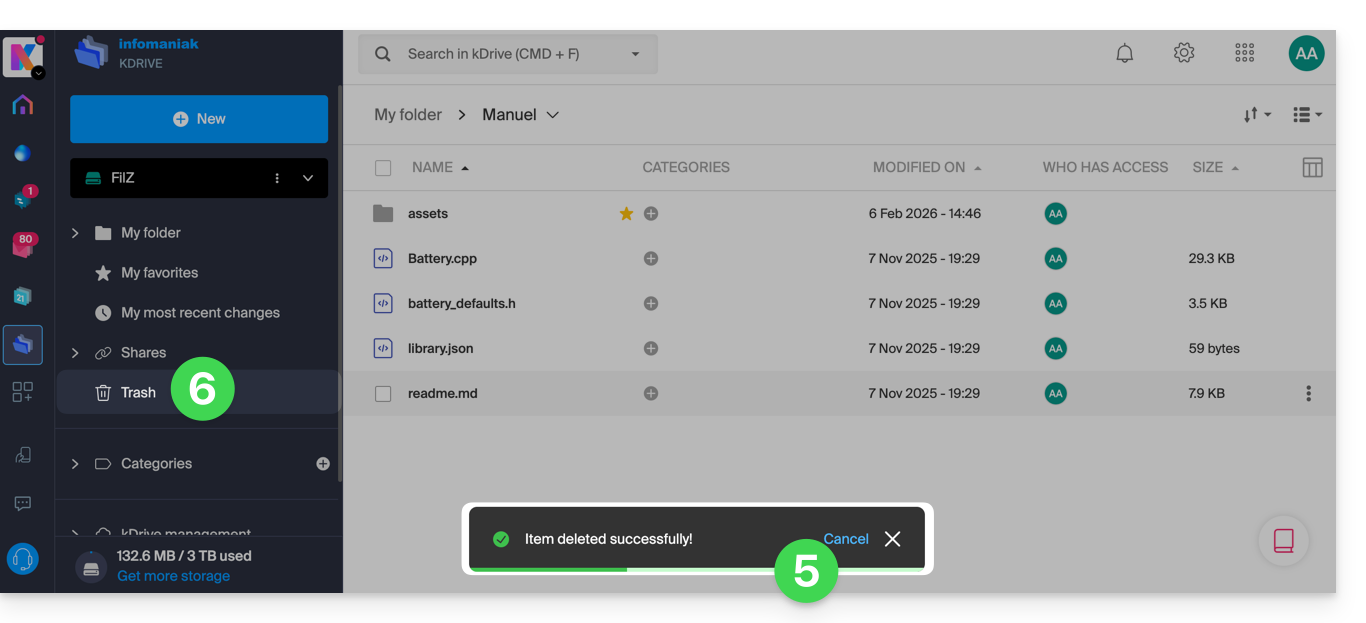
- Uma mensagem de confirmação aparece na parte inferior da tela, permitindo que você cancele a exclusão, se desejar.
- Clique no menu Lixeira:
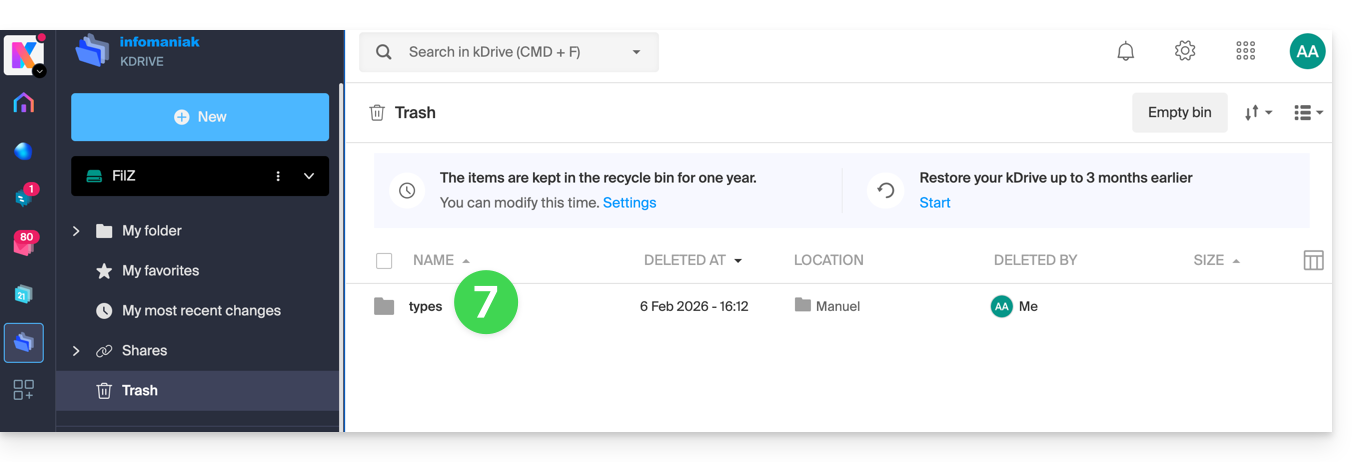
- Os itens excluídos recentemente são exibidos aqui:
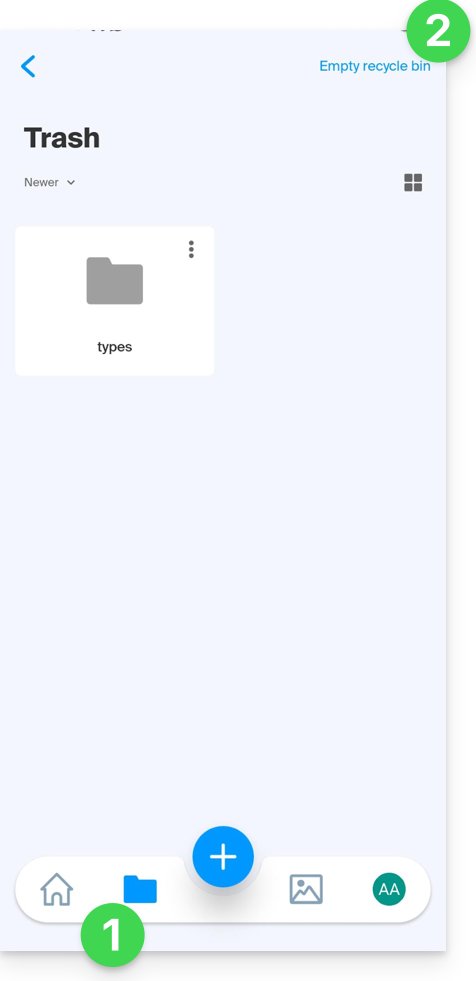
A exclusão é sincronizada com as diferentes soluções conectadas ao mesmo kDrive, por exemplo, o aplicativo móvel kDrive (aplicativo para smartphone ou tablet iOS / Android):
- O menu Lixeira está localizado abaixo do ícone Pastas.
- Você pode esvaziar a lixeira a partir desta página, mas leia as informações abaixo neste guia:
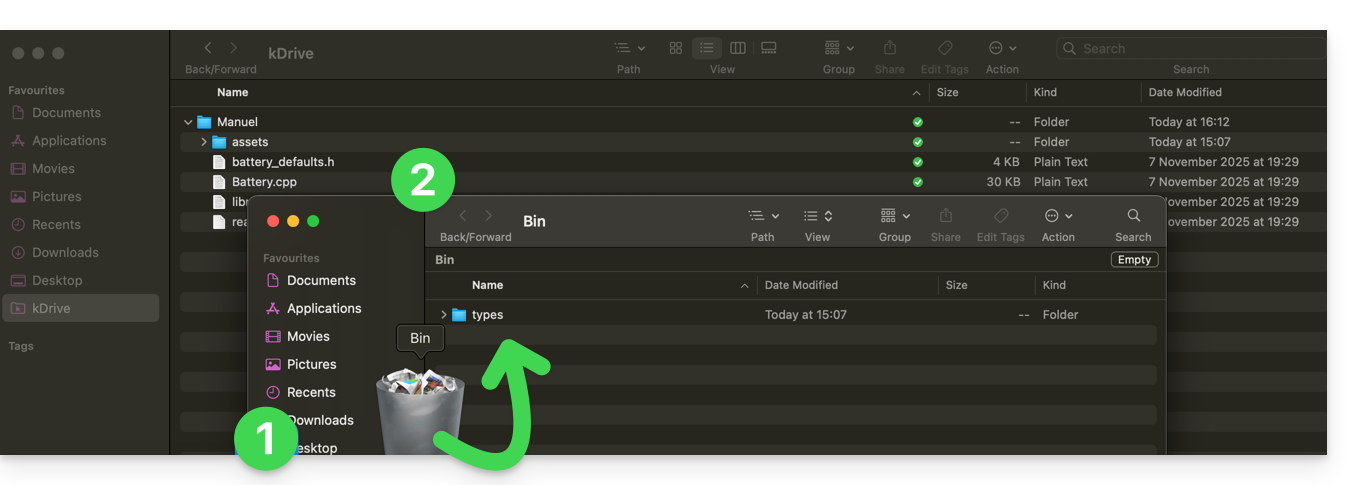
A exclusão também é sincronizada (se esta opção não estiver desativada — veja mais abaixo neste guia) com o aplicativo para desktop kDrive (aplicativo para macOS / Windows / Linux), que enviará os dados excluídos do aplicativo web para a lixeira do computador (e vice-versa):
- Abra a lixeira do computador.
- Os dados eliminados estão na lixeira e não mais na estrutura principal do kDrive:
Esvaziar a lixeira manualmente…
… no aplicativo web kDrive
Para esvaziar a lixeira do kDrive manualmente (não recomendado, pois é melhor aguardar o prazo definido até a exclusão automática):
- Clique aqui para acessar o aplicativo web kDrive (serviço online ksuite.infomaniak.com/kdrive).
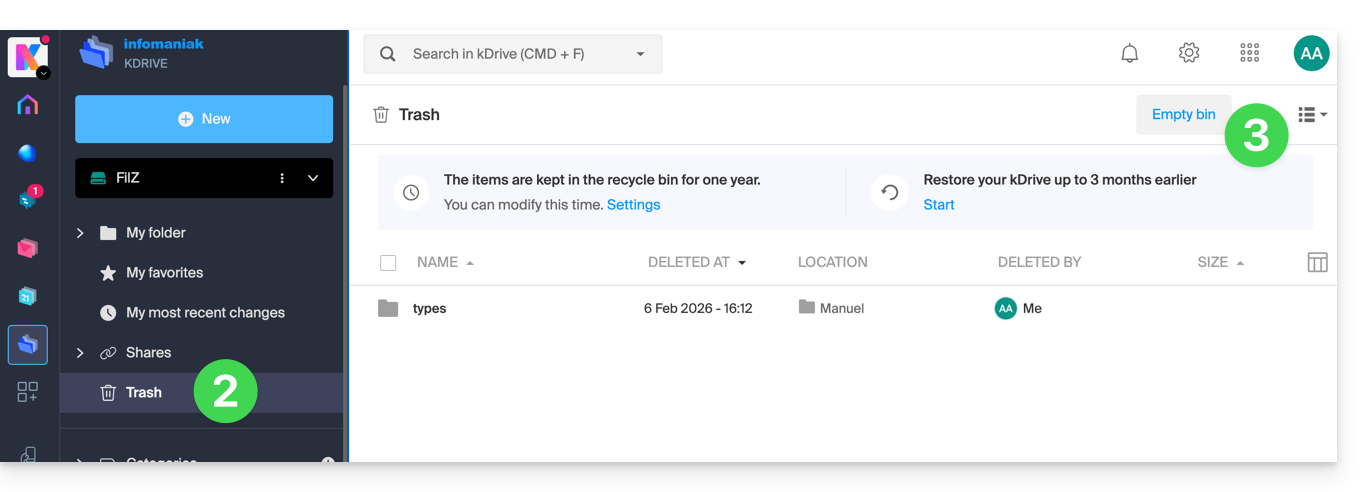
- Clique no menu Lixeira no menu lateral esquerdo.
- Clique em Esvaziar a lixeira:
- Confirme a operação:
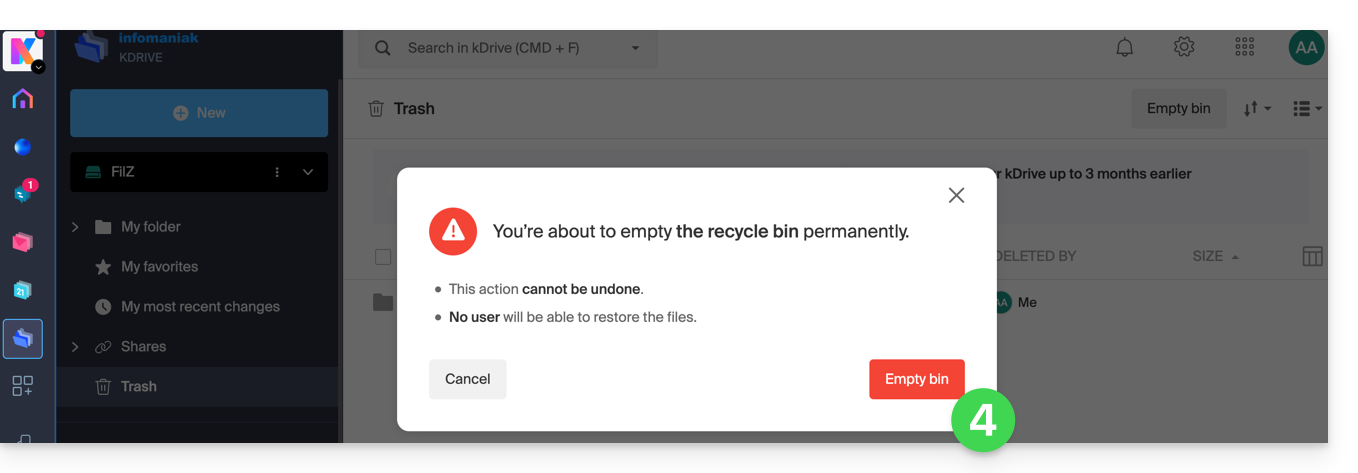
- Os dados são apagados definitivamente, apenas na aplicação web kDrive; os ficheiros permanecem no lixo do computador.
… no computador sincronizado
- Se a lixeira do computador for esvaziada (botão Esvaziar no exemplo abaixo)…
- e a exclusão for confirmada…
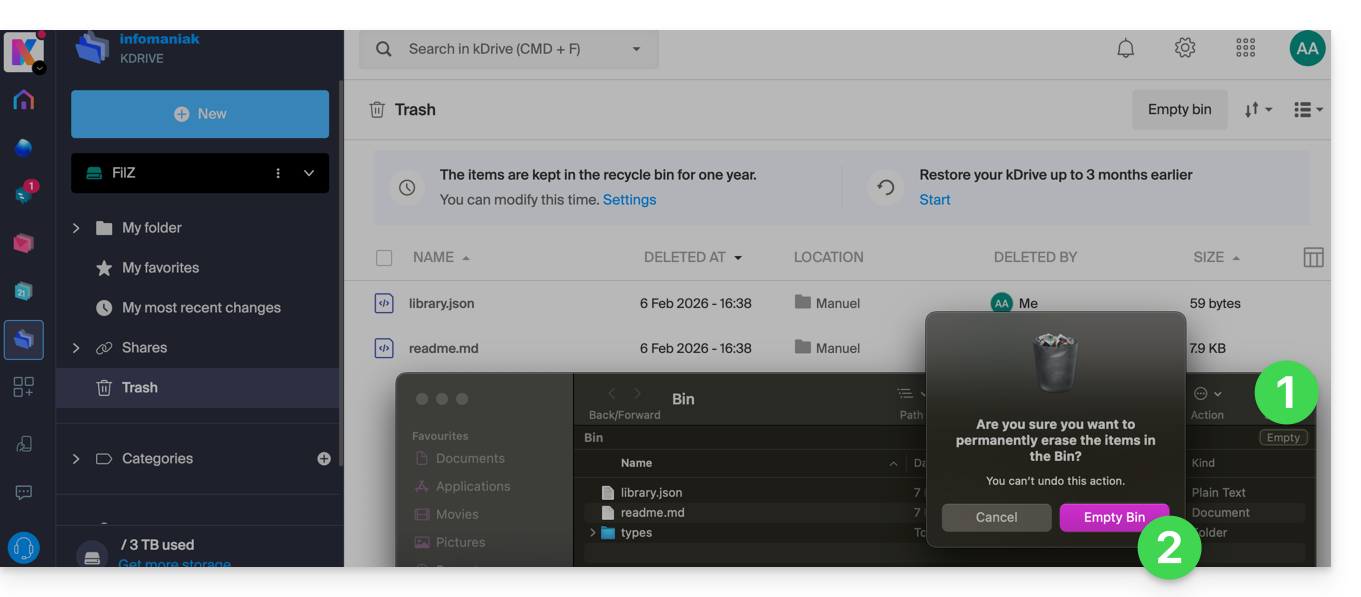
- … a lixeira do aplicativo web kDrive não é afetada e os arquivos excluídos ainda estarão lá, desde que essa lixeira do kDrive não seja esvaziada, manualmente ou automaticamente após um determinado período.
Gerenciar o período de retenção da lixeira do kDrive
Para aceder aos ficheiros da lixeira:
- Clique aqui para aceder à aplicação web kDrive (serviço online ksuite.infomaniak.com/kdrive).
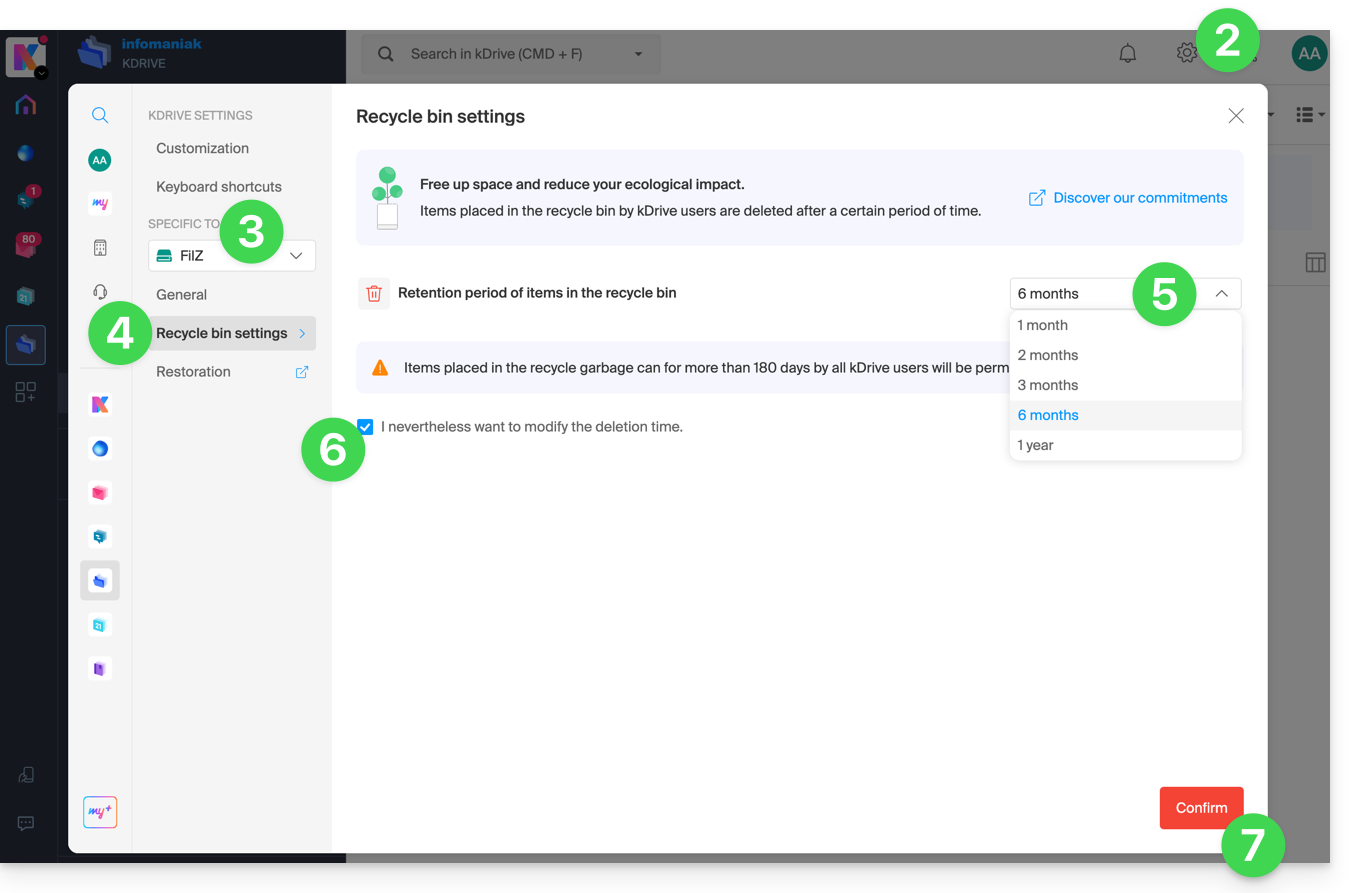
- Clique em Configurações no canto superior direito.
- Verifique ou selecione o kDrive correspondente no menu suspenso do menu lateral esquerdo.
- Clique em Configurações da lixeira.
- Escolha a duração desejada no menu suspenso (entre 1 mês e 1 ano, dependendo do seu plano — consulte o início deste guia).
- Informe-se sobre as informações relativas à possível exclusão definitiva dos arquivos movidos para a lixeira antes do novo prazo que deseja aplicar e confirme a sua escolha.
- Clique no botão para Confirmar:
Desative a ordem de exclusão no aplicativo para desktop
Para escolher se a exclusão de um arquivo no aplicativo web ou no aplicativo móvel deve mover o arquivo sincronizado com o aplicativo para desktop para a lixeira do computador:
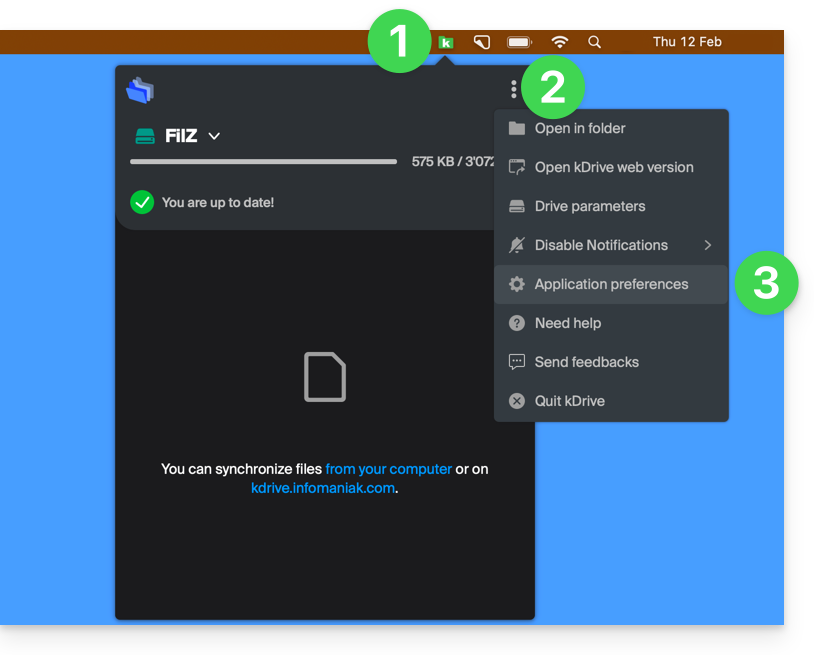
- Clique com o botão esquerdo do rato no ícone do aplicativo para desktop na área de notificação do seu computador (no canto superior direito no macOS, no canto inferior direito no Windows e clique duas vezes na barra de tarefas no Linux).
- Clique no menu de ação ⋮ à direita na janela que aparece.
- Clique em Preferências do aplicativo:
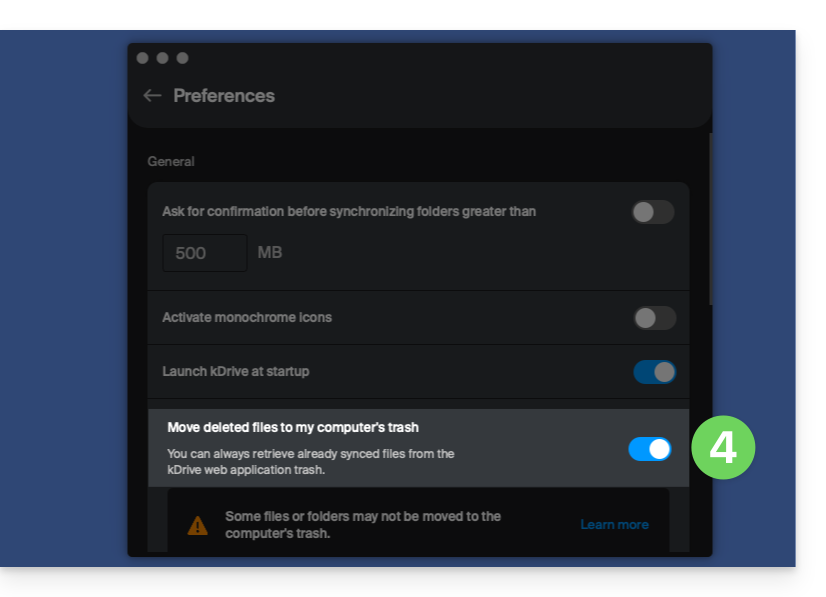
- Ative ou desative o botão de alternância para decidir se a versão sincronizada deve ou não ser enviada para a lixeira do computador:
Resolver um problema de envio para a lixeira no computador
Em casos raros, pode acontecer que, apesar de uma configuração para mover os arquivos para a lixeira (item 4 acima), o aplicativo para desktop exclua definitivamente o arquivo excluído no computador:
- … o aplicativo web (serviço online ksuite.infomaniak.com/kdrive)…
- … o aplicativo móvel (aplicativo para smartphone ou tablet iOS / Android)…
- … outro computador sincronizado…
em vez de colocá-lo na lixeira, porque:
- Espaço insuficiente: a lixeira atingiu o tamanho máximo configurado.
- Ausência de lixeira: em alguns sistemas de arquivos, como unidades de rede ou removíveis (por exemplo, pen drives USB), pode não haver uma lixeira.
Esta lista não é exaustiva, mas cobre a maioria dos casos que não serão comunicados ao utilizador. Outros problemas, como os relacionados com a utilização de discos montados em modo de leitura, serão considerados e comunicados ao utilizador.
Em caso de dúvida, certifique-se também de que o seu computador não elimina instantaneamente os ficheiros muito grandes quando são colocados na lixeira, devido, por exemplo, ao tamanho da lixeira do Windows:
Restaurar um arquivo da lixeira…
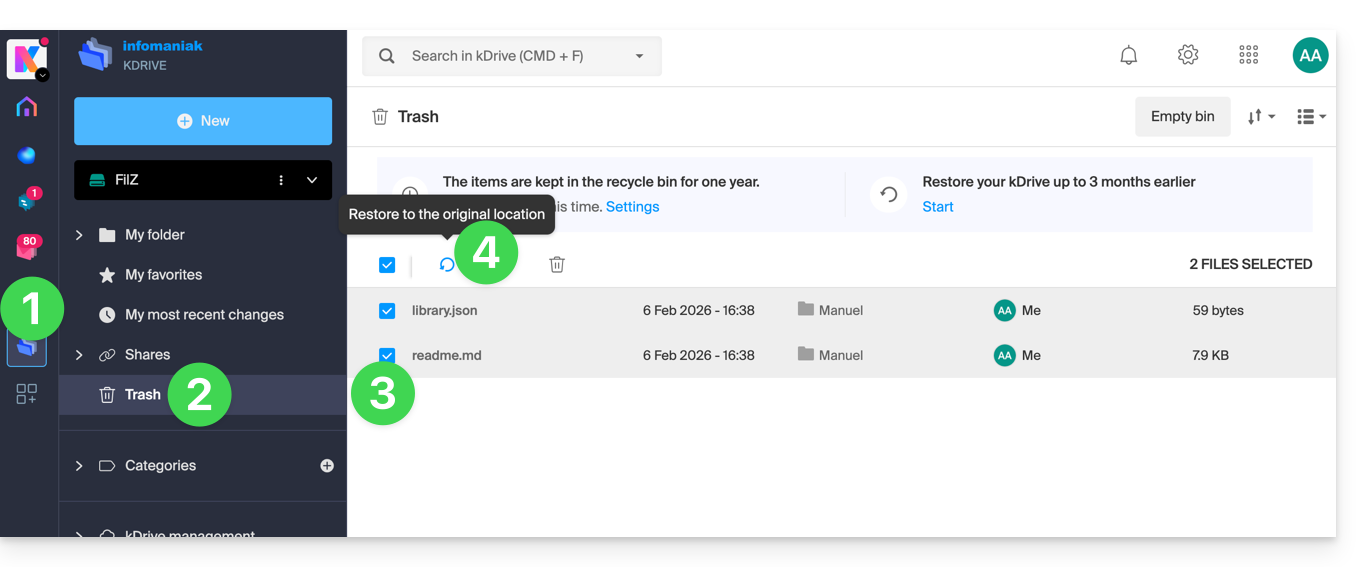
Para restaurar um arquivo para o seu local original quando a lixeira ainda não foi esvaziada no aplicativo web kDrive:
- Clique aqui para acessar o aplicativo web kDrive (serviço online ksuite.infomaniak.com/kdrive).
- Clique em Lixeira no menu lateral esquerdo.
- Selecione os itens que deseja restaurar.
- Clique em Restaurar:
Para restaurar o estado completo de um kDrive, como era antes de qualquer movimentação ou reorganização de arquivos, consulte este outro guia.
Para restaurar uma versão anterior de um arquivo existente, consulte este outro guia.
Link para esta FAQ: https://faq.infomaniak.com/2383
Esta seção de perguntas frequentes foi útil?