Knowledge base
1000 FAQs, 500 tutorials and instructional videos. Here, there are only solutions!
This guide explains how to create forms that will be linked to the different rates of an event (as part of the Infomaniak ticketing system). This allows you to create forms specific to each rate present at an event.
Create a form per rate
To do this:
- Click here to access the management of your product on the Infomaniak Manager (need help?).
- Click directly on the name assigned to the ticketing concerned by the event.
- Click on Settings in the left sidebar.
- Click on Form in the left sidebar.
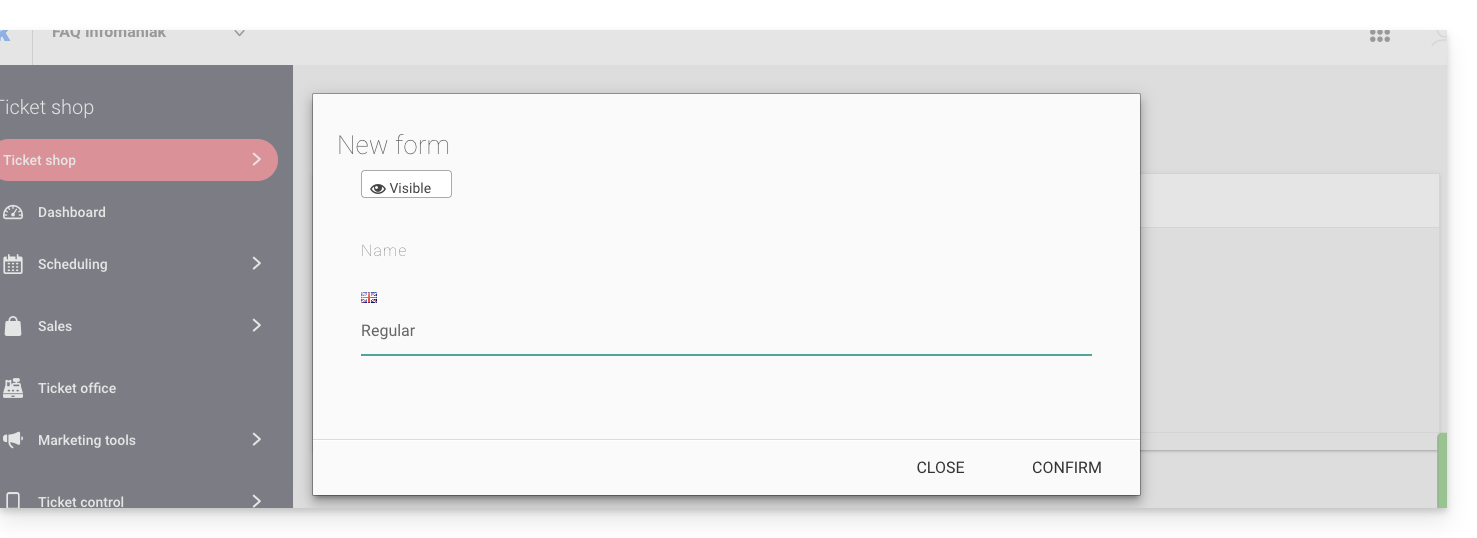
- Click the Add a form button and give a name to the form:
Add fields
Add the elements to include in the form per rate:
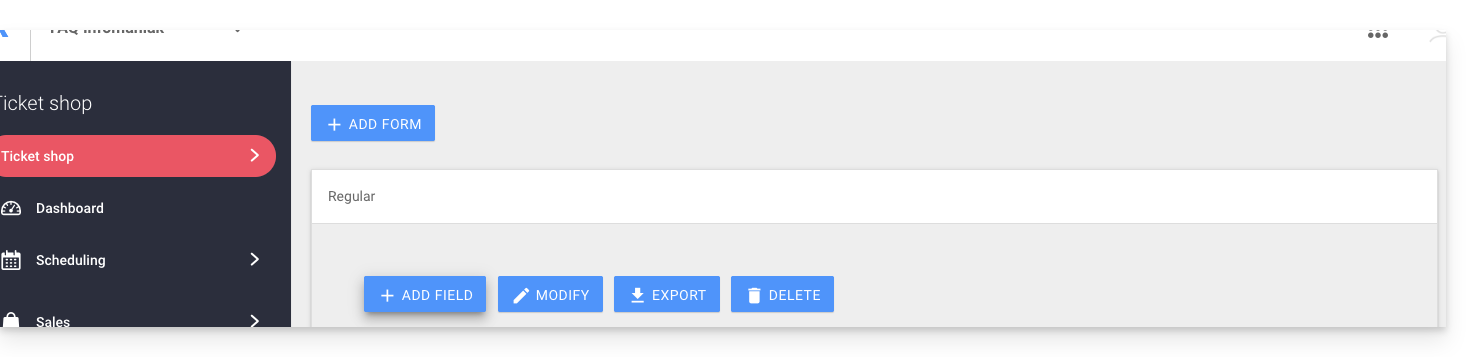
- Click the Add button:
Choose the name and type of field:
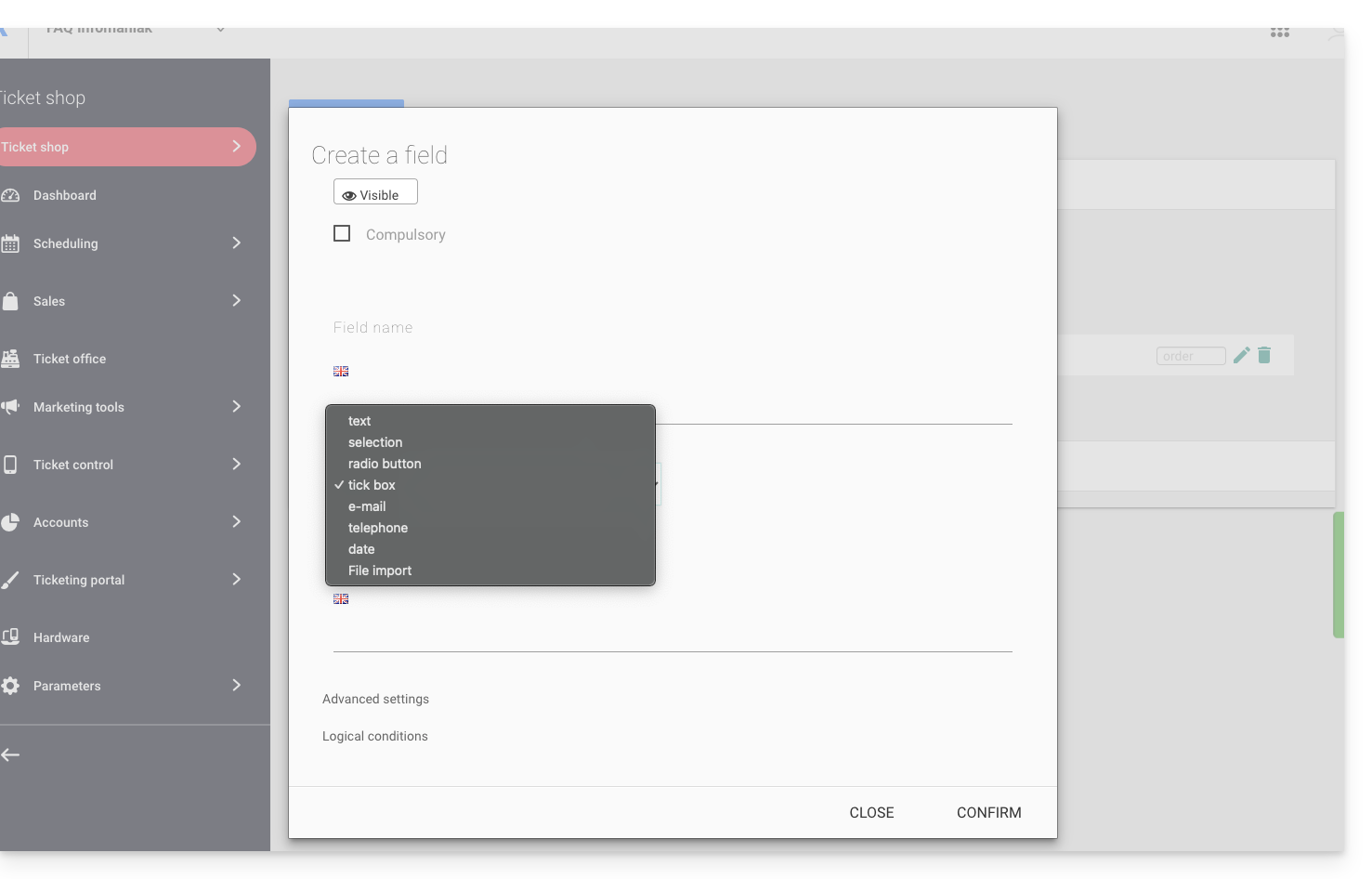
- Text: a free field to insert text
- Selection: dropdown menu allowing you to select an option from those proposed
- Radio button: radio buttons allowing you to select an option from those proposed
- Checkboxes: checkboxes that can be checked or left empty
Note: if the required option is selected, all boxes must be checked to continue. Example of use: “I have read and accept the terms of use”...
- Email: to provide an email address. Allows you to use a different email address than the one used by the person who placed the order.
- Phone: for a phone number
- Date: for a date
Advanced options and logical conditions
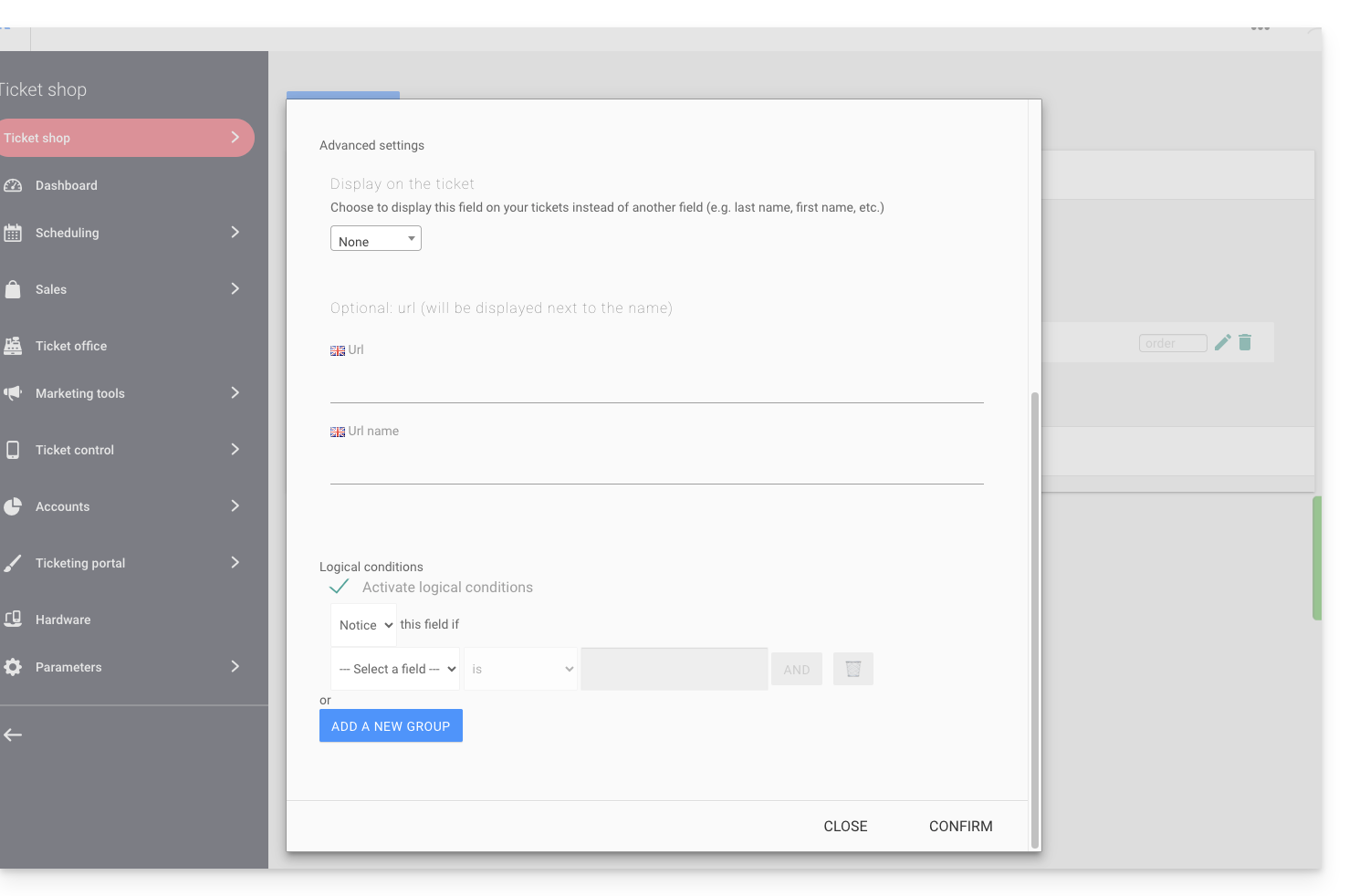
- Display on the ticket: allows you to replace the form information directly. For example, to have the ticket indicate the name of the person who will attend the event instead of the person who made the order…
- Add a URL: URL that will be displayed on the field, then above the field to let the visitor fill it in.
- Logical conditions are to be used when multiple fields have been created and you want to condition their display/visibility/presence.
Choose the order of the questions
Choose the order of the questions as they will appear on the ticketing: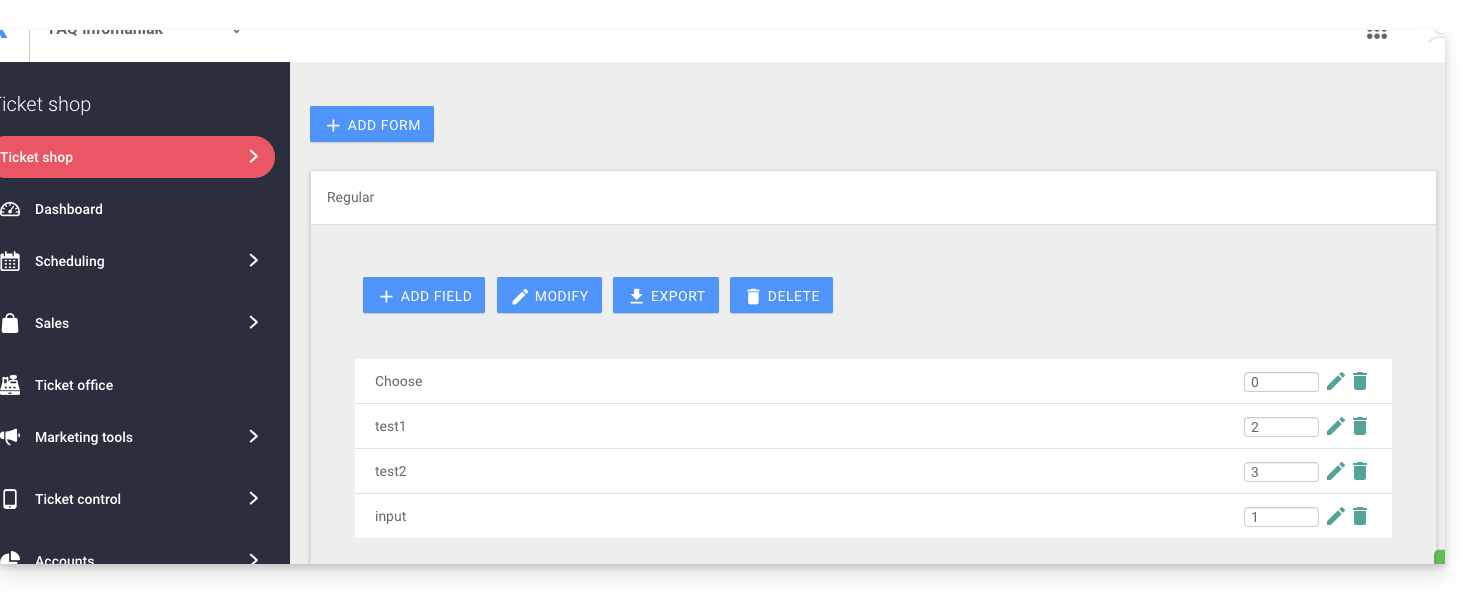
- The numbered positions will be in order of the numbers: 1, 2, 3, etc.
- Those without a defined order will follow (not recommended)
- Position 0 will appear at the very end
Link the form to a rate
To do this:
- Click here to access the management of your product on the Infomaniak Manager (need help?).
- Click directly on the name assigned to the ticketing concerned by the event.
- Click directly on the name assigned to the event (or if necessary Programming in the left sidebar menu then Events):
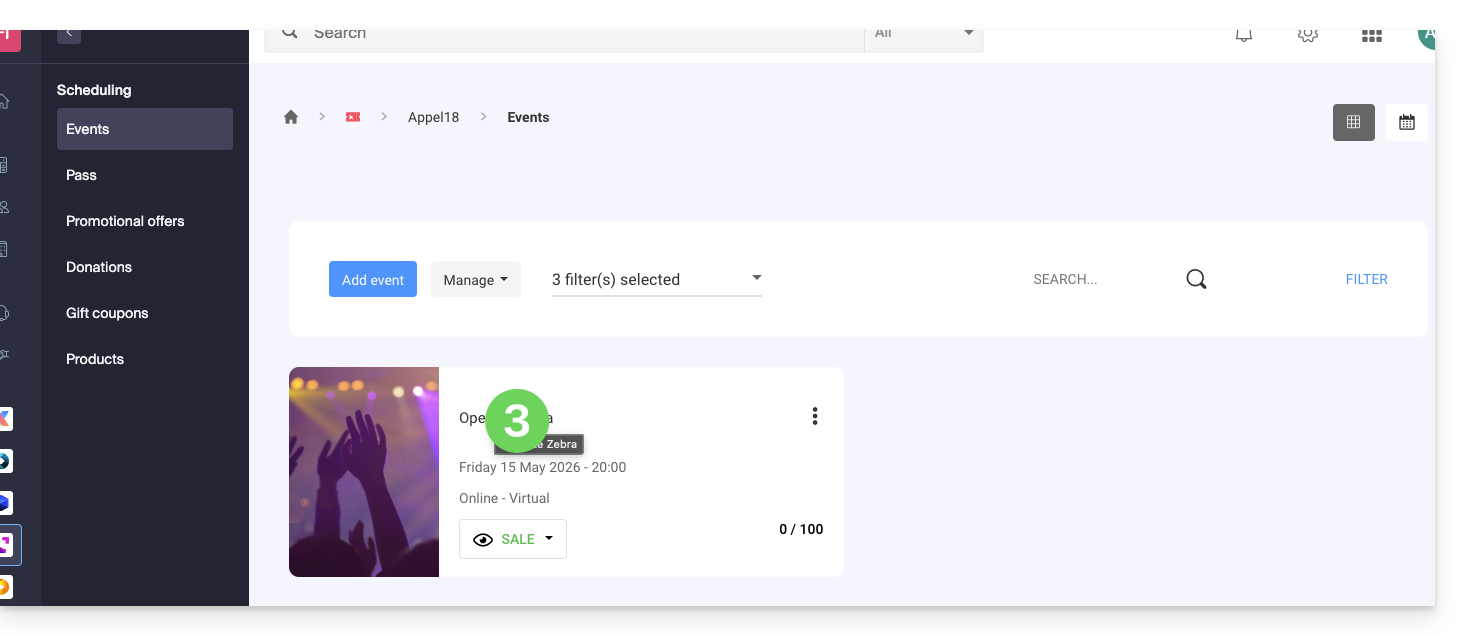
- Click on the Pricing tab.
- If the event has multiple dates, this section is replaced by “Dates” which opens a calendar.
- Click on the calendar date to join the pricing…
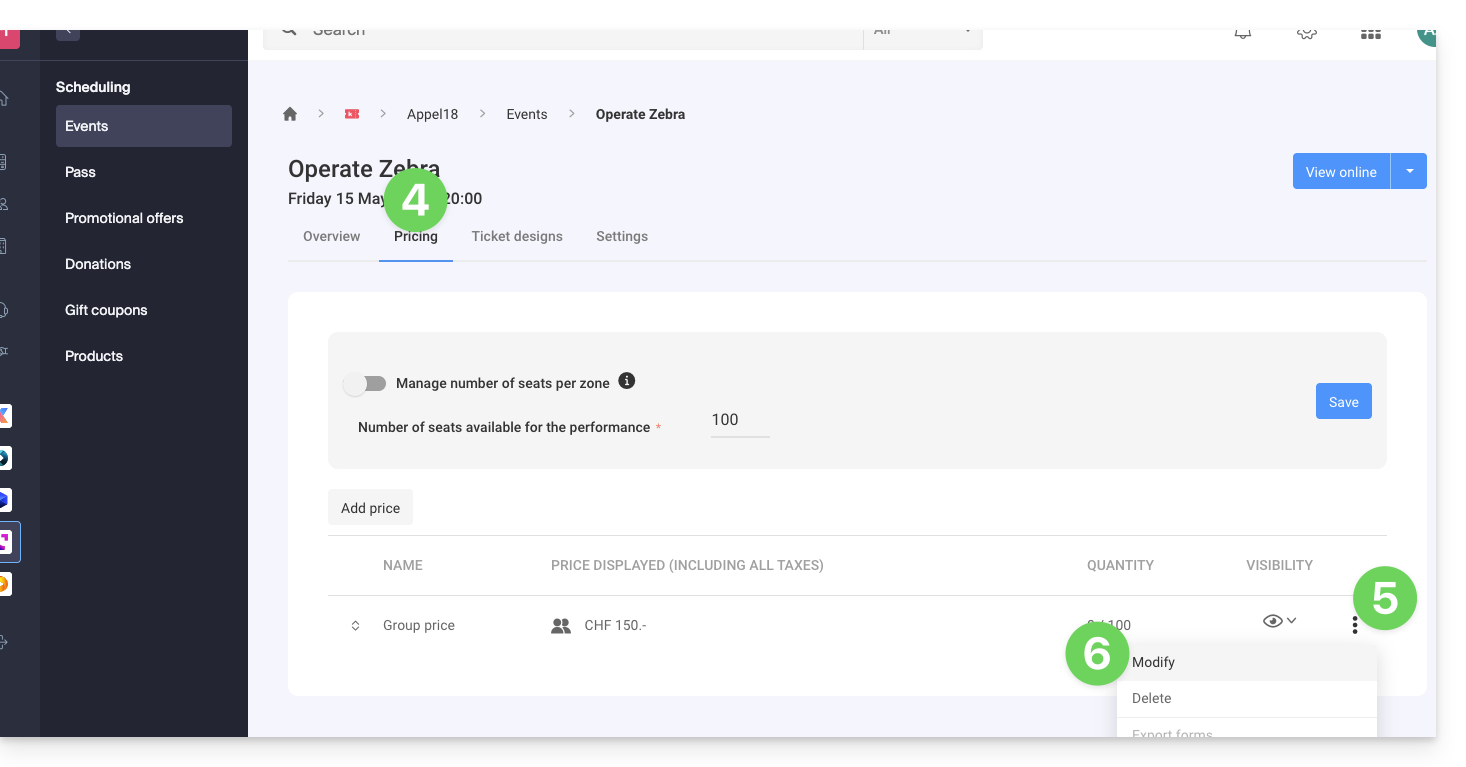
- Click on the action menu ⋮ located to the right of the rate to which the form is to be associated (by first expanding the Zone using the chevron if necessary).
- Click on Modify:
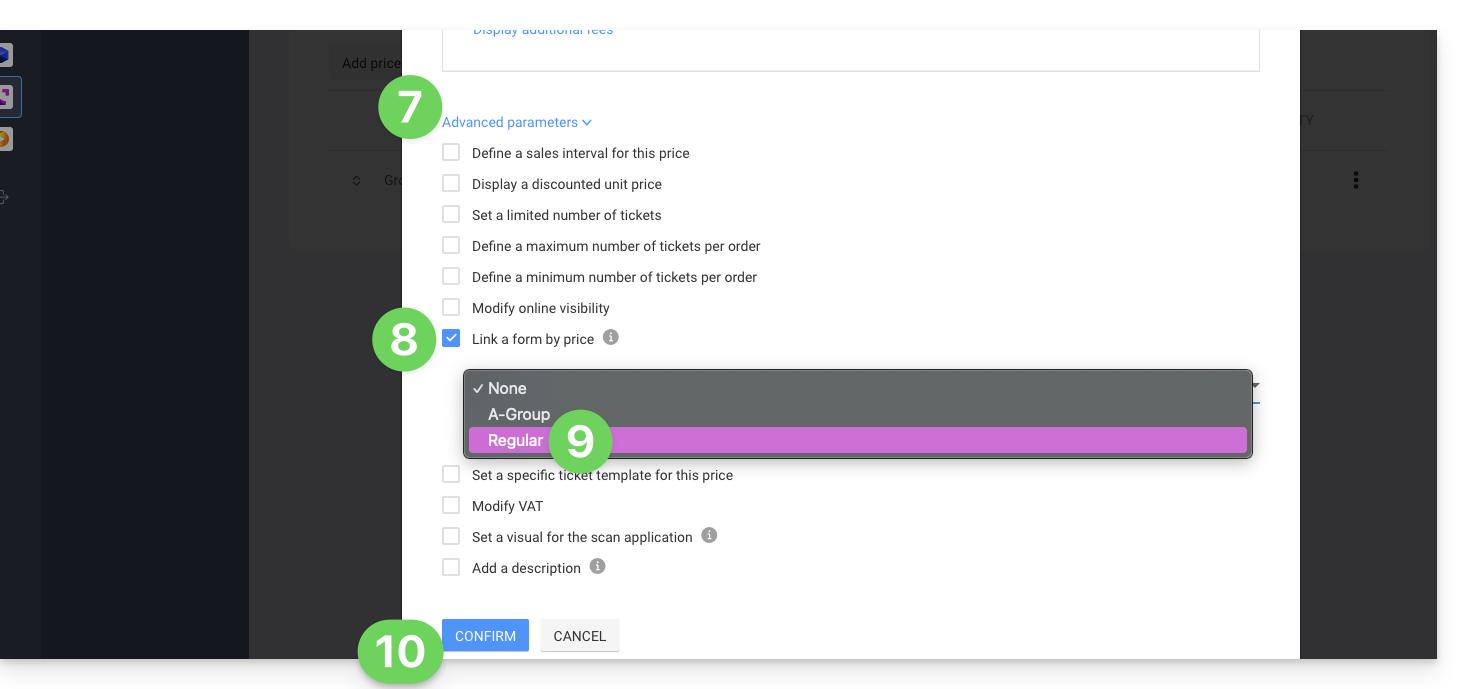
- Click on the chevron to expand the advanced parameters.
- Activate the option Link a form by rate.
- Choose the form to link.
- Click on the Confirm button:
To retrieve the information related to the forms, refer to this other guide.
Link to this FAQ: https://faq.infomaniak.com/2678
Has this FAQ been helpful?
This guide details how to back up a Google Workspace space (Gmail, Google Drive, Google Calendar, …) using Acronis on Swiss Backup, the backup solution in an independent Swiss cloud.
It is also possible to back up other types of data.
Prerequisites
- Have a Swiss Backup space from Infomaniak with available device quota (minimum 1) for a Google Workspace backup (1 license per Workspace user to back up):
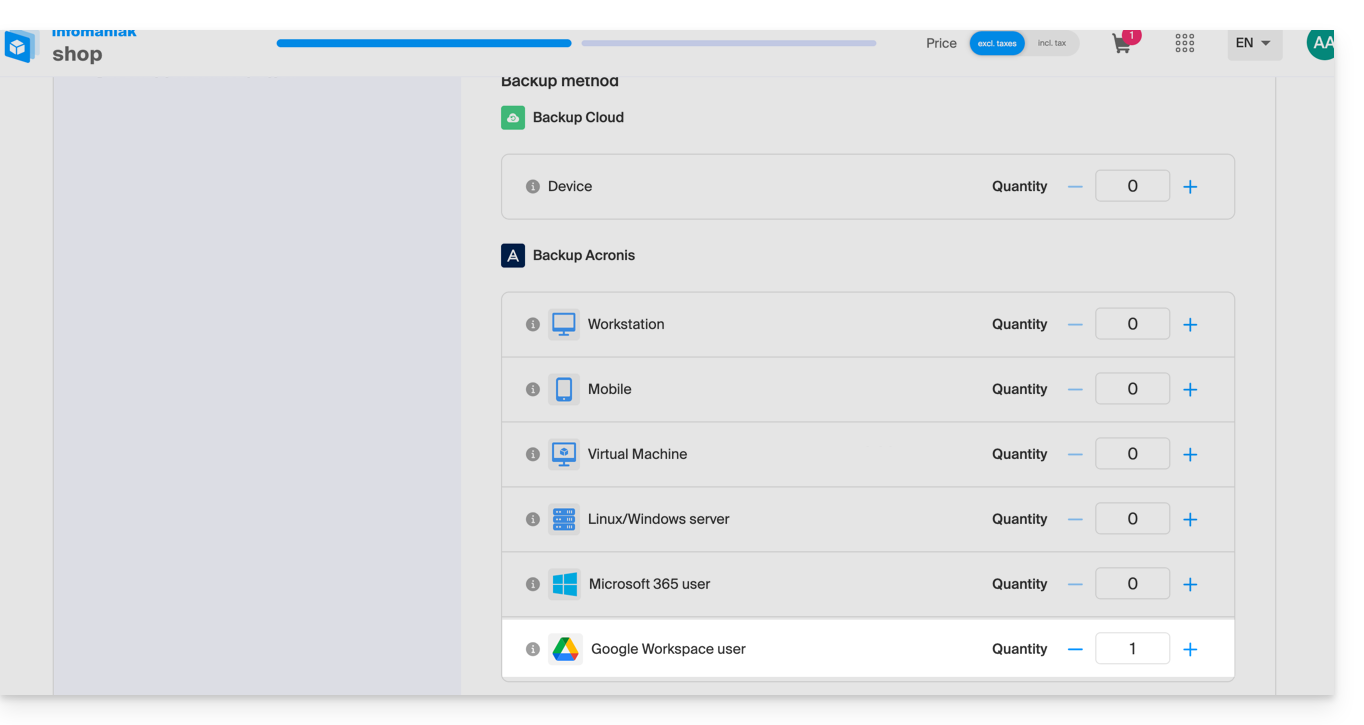
- If necessary, increase the device quota according to your needs.
- Add the device to the Infomaniak Manager to receive the login credentials.
- Create a new project on Google Cloud Platform (console.cloud.google.com) as a super administrator:

- Review the Acronis documentation on this topic:
- Allow 20 to 30 minutes to set everything up.
Authorize Acronis to access Google Cloud Platform
In the Google Cloud Platform console:
- Select your new project.
- In the navigation menu, select APIs and services > Enabled APIs and services:

- Disable one by one all the APIs enabled by default in this project:
- Scroll through the Enabled APIs and services page
- Click on the name of an enabled API.
- On the API/Service details page that opens, click on Disable and confirm:

- Go back to the previous page and do the same with the next API.
- From the navigation menu, select APIs and services > Library.
- In the API library, enable the following APIs, one by one, using the search bar to find the required APIs:

- Gmail API
- Google Drive API
- Admin SDK
- Google Calendar API
- Google People API
- Click on its name then on Activate.
- To search for the following API, go back to point 5.
- From the Google Cloud Platform navigation menu, select APIs and services > OAuth consent screen.
- In the window that opens, select Internal for the user type, then click on Create:

- In the Application name field, enter a name for your application.
- In the User support email field, enter the super administrator's address.
- In the Developer contact information field, enter the super administrator's address.
- Leave all other fields blank, then click on Save and continue.
- On the Scopes page, click on Save and continue without making any changes.
- On the Summary page, check your settings then click on Back to dashboard.
- In the Google Cloud Platform navigation menu, select Credentials > Service account.
- Click on Create a service account:

- Specify a name, a description and click on Create and continue:

- Do not modify anything in the Grant this service account access to the project and Grant users access to this service account steps.
- Click on Done; the Service accounts page opens.
- Select the new service account, then under Actions, click on Manage keys.
- Under Keys, click on Add key > Create new key, then select the JSON key type:

- Click on Create; a JSON file containing the service account's private key is automatically downloaded to your machine: keep this file safe as you will need it to add your Google Workspace organization to the Cyber Protection service as described later in this guide.
- In the Google Cloud Platform navigation menu, select Credentials > Service account.
- In the list, search for the service account you created, then copy its client ID which is displayed in the OAuth 2.0 Client ID column (OAuth 2.0 Client ID):

- Click here to access the Google administration interface as a super administrator.
- In the navigation menu, select Security > Access and data control > API controls:

- Scroll down the API controls page, then under Domain-wide delegation, click on Manage domain-wide delegation; the Domain-wide delegation page opens.
- On this page, click on Add:

- The Add a new client ID window opens.
- In the Client ID field, enter the client ID of your service account.
- In the OAuth scopes field, add the following "scopes":
- https://mail.google.com
- https://www.googleapis.com/auth/contacts
- https://www.googleapis.com/auth/calendar
- https://www.googleapis.com/auth/admin.directory.user.readonly
- https://www.googleapis.com/auth/admin.directory.domain.readonly
- https://www.googleapis.com/auth/drive
- https://www.googleapis.com/auth/gmail.modify
- Click on Authorize.
Your new Google Cloud project can therefore access the data of your Google Workspace account.
Creation of the backup space
To configure the backup of Google Workspace with Acronis:
- Click here to access the Acronis Console with the credentials obtained after adding the device (need help?).
- Click on the device addition button to add a Google Workspace type device:
- Enter the address of a super administrator of your Google Workspace account (it doesn't matter if two-step verification is activated for the super administrator's email account).
- Locate the JSON file that contains the private key of the service account you created in your Google Cloud project (or paste the content of the file as text).
- Click on Confirm:

Your Google Workspace organization then appears under the Devices tab of the service console:
Link to this FAQ: https://faq.infomaniak.com/2805
Has this FAQ been helpful?
This guide explains how to configure the floor plan when it has been activated for an event (as part of the Infomaniak ticketing system).
Prerequisites
- Own and have activated a floor plan for the event in question.
- Have activated and created at least one pricing zone.
Apply zones to the floor plan
To access event pricing from the ticketing system:
- Click here to access your product management on the Infomaniak Manager (need help?).
- Click directly on the name assigned to the ticketing system concerned by the event.
- Click on Programming in the left sidebar.
- Click on Events in the left sidebar.
- Click on the event in question.
- Click on the Pricing tab.
- If the event has multiple dates, this section is replaced by “Dates” which opens a calendar.
- Click on the calendar date to join the pricing…
Once in this menu, it is necessary to have at least one zone activated:
- Click on the action menu ⋮ located to the right of the zone in question.
- Make sure the box “Zone with numbered seats” is activated:

- A seat symbol must be next to the zone name in the pricing list.
- Then click on the “Manage floor plan” button above the zones to open the floor plan management menu:

The logic here is to assign a zone to each seat, row, or section according to the needs of the event.
For example, below, a green zone and a red zone are distinguished. To assign seats to a zone:
- Select the seats by hovering over all the seats, or to select the entire row, click on its number.
- Click on each seat to configure, a black circle surrounds them indicating that they are selected.
- It is possible to click on the name of each row (A, B, C) to select all the seats in the row, and even to click on the name of the section (here, right, left, middle) to select all the seats in the section.
- Then click on the area to link to the selected seats.
- In the Zones menu that appears in the lower half of the page, click on the zone to assign.
- The background of the selected seats will change to the color of the zone.
- Repeat the operation for each remaining zone to assign.
Block online sales for a seat/row/section
By default, all seats are available for online sale.
To block the online sale of certain seats, configure the restrictions directly in the seating plan:
- To block the sales of certain particular seats, open the seating plan management menu as explained above, and select (black circle) the seats/rows/sections.
- Instead of selecting the zones in the bottom menu, choose the type of Access:
- No restriction = default state, customers can purchase the seat
- Reserved for organizers = Only people with Admin status on the organization can purchase the ticket from the ticket office
- Reserved for resellers = Resellers can make the purchase from the ticket office (normal users/collaborators on the organizer with sales rights)
The section visible at the bottom named “Reserve” is no longer used and can be ignored.
Once the plan is configured, the seats can be put on sale. Make sure to assign a price to each zone.
See who a specific seat is assigned to
To obtain information related to seat assignments and identify the people who have reserved or occupied each seat according to the seating plan, you can use the seating plan management menu which displays purchased seats with an orange fill.
If you click on the seat, the order information is displayed, and a link to the customer record is provided: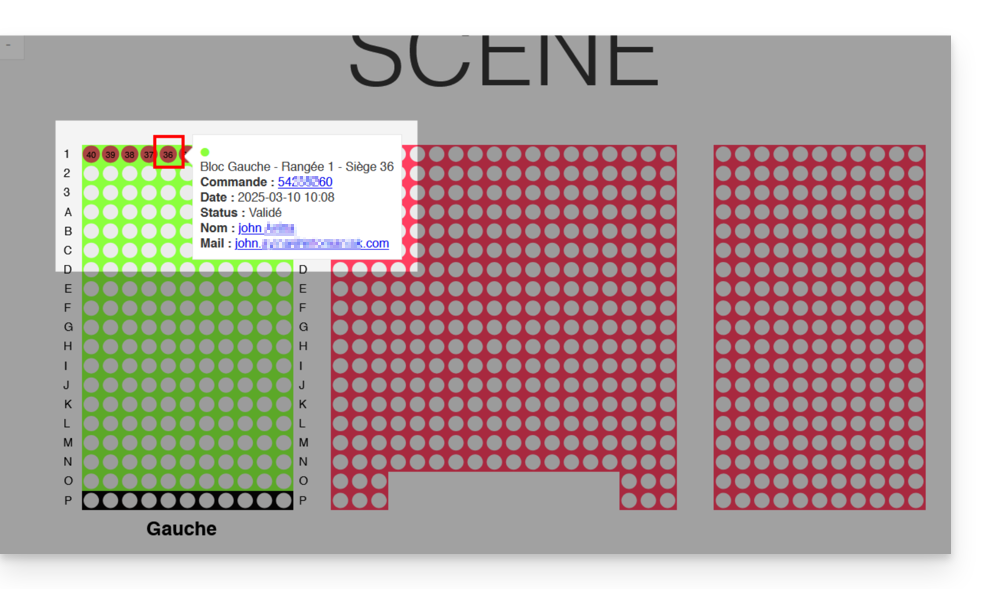
Link to this FAQ: https://faq.infomaniak.com/1586
Has this FAQ been helpful?
This guide explains how to remove one of the users from your Organization on the Manager Infomaniak.
Prerequisites
- Switch to the desired Organization first if you do not find the expected list of users.
- Be Administrator or Legal Representative within the Organization.
- Warning, it is impossible to remove a Legal Representative if there is no other legal representative.
Remove a user from your Organization
If the user had access to kDrive or was invited to view a third-party email address, several intermediate steps will ask you to take actions with their data and inform you, if necessary, about what happens to calendars and address books. To remove one of the users from the Organization
- Click here to access user management for the Organization on the Infomaniak Manager (need help?).
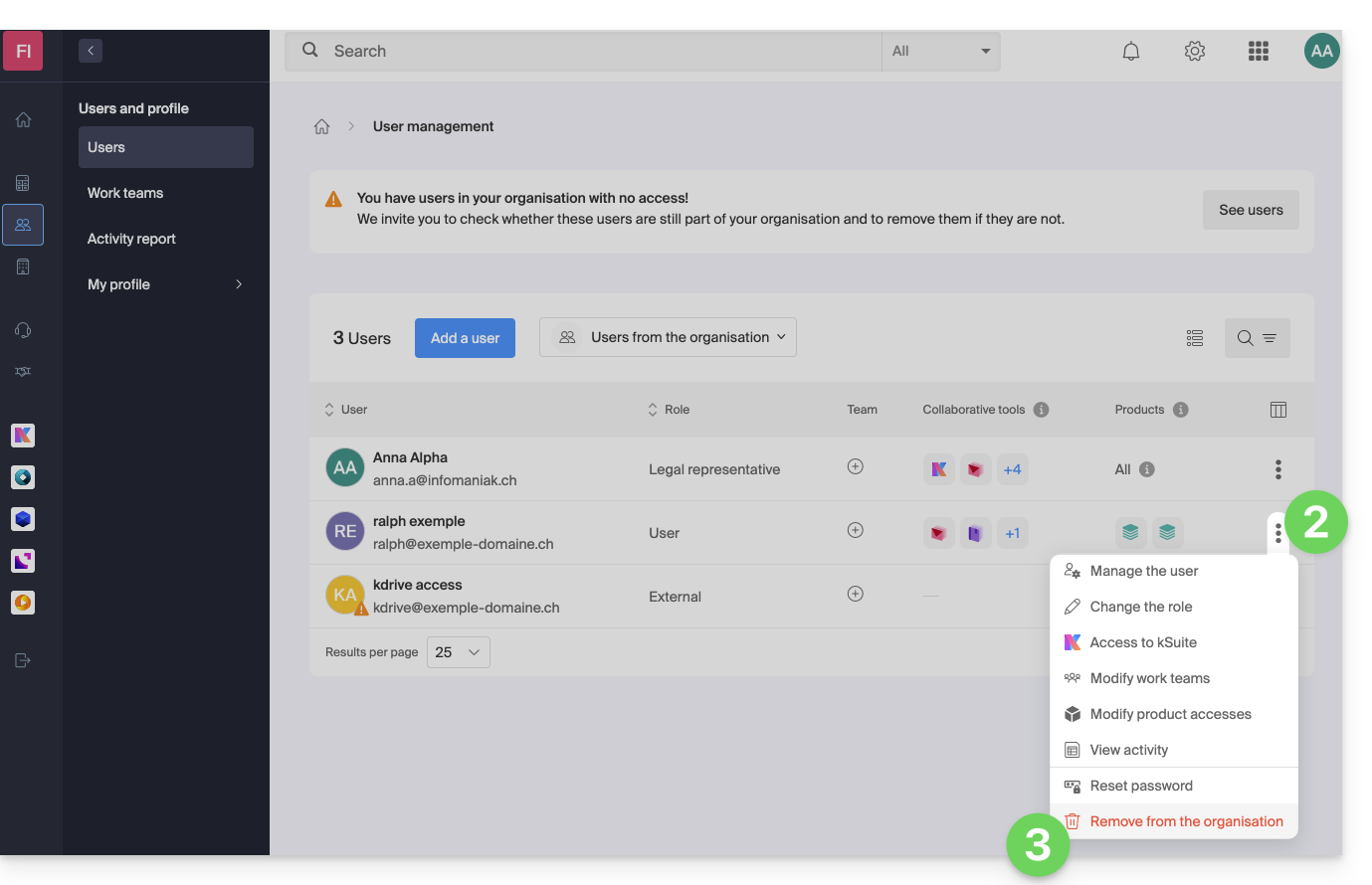
- Click on the action menu ⋮ to the right of the user concerned.
- Click on Remove from Organization:
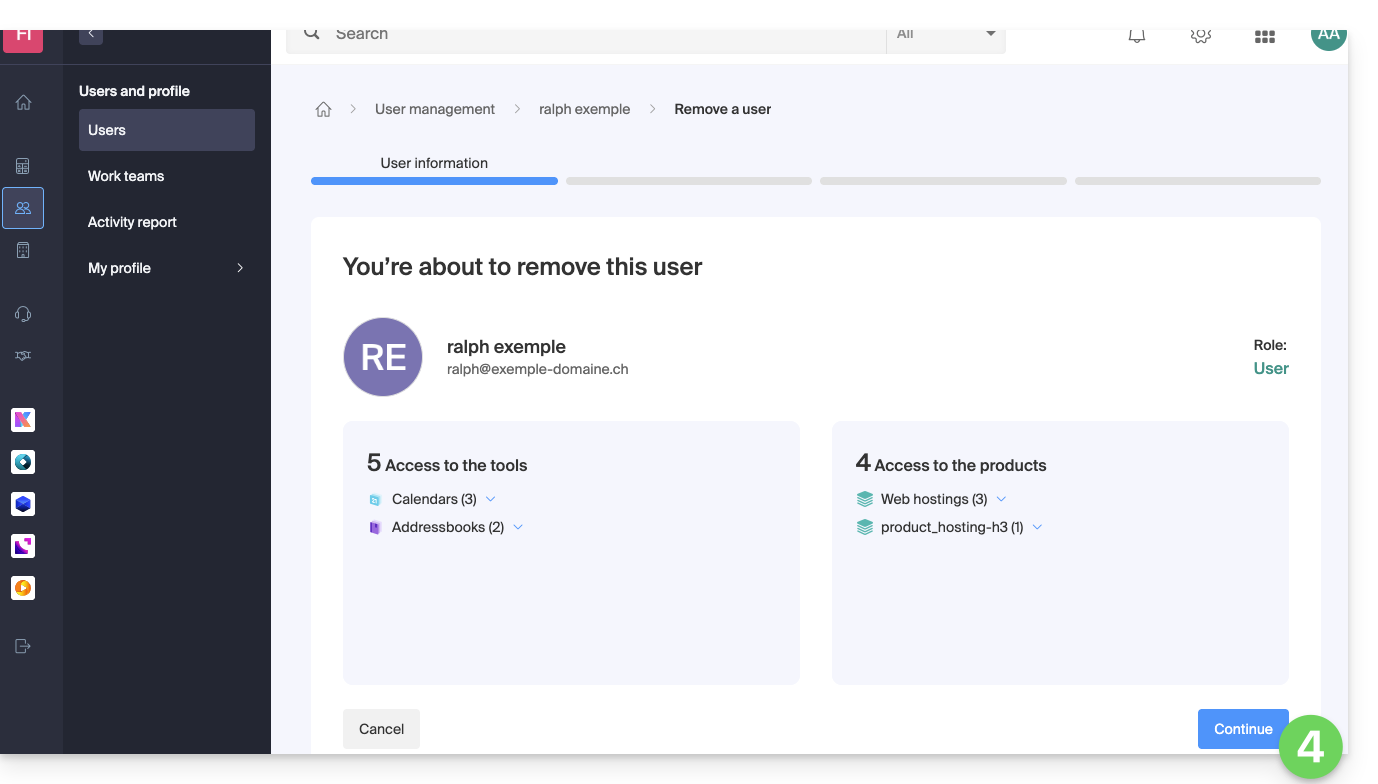
- Review the information (click if necessary on the chevrons to get the details of the deletions) then click on the blue button Continue:
- Review the information, confirm the deletion by checking the checkbox, then click on the blue button Continue:
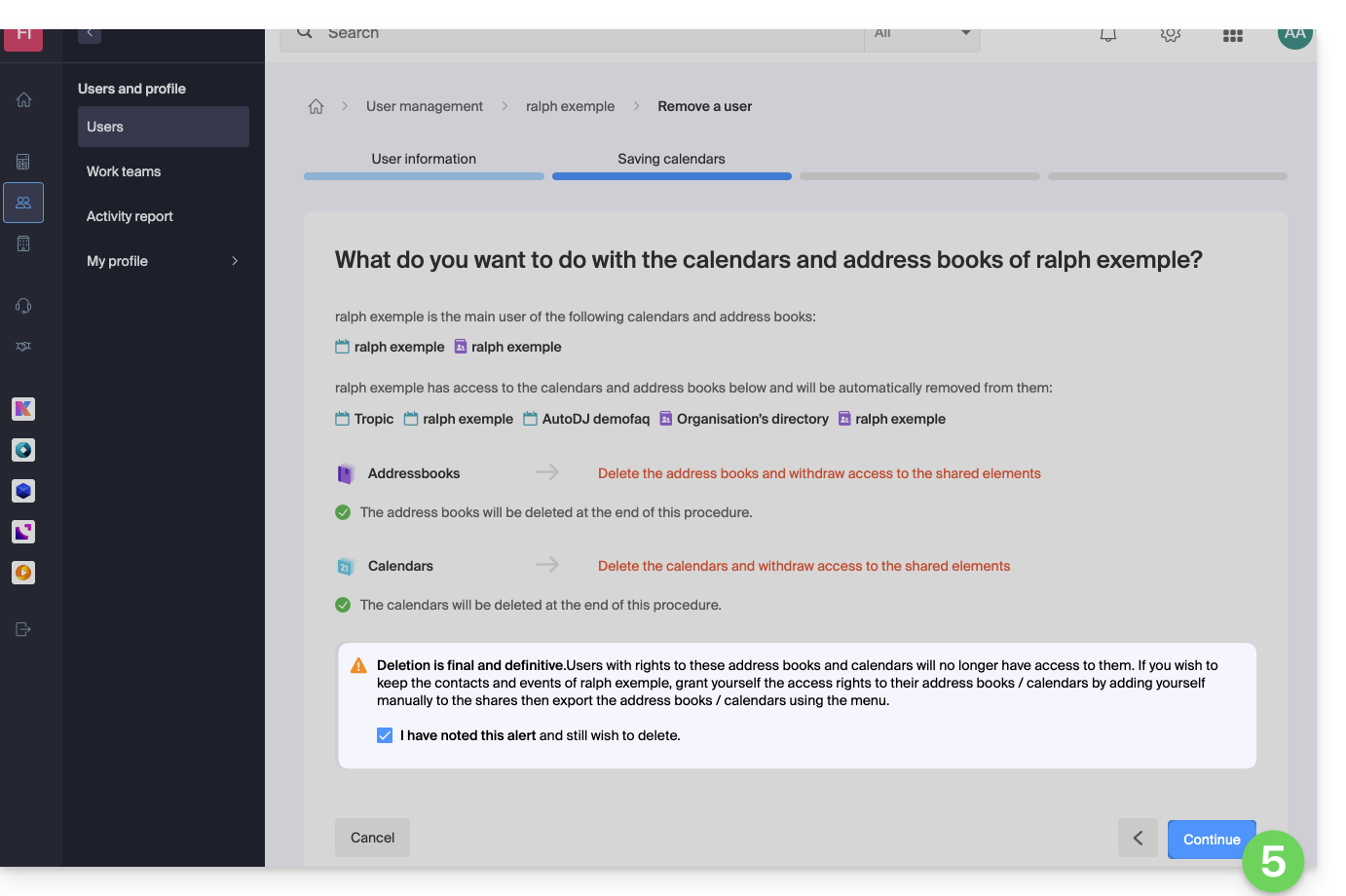
- Review the information (click if necessary on the chevrons to get the details of the deletions) then click on the red button Remove:
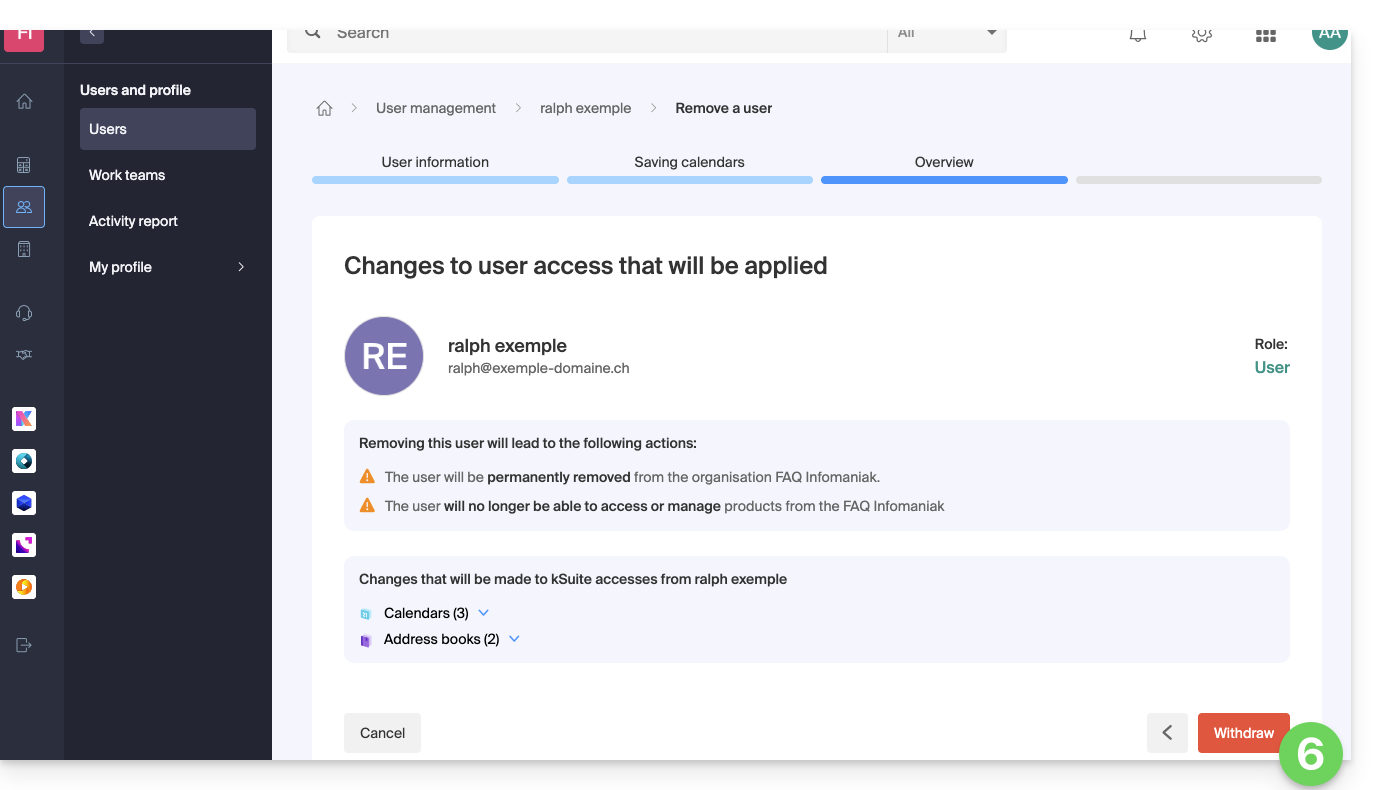
- Enter your email address (login identifier for the Manager), check the confirmation box, then click on the red button Remove this user to permanently remove the user without the possibility of undoing it.
Link to this FAQ: https://faq.infomaniak.com/1738
Has this FAQ been helpful?
This guide explains why some attachments sent from Microsoft Outlook arrive in winmail.dat format on your email address hosted by Infomaniak, and how to permanently resolve the problem on the sender's side (where it is created).
Introduction
winmail.datis the container used by Outlook/Exchange when a message is sent in RTF/TNEF format.- It encapsulates the formatting and attachments.
- Many non-Microsoft software/email clients cannot interpret TNEF:
- the formatting disappears and the attachments become a single
winmail.datfile.
- the formatting disappears and the attachments become a single
Important: the generation of a winmail.dat file does not depend on Infomaniak; the problem originates with the sender (Outlook/Exchange) and must be corrected on their computer or by their Microsoft 365 administrator.
Resolving the problem (actions to request from the sender)
The most effective solution is to have the sender change the Outlook configuration.
Disable RTF/TNEF and resend the message in HTML or plain text
- “Classic” Outlook for Windows (Microsoft 365/2021/2019, Win32 application)
Menu:File > Options > Mail
Compose messages:Compose messages in this format:choose HTML (or Plain Text).
Message format: inWhen sending messages in Rich Text format to Internet recipients, select Convert to HTML (or Convert to plain text).
On a case-by-case basis (for a single email): in the message window,Format Texttab > choose HTML.
- New Outlook for Windows (application based on Outlook on the web)
Menu:Settings (gear icon) > Mail > Compose and reply
Message format:Compose messages in:choose HTML (or Plain text).
This client does not offer an RTF option; sending in HTML/text avoidswinmail.dat.
- Outlook on the web (Exchange Online/Outlook.com)
Menu:Settings > Mail > Compose and reply > Message format> choose HTML (or Plain text).
- Outlook for Mac
Menu:Outlook > Preferences > Compose> check/uncheck Compose messages in HTML by default.
For a single message: in the compose window, Options tab > toggle HTML or Plain text.
Note: if the sender has attached files, they will be readable by all recipients as long as the message is sent in HTML/text. Zipping the attachments (.zip) does not prevent Outlook from encapsulating the message if RTF/TNEF is still active.
Disable RTF for specific recipients (e.g., yourself)
- “Classic” Outlook for Windows: open the Contact card > double-click the email address > Outlook Properties > Internet Format: select Send as plain text only (or Let Outlook decide if the administrator is already forcing the conversion).
- Clear autocomplete (it may “remember” RTF for a recipient):
File > Options > Mail > Send messages > Clear the Auto-Complete List, then retype the address manually the next time you send a message.
- Microsoft 365 administrators (at the sender's end): in the Exchange Admin Center:
Mail flow > Remote domains > Default> Rich text format: choose Never. In PowerShell:Set-RemoteDomain Default -TNEFEnabled $false.
Alternatively: use a different email client for sending (e.g., Thunderbird), or check that Calendar invitations are sent in iCalendar format (File > Options > Calendar > enable Use iCalendar format for external recipients).
If you do not want to contact the sender again
You can extract the content of winmail.dat using TNEF decoding tools (online or desktop applications). Search for “open winmail.dat” and choose a reputable tool for your system (Windows, macOS, Linux). This usually restores the attachments, but it is not a permanent solution. Furthermore, confidentiality and security are in no way guaranteed during these operations.
Link to this FAQ: https://faq.infomaniak.com/460
Has this FAQ been helpful?
This guide explains how to add a user to an Organization within the Infomaniak Manager. This will allow you to grant the user access to specific Infomaniak products, as needed.
Introduction
- Since you opened your account with Infomaniak, you have been a member of at least one Organization.
- If you were the only user and it wasn't an invitation, an Organization was created in your name, and you automatically became its legal representative.
- Otherwise, you belong to the Organization that invited you (to join its kSuite, manage a product, etc.).
- You can define whether a user…
- … is a member of your Organization and whether they should be:
- Legal Representative
- Administrator
- Collaborator
- … is external to your Organization (limited rights):
- External users are not included in calendar and address book sharing across the entire Organization.
- … is a member of your Organization and whether they should be:
Invite the new user
Prerequisites
- Switch to the desired Organization beforehand if you cannot find the expected list of users.
- Be an Administrator or Legal Representative within the Organization.
- Familiarize yourself with the various permissions (e.g., access rights to products) and administrative contact preferences of a user within an Organization.
To add, and if necessary, create the new user for your Organization:
- Click here to access user management in the Infomaniak Manager (need help?).
- Click the Add User button:
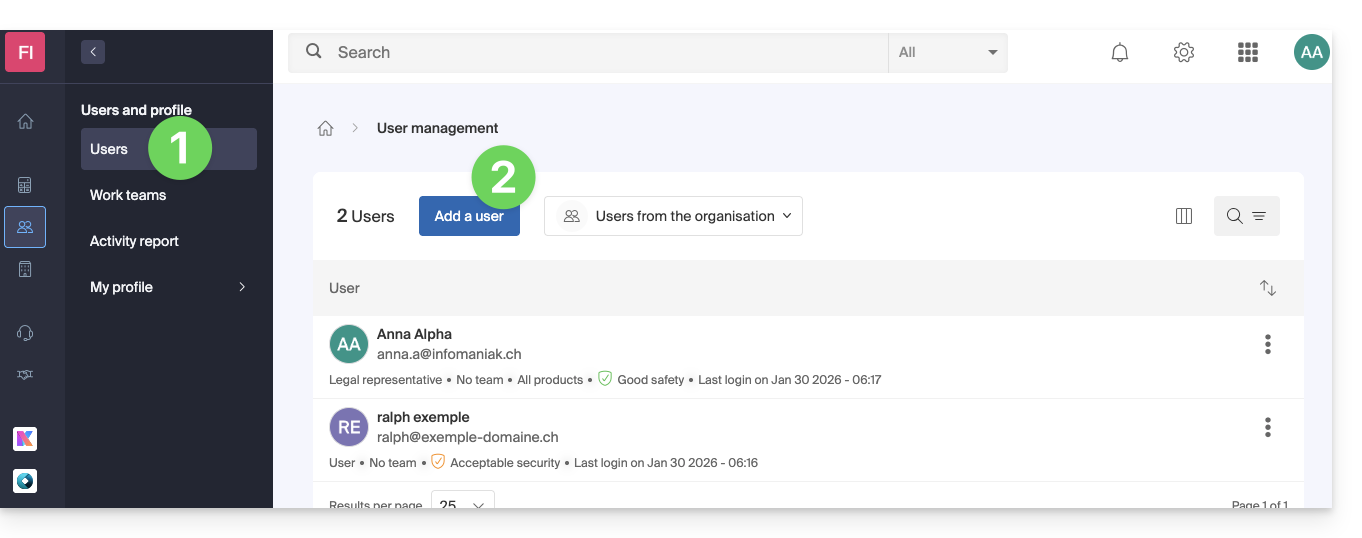
- Follow the wizard to complete the process:
- If the added user does not yet have an Infomaniak user account, they will be prompted to create one.
- If the added user already has an Infomaniak account, they will be prompted and will then be able to switch from their original Organization to the new one.
Link to this FAQ: https://faq.infomaniak.com/1404
Has this FAQ been helpful?
This guide explains how to configure the questions asked to visitors when ordering a pass/subscription (as part of the Infomaniak ticketing system). These settings will be available once step 1 is completed:
- Define the type during creation (subscription, ticket pack, etc.) as well as the basic information and settings
- Associate events with passes
- Configure the visual appearance and information related to the pass
- Define and collect information from subscribers that will be linked to the passes (below)
Configure the information related to passes
This information will be linked to the passes and is therefore independent of the form linked to the order.
To do this:
- Click here to access the management of your product in the Infomaniak Manager (need help?).
- Click directly on the name assigned to the ticketing system for the event.
- Click on Scheduling in the left-hand menu.
- Click on Passes in the left-hand menu.
- Click on the name of the pass in question.
- Click on the Settings tab:

- Activate the desired options:
- Title: dropdown menu offering the choice between Mr. and Mrs.
- Last Name: text field to enter the last name
- First Name: text field to enter the first name
- Organization, Company: text field to enter the company name
- Email: text field to enter the email address
- Address: 5 text fields including number and street, city, and country
- Postal Code: adds a field between the number and street for the postal code
- Mobile Phone: field for the phone number
- Date of Birth: adds a calendar to enter the date of birth
- Photo: allows uploading a photo that can be displayed on the pass
- Custom Field: text field for free-form information
Link to this FAQ: https://faq.infomaniak.com/2682
Has this FAQ been helpful?
This guide details the Auto DJ feature of Infomaniak's Streaming Radio service, which allows you to generate a live radio stream 24/7 from your own audio content (music, shows, podcasts, jingles, etc.) that you have previously uploaded to your storage space.
Introduction
- Auto DJ uses the files stored in your Infomaniak AOD (Audio on Demand) space to create a linear stream.
- You can use this same space for your on-demand file storage needs.
- You organize your media, create your playlists, and schedule their broadcast via an intuitive calendar interface.
- This allows you to maintain a continuous broadcast without needing an encoder active at all times.
Activate Auto DJ
Prerequisites
- You must have at least the right to manage the VOD/AOD service “autodj” and the Streaming Audio service in question (or be an Administrator / Legal Representative within the Organization).
- To manage Auto DJ via API, the token created to manage the radio must include the following scopes:
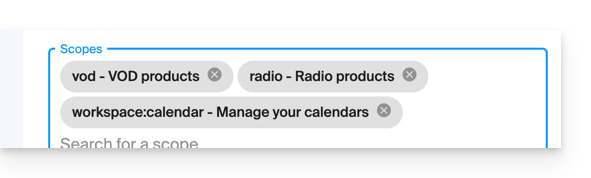
vodradioworkspace:calendar
To start Auto DJ:
- Click here to access the management of your product in the Infomaniak Manager (need help?).
- Click directly on the name assigned to the product in question.
- Click on the name of the audio stream in question:
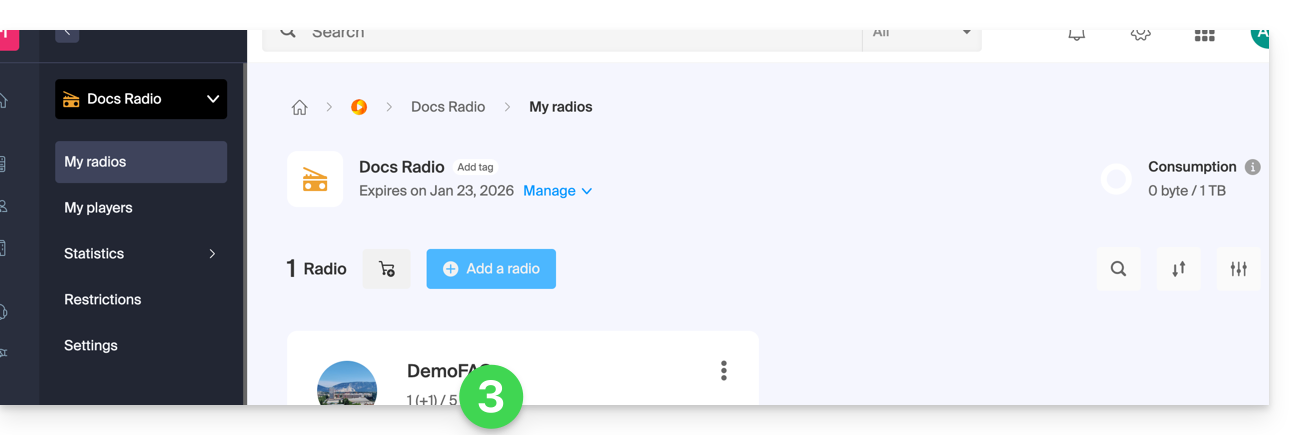
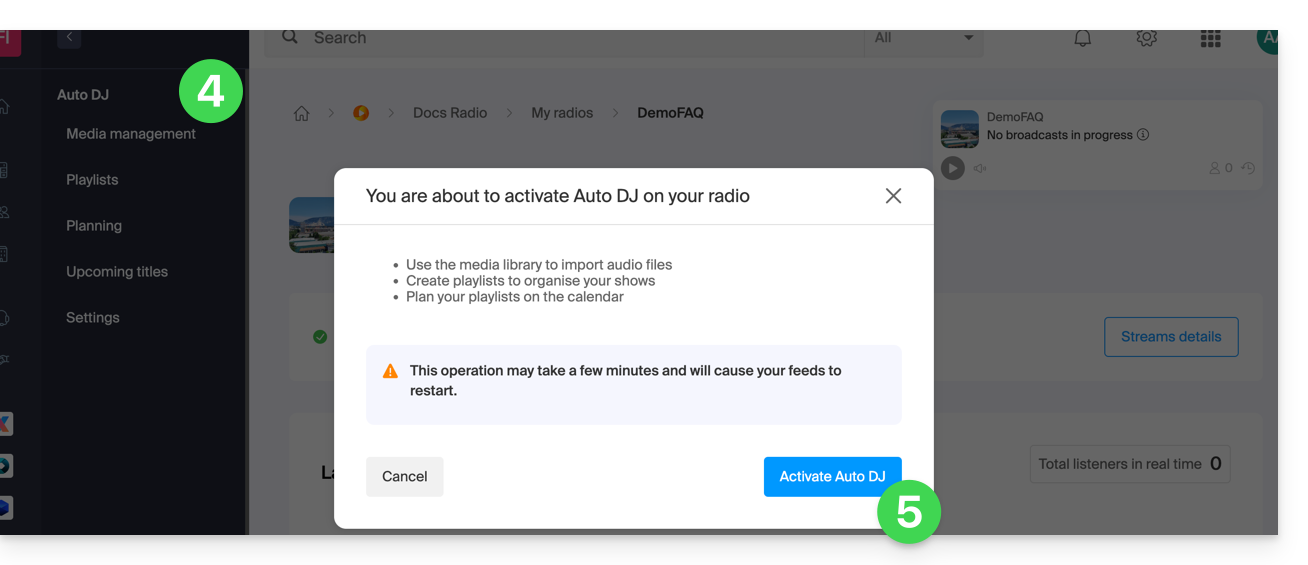
- Click on Auto DJ in the left-hand menu.
- Read the warnings and click the button to Enable Auto DJ when you are ready:
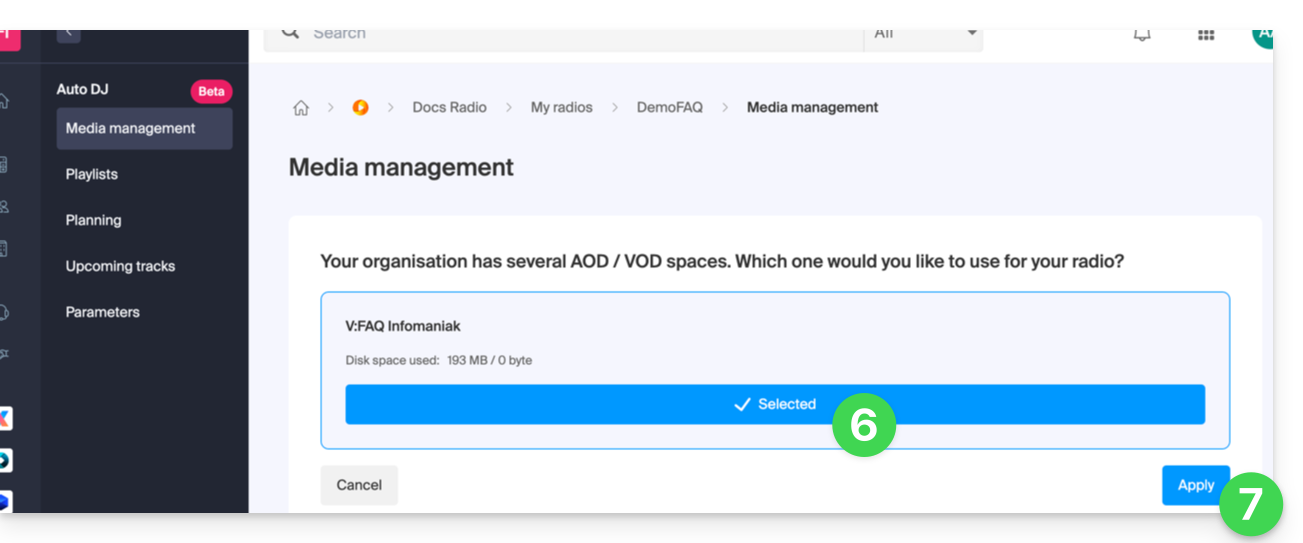
- Select the AOD space to use if you already have one.
- Apply your choice by clicking at the bottom right:
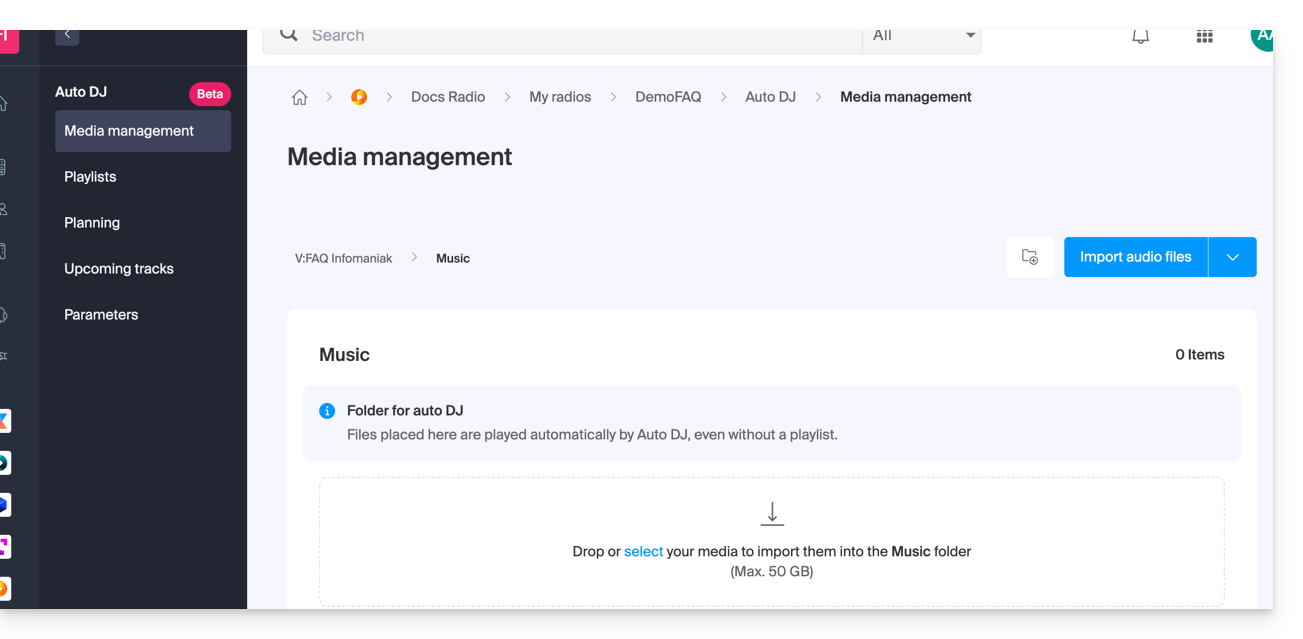
- There you go, the AOD space for your audio files to be broadcast is now available:
Organize, import your audio files
The first step is to prepare your content. The tool currently accepts files in .mp3 and .aac format. You can import an entire folder containing your audio files: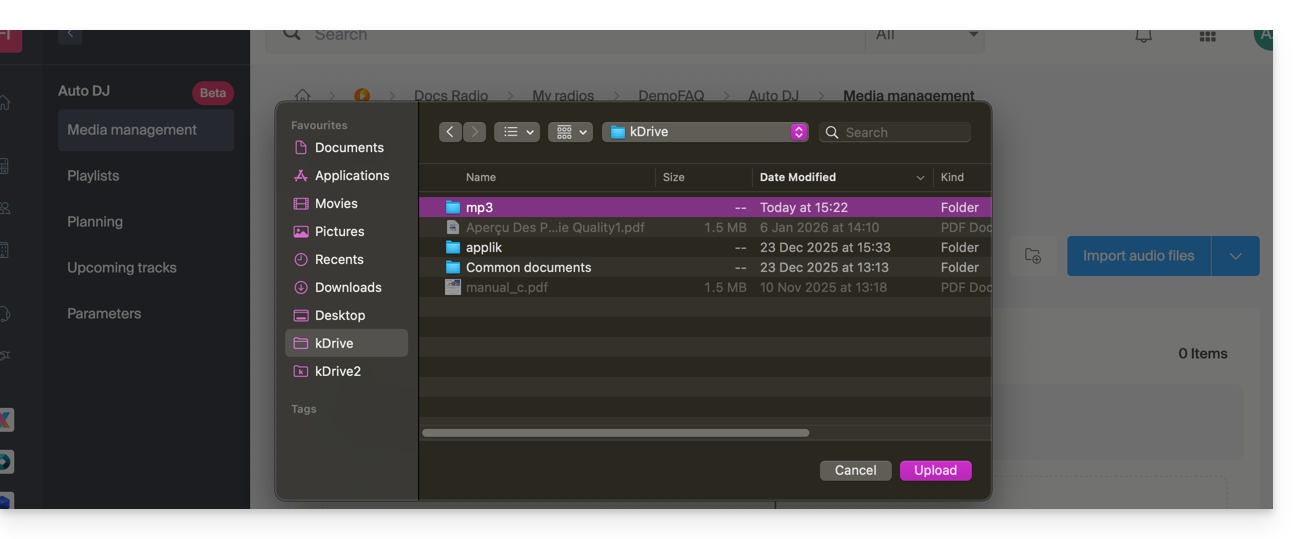
Once imported, you can structure your files into dedicated folders within your storage space to facilitate the management of your library: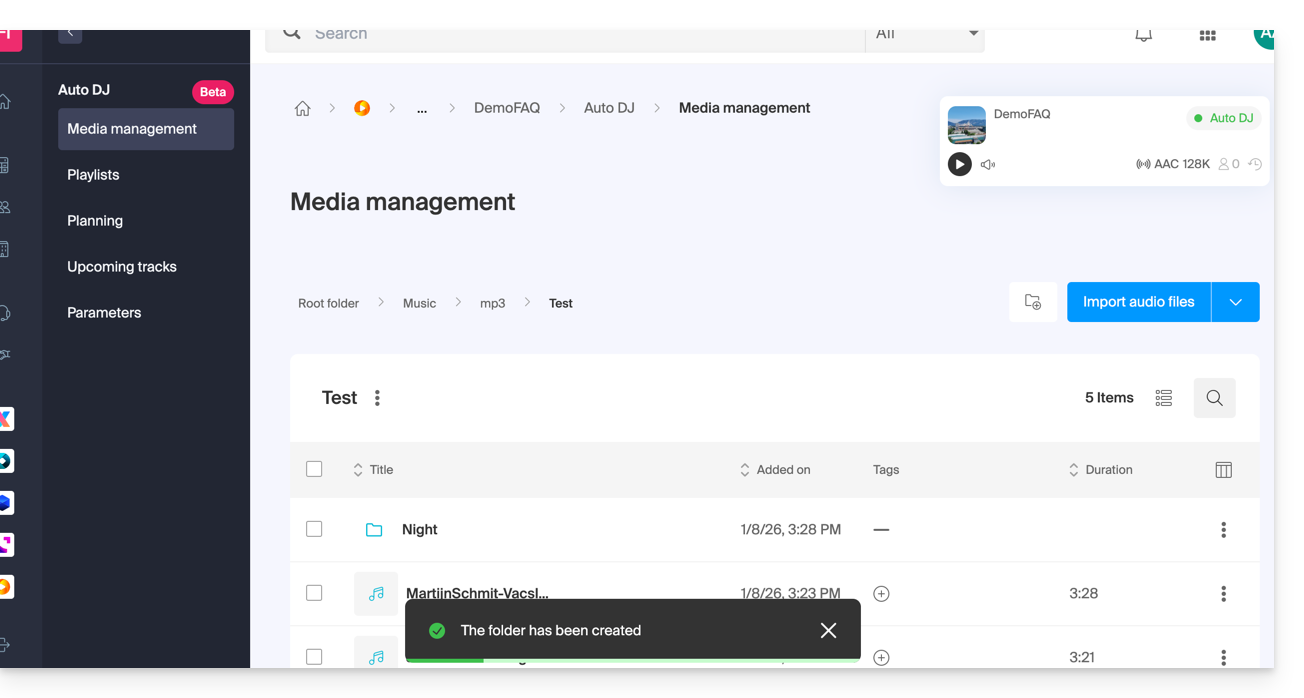
Metadata Management
It is possible to directly modify ID3 tags (title, artist, album, cover art) from the interface so that this information is displayed correctly on your playback devices: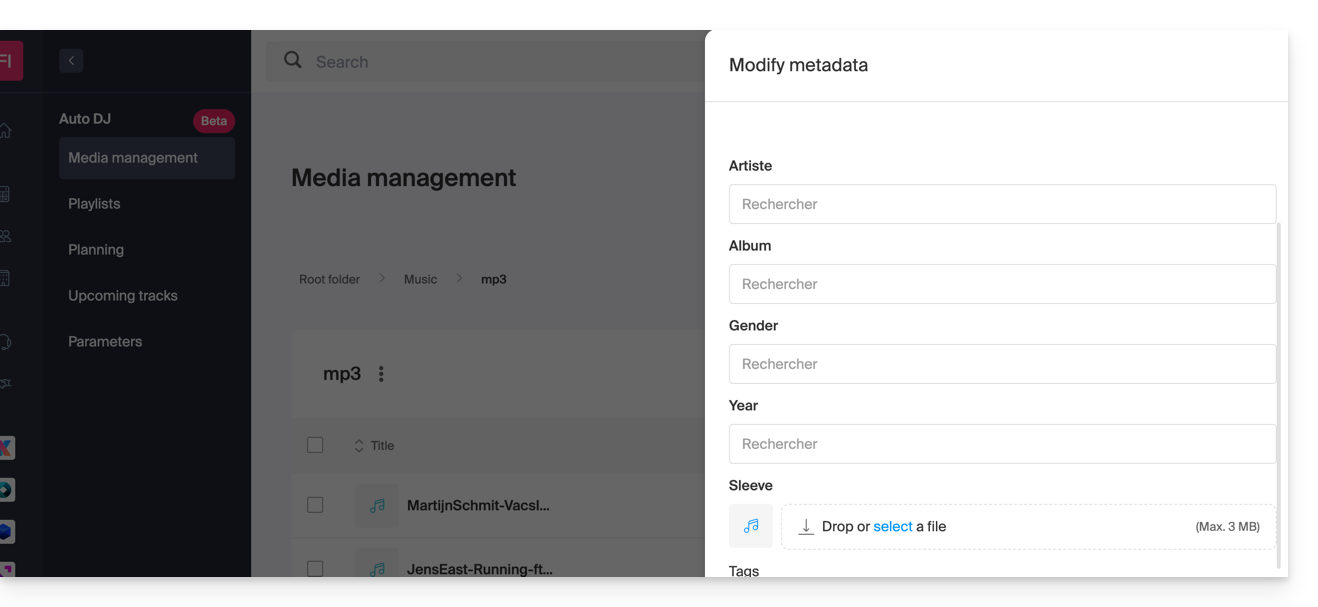
Create Playlists
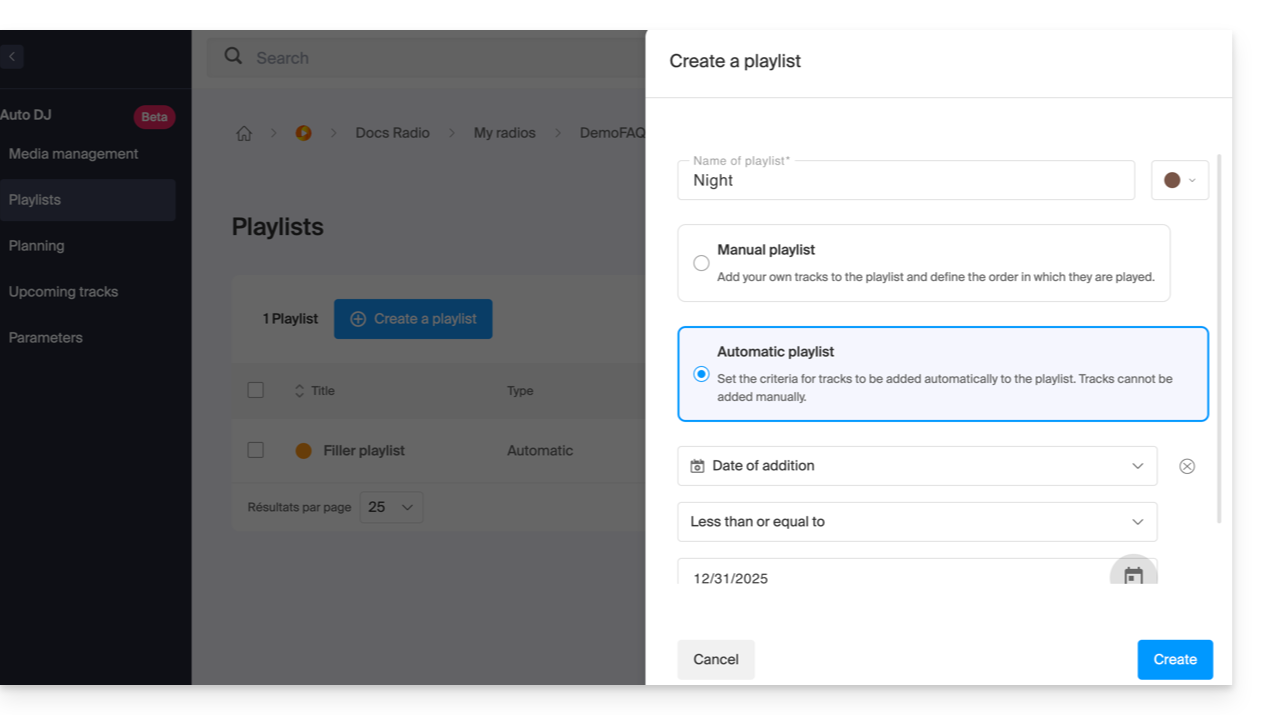
Once your files are imported, you can group them into playlists:
- Manual playlists: precisely select the tracks and their order.
- Automatic playlists: define smart criteria (by tags, genres, or artists) to allow the system to dynamically generate the playlist:
Schedule Broadcasts (Scheduling)
The scheduling tool allows you to manage your program schedule in detail:
- Scheduling by time slots: arrange your broadcasts by playlist or folder on a weekly calendar:
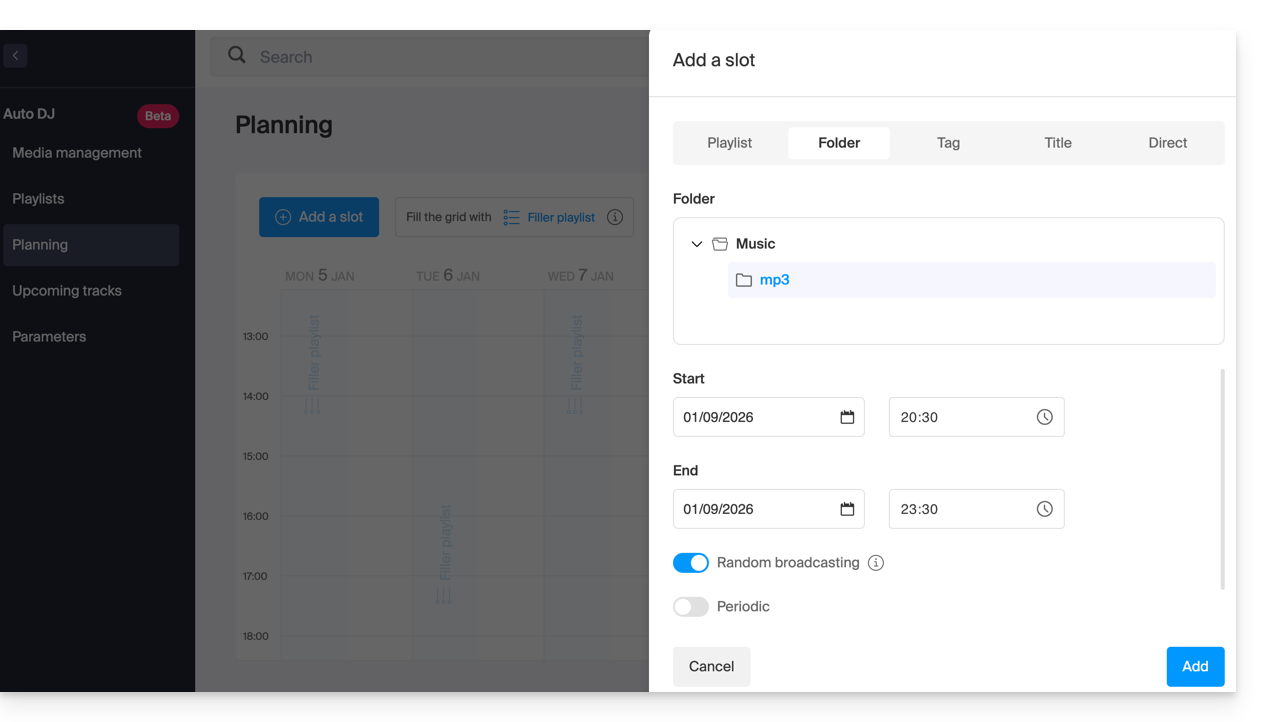
- Fallback playlist: configure a backup playlist that will be broadcast automatically when no specific program is scheduled, ensuring an uninterrupted stream.
- Live / AutoDJ transition: you can schedule time slots or automate the resumption of the Auto DJ stream as soon as an encoder (external source) stops pushing its stream.
Advanced Audio Settings
To ensure professional listening quality, several processing options are available:
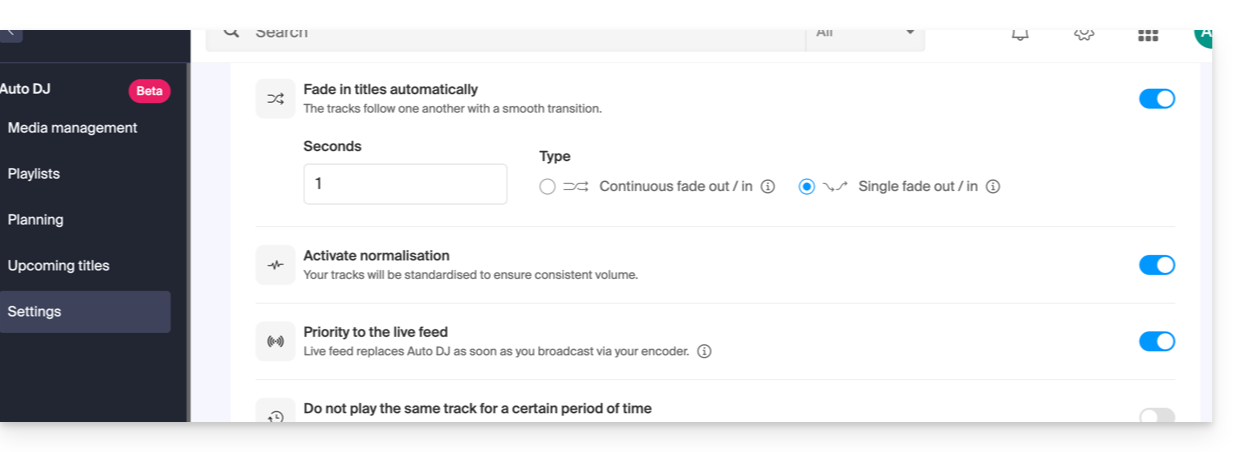
- Audio Normalization: Uniforms the audio level of all your files to avoid volume differences between tracks.
- Transitions: Configure crossfades and overlaps between tracks:
Integration and Statistics
The stream generated by Auto DJ is a standard streaming stream that benefits from all the tools in the Infomaniak ecosystem:
- Infomaniak Player: Automatic display of currently playing tracks and broadcast history.
- Multi-format streaming: Support for HLS and stream transcoding.
- Advanced statistics: Precise tracking of your audience in real time and detailed reports.
Link to this FAQ: https://faq.infomaniak.com/185
Has this FAQ been helpful?
Infomaniak tools, such as the Web Mail app (online service at ksuite.infomaniak.com/mail) or the Calendar, Contacts, kSuite interfaces, can be displayed in light mode or dark mode, including based on the settings of your current operating system:
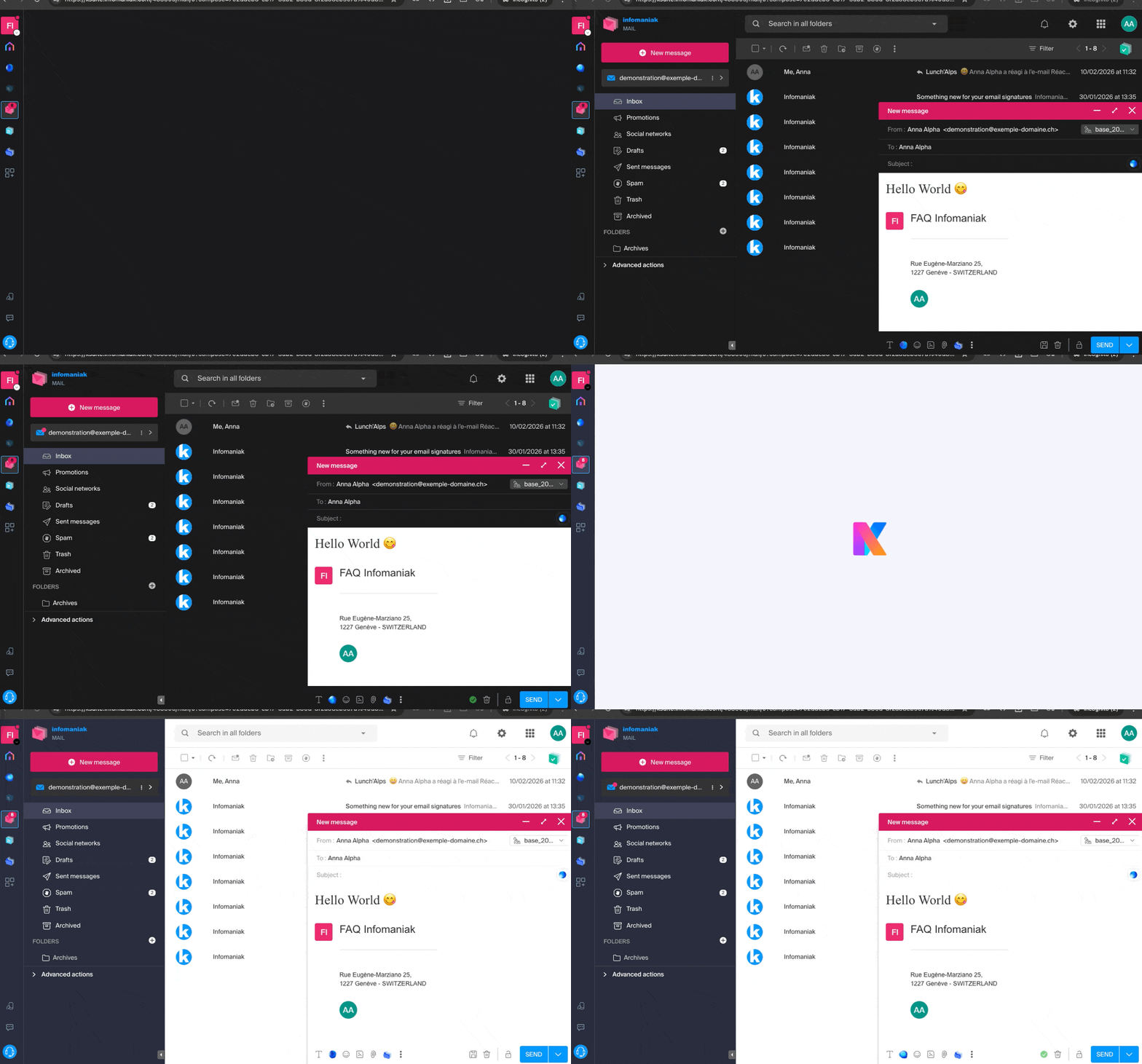
Enable manual mode
To manually choose a dark or light display, without relying on any different display setting on the operating system:
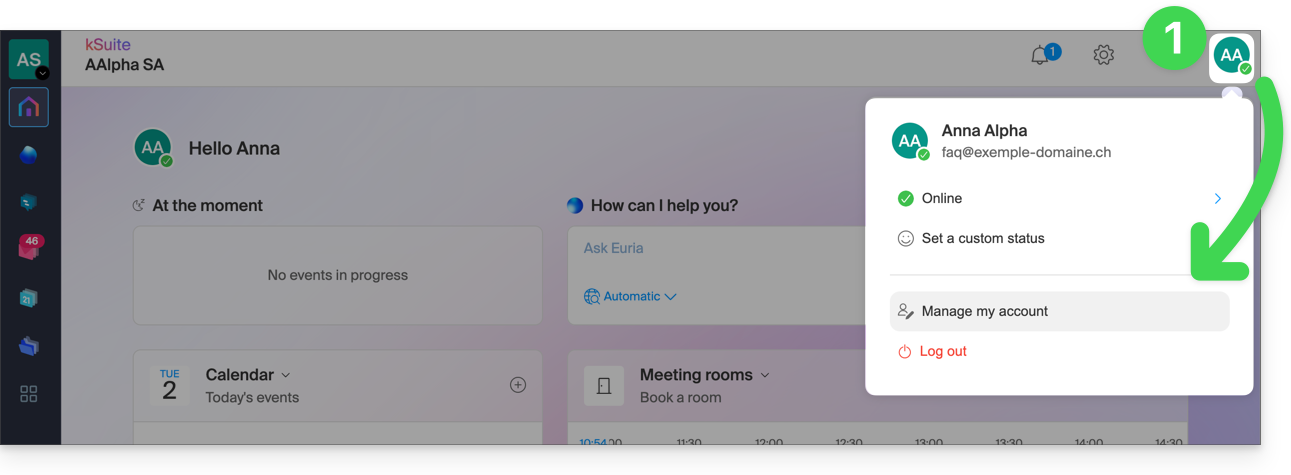
- Click here (or on the badge with your initials / avatar in the top right corner of the Infomaniak Manager) to "Manage my account":
- Then, click on Appearance in the left-hand menu.
- Click on Light to apply light mode:
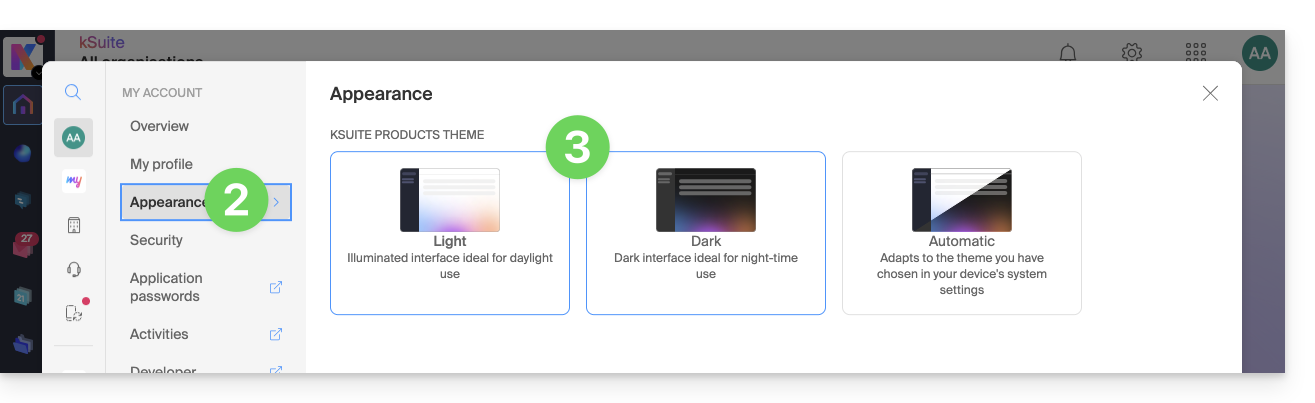
- Click on Dark to enable dark mode.
Enable automatic mode
Automatic mode is based on your operating system settings (macOS / Windows...):
- Click here or on the badge with your initials / avatar in the top right corner of the Infomaniak Manager to "Manage my account":
- Click on Appearance in the left-hand menu.
- Click on Automatic mode:
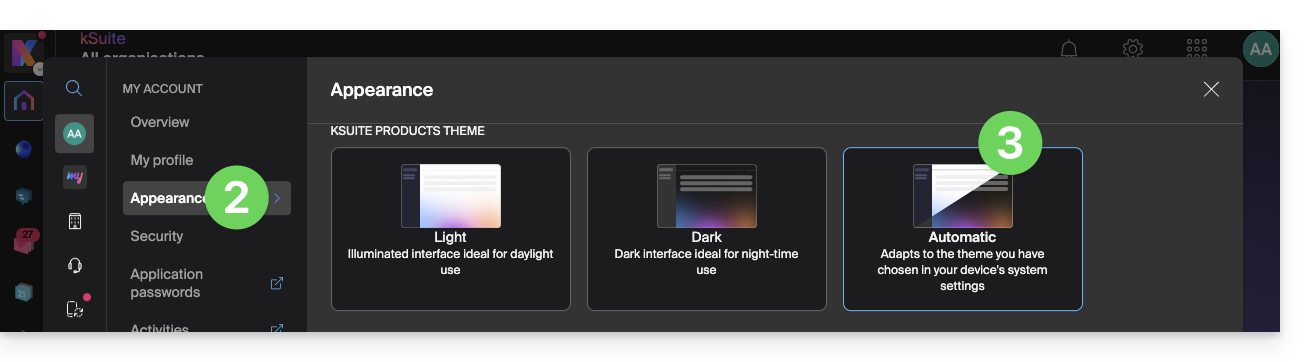
Then, if you want to change the light or dark theme of your computer, so that the automatic mode of the Manager takes your preferences into account…
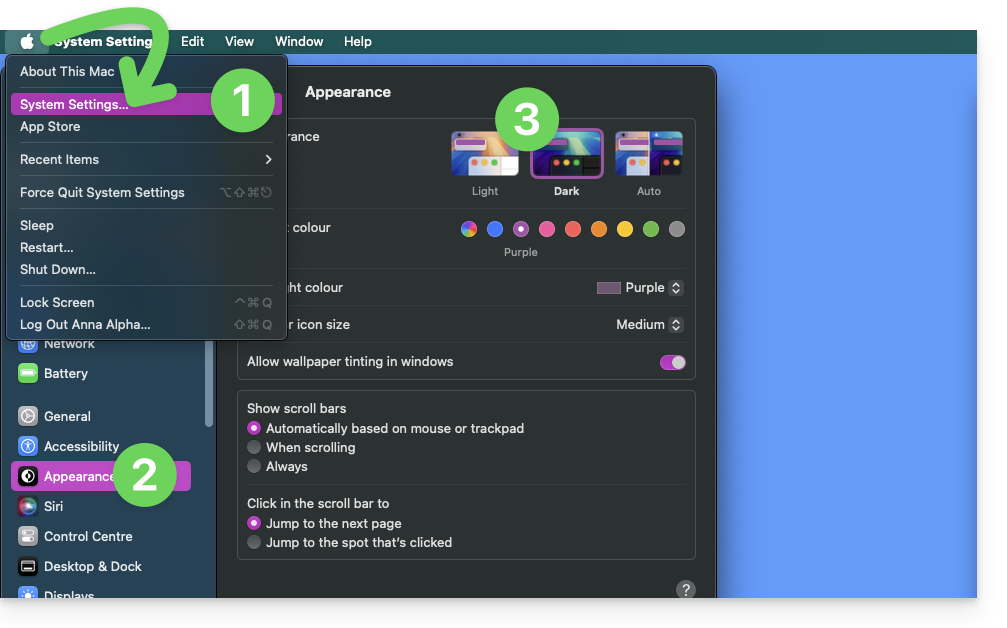
… on macOS
- Click on System Preferences…
- Click on Appearance.
- Choose the desired mode on the right:
… on Windows
- In the Start menu, open Settings > Personalization.
- Select Colors, then Choose your mode:
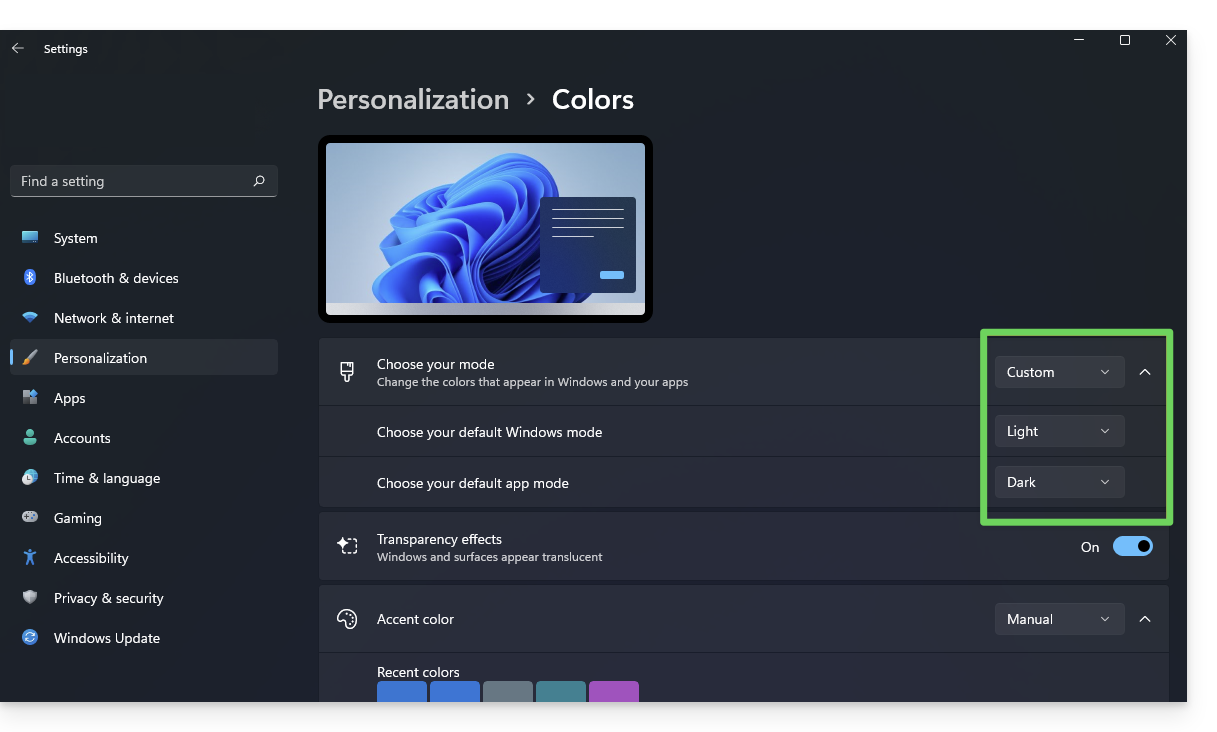
- You can choose between Light, Dark, or Custom.
- If you select Custom, you will be able to choose a default Windows mode and a different default application mode.
And on mobile?
The dark theme is enabled on mobile devices for Infomaniak login and account creation pages; it automatically adapts to the mobile system's preferences, providing a consistent visual experience between mobile applications and login/account creation.
Link to this FAQ: https://faq.infomaniak.com/2870
Has this FAQ been helpful?
This guide explains the process for withdrawing and restoring assets when a Public Cloud product is terminated.
Withdrawing and Restoring Assets on Public Cloud
It is recommended to manually export and delete all resources before terminating the product.
When a voluntary termination is performed, the resources associated with the Public Cloud are gradually deactivated and then deleted.
DNS resources of the DNSaaS (Designate) type are immediately deleted upon termination.
Other resources are deactivated across all Public Cloud regions:
- users and projects are deactivated;
- access to the remaining resources is no longer possible;
- resources that are still exposed are deactivated:
- S3 buckets and Swift containers (Object Storage);
- stopped Compute instances (power-off);
- automatic exit from pause mode before instance shutdown;
- automatic exit from rescue mode before instance shutdown;
- deactivation of Load Balancers (LBaaS);
- deactivation of orchestrations and alarms (Heat).
Resources that are not exposed are not immediately modified, including:
- volumes;
- images;
- backups;
- snapshots;
- public keys;
- private networks;
- secrets.
Asset Retention Period
With the exception of DNS resources, assets are retained for a period of 7 days after termination.
On the 7th day at 3:00 AM, all remaining resources are permanently deleted, with no possibility of restoration.
Restoring Assets After Termination
After the product is terminated, a request for restoration can be made within a maximum period of 3 calendar days.
This request requires:
- an active subscription to a Public Cloud product;
- an up-to-date billing status;
- compliance with the applicable contractual terms.
Provided that the data is still available on the storage infrastructure, suspended services can be reactivated within a maximum period of 4 days after the request is approved.
Stopped instances are not restarted automatically. However, they can be restarted manually if necessary.
Exporting assets remains your responsibility.
Link to this FAQ: https://faq.infomaniak.com/1052
Has this FAQ been helpful?
This guide concerns the "Applications" (or "modules," "extensions") available in Infomaniak Site Creator depending on the version you have, to create a showcase website, a blog, or an e-commerce store that is 100% customizable, without any technical knowledge.
Different Applications
In addition to the content blocks offering various pre-formatted layouts, you can also insert blocks in the form of modules, each with a specific function:
- Video
- Audio player
- Image slider / slideshow
- File download
- Location on map
- Poll
- Knowledge base
- Questions and answers
- Calendar
- Calendly
- Subpage menu
- Sitemap
- Add to Google
- Custom HTML code
- Contact form
- Blog
- Shop
- RSS feed reader
- Restaurant menu
Insert a module on a page
To insert a module:
- Click here to access the management of your product on the Infomaniak Manager (need help?).
- Click directly on the name assigned to the Site Creator in question.
- Click on the Edit my site button to start the editor:
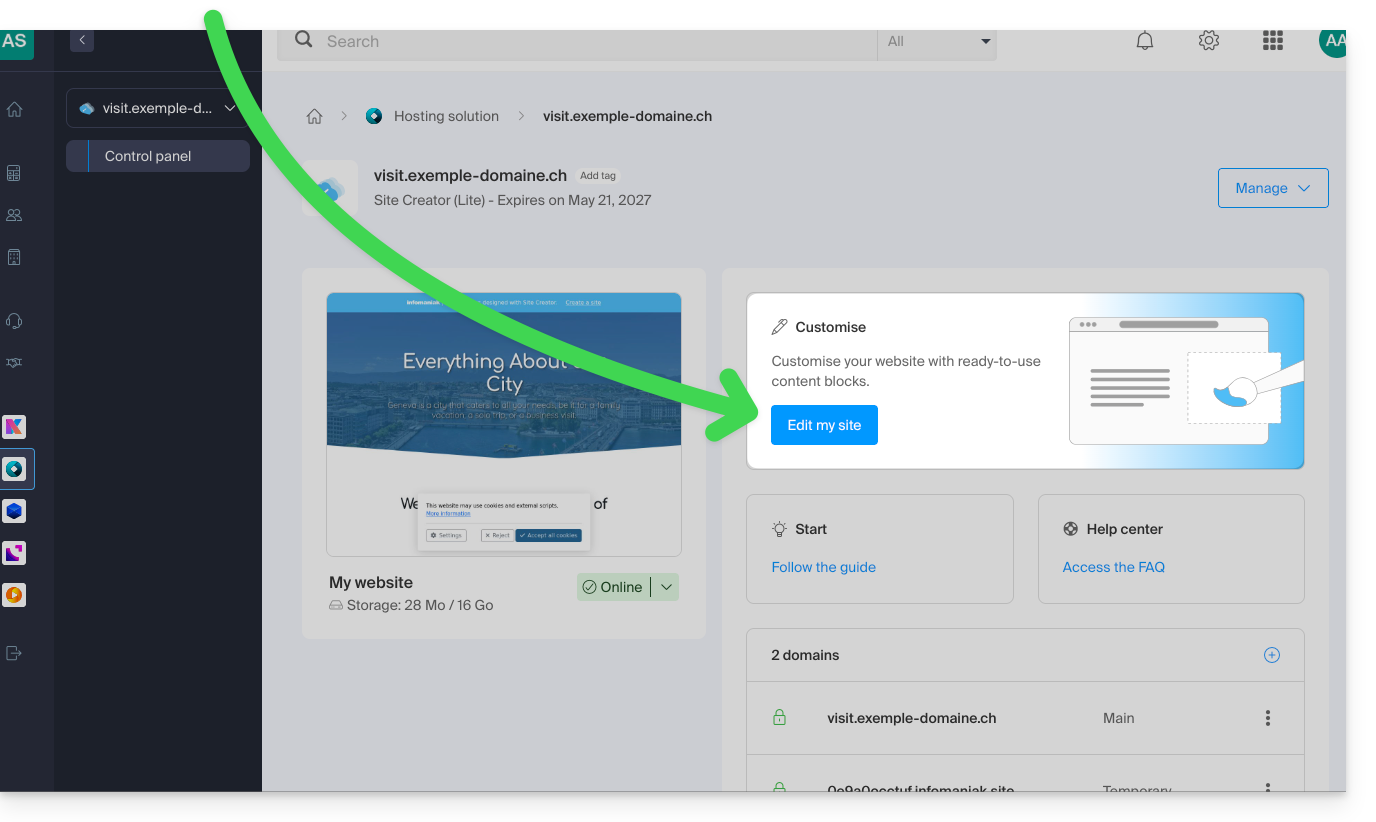
Once in Site Creator:
- Click on the Content button in the left-hand menu.
- Click on Applications at the bottom, and the available content will be displayed on the right.
- Click on one of these applications to insert it into the page:
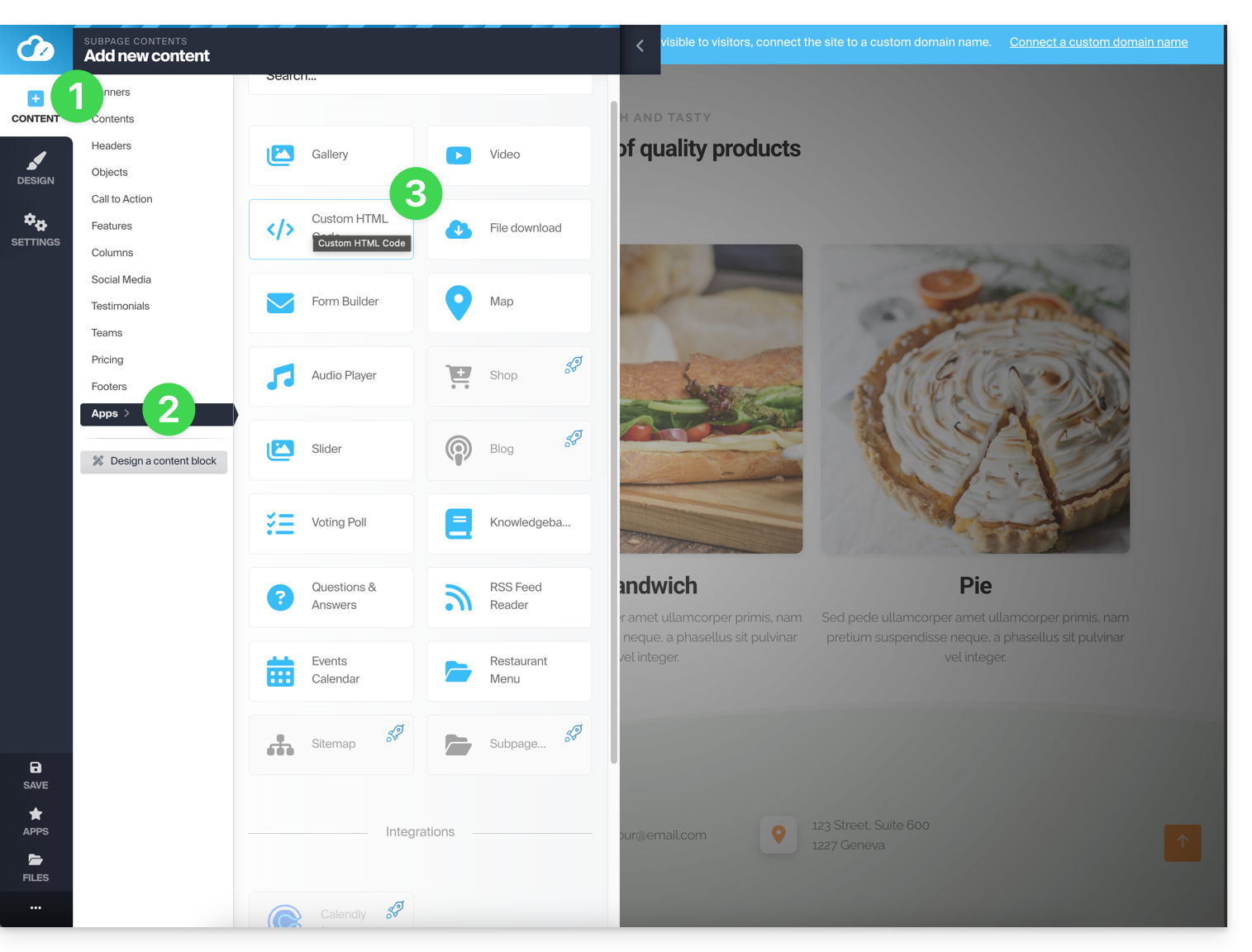
- Once inserted, hover over the module (or the block itself, depending on the module) to access its settings:
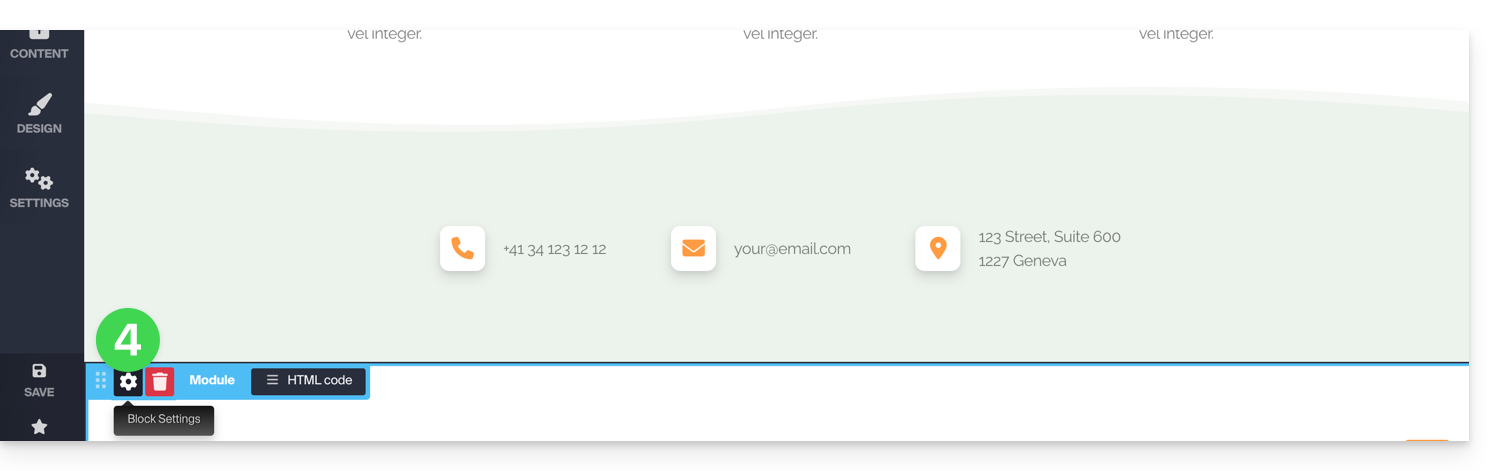
Multiple module or missing module
If you delete one of your modules (such as the one for creating a poll) that has already been configured and want to revert, press Undo immediately:
or
You can also reinsert the module, which should revert to its previous settings.
You cannot insert multiple modules of the same type to customize them independently of each other.
Other integrations & widgets
Click on the APPLICATIONS button in the left sidebar of Site Creator: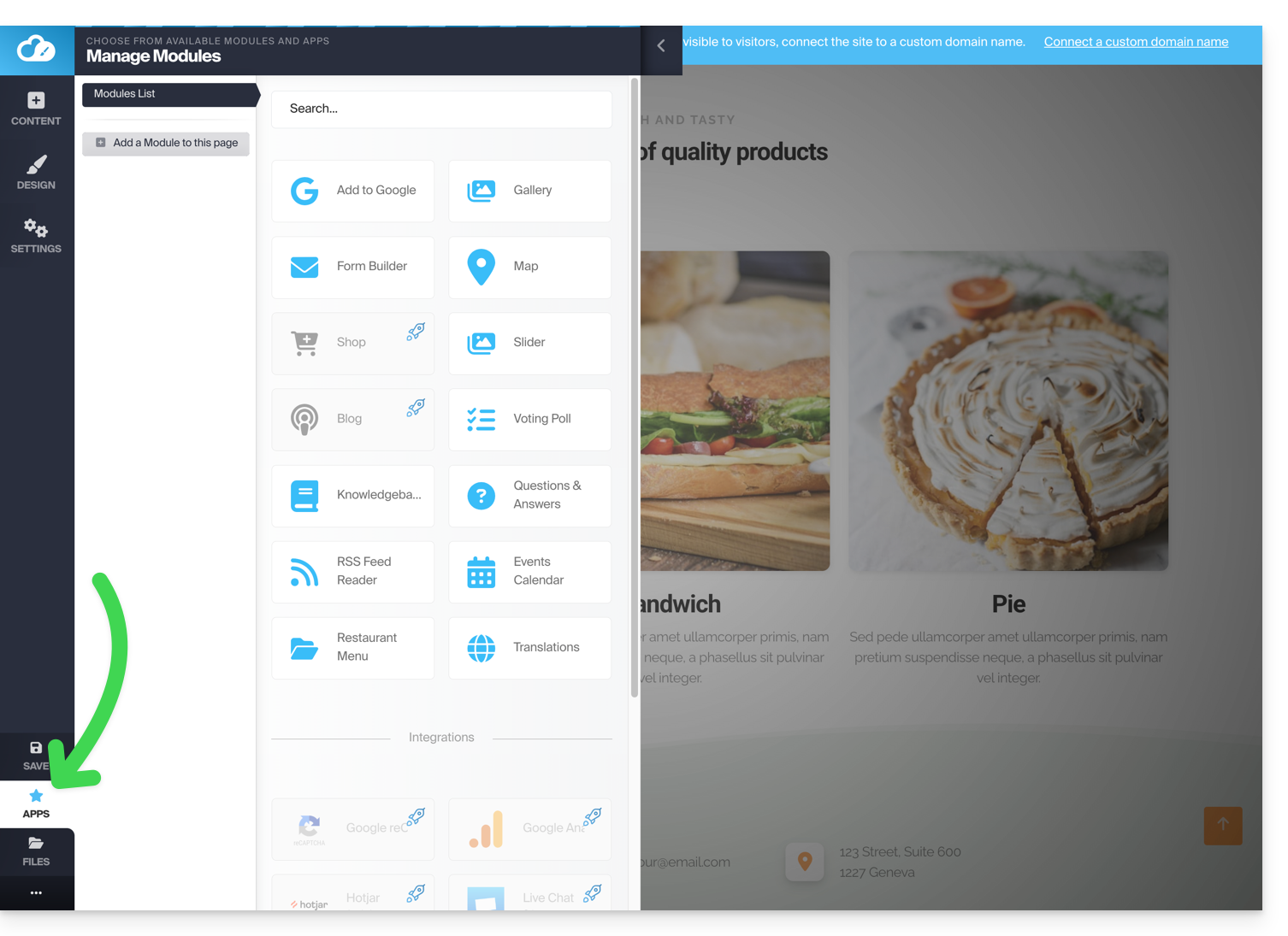
Example: inserting a countdown
To add a countdown timer:
- In the left sidebar menu, click the Content button.
- Click on Objects in the list, and the available content will be displayed on the right.
- Click on one of these objects to insert it on the page:
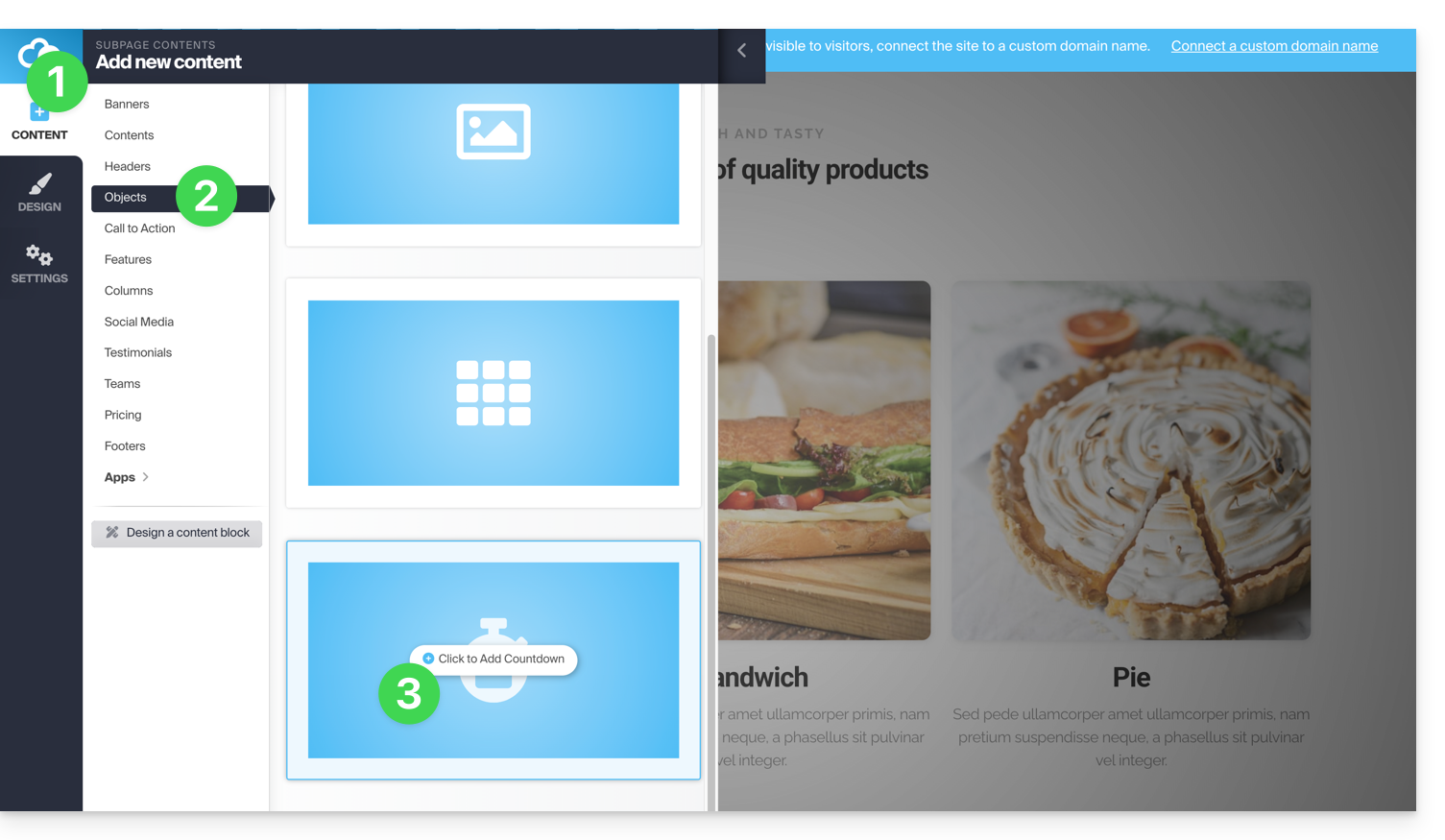
- Once inserted, hover over the module to access its settings:

Link to this FAQ: https://faq.infomaniak.com/2717
Has this FAQ been helpful?
This guide explains how to manually allow or refuse participants in a kMeet meeting.
Preamble
- To approve participants, you must have the status of moderator.
- To be a moderator, you must either be the first connected or designated later.
- Generally, a person generates a kMeet and will therefore be the moderator throughout the meeting.
- However, if a meeting is created from the Infomaniak calendar, a kMeet link can be added, which will be accessible to all event participants; it is therefore recommended that the event initiator connect a little before the participants to configure their meeting (add a waiting room or a password, etc.).
Approve or refuse participants
To be a moderator:
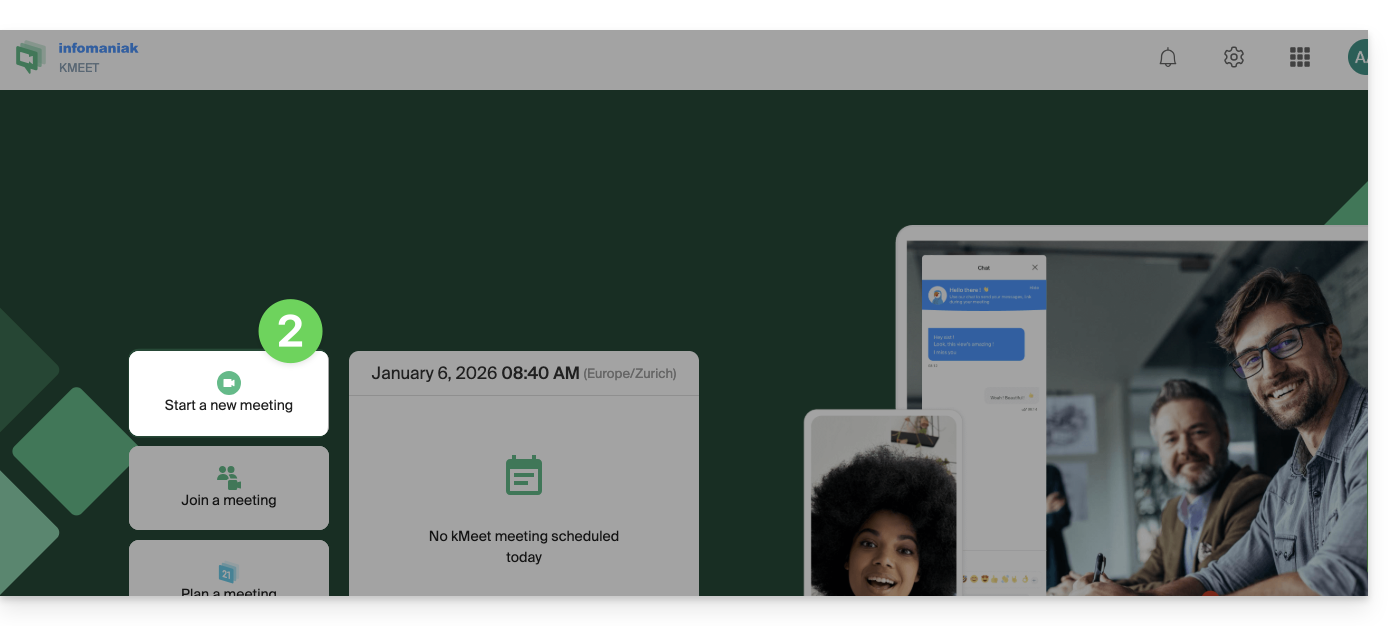
- Start kMeet via kmeet.infomaniak.com or from one of the apps for computers or mobile devices.
- Click the button to start a new meeting:
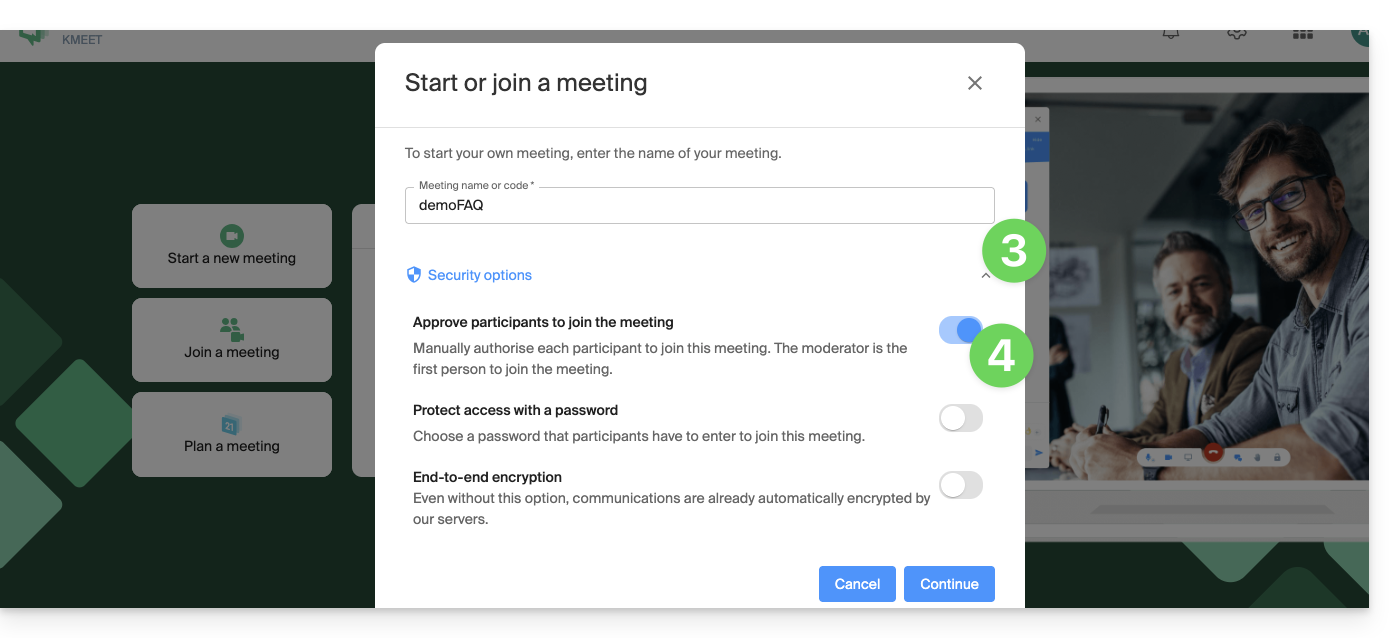
- Click the chevron below the meeting name to expand the advanced options.
- Enable participant control:
- Start the meeting.
- Share the meeting link or code and if necessary the password and or the encryption key with your participants.
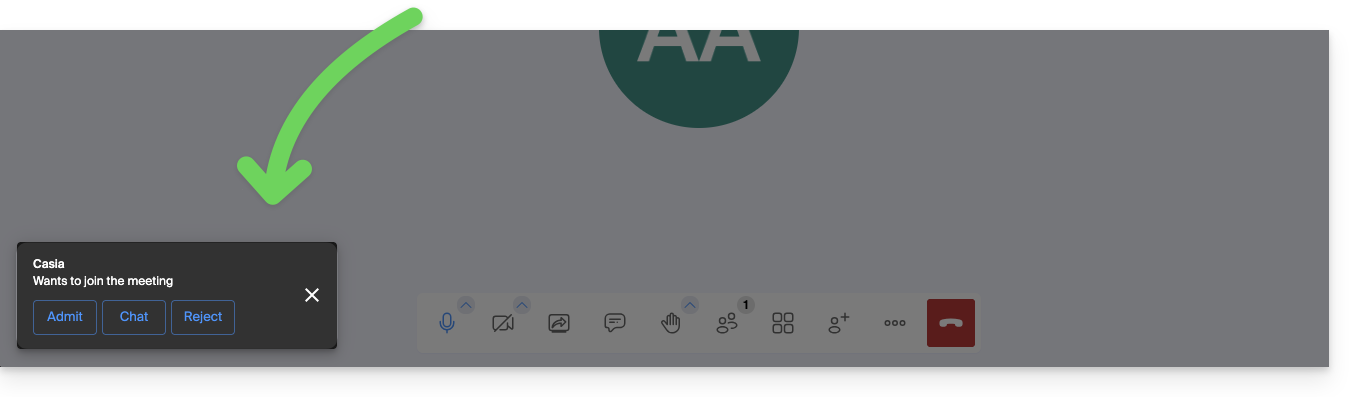
- When your participants try to join the meeting, an audio notification invites you to authorize or not authorize them to join the room:
- You can also set a participant as a new moderator during the meeting, or just below, exclude them from the meeting:
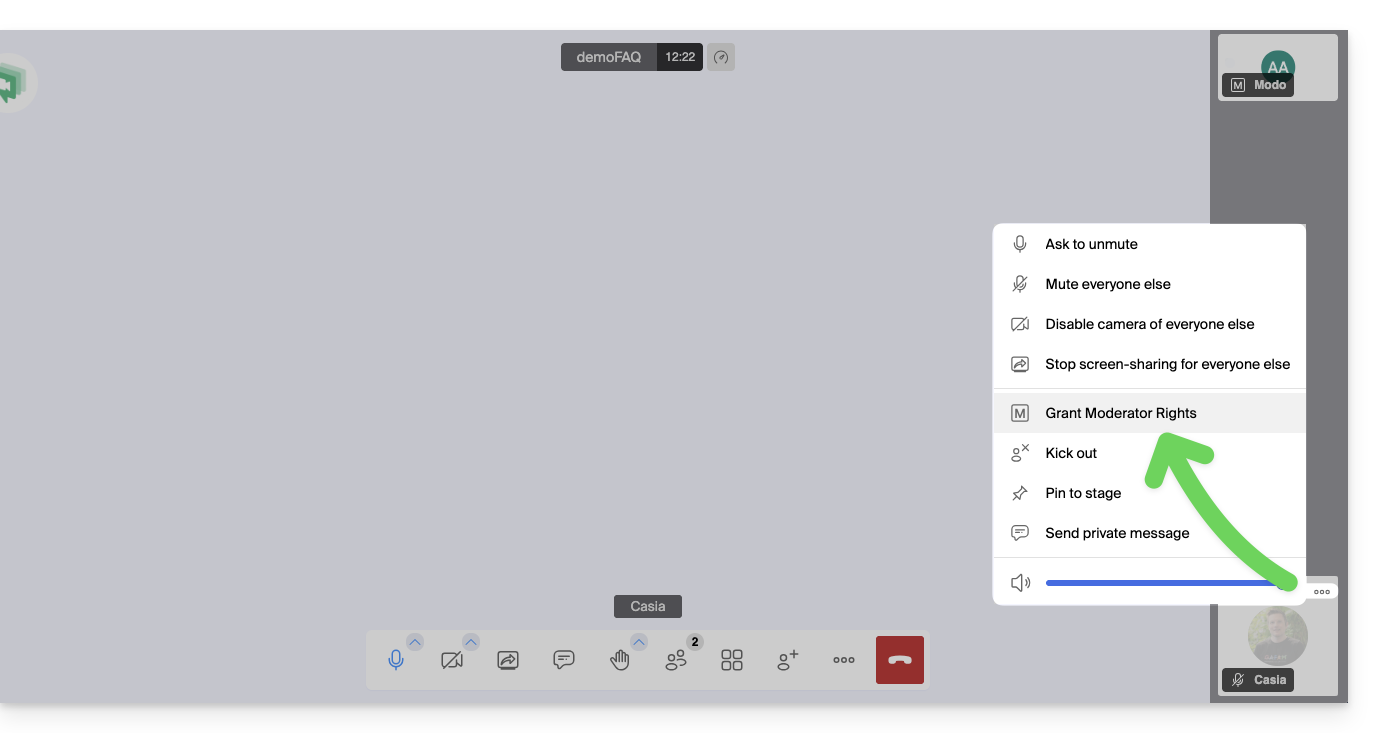
- The moderator can also disable the "waiting room" enabled in point 4 above once the meeting has started:
- Click on the icon ○○○ in the toolbar.
- Click on Security options:
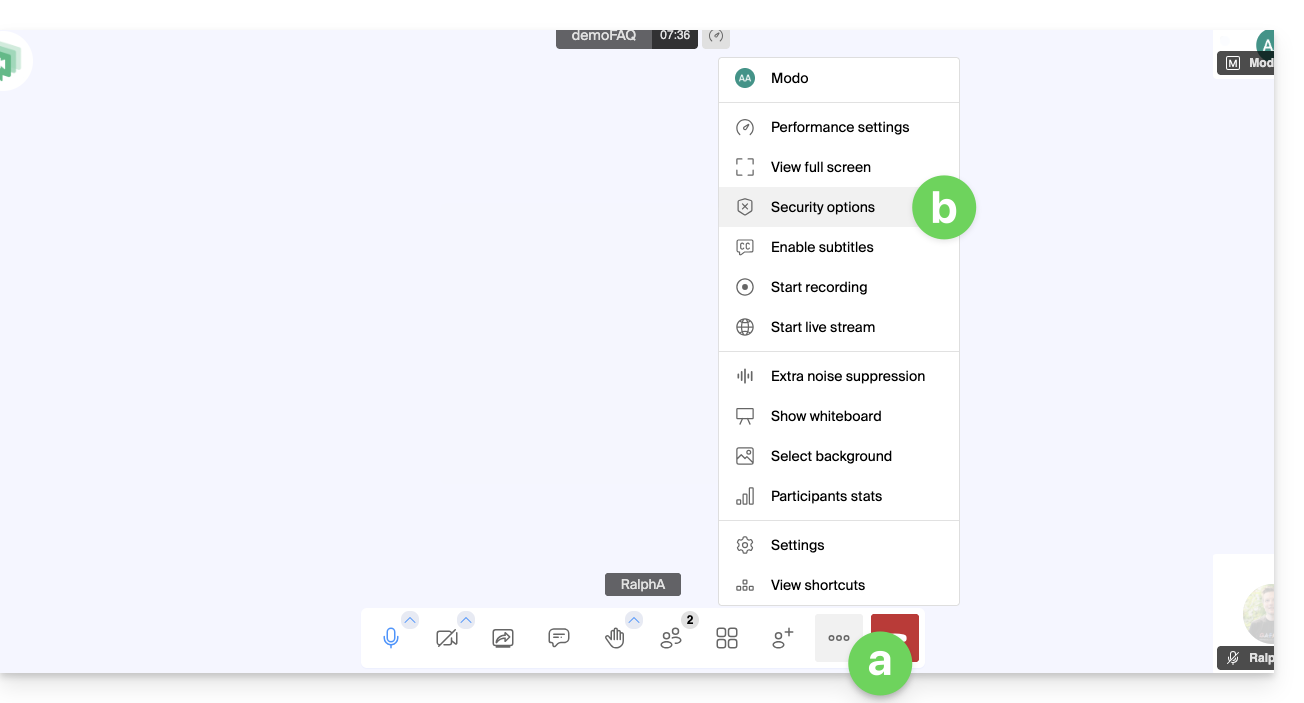
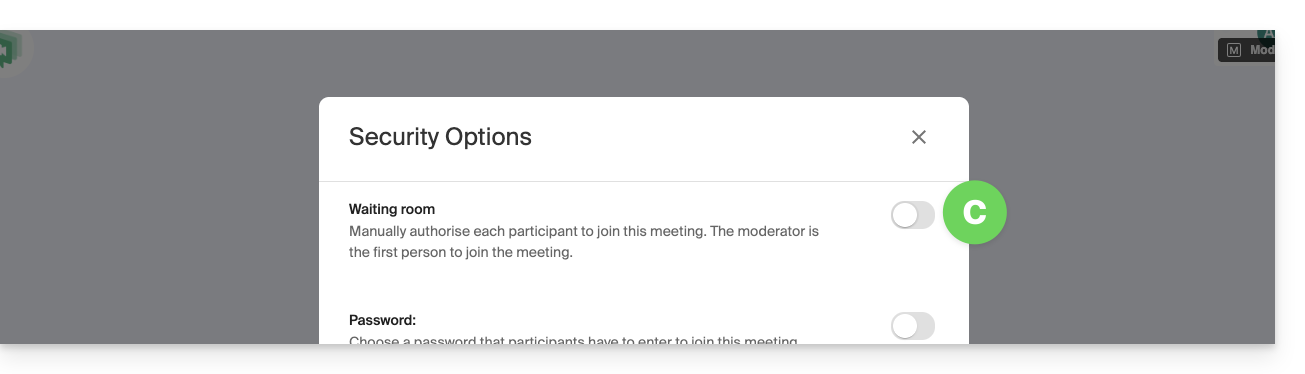
- Disable the option to no longer have to manage new arrivals in the meeting:
Moderation options
Other moderation options are available:
- Click on the icon ○○○ in the toolbar.
- Click on Settings:
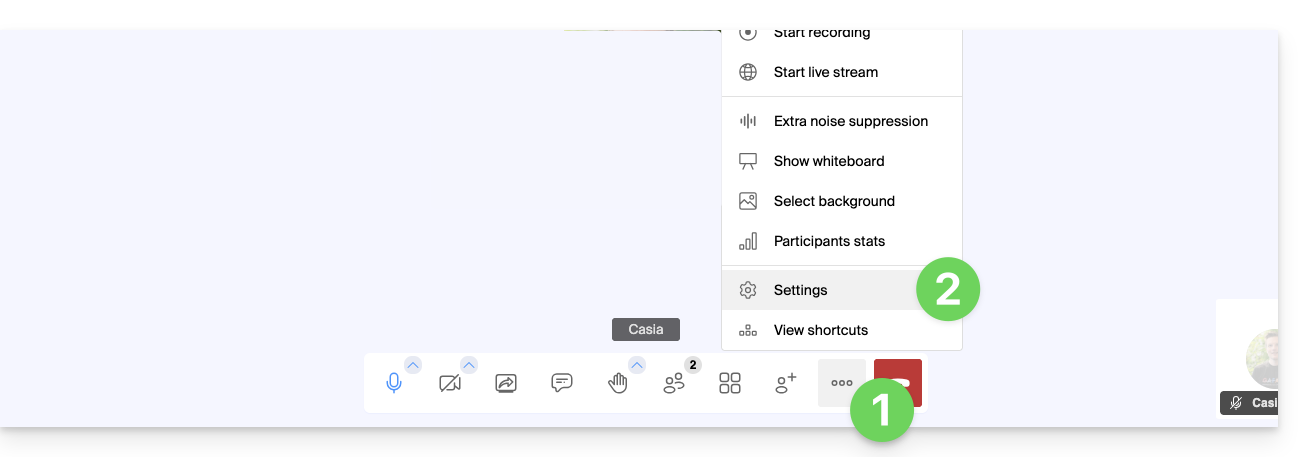
- Click on Moderation.
- The options allow you to manage the expected behavior when new participants connect:
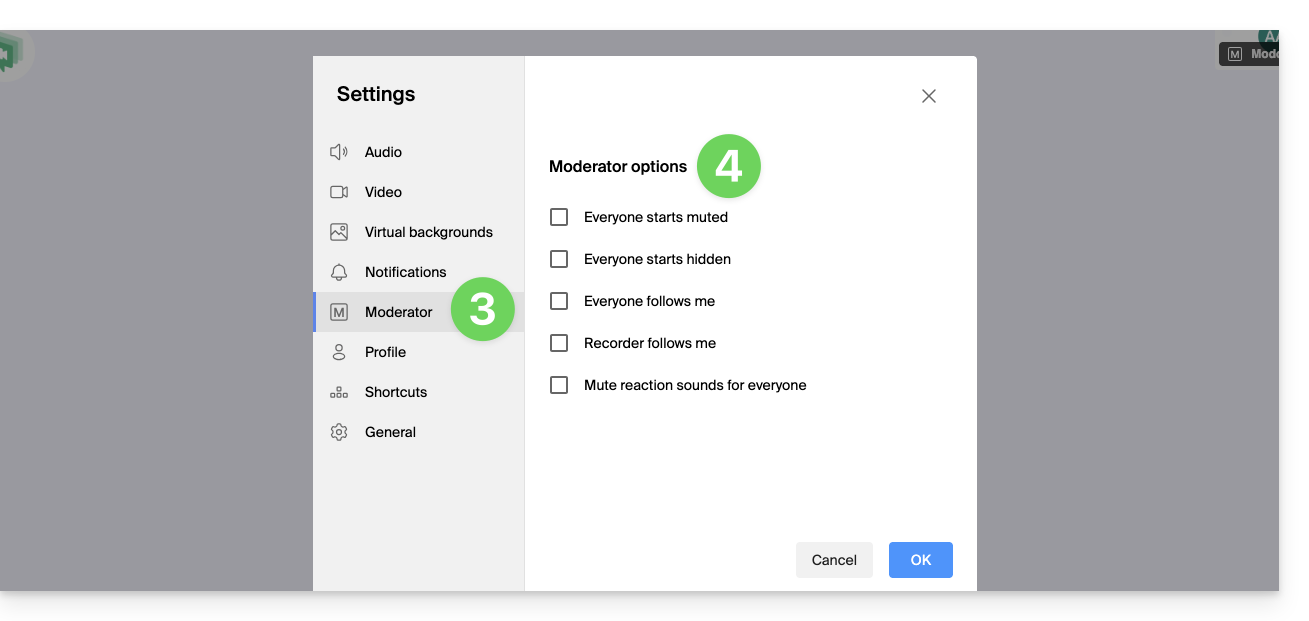
- all participants start with the microphone muted
- all participants start with the camera off
- all participants have the same interface display as the moderator (display of such participant in large on the layout, etc.), modifiable at any time by the users but the moderator can update at any time to enforce compliance
- recording will use the same interface display as the moderator (display of such participant in large on the layout, etc.)
- reaction emojis do not produce any sound
Link to this FAQ: https://faq.infomaniak.com/2476
Has this FAQ been helpful?
This guide details how to manage the Organization Directory, which is a special address book available within the Infomaniak Contacts web app (online service: ksuite.infomaniak.com/contacts).
Introduction
- The Organization Directory is "automatically created" by the various users that make up one of the Organizations to which your user is affiliated.
- If Groups are created within the Organization, they will be visible in the Organization Directory:
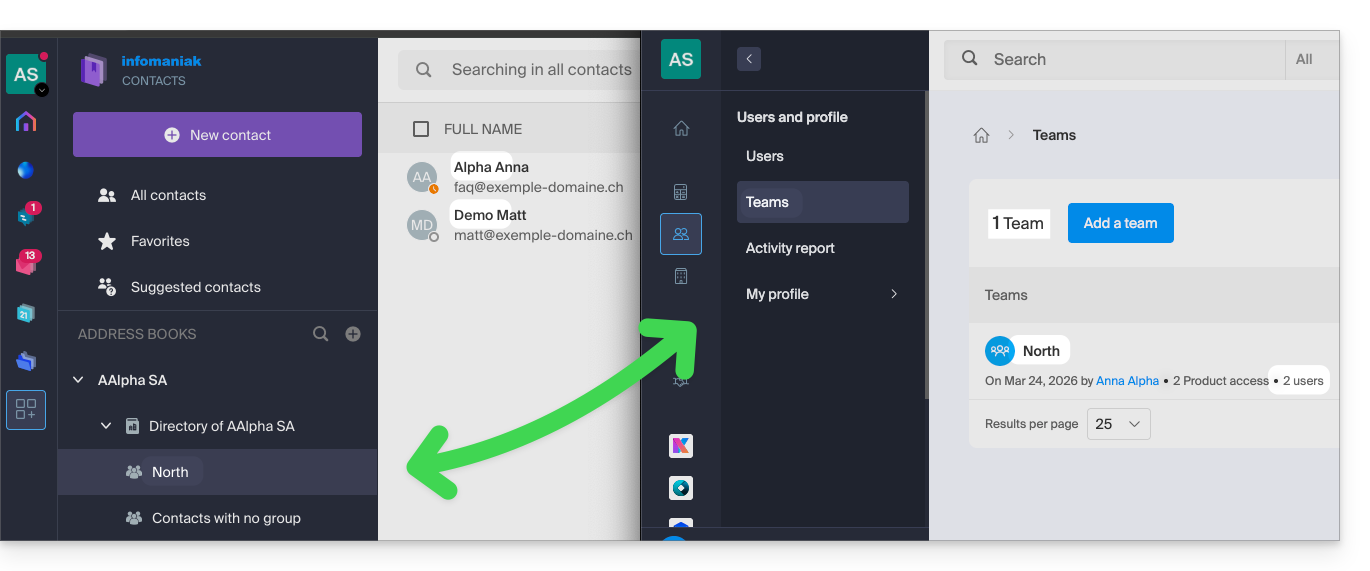
- This address book is automatically synchronized with all internal users of your Organization.
- An administrator of the Organization can make certain entries in the directory private, hiding them from users with fewer permissions:
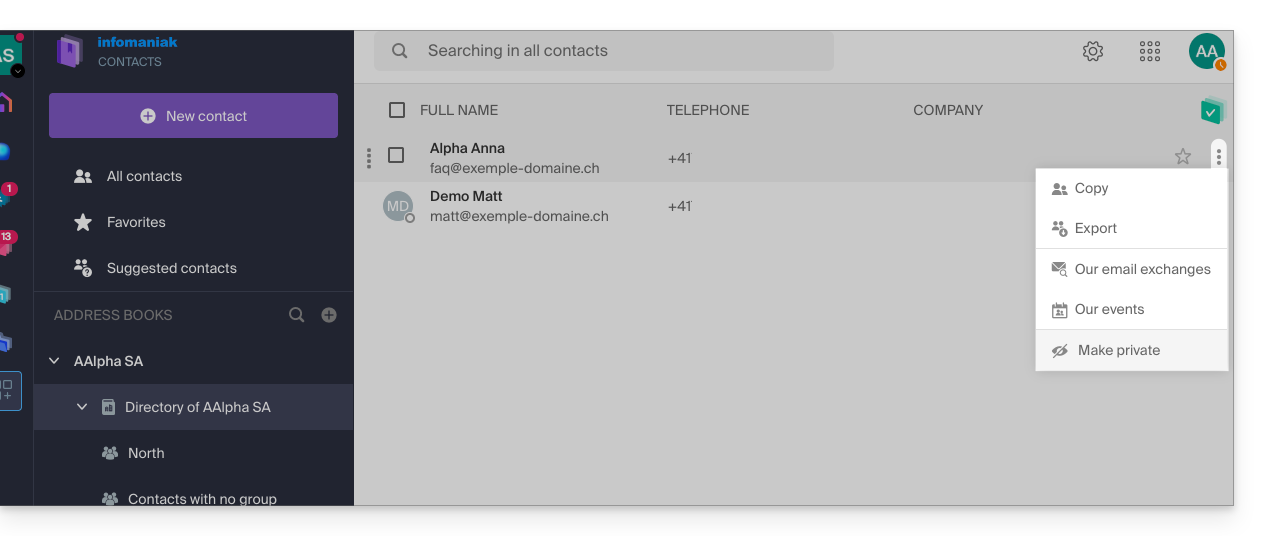
- It is not possible to export or rename it.
- You can change its display color:
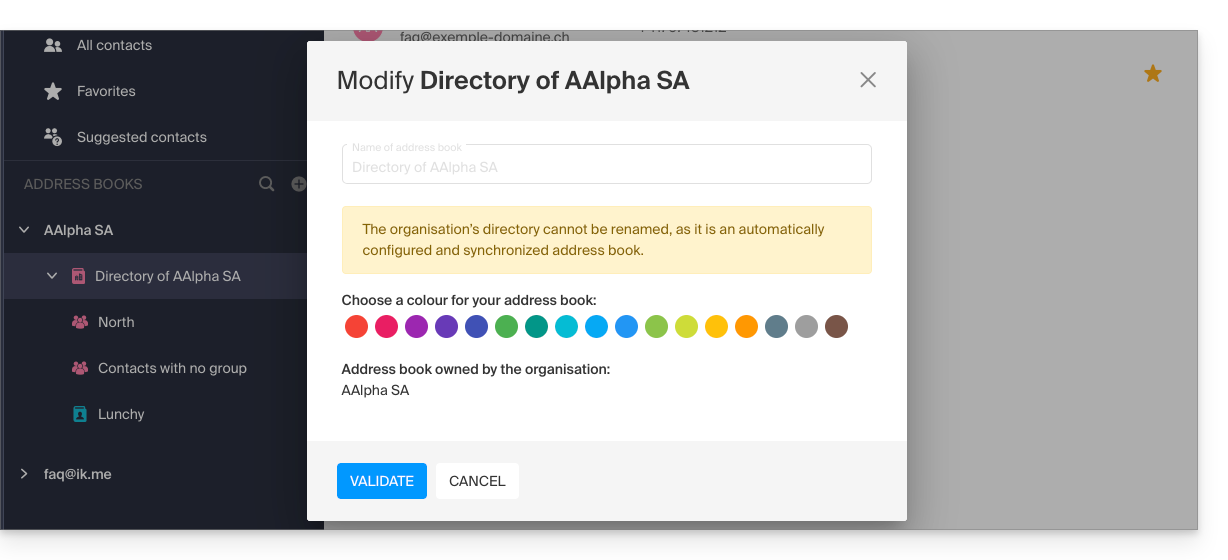
- You can change its display color:
Accessing the Directory
If your login ID corresponds to and belongs to one (or more) Organizations, you can access the different directories of these Organizations:
- Click here to access the Infomaniak Contacts web app (online service ksuite.infomaniak.com/contacts).
- Click on the chevron to the left of the name of the Organization in question.
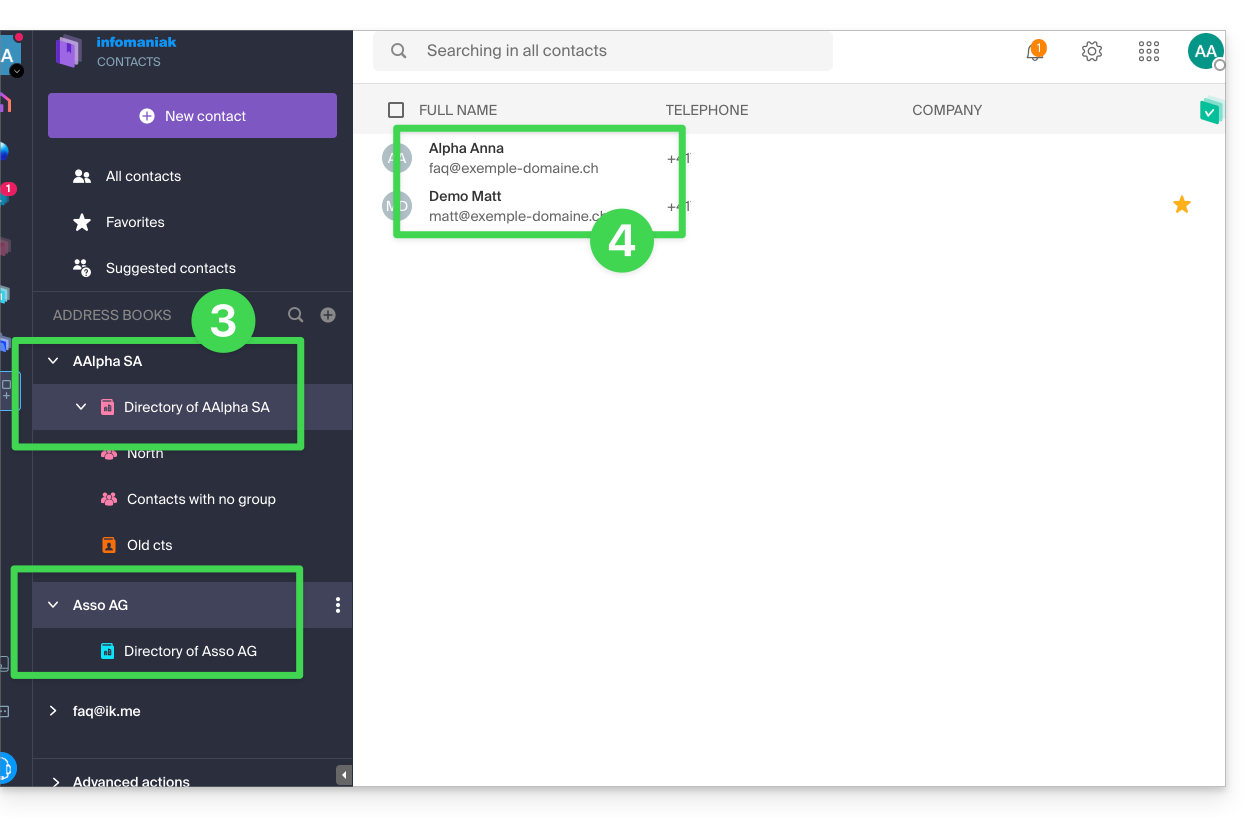
- Click on {Organization name} Directory…
- The contacts of the selected Organization are displayed on the right:
Modify a contact's details in the directory
You can do many things (copy, export their profile, view email exchanges or calendar events, add to favorites, call, etc.) by clicking on a contact's profile in the Organization Directory address book, but you will not be able to modify the details on behalf of the person concerned: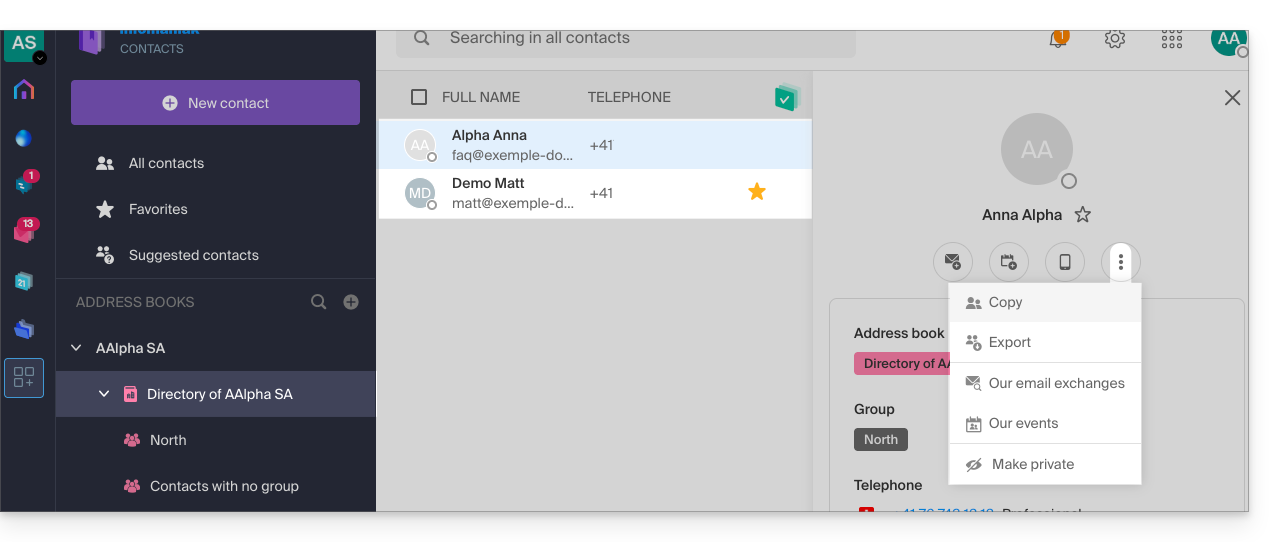
To modify the main information, the person concerned (the person for whom a change needs to be made) must log in to their profile and modify it (see below):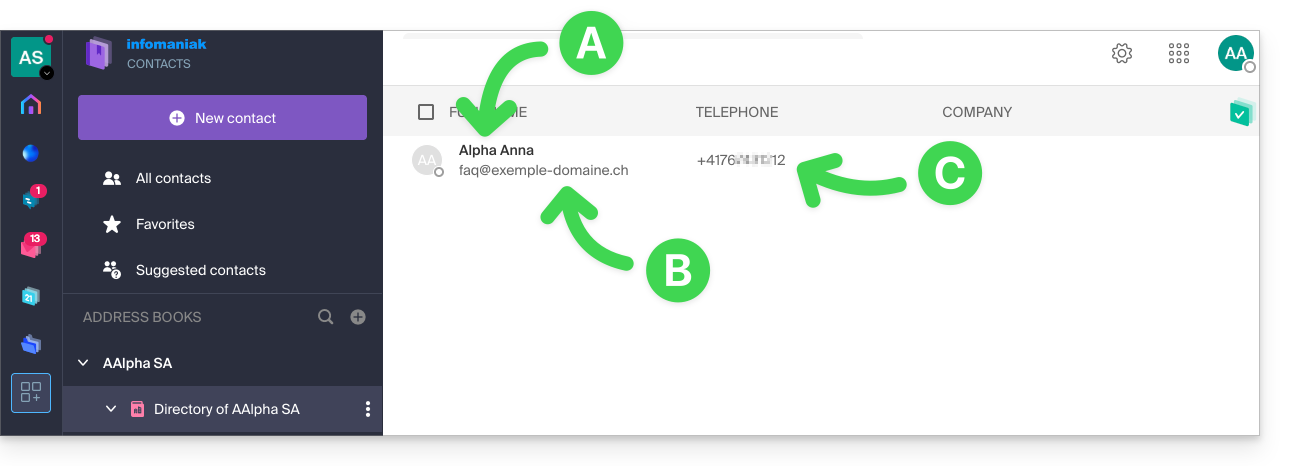
A. First name & last name
To change the first name and last name displayed in the directory, the user in question (here, faq@exemple-domaine.ch) must log in to their account and modify their contact information. Please refer to this other guide for more information.
B. Email address
To change the email address displayed in the directory, the user in question must log in to their account and modify their contact information. Please refer to this other guide for more information.
C. Phone number
To change the phone number displayed in the directory, the user in question must log in to their account and modify their contact information. Please refer to this other guide for more information.
Link to this FAQ: https://faq.infomaniak.com/2558
Has this FAQ been helpful?
This guide explains how to configure the Infomaniak Mail mobile app (application for iOS / Android smartphones or tablets).
The app's language is based on the language of your device on which the Infomaniak Mail mobile app is installed, and not on the language set in your user account.
Accessing the app settings
To open the settings for the Infomaniak Mail mobile app (application for iOS / Android smartphones or tablets) on your device:
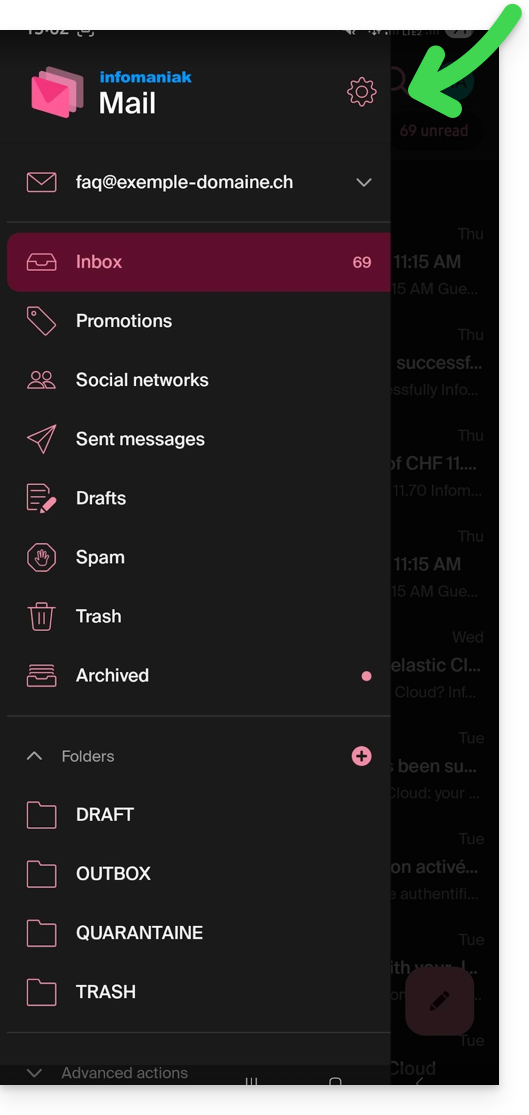
- Tap the top left of your inbox:
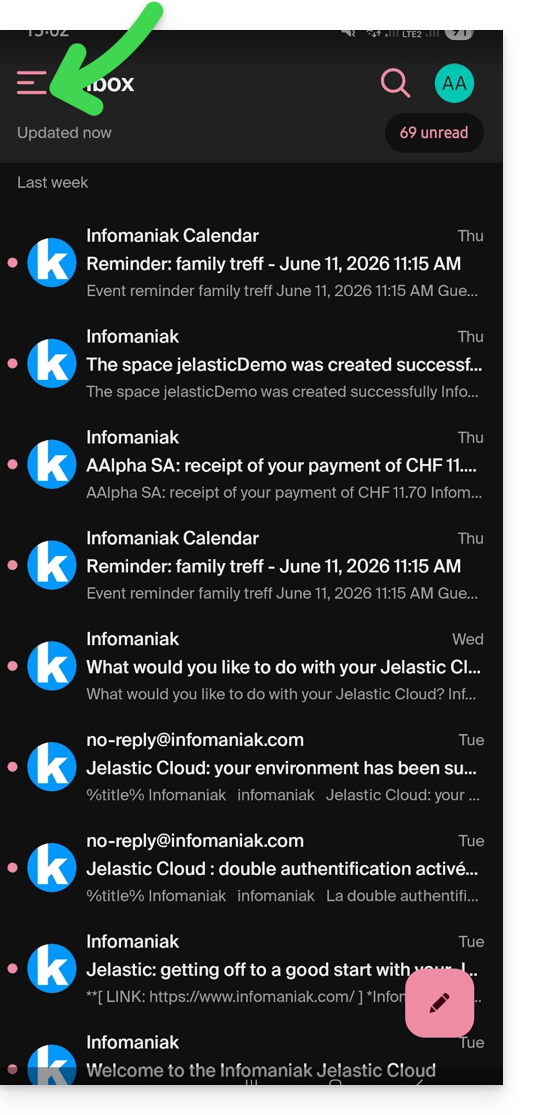
- Click on the Settings icon in the top right of the panel that opens:
- You can manage the settings from the screen that appears:
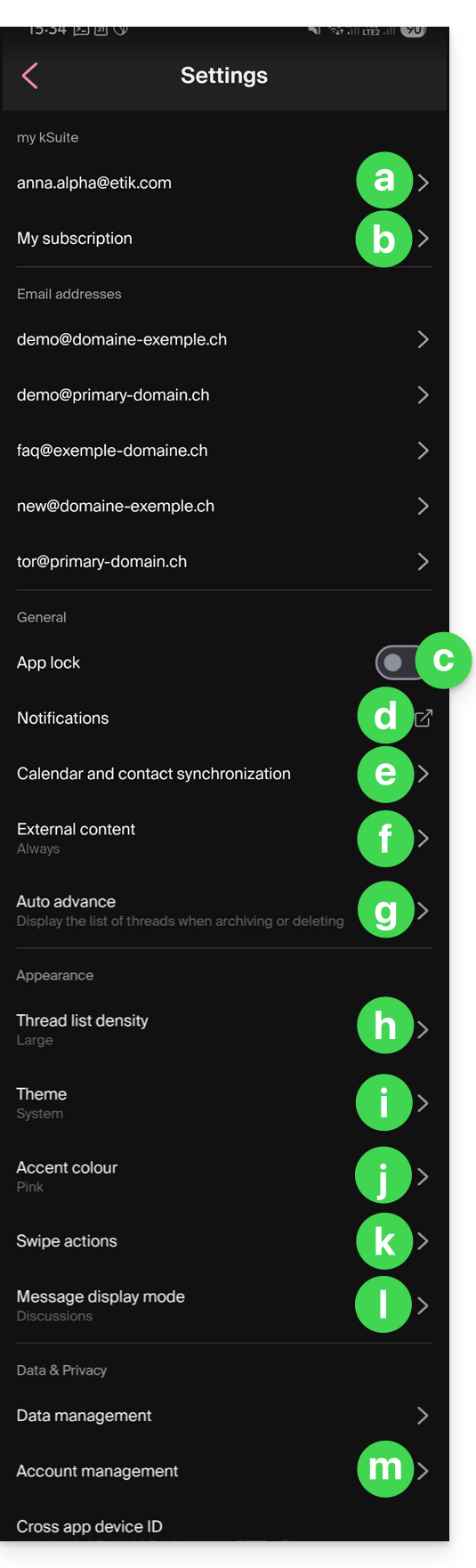
a. Signature selection
If you have multiple email addresses linked to your account, tap on the email address for which you want to change the signature. Then, choose a different signature from the configured signatures.
On iOS, you can also manage your read receipt requests.
b. my kSuite only
Provides information about the current subscription. Example: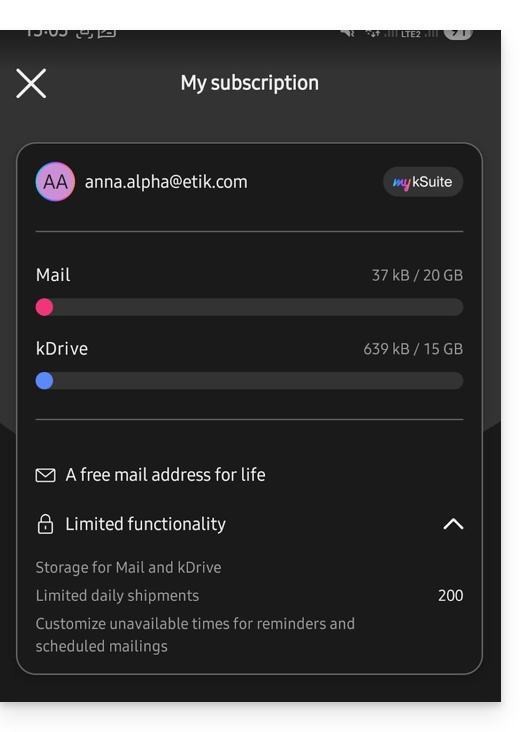
c. App lock
This option allows you to protect the application using one of your device's lock methods. This ensures that you remain logged into your Infomaniak account, but prevents third parties from accessing Infomaniak Mail when the app is no longer in the list of open applications.
If your device has a fingerprint reader, you can use this method to enable the lock. The same applies to Face ID on iOS.
When you reopen the application, you will be prompted to authenticate.
d. Device Notifications
You can configure notifications for each of the email addresses linked in the application.
e. Contacts & Calendar Synchronization
Currently, this synchronization is managed externally; please refer to the https://config.infomaniak.com/ wizard.
f. External Content
This section allows you to choose whether to automatically display all external content within an incoming email that you are reading, or whether to hide it and only display it on demand.
g. Automatic Advance
This section allows you to choose the action to be performed after archiving or deleting an email: open the next message, or the previous message, or return to the message list.
h. Conversation List Density
The display mode can be compact, normal, or wide.
i. Theme
The theme allows you to choose between a dark mode (dark) display or, conversely, a bright black-on-white display. This display can also be defined based on the device's theme (allowing you to use any system setting that changes the display based on the time of day).
j. Accent color
The accent color is either blue or pink.
k. Swipe actions
Swipe actions allow you to define what action Infomaniak Mail should perform if you swipe your finger on a message from right to left or from left to right in the list (including the “long swipe” on iOS):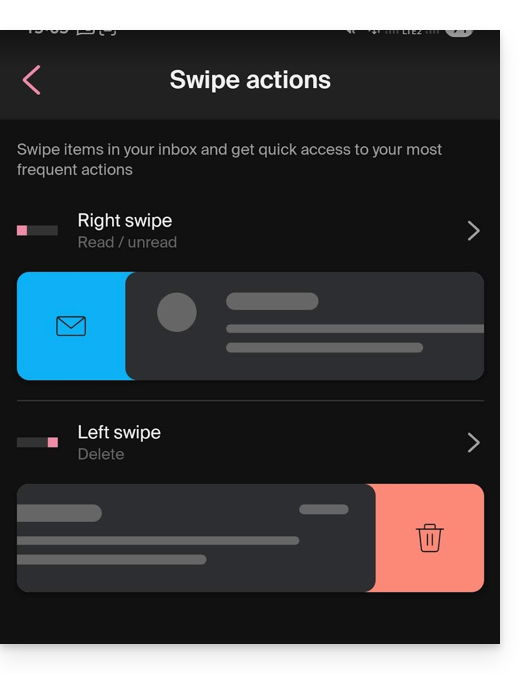
The possible actions are:
- delete the message (it goes to the trash)
- archive the message (it goes to an archive folder)
- mark as read or unread
- move the message (and in this case, the list of folders is displayed after a swipe)
- favorites (to enable tracking of the message)
- report as spam
- quick actions menu (also accessible from the message view, which allows you to write a reply, forward, delete, print, etc.)
You can also choose "none" to avoid actions that you may not want if your device is not suitable for swiping: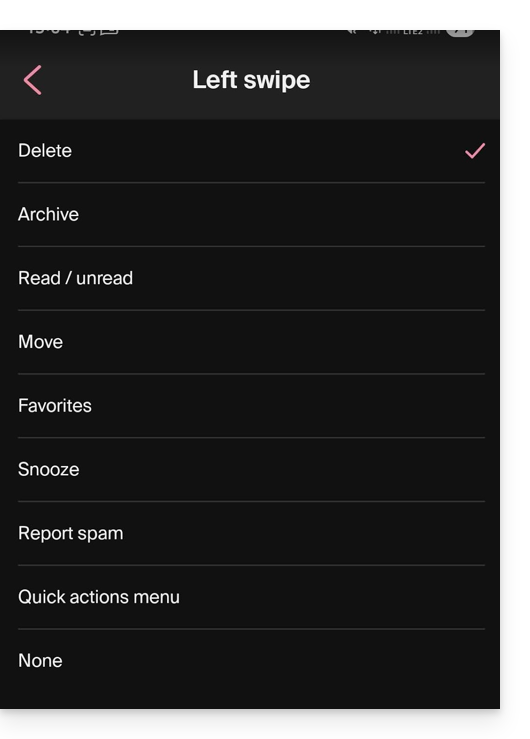
l. Message display mode
Choose between displaying messages individually or using “thread”/“conversation” mode, which groups your emails by topic/sender. This means emails received are grouped according to the subject of the discussion, making the inbox display cleaner and easier to follow the messages from the different participants in the conversation:
Account Management
Allows you to delete your Infomaniak account (after confirming that you have read the important warning). Also, please refer to this other guide: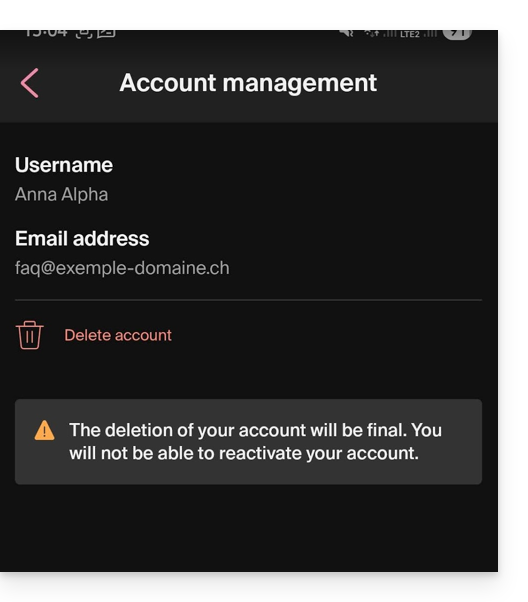
Link to this FAQ: https://faq.infomaniak.com/1696
Has this FAQ been helpful?
This guide is for you if you want to change your current email provider and host your emails with Infomaniak.
Introduction
- To help you identify the offer that best suits your needs, please refer to this other guide.
- To avoid losing any messages and experiencing any interruptions:
- Follow the links in the order they are presented; they will open in a new tab in your browser, and return to this main guide after completing each step.
- If needed, you can also migrate your:
You are ordering a Mail Service only
Below are the different steps to securely migrate your email service to Infomaniak.
Step 1
You need to order the mail service by following this guide.
When placing your order, you can choose to transfer the domain name at the same time or order the mail service separately.
You can then import the content from your old email addresses to Infomaniak: refer to this other guide.
Step 2
Once the addresses are configured and your old content has been imported, you will be able to connect your external domain name to your Infomaniak Mail serviceto start receiving emails with Infomaniak. You will need to follow the "Link your external domain to your Mail Service" chapter of this guide.
You will find the MX/SPF records to add to your domain's DNS zone here:
SPF
Type: TXT
Host: Leave blank
Target: v=spf1 include:spf.infomaniak.ch -all
MX
Priority: 5
Host: Leave blank
Target: mta-gw.infomaniak.ch (for Gandi, it is necessary to add a period at the end: "mta-gw.infomaniak.ch.")
Step 3 (optional)
Once everything is working correctly, and if you haven't already done so, you can transfer your domain name: refer to this other guide.
Once the transfer has started, you should have access to the DNS zone of your domain name in the Infomaniak Manager. You can then check…
1. … in the DNS diagnostic to see if any corrections need to be made and, if necessary, add the DNS entries that would be required for other services used with your domain name (newsletter or other).
2. … in the global security tab of your email service to check if DKIM is properly enabled.
If emails arrived during the migration with your previous provider, you can import the content of your old addresses into Infomaniak again by following this guide (duplicates are handled).
You are ordering a kSuite
Below are the different steps to securely migrate your external email service to an Infomaniak kSuite.
Step 1
Order kSuite from this page.
Once the order is complete, access your kSuite and add your domain name to it.
You can then create your email addresses and even import the content from your old addresses: see this other guide.
Step 2
Once the addresses are configured and your old content has been imported, link your external domain name to your Infomaniak Mail Service to start receiving emails with Infomaniak. Refer to the "Linking your external domain to your Mail Service" section of this other guide.
You will find the MX/SPF records to add to the DNS zone of your domain name here:
SPF
Type: TXT
Host: Leave blank
Target: v=spf1 include:spf.infomaniak.ch -all
MX
Priority: 5
Host: Leave blank
Target: mta-gw.infomaniak.ch (for Gandi, it is necessary to add a period at the end: "mta-gw.infomaniak.ch.")
Step 3 (optional)
Once everything is working correctly, and if you haven't already done so, you can transfer your domain name: refer to this other guide.
As soon as the transfer is initiated, you should have access to the DNS zone of your domain name in the Infomaniak Manager. You can then check…
1. … in the DNS diagnostic if there are corrections to be made, and if necessary, add the DNS entries that would be needed for other servicesused with your domain name (newsletter or other).
2. … in the global security tab of your email service if DKIM is enabled.
If emails arrived during the migration from your previous provider, you can import the content of your old addresses into Infomaniak again by following this guide (duplicates are handled).
Link to this FAQ: https://faq.infomaniak.com/2575
Has this FAQ been helpful?
This guide allows you to manage external applications with kChat using webhooks.
Preamble
- A webhook is a method that allows an application to be immediately informed when a particular event occurs in another application, rather than constantly asking this application if something new has happened ("polling").
- Outgoing webhook: kChat communicates information to other apps when an event occurs in kChat.
- Incoming webhook: kChat receives information from other apps to trigger actions in kChat.
- It is not possible to import the chat history from another application (Slack, Teams, Jabber, etc.) or from another Organization.
⚠ Max. number of incoming/outgoing webhooks:
| kSuite | free | 1 / 1 |
| Standard | 20 / 20 | |
| Business | unlimited | |
| Enterprise | unlimited | |
Access the kChat webhooks interface
Prerequisites
- Not being an external user (this user will not see the menu Integrations).
To configure a webhook, find self-hosted or third-party applications and integrations:
- Click here to access the Web app kChat (online service ksuite.infomaniak.com/kchat) or open the desktop app kChat (desktop application on macOS / Windows / Linux).
- Click on the New icon next to your kChat organization's name.
- Click on Integrations:
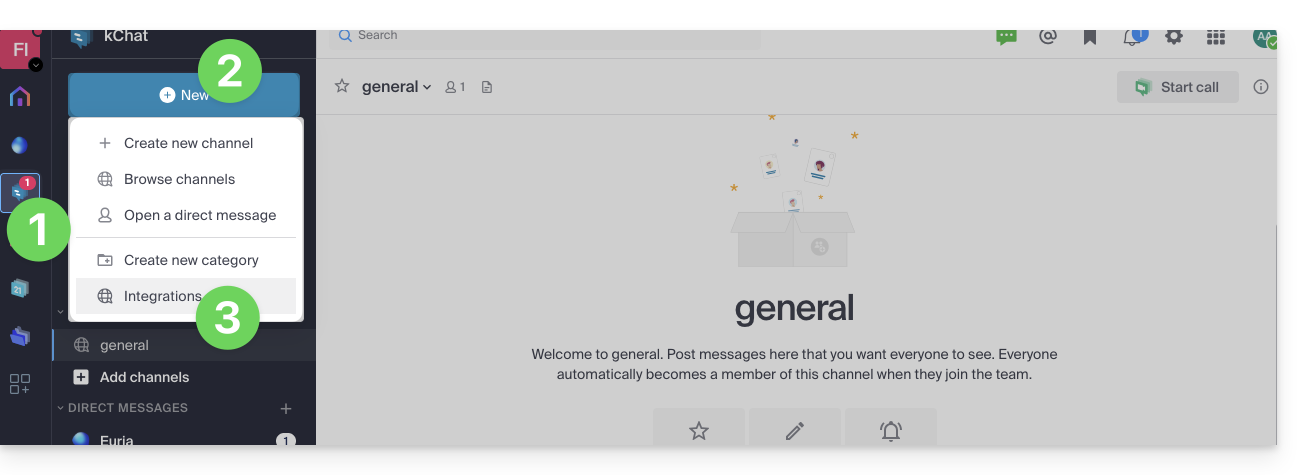
- Access the categories:
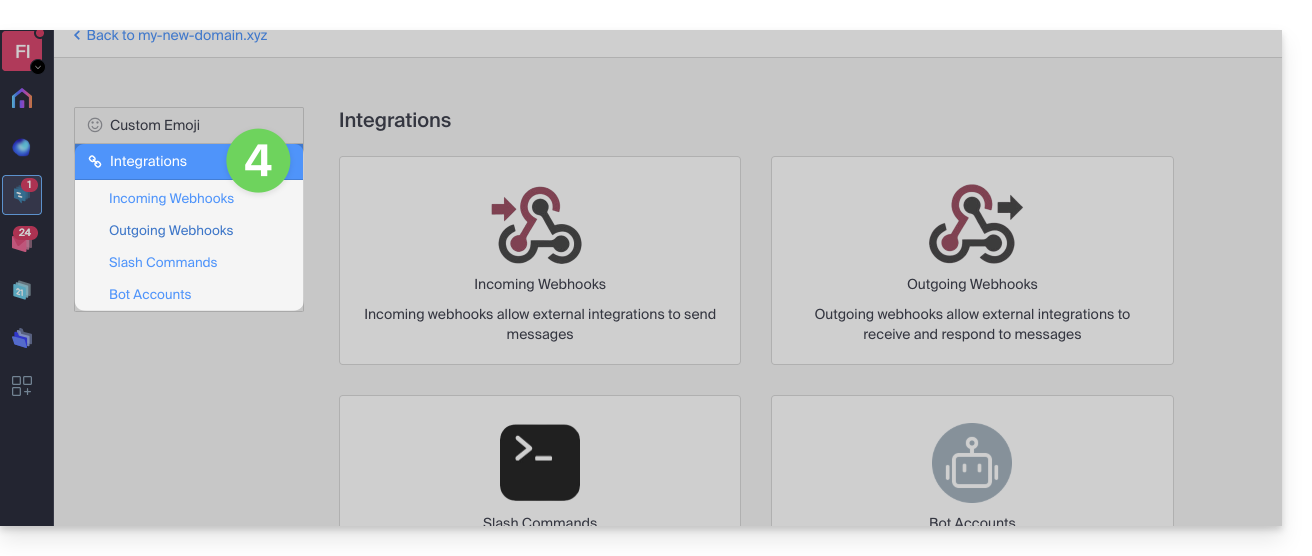
Specific guides
Integration examples on kChat:
- Calendar Infomaniak: display an event reminder on kChat
- application n8n: trigger sending a message on kChat
Guides for any other use
To create an incoming webhook (to display an external event on kChat):
- Click on the Incoming Webhooks category.
- Click on the blue button Add incoming webhooks:
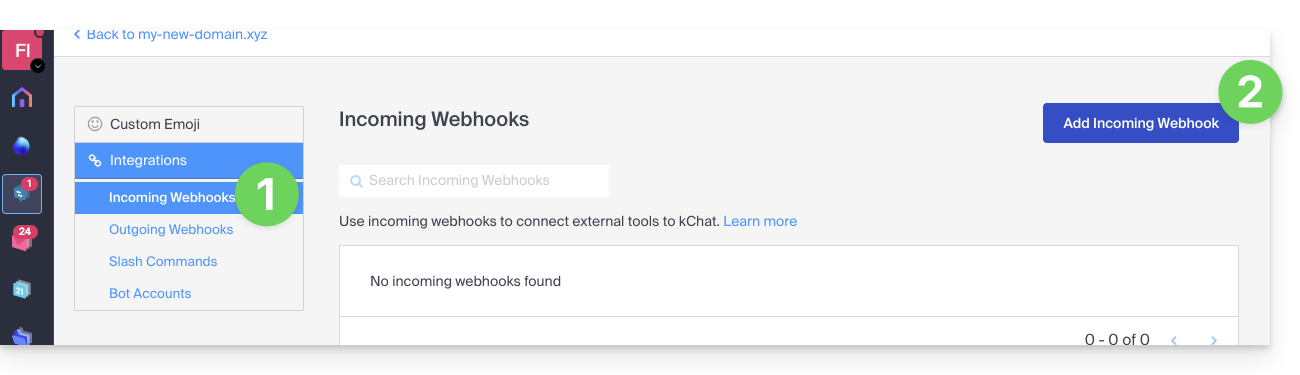
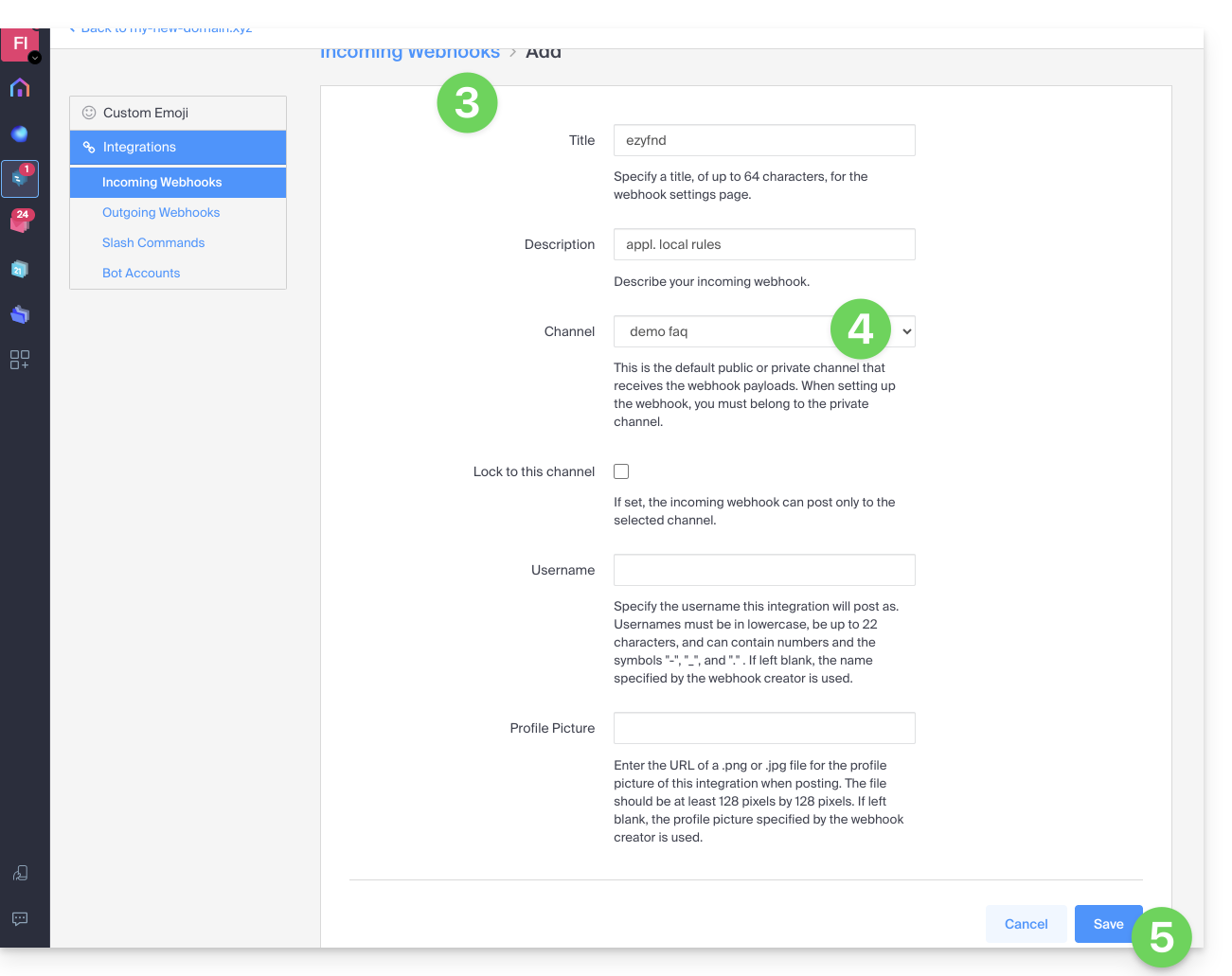
- Add a name and description for the webhook.
- Select the channel that will receive the messages.
- Click on the button to Save:
- The URL to keep for your developments is displayed (do not disclose it publicly); example “
https://your-server-kchat.xyz/hooks/xxx-key-generated-xxx”: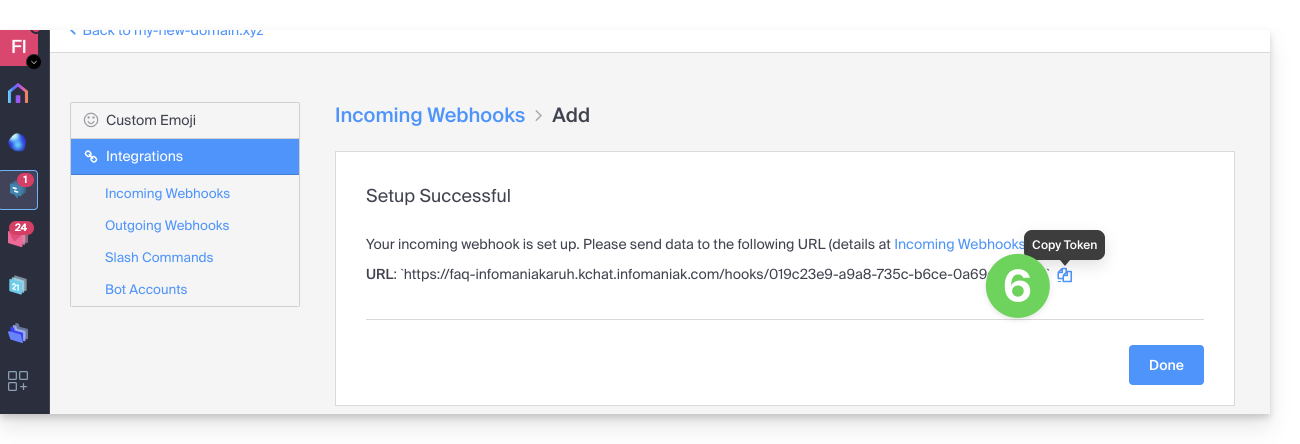
Webhook usage
Quick example
- A specific
curlcommand (detailed below) is entered in a terminal. - The command contains the URL obtained in point 6 above.
- The command will result in posting a message in the channel specified in point 4 above:
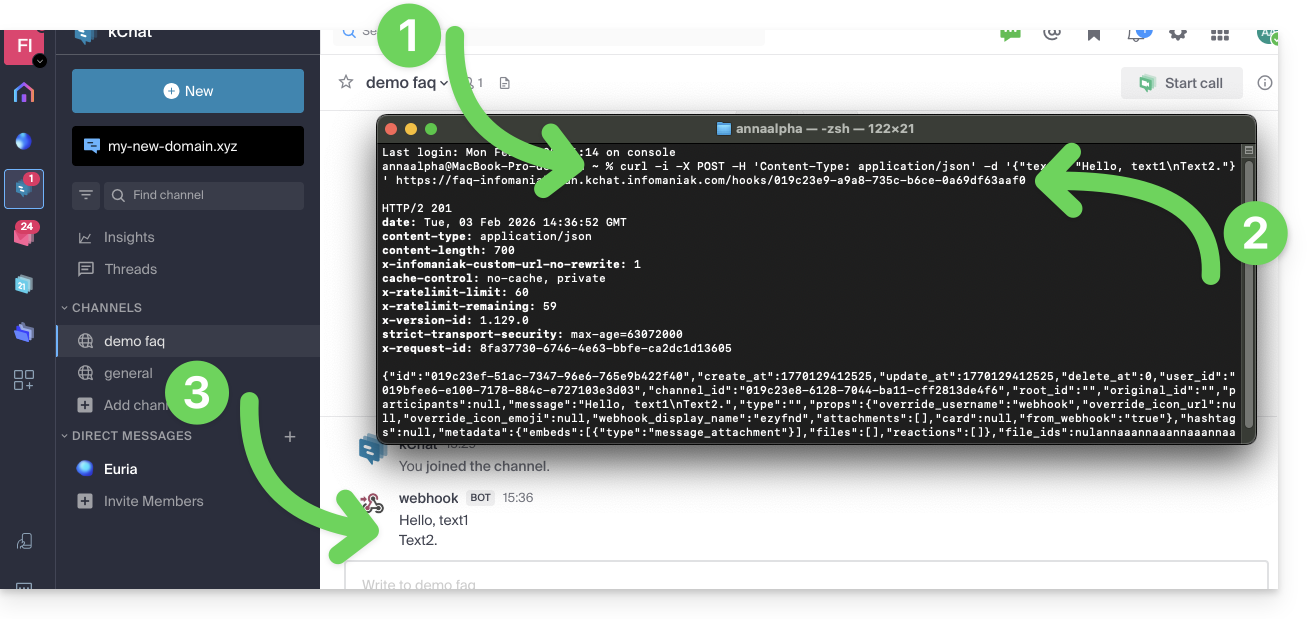
Details
On the application that needs to post on kChat:
Adjust the code below according to the URL obtained on kChat:
POST /hooks/xxx-key-generated-xxx HTTP/1.1
Host: your-server-kchat.xyz
Content-Type: application/json
Content-Length: 63
{
    "text": "Hello, text1\nText2."
}
Optionally, use the same request but in
curl(to test from aTerminaltype application (command line interface,CLI / Command Line Interface) on your device) as in the image example above:curl -i -X POST -H 'Content-Type: application/json' -d '{"text": "Hello, text1\nText2."}' https://your-server-kchat.xyz/hooks/xxx-key-generated-xxx
The BOT indication is added next to the username on kChat for security reasons.
If no Content-Type header is defined, the request body must be preceded by payload= as follows:
payload={"text": "Hello, text1\nText2."}A successful request will receive the following response:
HTTP/1.1 200 OK
Content-Type: application/json
X-Version-Id: 4.7.1.dev.12799dvd77e172e8a2eba0f4041ec1471.false
Date: Sun, 01 Jun 2023 17:00:00 GMT
Content-Length: 58

{
    "id":"x",
    "create_at":1713198308869,
    "update_at":1713198308869,
    "delete_at":0,
    "user_id":"x",
    "channel_id":"x",
    "root_id":"",
    "original_id":"",
    "participants":null,
    "message":"test",
    "type":"",
    "props":{
        "override_username":"webhook",
        "override_icon_url":null,
        "override_icon_emoji":null,
        "webhook_display_name":"test",
        "attachments":[

        ],
        "card":null,
        "from_webhook":"true"
    },
    "hashtags":null,
    "metadata":{
        "embeds":[
            {
                "type":"message_attachment"
            }
        ],
        "files":[

        ],
        "reactions":[

        ]
    },
    "file_ids":null,
    "has_reactions":false,
    "edit_at":0,
    "is_pinned":false,
    "remote_id":null,
    "reply_count":0,
    "pending_post_id":null,
    "is_following":false
}
If you want to have the same response format as Slack:
HTTP/1.1 200 OK
Content-Type: text/plain
X-Request-Id: hoan69ws7rp5xj7wu9rmystry
X-Version-Id: 4.7.1.dev.12799dvd77e172e8a2eba0f4041ec1471.false
Date: Sun, 01 Jun 2023 17:00:00 GMT
Content-Length: 2
ok
you must add ?slack_return_format=true to the webhook URL.
Parameters
In addition to the text field, here is the complete list of supported parameters:
| Parameter | Description | Required |
|---|---|---|
text | Markdown-formatted message to display in the post. To trigger notifications, use “@<username>”, “@channel” and “@here” as you would in other kChat messages. | If attachments is not defined, yes |
channel | Replaces the channel in which the message is posted. Use the channel name, not the display name, for example “town-square”, not “Place de la ville”. Use “@” followed by a username to send a direct message. By default, uses the channel defined when the webhook was created. The webhook can post in any public and private channel where the webhook creator is present. Posts in direct messages will appear in the direct message between the targeted user and the webhook creator. | No |
username | Replaces the username under which the message is posted. By default, uses the username defined when the webhook was created; if no username was defined during creation, uses webhook. | No |
icon_url | Replaces the profile picture with which the message is posted. By default, uses the URL defined when the webhook was created; if no icon was defined during creation, the standard webhook icon () is displayed. The configuration parameter Allow integrations to replace profile picture icons must be enabled for the icon replacement to take effect. | No |
icon_emoji | Replaces the profile picture and the parameter icon_url.By default, nothing is defined when creating the webhook. The expected value is the name of an emoji as it is typed in a message, with or without colons ( :).The configuration parameter Allow integrations to replace profile picture icons must be enabled for the replacement to take effect. | No |
attachments | Attachments to the message used for richer formatting options. | If text is not defined, yes |
type | Defines the type of publication, mainly for use by plugins.If not empty, must start with " custom_". | No |
Example code with parameters
Here is how to generate a more complete message with parameters, some of which can replace parameters already set when creating the webhook (username, preferred channel, avatar...) as indicated in the table above:
curl -i -X POST -H 'Content-Type: application/json' \
-d '{
"username": "System Monitor",
  "icon_url": "https://cdn-icons-png.flaticon.com/512/5971/5971593.png",
  "text": "### System Status Report\nEnvironment: PRODUCTION\nStatus: SUCCESSFUL\n\n---\n\n| Component | Version | Build ID | Status |\n|:----------|:-------:|:---------|:-------|\n| API-Core  | 2.4.1   | #88421   | OK     |\n| Web-UI    | 1.9.0   | #88425   | OK     |\n| Database  | 14.5    | N/A      | OK     |\n\n---\n\n**Commit Reference:**\n`git-ref: a7f8e9c21b` \n\n**Summary:**\nAll automated integration tests passed successfully. No manual intervention is required. Please contact the DevOps team for further details regarding this release."
}' \
https://faq-infomaniakaruh.kchat.infomaniak.com/hooks/019c23e9-a9a8-735c-b6ce-0a69df63aaf0
Result of a similar example in image: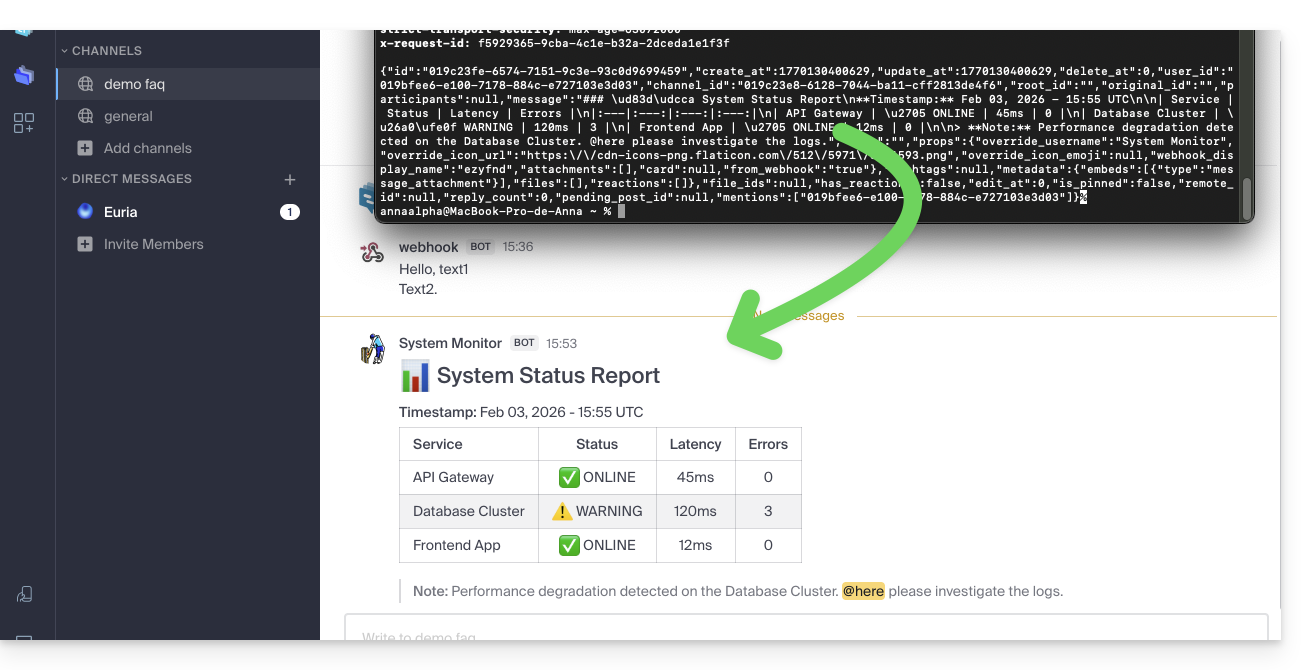
Link to this FAQ: https://faq.infomaniak.com/2001
Has this FAQ been helpful?