Knowledge base
1000 FAQs, 500 tutorials and instructional videos. Here, there are only solutions!
This guide explains how to enable or disable read receipt requests from the Web app Mail Infomaniak (online service ksuite.infomaniak.com/mail).
Preamble
- Read receipt requests are compatible with most email systems.
- However, they depend on the user's actions and the settings of their email system.
- The receipt (or non-receipt) of a read receipt does not guarantee anything (the logs may be more suitable for certain cases).
Request a read receipt
To allow your correspondent to easily confirm the successful receipt of your message sent from the Web app Mail Infomaniak (online service ksuite.infomaniak.com/mail):
- Click here to access the Web app Mail Infomaniak (online service ksuite.infomaniak.com/mail).
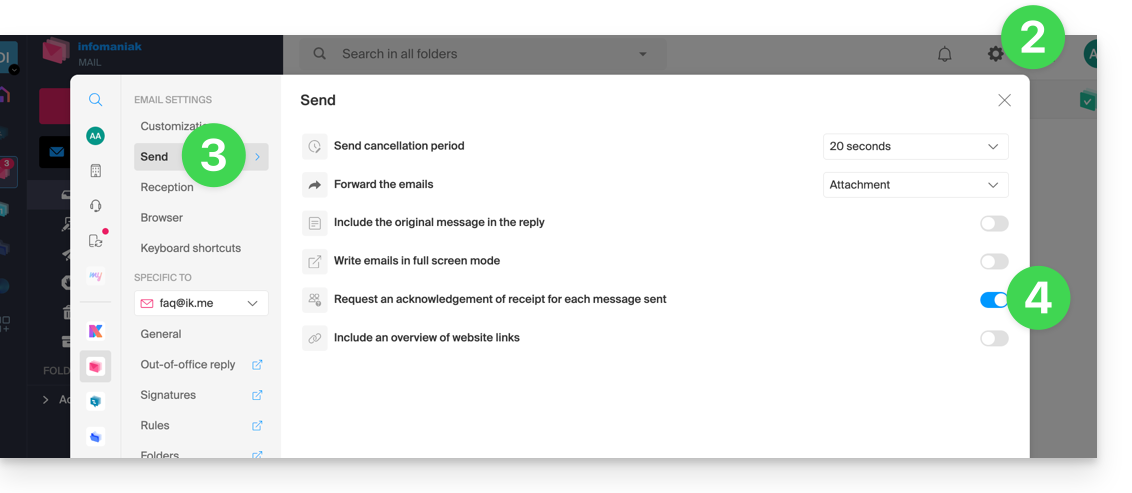
- Click on the Settings icon in the top right of the interface.
- Click on Send in the left sidebar.
- Enable the toggle switch to request a read receipt:
- Click on Filters and rules (in the Email address settings section).
Note that it is also possible to enable it on a case-by-case basis when sending your message on Mail, from the composition options by clicking on ⋮ then on the option in question: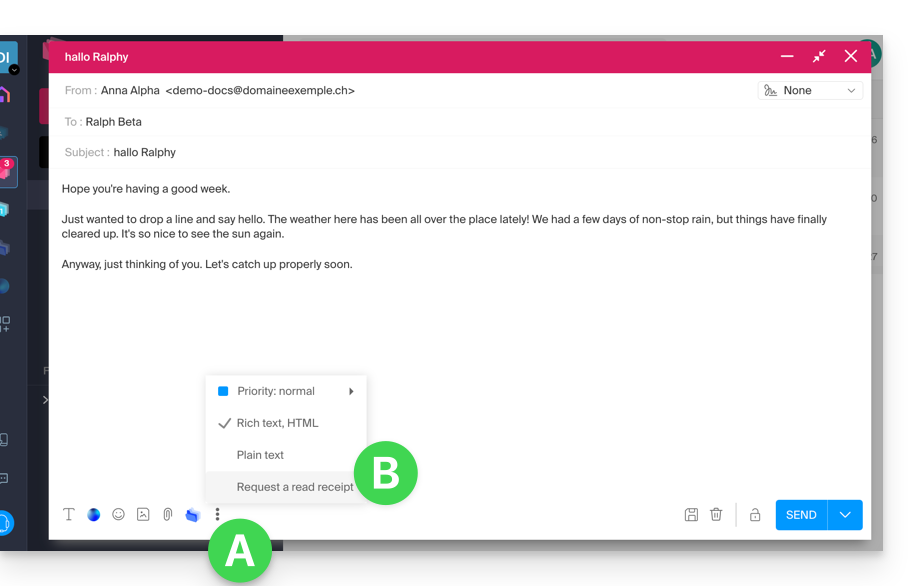
Confirm receipt of the message
If you receive an email and view it on the Web app Mail Infomaniak (online service ksuite.infomaniak.com/mail) while its sender has specifically requested to be notified, you can confirm receipt of the message when reading it: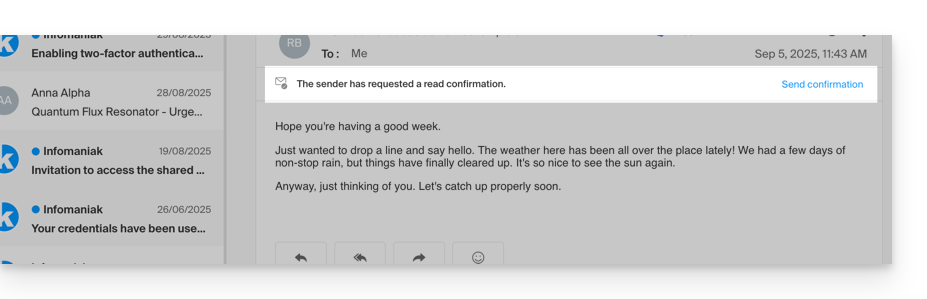
Link to this FAQ:
Has this FAQ been helpful?
This guide explains how to initialize your Cloud VPS / VPS Lite with Windows when first connecting.
Initializing a Cloud Server with Windows
You need to change the password of your Windows user before you can connect via RDP (Remote Desktop Protocol) to your server; otherwise, an error is returned (indicating that the password must be changed).
To do this, you need to connect using the VNC console the very first time.
Once the user password has been changed (via VNC), it will be possible to connect without any issues via RDP. This protocol is already activated on the Infomaniak Windows images.
Login credentials
- Username:
- for Windows 11 Professional =
Infomaniak - for Windows 10 Professional =
Infomaniak - for Windows Server =
Administrator
- for Windows 11 Professional =
- Password: the one you chose when ordering the server; if you forget it, please reset the server.
- IP address: the one indicated in your server's dashboard.
Connect via RDP…
- … on Windows: Remote Desktop is a built-in feature.
- … on macOS: install the free desktop app Windows App (formerly Microsoft Remote Desktop).
- … on Linux: install the app Remmina.
Link to this FAQ:
Has this FAQ been helpful?
This guide explains how to delete an Infomaniak Organization.
Preamble
- The Organization must be empty of all products and all other users except yourself.
- This will not delete your user account.
- As a reminder, you can create multiple Organizations (i.e., a space to manage your products) and be a user of several of them, for example, to manage different products belonging to multiple entities; an administrator can delete one of them.
Delete the Organization
Prerequisites
- Cancel all products present in the Organization.
- The termination of the services contained in the Organization can be performed during the deletion steps.
- Pay outstanding invoices.
- Paid invoices can be obtained by email during the deletion steps.
- Remove other users with access to the Organization.
- Withdraw the money that is on the Infomaniak prepaid account (refer to this other guide in the chapter Retrieve the balance).
To delete an Organization to which you still have access:
- Click here to access the management of your Organization on the Infomaniak Manager.
- Verify that this is the correct Organization.
- If not, switch to another Organization first by going back to the menu and then clicking on the chevron :

- If not, switch to another Organization first by going back to the menu and then clicking on the chevron :
- Click on Delete the Organization:

- Confirm the deletion and/or read the on-screen explanations.
If the red link is not displayed, make sure you have met all the prerequisites above.
Link to this FAQ:
Has this FAQ been helpful?
This guide explains how to mark your chosen emails as "favorite" on the Infomaniak mail service to have "tracking" of these messages and to display them separately if you wish.
Monitor one or more messages…
… from the Infomaniak Web Mail app
To add a message as a favorite:
- Click here to access the Infomaniak Web Mail app (online service ksuite.infomaniak.com/mail).
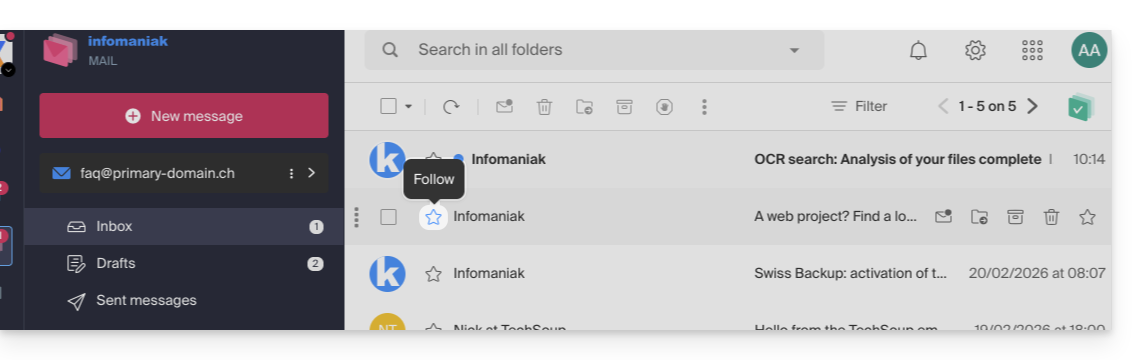
- Click on the ☆…
- … to the left of a message in the message list
- … at the top right of the message reading window
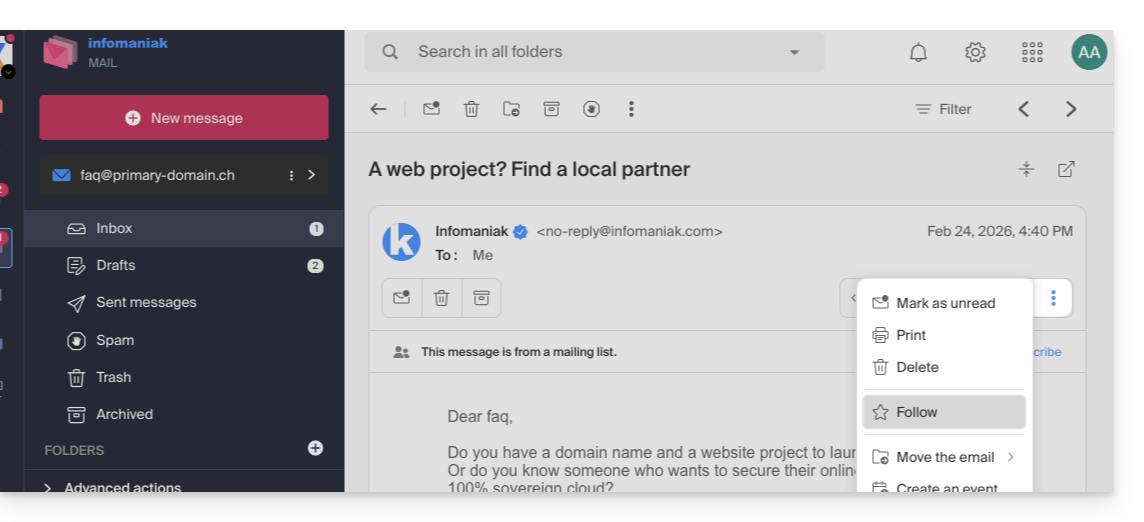
- … to the left of a message in the message list
- Once tracking is enabled, a dropdown menu in the top right corner allows you to display only a selection of your received messages according to several criteria: All, Read, Unread, Tracked, Untracked:
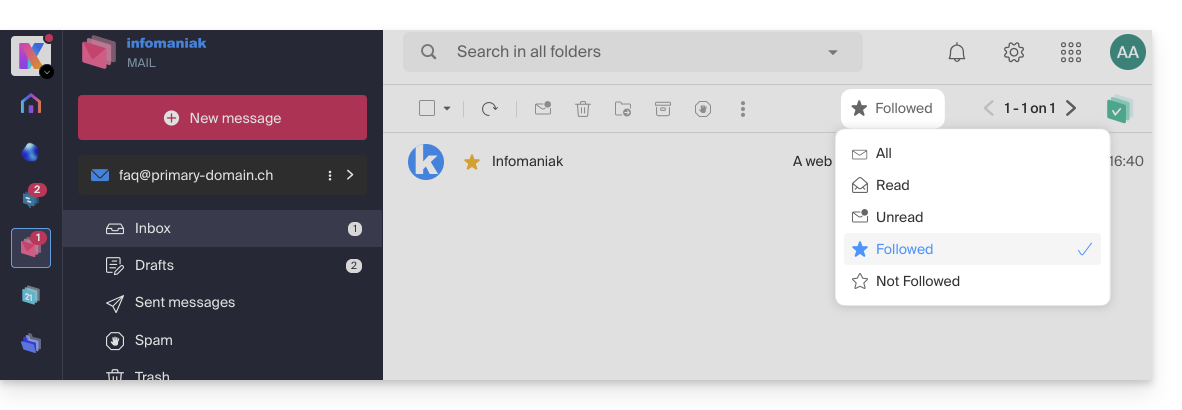
It is also possible to define an action on hover or add a shortcut in the bar above the message lists: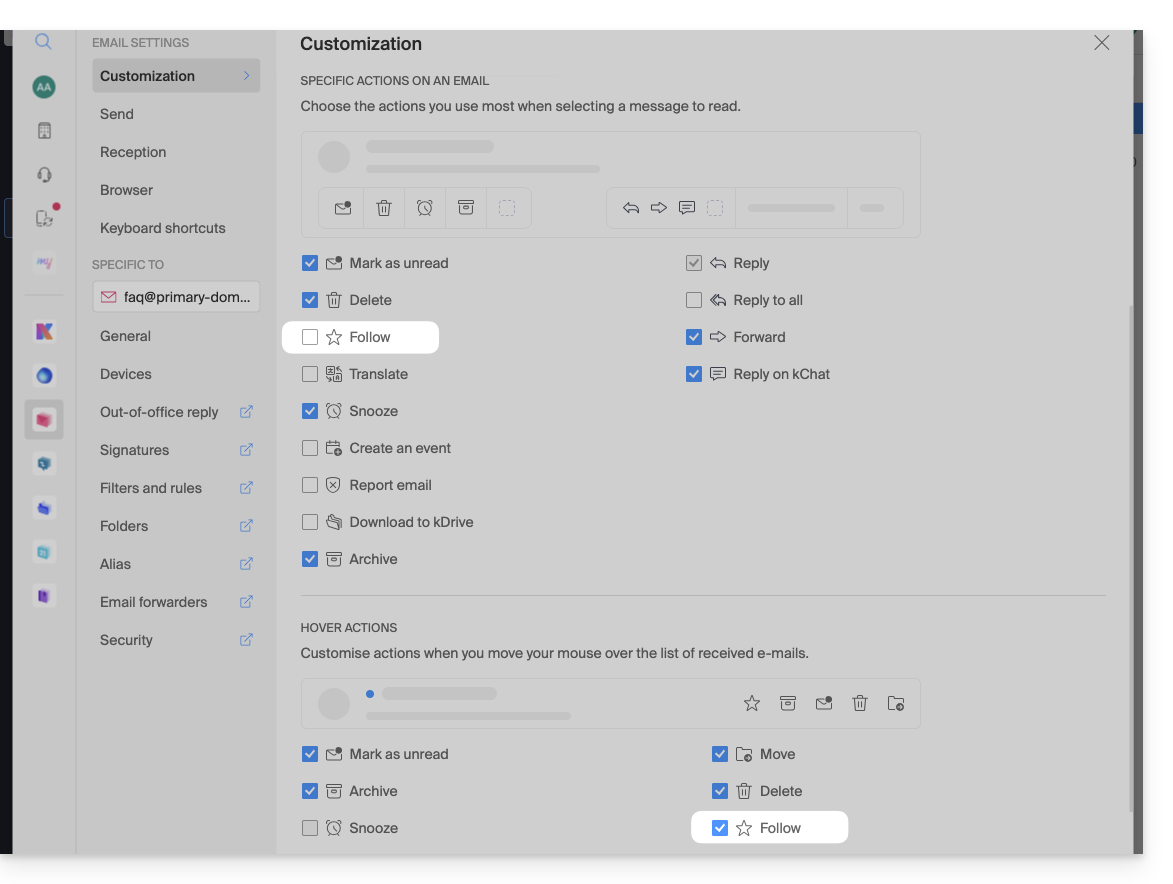
… from the Infomaniak Mail mobile app
On the message list:
- Press and hold your finger on a message.
- Press the ☆ icon at the bottom of the screen:
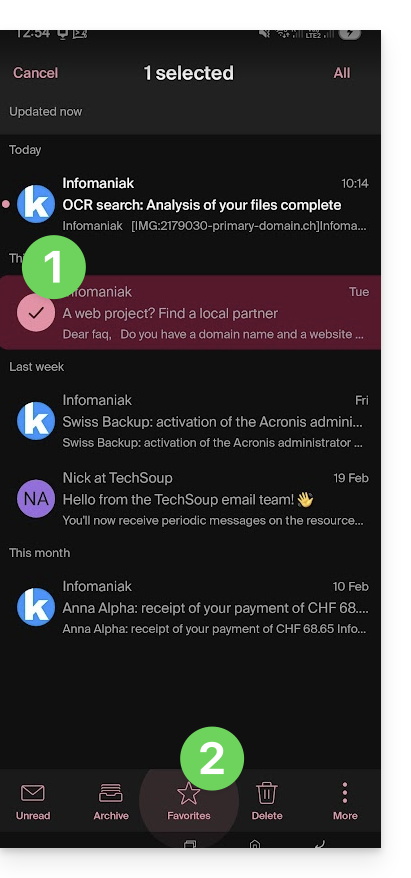
On a message being read:
- Press the ☆ icon at the top right of the message reading window:
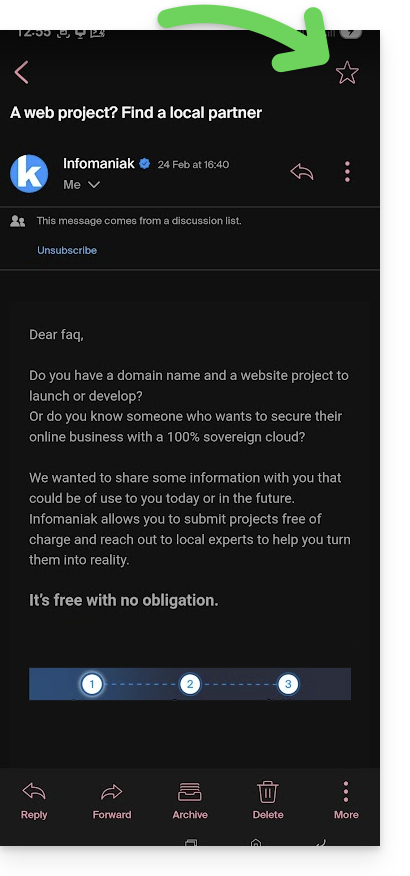
It is also possible to define a swipe gesture that would lead to a favorite marking of the message swiped with one finger.
Link to this FAQ:
Has this FAQ been helpful?
This guide concerns Domain Privacy which protects the owner's details of a domain in the WHOIS directory, and more particularly the domain name extensions compatible with this service.
Preamble
- The possibility of masking or not the owner's details may vary depending on the extension.
- Most domain extensions are supported by Domain Privacy protection.
Extensions compatible with Domain Privacy
To be informed of the support or not depending on the extension that interests you:
- Go to this page.
- Specify the desired extension.
- Click on the magnifying glass icon to start the search:
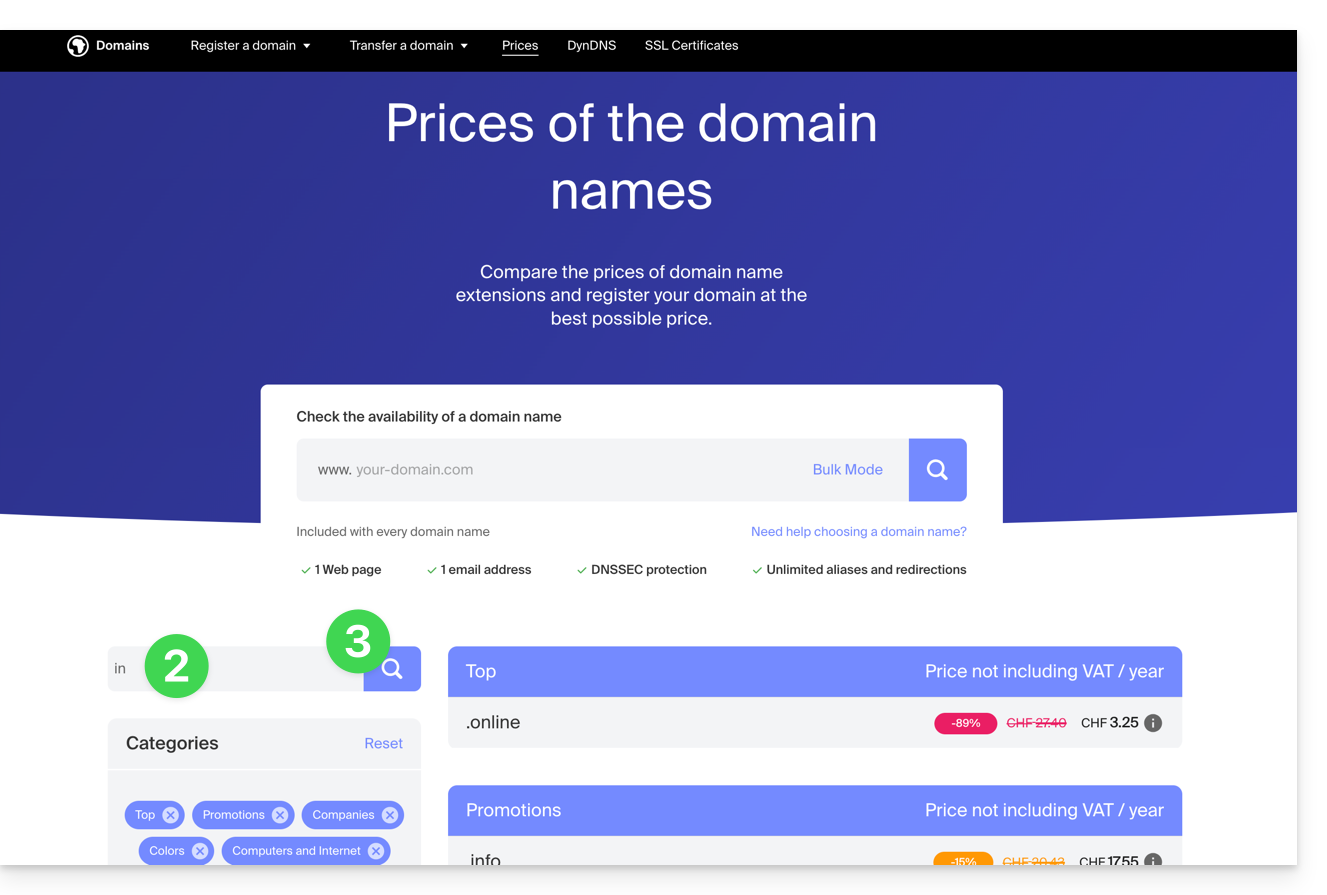
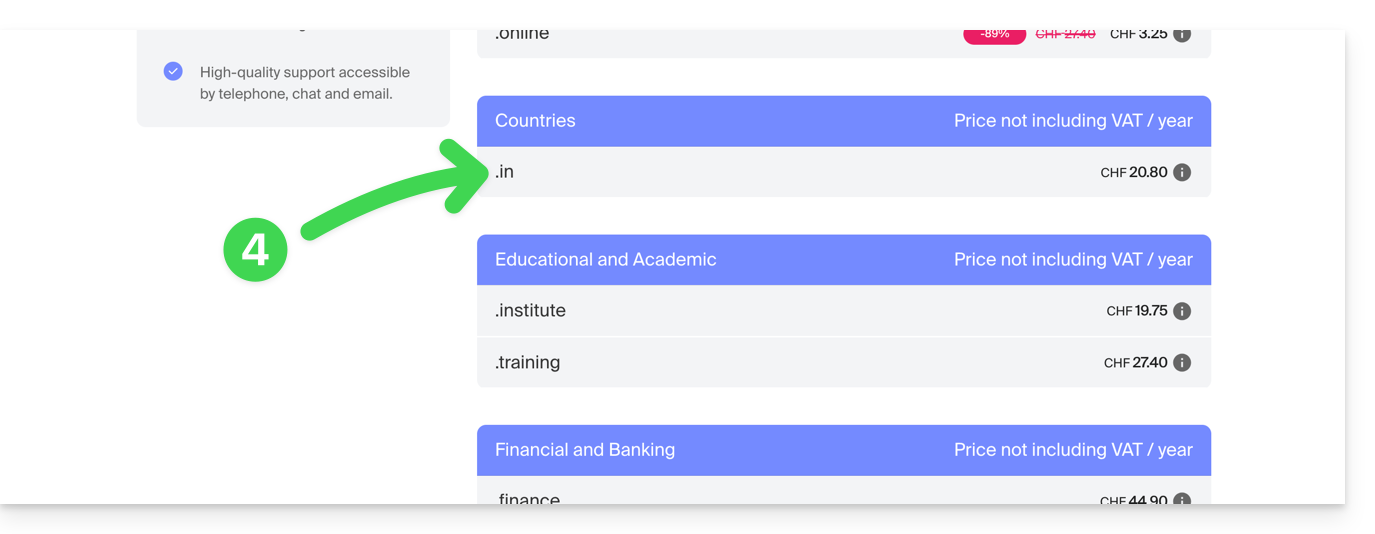
- Click on the desired extension from the results displayed in the sidebar:
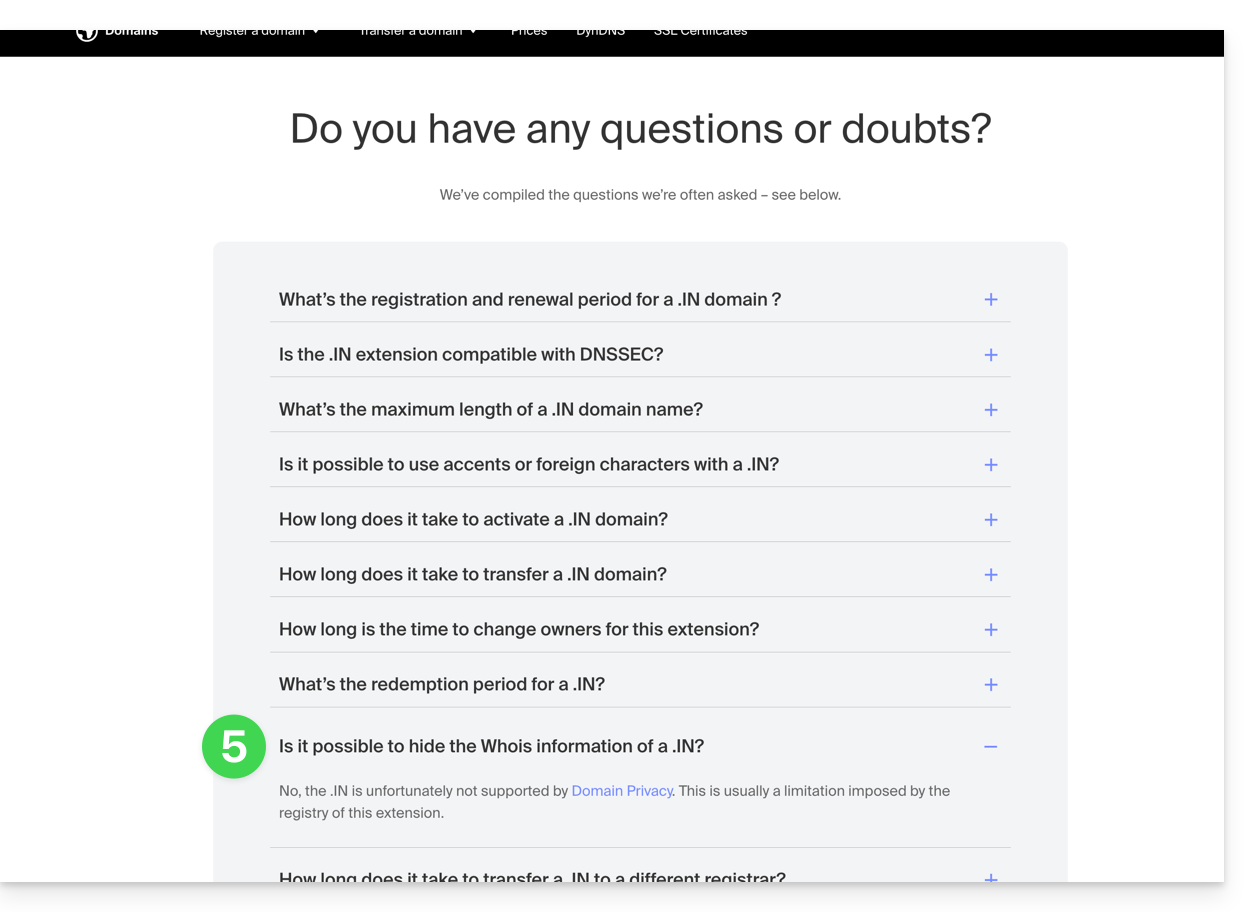
- Scroll down to the Frequently Asked Questions and read the required information:
Non-exhaustive list provided as an example:
ac
academy
accountant
accountants
actor
adult
aero
agency
airforce
apartments
archi
army
art
asia
associates
auction
audio
auto
band
bar
bargains
basketball
best
bet
bid
bike
bingo
bio
biz
black
blackfriday
blue
boutique
builders
business
cab
cafe
cam
camera
camp
capital
cards
care
careers
cars
cash
casino
cat
catering
center
ch
chat
cheap
christmas
church
city
claims
cleaning
click
clinic
clothing
cloud
club
co
coach
codes
coffee
college
com
com.co
community
company
computer
condos
construction
consulting
contractors
cool
country
credit
creditcard
cricket
cruises
cz
dance
date
dating
deals
degree
delivery
democrat
dental
desi
design
diamonds
diet
digital
direct
directory
discount
doctor
dog
domains
download
education
email
energy
engineer
engineering
enterprises
equipment
estate
events
exchange
expert
exposed
express
fail
faith
family
fans
farm
finance
financial
fish
fitness
flights
florist
flowers
fm
football
forsale
foundation
fr
frl
fund
furniture
futbol
gallery
game
games
gent
gift
gifts
gives
glass
global
gmbh
gold
golf
graphics
gratis
green
gripe
group
guide
guitars
guru
gy
haus
health
healthcare
help
hiphop
hiv
hockey
holdings
holiday
host
hosting
house
immo
immobilien
industries
info
ink
institute
insure
international
investments
io
irish
jetzt
jewelry
juegos
kaufen
kim
kitchen
land
lat
lease
legal
lgbt
li
life
lighting
limited
limo
link
live
loan
loans
lol
love
ltd
maison
management
market
marketing
me
media
memorial
mobi
moda
moe
money
mortgage
nagoya
name
navy
net
net.co
network
news
ninja
nom.co
onl
online
org
partners
parts
party
pet
photo
photography
photos
pics
pictures
pink
pizza
pl
place
plumbing
plus
poker
porn
press
pro
productions
promo
properties
property
protection
pub
pw
qpon
racing
recipes
red
rehab
reisen
rentals
repair
report
republican
rest
restaurant
review
reviews
rich
rip
rocks
run
saarland
sale
salon
sarl
school
schule
science
security
services
sex
sexy
sh
shiksha
shoes
shop
shopping
show
singles
site
ski
social
software
solar
solutions
space
storage
store
stream
studio
style
supplies
supply
support
surgery
systems
taipei
tattoo
tax
taxi
team
tech
technology
tennis
tf
theater
theatre
tienda
tips
tires
tk
tm
today
tokyo
tools
top
tours
town
toys
trade
training
tube
tv
university
uno
vacations
vegas
ventures
vet
viajes
video
villas
vin
vision
voyage
watch
webcam
website
whoswho
wiki
win
wine
works
world
ws
wtf
xyz
yokohama
zone
Link to this FAQ:
Has this FAQ been helpful?
This guide details the behavior of Site Creator by Infomaniak and the site created with it, in response to various screen formats and resolutions.
Prerequisites
- Access Site Creator:
- Click here to access the management of your product on the Infomaniak Manager (need help?).
- Click directly on the name assigned to the relevant Site Creator.
- Click the button Edit my site to start the editor:

View the site on different devices
The sites created with Site Creator are automatically adapted to browsers regardless of their support (computer, mobile device, tablet, large and small screen, etc.). However, they may react differently depending on certain parameters that you can adjust.
To preview the site version based on the reading support:
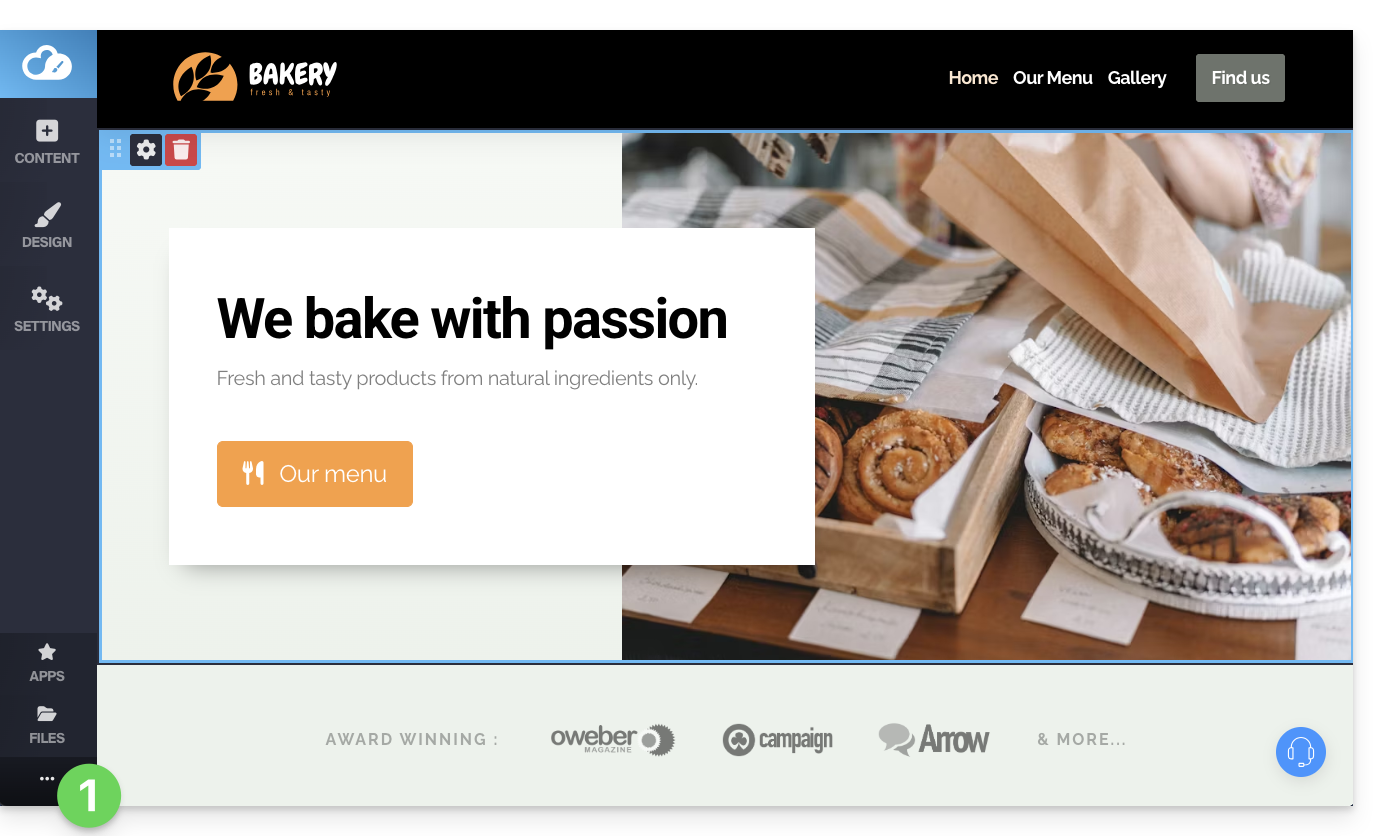
- Click the button ••• located at the very bottom of the left sidebar to expand the publishing and preview options:
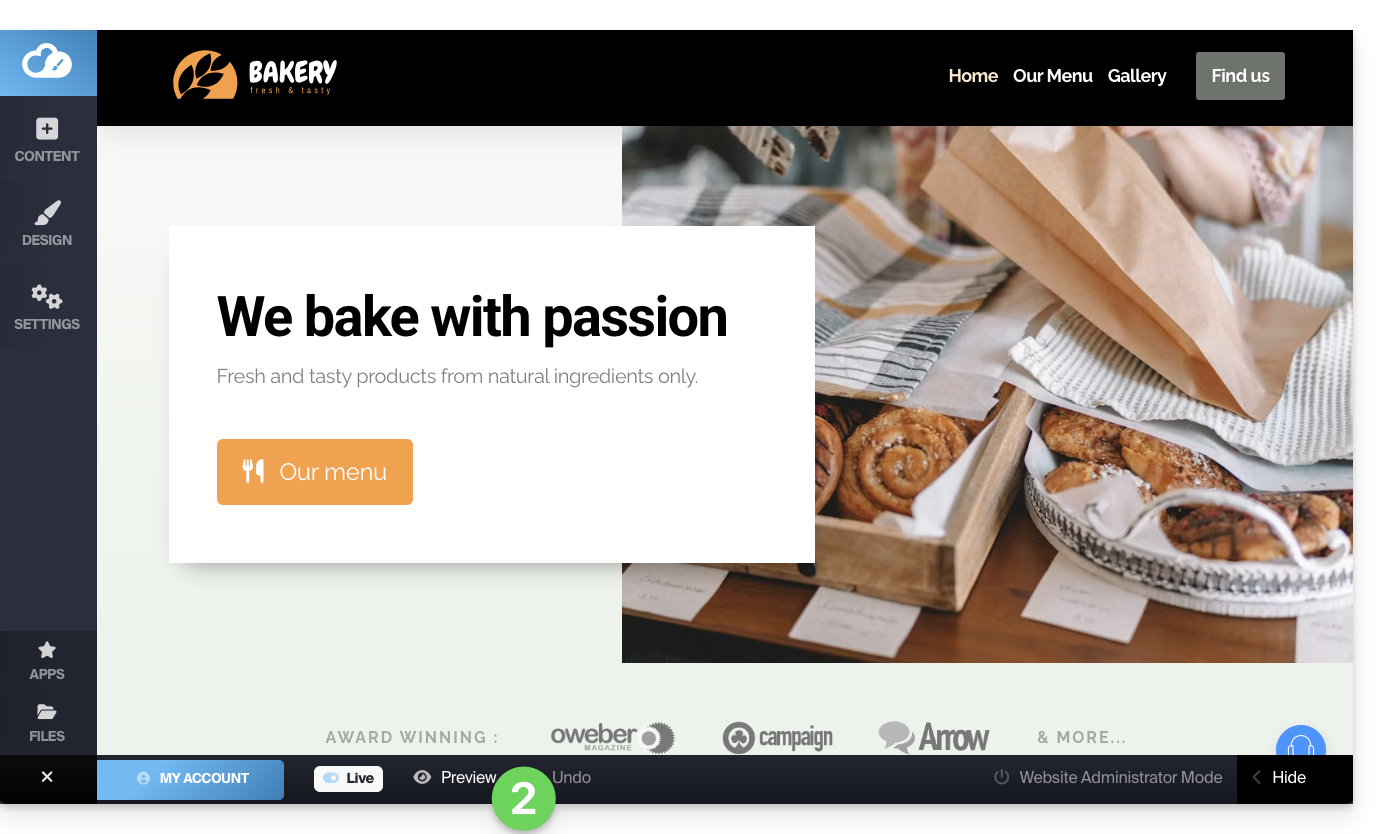
- Click on Preview:
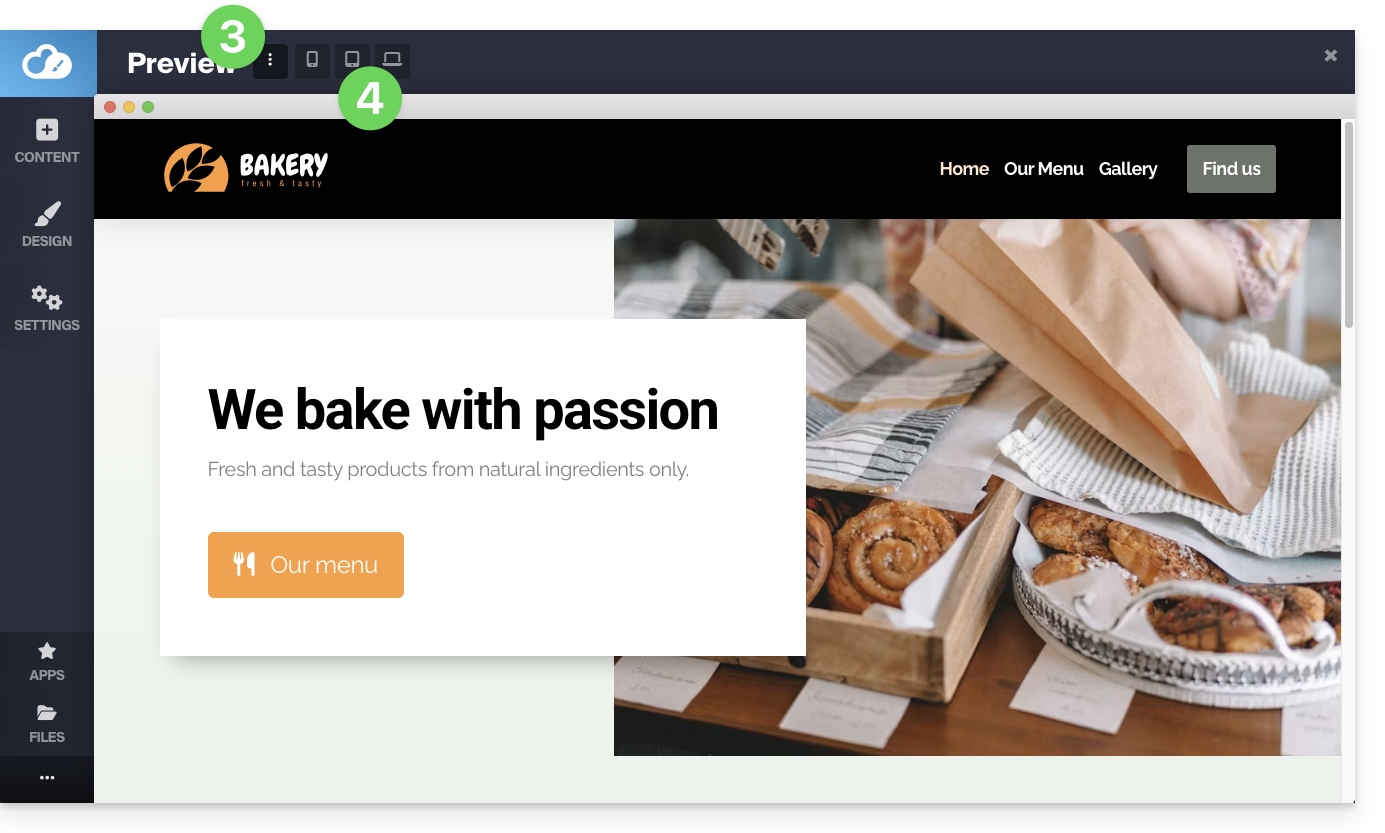
- At the top of the page, click on the action menu ⋮ to the right of Preview to change the type of reading device.
- Click on the different device icons to simulate the different reading formats (mobile, vertical, horizontal...):
Display your site in reduced width
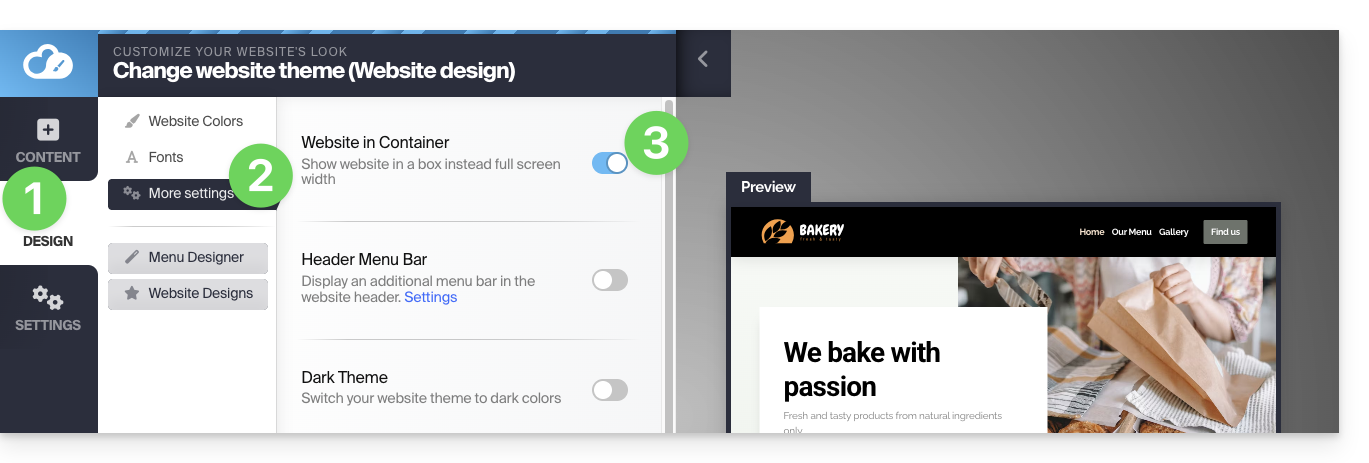
You can reduce the width of your site within a "container" or "box". This special display will only be visible on large screens such as desktop computers:
- Click the Design button in the left sidebar.
- Click on More parameters.
- Activate the toggle switch for the Container display:
- Save the changes at the bottom of the page.
Hide a content block based on the type of device
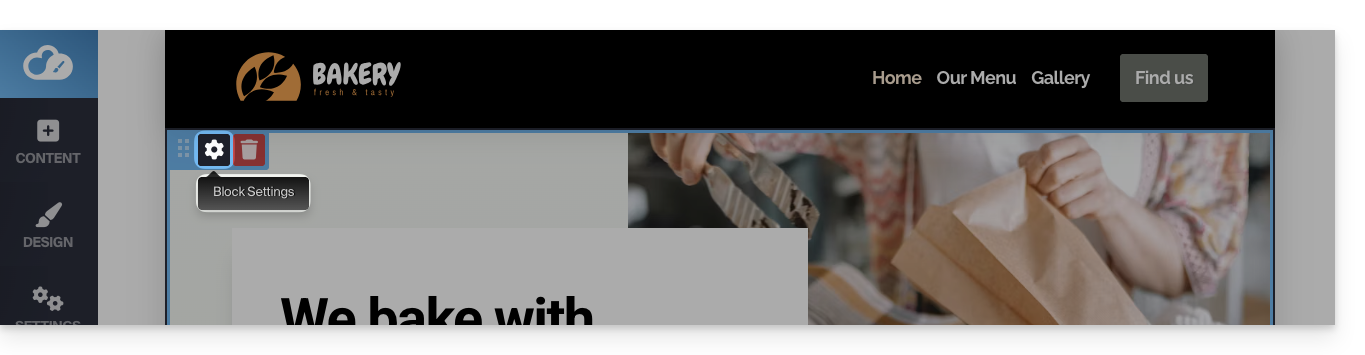
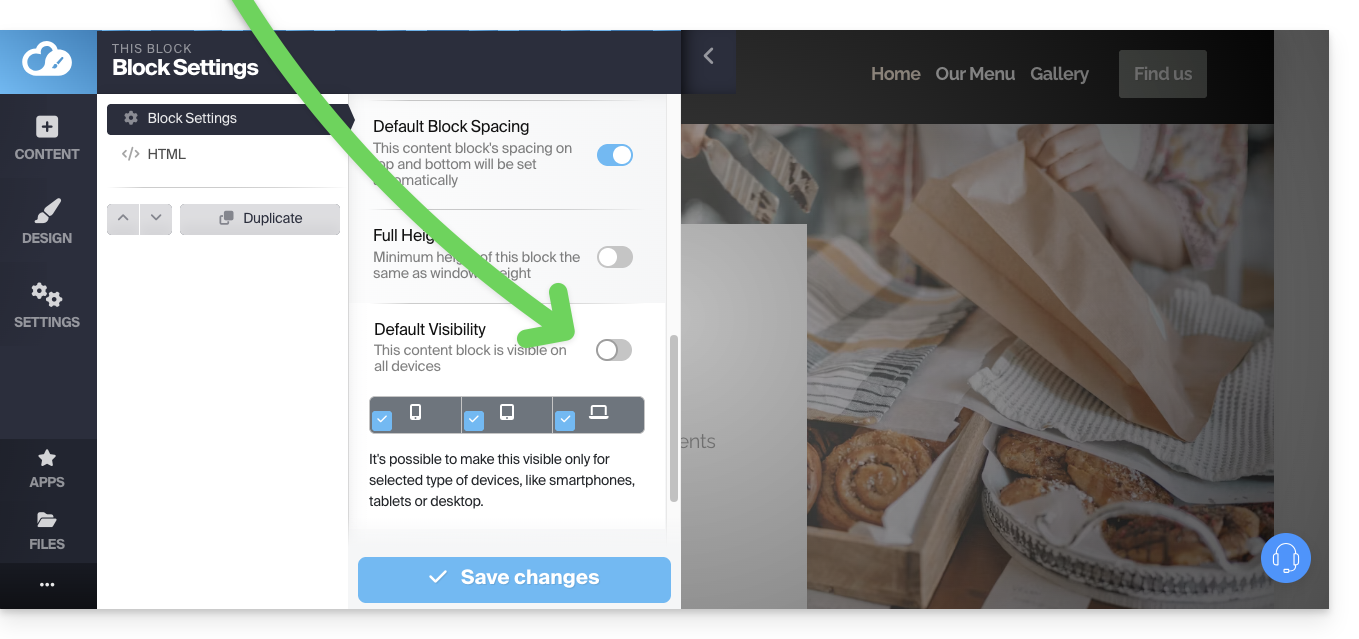
In the options of a content block, by disabling the default visibility, you will then be able to define below to display it only on certain types of devices (mobiles for example):
Link to this FAQ:
Has this FAQ been helpful?
This guide details the principle of kChat conversations, organized within private and public discussion channels, and direct discussions between users.
Start a conversation
To write to a user in your Organization, click on their name in the member list on the left side of your kChat interface: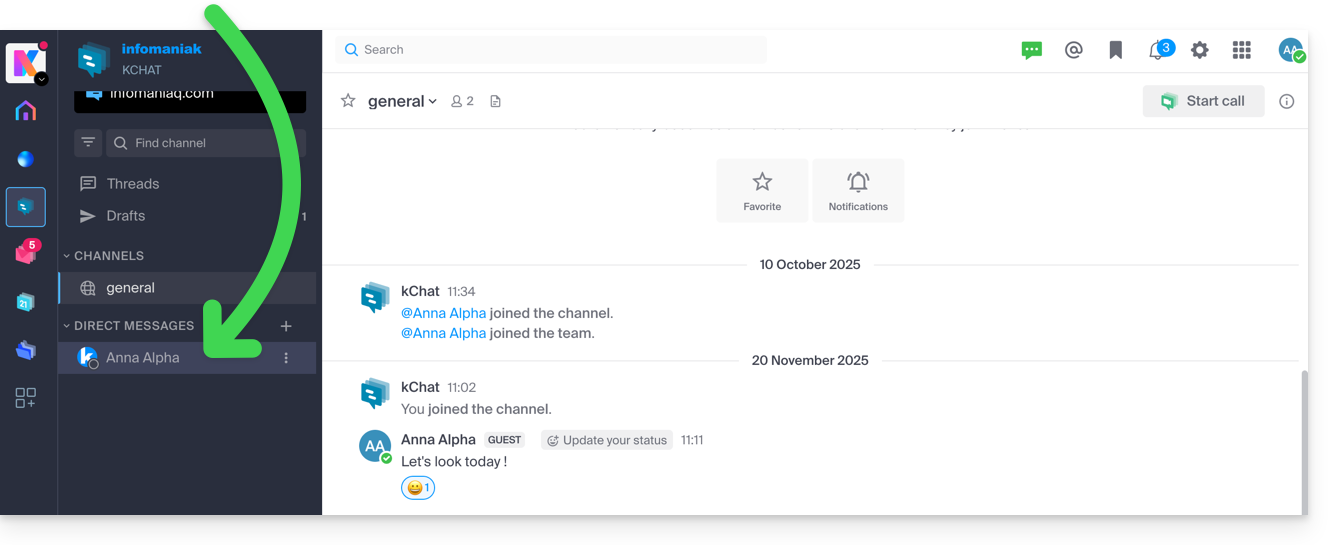
You can also click on the + to the right of Personal Messages to select up to 7 members and create a group conversation: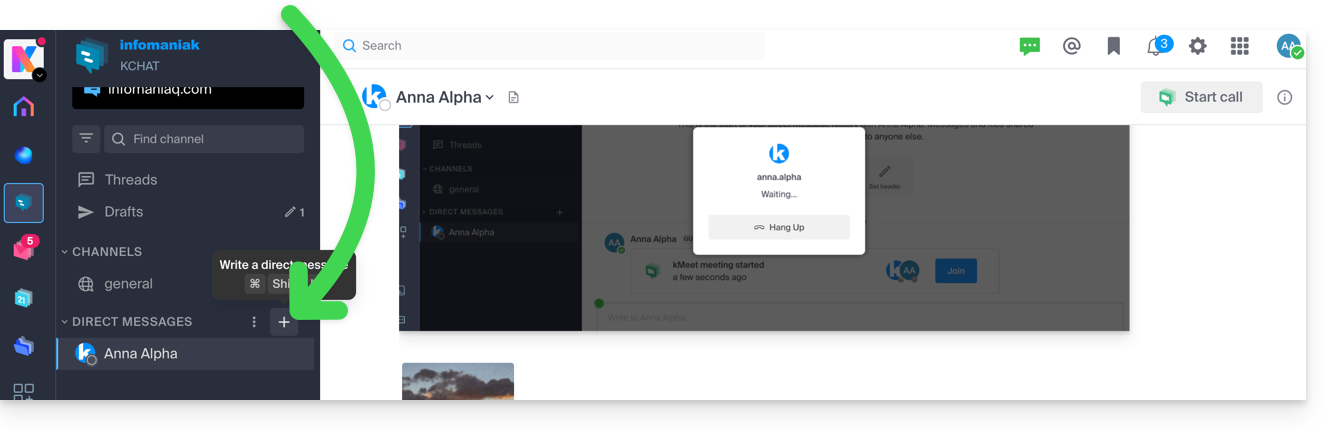
Compose and send your message by pressing the send button: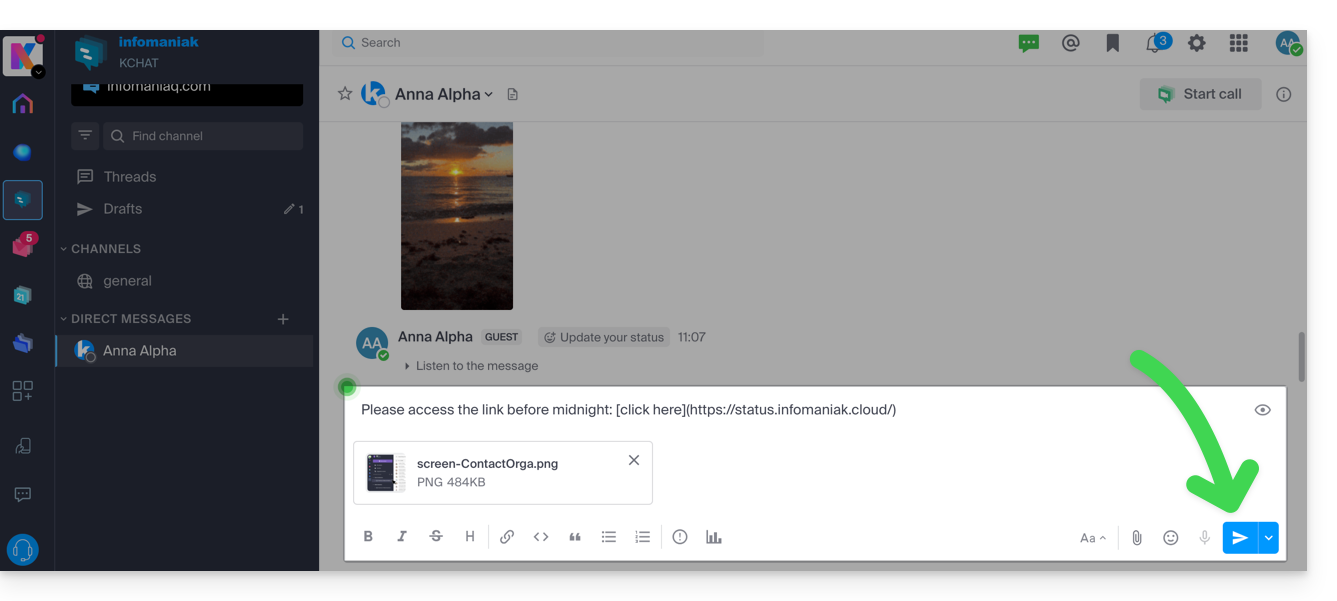
If necessary, you can attach files up to 100 MB. You can also use “reactions”.
Scheduled sending: schedule a message
✘ UNAVAILABLE with
my kSuite / my kSuite+ (ik.me, etik.com, ikmail.com)
Free kSuite does not allow customization of the time when scheduling.
To schedule a message to be sent at a later date/time, simply click on the chevron to the right of the send button and then choose the time the message should be sent: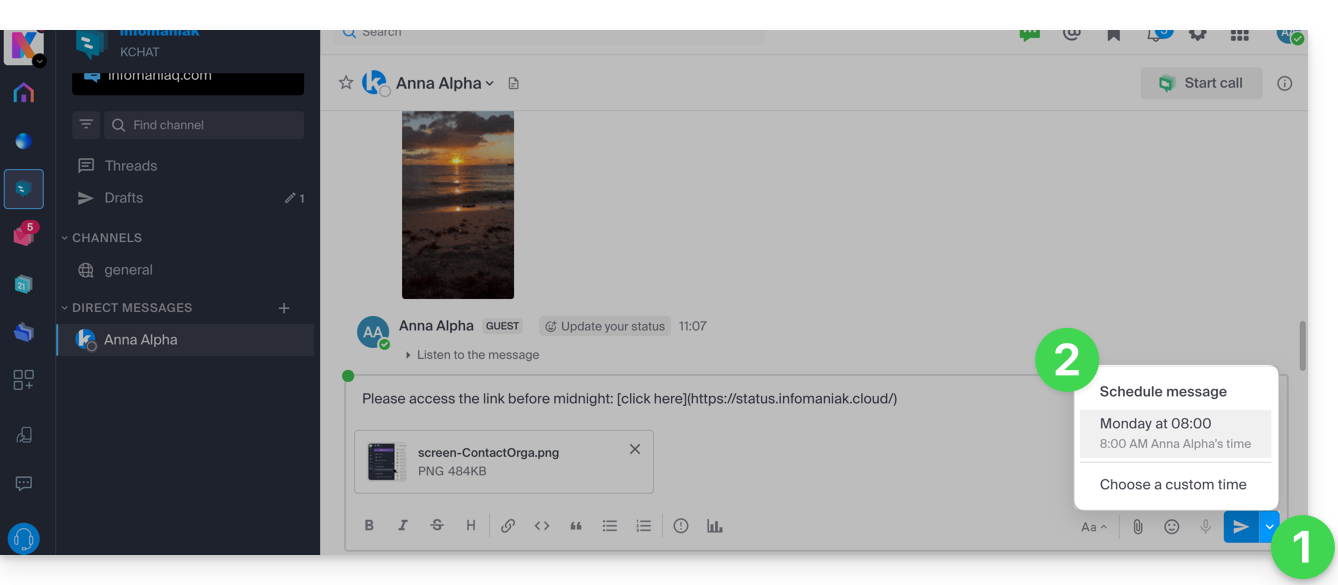
On the kChat mobile app (iOS/Android smartphone or tablet app), press for a few seconds on the send button, and a menu to schedule the message will appear.
Mention another user
To contact one of the Organization members (or an entire work team) via a message, type the at sign @ to display the people or channels to mention:

Note that depending on the type of channel concerned, mentioning a user displays a message allowing you to add them to the discussion (or notify them) otherwise they will not see the mention.
Request a read receipt
For users to acknowledge receipt of your message and thus indicate that they have read the message, activate a read receipt before sending the message on the channel, by clicking on the icon (!) and then activating the toggle switch: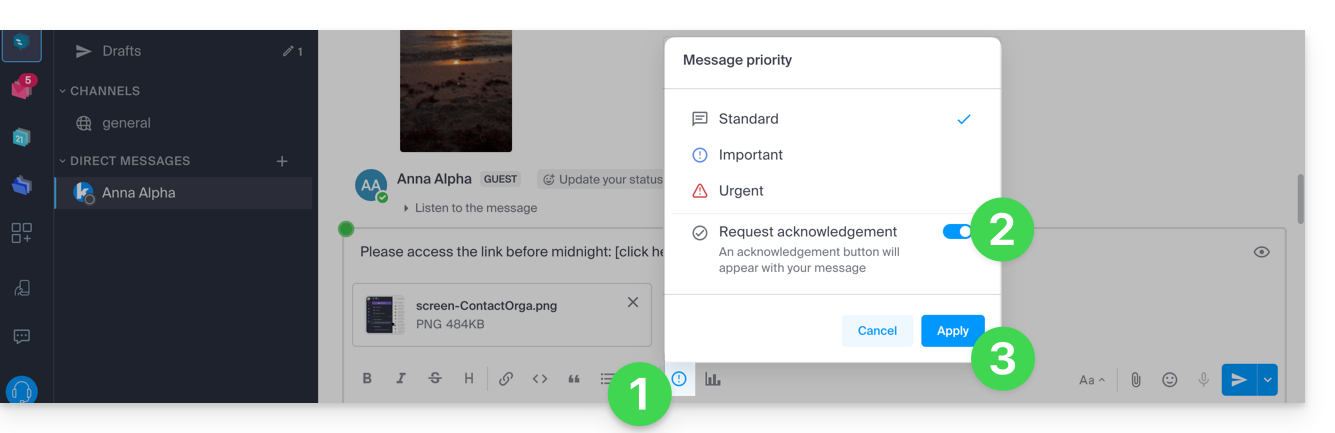
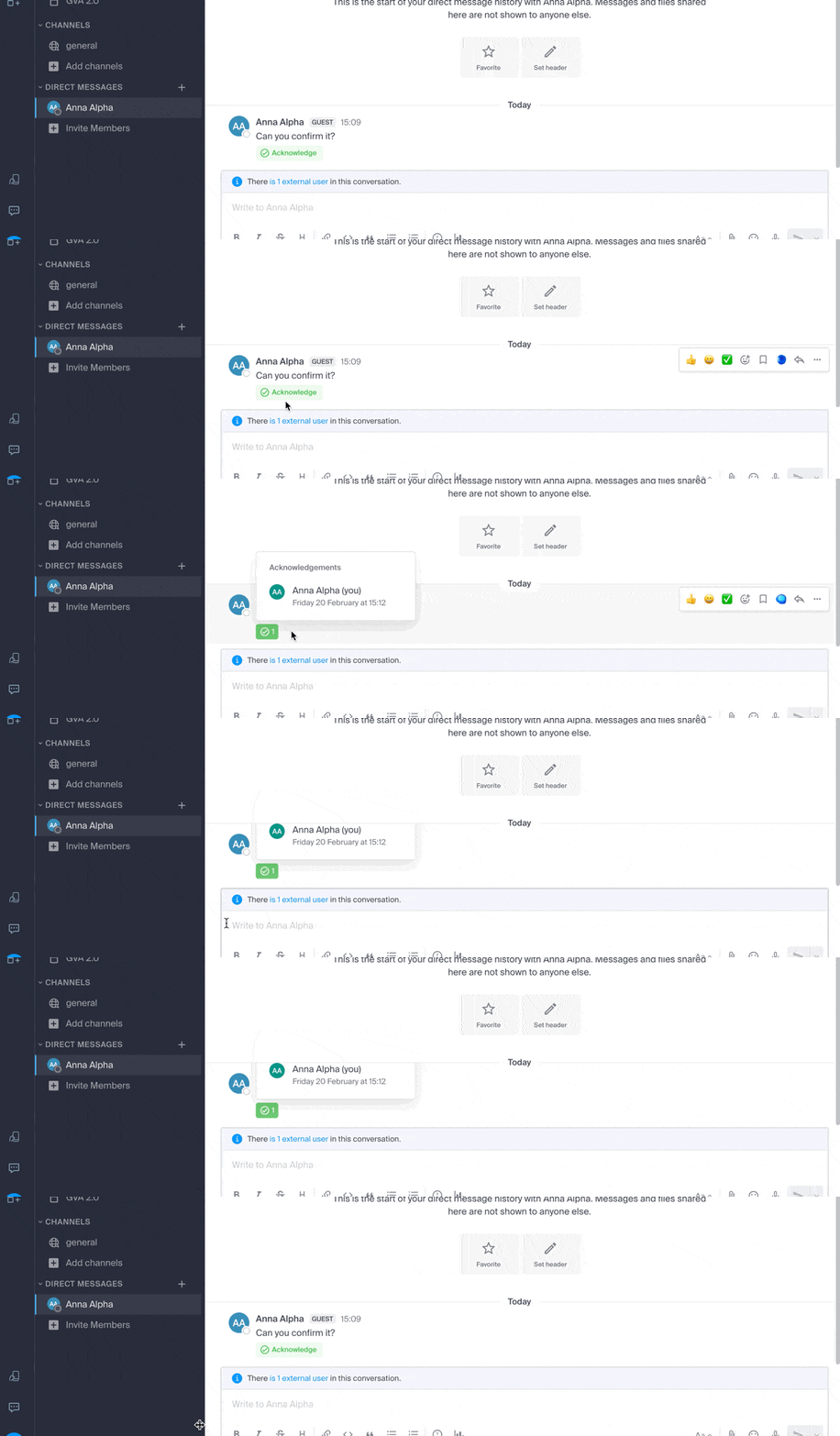
Once the message is sent, the result will be as follows:
Edit/delete a message, or pin it
To edit a message (which will then have an edited message note), click on the action menu to the right of the message to edit. In the same place, you can also delete your message, which will then disappear from the discussion for all users:
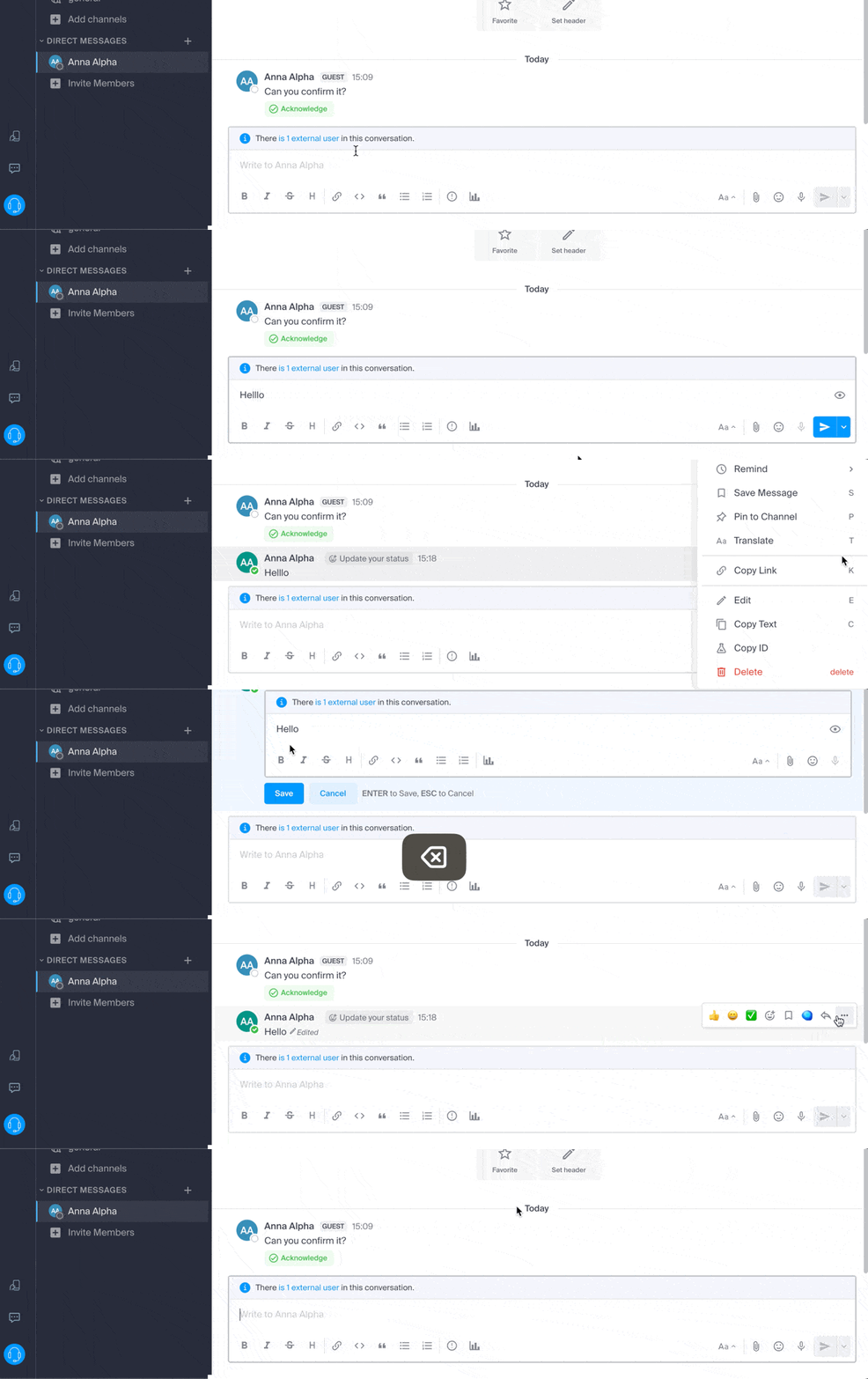
An indication regarding the deletion will appear to all other users of the channel at the original location of the message.
In the same place, you can pin a message:
- Pinned messages are visible to all members of the channel, whether it is public or private.
- Pinned messages in a private channel are only accessible to members of that channel.
- You can view the list of all pinned messages via the « Pinned Messages » option of the channel.
- To remove a pinned message, hover over it again and select « Unpin ».
Organize conversations in kChat
The sorting type for the items you manage on the left side of the screen is very important.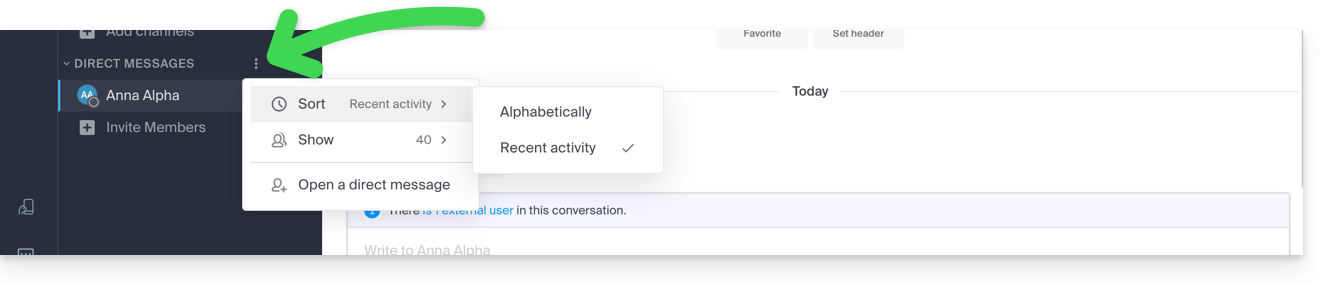
Imagine opening kChat after several days of absence, unread conversations will be displayed one after the other. After reading them, you may want to find a piece of information read among them, so sorting by recent activity, for example (see below for other possibilities), allows you to find the latest conversations that concerned you.
This sorting type choice is available for all items: discussion channels, categories, direct messages, etc.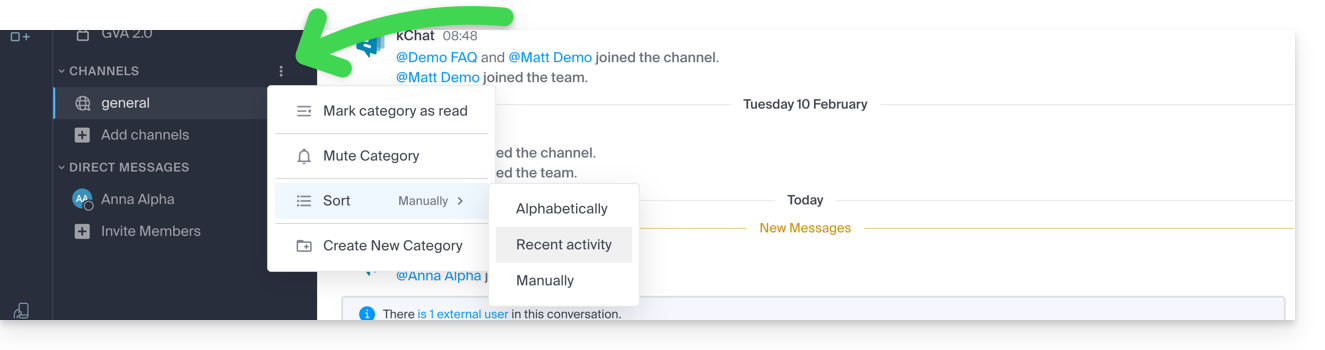
Search for a conversation
The search for items (word, participant, file) is at the top of the window. Once results are found, they appear on the right side of the window: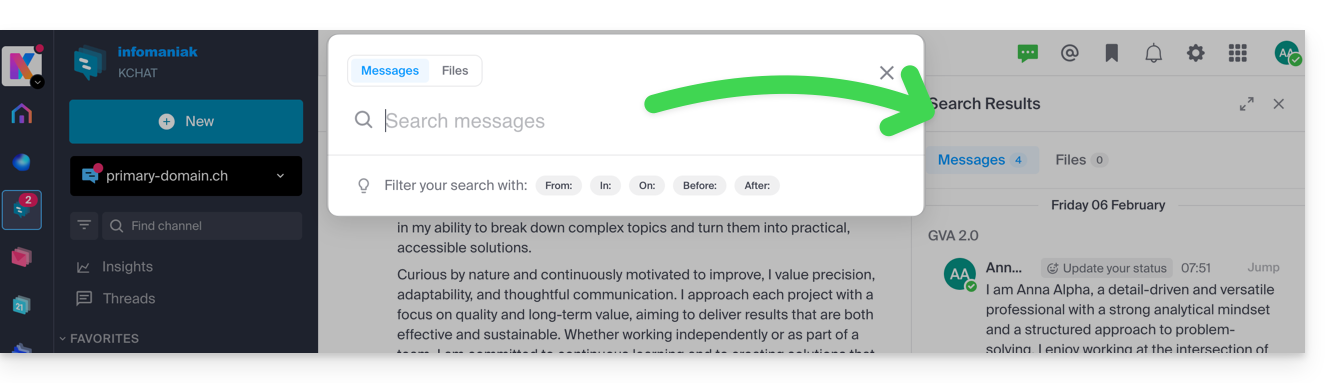
Discussion thread
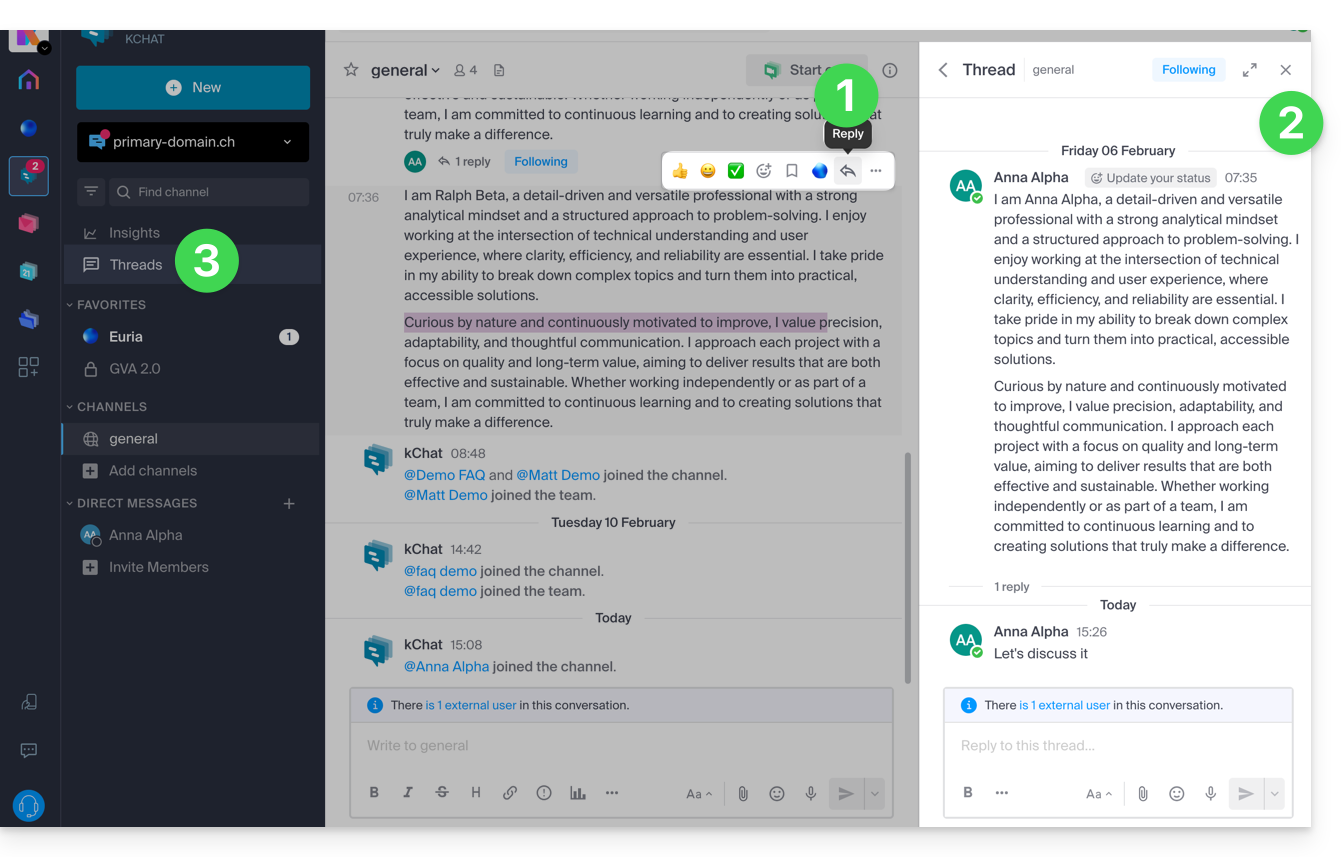
- Regardless of the channel or private chat with another user, you can start a discussion thread from another simply by choosing Reply on the desired message.
- A discussion thread will open in a right sidebar panel allowing each user of the channel to contribute their comments in this specific thread without disrupting any potential new topics of the ongoing channel (this thread can then be followed or ignored to no longer receive notifications when a new message is received — following is managed at the top of the sidebar).
- These discussion threads are then centralized to be read and reread in the Discussion Threads section of the left sidebar.
Link to this FAQ:
Has this FAQ been helpful?
This guide explains how to use kPaste, the free tool offered by Infomaniak to securely, encrypted, and ephemerally share sensitive data.
Preamble
- kPaste is a free web application developed by Infomaniak, which allows you to securely and temporarily share sensitive information (password, code, credentials...) in an ultra-secure and temporary manner.
- The data is encrypted directly in your browser, even before leaving your computer, thanks to AES-256-GCM encryption.
- Infomaniak cannot access the content of your messages: they remain in "zero-knowledge", with the decryption key being part of the link and never stored.
- The source code is open (open-source), which reinforces the transparency of the tool.
- The servers are exclusively in Switzerland, managed by Infomaniak.
Using kPaste to share sensitive data
To do this:
- Access kpaste.infomaniak.com.
- Write your message in the designated field (e.g., a password, a code, an identifier...).
- Choose the availability duration of the message (5 minutes to 1 month).
- Enable the "delete after first read" option ("burn after read") if you want the message to disappear automatically after opening.
- (Optional) Protect the message with a password, to be transmitted separately (or agreed upon in advance, for example, verbally).
- Click on "Generate share link".
- Copy the generated link and send it to the recipient through a secure channel (SMS, encrypted messaging, etc.).
- As soon as the person opens the link, the message is accessible — and, if the option is enabled, it is deleted immediately after reading.
Example
You want to send a Wi-Fi password to a friend without risking it being visible for too long:
- Open kpaste.infomaniak.com.
- Type:
WiFiPassword1234in the field. - Select a short duration, for example 10 minutes.
- Check "delete after first read".
- (Optional) Add a password:
AMIsecure. - Click on "Generate the link".
- You get a link of type
https://kpaste.infomaniak.com/?<token>#<key>so here: https://kpaste.infomaniak.com/6bE4DzplVoghTQgoLaVH6NXfCi12D3bm#8kRmx51rf7msVzmNg7uPu4peJPboVhxuRvJee7EekLg6 - Send this link via SMS to your friend, and communicate the password separately if there is one.
- As soon as they click, they see the password, and the message is destroyed immediately after reading.
Result: your password is accessible only once, for only 10 minutes, and Infomaniak has no way to view it.
The example of the kPaste link above will therefore obviously have become invalid by the time you open it.
Is kPaste really free?
Yes. Infomaniak finances its activities with its paid services. If you wish to help promote a Web that respects users' privacy, talk to your contacts about the free services of Infomaniak.
Link to this FAQ:
Has this FAQ been helpful?
This guide concerns the configuration of the mobile app Infomaniak Mail (application for iOS/Android smartphone or tablet).
The language of the application is based on the language of your device on which the mobile app Infomaniak Mail is installed and not on the language configured on your user account.
Access the application settings
To open the settings of the mobile app Infomaniak Mail (application for iOS/Android smartphone or tablet) on your device:
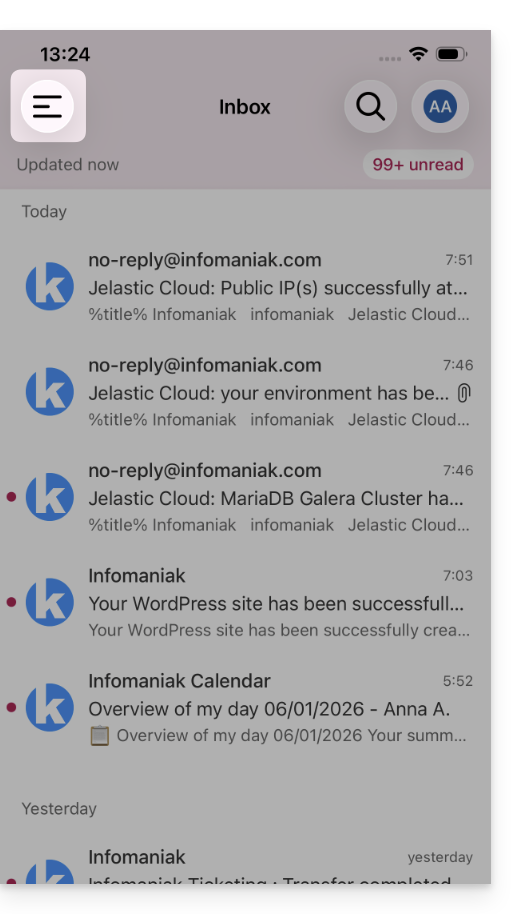
- Tap at the top left of your inbox:
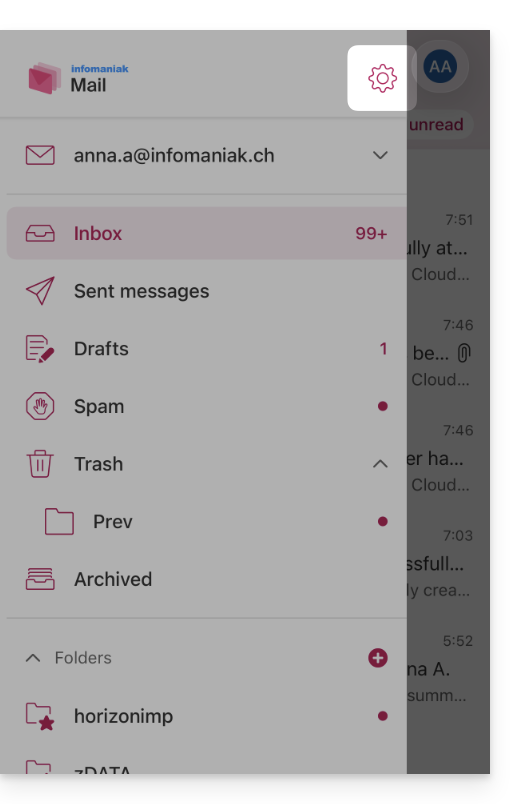
- Click on the Settings icon at the top right of the pane that opens:
- You can manage the settings from the screen that appears:
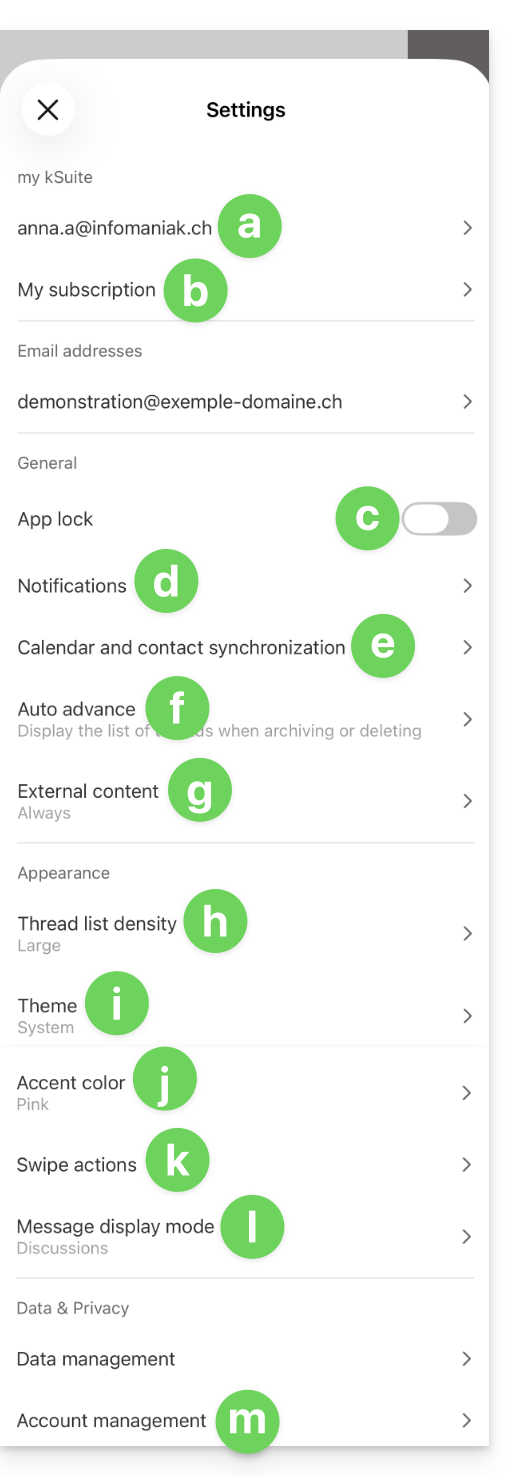
a. Signature selection
If you have multiple email addresses linked to your account, tap on the email address for which you want to change the signature. Then choose another signature from those configured.
On iOS, you can also manage your read receipt requests.
b. my kSuite only
Provides information about the current subscription.
c. Application lock
This option allows you to protect the application by one of the locking methods of your device, which allows you to stay logged in to Infomaniak messaging with your user account but prevents access to Infomaniak Mail by a third party when the app is no longer in the open applications.
If your device has a fingerprint reader, you can use this method to activate the lock. Same for Face ID on iOS: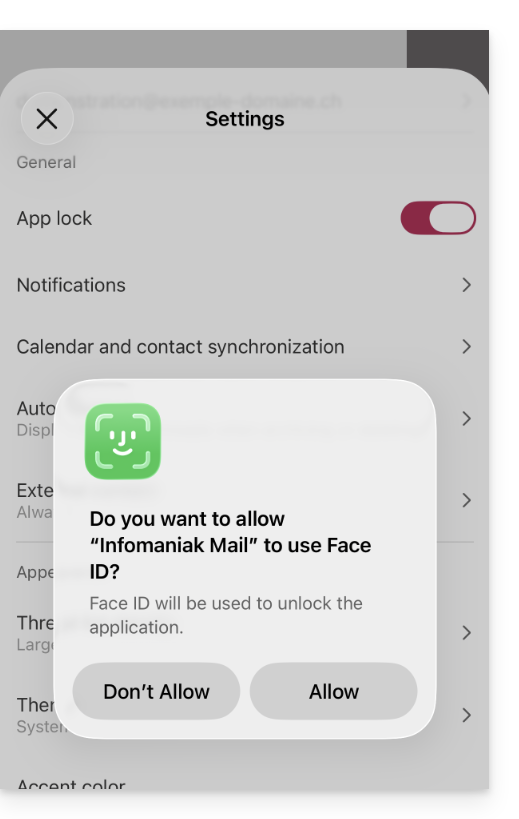
When reopening the application, authentication will be requested.
d. Notifications on the device
You can configure the notifications for each of the linked email addresses in the application.
e. Synchronization of contacts & calendars
For now, this synchronization is managed externally; refer to the assistant https://config.infomaniak.com/.
f. Automatic advance
This section allows you to choose the action to be taken after archiving or deleting an email: open the next message, or the previous, or return to the message list.
g. External content
This section allows you to choose whether to automatically display all external content present in an incoming email you are reading, or whether you prefer to hide it and only display it on demand.
h. Conversion list density
The display mode can be compact, normal, or large.
i. Theme
The theme allows you to choose a display type dark mode (dark) or conversely, a light display black on white. This display can also be defined according to the device theme (thus allowing to take up a possible system setting that would vary the display according to the time).
j. Accent color
The accent color is either blue or pink.
k. Swipe actions
Swipe actions allow you to define which operation Infomaniak Mail must perform if you swipe your finger across a message from right to left or from left to right: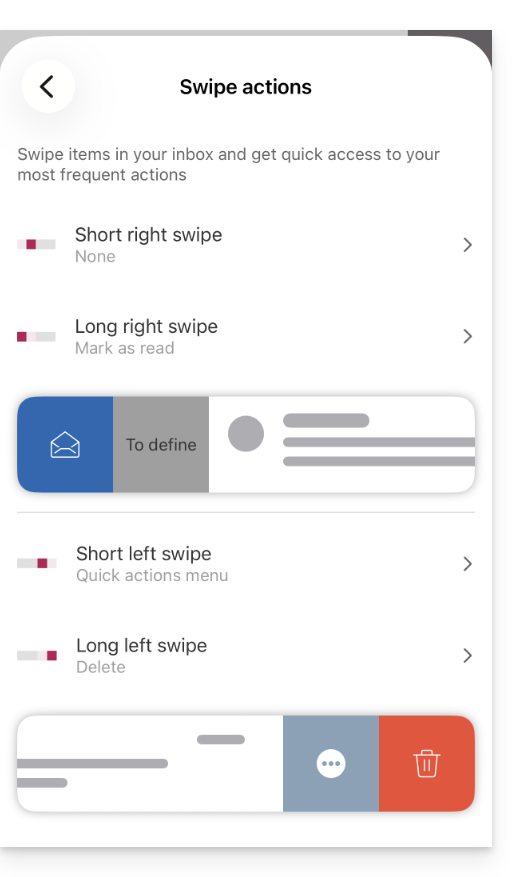
The possible actions are:
- delete the message (it goes to the trash)
- archive the message (it goes to an archive folder)
- mark it as read or unread
- move the message (and in this case the list of folders is displayed after a swipe)
- favorites (to activate a follow-up on the message)
- report as spam
- quick action menu (also accessible from reading the message and which offers to write a reply, perform a transfer, a deletion, a print, etc.)
and it is also possible to choose "none" to avoid operations that would not be desired if your device is not suitable for swiping: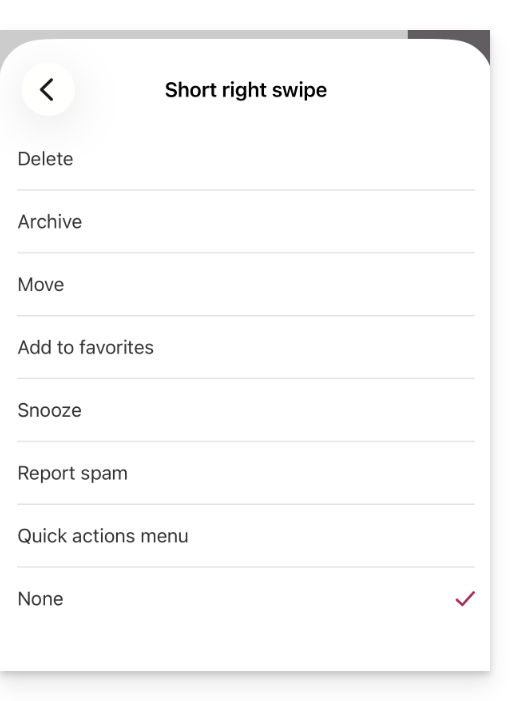
l. Message display mode
Choose between an individual display of messages or a “discussion” / “conversation” mode, which allows you to group your emails by subjects/senders, i.e., group the received emails according to the subject of the discussion, thus the display of the inbox is lighter and the follow-up of the messages of the different participants of the conversation is easier to do:
m. Account management
Allows you to delete the Infomaniak account (after confirmation of reading the important warning). Also refer to this other guide.
Link to this FAQ:
Has this FAQ been helpful?
This guide explains how to configure and customize the global display of the Infomaniak Web app Mail (online service ksuite.infomaniak.com/mail) using various options.
Preamble
- The general settings affect all email addresses currently attached to your account on the Mail app.
- They are specific to your user only and do not affect other users (of the same Organization, for example).
- The same email address retrieved on the Mail app of another user will have its own settings independently of yours.
Accessing general settings
To do this:
- Click here to access the Infomaniak Web app Mail (online service ksuite.infomaniak.com/mail).
- Click on the Settings icon at the top right of the interface.
- Navigate through the different generic menus on the left:
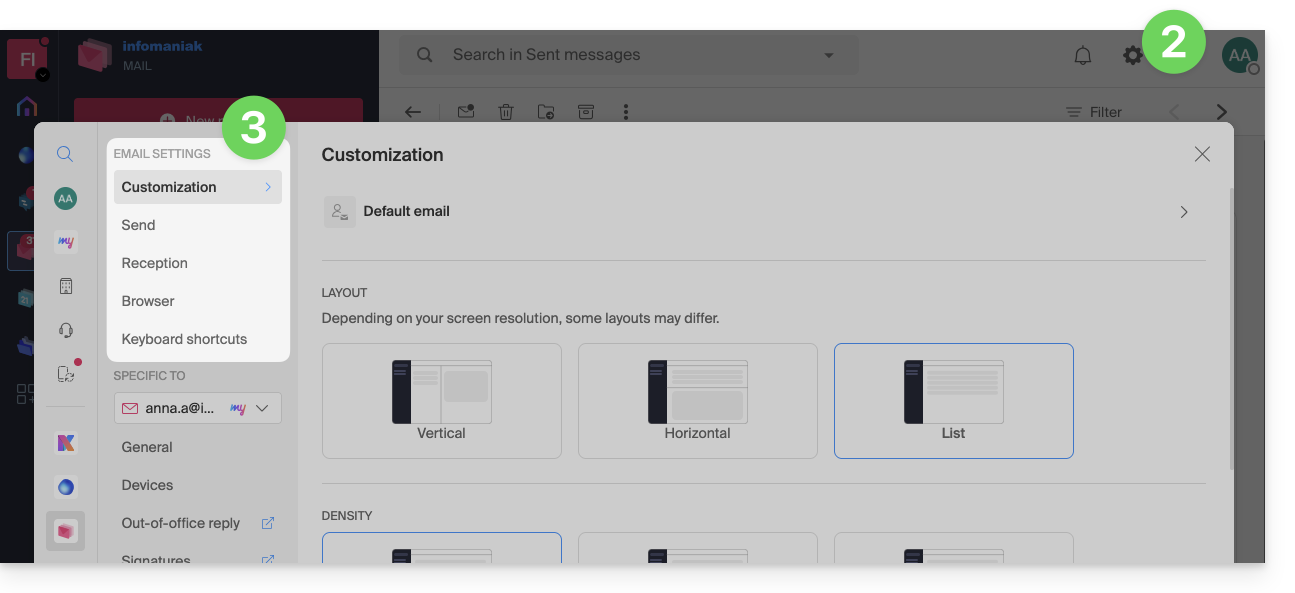
To manage the light/dark theme of the interface: refer to this other guide on the subject.
Customization: default email address
This section allows you to choose which email address, among all your attached addresses, should be considered the main one, and open by default when accessing the Infomaniak Web app Mail (online service ksuite.infomaniak.com/mail):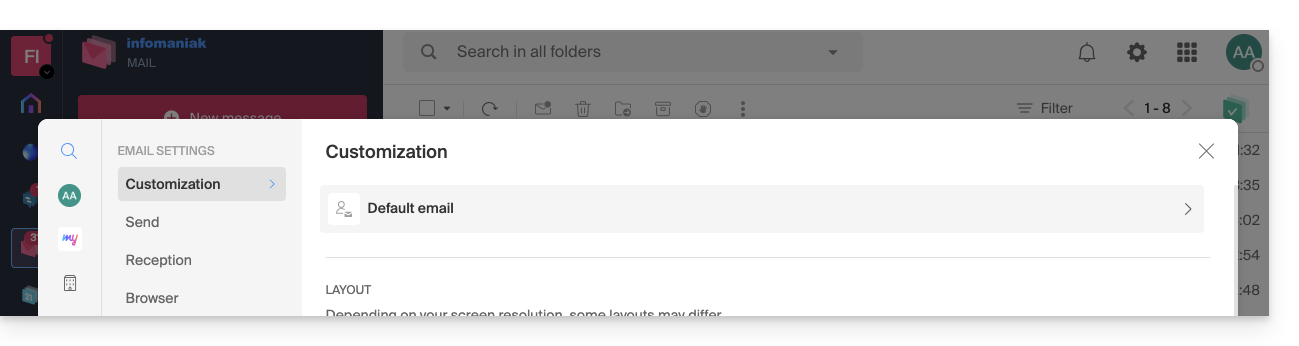
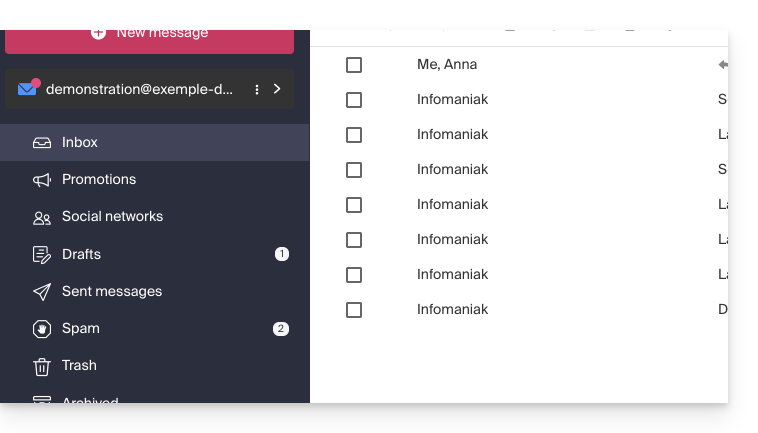
Customization: modify the display density of your inbox
You can change the presentation of your inbox so that it is divided into several parts displaying your emails, or simply in a list version. The density choice allows you to tighten or space out your emails: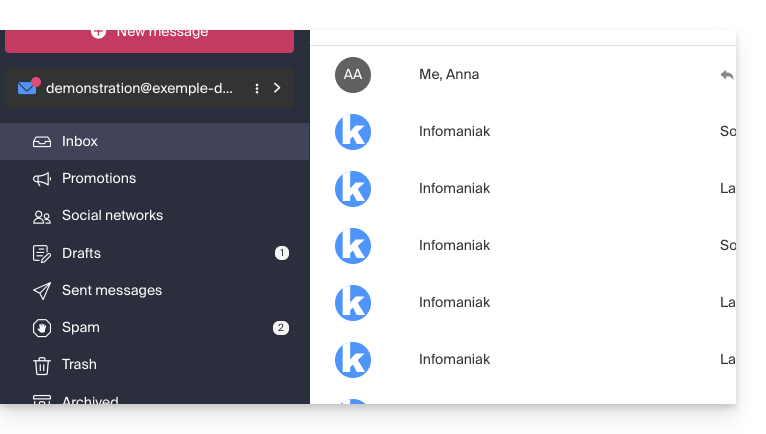
Customization: manage the buttons visible on the page of an email
This section allows you to choose the icons that should be displayed on the email reading window, allowing you to take quick action rather than through the dropdown menu: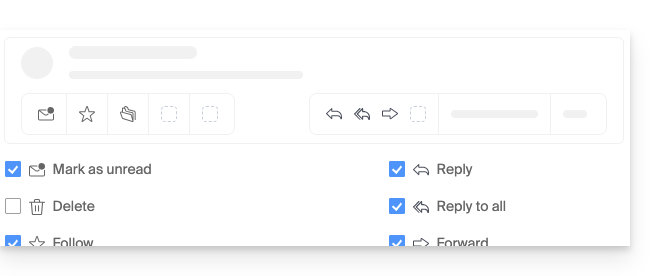
- Mark as unread
- Delete
- Follow
- Translate
- Remind me later
- Organize an event
- Report as spam
- Download to kDrive
- Archive
- Reply
- Reply to all
- Forward
- Reply on kChat
Customization: manage the buttons visible when hovering over an email list
This section allows you to choose the icons that should be displayed when you hover over an email in a list (e-mails in the inbox for example):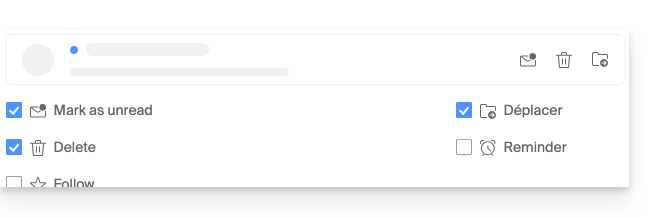
- Mark as unread
- Delete
- Follow
- Move
- Remind me later
Customization: manage the buttons visible when text is selected
This section allows you to choose the actions visible when text is selected:
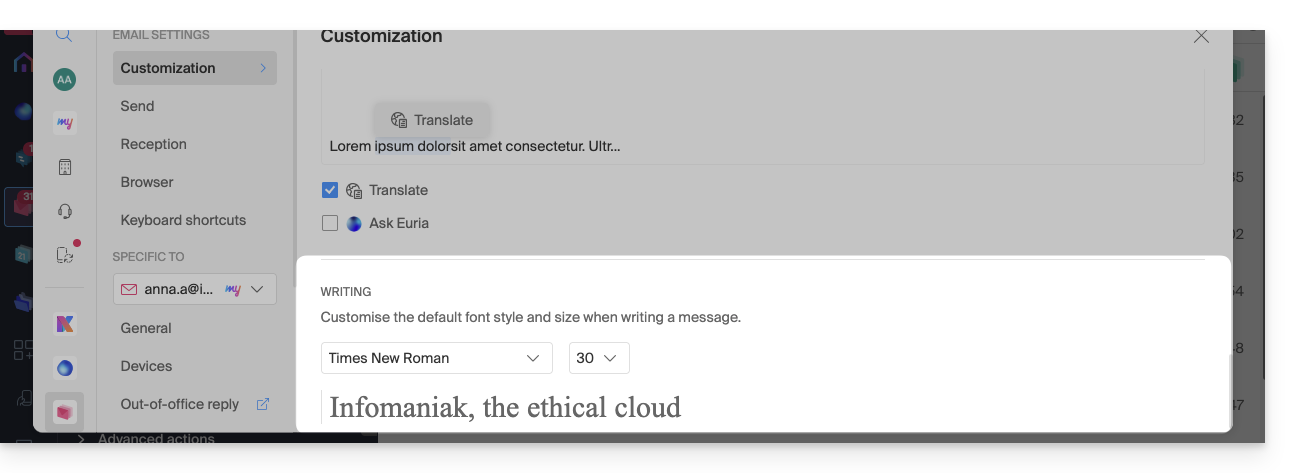
Customization: set the default font for all your new messages
- Choose the desired font, as well as the text size, for all new messages to be written:
Sending: cancellation delay
Sending: transfer emails in the body of the message or as an attachment
Sending: include the original message when replying
Sending: always write in a full-screen window
Activate the toggle switch to the right of the item “Compose emails in full screen” to always write in a large window instead of the usual bottom right inset.
Sending: request a read receipt
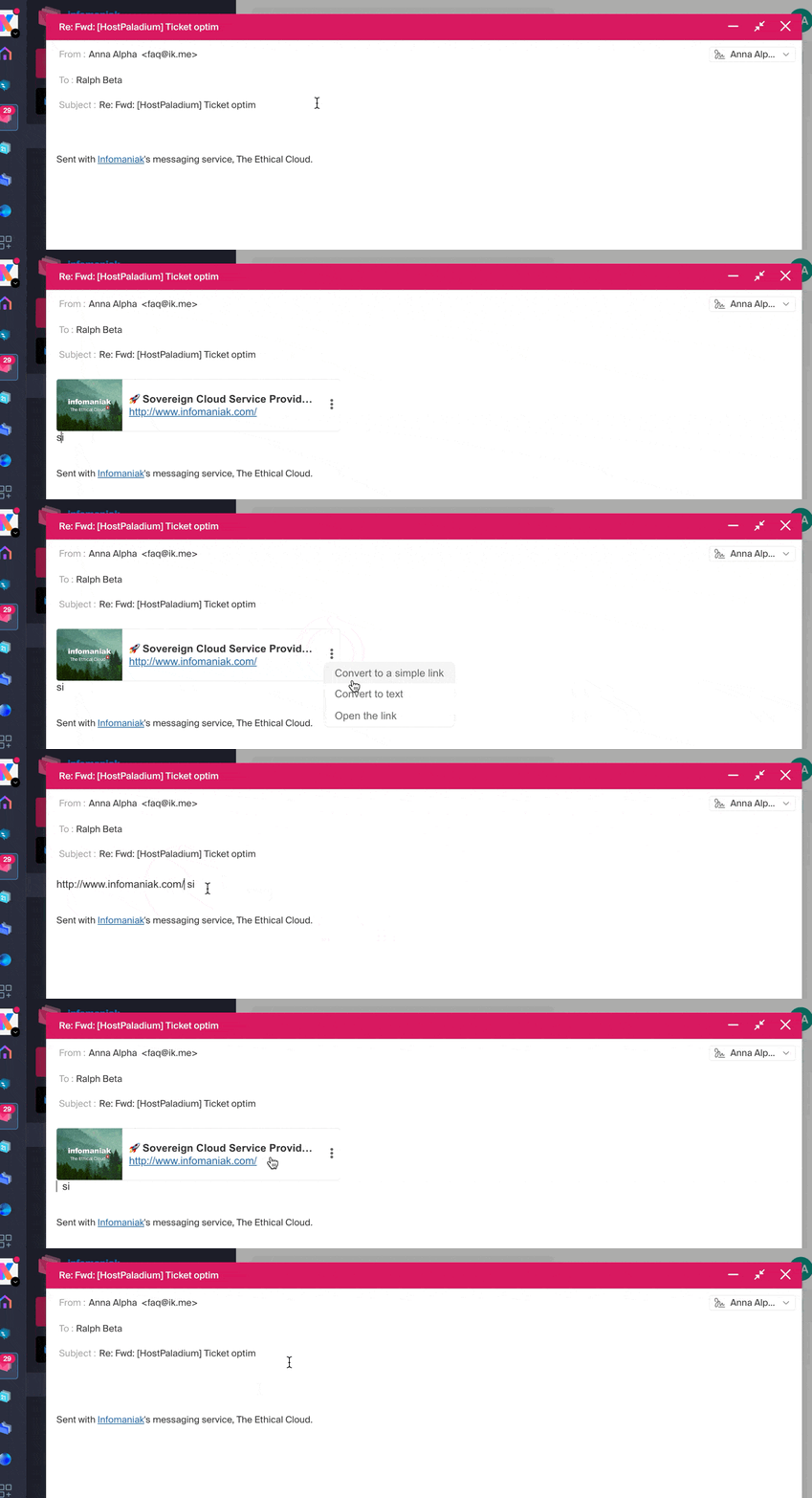
Sending: include a preview of website links
To enable or disable a link preview (a feature that automatically generates a visual box (with title, description, and image) when you insert a URL into an email), toggle the switch to the right of the “Include website link previews” element.
Once enabled, here is the result when drafting content with a URL:
Inbox: Message display mode
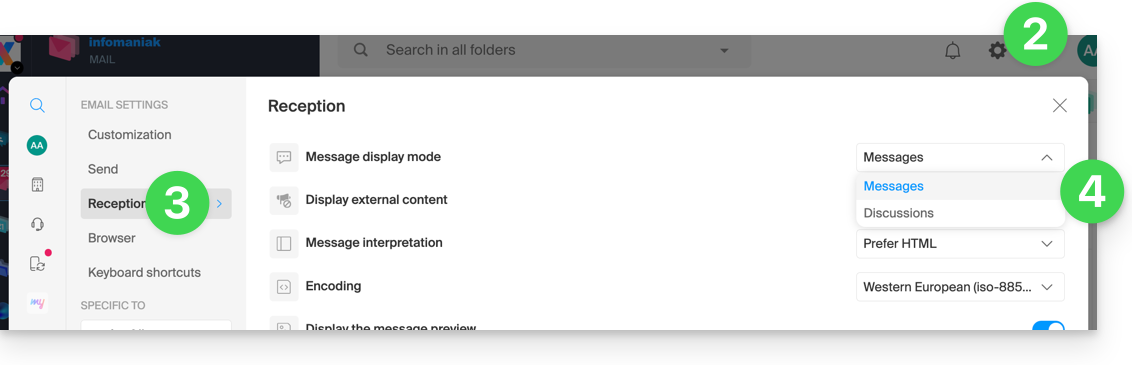
This mode allows you to group your emails by subjects/senders, i.e., group the received emails based on the discussion topic, making the inbox display lighter and easier to follow messages from different conversation participants:
- Click here to access the Infomaniak Web app Mail (online service ksuite.infomaniak.com/mail).
- Click on the Settings icon at the top right of the interface.
- Click on Inbox in the left sidebar.
- Choose a Message display mode:
When the Conversations mode is not enabled, you read your emails one by one:
When it is enabled, you read the different messages in the same window chronologically, one below the other:
In your inbox, you can directly see the number of emails contained in a single discussion:
Inbox: Display external content
This section allows you to choose whether to automatically display all external content present in an incoming email you are reading, or whether you prefer to hide it and only display it on demand: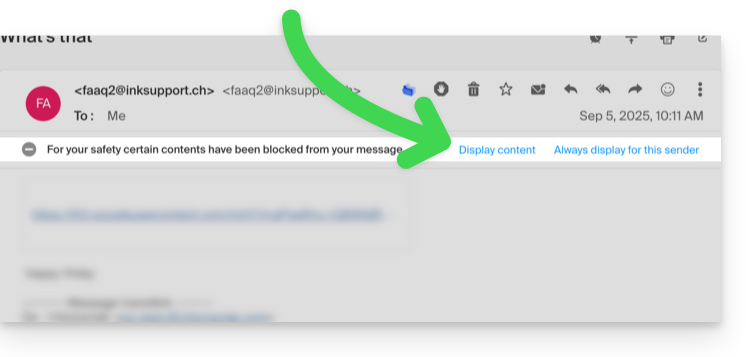
Inbox: Message interpretation
This section allows you to define the display priority of a received message: either in its simplified version as plain text, or in its enriched version as HTML (this setting only applies when both formats are present in the email; if only one version is available, it will be displayed by default).
Inbox: Encoding
This section allows you to modify the encoding of received messages (it is recommended to leave Unicode (utf-8)).
Inbox: Show message preview
This section allows you to display or hide the first few words contained in the email in all message lists (e.g., inbox). Example with preview enabled, the beginning of the message is visible on the same line next to its subject: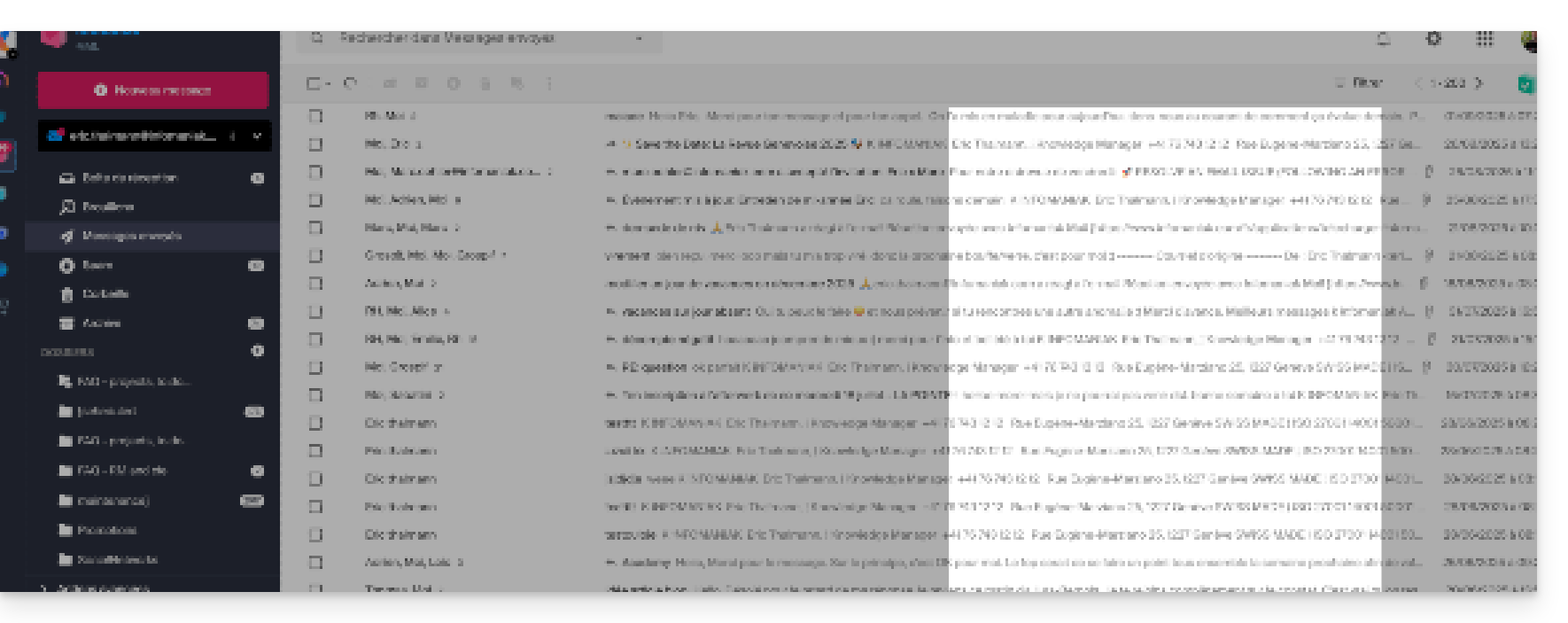
If the preview is hidden, only the subject of each email is displayed: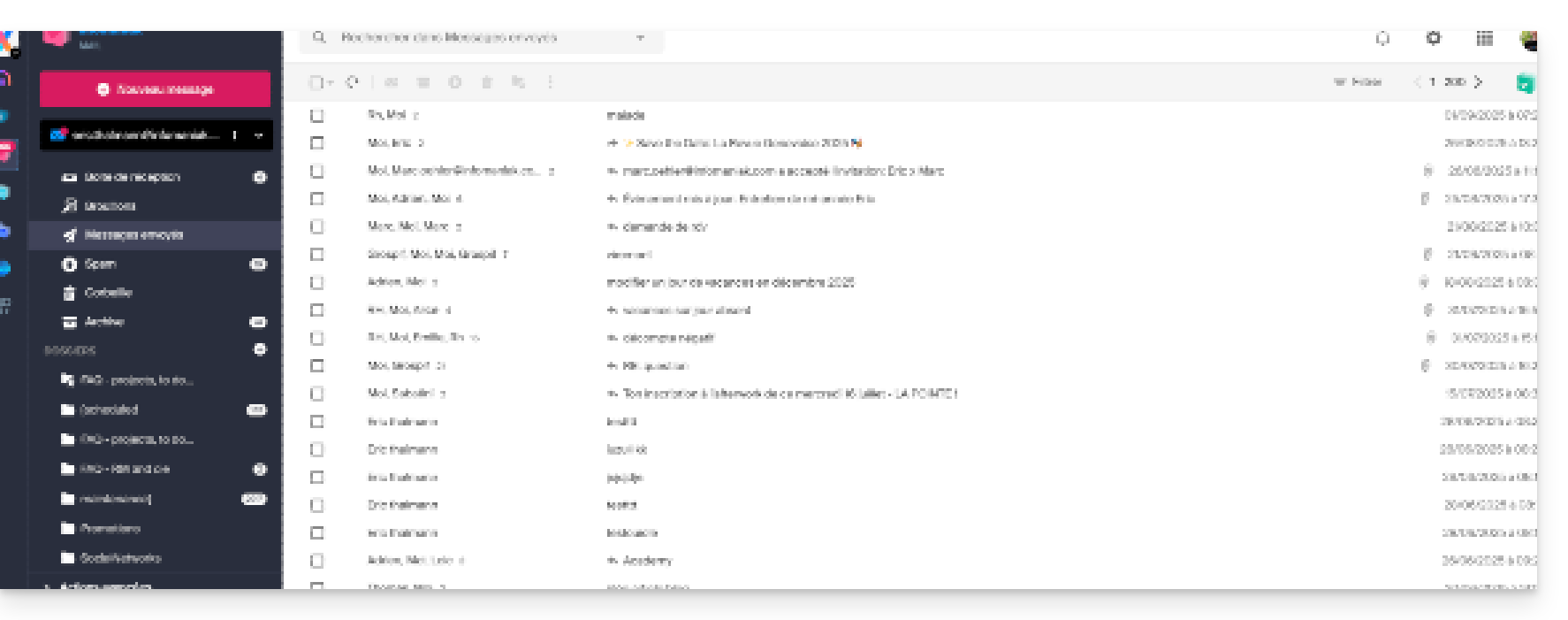
Note for users of the Infomaniak Newsletter service: you can manage the content that will be displayed when the preview is enabled, using the information to be completed as indicated in point 1.4 of this other guide.
Inbox: Mark an email as read…
This section allows you to choose after how much reading time a message should be considered as read (immediately, after 3 seconds, or 5, or 20, or never).
Inbox: When a message is archived or deleted…
This section allows you to choose the action to be taken after archiving or deleting an email: open the next message, or the previous one, or return to the message list.
Reception: number of emails displayed on a single page
Choose the number of items to display to increase or decrease the number of emails displayed on a single page, up to 200 items maximum.
Browser: set Infomaniak as the default mail client
Browser: email address on new tab
Browser: message reception notification
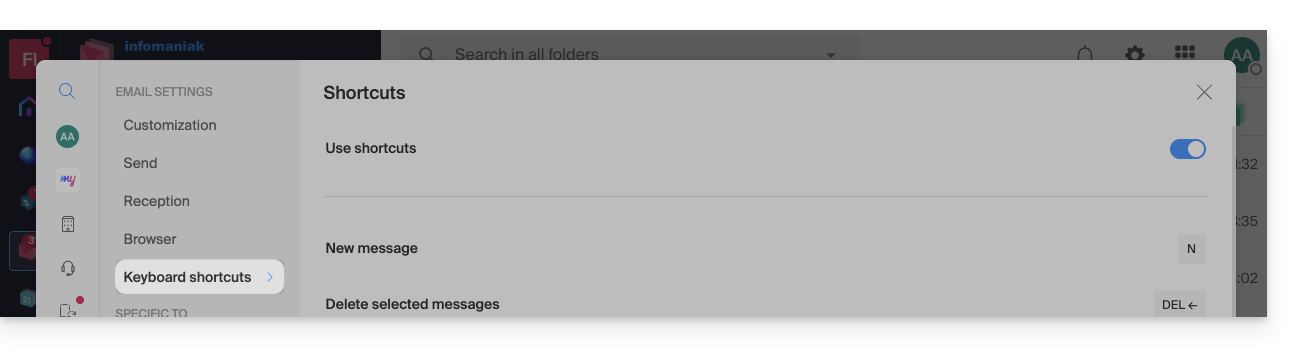
Keyboard shortcuts
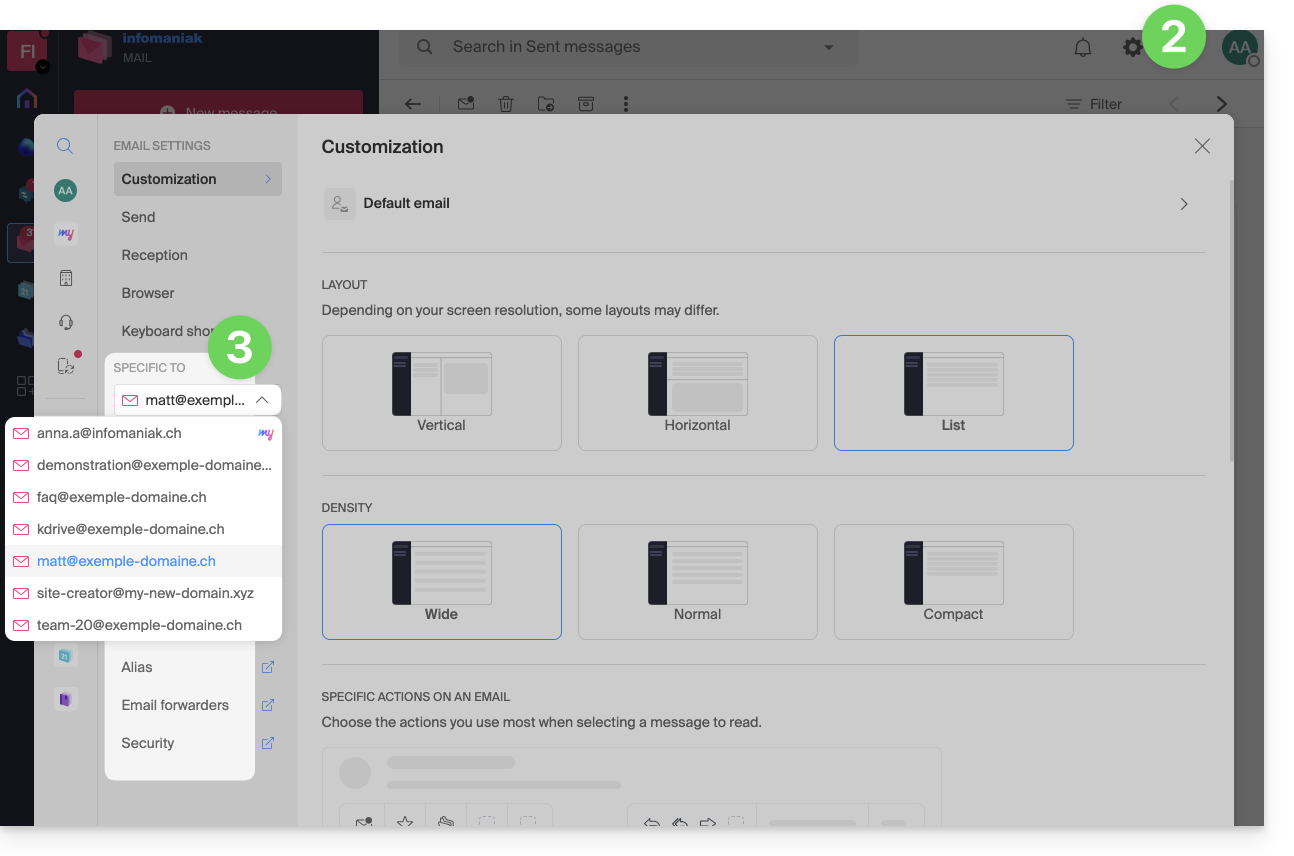
Modify the parameters specific to email addresses
To access the signature, alias, etc. parameters specifically concerning each of your Infomaniak email addresses:
- Click here to access the Infomaniak Web app Mail (online service ksuite.infomaniak.com/mail).
- Click on the Settings icon at the top right of the interface.
- Check or select the email address concerned in the dropdown menu of the left sidebar:
- Click on the different elements of the secondary left sidebar menu to configure your email address:
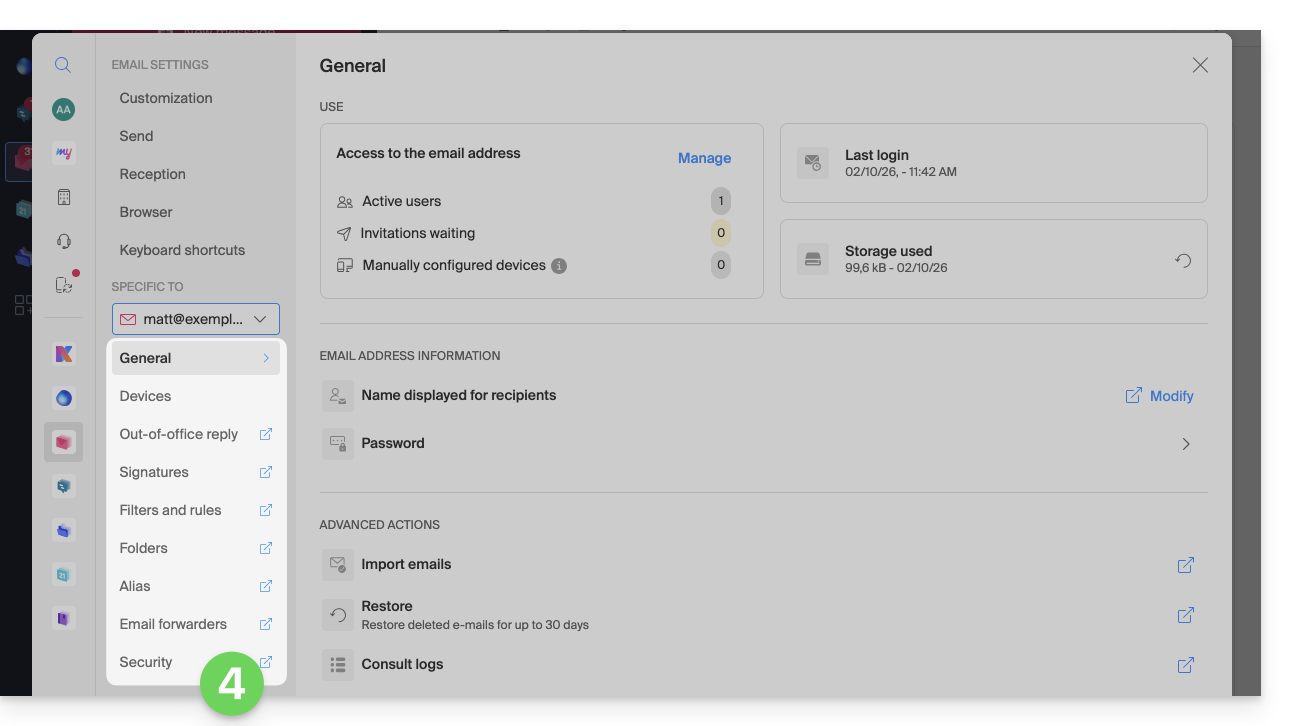
Do not hesitate to browse the FAQ to find the corresponding guides.
Link to this FAQ:
Has this FAQ been helpful?