Knowledge base
1000 FAQs, 500 tutorials and instructional videos. Here, there are only solutions!
This guide covers installing PHP extensions on Infomaniak Web Hosting.
Using PHP Zend Extensions
Attention:
- Zend Guard Loader is a PHP extension that allows you to run PHP scripts encrypted via Zend Guard.
- Zend Guard Loader is installed by default for PHP <= 5.6 on all web hosting plans and is not available for PHP versions >= 5.6.
- Since PHP 5.3.x, the Zend Optimizer module has been replaced by ZendGuardLoader.
- The ZendOPCache extension requires a Cloud Server configured with PHP 5.5 or later.
Link to this FAQ: https://faq.infomaniak.com/130
Has this FAQ been helpful?
This guide explains how to enable the following functions on Web Hosting (in italics, Cloud Server only):
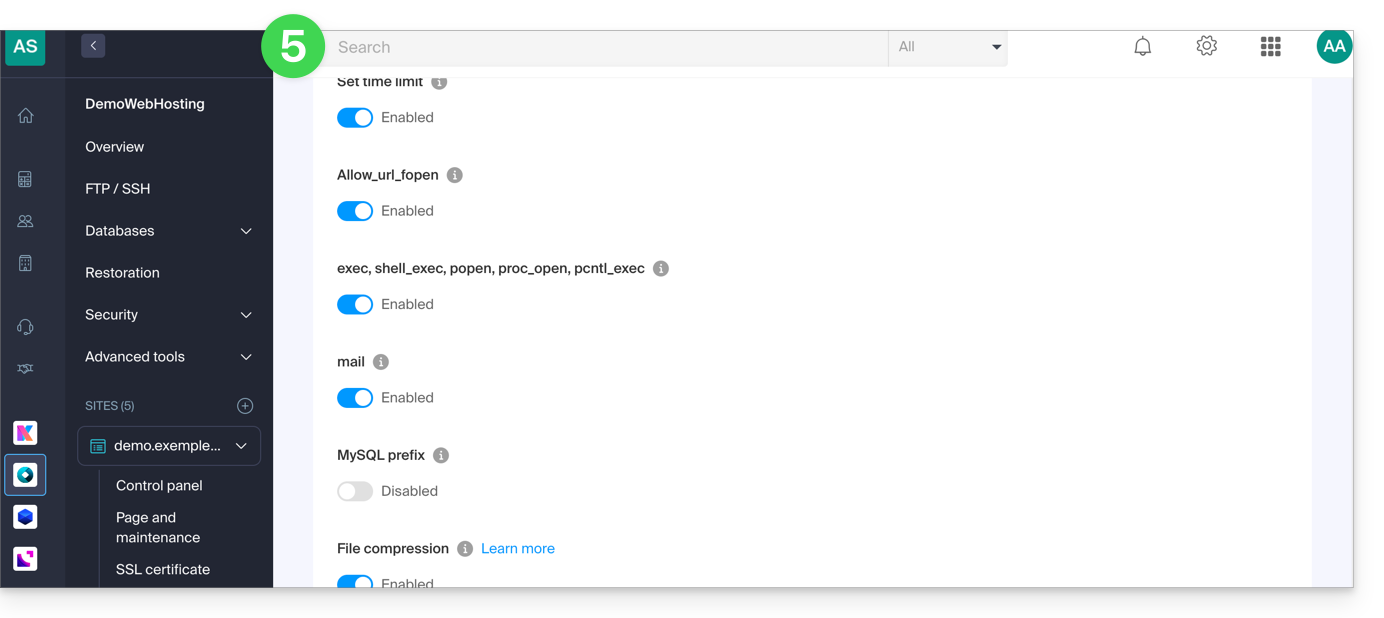
proc_openpopenexec()shell_exec()set_time_limitpassthrusystem
These functions are disabled by default because they pose a significant security risk if a website is hacked. Only enable them if absolutely necessary (for a script or CMS such as ImageMagick, Typo3, CraftCMS, etc.).
Enable PHP functions
To access website management:
- Click here to access the hosting & website management section in your Infomaniak Manager (❓: help).
- Click on the name of the website in question.
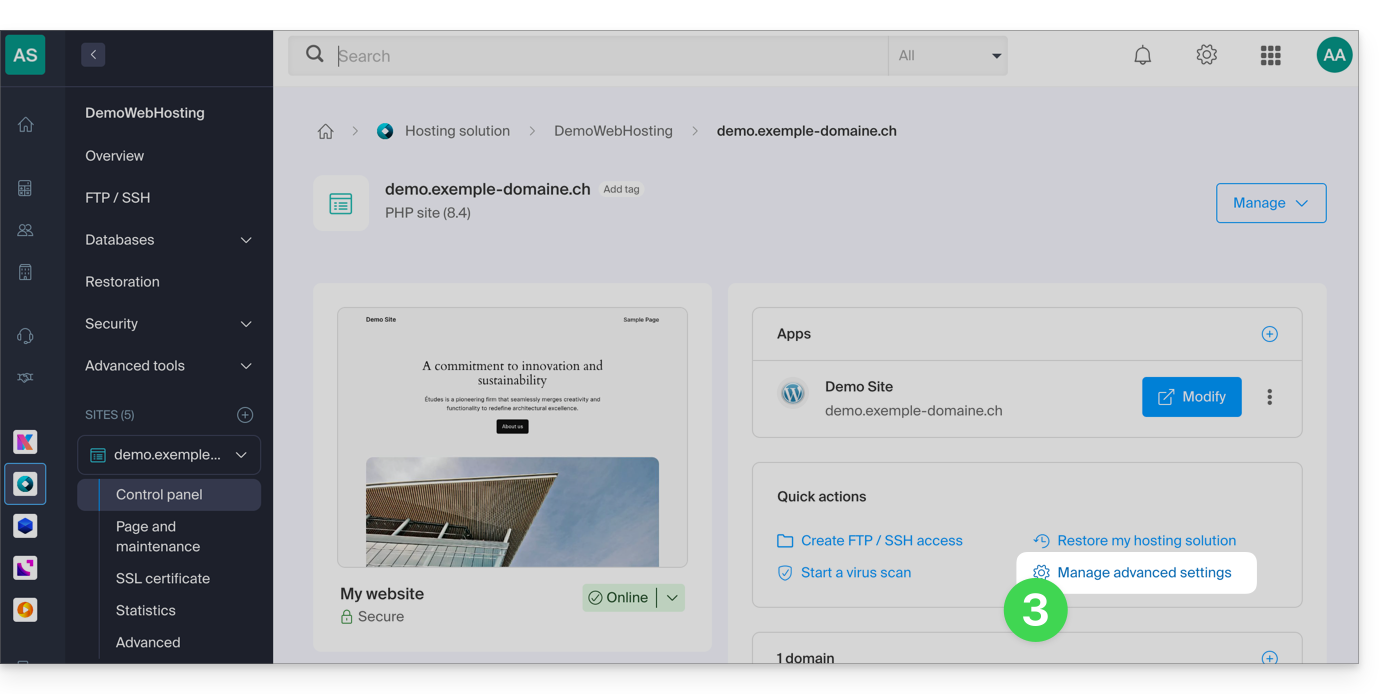
- Click on Manage advanced settings:
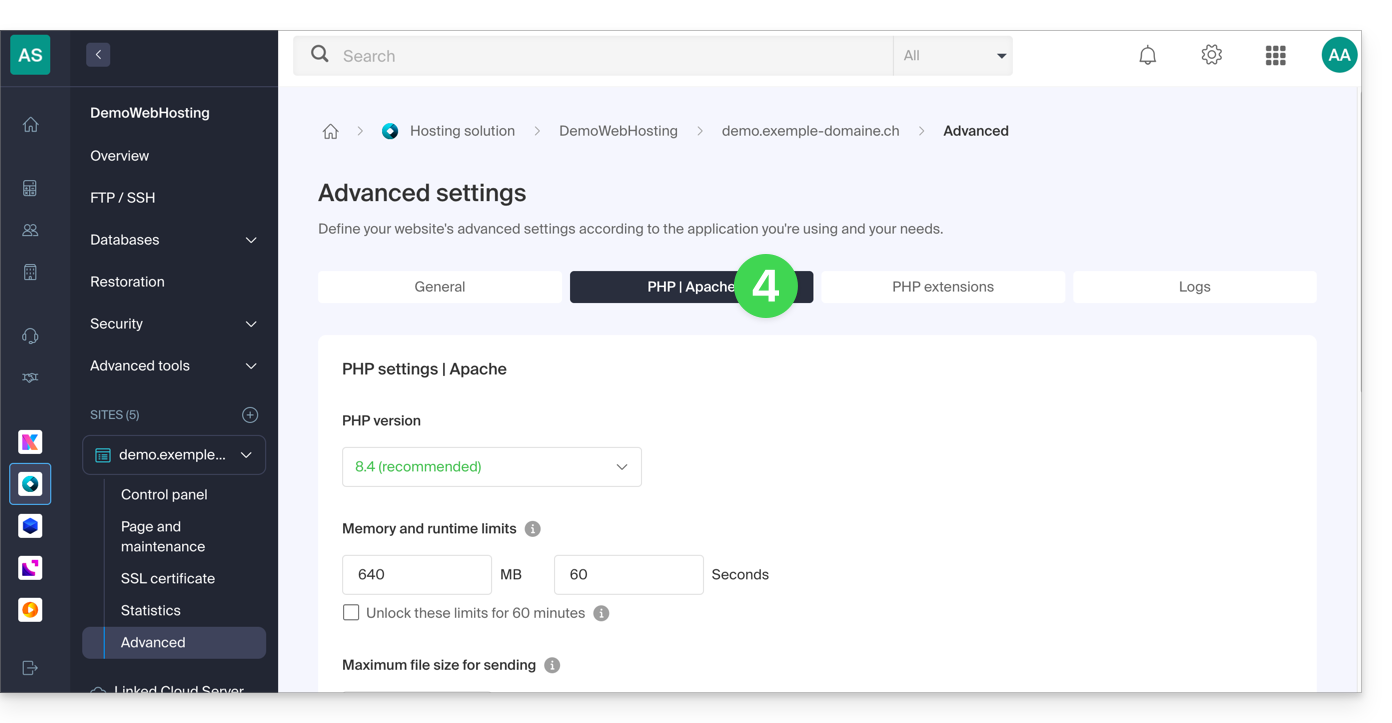
- Click on the PHP / Apache tab:
- Click on the On/Off toggle buttons as desired:
- Click the Save button at the bottom of the page to apply the changes.
Link to this FAQ: https://faq.infomaniak.com/173
Has this FAQ been helpful?
This guide explains how to restore backups of previous versions of your files and other web data from your Infomaniak web hosting, and how to set up an effective backup policy if the backups provided automatically and free of charge no longer meet your availability or security requirements.
Web Hosting (Starter, Shared, Cloud Server)
Consult these guides to restore automatic backups:
- of an entire hosting account (FTP + MySQL),
- of specific files on the hosting,
- of specific databases,
- a Web Application (WordPress & Apps),
- Cloud Server SSH crons.
Consult these guides for backing up and restoring:
- a hosting solution with Swiss Backup and Restic (advanced),
- WordPress with Swiss Backup,
- WordPress with an extension.
Please also refer to https://faq.infomaniak.com/snapshot.
Email / kSuite
- Restore messages from Infomaniak's automatic backups.
- Restore contacts or calendar events.
- Back up the current content of a mail account:
- by downloading the current content locally,
- by duplicating all the current content to a backup mailbox,
- by copying future emails as they arrive to a backup mailbox.
Domains / DNS Zones
- Restore deleted DNS records from Infomaniak's automatic backups.
- Restore an expired domain during the redemption period.
Link to this FAQ: https://faq.infomaniak.com/250
Has this FAQ been helpful?
This guide will help you troubleshoot any issues you may encounter when activating your Windows Server license.
Introduction
- Check for any ongoing issues at https://infomaniakstatus.com/.
- Specifically for Public Cloud, the list of scheduled maintenance and ongoing issues can be found at https://status.infomaniak.cloud/.
Modify the registered key
Open the Run utility (Windows logo key + R).
Remove the registered key
Run the following command:
cscript.exe c:\windows\system32\slmgr.vbs -upk
Add a new key
Restart the Run utility, then execute the following command:
cscript.exe c:\windows\system32\slmgr.vbs -ipk {KEY}by replacing {KEY} with the key from your configuration below:
| Operating System | KMS Key |
|---|---|
| Windows Server 2019 Datacenter | WMDGN-G9PQG-XVVXX-R3X43-63DFG |
| Windows Server 2019 Standard | N69G4-B89J2-4G8F4-WWYCC-J464C |
| Windows Server 2022 Datacenter | WX4NM-KYWYW-QJJR4-XV3QB-6VM33 |
| Windows Server 2022 Standard | VDYBN-27WPP-V4HQT-9VMD4-VMK7H |
| Windows Server 2025 Standard | TVRH6-WHNXV-R9WG3-9XRFY-MY832 |
| Windows Server 2025 Datacenter | D764K-2NDRG-47T6Q-P8T8W-YP6DF |
Activate Windows
Restart the Run utility, then run the following command to associate the key with the Infomaniak activation server:
cscript.exe c:\windows\system32\slmgr.vbs -skms kms.infomaniak.cloudRestart the Run utility, then finally execute the following command to activate your Windows system:
cscript.exe c:\windows\system32\slmgr.vbs -atoLink to this FAQ: https://faq.infomaniak.com/267
Has this FAQ been helpful?
This guide concerns IonCube Loader, a PHP module that allows you to decode PHP scripts that have been encoded with IonCube Encoder.
Introduction
- IonCube encoding is used to protect the source code of an application and prevent its modification or illegal distribution.
- By using IonCube Loader, website owners can guarantee the security of their code and content while enabling secure and easy distribution of their applications.
Using ionCube Loader
With a shared hosting plan, it is no longer offered. You can check this from the dashboard:
- Click here to access the hosting & website management section in your Infomaniak Manager (❓: help).
- Click on the name of the website in question.
- Click on Manage advanced settings:
- Click on the PHP Extensions tab.
- Click on ionCube Loader (if present in the list) to view the details:
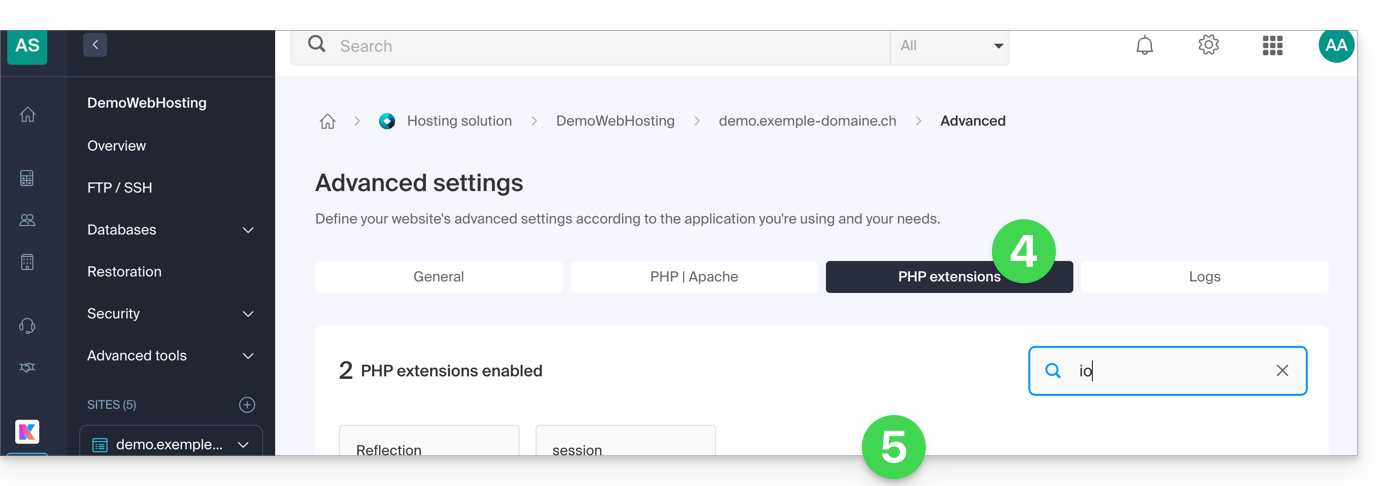
- In this case, you should consider a Cloud Server.
Link to this FAQ: https://faq.infomaniak.com/285
Has this FAQ been helpful?
When it comes to open-source software for handling multimedia files, FFmpeg is a powerful and flexible tool. It can be used to convert, edit, and stream videos and audio.
However, using FFmpeg on shared hosting presents certain challenges and limitations, both for users and hosting providers.
We recommend the Cloud Server offer for using FFmpeg.
You can also consider the Infomaniak VOD/AOD service.
Link to this FAQ: https://faq.infomaniak.com/286
Has this FAQ been helpful?
This guide explains how to perform secure and simplified file transfers between Web Hosting and/or Cloud Server.
Introduction
- FXP (File eXchange Protocol) is a method for transferring files directly between two FTP servers without the data passing through the local client.
- Using the FTP PORT and PASV commands, it allows establishing a connection between the two servers for faster and more efficient file transfer, thus saving bandwidth.
- This method may, however, pose security risks if the connections are not secured by FTPS, and it requires a more complex configuration compared to traditional FTP transfers (❓: help)
Transfer data between servers
FXP is enabled by default on Cloud Servers and Web Hosting (excluding Starter plans).
You can, for example, use CrossFTP, a multi-platform software that allows you to use FXP (as well as FTP, SFTP, S3, OpenStack Swift, etc.).
Link to this FAQ: https://faq.infomaniak.com/295
Has this FAQ been helpful?
This guide concerns the ODBC functions of PHP.
The ODBC functions of PHP are only supported on Cloud Server.
Open Database Connectivity Functions
These are the functions used to interact with databases via the ODBC (Open Database Connectivity) interface, a standard for accessing data sources in a uniform manner. Here are some examples of how to use the PHP ODBC functions:
- Be able to read data from an external database and display it on your website.
- Insert or modify data in an external database.
- Perform complex queries on an external database
Link to this FAQ: https://faq.infomaniak.com/296
Has this FAQ been helpful?
This guide concerns ImageMagick, a powerful software suite for image manipulation, available on Infomaniak's Web Hosting and Cloud Servers.
Simplified installation: To install ImageMagick or its extensions, it is recommended to use Fast Installer from your Manager.
ImageMagick and image manipulation solutions
Several tools are available to process your images (resizing, conversion, watermarks):
- ImageMagick (CLI): the main suite that can be used via the command line (via SSH); the modern command is
magick, but the old syntaxconvertis still available. - PHP extension
imagick: this is the most common solution for websites (WordPress, etc.); it allows you to use ImageMagick directly in your PHP scripts. - GD Library: a lighter alternative, often pre-installed, ideal for simple operations (thumbnails, text on images).
- PerlMagick: a dedicated interface for Perl scripts to access ImageMagick features.
Paths and Commands
On Infomaniak infrastructure, ImageMagick is installed by default. The executables are located in the following directory:
/usr/bin/Here are the main commands available:
| Command | Primary use |
|---|---|
magick (or convert) | Convert, resize, and transform images. |
identify | Get the metadata of a file (format, size, etc.). |
mogrify | Apply a modification directly to the original file. |
composite | Overlay multiple images (e.g., add a watermark logo). |
To test for the presence of the Perl module Image::Magick, you can use the following command:
perl -e 'use Image::Magick; print "Installed\n"';Link to this FAQ: https://faq.infomaniak.com/322
Has this FAQ been helpful?
This guide details the use of Crontab (crons via SSH), available only on Managed Cloud, by default (there is also a task scheduler for all hosting plans).
Prerequisites
- Script files called by cron must be executable (CHMOD).
Full path
Cron jobs do not have access to the absolute path. Calling PHP without specifying the full path to the executable makes it impossible to run the task. You must specify
/opt/phpX.X/bin/phpby replacing X.X with the desired PHP version (/opt/php8.1/bin/php for example).
Other operations
For example:
List the cron jobs for the SSH user in question:
crontab -l -u UsernameEdit the cron jobs:
crontab -e -u UsernameReceive email notifications about the results of your cron jobs (add this to the beginning of the file):
MAILTO=e-mail@domain.xyz
Restore a backup
Infomaniak backs up your cron jobs for the last 7 days (once a day). If you accidentally delete a cron job, contact Infomaniak support to request a restoration, specifying the time and date of the deletion.
Link to this FAQ: https://faq.infomaniak.com/350
Has this FAQ been helpful?
This guide explains how to use the HTTP header X-Frame-Options to limit the display of your pages in frames (<frame> and <iframe>) and to help protect against clickjacking attacks.
The ALLOW-FROM value is no longer supported by modern browsers. If you want to allow one or more specific domains, use the Content-Security-Policy (CSP) header with the frame-ancestors directive instead.
X-Frame-Options Header Values
The HTTP X-Frame-Options header indicates to the browser whether a page can be displayed within a <frame> or <iframe> tag.
DENY: completely prohibits displaying the page in a frame, including from your own site.SAMEORIGIN: allows display only when the page is embedded from the same domain.
Setting up the header
To apply this protection to your entire site, add the following directive to the .htaccess file:
Header set X-Frame-Options "SAMEORIGIN"You can also send this header from a PHP script:
Allow a specific domain with Content-Security-Policy
Autoriser un domaine spécifique avec Content-Security-Policy
To allow an external domain to embed your content in an iframe, use the Content-Security-Policy header with the frame-ancestors directive.
Example:
Header set Content-Security-Policy "frame-ancestors 'self' https://domain.xyz"This rule allows your own site ('self') as well as https://domain.xyz to embed your pages in an iframe.
Link to this FAQ: https://faq.infomaniak.com/360
Has this FAQ been helpful?
This guide details the management of incoming and outgoing connections between your different hosting environments, specifically for remote access to databases.
Connecting to databases between hosting environments
1. From a Web Hosting (Shared) Account
If you have a Web Hosting account (except for the old "v1 - 60 GB" offer), you can establish a connection to databases located on:
- another Web Hosting (shared),
- a Cloud Server hosting.
This flexibility allows you to share a database between multiple sites, establish remote connections, or configure cross-access between your services.
2. From a Cloud Server
With a Cloud Server, it is possible to connect to databases hosted on another Cloud Serveron your infrastructure:
- Make sure that port
3306(TCPprotocol) is open for incoming connections in your firewall. - If you restrict access to certain addresses, check the rules for the
IPv4andIPv6protocols.
Important note: Outbound connections from a Cloud Server to the databases of a shared hosting service are not allowed.
3. From an external provider
If you wish to access your MySQL databases from a server or tool located outside of the Infomaniak infrastructure (third-party provider, local application, etc.), please refer to this other guide.
Link to this FAQ: https://faq.infomaniak.com/374
Has this FAQ been helpful?
This guide explains how to enable or disable the PHP function set_time_limit on a Web Hosting plan.
Introduction
set_time_limitis a PHP function that sets the execution time limit for a script, in seconds; if this limit is reached, the script stops and returns a fatal error.set_time_limitcannot be used to set values exceeding script execution time limit (max_execution_time) defined in the Manager.
Enable or disable the PHP function set_time_limit
To access website management:
- Click here to access the hosting & website management section in your Infomaniak Manager (❓: help).
- Click on the name of the product in question.
- Click on Manage advanced settings:
- Click on the PHP / Apache tab:
- Click on the On/Off toggle button as desired:
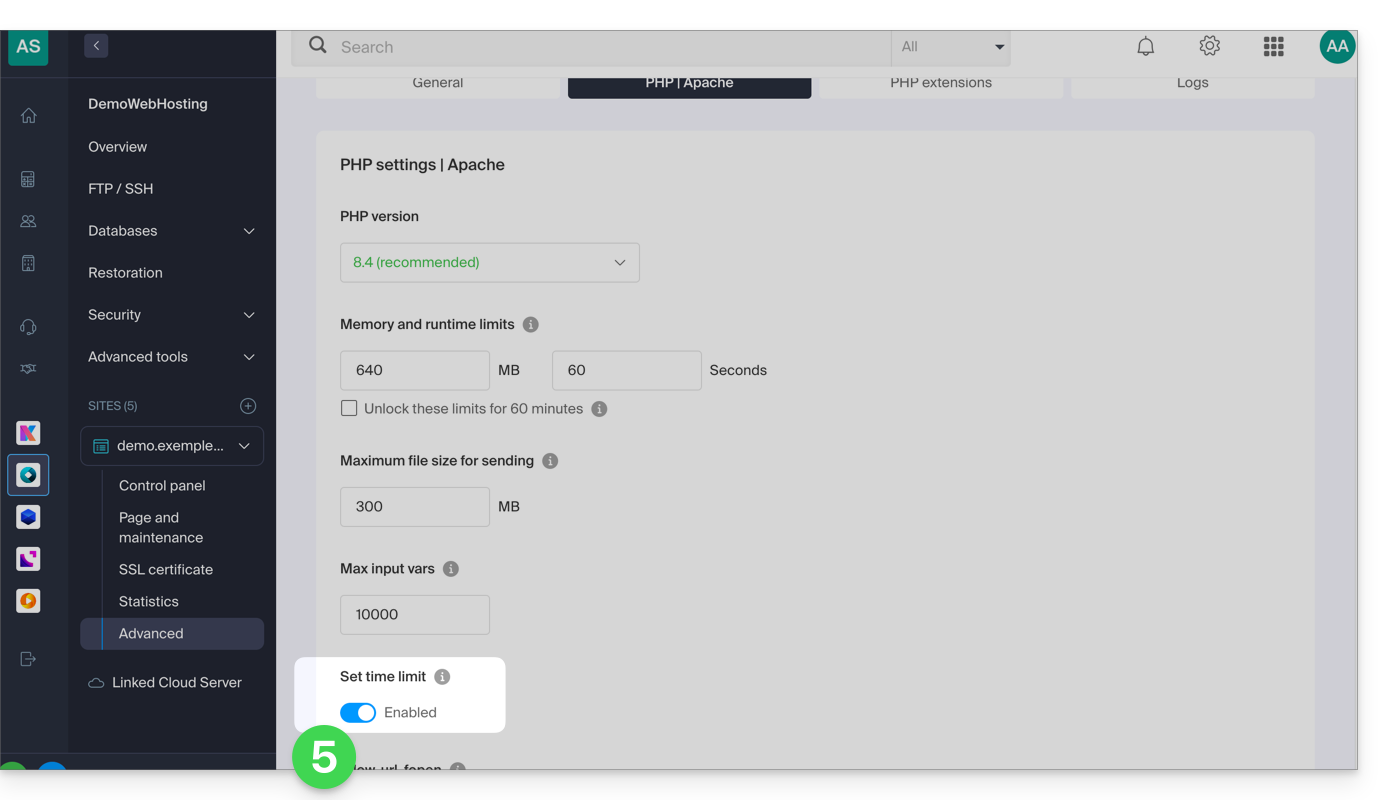
- Click the Save button at the bottom of the page to apply the changes.
Link to this FAQ: https://faq.infomaniak.com/383
Has this FAQ been helpful?
Git and GitHub are available with all Infomaniak hosting plans, including…
and of course the Jelastic Cloud offering, which will allow you to deeply integrate versioning (❓: help).
Link to this FAQ: https://faq.infomaniak.com/402
Has this FAQ been helpful?
This guide covers the basic database management features available with Infomaniak hosting plans.
You can also discover high-availability managed database solution (DBaaS) hosted in Switzerland, allowing you to easily deploy high-performance and secure clusters (MySQL, MariaDB, PostgreSQL) without having to manage the underlying infrastructure.
MySQL, SQLite, MariaDB, PostgreSQL…
At the Database Management System level, the hosting solutions support…
- … MySQL databases via PHP MySQL access or via Perl DBI+DBD::mysql
- You can use MySQL as a database management system (DBMS) on Infomaniak servers.
- You can access it either via PHP using the built-in PHP MySQL database functions, or via Perl using the DBI and DBD::mysql modules.
- … MySQLi, the native interface for accessing MySQL (PHP5)
- MySQLi is a PHP extension that allows access to a MySQL database.
- It is an improved and more recent version of the old PHP MySQL extension, offering improved features and performance.
- … SQLite 3.x
- SQLite is a lightweight, self-contained, and serverless SQL database engine.
- Infomaniak servers support SQLite version 3.x, which means you can use SQLite to store data on these servers.
- … MariaDB
- MariaDB is a fork of MySQL and is often used as an alternative to MySQL.
- You can therefore use MariaDB as a database management system on Infomaniak servers.
- … the PGSQL module
- PGSQL is a PHP module that allows you to connect to a PostgreSQL database.
- This specific feature allows you to connect to a REMOTE PostgreSQL database via PHP; this requires opening the appropriate port to the specific IP address of the PostgreSQL database from the Infomaniak manager.
Dba, dbm, db2, and sqlite are not supported, nor is SQL Server (it is a database server that requires a Microsoft architecture).
Link to this FAQ: https://faq.infomaniak.com/418
Has this FAQ been helpful?
This guide explains how to obtain information about the presence of a caching system on a website using the curl command.
Introduction
- In the world of programming and system administration, it is often necessary to determine whether a website uses a caching system to improve its performance.
- Caching systems such as Fastly are commonly used to temporarily store data in order to serve it to users more quickly.
Determine if a website uses a caching system
To determine if a website uses a caching system to improve its performance and to understand how websites function and how they can be optimized:
- Run the following command from a
Terminalapplication (command-line interface,CLI) on your device: curl -svo /dev/null [url] -H “Fastly-Debug: true”- Replace
[url]with the address of the website you want to check.
- Replace
If the website uses Fastly or another similar caching system, you will see specific debugging information in the command output. The details provided may include information about HTTP requests and responses, as well as information about the cache and performance.
Using the curl command
curl is a command-line tool used to transfer data using URLs.
The -svo /dev/null option is used to perform a silent request (-s), display detailed information about the request (-v), and redirect the output data to /dev/null to discard it (/dev/null is a special device on Unix/Linux systems that acts like a trash can). -H "Fastly-Debug: true" is an HTTP header added to the request to request specific debugging information from Fastly.
Link to this FAQ: https://faq.infomaniak.com/453
Has this FAQ been helpful?
This guide details how to use the FormMail script on the various Infomaniak hosting plans.
Preamble
- FormMail is a free CGI script that captures and processes the content of a form to send it to the specified users.
- Supported on Shared Hosting & Cloud Server.
Using FormMail
You can freely install FormMail on your hosting to send forms from your website to the recipients of your choice:
- Download the revised (compatible) version of the original script by Matt Wright's FormMail.
- Place the Perl file
FormMail.plin a subdirectory namedcgi-bin. - Grant execution permission for the user:
chmod u+x FormMail.pl
- Edit the
FormMail.plfile to specify the recipients.
The EXAMPLE file contains a sample form that you can adapt to your needs.
Link to this FAQ: https://faq.infomaniak.com/470
Has this FAQ been helpful?
This guide explains how to modify the disk space of a hosting plan on Cloud Server.
Introduction
- Databases are installed on the same Cloud server, so the disk space for databases is not limited to the size of the hosting plan but to the total disk space of the Cloud server.
- To change this total disk space, you need to modify the Cloud server configuration.
Modify the disk space of a web hosting plan
To access your Cloud Server hosting:
- Click here to access your product management interface on the Infomaniak Manager (need help?).
- Click directly on the name assigned to the product in question.
- Click on the action menu ⋮ located to the right of the web hosting in question, in the Web Hosting section.
- Click on Modify hosting disk space:
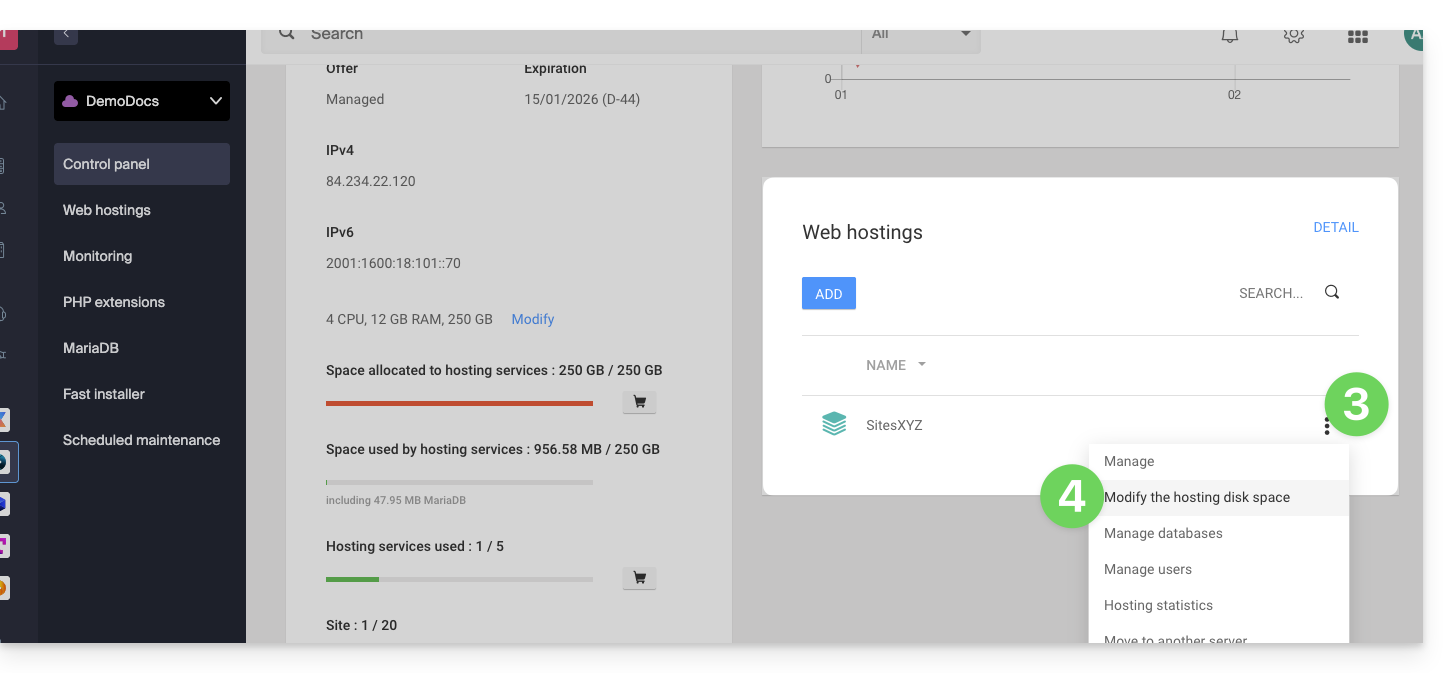
- Adjust the size according to the allocated and remaining disk space.
- Click the Confirm button to save the changes.
Link to this FAQ: https://faq.infomaniak.com/484
Has this FAQ been helpful?
This guide helps you resolve an error of the type "Invalid query: MySQL server has gone away".
Introduction
- This type of error often occurs when a MySQL connection is kept open without submitting any queries for a period of time exceeding the connection timeout: http://dev.mysql.com/doc/refman/5.7/en/gone-away.html
- The
wait_timeoutandinteractive_timeoutvariables, which control this disconnection, are set to 30 seconds: http://dev.mysql.com/doc/refman/5.0/en/communication-errors.html
Solutions
To avoid the "MySQL server has gone away" error, here are several possible approaches:
Automatic Verification and Reconnection
Before executing a query, it is recommended to test whether the MySQL connection is still active. If the connection has been closed, you can automatically re-establish it before proceeding with your query. Here is an example in PHP:
if (!mysqli_ping($connexion)) {
mysqli_close($connexion);
$connexion = mysqli_connect($host, $user, $password, $database);
}
The mysqli_ping() function checks if the connection is still valid. If it is not, the script closes the connection and opens a new one.
Regular "Ping" Sending
Another method is to run a script that regularly sends a "ping" to the database to keep the connection active. For example, you could create a scheduled task (cron job) that sends a lightweight request, such as SELECT 1;, at regular intervals.
Adjusting MySQL parameters (Cloud Server)
With a Cloud Server, you can increase the values of the wait_timeout and interactive_timeout variables from the MySQL menu of your server to extend the connection duration before it is closed.
Link to this FAQ: https://faq.infomaniak.com/499
Has this FAQ been helpful?
This guide will help you find the public IP address of your device, which can be useful when submitting certain support requests.
Display the public IP address on the connected device
Click here to obtain the public IP address of your device in IPv4 and IPv6 format.
Alternative methods
Visit ipinfo.io or ifconfig.me.
… on macOS
- From a
Terminalapplication (command-line interface,CLI) on your device, run thecurl ifconfig.mecommand and press Enter. - The address displayed is the public IP address of your computer.
Please note that this address may change periodically, especially if the router restarts or if the internet service provider uses dynamic IP address assignment.
To automate the process of finding the public IP address, use commands or scripts that query services such as api.ipify.org...
Link to this FAQ: https://faq.infomaniak.com/528
Has this FAQ been helpful?