Knowledge base
1000 FAQs, 500 tutorials and instructional videos. Here, there are only solutions!
This guide explains how to modify an existing Web Hosting plan, for example, to host additional websites if the maximum number of websites allowed has been reached, or to obtain a more recent hosting solution to benefit from the latest versions of PHP & MySQL.
Order additional websites, disk space, or IP addresses
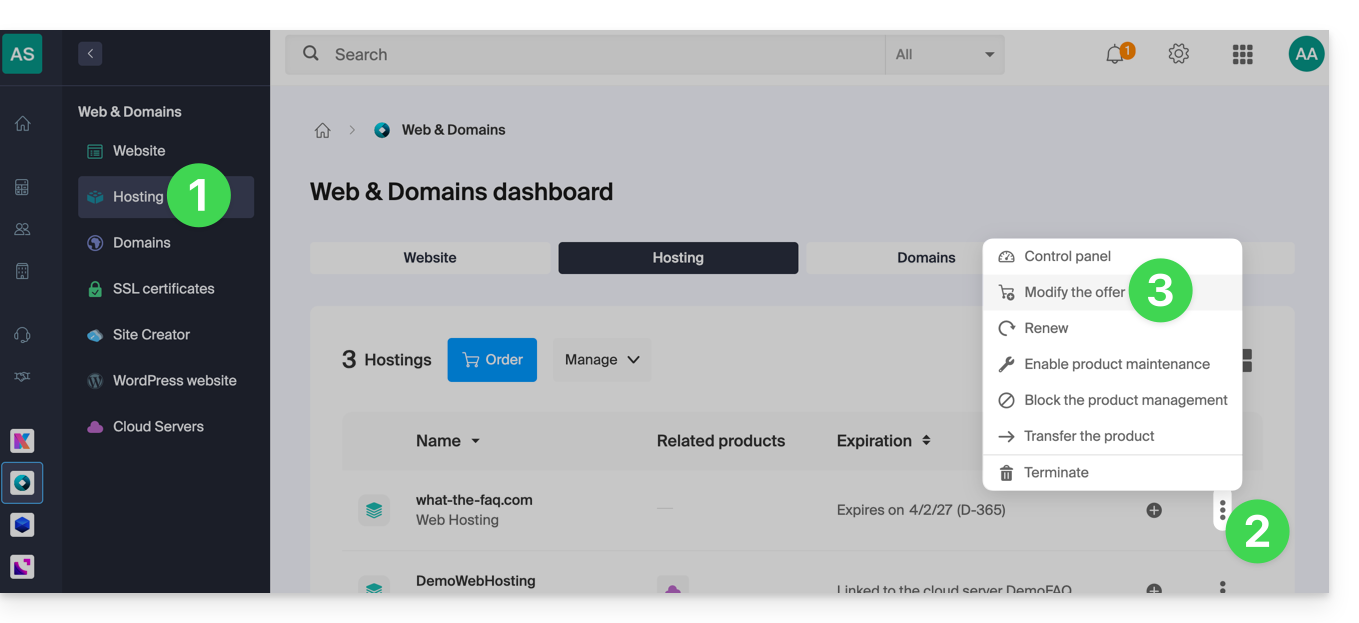
To access the web hosting configuration tool:
- Click here to access your hosting management interface on the Infomaniak Manager (need help?).
- Click on the action menu ⋮ located to the right of the relevant hosting.
- Click on Modify offer:
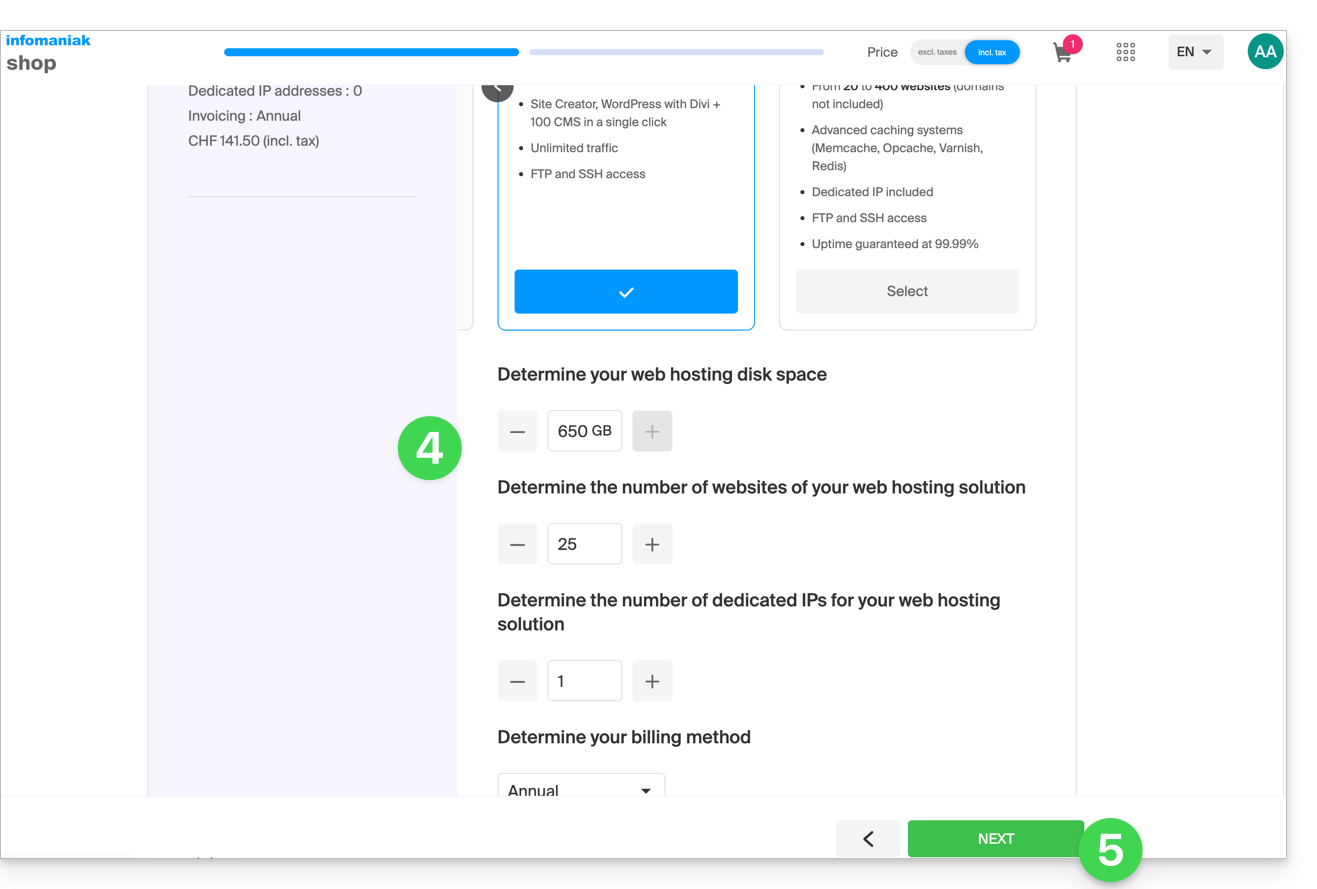
- Increase the values you want to modify.
- Click on the Next button to proceed to the payment for the changes made to the hosting:
Switch to a more recent server
To benefit from a hosting solution on a more recent server and thus take advantage of the latest versions of PHP & MySQL, you can either…
- … refer to this other guide and follow the procedure outlined in it to the very end:
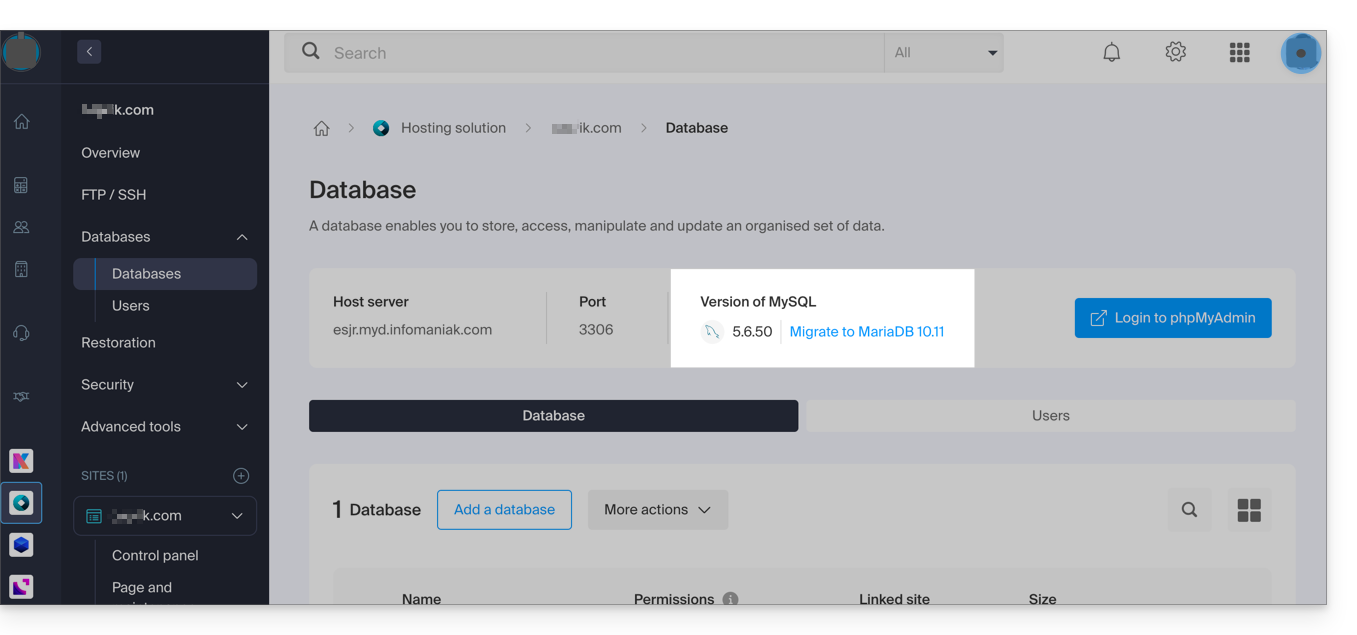
- … refer to this other guide and follow the procedure outlined in it up to step 4, then click the button to update:
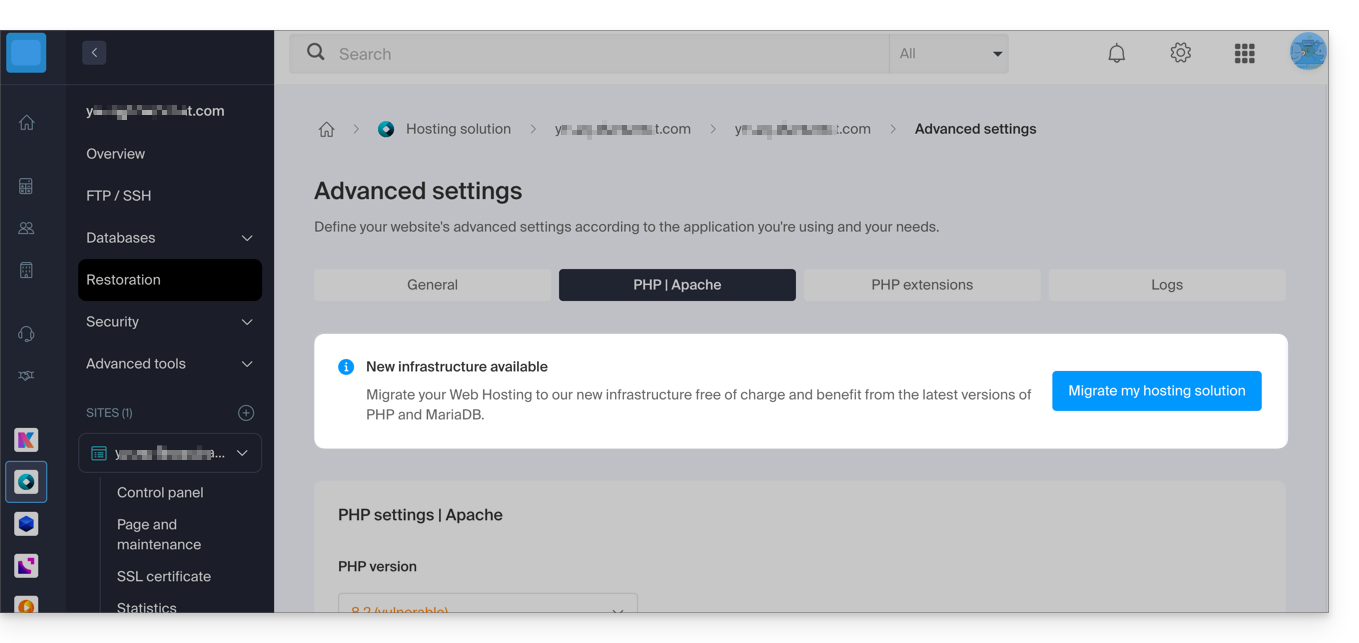
If no information banner is displayed, it means you already have a recent hosting plan.
Link to this FAQ: https://faq.infomaniak.com/626
Has this FAQ been helpful?
This guide explains how to host an ASP, ASP.NET Framework, or ASP.NET Core (.NET modern) application on Infomaniak Cloud infrastructure.
Introduction
- The Web Hosting and Managed Cloud Server offers are based on a Linux / Apache infrastructure; they do not support IIS (Internet Information Services) or the native execution of applications developed for Microsoft Windows (classic ASP or ASP.NET Framework).
- The solutions and alternatives are presented below.
Details of compatible hosting solutions
1. Cloud VPS with Windows Server Classic ASP (ASP 3.0) & ASP.NET Framework (v1.0 to 4.8)
For applications based on the traditional Windows ecosystem (IIS, VBScript, C#, .NET Framework):
- Deploy a Cloud VPS or VPS Lite with Windows Server (versions 2019, 2022, or 2025).
- Enable the Web Server (IIS) role with full administrator access via RDP.
2. Jelastic Cloud (ASP.NET Core & modern .NET)
For cross-platform ASP.NET Core applications:
- Simplified deployment via Docker container or .NET runtime.
- Automatic resource scaling (CPU/RAM) and high availability.
3. Cloud VPS Linux ASP.NET Core (.NET 6, 8, 9+)
You can also host an ASP.NET Core application on a Cloud Linux VPS (Debian, Ubuntu, etc.) configured with a reverse proxy (Nginx or Apache) in front of the .NET Kestrel server.
4. Public Cloud (OpenStack)
Suitable for enterprise projects requiring a virtual private cloud (VPC), block/object storage, or large-scale hybrid deployment.
Link to this FAQ: https://faq.infomaniak.com/631
Has this FAQ been helpful?
This guide explains how to “unlock” any Windows setting that is blocked by the message “Some settings are hidden or managed by your organization” (such as changing the wallpaper, for example) and to remove these restrictions that are in place by default on the VPS Cloud / VPS Lite server offering.
Reset local group policy settings
To reset all local group policy settings to their default values:
- Open the command prompt as an administrator.
Enter the following commands:
RD /S /Q "%windir%\System32\GroupPolicyUsers" RD /S /Q "%windir%\System32\GroupPolicy" gpupdate /force- Restart the machine.
Link to this FAQ: https://faq.infomaniak.com/744
Has this FAQ been helpful?
This guide explains how to work without the PECL SSH2 client module, which is not available on Infomaniak Web Hosting and Cloud Servers, by using the phpseclib library instead, which works in native PHP without requiring a specific extension.
Introduction
- Using the
PECL SSH2 clientresults in errors such asNo compatible key exchange algorithms foundorUnable to exchange encryption keysin its latest available version. Phpseclibprovides:- SSH authentication via password or private key.
- Remote command execution.
- Secure file transfer (SFTP).
- SSH key management.
Using phpseclib
To integrate an SSH connection into a PHP script, use phpseclib as follows:
use phpseclib3\Net\SSH2;
use phpseclib3\Crypt\PublicKeyLoader;

$ssh = new SSH2('domain.xyz');
$key = PublicKeyLoader::load(file_get_contents('/path/to/private_key'));

if (!$ssh->login('user', $key)) {
    exit('Authentication Failed');
}

echo $ssh->exec('ls -la');
Link to this FAQ: https://faq.infomaniak.com/767
Has this FAQ been helpful?
This guide details the features available for managing relational databases on Infomaniak hosting plans.
Using Views, Triggers, Stored Procedures, and Routines
Regarding the management of relational databases, the functionality of views is available by default, allowing users to create views to simplify data management and presentation.
However, some advanced features that enable finer and more complex data manipulation, such as…
- “triggers”
- stored procedures
- routines
- and the creation of functions
… are only available on Cloud Servers.
They are not allowed on shared servers.
This restriction is mainly due to the potential risks to the stability of the infrastructure. Incorrect configuration or excessive use of these features could create infinite loops or significant overloads, affecting not only the performance of the server in question but also the experience of all customers hosted on the same infrastructure.
Troubleshooting MySQL/MariaDB dump import issues
When exporting and then re-importing a MySQL or MariaDB database via the Infomaniak hosting interface, the operation may fail due to errors related to the DEFINER of triggers or views. This occurs when the database objects were created with a specific user (called the definer) who no longer exists at the time of import.
Specifically, the export and import process uses a temporary user, which is used only during these operations. After this user is deleted, the views or triggers defined with this account as the DEFINER become invalid, causing errors such as:
General error: 1449 The user specified as a definer ('xxxx_temp_1'@'%') does not exist
To avoid this issue, you can correct the backup file (dump.sql or dump.sql.gz) before importing it by replacing the definer definitions with CURRENT_USER. This will automatically associate the triggers and views with the current user at the time of import.
Here is an example of a command to modify the dump before importing it:
sed -E 's/DEFINER=`[^`][^`]*`@`[^`][^`][^`]*`/DEFINER=CURRENT_USER/g' dump.sql > dump-corrected.sql
Once this replacement is done, the corrected file can be imported normally via the Infomaniak Manager. This behavior is known and related to the way temporary users function during the dump/restore process. No changes to the export/import process are planned in the short term, but the issue is still being evaluated on the infrastructure side.
For more information on the CURRENT_USER variable, please refer to the official documentation of:
Link to this FAQ: https://faq.infomaniak.com/821
Has this FAQ been helpful?
This guide explains how to launch a content analysis of a Web Hosting service to detect and remove files containing viruses and other malicious scripts that could threaten the security of websites.
Introduction
- You will receive an email when the operation is complete (the antivirus scan may take some time; the Manager can be closed).
- Infomaniak ensures the protection of hosting by scanning only the website folders (webroot); no synchronous scan is performed on the rest of the hosting.
- Also consider using the vulnerability detection tool to monitor any potential vulnerabilities that are automatically corrected on your websites.
Start an antivirus scan of your websites
To analyze potentially infected content:
- Click here to access your hosting management in the Infomaniak Manager (need help?).
- Click directly on the name assigned to the hosting in question.
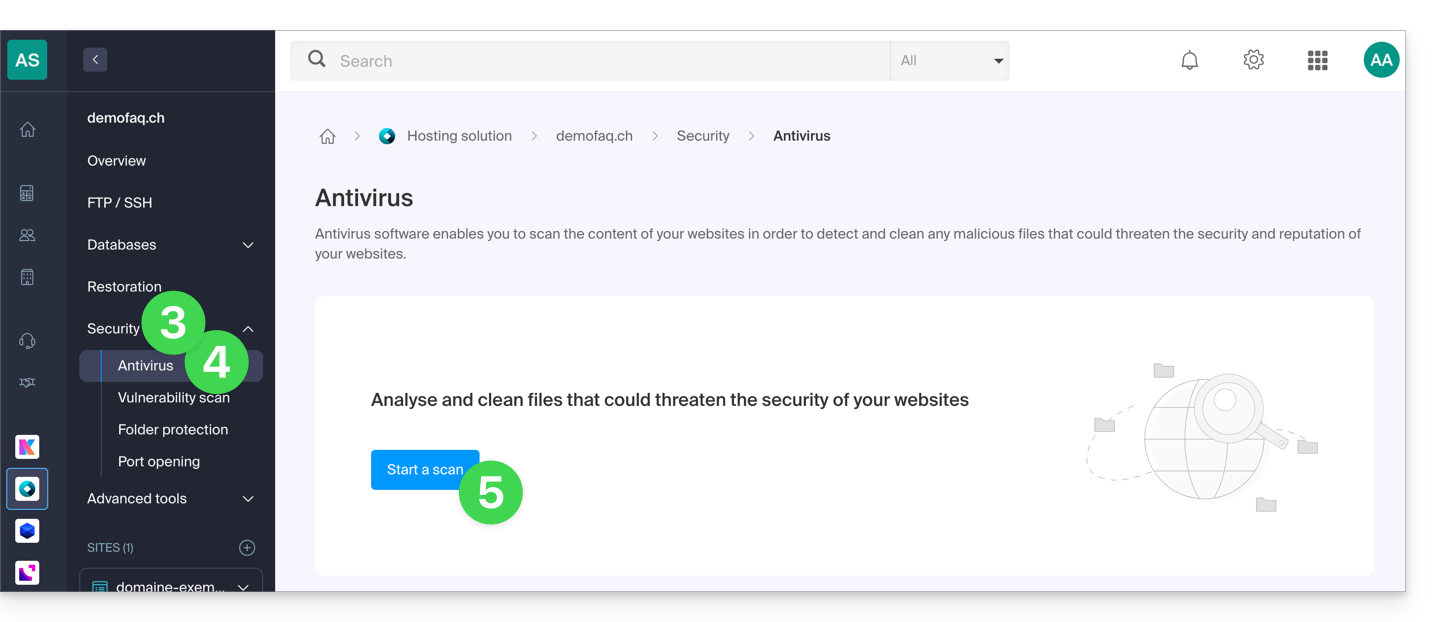
- Click on Security in the left-hand menu.
- Click on Antivirus in the left-hand menu.
- Click on the blue Scan button:
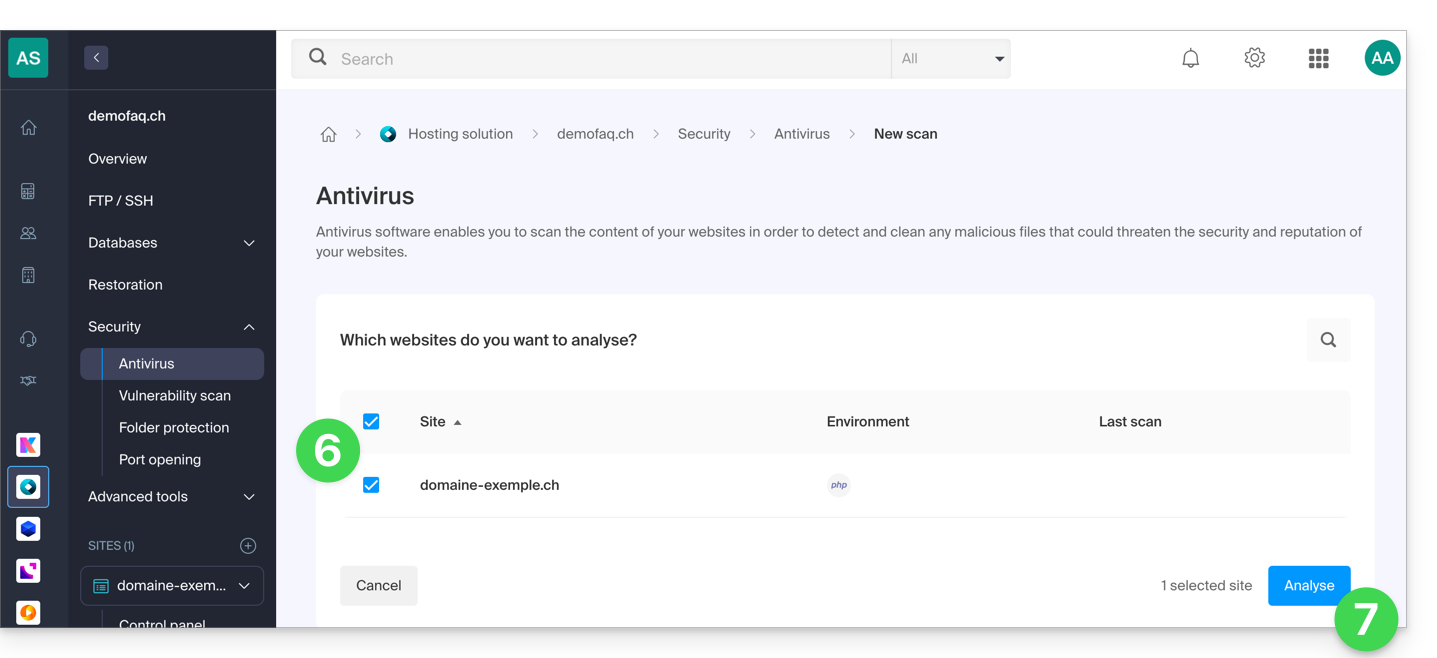
- Select the site(s) to analyze.
- Click the blue Start analysis button:
- Follow the procedure until the file analysis begins.
Link to this FAQ: https://faq.infomaniak.com/857
Has this FAQ been helpful?
This guide explains how to quickly install applications, PHP extensions, and technologies (non-exhaustive list below) in just a few clicks on Cloud Server only.
Refer to this other guide if you are looking for information about additional Web Applications that can be installed on any type of hosting, including standard/shared hosting.
Install (or uninstall) PHP apps/extensions…
To find the list of technologies and proceed with their installation:
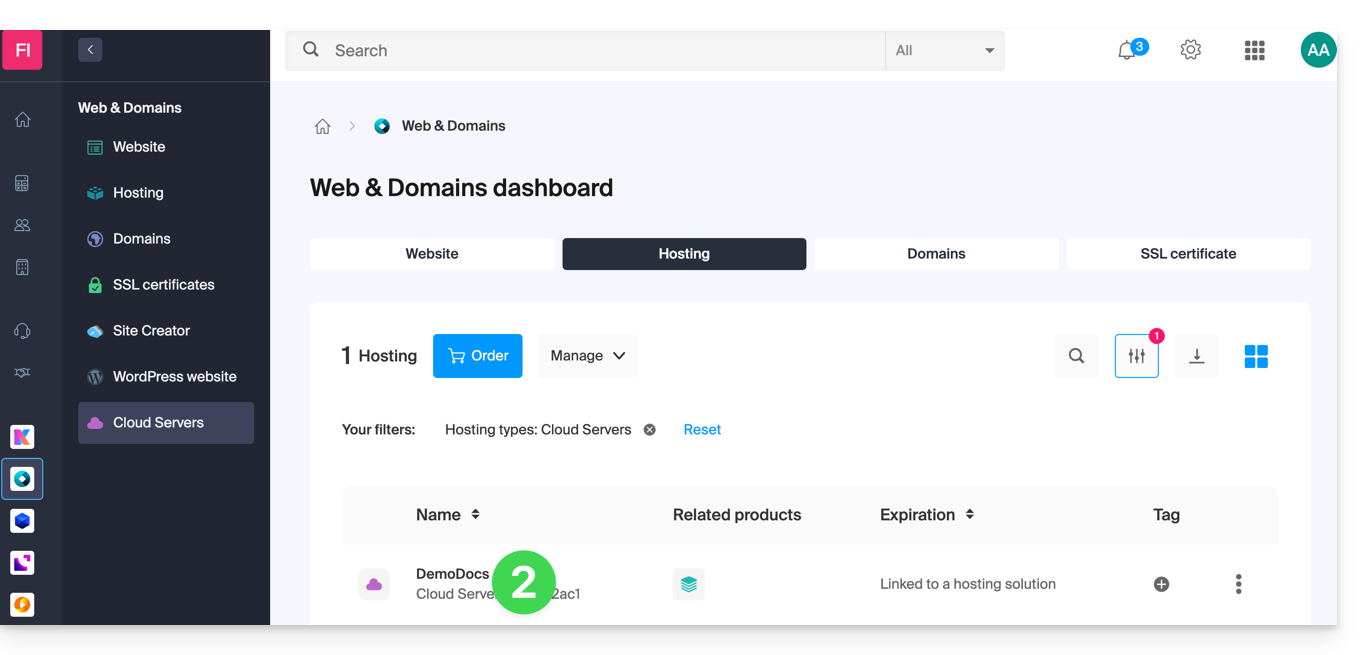
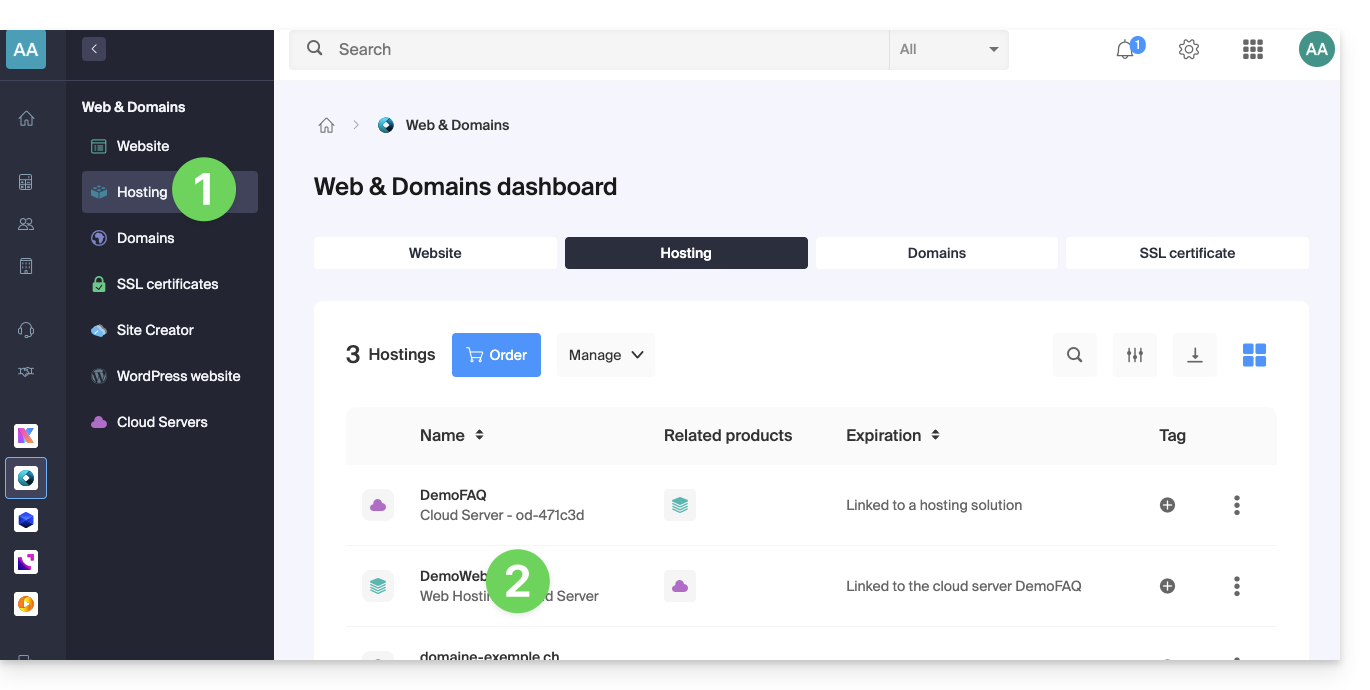
- Click here to access the management of your Cloud Server in the Infomaniak Manager (need help?).
- Click directly on the name assigned to the Cloud Server in question:
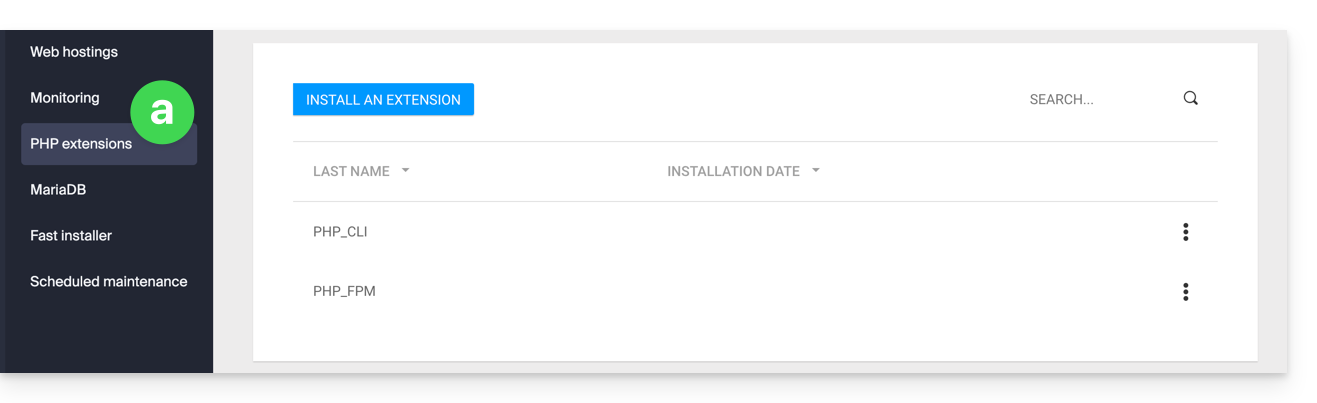
- Click in the left-hand menu:
- PHP Extensions
- Fast Installer
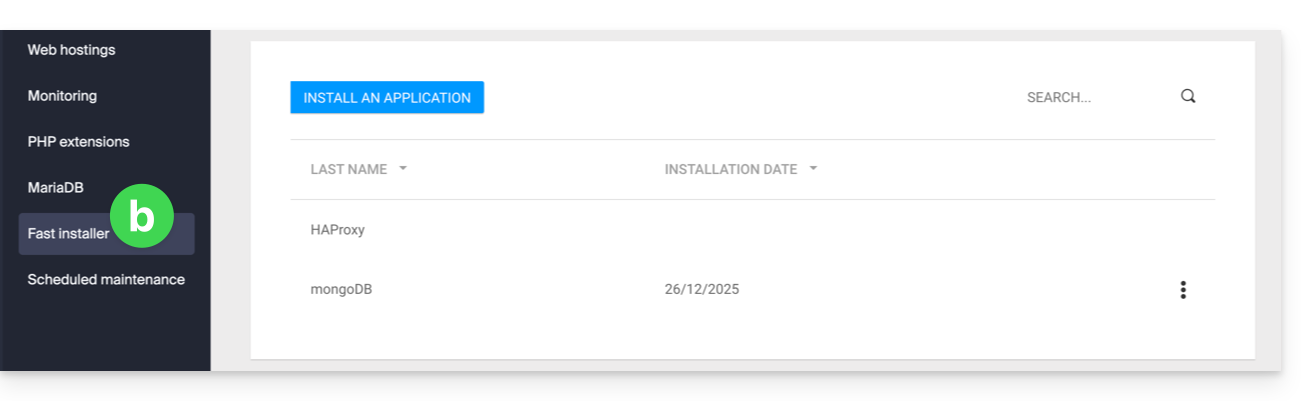
- PHP Extensions
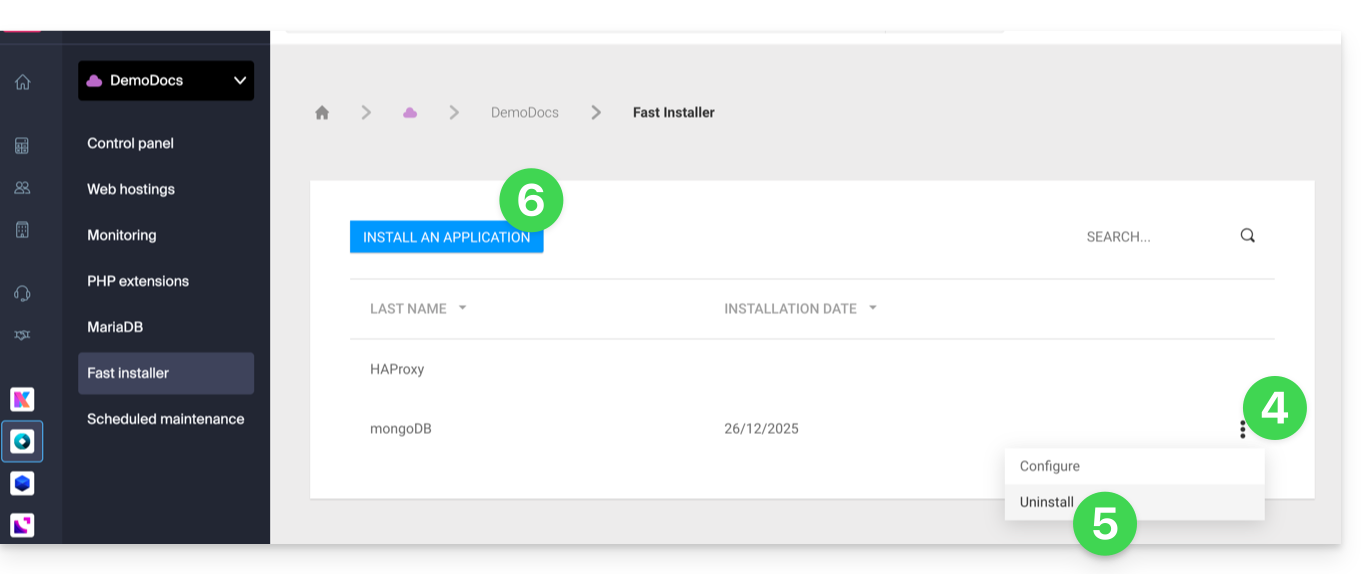
- Click on the action menu ⋮ to the right of the extension you wish to uninstall in the table that appears.
- Click on Uninstall.
- Otherwise, click on the blue button.Install an extension / Install an application:
- Then, select the new installation you want:
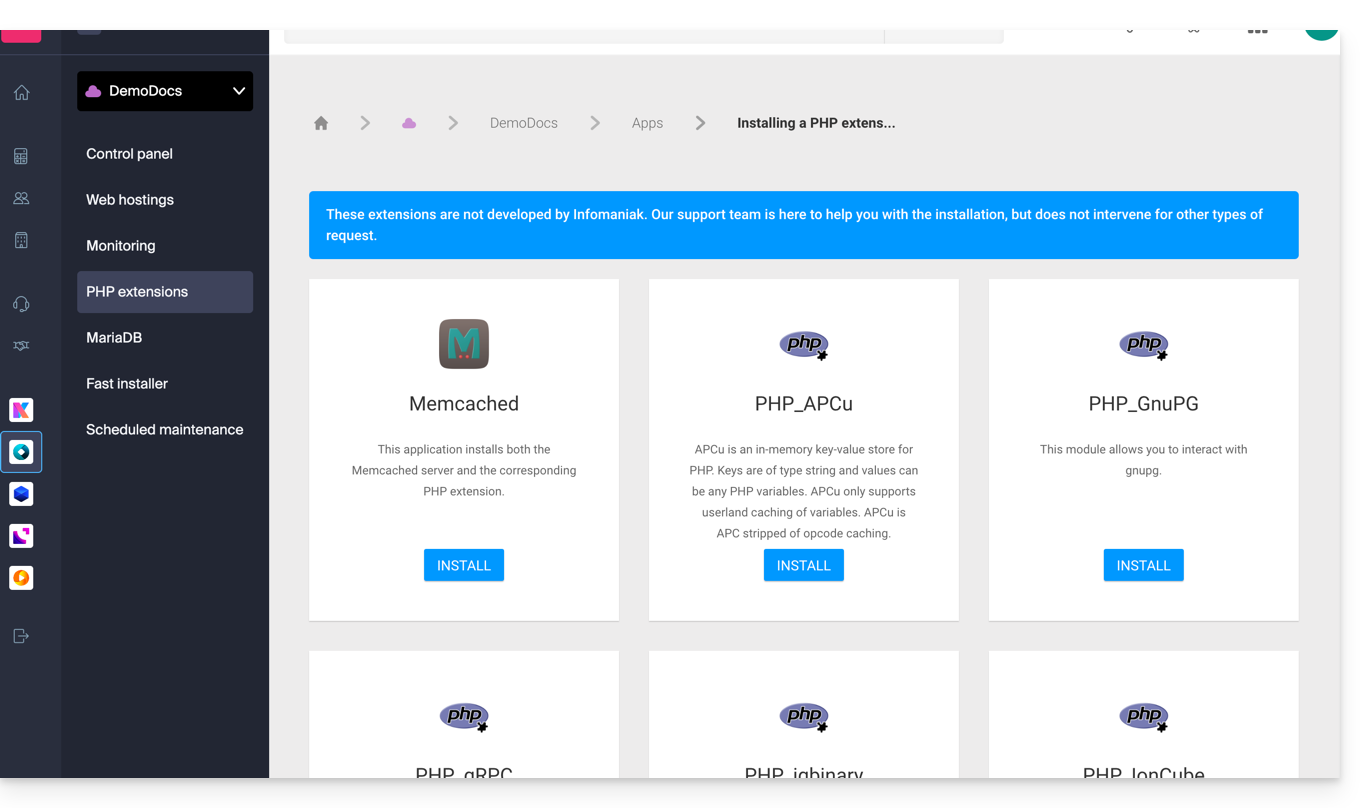
Non-exhaustive list of available apps & extensions
AdvanceCOMPBuildEssentialelectron_devExifToolFFmpeg↗ guideGhostscriptGifsicleGraphicsMagickHAProxyImagemagick↗ guideJpegoptimlibjpeg_turbolibqrencodelibX11_xcb1MidnightCommanderMemcached↗ guidemongoDB↗ guideNVM Node Version ManagerOptiPNGp7zipPDFtkPHP_APCuPHP_CLI↗ guidePHP_FPMPHP_GnuPG(deprecated extension) ↗ guide for the pure PHP alternativePHP_gRPCPHP_igbinaryPHP_IonCube↗ guidePHP_OPcachePHP_PDFPHP_PDO_ODBC↗ guidePHP_SwoolepipPngcrushPngquantRedis↗ guideRRDTool The Round Robin Database ToolRubyCompasssystemd↗ guidetesseract_ocrvarnish↗ guidevirtualenvWebPxauthxpdfxvfbZSH
Link to this FAQ: https://faq.infomaniak.com/877
Has this FAQ been helpful?
This guide explains how to connect to an external database from a Cloud Server.
Introduction
- It is possible to connect to MySQL via SSL (whether external or not) - this should be specified when establishing the connection.
- The MySQL port
3306is closed by default - to open it, please refer to this other guide. - Infomaniak does not install
PDO_DBLIB.
Install PHP_PDO_ODBC
Prerequisites
- You must have the PHP Extensions menu in the Infomaniak Manager, under the Cloud Server section (if not, you will need to upgrade your Cloud Server).
You can install the PHP_PDO_ODBC extension from the PHP Extensions menu of your Cloud Server:
- Click here to access the management interface for your product on the Infomaniak Manager (need help?).
- Click directly on the name assigned to the product in question.
- Click on PHP Extensions in the left-hand menu.
- Click on the blue Install an extension button.
- Choose the
PHP_PDO_ODBCextension. - Confirm the installation.
Configure the connector
The driver configuration is already defined in /etc/odbcinst.ini:
[FreeTDS]
Description = MS SQL database access with Free TDS Driver
Driver = /usr/lib/x86_64-linux-gnu/odbc/libtdsodbc.so
Setup = /usr/lib/x86_64-linux-gnu/odbc/libtdsS.so
There is no need to redefine it statically in the .odbc.ini or in the user's home directory ~~/.odbc.ini, or even dynamically in the PHP code.
For example, with the FreeTDS driver defined beforehand, the driver version must also be specified at the end of the pdo object declaration:
$con = new PDO('odbc:Driver=FreeTDS;Server=__SERVER IP__;Port=3306;DATABASE=__DATABASE NAME__;UID=__USERNAME__;PWD=__PASSWORD__;TDS_Version=8.0');Link to this FAQ: https://faq.infomaniak.com/895
Has this FAQ been helpful?
This guide explains how to change the password for an FTP or FTP/SSH account for a website hosted on an Infomaniak Web Hosting plan.
Change the password for an existing FTP user
To access the website on your Web Hosting and modify your FTP access details:
- Click here to access your hosting management area in the Infomaniak Manager (need help?).
- Click directly on the name assigned to the hosting in question:
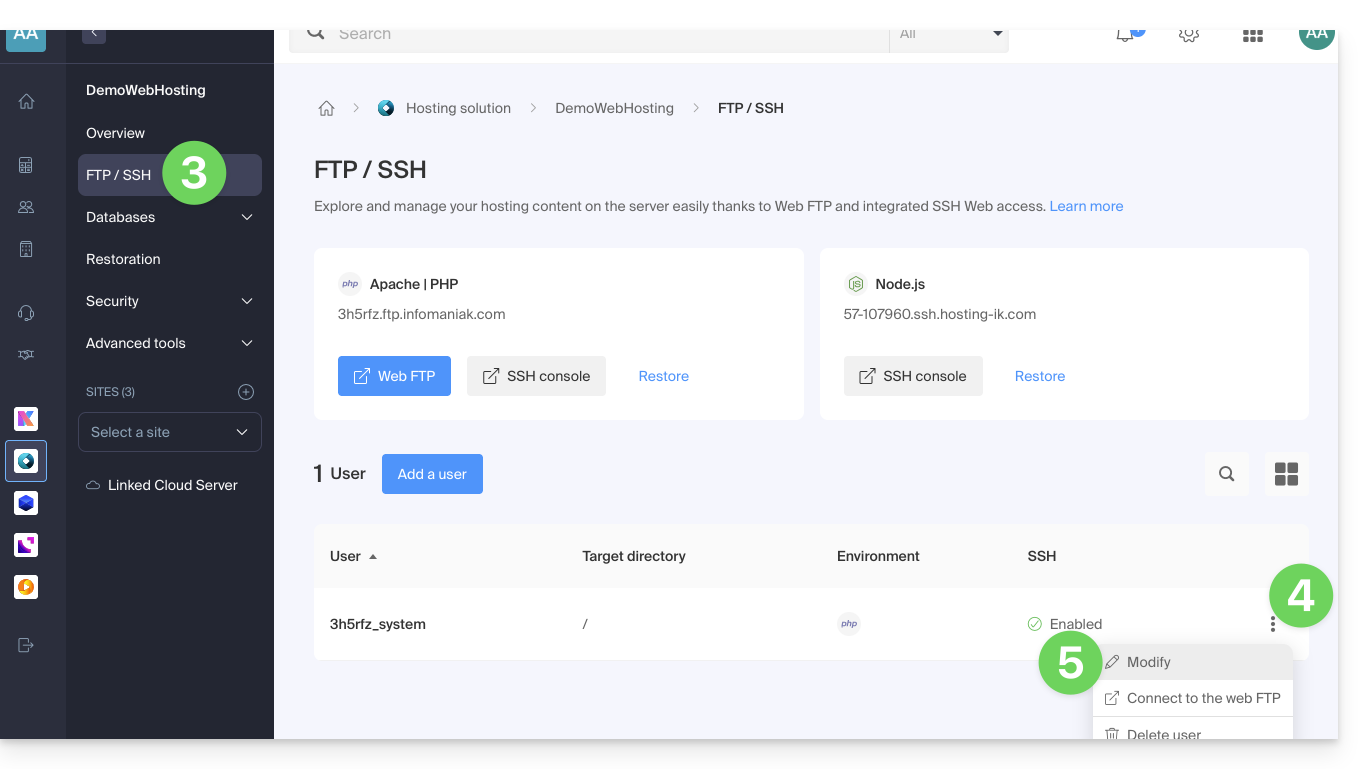
- Click on FTP / SSH in the left-hand menu.
- Click on the action menu ⋮ to the right of an existing account.
- Click on Edit:
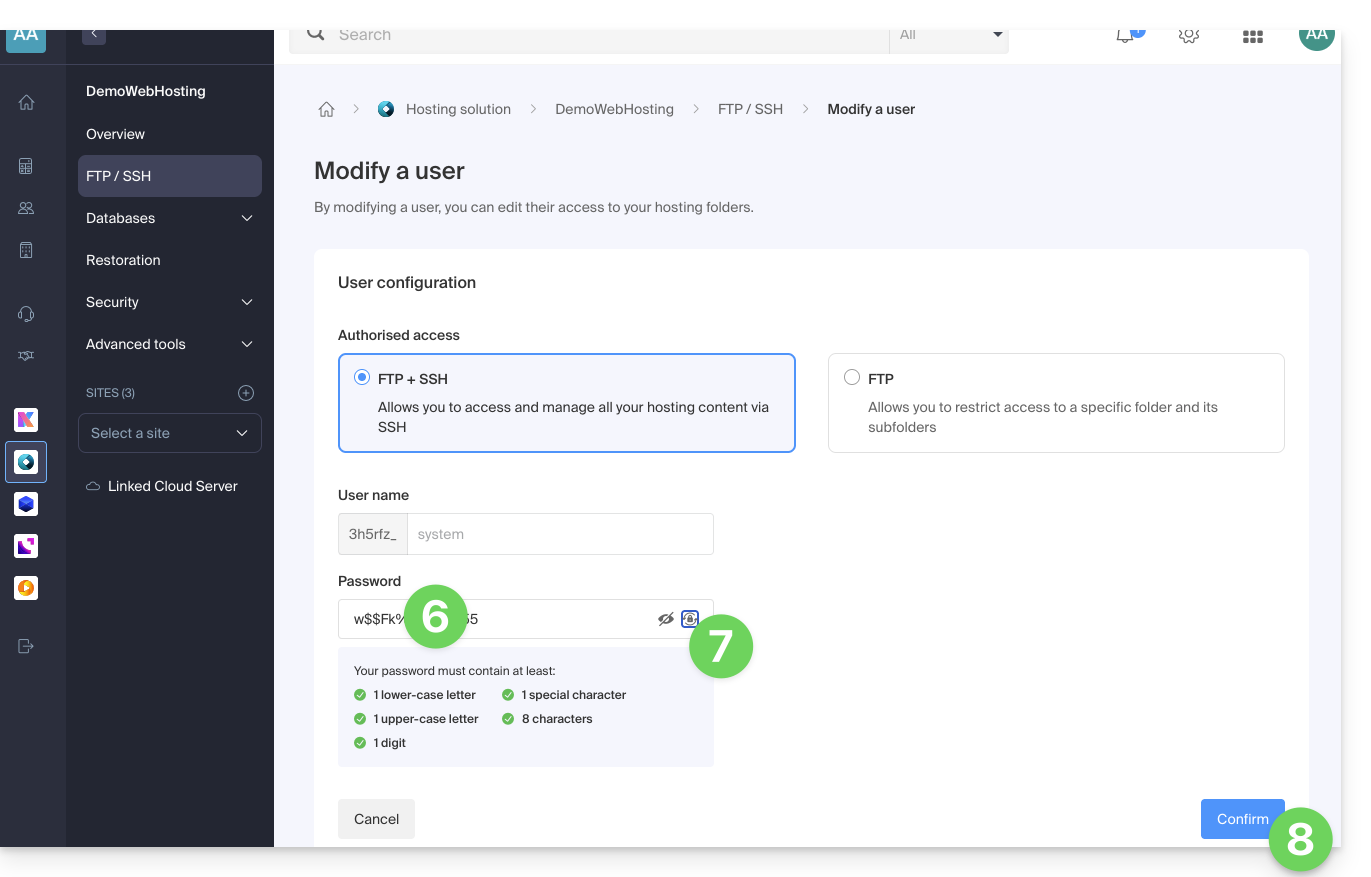
- Enter the new password that will be used for your FTP or SSH access.
- If needed, you can generate a strong password.
- Confirm the changes:
Link to this FAQ: https://faq.infomaniak.com/916
Has this FAQ been helpful?
This guide explains how to use GnuPG / PGP with PHP on an Infomaniak Cloud Server, following the obsolescence of the native extension (alternatives using "pure PHP" or modern wrappers are preferred).
Introduction
- The
PHP_GnuPGsystem extension is no longer maintained by the PHP community and is therefore no longer available on recent environments. - Two main alternatives in "Pure PHP" (installable via Composer) allow you to continue signing or encrypting your data securely.
Option 1: Crypt_GPG (Recommended)
This library acts as a wrapper: it communicates directly with the gpg binary installed on your Cloud Server. This is the most efficient and stable solution.
To install it, connect via SSH and run this command at the root of your project:
# Install the PEAR Crypt_GPG package via Composer
composer require pear/crypt_gpg
Example of how to use it to encrypt a message (object-oriented approach):
<?php
require_once 'vendor/autoload.php';

try {
    // Initialize the GPG object
    $gpg = new Crypt_GPG();

    // Set the recipient email (must match a public key already imported on the server)
    $gpg->addEncryptKey('contact@example.com');

    $message = "This is a secret message.";

    // Encrypt the data
    $enveloppe = $gpg->encrypt($message);

    echo $enveloppe;
} catch (Exception $e) {
    // Handle potential encryption errors
    echo "Error: " . $e->getMessage();
}
Option 2: OpenPGP.php (Independent)
This library is entirely written in PHP. Its main advantage is that it does not depend on the gpg binary on the server, guaranteeing complete portability of your code across different environments.
# Install the OpenPGP.php library
composer require singpolyma/openpgp-php
Example of a basic structure:
<?php
require_once 'vendor/autoload.php';

// Use the library classes to handle OpenPGP packets
// directly in PHP without system calls to the GPG binary.
// Example: $msg = OpenPGP_Message::parse(OpenPGP::unarmor($data));
Link to this FAQ: https://faq.infomaniak.com/954
Has this FAQ been helpful?
This guide details how to manage access and security for your databases (MySQL, MariaDB, and MongoDB) on a managed Cloud Server.
Introduction
- The firewall is accessible in your Manager even if no Apache site is configured (useful for projects exclusively using Node.js, for example).
- Regarding access to MySQL databases from another Infomaniak web hosting account, please refer to this other guide.
- Regarding MongoDB:
- To ensure the security of your data, the system will block saving if you attempt to disable
local_onlymode without enablingauthentication. - Infomaniak's automatic backups do not include MongoDB databases.
- To ensure the security of your data, the system will block saving if you attempt to disable
Allow outbound access (Infomaniak → external)
From an Infomaniak Web Hosting or Cloud Server, requests to external databases are allowed by default without any port restrictions.
Allowing incoming access (external → Infomaniak)
To access your databases from outside, you must have a Cloud Server and open the corresponding ports in the firewall of your server:
- MySQL / MariaDB: port
3306(TCP) - MongoDB: port
27017(TCP)
Configure remote access for MongoDB
By default, MongoDB only accepts local connections.
Before making your instance public (remote access), you must create a user within your database.
To enable remote access via Fast Installer, you need to adjust the configuration while adhering to strict security rules.
- Click here to access the management of your Cloud Server in the Infomaniak Manager (need help?).
- Click directly on the name assigned to the Cloud Server in question.
- Click on Fast Installer in the left-hand menu.
- Click on MongoDB.
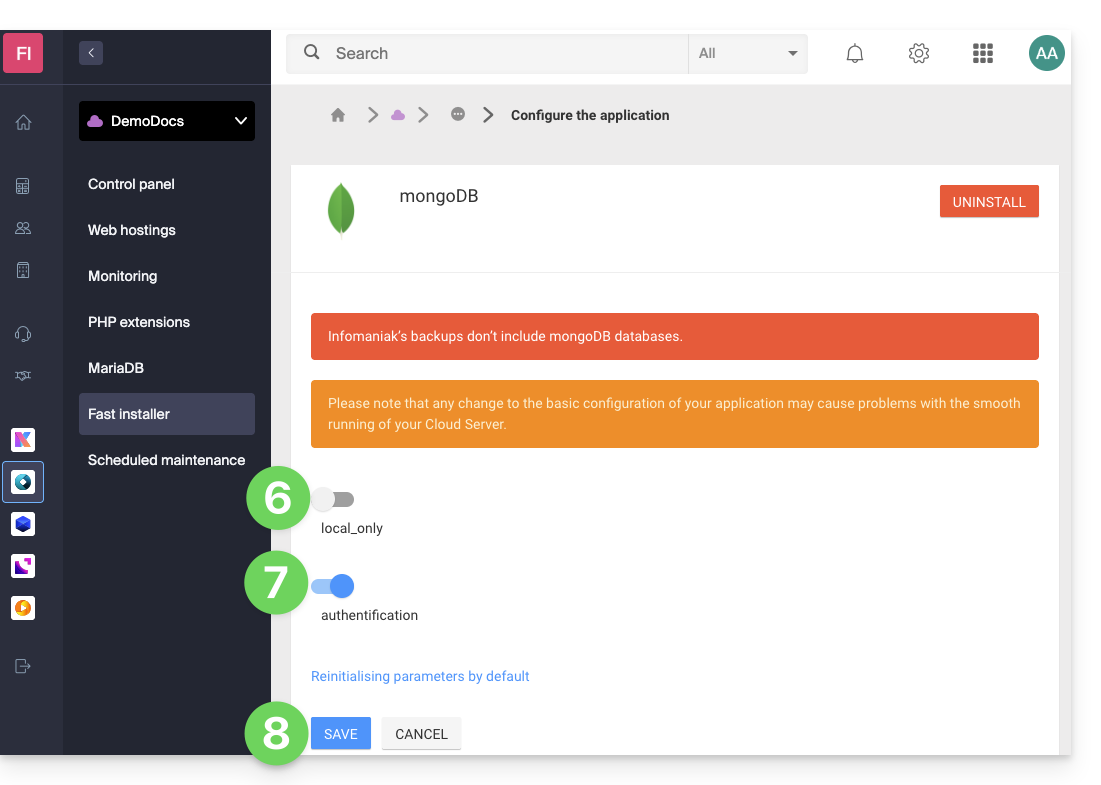
- Click on the action menu ⋮ to the right of the instance and choose Configure.
- Disable the
local_onlyoption. - Enable the
authenticationoption. - Save the changes:
Link to this FAQ: https://faq.infomaniak.com/1017
Has this FAQ been helpful?
This guide details how to back up data from your web hosting accounts (Starter, shared, or Cloud Server) using the restic application via the OpenStack Swift protocol on Swiss Backup, the backup solution in an independent Swiss cloud.
Introduction
- Other solutions exist for backing up your web data: learn more in this other guide.
Install Restic
Prerequisites
- Use a web hosting service.
- Own an Swiss Backup Infomaniak space with an available device quota (minimum 1) for a Cloud backup.
- Add 1 device of type Cloud to obtain the OpenStack Swift settings.
To do this:
Download the linux_amd64 binary from the restic GitHub repository:
wget -O restic.bz2 {{URL_8}}⚠️ The download link may change when a new version is released; version
0.14uses default compression.Unzip the archive and make the binary executable:
bunzip2 restic.bz2
chmod +x restic
Configure Restic
Creating an encryption key to encrypt data
- The key cannot be changed, and if lost, the data will no longer be readable.
- Place this key in a file that can be read by Restic.
Example of key generation:
openssl rand -base64 16 > restickey
Restic configuration
To configure the backup:
Create a resticconfig file with the following content, adapting it according to the information specific to your device:
echo "export OS_AUTH_URL={{URL_10}} export OS_REGION_NAME=RegionOne export OS_PROJECT_NAME=sb_project_SBI-XXXX export OS_PASSWORD='' export OS_USER_DOMAIN_NAME=default export OS_USERNAME=SBI-XXXX export OS_PROJECT_DOMAIN_NAME=default export RESTIC_REPOSITORY=swift:sb_project_SBI-XXXX:/bucket name export RESTIC_PASSWORD_FILE=restickey" > resticconfOS_AUTH_URLURL for accessing the Swiss Backup cluster (1)OS_PROJECT_NAMEandOS_USERNAME: replace SBI-XXXX with your IDOS_PASSWORD: replace with the password generated during activationRESTIC_REPOSITORY- replace SBI-XXXX with your ID
- replace the
bucket namewith the name you want to give to your container that stores the backups
RESTIC_PASSWORD_FILE: replace with the full path to the file containing the encryption key
Load the Restic configuration by running the following command:
source resticconfInitialize the bucket with the following command:
./restic -r $RESTIC_REPOSITORY init
(1) The indication "//swiss-backup02", "//swiss-backup03", etc. changes depending on the cluster number indicated in the Manager under Cloud storage information in the "Location" section; and if your Swiss Backup device was created before October 2020, you will need to use https://swiss-backup.infomaniak.com/identity/v3.
Back up your files
To back up your files, simply run the following command:
./restic backup
#Example: Backing up the entire hosting account
./restic backup ./
#Example: Backing up the “sites” folder
./restic backup sites/
The first snapshot takes a long time (several hours, depending on the amount of data) because all files are copied, while subsequent snapshots will use a differential approach.
Backing up databases
Restic can read data from stdin, allowing you to save the output of a program.
Use the following command to back up an individual MySQL database:
mysqldump --databases db_name -u db_username -p | restic backup --stdin --stdin-filename database_dump.sql To back up all databases, run the mysqldump command to extract all databases from the server, then redirect the output to Restic:
mysqldump -u -p --all-databases | restic backup --stdin --stdin-filename all_databases.sql
List backups
To list your backups, you can use the following command:
./restic snapshots
Restore a backup
You can restore a backup using the following command:
./restic restore --target
Automate
On Cloud Server, it is possible to add a cron job to automate the backup process.
This option is not available on shared hosting.
Link to this FAQ: https://faq.infomaniak.com/1019
Has this FAQ been helpful?
This guide explains how to resolve access errors to your Web Hosting following an IP address change (server migration, for example).
Introduction
- To save time, your system maintains a table that maps domain names to IP addresses.
- If the website changes its "location" (IP address), your computer tries to access the old address.
- Clearing the cache forces the system to request the new address from the DNS servers.
If your computer retains the old address in its memory,clearing the DNS cache can restore the connection.
Clear the DNS cache…
… on Windows
Use the command prompt to refresh your network settings:
- Open the Start menu.
- Type cmd and press Enter.
- In the black window that opens, type the following command and press Enter:
ipconfig /flushdns
… on macOS
On recent versions of macOS, the process is done via the Terminal:
- Open the Terminal (via Spotlight or Applications > Utilities).
- Copy and paste the following command:
sudo dscacheutil -flushcache; sudo killall -HUP mDNSResponder - Enter your session password (it will not be displayed while typing) and validate.
… on Linux
Most modern distributions use systemd-resolved. Open your terminal and run:
sudo resolvectl flush-caches
Note: If you are using an older service, the commandsudo systemctl restart nscd remains valid.
Link to this FAQ: https://faq.infomaniak.com/1041
Has this FAQ been helpful?
This guide offers solutions to address errors of the type “Malicious Site! The website has been reported as a malicious site and has been blocked based on your security preferences” (STOP! This Website Can Harm Your Computer! in English).
Who put up this message?
This error message or warning…
- … is NOT added by Infomaniak.
- … is generated based on Google's own data, using, among other things, https://www.stopbadware.org/.
- … may no longer appear directly because…
- … you are no longer indexed by Google.
- … you are using a browser that does not rely on Google's controls.
What to do?
If this does not concern the website you manage, please refer to Google's help page on this topic.
If the site is yours, please review the following advice:
- Check the source code of the published page: there is likely to be additional code compared to the pages that are still healthy; this may be a malicious iframe or some other inclusion…
- On the page in question, click on the "Why was this site blocked?" button and follow the instructions.
- Consult the Google documentation on this subject.
- Monitor the vulnerability detection tool, which may resolve the issue in the meantime.
Link to this FAQ: https://faq.infomaniak.com/1070
Has this FAQ been helpful?
This guide helps you resolve a potential 530 error by reducing the number of simultaneous FTP connections to your Web Hosting.
Resolving a 530 Error
The number of FTP connections that can be established simultaneously to an hosting's FTP space is limited to 25.
The error message 530 Sorry, the maximum number of clients (25) for this user are already connected generally appears after multiple simultaneous connections with an FTP software/client that does not handle disconnections properly or that tries to open multiple connections at the same time, thinking it will speed up the download.
Once you encounter this error, you must close the FTP program and then wait 30 minutes for the server to terminate the active connections so that you can reconnect.
You can also create a new FTP user and connect with that.
To avoid this situation with FileZilla, go to the Edit -> Settings menu, then go to the Transfers tab and set the number of simultaneous transfers to 2.
It is recommended to use the Web FTP in the Manager.
Link to this FAQ: https://faq.infomaniak.com/1082
Has this FAQ been helpful?
This guide explains how to manage files on a Web Hosting account using an FTP software/client.
Introduction
- To easily and quickly manage the files on your web hosting without having to install an application or enter FTP credentials, use the Web FTP in the Manager (it allows you to change file ownership and compress/decompress
zipfiles). - Regarding protocols supported by Infomaniak (FTP, SFTP, etc.) depending on your hosting plan (Starter, Node.js, etc.), please refer to this other guide.
Settings to provide for FTP software
Prerequisites
- Create an account FTP/SSH.
- Install an FTP client such as Filezilla, Cyberduck, Commander One, Transmit, etc.
Regardless of the FTP software/client you use, the 3 essential parameters for configuring FTP access are always:
- Hostname: FTP server address
- Username: FTP account name
- Password: FTP account password
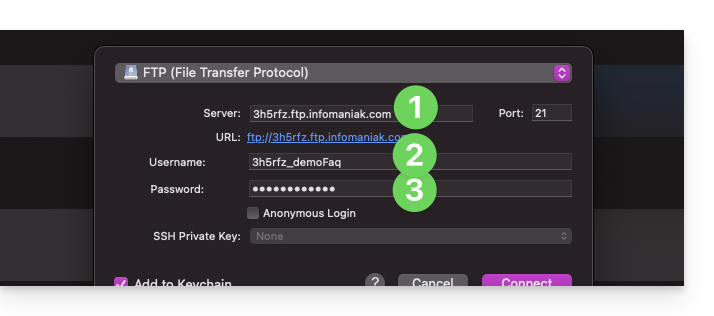
- The port number should generally be left at its default value.
- The connection type and mode should generally be left at their default values.
- If a limit for the number of simultaneous connections is offered, it is recommended to enable it.
Get your hosting login details
You can find all the information you need in your Infomaniak Manager:
- Click here to access the management of your hosting on the Infomaniak Manager (need help?).
- Click directly on the name assigned to the hosting in question:
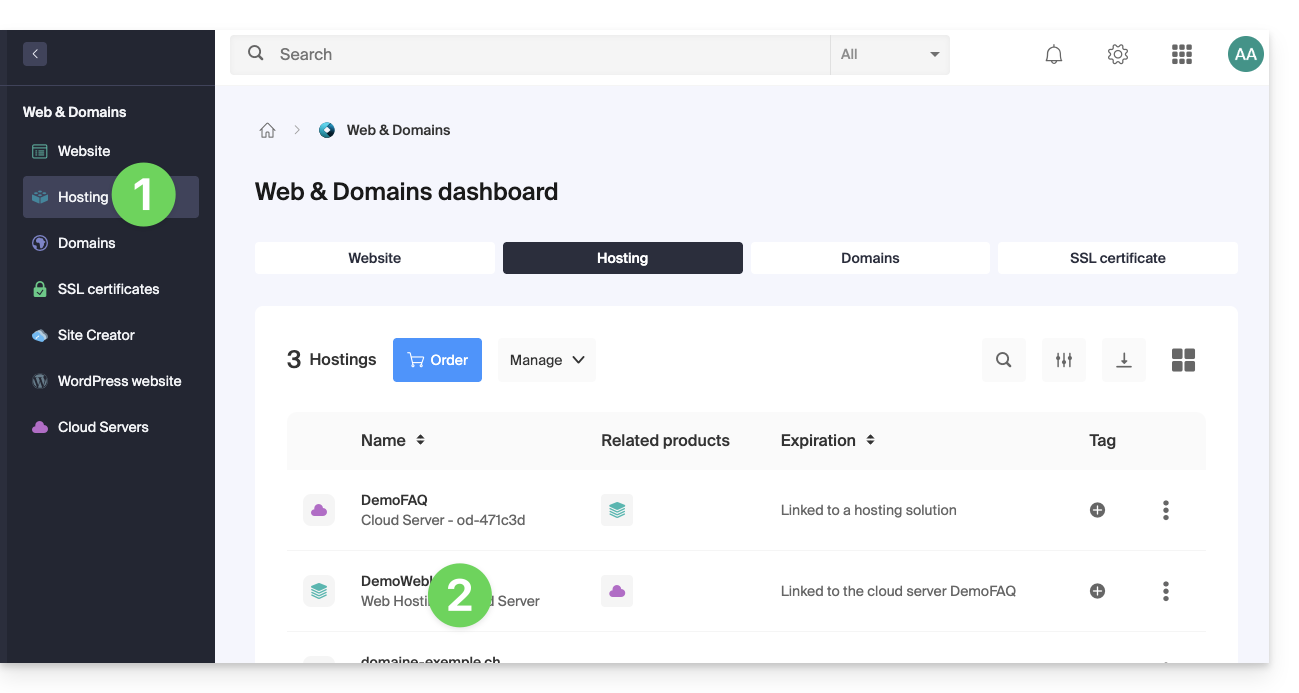
- Click on FTP (or FTP / SSH) in the left-hand menu.
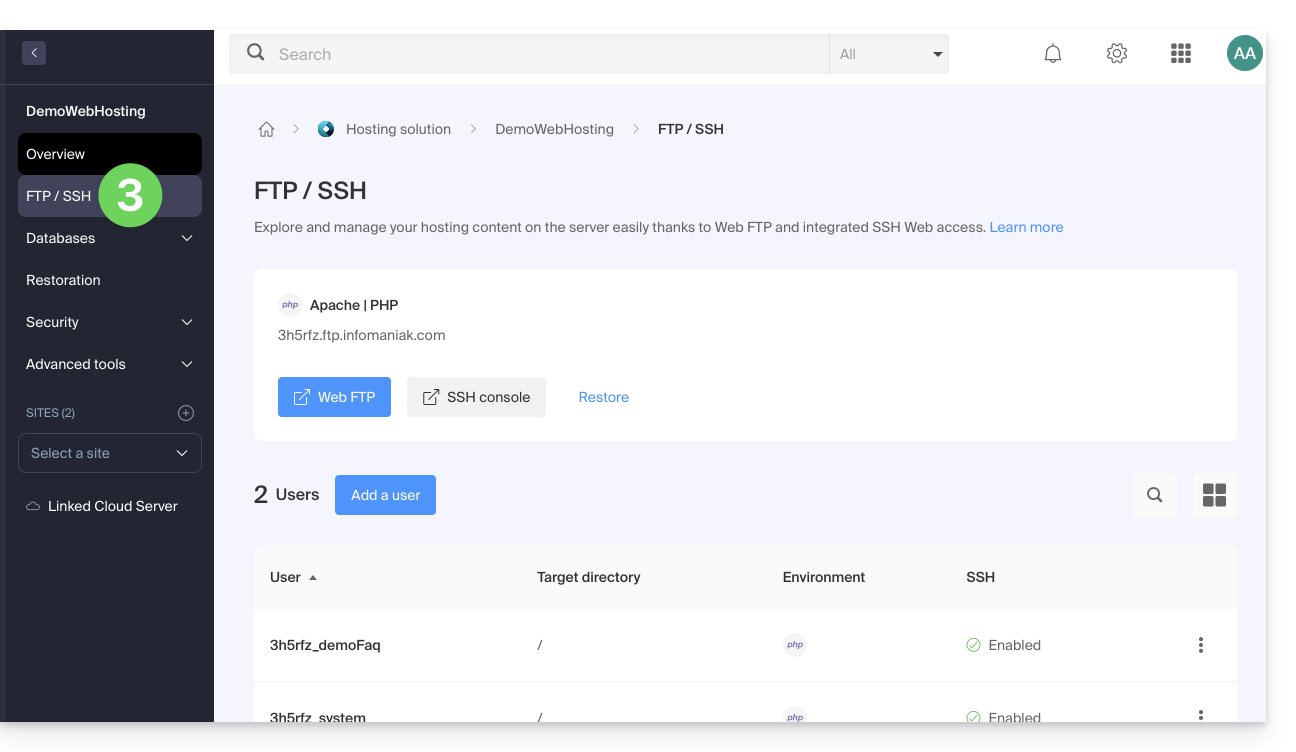
1. FTP hostname
The hostname to use in your FTP software/client is specified at the top of the page obtained in step 3 above, and an icon allows you to copy the address to the clipboard.
Starter plan - basic web page
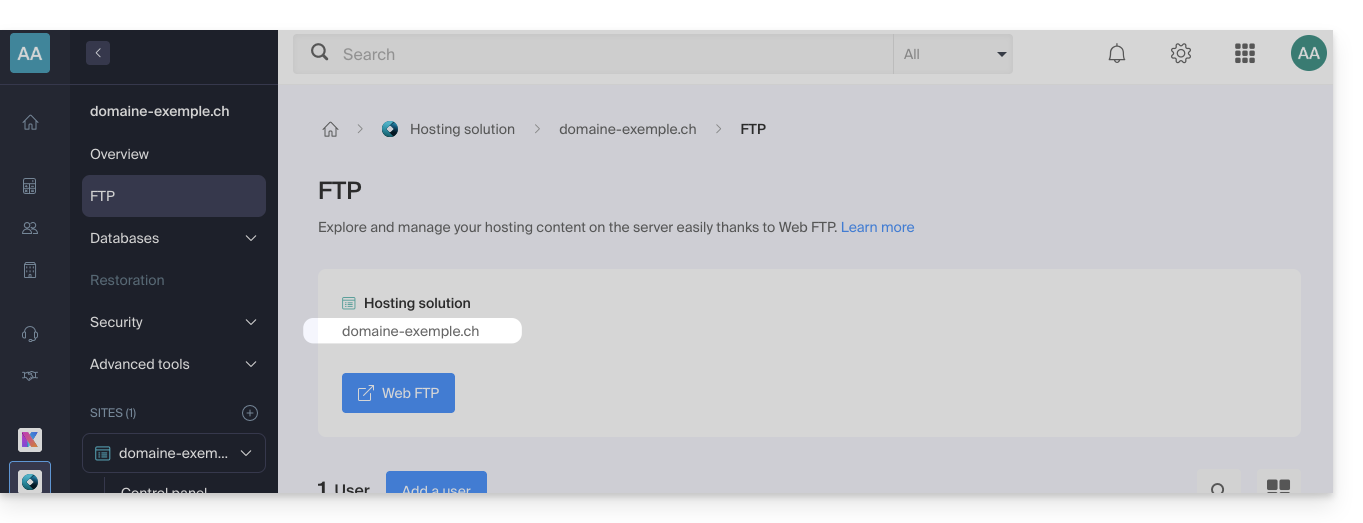
If the domain indicated is not functional (e.g., it does not point to the hosting's IP address), use the IP address as the hostname, in the format 123.45.678.123 (refer to this other guide).
Paid Web Hosting
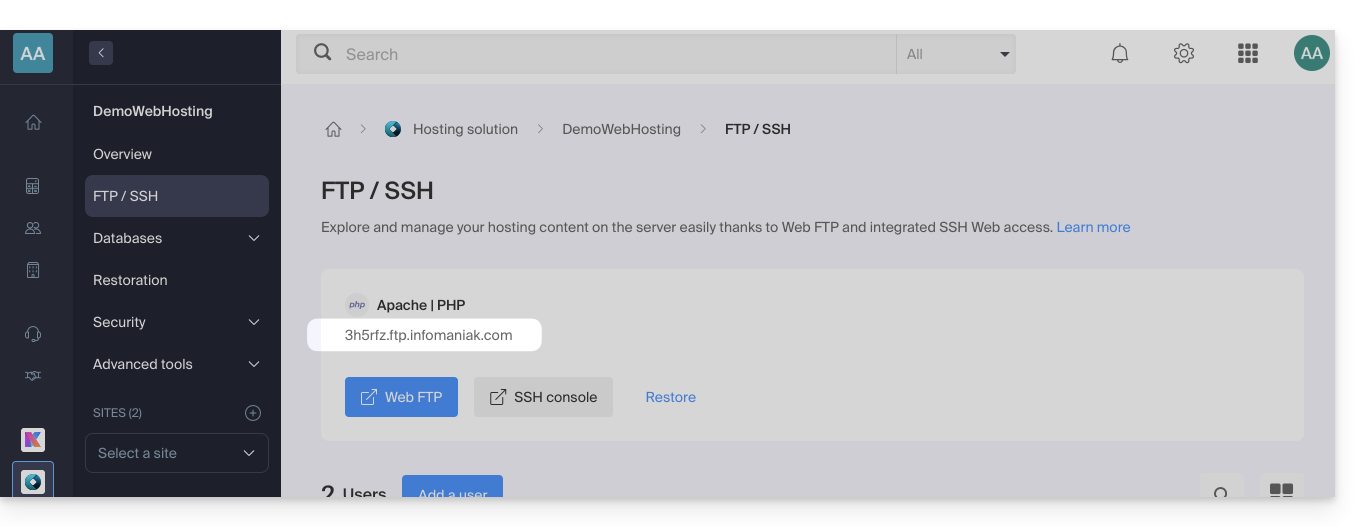
Use the hostname in the format xyzb.ftp.infomaniak.com, for example.
2. FTP Username
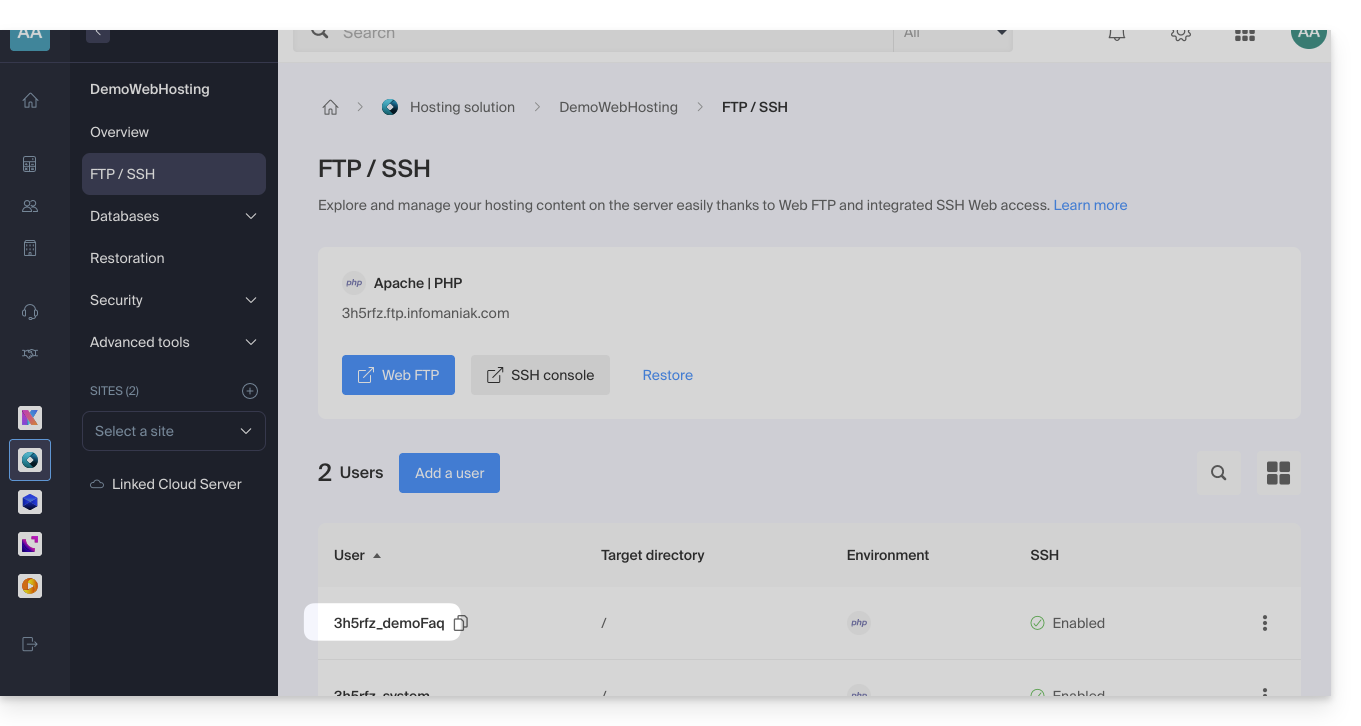
The username is the name of the account to be created in your Manager: xyzb_abcdefg for example.
3. FTP user password
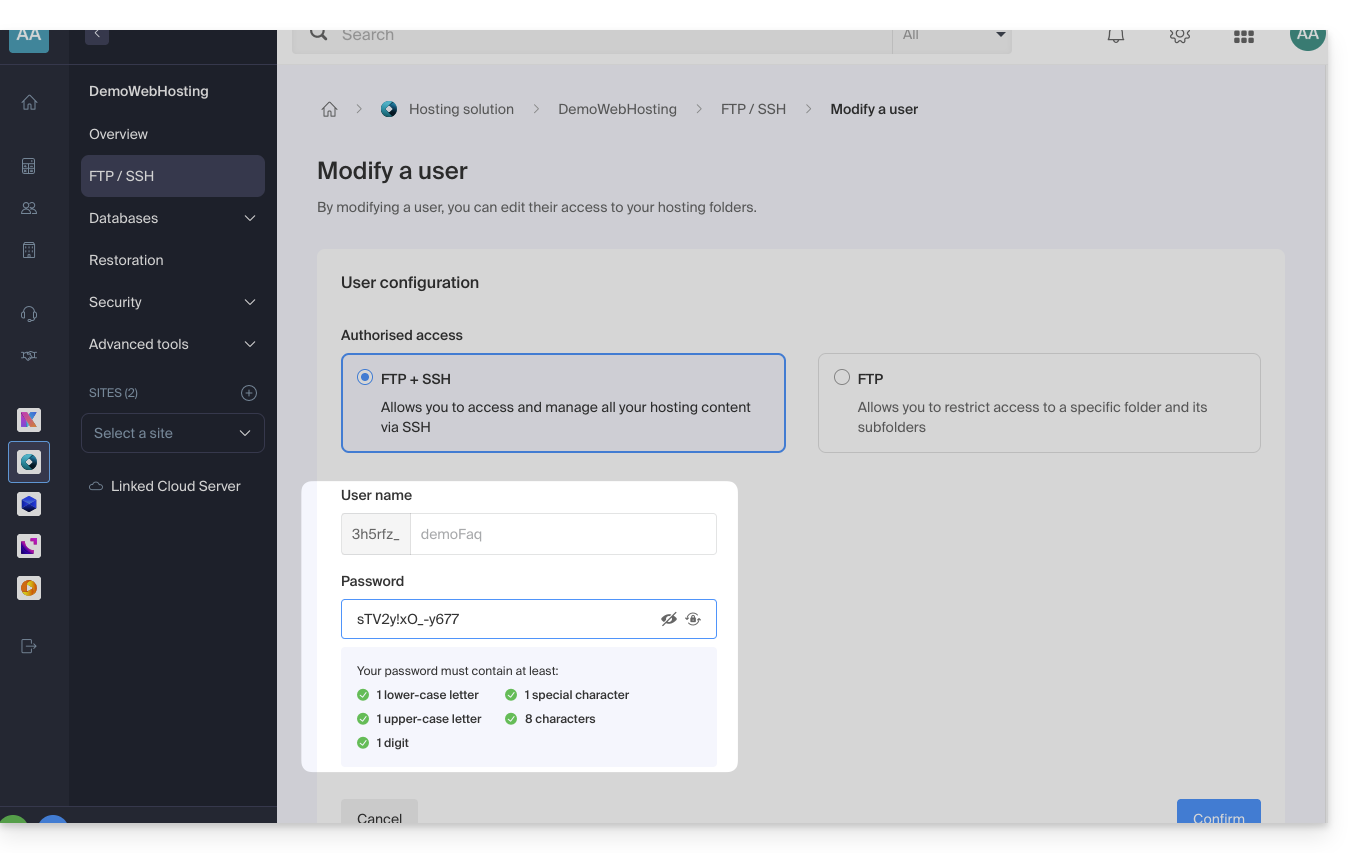
The FTP user password is set by the creator of the FTP account. If you forget it, edit the FTP account by clicking on it and set a new password.
It is not possible to display an existing password; you must set a new password if you no longer have the currently defined password.
Once the connection is established…
After entering the 3 required parameters, your FTP application should display the file structure of your hosting account: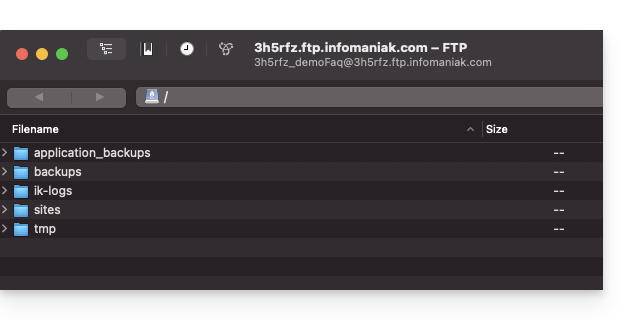
Link to this FAQ: https://faq.infomaniak.com/1083
Has this FAQ been helpful?
This guide explains how to restart an Infomaniak Cloud VPS / VPS Lite and what you can do if you no longer have access to the server.
Restarting a Cloud VPS / VPS Lite
The classic mode allows you to restart your server normally. To access your Cloud VPS / VPS Lite:
- Click here to access the management interface for your product on the Infomaniak Manager (need help?).
- Click directly on the name assigned to the product in question.
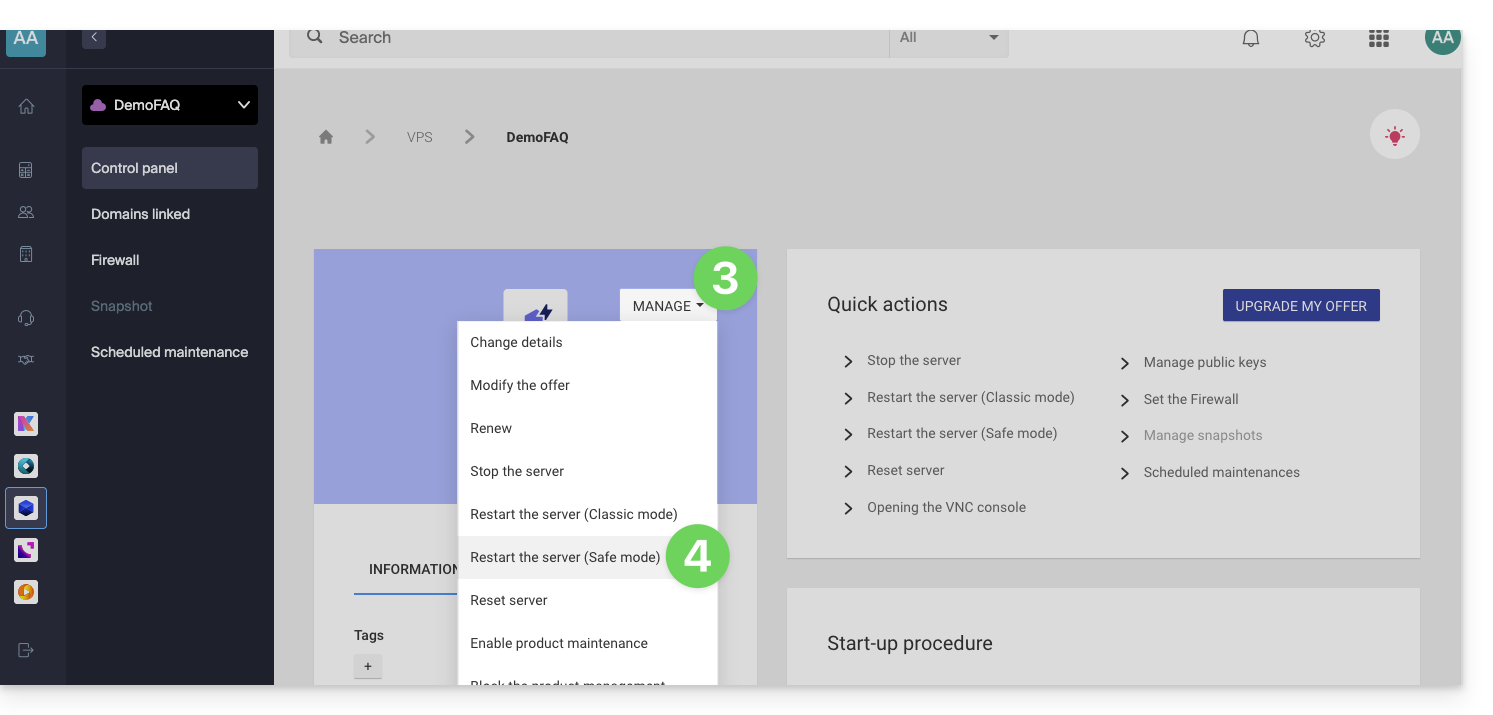
- Click on the Manage button.
- Click on Restart (classic mode):
Enable/disable safe mode
If you have lost your SSH key, or made a configuration error, etc.
You have the option of restarting in rescue mode. This involves restarting from a base image from which you can mount the partitions of your cloud. In this way, you can modify/repair your configuration.
Please note: depending on the operating system installed, the system volume may be named /dev/sda, /dev/sda1, or /dev/vda; the same applies to the data volume /dev/sdb, /dev/sdb2, or /dev/vdb! Therefore, you should replace these indications with those that correspond to your situation.
To activate rescue mode:
- Click here to access the management interface for your product in the Infomaniak Manager (need help?).
- Click directly on the name assigned to the product in question.
- Click on the Manage button.
- Click on Restart (safe mode):
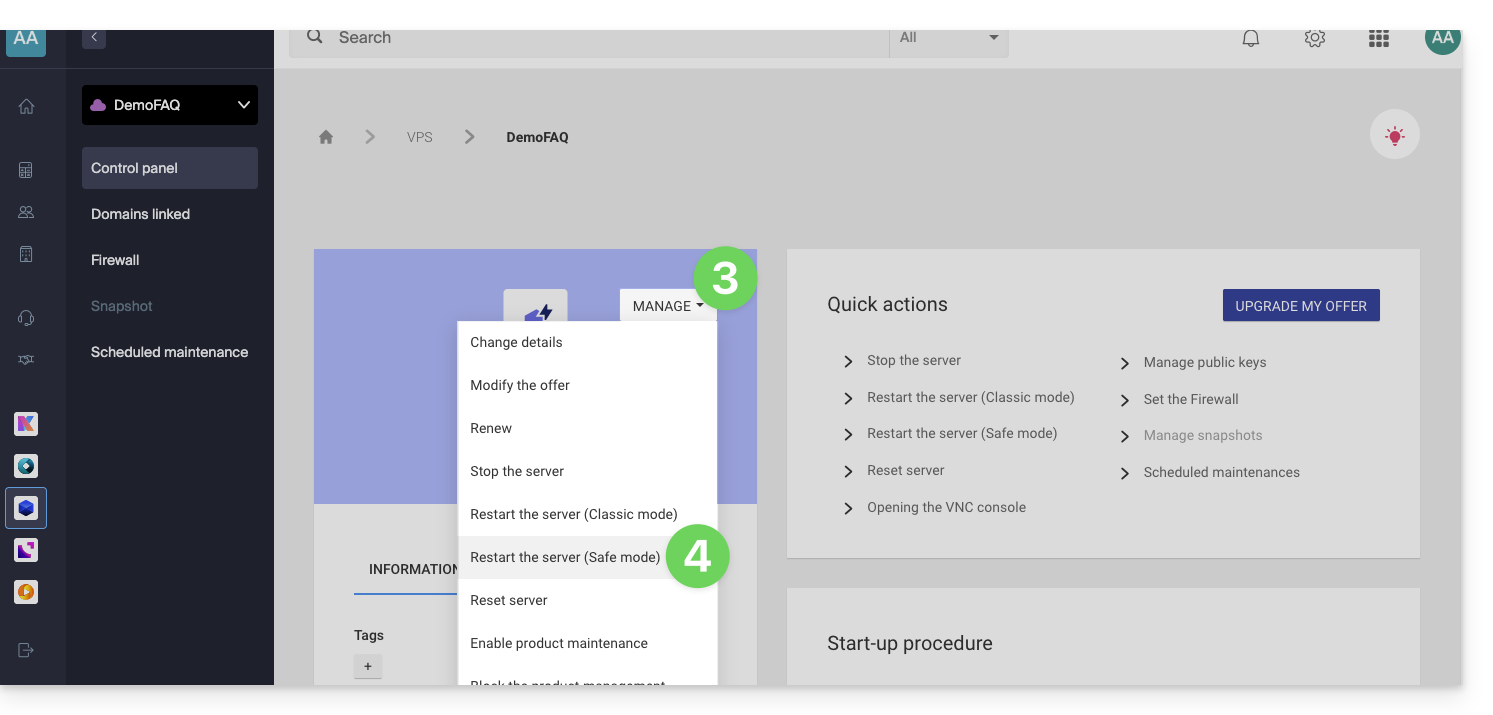
Please note: your data disk is not accessible when your Cloud VPS / VPS Lite is in safe mode; only the system disk is accessible.
Perform operations
Once safe mode is active, access your Cloud via SSH, either with your SSH key or with the temporary password available in the interface.
Once connected, switch to the root user:
sudo -iThen, list the available partitions (replace ov-abcd with your hostname):
[root@ov-abcd ~]# lsblk
NAME    MAJ:MIN RM  SIZE RO TYPE MOUNTPOINT
vda     253:0    0    8G  0 disk
└─vda1  253:1    0    8G  0 part /
vdb     253:16   0   20G  0 disk
└─vdb1  253:17   0   20G  0 part
vdb corresponds to the disk of your cloud (your usual system to repair).
To access it in write mode, you must mount it:
[root@ov-abcd ~]# mount /dev/vdb1 /mnt/You can then modify the files on your disk:
[root@ov-abcd ~]# ls /mnt/
bin  boot  dev  etc  home  lib  lib64  lost+found  media  mnt  opt  proc  root  run  sbin  srv  sys  tmp  usr  var
Depending on the operating system of your cloud, you can also perform a chroot to work directly in your usual environment:
[root@ov-abcd ~]# chroot /mnt/
root@ov-abcd:/# export PATH="$PATH:/usr/sbin:/sbin:/bin"
root@ov-abcd:/# ls
Once you have made the necessary changes, disable safe mode from the Manager to restart your cloud on the original disk.
Link to this FAQ: https://faq.infomaniak.com/1106
Has this FAQ been helpful?
This guide explains how to modify the value of the PHP directive include_path.
Modify the include_path
Like any other PHP setting, include_path is defined in the .user.ini file.
Here is an example of a path to use in your .user.ini file:
- The dot (
.) at the beginning allows the current directory to be included in the search. - Le point (
.) au début permet de conserver le répertoire courant dans la recherche. - The colon (
:) is used as a separator between the different folders.
Refer to this other guide about phpinfo to verify that your new directive has been taken into account (it may take a few minutes for the change to appear).
Although this method is still functional, using Composer's autoloader is now the preferred solution for managing includes.
Link to this FAQ: https://faq.infomaniak.com/1108
Has this FAQ been helpful?
This guide explains how to modify the error_reporting() directive on your website.
Enable error reporting
Specify the following 2 pieces of information in your .user.ini file:
display_errors=on
error_reporting=E_ALL & ~E_NOTICE & ~E_STRICT
If your browser displays no errors or warnings, then there are none.
Disable PHP error display
For WordPress, edit the wp-config.php file and replace the following line:
define('WP_DEBUG', false);by:
ini_set('display_errors','Off');
ini_set('error_reporting', E_ALL );
define('WP_DEBUG', false);
define('WP_DEBUG_DISPLAY', false);Alternatively, you can add the following code to the .user.ini file:
display_errors=offLink to this FAQ: https://faq.infomaniak.com/1115
Has this FAQ been helpful?
This guide explains how to optimize a website hosted on a Web Hosting plan to make it faster and provide a smooth browsing experience for all your visitors, regardless of their connection speed.
The role of the hosting provider
The loading speed of a website depends on many factors: server performance, the hosting provider's network infrastructure, the visitor's internet connection, and the website's own optimization.
As a hosting provider, Infomaniak strives to offer the best hosting by continuously improving its products and infrastructure:
- All hosting plans run on the latest generation SSD drives.
- The infrastructure benefits from over 70 Gbit/s of interconnection and redundancy with partners such as Cogent or Level3.
- To handle peak traffic, the servers use regularly updated 64-bit Intel Xeon processors. Shared servers typically use only 40% of their CPU power.
When you submit a support request regarding slowdowns, Infomaniak checks the following points:
- Your hosting server is operating normally and has not experienced any incidents in the last 48 hours.
- The network infrastructure has not experienced any disruptions during the same period.
The role of the website owner and webmaster
Infomaniak does not intervene in the content of the servers or in the development of websites. The creation and maintenance of a website are distinct professions, although they use the tools and services provided by the hosting provider.
Analyze the cause of slowdowns
Here are the steps to take if you notice slowdowns on your website:
- Apply the Google PageSpeed Insights recommendations. These points relate to the website design and not the server configuration. Consult this other guide if the test recommends enabling resource compression.
- If slowness is observed from abroad, activate DNS Fast Anycast.
- Install a caching system to reduce redundant database access and speed up page loading.
- Consider using a CDN.
- Test the server response time or TTFB.
- Scan your hosting to detect any viruses.
- Regularly purge your databases by deleting unnecessary entries.
- Use the latest version of PHP compatible with your website or CMS.
- Avoid images, counters, or media hosted on external servers: if they are unavailable, your site will appear slow.
- Disable unnecessary or resource-intensive WordPress extensions.
- Keep your CMS and web applications updated regularly.
- Limit the impact of overly aggressive indexing bots by configuring a Crawl-delay.
- Analyze the error logs: correcting errors generated by your site improves its performance.
- Review the slow logs to identify SQL queries that take more than 5 seconds to execute and optimize them (optimization examples).
- Add a server-side cache engine such as Memcached (available only on Cloud servers).
- Increase the max_children value (only on Cloud servers).
If the problem persists
If you or your webmaster cannot identify the cause of the slowdown, contact Infomaniak support in writing, providing the following information:
- Name of the hosted website.
- Precise dates and times when slowdowns occurred.
- Name of the database or FTP account potentially involved.
- Your public IP address during the tests (visible on https://www.infomaniak.com/ip).
- Type of slowdown (display, FTP transfers, etc.).
- Indicate whether you normally access the Infomaniak website during these episodes.
- Complete result of a traceroute to
84.16.66.66. - Result of a speed test on speedtest.net, selecting Infomaniak as the destination server.
If your needs evolve
If shared hosting is no longer sufficient, consider switching to a Cloud Server. Your website can be easily migrated to benefit from dedicated resources and advanced caching technologies.
Link to this FAQ: https://faq.infomaniak.com/1137
Has this FAQ been helpful?