Knowledge base
1000 FAQs, 500 tutorials and instructional videos. Here, there are only solutions!
Broadcast a VOD list live on Video Streaming
This guide explains how to live stream a list of videos from the VOD service using the Video Streaming product.
Preamble
- This feature allows you to use the VOD service to create a video playlist and then use the Video Streaming service to broadcast it live, for example as part of a music video channel, teleshopping, documentaries, etc.
- It is possible to insert advertisements between each video, manually or using VAST tags.
- The playlist will loop indefinitely until the user stops it.
Broadcast a VOD playlist in live streaming
Prerequisites
- Have a VOD service (at least the free VOD space with the Video Streaming service).
- Have a Video Streaming service in the same Organization and managed by the same account.
To create the playlist, import some videos:
- Click here to access the management of your product on the Infomaniak Manager (need help?).
- Click directly on the name assigned to the product concerned:
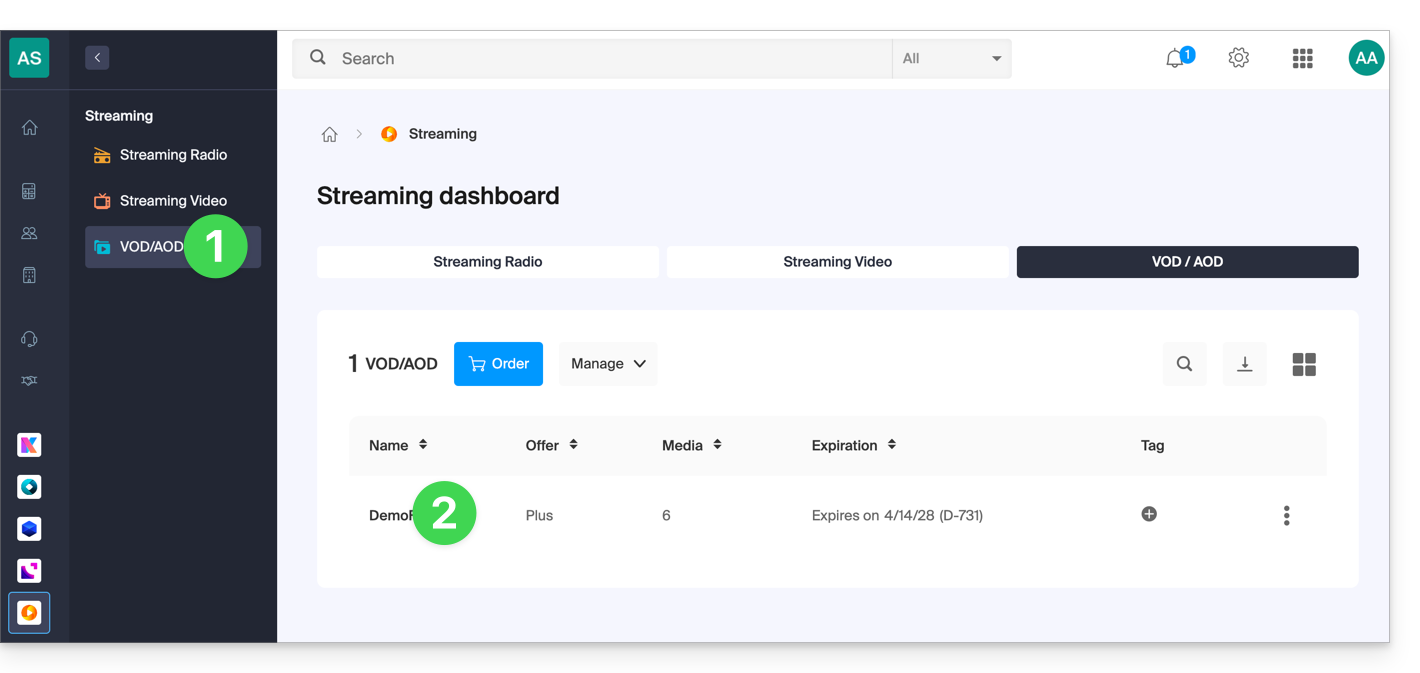
- Select the media to import in the Quick Import section or from the Media Management:
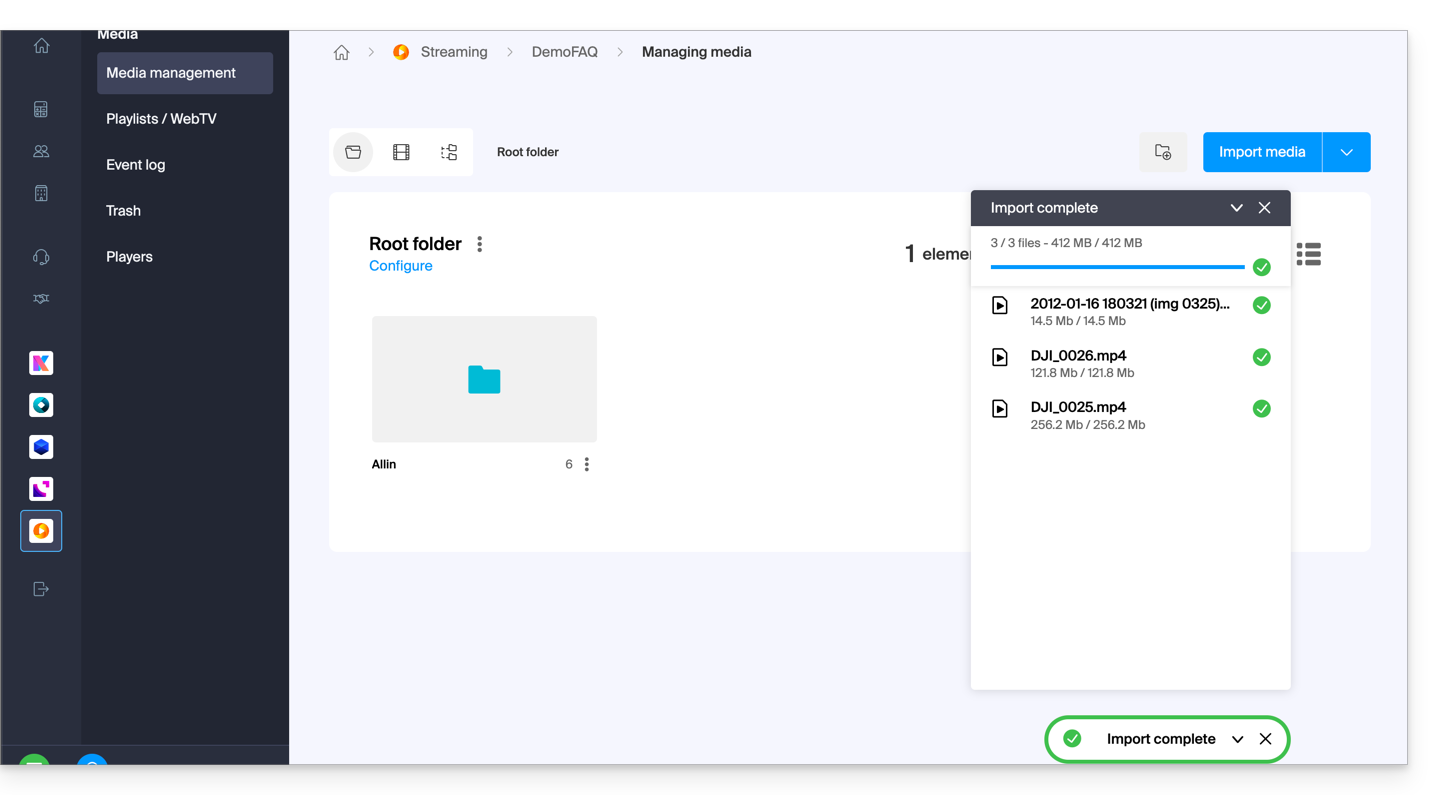
Once the videos are imported:
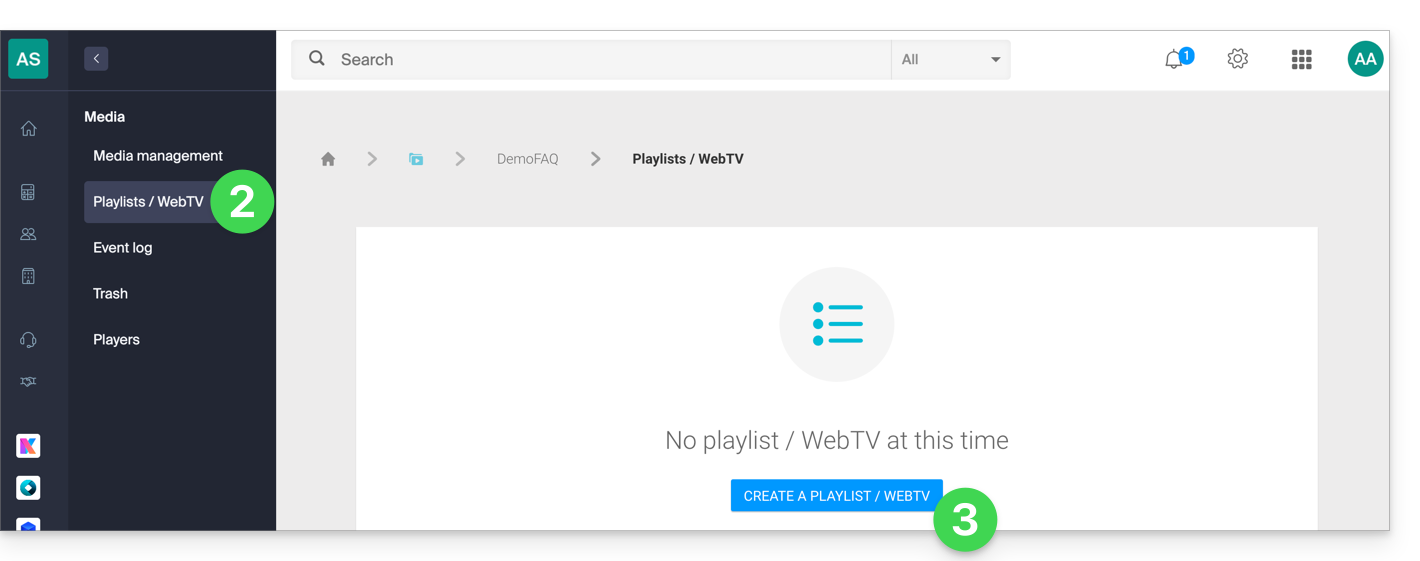
- Click on Media in the left sidebar menu.
- Click on Playlists / WebTV in the left sidebar menu.
- Click the button to add a new playlist:
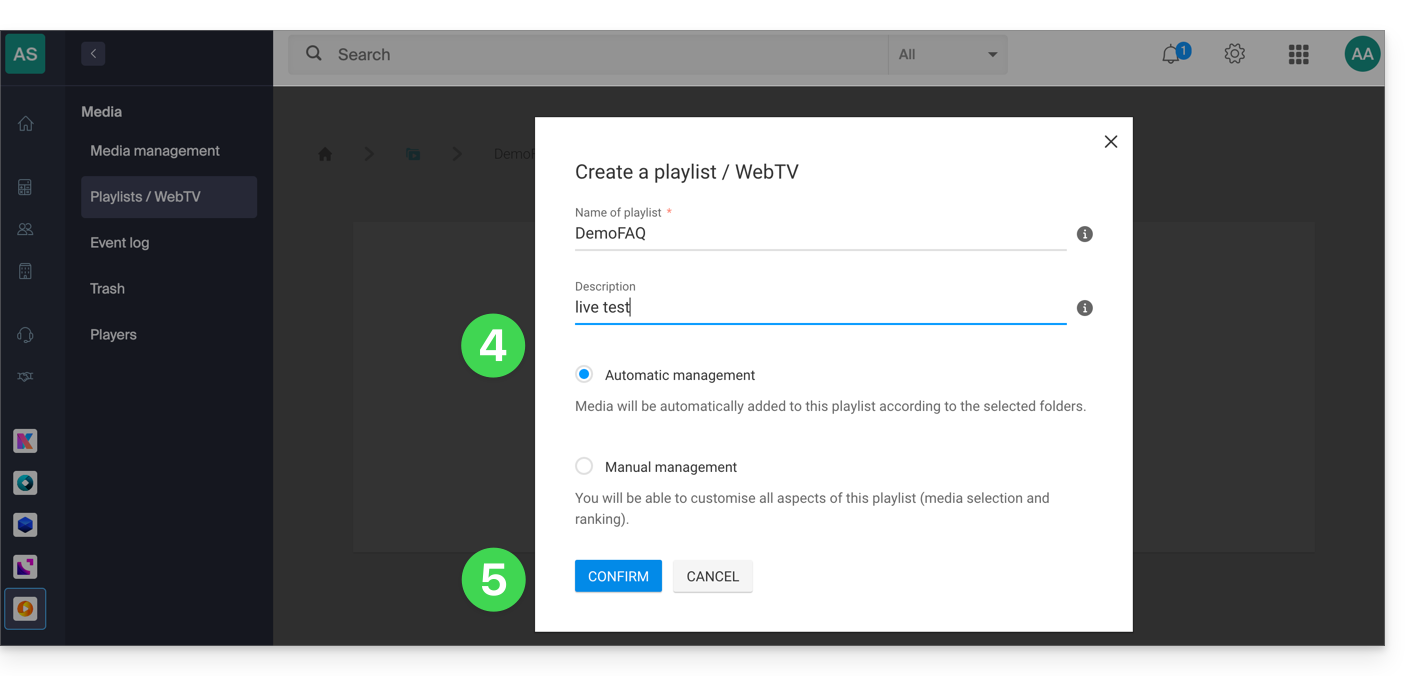
- Name the playlist and determine if it should be automatic (linked to a folder) or manual.
- Confirm:
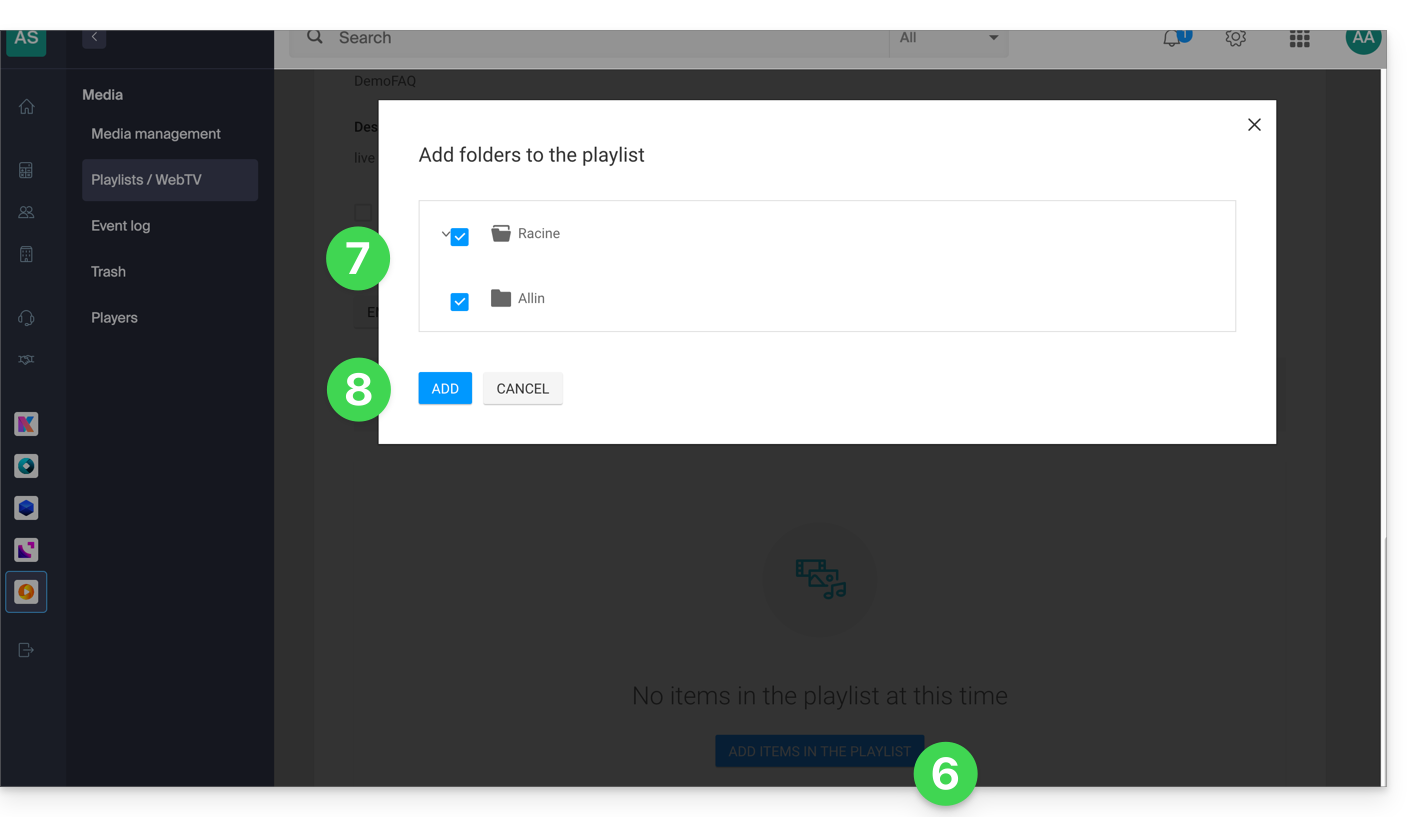
- Click to add media.
- Choose the folder or specific videos to use to create the playlist.
- Add media:
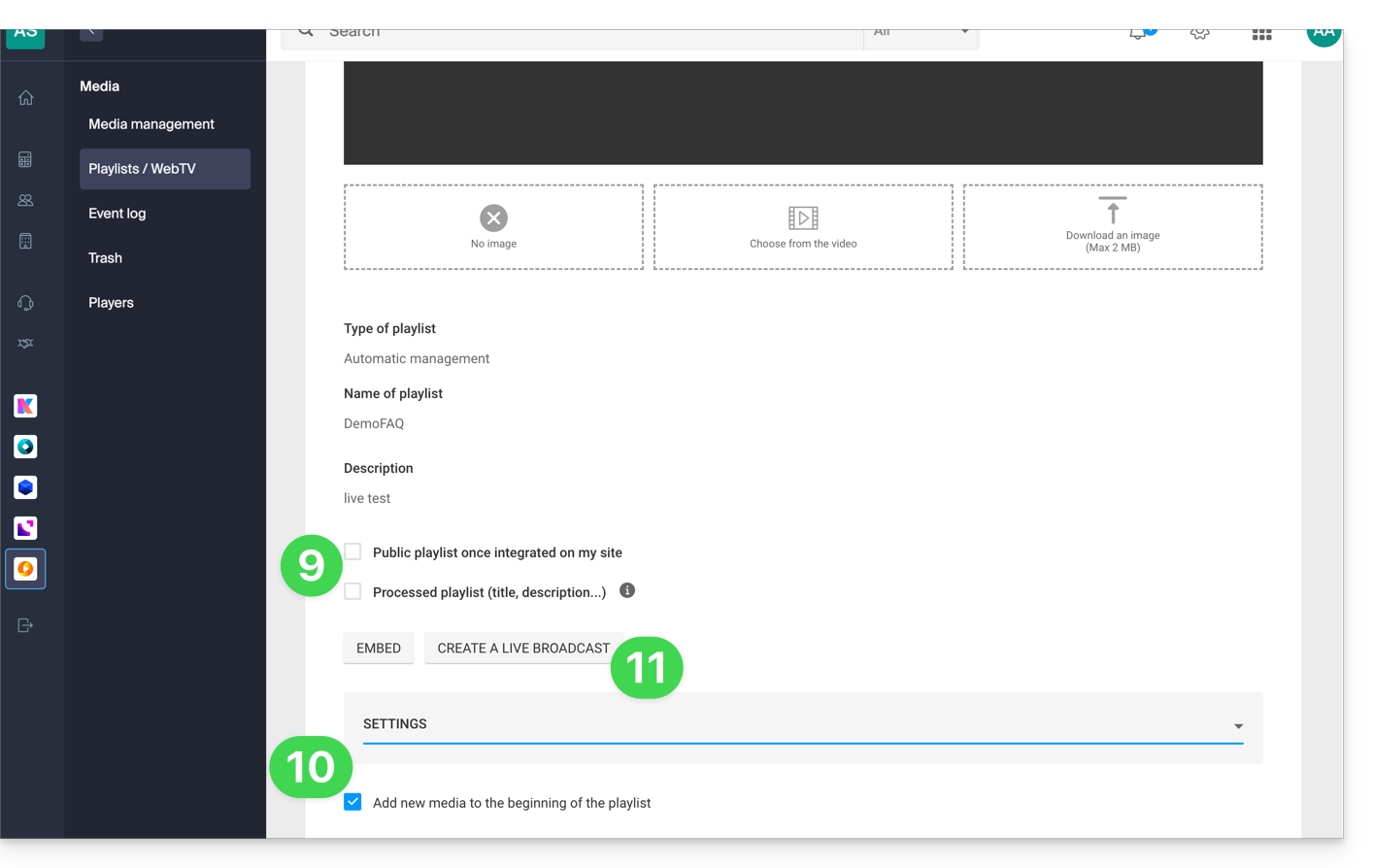
- Choose whether the playlist should be public and whether, like your media, it needs to be “marked” as “processed” (status visible only to you).
- In the additional settings, you can choose to add media to the beginning of the playlist instead of the end.
- Click the Create Live button:
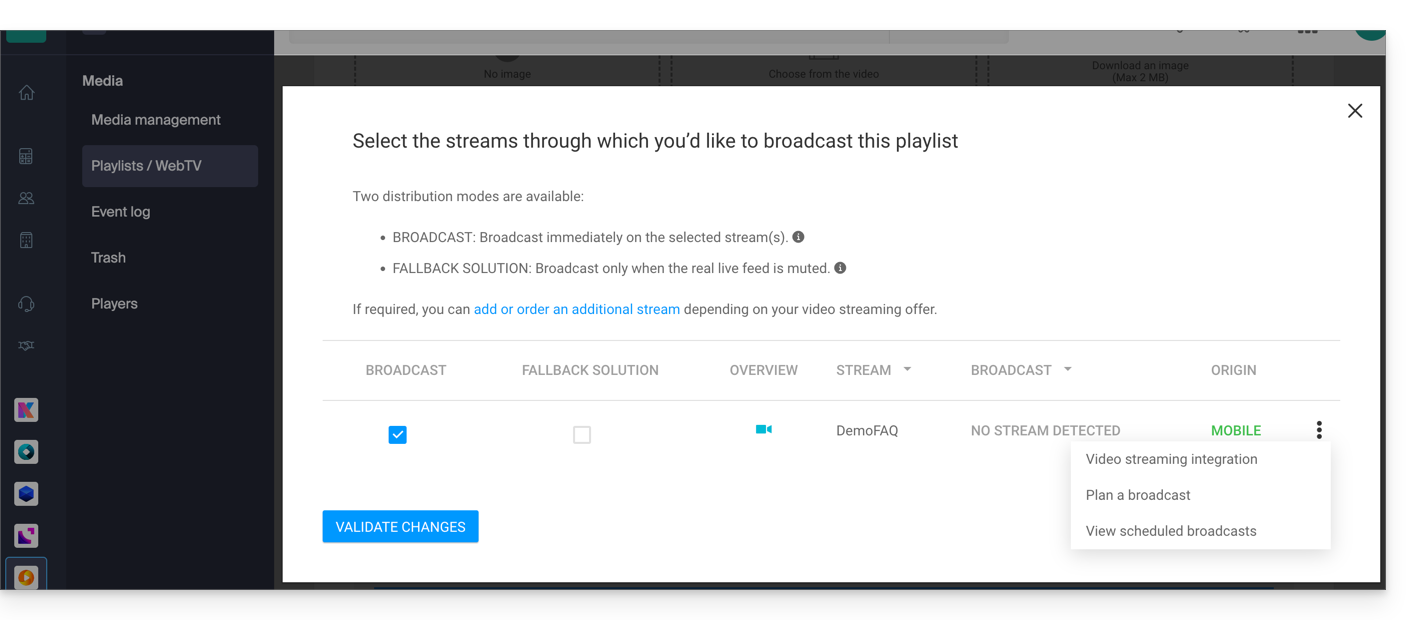
- Choose the stream from the Video Streaming service that will broadcast the playlist and set your preferences:
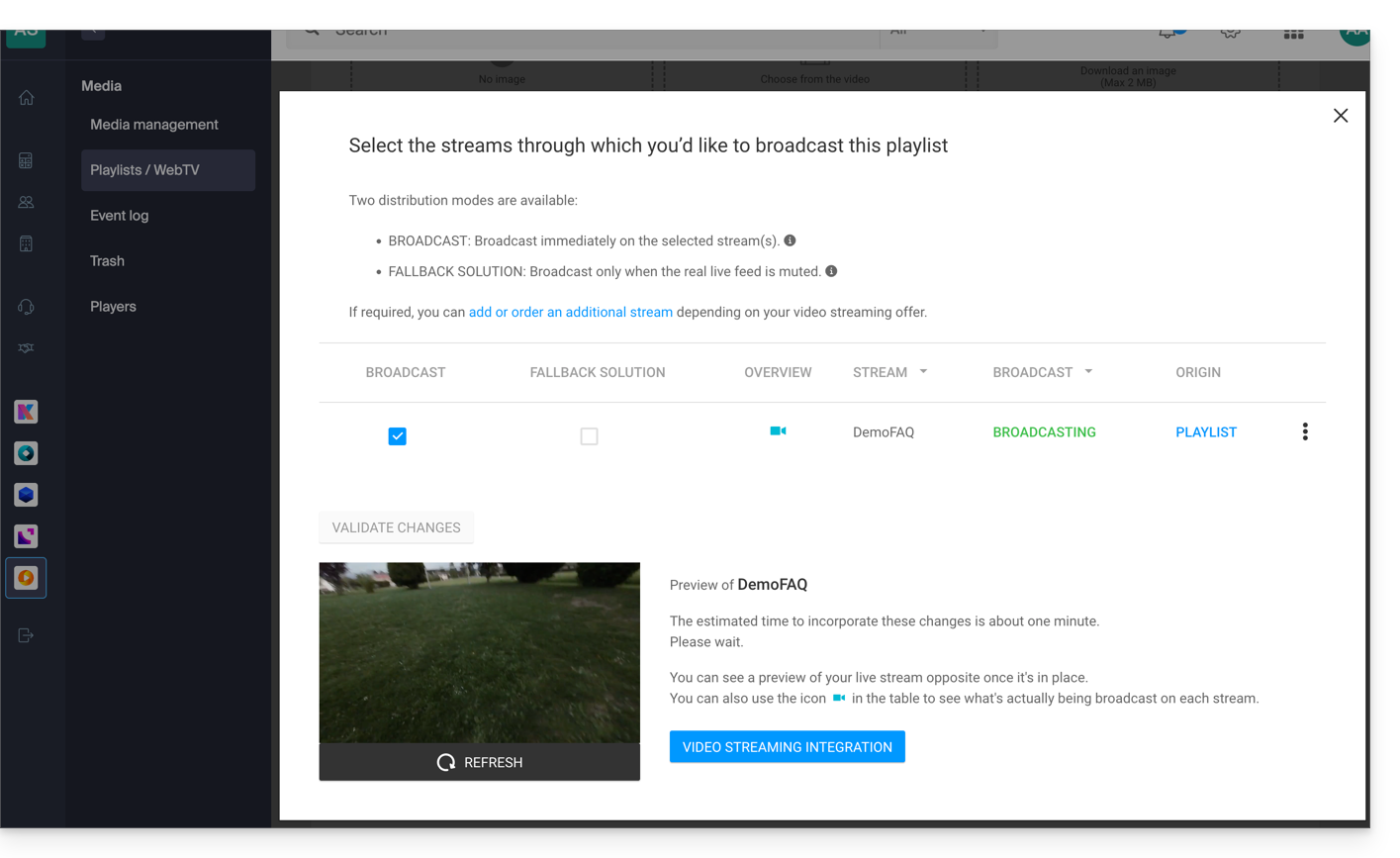
- Confirm when you are ready to broadcast; the preview will appear below:
- Each playlist can be duplicated, renamed, shared, deleted, etc., directly from the playlists page:
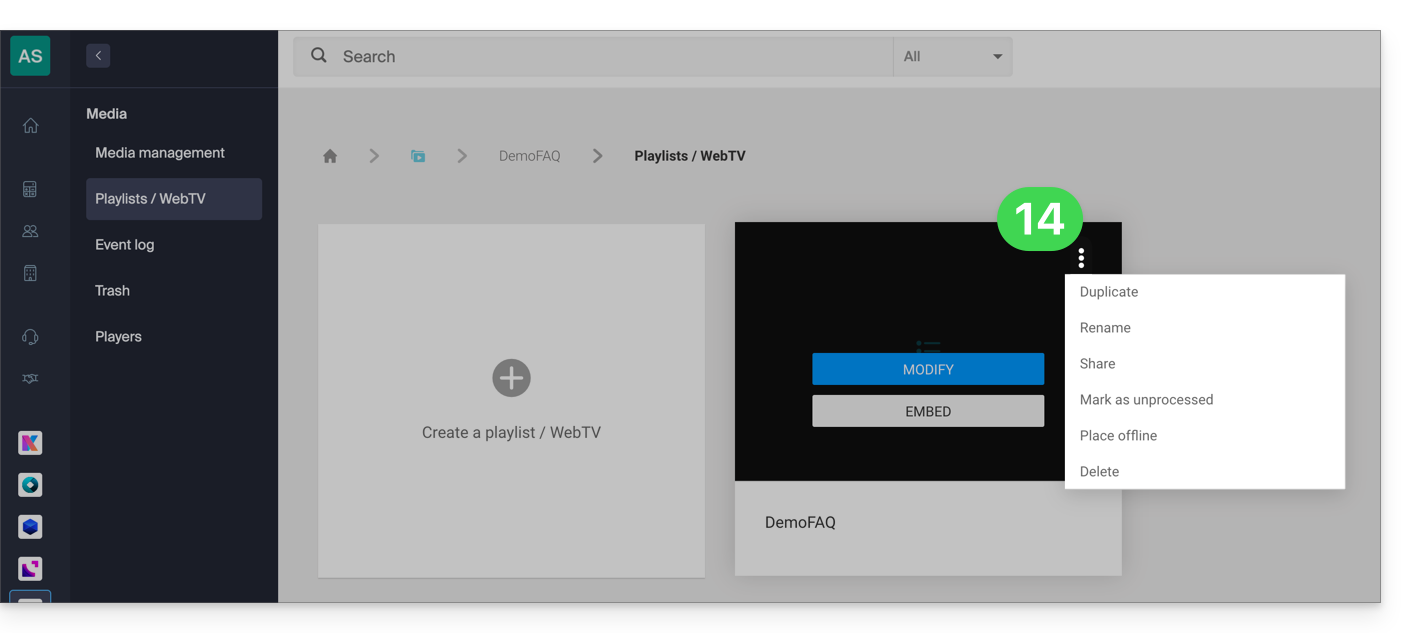
A few usage examples
Broadcasting a playlist can serve as a fallback solution as soon as a live stream is interrupted (voluntarily or involuntarily) and in this case take over the air. As soon as the live encoder pushes a stream, it takes control of the playlist. This allows you to broadcast alternative content if there is a problem with the live stream or if the user only broadcasts real live content in the evening, for example, they can automate the broadcasting of content from playlists for the rest of the day.
It is also possible to schedule the broadcasting of a playlist from the Video Streaming scheduling tool. Thus, you can choose to broadcast unique or different playlists in advance, either one-time or recurrently. The encoder broadcasting live will be automatically disconnected and this for the entire duration of the playlist broadcast; once the time slot is over, the encoder will reconnect and its content will be broadcast.
A VOD playlist can be created and then edited manually (by retrieving the video that needs to complete the list) or be dynamic if automatically composed by a batch of videos located in a specific folder and fed over time. In both cases, stop then restart the live broadcast to take into account any new video added to the playlist - note that this will no longer be necessary in a future update of the tool.
Link to this FAQ: https://faq.infomaniak.com/1448
Has this FAQ been helpful?