Base de conhecimento
1000 perguntas frequentes, 500 tutoriais e vídeos explicativos. Aqui, você encontra apenas soluções!
Este guia ajuda você a começar a usar o kSuite, integrando um kDrive já existente na sua organização.
Introdução
- O kDrive fará parte integrante da nova kSuite.
- O número mínimo de utilizadores no plano kSuite escolhido será baseado no número de utilizadores do plano kDrive existente.
- Os utilizadores do kDrive tornar-se-ão utilizadores kSuite.
- Para o ajudar a identificar a oferta kSuite mais adequada às suas necessidades, consulte este outro guia.
Como atualizar meu kDrive para kSuite
Pré-requisitos
- Não ter ainda o kSuite instalado na organização.
- Possuir uma oferta kDrive paga e fora do período de teste.
- Ser o responsável legal ou administrador da organização.
Criar uma nova kSuite a partir do seu kDrive existente:
- Clique aqui para acessar o aplicativo web kDrive da Infomaniak (serviço online ksuite.infomaniak.com/kdrive).
- Clique em Gerenciar.
- Clique em Atualizar plano.
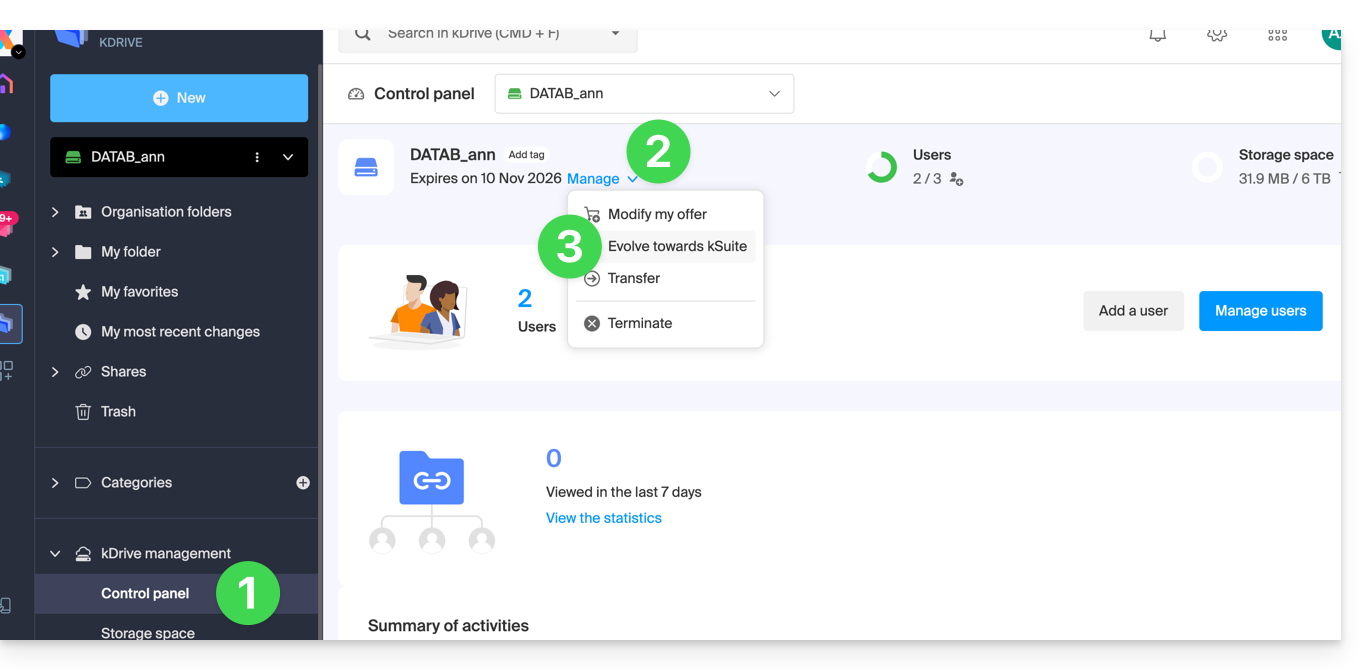
Também pode fazê-lo a partir de uma barra de informações visível na página inicial da sua interface Manager: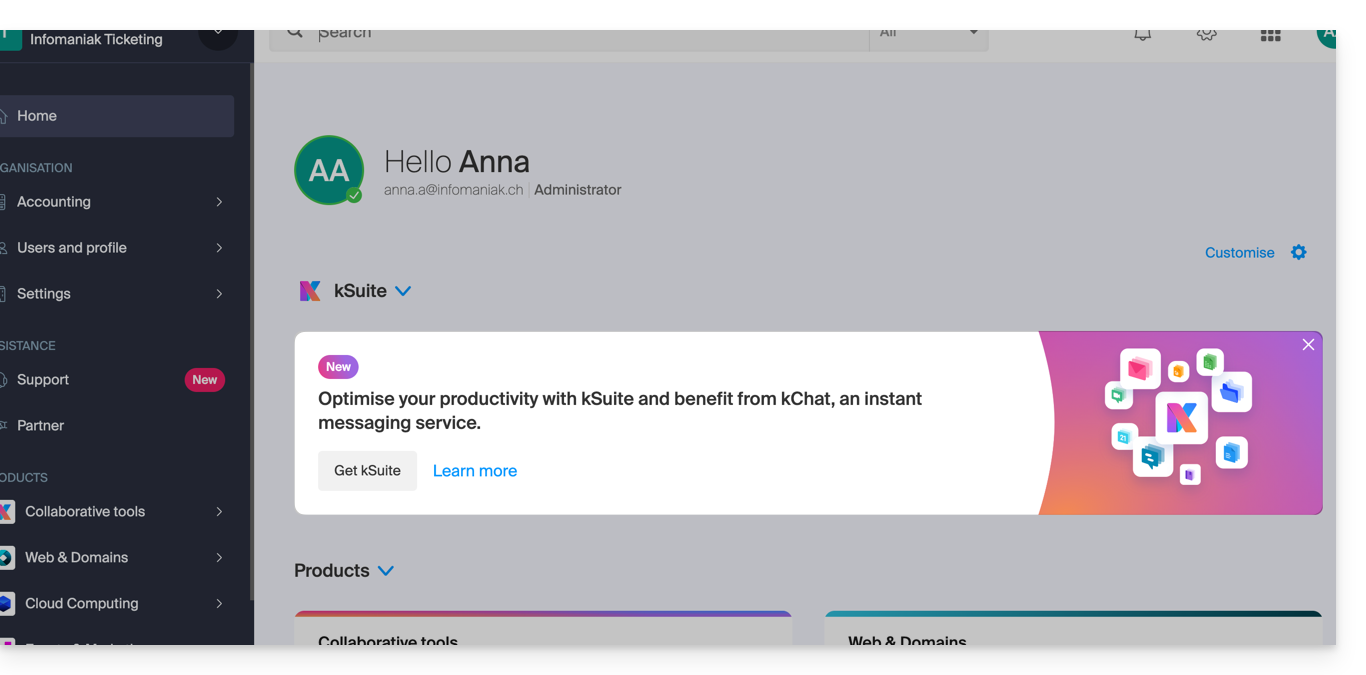
Você também pode integrar seu Serviço de E-mail, caso ele não esteja atualmente no kSuite.
Link para esta FAQ: https://faq.infomaniak.com/2350
Esta seção de perguntas frequentes foi útil?
Este guia explica como conectar o aplicativo para desktop Outlook 2019 (aplicativo para computador no Windows) a um endereço de e-mail hospedado na Infomaniak.
Adicionar o endereço de e-mail ao aplicativo
Pré-requisitos
- Criar o endereço de e-mail (❓: ajuda my kSuite | Serviço de E-mail/kSuite).
- Criar uma senha para o dispositivo (❓: ajuda my kSuite | Serviço de e-mail/kSuite).
- Verificar se a configuração do domínio está correta (❓: ajuda).
Para configurar o aplicativo de e-mail:
- Abra o aplicativo.
- Se o assistente iniciar automaticamente, avance para o passo 5.
- Se o assistente não iniciar automaticamente, clique no menu Arquivo:
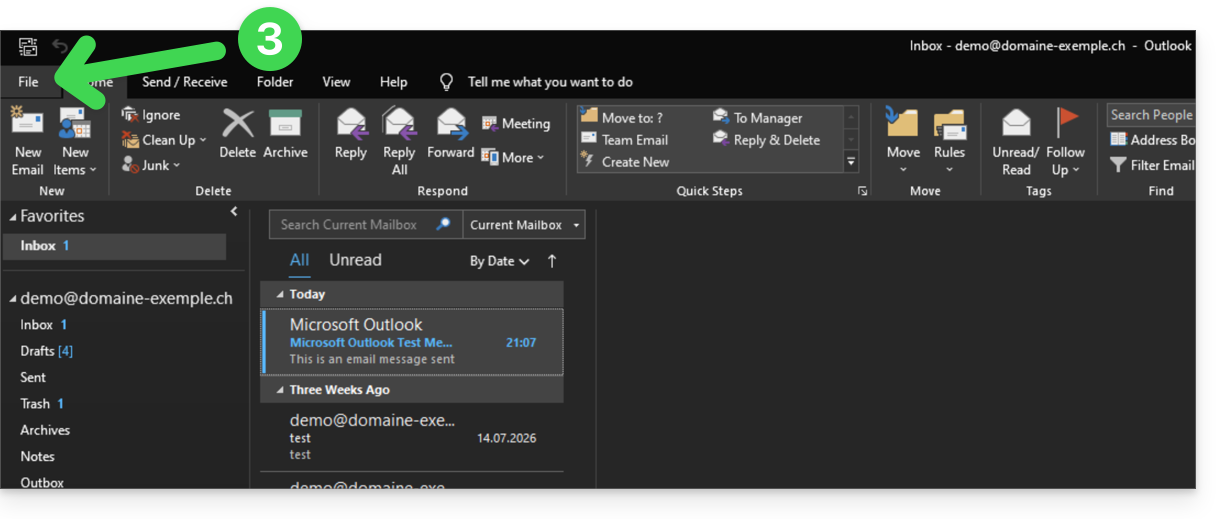
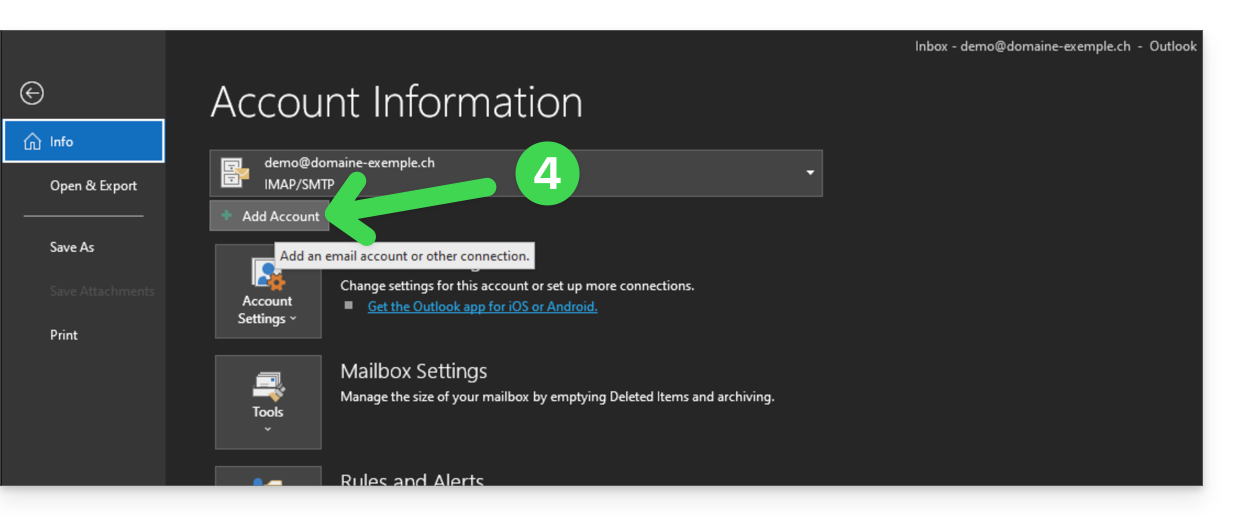
- Clique em Adicionar conta:
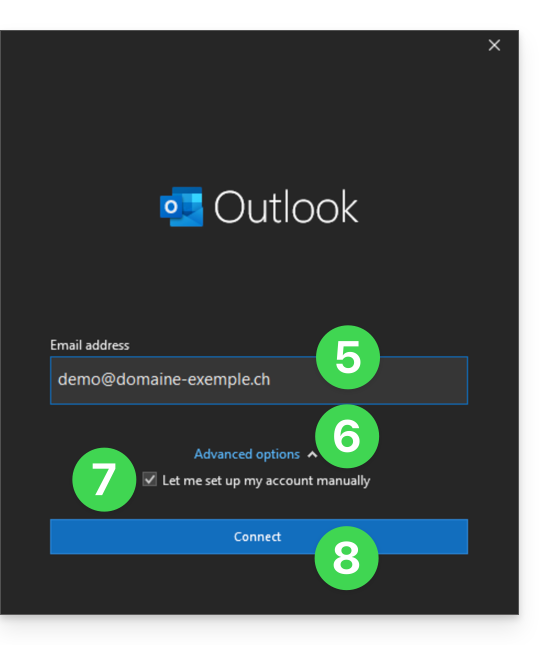
- Insira o endereço de e-mail que deseja conectar.
- Clique na seta Opções avançadas.
- Marque a caixa para configurar manualmente sua conta.
- Clique no botão Conectar:
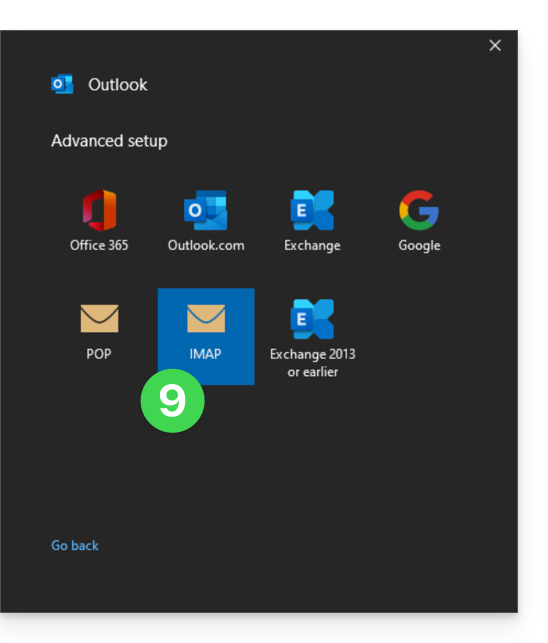
- Clique em IMAP:
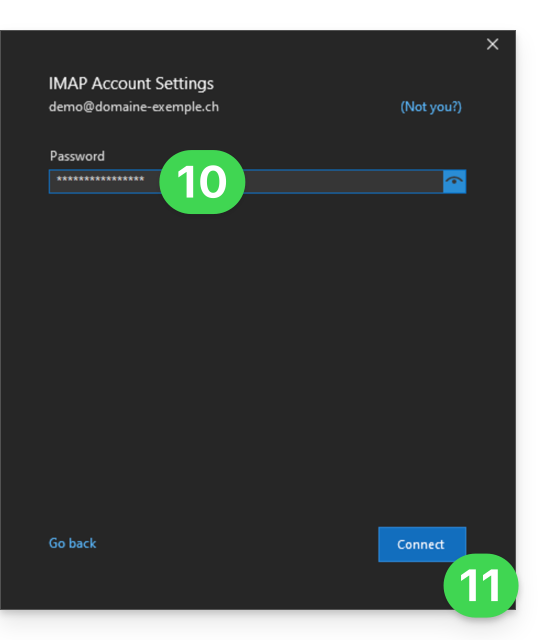
- Insira a senha do endereço de e-mail que deseja conectar (❓: ajuda).
- Clique no botão azul Conectar:
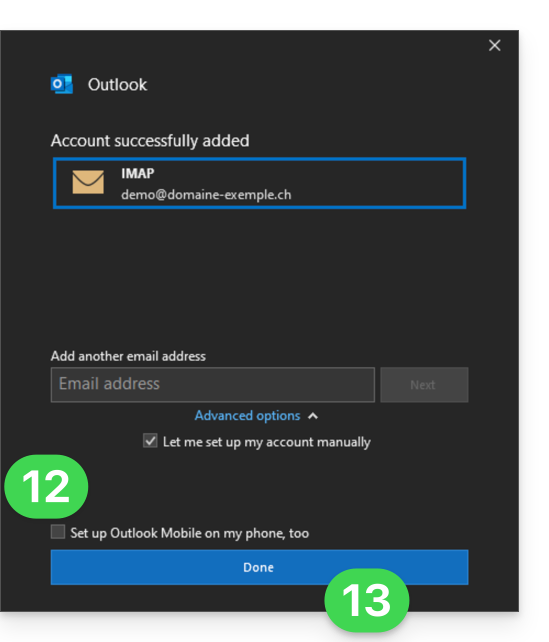
- Desmarque, se necessário, a caixa de seleção para configurações adicionais do dispositivo móvel.
- Clique no botão azul Concluir:
- Mantenha-se ou volte ao menu Arquivo.
- Clique em Configurações da conta para corrigir algumas informações adicionadas automaticamente, mas incorretas.
- Clique em Configurações do servidor:
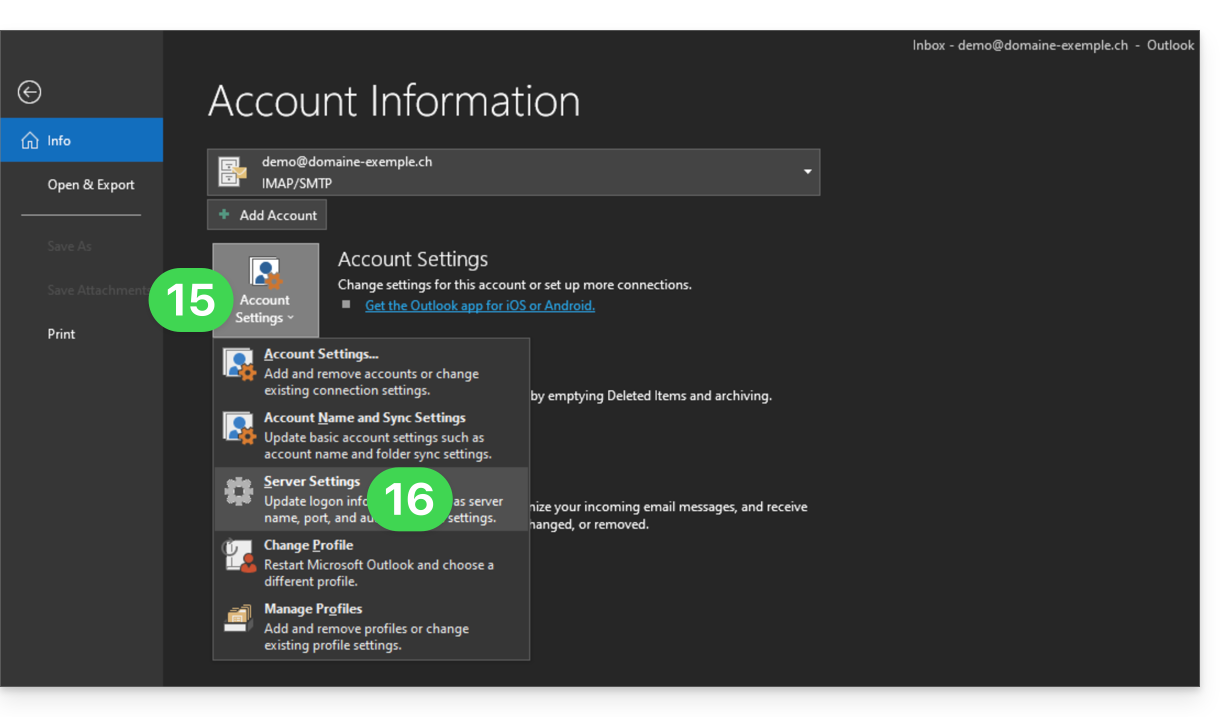
- Verifique e complete as informações em falta (❓: ajuda).
- Clique no ícone de seta para baixo Correio de saída:
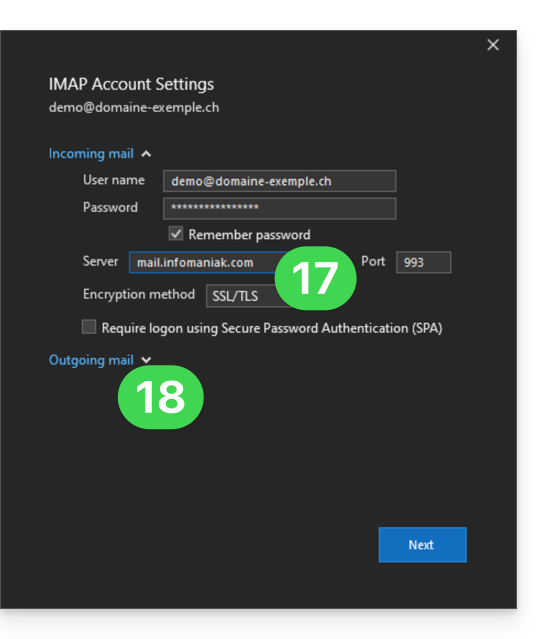
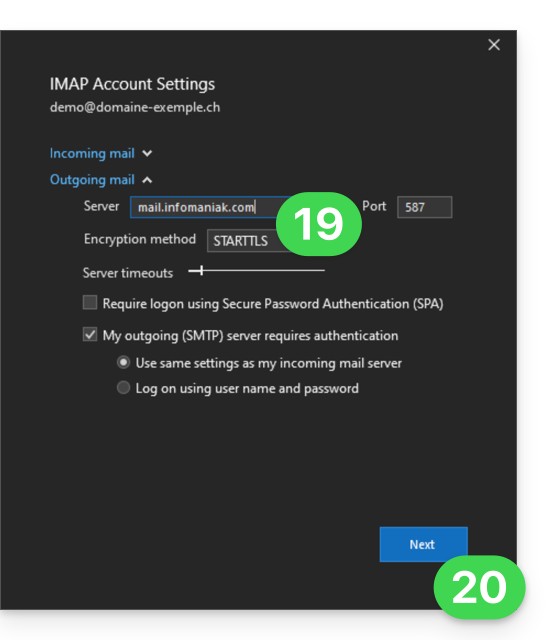
- Verifique e complete as informações que estiverem faltando (❓: ajuda).
- Clique em Seguinte:
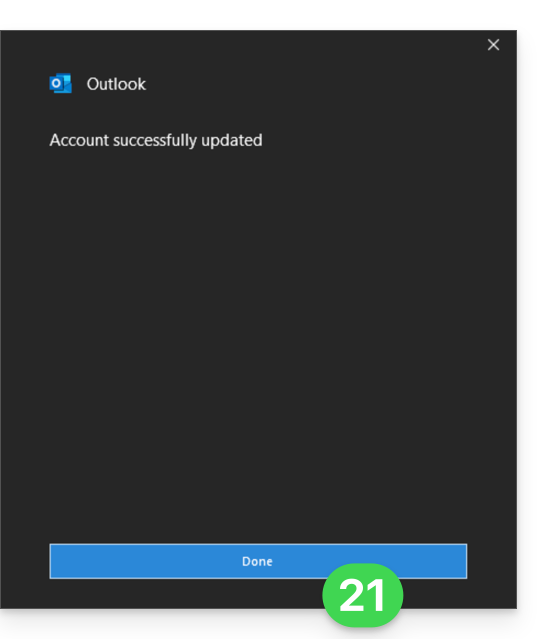
- Clique em Concluir:
- Volte à página inicial; pronto, o seu endereço de e-mail está agora corretamente configurado na aplicação:
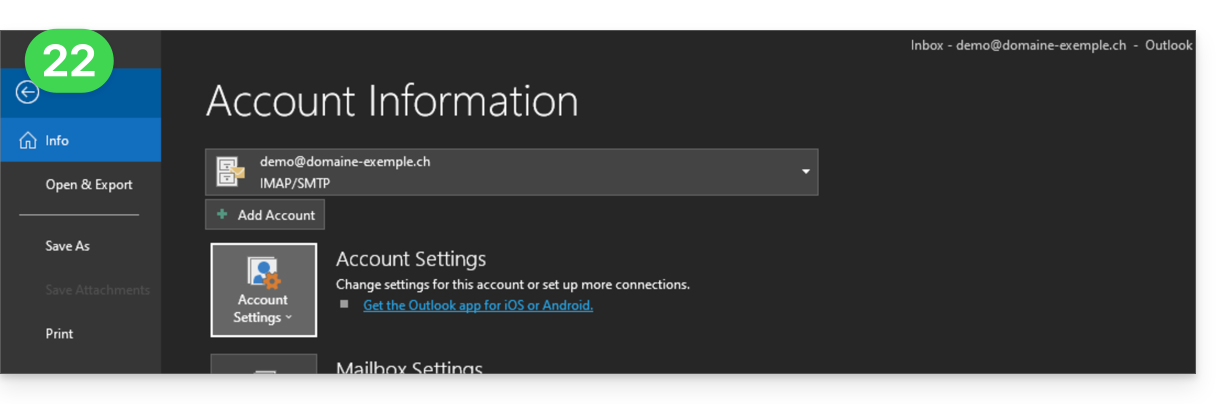
Configurações recomendadas
- Servidor IMAP de entrada =
mail.infomaniak.com - Porta IMAP =
993(com SSL) - Servidor SMTP de saída =
mail.infomaniak.com - Porta SMTP e protocolo de criptografia e comando/método para ativar este protocolo:
587+ STARTTLS - Nome de utilizador/username = o endereço de e-mail completo (❓: ajuda)
- Palavra-passe/password = a palavra-passe gerada para o endereço de e-mail que pretende consultar (❓: ajuda my kSuite | Serviço de E-mail/kSuite).
- Autenticação obrigatória para o envio de e-mails:
- Ative-a nas configurações SMTP da sua aplicação.
- Marque "usar as mesmas configurações do servidor de entrada" ou, dependendo do software/cliente de e-mail, insira um nome de usuário (= endereço de e-mail completo) e a senha gerada.
Consulte este outro guia se precisar de informações sobre outras portas e protocolos de e-mail compatíveis (SSL / TLS, por exemplo).
Em caso de problema
Verifique se o Serviço de E-mail está configurado de forma otimizada (❓: ajuda).
Não é necessário entrar em contato com o Suporte Infomaniak se o seu endereço de e-mail funcionar corretamente fora do aplicativo. O erro mais comum está relacionado ao uso de uma senha incorreta. Os guias de solução de problemas ajudarão você a resolver qualquer problema:
- Consulte as soluções apresentadas neste outro guia sobre e-mail em geral.
- Este outro guia trata especificamente do Outlook.
… e se o seu Outlook deixou de funcionar após uma alteração da palavra-passe do e-mail, consulte este outro guia.
Link para esta FAQ: https://faq.infomaniak.com/2354
Esta seção de perguntas frequentes foi útil?
Este guia explica como alterar a senha da sua conta Infomaniak (= conta do usuário) no Manager, a interface de administração dos seus produtos Infomaniak.
Introdução
- Esta senha também permite que você acesse o kSuite e os diversos aplicativos iOS/Android, como o kDrive, o Infomaniak Mail, etc. (saiba mais)mas não é a senha do seu endereço de e-mail!
- Se não conseguir iniciar sessão, não poderá alterar a sua palavra-passe; consulte este outro guia nesse caso.
Alterar a palavra-passe da sua conta Infomaniak
Para alterar a senha da sua conta Infomaniak:
- Clique aqui para acessar o gerenciamento das suas configurações (Painel de Controle Infomaniak).
- Clique em Editar na caixa Configurações de login, em senha de login:
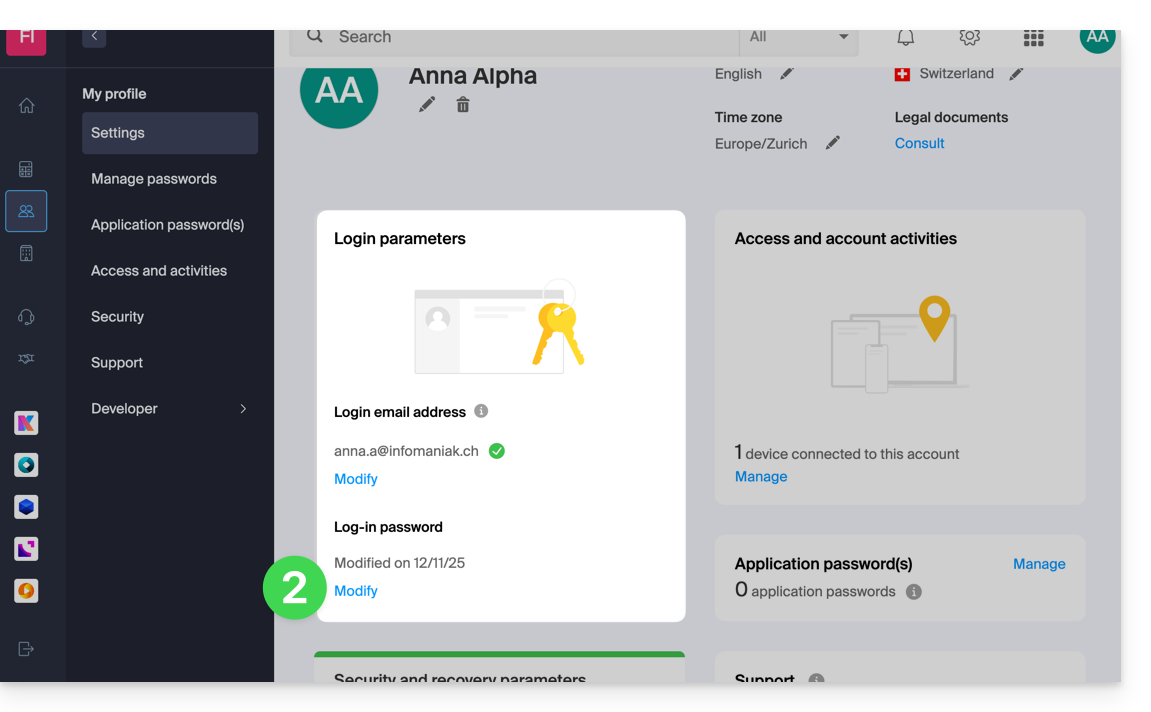
- Clique em Editar:
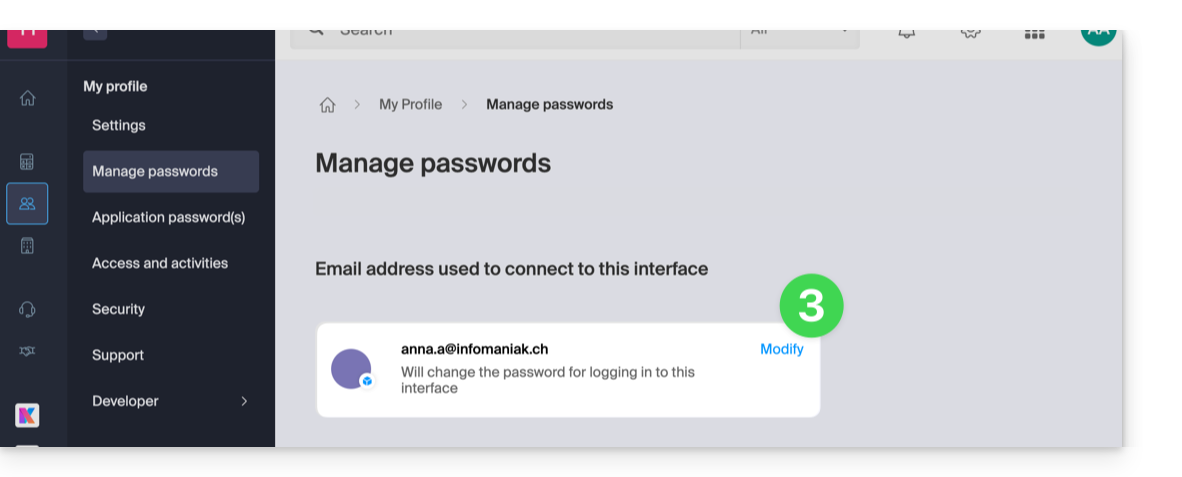
- Indique a senha atual de login e a nova senha desejada.
- Clique em Salvar.
Link para esta FAQ: https://faq.infomaniak.com/2359
Esta seção de perguntas frequentes foi útil?
Este guia explica como conectar o aplicativo móvel Apple Mail para iOS (iPhone, iPad…) a um endereço de e-mail hospedado na Infomaniak.
Introdução
- Em vez da configuração manual abaixo, recomenda-se usar os perfis de configuração .mobileconfig (❓: ajuda) fornecidos pela Apple ou o aplicativo Infomaniak Mail (iOS) para usufruir de um método de atualização do tipo Push.
Adicionar manualmente o endereço de e-mail ao aplicativo
Pré-requisitos
- Criar o endereço de e-mail (❓: ajuda my kSuite | Serviço de E-mail/kSuite).
- Criar uma senha para o dispositivo (❓: ajuda my kSuite | Serviço de e-mail/kSuite).
- Verificar se a configuração do domínio está correta (❓: ajuda).
Para configurar o aplicativo de e-mail:
- Abra as configurações do iPhone:
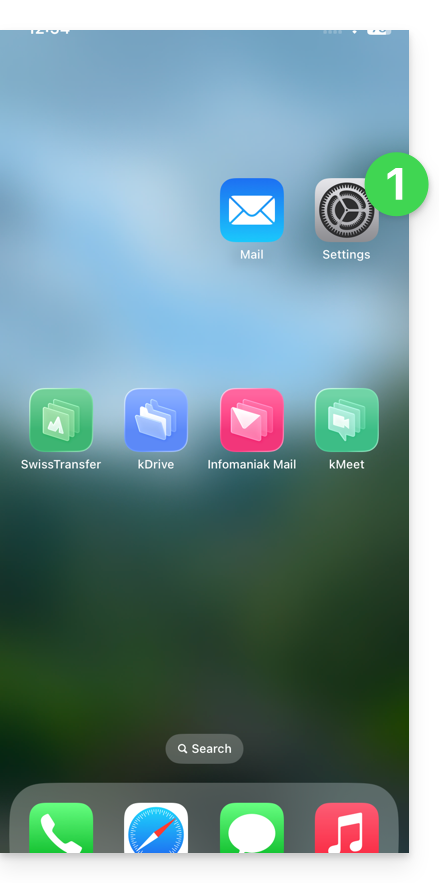
- Toque em Apps:
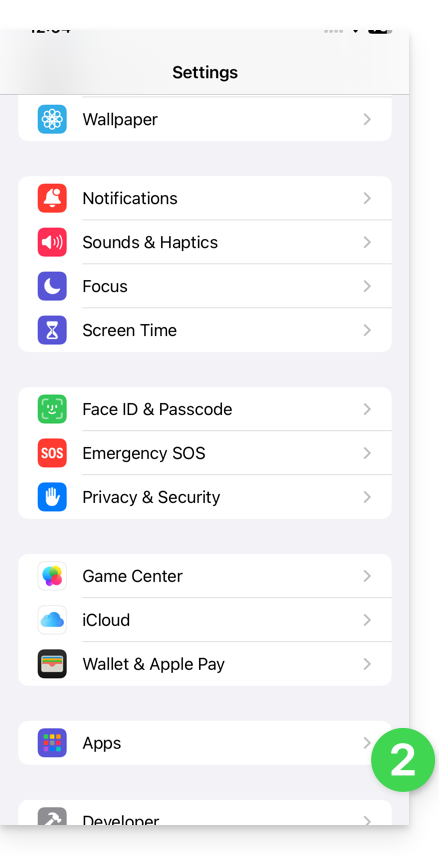
- Em Apps, toque em Mail:
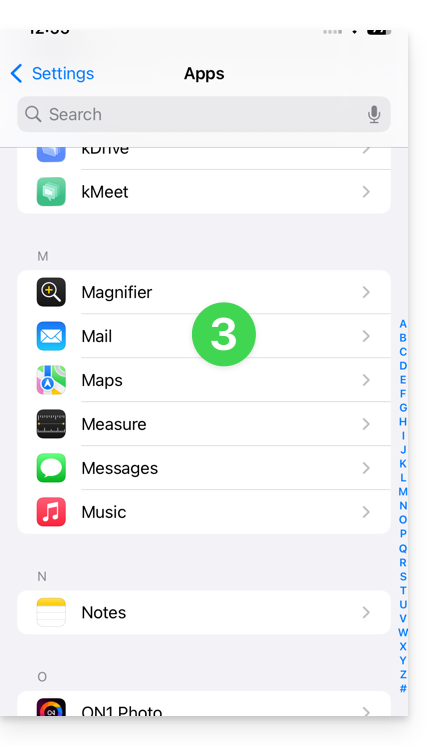
- Toque em Contas de e-mail:
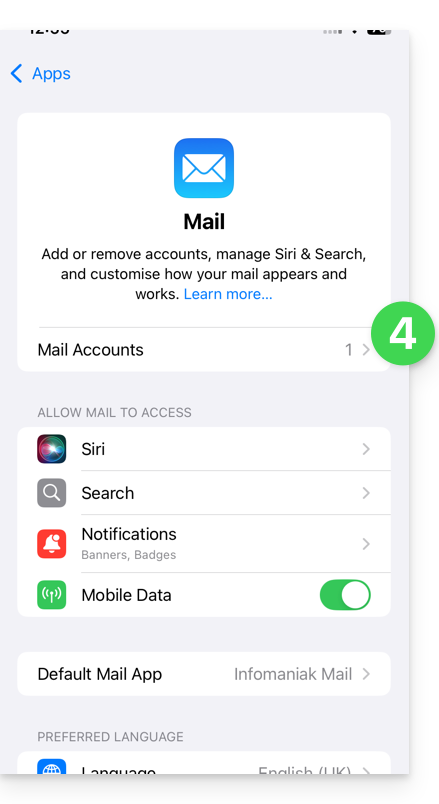
- Toque para adicionar uma conta:
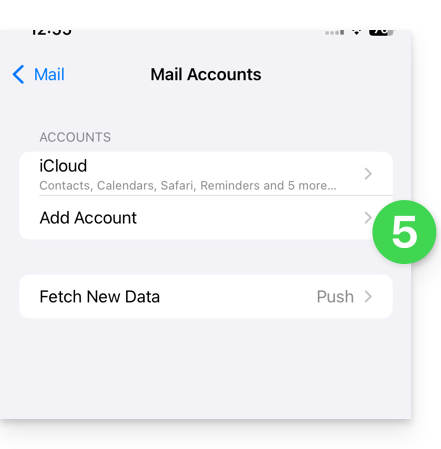
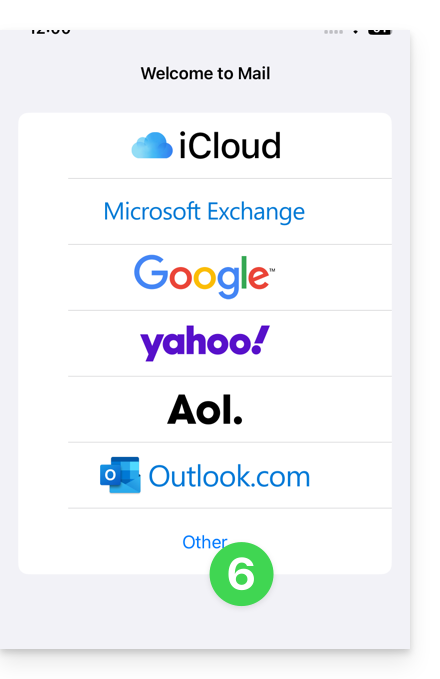
- Toque em Outra conta:
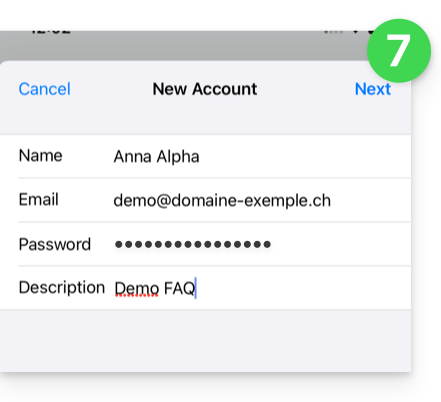
- Insira o endereço de e-mail e a senha da conta que deseja adicionar (consulte os pré-requisitos) e toque em Avançar:
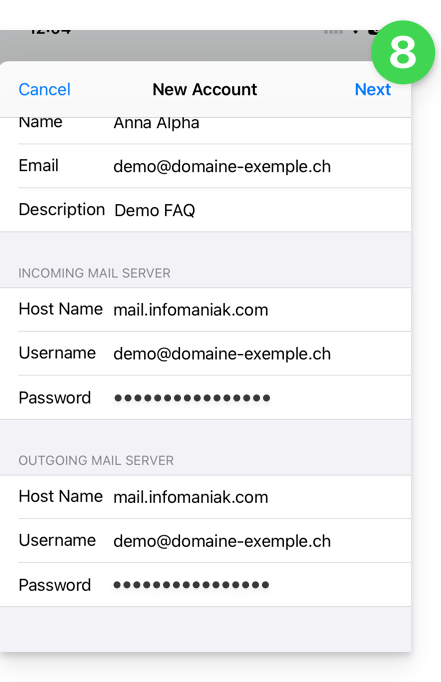
- Verifique e complete as informações que estão faltando (❓: ajuda) e, em seguida, clique em Avançar:
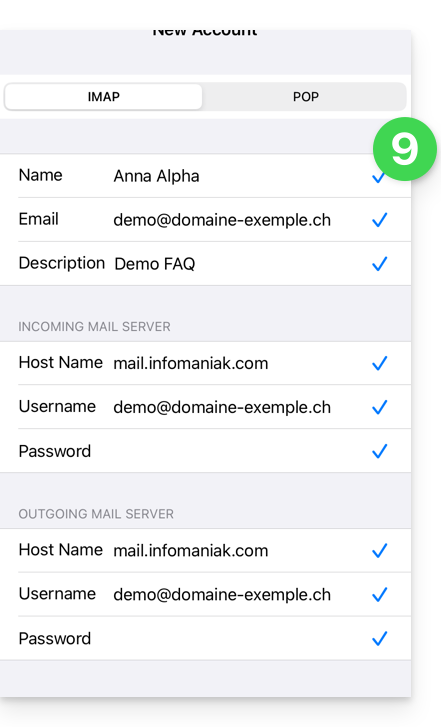
- O aplicativo indica que alguns campos são opcionais, mas isso não é verdade!
- A verificação IMAP deve ser realizada corretamente (não clique em POP)
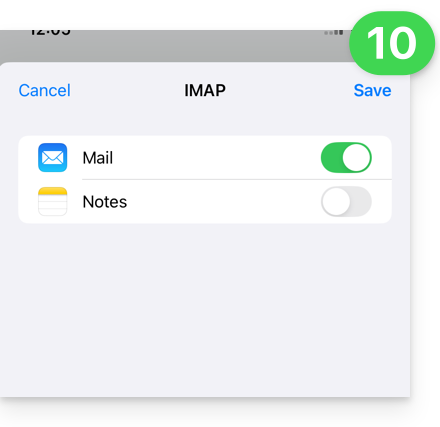
- Ative o e-mail e salve a configuração no canto superior direito:
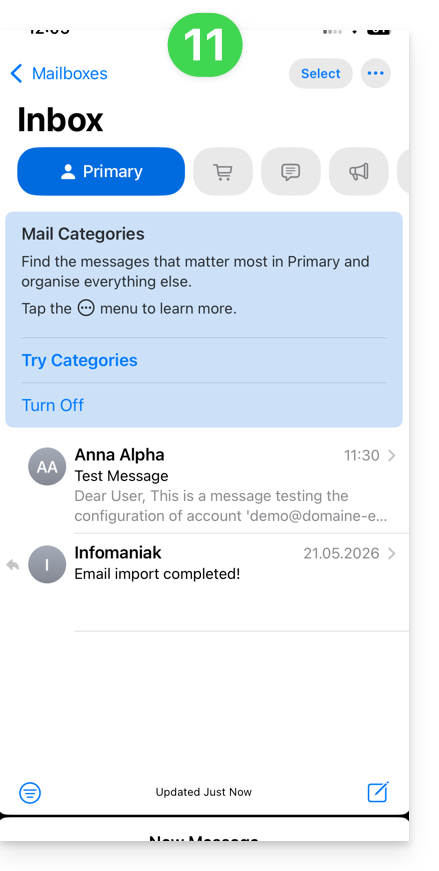
- Pronto, o seu endereço de e-mail já está configurado na aplicação:
Parâmetros recomendados
- Servidor IMAP de entrada =
mail.infomaniak.com - Porta IMAP =
993(com SSL) - Servidor SMTP de saída =
mail.infomaniak.com - Porta SMTP e protocolo de criptografia e comando/método para ativar este protocolo:
587+ STARTTLS - Nome de utilizador/username = o endereço de e-mail completo e integral (❓: ajuda)
- Senha/password = a senha gerada para o endereço de e-mail que você deseja consultar (❓: ajuda my kSuite | Serviço de e-mail/kSuite).
- Autenticação obrigatória para o envio de e-mails:
- Ative-a nas configurações SMTP do seu aplicativo.
- Marque "usar as mesmas configurações do servidor de entrada" ou, dependendo do software/cliente de e-mail, insira um nome de usuário (= endereço de e-mail completo) e a senha gerada.
Consulte este outro guia se precisar de informações sobre outras portas e protocolos de e-mail compatíveis (SSL/TLS, por exemplo).
Em caso de problemas
Verifique se o Serviço de Email está configurado de forma otimizada (❓: ajuda).
Não é necessário entrar em contato com o Suporte Infomaniak se o seu endereço de email funcionar corretamente fora da aplicação. O erro mais comum está relacionado ao uso de uma senha incorreta. Os guias de solução de problemas ajudarão você a resolver qualquer problema:
- Consulte as soluções apresentadas neste outro guia sobre o serviço de e-mail em geral.
- Remova quaisquer perfis de configuração da Applerelacionados à sua conta de e-mail Infomaniak antes de reiniciar a configuração.
E se o seu Apple Mail deixar de funcionar no envio (servidor SMTP desconectado ou ausente, por exemplo) ou após uma alteração de senha de e-mail, consulte este outro guia.
Link para esta FAQ: https://faq.infomaniak.com/2369
Esta seção de perguntas frequentes foi útil?
Este guia explica como conectar os aplicativos móveis Contatos e CalendárioiOS (iPhone, iPad…) com os contactos e calendários alojados na Infomaniak.
Introdução
- O seu dispositivo iOS será configurado automaticamente através de perfis de configuração .mobileconfig compatíveis com a Apple, ao contrário de uma configuração manual.
- Os contactos e calendários Infomaniak estão ligados à sua conta Infomaniak; quando se conecta a ksuite.infomaniak.com/contacts ou /calendar, provavelmente terá de efetuar a autenticação de dois fatores (2FA) ao iniciar sessão.
- Neste caso, é necessária uma palavra-passe de aplicação para estabelecer uma sincronização entre o seu dispositivo e as ferramentas Infomaniak.
- Mas não se preocupe, a criação de uma palavra-passe desse tipo é proposta ao seguir o assistente de configuração.
- É possível remover um perfil de configuração após a instalação (vá até o final desta página para obter mais informações).
- Alternativa: se você tiver o aplicativo móvel Infomaniak Mail instalado no seu dispositivo iOS, um dos menus permite acessar um assistente de sincronização para conectar Contatos e Calendário automaticamente.
Instalar um perfil de configuração
Para isso, idealmente a partir do dispositivo que será configurado, no navegador Safari:
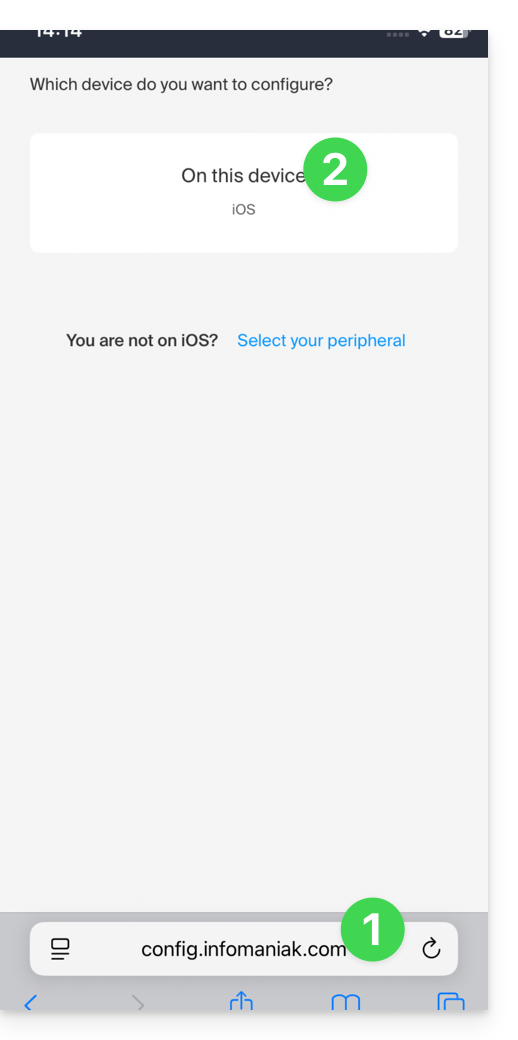
- Clique aqui para acessar a ferramenta de configuração Infomaniak (serviço online https://config.infomaniak.com) — faça login, se necessário, na sua conta Infomaniak na organização onde seus serviços são gerenciados.
- Escolha instalar o perfil neste dispositivo iOS:
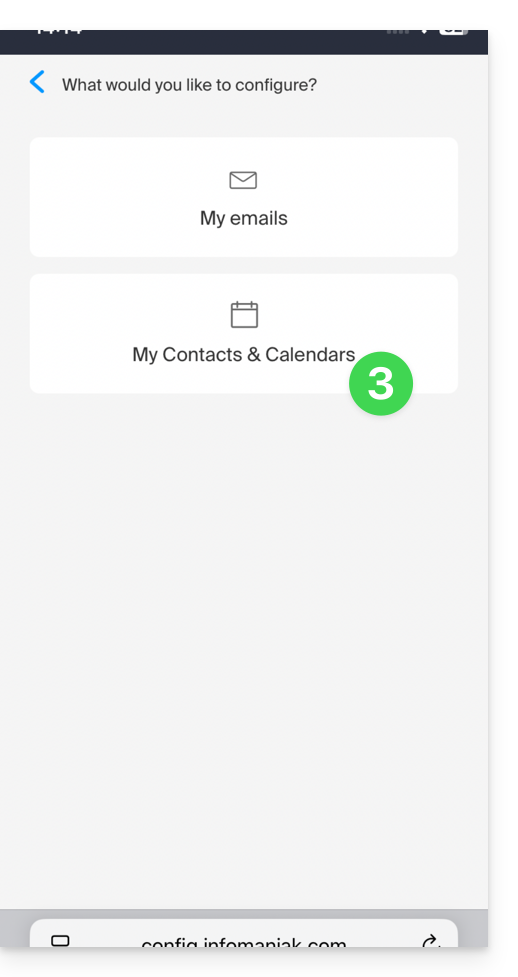
- Escolha sincronizar os contactos e calendários:
- Gere uma palavra-passe de aplicação dedicada à sincronização (para manter a ligação 2FA habitual da sua conta de utilizador):
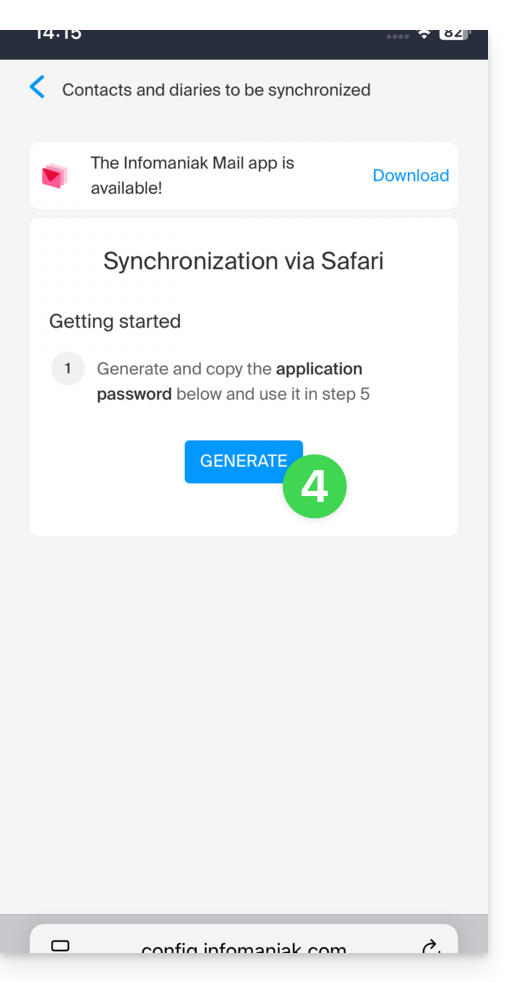
- Copie a senha do aplicativo gerada (ela será solicitada durante a instalação do perfil Apple).
- Baixe o perfil Apple:
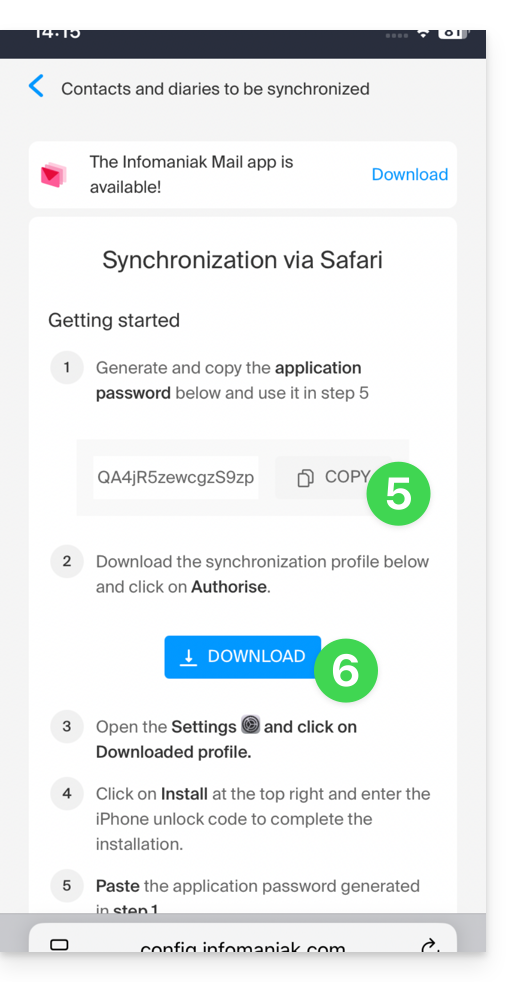
- Autorize o download no dispositivo:
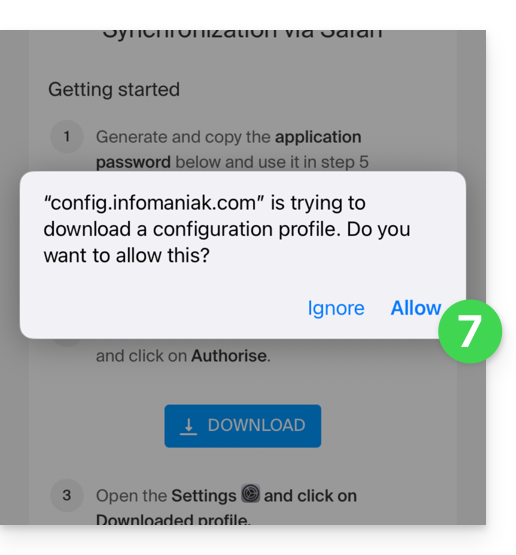
- Toque para fechar a mensagem:
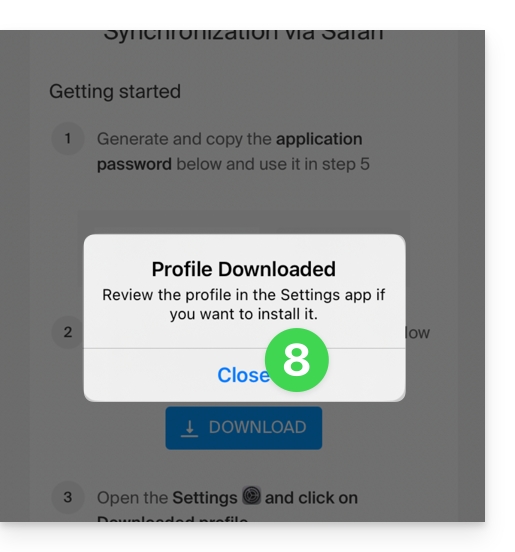
- Abra as configurações/definições do dispositivo iOS e toque na barra superior que o informa que um novo perfil foi baixado:
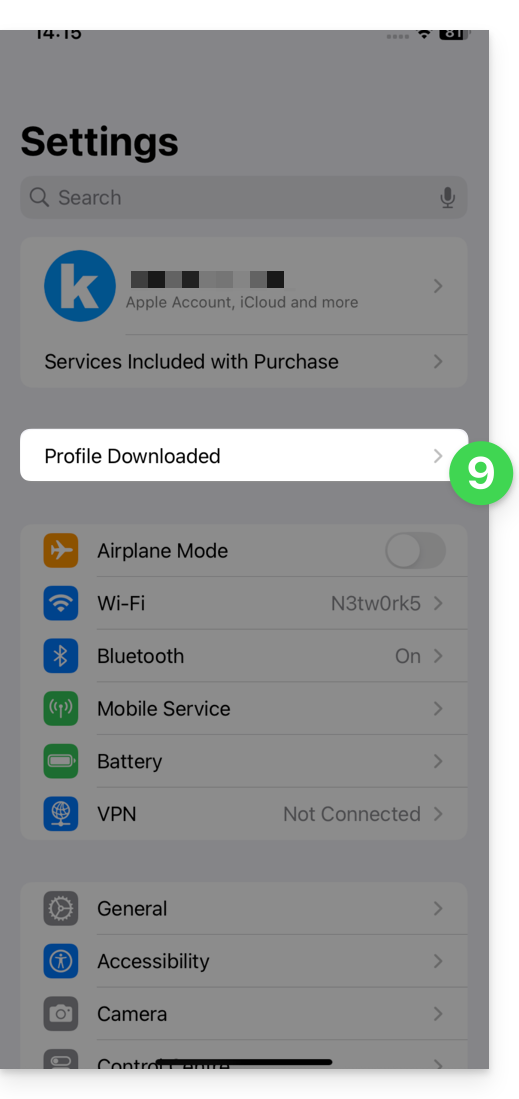
- Toque em Instalar:
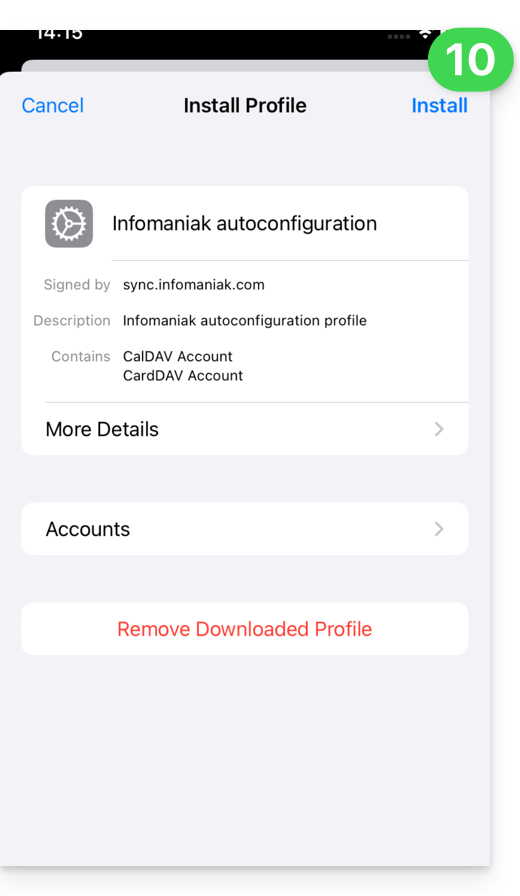
- Insira o código do seu dispositivo iOS como se fosse desbloqueá-lo:
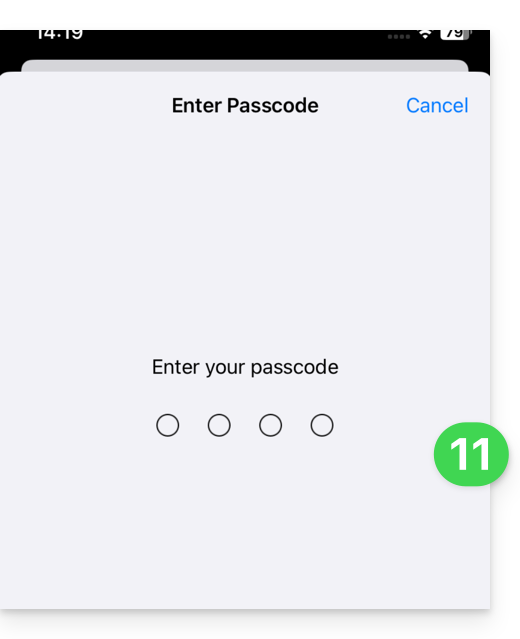
- Toque em Instalar:
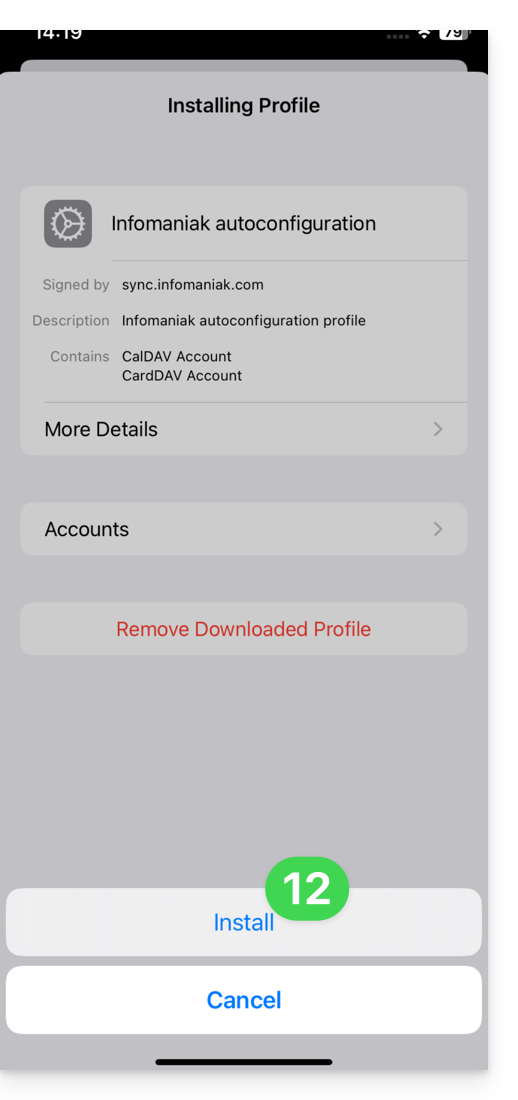
- Insira (ou cole) a senha do aplicativo copiada no passo 5 acima:
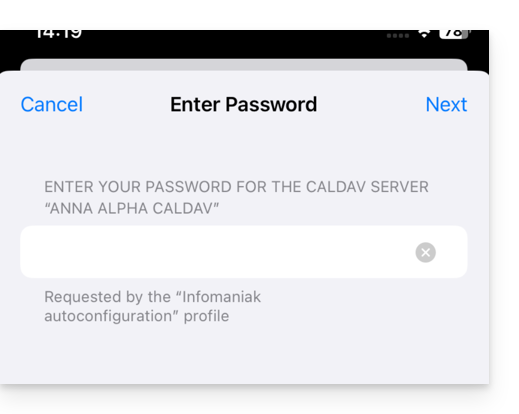
e faça isso duas vezes seguidas (contatos + calendários):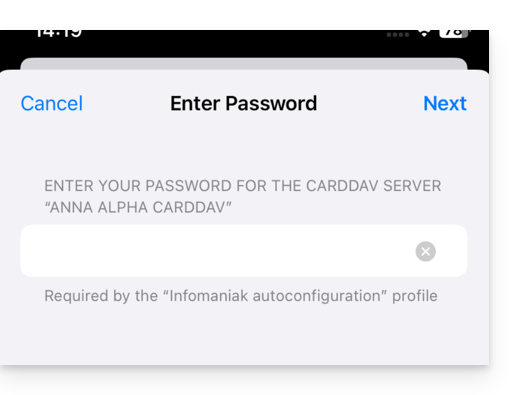
- Quando a indicação aparecer na parte superior, estará concluído:
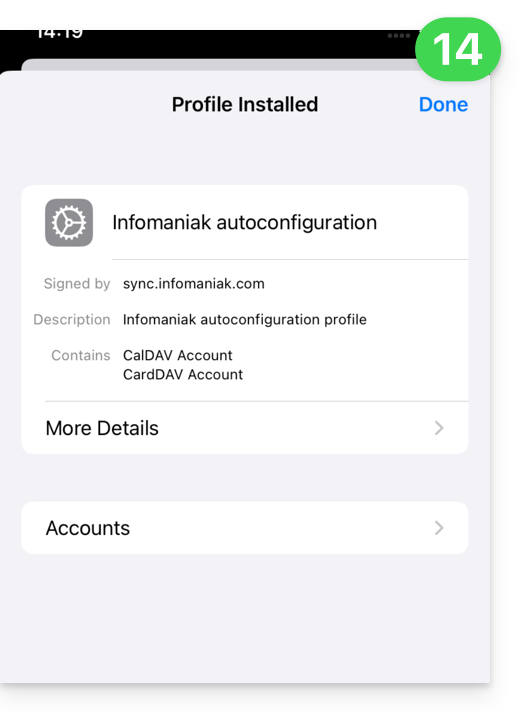
Se os aplicativos iOS Contatos e Calendário já estiverem abertos, é necessário reiniciá-los. Você verá então as informações adicionadas pela sincronização: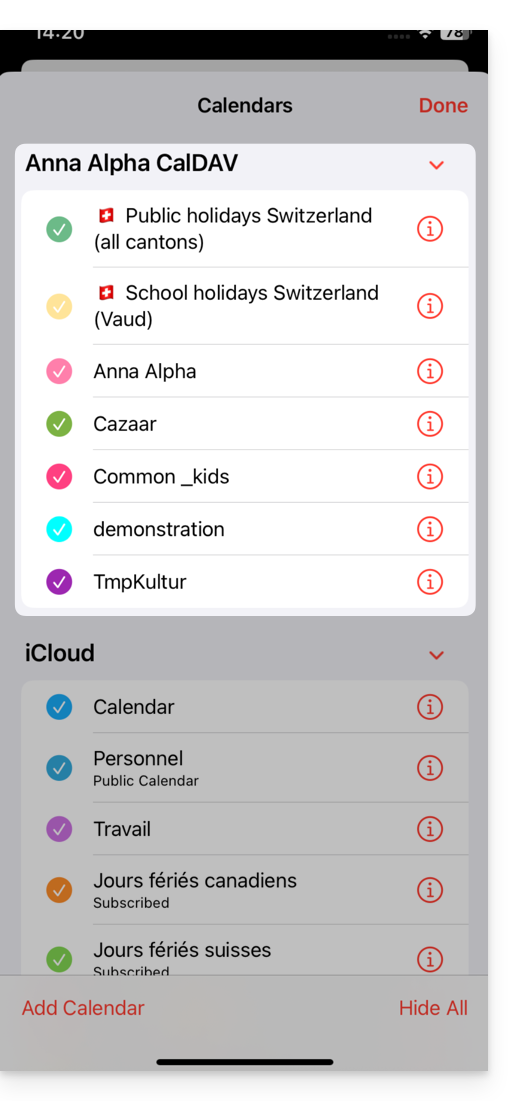
Particularidades da sincronização
Consulte este outro guia.
Remover um perfil Apple
Consulte a documentação oficial, alterando, no topo da página,* a versão do seu sistema, se necessário.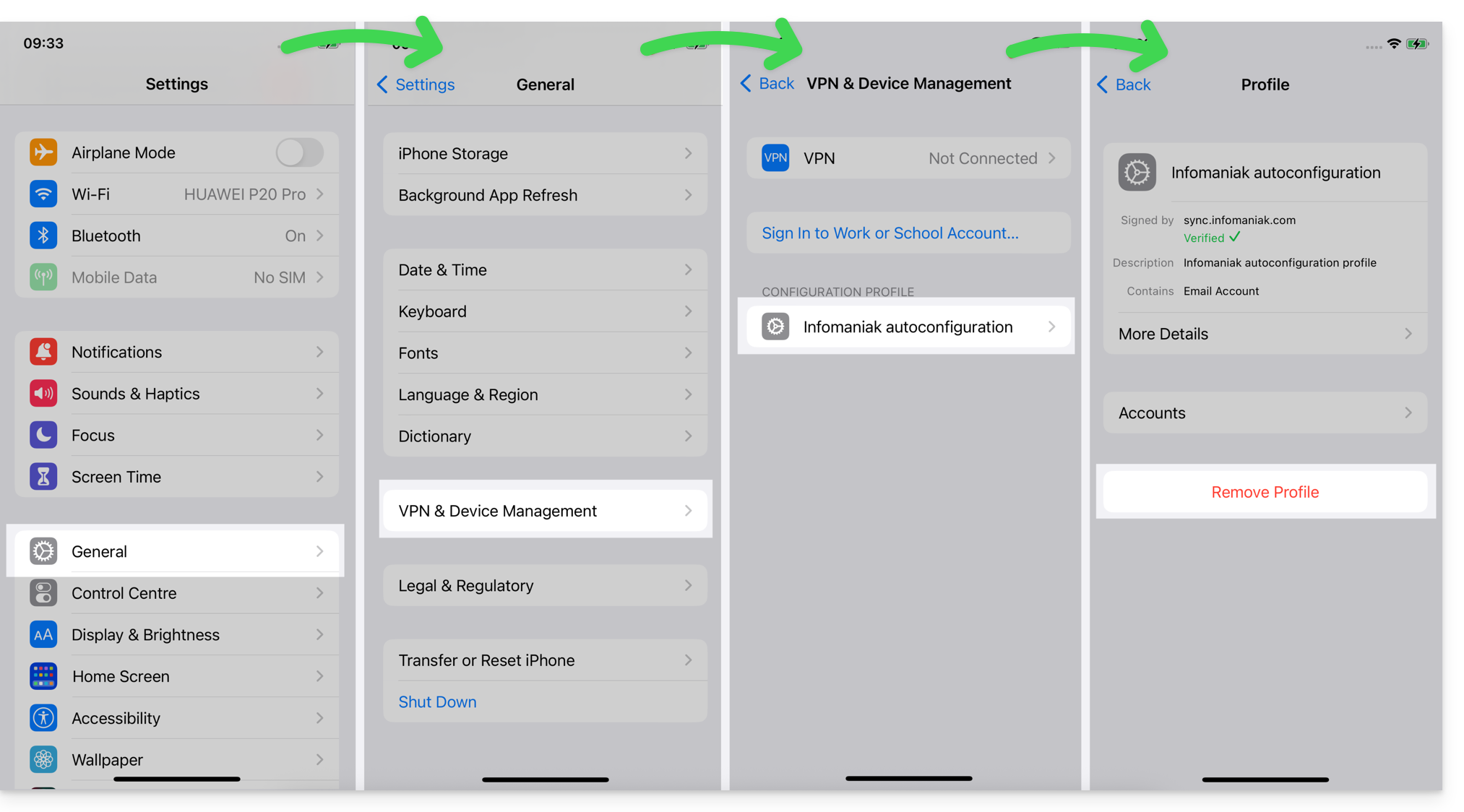
*Por que é necessário selecionar a versão do guia que corresponda exatamente à sua versão do sistema macOS / iOS?A Apple introduz alterações, por vezes subtis, em cada nova versão do seu sistema, por exemplo, um caminho no iOS 15…
… torna-se isto no iOS 18…
Link para esta FAQ: https://faq.infomaniak.com/2370
Esta seção de perguntas frequentes foi útil?
Este guia explica como criar, salvar e editar um arquivo do tipo Office (texto, planilha, apresentação…) no aplicativo web kDrive (serviço online ksuite.infomaniak.com/kdrive) e no aplicativo móvel kDrive (aplicativo para smartphone ou tablet iOS / Android) usando o editor nativo.
Editar um arquivo de texto, planilha, apresentação…
Pré-requisitos
- Para criar e colaborar em uma planilha ou documento de texto, etc., diretamente no aplicativo web, o tamanho do arquivo em questão deve ser inferior a
100 MB; caso contrário, o download do documento será proposto e será necessário editá-lo localmente no seu computador com um aplicativo do tipo Office (OnlyOffice, por exemplo).- Preste atenção às imagens que você insere em seus documentos (comprima-as para reduzir seu tamanho e qualidade, se necessário).
O aplicativo web kDrive (serviço online ksuite.infomaniak.com/kdrive) integra nativamente os aplicativos Docs, Grids e Points, que permitem criar, modificar e colaborar online em documentos do tipo Word .docx, Excel .xlsx e PowerPoint .ppsx:
- Clique aqui para acessar o aplicativo web kDrive (serviço online ksuite.infomaniak.com/kdrive).
- Se necessário, abra a pasta na qual deseja criar um documento Office.
- Clique no botão Novo no canto superior esquerdo.
- Escolha o tipo de documento a criar:
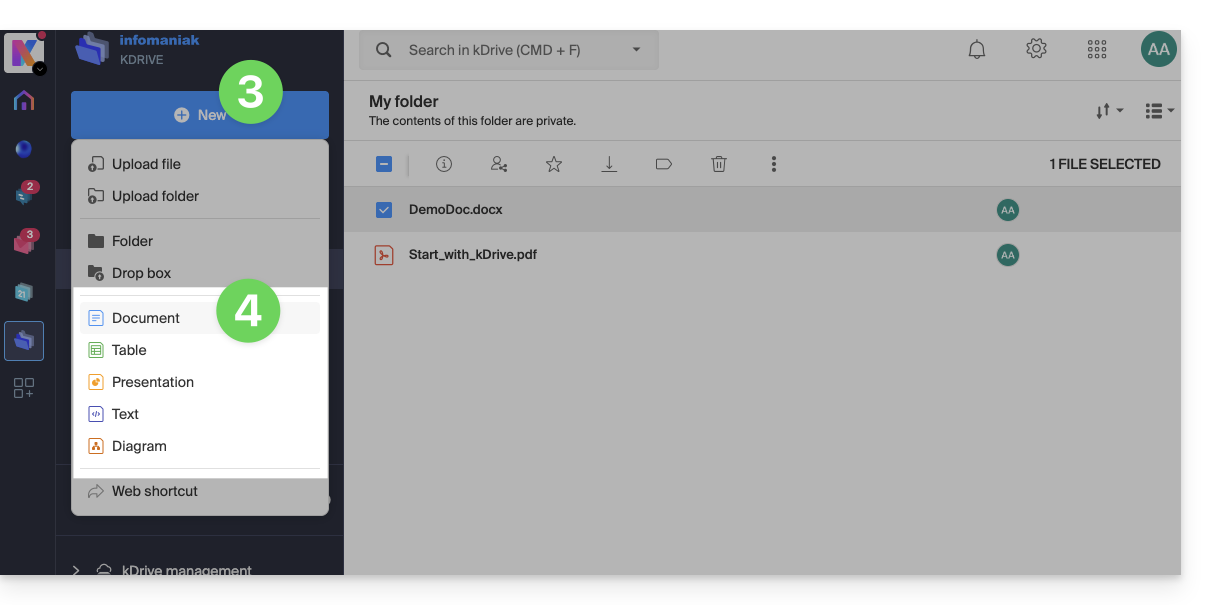
- documento de processamento de texto
- folha de cálculo
- apresentação
- texto simples (bloco de notas)
- documento draw.io para diagramas, esquemas e wireframes
- Atribua um nome ao ficheiro.
Para definir um editor como padrão, consulte este outro guia.
Função de pesquisa/substituição
Para trabalhar e substituir todas as ocorrências de um texto em poucos cliques, depois de criar o documento:
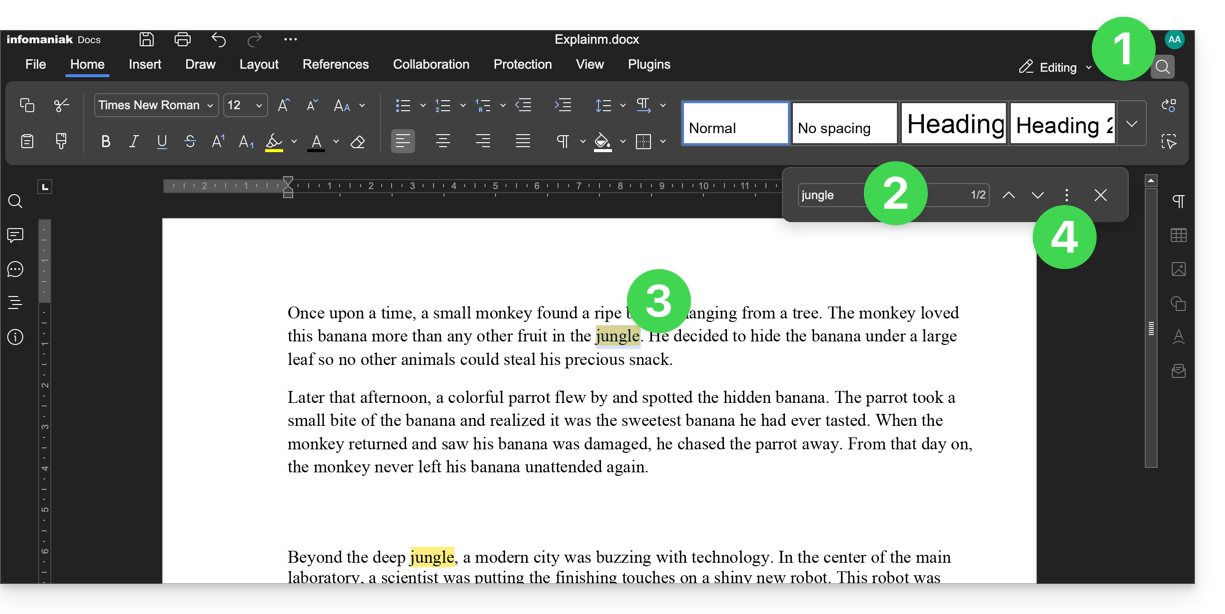
- Clique na função de pesquisa (ícone lupa no canto superior direito).
- Pesquise o termo a ser substituído em todo o texto.
- Verifique a seleção das ocorrências no texto.
- Clique no menu de ação ⋮ à direita do campo de pesquisa:
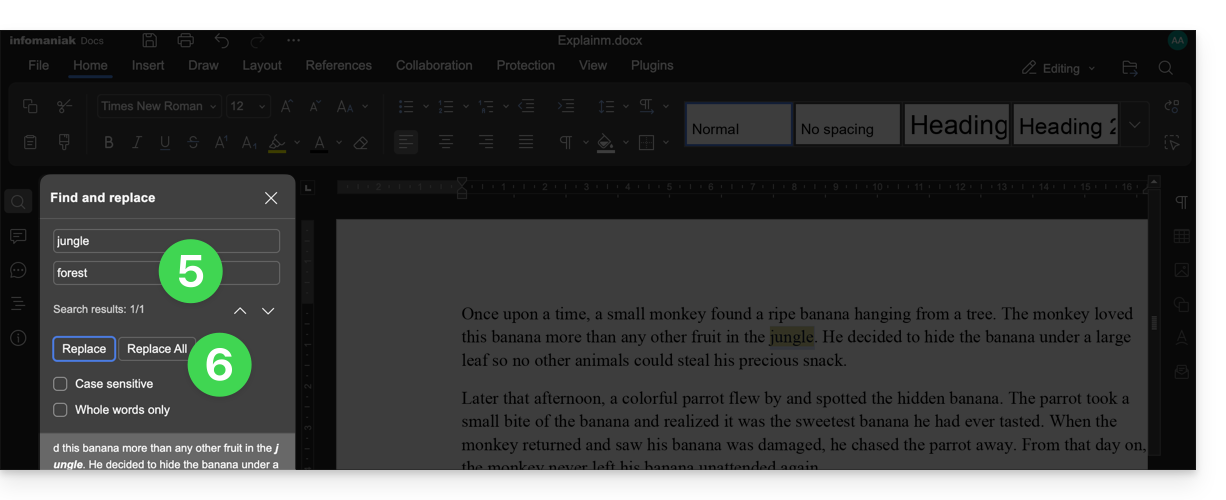
- Insira o texto que deve substituir a seleção.
- Clique em Substituir (para substituir um por um) ou Substituir tudo (o texto substitui todas as ocorrências idênticas):
Guardar o ficheiro
Ao trabalhar online nos seus ficheiros Word, Excel ou PowerPoint, estes são automaticamente guardados sempre que faz alterações.
Em caso de dúvida, tem a possibilidade de guardar manualmente um documento:
- Clique em Ficheiro e, em seguida, em Guardar (se "Guardar" estiver desativado, significa que o ficheiro já foi guardado).
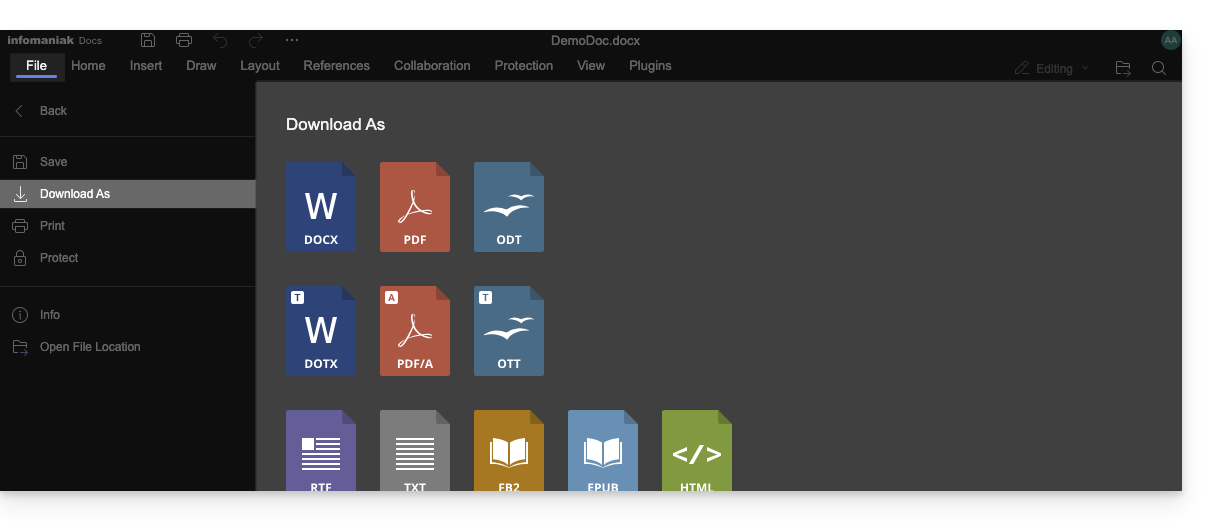
- Se necessário, pode descarregar uma cópia do seu ficheiro no formato desejado (docx, pdf, rtf, epub, html, jpg, png…) clicando em Descarregar como...
Ficheiros com palavra-passe
Ao trabalhar online nos seus ficheiros Word, Excel ou PowerPoint, estes podem ser protegidos com uma palavra-passe. Consequentemente, ser-lhe-á solicitada a palavra-passe para abrir o ficheiro na interface Infomaniak, mas esta desaparecerá ao guardar o seu documento no kDrive.
De facto, não é possível definir uma palavra-passe ao guardar um documento no kDrive, nem manter a palavra-passe existente. Em alternativa, considere utilizar um outro editor disponível no kDrive, mas apenas com algumas ofertas pagas.
Adicionar um marcador
Existe uma funcionalidade que permite adicionar um marcador, uma espécie de atalho para uma parte favorita do seu documento ou o equivalente a uma âncora de uma página web:
- Edite um documento de texto no kDrive.
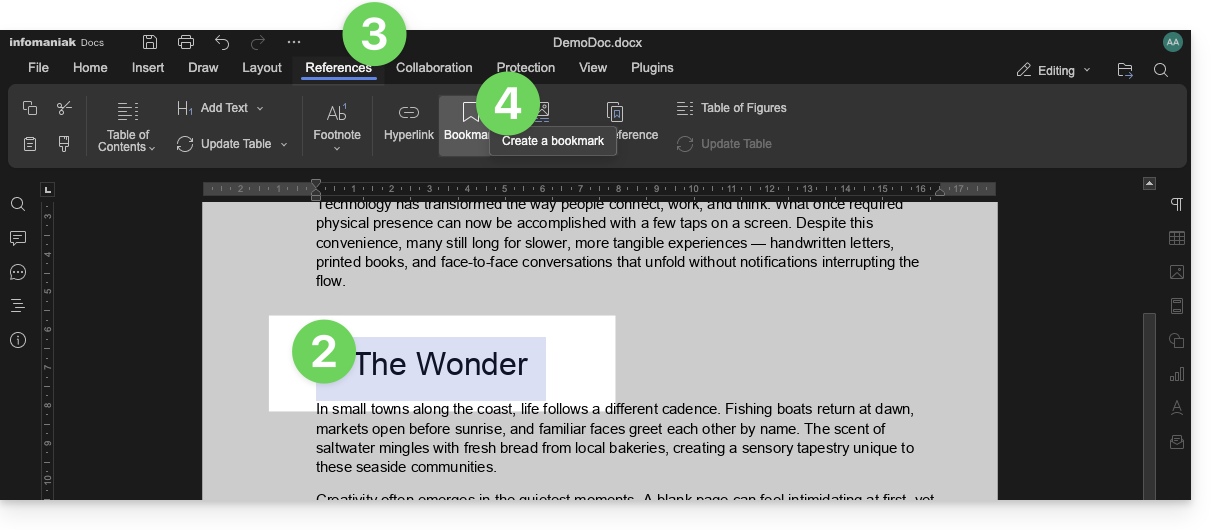
- Selecione o trecho de texto que servirá como ponto de referência.
- Clique na aba Referências.
- Clique em Marcador:
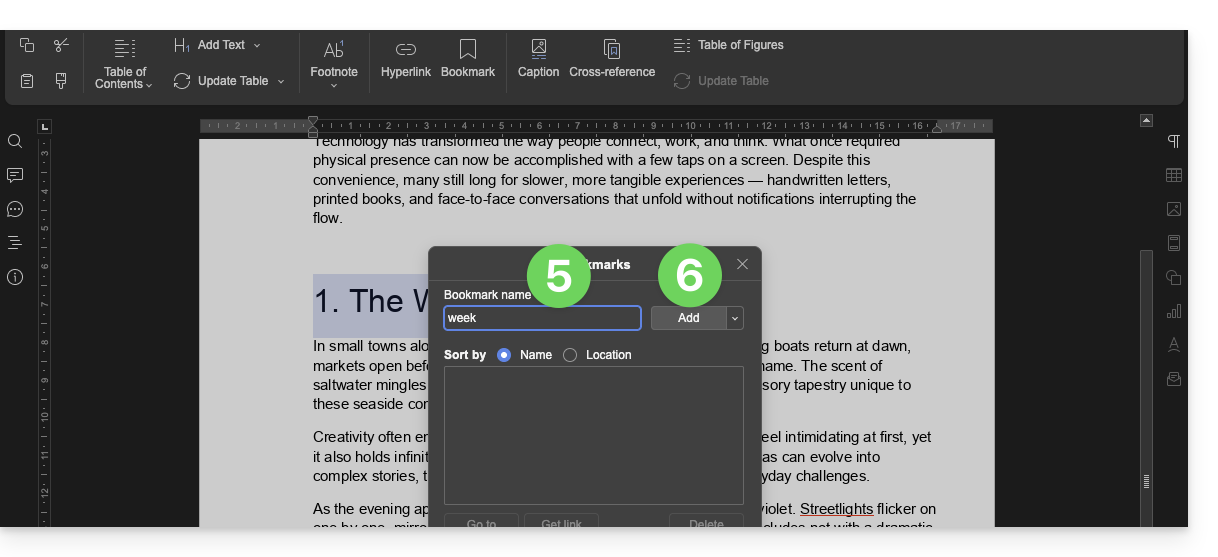
- Atribua um nome ao seu marcador.
- Clique no botão Adicionar:
- A janela fecha, o seu local favorito é criado e guardado no documento.
Criar um link de partilha que direcione diretamente para o marcador
Depois de abrir o documento:
- Clique no separador Referências.
- Clique em Marcador.
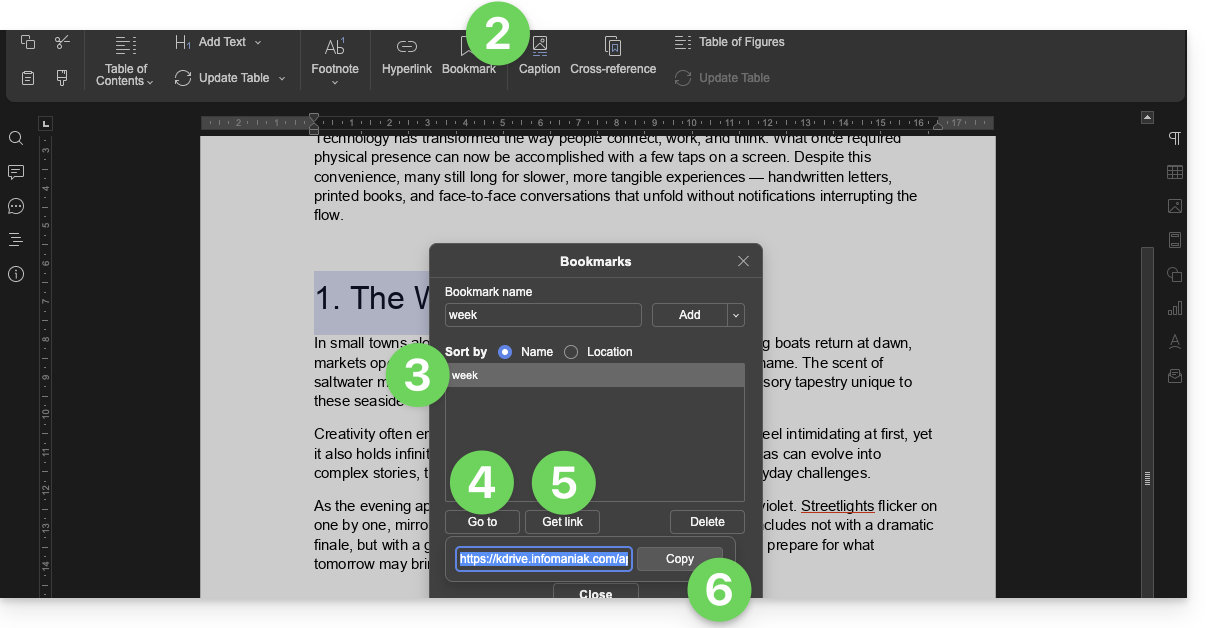
- Clique no nome do marcador para o qual deseja direcionar.
- Opcional: clique no botão Ir para para que o documento aberto em segundo plano seja exibido exatamente no local definido anteriormente.
- Clique no botão Obter link para partilhar o seu documento e obter um link que direcione o utilizador para o local exato do seu marcador.
- Clique no botão Copiar para colocá-lo diretamente na área de transferência:
Utilizadores kSuite: receber notificações no kChat
Uma funcionalidade permite aos utilizadores marcar (mencionar) colaboradores nos comentários de um documento através de um "+" seguido do nome do utilizador:
- Edite um documento no kDrive.
- Clique no separador Colaboração.
- Clique em Adicionar um comentário.
- Insira o seu comentário, mencionando, se necessário, um utilizador: digite o sinal
+seguido do nome: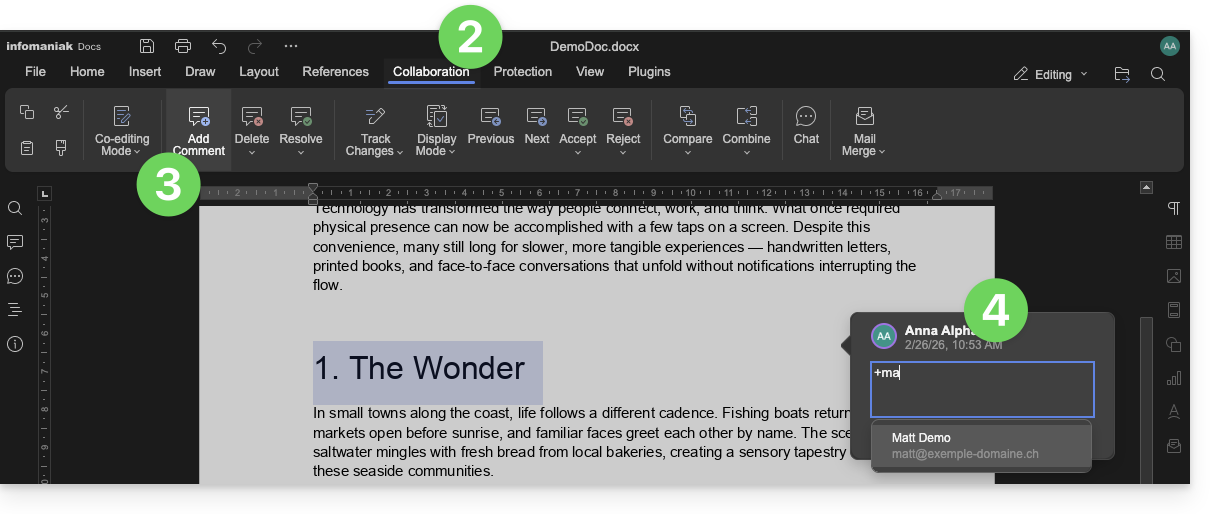
O utilizador marcado recebe um e-mail com os detalhes relevantes: nome do autor do comentário, link para o documento, data e hora do comentário.
Se o utilizador mencionado estiver online no kChat (da kSuite em questão), em vez de receber um e-mail, receberá uma notificação através do kChat Bot. Se o utilizador estiver offline ou no modo "não perturbar", o sistema enviará um e-mail.
Editar um documento do tipo Office no dispositivo móvel
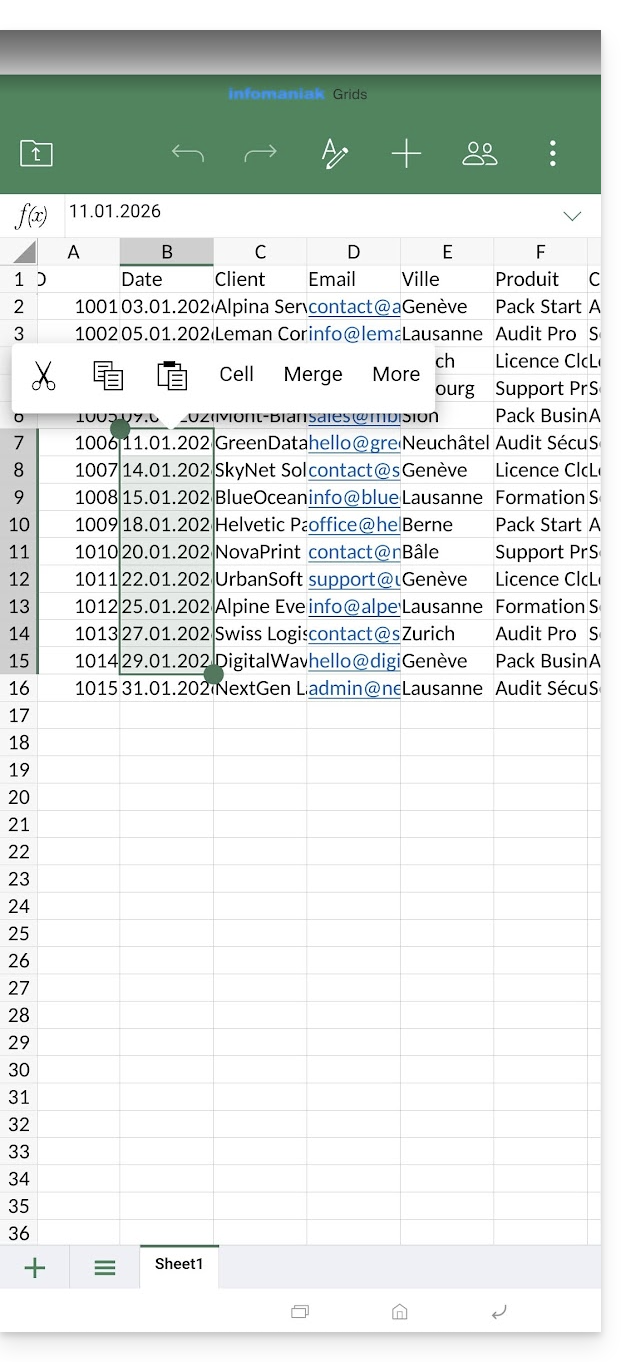
A aplicação móvel kDrive (aplicação para smartphone ou tablet iOS/Android) integra nativamente as aplicações Docs, Grids e Points, que permitem criar, editar e colaborar online em documentos do tipo Word .docx, Excel .xlsx e PowerPoint .ppsx: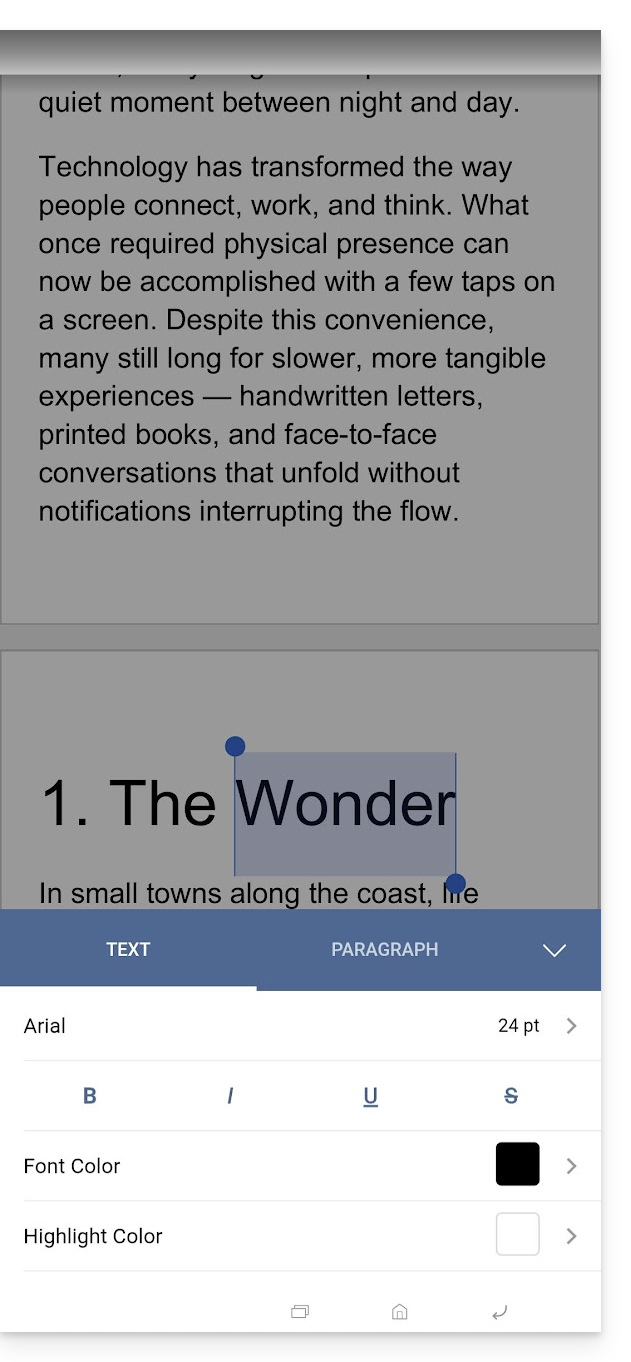
Link para esta FAQ: https://faq.infomaniak.com/2399
Esta seção de perguntas frequentes foi útil?
Este guia explica por que são realizadas análises dos seus dados do kDrive quando você concede esse direito à Infomaniak, e como revogá-lo.
Introdução
- A análise de dados serve apenas para melhorar as funcionalidades de IA, nomeadamente a pesquisa.
- A confidencialidade dos dados armazenados no kDrive é uma prioridade para a Infomaniak:
- A análise é realizada integralmente pela Infomaniak, sem intervenção de terceiros.
- Uma intervenção humana ainda é tecnicamente possível, mas é extremamente rara e não é praticada em condições normais.
- Consulte este outro guia para saber mais sobre o modelo utilizado e as responsabilidades de cada um.
Gerenciar o direito concedido
Pré-requisitos
- Ser Administrador ou Responsável legal na Organização (❓: ajuda).
Em seguida, pode verificar o estado da análise dos seus dados:
- Clique aqui para acessar o aplicativo web kDrive da Infomaniak (serviço online ksuite.infomaniak.com/kdrive).
- Clique no ícone Configurações no canto superior direito.
- Verifique ou selecione o kDrive correspondente no menu suspenso do menu lateral esquerdo.
- Clique em Geral no menu lateral esquerdo.
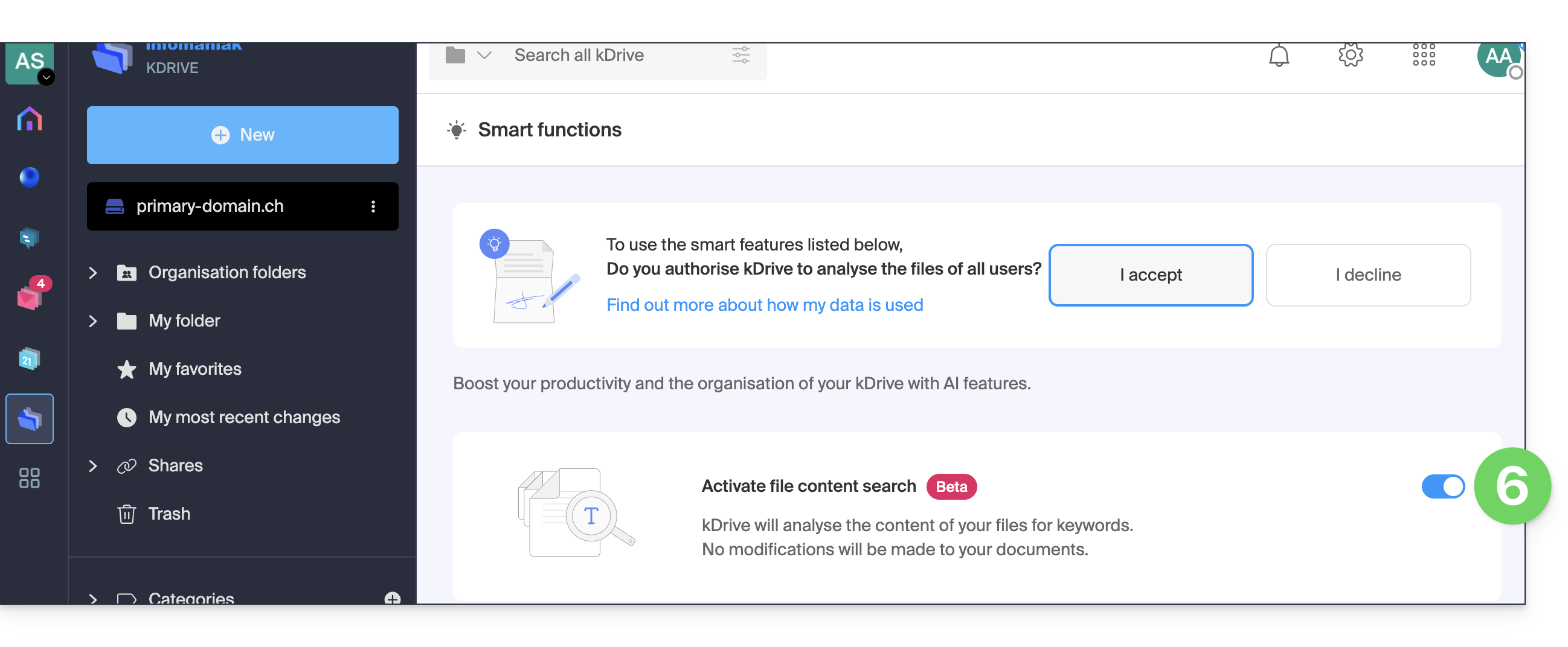
- Clique em Funcionalidades inteligentes (ou Análise de dados no my kSuite) em Permissões:
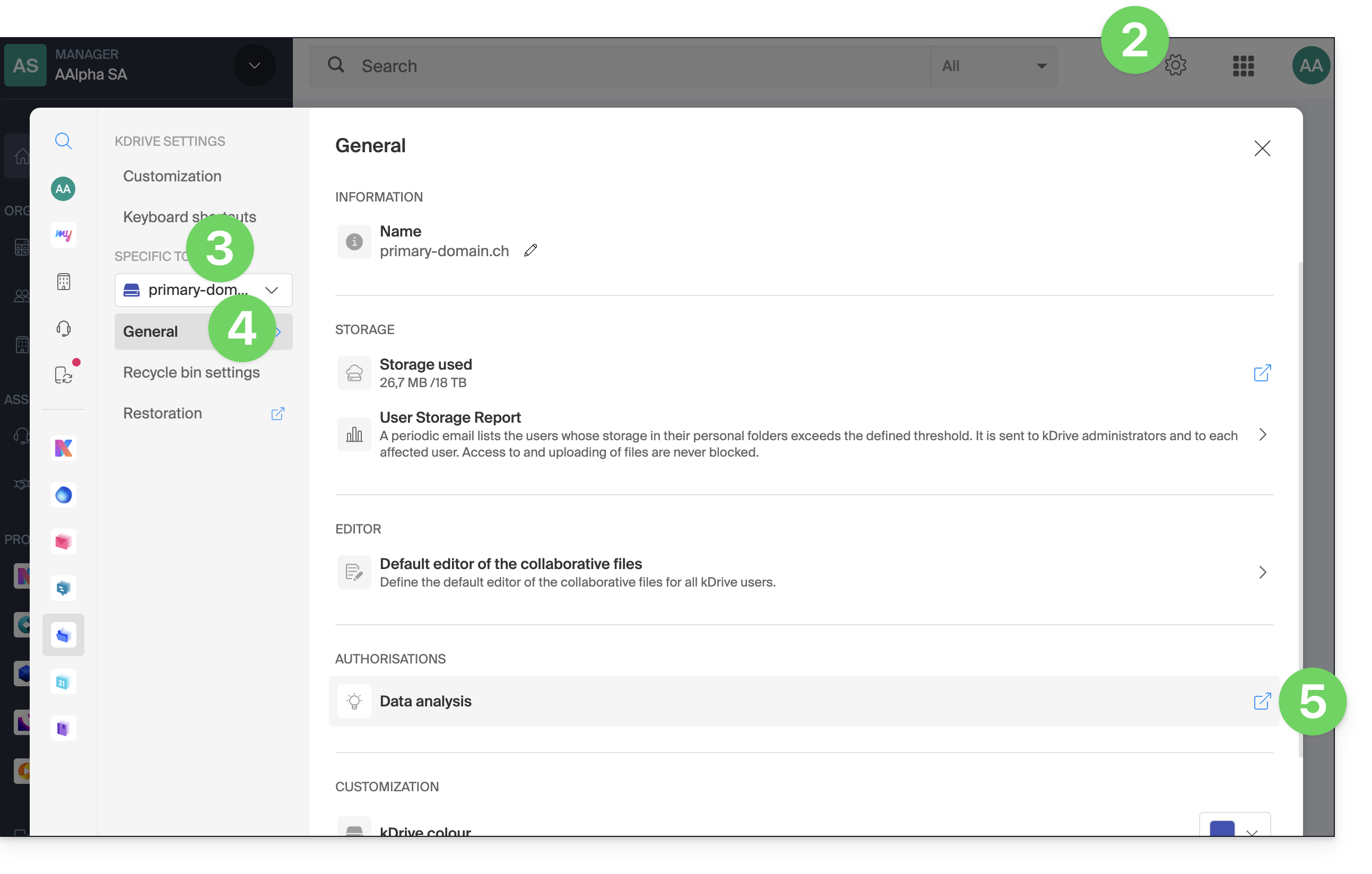
- Clique no botão de alternância para realizar a ação desejada:
Link para esta FAQ: https://faq.infomaniak.com/2412
Esta seção de perguntas frequentes foi útil?
Este guia explica como recuperar o acesso às ferramentas Infomaniak (manager.infomaniak.com e Mail / ksuite.infomaniak.com) em caso de esquecimento da senha ou do identificador de login da conta Infomaniak.
Introdução
- Para se conectar em uma Organização que gerencia um ou mais produtos Infomaniak, acesse manager.infomaniak.com e insira as seguintes informações:
- Um endereço de e-mail para login (identificador para a conta Infomaniak).
- A senha escolhida durante o seu registro.
- Um código adicional se a autenticação de dois fatores (2FA) estiver ativa.
- Se a conexão à plataforma funcionar, mas você precisar de uma senha para um de seus endereços de e-mail, consulte este outro guia.
- Se o problema for, na verdade, um problema de exibição do formulário de login, especialmente em dispositivos móveis, consulte este outro guia sobre o assunto.
Esqueceu-se...
... a senha da conta Infomaniak
Em caso de esquecimento desta senha, siga o procedimento de redefinição:
- Clique aqui para poder redefinir a sua palavra-passe.
- Insira o endereço de e-mail utilizado para iniciar sessão na sua conta Infomaniak.
- Escolha a opção de recuperação desejada ou siga o procedimento de verificação de identidade clicando em “Não tem acesso a nenhuma opção”.
... o endereço de e-mail para iniciar sessão na sua conta Infomaniak
Ao efetuar o seu registo, deverá ter fornecido um número de telefone; é possível encontrar o endereço de e-mail para iniciar sessão na sua conta Infomaniaka partir do seu número de telefone:
- Clique aqui para poder recuperar o seu endereço de e-mail de acesso à conta Infomaniak.
- Insira o seu número de telemóvel.
- Insira (se necessário) o seu endereço de e-mail de recuperação.
Em seguida, duas situações são possíveis:
- O sistema consegue identificar a sua conta: escolha então como deseja receber o seu identificador de acesso à conta Infomaniak.
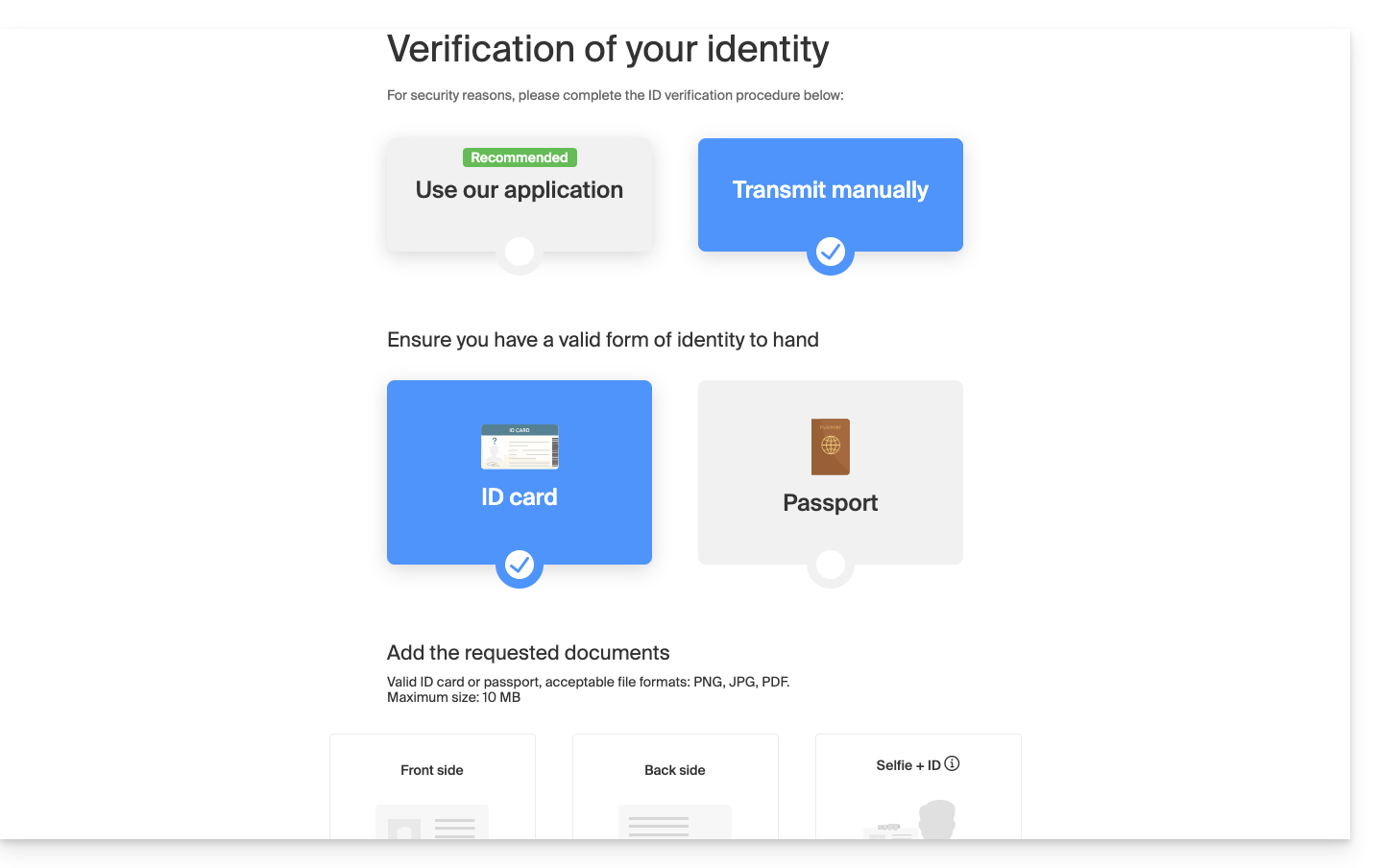
- Caso contrário, siga o assistente na tela para realizar a verificação de identidade manualmente ou via kCheck:
E se o endereço de e-mail não existir mais…
Se você tem uma conta Infomaniak cujo identificador de login é do tipo toto123@yahoo.com, não há problema se o endereço de e-mail toto123@yahoo.com for excluído ou deixar de ser válido. Basta fazer login uma última vez no Gerenciador Infomaniak com esse identificador toto123@yahoo.com e consultar este outro guia para alterar seu endereço de e-mail de login na conta Infomaniak.
Por outro lado, se o endereço de e-mail usado como identificador for hospedado pela Infomaniak (por exemplo, anna789@assoziation.ch) e um administrador excluir o endereço de e-mail em questão ou cancelar o Serviço de E-mail “assoziation.ch”, a situação é diferente: você receberá automaticamente um e-mail no endereço secundário e uma mensagem SMS no número de telefone celular especificado em sua conta Infomaniak: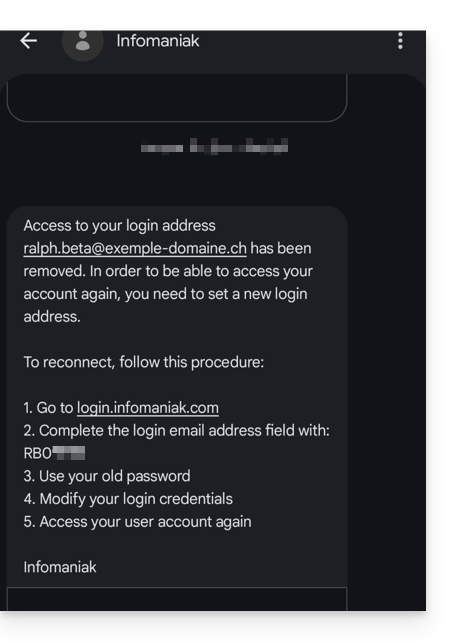
Esta situação também pode ocorrer em um caso específico de gestão de serviço de e-mail.
Para que o utilizador possa voltar a aceder à sua conta Infomaniak, agora que o acesso não é mais possível com o endereço de e-mail antigo, o utilizador da conta Infomaniak deve aceder ao endereço mencionado no SMS:
- Clique aqui para acessar a página de login.
- Insira o nome de usuário especificado no SMS (geralmente as iniciais da sua conta seguidas de uma sequência de números).
- Insira a senha habitual (ela não foi alterada):
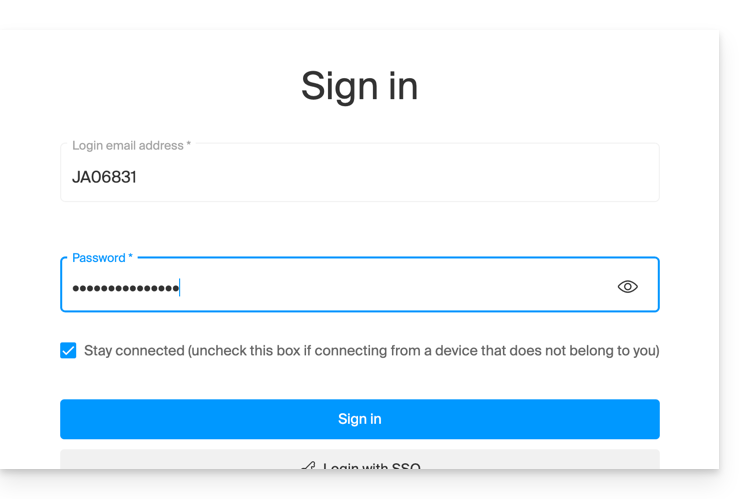
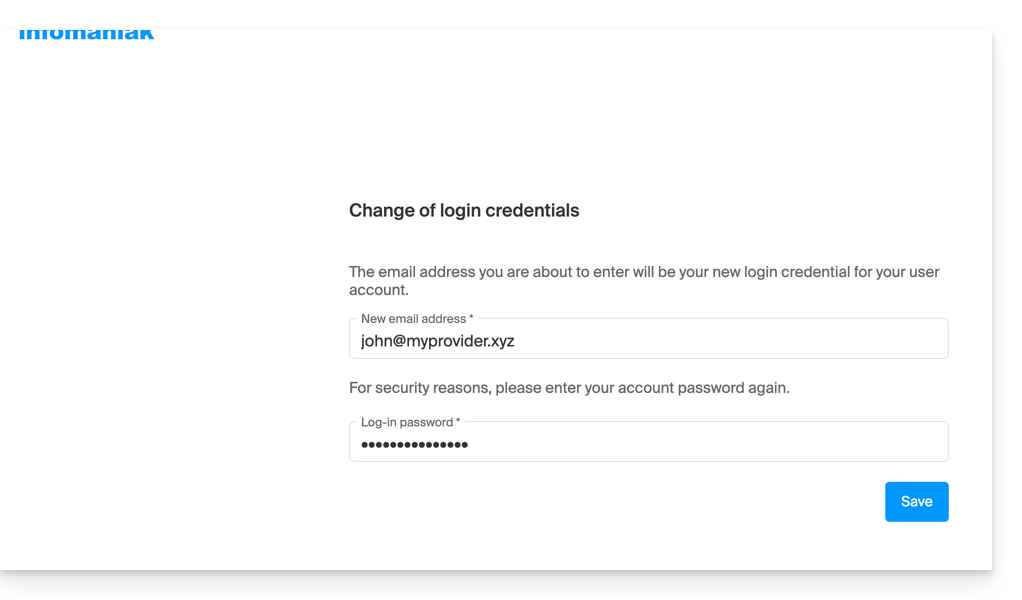
- Insira as novas informações solicitadas:
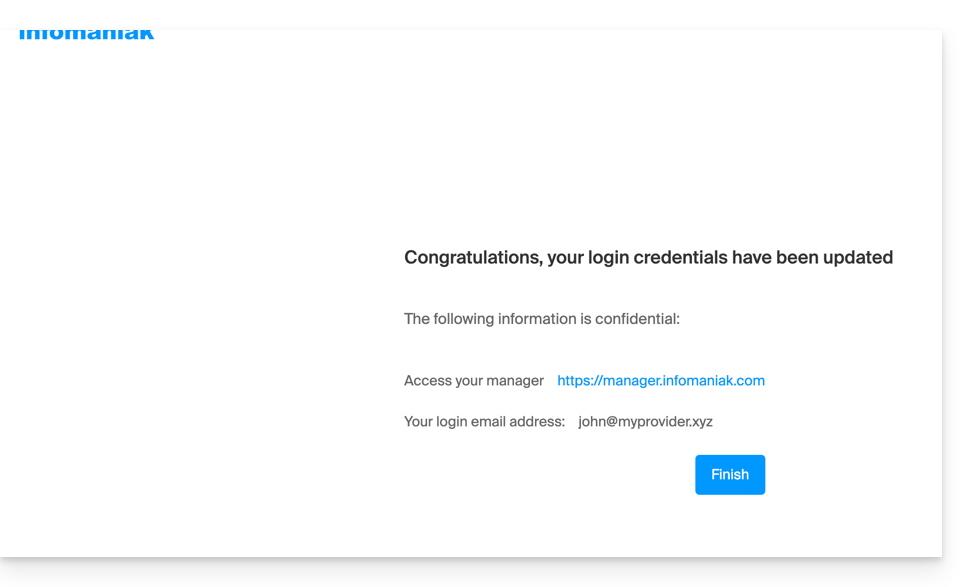
- Você será conectado novamente à sua conta:
Link para esta FAQ: https://faq.infomaniak.com/2415
Esta seção de perguntas frequentes foi útil?
Este guia diz respeito à aplicação móvel kCheck (aplicação para smartphones ou tablets iOS/Android), criada para simplificar os procedimentos de verificação de identidade e reforçar a segurança da sua conta Infomaniak.
Introdução
- Por razões de segurança, para garantir a identidade da pessoa que efetua um pedido específico à Infomaniak, um procedimento de verificação de identidade pode ser ativado nos seguintes casos (lista não exaustiva):
- esquecimento da palavra-passe da conta Infomaniak (conta de utilizador)
- esquecimento do endereço de e-mail de acesso
- desativação da autenticação de dois fatores (2FA)
- desbloqueio de uma conta Infomaniak
- durante o primeiro pagamento de receitas para o produto Bilheteira
- durante a encomenda de um produto (suspeita de spam ou fraude, nome da marca, etc.)
- Esta aplicação permite-lhe transferir com segurança os elementos solicitados.
- A Infomaniak respeita a sua privacidade: as informações transmitidas através da aplicação kCheck serão guardadas até ao tratamento completo do seu pedido; em todos os casos, serão automaticamente eliminadas após 72 horas caso este pedido não seja tratado.
Iniciar a verificação de identidade
Pré-requisitos
- Um código QR ou um link fornecido pela Infomaniak.
- A aplicação móvel kCheck instalada no seu dispositivo iOS (iPhone, etc.) ou Android.
- Uma ligação à Internet no dispositivo móvel.
Pode então fazer verificar a sua identidade com o kCheck:
- Inicie o aplicativo kCheck no seu celular.
- Toque em Iniciar.
- Toque em Ler código QR.
- Aponte a câmera para o código QR fornecido.
- Insira o seu número de telefone.
- Digite o código de confirmação recebido.
- Autorize a geolocalização (obrigatório para continuar o processo).
- Selecione o tipo de documento de identificação que você possui (carteira de identidade ou passaporte).
- Siga as instruções para fotografar o seu documento de identificação.
- Tire uma selfie (sua) com o seu documento de identificação na mão, à sua frente.
Seus documentos serão então transmitidos de forma segura para o suporte da Infomaniak. Essas solicitações são tratadas com prioridade, com um tempo médio de resposta de 2 horas durante o horário de atendimento.
Se o seu pedido estiver bloqueado...
Por motivos de segurança, alguns pedidos podem ser bloqueados automaticamente.
No momento do seu pedido, um e-mail é enviado para o endereço de e-mail de login da sua conta Manager Infomaniak. Este e-mail contém o procedimento para desbloquear o seu pedido. Caso não o encontre, é possível reenviá-lo a partir do seu Manager, clicando em Reenviar o procedimento a partir da barra vermelha que informa sobre o bloqueio.
Pré-requisitos
- Abrir o e-mail contendo o procedimento de desbloqueio.
- O aplicativo móvel kCheck instalado no seu dispositivo iOS (iPhone, etc.) ou Android.
- Uma conexão de internet no dispositivo móvel.
Em seguida, pode iniciar o processo de desbloqueio com o kCheck:
- Abra a aplicação kCheck no seu telemóvel.
- Toque em Iniciar.
- Toque em Ler código QR.
- Leia o código QR presente no e-mail.
- Siga o processo de desbloqueio até ao fim.
Casos particulares
- Caso não haja qualquer ação da sua parte num prazo de 10 dias, o pedido será automaticamente cancelado e o pagamento será integralmente reembolsado no método de pagamento utilizado.
- Caso não tenha um dispositivo móvel para seguir este processo, contacte o suporte da Infomaniak.
Link para esta FAQ: https://faq.infomaniak.com/2418
Esta seção de perguntas frequentes foi útil?
Este guia diz respeito ao kSuite, o conjunto de ferramentas de produtividade e colaboração online desenvolvido na Suíça pela Infomaniak.
Introdução
- Apenas uma kSuite é possível por Organização!
- Crie várias Organizações (mantendo a sua conta Infomaniak e alternando entre as Organizações) para gerir várias kSuite.
- Atenção: uma kSuite não pode ser transferida de uma Organização para outra!
Administrar kSuite
- Associar um nome de domínio ao kSuite
- Associar um nome de domínio adicional ao kSuite
- Converter produtos existentes para kSuite (ou desvinculá-los)
- Definir a quota do utilizador
- Entenda o armazenamento dos dados relacionados ao kSuite
- Obtenha um site
- Modificar uma oferta kSuite existente
Utilizar o kSuite
- Descubra o kSuite e os produtos incluídos
- Descubra o painel de controle do kSuite
- Gerenciar status e presença no kSuite
Cada produto incluído no kSuite possui seus guias nas seções kChat, kMeet, kDrive, etc., que você encontrará em https://faq.infomaniak.com. Você também pode inserir o nome do produto que procura: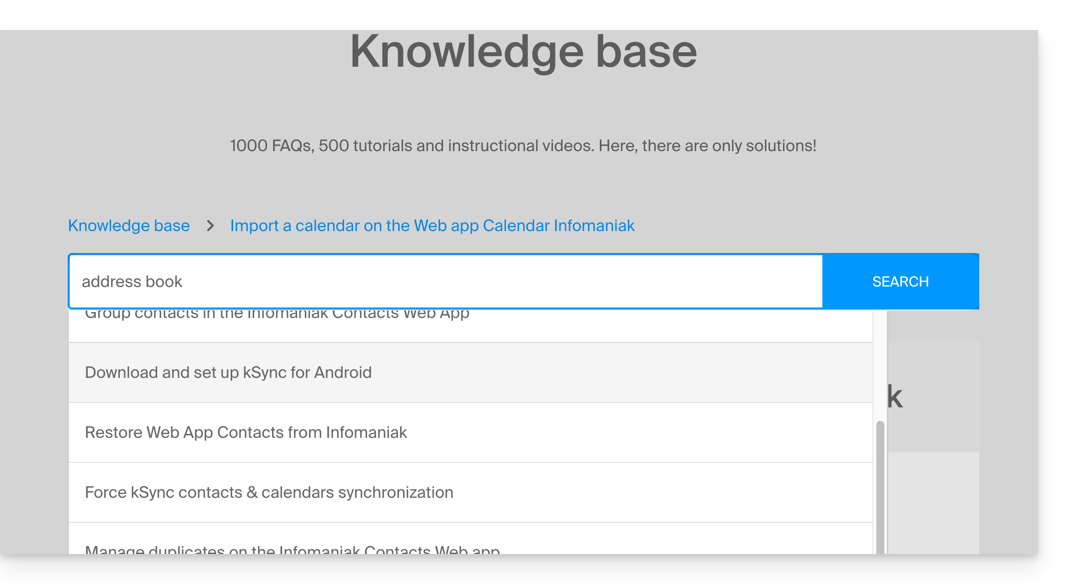
Tem alguma pergunta ou sugestão?
- Para o ajudar a identificar a oferta my kSuite / kSuite mais adequada às suas necessidades, consulte este outro guia.
- Em caso de problema, consulte a base de conhecimento antes de entrar em contato com o suporte.
- Clique aqui para partilhar um comentário ou sugestão sobre um produto Infomaniak.
Link para esta FAQ: https://faq.infomaniak.com/2423
Esta seção de perguntas frequentes foi útil?
Este guia explica como conectar o Microsoft 365 a um endereço de e-mail hospedado na Infomaniak.
Introdução
- Os endereços de e-mail da Infomaniak não podem ser adicionados diretamente no Outlook online a partir de um navegador com uma conta Microsoft pessoal.
- De fato, a Microsoft não permite mais adicionar um endereço externo via IMAP em
outlook.live.com. - Apenas a caixa de e-mail da Microsoft vinculada à conta conectada (endereço
@outlook.fr,@outlook.com,@hotmail…) pode ser exibida. - “Microsoft 365” é principalmente a assinatura; a Microsoft removeu a função de contas conectadas no Outlook.com, e a função equivalente do Outlook na web também foi removida.
- De fato, a Microsoft não permite mais adicionar um endereço externo via IMAP em
- Para consultar um endereço Infomaniak com o Outlook, é necessário instalar o aplicativo Outlook ou usar um outro software/cliente de e-mail compatível com IMAP.
Obter o aplicativo Outlook 365
Para isso:
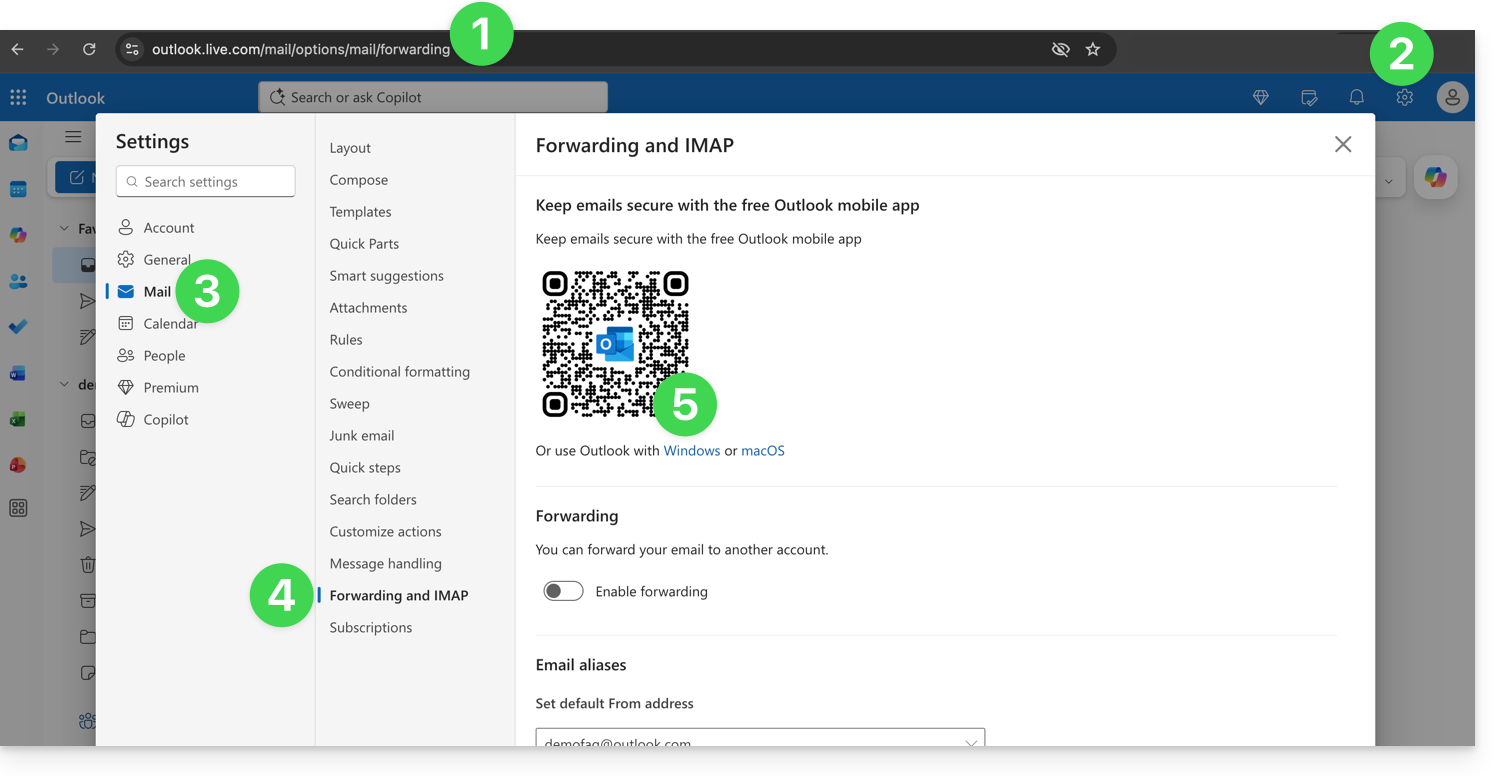
- Acesse https://outlook.live.com/mail/options/mail/forwarding com sua conta Microsoft pessoal.
- Clique no ícone Configurações no canto superior direito da interface.
- Clique em E-mail no menu lateral esquerdo.
- Clique em Encaminhamento e IMAP no menu secundário.
- Baixe o aplicativo Outlook na versão correspondente ao seu tipo de dispositivo:
Adicionar o endereço de e-mail ao aplicativo Outlook 365
No macOS, consulte este outro guia.
No Windows, consulte este outro guia e, em dispositivos móveis (iOS / Android), consulte este outro guia.
Link para esta FAQ: https://faq.infomaniak.com/2428
Esta seção de perguntas frequentes foi útil?
Este guia explica como conectar o aplicativo para desktop eM Client (aplicativo para macOS/Windows) a um endereço de e-mail hospedado na Infomaniak.
Adicionar o endereço de e-mail ao aplicativo
Pré-requisitos
- Criar o endereço de e-mail (❓: ajuda my kSuite | Serviço de E-mail/kSuite).
- Criar uma senha para o dispositivo (❓: ajuda my kSuite | Serviço de e-mail/kSuite).
- Verificar se a configuração do domínio está correta (❓: ajuda).
Para configurar o aplicativo de e-mail:
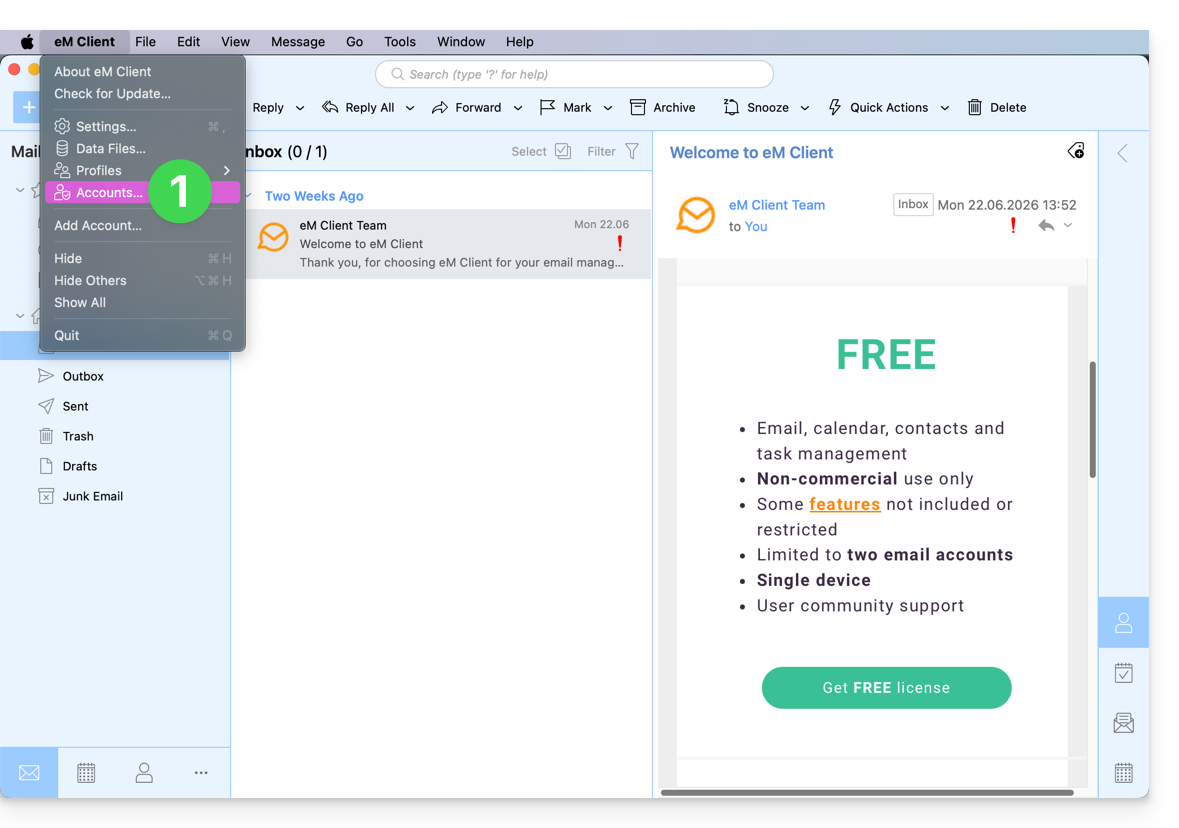
- Abra o aplicativo e clique em Contas:
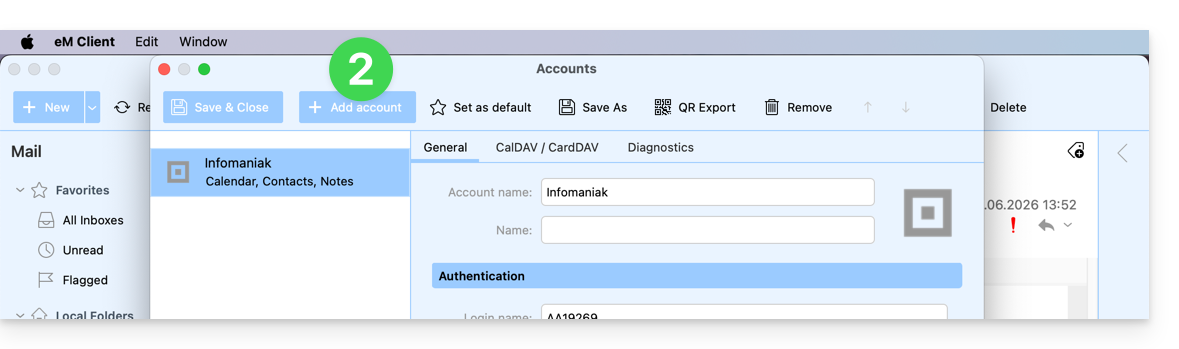
- Clique em Adicionar conta:
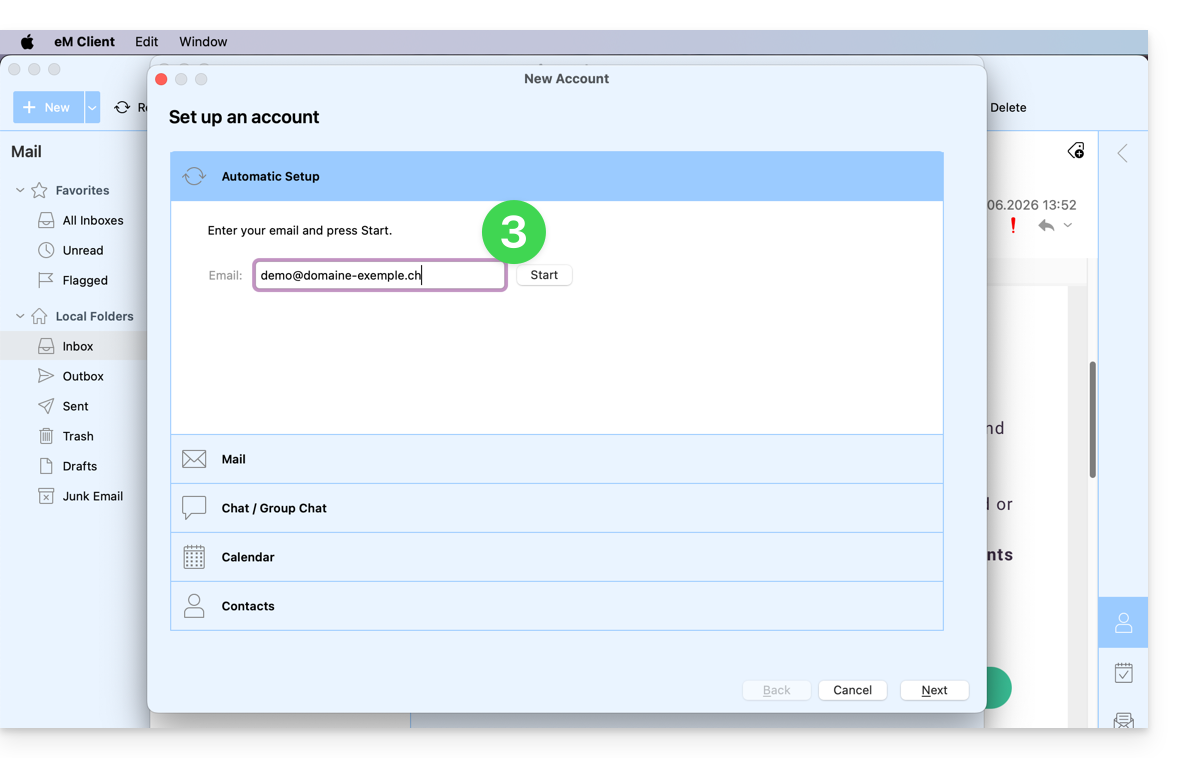
- Insira o endereço de e-mail que deseja adicionar e clique no botão Iniciar ao lado do campo:
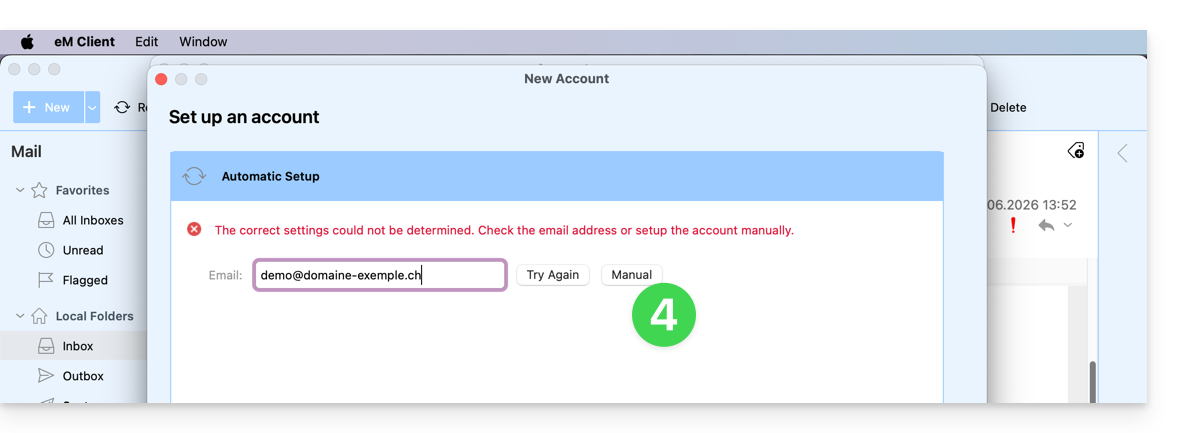
- Clique no botão para inserir manualmente os parâmetros:
- Verifique o servidor de entrada e preencha as informações que faltam (❓: ajuda) e, em seguida, clique em Seguinte:
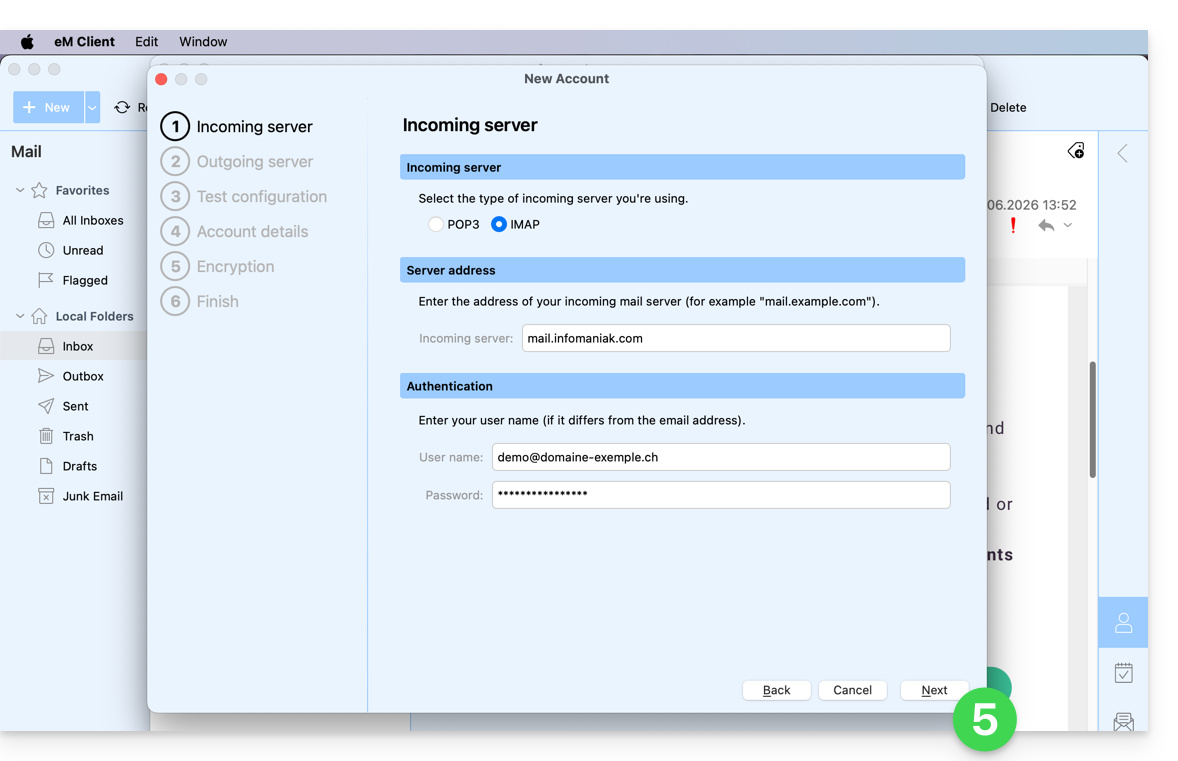
- Faça o mesmo para o servidor de saída:
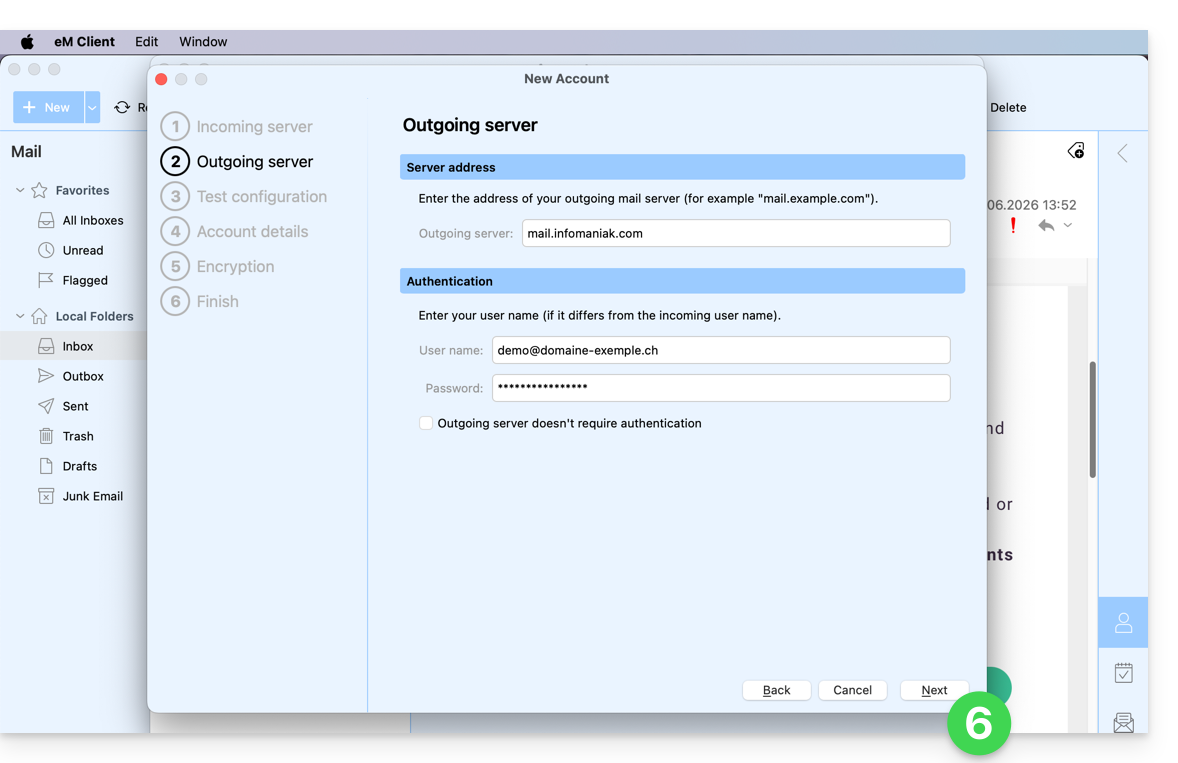
- Se os indicadores do teste estiverem verdes, clique em Seguinte:
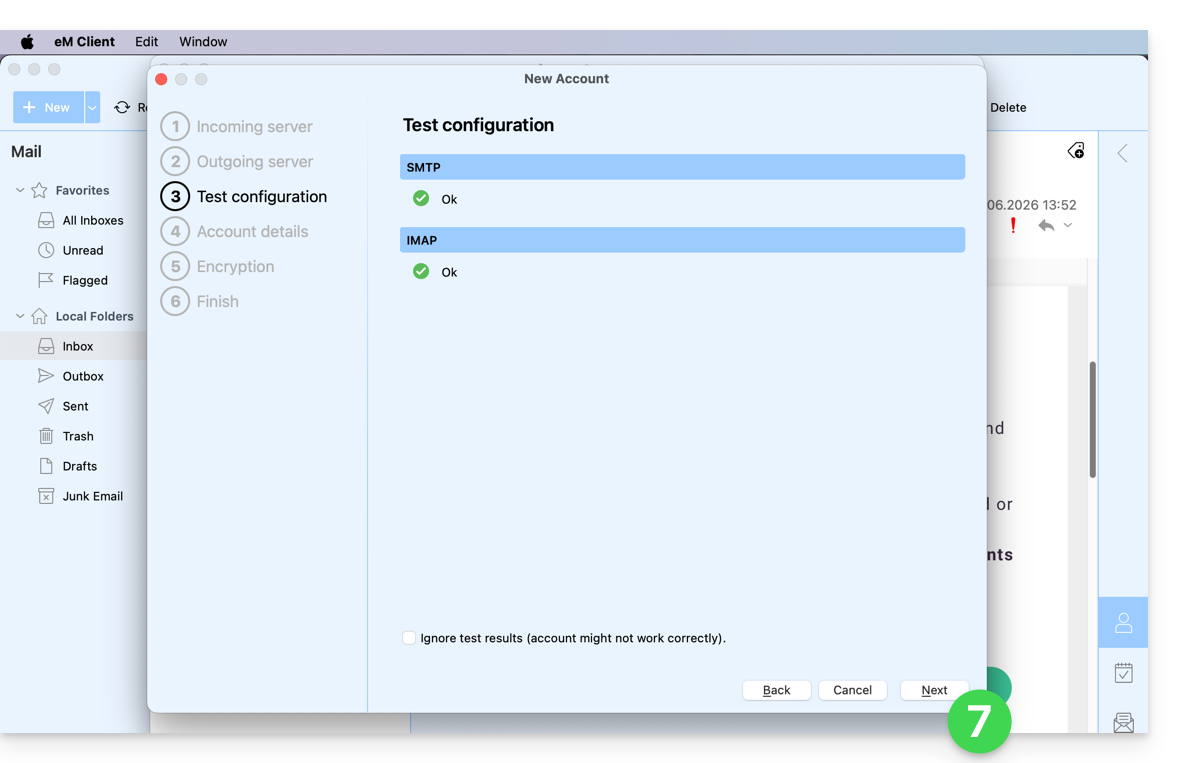
- Preencha as informações em falta e, em seguida, clique em Seguinte:
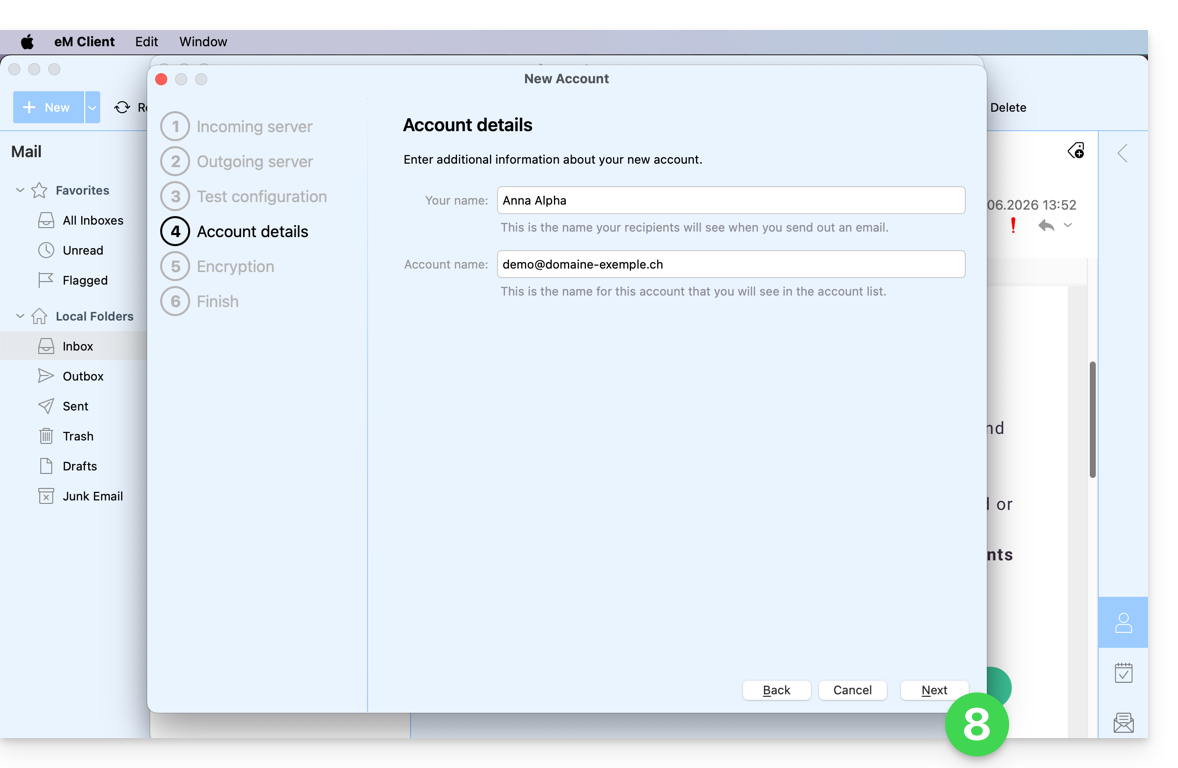
- Ignore esta etapa e não adicione segurança adicional:
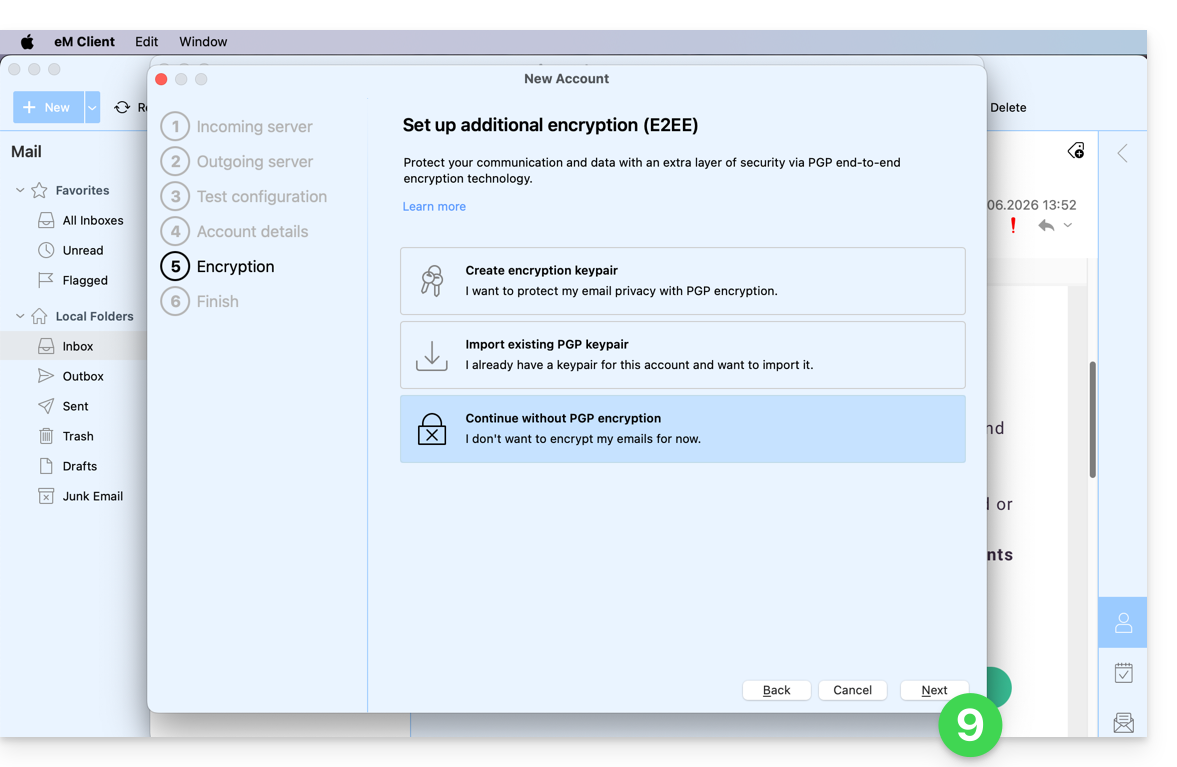
- Defina as suas preferências e clique em Concluir:
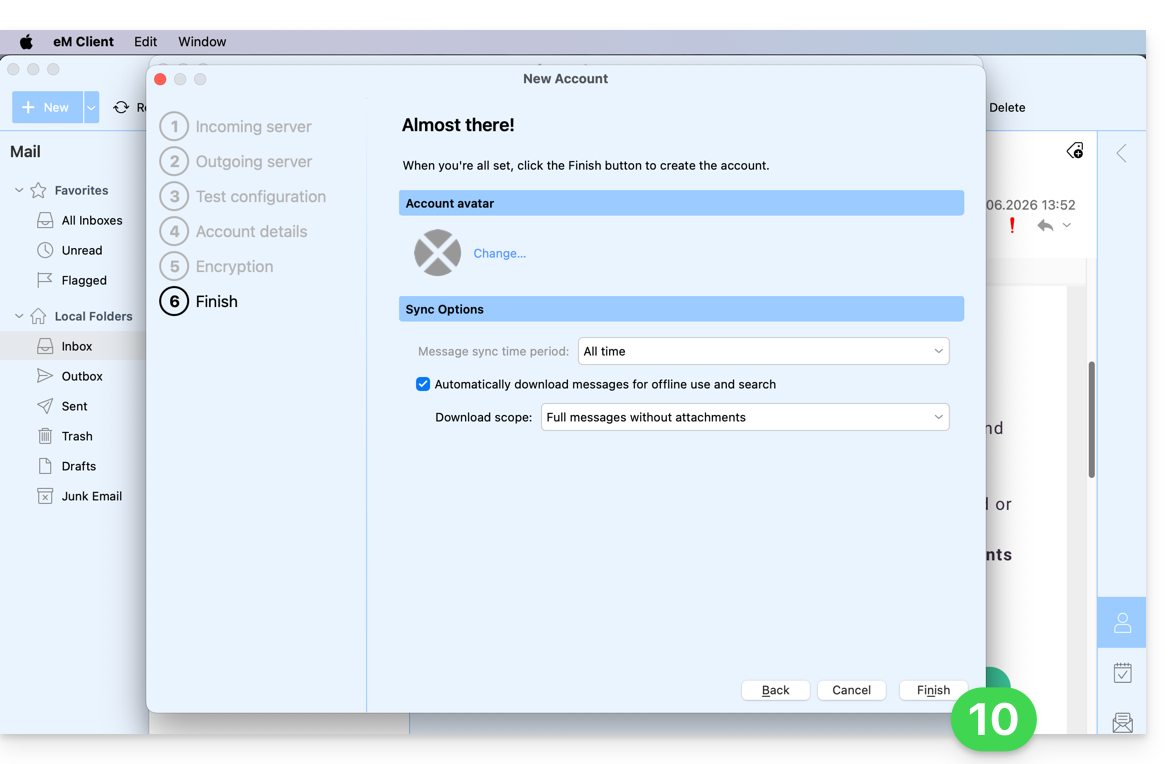
- Guarde a adição da conta:
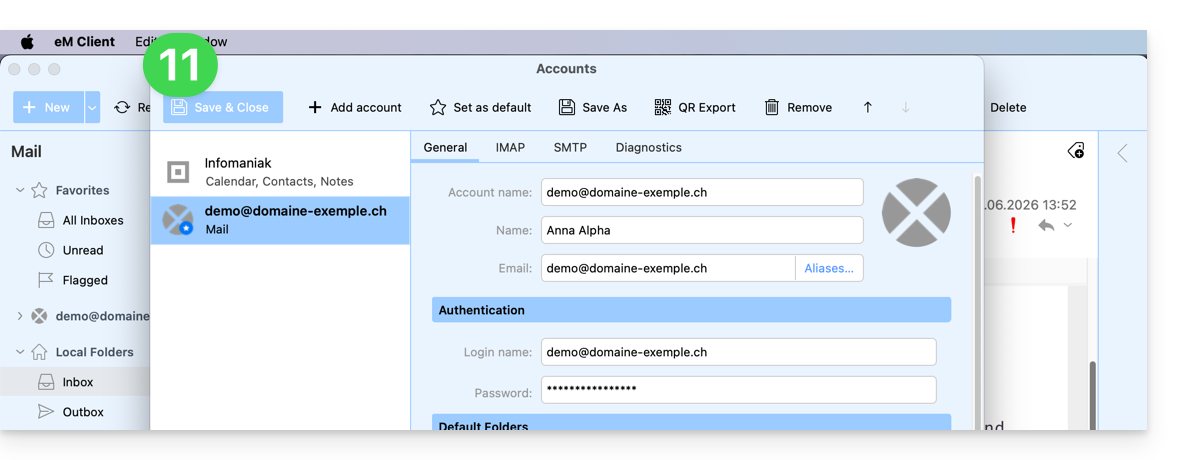
- Pronto, o seu endereço de e-mail já está configurado na aplicação:
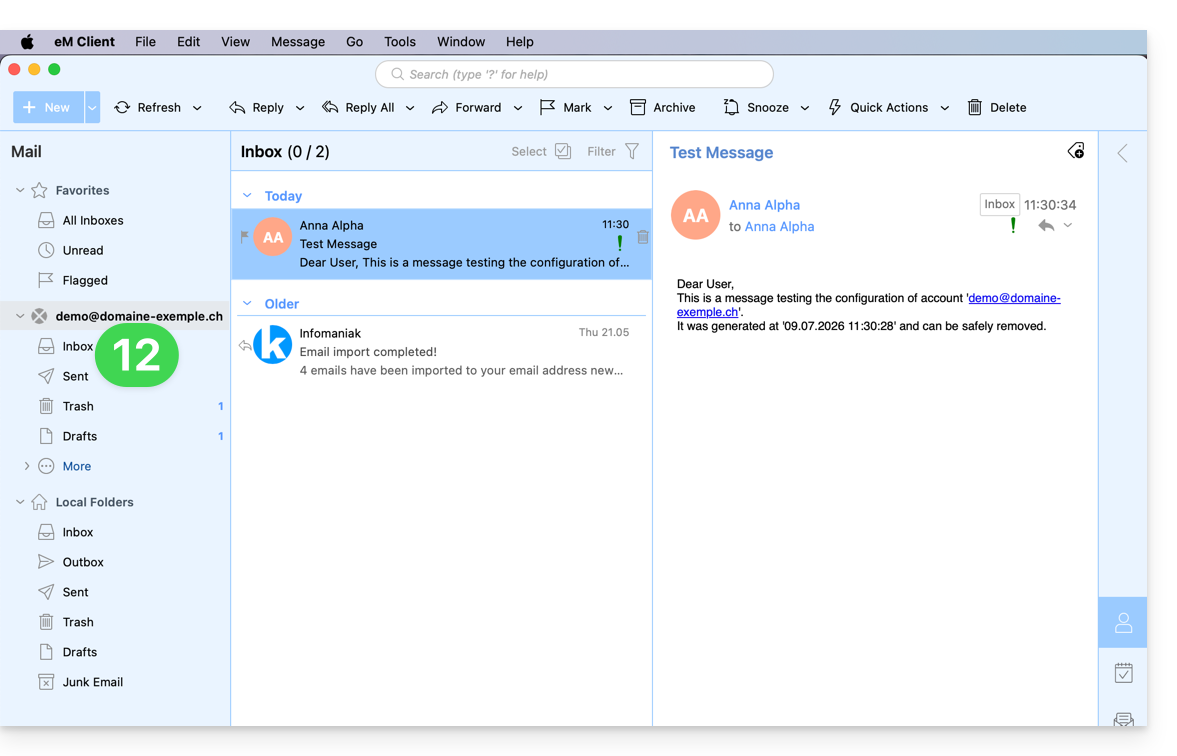
Parâmetros recomendados
- Servidor IMAP de entrada =
mail.infomaniak.com - Porta IMAP =
993(com SSL) - Servidor SMTP de saída =
mail.infomaniak.com - Porta SMTP e protocolo de criptografia e comando/método para ativar este protocolo:
587+ STARTTLS - Nome de utilizador/username = o endereço de e-mail completo (❓: ajuda)
- Palavra-passe/password = a palavra-passe gerada para o endereço de e-mail que pretende consultar (❓: ajuda my kSuite | Serviço de E-mail/kSuite).
- Autenticação obrigatória para o envio de e-mails:
- Ative-a nas configurações SMTP da sua aplicação.
- Marque a opção "usar as mesmas configurações do servidor de entrada" ou, dependendo do software/cliente de e-mail, insira um nome de usuário (= endereço de e-mail completo) e a senha gerada.
Consulte este outro guia se precisar de informações sobre outras portas e protocolos de e-mail compatíveis (SSL / TLS, por exemplo).
Em caso de problema
Verifique se o Serviço de E-mail está configurado de forma otimizada (❓: ajuda).
Não é necessário entrar em contato com o Suporte Infomaniak se o seu endereço de e-mail funcionar corretamente fora do aplicativo. O erro mais comum está relacionado ao uso de uma senha incorreta. Consulte as soluções apresentadas neste outro guia sobre o serviço de e-mail em geral.
Link para esta FAQ: https://faq.infomaniak.com/2429
Esta seção de perguntas frequentes foi útil?
Este guia explica como conectar o aplicativo para desktop Thunderbird (aplicativo para macOS / Windows / Linux) a um endereço de e-mail hospedado na Infomaniak.
Adicionar o endereço de e-mail ao aplicativo
Pré-requisitos
- Criar o endereço de e-mail (❓: ajuda my kSuite | Serviço de E-mail/kSuite).
- Criar uma senha para o dispositivo (❓: ajuda my kSuite | Serviço de E-mail/kSuite).
- Verificar se a configuração do domínio está correta (❓: ajuda).
Para configurar o aplicativo de e-mail:
- Faça o download da versão mais recente do Thunderbird para computador (❓: ajuda).
- Abra o aplicativo.
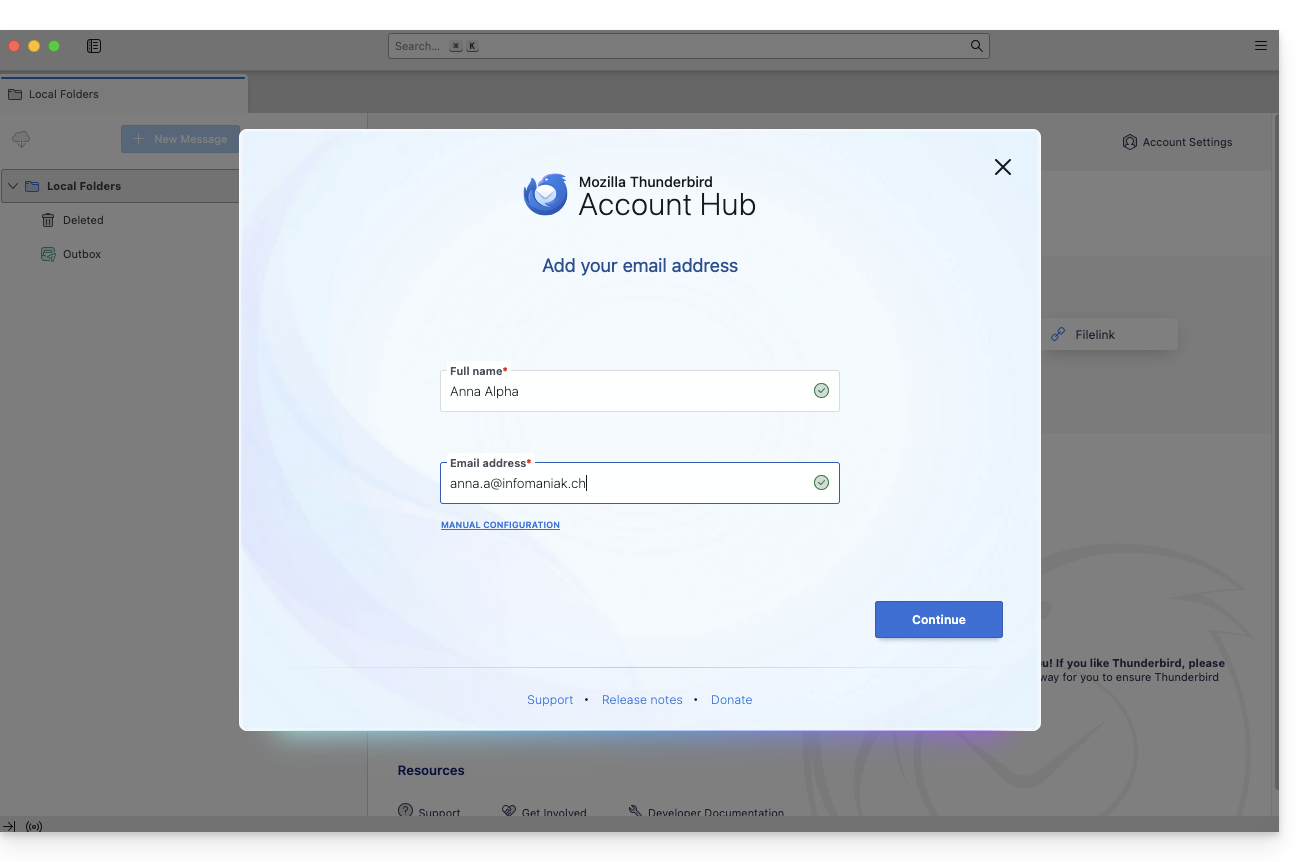
- Insira as informações da sua conta e clique em Continuar:
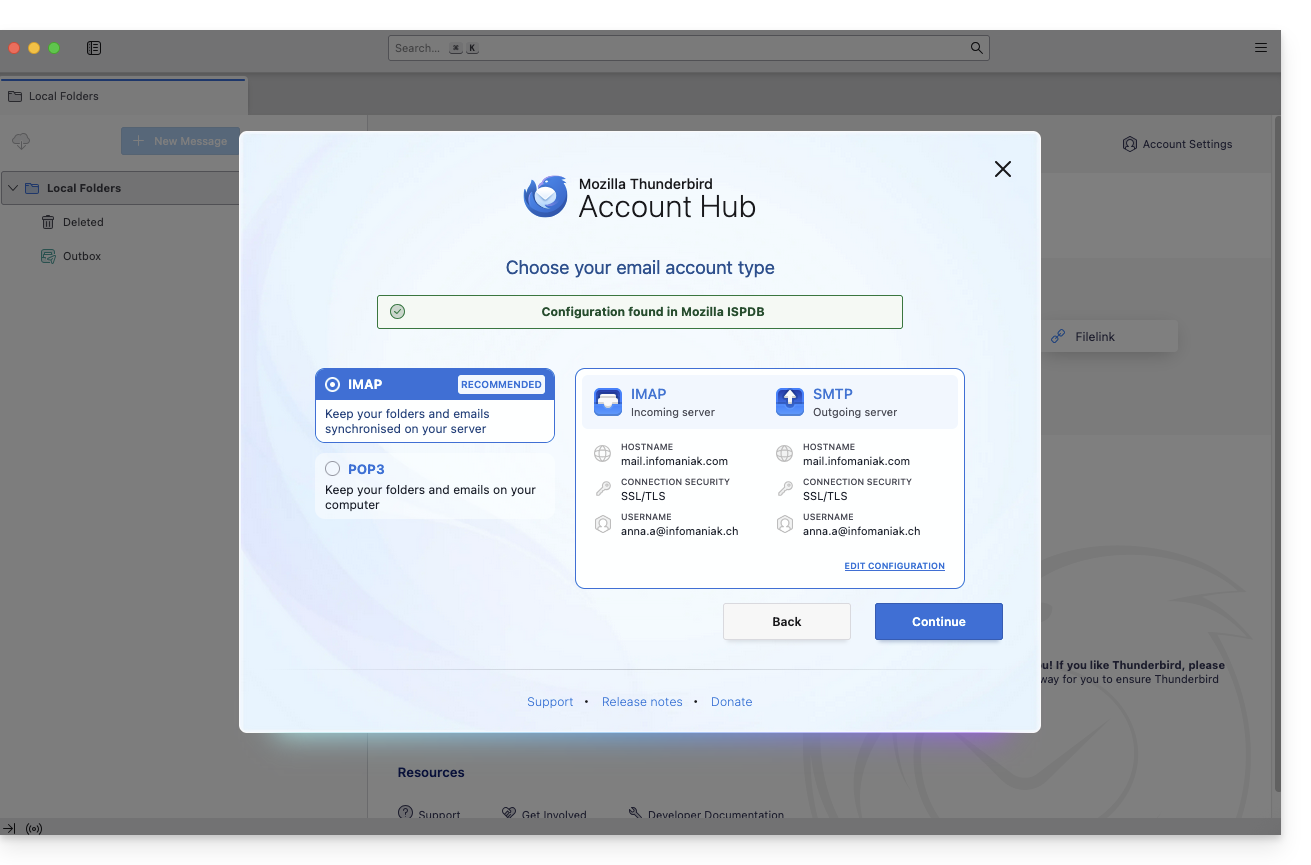
- Mantenha a configuração IMAP e clique em Continuar:
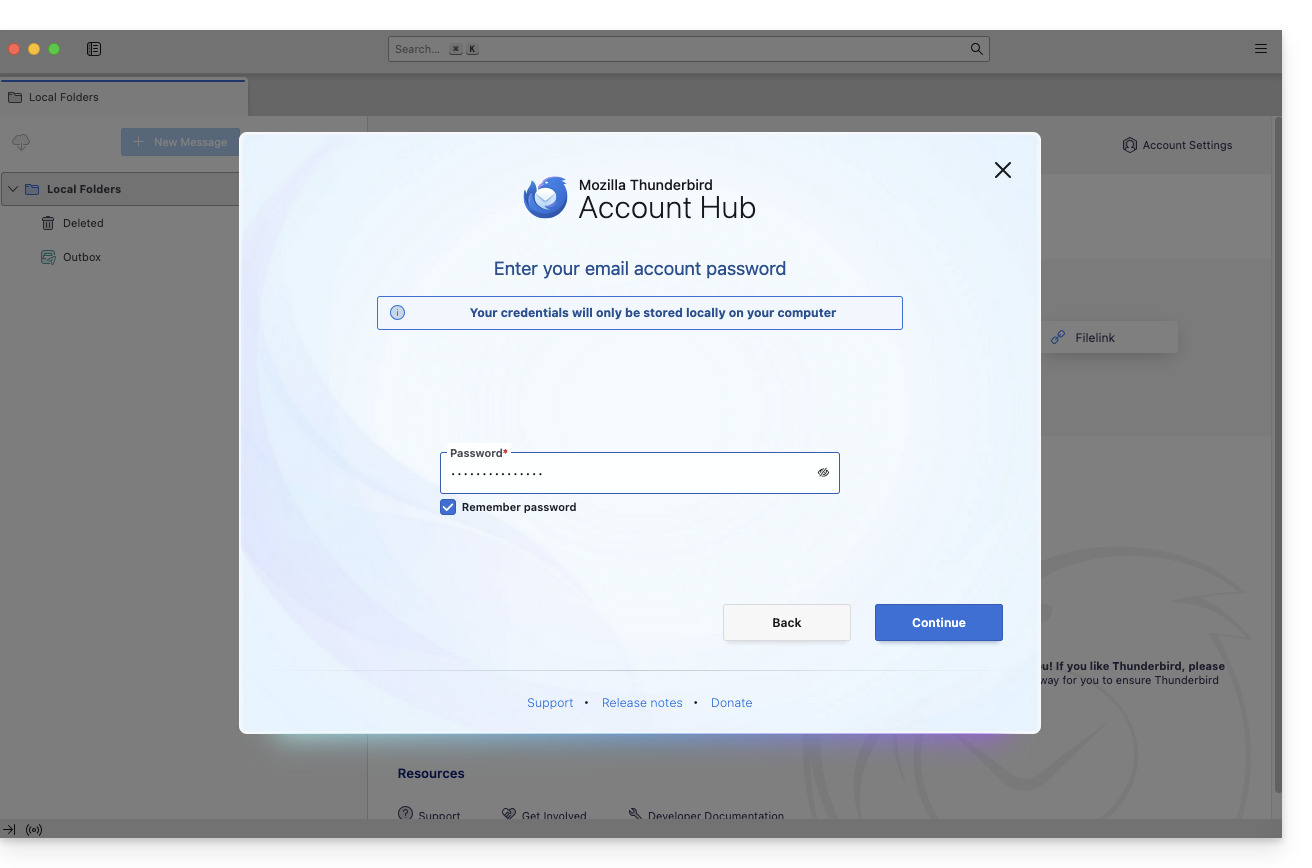
- Insira a sua senha e clique em Continuar:
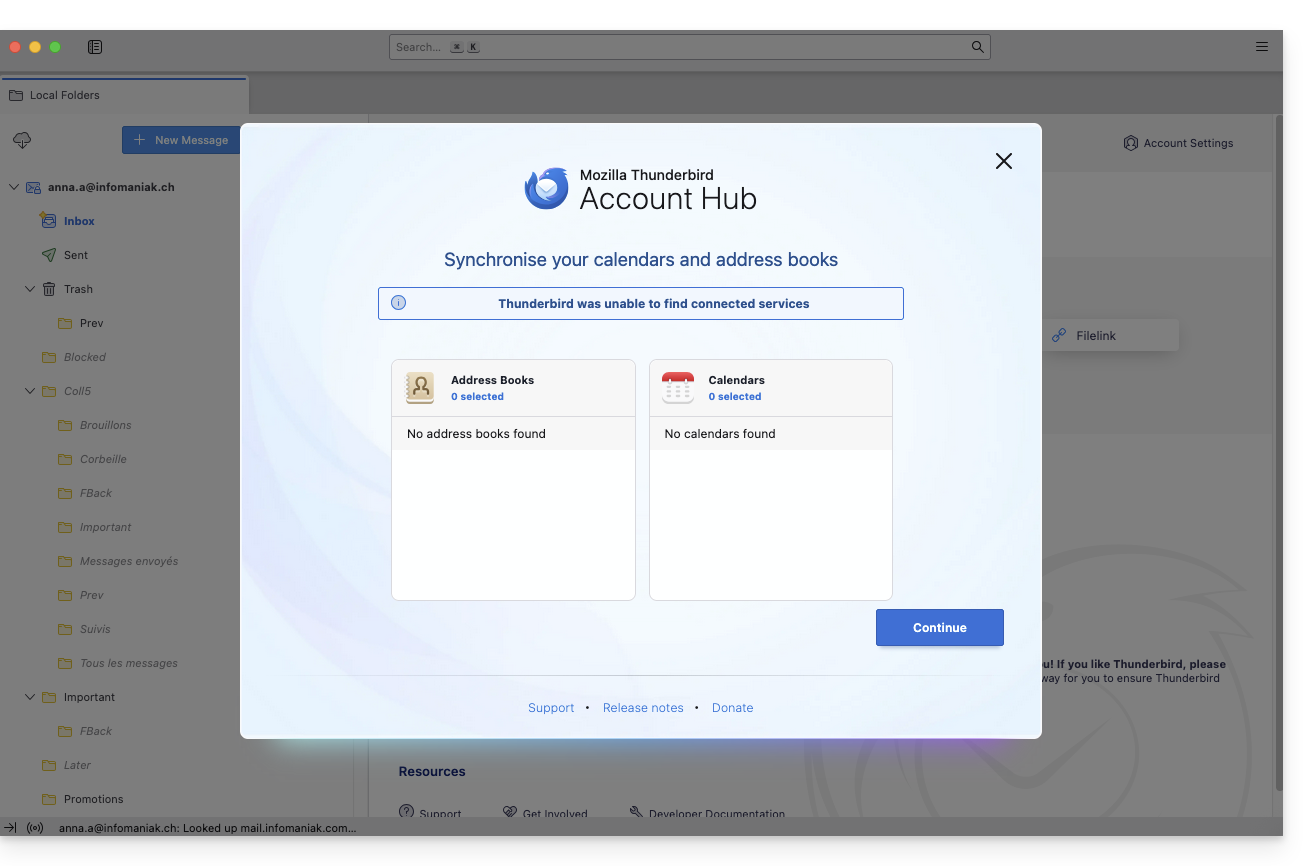
- Clique em Continuar:
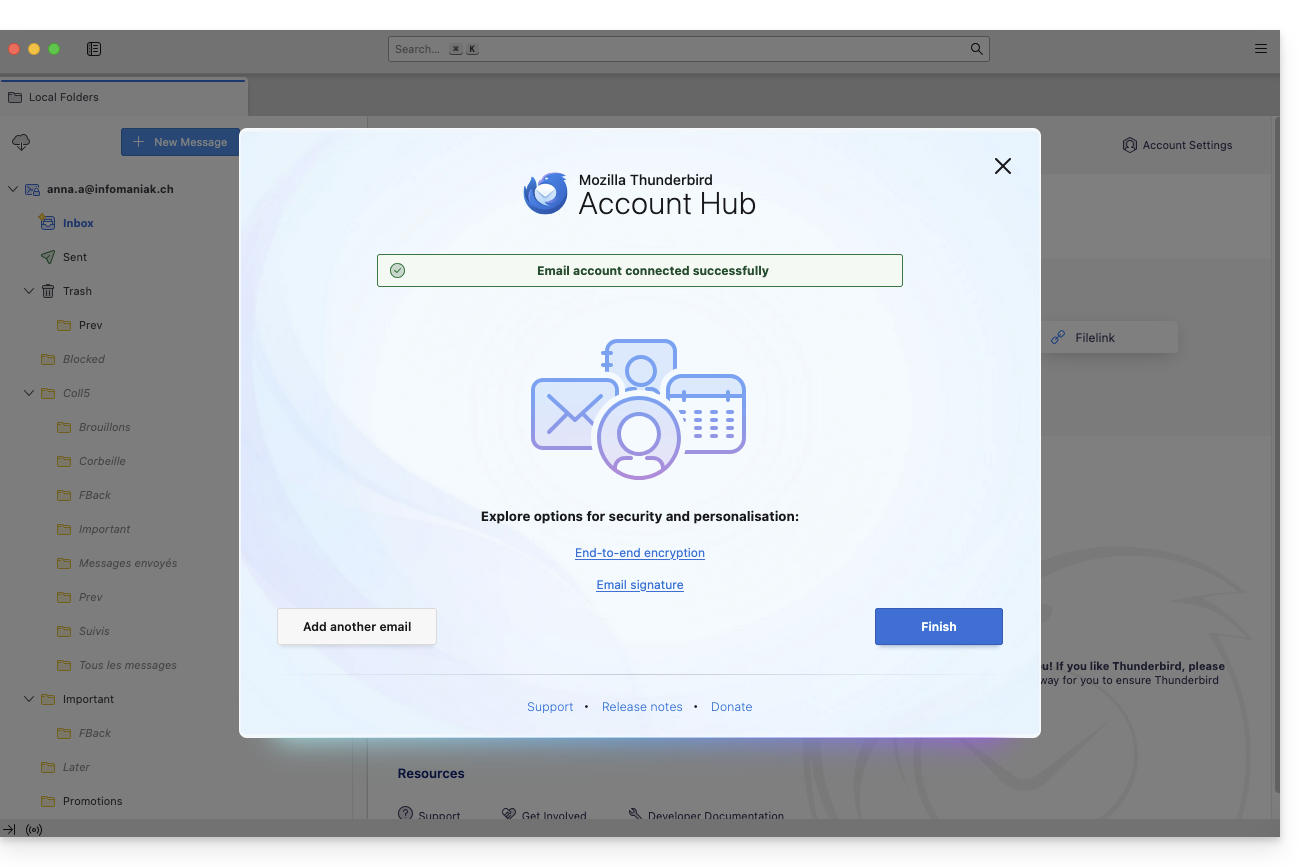
- O resumo do seu registo é exibido. Clique em Concluir para adicionar o endereço (ou configurar outros serviços a partir daí):
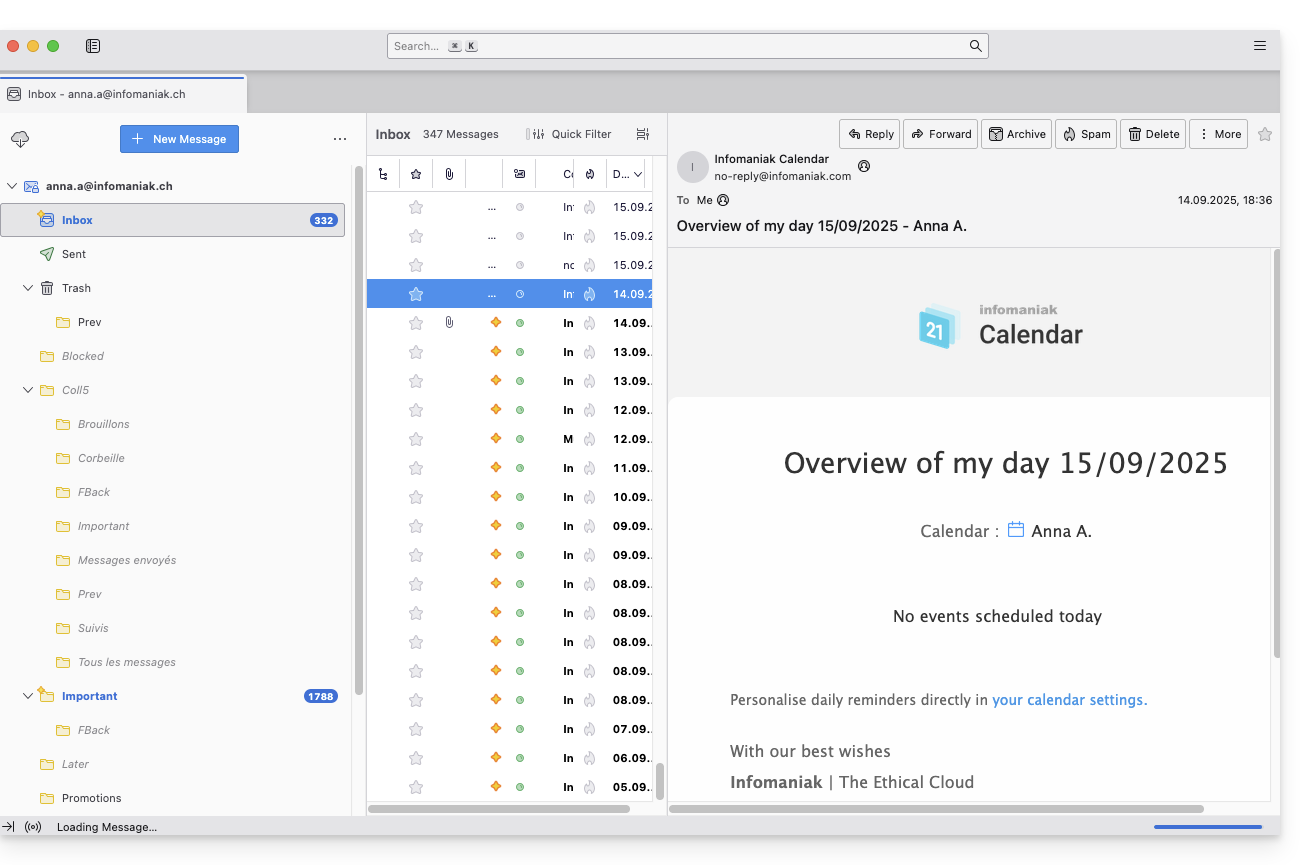
- Pronto, o seu endereço de e-mail já está configurado na aplicação:
Parâmetros recomendados
- Servidor IMAP de entrada =
mail.infomaniak.com - Porta IMAP =
993(com SSL) - Servidor SMTP de saída =
mail.infomaniak.com - Porta SMTP e protocolo de criptografia e comando/método para ativar este protocolo:
587+ STARTTLS - Nome de utilizador/username = o endereço de e-mail completo (❓: ajuda)
- Palavra-passe/password = a palavra-passe gerada para o endereço de e-mail que pretende consultar (❓: ajuda my kSuite | Serviço de E-mail/kSuite).
- Autenticação obrigatória para o envio de e-mails:
- Ative-a nas configurações SMTP da sua aplicação.
- Marque "usar as mesmas configurações do servidor de entrada" ou, dependendo do software/cliente de e-mail, insira um nome de usuário (= endereço de e-mail completo) e a senha gerada.
Consulte este outro guia se precisar de informações sobre outras portas e protocolos de e-mail compatíveis (SSL / TLS, por exemplo).
Em caso de problema
Verifique se o Serviço de E-mail está configurado de forma otimizada (❓: ajuda).
Não é necessário entrar em contato com o Suporte da Infomaniak se o seu endereço de e-mail funcionar corretamente fora do aplicativo. O erro mais comum está relacionado ao uso de uma senha incorreta. Os guias de solução de problemas ajudarão você a resolver qualquer problema:
- Consulte as soluções apresentadas neste outro guia sobre o serviço de e-mail em geral.
- Este outro guia trata especificamente do Thunderbird.
… e se o Thunderbird deixou de funcionar após uma alteração da senha do e-mail, consulte este outro guia.
Link para esta FAQ: https://faq.infomaniak.com/2430
Esta seção de perguntas frequentes foi útil?
Este guia explica como acessar, a partir dos seus dispositivos, os seus contatos Infomaniak e as suas calendários Infomaniak.
Consulte este outro guia se precisar de informações sobre a sincronização dos seus e-mails.
Preâmbulo
- O aplicativo web Contatos (gerenciamento dos seus catálogos de endereços Infomaniak para todos os seus contatos profissionais e pessoais) e o aplicativo web Calendário (gerenciamento dos seus calendários Infomaniak para todos os seus eventos e compromissos) podem ser sincronizados para que o conteúdo deles (armazenado nos servidores Infomaniak) apareça nos seus dispositivos pessoais.
- Se os seus contactos e calendários atuais ainda não estiverem integrados nestas aplicações Infomaniak, terá de importar os seus dados para que a sincronização funcione posteriormente.
- Os calendários sugeridos também podem ser sincronizados com os seus dispositivos móveis e computadores.
- O calendário de aniversários (calendário que exibe as datas de aniversário dos seus contactos quando a data está preenchida no respetivo ficheiro da agenda) só é visível através da aplicação web e não pode ser sincronizado com ferramentas CalDAV.
Sincronizar contactos e calendários (CardDAV/CalDAV)
Clique aqui para abrir o assistente Infomaniak, que permite configurar a sincronização dos seus dispositivos (macOS, Windows, Linux, Android, iOS) e dos seus programas mais utilizados (Outlook, Microsoft 365, Thunderbird, Apple Mail, eM Client, etc.).
Guias específicos
| OS | Aplicação a sincronizar |
| Outlook através do CalDav Synchronizer (Windows) | |
| Contatos e Calendários (macOS) | |
| Contatos e Calendários (iOS: iPhone, iPad, etc.) | |
| Contatos e Calendários via kSync (Android: Huawei, Samsung, Sony, etc.) | |
| Google Calendar via kSync | |
| Mozilla Thunderbird |
Você também pode transforme o aplicativo web Calendar ou Contacts da Infomaniak em um aplicativo para usar no seu dispositivo.
Link para esta FAQ: https://faq.infomaniak.com/2432
Esta seção de perguntas frequentes foi útil?
Este guia explica como conectar o aplicativo de e-mail nativo do Android a um endereço de e-mail hospedado na Infomaniak.
Introdução
- Em vez da configuração manual abaixo, recomenda-se usar o aplicativo Infomaniak Mail (iOS / Android) para usufruir dos benefícios de segurança da Infomaniak.
Adicionar manualmente o endereço de e-mail ao aplicativo
Pré-requisitos
- Criar o endereço de e-mail (❓: ajuda my kSuite | Serviço de E-mail/kSuite).
- Criar uma senha para o dispositivo (❓: ajuda my kSuite | Serviço de e-mail/kSuite).
- Verificar se a configuração do domínio está adequada (❓: ajuda).
Para configurar o aplicativo de e-mail:
- Abra o aplicativo de e-mail nativo no seu dispositivo.
- Clique em Adicionar conta.
- Selecione Outro como tipo de endereço.
- Insira o seu endereço de e-mail.
- Selecione o tipo IMAP pessoal.
- Verifique e complete as informações que estão faltando (❓: ajuda).
- Conclua o procedimento.
- Pronto, o seu endereço de e-mail já está configurado na aplicação do seu dispositivo.
Configurações recomendadas
- Servidor IMAP de entrada =
mail.infomaniak.com - Porta IMAP =
993(com SSL) - Servidor SMTP de saída =
mail.infomaniak.com - Porta SMTP e protocolo de criptografia e comando/método para ativar este protocolo:
587+ STARTTLS - Nome de usuário/username = o endereço de e-mail completo (❓: ajuda)
- Senha/password = a senha gerada para o endereço de e-mail que você deseja consultar (❓: my kSuite | Serviço de E-mail/kSuite).
- Autenticação obrigatória para o envio de e-mails:
- Ative-a nas configurações SMTP da sua aplicação.
- Marque a opção "usar as mesmas configurações do servidor de entrada" ou, dependendo do software/cliente de e-mail, insira um nome de usuário (= endereço de e-mail completo) e a senha gerada.
Consulte este outro guia se precisar de informações sobre outras portas e protocolos de e-mail compatíveis (SSL / TLS, por exemplo).
Em caso de problema
Verifique se o Serviço de E-mail está configurado de forma otimizada (❓: ajuda).
Não é necessário entrar em contato com o Suporte da Infomaniak se o seu endereço de e-mail funcionar corretamente fora do aplicativo. O erro mais comum está relacionado ao uso de uma senha incorreta. Os guias de solução de problemas ajudarão você a resolver qualquer problema:
- Consulte as soluções apresentadas neste outro guia sobre e-mail em geral.
- … e se a sua aplicação deixar de funcionar no envio (servidor SMTP desconectado ou ausente, por exemplo) ou após uma alteração da palavra-passe do e-mail, consulte este outro guia.
Link para esta FAQ: https://faq.infomaniak.com/2433
Esta seção de perguntas frequentes foi útil?
Este guia explica como conectar o aplicativo para desktop New Outlook (aplicativo para desktop no Windows, que substitui o Windows Mail) a um endereço de e-mail hospedado na Infomaniak.
Introdução
- Embora os e-mails em si permaneçam armazenados no servidor Infomaniak, a experiência no New Outlook está muito integrada à nuvem da Microsoft:
- Algumas informações da sua conta podem ser usadas pela Microsoft para uma gestão centralizada e uma melhor experiência de sincronização.
- Se desejar ter controlo total e local sobre os seus e-mails, considere usar software/clientes de e-mail de terceiros (como o Thunderbird, por exemplo), que permitem um armazenamento mais direto (❓: ajuda).
Adicionar o endereço de e-mail à aplicação
Pré-requisitos
- Criar o endereço de e-mail (❓: ajuda my kSuite | Serviço de E-mail/kSuite).
- Criar uma senha para o dispositivo (❓: ajuda my kSuite | Serviço de E-mail/kSuite).
- Verificar se a configuração do domínio está adequada (❓: ajuda).
A senha criada para o endereço de e-mail deve corresponder aos critérios detalhados na parte inferior deste guia.
Para configurar o aplicativo de e-mail:
- Abra a aplicação.
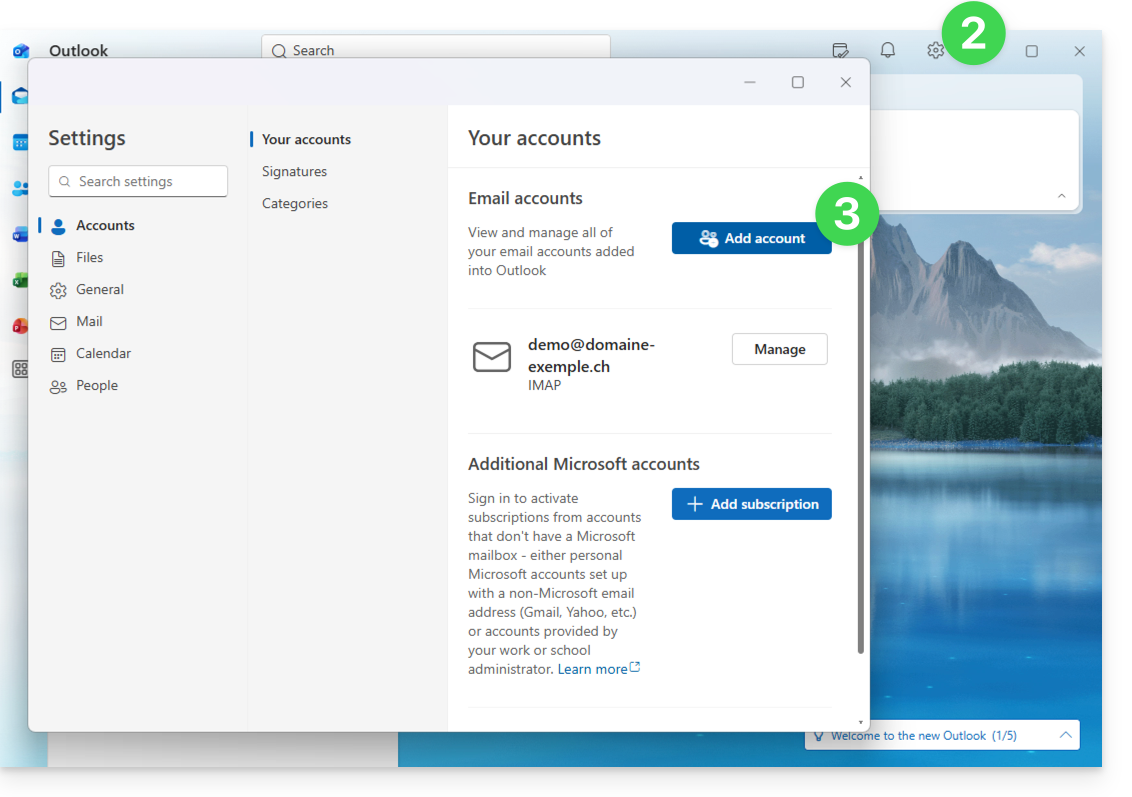
- Se necessário, clique no ícone de engrenagem no canto superior direito (caso contrário, avance para o passo 4).
- Clique em Adicionar conta:
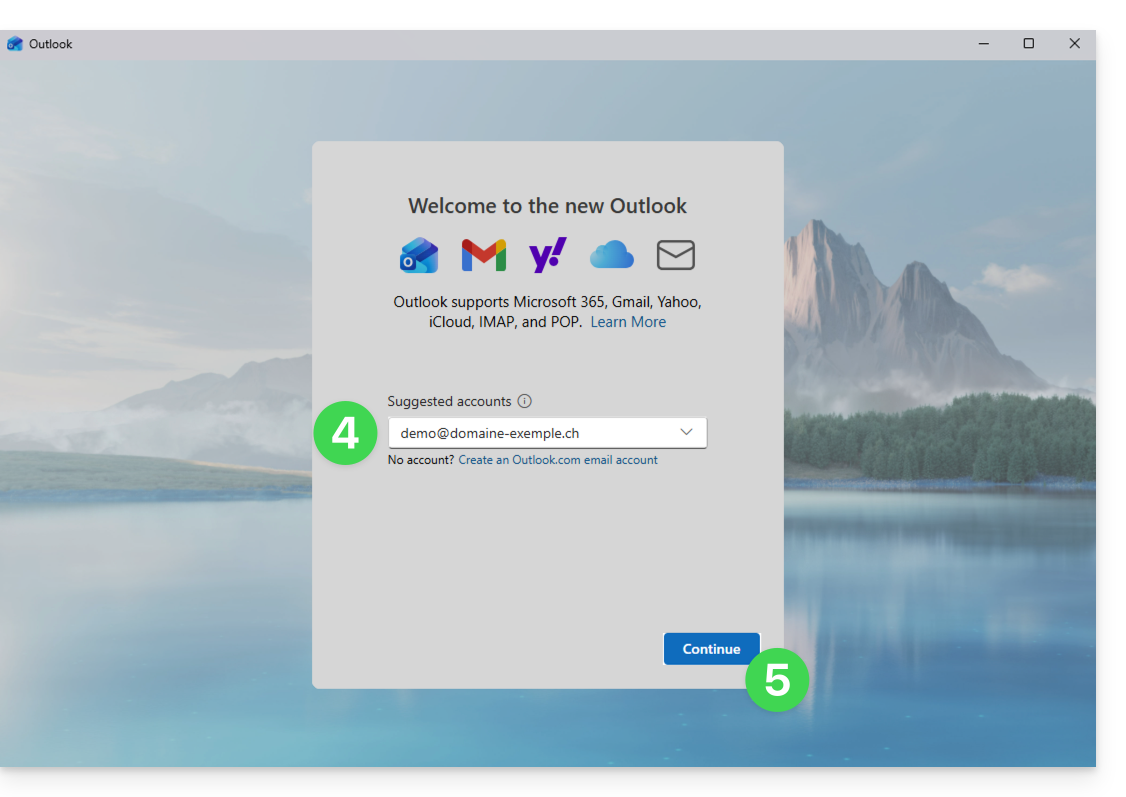
- Insira o endereço de e-mail a ser associado.
- Clique em Continuar:
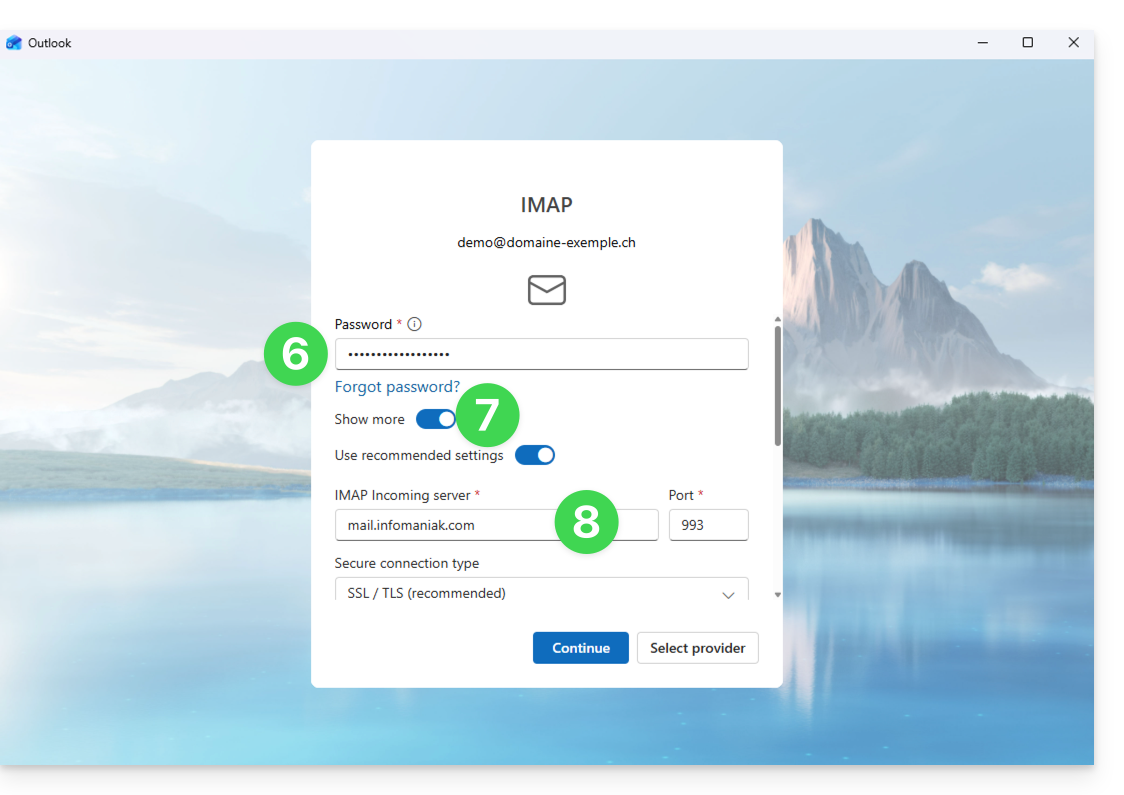
- Insira a senha do endereço de e-mail (❓: ajuda).
- Clique no botão Ver mais.
- Verifique e complete as informações que faltam (❓: ajuda):
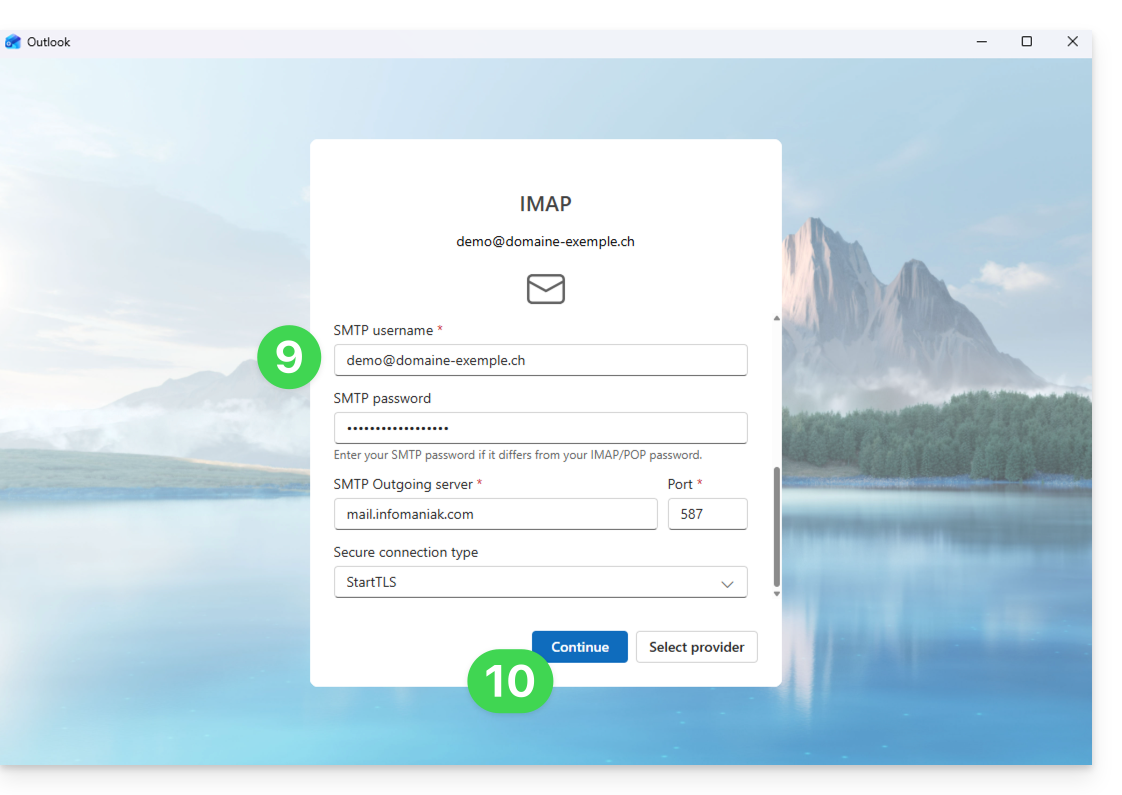
- Role para baixo na página e, em seguida, verifique e complete as informações ausentes (❓: ajuda).
- Clique em Continuar:
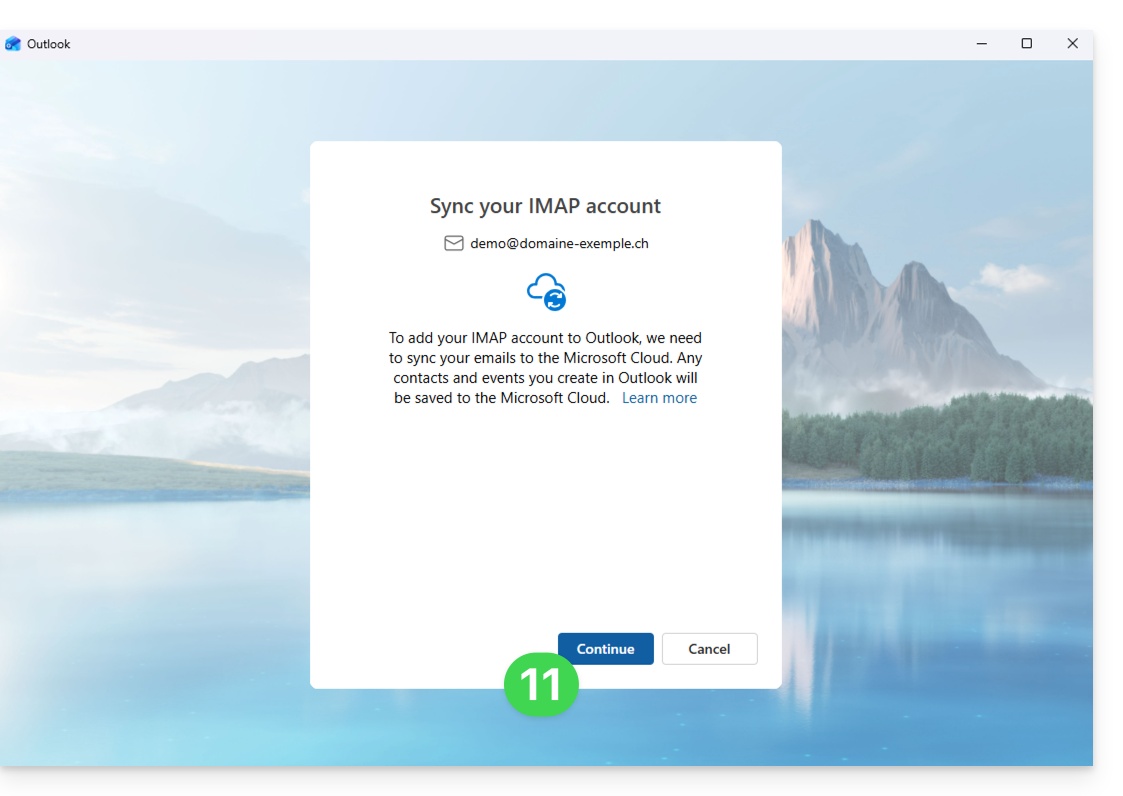
- Leia e avance pelas diferentes janelas de informações da Microsoft:
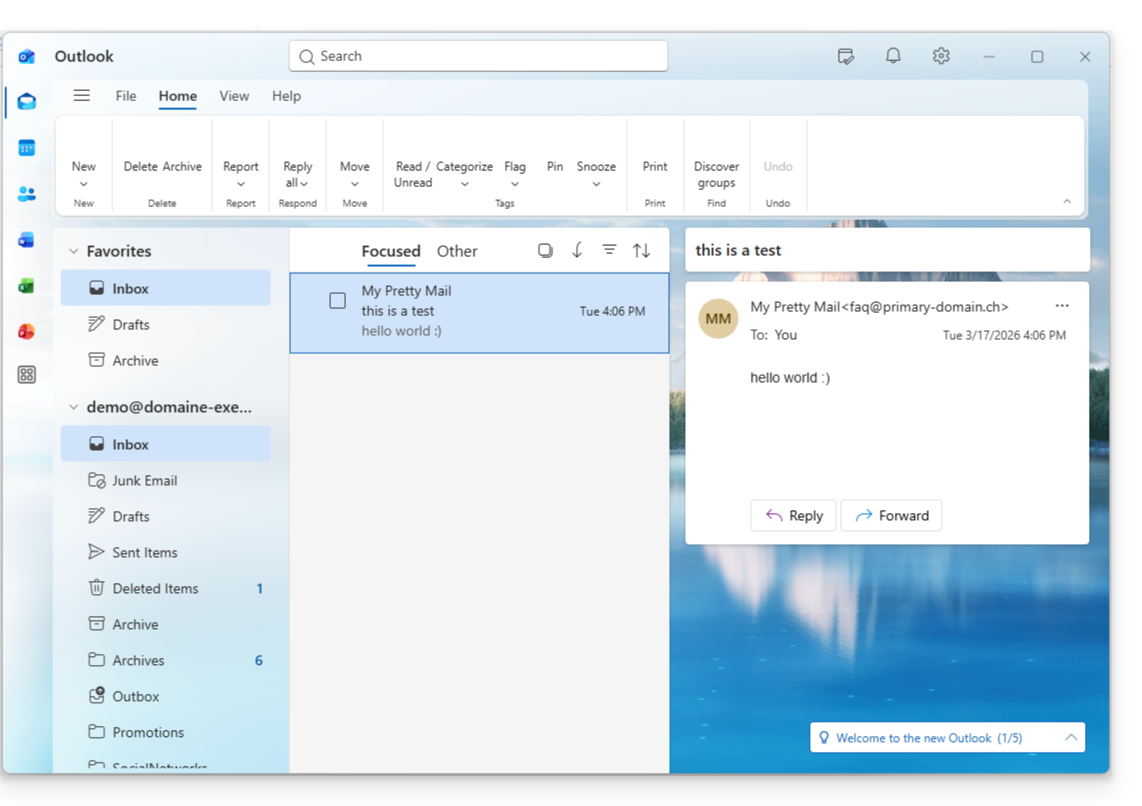
- Pronto, o seu endereço de e-mail já está configurado na aplicação:
Parâmetros recomendados
- Servidor IMAP de entrada =
mail.infomaniak.com - Porta IMAP =
993(com SSL) - Servidor SMTP de saída =
mail.infomaniak.com - Porta SMTP e protocolo de criptografia e comando/método para ativar este protocolo:
587+ STARTTLS - Nome de utilizador/username = o endereço de e-mail completo e integral (❓: ajuda)
- Senha/password = a senha gerada para o endereço de e-mail que você deseja consultar (consulte os pré-requisitos).
- Autenticação obrigatória para o envio de e-mails:
- Ative-a nas configurações SMTP do seu aplicativo.
- Marque "usar as mesmas configurações do servidor de entrada" ou, dependendo do software/cliente de e-mail, insira um nome de usuário (= endereço de e-mail completo) e a senha gerada.
Consulte este outro guia se precisar de informações sobre outras portas e protocolos de e-mail compatíveis (SSL/TLS, por exemplo).
Em caso de problemas
Uma solução que parece funcionar é a combinação destas 2 situações:
- Estar conectado à sua sessão do Windows com uma conta Microsoft (e não apenas uma conta local).
- Adicionar o endereço de e-mail usado para iniciar sessão no Windows a esta versão do Outlook.
Crie também uma nova senha (❓: ajuda) e deixe que ela seja gerada aleatoriamente, mas verifique também se ela atende aos critérios impostos pela Microsoft:
| Caracteres permitidos |
|
| Caracteres proibidos |
|
| Comprimento da senha | 16 caracteres NO MÁXIMO |
Verifique se o Serviço de Email está configurado de forma otimizada (❓: ajuda).
Os guias de resolução de problemas ajudam a solucionar eventuais problemas:
- Consulte as soluções apresentadas neste outro guia sobre o serviço de e-mail em geral.
- Este outro guia aborda especificamente o Outlook.
… e se o seu Outlook deixou de funcionar após uma alteração da palavra-passe do e-mail, consulte este outro guia.
Link para esta FAQ: https://faq.infomaniak.com/2434
Esta seção de perguntas frequentes foi útil?
Este guia explica como conectar o aplicativo para desktop Apple Mail macOS (MacBook Pro, Neo…) a um endereço de e-mail hospedado na Infomaniak.
Introdução
- Em vez da configuração manual abaixo, recomenda-se usar os perfis de configuração .mobileconfig fornecidos pela Apple (❓: ajuda).
Adicionar manualmente o endereço de e-mail ao aplicativo
Pré-requisitos
- Criar o endereço de e-mail (❓: ajuda my kSuite | Serviço de E-mail/kSuite).
- Criar uma senha para o dispositivo (❓: ajuda my kSuite | Serviço de e-mail/kSuite).
- Verificar se a configuração do domínio está correta (❓: ajuda).
Para configurar o aplicativo de e-mail:
- Abra o aplicativo.
- Se você já configurou um endereço, clique no menu E-mail e, em seguida, em Adicionar conta:
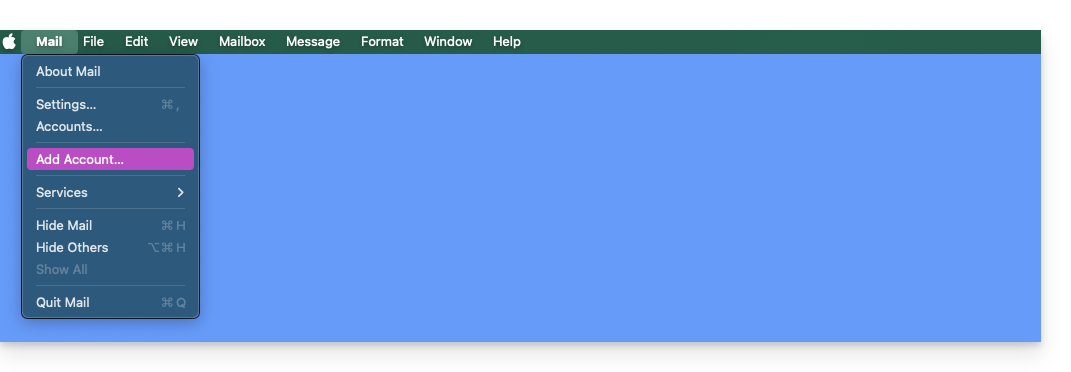
- Se você já configurou um endereço, clique no menu E-mail e, em seguida, em Adicionar conta:
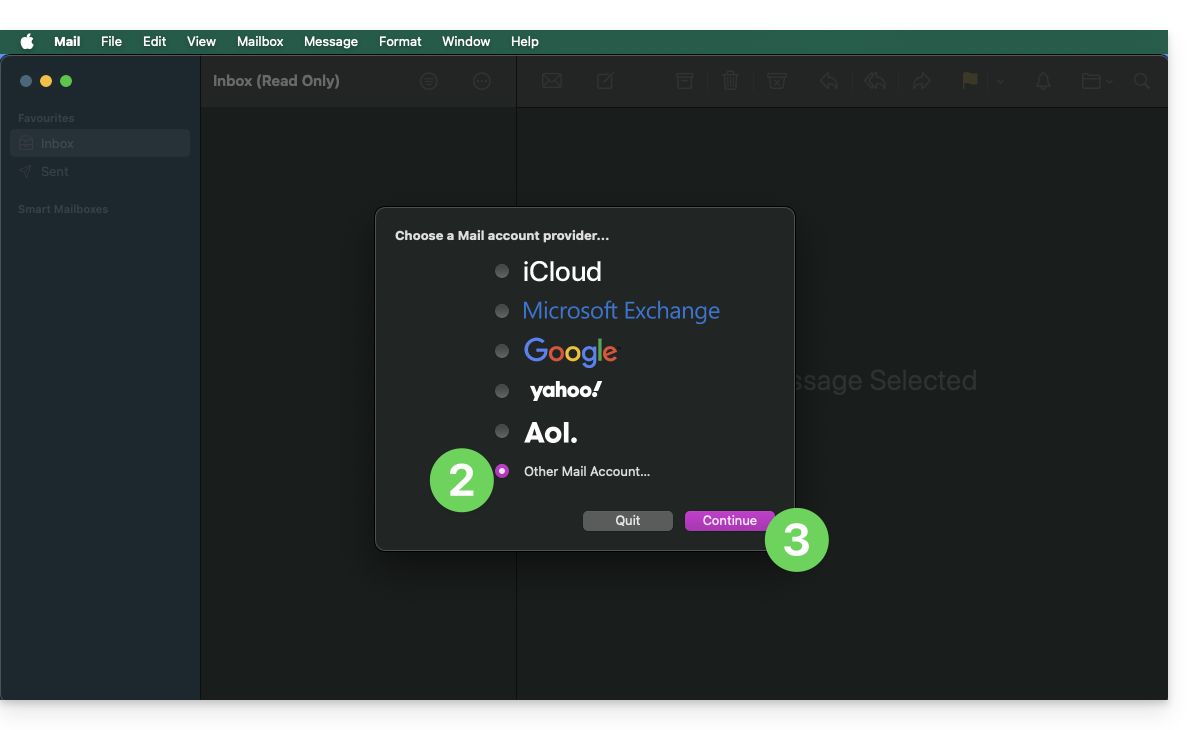
- Clique em Outra conta.
- Clique em Continuar:
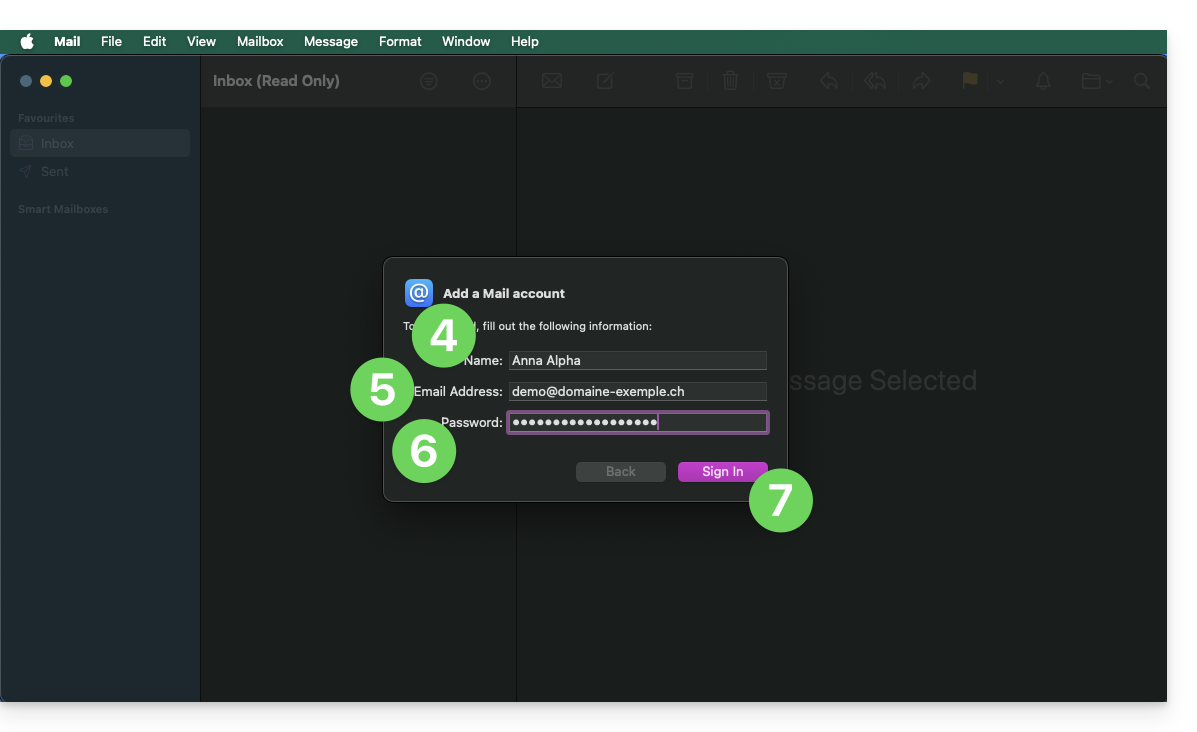
- Insira o nome da conta.
- Insira o endereço de e-mail a ser associado.
- Cole a senha do endereço de e-mail gerada no painel de controle Infomaniak (❓: ajuda).
- Clique no botão azul Conectar:
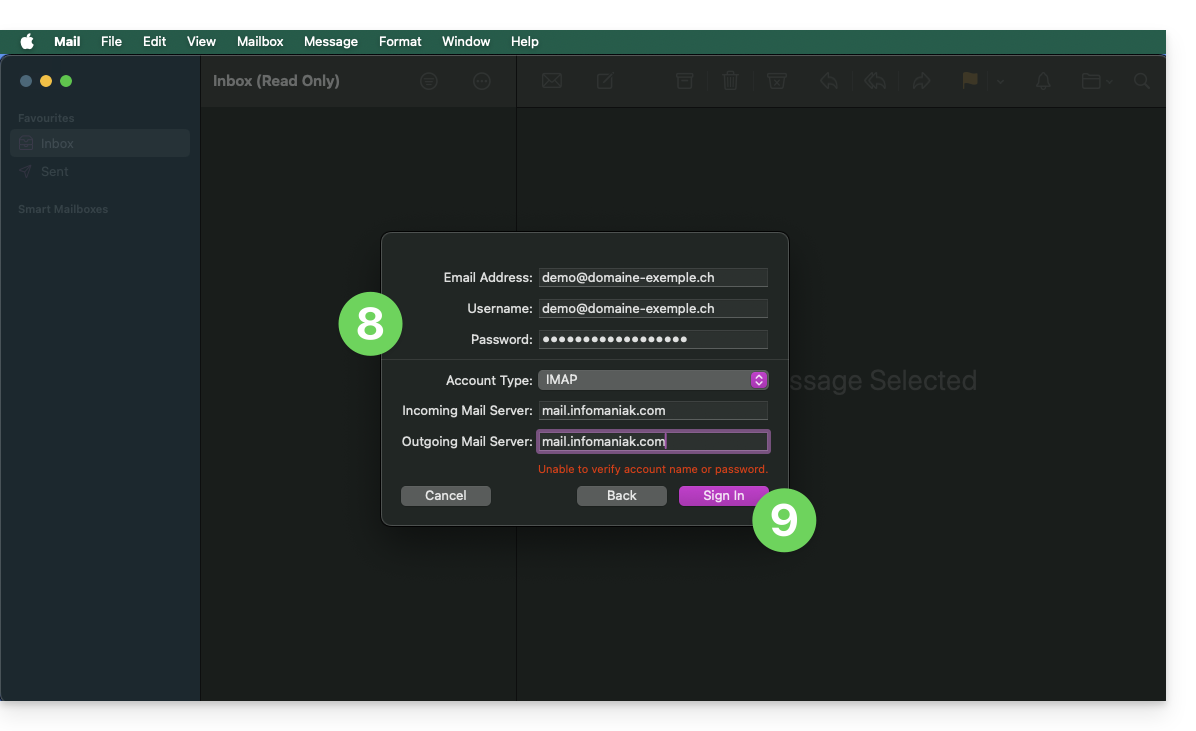
- Verifique e complete as informações que estão faltando (❓: ajuda).
- Clique em Iniciar sessão:
- Pressione o botão para confirmar:
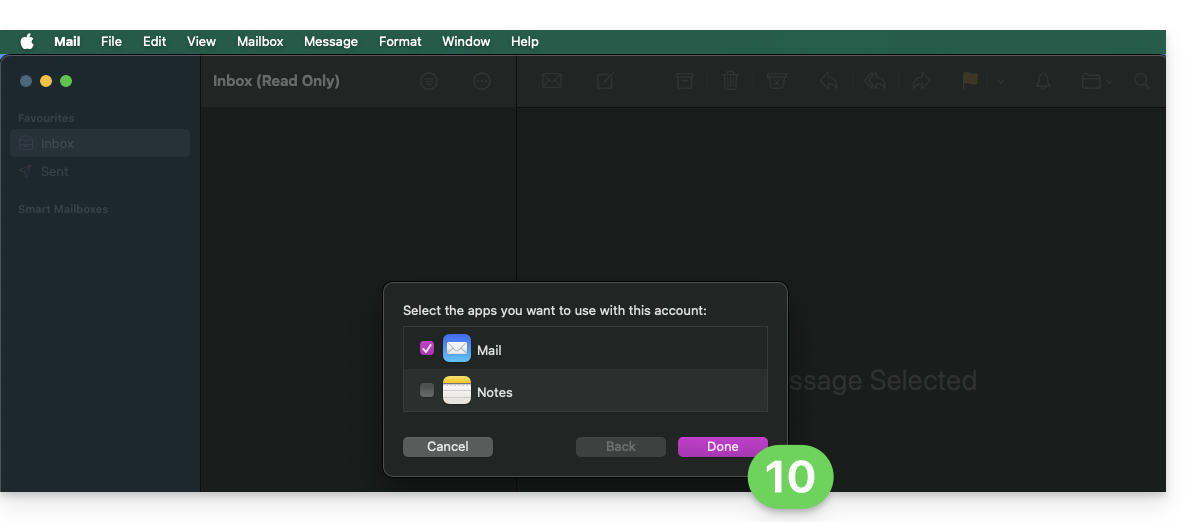
- Pronto, seu endereço de e-mail agora está configurado no aplicativo:
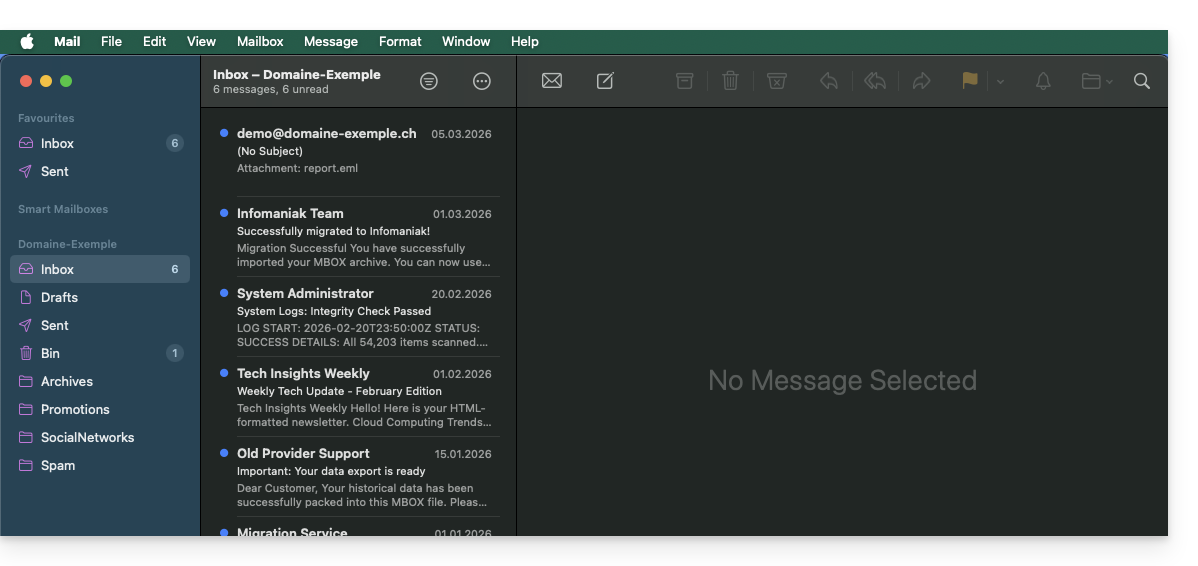
Parâmetros recomendados
- Servidor IMAP de entrada =
mail.infomaniak.com - Porta IMAP =
993(com SSL) - Servidor SMTP de saída =
mail.infomaniak.com - Porta SMTP e protocolo de criptografia e comando/método para ativar este protocolo:
587+ STARTTLS - Nome de utilizador/username = o endereço de e-mail completo e integral (❓: ajuda)
- Senha/password = a senha gerada para o endereço de e-mail que você deseja consultar (❓: ajuda my kSuite | Serviço de e-mail/kSuite).
- Autenticação obrigatória para o envio de e-mails:
- Ative-a nas configurações SMTP do seu aplicativo.
- Marque "usar as mesmas configurações do servidor de entrada" ou, dependendo do software/cliente de e-mail, insira um nome de usuário (= endereço de e-mail completo) e a senha gerada.
Consulte este outro guia se precisar de informações sobre outras portas e protocolos de e-mail compatíveis (SSL/TLS, por exemplo).
Em caso de problemas
Não é necessário entrar em contato com o Suporte Infomaniak se o seu endereço de e-mail funcionar corretamente fora do aplicativo. O erro mais comum está relacionado ao uso de uma senha incorreta. A ferramenta disponível no Apple Mail pode indicar isso: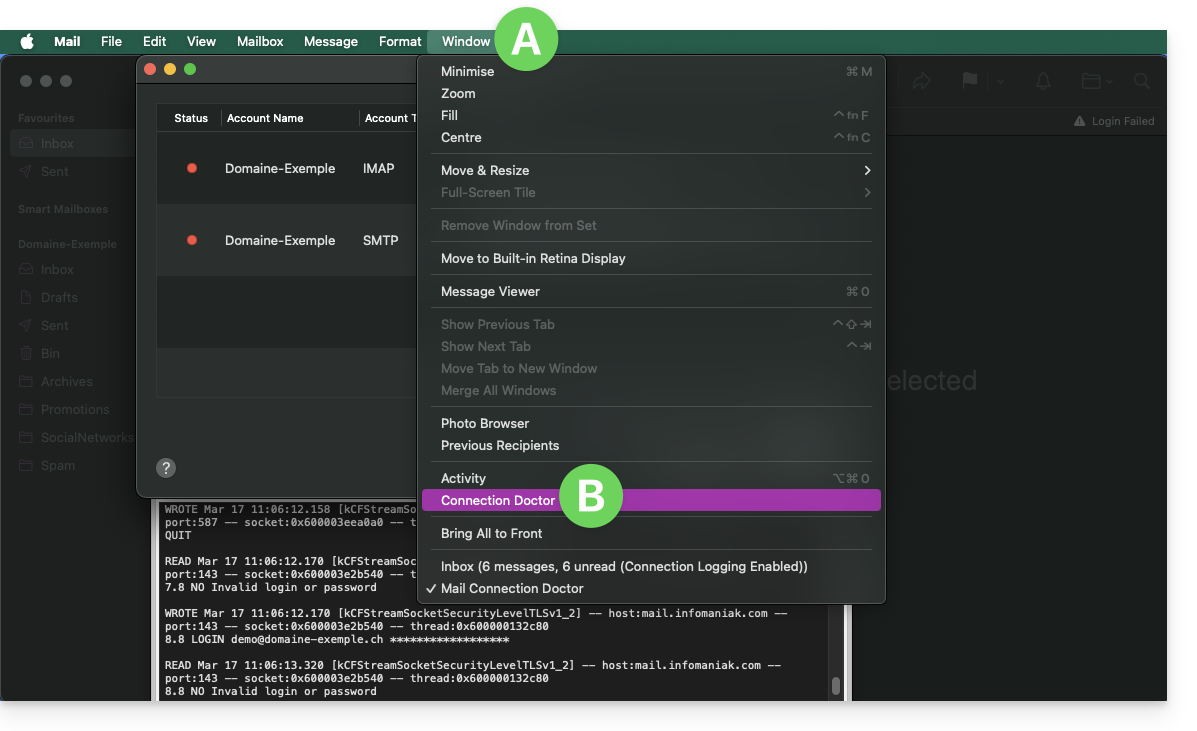
Crie uma nova senha no Serviço de E-mail (❓: ajuda) e reinicie a configuração da sua conta no aplicativo de e-mail.
Os guias de resolução de problemas ajudam a solucionar qualquer problema:
- Consulte as soluções apresentadas neste outro guia sobre o serviço de e-mail em geral.
- Remova quaisquer perfis de configuração da Apple (❓: ajuda) relacionados com a sua conta de e-mail Infomaniak antes de reiniciar a configuração.
E se o seu Apple Mail deixou de funcionar após uma alteração de palavra-passe, consulte este outro guia.
Link para esta FAQ: https://faq.infomaniak.com/2442
Esta seção de perguntas frequentes foi útil?
Não consegue mais receber ou enviar e-mails? Está tendo problemas de sincronização com seus contatos e calendários? Siga as instruções deste guia para remover as contas que estão causando problemas e reconfigurá-las corretamente.
Introdução
- Siga estas instruções apenas para remover uma conta de e-mail configurada em IMAP (e não em POP3). Saiba mais
Remover o endereço de e-mail
Para isso:
- Abra o Thunderbird.
- Clique com o botão direito do mouse no endereço de e-mail que deseja excluir e selecione Configurações.
- Acesse Gerenciamento de contas.
- Selecione Excluir conta e clique em Excluir
- Consulte este outro guia para reconfigurar corretamente o endereço de e-mail
Excluir contactos (no CardBook)
Atualmente, tudo está integrado no Thunderbird, mas se ainda tiver uma versão antiga (que deverá ser atualizada):
- Abra o Thunderbird.
- No CardBook, selecione o perfil de contato que deseja excluir.
- Clique no botão de menu com três linhas horizontais ☰ no canto superior esquerdo da interface, depois em Lista de contactos e em Eliminar lista de contactos.
- Confirme clicando em OK.
- Consulte este outro guia para reconfigurar a sincronização.
Remover o calendário (no Lightning)
Agora, tudo está integrado ao Thunderbird, mas se você ainda tiver uma versão antiga (que deverá ser atualizada):
- Abra o Thunderbird.
- No Lightning, selecione o perfil de calendário que deseja remover.
- Clique com o botão direito do mouse no calendário e selecione Cancelar inscrição no calendário.
- Valide clicando em OK.
- Consulte este outro guia para reconfigurar a sincronização.
Link para esta FAQ: https://faq.infomaniak.com/2444
Esta seção de perguntas frequentes foi útil?
Este guia explica como aceder aos ficheiros do kDrive localmente no disco rígido através da aplicação de ambiente de trabalho kDrive (aplicação para computador macOS/Windows/Linux), bem como aos ficheiros da aplicação Web kDrive (serviço online ksuite.infomaniak.com/kdrive).
Pré-requisitos
- Instale o aplicativo kDrive para desktop no seu dispositivo.
- Certifique-se de que está conectado com a mesma conta Infomaniak tanto no aplicativo para desktop quanto na versão web, caso contrário, o passo 3 abaixo resultará em um erro.
Ver os ficheiros kDrive
Quando a aplicação kDrive está instalada e é iniciada:
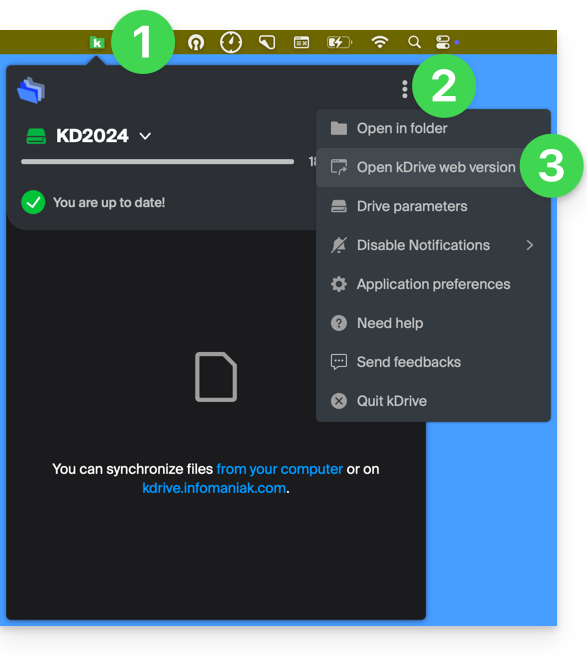
- Clique com o botão esquerdo do mouse no ícone do aplicativo na área de notificação do seu computador (no canto superior direito no macOS, no canto inferior direito no Windows e um clique duplo com o botão esquerdo na barra de tarefas no Linux).
- Clique no menu de ação ⋮ no canto superior direito.
- Clique em Abrir kDrive Web para acessar os arquivos armazenados no servidor kDrive:
- É possível que a versão no navegador não seja exibida.
- Clique no item acima para abrir a pasta do disco no seu computador que contém seus arquivos kDrive, fisicamente presentes ou virtualmente presentes (dependendo se o Lite Sync estiver ativado).
Se todos os seus arquivos não estiverem presentes/sincronizados, consulte este outro guia.
Diferenças entre a versão web e a versão sincronizada no computador
Pastas compartilhadas
Na versão web do kDrive, a pasta compartilhada é chamada de Pastas da organização: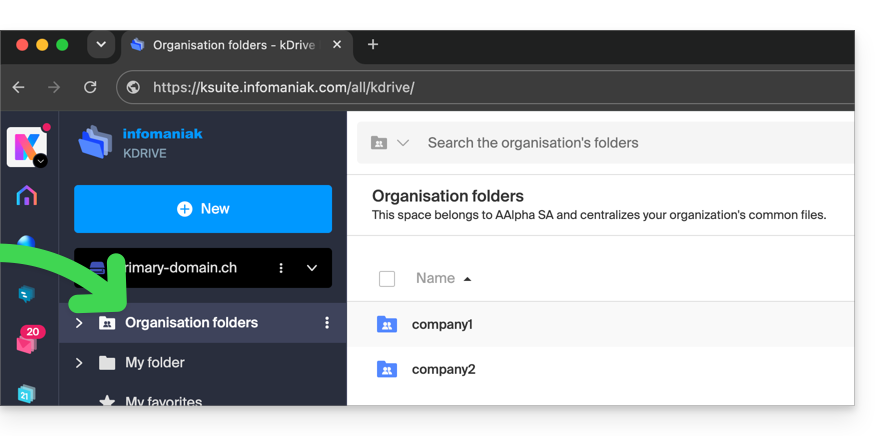
No computador, você encontrará a mesma pasta, mas com o nome Documentos comuns; não tente renomeá-la: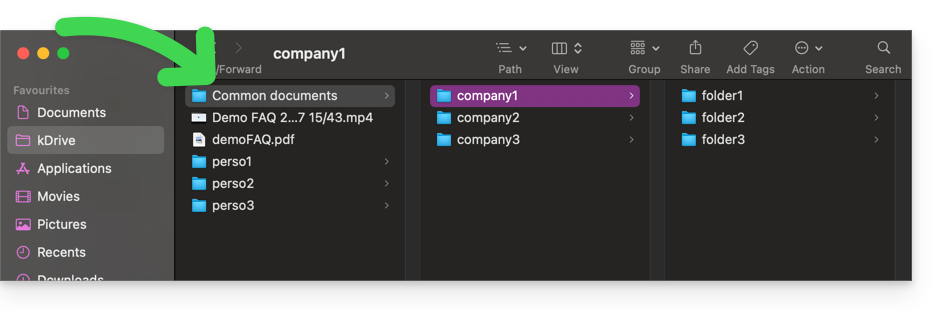
Pasta pessoal
Na versão web do kDrive, a pasta pessoal do utilizador conectado está organizada num espaço separado (“A minha pasta”), que também não pode ser modificado: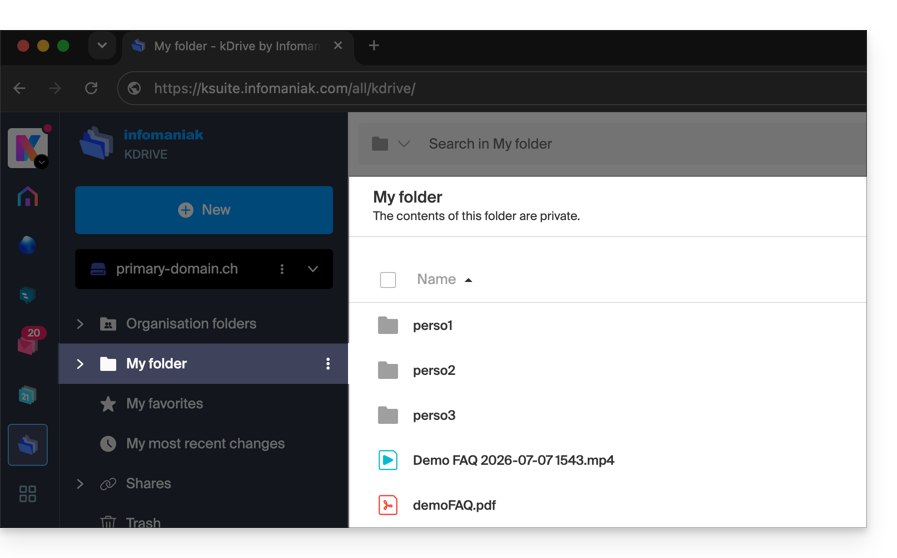
No computador, tudo o que estiver fora de Documentos comuns pertence à pasta pessoal (“A minha pasta”) do utilizador conectado: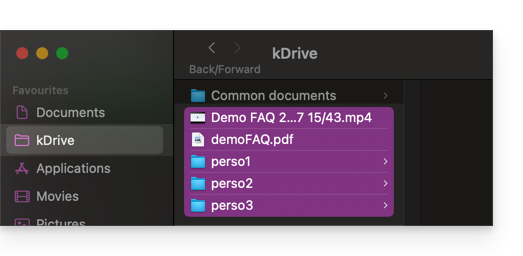
Link para esta FAQ: https://faq.infomaniak.com/2456
Esta seção de perguntas frequentes foi útil?
Obrigado por escolher personalizar sua conta com Custom Brand!
Introdução
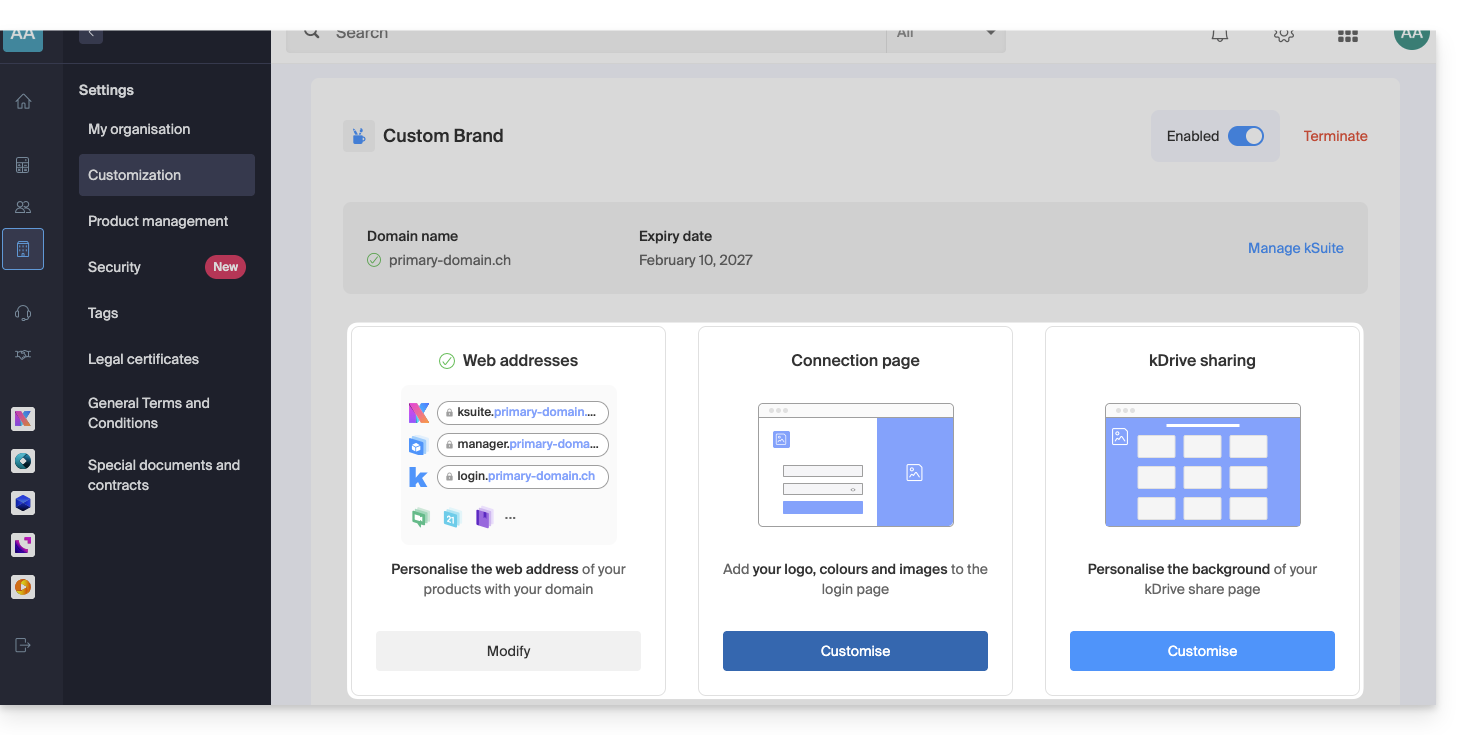
- Como opção para qualquer oferta Infomaniak ou já incluído em kSuite Enterprise, descubra esta ferramenta de personalização para tornar suas páginas web únicas, adicionando um logotipo ou uma apresentação de slides de imagens na sua página de login da sua Organização Infomaniak.
- A ferramenta Redirecionamento Web não poderá mais ser utilizada no seu domínio após a ativação do Custom Brand.
Guias de personalização da sua marca
Pré-requisitos
- Possuir um nome de domínio na Infomaniak (transfira-o, se necessário).
- A sua extensão deve estar entre as extensões suportadas pelo Custom Brand.
- Note que isto também funciona com um subdomínio.
- Configurar o domínio para utilizar os servidores DNS da Infomaniak.
Em seguida, para usar o Custom Brand: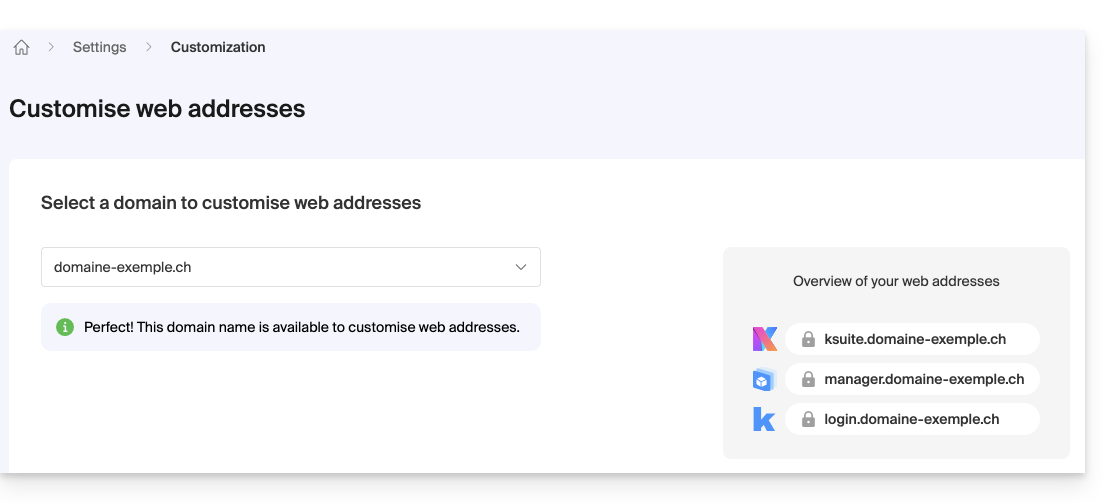
- Comece com o Custom Brand: personalize os URLs e a interface
- Resolver um problema:
Personalizar seus endereços web com seu domínio
| Aceder a… | sem marca personalizada | com Marca Personalizada |
|---|---|---|
| kSuite | ksuite.infomaniak.com | ksuite.domain.xyz |
| Gerenciador | manager.infomaniak.com | manager.domain.xyz |
| e-mails (Mail) | mail.infomaniak.com | mail.domain.xyz |
| calendários | calendar.infomaniak.com | calendar.domain.xyz |
| contatos | contacts.infomaniak.com | contacts.domain.xyz |
| kDrive | kdrive.infomaniak.com | kdrive.domain.xyz |
| videoconferências kMeet | kmeet.infomaniak.com | kmeet.domain.xyz |
| Euria | euria.infomaniak.com | euria.domain.xyz |
Personalizar a interface da sua organização
As seguintes opções de interface podem ser modificadas nas configurações do kSuite:
- Adição do seu logotipo na interface da sua Organização.
- Adição de um panorama com 3 imagens na página de login.
- Alteração da cor do texto e do botão na página de login.
- Personalização dos compartilhamentos kDrive (consulte este outro guia).
Link para esta FAQ: https://faq.infomaniak.com/2465
Esta seção de perguntas frequentes foi útil?