Base de conhecimento
1000 perguntas frequentes, 500 tutoriais e vídeos explicativos. Aqui, você encontra apenas soluções!
Este guia apresenta as vantagens da kSuite (Standard, Business, Enterprise), a suíte de ferramentas de produtividade e colaboração online desenvolvida na Suíça pela Infomaniak.
Introdução
- kSuite simplifica a gestão de utilizadores em empresas e agrupa os seus produtos numa única fatura, com uma única data de vencimento.
- Inclui também uma gestão avançada de utilizadores de todas as aplicações de que necessita para colaborar online.
- Escolhe o nome de domínio e o kSuite é configurado de acordo com as suas necessidades em termos de número de utilizadores e espaço de armazenamento.
- O kSuite é uma oferta combinada que pode ser atualizada para uma oferta superior a qualquer momento.no entanto, não é possível alterar posteriormente para um plano inferior, nem transferir o kSuite para outra Organização.
- Os produtos incluídos no kSuite não podem ser movidos ou cancelados independentemente uns dos outros.
- Para ajudá-lo a identificar a oferta kSuite mais adequada às suas necessidades, consulte este outro guia.
Escolha kSuite em vez das aplicações individuais
A questão de escolher o kDrive e/ou o Mail separadamente, de forma independente, em vez do pacote kSuite, pode, de facto, surgir.
O kSuite é mais económico, simplifica a gestão de utilizadores em empresas e reúne todos os seus produtos numa única fatura com uma única data de vencimento. A oferta é recomendada a partir do momento em que possui ou pretende ter um nome de domínio que lhe seja associado.
Inclui também uma gestão avançada e unificada de utilizadores e equipas, bem como o kChat, que não pode ser encomendado separadamente.
Aqui estão outros pontos:
- funcionalidades desbloqueadas
- uma única fatura
- lista de contactos e calendário dinâmico para a organização
- maior espaço de armazenamento em disco (por utilizador)
- Marca personalizada oferecida com o kSuite Enterprise
Em resumo, optar por esta coleção de ferramentas web em vez das aplicações individuais oferece vantagens em termos de integração, gestão simplificada, colaboração em tempo real, acessibilidade multiplataforma e flexibilidade. Estas vantagens podem melhorar a sua eficiência, produtividade e experiência de utilizador global.
Os produtos incluídos no kSuite
Na sua interface ksuite.infomaniak.com, você tem acesso a: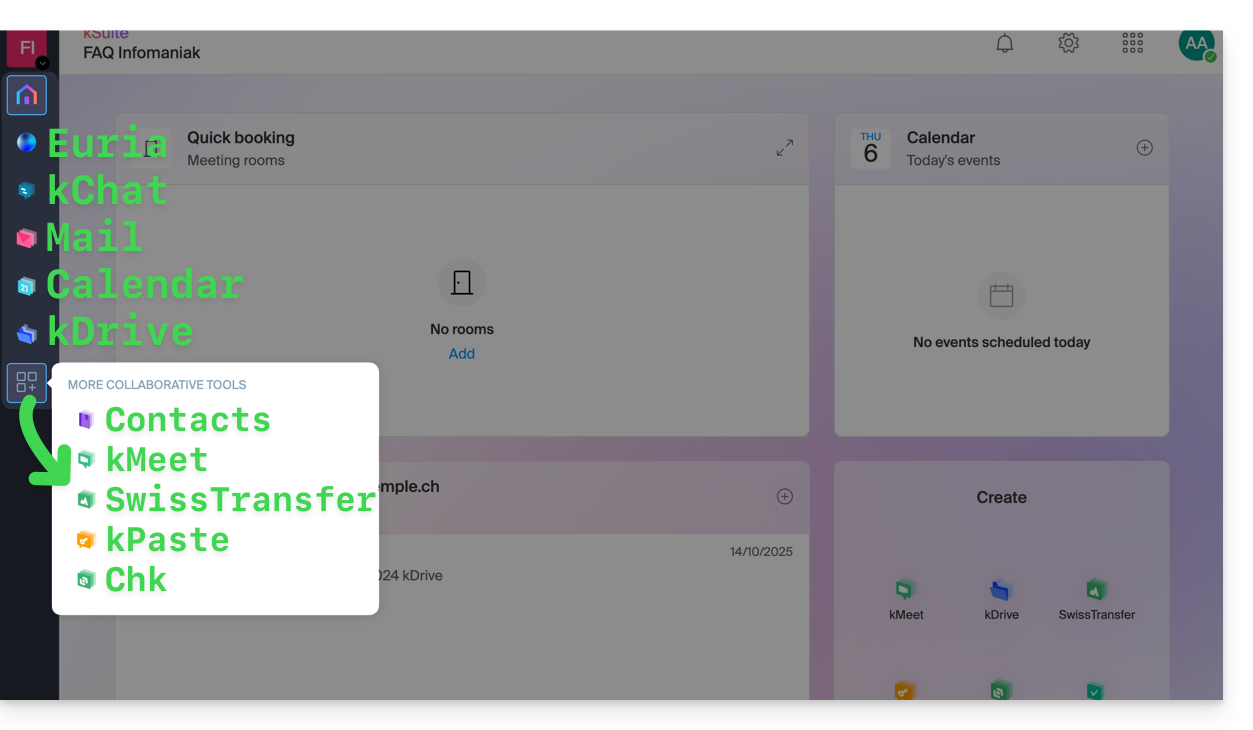
Criar, comunicar, planear, colaborar, partilhar…
- Euria
- kChat
- Um Serviço de Email (mesmo que você já possua um Serviço de Email)
- Calendário
- kDrive (mesmo que você já tenha um kDrive)
E também:
Gestão
- A interface Gerenciador com Marca Personalizada incluída ou como opção, dependendo da oferta
Você é um Parceiro ou deseja se tornar um para revender o kSuite?
Link para esta FAQ: https://faq.infomaniak.com/80
Esta seção de perguntas frequentes foi útil?
Este guia explica como, quando você pertence a várias Organizações, alternar entre a visualização de uma Organização e outraatravés da interface web Mail da Infomaniak (ksuite.infomaniak.com/mail) para aceder aos endereços de email associados a cada uma delas.
Introdução
- Cada endereço de e-mail hospedado na Infomaniak está associado a uma Organização específica, aquela na qual o Serviço de E-mail é criado.
- A interface web Mail exibe os endereços de e-mail vinculados à Organização atualmente selecionada.
- Para consultar um endereço de e-mail diferente pertencente a outra organização, basta alternar para a organização correspondente.
- Deseja consultar simultaneamente endereços de e-mail hospedados por diferentes organizações? Simplesmente abra várias abas no seu navegador, cada uma dedicada a uma organização.
- O princípio é o mesmo na interface onde você gerencia seus produtos, o Manager Infomaniak (consulte este outro guia).
Alternar entre diferentes organizações no Mail Infomaniak
Para exibir os endereços de e-mail presentes em outra organização à qual sua conta Infomaniak está associada:
- Clique aqui para aceder à interface web do Mail Infomaniak.
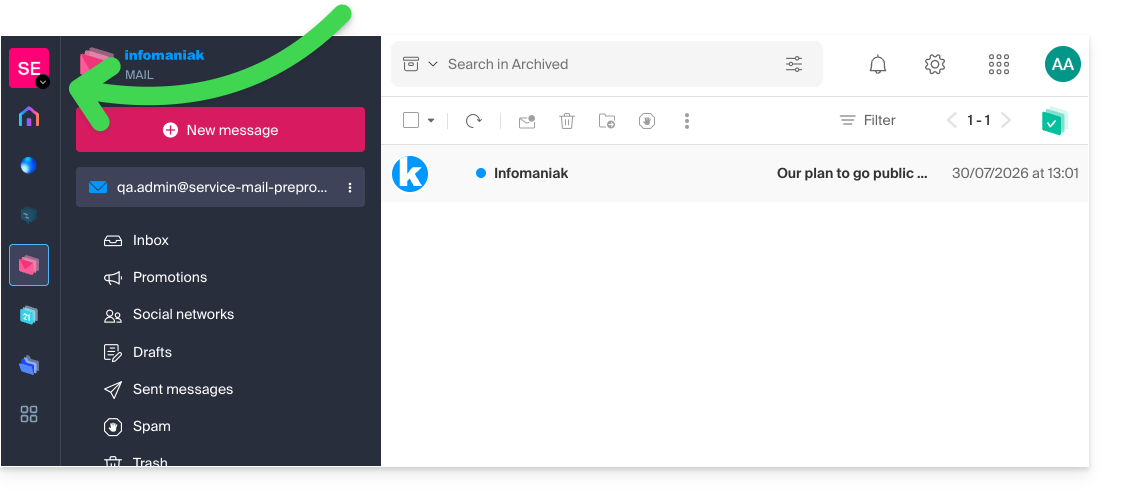
- Clique no nome da Organização ativa ou na seta para baixo localizada no canto superior esquerdo da interface:
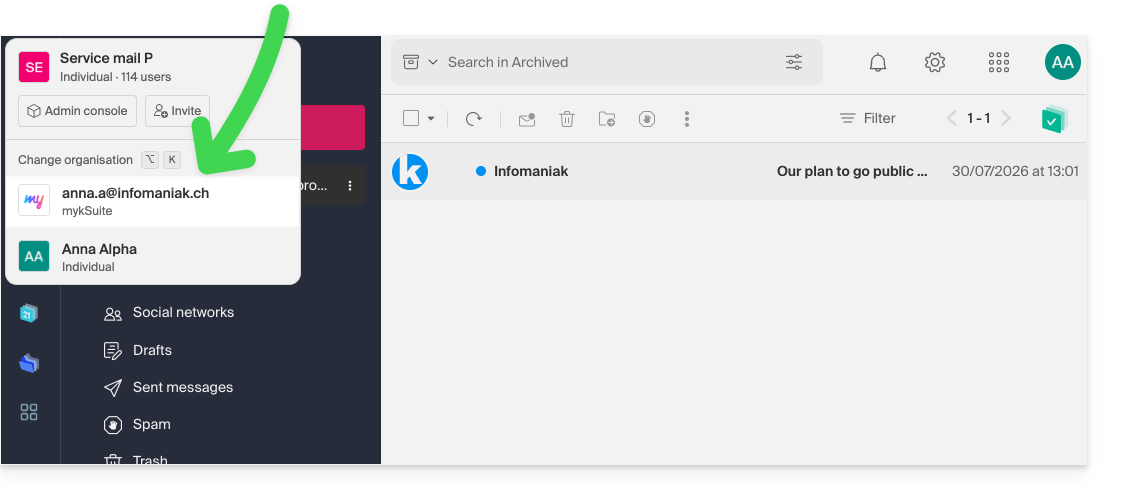
- No menu suspenso que se abre, clique no nome da Organização à qual deseja ter acesso:
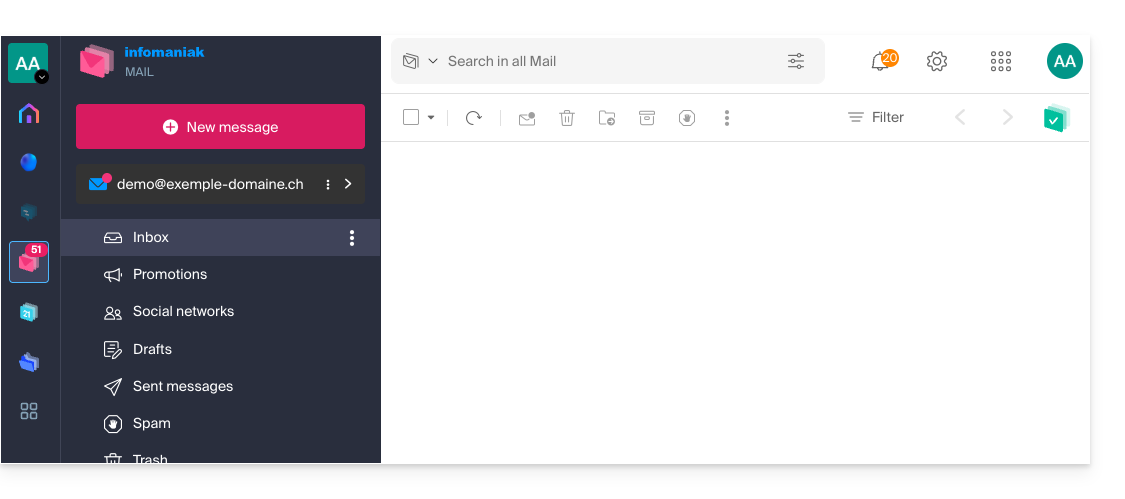
- A interface é atualizada imediatamente e carrega a lista de endereços de e-mail autorizados para esta Organização:
- Repita o procedimento a partir do ponto 2 para alternar para outra Organização a qualquer momento.
Link para esta FAQ: https://faq.infomaniak.com/108
Esta seção de perguntas frequentes foi útil?
Este guia explica como alterar o nome e o apelido que a Infomaniak exibe quando você está conectado à sua conta Infomaniak (= conta de usuário) dentro de uma Organização no Manager, bem como o avatar da sua conta.
Introdução
- Para modificar o identificador de login, consulte este outro guia.
- Para modificar o número de telefone, consulte este outro guia.
- Para gerir os detalhes da Organização à qual pertence, consulte este outro guia.
Modificar os dados de contacto da conta Infomaniak
Para editar seus dados pessoais:
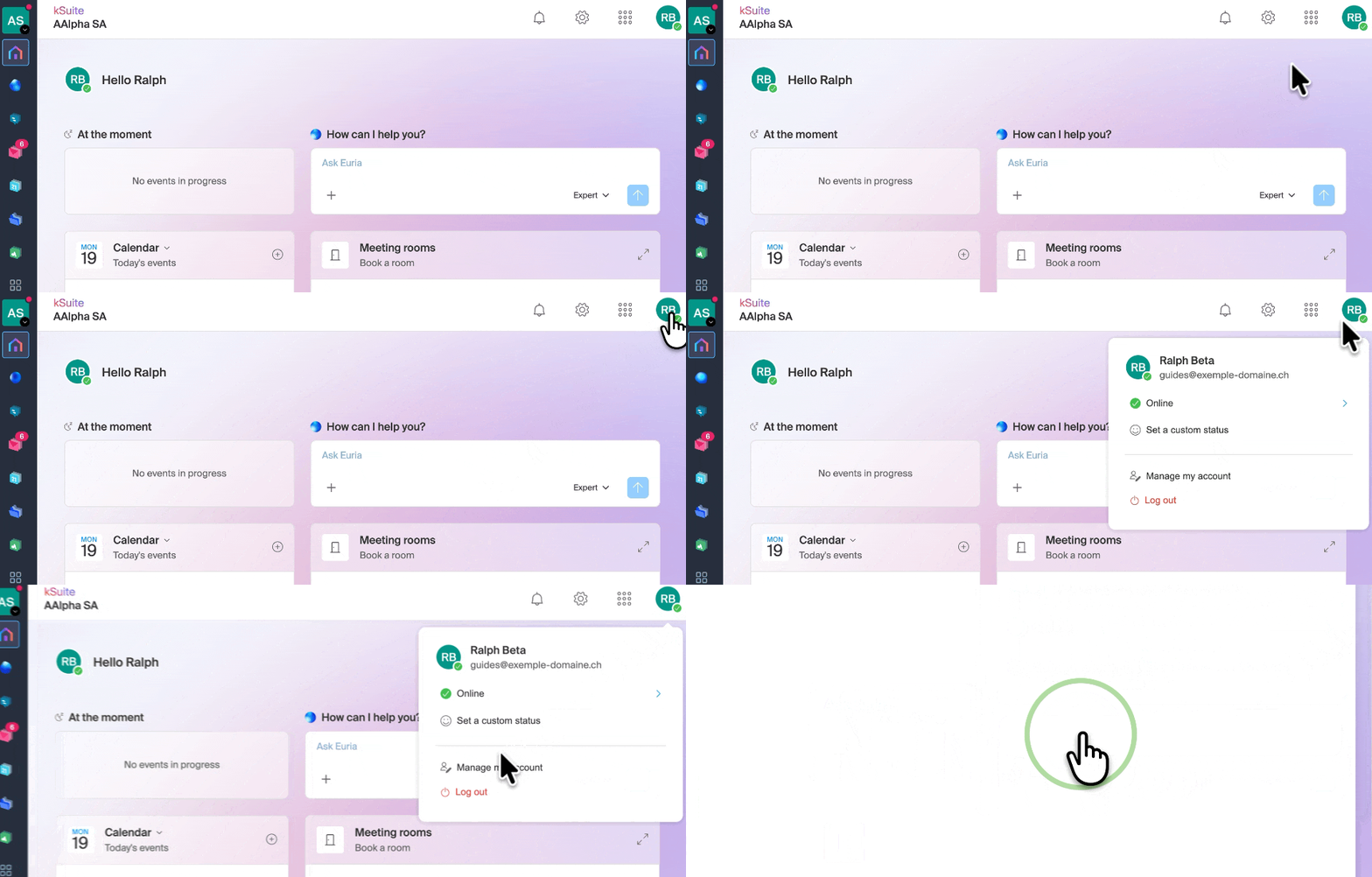
- Clique aqui ou, no canto superior direito, em suas iniciais/avatar, para “Gerenciar minha conta”:
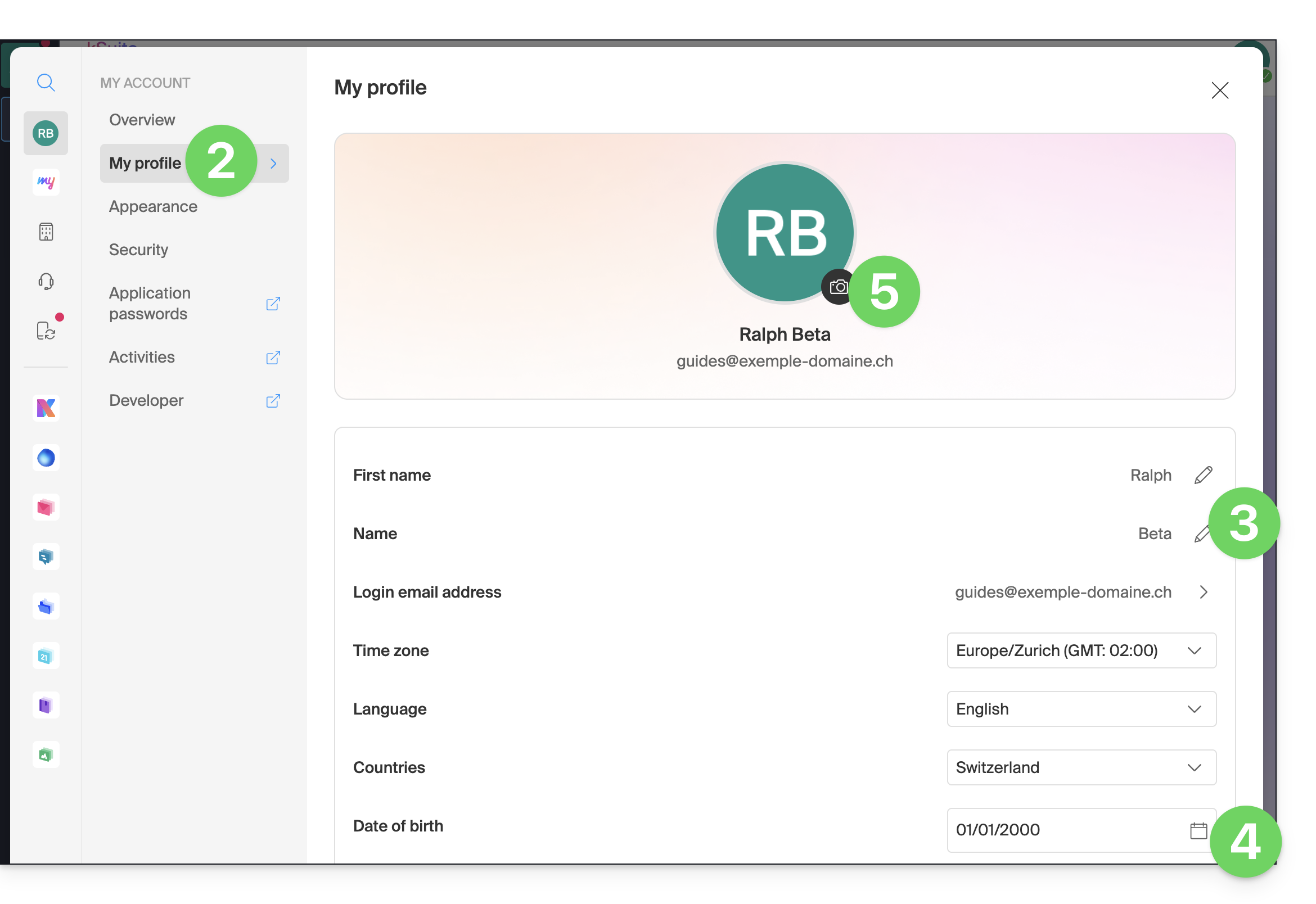
- Clique em Meu perfil no menu lateral esquerdo.
- Altere seu nome e sobrenome na parte direita.
- Você também pode especificar sua data de nascimento.
- Você pode adicionar uma foto de perfil à sua conta Infomaniak, que será exibida no lugar de suas iniciais; recomenda-se importar uma imagem com, no mínimo, 210 pixels de largura:
Link para esta FAQ: https://faq.infomaniak.com/220
Esta seção de perguntas frequentes foi útil?
Este guia permite que você descubra rapidamente as funções essenciais da Euria, a inteligência artificial à sua disposição dentro do kSuite, com um desempenho notável, especialmente com o aplicativo Web Mail da Infomaniak (serviço online ksuite.infomaniak.com/mail). O assistente também está disponível no aplicativo móvel Infomaniak Mail (aplicativo para smartphone ou tablet iOS / Android).
✘ INDISPONÍVEL com
kSuite Free
my kSuite (ik.me, etik.com, ikmail.com)
Aceder ao assistente
Pré-requisitos
- Leia e compreenda este outro guia sobre o modelo utilizado e as responsabilidades de cada um.
Para aceder ao assistente de redação:
- Clique aqui para acessar o aplicativo web Mail da Infomaniak (serviço online ksuite.infomaniak.com/mail).
- Faça login com as credenciais da sua conta Infomaniak (e não com a senha do seu endereço de e-mail).
- Se necessário, associe os endereços de e-mail que pretende gerir ao Mail Infomaniak.
O assistente de redação ajuda você a redigir um texto com o auxílio da inteligência artificial, sobre o tema de sua escolha, inclusive se ele precisar ser baseado em elementos presentes na conversa de e-mail em andamento; use-o, por exemplo, para redigir:
- uma nova mensagem que deve conter elementos específicos,
- uma resposta a uma mensagem recebida,
- uma reformulação de um trecho de texto,
- uma sintaxe gramatical correta,
- etc.
Você também pode resumir o conteúdo de qualquer e-mail.
Usar o Euria ao criar uma nova mensagem
Pode pedir ao Euria para redigir um texto com base nas suas ideias, que deverá fornecer:
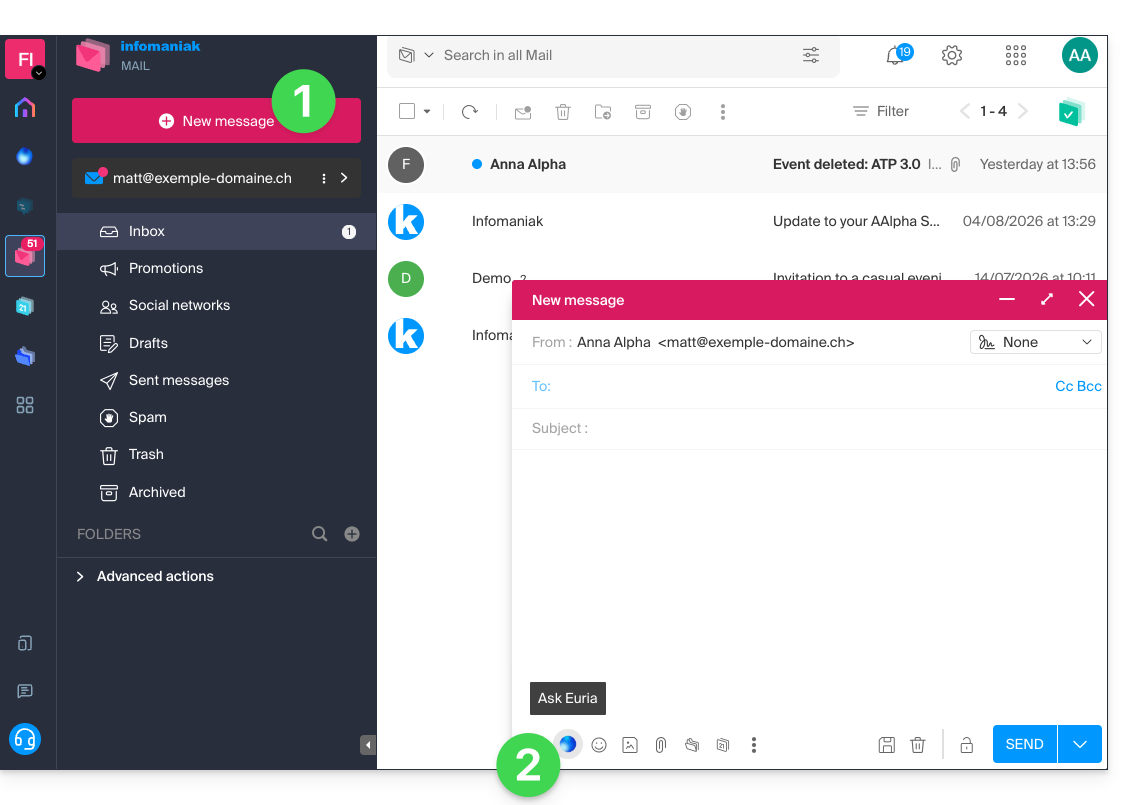
- Clique em Nova mensagem no canto superior esquerdo da interface do Mail.
- Clique no ícone Euria na barra de edição para abrir o assistente:
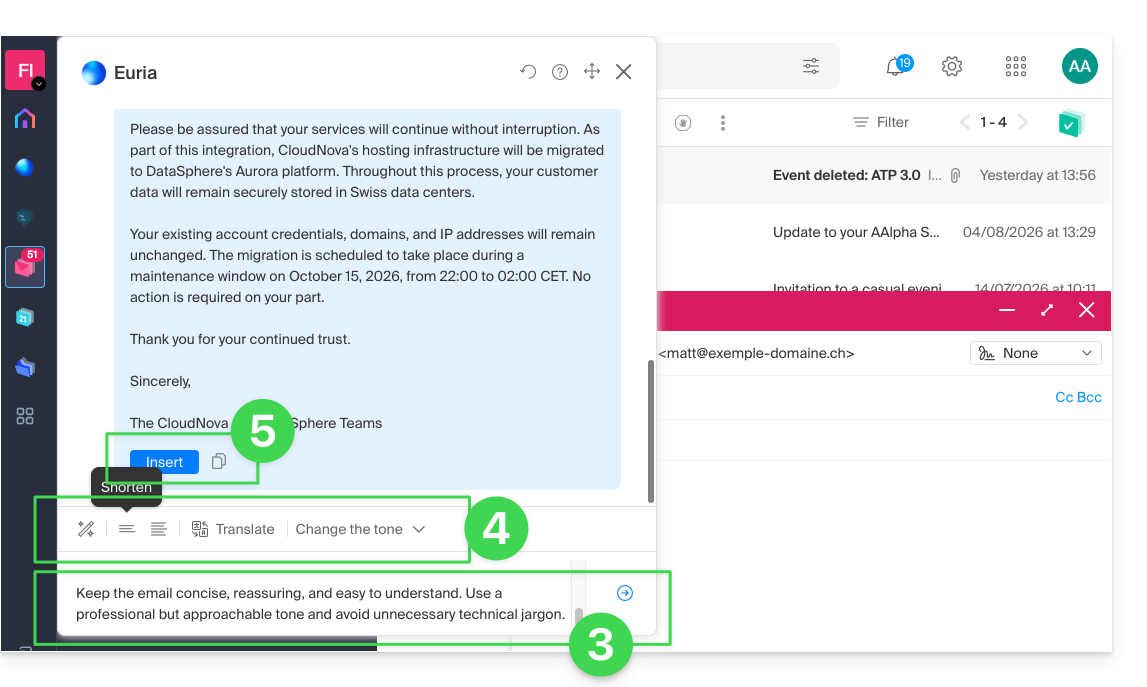
- Indique ao assistente o que deseja escrever, como se estivesse a conversar com uma pessoa.
- Depois de a IA apresentar uma proposta, ajuste o comprimento e altere o tom, se necessário, para obter uma resposta mais informal.
- Insira a sugestão na sua mensagem ou copie o texto para a área de transferência:
Utilizar o Euria ao redigir a mensagem
Você também pode usar o assistente de redação selecionando um trecho do texto que está escrevendo e, em seguida, escolhendo a opção desejada no menu de contexto que aparece: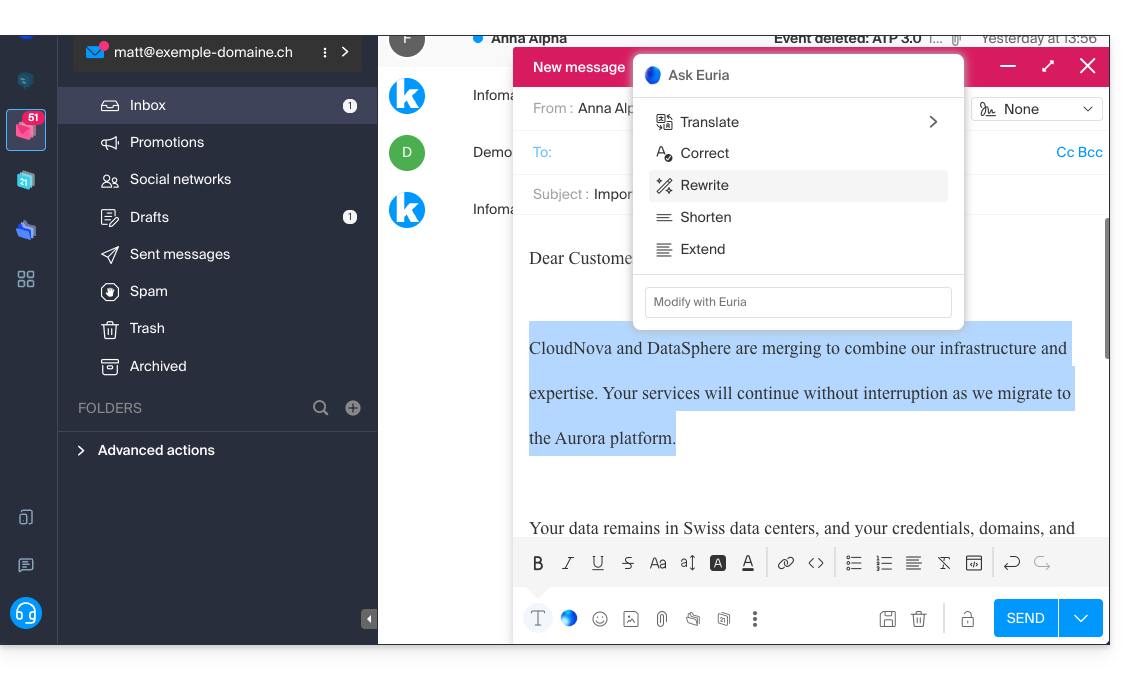
- Abrir o assistente para solicitar sugestões.
- Corrigir a gramática.
- Reformular a frase para obter uma nova versão.
- Encurtar o texto sugerido, removendo alguns elementos desnecessários.
- Redigir mais texto, complementar a conversa.
Sugerir uma resposta com o Euria ao ler um e-mail
Pode iniciar o Euria ao consultar uma mensagem recebida à qual pretende responder rapidamente:
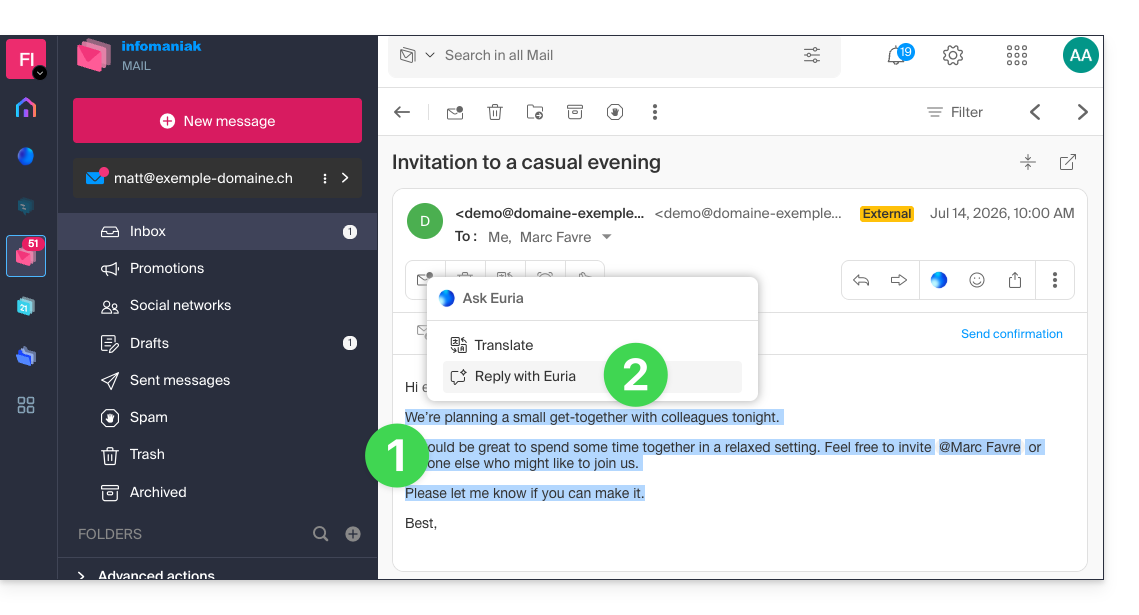
- Selecione com o mouse o trecho no qual basear a resposta.
- Escolha responder com o Euria no menu de contexto que aparece:
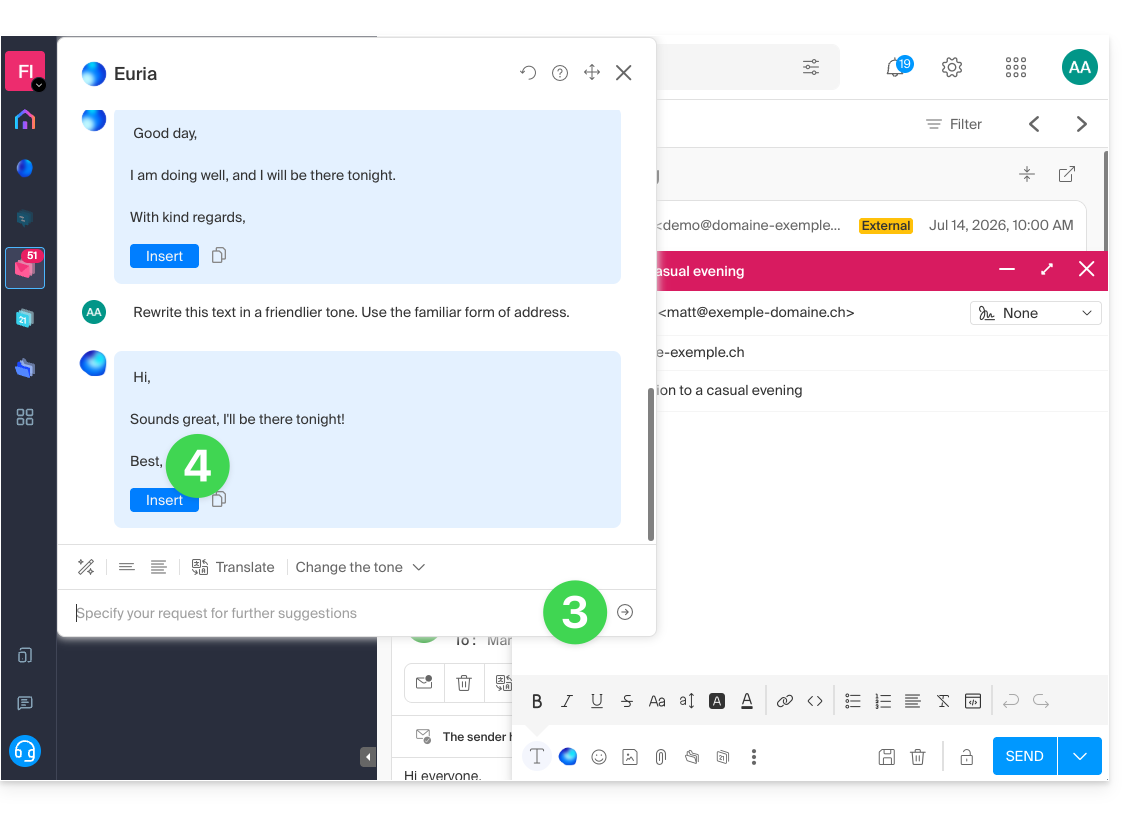
- Indique ao assistente o que deseja que seja respondido, como se estivesse a conversar com uma pessoa.
- Insira a sugestão que será exibida na mensagem de resposta gerada automaticamente:
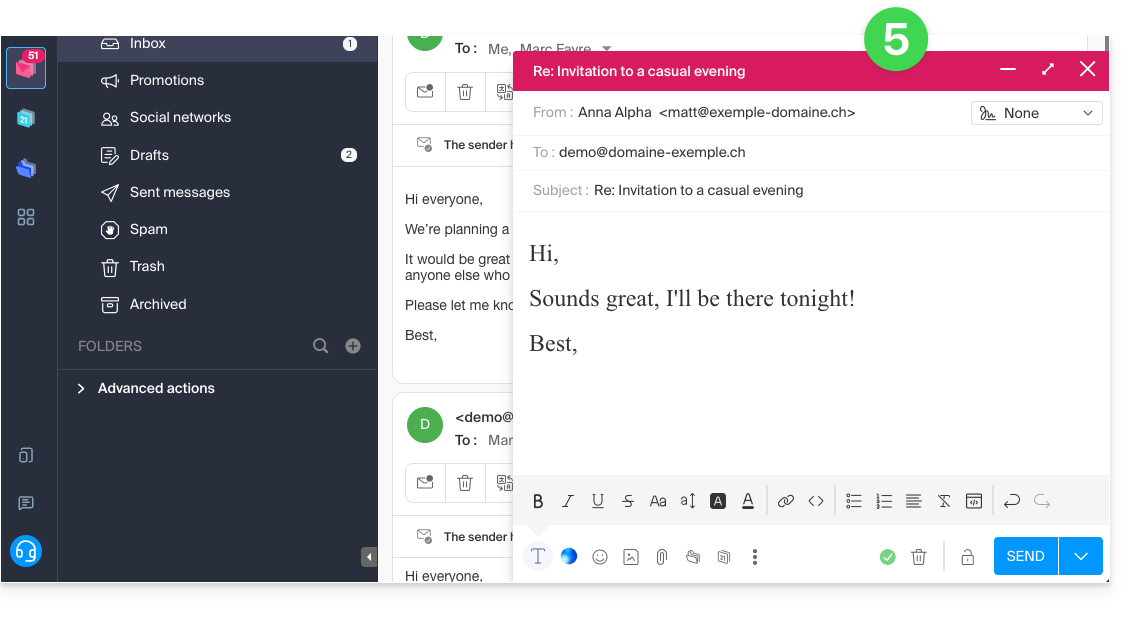
- Resta apenas reler e enviar:
Sugira o assunto do e-mail com o Euria
Ao começar a redigir uma nova mensagem, o assistente pode inserir um título adequado à sua mensagem no campo Assunto:
- Insira o texto.
- Clique no ícone Euria à direita do campo Assunto:
- Insira a sugestão se ela for adequada:
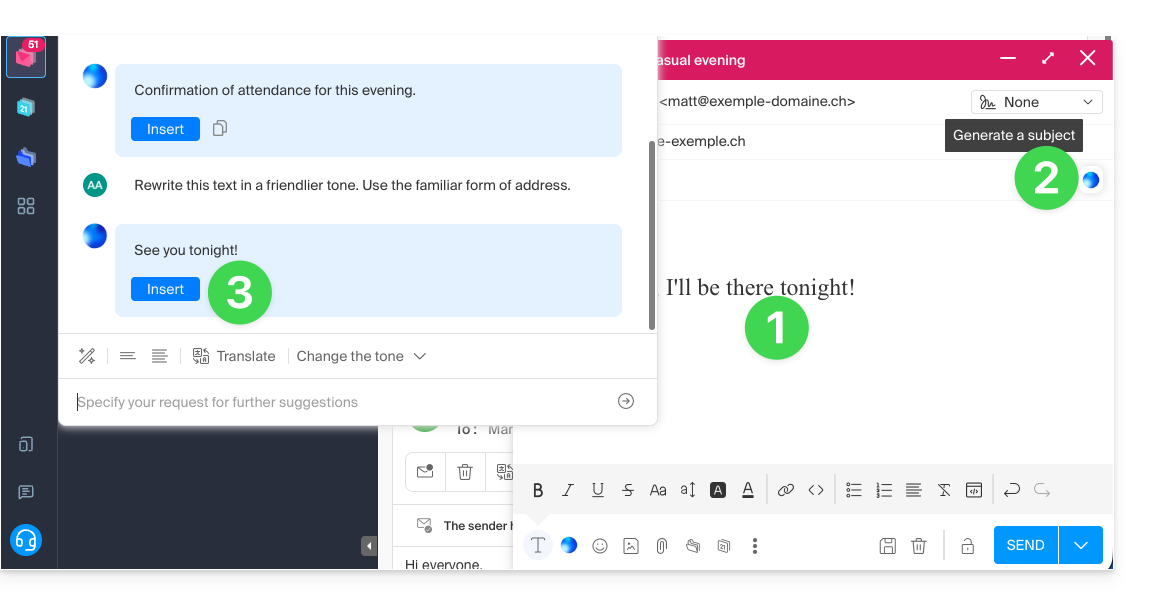
- Se já houver um assunto inserido no campo (por exemplo, porque você inseriu uma nova mensagem + assunto gerado pelo assistente e, em seguida, solicitou uma nova mensagem ao assistente), o assistente oferecerá substituí-lo por um assunto mais adequado.
Desativar o assistente
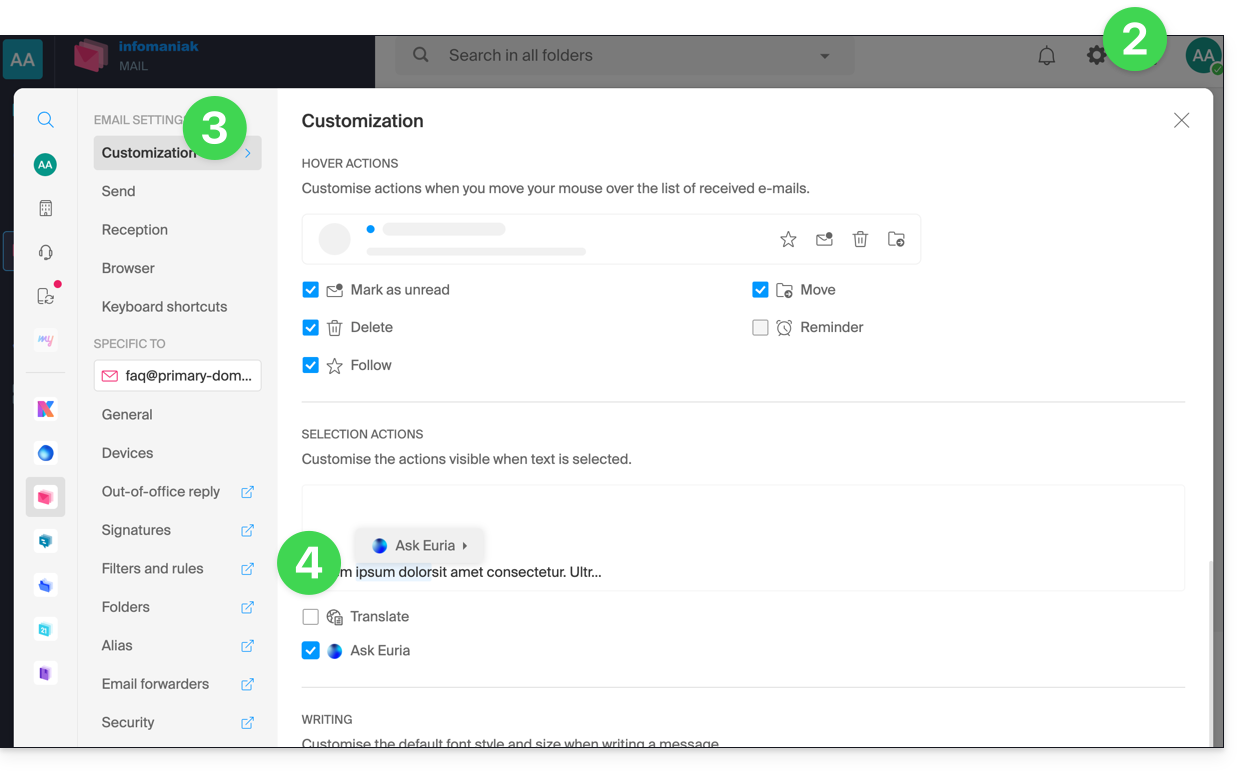
Pode configurar os elementos (traduções / Euria) que são exibidos quando clica na sua mensagem:
- Clique aqui para acessar o aplicativo web Mail da Infomaniak (serviço online ksuite.infomaniak.com/mail).
- Clique em Configurações no canto superior direito.
- Clique em Personalizar no menu lateral esquerdo.
- Marque ou desmarque as ações que deseja que sejam executadas ao clicar:
Link para esta FAQ: https://faq.infomaniak.com/269
Esta seção de perguntas frequentes foi útil?
Este guia permite que você descubra rapidamente as funções essenciais do Euria, a inteligência artificial à sua disposição dentro do kSuite, que oferece um excelente desempenho, especialmente para resumir e-mails no aplicativo web Mail da Infomaniak (serviço online ksuite.infomaniak.com/mail).
✘ INDISPONÍVEL com
kSuite Free
my kSuite (ik.me, etik.com, ikmail.com)
Resumir um e-mail
Pré-requisitos
- Leia e compreenda este outro guia sobre o modelo utilizado e as responsabilidades de cada um.
Para aceder à funcionalidade de resumo:
- Clique aqui para acessar os e-mails em seu kSuite Infomaniak (❓: ajuda).
- Faça login com as credenciais da sua conta Infomaniak (e não com a senha do seu endereço de e-mail).
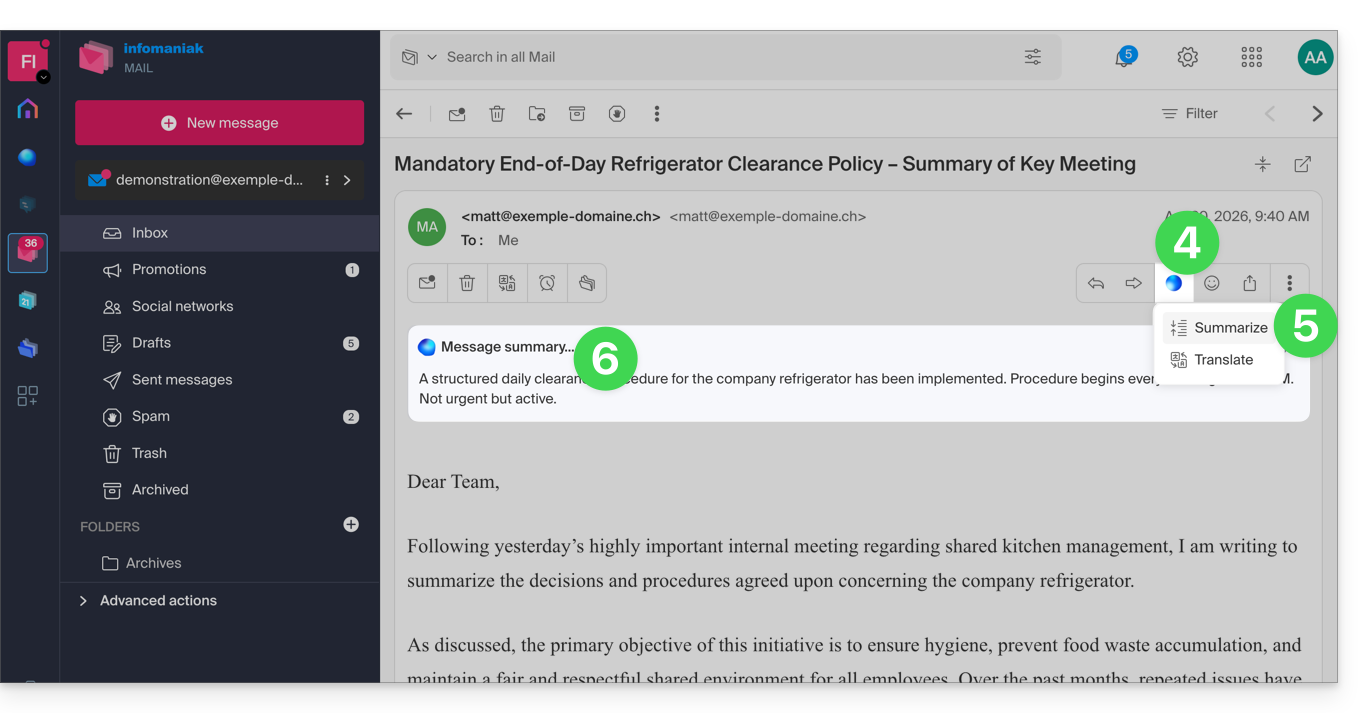
- Abra a mensagem que deseja resumir (ela pode estar em qualquer pasta).
- Clique no botão Euria localizado na barra de ferramentas superior.
- Clique em Resumir.
- O resumo da mensagem é exibido em um bloco acima da mensagem original (visível apenas para você):
Link para esta FAQ: https://faq.infomaniak.com/308
Esta seção de perguntas frequentes foi útil?
Este guia explica como exibir um calendário com as datas dos feriados do cantão ou país de sua escolha no aplicativo web Calendar da Infomaniak (serviço online ksuite.infomaniak.com/calendar).
Introdução
- Estes calendários sugeridos podem ser sincronizados com os seus dispositivos móveis e de ambiente de trabalho.
- O calendário de aniversários (calendário que exibe as datas de aniversário dos seus contactos quando a data é indicada no respetivo registo da agenda) só é visível através da aplicação web Calendar Infomaniak (serviço online ksuite.infomaniak.com/calendar) e não pode ser sincronizado com ferramentas CalDAV.
Exibir calendários oficiais adicionais
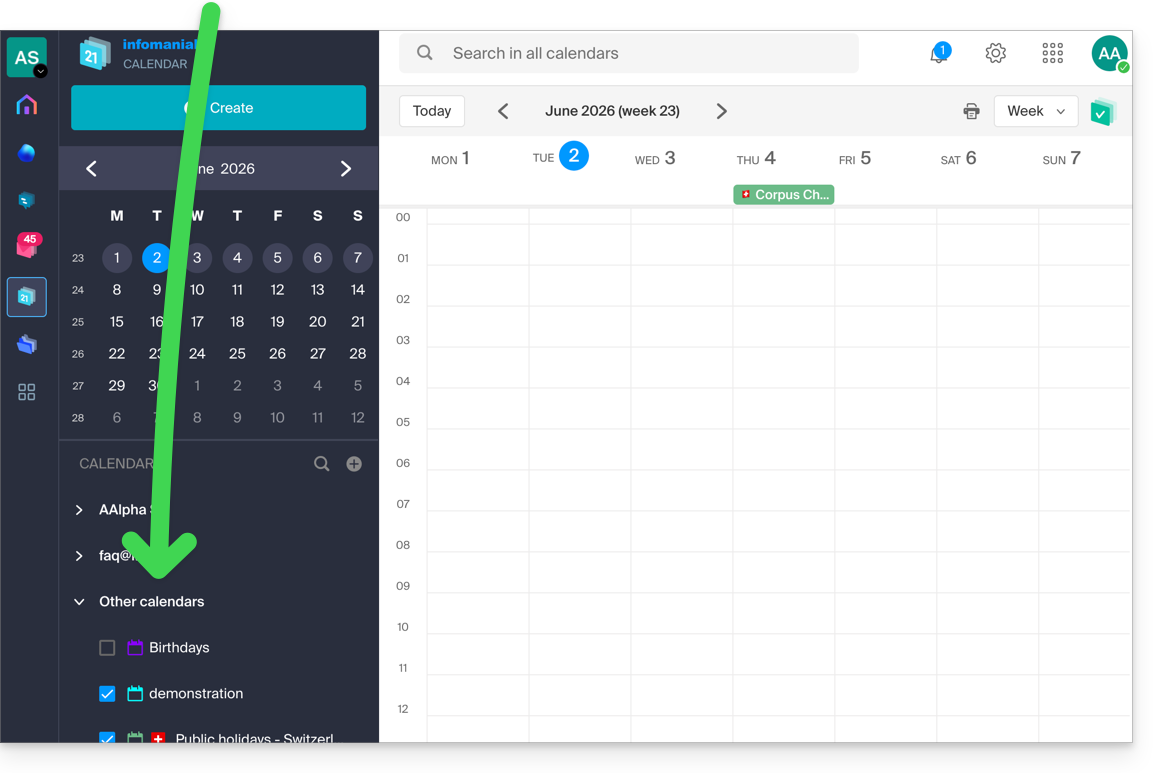
Para adicionar o calendário de feriados ou de férias escolares:
- Clique aqui para acessar o aplicativo web Calendar da Infomaniak (serviço online ksuite.infomaniak.com/calendar).
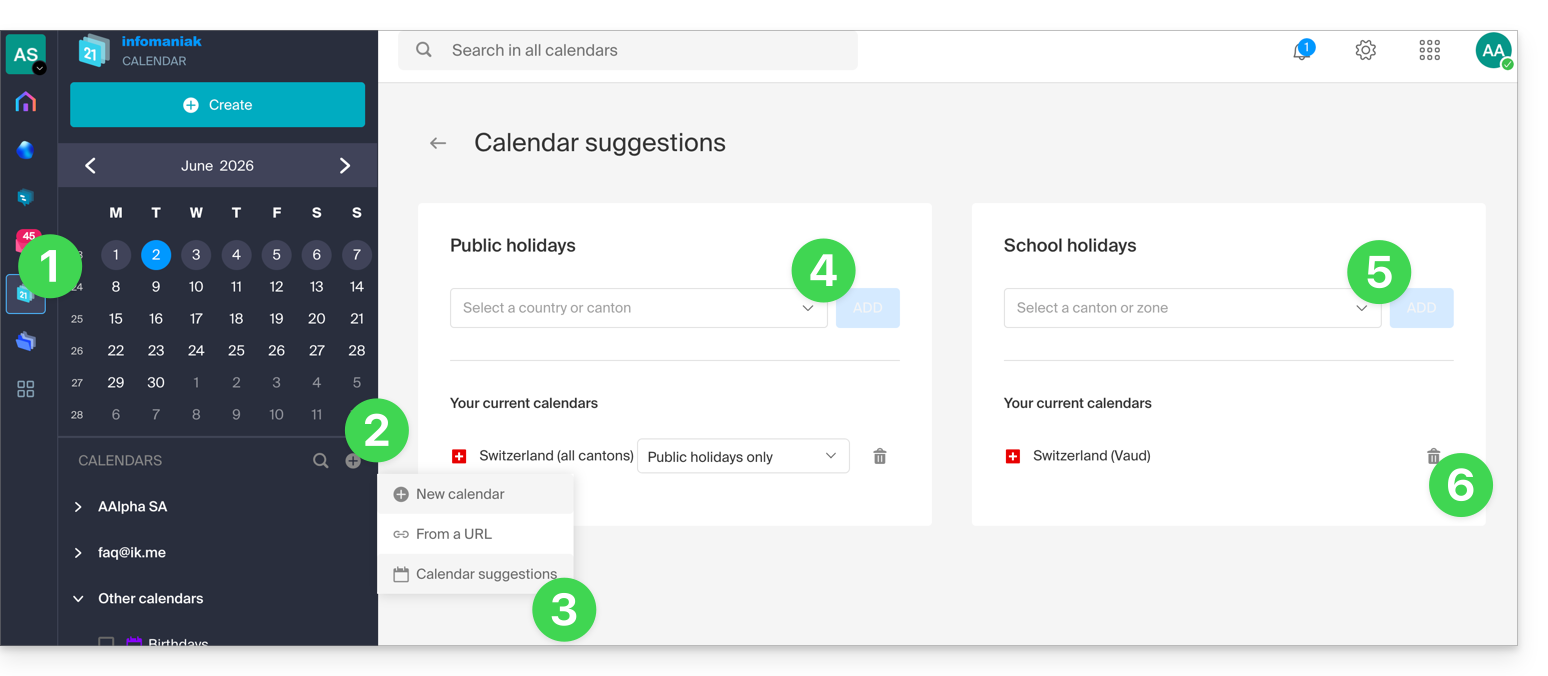
- Clique no botão no menu lateral esquerdo.
- Clique em Sugestões de calendários.
- Escolha um dos calendários de feriados nacionais (por cantão ou país).
- Você também pode adicionar o calendário oficial das férias escolares nacionais (França, Suíça, etc.).
- Depois de adicionado, é aqui também que você pode removê-lo:
Link para esta FAQ: https://faq.infomaniak.com/566
Esta seção de perguntas frequentes foi útil?
Este guia explica como conectar o aplicativo móvel Microsoft Outlook (aplicativo para smartphone ou tablet iOS / Android) a um endereço de e-mail hospedado na Infomaniak.
Introdução
- Em vez da configuração manual abaixo, recomenda-se usar o aplicativo Infomaniak Mail (iOS / Android) para usufruir dos benefícios de segurança da Infomaniak.
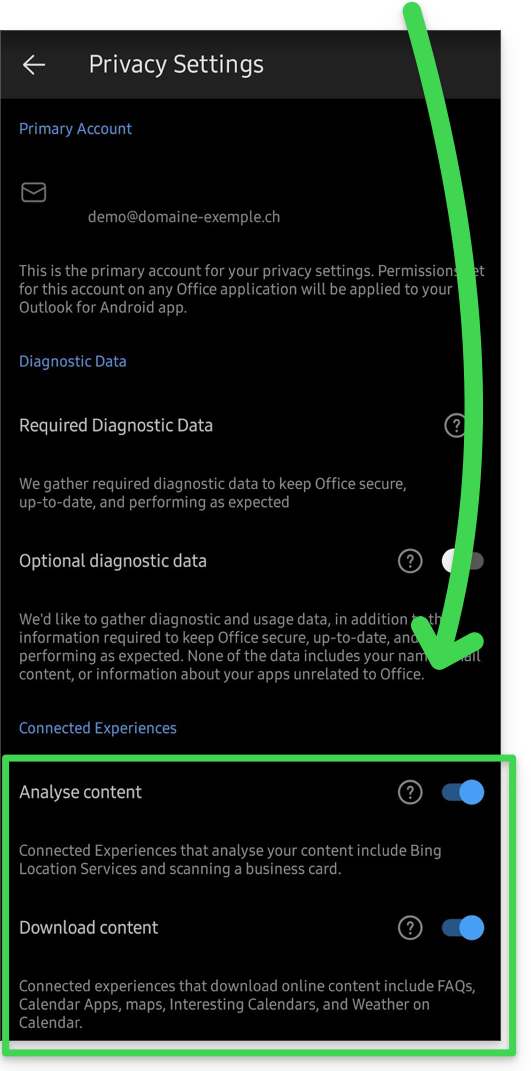
- O aplicativo da Microsoft está configurado por padrão para analisar seus dados:
Adicionar o endereço de e-mail à aplicação
Pré-requisitos
- Criar o endereço de e-mail (❓: ajuda my kSuite | Serviço de E-mail/kSuite).
- Criar uma senha para o dispositivo (❓: ajuda my kSuite | Serviço de E-mail/kSuite).
- Verifique se a configuração do domínio está correta (❓: ajuda).
Para configurar o aplicativo de e-mail:
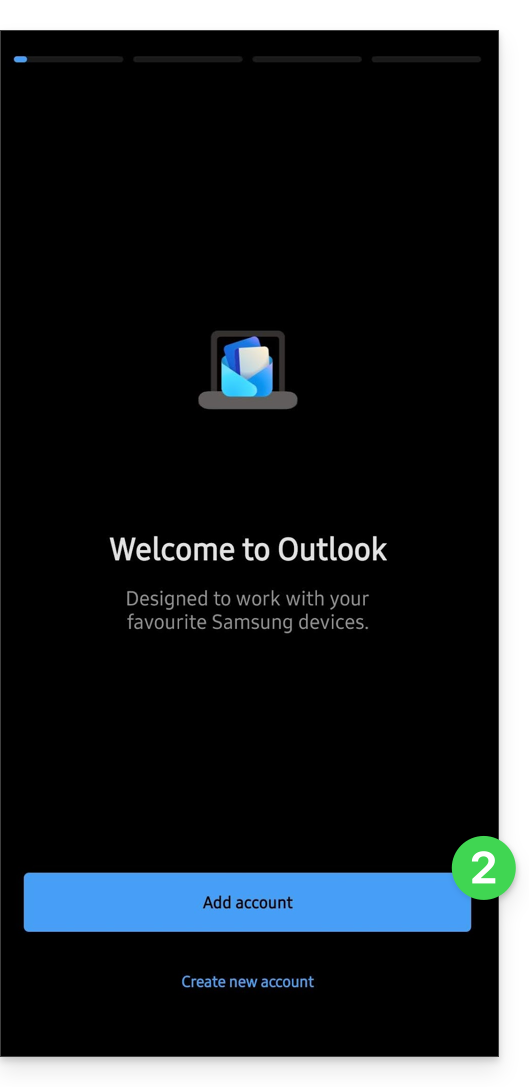
- Abra a aplicação.
- Clique em Adicionar conta:
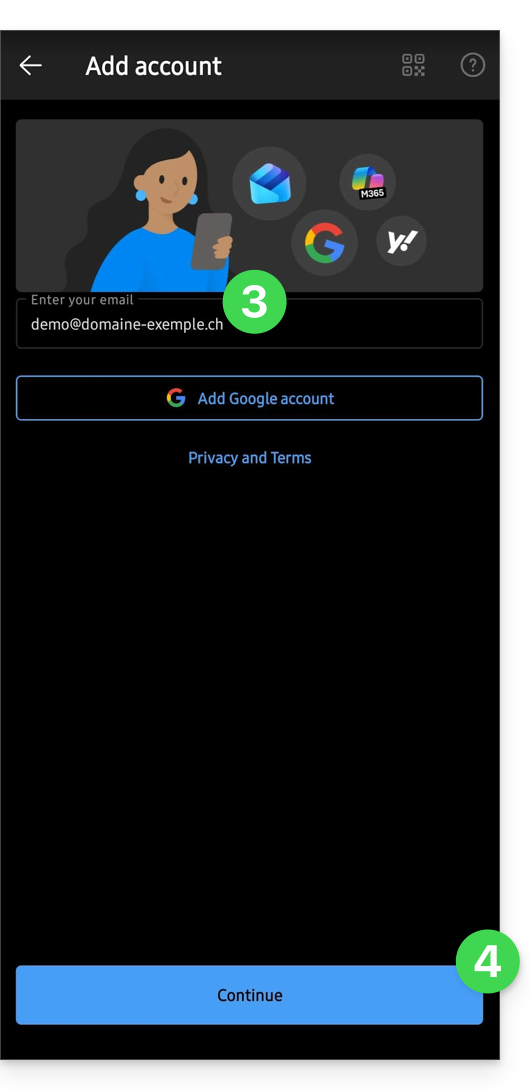
- Insira o endereço de e-mail que deseja associar.
- Clique em Continuar:
- Clique em IMAP :
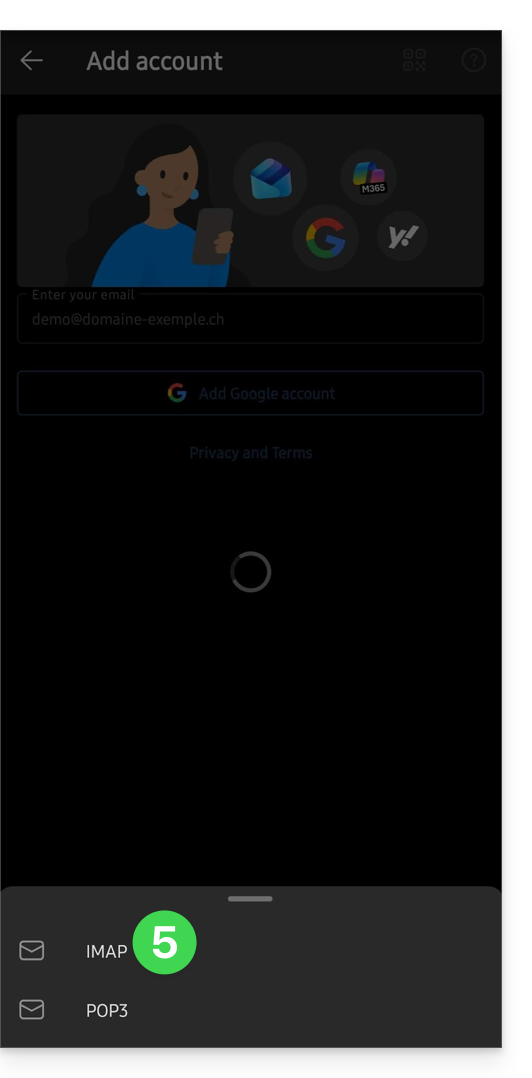
- Ative o botão de alternância para ativar as configurações avançadas.
- Preencha as informações em falta (❓: ajuda).
- Clique no ícone ✓ no canto superior direito.
- Se necessário, escolha adicionar uma conta adicional ou clique em Mais tarde.
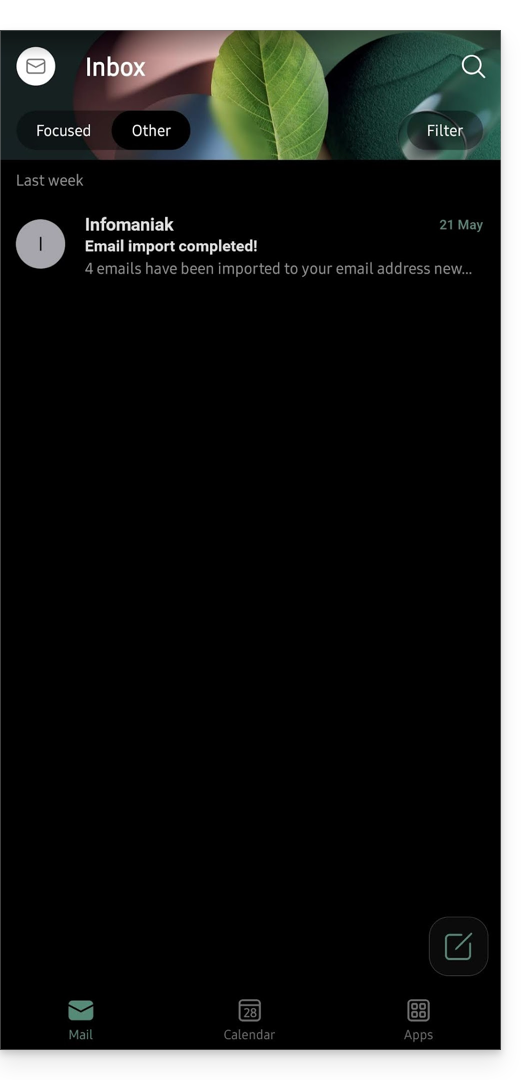
- Pronto, o seu endereço de e-mail está agora configurado na aplicação:
Parâmetros recomendados
- Servidor IMAP de entrada =
mail.infomaniak.com - Porta IMAP =
993(com SSL) - Servidor SMTP de saída =
mail.infomaniak.com - Porta SMTP e protocolo de criptografia e comando/método para ativar este protocolo:
587+ STARTTLS - Nome de utilizador/username = o endereço de e-mail completo e integral (❓: ajuda).
- Senha/password = a senha gerada para o endereço de e-mail que você deseja consultar (❓: ajuda my kSuite | Serviço de e-mail/kSuite).
- Autenticação obrigatória para o envio de e-mails:
- Ative-a nas configurações SMTP do seu aplicativo.
- Marque "usar as mesmas configurações do servidor de entrada" ou, dependendo do software/cliente de e-mail, insira um nome de usuário (= endereço de e-mail completo) e a senha gerada.
Consulte este outro guia se precisar de informações sobre outras portas e protocolos de e-mail compatíveis (SSL/TLS, por exemplo).
Em caso de problemas
Verifique se o serviço de e-mail está configurado de forma otimizada (❓: ajuda).
Não é necessário entrar em contato com o suporte da Infomaniak se o seu endereço de e-mail funcionar corretamente fora do aplicativo. O erro mais comum está relacionado ao uso de uma senha incorreta. Os guias de solução de problemas ajudarão você a resolver qualquer problema:
- Consulte as soluções apresentadas neste outro guia sobre o serviço de e-mail em geral.
- Este outro guia aborda especificamente o Outlook.
… e se o seu Outlook deixou de funcionar após uma alteração da palavra-passe do e-mail, consulte este outro guia.
Link para esta FAQ: https://faq.infomaniak.com/575
Esta seção de perguntas frequentes foi útil?
Este guia detalha como desativar o protocolo SMTP, impedindo que um determinado utilizador envie e-mails a partir de um determinado endereço de e-mail.
Introdução
- Remover o direito de envio de um utilizador impedirá que ele envie uma mensagem (nova, resposta, reação, etc.) a partir da aplicação web Mail Infomaniak (serviço online ksuite.infomaniak.com/mail) e da aplicação móvel.
- Se o utilizador em questão também estiver especificado em dispositivos conectados, o envio também será impossível a partir de um software/cliente de e-mail como Outlook, Apple Mail, Thunderbird, etc.
- Existe uma permissão específica relativa às mensagens de ausência, caso deseje também impedir que este tipo de mensagem seja enviado.
Impedir que um utilizador envie mensagens a partir de um determinado endereço de e-mail
Novo utilizador
Deseja permitir que um novo colaborador consulte um endereço de e-mail (possibilitando a leitura de e-mails recebidos), mas sem lhe permitir enviar novas mensagens?
- Clique aqui para acessar o gerenciamento do Serviço de E-mail no seu Painel de Controle Infomaniak (❓: ajuda).
- Clique no nome do Serviço de E-mail desejado:
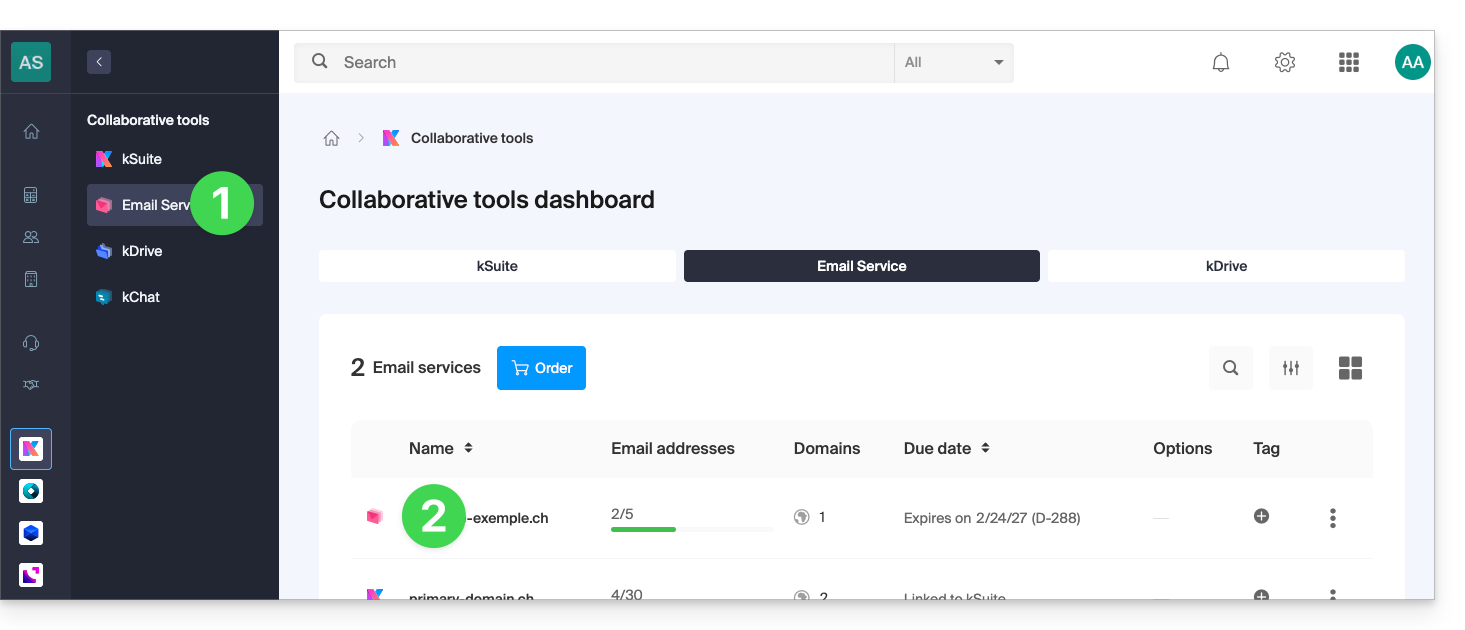
- Clique em o endereço de e-mail correspondente na tabela que aparece:
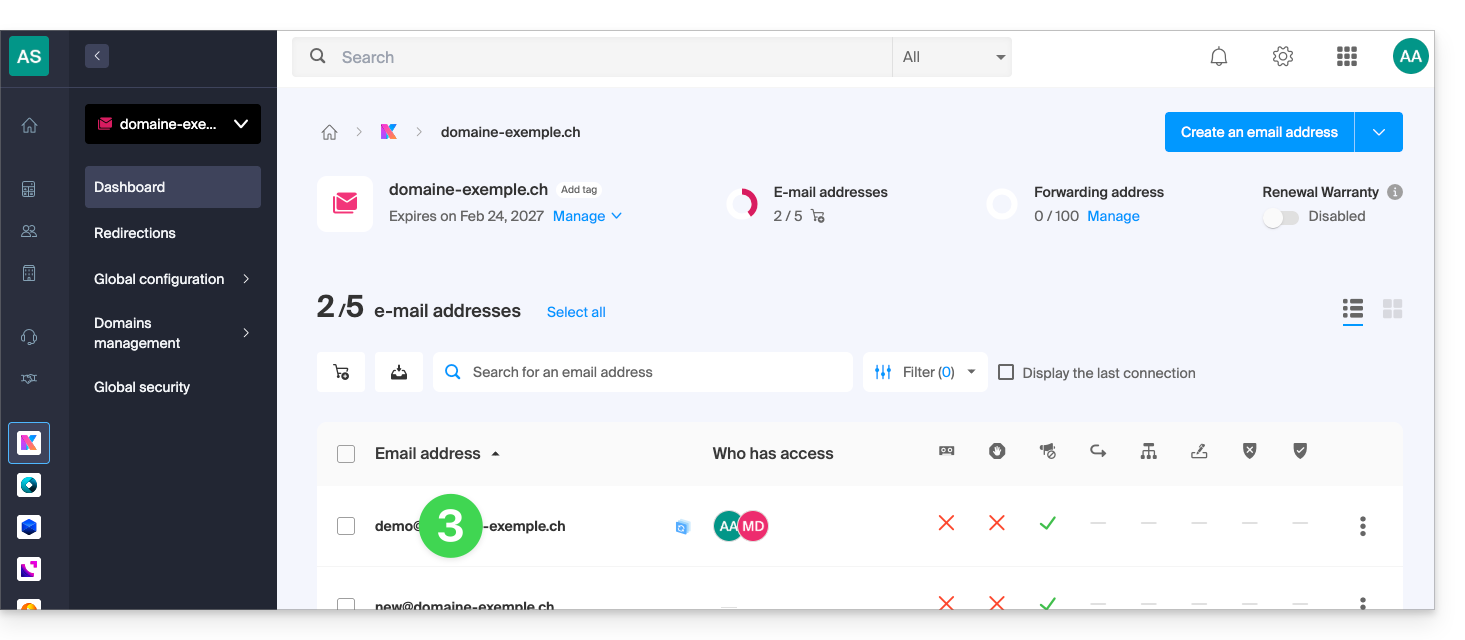
- Clique em Adicionar para adicionar um novo utilizador:
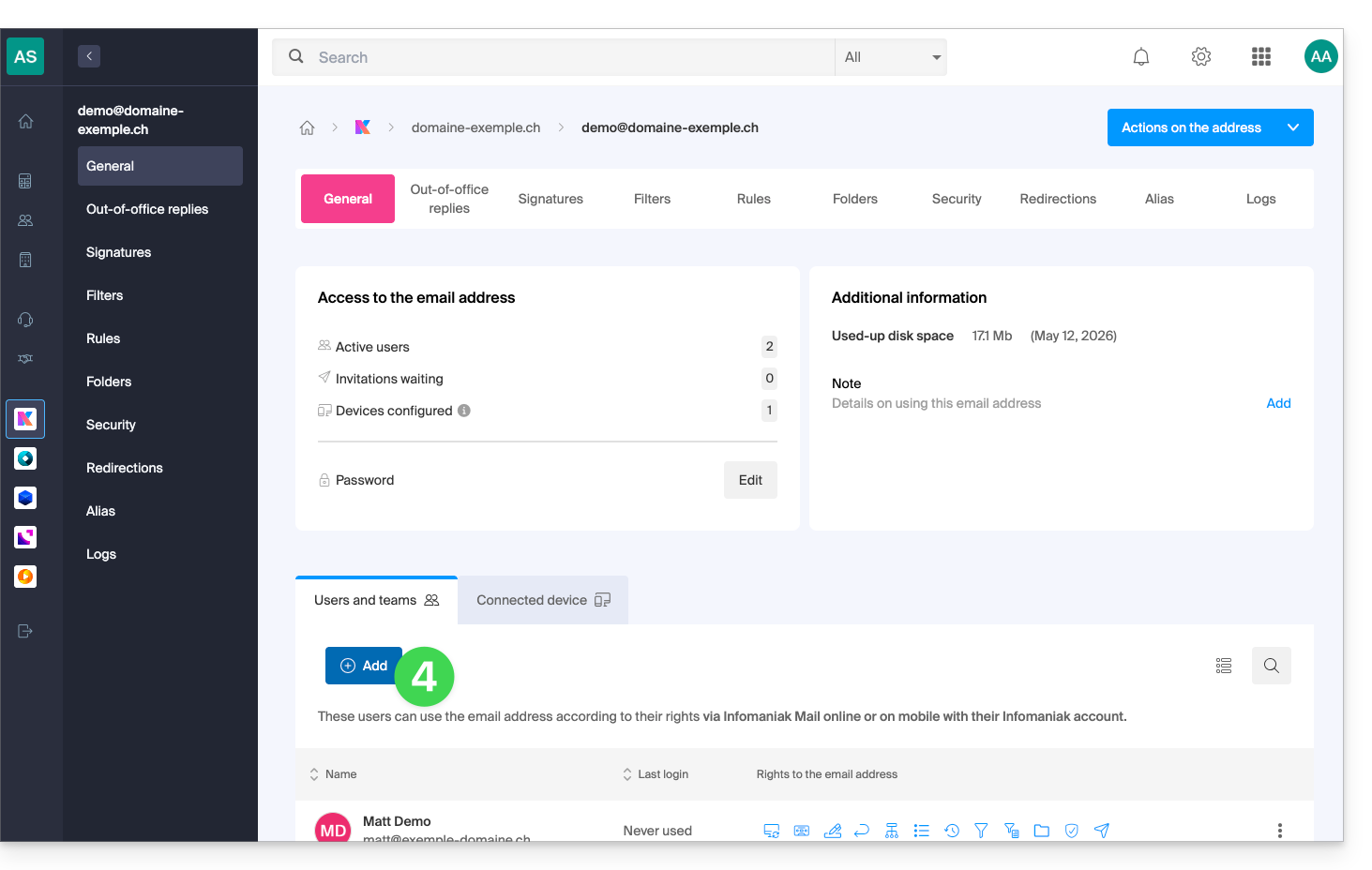
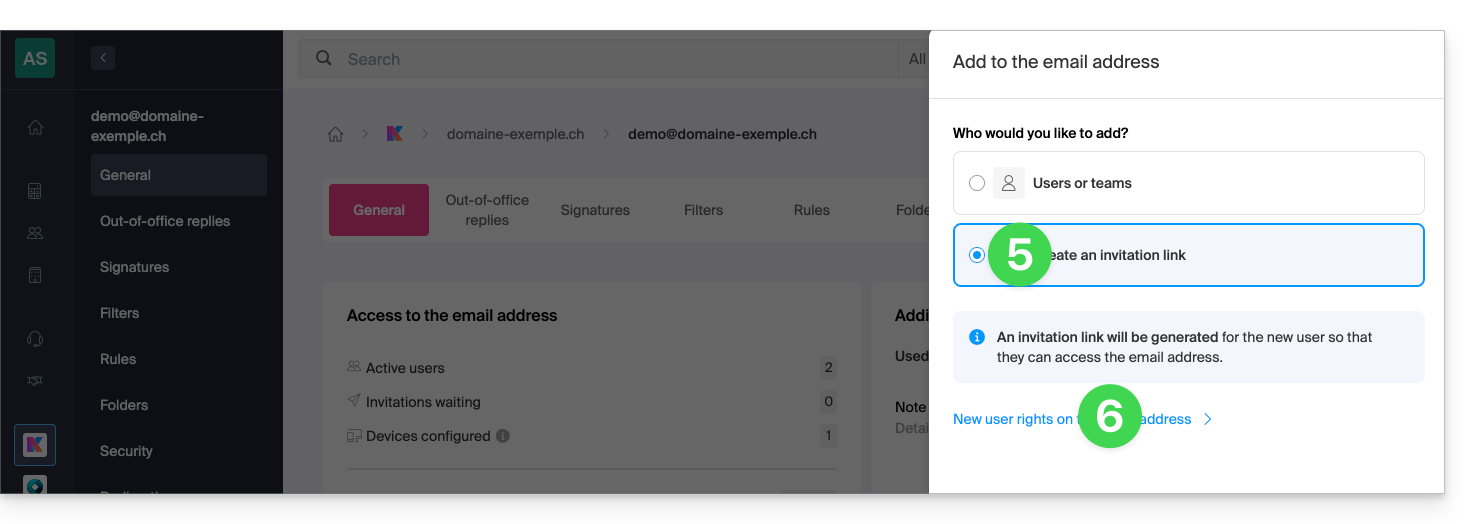
- Neste exemplo, o colaborador é externo, portanto, clique em Criar um link de convite.
- Clique para gerenciar as permissões deste usuário no endereço de e-mail em questão:
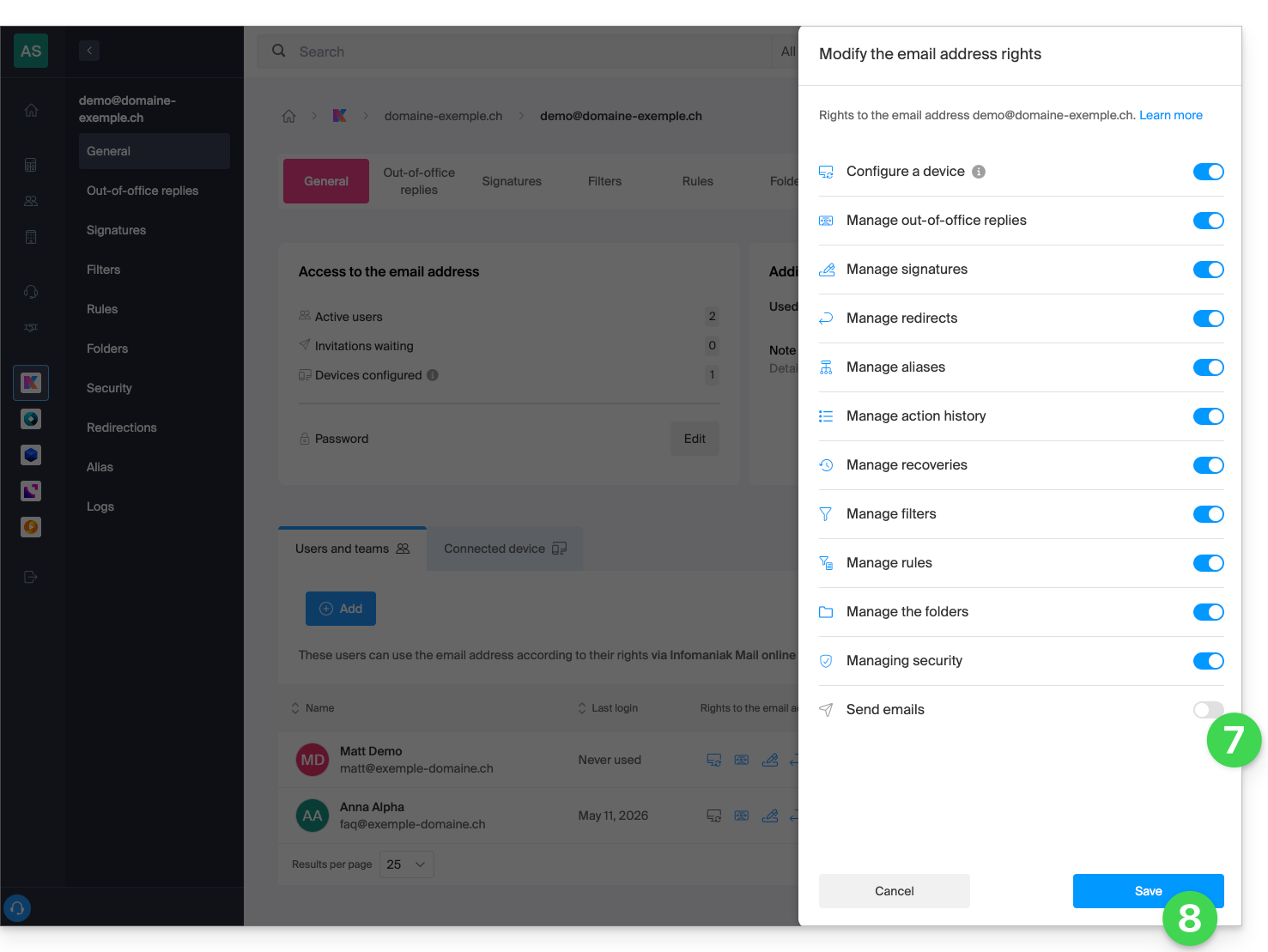
- Clique em Enviar e-mails para revogar o direito de envio.
- Salve a alteração:
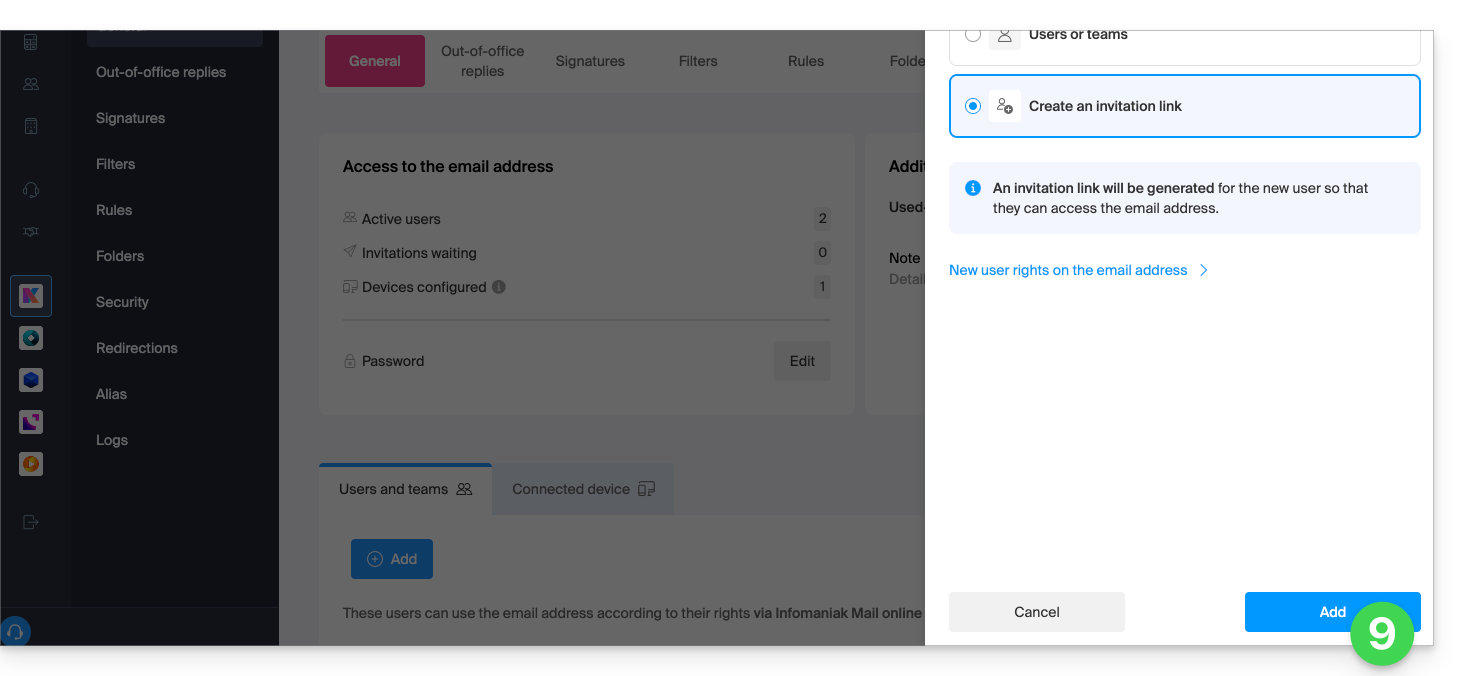
- Clique em Adicionar para finalizar o convite:
- Insira um endereço de e-mail para o qual enviar o convite.
- Clique em Enviar:
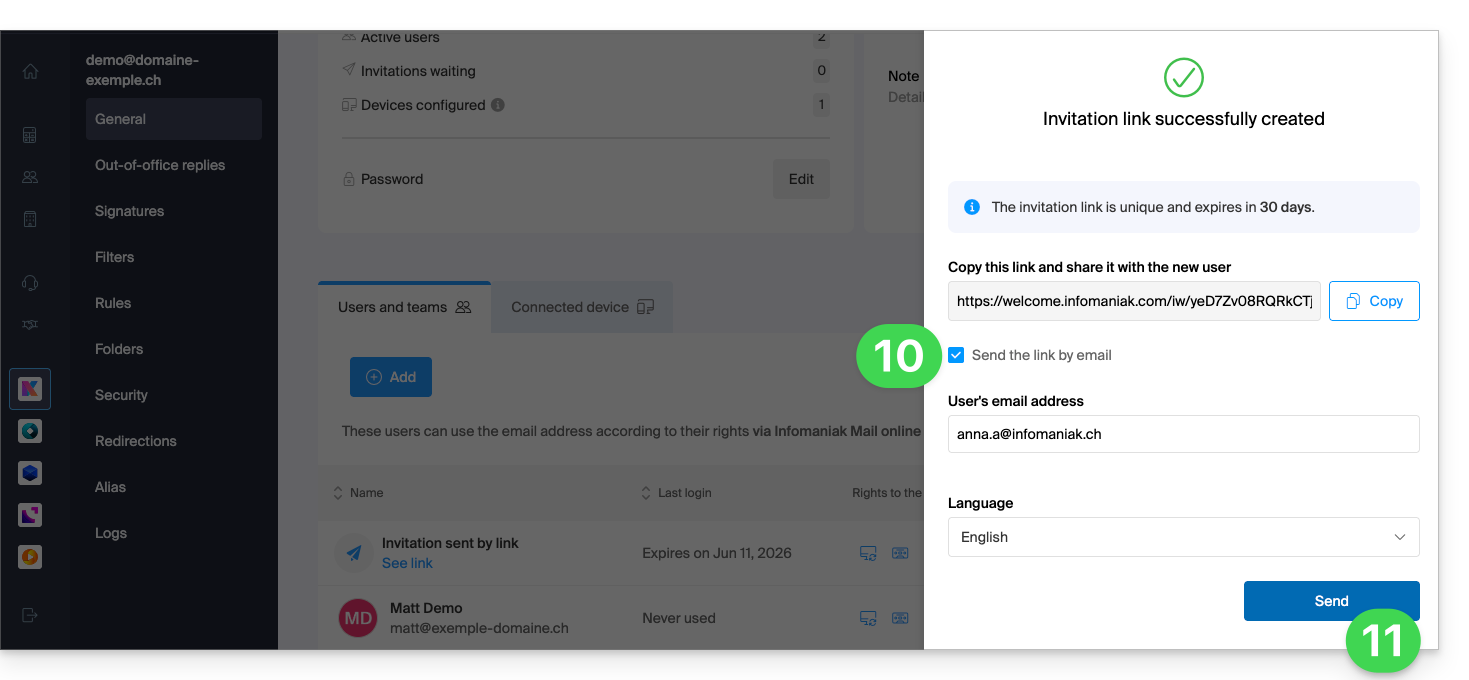
O utilizador convidado aceita o convite: ele terá acesso ao endereço de e-mail e às suas mensagens, mas o botão para compor uma nova mensagem permanecerá desativado, sem que ele possa redigir um rascunho (ou mesmo responder, reagir, etc., pois esses botões também estarão desativados):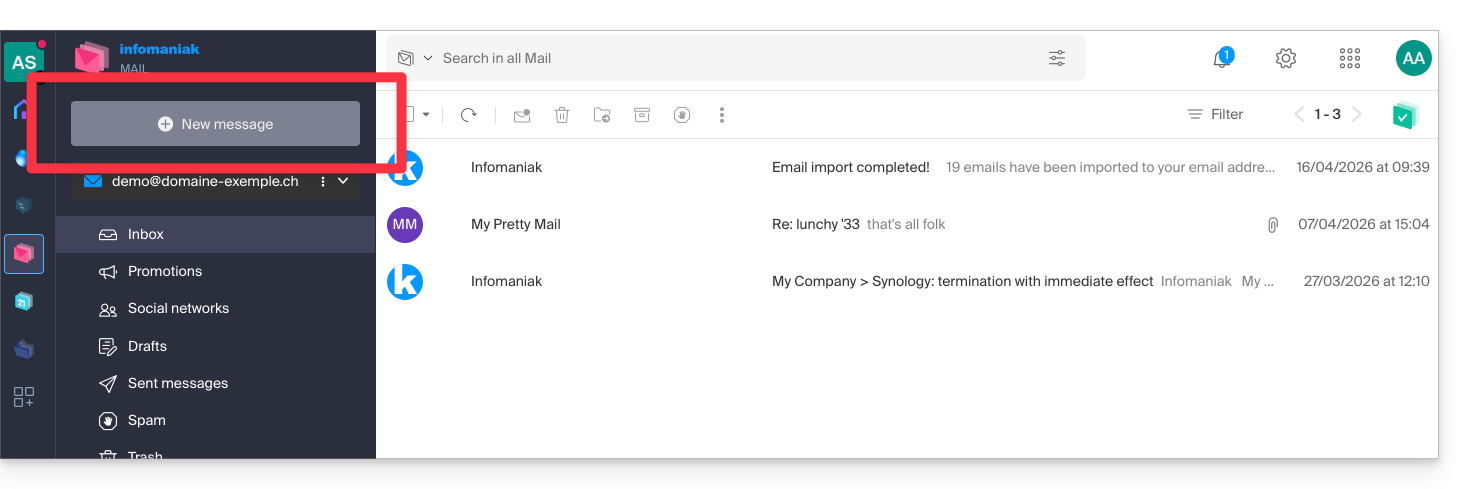
Impedir o envio para um utilizador existente
Deseja permitir que colaboradores continuem a consultar um endereço de e-mail (podendo ler os e-mails recebidos), mas sem lhes permitir enviar novas mensagens?
- Clique aqui para acessar o gerenciamento do Serviço de E-mail no seu Painel de Controle Infomaniak (❓: ajuda).
- Clique no nome do Serviço de E-mail desejado:
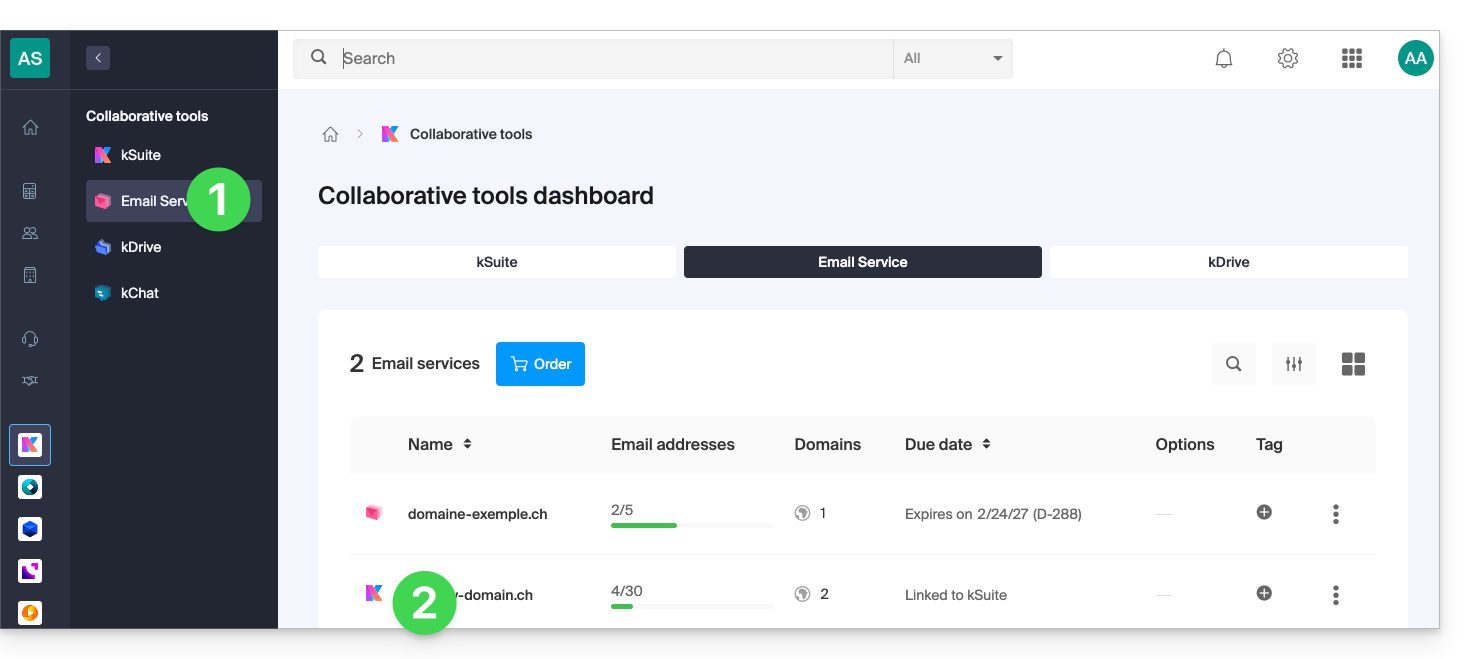
- Clique em o endereço de e-mail em questão na tabela que aparece:
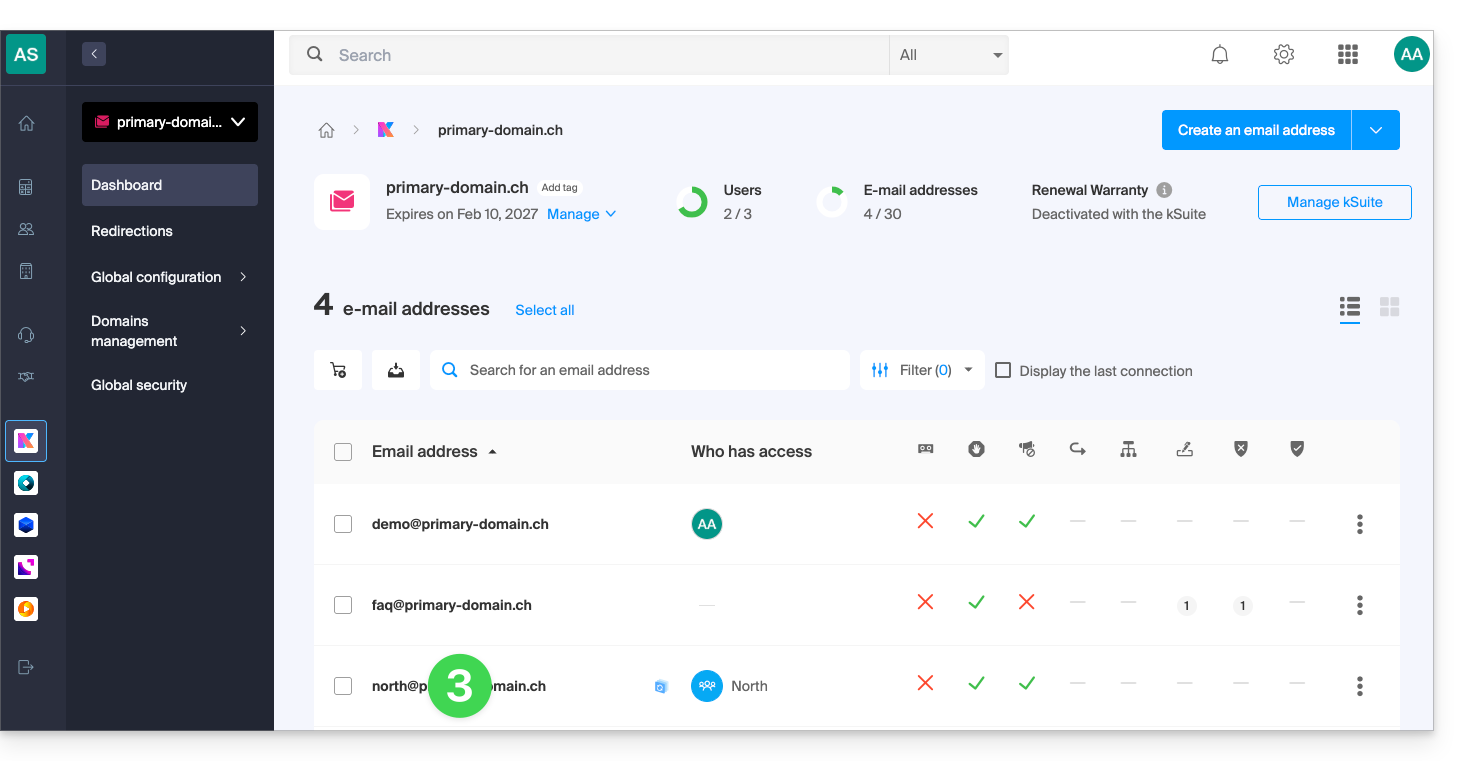
- Clique em Envio de e-mails para remover o direito de envio:
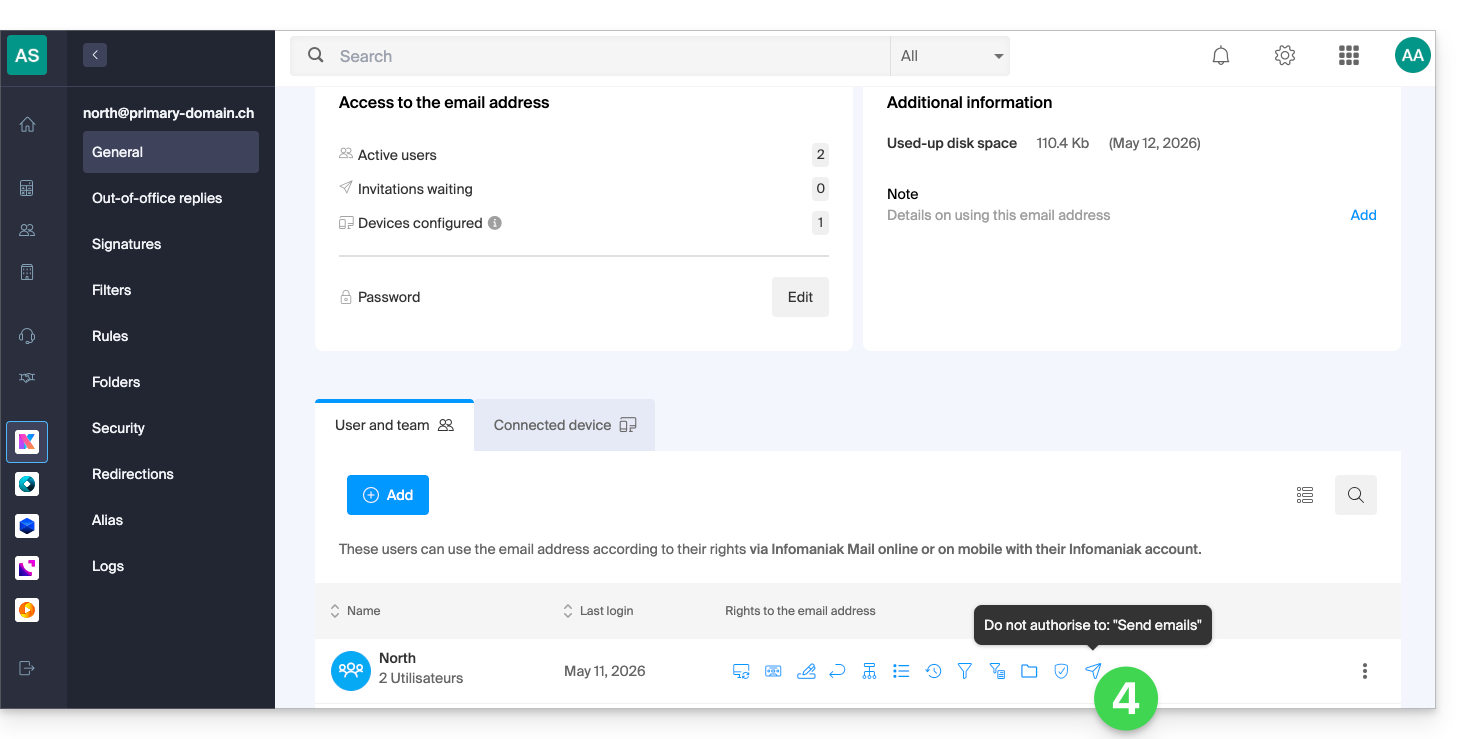
O utilizador terá acesso ao endereço de e-mail e às suas mensagens, mas o botão para compor uma nova mensagem permanecerá desativado, impossibilitando a redação de um rascunho (ou mesmo a resposta, reação, etc., pois esses botões também estarão desativados):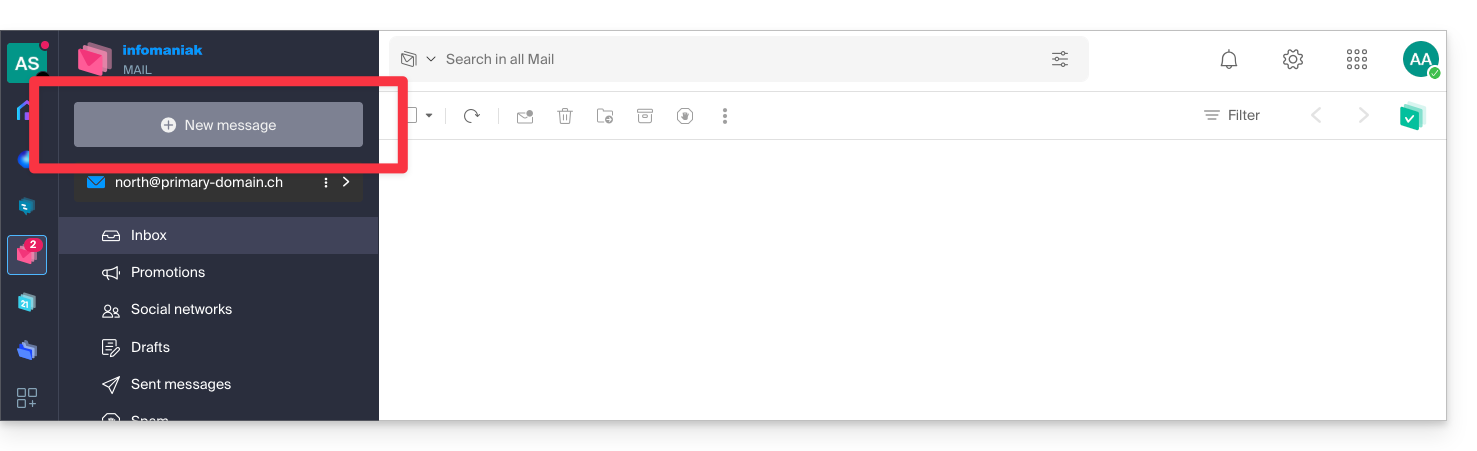
Impedir o envio a partir de um software/cliente de e-mail SMTP
Se desejar impedir que o utilizador envie mensagens a partir de um software/cliente de e-mail ou de qualquer dispositivo fixo ou móvel que contenha uma aplicação de e-mail SMTP, comece por seguir os passos acima.
Em seguida, terá de criar uma palavra-passe (= "dispositivo conectado") associada a este utilizador (portanto, no ponto 8 de este outro guia, em vez de “Sem utilizador”, deverá especificar o identificador do colaborador em questão, já adicionado no separador utilizadores):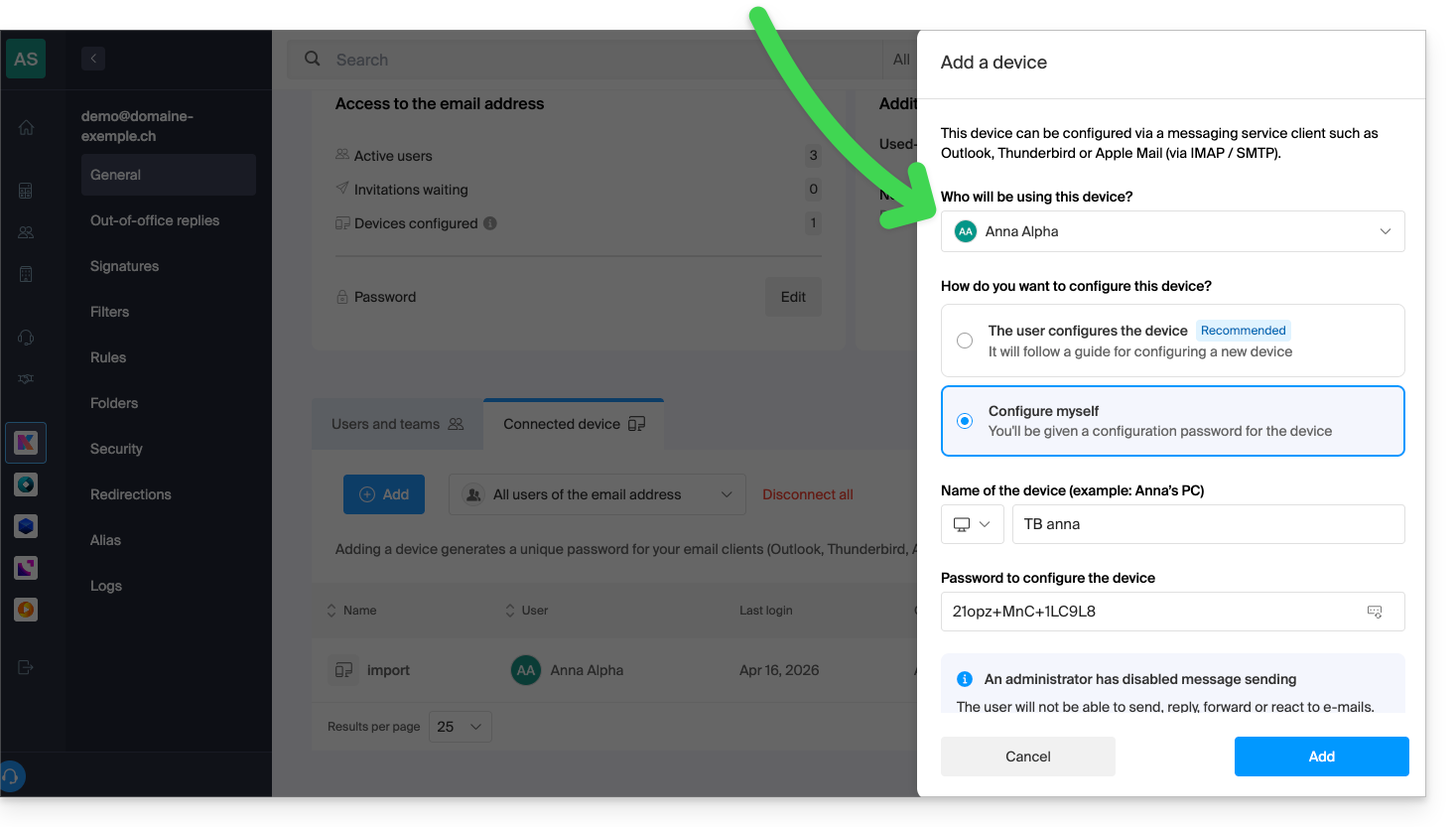
Dessa forma, o software/cliente de e-mail poderá ser configurado para receber e-mails, mas não permitirá o envio, gerando continuamente um erro (solicitação de senha) se o usuário insistir em enviar um e-mail: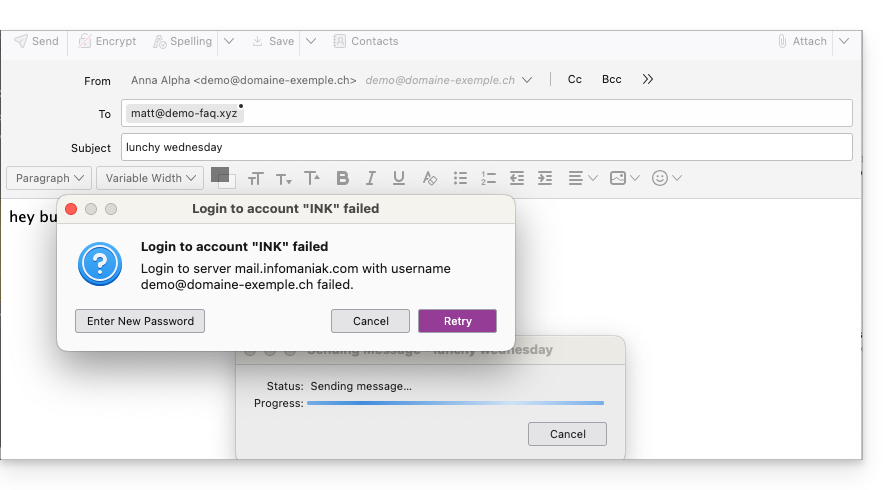
Link para esta FAQ: https://faq.infomaniak.com/593
Esta seção de perguntas frequentes foi útil?
Este guia explica como gerir as palavras-passe de um endereço de e-mail a partir da aplicação web Mail Infomaniak (serviço online ksuite.infomaniak.com/mail).
As outras opções de acesso e gestão são apresentadas no guia principal.
Pré-requisitos
- Ter permissão para gerenciar os dispositivos: é possível que o administrador do Serviço de Email tenha definido essa restrição.removeu este direito da sua conta de administrador (❓: ajuda).
Adicionar ou remover um dispositivo conectado
Criar e exibir uma nova senha para adicionar o endereço de e-mail no seu computador, aplicativo móvel, etc.
Para gerenciar a senha de um endereço de e-mail já vinculado ao seu aplicativo Web Mail Infomaniak:
- Clique aqui para acessar os e-mails no seu kSuite Infomaniak (❓: ajuda).
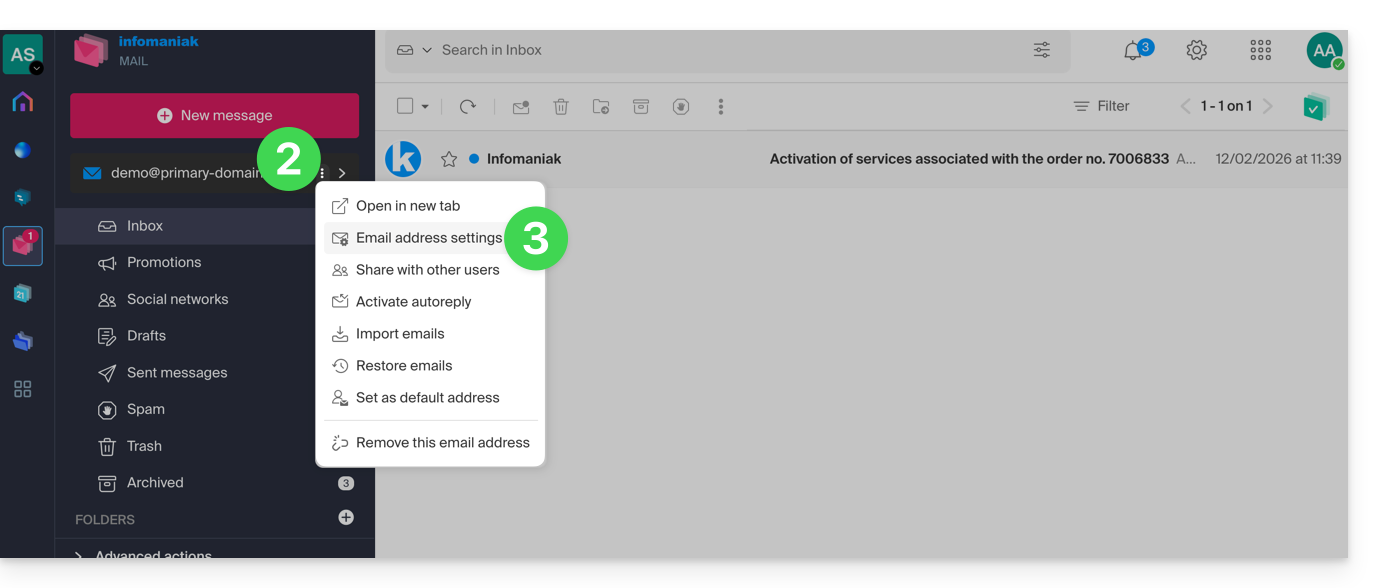
- Clique no menu de ação ⋮ à direita do endereço de e-mail em questão.
- Clique em Configurações do endereço:
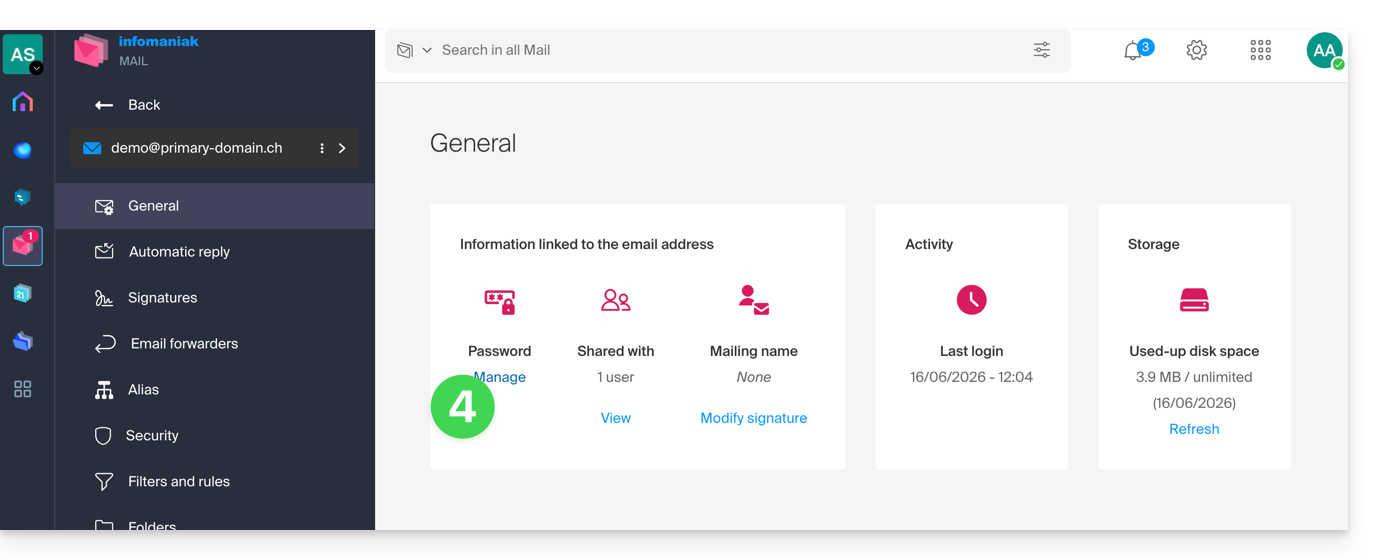
- Clique em Gerenciar a senha:
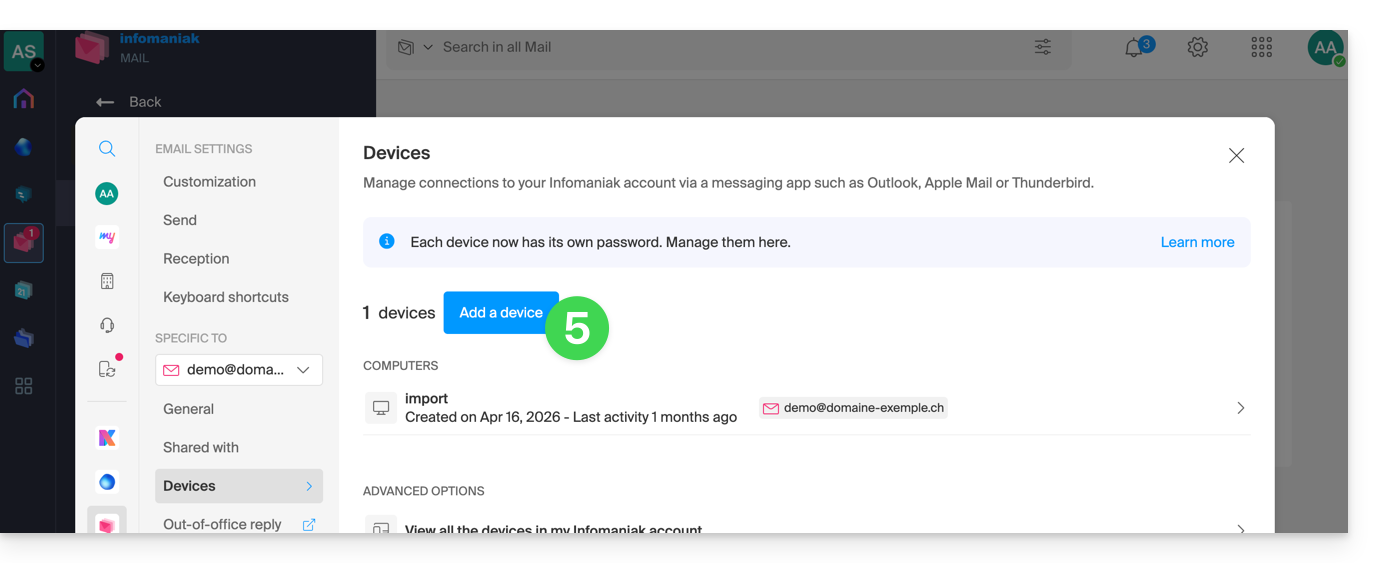
- Clique em Adicionar dispositivo:
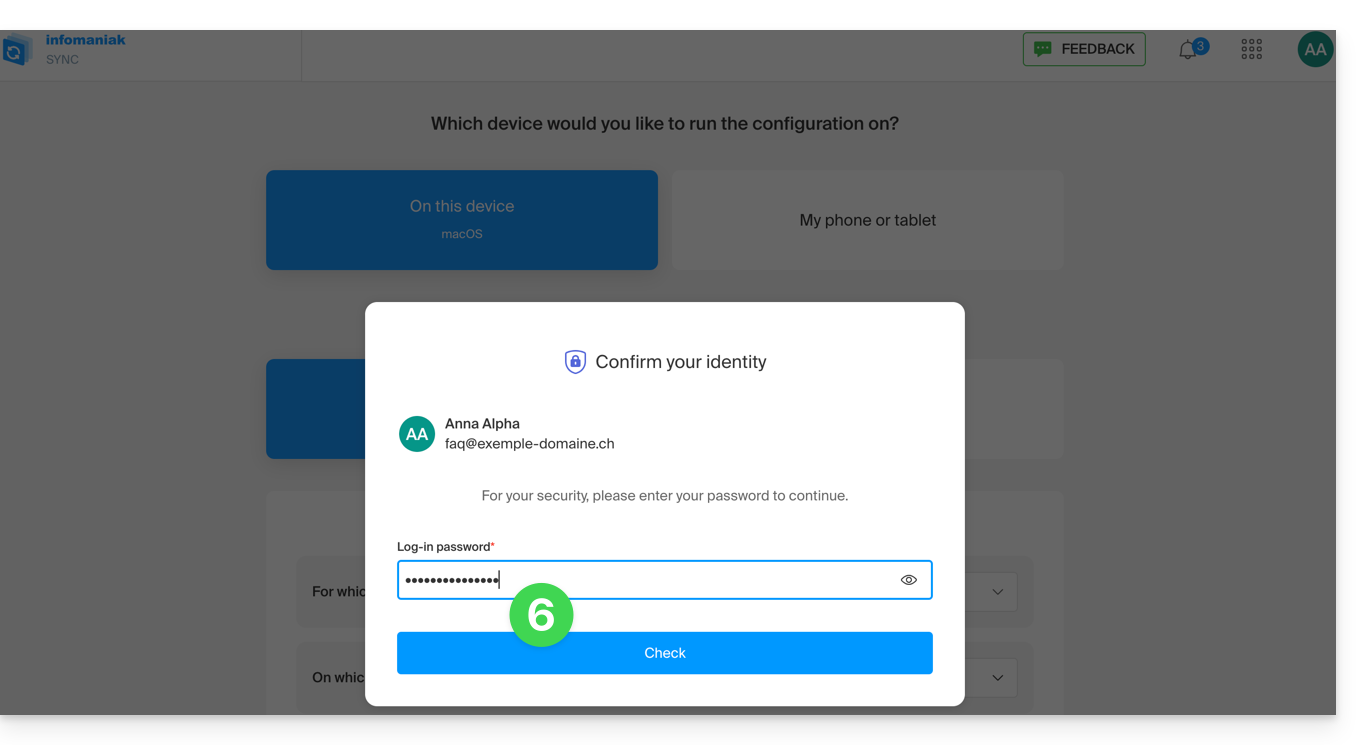
- Insira a senha para acessar sua conta Infomaniak, caso seja solicitada:
- O assistente de configuração será aberto na secção MAIL; verifique ou selecione o endereço de e-mail correspondente no menu suspenso.
- Selecione “novo dispositivo” no menu suspenso:
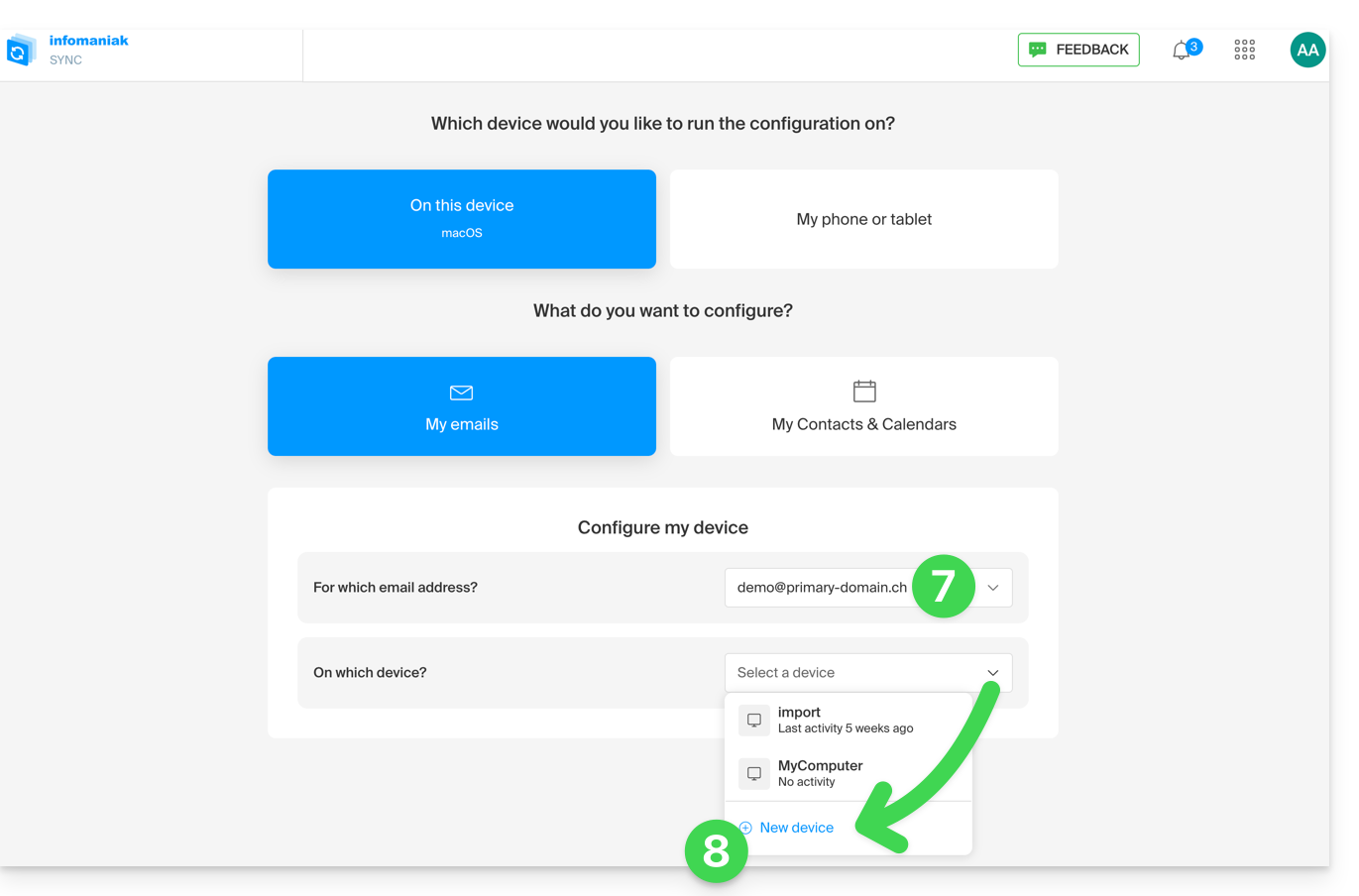
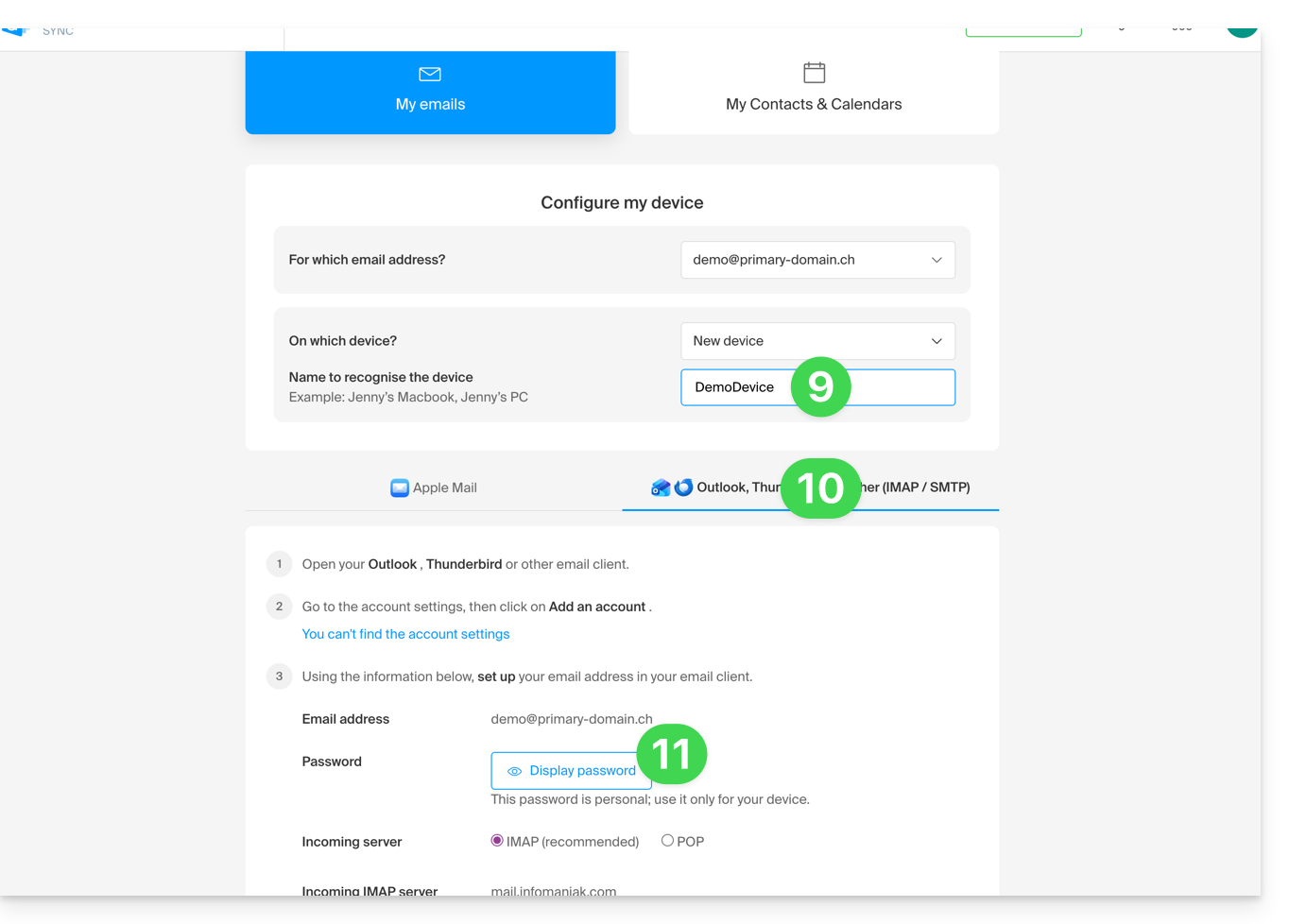
- Forneça uma descrição para o dispositivo.
- Clique na aba correspondente à sua necessidade: seja o procedimento para o Apple Mail (❓: ajuda), seja qualquer outra configuração IMAP/SMTP.
- Desça e clique no botão para gerar uma senha:
- Uma nova senha criada e funcional será exibida:
- você pode modificá-la clicando no botão, mas não se esqueça de salvá-la:
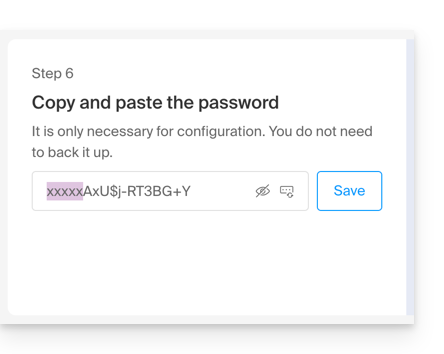
- você pode modificá-la clicando no botão, mas não se esqueça de salvá-la:
- Em seguida, copie-o e guarde-o em segurança (num gestor de palavras-passe, por exemplo); não será mais possível exibi-lo posteriormente.
Remover uma palavra-passe para interromper o acesso de um computador, aplicação móvel, etc.
A qualquer momento, é possível gerenciar os acessos criados/utilizados:
- Clique em Configurações no canto superior direito.
- Verifique ou selecione o endereço de e-mail correspondente no menu suspenso do menu lateral esquerdo.
- Clique em Dispositivos no menu lateral esquerdo.
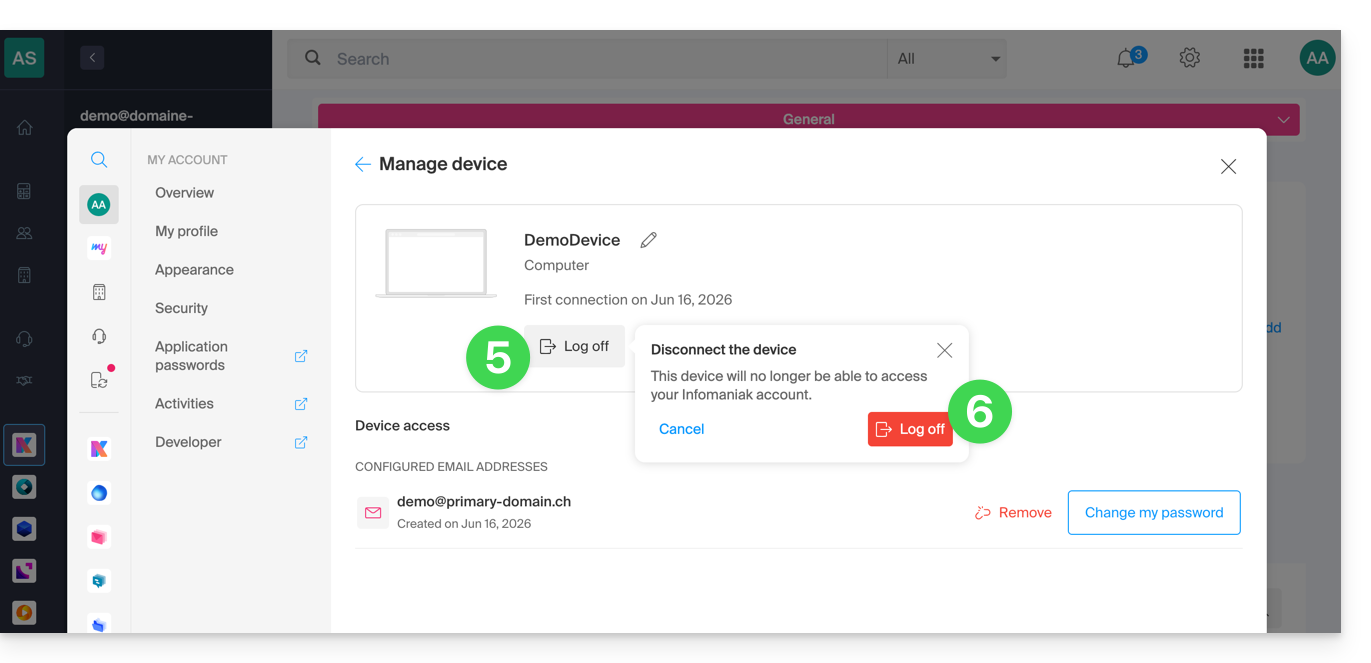
- Clique no dispositivo em questão:
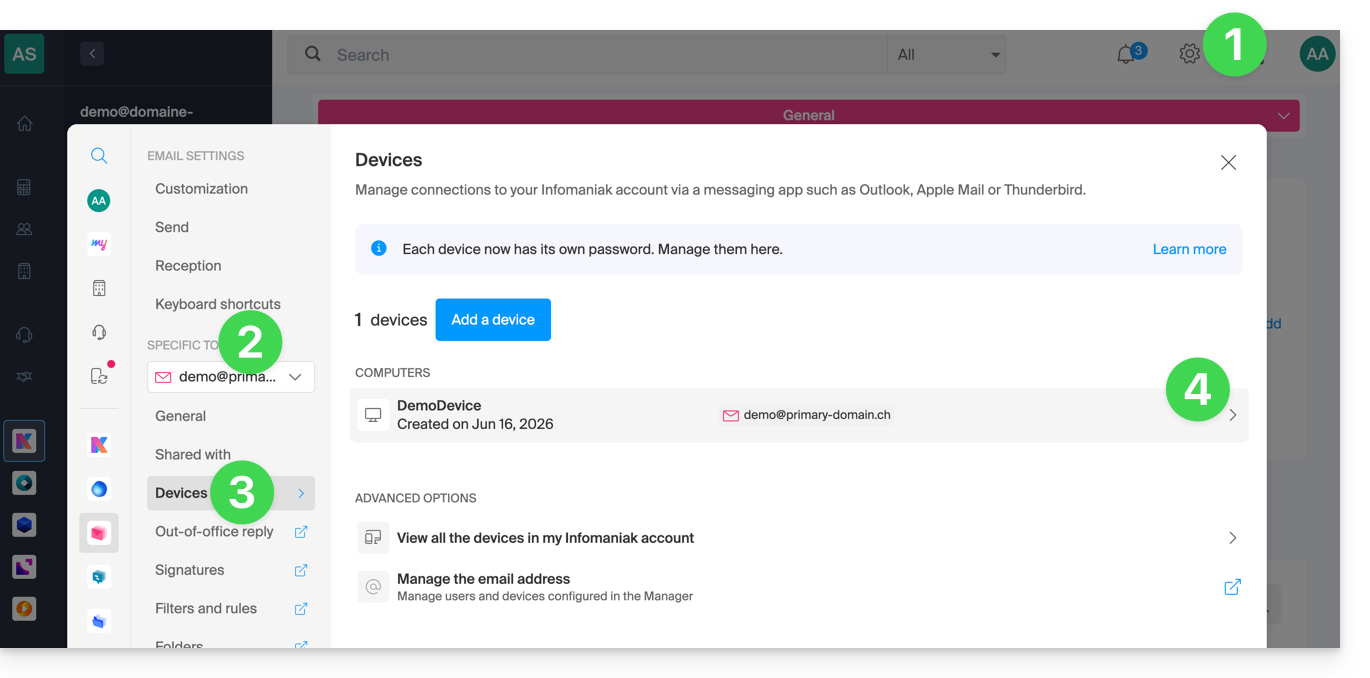
- Clique no botão para desconectar o dispositivo.
- Confirme o logout do dispositivo em questão:
Link para esta FAQ: https://faq.infomaniak.com/711
Esta seção de perguntas frequentes foi útil?
Este guia explica como copiar o conteúdo de um ou mais endereços de e-mail externos (todas as mensagens de e-mail, pastas, subpastas, ou seja, toda a estrutura da sua caixa de e-mail existente em outros provedores) para um ou mais dos seus endereços existentes na Infomaniak, graças à ferramenta de importação Infomaniak!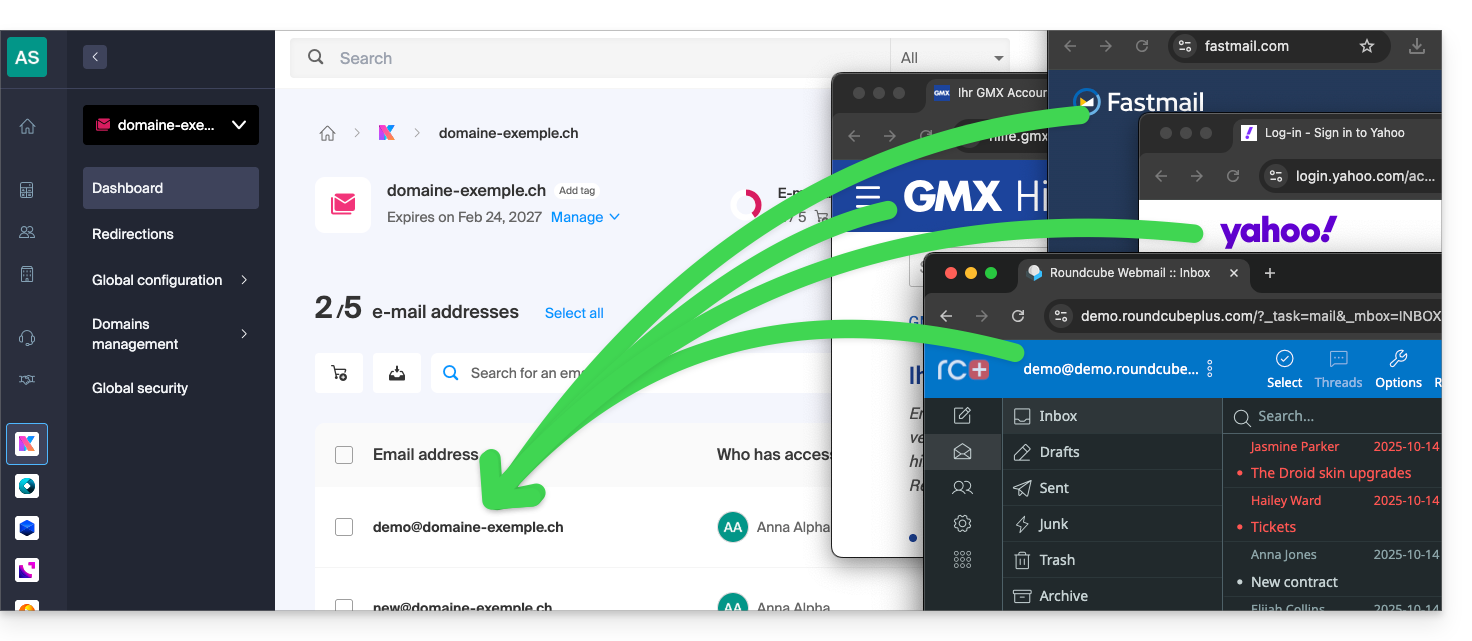
Introdução
- É fácil migrar toda a estrutura das suas mensagens de e-mail para a Infomaniak – descubra as ofertas.
- A operação não afeta os dados já existentes no endereço de destino, nem os dados do endereço de origem.
- Todo o conteúdo da caixa de correio externa será importado por cópia.
- Uma vez iniciado o processo de importação, não é mais possível interrompê-lo.
- Os eventuais duplicados são geridos: um conteúdo idêntico será copiado apenas uma vez.
Iniciar a cópia para um endereço de e-mail Infomaniak
Existem várias opções para importar e-mails:
- Deseja copiar e-mails já existentes na Infomaniak (por exemplo, @ik.me) para outra caixa de correio também na Infomaniak?
- Consulte este outro guia para copiar o conteúdo dos e-mails internamente.
- Você possui um arquivo/arquivo compactado no formato MBOX e deseja importá-lo diretamente para um endereço existente na Infomaniak?
- Consulte este outro guia para importar o conteúdo do arquivo
.mboxe, assim, importar seus e-mails, independentemente de sua origem, para a Infomaniak. - Esta é a solução ideal para transferir facilmente o conteúdo do Google, pois um arquivo MBOX pode ser obtido muito facilmente através do Google Takeout.
- Consulte este outro guia para importar o conteúdo do arquivo
- Se não conseguiu obter um ficheiro MBOX dos seus e-mails, pode copiar e-mails de um fornecedor externo através da ferramenta de importação por IMAP; clique no link correspondente ao fornecedor de e-mail que pretende importar:
- endereços @ Bluewin
- endereços @ Gmail ou domínio personalizado Google
- endereços @ GMX
- endereços @ domínio personalizado Microsoft 365
- endereços @ Orange
- endereços @ domínio personalizado Swisscom
- endereços @ Yahoo
- Qualquer outro fornecedor de e-mail, como Gandi, Hotmail, Hostinger, Sunrise, etc.
- Você também pode simplesmente configurar um redirecionamento de e-mails, mas este só terá efeito nos e-mails futuros que chegarem à sua caixa de entrada.
Link para esta FAQ: https://faq.infomaniak.com/837
Esta seção de perguntas frequentes foi útil?
Este guia explica como configurar alguns parâmetros para que sejam automaticamente aplicados por padrão aos novos endereços de e-mail (e utilizadores) adicionados ao Serviço de Email posteriormente.
Introdução
Para aplicar configurações a todos os endereços de e-mail existentes, consulte este outro guia.
Acessar a Configuração Global do Serviço de E-mail
Para isso:
- Clique aqui para acessar a gestão do Serviço de E-mail no seu Painel de Controle Infomaniak (❓: ajuda).
- Clique em o nome do serviço de e-mail em questão:
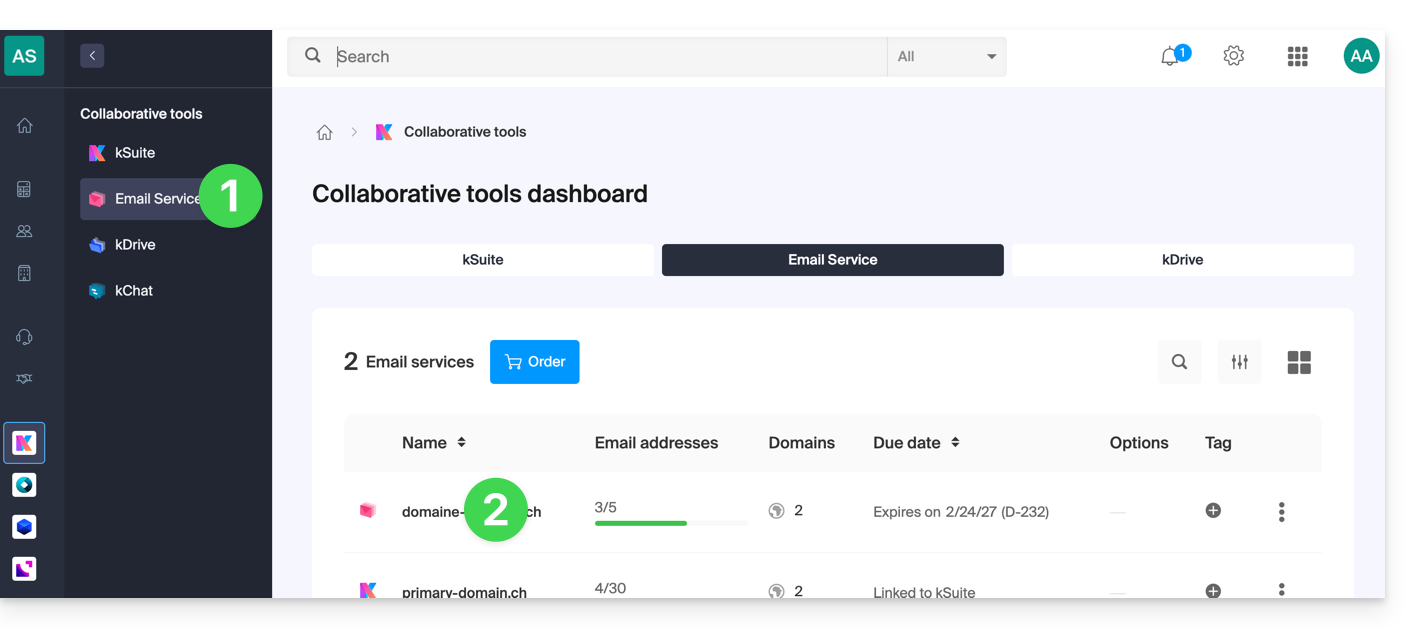
Clique em Configuração global no menu lateral esquerdo:
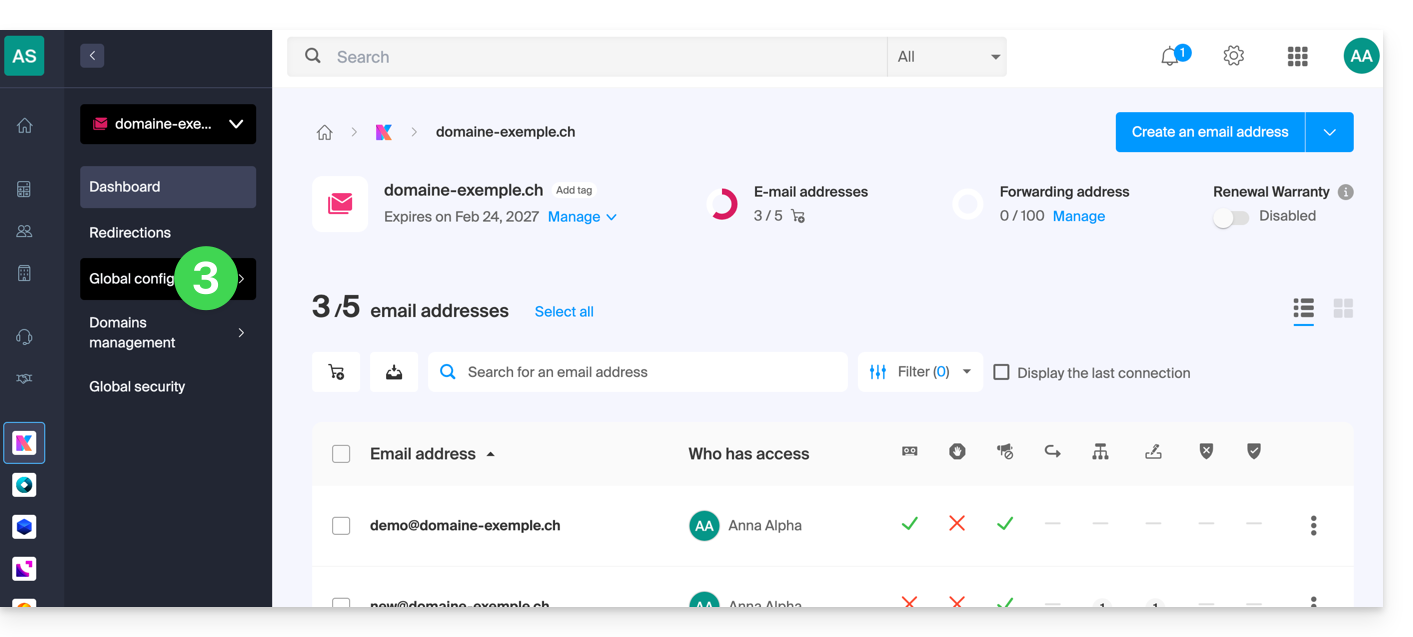
Você pode então escolher, entre 5 seções, as configurações que deseja ativar ou desativar por padrão:
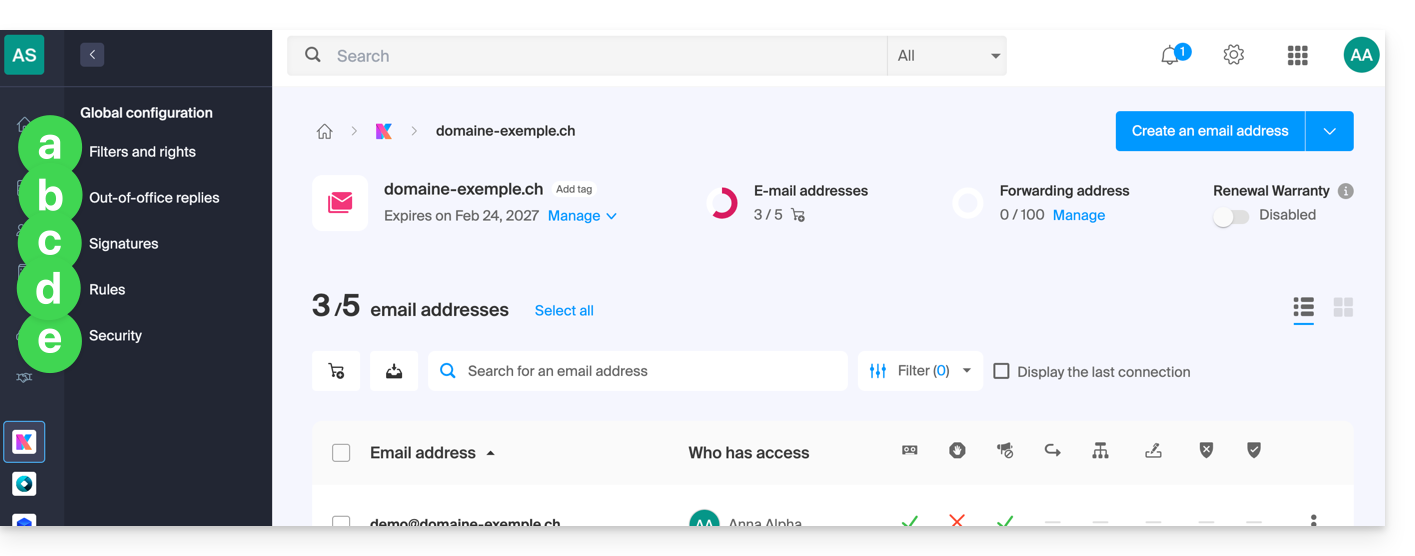
a. Filtros e permissões
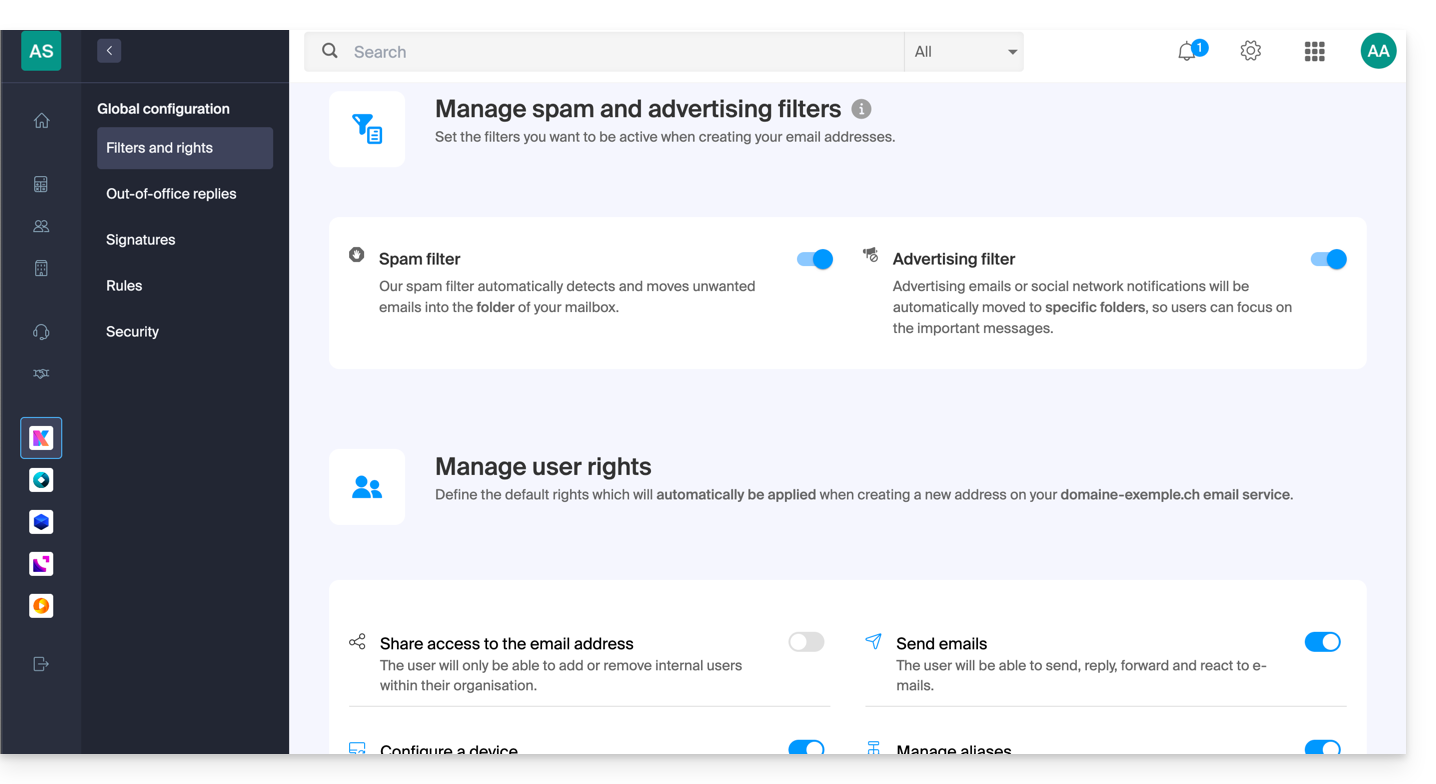
Pode optar por ativar ou desativar o filtro antispam quando um novo endereço for criado no Serviço de Email.
O mesmo se aplica ao filtro de publicidade.
É aqui também que pode gerir os direitos predefinidos que um utilizador deverá ter no endereço de e-mail.
b. Respostas automáticas
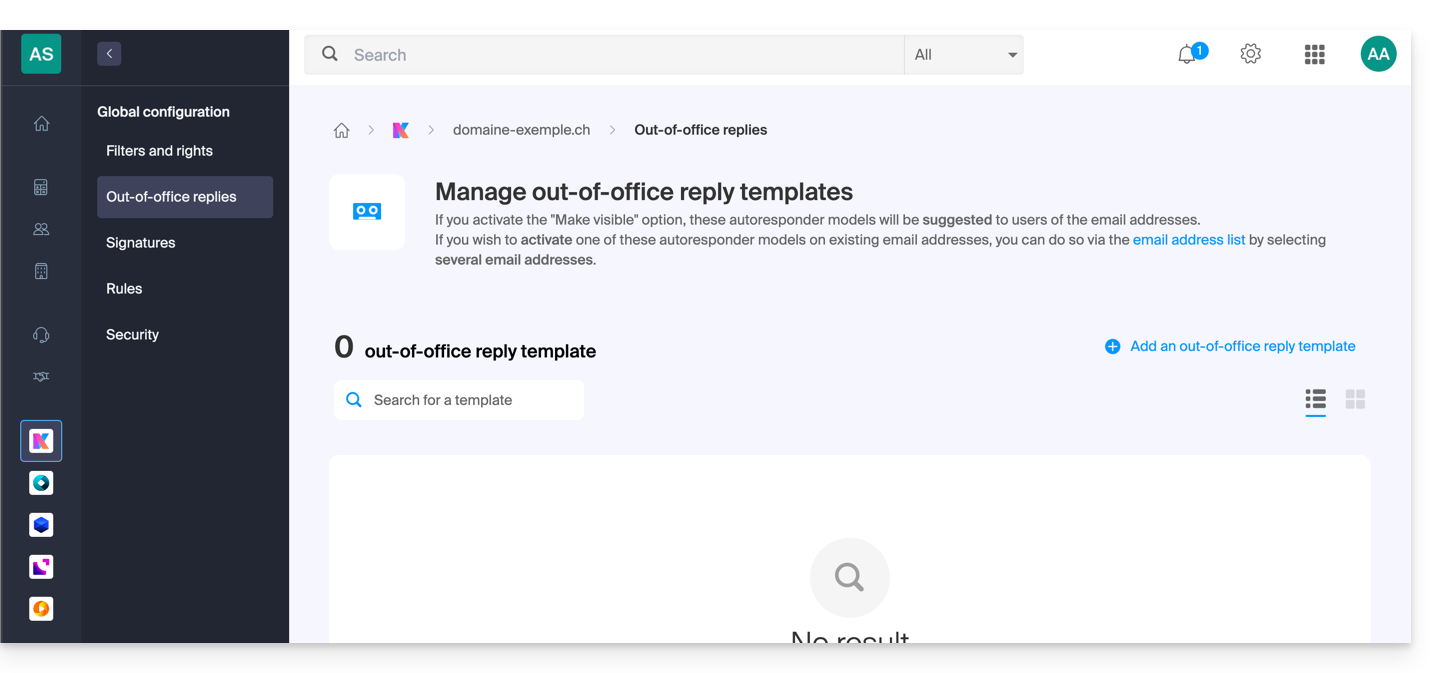
- Você pode gerenciar os modelos de mensagens de ausência, que poderão ser posteriormente adaptados pelos usuários dos endereços de e-mail.
c. Assinaturas
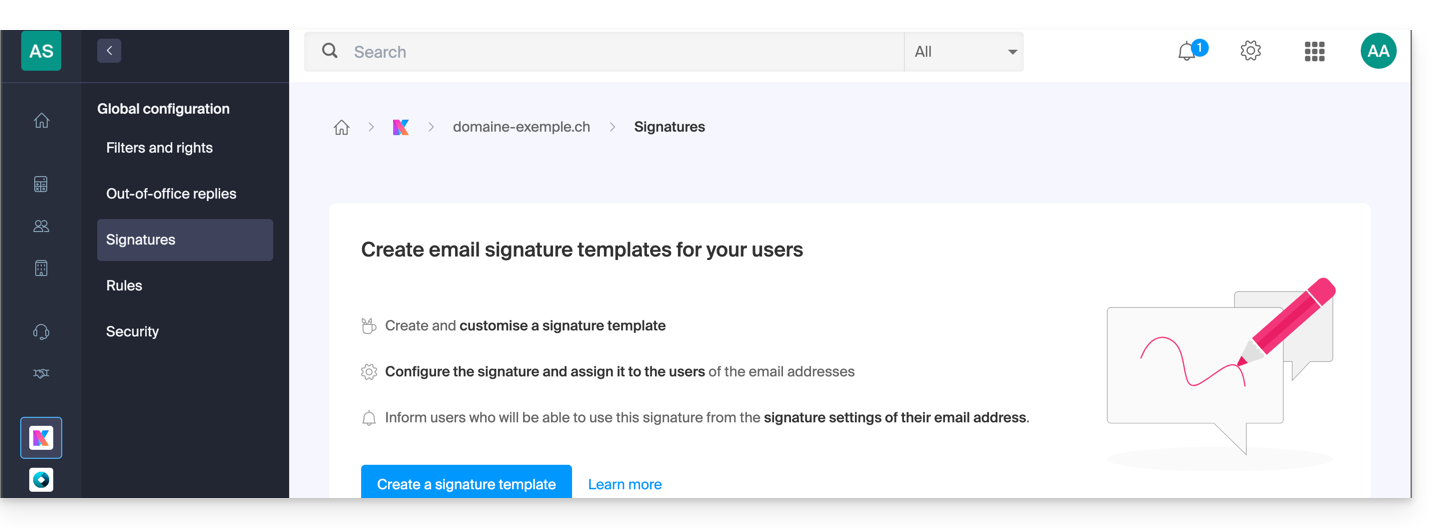
- Você pode gerenciar os modelos de assinatura que poderão ser adaptados posteriormente pelos usuários das contas de e-mail.
d. Regras
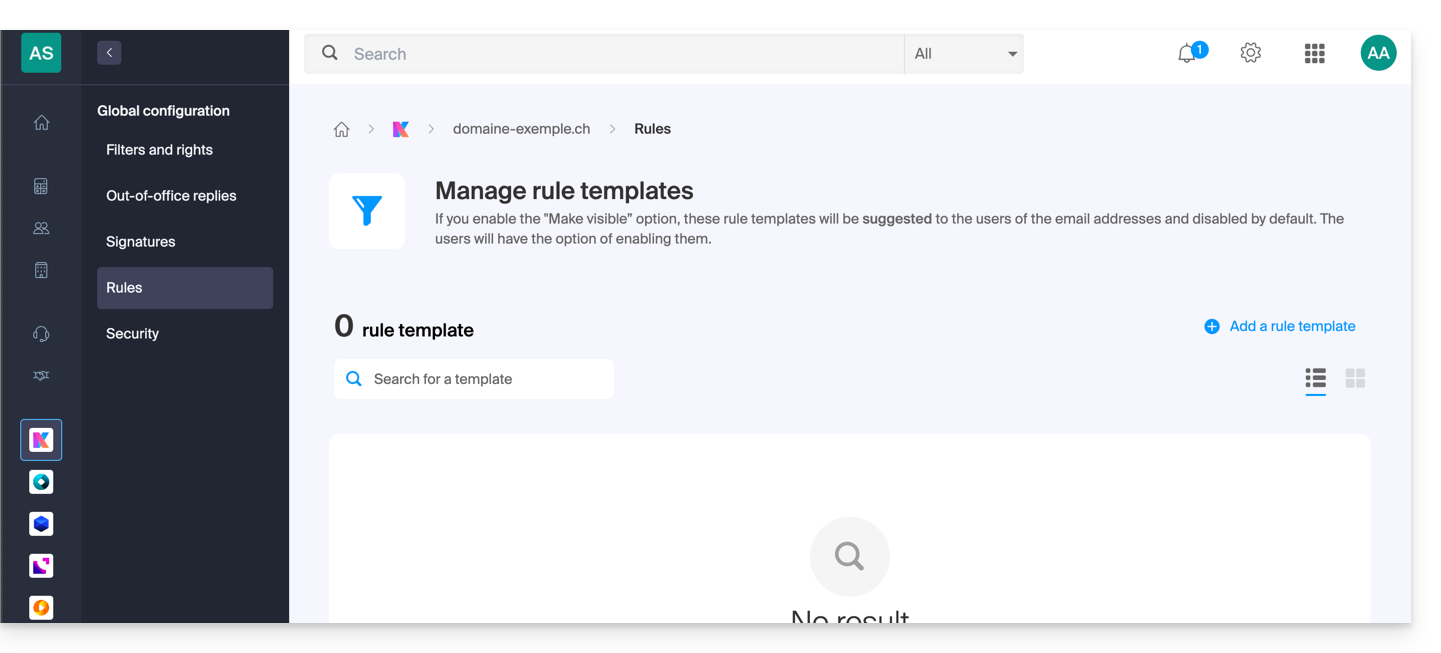
- Você pode gerenciar os modelos de regras, que estão desativados por padrão e que podem ser adaptados e ativados posteriormente pelos usuários de endereços de e-mail.
e. Segurança
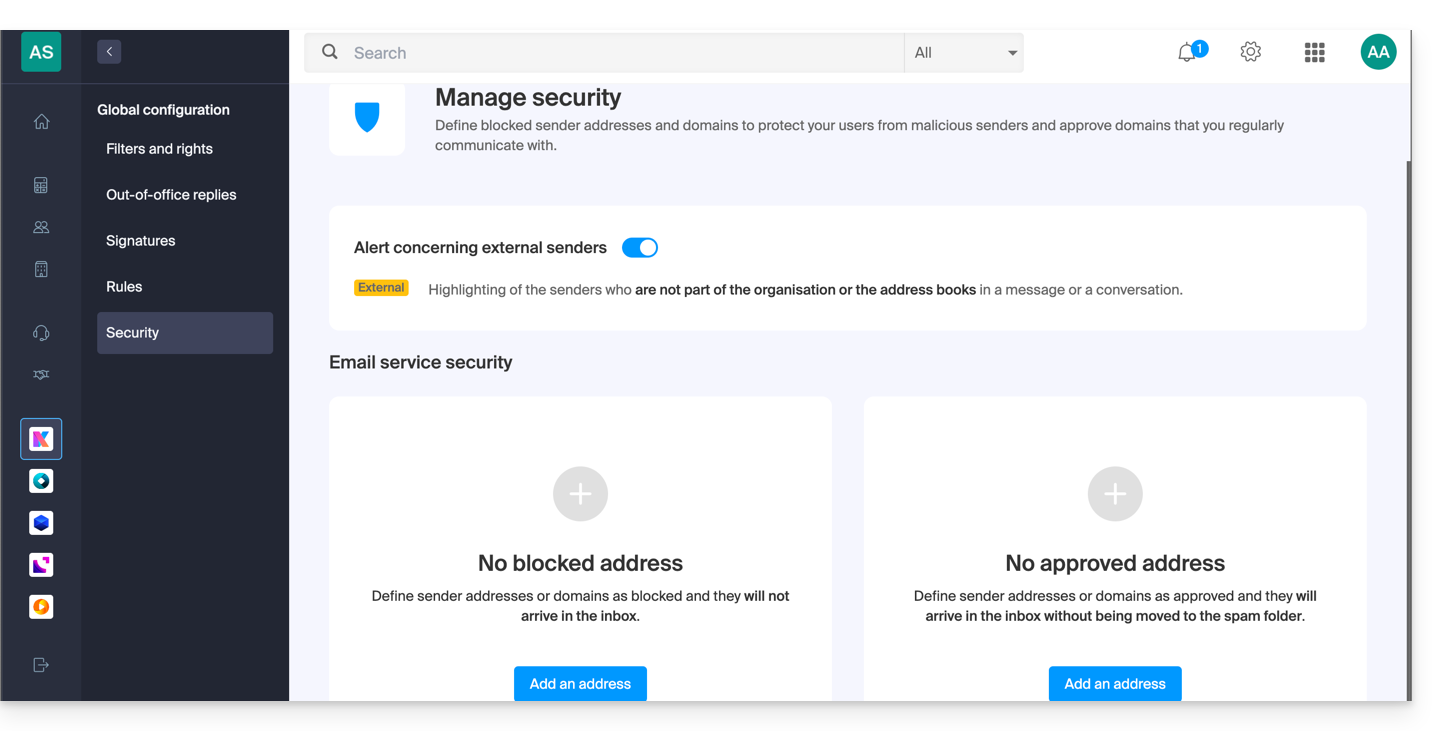
- Você pode gerenciar o aviso de e-mail externo e, abaixo, adicionar remetentes cujos e-mails sempre serão enviados para a pasta Spam, ou, inversamente, que nunca serão filtrados.
Link para esta FAQ: https://faq.infomaniak.com/843
Esta seção de perguntas frequentes foi útil?
Este guia trata do kSuite e da gestão de utilizadores, bem como dos seus diferentes tipos de acesso.
Introdução
- Cada kSuite inclui 1 primeiro utilizador oferecido no momento da subscrição; compare as ofertas clicando aqui.
- Cada utilizador tem direito ao seu próprio endereço de e-mail no domínio em torno do qual a sua kSuite está estruturada.
- O limite de endereços de e-mail dependerá do plano e do número de utilizadores:
- Standard: 1 utilizador = 2 endereços de e-mail (2 = 4, etc.)
- Business: 1 utilizador = 5 endereços de e-mail (2 = 10, etc.)
- Enterprise: 1 utilizador = 10 endereços de e-mail (2 = 20, etc.)
- Pode atribuir um endereço de e-mail kSuite a um utilizador que não faça parte do kSuite.
- Para obter mais endereços de e-mail, é necessário alterar o plano para aumentar o número de utilizadores. Exemplo:
- Ao encomendar uma kSuite Business com 5 utilizadores, terá direito a um total de 5x5=25 endereços de e-mail na sua kSuite, que poderá utilizar (para qualquer finalidade – a criação de um endereço de e-mail no âmbito do Serviço de E-mail kSuite é idêntica à criação de um Serviço de E-mail fora da kSuite).
Adicionar um utilizador à kSuite
Pré-requisitos
- O limite de utilizadores que podem ser adicionados ao kSuite deve ser suficiente (neste exemplo, será necessário alterar o plano para ajustar o número de utilizadores):
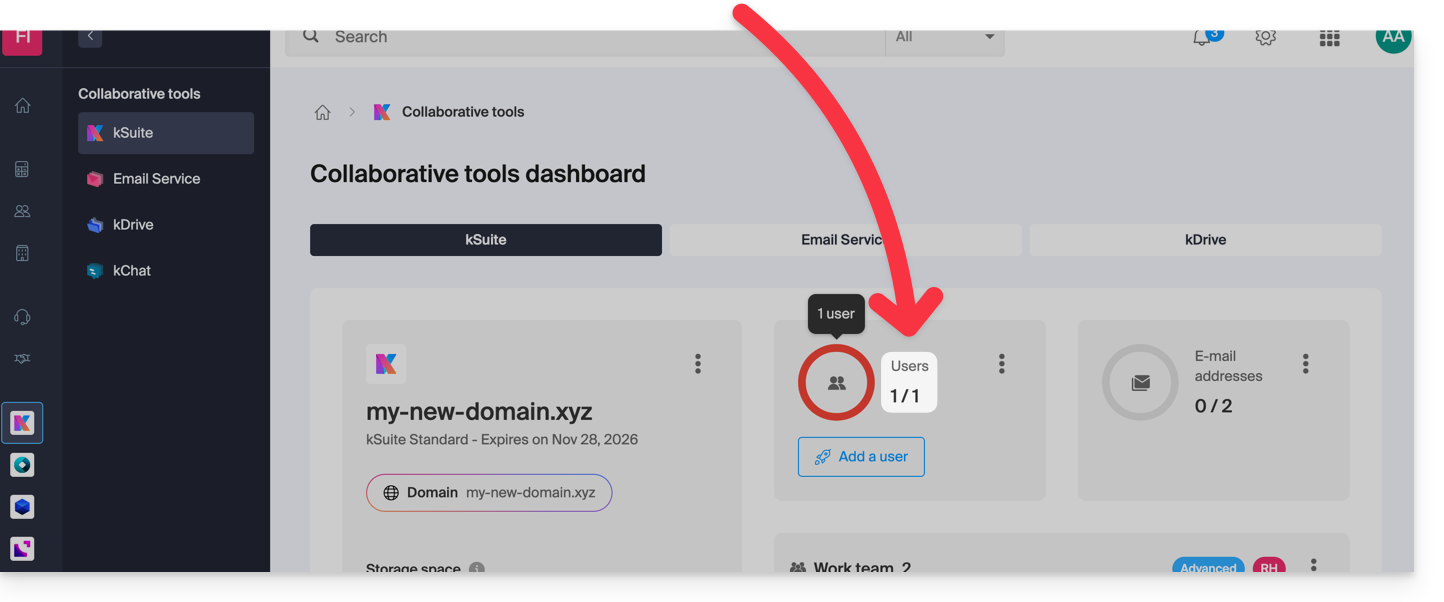
Em seguida:
- Clique aqui para acessar o gerenciamento do seu kSuite.
- Se nada for exibido após o login, você pode não estar na Organização à qual seu kSuite está vinculado (❓: ajuda).
- Clique no menu de ação ⋮ na secção Utilizadores.
- Clique em Adicionar utilizador:
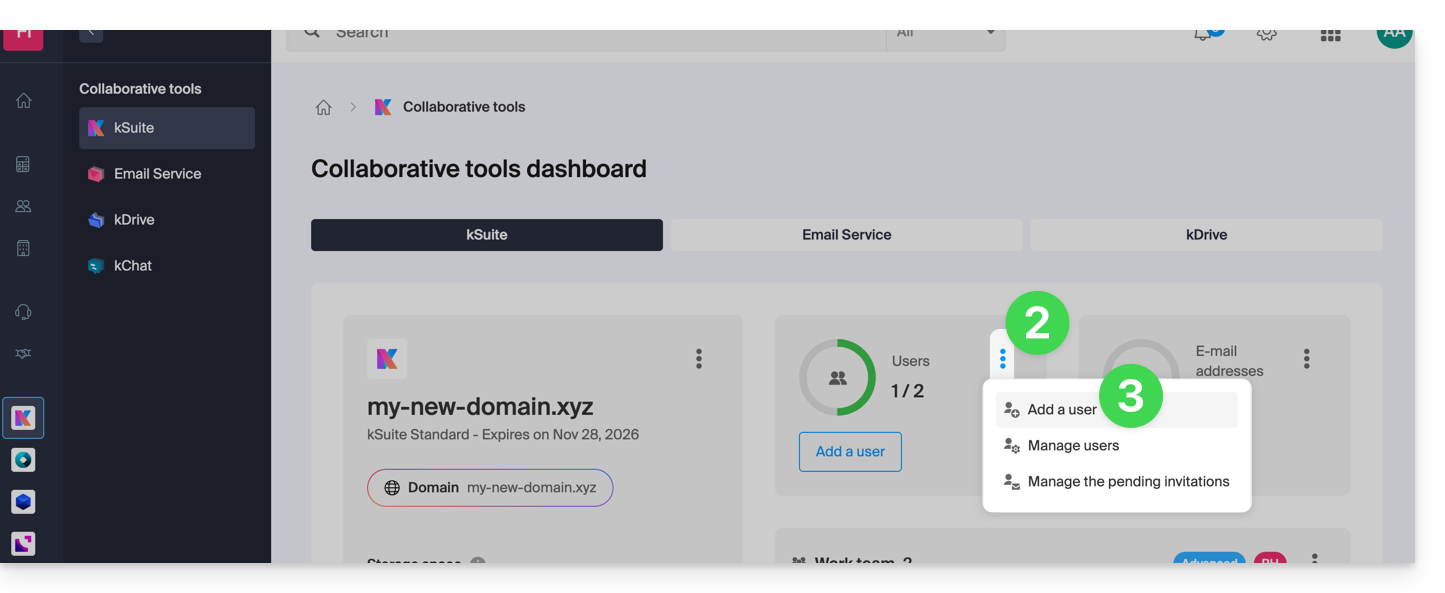
- São propostas duas possibilidades:
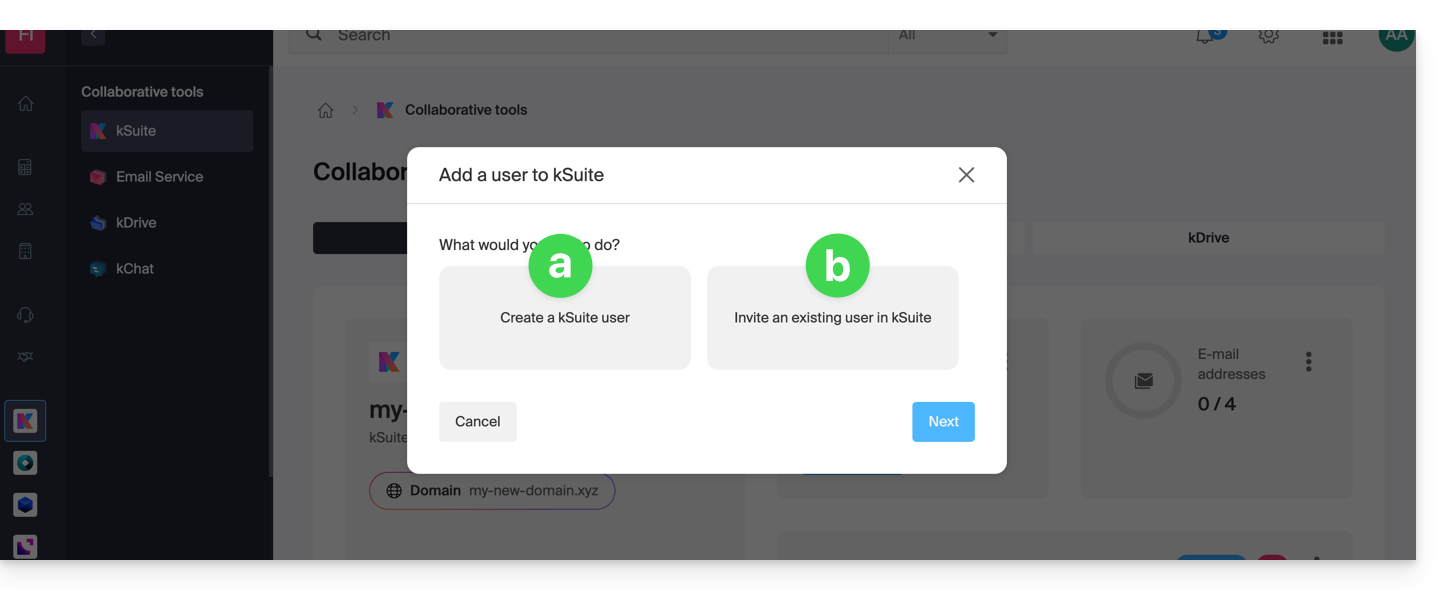
- Adicionar um utilizador que ainda não tem qualquer ligação com a Organização na qual se encontra o kSuite: terá de configurar e gerar um convite, especificando se o utilizador receberá um endereço de e-mail e, em caso afirmativo, se terá de se conectar com ele, etc.
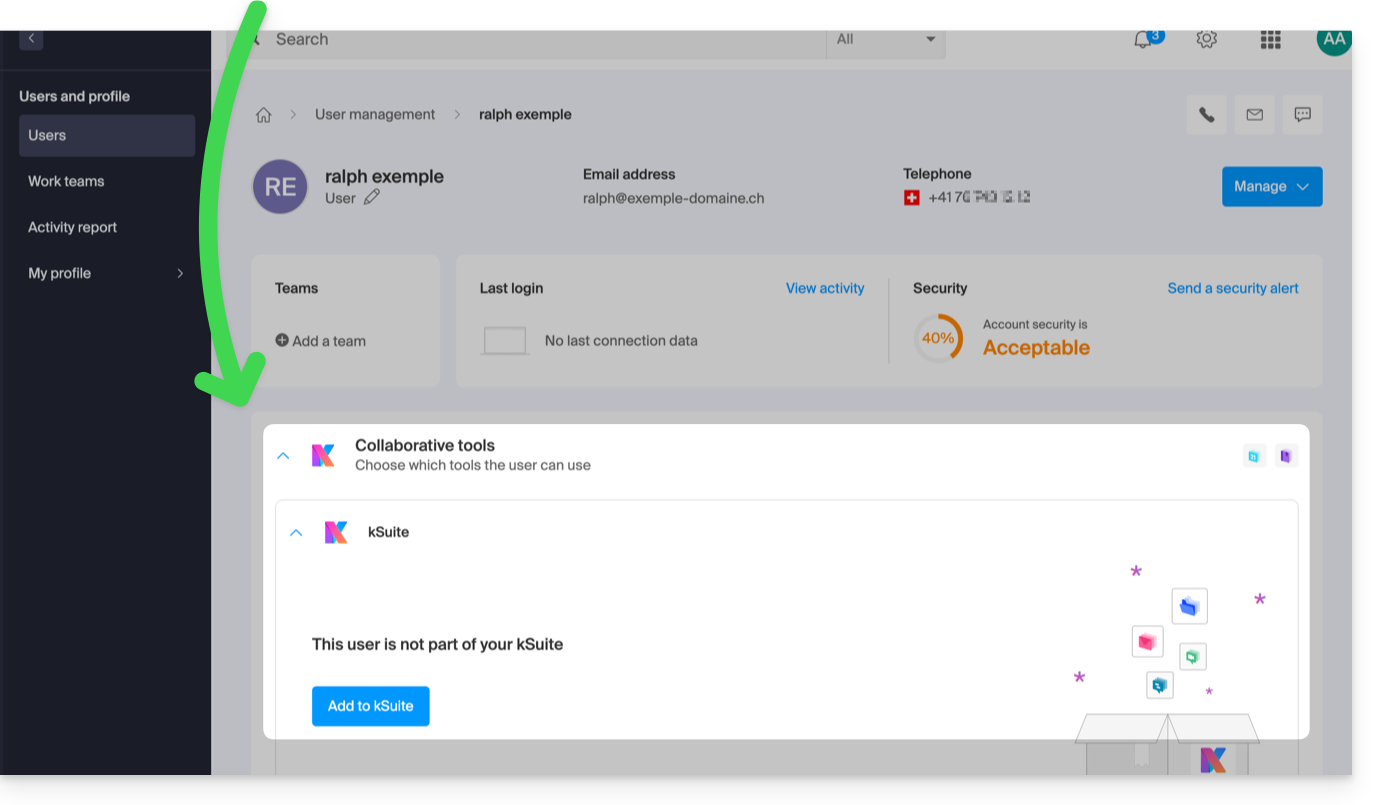
- Adicionar um utilizador que já faz parte da Organização na qual se encontra o kSuite: o funcionamento é o mesmo que o de aceder ao perfil do utilizador em questão na sua Organização e adicioná-lo:
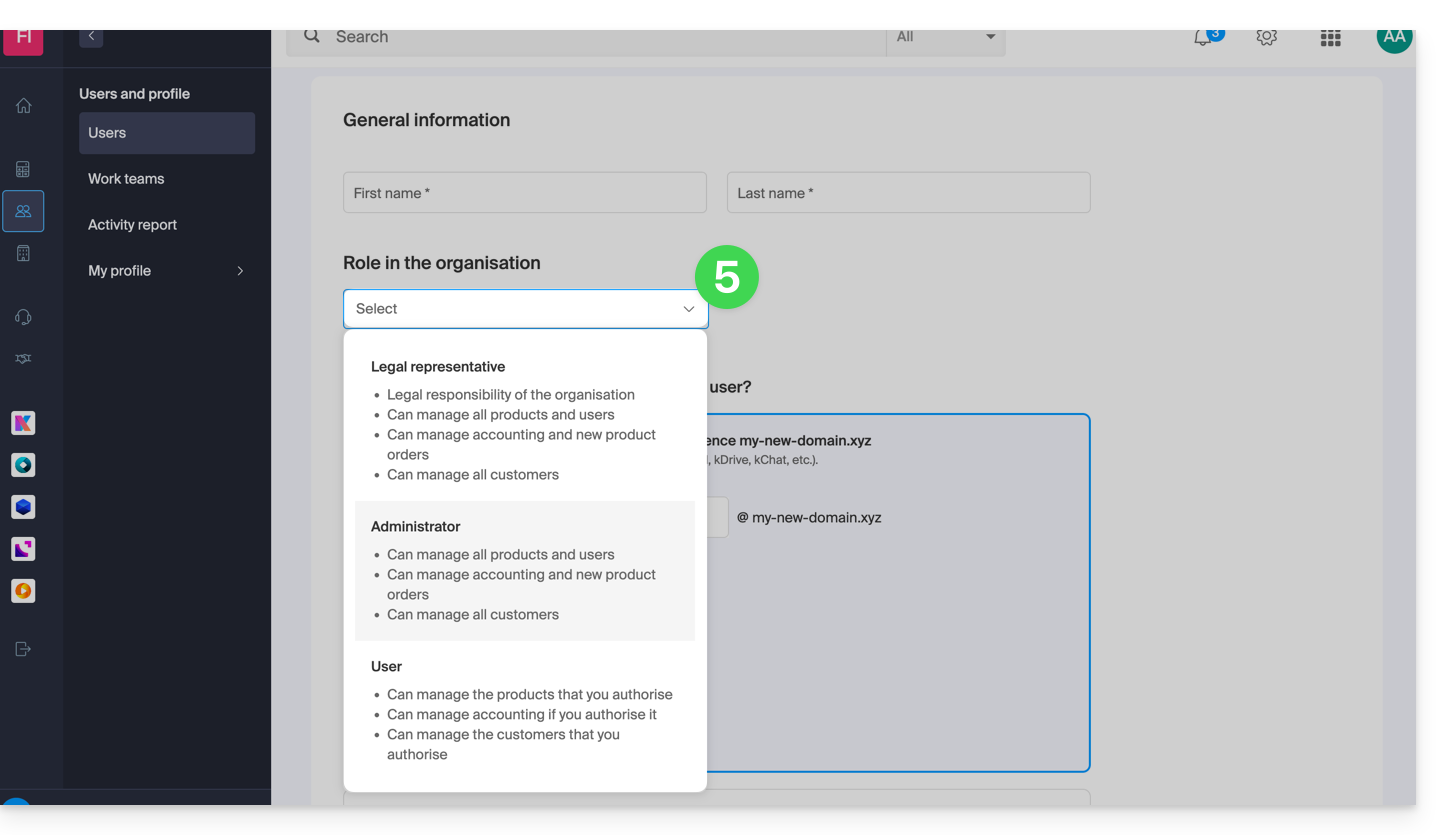
- Em ambos os casos, siga o assistente, lendo atentamente as instruções, nomeadamente as características detalhadas de cada função que pode ser atribuída ao utilizador:
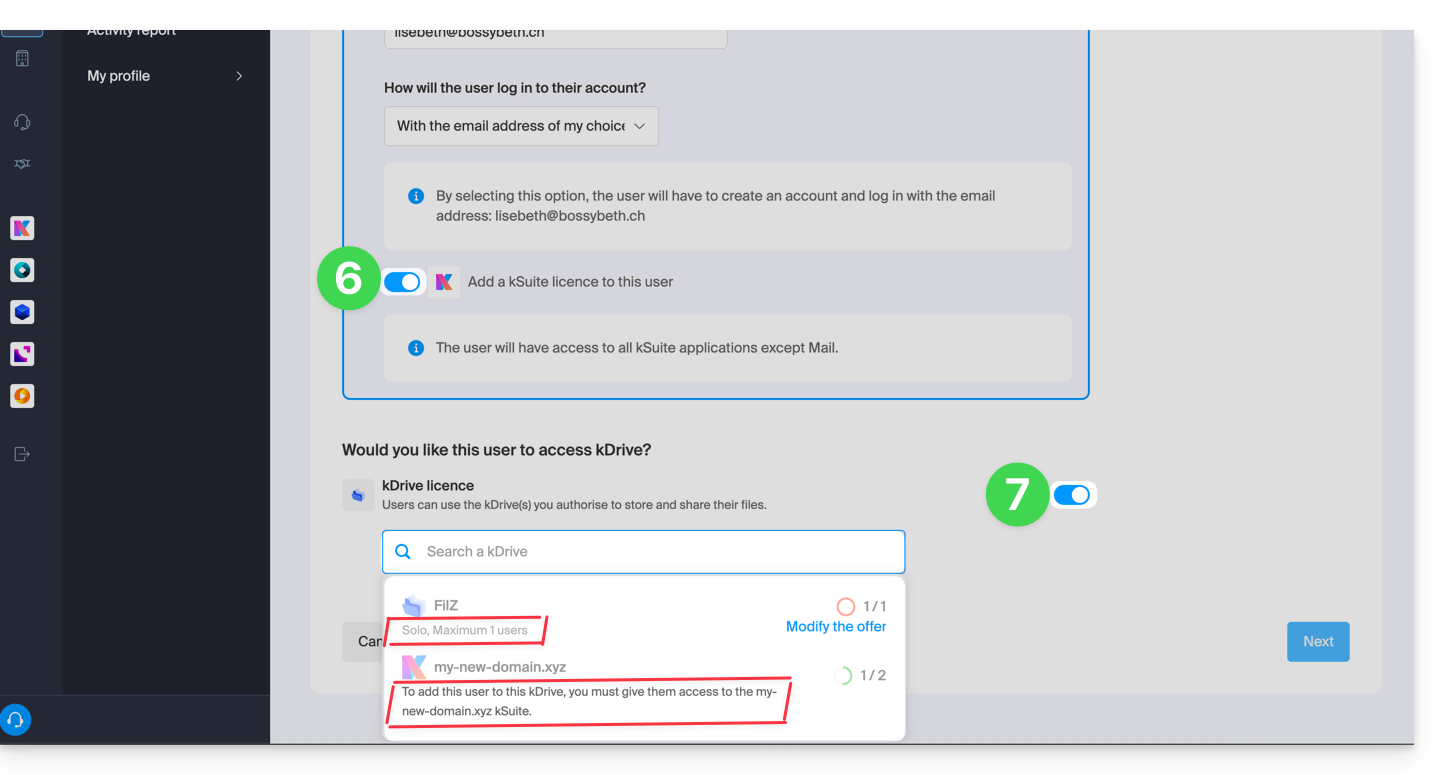
- Ative uma licença kSuite para que o novo utilizador possa aceder ao kSuite.
- Ative o acesso ao kDrive, se necessário (desde que o kDrive seja multiusuário e pertença à kSuite na qual você está adicionando o usuário):
- A última etapa permite gerenciar a seção Grupos, se desejar; finalize clicando no botão para gerar o convite:
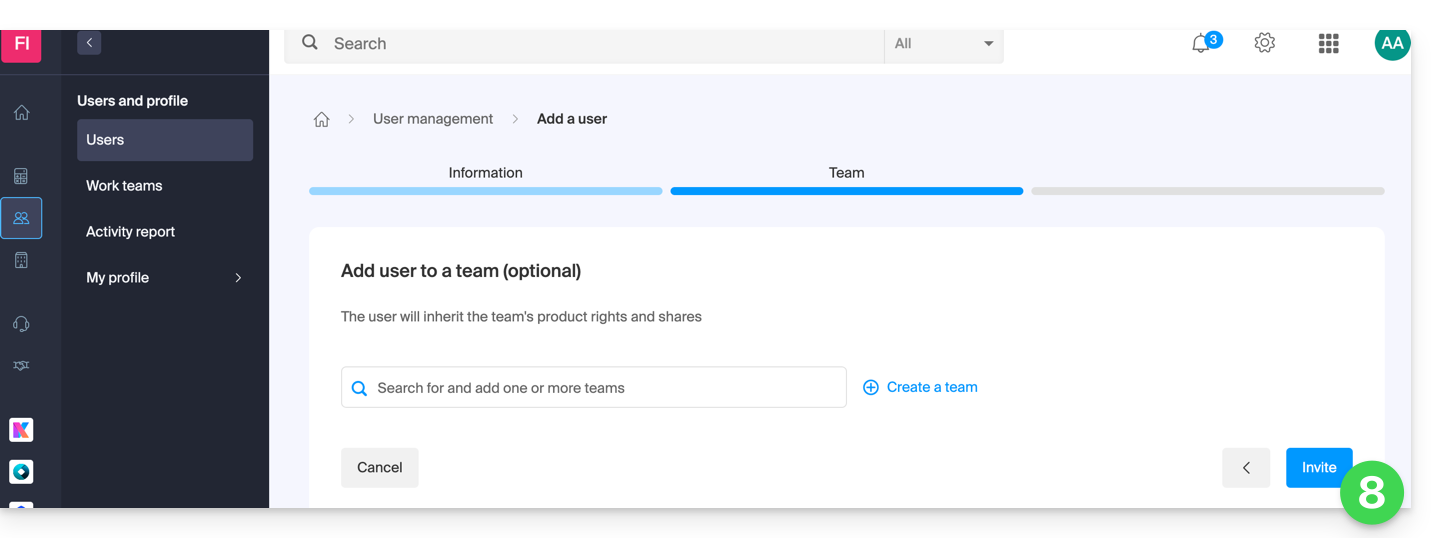
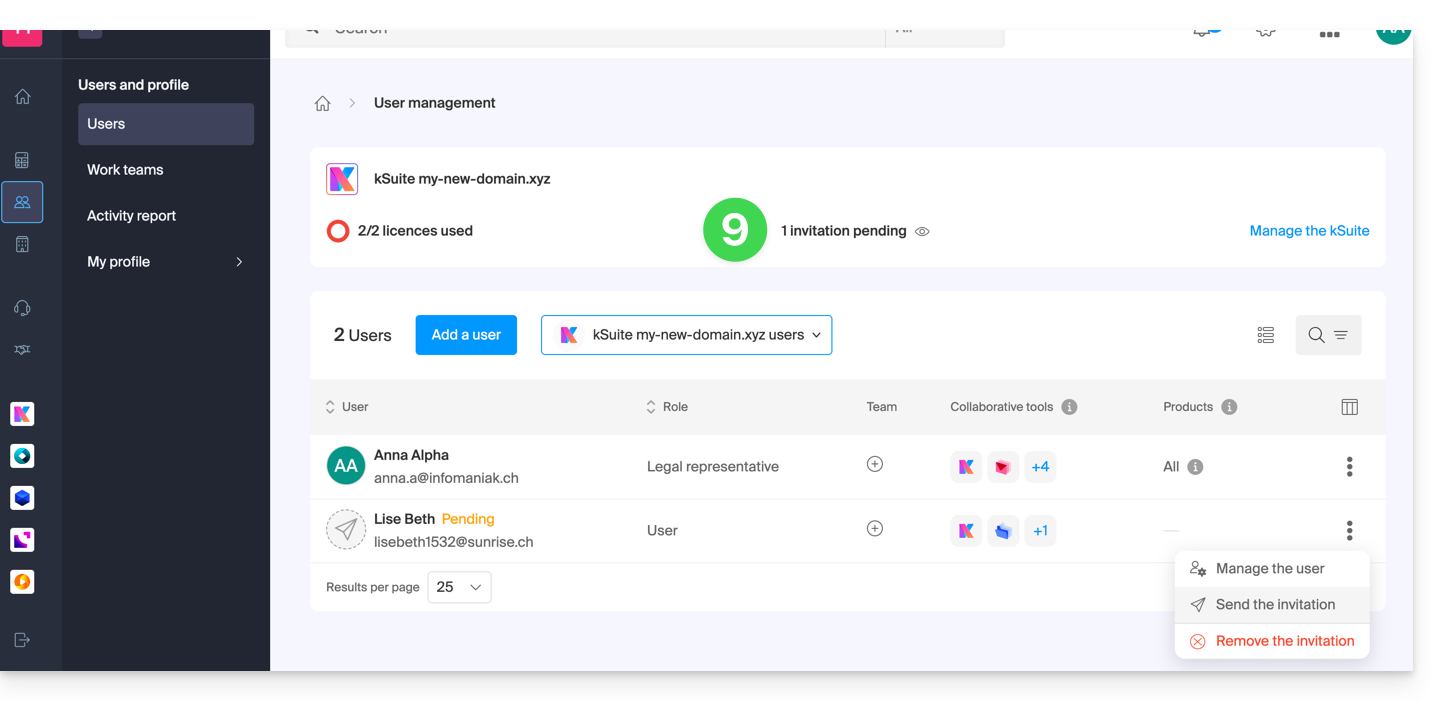
- O utilizador, quer já faça parte da Organização, quer não, recebe um convite no seu endereço de e-mail, convidando-o a aderir à kSuite; entretanto, ele é listado como utilizador pendente e você pode reenviar o convite a qualquer momento:
Exemplos kChat e kDrive
- Consulte este outro guia para adicionar um utilizador externo à Organização, para que ele possa usar o kChat e o kDrive sem que os produtos em si sejam visíveis no painel de controlo.diretamente.
- Consulte este outro guia para obter exemplos de como adicionar um utilizador ao kDrive / kSuite.
Não é possível adicionar um utilizador para que ele tenha acesso apenas ao kDrive ou apenas ao kChat separadamente. Nesse caso, seria melhor utilizar, por exemplo, as funções de partilha para que terceiros possam aceder temporariamente ao kDrive.
Link para esta FAQ: https://faq.infomaniak.com/879
Esta seção de perguntas frequentes foi útil?
Este guia explica como entrar em contato com o Suporte da Infomaniak e autorizá-lo a acessar seus produtos onlinee, em particular, ao seu conteúdo, e fornecer detalhes úteis ao solicitar suporte.
Contactar o Suporte Infomaniak
Alguns endereços de e-mail, como support@infomaniak.com, não se destinam a receber pedidos de suporte diretos.
As mensagens enviadas para estes endereços não são tratadas pelas equipas e não permitem criar um acompanhamento da solicitação.
Para garantir um tratamento adequado, cada solicitação deve ser submetida exclusivamente através do centro de suporte:
- Este processo permite gerar um ticket, encaminhar automaticamente o pedido para o departamento responsável e garantir um acompanhamento completo até a sua resolução.
- Após o registo do pedido, a comunicação pode prosseguir diretamente por e-mail com o suporte.
Antes de entrar em contato com o suporte, também é recomendável consultar a base de conhecimento, que reúne diversos guias e respostas para as perguntas frequentes.
Permitir que o Suporte acesse um tipo de conteúdo
O Suporte da Infomaniak pode solicitar que conceda acesso temporário a uma parte do seu conteúdo. Isso permite economizar tempo no diagnóstico, evitando trocas de mensagens desnecessárias:
- Este acesso é estritamente limitado ao contexto da análise e serve apenas para identificar a origem do problema encontrado:
- Apenas os colaboradores da Infomaniak que estão tratando diretamente da sua solicitação de suporte.
- O acesso é feito exclusivamente a partir das instalações controladas da Infomaniak.
- De acordo com a política de privacidade da Infomaniak, os seus dados nunca serão utilizados para outros fins:
- Pode revogar este acesso a qualquer momento.
- Caso contrário, este expira automaticamente após 7 dias.
Para permitir que a Infomaniak aceda a uma parte específica dos seus serviços (autorizar o acesso a um conteúdo nunca abre o acesso aos outros; cada autorização é específica e independente):
- Clique aqui para acessar a gestão de acessos no Manager Infomaniak.
- Clique no botão de alternância para permitir o acesso ao conteúdo de…
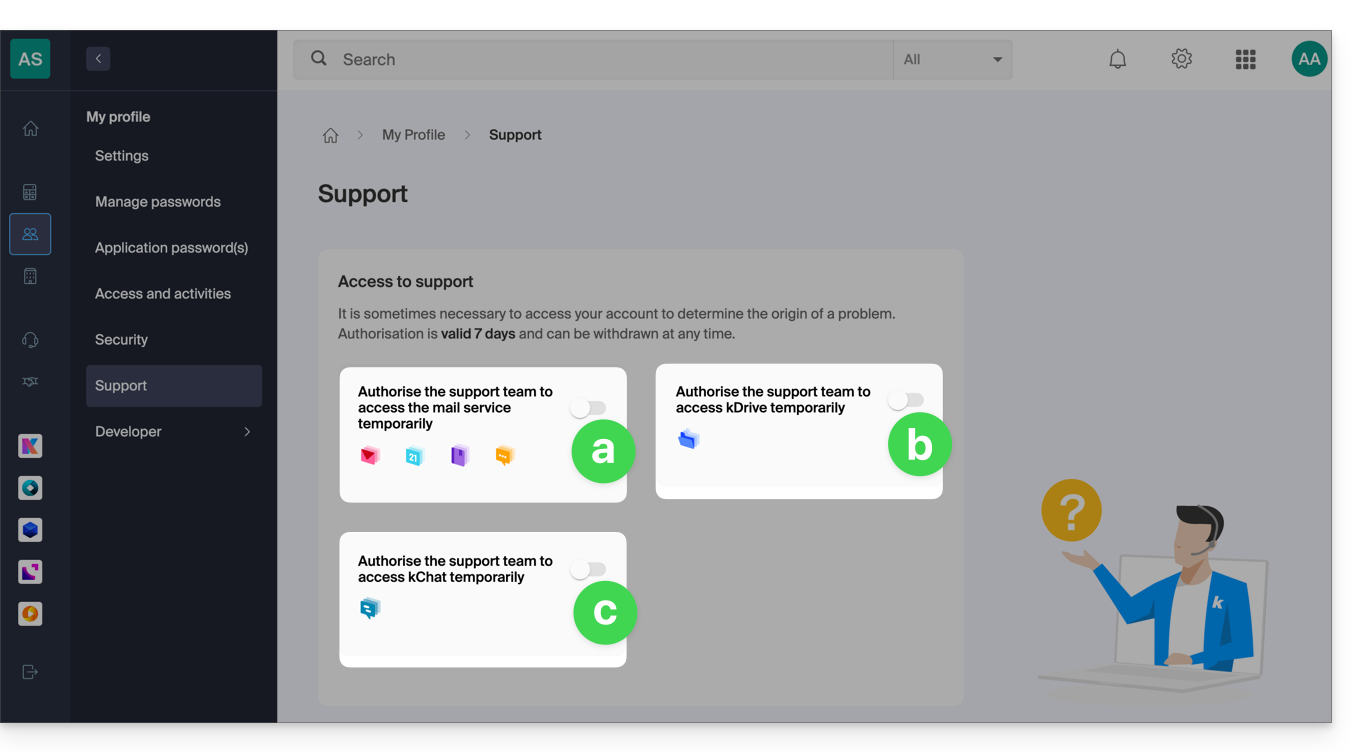
- … os endereços de e-mail associados ao aplicativo web Mail da Infomaniak (serviço online ksuite.infomaniak.com/mail) + contatos e calendários,
- … as pastas existentes no(s) kDrive das organizações das quais o utilizador atual faz parte,
- … as conversas existentes no(s) produto(s) kChat das organizações das quais o utilizador atual faz parte.
Com o kSuite, também pode fazê-lo clicando aqui ou seguir estes passos para o conseguir:
- Clique em Configurações no canto superior direito.
- Clique em Suporte no menu lateral esquerdo:
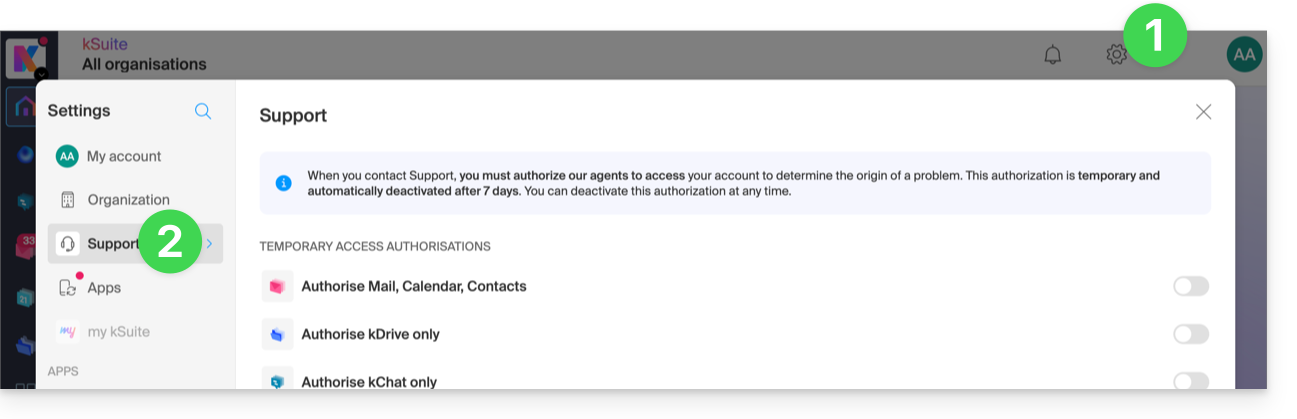
- Clique no botão de alternância para permitir o acesso ao conteúdo de…
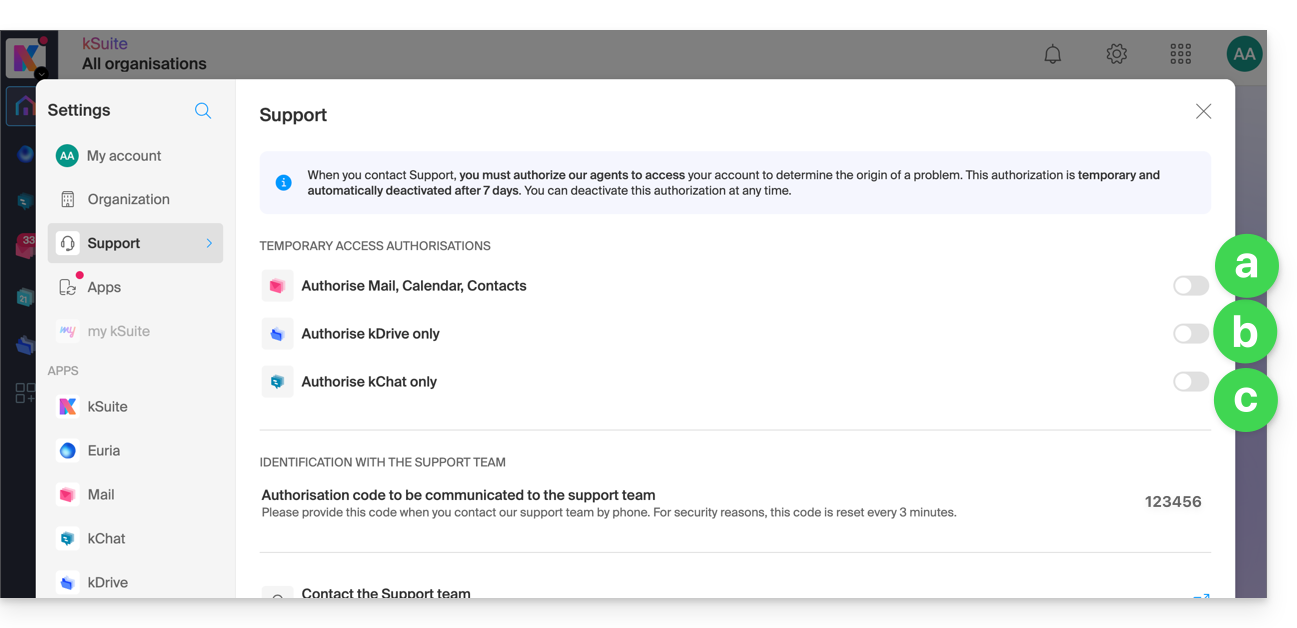
Também pode partilhar um único e-mail específico de forma muito fácil.
Fazer capturas de tela
… no Windows
A Microsoft oferece um software pré-instalado dedicado à captura de tela. Mas, para realizar capturas manualmente:
- Exiba o que você quer/precisa mostrar na tela.
- Pressione a tecla PRINTSCREEN do seu teclado (ou
PRTSCR,IMPR. ECRAN, etc.) uma vez. - No Microsoft Word (ou similar), vá em "Editar" -> "Colar" para inserir a sua imagem na página.
- "Salvar" o seu arquivo.
- Repita a operação do ponto 1 ao ponto 5 tantas vezes quanto o número de capturas desejadas.
… no macOS
- Pressione simultaneamente as teclas "
CMD" + "shift" (a seta para cima — maiúscula) + a tecla "3". - A cada toque nessas teclas, um arquivo de imagem é criado na área de trabalho do seu computador.
… no iOS (iPhone, iPad...)
- Pressione simultaneamente os botões "
Power" + "Home" (os dois únicos botões físicos). - Em seguida, recupere as capturas de tela no aplicativo "Fotos" do seu dispositivo.
… no Android (por exemplo, Samsung, LG ou Huawei)
- Pressione simultaneamente o botão “Volume Baixo” (na lateral) e o botão de bloqueio.
- A imagem capturada é, assim, automaticamente guardada numa pasta "Capturas de Ecrã" na galeria.
Copiar o conteúdo de uma janela de alerta
… no Windows
Para copiar e colar como texto uma mensagem de erro presente numa janela “pop-up” do Windows, basta pressionar a tecla CTRL + C no seu teclado para copiar a mensagem para a área de transferência. Em seguida, poderá colá-la (CTRL + V) no corpo da mensagem que está a enviar.
Acessar o console Javascript do navegador
… no Windows
Chrome, Firefox e Safari: pressione a combinação de teclas CTRL + MAJ + i
Edge: pressione a tecla F12
… no macOS
Chrome: pressione a combinação de teclas ⌘ + ⌥ + J
Safari: pressione a combinação de teclas ⌘ + ⌥ + C
- Em seguida, clique no ícone de círculo com uma barra ou similar para reiniciar o registro.
- Exiba a página do seu site que está apresentando o problema.
- A guia Console exibe os erros JavaScript e os recursos online não encontrados.
Link para esta FAQ: https://faq.infomaniak.com/913
Esta seção de perguntas frequentes foi útil?
Este guia explica como adicionar um simples novo evento único a um calendário na aplicação web Calendar da Infomaniak (serviço online ksuite.infomaniak.com/calendar).
Introdução
- Para criar um evento recorrente / evento que se repete regularmente, consulte este outro guia.
- Para agendar uma reunião entre vários utilizadores e encontrar o melhor horário, consulte este outro guia sobre o assistente de agendamento de reuniões.
Adicionar um novo evento
Para agendar um evento único em um calendário gerenciado pela Infomaniak:
- Clique aqui para acessar o aplicativo web Calendar da Infomaniak (serviço online ksuite.infomaniak.com/calendar).
- Clique no botão Criar no canto superior esquerdo.
- Clique em Evento:
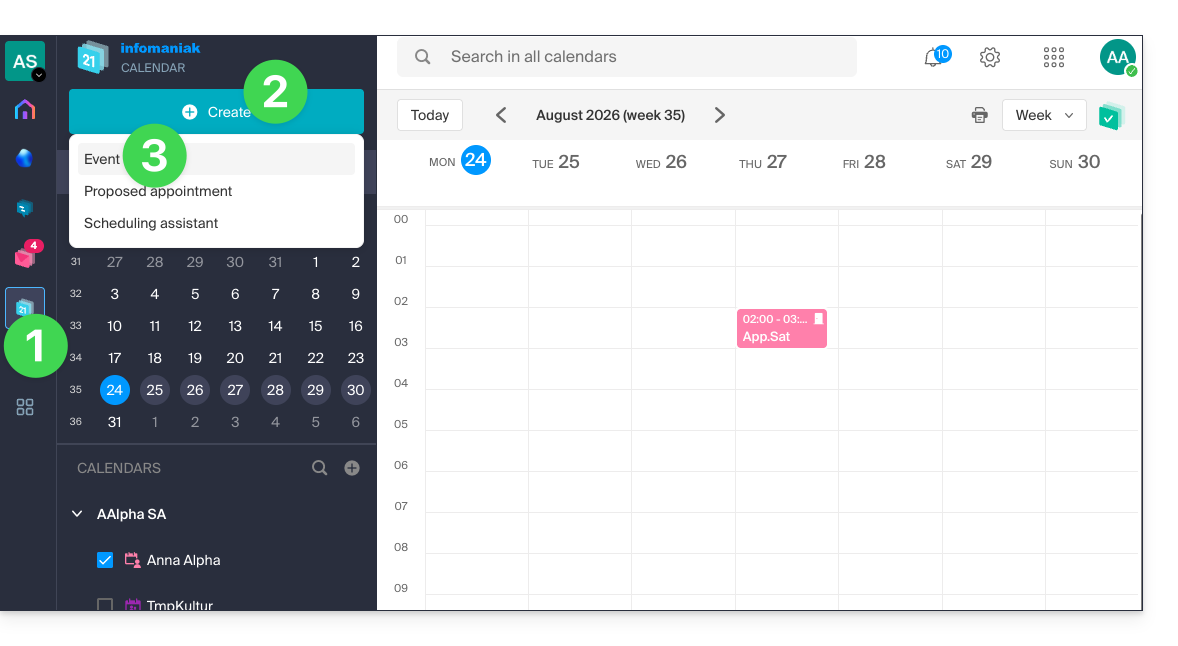
- Preencha os diferentes campos:
- Cor e título (assunto) do evento
- Data/hora ou duração, possível recorrência
- Os participantes (consulte abaixo)
- Link kMeet se o evento corresponder a uma reunião entre várias pessoas
- O local geográfico ou sala de reunião.
- Descrição ou anexo do kDrive
- Prazo para lembrete (notificação)
- Calendário em questão
- Escolha:
- o calendário em questão
- se o evento deve ter o status ocupado ou livre (para não impedir a marcação de outros compromissos)
- se deve ser público ou privado (e, neste caso, ninguém verá o evento no seu calendário, a menos que tenha permissões de edição)
- Clique em SALVAR para adicionar o evento ao calendário selecionado:
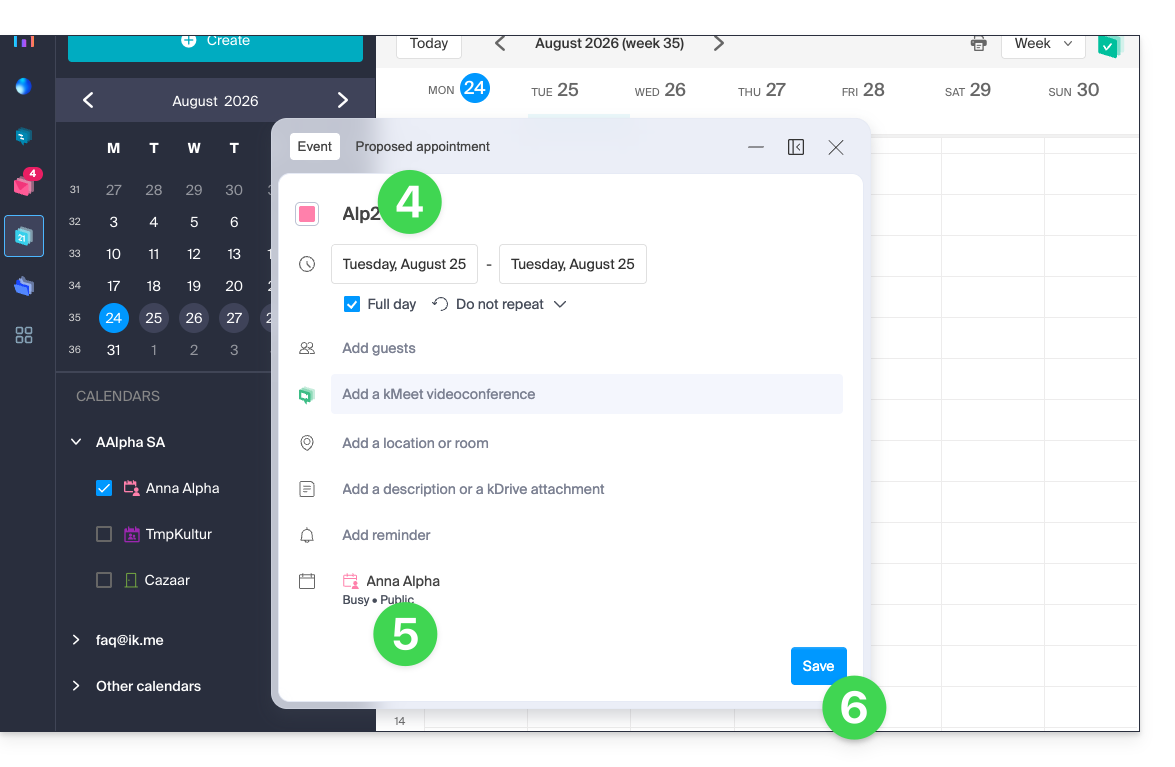
Você também pode clicar diretamente no calendário para adicionar um novo evento, arrastando o ponteiro do mouse sobre o período de tempo desejado: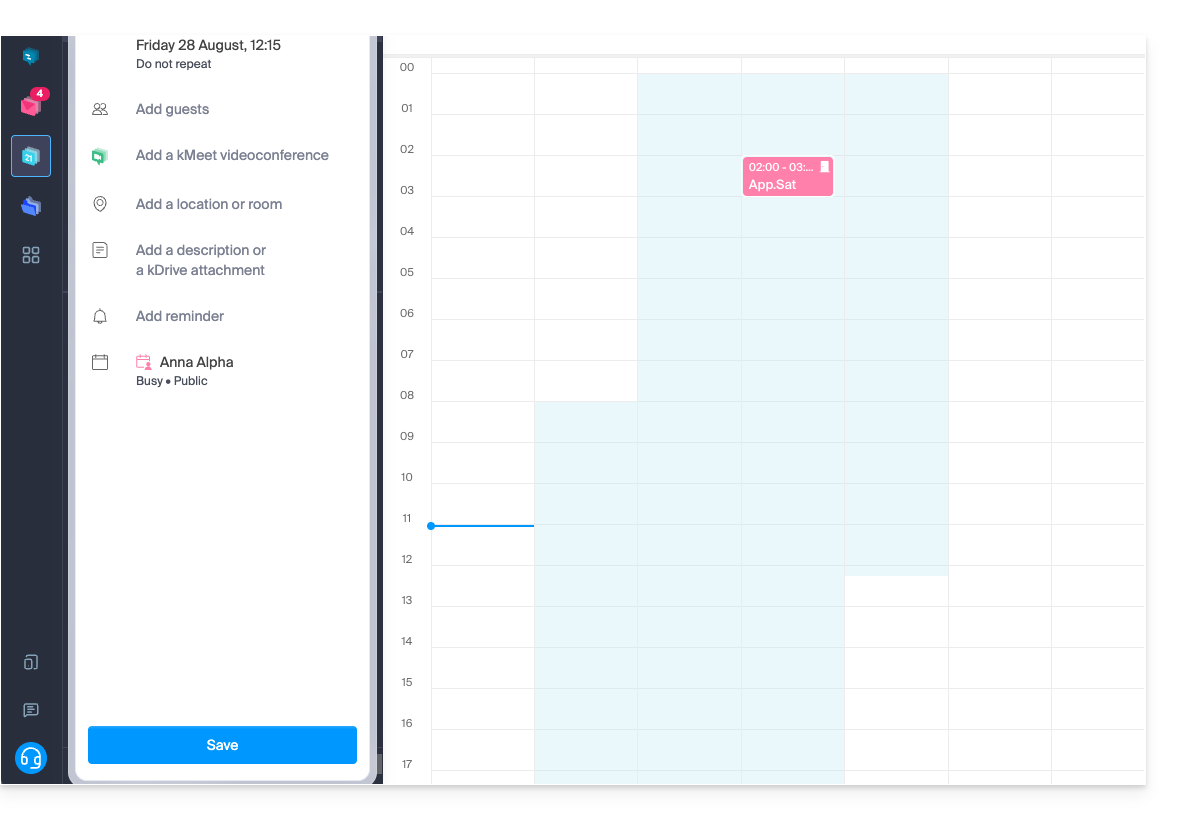
A janela de edição pode ser movida na tela e até mesmo inserida no painel lateral esquerdo para uma melhor visualização do calendário: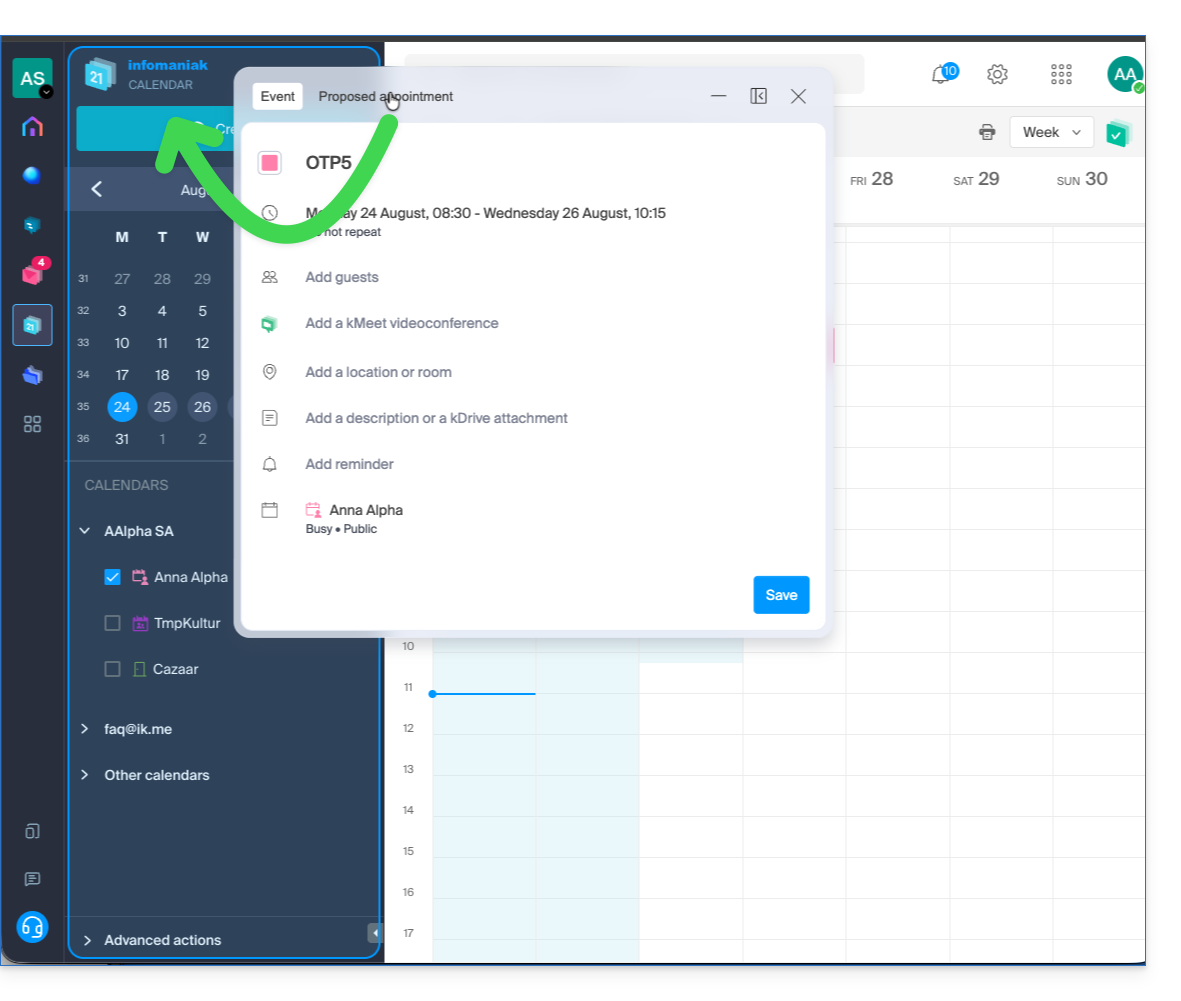
Adicionar participantes ao evento
Para convidar utilizadores, adicione o nome ou o endereço de e-mail deles durante a criação do evento ou posteriormente: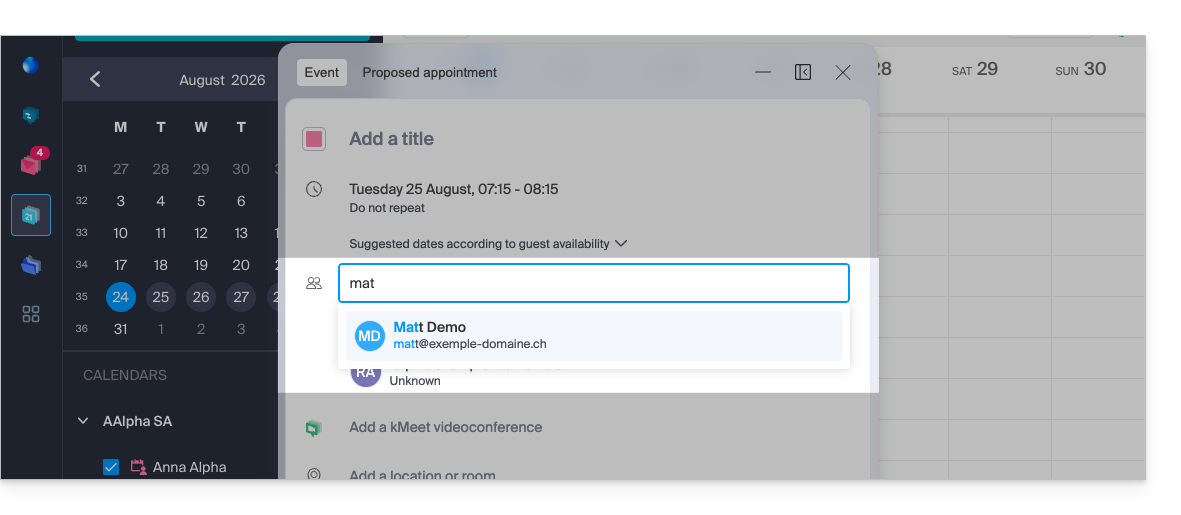
Será informado sobre a confirmação ou recusa da presença deles, caso sigam o procedimento enviado por e-mail no momento da criação do evento.
Qualquer atualização de um evento agendado também será enviada por e-mail a todos os participantes.
Link para esta FAQ: https://faq.infomaniak.com/956
Esta seção de perguntas frequentes foi útil?
Este guia explica o que significa a indicação de e-mail externo, "Externo", que aparece na aplicação web Mail (serviço online ksuite.infomaniak.com/mail) e na aplicação móvel Infomaniak Mail (aplicação para smartphone ou tablet iOS / Android) ao ler certas mensagens: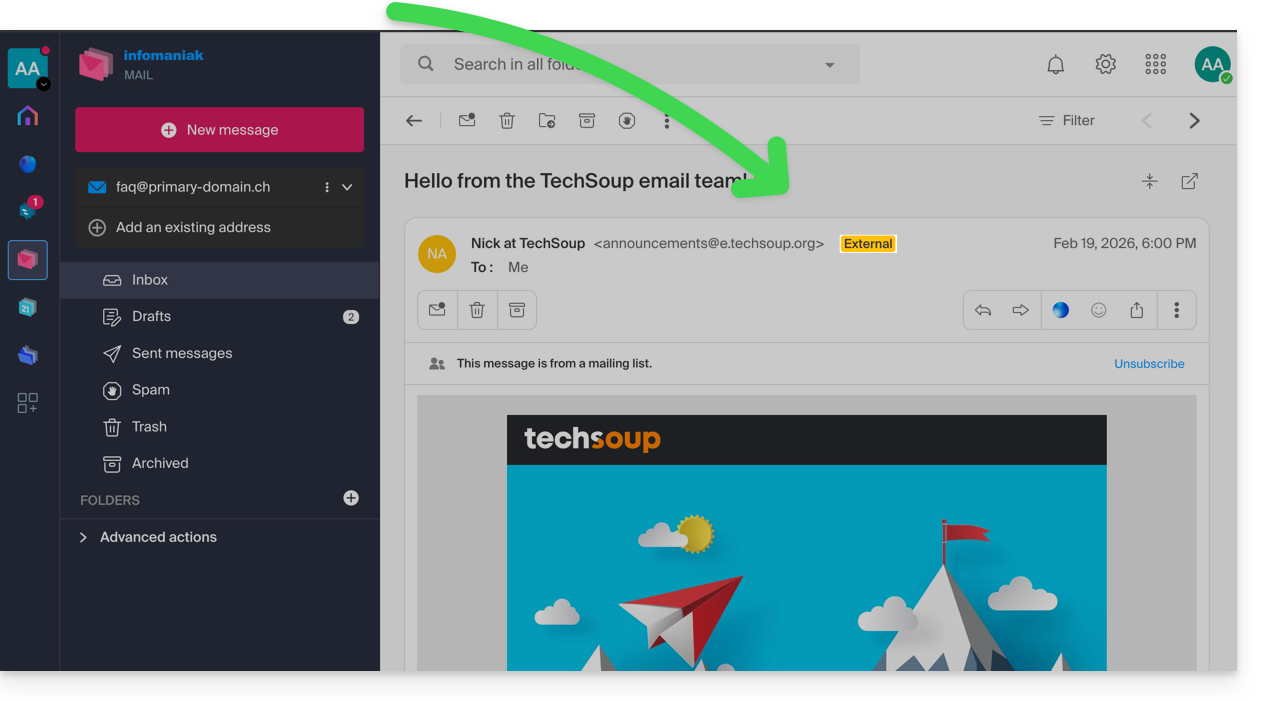
Introdução
- A indicação de e-mail externo é exibida nos seguintes casos:
- O nome de domínio (ou alias) do remetente não corresponde ao da conta de e-mail configurada no Mail.
- O remetente não faz parte dos contatos (incluindo os contatos sugeridos).
- O e-mail provém de um endereço hospedado fora da Organização.
- A indicação será exibida como "desconhecido" em vez de “externo” em algumas ofertas gratuitas, como my kSuite.
Ativar ou desativar a menção
Pode ativar ou desativar a menção; o efeito é imediato para os e-mails recebidos e, no caso de uma resposta a um e-mail externo. Para tal:
- Clique aqui para acessar o gerenciamento do Serviço de E-mail no seu Painel de Controle Infomaniak (❓: ajuda).
- Clique no nome do Serviço de E-mail desejado:
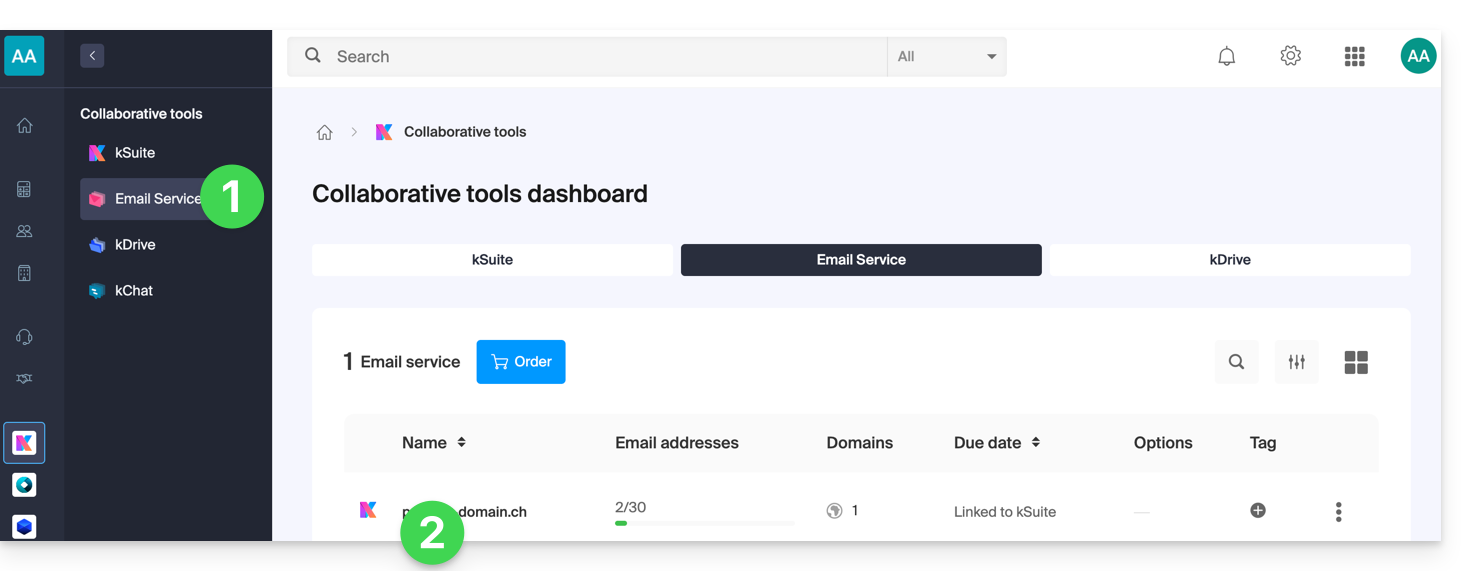
- Clique em Configuração global no menu lateral esquerdo:
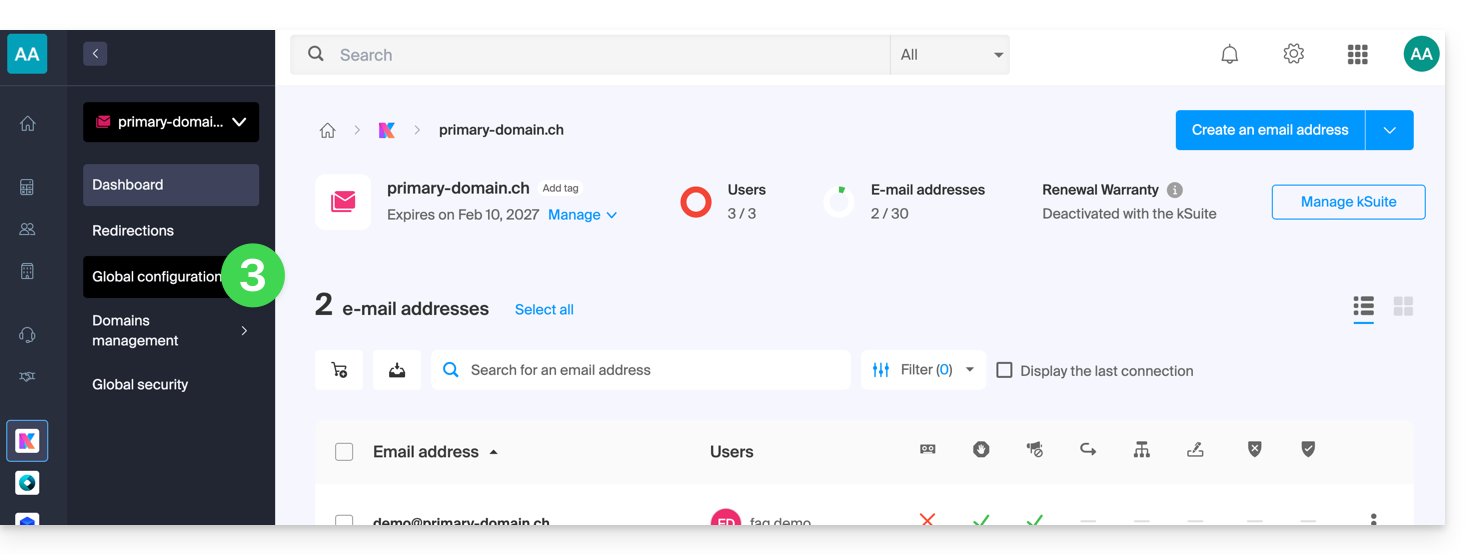
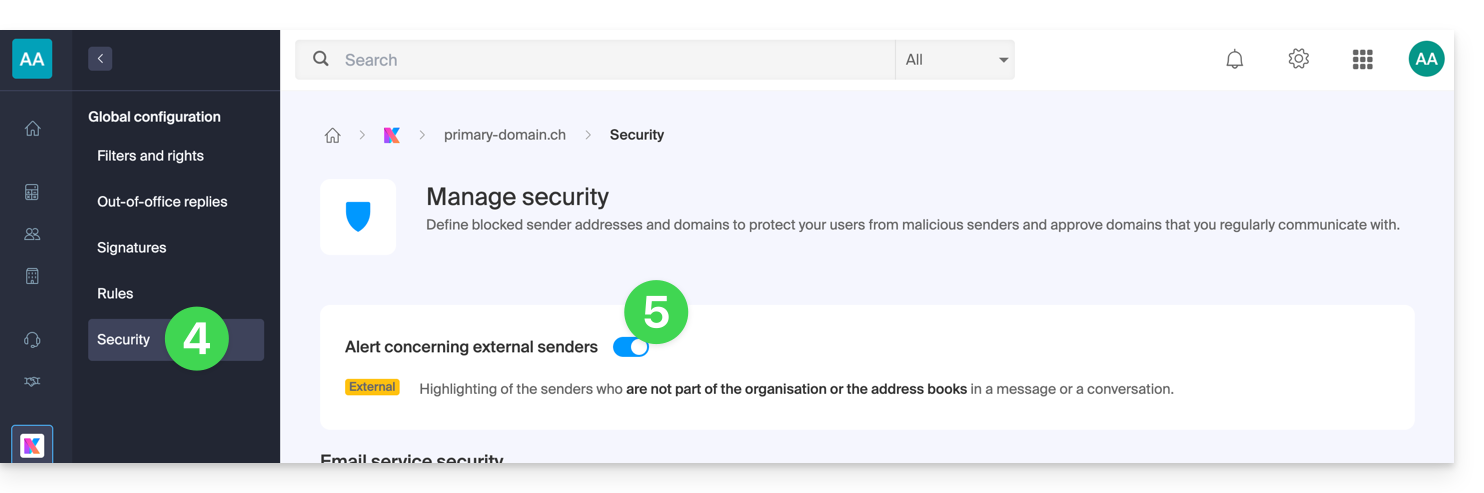
- Clique na aba Segurança.
- Ative ou desative o botão de alternância (toggle switch):
Link para esta FAQ: https://faq.infomaniak.com/964
Esta seção de perguntas frequentes foi útil?
Este guia explica como usar o gerenciador de tarefas presente no aplicativo web Calendar Infomaniak (serviço online ksuite.infomaniak.com/calendar/tasks).
Gerenciar suas tarefas
Para adicionar uma tarefa no gerenciador de tarefas:
- Clique aqui para acessar o aplicativo web Tasks (serviço online ksuite.infomaniak.com/calendar/tasks)…
- … também acessível a partir do seu calendário, clicando no ícone de Tarefas no menu lateral direito:
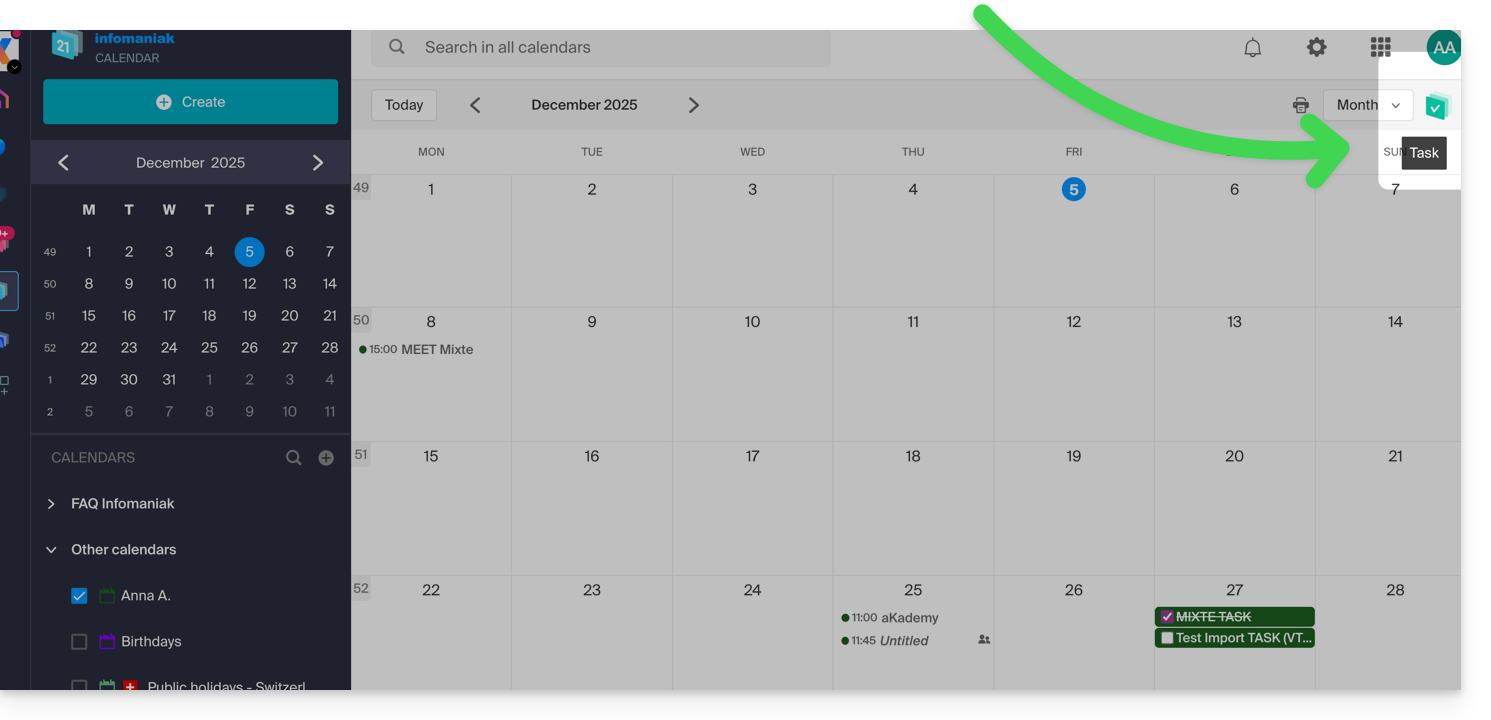
- … também acessível a partir do seu calendário, clicando no ícone de Tarefas no menu lateral direito:
Após abrir o gerenciador, você pode Criar uma tarefa no canto superior esquerdo, que estará vinculada ao calendário especificado à direita do botão: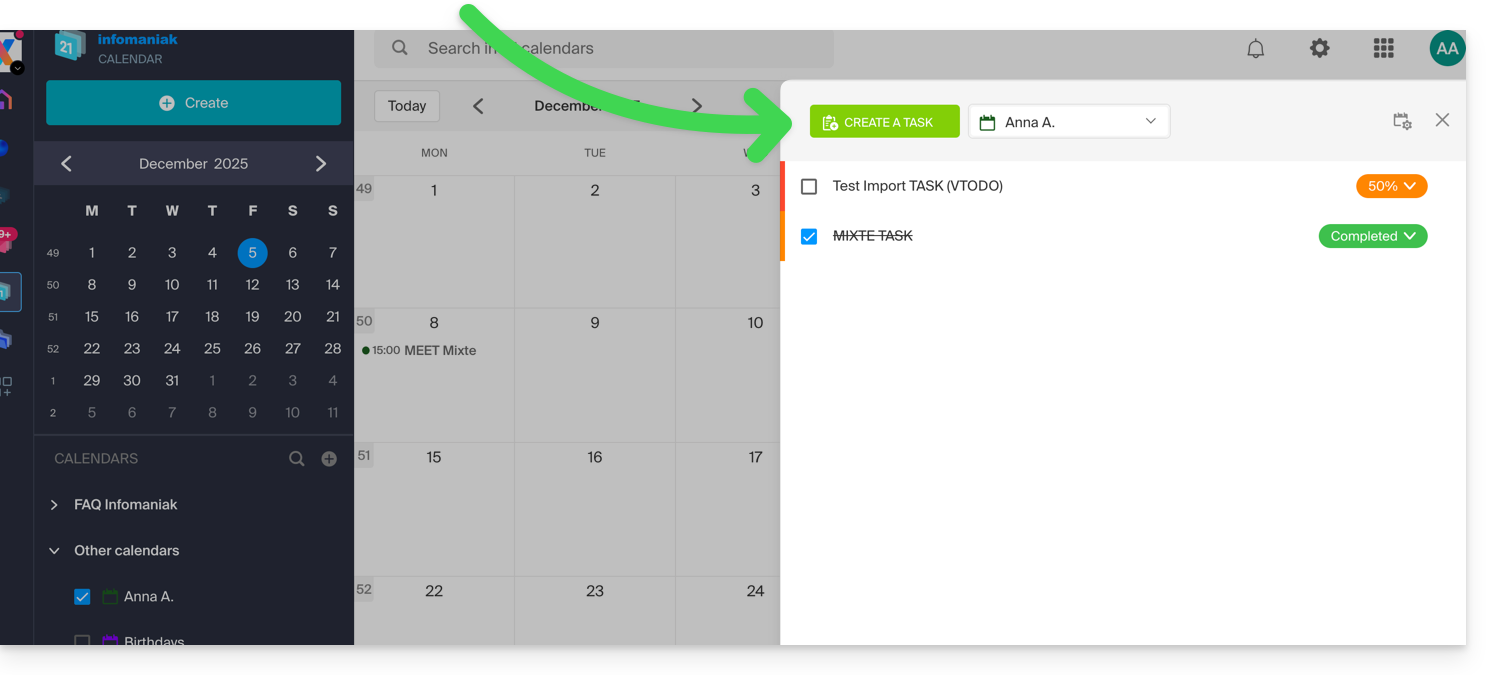
Se você adicionar uma data de vencimento à sua tarefa, ela será exibida no calendário correspondente: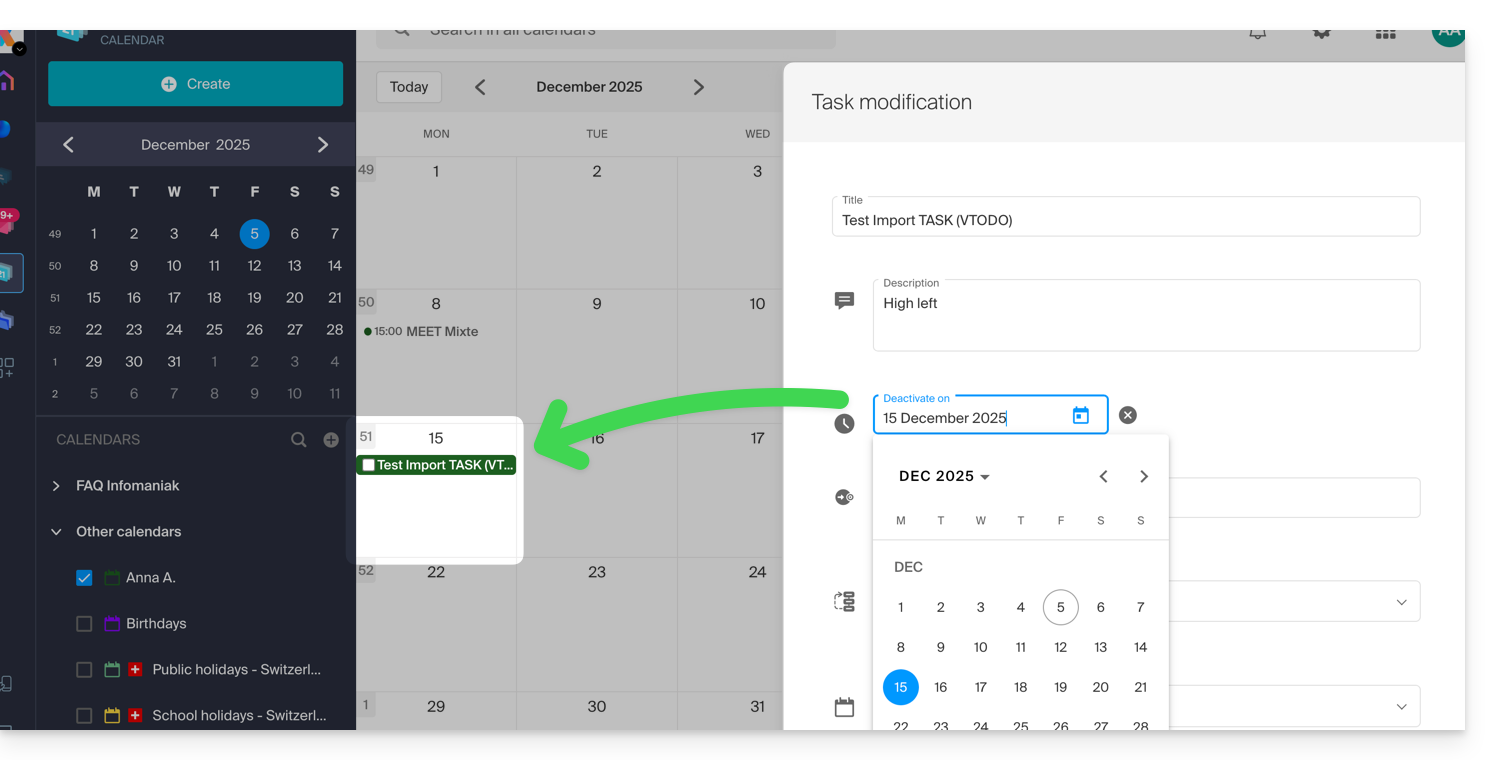
Você também pode filtrar e ordenar suas tarefas exibidas usando o botão localizado no canto superior direito do gerenciador, ao lado do "x" que permite fechá-lo: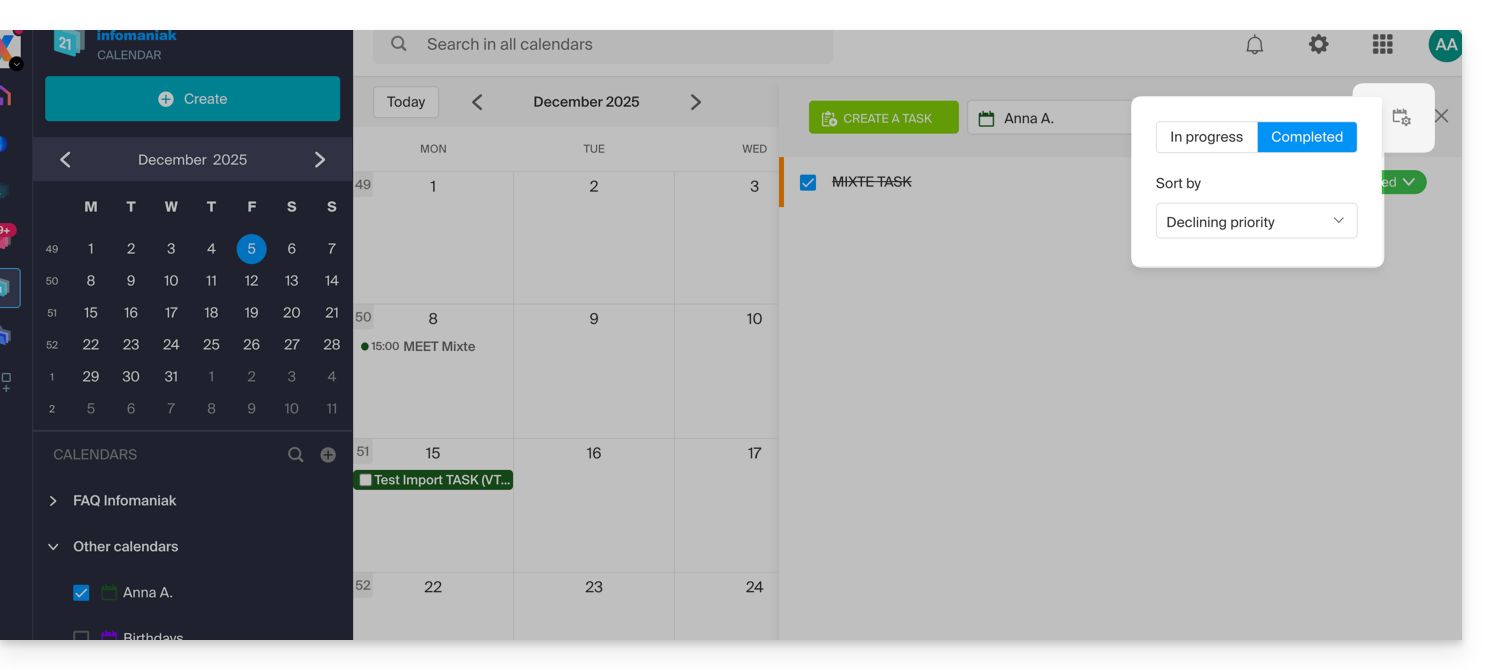
Você pode importar tarefas para o seu calendário.
Para sincronizar tarefas com um dispositivo Android, consulte este outro guia.
Link para esta FAQ: https://faq.infomaniak.com/984
Esta seção de perguntas frequentes foi útil?
Este guia explica como adicionar ou remover contactos em listas de contactos da aplicação web Contactos Infomaniak (serviço online ksuite.infomaniak.com/contacts).
Introdução
- Para importar contactos existentes, consulte este outro guia.
- Para gerir os livros de endereços, consulte este outro guia.
Adicionar um novo contato
Para adicionar uma nova ficha de contato em um catálogo de endereços:
- Clique aqui para acessar o aplicativo web Contatos da Infomaniak (serviço online ksuite.infomaniak.com/contacts).
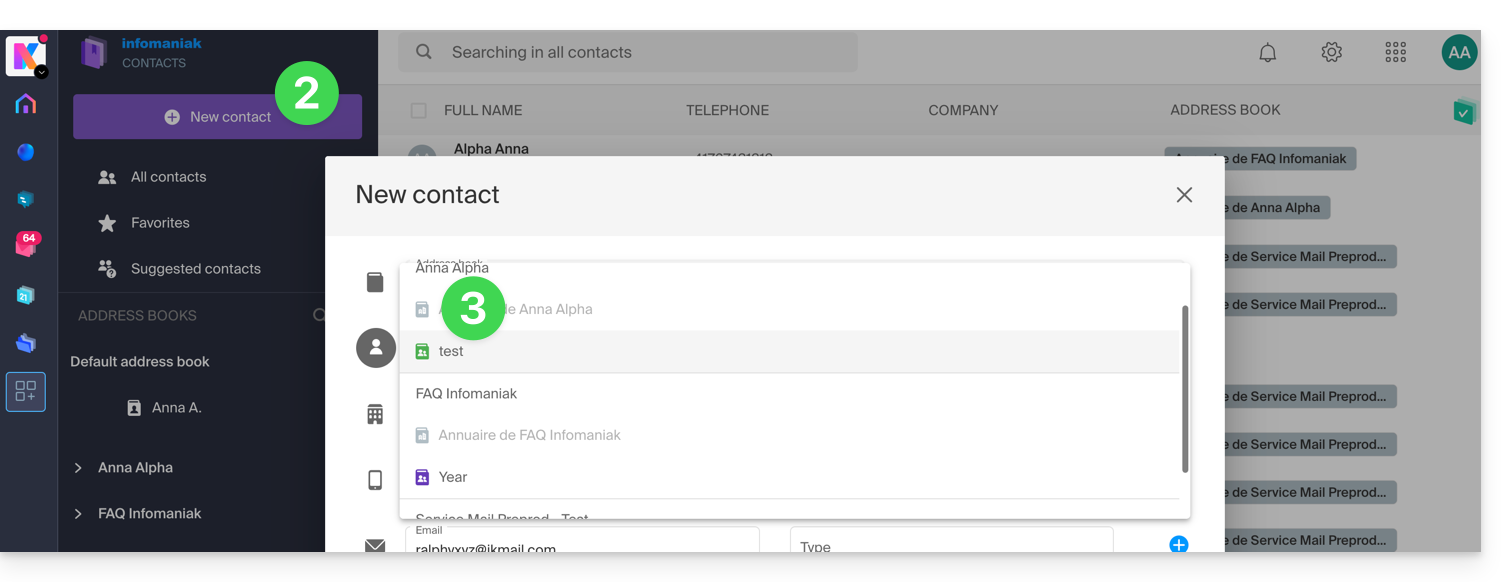
- Clique em Novo contato no canto superior esquerdo.
- Escolha o catálogo de endereços existente no qual deseja adicionar o contato:
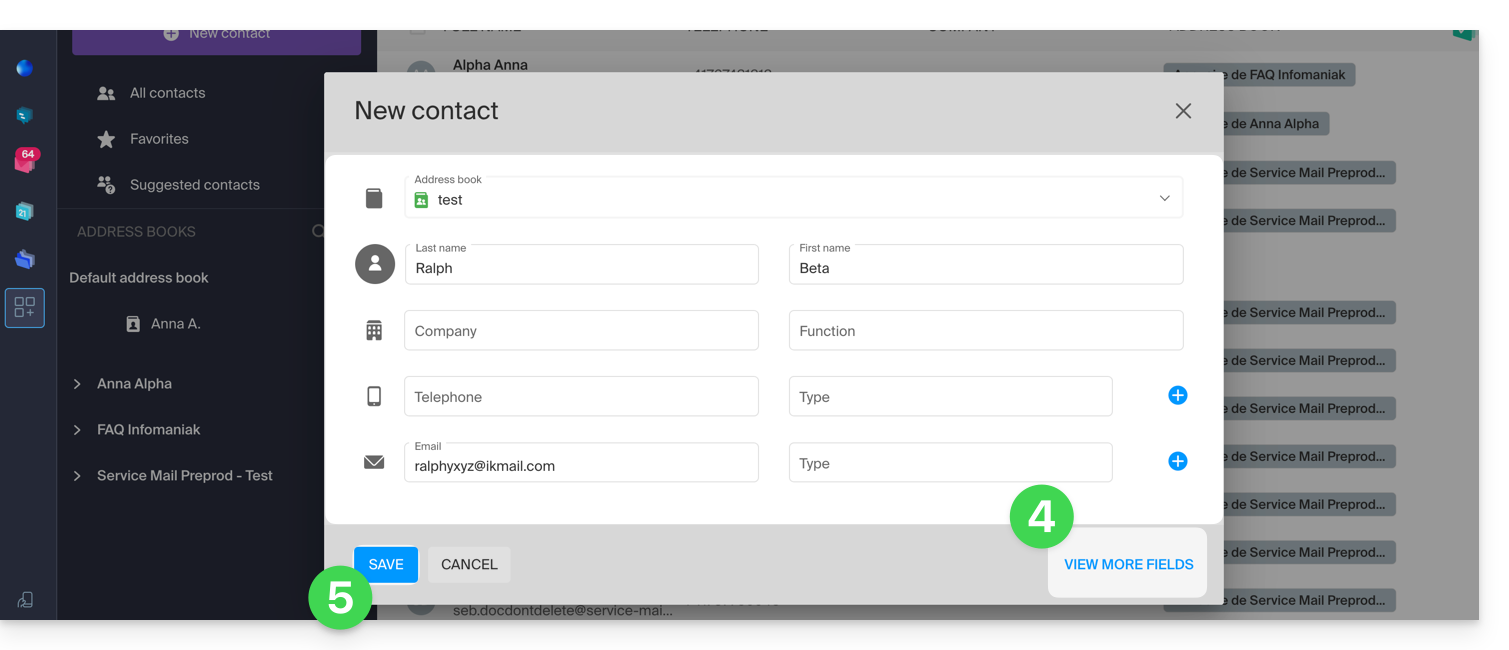
- Preencha as informações principais (ou adicionais, através do link no canto inferior direito).
- Valide com o botão Guardar:
Adicionar a partir de contactos frequentemente utilizados
Pode completar uma lista de contactos a partir dos contactos frequentes sugeridos pela aplicação (com base no seu uso da aplicação Web Mail). O nome/sobrenome/endereço de e-mail serão preenchidos automaticamente, caso estejam disponíveis:
- Clique aqui para aceder à aplicação Web Contactos Infomaniak (serviço online ksuite.infomaniak.com/contacts).
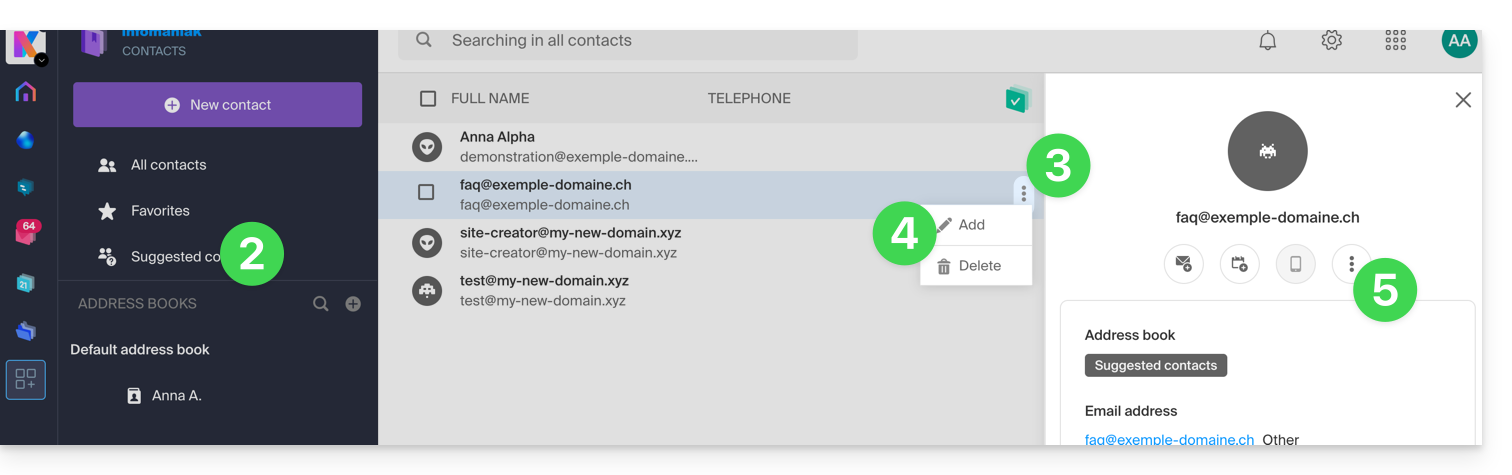
- Clique em Contatos sugeridos no menu lateral esquerdo.
- Clique no menu de ação ⋮ à direita do contato em questão.
- Clique em Adicionar para adicionar o contato a uma lista de endereços existente.
- Você também pode clicar no menu de ação ⋮ no painel lateral direito:
- Complete as informações de contato, se necessário, e clique em Salvar.
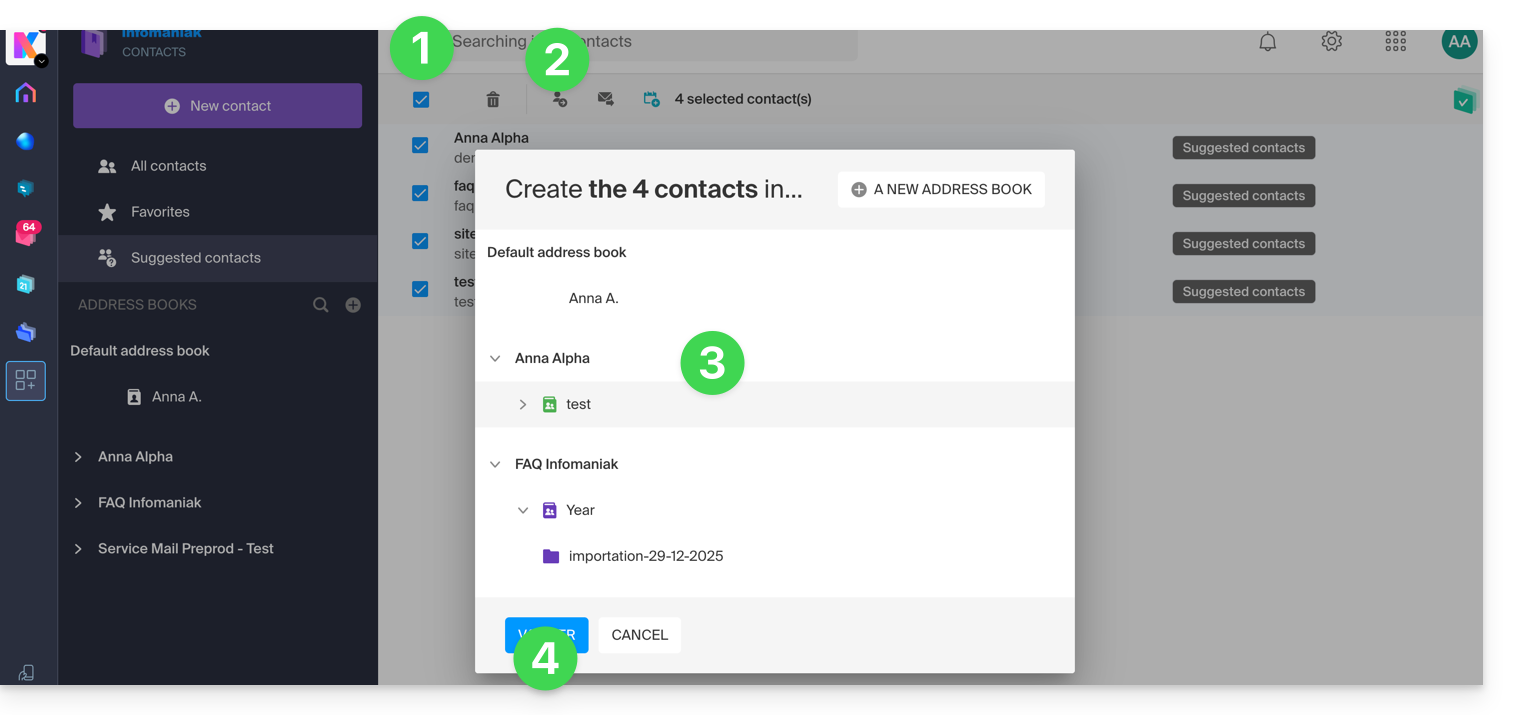
Para adicionar todos os contactos sugeridos de uma só vez:
- Clique no cabeçalho da coluna para selecionar todos os contactos.
- Clique, em seguida, no ícone que aparece na parte superior da tabela.
- Escolha o catálogo de endereços existente no qual deseja adicionar os contactos.
- Clique no botão para guardar todos os contactos selecionados:
Adicionar a partir da aplicação Web Mail Infomaniak
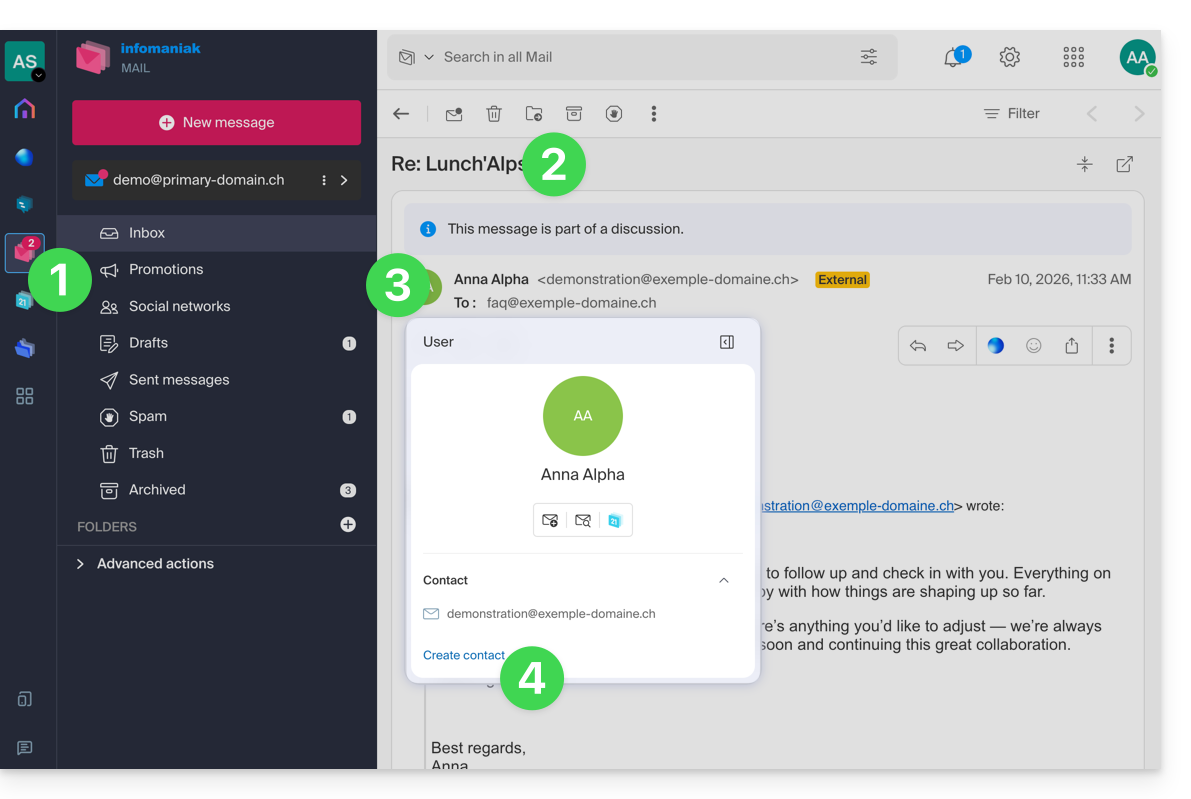
Pode criar uma ficha para um contacto diretamente a partir das mensagens que troca com esse contacto:
- Clique aqui para aceder aos e-mails na sua kSuite Infomaniak (❓: ajuda).
- Abra a mensagem do remetente (ou a conversa entre vários participantes).
- Passe o cursor sobre a parte que menciona o remetente ou o destinatário que deseja adicionar à sua lista de contactos.
- Clique em Criar contato:
- Preencha as informações do contato, se necessário, e clique em Salvar.
Excluir um ou mais contactos
Para remover um contacto das suas listas:
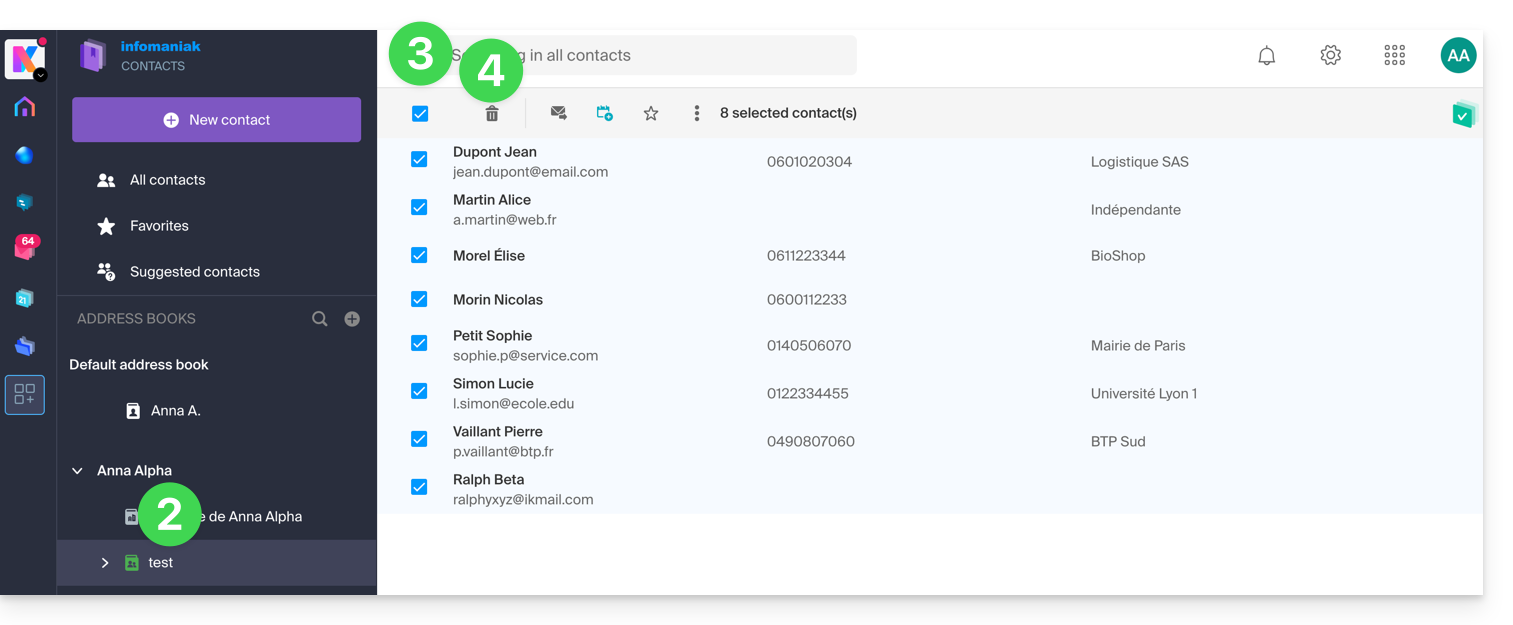
- Clique aqui para acessar o aplicativo web Contatos Infomaniak (serviço online ksuite.infomaniak.com/contacts).
- Selecione o catálogo de endereços do qual deseja remover seus contatos:
- Selecione o(s) contato(s) que deseja excluir.
- O ícone Lixeira aparece no cabeçalho da coluna, permitindo que você exclua os contatos selecionados:
Atenção: a exibição de todos os contactos nem sempre permite a eliminação, caso entre eles se encontrem contactos de Organizações das quais não é administrador.
Link para esta FAQ: https://faq.infomaniak.com/996
Esta seção de perguntas frequentes foi útil?
Este guia aborda problemas que podem ocorrer ao usar aplicativos Infomaniak (como kChat, kDrive, Infomaniak Authenticator, etc.) ou ferramentas (como config.infomaniak.com, o Manager Infomaniak, etc.) com hardware (sistema operacional, navegador, dispositivos, etc.) antigo / desatualizado / obsoleto.
Introdução
- Por exemplo, não será possível aceder de forma otimizada aos serviços Infomaniak com um iPhone 5s ou 6 no iOS 12.
- Recomenda-se, portanto, atualizar regularmente os navegadores e os sistemas operativos para usufruir da melhor experiência possível com a infraestrutura Infomaniak.
- Consulte também este outro guia, que se concentra especificamente em navegadores como Brave, Chrome, Edge, Firefox, Opera, Safari… e seus componentes.
- E você está usando a versão mais recente do aplicativo Infomaniak?
Atualizar o sistema operativo, o navegador, etc.
Sistemas ou navegadores antigos podem causar lentidão, erros ou exibição incorreta. Por isso, é preferível utilizar componentes atualizados regularmente, pois os aplicativos Infomaniak funcionam de forma otimizada em sistemas atualizados e em hardware recente.
Exemplo para kChat:
| kChat | Requisito mínimo |
|---|---|
| Aplicação web (navegador) | Chrome 134+, Firefox 128+, Safari 17.4+, Edge 134+ |
| Aplicativo móvel (iOS) | iOS 15.1 ou superior (iPhone 6s ou mais recente) |
| Aplicativo móvel (Android) | Android 7.0 ou superior com o Chrome atualizado |
| Aplicativo para desktop (macOS) | macOS 12 (Monterey) ou versão posterior |
| Aplicativo para desktop (Windows) | Windows 10 ou versão posterior |
| Aplicativo para desktop (Linux) | Ubuntu 22.04 LTS ou distribuição equivalente com suporte contínuo |
Em caso de problemas com o navegador, tente atualizá-lo ou instalar uma alternativa:
- Google Chrome
https://www.google.com/chrome/
(O site detecta automaticamente o sistema operacional e oferece a versão mais recente) - Mozilla Firefox
https://www.mozilla.org/firefox/new/
(Página de download e atualização para Windows, macOS e Linux) - Microsoft Edge
https://www.microsoft.com/edge
(O link oferece a atualização automática ou o download, dependendo do sistema) - Safari (apenas macOS)
https://support.apple.com/fr-fr/HT204416
(A atualização do Safari é feita através das atualizações do sistema macOS) - Opera
https://www.opera.com/fr/download
(Permite baixar a versão mais recente para o seu sistema) - Brave
https://brave.com/download/
(Página de download com detecção automática do sistema operacional)
Tecnologias utilizadas pela Infomaniak
Muitas das ferramentas web desenvolvidas pela Infomaniak utilizam Angular. A necessidade de hardware atualizado ou recente para executar as aplicações não é específica do Angular em si, mas sim um requisito geral para a execução de qualquer aplicação web moderna. Aqui estão algumas razões pelas quais um hardware atualizado é frequentemente necessário:
- O Angular utiliza funcionalidades avançadas dos navegadores modernos, que muitas vezes estão ausentes ou são mal implementadas em versões mais antigas.
- Os navegadores mais recentes otimizam a execução do JavaScript e a renderização gráfica, o que melhora o desempenho das aplicações Angular.
- As versões atualizadas corrigem vulnerabilidades conhecidas, reduzindo os riscos de comprometimento.
- Os navegadores modernos estão mais em conformidade com as últimas especificações HTML, CSS e JavaScript, garantindo uma melhor compatibilidade.
- As APIs modernas (câmera, geolocalização, notificações, etc.) só são acessíveis através de navegadores recentes, o que é essencial para experiências interativas.
Link para esta FAQ: https://faq.infomaniak.com/1025
Esta seção de perguntas frequentes foi útil?
Este guia explica como criar um calendário adicional no aplicativo web Calendar da Infomaniak (serviço online ksuite.infomaniak.com/calendar) e, em seguida, defini-lo como padrão.
Introdução
- Definir um calendário padrão permite, por exemplo, acelerar a criação de novos eventos, pois você não precisará mais alterar o calendário em que o próximo evento será salvo.
- Você só pode definir como padrão os calendários que lhe pertencem diretamente.
Adicionar um novo calendário
Para criar um calendário adicional:
- Clique aqui para acessar o aplicativo web Calendar da Infomaniak (serviço online ksuite.infomaniak.com/calendar).
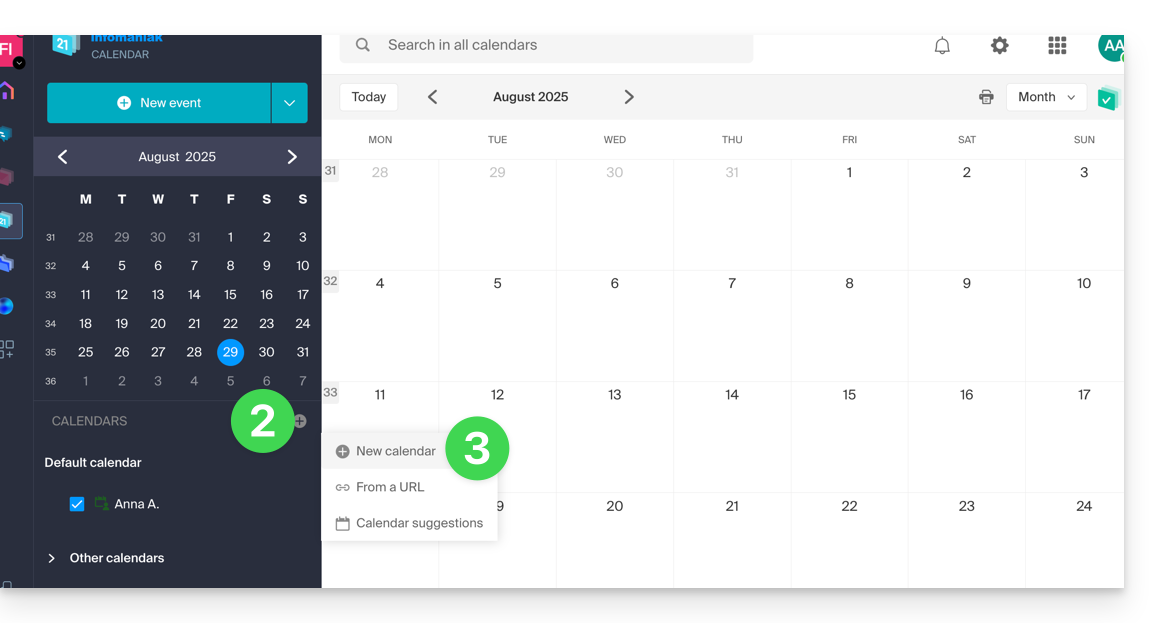
- Clique em no menu lateral esquerdo.
- Clique em Novo calendário:
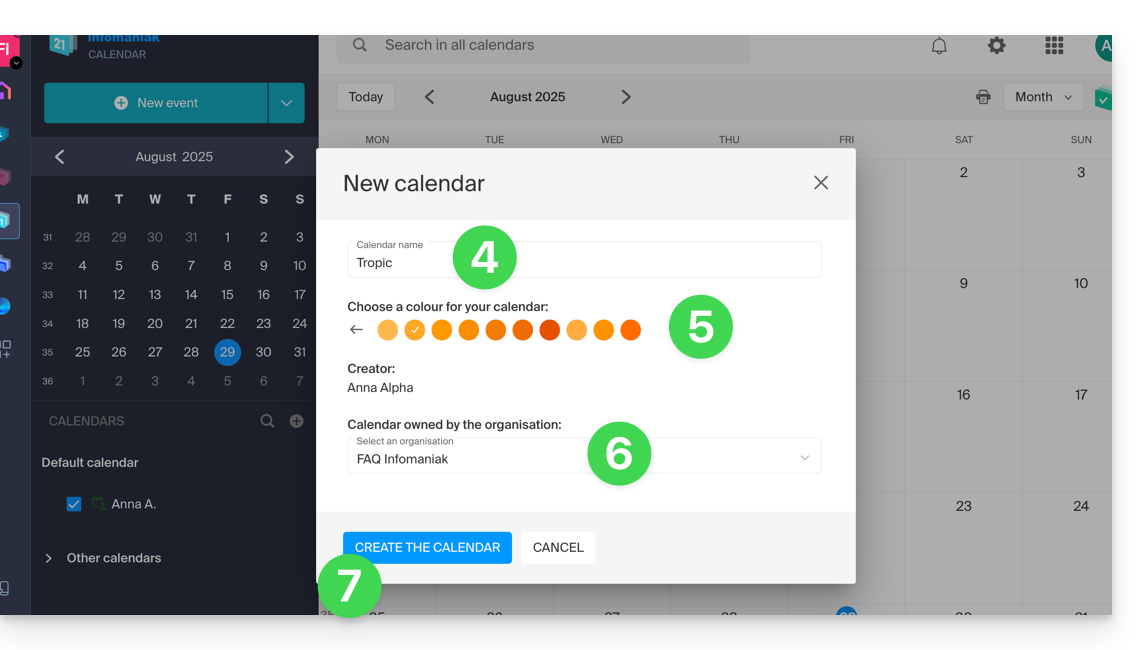
- Insira um nome para o calendário.
- Escolha uma cor.
- Escolha uma das suas Organizações na qual criar o calendário.
- Clique no botão para criar o calendário:
Modificar o calendário padrão
Para definir um dos seus calendários como padrão:
- Clique aqui para acessar o aplicativo web Calendar da Infomaniak (serviço online ksuite.infomaniak.com/calendar).
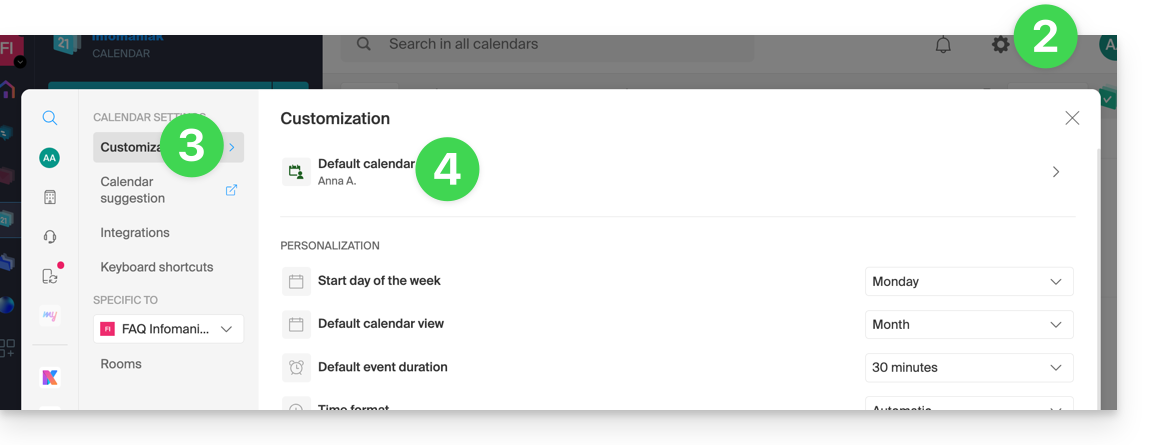
- Clique em Configurações no canto superior direito.
- Clique em Personalização no menu lateral esquerdo.
- Clique no calendário padrão para abrir o menu de opções:
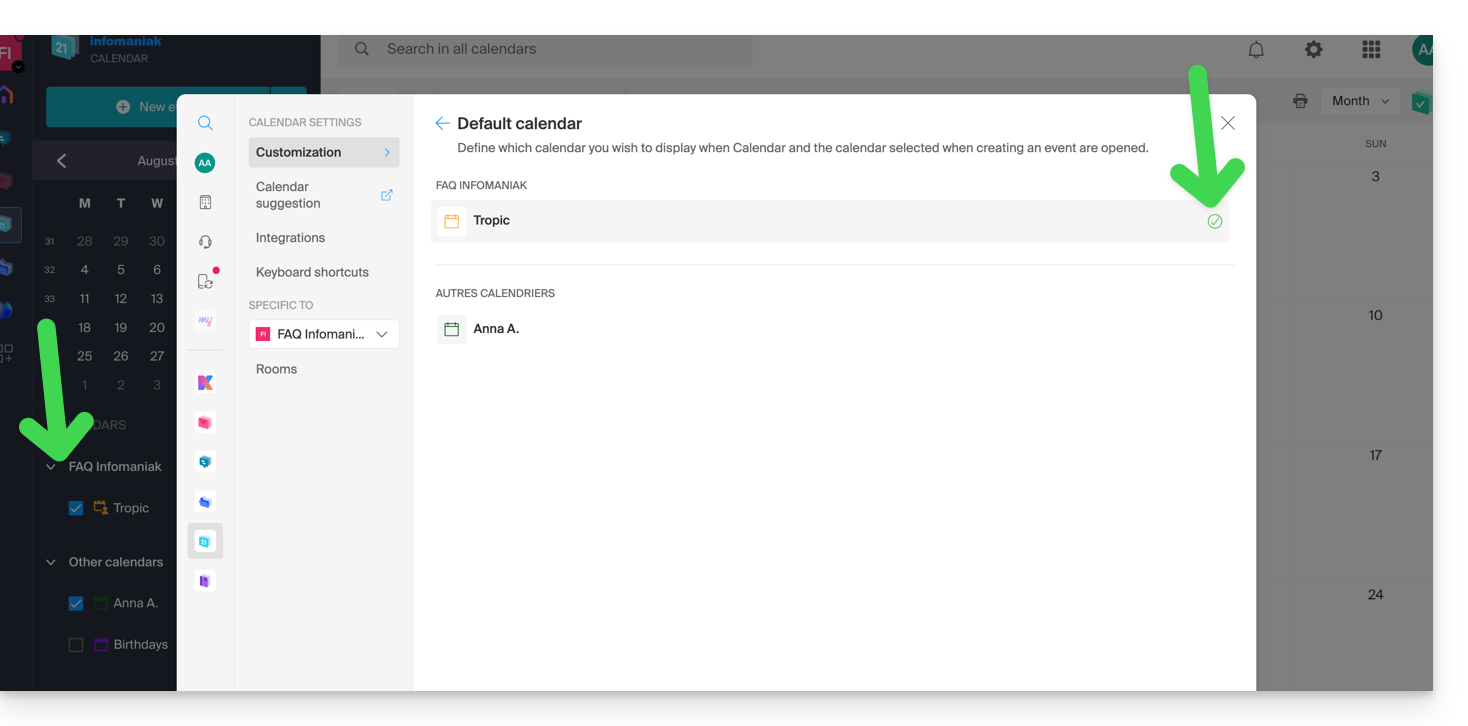
- Escolha o calendário desejado no campo Calendário padrão; ele será posicionado como o primeiro na sua lista de calendários:
Link para esta FAQ: https://faq.infomaniak.com/1078
Esta seção de perguntas frequentes foi útil?
Este guia explica como copiar, via IMAP, o conteúdo de um ou mais endereços de e-mail externos (todas as mensagens de e-mail, pastas, subpastas, ou seja, toda a estrutura da sua caixa de e-mail existente em outros provedores) para um ou mais dos seus endereços existentes na Infomaniak, usando a ferramenta de importação da Infomaniak!
Introdução
- A operação não afeta os dados já presentes no endereço de destino, nem os dados do endereço de origem.
- A totalidade da caixa de e-mail externa será importada.
- Uma vez iniciado o processo de importação, não é mais possível interrompê-lo.
- Os eventuais duplicados são gerenciados: um conteúdo idêntico será copiado apenas uma vez.
- Consulte este outro guia se estiver procurando alternativas a este processo via IMAP.
Copiar e-mails de outro provedor para a Infomaniak
Pré-requisitos
- Possuir um Serviço de E-mail no seu Painel de Controle Infomaniak.
- Dispor de uma quota de endereços livres disponíveis ou ajustá-la previamente, se necessário.
- Certificar-se de que a caixa de e-mail está devidamente protegida.
- Criar um ou mais endereços neste Serviço de E-mail.
- O endereço de e-mail de destino deve estar associado ao utilizador (= à conta Infomaniak) que está a utilizar (não é um requisito para a importação em massa explicada abaixo).
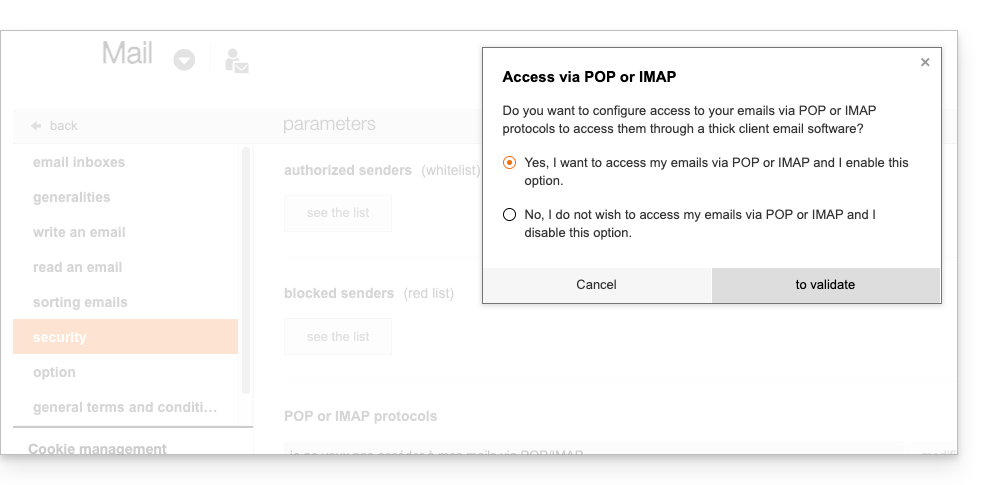
- O endereço de e-mail de origem, cujo conteúdo deve ser copiado, deve ter sido utilizado (ou ser compatível) com o protocolo IMAP:
Em seguida, para importar o conteúdo do e-mail:
- Clique aqui para aceder à ferramenta de importação (serviço online https://import-email.infomaniak.com).
- Se necessário, inicie sessão na sua conta Infomaniak na Organização em questão; de facto, a importação será efetuada para um dos endereços de e-mail associados à interface Web Mail Infomaniak (serviço online ksuite.infomaniak.com/mail) da conta Infomaniak que está a utilizar.
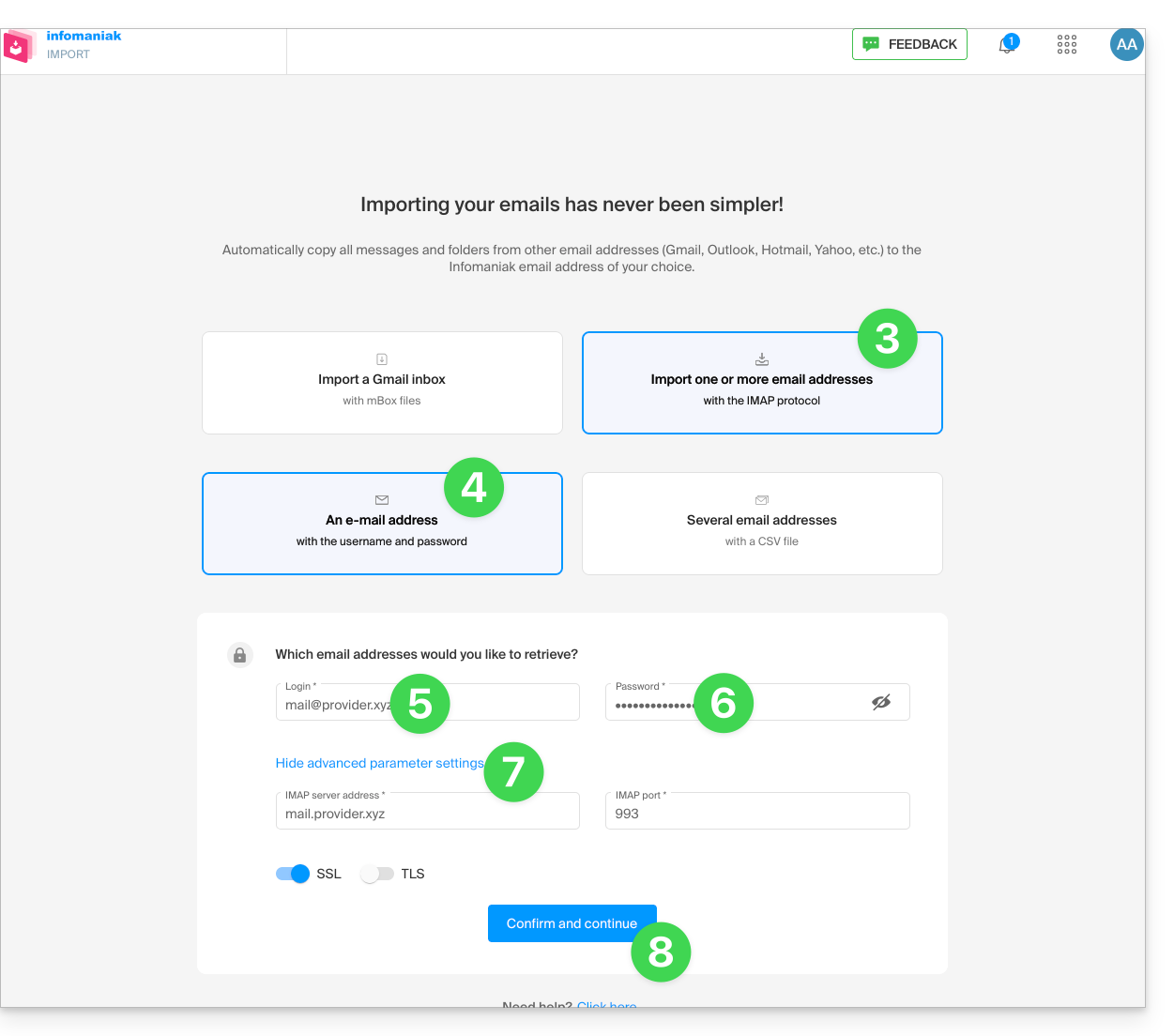
- Clique em importar por IMAP.
- Clique em importar única.
- Preencha o campo da esquerda com o seu endereço de e-mail de origem (cujo conteúdo deve ser copiado).
- Preencha o campo da direita com a palavra-passe desse mesmo endereço de e-mail de origem (ver requisitos).
- Se necessário, modifique as Configurações avançadas para especificar um endereço de servidor IMAP:
- Insira o nome do servidor IMAP (nome do host fornecido pelo seu provedor de e-mail), por exemplo,
imap.domain.ch(ou .net, .com, etc., dependendo do seu endereço de e-mail no item 5 acima). - Insira o número da porta (o padrão é 993) e o SSL.
- Insira o nome do servidor IMAP (nome do host fornecido pelo seu provedor de e-mail), por exemplo,
- Clique em Confirmar:
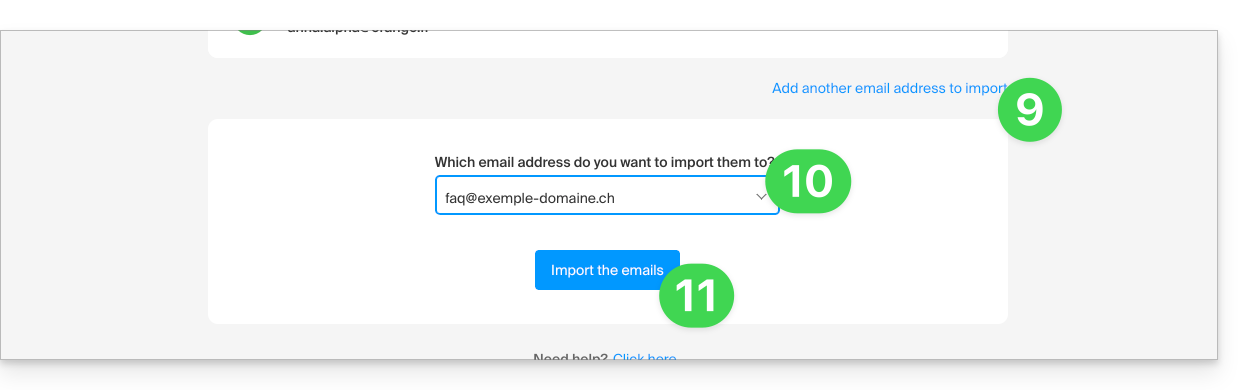
- Se necessário, insira um segundo endereço de e-mail para ser importado ao mesmo tempo.
- Escolha para qual endereço de e-mail importar os e-mails; o menu suspenso lista os endereços de e-mail atualmente associados à sua interface Web Mail Infomaniak (serviço online ksuite.infomaniak.com/mail) da conta Infomaniak com a qual você está conectado.
- Depois de selecionar o endereço de destino desejado na lista, clique no botão azul Importar e-mails:
- A cópia será iniciada; você pode aguardar e verificar o resultado na página após a conclusão da importação ou fechar a janela (a importação continua em segundo plano e um acompanhamento está disponível – veja abaixo):
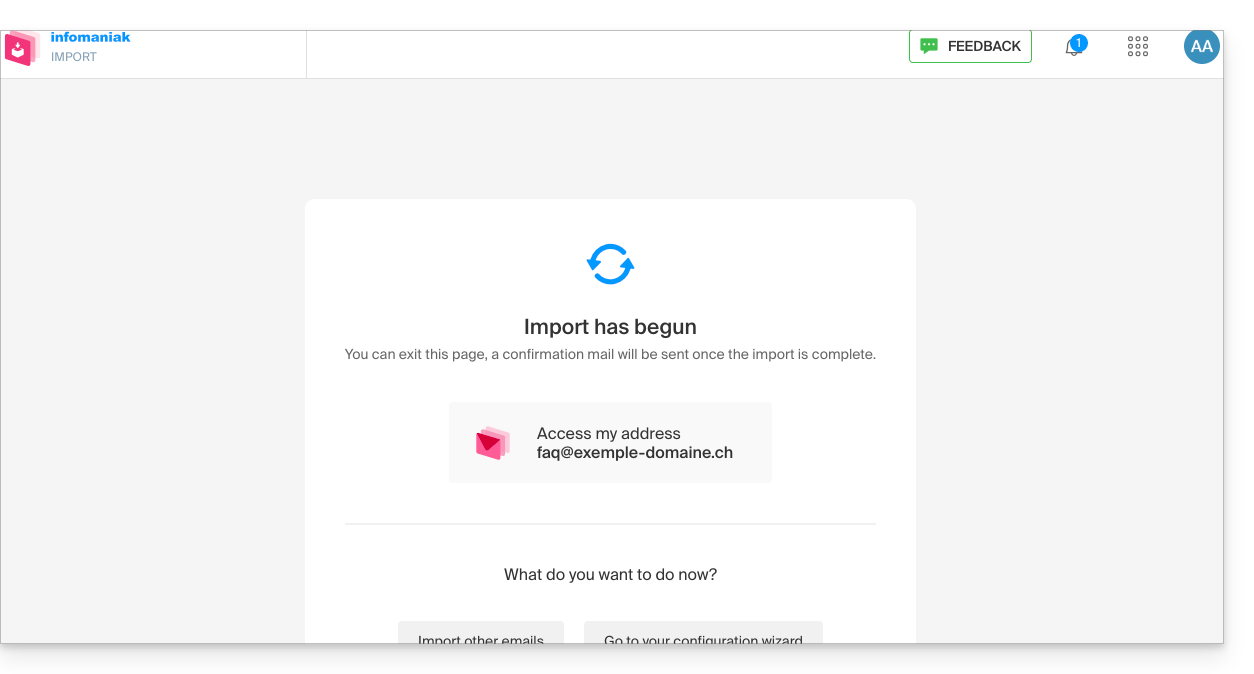
- Um e-mail de confirmação será enviado automaticamente para todos os endereços de e-mail envolvidos na operação, após a conclusão da importação, mencionando o número de mensagens copiadas:
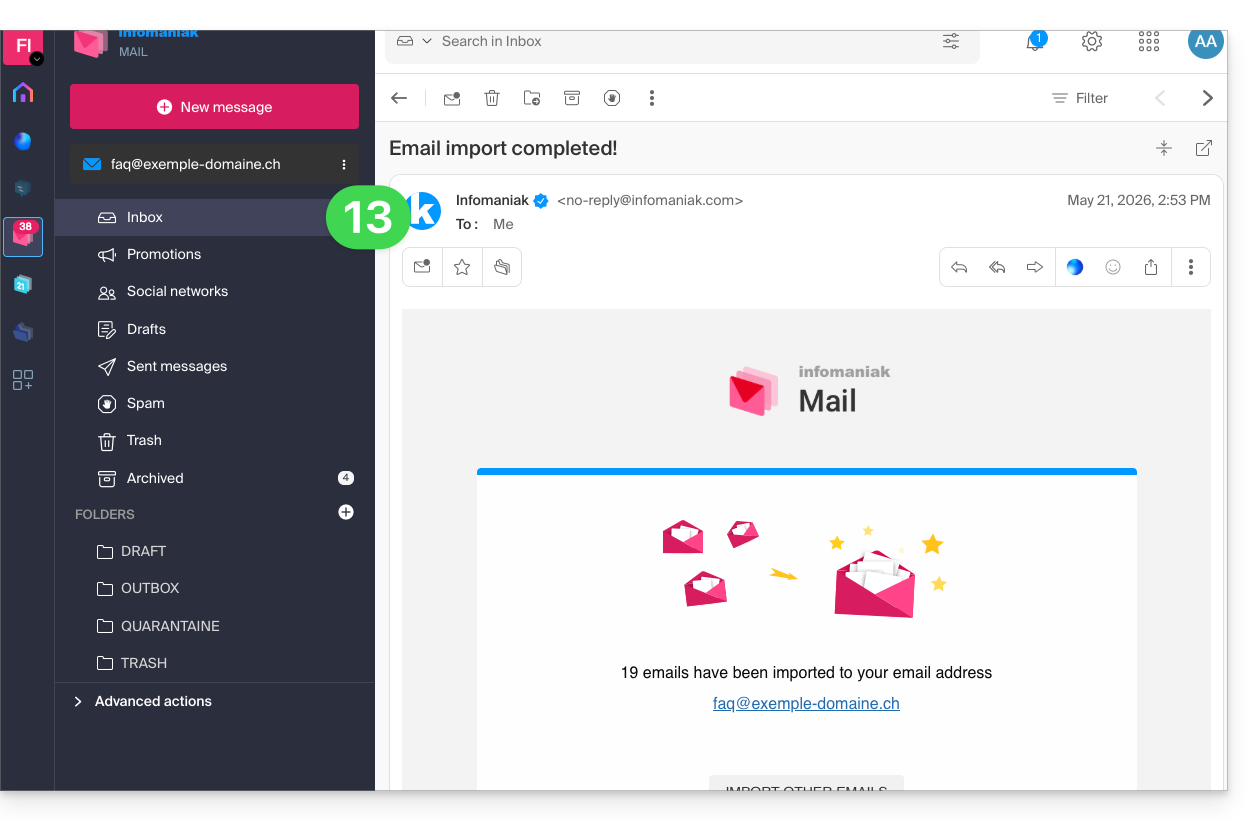
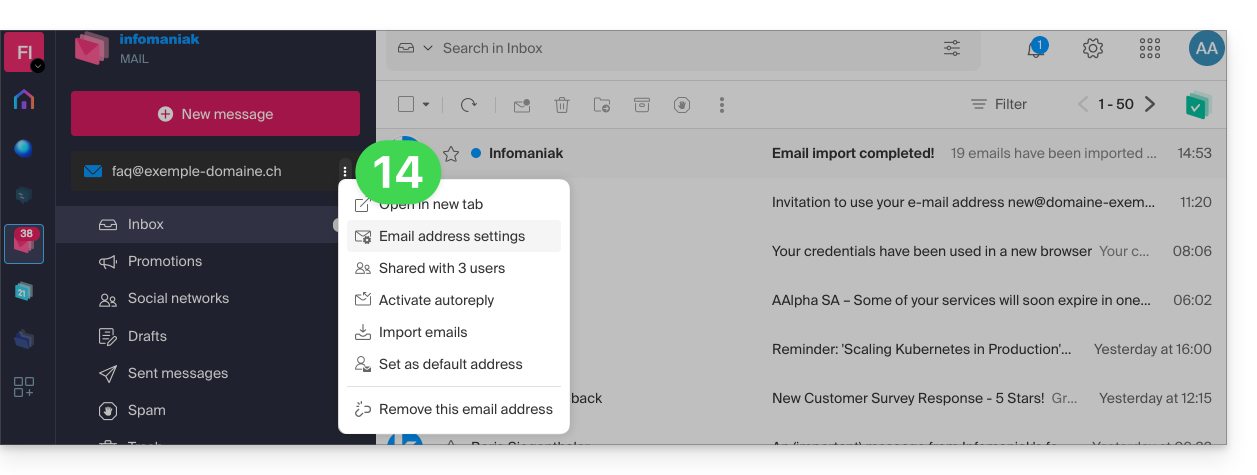
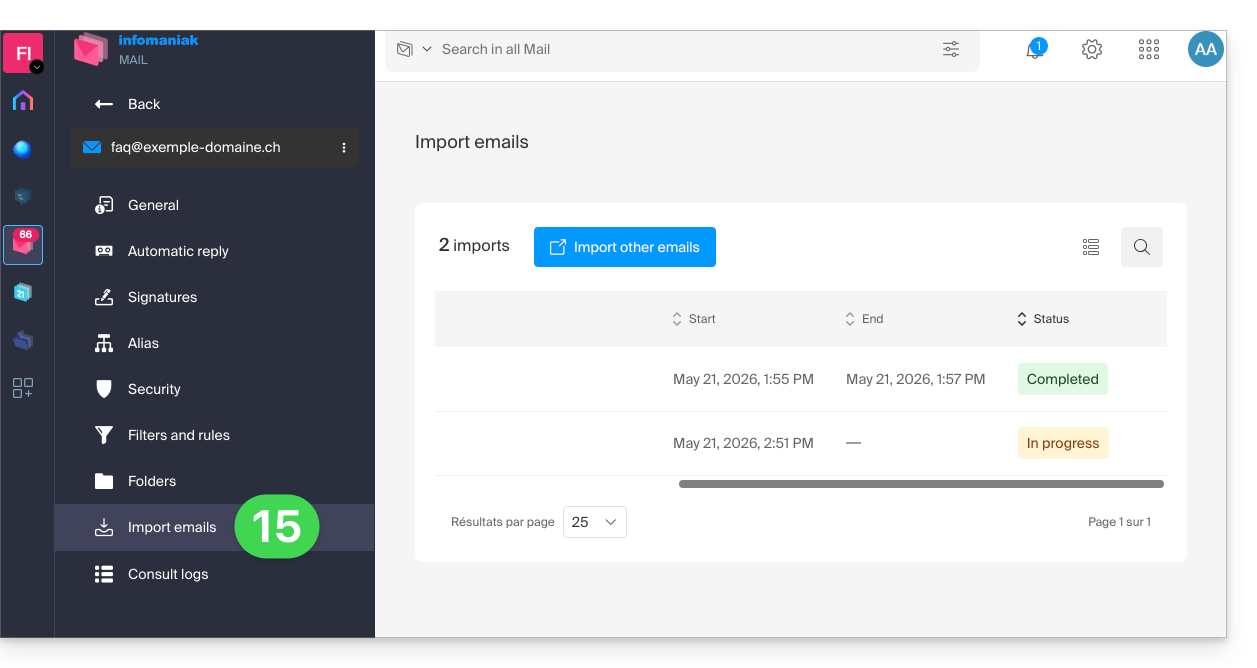
- Um rastreamento está disponível nas configurações do endereço de e-mail de destino, apenas no aplicativo web Mail (serviço online ksuite.infomaniak.com/mail):
- O rastreamento permite visualizar o histórico das importações no endereço em questão:
Importar o conteúdo de vários endereços de e-mail em lote
Este método, via arquivo CSV, não funcionará para endereços Google ou Microsoft devido ao sistema de autenticação — consulte também os pré-requisitos mencionados acima neste guia.
Para importar o conteúdo de vários endereços de e-mail externos (máximo de 25 por 25) para um ou mais endereços de e-mail Infomaniak:
- Clique aqui para acessar a ferramenta de importação (serviço online https://import-email.infomaniak.com).
- Se necessário, faça login na sua conta Infomaniak na Organização correspondente; a importação será feita para um dos endereços de e-mail associados à interface web Mail Infomaniak (serviço online ksuite.infomaniak.com/mail) da conta Infomaniak que você está usando.
- Clique em importar via IMAP.
- Clique em "Modo avançado": Importar vários endereços de e-mail a partir de um arquivo CSV (formato
.csv). - Descarregue o modelo
CSVfornecido como exemplo: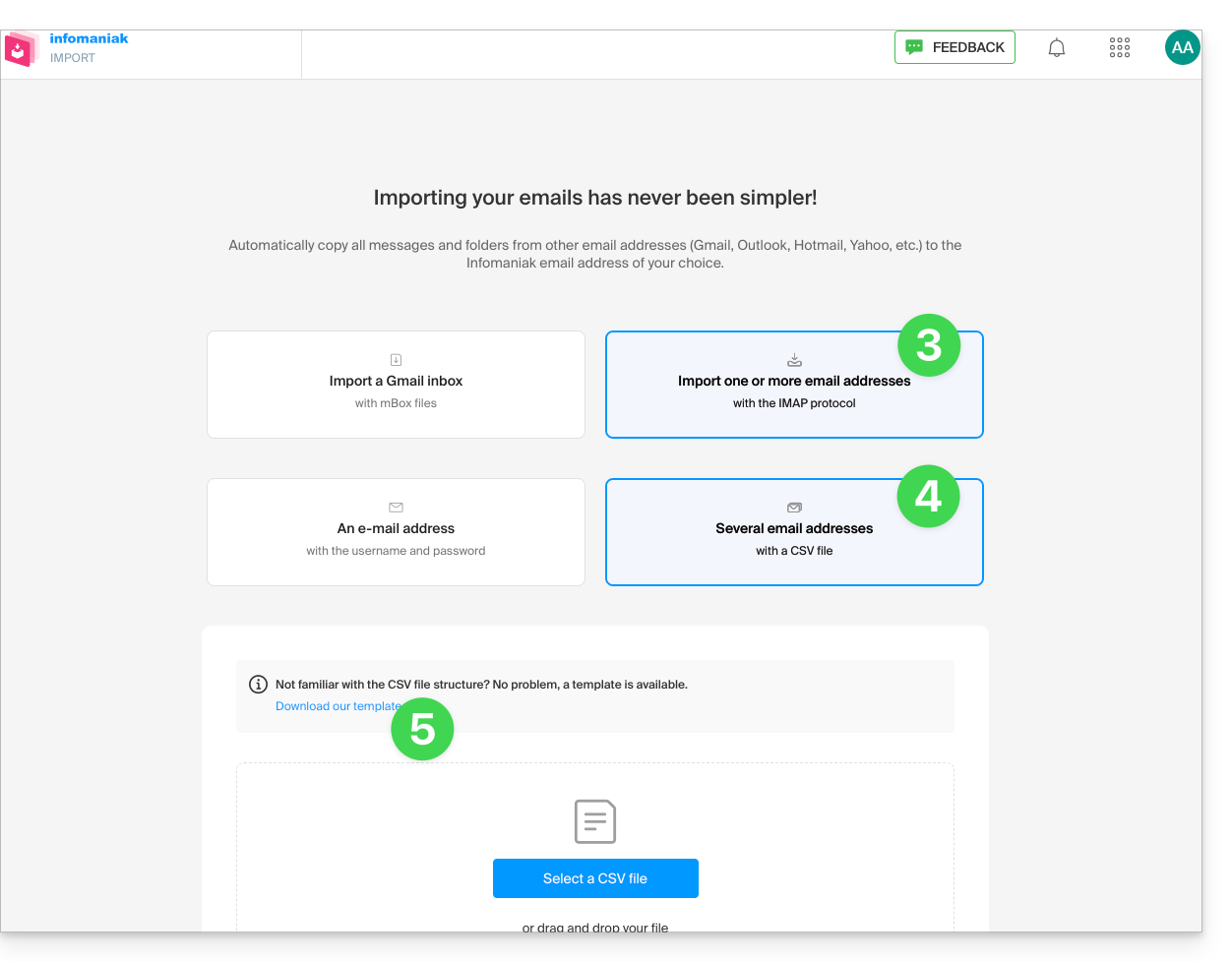
- O modelo tem o seguinte formato:
source-email@domain.com;sourcePassword;imap.source-host.com;sourcePort(993);sourceSsl(1or0);dest-email@domain.com
- O modelo tem o seguinte formato:
- Edite o arquivo
csvpara criar um arquivo com as informações corretas necessárias para a cópia (consulte os pré-requisitos):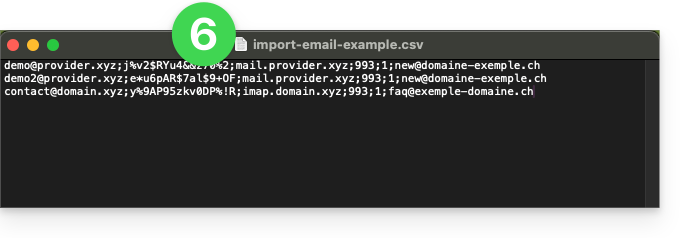
- Carregue o arquivo usando o botão Selecionar arquivo CSV.
- Depois que o arquivo for carregado na página da ferramenta, corrija ou ignore quaisquer erros; clique em Importar.
- A cópia será iniciada. Você pode aguardar e verificar o resultado na página após a conclusão da importação ou fechar a janela (a importação continua em segundo plano e um acompanhamento está disponível – veja abaixo).
- Um e-mail de confirmação será enviado automaticamente para todos os endereços de e-mail afetados pela operação após a conclusão da importação, indicando o número de mensagens copiadas.
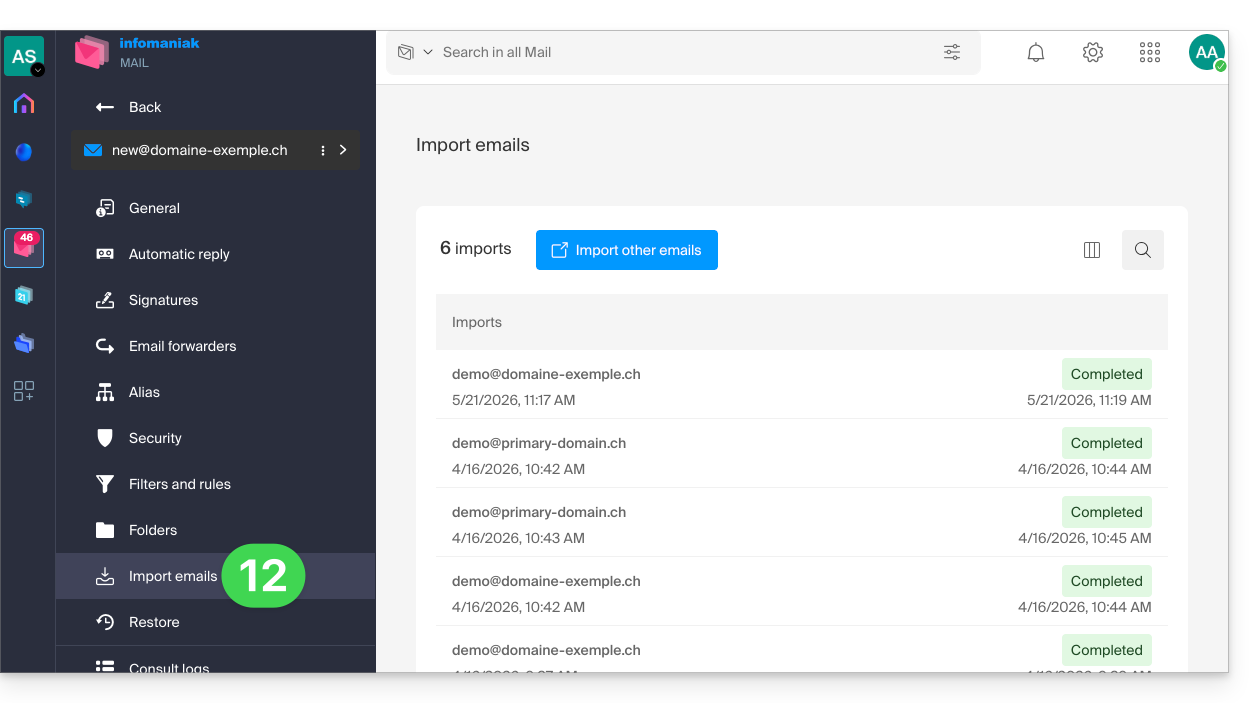
- Um acompanhamento está disponível nas configurações dos endereços de e-mail de destino, no aplicativo web Mail (serviço online ksuite.infomaniak.com/mail).
- O acompanhamento permite visualizar o histórico das importações:
Link para esta FAQ: https://faq.infomaniak.com/1144
Esta seção de perguntas frequentes foi útil?