Base de conhecimento
1000 perguntas frequentes, 500 tutoriais e vídeos explicativos. Aqui, você encontra apenas soluções!
Este guia detalha as medidas de segurança implementadas nas ofertas de e-mail da Infomaniak, com o objetivo de detetar utilizações abusivas e anormais de um endereço de e-mail. Estas medidas protegem-no contra o uso malicioso do seu computador ou da sua conta.
Número de destinatários por mensagem enviada
Independentemente do plano de e-mail escolhido, seja ele gratuito ou pago,o número total de destinatários inscritos em um e-mail é limitado a100.
Esta restrição aplica-se independentemente do campo utilizado para inserir os endereços de e-mail dos destinatários (Para, CC ou Cco).
Para o envio de e-mails para um grande número de destinatários, recomenda-se vivamente a utilização de uma ferramenta de newsletter, como a que a Infomaniak oferece.
Outros limites de e-mail
Link para esta FAQ: https://faq.infomaniak.com/580
Esta seção de perguntas frequentes foi útil?
Este guia detalha como desativar o protocolo SMTP, impedindo que um determinado utilizador envie e-mails a partir de um determinado endereço de e-mail.
Introdução
- Remover o direito de envio de um utilizador impedirá que ele envie uma mensagem (nova, resposta, reação, etc.) a partir da aplicação web Mail Infomaniak (serviço online ksuite.infomaniak.com/mail) e da aplicação móvel.
- Se o utilizador em questão também estiver especificado em dispositivos conectados, o envio também será impossível a partir de um software/cliente de e-mail como Outlook, Apple Mail, Thunderbird, etc.
- Existe uma permissão específica relativa às mensagens de ausência, caso deseje também impedir que este tipo de mensagem seja enviado.
Impedir que um utilizador envie mensagens a partir de um endereço de e-mail específico
Novo utilizador
Deseja permitir que um novo colaborador consulte um endereço de e-mail (possibilitando a leitura de e-mails recebidos), mas sem lhe permitir enviar novas mensagens?
- Clique aqui para acessar o gerenciamento do seu Serviço de E-mail no painel de controle Infomaniak (precisa de ajuda?).
- Clique diretamente no nome atribuído ao Serviço de E-mail em questão:
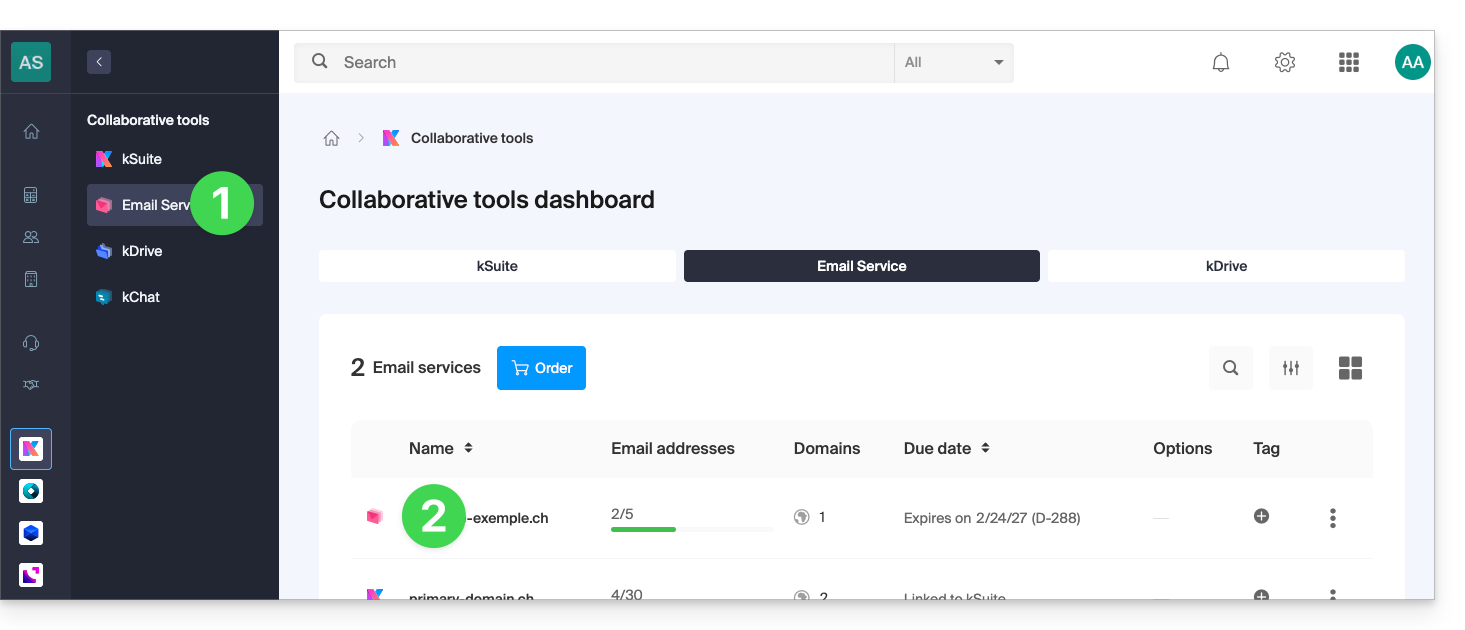
- Clique em o endereço de e-mail correspondente na tabela que aparece:
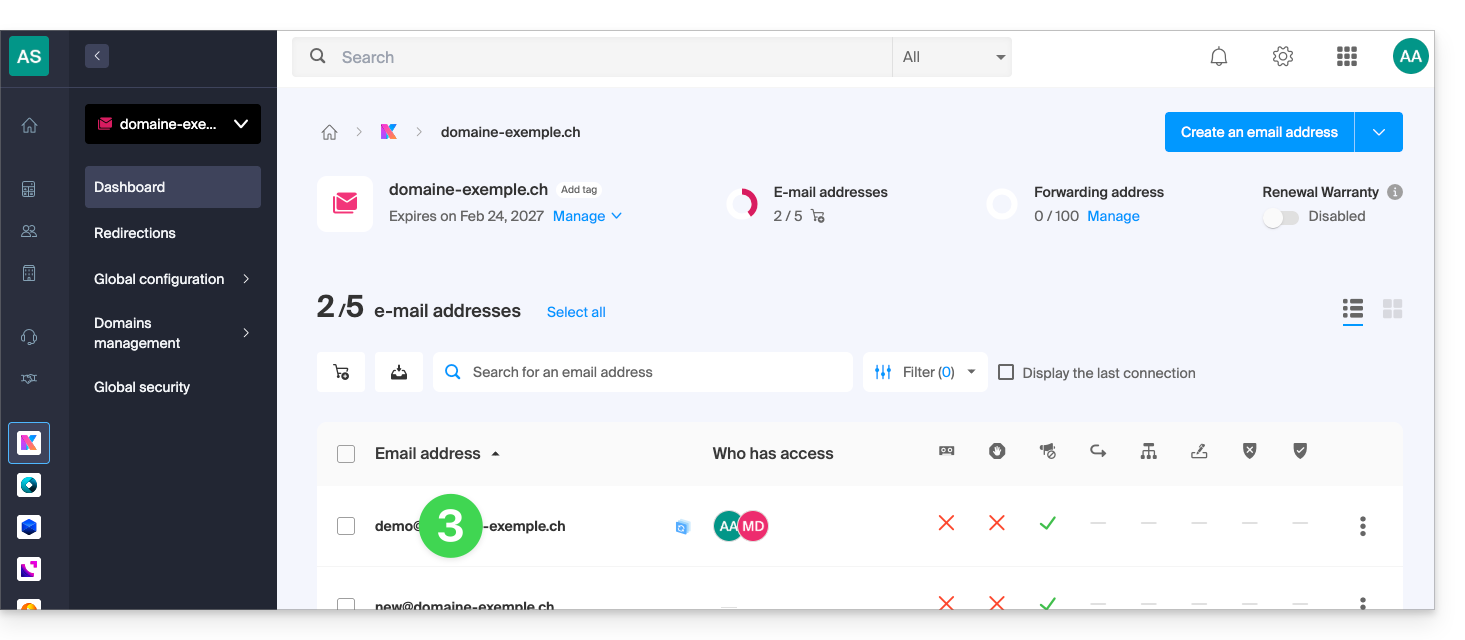
- Clique em Adicionar para adicionar um novo utilizador:
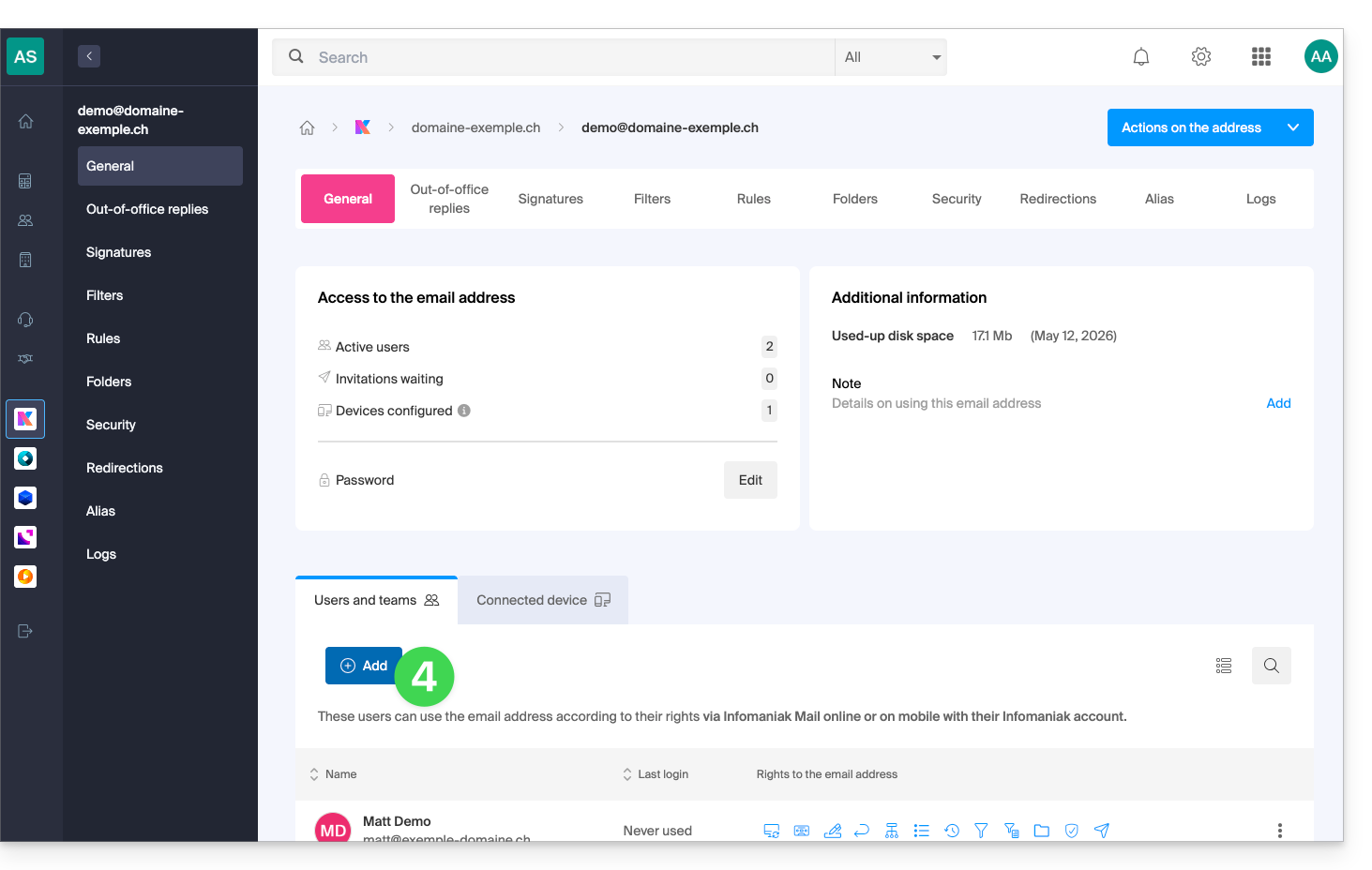
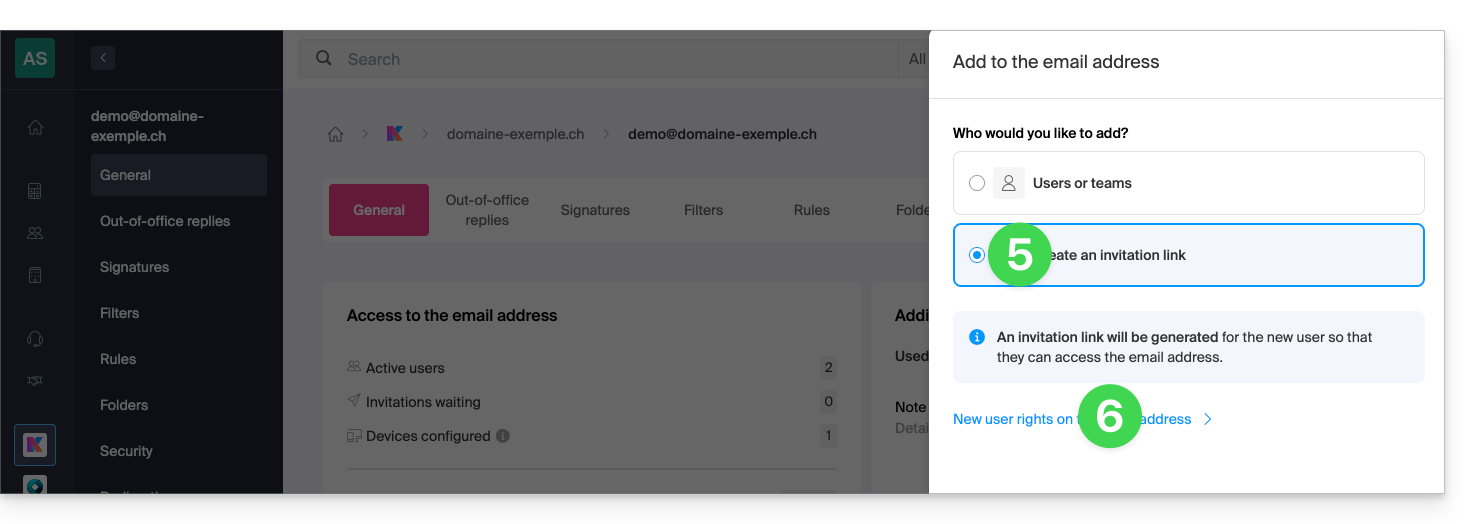
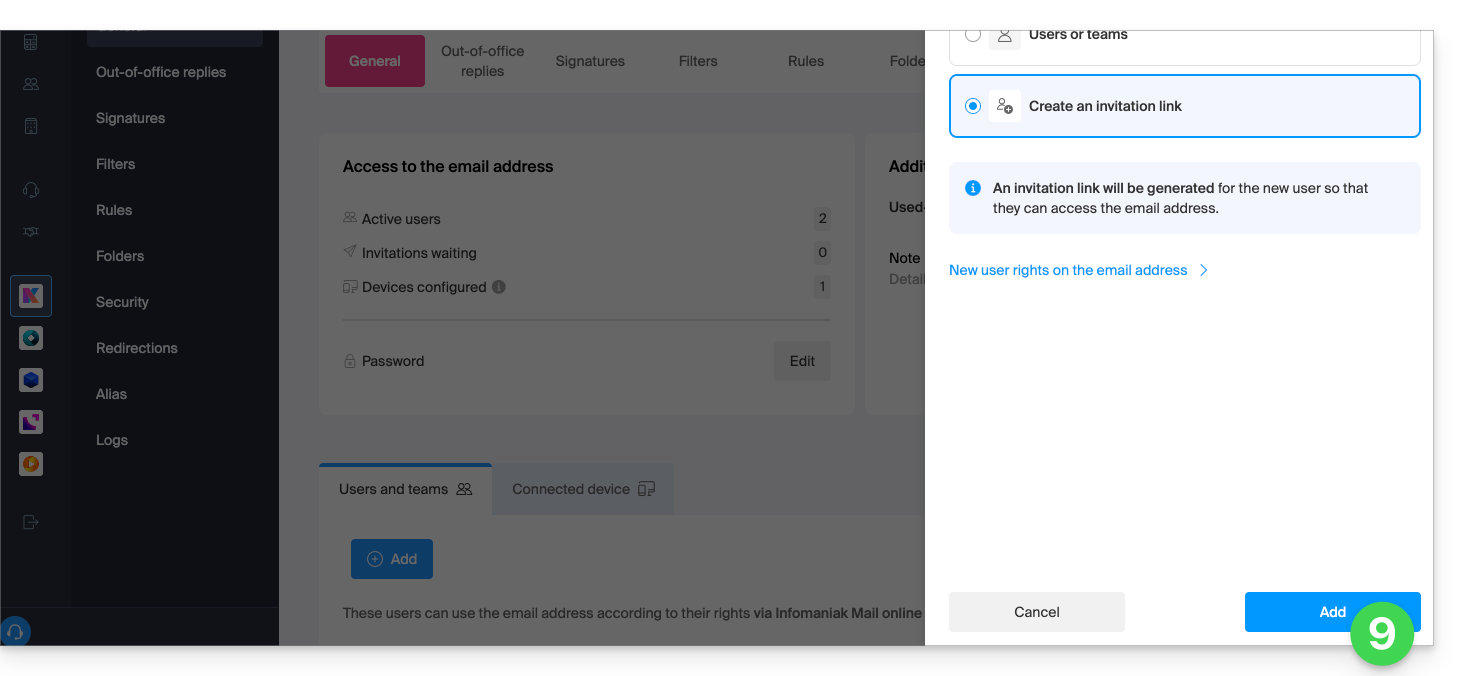
- Neste exemplo, o colaborador é externo, portanto, clique em Criar um link de convite.
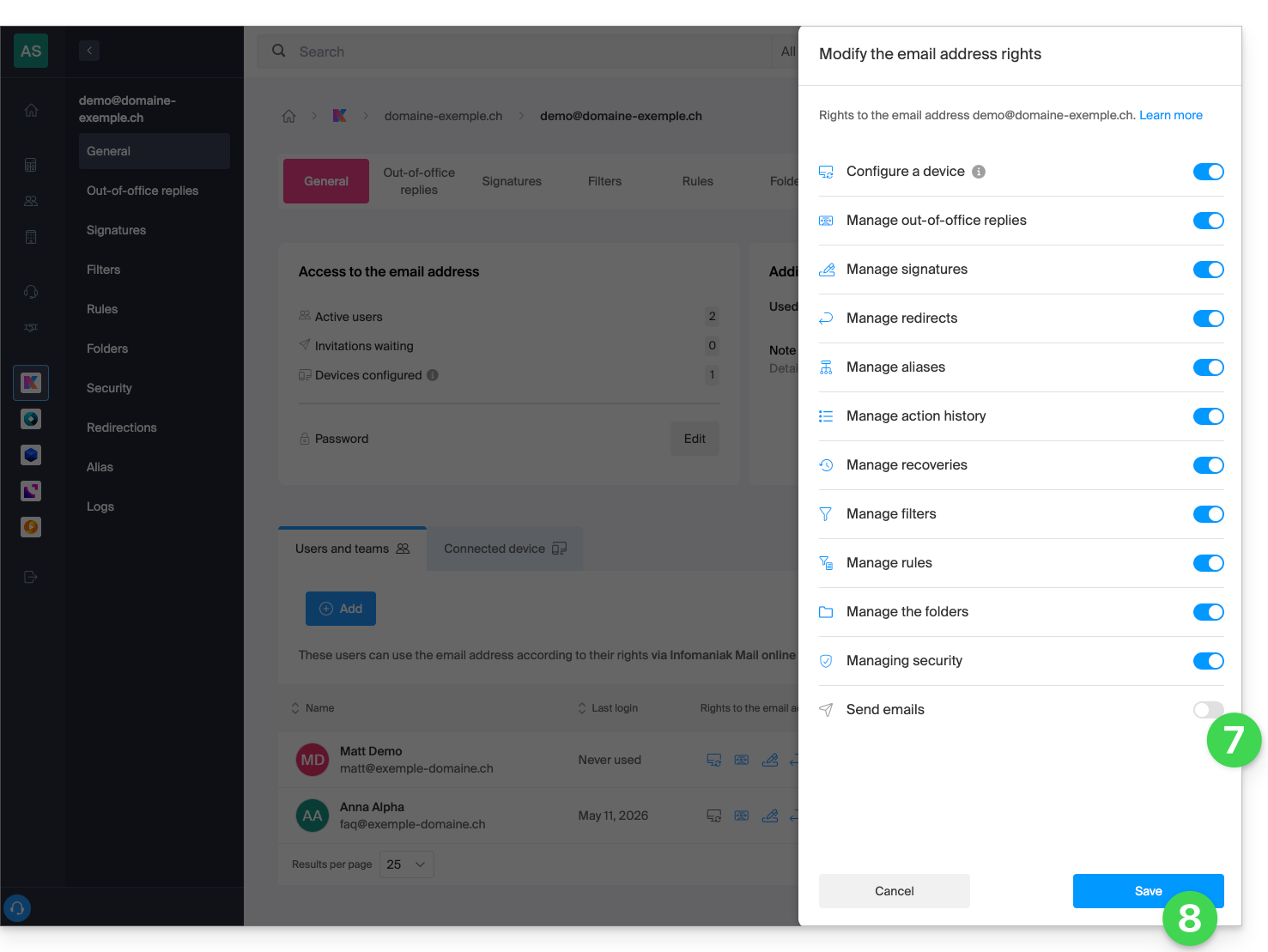
- Clique para gerenciar as permissões deste usuário no endereço de e-mail em questão:
- Clique em Enviar e-mails para revogar o direito de envio.
- Salve a alteração:
- Clique em Adicionar para finalizar o convite:
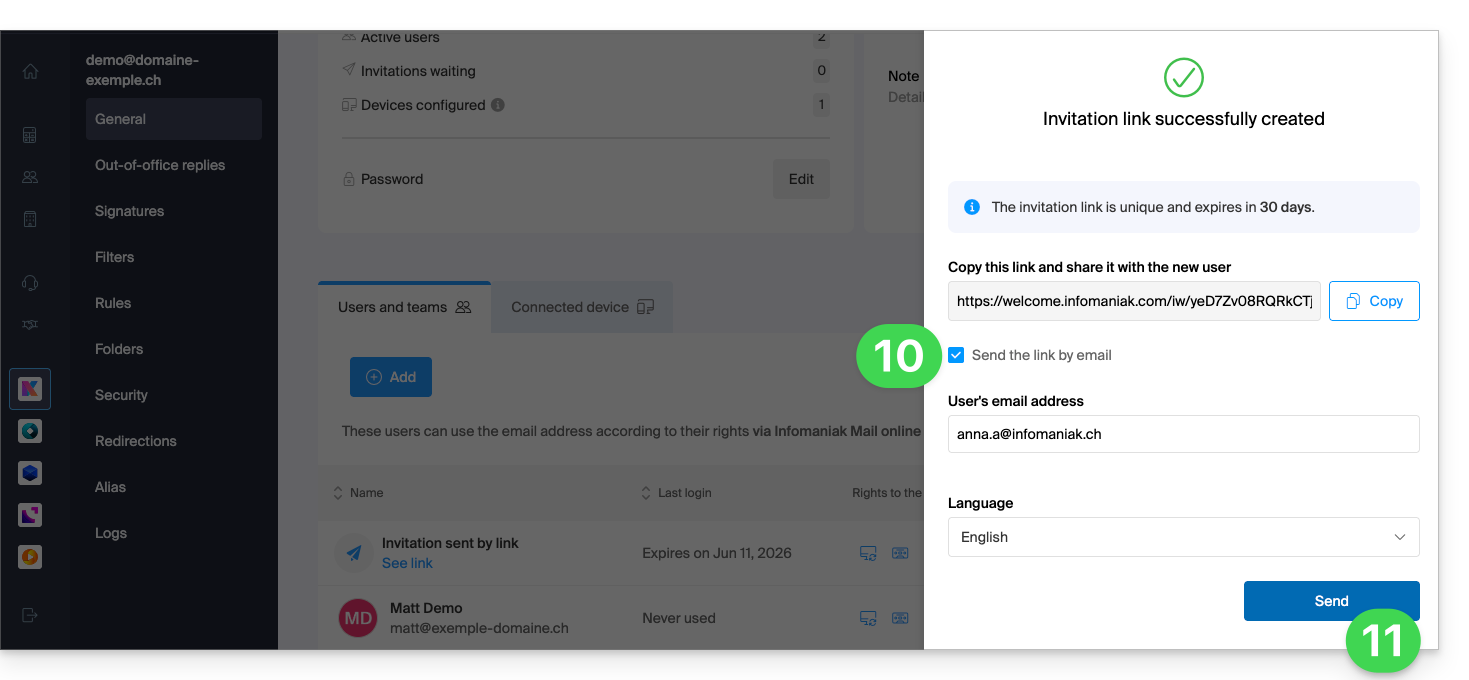
- Insira um endereço de e-mail para o qual enviar o convite.
- Clique em Enviar:
O utilizador convidado aceita o convite: ele terá acesso ao endereço de e-mail e às suas mensagens, mas o botão para compor uma nova mensagem permanecerá desativado, sem que ele possa redigir um rascunho (ou mesmo responder, reagir, etc., pois esses botões também estarão desativados):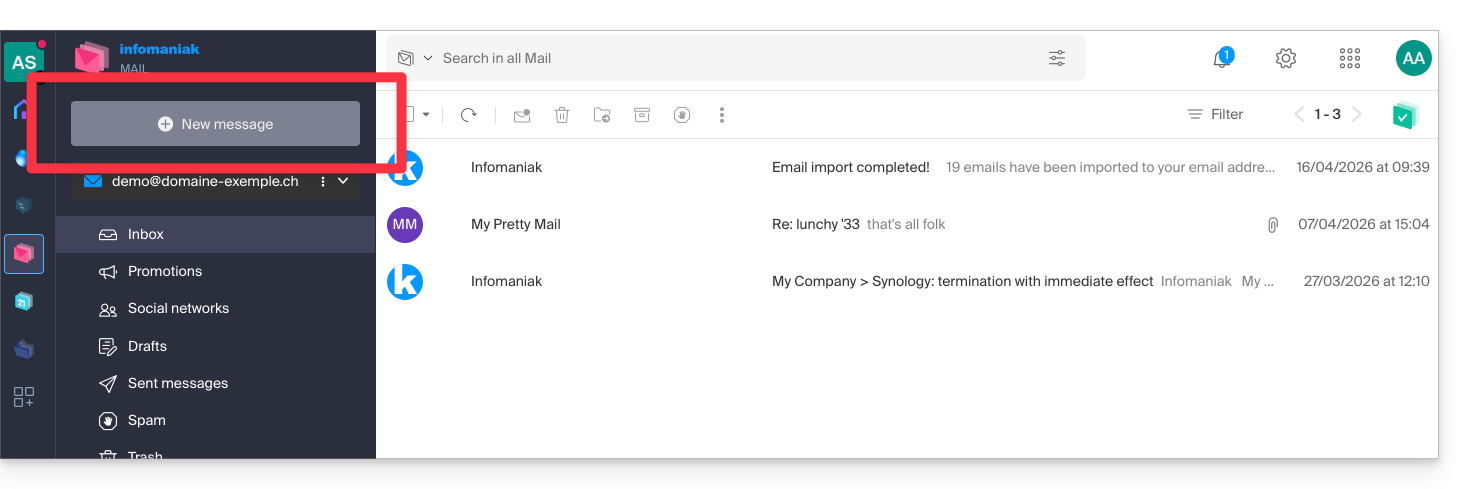
Impedir o envio para um utilizador existente
Deseja permitir que colaboradores continuem a consultar um endereço de e-mail (podendo ler os e-mails recebidos), mas sem lhes permitir enviar novas mensagens?
- Clique aqui para acessar o gerenciamento do seu Serviço de Email no painel de controle Infomaniak (precisa de ajuda?).
- Clique diretamente no nome atribuído ao Serviço de Email em questão:
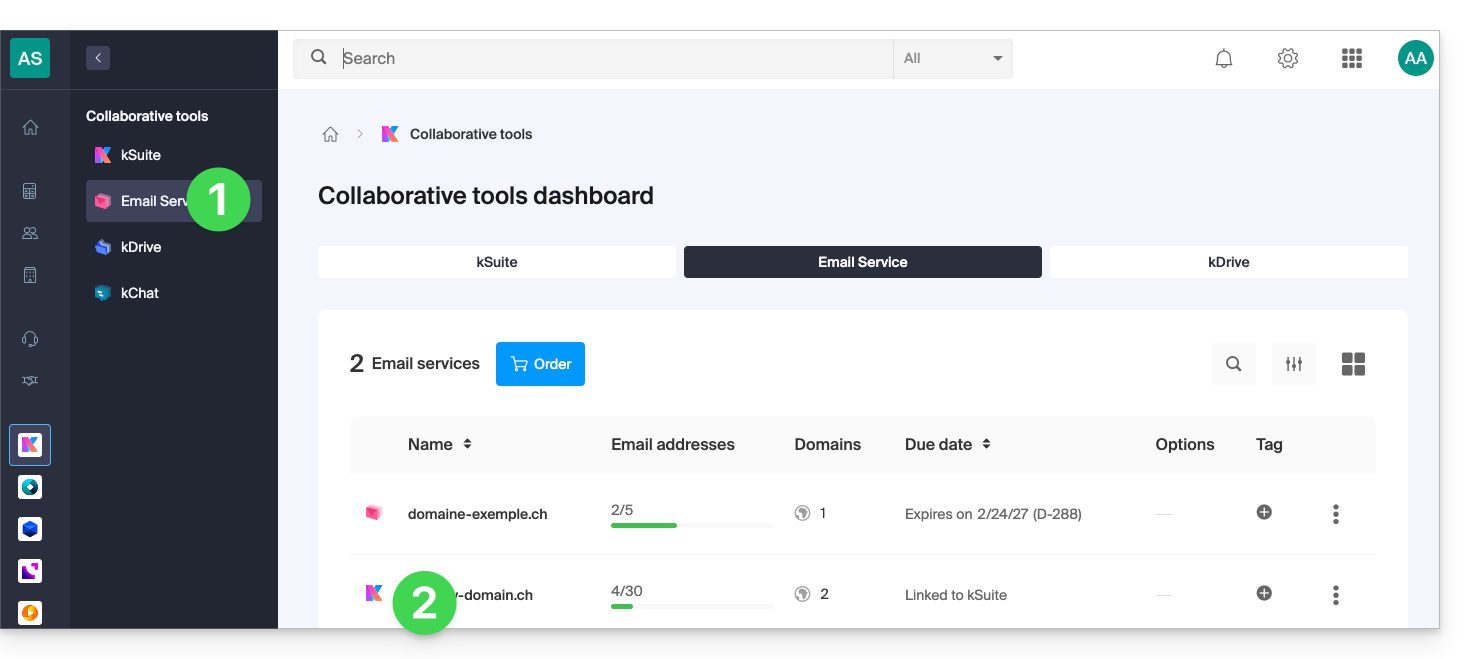
- Clique em o endereço de e-mail em questão na tabela que aparece:
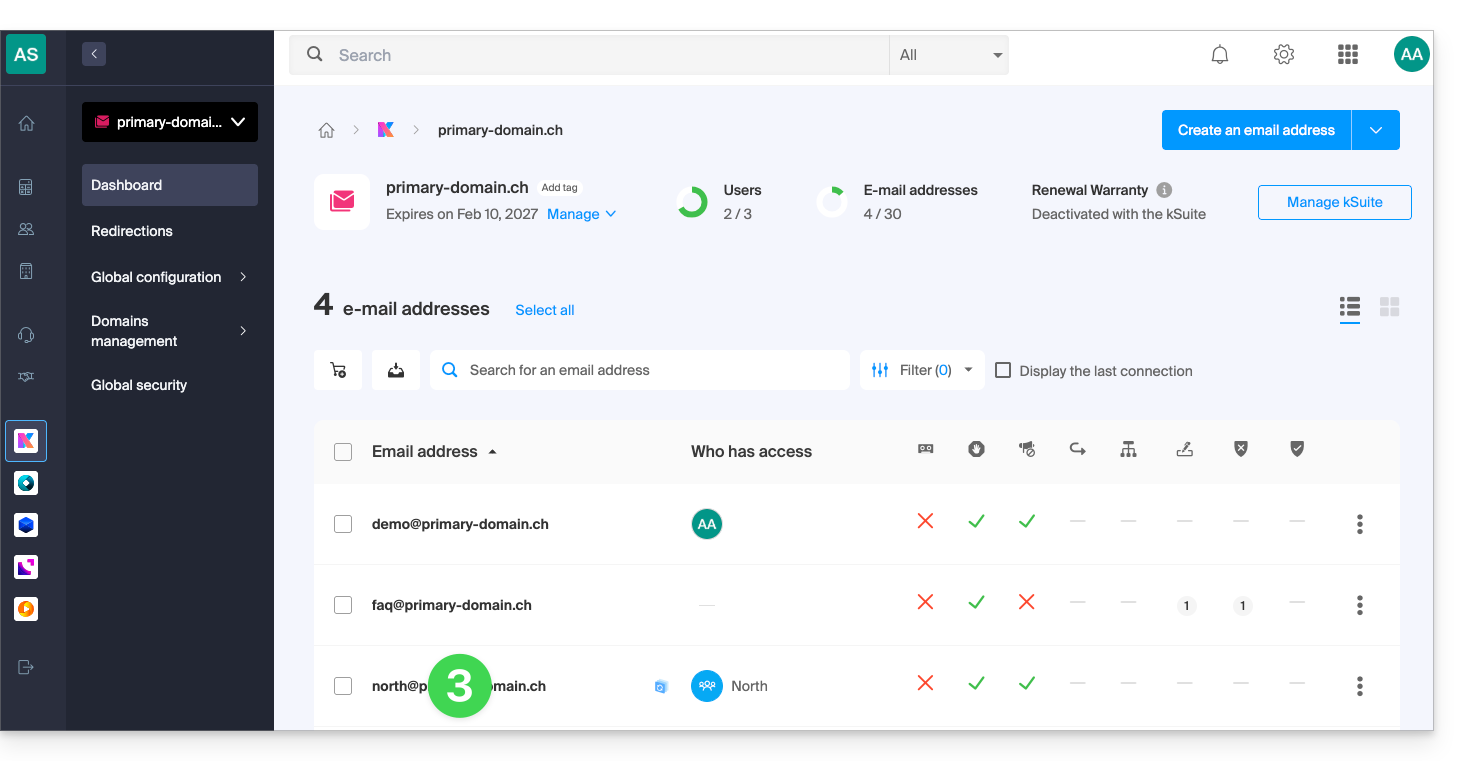
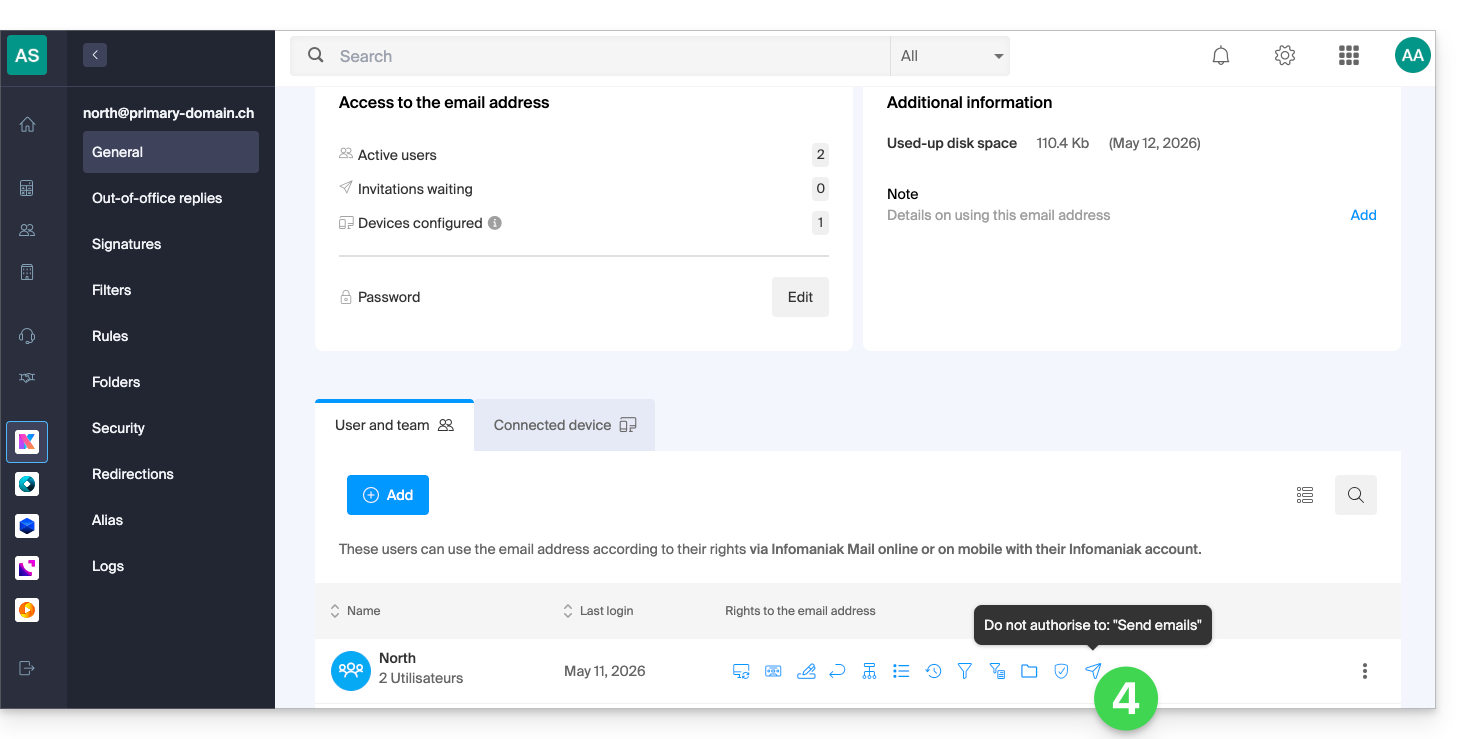
- Clique em Envio de e-mails para remover o direito de envio:
O utilizador terá acesso ao endereço de e-mail e às suas mensagens, mas o botão para compor uma nova mensagem permanecerá desativado, impossibilitando a redação de um rascunho (ou mesmo a resposta, reação, etc., pois esses botões também estarão desativados):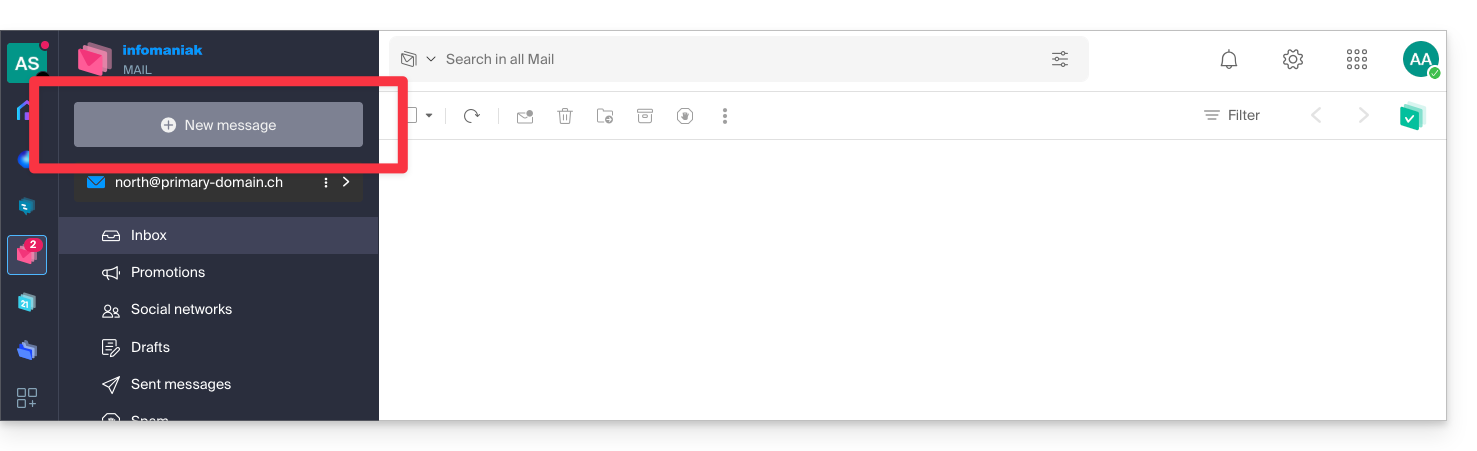
Impedir o envio a partir de um software/cliente de e-mail SMTP
Se desejar impedir que o utilizador envie mensagens a partir de um software/cliente de e-mail ou de qualquer dispositivo fixo ou móvel que contenha uma aplicação de e-mail SMTP, comece por seguir os passos acima.
Em seguida, terá de criar uma palavra-passe (= "dispositivo conectado") associada a este utilizador (portanto, no ponto 8 de este outro guia, em vez de “Sem utilizador”, deverá especificar o identificador do colaborador em questão, já adicionado no separador utilizadores):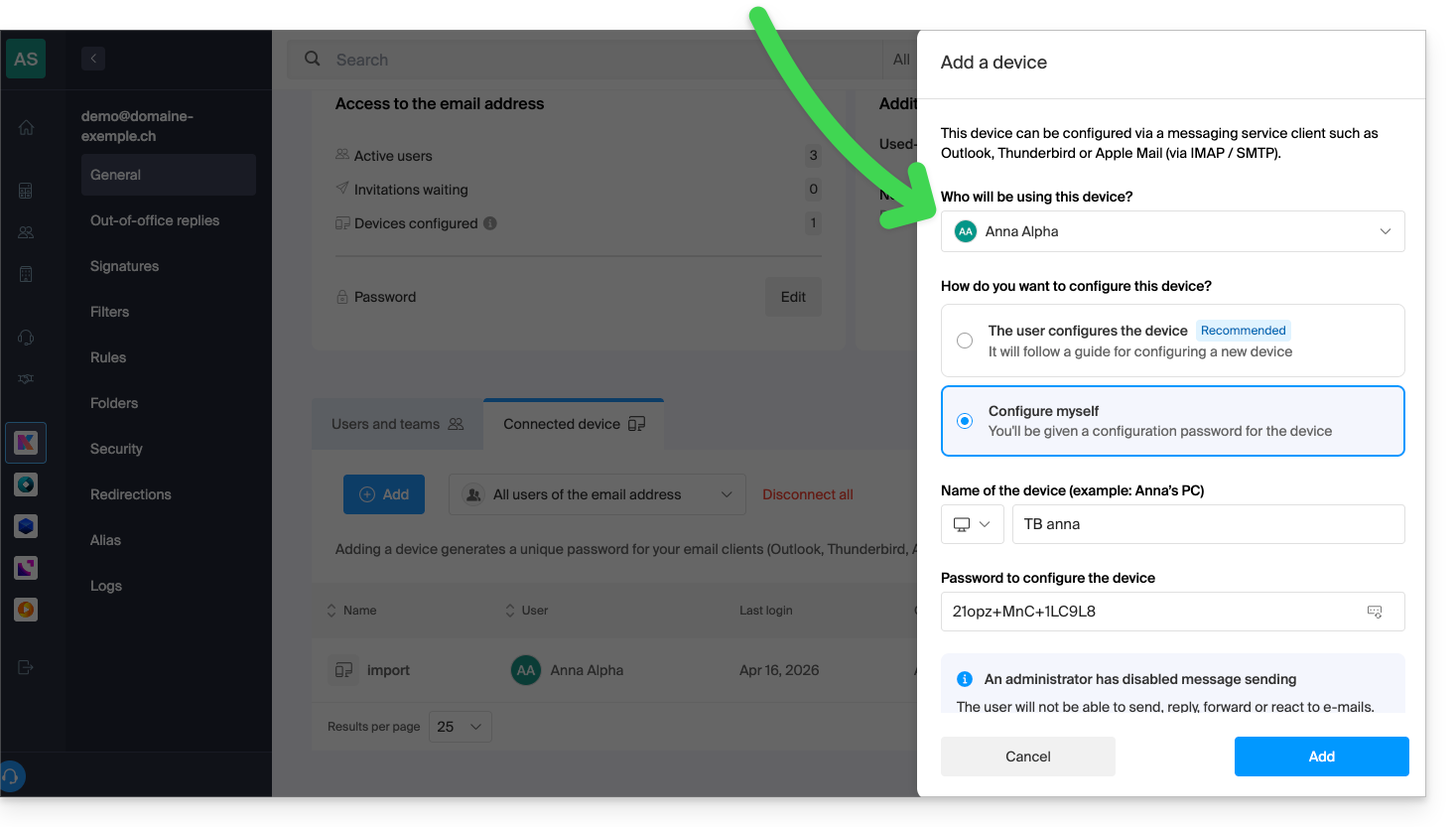
Dessa forma, o software/cliente de e-mail poderá ser configurado para receber e-mails, mas não permitirá o envio, gerando continuamente um erro (solicitação de senha) se o usuário insistir em enviar um e-mail: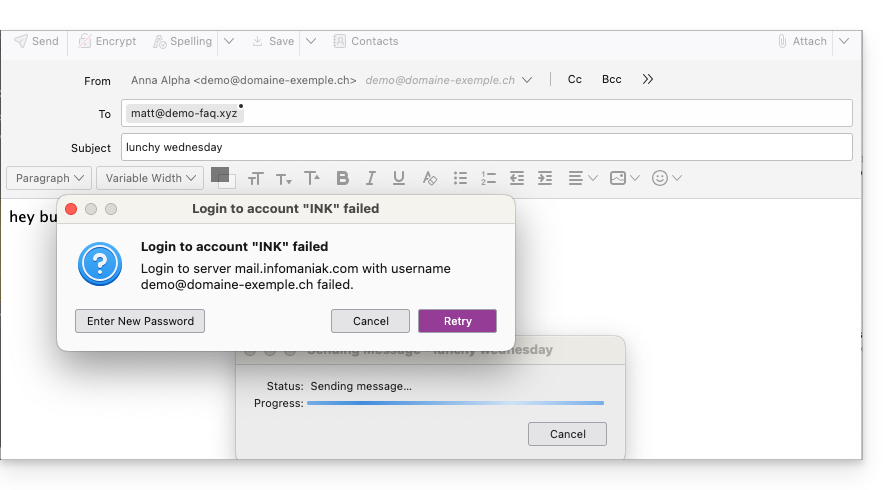
Link para esta FAQ: https://faq.infomaniak.com/593
Esta seção de perguntas frequentes foi útil?
Este guia explica como transferir para a Infomaniak os endereços de e-mail atualmente hospedados pela Yahoo, com a ajuda de uma ferramenta de importação por IMAP.
Introdução
- A operação não afeta os dados já existentes no endereço de destino, nem os dados do endereço de origem.
- A totalidade da caixa externa será importada.
- Uma vez iniciado o processo de importação, não é mais possível interrompê-lo.
- Os eventuais duplicados são gerenciados: um conteúdo idêntico será copiado apenas uma vez.
- Consulte este outro guia se procura alternativas a este processo via IMAP.
Importar todo o seu histórico de e-mails
1. Pré-requisitos do Yahoo
- Para permitir que o assistente Infomaniak acesse sua conta Yahoo, clique em https://login.yahoo.com/account/security#other-apps e configure uma senha de aplicativo, gerada automaticamente pelo Yahoo.
- Será necessário copiá-lo e, em seguida, colá-lo no lugar da sua senha no assistente Infomaniak para copiar seus e-mails; para gerar a senha:
- Faça login na sua conta Yahoo.
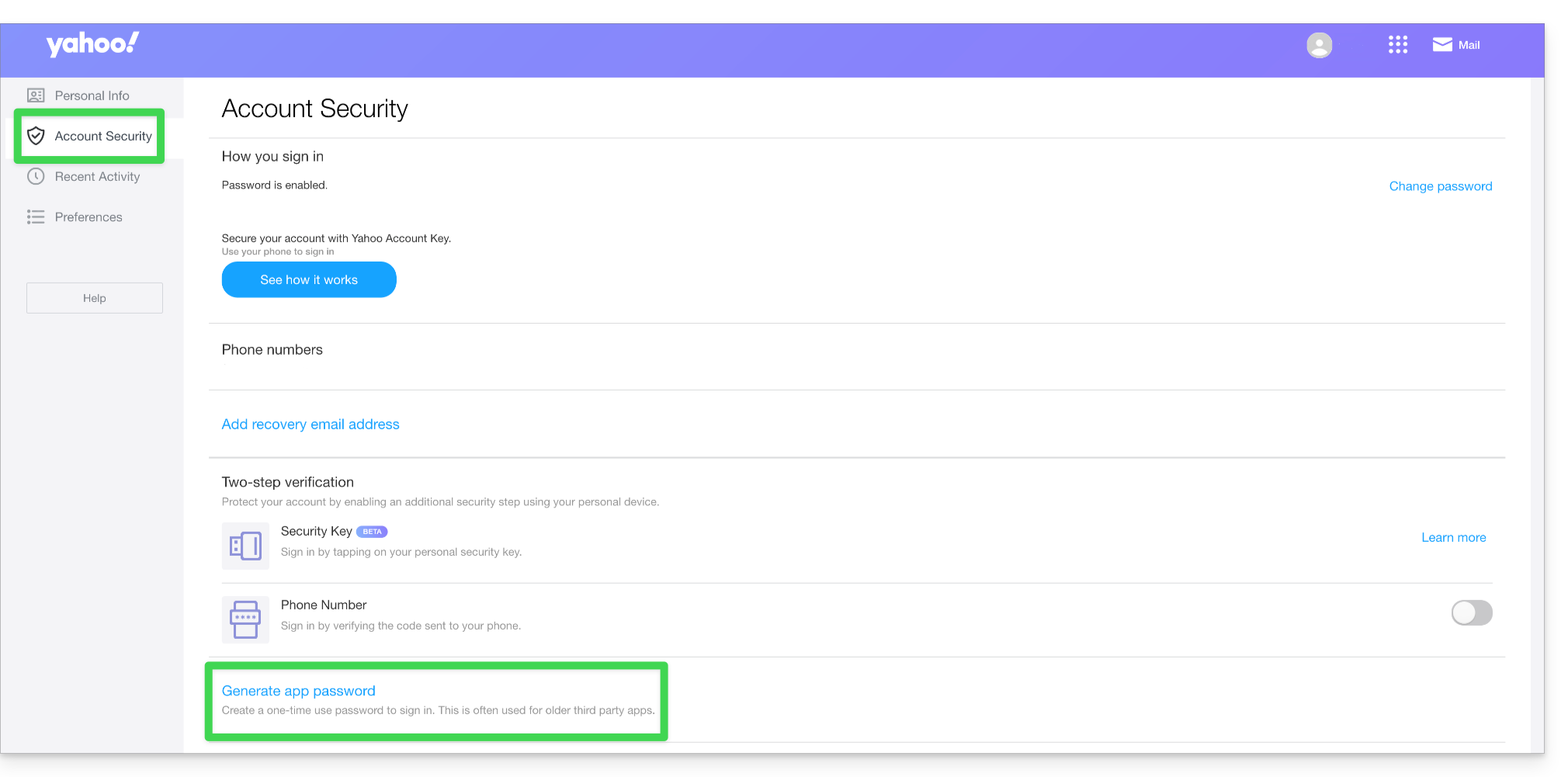
- Acesse a guia Segurança da Conta.
- Clique em Gerar senha de aplicativo:
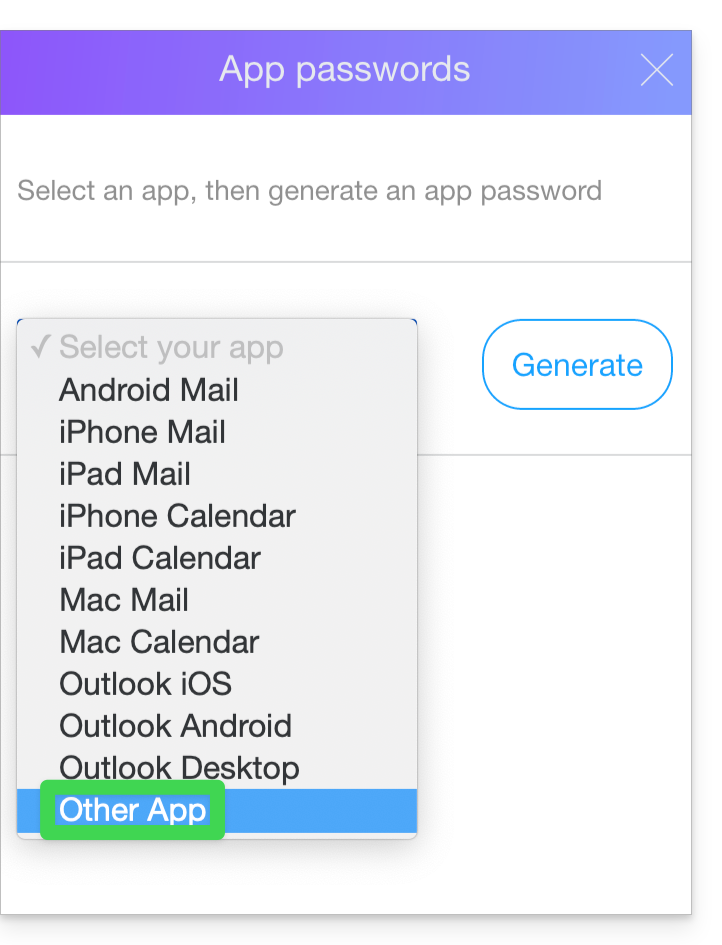
- Escolha Outro aplicativo:
- Indique um nome de aplicativo, por exemplo, Infomaniak, e clique em Gerar:
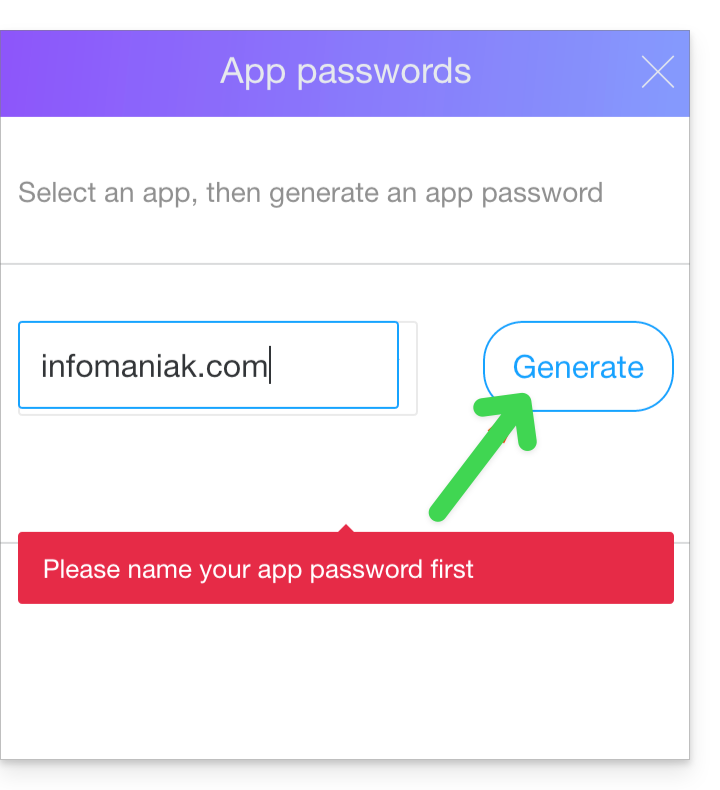
- Copie a senha do aplicativo.
2. Pré-requisitos Infomaniak
- Ter um Serviço de Email no seu Painel de Controle Infomaniak.
- Dispor de um quota de endereços disponíveis ou ajuste-a previamente, se necessário.
- Certifique-se de que a sua conta de e-mail está devidamente protegida
- Crie um ou mais endereços neste serviço de e-mail.
- Se precisar de criar muitos endereços de e-mail (10 ou mais), consulte este outro guia sobre a criação em massa.
- O endereço de e-mail de destino deve estar associado ao utilizador (= à conta Infomaniak) que está a utilizar.
3. Importar o conteúdo de e-mail do Yahoo para o Infomaniak
- Clique aqui para acessar a ferramenta de importação (serviço online https://import-email.infomaniak.com).
- Se necessário, faça login na sua conta Infomaniak na organização correspondente, pois a importação será feita para um dos endereços de e-mail associados à interface web Mail da Infomaniak (serviço online ksuite.infomaniak.com/mail) da conta Infomaniak que você está usando.
- Clique em "Importar via IMAP".
- Clique em "Importação única".
- Preencha o campo da esquerda com o seu endereço de e-mail de origem (cujo conteúdo será copiado).
- Preencha o campo da direita com a senha desse mesmo endereço de e-mail de origem (consulte os requisitos).
- Clique em Confirmar.
- Se necessário, insira um segundo endereço de e-mail para ser importado ao mesmo tempo.
- Escolha o endereço de e-mail para o qual deseja importar os e-mails; o menu suspenso lista os endereços de e-mail atualmente associados à sua interface Web Mail Infomaniak (serviço online ksuite.infomaniak.com/mail) da conta Infomaniak com a qual está conectado.
- Após selecionar o endereço de destino desejado na lista, clique no botão azul Importar e-mails.
- A cópia está a iniciar. Pode aguardar e verificar o resultado na página quando a importação estiver concluída, ou fechar a janela (a importação continua em segundo plano e o progresso pode ser acompanhado – veja abaixo).
- Um e-mail de confirmação será enviado automaticamente para todos os endereços de e-mail envolvidos na operação, assim que a importação for concluída, indicando o número de mensagens copiadas.
- Um rastreamento está disponível nas configurações do endereço de e-mail de destino, apenas no aplicativo web Mail (serviço online ksuite.infomaniak.com/mail).
- O rastreamento permite visualizar o histórico das importações no endereço em questão.
4. Ajustar as configurações das aplicações
Se necessário, assim que tiver configurado o nome de domínio associado à sua conta de e-mail para funcionar com a Infomaniak, modifique as configurações dos programas/clientes de e-mail que utiliza para que estes se conectem corretamente aos servidores da Infomaniak: siga o assistente de configuração.
Link para esta FAQ: https://faq.infomaniak.com/611
Esta seção de perguntas frequentes foi útil?
Este guia apresenta comandos que podem ser executados com o objetivo de testar uma conexão ou uma rede e, assim, identificar com mais precisão a possível origem do erro.
Executar um Telnet…
TELNET permite testar a conexão a um servidor, sem considerar as configurações adicionais de uma aplicação de e-mail ou FTP, para determinar a origem de um problema. Se a conexão não for estabelecida em um servidor SMTP, por exemplo, você deverá verificar se o seu firewall não está bloqueando a porta 587 ou 465.
… no macOS
- Procure por Utilitário de rede.
- Acesse a aba
Ping,LookupouTraceroute, dependendo do que você deseja testar. - Você também pode usar um aplicativo do tipo
Terminal(interface de linha de comando,CLI / Command Line Interface) no seu dispositivo e, dependendo do que você deseja testar, insira:traceroute [servidor]nc [servidor] [porta]
Substitua[servidor]pelo nome do servidor ou seu endereço IP, idem para[port]…
… no Windows
Ative o Telnet, se necessário.
- Utilize um aplicativo do tipo
Terminal(interface de linha de comando,CLI / Command Line Interface) no seu dispositivo, por exemplo, digitando Executar e depoiscmd. - Na janela que se abre, dependendo do que deseja testar, digite:
tracert [servidor]telnet [servidor] [porta]
Exemplo:telnet mail.infomaniak.com 587(permite testar a porta SMTP caso o seu software/cliente de e-mail não permita o envio de e-mails)…
… no Android
- Utilize o aplicativo Simple Telnet Client, que permite testar de forma muito simples, preenchendo apenas dois campos (por exemplo,
mail.infomaniak.come a porta143ou993)…
Efetuar um PING
PING permite verificar se uma máquina está acessível pela Internet. Também pode usar esta ferramenta para confirmar se está a comunicar com a máquina correta, por exemplo, após uma alteração de DNS, verificando o endereço IP obtido. É possível efetuar um ping num nome de domínio, num hostname ou num endereço IP.
O protocolo PING está definitivamente bloqueado nos serviços de hospedagem compartilhada da Infomaniak.
Link para esta FAQ: https://faq.infomaniak.com/727
Esta seção de perguntas frequentes foi útil?
Este guia explica o comportamento da caixa de mensagens no caso de um redirecionamento ativado para um endereço de e-mail gerenciado na Infomaniak, cujo destino é um endereço Gmail.
Mensagem não exibida no Gmail
Se enviar um e-mail…
- … de
abc@gmail.com… - … para
xyz@domain.xyz(domínio que você possui na Infomaniak)…
… e que este endereço de e-mail xyz@domain.xyz na Infomaniak tenha um redirecionamento automático…
- … para
abc@gmail.com…
… então abc@gmail.com nunca exibirá seu e-mail como uma nova mensagem na caixa de entrada. Absolutamente nada acontecerá no Gmail.
Por quê?
O problema não é que o redirecionamento não funcione: trata-se, sim, de uma particularidade do Gmail: um e-mail do Gmail para um endereço de e-mail na Infomaniak, redirecionado para o mesmo endereço Gmail do remetente, causará problemas no Gmail, na forma como ele processa as mensagens.
A sua mensagem nunca chegará (porque, na realidade, para o sistema, ela já está na caixa de saída, nos itens enviados). Nesse caso, é necessário remover o redirecionamento dos e-mails.
Link para esta FAQ: https://faq.infomaniak.com/760
Esta seção de perguntas frequentes foi útil?
Este guia detalha as diferenças entre os protocolos IMAP e POP3 num software/cliente de e-mail (Outlook, Microsoft 365, Thunderbird, Apple Mail, eM Client, etc.) e explica por que é crucial não os usar simultaneamente para o mesmo endereço de e-mail gerido pela Infomaniak.
IMAP (recomendado)
O IMAP é o protocolo de sincronização. As mensagens permanecem no servidor e podem ser consultadas em qualquer lugar.
- Acesso em vários dispositivos: seus e-mails são sincronizados entre seu computador, seu celular e o aplicativo web Mail da Infomaniak.
- Trabalho colaborativo: ideal para caixas de correio compartilhadas. Se um utilizador mover ou eliminar uma mensagem, a alteração será visível para todos.
- Segurança: em caso de avaria do seu computador, as suas mensagens permanecem guardadas no servidor.
POP3 (uso específico)
O POP3 é um protocolo de download. As mensagens são transferidas para o seu computador e, geralmente, apagadas do servidor.
- Consulta offline: as mensagens são armazenadas localmente no seu disco rígido.
- Principal desvantagem: após serem descarregadas, as mensagens não ficam mais visíveis no aplicativo web Mail da Infomaniak ou em seus outros dispositivos.
- Riscos: se utilizar a opção "manter uma cópia das mensagens no servidor", poderá ter downloads duplicados e erros de sincronização.
Importante: nunca misture POP e IMAP
O uso simultâneo desses dois protocolos para o mesmo endereço causa conflitos técnicos graves:
- Desaparecimento inexplicável de mensagens em alguns dispositivos.
- Downloads repetidos de mensagens antigas já lidas (principalmente no Outlook).
- Uso desnecessário do espaço de armazenamento.
Dica:prefira o uso do IMAP em todos os seus softwares/clientes de e-mail.
Consulte estes outros guias para configurar uma conta em IMAP ou para migrar de POP para IMAP.
Link para esta FAQ: https://faq.infomaniak.com/787
Esta seção de perguntas frequentes foi útil?
Este guia explica como copiar o conteúdo de um ou mais endereços de e-mail externos (todas as mensagens de e-mail, pastas, subpastas, ou seja, toda a estrutura da sua caixa de e-mail existente em outros provedores) para um ou mais dos seus endereços existentes na Infomaniak, graças à ferramenta de importação Infomaniak!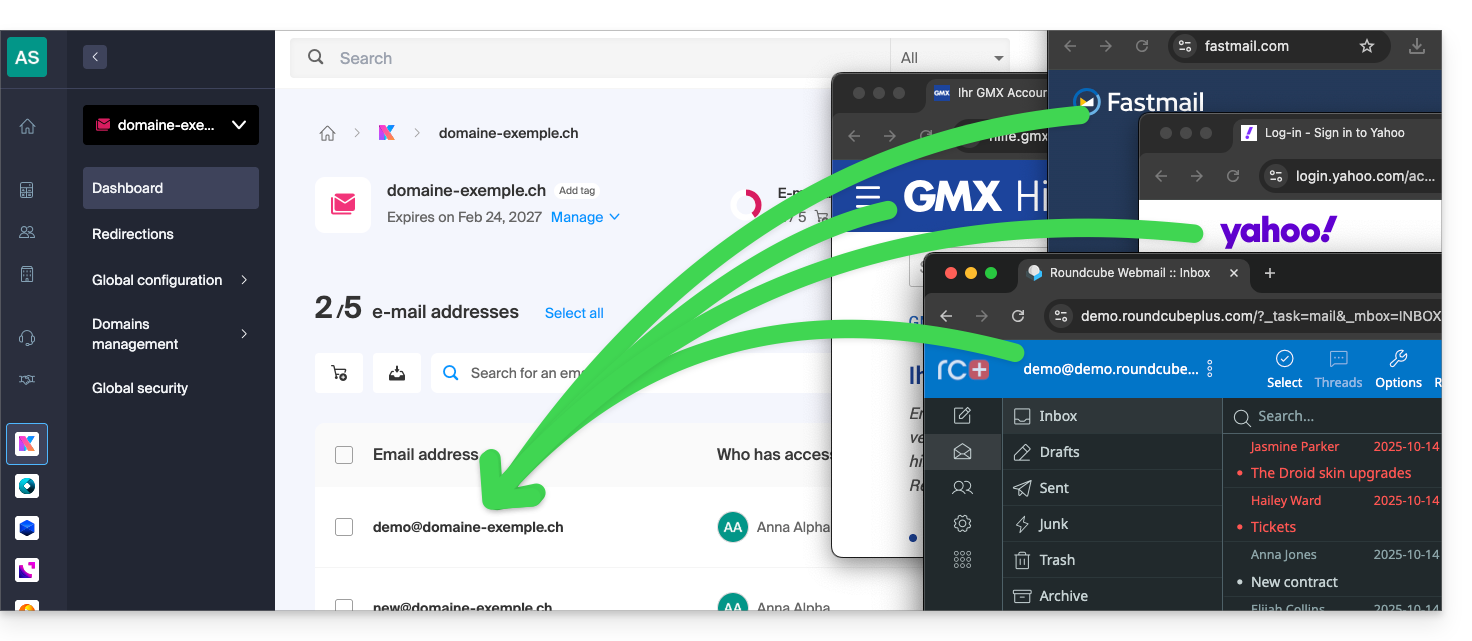
Introdução
- É fácil migrar toda a estrutura das suas mensagens de e-mail para a Infomaniak – descubra as ofertas.
- A operação não afeta os dados já existentes no endereço de destino, nem os dados do endereço de origem.
- Todo o conteúdo da caixa de correio externa será importado por cópia.
- Uma vez iniciado o processo de importação, não é mais possível interrompê-lo.
- Os eventuais duplicados são geridos: um conteúdo idêntico será copiado apenas uma vez.
Iniciar a cópia para um endereço de e-mail Infomaniak
Existem várias opções para importar e-mails:
- Deseja copiar e-mails já existentes na Infomaniak (por exemplo, @ik.me) para outra caixa de correio também na Infomaniak?
- Consulte este outro guia para copiar o conteúdo dos e-mails internamente.
- Você possui um arquivo/arquivo compactado no formato MBOX e deseja importá-lo diretamente para um endereço existente na Infomaniak?
- Consulte este outro guia para importar o conteúdo do arquivo
.mboxe, assim, importar seus e-mails, independentemente de sua origem, para a Infomaniak. - Esta é a solução ideal para transferir facilmente o conteúdo do Google, pois um arquivo MBOX pode ser obtido muito facilmente através do Google Takeout.
- Consulte este outro guia para importar o conteúdo do arquivo
- Se não conseguiu obter um ficheiro MBOX dos seus e-mails, pode copiar e-mails de um fornecedor externo através da ferramenta de importação por IMAP; clique no link correspondente ao fornecedor de e-mail que pretende importar:
- endereços @ Bluewin
- endereços @ Gmail ou domínio personalizado Google
- endereços @ GMX
- endereços @ domínio personalizado Microsoft 365
- endereços @ Orange
- endereços @ domínio personalizado Swisscom
- endereços @ Yahoo
- Qualquer outro fornecedor de e-mail, como Gandi, Hotmail, Hostinger, Sunrise, etc.
- Você também pode simplesmente configurar um redirecionamento de e-mails, mas este só terá efeito nos e-mails futuros que chegarem à sua caixa de entrada.
Link para esta FAQ: https://faq.infomaniak.com/837
Esta seção de perguntas frequentes foi útil?
Este guia explica como adicionar ou modificar um registo do tipo DKIM em uma zona DNS (de nome de domínio/subdomínio) gerenciada no Manager Infomaniak.
Introdução
- O protocolo DKIM (Domain Keys Identified Mail) autentica seus e-mails por meio de uma assinatura digital exclusiva.
- Ele garante que suas mensagens não foram alteradas durante o seu envio e certifica a identidade do remetente, impedindo assim a falsificação por parte de spammers.
- O DKIM está ativado por padrão para todos os Serviços de Email cuja zona DNS é gerenciada na Infomaniak.
- Todos os seus e-mails são assinados automaticamente, quer sejam enviados a partir da aplicação Mail Infomaniak, quer do software/cliente de e-mail de sua preferência.
Verificar o registo DKIM
Se você possui um serviço de e-mail na Infomaniak, a maneira mais fácil é acessar a ferramenta de Segurança global para verificar e corrigir facilmente alguns registros problemáticos.
E quando o seu nome de domínio é gerenciado em outro lugar, você encontrará o registro DKIM que deve ser adicionado na zona DNS: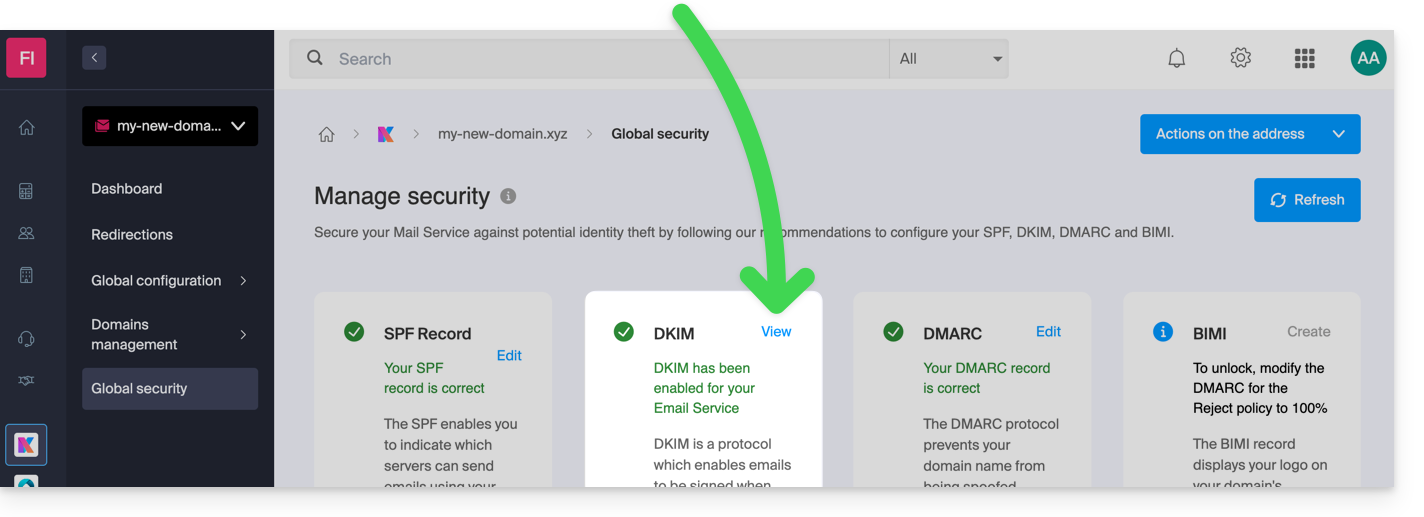
Modificar manualmente a zona DNS (não recomendado)
Para gerir este tipo de registo numa zona DNS:
- Clique aqui para acessar o gerenciamento do seu domínio no Manager Infomaniak (precisa de ajuda?).
- Clique diretamente no nome atribuído ao domínio em questão.
- Clique em Zona DNS no menu lateral esquerdo.
- Clique no botão para adicionar um registo:
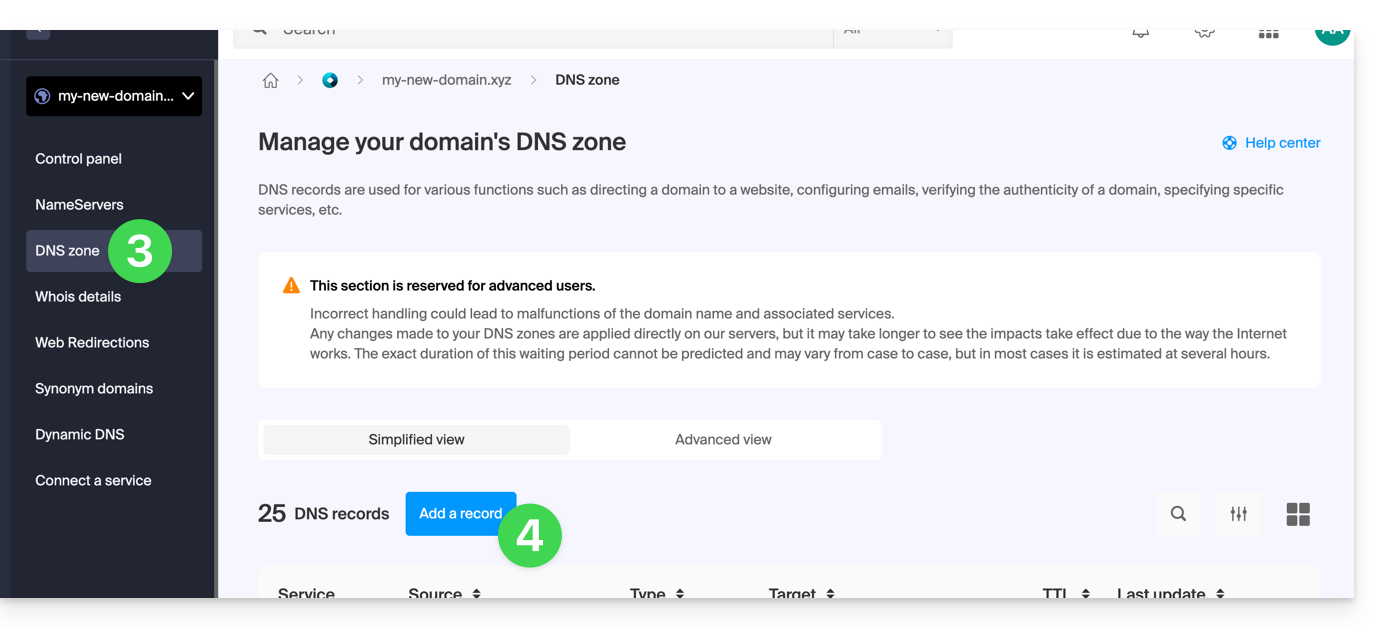
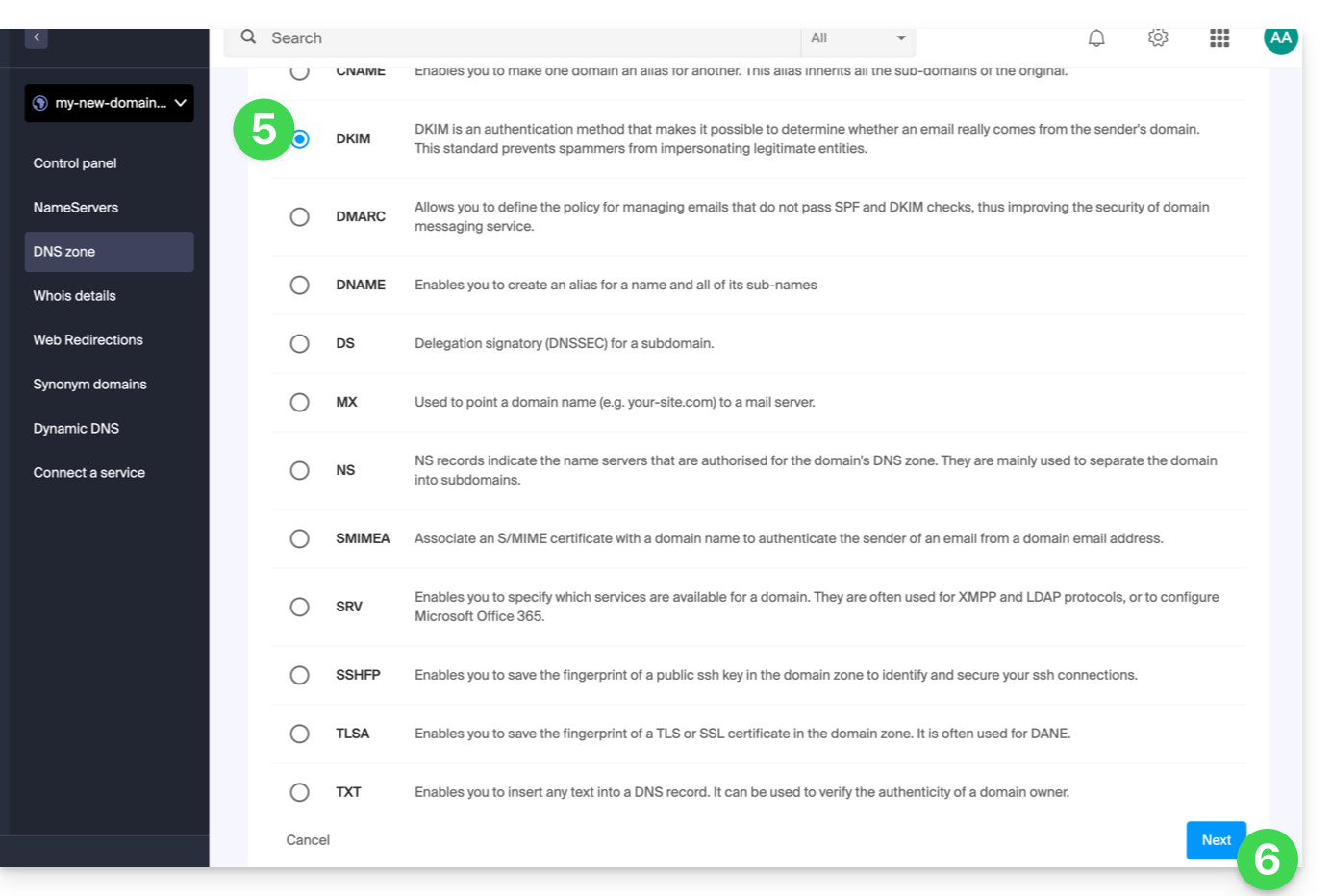
- Clique no botão de rádio DKIM para adicionar um registo.
- Clique no botão Seguinte:
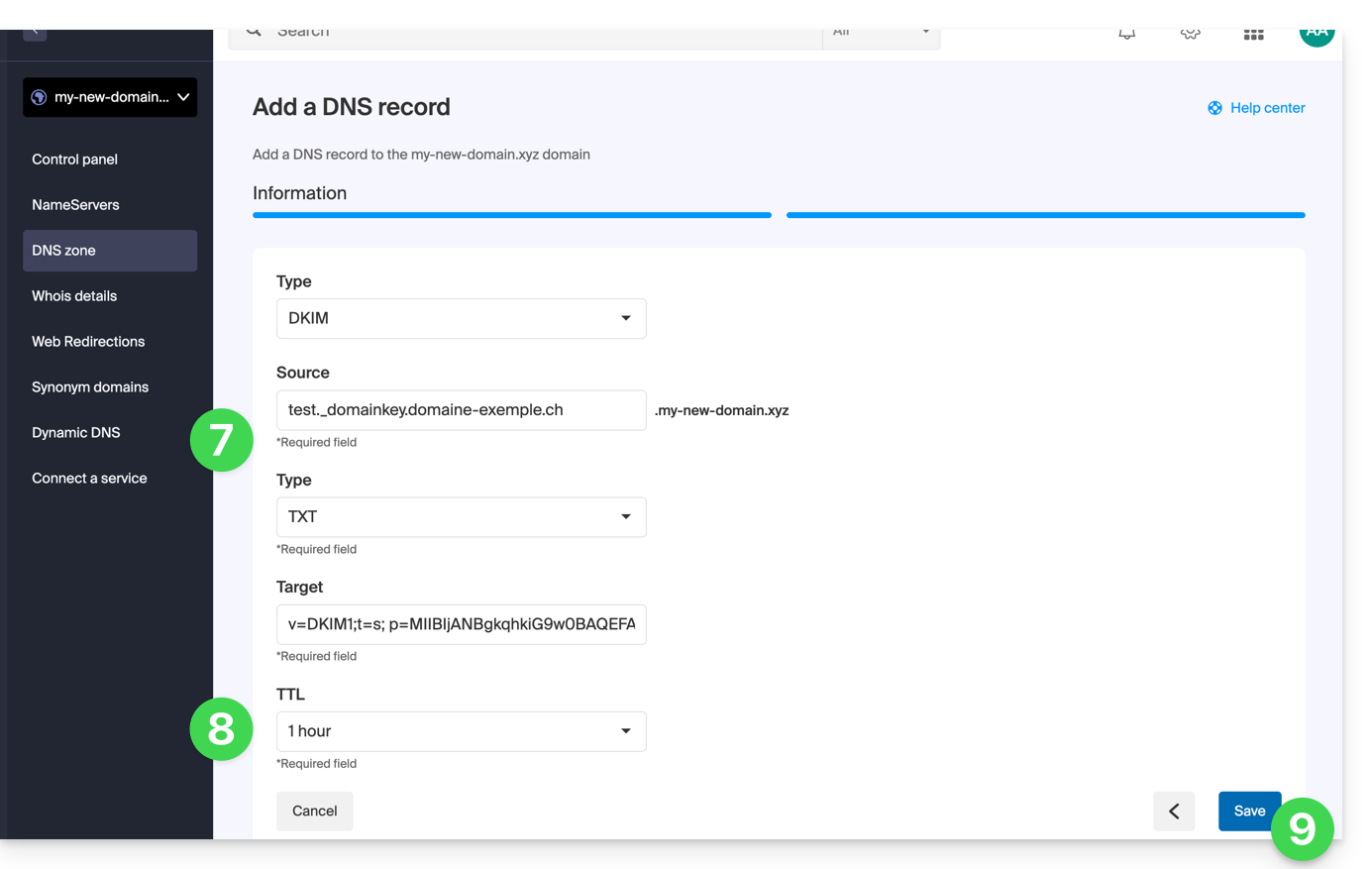
- Insira os valores do DKIM necessários para a sua zona DNS.
- Mantenha o valor padrão para o TTL.
- Clique no botão Guardar:
Adicionar vários DKIM
Pode ter vários registos DKIM no seu domínio/subdomíniosem limite, ao contrário do DMARC ou SPF, desde que o seu servidor DNS o permita.
Se você utiliza vários fornecedores de e-mail de terceiros, por exemplo, o ERP Odoo, é necessário adicionar um DKIM para o Odoo, além do DKIM da Infomaniak.
Utilize seletores DKIM exclusivos para evitar conflitos com os registros existentes.
Link para esta FAQ: https://faq.infomaniak.com/841
Esta seção de perguntas frequentes foi útil?
Este guia explica como configurar determinados parâmetros para que sejam automaticamente aplicados por padrão aos novos endereços de e-mail (e utilizadores) adicionados ao Serviço de E-mail no futuro.
Introdução
Para aplicar parâmetros a todos os endereços de e-mail existentes, consulte este outro guia.
Aceder à Configuração Global do Serviço de E-mail
Para tal:
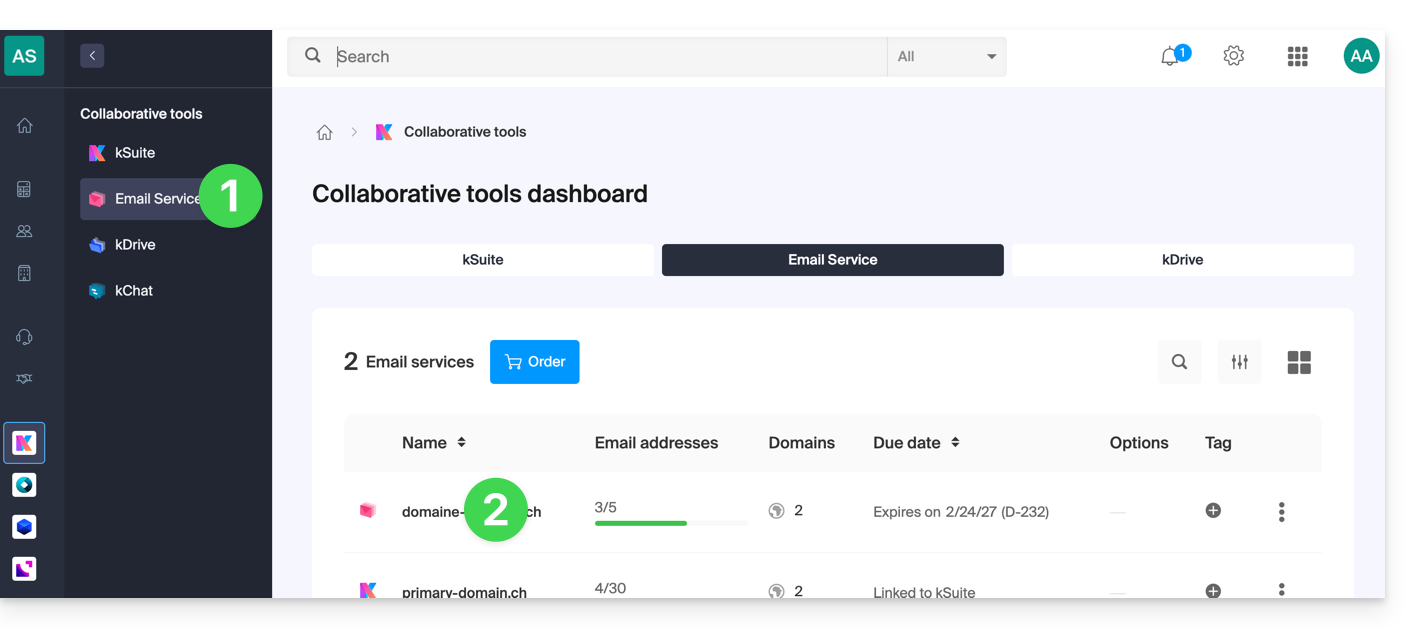
- Clique aqui para aceder à gestão do seu Serviço de E-mail no Manager Infomaniak (precisa de ajuda?).
- Clique diretamente no nome atribuído ao Serviço de E-mail em questão:
Clique em Configuração global no menu lateral esquerdo:
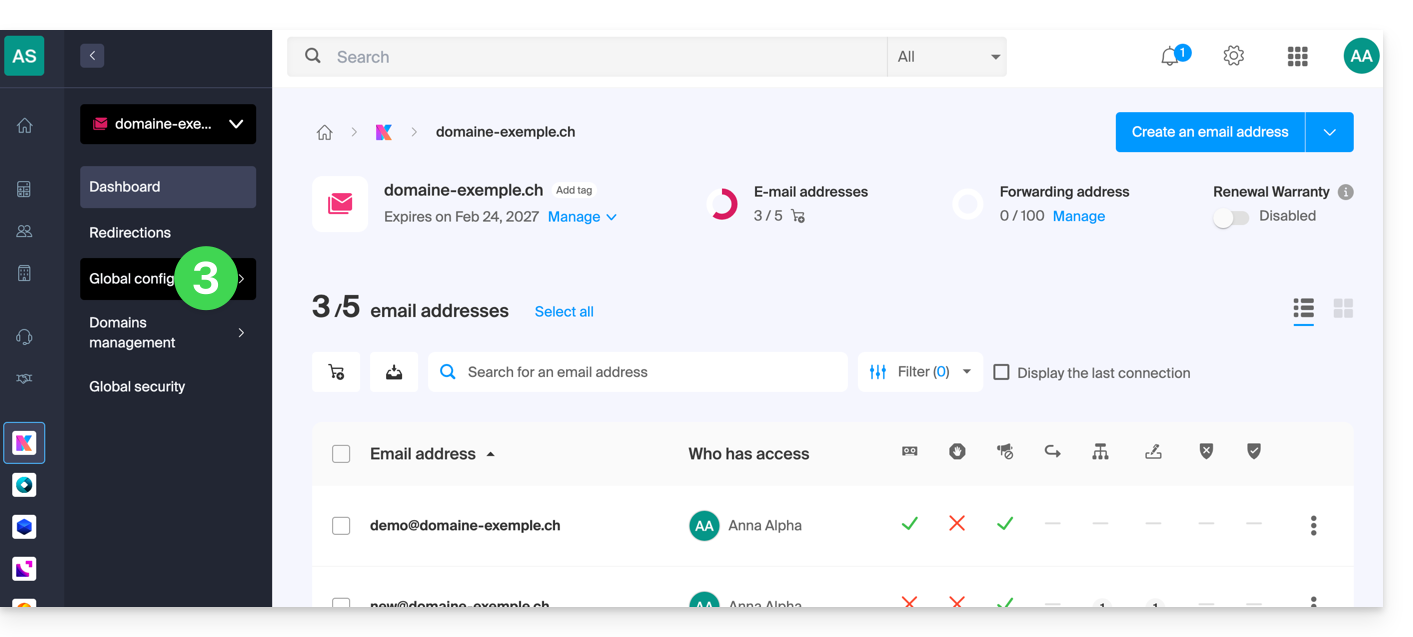
Pode então escolher, entre 5 secções, os parâmetros que pretende ativar ou desativar por padrão:
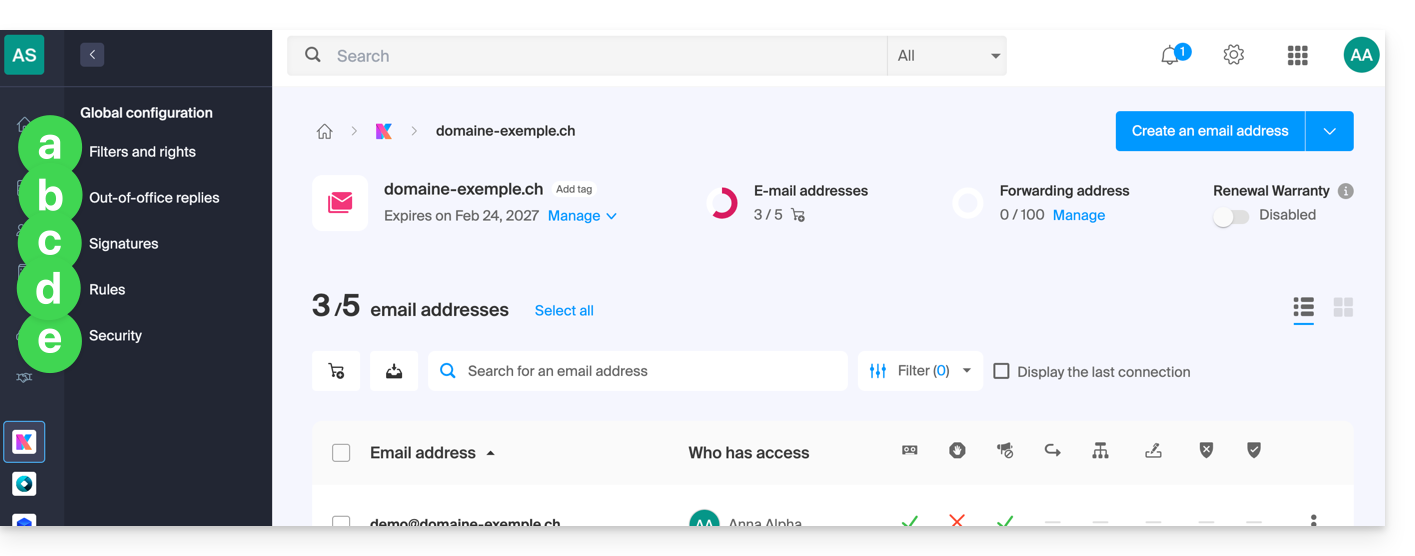
a. Filtros e permissões
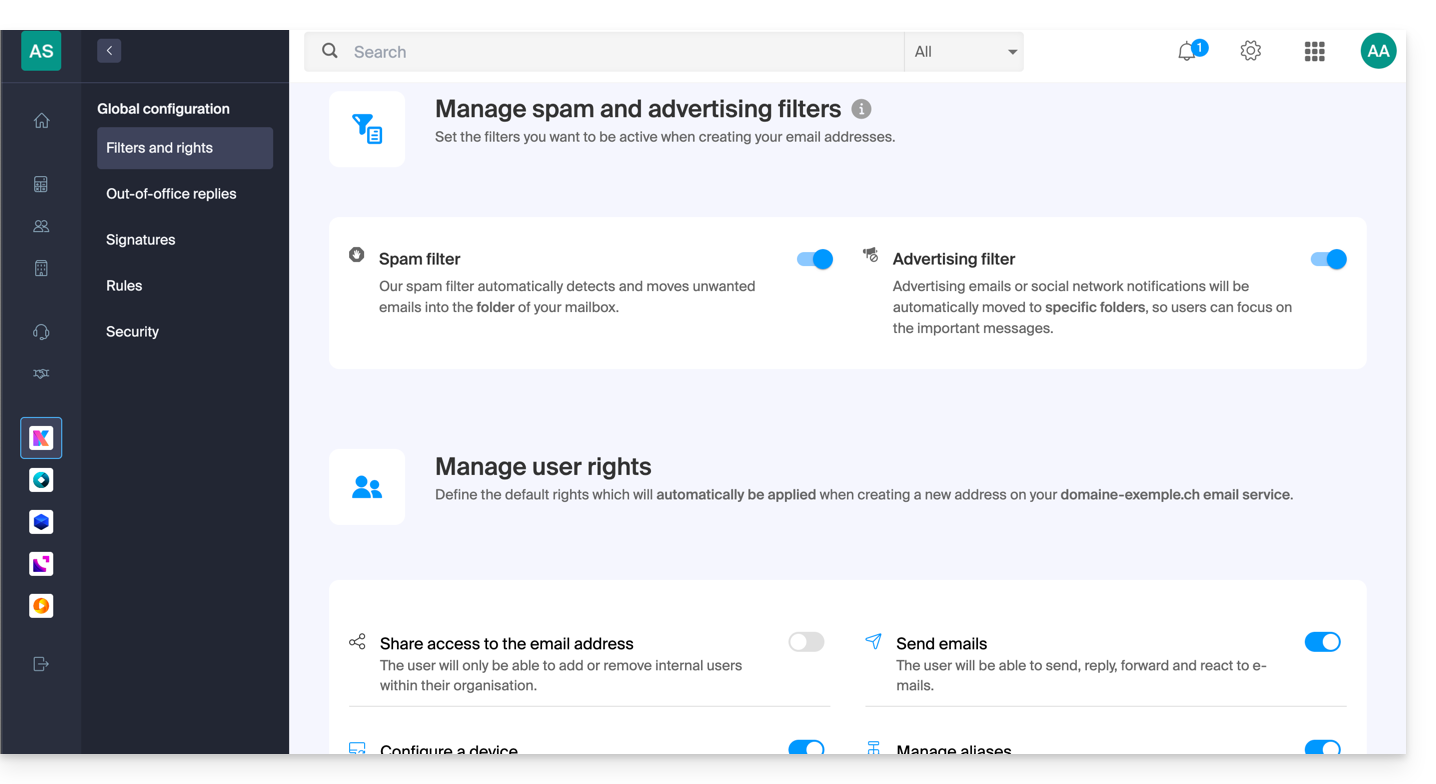
Pode optar por ativar ou desativar o filtro anti-spam quando for criada uma nova conta de e-mail no Serviço de E-mail.
O mesmo se aplica ao filtro de publicidade.
É aqui também que pode gerir os direitos padrão que um utilizador terá na conta de e-mail.
b. Respostas automáticas
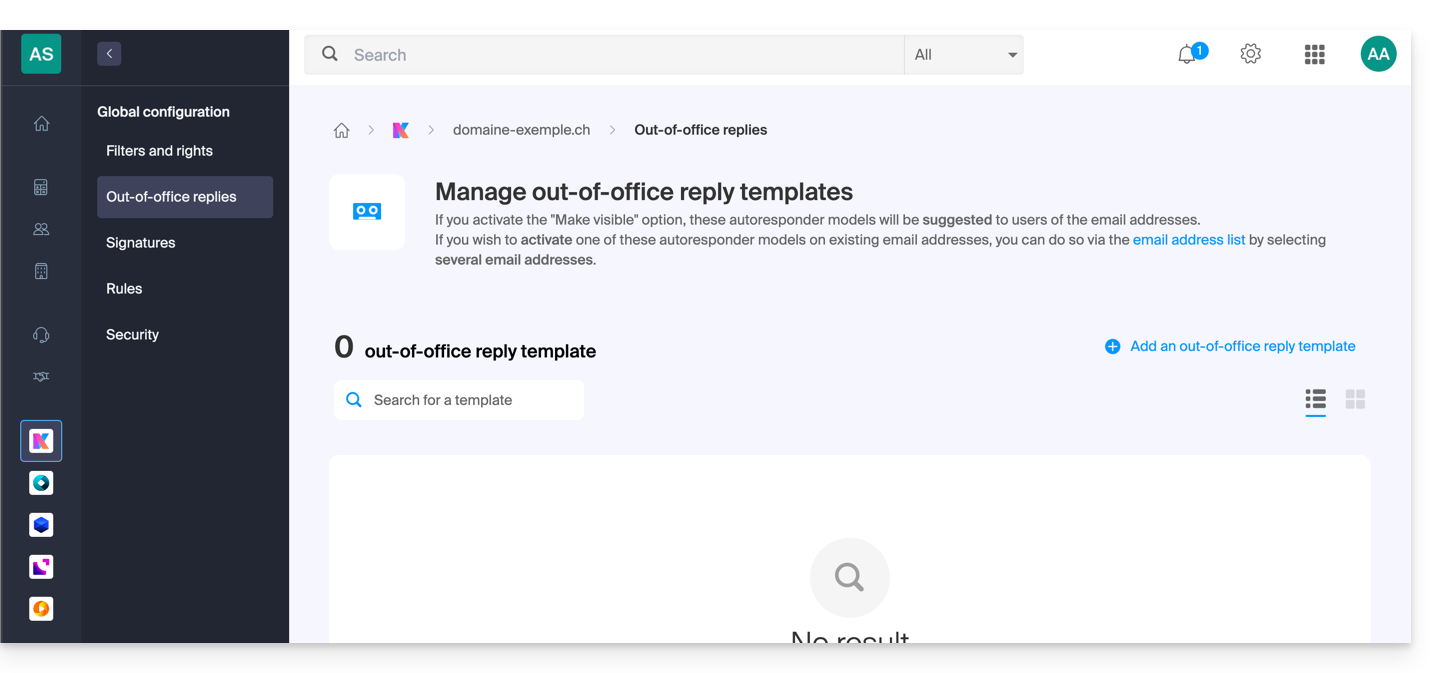
- Pode gerir os modelos de respostas automáticas que poderão ser posteriormente adaptados pelos utilizadores das contas de e-mail.
c. Assinaturas
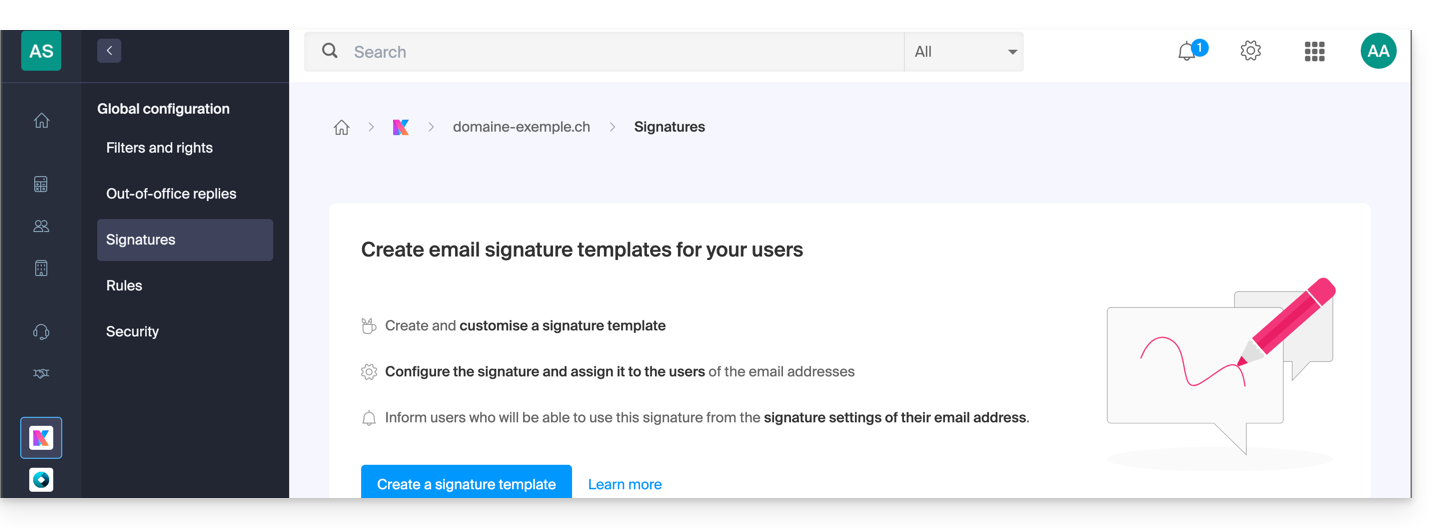
- Pode gerir os modelos de assinaturas que poderão ser posteriormente adaptados pelos utilizadores das contas de e-mail.
d. Regras
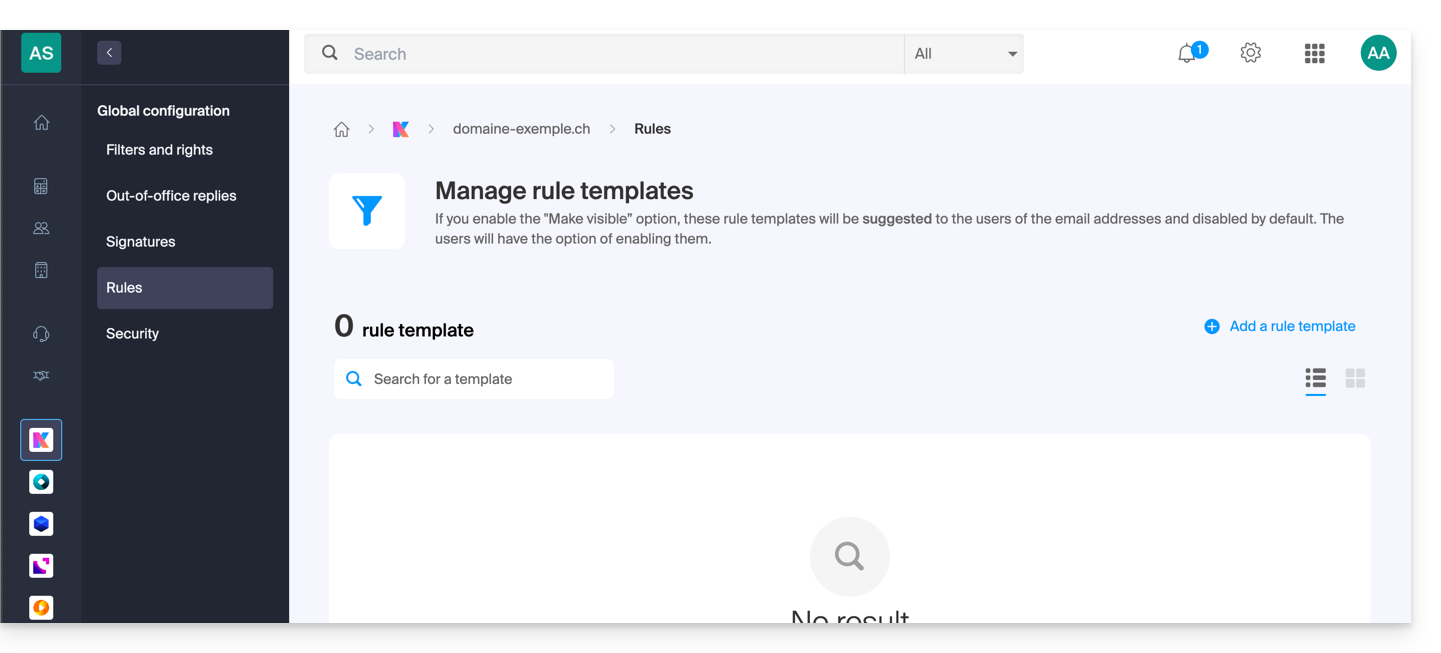
- Pode gerir os modelos de regras, que estão desativadas por padrão, e que poderão ser posteriormente adaptados e ativados pelos utilizadores das contas de e-mail.
e. Segurança
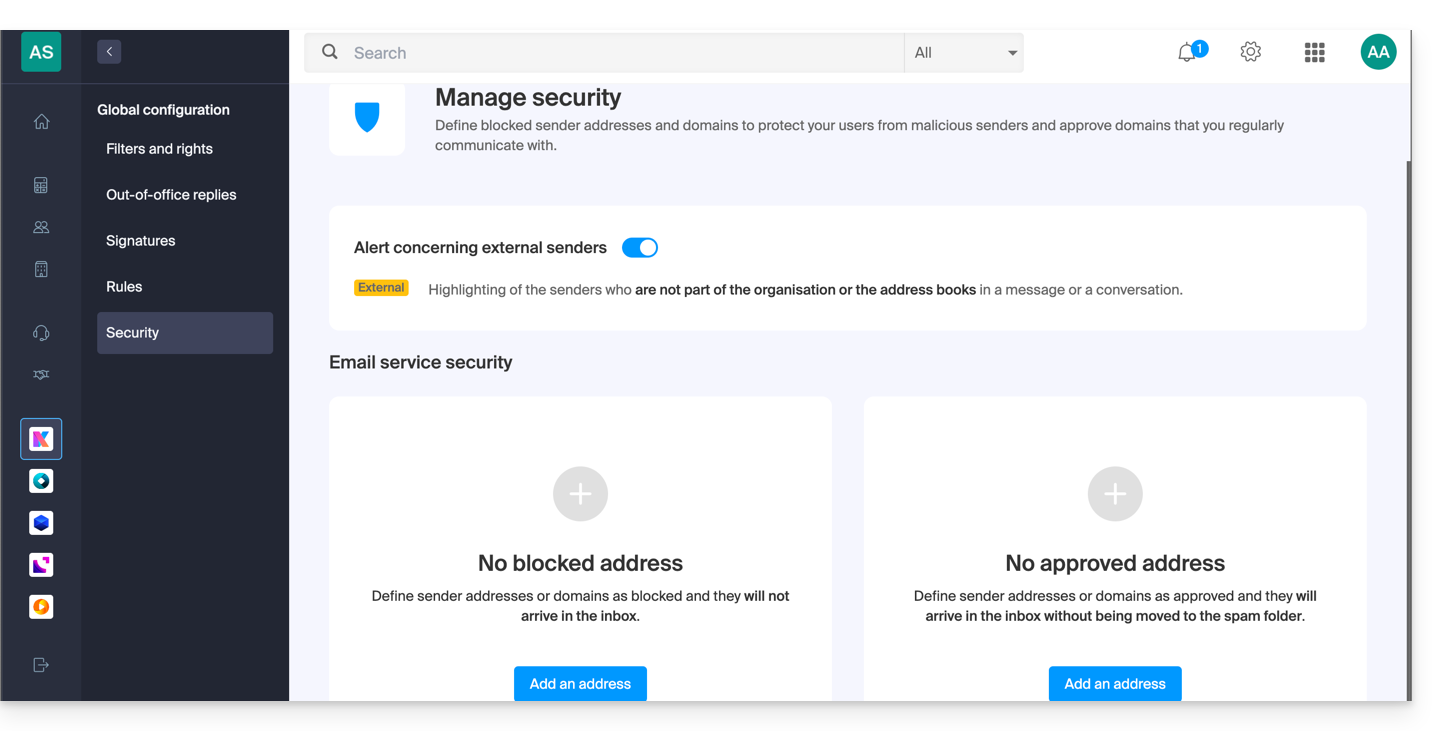
- Você pode gerenciar o aviso de e-mail externo e, abaixo, adicionar remetentes cujos e-mails sempre serão enviados para a pasta Spam, ou, inversamente, que nunca serão filtrados.
Link para esta FAQ: https://faq.infomaniak.com/843
Esta seção de perguntas frequentes foi útil?
Este guia ajuda a identificar e corrigir a maioria dos erros de e-mail encontrados após o envio de um e-mail para um destinatário.
Se procura informações sobre erros que aparecemao configurar um endereço de e-mail em um software/cliente de e-mail, consulte este outro guia.
Introdução
- Em geral, uma mensagem de erro no serviço de e-mail ocorre devido a:
- uma configuração incorreta do nome de domínio utilizado com o seu serviço de e-mail,
- um problema no provedor de e-mail do seu destinatário.
- Em todos os casos, um relatório de falha na entrega (
Mailer DaemonouMail Delivery Subsystem) contendo a explicação é enviado ao remetente.
1. Princípios básicos e identificação do erro
Funcionamento dos relatórios de falha
Quando a sua mensagem não chega ao destinatário, um primeiro relatório de falha (Relatório de Falha Temporária na Entrega) é enviado, indicando que o servidor tentará reenviar a sua mensagem várias vezes.
Um relatório de falha de entrega final (Final Delivery Failure Report ou Undeliverable Mail) emitido pelo servidor do destinatário é enviado ao remetente (através do servidor de e-mail Infomaniak, o que explica a menção da Infomaniak no início da maioria das mensagens de erro que você pode receber) para informá-lo de que o e-mail não pôde ser entregue, mesmo após várias tentativas.
A notificação contém sempre o motivo da falha. Exemplo abaixo:
This is the mail system at host smtp-1-1234.mail.infomaniak.ch.
I'm sorry to have to inform you that your message could not be delivered to one or more recipients. It's attached below.
For further assistance, please send mail to postmaster.
If you do so, please include this problem report. You can delete your own text from the attached returned message.
The mail system anna.a@abc.xyz: host mxbw-abc-xyz.abc-ab12.abc.ch[123.456.789.00] said: 550 5.1.1
anna.a@abc.xyz recipient rejected, account administratively disabled (in reply to RCPT TO command)
Aqui, o endereço do seu destinatário está visivelmente suspenso pelo seu provedor de e-mail (conta desativada administrativamente).
Às vezes, é preciso procurar a razão da mensagem de erro recebida entre os anexos (geralmente um arquivo de texto simples). Exemplo:
Reporting-MTA: dns; mxbw.abc.ch [123.456.789.00]
Received-From-MTA: dns; smtp-1-1234.mail.infomaniak.ch [12.345.678.99]
Arrival-Date: Tue, 01 Aug 2023 15:49:22 +0200
Final-recipient: rfc822; anna.a@abc.xyz
Diagnostic-Code: smtp; 552 RCPT TO:anna.a@abc.xyz Mailbox disk quota exceeded
Last-attempt-Date: Tue, 01 Aug 2023 15:49:22 +0200Aqui, a caixa de e-mail do seu correspondente externo na Infomaniak parece estar cheia (Limite de quota de disco da caixa de e-mail excedido).
2. Casos mais comuns
Falha no SPF
O registro SPF (Sender Policy Framework) não está configurado corretamente:
Subject: Delivery Status Notification (Failure)
From: Mail Delivery System mailer-daemon@domain.xyz
To: Anna.A anna.a@abc.xyz
This is an automatically generated Delivery Status Notification.
Delivery to the following recipient failed due to SPF failure:
anna.a@abc.xyz
Technical details of SPF failure:
The sender's domain domain.xyz does not have a valid SPF record. Please contact your email administrator to correct the SPF configuration.
Solução: verifique a configuração do seu nome de domínio e, em particular, o registro do tipo SPF se o seu site estiver hospedado no Wix ou em outro provedor.
Utilizador desconhecido
O endereço de e-mail especificado na mensagem é inválido ou não existe:
Subject: Delivery Status Notification (Failure)
From: Mail Delivery System mailer-daemon@domain.xyz
To: Anna.A anna.a@abc.xyz
This is an automatically generated Delivery Status Notification.
Delivery to the following recipient failed permanently:
anna.a@abc.xyz
Technical details of permanent failure:
The email address does not exist. Please check the recipient's email address and try again.
Solução: verifique cuidadosamente o endereço de e-mail do destinatário e corrija-o, se necessário; certifique-se de usar um endereço de e-mail válido para o destinatário.
Falha Temporária
O servidor de mensagens do destinatário está com problemas temporários ou indisponível.
Solução: aguarde um pouco e tente enviar a mensagem novamente mais tarde. Se o problema persistir, entre em contato com o suporte técnico do destinatário para obter ajuda.
Bloqueado pelo filtro de SPAM (ou conteúdo rejeitado)
O servidor de e-mail do destinatário bloqueou a mensagem devido a regras de filtragem anti-spam:
Subject: Delivery Status Notification (Failure)
From: Mail Delivery System mailer-daemon@domain.xyz
To: Anna.A anna.a@domain.xyz
This is an automatically generated Delivery Status Notification.
Delivery to the following recipient failed due to the message being rejected as spam:
anna.a@domain.xyz
Technical details of delivery failure:
The content of the message triggered the spam filters of the recipient's email server. Please review the message content and try again.
Solução: verifique se a sua mensagem contém elementos que possam ser considerados spam (palavras-chave, links suspeitos, etc.). Contacte o destinatário para verificar se a mensagem foi filtrada na pasta de lixo eletrónico.
Consulte este outro guia sobre spam de saída e este outro guia sobre spam de entrada.
Má Reputação
O servidor de e-mail do destinatário bloqueou a mensagem devido a regras de filtragem anti-spam:
gmail-smtp-in.l.google.com said: 550-5.7.1
Our system has detected that this message is likely suspicious due to the very low reputation of the sending domain.
To best protect our users from spam, the message has been blocked.
Please visit {{URL_5}} for more information.
Solução: verifique a reputação do domínio e determine se alguma de suas contas de e-mail foi recentemente utilizada indevidamente para fins maliciosos.
Domínio não encontrado (ou erro de DNS)
O nome de domínio do destinatário não pôde ser resolvido ou não existe.
Solução: verifique a ortografia do domínio do destinatário e corrija-o, se necessário; certifique-se de que o nome de domínio e os DNS são válidos e estão ativos.
Caixa de correio cheia
A caixa de entrada do destinatário está cheia, impedindo o recebimento de novas mensagens.
Solução: informe o destinatário sobre a situação e peça para que ele libere espaço excluindo e-mails ou arquivando itens.
Isso não pode acontecer com os endereços de e-mail gerenciados pela Infomaniak, pois eles não têm limite de tamanho de armazenamento.
Parte da rede deles está na nossa lista de bloqueio
Se a mensagem de erro (geralmente obtida após o envio de um e-mail a partir de uma ferramenta online, instalada no servidor onde se encontra o seu site, por exemplo, uma confirmação de pedido do PrestaShop ou de outra loja online que gere) contiver o seguinte:
host hotmail-com.olc.protection.outlook.com[104.47.30.97] said: 550 5.7.1
Unfortunately, messages from [89.123.456.789] weren't sent. Please contact your Internet service provider since part of their network is on our block list.
Solução: altere o método de envio dos e-mails. O envio é não autenticado e é enviado a partir do servidor com um endereço IP específico que, aparentemente, está bloqueado pelo destinatário por alguma razão (a Infomaniak não intervém para solicitar o desbloqueio). Portanto, configure a ferramenta online para efetuar envios autenticados.
3. Erros menos frequentes
Atrasado
A mensagem de erro Adiado - Atrasado - Aviso: a mensagem ainda não foi entregue após 4 horas, continuaremos tentando até que a mensagem tenha 3 dias significa que o servidor de e-mail da Infomaniak tentou conectar-se ao servidor de e-mail do seu destinatário para enviar a mensagem, mas não conseguiu por algum motivo. Esta mensagem de erro indica que o servidor Infomaniak continuará tentando enviar sua mensagem durante o período especificado na mensagem de erro. Se, após esse período, a mensagem ainda não tiver sido entregue, você receberá uma mensagem de erro final informando que sua mensagem não pôde ser entregue e que seu destinatário não a recebeu.
Atraso devido ao Greylisting
Este erro Atraso do Greylisting ocorre quando o servidor de e-mail do seu destinatário utiliza, tal como a Infomaniak, uma técnica chamada "greylisting", que impõe um atraso temporário na primeira tentativa de entrega de uma mensagem proveniente de um remetente desconhecido. O Mailer Daemon pode enviar um relatório de erro indicando que a entrega foi atrasada devido ao greylisting. O erro também pode mencionar remetente bloqueado. Tente reenviar a sua mensagem alguns minutos/horas depois.
Mensagem com malware rejeitada
Este erro Malware message rejected ocorre quando a mensagem contém um anexo, um link para um site de armazenamento como o Dropbox ou conteúdo dinâmico, incluindo na parte "transmitida" da mensagem (no caso de um "encaminhamento" de mensagem, por exemplo). Tente reenviar a mensagem a partir do aplicativo web Mail Infomaniak (serviço online ksuite.infomaniak.com/mail) em vez de um aplicativo de e-mail e remova qualquer conteúdo que possa causar este erro.
Tamanho da mensagem excedido / Arquivo muito grande
Esses erros Tamanho da mensagem excedido / Arquivo muito grande ocorrem quando o tamanho da mensagem (ou dos anexos) excede o limite permitido pelo servidor de e-mail do destinatário. O Mailer Daemon enviará um relatório de erro indicando que a entrega falhou devido ao tamanho excessivo da mensagem.
Limite de taxa excedido
Este erro Limite de taxa excedido ocorre quando o remetente excedeu o limite de frequência ou de volume permitido pelo servidor de mensagens do destinatário. Os servidores de mensagens podem impor limites para evitar spam ou sobrecarga do sistema.
Remetente rejeitado: as proteções de autenticação falharam
Consulte este outro guia se encontrar o erro Sender denied: auth guards failed.
A mensagem contém um caractere Unicode em um cabeçalho não permitido.
Este erro A mensagem contém um caractere Unicode em um cabeçalho não permitido pode aparecer se você inseriu um caractere especial, como um coração ♥, por exemplo, no corpo do e-mail, no assunto ou, principalmente, no nome completo. O risco de ser rejeitado pelos provedores é muito alto: é preciso ser o mais simples possível no uso de sinais, caracteres e fontes.
Link para esta FAQ: https://faq.infomaniak.com/858
Esta seção de perguntas frequentes foi útil?
Este guia explica como remover pastas que aparecem esmaecidas na aplicação web Mail da Infomaniak (serviço online ksuite.infomaniak.com/mail) ou em alguns softwares/clientes de e-mail como Apple Mail, Mozilla Thunderbird ou Microsoft Outlook.
Pastas fantasmas
Alguns programas/clientes de e-mail, como o Microsoft Outlook, permitem criar subpastas de pastas inexistentes. Por exemplo, é possível criar a pasta /abc/klm/xyz, mesmo que a pasta "klm" não exista.
No Mail Infomaniak ou em outros programas, as pastas "fantasmas", como a pasta "klm", aparecem em cinza e não podem ser eliminadas diretamente, pois são apenas "caminhos" para uma subpasta real.
Para remover estas pastas fantasmas, é necessário remover primeiro as suas subpastas (neste exemplo: xyz).
Pastas problemáticas
Se, ao consultar o seu endereço de e-mail Infomaniak no Outlook, pastas fantasmas persistirem ou reaparecerem instantaneamente após a exclusão, aqui estão os procedimentos técnicos recomendados pela Microsoft para forçar a sincronização:
1. Forçar a reinicialização das pastas do Outlook
Às vezes, a tabela de pastas local do Outlook está corrompida. Um comando simples pode, muitas vezes, corrigir isso sem apagar nada:
- Feche o Outlook completamente.
- Pressione as teclas
Windows + Rno seu teclado. - Digite
outlook.exe /resetfolderse valide (isso restaura as pastas ausentes ou corrompidas a partir do servidor).
2. Reinicializar o cache IMAP (.ost)
Se o problema persistir, forçar o Outlook a reconstruir a sua base de dados local é, muitas vezes, a solução mais eficaz:
- Feche o Outlook.
- Acesse a pasta:
C:\Users\[Seu Nome de Usuário]\AppData\Local\Microsoft\Outlook. - Identifique o ficheiro
.ostcom o nome do seu endereço Infomaniak e elimine-o (ou renomeie-o para.oldpor segurança). - Reinicie o Outlook; o programa irá descarregar novamente todos os seus e-mails e pastas dos servidores Infomaniak.
3. Utilizar a ferramenta MFCMAPI (Nível Avançado)
O MFCMAPI permite aceder diretamente à estrutura MAPI da sua caixa de correio para eliminar elementos que a interface padrão do Outlook se recusa a remover:
- Faça o download da versão mais recente do MFCMAPI em GitHub (Fonte oficial).
- Execute
MFCMAPI.exee vá paraSessão > Iniciar sessão; selecione o seu perfil do Outlook. - Clique duas vezes na sua conta de e-mail Infomaniak na lista.
- Na nova janela, expanda
Root Container(ouRacine - Boîte aux lettres) e, em seguida,IPM_SUBTREE. - Localize a pasta problemática, clique com o botão direito e escolha
Excluir pasta. - Atenção: na caixa de diálogo, tente primeiro a exclusão simples; se isso falhar, tente novamente marcando a opção
DELETE_HARD_DELETE(exclusão definitiva no nível do servidor).
4. Verificação final através do Webmail
Se uma pasta for excluída no Outlook, mas continuar a reaparecer, verifique obrigatoriamente na aplicação Web Mail da Infomaniak se a pasta está presente e exclua-a primeiro através da interface Web, para depois aplicar o passo nº 1 (resetfolders) no Outlook.
Excluir uma conta e reconfigurá-la imediatamente continua sendo a alternativa mais simples, caso o MFCMAPI lhe pareça muito complexo.
Link para esta FAQ: https://faq.infomaniak.com/865
Esta seção de perguntas frequentes foi útil?
Este guia explica o que significa a indicação de e-mail externo, "Externo", que aparece na aplicação web Mail (serviço online ksuite.infomaniak.com/mail) e na aplicação móvel Infomaniak Mail (aplicação para smartphone ou tablet iOS / Android) ao ler certas mensagens: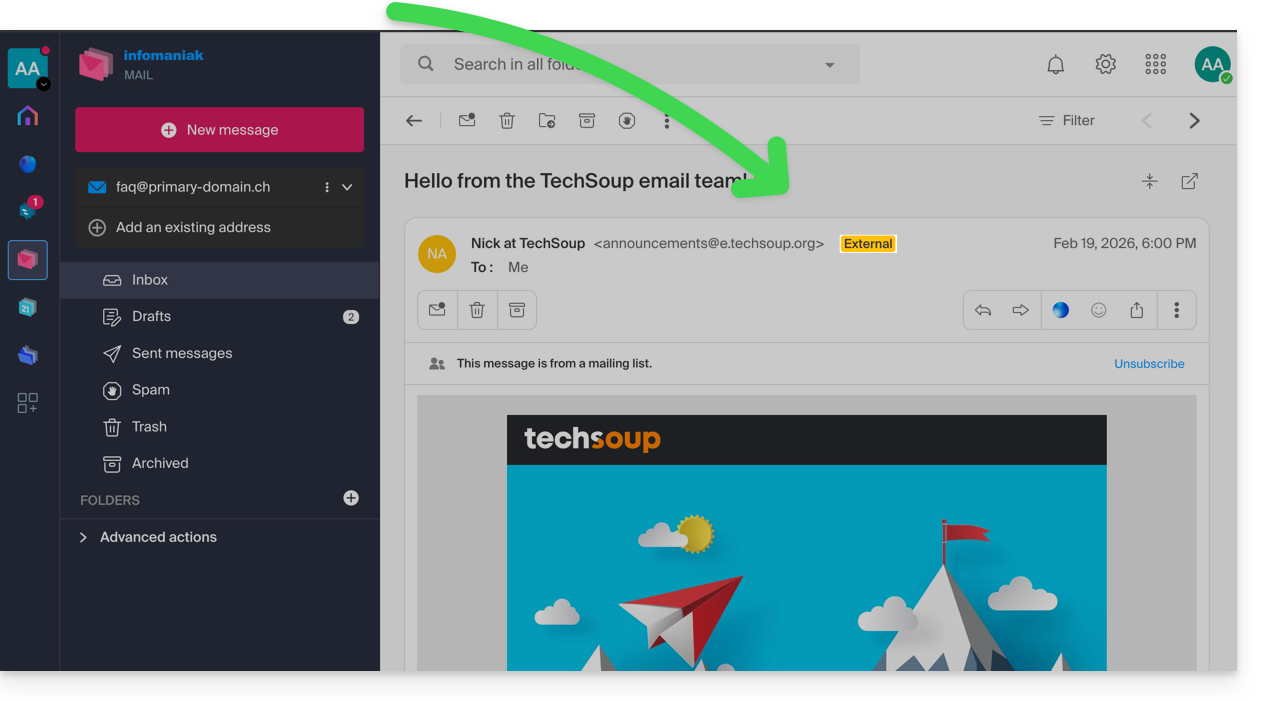
Introdução
- A indicação de e-mail externo é exibida nos seguintes casos:
- O nome de domínio (ou alias) do remetente não corresponde ao da conta de e-mail configurada no Mail.
- O remetente não faz parte dos contatos (incluindo os contatos sugeridos).
- O e-mail provém de um endereço hospedado fora da Organização.
- A indicação será exibida como "desconhecido" em vez de “externo” em algumas ofertas gratuitas, como my kSuite.
Ativar ou desativar a indicação
Pode ativar ou desativar a indicação; o efeito é imediato para os e-mails recebidos e, no caso de uma resposta a um e-mail externo. Para tal:
- Clique aqui para aceder à gestão do seu Serviço de E-mail no Manager Infomaniak (precisa de ajuda?).
- Clique diretamente no nome atribuído ao Serviço de E-mail em questão:
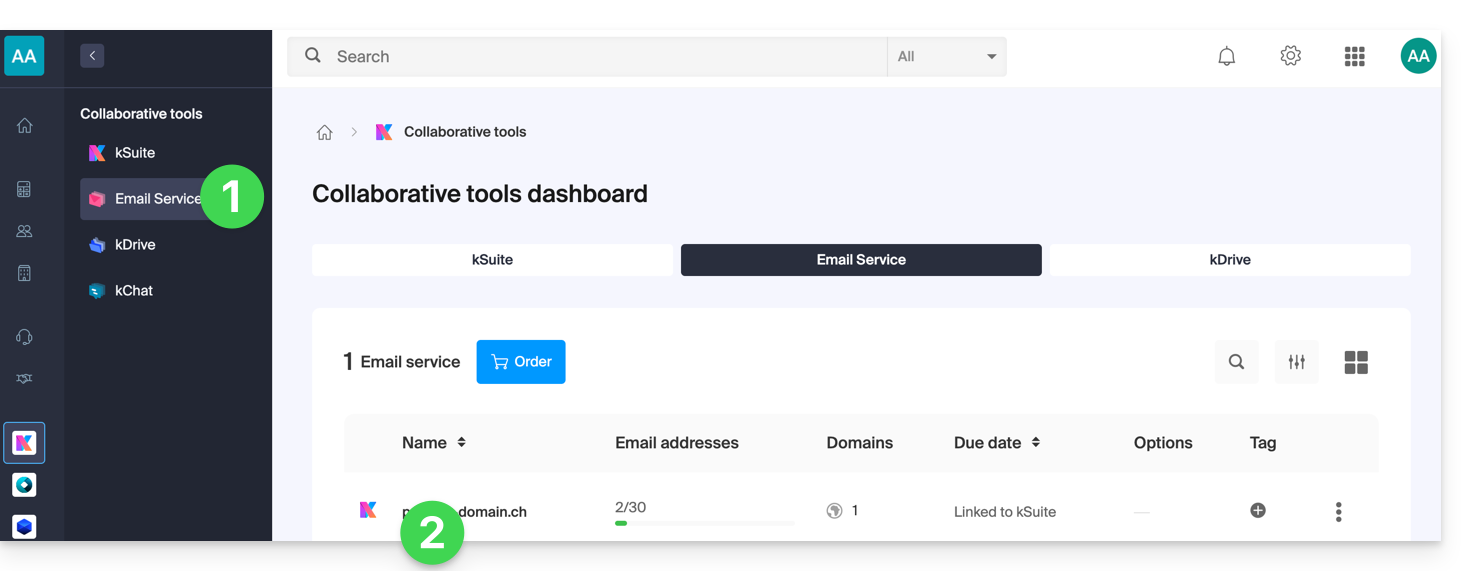
- Clique em Configurações globais no menu lateral esquerdo:
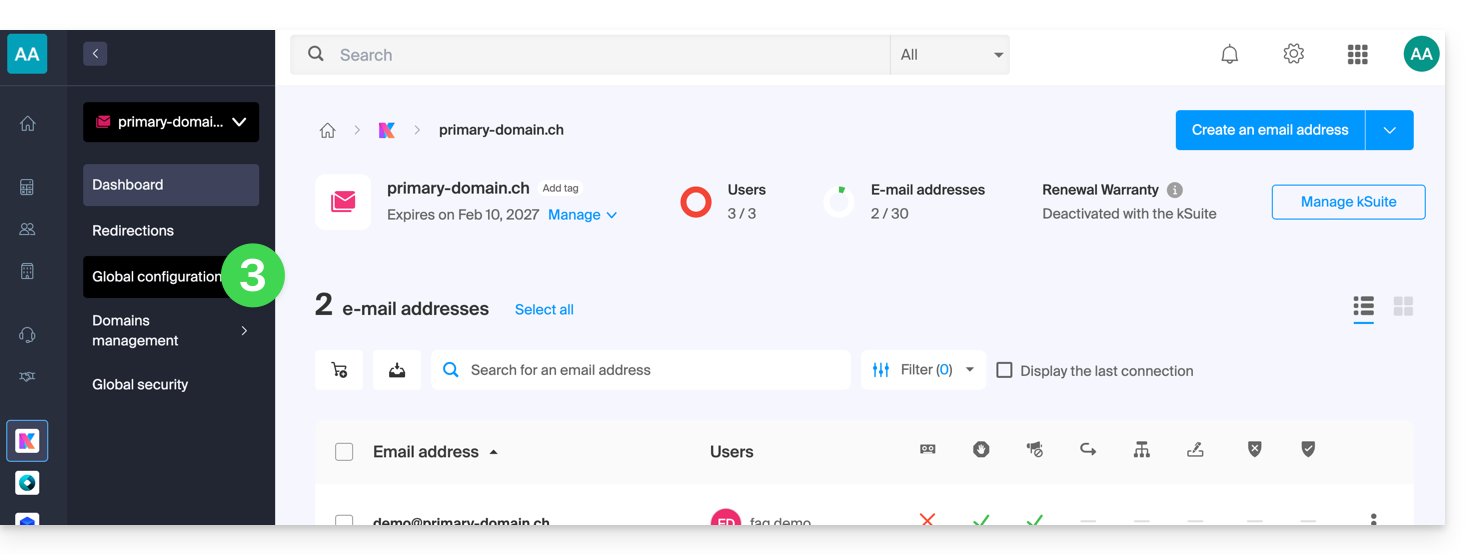
- Clique na aba Segurança.
- Ative ou desative o botão de alternância:
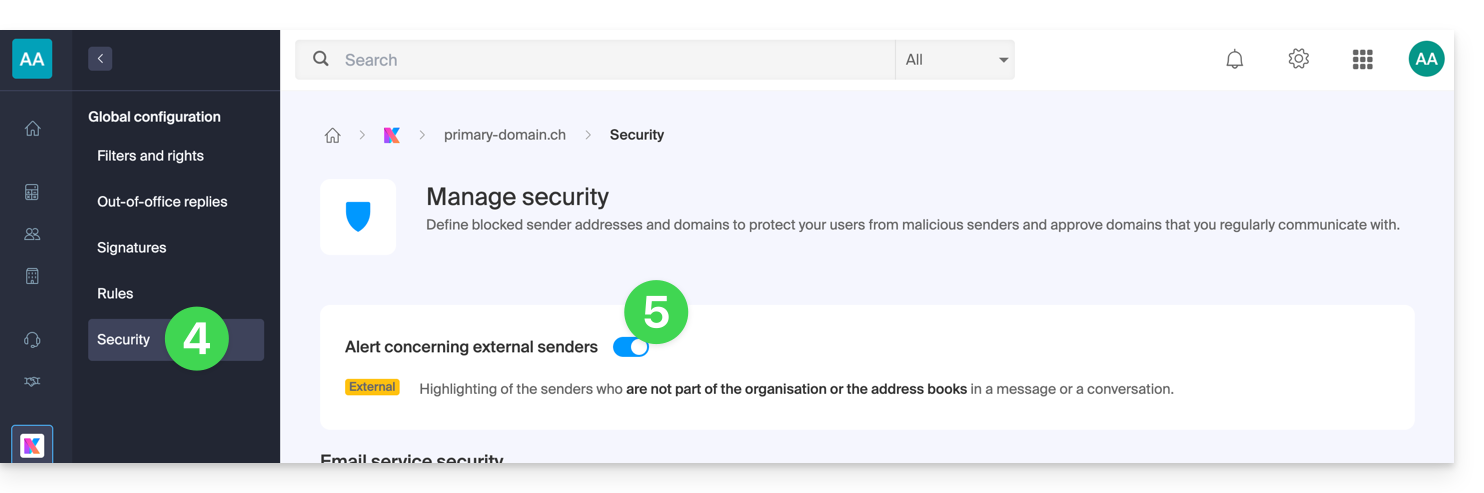
Link para esta FAQ: https://faq.infomaniak.com/964
Esta seção de perguntas frequentes foi útil?
Este guia aborda problemas que podem ocorrer ao usar aplicativos Infomaniak (como kChat, kDrive, Infomaniak Authenticator, etc.) ou ferramentas (como config.infomaniak.com, o Manager Infomaniak, etc.) com hardware (sistema operacional, navegador, dispositivos, etc.) antigo / desatualizado / obsoleto.
Introdução
- Por exemplo, não será possível acessar confortavelmente os serviços Infomaniak com um iPhone 5s ou 6 no iOS 12.
- Portanto, recomenda-se atualizar regularmente os navegadores e os sistemas operacionais para obter a melhor experiência possível com a infraestrutura Infomaniak.
- Consulte também este outro guia, que se concentra principalmente em navegadores e seus componentes.
- E você está usando a última versão do aplicativo Infomaniak em questão?
Atualizar o sistema operacional, o navegador, etc.
Sistemas ou navegadores antigos podem causar lentidão, erros ou exibição incorreta. Portanto, é melhor usar componentes atualizados regularmente, pois os aplicativos Infomaniak funcionam de forma ideal em sistemas atualizados e hardware recente.
Exemplo para kChat:
| kChat | Requisito mínimo |
|---|---|
| Aplicativo web (navegador) | Chrome 134+, Firefox 128+, Safari 17.4+, Edge 134+ |
| Aplicativo móvel (iOS) | iOS 15.1+ (iPhone 6s ou mais recente) |
| Aplicativo móvel (Android) | Android 7.0+ com Chrome atualizado |
| Aplicativo desktop (macOS) | macOS 12 (Monterey) ou versão posterior |
| Aplicativo desktop (Windows) | Windows 10 ou versão posterior |
| Aplicativo para desktop (Linux) | Ubuntu 22.04 LTS ou distribuição equivalente com suporte |
Em caso de problemas com um navegador da Internet, tente atualizá-lo ou instalar uma alternativa:
- Google Chrome
https://www.google.com/chrome/
(O site detecta automaticamente o sistema operacional e oferece a versão mais recente) - Mozilla Firefox
https://www.mozilla.org/firefox/new/
(Página de download e atualização para Windows, macOS e Linux) - Microsoft Edge
https://www.microsoft.com/edge
(O link oferece atualização automática ou download, dependendo do sistema) - Safari (apenas macOS)
https://support.apple.com/fr-fr/HT204416
(A atualização do Safari é feita através das atualizações do sistema macOS) - Opera
https://www.opera.com/fr/download
(Permite baixar a versão mais recente para o seu sistema) - Brave
https://brave.com/download/
(Página de download com detecção automática do sistema operacional)
Tecnologias utilizadas pela Infomaniak
Muitas ferramentas web desenvolvidas pela Infomaniak utilizam Angular. A necessidade de hardware atualizado ou recente para executar os aplicativos não é específica do Angular em si, mas sim um requisito geral para a execução de qualquer aplicativo web moderno. Aqui estão algumas razões pelas quais um hardware atualizado é frequentemente necessário:
- O Angular utiliza recursos avançados dos navegadores modernos, que muitas vezes estão ausentes ou são mal implementados em versões mais antigas.
- Os navegadores mais recentes otimizam a execução do JavaScript e a renderização gráfica, o que melhora o desempenho das aplicações Angular.
- As versões atualizadas corrigem vulnerabilidades conhecidas, reduzindo os riscos de comprometimento.
- Os navegadores modernos estão mais em conformidade com as últimas especificações HTML, CSS e JavaScript, garantindo uma melhor compatibilidade.
- As APIs modernas (câmera, geolocalização, notificações, etc.) só estão acessíveis através de navegadores recentes, o que é essencial para experiências interativas.
Link para esta FAQ: https://faq.infomaniak.com/1025
Esta seção de perguntas frequentes foi útil?
Este guia detalha as diferentes formas de enviar um e-mail para vários destinatários, incluindo a possibilidade de ocultar os endereços de e-mail dos outros participantes.
Introdução
- Ao enviar e-mails, por vezes é necessário incluir vários destinatários utilizando os campos:
- Para
- CC:
- Português: Cópia
- Inglês: Carbon Copy
- CCI:
- Português: Cópia Oculta
- Inglês: Blind Carbon Copy
- Não sobrecarregue os campos "Para" e "CC" com destinatários que não estão diretamente relacionados com o e-mail.
- Utilize o campo Cco para proteger os endereços de e-mail dos destinatários quando houver várias pessoas na lista.
- Ao enviar e-mails em massa, de forma recorrente e/ou em grande quantidade, excedendo os limites estabelecidos, recomenda-se utilizar ferramentas adequadas:
Compreender e utilizar estes 3 campos de e-mail
O campo "Para"
Este campo é usado para indicar o(s) destinatário(s) principal(is) do e-mail, ou seja, aqueles que recebem o e-mail diretamente.
- Use este campo para os destinatários principais que são diretamente relevantes para o conteúdo do e-mail.
- Exemplos: reunião de trabalho, relatório de projeto, comunicação direta com um cliente.
O campo CC
Usado para enviar uma cópia do e-mail para outras pessoas, além dos destinatários principais. Todos os destinatários podem ver quem recebeu uma cópia do e-mail.
- Use este campo para incluir destinatários secundários que precisam ser informados, mas que não são os principais participantes da discussão.
- Exemplo: informar um superior hierárquico sobre uma conversa, incluir colegas interessados no assunto sem que eles precisem intervir.
O campo CCI
Usado para enviar uma cópia do e-mail para pessoas sem que os outros destinatários saibam que também receberam o e-mail.
- Use este campo para incluir destinatários que devem receber o e-mail sem que os outros destinatários saibam.
- Exemplo: envio de um e-mail para um grupo com um supervisor em cópia para acompanhamento, evitando a divulgação de endereços de e-mail para todos os destinatários (frequentemente utilizado em e-mails em massa).
Utilizar os campos disponíveis no Mail Infomaniak
Para acessar os campos relevantes na sua conta de e-mail Infomaniak:
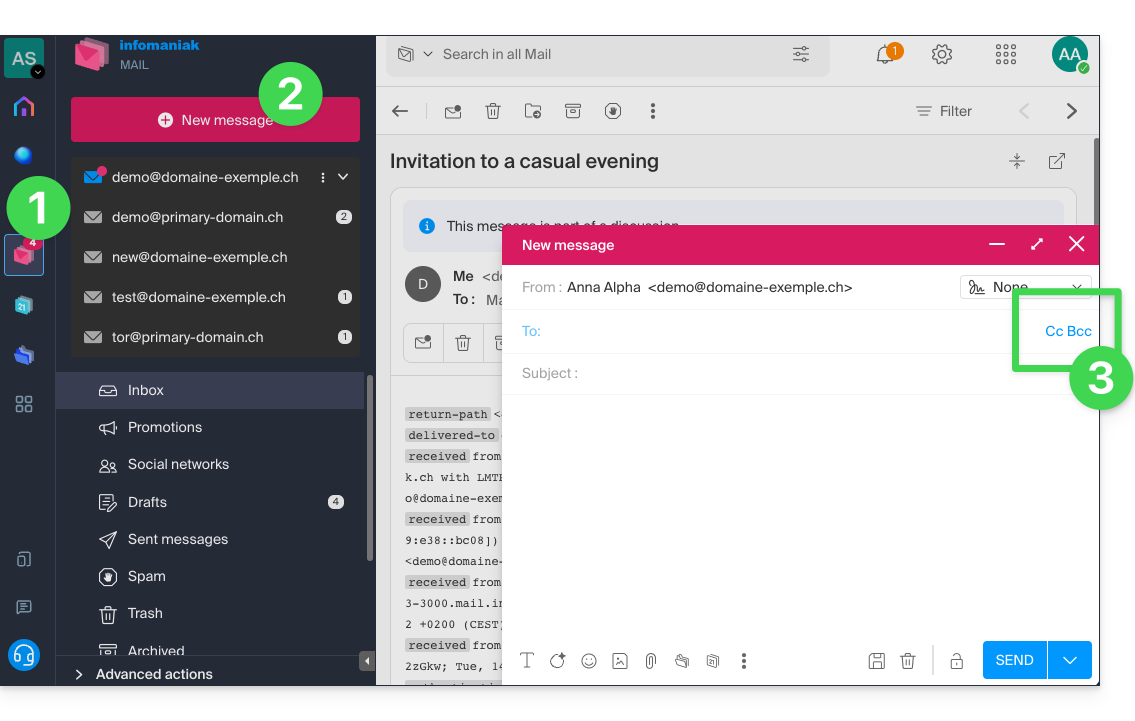
- Clique aqui para acessar o aplicativo web Mail da Infomaniak (serviço online ksuite.infomaniak.com/mail).
- Clique em Nova mensagem.
- Clique em CC e CCO:
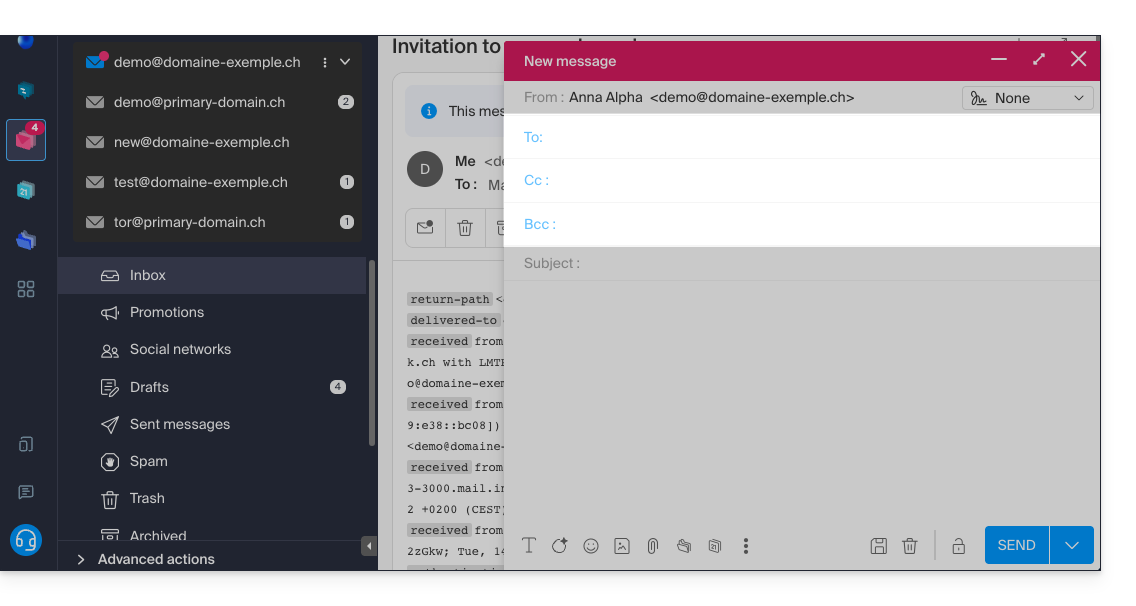
- Os campos adicionais são exibidos e permitem inserir os endereços de e-mail dos seus destinatários:
Exemplos de utilização
Cada um destes campos tem uma função específica e pode ser utilizado estrategicamente de acordo com o contexto da sua comunicação. Seja transparente e ético no uso do campo CCI para evitar mal-entendidos ou conflitos:
- Comunicação de equipe
- Para: membros principais do projeto
- CC: Gerente do projeto, outros departamentos envolvidos
- CCI: Diretor para informação, sem necessidade de intervenção direta
- E-mail marketing
- Para: não utilizar (ou indique apenas o endereço de e-mail do remetente)
- Cc: não utilizar
- Cco: lista de assinantes para proteger os endereços de e-mail individuais
- Anúncio importante
- Para: destinatários principais (por exemplo: diretores)
- Cc: membros do conselho, principais colaboradores
- Cco: outras partes interessadas para informação confidencial
- Anúncio de uma reunião
- Para: John Doe, Jane Smith
- CC: projeto.manager@empresa.com
- CCI: diretor@empresa.com
- Convite para um evento
- Para: convidados principais
- CC: coordenação@evento.com
- CCI: lista de convidados secundários (para proteger os endereços de e-mail)
Link para esta FAQ: https://faq.infomaniak.com/1049
Esta seção de perguntas frequentes foi útil?
Este guia explica como visualizar e encaminhar os cabeçalhos de um e-mail.
Introdução
- Um e-mail é composto por um cabeçalho (
header) e o conteúdo propriamente dito da mensagem (body, corpo do texto). - A maioria dos programas/clientes de e-mail não exibe diretamente os cabeçalhos, mas exibi-los ou transmiti-los permite que o suporte da Infomaniak identifique os problemas encontrados.
- Os cabeçalhos (ou seja, a origem) de um e-mail fornecem diferentes informações, como:
- o remetente
- o destinatário
- a data
- o assunto
- os servidores envolvidos durante a transmissão entre o remetente e o destinatário:
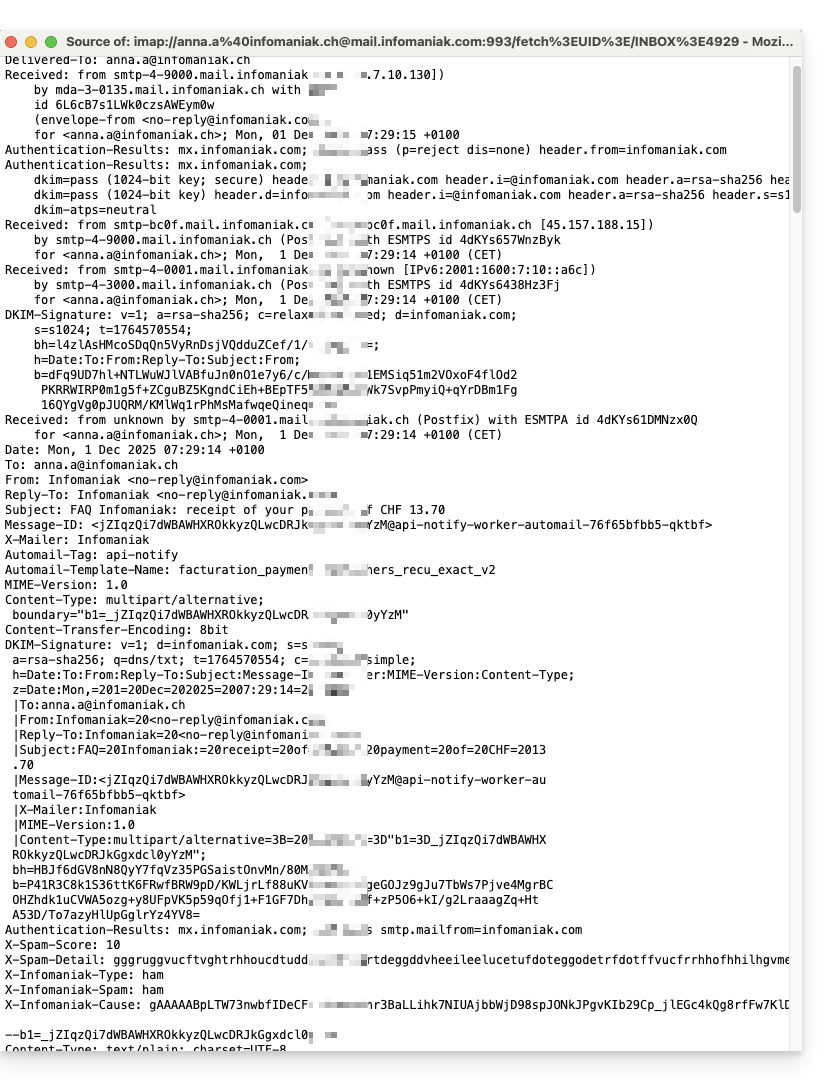
Exibir os cabeçalhos no Mail Infomaniak
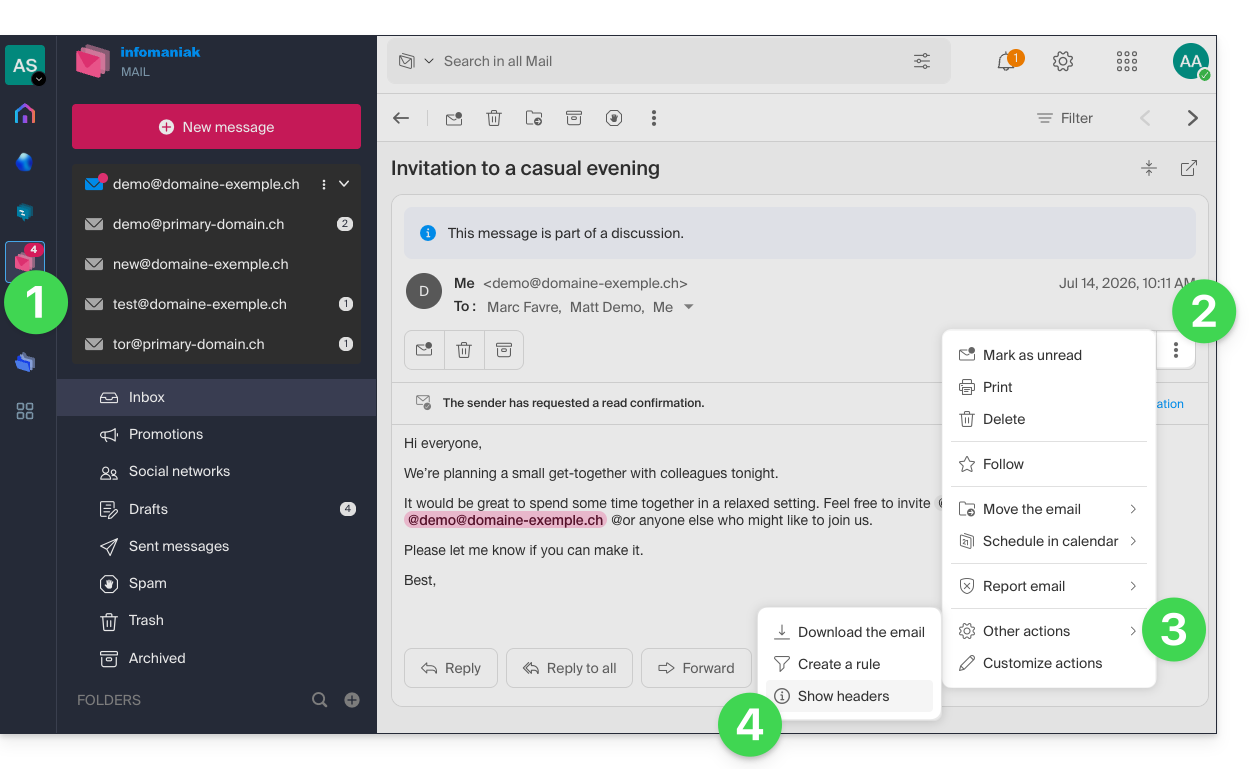
Para visualizar os cabeçalhos de um e-mail a partir da interface Mail Infomaniak:
- Clique aqui para acessar o aplicativo web Mail Infomaniak (serviço online ksuite.infomaniak.com/mail).
- Abra a mensagem em questão e clique no menu de ações ⋮, à direita.
- Clique no menu de outras ações.
- No menu que aparece, selecione Ver cabeçalhos:
- Repita a operação para ocultá-los:

Para exibir os cabeçalhos com um software/cliente de e-mail externo, consulte este outro guia.
Transmitir os cabeçalhos de um e-mail
Para encaminhar os cabeçalhos de um e-mail, em resposta a uma solicitação do suporte ou para o destinatário de sua escolha, basta…
- … copiar e colar os cabeçalhos exibidos conforme o método descrito acima.
- … encaminhe a mensagem de e-mail.
No entanto, para que os cabeçalhos estejam presentes, é imprescindível encaminhar a mensagem não no corpo da mensagem, mas sim como anexo. O e-mail em anexo estará, em princípio, no formato .eml e este arquivo contém todos os cabeçalhos necessários.
Um terceiro método de transmissão completa de e-mails é explicado neste outro guia.
Link para esta FAQ: https://faq.infomaniak.com/1055
Esta seção de perguntas frequentes foi útil?
Este guia explica como alterar, num programa/cliente de e-mail, a configuração de POP para uma configuração IMAP para a mesma conta de e-mail. De facto, por diversas razões, é altamente recomendável usar o protocolo IMAP em vez de POP.
Introdução
- Se o seu endereço de e-mail já estiver configurado com o protocolo POP no seu software/cliente de e-mail (Mozilla Thunderbird, Microsoft Outlook, etc.), não é possível mudar diretamente para o protocolo IMAP na conta.
- De fato, os softwares/clientes de e-mail mais comuns não permitem modificar uma conta POP3 existente e defini-la como IMAP.
- A solução é, portanto,adicione a mesma conta de e-mail, mas utilizando o protocolo IMAPno seu software/cliente de e-mail e, em seguida, transfira as suas mensagens e pastas da conta POP (no seu computador) para a conta IMAP (no servidor de e-mail).
⚠️ Atenção: uma conta POP3 no seu software/cliente de e-mail implica que a Infomaniak, na maioria das vezes, não possui nenhuma cópia de segurança. Portanto, é importante garantir que você faça uma cópia de segurança das suas mensagens antes de realizar qualquer operação importante.
Como mudar de POP para IMAP no Microsoft Outlook
Algumas versões do Outlook, como a 2016, impedem a adição simples de uma segunda conta que tenha o mesmo nome (o mesmo endereço de e-mail).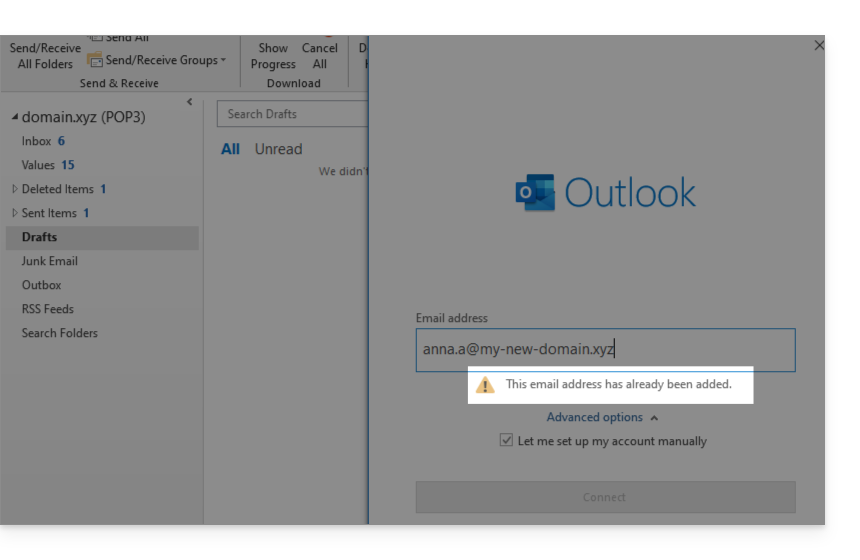
Para contornar isso, é necessário adicionar a conta a partir da seção Perfis: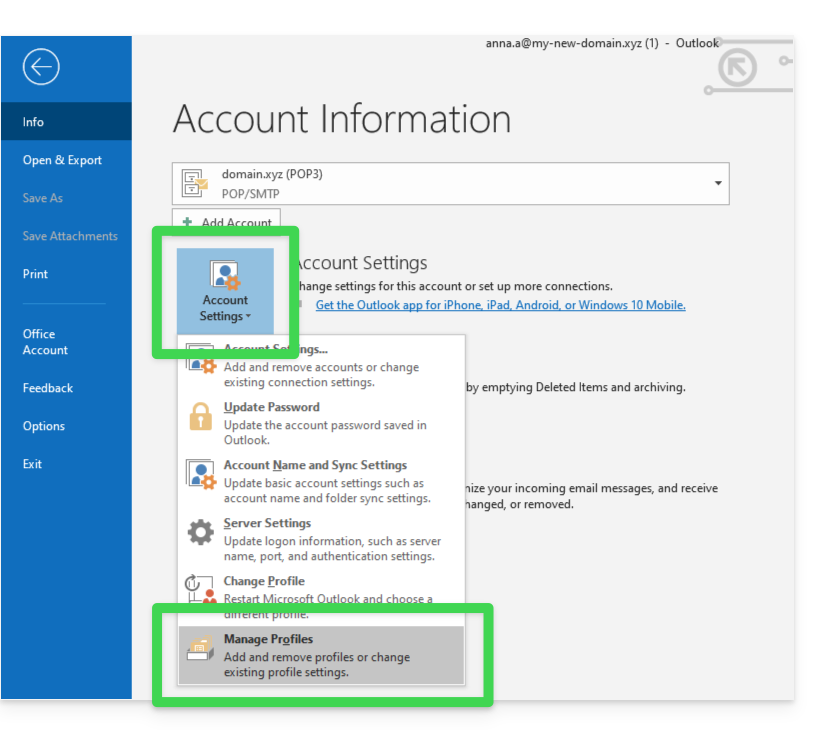
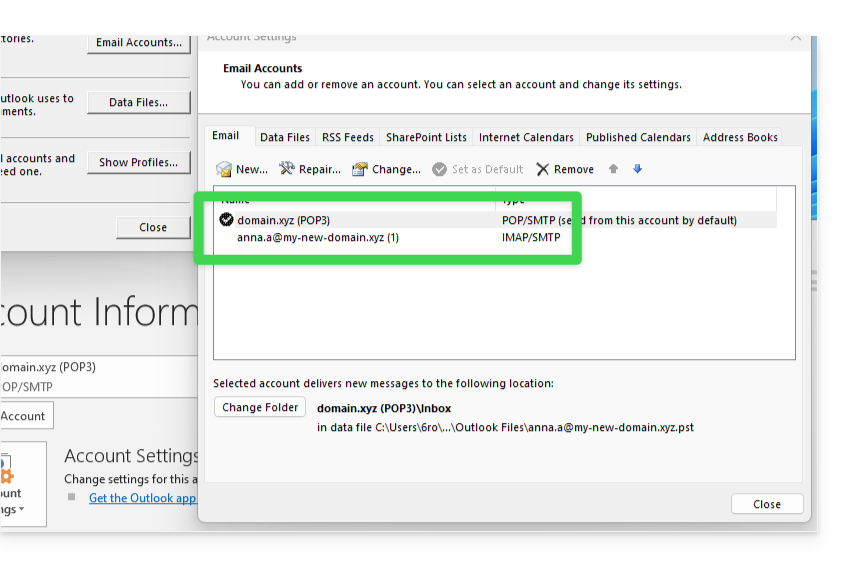
A partir daí, poderá adicionar a conta adicional, via IMAP: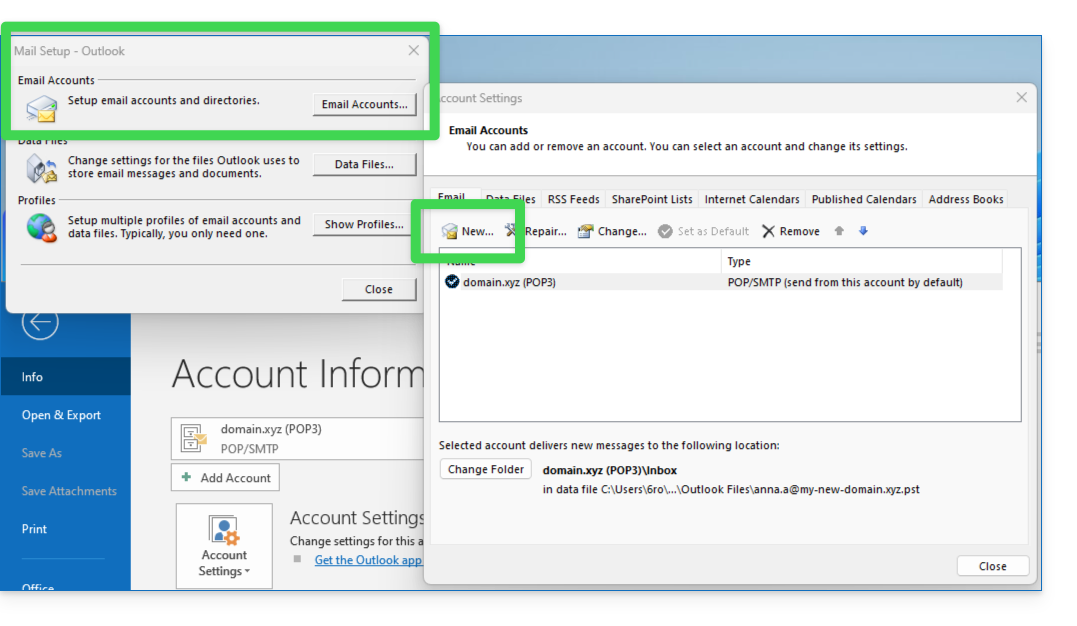
- Configure a nova conta de e-mail com o protocolo IMAP (a mesma conta que foi configurada em POP, mas desta vez em IMAP):
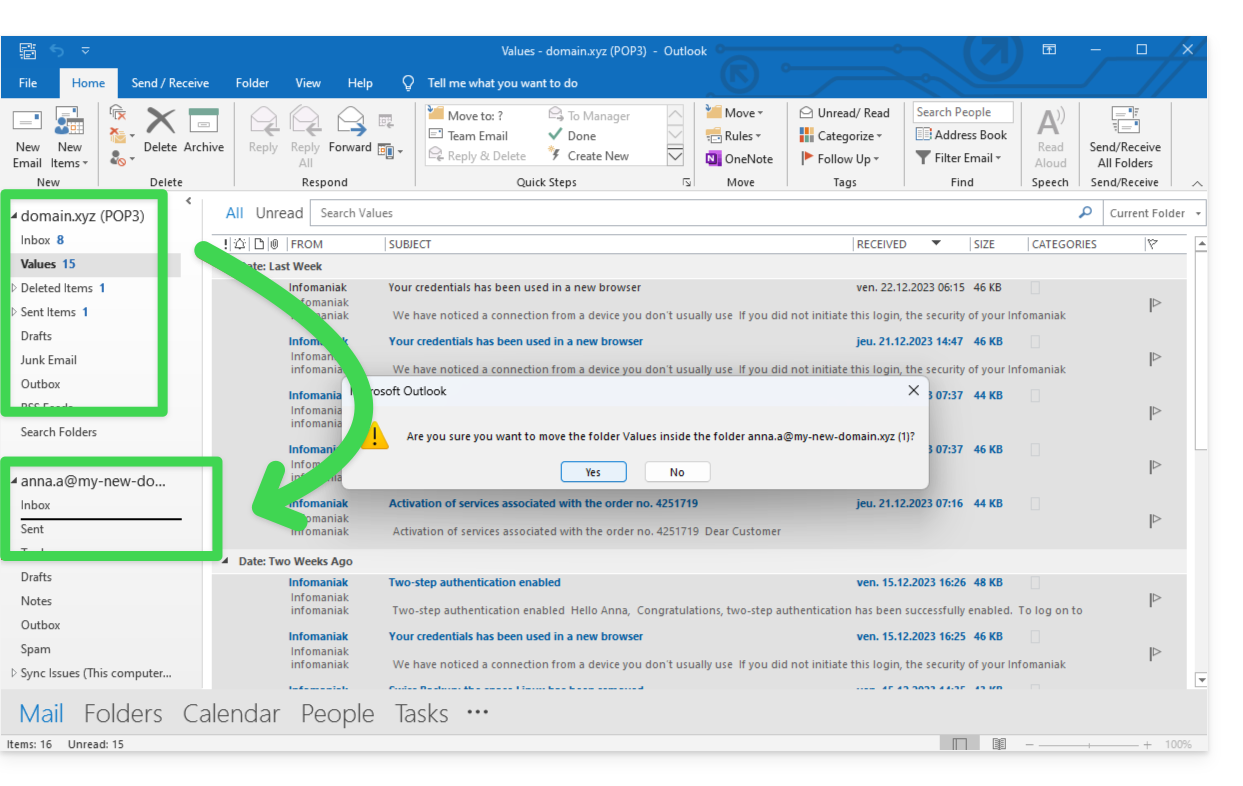
- Mova uma pasta de cada vez, arrastando-a para a caixa de entrada da nova conta configurada em IMAP:
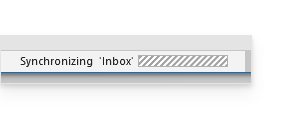
- Aguarde durante a transferência dos elementos (isso pode demorar bastante, dependendo do volume a ser transferido para o servidor); a atividade é indicada na parte inferior da janela:
Se a sua conta POP mantiver uma cópia das mensagens no servidor (opção não recomendada presente nas configurações avançadas do seu Outlook), poderá ter mensagens duplicadas.
Como mudar de POP para IMAP no Apple Mail
A exclusão da conta de e-mail configurada em POP exclui as mensagens que ela contém. Portanto, recomenda-se desativar a conta POP em vez de excluí-la!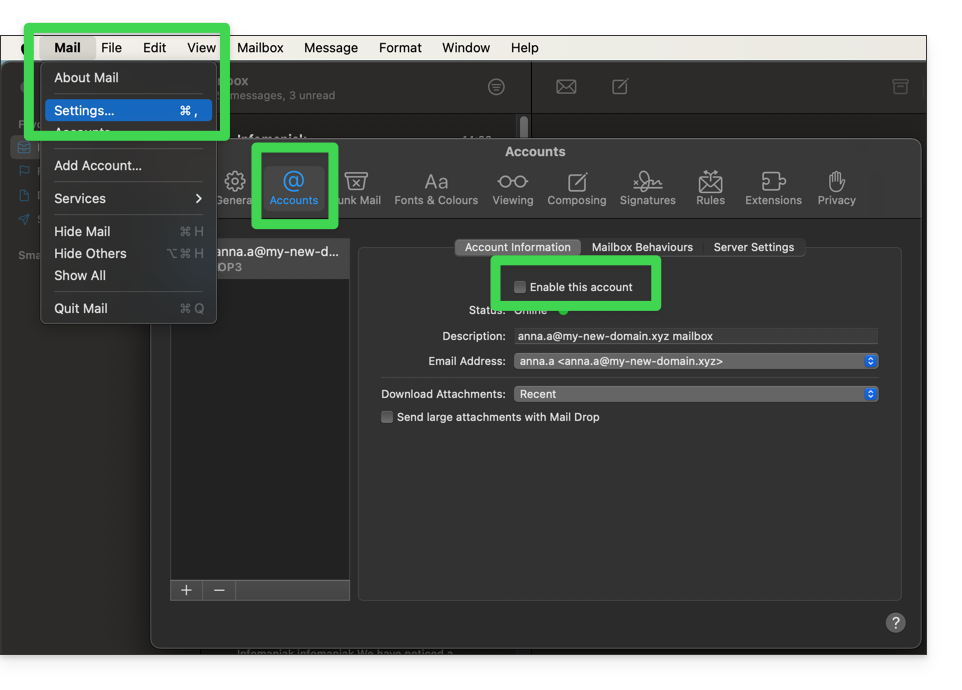
Após desativar a conta POP, consulte este outro guia para configurar seu endereço de e-mail no Apple Mail, usando o protocolo IMAP.
Quando terminar, basta arrastar as mensagens da estrutura da sua conta POP para a estrutura da nova conta IMAP.
Link para esta FAQ: https://faq.infomaniak.com/1122
Esta seção de perguntas frequentes foi útil?
Este guia detalha os mecanismos da falsificação de identidade eletrônica (spoofing) e as medidas de proteção contra mensagens indesejadas que parecem vir do seu próprio domínio.
A minha conta foi utilizada sem o meu conhecimento?
Receber um e-mail que parece ter sido enviado por si é uma técnica comum de manipulação psicológica. Isso não significa que a sua caixa de e-mail foi invadida. Na maioria dos casos, trata-se de uma simples falsificação do cabeçalho «From», comparável a uma pessoa que escreveria o seu endereço no verso de um envelope de papel antes de o enviar.
Certifique-se de que o seu próprio endereço não está incluído na lista de permissões (Allowlist) do seu filtro antispamSe estiver presente, o sistema de proteção ignora a análise de segurança, considerando que a mensagem é legítima.
Diagnóstico: Phishing vs. Hackeamento
É crucial distinguir a falsificação (spoofing de e-mail) da intrusão. O protocolo global de envio de e-mails (SMTP) foi concebido sem uma verificação nativa da identidade do remetente.
Embora a infraestrutura da Infomaniak aplique normas de segurança rigorosas, é tecnicamente impossível impedir que um servidor de terceiros (externo) não seguro, localizado em qualquer parte do mundo, envie uma mensagem fingindo ser você. No entanto, existem ferramentas para tornar essas mensagens indetetáveis ou bloqueá-las nos seus destinatários.
Reforce a integridade do seu domínio
Para proteger a sua reputação digital e limitar o impacto destas tentativas de falsificação, a implementação de protocolos de autenticação é a prática padrão:
- SPF e DKIM: Estas assinaturas digitais certificam que as suas mensagens provêm dos nossos servidores autorizados.
- DMARC: Este protocolo essencial permite-lhe dar instruções aos servidores de todo o mundo (ex: "Se o e-mail não for assinado pela Infomaniak, rejeite-o ou coloque-o no spam"). É a ferramenta mais poderosa paraanalisar e limitar o uso fraudulento do seu domínio.
- Gestão do "catch-all": Evite usar um endereço do tipo "catch-all", que coleta todas as mensagens enviadas para endereços inexistentes do seu domínio, pois ele atrai naturalmente fluxos de spam em massa.
Notificações de falha (Backscatter)
Se receber notificações de não entrega (Non-Delivery Reports) para mensagens que nunca enviou, está a enfrentar o fenómeno do Backscatter. Servidores de terceiros mal configurados ou botnets estão a usar a sua identidade para difundir conteúdo em massa. Quando encontram um endereço inexistente, o servidor remoto envia o erro para o remetente indicado: você.
Link para esta FAQ: https://faq.infomaniak.com/1127
Esta seção de perguntas frequentes foi útil?
Este guia explica como copiar, via IMAP, o conteúdo de um ou mais endereços de e-mail externos (todas as mensagens de e-mail, pastas, subpastas, ou seja, toda a estrutura da sua caixa de e-mail existente em outros provedores) para um ou mais dos seus endereços existentes na Infomaniak, usando a ferramenta de importação da Infomaniak!
Introdução
- A operação não afeta os dados já presentes no endereço de destino, nem os dados do endereço de origem.
- A totalidade da caixa de e-mail externa será importada.
- Uma vez iniciado o processo de importação, não é mais possível interrompê-lo.
- Os eventuais duplicados são gerenciados: um conteúdo idêntico será copiado apenas uma vez.
- Consulte este outro guia se estiver procurando alternativas a este processo via IMAP.
Copiar e-mails de outro provedor para a Infomaniak
Pré-requisitos
- Possuir um Serviço de E-mail no seu Painel de Controle Infomaniak.
- Dispor de uma quota de endereços livres disponíveis ou ajustá-la previamente, se necessário.
- Certificar-se de que a caixa de e-mail está devidamente protegida.
- Criar um ou mais endereços neste Serviço de E-mail.
- O endereço de e-mail de destino deve estar associado ao utilizador (= à conta Infomaniak) que está a utilizar (não é um requisito para a importação em massa explicada abaixo).
- O endereço de e-mail de origem, cujo conteúdo deve ser copiado, deve ter sido utilizado (ou ser compatível) com o protocolo IMAP:
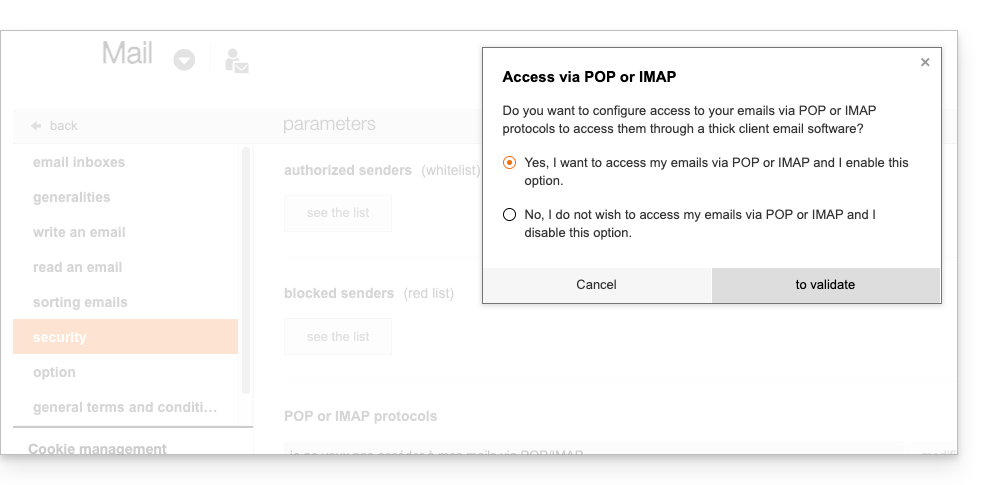
Em seguida, para importar o conteúdo do e-mail:
- Clique aqui para aceder à ferramenta de importação (serviço online https://import-email.infomaniak.com).
- Se necessário, inicie sessão na sua conta Infomaniak na Organização em questão; de facto, a importação será efetuada para um dos endereços de e-mail associados à interface Web Mail Infomaniak (serviço online ksuite.infomaniak.com/mail) da conta Infomaniak que está a utilizar.
- Clique em importar por IMAP.
- Clique em importar única.
- Preencha o campo da esquerda com o seu endereço de e-mail de origem (cujo conteúdo deve ser copiado).
- Preencha o campo da direita com a palavra-passe desse mesmo endereço de e-mail de origem (ver requisitos).
- Se necessário, modifique as Configurações avançadas para especificar um endereço de servidor IMAP:
- Insira o nome do servidor IMAP (nome do host fornecido pelo seu provedor de e-mail), por exemplo,
imap.domain.ch(ou .net, .com, etc., dependendo do seu endereço de e-mail no item 5 acima). - Insira o número da porta (o padrão é 993) e o SSL.
- Insira o nome do servidor IMAP (nome do host fornecido pelo seu provedor de e-mail), por exemplo,
- Clique em Confirmar:
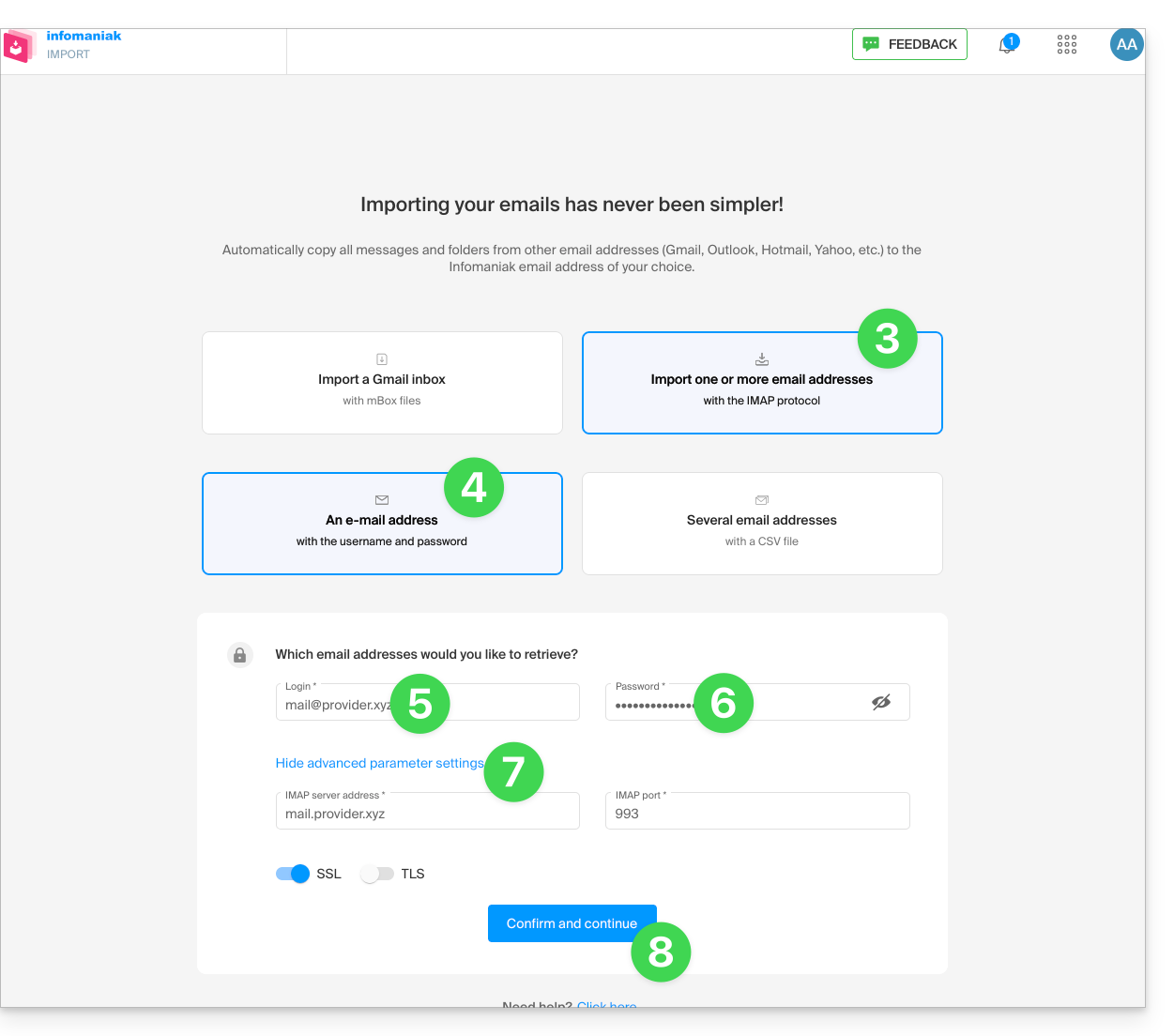
- Se necessário, insira um segundo endereço de e-mail para ser importado ao mesmo tempo.
- Escolha para qual endereço de e-mail importar os e-mails; o menu suspenso lista os endereços de e-mail atualmente associados à sua interface Web Mail Infomaniak (serviço online ksuite.infomaniak.com/mail) da conta Infomaniak com a qual você está conectado.
- Depois de selecionar o endereço de destino desejado na lista, clique no botão azul Importar e-mails:
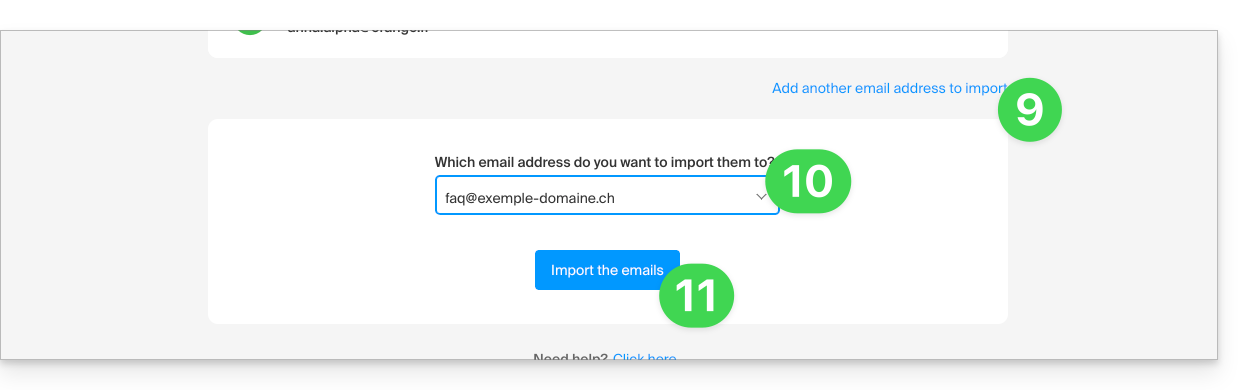
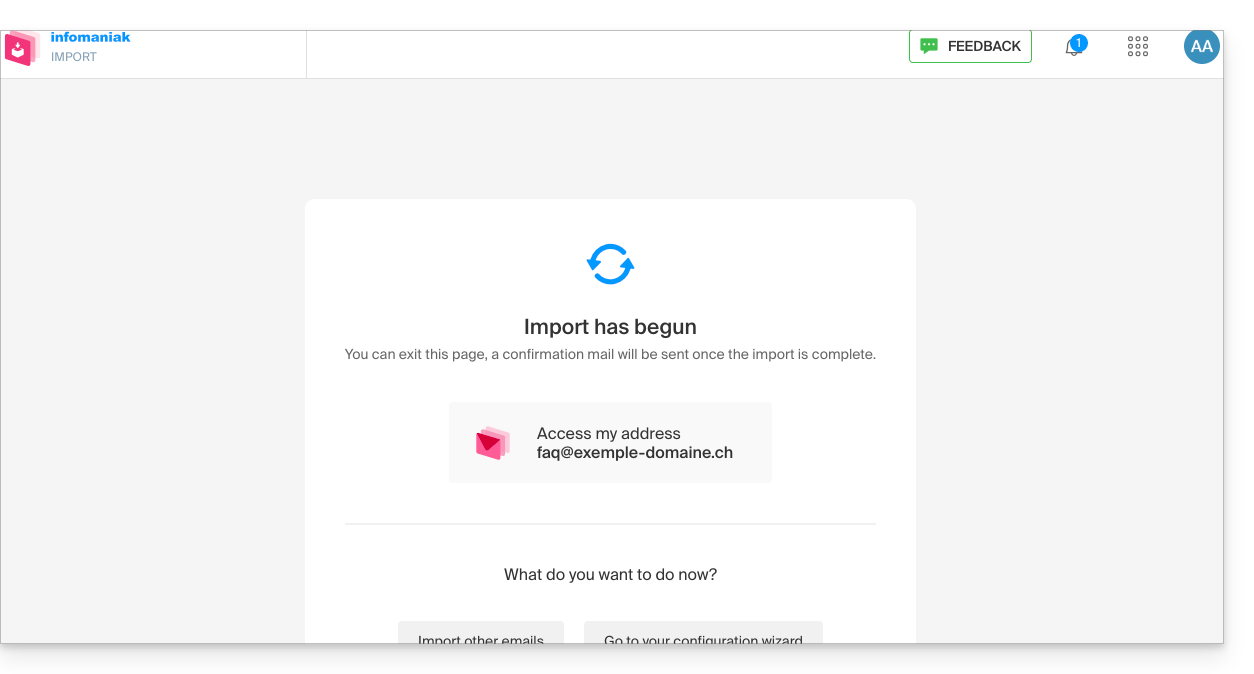
- A cópia será iniciada; você pode aguardar e verificar o resultado na página após a conclusão da importação ou fechar a janela (a importação continua em segundo plano e um acompanhamento está disponível – veja abaixo):
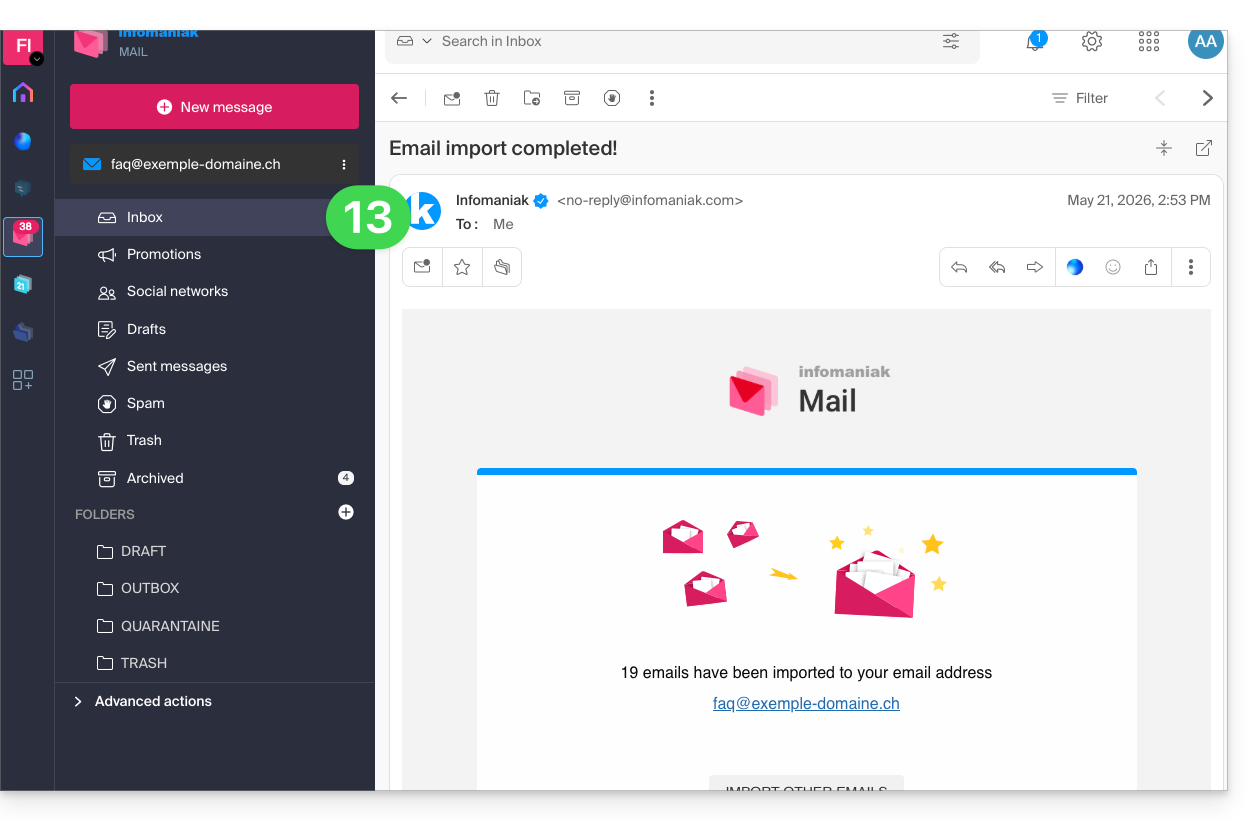
- Um e-mail de confirmação será enviado automaticamente para todos os endereços de e-mail envolvidos na operação, após a conclusão da importação, mencionando o número de mensagens copiadas:
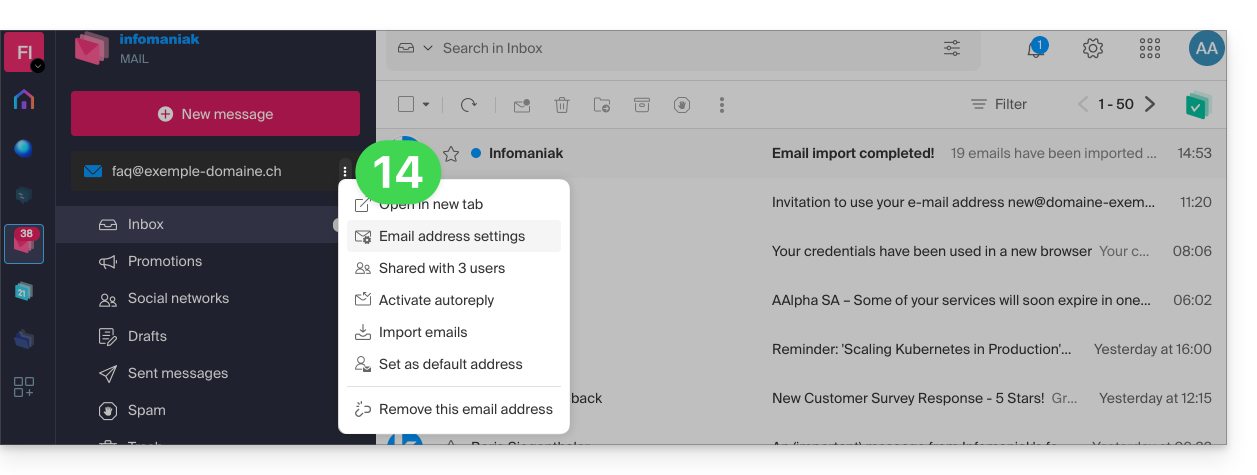
- Um rastreamento está disponível nas configurações do endereço de e-mail de destino, apenas no aplicativo web Mail (serviço online ksuite.infomaniak.com/mail):
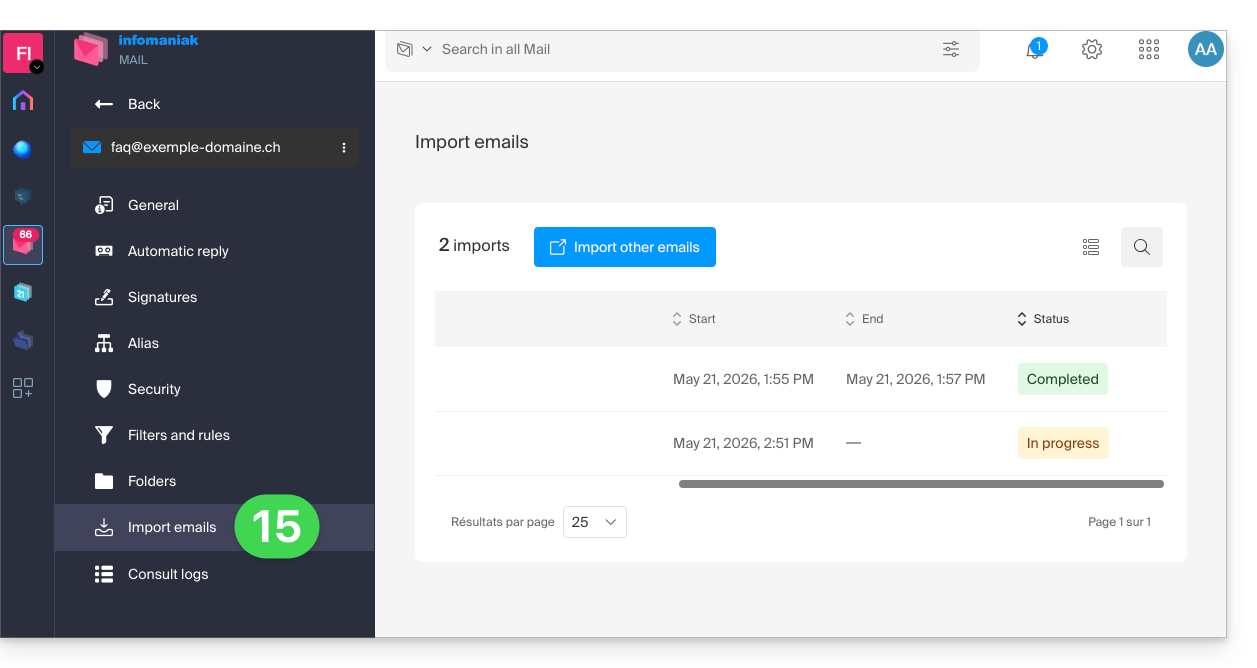
- O rastreamento permite visualizar o histórico das importações no endereço em questão:
Importar o conteúdo de vários endereços de e-mail em lote
Este método, via arquivo CSV, não funcionará para endereços Google ou Microsoft devido ao sistema de autenticação — consulte também os pré-requisitos mencionados acima neste guia.
Para importar o conteúdo de vários endereços de e-mail externos (máximo de 25 por 25) para um ou mais endereços de e-mail Infomaniak:
- Clique aqui para acessar a ferramenta de importação (serviço online https://import-email.infomaniak.com).
- Se necessário, faça login na sua conta Infomaniak na Organização correspondente; a importação será feita para um dos endereços de e-mail associados à interface web Mail Infomaniak (serviço online ksuite.infomaniak.com/mail) da conta Infomaniak que você está usando.
- Clique em importar via IMAP.
- Clique em "Modo avançado": Importar vários endereços de e-mail a partir de um arquivo CSV (formato
.csv). - Descarregue o modelo
CSVfornecido como exemplo: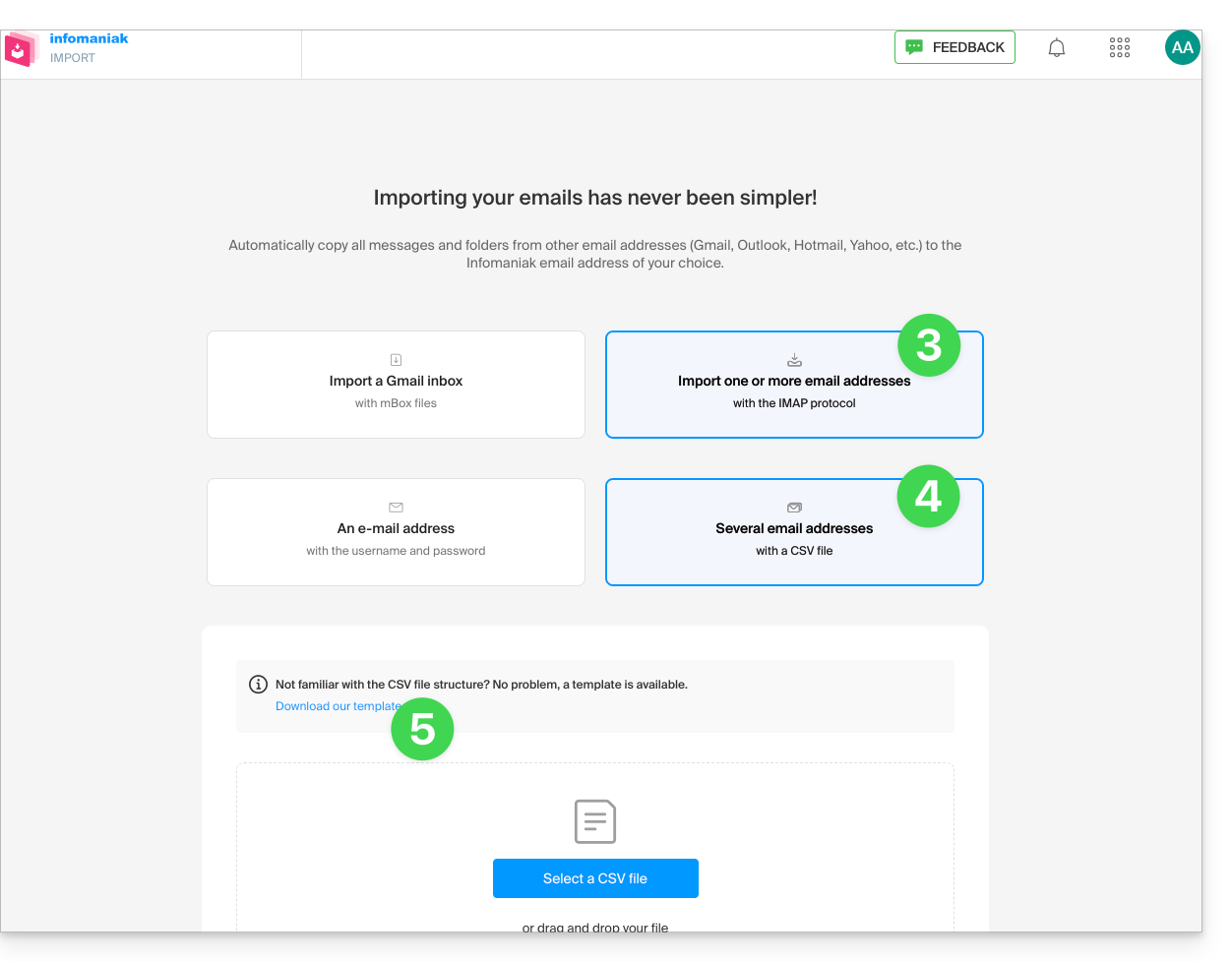
- O modelo tem o seguinte formato:
source-email@domain.com;sourcePassword;imap.source-host.com;sourcePort(993);sourceSsl(1or0);dest-email@domain.com
- O modelo tem o seguinte formato:
- Edite o arquivo
csvpara criar um arquivo com as informações corretas necessárias para a cópia (consulte os pré-requisitos):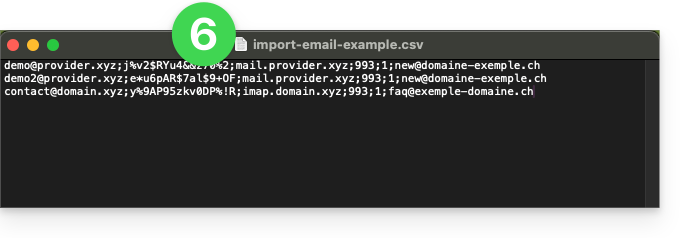
- Carregue o arquivo usando o botão Selecionar arquivo CSV.
- Depois que o arquivo for carregado na página da ferramenta, corrija ou ignore quaisquer erros; clique em Importar.
- A cópia será iniciada. Você pode aguardar e verificar o resultado na página após a conclusão da importação ou fechar a janela (a importação continua em segundo plano e um acompanhamento está disponível – veja abaixo).
- Um e-mail de confirmação será enviado automaticamente para todos os endereços de e-mail afetados pela operação após a conclusão da importação, indicando o número de mensagens copiadas.
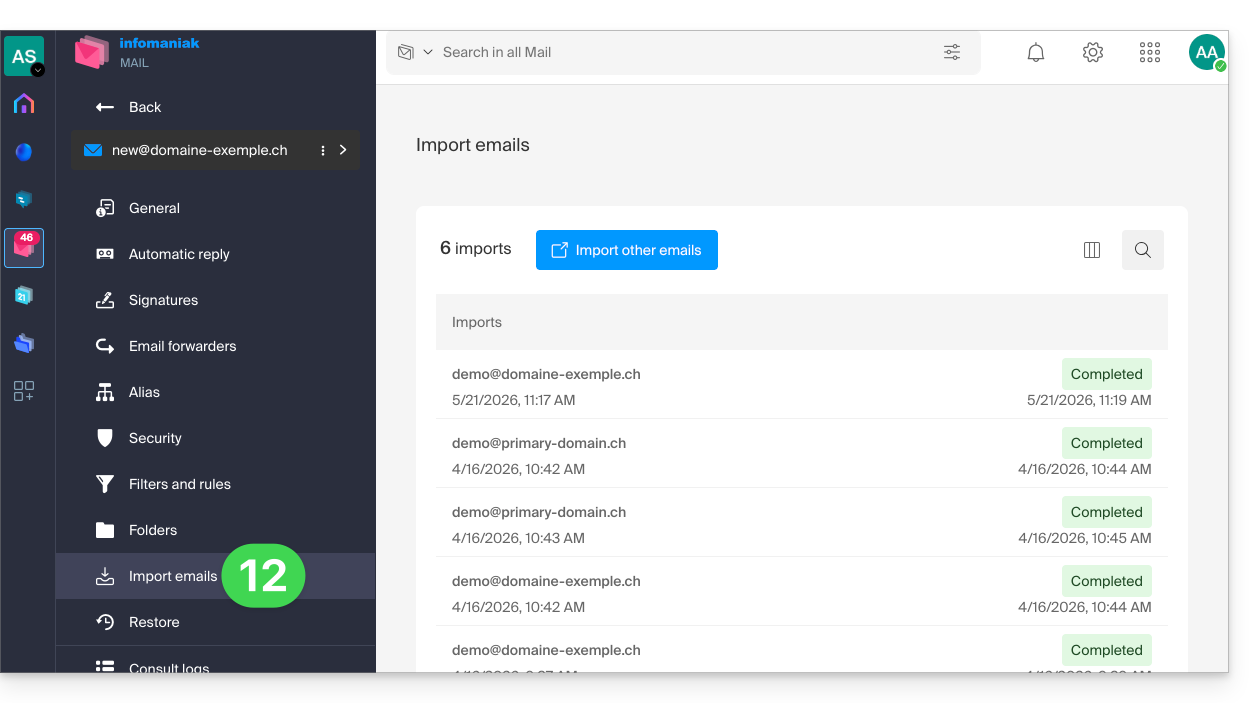
- Um acompanhamento está disponível nas configurações dos endereços de e-mail de destino, no aplicativo web Mail (serviço online ksuite.infomaniak.com/mail).
- O acompanhamento permite visualizar o histórico das importações:
Link para esta FAQ: https://faq.infomaniak.com/1144
Esta seção de perguntas frequentes foi útil?
Este guia destina-se aos utilizadores que escolheram a Infomaniak, um provedor de hospedagem comprometido com o planeta: abaixo, encontrará os detalhes do método de cálculo utilizado para apresentar as emissões de CO2 nas faturas, bem como sugestões para reduzir a sua própria pegada digital.
Introdução
- Para os serviços de hospedagem web e e-mail, a Infomaniak apresenta a quantidade de CO2 emitida anualmente, dado que se baseia em um método rigoroso de Análise do Ciclo de Vida (ACV), que soma dois fatores-chave:
- O impacto material (ciclo de vida completo)
- Com base nos fatores de emissão do banco de dados ResilioDB, o cálculo integra as emissões geradas durante a fabricação (BLD), o transporte (DIS) e o fim da vida útil/reciclagem (EOL) de cada equipamento (servidores, RAM, discos, etc.).
- O impacto energético (consumo real)
- O consumo real de energia dos servidores é medido por meio de sondas IPMI.
- Essa energia é então convertida em equivalente de CO2 de acordo com a matriz energética específica da Infomaniak, que é de baixo teor de carbono (11,77 g de CO2eq/kWh).
- O impacto material (ciclo de vida completo)
- O impacto total é então distribuído de acordo com a unidade de uso dos clientes (por site hospedado ou por caixa de e-mail).
Como agir ao seu nível?
Se o provedor de hospedagem otimizar suas infraestruturas, o usuário final também desempenha um papel fundamental. Veja como reduzir o impacto ambiental dos seus serviços.
Para sites
O objetivo é minimizar o consumo de energia dos servidores e dos dispositivos dos visitantes:
- Otimização técnica: comprimir as imagens, reduzir o tamanho dos scripts e usar formatos modernos (WebP).
- Design simplificado: limitar os vídeos com reprodução automática, os anúncios e os scripts pesados que consomem largura de banda.
- Boas práticas: Para o WordPress, em particular, recomenda-se consultar as páginas do GreenIT.
Para o serviço de e-mail
A comunicação por e-mail também pode ser otimizada:
- Simplicidade: Priorizar e-mails em texto simples em vez de HTML e limitar as assinaturas gráficas pesadas.
- Anexos: Prefira o envio de links para download (via kDrive ou SwissTransfer) em vez de anexos volumosos ou utilize o formato PDF compactado.
- Limpeza: Cancele a inscrição em newsletters desnecessárias e utilize ferramentas de rastreamento para evitar o envio de e-mails não abertos.
Recomenda-se monitorizar regularmente as estatísticas para melhorar o desempenho ambiental. Enquanto aguarda as futuras ferramentas integradas da Infomaniak, é possível analisar o impacto das páginas web através do GreenFrame.io.
Link para esta FAQ: https://faq.infomaniak.com/1160
Esta seção de perguntas frequentes foi útil?
Este guia explica como exportar o conteúdo de um endereço de e-mail hospedado pela Infomaniak.
Preâmbulo
- A Infomaniak não oferece a opção de exportação (de
PST, por exemplo). - A Infomaniak guarda os seus e-mails durante toda a duração do seu contrato e, de acordo com o seu plano, com cópias de segurança integradas, sem limite de tamanho no âmbito de uma utilização normal de um serviço partilhado, em conformidade com o art. 1.º das condições gerais do Serviço de E-mail.
- A exportação manual proposta abaixo funciona em Windows: desta forma, poderá guardar os seus e-mails numa única cópia de segurança, que poderá ser facilmente restaurada.
Exportação manual
Para exportar todas as mensagens contidas no seu endereço de e-mail hospedado pela Infomaniak:
- Instale o aplicativo gratuito Thunderbird.
- Configure o endereço de e-mail em questão usando o protocolo IMAP (para incluir as subpastas).
- Certifique-se de que todo o conteúdo desejado está presente (sincronize a caixa de correio sempre – não apenas os últimos 30 dias, por exemplo).
Em seguida…
- … ou você instala o aplicativo gratuito BackupThunderbird, que permite criar um arquivo (cifrado, se necessário) e restaurá-lo posteriormente…
- … ou você pode simplesmente exibir os arquivos ocultos do Windows e, em seguida, encontrar e salvar esta pasta perfil
C:\Users{USER}\AppData\Roaming\Thunderbird\Profiles{PROFIL_USER}\
, pois ela contém todas as suas mensagens.
Descarregar os e-mails localmente
Outra solução (não recomendada) pode ser configurar um software/cliente de e-mail, escolhendo a receção através do protocolo POP3, o que terá como efeito descarregar as mensagens localmente e apenas a caixa de receção será afetada.
Link para esta FAQ: https://faq.infomaniak.com/1167
Esta seção de perguntas frequentes foi útil?