Base de conhecimento
1000 perguntas frequentes, 500 tutoriais e vídeos explicativos. Aqui, você encontra apenas soluções!
Este guia explica como, quando você pertence a várias Organizações, alternar entre a visualização de uma Organização e outraatravés da interface web Mail da Infomaniak (ksuite.infomaniak.com/mail) para aceder aos endereços de email associados a cada uma delas.
Introdução
- Cada endereço de e-mail hospedado na Infomaniak está associado a uma Organização específica, aquela na qual o Serviço de E-mail é criado.
- A interface web Mail exibe os endereços de e-mail vinculados à Organização atualmente selecionada.
- Para consultar um endereço de e-mail diferente pertencente a outra organização, basta alternar para a organização correspondente.
- Deseja consultar simultaneamente endereços de e-mail hospedados por diferentes organizações? Simplesmente abra várias abas no seu navegador, cada uma dedicada a uma organização.
- O princípio é o mesmo na interface onde você gerencia seus produtos, o Manager Infomaniak (consulte este outro guia).
Alternar entre diferentes organizações no Mail Infomaniak
Para exibir os endereços de e-mail presentes em outra organização à qual sua conta Infomaniak está associada:
- Clique aqui para aceder à interface web do Mail Infomaniak.
- Clique no nome da Organização ativa ou na seta para baixo localizada no canto superior esquerdo da interface:
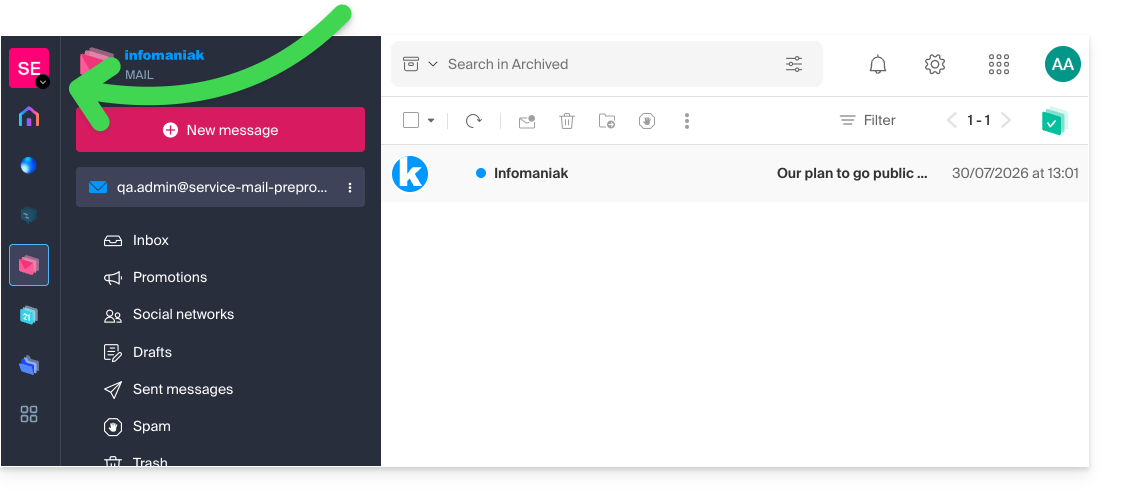
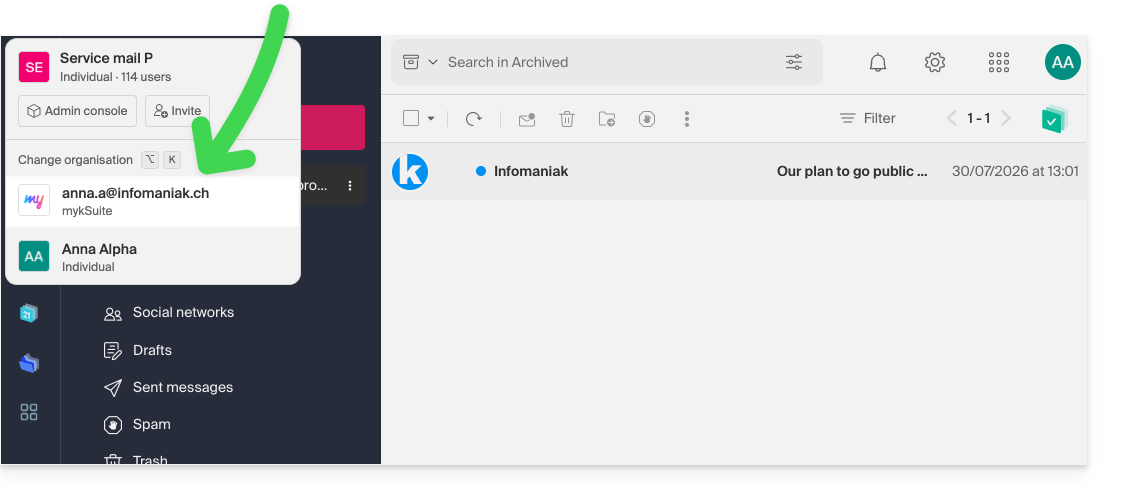
- No menu suspenso que se abre, clique no nome da Organização à qual deseja ter acesso:
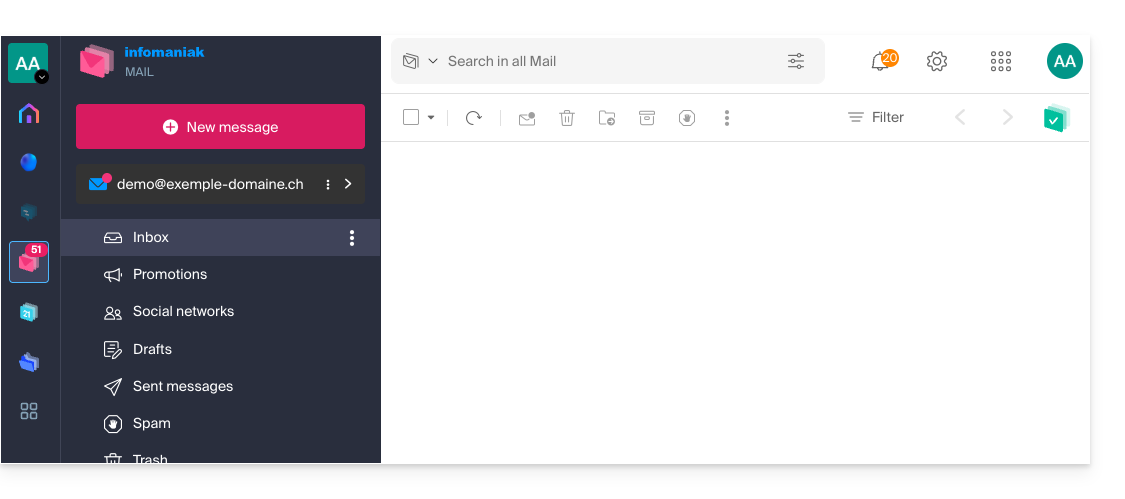
- A interface é atualizada imediatamente e carrega a lista de endereços de e-mail autorizados para esta Organização:
- Repita o procedimento a partir do ponto 2 para alternar para outra Organização a qualquer momento.
Link para esta FAQ: https://faq.infomaniak.com/108
Esta seção de perguntas frequentes foi útil?
Este guia explica como adicionar ou modificar um ou mais registos do tipo SRV na zona DNS (de um nome de domínio) gerida no Manager Infomaniak.
Introdução
- Este tipo de registo permite indicar quais os serviços disponíveis para um domínio.
- São frequentemente utilizados para os protocolos XMPP, LDAP ou para configurar o Microsoft Office 365.
Modificar a zona DNS
Para gerir este tipo de registo numa zona DNS:
- Clique aqui para acessar o gerenciamento de domínios no seu Painel de Controle Infomaniak (❓: ajuda).
- Clique no nome do domínio em questão.
- Clique em Zona DNS no menu lateral esquerdo.
- Clique no botão para adicionar um registo:
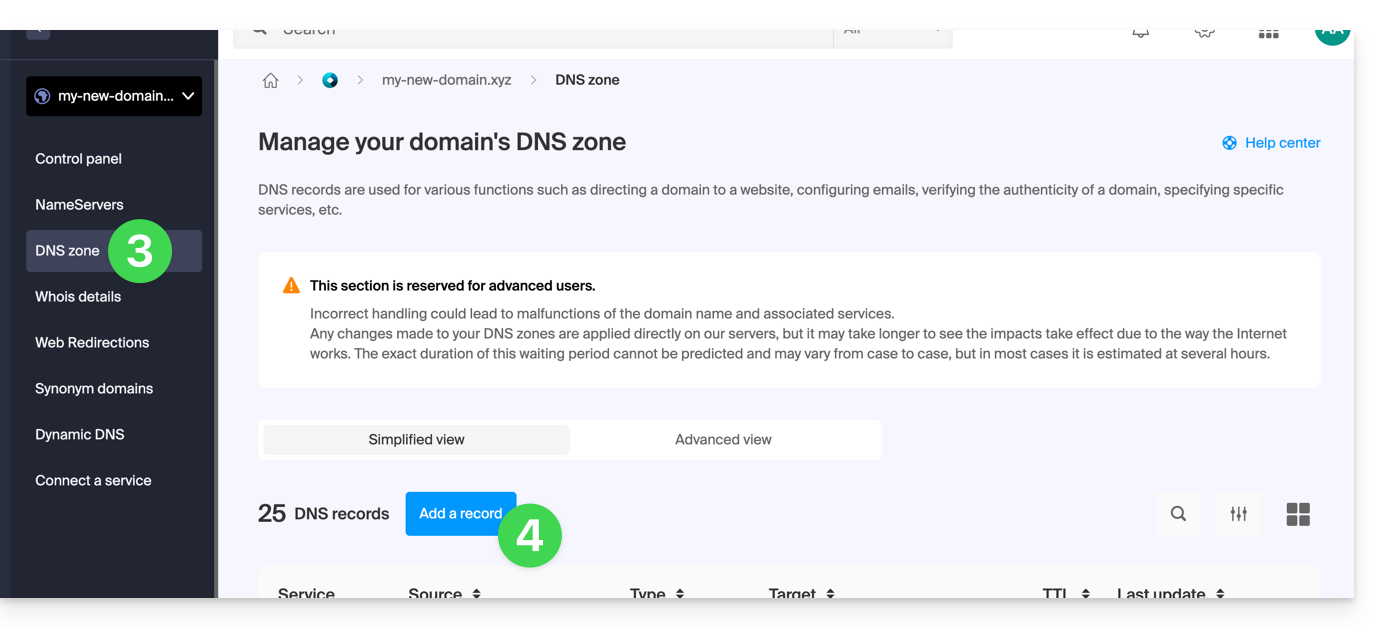
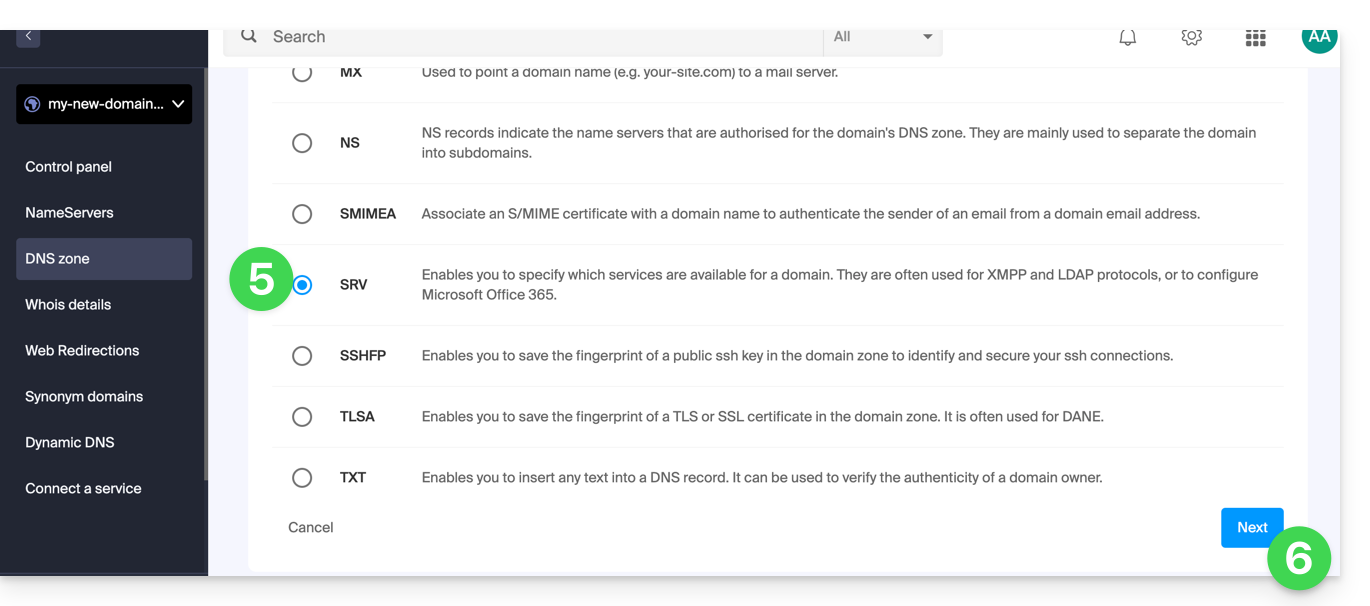
- Clique no botão de rádio SRV para adicionar um registo.
- Clique no botão Seguinte:
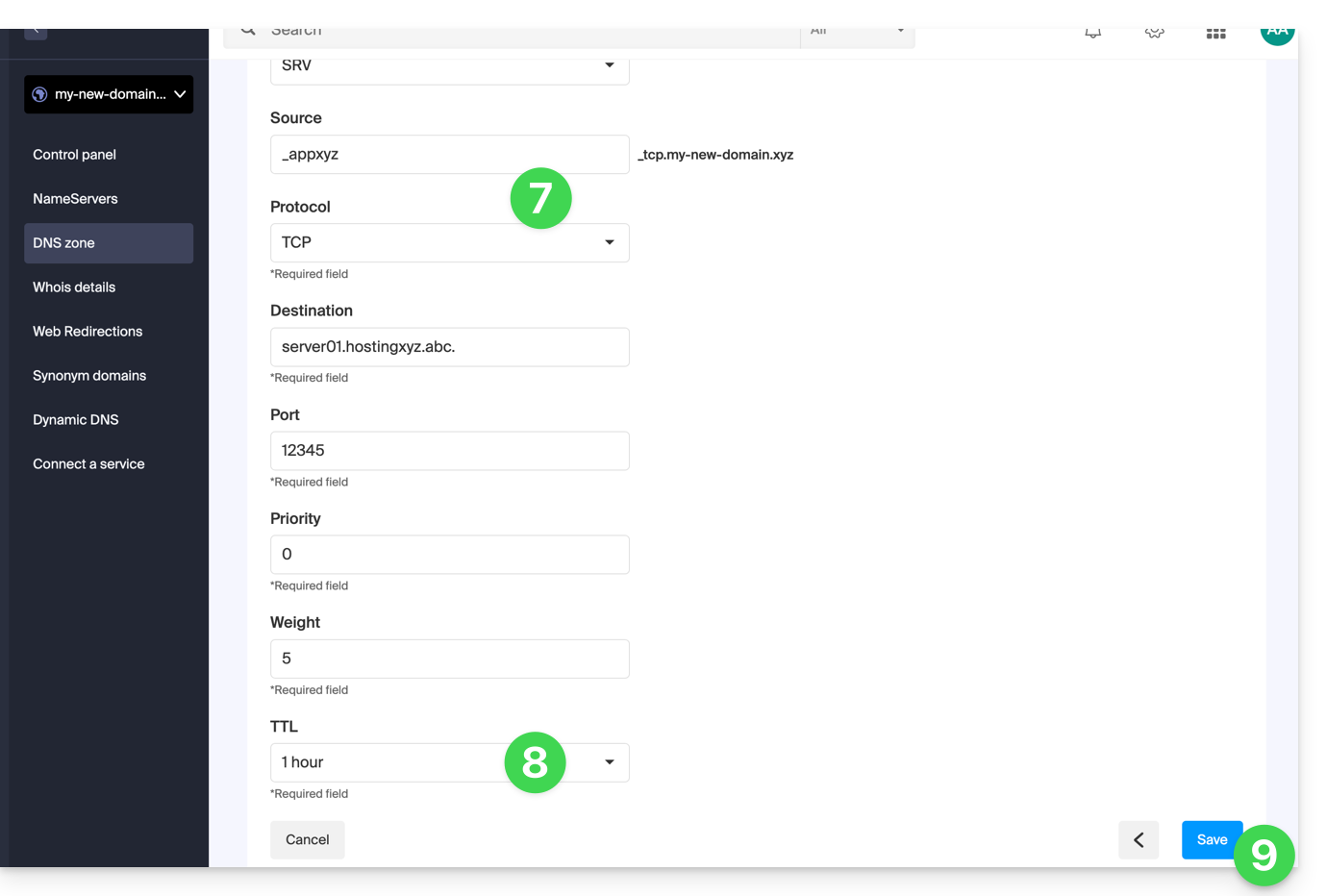
- Insira os valores do SRV necessários para sua zona DNS (o
._tcp.domain…já está preenchido). - Deixe o valor padrão para o TTL.
- Clique no botão Guardar:
Verifique se o registo SRV completo foi adicionado corretamente na tabela de registos: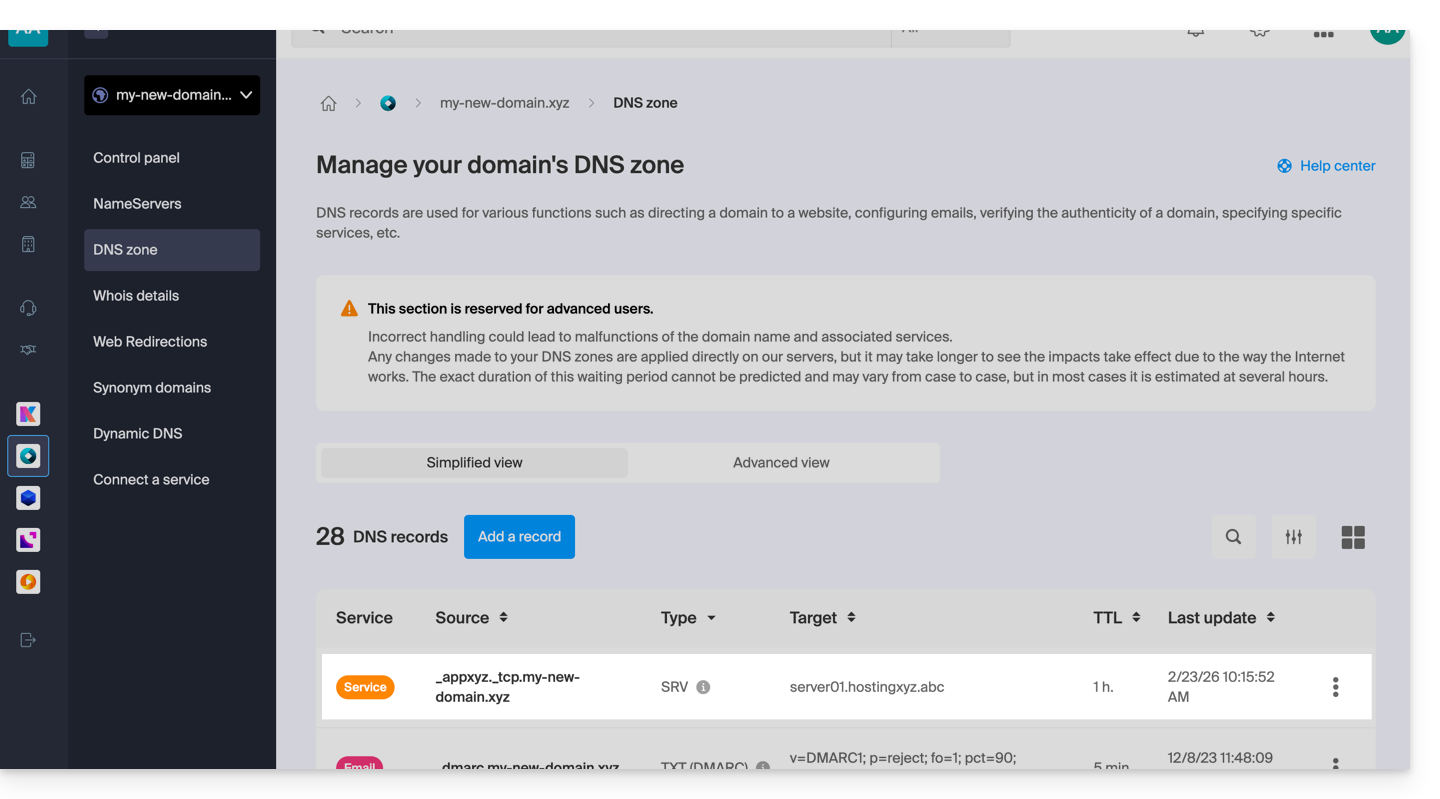
Link para esta FAQ: https://faq.infomaniak.com/110
Esta seção de perguntas frequentes foi útil?
Este guia explica os passos necessários para que você, como funcionário, colaborador, membro da família ou em qualquer outra situação, possa acessar um endereço de e-mail criado na Infomaniak por outra pessoa.
Solicitar acesso como usuário do endereço de e-mail
Pré-requisitos
- Se já tiver uma conta Infomaniak, verifique se o endereço de e-mail está realmente inacessível para o seu utilizador neste momento.
- Anote o seu identificador de login: clique no canto superior direito nas suas iniciais/avatar:
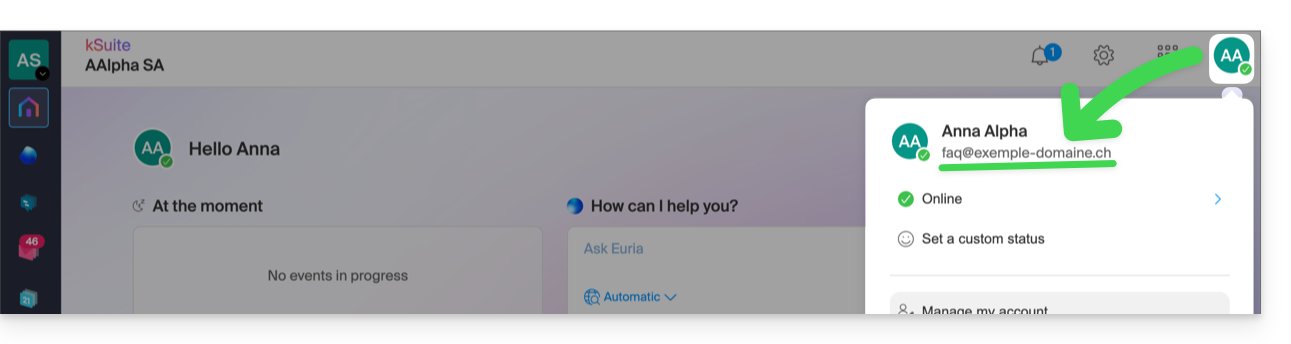
Em seguida, entre em contato com o administrador do endereço de e-mail em questão (demo@primary-domain.ch neste exemplo):
- Peça-lhe para seguir as instruções fornecidas neste outro guia faq.infomaniak.com/1478, a fim de adicionar o seu identificador de acesso como utilizador do endereço “
demo” no Serviço de Email “primary-domain.ch”. - Indique-lhe o seu identificador de acesso, por exemplo, aqui:
faq@exemple-domaine.ch.
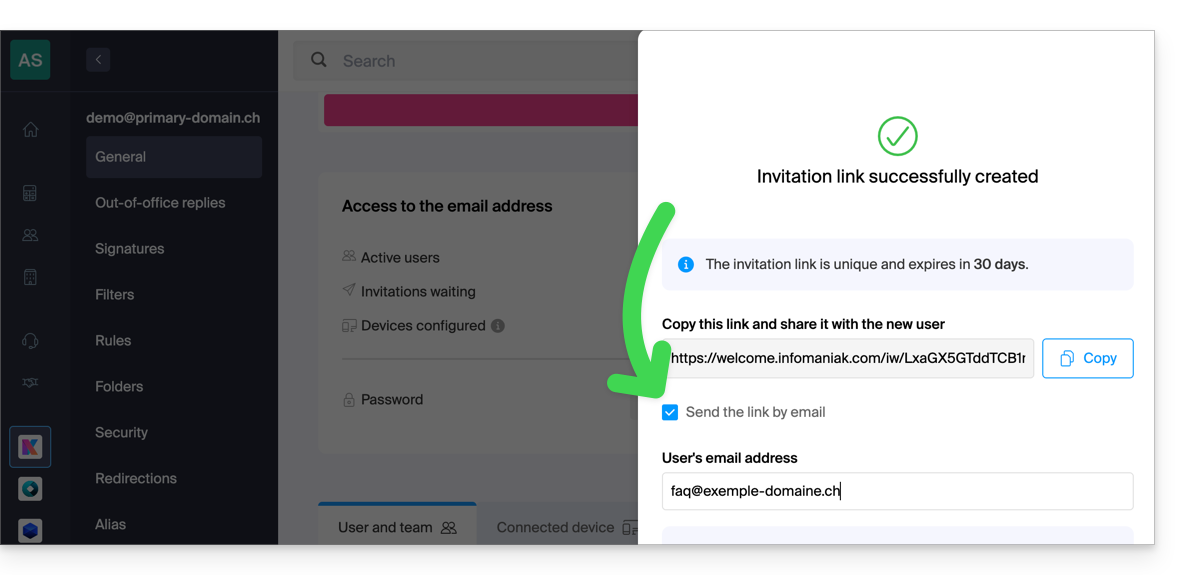
Dessa forma, seguindo o guia, ele poderá adicionar seu identificador de login no ponto 6, como usuário do endereço de e-mail:
- diretamente, porque você já faz parte da mesma Organização que ele:
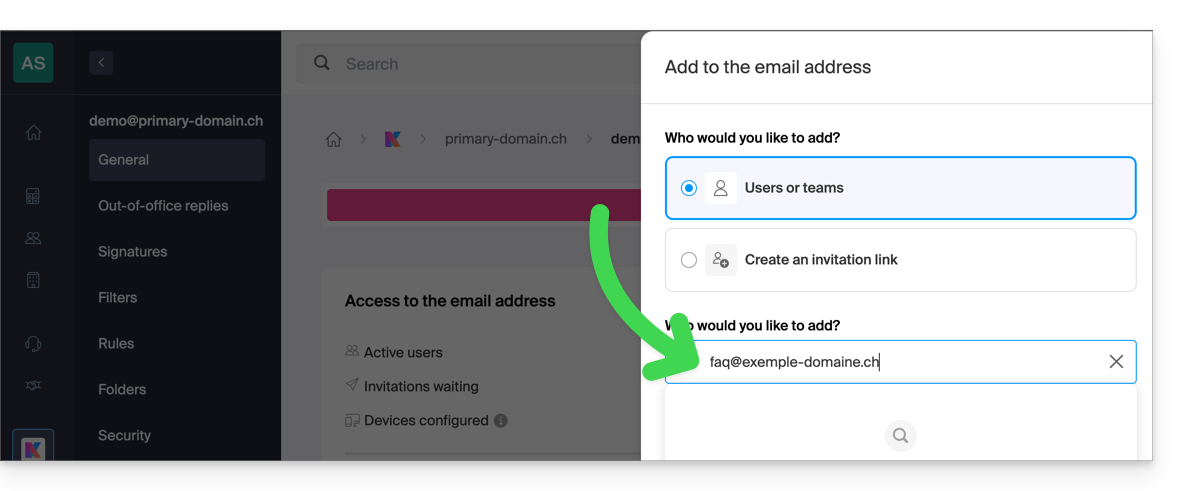
- seja através de um sistema de link de convite, que ele poderá enviar por mensagem, e-mail, por exemplo:
Após a conclusão da operação, você verá o conteúdo da caixa de e-mail correspondente exibido na sua interface em ksuite.infomaniak.com/all/mail: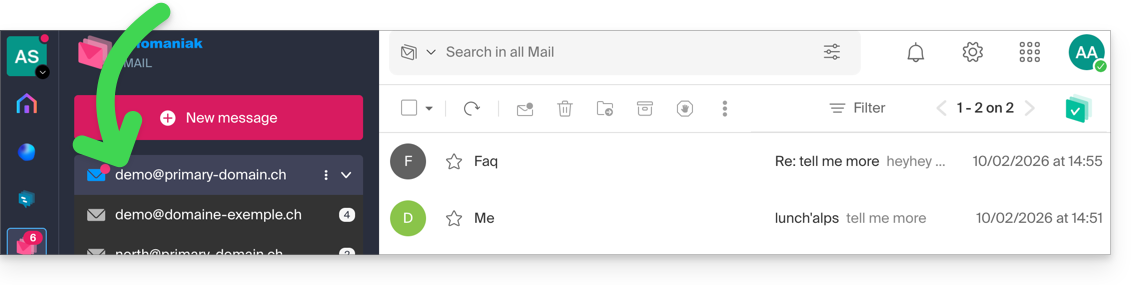
* Você também pode pedir para que ele consulte este outro guia para realizar a operação diretamente no aplicativo Web Mail da Infomaniak.
Link para esta FAQ: https://faq.infomaniak.com/122
Esta seção de perguntas frequentes foi útil?
Este guia explica como criar um endereço de e-mail do tipo "catchall" em um Serviço de E-mail.
✘ INDISPONÍVEL com
kSuite Free
my kSuite / my kSuite+ (ik.me, etik.com, ikmail.com)
Serviço de E-mail Starter
Preâmbulo
- Um endereço de e-mail do tipo "catchall" recebe todos os e-mails enviados para os endereços de e-mail inexistentes no domínio.
- É ideal se você deseja receber todas as mensagens para as quais não existe um endereço específico em seu domínio.
- Este tipo de endereço não pode ser usado para enviar e-mails.
- Se configurar a função “Resposta automática” (mensagem de ausência) em um endereço catchall@, nenhuma resposta automática será enviada aos remetentes que entraram em contato com um endereço inexistente do seu domínio.
- Esta restrição evita, em particular, loops de resposta e o envio de mensagens indesejadas.
- Leia também as recomendações importantes no final deste guia.
Criar um endereço catchall
Pré-requisitos
- Ter um Serviço de Email no seu Painel de Controle Infomaniak.
- Dispor de um quota de endereços disponíveis ou ajuste-a previamente, se necessário.
Em seguida, o administrador de um Serviço de Email cria um novo endereço de email genérico:
- Clique aqui para acessar o gerenciamento do seu produto no Manager Infomaniak (precisa de ajuda?).
- Clique diretamente no nome atribuído ao produto em questão.
- Clique na seta para baixo à direita do botão azul Criar um endereço de e-mail.
- Clique em Criar um endereço de e-mail genérico:
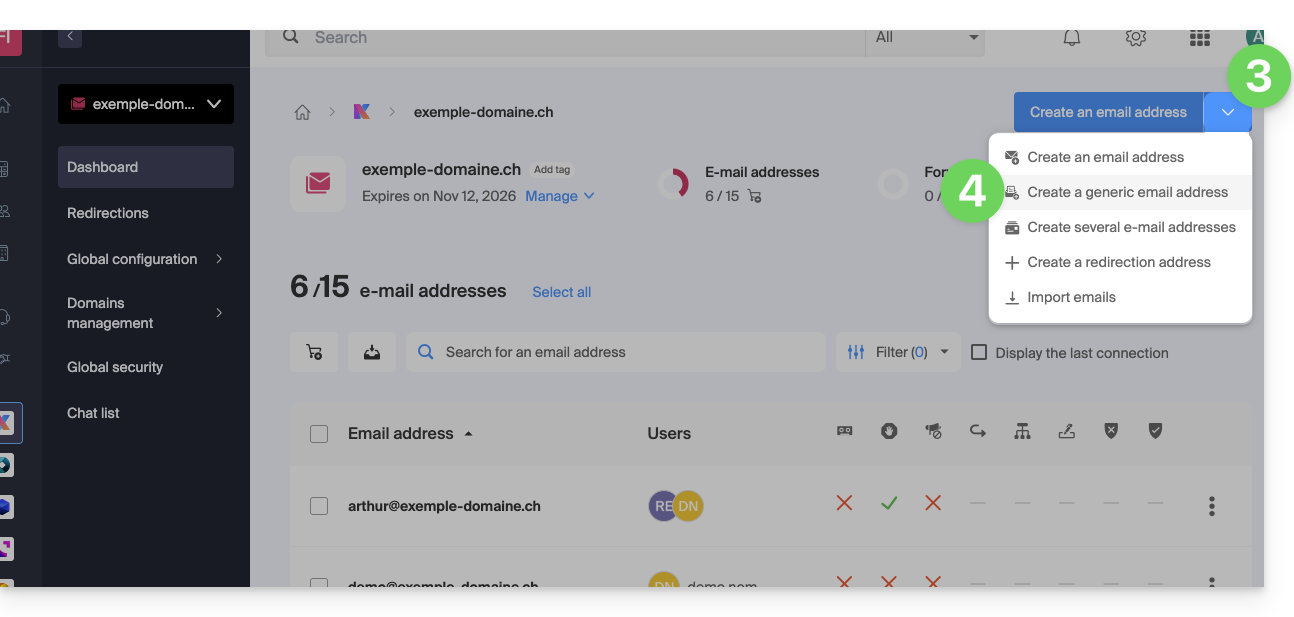
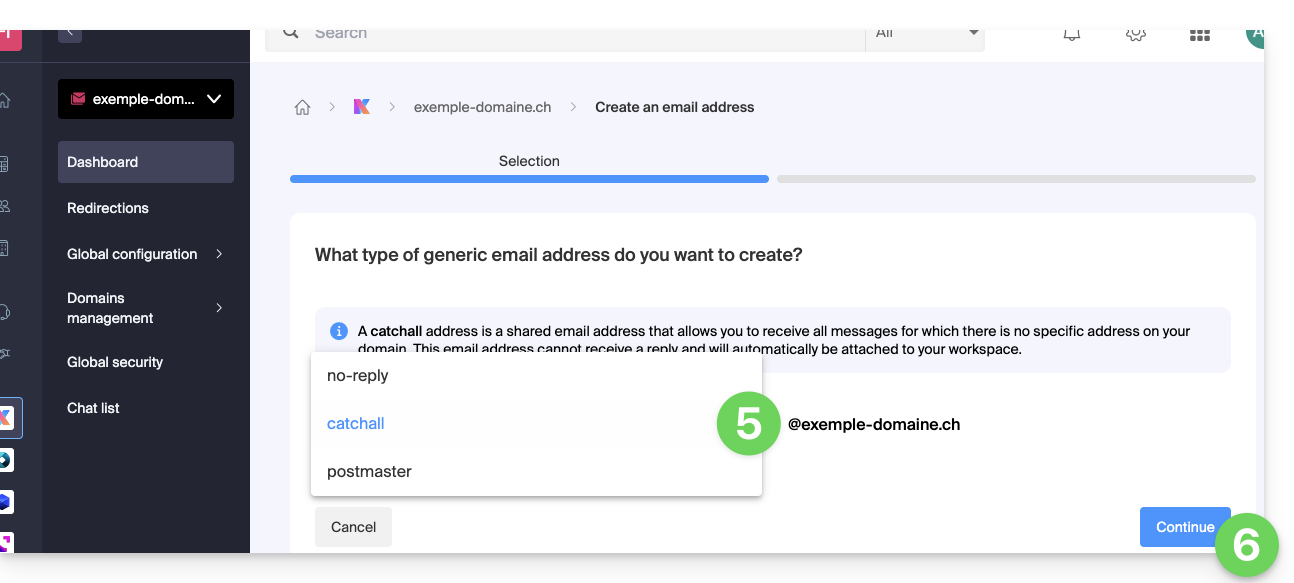
- Escolha Catchall.
- Clique em Continuar:
Após a criação do endereço catchall, este fica automaticamente visível na sua aplicação Web Mail Infomaniak.
Para utilizá-lo em outros locais, basta adicionar uma senha para os seus dispositivos/utilizadores.
Exemplo de utilização
Depois de criar o endereço catchall:
- Você usa o endereço de e-mail
jonnie.smith@domain.xyz, que funciona e existe no Serviço de E-maildomain.xyz.- Você também criou um endereço
catchall@domain.xyzno Serviço de E-maildomain.xyz.
- Você também criou um endereço
- Um e-mail foi enviado para
smith.johnny@domain.xyzporque o remetente digitou incorretamente o endereço do destinatário. - O e-mail chegará mesmo assim à caixa
catchall@domain.xyz, que você pode consultar na interface de e-mail de sua preferência. - O mesmo acontecerá se você excluir um dia o endereço
jonnie.smith@domain.xyz; se você mantiver o endereçocatchall, então será este último que receberá tudo o que ainda for enviado para o endereço que não existe mais…
Recomendações importantes
No entanto, a criação deste tipo de conta não é recomendada:
- Os endereços "catchall" recebem todos os e-mails enviados para qualquer endereço de domínio; isso significa que, frequentemente, são inundados de spam, o que pode ser difícil de gerenciar e filtrar.
- Devido ao alto volume de spam, as mensagens legítimas podem se perder e serem extraviadas em meio a essa grande quantidade, o que pode levar à perda de comunicações importantes.
- Os endereços "catchall" podem ser potencialmente usados por atacantes para direcionar seu domínio com ataques de força bruta ou outros métodos, pois oferecem um alvo fácil para testar diferentes combinações de endereços.
Em resumo, gerenciar um endereço "catchall" pode se tornar tedioso e complicado, especialmente para grandes organizações com muitos funcionários e departamentos.
Link para esta FAQ: https://faq.infomaniak.com/126
Esta seção de perguntas frequentes foi útil?
Este guia explica como criar endereços de e-mail em lote, em vez de adicioná-los um por um em um Serviço de E-mail Infomaniak.
Introdução
- Para garantir o uso responsável dos serviços, foi estabelecido um limite de criação de no máximo 50 endereços de e-mail por período de 24 horasfoi implementada.
- Contacte o suporte da Infomaniak para remover esta restrição.
Criar novas contas de e-mail em lote
Pré-requisitos
- Ter uma ferramenta para gerenciar arquivos CSV (formato
.csv). - Ter um Serviço de Email no seu Painel de Controle Infomaniak.
- Ter à disposição um número de endereços disponíveis ou ajustá-lo caso seja necessário.
Obter o arquivo CSV de exemplo
A importação é realizada através de um arquivo CSV (formato .csv) que, após ser preenchido, pode ser importado para adicionar os endereços de uma só vez ao seu Serviço de E-mail.
Para baixar o arquivo CSV e configurar a criação dos endereços:
- Clique aqui para acessar o gerenciamento do seu produto no Manager Infomaniak (precisa de ajuda?).
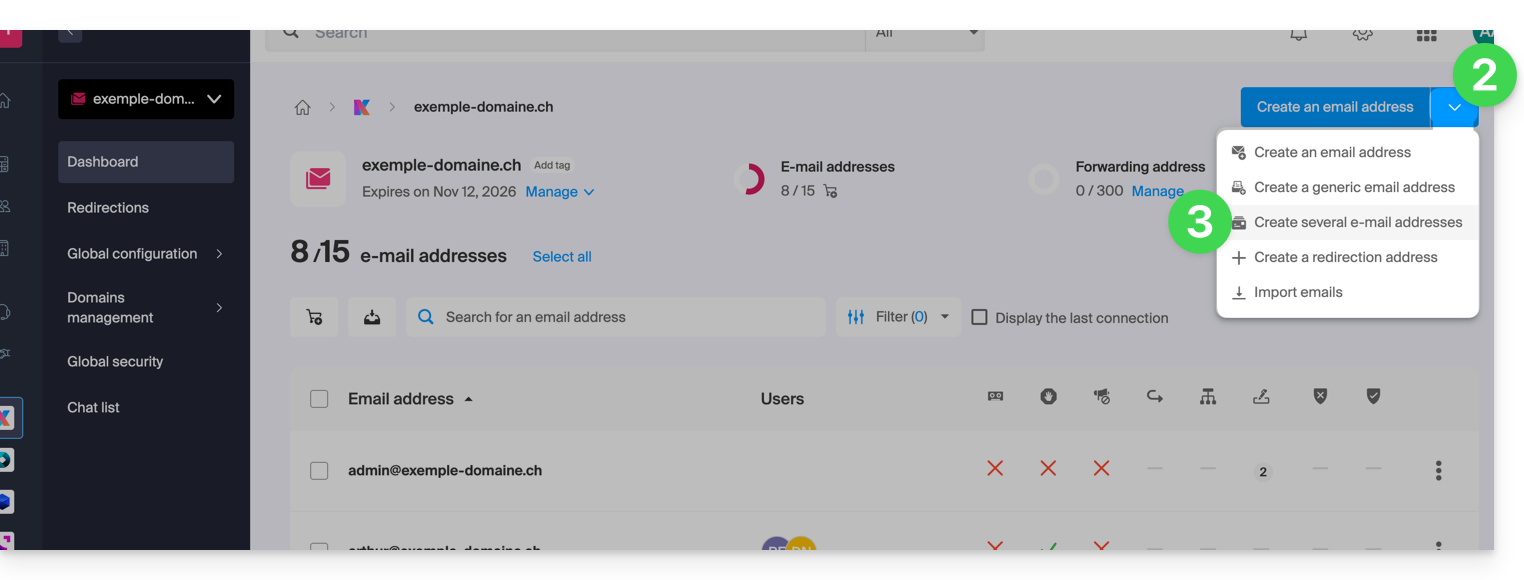
- Clique na seta para baixo à direita do botão azul de criação de endereço.
- Clique em Criar vários endereços de e-mail
- Descarregue o modelo proposto (arquivo CSV no formato
.csv):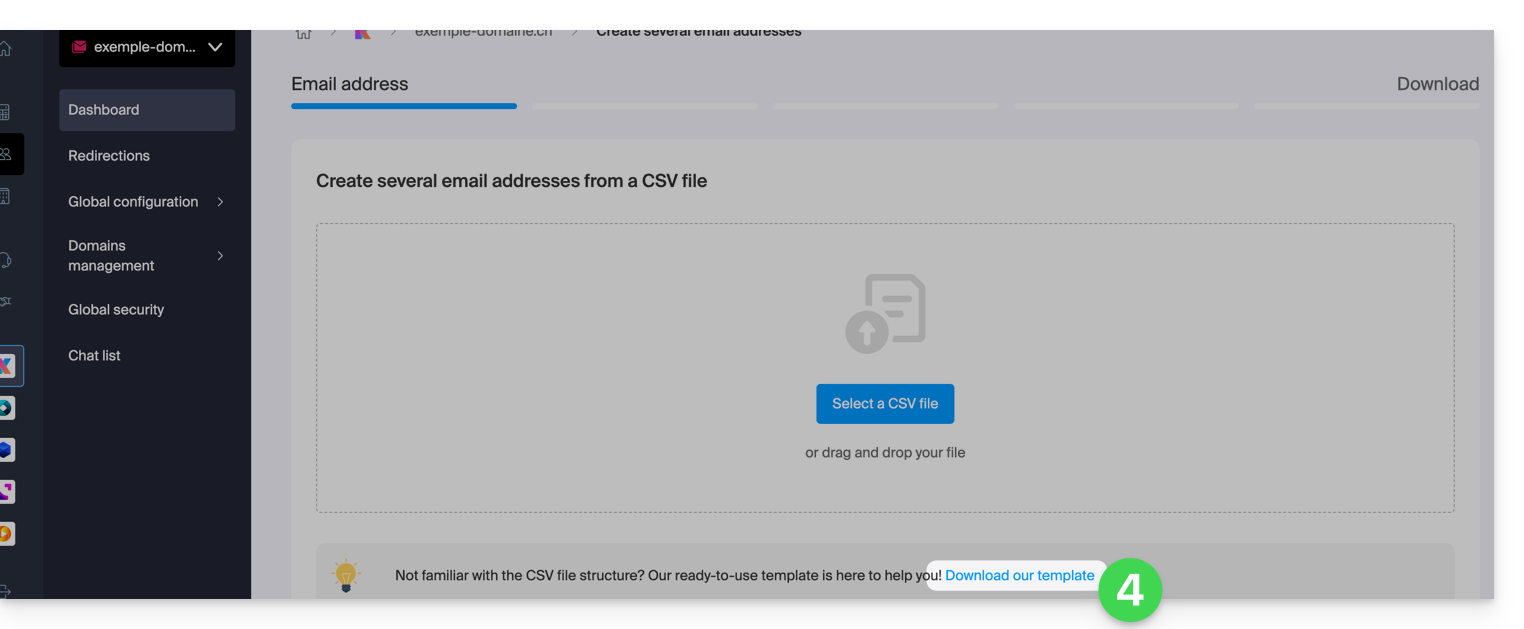
Preencher o arquivo CSV
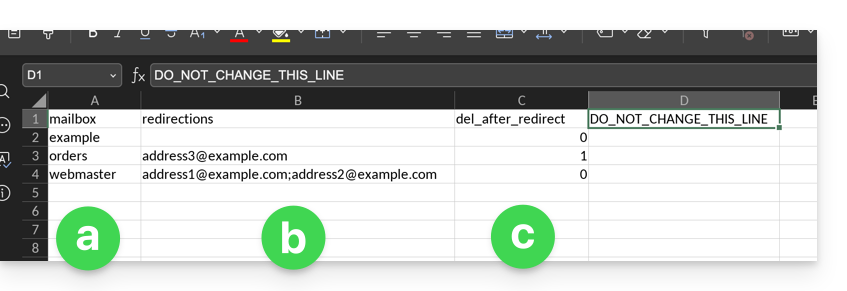
- Abra o arquivo CSV de exemplo; não altere a primeira linha e, a partir da segunda linha:
- Na primeira coluna, especifique o endereço a ser criado (sem o domínio)… exemplo:
john. - Na segunda coluna, especifique, se necessário, o endereço de e-mail completo para o qual os e-mails devem ser redirecionados.
- Na terceira coluna, especifique se as mensagens devem ser apagadas (1) após o redirecionamento.
- Na primeira coluna, especifique o endereço a ser criado (sem o domínio)… exemplo:
- As segunda e terceira colunas são opcionais (pode deixá-las completamente em branco).
Importar o arquivo CSV
Depois de preencher o ficheiro .csv, guarde-o no mesmo formato do modelo proposto e, em seguida:
- Clique na seta para baixo à direita do botão azul para criar o endereço.
- Clique em Criar vários endereços de e-mail.
- Clique em Selecionar um arquivo CSV:
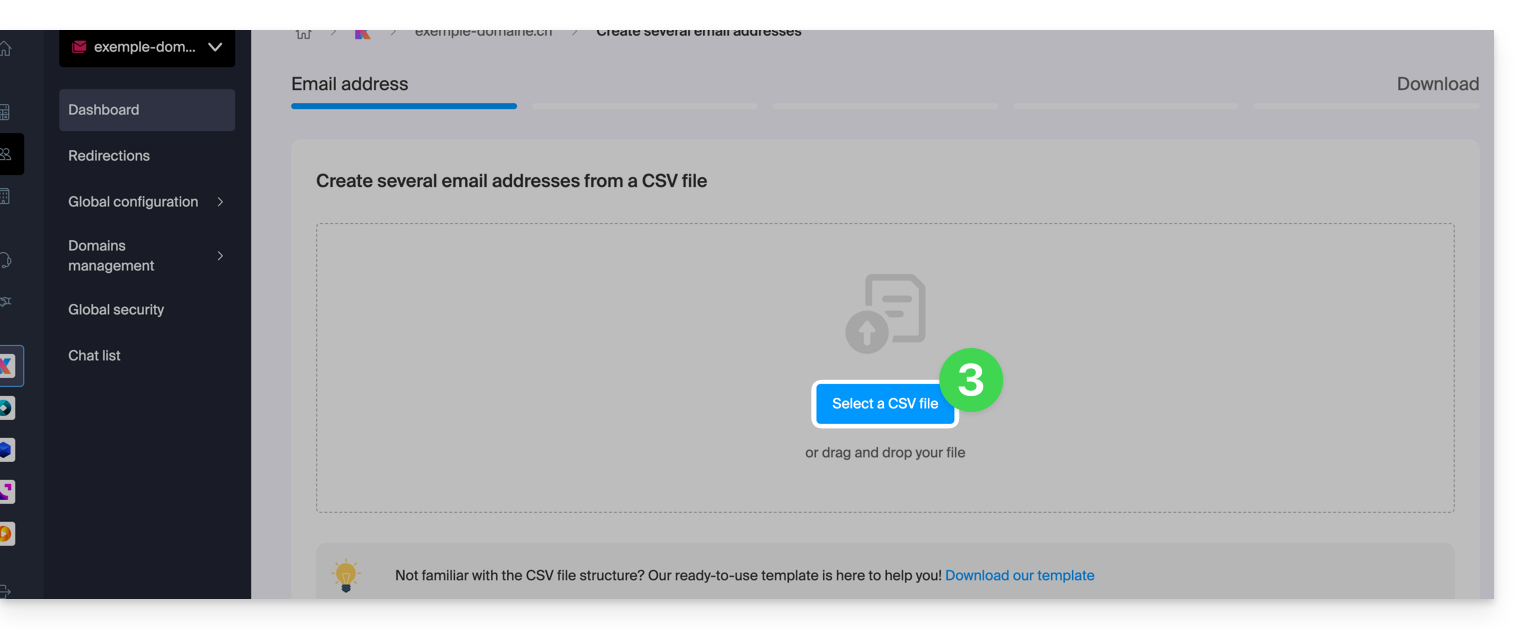
- Navegue pelo seu dispositivo e selecione o seu ficheiro CSV.
- Clique em Continuar; após alguns minutos, os endereços de e-mail serão adicionados (sem que nenhuma palavra-passe lhes seja atribuída), de acordo com as instruções presentes no ficheiro importado.
Link para esta FAQ: https://faq.infomaniak.com/224
Esta seção de perguntas frequentes foi útil?
Este guia irá ajudá-lo caso receba e-mails de erro que mencionam SPF ao enviar mensagens para endereços gmail, microsoft ou similares.
Todos os seus serviços estão na Infomaniak?
A ferramenta Segurança global informa sobre qualquer inconsistência na configuração do seu Serviço de Email Infomaniak.
Alguns dos seus serviços estão localizados em outro lugar?
Para resolver um problema de envio de e-mail quando sua caixa de correio é gerenciada pela Infomaniak e seu site está hospedado em outro provedor (como Wix, por exemplo) e, nessa situação, a zona DNS do nome de domínio é gerenciada em outro lugar, consulte este outro guia.
Link para esta FAQ: https://faq.infomaniak.com/237
Esta seção de perguntas frequentes foi útil?
Este guia explica como restaurar cópias de segurança de versões anteriores dos seus ficheiros e outros dados Web dos seus serviços de alojamento Infomaniak, e como implementar uma política de cópias de segurança eficaz, caso as cópias de segurança disponibilizadas automaticamente e gratuitamente não correspondam ou já não correspondam às suas necessidades em termos de disponibilidade ou segurança.
Serviços de Alojamento Web (Starter, Partilhado, Servidor Cloud)
Consulte estes guias para restaurar as cópias de segurança automáticas:
- de um serviço de alojamento completo (FTP + MySQL),
- de arquivos específicos no serviço de hospedagem,
- de bases de dados específicas,
- de uma Aplicação Web (Wordpress e Apps),
- dos cron SSH do Servidor Cloud.
Consulte estes guias para fazer cópias de segurança e restaurar:
- um serviço de alojamento com Swiss Backup e Restic (avançado),
- WordPress com backup suíço,
- WordPress com uma extensão.
Consulte também https://faq.infomaniak.com/snapshot.
Correio eletrónico / kSuite
- Restaure mensagens a partir das cópias de segurança automáticas da Infomaniak.
- Restaure contactos ou eventos do calendário.
- Faça uma cópia de segurança do conteúdo atual de uma conta de e-mail:
- baixando o conteúdo atual localmente,
- duplicando todo o conteúdo atual para uma caixa de correio de reserva,
- copiando os e-mails futurosà medida que chegam para uma caixa de correio de reserva.
Domínios / Zonas DNS
- Restaure registros DNS excluídos a partir dos backups automáticos da Infomaniak.
- Restaure um domínio expirado durante o período de resgate.
Link para esta FAQ: https://faq.infomaniak.com/250
Esta seção de perguntas frequentes foi útil?
Este guia ajudará você a resolver o problema caso, após enviar um e-mail, receba uma mensagem com a razão da falha "Mensagem de spam rejeitada" ou "5.7.0 AV: A mensagem foi rejeitada pelo filtro de regras de cabeçalho. 554 Verifique a mensagem e tente novamente" ...
Verifique obrigatoriamente
Verifique se o seu e-mail não continha:
- palavras ou frases que são frequentemente associadas a spam, pois podem ser identificadas como uma mensagem indesejada e rejeitadas
- qualquer indicação incomum na assinatura, um link formulado de forma incorreta (
http//.domain.xyz, por exemplo), etc. - um anexo com uma das seguintes extensões proibidas:
.exe,.com,.cmd,.cpl,.hta,.scf,.sct,.lnk,.bat,.js,.jse,.wsh,.ws,.wsf,.wsc,.vbe,.vb,.vbs,.shs,.pif,.scr... incluindo dentro de um arquivo compactado (.zip, por exemplo)
Para enviar um arquivo (js ou exe, por exemplo) cuja ausência de vírus foi confirmada, armazene-o no seu espaço de hospedagem e crie um link para ele. Se o arquivo for grande e você o enviar a partir do aplicativo web Mail Infomaniak (serviço online ksuite.infomaniak.com/mail), ele será, de qualquer forma, colocado em um servidor temporário, permitindo o envio ao seu destinatário, que receberá, nesse caso, um link para download. Você também pode usar o Swisstransfer.com.
Verifique também o seu registro SPF. Se o seu domínio não tiver um registro SPF ou se este registro estiver incorreto, isso provavelmente resultará na rejeição da sua mensagem.
Se considerar que recebeu uma mensagem de erro "Mensagem de spam rejeitada" sem motivo aparente, entre em contato com o suporte da Infomaniak.
Link para esta FAQ: https://faq.infomaniak.com/316
Esta seção de perguntas frequentes foi útil?
Este guia ajuda a resolver um erro de envio de e-mail do tipo “o destinatário foi rejeitado pelo servidor” / “recipient rejected” (código: 550 5.7.1 retransmissão negada) ou “autenticação necessária” / “autenticação adequada necessária”.
Como resolver o erro Relaying denied
Verifique se o parâmetro "O meu servidor requer autenticação" / "O meu servidor de saída (SMTP) requer autenticação" a bien été activé dans les réglages de votre serveur sortant (SMTP) sur le logiciel de messagerie employé.
Normalmente, encontrará esta configuração numa das seguintes secções:
- "Definições adicionais"
- "Configuração avançada"
- "Servidor de saída SMTP"
Depois de corrigir esta configuração, é importante eliminar ou mover as mensagens pendentes na sua caixa de saída e, em seguida, tentar enviar uma nova mensagem.
Utilizar config.infomaniak.com
Pode usar a ferramenta de configuração da Infomaniak para obter ajuda (inicie sessão na sua conta Infomaniak, se necessário).
Consulte também este outro guia para resolução de erros.
Se a mensagem de erro mencionar especificamente IP name possibly forged, você deverá entrar em contato com o responsável pela sua conexão de internet (seu provedor de acesso) para verificar a situação com ele (ou altere o endereço IP testando a partir de outro dispositivo/rede, etc.).
Link para esta FAQ: https://faq.infomaniak.com/337
Esta seção de perguntas frequentes foi útil?
Este guia explica como migrar para a Infomaniak os endereços de e-mail atualmente hospedados pela Microsoft, dentro do Microsoft 365, com a ajuda de uma ferramenta de importação via IMAP.
Introdução
- A grafia do endereço de e-mail não precisa ser a mesma.
- Uma vez iniciado o processo de importação, não é mais possível interrompê-lo.
- Todo o conteúdo da caixa externa será importado:
- A operação não afeta os dados já existentes no endereço de destino, nem os dados do endereço de origem.
- Os eventuais duplicados são gerenciados: um conteúdo idêntico será copiado apenas uma vez.
- Existem alternativas a este processo (❓: ajuda).
Importar todo o seu histórico de e-mails
1. Pré-requisitos da Microsoft
- Ativar as funcionalidades POP/IMAP/SMTP que estão desativadas por padrão (precisa de ajuda?).
2. Pré-requisitos Infomaniak
- Ter um Serviço de Email na sua conta Infomaniak (❓: ajuda).
- Dispor de uma quota suficiente de endereços ou ajustá-la previamente, se necessário (❓: ajuda).
- Criar um ou mais endereços neste serviço de e-mail (❓: ajuda).
- O endereço de e-mail de destino deve estar associado ao utilizador (= à conta Infomaniak) que está a utilizar (❓: ajuda).
3. Importar o conteúdo de e-mail da Microsoft para a Infomaniak
- Clique aqui para aceder à ferramenta de importação (serviço online https://import-email.infomaniak.com).
- Se necessário, inicie sessão na sua conta Infomaniak na organização em questão; de facto, a importação será efetuada para um dos endereços de e-mail associados à interface Web Mail Infomaniak (serviço online ksuite.infomaniak.com/mail) da conta Infomaniak que está a utilizar.
- Clique em "Importar por IMAP".
- Clique em Importar.
- Preencha o campo à esquerda com o seu endereço de e-mail de origem (de onde o conteúdo será copiado).
- Clique no botão "Conectar com a Microsoft" que apareceu:
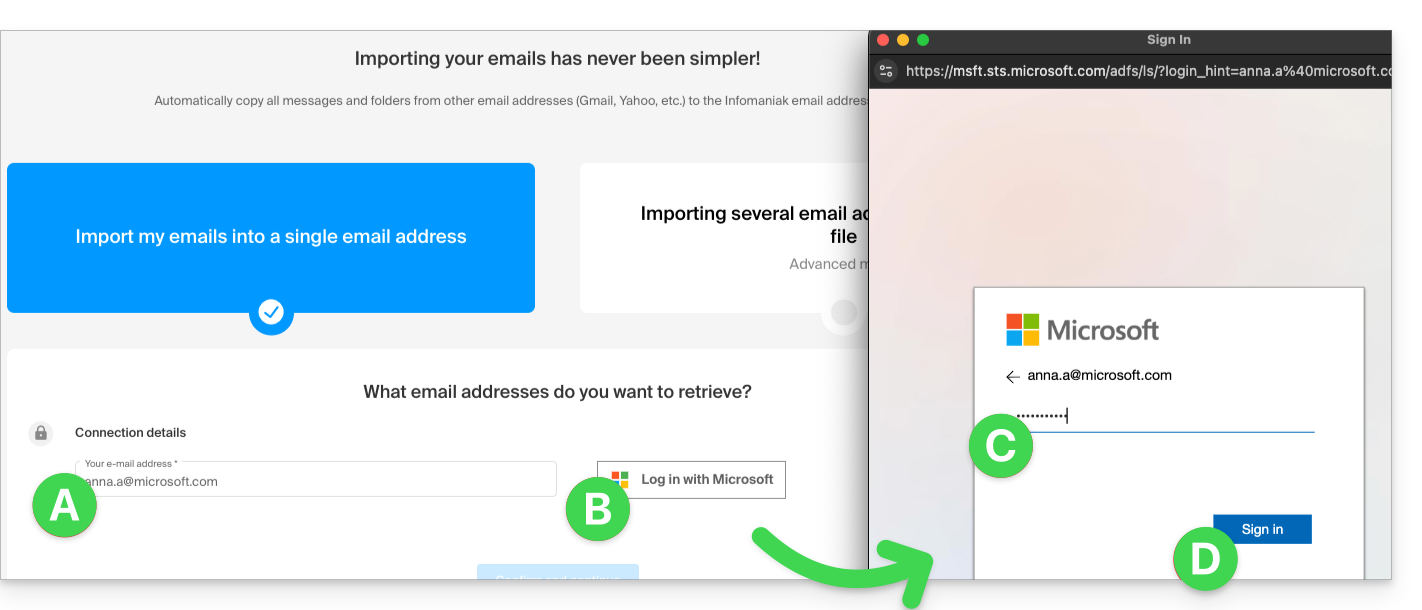
- Verifique se está a conectar-se à conta Microsoft correta para a cópia dos e-mails.
- Confirme que autoriza a ferramenta Infomaniak a conectar-se à sua conta (processo automático).
- Após confirmar a janela pop-up, escolha para qual endereço de e-mail importar os e-mails. O menu suspenso lista os endereços de e-mail atualmente associados à sua interface Web Mail Infomaniak (serviço online ksuite.infomaniak.com/mail) da conta Infomaniak com a qual você está conectado.
- Após selecionar o endereço de destino desejado na lista, clique no botão azul Importar e-mails.
- A cópia está a iniciar, pode aguardar e verificar o resultado na página quando a importação estiver concluída, ou fechar a janela (a importação continua em segundo plano e o progresso pode ser acompanhado – veja abaixo).
- Um e-mail de confirmação será enviado automaticamente para todos os endereços de e-mail envolvidos na operação, assim que a importação for concluída, indicando o número de mensagens copiadas.
- Um histórico (❓: ajuda) permite visualizar o histórico das importações para o endereço em questão; ele está disponível nas configurações do endereço de e-mail de destino, apenas no aplicativo web Mail.
4. Ajustar as configurações dos aplicativos
Depois de configurar o seu nome de domínio para funcionar com o seu serviço de e-mail Infomaniak, verifique a segurança geral do Serviço de E-mail (❓: ajuda) e ajuste as configurações dos seus programas/clientes de e-mail para que se conectem corretamente aos servidores Infomaniak (❓: ajuda).
Link para esta FAQ: https://faq.infomaniak.com/365
Esta seção de perguntas frequentes foi útil?
Este guia detalha o erro de e-mail "HELO inválido" para que você possa entender sua origem e corrigi-lo.
Quando e por que esse erro?
O protocolo SMTP (utilizado para o envio de e-mails) possui várias fases. A primeira consiste em o servidor do remetente apresentar-se ao servidor do destinatário através do comando HELO (ou EHLO para o SMTP estendido). Este comando deve ser obrigatoriamente seguido de um nome de host válido.
Se receber um erro que mencione "HELO inválido", significa que o identificador fornecido pelo servidor remetente não está em conformidade com a RFC 5321. Esta verificação é uma medida de segurança essencial que permite filtrar uma grande parte dos servidores mal configurados, frequentemente utilizados para a disseminação de vírus e spam.
A Infomaniak rejeita todas as mensagens provenientes de um servidor que se identifica de forma genérica (ex: "servidor") ou local. O servidor deve utilizar um FQDN (Fully Qualified Domain Name), ou seja, um nome de host completo e que possa ser resolvido, do tipo "servidor.dominio.xyz".
Exemplos de configurações que provocam a rejeição:
O uso de um endereço IP local ou de loopback:
220 mta-gw.infomaniak.ch ESMTP Infomaniak Network Mail Servers; HELO 127.0.0.1
O uso de um endereço IP entre colchetes em vez de um nome de domínio:
220 mta-gw.infomaniak.ch ESMTP Infomaniak Network Mail Servers; HELO [192.168.1.1]
O uso de um nome de host local não qualificado:
220 mta-gw.infomaniak.ch ESMTP Servidores de e-mail da Infomaniak Network; HELO localhost 220 mta-gw.infomaniak.ch ESMTP Servidores de e-mail da Infomaniak Network; HELO mon-serveur
O uso de um nome de domínio bloqueado ou obviamente falso:
220 mta-gw.infomaniak.ch ESMTP Infomaniak Network Mail Servers; HELO fakedomain.xyz
Nesses casos, a transação SMTP falhará com o seguinte código:
MAIL FROM: user@domaine.com 250 2.1.0 user@domaine.com... Remetente aceito RCPT TO: destinataire@infomaniak.ch 550 5.7.1 destinataire@infomaniak.ch... Acesso negado - HELO inválido [1]
Como resolver este problema?
Se estiver a utilizar um script de programação (PHP, Python, etc.) para enviar e-mails através de SMTP, certifique-se de que a biblioteca utilizada está configurada para enviar um nome de domínio válido no comando HELO e não o endereço IP do servidor web.
Link para esta FAQ: https://faq.infomaniak.com/414
Esta seção de perguntas frequentes foi útil?
Este guia detalha os caracteres permitidos e proibidos ao criar um endereço de e-mail (até 64 caracteres) em um Serviço de E-mail Infomaniak.
Introdução
- Os caracteres permitidos variam dependendo se aparecem antes ou depois do símbolo "arroba"
@. Por exemplo, emnome-de-utilizador.mail@nome-de-domínio.xyz:- Antes do símbolo "arroba": a parte
nome-de-utilizador.mailcorresponde ao nome de utilizador. - Depois do símbolo "arroba": a parte
nome-de-domínio.xyzcorresponde ao nome de domínio.
- Antes do símbolo "arroba": a parte
- Para conhecer as opções disponíveis ao nível do nome de domínio (parte após o símbolo "arroba"
@), consulte este outro guia.
Parte anterior ao símbolo "@": nome-de-utilizador.mail
As normas RFC 5321 e RFC 5322 definem a sintaxe geral dos endereços de e-mail. No entanto, os fornecedores de serviços de e-mail — incluindo a Infomaniak — aplicam restrições adicionais para garantir a segurança, a consistência e a compatibilidade com a maioria dos softwares/clientes de e-mail.
Por exemplo, um endereço como -@exemple.com é sintaticamente válido de acordo com a RFC 5322, mas não é aceito durante a criação nos servidores Infomaniak.
Essas regras adicionais permitem, em particular:
- evitar abusos (spam, automatizações maliciosas, etc.);
- respeitar as convenções de nomenclatura (um identificador composto apenas por
-não faz sentido); - garantir a compatibilidade com os softwares/clientes de e-mail que não lidam bem com certos formatos de endereço.
Em resumo: a RFC 5322 define o que é sintaticamente possível, mas cada servidor determina o que é efetivamente utilizável na prática.
Caracteres permitidos antes do símbolo "@"
Os seguintes caracteres podem ser utilizados na parte anterior ao símbolo "@" de um endereço de e-mail Infomaniak:
| Caracteres permitidos | Exemplos / Observações |
|---|---|
| Letras | a a z e A a Z |
| Números | 0 à 9 |
| Hífen | - (não permitido como primeiro ou último caractere) |
| Sublinhado | _ |
| Ponto | . (permitido, desde que não seja colocado no início, no final ou de forma consecutiva) |
Caracteres proibidos antes do símbolo "@"
Os seguintes caracteres (arroba, ponto de exclamação, cerquilha, símbolo de dólar, porcentagem, acento circunflexo, e comercial, asterisco, parêntese, sinal de igual, colchete, sinal de maior, vírgula, aspas, ponto e vírgula, ponto de interrogação…) não podem ser usados para criar um endereço de e-mail Infomaniak:
| Caracteres proibidos | Observações |
|---|---|
@ | reservado para a separação entre o nome de usuário e o domínio |
| (espaço) | |
!, #, $, %, ^, &, * | não suportado |
(, ), =, [, ] | não suportado |
<, >, ,, ;, ", /, ? | não suportado |
| Caracteres não ASCII | por exemplo, acentos ou letras não latinas |
| Caracteres de controle (códigos ASCII < 32) | não imprimíveis, proibidos |
Link para esta FAQ: https://faq.infomaniak.com/438
Esta seção de perguntas frequentes foi útil?
Este guia explica por que algumas anexos enviados a partir do Microsoft Outlook chegam no formato winmail.dat no seu endereço de e-mail hospedado na Infomaniak e como resolver o problema de forma definitiva no lado do remetente (onde ele é criado).
Introdução
winmail.daté o contêiner usado pelo Outlook/Exchange quando uma mensagem é enviada em RTF/TNEF.- Ele encapsula a formatação e os anexos.
- Muitos softwares/clientes de e-mail não Microsoft não conseguem interpretar o TNEF:
- a formatação desaparece e os anexos se tornam um único arquivo
winmail.dat.
- a formatação desaparece e os anexos se tornam um único arquivo
Importante: a geração de um arquivo winmail.dat não depende da Infomaniak; o problema surge no remetente (Outlook/Exchange) e deve ser corrigido em seu computador ou pelo administrador do Microsoft 365.
Resolver o problema (ações a serem solicitadas ao remetente)
O mais eficaz é alterar a configuração do Outlook no remetente.
Desativar o RTF/TNEF e reenviar a mensagem em HTML ou texto simples
- Outlook “clássico” para Windows (Microsoft 365/2021/2019, aplicativo Win32)
Menu:Arquivo > Opções > Email
Redação:Redigir mensagens no formato:escolher HTML (ou Texto simples).
Formato da mensagem: emAo enviar mensagens em formato de texto formatado para destinatários da Internet, selecionar Converter para HTML (ou Converter para texto simples).
Caso a caso (um único e-mail): na janela de mensagem, guiaFormato do texto> escolher HTML.
- Novo Outlook para Windows (aplicação baseada no Outlook na Web)
Menu:Configurações (ícone de engrenagem) > Correio > Redigir e responder
Formato das mensagens:Redigir mensagens em:escolher HTML (ou Texto simples).
Este cliente não oferece uma opção RTF; o envio em HTML/texto evita o arquivowinmail.dat.
- Outlook na Web (Exchange Online/Outlook.com)
Menu:Configurações > Correio > Redigir e responder > Formato das mensagens> escolher HTML (ou Texto simples).
- Outlook para Mac
Menu:Outlook > Preferências > Redação> marque/desmarque Redigir mensagens em HTML por padrão.
Para uma única mensagem: na janela de redação, guia Opções > alterne entre HTML ou Texto simples.
Observações: se o remetente anexou arquivos, eles serão legíveis para todos os destinatários, desde que a mensagem seja enviada em HTML/texto. Compactar os anexos (.zip) não impede que o Outlook encapsule a mensagem se o RTF/TNEF ainda estiver ativo.
Desativar o RTF para destinatários específicos (você, por exemplo)
- Outlook “clássico” para Windows: abra o cartão de contato > clique duas vezes no endereço de e-mail > Propriedades do Outlook > Formato da Internet: selecione Enviar apenas no formato de texto (ou Deixar o Outlook decidir se o administrador já estiver forçando a conversão).
- Limpar o preenchimento automático (pode “memorizar” o RTF para um destinatário):
Arquivo > Opções > Correio > Enviar mensagens > Limpar a lista de preenchimento automáticoe, em seguida, digitar o endereço manualmente na próxima vez que enviar uma mensagem.
- Administradores do Microsoft 365 (no remetente): no Centro de administração do Exchange:
Fluxo de correio > Domínios remotos > Padrão> Formato de texto enriquecido: escolher Nunca. No PowerShell:Set-RemoteDomain Default -TNEFEnabled $false.
Em caso de falha: utilize outro cliente de e-mail para o envio (por exemplo, Thunderbird) ou verifique se os convites do Calendário estão sendo enviados em formato iCalendar (Arquivo > Opções > Calendário > ativar Utilizar o formato iCalendar para os destinatários externos).
Se não quiser entrar em contato novamente com o remetente
Pode extrair o conteúdo de winmail.dat com ferramentas de decodificação TNEF (online ou aplicativos para desktop). Pesquise por “abrir winmail.dat” e escolha uma ferramenta confiável para o seu sistema (Windows, macOS, Linux). Isso geralmente restaura os anexos, mas não é uma solução definitiva. Além disso, a confidencialidade e a segurança não são garantidas durante essas operações.
Link para esta FAQ: https://faq.infomaniak.com/460
Esta seção de perguntas frequentes foi útil?
Este guia explica quais são os protocolos e portas que podem ser utilizados com os serviços de e-mail da Infomaniak (nomeadamente o Serviço de E-mail).
Portas e parâmetros recomendados para a configuração do cliente
Quando solicitado durante a configuração de um software/cliente de e-mail (Outlook, Thunderbird, dispositivo móvel, etc.), utilize as configurações abaixo.
Configurações comuns a todas as contas
- Nome do servidor:
mail.infomaniak.com - Autenticação: obrigatória (nome de utilizador = endereço de e-mail completo)
| Protocolo / Uso | Porta | Mecanismo de segurança |
|---|---|---|
| IMAPs – tráfego de entrada (recomendado) | 993 | SSL / TLS (implícito) |
| SMTP – tráfego de saída (opção 1: padrão IETF) | 587 | STARTTLS (explícito) |
| SMTP – tráfego de saída (opção 2: criptografia implícita) | 465 | SSL / TLS (implícito) |
Nota técnica: a porta 587 com STARTTLS é a prática padrão da IETF para o envio seguro de e-mails. A porta 465 é uma alternativa segura que utiliza criptografia implícita.
Se você preencher outros parâmetros ou desativar a criptografia, podem ocorrer erros de envio de e-mail.
Outras portas suportadas (não criptografadas ou para compatibilidade com versões anteriores)
Portas alternativas:
- Porta
143: porta padrão para a receção IMAP (não criptografada, utilize a993). - Porta
110: porta padrão para a receção POP3 (não criptografada, utilize a995). - Porta
995: porta segura para a receção POP3s (opção segura POP3). - Porta
25: porta padrão para a transferência de servidor para servidor (pode suportar STARTTLS para envio, mas a porta587continua sendo o padrão para clientes).
Compatibilidade de autenticação e criptografia:
- A autenticação STARTTLS é suportada nas portas não criptografadas (
143,110,25) para ativar a criptografia TLS. - A autenticação SMTP é suportada através dos métodos LOGIN ou PLAIN.
Utilização da API e segurança das transferências
A API Infomaniak não oferece nenhuma conexão direta com a caixa de correio, pois o IMAP e o SMTP já funcionam como interfaces ("API"). Para interagir com a caixa de correio por meio de programação, utilize uma biblioteca dedicada (por exemplo, em Python: email.examples e imaplib).
Exemplo para exibir e-mails a partir de PHP:imap_open("{mail.infomaniak.com:993/imap/ssl}", $email, $password);
O mecanismo MTA-STS não está implementado nem verificado; a Infomaniak utiliza, em vez disso, DANE (DNS-based Authentication of Named Entities) para garantir uma conexão criptografada entre servidores quando as seguintes condições são cumpridas:
- O cliente envia um e-mail para um domínio que configurou o DANE.
- O cliente recebe um e-mail de um servidor SMTP que utiliza o DANE.
Em todos os outros casos (na ausência de DANE), a conexão criptografada permanece opcional.
Link para esta FAQ: https://faq.infomaniak.com/468
Esta seção de perguntas frequentes foi útil?
Este guia apresenta o funcionamento do Greylisting, uma medida de proteção aplicada nos servidores de e-mail da Infomaniak.
Introdução
- O "greylisting" é uma técnica utilizada pelos servidores de e-mail da Infomaniak (entre outros) para combater o spam.
- Baseia-se no princípio de atrasar temporariamente a entrega de uma mensagem de e-mail, a fim de verificar a legitimidade do remetente.
- Este método explora o fato de que os servidores de e-mail legítimos seguem as normas e tentam reenviar uma mensagem que não foi entregue, enquanto os servidores de spam geralmente desistem após a primeira tentativa.
Etapas do processo de verificação
1. Receção inicial
Quando um servidor de e-mail recebe uma mensagem, ele regista um conjunto de informações essenciais:
- o endereço IP do remetente,
- o endereço de e-mail do remetente,
- o endereço de e-mail do destinatário.
2. Recusa temporária
O servidor recusa temporariamente a entrega do e-mail e retorna um código de erro temporário (código 4xx). Isso indica que a mensagem não é rejeitada permanentemente, mas que o servidor remetente deve tentar novamente mais tarde.
3. Nova tentativa pelo servidor remetente
Os servidores de e-mail legítimos são programados para tentar reenviar a mensagem após um determinado período. Os servidores de spam, por outro lado, geralmente não se dão ao trabalho de tentar novamente.
4. Validação e aceitação
Na nova tentativa, se a mensagem provém do mesmo conjunto (endereço IP do remetente, endereço do remetente, endereço do destinatário) registrado anteriormente, a mensagem é validada, aceita e encaminhada para o destinatário.
Link para esta FAQ: https://faq.infomaniak.com/474
Esta seção de perguntas frequentes foi útil?
Este guia aborda os passos a seguir quando você é um profissional de saúde, cliente da Infomaniak, e deseja cumprir o sistema HIN.
Introdução
- A sigla HIN significa "Rede de Seguro de Saúde".
- Um endereço de e-mail do tipo HIN é um endereço usado para enviar mensagens confidenciais e sensíveis, como prontuários médicos ou resultados de exames, entre profissionais de saúde que foram autorizados a usá-lo.
- Esses endereços são protegidos por medidas de segurança adicionais para garantir que informações confidenciais não caiam em mãos erradas.
Obtenha um endereço de e-mail criptografado HIN
Para que o seu endereço de e-mail Infomaniak seja compatível com o HIN:
- Clique aqui para acessar a página dos serviços oferecidos pelo HIN e subscrever a oferta.
- Contacte o suporte da Infomaniak por escrito assim que um contrato for celebrado, indicando claramente o(s) endereço(s) em questão (atenção, em particular, ao nome de domínio e à sua extensão
.com,.ch, etc.). - Aguarde que a HIN informe a Infomaniak e que a solução seja implementada (várias horas ou dias).

Link para esta FAQ: https://faq.infomaniak.com/486
Esta seção de perguntas frequentes foi útil?
Este guia ajuda a resolver o erro de e-mail “O servidor ao qual você está conectado usa um certificado que não pode ser verificado”.
1. Causa do erro
Esta mensagem de erro aparece no seu software ou cliente de e-mail (Microsoft Outlook, Apple Mail, Mozilla Thunderbird, etc.) quando o nome do servidor configurado não corresponde ao certificado SSL que protege a conexão.
Se você tiver inserido um nome de servidor personalizado (composto pelo nome do domínio que você comprou, por exemplo) do tipo mail.domaine.xyz e ativado a conexão segura (SSL/TLS), seu software detectará um conflito porque o certificado SSL presente no servidor é emitido apenas para o domínioinfomaniak.com.
2. Solução e configuração a aplicar
Para corrigir este erro e garantir uma conexão segura sem avisos de certificado, você deve atualizar as configurações do seu programa de e-mail.
Utilizar o nome de servidor oficial
Indique exclusivamente mail.infomaniak.com como nome do servidor para receção e envio:
- Servidor de receção (IMAP ou POP):
mail.infomaniak.com - Servidor de envio (SMTP):
mail.infomaniak.com
Para consultar todos os parâmetros detalhados (números de porta e tipos de criptografia), consulte este outro guia sobre a configuração de um programa de e-mail.
Link para esta FAQ: https://faq.infomaniak.com/521
Esta seção de perguntas frequentes foi útil?
Este guia permite encontrar o endereço IP público do seu dispositivo, o que pode ser útil em algumas solicitações de suporte.
Exibir o endereço IP público no dispositivo conectado
Clique aqui para obter o endereço IP público do seu dispositivo nos formatos IPv4 e IPv6.
Métodos alternativos
Visite ipinfo.io ou ifconfig.me.
… no macOS
- A partir de uma aplicação do tipo
Terminal(interface de linha de comando,CLI /Command Line Interface) no seu dispositivo, execute o comandocurl ifconfig.mee pressione Enter. - O endereço exibido é o endereço IP público do computador.
Lembre-se de que este endereço pode mudar periodicamente, especialmente se o roteador for reiniciado ou se o provedor de serviços de Internet usar uma atribuição dinâmica de endereços IP.
Para automatizar a pesquisa do endereço IP público, use comandos ou scripts que consultem serviços como api.ipify.org...
Link para esta FAQ: https://faq.infomaniak.com/528
Esta seção de perguntas frequentes foi útil?
Este guia permite resolver um erro de e-mail do tipo "535 5.7.0 autenticação falhou".
Resolver um erro de autenticação
O serviço de autenticação de e-mail presente nos servidores pode apresentar um problema durante alguns segundos, em casos excepcionais, durante eventos incomuns na infraestrutura, por exemplo.
Se ocorrer um erro 535 5.7.0 autenticação falhou:
- Aguarde alguns minutos e tente enviar a mensagem novamente. Desta vez, ela deverá ser enviada.
Se o problema persistir, verifique os pontos indicados em este outro guia.
Link para esta FAQ: https://faq.infomaniak.com/554
Esta seção de perguntas frequentes foi útil?
Este guia explica como conectar o aplicativo móvel Microsoft Outlook (aplicativo para smartphone ou tablet iOS / Android) a um endereço de e-mail hospedado na Infomaniak.
Introdução
- Em vez da configuração manual abaixo, recomenda-se usar o aplicativo Infomaniak Mail (iOS / Android) para usufruir dos benefícios de segurança da Infomaniak.
- O aplicativo da Microsoft está configurado por padrão para analisar seus dados:
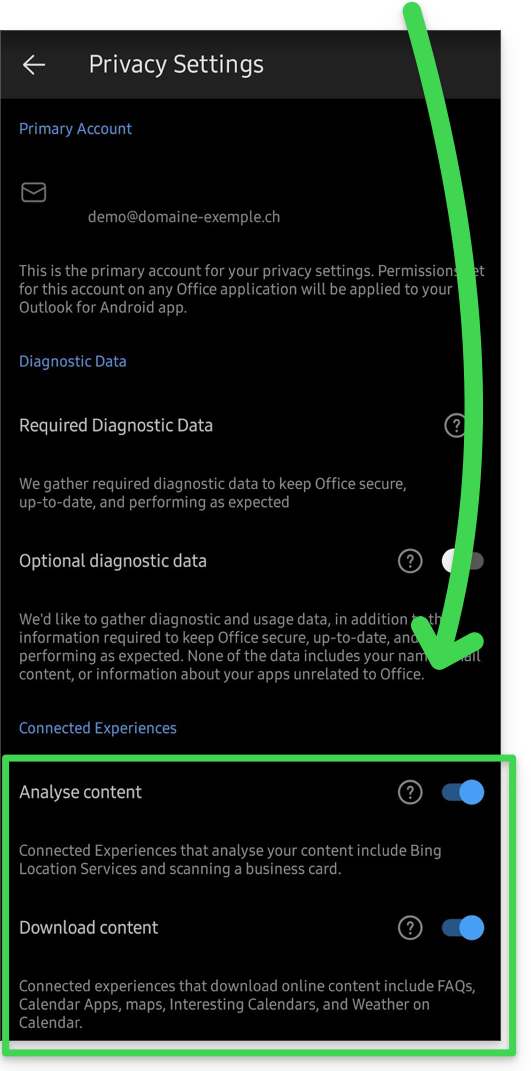
Adicionar o endereço de e-mail à aplicação
Pré-requisitos
- Criar o endereço de e-mail (❓: ajuda my kSuite | Serviço de E-mail/kSuite).
- Criar uma senha para o dispositivo (❓: ajuda my kSuite | Serviço de E-mail/kSuite).
- Verifique se a configuração do domínio está correta (❓: ajuda).
Para configurar o aplicativo de e-mail:
- Abra a aplicação.
- Clique em Adicionar conta:
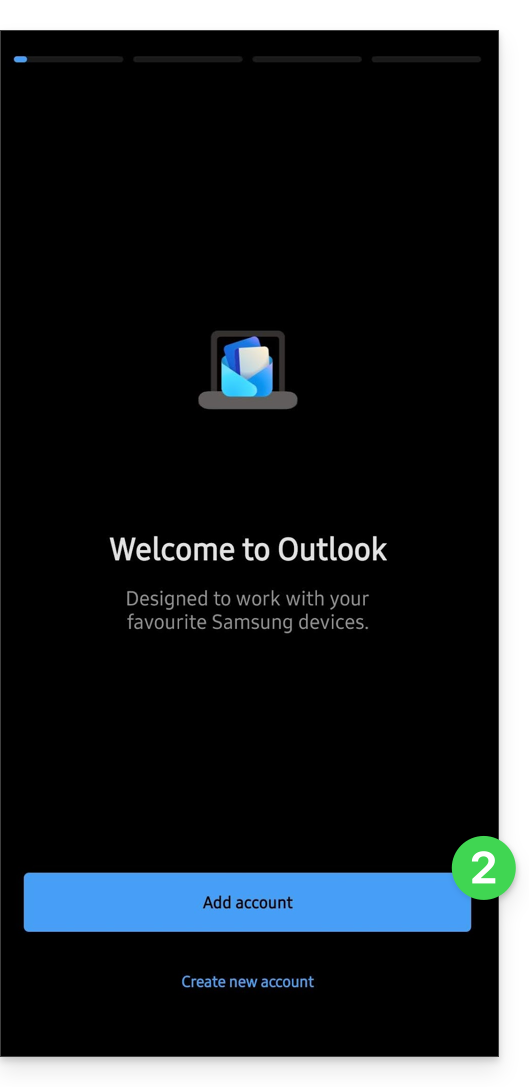
- Insira o endereço de e-mail que deseja associar.
- Clique em Continuar:
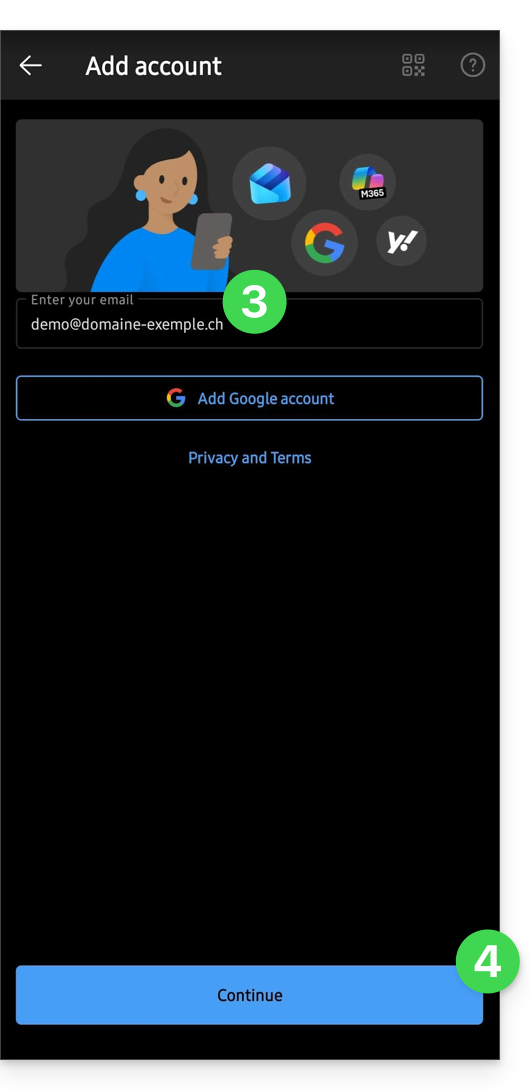
- Clique em IMAP :
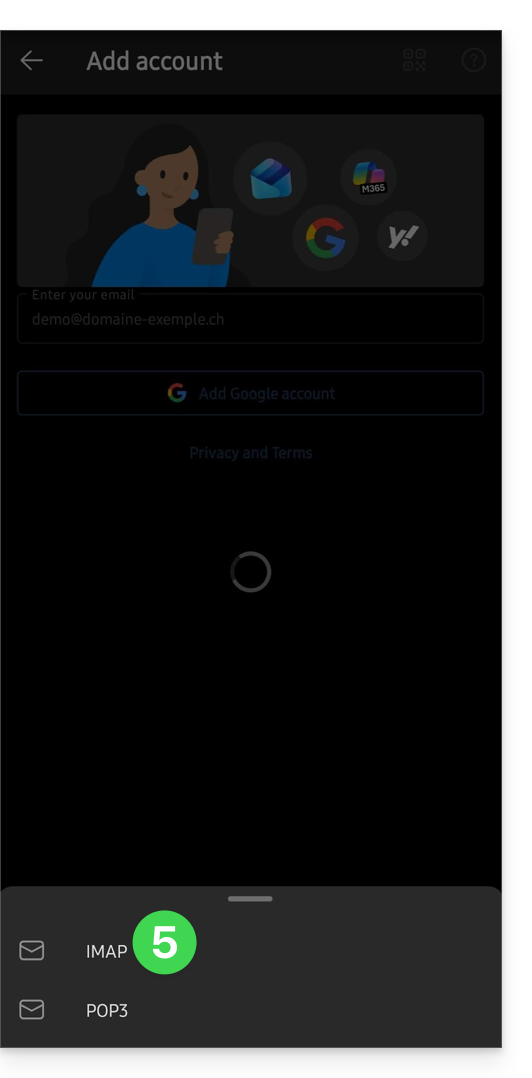
- Ative o botão de alternância para ativar as configurações avançadas.
- Preencha as informações em falta (❓: ajuda).
- Clique no ícone ✓ no canto superior direito.
- Se necessário, escolha adicionar uma conta adicional ou clique em Mais tarde.
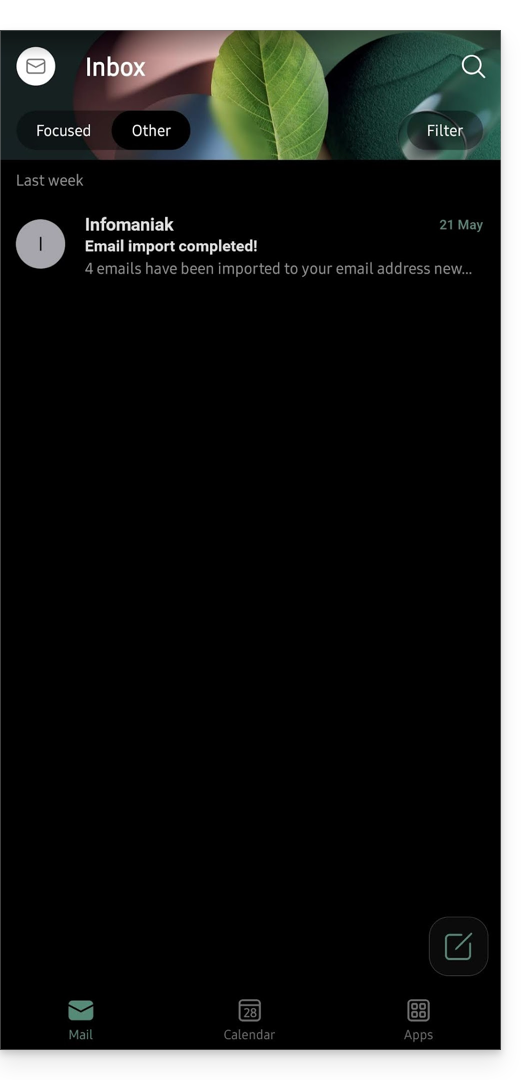
- Pronto, o seu endereço de e-mail está agora configurado na aplicação:
Parâmetros recomendados
- Servidor IMAP de entrada =
mail.infomaniak.com - Porta IMAP =
993(com SSL) - Servidor SMTP de saída =
mail.infomaniak.com - Porta SMTP e protocolo de criptografia e comando/método para ativar este protocolo:
587+ STARTTLS - Nome de utilizador/username = o endereço de e-mail completo e integral (❓: ajuda).
- Senha/password = a senha gerada para o endereço de e-mail que você deseja consultar (❓: ajuda my kSuite | Serviço de e-mail/kSuite).
- Autenticação obrigatória para o envio de e-mails:
- Ative-a nas configurações SMTP do seu aplicativo.
- Marque "usar as mesmas configurações do servidor de entrada" ou, dependendo do software/cliente de e-mail, insira um nome de usuário (= endereço de e-mail completo) e a senha gerada.
Consulte este outro guia se precisar de informações sobre outras portas e protocolos de e-mail compatíveis (SSL/TLS, por exemplo).
Em caso de problemas
Verifique se o serviço de e-mail está configurado de forma otimizada (❓: ajuda).
Não é necessário entrar em contato com o suporte da Infomaniak se o seu endereço de e-mail funcionar corretamente fora do aplicativo. O erro mais comum está relacionado ao uso de uma senha incorreta. Os guias de solução de problemas ajudarão você a resolver qualquer problema:
- Consulte as soluções apresentadas neste outro guia sobre o serviço de e-mail em geral.
- Este outro guia aborda especificamente o Outlook.
… e se o seu Outlook deixou de funcionar após uma alteração da palavra-passe do e-mail, consulte este outro guia.
Link para esta FAQ: https://faq.infomaniak.com/575
Esta seção de perguntas frequentes foi útil?