Knowledge base
1000 FAQs, 500 tutorials and instructional videos. Here, there are only solutions!
This guide will help you quickly use the essential features of Infomaniak's Video Streaming service.
Configure a stream
A stream can be transmitted to Infomaniak servers either…
- … via a video encoder (or a camera acting as an encoder) that pushes the stream to the Infomaniak servers; to offer multiple stream qualities and improve the experience of your users, you have the option to enable multi-bitrate
- … via an IP camera, or an external source from which the Infomaniak servers will retrieve the stream
Specific guide
- Configure a stream from OBS Studio
Create a Player to offer the stream to viewers
The Player will allow you to obtain a URL to view the stream, embed it on an HTML page, etc.:
- Click here to access the management of your product on the Infomaniak Manager (need help?).
- Click directly on the name assigned to the product in question.
- Click on Integration in the left-hand menu.
- Click on Players in the left-hand menu.
- Click on the blue button to add a player.
Record your live streams on a scheduled or automatic basis
Refer to this guide to learn how to archive or record your broadcasts.
Restrict distribution
A feed can be restricted to a single audience:
- Secure a video stream by restricting IP addresses
- Secure a video stream by restricting GeoIP
- Secure a video stream with a unique key
- Secure a video stream by restricting the domain
To learn more…
Guides on various topics:
- Embed a watermark / logo on a live video stream
- Why is there a delay between the source and the availability of a stream?
- Which cameras are compatible with Infomaniak's platform?
Do you have a question or feedback?
- If you encounter any issues, please consult the knowledge base before contacting support.
- Click here to share feedback or suggestions about an Infomaniak product.
Link to this FAQ: https://faq.infomaniak.com/2329
Has this FAQ been helpful?
This guide explains how to do a 360° live stream with Infomaniak's video streaming service.
Prerequisites
- Have a 360 camera compatible with one of the following formats:
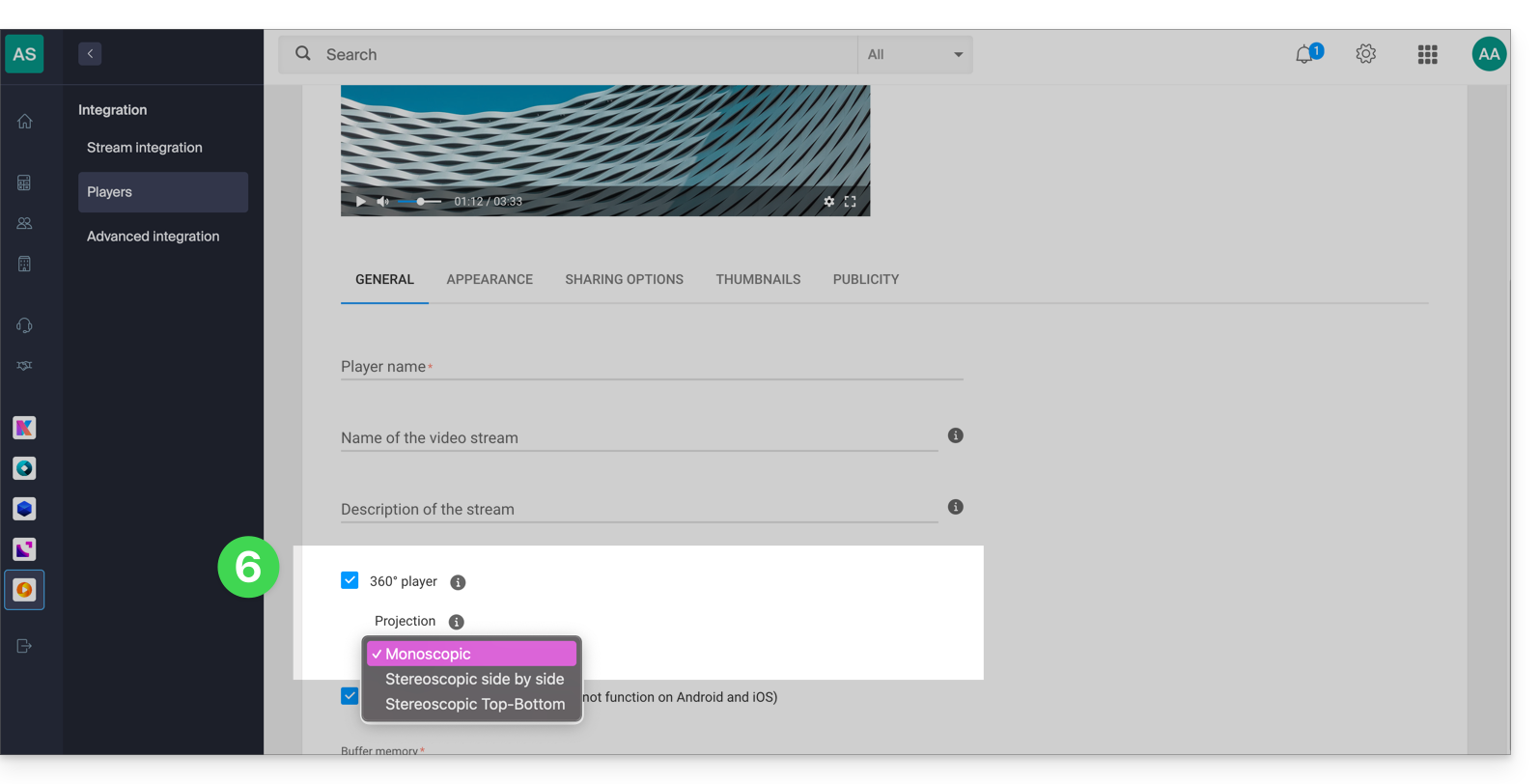
- equirectangular 360 monoscopic (2D)
- equirectangular 360 stereoscopic (3D) side by side (left/right separation)
- equirectangular 360 stereoscopic (3D) top/bottom (top/bottom separation)
- Your encoder or camera must also be able to send a stream via an RTMP connection (learn more).
- Please note that a 360° video stream requires a source with a high bitrate and a bitrate control set to CBR mode; the bitrate will depend on the type of content and the data consumption will also be higher than with a standard stream.
Create a 360° player
Broadcasting a 360° live stream requires a 360° player. This option is free and can be activated quickly:
- Click here to access the management of your product on the Infomaniak Manager (need help?).
- Click directly on the name assigned to the product in question:
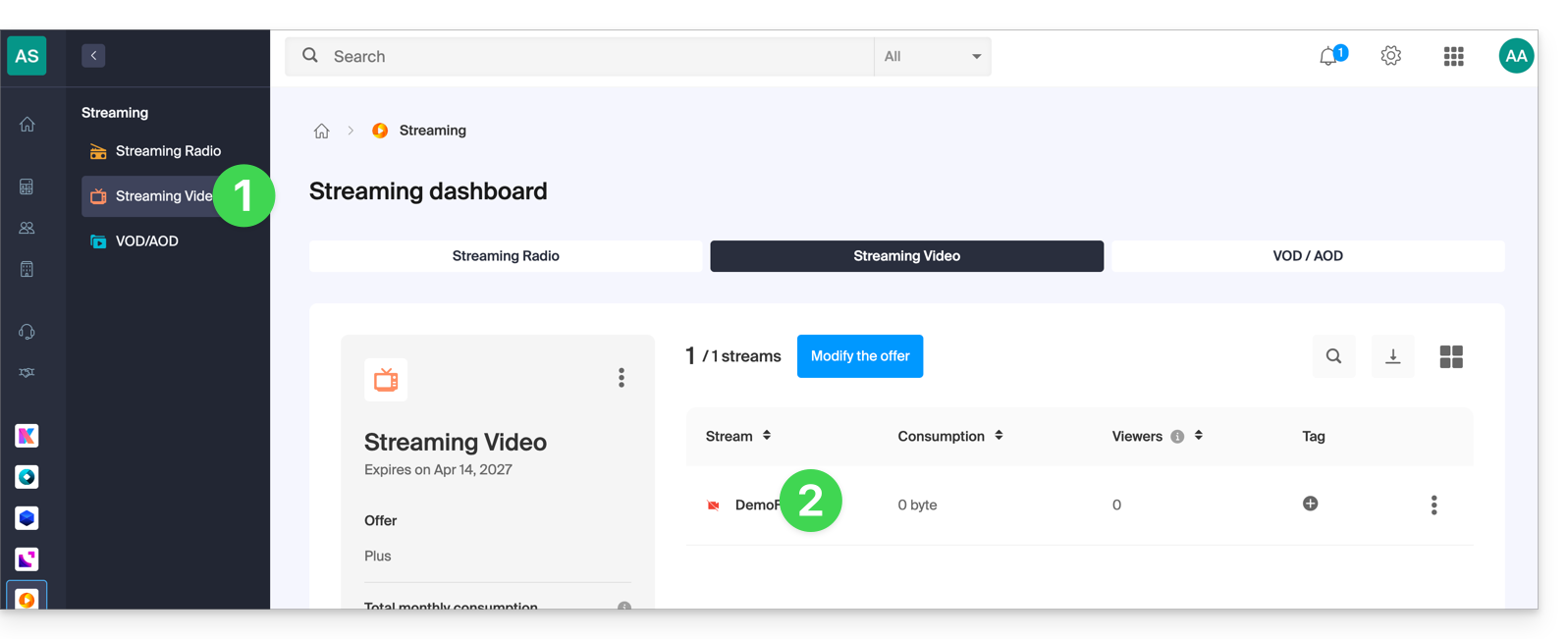
- Click on Integration in the left-hand menu.
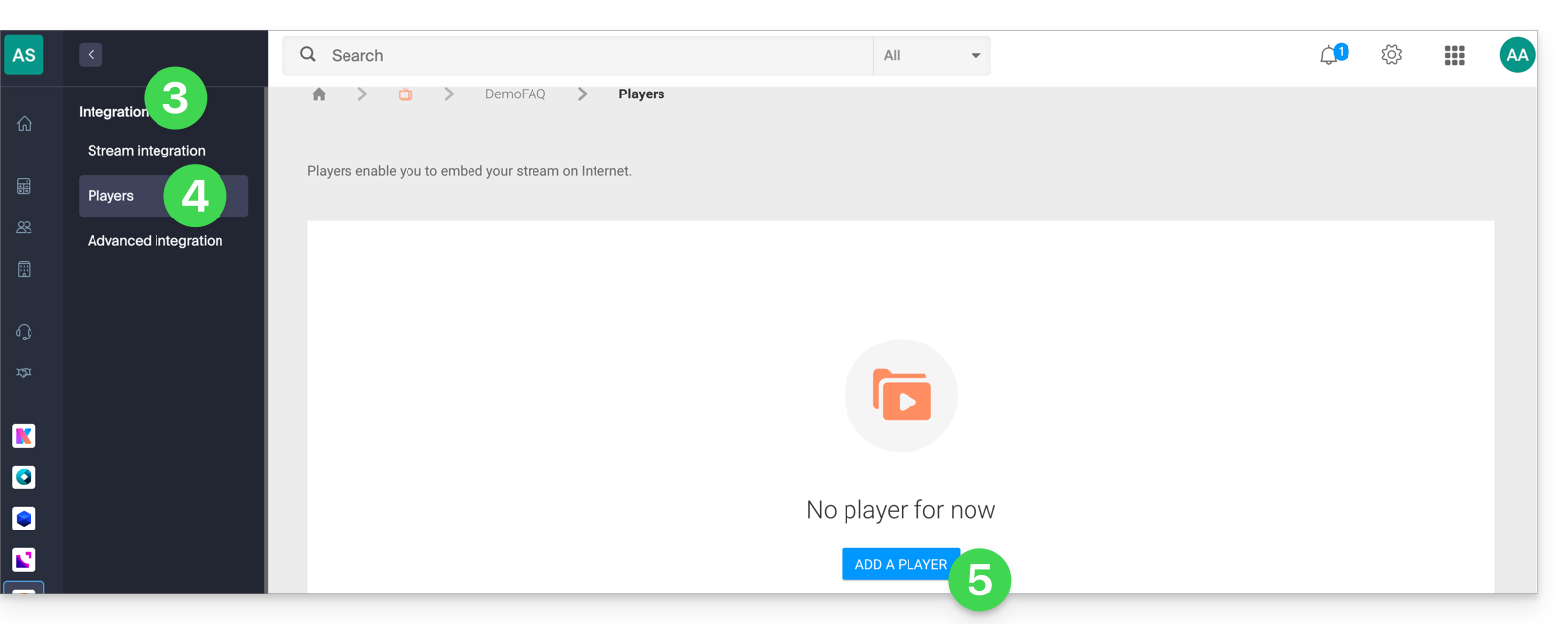
- Click on Players in the left-hand menu.
- Click to create or edit an existing player:
- Check the Player 360 box and configure the projection (360 format):
- Click the Save button at the bottom of the page.
- All content played by this player (whether in 360 format or not) will now be interpreted as 360°.
Link to this FAQ: https://faq.infomaniak.com/2340
Has this FAQ been helpful?
This guide explains how to enable and use the Timeshift function (also called DVR) for your live video broadcasts. This feature allows your viewers to rewind if they missed the beginning of your live stream.
Enabling the Timeshift (DVR) Function
To access the video streaming service:
- Click here to access the management of your product in the Infomaniak Manager (need help?).
- Click directly on the name assigned to the product in question:
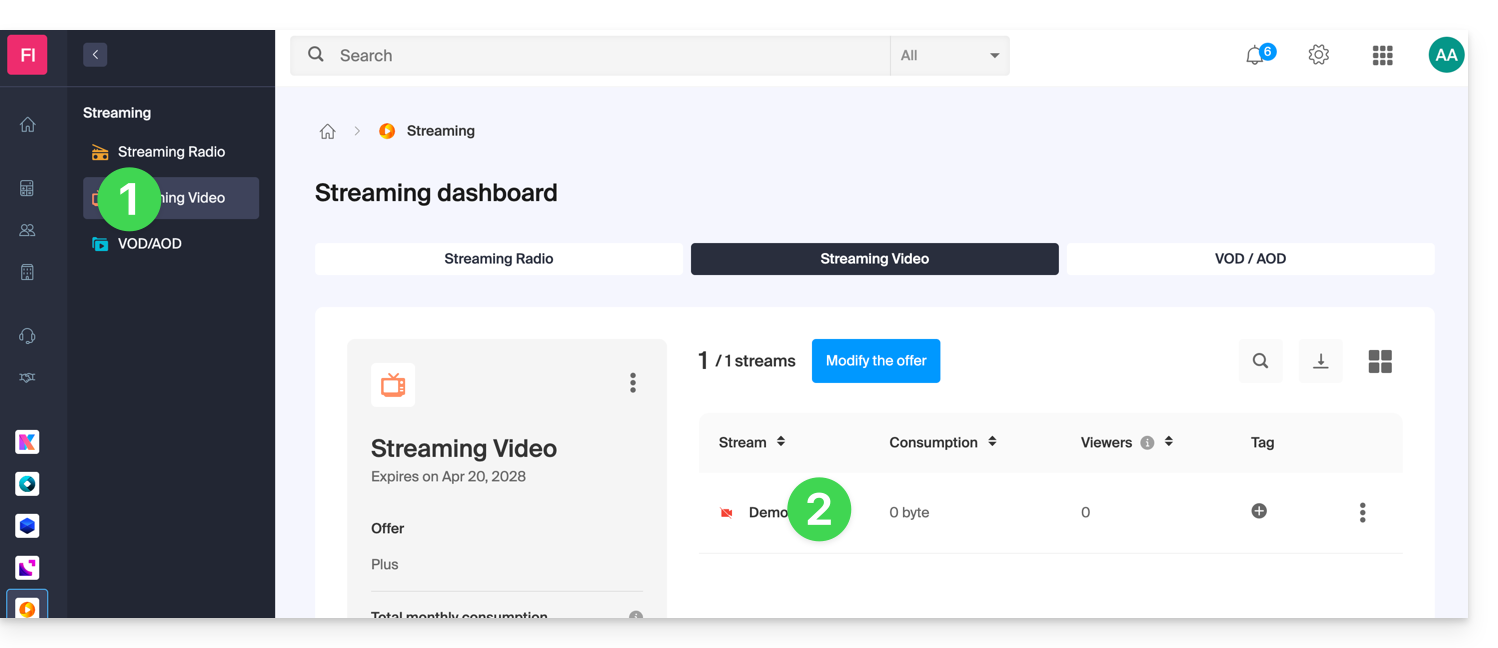
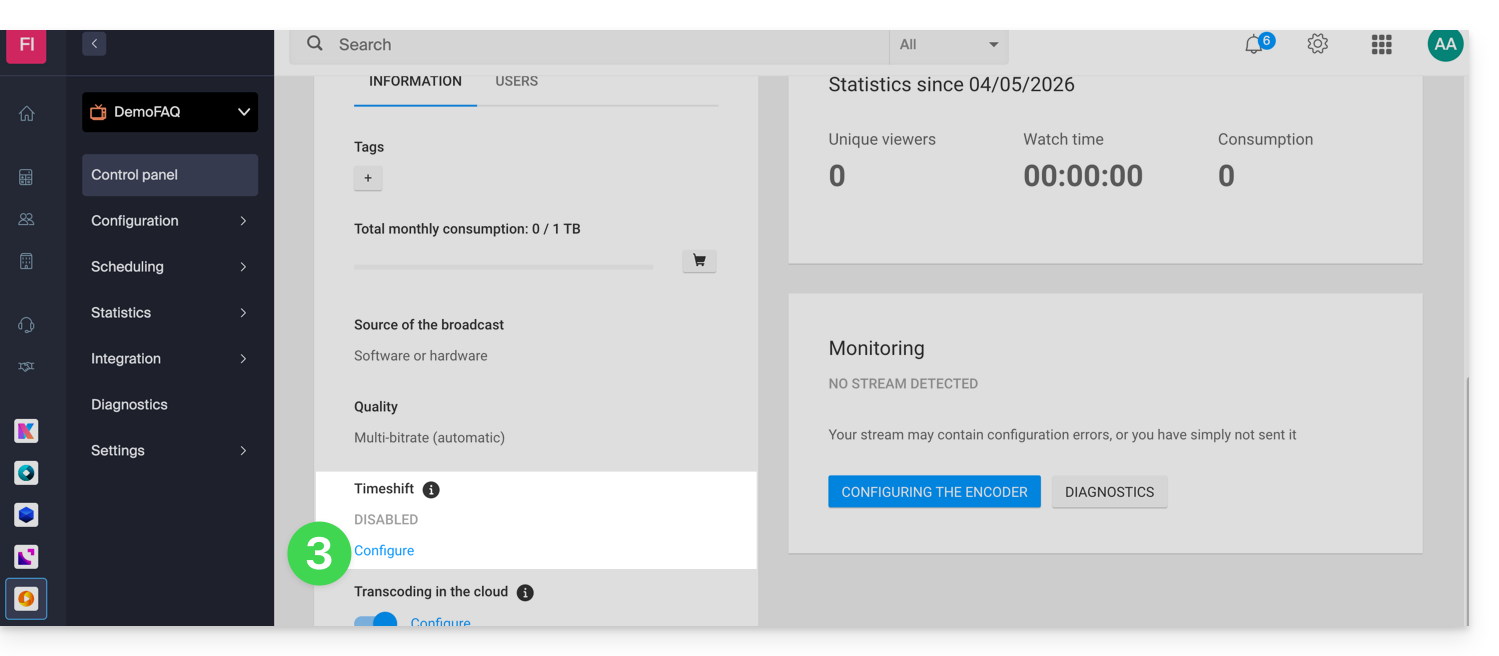
- Click on Configure under Timeshift from the dashboard:
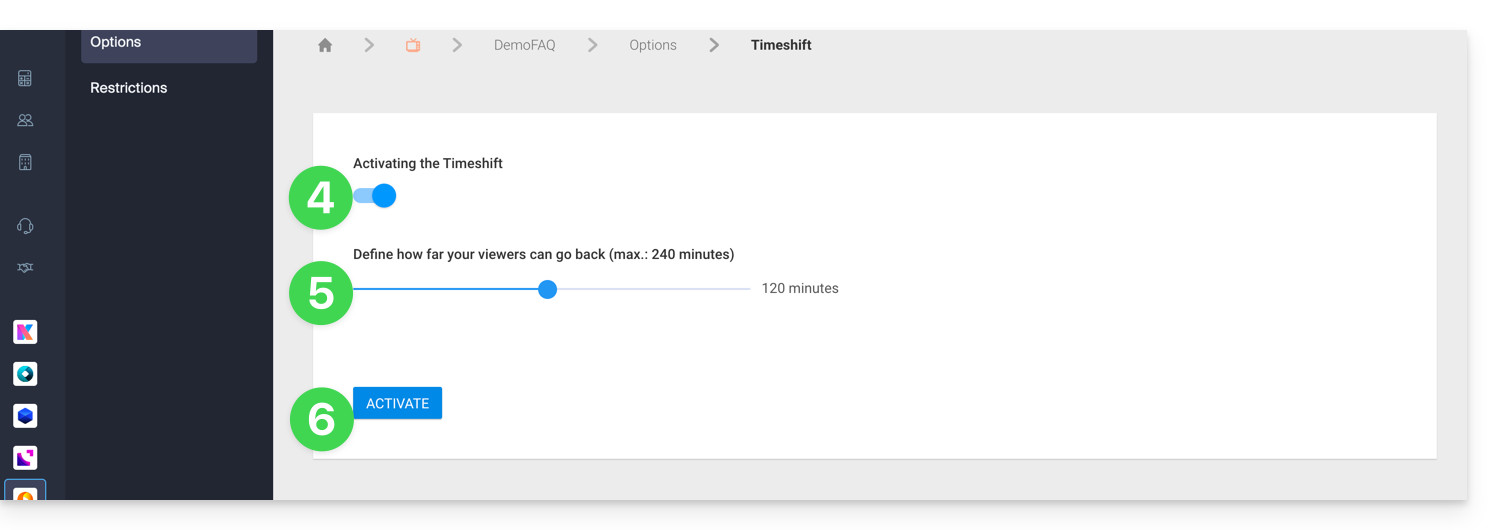
- Enable Timeshift.
- Define the duration for which your viewers can rewind (max. 240 min.).
- Click on the Enable button:
Customizing the Timeshift Function
It is possible to enable this option via the scheduling tool for a specific time range, thereby limiting this possibility to certain programs. The settings defined in the scheduling tool will override the default status defined from the dashboard.
To better understand this, imagine a TV that broadcasts a soccer match from 10 a.m. to 12 p.m.
1. The TV channel wants to activate Timeshift only during the match
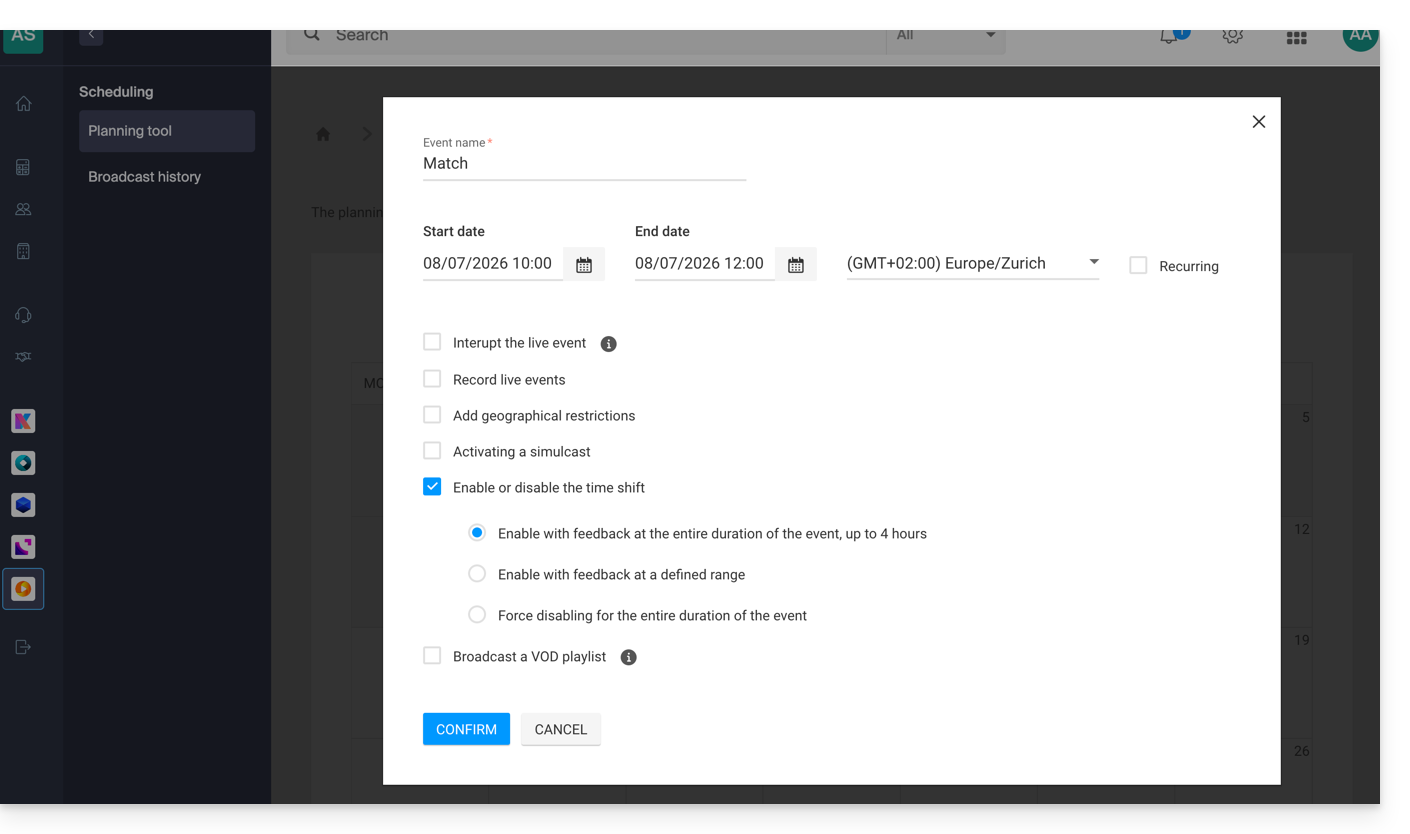
With this configuration, viewers who join the live broadcast at 11:59 AM will be able to watch the beginning of the match at 10:00 AM, but they will not be able to watch the programs that preceded the match before 10:00 AM. As a reminder, the maximum Timeshift duration is 240 minutes (4 hours).
2. The TV channel wants to activate a 20-minute Timeshift only during the match
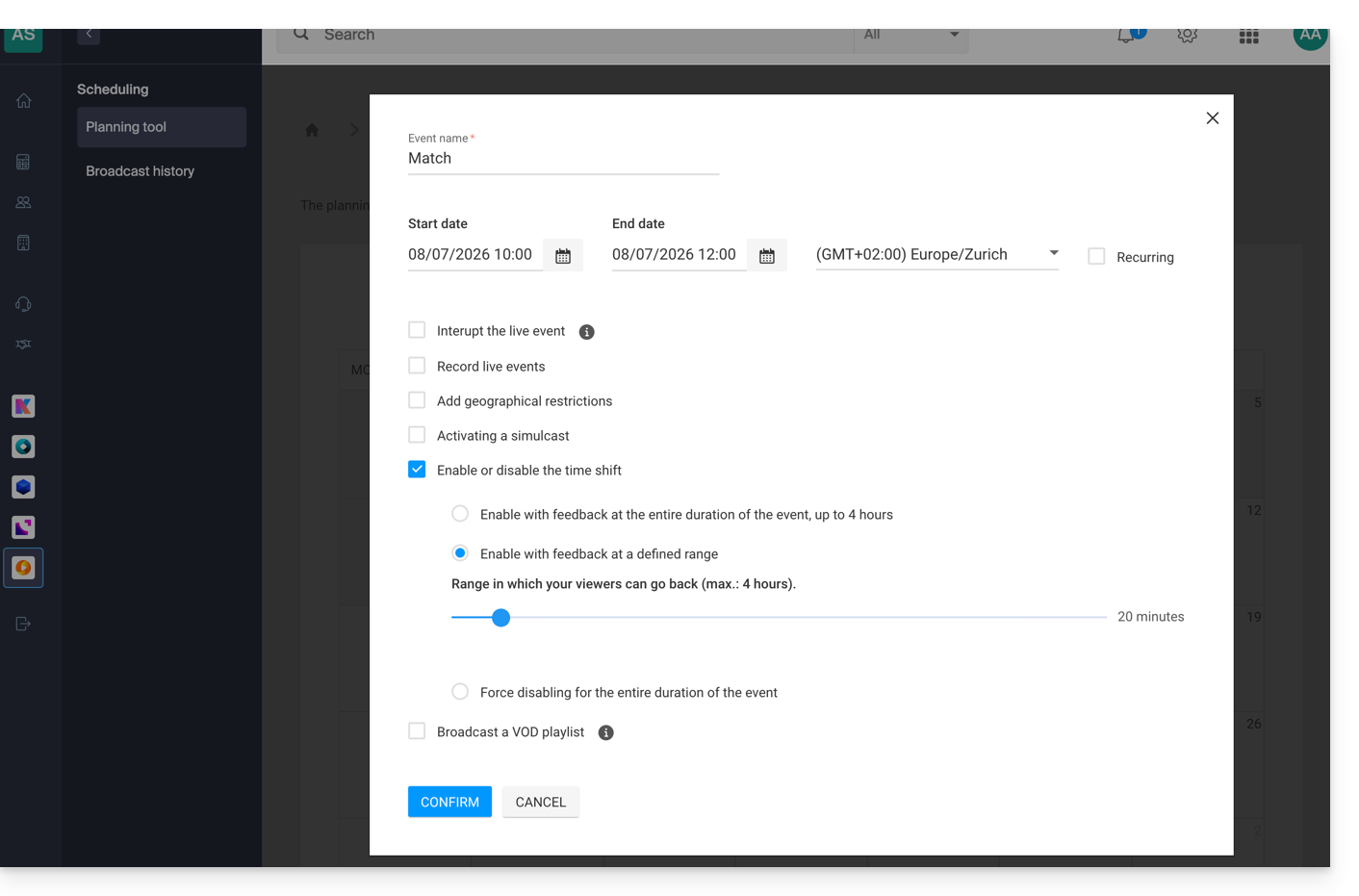
With this configuration, viewers who join the live broadcast at 11:30 AM will be able to watch the previous 20 minutes, but they will not be able to watch the beginning of the match; only the last 20 minutes will be accessible throughout the duration of the match.
3. The TV channel wants to disable Timeshift during the match
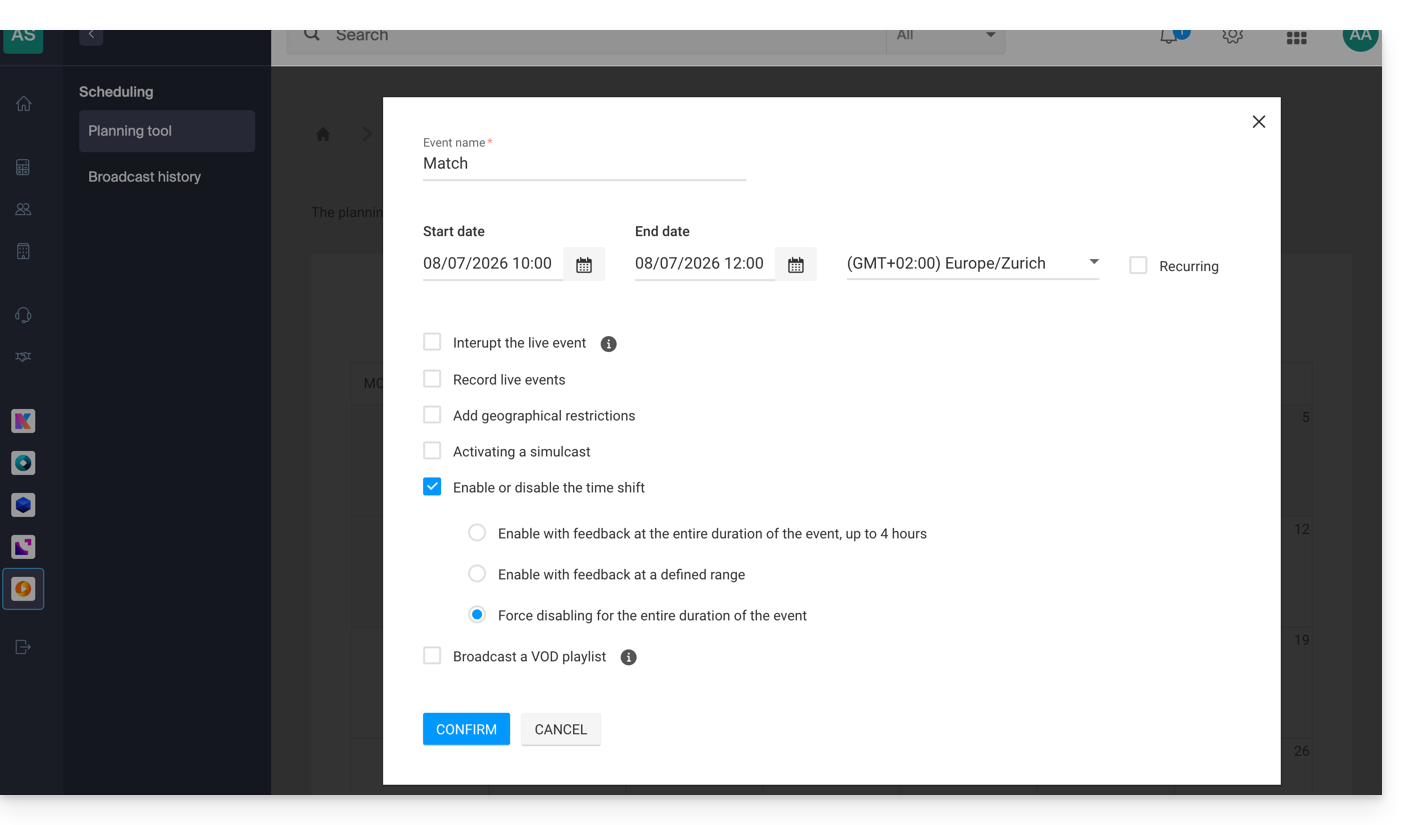
With this configuration, viewers will not be able to watch parts of the match. They will only be able to watch the programs that precede the match if the Timeshift function has been enabled by default from the stream dashboard.
In summary, there are 2 use cases:
- Enable Timeshift permanently, except for specific events.
- Disable Timeshift permanently, except for specific events.
The default status is managed from the stream dashboard, and exceptions are managed from the scheduling tool.
Learn more about how it works
If you have defined a one-hour Timeshift and you have just activated it, the rewind time will gradually increase up to the chosen duration from the moment of activation.
If geographical restrictions are defined with a specific time range, these will be respected in all cases. For example, if a TV channel with a 4-hour timeshift reserves its sports program for Swiss viewers from 10 a.m. to 12 p.m., an Italian viewer who connects to the stream at 1 p.m. will only be able to watch programs from 9 a.m. to 10 a.m.
Link to this FAQ: https://faq.infomaniak.com/2407
Has this FAQ been helpful?
This guide explains how to configure Infomaniak's encoder.
1. Default access and password configuration
Once the connections are made, the encoder will be accessible on your network at the following address: 192.168.1.168
Configuration is done from a web browser at the following address: http://192.168.1.168
- Username: admin
- Password: admin
First, define a strong password:
2. Network configuration
If accessing the address 192.168.1.168 works for you, you can proceed directly to step 3.
Otherwise, if your network is configured with DHCP or if you want to specify a different IP address, the System > Network page allows you to define the access settings. You may need to contact your network administrator to make the necessary adjustments and authorize this new device at the firewall level.
3. Configuring the main stream
3.1 In the case where only one stream is sent
This applies to the following cases:
- Cloud transcoding => see points (1) and (1.3) in this guide
- or the Monobitrate => see point (3) of this guide
Please adjust the following settings:
- The bitrate (kbit) and resolution (encoded size) should be adjusted according to your needs.
- RTMP PUBLISH URL corresponds to the publish URL indicated in your Manager in the stream configuration:
The encoder does not allow you to enter a stream key. It is therefore necessary to concatenate it with the URL.
Example: rtmp://stream.vprimary.infomaniak.com/livecast?key=XXXXXX/stream
The “stream” value and the password (key=XXXXXX) must be replaced with your personal data.
3.2 In the case where multiple streams are sent
For more information on this case, please refer to sections (2) and (2.2) of this guide.
If multiple streams are sent, you will be in a multi-bitrate mode with n streams encoded on the encoder.
The Substream1, Substream2, and Substream3 submenus allow you to configure the encoding for up to 3 additional streams:
3.3 Audio configuration
The audio input should be adjusted according to the connections made. The bitrate can also be adjusted depending on the type of content. It is recommended to use the following codec: 128 Kbps AAC, at 44100 Hz.
Link to this FAQ: https://faq.infomaniak.com/2413
Has this FAQ been helpful?
This guide explains how to restrict access to Infomaniak video streaming based on geographical criteria (geolocation).
Restrict access to streams via GeoIP
To do this:
- Click here to access the management interface for your product in the Infomaniak Manager (need help?).
- Click directly on the name assigned to the product in question.
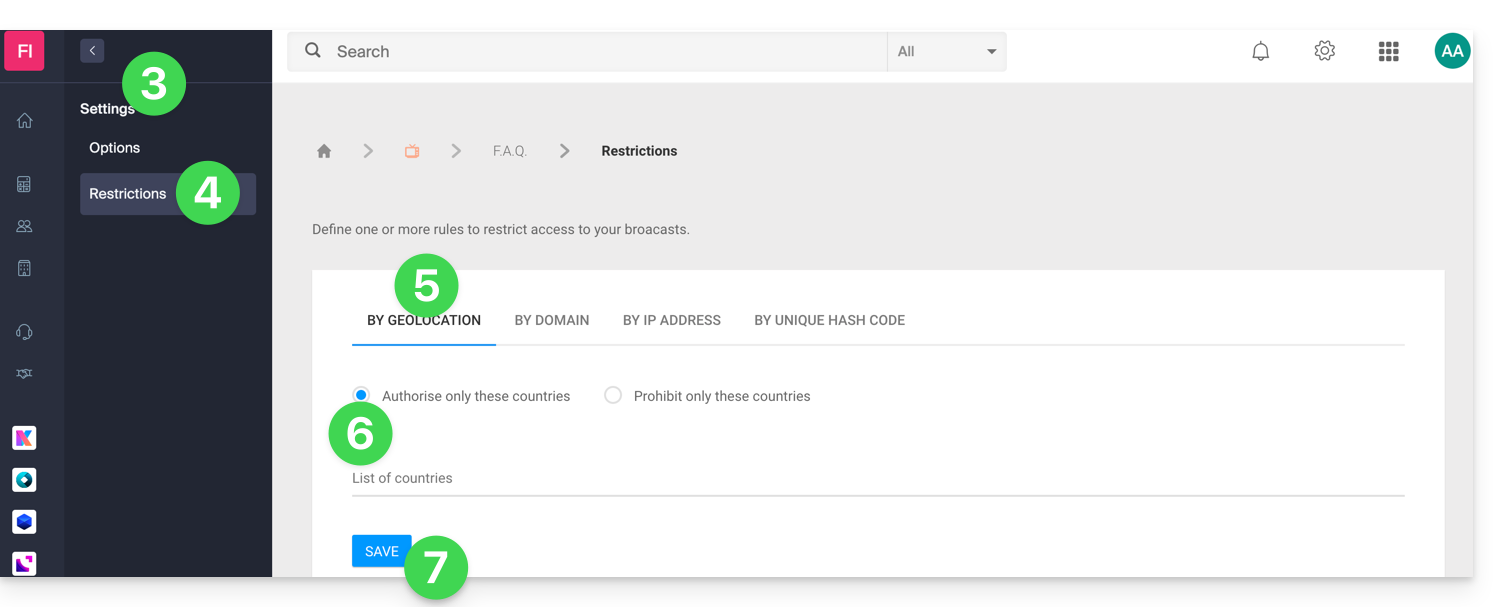
- Click on Settings in the left-hand menu.
- Click on Restrictions in the left-hand menu.
- Click on the Geolocation restriction tab.
- Define the countries that should be specifically allowed or blocked.
- Click the Save button:
Refer to this other guide to customize the replacement image offered to viewers who are blocked.
Link to this FAQ: https://faq.infomaniak.com/2863
Has this FAQ been helpful?
This guide explains how to restrict access to Infomaniak video streaming based on the IP addresses of visitors/viewers.
Restrict access to streams by IP address
To do this:
- Click here to access the management interface for your product on the Infomaniak Manager (need help?).
- Click directly on the name assigned to the product in question.
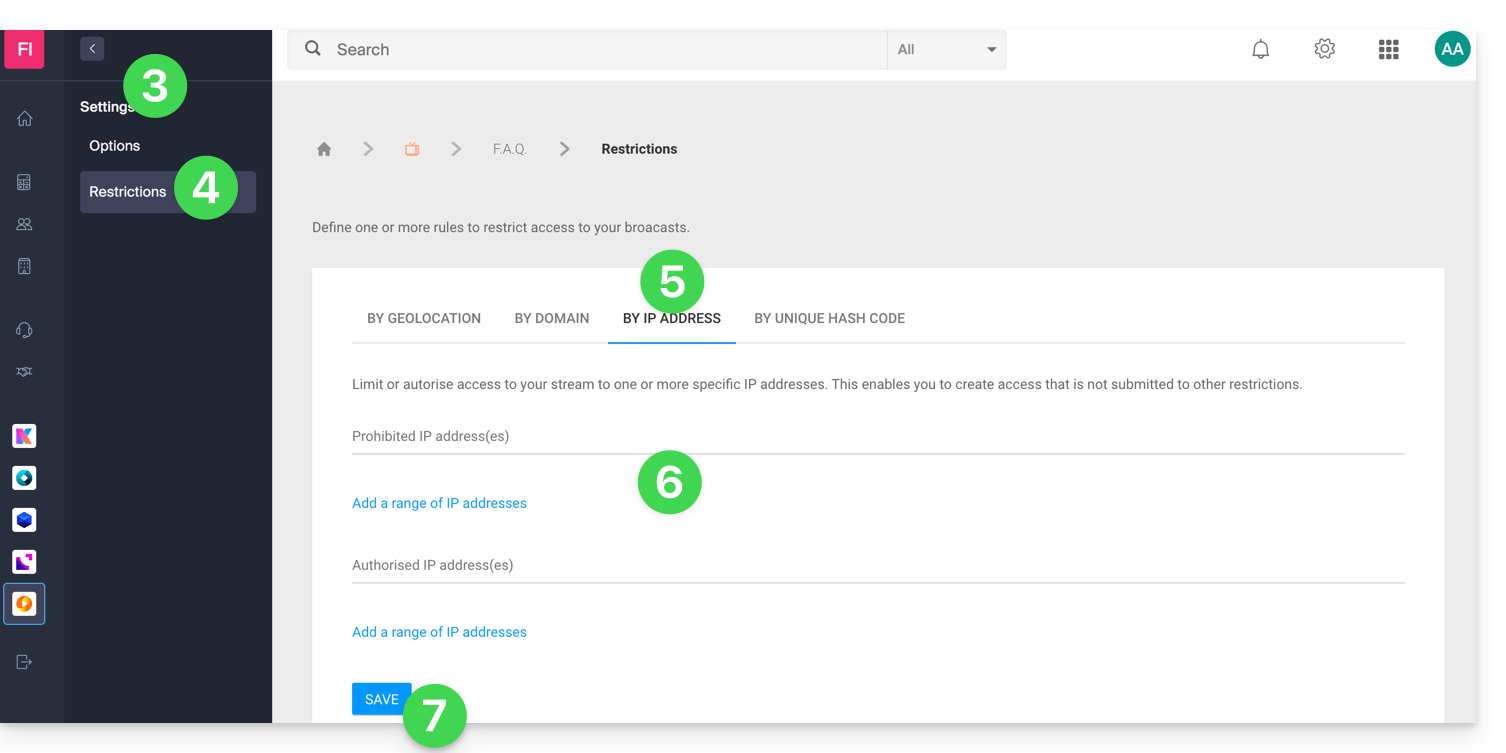
- Click on Settings in the left-hand menu.
- Click on Restrictions in the left-hand menu.
- Click on the IP address restriction tab.
- Define the IP addresses (or IP ranges) that should be specifically allowed or blocked.
- Click on the Save button:
Refer to this other guide to customize the replacement image offered to viewers who are blocked.
Link to this FAQ: https://faq.infomaniak.com/2864
Has this FAQ been helpful?
This guide details the steps required to configure OBS Studio to broadcast a live stream to the Infomaniak video streaming platform.
Introduction
- OBS Studio is a free, open-source, cross-platform software widely used for video recording and live streaming.
- Thanks to its flexibility and numerous configuration options, it allows you to easily manage audio and video sources, scenes, and advanced streaming settings.
- It does not have an official mobile version, but third-party applications allow you to stream from a smartphone or use it in conjunction with OBS on a computer.
Configure OBS Studio
On the Infomaniak side, you have a stream and have enabled the cloud transcoding option.
- Click the button to access your broadcast settings:
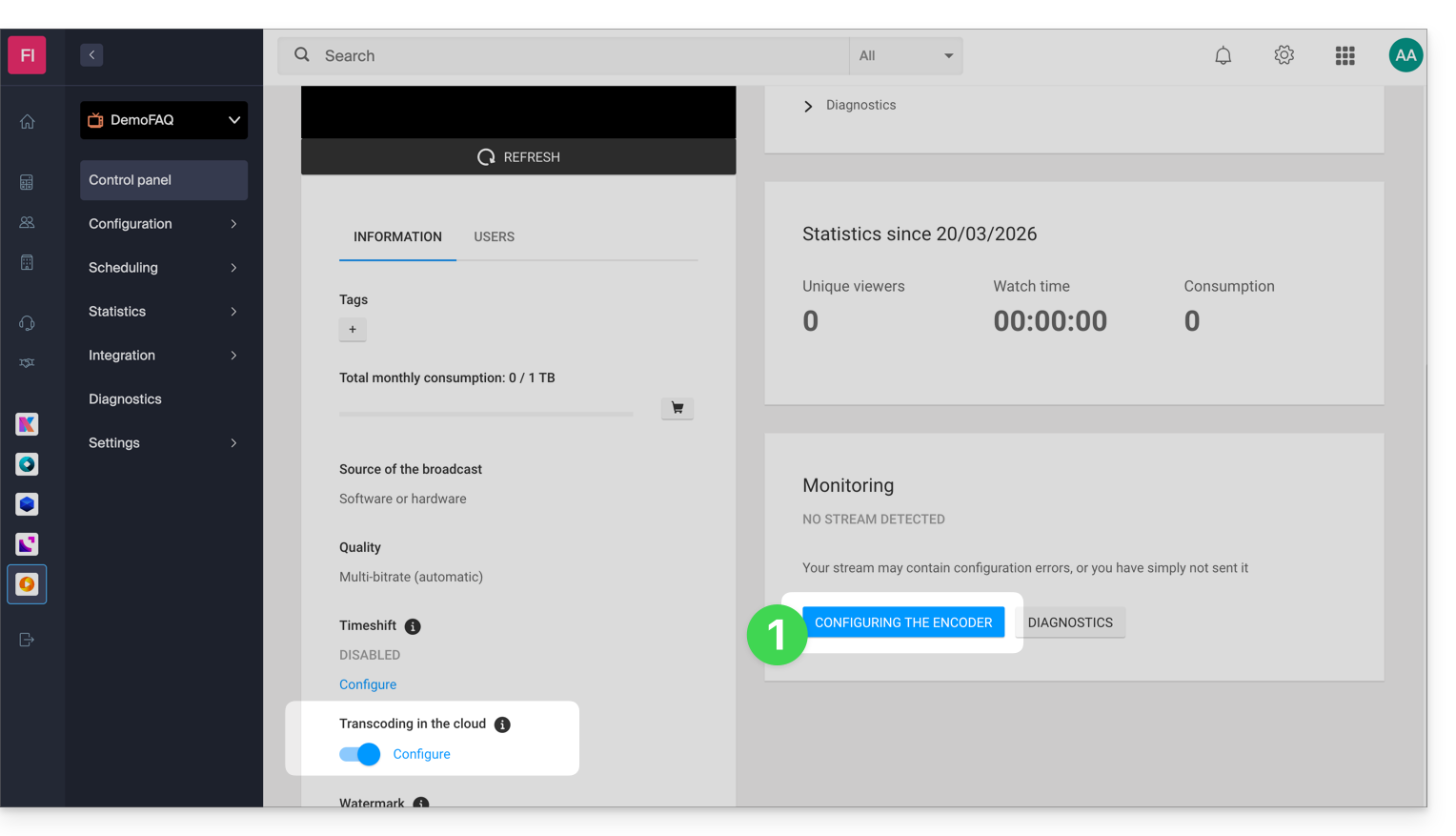
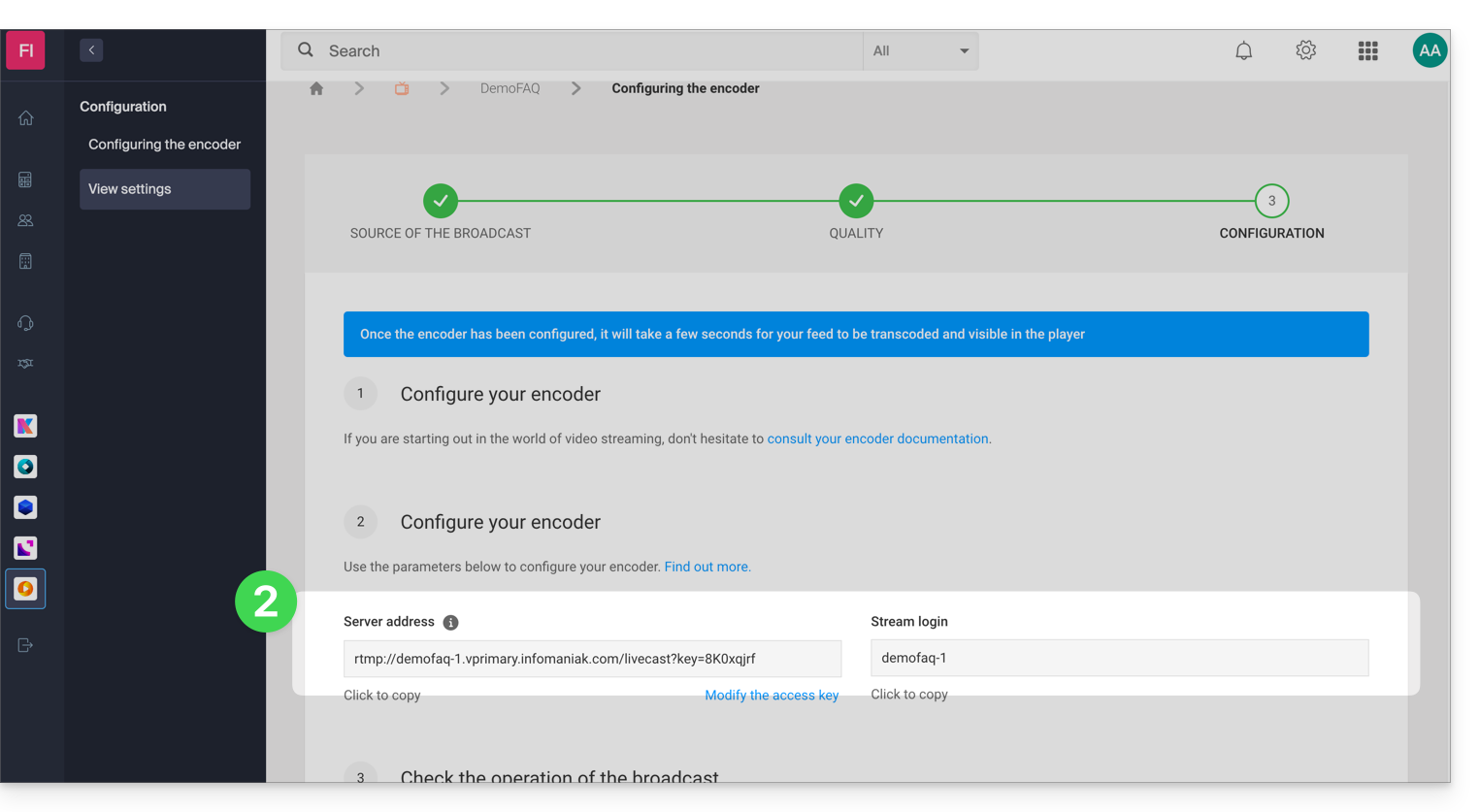
- Copy the login information:
- Paste this information into the custom settings of your OBS stream, as shown in the example below (
Stream login=Stream key):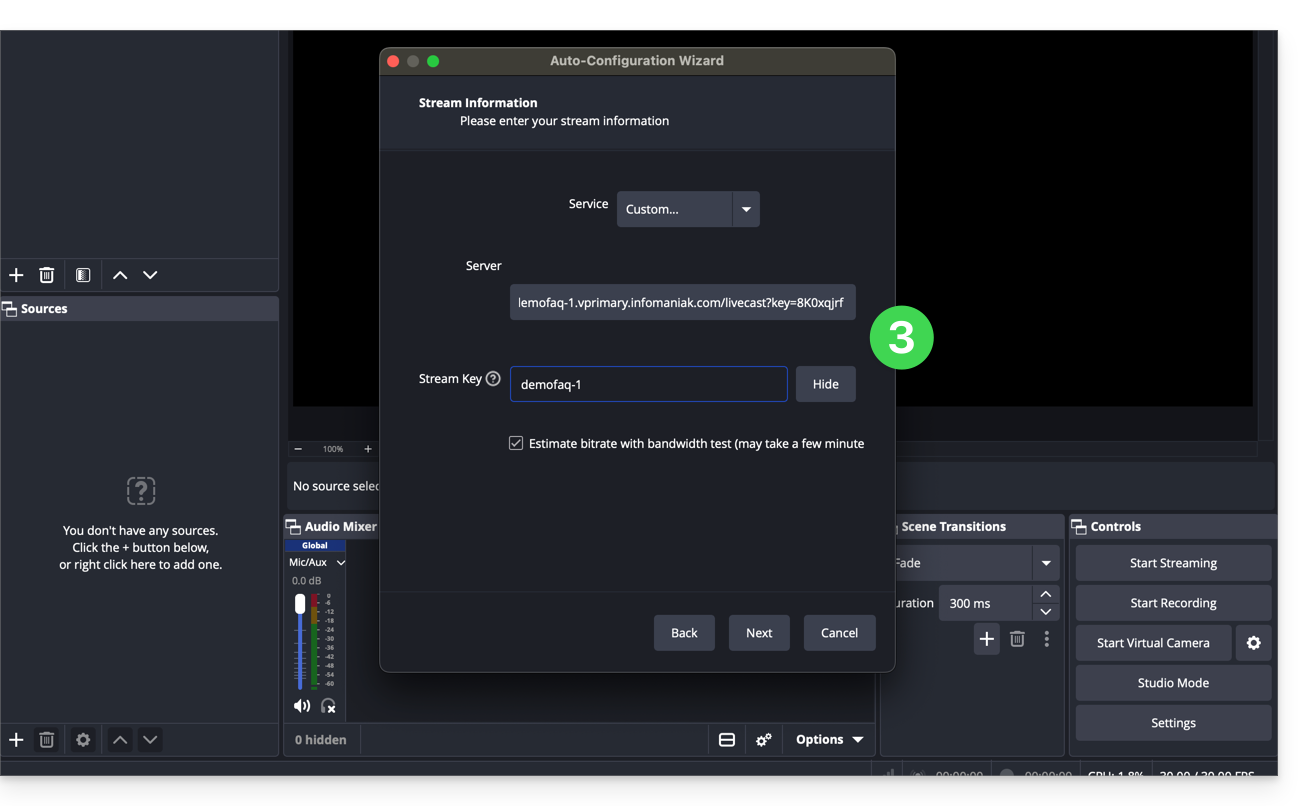
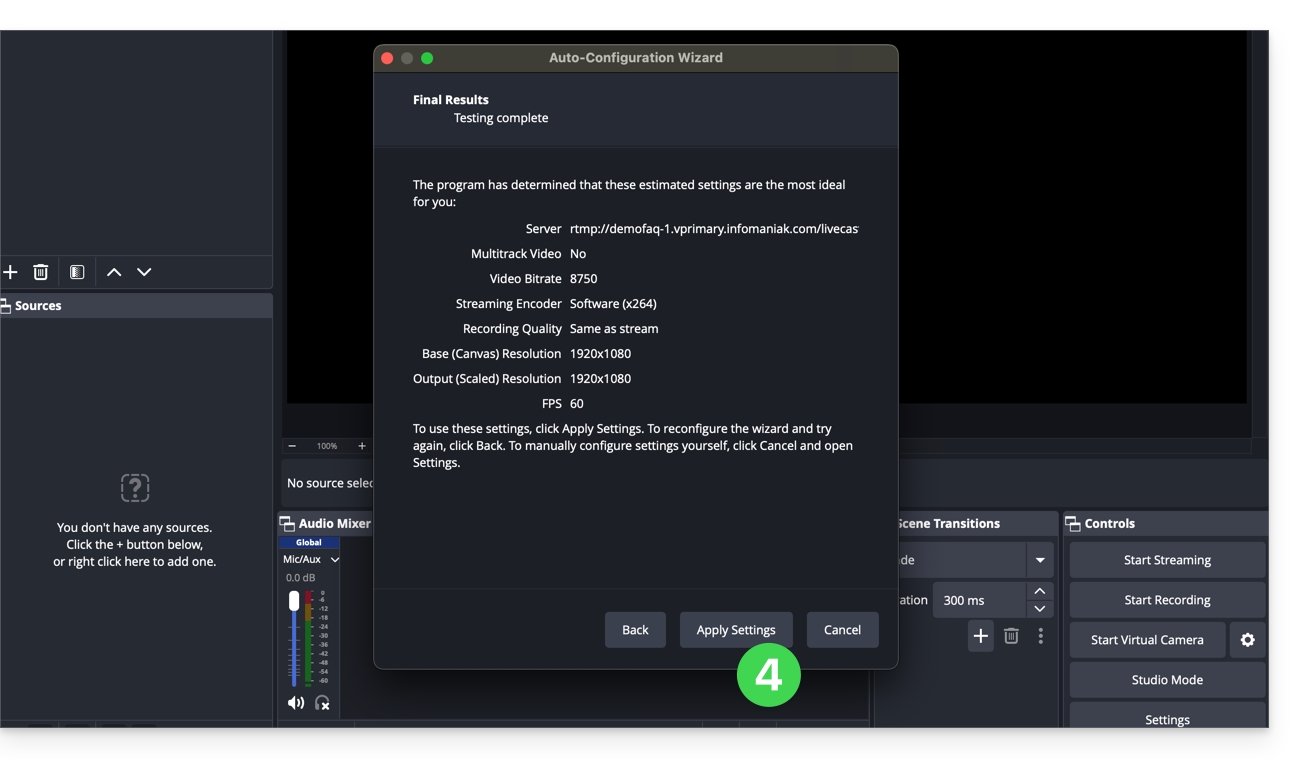
- Validate the distribution settings:
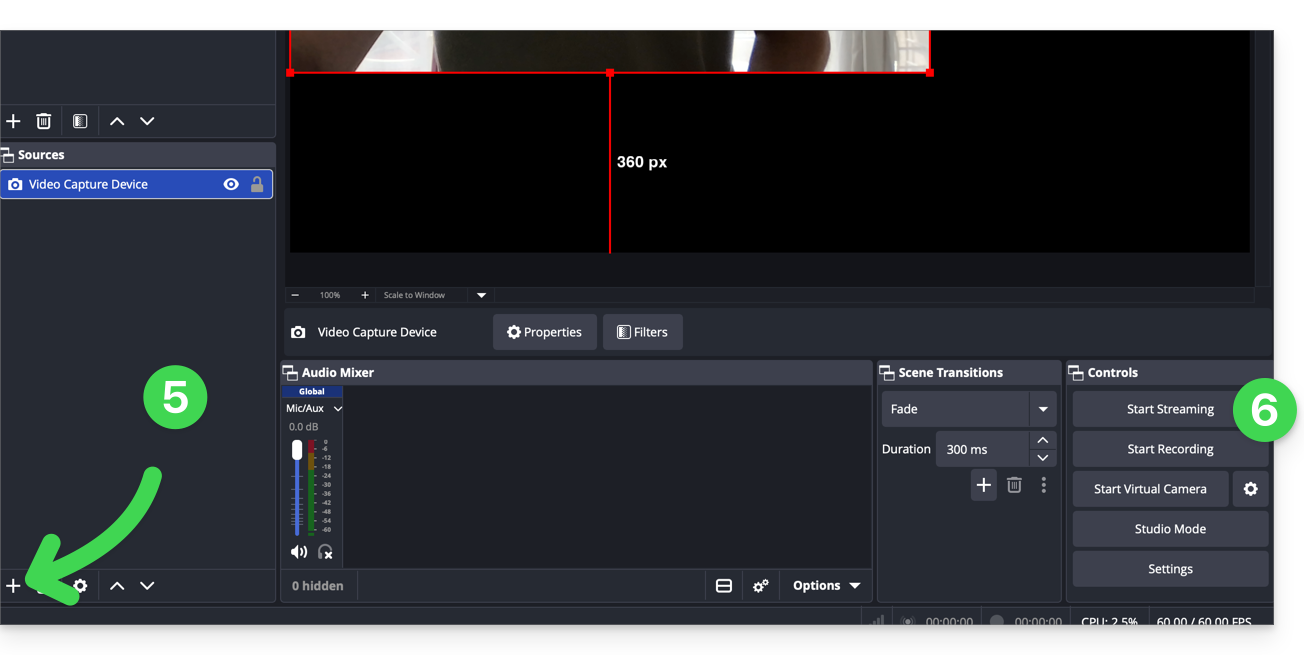
- Then, add a distribution source.
- Click on Start streaming:
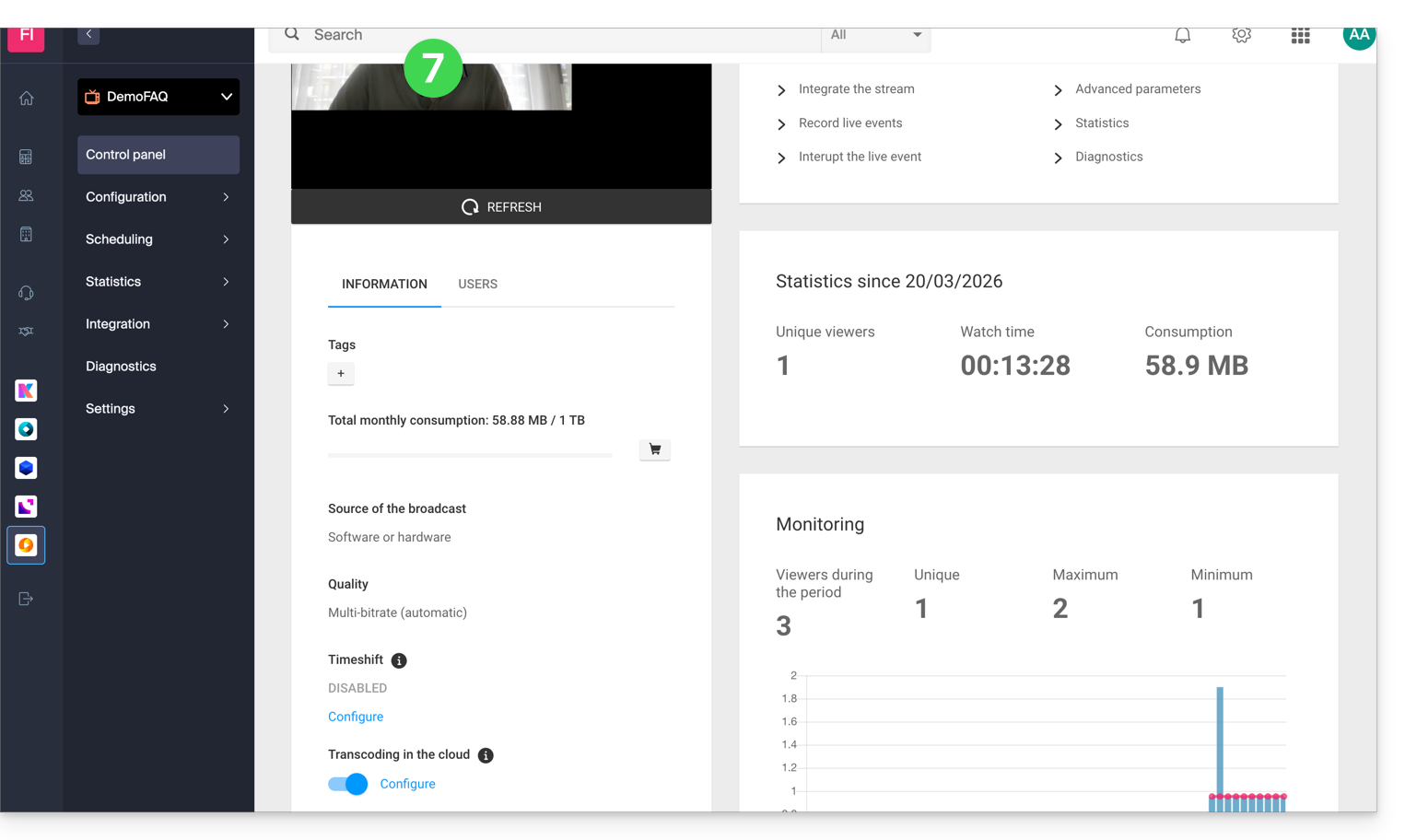
- The stream is now displayed on the Infomaniak side. You can then configure a Player to obtain the information needed to share your stream:
Link to this FAQ: https://faq.infomaniak.com/2900
Has this FAQ been helpful?