Knowledge base
1000 FAQs, 500 tutorials and instructional videos. Here, there are only solutions!
Manage error pages with Site Creator
This guide explains how to redirect visitors arriving on non-existent pages (e.g., old pages from a previous website) when your website is currently managed with Infomaniak's Site Creator.
Prerequisites
- Know the address (URL) of the page that is no longer available.
Redirect visitors to the new Site Creator page
Start by logging in to the Infomaniak Manager with your credentials (user account with the necessary permissions for the relevant product):
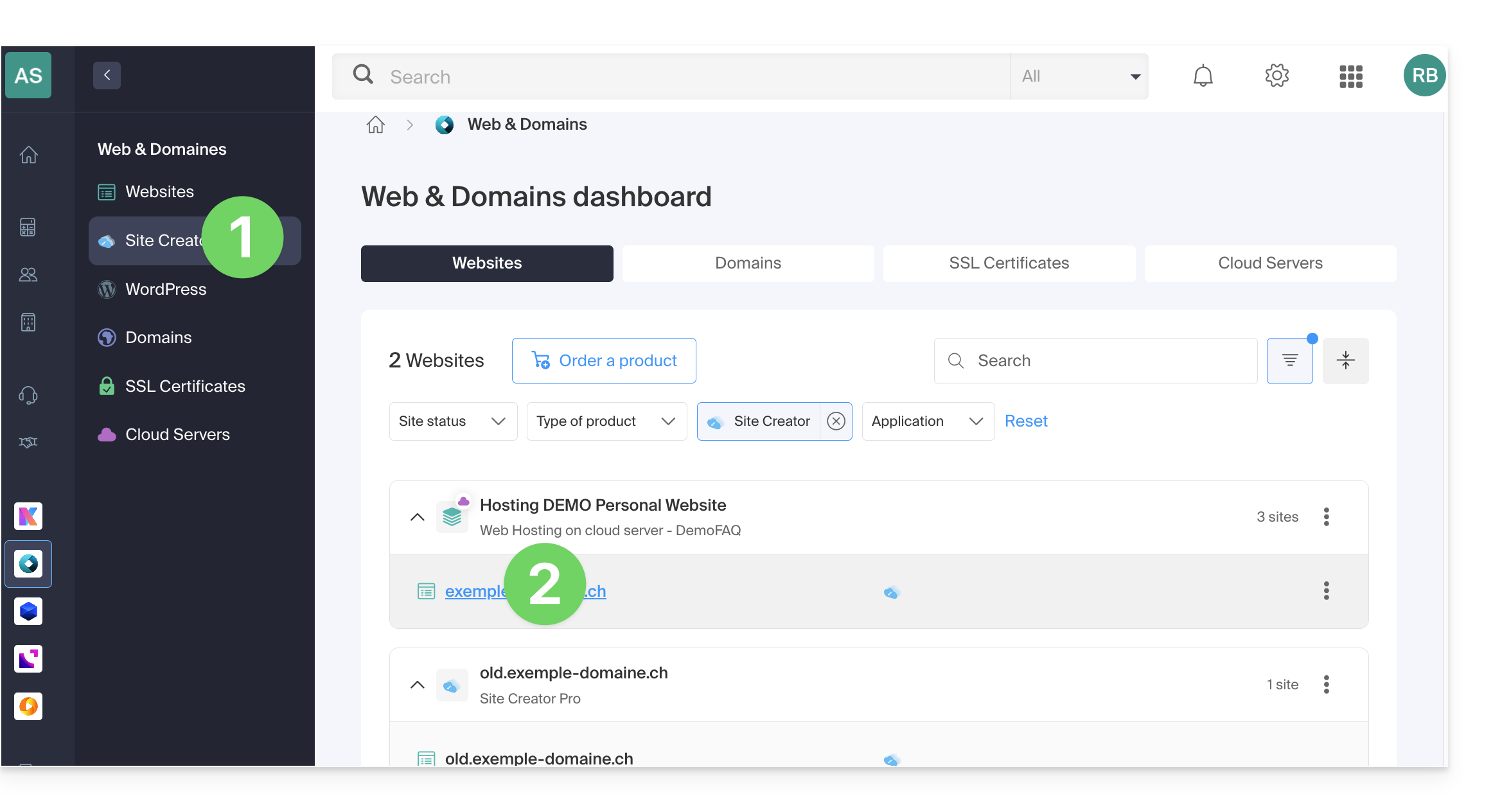
- Click here to access the hosting & website management interface (filtered to display only Site Creator).
- If nothing is displayed, you may not be in the Organization to which your website is linked (❓: help).
- Click on the name of the Site Creator in question:
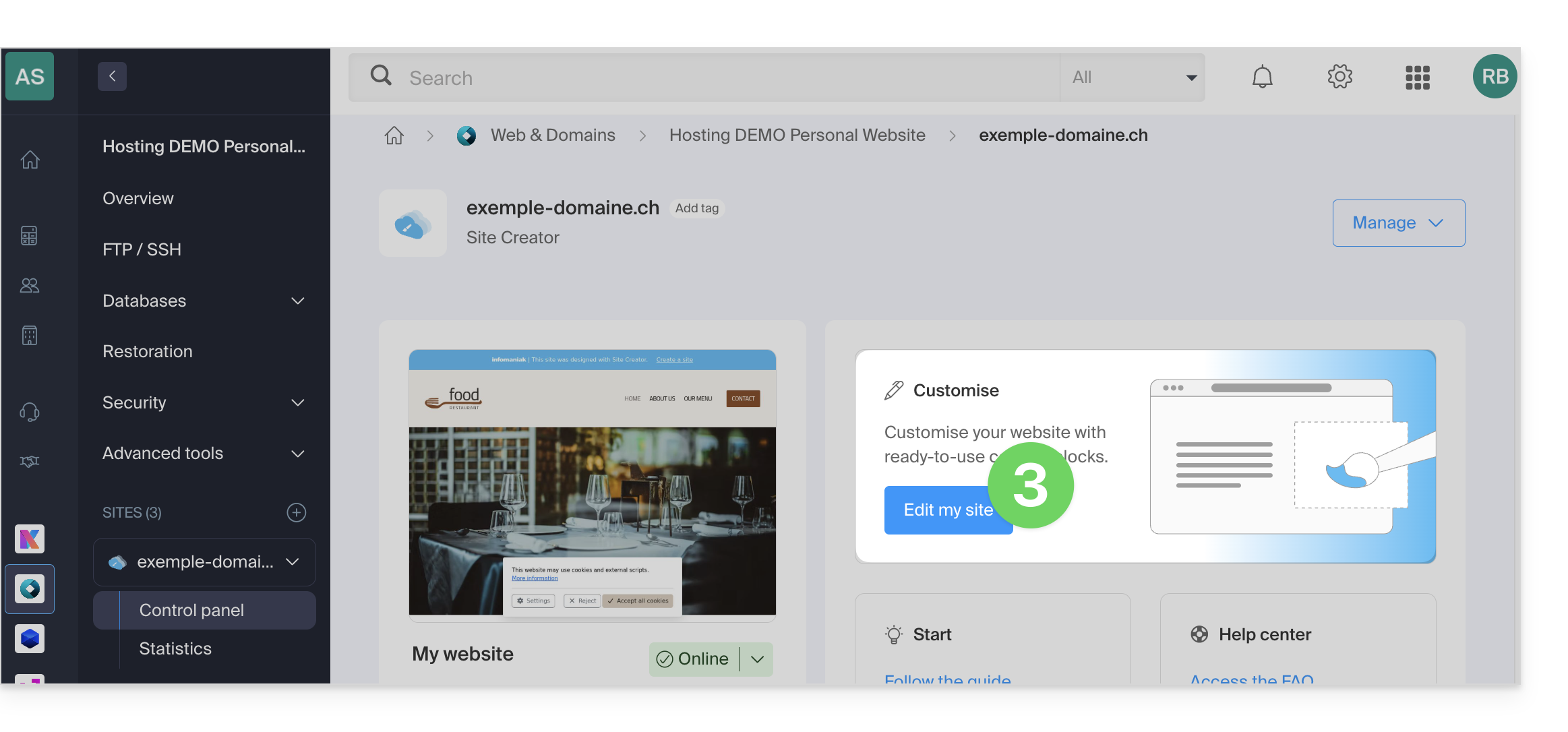
- Click on the button to edit your site:
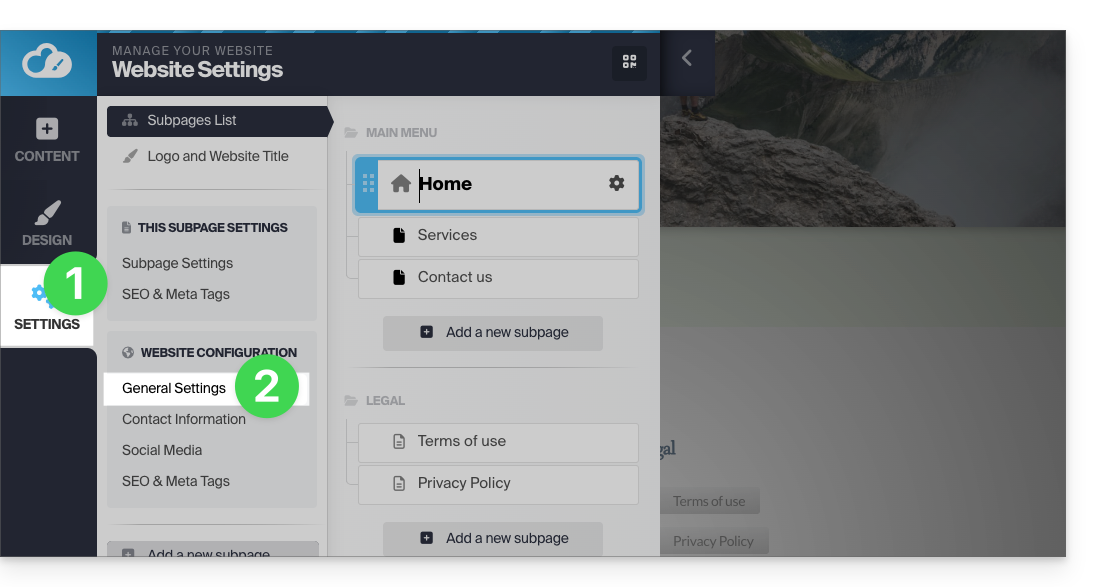
Once in Site Creator, in the left-hand menu:
- Click on Settings.
- Click on General Settings:
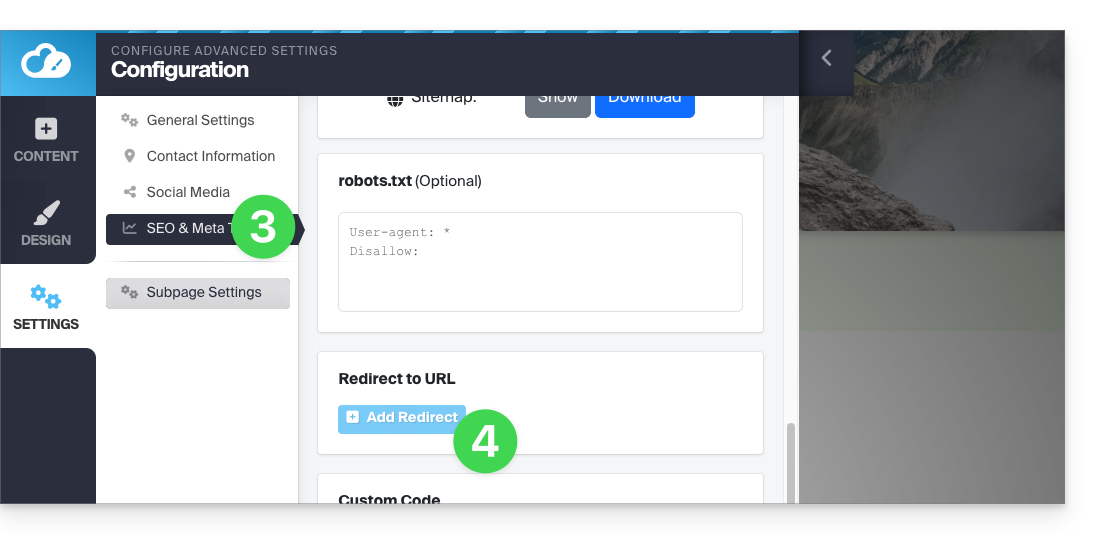
- Click on SEO & Meta Tags.
- Click on Add a redirection:
- Enter the address of the old page (without your site name) under Redirection.
- Enter the address of the new page (or
/to redirect the visitor to the root of your site, i.e., the homepage). - Save using the blue button at the bottom of the page:
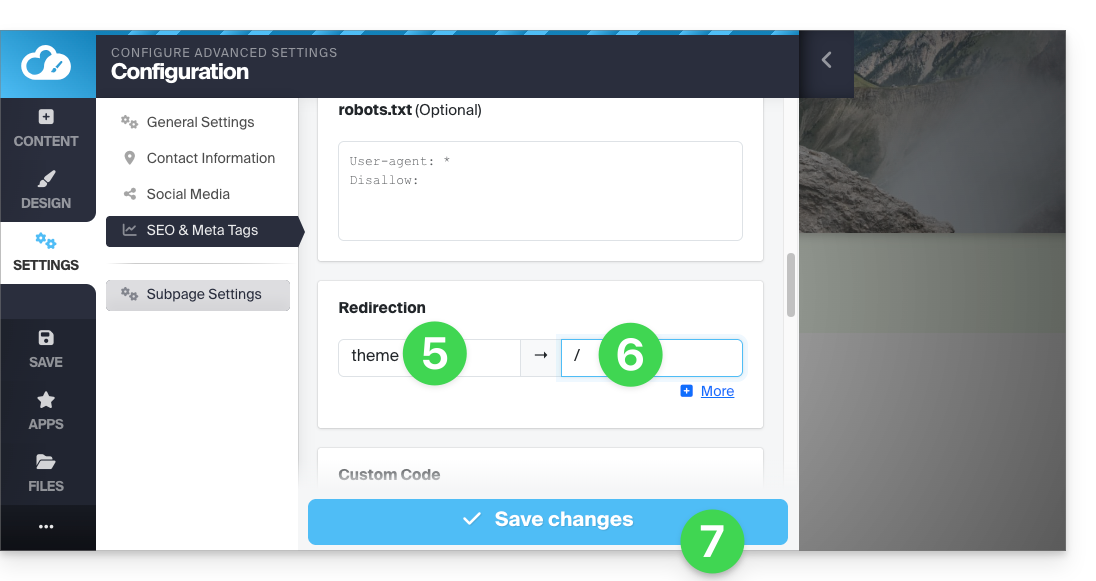
For example:
- Your previous website contained a contact page at the address
domainxyz.com/company/contact.html. - Your contact page is now located at
domainxyz.com/about. - You must therefore enter
company/contact.htmlin the field on the left… - … and
aboutin the field on the right so that visitors who still arrive at the old address (due to outdated search engine indexing or clicking on a bookmark, for example) are automatically redirected to the new page.
An alternative method is to add a new Site Creator page with the name of your old page address, then specify a redirection to the URL of your choice, and make it invisible using the toggle switch located below the redirection field: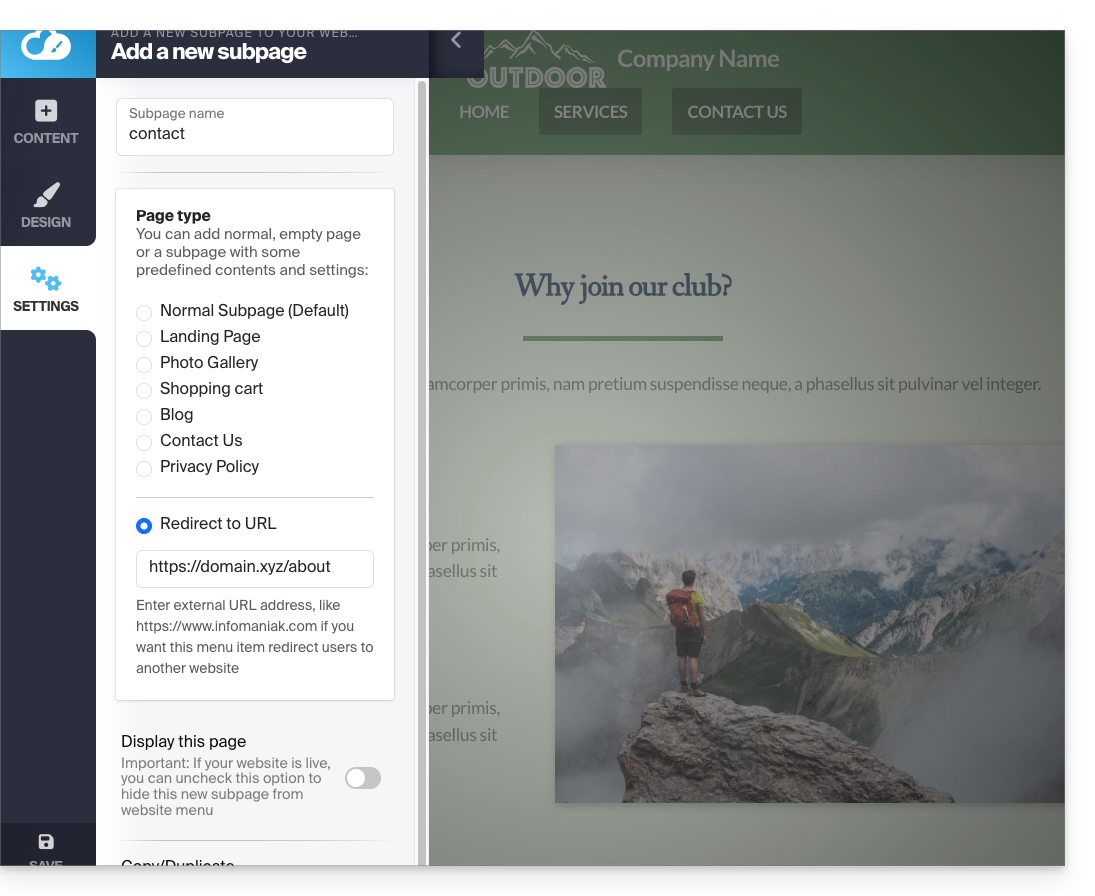
Link to this FAQ: https://faq.infomaniak.com/2875
Has this FAQ been helpful?