Knowledge base
1000 FAQs, 500 tutorials and instructional videos. Here, there are only solutions!
Manage kSuite users
This guide concerns kSuite and the management of users, as well as their different types of access.
Introduction
- Each kSuite includes 1 initial user provided upon subscription; compare the offers by clicking here.
- Each user is entitled to their own email address on the domain name around which your kSuite is based.
- The email address quota depends on the plan and the number of users:
- Standard: 1 user = 2 email addresses (2 = 4, etc.)
- Business: 1 user = 5 email addresses (2 = 10, etc.)
- Enterprise: 1 user = 10 email addresses (2 = 20, etc.)
- You can assign a kSuite email address to a user who is not part of kSuite.
- To get more email addresses, you need to upgrade your plan to increase the number of users. Example:
- If you order a kSuite Business with 5 users, you will have a total quota of 5x5=25 email addresses in your kSuite, which you can use (for any purpose - creating an email address within the kSuite Mail Service is the same as creating one in a Mail Service outside of kSuite).
Add a user to kSuite
Prerequisites
- The quota of users that can be added to kSuite must be sufficient (in this example, you will need to modify the plan beforehand to adjust the number of users):
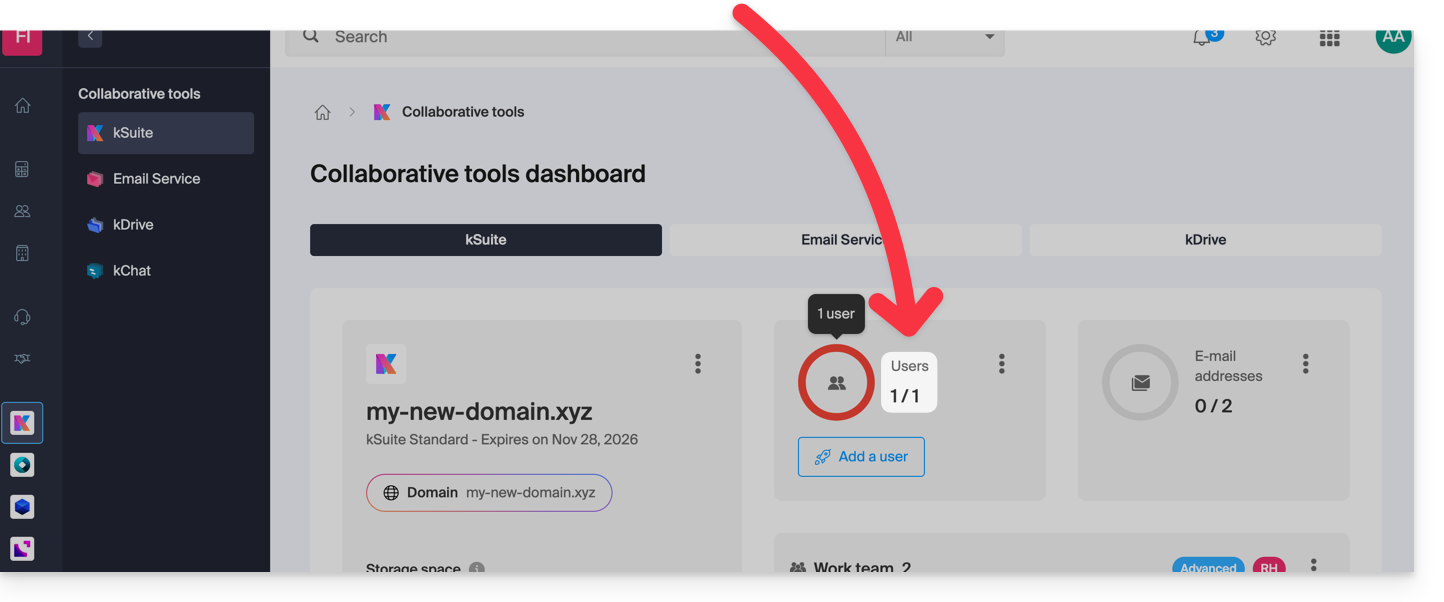
Next:
- Click here to access your product management interface in the Infomaniak Manager (need help?).
- Click on the action menu ⋮ in the Users section.
- Click on Add a user:
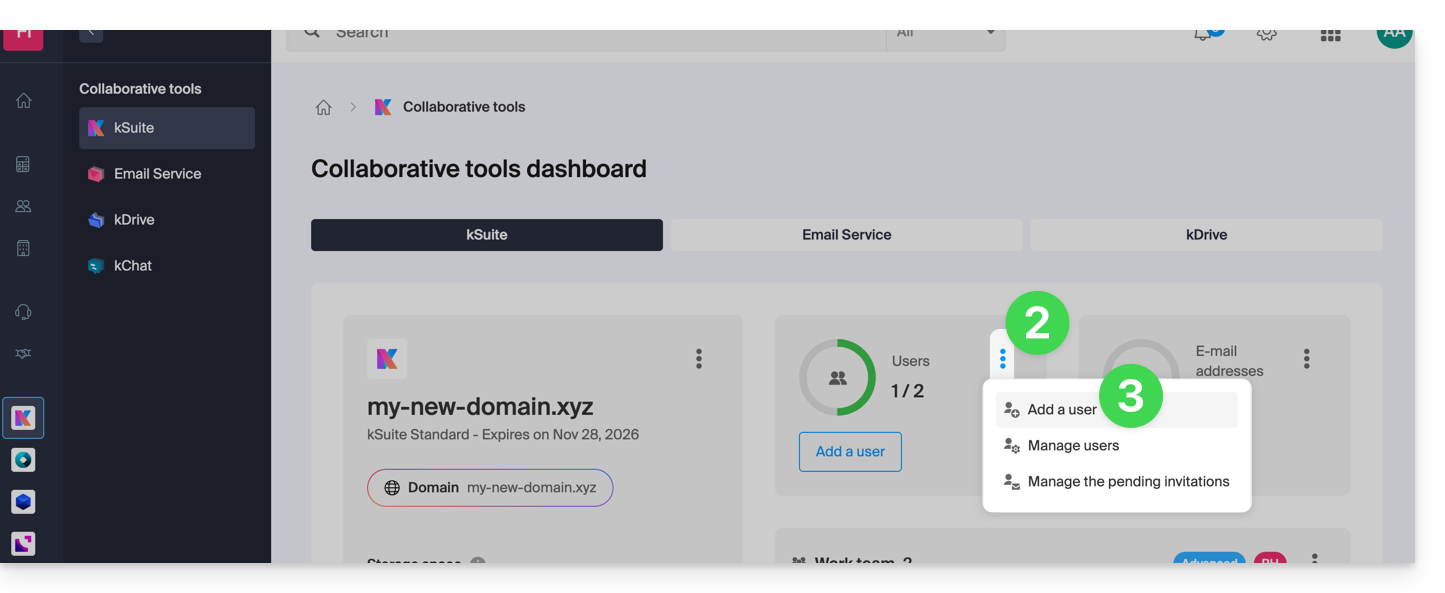
- Two options are available:
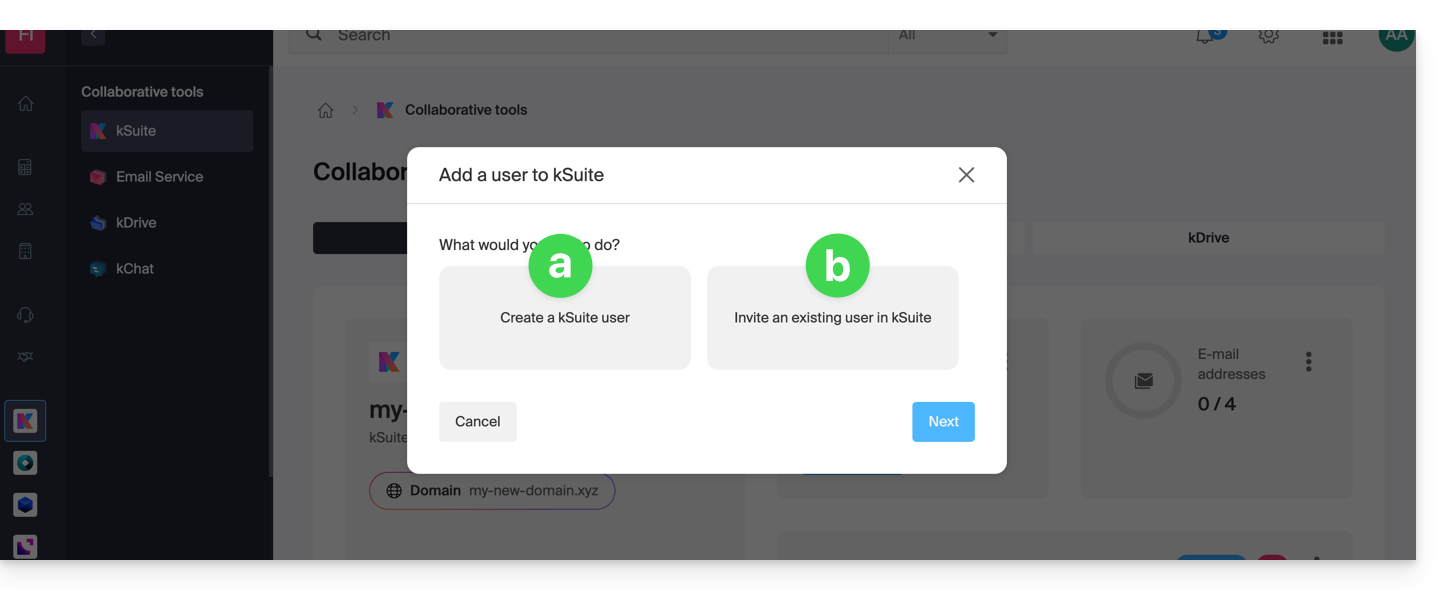
- Add a user who has no prior connection to the Organization where kSuite is located: you will need to configure and generate an invitation, specifying whether the user will receive an email address and, if so, whether they will need to log in with it, etc.
- Add a user who is already part of the Organization where kSuite is located: this is the same process as going to the profile of the user in question within your Organization and adding them:
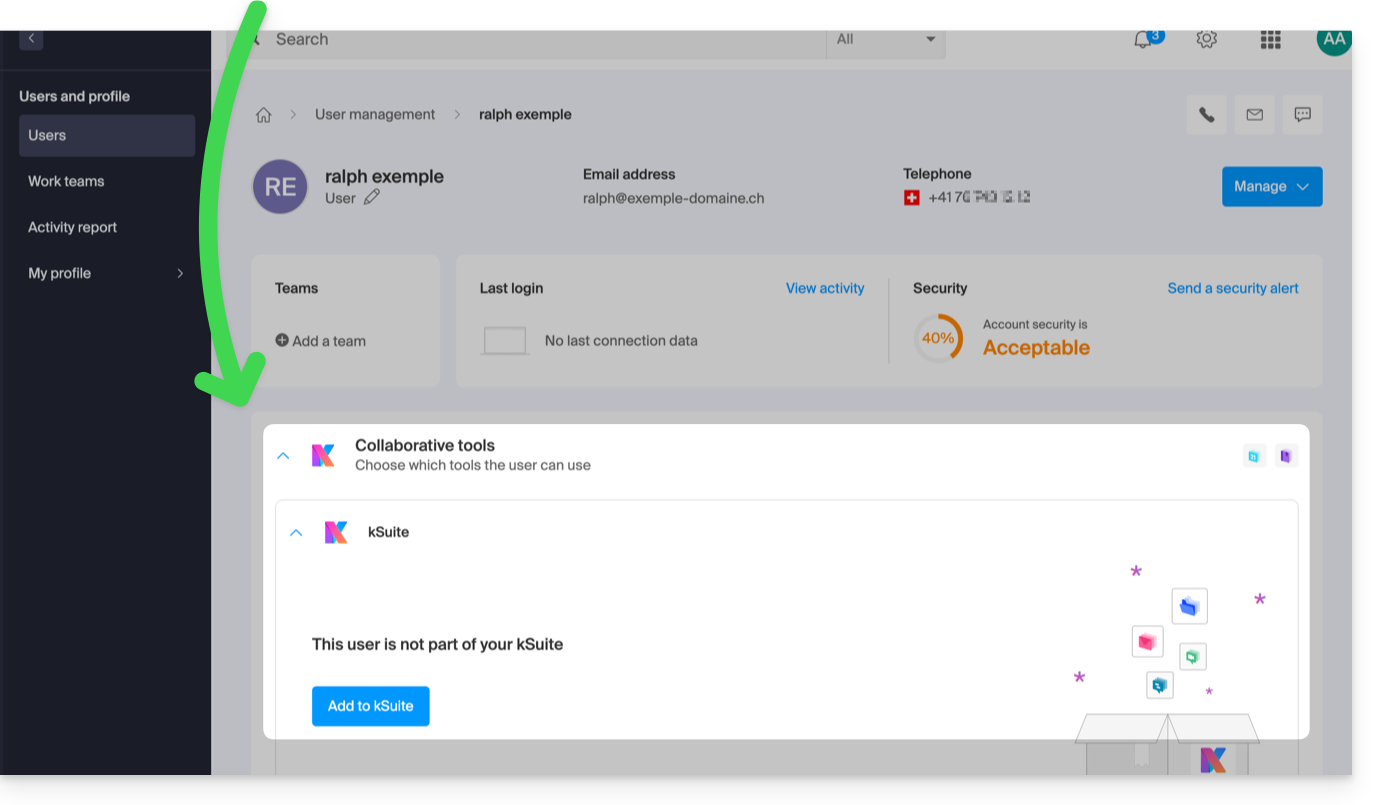
- In both cases, follow the wizard by carefully reading the instructions, including the detailed features of each role that can be assigned to the user:
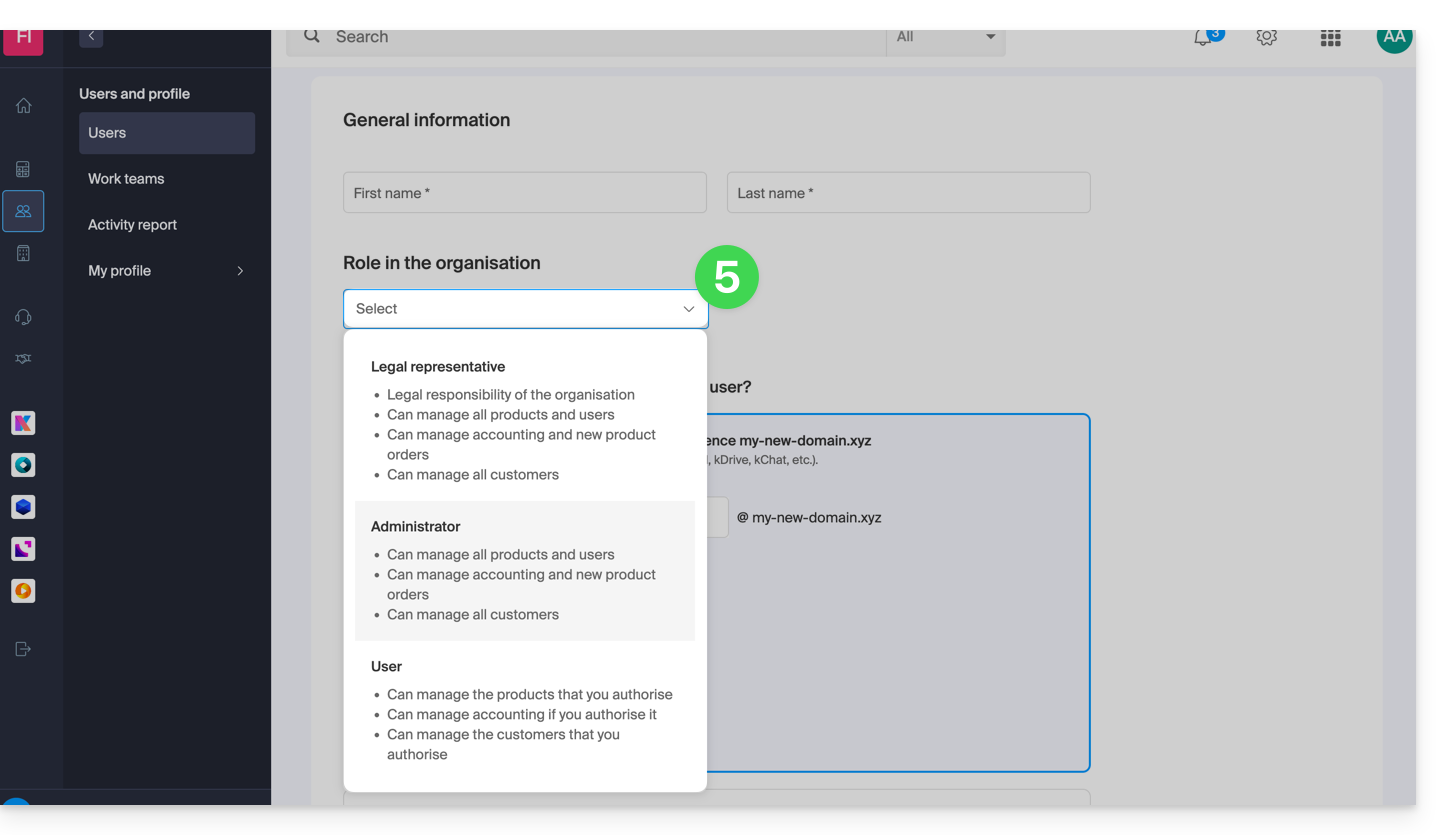
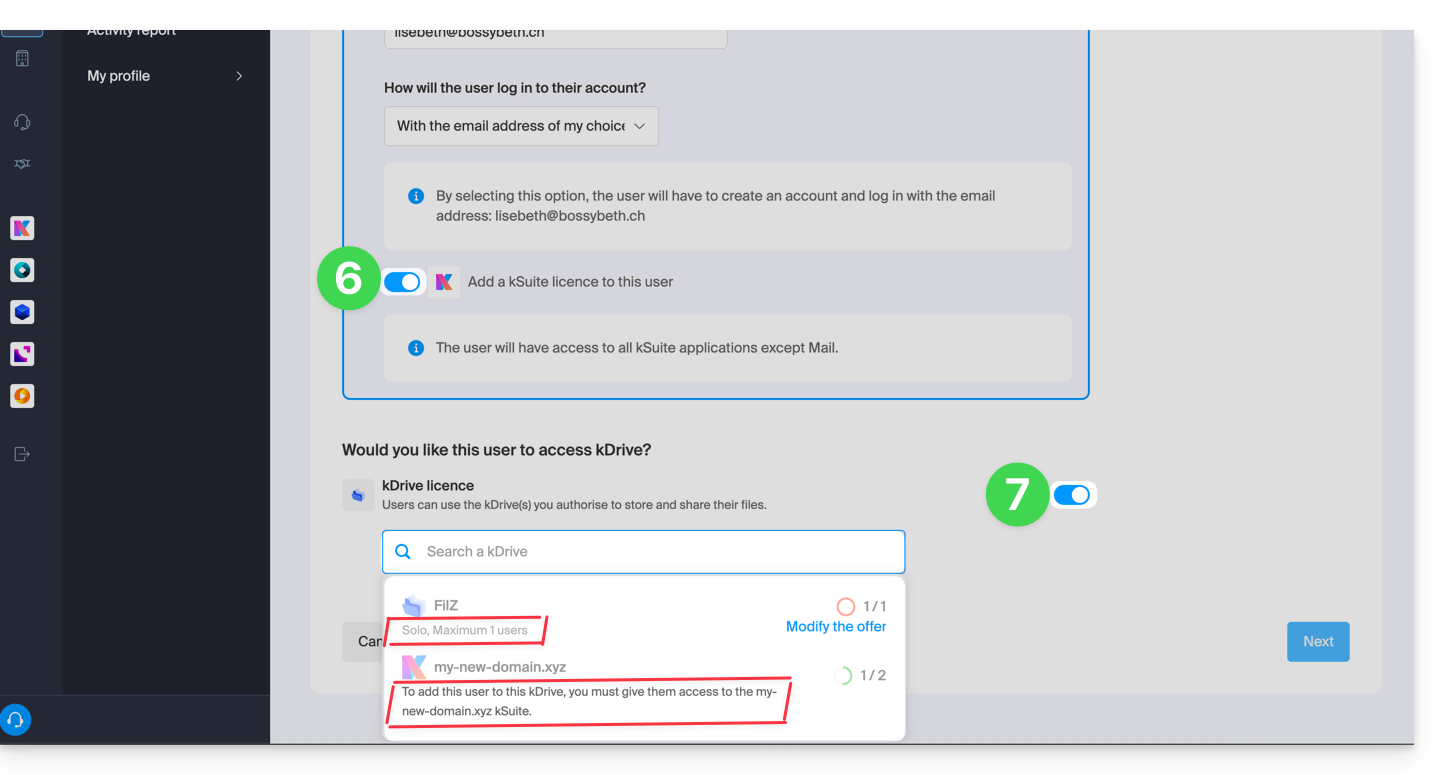
- Activate a kSuite license so that the new user can access kSuite.
- Enable access to kDrive if necessary (provided that the kDrive is multi-user and belongs to the kSuite to which you are adding the user):
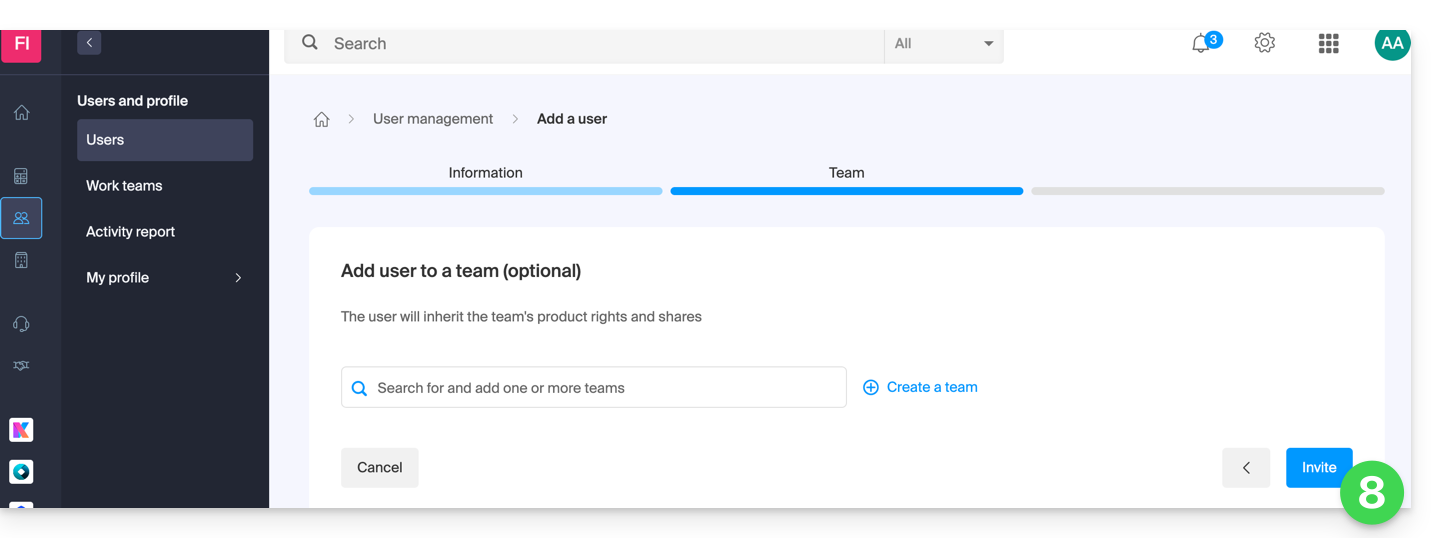
- The last step allows you to manage the Groups section if you wish; finish by clicking the button to generate the invitation:
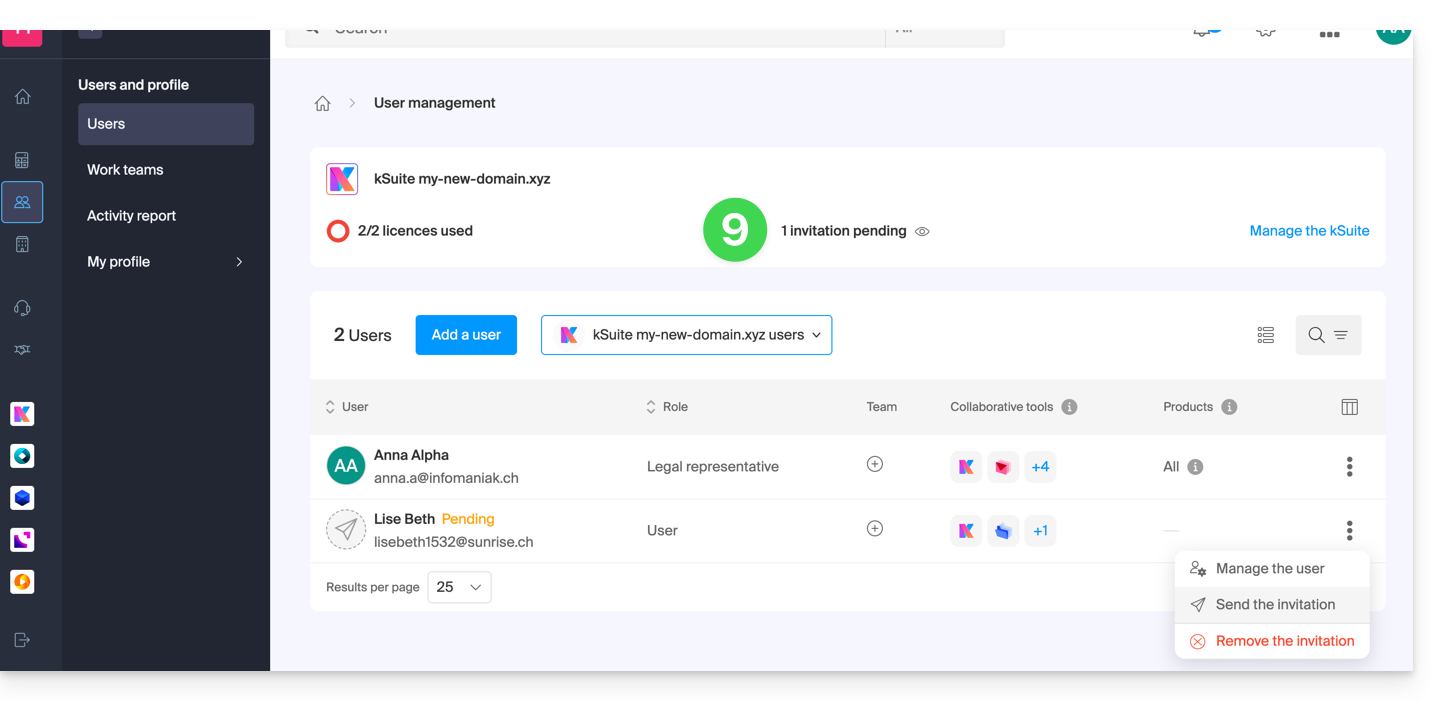
- The user, whether they are already part of the Organization or not, receives an invitation at their email address inviting them to join kSuite; in the meantime, they are listed as a pending user, and you can resend the invitation to them at any time:
kChat and kDrive Examples
- Refer to this other guide to add an external user to the Organization so that they can use kChat and kDrive without the products themselves being visible in the Manager.directly.
- Refer to this other guide for examples of adding users to kDrive / kSuite.
It is not possible to add a user who can only access kDrive or kChat separately. In this case, it would be better to use, for example, the sharing features so that third parties can temporarily join kDrive.
Link to this FAQ: https://faq.infomaniak.com/879
Has this FAQ been helpful?