Knowledge base
1000 FAQs, 500 tutorials and instructional videos. Here, there are only solutions!
Manage Emojis in Newsletters
This guide explains how to freely integrate emojis/emoticons/smileys into the title and content of an Infomaniak Newsletter.
Insert an emoticon in the title
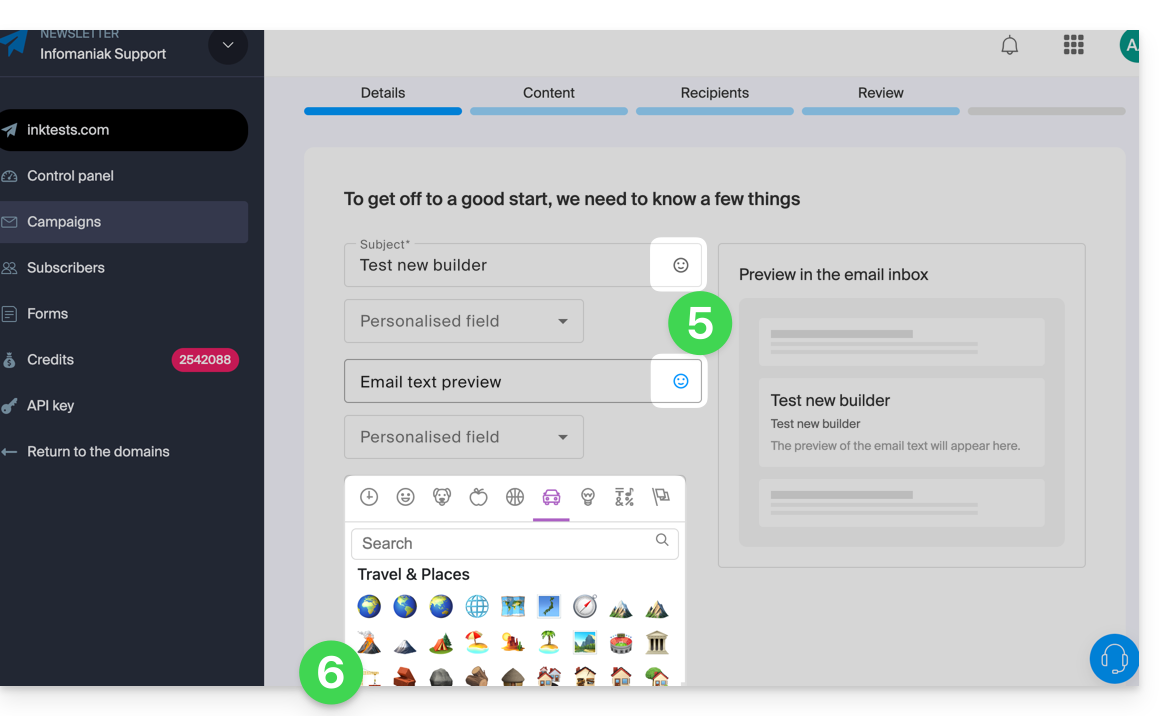
To choose an emoticon for your newsletter title (and/or its preview text):
- Click here to access the management interface for your product in the Infomaniak Manager (need help?).
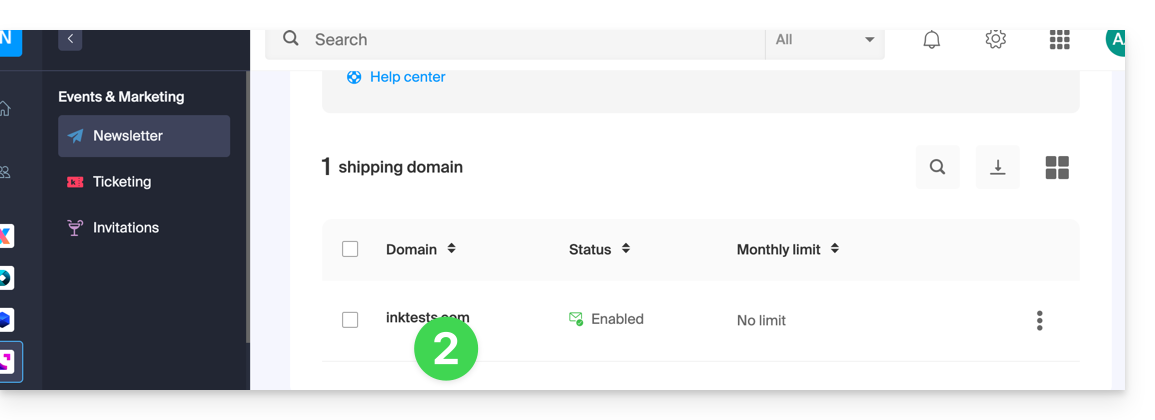
- Click on the domain name in question in the table that appears:
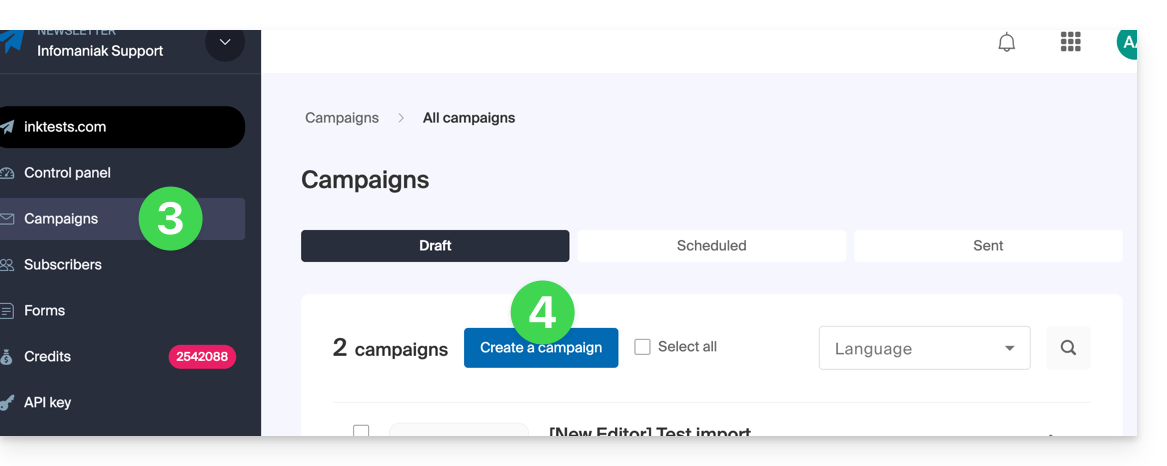
- Click on Campaigns in the left-hand menu.
- Click on Create a campaign:
- Click on the Smiley icon in the relevant field to open the emoji panel.
- Click on the emoji to insert:
Insert an emoji in the email body
You can paste any Unicode character or emoji that you have copied from elsewhere into your text: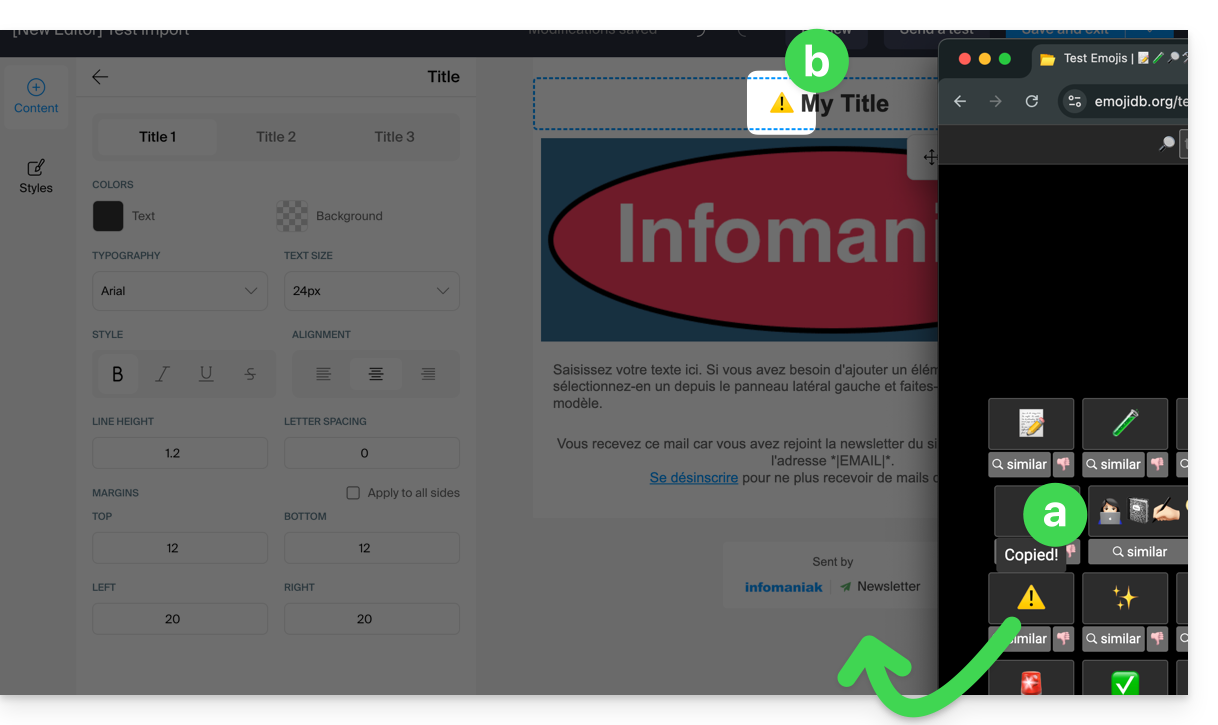
… or display emojis
… on macOS
Press the CTRL + CMD ⌘ + SPACE keys
… on Windows
Press the WINDOWS LOGO + PERIOD (.) keys
Alternative method:
- Right-click on an empty area of the taskbar.
- In the menu, click on Show the on-screen keyboard.
- An keyboard icon will then appear in the taskbar at the bottom right of your screen.
- Click this icon to display the virtual keyboard.
- Click the key with a smiley face in the bottom left corner of the keyboard.
- Use the various Windows emojis.
Link to this FAQ: https://faq.infomaniak.com/869
Has this FAQ been helpful?