Knowledge base
1000 FAQs, 500 tutorials and instructional videos. Here, there are only solutions!
Transfer your domain name to Infomaniak
This guide details the entire procedure for transferring a domain name from your current provider to Infomaniak.
Introduction
- Validity and registration date: ensure that the domain was created or transferred at least 60 days ago and that the email addresses associated with the owner's profile are valid.
- Expiration: during a transfer, no already paid period is lost; the domain's expiration date will be automatically extended by one year.
- DNS Backup: If you plan to keep some services (Web, Mail, etc.) with another provider after the transfer, note your current DNS records (A, MX, TXT, CNAME) beforehand.
- External vs. Internal Transfer: This involves having Infomaniak manage your domain instead of your current registrar (this is not a transfer of ownership between two accounts with the same provider).
- Terminology: The terms
EPP,AuthCode,AuthInfo, "transfer code", and "authorization code" all refer to the same alphanumeric key used to validate the transfer of a domain between registrars.
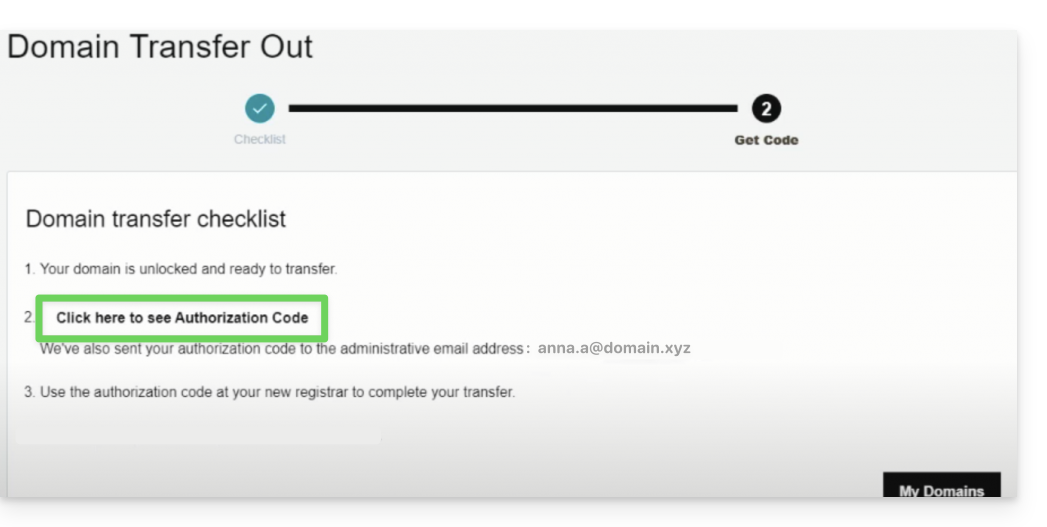
1. Obtain the authorization code (AuthCode)
Log in to your current provider's customer account to retrieve the authorization code. Also, remember to disable transfer protection if it is enabled.
2. Start the transfer with Infomaniak
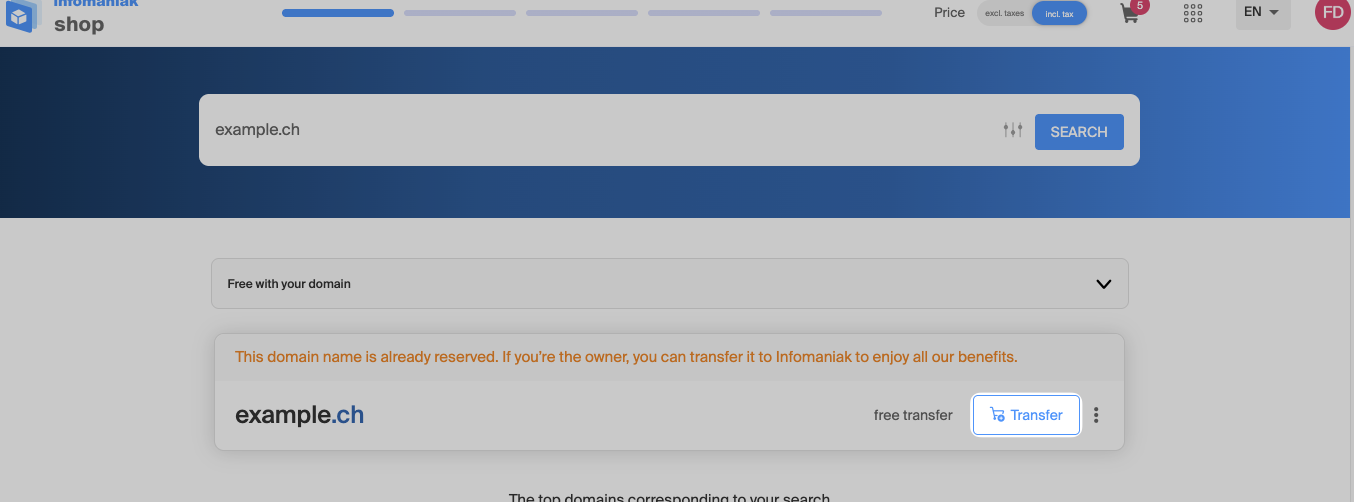
Go to the Infomaniak domain transfer page, find your domain name, and then click the button to start the process.
3. Configure the options and DNS management
Enter the details of the owner. At this stage, configure the toggle switch related to DNS management:
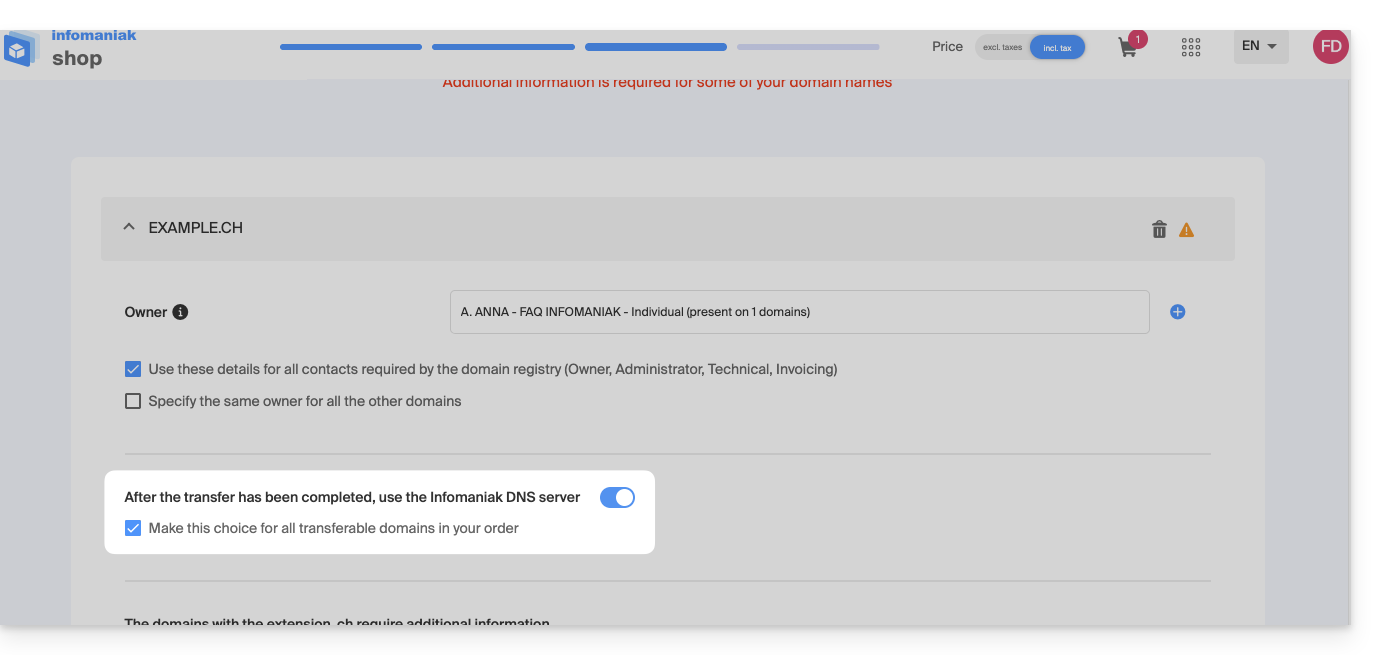
Leave the switch activated if…
- All your services (hosting, emails) are already with Infomaniak (or if you are already using the DNS servers
ns11.infomaniak.comandns12.infomaniak.com). - No product or service is linked to this domain name.
Disable the button if…
- Some services (website, email account) remain hosted elsewhere than with Infomaniak. In this case, be sure to keep your current DNS settings and verify beforehand that your DNS zone is still available with your previous registrar.
Note: If you are unsure about your current DNS settings, perform a search on the Infomaniak WHOIS service.
4. Enter the authorization code
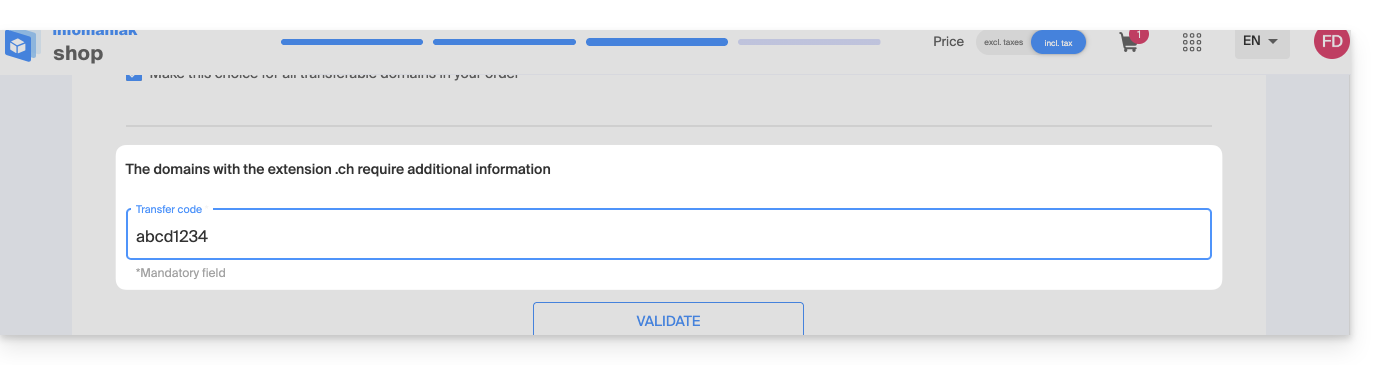
Paste the AuthCode / EPP code retrieved in step 1 into the field provided, validate the code, and then click Next.
5. Adjust the order and confirm
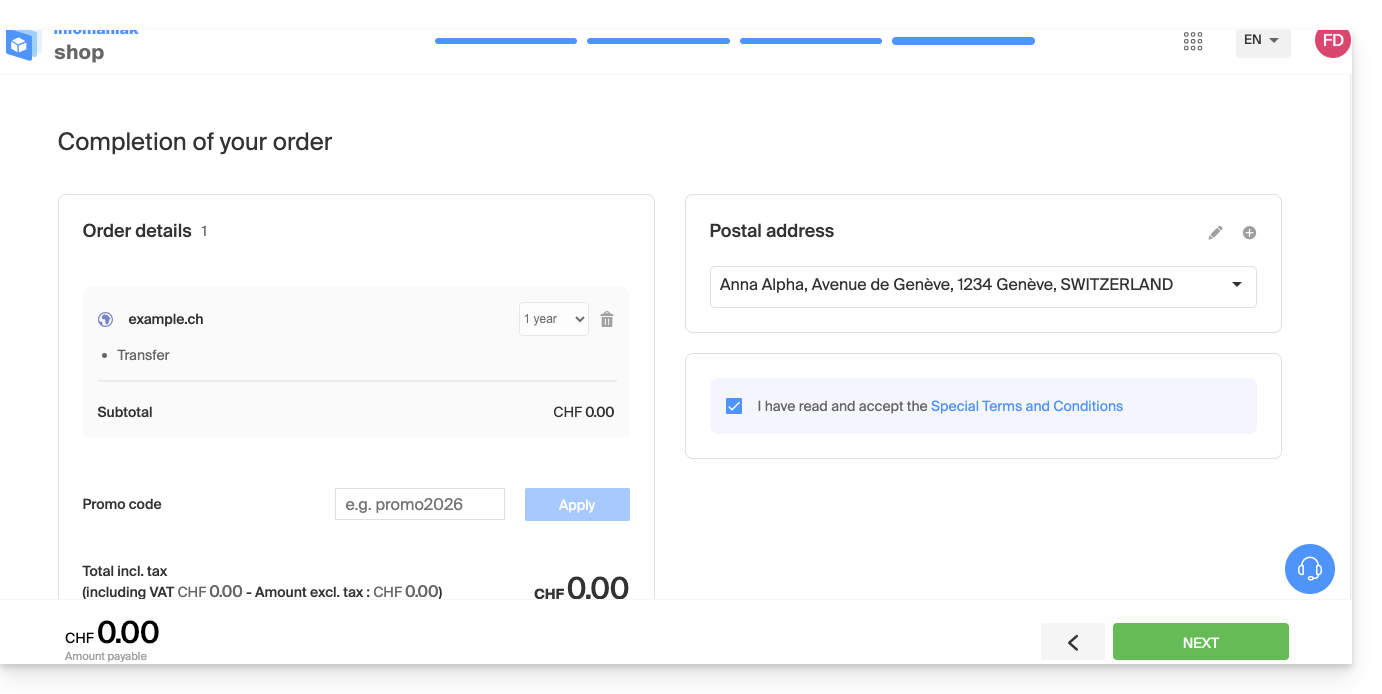
This final step allows you to adjust your renewal preferences and pay any applicable transfer fees (depending on the domain extension).
Accept the terms and conditions, then click Next to complete the order.
6. Monitor the transfer from the Manager
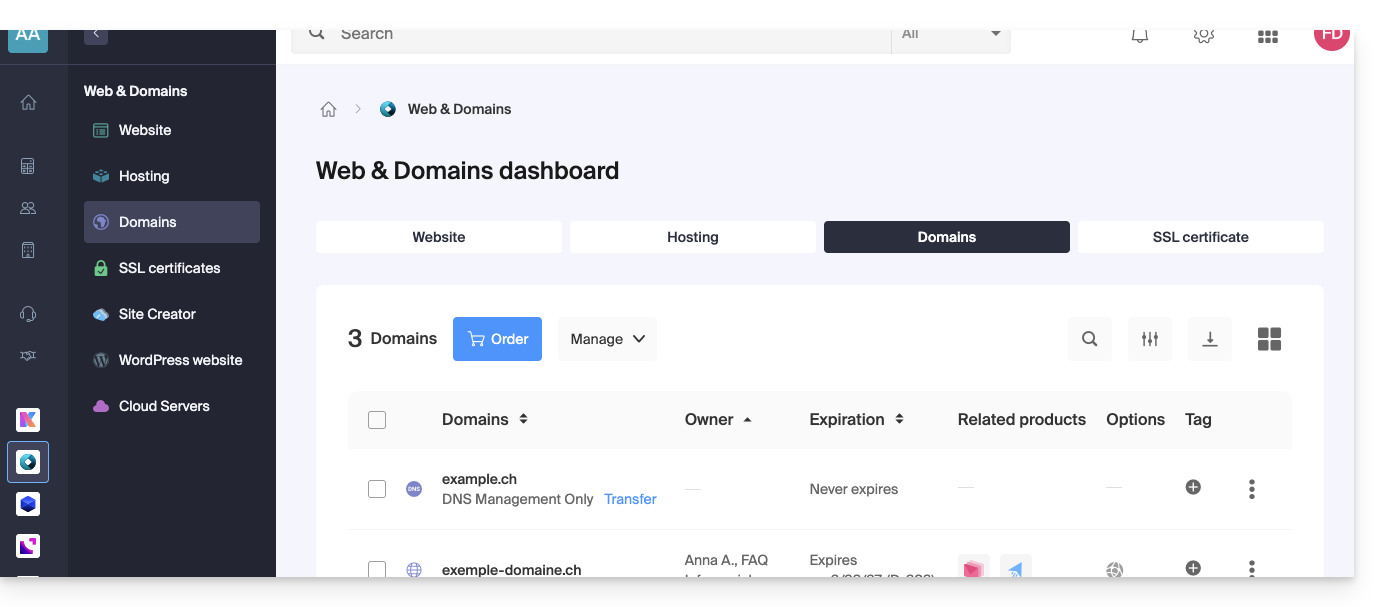
Access your Infomaniak Manager to monitor the transfer progress. If any issues or blockages occur, an automated email will provide instructions on how to proceed.
Batch transfer
To transfer multiple domains simultaneously:
- Use the Infomaniak batch transfer assistant.
- Enter the list of domains and their respective authorization codes, or import a file in
.csvor.xlsxformat (2 columns, up to 300 lines).
Timelines and DNS propagation
- Transfer duration:
- Variable depending on the extension's registry (e.g., up to 8 days for a
.FRdomain, as defined by Afnic) and the responsiveness of your previous registrar in releasing the domain.- See details by extension on our pricing page.
- Variable depending on the extension's registry (e.g., up to 8 days for a
- DNS propagation:
- Any DNS zone changes require a propagation time of up to 24 hours.
- During the transfer:
- The DNS zone cannot be modified while the transfer procedure is in progress.
To also transfer your web hosting or email accounts, consult the service migration guide or discover the assisted migration service. If needed, Infomaniak support is at your disposal.
Link to this FAQ: https://faq.infomaniak.com/447
Has this FAQ been helpful?