Knowledge base
1000 FAQs, 500 tutorials and instructional videos. Here, there are only solutions!
Import data from another one of my kDrive accounts
Update 11/12/2026
This guide explains how to import (once only) data (files, folders, etc.) from another kDrive to kDrive, provided you also have access to that other kDrive with your current login credentials.
Introduction
- Other import guides available:
- Some data will not be imported:
- Data that has been shared with you (only data that you actually own will be imported).
- A second import will re-import all the data (to a different directory in kDrive).
- This is not a differential synchronization, and there is no duplicate management.
Import content from another kDrive
Prerequisites
- You must have a kDrive or kSuite plan.
- Have sufficient permissions within kDrive (❓: help) or kSuite (❓: help).
- Do not change your password until the import is complete!
To import your data:
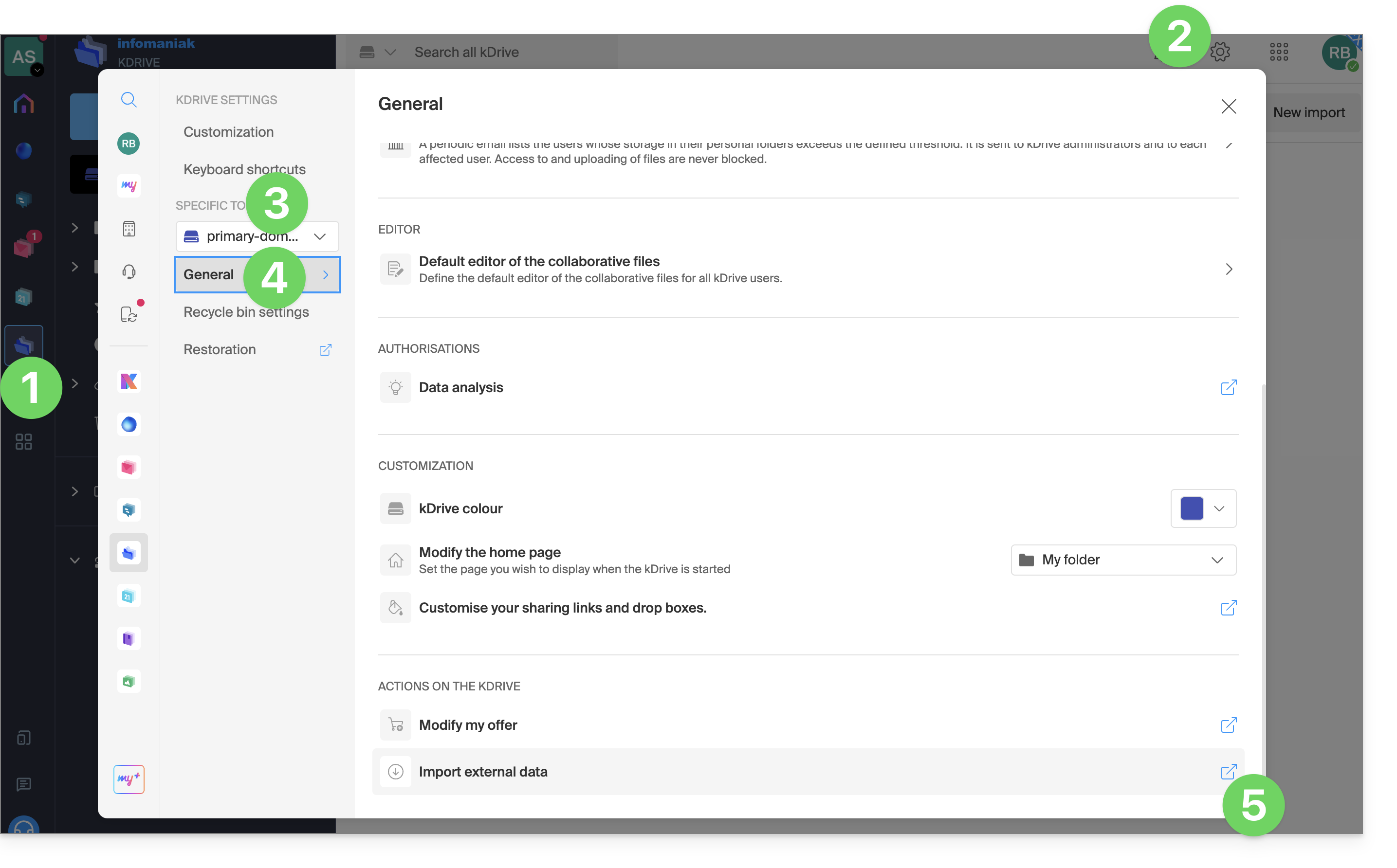
- Click here to access kDrive in your Infomaniak kSuite (❓: help).
- Click on Settings in the top right corner.
- Check or select the relevant kDrive from the drop-down menu in the left-hand menu.
- Click on General in the left-hand menu.
- Click on Import external data:
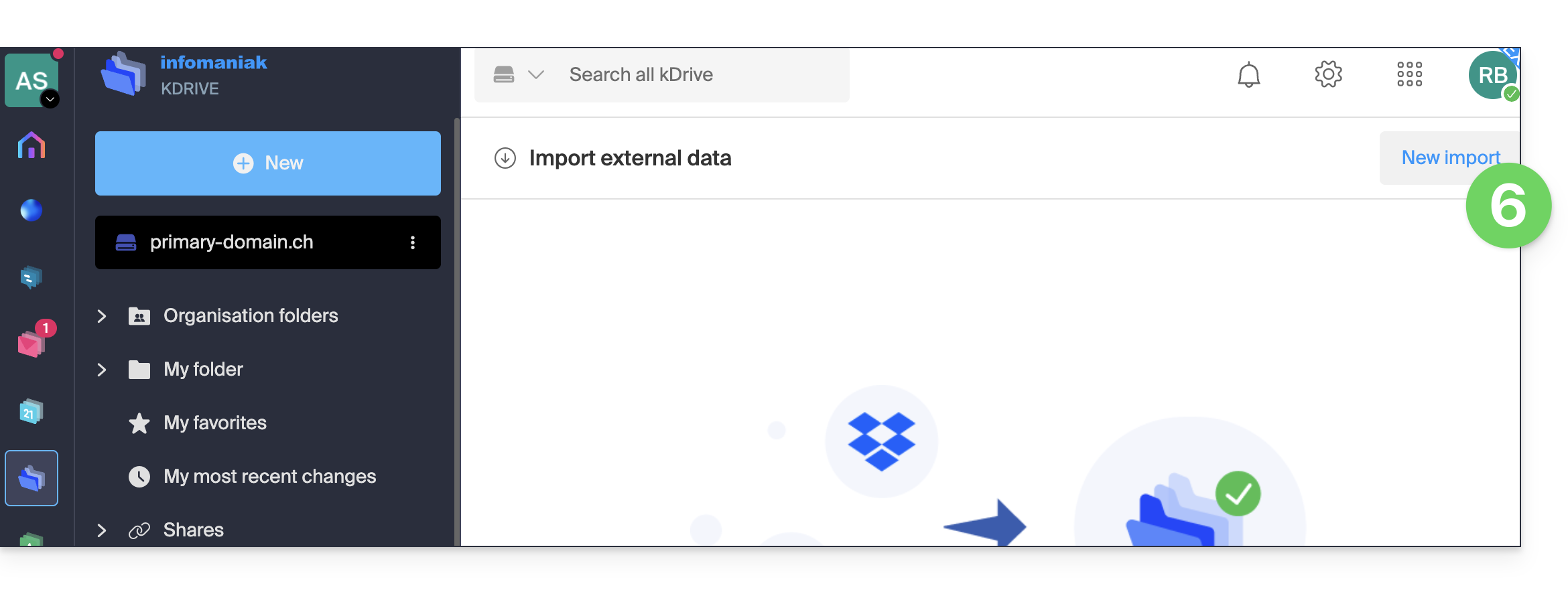
- Click on Start or New Import at the top:
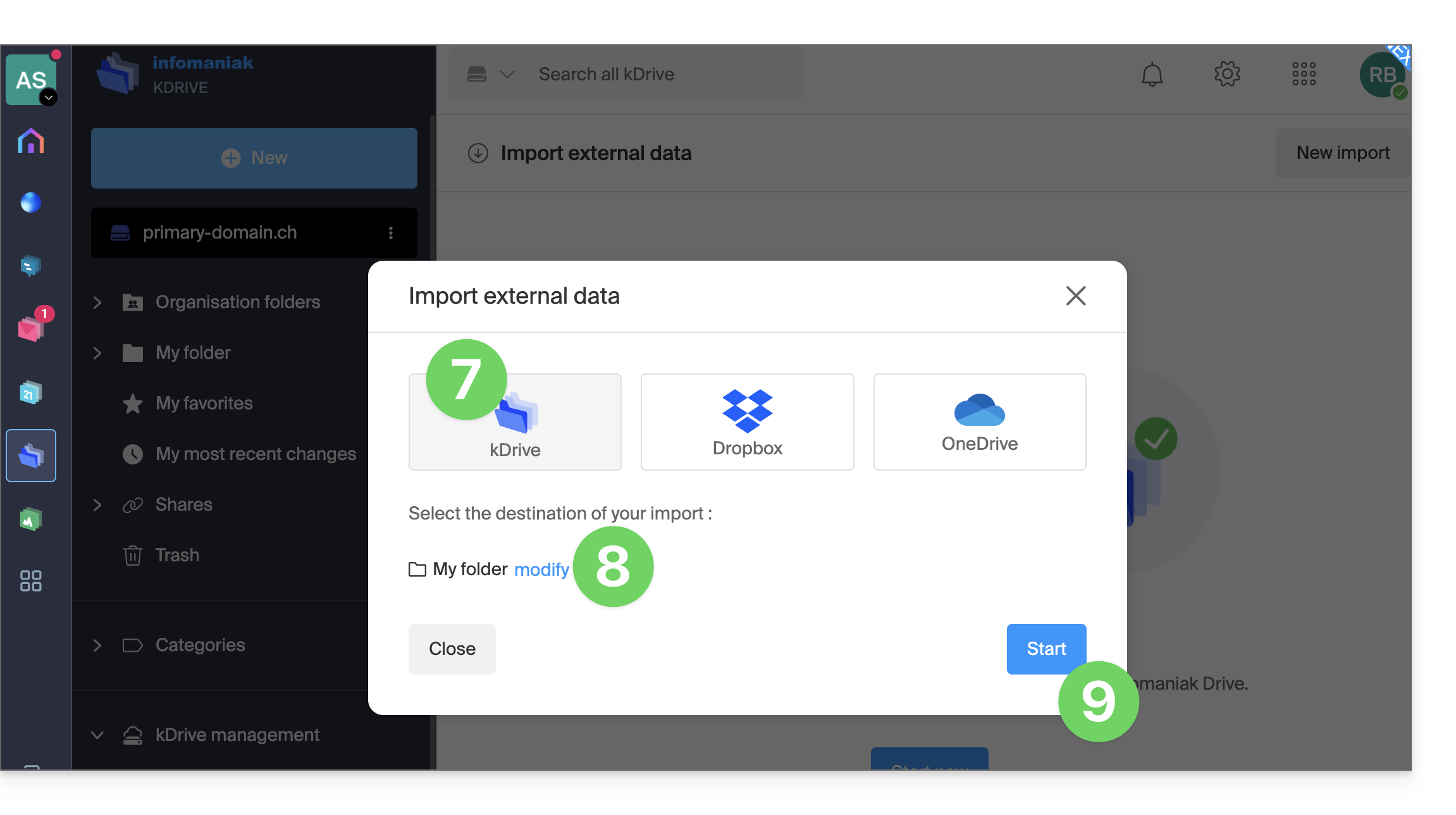
- Choose the service in question.
- Choose the location where the imported files will be stored.
- Click the Start button:
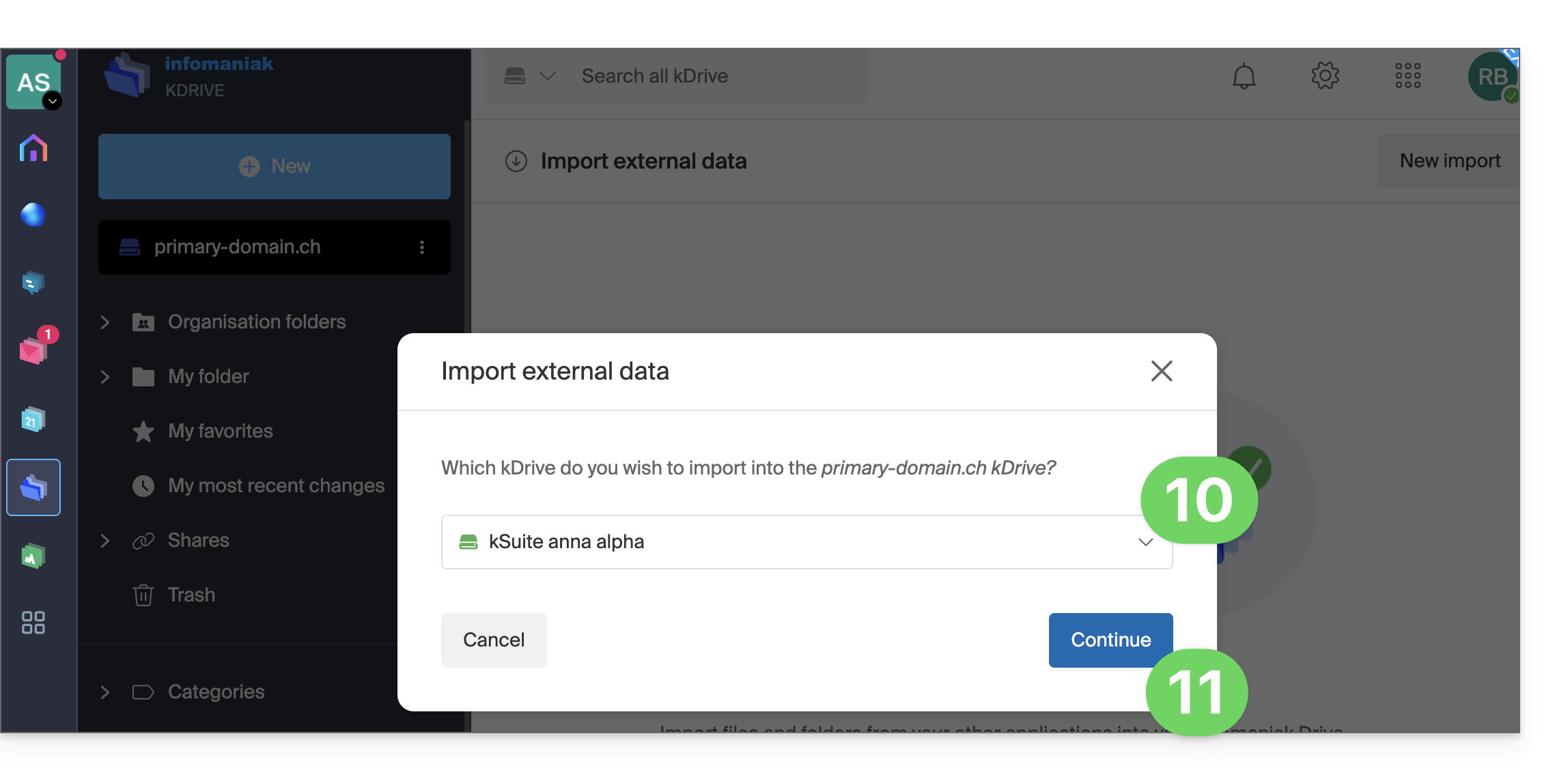
- Choose one of the kDrive folders that your user has access to.
- Click the blue Continue button to start the copy process:
- Please wait while the data is being imported.
Manage the ongoing import
To track ongoing imports, return to the page mentioned in point 6 above at any time.
To stop an ongoing import, click on the action menu to the right of the import listed on the page and choose to cancel (in the event of a voluntary interruption, a report is sent to the administrator by email).
Be sure to check your imported data immediately after the operation..
Link to this FAQ: https://faq.infomaniak.com/2940
Has this FAQ been helpful?