Knowledge base
1000 FAQs, 500 tutorials and instructional videos. Here, there are only solutions!
Broadcast a video stream with OBS Studio
Update 10/06/2026
This guide details the steps required to configure OBS Studio to broadcast a live stream to the Infomaniak video streaming platform.
Introduction
- OBS Studio is a free, open-source, cross-platform software widely used for video recording and live streaming.
- Thanks to its flexibility and numerous configuration options, it allows you to easily manage audio and video sources, scenes, and advanced streaming settings.
- It does not have an official mobile version, but third-party applications allow you to stream from a smartphone or use it in conjunction with OBS on a computer.
Configure OBS Studio
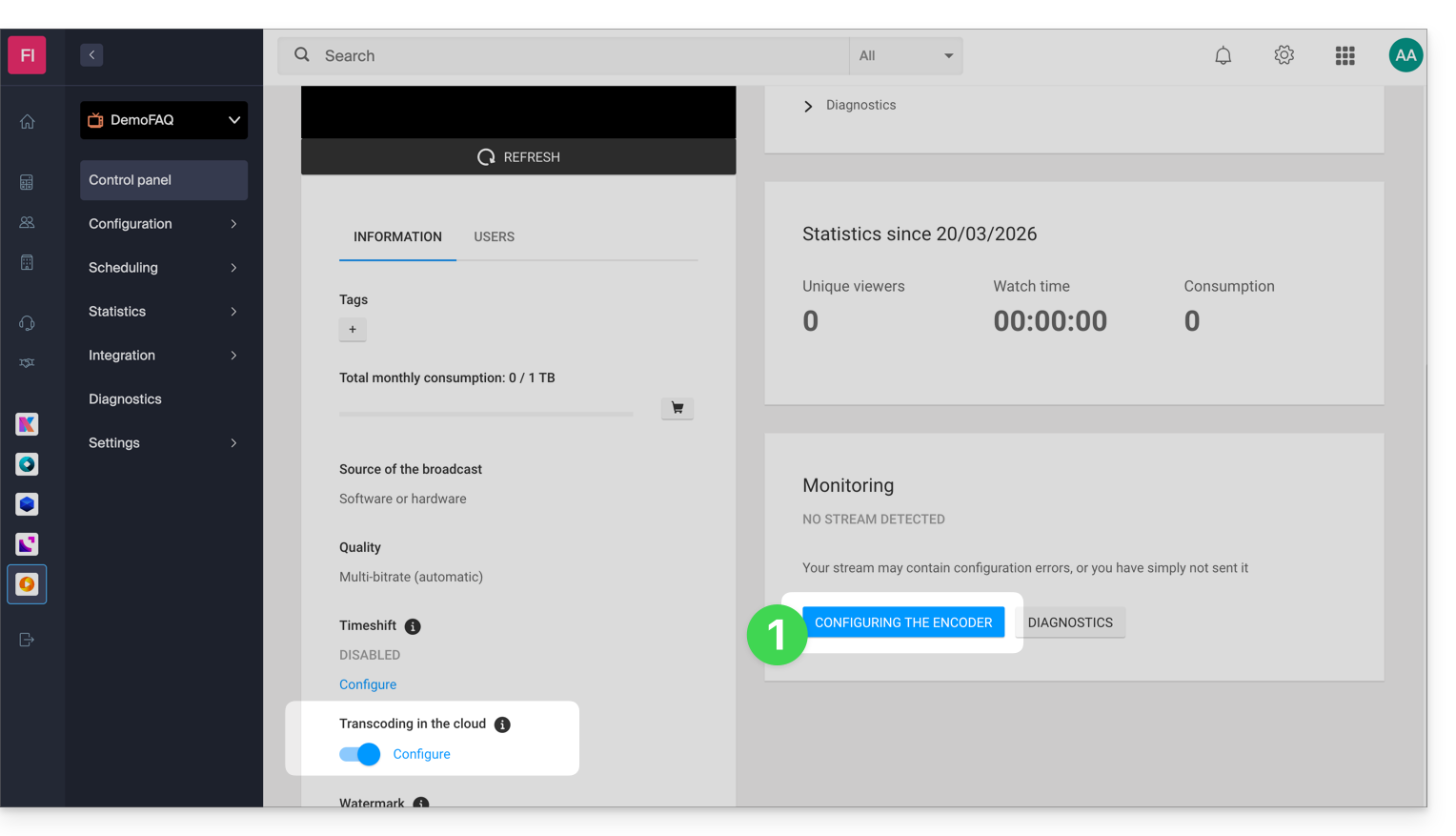
On the Infomaniak side, you have a stream and have enabled the cloud transcoding option.
- Click the button to access your broadcast settings:
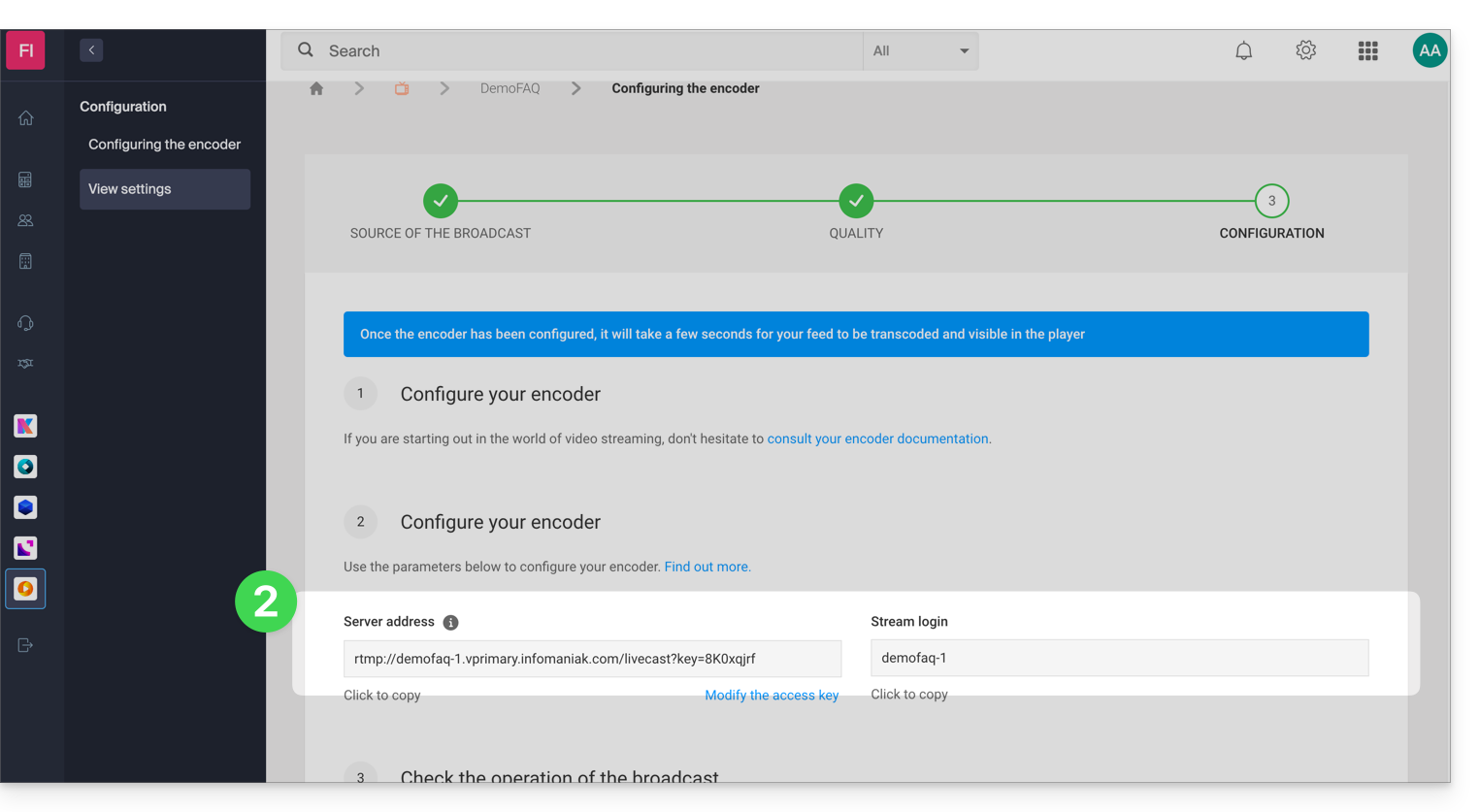
- Copy the login information:
- Paste this information into the custom settings of your OBS stream, as shown in the example below (
Stream login=Stream key):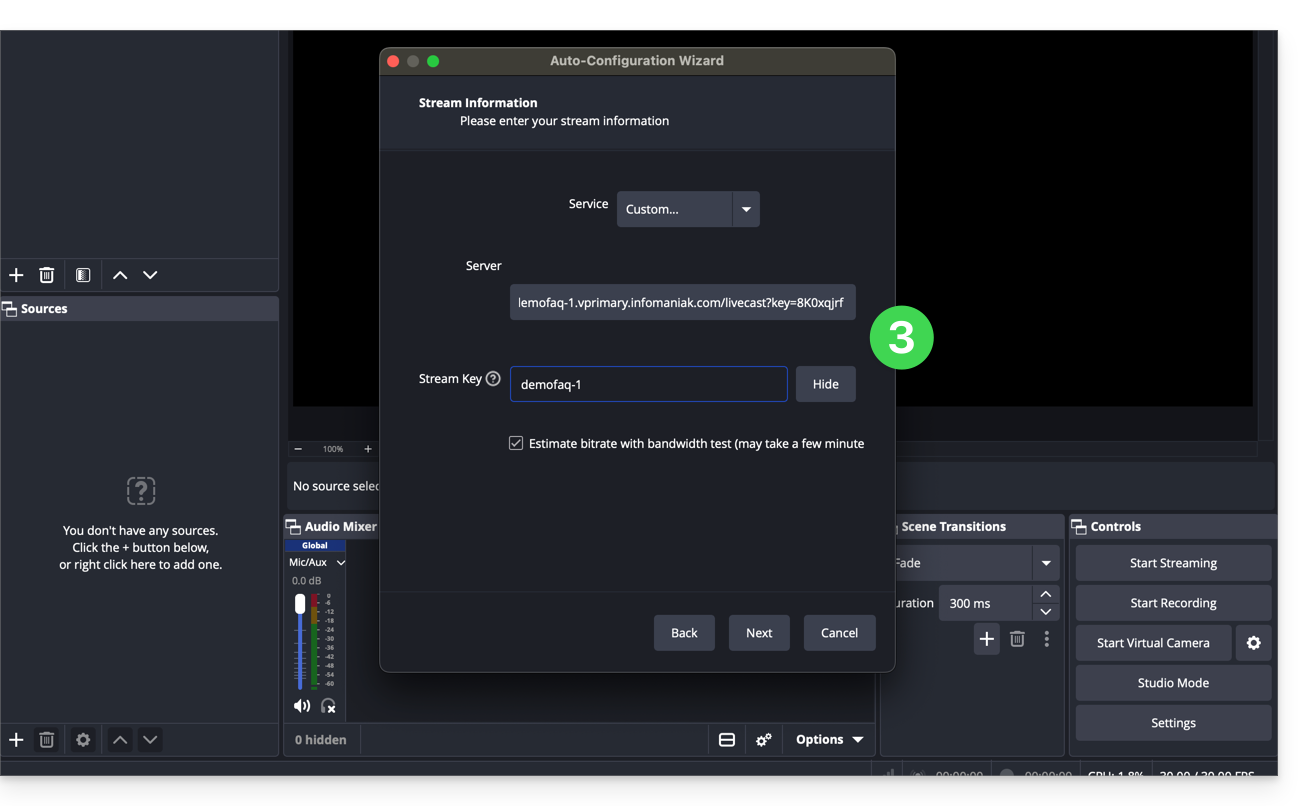
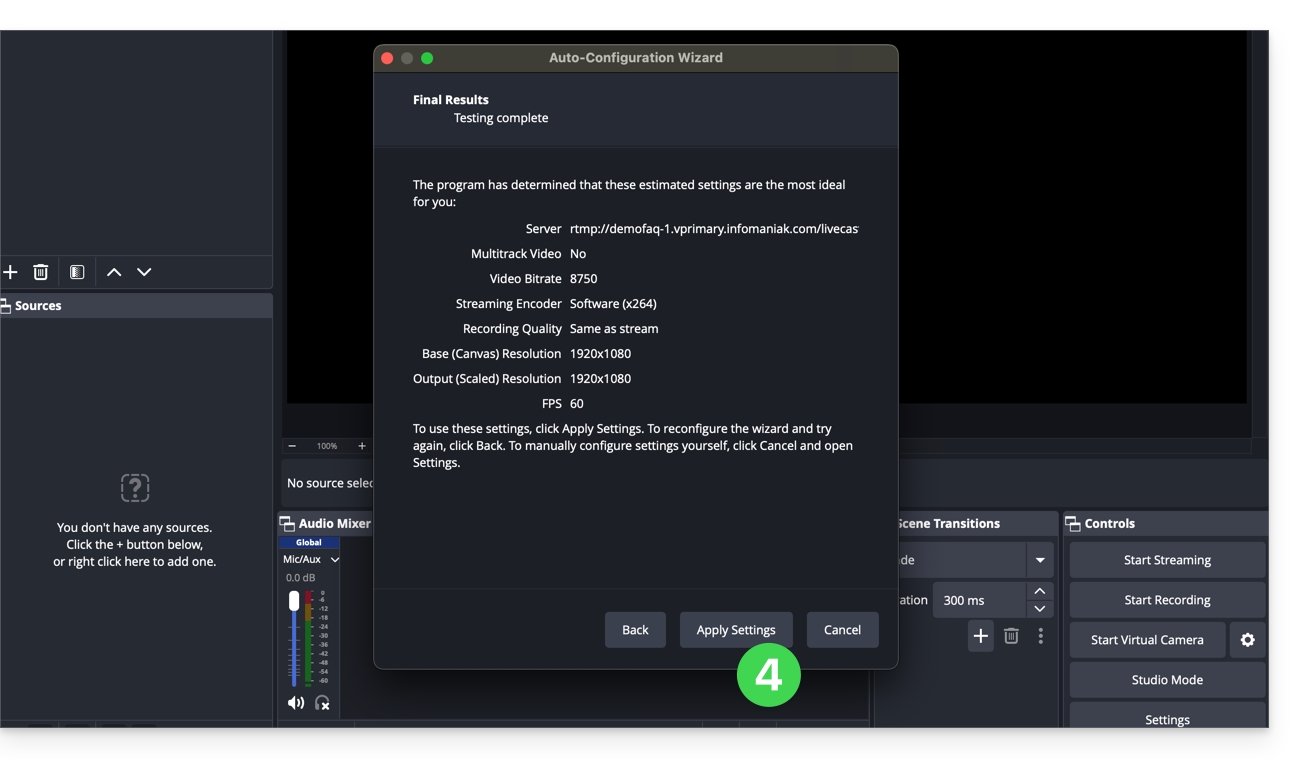
- Validate the distribution settings:
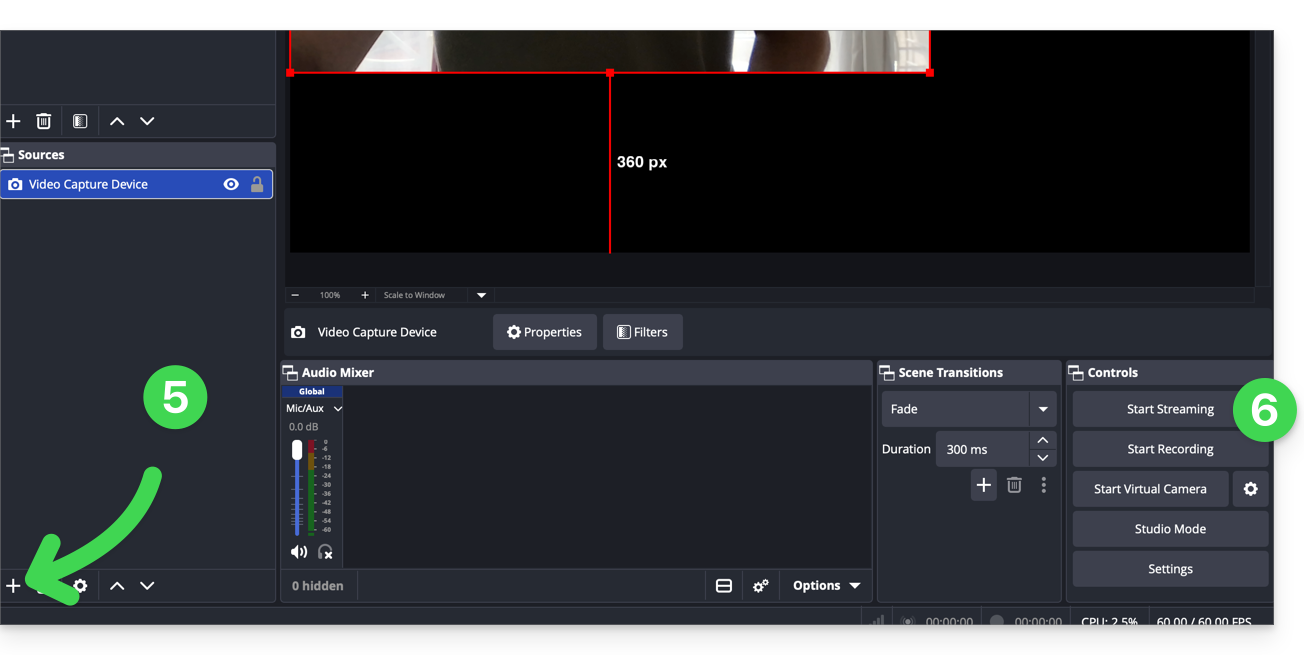
- Then, add a distribution source.
- Click on Start Streaming:
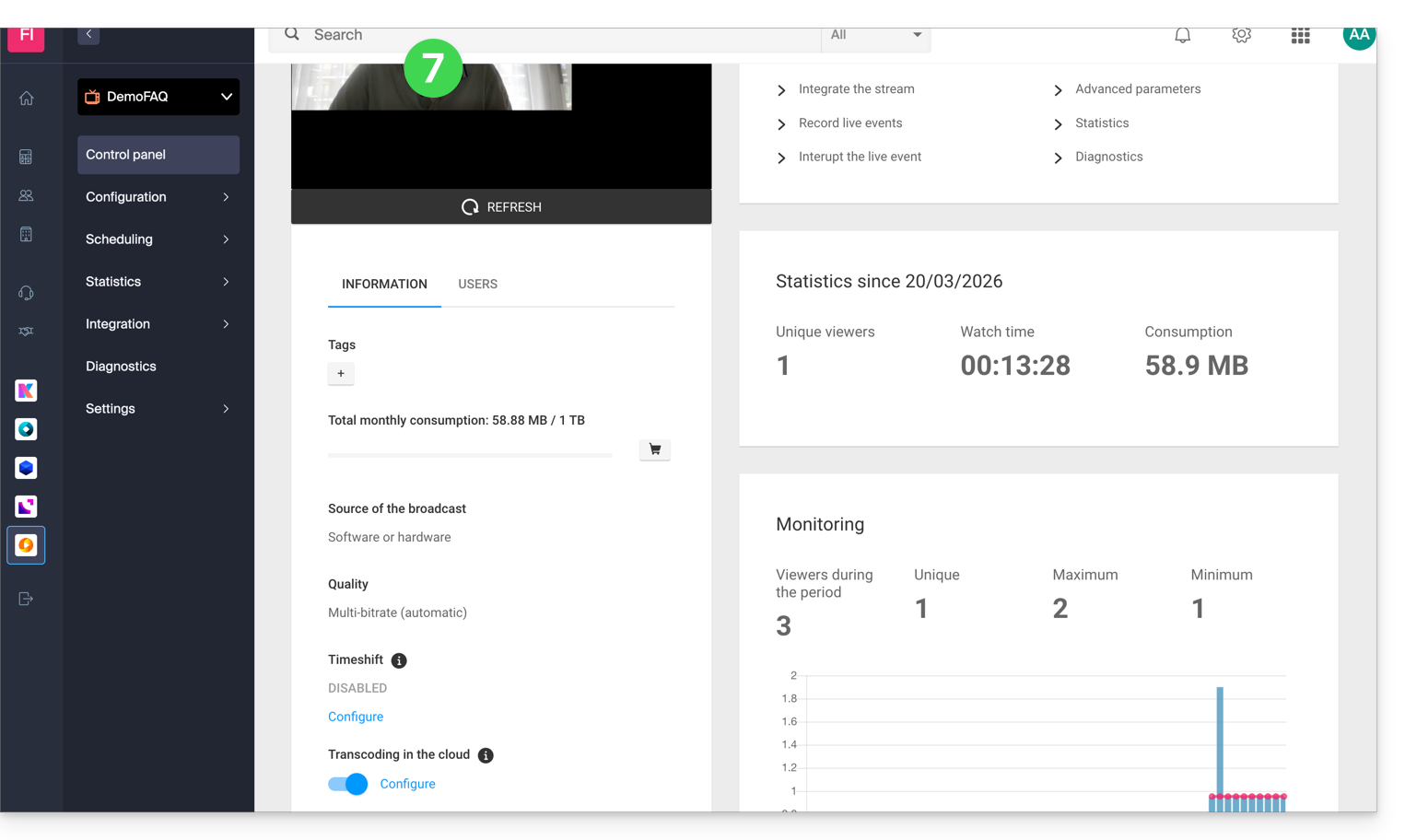
- The stream is now displayed on the Infomaniak side. You can then configure a Player to obtain the information needed to share your stream:
Link to this FAQ: https://faq.infomaniak.com/2900
Has this FAQ been helpful?