Knowledge base
1000 FAQs, 500 tutorials and instructional videos. Here, there are only solutions!
Insert a newsletter signup form
This guide explains how to manage the forms used to subscribe to the Newsletter that you manage on Infomaniak.
Prerequisites
- Have access to the Newsletter product.
- Have created at least one subscription form.
Copy the code needed to integrate the form
To access your Newsletter forms and obtain the integration code:
- Click here to access the management interface for your product in the Infomaniak Manager (need help?).
- Click directly on the domain name assigned to the product in question.
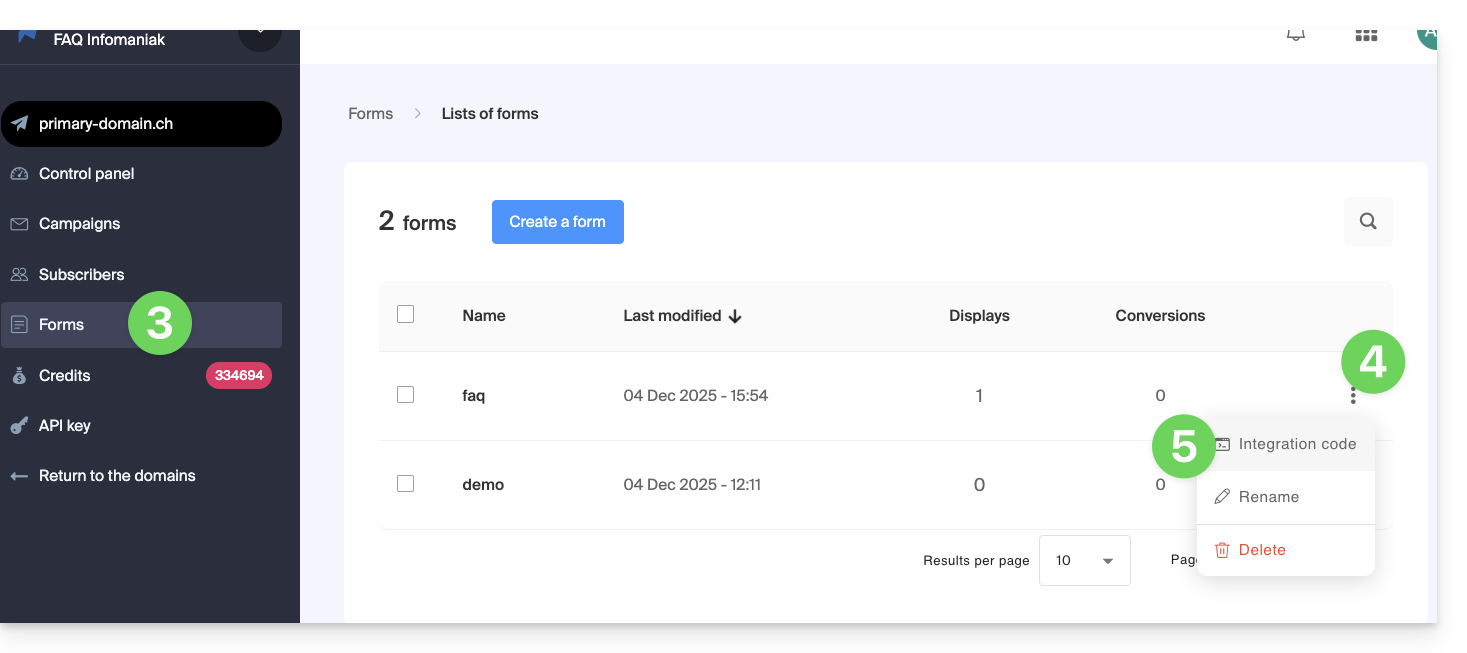
- Click on Forms in the left-hand menu.
- Click on the action menu ⋮ to the right of the item in question in the table that appears.
- Click on Embed Code:
- Choose between the JAVASCRIPT and HTML tabs to obtain one of the two types of code useful for inserting your form on your pages, and click on the blue button to copy the code to the clipboard:
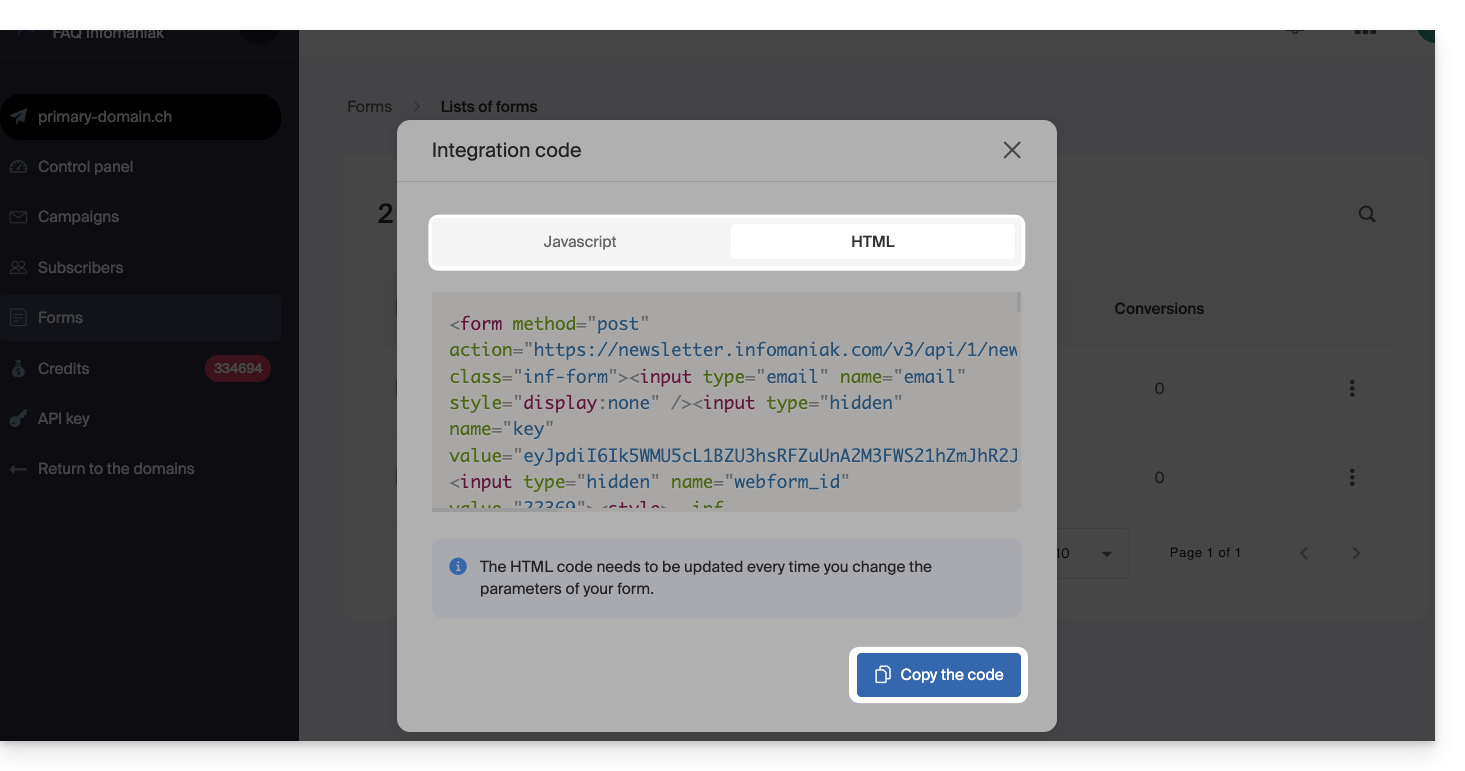
The HTML code needs to be updated each time you change the settings of your form (you will therefore need to re-insert the HTML code if you make changes in the form editor
Insert the form on a website…
You can insert the same form in different locations. You can also create multiple forms (to populate different contact groups, for example). Obviously, a newsletter is only sent once per contact, even if that contact is present in different lists/groups:
… with WordPress
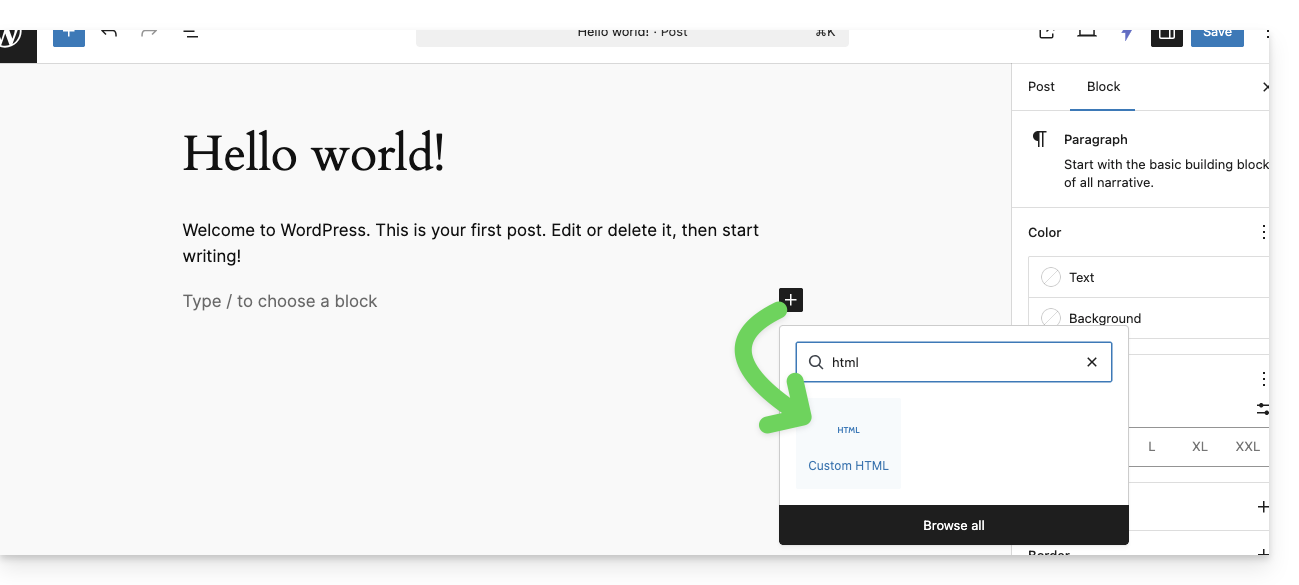
- Insert a new HTML block at the desired location:
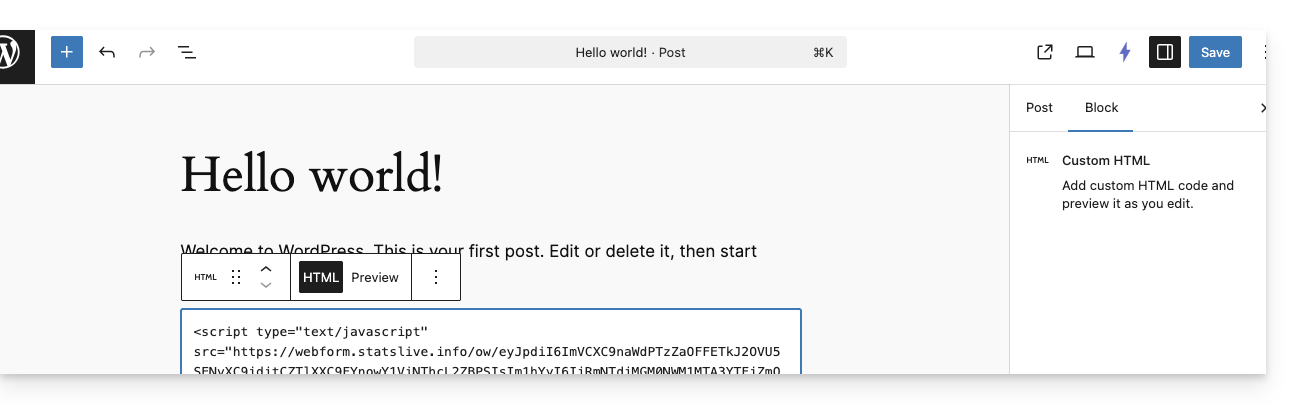
- Paste the HTML or JAVASCRIPT code obtained in step 6 above and save:
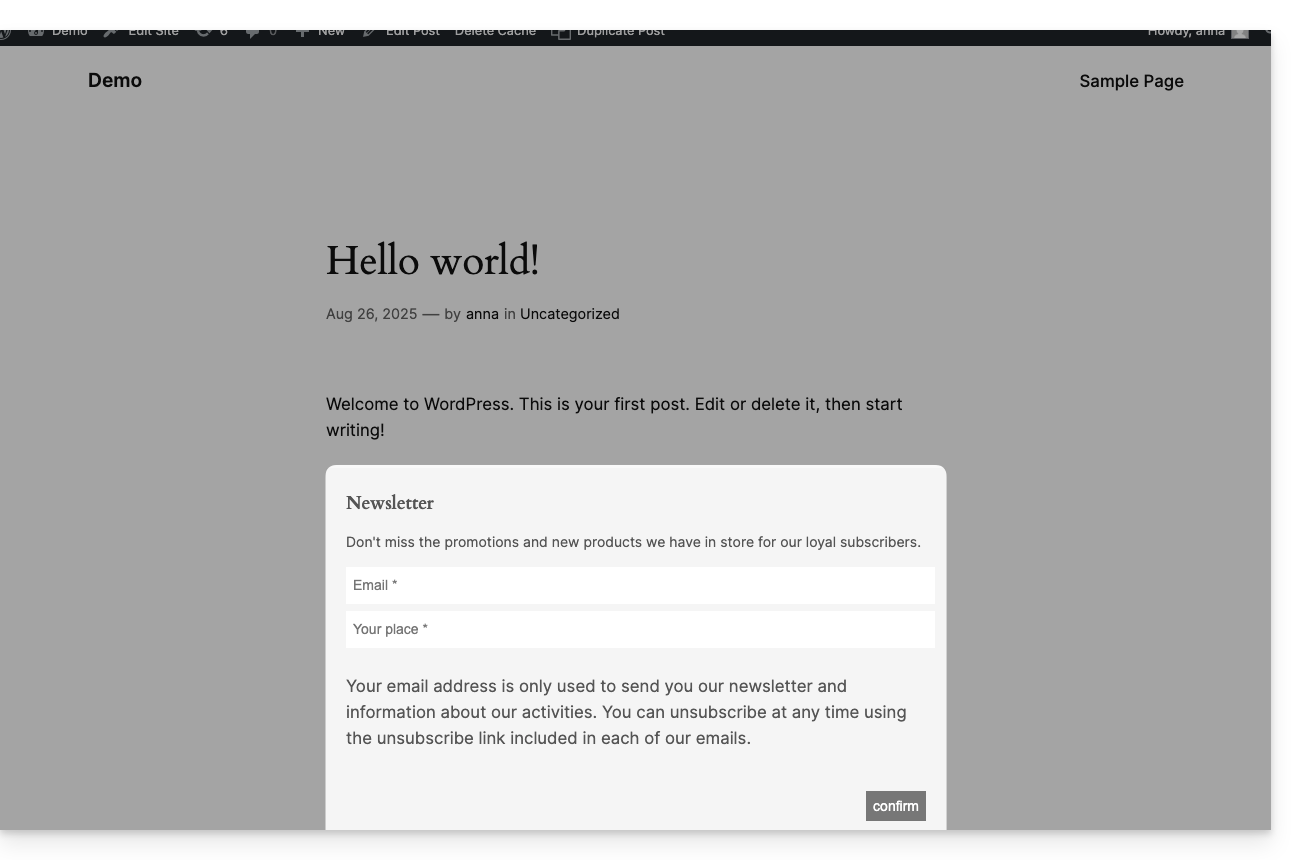
- The form configured previously will be displayed on your site:
… with Infomaniak Site Creator
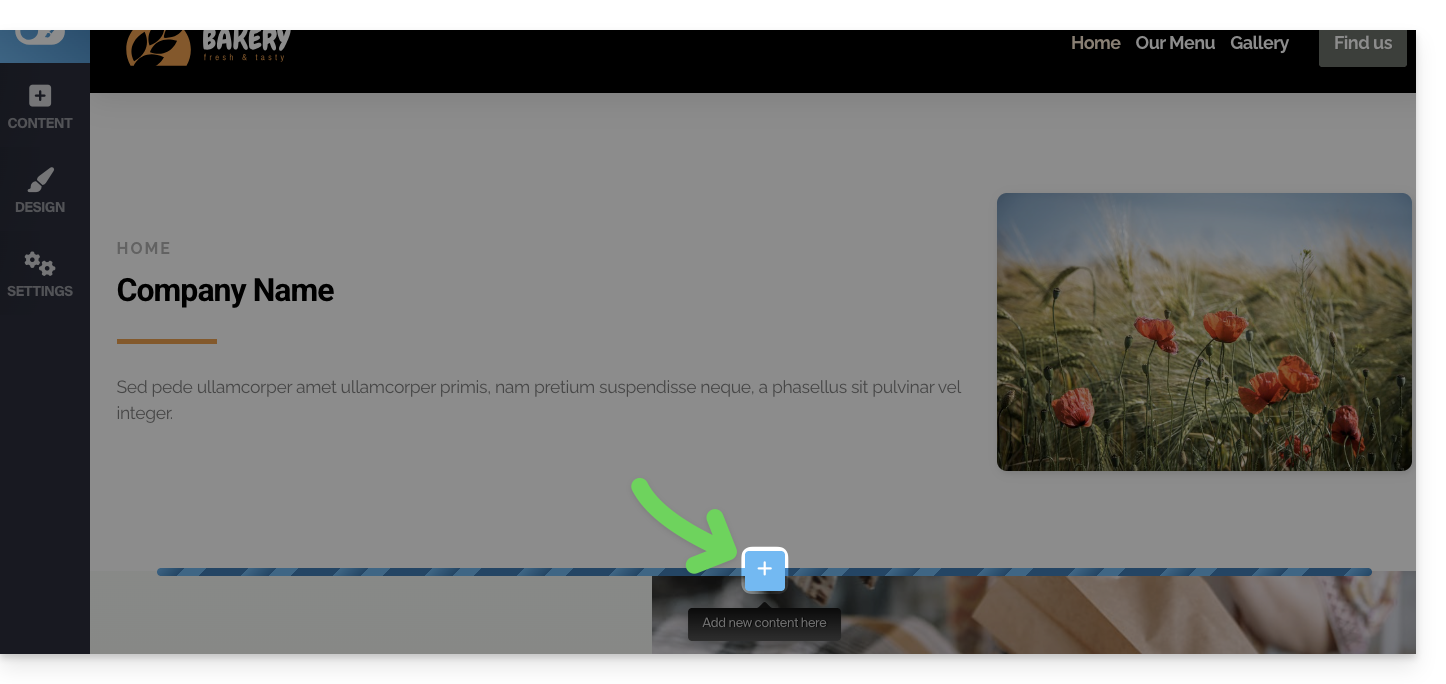
- Hover over the desired location on the page to display a PLUS button, allowing you to add a block:
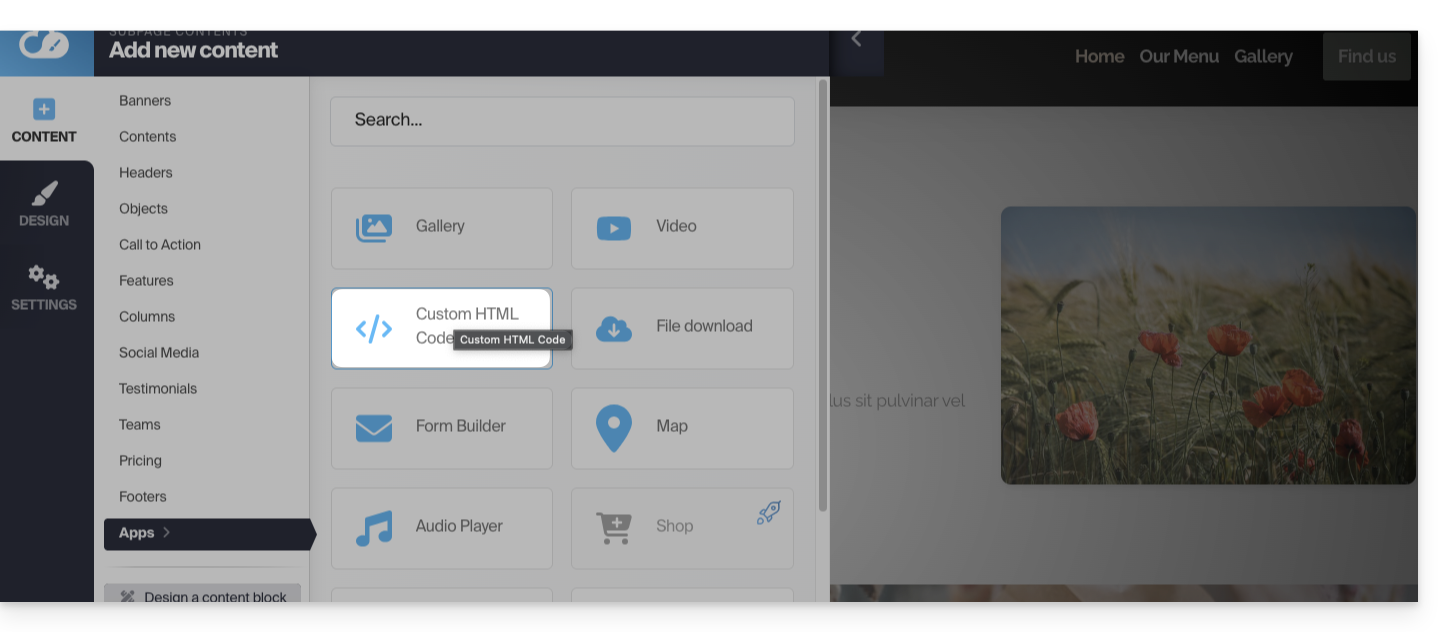
- Click the MORE button to choose a custom HTML code block:
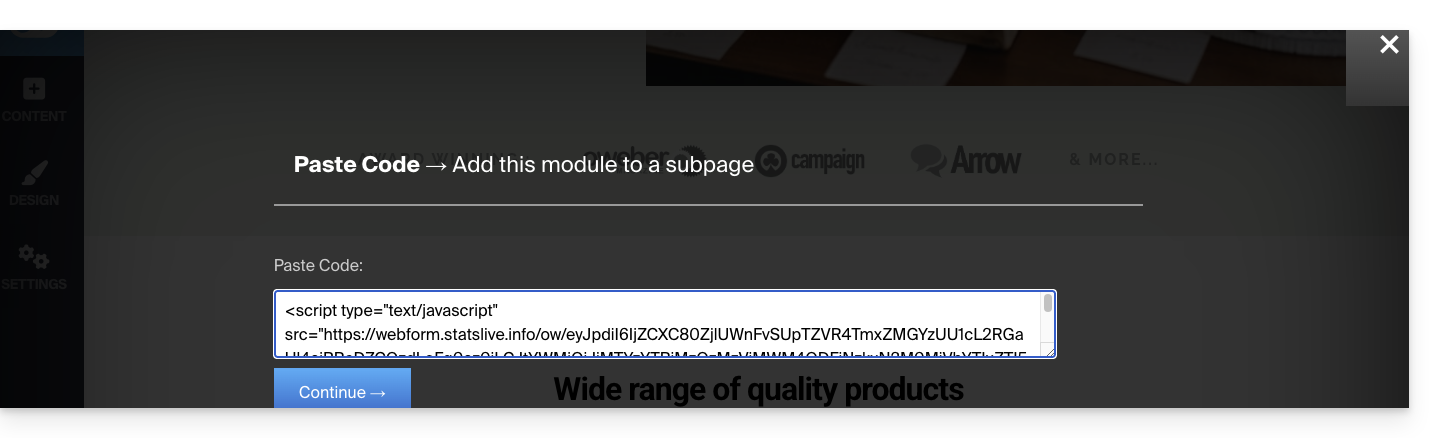
- Paste the HTML or JAVASCRIPT code obtained in step 6 above and click the button to Continue:
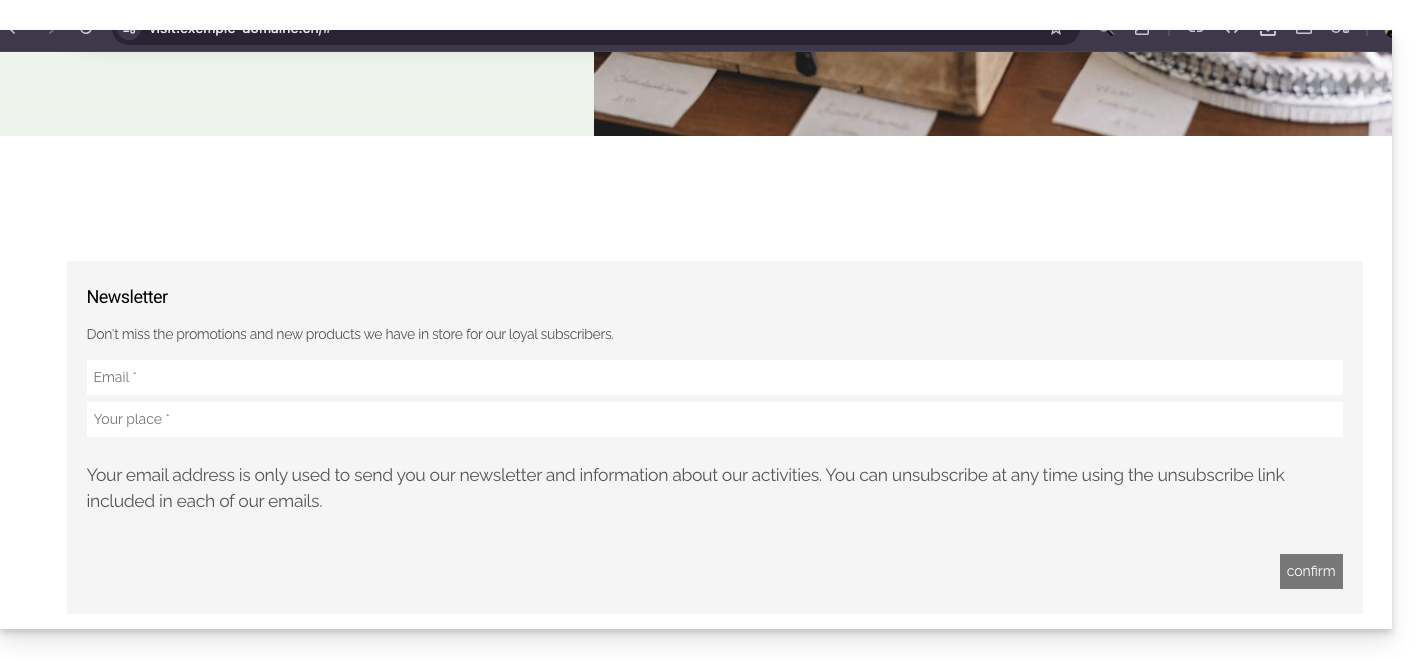
- The form is displayed as a preview on your editing page and will be visible to your visitors:
Link to this FAQ: https://faq.infomaniak.com/2878
Has this FAQ been helpful?