Knowledge base
1000 FAQs, 500 tutorials and instructional videos. Here, there are only solutions!
Create a kMeet meeting from kChat
This guide explains how to start an audio or video conversation between one or more users using kChat, Infomaniak's ethical and free video conferencing solution, kMeet.
Introduction
- The call feature in kChat is available on all Web (browser), mobile (iOS/Android), and desktop (macOS/Windows) versions.
Create a meeting between kChat users
To be able to chat in a virtual room using your device's microphone and webcam, simply press the Call button visible in any kChat conversation, private or public channel, via the application or directly in the browser: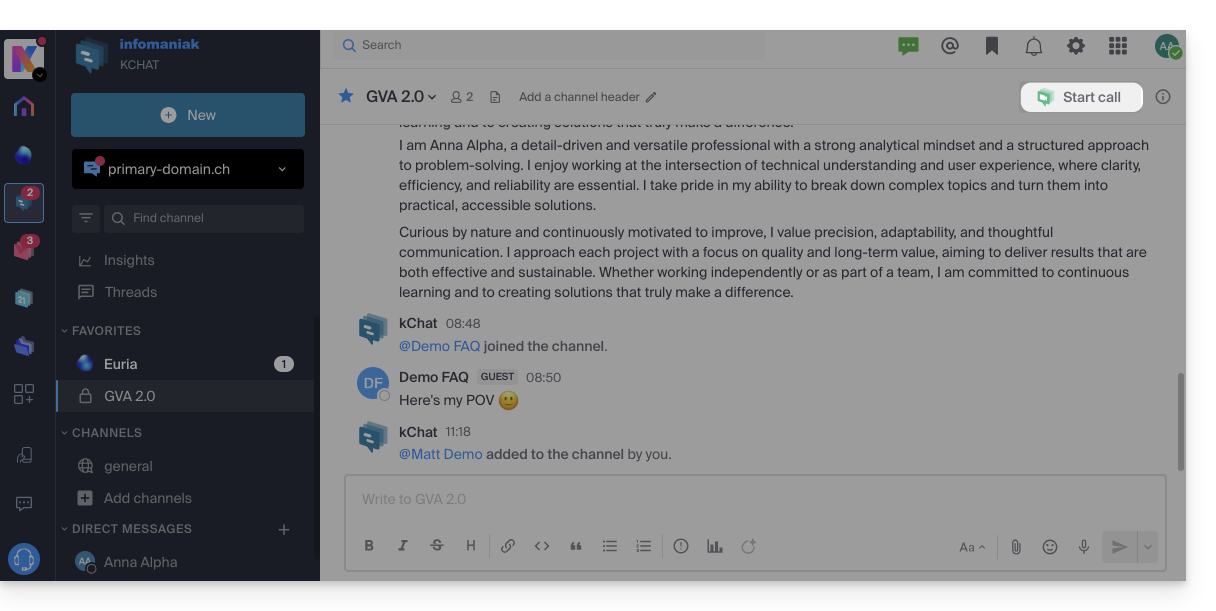
- Call a user directly if you are in a direct conversation with them, or start a call to all members of a channel if you start the meeting from the channel.
- Calling a user who is in “Do Not Disturb” mode will not trigger a ringtone or call notification on their device, but they will see the message in the conversation.
- The microphone is enabled by default when the call is answered, but the camera is not.
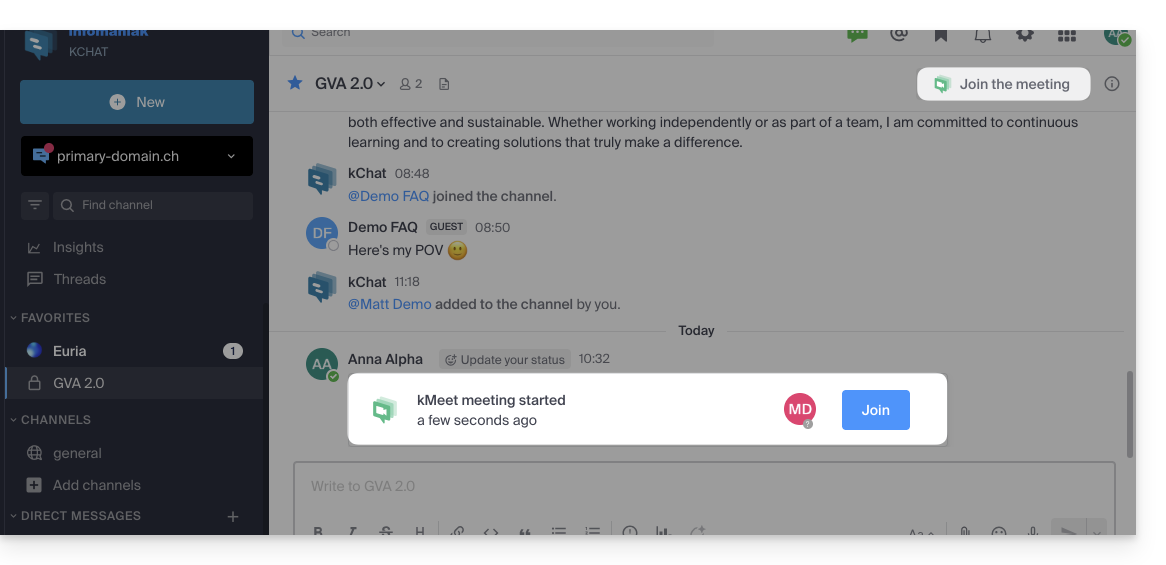
- View the meeting participants (who accepted, declined, or missed it) using avatars in the kChat message.
- Once the call has started, an emoji will appear in your kChat status to indicate that you are busy with the conversation.
- A message sent from the video conference (kMeet) will also be visible in the kChat conversation (and vice versa).
- Notifications regarding the start and end of the meeting are displayed automatically in the relevant kChat conversation thread:
Specifics for calls within channels
- The call will not ring for the call recipients, but they will see a message in kChat as well as a notification.
- A message (as a warning) will appear if you want to start a call in a channel with more than 7 users.
Refer to this other guide if you are looking for information about kMeet.
Link to this FAQ: https://faq.infomaniak.com/2827
Has this FAQ been helpful?