Knowledge base
1000 FAQs, 500 tutorials and instructional videos. Here, there are only solutions!
Customize kChat
This guide details the various elements that can be configured and customized in kChat to best suit your usage preferences.
1. Change the language of the kChat interface
The kChat web app is displayed in the language chosen in the Manager, and just like your avatar/profile picture, these settings are managed within your Infomaniak profile.
The desktop app is configured to use the operating system's language; you can manage this in the app's settings: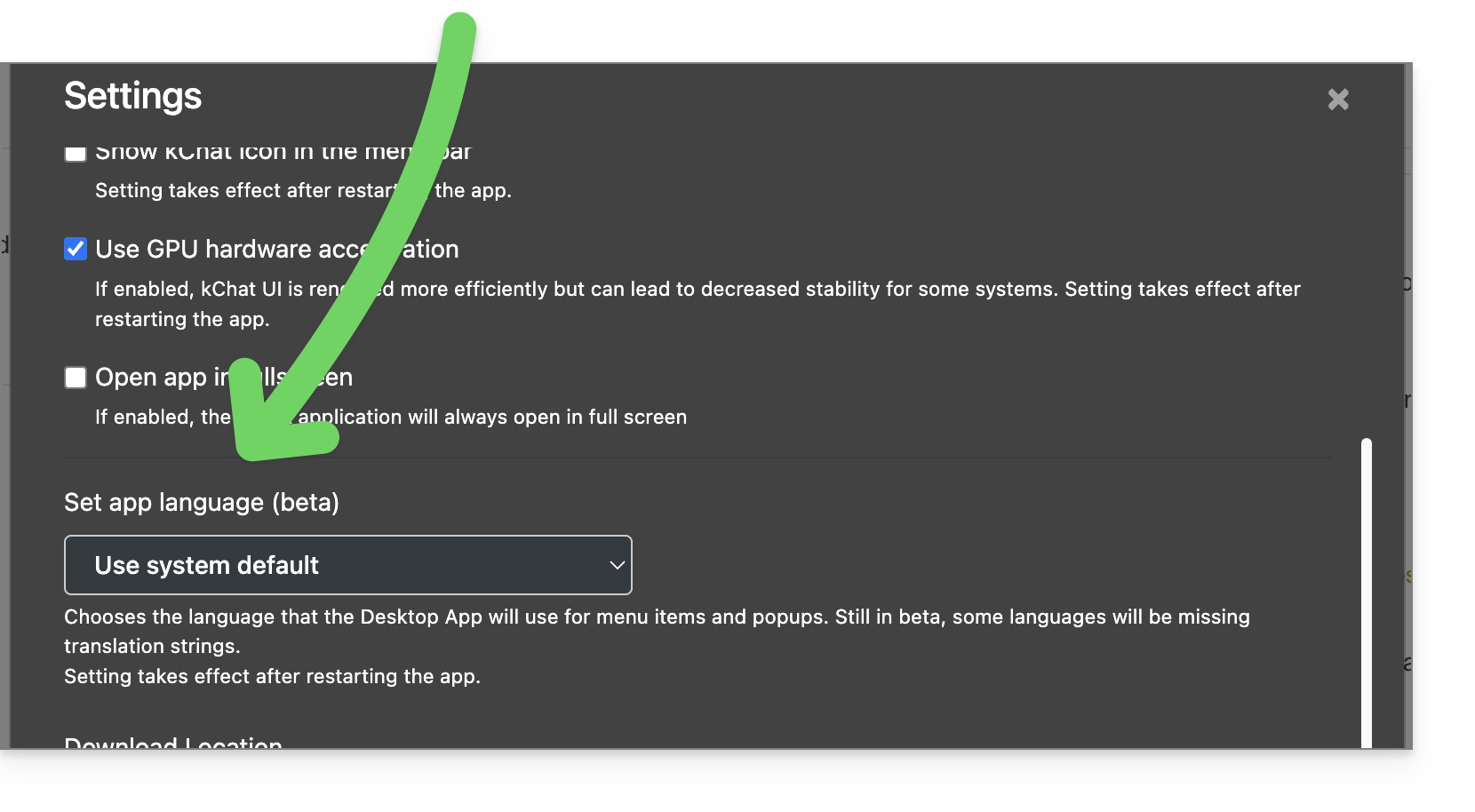
2. Configure kChat in the Manager
To access kChat settings in the Infomaniak Manager:
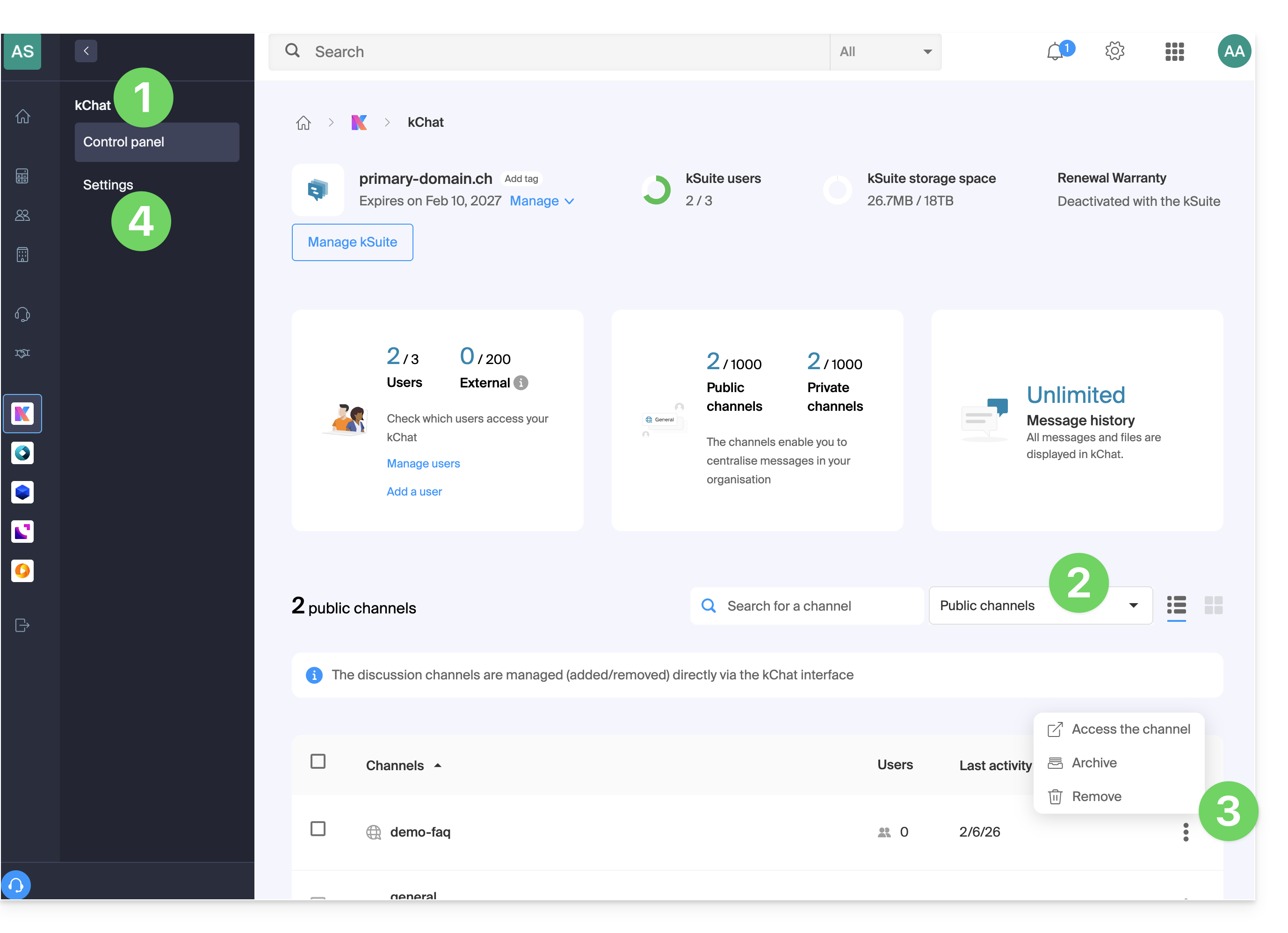
- Click here to access the kChat management interface in the Infomaniak Manager (need help?).
- Access the different types of channels.
- Archive or delete channels from the bottom.
- Click on Settings in the left-hand menu:
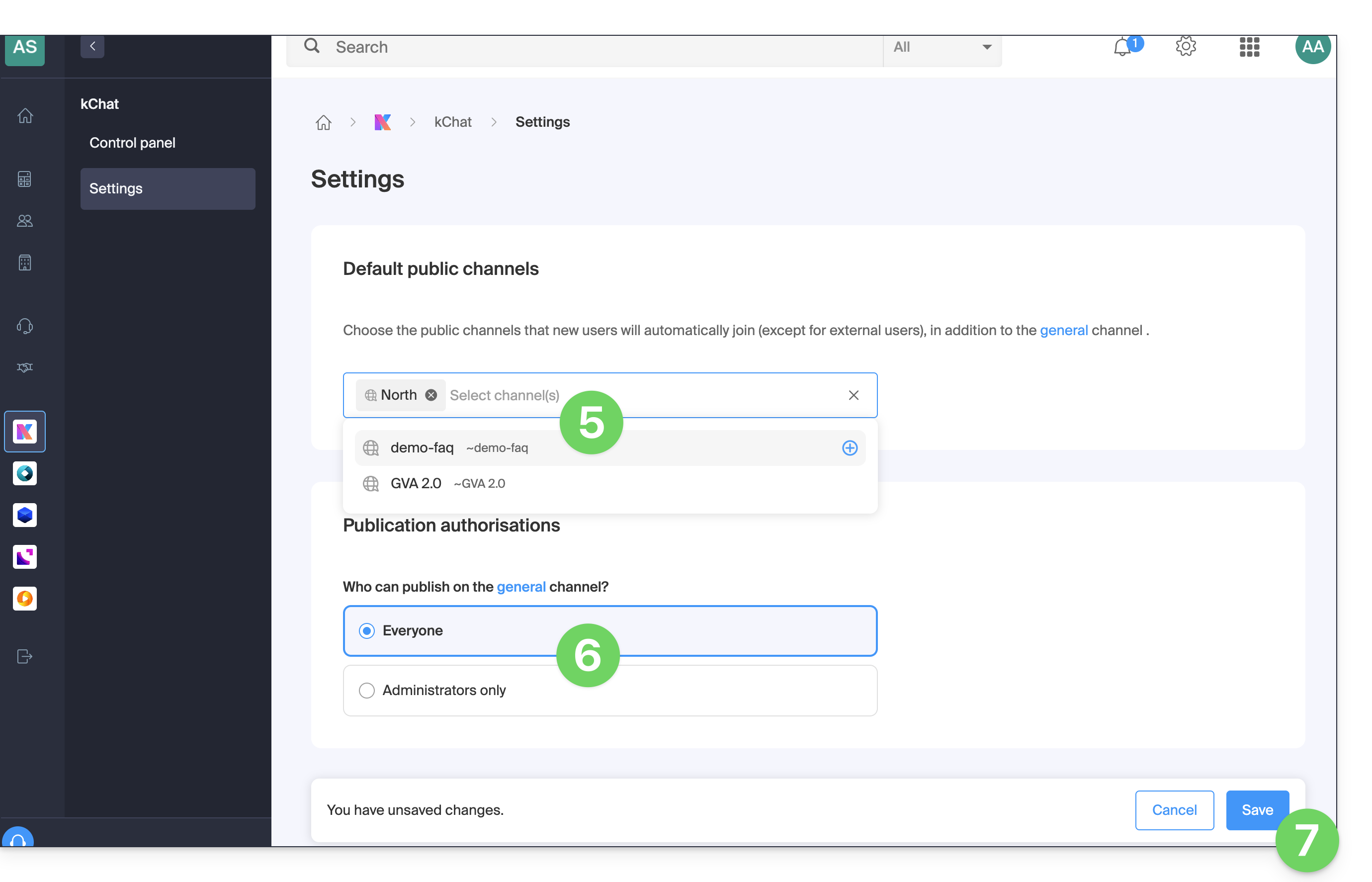
- Add the channels (one or more channels are possible) to which new users (excluding external users) will be automatically added, in addition to being members of the General channel.
- Choose whether everyone can post in the General channel.
- Save your changes at the bottom of the page:
3. Customize the general display of kChat
To access the kChat application settings:
- Click here to access the web app kChat (online service ksuite.infomaniak.com/kchat) or open the mobile app kChat (application for iOS/Android smartphones or tablets) or the desktop app kChat (desktop application on macOS/Windows/Linux).
- Click on the icon in the top right corner of the interface:
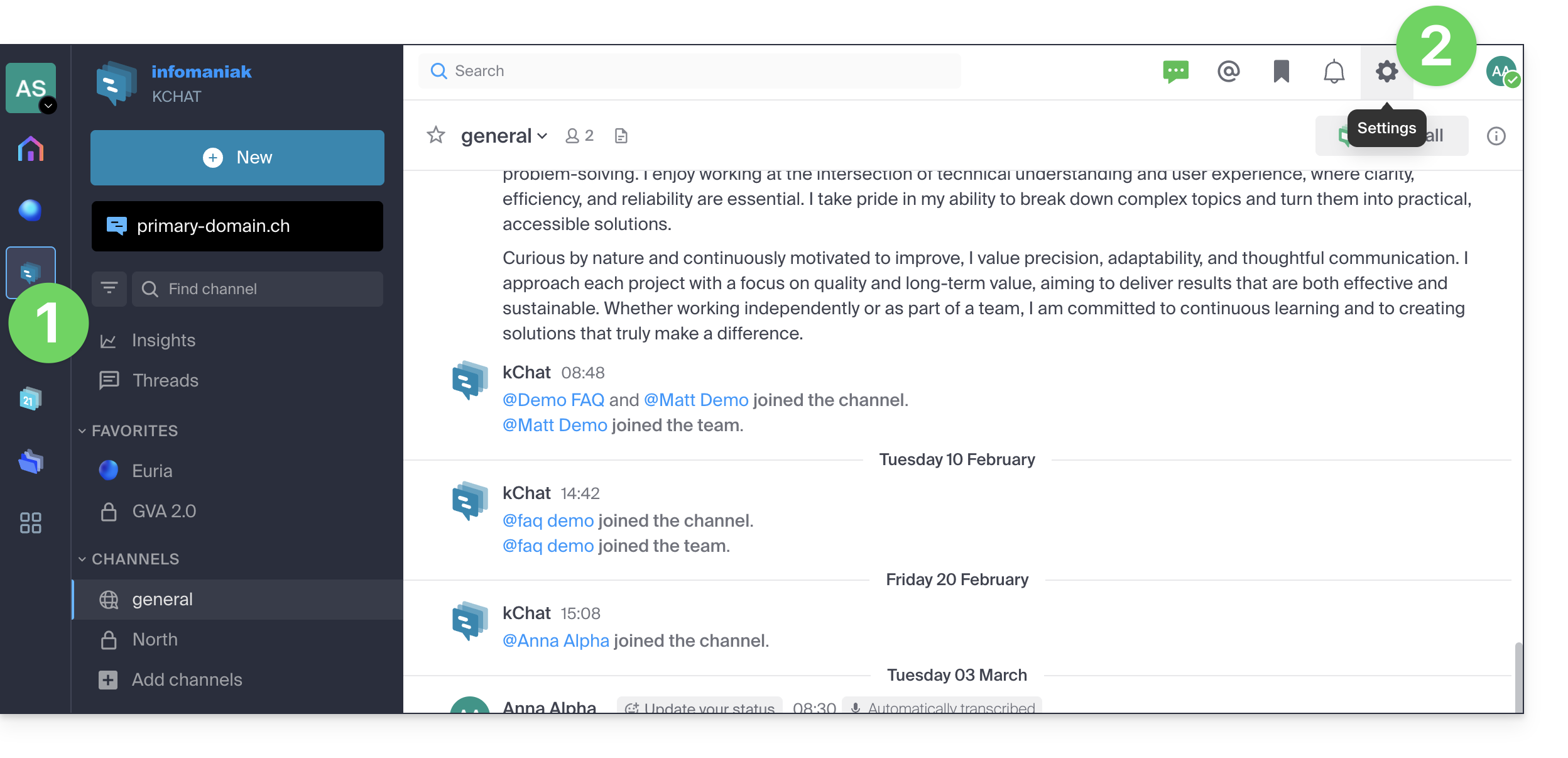
- You can choose from the following options:
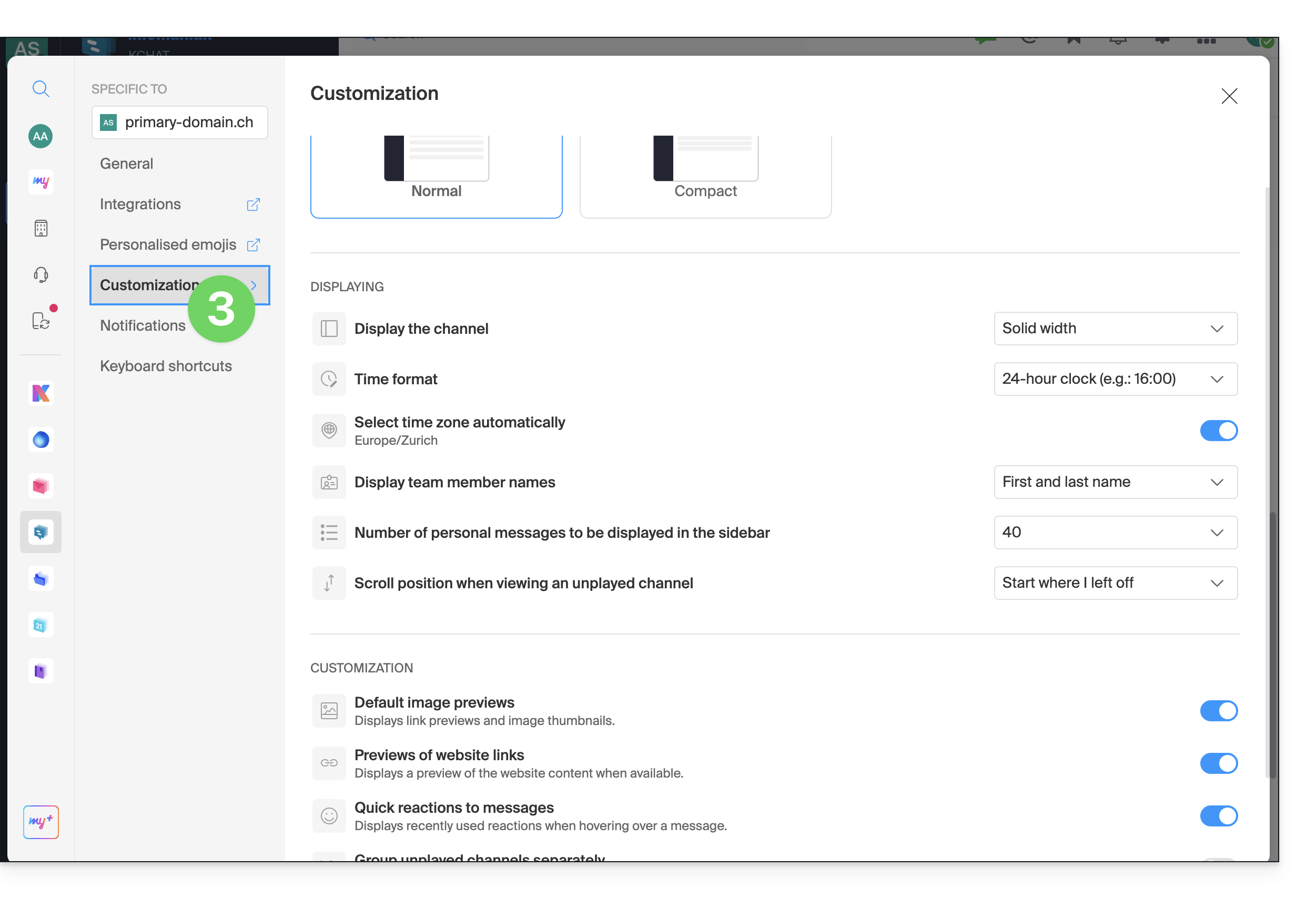
- a display density, and optional color display in compact density
- whether or not to display previews in your conversations
- the size (width) of a channel
- the starting position when you return to an unread channel
- the number of personal messages to display
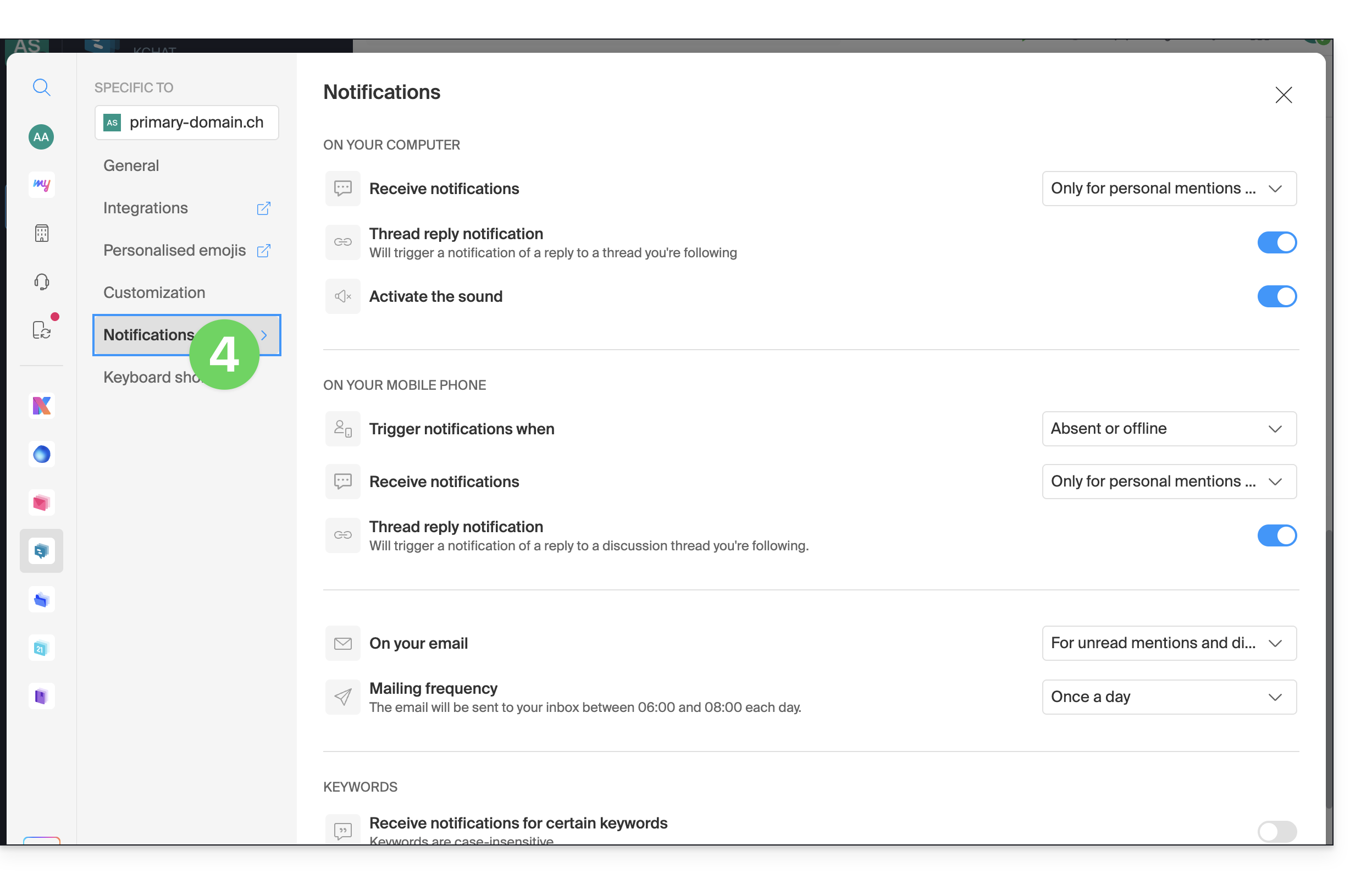
- The Notifications tab allows you to customize kChat notifications:
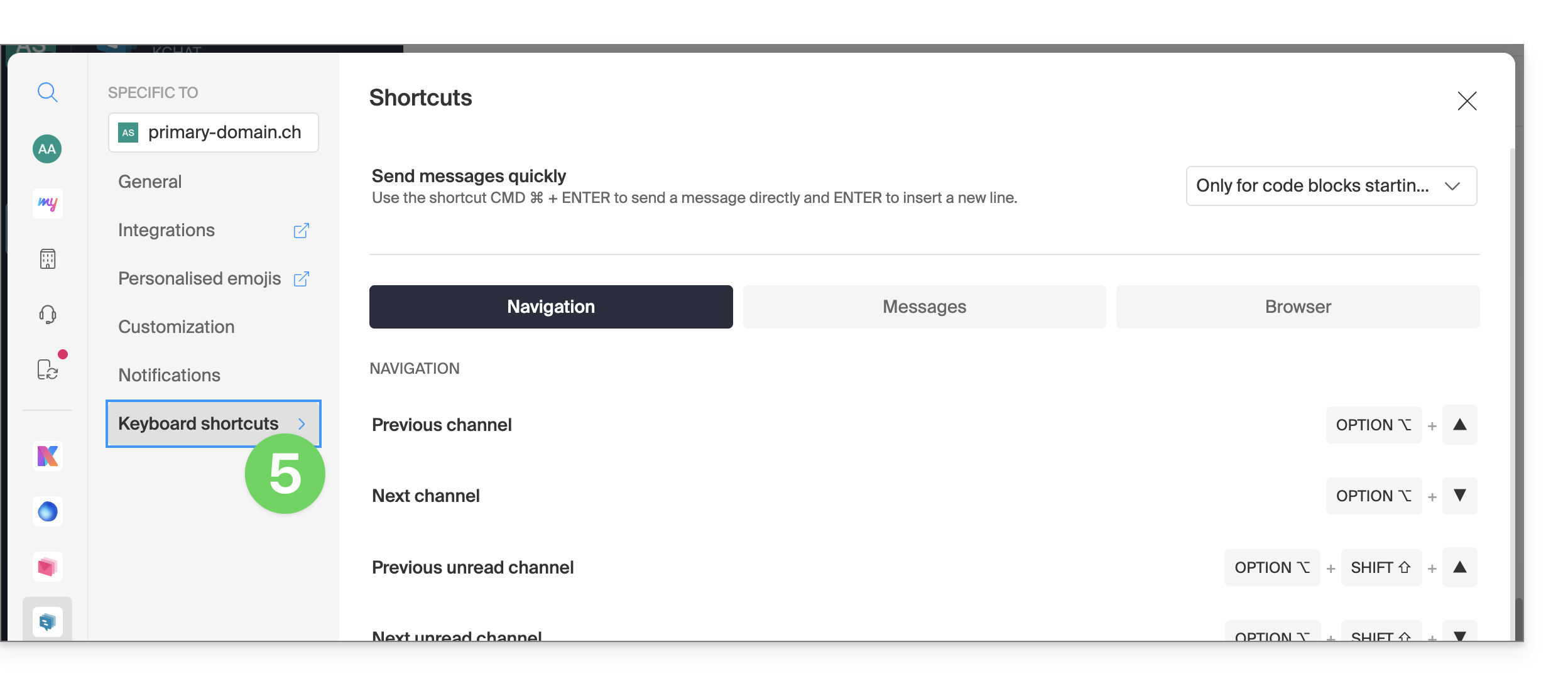
- The Shortcuts tab displays the list of keyboard shortcuts available for working more efficiently with kChat:
Troubleshooting display zoom issues
To zoom in or out if the display has become unreadable, use the following keyboard shortcuts:
- as in a browser,
CTRL/CMDand-to zoom out CTRL/CMDand+to zoom inCTRL/CMDand0to revert to the default size
Dark Mode / Light Mode
The light or dark theme for the Web app is configured globally (see this other guide). However, the desktop app can be configured independently of the rest; this is configured from the icon in the top right corner of the interface: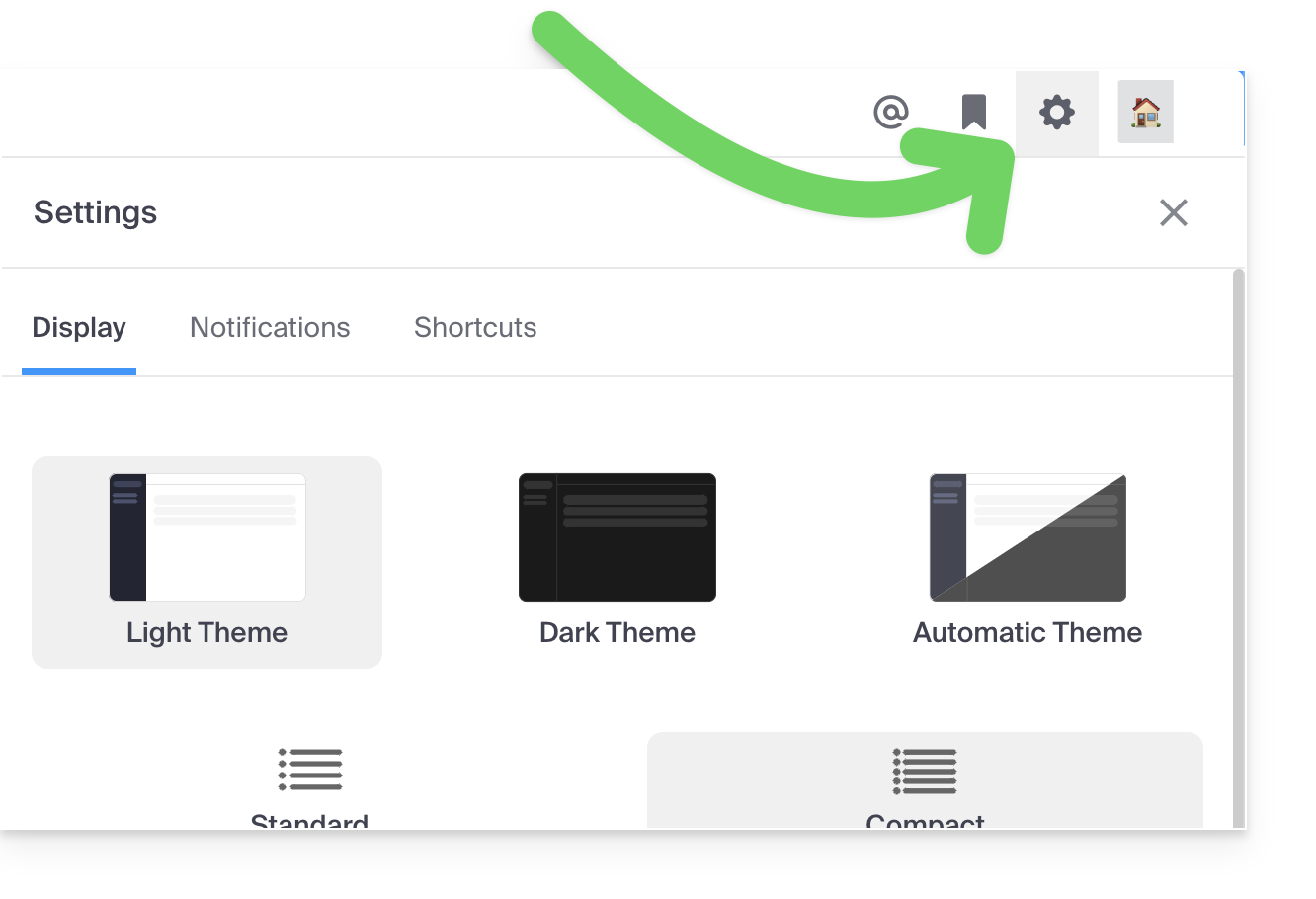
4. Customize a discussion, a channel, etc.
Next to each item in the left sidebar is an action menu ⋮ that allows you, in particular, to define the sort order for channels (alphabetical, by recent activity, manual):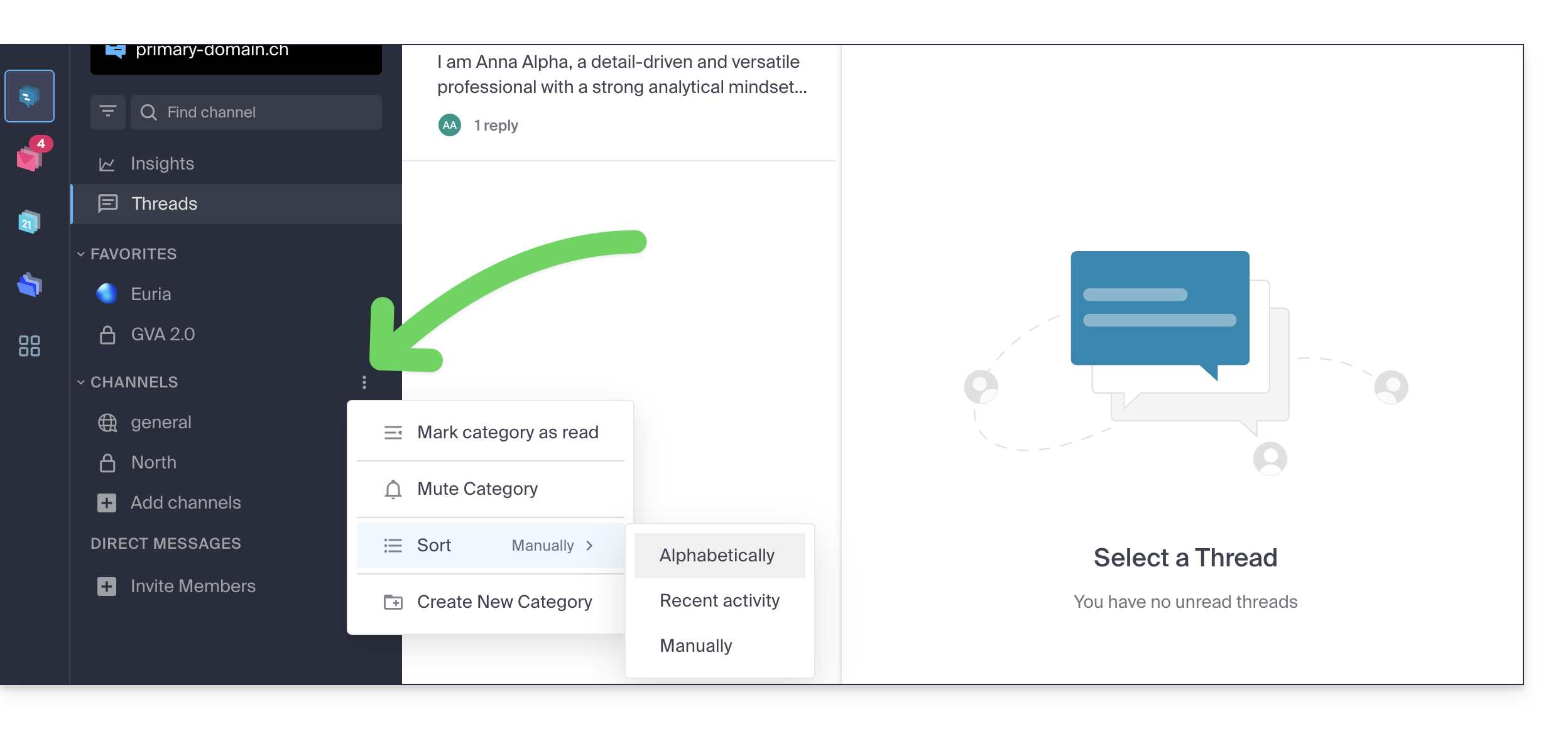
5. Set a status
To enhance your profile and its display in kChat discussions, as well as on the various pages and tools of kSuite, you can define a status in the form of text and/or an emoticon, with an optional expiration date:
- Click on your avatar or initials in the upper right corner of the interface.
- Click on Choose a custom status:
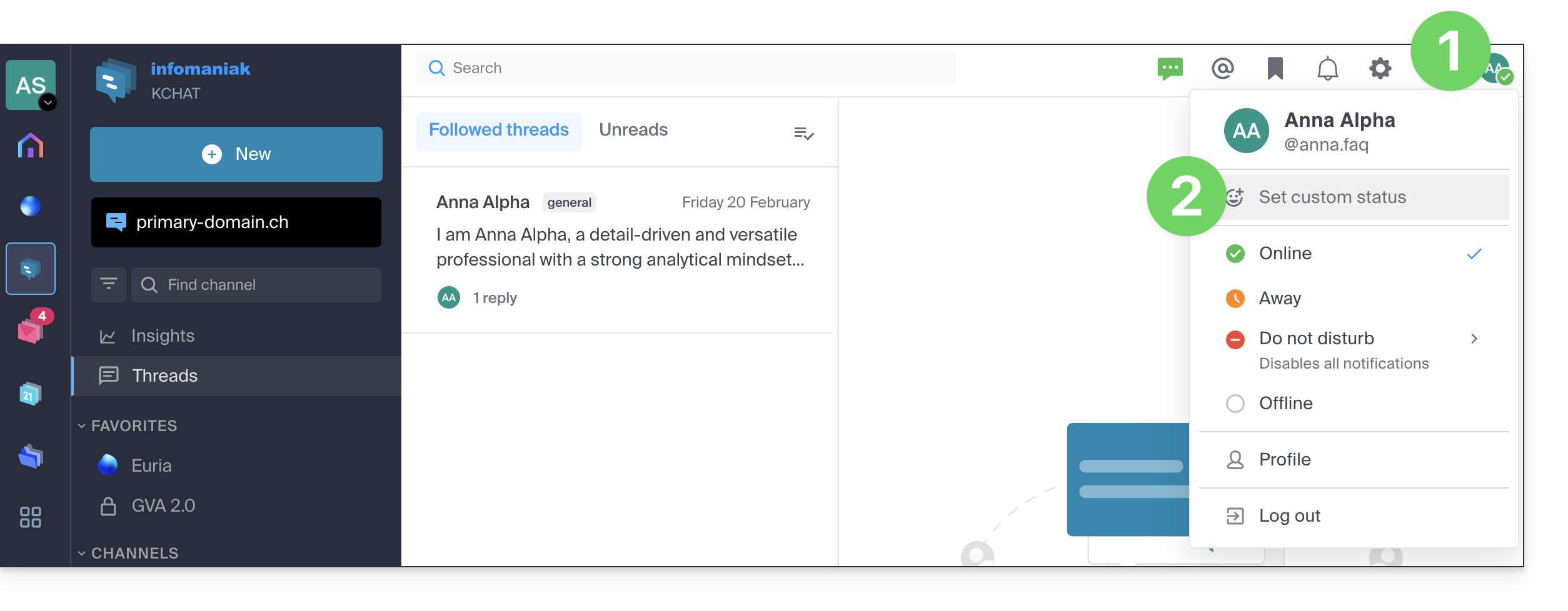
- Click on the smiley icon if you want to choose an emoji to display next to your name.
- Refer to this other guide about kChat emoticons.
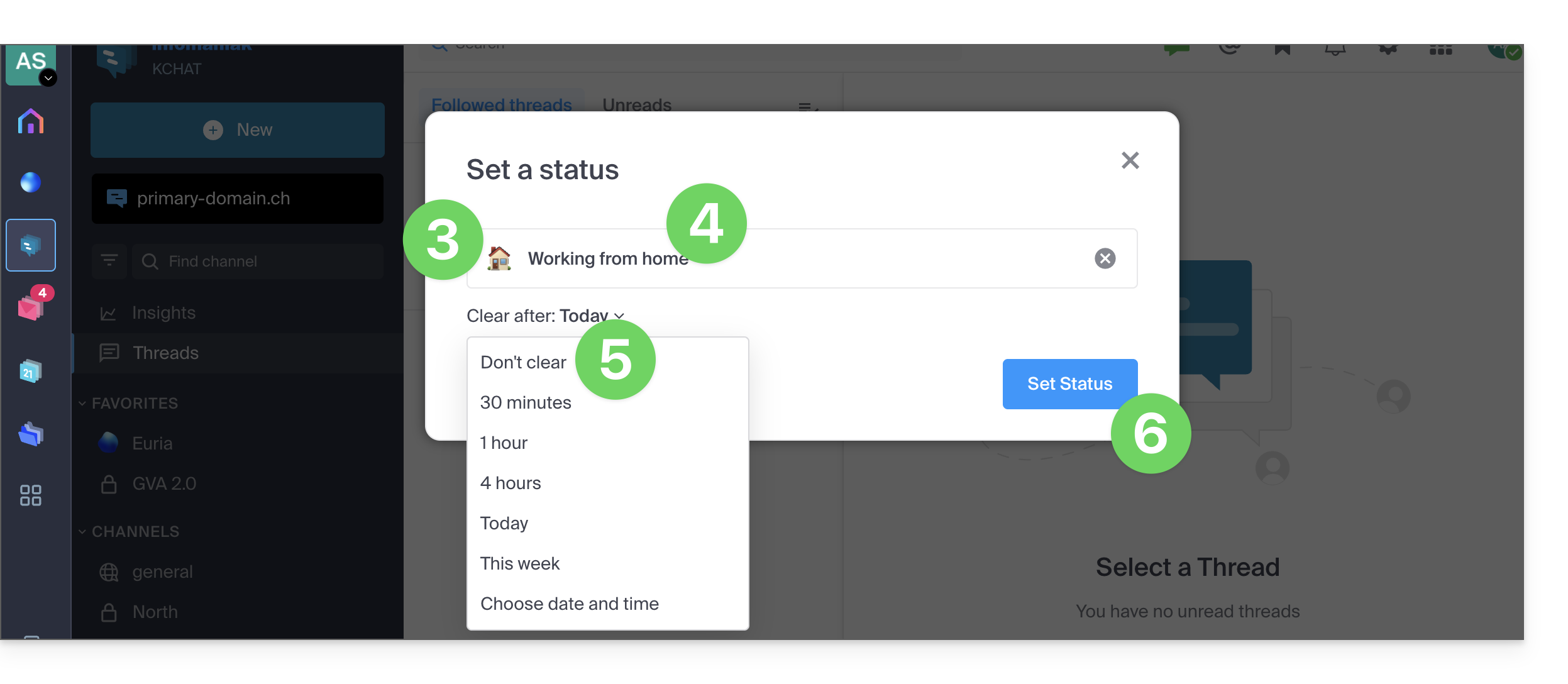
- Enter a custom status or choose one from the suggestions.
- Enter an expiration date if necessary.
- Confirm with the Set status button:
6. Use kChat with your domain and brand
With Custom Brand (included in the kSuite Enterprise plan, otherwise available as an option), you can customize kChat with your logo, your colors, and the URL of your domain name. Your employees will be fully immersed in your brand. Learn more in this other guide.
Link to this FAQ: https://faq.infomaniak.com/2734
Has this FAQ been helpful?