Knowledge base
1000 FAQs, 500 tutorials and instructional videos. Here, there are only solutions!
Manage a kChat channel
This guide details how to use and manage channels in kChat.
Introduction
- A kChat channel is a dedicated communication space for a project, a topic, or a team, where members can exchange documents, communicate in real time, and organize video conferences.
- The number of private channels (and public channels, as well as guests) is limited depending on the kSuite plan purchased (❓: help).
- History retention period (in days):
- kSuite Free = 90 (and deleted after 365)
- kSuite Standard = unlimited
- kSuite Business = unlimited
- kSuite Enterprise = unlimited
General Channel
Each Organization on kChat automatically has a General channel in which all users are automatically invited: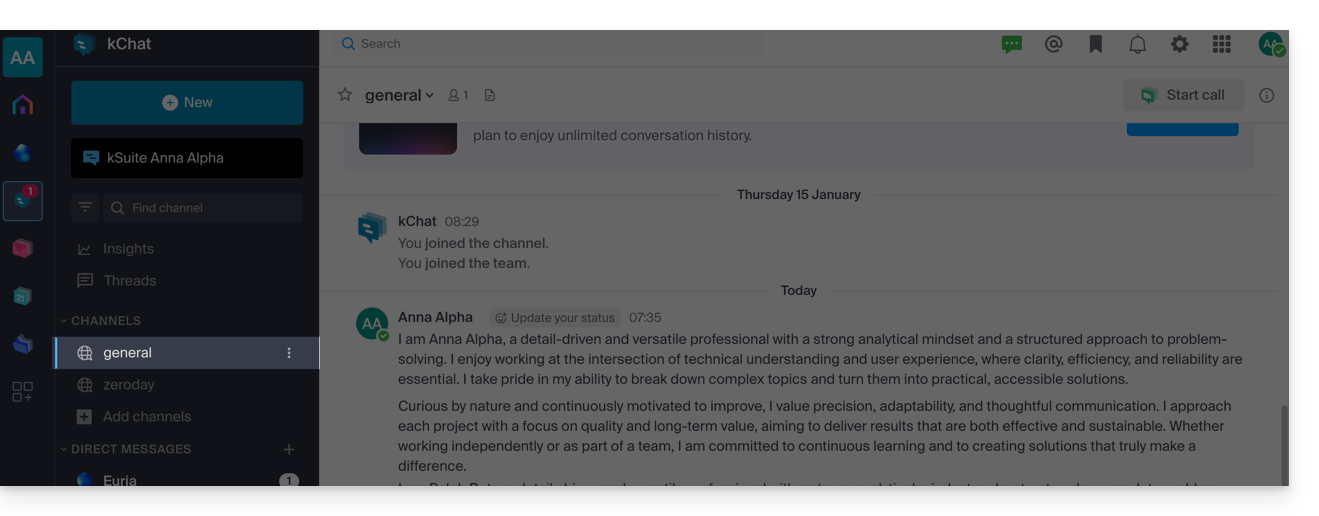
You can use this channel to share information that concerns your entire Organization, such as company outings or inspiring good news.
You can, of course, start a new conversation thread (❓: help) within the General channel; however, it is also possible to restrict posting to administrators only (refer to this other guide in section 2.6).
Additional channel
To add a new chat channel:
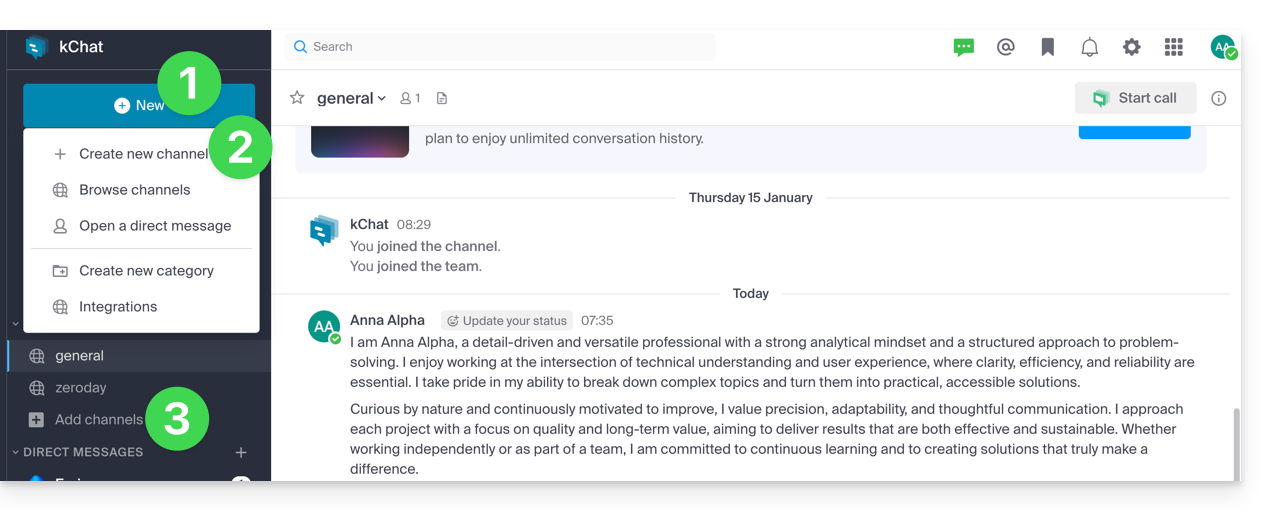
- Click on the New button located in the left sidebar of the kChat web app (online service ksuite.infomaniak.com/kchat).
- Click on Create a new channel.
- You can also click on Add channels below the list of channels:
Information about a channel
When you create a new channel, you can choose: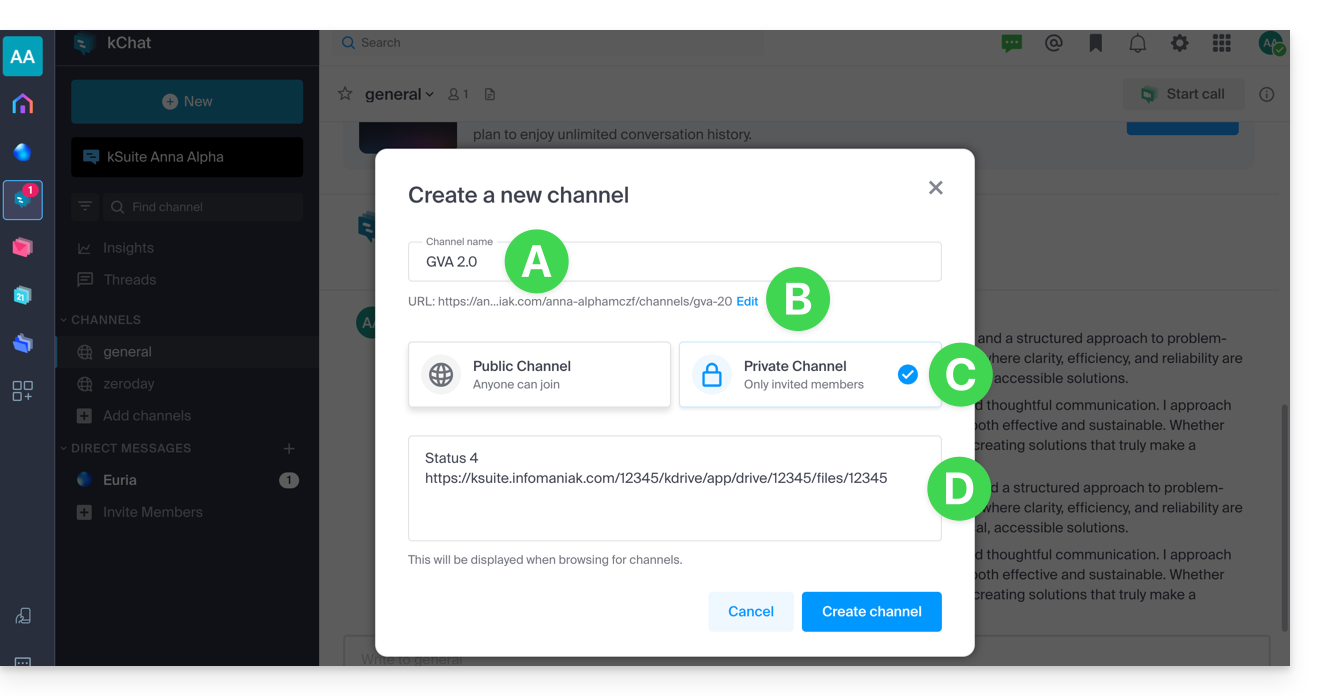
A. its name
It can be modified later.
B. Its URL
By default, it uses the channel name, but you can modify it using lowercase letters, numbers, periods, hyphens, and underscores – it can also be modified later.
C. its PRIVATE or PUBLIC status
This can be changed later (see below).
D. Its description
The description clarifies how this channel should be used. This text appears in the list of channels in the "More..." menu and provides users with an indication of whether or not they should join the channel.
Once the channel is created, you can still define:
E. a header
and you can click on Information (F)…
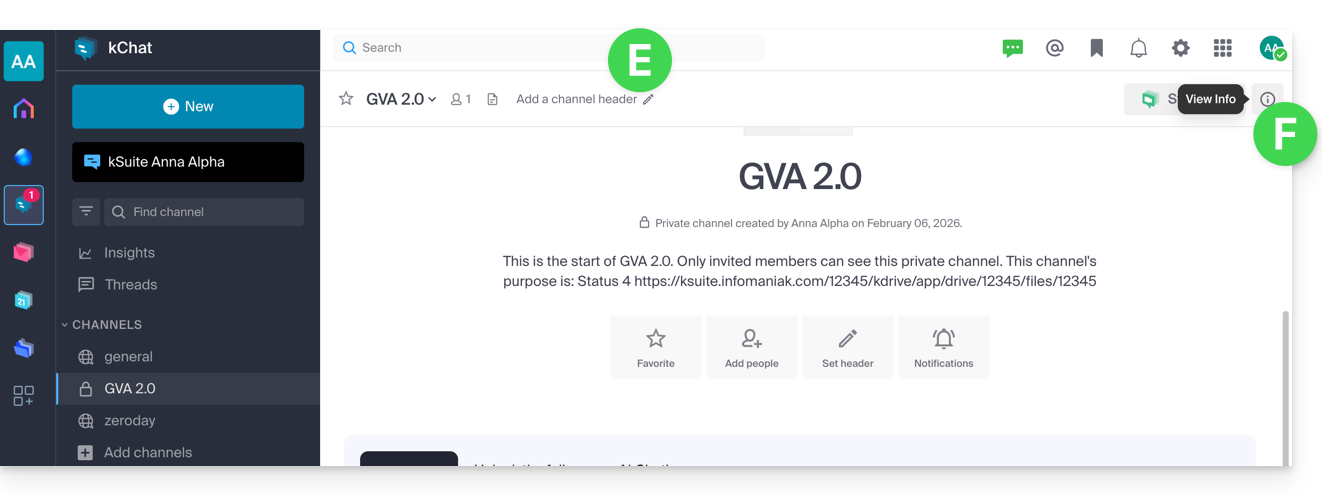
… to find the information and edit some of it: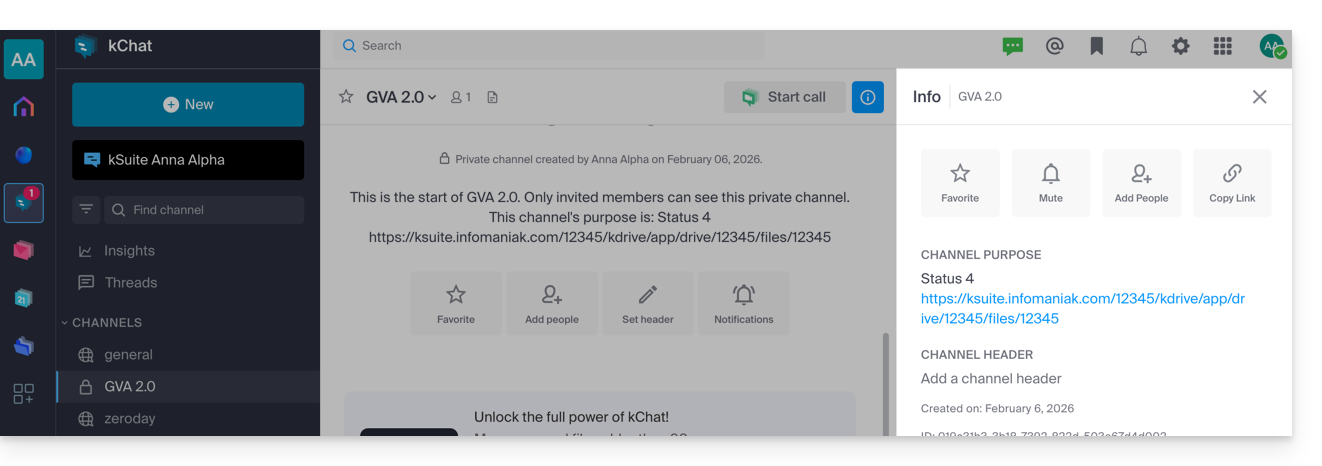
Differences between PRIVATE and PUBLIC channels
PUBLIC channels increase transparency. All users can see and join a public channel, which ensures that all individuals involved in a project, topic, or team have access to the same information.
PRIVATE channels allow you to restrict sensitive content to the users of your choice. Only an existing member can invite another user into a private channel. There are also differences in the management of archiving/deletion (see below).
Maximum number of PRIVATE / PUBLIC channels:
- kSuite Free = 5 / 10
- kSuite Standard = 50 / 50
- kSuite Business = 100 / 100
- kSuite Enterprise = 1000 / 1000
Convert a public channel to a private channel, or vice versa
Prerequisites
- Being a kChat administrator:
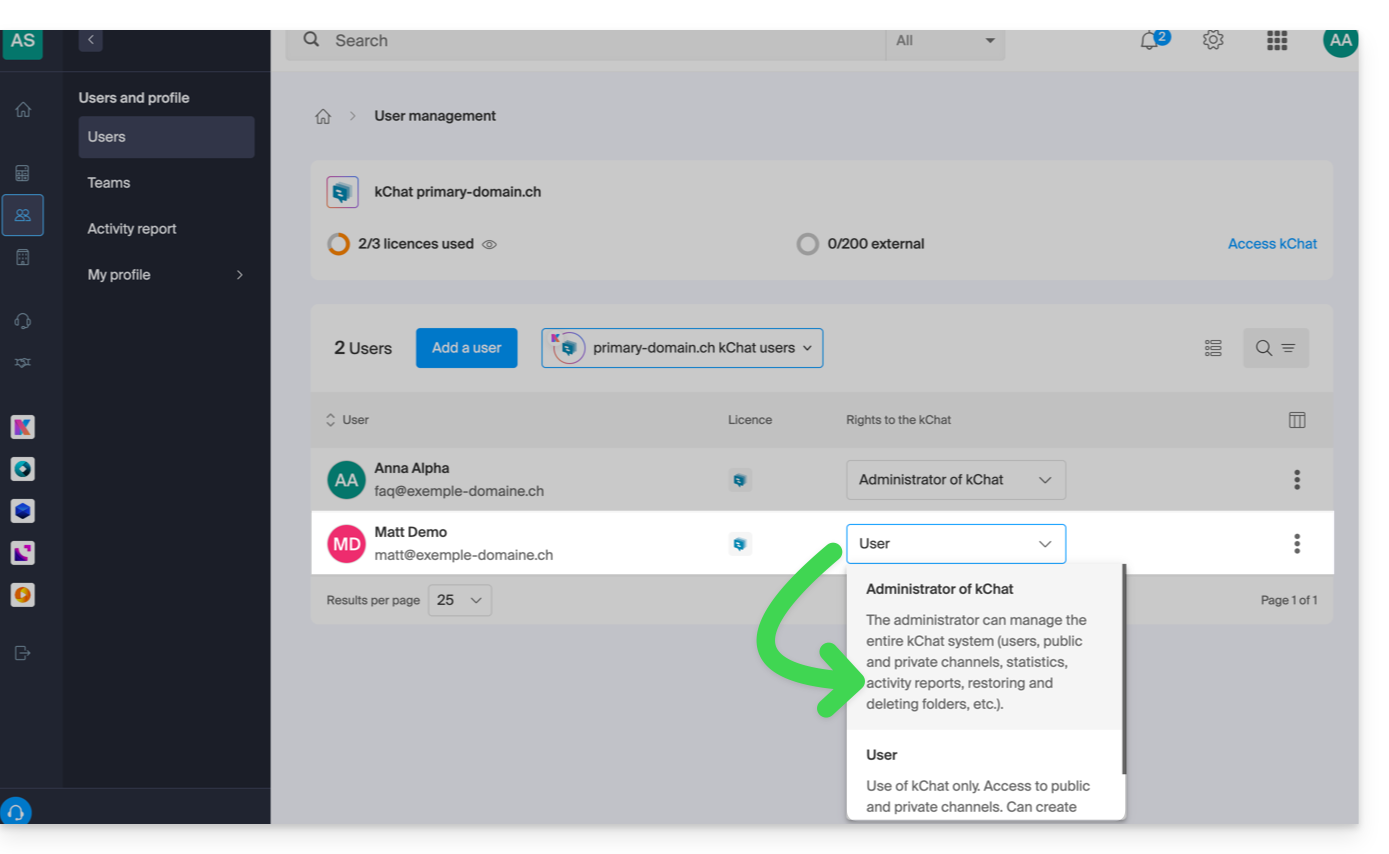
- The role within the Organization is irrelevant; being an Organization administrator in the Organization that has kSuite (and therefore kChat) is not required, and is not sufficient in any case:
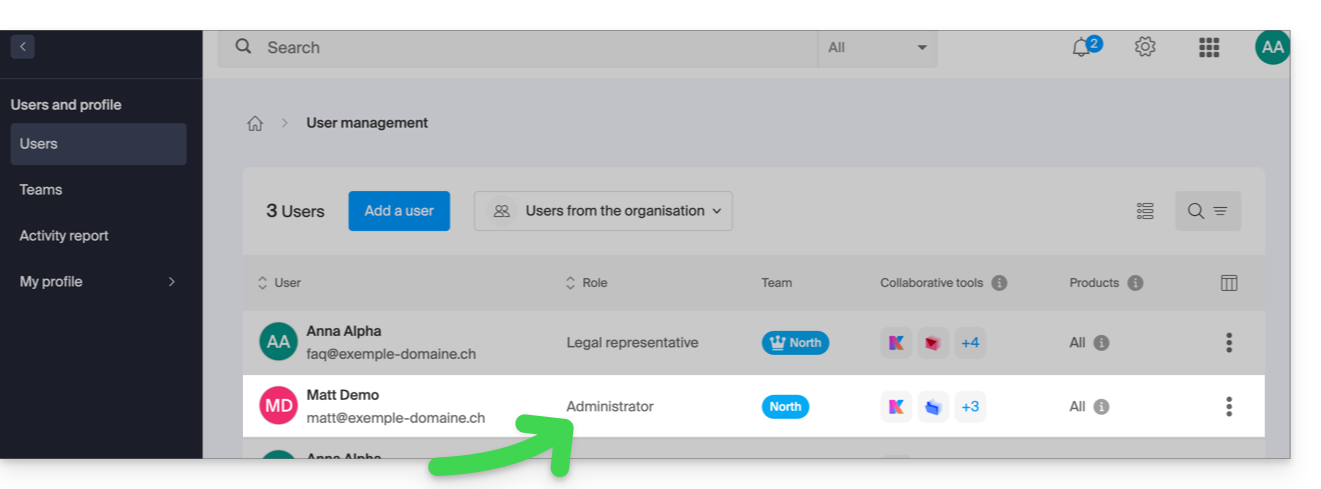
- Being a channel administrator is also not sufficient.
- The role within the Organization is irrelevant; being an Organization administrator in the Organization that has kSuite (and therefore kChat) is not required, and is not sufficient in any case:
It is possible to change a Public channel to a Private channel, or vice versa, and to make a private channel public. The message history and the members who already have access to the channel will be preserved.
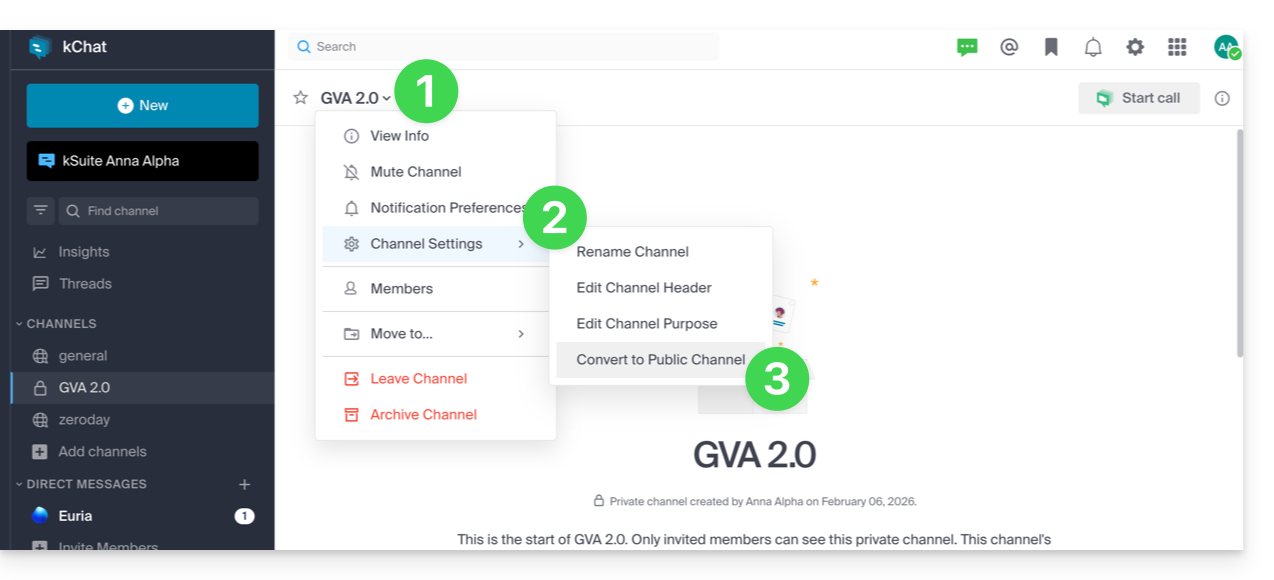
To lock a channel that was previously public (files shared publicly remain accessible to anyone with the link; the change is permanent and cannot be undone):
- Click on the chevron on the channel title at the top of the Public channel.
- Click on the channel settings.
- Choose Convert:
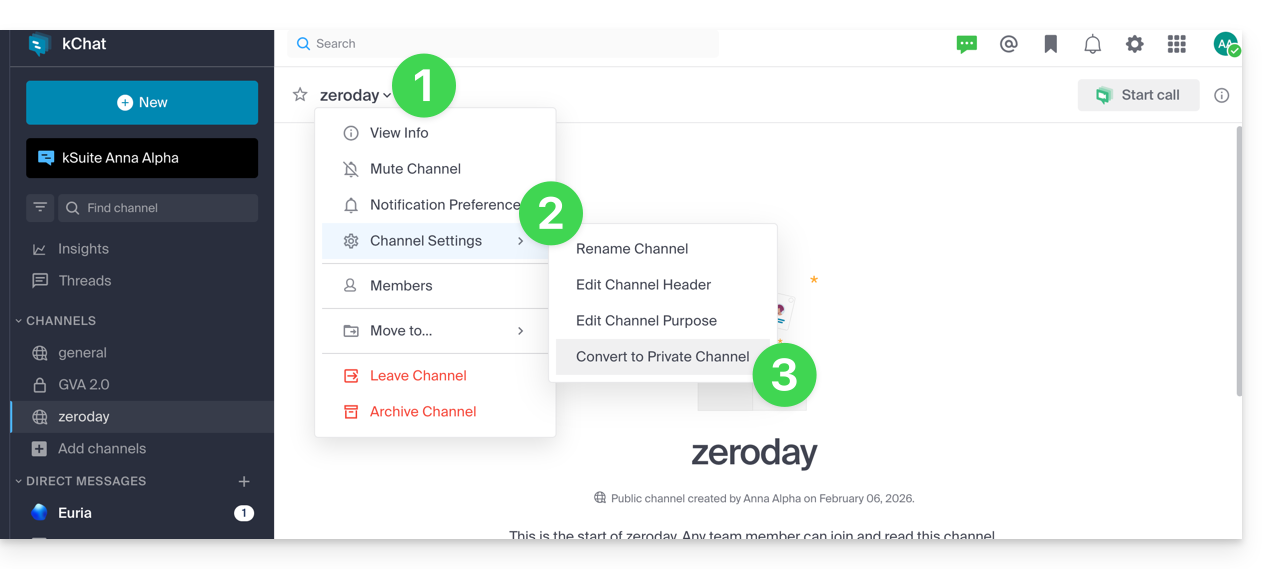
To make a channel accessible that was previously private (the channel will become accessible to all users of the other public channels in the Organization, except for external users who will need to be invited manually):
- Click on the chevron on the channel title at the top of the chat on the Private channel.
- Click on the channel settings.
- Choose Convert:
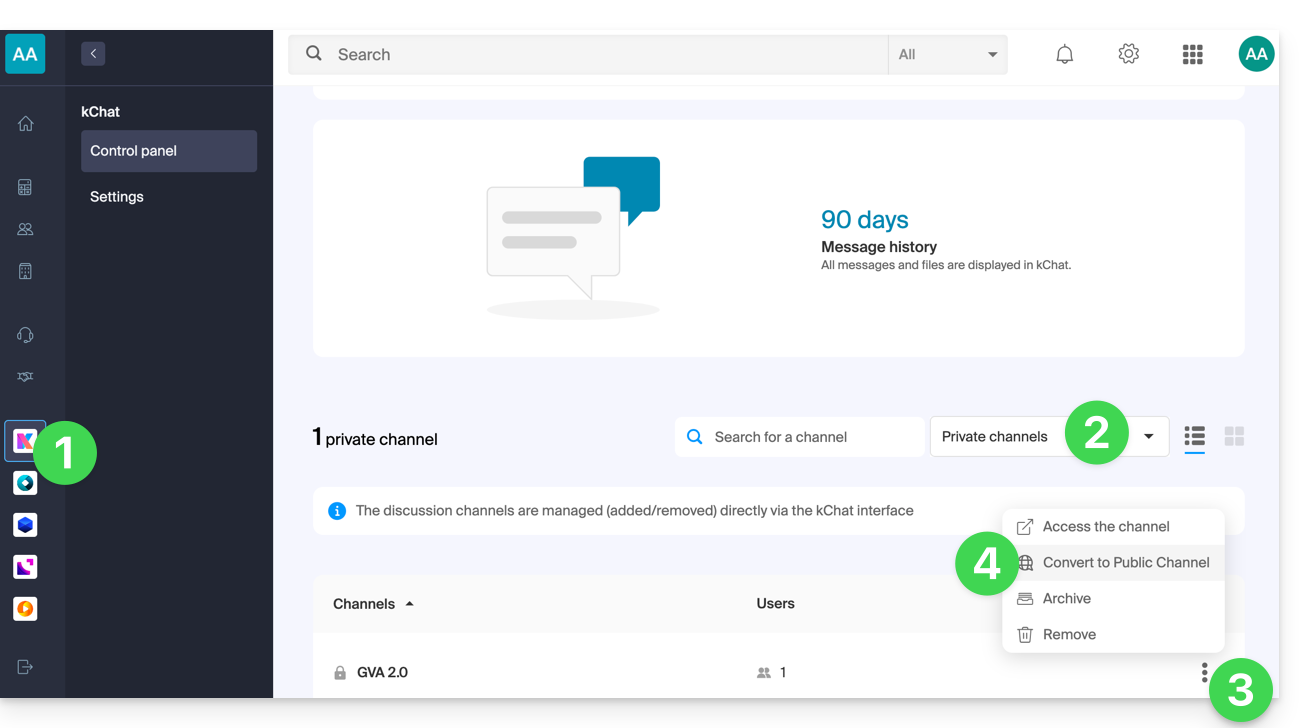
You can also perform the conversion from the kChat management section in the Manager:
- Click here to access the management of your kChat in the Infomaniak Manager (❓: help).
- Click on the dropdown menu to display private channels.
- Click on the action menu ⋮ located to the right of the item in question.
- Click on Convert to public channel:
Leave a channel
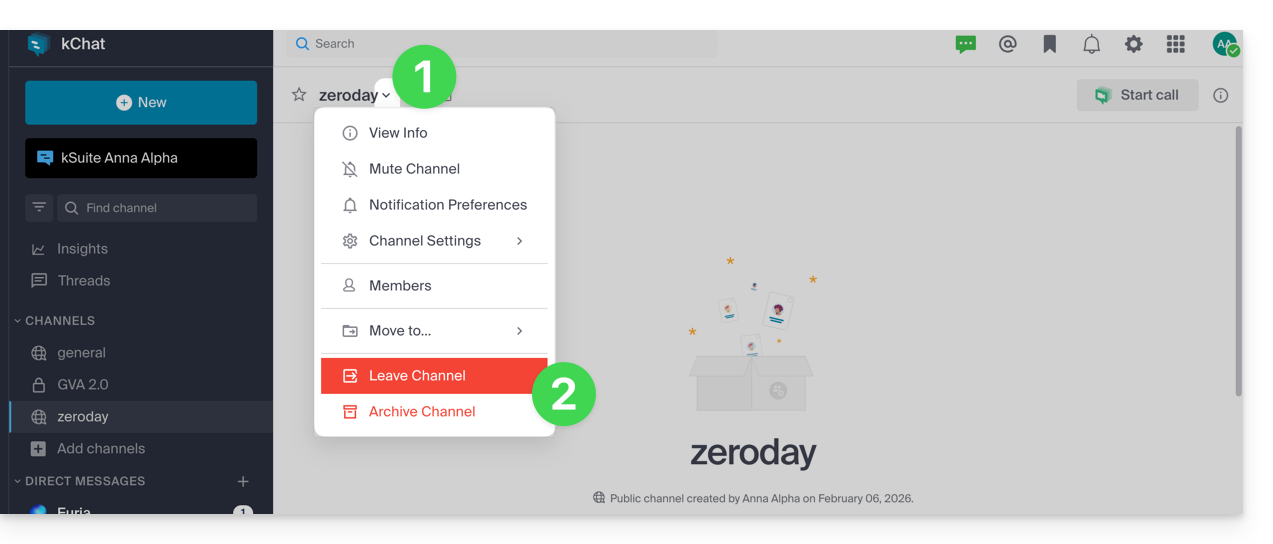
Aside from the main channel called General, you can leave a channel at any time:
- Click on the chevron in the channel title at the top of the chat.
- Click on Leave channel:
If you leave a private channel, you will no longer be able to find it in the search results, only via its URL if you have it, or by being re-invited by a member of the channel.
If you leave a public channel, you will leave it immediately, but you can rejoin it whenever you want by simply finding it again using its name (2) in the search (1), even if it has been archived: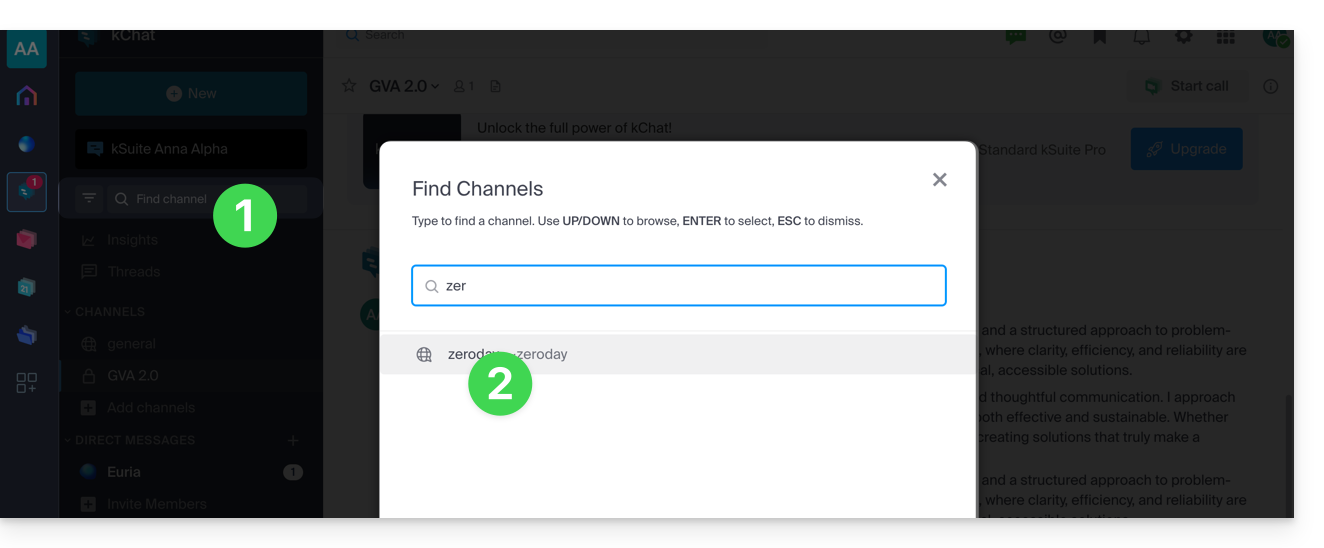
Archive / delete a channel
Aside from the main channel called General, you can archive a channel at any time, which prevents any new messages and will no longer count towards the quota of your available channels. This operation can be performed from the Manager or directly on the kChat interface:
- Click on the chevron on the channel title at the top of the chat.
- Click on Archive the channel:
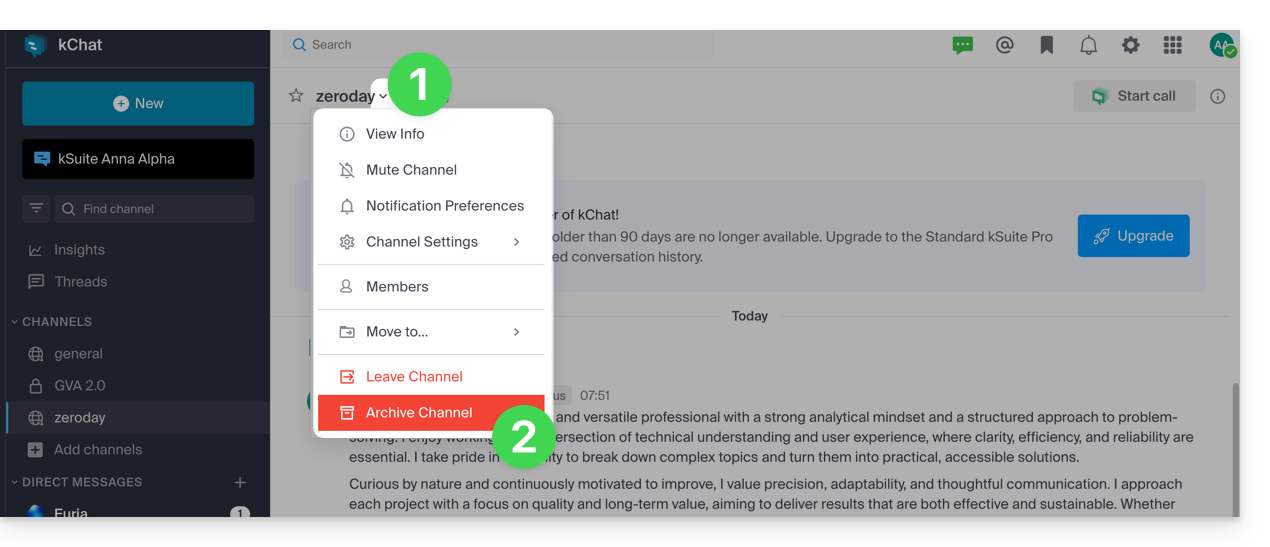
If you create a channel and then archive it, you can rejoin it whenever you want by simply finding it by its name (2) in the search (1):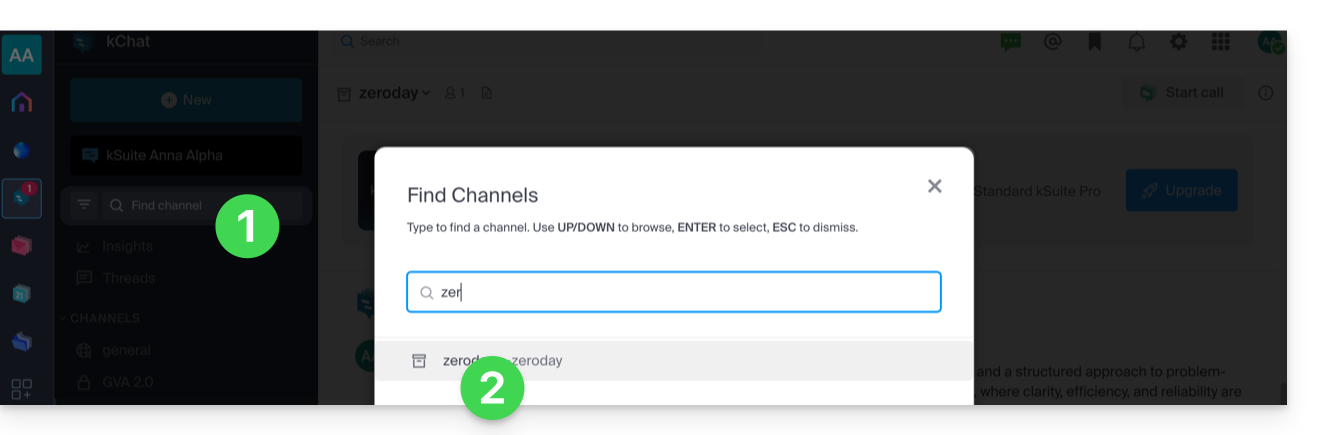
You can then unarchive it:
- Click on the chevron on the channel title at the top of the chat.
- Click on Unarchive channel:
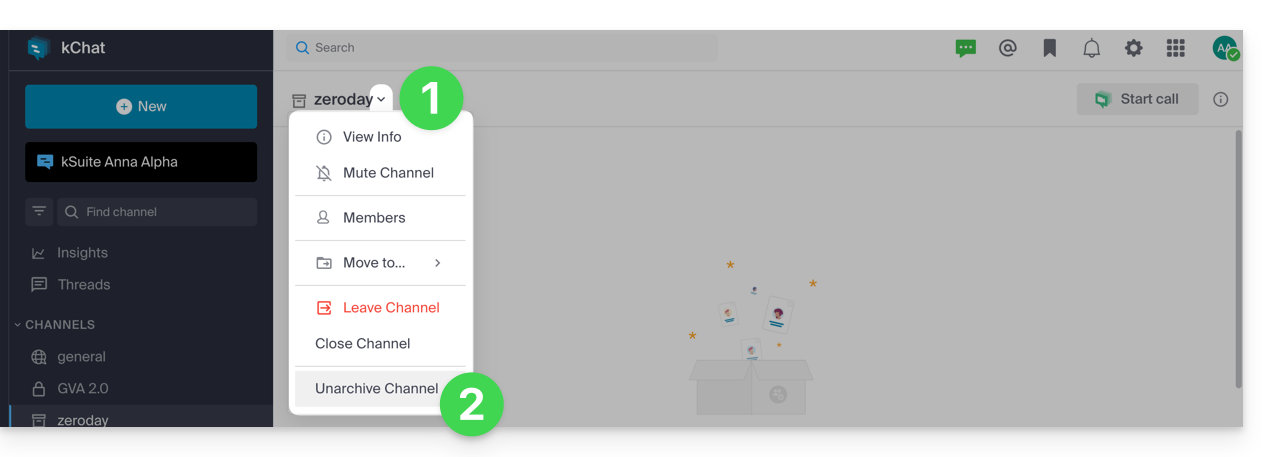
- … or close it to no longer see it in your interface:
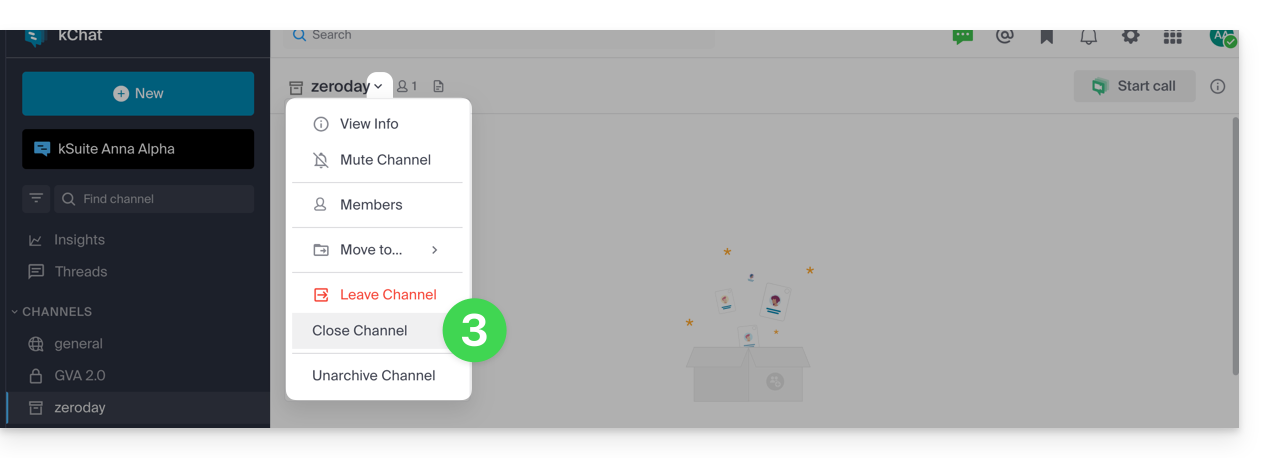
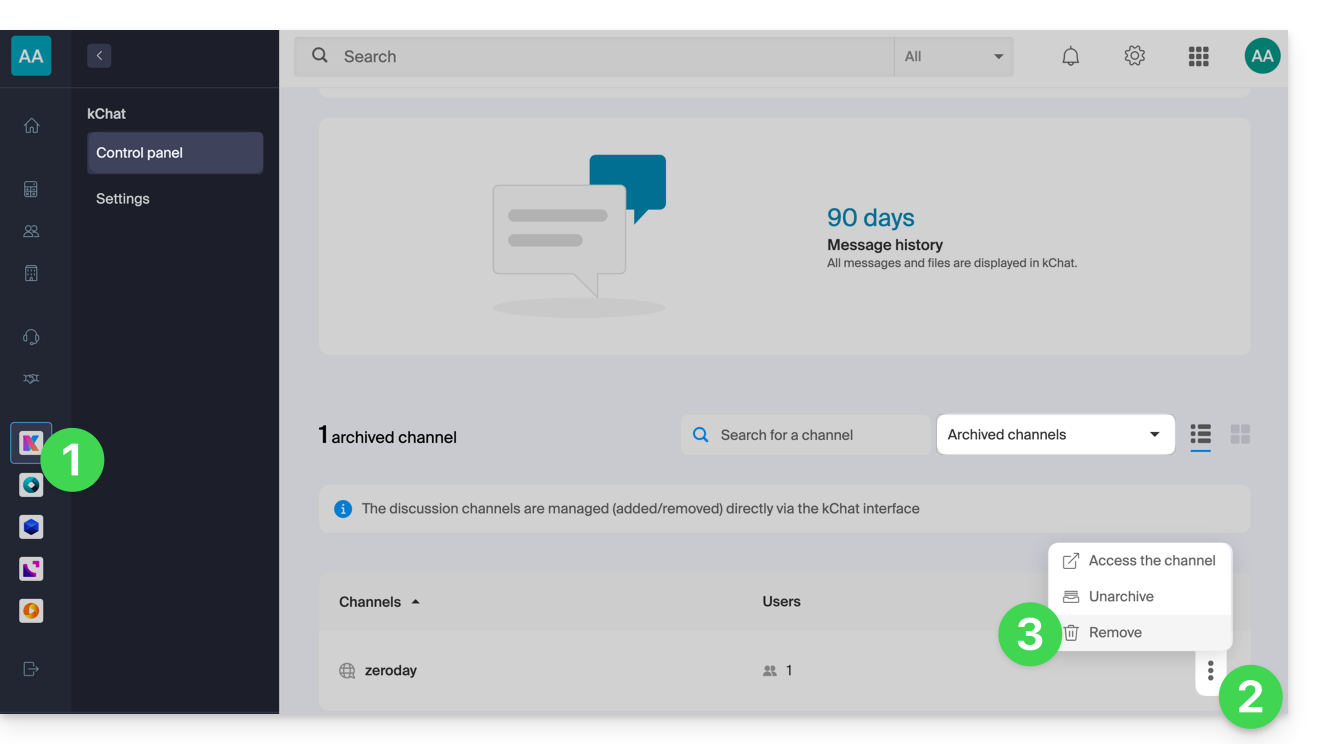
You can also delete a channel, in which case all associated data will be permanently deleted:
- Click here to access the management of your kChat in the Infomaniak Manager (❓: help).
- Click on the action menu ⋮ located to the right of the item in question.
- Click on Delete:
Add to favorites
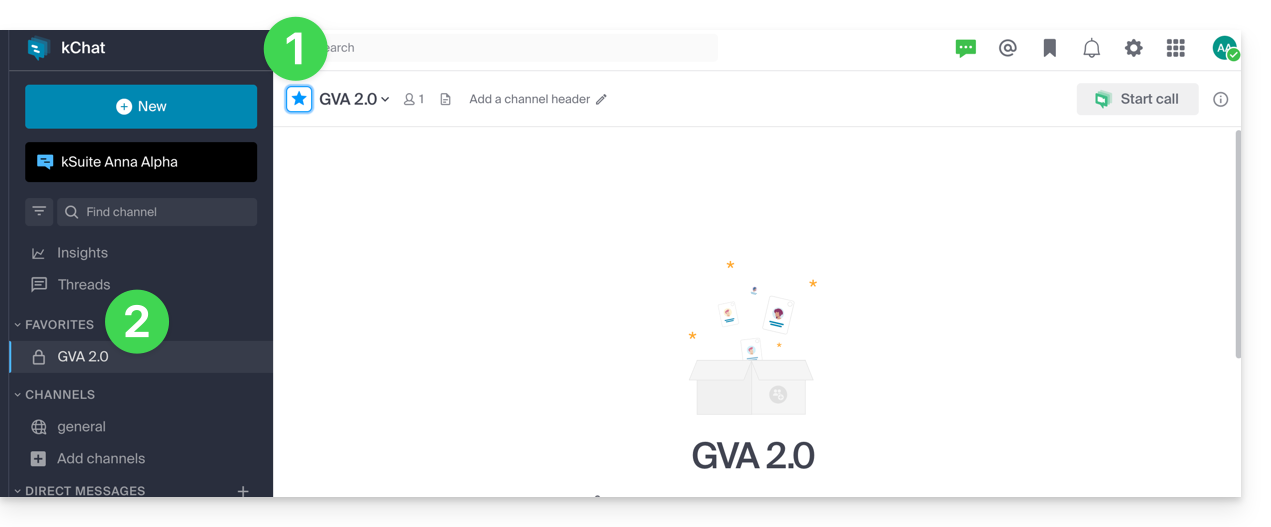
To add any channel (or user) to your favorites:
- From the kChat web app (online service ksuite.infomaniak.com/kchat), click on the star icon at the top of a channel or user.
- A new Favorites menu will appear in the left sidebar, grouping all the items you have added as favorites (visible only to your user):
Mute a channel
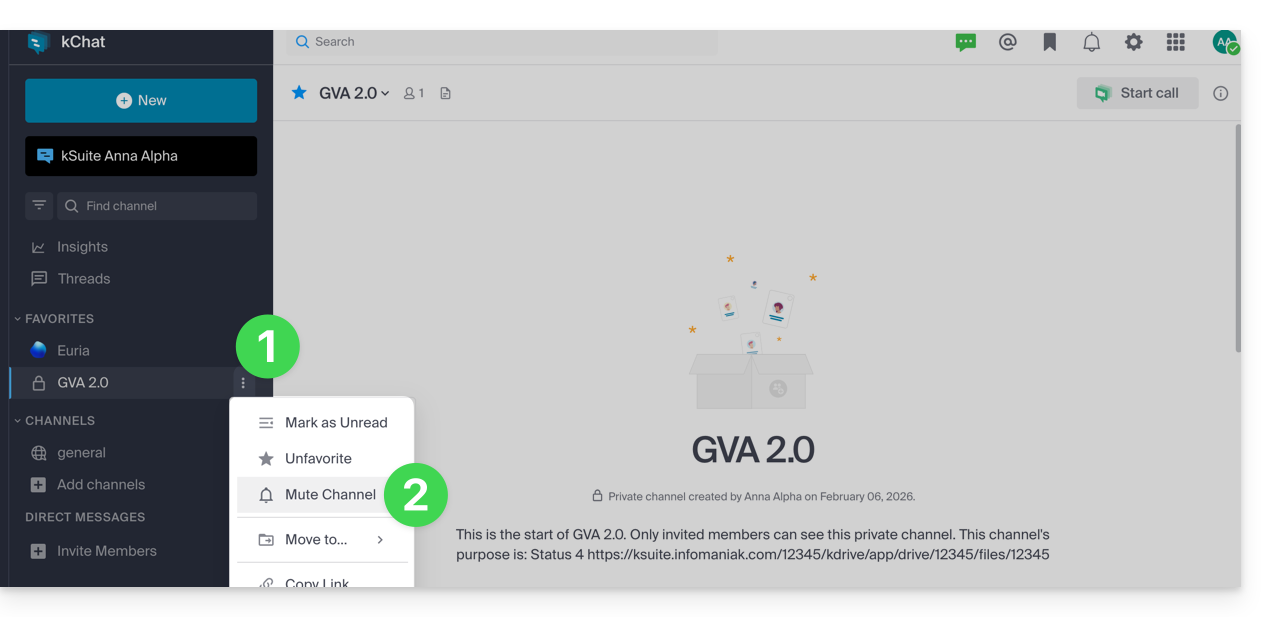
You can hide the notifications (❓: help) of a channel to stop receiving them when a new message is posted:
- From the kChat web app (online service ksuite.infomaniak.com/kchat), click on the action menu ⋮ to the right of the channel in question (in the left sidebar).
- Choose Mute:
Organize by categories
Maximum number of categories (per user):
- kSuite Free = 1 (excluding Favorites)
- kSuite Standard = unlimited
- kSuite Business = unlimited
- kSuite Enterprise = unlimited
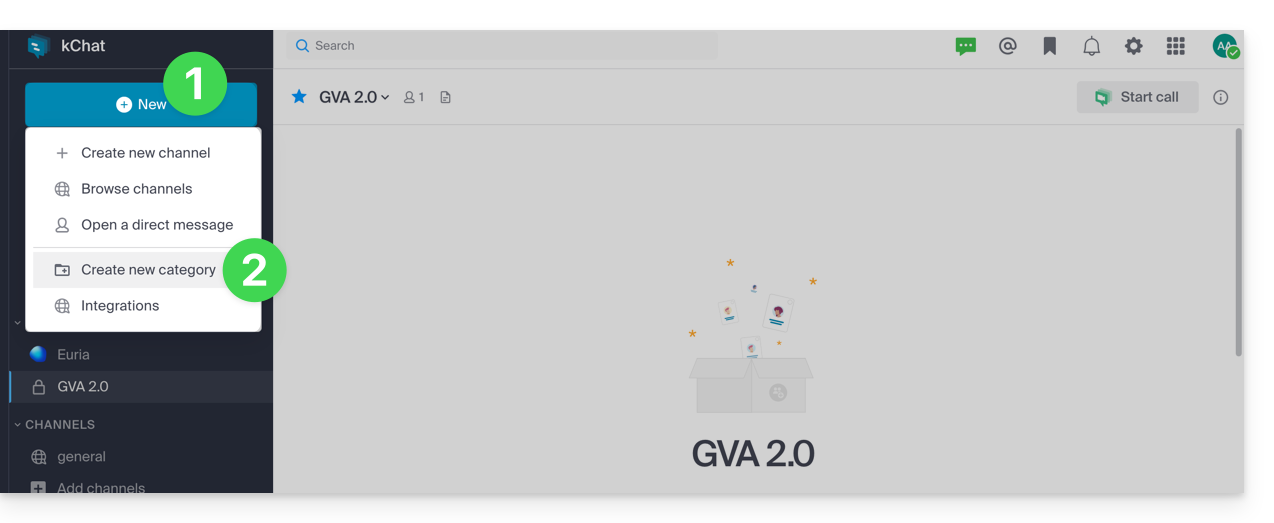
You can add one or more categories to which you can assign items (channel, contact, etc.):
- Click on the New button located in the left sidebar of the kChat web app (online service ksuite.infomaniak.com/kchat).
- Click on Create a new category:
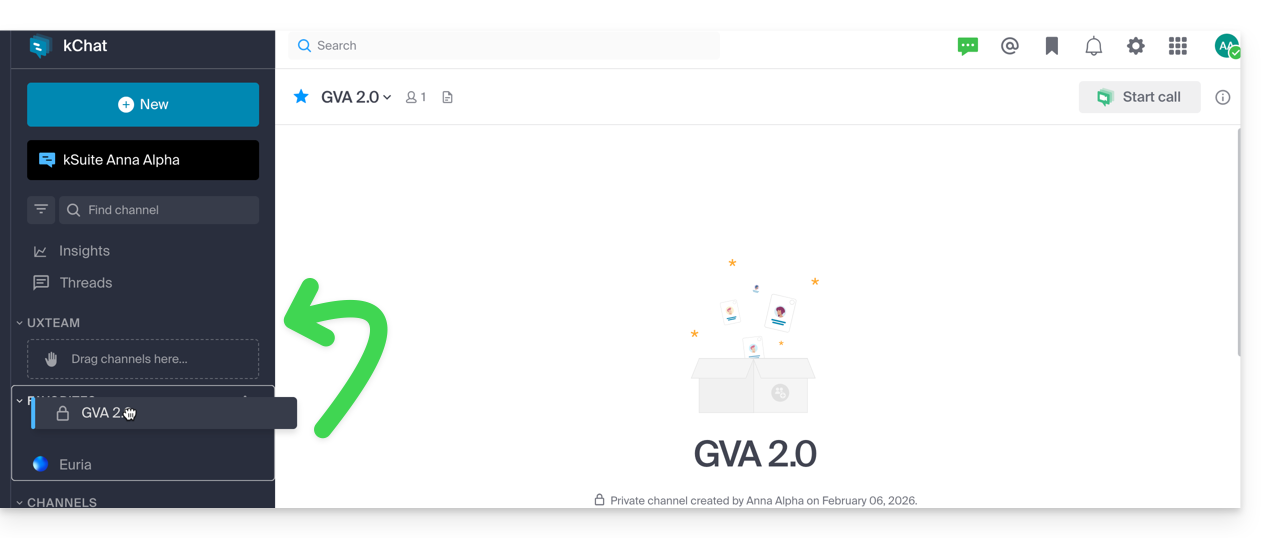
- Then, drag the desired channel onto the created category (only applies to your user):
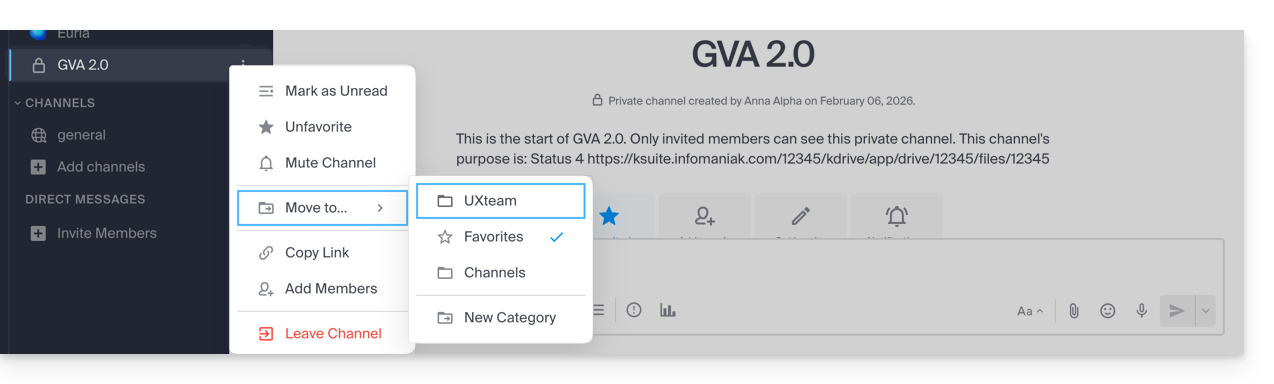
- You can also use the action menu ⋮ to the right of the channel in question (in the left sidebar) to perform these actions:
User-to-user chat channel
Personal messages (❓: help) are direct conversations between two or more people that take place outside of channels.
Each user in an Organization can freely create personal messages, the content of which will only be visible to the people concerned: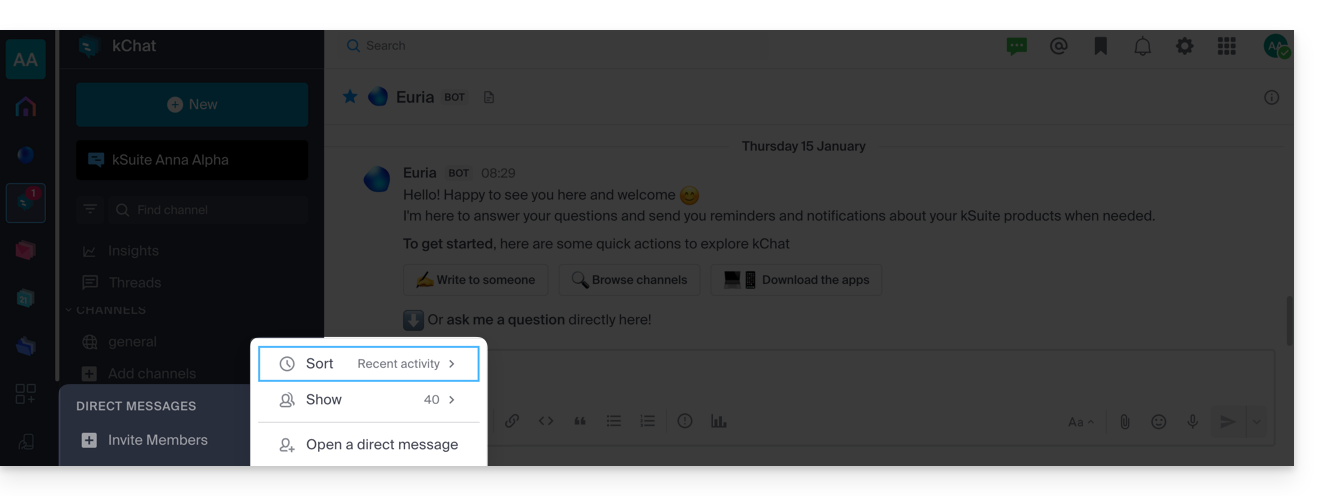
Link to this FAQ: https://faq.infomaniak.com/2732
Has this FAQ been helpful?