Knowledge base
1000 FAQs, 500 tutorials and instructional videos. Here, there are only solutions!
Link a domain name to kSuite
This guide explains how to link a domain name to the offer kSuite Infomaniak.
Manage the kSuite domain
To get started:
- Click here to access the management of your kSuite on the Infomaniak Manager (need help?).
- If a domain is already linked, you can manage it by clicking on the action menu ⋮ to the right of the kSuite name, then Manage domains:
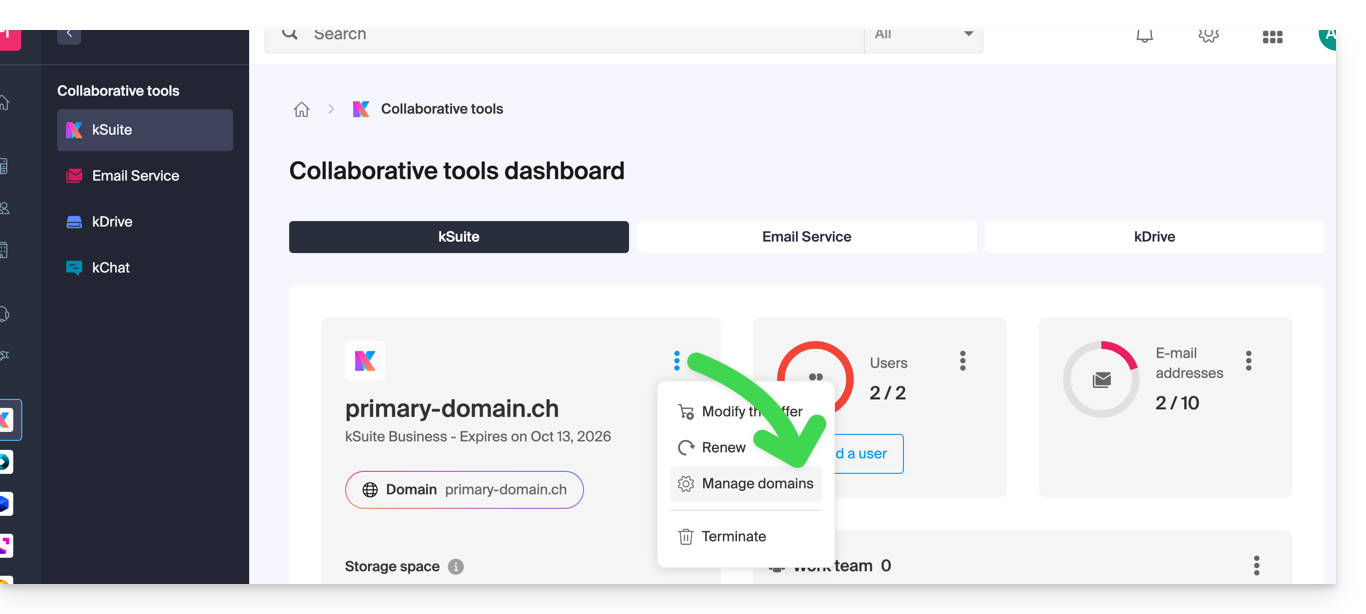
- If no domain is linked yet, you can add 1 by clicking on the button:
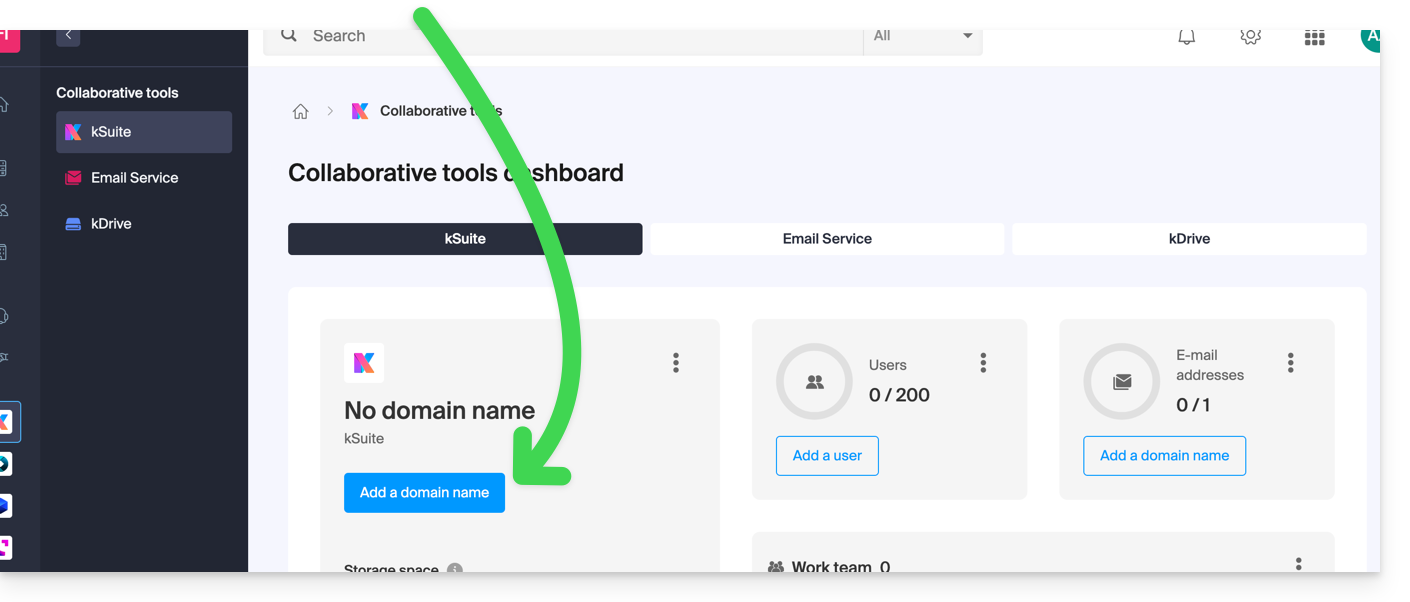
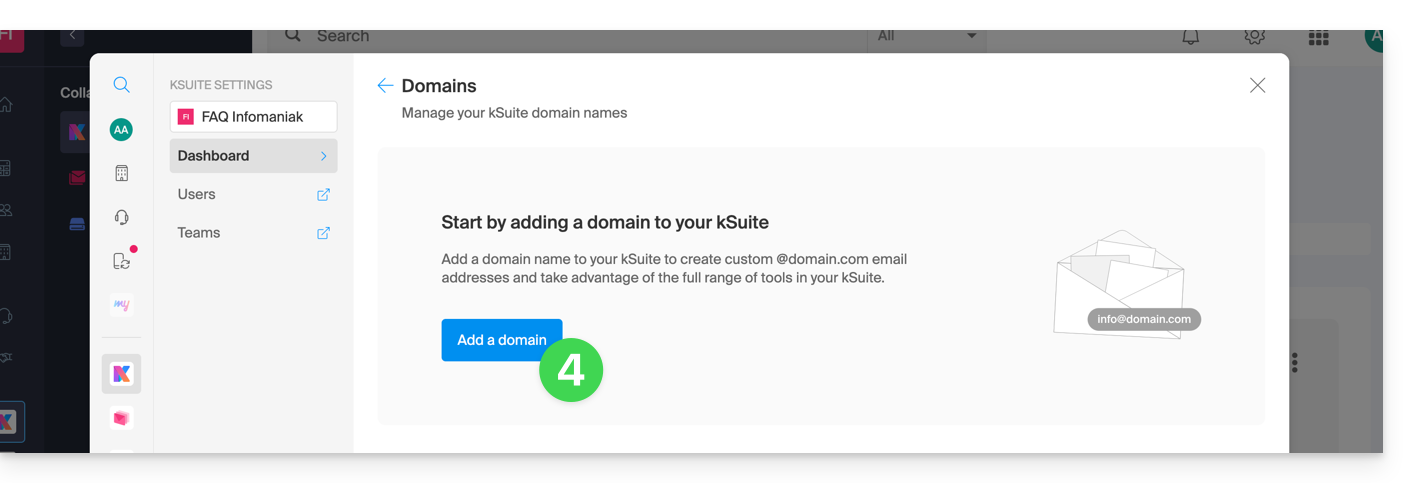
- Click the button to add a domain:
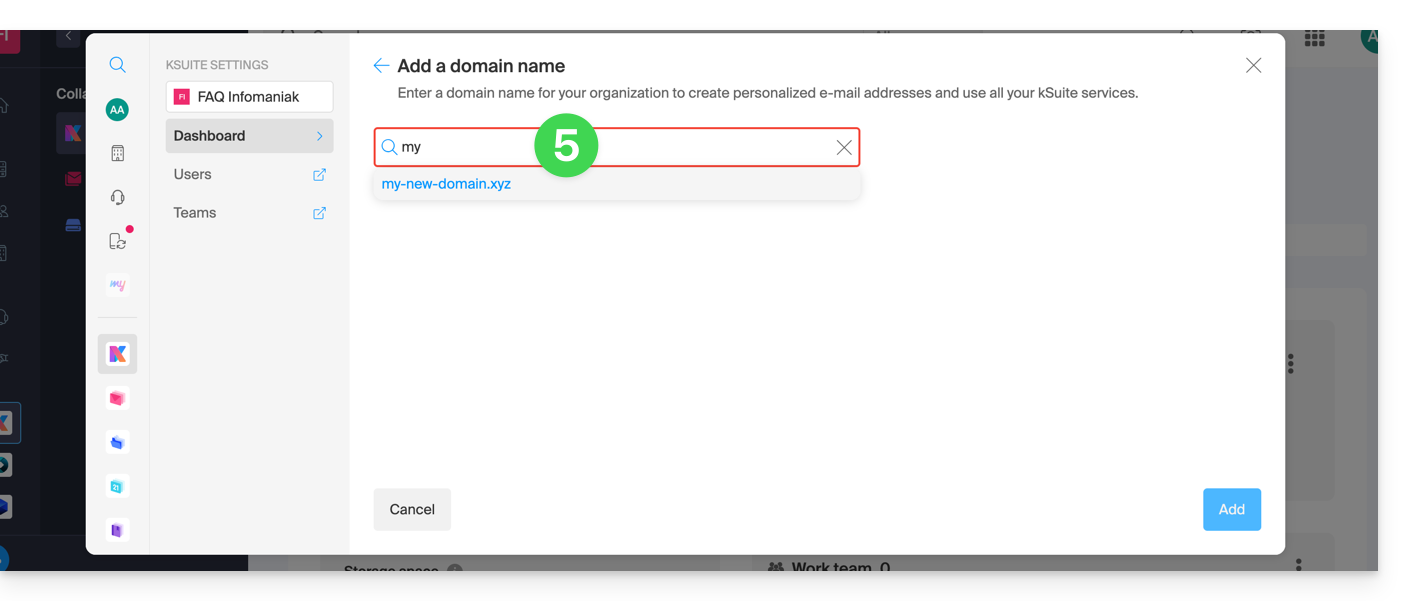
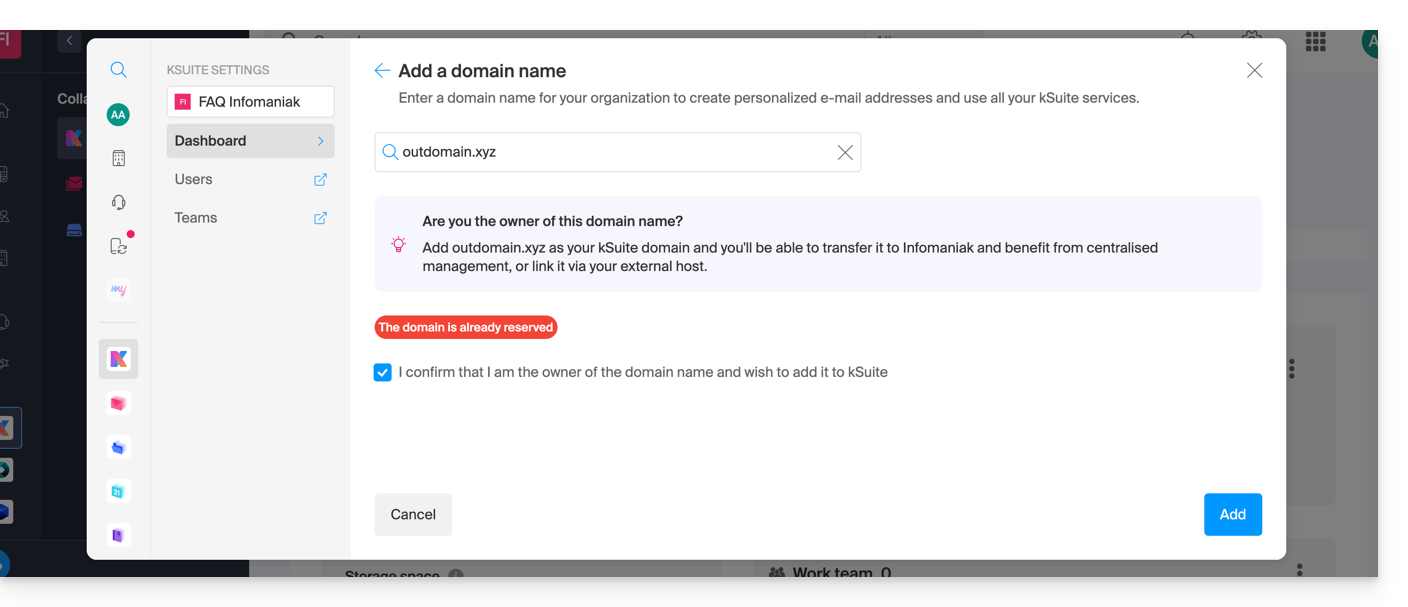
- Choose the domain to attach from those in your Organization (still available, i.e., not attached to any service) or enter an external domain name:
- Depending on the situation of your domain (also refer to the information below), you will need to perform some manipulations beforehand…
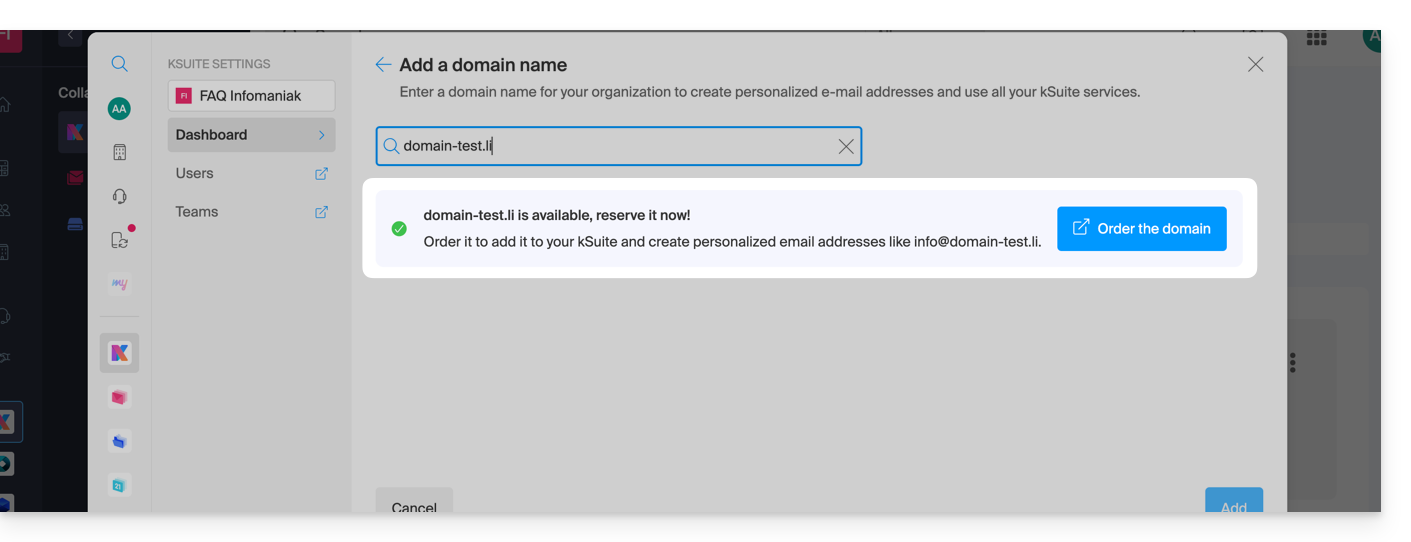
- … or even purchase a domain if necessary:
- Depending on the situation of your domain (also refer to the information below), you will need to perform some manipulations beforehand…
If the domain name is…
… with Infomaniak, same Organization
If your domain name is registered with Infomaniak and is in the same user account or Organization as the email, then there is nothing to do.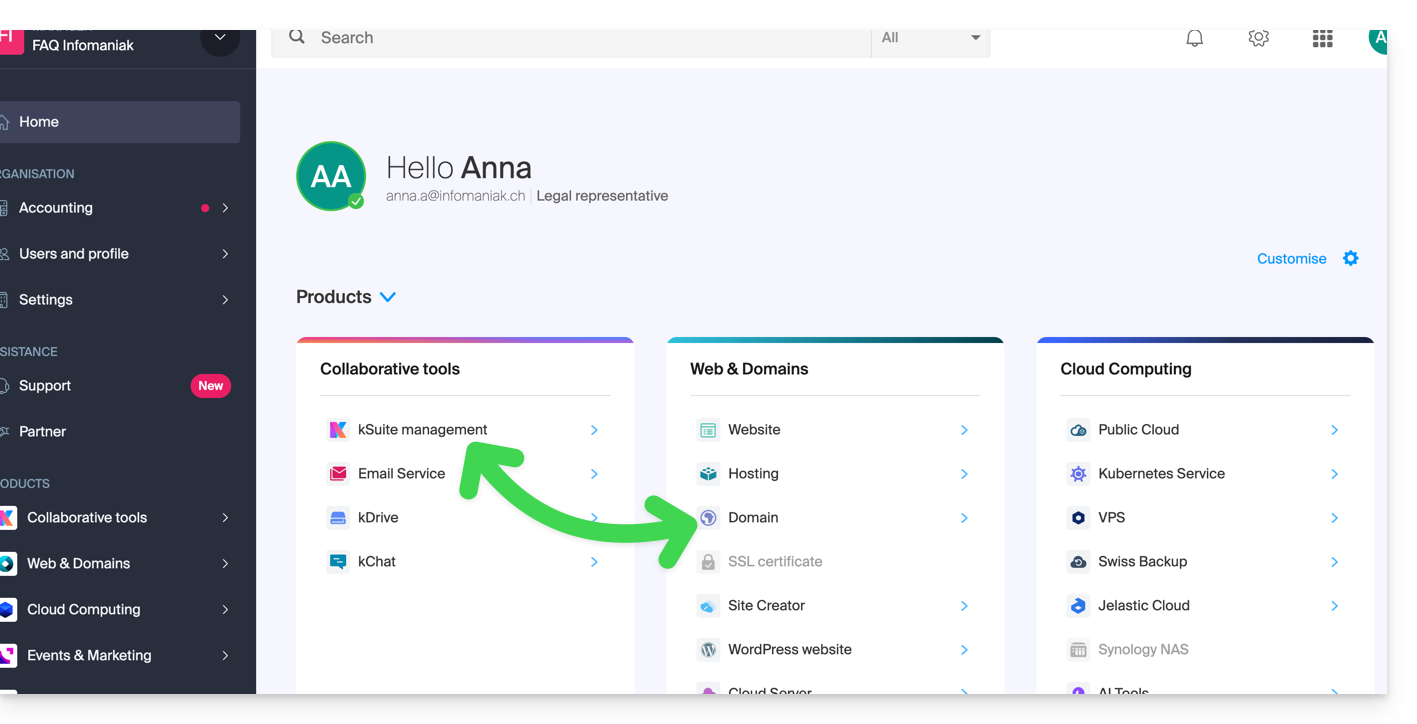
Simply add it to your kSuite: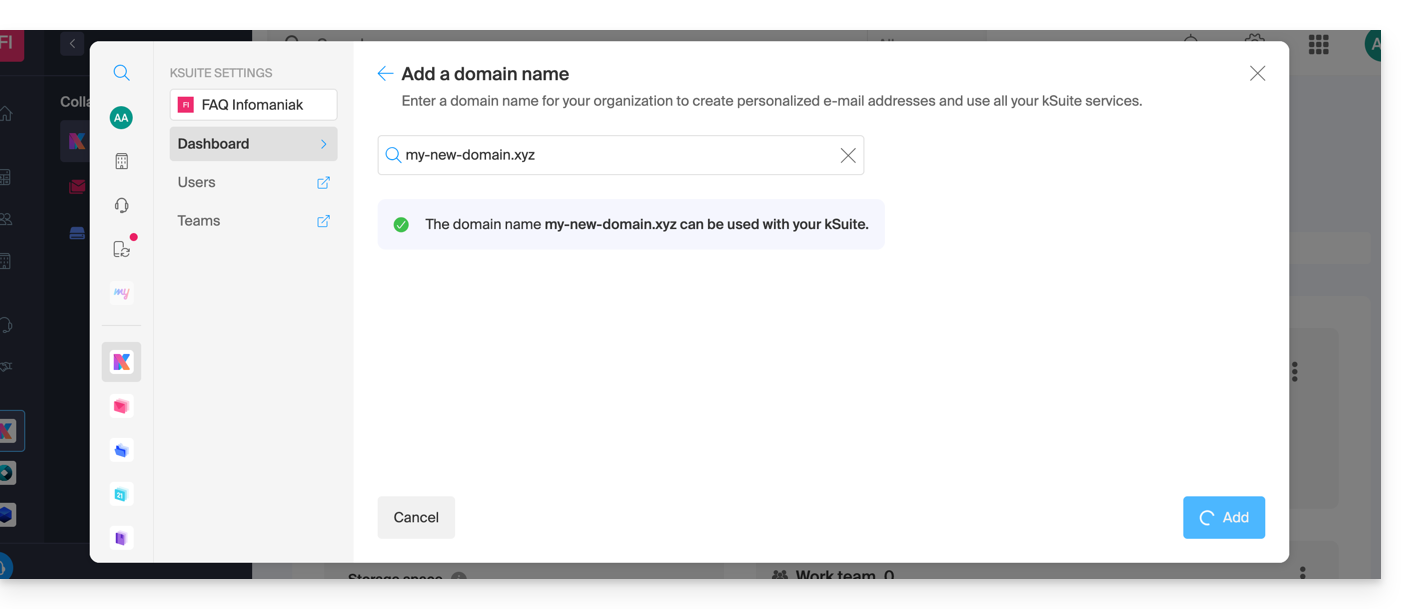
The domain will be added and visible on the dashboard: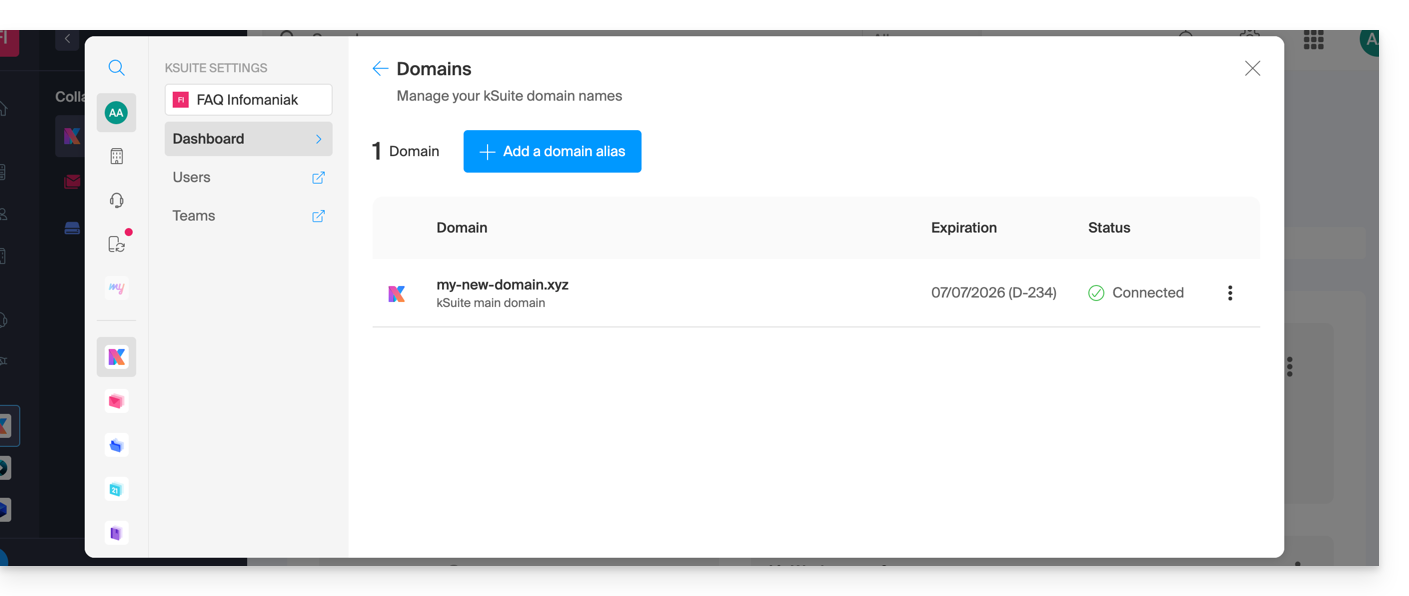
- Refer to this other guide to verify and correct any potential configuration errors.
… with Infomaniak, same Organization and already linked to a Mail Service or kDrive
No problem, you can convert your existing products to kSuite.
… with Infomaniak, different Organization
If your domain name is registered with Infomaniak but in a different user account or Organization, then:
- Edit its DNS zone by specifying Infomaniak's MX (+ SPF & DKIM).
- Any DNS addition/modification can take up to 48 hours to propagate.
OR
- Move it within the same Organization.
Generally, a message will alert you to this situation: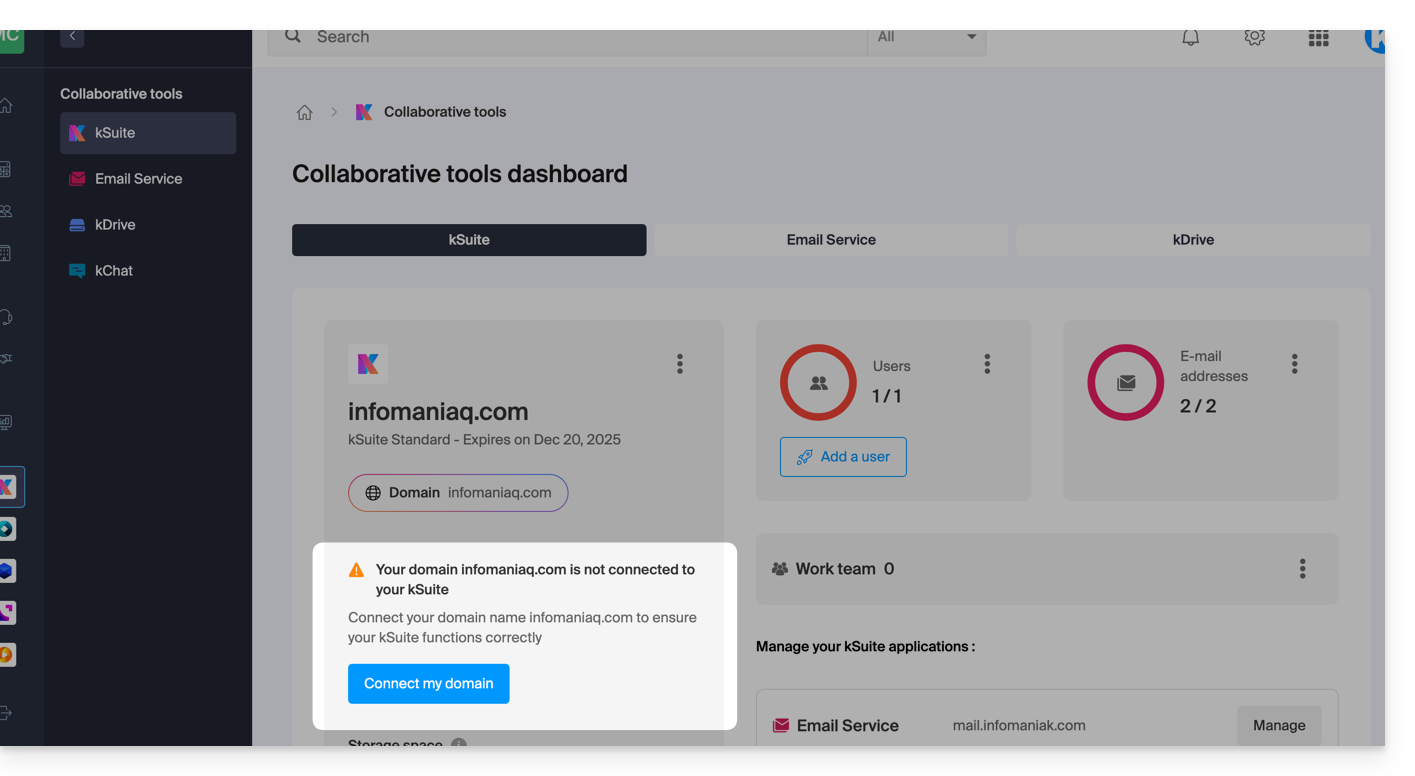
… and the technical information to be reported where the domain is located will be proposed: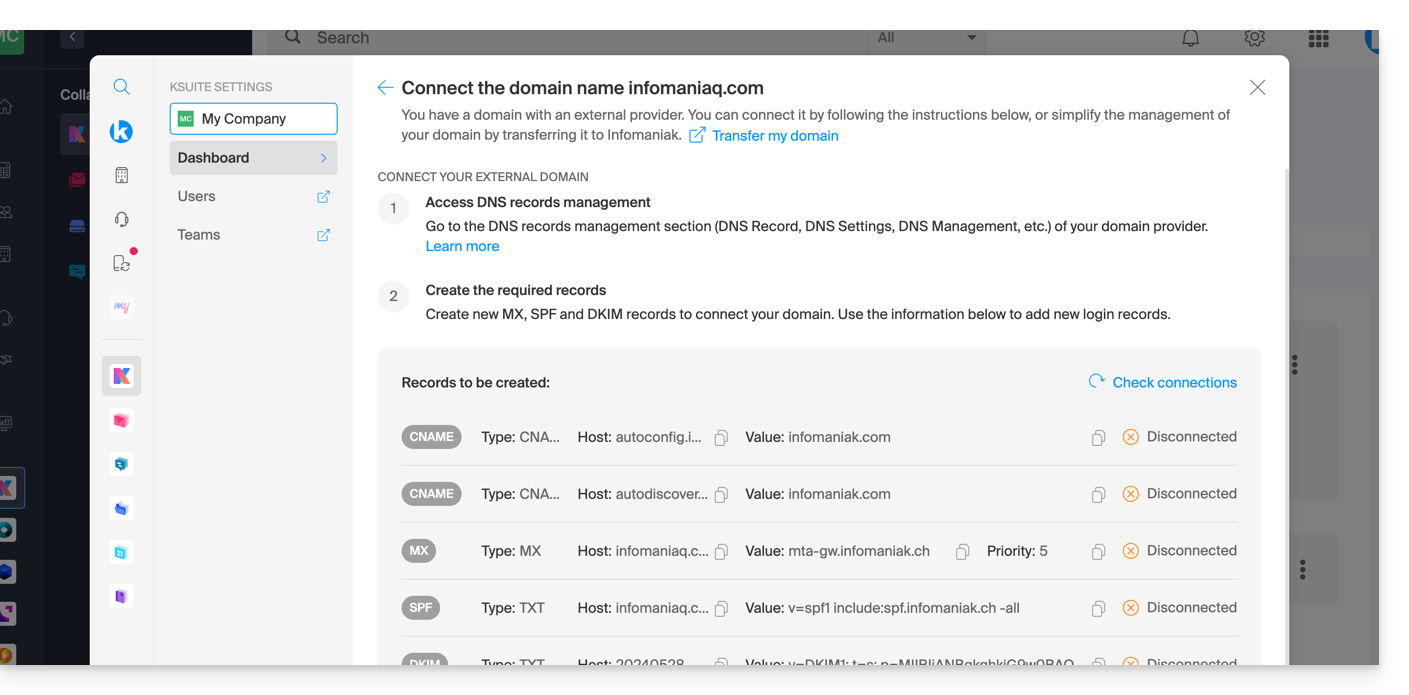
... with Infomaniak using external DNS
If your domain name includes DNS that are not Infomaniak's, then:
- Edit the current DNS zone where it is located (if necessary, consult the help of the relevant provider) by specifying Infomaniak's MX (+ SPF & DKIM).
- Any DNS addition/modification can take up to 48 hours to propagate.
OR
- Change the current DNS and select the use of Infomaniak DNS.
- Any DNS addition/modification can take up to 48 hours to propagate.
- Refer to this other guide to verify and correct any potential configuration errors.
This will be indicated to you (see the images above).
... elsewhere with external DNS
If your domain name is registered with another registrar and includes DNS that are not Infomaniak's, then:
- Edit the current DNS zone where it is located (if necessary, refer to the help of the relevant provider) by specifying Infomaniak's MX (+ SPF & DKIM).
- Any DNS addition/modification can take up to 48 hours to propagate.
OR
- Change the current DNS (if necessary, refer to the help of the relevant provider) by specifying Infomaniak's (this implies having a DNS zone with Infomaniak.
- Any DNS addition/modification can take up to 48 hours to propagate.
- This DNS zone with Infomaniak will be configured correctly, but refer to this other guide to verify and correct any configuration errors.
This will be indicated to you (see the images above).
... elsewhere but you are bringing it back
If your domain name is registered with another registrar and you wish to bring it to the same place as your Infomaniak email, then:
- Transfer the domain name to Infomaniak (it will be configured correctly, but refer to this other guide to verify and correct any configuration errors).
Otherwise, consider ordering a new domain name if necessary.
Link to this FAQ:
Has this FAQ been helpful?