Knowledge base
1000 FAQs, 500 tutorials and instructional videos. Here, there are only solutions!
Discover Infomaniak Public Cloud
This guide explains how to navigate the Public Cloud interface from the Infomaniak Manager and presents the different limits of this service.
Discovering Public Cloud
The list of scheduled maintenance and current issues can be found at https://status.infomaniak.cloud/.
To access the homepage of your Public Cloud:
- Click here to access the management of your product on the Infomaniak Manager (need help?).
- You arrive on a page where all the Public Clouds you have ordered are listed:
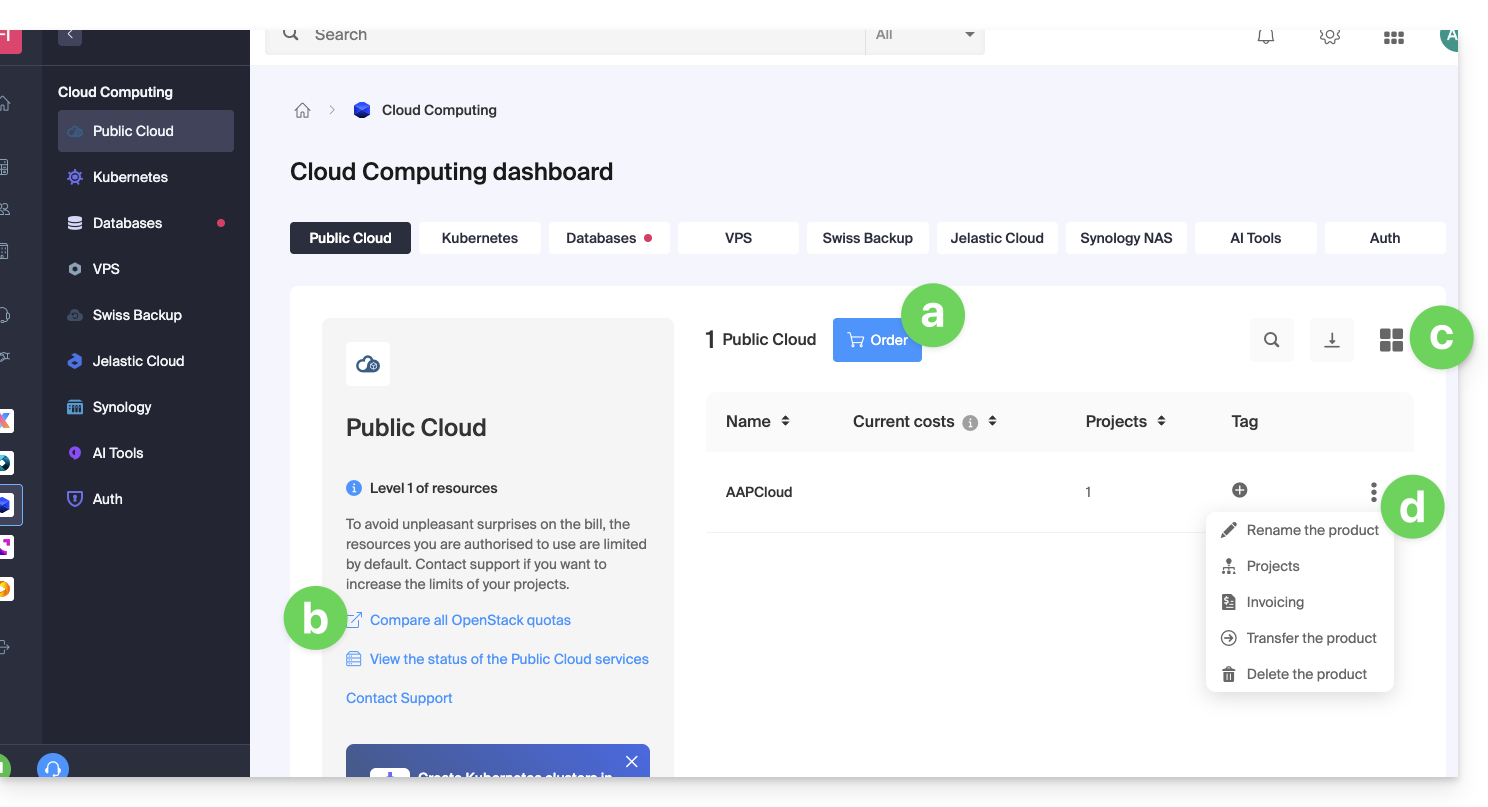
- This button allows you to order a new Public Cloud.
- This link allows you to access the comparison page of the different subscription formulas for Public Cloud.
- This button allows you to switch from a list or thumbnail view.
- Click on the action menu ⋮ to the right of the concerned object to access the options:
- The pencil icon ✎ allows you to rename your Public Cloud
- The tree icon allows you to access the projects page linked to the selected Public Cloud
- From this projects page linked to the Public Cloud, you will have access to all your projects:
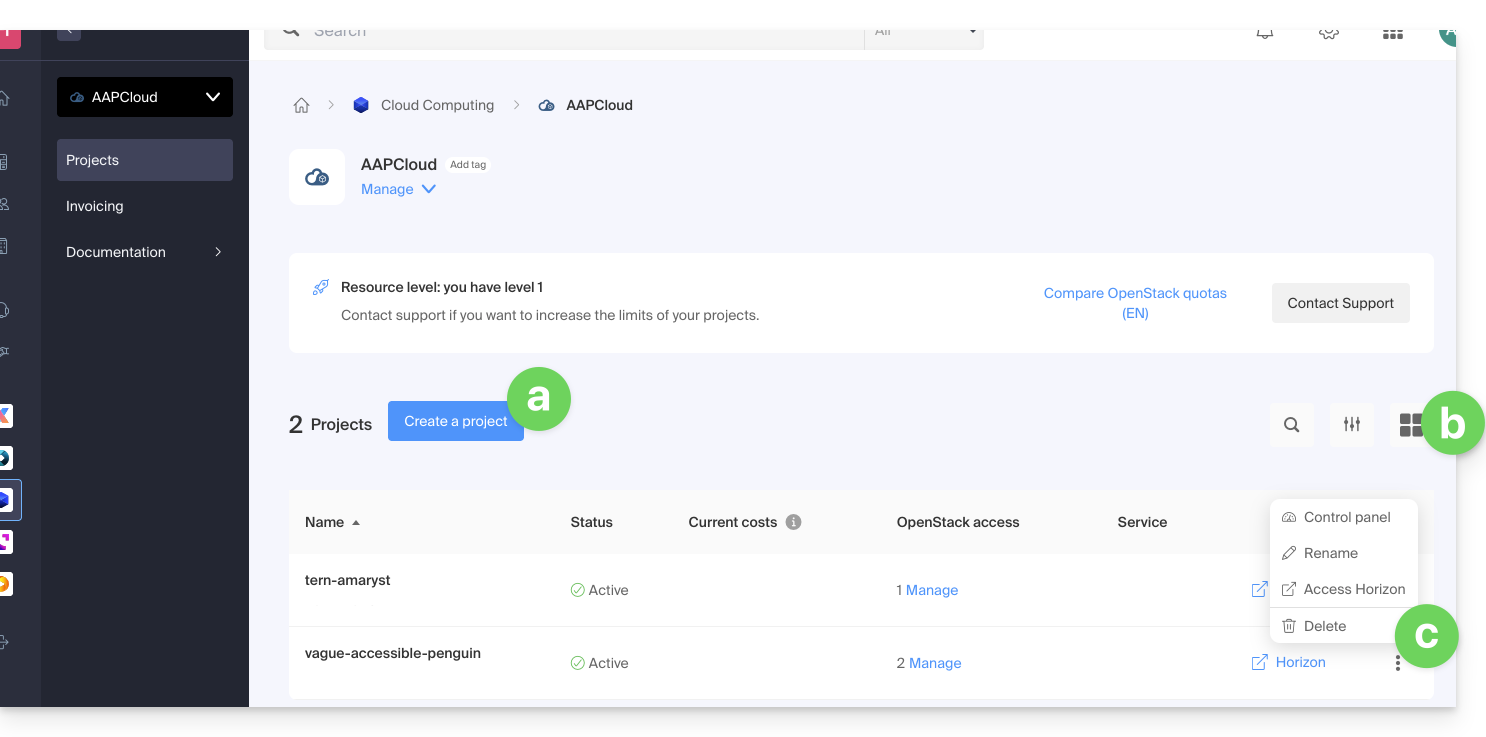
- This button allows you to create a new project that will be linked to the Public Cloud.
- This button allows you to switch from a list or thumbnail view.
- Click on the action menu ⋮ to the right of the concerned object to access the options:
- The first element allows you to access the dashboard of the project
- The pencil icon ✎ allows you to rename your project
- The right arrow icon allows you to access the OpenStack Horizon dashboard directly.
Additional options are accessible from the left sidebar and under Manage: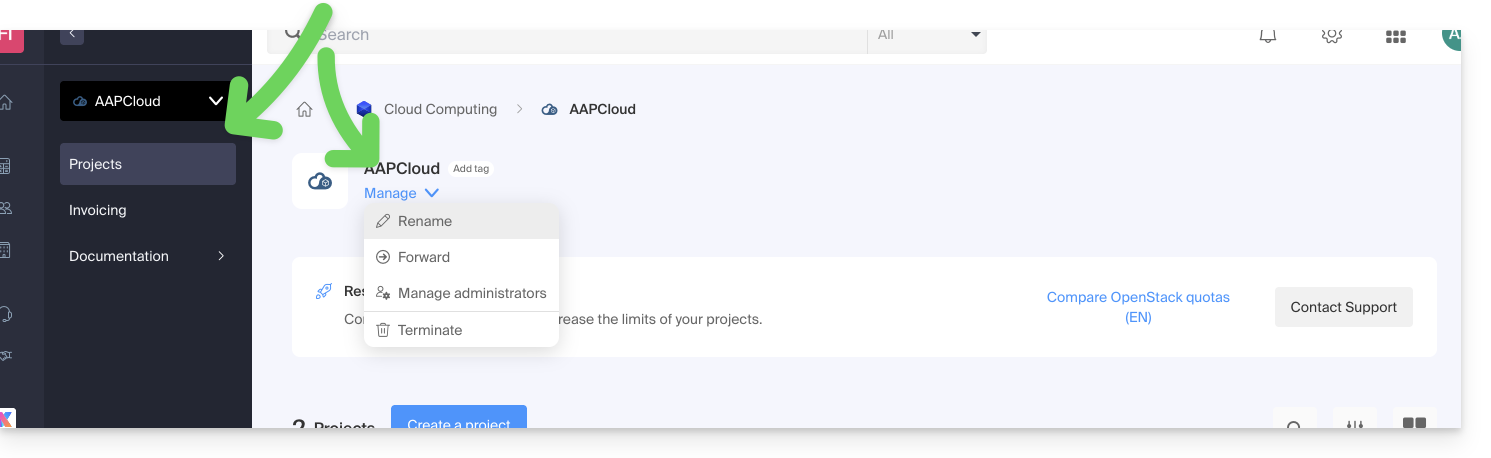
To invite new users to your project, you must go directly through the OpenStack administration interface.
Public Cloud Limits
By default, the resources that can be used in a project are limited (for security reasons - to avoid ending up with a high bill at the end of the month, for example).
Learn about the 3 levels of limits detailed in this other guide.
The Manager indicates the limit level assigned to the Organization: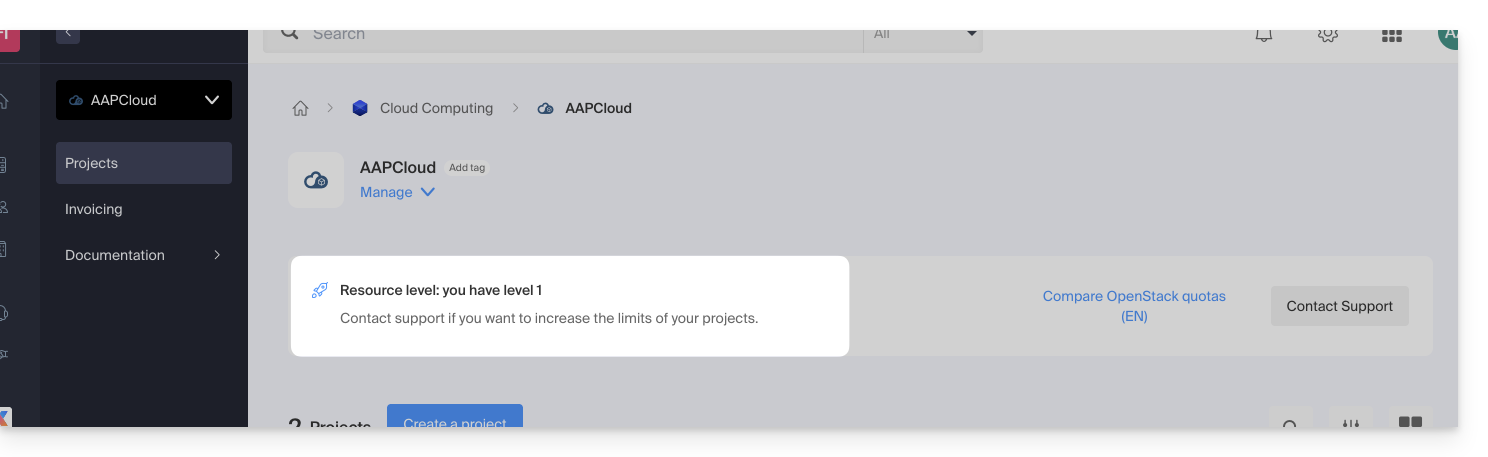
To increase the project limits, contact Infomaniak support.
The limits apply to all projects in the Organization. In an Organization with 5 projects, including 1 that requires level 3, the other 4 projects will inherit a level 3 limit.
Link to this FAQ: https://faq.infomaniak.com/2602
Has this FAQ been helpful?