Knowledge base
1000 FAQs, 500 tutorials and instructional videos. Here, there are only solutions!
Ticketing: Broadcast an event in streaming
This guide explains how to create an event (within the Infomaniak ticketing system) that will be broadcast via the Infomaniak streaming service.
Prerequisites
- Have an Infomaniak ticketing system to create the event.
- Have an Infomaniak video streaming service to broadcast the event.
Broadcast your event in streaming
A dedicated page is set up to ensure that only people who have purchased a ticket will have access to your event:
Creating a virtual event
To do this:
- Click here to access the management interface for your product in the Infomaniak Manager (need help?).
- Click directly on the name assigned to the ticketing system for the event:
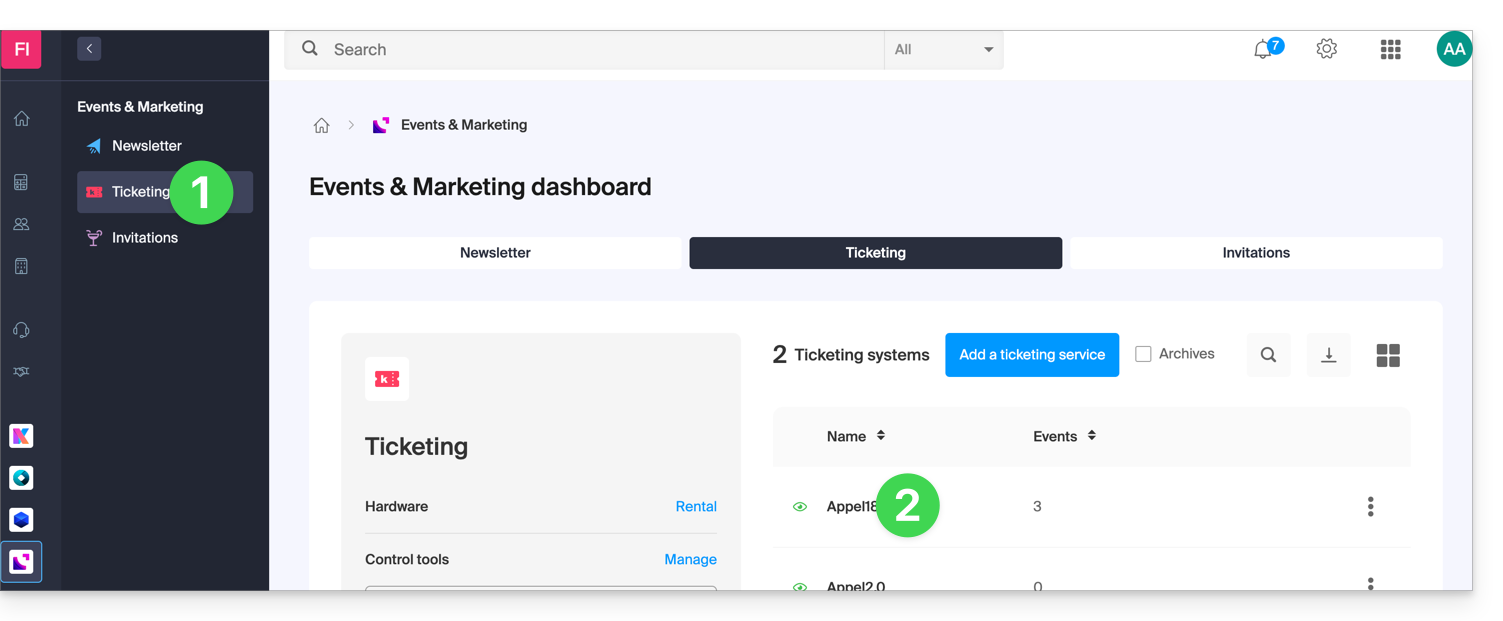
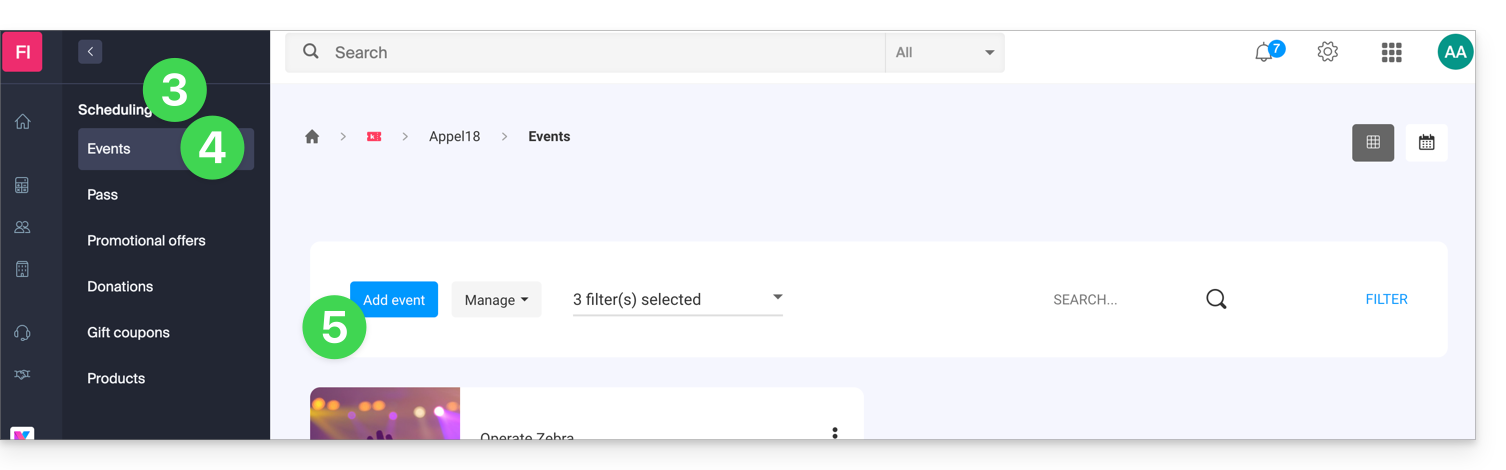
- Click on Scheduling in the left-hand menu.
- Click on Events in the left-hand menu.
- Click on the Add event button:
- Enter the information related to your event.
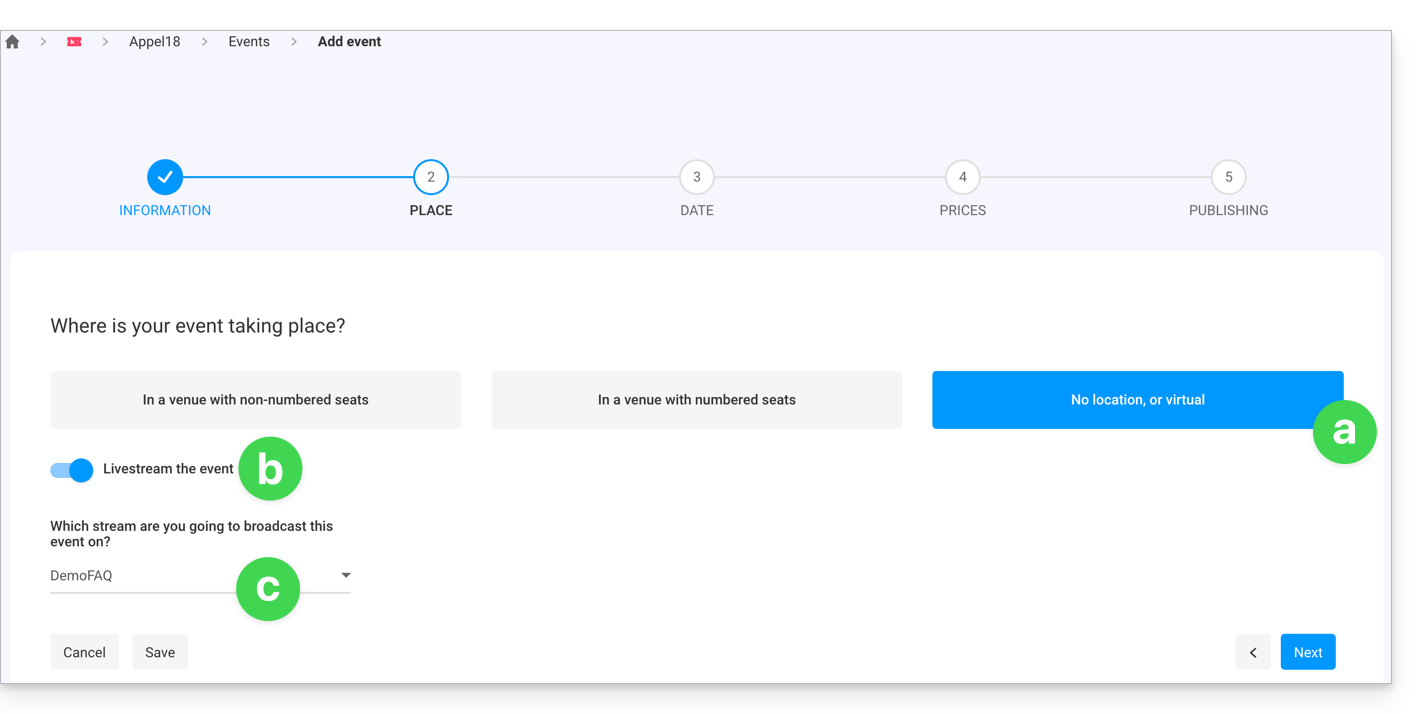
- In the Location step, choose: No location or Virtual, then select: Broadcast the event live (livestreaming) and choose the streaming feed to broadcast your event:
Modifying an event that has already been created
You can modify or add a location to an event that has already been created, for example, to offer it in streaming:
- Click here to access the management of your product on the Infomaniak Manager (need help?).
- Click directly on the name assigned to the ticketing system for the event.
- Click on Schedule in the left-hand menu.
- Click on Events in the left-hand menu.
- Click on the event in question.
- Click on the blue Edit button.
- In the Location step, choose: No location or Virtual, then select: Broadcast the event live (livestreaming) and choose the streaming feed to broadcast your event.
- To enable slots for livestreaming, you will need to:
- Either click on the action menu ⋮ located to the right of the current pricing plan, click on Edit, and check the box: Livestream event, in addition to the In-person event box:
- Or click on Add a zone, check the box: Livestream event, and indicate the number of slots available for livestreaming

- Either click on the action menu ⋮ located to the right of the current pricing plan, click on Edit, and check the box: Livestream event, in addition to the In-person event box:
- Click on Save.
The number of available slots will affect the consumption of your Streaming Video plan. You can estimate the consumption based on the broadcast time, quality, and number of viewers using the calculator. If you exceed your monthly consumption, the overage will be billed at CHF 0.20 per GB.
You can set an access password or other restrictions so that only the intended participants can access the live event: 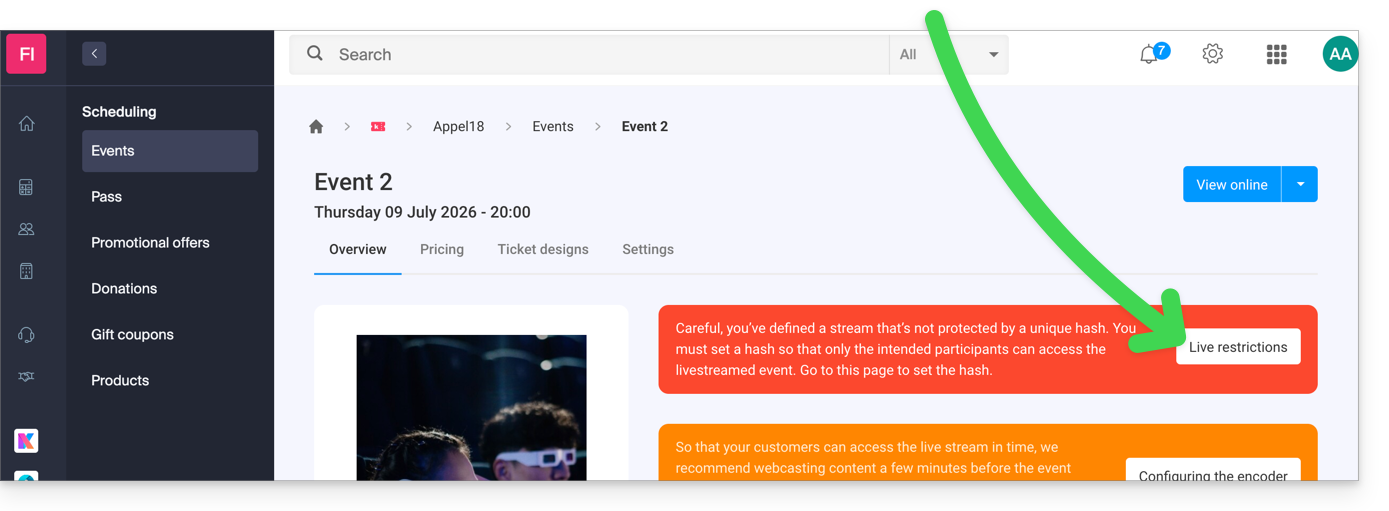
Link to this FAQ: https://faq.infomaniak.com/2600
Has this FAQ been helpful?