Knowledge base
1000 FAQs, 500 tutorials and instructional videos. Here, there are only solutions!
Link multiple SSL certificates to a single website
Update 10/13/2026
This guide explains how to add two different EV or DV SSL Certificates to the same website.
Introduction
- Since it is not possible to install two SSL certificates on the same website, it is necessary to create two identical websites.
Creating the second website
Prerequisites
- Remove any existing domain name aliases from your site.
To access your web hosting and add a website:
- Click here to access your product management interface on the Infomaniak Manager (need help?).
- Click directly on the name assigned to the product in question.
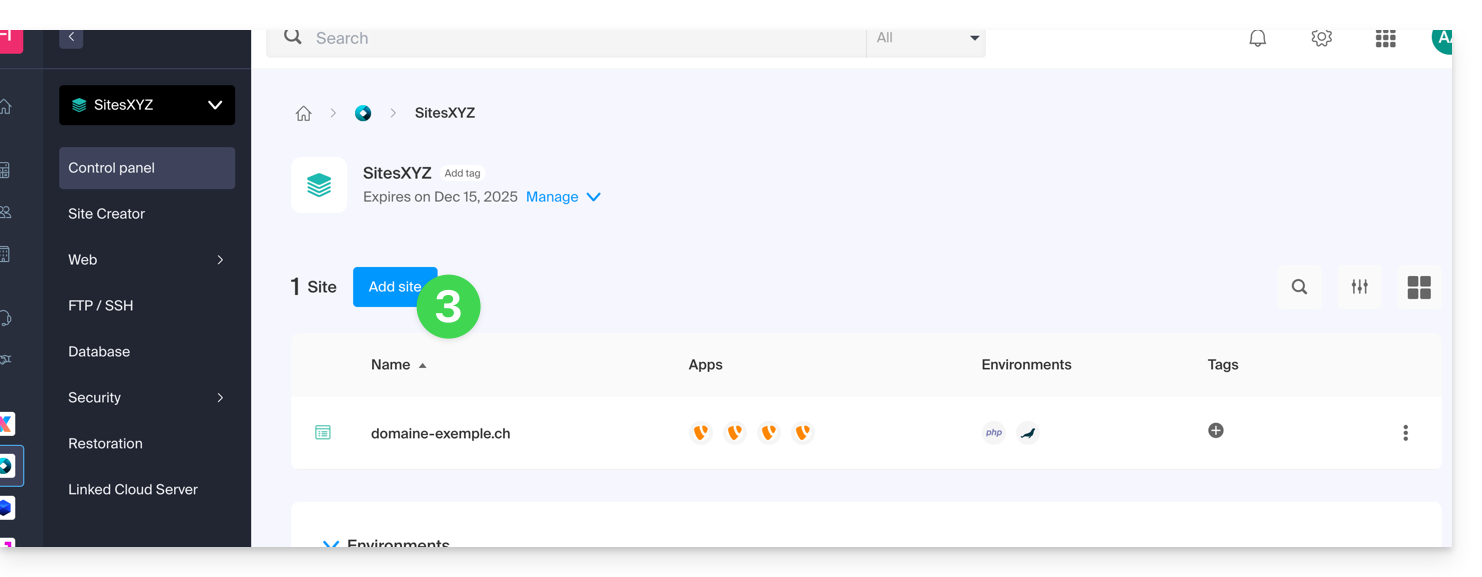
- Click on the Add a site button:
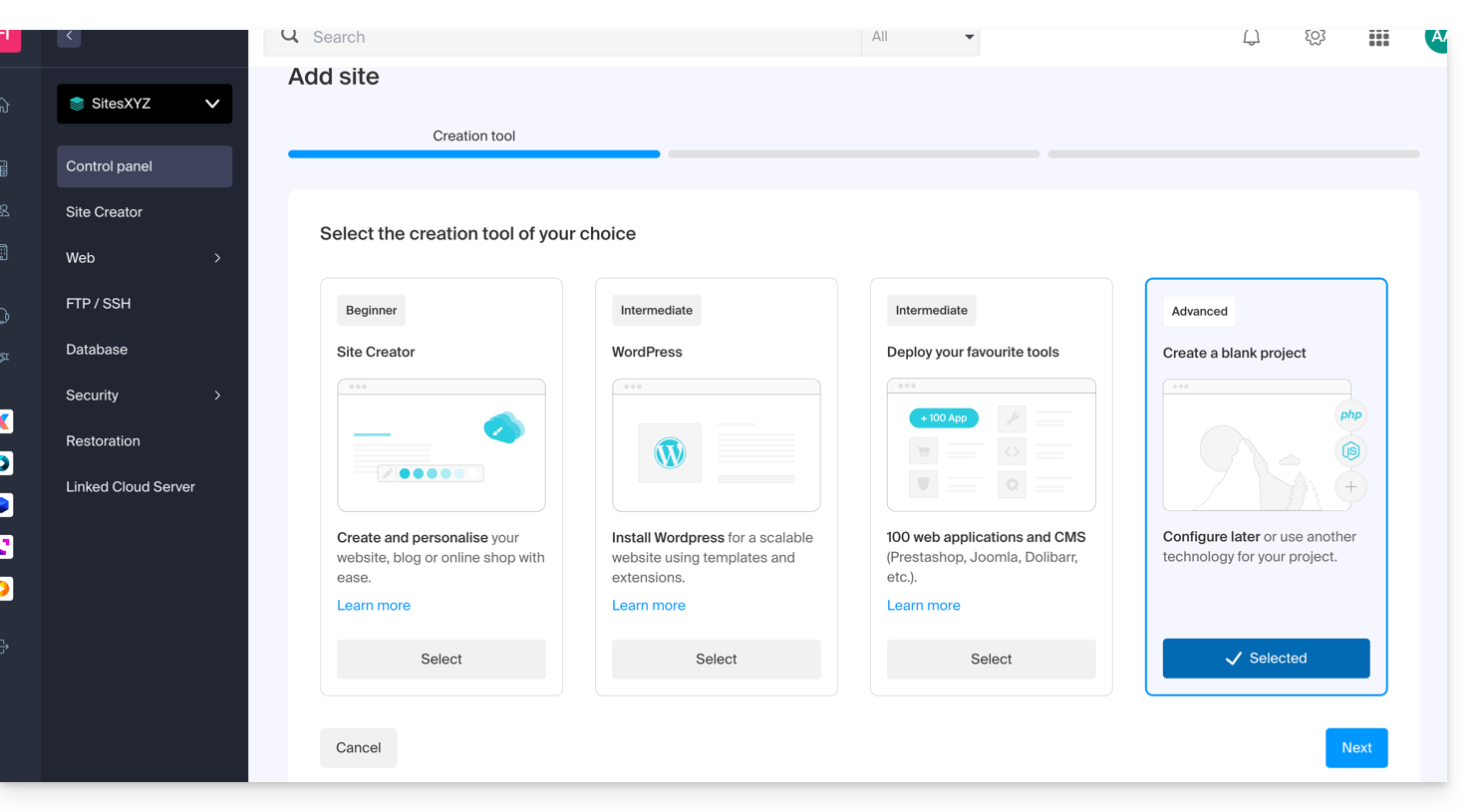
- Continue without installing any tools:
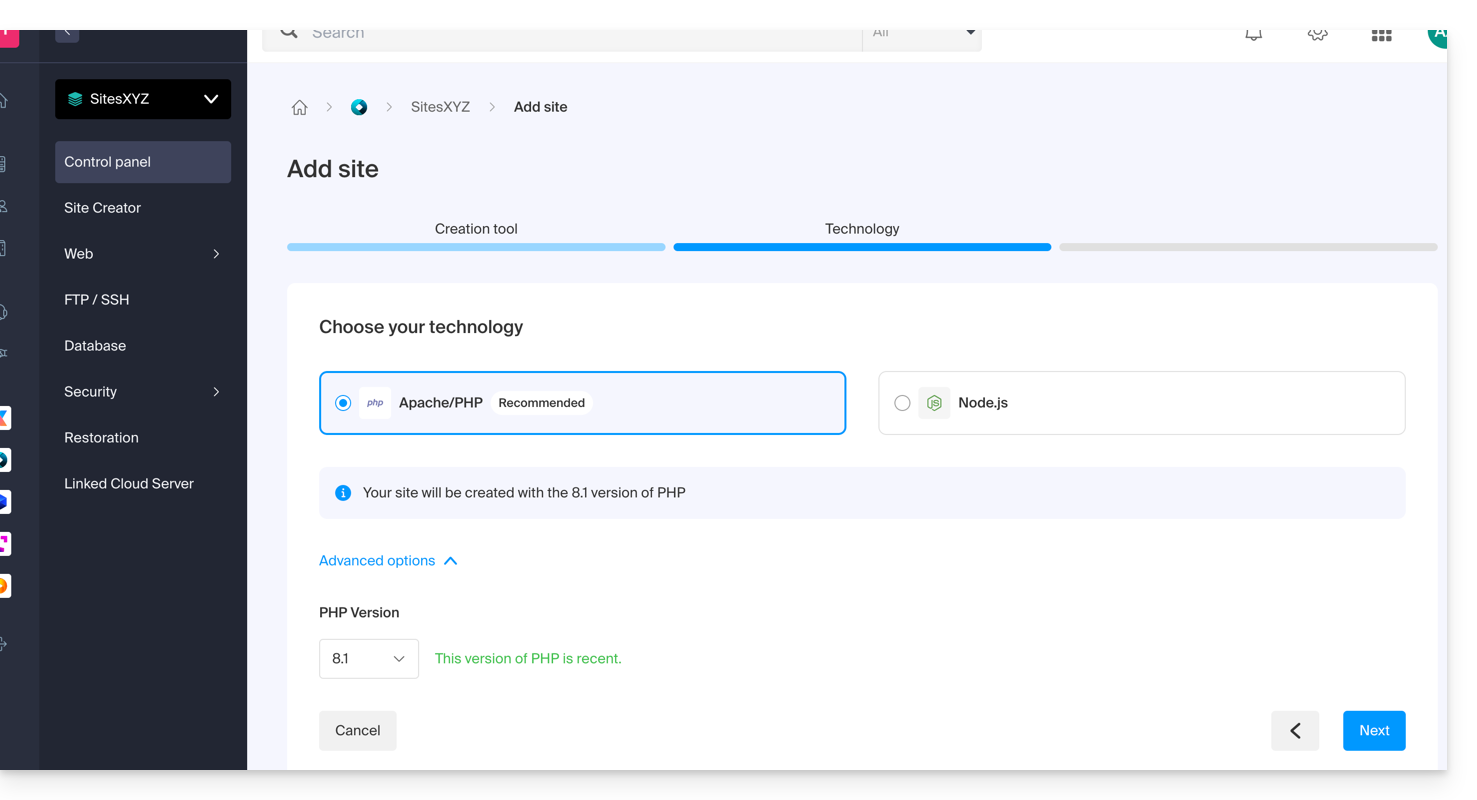
- Click on Apache and choose the same PHP version as the main site:
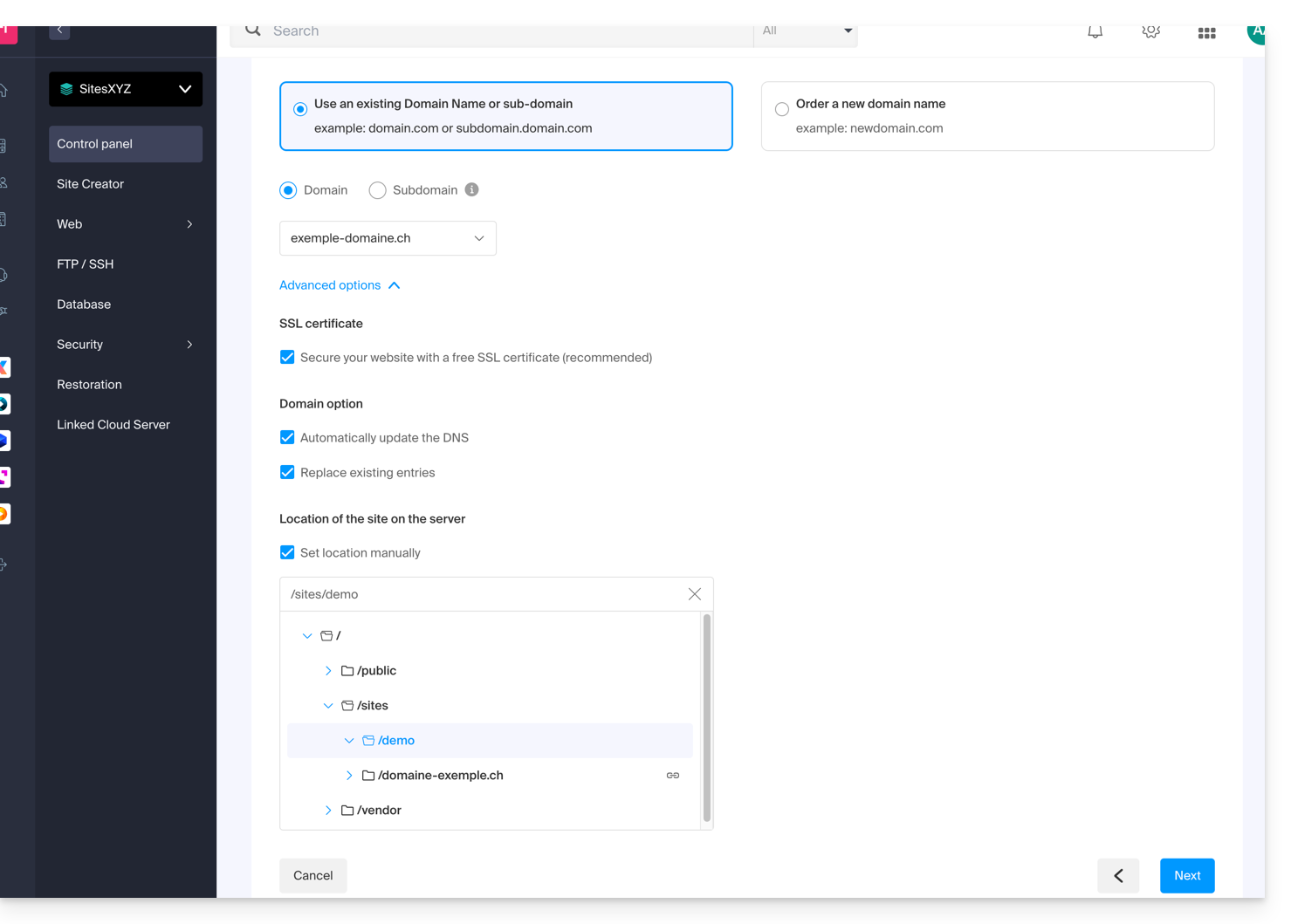
- Choose between using a domain name or a subdomain.
- Enter the domain name or subdomain.
- Click on Advanced options.
- Enable (or disable) the Let's Encrypt SSL certificate for the future website.
- Check the Set location manually box.
- Choose the same location as the main site:
- Click the blue Next button to start creating the website.
Install the SSL certificate
Once the second site is created (any DNS addition/modification may take up to 48 hours to propagate (❓: help)), you will be able to install an SSL certificate (if you chose not to install the certificate in step 9 above).
To access the website management:
- Click here to access your product management interface in the Infomaniak Manager (need help?).
- Click directly on the name assigned to the product in question.
- Click on SSL Certificates in the left-hand menu.
- Click on the blue Install an SSL certificate button and follow the procedure.
Link to this FAQ: https://faq.infomaniak.com/2522
Has this FAQ been helpful?