Knowledge base
1000 FAQs, 500 tutorials and instructional videos. Here, there are only solutions!
Import photos to the kDrive mobile app (Android)
This guide explains how to automatically transfer photos from your mobile device (Android) to kDrive Infomaniak.
Introduction
- Once this feature is enabled, photos from your mobile device will be saved to the kDrive folder of your choice.
- Foreground mode:
- Synchronization works optimally when the kDrive application is active and in the foreground.
- Background mode
- Android may limit the operation of applications in the background to save battery.
- For smooth synchronization, ensure that the kDrive application is not subject to strict "battery optimization" settings on your phone.
- File naming: unlike iOS, automatic backup on Android generally preserves the original name of files (e.g., IMG_001.jpg), but please refer to the information at the bottom of this guide.
Enable sending to kDrive on Android
Prerequisites
To configure automatic backup:
- Open the kDrive mobile app.
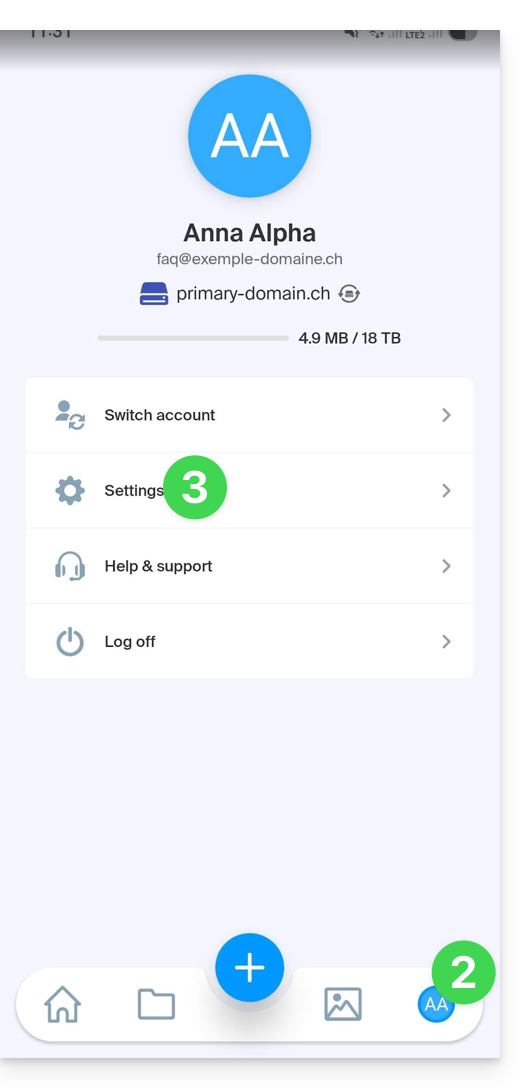
- Tap on your initials or your avatar (bottom right).
- Tap on Settings:
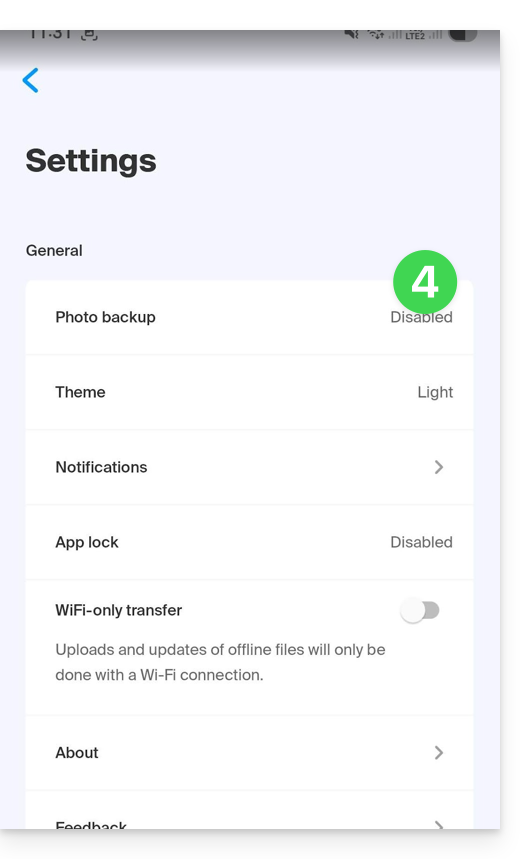
- Tap Photo Backup:
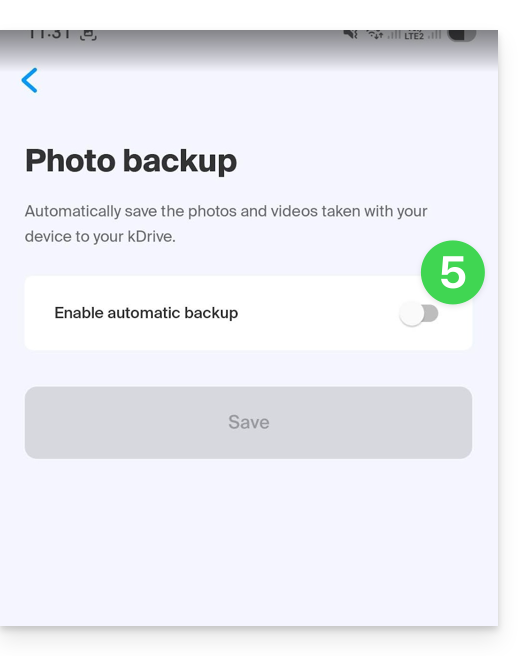
- Enable Automatic Backup:
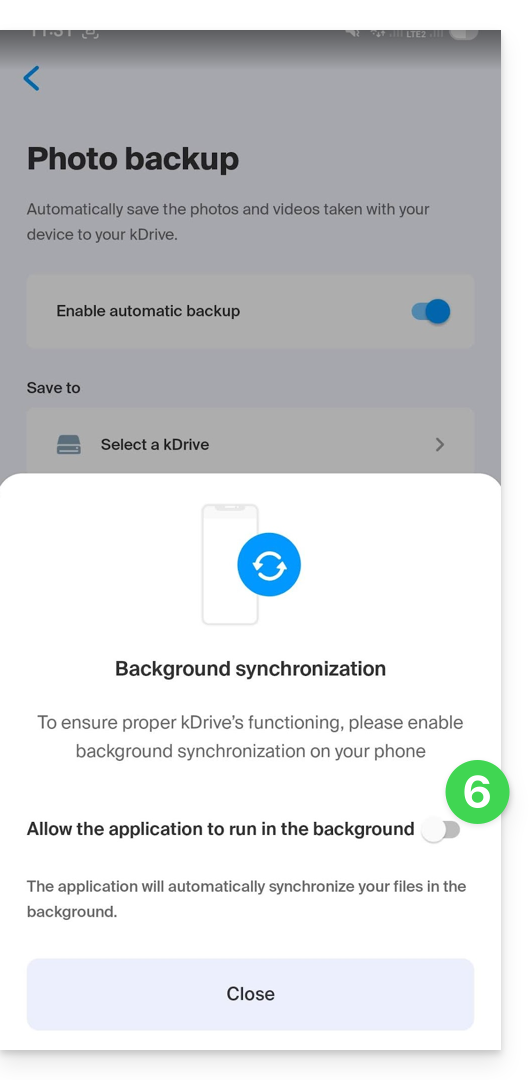
- If necessary, accept Android's request to access all your media and enable background synchronization:
- Tap Select a kDrive:
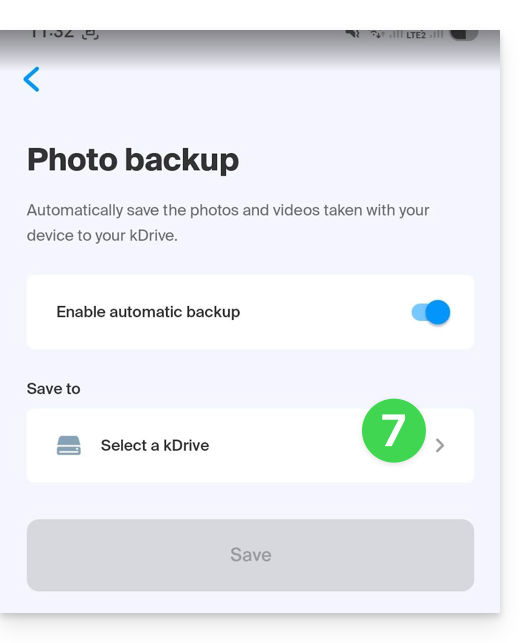
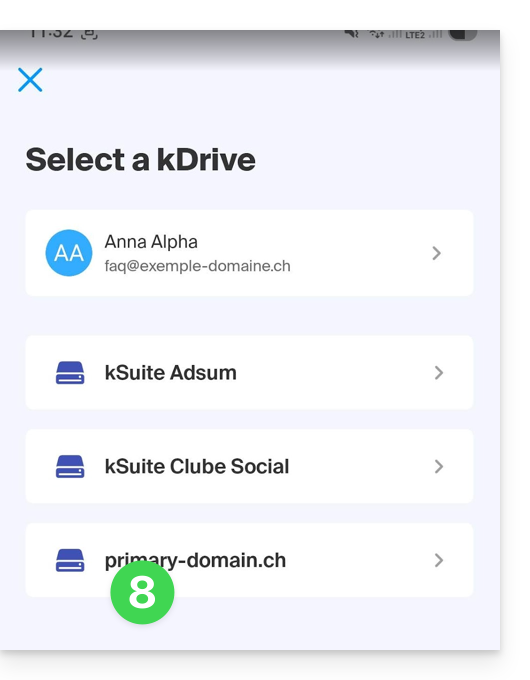
- Choose the destination Infomaniak account and kDrive:
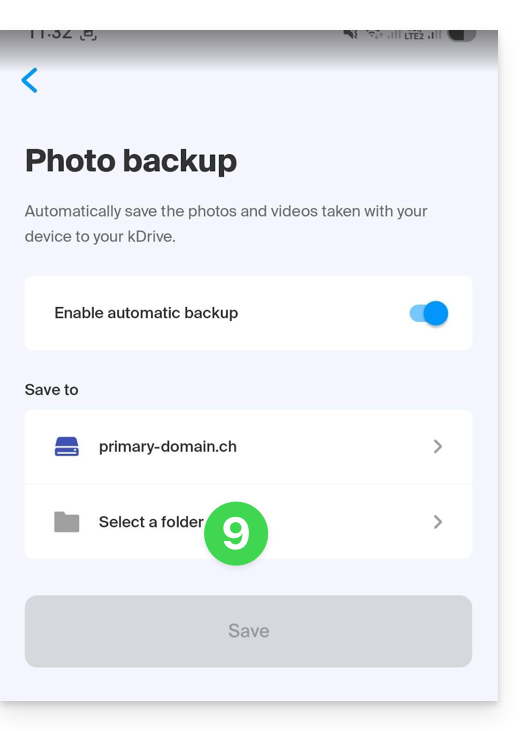
- Tap on the kDrive folder selection:
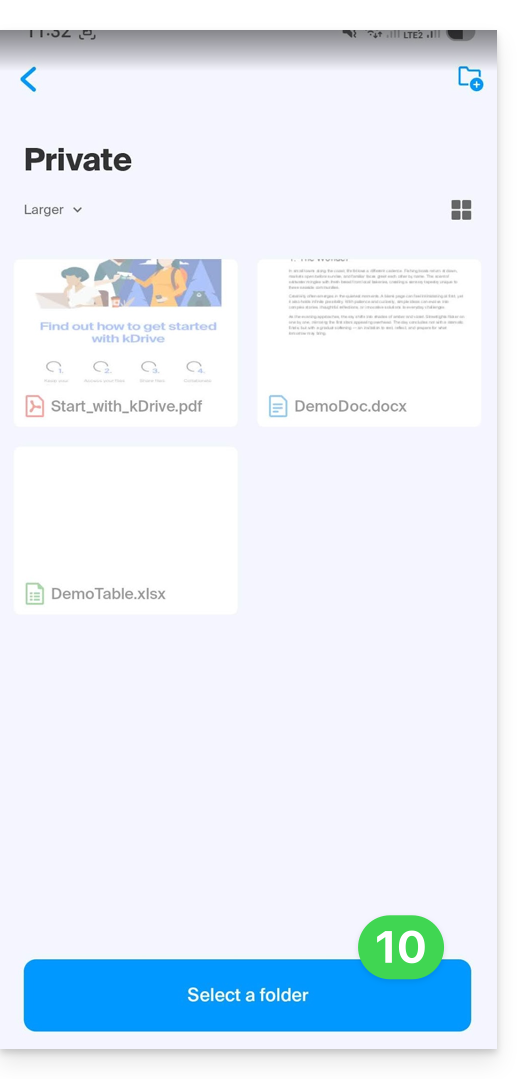
- Once in the target folder on kDrive, tap Select:
- Tap the folders that need to be backed up:
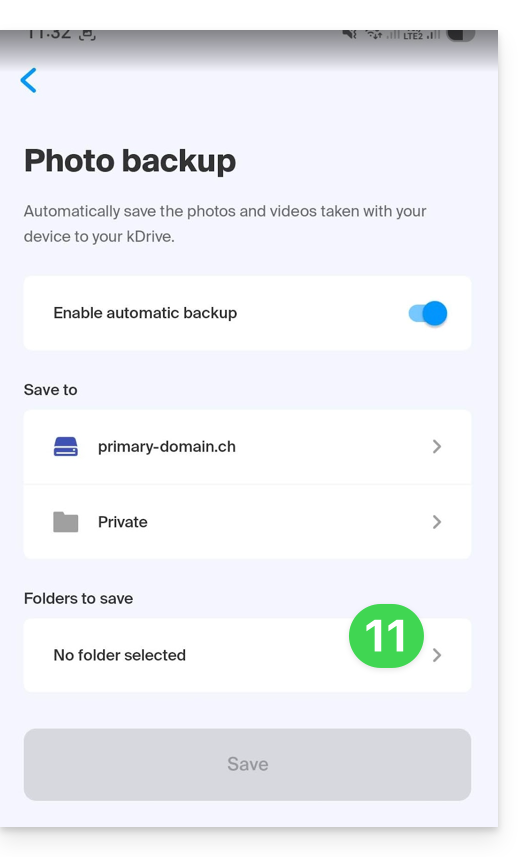
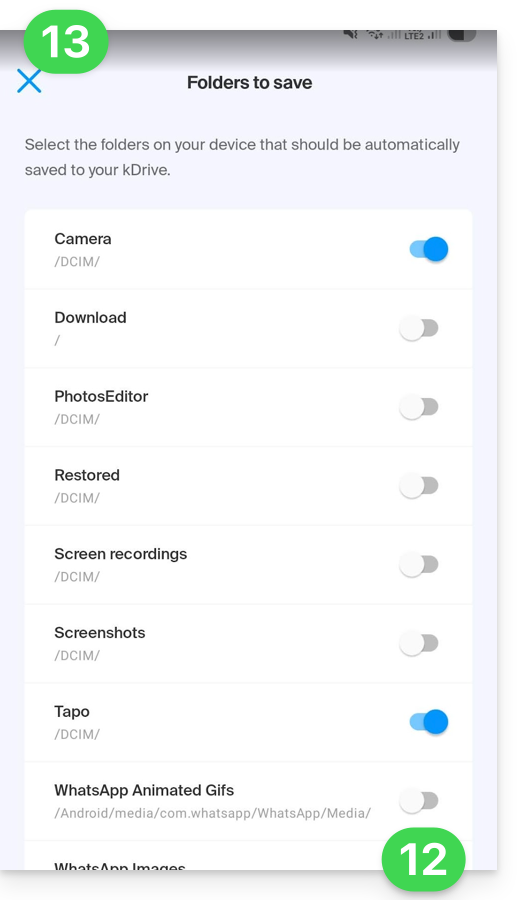
- Enable the folder(s) on your device that you want to synchronize (e.g., DCIM, WhatsApp, etc.).
- Close the folder selection window:
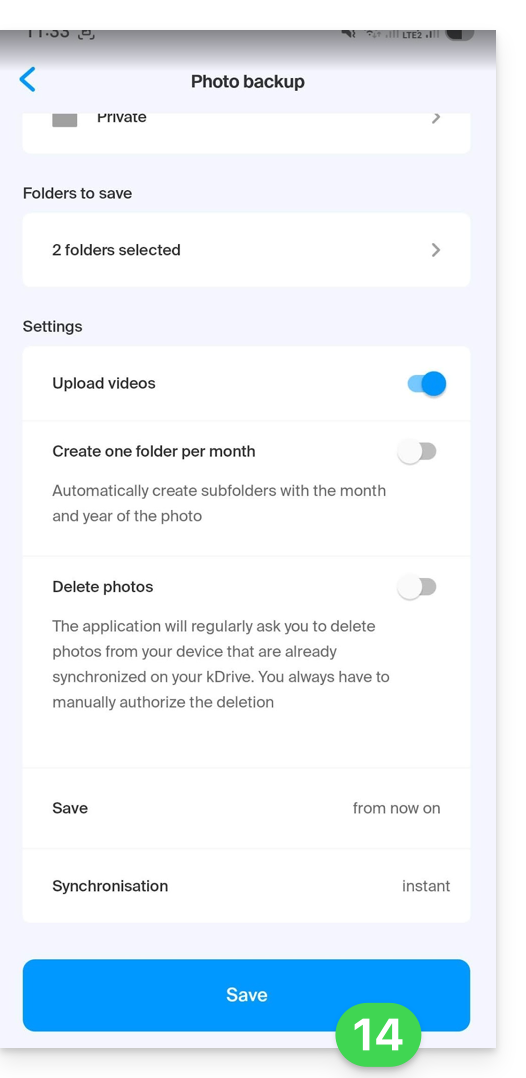
- Adjust your preferences (videos, monthly ranking, deletion after sending, etc.) then click Save:
Warning: Risk of collision and data loss
The Android application retains the original name defined by your device. On some models (such as Sony Xperia), the numbering of photos is sequential (e.g., DSC_0001.jpg).
If you enable the option to delete content on the mobile device after sending, the device may reset its numbering. During the next synchronization, a new photo named DSC_0001.jpg could then overwrite the previous one on your kDrive.
To prevent data loss, it is recommended to configure your "Camera" application to use a naming system based on the date and time (e.g., 20260219_150109.jpg) rather than a simple numerical sequence.
Link to this FAQ: https://faq.infomaniak.com/2514
Has this FAQ been helpful?